Connexion
BlueMoon chain delivers CLEANGULP malware through fake news and NGO websites


Microsoft déploie une nouvelle mise à jour facultative pour Windows 11 24H2 et 25H2. Baptisée KB5124010, cette mise à jour de prévisualisation de septembre 2026 apporte de nombreuses améliorations à l’Explorateur de fichiers, au Bluetooth, aux paramètres de personnalisation, au pavé tactile, à l’environnement de récupération Windows et à plusieurs fonctions d’accessibilité.
Elle introduit aussi Emoji 17.0, de nouveaux réglages pour la touche Copilot, une sauvegarde de la pellicule avec OneDrive et plusieurs corrections importantes, notamment pour l’Historique des fichiers, la caméra et Sysmon.
Comme il s’agit d’une mise à jour Preview, KB5124010 reste facultative. Vous pouvez donc l’ignorer si vous préférez attendre la prochaine mise à jour de sécurité mensuelle.
Microsoft a publié KB5124010 le 22 septembre 2026 pour :
La mise à jour apparaît dans Windows Update sous la forme : 2026-09 Preview Update (KB5124010)
Pour l’installer manuellement : Paramètres > Windows Update > Options avancées > Mises à jour facultatives
Comme les autres mises à jour Preview de type « D », elle ne contient pas de nouveaux correctifs de sécurité majeurs.
Elle sert surtout à tester en avance les améliorations et corrections qui doivent être intégrées progressivement aux prochaines mises à jour cumulatives.
À noter toutefois que si l’option : Recevez les dernières mises à jour dès qu’elles sont disponibles
est activée, Windows peut télécharger automatiquement ce type de Preview en arrière-plan.
L’un des changements les plus intéressants concerne le volet de prévisualisation de l’Explorateur de fichiers.
Microsoft avait renforcé la sécurité de ce volet afin d’empêcher l’affichage automatique de certains fichiers provenant d’Internet.
Cette protection concernait notamment les fichiers marqués comme ayant été téléchargés depuis le Web.
Avec KB5124010, Microsoft assouplit ce comportement.
Pour les fichiers HTML, un nouveau bouton Prévisualisation permet de confirmer explicitement que vous souhaitez afficher le contenu.
Pour les autres formats, notamment les PDF, l’aperçu redevient automatique.
Le changement évite donc de devoir ouvrir les propriétés du fichier puis supprimer manuellement son blocage uniquement pour consulter son aperçu.

Microsoft améliore également la page Accueil de l’Explorateur.
Les sections telles que les fichiers récents peuvent être développées ou réduites.
Jusqu’à présent, leur état n’était pas toujours mémorisé : une section réduite pouvait se rouvrir automatiquement lors du prochain lancement.
Avec KB5124010, l’Explorateur conserve désormais cet état.
Si vous réduisez une section, elle devrait donc rester réduite à la prochaine ouverture.
La mise à jour améliore également l’affichage des fichiers stockés dans le cloud.
Les miniatures des fichiers cloud deviennent plus fiables dans le volet Détails.
Microsoft réorganise aussi ce volet afin de rendre les propriétés des fichiers plus faciles à consulter.
Un autre correctif concerne la barre d’adresse de l’Explorateur.
Dans certains cas, cliquer vers la partie droite de la barre au moment de passer en mode édition pouvait effacer son contenu.
Ce comportement est corrigé.
KB5124010 ajoute la prise en charge de Emoji 17.0.
Les nouveaux caractères Unicode incluent notamment de nouveaux emoji tels qu’un visage déformé, un nuage de bagarre ou encore une créature velue.
Ils sont accessibles comme d’habitude avec : Windows + .
Microsoft retouche également plusieurs emoji déjà présents afin d’améliorer leur cohérence avec les représentations utilisées sur d’autres plateformes.
Cela concerne notamment :
La personnalisation du Bureau bénéficie elle aussi de plusieurs changements.
Microsoft améliore d’abord la fiabilité de : Paramètres > Personnalisation > Arrière-plan
La page pouvait parfois mal appliquer certains réglages ou afficher un fond noir à la place de l’image sélectionnée.
Ce comportement avait notamment été observé lors des précédentes mises à jour de Windows 11.
KB5124010 doit rendre les changements de fond d’écran plus fiables.
Windows 11 accepte désormais les fichiers DIB comme arrière-plan.
DIB signifie Device Independent Bitmap.
Il s’agit d’un ancien format d’image proche du BMP, principalement utilisé dans certains logiciels et environnements Windows.
Il n’est donc plus nécessaire de convertir manuellement une image DIB en JPEG ou PNG avant de l’utiliser comme fond d’écran.
Microsoft corrige aussi un problème avec les diaporamas de fonds d’écran et les bureaux virtuels.
Auparavant, l’utilisation d’un diaporama pouvait parfois être interrompue lors du changement de bureau virtuel et Windows revenait alors au mode « Image ».
Avec KB5124010, les diaporamas restent actifs lorsque plusieurs bureaux virtuels sont utilisés.
Les aperçus des fonds d’écran gagnent également en qualité, notamment sur les écrans configurés en orientation portrait.
Une partie importante de la mise à jour concerne Bluetooth.
Microsoft apporte plusieurs améliorations au Bluetooth Classic et au Bluetooth LE Audio.
Pendant un appel vocal, lorsque le volume d’un périphérique Bluetooth Classic est ajusté directement depuis le casque ou les écouteurs, Windows affiche désormais le contrôle de volume à l’écran.
Cela fournit un retour visuel immédiat sur le niveau choisi.
Windows pouvait parfois afficher un périphérique Bluetooth comme toujours connecté alors qu’il avait déjà été déconnecté.
KB5124010 améliore la précision de cet état.
La page : Paramètres > Bluetooth et appareils devient également plus stable lorsque plusieurs périphériques audio et Bluetooth sont gérés.
Microsoft corrige par ailleurs un bug où la radio Bluetooth pouvait réellement être désactivée alors que l’interrupteur des Paramètres indiquait encore qu’elle était active.
Microsoft améliore également la compatibilité des microphones avec certains périphériques Bluetooth Classic Audio.
Un problème pouvant provoquer un plantage avec le code : 0x139
pendant la lecture audio Bluetooth est corrigé.
La fiabilité et les performances de Bluetooth LE Audio sont également améliorées.
Microsoft annonce aussi une meilleure fiabilité de la fonction d’audio partagé.
Dans : Paramètres > Accessibilité > Effets visuels
Windows 11 ajoute une nouvelle option : Ouvrir les applications maximisées
Lorsqu’elle est activée, les nouvelles fenêtres s’ouvrent automatiquement en mode maximisé.
Cette fonction peut être particulièrement utile pour :
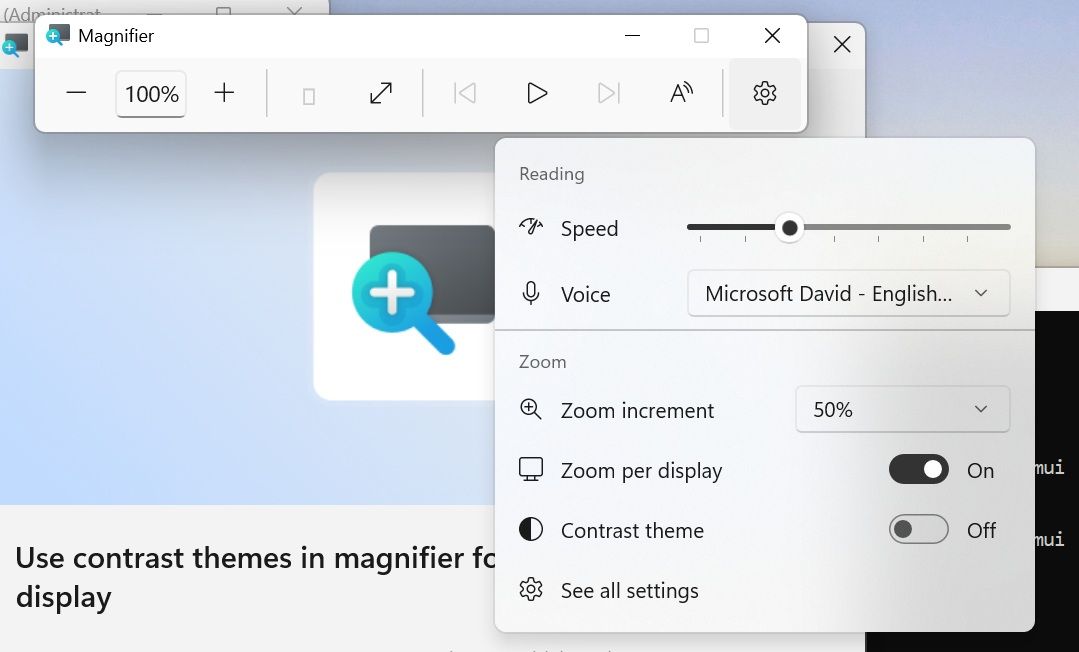
L’application Loupe bénéficie également d’un rafraîchissement visuel.
Microsoft modernise notamment :
Le fonctionnement ne change pas.
Les différents modes d’affichage, le niveau de zoom, les raccourcis clavier et la lecture à voix haute restent identiques.
Dans : Paramètres > Applications > Applications installées
Windows 11 affiche maintenant directement le numéro de version des applications empaquetées.
Cette information était déjà disponible pour de nombreux programmes classiques, mais pas systématiquement pour les applications au format moderne.
Cela peut faciliter le diagnostic ou la vérification de la version installée.
Microsoft améliore aussi les différents sélecteurs horaires des Paramètres.
Ils respectent désormais plus correctement le format horaire choisi par l’utilisateur :
12 heures ou 24 heures.
Le changement concerne notamment :
La mise à jour améliore également la persistance du réglage Autoriser plusieurs applications à utiliser la caméra en même temps dans : Paramètres > Bluetooth et appareils > Caméras
Ce paramètre pouvait auparavant ne pas être correctement conservé dans certaines situations.
KB5124010 ajoute de nouvelles possibilités aux pavés tactiles de précision.
Dans : Paramètres > Bluetooth et appareils > Pavé tactile deux nouvelles options apparaissent.
La première permet de faire défiler verticalement le contenu avec un seul doigt en partant depuis le bord gauche ou droit du pavé tactile.
La seconde ajoute un défilement automatique.
Lors d’un défilement, il suffit de rapprocher les doigts du bord du pavé pour continuer à faire défiler sans effectuer de nouveaux gestes.
Ces nouveautés complètent les améliorations déjà introduites en juillet 2026 avec KB5101684 pour la vitesse du défilement et l’accélération.
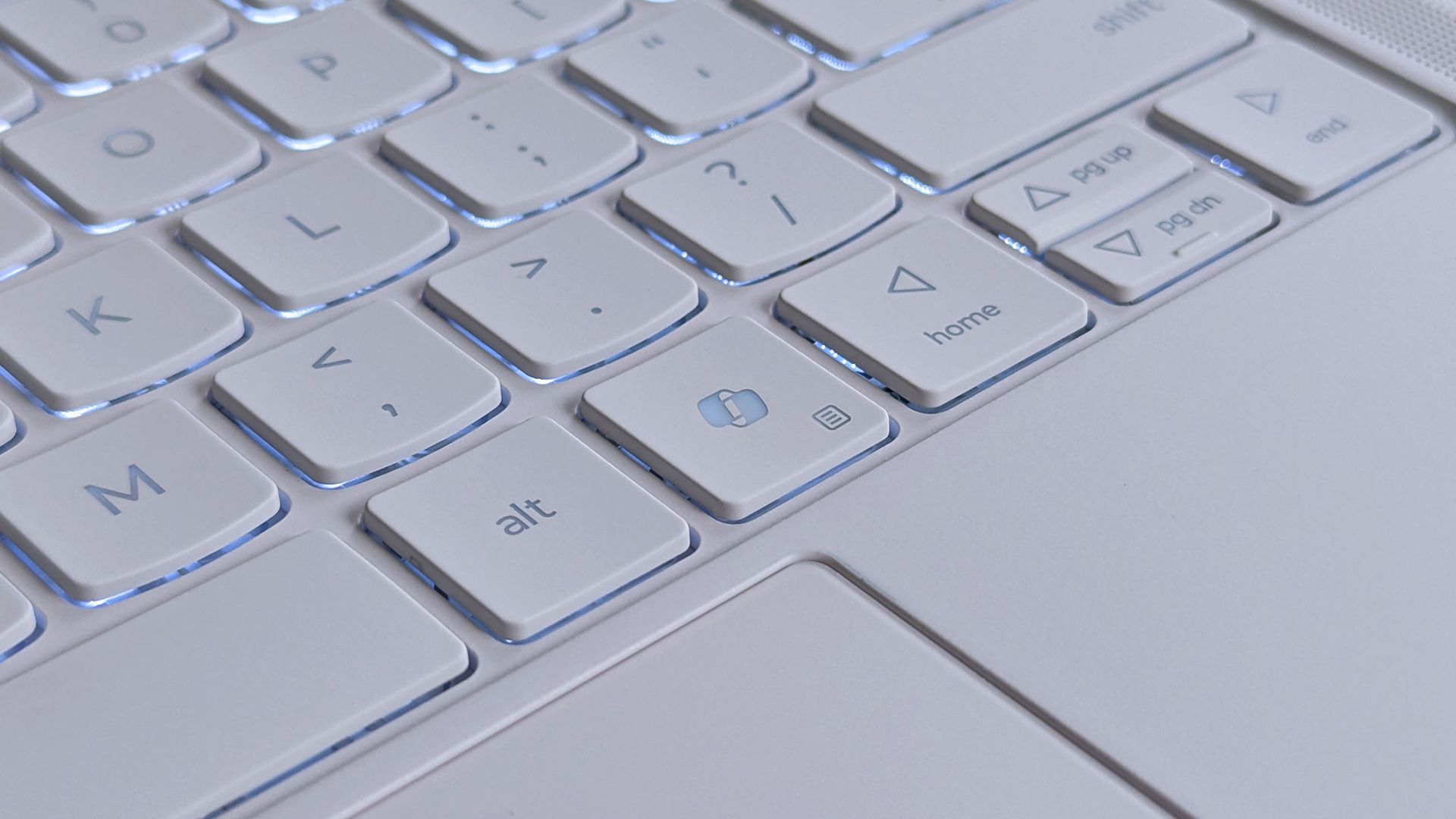
Microsoft continue également d’assouplir le comportement de la touche Copilot présente sur certains claviers récents.
Avec KB5124010, elle peut désormais être réaffectée pour agir comme : Ctrl droit ou Menu contextuel
Cette dernière correspond à l’ancienne touche de menu que l’on trouvait autrefois sur de nombreux claviers Windows.
Ce changement peut être particulièrement utile pour les utilisateurs qui n’utilisent pas Copilot et préfèrent retrouver des raccourcis traditionnels.
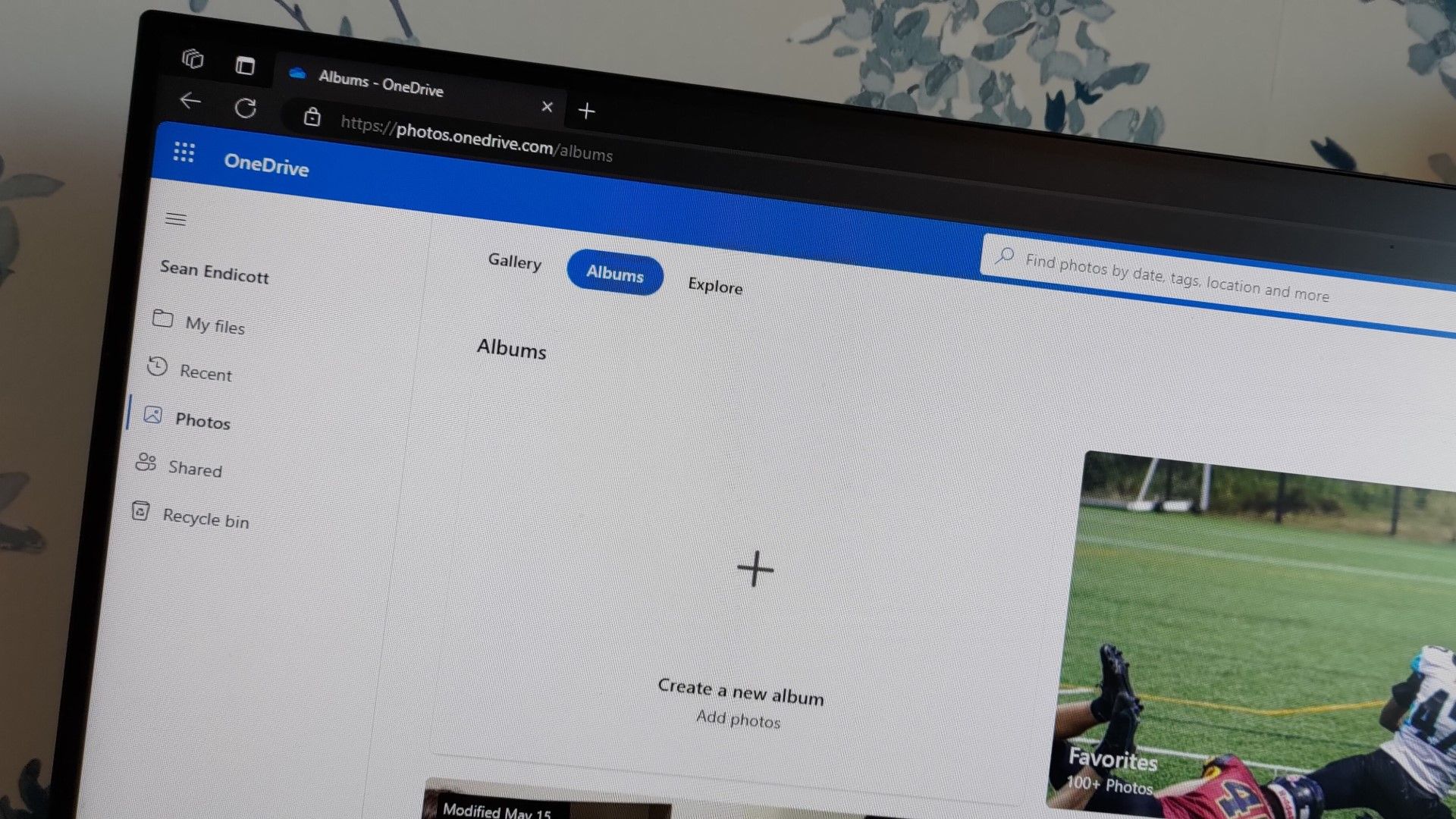
Microsoft commence également à déployer une nouvelle fonction baptisée Camera roll backup.
Elle permet aux utilisateurs éligibles de configurer plus facilement la sauvegarde de leurs photos dans OneDrive.
L’option peut apparaître depuis la page d’accueil des Paramètres ou dans les paramètres du compte.
La configuration s’effectue ensuite sur un smartphone à l’aide d’un QR Code.
Microsoft précise que cette fonction dépend du marché et de l’appareil.
Elle ne sera donc pas immédiatement disponible pour tout le monde.
La police Ebrima évolue également.
Microsoft ajoute la prise en charge de deux systèmes d’écriture Garay et Beria Erfe.
Garay a été intégré à Unicode 16.0 tandis que Beria Erfe fait partie d’Unicode 17.0.
Les glyphes Adlam de la police Ebrima sont également ajustés pour mieux respecter les normes Unicode actuelles.
L’une des nouveautés les plus intéressantes techniquement concerne l’environnement de récupération Windows, ou WinRE.
Jusqu’à présent, lorsqu’une fonction de récupération nécessitait Internet, il fallait parfois configurer manuellement la connexion Wi-Fi.
Avec KB5124010, WinRE peut réutiliser automatiquement certains profils Wi-Fi déjà enregistrés dans Windows.
Cela concerne notamment les réseaux compatibles utilisant également des certificats.
Le système de récupération peut ainsi se connecter à Internet sans demander à nouveau les informations de connexion.
Cette amélioration peut notamment faciliter le fonctionnement de Récupération machine rapide et Reconstruction dans le Cloud.
Ces fonctions ont besoin d’une connexion Internet pour télécharger certains composants ou accéder aux services de récupération de Microsoft.
Avec le réemploi automatique du profil Wi-Fi, l’intervention de l’utilisateur peut être réduite.
La fonctionnalité est activée par défaut, mais les administrateurs peuvent la désactiver.

KB5124010 ajoute un nouveau plug-in de gestion distante de la récupération.
Il permet aux fournisseurs MDM d’étendre leurs possibilités de gestion de WinRE.
Cette fonctionnalité vise principalement les entreprises et les parcs informatiques administrés.
Elle s’inscrit dans la volonté de Microsoft de rendre les outils de récupération de Windows davantage administrables à distance.
Microsoft renforce également les restrictions du mode kiosque.
Dans certains scénarios, les raccourcis suivants sont désormais désactivés : Windows + Tab dans un kiosque utilisant une interface utilisateur restreinte ;
ainsi que : Windows + A et : Windows + C en mode kiosque mono-application.
Cela évite qu’un utilisateur puisse sortir plus facilement de l’environnement verrouillé.
Une évolution plus surprenante concerne Sauvegarde Windows.
Microsoft indique que la fonction PC-to-PC Migration n’est plus disponible.
Cette fonctionnalité avait été introduite progressivement afin de permettre le transfert direct de fichiers et de paramètres depuis un ancien PC pendant la configuration d’un nouvel ordinateur.
Microsoft recommande désormais d’utiliser Sauvegarde Windows pour sauvegarder puis restaurer les fichiers, paramètres et autres éléments pris en charge.
Il s’agit donc d’un recul par rapport au transfert direct de machine à machine qui avait été testé ces derniers mois.
 Plus de détails dans ce guide :
Par défaut, Windows 11 tente de mémoriser la taille et l’état de la fenêtre d’une application lorsque vous la fermez. Ainsi, si vous fermez une application alors qu’elle est agrandie, elle s’ouvrira généralement agrandie la fois suivante. De même, si vous la fermez dans une fenêtre plus petite, Windows peut la rouvrir à peu près à la même taille.
Mais ce comportement n’est pas toujours cohérent, et les applications peuvent parfois s’ouvrir dans une fenêtre plus petite ou d’une taille différente de celle que vous souhaiteriez. Avec la mise à jour d’aujourd’hui, Microsoft ajoute une nouvelle fonctionnalité qui vous permet de demander à Windows d’ouvrir systématiquement les applications en mode plein écran, quelle que soit la manière dont vous les avez fermées précédemment.
Windows 11 ajoute une option dans Paramètres > Accessibilité > Effets visuels : Ouvrir les applications en mode agrandi

Microsoft corrige aussi un problème concernant certains ordinateurs portables branchés au secteur.
Dans certains scénarios, Windows pouvait détecter à tort un passage de l’alimentation secteur vers la batterie.
Cela pouvait influencer l’affichage de l’état d’alimentation mais aussi certains comportements de performances.
KB5124010 améliore cette détection.
Parmi les correctifs diffusés à tous les utilisateurs de KB5124010 figure un problème avec certaines caméras intégrées.
La caméra pouvait soudainement ne plus fonctionner dans :
Microsoft indique que le problème est désormais corrigé.
KB5124010 met également à jour plusieurs composants d’intelligence artificielle de Windows vers la version : 1.2608.951.0
Les composants concernés incluent notamment :
Ces composants ne sont installés que sur les PC Copilot+ compatibles.
Ils ne concernent donc pas tous les ordinateurs Windows 11.
La Preview inclut aussi la mise à jour de la pile de maintenance : KB5124009 avec la build : 26100.9539
La Servicing Stack gère notamment l’installation des futures mises à jour Windows.
Microsoft indique qu’elle améliore la fiabilité du processus de mise à jour.
C’est probablement l’un des correctifs les plus intéressants de cette Preview.
Après les précédentes mises à jour de septembre, Historique des fichiers pouvait cesser de sauvegarder ou de restaurer les données vers :
Windows pouvait alors afficher :
Reconnectez votre lecteur
alors que le disque de sauvegarde était parfaitement connecté et fonctionnel.
KB5124010 corrige officiellement ce problème.
Ce bug faisait partie des dysfonctionnements signalés après le Patch Tuesday de septembre.
Microsoft corrige aussi plusieurs problèmes avec Sysmon, l’outil de surveillance avancée de Sysinternals.
Un premier problème concernait la validation des en-têtes des fichiers exécutables.
Des fichiers tronqués ou mal formés pouvaient provoquer une consommation mémoire imprévisible et perturber la détection des tentatives de manipulation.
Un deuxième bug concernait le pilote de filtre du système de fichiers de Sysmon.
Si le répertoire d’archivage ne pouvait pas être ouvert, la fermeture d’un handle non initialisé pouvait entraîner un plantage de Windows.
Enfin, Sysmon pouvait générer à tort des événements Evenements ID 25 pour le processus Windows :
smss.exe
Cette fausse détection de manipulation de processus est également corrigée.
Il faut également garder à l’esprit que Microsoft continue d’enquêter sur certains problèmes audio apparus avec les mises à jour de septembre.
WindowsLatest indique que des problèmes peuvent encore affecter certaines configurations utilisant des périphériques USB Audio.
La mise à jour d’urgence KB5129195 publiée quelques jours plus tôt avait corrigé une partie des problèmes, notamment certains modes multicanaux.
Mais tous les cas n’ont pas encore nécessairement disparu.
Cela constitue une raison supplémentaire pour ne pas se précipiter sur KB5124010 si votre machine fonctionne correctement.
KB5124010 possède au moins un problème connu important pour les entreprises.
Après KB5124008 ou une mise à jour ultérieure, certains appareils protégés par Credential Guard peuvent perdre leur relation d’approbation avec un domaine Active Directory local.
Les utilisateurs peuvent alors recevoir le message indiquant que : la relation d’approbation entre cette station de travail et le domaine principal a échoué
L’ouverture de session avec des identifiants mis en cache peut encore fonctionner.
Microsoft relie le problème à une fonction appelée Machine Identity Isolation.
Les mises à jour de septembre n’activent pas directement cette protection, mais elles commencent à respecter certaines configurations déjà définies par stratégie.
Or cette fonction est uniquement prise en charge dans les environnements utilisant des contrôleurs de domaine avec un niveau fonctionnel Windows Server 2025 ou ultérieur.
Si elle avait été activée dans un environnement plus ancien, la relation de confiance avec le domaine peut échouer.
Microsoft recommande donc de la désactiver sur les environnements qui ne remplissent pas ces conditions.
Pour un particulier ou un PC qui n’est pas joint à un domaine Active Directory, ce problème n’a aucune incidence.
Comme souvent avec les mises à jour Preview de Windows 11, KB5124010 peut également provoquer quelques dysfonctionnements sur certaines configurations. Plusieurs retours d’utilisateurs commencent à être recensés, notamment sur le forum Malekal, avec des problèmes qui peuvent toucher différents composants du système après l’installation. Il est donc recommandé de consulter régulièrement la liste des incidents signalés avant de déployer cette mise à jour sur un PC de production. Vous pouvez suivre les problèmes connus et les nouveaux témoignages dans ce sujet dédié du forum Malekal : https://forum.malekal.com/viewtopic.php?f=11&t=77362
Je n’ai pas pu charger le contenu du sujet depuis le Web, donc je préfère ne pas inventer les problèmes précis recensés dedans.
Comme les précédentes mises à jour Windows 11, les packages autonomes deviennent particulièrement volumineux.
Selon WindowsLatest, le fichier x64 de KB5124010 atteint environ :
Cela ne signifie pas que Windows Update télécharge forcément autant de données.
Sur un PC déjà à jour, Windows Update utilise des mécanismes différentiels et le téléchargement réel peut rester inférieur à environ 1,5 Go.
Le Microsoft Update Catalog fournit en revanche des packages cumulatifs complets.
Pour installer KB5124010 manuellement depuis le Microsoft Update Catalog, Microsoft indique que le checkpoint cumulative update « KB5043080 » peut également être nécessaire.
Les deux fichiers doivent alors être placés dans le même dossier et installés dans le bon ordre.
Sur une installation Windows à jour, le checkpoint peut déjà être présent.
Pour la majorité des utilisateurs, il reste donc préférable d’installer KB5124010 directement depuis Windows Update.
KB5124010 est une Preview assez riche pour Windows 11 24H2 et 25H2, même si elle n’apporte pas de bouleversement majeur.
Microsoft améliore surtout les fonctions déjà existantes : Explorateur de fichiers, Bluetooth, personnalisation, pavé tactile, accessibilité et environnement de récupération.
La mise à jour ajoute également Emoji 17.0, de nouvelles possibilités pour la touche Copilot et améliore la sauvegarde de photos avec OneDrive.
Du côté des corrections, la résolution du problème d’Historique des fichiers et du bug de caméra sera probablement la plus intéressante pour les utilisateurs touchés par les mises à jour de septembre.
Mais KB5124010 reste avant tout une mise à jour facultative de prévisualisation. À moins d’avoir besoin d’un de ses correctifs ou de vouloir tester les nouveautés en avance, il est parfaitement raisonnable d’attendre leur intégration aux prochaines mises à jour stables de Windows 11.
Cela est encore plus vrai, si vous êtes un gamer.
 Sources :
L’article Windows 11 KB5124010 : nouvelle mise à jour Preview avec améliorations de l’Explorateur, Bluetooth, Emoji 17 et WinRE est apparu en premier sur malekal.com.
BigDiskBuster, la nouvelle faille zero-day de Nightmare Eclipse, sature le disque pour empêcher Microsoft Defender de se mettre à jour sur Windows.
Le post BigDiskBuster : cette nouvelle zero-day empêche Microsoft Defender de se mettre à jour a été publié sur IT-Connect.
Sur la photo officielle que j'ai mise en illustration de cet article, Dirk Schrödter, ministre du Numérique et chef de la chancellerie du Land allemand du Schleswig-Holstein, pose assis dans un escalier avec un Tux en peluche. Et il a le smile puisque plus de 200 agents de sa chancellerie bossent maintenant uniquement sous Linux, exactement comme il l'a annoncé aux 24e Open-Source-und-Linux-Tage de Kiel.

Alors attention, on n'est pas à 100 % parce qu'il reste quand même une vingtaine de postes sous Windows à la chancellerie qui sont nécessaires pour cause de dépendance technique à des logiciels métiers purement Windows.
Mais le ministre assure dans l'annonce officielle du Land que ses équipes planchent aussi là-dessus. Mais voilà, globalement, pour tout le reste, la bascule s'est bien terminée, même si on ne sait pas sur quelle distrib ils tournent exactement.
Pour réussir cet exploit, Dirk Schrödter a commencé tout doucement depuis plusieurs années en mettant d'abord en place LibreOffice sur des postes hors administration fiscale et en passant également la messagerie sur Open-Xchange et tout ce qui était VisioConf sur OpenTalk.
Puis cela continue de s'étendre lentement avec Nextcloud pour généraliser le travail collaboratif, un annuaire qui s'appelle Nubus , conçu pour remplacer Active Directory de Microsoft. Sans oublier la téléphonie, qui doit encore passer sur OSKAR, une solution totalement libre.
Alors bien sûr, comme ils disent chez Microsoft, Linux n'est gratuit que si votre temps ne vaut rien. Mais côté porte-monnaie, d'après le bilan du Land, ça fait déjà plus de 15 millions d'euros de licences économisées, face à 9 millions d'investissements ponctuels prévus en 2026 pour la migration et le développement des outils libres. Pas mal, hein ?
Et si vous vous demandez comment on fait passer toute une chancellerie sous Linux, hé bien sachez que les agents ont eu droit à de nombreuses réunions d'information en présentiel ET en ligne, à des vidéos de formation, à des experts présents sur place pour les aider et à des forums Linux. On ne les a pas balancés comme ça devant un poste Linux en mode "démerdez-vous".
Et pour la maintenance, c'est Gonicus, une entreprise allemande spécialisée en open source, qui va assurer le support technique de Linux avec Dataport, le prestataire informatique du Land.
Alors, est-ce que Windows c'est terminé pour de bon en Allemagne ?
Hé bien pas vraiment, parce que ça ne représente qu'environ 200 agents, ce qui reste une goutte d'eau face aux quelques 30 000 agents que compte l'administration du Land. Les autres ministères et administrations devraient cependant suivre "progressivement" le mouvement, et la planification du déploiement "tourne à plein régime" d'après le ministre. Mais bon pour l'instant, il n'a donné aucune date...
Comme je vous le disais au début de mon article, le gros morceau, ce sont surtout les logiciels métier. Le Land explique qu'une grande partie de ceux hébergés chez Dataport ne tournent que sous Windows, ou ne sont supportés que sous Windows par leur éditeur. La parade prévue c'est donc de les remplacer par d'autres produits, ou de les rendre utilisables à distance !
Sans compter qu'une bascule de cette taille peut aussi mal tourner. En effet, quand le ministère de l'Intérieur a migré sa messagerie vers Open-Xchange et Thunderbird durant l'été 2025, le syndicat de police GdP a parlé de "chaos total", avec des milliers de mails retrouvés dans des services qui n'avaient rien à voir. Bref, c'était le bordel.
Le syndicat reconnaît quand même que le libre est utilisable, mais que c'est quand même assez loin du confort des anciens logiciels. Voilà, donc ça marche, mais le changement demande quand même des efforts d'adaptation à des interfaces plus austères / complexes...
M'enfin, voilà ça avance... Comme quoi, un autre monde est possible ^^.
Source : Hardwareluxx


Microsoft vient de prévenir le monde entier que File History, sa sauvegarde intégrée à Windows depuis Windows 8 , peut ne plus créer ni mettre à jour la moindre sauvegarde sur certaines machines et cela depuis l'installation des mises à jour de sécurité de septembre 2026 !!
Et par défaut, c'est le profil utilisateur au complet qui y passe avec le Bureau, les Documents, les Images, la Musique et les Vidéos, recopiés sur un disque branché en USB ou sur un partage réseau. Autant dire l'essentiel !
Microsoft l'a pourtant remplacée depuis par Windows Backup (qui sauvegarde vos données sur OneDrive, quelle surprise...), mais File History était quand même toujours là, accessible via le Panneau de configuration.
Le symptôme ressemble à une panne de matériel puisque Windows vous réclame de reconnecter votre disque alors qu'il est branché et qu'il fonctionne parfaitement. De son côté, la date de dernière sauvegarde reste figée, et les fichiers déjà archivés répondent qu'aucune version précédente n'est disponible quand vous en cherchez une...
Et quand on y regarde de plus près dans l'Observateur d'événements, ce sont des plantages de FileHistory.exe et de KERNELBASE.dll. Surtout que le périmètre est large avec en versions impactées, Windows 11 depuis la 23H2, Windows 10 depuis la 21H2 + les éditions Enterprise LTSC 2016 et 2019.
Maintenant comment est-ce qu'on remédie à ça ? Hé bien ce n'est pas marrant parce que la seule solution que j'ai pu voir sur le fil de support Microsoft consacré au problème , c'est un utilisateur qui raconte que la seule chose qui a marché chez lui, c'est de désinstaller la mise à jour et de couper Windows Update en attendant. Sauf que KB5124008 corrige quand même un grand nombre de vulnérabilités, dont des zero-days activement exploités, et la retirer réduira sérieusement votre niveau de sécurité.... Je ne vous conseille donc pas de faire ça.
Gardez vos correctifs Windows et sauvegardez avec autre chose. Par exemple FreeFileSync qui est très bien. En tout cas, le temps que Microsoft trouve une solution.
Côté libre, y'a aussi Kopia qui fait le boulot proprement. Ça crée des snapshots chiffrés de vos fichiers et dossiers vers un disque local, un stockage réseau ou du cloud, avec compression et déduplication au passage. Et surtout c'est dispo en ligne de commande comme en GUI (interface graphique).
Et si la console ne vous fait pas peur, restic fera la même chose sans souci. Par contre avec ces solutions alternatives, je ne vais pas vous vendre du rêve hein... Le clic droit et l'onglet des versions précédentes dans l'explorateur, c'était le gros confort de File History, et aucun de ces outils ne vous le permet. Vous devrez restaurer depuis un snapshot, c'est un peu plus lourd quoi...
D'après sa page de support, Microsoft enquête donc toujours sur le bug et fournira, on l'espère, un correctif dans une prochaine mise à jour.


Windows 11 has some big changes on the way to one of its best accessibility features. Magnifier will soon have a contrast theme that improves visibility by reducing glare. At first glance, the feature appears similar to color inversion, but it works differently in several key ways.
Color inversion changes everything on your screen, including photos, videos, and other forms of media. In contrast (pun intended), contrast themes change the colors of an interface without adjusting media.
Four different contrast themes are in testing currently: Aquatic, Desert, Dusk, and Night sky. I think Microsoft could make these themes more accessible by picking more straightforward names. My prediction is that many will be surprised to see "Aquatic" is quite similar to dark mode and is not blue.
The new contrast themes are available for testing to Windows Insiders in the Experimental Channel. Build 26340.9502 is the first to include the themes.

The contrast themes are entirely separate from color inversion. You can still invert all the colors on your PC if you'd prefer.
That same update also brings improvements to Live Captions, Cloud Rebuild, and Mouse indicator. Here's everything that's rolling out, as shared by Microsoft.
Some of the same changes shipped to Insiders in the Beta Channel recently as well, including the improvements to Live Captions and Hyper-V. The Windows Recovery improvements related to Cloud rebuild are also live in the Experimental (26H1) Channel.
Microsoft revamped how its Insider channels work earlier this year, so we often have several builds roll out at once. We'll highlight the biggest changes here at Windows Central. You can always browse through the full documentation on Microsoft's website to see complete change logs for every single build.

Join us on Reddit at r/WindowsCentral to share your insights and discuss our latest news, reviews, and more.


Sur Windows, il existe des dizaines de raccourcis que les power users maîtrisent, mais qui peuvent vite ressembler à de la gymnastique pour les doigts. Et si on revenait à l'essentiel ? Voici notre sélection de 8 raccourcis radicaux, limités à deux touches maximum, pour gagner du temps sans vous faire de nœuds au cerveau.

Microsoft just announced a Windows and Surface event that will be held on October 7, 2026. Based on the invite, the event will focus on "how local AI will shape the next chapter of the PC." That's not exactly a topic that will move the needle for general users.
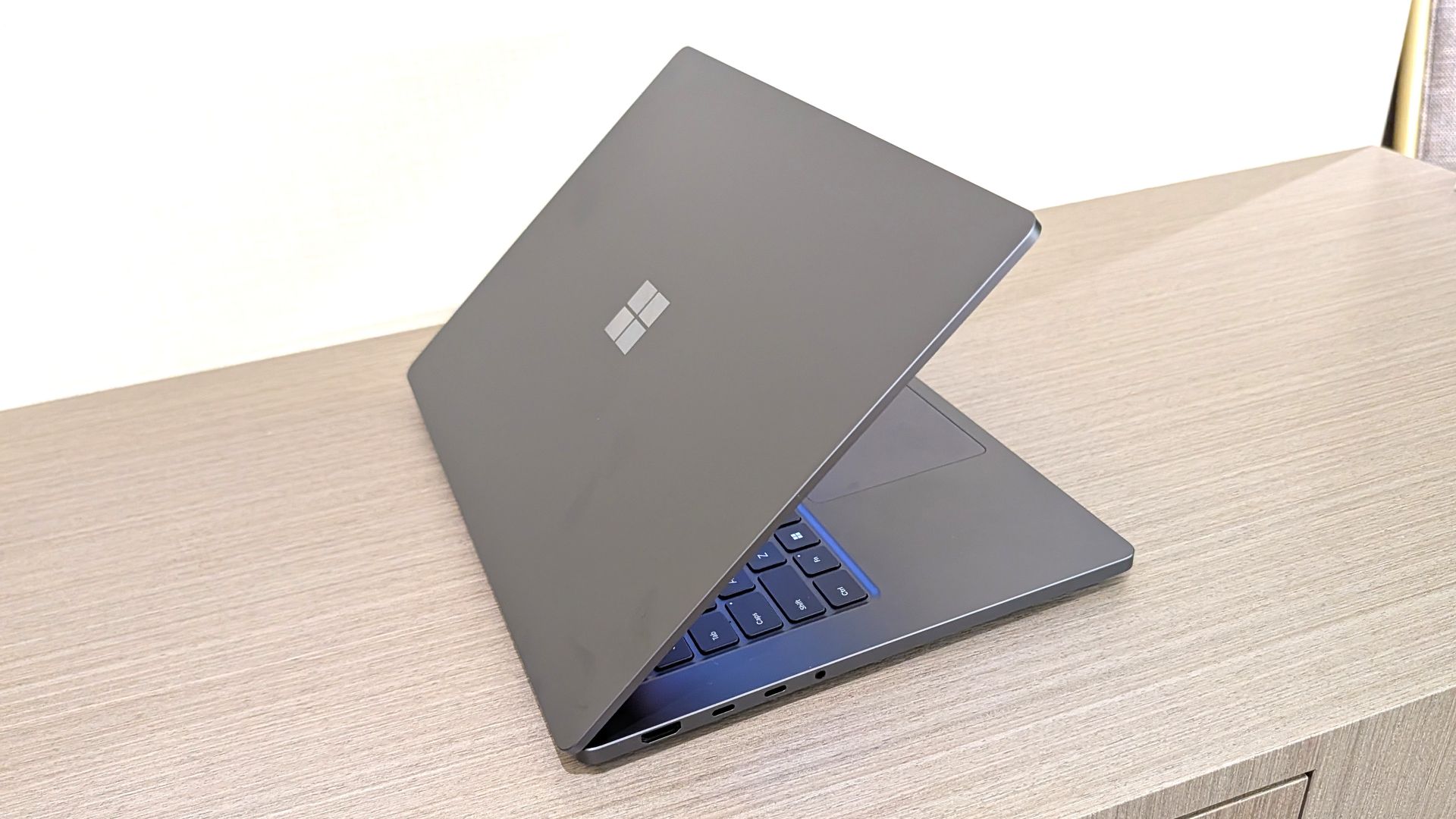
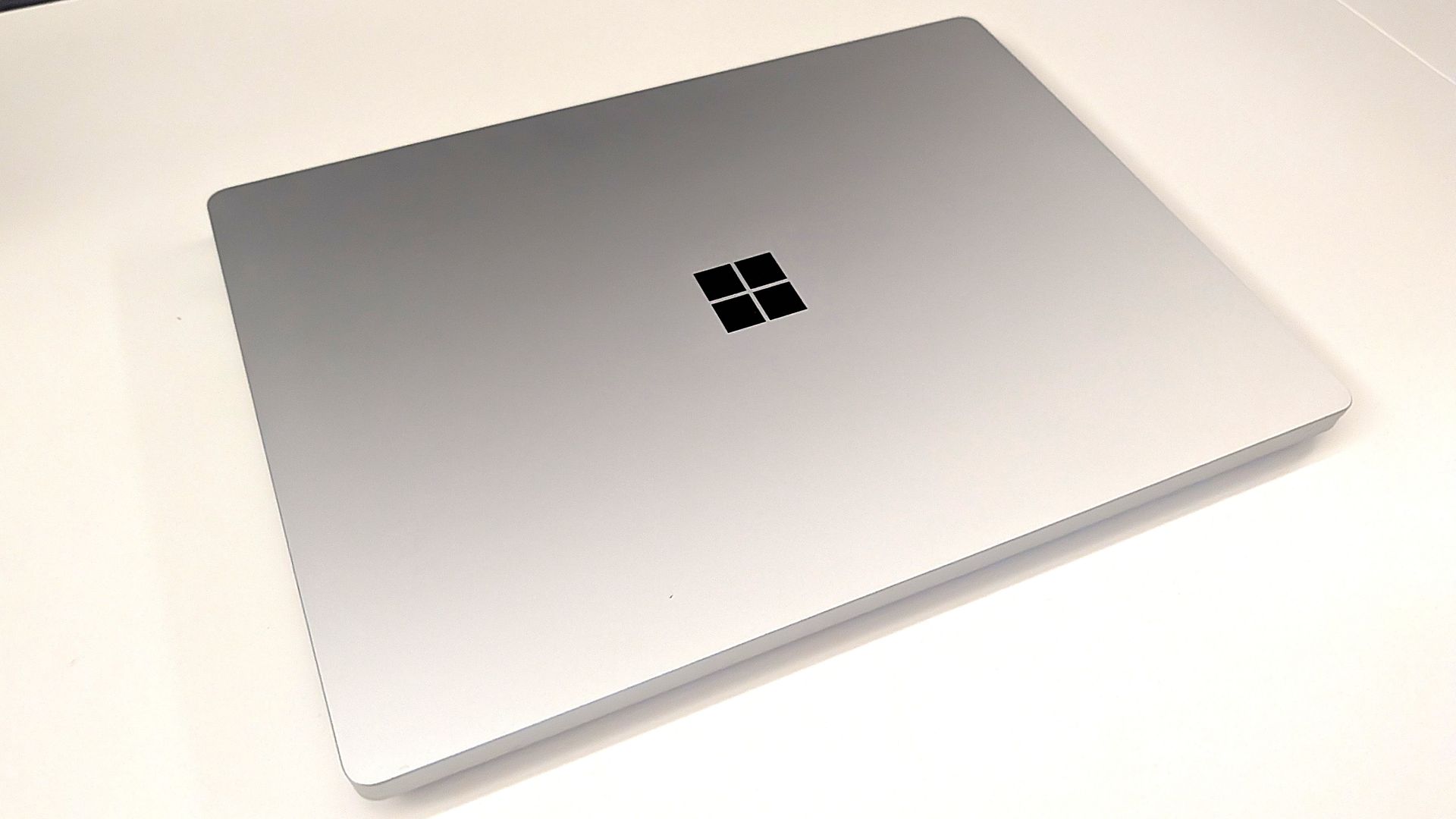
Microsoft is all-in on AI, billions of dollars down the drain be damned. The tech giant created what may be the "best laptop ever made" to run AI locally. Considering the focus of Microsoft's event, it's safe to assume the Surface Laptop Ultra will be center stage.
Maybe I'm just part of the old guard yearning for the days of unique form factors and hardware innovation, but I just don't think a Surface running NVIDIA's new RTX Spark superchip is enough to lead an event.
The biggest news of the week was the announcement of the event, but I'm not sure that's a good thing. Our readers' reception to the announcement has been largely negative.
"Nothing about this matters. The Laptop has always been my least-favorite computer in the Surface family. The RTX version is just AI-focused internals at a comical price," said Lil Frier. "There's nothing about Surface to be interested in anymore, and Windows 11 is still nothing more than a reason I have stuck with Windows 10."
Another user, aruntopez10, said, "Honestly, I have zero faith in this event. Their events have become so boring and unwatchable ever since Panos left (including even his last event). It's sad how they went from having the BEST and interesting fall tech events to the worst."
Microsoft hasn't given our readers — or anyone else — good reason to expect much from this event. Earlier this year I outlined how Microsoft can save the Surface brand. The company has done very little of what I suggested. And it's not like I have wild ideas that are mine alone. People want Surface to be exciting and to push boundaries, not be iterative updates and boxes for AI.
Disappointment is nothing new to Surface fans. Our Senior Editor Zac Bowden called the 2023 Surface and AI event "a massive blunder and missed opportunity."
Microsoft has genuinely changed course when it comes to Windows 11. The company's Windows K2 initiative is changing some of the most complained about parts of Windows 11. As we saw this week, that process is having some hiccups, but it is a major step in the right direction.
Surface? Not so much. I'd argue things are getting worse, not better. Microsoft just doesn't understand what made Surface special and isn't willing to embrace the family's roots.
Join us on Reddit at r/WindowsCentral to share your insights and discuss our latest news, reviews, and more.