Gl.iNet Launching Portable Dashcams and AirBnB Cameras – No, Really… GL.iNet is best known for its travel routers, networking hardware and increasingly broad range of portable connectivity products, but at IFA 2026 the company showed that it is looking at expanding into another part of the travel market. Under its Umino branding, GL.iNet revealed the […]
The New UGREEN HomeAgent Series Revealed UGREEN has spent the last few years building out its NAS range, but its latest announcement takes the company in a rather different direction. I was in Boston for the reveal of UGREEN HomeAgent, a new family of systems designed to bring local storage, AI processing, home surveillance and […]
Cet article a été réalisé en collaboration avec Reolink
Si les caméras et sonnettes connectées ont le vent en poupe, elles partagent un angle mort majeur : pour profiter pleinement de leurs fonctionnalités, il faut accepter de fermer les yeux sur la souveraineté de ses données en les envoyant sur le cloud. Une fatalité ? Pas forcément.
Cet article a été réalisé en collaboration avec Reolink
Il s’agit d’un contenu créé par des rédacteurs indépendants au sein de l’entité Humanoid xp. L’équipe éditoriale de Numerama n’a pas participé à sa création. Nous nous engageons auprès de nos lecteurs pour que ces contenus soient intéressants, qualitatifs et correspondent à leurs intérêts.
Some of our readers have complained that they get a black screen when using the Windows 11 camera. This problem may occur with the laptop’s built-in camera or even an external camera.
Inadequate camera permissions, bad hardware or connections, minor bugs, or app corruption could trigger it. We researched the problem, and in this guide, we recommend the most effective solutions.
1. Turn on Camera
Turning on your camera should be your first call. This is especially the case if you use an external camera. It may have a tiny switch that needs to be toggled on.
Also, you should look through your function keys; if any has a camera symbol, press it to switch on your camera. If the camera black screen persists on Windows 11, proceed to other fixes.
2. Remove Camera Slider
There is a chance that even though the camera is on, it is covered by a shutter guide or webcam cover slides.
While these may be perfect ways to protect yourself from unseen intrusion, if you leave them on while using the camera, all you will get is a black screen on Windows 11. Take off the slide.
3. Confirm Camera is Correctly Connected
When you are using an external camera and experiencing the camera black screen on Windows 11, you should confirm that you have correctly connected the camera. You may unplug it and plug it back. You should also clean the connection port to ensure particles or dust are not obstructing contact.
Tiu may also try connecting to a different port or using a different connection cable.
4. Restart the Computer
If none of the solutions above have helped you resolve the Windows 11 camera black screen, you should restart the computer.
A restart is an effective fix because it forces your computer to have a soft reset where all running processes are turned off. This is often strong enough to fix minor bugs.
5. Run the Camera Troubleshooter
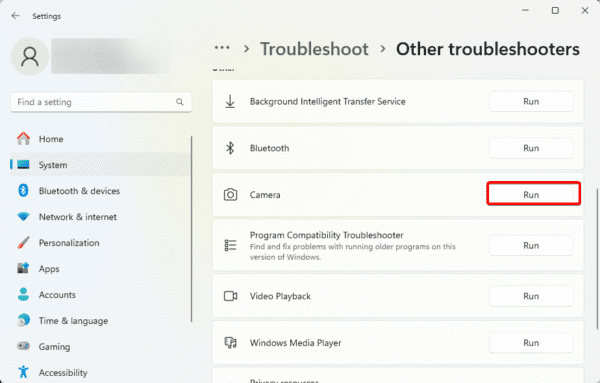
Windows 11 comes with a bunch of troubleshooters. One of them is the camera troubleshooter.
When you run this utility, it thoroughly scans your computer for possible triggers of the camera problem. It will fix the discovered issues or recommend solutions.
1. Open the Settings app by pressing Windows + I.
2. Click System on the left pane, then Troubleshoot on the right.
3. Click Other troubleshooters.
4. Click the Run button for Camera.
5. Follow the wizard to complete the process.
6. Grant Camera Permissions
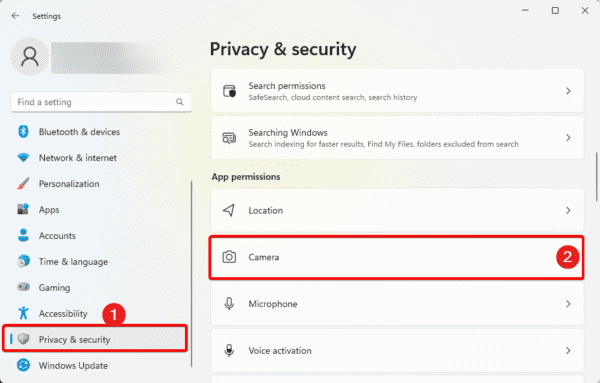
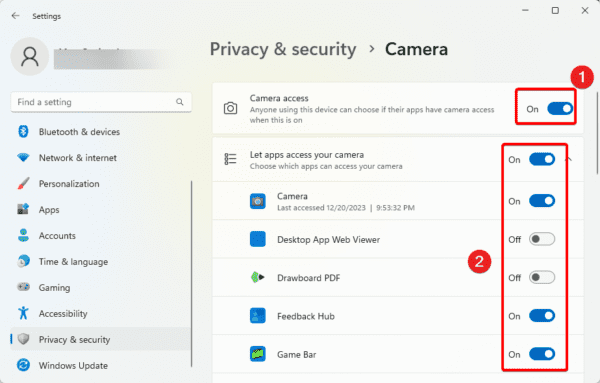
You may notice a black screen if the app that needs your camera does not have proper permission. You should grant it permissions from the Settings app.
1. Open the Settings app by pressing Windows + I.
2. Click Privacy & security on the left pane, then Camera on the right.
3. Toggle on Camera access, then toggle on the switch for the specific app that needs the camera.
7. Update Camera Drivers
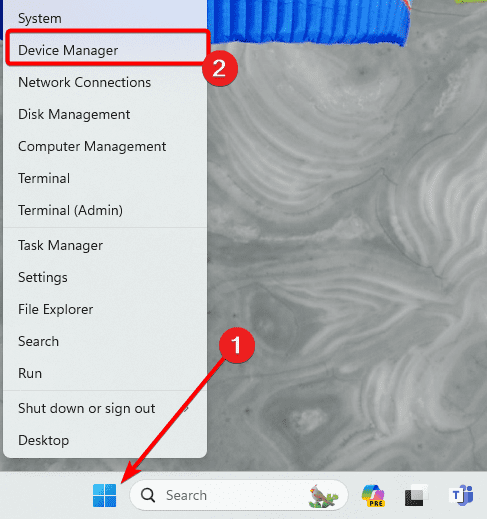
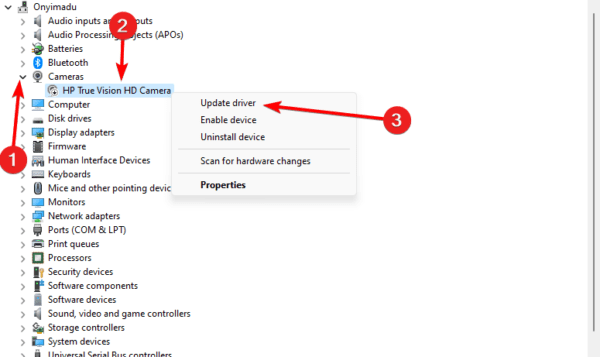
Drivers are an integral connection between hardware components and the operating system. When your camera driver is outdated, the computer may no longer be able to access it, causing the camera black screen on Windows 11.
1. Right-click the Start menu and click Device Manager.
2. Expand the Camera category, right-click your camera driver, and click Update driver.
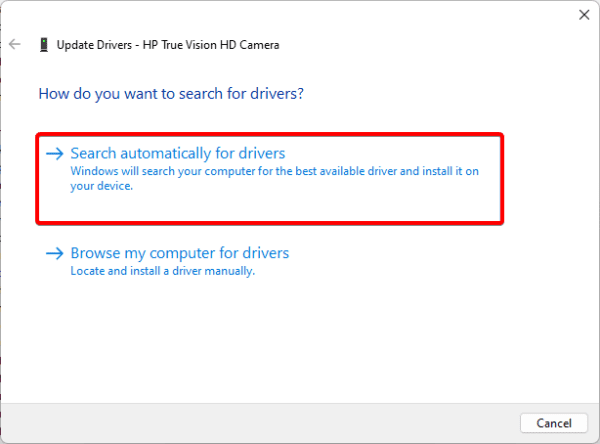
3. Click Search automatically for updates.
8. Reset Camera App
bad configurations and settings are sometimes responsible for the camera’s black screen in Windows 11. You may remove corrupted settings and fix the problem by resetting the device.
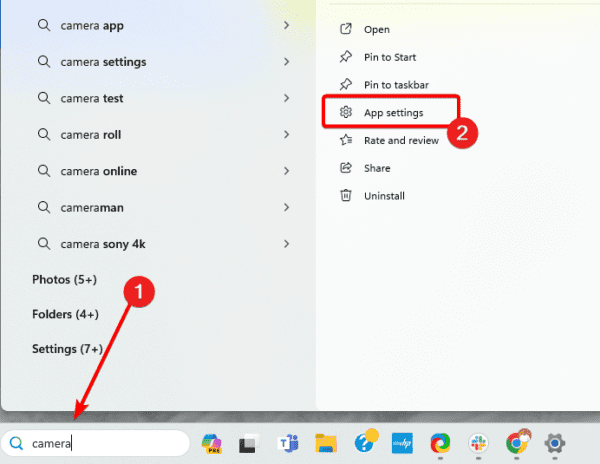
1. Press the magnifying lens on the Taskbar, type Camera, and click App Settings.
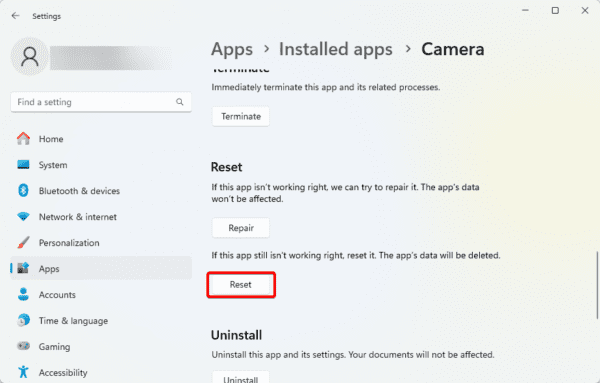
2. Scroll down and click the Reset button.
9. Re-registering Camera App
You should consider re-registering the camera when you encounter the black screen on Windows 11. This is because the process will resolve corrupted registry entries, reset app permissions, validate app files, and clean temporary data.
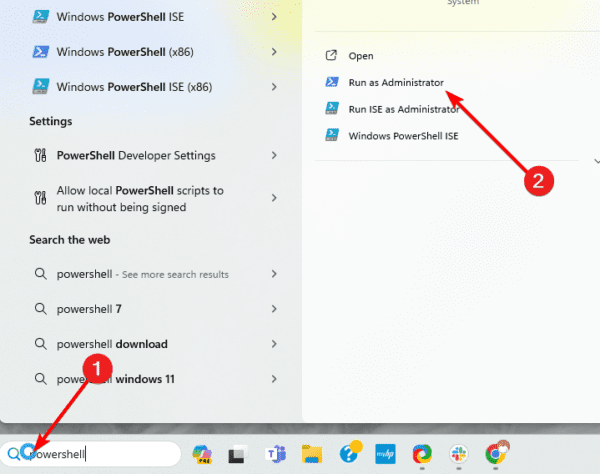
1. Click the Taskbar’s magnifying lens, type PowerShell, and click the Run as Administrator option.
The camera black screen on Windows 11 may be a sign of serious app corruption. If so, uninstall the camera app and reinstall a fresh copy. To do so, follow the steps below.
1. Click the Taskbar’s magnifying lens, type PowerShell, and click the Run as Administrator option.
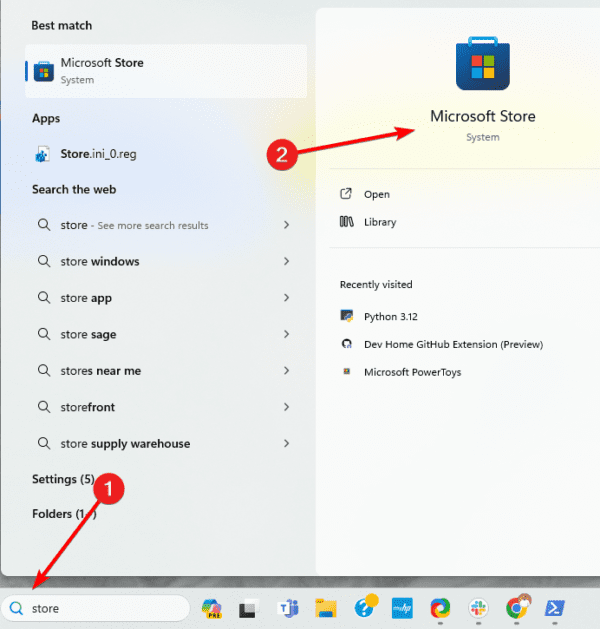
3. Click the Taskbar’s magnifying lens, type Store, and click the Microsoft Store option.
4. Search for Camera and install the Windows Camera app.
11. Replace the Camera
If you have read this far but cannot resolve the camera’s black screen on Windows 11, you may be dealing with bad hardware, and your last option may be to replace the camera.
There are many options, and once you connect the new camera, you should no longer have the black screen.
No More Camera Worries
This will be all. Hopefully, you can use your camera without the black screen error. We have written these fixes in order of priority and recommend you start from the first walking your way down.
Have you fixed the camera’s black screen? Let us know in the comment section what solution worked.

 Connexion