❌

Vue lecture

Il y a de nouveaux articles disponibles, cliquez pour rafraîchir la page.

I stopped reaching for my monitor's buttons after finding this free Windows tool

Juggling the brightness of your monitors can be a hassle on Windows 11. Luckily, a free utility in PowerToys streamlines the process.

Microsoft started testing PowerDisplay about a year ago. The feature has since rolled out to everyone, and it alone is enough of a reason to download PowerToys.

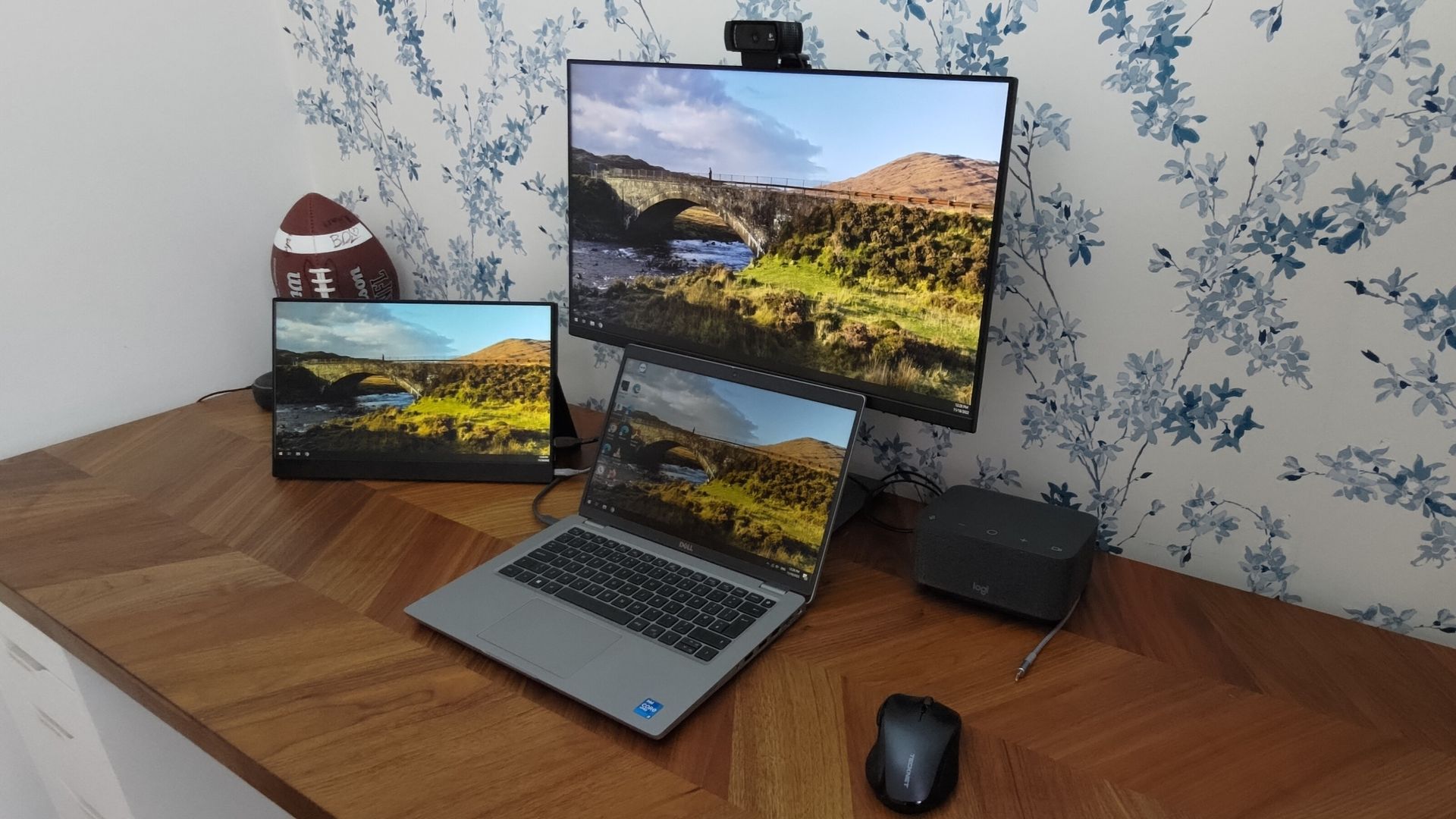
With it, you can control the brightness, contrast, and color temperature of an external monitor from a flyout that feels native to Windows 11. Instead of reaching for the physical buttons on each monitor, you can adjust settings directly through Windows.

It works seamlessly with multi-monitor setups, which is excellent for those frustrating moments your screens fail to match each other.

Support depends on your monitor, but many modern displays work with PowerDisplay through DDC/CI controls.

Windows 11's limited options for controlling multiple monitors frustrated me and many other people for years. There are third-party apps that enhance controls, such as DisplayBuddy and Twinkle Tray, but I already have PowerToys installed for some of its other utilities, so PowerDisplay was easy to add to my PC.
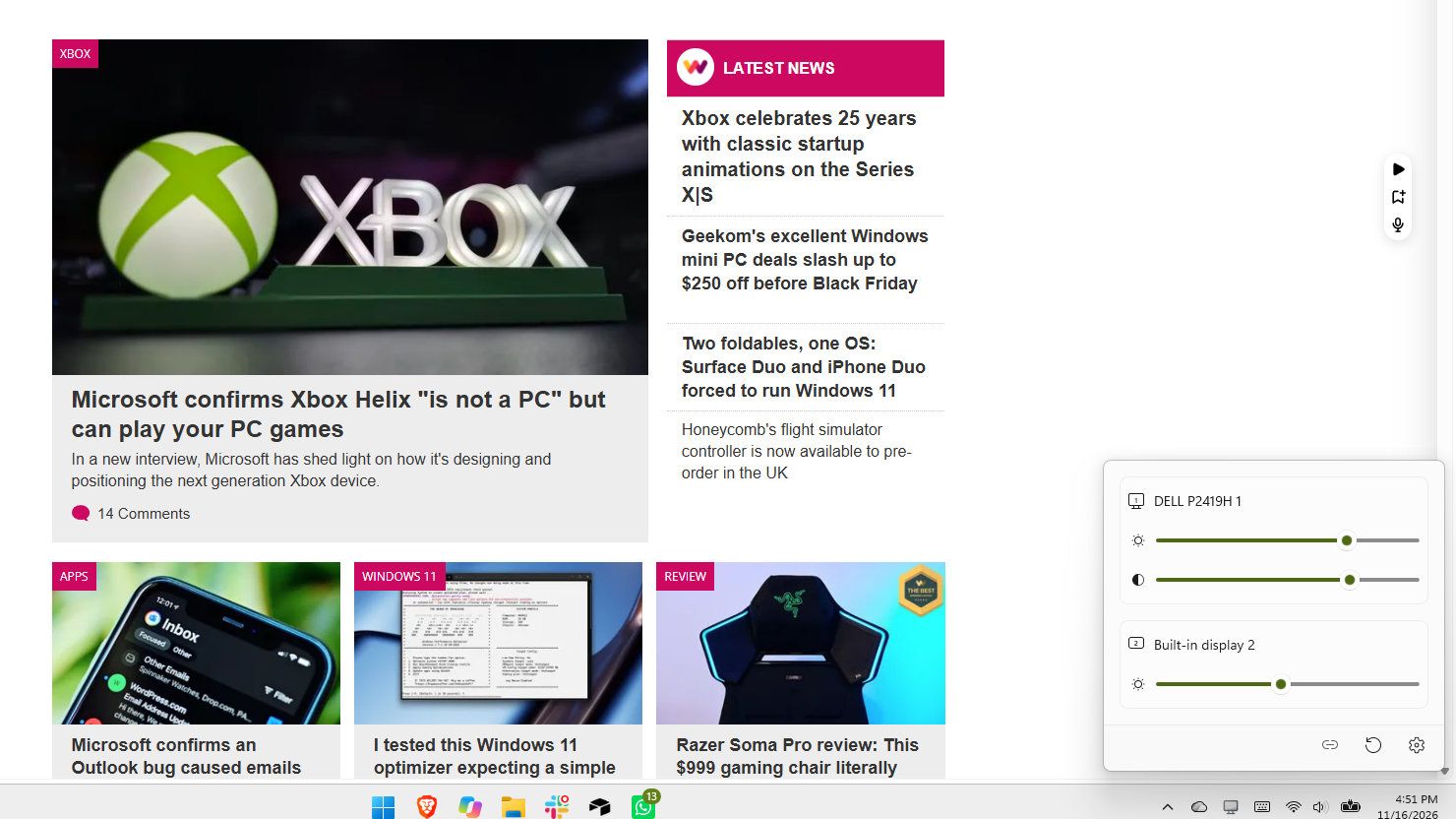
PowerDisplay utility in Microsoft PowerToys controlling brightness and contrast settings for multiple connected monitors from a Windows 11 desktop.

(Image credit: Future)

Since I live in England but cover Microsoft for my job, I often start work when the sun is up and continue working past sunset. That's especially true during autumn and winter as the days get short.

If I leave my desk during the day and return at night, my monitor is usually too bright. Windows 11 has a setting that automatically changes brightness when lighting changes, but it doesn't work for my setup since it doesn't seem to work with some of my external monitors.

Rather than blind myself when I sit down to cover a late-night Windows Insider build, I use PowerDisplay to adjust the brightness and contrast of my screen.

When working at night and next to a window, I often find that adjusting the contrast of my display improves my view more than tweaking the brightness of my screen. During the day, I usually maximize my monitor's brightness since I like working next to a large window.
PowerToys | Free at GitHub | Free at Microsoft Store

PowerDisplay lets you adjust the brightness, contrast, and color temperature of compatible external monitors directly from Windows. After installing or updating PowerToys, open the app, enable PowerDisplay, and then launch the display controls from the Windows system tray to adjust your screens without using your monitor's built-in buttons.View Deal

Click to join us on r/WindowsCentral

Join us on Reddit at r/WindowsCentral to share your insights and discuss our latest news, reviews, and more.
Excel copy and paste breaks once again after Microsoft update

Copying and pasting continues to be an issue for those who install the latest updates from Microsoft. Just one month after an update broke functionality in Excel, October's release has caused the same issue.

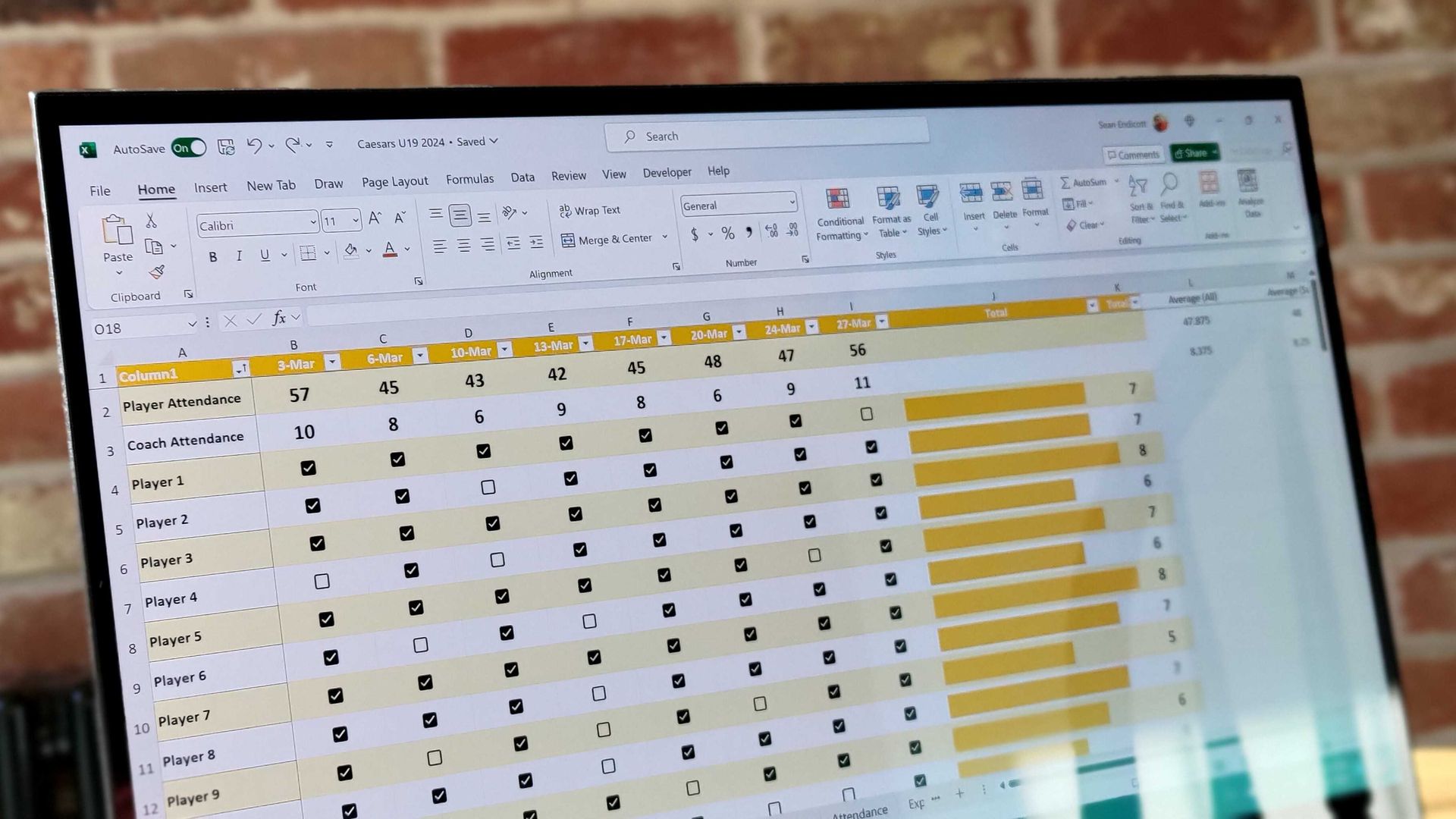
The latest issues are caused by the KB5002934 update for Microsoft Excel, which is for Excel 2016. That version replaces KB5002665, which included a hotfix for a copy/paste bug. Despite superseding the previous update, the KB5002934 update can also prevent you from copying and pasting if a workbook contains conditional formatting.

Only a small set of Excel users should be affected by the bug, since it's limited to Excel 2016. Newer versions of Excel do not have the issue.

The bug appears in a way that may confuse those who run into it. Rather than Excel showing an error message or making a noise, the function simply fails.

The updates to Excel ship through Windows Update, though they aren't updates to the operating system itself. They function similarly to updates for other Microsoft apps such as Edge.

Luckily for those facing the issue, Microsoft has already fixed the bug. The company released a new build of Excel that fixes the issue. If Excel is running build 16.0.5574.1006 (or later), you should be fine.

You can check your Excel version by opening File > Account and looking under About Excel.

If for some reason you are still facing the issue, you can try these steps from Microsoft as a workaround:

  • On the Home tab, select the Paste dropdown list, and then select Paste Special.
  • In the Paste Special window, select one of the following options:
    • Formulas
    • Formulas & Number Formatting
    • Values
    • Values & Number Formatting
    • Link

I'm glad that Microsoft fixed the problem so quickly, but it's concerning that updates caused the same issues two months in a row.

Click to join us on r/WindowsCentral

Join us on Reddit at r/WindowsCentral to share your insights and discuss our latest news, reviews, and more.
This free app makes moving the Windows 11 taskbar feel like Windows 10 again

Windows 11 finally lets you move the taskbar, but Microsoft has not fully restored functionality lost when jumping from Windows 10 to Windows 11. To help bridge the gap, developer Michał Łeptuch created an app that makes it easier to move the taskbar.

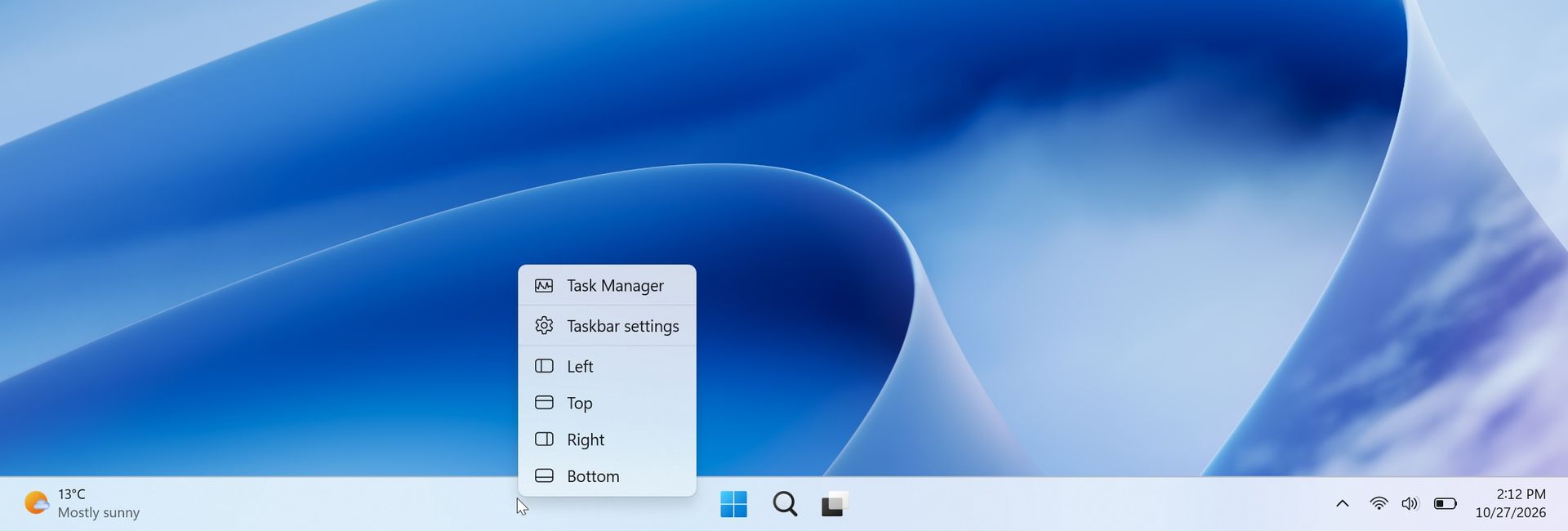
The simply-named "Taskbar Location Options" lets you right-click and move the taskbar to the top, left, right, or bottom of your screen. Alternatively, you can simply click and drag the taskbar to any edge of your display once the app is installed.

The inability to move the taskbar was one of the most criticized taskbar regressions when Windows 11 launched in 2021. One of the most-requested pieces of feedback for years was restoring the ability to move the taskbar to the sides or top of a display.

Microsoft finally restored that functionality last month, but changing the location of the taskbar still requires opening Settings, navigating to Taskbar settings, and selecting a new position from a dropdown menu.

Windows 11 desktop showing a taskbar context menu with options to move the taskbar to the left, top, right, or bottom of the screen.

The option to move the taskbar on Windows 11 is buried in the Settings app. (Image credit: Michał Łeptuch)

Łeptuch's app brings back the option to click and drag the taskbar. That feature was available on Windows 10 and previous versions of Windows. I always found it odd that Microsoft brought back the option to move the taskbar but buried it in the Settings app.

Dragging the taskbar is often faster, especially for users who frequently switch between desktop layouts or monitor configurations.

The installation process for Taskbar Location Options requires more steps than I'd like, but that should be smoothed out in the future. At the moment, you have to download a certificate, unblock the file, then run the file with PowerShell before installing the app.

The app's GitHub page includes a download link and a guide to install Taskbar Location Options.

Microsoft deserves credit for finally restoring the ability to move the taskbar, but the current implementation feels unnecessarily tucked away. Taskbar Location Options fills that gap by bringing back the quick drag-and-drop behavior Windows users enjoyed for years.

Click to join us on r/WindowsCentral

Join us on Reddit at r/WindowsCentral to share your insights and discuss our latest news, reviews, and more.
Edge's Reading Mode became an unlikely ad blocker when my plugins couldn't keep up

Browsing the web without an ad blocker is a brave adventure, especially on the mobile web. That's a big reason why I opted for Microsoft Edge and its built-in blocker on Android so many years ago; I just wanted to read articles in peace. Then again, it's sometimes an experience that's forced upon me when certain pages manage to bypass my ad blockers.

Of course, there are plenty of other browsers to choose from. Almost too many. But I'm not in a position to migrate my bookmarks, history, and logins to yet another Chromium clone just to escape overbearing ads for a while. That's why I've been leaning more on Reading Mode for the past few months or so, and it's a mostly flawless experience.

Reading Mode isn't new, but underappreciated

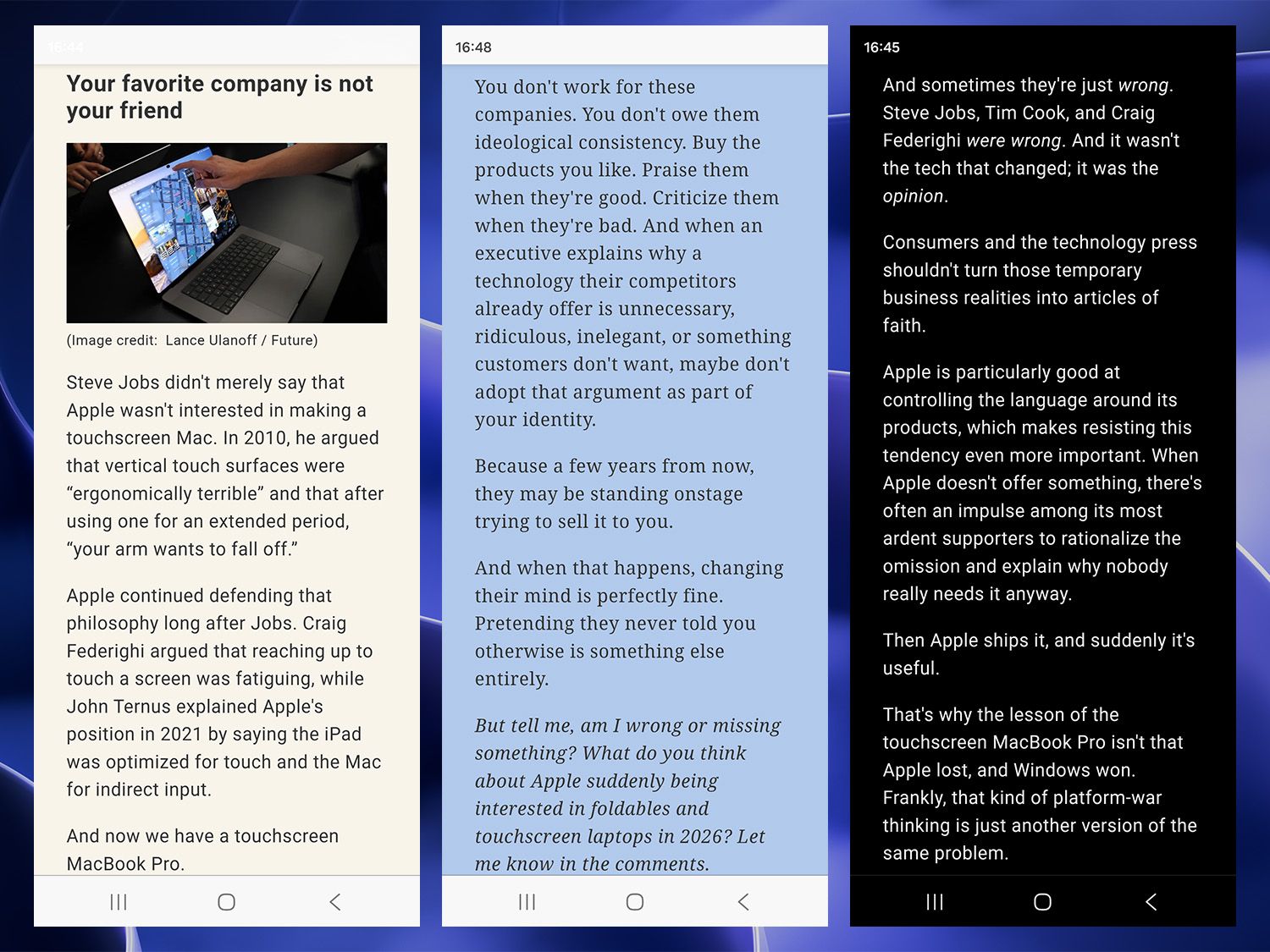
Windows Central articles displayed in Reading Mode on Microsoft Edge for Android in various color themes

Choose from sepia, monochrome, and.. powder blue(?) (Image credit: Ben Wilson | Windows Central)

Microsoft Edge switches into Reading Mode for compatible articles with a single press of the F9 key, while Google Chrome needs a slightly more involved Alt+Shift+R shortcut. Alternatively, a tiny 'page' icon appears in the address bar on desktop browsers, while the Android app uses an 'open book' equivalent and activates the same thing.

Inside, I can toggle a few customization options, like text size, paragraph width, and color themes for the entire page that go further than a simple light or dark mode. A sepia-toned background might be easier on the eyes for some, and overriding the font to serif (or sans-serif) also helps some users read dense text faster. It's designed as an accessibility feature, but it helps in other ways.

The only downside is that, occasionally, some articles are inexplicably incompatible with Reading Mode, and it doesn't work as the icon disappears completely. It's usually specific to a certain website or outlet, which is even more confusing when they're often geared toward written content. I could probably solve it with another browser plugin, but I'd sooner look for a better ad blocker.

It isn't perfect either, but it's better than ads

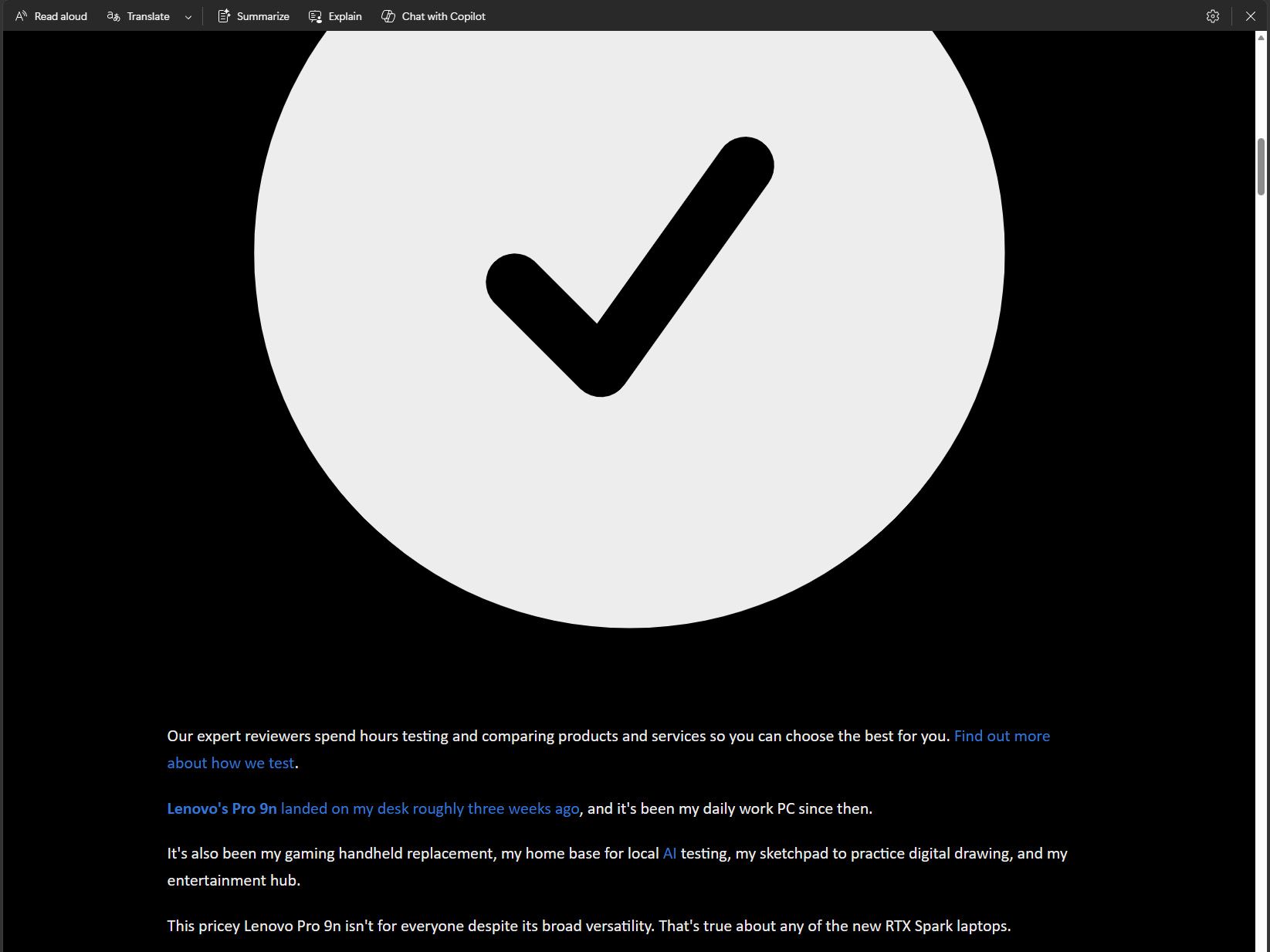
Reading Mode in Microsoft Edge for desktop displaying an article with an oversized monochrome checkmark icon

Some .svg vector images get a little overinflated. (Image credit: Ben Wilson | Windows Central)

It's a small change, but switching to Reading Mode on the regular has made the mobile web (and sometimes the desktop web) feel less cluttered and, for the most part, less annoying. Admittedly, there are still times when it goes a little haywire, blowing up tiny .svg icons into full-page eyesores, but, again, it's better than ads that follow me down the page.

Simplify any article or webpage by removing ads, sidebars, and visual clutter—so you can focus and read at your own pace.

Microsoft, describing Reading Mode

There's nothing magical or groundbreaking about it, and no implication that I struck gold on finding some hidden feature. Instead, it feels more like one of those "Huh, I should have been using this for years" kinds of moments. I already contribute to brands that I care about the most through various memberships, but for the rest of the time, I don't want to be bothered with ads.

"Yet you display ads on your website. Curious!"

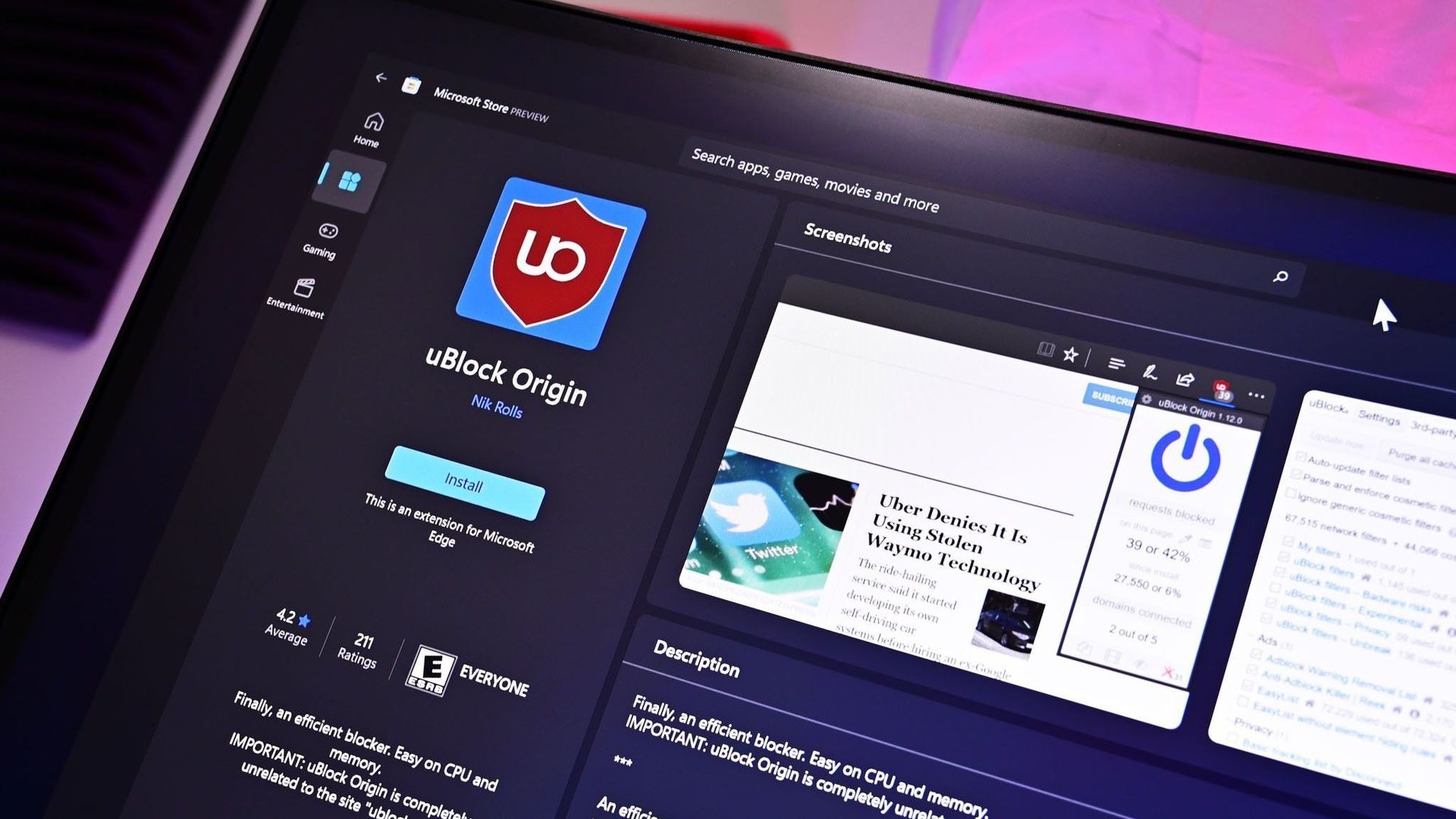
uBlock Origin on Microsoft Edge

Ad blockers are practically a necessity for the modern web. (Image credit: Future)

Indeed, but you also control your own devices, and what you see generally depends on your choices. Advertising can work when it's done well, and we request ads relevant to our content, even if that doesn't always work out. In that, I'll generally only switch to Reading Mode once I've landed on a (usually long-form) article, to keep distractions to a minimum.

Ultimately, I'd much rather read some creative writing and human-driven opinions over an AI summary, and Reading Mode is proving to be the best way to do it. Again, I could consider an even better plugin as a replacement, but so far, I've been quite happy with this setup for now. Hopefully, Microsoft won't mess with it (or remove it entirely) on mobile.

Maybe you've found an even better solution? Perhaps an extension that has a little more determination to work on absolutely any article? I'm open to suggestions. Let me know in the comments if you have a setup that works for you, or what you think about reading articles on the mobile web in general. We'll always forward any feedback on our ads to the right people, too. We hear you.

Click to join us on r/WindowsCentral

Join us on Reddit at r/WindowsCentral to share your insights and discuss our latest news, reviews, and more.
This is 'scrcpy': An open-source alternative to Phone Link for Android mirroring that barely uses any RAM

I've been using Android phones for years now, and for the most part, they generally play well with Microsoft's 'Link to Windows' mobile app. That official setup gives me access to my phone from my desktop PC, and Samsung phones like my Galaxy Z Flip 7 have mostly worked without issue.

However, I still rarely use Phone Link on Windows 11 because when it does break, I find its random disconnection bugs so annoying that I don't want to pair my phone over and over. Besides, I don't need to access my smartphone from my PC all the time, so I looked for an alternative and found a great one.

What is scrcpy?

Various Android apps mirrored on Windows 11 from a Samsung smartphone

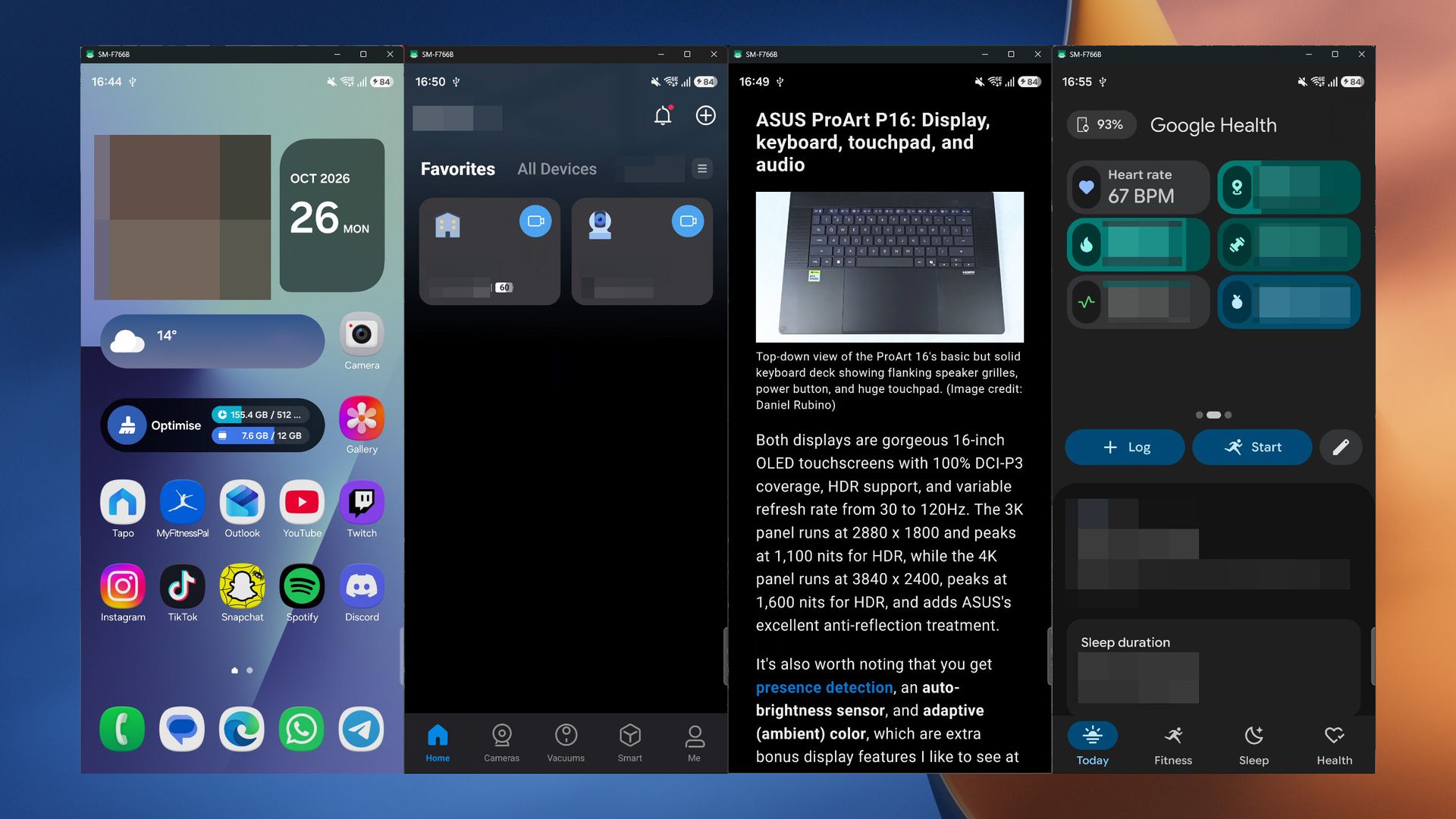
Controlling my phone with a mouse and keyboard, I can access my home cameras, copy text, and see my live health metrics. (Image credit: Ben Wilson | Windows Central)

It's pronounced "screen copy", but shortened to scrcpy on its GitHub repo. If you're unfamiliar, GitHub is a platform where coders and developers share and collaborate on software, often letting users view the source code of apps. That includes scrcpy, which is an open-source app (and that means it's free).

As its name suggests, scrcpy can mirror my phone's screen on my Windows desktop, like Phone Link. In that, it's not particularly groundbreaking, but I was intrigued by its flexible customization and support for low-latency connections over USB. It also works wirelessly, so it's nice to have that option.

You'll need to enable 'USB debugging', but that's easier (and less scary) than it sounds. On most devices, including my Samsung Galaxy, I tap the 'Build number' readout in my settings app seven times to enable a 'Developer options' menu and then toggle the new USB debugging option inside.

Now here's what I'm actually using it for

Heart rate readout shown on a Windows desktop with a command prompt dialog visible

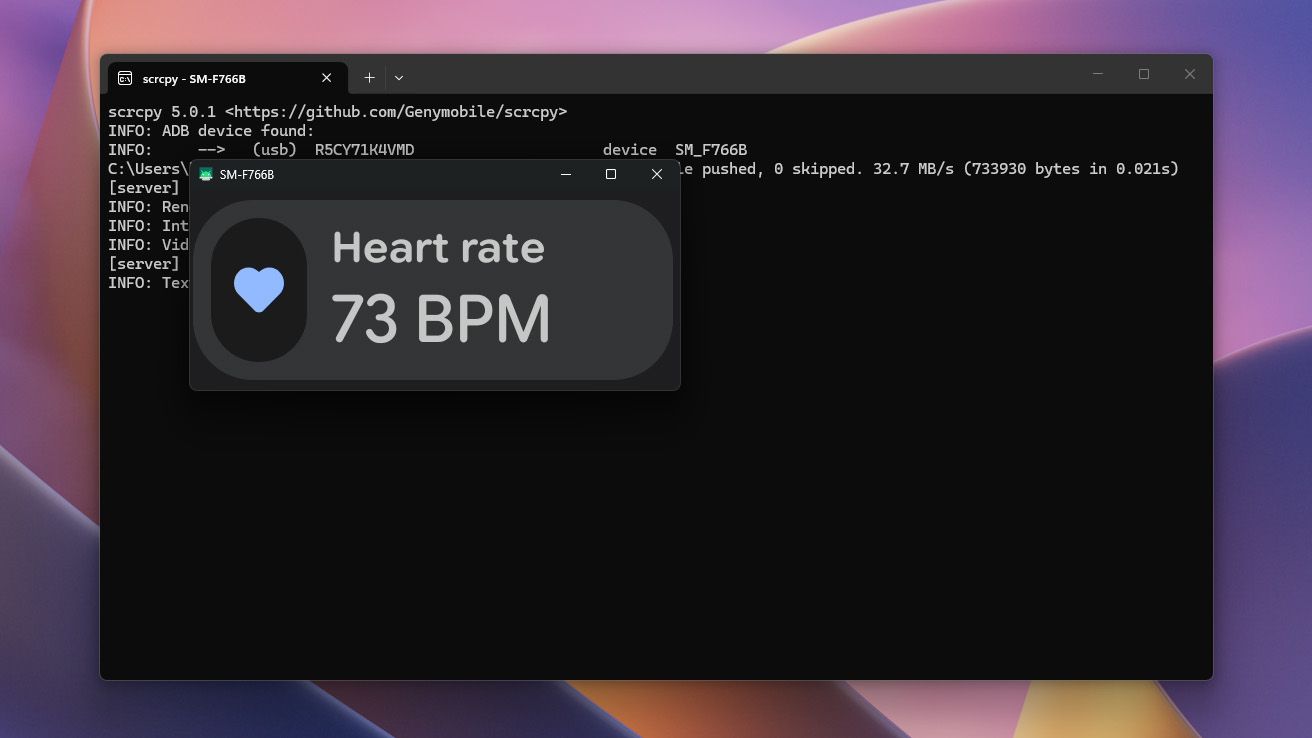
Command-line arguments mean I can crop specific parts of apps, such as my live heart rate in Google Health. (Image credit: Ben Wilson | Windows Central)

I had two main reasons to find a Phone Link alternative: to show my live heart rate from my Fitbit wearable connected to the Google Health app, and to view my Tapo security camera feeds, since TP-Link still doesn't offer a desktop app. Naturally, I've since discovered more benefits to scrcpy beyond these.

I know that first reason sounds strange, but Fitbit devices can't pair with Windows PCs, so it's more of a workaround to capture my heart rate BPM readout while playing horror games over Halloween. That's purely for fun, but the second is a real workaround.

Plus, command-line arguments like turn-screen-off disable my phone's screen (though it still responds to touch), and stay-awake prevents devices from going to sleep after inactivity. Those, combined with crop let me capture small parts of my screen and use very little resources.

There are more options to find in scrcpy's documentation, but these three alone mean I can watch my video doorbell for an expected delivery, or see which part of the latest Resident Evil game spiked my pulse the most. Niche, but easy to work with. I only need to connect my phone via USB-C and launch the app.

There's more to play with

scrcpy shown on GitHub via a Samsung Galaxy Z Flip 7 smartphone and a desktop browser window

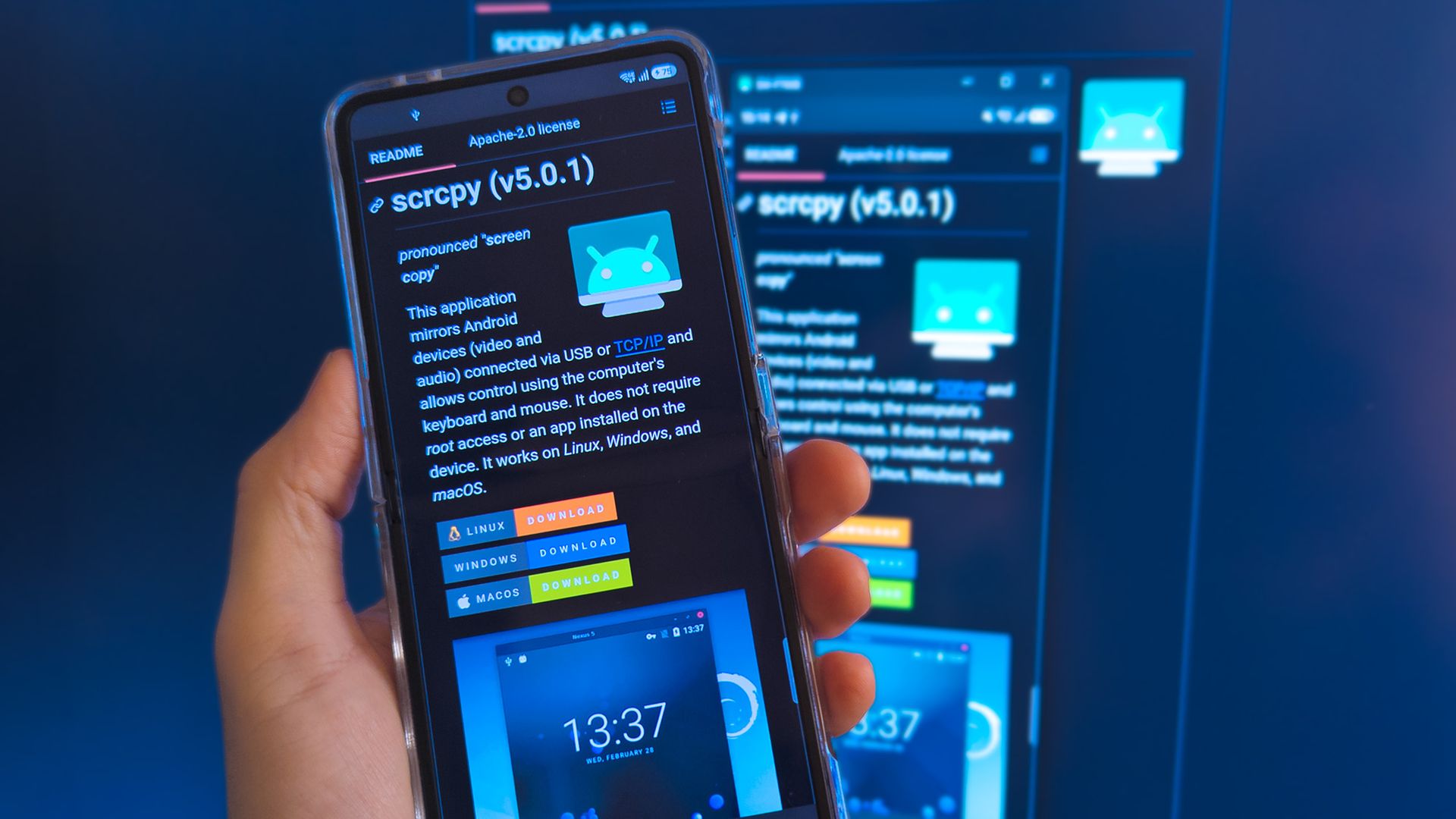
As far as GitHub goes, this is one of the easier projects to use. (Image credit: Ben Wilson | Windows Central)

I'm getting into a habit of connecting my phone to scrcpy in the mid-afternoon to fire through a bunch of tasks that would otherwise make me stare at my phone, and having full mouse and keyboard control makes it much more convenient from my PC. Right-click takes me back a page, and a middle-click takes me home.

That cross-device clipboard feature also lets me copy text from a mobile app into a traditional Windows app without needing the Ctrl+C shortcut. Selecting a prompt to 'copy' on my phone just sends it to my Windows clipboard (and vice versa), which is a similar time-saver. Again, not unique, but still useful.

Still, as satisfied as I am, I'm eager to try other features. Direct camera capture, audio-only mode, and a collection of bitrate/quality tweaks are available for experiments; all exciting without a feeling that I'm getting lost in the Terminal. Definitely check out scrcpy for yourself if you're interested.

Click to join us on r/WindowsCentral

Join us on Reddit at r/WindowsCentral to share your insights and discuss our latest news, reviews, and more.
Microsoft's new Edge option for Mac trades speed for stability, and that's a good thing

Some would be surprised to hear that Microsoft Edge has been available on macOS for years. The browser receives regular updates and gives users an easy way to extend their browsing experience across platforms. Soon, organizations that rely on Edge on macOS will have another option for which version of the browser is installed.

Selecting the Microsoft Edge Extended stable channel will soon be an option for organizations. That channel receives major feature updates every eight weeks, giving organizations more time to validate changes to the browser.

The Edge Extended stable channel is already available on Windows. Next year, it will roll out to macOS. An entry in the AI at Work Roadmap (previously known as the Microsoft 365 Roadmap), outlines Microsoft's plans:

"Organizations managing macOS devices will be able to select the Microsoft Edge Extended Stable channel, providing a slower 8-week major release cycle, compared to the two-week major release cycle for Stable."

Edge stable, which is commonly just referred to as "Edge," receives major feature updates every two weeks.

Notably, both Edge Stable and Edge Extended Stable receive security updates as needed. Organizations using the Extended Stable channel do not have to wait eight weeks to receive critical security fixes.

Click to join us on r/WindowsCentral

Join us on Reddit at r/WindowsCentral to share your insights and discuss our latest news, reviews, and more.
❌