It has been a year since the Xbox Ally X launched, so I figured it was about time we did a re-review.
We have FSR 4.1 on the Xbox Ally X now, a big Xbox app revamp is around the corner, and I'm probably one of the few content creators who actually uses this device on an almost daily basis. So, I really want to answer that burning question for Xbox ecosystem users: is it actually still worth a thousand big ones, even now, one year later?
How has the battery life stacked up? Is Windows 11 actually functional for handheld PC gaming yet? Does FSR 4.1 make for a killer feature?
Let's discuss.
FSR 4.1 is, indeed, a killer feature for the Xbox Ally X
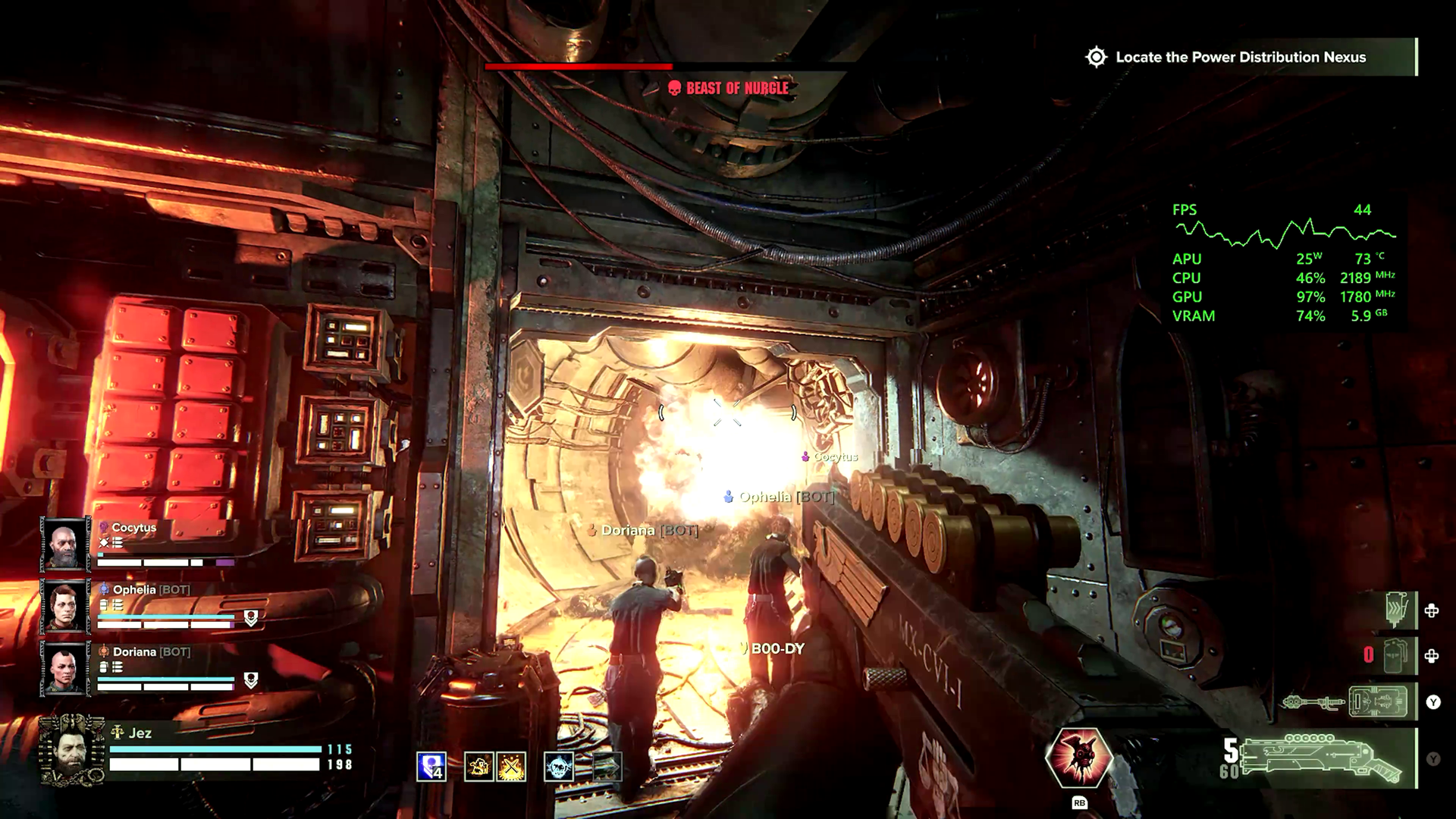
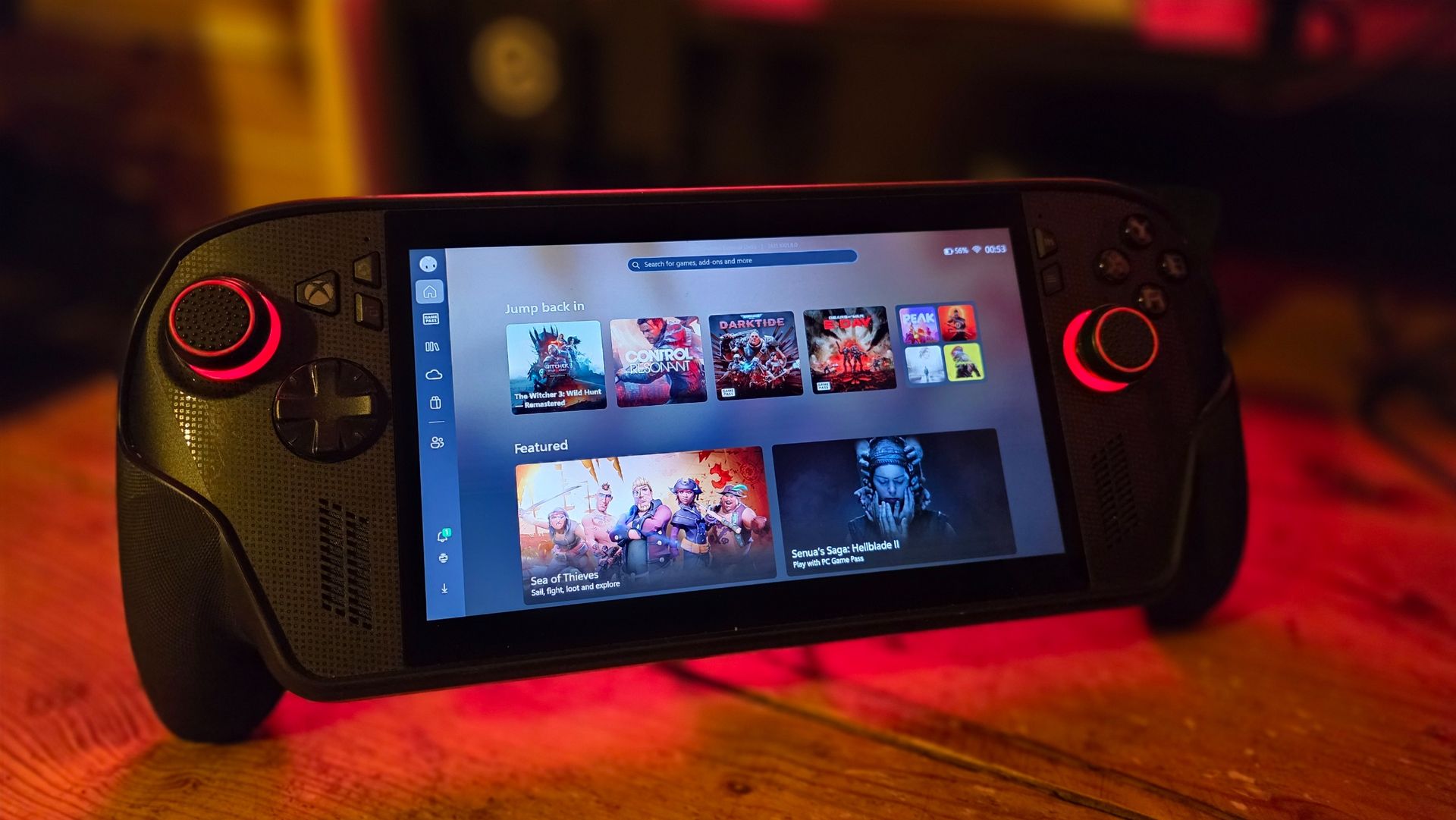
Games like Warhammer 40K Darktide and Control Resonant benefit from huge image quality boosts from FSR 4.1. (Image credit: Windows Central | Jez Corden)
The Xbox Ally X launched around this time last year (depending on your market) in partnership between Microsoft and ASUS. I'll do a write-up and a video on its less powerful Xbox Ally Z2A cousin in the future too. But we're looking at the $1,000 Xbox Ally X today. It was the first device to sport the Z2 Extreme chipset from AMD, making it the most powerful handheld at the time. AMD's new FSR 4.1 tech has given it a further boost on top of that as well.
FSR 4.1 is a heavier upscaling model than FSR 3, but it's all about boosting image quality, giving you more flexibility over how you play. You can now run quality modes that would previously look too ugly and blurry to bear, and still maintain a good level of performance. This extends to very graphically intensive games like Control Resonant, Cyberpunk 2077, Gears of War: E-Day, and games like Warhammer 40K Darktide, which have lots of enemies on-screen at any one time. FSR 4.1 will be adopted natively by more games over time, potentially extending the lifespan of the device even further. AMD has a list of games that already support it over here.
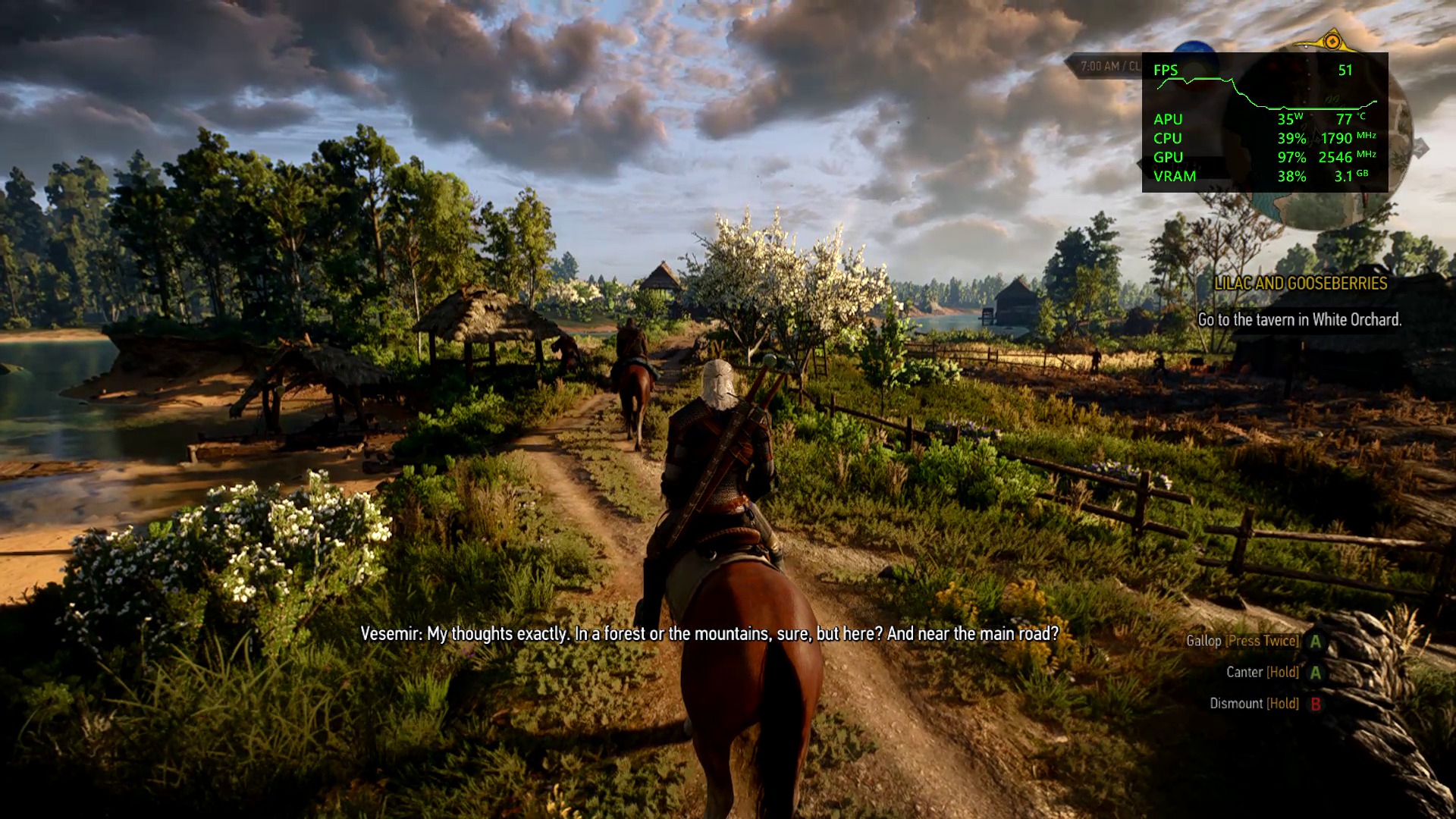
Annoyingly our website system compressed the pictures here, but in the video above you can get a good look at how crisp and smooth Witcher 3 looks on devices like this now. (Image credit: Windows Central | Jez Corden)
Using Performance and Turbo modes for maximum power, you're easily getting anywhere between 40 and 60 FPS at 1080p for most games out of the box. Heavier games will benefit more from FSR 4.1 being set to performance mode, which appears as crisp as quality mode did on FSR 3 models. I find FSR Frame Generation is also a good way to loop in more frames at the cost of some latency, although in most games I tried it was barely perceptible.
Heavily-optimized games like Death Stranding and the new Witcher 3 enhanced edition look absolutely stunning on this device, both in high and low power modes. Games with FSR 3 automatically benefit from FSR 4.1, which are presently in beta testing on the Xbox Ally X here. Witcher 3 absolutely sings on this device, although games with heavy reliance on ray tracing, like Silent Hill 2, still struggle a bit.
Either way, FSR 4.1 is going to vastly improve the lifespan of compatible devices like this, and it'll be interesting to see how it boosts the base Xbox Ally Z2A model (and Xbox Series X|S platform) in the future.
The hardware holds up, but Windows 11 still needs work
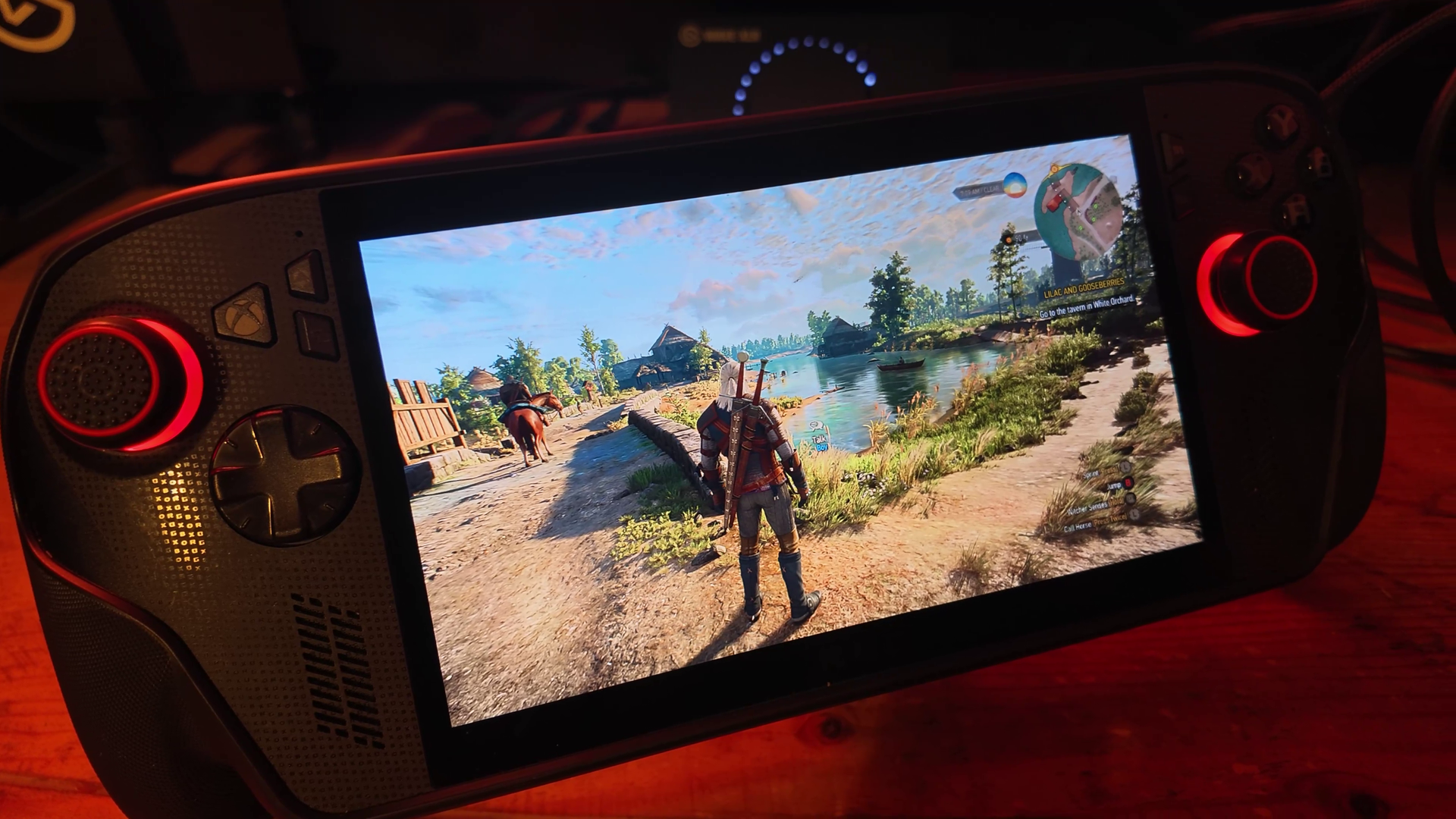
Absolutely no issues with the hardware on my end, but I have seen other pronble (Image credit: Windows Central | Jez Corden)
On the topic of lifespan, I'm someone who uses this handheld very regularly, at least every other day before bed. I've been using it mostly to grind Darktide recently, but I will also be using it for WoW: Forever in the coming weeks since it now supports a controller.
The hardware itself has held up incredibly well for me, but it would be neglectful not to mention the quality issues I've seen with the thumbsticks online and on Reddit. I think ASUS could've done a bit more to reinforce the sticks here, but if you go gently on it, I guess, like I do, perhaps you'll be okay. The most wear I have is that the paint on some of the buttons is beginning to wear off, but besides that, my Xbox Ally X seems rock solid.
I find that even a year in, the battery life is still decent on the Xbox Ally X too. I use Battery Care mode religiously to keep the charge topped off at around 80% to protect the lifespan of the cell, but when fully charged at 100% you're easily getting 4-5 hours in 13w silent mode in 2D games, and maybe 2-3 hours in 17w performance mode in a more intensive game, with trade-offs. If you go turbo mode, then yes, the battery will drain out in an hour or so. However, I find that when traveling these days on planes or trains, there's usually an outlet available to give you some extra juice.
There are a lot of games that offer a solid 3D experience even in silent 13w mode, if you're willing to compromise on visual quality and performance to maximize the Ally's longevity.
What is perhaps less solid is the operating system experience. This isn't ASUS' fault, of course, but more on Microsoft and Windows. Xbox and the Windows teams have been collaborating to improve the experience for users on devices like this, but the results have been mixed. The Xbox Ally X is particularly painful to use when hooked up to a TV in a Switch-like "docked" setting. Sometimes the controller loses the focus window, and there's no way to get it back without tapping the screen.
Basic parts of Windows still aren't navigable without a mouse, and the Xbox PC app still leaves a lot to be desired whether docked or not. Luckily, Microsoft is shipping a big update to the Xbox PC app in the coming weeks, and Windows 11 itself is picking up further refinements. It still feels overall like you're a bit of a beta tester for the OS itself, but you do get the full power of Windows as a trade-off, able to turn this device into a work laptop if you so desire (as I've done while traveling myself). You can run any launcher without hassle, like Steam or GOG, and you can connect any accessory that's compatible with Windows, including gamepads, mice, keyboards, and even printers.
The bottom line: I still adore the Xbox Ally X
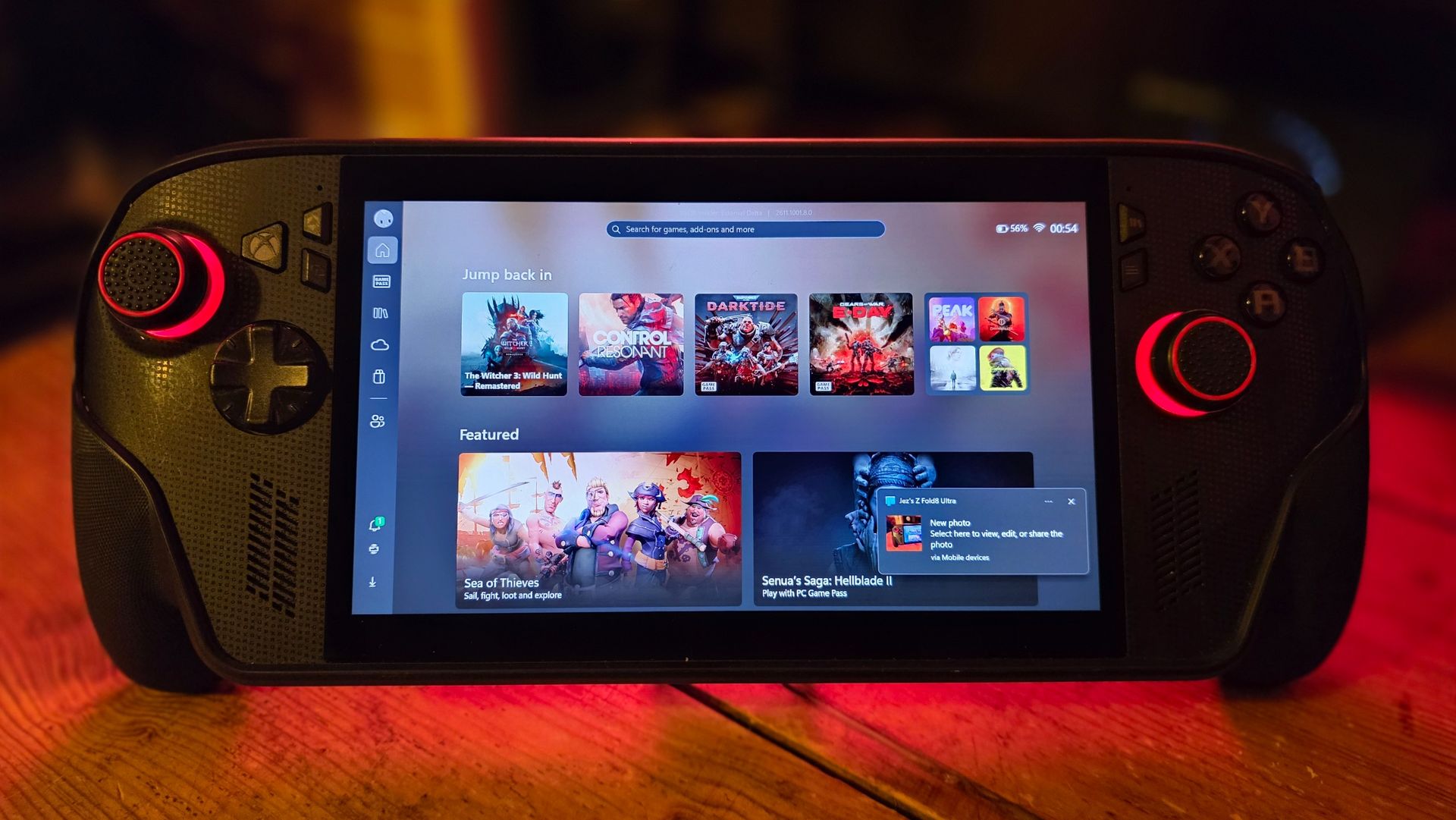
My favorite piece of tech (Image credit: Windows Central)
But the bottom line is this: when you're actually in a game, this device absolutely sings. In Turbo mode at 35W, it will provide a solid 1080p 30~ish experience in the heaviest AAA games, even on a medium or even high quality setting, particularly with FSR 4.1 tweaks injected. You can get up to 60 FPS if you're willing to compromise on quality, generally speaking. There are many higher-end games that have been well-optimized for handhelds that deliver a 1080p 60 FPS experience too, such as The Witcher 3 Enhanced Edition.
I've never encountered a scenario where I couldn't get a satisfactory experience from a game, which cannot be said about the Steam Deck and other older or lower-end handhelds.
Given the state of the RAMpocalypse and component market in general, I expect it might be a while before developers push their visuals beyond what is available today. The Xbox Series X|S, PS5, Switch 2, and devices like this are probably going to be the baseline for a longer period than usual. If you were to buy the Xbox Ally X today, I expect you're going to get at least 3 to 4, maybe 5 years of solid use out of it before it might start feeling obsolete.
This is a fantastic device, a perfect companion for any Xbox player with a big Xbox Play Anywhere library. Even if you're dedicated to Steam, you can set Big Picture Mode as your default launcher and skip the Xbox ecosystem entirely if you fancy it.
For gaming evenings in bed, portable co-op with friends, or even as an emergency workhorse, the Xbox Ally X is a fantastic PC companion that I hope will be a staple of my gaming experience for a long time to come. And I would absolutely recommend it — as long as you think you'll get a good amount of use out of it.
Join us on Reddit at r/WindowsCentral to share your insights and discuss our latest news, reviews, and more.
Apple’s 14-inch MacBook Pro is a macOS notebook for demanding professional workloads. Its new M6 model brings a 2nm chip, Wi-Fi 7 and Bluetooth 6; Apple says local language-model prompts produce their first token up to 1.3 times faster than on the M5 model. Preorders opened October 28, with sales starting November 6.
Apple’s 24-inch iMac is an all-in-one desktop running macOS, and its latest refresh swaps the M4 for an M6 chip without changing the design. The upgrade brings faster local AI processing and Wi-Fi 7, while 2.5Gb Ethernet costs extra. The iMac starts at $1,499; preorders opened October 28, with availability set for November 6.
Nvidia’s Vera is an 88-core server CPU designed for AI agent workloads, including running tools and processing data between model calls. Oracle has made standalone Vera CPUs generally available on OCI, with an initial deployment of 150,000. Independent tests on a local Vera server—not OCI—recorded more than twice the Stream benchmark memory bandwidth of a dual Intel Xeon 6980P system.
A fix for critical EDK II vulnerability CVE-2026-97631 has been merged into the project’s code, but no stable release includes it yet. The flaw can let an attacker run code in firmware while a server boots over the network, before Secure Boot checks startup components. Until hardware vendors ship firmware updates, organizations that do not need PXE boot can disable it to reduce exposure.
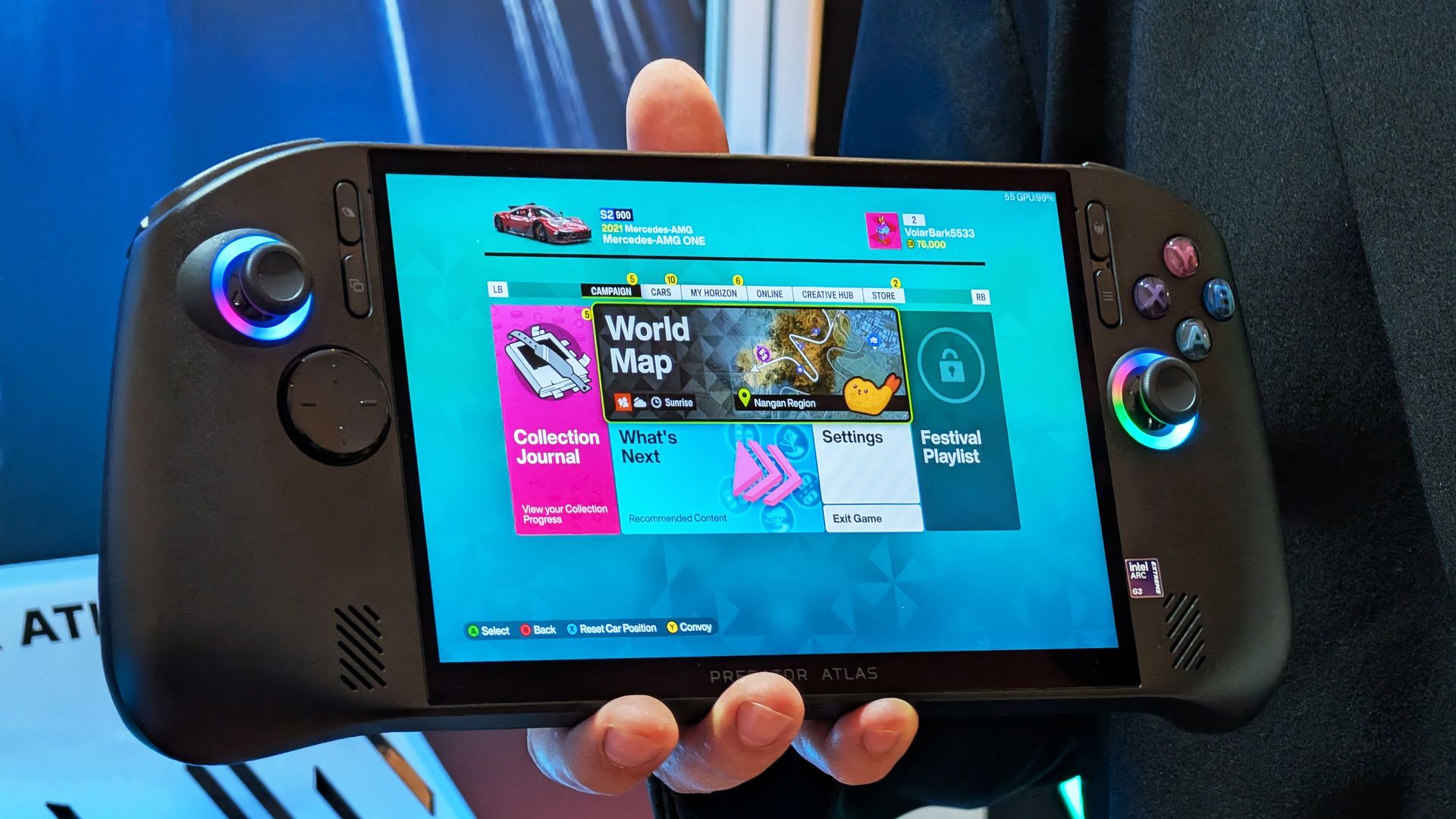
The new Acer Predator Atlas 8 gaming handheld, featuring Intel's latest G Series chips, finally went up for pre-sale in the US on October 23, with full launch slated for November 1.
Here's where Acer's new handheld packing the same Intel G3 Extreme chip offers a big surprise for shoppers. It's priced at $1,299.99 at Best Buy. Or at least it was, for the Best Buy page preorder has since been removed. I'm not exactly sure why — maybe Acer is reconsidering the post-launch price now that preorders are in.
In any case, seeing a handheld with the same powerful mobile chip inside as the MSI Claw 8 EX AI+ launch for $500 less should be on every gamer's radar. But how is Acer undercutting the competition by so much?
How does Acer charge $500 less for its Intel Arc G3 Extreme gaming handheld?
Intel's new mobile chips are designed specifically for handhelds, delivering considerably improved performance and efficiency compared to the AMD Ryzen Z2 Extreme chips so common to the form factor.
On paper, the Acer and MSI devices are quite similar. Both feature the flagship Intel Arc G3 Extreme chip, with 14 cores, a 4.7GHz top clock speed, and a faster Arc B390 integrated GPU compared to the standard Arc G3 chip.
Both devices use an 8-inch IPS display with 1920x1200 resolution, 120Hz variable refresh rate, 500 nits brightness, and 100% sRGB color reproduction.
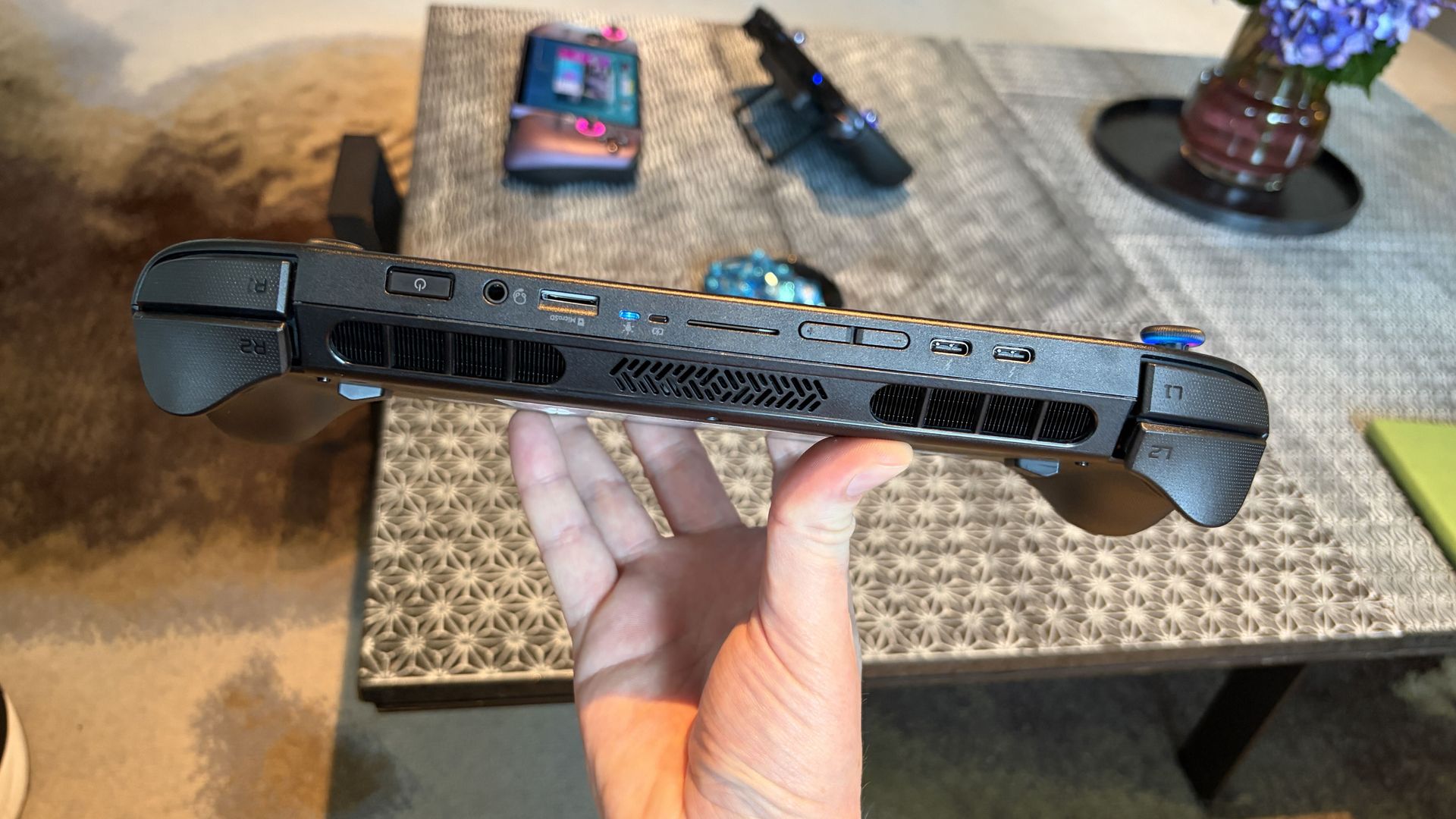
Both have Thunderbolt 4 ports and Wi-Fi 7. Both have Hall Effect triggers and joysticks. Both use an 80Wh battery. So what's the deal?
Based on my (limited) time with the Predator Atlas 8, it looks like the big price difference comes down to build quality and configuration specs.
Let me get the biggest difference out of the way first: the $1,799.99 MSI Claw 8 EX AI+ ships with 32GB of RAM and a 1TB SSD. The Acer Predator Atlas 8 pares that back to 24GB of RAM and a 512GB SSD.
Considering the price of storage and memory these days, this difference likely helps make up a huge chunk of the difference.
Otherwise, as I noted in my Intel Arc G3 Extreme hands-on piece, Acer's device has triggers that don't feel quite as snappy as MSI. The reverse can be said for the joysticks, where I believe Acer has MSI beat.
Audio from both devices was good, and although Acer's Predator Atlas 8 is smaller and ultimately more portable, I found both handhelds to be comfortable to hold.
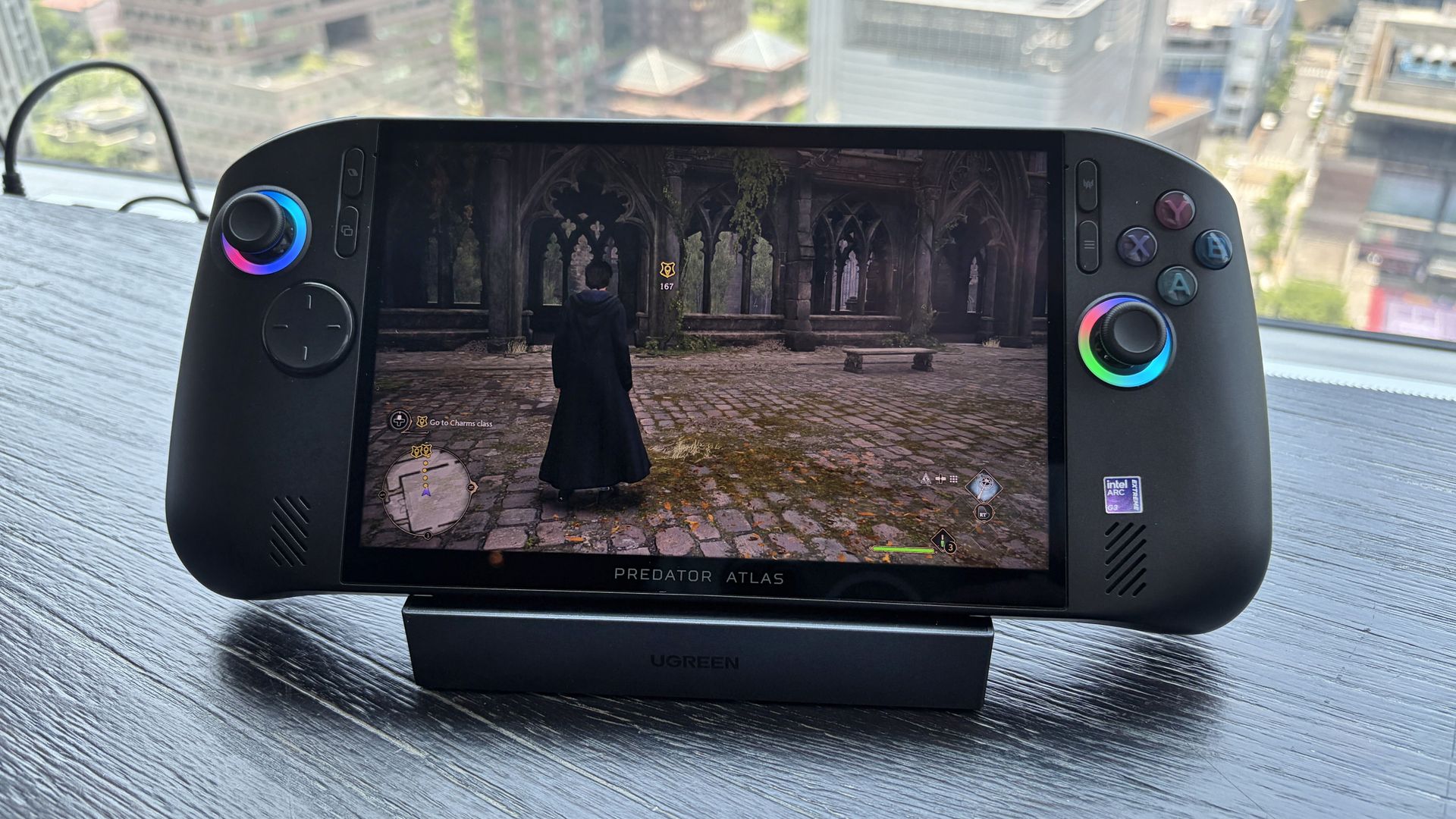
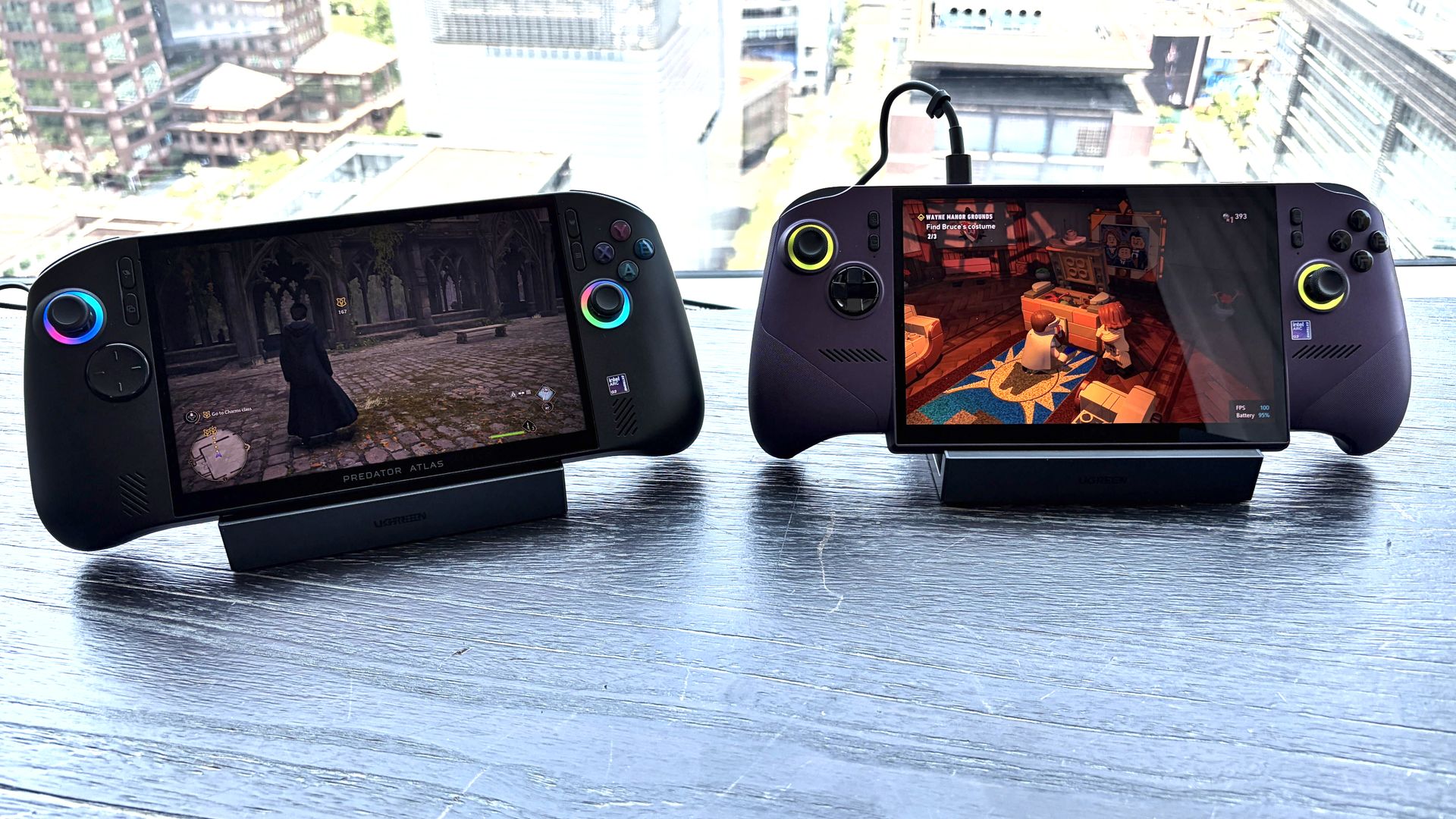
In terms of performance, the Predator Atlas 8 was running demanding games like Hogwarts Legacy and LEGO Batman: Legacy of the Dark Knight at a cool, smooth clip.
I'll have to do more testing once Acer's handheld actually arrives here for testing, but I don't expect it to perform any worse than MSI's new Claw.
Bottom line? It's the disparity in RAM and SSD configurations at launch that's helping keep Acer's gaming handheld at a much more reasonable price.
Is Acer's $1,299.99 Predator Atlas 8 actually cheap?
The Predator Atlas 8 feels good to hold and features many similar high-end features as the MSI Claw 8 EX AI+. (Image credit: Future)
That's not quite the case for Acer's Predator Atlas 8, especially with console prices on the rise, but that doesn't make it affordable.
Keep in mind that the Steam Deck, which kicked off the gaming handheld craze, launched at just $399 in 2022.
No, the Steam Deck isn't nearly as powerful as the new Arc G3 devices, but it was priced to sell. Is Acer's Predator Atlas 8 affordable relative to today's overall market? Absolutely.
As mentioned, the Predator Atlas 8 Best Buy preorder page is down at the time of writing this piece. Check back soon, especially after November 1, when the handheld actually launches, to see if prices have changed.
Join us on Reddit at r/WindowsCentral to share your insights and discuss our latest news, reviews, and more.
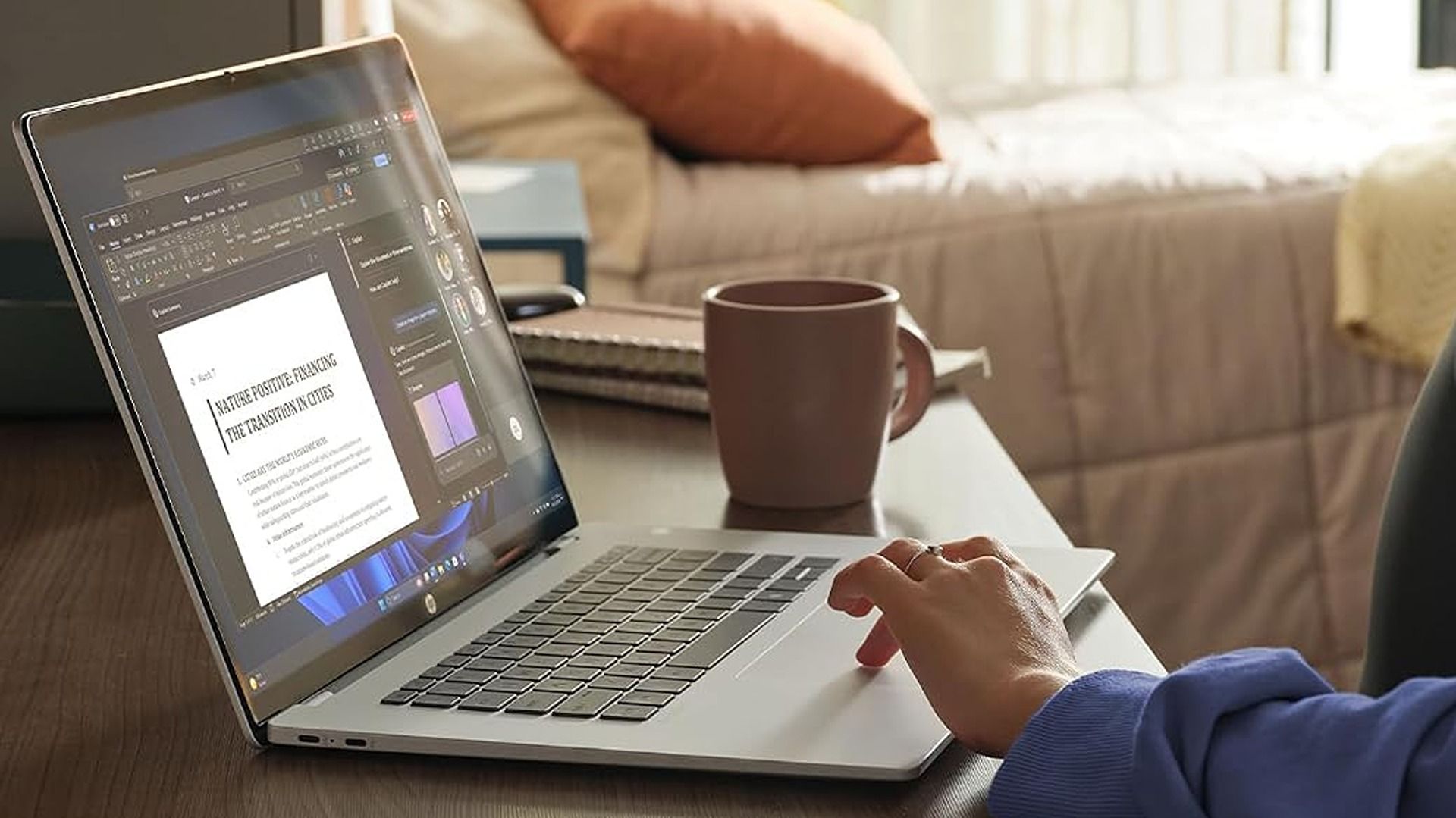
Not everyone needs a premium Windows laptop with flagship performance. Sometimes, all it takes is a PC to handle email, Office apps, web browsing, and video calls with strong battery life and a crisp display to get the job done.
Some modern mid-range laptops have become a tougher sell as prices continue to climb from the ongoing memory crisis. Thankfully, Amazon's time-limited deal has dropped HP's OmniBook 5 laptop to $789.99 after its price has fluctuated over the past year. While it isn't a lowest-ever drop, it's certainly a fairer price.
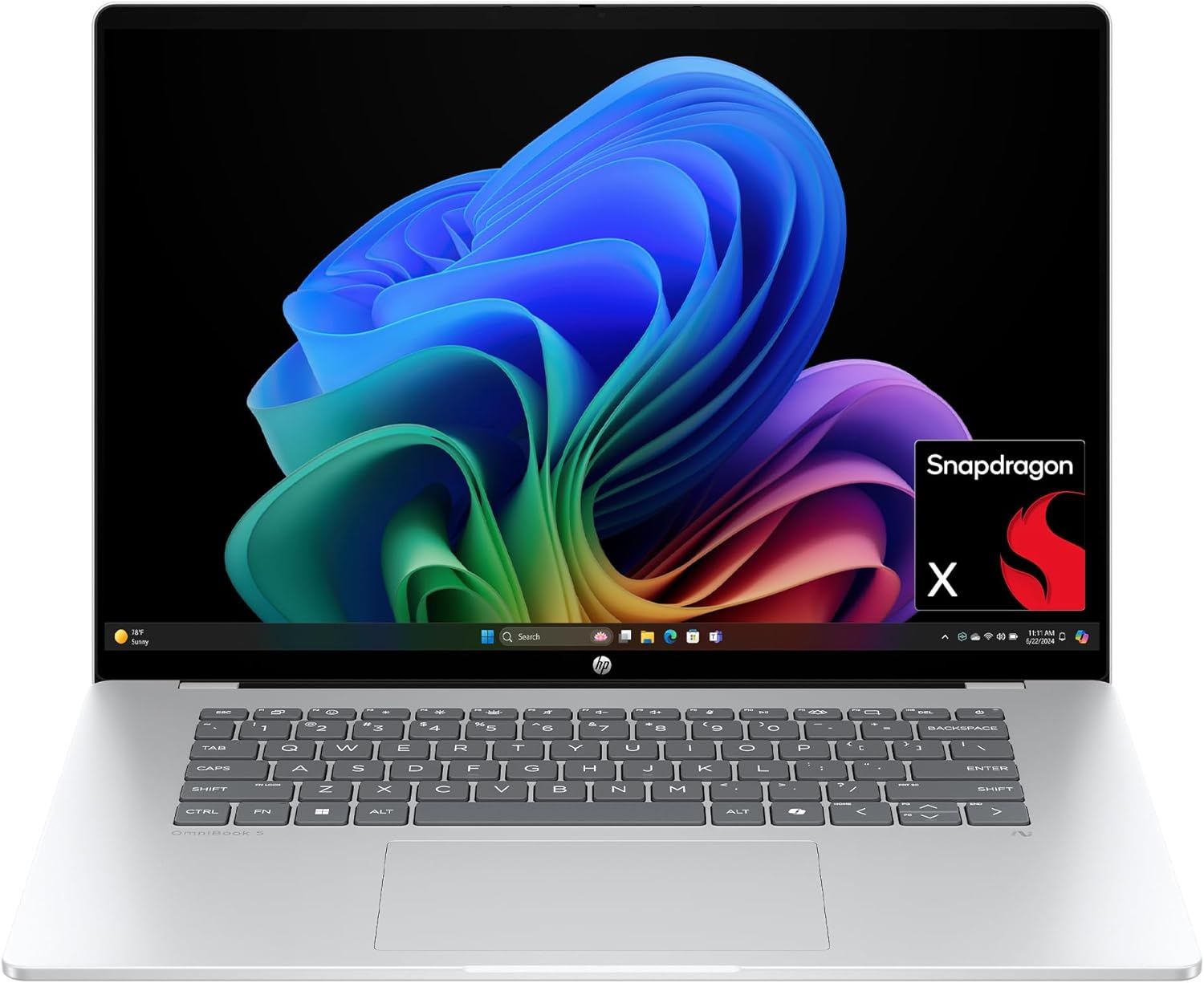
The HP OmniBook 5 is a commendable laptop for everyday and work-heavy use with its 16-inch 2K OLED display, Snapdragon X CPU, 16GB of RAM, 512GB SSD, and Qualcomm Wi-Fi 6E and Bluetooth 5.3 connectivity.View Deal
Why buy this laptop?
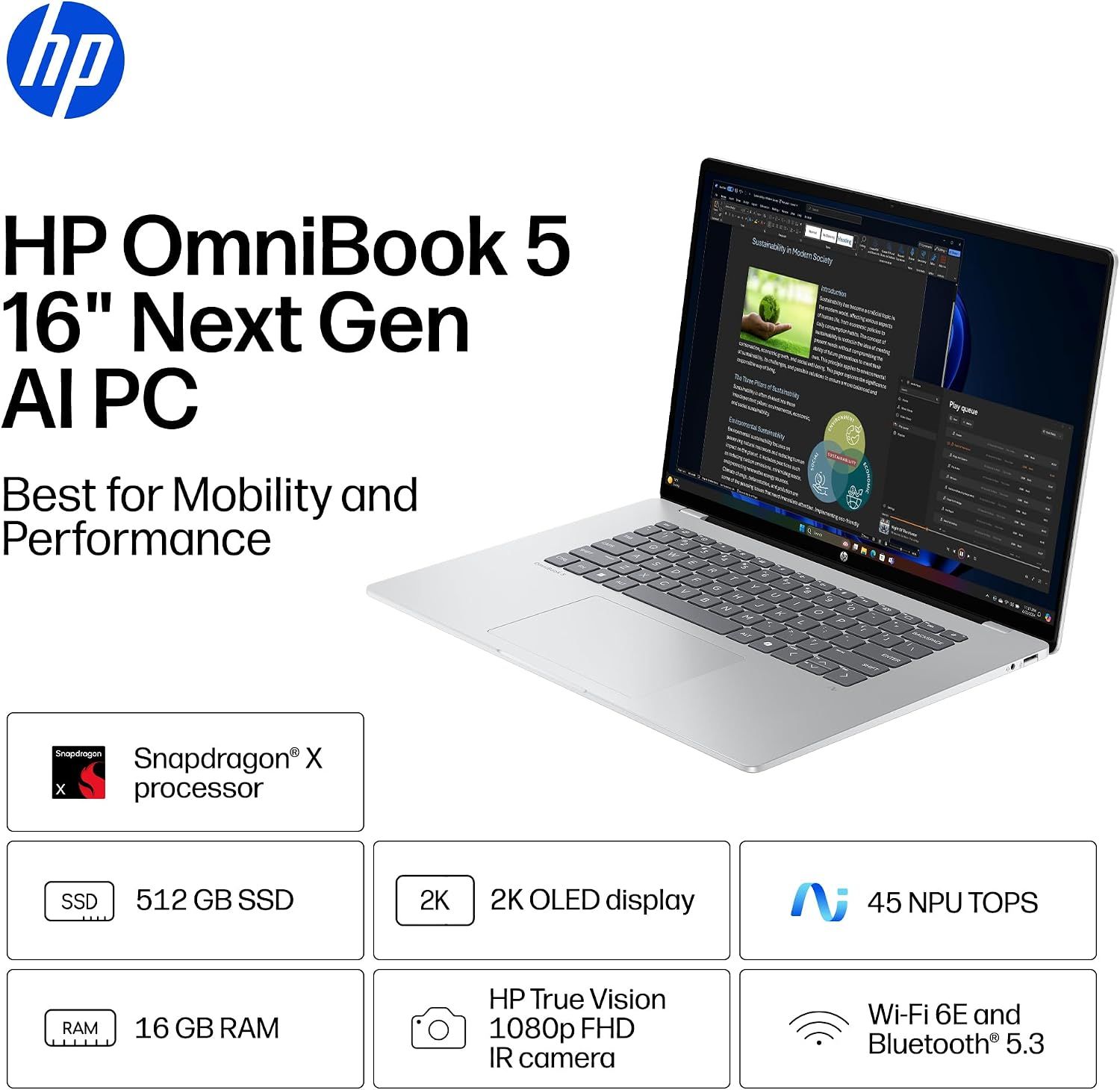
Spec highlights for the HP OmniBook 5 16-inch laptop. (Image credit: HP)
This laptop features Qualcomm's Snapdragon X processor and 16GB of RAM. Pair that with an NPU capable of 45 TOPS, and the HP OmniBook 5 can handle web browsing, mid-level productivity tasks like typing reports, and local AI-empowered tasks.
It also features a 512GB SSD to store data, a thin design that's able to keep itself cool, a 2K OLED display capable of rendering images with sharp images and vibrant colors to give your work greater clarity, and best of all, a massive battery life of up to 34 hours and 45 minutes before needing a recharge.
So if you need a laptop that will last you all day at the office and doesn't require heavy-duty engineering, the HP OmniBook 5 should be on your list for your next choice.
Can I upgrade its RAM?
No, you can't upgrade the HP OmniBook 5 16-inch laptop's RAM as it's soldered in place.
Can I run everyday apps on it?
Mainstream apps like Microsoft Office, Google Chrome, and Zoom will run on the Windows on ARM-based HP OmniBook 5 with no issues. However, advanced Adobe apps like Premiere Pro and After Effects, legacy printer drivers, and older, niche enterprise software or corporate-specific VPN clients may need extra effort.
Should I wait for Black Friday for a better deal?
It depends on whether you're willing to wait until Black Friday for a bigger discount or if you're in need of a new laptop for work/casual use right now and don't have time to wait for a killer deal. Nevertheless, this is a fair price for its specs.
Join us on Reddit at r/WindowsCentral to share your insights and discuss our latest news, reviews, and more.
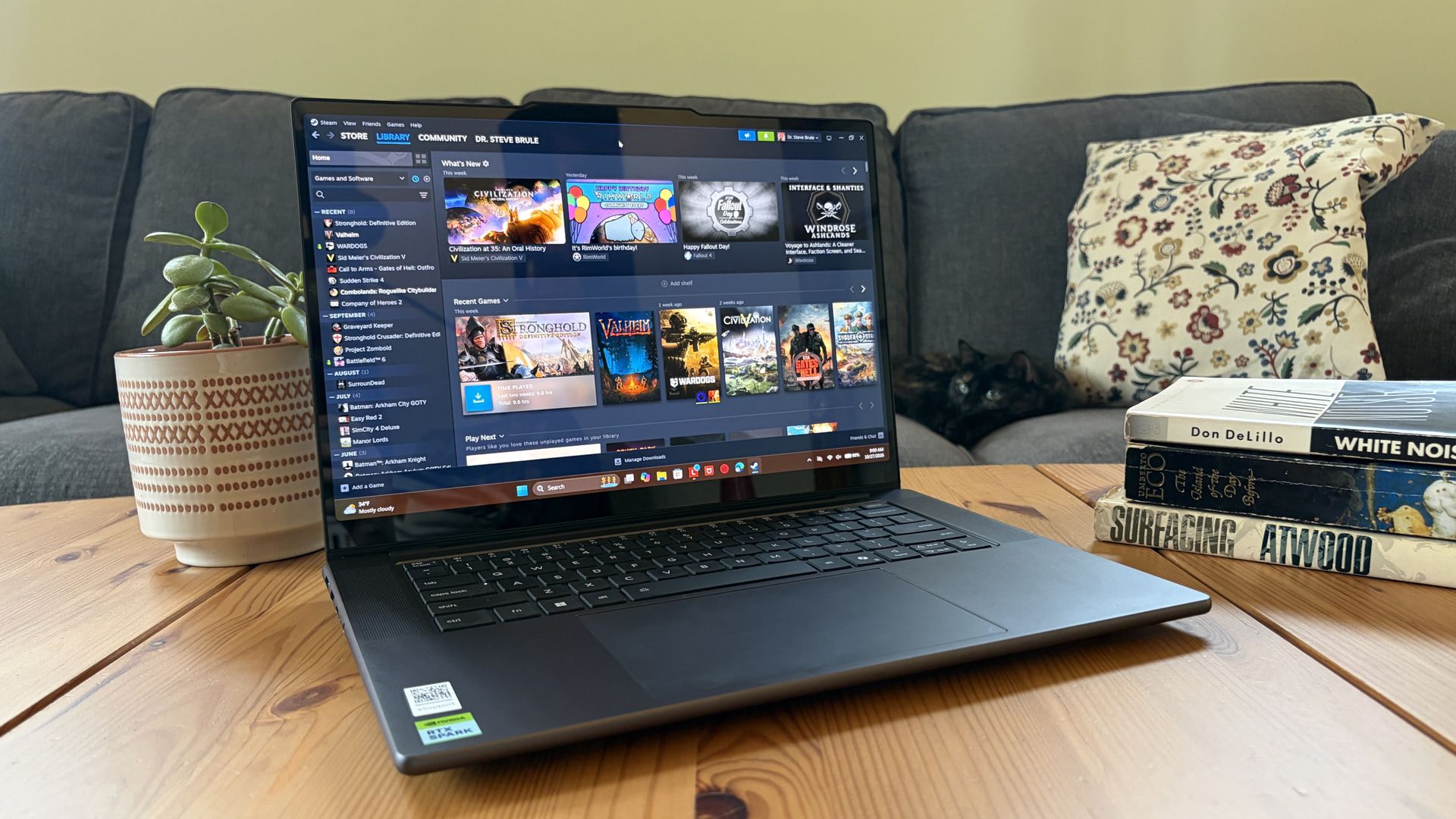
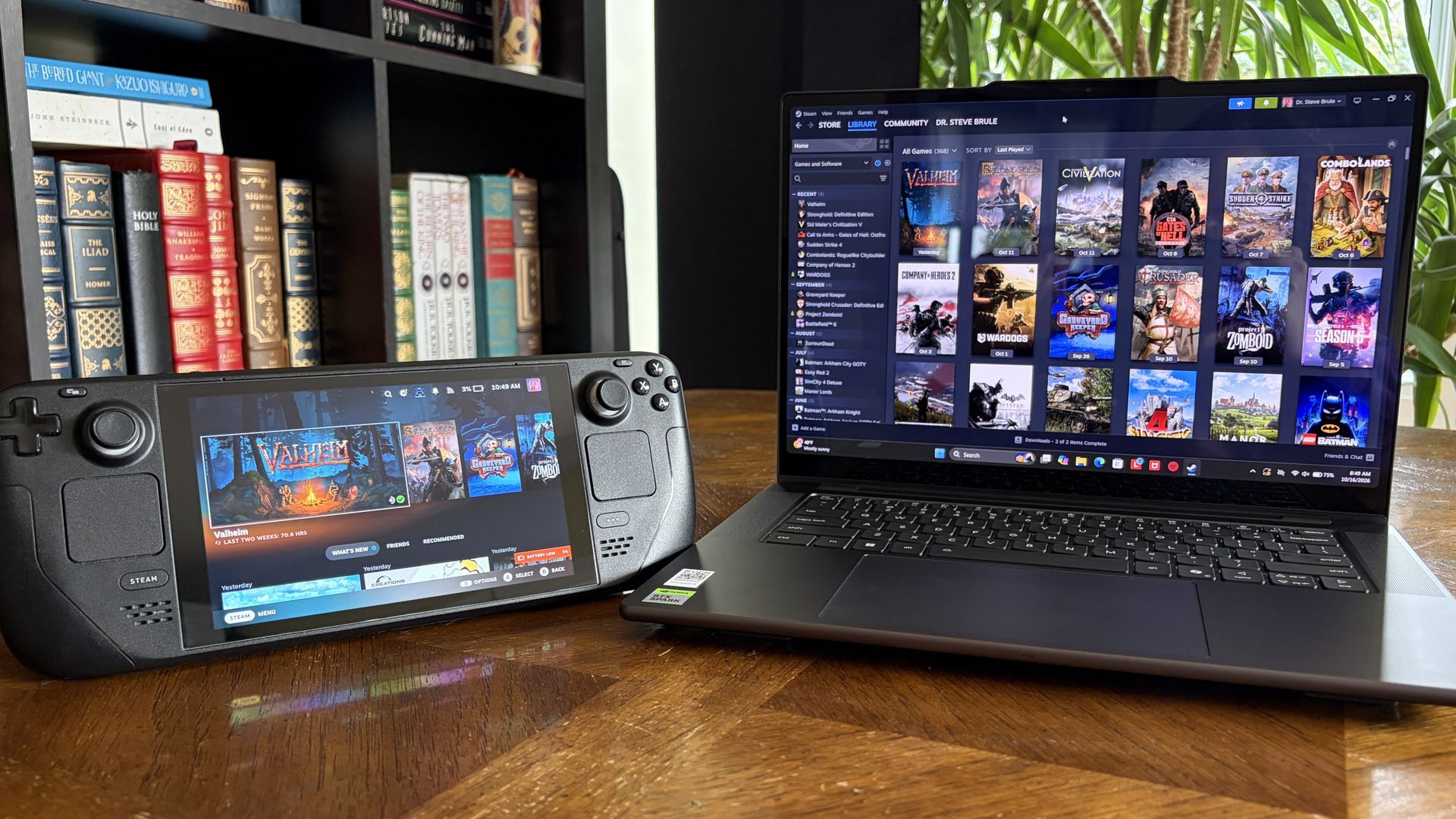
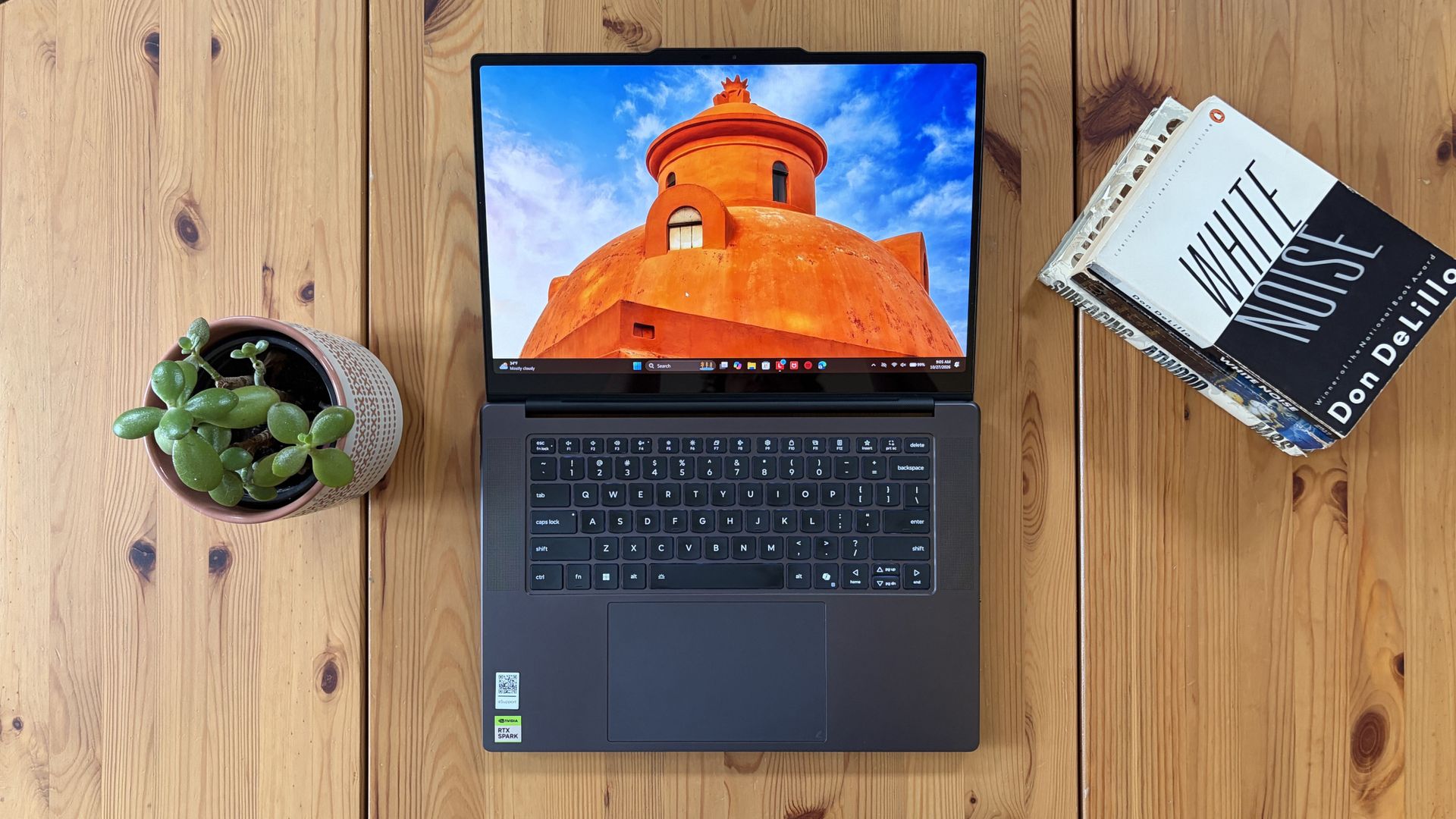
It's also been my gaming handheld replacement, my home base for local AI testing, my sketchpad to practice digital drawing, and my entertainment hub.
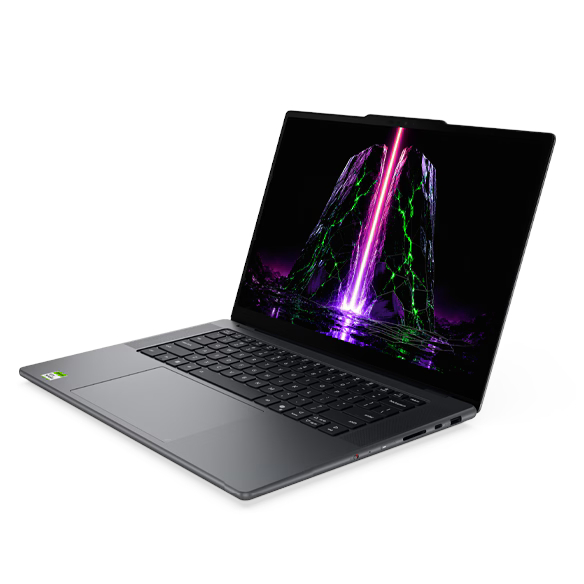
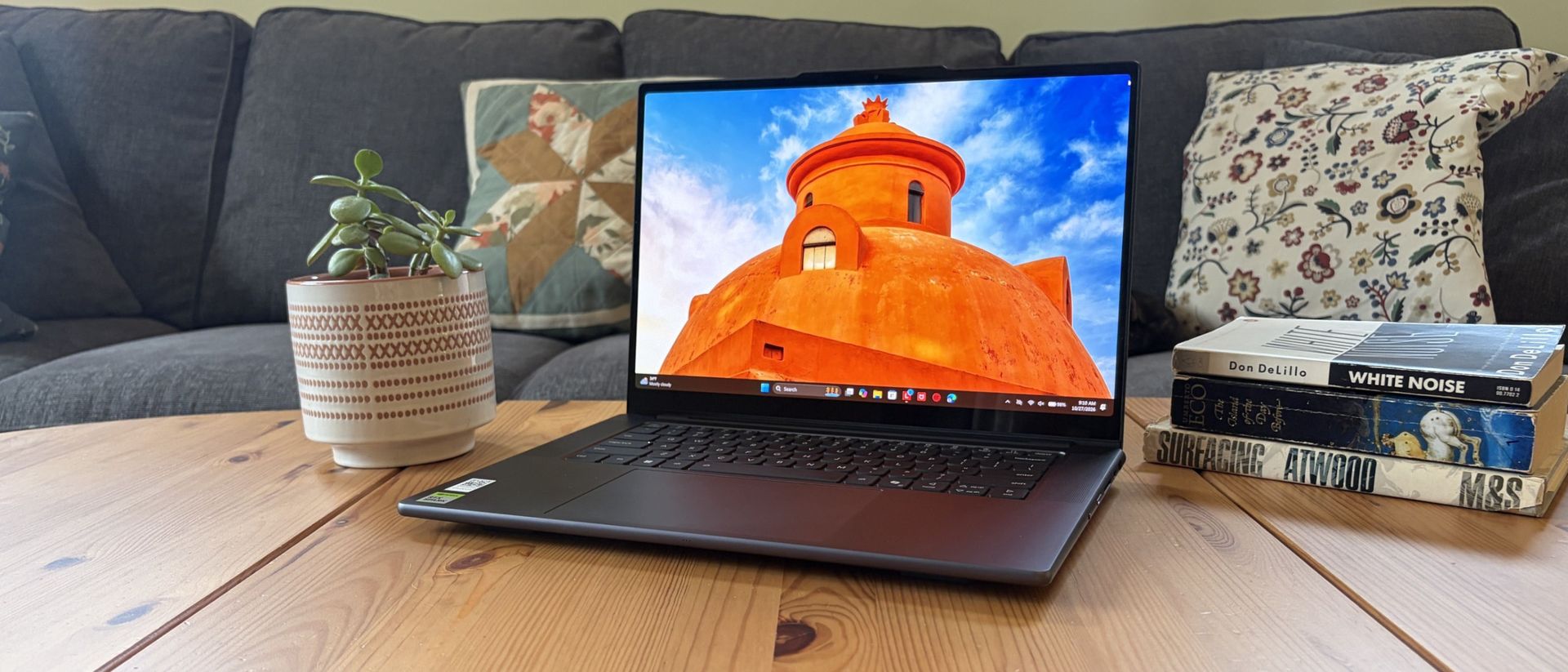
This pricey Lenovo Pro 9n isn't for everyone despite its broad versatility. That's true about any of the new RTX Spark laptops.
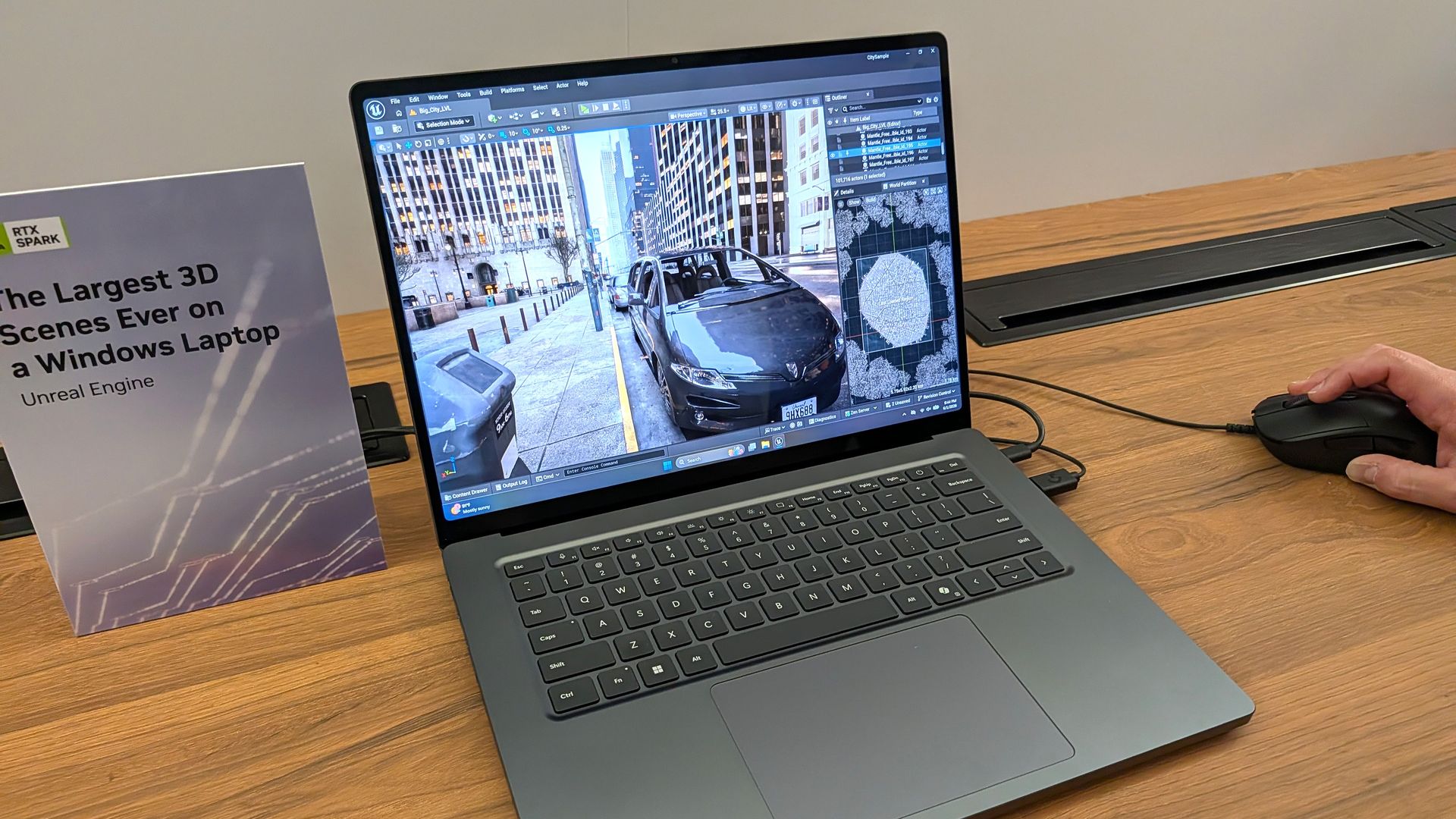
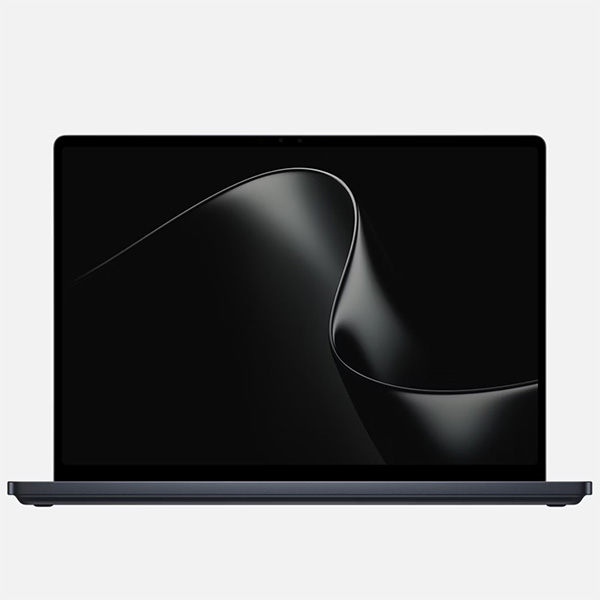
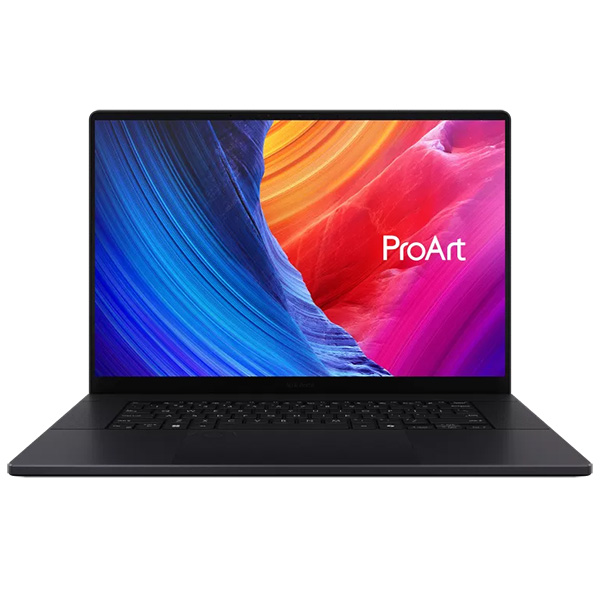
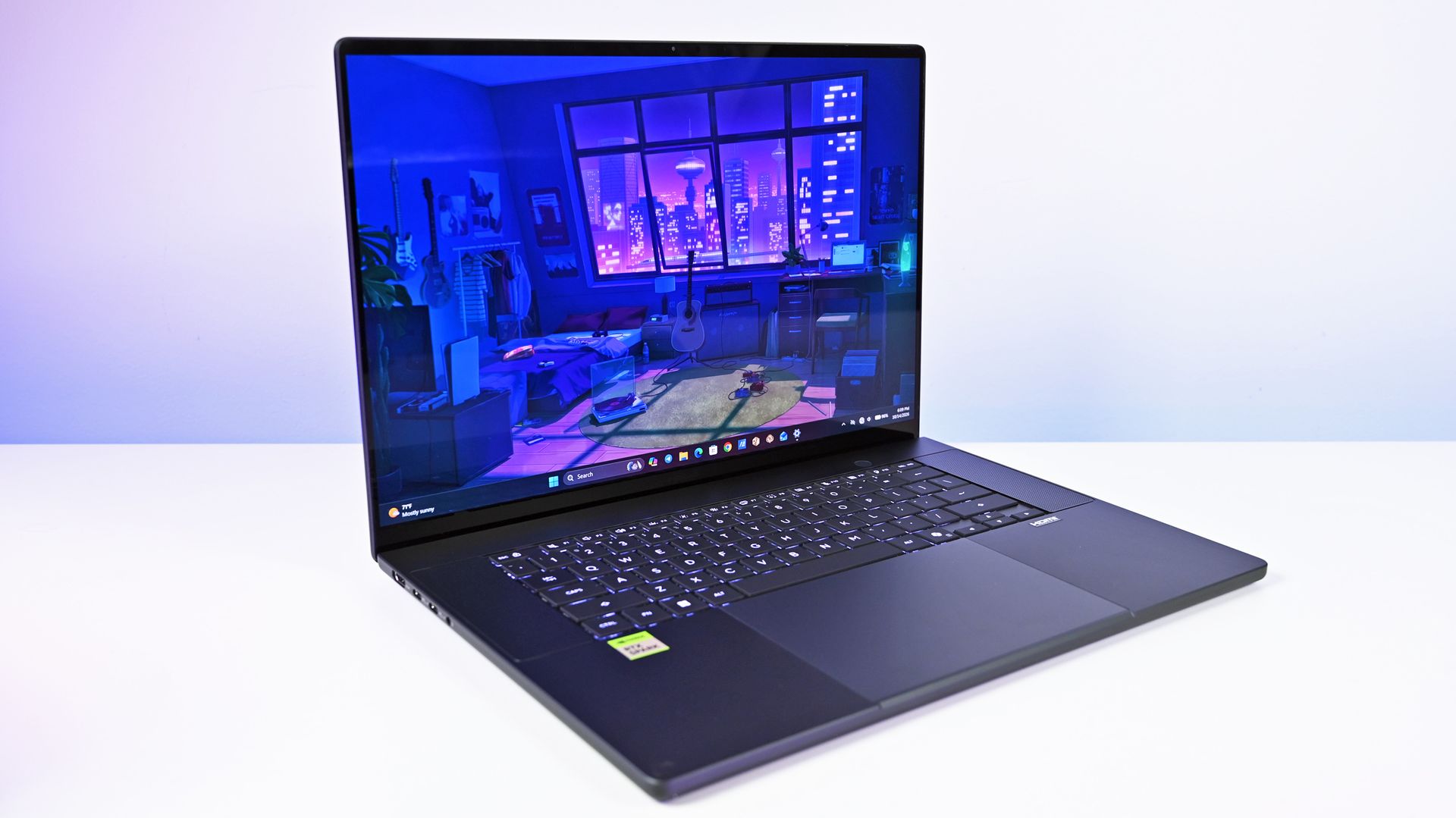
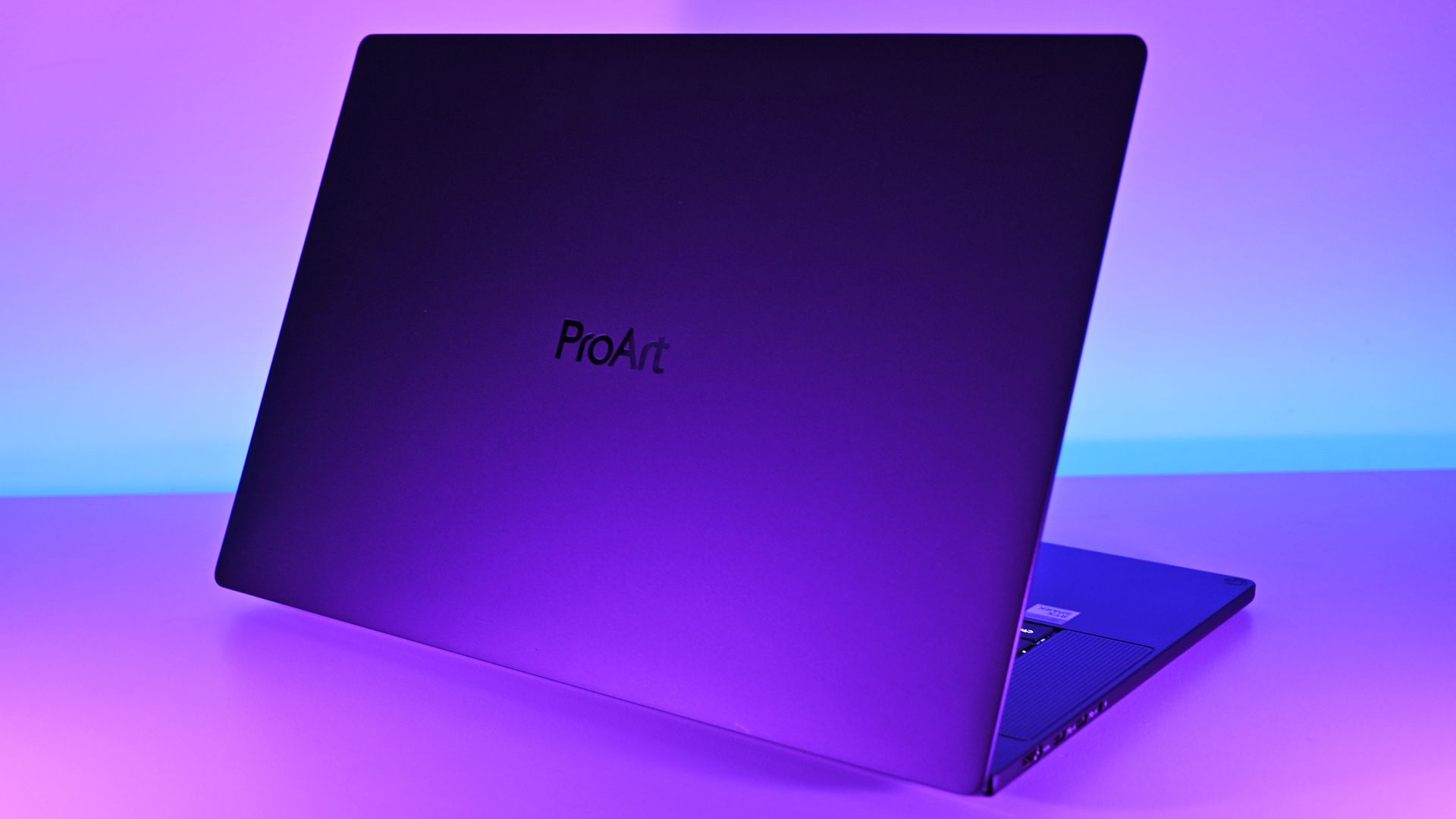
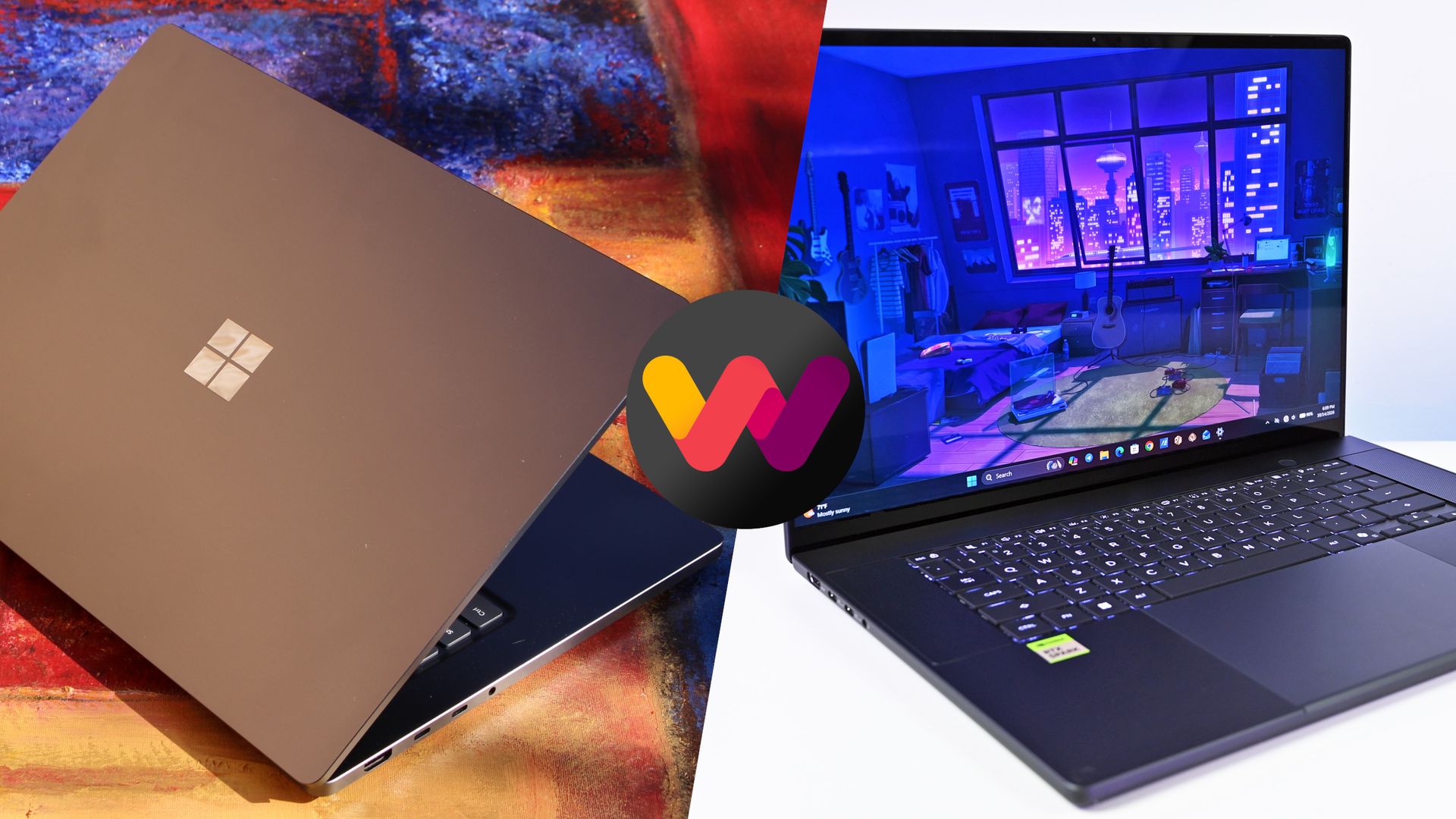
I'm looking to see how Lenovo's offering differs from the others — including the Surface Laptop Ultra and ASUS ProArt P16 we reviewed — in terms of features, design, and performance.
Lenovo sent Windows Central a review unit on loan for testing. It had no input, nor saw the contents of this review, prior to publication.
Lenovo Pro 9n: Price and specifications
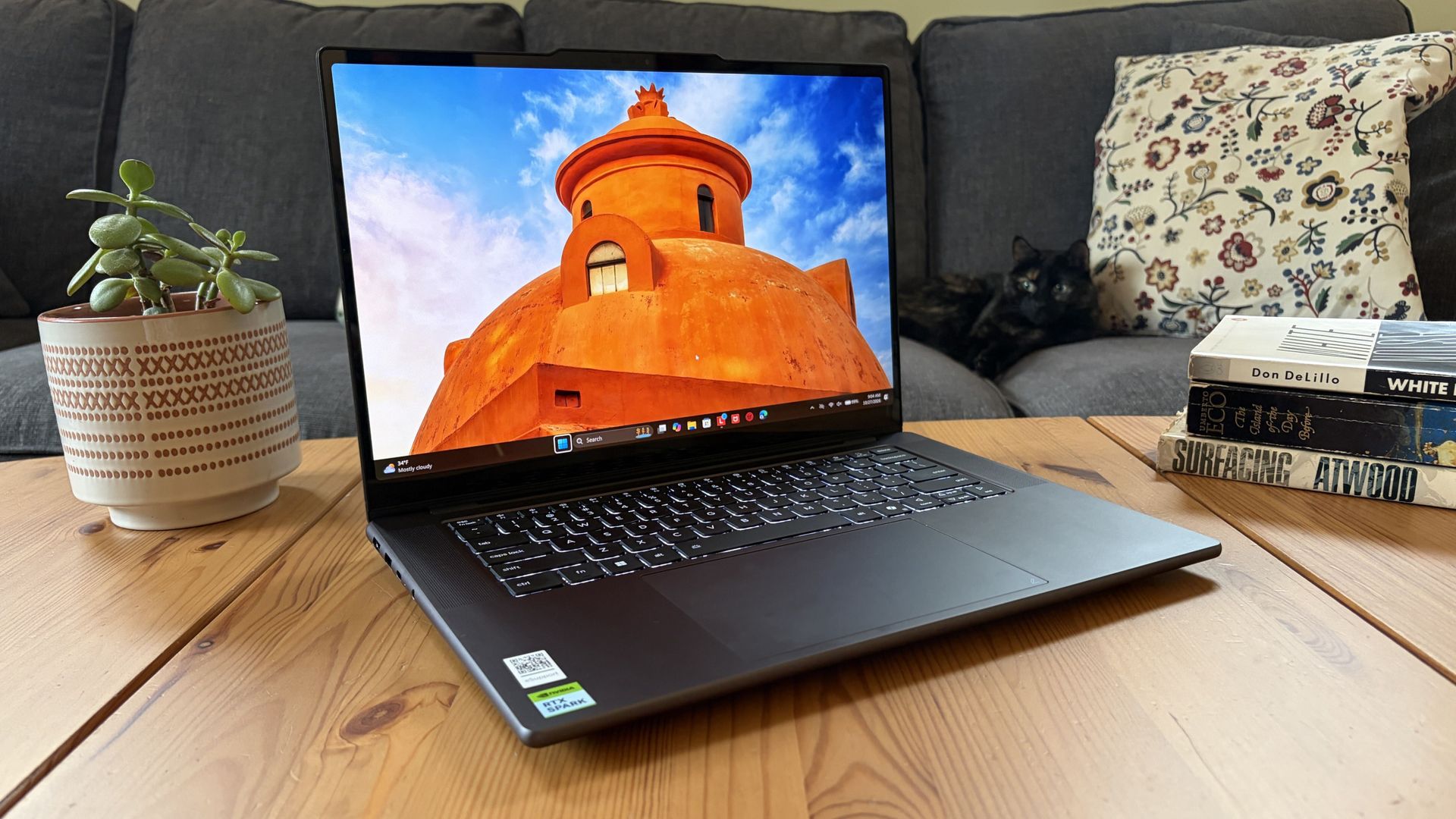
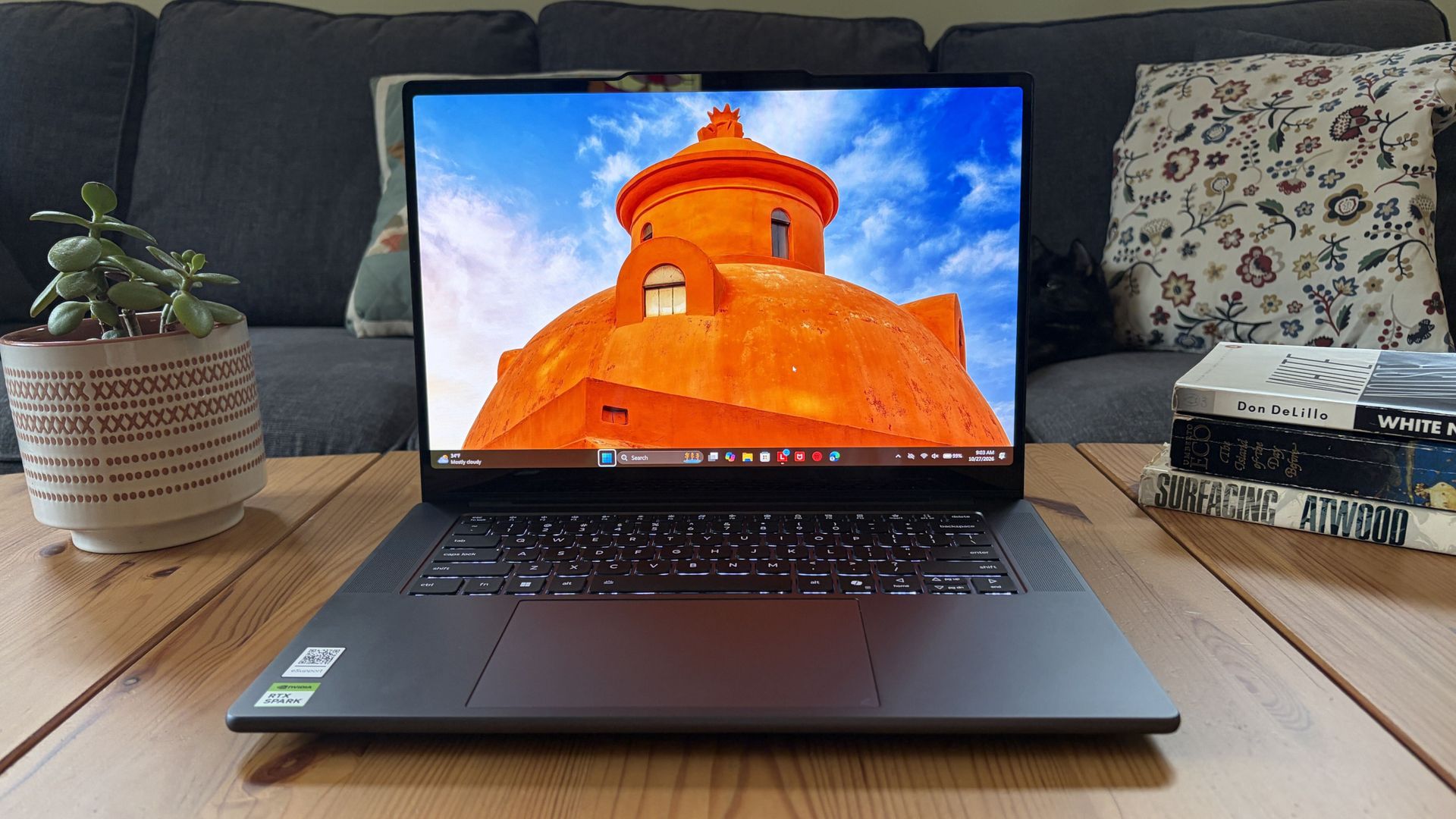
You'd never know the level of power contained within this sleek chassis. (Image credit: Future)
Lenovo's Pro 9n starts at $2,999.99, putting it near the middle of the RTX Spark lineup.
For this price, you get an 18-core NVIDIA N1X CPU, integrated RTX Blackwell GPU with 5,120 cores, 32GB of LPDDR5x unified RAM, a 512GB M.2PCIe 4.0 NVMe SSD, and a 15.3-inch OLED touch display at a 2560x1600 resolution.
Lenovo offers configuration options for CPU, RAM, and storage. The top spec with a 20-core N1X CPU, 6144-core GPU, 128GB RAM, and 2TB PCIe 5.0 SSD balloons to $6,099.99, with several stops along the way.
13.66 x 9.53 x 0.66 inches (347mm x 242mm x 16.7mm)
Weight
From 3.64 pounds (1.65kg)
New designs and updated features for the RTX Spark platform
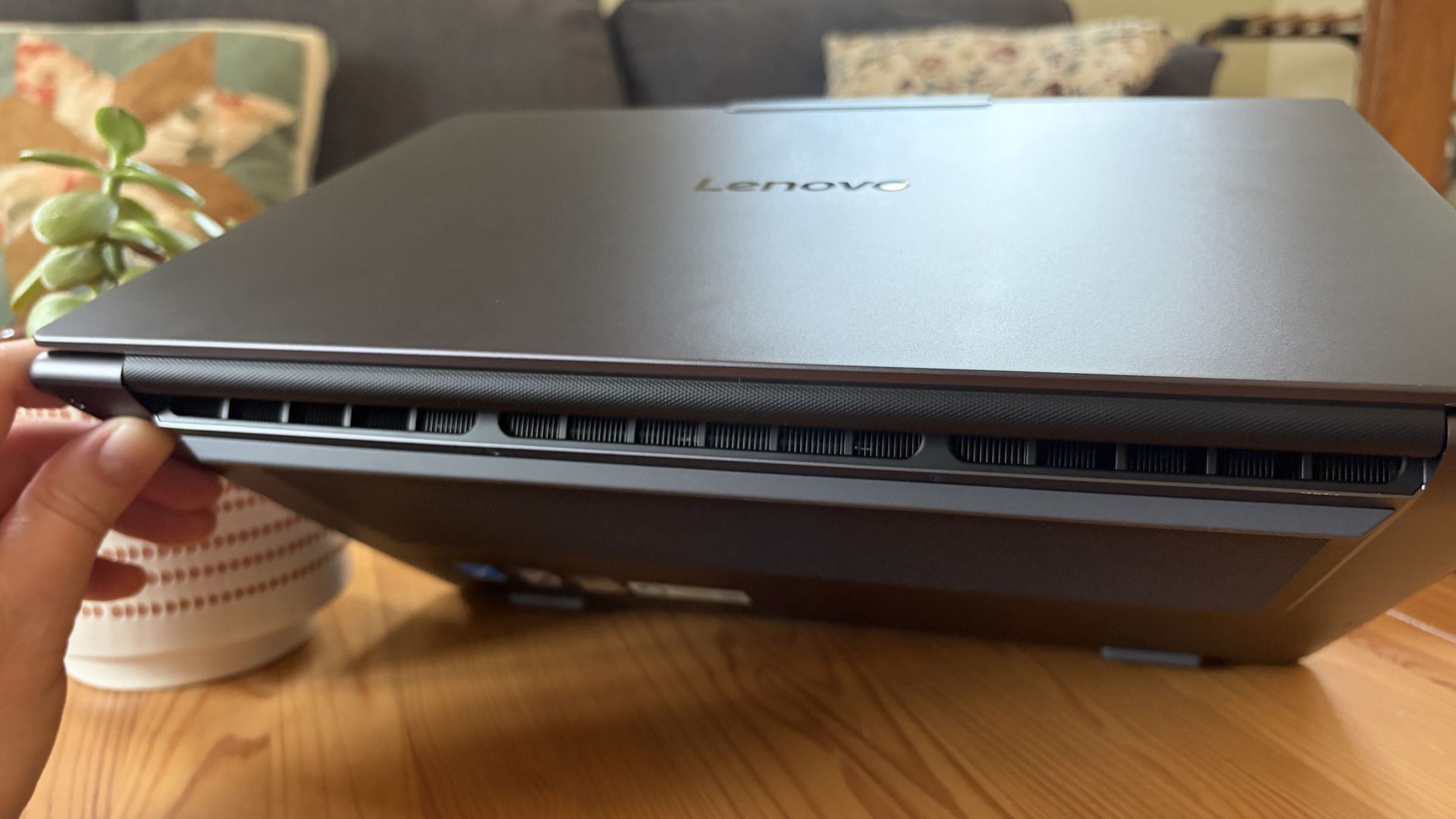
A look at the rear exhaust behind the lid hinge. (Image credit: Future)
The design of Lenovo's Pro 9n has grown on me over the weeks. What I first saw as uninspired has morphed into something that's sleek, relatively lightweight, and ultimately perfect for a professional setting.
With an aluminum top and bottom that add rigidity and a more premium feel than plastic, the PC still manages to slide in at 3.64 pounds (1.65kg) while measuring just 0.66 inches (1.67cm) thin.
The 15.3-inch display translates to a smaller footprint than a full 16-inch PC, and I found it to be an apt size for working in the passenger seat of a car. It should also translate well to airplane trays or train seats.
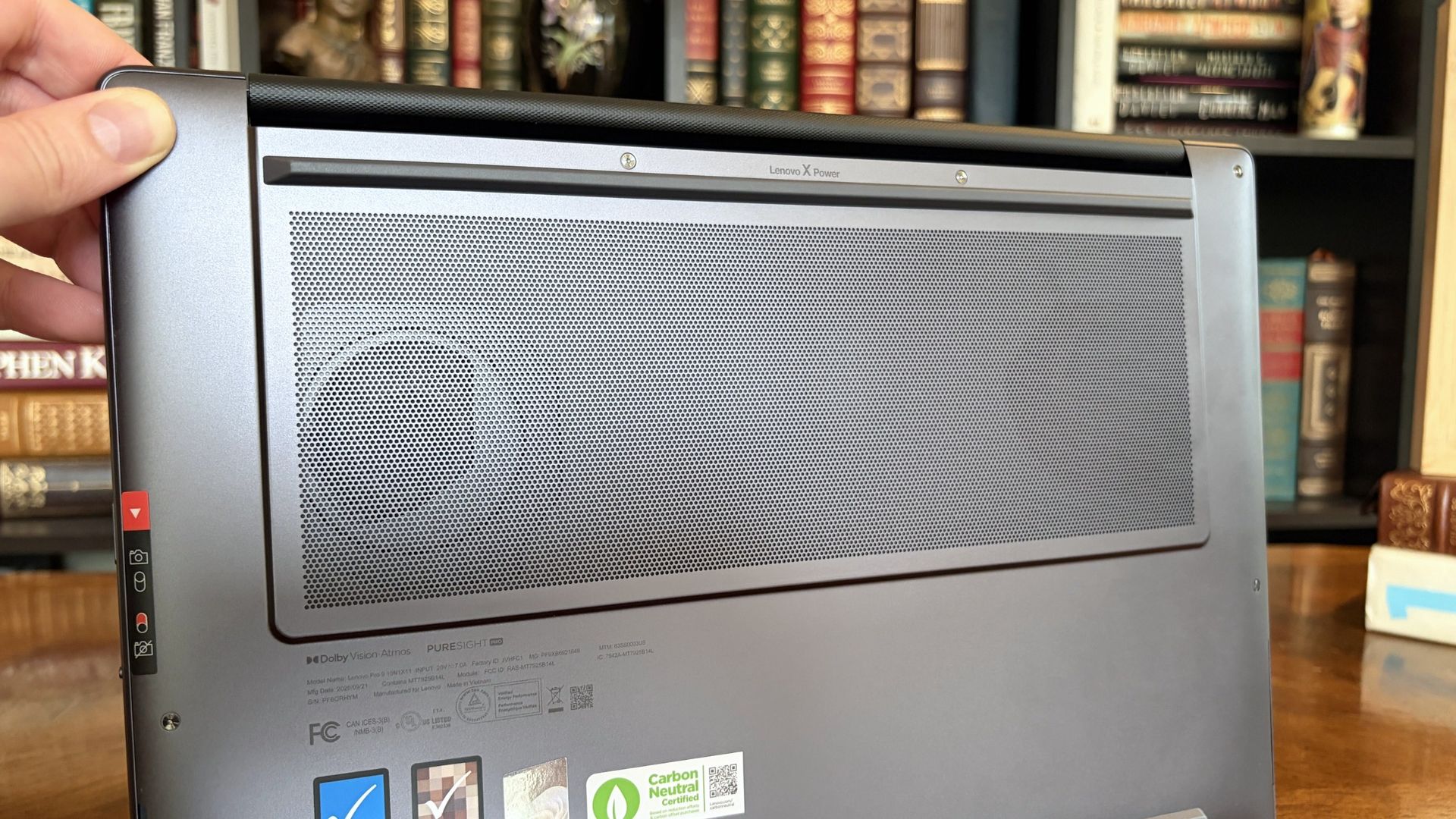
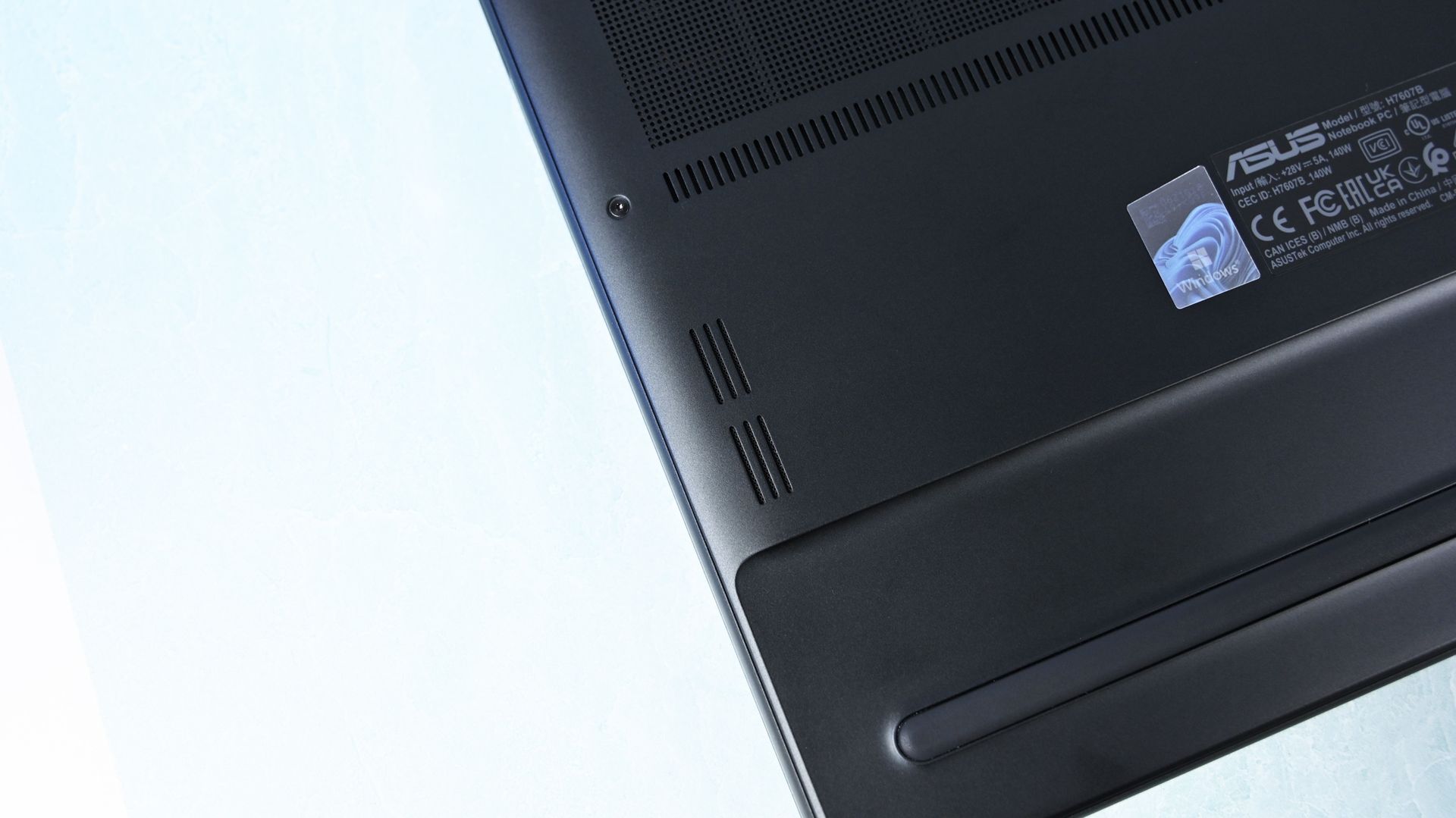
The bottom of the Pro 9n has a massive air intake to feed the two fans. (Image credit: Future)
The thermal layout has been redesigned for the new RTX Spark chip (which I explore below), resulting in a massive air intake on the bottom of the PC and larger vents on the rear edge for exhaust.
This setup keeps hot air directed away from the user and, as you'll see below, it does a decent job of keeping the PC cool under load.
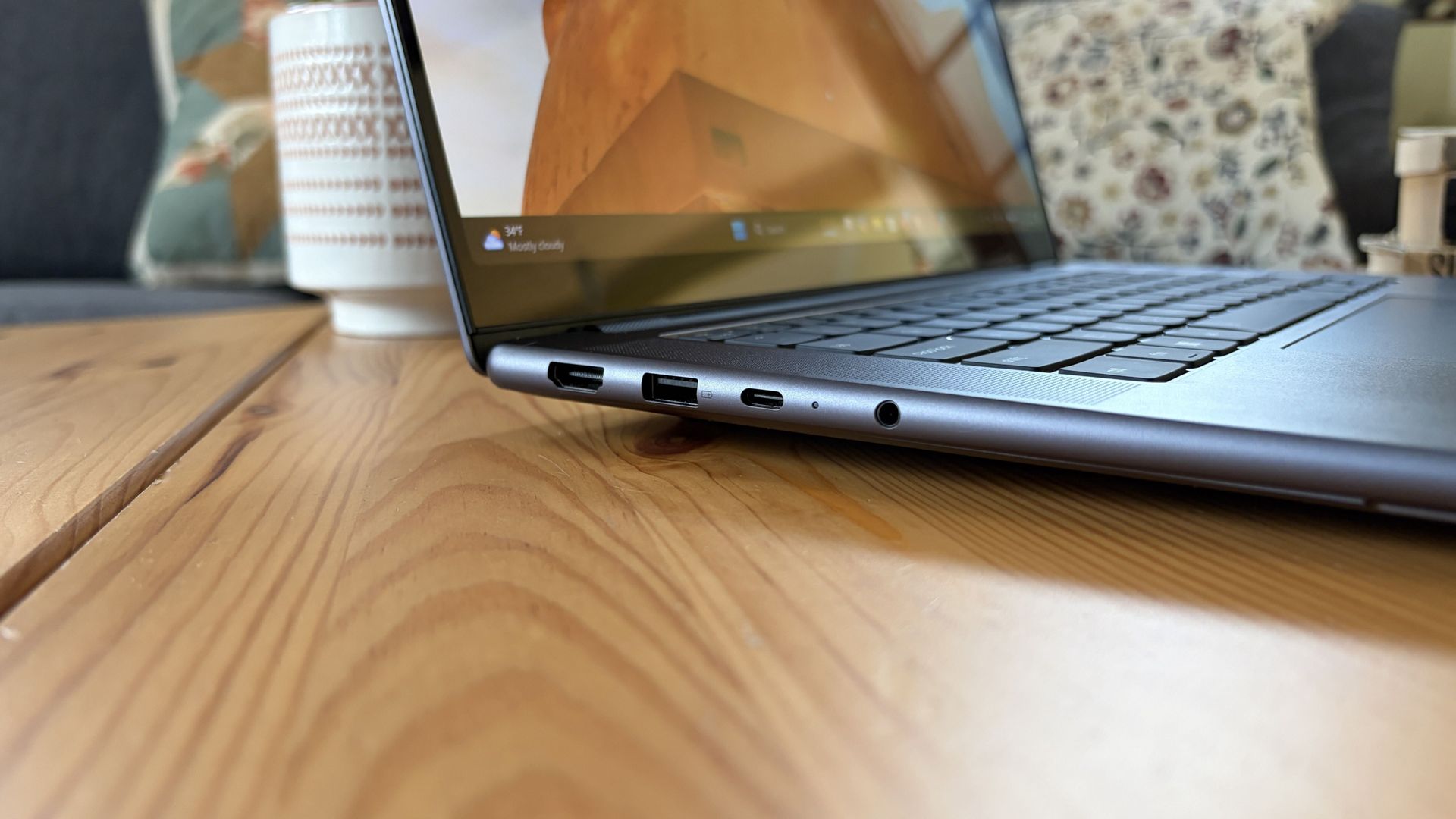
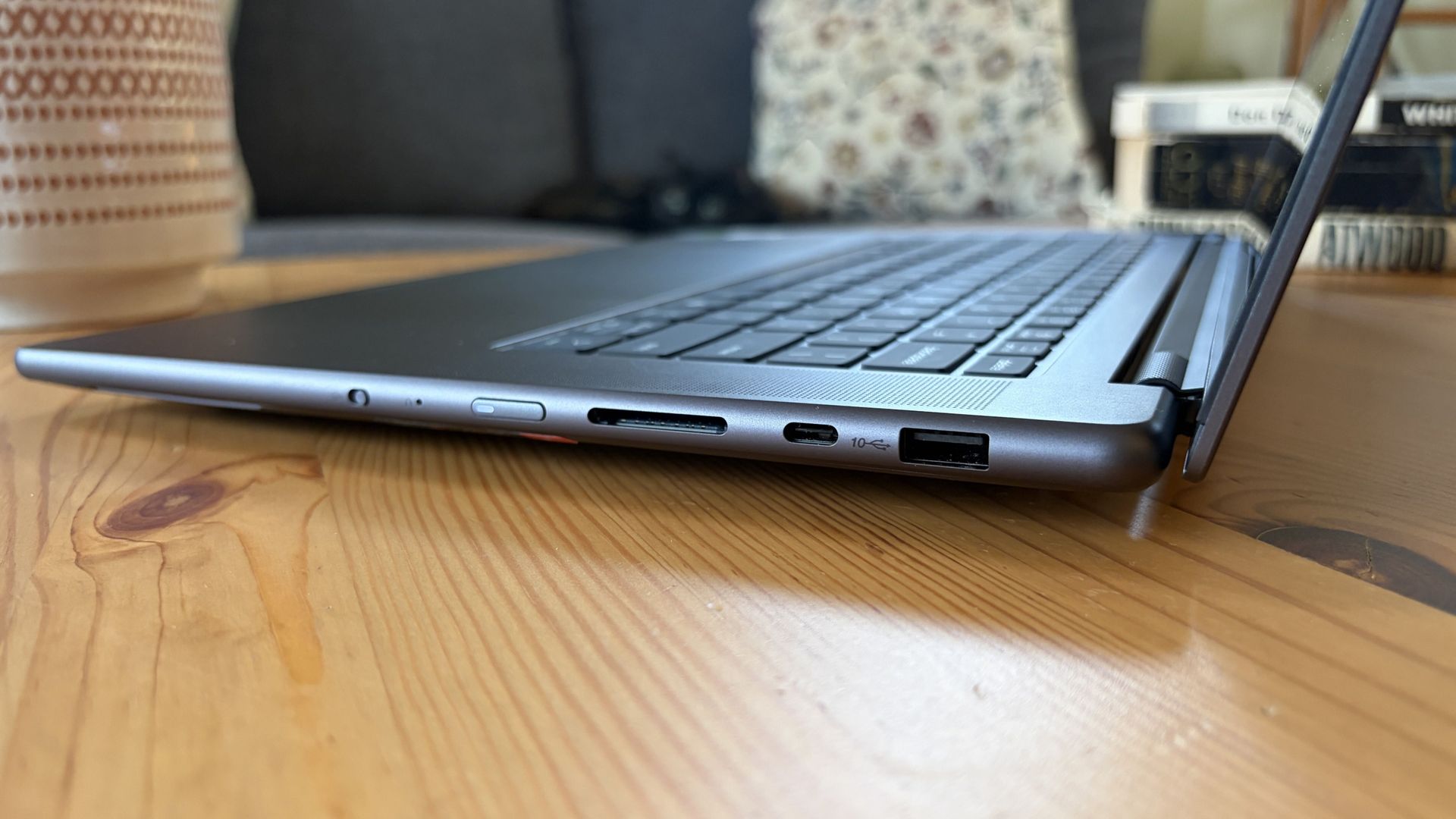
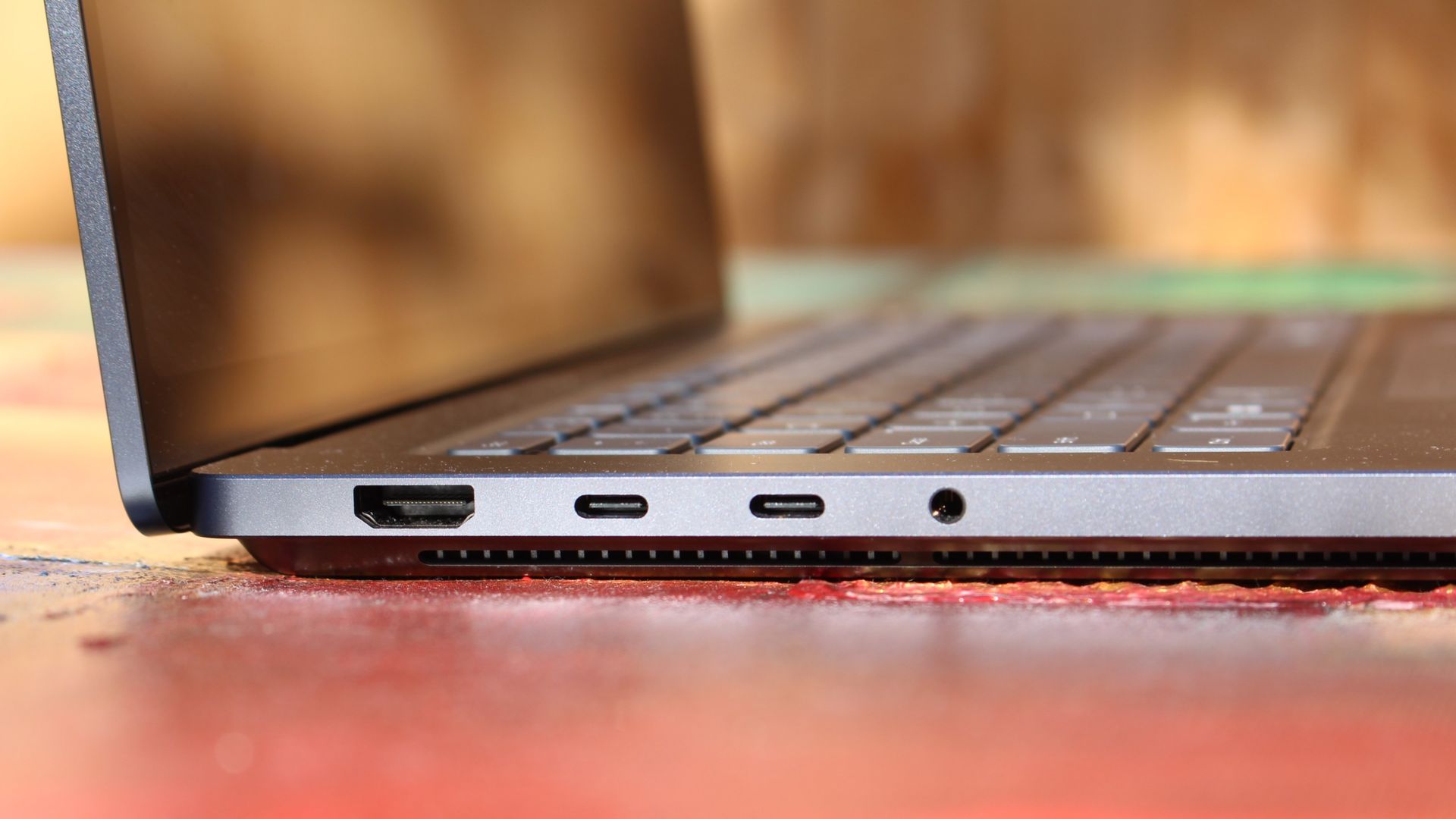
Ports on the left include HDMI, USB-A, USB4, and 3.5mm audio.FuturePorts on the right include USB-A, USB4, and UHS-II SD card reader.Future
This leaves plenty of space along the sides for ports. On the left are HDMI 2.1, USB-A 3.2 (always on), USB4, and a 3.5mm audio jack. On the right side are another USB-A 3.2, USB4, and a UHS-II SD card reader.
At no time did I feel the need to grab a dongle for an accessory, especially with Bluetooth 5.4 on board, and the native HDMI port makes it easy to plug into an external display without a docking station.
On the note of wireless, cutting-edge Wi-Fi 7 is on board for excellent throughput and future-proofing.
Lenovo's keyboard and haptic touchpad are among the best
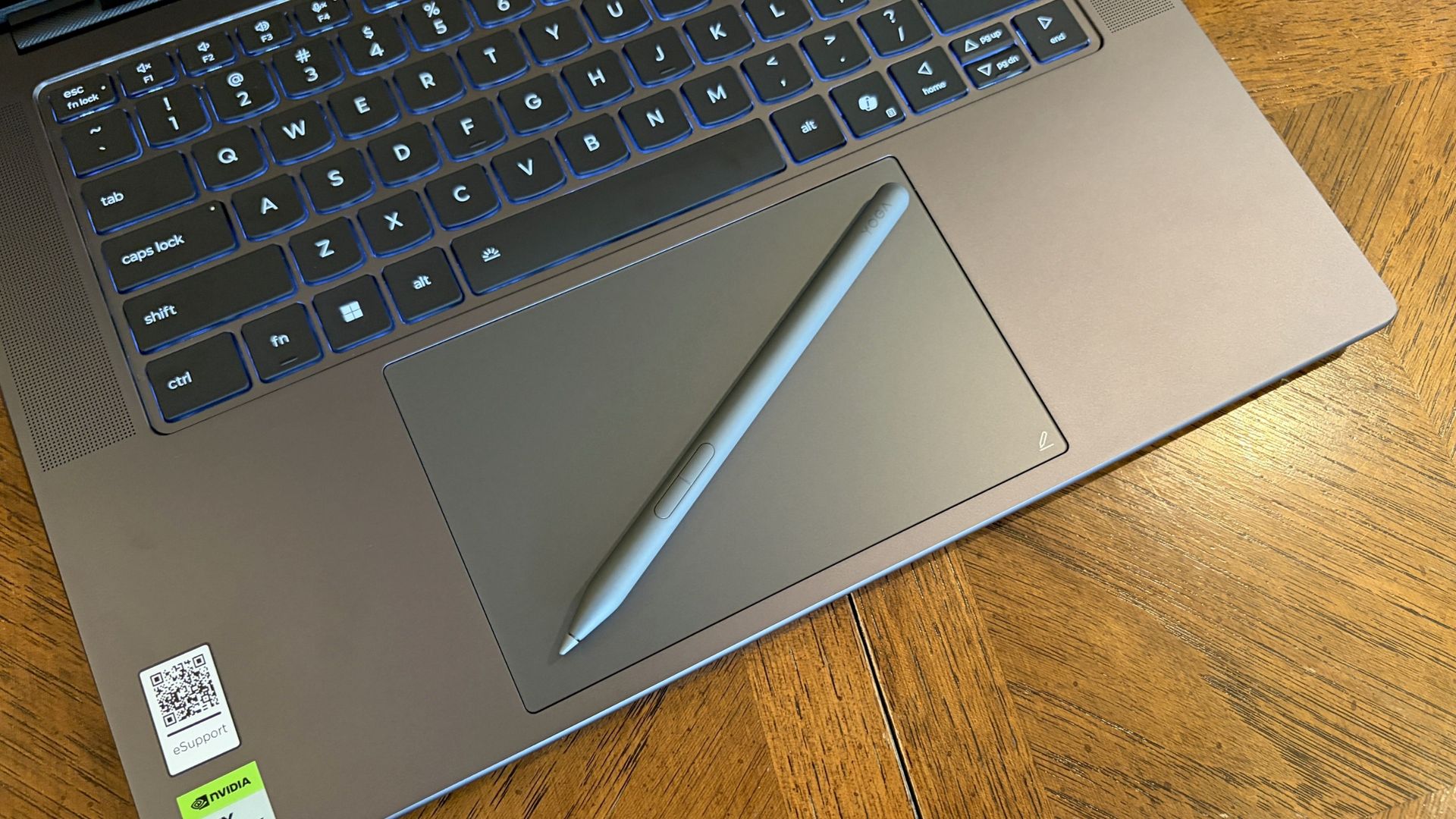
The Lenovo Pro 9n's oversized haptic touchpad and active pen turn the laptop into a makeshift drawing tablet. (Image credit: Future)
The Pro 9n is the first Lenovo laptop to receive its new haptic touchpad with inking compatibility. Paired with the bundled Yoga Pen (Gen 2), it turns the PC into a creative tablet of sorts.
I'm no artist, but I was able to get down some rough sketches using the awesome Krita drawing app. I found the touchpad's 3.74 x 3.94-inch dimensions were large enough to comfortably write and draw, and the inking feel is outstanding.
My only gripes are likely from me reading too much into the feature. Drawing on the pad often left my hand hanging off the edge (not comfortable), and it was sometimes difficult to line up my pen on the touchpad with where I wanted it on my screen.
Approach it from a rough sketch viewpoint, and you should find it to be quite useful. As for actual pointing and clicking, I had no issues. The haptics underpinning the pad are spot on.
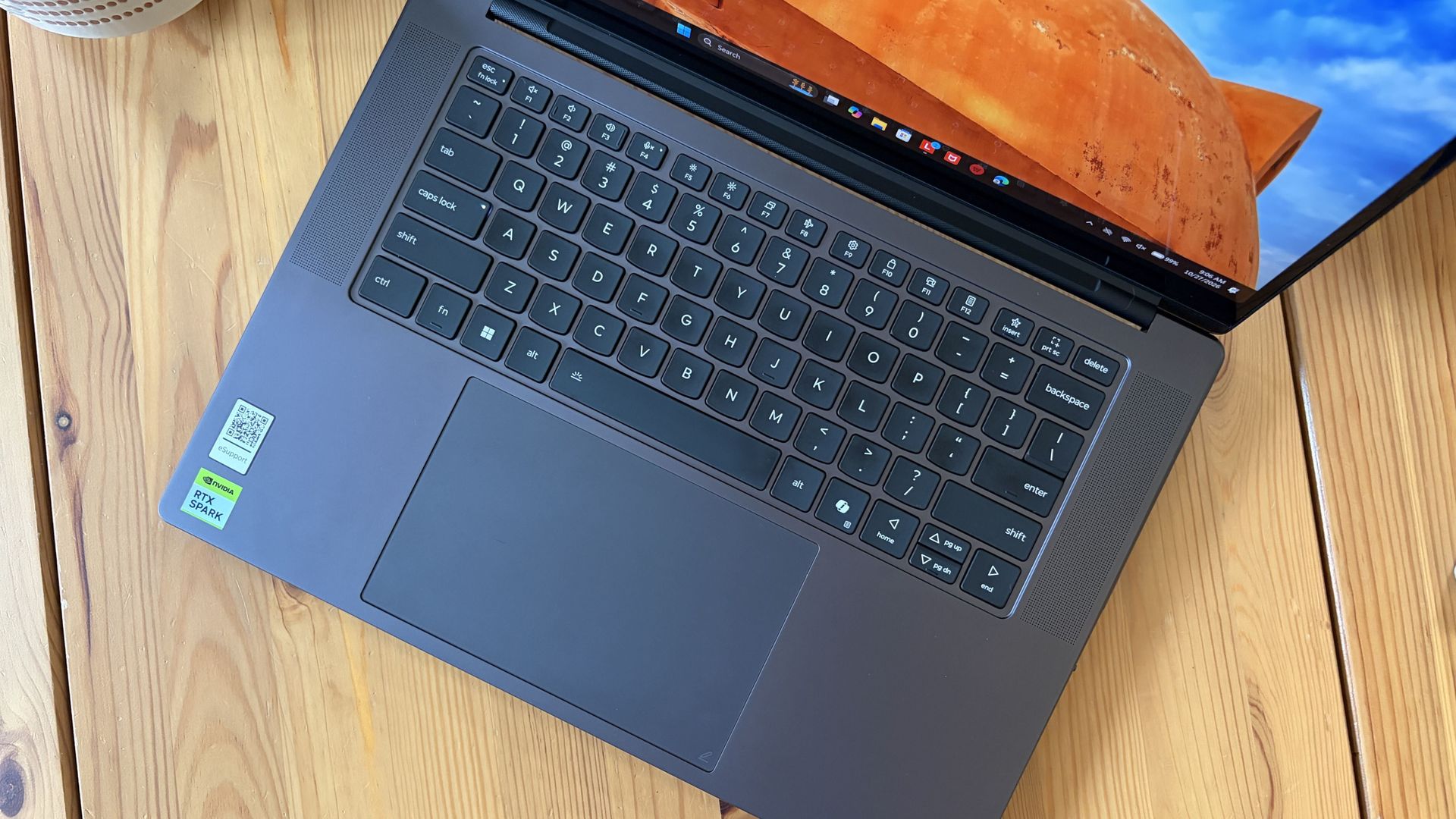
1.5mm key travel makes for comfy typing no matter what. (Image credit: Future)
The keyboard, which arrives flanked by a couple of speakers, offers deep 1.5mmkey travel, three-stage backlight, and perfect spacing. This might be the best keyboard that Lenovo's non-ThinkPads have ever received, and I enjoyed every word I typed on it.
Circling back to the speakers, the two that flank the keys are each 2W tweeters, and they're accompanied by two 2W woofers on the bottom of the PC.
Sound gets loud without breaking. There's lots of bass. The highs are clean, even before adding any onboard Dolby Atmos tuning. The laptop is just as good for watching TV and movies as it is for handling creative work or jumping into video meetings.
A crisp webcam handles meetings on the move
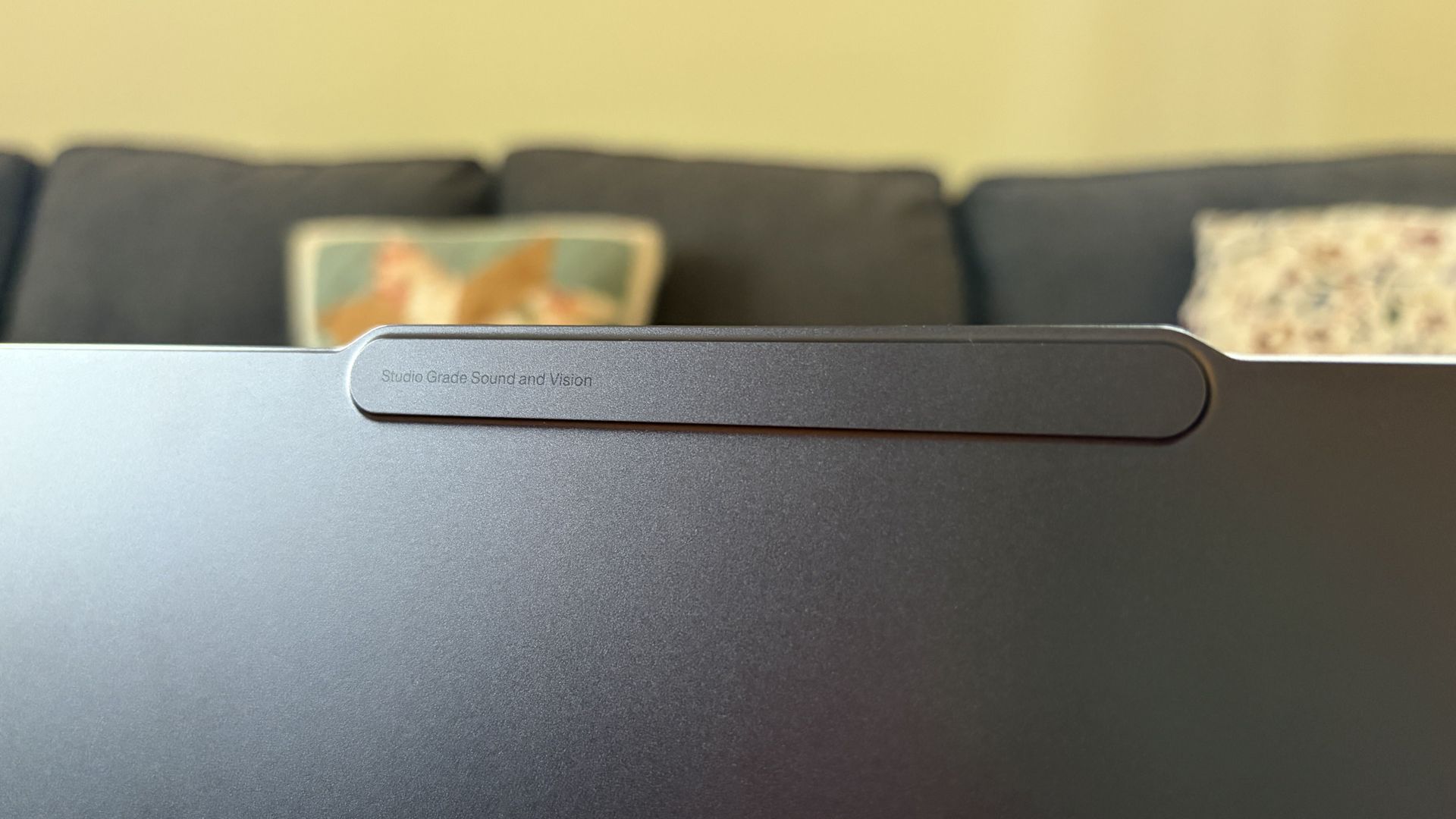
The raised comms bar has space for a 9.2MP camera and IR sensor. (Image credit: Future)
Lenovo's raised communications bar located above the display adds a bit of space for camera hardware, and the company made good use of it here.
The Pro 9n comes with a 9.2MP camera, easily trumping the ASUS ProArt P16's 2.1MP and the Surface Laptop Ultra's 1.6MP cameras.
It's crisp and handles lighting quite well even without any Windows Studio Effects in play, and I'd say it's a definite upgrade for anyone who often finds themselves in video meetings and collaborations.
The IR sensor built into the camera handles facial recognition via Windows Hello. Unfortunately, it doesn't appear to go the extra step to offer human presence detection. This doesn't seem to be a lock for the new RTX Spark PCs — the Surface Laptop Ultra doesn't have it either, but the ProArt P16 does.
An OLED display with color profiles for any job
The OLED display delivers color for specialized work and speed for gaming. (Image credit: Future)
Lenovo ships the Pro 9n with a 15.3-inch PureSight Pro OLED display. This is basically Lenovo's top-of-the-line screen for creators and pros, coming at you with X-Rite Pantone calibration and X-Rite SkinTone validation out of the box.
It hits Delta E, tops out at a 165Hz refresh rate (which can be set to variable for better battery life and eye comfort), and has Dolby Vision support.
Something I learned quickly was that the display presets in Lenovo's Vantage app are actually important. The Default mode in which the laptop ships favors sRGB reproduction. There are presets for AdobeRGB and sRGB (which pump up those sections), as well as P3-D65, REC709, and DCI-P3.
I was able to hit 100% across all color gamuts in my testing, but not all at once. You'll just have to be sure that you select the right config depending on the work you're doing.
I was able to hit 100% across all color gamuts in my testing, but not all at once.
I also measured 476 nits of peak brightness in SDR content, which pushes past 1,000 nits when HDR is enabled. I was able to work in a brightly lit room with only a bit of glare, but I imagine an anti-reflective instead of glossy finish would have gone a long way to eliminating glare entirely.
The screen is available in touch or non-touch, and the specs are otherwise the same. Note that the pen only works on the laptop's touchpad, whether or not the screen is touch-enabled.
The Pro 9n's OLED display is vivid and bright. (Image credit: Future)
The inclusion of NVIDIA G-Sync tech really props up the gaming aspect, reducing screen tearing and ultimately making everything feel much smoother, as you'd expect from a premium laptop that can game.
My only complaint is that Lenovo doesn't offer a higher-res panel. The 2.5K default is great for everyday work and gaming, but 4K would probably go a long way for some creators.
Comparing the 18-core and 20-core RTX Spark chips
I gave the Pro 9n some games to chew on to see if it can replace my gaming handheld. Short answer: it can. (Image credit: Future)
Power tip
Lenovo allows for up to 80W of overall power for the chip, putting it in line with the other RTX Spark laptops we've tested.
As it turns out, quite well. You get the same pool of unified LPDDR5x memory to pull from for the system and GPU, albeit in smaller quantities (32GB for my review unit).
You get the coveted CUDA cores (with 5120 in my unit compared to 6144 in the premier chip) to handle local AI inference. And you still get about 26 TFLOPs of graphics performance.
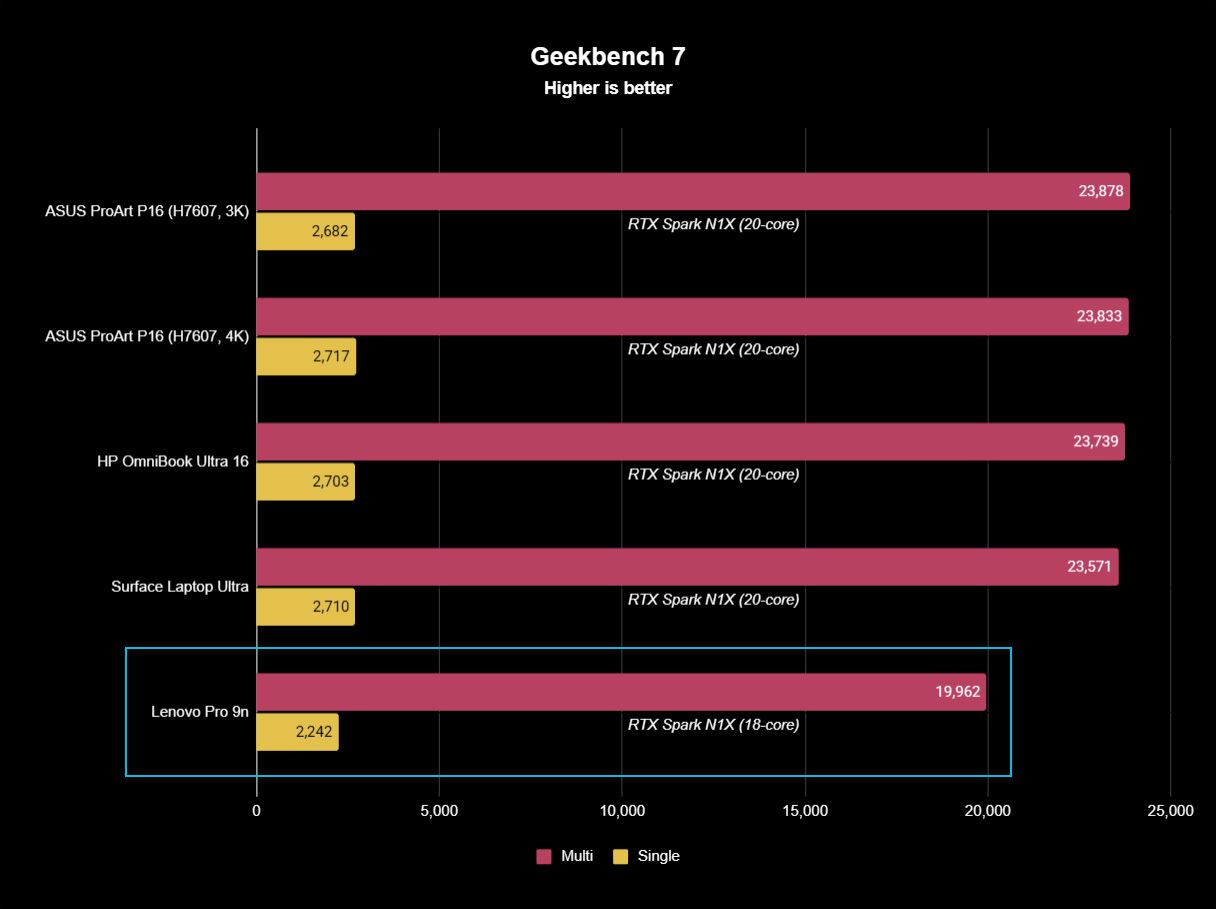
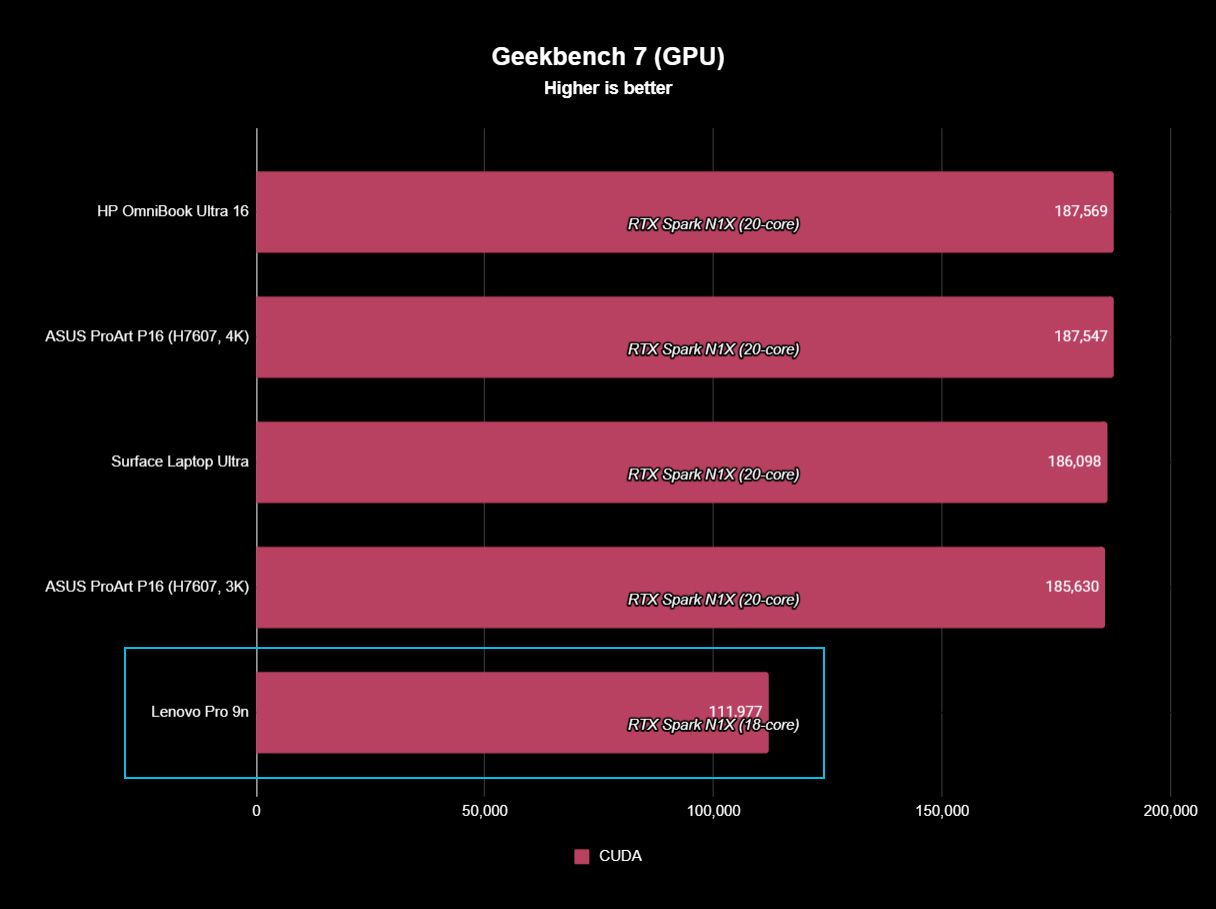
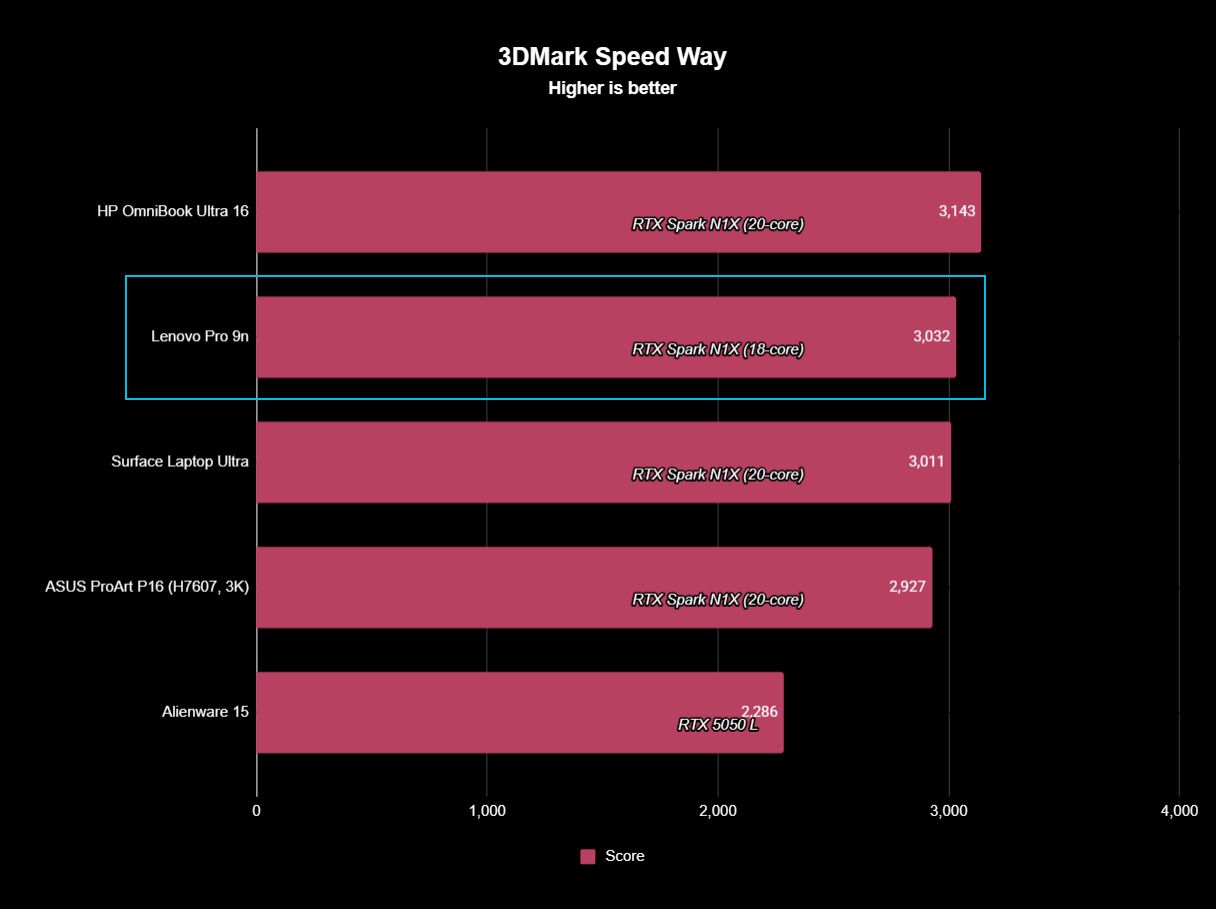
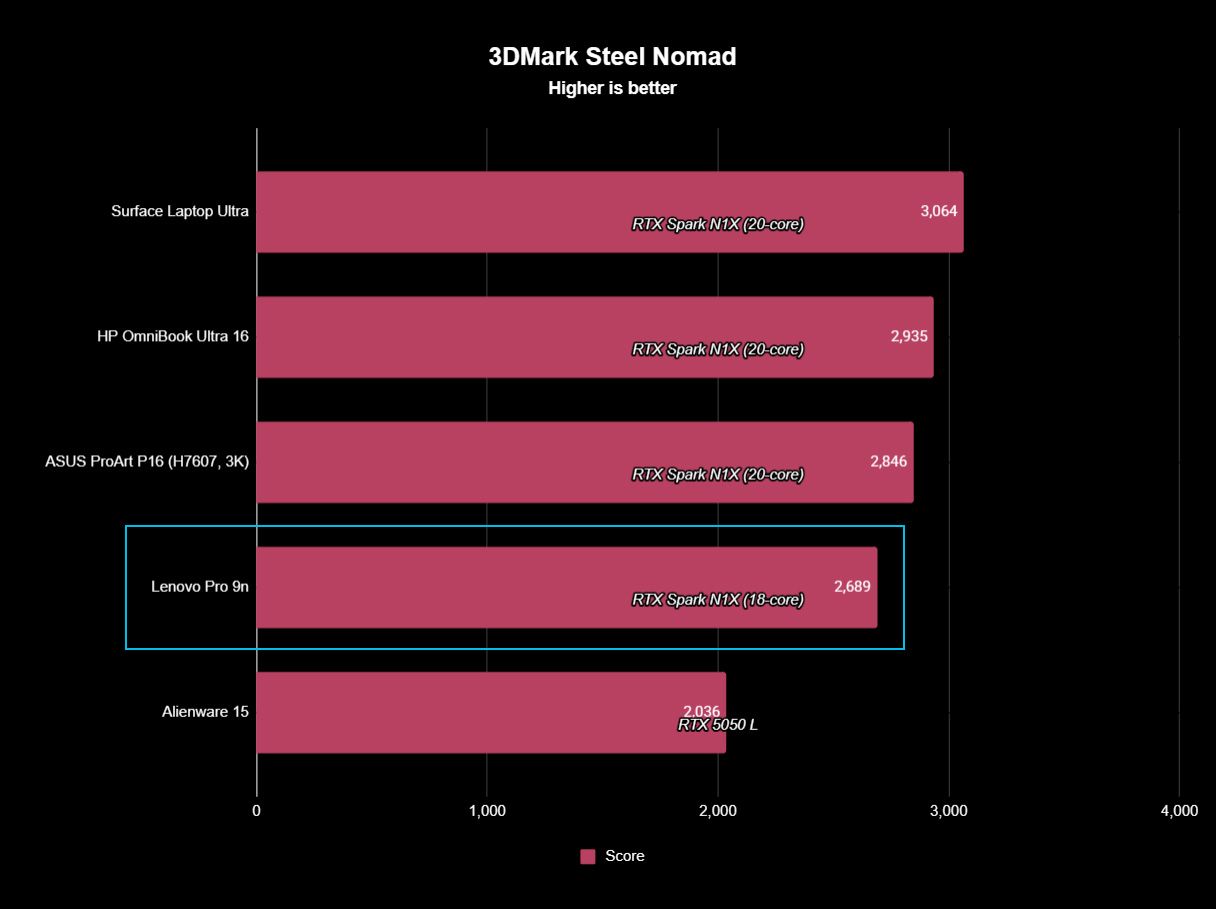
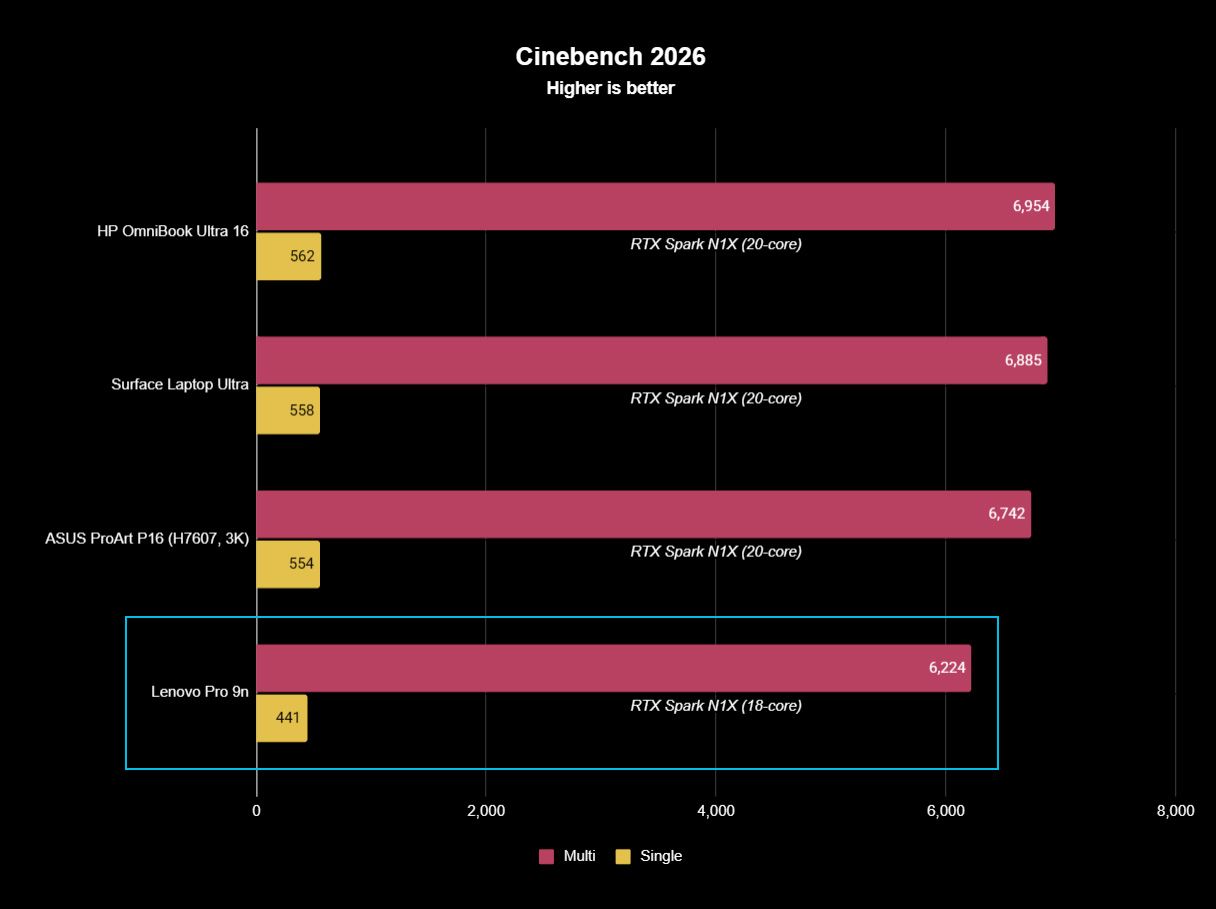
The following graphs show how the 18-core RTX Spark in the Lenovo Pro 9n compares to the 20-core RTX Spark chips we've already tested in other laptops.
FutureFutureFutureFutureFutureFuture
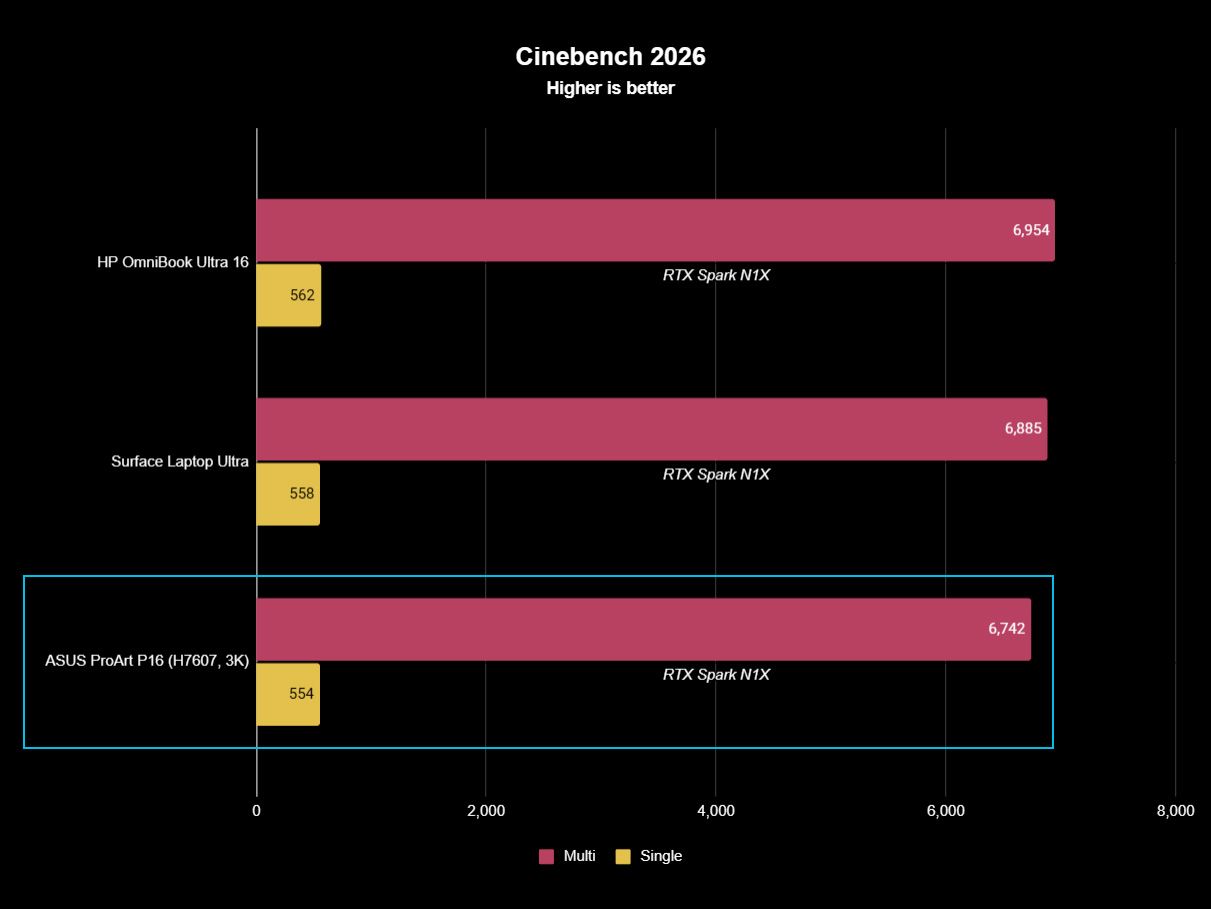
As you can see, synthetic Geekbench 7 and Cinebench 2026 CPU scores fall accordingly compared to the 20-core Spark. Not by a lot, but it is noticeable.
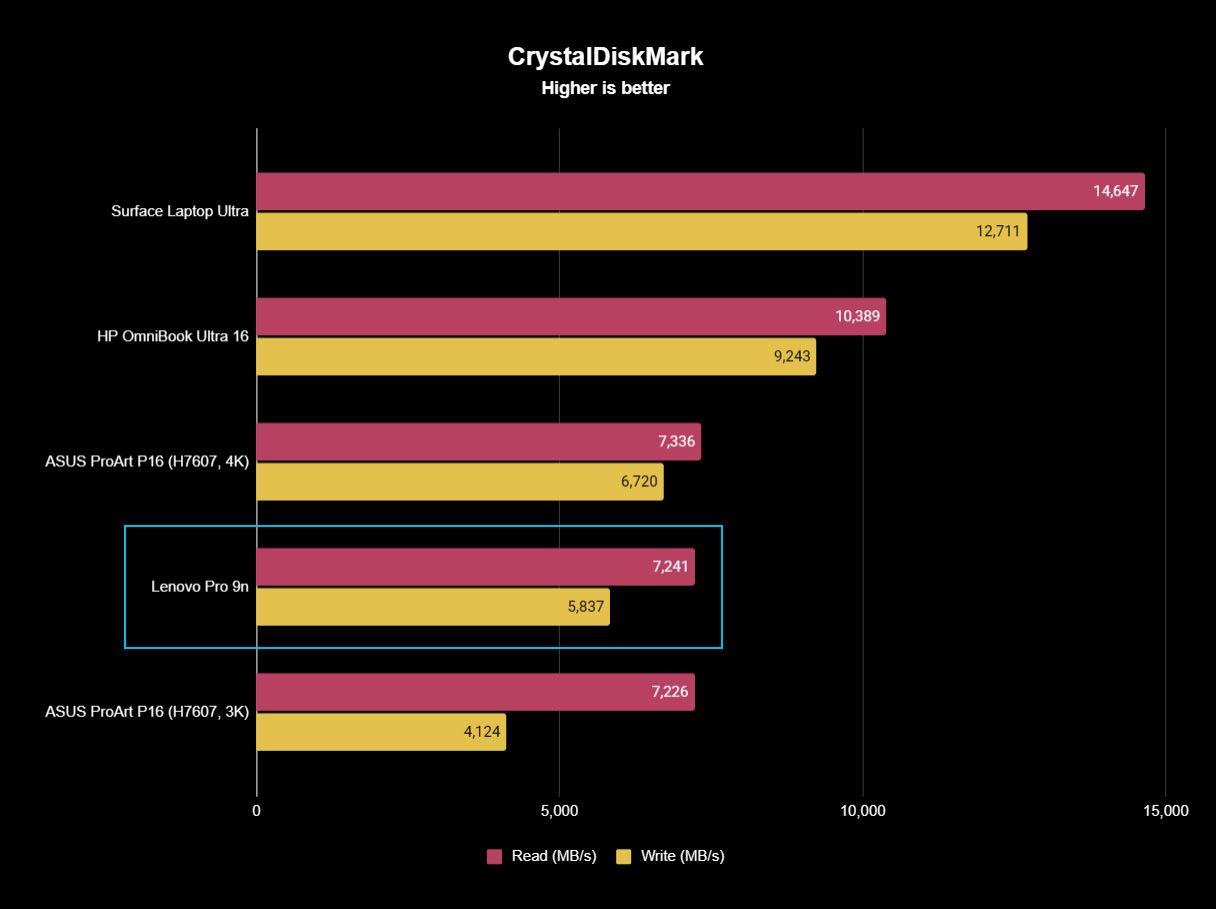
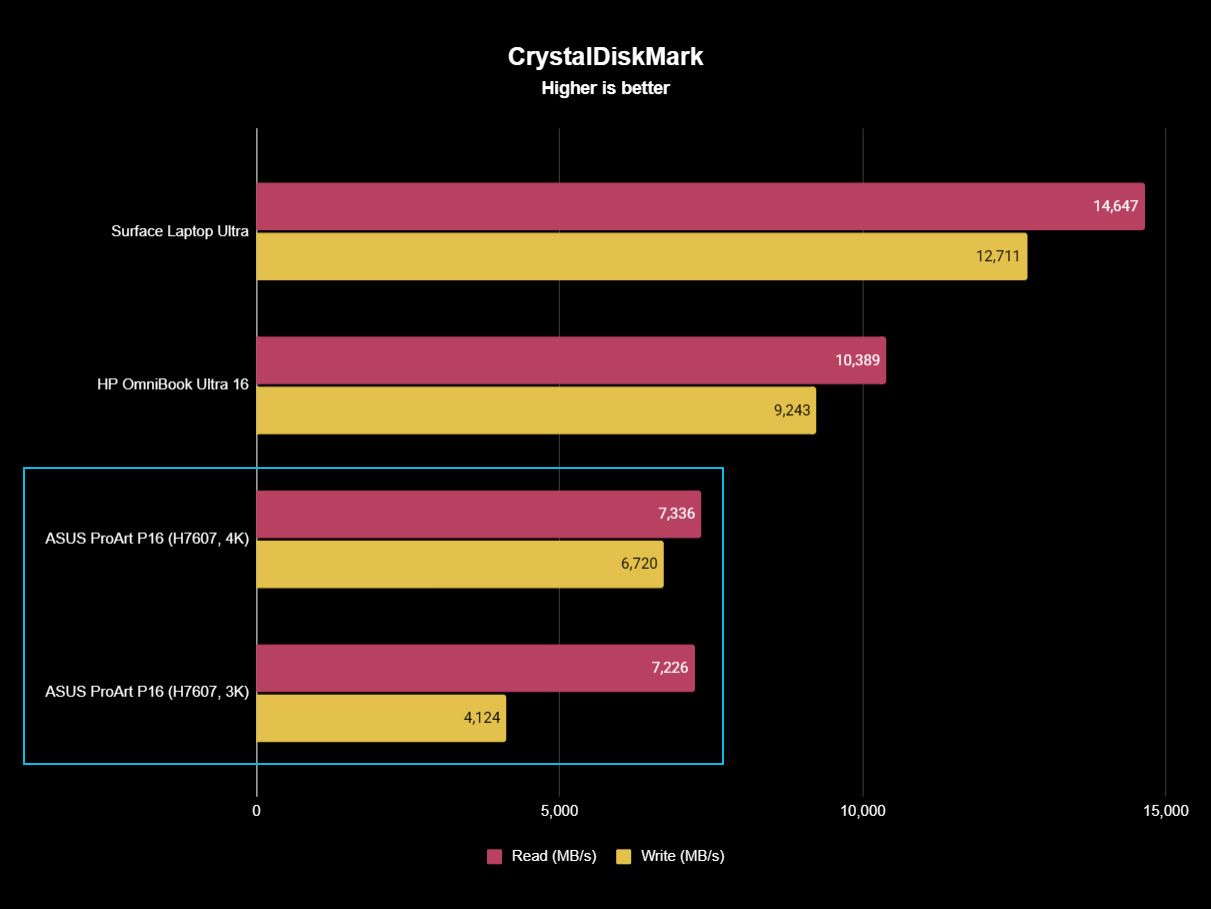
The SSD looks comparatively slow, but keep in mind that most of these laptops have a mix of PCIe 4.0 and PCIe 5.0. In my test case, it's the former, but you can get the latter, faster drive in a 2TB config.
FutureFutureFuture
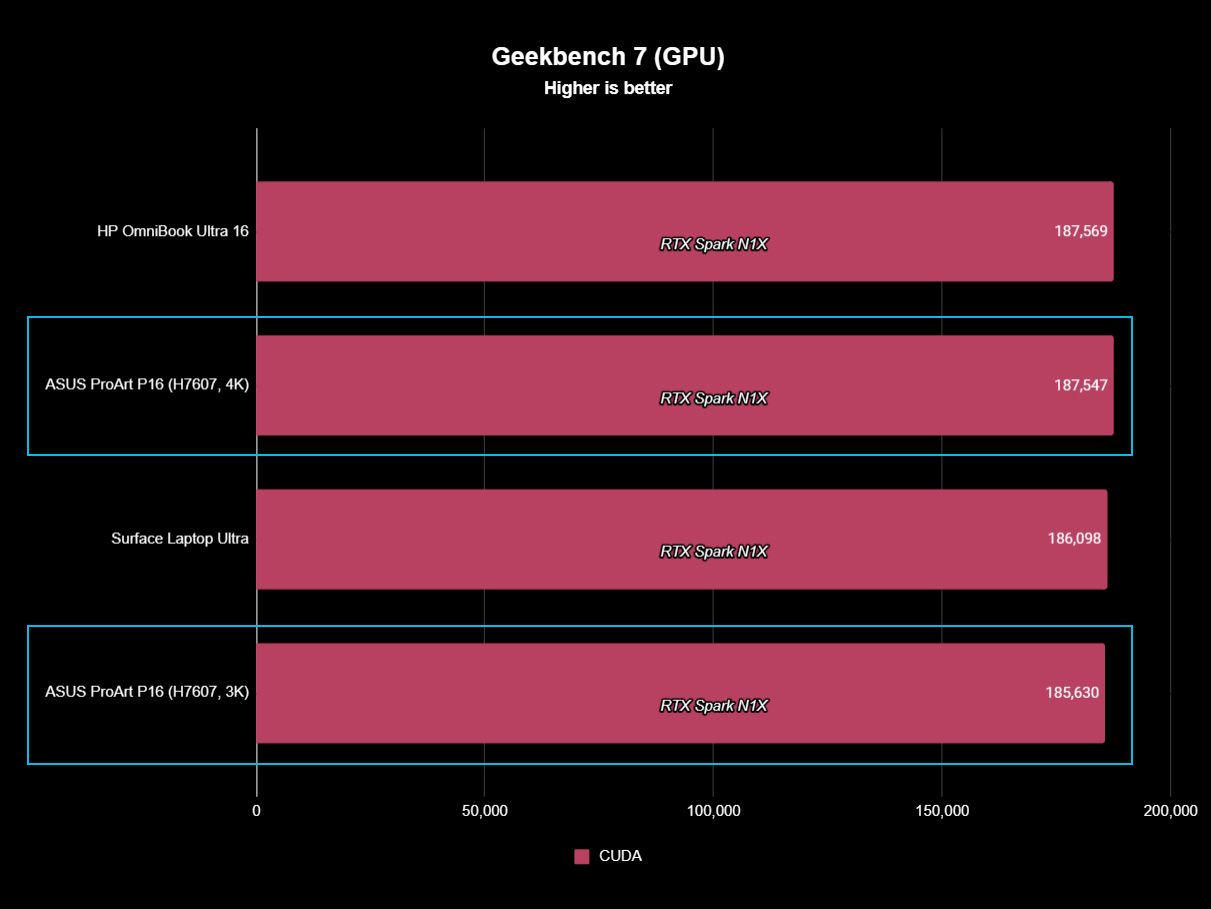
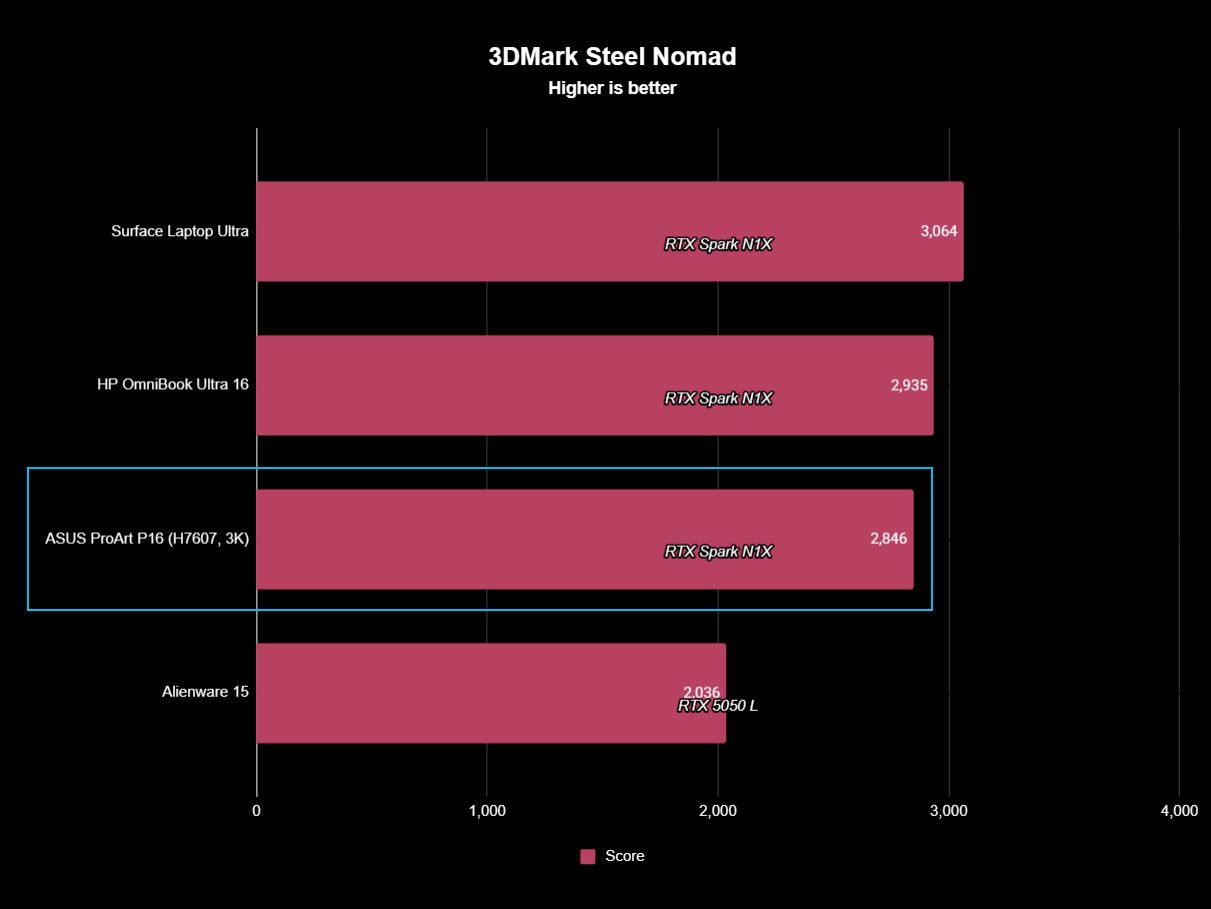
The weaker RTX GPU also showed a drop-off in Geekbench 7's GPU test, but it put up a strong fight in 3DMark's Steel Nomad and Speed Way tests.
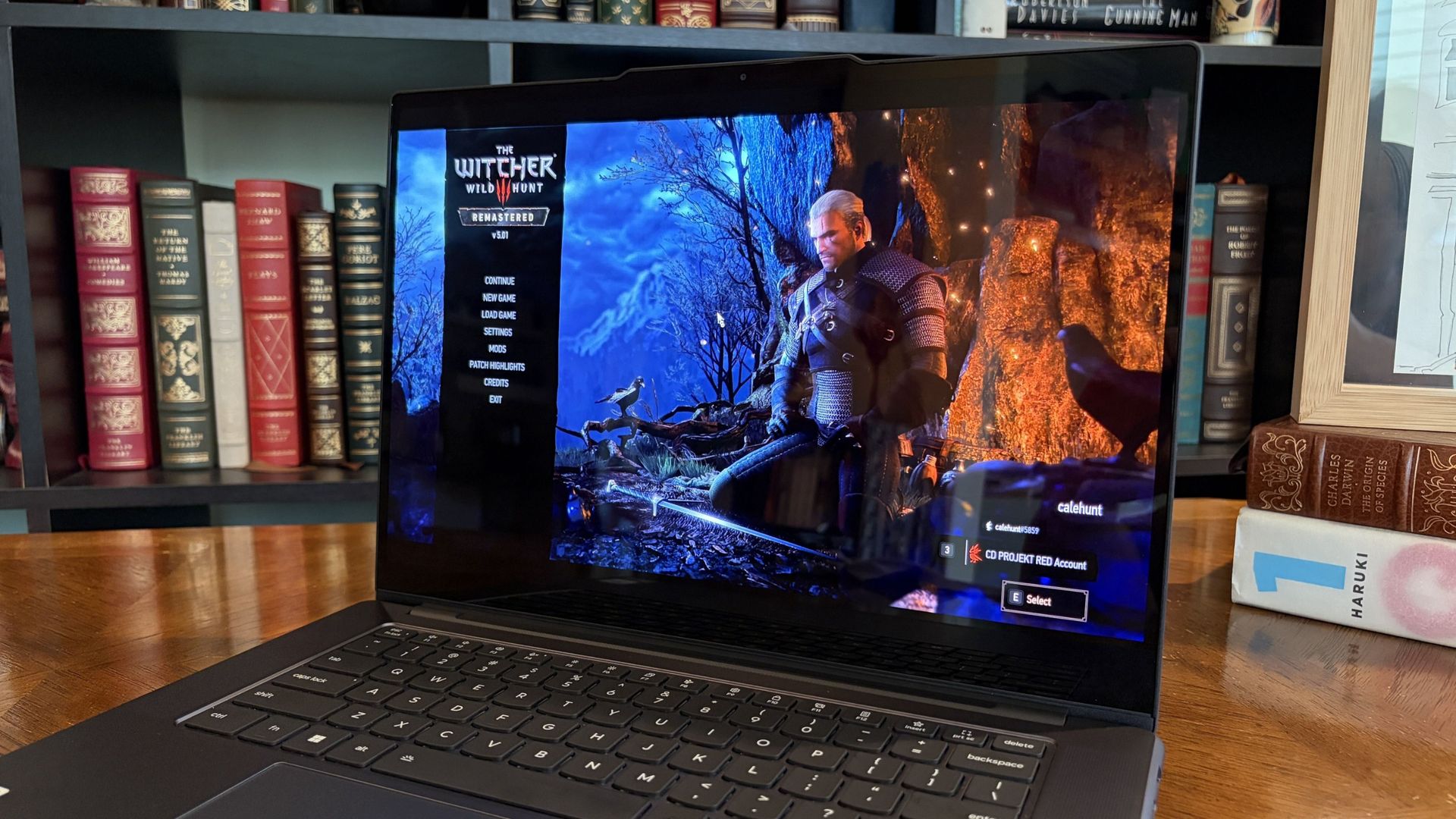
Considering I was playing The Witcher 3: The Wild Hunt Remastered at a smooth frame rate with ray tracing cranked up, there should be no denying the Pro 9n can game. Just don't buy it if that's all you want from your laptop.
There should be no denying the Pro 9n can game.
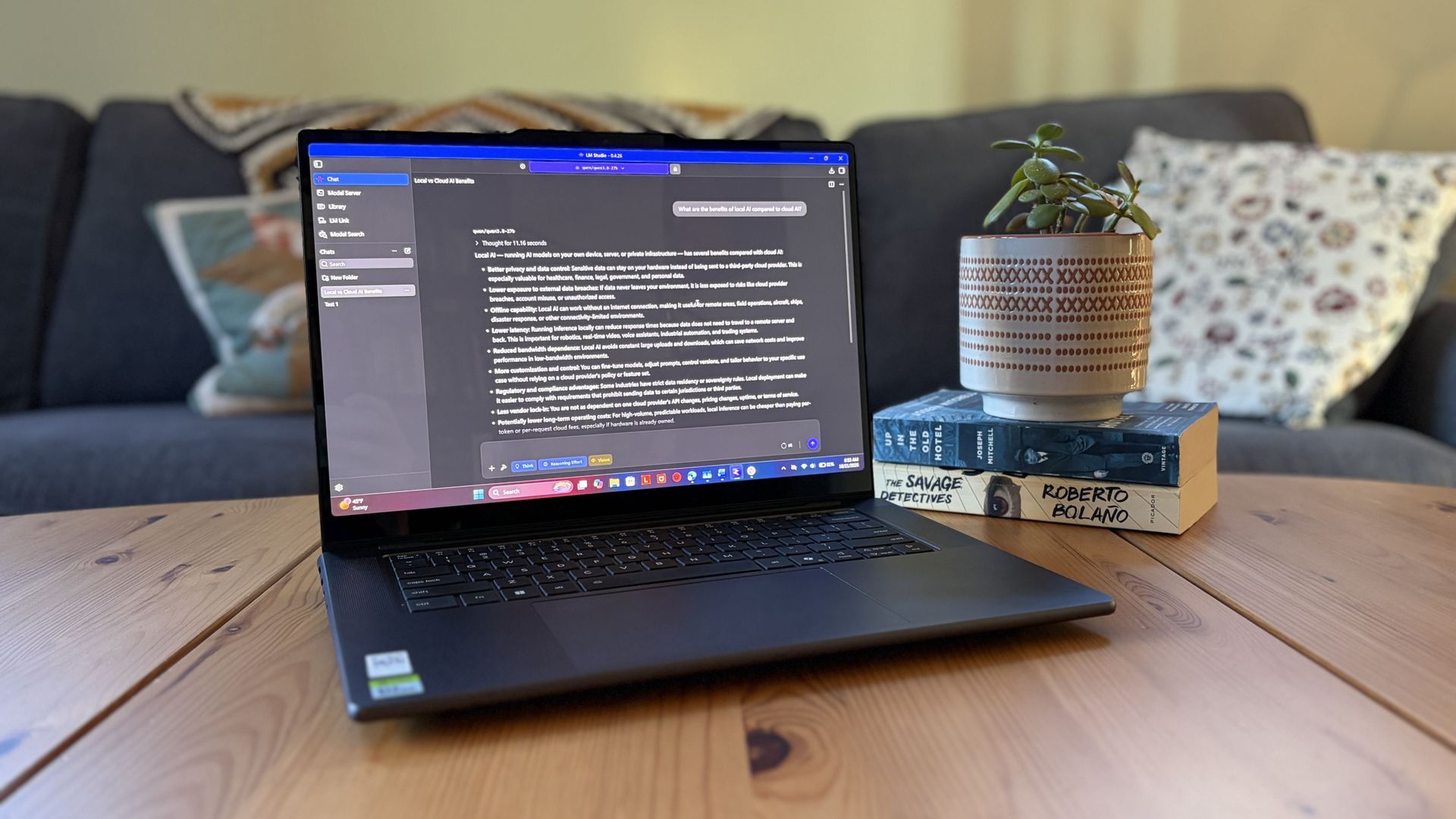
I also began a journey with local AI agents on the Lenovo Pro 9n. I set up LM Studio on it and downloaded a hefty Qwen model, which runs surprisingly well on the system despite only having 32GB of unified RAM.
Lenovo's Pro 9n running LM Studio, allowing me to chat locally with AI agents. (Image credit: Future)
The unit I was sent to test is more geared toward creators who don't need the ultimate 20-core CPU and 128GB of RAM coveted by AI specialists, so I'm pleased that it's proving to be a capable local AI base.
I ran a few AI-focused tests in Procyon to see how the weaker RTX Spark chip in my Lenovo Pro 9n compares to the 20-core option we already reviewed.
Procyon Image Generation
RTX Spark (18-core)
RTX Spark (20-core)
Stable Diffusion 1.5 score (FP16, higher is better)
1,430
1,380
Seconds / Image (lower is better)
4.36
4.22
Total duration (lower is better)
69.9
67.5
Procyon Text Generation
RTX Spark (18-core)
RTX Spark (20-core)
Phi-3.5-mini (higher is better)
2,383
2,615
Seconds to first token (lower is better)
0.31
0.27
Tokens / Second (higher is better)
68.31
72.21
Load time / Seconds (lower is better)
0.73
0.66
Procyon AI Computer Vision 2.0
RTX Spark (18-core)
RTX Spark (20-core)
Score (higher is better)
3,658
3,997
There's clearly a drop-off with the 18-core Spark chip in terms of AI performance, and I'd recommend that any AI specialists out there opt for the 20-core option.
For creators, part-time gamers, and professionals without a direct focus on AI, I think the 18-core chip should do just fine.
Does Lenovo's Pro 9n get too hot?
Playing demanding games on the Lenovo Pro 9n is entirely possible. Just expect there to be a little heat. (Image credit: Future)
The Lenovo Pro 9n's upgraded cooling system does a good job of managing thermal limits, and fan noise isn't bad, either. This is all with the system managing power automatically, which I found quite convenient.
During a lengthy system stress test, I never clocked the fan noise any higher than 43dB. They're audible in a quiet room, but they'd go unnoticed in a busy office.
My trusty FLIR camera is in the shop, but I did a surface temp test with my lap. During the stress run, it remained comfortable to hold. The keyboard side got a bit hotter, but nothing that gave me pause.
How is the Pro 9n's battery life?
Battery life has been quite good, especially for everyday tasks, but Snapdragon X2 is still the champ. (Image credit: Future)
Battery life is not as good as I was hoping, and Qualcomm's Snapdragon chips are not in any threat of being dethroned in terms of efficiency.
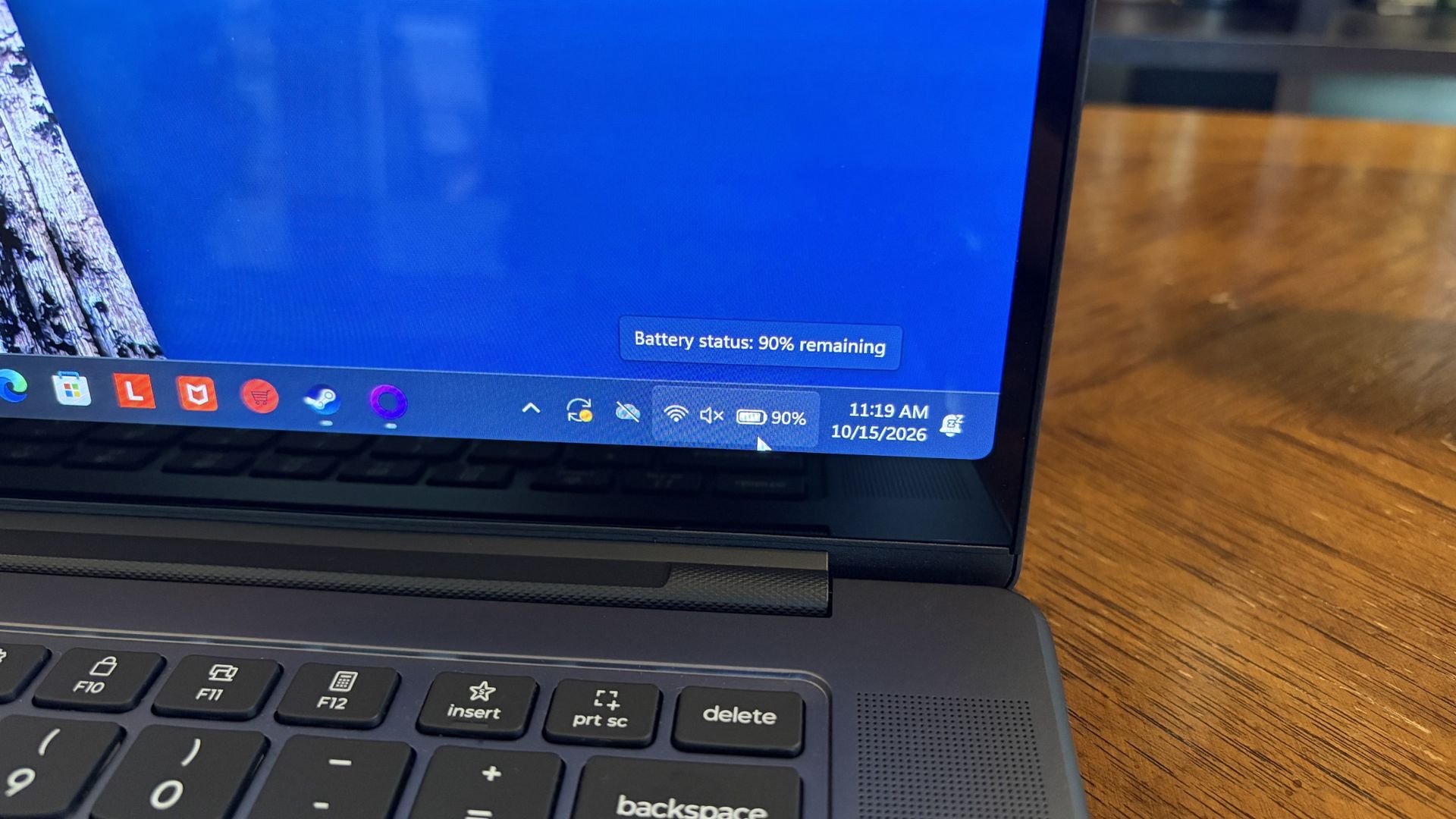
My Windows Battery report shows roughly 8 to 10 hours of real-world life on a charge. Keep in mind that I was doing a decent amount of gaming on battery life, which brought that number down. Still, that's in line with the other RTX Spark laptops we've tested.
If you are gaming on battery power and have settings cranked up with ray tracing enabled, know that I was seeing about 10 minutes of runtime for every 10% of battery life.
Indie titles that aren't as demanding don't sap the battery nearly as much, and you can enjoy a few hours of gaming without worrying about power.
Should you buy Lenovo's Pro 9n?
The Lenovo Pro 9n's lid pulls back to about a 180-degree flex. (Image credit: Future)
You should buy this if ...
✅ You want an RTX Spark laptop with a 15.3-inch OLED display at 2.5K.
✅ You dabble in drawing, sketching, and writing with a pen.
✅ You're a professional or a creator who wants one PC to handle local AI, demanding apps, and gaming.
You should not buy this if ...
❌ You want the most affordable RTX Spark laptop possible.
❌ You prefer a mini-LED display (go with the Surface Laptop Ultra).
Lenovo's first notebook RTX Spark laptop has been a ton of fun to use over the past few weeks, and admittedly, I regret that I soon have to give it up.
It's not perfect. I wish there were human presence detection. I wish there were an extra high-res display option. I wish battery life were a lot better. And I wish it didn't cost as much (which is an effect of the ongoing RAM and storage crisis, not some Lenovo decision).
But for what it is — a specialized portable AI workstation using the first generation of a new NVIDIA computing platform — it's among the most exciting and promising Windows PCs I've used in recent memory.
If you're a general creator who just wants to see the latest chip technology in an ultra-premium package, the 32GB model could be ideal for you, just as long as you can stomach the price.
Otherwise, it's mainly going to appeal to a fairly small set of users, but those who can take full advantage of the RTX Spark chip should love what Lenovo has put together here.
RTX Spark
Lenovo
Pro 9n
Lenovo's Pro 9n delivers high-end features and cutting-edge AI performance for the Windows ecosystem. It's a great PC for creators with deeper pockets, but its true usefulness is seen in the hands of AI pros who need a ton of unified memory and a beefy RTX Blackwell GPU. It's all wrapped up in a sleek, portable package.
Dell commercial PCs launched in 2026 add post-quantum cryptography (PQC)—algorithms designed to resist future quantum-computer attacks—to firmware signing and BIOS checks. The changes target the boot chain, helping verify that low-level code is genuine before the operating system starts.
With AI continuing to jack up the prices of crucial motherboards, RAM, CPUs, and other components for PC gamers, many are left hoping Black Friday's price cuts can offer them a much-needed reprieve.
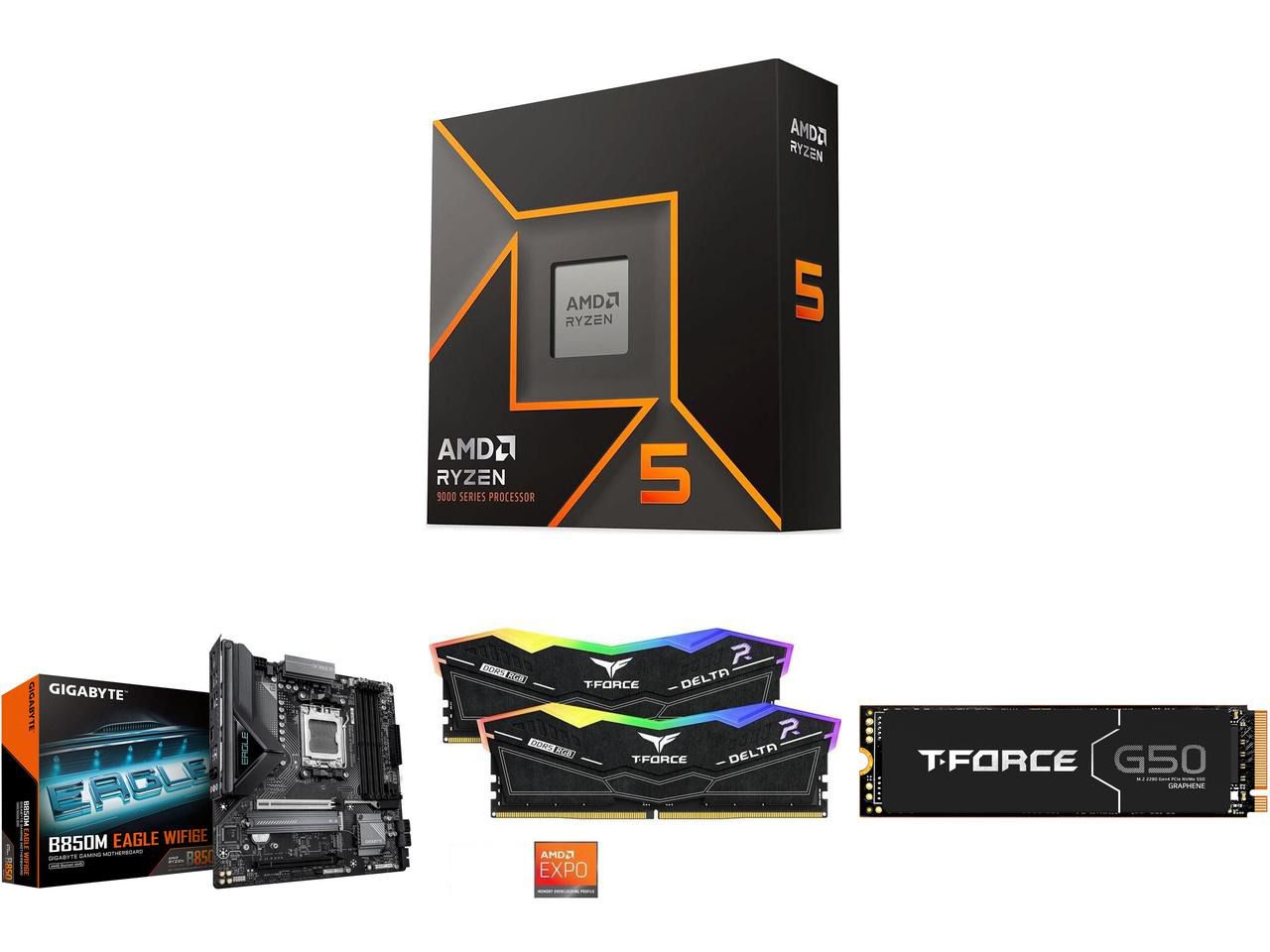
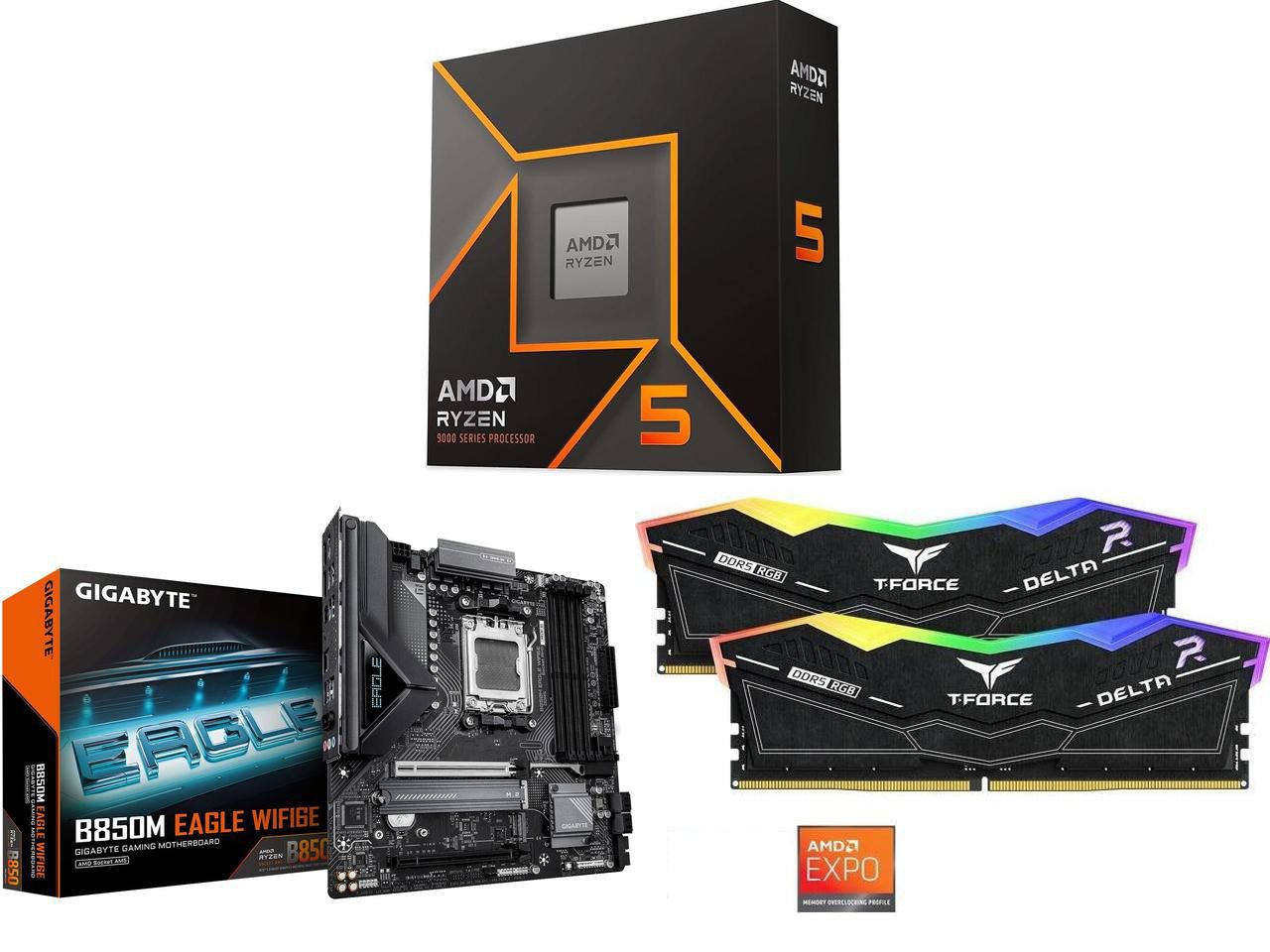
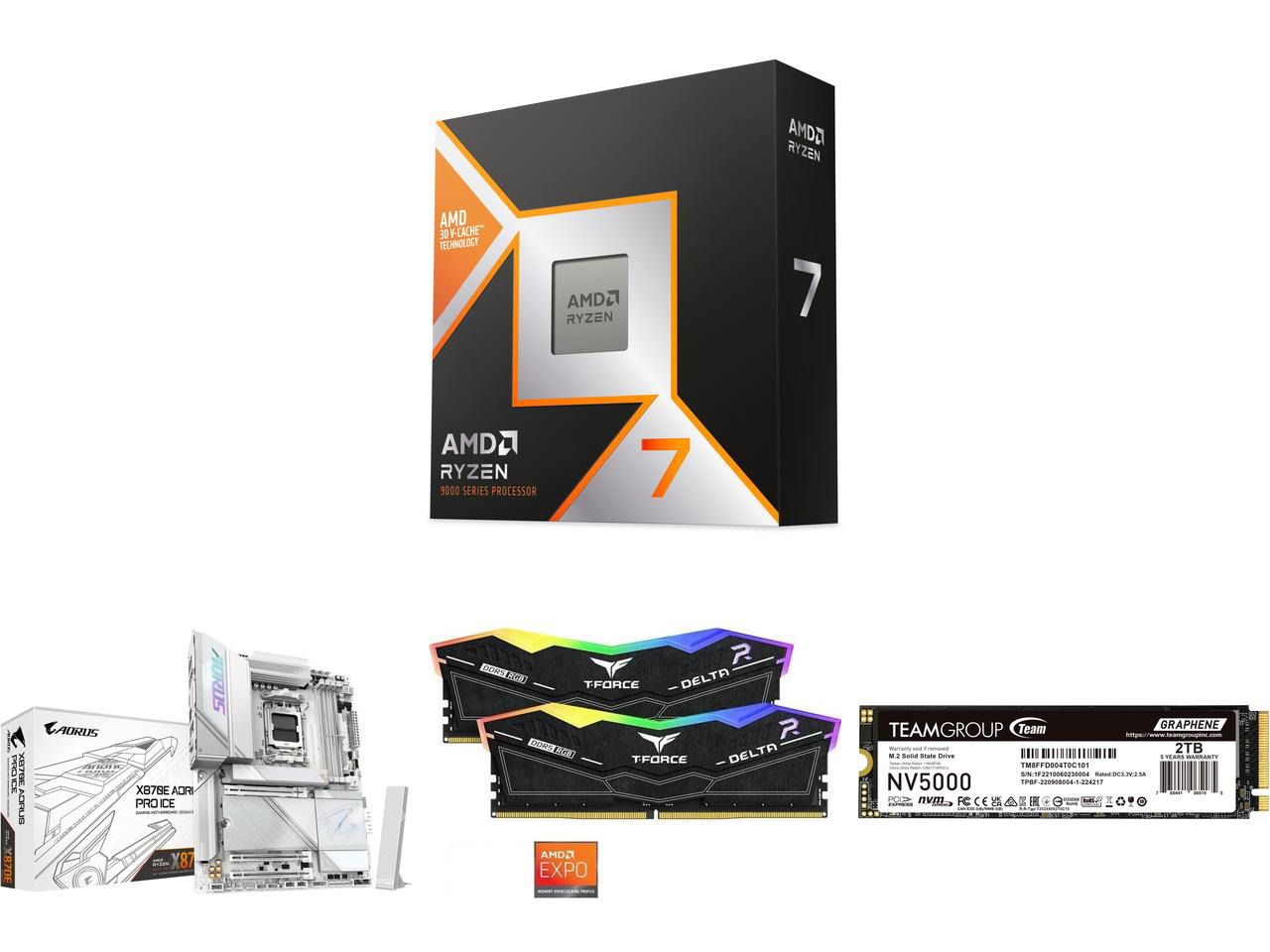
However, some retailers aren't waiting for that. Newegg is offering PC users massive discounts on PC bundles that feature high-end AMD processors, DDR5 RAM, and compatible motherboards to help satisfy your high-end gaming needs at lower prices.
"If you're running older AM4 or LGA1200 hardware, the 9600X offers some of the best performance-per-watt value on a budget, especially if your favorite software suite and games are better optimized for single-core processing." — Ben Wilson, Senior Editor
This bundle with the entry-level, gaming-focused Ryzen 5 9600X CPU includes 32GB of DDR5 6000 RAM, and a compatible GIGABYTE B850M EAGLE WIFI6E M-ATX Motherboard to fit them all in.View Deal
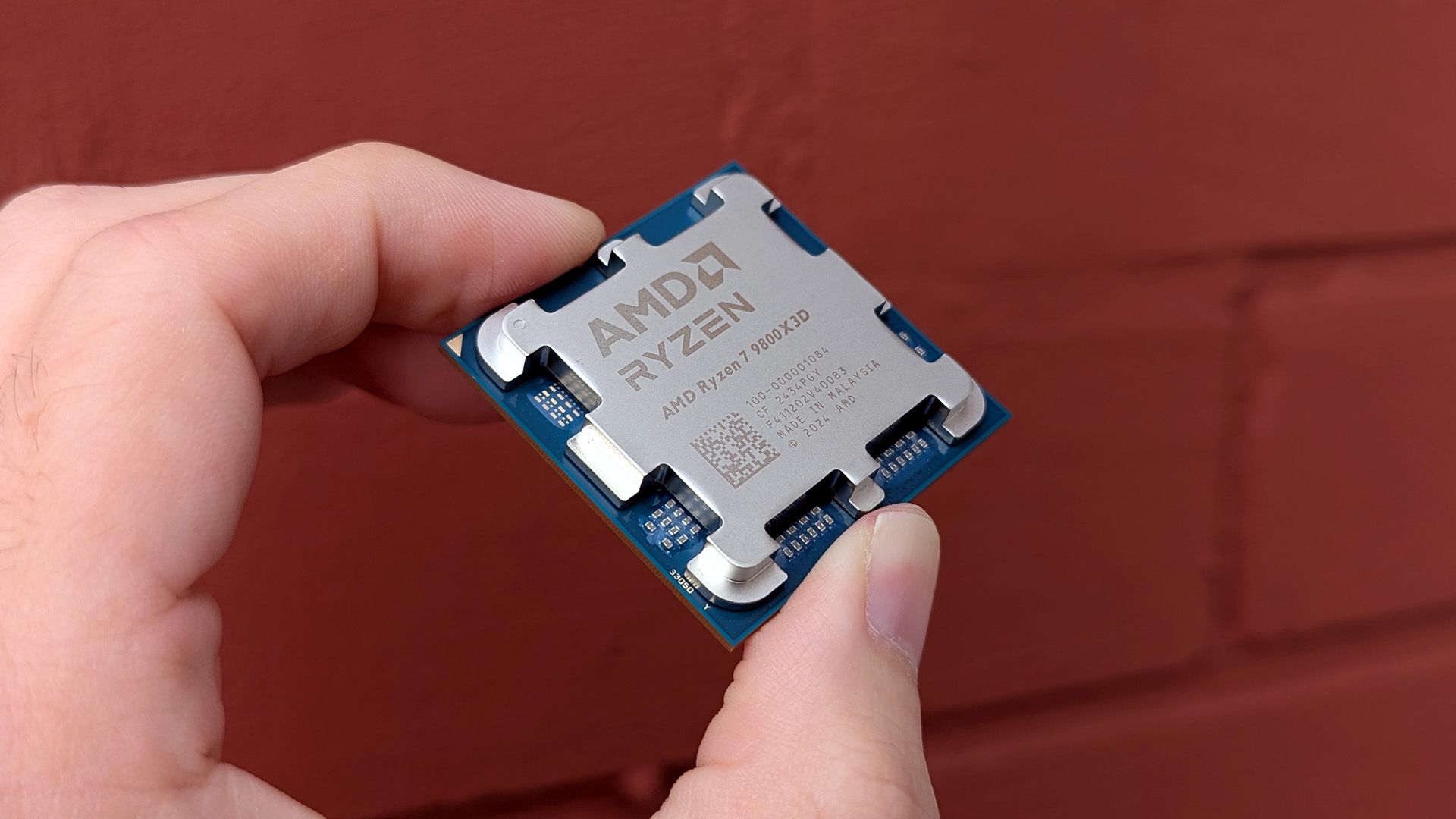
"Make no mistake: the Ryzen 7 9800X3D is the best gaming CPU, politely dethroning its predecessor as the new king of the hill as a cache-heavy monster."— Ben Wilson, Senior Editor
These discount deals will run until October 31, 2026, or while stocks last.
Why are these bundles good for gaming?
They're great for gaming, as AMD Ryzen CPUs paired with 32GB DDR5 RAM boost most modern AAA titles while keeping performance stable. Plus, these bundles include future-proof AM5 motherboards, all while saving you money, as many of these components are sold for higher prices when bought separately.
Should I wait until Black Friday for a better deal?
It depends on your wants and needs. Are you looking to upgrade your PC gaming rig to play next-gen AAA PC games at higher performance rates, and you don't want to wait until Black Friday for a better deal? Then use Newegg's discounted bundles.
If you can hold out for bigger discounts and aren't in any hurry to play any intense PC games at the moment, waiting for Black Friday's discounts on November 27, 2026, is also a valid option.
Join us on Reddit at r/WindowsCentral to share your insights and discuss our latest news, reviews, and more.
Does the Mini LED display on Surface Laptop Ultra support local dimming? Many reviewers have noted the Mini LED display on Laptop Ultra is somewhat underwhelming, with ghosting issues and poor color contrast (albeit with great color accuracy) compared to other Mini LED screens on the market, and especially OLEDs.
I said in my Surface Laptop Ultra review that its display features 1,344 local dimming zones, which is significantly lower than the dimming zones you'll find on a MacBook Pro with the same display tech. That results in a lot more ghosting and blooming, which can make the display feel stuttery and not smooth at times.
I reached out to Microsoft again to see if it could clarify how the display works. The company told me that Surface Laptop Ultra does feature local dimming by default, with 5,400 LEDs across 1,344 dimming zones.
Much like any other Mini LED display, these zones adjust backlight brightness based on the content in that area. If a bright window is being displayed on a black background, the dark areas of the screen will be dimmed.
This behavior is what causes the ghosting and blooming effect on Surface Laptop Ultra, and is a side effect of Mini LEDs, especially ones with a low local dimming zone count. On my Surface Laptop Ultra in SDR, I can see the local dimming zones brightening and darkening as I move around a white window on a black background.
The Mini LED display on Surface Laptop Ultra does support local dimming. It's just not very good local dimming.
So, the display definitely does have local dimming capabilities. But it must be said that its performance isn't amazing compared to other Mini LEDs on the market. Whether local dimming is even working also depends entirely on your PCs settings.
The local dimming behavior is controlled by a setting in Windows Settings under System > Display > Brightness. With "Change brightness based on content" enabled, and the "Enhanced" display profile set, the local dimming support should function.
I've also found that you should turn off HDR for local dimming to be most effective. When HDR is on, the backlight is much more noticeable on dark backgrounds, likely because HDR requires much more brightness. A positive side effect of this is that this pretty much fixes the ghosting issue at the expense of local dimming performance.
So, the TL:DR is Surface Laptop Ultra does feature local dimming capabilities. You should have HDR disabled, with "Change brightness based on content" enabled and the "Enhanced" display profile set in Windows Settings for it to be most effective. On the flipside, enabling HDR reduces the ghosting and blooming issues, but decreases local dimming performance.
It must be said that the Mini LED display on Surface Laptop Ultra is somewhat disappointing. It certainly isn't as good as the Mini LED panel in a MacBook Pro, and I'm just left wondering why Microsoft didn't opt for OLED given that's what all the next-gen laptops are going with, including the upcoming MacBook Pro with touch.
Maybe, hopefully, a future firmware update can adjust and improve the performance of the local dimming behavior on Surface Laptop UItra. The most recent firmware update did fix flickering issues that people were having with the display, so anything is possible.
Join us on Reddit at r/WindowsCentral to share your insights and discuss our latest news, reviews, and more.
The Surface Laptop Ultra costs less to start, but it lacks pen support, its mini-LED isn't as impressive, it's thicker and heavier, and it lacks some features compared to the ASUS ProArt P16. Regardless, many will appreciate its speedy SSD, its superior webcam, its smaller footprint, and its magnetic USB-C port.
The ASUS ProArt P16 scored higher in our review thanks to its OLED display, deeper key travel, outstanding audio, cooler thermals, and thinner/lighter design. It does cost more to start, and it has louder fans, but these are easy trade-offs for those who don't mind spending a little bit more.
Pros
Gorgeous OLED display with inking support
Deeper 1.7mm key travel and haptic touchpad
Top-firing speakers
Cooler thermals
Oleophobic coating and anti-glare 4K display finish
Cons
Slower 1TB/2TB SSDs
Costs more to start
Louder fans
The Windows Central team has had time to digest some of the new NVIDIA RTX Spark laptops that recently launched, and thanks to our in-depth reviews, I'm here to offer some insights as to which PC might be best for you.
Here's why the ProArt PC gained a bit of extra score over the Surface Laptop Ultra (and why that doesn't necessarily mean it's the right RTX Spark laptop for you).
Surface Laptop Ultra vs. ASUS ProArt P16: Specifications
Before I get too deep into my comparison between the Surface Laptop Ultra and ASUS ProArt P16, I put together this table for easy reference.
Standout differences at this point should be the display size and type, the port selection, and the dimensions, which I cover and explain in more depth below.
12.95 x 9.40 x 0.71-0.75 inches (328.8mm x 238.7mm x 17.99-19.16mm)
13.94 x 9.57 x 0.51-0.63 inches (354.1mm x 243mm x 12.9-15.9mm)
Weight
4.41 pounds (2kg)
3.9 pounds (1.77kg)
Colors
Platinum, Nightfall
Nano Black, Neo White
Pro-grade designs and features available in both laptops
The ASUS ProArt P16 (pictured here) is thinner and weighs less than the Surface Laptop Ultra. (Image credit: Daniel Rubino)
The ProArt P16 is larger than the Surface Laptop Ultra. That's a given considering it has a larger 16-inch display. The overall footprint is a bit larger, but otherwise, the ProArt P16 comes out ahead.
The P16 weighs just 3.9 pounds (1.77kg) compared to the Surface Laptop Ultra's 4.41 pounds (2kg), and it's also quite a bit thinner, starting at 0.51 inches (12.9mm) compared to 0.71 inches (17.9mm).
The neat thing is that ASUS really doesn't make you regret that upsizing. As Windows Central Editor-in-Chief Daniel Rubino says in his ProArt P16 review:
Thermals are even more impressive. Under sustained heavy workloads, my thermal camera recorded around 105°F across the keyboard deck and approximately 120°F near the rear exhaust. That's a few degrees cooler than both the Surface Laptop Ultra and HP OmniBook Ultra 16 RTX Spark in my testing. Fan noise never exceeded 50dB under extreme workloads.
Rubino does give Surface a nod for its "pure premium feel," although I'm sure some will love the ProArt P16's fingerprint-resistant coating that reduces smudges.
Which laptop offers better ports?
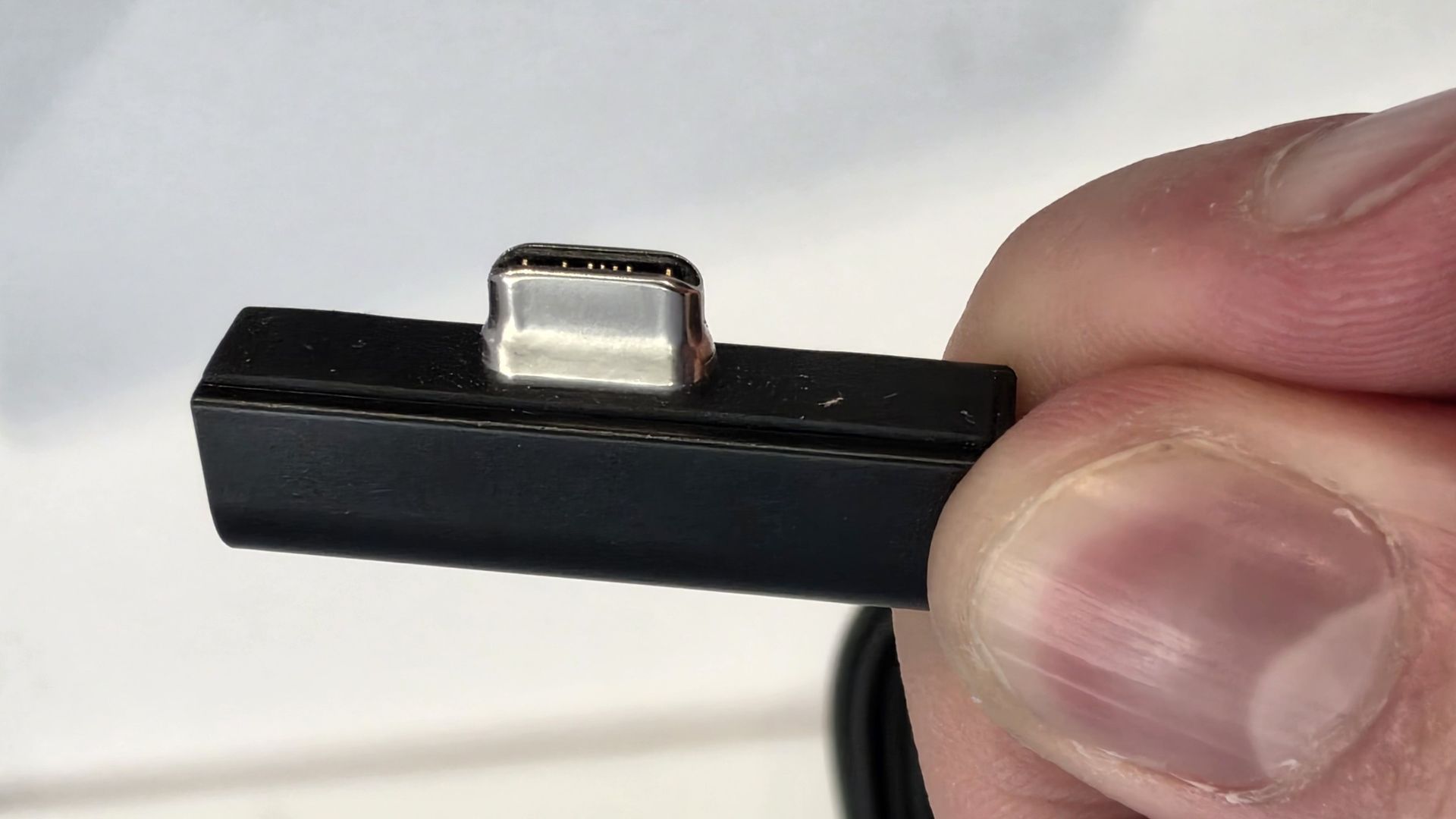
The left-side ports on the Surface Laptop Ultra.Zac Bowden / Windows CentralThe Surface Laptop Ultra's magnetic charging cable.Zac Bowden / Windows Central
This first wave of RTX Spark laptops is fairly unified across brands in terms of port selection. Both laptops offer three USB4 hookups (using the USB-C form factor), but only the Surface Laptop Ultra has the nifty Magnetic Connect feature on one of them.
Magnetic Connect allows a connected USB-C cable to pull away from the PC instead of dragging it off a table, much like Apple's MagSafe. It's a great feature to have, especially with a laptop at this price.
You're otherwise getting USB-A, HDMI, an SD card reader, and a 3.5mm audio jack across both PCs.
Is the keyboard and touchpad different across PCs?
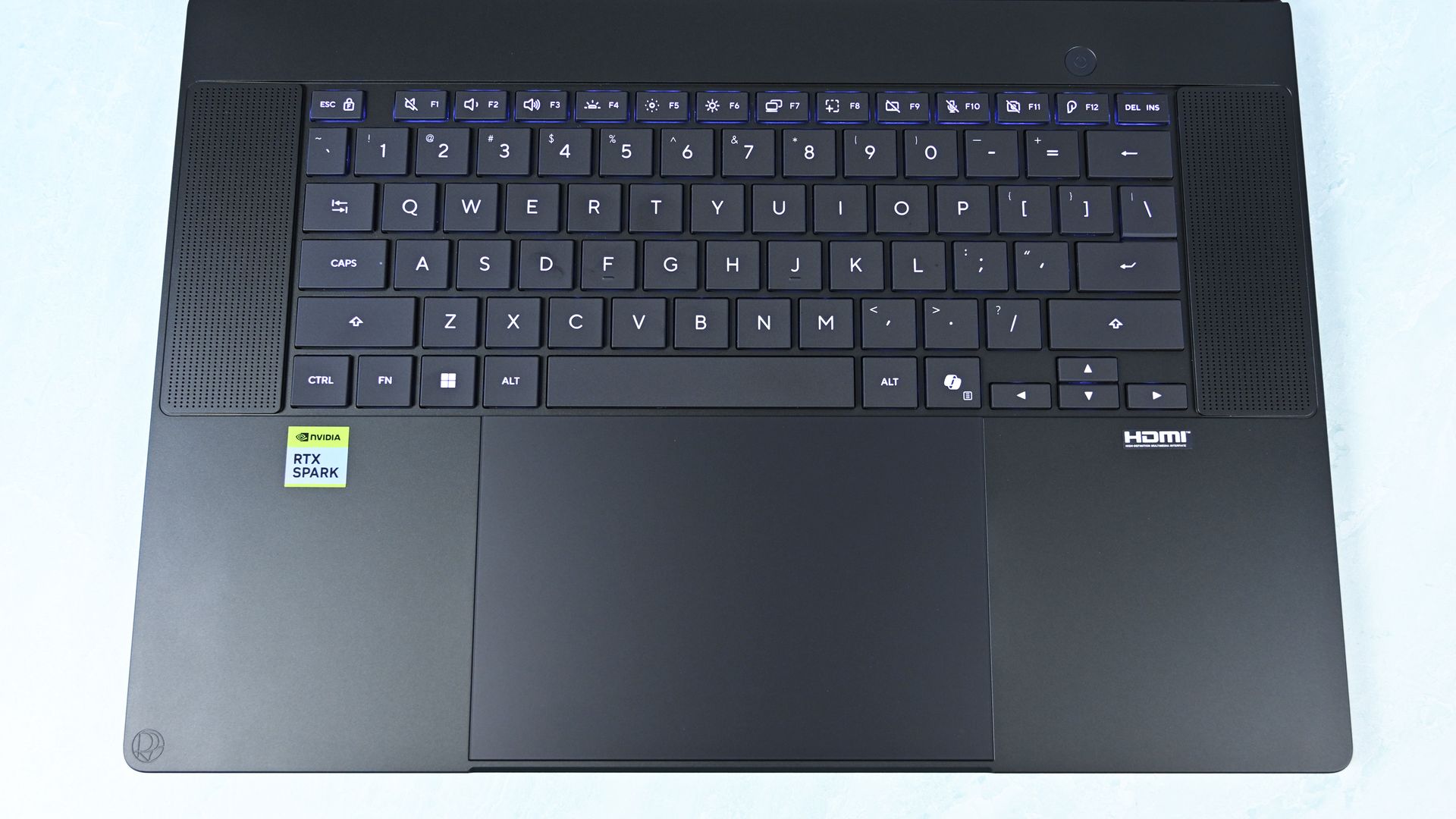
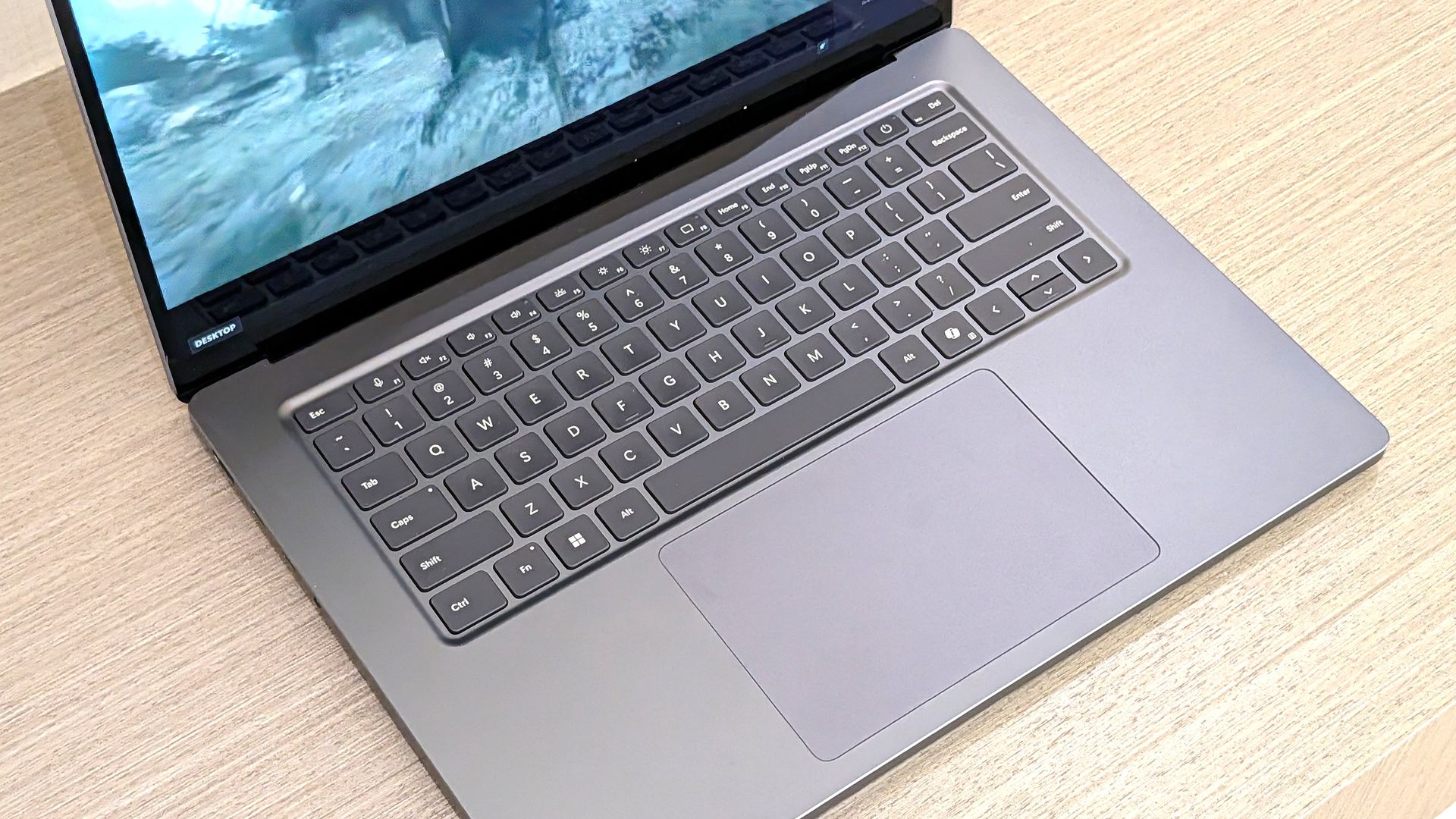
A look at the ProArt P16's haptic touchpad, keyboard, and top-firing speakers.Daniel RubinoA look at the Surface Laptop Ultra's haptic touchpad and keyboard.Windows Central / Zac Bowden
Speaking on the Surface Laptop Ultra'skeyboard and touchpad,Windows Central Senior Editor Zac Bowden said, "This is probably the best keyboard and trackpad experience I've ever had on a Windows laptop to date."
Digging into that statement, Bowden clearly appreciated the 1.4mm tactile key travel that he called "incredibly satisfying and not at all fatiguing." The Surface's haptic touchpad is the largest ever in Microsoft's lineup, and Bowden says it "makes a huge difference in how easy it is to use."
Not to be outdone, the ASUS ProArt P16 offers deeper 1.7mm key travel and an equally enormous haptic touchpad.
Which laptop has a better webcam and speakers?
The bottom two speakers are joined by two speakers flanking the ProArt P16's keyboard. (Image credit: Daniel Rubino)
On the spec sheet, both laptops offer an FHD (1080p) front-facing webcam with IR capabilities for facial recognition.
Rubino states that "Microsoft still wins this category with Surface" and notes how HP's OmniBook Ultra with a 5MP webcam trumps both ASUS and Microsoft.
The big deal? The ProArt P16 includes human presence detection for increased security and convenience, whereas the Surface Laptop Ultra does not.
As for audio, each laptop comes with four speakers and Dolby Atmos support. Both laptops deliver some of the best sound we've ever heard, but only the ProArt P16 has top-firing speakers flanking the keyboard.
Mini-LED or OLED? Our reviewers prefer the latter
The Surface Laptop Ultra's mini-LED is plenty bright, but OLED is probably better for many users. (Image credit: Windows Central / Zac Bowden)
Display tech is where these two laptops really show a difference. Most noticeable is the Surface's taller 3:2 aspect ratio compared to the P16's 16:10 aspect ratio. The differences don't stop here.
The Surface Laptop Ultra has a 15-inch mini-LED screen at a 3270x2180 resolution, with 1,344 dimming zones, 1000-nit SDR brightness, and 2000-nit HDR peak brightness. It packs in a 120Hz dynamic refresh rate and Dolby Vision IQ support.
Though it's brighter than the ProArt's screen, Bowden says the mini-LED tech results in "a bit of blooming around bright elements on a dark background."
He adds that the backlight doesn't always keep up with what's on your screen, causing a slight ghosting effect in dark mode.
The ProArt P16's OLED display provides vivid color and perfect contrast, with no backlight bleed apparent. (Image credit: Daniel Rubino)
The ProArt P16 has a larger 16-inch OLED screen with a 120Hz dynamic refresh rate, and it's available in either a 3840x2400 (4K) or 2880x1800 (2.8K) resolution.
The 4K version is the primary option for models with 128GB of RAM, though Best Buy seems to offer a 4K version with 32GB of RAM. Despite a lower resolution, you still get 500 nits of SDR brightness and 1,100 nits of peak HDR brightness.
The 4K version hits 700-nit peak SDR brightness, climbing to 1,600 nits with HDR. An anti-reflective coating is included.
None of the mini-LED issues discovered in the Surface Laptop Ultra's mini-LED screen are apparent here, and you get the standard OLED perks of perfect contrast and vivid color no matter how you're using it.
It's worth noting that the P16 display offers pen support for inking. The Surface Laptop Ultra has no pen support.
NVIDIA's RTX Spark chip keeps performance close
The new NVIDIA RTX Spark chips offer similar performance across laptop models. (Image credit: Daniel Rubino)
A neat aspect we're discovering as we test RTX Spark laptops is how performance is quite similar. That's not surprising. These laptops use the same NVIDIA N1X chips in either 18- or 20-core CPU and 5120- or 6144-core GPU configs.
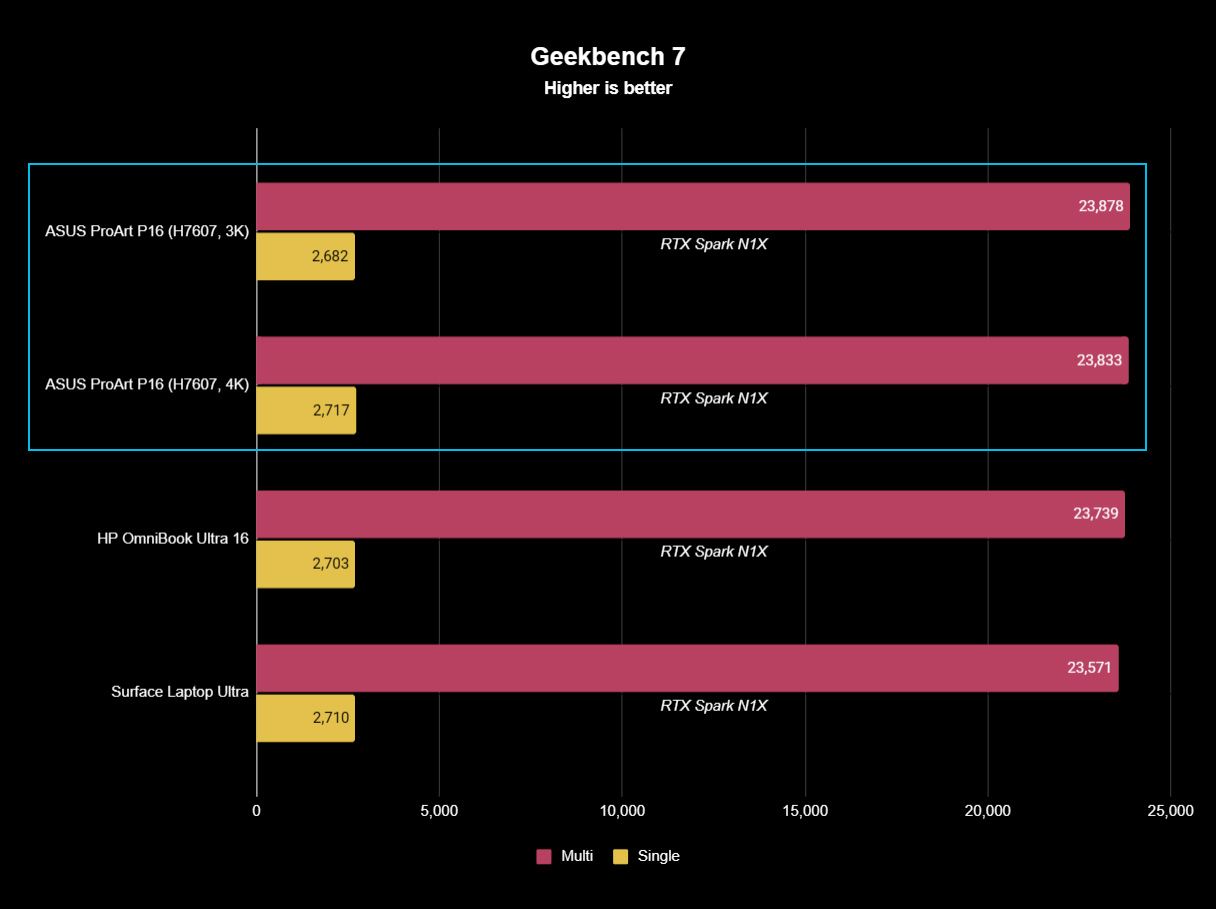
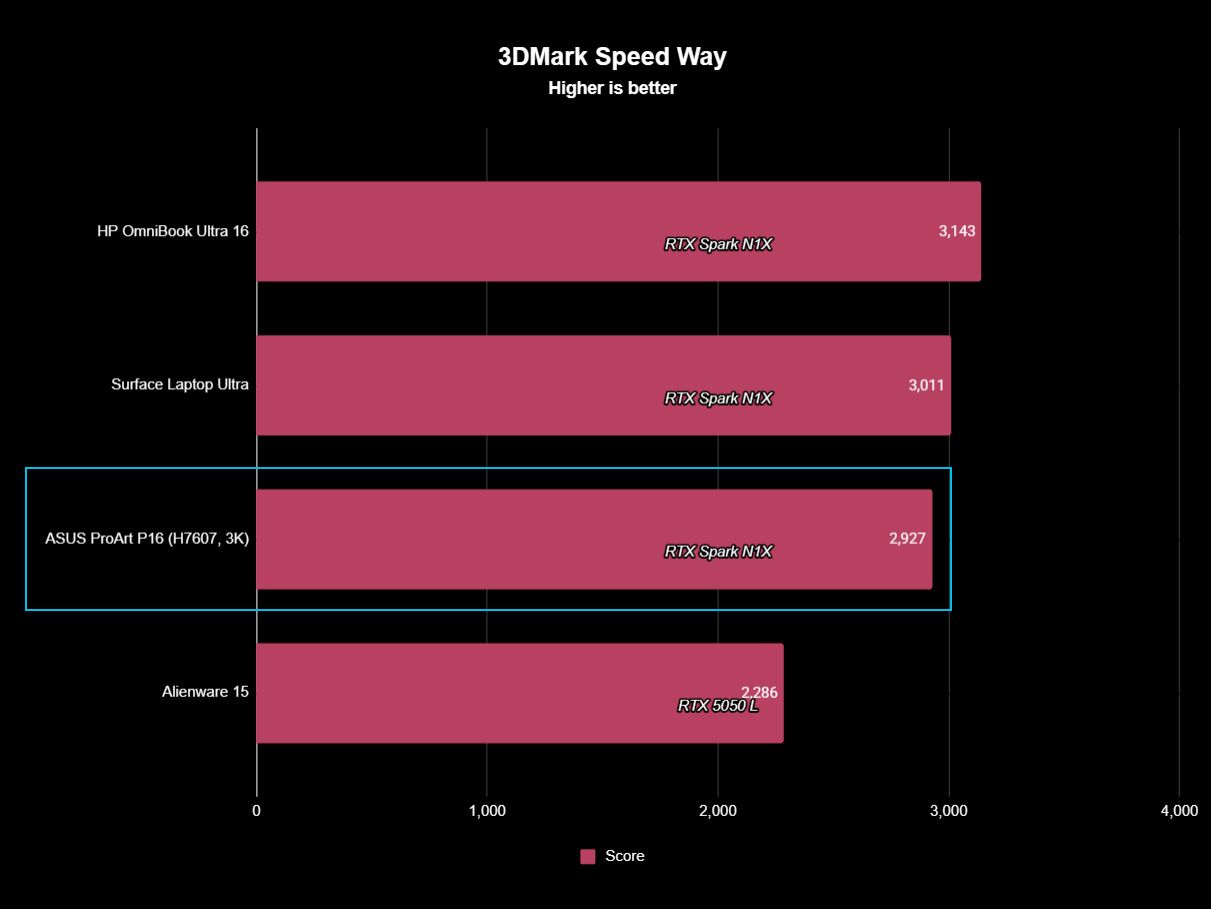
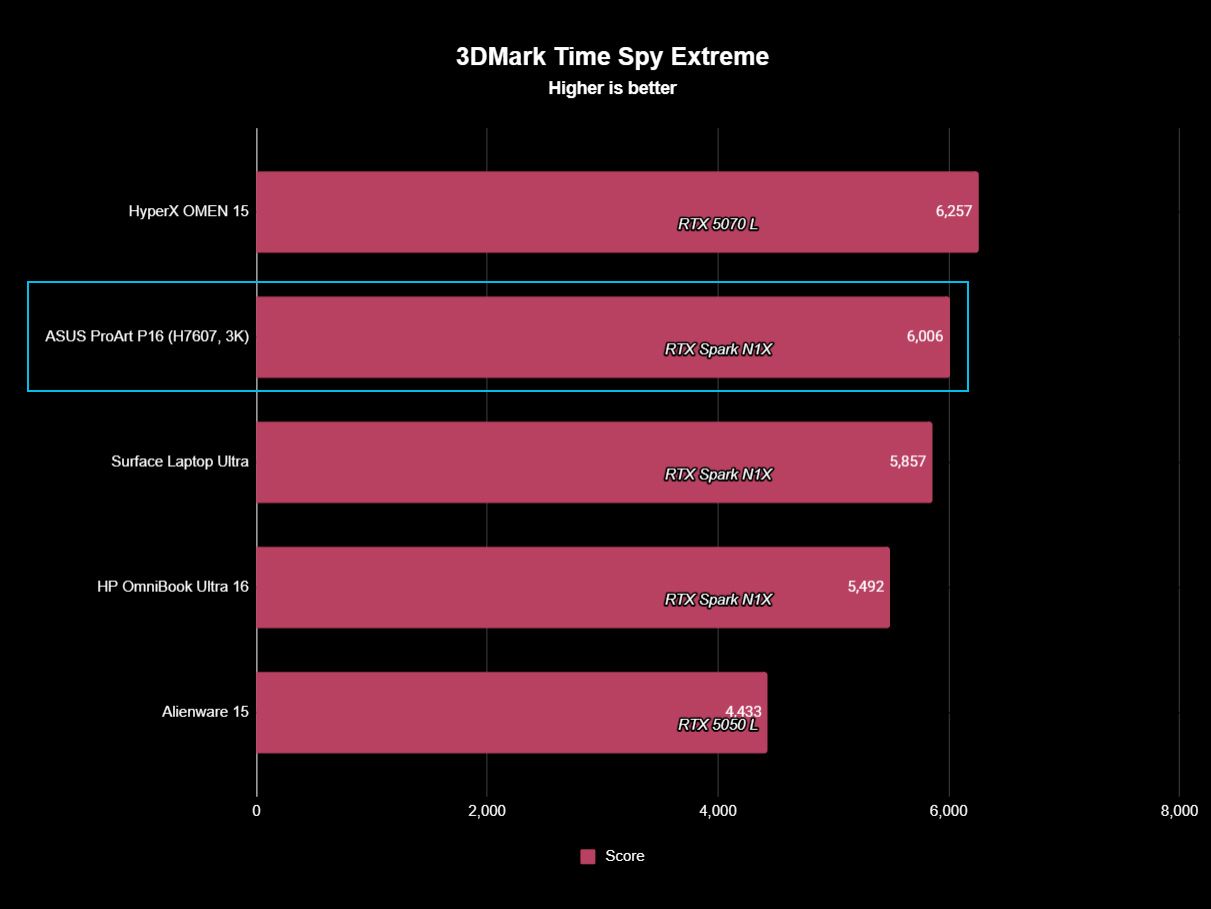
We tested both with the 20-core CPU and 6144-core GPU, and the Surface Laptop Ultra and ProArt P16 trade blows across benchmarks. For example, CPU performance is close enough that I wouldn't spend much time worrying about it.
The Laptop Ultra does great in lighter graphics benchmarks, though the ProArt P16 takes over in more demanding tests. Considering the ASUS laptop is thinner and lighter than the Laptop Ultra, that's a real achievement.
FutureFutureFutureFutureFutureFutureFuture
One area where the Surface Laptop Ultra pulls ahead is with its 1TB and 2TB M.2 PCIe 5.0 NVMe SSDs that are way faster than the PCIe 4.0 options in the ProArt P16. Microsoft does drop back to PCIe 4.0 with a 512GB capacity.
Which laptop has better battery life?
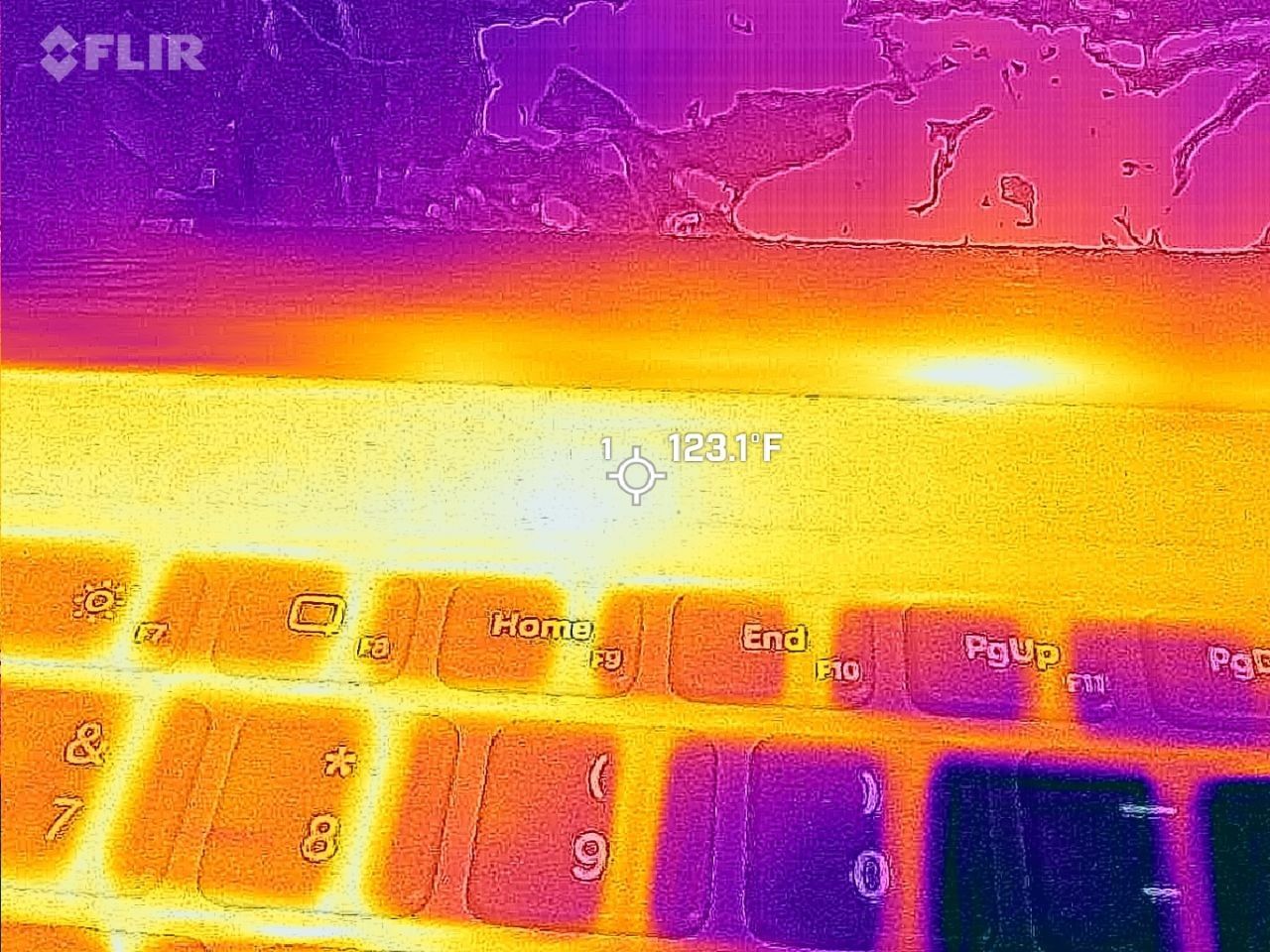
FLIR imagining reveals a 123F temp on the Surface Laptop Ultra. (Image credit: Zac Bowden / Windows Central)
The ProArt P16 has a larger 99.9Wh battery capacity compared to the Laptop Ultra's 92Wh, but that matters less than you might expect.
Both Rubino and Bowden were able to get around 10 hours of real-world use when not leaning heavily on the GPU. Both the ProArt P16 and Laptop Ultra struggle to put up strong efficiency numbers when that GPU is in demand, and in both cases, an AC charger should be kept nearby.
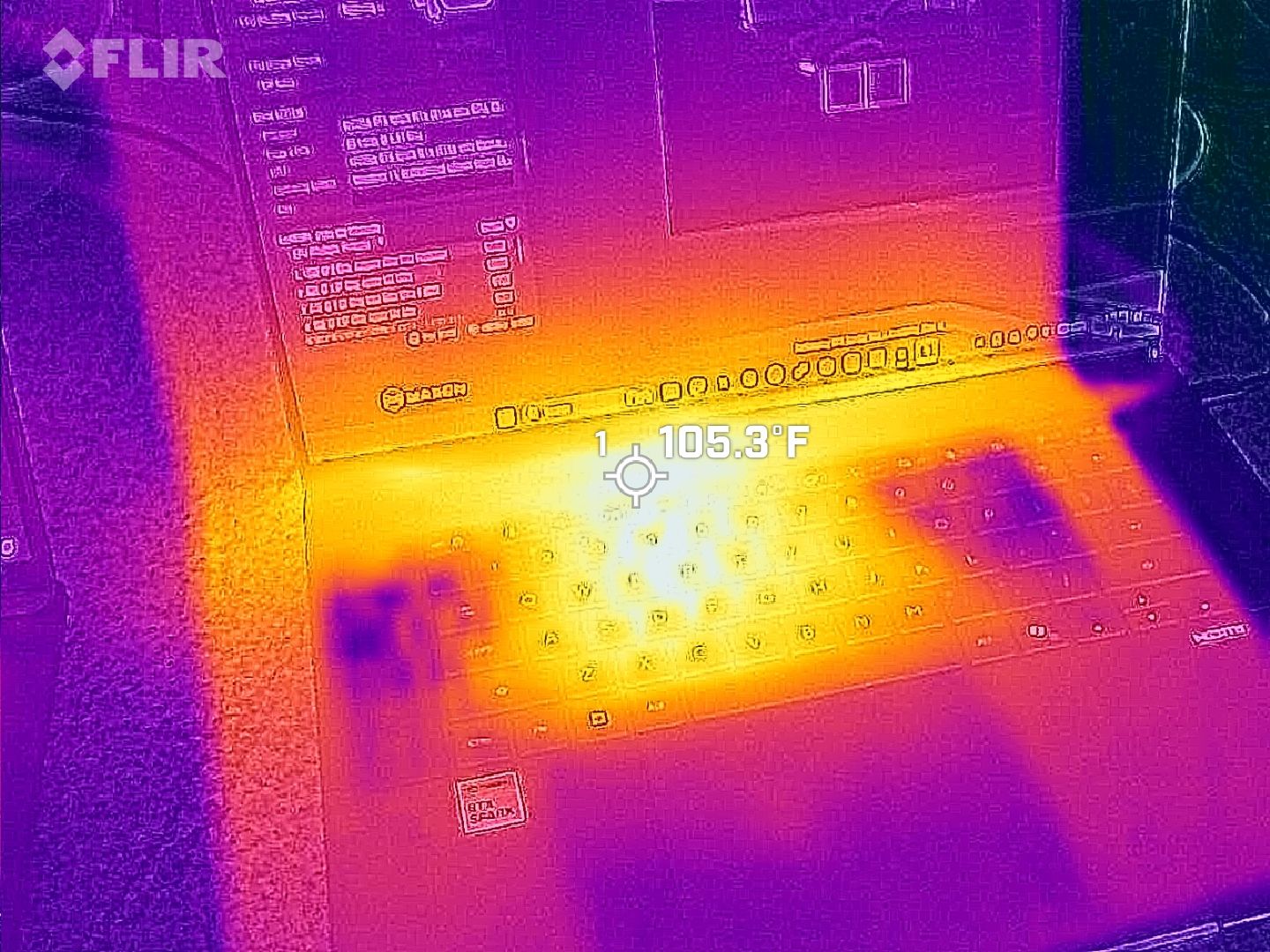
The same spot measured for heat on the ProArt P16. (Image credit: Daniel Rubino)
As for heat and noise, the Surface Laptop Ultra hit about 123 degrees Fahrenheit just above the keyboard. That's very hot, but at least the fans don't exceed 42 decibels.
Using the same FLIR imaging, we measured 105 degrees Fahrenheit in the same spot on the ProArt P16. That's quite a bit cooler, although the fans did climb closer to 50 decibels.
Surface Laptop Ultra vs. ASUS ProArt P16: Which should you buy?
The ASUS ProArt P16 comes out ahead of the Surface Laptop Ultra in several key areas. (Image credit: Daniel Rubino)
Microsoft's Surface Laptop Ultra starts at $2,599.99 for a model with an 18-core CPU, 24GB of RAM, and a 512GB SSD. The ASUS ProArt P16 starts at $2,799.99 for a model with an 18-core CPU, 24GB of RAM, and a 512GB SSD.
If they're so similar, why the price difference?
I'm pointing to the ProArt P16's superior OLED display with pen support, its thinner and lighter design, its cooler thermals, its deeper key travel, its human presence detection, its top-firing speakers, and its larger battery.
These are all noticeable benefits, and whether or not they're worth a $200 upcharge (to start) is really up to you.
I can confidently say that the Surface Laptop Ultra is a great PC regardless of how well ASUS put together its ProArt P16, and perks like a smaller footprint, a better FHD webcam, a cheaper starting price, a magnetic USB-C port, and quieter fans could weigh heavier on your shopping list.
It's worth noting that ASUS also makes a 14-inch ProArt P14 with many of the same benefits, all in a more portable package. Starting at $2,599, it might be the perfect third option for shoppers.
Mini-LED
Microsoft
Surface Laptop Ultra
The Surface Laptop Ultra costs less to start, but it lacks pen support, its mini-LED isn't as impressive, it's thicker and heavier, and it lacks some features compared to the ASUS ProArt P16. Regardless, many will appreciate its speedy SSD, its superior webcam, its smaller footprint, and its magnetic USB-C port.
OLED
ASUS
ProArt P16
The ASUS ProArt P16 scored higher in our review thanks to its OLED display, deeper key travel, outstanding audio, cooler thermals, and thinner/lighter design. It does cost more to start, and it has louder fans, but these are easy trade-offs for those who don't mind spending a little bit more.
Join us on Reddit at r/WindowsCentral to share your insights and discuss our latest news, reviews, and more.
Microsoft’s first Surface Laptop Ultra firmware update tackles two frustrating launch problems: screen flickering and lengthy reboots. Distributed through Windows Update as “Microsoft Corporation System Hardware Update (200.0.7.0),” it also addresses unexpected restarts and includes performance improvements.
Microsoft Azure Storage has completed qualification testing of Seagate Mozaic hard drives using HAMR and SMR recording with Broadcom host bus adapters (HBAs). The validation confirms the combination can operate across Azure data centers at a similar cost and power envelope. It gives cloud operators a tested path to higher-density storage.
Microsoft Pluton, a security processor built into Windows PCs, will no longer provide TPM 2.0 on new silicon platforms introduced in 2026. Instead, TPM functions will come from firmware TPM or a separate TPM chip, while Pluton remains available for other hardware-isolated security protections.
Microsoft has released its first firmware update for the new Surface Laptop Ultra that fixes a number of issues that users and reviewers have reported since launch day a few weeks ago. Namely, issues with the display and long reboot times are finally being addressed.
According to the changelog, this firmware update was released on October 22, 6 days after the Surface Laptop Ultra launched. It appears under the name "Microsoft Corporation System Hardware Update (200.0.7.0)" in Windows Update, and includes the following fixes:
Resolves an issue that could cause extended reboot times.
Resolves an issue that could cause screen flickering.
Resolves an issue that could cause unexpected restarts.
Includes additional bug fixes and general performance improvements.
Reviewers (myself included) had noted that the Surface Laptop Ultra's Mini-LED screen was disappointing as the display suffered from ghosting and flickering. Microsoft says the flickering issue should now be fixed with this latest update, though the ghosting issue is still present.
I also mentioned in my review that the Surface Laptop Ultra suffered from really long reboot times, which made installing Windows updates and drivers a pain as it made the process take twice as long. That issue is now also fixed as of this latest firmware update.
Other fixes include performance improvements and a reduction in unexpected restarts (BSODs,) something I am yet to encounter on Surface Laptop Ultra anyway. It's good to see Microsoft moving so quickly to improve the Surface Laptop Ultra, which is expected to get firmware updates for 6 years, until 2032.
Surface Laptop Ultra is on sale now starting at $2,599. It's Microsoft's first RTX Spark powered Surface PC, which explains why there have been some teething problems with the platform. I expect Microsoft to issue more bug fixes and improvements via firmware updates over the coming weeks.
Join us on Reddit at r/WindowsCentral to share your insights and discuss our latest news, reviews, and more.
Apple is testing OLED displays for future MacBook Air and iMac models, but neither line is expected to switch in its next refresh. The upcoming iMac is expected to retain its LCD screen, as is a MacBook Air update planned for early 2027. Apple has not disclosed when OLED models might arrive.
Apple’s October 28 “Pro and tell” event in Los Angeles could bring the first touchscreen MacBook Pro, alongside updates to the iPad mini and iMac. The gathering is planned as a briefing for press and creators rather than a traditional stage presentation. Apple has not confirmed which products it will announce.
Jensen Huang’s GTC demo showed AI agents training Hugging Face’s Microduck robots in simulation before putting their new walking and obstacle-dodging skills to work in the real world.

 Connexion