Vue lecture

Il y a de nouveaux articles disponibles, cliquez pour rafraîchir la page.

UniFi Dream Machine BEAST – Should You Buy?

Should You Upgrade to the UniFi Dream Machine Beast?

The UniFi Dream Machine Beast arrives as a more serious entry in the Dream Machine range, and that immediately raises the main question: who is it actually for? Existing UniFi users may look at it as a possible upgrade from a UDM Pro, UDM SE, or UDM Pro Max, while new buyers may see it as a way to start with a more capable console from day 1. On paper, it is clearly built for larger and busier networks, but that does not automatically make it the right choice for every UniFi setup. Whether the Dream Machine Beast makes sense depends less on the headline specification and more on the network around it. For some users, it may offer useful headroom for faster internet, heavier security processing, larger Protect installations, or wider UniFi management. For others, it may be more hardware than the deployment can realistically use, especially once the cost of switches, cabling, cameras, access points, and redundancy are taken into account. This article looks at where the Beast is a practical upgrade, where it may be excessive, and what trade-offs should be considered before buying.

UniFi Dream Machine Beast – Should You Buy? (The tl;dr)

The UniFi Dream Machine Beast is best viewed as a higher-capacity UniFi OS console for larger UniFi networks, rather than a default upgrade for every Dream Machine user. Its main advantages are the 8-core Arm v9 processor, 16GB of memory, 10GbE RJ45 ports, 10G SFP+ connectivity, 25G SFP28 support, 25Gbps-class IDS/IPS throughput, support for 750+ managed UniFi devices, 7,500+ concurrent clients, and 2 3.5-inch NVR bays for larger UniFi Protect deployments. These upgrades make it a more suitable option for businesses, multi-site networks, heavier camera installations, faster WAN environments, and users who are starting to outgrow the UDM Pro, UDM SE, or UDM Pro Max. It also makes sense where security inspection, VPN use, traffic analysis, and UniFi application hosting are all expected to run at a larger scale on the same appliance. However, the Beast is not a simple plug-in upgrade for every setup. The $1,499 price, lack of PoE, internal non-removable PSU, and dependency on wider 25GbE infrastructure all make the total cost higher than the unit alone suggests. Users with mostly 1GbE, 2.5GbE, or 10GbE networks may not see enough practical benefit to justify the move, especially if their existing Dream Machine is not close to its limits. In many smaller UniFi deployments, the better use of budget may be a UDM Pro, UDM SE, or UDM Pro Max combined with stronger switches, more access points, improved camera coverage, larger storage, or backup power. The Dream Machine Beast is therefore a strong option for larger and more demanding UniFi environments, but it should be bought with a clear network plan rather than as an automatic upgrade.


BUILD QUALITY - 10/10
HARDWARE - 9/10
PERFORMANCE - 9/10
PRICE - 7/10
VALUE - 8/10


8.6
PROS
👍🏻8-core Arm v9 processor: Gives the Beast more headroom for routing, firewall rules, VPNs, IDS/IPS, DPI, SD-WAN, and UniFi application hosting.
👍🏻25Gbps-class IDS/IPS throughput: A major step up from earlier Dream Machine models, making it better suited to high-speed networks with security inspection enabled.
👍🏻25G SFP28 connectivity: Provides a faster uplink path for aggregation switches, high-speed WAN, NAS systems, and larger network cores.
👍🏻10GbE RJ45 ports as standard: Makes the device more practical for users with existing 10GBASE-T equipment, without relying entirely on SFP modules or adapters.
👍🏻16GB of system memory: Helps the appliance manage heavier UniFi workloads when Network, Protect, VPNs, traffic analysis, and security services are active at the same time.
👍🏻Higher UniFi device and client capacity: Supports 750+ managed UniFi devices and 7,500+ concurrent clients, making it more suitable for larger sites and busy business networks.
👍🏻Larger UniFi Protect capability: Supports up to 100 HD cameras, 60 2K cameras, or 40 4K cameras.
👍🏻Dual 3.5-inch NVR drive bays: Gives Protect users more flexibility for recording capacity or redundancy than a single-drive Dream Machine.
CONS
👎🏻High price compared with other Dream Machines: At $1,499, it costs far more than the UDM Pro, UDM SE, and UDM Pro Max.
👎🏻No built-in PoE: Cameras, access points, phones, and other powered UniFi devices require separate PoE switches or injectors.
👎🏻25GbE can make the wider upgrade expensive: To properly benefit from the Beast’s 25GbE capability, users may also need 25GbE switches, SFP28 modules, DACs, faster servers, or upgraded aggregation links.

Where to Buy

UniFi Dream Machine BEAST (UDM-Beast) –  $1499 HERE 

UniFi Dream Machine Pro Max –$599 HERE 

UniFi Pro XG 24 25Gb & 10Gb L3 Switch- $1099 HERE

Infrastructure-Class CPU for Heavier Routing and Security Workloads

A key hardware change in the UniFi Dream Machine Beast is its move to an 8-core Arm v9 processor running at 2.1GHz. This is a notable step up from the older Dream Machine models, such as the UDM SE, which uses a quad-core Arm Cortex-A57 at 1.7GHz with 4GB of memory. The Beast is built around Arm Neoverse N2 architecture, which Arm describes as its 1st Arm v9 infrastructure CPU, designed for cloud-to-edge workloads with improved performance per watt and a claimed 40% scalar performance uplift over Neoverse N1.

In practical terms, the CPU matters because the gateway is not just passing traffic from 1 port to another. It may also be handling firewall rules, IDS/IPS inspection, VPN traffic, DPI, policy routing, SD-WAN, VLANs, and UniFi application management at the same time. The supplied specification lists IDS/IPS throughput at 24.9Gbps, which is far beyond the 3.5Gbps figure associated with the UDM Pro class. That does not mean every user will need this level of processing headroom, but for larger networks it reduces the chance that security features or encrypted traffic become the main limit before the ports themselves do.

25GbE Uplinks and 10GbE Copper as Standard

The Dream Machine Beast makes a clear jump in physical connectivity compared with the smaller Dream Machine models. Instead of treating 10GbE as the higher-end connection, it uses 10GbE RJ45 as the baseline for its main LAN ports, alongside 10G SFP+ and 25G SFP28 connectivity. This matters because it gives the unit enough port flexibility to sit between faster WAN services, high-speed switches, NAS systems, and larger UniFi deployments without immediately forcing everything through a single 10GbE bottleneck.

The 25G SFP28 port is the more significant part of the design, as it gives the Beast room to aggregate traffic from larger networks rather than simply serve a handful of local devices. For users with multi-gig internet, large camera deployments, heavy internal routing, or multiple downstream switches, this creates a more capable central gateway than the UDM Pro Max. However, the benefit depends heavily on the rest of the network. A 25GbE port only becomes useful when switches, cabling, transceivers, and connected systems can also take advantage of it.

16GB of Memory for Larger UniFi Workloads

The Dream Machine Beast also increases system memory to 16GB, which is a practical upgrade when compared with smaller Dream Machine models. RAM is not as visible as the ports on the front of the unit, but it matters when the console is managing routing, firewall rules, VPNs, IDS/IPS, traffic identification, UniFi Network, UniFi Protect, and other UniFi applications at the same time. More memory gives the system more room to handle these services without the same pressure on resources as deployments grow.

In real terms, this is reflected in the stated management limits. The Beast is rated for 750+ managed UniFi devices and 7,500+ simultaneous connected users, while also supporting larger Protect deployments of up to 100 HD cameras, 60 2K cameras, or 40 4K cameras. Those figures put it in a different class from a typical small office or prosumer Dream Machine setup. The benefit is not just that the Beast can run faster, but that it is better equipped to keep multiple UniFi workloads active at once without becoming constrained as quickly.

Dual Drive Bays Give Protect More Room to Scale

The Dream Machine Beast includes 2 3.5-inch NVR HDD bays, which makes storage a more serious part of the appliance rather than a minor add-on. This is most relevant for UniFi Protect users, because camera recording is where local storage capacity has the biggest day-to-day impact. With support for up to 100 HD cameras, 60 2K cameras, or 40 4K cameras, the Beast is clearly intended to handle larger surveillance deployments than a basic Dream Machine setup.

The 2-bay design also gives users more flexibility than a single-drive console. It allows for higher total recording capacity or a redundant storage configuration, depending on how the system is deployed. The built-in 128GB SSD is separate from this and is used to keep the UniFi OS experience responsive rather than acting as the main video archive. This does not turn the Beast into a dedicated high-bay NVR, but it does make it more practical for sites that want gateway, management, and Protect recording in 1 rackmount device.

The Price Gap Against Other Dream Machines

The main drawback with the Dream Machine Beast is the price. At the quoted $1,499 figure from the launch material, it sits well above the rest of the Dream Machine range. For comparison, the UDM Pro is listed by Ubiquiti’s UK store at £300 before VAT, while the UDM SE is listed at £395 before VAT and the UDM Pro Max at £475 before VAT. Those models are clearly lower in throughput and capacity, but the difference still matters because the Beast is not a small step up in cost.

That makes the buying decision less about whether the Beast is technically better, and more about whether the network will actually use what it offers. A UDM Pro Max already provides 5Gbps IPS routing, 2,000+ client support, 200+ UniFi device support, and 2 NVR drive bays, which is still enough for many UniFi deployments. The Beast makes more sense when the extra routing capacity, larger client count, 25GbE connectivity, and higher Protect ceiling are genuinely required. For smaller sites, the money saved by choosing a lower Dream Machine could be more useful if spent on switches, access points, cameras, or backup power instead.

No PoE Limits Its Use as a Self-Contained Console

The Dream Machine Beast does not include PoE ports, which is a noticeable omission for a device at this price and scale. This does not affect its role as a gateway, firewall, UniFi OS console, or NVR, but it does mean that access points, cameras, door access hardware, phones, and smaller UniFi devices will need power from a separate PoE switch, injector, or other power source. For larger deployments this may not be a major issue, because a dedicated PoE switch would usually be part of the design anyway.

The drawback is more obvious for users upgrading from a Dream Machine model that already includes PoE, such as the UDM SE. Even a small number of PoE ports can be useful for directly powering a nearby access point, test device, camera, or compact downstream switch. On the Beast, the lack of PoE reinforces the idea that it is not intended to be a self-contained all-in-one network box. It is better understood as the central gateway and controller for a wider UniFi installation, rather than a device that can power much of that installation on its own.

Internal Power Supply Makes Hardware Servicing Less Convenient

The Dream Machine Beast uses an internal AC/DC power supply rather than a removable PSU module. It does support DC power backup through UniFi’s RPS system, which gives it a path for power failover when used with the required external hardware. However, this is not the same as having a hot-swappable or easily replaceable PSU built into the unit itself. If the internal supply fails, servicing is likely to be less convenient than it would be on a rackmount device with a standard removable power module.

This matters more because the Beast is aimed at larger and more business-critical UniFi environments. At this level, some buyers may expect either dual onboard PSUs or at least a removable single PSU design for easier replacement and reduced maintenance time. The RPS option helps with continuity, but it also adds another device to the rack and another cost to the overall setup. For users planning around uptime, this is an area where the Beast is functional, but not as service-friendly as some enterprise-style rack hardware.

Be Aware – 25GbE Can Push the Rest of the Network Into a Costly Upgrade Path

The Dream Machine Beast’s 25GbE capability is useful, but it can also change the scale of the upgrade. To take proper advantage of a 25GbE gateway, the rest of the network needs to be able to feed it and receive traffic from it at similar speeds. That usually means 25GbE-capable switches, suitable SFP28 modules or DAC cables, and potentially faster links to servers, NAS systems, or aggregation switches. Without that supporting hardware, the 25GbE port may end up being useful mainly as future headroom rather than something the network benefits from immediately.

This is where the Beast can become more expensive than it first appears. A network built around 2.5GbE or 10GbE copper may not need to move to 25GbE yet, especially if most endpoints are access points, cameras, desktops, or smaller servers. In those cases, a lower-cost Dream Machine paired with better 2.5GbE or 10GbE switching may be the more balanced upgrade. The Beast makes more sense when the wider network is already moving toward 25GbE, or when there is a clear plan to scale into it, rather than when the 25GbE port is the only part of the setup ready for that speed.

Verdict: Highly Capable Hardware, High Scalability, But Not a Universal Upgrade for All

The UniFi Dream Machine Beast is a stronger fit for users who have already reached the limits of the existing Dream Machine models, or who can clearly see those limits approaching. Its faster processor, 16GB of memory, 25GbE connectivity, high IDS/IPS throughput, larger UniFi management capacity, and 2 NVR drive bays all point toward larger networks with heavier traffic, more cameras, more clients, or more demanding security features. In that context, it is not simply a faster UDM Pro Max. It is a more substantial gateway and UniFi OS console for deployments that need more headroom.

For everyone else, the value is less clear. The higher price, lack of PoE, internal non-removable PSU, and likely need for wider 25GbE infrastructure all make it a device that should be bought with a specific network plan in mind. Users running smaller UniFi systems, mostly 1GbE to 10GbE networks, or modest Protect installations may get better value from a UDM Pro, UDM SE, or UDM Pro Max with money left for switches, access points, storage, or backup power. The Beast is best judged as a targeted upgrade for larger UniFi environments, not as the default Dream Machine for every buyer.

Where to Buy

UniFi Dream Machine BEAST (UDM-Beast) –  $1499 HERE 

UniFi Dream Machine Pro Max –$599 HERE 

UniFi Pro XG 24 25Gb & 10Gb L3 Switch- $1099 HERE


📧 SUBSCRIBE TO OUR NEWSLETTER 🔔
[contact-form-7]
🔒 Join Inner Circle


Get an alert every time something gets added to this specific article!


Want to follow specific category? 📧 Subscribe

This description contains links to Amazon. These links will take you to some of the products mentioned in today's content. As an Amazon Associate, I earn from qualifying purchases. Visit the NASCompares Deal Finder to find the best place to buy this device in your region, based on Service, Support and Reputation - Just Search for your NAS Drive in the Box Below

Need Advice on Data Storage from an Expert?

Finally, for free advice about your setup, just leave a message in the comments below here at NASCompares.com and we will get back to you. Need Help? Where possible (and where appropriate) please provide as much information about your requirements, as then I can arrange the best answer and solution to your needs. Do not worry about your e-mail address being required, it will NOT be used in a mailing list and will NOT be used in any way other than to respond to your enquiry. [contact-form-7] TRY CHAT Terms and Conditions

If you like this service, please consider supporting us. We use affiliate links on the blog allowing NAScompares information and advice service to be free of charge to you.Anything you purchase on the day you click on our links will generate a small commission which isused to run the website. Here is a link for Amazon and B&H.You can also get me a ☕ Ko-fi or old school Paypal. Thanks!To find out more about how to support this advice service check HEREIf you need to fix or configure a NAS, check Fiver Have you thought about helping others with your knowledge? Find Instructions Here  

 
Or support us by using our affiliate links on Amazon UK and Amazon US
    
 
Alternatively, why not ask me on the ASK NASCompares forum, by clicking the button below. This is a community hub that serves as a place that I can answer your question, chew the fat, share new release information and even get corrections posted. I will always get around to answering ALL queries, but as a one-man operation, I cannot promise speed! So by sharing your query in the ASK NASCompares section below, you can get a better range of solutions and suggestions, alongside my own.

☕ WE LOVE COFFEE ☕


UniFi Airwire – REAL WiFi 7 MLO?

UniFi and the Airwire – Did Ubiquiti just SOLVE Everyone’s WiFi MLO Issue?

Ubiquiti has introduced the UniFi AirWire, a WiFi 7 client adapter designed to address one of the more limited areas of current WiFi 7 deployment: the client side. While WiFi 7 access points and routers have been marketed heavily around Multilink Operation, many currently available client devices still rely on single-radio implementations that switch between bands rather than maintaining simultaneous links. The AirWire is positioned as a dedicated external client that aims to deliver true STR MLO operation across 5 GHz and 6 GHz, with Ubiquiti claiming improved throughput, lower latency, and better resilience than conventional integrated client hardware.

At a hardware level, the AirWire is a USB-C connected WiFi 7 adapter with a 4-stream design, support for 5 GHz and 6 GHz 2 x 2 MU-MIMO operation, and a quoted uplink capability of up to 5.8 Gbps on 6 GHz and 4.3 Gbps on 5 GHz. It also adds a high-gain antenna design and a dedicated scanning radio for real-time spectrum analysis. At $199, this places it well above the cost of generic USB wireless adapters, but it is also targeting a more specific role: enabling multi-gigabit wireless client connectivity in environments that already have the access point infrastructure to support it.

You can buy the Airwire via the link below – doing so will result in a small commission coming to me and Eddie at NASCompares, and allows us to keep doing what we do! 

UniFi Airwire – Design

The UniFi AirWire has a noticeably different physical design to the compact USB WiFi adapters that are typically associated with desktop or laptop client upgrades. At 117 x 117 x 42.5 mm and 537 g, it is much closer in appearance to a standalone wireless bridge or directional client than a conventional dongle. That larger enclosure is directly tied to its intended function, as Ubiquiti is clearly building around higher power operation, larger antenna structures, and the thermal requirements that come with sustained WiFi 7 activity across multiple radios.

The housing is made of polycarbonate and includes a fold-out top section that appears to be part of the antenna assembly and directional positioning of the unit. This gives the AirWire a more deliberate deployment profile, where placement and orientation are likely to matter more than they would with an internal laptop radio or a low-profile USB adapter. On the front, there is also a 0.96-inch status display, which provides at-a-glance information during setup and operation without needing to rely entirely on software feedback from the host system.

From a practical standpoint, the design reflects that this is not intended to be an invisible add-on for casual wireless use. It is an external client device built to sit on a desk or near a workstation, with a form factor that prioritizes radio performance and signal handling over portability. That makes it less discreet than mainstream client adapters, but it also aligns with the product’s stated purpose as a high-performance WiFi 7 endpoint for users trying to push beyond the limitations of standard integrated wireless hardware.

UniFi Airwire – Internal Hardware

Internally, the UniFi AirWire is built around a dual-band WiFi 7 architecture that focuses entirely on 5 GHz and 6 GHz operation, without any 2.4 GHz support. Ubiquiti rates the device as a 4-stream client, split across 2 x 2 MU-MIMO on 5 GHz and 2 x 2 MU-MIMO on 6 GHz.

This layout is central to its stated role as an STR MLO client, allowing both bands to be active simultaneously rather than relying on the more common single-radio behaviour seen in many current WiFi 7 client devices.

Ubiquiti also specifies a high-gain antenna design, with 11 dBi quoted on both 5 GHz and 6 GHz, which is significantly more aggressive than the antenna arrangements found in most integrated laptop or mobile WiFi hardware. Alongside this, the AirWire includes a dedicated scanning radio for real-time spectral analysis. That separate scanning capability is notable because it suggests the unit is not just focused on link speed, but also on monitoring local RF conditions and interference in parallel with normal client operation.

The trade-off for that hardware approach is power and thermals. Ubiquiti lists maximum power consumption at 18 W, with USB PD 5/9/12V support and separate normal and performance power profiles. In practical terms, that places the AirWire closer to a compact external network appliance than a typical USB wireless adapter. It also helps explain the larger chassis, the need for external power flexibility, and the expectation that sustained performance operation will demand more cooling headroom than a smaller bus-powered client device could realistically provide.

UniFi Airwire – Connectivity

The UniFi AirWire connects to the host system over USB-C, but from a networking perspective it is presented as a 5 GbE interface over USB 3.2 Gen 2. That distinction matters, because although the wireless side of the device is rated far higher in combined theoretical bandwidth, the host connection places an upper practical ceiling on what can be delivered to the attached PC, laptop, or workstation. In effect, the AirWire is designed to behave more like an external multi-gig network adapter than a conventional USB WiFi dongle.

On the wireless side, the AirWire operates on 5 GHz and 6 GHz only, with support for WiFi 7, WiFi 6, WiFi 5, and 802.11n data rates across a wide range of channel widths. Ubiquiti lists support for EHT 20/40/80/160/240/320 MHz, alongside HE, VHT, and HT modes on earlier standards. The maximum quoted link rates are 5.8 Gbps on 6 GHz using 320 MHz bandwidth and 4.3 Gbps on 5 GHz using 240 MHz bandwidth, though actual results will depend heavily on access point capability, spectrum availability, regional channel restrictions, and signal conditions.

Power delivery is also part of the connection design. Ubiquiti specifies USB PD 5/9/12V support, with 15 W in normal mode and 20 W in performance mode, while maximum device power consumption is listed at 18 W. This means that, depending on how the host system is connected and powered, full performance operation may require more than a single low-power USB port can reliably provide. That makes cable quality, port specification, and available USB power budget more relevant here than they would be for standard client adapters.

The AirWire also includes support for wireless meshing and real-time spectral analysis, which extends its connection role beyond basic client access. In a UniFi environment, setup is intended to be handled through UniFi AutoLink for rapid onboarding, reducing the need for separate client-side software installation. Even so, the broader connection experience will still depend on the surrounding infrastructure, particularly whether the connected UniFi access point supports the required WiFi 7 and 6 GHz features needed for the AirWire to operate in the way it is being marketed.

Specification Details
Product Name UniFi AirWire
Model U-AirWire
Price $199.00
Dimensions 117 x 117 x 42.5 mm
Dimensions (Imperial) 4.6 x 4.6 x 1.7 in
Weight 537 g
Weight (Imperial) 1.2 lb
WiFi Standard WiFi 7
Spatial Streams 4
Uplink WiFi
MIMO 6 GHz 2 x 2 (DL/UL MU-MIMO)
MIMO 5 GHz 2 x 2 (DL/UL MU-MIMO)
Max Data Rate 6 GHz 5.8 Gbps (BW320)
Max Data Rate 5 GHz 4.3 Gbps (BW240)
Antenna Gain 6 GHz 11 dBi
Antenna Gain 5 GHz 11 dBi
Max TX Power 6 GHz 20 dBm
Max TX Power 5 GHz 25 dBm
Supported Standards 802.11be, 802.11ax, 802.11ac, 802.11n
802.11be Data Rates 7.3 Mbps to 5.8 Gbps
802.11ax Data Rates 7.3 Mbps to 2.4 Gbps
802.11ac Data Rates 6.5 Mbps to 1.7 Gbps
802.11n Data Rates 6.5 Mbps to 300 Mbps
Wireless Meshing Yes
Real-Time Spectral Analysis Yes
Max Power Consumption 18 W
Power Supply USB PD 5/9/12V, 15 W normal mode, 20 W performance mode
Networking Interface 1 x 5 GbE port (USB 3.2 Gen 2)
Management USB-C
Enclosure Material Polycarbonate
Display 0.96 in status display
Channel Bandwidth HT 20/40, VHT 20/40/80/160, HE 20/40/80/160, EHT 20/40/80/160/240/320 MHz
NDAA Compliant Yes
Certifications CE, FCC, IC
Operating Temperature -10 to 40 °C
Operating Humidity 5 to 95% non-condensing

UniFi Airwire – Verdict?

The UniFi AirWire is a more specialised product than its USB-C connection initially suggests. Rather than serving as a low-cost way to add basic WiFi 7 support to a system, it is designed to address a specific gap in the current client ecosystem: the lack of widely available true multi-radio MLO hardware on the device side. Its value therefore depends less on headline wireless specifications alone and more on whether the surrounding network environment is already capable of taking advantage of simultaneous 5 GHz and 6 GHz operation, wider channel support, and multi-gigabit client throughput.

On that basis, the AirWire appears to be an interesting but clearly targeted piece of hardware. The larger chassis, higher power requirements, directional design, and likely dependency on a strong WiFi 7 6 GHz deployment mean it is not a universal client upgrade for every user. However, for users already invested in UniFi WiFi 7 infrastructure and looking for a higher performance external client than the current mainstream market provides, it introduces a form factor and feature set that are still relatively uncommon. Whether that translates into a meaningful real-world advantage will depend on testing, particularly around sustained throughput, latency behaviour, thermal limits, and the practical impact of STR MLO outside of ideal conditions.

You can buy the Airwire via the link below – doing so will result in a small commission coming to me and Eddie at NASCompares, and allows us to keep doing what we do! 

📧 SUBSCRIBE TO OUR NEWSLETTER 🔔
[contact-form-7]
🔒 Join Inner Circle

Get an alert every time something gets added to this specific article!


Want to follow specific category? 📧 Subscribe

This description contains links to Amazon. These links will take you to some of the products mentioned in today's content. As an Amazon Associate, I earn from qualifying purchases. Visit the NASCompares Deal Finder to find the best place to buy this device in your region, based on Service, Support and Reputation - Just Search for your NAS Drive in the Box Below

Need Advice on Data Storage from an Expert?

Finally, for free advice about your setup, just leave a message in the comments below here at NASCompares.com and we will get back to you. Need Help? Where possible (and where appropriate) please provide as much information about your requirements, as then I can arrange the best answer and solution to your needs. Do not worry about your e-mail address being required, it will NOT be used in a mailing list and will NOT be used in any way other than to respond to your enquiry. [contact-form-7] TRY CHAT Terms and Conditions
If you like this service, please consider supporting us. We use affiliate links on the blog allowing NAScompares information and advice service to be free of charge to you.Anything you purchase on the day you click on our links will generate a small commission which isused to run the website. Here is a link for Amazon and B&H.You can also get me a ☕ Ko-fi or old school Paypal. Thanks!To find out more about how to support this advice service check HEREIf you need to fix or configure a NAS, check Fiver Have you thought about helping others with your knowledge? Find Instructions Here  

 
Or support us by using our affiliate links on Amazon UK and Amazon US
    
 
Alternatively, why not ask me on the ASK NASCompares forum, by clicking the button below. This is a community hub that serves as a place that I can answer your question, chew the fat, share new release information and even get corrections posted. I will always get around to answering ALL queries, but as a one-man operation, I cannot promise speed! So by sharing your query in the ASK NASCompares section below, you can get a better range of solutions and suggestions, alongside my own.

☕ WE LOVE COFFEE ☕


UniFi UNAS 4 Review

UniFi UNAS 4 NAS Review – Simple Safe Storage?

The UniFi UNAS 4 is Ubiquiti’s desktop 4 bay NAS and part of the company’s growing UniFi storage portfolio. Positioned as a compact network storage appliance, it is designed to provide centralized file storage, backups, and shared access within a local network, while also integrating with the wider UniFi management platform. The 4 bay form factor is widely considered a practical starting point for NAS deployments, offering enough capacity for RAID redundancy while maintaining a relatively small physical footprint suitable for offices, home labs, and small business environments. At $379, the UNAS 4 enters the market as a relatively affordable turnkey NAS that includes both hardware and the UniFi Drive software platform. The system combines traditional SATA storage bays with NVMe SSD caching support and 2.5GbE networking, while also introducing PoE+++ power as a deployment option. On paper, the device aims to deliver a straightforward storage solution that focuses on core NAS functionality rather than attempting to compete directly with more feature heavy platforms.

UniFi UNAS 4 Review – Quick Conclusion

TLDR: The UniFi UNAS 4 is a compact $379 4 bay NAS aimed at straightforward file storage and backups, with a clean UniFi oriented deployment that includes PoE+++ power plus data over a single cable and a bundled 90W adapter for non PoE setups. It combines 4 SATA bays with 2 M.2 NVMe slots for SSD caching, simple click and load drive trays, and a small front status display, while UniFi Drive provides the expected NAS services such as SMB and NFS access, RAID options, snapshots, encryption, share links, and multi user management, plus backup support that can include other UNAS targets, SMB destinations, and several cloud providers. The main compromises are the single 2.5GbE port that caps throughput and offers no redundancy, NVMe trays not being included despite the slots being present, and a USB C port that currently functions mostly for basic external storage rather than broader expansion, so it fits best when the goal is uncomplicated storage within a UniFi managed environment rather than a more flexible, performance oriented NAS platform.

BUILD QUALITY - 9/10
HARDWARE - 7/10
PERFORMANCE - 7/10
PRICE - 9/10
VALUE - 9/10


8.2
PROS
👍🏻$379 pricing is competitive for a turnkey 4 bay NAS with UniFi Drive included
👍🏻4 bay 2.5 inch and 3.5 inch SATA support for flexible capacity planning
👍🏻2 x M.2 NVMe slots for read and write SSD caching
👍🏻PoE+++ support enables single cable power plus data deployment
👍🏻90W PoE+++ mains adapter included, so PoE infrastructure is optional
👍🏻Simple click and load HDD trays with straightforward access for drive installs and swaps
👍🏻Front 1.47 inch color LCM display provides basic status and activity visibility
👍🏻UniFi Drive software includes RAID options, snapshots, encryption, share links, and user management
CONS
👎🏻Single 2.5GbE port limits throughput and provides no network redundancy or aggregation
👎🏻M.2 NVMe trays not included, adding cost to use SSD caching
👎🏻USB C port is currently limited in utility beyond basic external storage attachment
Here are all the current UniFi NAS Solutions & Prices:
  • UniFi UNAS 4  (4 Bay + 2x M2, $379) – HERE
  • UniFi UNAS 2 (2 Bay, $199) – HERE
  • UniFi UNAS Pro (7 Bay, $499) – HERE
  • UniFi UNAS Pro 4 (4 Bay + 2x M.2, $499) – HERE
  • UniFi UNAS Pro 8 (8-Bay + 2x M.2, $799) HERE

You can buy the UniFi UNAS 4 NAS via the link below – doing so will result in a small commission coming to me and Eddie at NASCompares, and allows us to keep doing what we do! 


UniFi UNAS 4 Review – Design & Storage

The UniFi UNAS 4 uses a compact desktop chassis that differs from the more traditional box shaped NAS designs seen from many competing brands. The enclosure is relatively narrow and deep, giving it a vertical appearance that resembles some earlier consumer NAS designs. The casing itself is constructed from polycarbonate rather than metal, which keeps overall weight down to around 2.6 kg without drives installed. Ventilation is primarily handled through openings along the upper portion of the chassis, with airflow directed toward a rear mounted cooling fan.

At the front of the unit is a small 1.47 inch color LCM display that provides basic system information. This panel is not touch enabled but can show details such as drive activity, network activity, and general system status. It acts primarily as a quick visual reference rather than a full control interface. For most configuration and monitoring tasks, the system is intended to be managed through the UniFi Drive interface via a web browser or mobile application.

The primary storage configuration consists of 4 drive bays supporting either 3.5 inch or 2.5 inch SATA drives. Each drive uses an individual tray that slides into the chassis and clicks into place without requiring screws for 3.5 inch drives. The trays are ventilated and designed for relatively straightforward installation or replacement, although they are not lockable. Compared with earlier UniFi NAS designs that grouped multiple drives into a single tray, the use of separate trays simplifies drive access and improves hot swap usability.

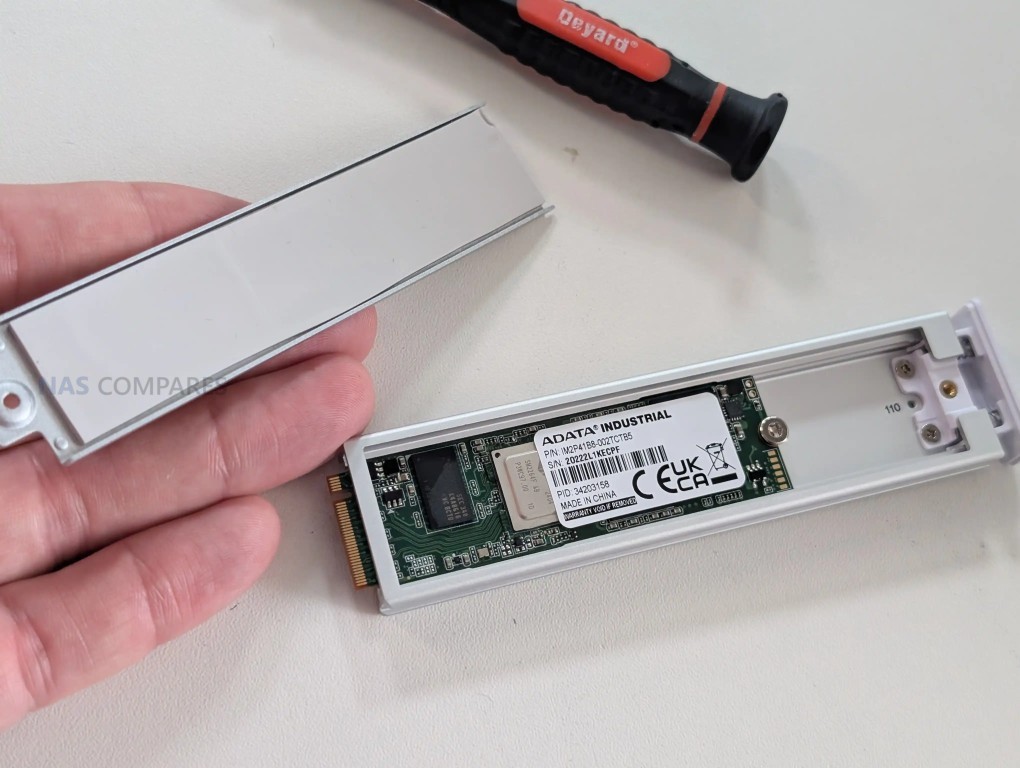
In addition to the main hard drive bays, the system includes 2 M.2 NVMe slots intended for SSD caching. These slots are located in a separate compartment on the base of the device and can be accessed by removing a small cover using the included key. Once installed, these SSDs can be used to provide read and write caching to improve responsiveness when working with frequently accessed data. At the time of writing, these NVMe drives cannot be used as independent storage pools and are limited to caching roles.

One design choice that may affect installation is that the trays required to hold the NVMe SSDs are not included in the retail package. Instead, they must be purchased separately or obtained as part of pre populated SSD modules from Ubiquiti. While the M.2 slots themselves are built into the device, the lack of included trays adds an additional step and cost for users who intend to make use of SSD caching alongside the main hard drive storage.

UniFi UNAS 4 Review – Internal Hardware

Internally, the UniFi UNAS 4 is built around a quad core ARM Cortex A55 processor running at 1.7 GHz. This type of processor is commonly used in embedded networking hardware and lower power storage appliances, where efficiency and reliability are prioritized over raw processing performance. Ubiquiti has extensive experience deploying ARM architectures across its networking and infrastructure products, and the choice here aligns with the system’s intended role as a dedicated storage appliance rather than a general purpose server platform.

The system includes 4 GB of LPDDR4 memory, which is fixed and not user upgradeable. For the core functions the device is designed to handle, such as file transfers, backups, and storage management, this amount of memory is generally sufficient. However, the fixed memory configuration does place a ceiling on how much additional functionality the hardware could realistically support in the future, particularly if the software platform expands with additional services or heavier workloads.

From a power perspective, the system is designed to operate within a relatively modest power envelope. The maximum system power consumption is rated at 90 W, with a maximum drive power budget of 80 W. Power delivery is handled through PoE+++, allowing both data and power to be carried through the same Ethernet connection when used with compatible infrastructure. For deployments without PoE support, the device ships with a 90 W PoE+++ adapter, allowing it to be powered from a standard mains outlet while still maintaining the same connection layout.

UniFi UNAS 4 Review – Ports and Connections

The UniFi UNAS 4 keeps connectivity simple, with a single 2.5GbE RJ45 port handling both network data and PoE+++ power delivery. This allows the unit to be deployed with a single cable when used with compatible switches or injectors, which can reduce cable clutter and simplify placement compared with NAS systems that require separate power and network connections. The port supports 2.5G, 1G, 100M, and 10M link speeds, so it can operate in mixed networks even if 2.5GbE infrastructure is not available.

The main limitation is that there is only 1 network interface, with no secondary port for link aggregation, redundancy, or dedicated management traffic. In practical terms, this reduces options for failover and makes the network connection a single point of dependency. It also places a hard ceiling on throughput, which is relevant on a 4 bay system where aggregate drive performance can exceed what a single 2.5GbE link can sustain in some workloads.

For external expansion, the device includes a 5 Gbps USB C port intended for attaching external storage. In its current form, it functions primarily as a straightforward way to connect a USB drive for basic transfers rather than as a broader expansion interface. The hardware capability suggests potential for wider use cases, but the available functionality is mainly determined by what UniFi Drive supports at the software level.

UniFi UNAS 4 Review – Software and Services

The UNAS 4 runs UniFi Drive and is managed through the same UniFi style web interface used across the wider portfolio, with system status, storage, backups, and user access presented through a single dashboard. For typical NAS use, the core functions are in place: initializing drives, building RAID storage, creating shared and personal drives, enabling file services, and checking drive health information. The interface is mostly structured around completing common tasks quickly and keeping administration consistent with other UniFi products, rather than exposing a long list of granular configuration controls. That approach makes initial setup and day to day management relatively straightforward, but it also means experienced NAS users may notice limits in how far the system can be tuned.

File access is centered on SMB and NFS, with browser based file management available for basic upload, download, and folder navigation. The web file manager covers essential functions and includes share link creation plus thumbnail and preview handling, but it is not designed as a full productivity layer with collaborative editing or advanced file workflow tools. Client access is largely built around standard network shares and UniFi’s account-driven identity layer, and while the system can be deployed locally without relying on a UniFi account, the most integrated remote workflow is clearly designed around UniFi’s own UI and identity services rather than third party remote networking options.

Data protection features cover most of what is expected for a general purpose file NAS. UniFi Drive supports snapshots, encrypted storage, and configurable retention policies, which covers common rollback needs and basic ransomware recovery strategy when paired with sensible scheduling. Backup tooling is one of the stronger areas in terms of scope, supporting tasks to another UniFi NAS, to SMB targets, and to cloud services such as Google Drive, OneDrive, Dropbox, Amazon S3, Backblaze B2, and Wasabi. Time Machine support is also present for macOS environments, and Microsoft 365 backup is part of the broader UniFi Drive direction, even if the overall feature set remains more storage and protection focused than application focused.

The limitations are consistent with the UNAS 4’s role and its hardware profile. There is no iSCSI target support, which restricts certain virtualization, hypervisor, and block storage workflows, and there is no container or VM layer intended for running third party services directly on the device. NVMe support remains limited to SSD caching rather than separate pools, and on the UNAS 4 that caching is also constrained by the single 2.5GbE connection, which can cap how much of the cache benefit is visible over the network in sustained sequential transfers. More broadly, system level configuration remains relatively contained, with fewer advanced networking and scheduling controls than many established NAS platforms provide.

Client side tooling is also still relatively limited compared with ecosystems that offer a more developed sync, selective download, and offline pinning experience across desktop and mobile. UniFi Drive does provide client app support and identity driven access, but the overall workflow remains closer to traditional network share usage than to a full cloud drive style experience. As it stands, the software aligns with the UNAS 4’s positioning as a storage and backup appliance with a clean management layer, rather than a platform intended to replace a more feature dense NAS operating system.

UniFi UNAS 4 Review – Noise, Temp, Temp & Performance

In practical use, performance on the UNAS 4 is largely shaped by its single 2.5GbE connection. With mechanical drives, the system can deliver consistent transfer rates that sit within the expected ceiling of a 2.5GbE link, but it does not have the networking headroom to take full advantage of what a 4 drive array can potentially deliver under sustained sequential workloads. This is most noticeable when using higher capacity 7200 RPM drives, where the combined throughput of multiple disks can exceed the network limit even before SSD caching is factored in.

Testing with mixed file transfers showed typical throughput in the range of roughly 180 to 250 MB/s depending on file type and workload, with higher results generally observed once NVMe caching was enabled. A 50 GB Windows transfer completed at a pace that aligned with these figures, with sustained rates remaining stable rather than spiking briefly and then dropping sharply. The overall behaviour suggests that the device can maintain steady network limited transfers, but it is not designed to chase peak throughput beyond what 2.5GbE allows.

NVMe caching improved responsiveness and helped maintain higher sustained transfer speeds, particularly during repeated reads and writes where the cache could play an active role. However, the caching implementation is limited to acceleration rather than acting as a separate storage tier, and the benefit is workload dependent. Large sequential transfers still remain constrained by the network port, while smaller or more frequently accessed data sees more practical gains from the cache layer.

From an operational standpoint, power draw remained relatively modest for a 4 bay system. A baseline measurement with no drives installed was around 14.1 W. With 4 HDDs and 2 NVMe SSDs installed, idle power use was observed at around 46 W, rising to roughly 50 to 51 W under active read and write workloads with moderate CPU and memory utilization. The relatively small gap between idle and active indicates that drive idle draw forms a significant portion of the total consumption in typical day to day use.

UniFi UNAS 4 Review – Conclusion & Verdict

The UniFi UNAS 4 is a compact 4 bay NAS that prioritizes straightforward storage deployment, particularly for users already running UniFi hardware and UniFi management. Its pricing, PoE+++ support with an included adapter, NVMe caching capability, and generally simple physical drive access make it a practical option for core NAS tasks such as shared folders, backups, and centralized file storage. The hardware choices are consistent with that goal, and the platform is best assessed as a storage appliance rather than a general purpose server. On the software side, UniFi Drive provides the expected baseline services for this category, including SMB and NFS file access, RAID options, snapshots, encrypted storage, share links, and multi user management. Backup support is broader than the basics, with options that can include remote UNAS targets, SMB destinations, and several mainstream cloud services, along with Time Machine support for macOS. Management is clearly aimed at keeping configuration simple through a unified interface, but it also remains more limited than mature NAS platforms in areas such as deeper system tuning, third party remote access alternatives, and broader application style features.

The trade offs are easy to identify. A single 2.5GbE port limits peak throughput and removes options such as link aggregation or network failover, which matters more on a 4 bay system than it would on a smaller unit. The NVMe slots are limited to caching rather than independent pools, and using them adds cost due to trays not being included. Cooling behaviour can become more noticeable if fan speed increases, and the USB C port currently operates mainly as an external drive attachment point rather than a broader expansion interface. Overall, the UNAS 4 makes the most sense when its role is kept narrow, and when UniFi Drive’s storage and backup feature set, alongside UniFi ecosystem integration, is a meaningful part of the purchase decision.

You can buy the UniFi UNAS 4 NAS via the link below – doing so will result in a small commission coming to me and Eddie at NASCompares, and allows us to keep doing what we do! 

PROs of the UniFi UNAS 4 CONs of the UniFi UNAS 4
  • $379 pricing is competitive for a turnkey 4 bay NAS with UniFi Drive included

  • 4 bay 2.5 inch and 3.5 inch SATA support for flexible capacity planning

  • 2 x M.2 NVMe slots for read and write SSD caching

  • PoE+++ support enables single cable power plus data deployment

  • 90W PoE+++ mains adapter included, so PoE infrastructure is optional

  • Simple click and load HDD trays with straightforward access for drive installs and swaps

  • Front 1.47 inch color LCM display provides basic status and activity visibility

  • UniFi Drive software includes RAID options, snapshots, encryption, share links, and user management

  • Single 2.5GbE port limits throughput and provides no network redundancy or aggregation

  • M.2 NVMe trays not included, adding cost to use SSD caching

  • USB C port is currently limited in utility beyond basic external storage attachment


Here are all the current UniFi NAS Solutions & Prices:
  • UniFi UNAS 4  (4 Bay + 2x M2, $379) – HERE
  • UniFi UNAS 2 (2 Bay, $199) – HERE
  • UniFi UNAS Pro (7 Bay, $499) – HERE
  • UniFi UNAS Pro 4 (4 Bay + 2x M.2, $499) – HERE
  • UniFi UNAS Pro 8 (8-Bay + 2x M.2, $799) HERE

📧 SUBSCRIBE TO OUR NEWSLETTER 🔔
[contact-form-7]
🔒 Join Inner Circle

Get an alert every time something gets added to this specific article!


Want to follow specific category? 📧 Subscribe

This description contains links to Amazon. These links will take you to some of the products mentioned in today's content. As an Amazon Associate, I earn from qualifying purchases. Visit the NASCompares Deal Finder to find the best place to buy this device in your region, based on Service, Support and Reputation - Just Search for your NAS Drive in the Box Below

Need Advice on Data Storage from an Expert?

Finally, for free advice about your setup, just leave a message in the comments below here at NASCompares.com and we will get back to you. Need Help? Where possible (and where appropriate) please provide as much information about your requirements, as then I can arrange the best answer and solution to your needs. Do not worry about your e-mail address being required, it will NOT be used in a mailing list and will NOT be used in any way other than to respond to your enquiry. [contact-form-7] TRY CHAT Terms and Conditions
If you like this service, please consider supporting us. We use affiliate links on the blog allowing NAScompares information and advice service to be free of charge to you.Anything you purchase on the day you click on our links will generate a small commission which isused to run the website. Here is a link for Amazon and B&H.You can also get me a ☕ Ko-fi or old school Paypal. Thanks!To find out more about how to support this advice service check HEREIf you need to fix or configure a NAS, check Fiver Have you thought about helping others with your knowledge? Find Instructions Here  
 
Or support us by using our affiliate links on Amazon UK and Amazon US
    
 
Alternatively, why not ask me on the ASK NASCompares forum, by clicking the button below. This is a community hub that serves as a place that I can answer your question, chew the fat, share new release information and even get corrections posted. I will always get around to answering ALL queries, but as a one-man operation, I cannot promise speed! So by sharing your query in the ASK NASCompares section below, you can get a better range of solutions and suggestions, alongside my own.

☕ WE LOVE COFFEE ☕


UniFi Cloud Gateway Industrial – Should You Buy One?

UniFi Cloud Gateway Industrial – Did Ubiquiti Go Too Hard Here?

The UniFi Cloud Gateway Industrial and UniFi Cloud Gateway Fiber are positioned as high throughput UniFi gateways that also act as the controller for UniFi Network and other UniFi applications, so the buying decision is less about basic compatibility and more about which hardware package better fits the environment and the deployment style. The Fiber model is typically the lower cost entry point and focuses on compact desktop placement, multiple high speed WAN options, and optional local storage via an NVMe SSD for UniFi Protect. The Industrial model costs more and its appeal is tied to practical deployment factors rather than raw routing numbers: a heavier, ruggedized, fanless chassis intended to tolerate harsher placement, integrated WiFi 7 for situations where local wireless is useful at the gateway, built in microSD storage for NVR use out of the box, and a much higher PoE output budget that can power downstream devices directly. Both are rated for similar IDS/IPS throughput and similar scale on paper, so the price gap tends to come down to whether you actually need the Industrial model’s power delivery, integrated wireless, and physical design features, or whether you would get more value by choosing the Fiber model and putting the savings into switches, access points, cameras, storage, or redundancy elsewhere in the network.

UniFi Cloud Gateway Industrial – Quick Conclusion

The UniFi Cloud Gateway Industrial only makes sense at $579 if you will actually use what drives that price. That primarily means the 270W PoE budget with multiple PoE+++ 90W ports, the integrated WiFi 7 radio, the included 128 GB microSD for immediate Protect recording, and the tougher deployment profile. That deployment profile includes a fanless design, heavier build, higher operating temperature rating, and more mounting options. Those features can replace a separate PoE switch, a basic access point, and some setup time. They are most relevant in locations that are not ideal for a small desktop gateway. If your network already has a PoE switch and dedicated access points, the value shifts quickly. The same is true if you mainly want a fast UniFi controller and gateway with flexible uplinks, or if you would rather put $300 into more switching, an AP, cameras, or more storage capacity.

In that case, the UniFi Cloud Gateway Fiber is generally the more rational buy. Both units share the same core platform traits that matter for routing and security workloads, including the 5 Gbps IDS/IPS rating. The Fiber’s higher WAN port count and 2x 10G SFP+ layout also fits conventional designs where WiFi and PoE are handled elsewhere. Put simply, the Industrial is a justified premium when it simplifies the overall bill of materials or solves placement constraints. It is hard to justify as an upgrade on performance alone. For typical indoor deployments, it usually makes more sense to buy the Fiber and allocate the difference to parts that materially expand the network.

Here are all the latest UniFi Gateway, Routing and PoE+++ Solutions & Prices:
  • UniFi Cloud Gateway Industrial ($579) – HERE
  • UniFi Cloud Gateway Fiber ($279) – HERE
  • UniFi Dream Router 7 ($249) – HERE

You can buy the UniFi UNAS Pro 4 NAS via the link below – doing so will result in a small commission coming to me and Eddie at NASCompares, and allows us to keep doing what we do! 


UniFi Cloud Gateway Industrial (vs Fiber) – Design & Storage

Physically, the UniFi Cloud Gateway Industrial is built around a larger, heavier enclosure that is meant to stay in place rather than sit lightly on a shelf. In informal handling, it feels closer to a small piece of infrastructure gear than a typical compact gateway, which is consistent with its stated intent for rugged or semi permanent installs. By contrast, the Cloud Gateway Fiber is a low profile compact desktop unit, and its design reads more like a traditional small office gateway that can be placed near an ISP handoff or a small network stack.

The materials reflect that difference in intent. The Industrial uses a polycarbonate and aluminium alloy enclosure, while the Fiber uses polycarbonate. In practical terms, the Industrial’s metal content is more aligned with durability and heat management expectations in a fanless box that may be mounted in less forgiving places, whereas the Fiber’s lighter build aligns with a device expected to live in normal indoor environments.

Mounting flexibility is also not equal. The Industrial is listed as supporting wall mounting, compact desktop placement, and rack mounting via an accessory sold separately. The hardware design includes elements intended to support reconfiguration and installation style changes without changing the device itself.

The Fiber is primarily framed as a compact desktop form factor, which is typically fine for small racks or structured cabling areas only if you are comfortable improvising placement, rather than using a purpose built mounting approach.

Environmental tolerances are one of the clearest design separators. The Industrial is rated for an ambient operating range of -30 to 50 C, with 5 to 95 percent noncondensing humidity. The Fiber is rated for 0 to 40 C, also with 5 to 95 percent noncondensing humidity. If the gateway will be placed in a garage, loft, workshop, cabinet with poor airflow, or any space that regularly drifts outside typical indoor office temperatures, the Industrial’s ratings are the more relevant detail than most headline performance numbers.

Storage is where the devices take opposite approaches. The Industrial includes pre installed storage for NVR use, listed as a 128 GB microSD, and also supports microSD expansion. The Fiber does not ship with built in NVR storage, but supports selectable NVMe SSD storage up to 2 TB. In practice, the Industrial’s included microSD makes Protect usable immediately for light camera retention without additional parts, while the Fiber’s NVMe approach is better aligned with longer retention targets and scaling camera storage without relying on removable flash media

UniFi Cloud Gateway Industrial (vs Fiber) – Internal Hardware

At the core, both gateways sit on a very similar compute platform: a quad core ARM Cortex A73 CPU clocked at 2.2 GHz with 3 GB of system memory. In practical terms, that means neither device has an inherent advantage in baseline controller duties like running UniFi Network alongside other UniFi applications, or handling typical gateway services such as stateful firewalling, VPN termination, and traffic analysis.

The key performance headline for security enabled routing is also aligned. The Cloud Gateway Fiber is rated at 5 Gbps IDS/IPS throughput, and the Industrial model is positioned at the same 5 Gbps figure in the specifications you provided. That sets a realistic expectation that the price difference is not being driven by faster IDS/IPS, and that either unit can be the bottleneck if the goal is to inspect traffic at speeds above that rating.

Where the internal design diverges is less about raw compute and more about what each device integrates around that shared platform. The Industrial model bundles additional subsystems into the chassis, including a built in WiFi 7 radio, PoE switching hardware with much higher total PoE delivery, and cellular related features such as SIM slots intended for use with UniFi cellular hardware. Those additions change the role of the device from a gateway plus controller into something closer to a gateway, small switch, and basic wireless node combined, which can simplify certain installations where power and connectivity need to be consolidated.

The Fiber model stays more focused on being a high speed gateway with multiple WAN options and scalable local storage via NVMe for Protect, rather than integrating WiFi and high power PoE into the same chassis. In a typical structured network design, that aligns with the approach of keeping wireless and switching as separate components. In a more compact or power constrained install, the Industrial’s integrated approach can reduce the number of separate devices, but it also means you are paying for features you might not use if you already have dedicated switches and access points.

UniFi Cloud Gateway Industrial (vs Fiber) – Ports and Connections

Both gateways are built around multi WAN capability and a mix of 10 GbE and 2.5 GbE connectivity, but they prioritize different things. The Fiber model pushes WAN flexibility and high speed uplinks, listing a max WAN port count of 6. The Industrial model lists a max WAN port count of 5 and instead leans into powering downstream equipment directly through multiple high wattage PoE ports.

On the Cloud Gateway Fiber, the physical layout is centered on high speed copper and fiber. It includes (2) 10G SFP+ ports, (1) 10 GbE RJ45 port, and (4) 2.5 GbE RJ45 ports. Its default WAN configuration is shown as (1) 10G SFP+ and (1) 10 GbE RJ45, which makes it straightforward to mix fiber and copper upstream, or to reserve additional ports for LAN and internal switching depending on how you assign roles inside UniFi.

On the Cloud Gateway Industrial, the port layout is more explicit about power delivery. It has (4) 2.5 GbE RJ45 ports split as (2) PoE+++ and (2) PoE+, plus (1) 10 GbE RJ45 port that is PoE+++, and (1) 10G SFP+ port. The default WAN ports are listed as (1) 10 GbE RJ45 and (1) 2.5 GbE RJ45. In other words, it gives up some of the Fiber model’s extra high speed uplink optionality in exchange for multiple powered Ethernet outputs, including 90W class ports intended for higher draw devices.

Power input design also differs because it sets limits on what the PoE side can realistically do. The Industrial lists a PoE budget of up to 270W on DC input, with a 54V 350W adapter included, and it also supports an ATX power input (48V) with a lower PoE budget listed at 75W. The Fiber lists a much smaller PoE budget of 30W and is powered via a 54V DC jack with a 1.1A adapter. Excluding PoE output, both are in the same general range for the gateway itself, listed at 28W max for the Industrial and 29.4W max for the Fiber, but the Industrial’s power system is sized for PoE heavy deployments.

The Industrial also adds non Ethernet connectivity that the Fiber does not include. It has integrated WiFi 7 on 2.4 GHz and 5 GHz with external antenna support, and it includes 2 SIM slots intended for use with UniFi cellular hardware. The Fiber does not integrate WiFi or SIM slots, so wireless and cellular failover are typically handled by separate UniFi devices rather than being built into the gateway.

UniFi Cloud Gateway Industrial vs Cloud Gateway Fiber – Where Has $300 Been Spent?

At $579 versus $279, the Industrial is asking you to pay about $300 extra for a different kind of gateway bundle rather than a higher routing ceiling. Both platforms align on the core controller and gateway capability, including the same general IDS/IPS rating, so the decision largely comes down to whether you will use the Industrial model’s integrated features and physical design enough to offset the price difference. The biggest measurable value add is PoE output. The Fiber’s PoE budget is 30W total, which covers a single low to moderate power device, but it does not change how you design a network. The Industrial can deliver up to 270W of PoE output on DC input, with multiple ports supporting PoE+++ up to 90W per port. If your plan includes powering higher draw devices directly from the gateway, or you want to avoid adding a separate PoE switch in a small installation, that difference can replace other hardware and simplify cabling.

The next set of value drivers are convenience and deployment constraints. The Industrial includes integrated WiFi 7 (2.4 GHz and 5 GHz) with external antennas, plus dual SIM slots intended for cellular related UniFi use, and it is built for harsher placement with a higher listed operating temperature range. Those are specific benefits when the gateway needs to live in less controlled spaces, when a basic local wireless link at the gateway is useful, or when you want those functions inside a single enclosure. If you already plan to deploy dedicated access points, dedicated switching, and a separate failover device, these integrated features are less likely to change the design. Storage is a smaller part of the $300, but it affects out of box readiness. The Industrial includes 128 GB microSD intended for NVR use, so Protect storage exists immediately with no additional parts. The Fiber can scale higher with an NVMe SSD up to 2 TB, but that storage is optional and adds cost. If Protect is a core requirement and you want higher retention, the Fiber can still end up costing more once storage is added, while the Industrial starts with basic capacity included.

UniFi Cloud Gateway Industrial – Verdict & Conclusion

The UniFi Cloud Gateway Industrial is primarily justified by what it combines into a single chassis, and by where it is intended to live. The unit pairs a fanless, ruggedized enclosure and higher temperature tolerance with integrated WiFi 7 (2.4 GHz and 5 GHz) using external antennas, multi port PoE output that includes PoE+++ at up to 90W per port, and a high total PoE budget when powered from its included 54V adapter. It also includes pre installed microSD storage aimed at NVR duties, plus SIM slots that are designed around supported UniFi cellular integrations. None of these features change the stated IDS/IPS ceiling compared with other similar gateways, but they do change what additional equipment is required in smaller or more constrained deployments.

The value case depends on whether those integrated functions replace other purchases. If you would otherwise buy a separate network gateway, a WiFi access point or router, and a PoE+++ capable switch to power downstream devices, the combined cost and installation complexity can narrow the apparent price gap and in some cases make the Industrial model the simpler, potentially cheaper route overall. If your design already assumes dedicated switching, dedicated wireless, and storage sized beyond what a microSD setup can reasonably provide, the Industrial model’s premium is more likely to be paying for capabilities you do not use. In that situation, the practical advantage of the Industrial is mainly its physical build and power delivery, not a different performance class for routing and security inspection.

Here are all the latest UniFi Gateway Network PoE Solutions & Prices:
  • UniFi Cloud Gateway Industrial ($579) – HERE
  • UniFi Cloud Gateway Fiber ($279) – HERE
  • UniFi Dream Router 7 ($249) – HERE

You can buy the UniFi UNAS Pro 4 NAS via the link below – doing so will result in a small commission coming to me and Eddie at NASCompares, and allows us to keep doing what we do! 

PROs of the UniFi Cloud Gateway Industrial PROs of the UniFi Cloud Gateway Industrial
  • High PoE capacity: up to 270W total PoE budget on DC input, with PoE+++ up to 90W per port AND Multiple powered ports: 3 PoE+++ ports and 2 PoE+ ports across the 2.5 GbE and 10 GbE RJ45 interfaces

  • Integrated WiFi 7 on 2.4 GHz and 5 GHz with external antennas, useful when wireless at the gateway is needed

  • Included Protect ready storage: 128 GB microSD pre installed for NVR use

  • Rugged, fanless build with a higher listed operating range (-30 to 50 C) than typical desktop gateways

  • Flexible deployment options: wall mount, compact desktop, rack mount via accessory

  • Multi WAN support up to 5 WAN ports for failover and load balancing designs

  • Full UniFi feature set without additional licensing: firewalling, IDS/IPS, SD WAN, and VPN options like WireGuard, OpenVPN, and IPsec

  • Works out cheaper than buying a separate business WiFi 7 Router and a higher-end PoE+++ Switch
  • $579 pricing, roughly $300 more than the Cloud Gateway Fiber, so the premium only pays off if you use the extra features

  • Less high speed uplink flexibility than the Fiber due to 1x 10G SFP+ versus the Fiber’s 2x 10G SFP+

  • microSD based storage model is less ideal than NVMe for higher retention Protect use cases or heavier write workloads


📧 SUBSCRIBE TO OUR NEWSLETTER 🔔
[contact-form-7]
🔒 Join Inner Circle

Get an alert every time something gets added to this specific article!


Want to follow specific category? 📧 Subscribe

This description contains links to Amazon. These links will take you to some of the products mentioned in today's content. As an Amazon Associate, I earn from qualifying purchases. Visit the NASCompares Deal Finder to find the best place to buy this device in your region, based on Service, Support and Reputation - Just Search for your NAS Drive in the Box Below

Need Advice on Data Storage from an Expert?

Finally, for free advice about your setup, just leave a message in the comments below here at NASCompares.com and we will get back to you. Need Help? Where possible (and where appropriate) please provide as much information about your requirements, as then I can arrange the best answer and solution to your needs. Do not worry about your e-mail address being required, it will NOT be used in a mailing list and will NOT be used in any way other than to respond to your enquiry. [contact-form-7] TRY CHAT Terms and Conditions
If you like this service, please consider supporting us. We use affiliate links on the blog allowing NAScompares information and advice service to be free of charge to you.Anything you purchase on the day you click on our links will generate a small commission which isused to run the website. Here is a link for Amazon and B&H.You can also get me a ☕ Ko-fi or old school Paypal. Thanks!To find out more about how to support this advice service check HEREIf you need to fix or configure a NAS, check Fiver Have you thought about helping others with your knowledge? Find Instructions Here  
 
Or support us by using our affiliate links on Amazon UK and Amazon US
    
 
Alternatively, why not ask me on the ASK NASCompares forum, by clicking the button below. This is a community hub that serves as a place that I can answer your question, chew the fat, share new release information and even get corrections posted. I will always get around to answering ALL queries, but as a one-man operation, I cannot promise speed! So by sharing your query in the ASK NASCompares section below, you can get a better range of solutions and suggestions, alongside my own.

☕ WE LOVE COFFEE ☕


UniFi UNAS Pro 4 NAS Review

Review of the UniFi UNAS Pro 4 NAS – Possibly the Best Value 1U Rack Ever?

Over the last 18-24 months, Ubiquiti has shifted the ‘UniFi’ label from being a networking and bridging ecosystem into a wider storage hardware and software platform that now includes a steadily expanding NAS line under UniFi Drive. Early UniFi UNAS storage products leaned heavily on simple file sharing and basic backup, but the pace of updates and the broader product rollout in 2025/2026 pushed the range closer to what small business buyers expect from an entry level NAS platform: clearer storage management, stronger snapshot and backup tooling, and tighter integration with the UniFi account and identity layer for remote access and user control (with the recent Drive 4.0 Update really uping their game considerably). The UniFi UNAS Pro 4 sits within that context as a compact 1U, 4 bay rack mount system designed mainly for file storage and sharing over SMB and NFS, rather than running third party applications, containers, or virtual machines. At $499, it is priced noticeably lower than many competing 1U rack NAS products at broadly comparable “headline” hardware, particularly where dual 10Gb networking and NVMe caching are concerned, which makes it hard to ignore if the goal is simple, high bandwidth storage in a rack footprint without moving into significantly higher spend.

UniFi UNAS Pro 4 Review – Quick Conclusion

The UniFi UNAS Pro 4 is a 1U, 4 bay rack mount NAS aimed at straightforward SMB and NFS file storage, and its main differentiator is value: at $499 it undercuts many comparable 1U rack units while still offering 2x 10Gb SFP+ plus a separate 1GbE management port, 4 hot swap bays for 3.5 inch or 2.5 inch drives, and 2 M.2 NVMe slots for read and write caching. In testing with 4 HDDs in RAID 5 over 10GbE, it delivered strong real-world file transfer results for a small SATA array, with synthetic benchmarks showing high peak throughput but some variability depending on the tool used, and the platform’s power draw and noise profile were heavily influenced by drive choice and fan mode, including very loud output if maximum cooling is forced. UniFi Drive covers the core fundamentals expected at this level, including snapshots, encrypted volumes, and a wide range of backup targets (NAS, SMB, and multiple cloud services, with Microsoft 365 direction evident in recent updates), but the interface still limits deeper tuning in places and the feature set remains focused on storage rather than apps. The main downsides are structural and easy to identify up front: NVMe can only be used for cache rather than storage pools, the NVMe carriers are an extra purchase, there are no USB ports for local copy tasks, the PSU is internal and not a hot swap module, and missing features like iSCSI, ECC, and RAM upgradability place a clear ceiling on more advanced workloads, though those trade-offs are broadly consistent with a $499 ‘turnkey’ NAS appliance in 2026 though and hard to criticise!

BUILD QUALITY - 9/10
HARDWARE - 7/10
PERFORMANCE - 7/10
PRICE - 9/10
VALUE - 10/10


8.4
PROS
👍🏻Dual 10Gb SFP+ networking is unusual in a 1U 4 bay NAS at this price point + failover will not result in bandwidth throttle
👍🏻A separate 1GbE port is useful for management or fallback connectivity
👍🏻1U chassis with relatively short depth is easier to fit in smaller racks and cabinets
👍🏻Rails and rack hardware included, reducing extra setup cost and friction
👍🏻Ubiquiti and UniFi online/brand services are optional (i.e pure offline/LAN is possible)+ no need for a Ubiquiti/UniFi network setup to use
👍🏻NVMe read and write caching support can improve responsiveness in mixed workloads
👍🏻UniFi Drive provides snapshots, encryption, and a broad set of backup targets (NAS, SMB, and multiple cloud providers)
👍🏻Setup and management are streamlined, especially for users already running UniFi infrastructure
👍🏻Drive 4.0 Update scales up the Business Utilities notably
CONS
👎🏻NVMe is cache only, with no option to use M.2 drives as primary storage pools
👎🏻NVMe trays or carriers are not included, adding extra cost and an extra purchase step
👎🏻Single PSU (no redundency) and non-slide removable SFX/ATX PSU (relies on propriatary UniFi Battery Backup rack module or external UPS)
👎🏻No NAS Expansion Support, so 4 HDDs are your limit

Here are all the current UniFi NAS Solutions & Prices:
  • UniFi UNAS Pro 4 (4 Bay + 2x M.2, $499) – HERE
  • UniFi UNAS 2 (2 Bay, $199) – HERE
  • UniFi UNAS 4  (4 Bay + 2x M2, $379) – HERE
  • UniFi UNAS Pro (7 Bay, $499) – HERE
  • UniFi UNAS Pro 8 (8-Bay + 2x M.2, $799) HERE

You can buy the UniFi UNAS Pro 4 NAS via the link below – doing so will result in a small commission coming to me and Eddie at NASCompares, and allows us to keep doing what we do! 


UniFi UNAS Pro 4 Review – Design & Storage

The UNAS Pro 4 uses a conventional 1U rack mount layout, with a plain, functional front panel and an all metal enclosure intended for permanent installation rather than desktop use. It ships with rails and rack handles, which removes the usual extra step of sourcing mounting hardware separately. The chassis depth is about 400 mm, so it is not in the “full depth server” category, and that helps in smaller cabinets where rear clearance and cable management space can be limited.

Across the front are 4 hot swap bays supporting both 3.5 inch and 2.5 inch SATA drives. The trays are set up for tool-less 3.5 inch HDD installation with a click-in fit, while 2.5 inch SSDs still require screws to secure them properly. Each bay has status lighting, and the front panel also provides system level indicators so you can identify basic state and drive activity at a glance without logging into the interface. The trays feel rigid and spring-loaded, but they are not lockable, which is a practical consideration if the unit is placed in a shared rack or anywhere physical access is not strictly controlled.

From a capacity and planning perspective, this system is defined by its fixed 4 bay layout. You can configure a conventional RAID group within those bays, but there is no built-in path to scale beyond the internal slots, and there is no supported external expansion shelf option to push the same chassis further later on. That means the decision on drive sizes and redundancy level matters upfront, because the ceiling is reached quickly compared with higher bay count rack units. In a small rack deployment, it also means the unit is either a compact standalone store or part of a broader multi-NAS approach rather than a single box that grows over time.

In addition to the SATA bays, the chassis supports 2 M.2 NVMe slots intended specifically for SSD caching. The caching model is designed to accelerate HDD-based storage by using SSDs as a performance layer, rather than allowing NVMe drives to become their own primary pool for general file storage. Practically, that positions the NVMe feature as a supplement for mixed workloads, such as improving responsiveness for frequently accessed data and smoothing write behavior, rather than a route to running the system as a small all flash NAS.

A design detail that affects the storage experience is the physical NVMe mounting method. Instead of a simple screw-down slot on a board, the NVMe drives are installed via a tray or carrier mechanism, and that carrier is not included with the base unit. The carrier itself is neatly engineered with a clip-in style insertion and thermal padding, and it supports common M.2 lengths including 2280 and 22110, but requiring an additional part adds friction if caching is part of the plan from day 1. It is a small issue, but it is the kind of detail that can slow down an otherwise straightforward deployment.

UniFi UNAS Pro 4 Review – Internal Hardware

The UNAS Pro 4 is built around a quad core ARM Cortex-A57 CPU clocked at 2.0 GHz and paired with 8 GB of memory, which sets expectations for the type of workloads it is designed to handle. This is not a platform aimed at heavyweight compute tasks, but for file services and scheduled backup activity it has enough headroom to keep the system responsive, particularly when multiple users are accessing shared folders and snapshots are being taken in the background.

The CPU choice also reflects a focus on predictable appliance behavior and lower overall platform complexity rather than maximum expandable performance.

Internally, the power system is a single 150 W unit mounted inside the chassis rather than a hot swap module, which influences servicing and downtime planning. If the PSU fails, replacement is more involved than swapping an external canister, and that is a meaningful difference compared with rack systems that use easily replaceable redundant modules.

The unit does, however, support UniFi’s USP-RPS DC input as an alternative redundancy method, which changes the redundancy approach from “dual PSU in the chassis” to “centralized redundant supply for multiple devices,” with different trade-offs in cost, cabling, and rack layout.

A further internal design choice is how the system treats its software environment as a dedicated appliance rather than an OS sharing space with user storage. The system software runs on its own internal storage rather than living on the same disks that hold your data. In practical terms, that reduces the chance of the OS being affected by changes to the main array, and it can make maintenance tasks like drive replacement or pool rebuilds feel more self-contained, because the unit remains manageable even while the primary storage is under stress.

ARM-based NAS platforms typically bring some efficiency advantages, and this model follows that general pattern. The CPU class and memory configuration are aligned with lower baseline overhead than many x86 NAS designs, which can help keep idle draw and sustained power use in check relative to equivalent rack hardware, though drive choice still dominates the total. The trade-off is a lower performance ceiling compared with modern x86 systems for certain workloads, plus the usual limitations seen in this category: no practical RAM upgrade path, no ECC support, and fewer options for buyers who want to push beyond file services into heavier compute. At $499, those omissions are consistent with the target price bracket in 2026 rather than being unexpected corner cutting.

UniFi UNAS Pro 4 Review – Ports and Connections

The rear connectivity is centered on 2x 10Gb SFP+ ports, and that is the defining hardware choice for this NAS in a 1U, 4 bay format. It allows the unit to be placed into a 10Gb environment without adapters, and it also opens up practical options beyond raw throughput, such as separating traffic types, connecting into different switches, or keeping a second path available for failover. The choice of SFP+ over 10GBase-T will suit users already running fiber or DAC links in a rack, but it can be less convenient for small setups built around copper RJ45.

Alongside the 10Gb ports is a separate 1GbE RJ45 port that can be used for management or for general connectivity in networks where 10Gb is not available everywhere. In a mixed UniFi environment, this is useful because it avoids tying basic onboarding and administration to a 10Gb port that might be better reserved for file traffic. It also gives a simple fallback path for access and troubleshooting if the 10Gb side is being reconfigured, moved between switches, or temporarily taken offline.

What is missing is just as relevant as what is included. There are no USB ports for quick ingest, offline copy tasks, or attaching temporary media, which some rack NAS platforms still provide for convenience even in 1U designs. Wireless is not a focus here, though Bluetooth is present for initial setup workflows, which fits the product’s “appliance onboarding” approach more than it does ongoing connectivity. The result is a port layout that prioritizes network-first storage and rack integration, while leaving out local expansion and quick-access I/O features that some users expect on a NAS.

However, (and I am sounding like a broken record at this point) at $499, these ports and connections are a notable degree more than most other turn-key NAS solutions from Synology, QNAP and even Terramaster (the more budget end of the NAS market already) are offering at under 500! So, what is presented here is a great value Day 1 solution in terms of base connectivity, but there is no denying that it might well feel the pinch in 5 years down the road when your storage is filling and your storage speeds begin to bottleneck vs your other equipment bandwidth.

UniFi UNAS Pro 4 Review – Testing Noise, Temps, Power Consumption & Speed

Performance here needs to be framed around the physical limits of 4 SATA bays and the role of SSD caching. Even with dual 10Gb networking available, a 4 drive HDD array has a throughput ceiling that will be reached long before the network becomes the bottleneck in most single-client scenarios. The value of 10Gb in this context is less about hitting theoretical maximums and more about maintaining higher transfer rates consistently, handling multiple simultaneous users, and keeping latency lower when lots of smaller operations are happening alongside big file moves.

In testing with 4 HDDs in a RAID 5 configuration over a 10Gb link to a Windows 11 client, measured throughput landed in the range expected of a well-tuned 4 disk array. Using AJA with a repeated 1 GB test file, results sat around 680 to 730 MB/s for download and 520 to 600 MB/s for upload. A real-world Windows file transfer of 101 GB made up of 1,231 mixed files completed in 3 minutes and 57 seconds, which works out at an average of about 426 MB/s across the transfer, reflecting the usual drop from synthetic peak results when file variety and filesystem overhead are introduced.

Synthetic benchmarking results varied depending on the tool used, which is not unusual when caching behavior and test patterns differ. CrystalDiskMark with a 1 GB test file reported 353 MB/s read and 429 MB/s write in this run, with write coming out higher than read, which is atypical enough to treat as an outlier pending further retesting. ATTO produced stronger peak figures of 860 MB/s read and 570 MB/s write at the top end, which aligns more closely with the best-case behavior seen in sequential-focused tests on multi-drive arrays.

Noise, power draw, and thermal behavior were also measured because they affect rack placement and operating cost. With the fan profile set to auto and drives idle, noise sat around 42 to 44 dBA, dropping to roughly 38 to 40 dBA in the lowest RPM mode. Manually forcing maximum cooling pushed noise to around 56 to 57 dBA, and that level remained dominant even when drive activity increased, suggesting the cooling system prioritizes aggressive airflow when pushed. Power consumption with 4 enterprise HDDs measured roughly 49 to 50 W at idle and 60 to 62 W under activity, while swapping to 4 SATA SSDs reduced that to around 32 W during synchronization, underlining how drive choice can change the overall profile as much as the base platform.

UniFi UNAS Pro 4 Review – Software and Services

The UNAS Pro 4 runs UniFi Drive and is managed through the same style of web interface used across the broader UniFi portfolio, with system status, storage, backups, and user access presented in a single dashboard. For basic NAS use, the core functions are in place: creating storage pools, managing shares, enabling file services, and monitoring drive health. The interface is generally structured around doing common tasks quickly rather than exposing every possible tuning option, which keeps setup approachable but also limits deeper control in areas that some experienced NAS users look for.

File access is centered on SMB and NFS, with browser-based file management available for basic upload, download, and folder navigation. The browser file manager covers the essentials and includes sharing link creation, but it is not positioned as a full productivity layer with advanced file handling or rich collaboration features. Remote access and identity-based access tools are tied into UniFi’s account and identity layer, and while local-only deployment is possible, the most integrated remote workflow is clearly designed around UniFi’s own services rather than third party remote networking tools.

Storage protection features include snapshot support, encrypted volumes, and configurable retention policies, which addresses most common rollback and recovery needs for file storage. Backup tooling covers several targets, including backing up to another UniFi NAS, to SMB targets, and to cloud services such as Google Drive, OneDrive, Dropbox, Amazon S3, Backblaze B2, and Wasabi, with Microsoft 365 backup support also part of the broader UniFi Drive direction. These features reflect the brand’s recent focus on strengthening data protection rather than expanding into application hosting or media server style functionality.

The gaps are consistent with the product’s current scope. There is no iSCSI target support, which limits certain virtualization and block-storage workflows, and there is no container or VM layer for running third party services directly on the NAS. NVMe usage remains limited to caching rather than becoming its own storage pool, which narrows the performance paths available if the goal is to build a small all-flash volume.

Client-side tooling is also still limited compared with platforms that provide a dedicated sync-and-pin application, with access leaning on standard network shares and UniFi’s identity-driven access methods rather than a full drive-style client experience.

UniFi UNAS Pro 4 Review – Conclusion & Verdict

The UNAS Pro 4 is a focused 1U, 4 bay NAS that prioritizes networked file storage and straightforward deployment over broader application support. The hardware choices align with that goal: dual 10Gb SFP+ connectivity, 4 hot swap bays, and optional NVMe caching provide a platform that can deliver strong file transfer rates for a small array, while the ARM-based design keeps the system positioned as an appliance rather than a general-purpose server. Its main compromises are largely structural rather than hidden: fixed bay count with no expansion path, NVMe limited to cache, no USB I/O for local tasks, and a single internal PSU rather than a hot swap redundant design.

At $499, the value case is driven by how much rack-oriented networking is included at a price that undercuts many comparable 1U NAS systems, especially those offering 10Gb as standard. The software is usable for core storage tasks and has clearly improved over the last year in areas like snapshots and backup targets, but it still leaves out features that matter to some buyers, including iSCSI and a fuller client sync experience. For users who want a compact rack NAS primarily for SMB or NFS file storage with modern backup and snapshot features, it fits its role well; for users expecting a broader NAS app ecosystem or more hardware serviceability, the limitations are likely to be decisive. But, as Delboy once said, at this price, “what do you want? Jam on it?”. This system is giving more at this price than anyone else right now and for its limitations, for many these will be paletable in the grand scheme of things. 1U 4Bay rackmounts has always been something that most turnkey NAS brands treat poorly, due to the low saturation point of four SATA drives and why waste more capable hardware on that? In that sense, Ubiquiti is really piling on the hardware here at this price – and I for one applaud this.

Here are all the current UniFi NAS Solutions & Prices:
  • UniFi UNAS Pro 4 (4 Bay + 2x M.2, $499) – HERE
  • UniFi UNAS 2 (2 Bay, $199) – HERE
  • UniFi UNAS 4  (4 Bay + 2x M2, $379) – HERE
  • UniFi UNAS Pro (7 Bay, $499) – HERE
  • UniFi UNAS Pro 8 (8-Bay + 2x M.2, $799) HERE

You can buy the UniFi UNAS Pro 4 NAS via the link below – doing so will result in a small commission coming to me and Eddie at NASCompares, and allows us to keep doing what we do! 

PROs of the UniFi UNAS Pro 4 NAS PROs of the UniFi UNAS Pro 4 NAS
  • Dual 10Gb SFP+ networking is unusual in a 1U 4 bay NAS at this price point + failover will not result in bandwidth throttle

  • A separate 1GbE port is useful for management or fallback connectivity

  • 1U chassis with relatively short depth is easier to fit in smaller racks and cabinets

  • Rails and rack hardware included, reducing extra setup cost and friction

  • Ubiquiti and UniFi online/brand services are optional (i.e pure offline/LAN is possible)+ no need for a Ubiquiti/UniFi network setup to use

  • NVMe read and write caching support can improve responsiveness in mixed workloads

  • UniFi Drive provides snapshots, encryption, and a broad set of backup targets (NAS, SMB, and multiple cloud providers)

  • Setup and management are streamlined, especially for users already running UniFi infrastructure

  • Drive 4.0 Update scales up the Business Utilities notably
  • NVMe is cache only, with no option to use M.2 drives as primary storage pools

  • NVMe trays or carriers are not included, adding extra cost and an extra purchase step

  • Single PSU (no redundency) and non-slide removable SFX/ATX PSU (relies on propriatary UniFi Battery Backup rack module or external UPS)

  • No NAS Expansion Support, so 4 HDDs are your limit


📧 SUBSCRIBE TO OUR NEWSLETTER 🔔
[contact-form-7]
🔒 Join Inner Circle

Get an alert every time something gets added to this specific article!


Want to follow specific category? 📧 Subscribe

This description contains links to Amazon. These links will take you to some of the products mentioned in today's content. As an Amazon Associate, I earn from qualifying purchases. Visit the NASCompares Deal Finder to find the best place to buy this device in your region, based on Service, Support and Reputation - Just Search for your NAS Drive in the Box Below

Need Advice on Data Storage from an Expert?

Finally, for free advice about your setup, just leave a message in the comments below here at NASCompares.com and we will get back to you. Need Help? Where possible (and where appropriate) please provide as much information about your requirements, as then I can arrange the best answer and solution to your needs. Do not worry about your e-mail address being required, it will NOT be used in a mailing list and will NOT be used in any way other than to respond to your enquiry. [contact-form-7] TRY CHAT Terms and Conditions
If you like this service, please consider supporting us. We use affiliate links on the blog allowing NAScompares information and advice service to be free of charge to you.Anything you purchase on the day you click on our links will generate a small commission which isused to run the website. Here is a link for Amazon and B&H.You can also get me a ☕ Ko-fi or old school Paypal. Thanks!To find out more about how to support this advice service check HEREIf you need to fix or configure a NAS, check Fiver Have you thought about helping others with your knowledge? Find Instructions Here  
 
Or support us by using our affiliate links on Amazon UK and Amazon US
    
 
Alternatively, why not ask me on the ASK NASCompares forum, by clicking the button below. This is a community hub that serves as a place that I can answer your question, chew the fat, share new release information and even get corrections posted. I will always get around to answering ALL queries, but as a one-man operation, I cannot promise speed! So by sharing your query in the ASK NASCompares section below, you can get a better range of solutions and suggestions, alongside my own.

☕ WE LOVE COFFEE ☕

 
❌