Vue lecture

Il y a de nouveaux articles disponibles, cliquez pour rafraîchir la page.

UGREEN DH4300 PLUS vs UniFi UNAS 4 – Which Should You Buy?

UGREEN DH4300 PLUS vs UniFi UNAS 4 – Which Should You Buy?

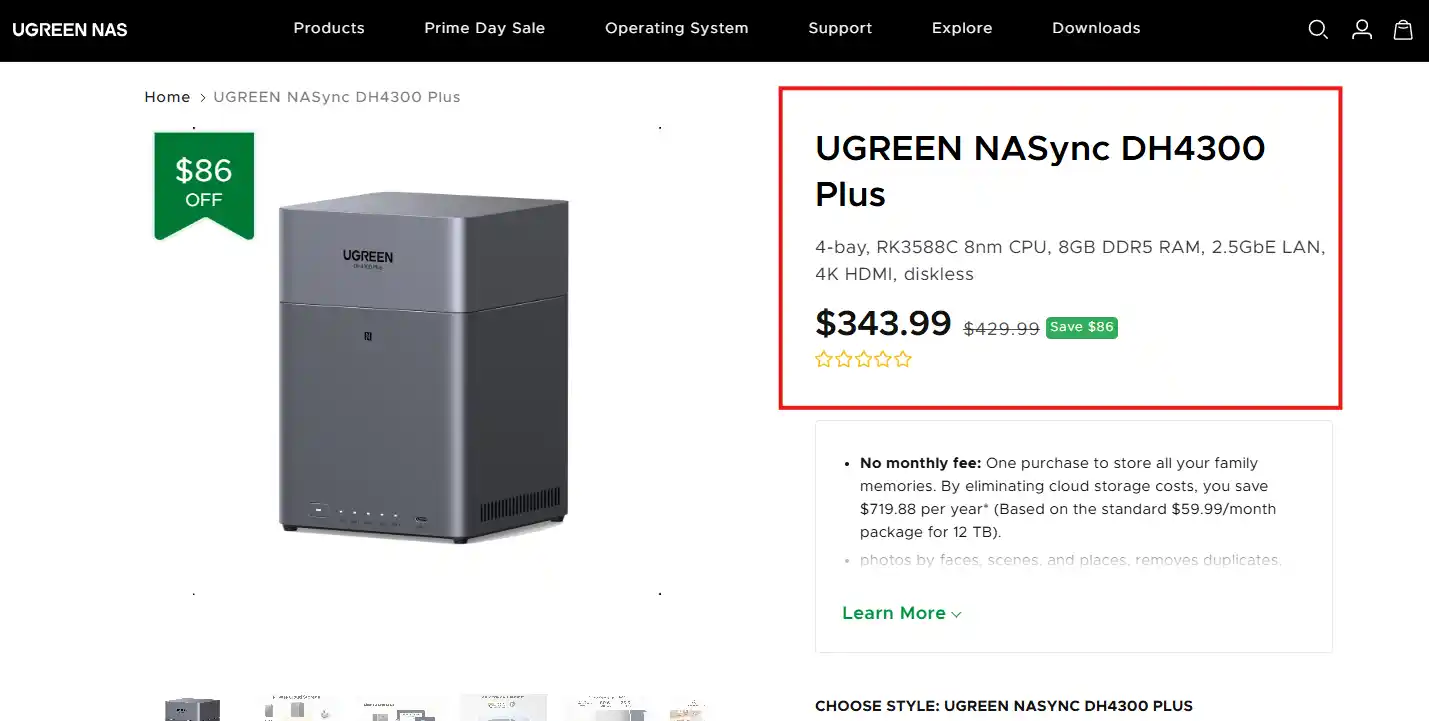
The UniFi UNAS 4 and the UGREEN DH4300 Plus are being compared because they currently occupy a very similar part of the 4-bay NAS market, with both systems targeting buyers who want a relatively affordable turnkey storage solution with 2.5GbE connectivity, modern desktop design, and a lower entry price than many traditional NAS brands. On paper, they are close enough in price to be direct alternatives, but in practice they approach NAS deployment very differently. The UniFi UNAS 4 is built around tight integration with the wider UniFi ecosystem and focuses primarily on straightforward storage, backup, and remote file access, whereas the UGREEN DH4300 Plus is designed as a broader standalone NAS platform with more memory, a more powerful ARM processor, HDMI output, and a wider range of applications and services. That makes this comparison relevant not just because of the hardware and price overlap, but because each system reflects a different idea of what an entry to mid-range 4-bay NAS should be in 2026.

UniFi vs UGREEN NAS – Brand vs Brand

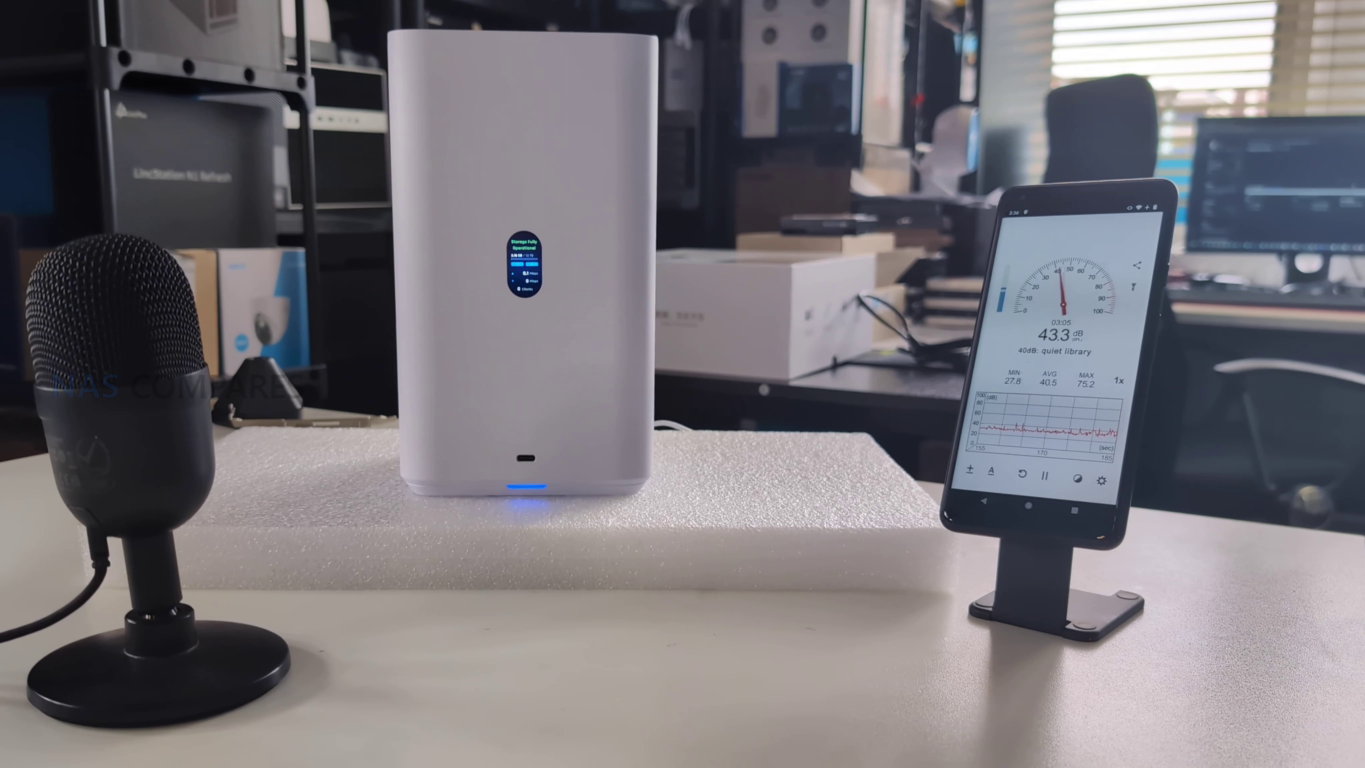
Before I dig into which of the DH4300 or UNAS 4 is best for you, it is worth highlighting again that these are two comparatively new players in the NAS scene (compared with long time multi-decade vetrans such as Synology, QNAP, Asustor and Terramaster), so let’s talk about their priorities and focus at a brand level. Both UGREEN and UniFi have entered the NAS sector from distinct starting points and continue to move in different directions, each targeting a particular type of user. UniFi’s UNAS series delivers consistency, predictable performance, and dependable integration with the broader UniFi ecosystem. Its software is stable, lightweight, and well-suited to users who prioritize straightforward storage management, reliable data handling, and unified control across routers, switches, and surveillance systems. While the hardware is limited to fixed ARM configurations and non-expandable memory, it is efficient, quiet, and designed for continuous operation with minimal maintenance. For organizations already invested in UniFi infrastructure, the UNAS systems provide a logical expansion that keeps management centralized and operational risk low. However, their value depends heavily on ecosystem synergy; outside of that environment, the systems remain competent but relatively inflexible standalone NAS options.
UGREEN’s NASync platform, on the other hand, appeals to users seeking broader performance capability and independence. Its x86-based models, upgradable memory, and open software environment allow it to serve as a hybrid between NAS and compact server, capable of running applications, containers, and virtual machines alongside storage tasks. The design language is more suited to individual or small business use than datacenter deployment, but the hardware range—from ARM to Core i5—covers a far wider performance spectrum than UniFi’s. Software maturity continues to evolve quickly, with new features added frequently, and the systems provide extensive compatibility with third-party clients and backup services. The trade-off is that long-term reliability and enterprise-level security validation are still developing.
Ultimately, UniFi NAS suits users who already rely on UniFi’s networking ecosystem and value simplicity, predictability, and centralized management, while UGREEN NAS caters to those prioritizing flexibility, compute power, and open software capability. Both brands have lowered the entry barrier into reliable NAS ownership, but they embody opposing philosophies: UniFi focuses on integration and control, whereas UGREEN emphasizes capability and independence.

Why Buy UniFi NAS?

Why Buy UGREEN NAS?

  • Ecosystem Integration: Seamlessly integrates with UniFi Network, Protect, and Access systems, allowing unified management through a single controller interface.

  • Centralized Management: Designed for administrators managing multiple UniFi sites or devices, providing consistent firmware, remote access, and monitoring from one dashboard.

  • Reliable, Efficient Design: ARM-based architecture ensures low power draw, cool operation, and stable long-term performance with minimal maintenance.

  • Enterprise-Grade Networking: Equipped with up to dual 10G SFP+ and 10GBase-T ports, plus USP-RPS redundancy for professional deployments.

  • Proven Security Framework: Benefits from Ubiquiti’s mature network security infrastructure, signed firmware updates, and NDAA-compliant hardware.

  • Superior Hardware Performance: Offers a full range from ARM to Intel Core i5 CPUs, with upgradable RAM, NVMe storage pools, and optional PCIe expansion.

  • Versatile Software (UGOS Pro): Supports Docker, virtual machines, AI photo indexing, and multi-platform backups out of the box.

  • All-in-One Standalone System: Functions independently without relying on an external ecosystem, ideal for users wanting a complete server in one unit.

  • Advanced Connectivity: Includes 2.5 GbE and 10 GbE networking, USB 4/Thunderbolt 4, and support for direct-attached workflows like video editing or large-file transfer.

  • Rapid Development and Updates: Frequent firmware releases continually add new features, broader hardware support, and improved backup and security options.

Want to support us NASCompares? Use the links/buttons below, and anything you purchase results in a small commission coming to me and Eddie @NASCompares. It really is just the two of us doing everything, and purchasing things via these links will allow you to passively support creators like us (as well as allow us to keep making videos, providing support, running the forum, making tutorials and more) at no extra cost to yourself!

 

UGREEN DH4300 vs UniFi UNAS 4 – Design and Storage

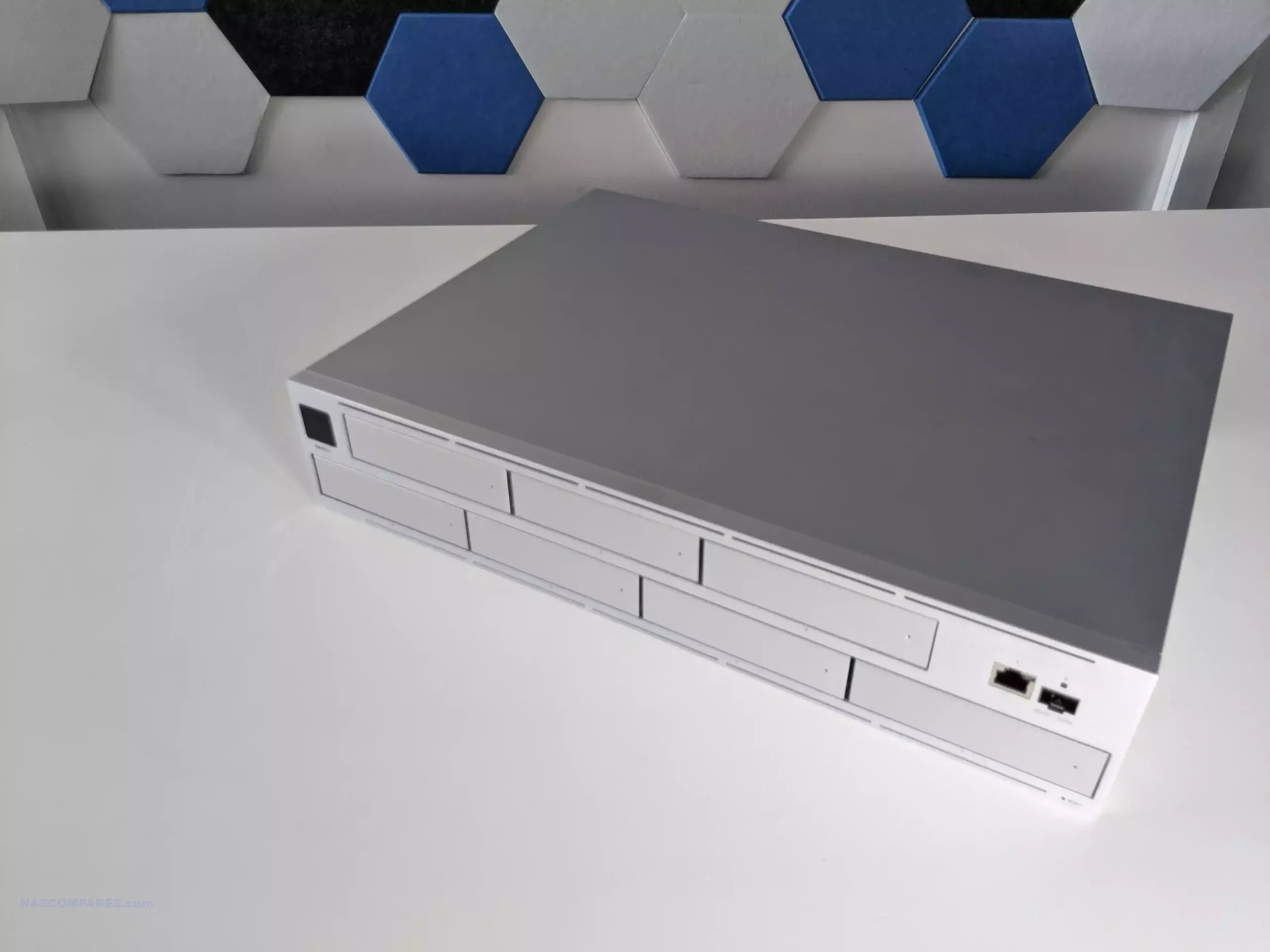
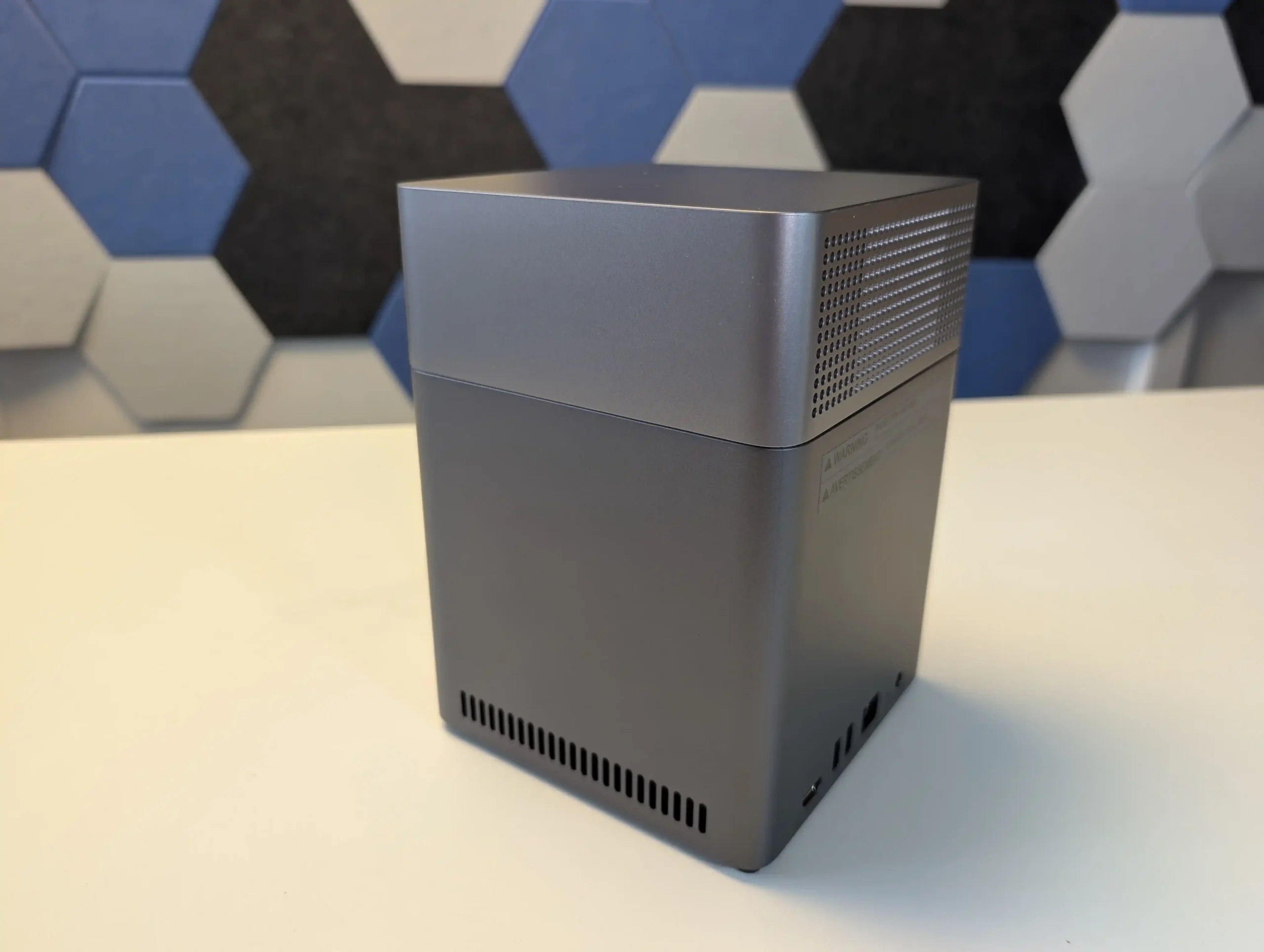
From a physical design perspective, these 2 NAS systems take very different approaches. The UniFi UNAS 4 has a taller, narrower chassis with a more vertical layout, while the UGREEN DH4300 Plus uses a more cubic desktop design that will look more familiar to buyers coming from Synology, QNAP, or Asustor hardware. The UniFi system is also available in black or white, which gives it a more deliberate visual identity within the wider UniFi product range, whereas the UGREEN keeps to a more conventional single-finish enclosure. In both cases, the chassis material is primarily plastic, so neither is especially premium in material terms, but each is clearly trying to prioritize compactness and low manufacturing cost rather than metal construction.
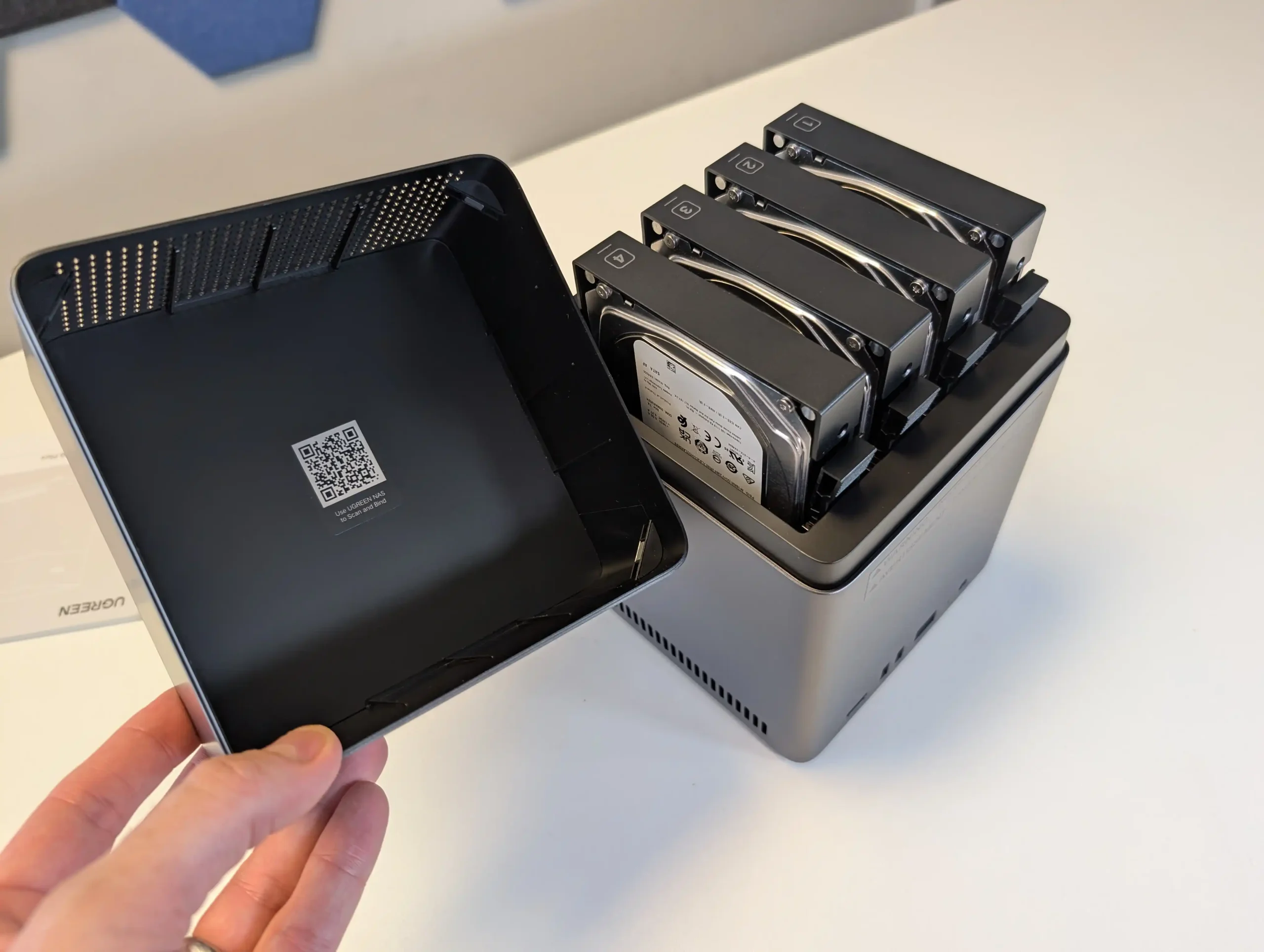
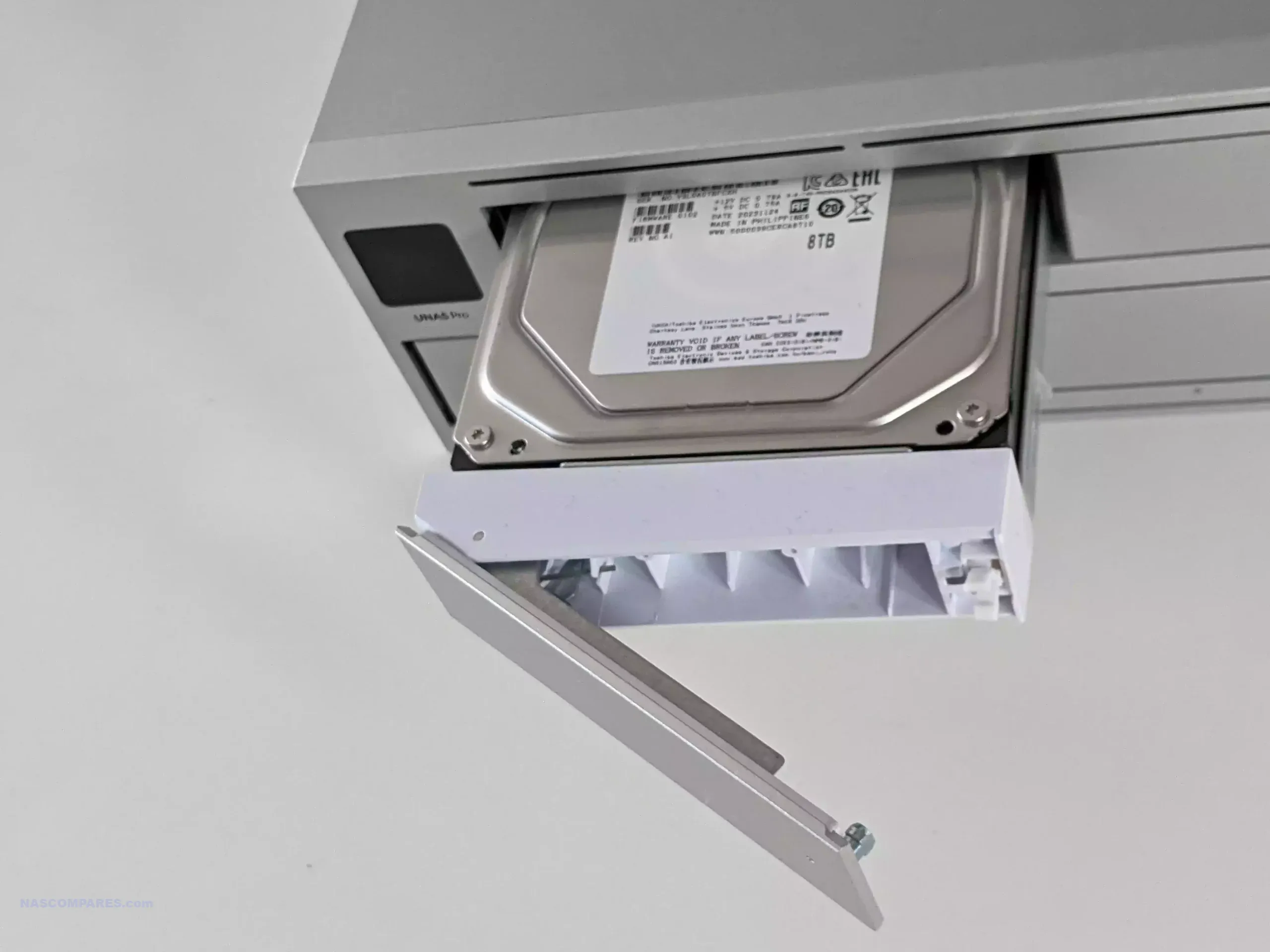
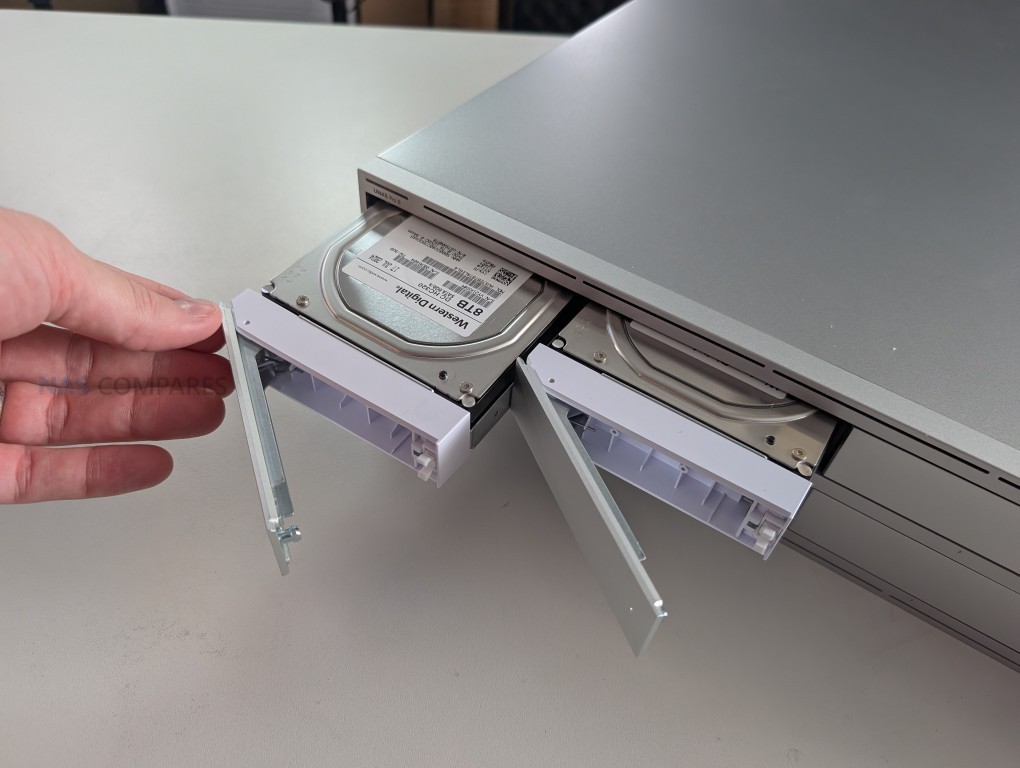
The drive arrangement is also notably different. The UniFi UNAS 4 places its 4 SATA bays in the base of the chassis, with the drives inserted from underneath, while the UGREEN DH4300 Plus uses a top-loaded vertical bay arrangement hidden under a removable outer shell. Neither system uses a particularly enterprise-focused tray design, and neither is really built around frequent hot-swap use in the same way as more expensive rackmount or prosumer NAS systems. That said, the UniFi trays are easier to describe as straightforward click-in drive carriers, while the UGREEN trays feel more budget-oriented in construction and do not leave the same impression of robustness as more established NAS brands.
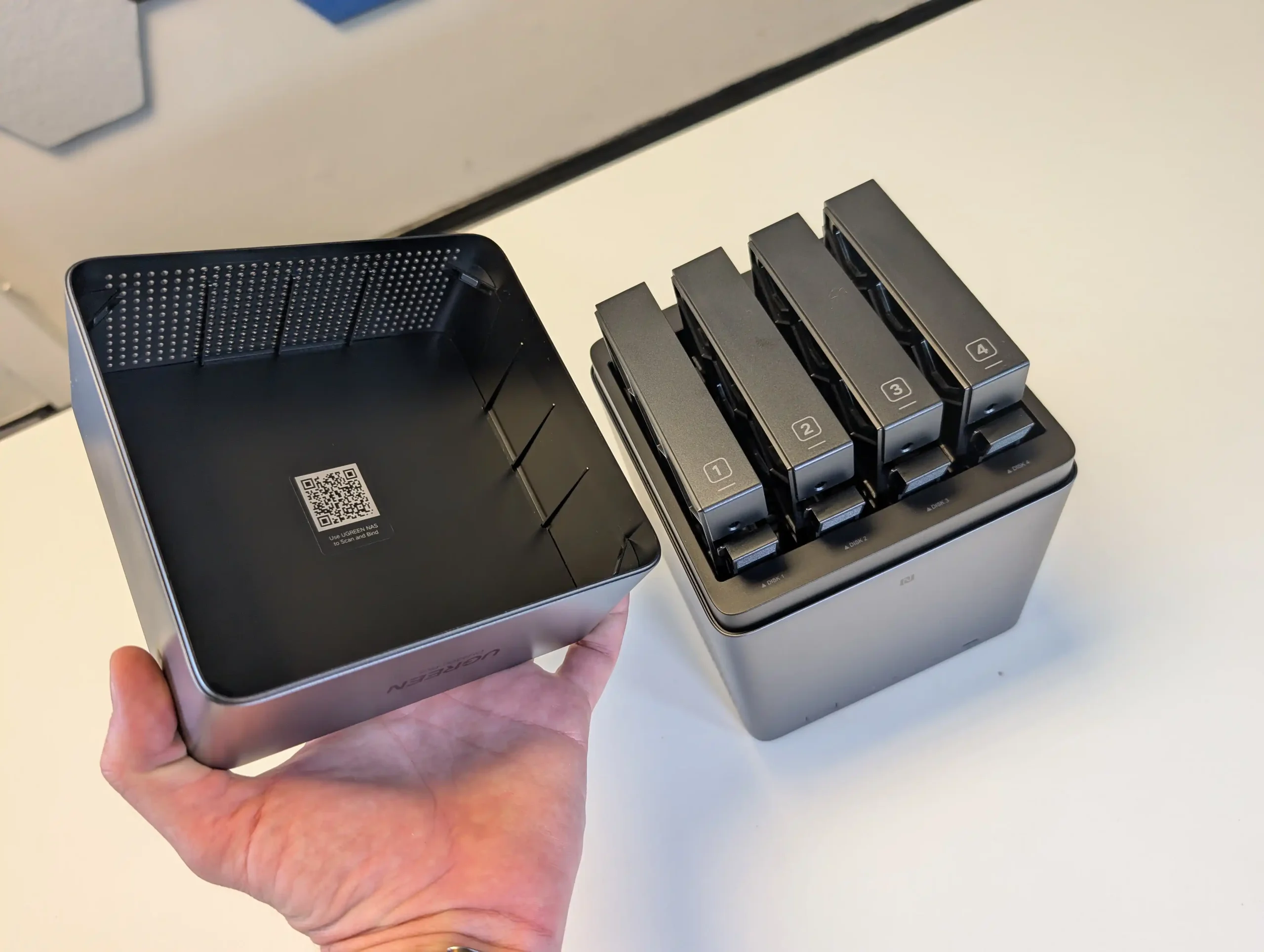
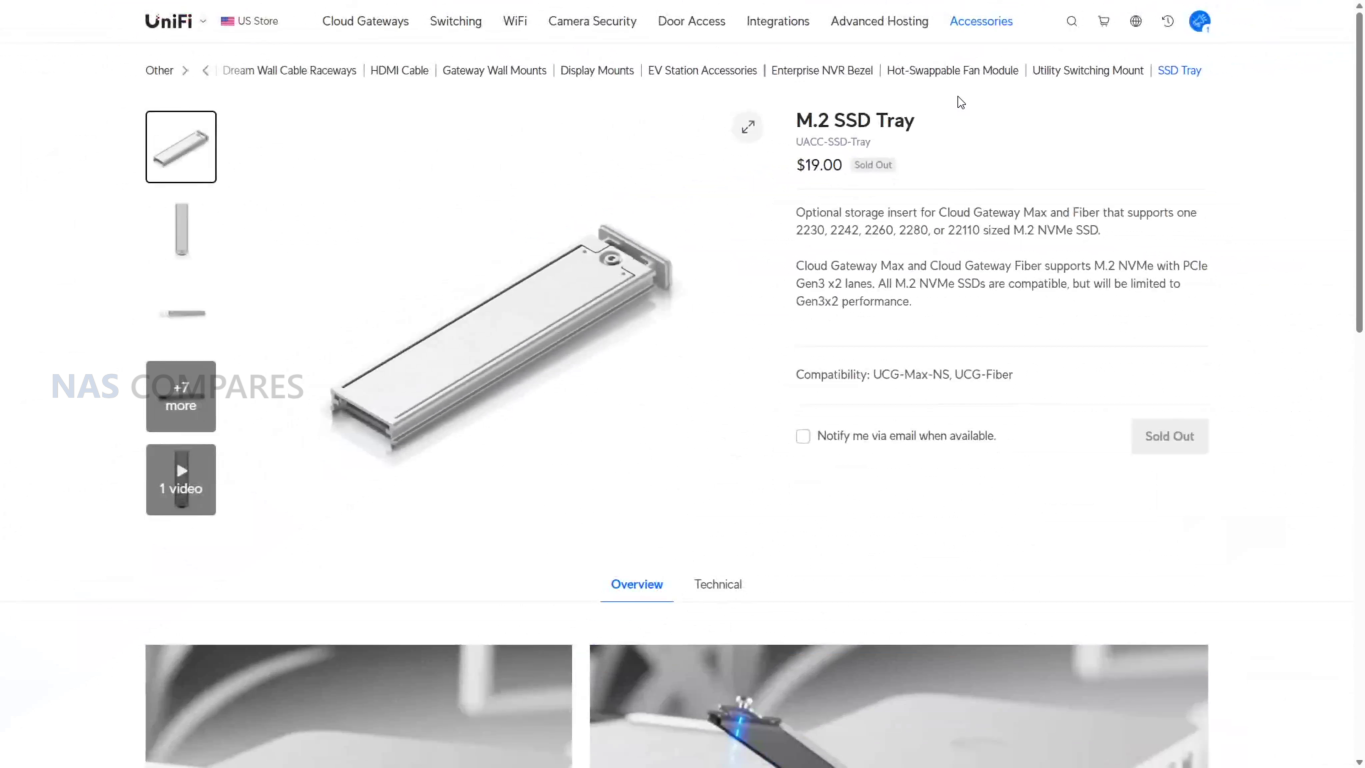
In storage flexibility, the UniFi has the more ambitious configuration. Alongside its 4 SATA bays, it also includes 2 dedicated M.2 NVMe slots for SSD cache. That gives it an advantage in hybrid storage architecture, since the hard drives can be used for capacity while the NVMe media handles read and write cache duties. The UGREEN DH4300 Plus does not include M.2 storage slots, so any SSD deployment has to consume one or more of the main SATA bays, which reduces total storage capacity. At the same time, UniFi currently limits those NVMe bays to cache use rather than general storage pools, so the practical advantage is still narrower than the raw hardware layout suggests.

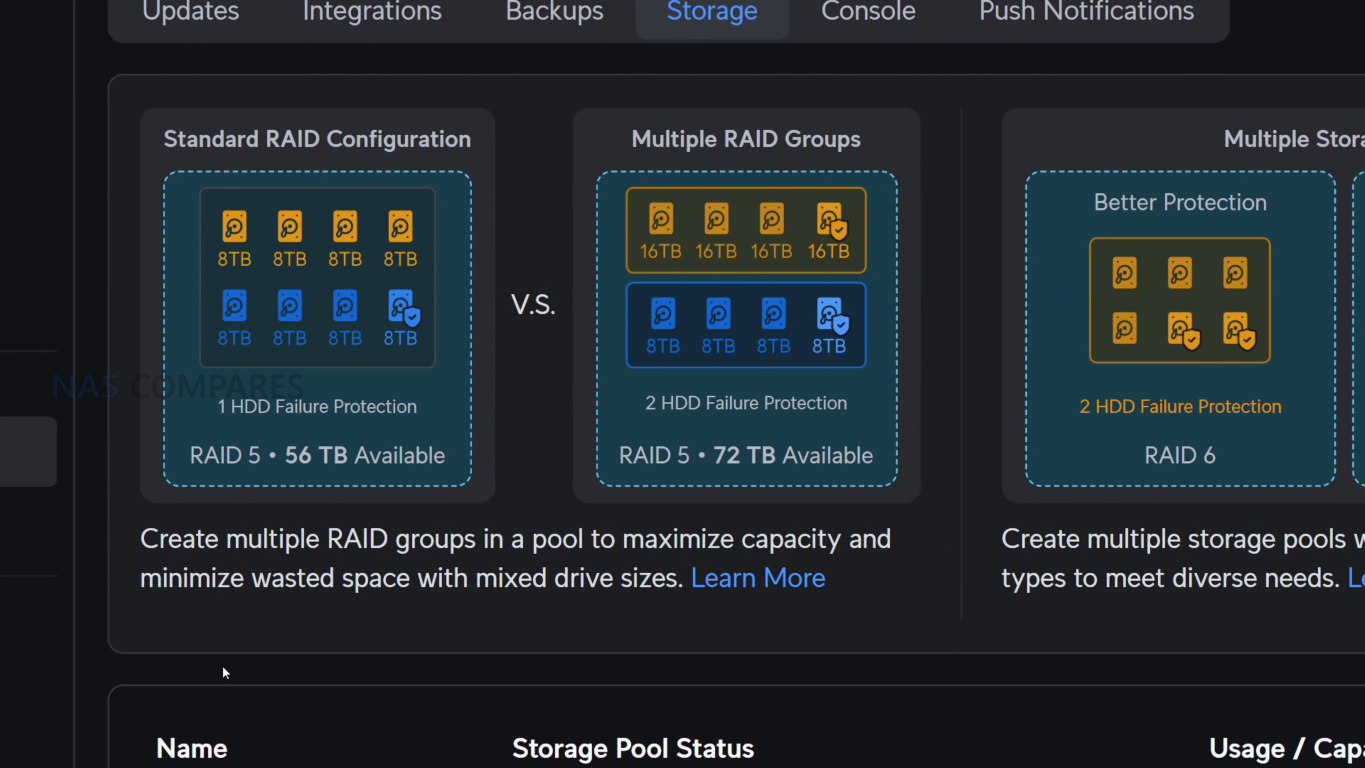
The 2 brands also differ in RAID and storage management philosophy. The UGREEN supports a broader list of RAID modes, including JBOD, Basic, RAID 0, RAID 1, RAID 5, RAID 6, and RAID 10, which gives it more deployment flexibility for different user priorities around performance, redundancy, or simple linear storage. The UniFi platform supports RAID 5, RAID 6, and RAID 10, but its overall storage structure is more controlled and less flexible, with a stronger focus on a simplified single storage pool approach. For buyers who want fewer decisions and a cleaner setup process, that may be acceptable, but for users who want more granular control over how storage is arranged, the UGREEN is less restrictive.
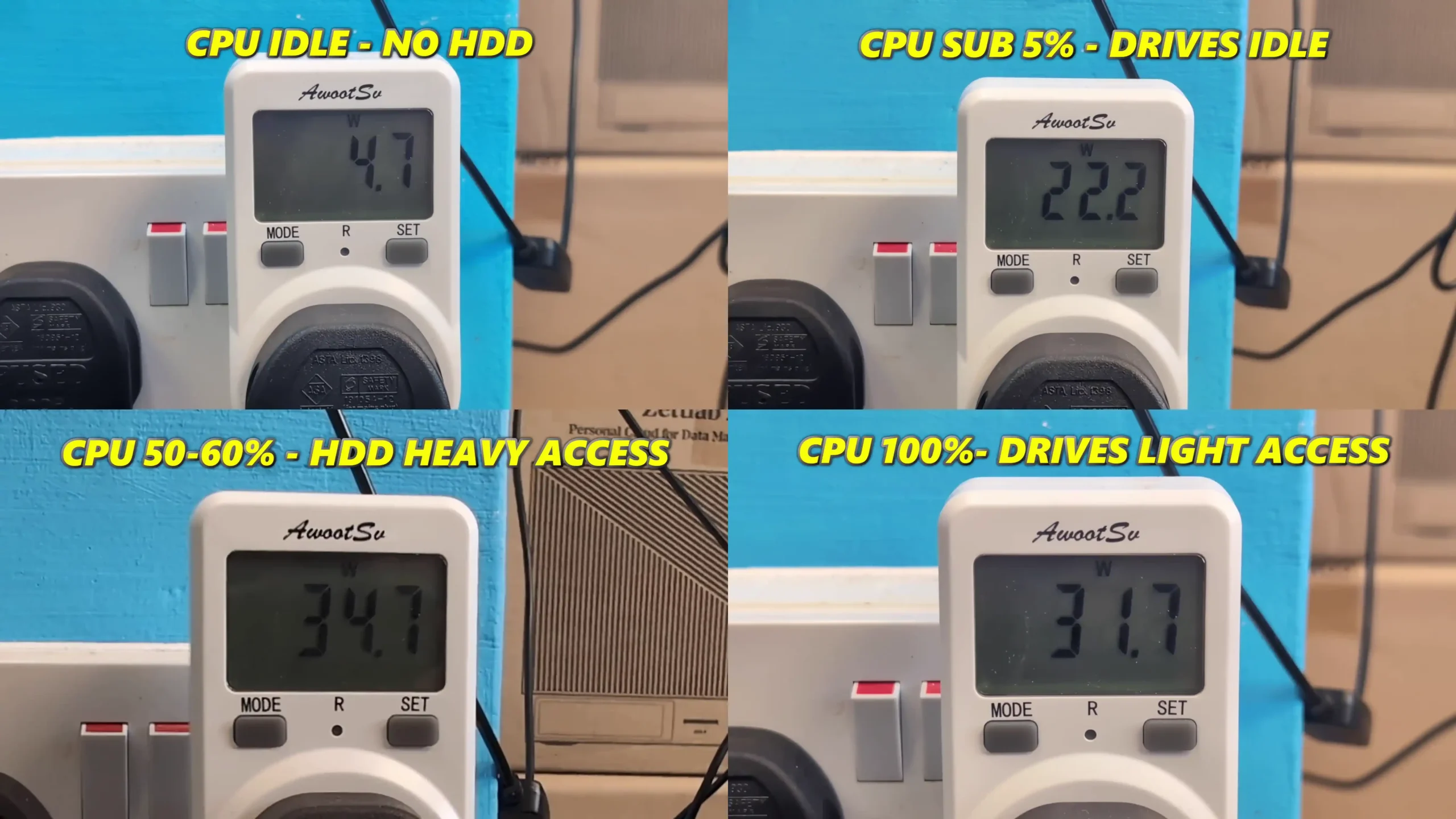
In pure storage potential, the UGREEN is also easier to quantify because it officially supports up to 128TB across 4 bays using 32TB drives, whereas UniFi focuses more on supported drive compatibility and cache pairing than on headline raw capacity figures. The UniFi does have the practical advantage of SSD caching built in, which can improve responsiveness in repeated access and write-heavy workloads, but the UGREEN has the simpler storage proposition overall and does not tie part of its internal design to optional accessories such as UniFi’s separate M.2 tray approach. As a result, the UniFi has the more distinctive and technically layered storage design, while the UGREEN has the more conventional and broadly flexible one.

UniFi UNAS4 vs UGREEN DH 4300 – Internal Hardware & Connections

Internally, the UGREEN DH4300 Plus has the stronger hardware specification. It uses an 8-core Rockchip ARM processor based on Cortex-A76 and Cortex-A55 cores running at up to 2.0GHz, alongside 8GB of LPDDR4X memory and 32GB of eMMC for the system. By comparison, the UniFi UNAS 4 uses a quad-core ARM Cortex-A55 processor at 1.7GHz with 4GB of memory. Both systems are clearly built around low-power ARM architecture rather than x86 processing, but the UGREEN has the more capable platform on paper and offers more headroom for multitasking, background services, and broader software functionality.
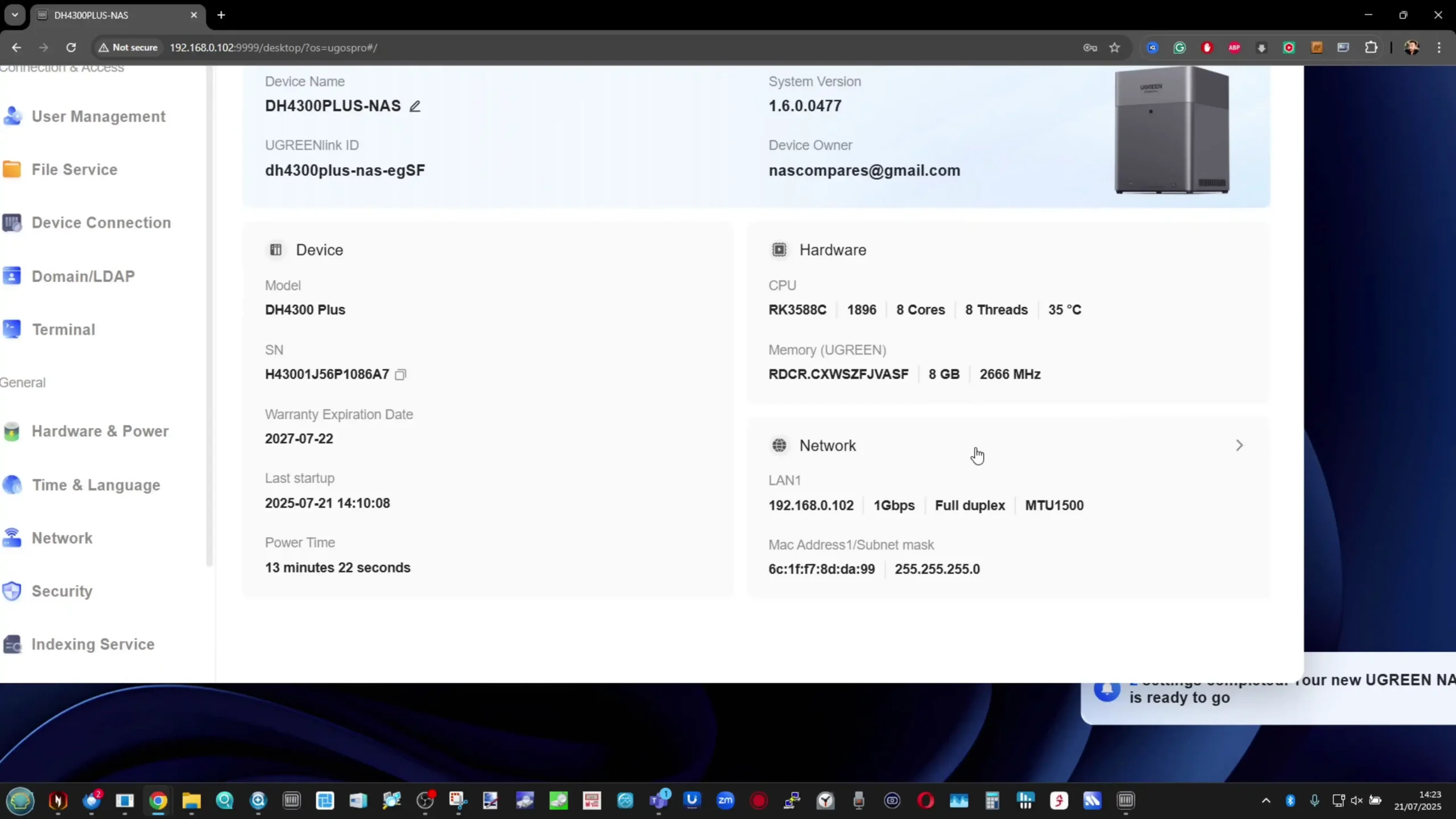
The UniFi system does, however, counter with a more unusual internal layout. In addition to its 4 SATA bays, it includes 2 M.2 NVMe slots dedicated to SSD cache, which gives it a storage acceleration feature that the UGREEN does not match natively. For users dealing with repeated file access, background synchronization, or burst-heavy write activity, that cache support has practical value. The UGREEN relies entirely on its 4 SATA bays for storage media, so although its CPU and memory are stronger, its internal storage architecture is less advanced in terms of tiered storage.
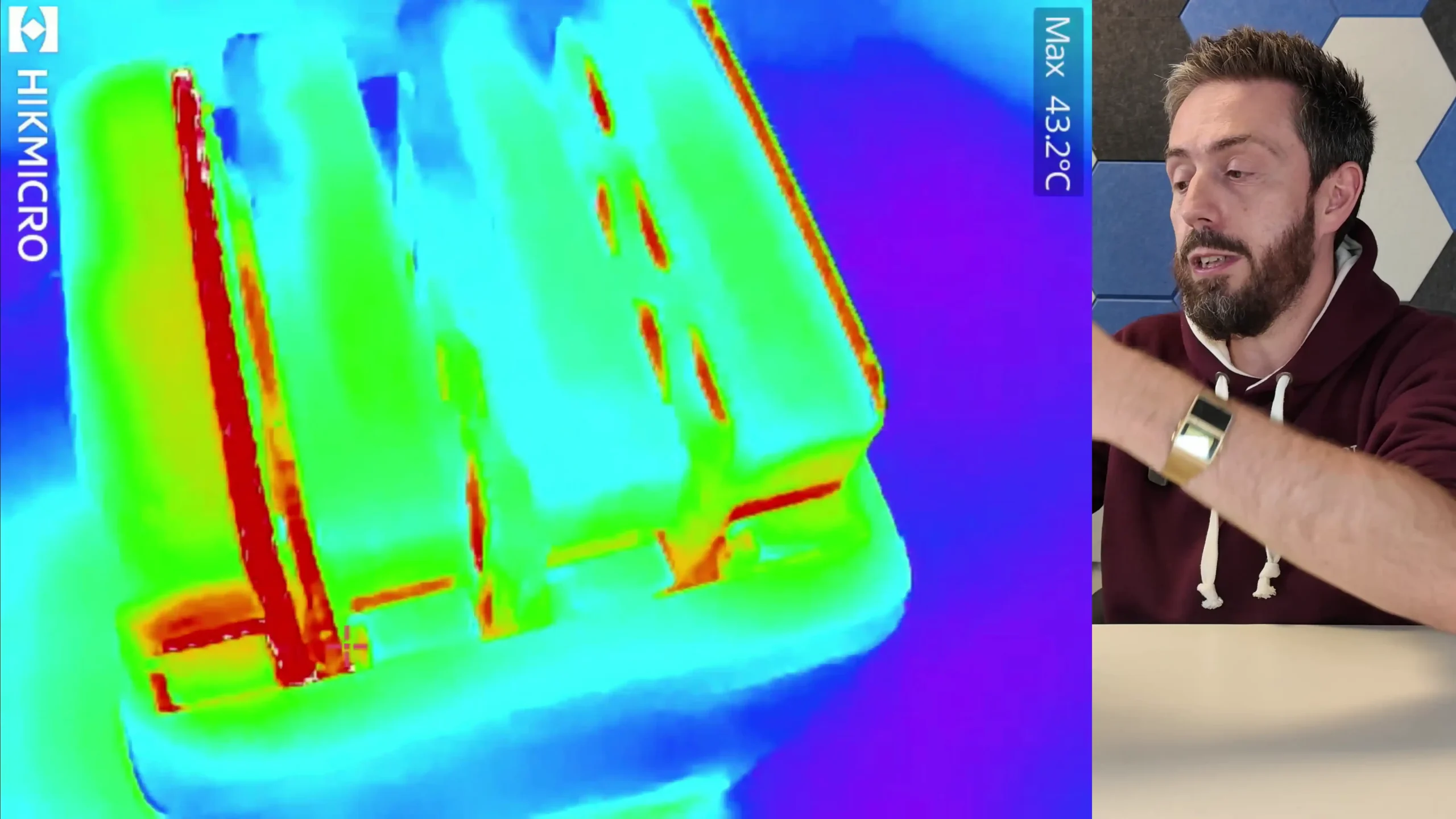
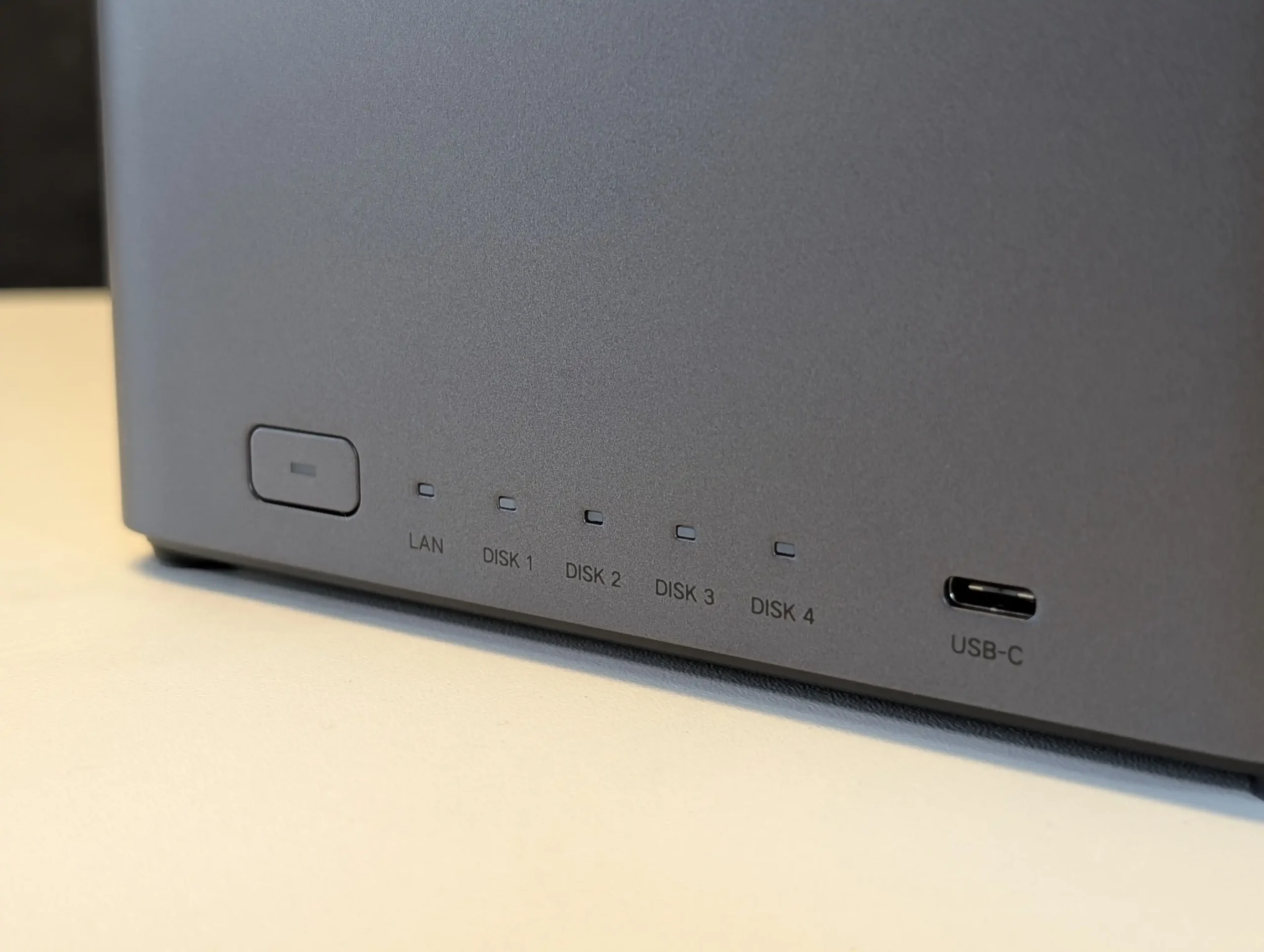
External connectivity is broader on the UGREEN. It includes 1x 2.5GbE LAN port, HDMI output at up to 4K 60Hz, 1x front USB 3.2 Gen 1 port at 5Gb/s, and 2 additional USB-A 5Gb/s ports. The UniFi UNAS 4 is much more limited, offering 1x 2.5GbE RJ45 port and 1x 5Gb/s USB-C port. This narrower I/O profile reflects the fact that UniFi has positioned the UNAS 4 as a focused network storage appliance rather than a multi-role NAS for media output, peripheral attachment, or application expansion. In direct hardware terms, the UGREEN is better equipped for users who expect more than basic file serving.

Power and deployment also separate these 2 systems. The UniFi UNAS 4 supports PoE+++ and includes a 90W PoE adapter, which allows both power and network connectivity over a single cable in supported environments. That is unusual in this part of the NAS market and makes it particularly relevant for users already invested in UniFi switching infrastructure or those deploying hardware in locations where simplified cabling matters. The UGREEN uses a more conventional external power arrangement, which is less distinctive but also less dependent on network infrastructure choices. Therefore, the UGREEN has the stronger internal compute hardware and broader physical connectivity, while the UniFi has the more specialized deployment advantage.
UGREEN DH4300 vs UniFi UNAS 4 – Software & Services

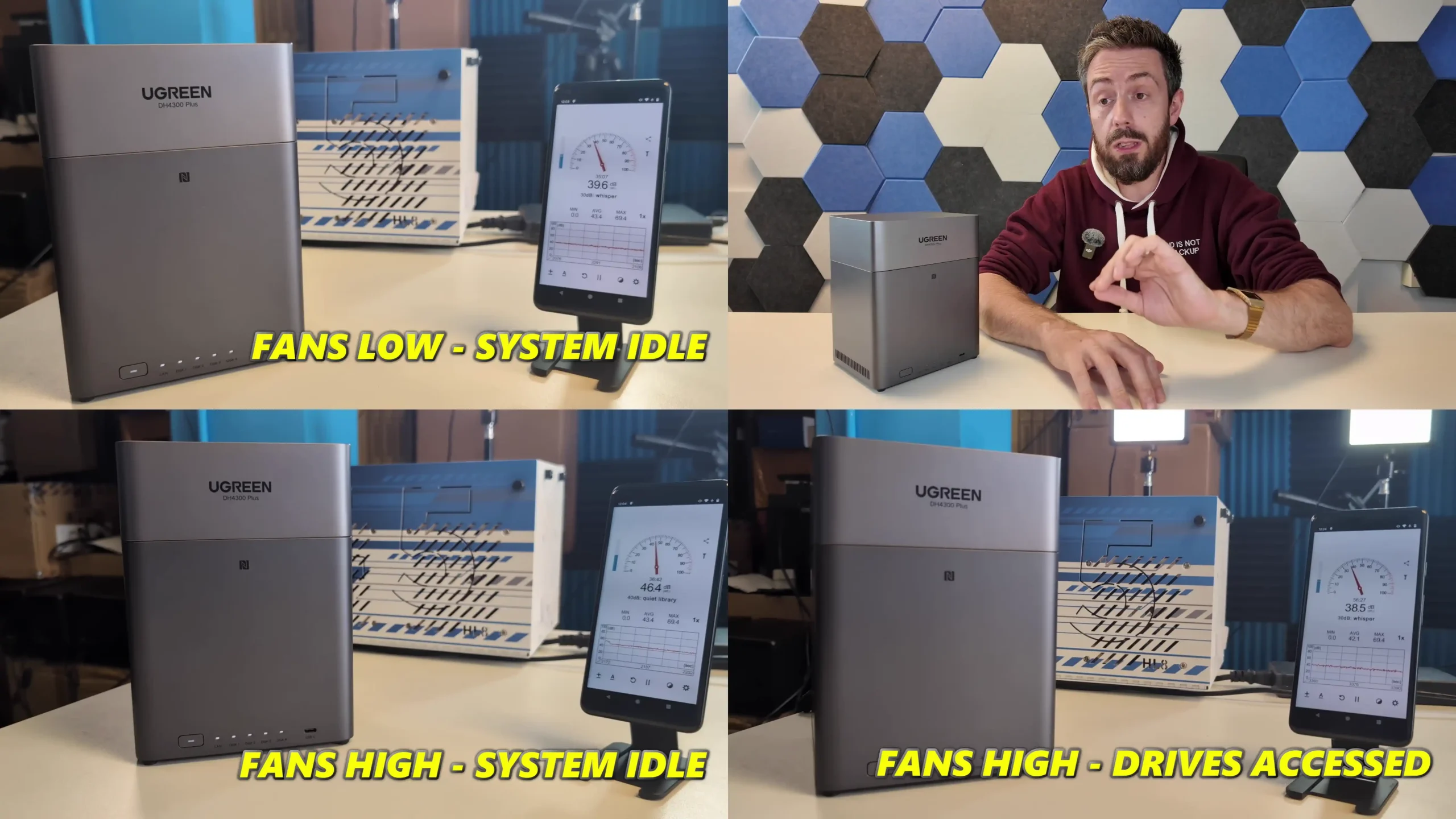
The biggest difference between these 2 NAS systems is not the chassis or the processor, but the software scope. The UniFi UNAS 4 runs UniFi Drive and is clearly built around a narrower storage-first brief, with support for SMB, NFS, snapshots, file encryption, Time Machine, share links, user groups, remote backup, cloud backup targets, and client apps. It covers the main NAS fundamentals expected by home users and small offices, but it does so within a more controlled environment that places simplicity and consistency ahead of feature breadth. The UGREEN DH4300 Plus, running UGOS Pro, aims much wider and includes not only file serving and backup tools, but also multimedia applications, container support, HDMI-based media playback, AI-assisted photo features, and broader service depth overall.
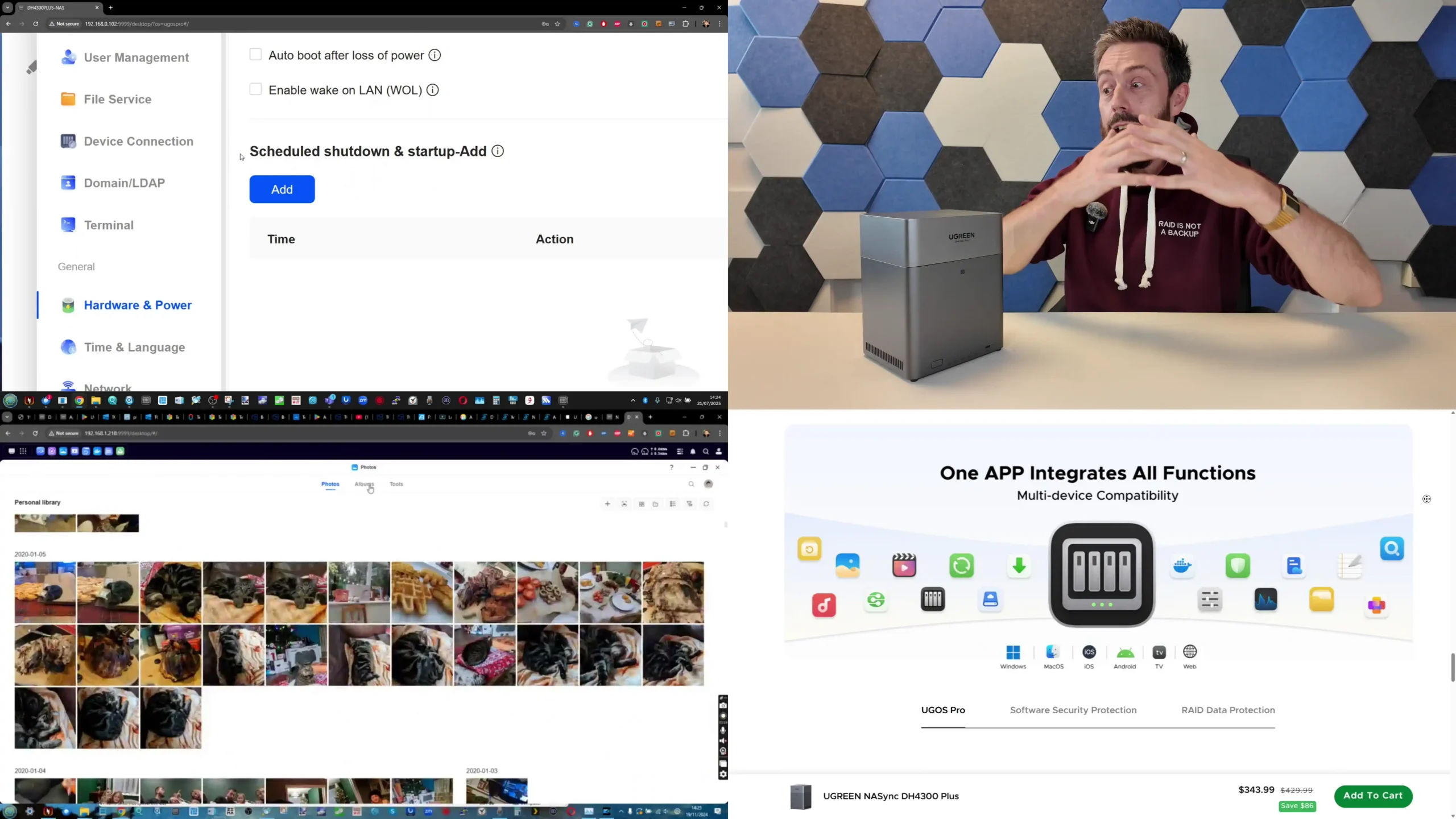
For pure storage management, UniFi Drive is cleaner and more focused, particularly for users who want the NAS to act primarily as private cloud storage, backup target, and centralized file repository. Its interface is built to align with the broader UniFi platform, and that gives it an advantage for users already running UniFi networking equipment and remote management tools. However, that same focus also means the UNAS 4 is less flexible as a general-purpose NAS. The UGREEN platform does not have the same ecosystem tie-in, but it operates more independently and gives the user more scope to use the system for different workloads beyond file storage.
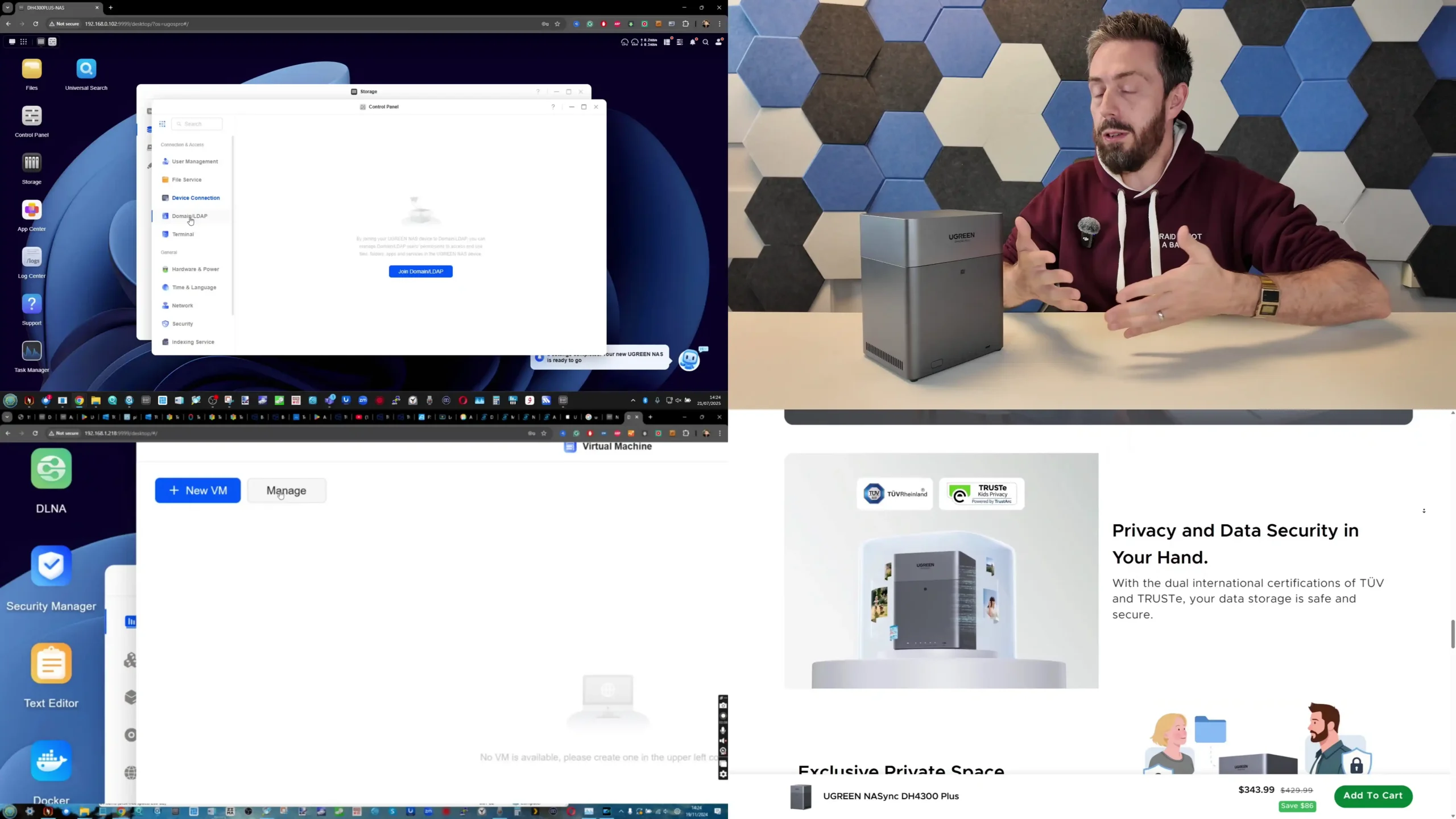
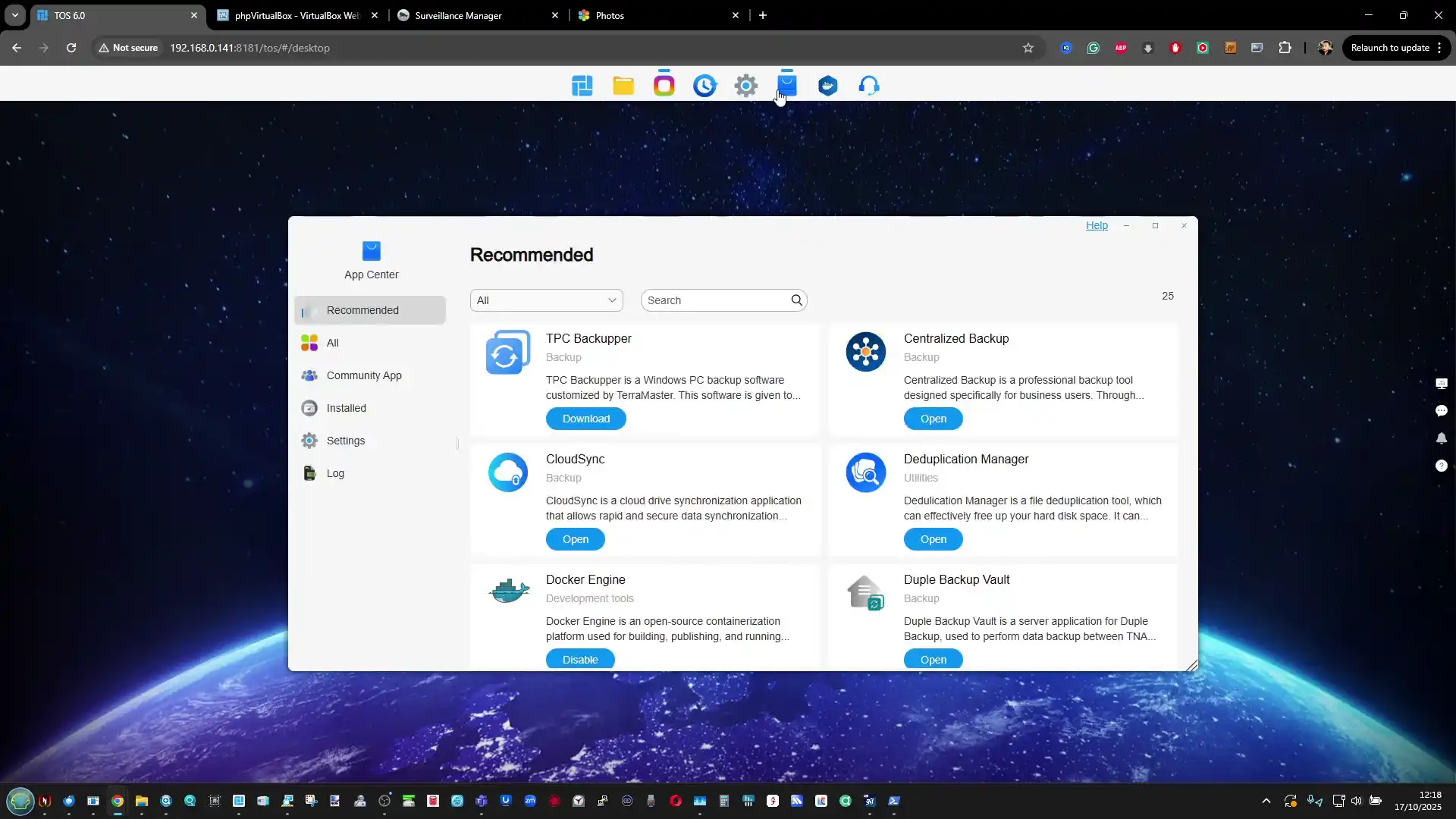
Application support is where the gap becomes more obvious. The UGREEN DH4300 Plus supports Docker and has a noticeably broader service layer for media, backup, and user applications. That creates options for running third-party software, home media tools, and more customized services that simply are not part of the UniFi approach. The UniFi UNAS 4 does not currently try to compete in that area and instead presents itself as a dedicated NAS platform rather than an application host. For some users that will be a limitation, while for others it will be a benefit, because it reduces complexity and keeps the system centered on storage tasks rather than mixed workload experimentation.
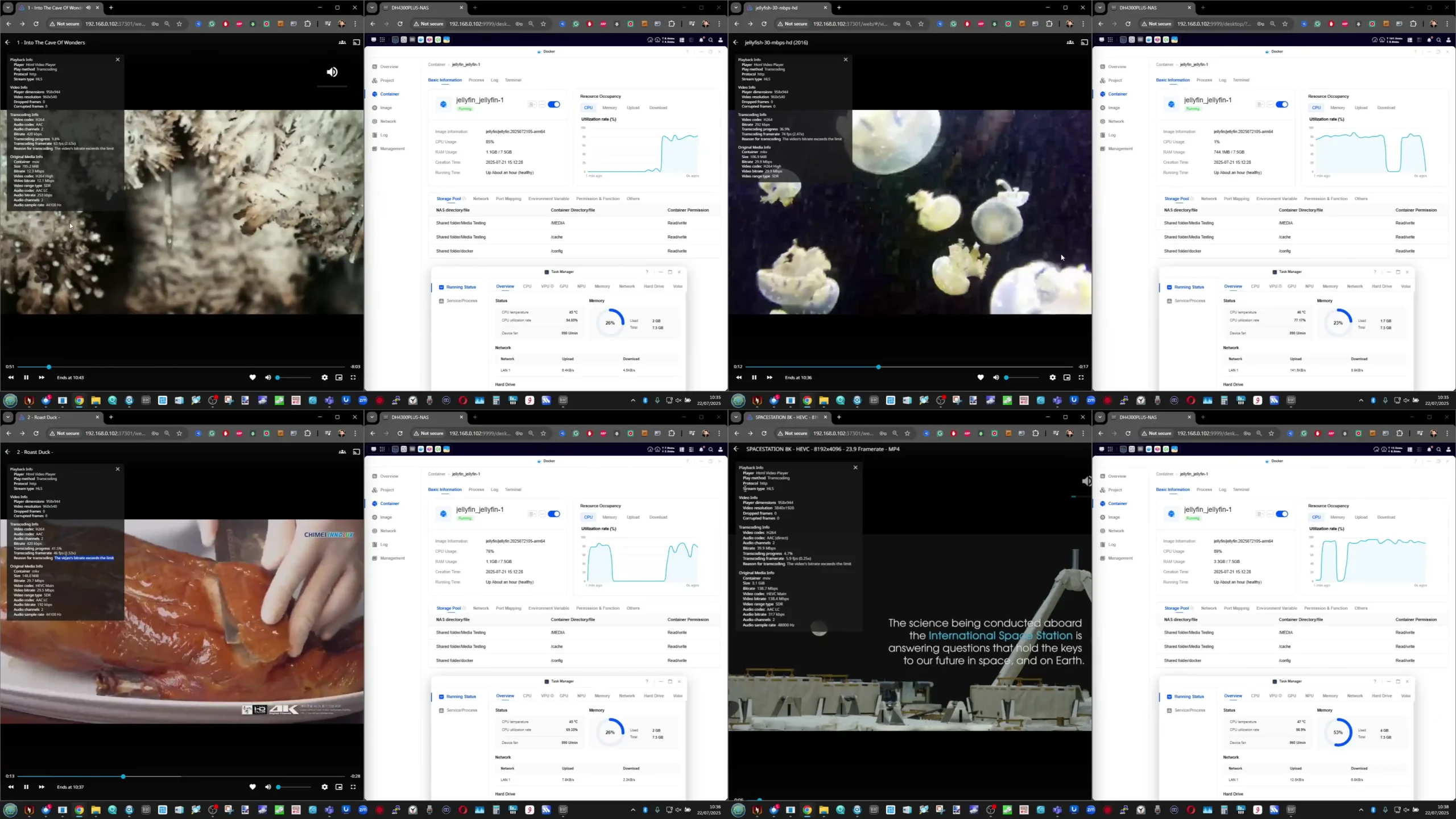
In practical terms, the software decision comes down to whether the buyer values depth or focus. The UGREEN DH4300 Plus offers the broader NAS software experience and is better suited to users who want more features, more applications, and more ways to extend the system over time. The UniFi UNAS 4 offers the more controlled and storage-specific platform, with the clearest advantage appearing when it is deployed inside an existing UniFi environment. As a result, the UGREEN software stack is more versatile, while the UniFi software stack is more specialized.
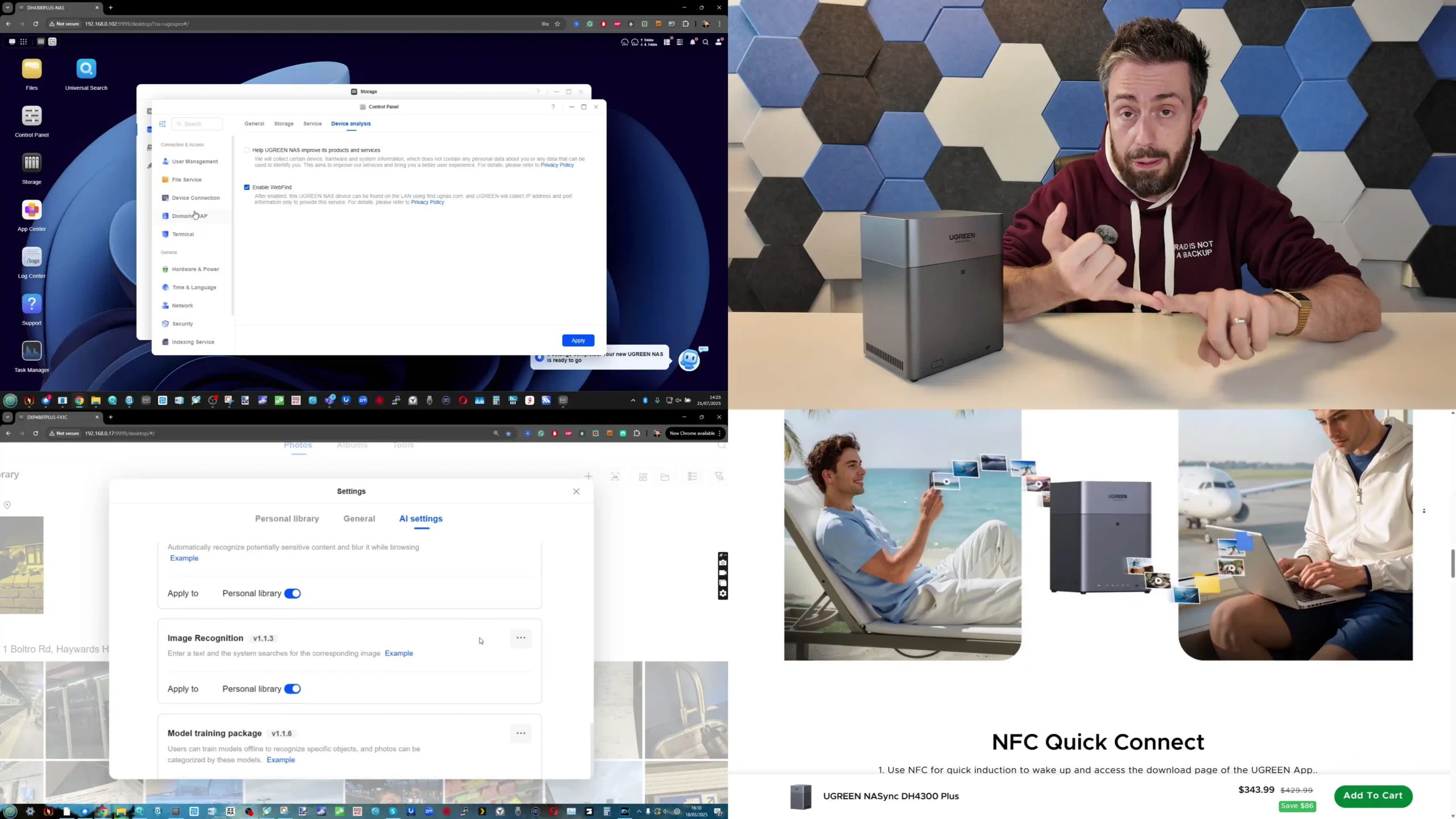
UniFi UNAS 4 vs UGREEN DH4300 NAS – Conclusion & Verdict

Taken as a whole, these 2 systems are aimed at a similar buyer in price terms, but they are not trying to solve the same problem in the same way. The UniFi UNAS 4 is a more specialized NAS that focuses on storage, backup, remote access, and integration within the UniFi ecosystem. The UGREEN DH4300 Plus is a broader standalone NAS that gives the user more hardware resources, more software flexibility, and a wider overall role in the network. That difference matters more than the relatively small gap in price, because in day to day use they will appeal to different priorities. The UniFi UNAS 4 makes more sense for buyers who already use UniFi switches, gateways, and management tools, or for those who specifically want a NAS that stays focused on file storage instead of trying to become a media server or container host. Its built in NVMe cache support and PoE+++ deployment give it some useful differentiators, and its simpler software scope will suit users who want a more controlled experience. However, outside of the UniFi ecosystem, some of its strengths become less important, while its limitations in application support, connectivity, and hardware power become harder to ignore.
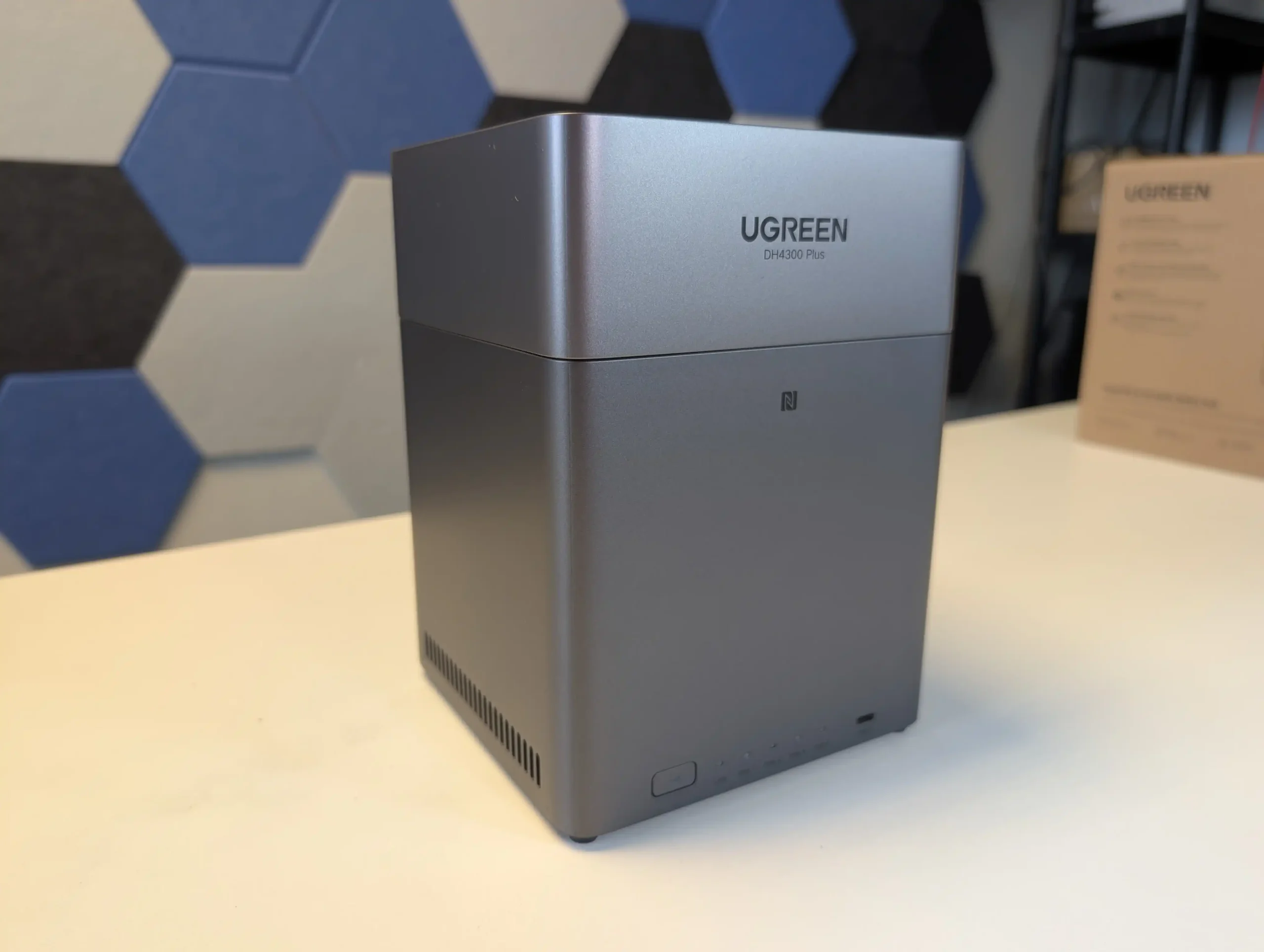
The UGREEN DH4300 Plus is the better fit for users who want a more traditional all-round NAS. It has the stronger CPU, more memory, broader external connectivity, more RAID options, HDMI output, Docker support, and a software platform with more room to scale into multimedia, backup variety, and third party services. It is the more capable choice for mixed home and small business use, particularly for buyers who are not tied to any specific network brand and want their NAS to handle more than just centralized storage. It is also the easier system to recommend to users comparing it against other established 4-bay NAS platforms in the same price bracket. So, in direct usage terms, the UniFi UNAS 4 is better for UniFi-centric deployments, cleaner storage-first use, and buyers who value NVMe caching and PoE-based installation. The UGREEN DH4300 Plus is better for users who want stronger hardware, more software features, better connectivity, and a wider long term usage profile. If the question is which is the better pure value NAS for the largest number of users, the UGREEN DH4300 Plus is the stronger overall option. If the question is which fits better into a UniFi-led network and a simpler storage-focused role, the UniFi UNAS 4 is the more appropriate choice.
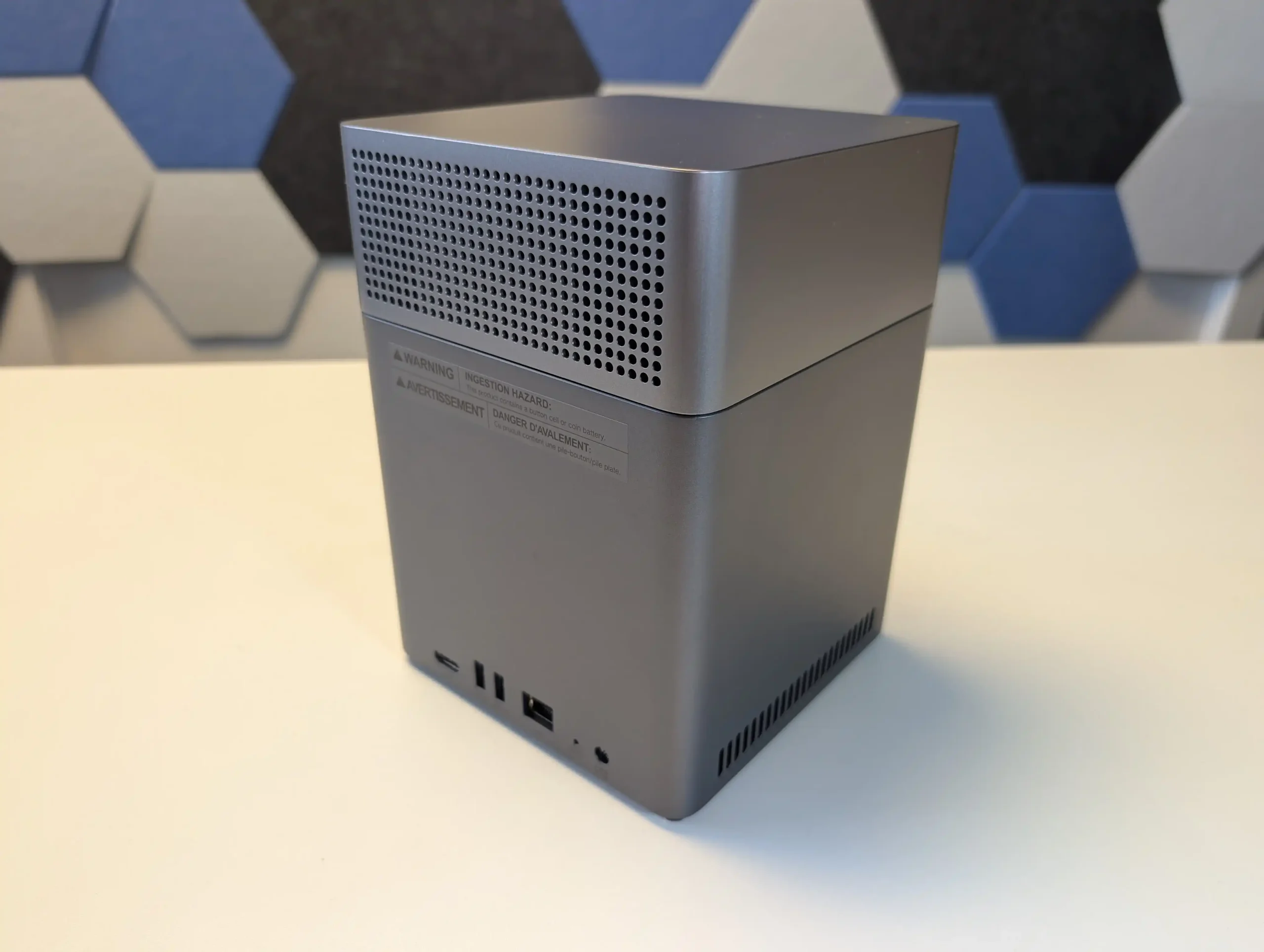
Buy the UGREEN DH4300 on Amazon @399 Buy the UniFi UNAS 4 on The UniFi Store for $379


📧 SUBSCRIBE TO OUR NEWSLETTER 🔔
[contact-form-7]
🔒 Join Inner Circle

Get an alert every time something gets added to this specific article!


Want to follow specific category? 📧 Subscribe

This description contains links to Amazon. These links will take you to some of the products mentioned in today's content. As an Amazon Associate, I earn from qualifying purchases. Visit the NASCompares Deal Finder to find the best place to buy this device in your region, based on Service, Support and Reputation - Just Search for your NAS Drive in the Box Below

Need Advice on Data Storage from an Expert?

Finally, for free advice about your setup, just leave a message in the comments below here at NASCompares.com and we will get back to you. Need Help? Where possible (and where appropriate) please provide as much information about your requirements, as then I can arrange the best answer and solution to your needs. Do not worry about your e-mail address being required, it will NOT be used in a mailing list and will NOT be used in any way other than to respond to your enquiry. [contact-form-7] TRY CHAT Terms and Conditions

If you like this service, please consider supporting us. We use affiliate links on the blog allowing NAScompares information and advice service to be free of charge to you.Anything you purchase on the day you click on our links will generate a small commission which isused to run the website. Here is a link for Amazon and B&H.You can also get me a ☕ Ko-fi or old school Paypal. Thanks!To find out more about how to support this advice service check HEREIf you need to fix or configure a NAS, check Fiver Have you thought about helping others with your knowledge? Find Instructions Here  

 
Or support us by using our affiliate links on Amazon UK and Amazon US
    
 
Alternatively, why not ask me on the ASK NASCompares forum, by clicking the button below. This is a community hub that serves as a place that I can answer your question, chew the fat, share new release information and even get corrections posted. I will always get around to answering ALL queries, but as a one-man operation, I cannot promise speed! So by sharing your query in the ASK NASCompares section below, you can get a better range of solutions and suggestions, alongside my own.

☕ WE LOVE COFFEE ☕


Il fabrique une enceinte avec uniquement un laser et une feuille d'or

Et bien pourquoi pas ? Ce garçon a en effet réussi à produire de la musique, simplement en pointant un laser de 5 watts sur une feuille d'or. Pas de membrane, pas de bobine, pas d'aimant : le son est généré directement par l'air, chauffé et refroidi à grande vitesse par le faisceau lumineux.

Cet concept a un nom, c'est l'effet photoaoustique, et il a été découvert en 1880 par Alexander Graham Bell, l'inventeur de la cloche (non ça c'est une vanne, pardon).

Un effet vieux de 145 ans

L'effet photoacoustique a été découvert par Alexander Graham Bell en 1880 en observant que des objets éclairés par la lumière du soleil pouvaient émettre des sons. Quand une lumière intense frappe un matériau, elle le chauffe.

Ce matériau transfère sa chaleur à l'air environnant, qui se dilate. Si la source lumineuse est modulée rapidement, les cycles d'expansion et de contraction de l'air produisent des ondes sonores. Pas besoin de membrane ni de bobine. Juste de la lumière et de l'air.

De la feuille d'or au casque imprimé en 3D

Le maker SomethingAboutScience a testé plusieurs approches. Un laser de 5 watts dirigé sur une feuille d'or a produit de la musique reconnaissable, la feuille d'or absorbant bien la lumière bleue et étant assez fine pour transférer rapidement la chaleur à l'air.

Le même laser dirigé dans du dioxyde d'azote a donné un son plus propre. Il a même fabriqué un prototype d'écouteur imprimé en 3D, avec la feuille d'or tapissant l'intérieur de la cavité et la lumière acheminée par fibre optique.

Bon par contre, c'est peut-être un peu moyen de coller un laser de 5 watts à son tympan, je dis ça je dis rien.

Des pistes concrètes

L'application la plus directe concerne les casques audio pour IRM. Les écouteurs classiques à fils et aimants fonctionnent mal dans l'environnement magnétique d'un scanner, et la qualité sonore est souvent catastrophique.

Un système photoacoustique réglerait ce problème en supprimant tout composant métallique. Des chercheurs du MIT ont aussi montré qu'on pouvait envoyer un message audio à une personne située à 2,5 mètres en utilisant un laser et la vapeur d'eau présente dans l'air, à un volume de 60 décibels.

On parle d'une technologie découverte il y a 145 ans et qui reste au stade de la bidouille. Mais produire du son sans aucune pièce mécanique, juste avec de la lumière, ça a quand même de la gueule.

Source : Hackaday

Gl.iNet Beryl 7 vs Slate 7 Travel Router Comparison

Gl.iNet Slate 7 vs Beryl 7 Travel Router – Which Should You Buy?

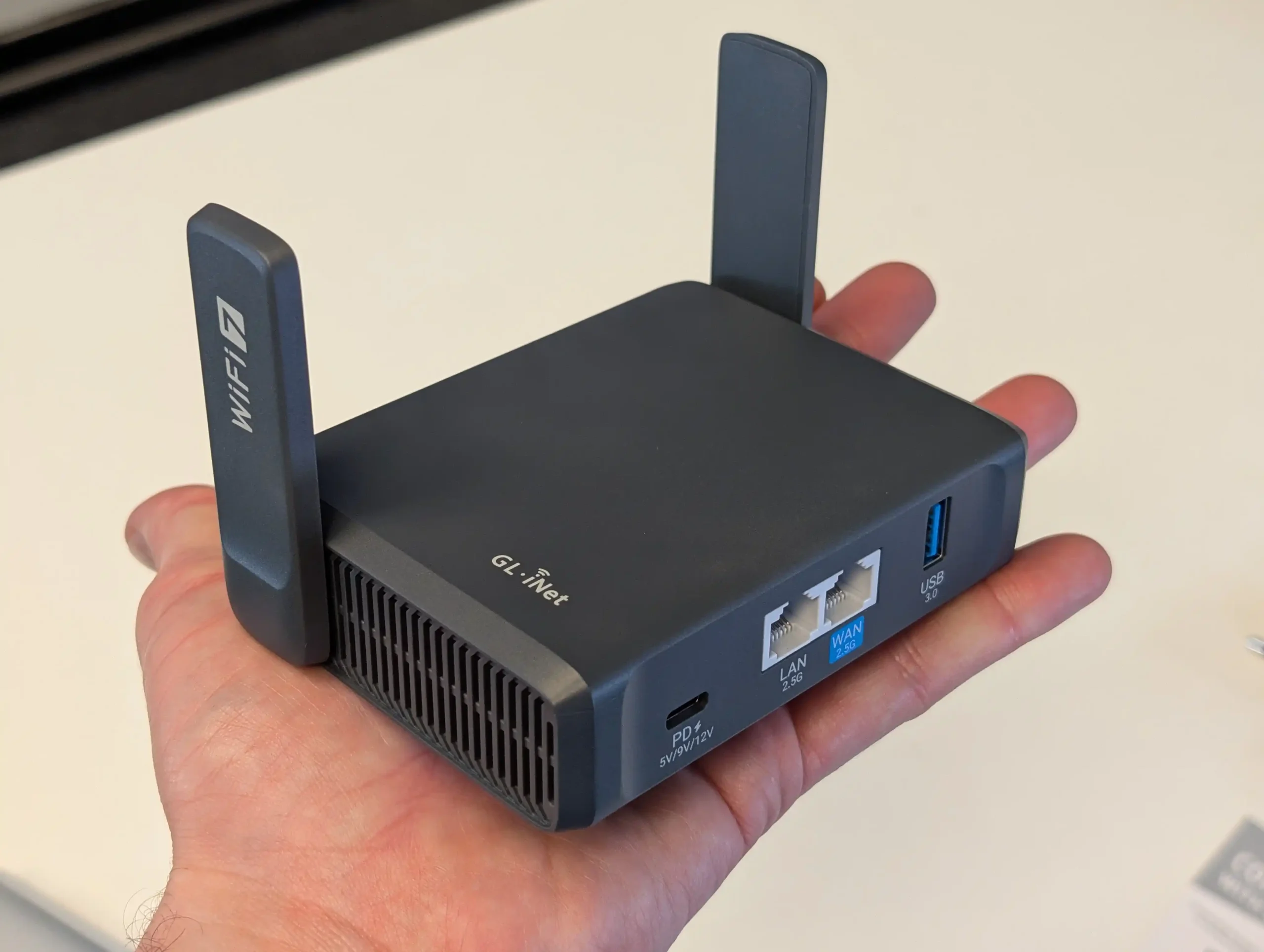
At first glance, the GL.iNet Beryl 7 (GL-MT3600BE) and the GL.iNet Slate 7 (GL-BE3600) appear very closely matched. Both are compact dual band WiFi 7 travel routers, both include dual 2.5GbE ports, USB 3.0 expansion, OpenWrt based firmware, and support for VPN client and server deployment. They are designed for similar use cases such as securing public WiFi in hotels and airports, creating a private subnet for multiple personal devices, or acting as a portable gateway for temporary work setups. On paper, their wireless speed ratings are identical, and their overall feature sets overlap significantly. However, there is a clear price separation, with the Beryl 7 typically retailing at $139.99 and the Slate 7 positioned higher at $169.99. Given how similar they appear in specification tables, this comparison focuses on what justifies that difference, looking beyond headline WiFi 7 support and examining hardware platform choices, memory configuration, interface design, performance ceilings, and overall positioning within the travel router lineup.

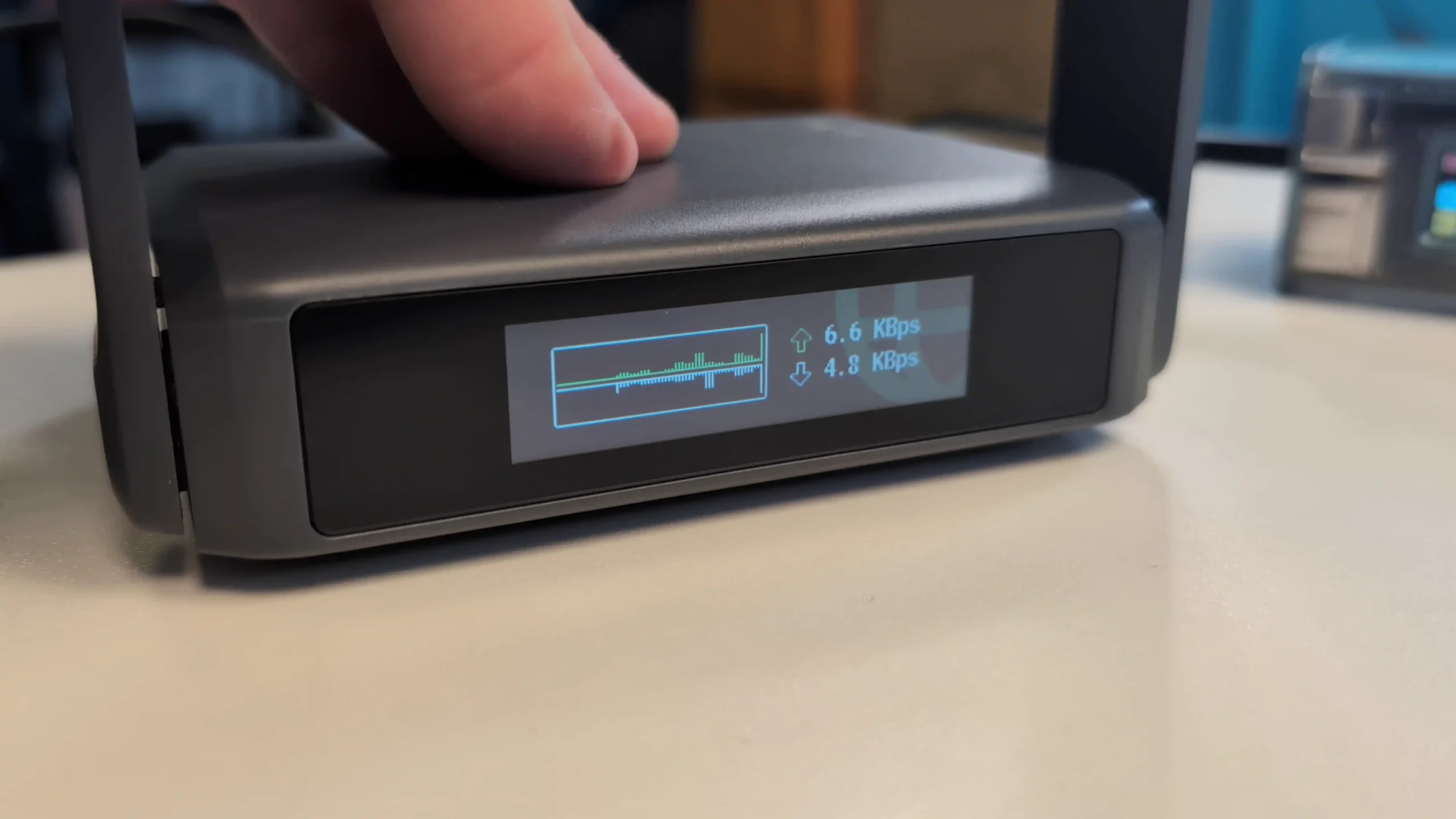
If you are in a hurry – here is the TL;DR – the Slate 7 is $30-40 more, and for that you get a touchscreen LCD panel to allow for client-less configuration on the fly, it arrives with double the base memory (1GB, as opposed to 512MB) and a much more performance focused processor (a Qualcomm, rather than a Mediatek, which is much more widely supported and used in router applications and services). If you can spare the $30-40, get the Slate 7!


Gl.iNet Beryl 7 Travel Router

Gl.iNet Slate 7 Travel Router

Buy From Gl.iNet

Buy From Amazon

Buy From Gl.iNet

Buy From Amazon

Gl.iNet Beryl 7 vs Slate 7 – Wireless Connectivity

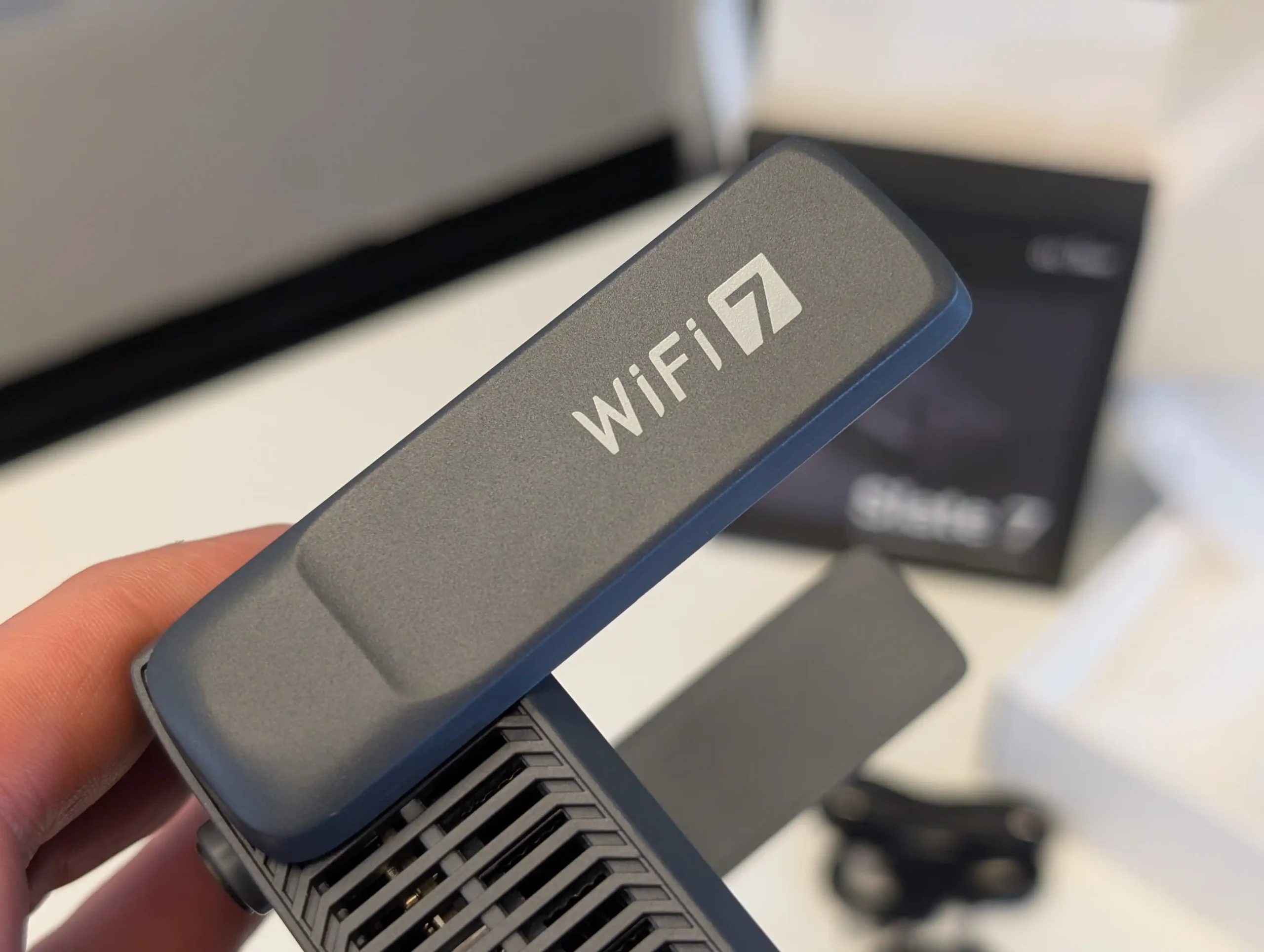
Both the GL.iNet Beryl 7 (GL-MT3600BE) and the GL.iNet Slate 7 (GL-BE3600) are dual band WiFi 7 routers operating across 2.4GHz and 5GHz, with identical rated wireless speeds of 688Mbps on 2.4GHz and 2882Mbps on 5GHz, for a combined 3600Mbps class rating. Neither device includes 6GHz support, which means both are technically WiFi 7 implementations without access to the expanded 6GHz spectrum or 320MHz channel widths. Instead, they focus on delivering WiFi 7 features such as improved OFDMA efficiency, 4K QAM, preamble puncturing, and Multi Link Operation within the existing 2 band framework.

In practical use, this means the wireless experience between the two routers is very similar when connecting modern WiFi 7 client devices. Multi Link Operation allows compatible devices to aggregate traffic across 2.4GHz and 5GHz simultaneously rather than choosing a single band. This can improve stability and reduce latency under load, particularly when multiple devices are active. However, because neither router supports 6GHz, both are limited to 160MHz channels, which caps the theoretical advantage compared to tri band WiFi 7 platforms. For most travel environments where surrounding networks are congested and spectrum is shared, the absence of 6GHz may not be the primary limiting factor.

It is also relevant that WiFi 7 client adoption is still developing, and many connected devices will continue to operate using WiFi 6 or earlier standards. In those cases, both routers fall back to backward compatible modes with similar performance characteristics. Since their radio specifications are aligned and both omit 6GHz, there is no material wireless generation advantage of one over the other. The distinction between these two models therefore lies less in raw WiFi 7 capability and more in the hardware platform and resource allocation that supports that wireless layer.

Gl.iNet Beryl 7 vs Slate 7 – Wired Connectivity

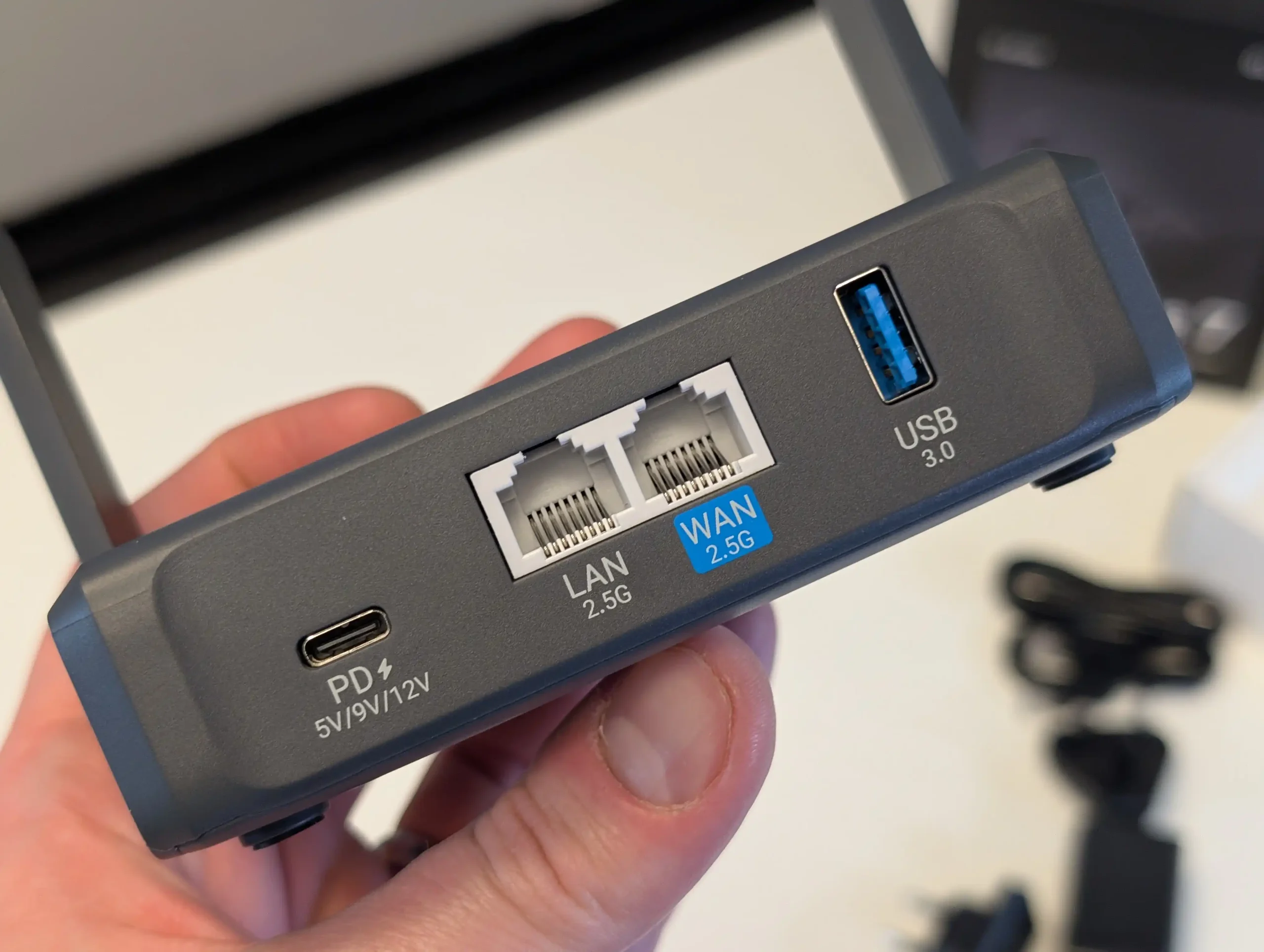
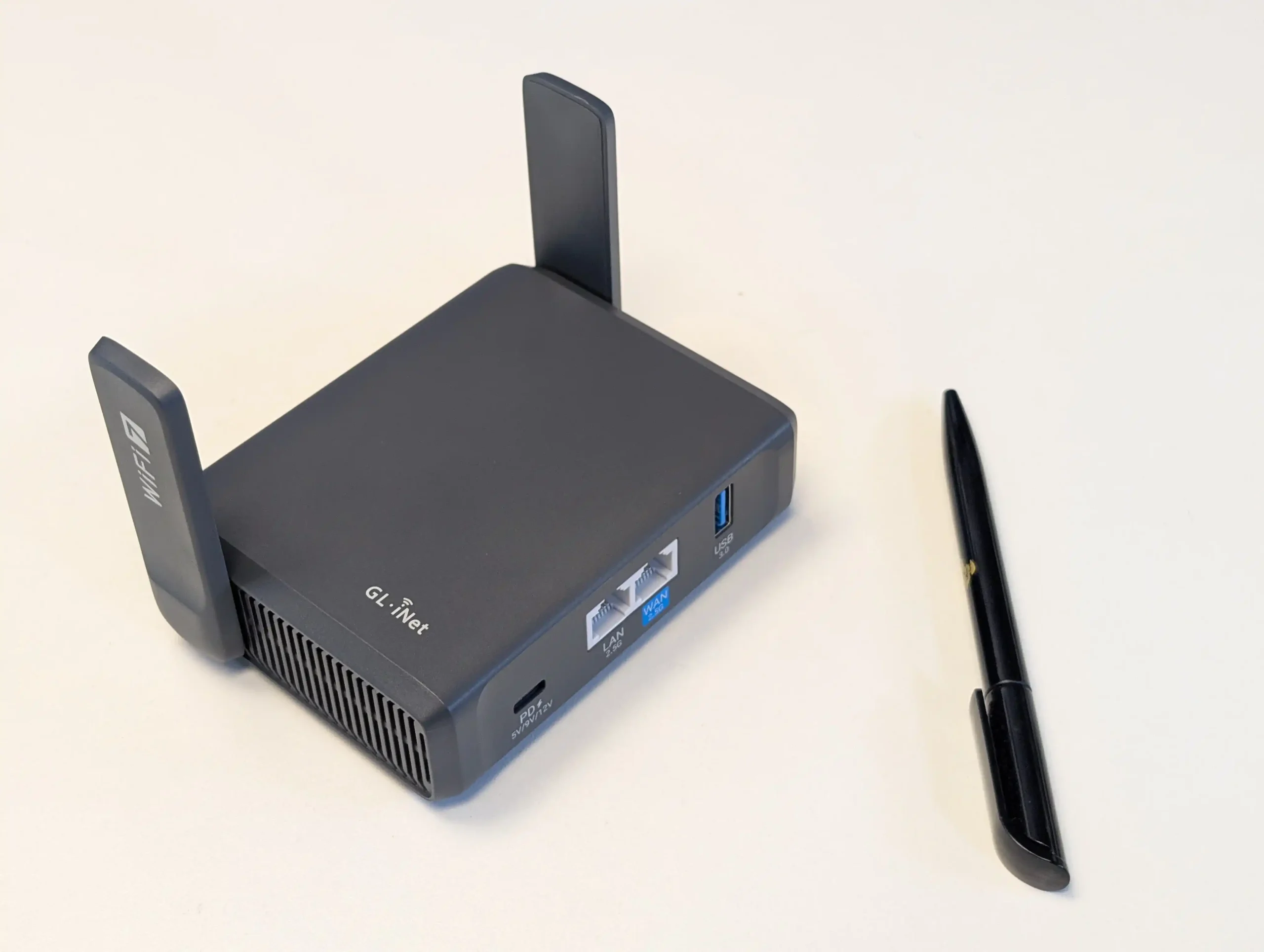
From a wired networking perspective, both the GL.iNet Beryl 7 (GL-MT3600BE) and the GL.iNet Slate 7 (GL-BE3600) are equipped with dual 2.5GbE ports. Each device includes 1 port typically designated as WAN and 1 as LAN, but both allow role reassignment within the software. This means either router can be configured to accept a multi gigabit internet uplink while simultaneously providing a 2.5G wired connection to a local client such as a workstation, NAS, or switch. In contrast to earlier travel routers limited to 1G LAN outputs, both of these models are capable of sustaining multi gigabit throughput on both ingress and egress.

In practical deployment, this gives both devices flexibility in scenarios where internet speeds exceed 1Gbps or where high speed local transfers are required. For example, a user connecting to a fiber service above 1G can feed that into the WAN port and still provide full 2.5G bandwidth to a wired LAN device. This configuration also supports load balancing or failover setups when combined with USB tethering or repeater modes. Since both routers share this dual 2.5G configuration, there is no structural limitation on either side in terms of raw Ethernet throughput.

The differences in wired behavior emerge more subtly in how the internal hardware handles sustained traffic across those ports, rather than in port specification alone. On paper, the Ethernet configuration is effectively matched between the two models. Both remove the earlier compromise seen in WiFi 6 travel routers where users had to choose between multi gigabit WAN or LAN, and both provide the same baseline flexibility for wired high speed connectivity in a compact travel format.

Gl.iNet Beryl 7 vs Slate 7 – Internal Hardware

Although their wireless ratings and Ethernet layouts are nearly identical, the internal hardware platforms of the GL.iNet Beryl 7 (GL-MT3600BE) and the GL.iNet Slate 7 (GL-BE3600) are based on different SoCs with distinct design goals. The Beryl 7 uses a MediaTek quad core processor operating at 2.0 GHz per core, paired with 512 MB of DDR4 memory and 512 MB of NAND flash. The Slate 7 instead uses the Qualcomm IPQ5018 platform, which integrates a quad-core ARM Cortex-A53 CPU running at about 1.0 GHz with additional packet processing and network subsystem features, and pairs that with 1 GB of DDR4 memory and 512 MB of NAND flash.

In real-world router workloads, CPU architecture and memory allocation each play a role. A higher clock speed like that in the Beryl 7 tends to benefit single threaded tasks such as some encryption operations and packet inspection. The Qualcomm IPQ5018’s emphasis on networking, hardware acceleration, and integrated network subsystem may offset its lower clock speed, particularly in tasks like NAT, traffic classification, or other system-level switching operations, and the doubled memory of the Slate 7 provides more space for concurrent services, queuing, and package expansions without immediate memory contention. In practice, the two platforms reflect different design priorities rather than a simple faster/ slower division.

Both devices provide a single USB 3.0 port for data expansion alongside a USB Type-C port for power input, meaning external storage, USB tethering, or a cellular dongle must share the same data port; using one function prevents the simultaneous use of the others. The Slate 7 also includes an integrated touchscreen display that provides real-time status information and direct toggling of features such as VPN or network mode, while the Beryl 7 relies solely on web and mobile app based controls. Internally, the distinction therefore is not just MediaTek versus Qualcomm, but a trade-off between frequency-focused CPU design, expanded system memory, and user interface enhancements.

Gl.iNet Beryl 7 vs Slate 7 – Deployment

When translating specifications into practical deployment behavior, the most measurable difference between the GL.iNet Beryl 7 (GL-MT3600BE) and the GL.iNet Slate 7 (GL-BE3600) appears in VPN throughput. The Beryl 7 is rated at up to 1100Mbps with WireGuard and up to 1000Mbps with OpenVPN DCO in client mode. The Slate 7, powered by the Qualcomm IPQ5018 platform, is rated at up to 490Mbps with WireGuard and up to 385Mbps with OpenVPN DCO. Although the Qualcomm platform is well optimized for routing and packet handling, the higher clock speed MediaTek processor in the Beryl 7 provides substantially more headroom for encrypted throughput. In scenarios where the internet connection exceeds 500Mbps and VPN encryption is permanently enabled, the Beryl 7 is less likely to become the limiting factor.

In raw LAN and WiFi performance, both devices operate within a similar ceiling due to identical wireless radios and dual 2.5GbE ports. Real world file transfers over 2.5GbE typically settle below theoretical maximums, often in the 230MB/s to 240MB/s range depending on workload and protocol overhead. Neither device consistently saturates the full 2.5GbE line rate under mixed routing and wireless conditions, which reflects internal processing overhead rather than port limitation. From a pure switching and routing standpoint without heavy encryption, both platforms are capable of sustaining high multi gigabit traffic within expected travel router boundaries.

Both units are rated to support up to 120 concurrent devices, which exceeds typical travel usage but provides insight into scheduler and resource allocation capacity. The Slate 7’s 1GB memory pool may provide additional stability when multiple OpenWrt services, monitoring tools, DNS filtering, and USB storage sharing are active simultaneously. The Beryl 7, meanwhile, demonstrates a clear advantage when encrypted traffic volume is high relative to available WAN bandwidth. As a result, the performance distinction depends less on wireless speed and more on whether the primary workload is VPN intensive broadband use or service heavy multi feature deployment.

Gl.iNet Beryl 7 vs Slate 7 – Which One Should You Buy?

The GL.iNet Beryl 7 (GL-MT3600BE) and the GL.iNet Slate 7 (GL-BE3600) are closer in capability than their price difference might initially suggest. Both deliver dual band WiFi 7 across 2.4GHz and 5GHz, both provide dual 2.5GbE ports, both support OpenWrt with extensive plugin flexibility, and both are designed for securing public internet connections while travelling.

From a purely wireless and Ethernet standpoint, they are effectively matched. The practical separation appears in internal resource allocation and user interface design. The Beryl 7, priced at $139.99, offers significantly higher rated VPN throughput and a faster clocked processor, making it better suited to users with high speed broadband connections who intend to run persistent encrypted tunnels. The Slate 7, priced at $169.99, provides double the system memory and integrates a touchscreen interface that allows direct device control without relying entirely on a browser or mobile app.

The decision therefore depends on workload priorities rather than headline WiFi generation. If the primary requirement is maximizing encrypted throughput over fast WAN connections, the Beryl 7 presents stronger performance value at a lower price. If the focus is on memory headroom for multiple services, a more integrated on device interface, and a Qualcomm based networking platform, the Slate 7 may justify its higher cost. Neither device includes 6GHz support, meaning both are dual band WiFi 7 implementations rather than full tri band models.

For users specifically seeking 6GHz spectrum and 320MHz channel capability, a different tier of hardware would be required. Within the compact dual band travel router segment, the distinction between these two models is defined less by WiFi 7 itself and more by how each device balances CPU performance, memory allocation, and interface design within a portable form factor.

Gl.iNet Beryl 7 Travel Router

Gl.iNet Slate 7 Travel Router

Buy From Gl.iNet

Buy From Amazon

Buy From Gl.iNet

Buy From Amazon

PROs CONs PROs CONs
+ Cheaper

+ Smaller & Lighter

+ Lower Power Consumption

– Less RAM

– Lesser CPU

+ LCD Control Screen

+ Better Hardware Inside

+ Better Build Quality

– More Expensive

– Larger

– Slate Pro Model Coming Soon

📧 SUBSCRIBE TO OUR NEWSLETTER 🔔
[contact-form-7]
🔒 Join Inner Circle

Get an alert every time something gets added to this specific article!


Want to follow specific category? 📧 Subscribe

This description contains links to Amazon. These links will take you to some of the products mentioned in today's content. As an Amazon Associate, I earn from qualifying purchases. Visit the NASCompares Deal Finder to find the best place to buy this device in your region, based on Service, Support and Reputation - Just Search for your NAS Drive in the Box Below

Need Advice on Data Storage from an Expert?

Finally, for free advice about your setup, just leave a message in the comments below here at NASCompares.com and we will get back to you. Need Help? Where possible (and where appropriate) please provide as much information about your requirements, as then I can arrange the best answer and solution to your needs. Do not worry about your e-mail address being required, it will NOT be used in a mailing list and will NOT be used in any way other than to respond to your enquiry. [contact-form-7] TRY CHAT Terms and Conditions
If you like this service, please consider supporting us. We use affiliate links on the blog allowing NAScompares information and advice service to be free of charge to you.Anything you purchase on the day you click on our links will generate a small commission which isused to run the website. Here is a link for Amazon and B&H.You can also get me a ☕ Ko-fi or old school Paypal. Thanks!To find out more about how to support this advice service check HEREIf you need to fix or configure a NAS, check Fiver Have you thought about helping others with your knowledge? Find Instructions Here  

 
Or support us by using our affiliate links on Amazon UK and Amazon US
    
 
Alternatively, why not ask me on the ASK NASCompares forum, by clicking the button below. This is a community hub that serves as a place that I can answer your question, chew the fat, share new release information and even get corrections posted. I will always get around to answering ALL queries, but as a one-man operation, I cannot promise speed! So by sharing your query in the ASK NASCompares section below, you can get a better range of solutions and suggestions, alongside my own.

☕ WE LOVE COFFEE ☕


UniFi UNAS Pro 4 vs Pro vs Pro 8 NAS Comparison

UniFi UNAS Pro 4 vs Pro vs Pro 8 NAS – WHICH ONE SHOULD YOU BUY?

Within UniFi, the UNAS line is positioned as a straightforward, storage focused, turnkey NAS platform that fits into the same single pane management style as the rest of the ecosystem, prioritizing file storage, sharing, snapshots, and backup workflows over broader server style expandability. In this 3 way comparison, the UNAS Pro (7 bay, Nov 2024), UNAS Pro 8 (8 bay, Nov 2025), and UNAS Pro 4 (4 bay, Feb 2026) look similar on the surface, but they target different deployment constraints and ceiling limits in rack depth, storage scalability, cache options, memory headroom, network redundancy, and power design. Two of the units (Pro 4 and Pro 8) add M.2 NVMe cache support and higher availability 10GbE networking than the original Pro, while the Pro 8 also pushes furthest on RAM capacity and physical redundancy expectations for a rack install.

UNAS Pro (7 Bay, $499)

UNAS Pro 4 (4 Bay, $499)

UNAS Pro 8 (8 Bay, $799)

BUY
 
 
Pro More 3.5 inch bays than UNAS Pro 4 at the same $499 price (7 vs 4) 1U chassis (smallest height) Most total bays (8) plus 2x NVMe cache slots
Shallower chassis depth than both (325 mm), easier fit in short depth racks 2x 10G SFP+ instead of 1x 10G SFP+ on UNAS Pro 16 GB memory (double UNAS Pro and UNAS Pro 4)
Front 10G SFP+ and 1G RJ45 placement can suit front of rack cabling NVMe cache support (absent on UNAS Pro) 3 total 10 GbE ports (2x 10G SFP+ plus 10 GbE RJ45), most flexible networking
1.3 inch touchscreen (absent on UNAS Pro 4 and UNAS Pro 8) Longer CPU clock than UNAS Pro (2.0 GHz vs 1.7 GHz) Hot swappable power modules (only model with this design)
Con No NVMe cache support (both UNAS Pro 4 and UNAS Pro 8 have it) Lowest bay ceiling and no official expansion path, so it fills up fastest Highest price up front ($799)
Only 1x 10G SFP+ (UNAS Pro 4 has 2x, UNAS Pro 8 has 2x plus 10 GbE RJ45) Deeper chassis than UNAS Pro (400 mm vs 325 mm) Deepest chassis (480 mm), most demanding fit in shallow racks
Lower CPU clock than UNAS Pro 4 and UNAS Pro 8 (1.7 GHz vs 2.0 GHz) No hot swap PSU design (UNAS Pro 8 is the only one with hot swappable power modules) No touchscreen (UNAS Pro includes a front touchscreen)
Same 8 GB memory as UNAS Pro 4 and less than UNAS Pro 8 (16 GB) Same 8 GB memory as UNAS Pro and less than UNAS Pro 8 (16 GB) Higher power ceiling and max power consumption than the other 2 (250 W max)

At the same time, the lineup is notable for pricing that stays lower than many established rackmount NAS competitors at comparable connectivity, with both the UNAS Pro and UNAS Pro 4 landing at $499, and the UNAS Pro 8 stepping up to $799 for more bays, more memory, and more network paths. The practical decision usually comes down to whether the priority is maximum bays at the lowest buy in, a tighter 1U footprint with newer cache and dual 10GbE links, or a higher ceiling platform with the strongest long term headroom in bays, RAM, and connectivity for users who expect growth rather than a fixed storage target.

IMPORTANT – It is worth highlighting that all three UNAS solutions include the same software and updates in the UniFi Drive and NAS OS services. Alongside the client tools (eg Identity Endpoint and File/Folder services remotely) and can be easily integrated into an existing Ubiquiti/UniFi network landscape. HOWEVER crucially, it is not ‘mandotory’ – you can run any of the UNAS Pro systems completely ‘offline’ (i.e LAN only) and there is no need to already have an existing UniFi network (existing 3rd party network landscapes work perfectly fine) and you also do not need to use/register any kind of UI.com/Ubiquiti account to setup the device.

UniFi UNAS Pro 4 vs Pro vs Pro 8 NAS – Design

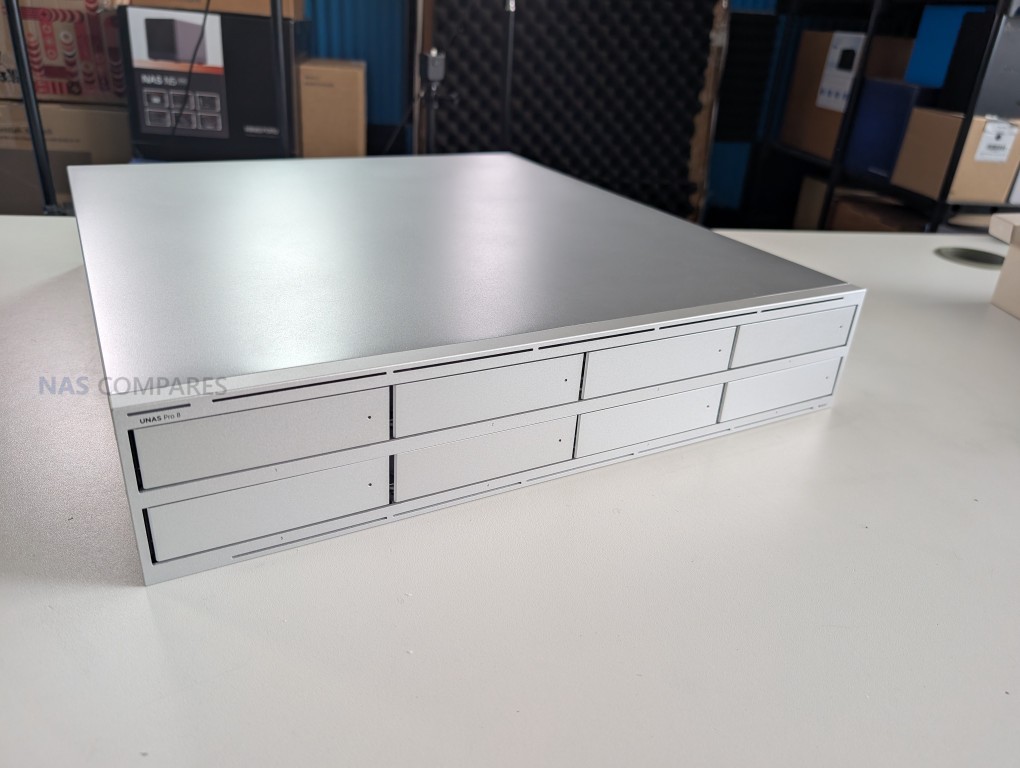
At a chassis level, the lineup splits into 2U and 1U designs, and that difference shapes how each unit fits into smaller racks and shallow cabinets.

The UNAS Pro is the shortest depth of the 3, while the UNAS Pro 4 and UNAS Pro 8 extend further back, which matters once you account for cable bend radius and rear clearance.

For compact wall racks and shorter cabinets, the older UNAS Pro tends to be easier to accommodate purely on physical depth, even before you consider anything about performance or features.

UNAS PRO 8 480MM DEPTH

UNAS PRO 325MM DEPTH

UNAS PRO 4 400MM DEPTH

DON’T FORGET RAILS!!!

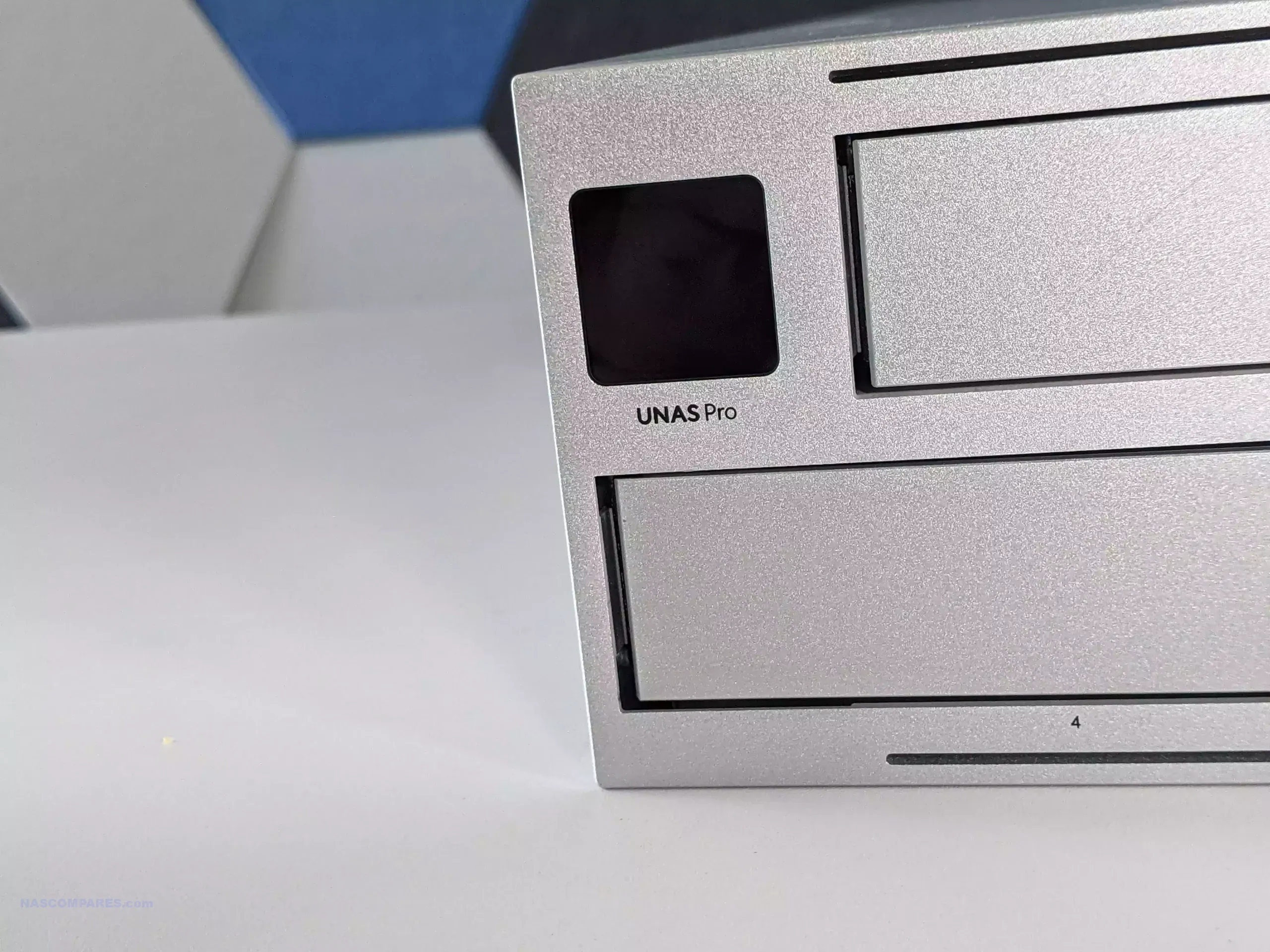
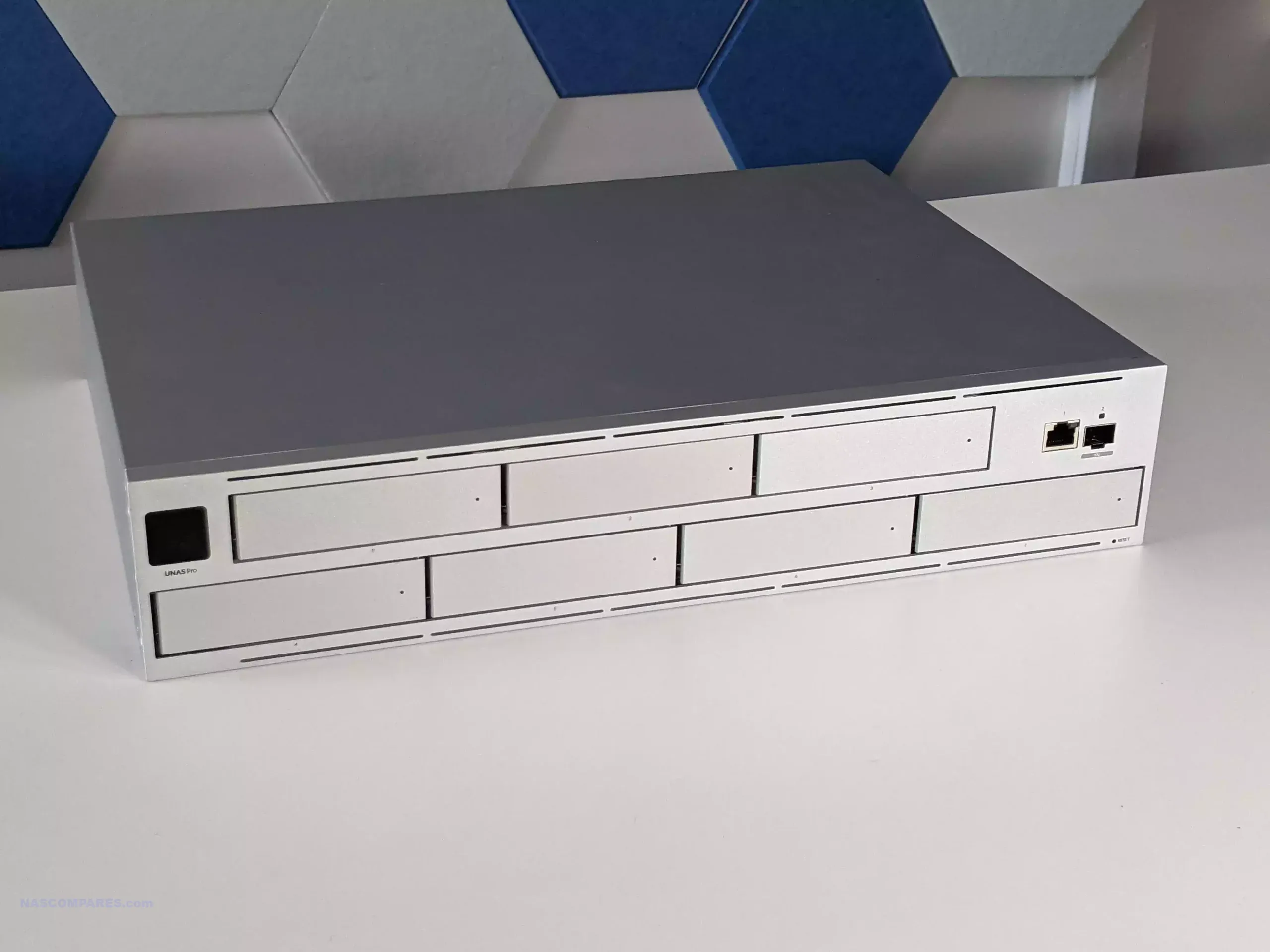
The UNAS Pro also stands apart on the front panel experience, because it includes a 1.3″ touchscreen that can surface live status information without needing to log into the UI. That is not present on the UNAS Pro 4 or UNAS Pro 8, which lean into a more conventional rack appliance faceplate focused on bay access and basic indicators. In day to day use, the screen is mainly a convenience feature for quick checks and basic local interaction, rather than something that changes how the system is deployed.

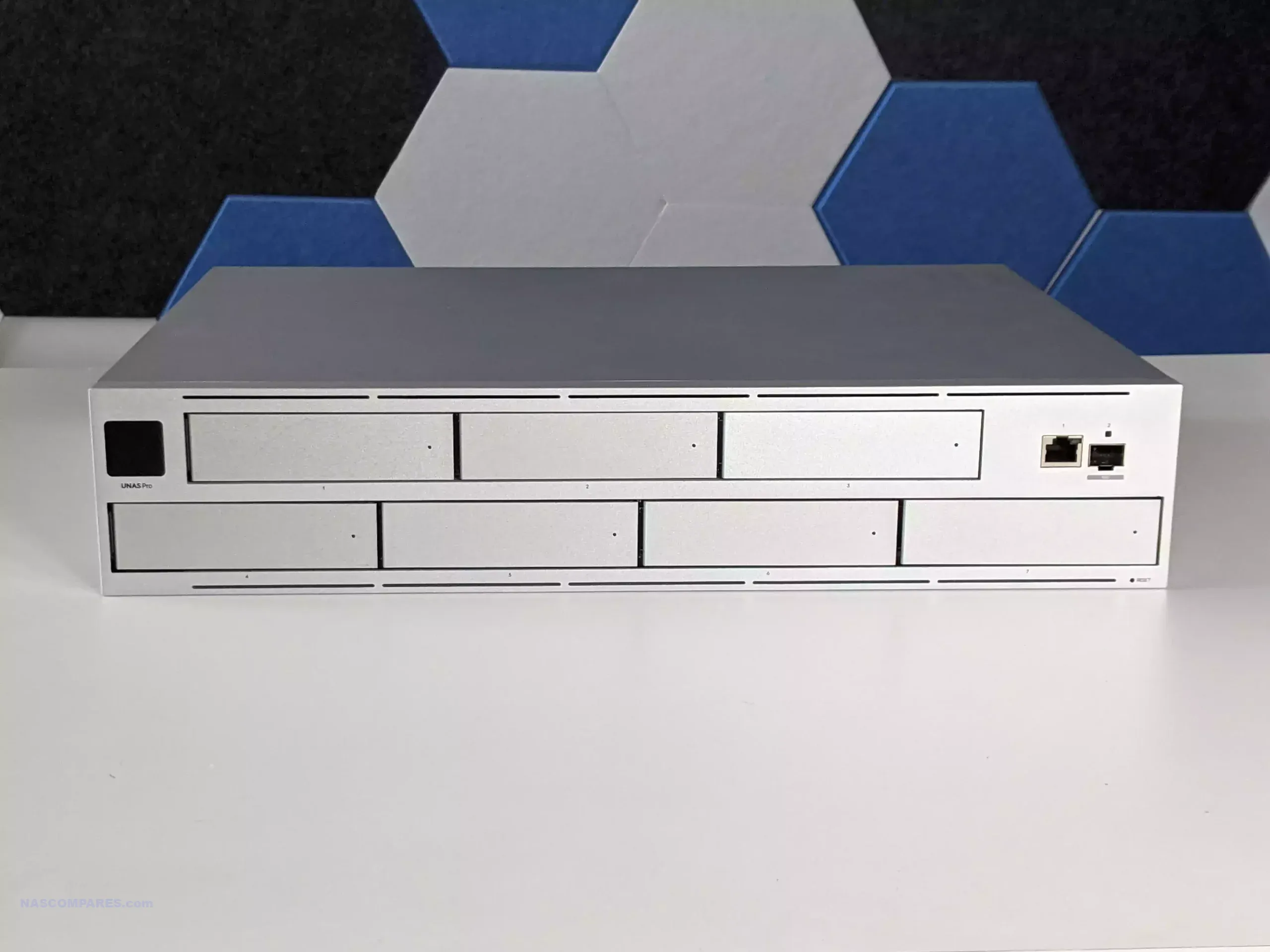
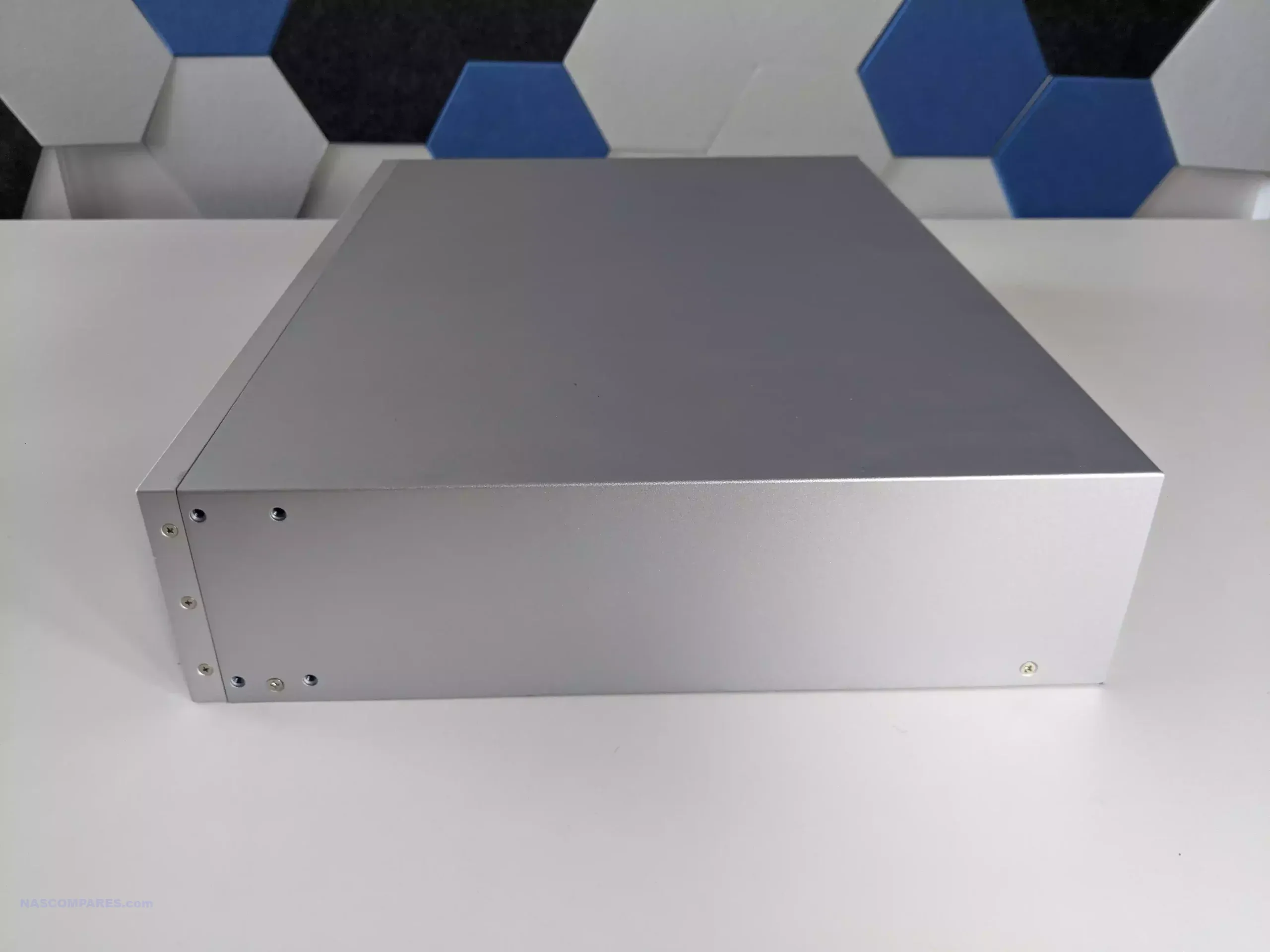
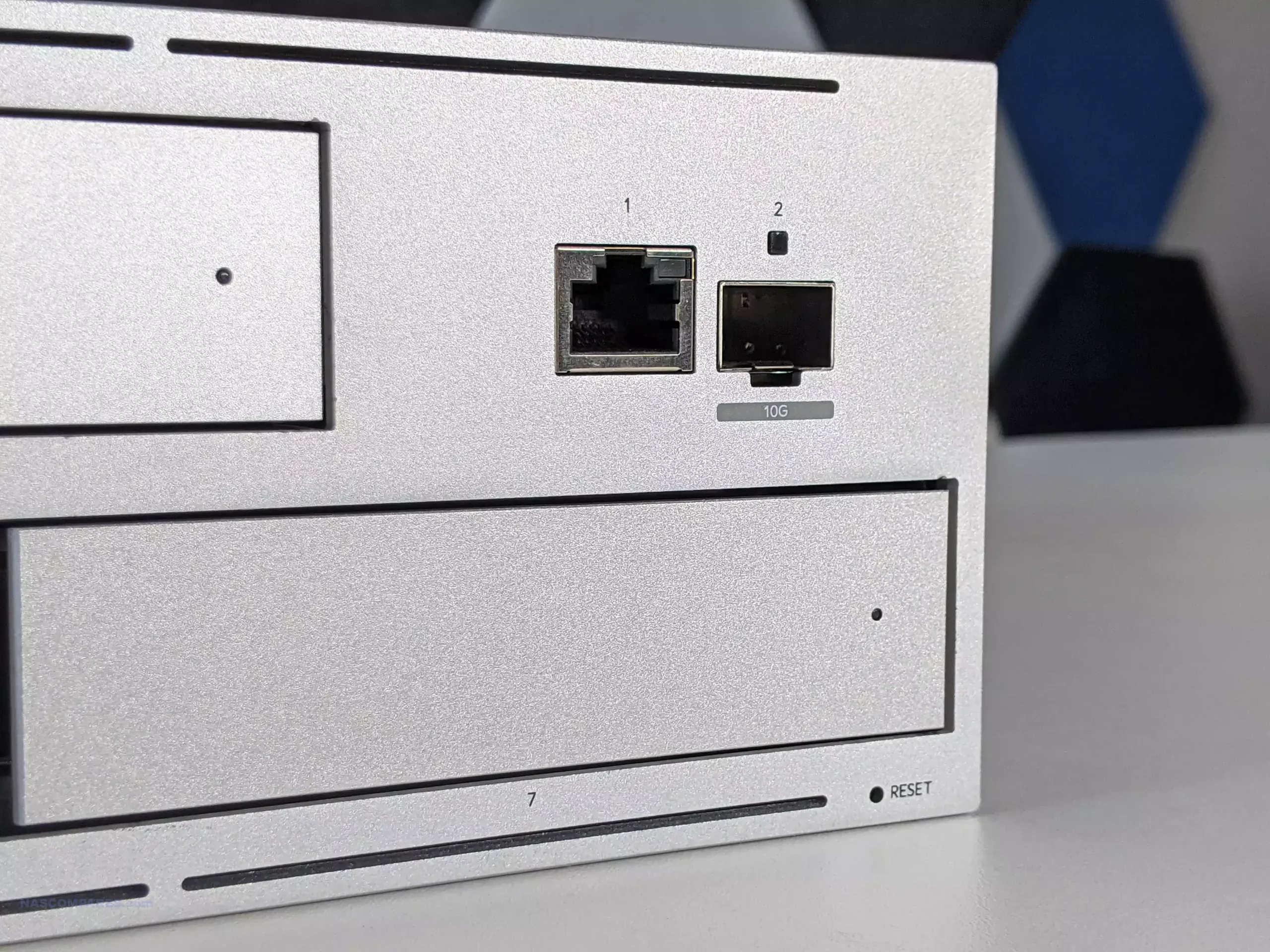
Another practical design difference is port placement philosophy. The UNAS Pro places its primary network connectivity on the front, while the UNAS Pro 4 and UNAS Pro 8 move connectivity to the rear, matching the typical layout most rackmount NAS systems follow. Front facing ports can reduce visible cabling in front of a rack and shorten patch runs in some UniFi heavy layouts, but rear mounted ports are generally easier to route cleanly in deeper cabinets with rear cable management.

Power implementation also affects the physical serviceability profile of each unit. The UNAS Pro 8 uses hot swappable power modules, which changes how you handle failure or planned maintenance compared with the fixed internal power approach used by the UNAS Pro and UNAS Pro 4.

All 3 use a steel enclosure and ship as purpose built rack devices rather than desktop conversions, but the UNAS Pro 8 is the one that most closely matches what many buyers expect from a higher end rack appliance in terms of field replacement for key physical components.


UniFi UNAS Pro vs Pro 4 vs Pro 8 NAS – Storage

The most obvious storage difference is the bay count and what that does to capacity planning. The UNAS Pro provides 7 front accessible 2.5 inch or 3.5 inch bays in a 2U chassis, the UNAS Pro 4 offers 4 bays in a 1U chassis, and the UNAS Pro 8 increases that to 8 bays in 2U. If you expect to grow into larger pools over time, the 7 bay and 8 bay models give more headroom before you are forced into drive replacements, a second NAS, or a new storage tier. With no official expansion chassis support referenced here, the physical bay count is effectively the ceiling for each system.

The UNAS Pro 4 and UNAS Pro 8 add 2 M.2 NVMe slots intended for SSD caching, while the UNAS Pro does not include NVMe slots. This changes how you can approach mixed workloads, because cache can reduce latency for repeated small file access and help smooth bursts of writes, depending on how the platform applies caching. It does not change the underlying reality that the main capacity tier is still the SATA bay set, but it gives the Pro 4 and Pro 8 a path to improve responsiveness for specific access patterns without committing to full SSD storage across all bays.

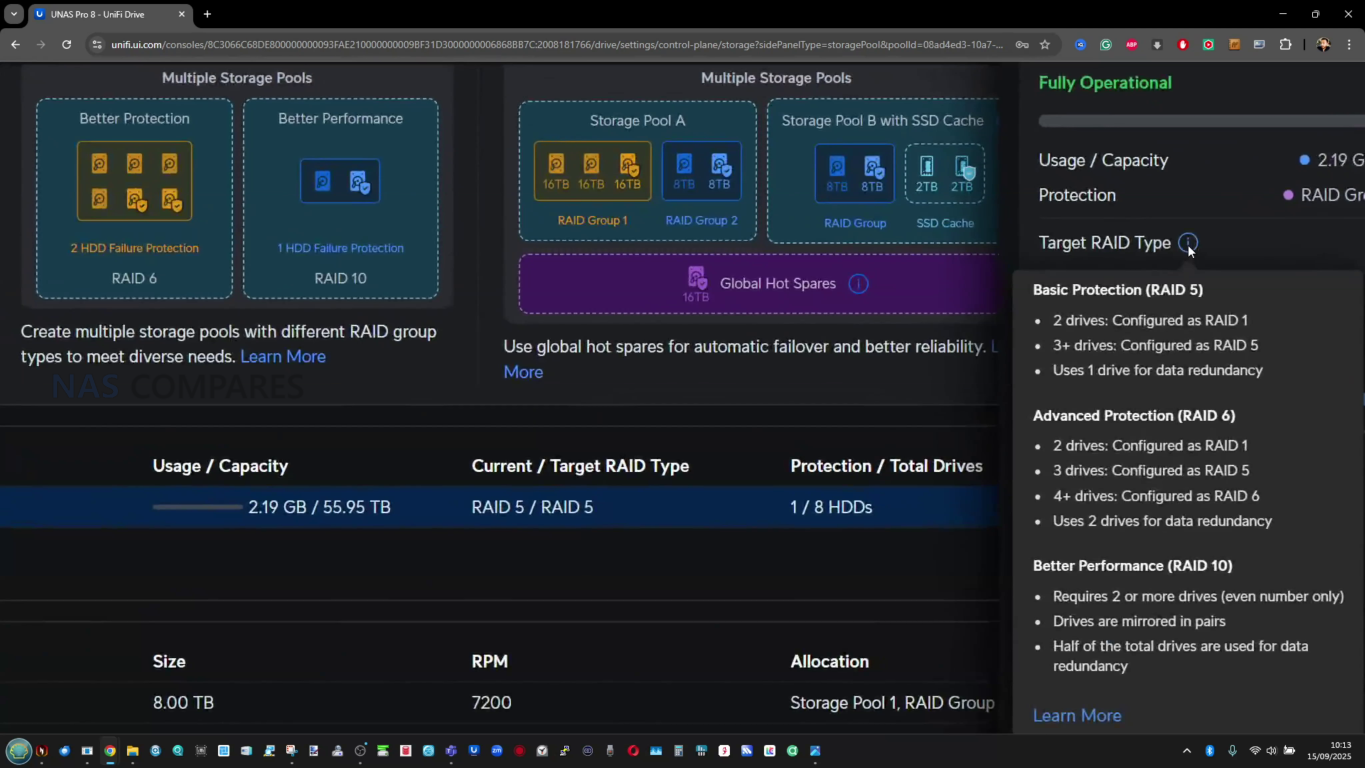
RAID flexibility also varies, not in the list of RAID levels available, but in how storage can be organized. All 3 units support RAID 5, RAID 6, and RAID 10, but the UNAS Pro 4 is listed as supporting a single RAID group, while the UNAS Pro and UNAS Pro 8 are listed with multiple RAID groups. In practice, the single group limitation matters if you prefer separating workloads or isolating different retention policies into distinct pools, rather than placing everything into 1 volume. On the larger models, multiple groups give more options for structuring storage around different priorities, such as performance versus redundancy, or shared storage versus dedicated project space.

Operational features tied to storage protection are also not identical across the range. Hot spare support is listed on the UNAS Pro and UNAS Pro 8, but not on the UNAS Pro 4, which affects how you plan for unattended recovery after a drive failure. All 3 support snapshots, file encryption, share links, Time Machine backup, and cloud and network backup targets, which makes baseline data protection and recovery workflows broadly consistent regardless of bay count.

The larger differentiation is therefore less about whether core protection features exist and more about how much flexibility you have in pool layout and drive management within the limits of each chassis.

Storage Feature UNAS Pro

UNAS Pro 4

UNAS Pro 8

Form factor 2U rack 1U rack 2U rack
SATA bays 7x 2.5/3.5 inch 4x 2.5/3.5 inch 8x 2.5/3.5 inch
M.2 NVMe slots 0 2 2
SSD cache support No Yes Yes
Max NVMe capacity supported N/A 4 TiB 4 TiB
RAID types listed RAID 5, RAID 6, RAID 10 RAID 5, RAID 6, RAID 10 RAID 5, RAID 6, RAID 10
RAID group support Multiple Single Multiple
Hot spare support Yes No (not listed) Yes
Snapshots Yes Yes Yes
File encryption Yes Yes Yes

UniFi UNAS Pro 8 vs Pro vs Pro 4 NAS – Internal Hardware

All 3 systems are built around a quad core ARM Cortex A57 platform, but they are not configured identically. The UNAS Pro runs the Cortex A57 at 1.7 GHz, while the UNAS Pro 4 and UNAS Pro 8 are listed at 2.0 GHz. In day to day use, this tends to show up less as a dramatic jump in peak throughput and more as extra headroom when the system is handling several background jobs at once, such as indexing, snapshots, and multi user access, while still servicing file activity. The architecture choice is aligned with lower draw compared with typical x86 NAS hardware, but it also sets a ceiling on heavier compute workloads that some buyers associate with higher end NAS platforms.Memory is where the split is clearer. The UNAS Pro and UNAS Pro 4 ship with 8 GB, while the UNAS Pro 8 steps up to 16 GB. The practical impact is less about basic file sharing and more about how much concurrent activity the system can absorb before responsiveness drops, particularly when you add more users, larger file operations, more snapshot activity, and cache related behavior on models that support it. None of these systems are positioned as memory expandable platforms in the provided specifications, so the installed capacity is effectively the long term limit.

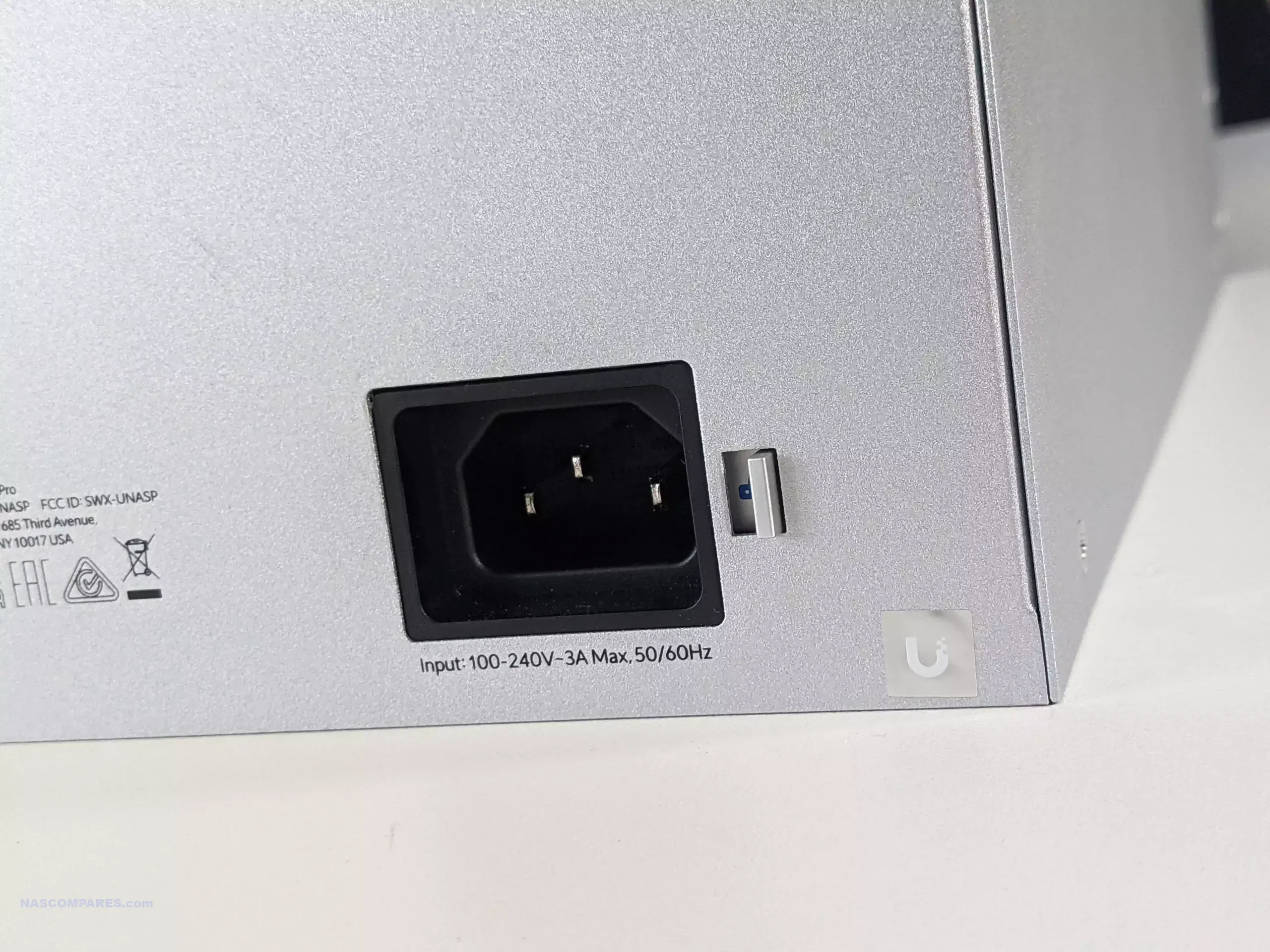
Power delivery and serviceability differ meaningfully between the range. The UNAS Pro and UNAS Pro 4 use internal AC to DC power supplies with an additional USP RPS DC input for redundancy, and their overall platform power limits are lower, matching their smaller scale.

The UNAS Pro 8 uses hot swappable power modules and is designed to support more demanding configurations, reflected in the higher maximum power consumption and the larger drive power budget. This does not automatically translate into higher idle power, but it does indicate how much overhead the chassis is designed to tolerate when fully populated and under sustained activity.

Internal Hardware Detail UNAS Pro

UNAS Pro 4

UNAS Pro 8

Processor Quad Core ARM Cortex A57 Quad Core ARM Cortex A57 Quad Core ARM Cortex A57
CPU clock 1.7 GHz 2.0 GHz 2.0 GHz
Memory 8 GB 8 GB 16 GB
Power supply design Internal AC DC, 200W Internal AC DC, 150W 2x hot swappable AC DC modules, 550W
Power inputs 1x AC, 1x USP RPS DC input 1x AC, 1x USP RPS DC input 2x AC inputs via hot swap modules
Max power consumption 160W 150W 250W
Max drive power budget 135W 125W 225W
Management and setup radios Bluetooth 4.1 Bluetooth 4.1 Bluetooth 4.1
Display 1.3 inch touchscreen None listed None listed
Operating environment -5 to 40 C, 5 to 95 percent noncondensing -5 to 40 C, 5 to 95 percent noncondensing -5 to 40 C, 5 to 95 percent noncondensing
Weight 9.2 kg without brackets, 9.5 kg with brackets 6.7 kg 11.5 kg

UniFi UNAS Pro 4 vs Pro vs Pro 8 NAS – Ports and Connections

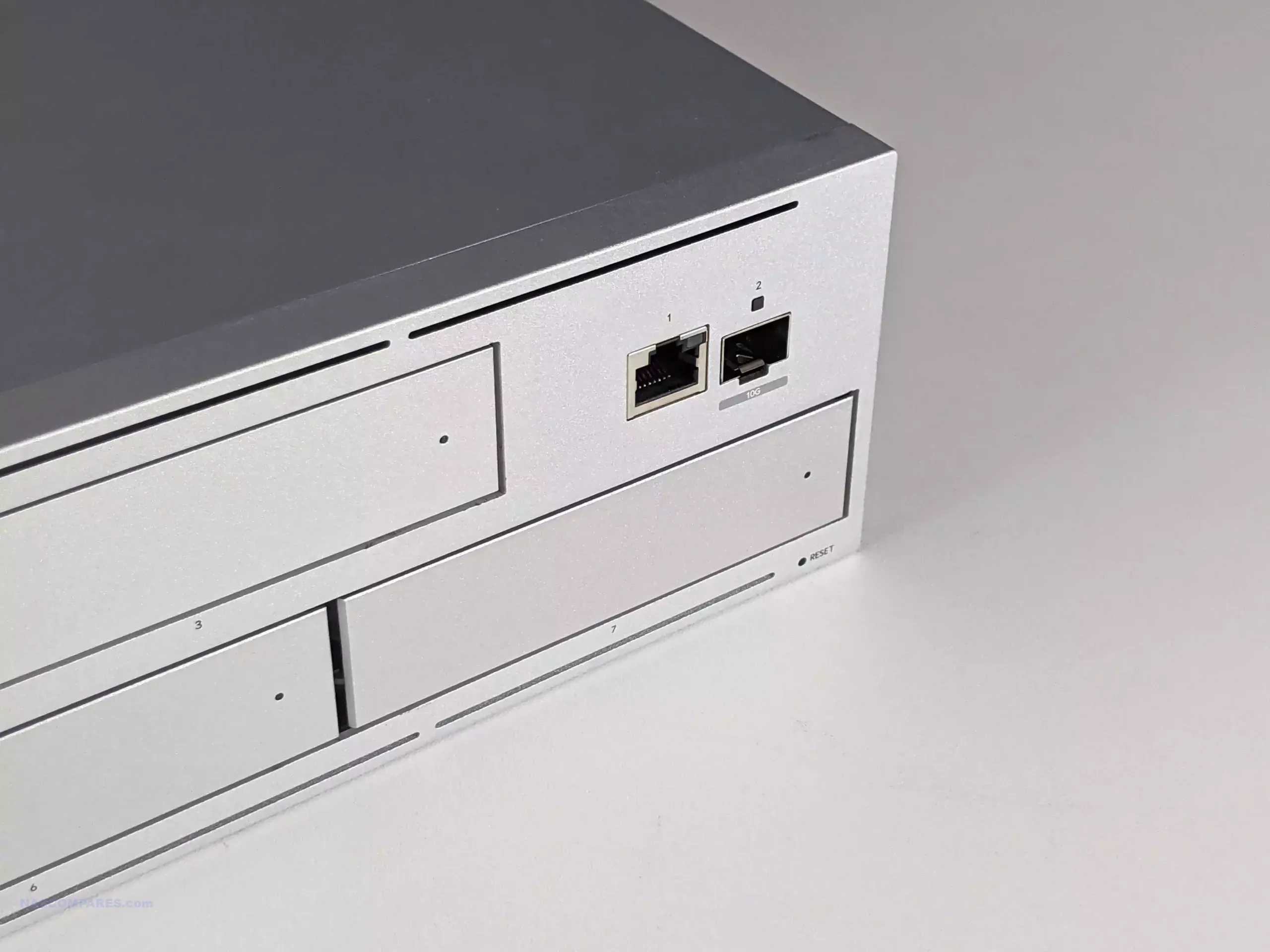
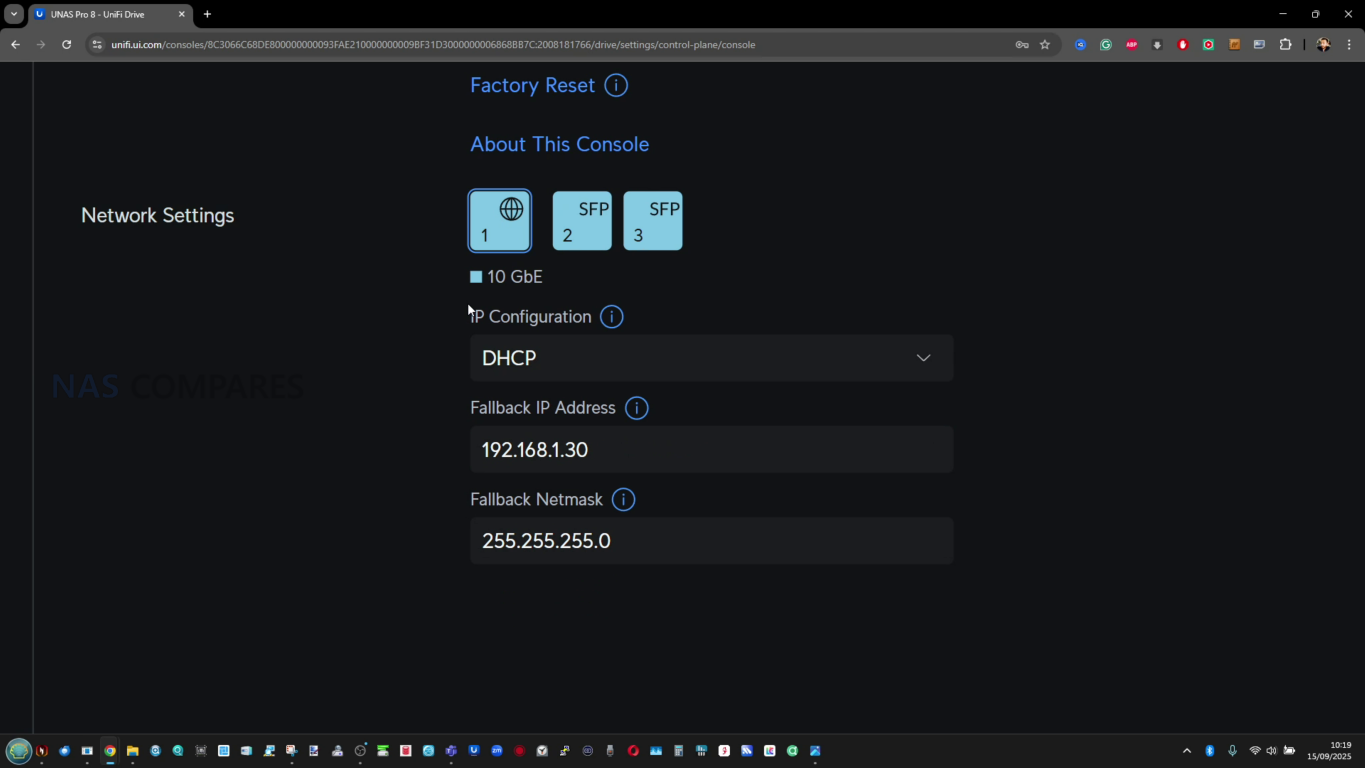
Across the 3 systems, the shared theme is 10 GbE as the primary path for file access, but the implementation differs. The UNAS Pro provides a single 10G SFP+ port plus a 1 GbE RJ45 port, which typically ends up used either for management traffic or as a slower access fallback. The UNAS Pro 4 shifts to a dual 10G SFP+ layout, giving more flexibility for link aggregation or failover planning, even if the practical benefit depends on the storage configuration and client support. The UNAS Pro 8 goes further with 2x 10G SFP+ and adds a 10 GbE RJ45 port that supports multi speed negotiation, which makes it easier to drop into networks that are already built around copper 10 GbE.

Port placement is also part of the decision, because the UNAS Pro uses front mounted networking, while the UNAS Pro 4 and UNAS Pro 8 keep network connections on the rear. Front mounted ports can simplify short patch runs in racks that are set up around front facing switching, while rear mounted ports follow the more common rack NAS convention and can be cleaner in racks that route cabling at the back. None of the 3 is positioned as a platform for network expansion cards, so what you buy is the long term connectivity ceiling.

In day to day operation, the multi port models are mainly about resiliency and network design options rather than guaranteeing linear scaling for a single user. You can plan for redundancy across switches, use bonding where your environment supports it, or segment traffic patterns in a more controlled way.

The UNAS Pro 8 is also the only model here with 10 GbE available on both SFP+ and RJ45 in the base hardware, which reduces the need for media converters or additional transceiver planning if your network is not SFP+ centric.

Connectivity UNAS Pro

UNAS Pro 4

UNAS Pro 8

10 GbE SFP+ 1 (10G/1G) 2 (10G only) 2 (10G only)
10 GbE RJ45 0 0 1 (10G/5G/2.5G/1G/100M)
1 GbE RJ45 1 (1G/100M/10M) 1 (1G/100M/10M) 0
Total high speed 10G ports 1 2 3
Network port location Front Rear Rear

UniFi UNAS Pro 4 vs Pro 8 vs Pro NAS – Price and Value

At list pricing, the UNAS Pro and UNAS Pro 4 sit at the same $499, but they are selling different priorities. The UNAS Pro concentrates its value in raw bay count and a shorter 2U chassis, trading away NVMe cache support and additional 10 GbE links to keep the platform simple. The UNAS Pro 4 is priced the same while reducing the HDD bay count and moving to a 1U chassis, but it adds 2x NVMe cache slots and a second 10G SFP+ port, positioning it more as a “small but fast access” rack NAS rather than a capacity first box.

The UNAS Pro 8 steps up to $799 and is priced like a higher tier option, but the spec sheet shows where that uplift is meant to land: more drive bays than either $499 model, NVMe cache capability like the Pro 4, more total 10 GbE ports, and a jump to 16 GB memory. It is also the only one of the 3 with a 10 GbE RJ45 port alongside SFP+, which can reduce friction in mixed copper and fiber environments. If the goal is to keep the same platform longer term, the Pro 8 is the only one here with both the capacity headroom and the memory ceiling to match it.

Using the simplified “price per bay” and “price per element” approach, the headline result is that the Pro 8 looks strongest once you count all the included hardware features rather than only the number of drive bays. The UNAS Pro has the lowest cost per bay because it is a 7 bay system at the same price as the 4 bay model, but the Pro 4 catches up when the NVMe slots and dual 10 GbE are treated as part of the value calculation. The Pro 8 is not the cheapest upfront, but it ends up close to the Pro 4 on cost per bay and is the lowest on cost per element because it stacks more of the “platform” features in one chassis.

Model Price Drive bays counted for price per bay Price per bay Elements counted Price per element
UNAS Pro 4 $499 4x SATA + 2x M.2 $83 8 GB RAM + 4+2 bays + 2x 10 GbE $14.60
UNAS Pro $499 7x SATA $72 8 GB RAM + 7 bays + 1x 10 GbE $22.60
UNAS Pro 8 $799 8x SATA + 2x M.2 $79 16 GB RAM + 8+2 bays + 3x 10 GbE $14.20

UniFi UNAS Pro 8 vs Pro vs Pro 4 NAS – VERDICT

The UNAS Pro 4, UNAS Pro, and UNAS Pro 8 are close enough in naming to look like simple capacity steps, but they are positioned more like 3 different takes on the same UniFi Drive appliance idea. The UNAS Pro is the most capacity oriented at $499, giving 7 bays in a shorter depth 2U chassis with a built in 1.3 inch touchscreen and a straightforward port layout that suits some front of rack workflows. The UNAS Pro 4 shifts the emphasis away from bay count and toward “newer platform features” at the same $499 price, combining a 1U form factor with 2x 10G SFP+ and 2x NVMe cache slots, at the cost of a deeper chassis and fewer total drive bays. The UNAS Pro 8 is the most complete hardware package in the lineup, adding more bays, NVMe cache, more total 10 GbE connectivity including 10 GbE RJ45, and 16 GB memory, while also being the only one of the 3 to use hot swappable power modules. None of the 3 supports an official expansion shelf approach, so the bay count you buy on day 1 is effectively the long term ceiling unless you plan a separate NAS later.

Choosing between them mostly comes down to which ceiling matters first in your deployment: total bays, total network options, or overall platform headroom. If you want the most bays at $499 and the chassis depth is a priority, the UNAS Pro remains the obvious pick, with the tradeoffs being no NVMe cache path and a simpler network layout than the newer units. If you want the $499 option that aligns most with modern expectations for a small rack NAS, the UNAS Pro 4 has the cleanest argument, because dual 10G and NVMe cache can matter more than extra bays in smaller, faster working sets, even if those cache slots are not usable as standalone storage pools. If you are planning for longer retention cycles, heavier multi user access, or you simply want the most complete feature set in a single chassis, the UNAS Pro 8 is the one that most clearly justifies its higher price, particularly once memory, network flexibility, and the power module design are considered together. The main limitation across the lineup is that the ARM platform and fixed memory approach sets expectations about the long term performance ceiling, but within that constraint, the decision is primarily about how you want the hardware budget divided between capacity, connectivity, and overall platform resources.

UNAS Pro (7 Bay, $499)

UNAS Pro 4 (4 Bay, $499)

UNAS Pro 8 (8 Bay, $799)

BUY
Pros More 3.5 inch bays than UNAS Pro 4 at the same $499 price (7 vs 4) 1U chassis (smallest height) Most total bays (8) plus 2x NVMe cache slots
Shallower chassis depth than both (325 mm), easier fit in short depth racks 2x 10G SFP+ instead of 1x 10G SFP+ on UNAS Pro 16 GB memory (double UNAS Pro and UNAS Pro 4)
Front 10G SFP+ and 1G RJ45 placement can suit front of rack cabling NVMe cache support (absent on UNAS Pro) 3 total 10 GbE ports (2x 10G SFP+ plus 10 GbE RJ45), most flexible networking
1.3 inch touchscreen (absent on UNAS Pro 4 and UNAS Pro 8) Longer CPU clock than UNAS Pro (2.0 GHz vs 1.7 GHz) Hot swappable power modules (only model with this design)
Cons No NVMe cache support (both UNAS Pro 4 and UNAS Pro 8 have it) Lowest bay ceiling and no official expansion path, so it fills up fastest Highest price up front ($799)
Only 1x 10G SFP+ (UNAS Pro 4 has 2x, UNAS Pro 8 has 2x plus 10 GbE RJ45) Deeper chassis than UNAS Pro (400 mm vs 325 mm) Deepest chassis (480 mm), most demanding fit in shallow racks
Lower CPU clock than UNAS Pro 4 and UNAS Pro 8 (1.7 GHz vs 2.0 GHz) No hot swap PSU design (UNAS Pro 8 is the only one with hot swappable power modules) No touchscreen (UNAS Pro includes a front touchscreen)
Same 8 GB memory as UNAS Pro 4 and less than UNAS Pro 8 (16 GB) Same 8 GB memory as UNAS Pro and less than UNAS Pro 8 (16 GB) Higher power ceiling and max power consumption than the other 2 (250 W max)


📧 SUBSCRIBE TO OUR NEWSLETTER 🔔
[contact-form-7]
🔒 Join Inner Circle

Get an alert every time something gets added to this specific article!


Want to follow specific category? 📧 Subscribe

This description contains links to Amazon. These links will take you to some of the products mentioned in today's content. As an Amazon Associate, I earn from qualifying purchases. Visit the NASCompares Deal Finder to find the best place to buy this device in your region, based on Service, Support and Reputation - Just Search for your NAS Drive in the Box Below

Need Advice on Data Storage from an Expert?

Finally, for free advice about your setup, just leave a message in the comments below here at NASCompares.com and we will get back to you. Need Help? Where possible (and where appropriate) please provide as much information about your requirements, as then I can arrange the best answer and solution to your needs. Do not worry about your e-mail address being required, it will NOT be used in a mailing list and will NOT be used in any way other than to respond to your enquiry. [contact-form-7] TRY CHAT Terms and Conditions
If you like this service, please consider supporting us. We use affiliate links on the blog allowing NAScompares information and advice service to be free of charge to you.Anything you purchase on the day you click on our links will generate a small commission which isused to run the website. Here is a link for Amazon and B&H.You can also get me a ☕ Ko-fi or old school Paypal. Thanks!To find out more about how to support this advice service check HEREIf you need to fix or configure a NAS, check Fiver Have you thought about helping others with your knowledge? Find Instructions Here  
 
Or support us by using our affiliate links on Amazon UK and Amazon US
    
 
Alternatively, why not ask me on the ASK NASCompares forum, by clicking the button below. This is a community hub that serves as a place that I can answer your question, chew the fat, share new release information and even get corrections posted. I will always get around to answering ALL queries, but as a one-man operation, I cannot promise speed! So by sharing your query in the ASK NASCompares section below, you can get a better range of solutions and suggestions, alongside my own.

☕ WE LOVE COFFEE ☕


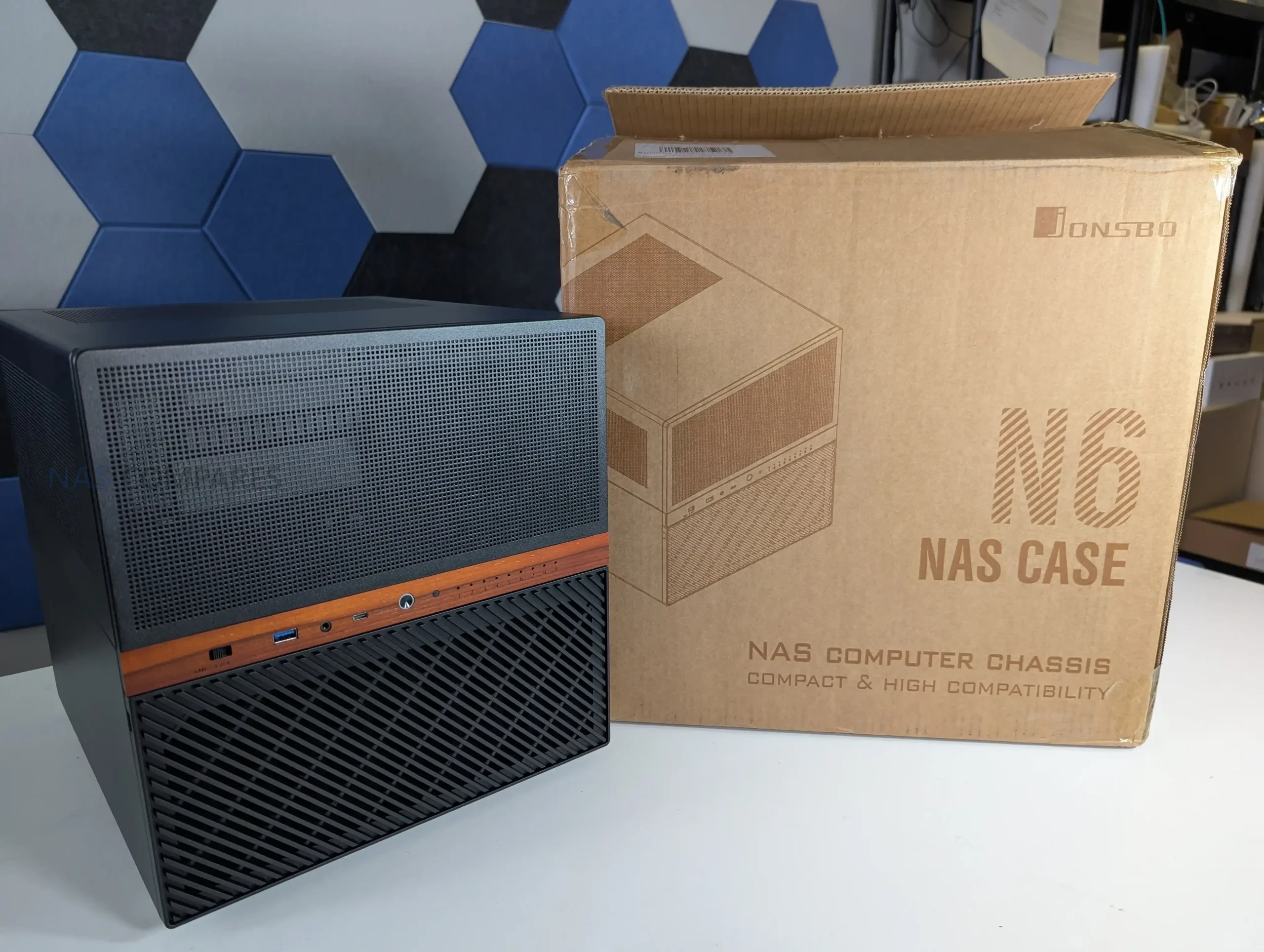
Jonsbo N6 DIY NAS Case Review

Jonsbo N6 DIY NAS Case Review

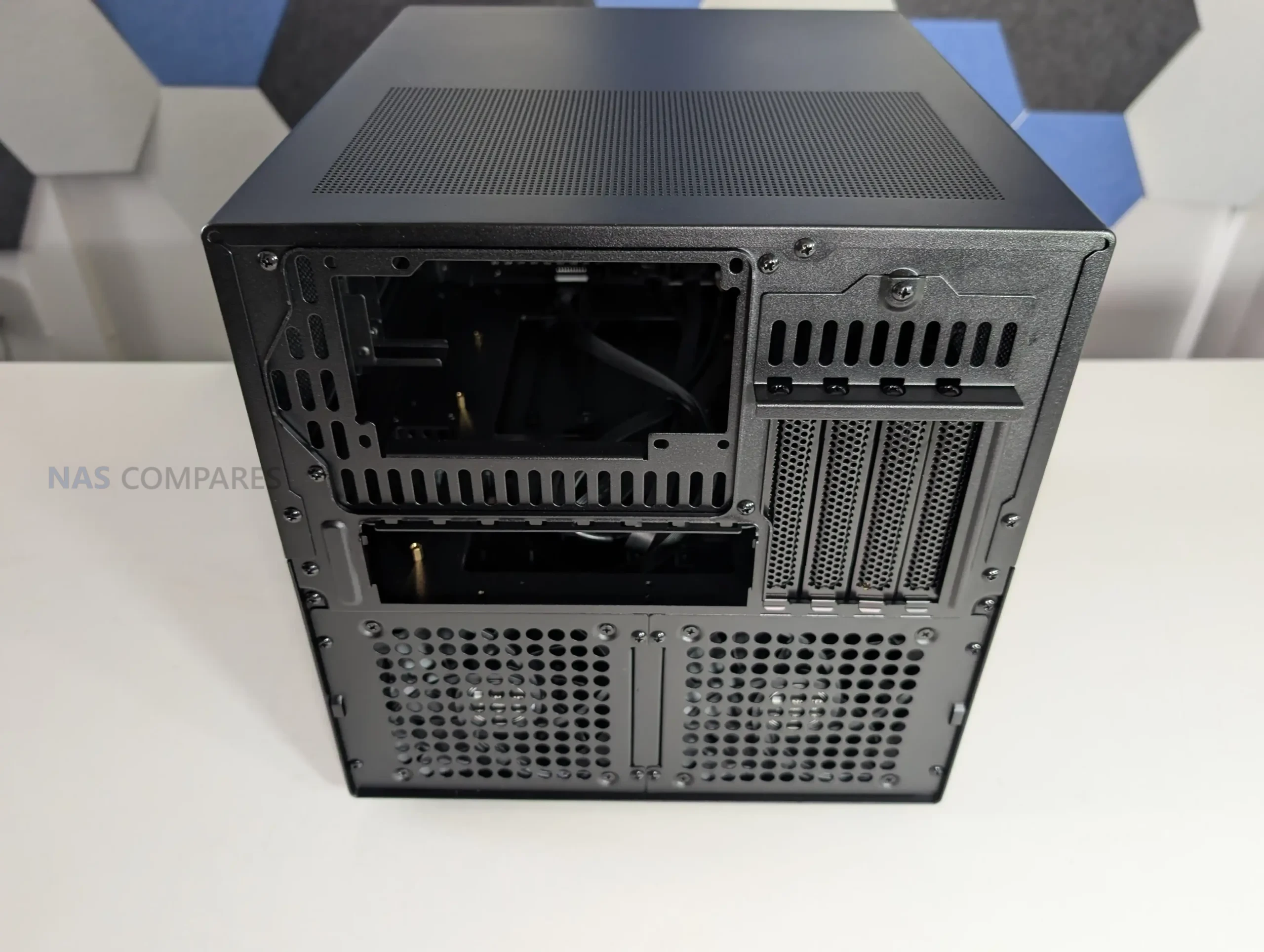
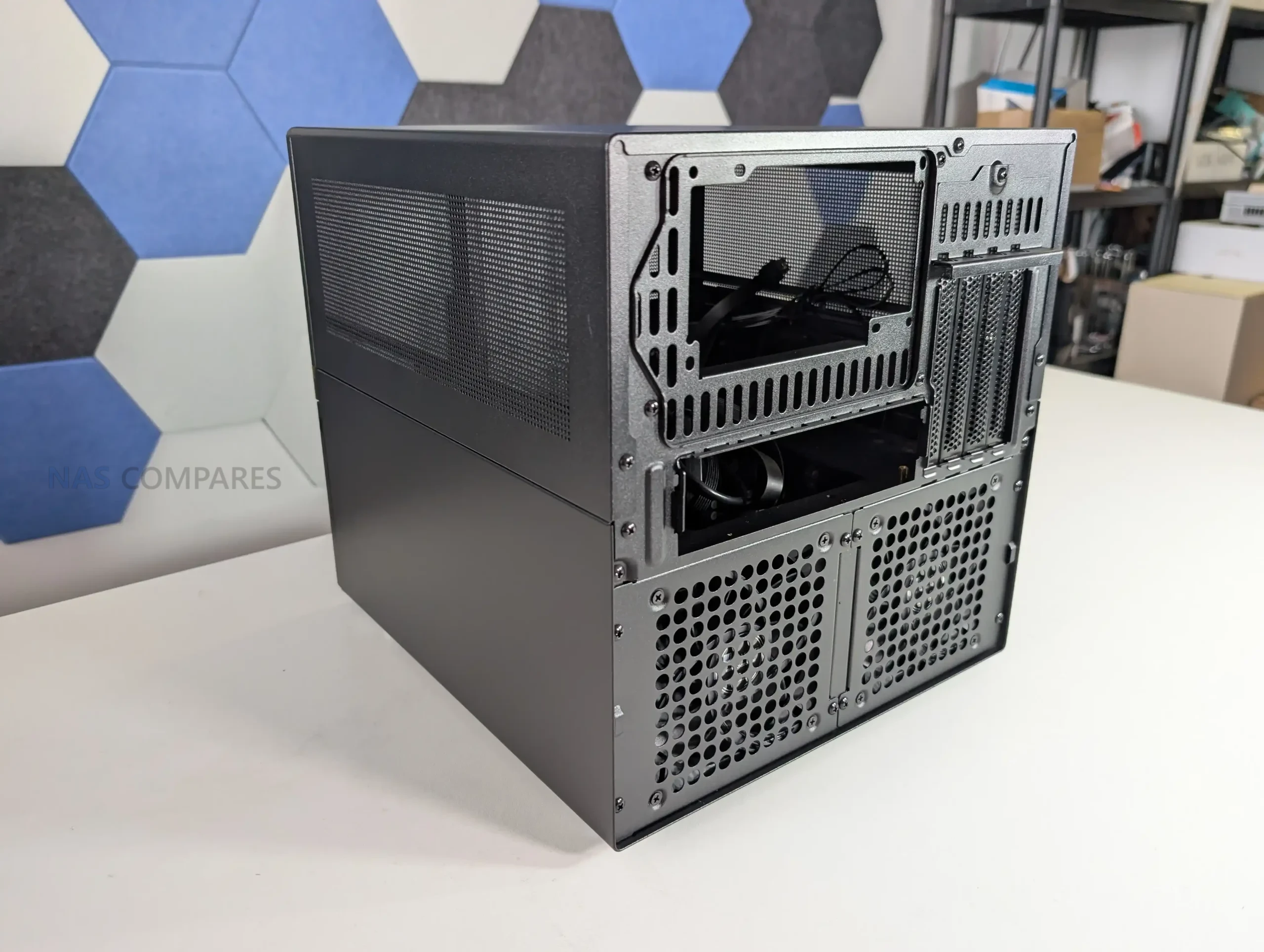
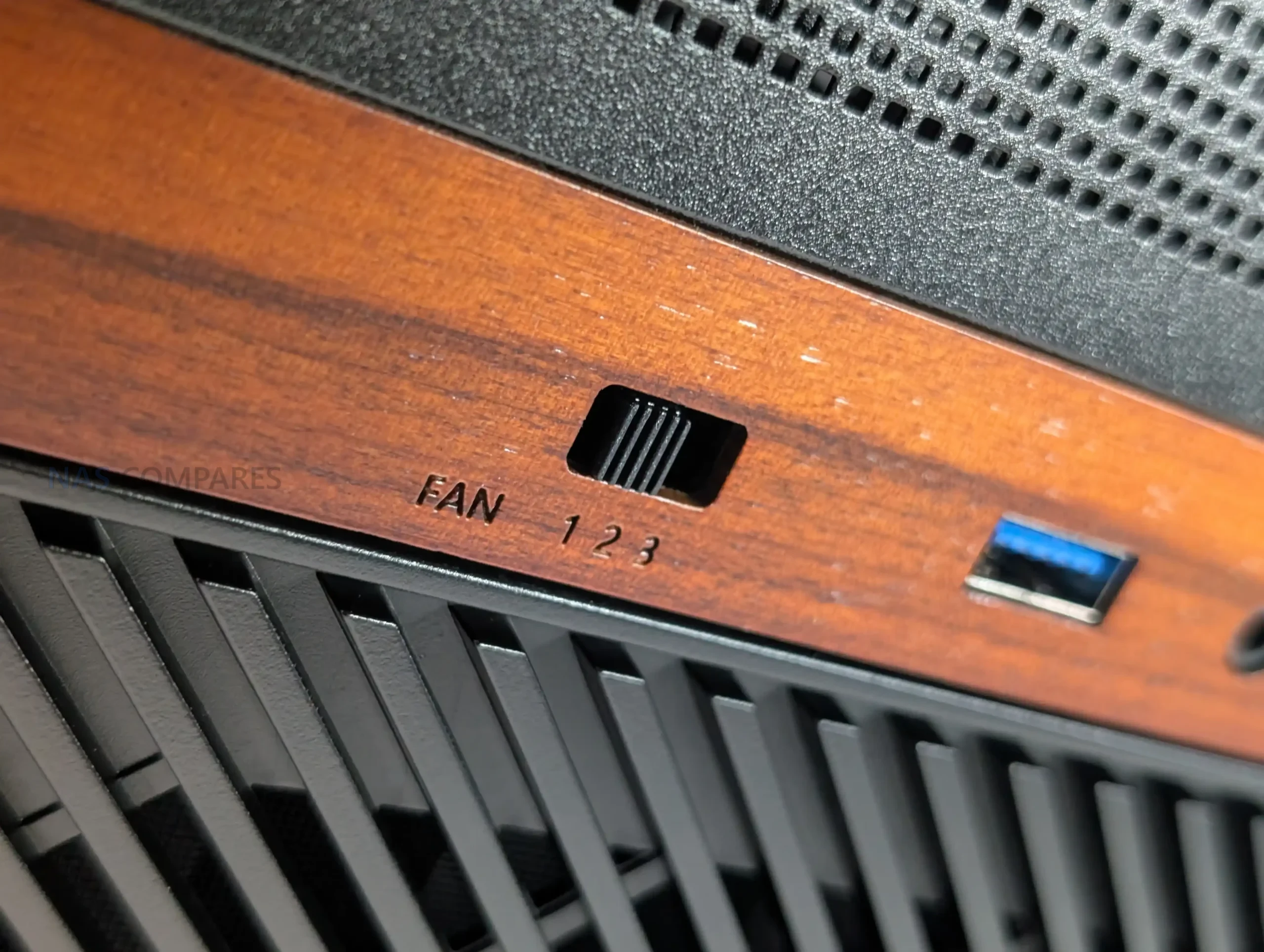
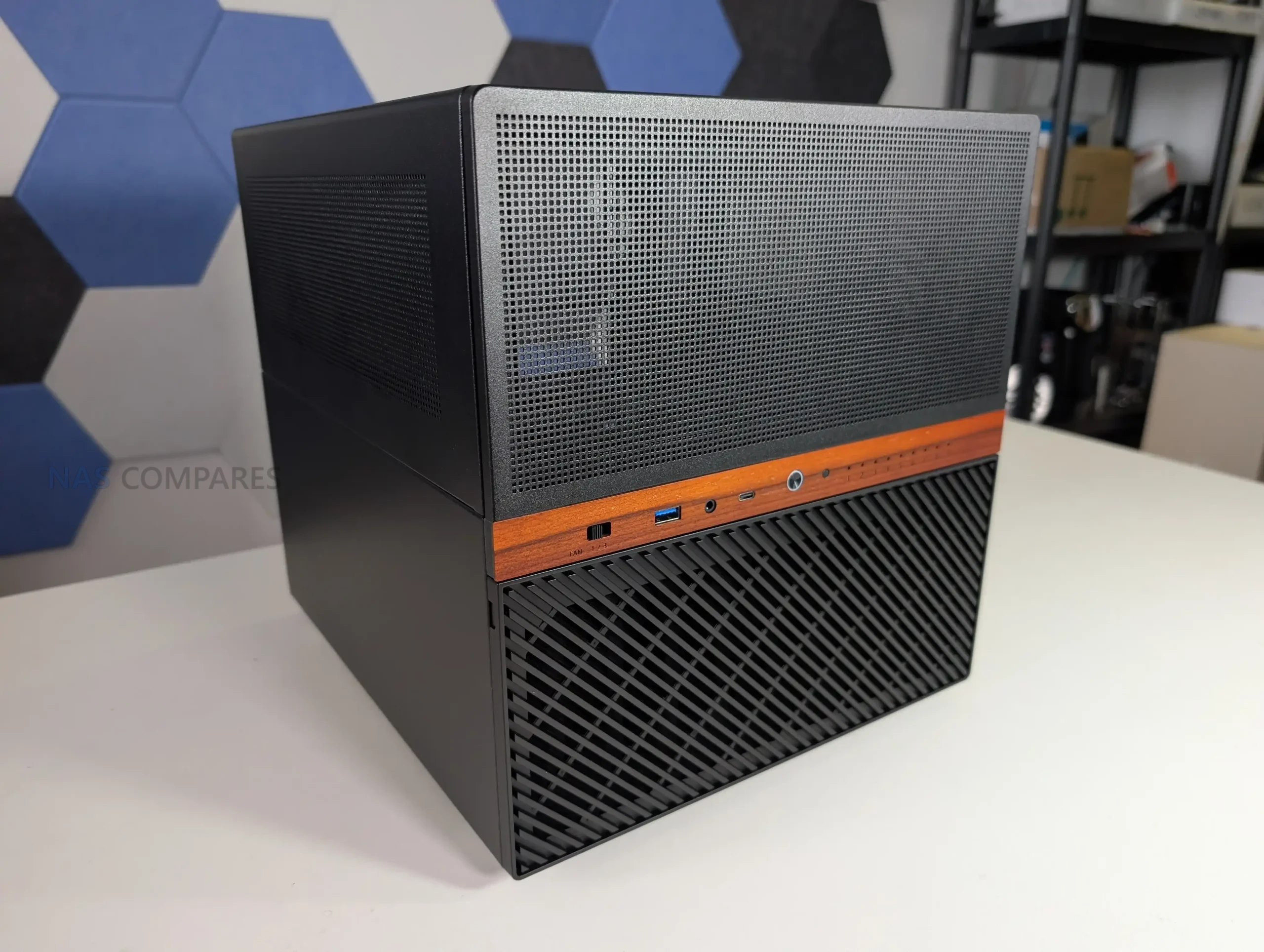
The Jonsbo N6 is the latest addition to the company’s long running lineup of DIY NAS focused enclosures, positioned between the compact N4 and the much larger N5. It is designed as a 9 bay desktop NAS chassis that supports both ITX and Micro ATX motherboards, while also introducing several changes compared with earlier Jonsbo designs. These include proper metal drive trays instead of rubber mounted sleds, expanded fan support, flexible PSU placement, and the inclusion of a physical fan controller. After spending the last 2 weeks building, configuring, and testing the N6 in a real world NAS environment, this review looks at how the case performs in practice, how its design decisions affect usability, and where it fits within the wider Jonsbo NAS case range.

Component Area Specification
Motherboard Support Mini ITX, Micro ATX
PCIe Expansion Slots 4 full height
PSU Support ATX up to 220mm, SFX up to 100mm
Dual PSU Support Yes
Max CPU Cooler Height 65mm to 160mm depending on PSU placement
Max GPU Length 275mm to 320mm depending on configuration
Drive Interface SATA via rear backplane
Drive Count 9 x 3.5 inch or 9 x 2.5 inch

Jonsbo N6 Review –  Quick Conclusion

The Jonsbo N6 positions itself as a compact but flexible DIY NAS enclosure that sits neatly between small form factor NAS cases and much larger tower style solutions. It combines a 9 bay storage layout with support for mATX and ITX motherboards, multiple PSU configurations, and extensive cooling options, aiming to address many of the limitations found in earlier Jonsbo NAS designs. In practical use, it delivers solid thermal behavior, manageable noise levels, and a relatively straightforward build process, while also introducing long requested changes such as proper drive trays and integrated fan control. That said, it is not without compromises, particularly around internal clearance when using larger components and the continued reliance on SATA connectors on the backplane. Overall, the N6 feels like a mature evolution of Jonsbo’s NAS lineup, offering meaningful improvements over smaller models like the N2, N3, and N4, while intentionally stopping short of replacing the larger and more expandable N5.

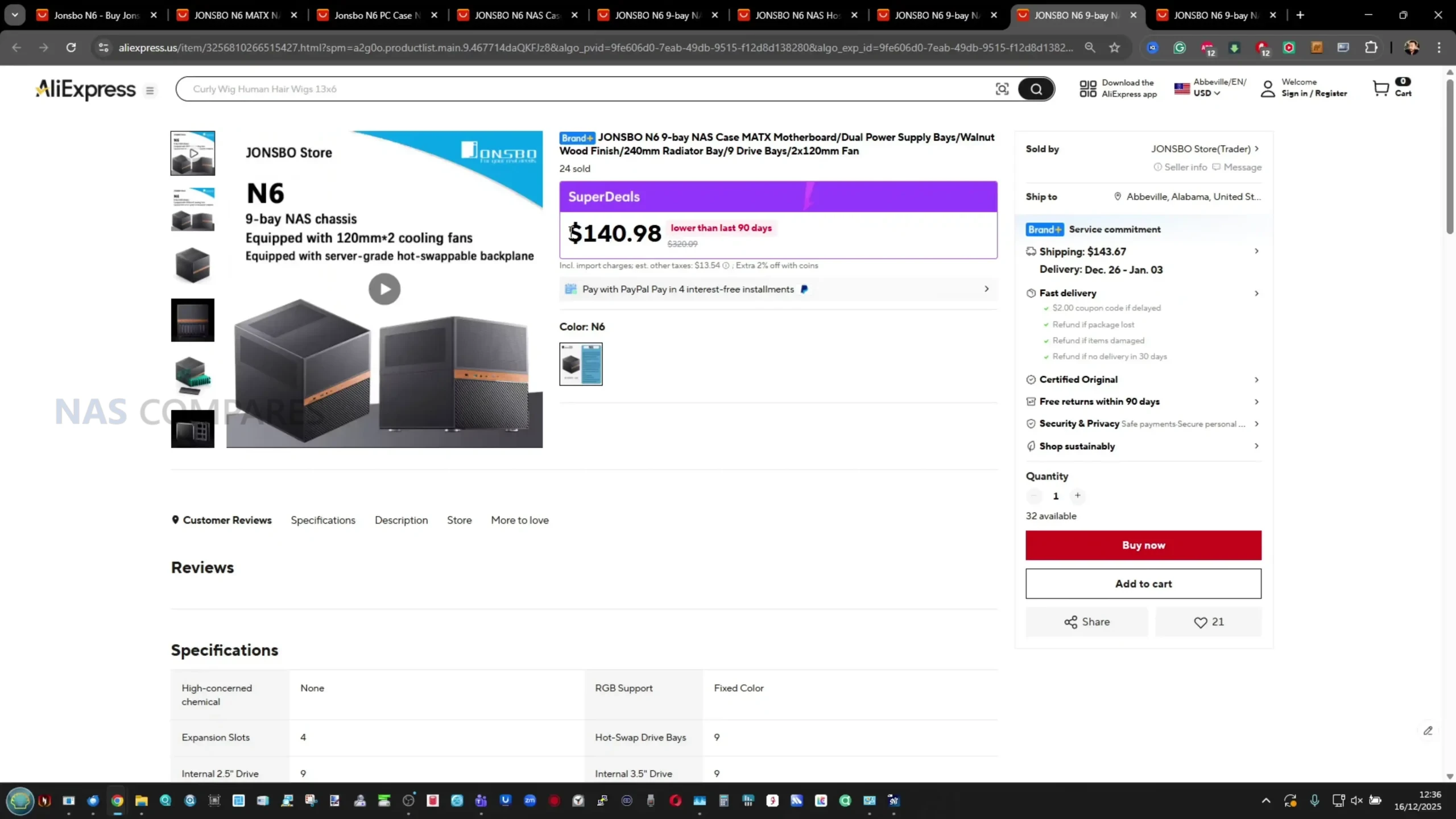
Check Amazon in Your Region for the Jonsbo N6 Case

Check AliExpress or the Jonsbo N6 Case

BUILD QUALITY - 10/10
HARDWARE - 9/10
PERFORMANCE - 9/10
PRICE - 7/10
VALUE - 8/10


8.6
PROS
👍🏻Supports up to 9 x 3.5 inch or 2.5 inch drives, allowing dense storage in a relatively compact footprint
👍🏻Compatible with ITX and Micro ATX motherboards, offering more flexibility than earlier Jonsbo NAS cases
👍🏻Flexible PSU placement with support for ATX and SFX units, including multiple mounting positions
👍🏻Integrated drive backplane simplifies installation and reduces individual cable clutter
👍🏻Built in 3 speed fan controller provides basic manual airflow control without software dependency
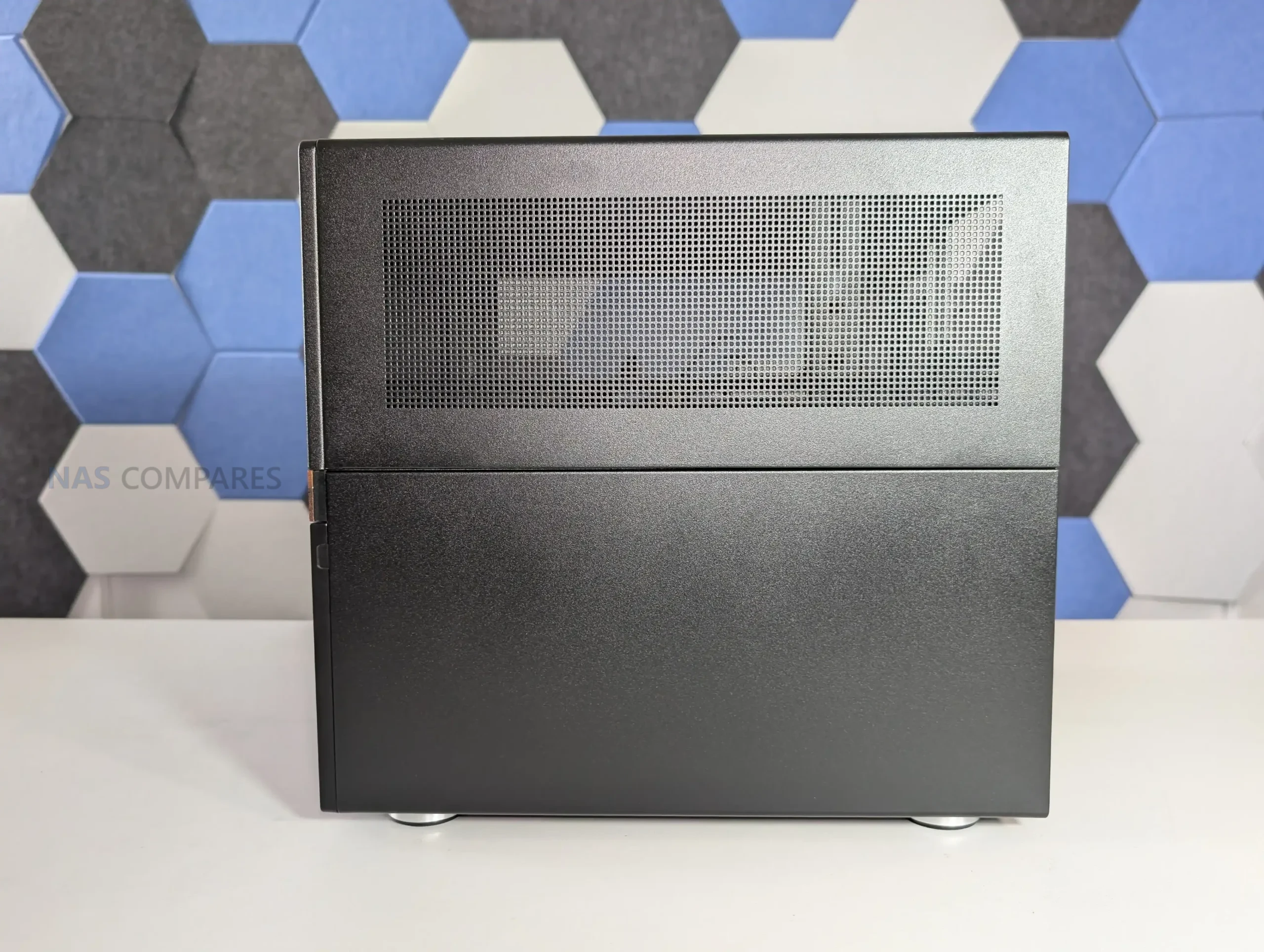
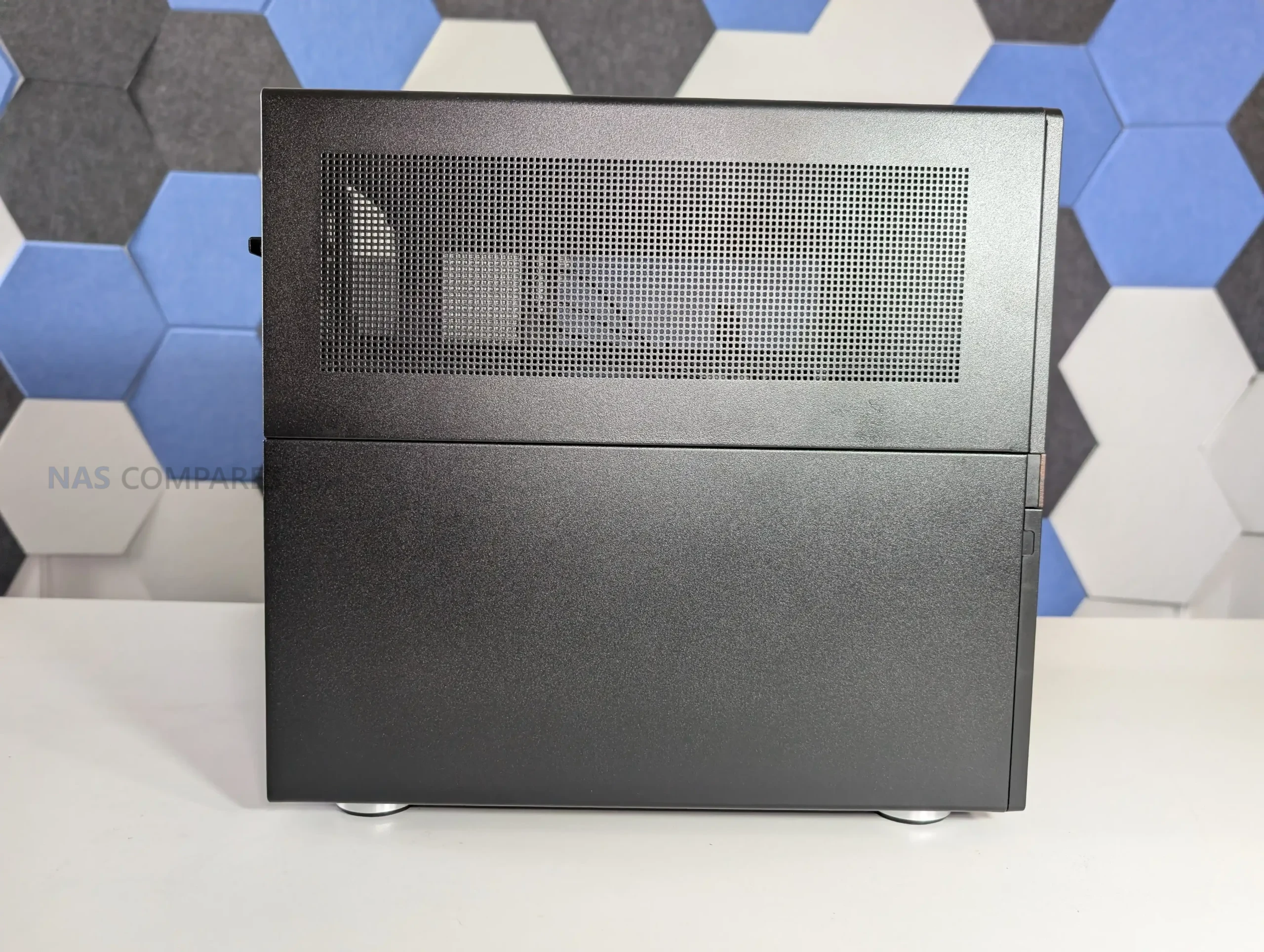
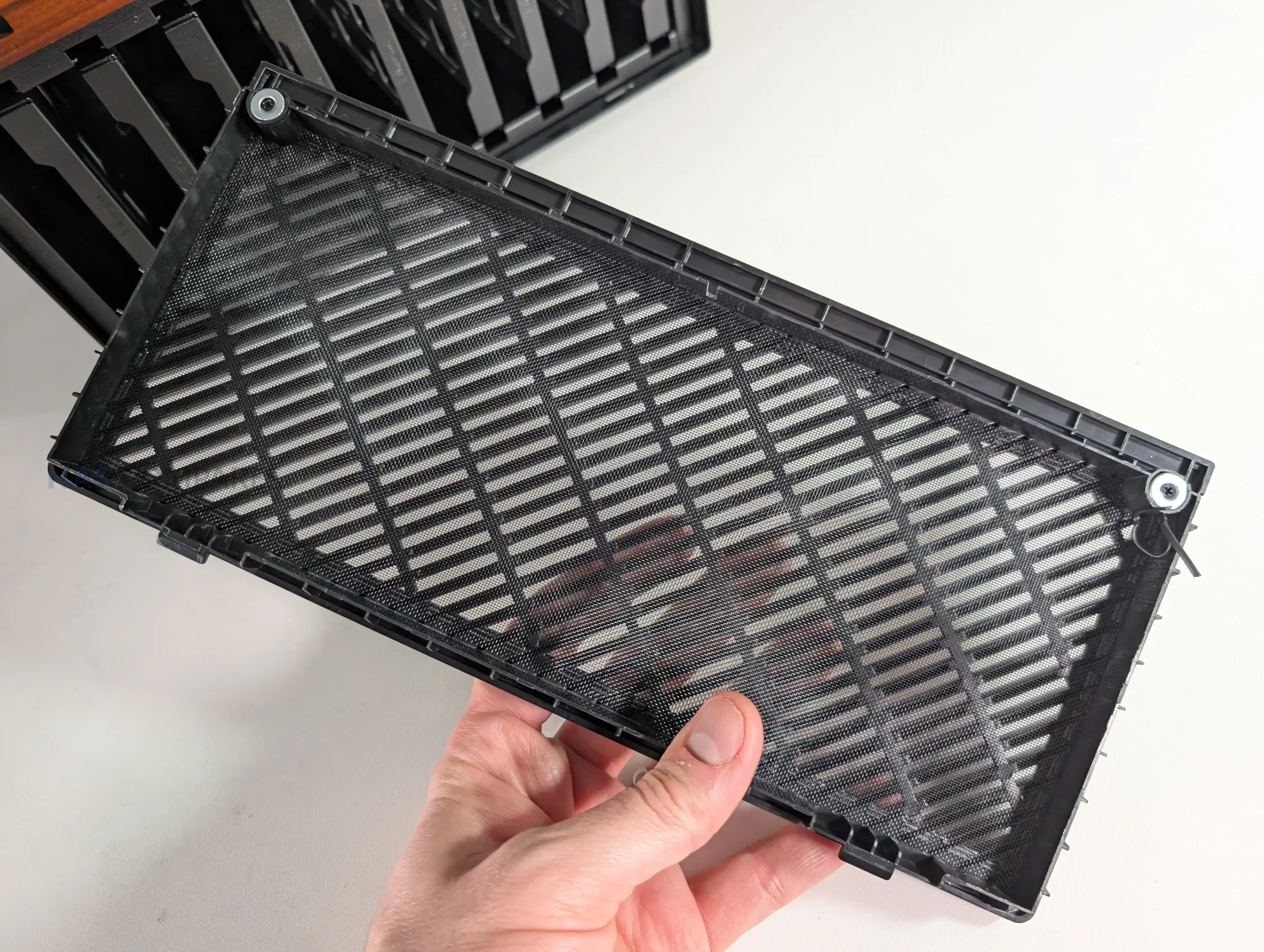
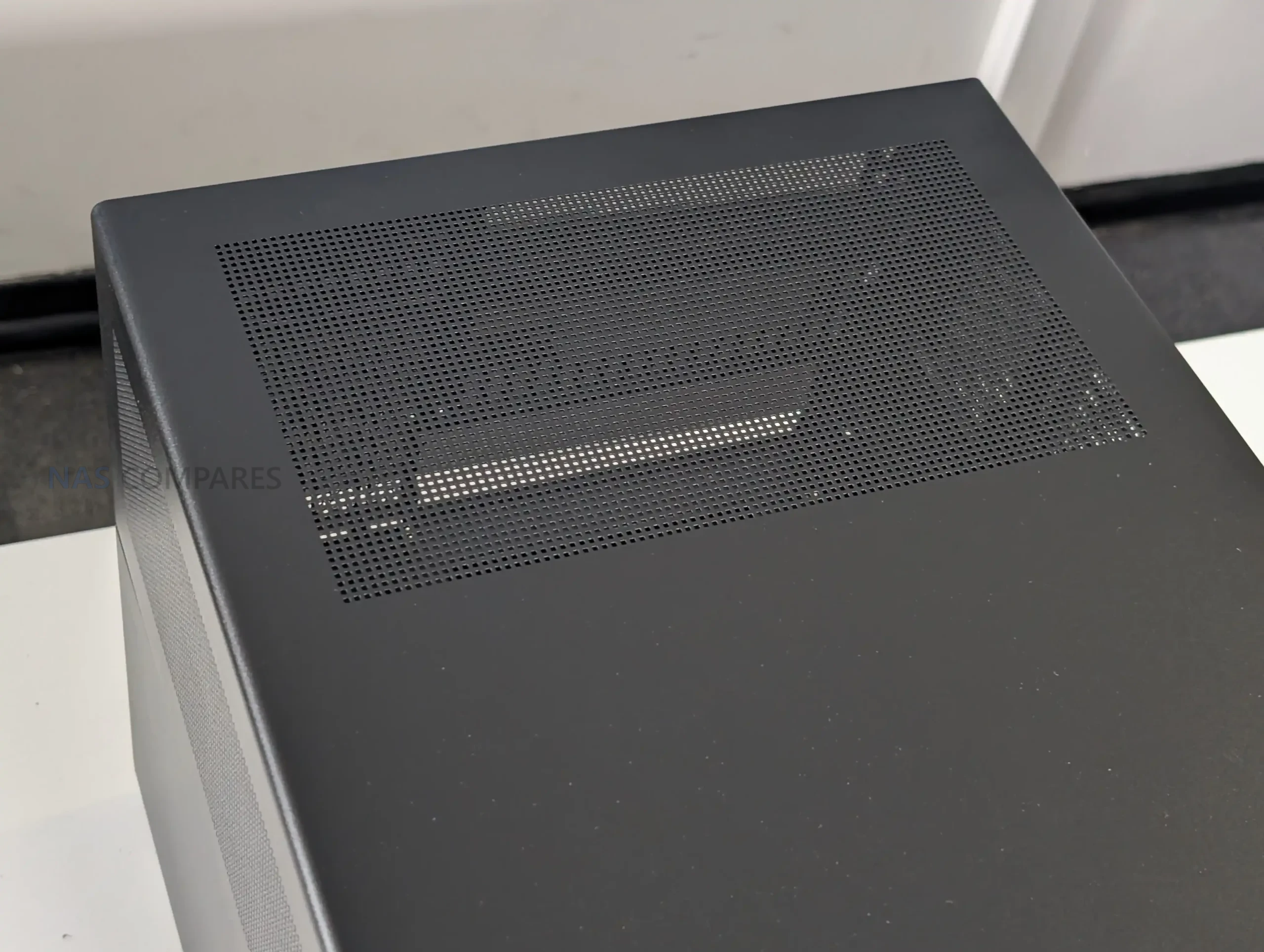
👍🏻Extensive ventilation on all sides, top, and base helps maintain reasonable thermals under load
👍🏻Drive trays replace older rubber grommet mounting, making drive installation more straightforward
👍🏻Build quality feels solid overall, with steel construction and improved internal layout for cable routing
CONS
👎🏻Backplane uses individual SATA connectors rather than Mini SAS, limiting appeal for SAS focused builds
👎🏻Clearance becomes tight with Micro ATX boards and larger ATX PSUs, especially around CPU cooling
👎🏻Drive trays lack tool less latches, locks, or orientation indicators, increasing the chance of installation mistakes


Where to Buy a Product
amzamexmaestrovisamaster 24Hfree delreturn VISIT RETAILER ➤ 
amzamexmaestrovisamaster 24Hfree delreturn VISIT RETAILER ➤

Jonsbo N6 Review – Design & Storage

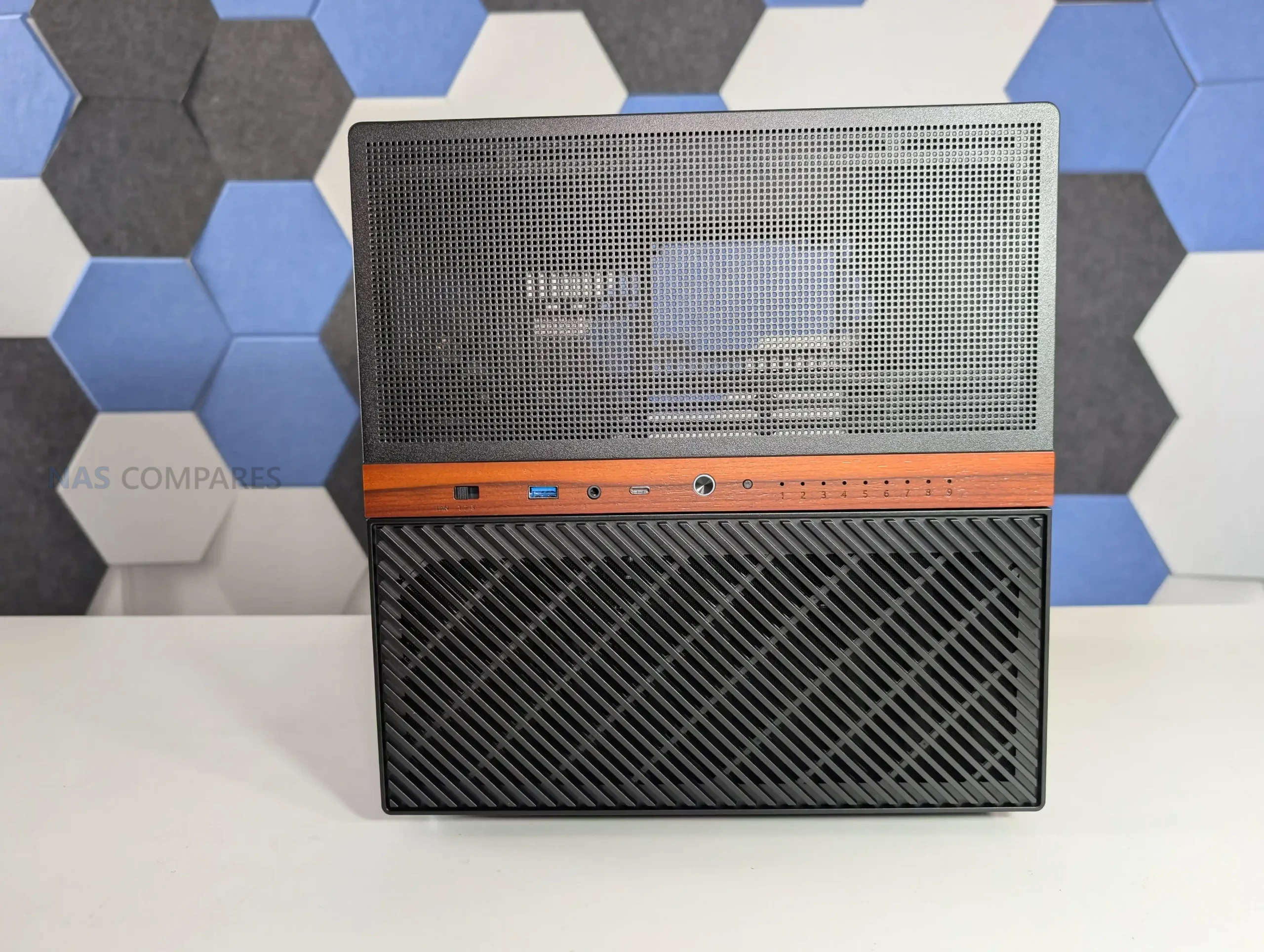
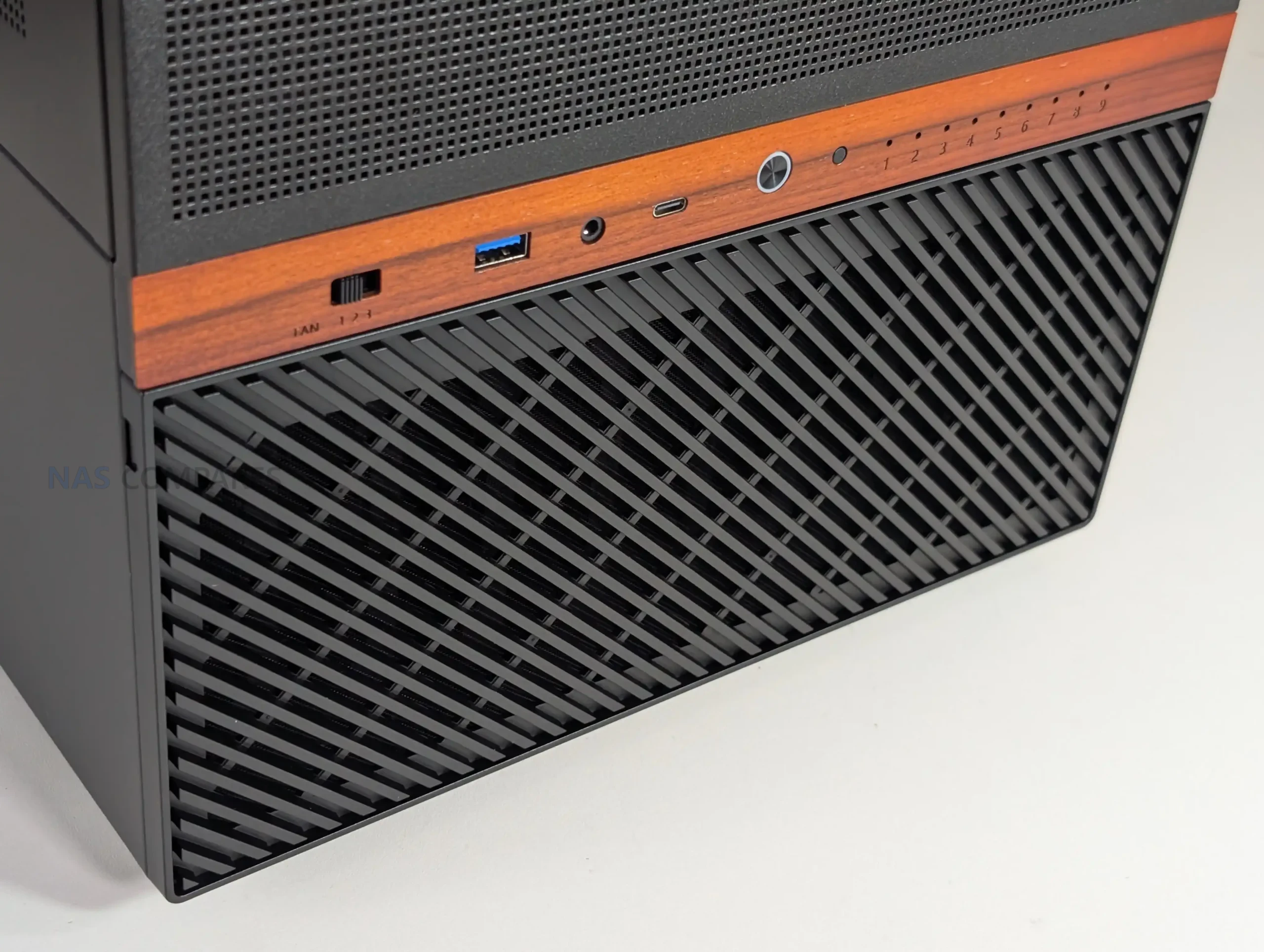
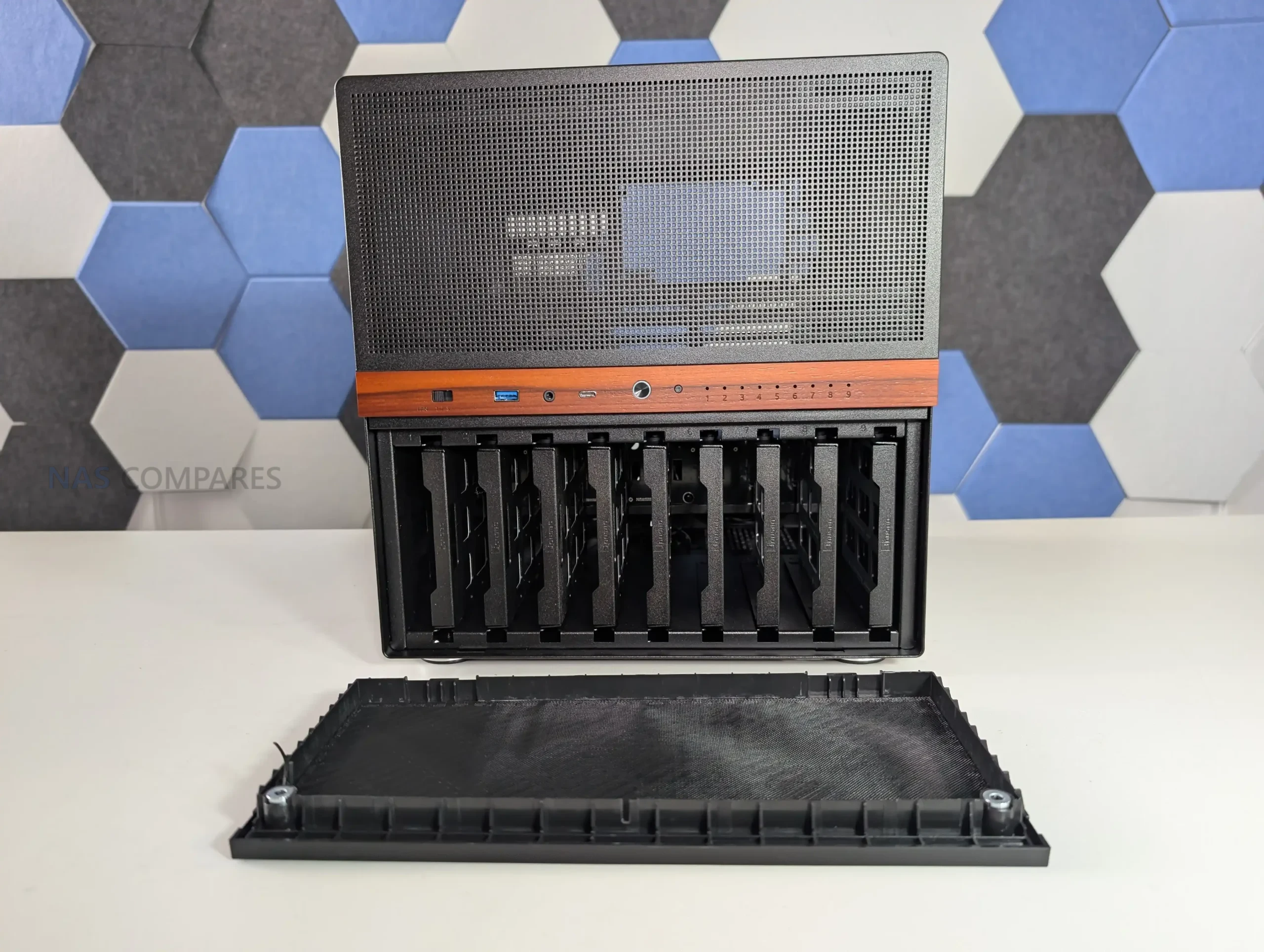
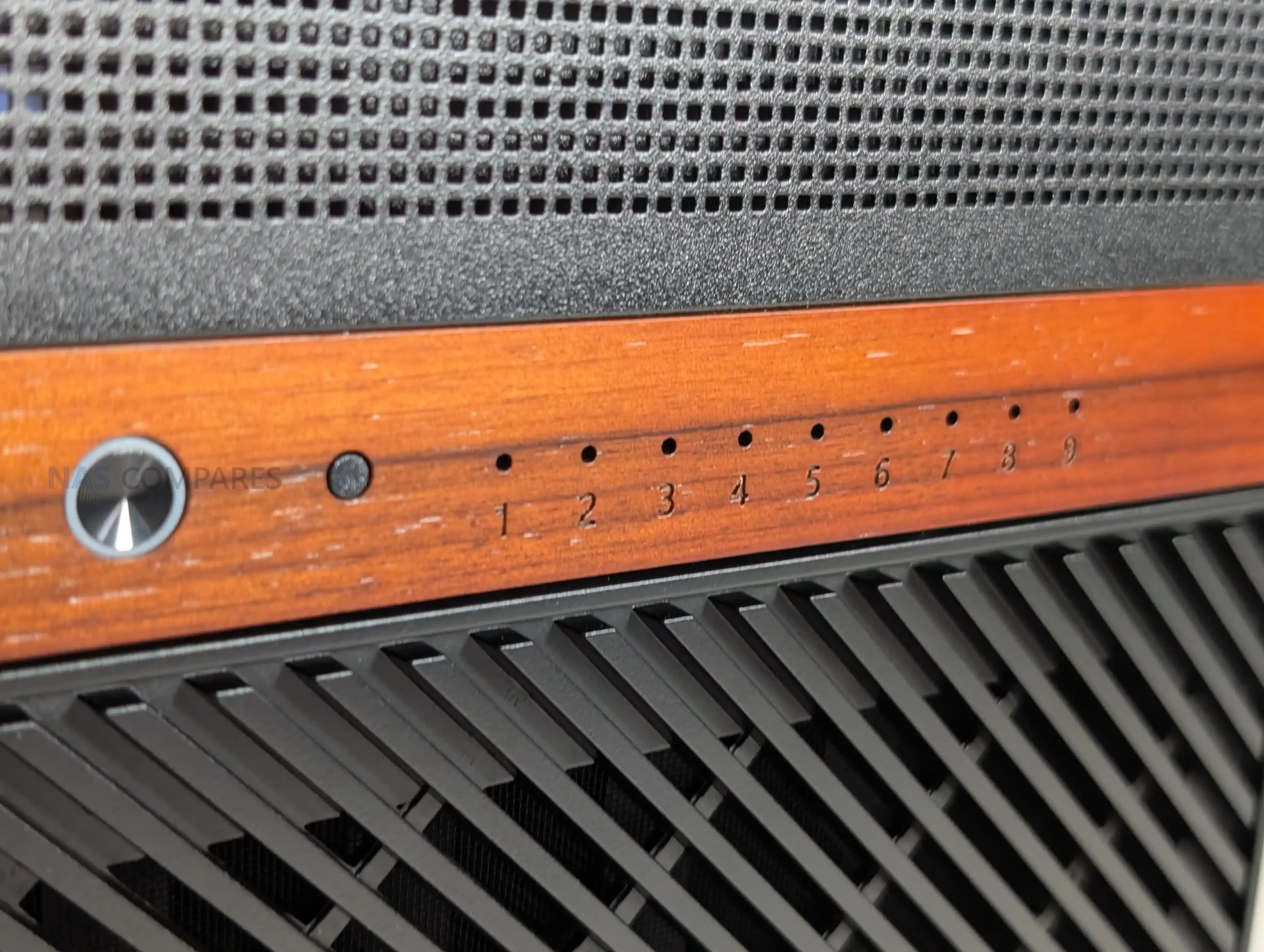
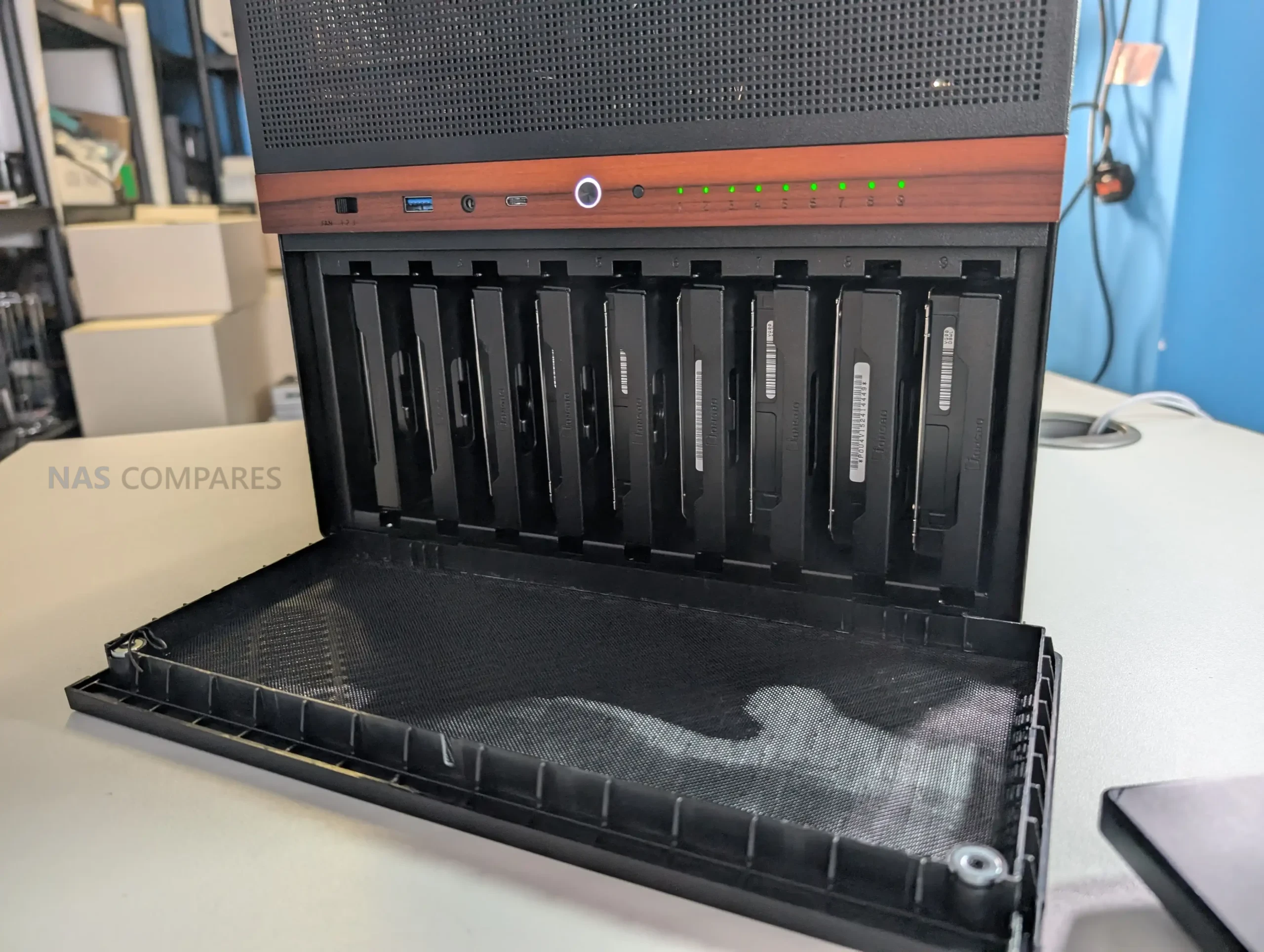
The Jonsbo N6 continues the brand’s established NAS focused design language, combining a compact tower format with a restrained, industrial appearance. The chassis uses a steel construction with aluminum accents and a wooden front trim, which has become a recognizable feature across several recent Jonsbo NAS cases. While the wood insert will not appeal to everyone, it is purely cosmetic and does not interfere with airflow or structural rigidity. Overall dimensions place the N6 clearly below the larger N5, though it is still substantial compared to many ITX cases due to its storage capacity.

Storage is the defining feature of the N6, with support for up to 9 drives in either 3.5 inch HDD or 2.5 inch SSD formats. All drives are housed in a dedicated lower compartment, separated from the motherboard area. This layout helps with cable management and keeps storage thermals isolated from CPU and expansion hardware. The capacity places the N6 in a relatively uncommon position, offering more drive bays than most compact NAS cases without stepping into full tower territory.

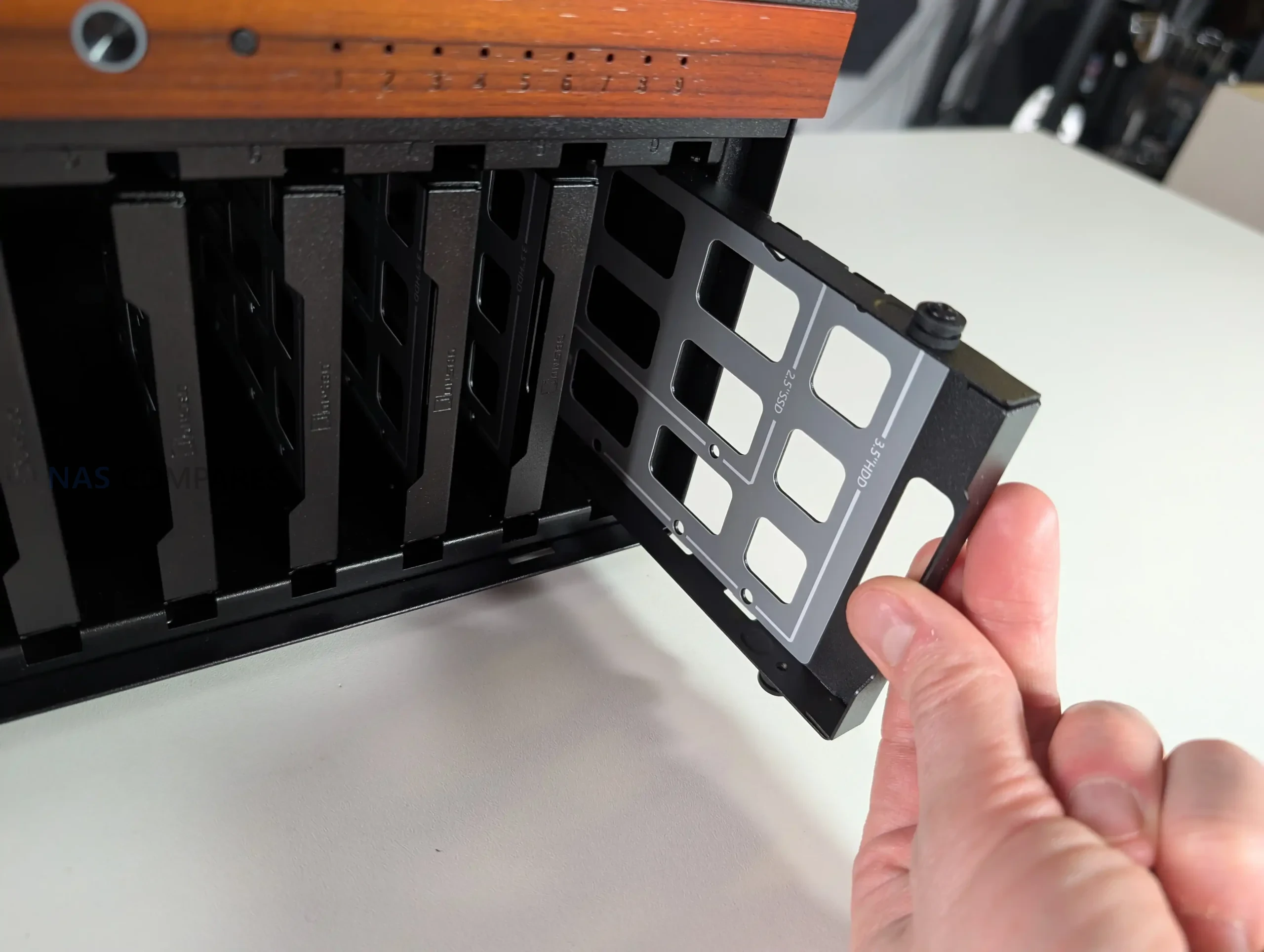
Unlike earlier Jonsbo NAS models that relied on rubber grommets and pull tabs, the N6 uses metal drive trays as standard. Each tray supports both 3.5 inch and 2.5 inch drives and slots directly into a rear mounted backplane. The trays are functional rather than refined, lacking tool less locking mechanisms or individual activity LEDs. However, spacing between drives allows some passive airflow, which is important given the density of a fully populated array.

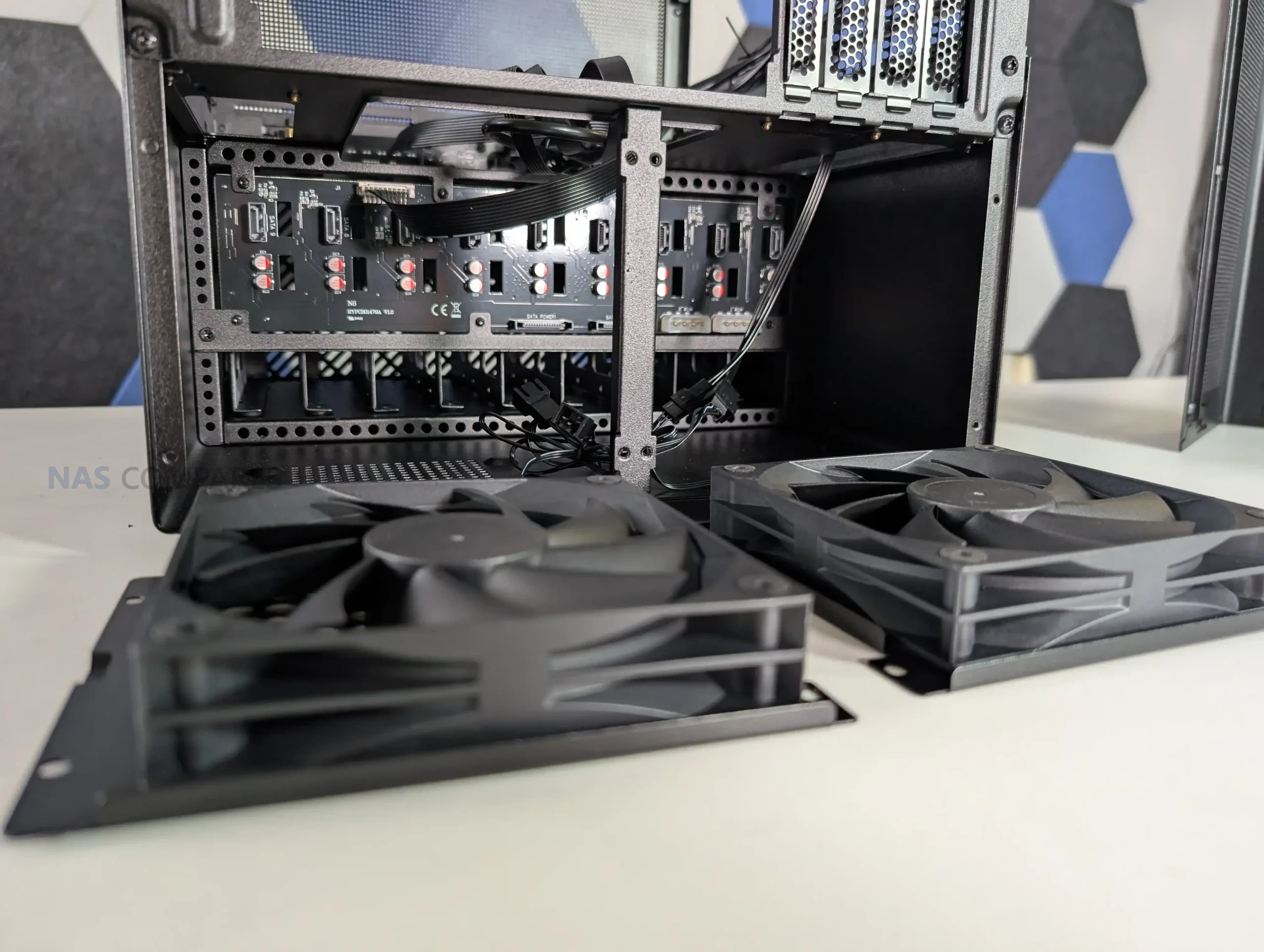
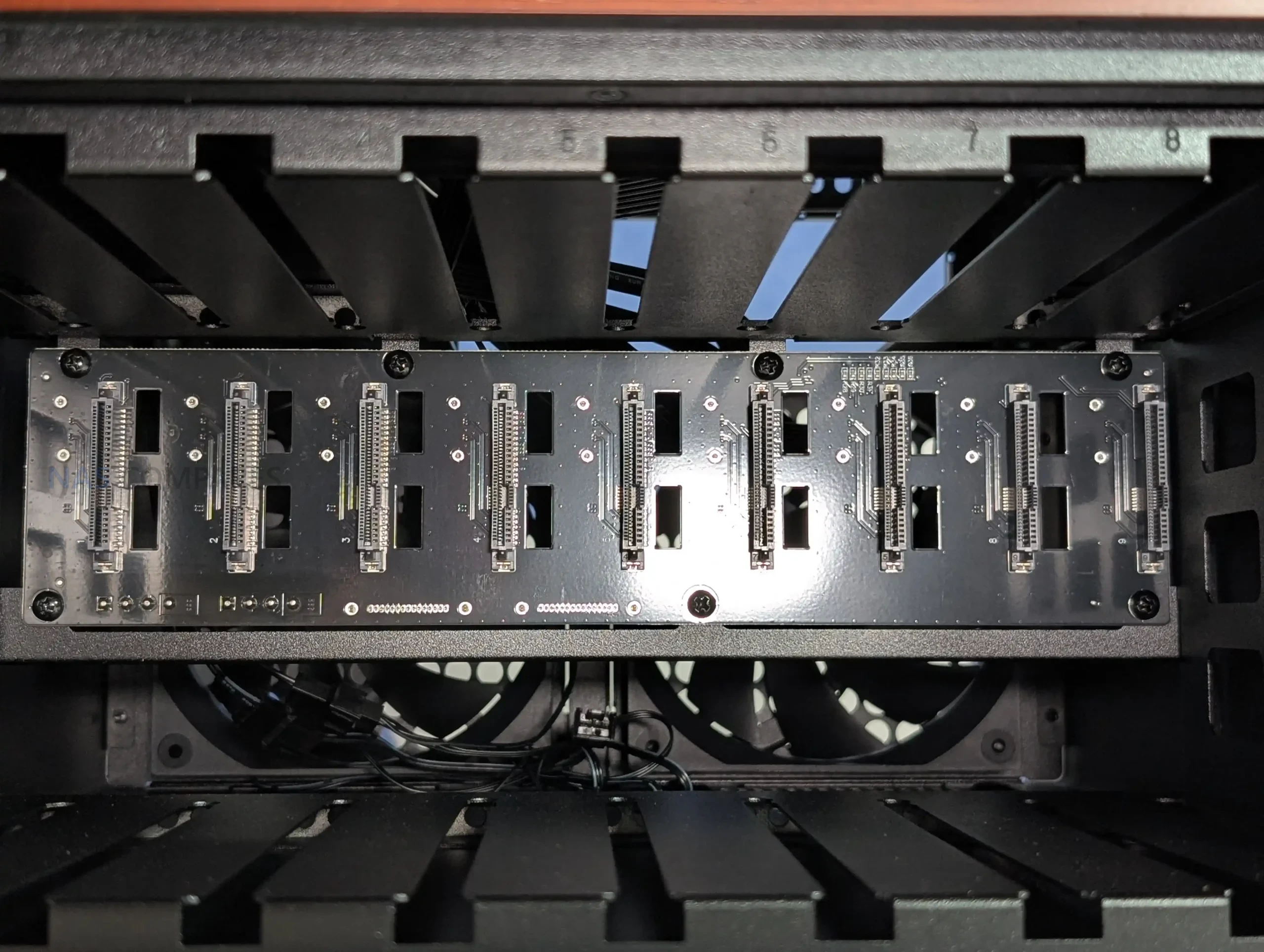
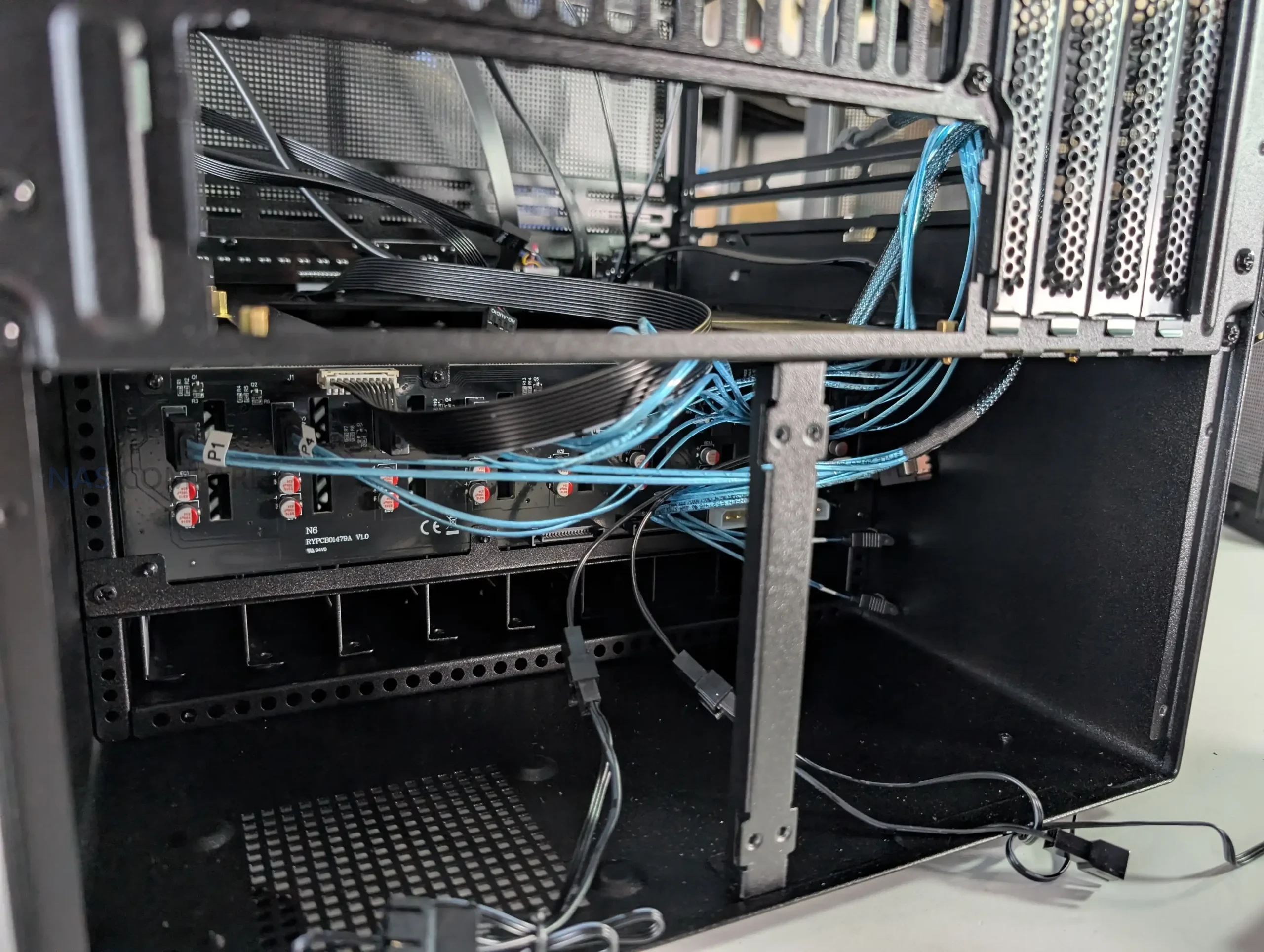
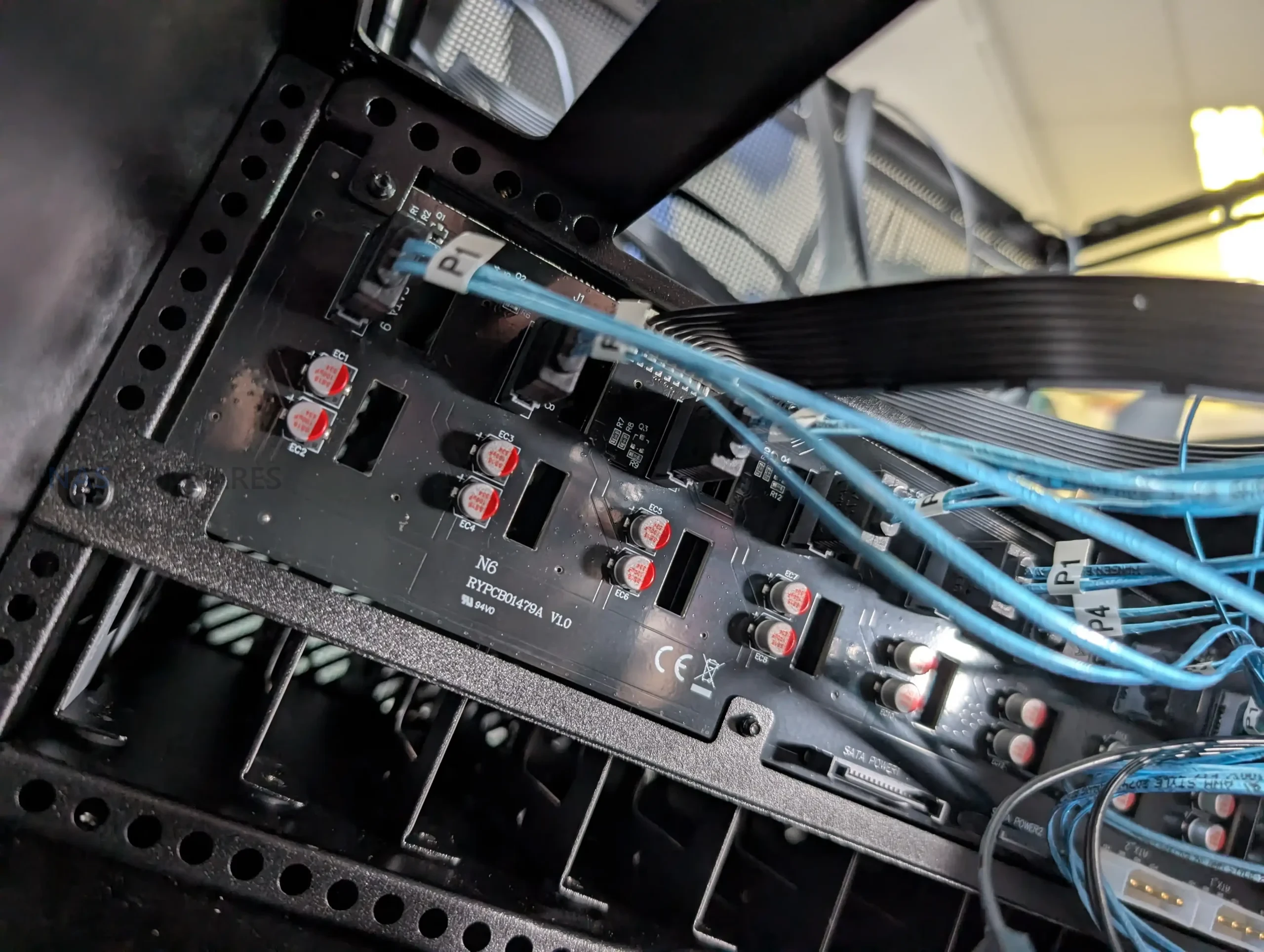
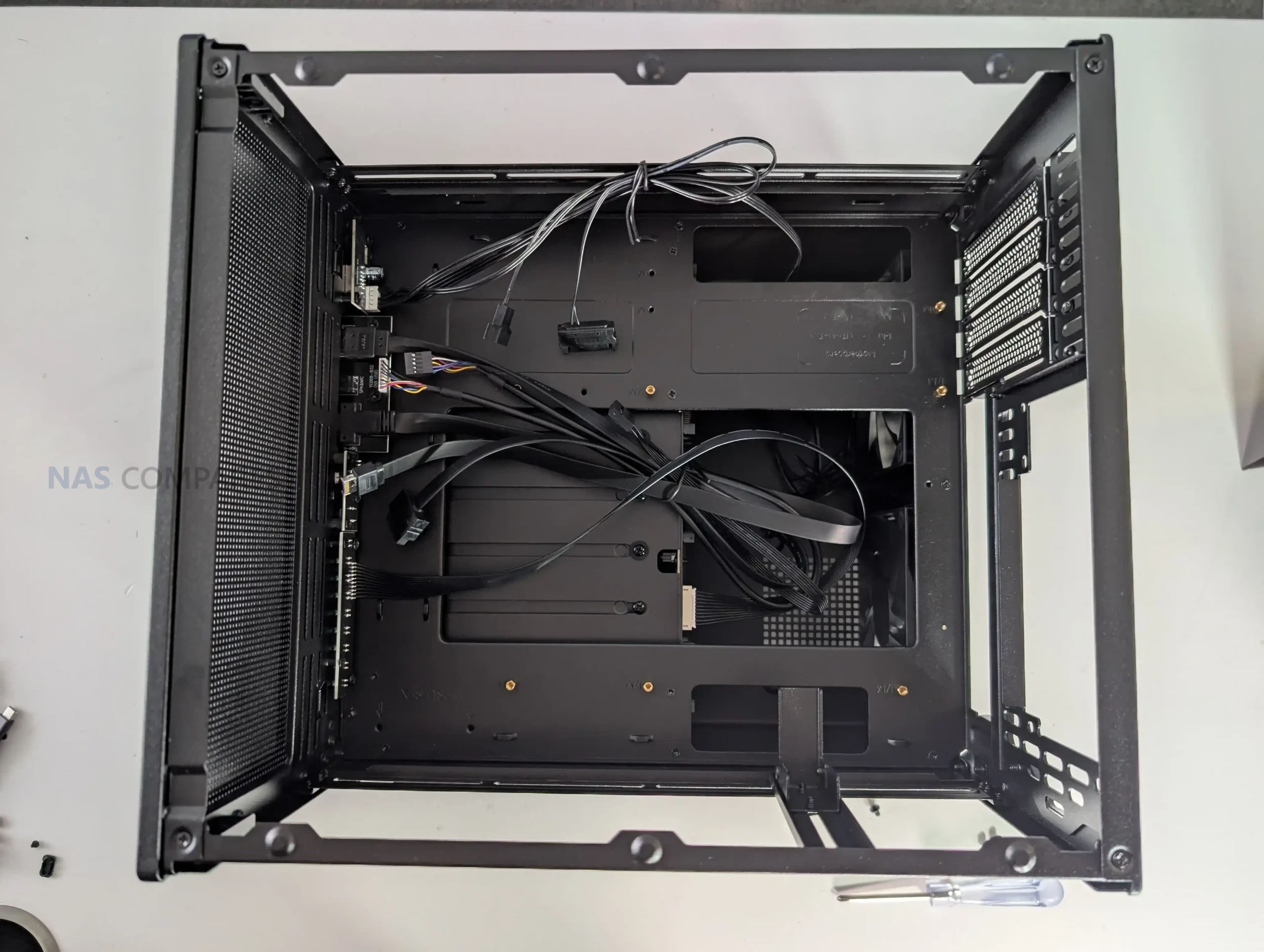
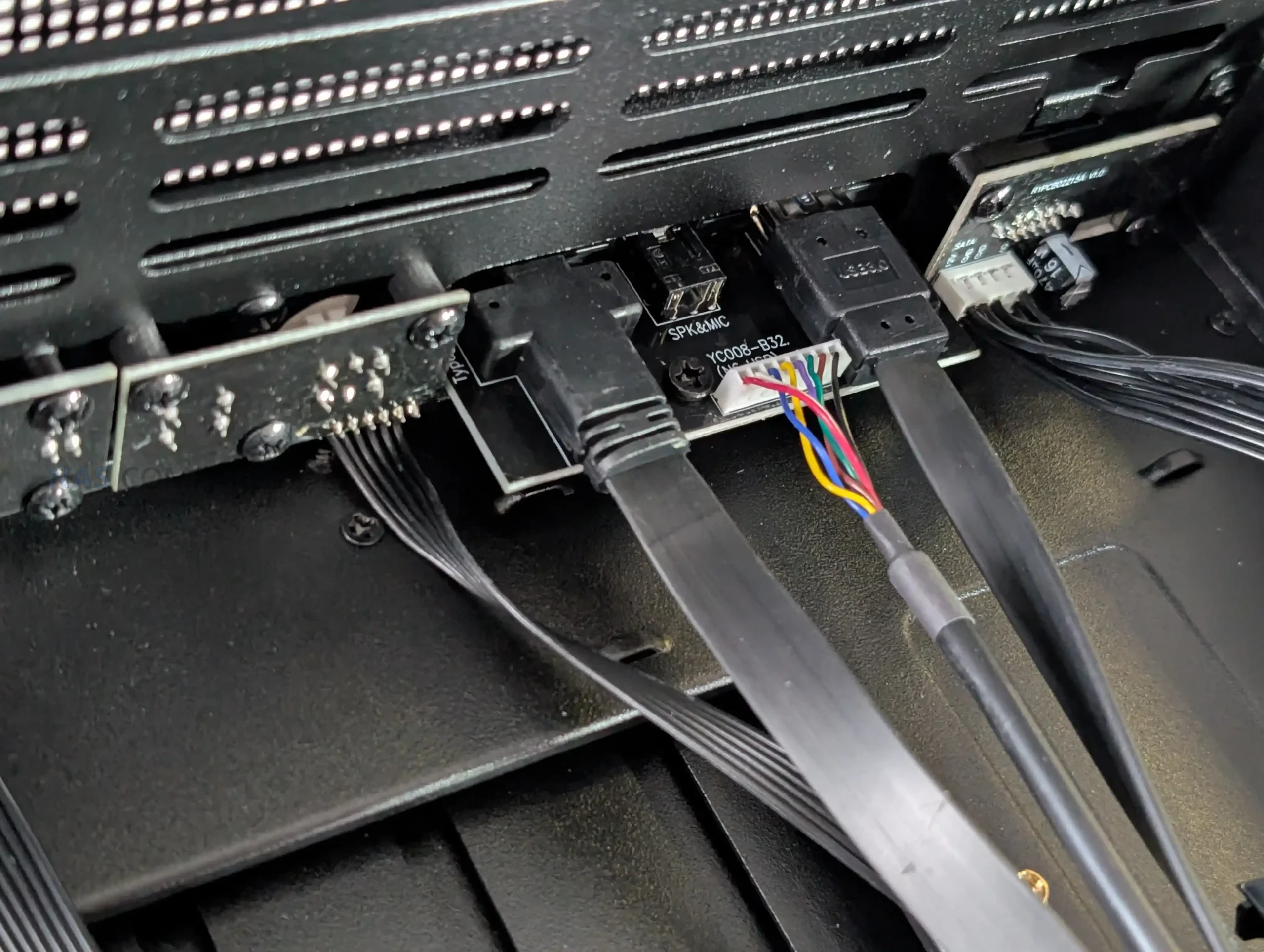
All 9 drive trays connect to a single backplane PCB located at the rear of the drive cage. The front side of the board uses individual SATA connectors for each bay, simplifying installation compared to loose cabling. On the output side, the board breaks out into standard SATA data connectors rather than Mini SAS, alongside SATA and Molex power inputs. This choice favors compatibility but limits native SAS support, which may matter to users running enterprise drives or SAS controllers.

From an installation standpoint, drive access is straightforward, but orientation is something to be careful with. The trays do not include visual indicators for correct alignment, making it possible to insert a drive incorrectly if rushed. While this is not unique to the N6, it does introduce some risk during initial setup or drive swaps. Overall, the storage design prioritizes density and compatibility over convenience features, aligning with the case’s focus on DIY NAS builders rather than hot swap environments.

Jonsbo N6 Review – Internal Structure

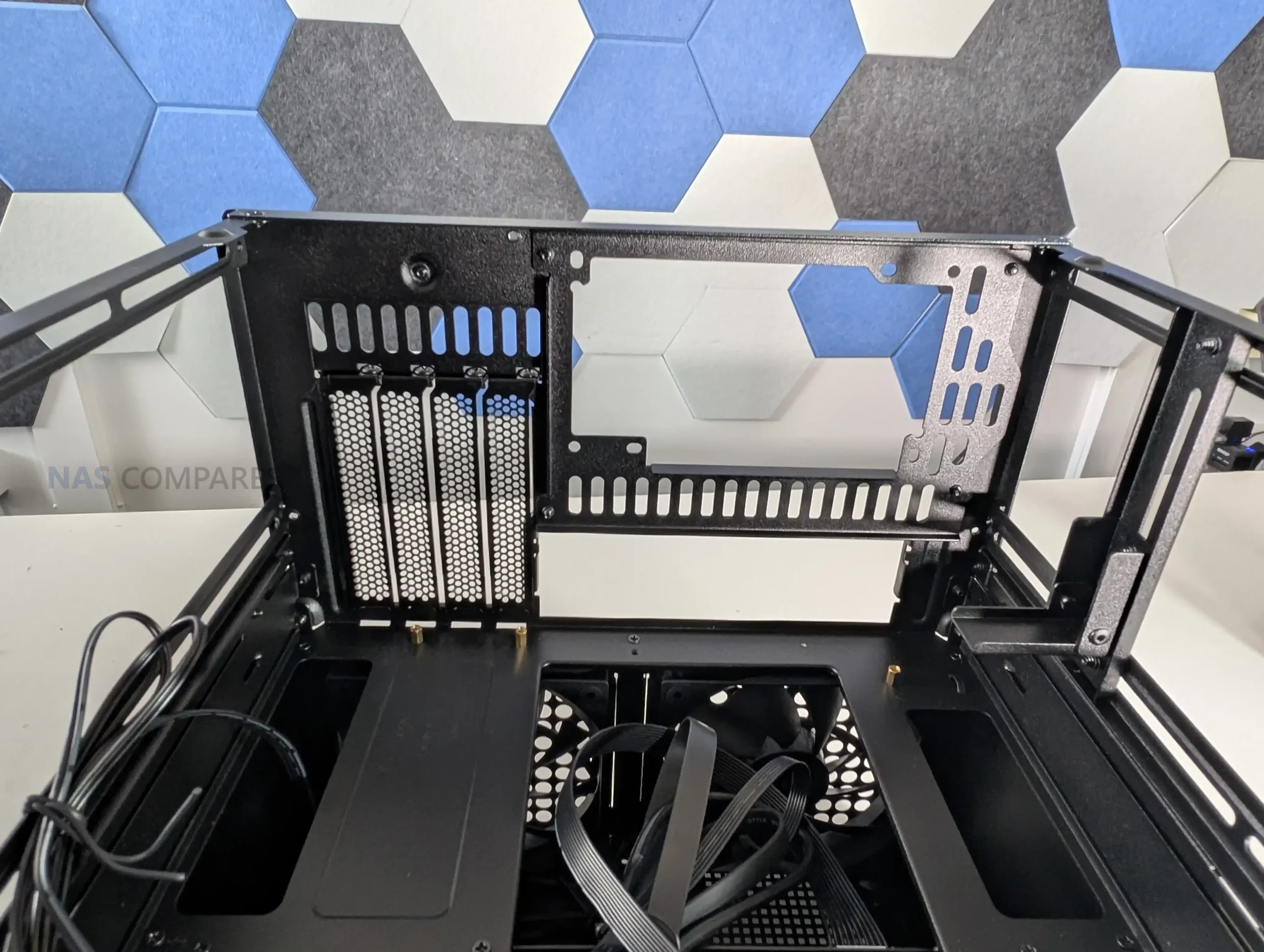
The internal layout of the Jonsbo N6 is designed around flexibility rather than absolute clearance, and that becomes clear once hardware installation begins. The case supports Mini ITX and Micro ATX motherboards, but does not officially support full ATX boards, despite physical dimensions that appear close.

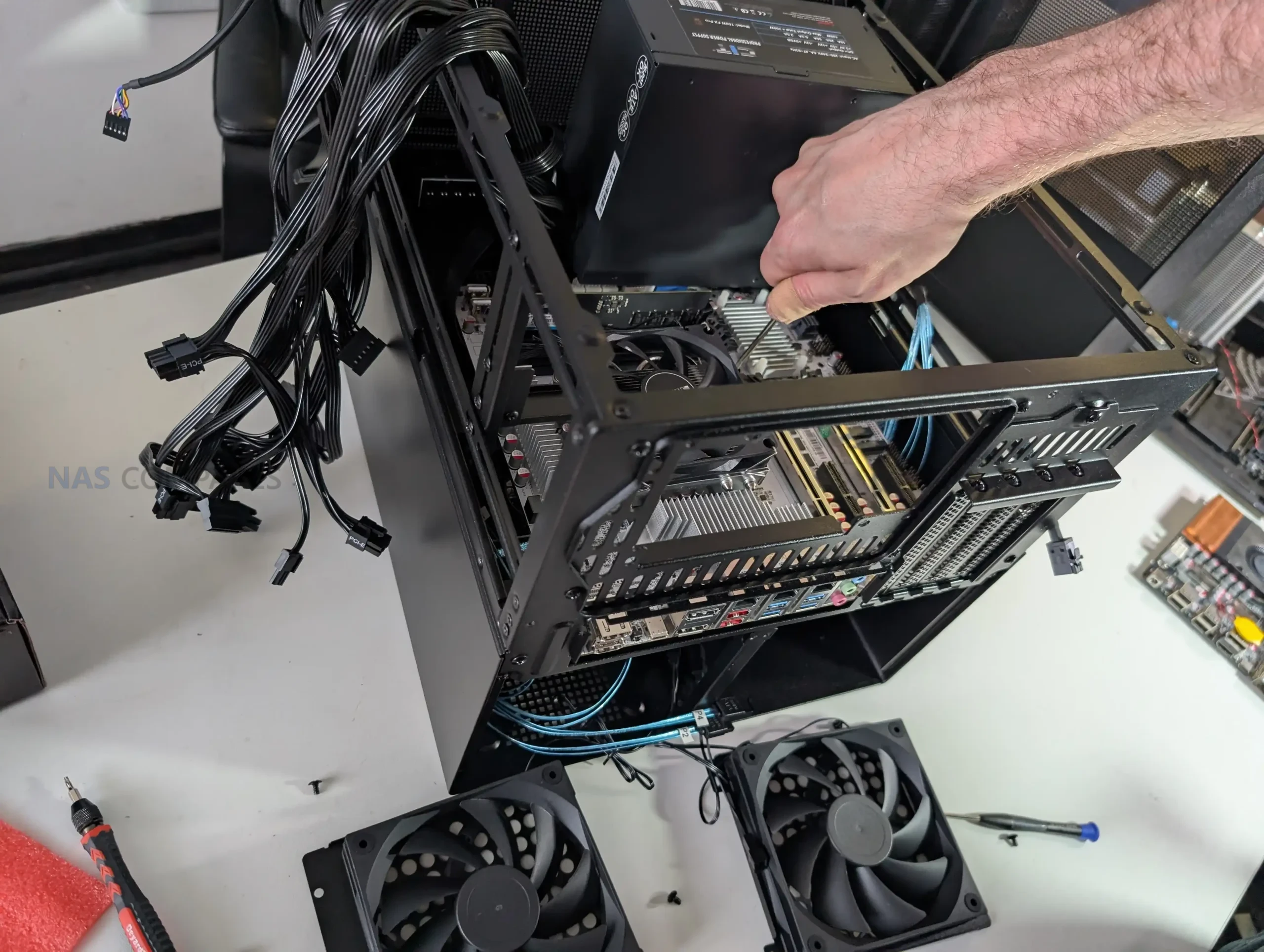
In practice, fitting an ATX board is technically possible but leaves insufficient clearance for cabling, airflow, and component access, making it impractical for most builds. With ITX boards, internal space is generous and largely unobstructed, while Micro ATX installations require more planning due to tighter edge clearances near the drive backplane and PSU mounting areas.

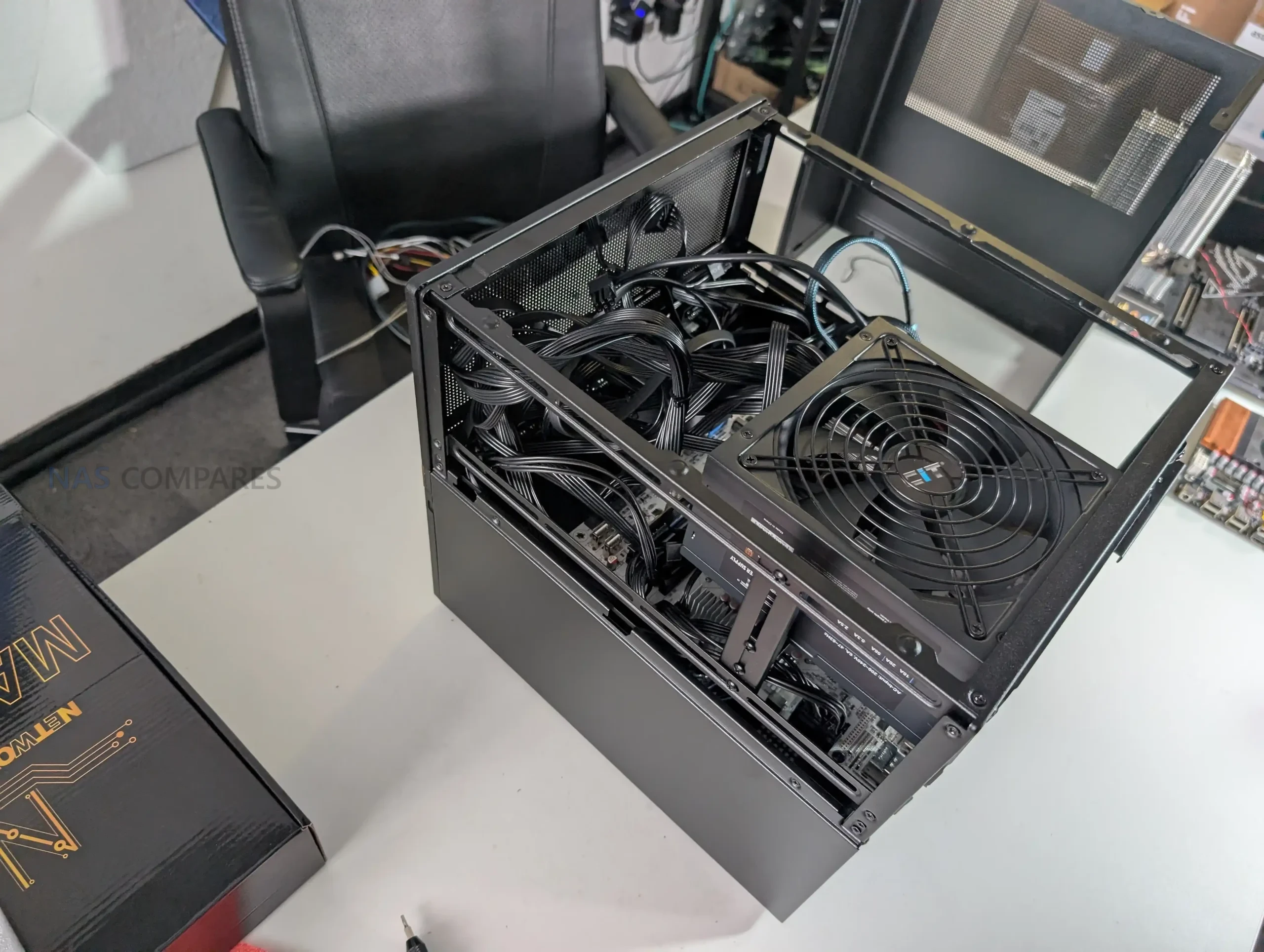
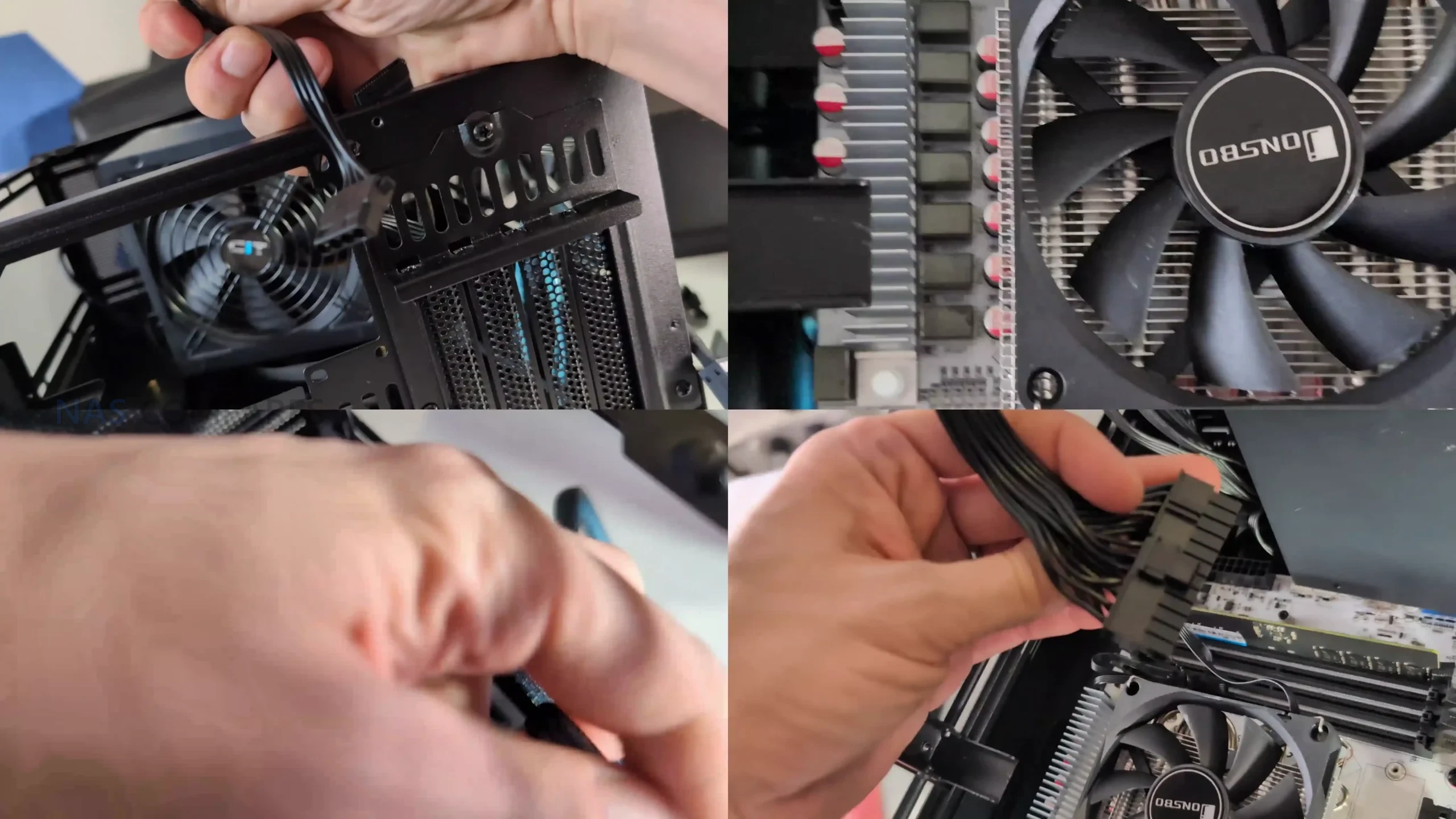
PSU placement plays a major role in how the internal hardware layout behaves. The N6 supports both ATX and SFX power supplies and allows installation in multiple positions using included brackets. Mounting a full size ATX PSU above the motherboard significantly reduces available CPU cooler height, which can limit cooler selection to low profile or compact tower designs. SFX power supplies offer more flexibility and reduce conflicts around the CPU socket area, particularly when using Micro ATX boards.

The option for dual PSU installation adds another layer of configurability, but it further increases complexity around airflow paths and cable routing.

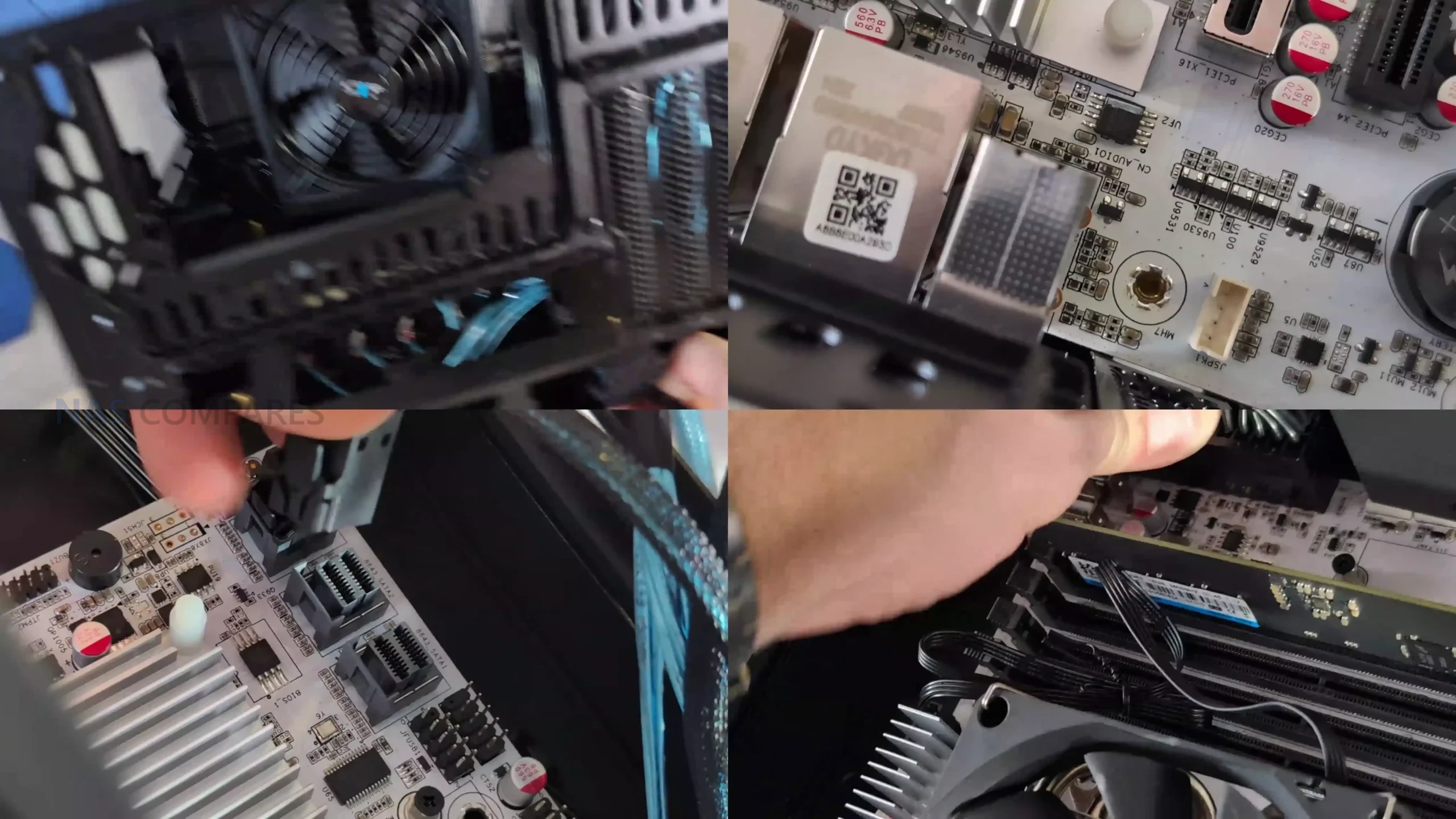
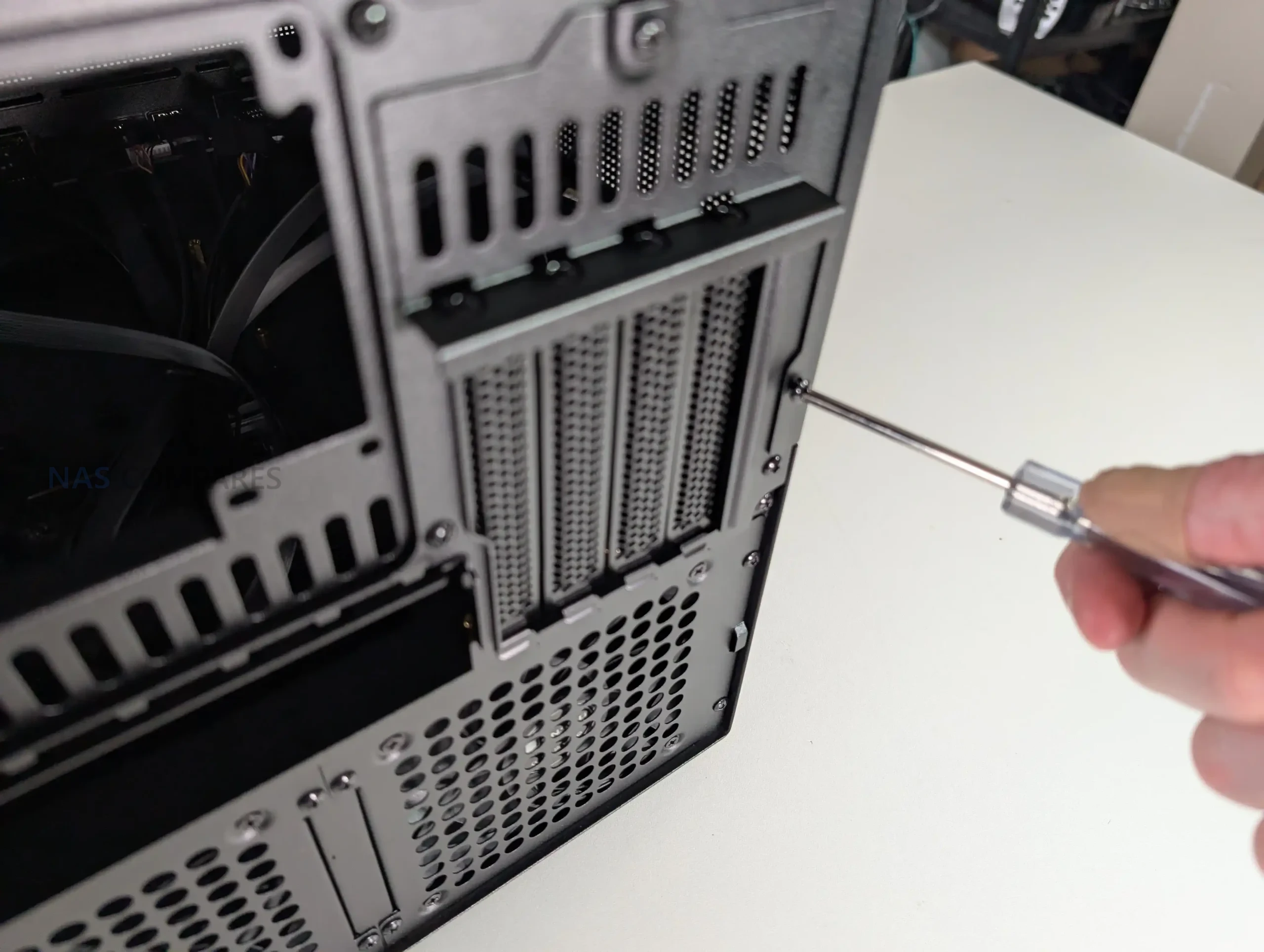
PCIe expansion is relatively strong for a case in this category, with support for up to 4 full height expansion slots. This allows for the use of HBAs, network cards, or even a discrete GPU, provided length and thickness limits are respected. Clearance becomes tight when multiple expansion cards are installed alongside side mounted fans, especially on the lowest slot. Cable routing is generally straightforward, with clear channels and anchor points, but routing SATA or Mini SAS fan out cables is easier if completed before final motherboard installation, particularly in Micro ATX configurations.

Jonsbo N6 Review – Connectivity

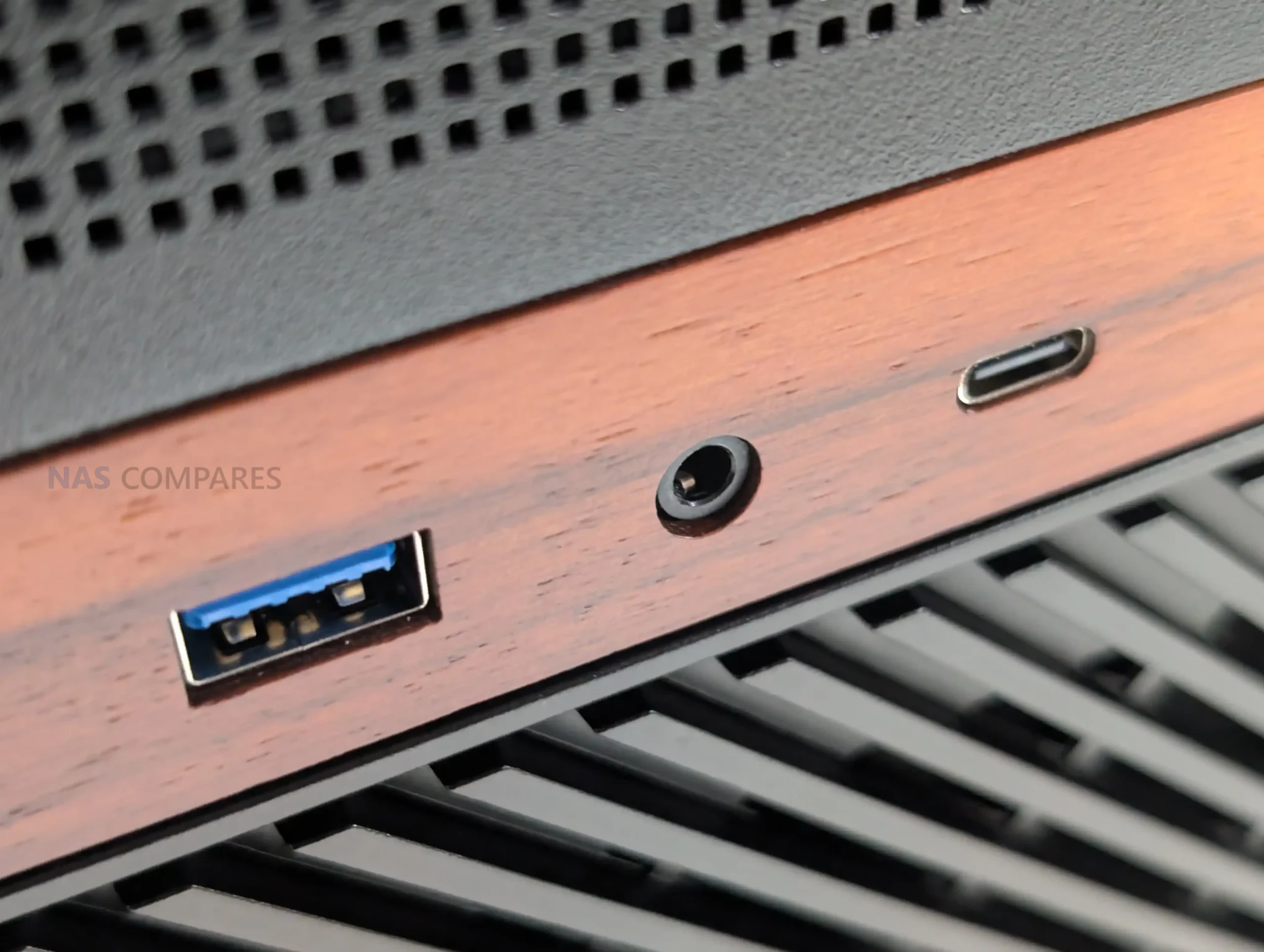
The Jonsbo N6 keeps external connectivity relatively straightforward, with all user facing ports located on the front panel for easy access. This placement makes sense for a NAS chassis that is likely to be positioned on a desk, shelf, or rack adjacent surface rather than frequently accessed from the rear. The front I O layout focuses on essential connectivity rather than attempting to replicate a full desktop case feature set.

In practical use, the inclusion of a USB 3.2 Gen2 Type C port provides a high bandwidth option for external storage, temporary backups, or maintenance tasks such as system recovery media. Alongside it, the USB 3.0 Type A port offers compatibility with a wide range of existing peripherals. This combination should be sufficient for most NAS focused workflows, where frequent hot swapping of peripherals is uncommon but occasional high speed access is still required.

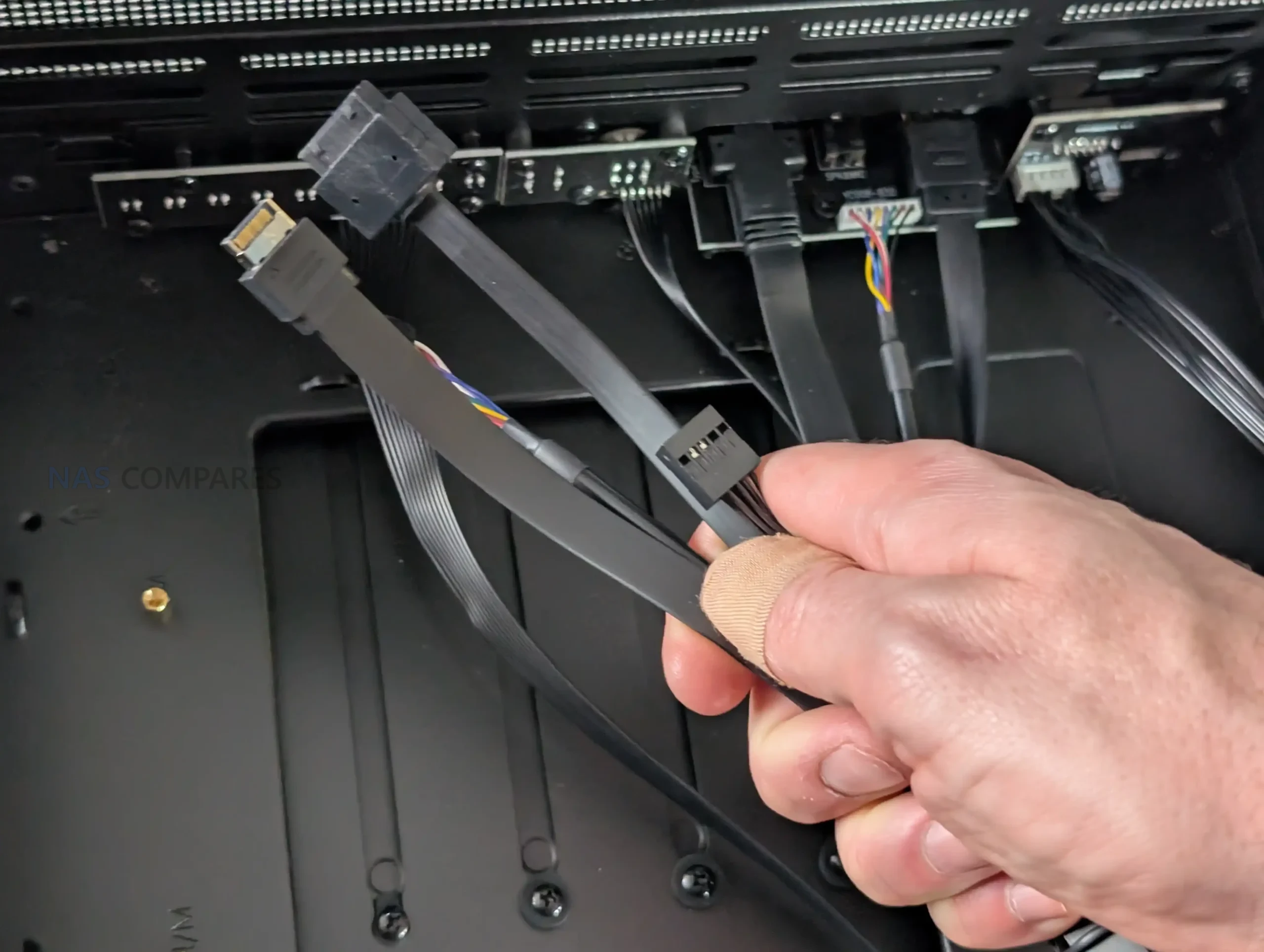
Internally, connectivity is more complex and is closely tied to the integrated drive backplane. All 9 drive bays connect through the rear mounted PCB, which uses individual SATA data connectors rather than Mini SAS or SAS HD outputs. Power delivery is handled through a mix of SATA power and Molex connectors, which provides flexibility but may increase cable management complexity depending on the power supply used.

While functional, this approach places more responsibility on the user to plan cabling carefully, especially in fully populated configurations.

Feature Specification
Front USB Type C USB 3.2 Gen2
Front USB Type A USB 3.0
Audio I O Combined headphone and microphone
Drive Data Interface Individual SATA per bay
Drive Power Inputs 2 x SATA power, 2 x Molex
Backplane SAS Support No
Front Panel Cabling Pre routed internal cables

Jonsbo N6 Review – N5 vs N6

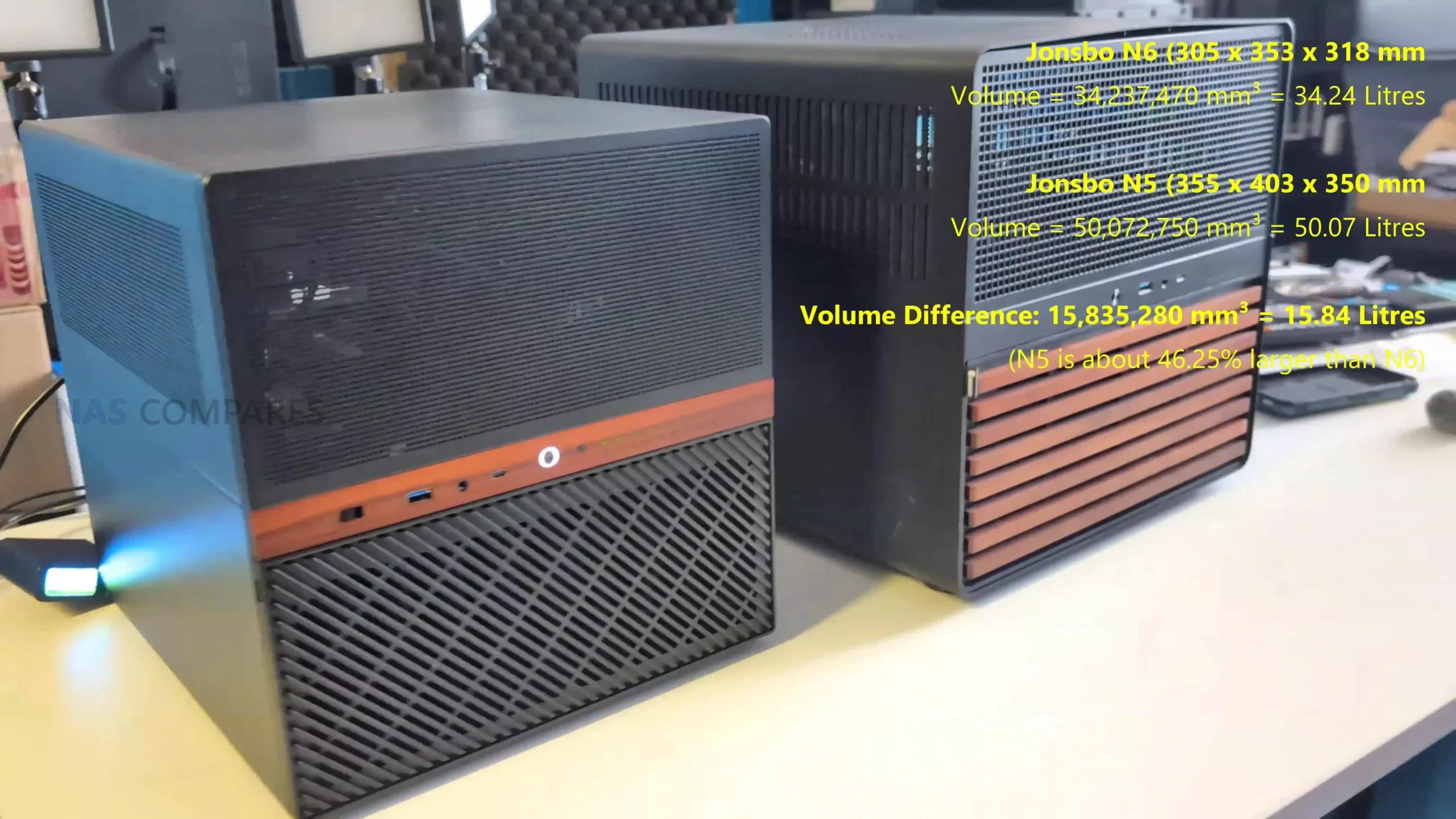
The Jonsbo N6 and the N5 address similar DIY NAS use cases but sit at different points in the product lineup in terms of capacity and flexibility. The N6 is designed around a nine-bay drive layout with support for ITX and micro-ATX motherboards and compatibility with either ATX or SFX power supplies, offering a balance between storage density and a relatively compact footprint, which makes it suitable for builds that need a significant number of drives without a full tower size. By contrast, the N5 supports up to twelve 3.5-inch drives and up to four 2.5-inch SSDs, and accepts larger motherboard formats including ITX, micro-ATX, ATX, and E-ATX, giving it broader component compatibility and expansion potential.

The N5 also provides more PCIe slots and larger GPU clearance, supporting use cases that may combine NAS storage with workstation-class expansions, and includes a mesh front and more extensive cooling provisions to manage heat in its larger enclosure. Both cases offer USB-C and USB-A front I/O for quick access, but the N5’s larger size and multi-material construction generally result in greater internal space for hardware and cooling options. In practice, the N6 aims to offer a middle ground with substantial drive capacity and flexible power supply choices, while the N5 pushes more towards maximum expandability and support for larger and more powerful builds within the Jonsbo NAS ecosystem

Jonsbo N6 Review – Build Testing

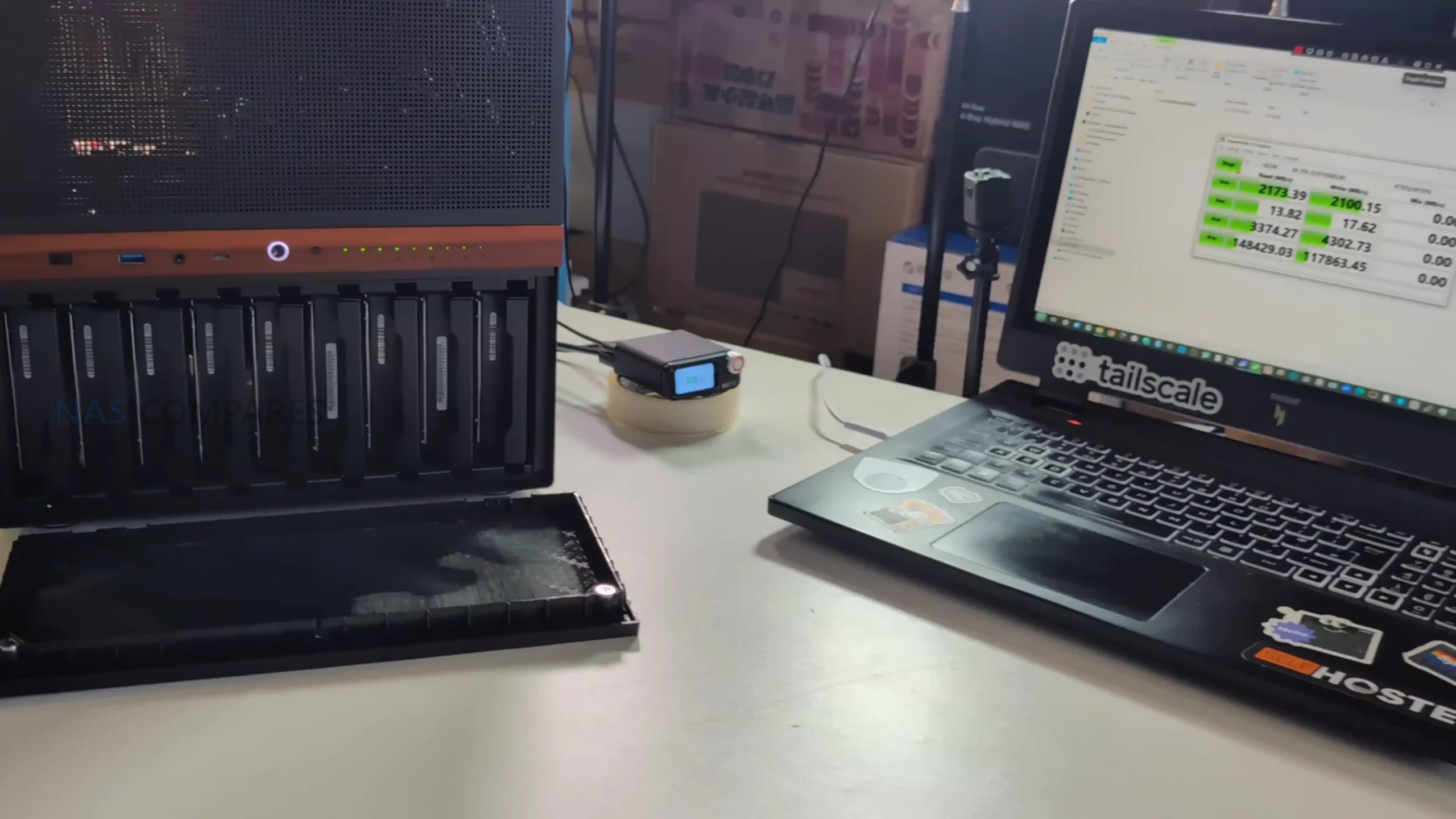
In day to day use, the Jonsbo N6 shows that its performance characteristics are shaped more by component choice than by any inherent limitation of the chassis itself. With a fully populated 9 bay configuration using 7200 RPM hard drives, the case does not introduce noticeable bottlenecks in sustained storage workloads. During extended uptime testing across multiple days, system stability remained consistent, with no unexpected thermal throttling or airflow related instability observed. This aligns with the case design philosophy, which prioritizes open ventilation paths and modular fan placement rather than aggressive acoustic dampening.

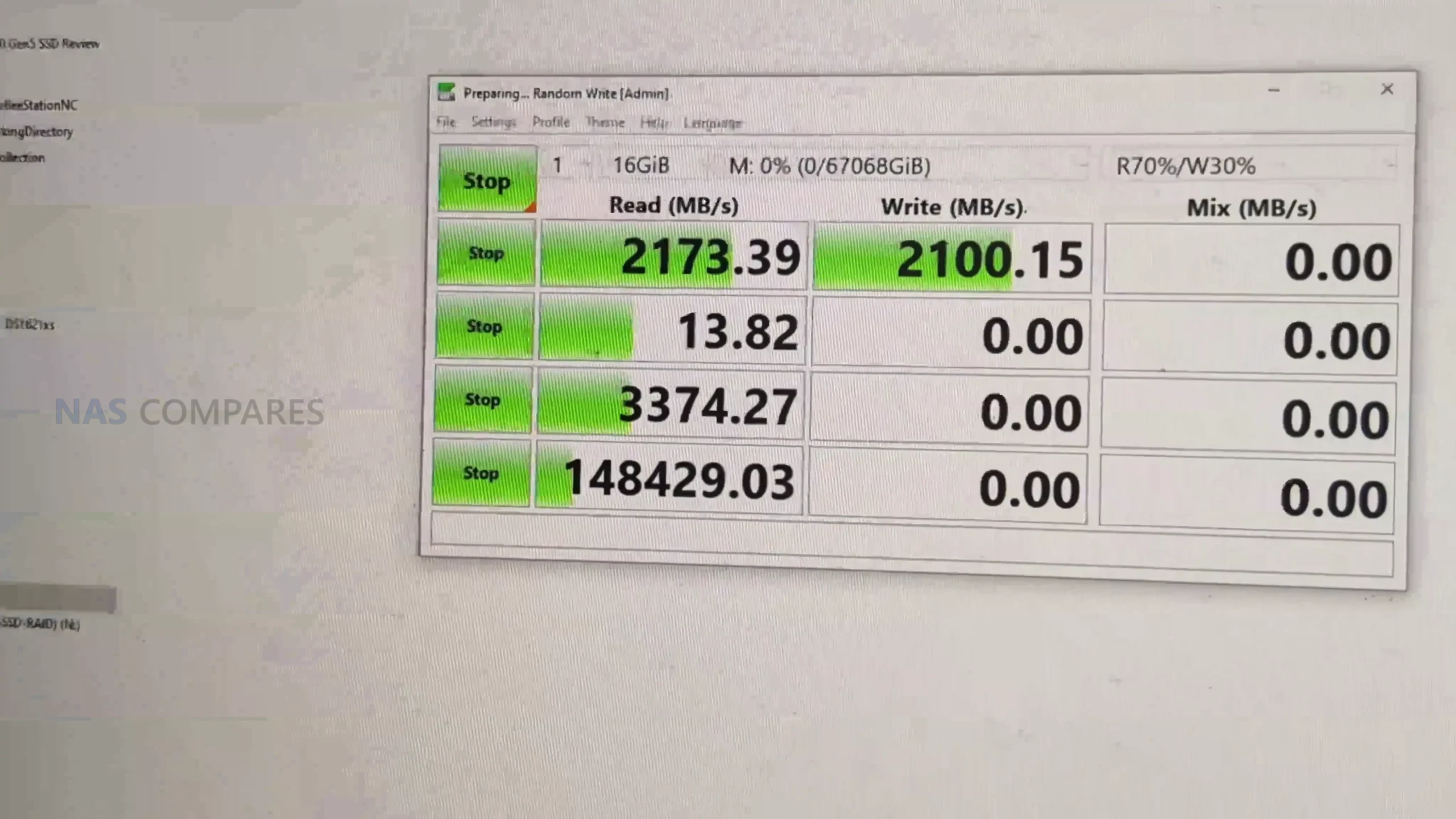
Storage performance testing was carried out using a RAID 0 array across 9 mechanical drives, paired with a workstation class MATX motherboard and a dedicated SATA controller. Sequential read and write speeds reached approximately 2.0 to 2.1 GB/s in CrystalDiskMark, indicating that the enclosure itself does not constrain throughput. These figures are primarily governed by controller bandwidth, PCIe lane allocation, and drive characteristics, rather than the internal backplane. Random access behavior remained typical for high capacity HDD arrays, with no anomalies linked to vibration or drive seating within the metal trays.

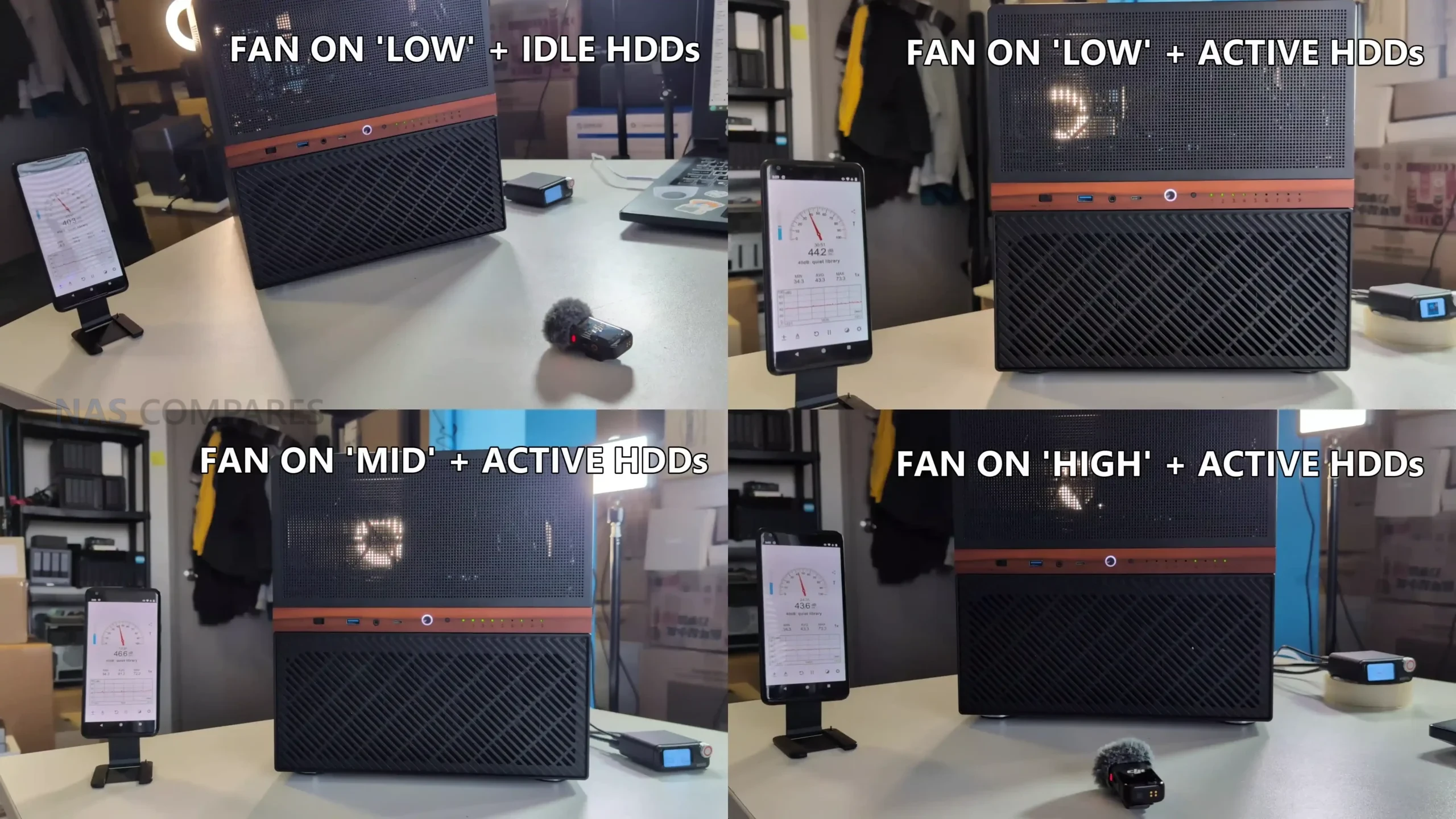
Noise testing was conducted under multiple operating conditions to evaluate how the N6 behaves in real environments rather than synthetic silence. At idle with fans set to the lowest manual setting and drives spun down, measured noise levels hovered around 37 to 39 dBA. Under active disk access with the same fan profile, noise increased modestly to around 41 to 44 dBA, with most audible output coming from the rear exhaust area. Increasing the fan controller to mid and high settings resulted in only marginal increases, topping out around 43 to 44 dBA, suggesting diminishing returns in airflow relative to acoustic output.

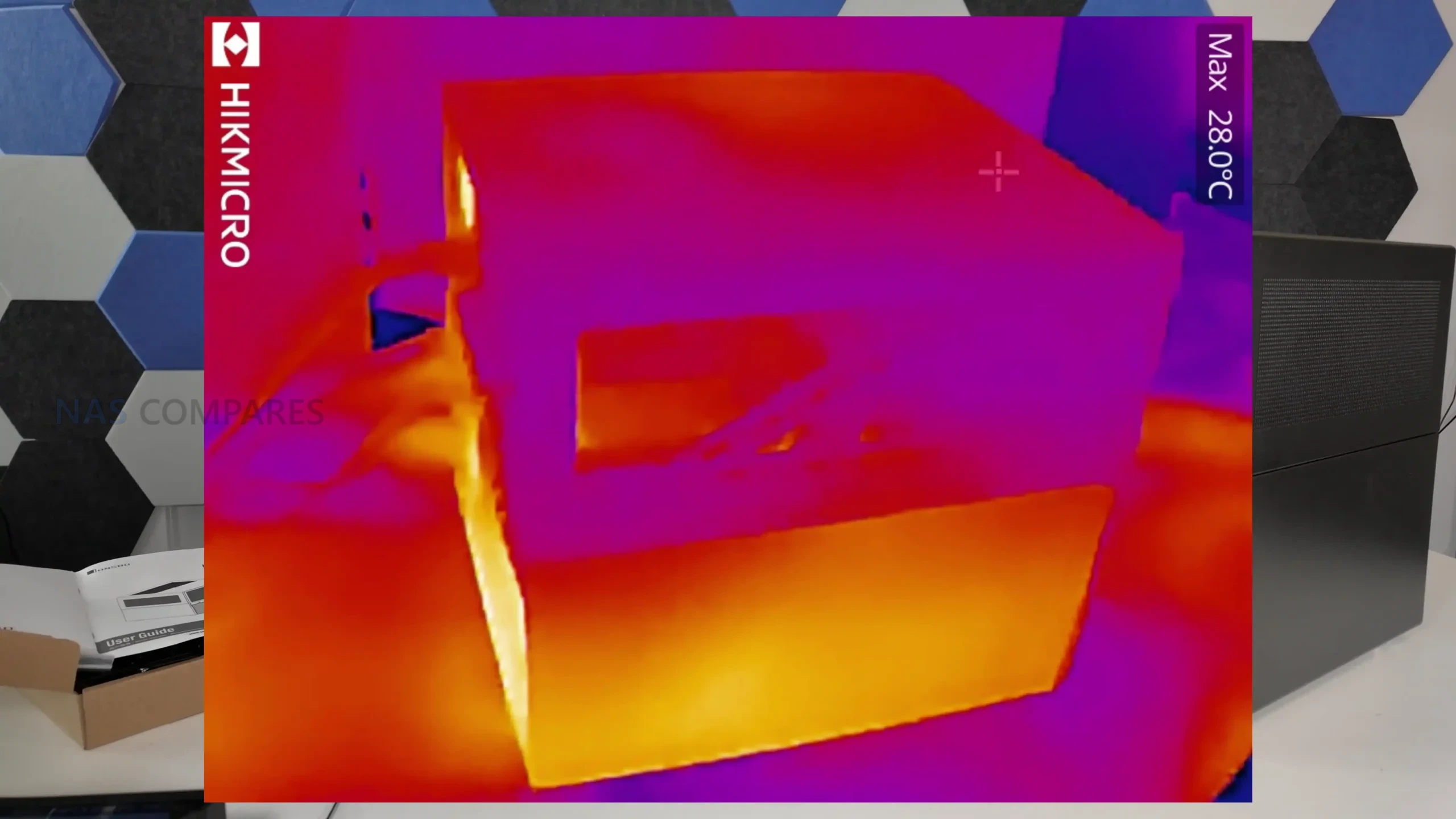
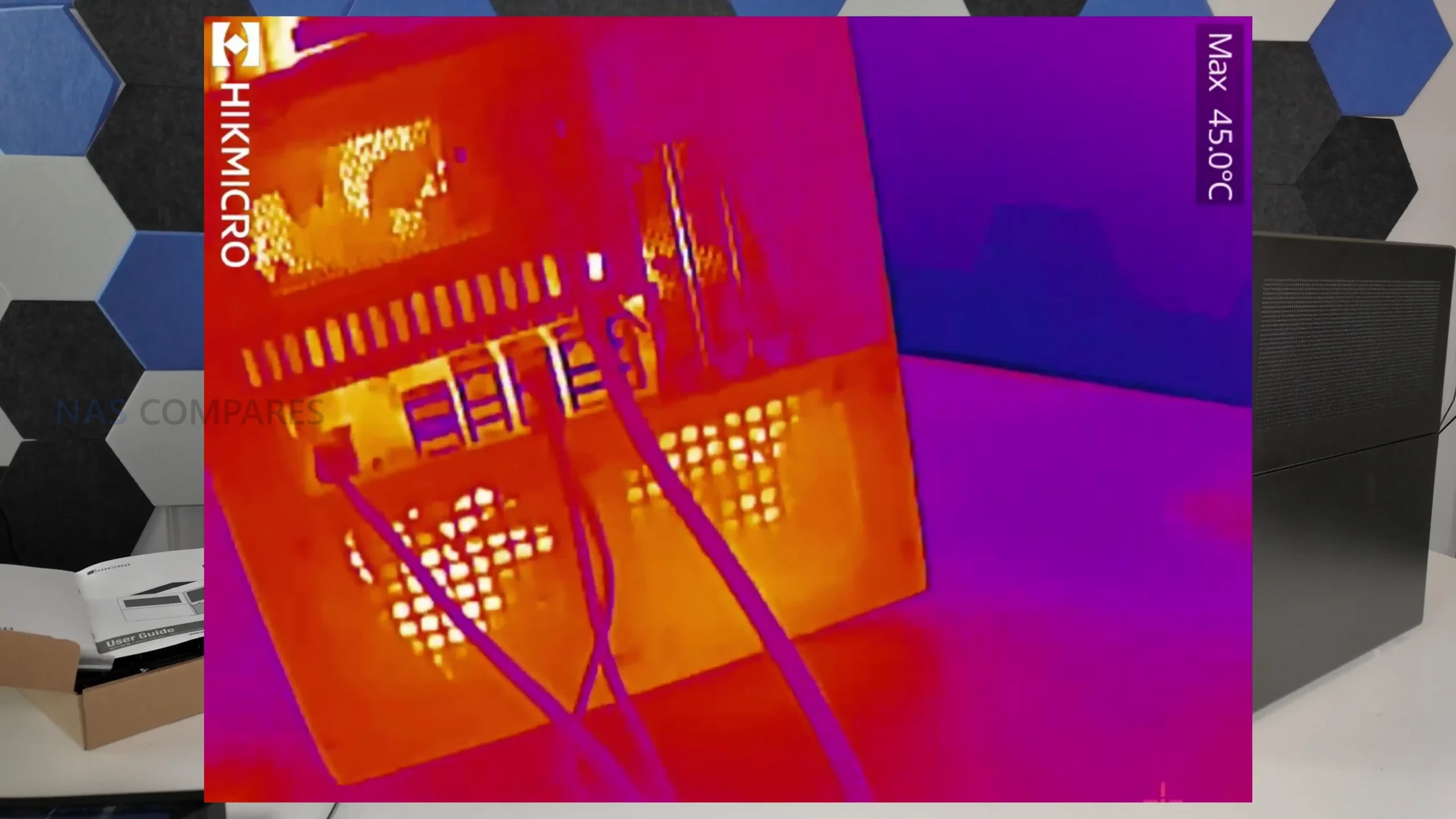
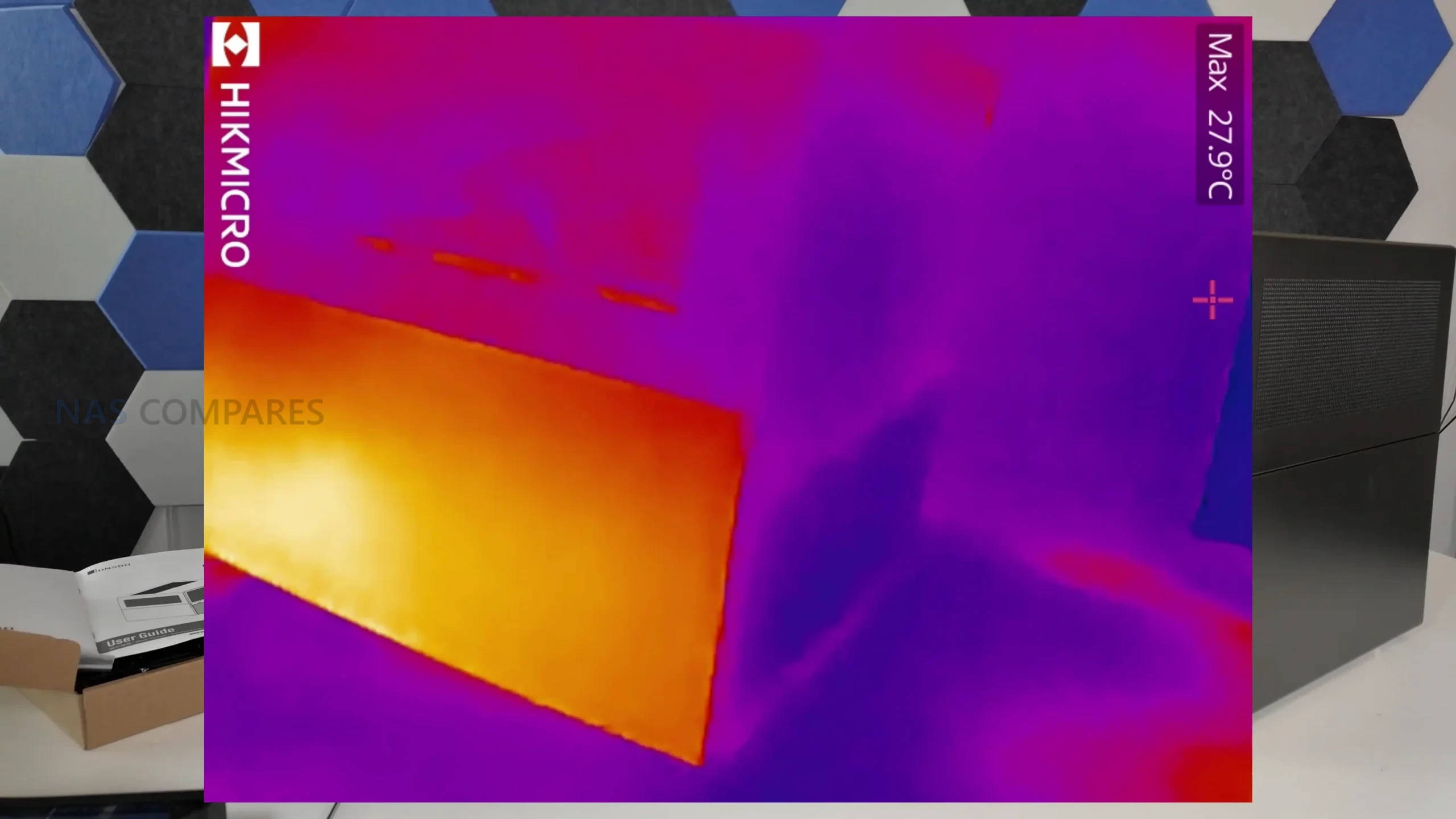
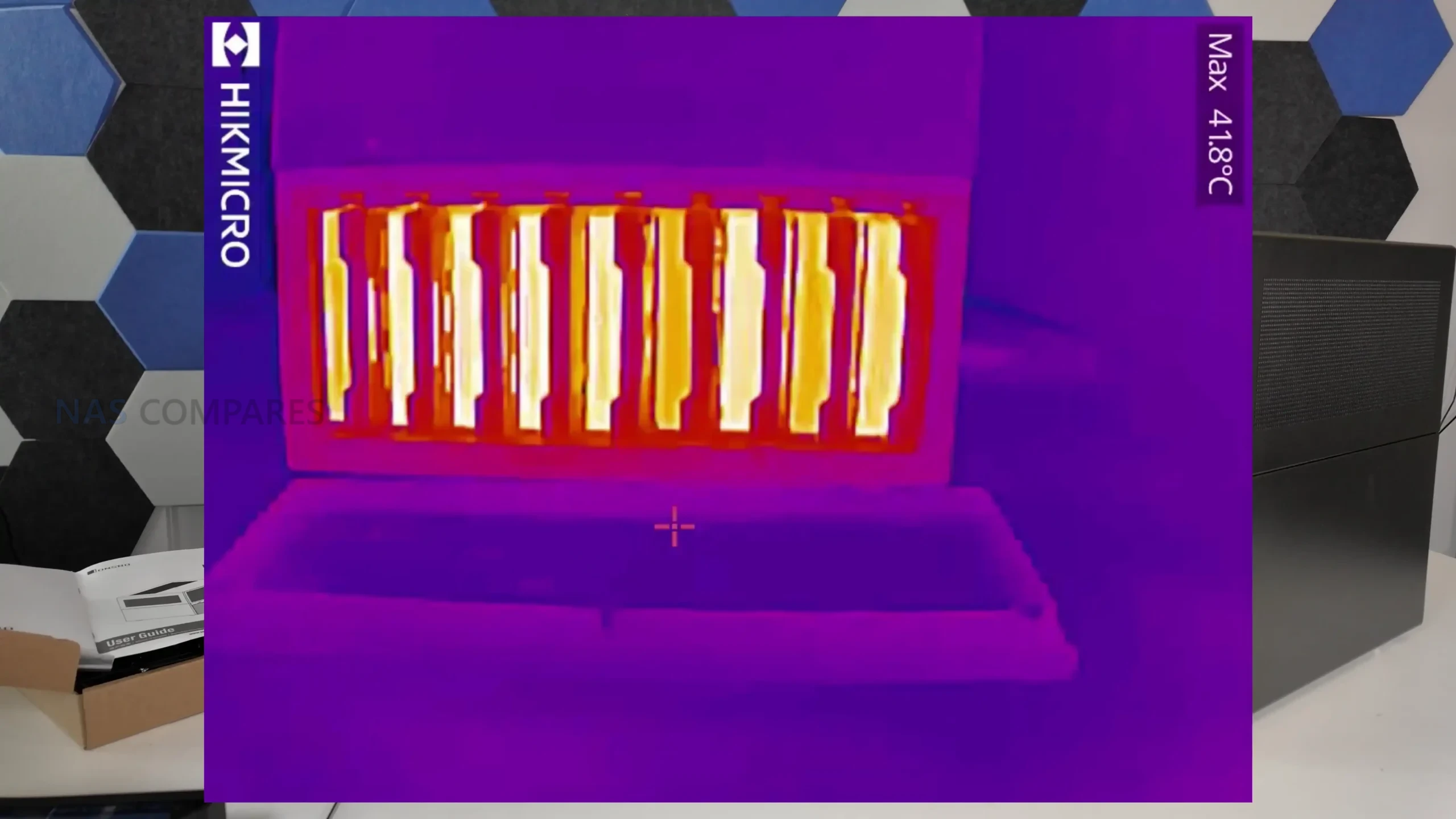
Thermal measurements were taken after the system had been operating continuously for roughly 2.5 days, followed by active load and cooldown observation. Drive temperatures during idle periods generally sat between 25°C and 28°C, with active access pushing internal drive area temperatures to around 42°C. Surface readings across the chassis showed consistent heat distribution, with the rear PCB area and PSU zone measuring close to 42°C, while the top and side panels remained closer to ambient at roughly 26°C to 27°C. These results indicate that while airflow around the drive backplane is not optimal, overall thermal behavior remains within acceptable limits for a 9 bay enclosure.

Test Area Result
Sequential Read Speed ~2.0 to 2.1 GB/s
Sequential Write Speed ~2.0 to 2.1 GB/s
Idle Noise Level 37 to 39 dBA
Load Noise Level 41 to 44 dBA
Idle Drive Temperature 25°C to 28°C
Load Drive Area Temperature ~42°C
PSU Area Temperature ~41.8°C to 42°C

Jonsbo N6 Review – Verdict and Conclusion

After extended hands on use, the Jonsbo N6 positions itself as a compact but ambitious DIY NAS enclosure that sits clearly between the smaller N4 and the larger, more expansive N5. It delivers a high storage density with 9 drive bays while introducing support for Micro ATX motherboards, which meaningfully expands hardware choice compared with earlier Jonsbo NAS cases. Build quality is consistent with the brand’s established approach, using thick steel panels, simple exterior styling, and a layout that prioritizes airflow potential and internal flexibility over visual flair. The inclusion of drive trays, a physical fan controller, multiple PSU mounting options, and extensive fan support marks a clear evolution over previous generations.

That said, the N6 is not without compromises. ATX motherboard support is effectively absent despite tight tolerances, cooling outcomes remain highly dependent on fan selection and placement, and the backplane design relies on standard SATA connections rather than SAS aggregation. Pricing at launch also places it in a competitive bracket where expectations are higher, particularly around refinement of drive trays and airflow optimization around the disk stack. For users who found the N5 too large or excessive but felt constrained by the N3 or N4, the N6 fills a specific and practical gap. It does not replace the N5 as a flagship option, but it stands as a capable and thoughtfully designed alternative for builders who value density, flexibility, and manageable footprint over absolute expansion.

Check Amazon in Your Region for the Jonsbo N6 Case

Check AliExpress or the Jonsbo N6 Case

Jonsbo N6 Case Review PROs Jonsbo N6 Case Review CONs
  • Supports up to 9 x 3.5 inch or 2.5 inch drives, allowing dense storage in a relatively compact footprint

  • Compatible with ITX and Micro ATX motherboards, offering more flexibility than earlier Jonsbo NAS cases

  • Flexible PSU placement with support for ATX and SFX units, including multiple mounting positions

  • Integrated drive backplane simplifies installation and reduces individual cable clutter

  • Built in 3 speed fan controller provides basic manual airflow control without software dependency

  • Extensive ventilation on all sides, top, and base helps maintain reasonable thermals under load

  • Drive trays replace older rubber grommet mounting, making drive installation more straightforward

  • Build quality feels solid overall, with steel construction and improved internal layout for cable routing

  • Backplane uses individual SATA connectors rather than Mini SAS, limiting appeal for SAS focused builds

  • Clearance becomes tight with Micro ATX boards and larger ATX PSUs, especially around CPU cooling

  • Drive trays lack tool less latches, locks, or orientation indicators, increasing the chance of installation mistakes


📧 SUBSCRIBE TO OUR NEWSLETTER 🔔
[contact-form-7]
🔒 Join Inner Circle

Get an alert every time something gets added to this specific article!


Want to follow specific category? 📧 Subscribe

This description contains links to Amazon. These links will take you to some of the products mentioned in today's content. As an Amazon Associate, I earn from qualifying purchases. Visit the NASCompares Deal Finder to find the best place to buy this device in your region, based on Service, Support and Reputation - Just Search for your NAS Drive in the Box Below

Need Advice on Data Storage from an Expert?

Finally, for free advice about your setup, just leave a message in the comments below here at NASCompares.com and we will get back to you. Need Help? Where possible (and where appropriate) please provide as much information about your requirements, as then I can arrange the best answer and solution to your needs. Do not worry about your e-mail address being required, it will NOT be used in a mailing list and will NOT be used in any way other than to respond to your enquiry. [contact-form-7] TRY CHAT Terms and Conditions
If you like this service, please consider supporting us. We use affiliate links on the blog allowing NAScompares information and advice service to be free of charge to you.Anything you purchase on the day you click on our links will generate a small commission which isused to run the website. Here is a link for Amazon and B&H.You can also get me a ☕ Ko-fi or old school Paypal. Thanks!To find out more about how to support this advice service check HEREIf you need to fix or configure a NAS, check Fiver Have you thought about helping others with your knowledge? Find Instructions Here  
 
Or support us by using our affiliate links on Amazon UK and Amazon US
    
 
Alternatively, why not ask me on the ASK NASCompares forum, by clicking the button below. This is a community hub that serves as a place that I can answer your question, chew the fat, share new release information and even get corrections posted. I will always get around to answering ALL queries, but as a one-man operation, I cannot promise speed! So by sharing your query in the ASK NASCompares section below, you can get a better range of solutions and suggestions, alongside my own.

☕ WE LOVE COFFEE ☕


Terramaster TOS 6 Software Review

How Good is the Terramaster TOS 6 NAS Software?

TerraMaster’s TOS 6 represents the company’s most comprehensive evolution of its NAS operating system, delivering an interface and architecture that is redesigned both visually and structurally. Replacing the earlier TOS 5, it builds on user feedback from the last three hardware generations and now arrives preinstalled on systems such as the F4-425 Plus, F2-425, and F6-424, as well as the all-flash F8 SSD Plus. The system adopts the Linux Kernel 6.1 LTS, which improves memory handling, file system performance, and hardware compatibility across newer Intel and AMD processors. With over forty new functions and more than three hundred individual refinements, TOS 6 is positioned as a more capable and robust platform for modern data storage and multi-user environments. TerraMaster’s objective with this version is to combine an accessible setup process with enterprise-style administration tools, allowing users to deploy features such as ACL permissions, SMB multichannel, Hyper-Lock WORM protection, and advanced RAID management within a simplified interface. Although still developing its ecosystem when compared with long-established NAS vendors, TOS 6 signals a step toward bridging the gap between budget and professional-grade systems.

Interested in Buying a Terramaster NAS? Support the work we do here at NASCompares, by using the links below.

We receive a small commission on anything you purchase from Amazon, AliExpress or B&H when using these links, and it results in you being able to passively support your favourite websites and creator, completely for free!

Terramaster TOS 6 – Design, GUI and UX

TOS 6 introduces a significantly redesigned interface that emphasizes simplicity and consistency while retaining the technical depth expected from a NAS management platform. The desktop layout has been decluttered, removing excess icons in favor of a single navigation bar that centralizes access to applications, settings, and the new “Start” shortcut menu. This layout, combined with subtle animation effects and theme customization options such as Night Mode and accent color selection, is intended to make the environment less visually overwhelming than previous releases. While the interface feels smoother and more responsive, some users may still find it utilitarian compared to the polished design language of DSM or QTS. Nevertheless, the decision to reduce visual clutter and allow personalized dashboards marks a meaningful progression toward a more user-centric control experience.

The control panel, which is the backbone of the system’s configuration layer, has undergone extensive structural improvement. It now allows users to jump between related settings without closing the current menu, effectively halving the time required to perform complex administrative tasks. The inclusion of a keyword search bar further simplifies access to hundreds of configuration options ranging from network tuning to caching policies. Real-time monitoring panels, including the resource manager and storage manager, remain integrated into the main interface, but TOS 6 refines them with more accurate live updates and adjustable widgets.

This customization extends to the new system dashboard, where users can drag and rearrange data modules to match their monitoring preferences. Despite these improvements, the GUI still presents a text-heavy design, particularly in areas dealing with drive management, which could be challenging for newcomers.

The user experience, while substantially enhanced, continues to cater more toward technically proficient users than beginners. Nearly every system element is accessible from the web interface, with contextual right-click menus providing file and folder actions similar to desktop OS environments. This native browser-based functionality eliminates the need for third-party explorers for most operations and allows complete administrative control without client software. However, the interface’s dense arrangement of settings can still appear intimidating for users expecting guided wizards or visualized workflows.

TerraMaster’s focus on efficiency and configurability, rather than aesthetic guidance, reflects a deliberate design choice favoring control and transparency. For experienced users, this approach offers depth and predictability, but it remains less forgiving to casual or first-time NAS owners.

Terramaster TOS 6 – Storage Services and File Services

Storage management within TOS 6 has evolved into a far more granular and flexible system. The platform supports both traditional RAID configurations and TerraMaster’s adaptive TRAID and TRAID+ systems, which allow mixed-capacity drives to be combined while retaining redundancy across one or two disks. This feature makes expansion and migration easier, particularly for users gradually upgrading storage capacity. RAID rebuilding efficiency has also improved through “fast repair,” a mechanism that prioritizes only data-occupied sectors rather than empty disk space, substantially reducing recovery times after drive replacement. The system now separates the operating system from storage volumes entirely, allowing users to install the OS on one or two designated drives, typically SSDs, to improve response speed and cache access performance. This separation not only increases system responsiveness but also helps to protect data pools from corruption caused by OS-level failures.

The volume creation process is more flexible than in previous iterations, supporting both Btrfs and EXT4 file systems alongside iSCSI targets for raw block-level storage. Btrfs, in particular, benefits from the Linux 6.1 kernel’s improved memory handling and snapshot reliability. The inclusion of Hyper-Lock WORM (Write Once, Read Many) in both Compliance and Enterprise modes offers organizations the ability to lock data for specific periods or indefinitely, preventing modification or deletion to meet audit or regulatory requirements.

Volume-level encryption can be enabled during creation, giving administrators the option to protect sensitive data without affecting system-level performance. The management interface also displays real-time disk health data and S.M.A.R.T. metrics, alerting users to failing drives through the Message Center and email notifications, minimizing downtime and data loss risks.

TOS 6’s file service layer emphasizes both accessibility and speed. SMB multichannel support, combined with link aggregation, allows the operating system to utilize multiple Ethernet ports simultaneously to multiply throughput on supported models, improving large file transfer rates in multi-user environments. Shared folder management includes advanced ACL permissions, extending beyond traditional read/write rules to thirteen distinct access types, providing fine-grained control for business use.

Native support for protocols such as SMB, AFP, NFS, FTP, and WebDAV ensures compatibility with Windows, macOS, and Linux systems, while local mounting enables users to attach external drives or even cloud-mapped directories that synchronize automatically. File management within the web interface now features a tab-based navigation system, a first among NAS platforms, enabling quick copy and move operations without opening multiple windows, reinforcing TerraMaster’s focus on operational efficiency.

Terramaster TOS 6 – Backups and Synchronisation

Backup management in TOS 6 consolidates all related tools into a single unified interface accessible from the desktop or the control panel. This centralized hub simplifies navigation between local, remote, and cloud-based backup options while maintaining compatibility with third-party systems. The platform supports Rsync for cross-NAS synchronization, Time Machine for macOS clients, and TerraMaster’s own Centralized Backup utility for deploying and scheduling protection across multiple TNAS and remote servers. Administrators can configure recurring snapshot tasks on individual volumes or shared folders, define retention policies, and even lock snapshots to prevent deletion within a specified period. While these snapshots are not substitutes for full backups, they provide a lightweight recovery mechanism that minimizes data loss in cases of user error or ransomware infection.

Local backup utilities have been expanded to support directory-level duplication, USB external drives, and iSCSI targets. This enables administrators to replicate data within the same device, between drives, or toward another NAS through the internal network. Although backing up within a single system cannot substitute true redundancy, it offers additional flexibility for temporary mirroring or fast internal restores. For users operating hybrid environments, TOS 6 integrates with major cloud providers using its CloudSync feature, which allows continuous bidirectional synchronization between TNAS and services such as Google Drive, Dropbox, OneDrive, and WebDAV storage. Mounted cloud directories appear as native local folders, simplifying file interaction and ensuring that any modifications are reflected remotely. The mounting mechanism also allows automatic synchronization of remote data without external applications, further streamlining multi-location workflows.

In terms of automation and security, backup tasks in TOS 6 can be scheduled to run incrementally or in real time, minimizing bandwidth usage and system load. Each task includes verification and logging, with the ability to send alerts on failure through the Message Center or by email. The inclusion of Hyper-Lock WORM at the backup level ensures archived backups cannot be altered for a defined compliance period, an important feature for business environments managing regulated data. Despite the lack of the same polish found in Synology’s Active Backup or QNAP’s Hybrid Backup Sync, TerraMaster’s solution achieves a comparable range of features for small-scale and mid-tier operations. The combination of flexible snapshot scheduling, cloud integration, and data-integrity verification makes TOS 6 a notable step forward from earlier releases and closes much of the functionality gap that existed between TerraMaster and its larger competitors.

Terramaster TOS 6 – Applications, Client Tools and Services

The application ecosystem in TOS 6 has expanded both in variety and integration depth, blending TerraMaster’s own utilities with third-party and open-source solutions. The App Center serves as the central hub for installing, updating, and managing applications, ranging from productivity tools and cloud clients to virtualization and multimedia services. Many of these applications are developed in-house, such as the Centralized Backup, File Manager, and Photo Gallery utilities, while others leverage established third-party frameworks like VirtualBox for virtualization and Portainer for container management. Users can deploy Docker containers directly from the interface or access the full registry for advanced workloads, making it possible to host additional media servers, AI indexing tools, or web applications. Although the ecosystem remains smaller than Synology’s Package Center or QNAP’s App Center, the available selection covers nearly all core NAS functions that general users and small business environments would require.

Client connectivity is also a strong component of the system’s service design. The TerraMaster desktop client for Windows and macOS allows users to discover NAS systems on the network, manage synchronized folders, and create automated transfer tasks. This complements the browser-based interface by offering a faster method for initiating replication jobs or file transfers between devices. Mobile applications are available for remote access, providing basic file management and media browsing functionality, though they remain limited compared to the desktop experience. One notable improvement in TOS 6 is the ability to download client tools directly from within the App Center rather than navigating to external links, streamlining deployment and maintaining version consistency across environments.#

In the area of multimedia and AI-driven services, TerraMaster has continued to refine its photo and video indexing utilities. The AI Photo Recognition tool, embedded within the Photo Gallery application, performs facial and object detection to organize content by identity or category. It uses metadata and machine learning libraries to recognize patterns across uploaded images, enabling faster search and auto-tagging capabilities. Video and photo thumbnails can be displayed directly within File Manager, which now supports large or small thumbnail scaling depending on user preference. For users requiring broader streaming capabilities, the system includes native support for Plex and Jellyfin through the App Center, allowing local or remote playback using widely adopted external platforms rather than proprietary ones. HDMI output remains inactive on TerraMaster NAS units, so these integrations rely solely on network streaming protocols.

System maintenance and troubleshooting services have also received attention in TOS 6. The platform’s security advisor can perform automated vulnerability checks, flagging weak passwords, exposed ports, or outdated configurations. Isolation Mode remains one of its more practical safety features, instantly disconnecting all non-administrative users and disabling PHP-based third-party apps to prevent intrusion. When users encounter system errors, they can utilize the integrated issue reporting tool, which generates diagnostic logs and can enable temporary remote support for TerraMaster engineers through an authentication key.

Although this feature should be used sparingly, it represents a more direct support pathway than previous versions. Taken together, these improvements show a gradual shift in TOS 6 toward professionalization, improving reliability and ease of management while still allowing extensive customization for experienced administrators.

Conclusion and Verdict

TOS 6 demonstrates that TerraMaster’s NAS platform has matured into a far more capable and structured ecosystem. The software now integrates a wide range of features that were once missing or underdeveloped, from advanced storage management and ACL permissions to cloud synchronization and AI-driven media tools. The interface redesign brings a measurable improvement in usability, and the decision to rebuild the system on the Linux Kernel 6.1 LTS ensures better hardware compatibility and long-term stability. However, it remains evident that the user experience still leans toward a more technical audience, with complex menus and limited guidance compared to the automated workflows found on Synology DSM or QNAP QTS. The system performs reliably, but its presentation and documentation could still benefit from refinement to fully appeal to non-specialist users.

Overall, TOS 6 is TerraMaster’s most complete and confident release to date, delivering a noticeable leap in speed, data protection, and operational consistency across the company’s NAS lineup. It now offers enough depth for small businesses, IT enthusiasts, and hybrid work setups while remaining open to third-party operating systems for those seeking additional flexibility. The platform still trails behind the larger ecosystems in app diversity and cloud integration polish, yet the progress made in this generation positions TerraMaster as one of the more serious alternatives in the mid-range NAS market. For users who value functionality and system control over visual refinement, TOS 6 provides a stable and expandable foundation that indicates TerraMaster is steadily closing the gap with its more established competitors.

Interested in Buying a Terramaster NAS? Support the work we do here at NASCompares, by using the links below.

We receive a small commission on anything you purchase from Amazon, AliExpress or B&H when using these links, and it results in you being able to passively support your favourite websites and creator, completely for free!


📧 SUBSCRIBE TO OUR NEWSLETTER 🔔
[contact-form-7]
🔒 Join Inner Circle

Get an alert every time something gets added to this specific article!


Want to follow specific category? 📧 Subscribe

This description contains links to Amazon. These links will take you to some of the products mentioned in today's content. As an Amazon Associate, I earn from qualifying purchases. Visit the NASCompares Deal Finder to find the best place to buy this device in your region, based on Service, Support and Reputation - Just Search for your NAS Drive in the Box Below

Need Advice on Data Storage from an Expert?

Finally, for free advice about your setup, just leave a message in the comments below here at NASCompares.com and we will get back to you. Need Help? Where possible (and where appropriate) please provide as much information about your requirements, as then I can arrange the best answer and solution to your needs. Do not worry about your e-mail address being required, it will NOT be used in a mailing list and will NOT be used in any way other than to respond to your enquiry. [contact-form-7] TRY CHAT Terms and Conditions
If you like this service, please consider supporting us. We use affiliate links on the blog allowing NAScompares information and advice service to be free of charge to you.Anything you purchase on the day you click on our links will generate a small commission which isused to run the website. Here is a link for Amazon and B&H.You can also get me a ☕ Ko-fi or old school Paypal. Thanks!To find out more about how to support this advice service check HEREIf you need to fix or configure a NAS, check Fiver Have you thought about helping others with your knowledge? Find Instructions Here  
 
Or support us by using our affiliate links on Amazon UK and Amazon US
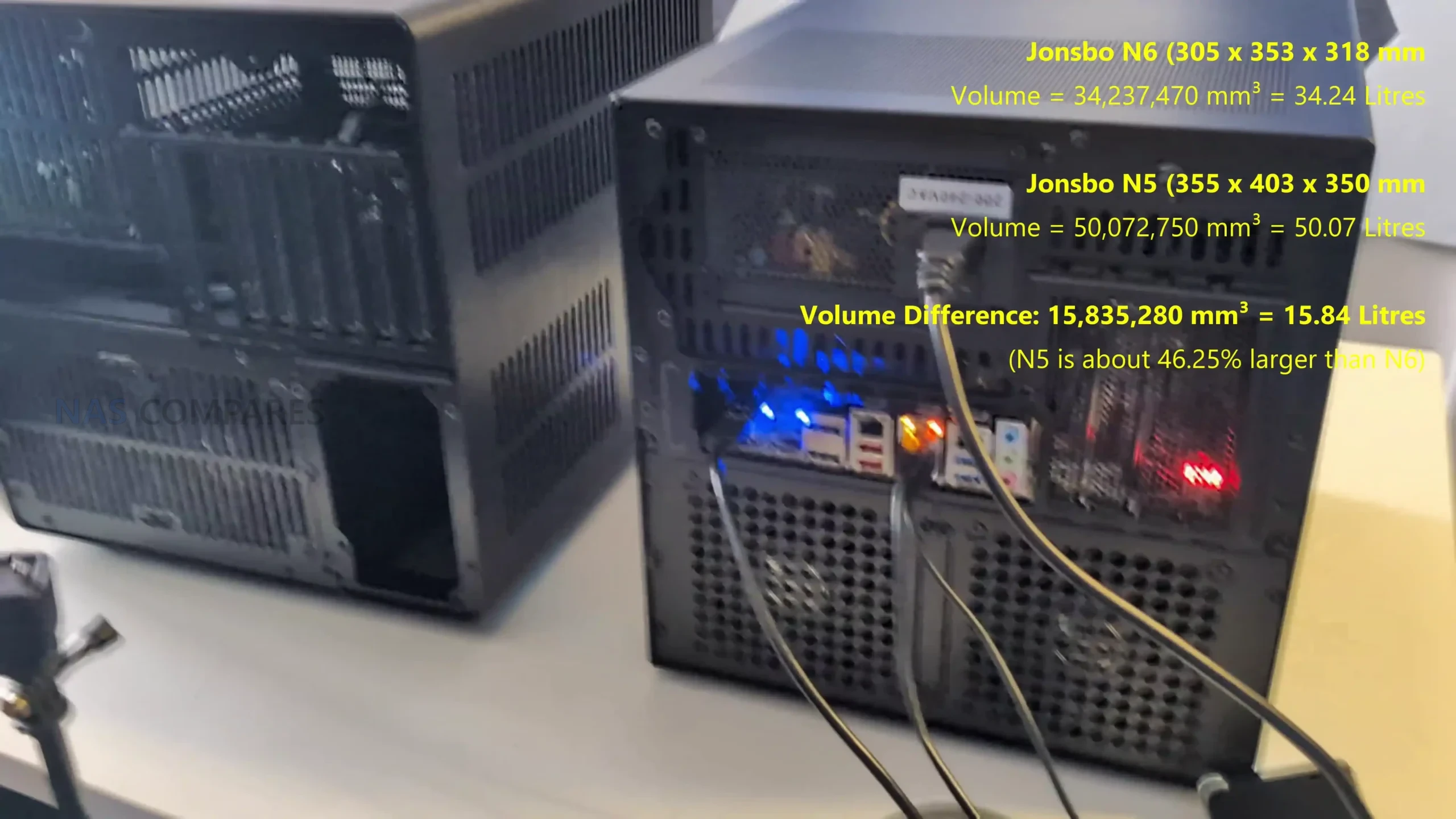
    
 
Alternatively, why not ask me on the ASK NASCompares forum, by clicking the button below. This is a community hub that serves as a place that I can answer your question, chew the fat, share new release information and even get corrections posted. I will always get around to answering ALL queries, but as a one-man operation, I cannot promise speed! So by sharing your query in the ASK NASCompares section below, you can get a better range of solutions and suggestions, alongside my own.

☕ WE LOVE COFFEE ☕


❌