The Corsair K100 Air Wireless, the first-ever keyboard to use Cherry's MX Ultra Low Profile switch, is having a gigantic 63% discount for a limited time during Amazon Gaming Week.
Il existe une astuce pour transférer les Mii de votre Wii et de votre Nintendo 3DS vers la Nintendo Switch ou Switch 2. Tout ce dont vous avez besoin, c’est d’une figurine amiibo. Vous pourrez ainsi jouer avec vos anciens Mii sur Tomodachi Life.
Linus Torvalds a officialisé Linux 7.0 le 12 avril, et le passage à la version 7 a d'ailleurs été expliquée. Torvalds a dit dans son mail de release qu'il préférait simplement incrémenter le numéro majeur quand les mineures dépassaient la dizaine, histoire de ne pas se retrouver avec un Linux 6.23. Pas de révolution philosophique, juste du bon sens de mainteneur donc.
Derrière cette numérotation, le noyau embarque quand même un paquet de nouveautés qui vont directement impacter les utilisateurs AMD, Intel et ARM64, sans parler d'une petite révolution côté système de fichiers XFS.
La grosse annonce, c'est surtout le nouveau daemon xfs_healer, géré par systemd, qui surveille en temps réel les erreurs de métadonnées et les I/O fautifs. Quand il détecte un problème, il déclenche automatiquement la réparation pendant que la partition reste montée et utilisée, ce qui évite de démonter, de booter sur un live USB ou de croiser les doigts pendant un xfs_repair manuel.
Pour un serveur en prod, c'est énorme. XFS rattrape (et dépasse) ce que Btrfs et ZFS proposaient depuis des années sur ce terrain.
Côté Intel, les TSX (Transactional Synchronization Extensions) sont activées par défaut. Sur un CPU 10e génération ou plus récent, ça donne un léger boost sur les charges multithread. Le support de Nova Lake progresse aussi, et le noyau intègre les premiers bouts de Crescent Island, l'accélérateur IA maison d'Intel qui vise les datacenters.
AMD n'est pas oublié, avec de nouveaux blocs IP graphiques activés pour les futures Radeon. Côté ARM64, le kernel gère désormais les chargements et stockages atomiques de 64 octets, un ajout bas niveau qui profitera aux workloads concurrents. Et pour les amateurs de cartes ARM, le décodage vidéo matériel arrive sur toute une série de single-board computers Rockchip.
Ubuntu 26.04 LTS tournera sur Linux 7.0, donc tous les réglages de performance et de stabilité apportés par ce noyau seront directement exploités dans la prochaine LTS. Du coup, choisir Ubuntu cette année a du sens si vous avez du matos récent.
Dans son message de release, Linus évoque aussi la place grandissante de l'IA dans l'écriture de patches noyau. Il ne tranche pas, il observe. On sent qu'il y réfléchit sans vouloir se mouiller pour l'instant.
Bref, pas de révolution, mais le XFS auto-réparant justifie l'upgrade à lui seul pour qui tient vraiment à ses données.
Un passionné a tenté de récupérer son Pokémon coincé dans un Pokéwalker, ce petit podomètre vendu avec Pokémon HeartGold sur DS en 2009, après avoir perdu la cartouche de jeu.
Entre reverse engineering du protocole infrarouge et manipulation du générateur de nombres aléatoires, la tentative est bien technique. Et le résultat est plutôt cruel, pour une raison que personne n'avait anticipée…
Un Pokémon sans cartouche, un vrai problème
Le Pokéwalker, pour ceux qui ne s'en souviennent pas, c'était ce petit podomètre vendu avec Pokémon HeartGold et SoulSilver sur Nintendo DS en 2009. Le principe était simple : vous transfériez un Pokémon de votre partie vers cet accessoire, vous le glissiez dans votre poche, et chaque pas comptait pour gagner des points et débloquer des objets.
Le tout communiquait avec la cartouche DS par infrarouge. Sauf que voilà, si vous perdez la cartouche (ce qui arrive plus souvent qu'on ne le croit après 15 ans), votre Pokémon reste coincé dans le Pokéwalker. Pas de cartouche, pas de transfert retour. C'est exactement le problème auquel s'est retrouvé confronté Etchy, un créateur de contenu spécialisé dans Pokémon Gen 4.
Du reverse engineering à l'ancienne
Le travail de fond, c'est Dmitry qui l'avait fait il y a quelques années en décortiquant complètement le Pokéwalker. A l'intérieur : un microcontrôleur Renesas H8, une EEPROM de 64 Ko, un accéléromètre Bosch et un émetteur infrarouge générique. La communication entre la cartouche et le Pokéwalker passe par un protocole IR à 115 200 bauds, et chaque octet est simplement XOR avec 0xAA avant envoi.
Dmitry avait même réussi à exécuter du code arbitraire sur l'appareil en exploitant un débordement de buffer dans la décompression. Etchy s'est appuyé sur tout ce travail pour tenter sa mission de sauvetage. Son idée : créer une nouvelle sauvegarde avec les bons identifiants pour tromper le Pokéwalker.
Le dispositif ne vérifie que la version du jeu (HeartGold ou SoulSilver), la région et les identifiants du dresseur. En manipulant le générateur de nombres aléatoires du jeu, Etchy a réussi à générer une sauvegarde avec des IDs correspondants.
Le fantôme dans la machine
Et ça a marché. En partie. Le Pokéwalker a accepté la connexion et transféré les données du Pokémon. Sauf que le vrai identifiant unique du Pokémon, son PID, celui qui définit ses stats, sa nature, son apparence, n'existe que sur la cartouche d'origine.
Le Pokéwalker ne stocke qu'une version allégée des données : l'espèce, les attaques, l'objet tenu, le genre. Le PID, lui, restait sur la cartouche perdue. Du coup, le Pokémon récupéré n'est qu'une copie incomplète. Ca ressemble à votre Typhlosion, ça porte son nom, mais ce n'est pas vraiment lui. Comme le résume Etchy dans sa vidéo : il n'y a pas de moyen de sauver un Pokémon piégé dans un Pokéwalker.
C'est le genre d'histoire qui parle à tous ceux qui ont grandi avec une DS dans la poche. On a tous eu ce moment où un accessoire, une sauvegarde ou un périphérique finissait au fond d'un tiroir, avec des données qu'on pensait sans importance.
Etchy et Dmitry montrent qu'il y a une vraie communauté prête à passer des heures sur du reverse engineering pour trois octets de données. C'est beau et un peu absurde en même temps. Le plus cruel dans l'histoire, c'est que Nintendo n'avait visiblement pas prévu qu'on puisse perdre sa cartouche tout en gardant le Pokéwalker. Bref quinze ans plus tard, votre Typhlosion attend toujours dans son petit boîtier, et personne ne viendra le chercher.
Des chercheurs de Singapour ont mis au point des cafards cyborg capables de tirer un petit chariot équipé d'une caméra dans des canalisations pour y détecter des fuites. Oui, en 2026, on envoie des blattes faire le job.
Comment ça marche
Les cafards en question sont des blattes siffleuses de Madagascar, longues de 6 centimètres. L'équipe du professeur Hirotaka Sato, à l'université technologique de Nanyang à Singapour, leur fixe sur le dos un petit chariot en plastique qui contient un processeur, une caméra vidéo couleur orientée vers le haut, une LED et un module de communication pour transmettre les données en temps réel.
Des électrodes sont attachées aux antennes et à l'arrière de l'insecte, et envoient de faibles impulsions électriques qui simulent la sensation de heurter un obstacle. Ça suffit pour orienter le cafard dans la direction voulue, sans lui faire mal.
Déjà testés sur le terrain
Ce n'est pas juste un projet de labo. Dix cafards cyborg ont été déployés lors du tremblement de terre au Myanmar en 2025, équipés de caméras infrarouge et de capteurs pour localiser des survivants sous les décombres.
L'université de Nanyang a aussi mis au point une chaîne de montage automatisée qui assemble un cafard cyborg en 68 secondes, ce qui laisse imaginer une production à plus grande échelle. Le dernier modèle consomme 25 % de tension en moins, ce qui allonge l'autonomie de la batterie embarquée.
Des canalisations aux zones sinistrées
Le projet actuel se concentre sur l'inspection de canalisations. Les cafards tirent leur chariot dans les conduites et un algorithme d'apprentissage automatique analyse les images captées par la caméra pour repérer de la corrosion ou des fuites.
Quand un défaut est détecté, un opérateur humain est alerté. Les tests ont lieu dans un environnement qui reproduit les tuyaux de la Marina Coastal Expressway, une autoroute souterraine de Singapour. Le professeur Sato estime qu'un déploiement opérationnel pourrait arriver d'ici trois à cinq ans.
On ne va pas se mentir, l'idée d'envoyer des cafards de 6 centimètres inspecter des tuyaux avec une caméra sur le dos a un côté assez improbable. Le fait que ça fonctionne déjà en conditions réelles, avec un déploiement au Myanmar, montre que le projet dépasse le stade du gadget. Et puis 68 secondes pour assembler un cafard cyborg, c'est quand même plus rapide qu'un robot classique, même si on aime bien les robots aussi.
Windows Terminal Preview 1.25 was released in March, after a brief pause in the quarterly release cycle to focus on reliability and performance. The update introduces a Settings search UI, a rewritten Actions editor for key binding configuration, built-in support for Kitty's Keyboard protocol, two new community translations, and several miscellaneous improvements and bug fixes. You can install it from the Microsoft Store, the GitHub releases page, or via winget.
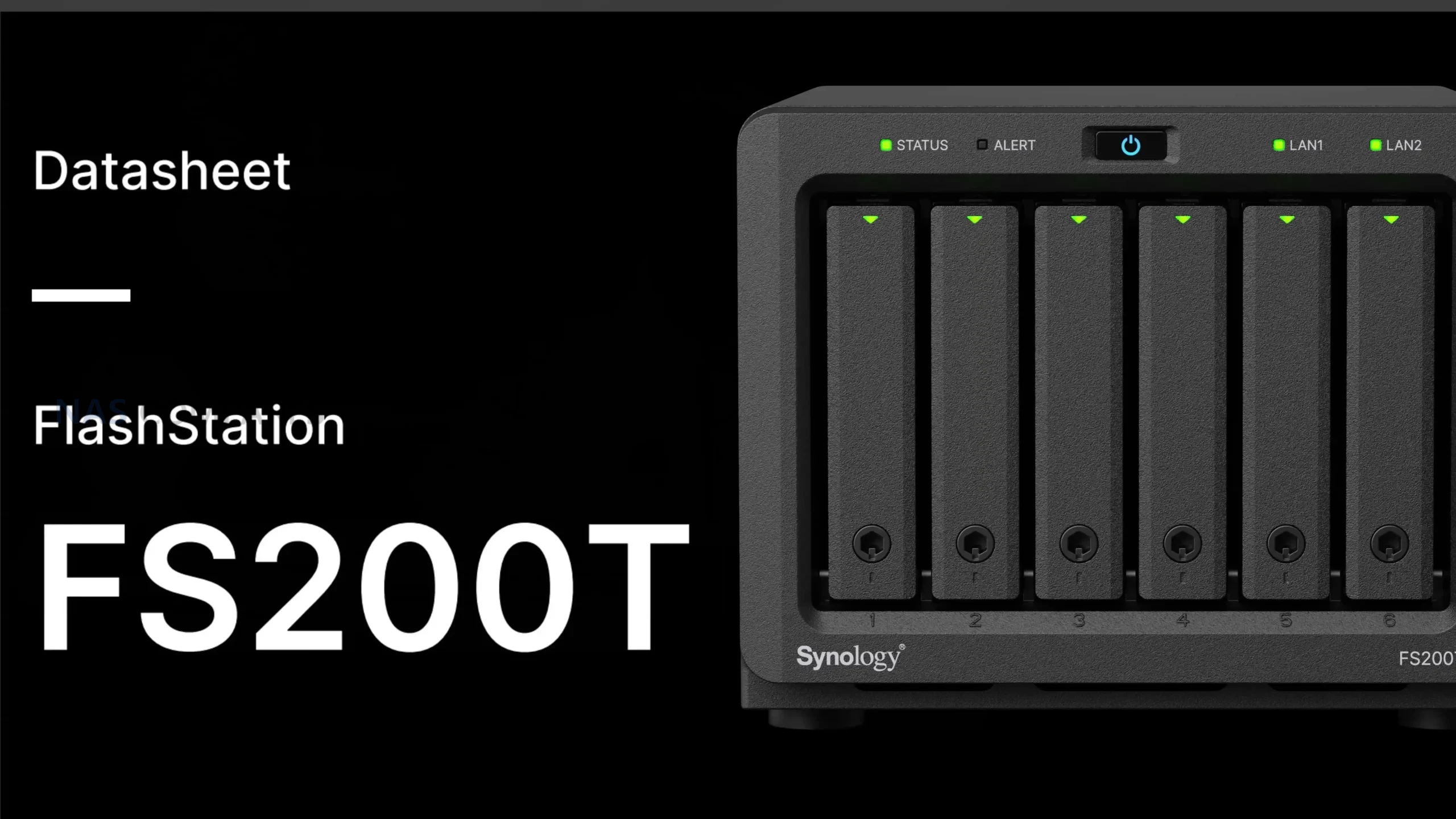
Synology FS200T NAS is STILL A THING! But Is It Too Late?
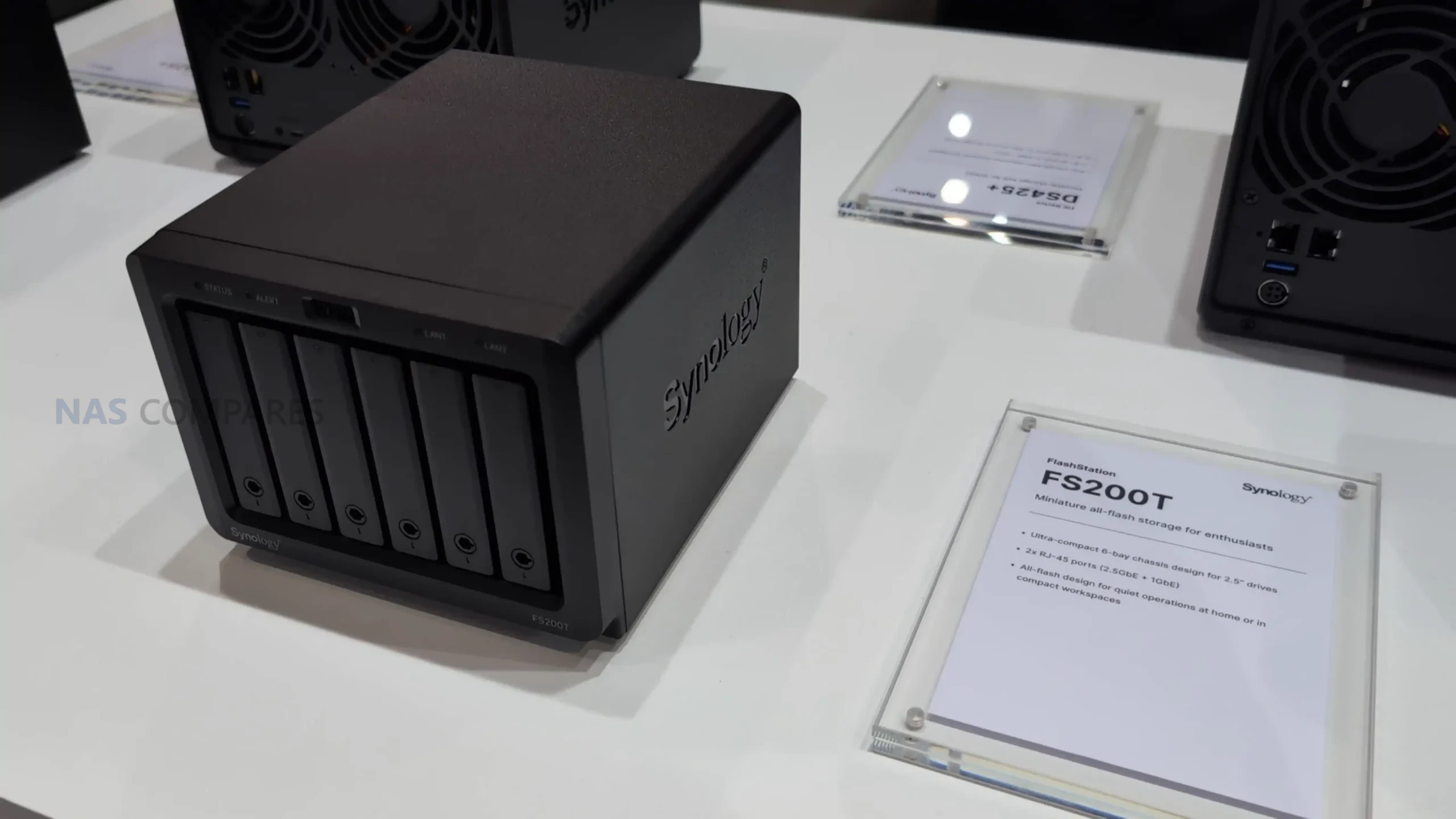
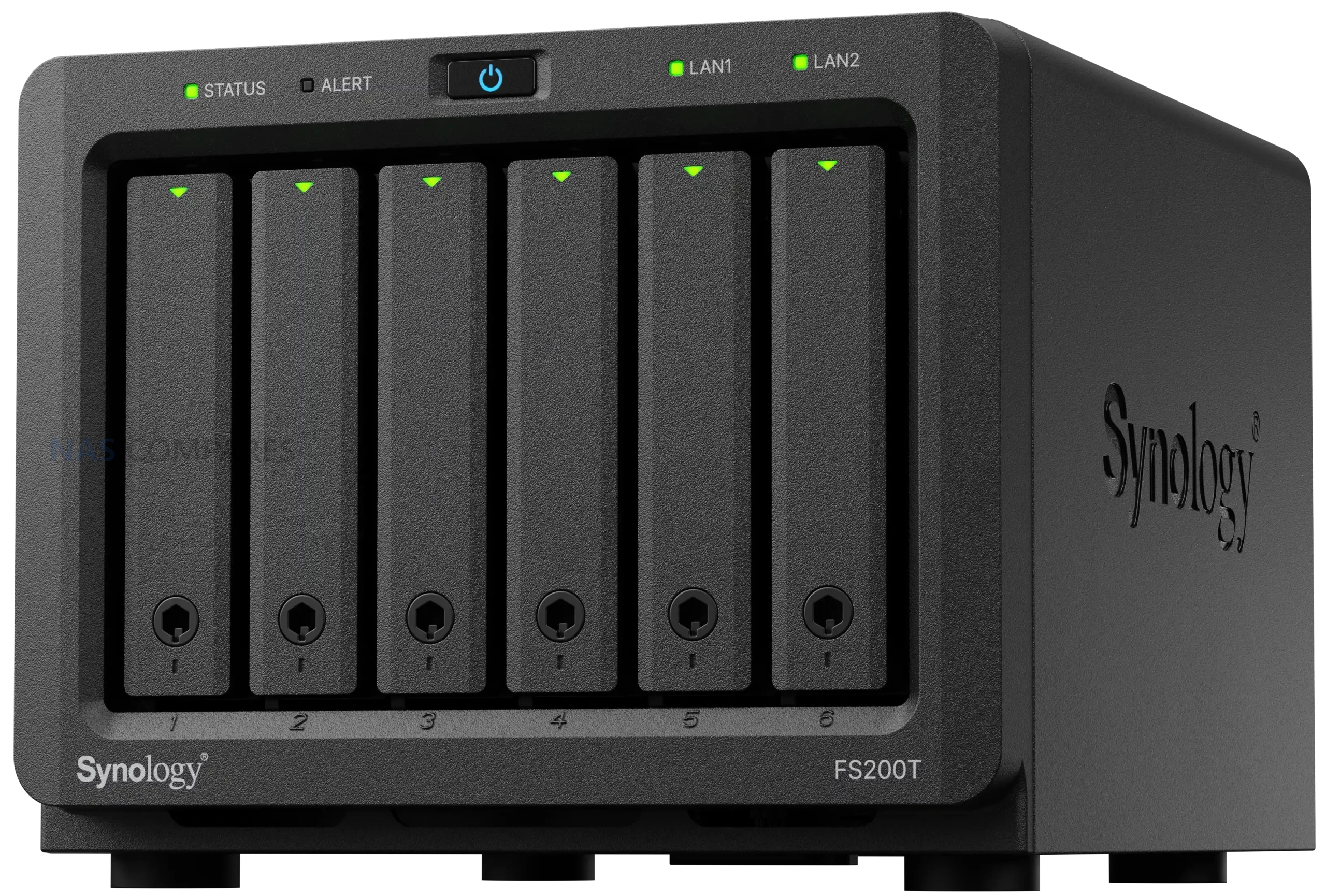
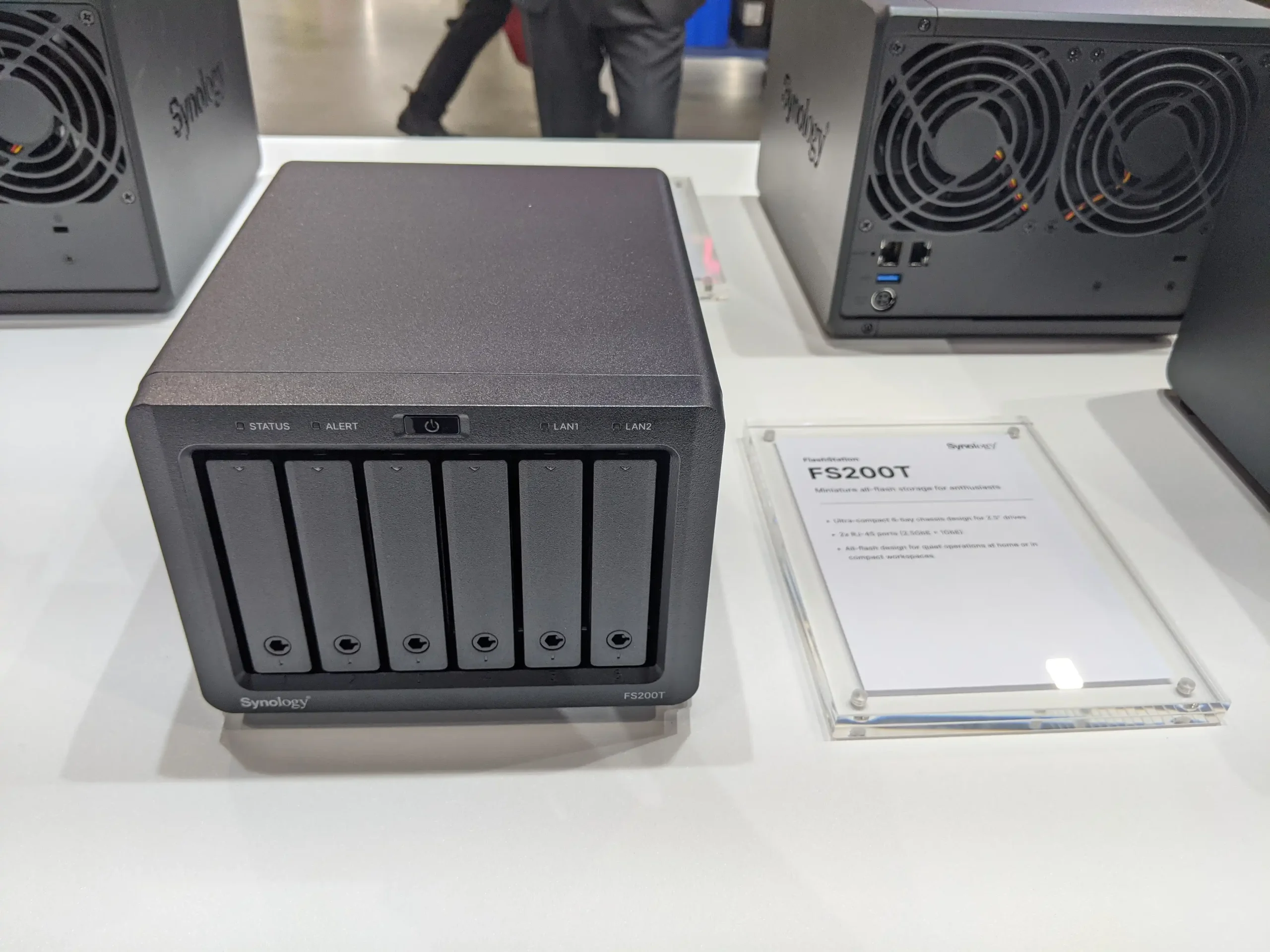
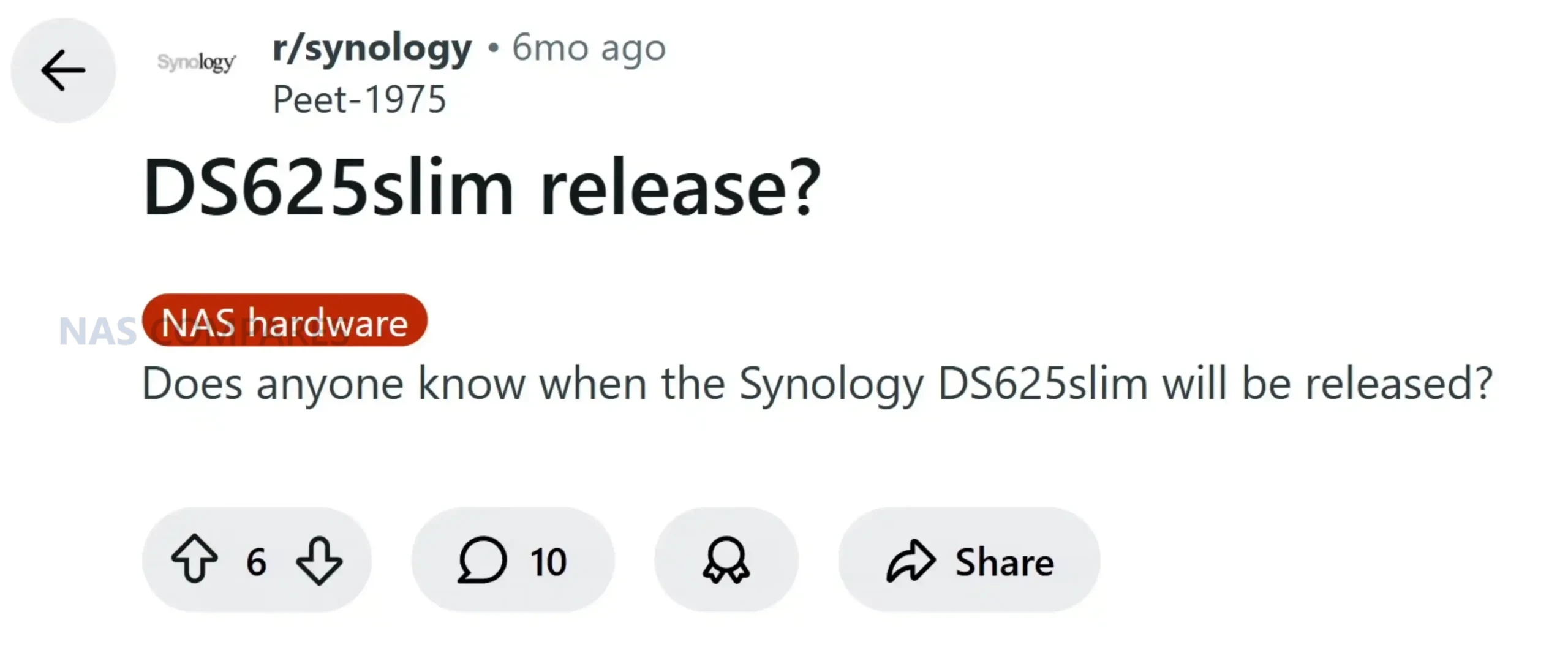
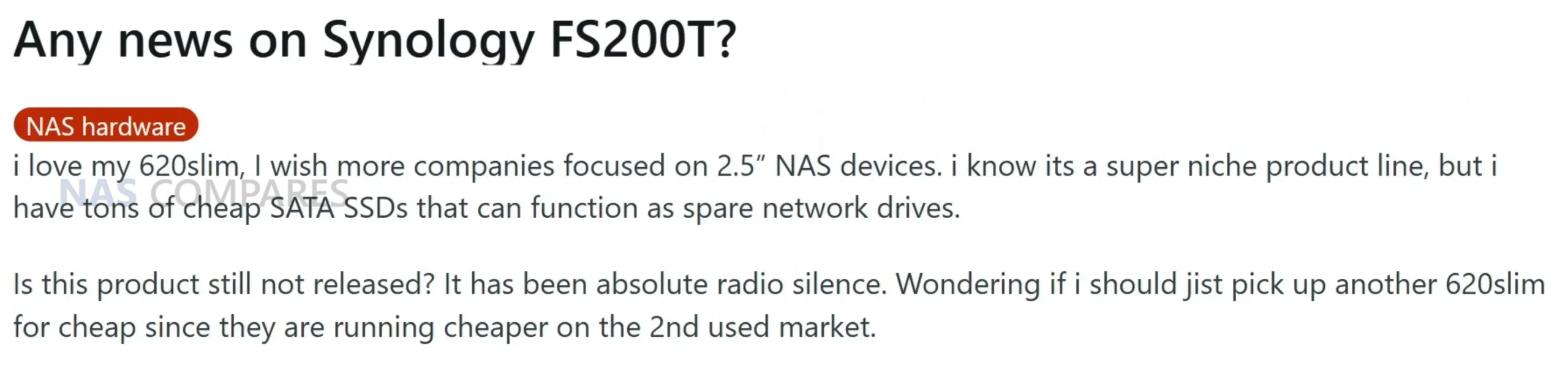
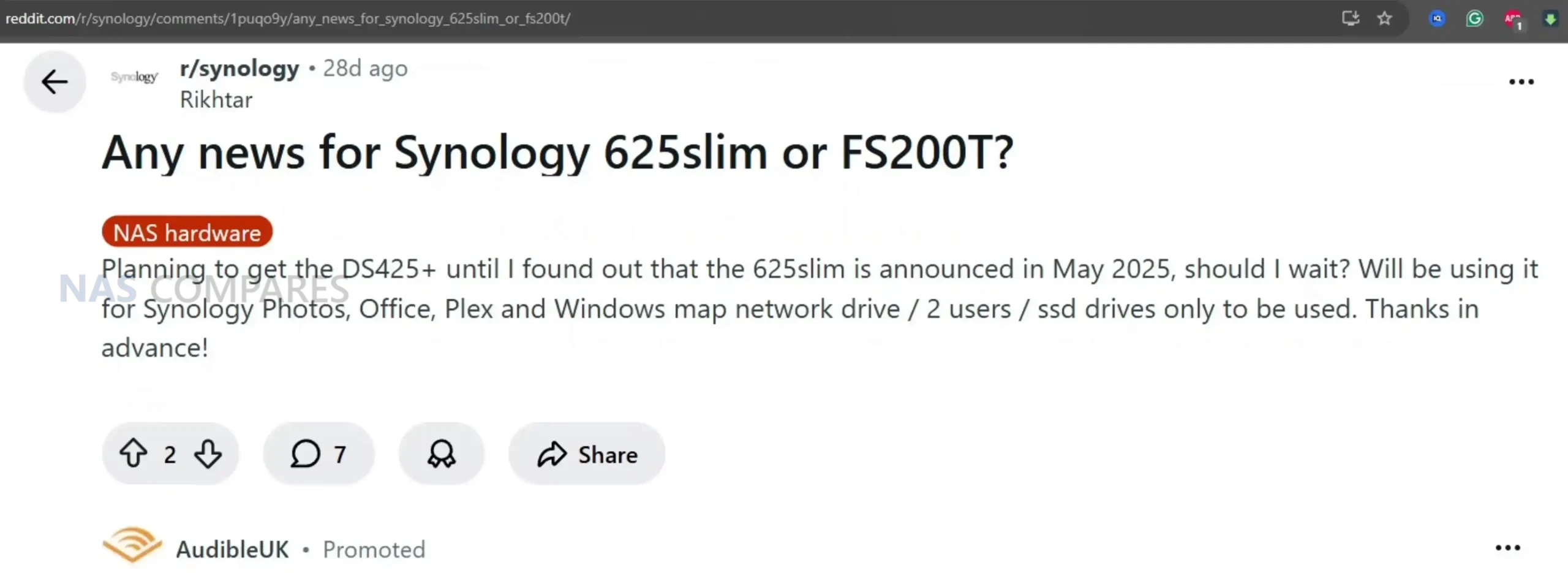
The Synology FlashStation FS200T is a compact 6 bay 2.5 inch NAS that has followed an unusually drawn out and fragmented path to visibility. The device first appeared through semi official leaks in Q1 2025, before being shown more openly at Computex during May and June, giving attendees a first real look at the hardware. After that appearance, public information largely dried up, leading many to assume the system had been delayed indefinitely or quietly cancelled. Interest resurfaced later in 2025 as more complete documentation began to circulate, culminating in a leaked datasheet dated October 16, 2025 that outlined specifications, software capabilities, and Synology’s intended positioning for the device. Despite the lack of an official launch announcement, demand has remained present at a low but steady level, particularly among users who value small, quiet systems and are already invested in the DSM ecosystem. Online discussion has continued across forums and social platforms, with recurring questions around release timing and justification for the product’s existence in a rapidly changing NAS market. The FS200T appears designed to serve a specific niche rather than a broad audience, focusing on an all flash configuration, low acoustic output, and minimal physical footprint. Rather than competing on raw performance or expandability, its purpose is to deliver a responsive, self contained storage platform that runs the full Synology software stack in environments where noise, size, and power consumption matter more than upgrade paths or maximum throughput.
Synology FS200T NAS – Hardware Specifications
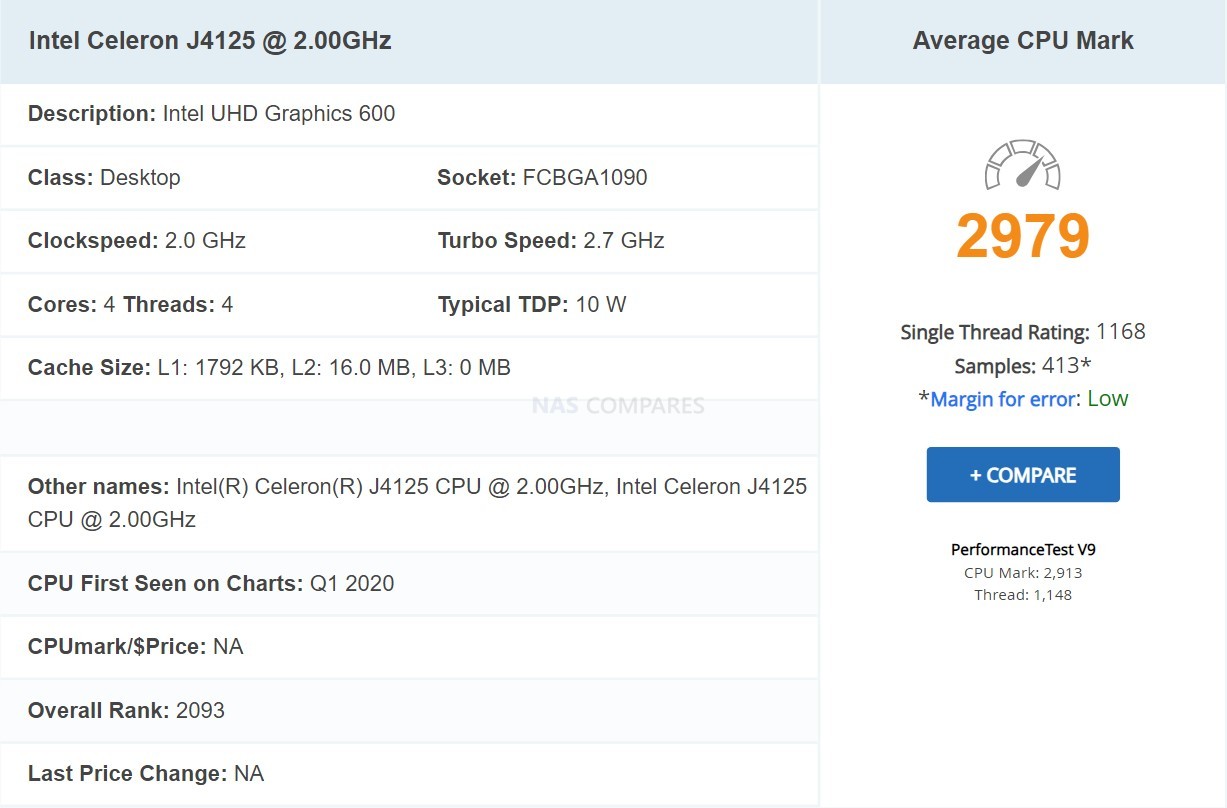
At the heart of the Synology FS200T is the Intel Celeron J4125, a 4 core, 64 bit processor with a 2.0 GHz base clock and a 2.7 GHz turbo ceiling. This is a chip originally released in the 2019 to 2020 timeframe and has been widely deployed across several generations of entry and mid range NAS systems. While it remains serviceable for basic DSM workloads, file services, and light container use, it is increasingly dated by current standards. Intel has since retired this naming convention entirely, shifting its low power roadmap toward newer N series Alder Lake and Twin Lake processors that offer improved efficiency, IPC gains, and more modern media and virtualization capabilities. In that context, the J4125 feels more like a holdover from an earlier design cycle than a deliberate forward looking choice, particularly for a flash focused system introduced in 2026.
The CPU does include a hardware encryption engine, which aligns well with DSM features such as encrypted shared folders, secure snapshots, and HTTPS services. However, expectations around virtualization, AI assisted services, and sustained multi task workloads should remain conservative. Compared with newer low power CPUs, the J4125 lacks the architectural refinements and efficiency improvements that would better justify pairing it with an all flash storage configuration. This choice reinforces the impression that the FS200T is designed around stability and familiarity rather than performance progression.
Memory configuration consists of 4 GB of DDR4 non ECC SODIMM installed by default. The system provides 2 memory slots with an official maximum capacity of 8 GB using 4 GB modules. While sufficient for basic DSM services, backup tasks, and light multi user access, this ceiling quickly becomes restrictive when enabling heavier applications such as Virtual Machine Manager, Synology Drive for multiple users, or container based services. Synology also notes that optimal compatibility and warranty support depend on using official Synology memory, further narrowing flexibility for users who might otherwise attempt more aggressive tuning.
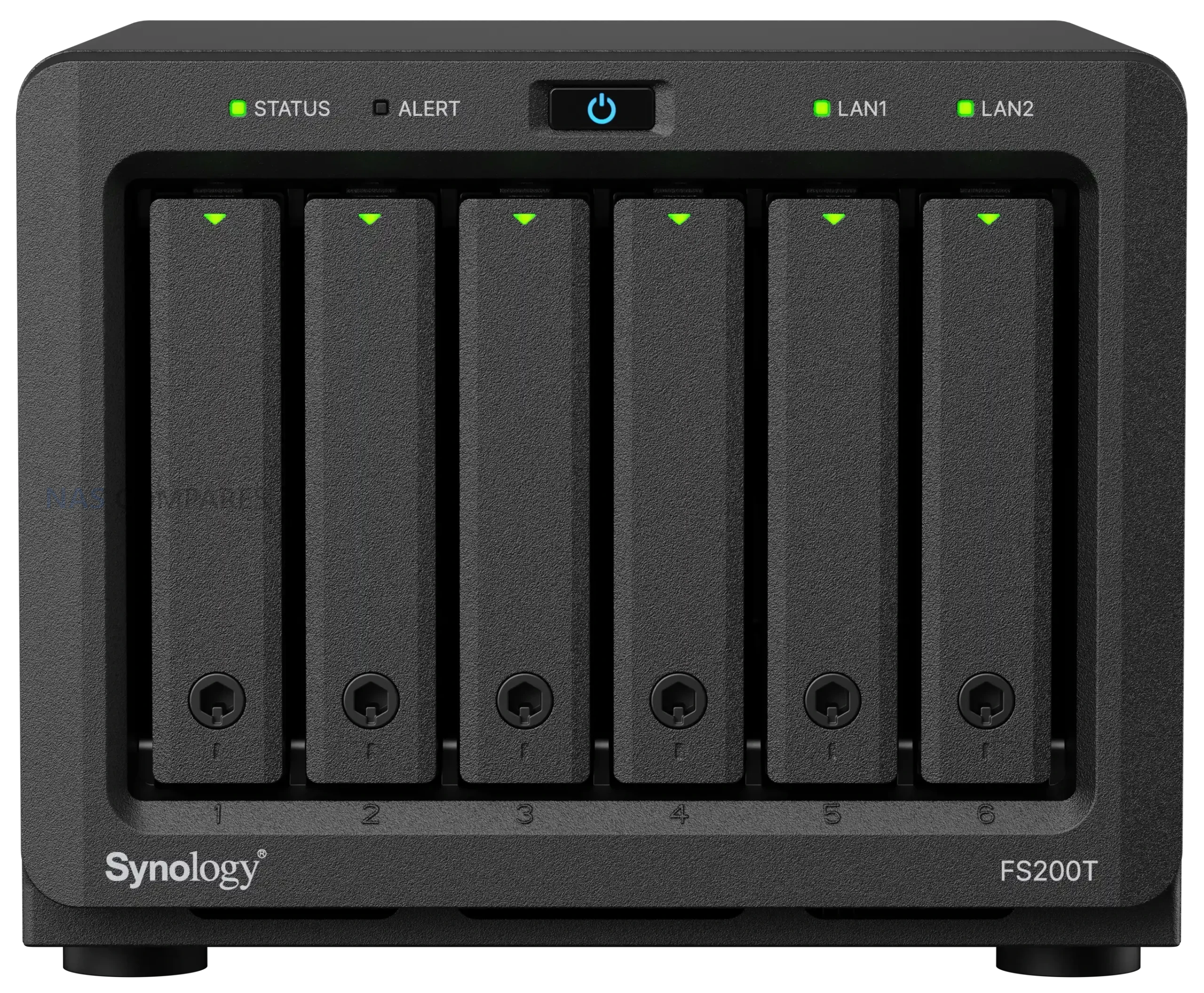
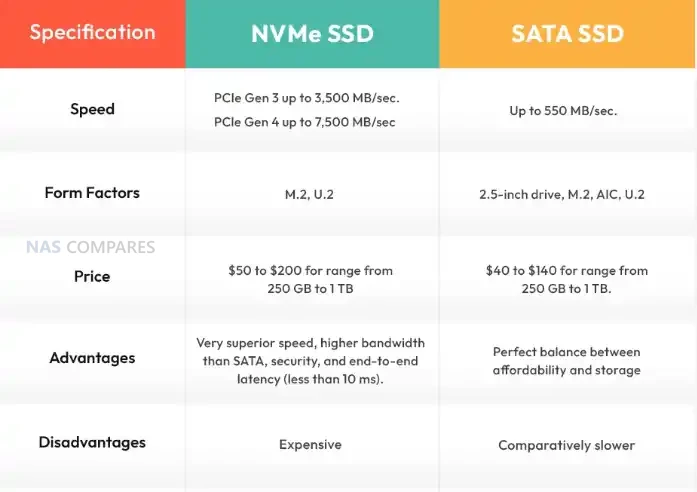
Storage is where the FS200T makes its clearest statement, and also draws its most obvious criticism. The system supports 6 x 2.5 inch SATA SSDs with hot swap capability, and no other internal storage options are listed. There are no M.2 NVMe slots, no cache bays, and no PCIe expansion. In a market where even compact NAS systems increasingly rely on NVMe for primary or cache storage, the exclusive reliance on SATA SSDs feels increasingly out of step. SATA bandwidth limitations mean that even in optimal RAID configurations, the storage subsystem will be constrained long before the SSDs themselves are saturated, particularly when paired with the available network interfaces. This design choice prioritizes compatibility and thermals over performance scalability, but it also places a hard ceiling on what the platform can deliver.
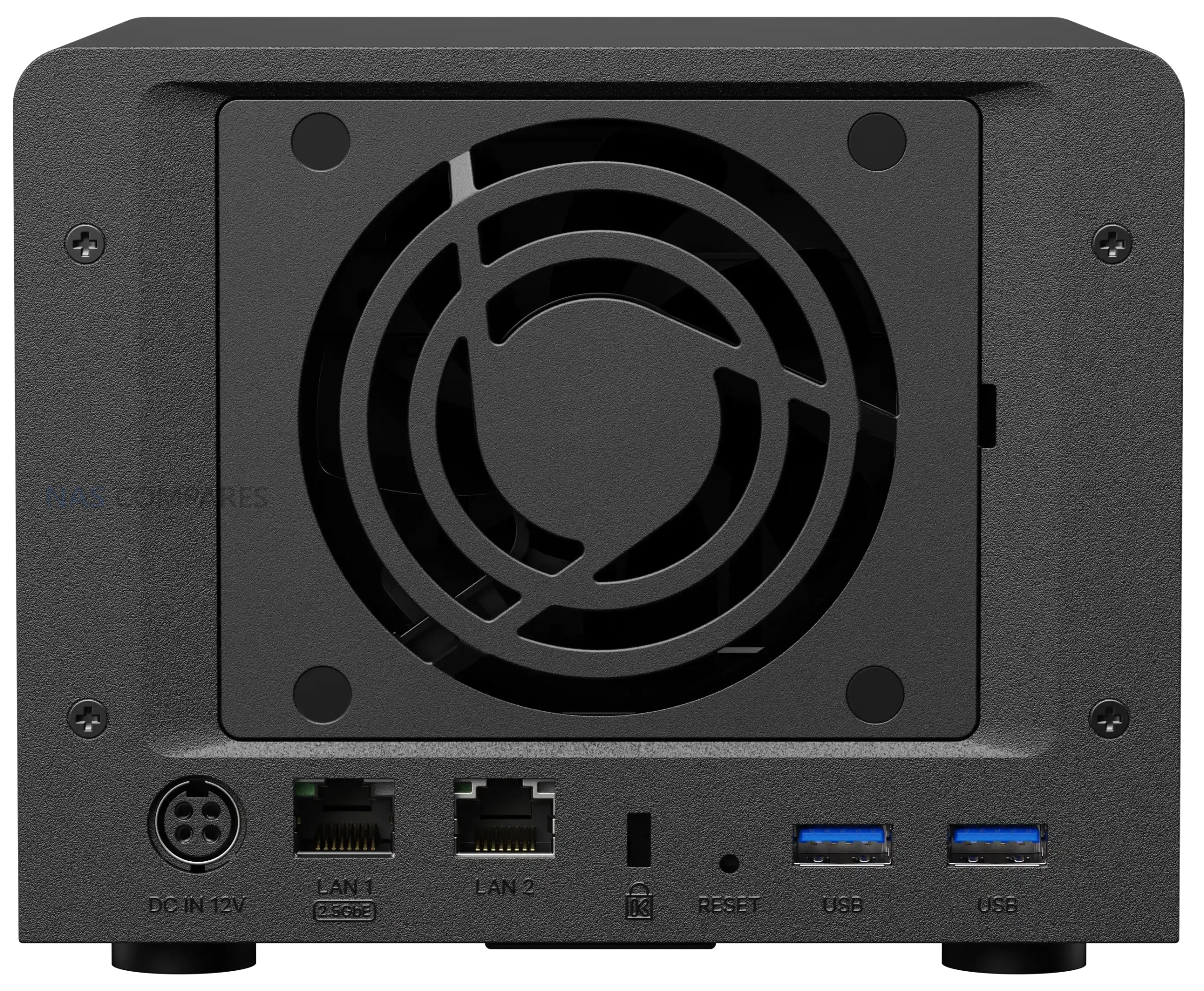
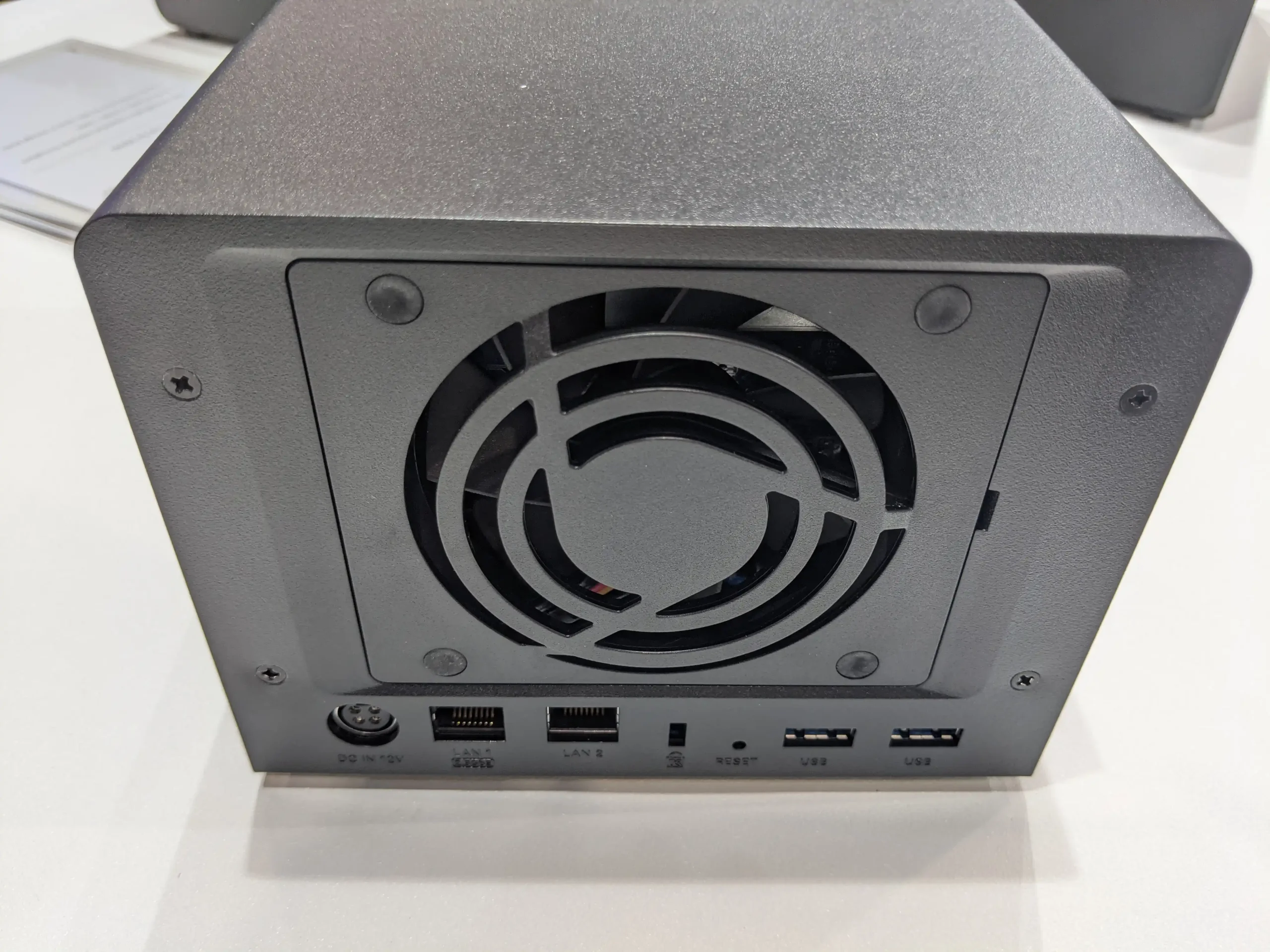
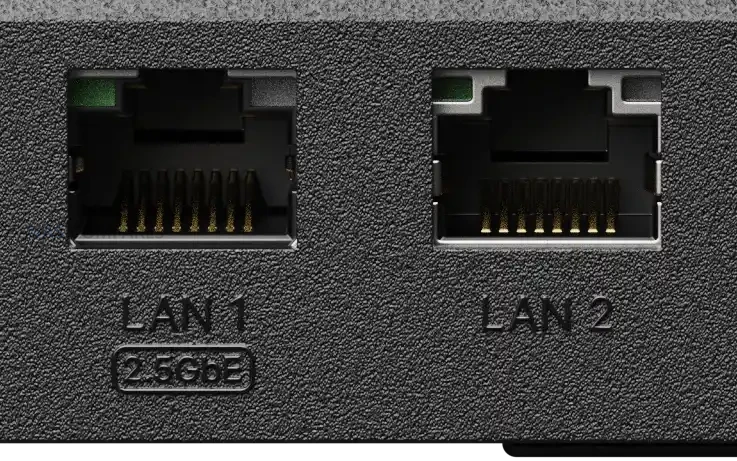
Networking is limited to 2 Ethernet ports, consisting of 1 x 2.5GbE and 1 x 1GbE with failover support. While the inclusion of 2.5GbE is a welcome baseline upgrade over legacy 1GbE only systems, the absence of additional multi gig ports or 10GbE options further compounds the performance bottleneck created by the SATA only storage design. External connectivity is handled via 2 x USB 3.2 Gen 1 ports, suitable for backups or peripheral devices, but there is no mention of USB based expansion units or higher bandwidth options.
Physically, the FS200T maintains a compact and understated design. The chassis measures 121 mm x 151 mm x 175 mm and weighs 1.4 kg, making it easy to place in home or small office environments. Cooling is managed by a single 80 mm fan, and the lack of mechanical drives supports Synology’s positioning of the system as quiet during operation. Power input is rated from 100V to 240V AC at 50/60 Hz, with operating conditions specified between 0°C and 40°C and 8 percent to 80 percent relative humidity. These characteristics reinforce the system’s focus on low noise, low power operation rather than sustained high performance workloads.
The Synology FS200T is clearly aimed at a narrow segment of users who value compact size, quiet operation, and access to the DSM software ecosystem over raw performance or hardware flexibility. This includes home users, enthusiasts, and small office environments where space and noise are limiting factors and where workloads are largely centered around file storage, backups, photo management, and light collaboration services. Users already familiar with DSM who want an always on, low maintenance system for everyday data tasks may find the FS200T fits neatly into that role, particularly if power efficiency and physical footprint are higher priorities than throughput.
At the same time, the FS200T is less well suited to users expecting strong virtualization performance, heavy multi user access, or storage scalability over time. The combination of an older processor, a modest memory ceiling, SATA only storage, and limited network bandwidth means it is not designed to grow alongside more demanding workloads. Power users, media professionals, and those comparing against newer M.2 based NAS platforms may find the system restrictive. In practice, the FS200T makes the most sense for users who want a quiet, self contained DSM appliance and are comfortable accepting its fixed performance envelope from day one.
Has the Synology FS200T NAS Arrived Too Little, Too Late?
The FS200T enters a NAS market that has evolved significantly since its first appearance in early 2025. In that time, compact and enthusiast focused systems have increasingly shifted toward M.2 NVMe as primary storage, often paired with faster multi gig or 10GbE networking as a baseline rather than an upgrade. Against those expectations, a 6 bay, SATA only flash system built around an older Celeron platform feels cautious and, in some respects, behind the curve. Even where SSD responsiveness is present, the combination of SATA bandwidth limits, modest CPU capability, and a single 2.5GbE port constrains how much of that performance can realistically be delivered to connected clients.
These limitations are more pronounced when the FS200T is compared directly with consumer and prosumer alternatives released over the last 12 to 24 months. Many competing systems, including small form factor DIY and appliance style NAS solutions, now offer newer Alder Lake or Twin Lake based processors, higher memory ceilings, and NVMe storage that can scale well beyond SATA constraints. While those platforms may lack DSM and its tightly integrated services, they often deliver noticeably higher throughput, better virtualization headroom, and more flexibility for future expansion at similar or lower price points. In that context, the FS200T’s hardware profile risks appearing static rather than intentionally restrained.
Whether the FS200T is ultimately “too late” depends on how much weight is placed on software versus hardware. For users who specifically want DSM in a very small, quiet enclosure and are comfortable with a fixed performance envelope, the system still fills a clear niche. However, its weaknesses become harder to overlook in a consumer market that increasingly expects NVMe storage, modern CPUs, and faster networking as standard. If pricing and SSD compatibility further narrow its appeal, the FS200T may struggle to justify its position against consumer focused alternatives that offer stronger hardware fundamentals, even if they require compromises on software maturity and ecosystem integration.
This description contains links to Amazon. These links will take you to some of the products mentioned in today's content. As an Amazon Associate, I earn from qualifying purchases. Visit the NASCompares Deal Finder to find the best place to buy this device in your region, based on Service, Support and Reputation - Just Search for your NAS Drive in the Box Below
Need Advice on Data Storage from an Expert?
Finally, for free advice about your setup, just leave a message in the comments below here at NASCompares.com and we will get back to you.Need Help?
Where possible (and where appropriate) please provide as much information about your requirements, as then I can arrange the best answer and solution to your needs. Do not worry about your e-mail address being required, it will NOT be used in a mailing list and will NOT be used in any way other than to respond to your enquiry.
[contact-form-7]
TRY CHAT Terms and Conditions
If you like this service, please consider supporting us.
We use affiliate links on the blog allowing NAScompares information and advice service to be free of charge to you.Anything you purchase on the day you click on our links will generate a small commission which isused to run the website. Here is a link for Amazon and B&H.You can also get me a Ko-fi or old school Paypal. Thanks!To find out more about how to support this advice service checkHEREIf you need to fix or configure a NAS, check FiverHave you thought about helping others with your knowledge? Find Instructions Here
Or support us by using our affiliate links on Amazon UK and Amazon US
Alternatively, why not ask me on the ASK NASCompares forum, by clicking the button below. This is a community hub that serves as a place that I can answer your question, chew the fat, share new release information and even get corrections posted. I will always get around to answering ALL queries, but as a one-man operation, I cannot promise speed! So by sharing your query in the ASK NASCompares section below, you can get a better range of solutions and suggestions, alongside my own.
If you are buying a NAS for the first time, it is very easy to focus on brand names, bay counts and discounts while overlooking practical issues that will shape your experience for the next 5 to 7 years. New buyers often underestimate noise in real rooms, forget to plan for future capacity growth, misjudge the usefulness of SSD cache, ignore long term power consumption, or assume that a couple of very large drives are always the best value. On top of that, many people treat a NAS like a simple external drive rather than a 24/7 network device that will sit near family members or co workers and quietly draw power every day. This article looks at 5 common mistakes that first time NAS owners make and explains how each one happens, what it looks like in normal home or small office use, and the straightforward checks you can perform before you spend any money so you do not end up with a noisy, inefficient or inflexible system.
Mistake #1: Underestimating NAS Noise in REAL-WORLD Use (IGNORE the official Specs Sheets)
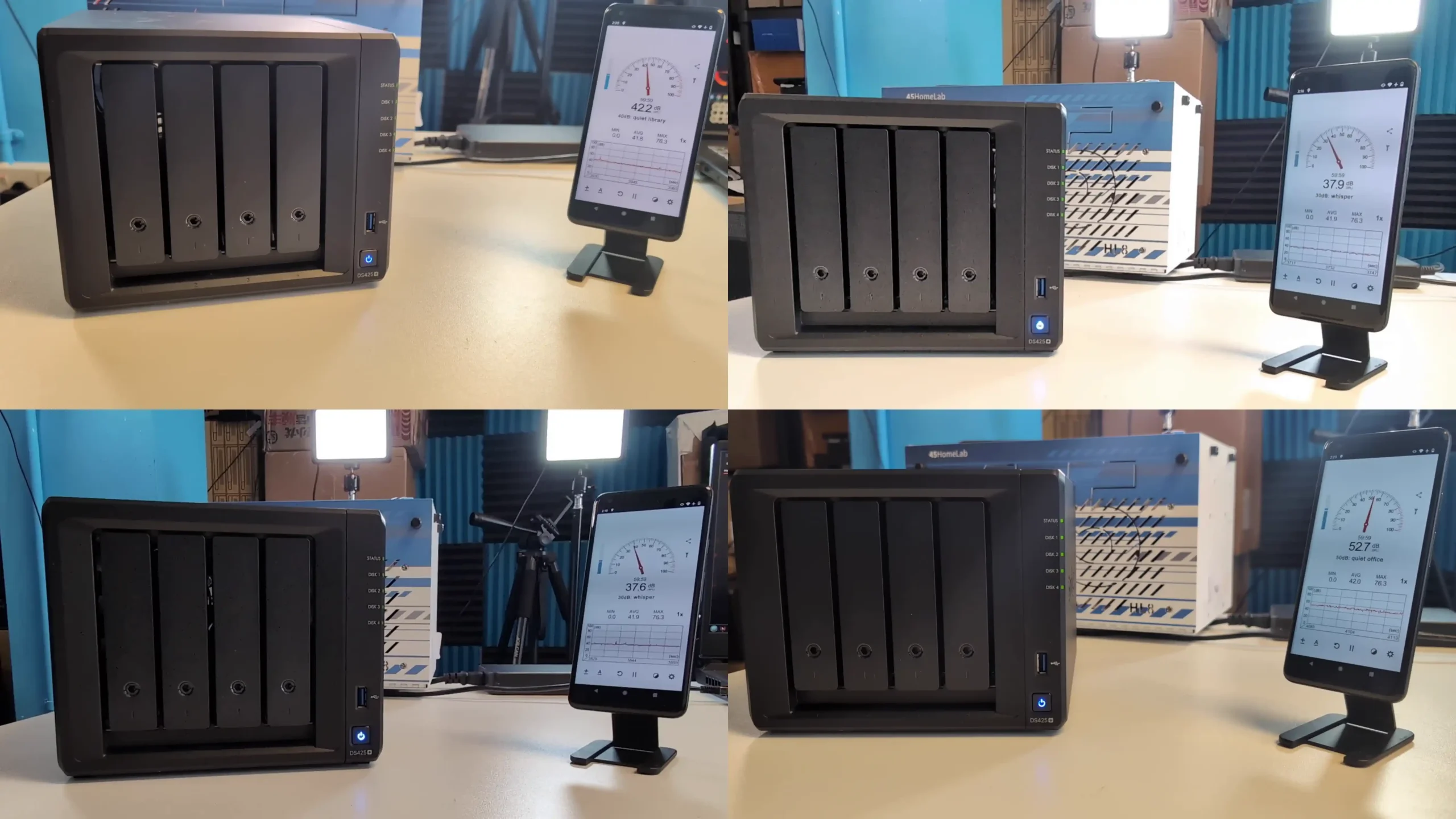
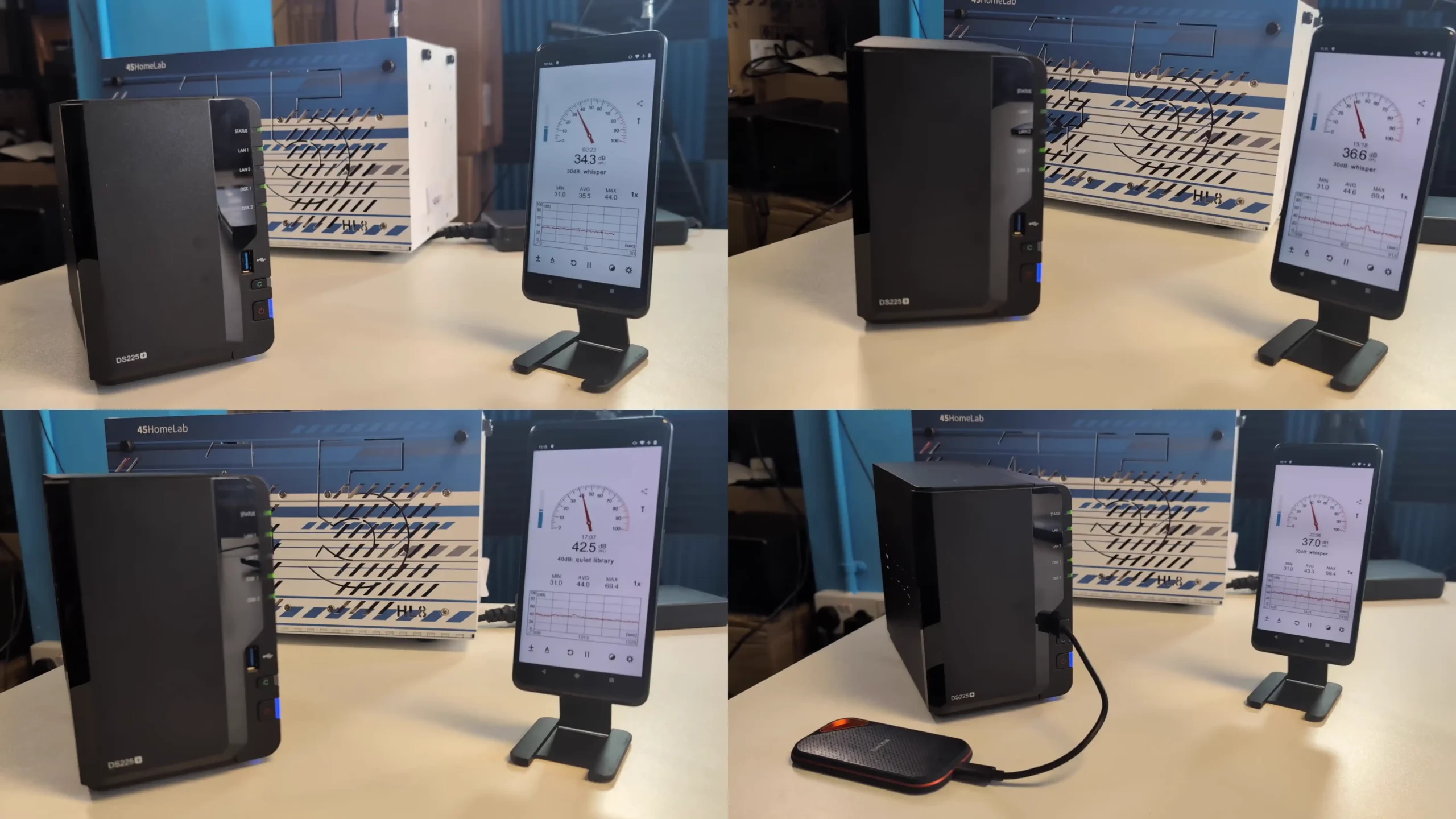
A common mistake with a first NAS is to assume it will sound like a quiet router or a small external drive. In practice a NAS contains several moving parts that generate and transmit noise into the room, especially at night or in a small flat. Drive seek clicks, spindle hum, fan airflow and vibration passing into the furniture all add together. If the system ends up in a bedroom, living room or small home office, the constant whirr can lead to complaints from other people in the house and leave the owner wondering whether the device is faulty when it is simply behaving as designed. It is also easy to forget that scheduled tasks such as antivirus scans, backups and indexing will often push the CPU, fans and disks harder than normal file access, so a system that seems acceptable during light daytime use can become noticeably louder when these jobs run.
Noise levels are heavily influenced by physical design choices that new buyers rarely consider. Metal chassis units tend to amplify vibration compared with plastic enclosures, which means every drive click and fan change is more noticeable. Larger capacity HDDs, particularly above 8TB, usually contain more platters and a more active actuator assembly, which produces sharper clicks and a deeper background rumble than smaller disks. Fan design also matters. Rear mounted fans tend to push sound directly into the room, while models with downward facing or internal fans may spread the noise more evenly into the surface under the NAS. Even the desk or cabinet matters, since hard surfaces can resonate and make a quiet system sound louder. Simple changes such as placing the NAS on a foam pad, an anti vibration mat or thick rubber feet will reduce the amount of vibration transferred into the furniture and can make a noticeable difference to perceived noise without changing the hardware.
The practical way to avoid this problem is to plan acoustics at the same time as you choose capacity and CPU. If the NAS must live in an occupied room, it makes sense to look at lower noise HDD lines, to avoid the very largest capacities where possible, and to consider using SATA SSDs for the working volume if budget allows. Checking vendor spec sheets for noise ratings in dB is useful, but you should also think about where the NAS will physically sit and how air can flow around it, since putting a box in a sealed cupboard simply forces the fans to run harder. Most modern NAS systems allow fan speed profiles and drive hibernation, which can reduce noise during idle periods, and many also support power schedules so the unit can power down completely during hours when it is not needed. You can also move heavy jobs such as RAID scrubs, indexing and backup windows into predictable time slots, for example overnight if the NAS is in a separate room, so that short periods of higher noise are less disruptive while the system remains quiet for normal daytime access.
Mistake #2: Ignoring Future Capacity and Expansion (PLAN AHEAD!)
A second common mistake is to buy a NAS that only matches your current data footprint with no realistic allowance for growth. Many first time buyers look at their existing files, see that they use 2TB or 4TB, then choose a 2 bay unit and a pair of modest drives that cover today with a small buffer. Once the NAS is in use, however, new cameras, phones and laptops start backing up to it, family members begin storing photos and videos, and it often becomes the default place for downloads and shared work files. Within a year or 2, the system that once looked spacious can be near its usable limit, especially once you take RAID overhead and snapshots into account.
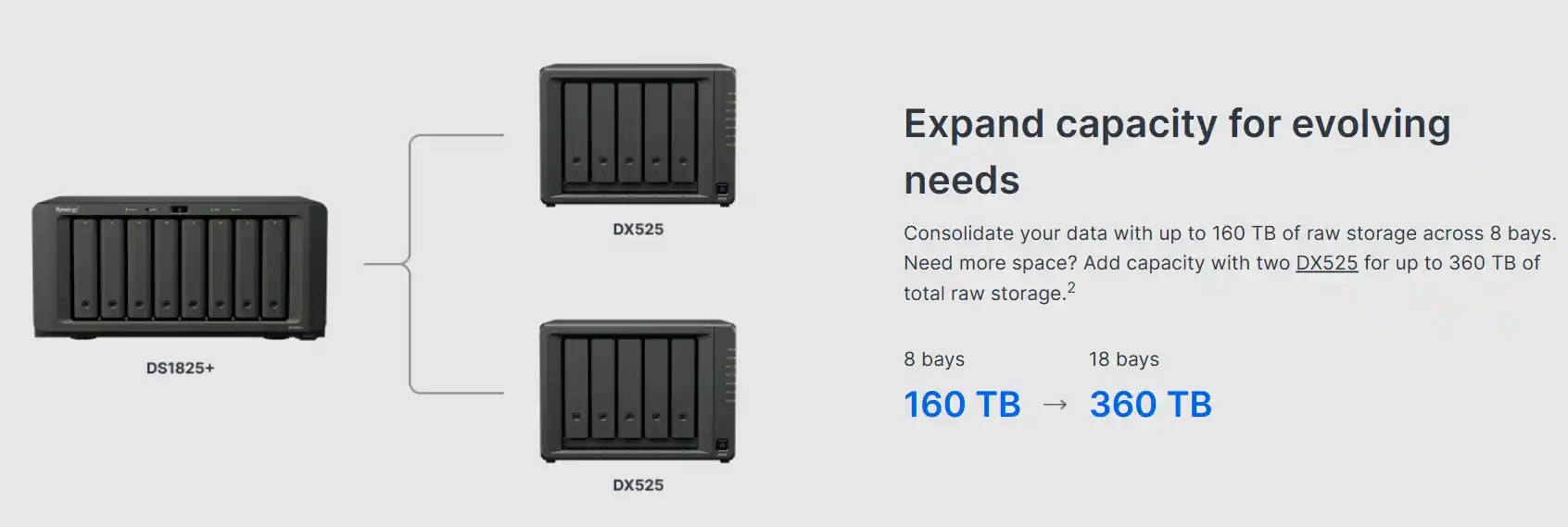
The physical bay count and the way you populate those bays on day 1 has a direct impact on how easy it will be to grow later. A 2 bay NAS that starts fully populated leaves you with only a couple of options when you run out of room. You either replace both drives with larger ones, which is expensive and involves a full rebuild, or you bolt on an external expansion chassis if the vendor offers one. A 4 bay unit that initially uses only 2 drives gives you a much smoother path. You can add extra disks one at a time, or take advantage of flexible RAID schemes from some brands that allow mixing different drive sizes over time, which is far more forgiving when budgets are tight or upgrade windows are short.
Avoiding this mistake means planning capacity as a multi year decision rather than a single purchase. It is usually better to buy a slightly larger chassis with more bays than you think you need, then start with a sensible number of mid sized drives that offer a good cost per TB. This gives you headroom to add disks later without reorganising everything and lets the array performance improve as you add more spindles. It also leaves space for other changes such as introducing SSD volumes or cache in the future without having to retire the entire unit. In short, it is safer to overspec the enclosure a little and understuff it at the start than to buy the smallest possible model and discover that you have run out of practical expansion options far sooner than expected.
Mistake #3: Assuming SSD Cache and RAM Upgrades are a Magic Performance Fix (SAVE YOUR MONEY!)
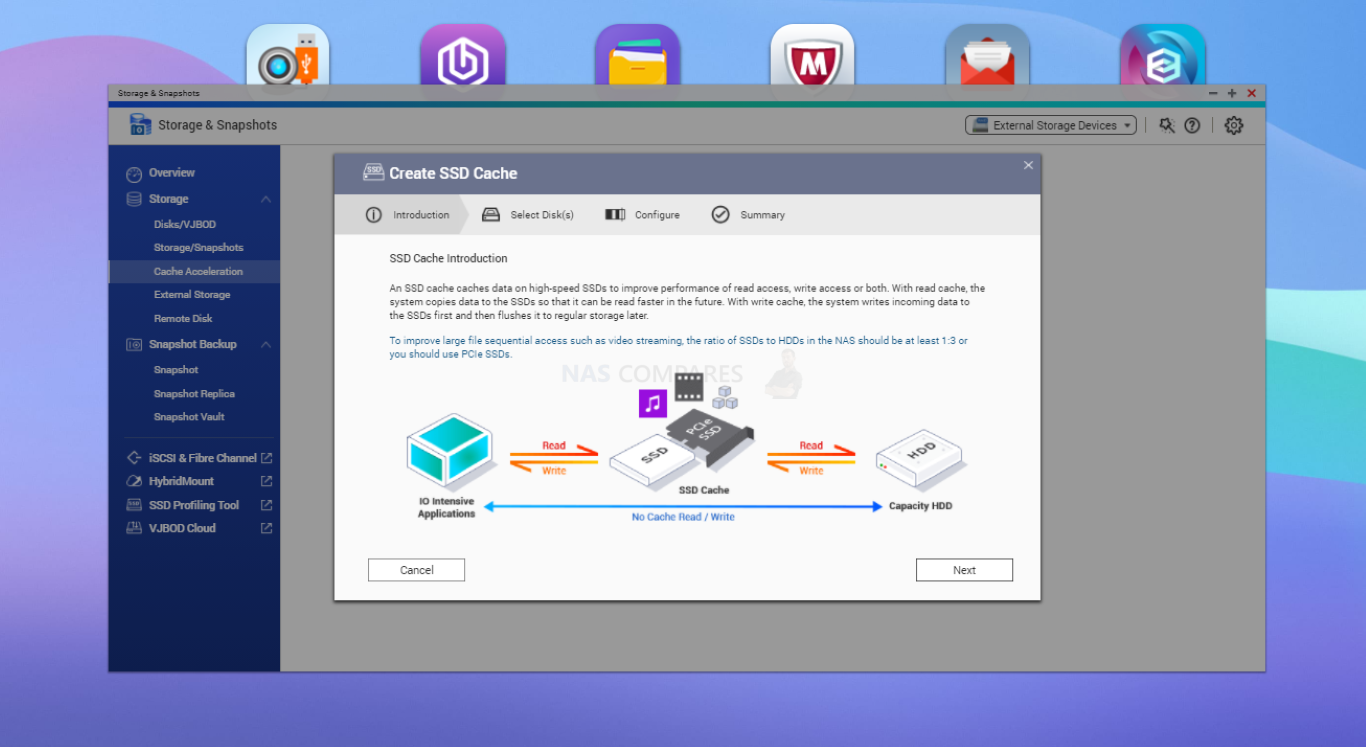
New NAS owners often treat SSD cache and RAM upgrades as a universal answer to “my NAS feels slow”, without checking whether the underlying workload or hardware actually benefits. It is common to see a 2 or 4 bay system with a modest CPU and a couple of M.2 slots promoted heavily as “cache ready”, which encourages buyers to add SSDs and memory on day 1. In reality, if the processor is already running close to 100 percent under load, extra RAM will mostly sit idle and cache will only accelerate specific types of access. For simple sequential workloads such as bulk media streaming or large backup jobs, disk performance and network limits usually matter more than having faster cache in front of the array, so the investment does not translate into a noticeable improvement.
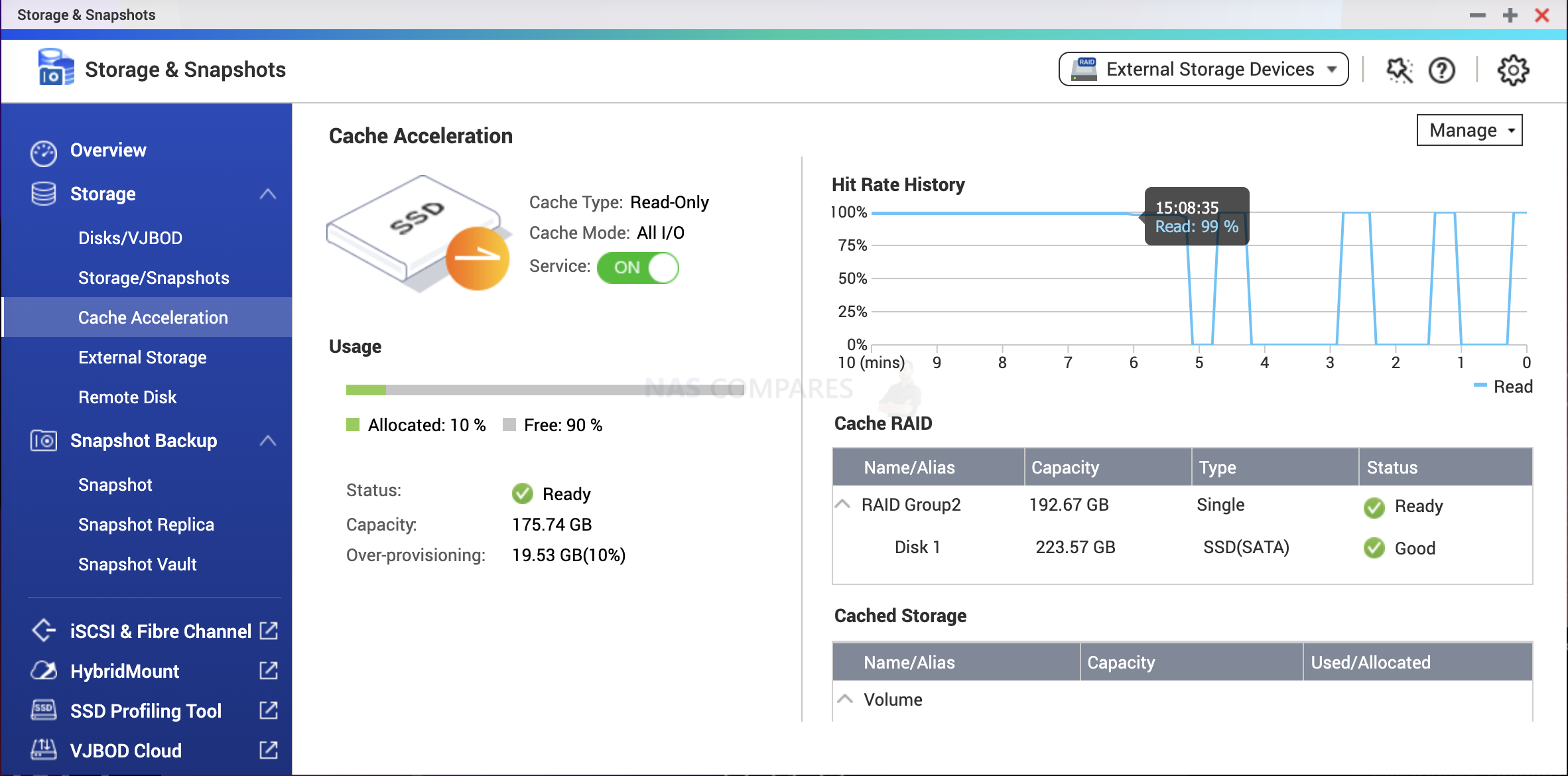
SSD cache in particular is often misunderstood. Write cache temporarily lands incoming data on SSDs and then flushes it to HDDs later, which can smooth out bursty writes but does not change the final speed of the array. Read cache keeps copies of frequently accessed “hot” data on SSDs, but in most NAS use this tends to be small random IO, metadata and thumbnails rather than entire large media files. Some platforms allow you to tune cache block size and policy, which can help in database or VM heavy environments, but for simple file sharing the benefit is limited. If a NAS mainly serves big video files to a handful of clients, using SSD cache rarely justifies the cost. In many cases, placing the NAS operating system, app data and indexes on an SSD volume, or using SSDs as a small primary pool for truly performance sensitive shares, delivers more predictable advantages than a generic cache layer.
The same caution applies to memory upgrades. More RAM allows the NAS to keep more filesystem cache and run more services concurrently, but it does not compensate for an underpowered CPU or a saturated network link. A basic check of CPU and memory utilisation under your typical workload is essential before buying additional modules. If CPU usage is consistently low while memory is pegged, extra RAM may help. If the processor is the bottleneck, adding memory or cache will not change the response time of apps and shares. For most first time buyers, it is more sensible to size CPU, network and base storage correctly first, then consider SSD based OS volumes, manual or automated tiering, and targeted RAM upgrades later if monitoring shows clear evidence that these changes will address a real bottleneck rather than an assumed one.
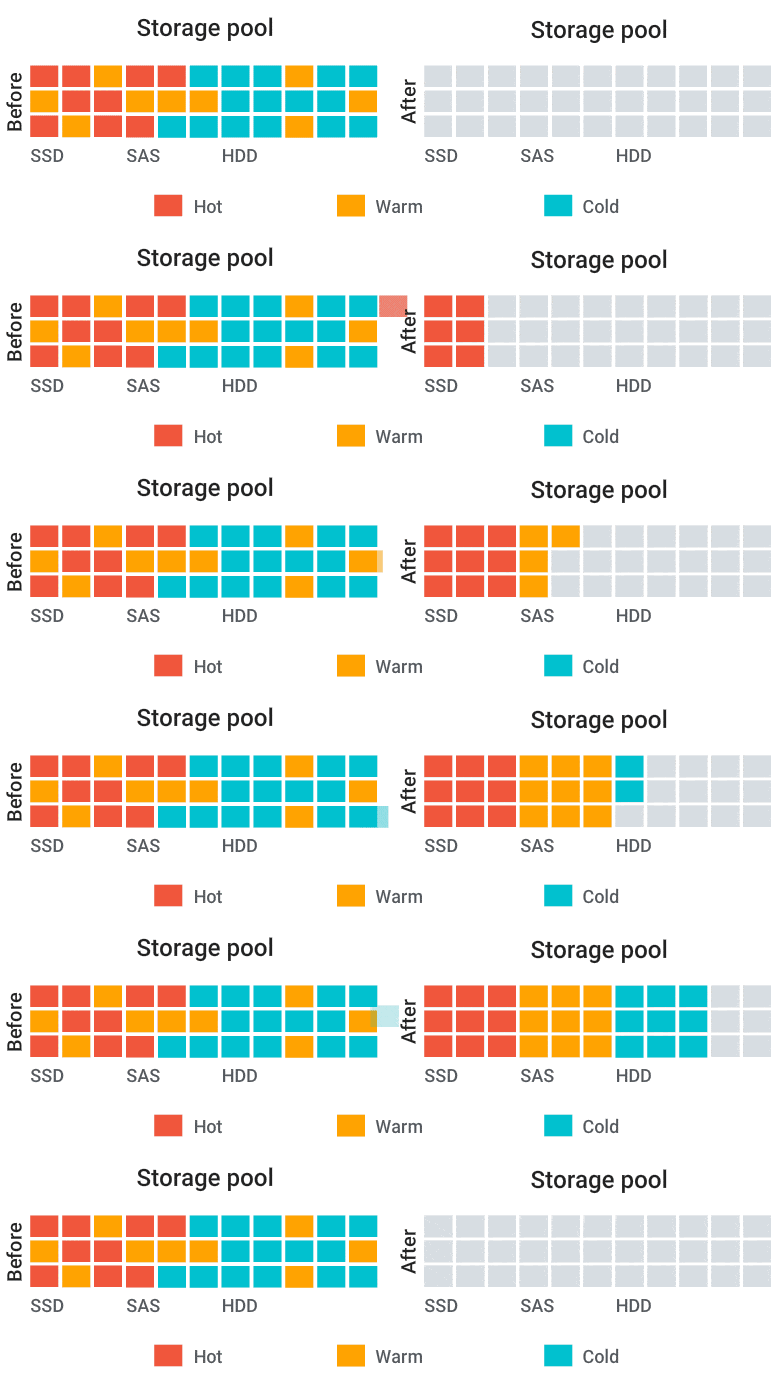
Note – If you are a QNAP NAS owner, you CAN use an alternative to ‘SSD Cache’, but using QTier – this MOVES (not copy) to data from slower HDDs and onto faster SSDs, as data is frequently accessed.
Mistake #4: Treating Power Consumption as an Afterthought (You Have CONTROL)
Many new NAS buyers focus on purchase price and capacity, then only think about power consumption after the first full month of electricity bills. A NAS is designed to be available around the clock, which means that even modest differences in idle draw add up over a year. Larger HDDs with more platters, multiple bays running full time, and older or less efficient CPUs all contribute to a steady baseline load, even when no one is actively using the system. In small flats or home offices this continuous draw can be a surprise, particularly for users coming from purely cloud based workflows where the power cost is hidden in the subscription fee.
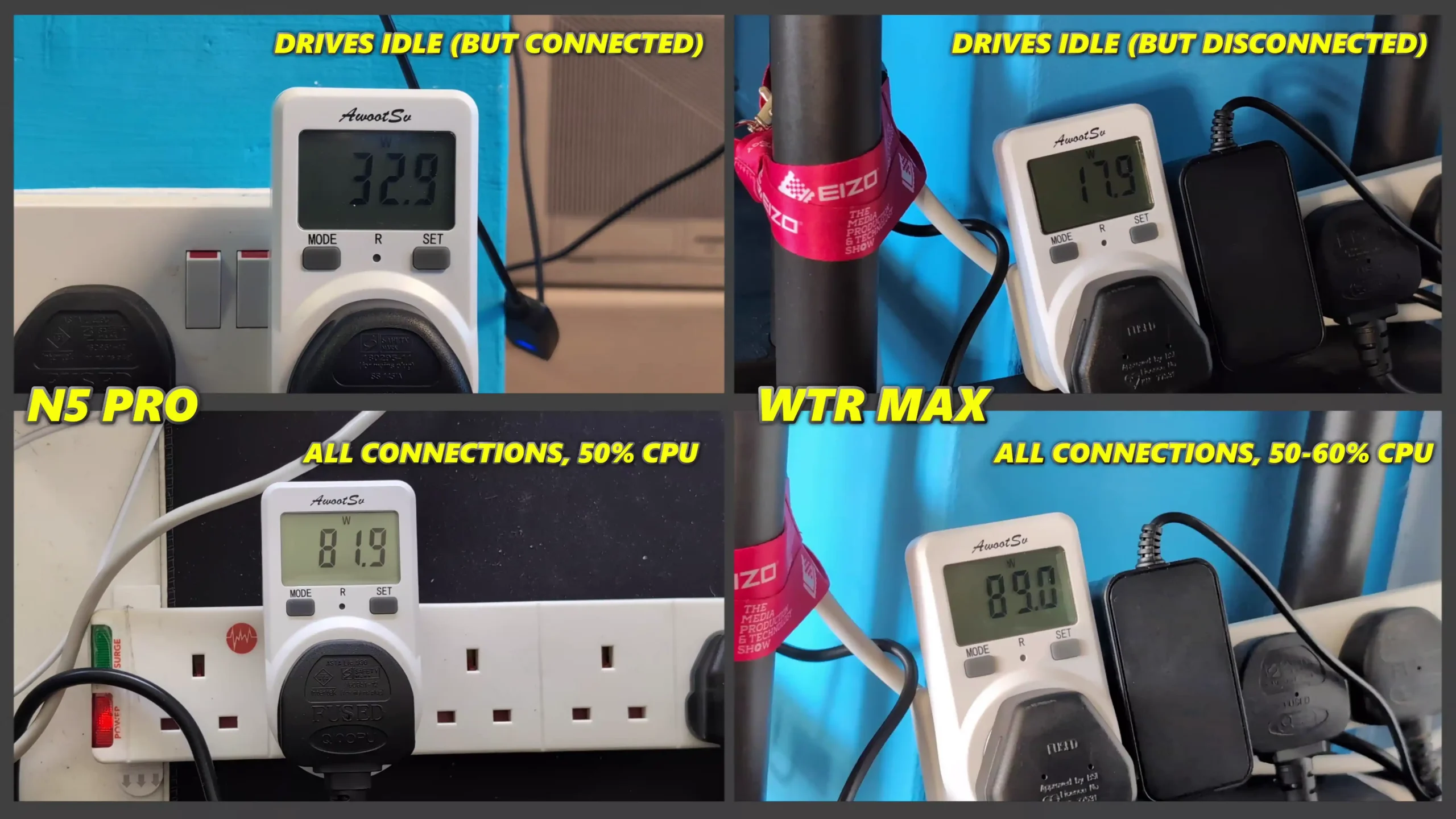
Hardware choices have a direct impact on how much power a NAS will use at idle and under load. High capacity HDDs tend to have higher idle consumption because the mechanics must be ready to spin and seek immediately. A system with fewer, larger disks may draw more power at rest than a similar capacity built from several smaller drives, although this is not a strict rule and depends on the specific models. CPU generation and class matter as well. Modern low power x86 chips such as Intel N series parts can idle in the single digit watt range but still turbo high enough for typical home workloads, while older desktop class processors often draw more even when idle. Buyers who only look at drive capacity and bay count without checking HDD datasheets and CPU TDP figures can easily end up with a system that runs hotter and more power hungry than necessary for basic file serving and backups.
Software features and configuration also play a major role, yet many first time owners never touch these options after initial setup. Enabling HDD hibernation for lightly used volumes can drop disk consumption from around 8 to 12 W per drive to well under 1 W when idle, multiplied across several bays. Most NAS platforms support scheduled power on and power off, which allows you to shut the system down completely during hours when it is not needed and wake it automatically for work periods or backup windows. Moving heavy jobs such as backups, RAID scrubs and indexing into specific time slots also helps, since the system can stay in a lower power state for more of the day. Simple measures like these, applied on top of sensible hardware selection, make the difference between a NAS that quietly adds a manageable cost to your electricity bill and one that runs at full power far more often than your usage requires.
Mistake #5: Assuming Fewer Large Drives are Better (Often the REVERSE is Better)
A frequent assumption among new NAS buyers is that the best approach is to purchase the largest individual HDDs they can afford, fit a pair into a small enclosure and rely on that pair for both capacity and protection. On paper this looks simple and neat. Two 30TB drives in a 2 bay unit appear to offer an easy route to 30TB of usable space with RAID protection. However, this approach often produces a poor price per TB compared with building the same or greater capacity from several mid sized disks, and it concentrates a lot of risk and cost into each individual drive. When one of these large disks fails or needs replacing, the financial hit is substantial and rebuilds can be lengthy.
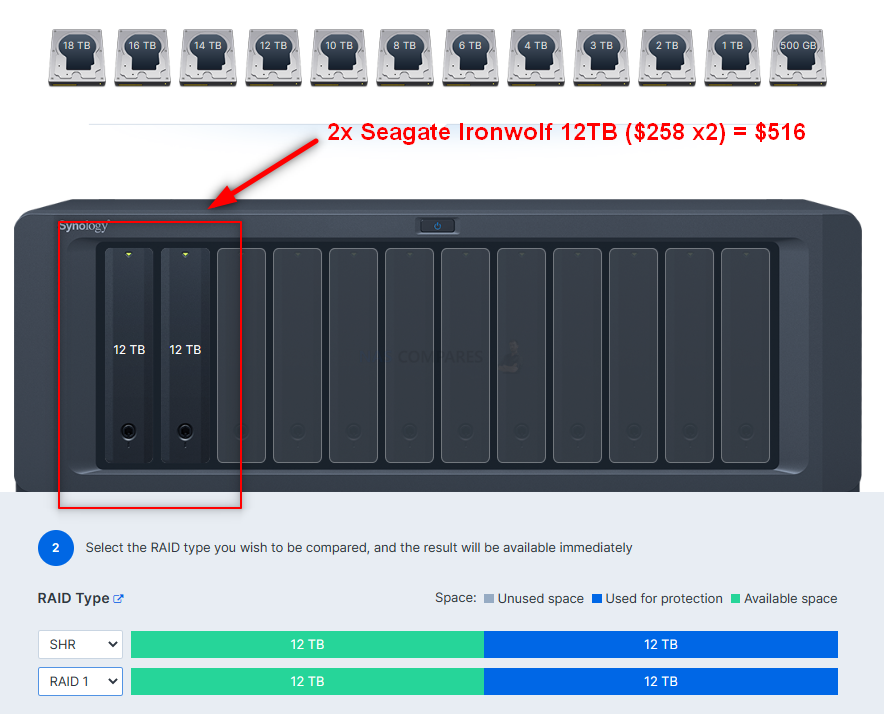
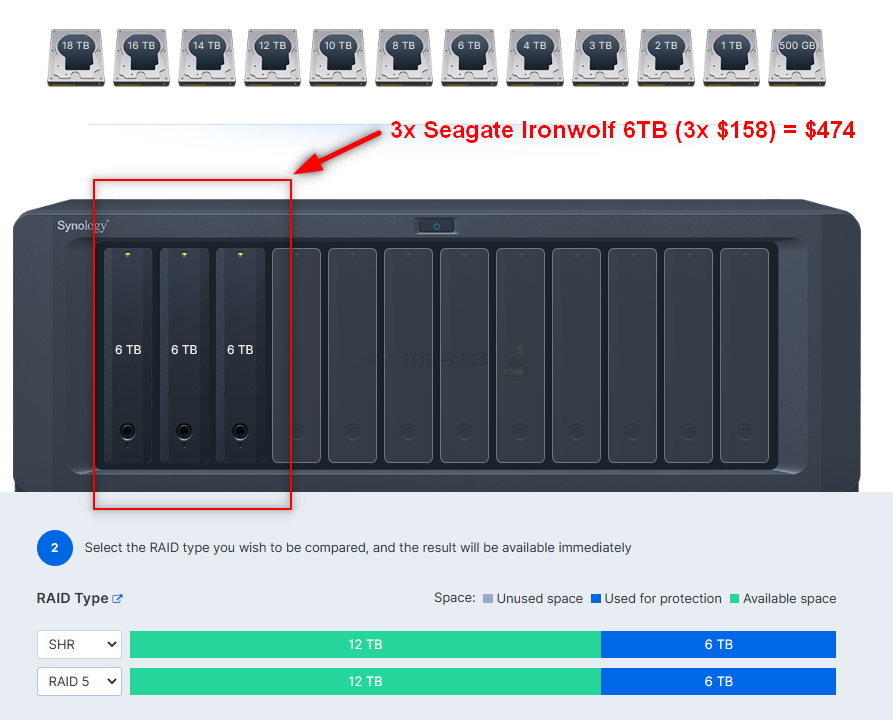
In most cases, the price per terabyte on both sides will remain largely consistent at each capacity. HOWEVER, when you start putting these drives into a NAS/DAS enclosure and acting in the RAID configuration, it soon becomes apparent that the ben efits in Drive #s in a RAID 1 vs a RAID 5 immediately show a saving in almost every single capacity the smaller you go! Below are two examples of achieving 12TB in a NAS enclosure using RAID 1 vs using RAID 5 (so, still maintaining 1 disk drive failure protection and having 12TB of storage to use):
12TB Storage in a RAID 1 MIRROR
12TB Storage in a RAID 5
Looking at retail pricing makes the problem clear. Large capacity HDDs carry a significant premium that is not always reflected in proportional capacity gains. At the same time that a 30TB drive might cost 500 to 600 in local currency, 10TB or 12TB drives can often be found for less than 200 each. Four 12TB drives in RAID 5 or similar single disk fault tolerant layouts can deliver 36TB of usable space for less money than a pair of 30TB disks that only provide 30TB usable, while also offering more spindles for better aggregate performance. The trade off is higher drive count, which brings extra power use, more noise and additional points of failure, but in purely cost per TB terms the multi-drive configuration is often more efficient.
The practical lesson is that drive selection for a first NAS should consider more than headline capacity. New buyers should compare price per TB across several HDD sizes, factor in the desired RAID level and protection scheme, and understand how many drives their chassis can support now and in future. In many cases it is more effective to choose a slightly larger enclosure and populate it with several mid sized disks that offer a good value point, rather than filling a small unit with the largest drives available. This gives better flexibility for future expansion, more options if a disk fails, and a storage layout that balances cost, capacity and performance instead of relying entirely on a small number of very large and expensive disks.
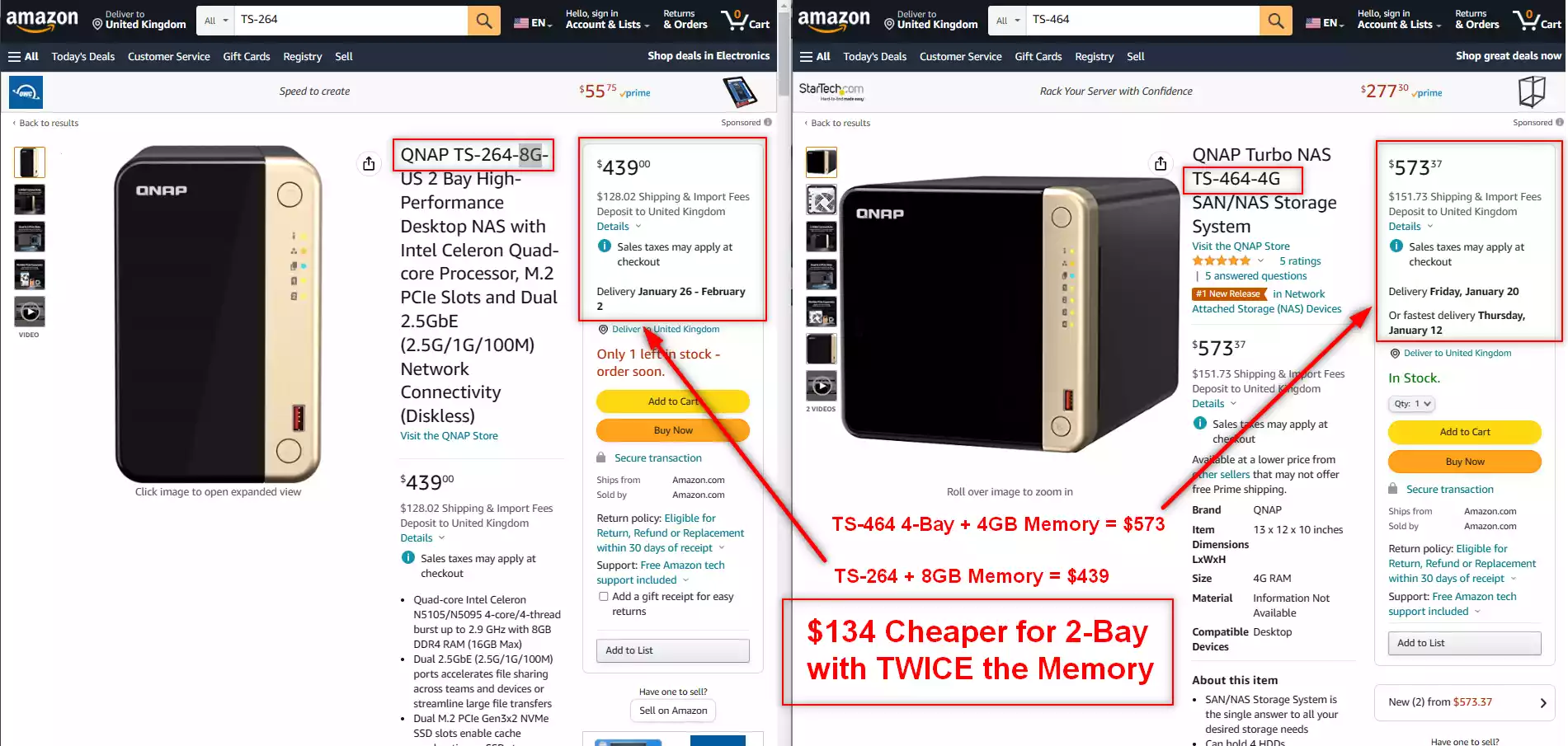
Larger NAS/DAS systems are always more expensive, as they need to have more physical space, resource use in production and power/PSU sizes to run the larger enclosure. Add to this, thanks to memory shortages right now, that smaller scale NAS systems are starting to arrive with more memory by default (as 2-4GB is becoming less cost-effective to produce with chip shortages) and often with little/no increase in the base price. For example, below is the TS-264 and TS-464 NAS. Same CPU, design and ports – however the 2-Bay system has 8GB memory by default AND IS STILL $134 cheaper! So, this can often mean that you can save money on smaller quantities of larger capacity HDDs becuase the enclosure they are going in is cheaper over all.
Conclusion – PLAN AHEAD!
New NAS buyers rarely set out to make poor choices. The problems described above usually arise because a NAS is treated like a simple storage box rather than a device that will run all day, sit in shared spaces and gradually absorb more roles over several years. Noise, expansion, SSD cache, power consumption and drive sizing are all easy to overlook when you are comparing spec sheets or promotional bundles, yet each one has a direct and practical impact on how comfortable and economical the system will be to live with. The safest approach is to treat the first NAS purchase as a medium term infrastructure decision rather than a one off gadget. That means thinking realistically about where the box will sit, how many people will rely on it, how much data is likely to arrive over time and how much power draw and running cost is acceptable. A slightly quieter chassis, a few more bays, a balanced drive choice and sensible use of features like hibernation and scheduling will matter more in day to day use than chasing the biggest individual drives or adding SSD cache on day 1. By addressing these 5 areas before you buy, you reduce the risk of needing early upgrades or workarounds and increase the chance that the NAS you choose will remain suitable for several years without constant attention.
5 affordable Turnkey 10GbE NAS Solutions (Between $499 and $699)
For years, 10GbE networking has been seen as a premium feature reserved for high-end or enterprise-grade NAS devices, often pushing total system costs well beyond the reach of home users and small businesses. However, as controller prices have dropped and demand for faster data transfers has grown, a new wave of affordable NAS solutions has started to appear with built-in 10GbE. These systems no longer require expensive proprietary upgrade cards or third-party NICs, and many sit comfortably below the $699 / £599 price point. They cover a range of use cases, from compact SSD-based NAS devices to rackmount storage appliances and versatile desktop units. Below is a selection of some of the most notable options currently available, each offering a balance of performance, connectivity, and affordability for users who want to move beyond 1GbE or 2.5GbE without breaking the bank.
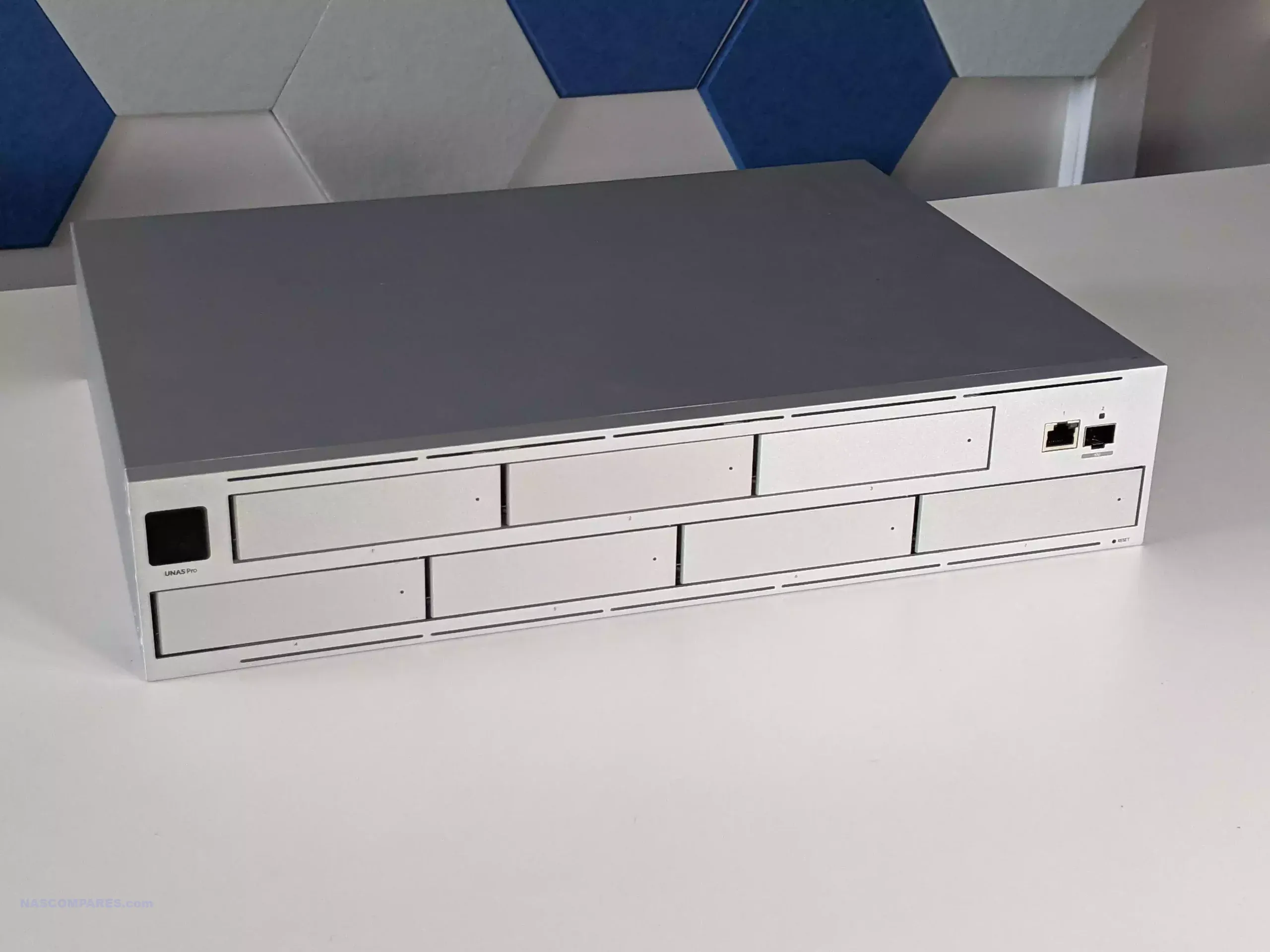
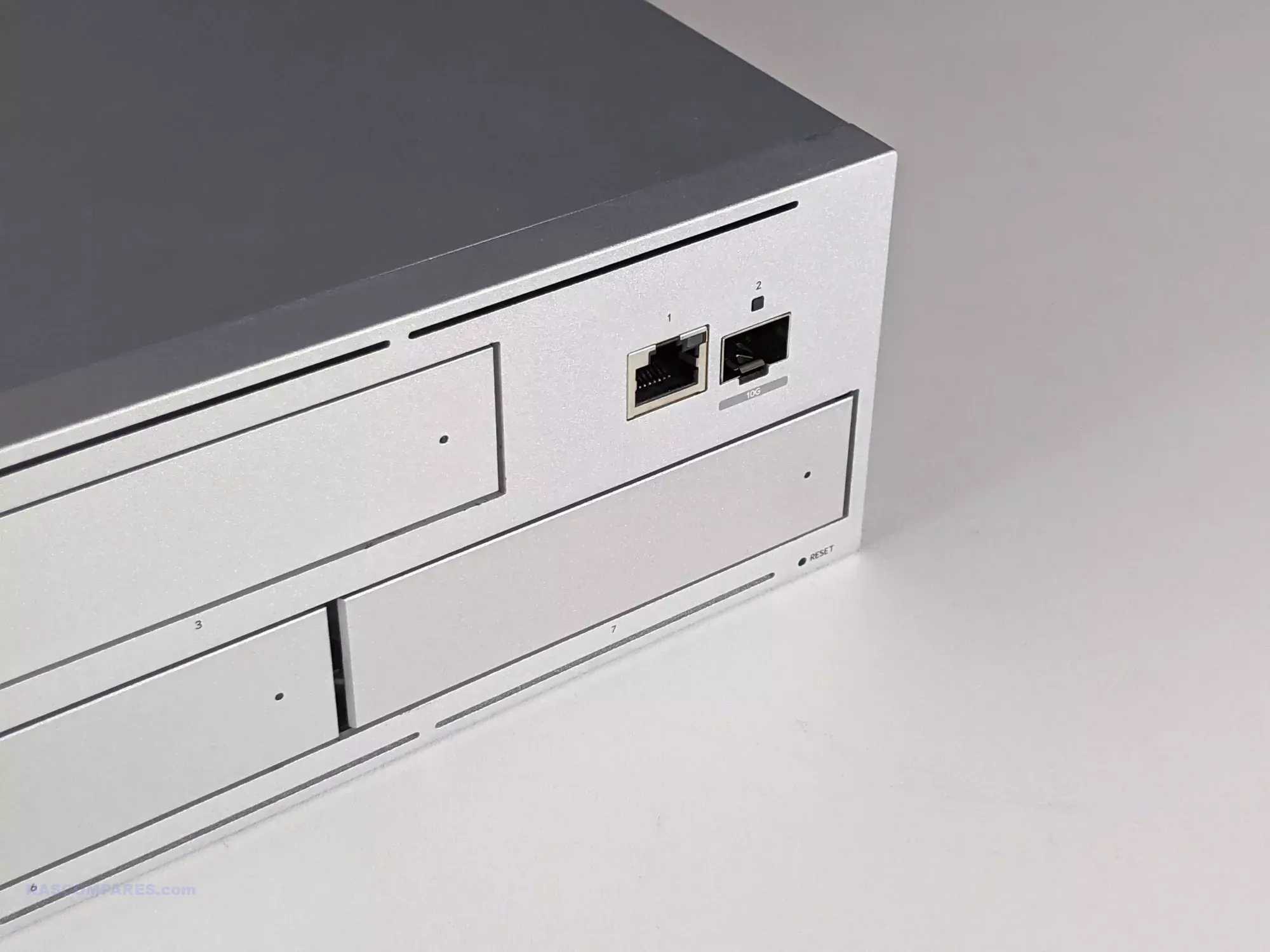
UniFi UNAS Pro (7-Bay, Rackmount)
I keep coming back to two words for the UniFi UNAS Pro—fundamentals and consistency. UniFi has clearly focused on making this system a strong addition to their ecosystem, prioritizing the essential storage needs of a NAS. They’ve succeeded in this, but comparisons with long-established competitors are inevitable. While solid, reliable, and stable, the UniFi UNAS Pro will take time to be competitive on the software front. If you’re deeply invested in the UniFi ecosystem, you’ll appreciate its ease of use and integration. However, outside of a UniFi network, it may feel feature-light compared to alternatives. The pricing is competitive for a launch product at $499, and while it’s not the best NAS on the market, it’s the most user-friendly and UniFi-ready. It will likely satisfy many users’ needs. I can certainly see this being integrated into existing UniFi networks as a 2nd stage backup alongside their already existing 3rd party NAS solution, with the potential to graduating to their primary storage as Ubiquiti continue to evolve this platform above and beyond the fundamentals their have nailed down in the UNAS Pro system.
Specs: ARM Cortex-A57 quad-core CPU, 8 GB RAM, seven 2.5″/3.5″ SATA bays, 1×10GbE SFP+ and 1×1GbE.
Why It Stands Out: Exceptional price-to-performance for pure storage needs. Lacks advanced multimedia or container apps but ideal for high-speed backups in a rackmount setup.
BUILD QUALITY - 10/10
HARDWARE - 7/10
PERFORMANCE - 7/10
PRICE - 9/10
VALUE - 8/10
8.2
PROS
Nails down the fundamentals of NAS Storage very well Easy to use GUI and well suited in the UniFi Ecosystem/UX Complete Offline Use is supported Use of a UI account is NOT compulsory Excellently deployed Snapshot Features 10GbE out-the-box Open HDD Compatibility, but also 1st party options too Backup and Restoration Options Nailed down perfectly Very power efficient and CPU/, Memory utilization rarely high Compact, Quite and well designed chassis The LCD controls are completely \'different level\' compared to other brands in the market Promised competitive pricing FAST deployment (3-5mins tops) Reactive Storage expandability and easy-to-understand storage failover options Mobile app deployment is intuitive/fast Feels stable, secure and reliable at all times Performance is respectable (considering SATA Bay count and CPU) but also sustained performance is very good Single screen dashboard is clear and intuitive Ditto for the native file explorer
CONS
7 Bays is a bit unusual, plus feels like the existing UNVR with different firmware Additional App installation (eg. \'Protect\') not currently supported. So no container support for 3rd party apps Network Controls are limited Works at it\'s best in an existing UniFi managed network, feels a little limited in \'standalone\' Multiple storage pools not supported (nor is RAID 0) Lack of Scheduled On/Off Lack of redundant PSU Only 1 10Gb port and 1x 1GbE, no USBs for expanded storage or an expansion
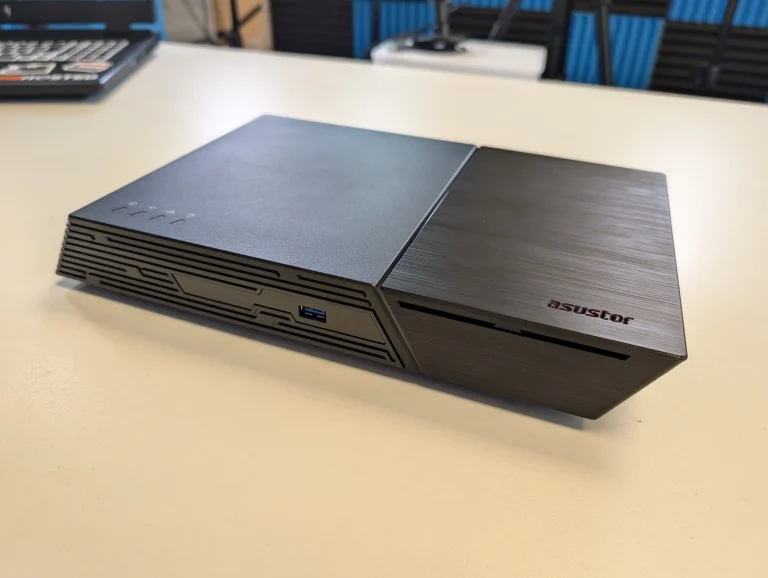
Asustor Flashstor 12 Gen 1 (Compact NVMe NAS)
The Asustor Flashstor Gen 2 12-Bay NAS is a robust and versatile solution for users with demanding storage needs. Its combination of high-performance hardware, extensive connectivity options, and compact design makes it a standout choice for content creators, small businesses, and enthusiasts. With dual 10GbE ports, USB 4.0 connectivity, and support for up to 12 M.2 NVMe drives, it offers exceptional speed and scalability. While the device has a few quirks, such as its mixed PCIe slot speeds and lack of M.2 heat sinks, these are manageable with proper planning and aftermarket solutions. The Flashstor Gen 2 excels in raw performance, handling intensive workflows with ease and maintaining low noise levels even under load. Its power efficiency and robust thermal management further enhance its appeal for 24/7 operation. For users prioritizing hardware capabilities and performance, the Flashstor Gen 2 delivers on its promises. While its complexity may deter less experienced users, those with the technical expertise to configure and optimize the system will find it a valuable addition to their workflow.
Specs: Intel Celeron N5105, 12×M.2 NVMe slots, single 10GbE port, compact form factor.
Notable Traits: High-density SSD storage in a small desktop chassis. Excellent value for SSD-heavy builds.
SOFTWARE - 6/10
HARDWARE - 9/10
PERFORMANCE - 10/10
PRICE - 7/10
VALUE - 8/10
8.0
PROS
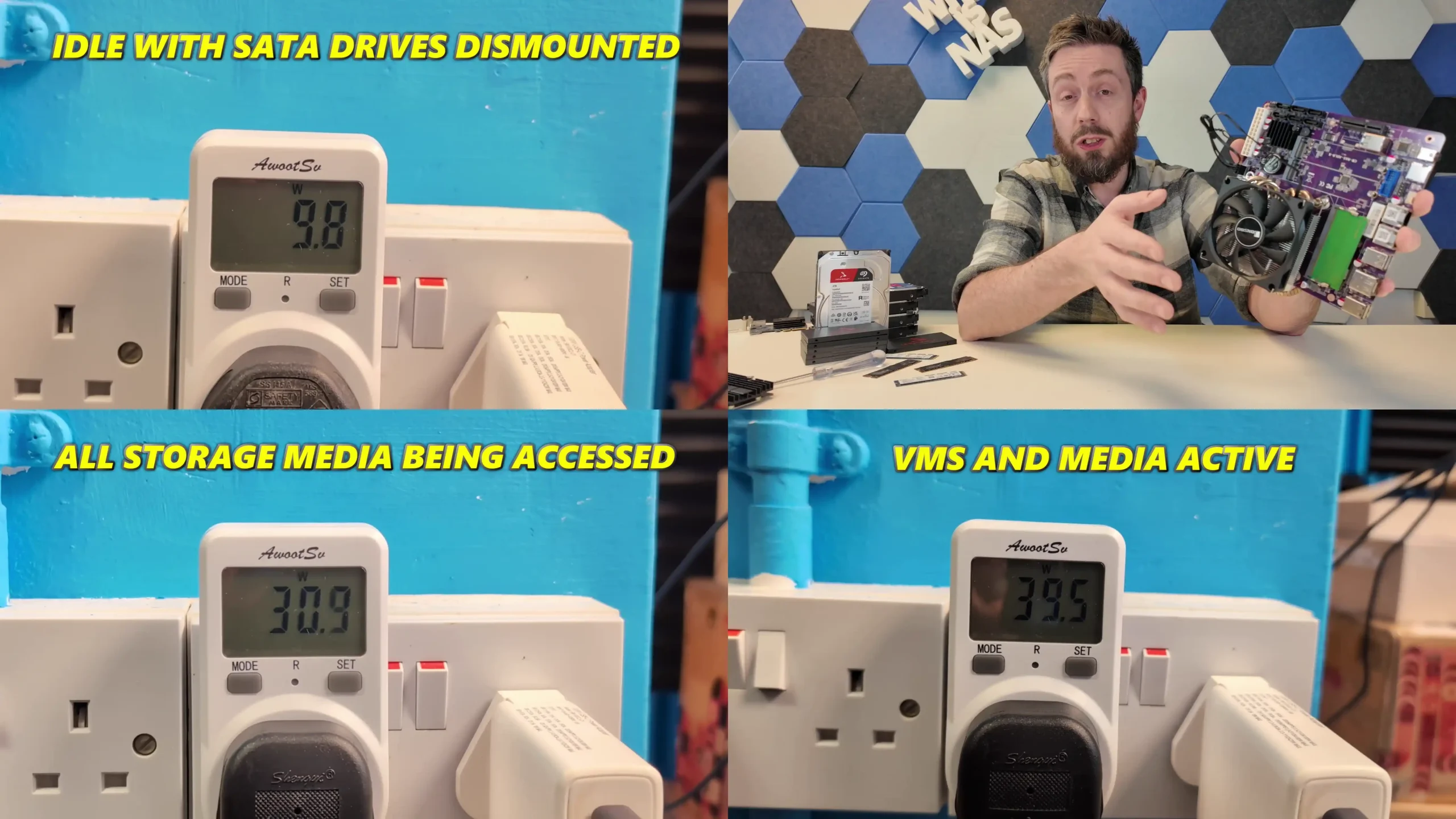
Exceptional Performance: Dual 10-Gigabit Ethernet ports and USB 4.0 connectivity deliver fast and reliable data transfer speeds, ideal for 4K editing and collaborative environments. Extensive Storage Options: Supports up to 12 M.2 NVMe SSDs, allowing for large-scale, high-speed storage arrays. ECC Memory Support: Includes 16GB of DDR5-4800 ECC memory (expandable to 64GB), ensuring data integrity for critical applications. Compact Design: Small footprint makes it perfect for workspaces with limited room. Quiet Operation: Dual-fan system keeps noise levels low, even under heavy loads. Flexible Connectivity: Features two USB 4.0 Type-C ports and three USB 3.2 Gen 2 Type-A ports for direct storage access and peripheral integration. Power Efficiency: Low power consumption (32.2W idle, 56W under load) makes it economical to run, even for 24/7 operation. Thermal Management Enhancements: Dual fans and copper heat pipes efficiently dissipate heat, ensuring stable performance. Support for Third-Party Operating Systems: Compatible with platforms like TrueNAS and Unraid for advanced customization.
CONS
Mixed PCIe Slot Speeds: Inconsistent PCIe bandwidth across M.2 slots complicates unified RAID configurations. Lack of M.2 Heat Sinks: NVMe slots do not include heat sinks, requiring aftermarket cooling solutions for intensive workloads. No Integrated Graphics: The AMD Ryzen V3C14 processor lacks integrated graphics, limiting hardware transcoding and multimedia capabilities. Steep Price: The 12-bay model’s cost ($1,300–$1,400) and the six-bay version’s lack of ECC memory make them expensive compared to alternatives.
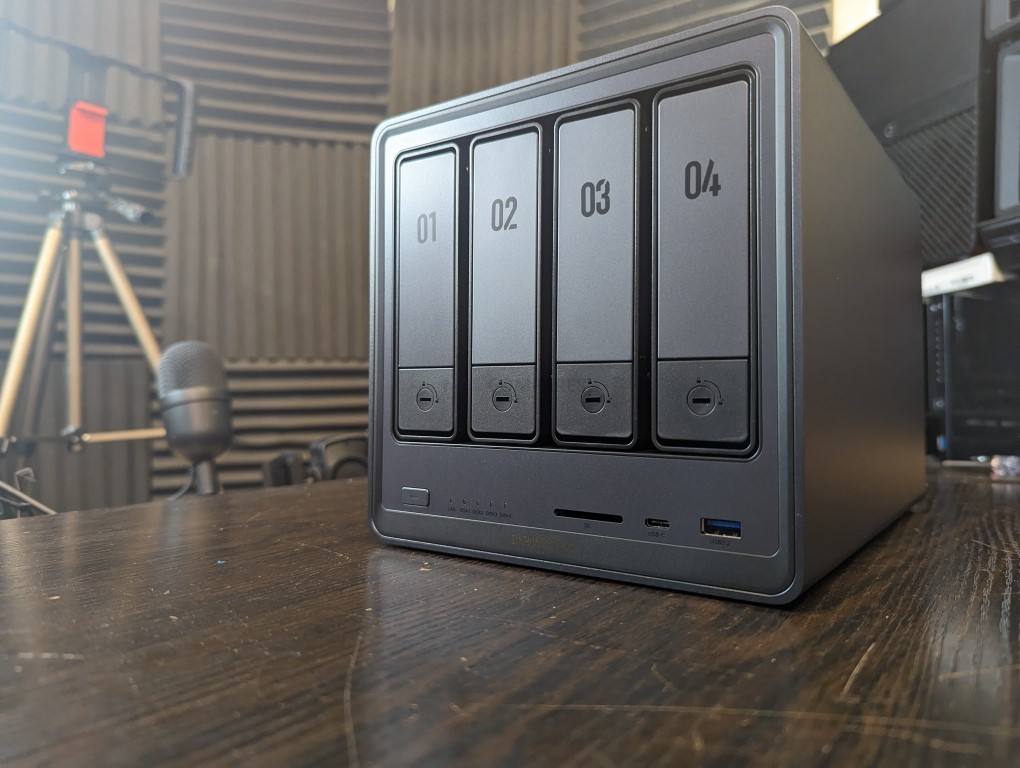
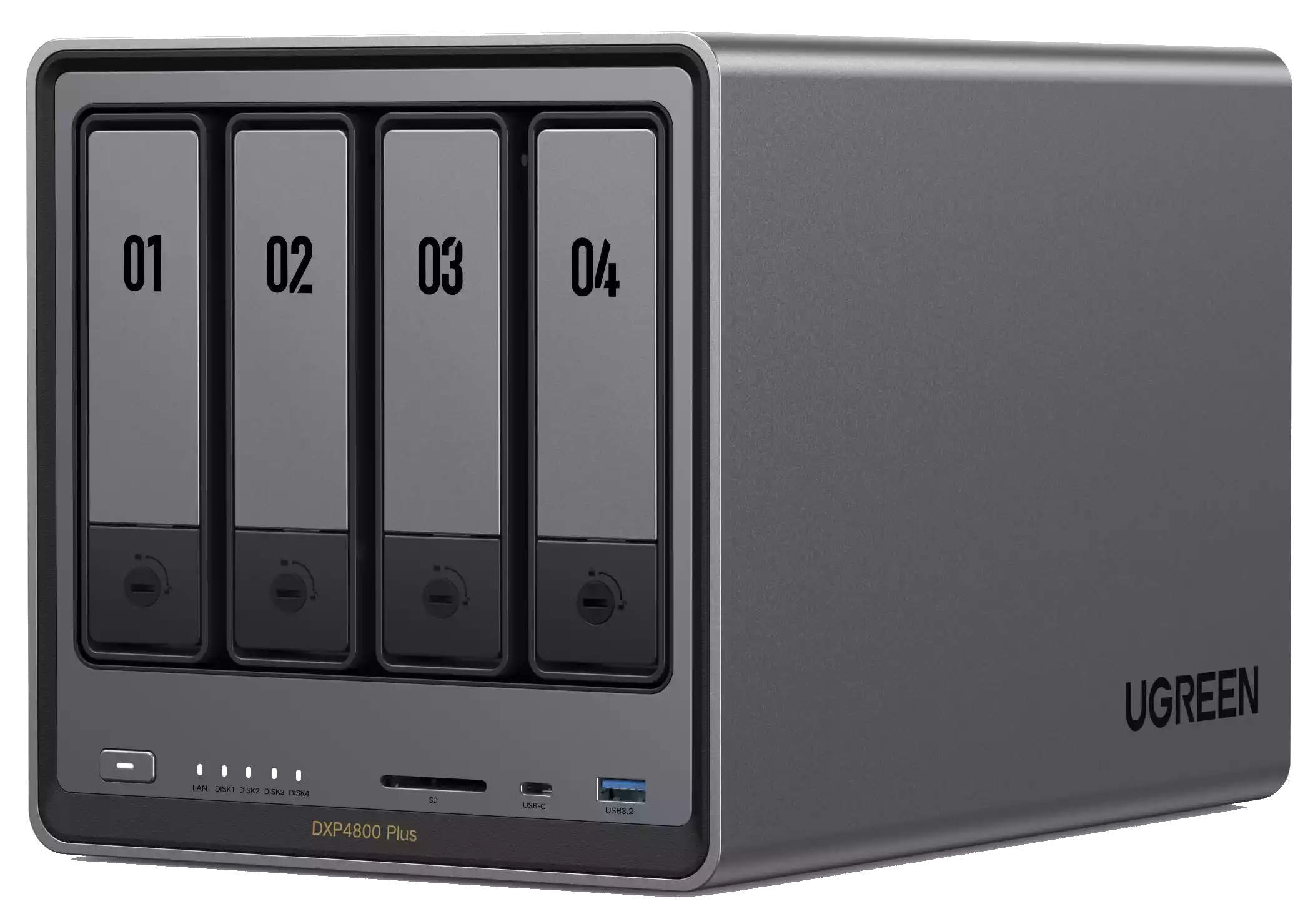
UGREEN NASync DXP4800 Plus
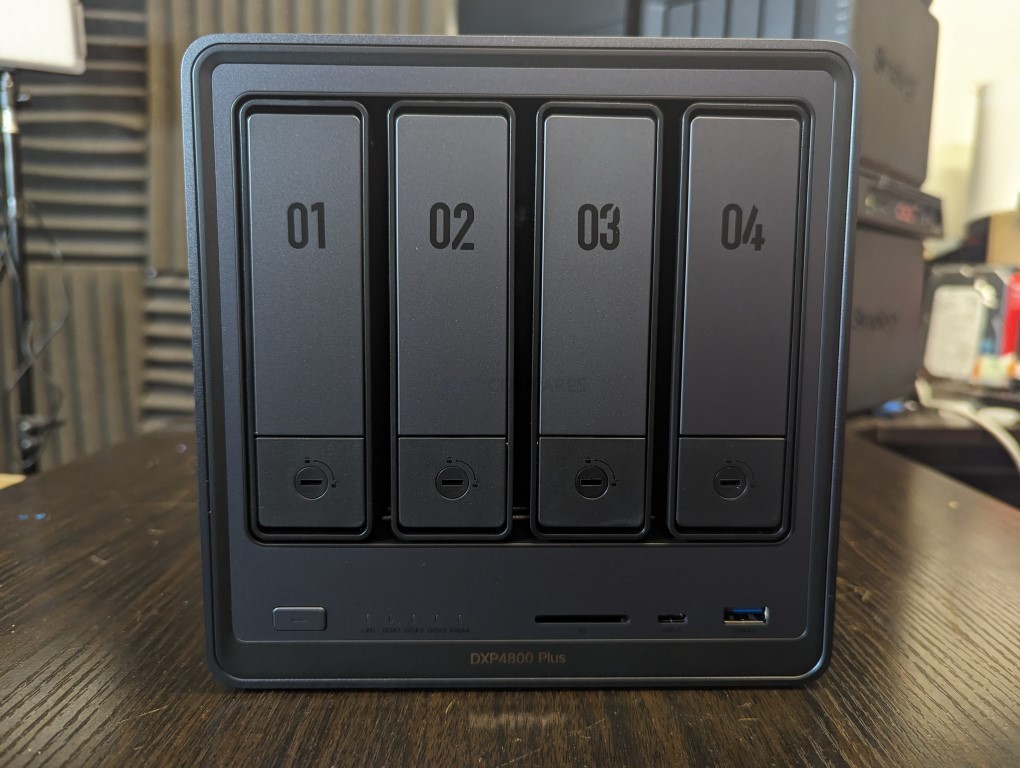
BOTTOM LINE – The UGREEN NASYnc DXP4800 Plus does not feel ‘finished’ yet and still needs more time in the over, but UGREEN have been very clear with me that this product is not intended for release and fulfilment till summer 2024 and improvements, optimization and product completion is still in progress. Judging the UGREEN NAS systems, when what we have is a pre-release and pre-crowdfunding sample, was always going to be tough. The DXP4800 PLUS is a very well put-together NAS solution, arriving with a fantastic launching price point (arguably even at its RRP for the hardware on offer). UGREEN has clearly made efforts here to carve out their own style, adding their own aesthetic to the traditional 4-bay server box design that plagues NAS boxes at this scale. Equally, although they are not the first brand to consider Kickstarter/Crowdfunding for launching a new product in the NAS/personal-cloud sector, this is easily one of the most confident entries I have seen yet. The fact that this system arrives on the market primarily as a crowdfunded solution (though almost certainly, if successful, will roll out at traditional retail) is definitely going to give users some pause for thought. Equally, the UGREEN NAS software, still in beta at the time of writing, although very responsive and nailing down the basics, still feels like it needs more work to compete with the bigger boys at Synology and QNAP. Hardware architecture, scalability, and performance are all pretty impressive, though the performance of the Gen 4×4 M.2 NVMe slots didn’t seem to hit the numbers I was expecting. Perhaps a question of PCIe bottlenecking internally, or a need for further tweaking and optimization as the system continues development. Bottom line, with expected software updates to roll out closer to launch and fulfillment, such as an expanded App center and mobile client, the UGREEN DXP4800 Plus is definitely a device worth keeping an eye on in the growing Turnkey and semi-DIY NAS market. As an alternative to public cloud services, this is a no-brainer and worth the entry price point. As an alternative to established Turnkey NAS Solutions, we will hold off judgment till it is publicly released.
Specs: Intel Pentium Gold 8505 (6-thread), 8 GB DDR5, 4×SATA + 2×M.2 slots, 1×10GbE and 1×2.5GbE, plus HDMI, USB-C, USB-A, and SD reader.
Why It’s Attractive: Well-rounded design with rich connectivity and media support, undercuts most rivals on price and features.
SOFTWARE - 6/10
HARDWARE - 9/10
PERFORMANCE - 6/10
PRICE - 9/10
VALUE - 8/10
7.6
PROS
Exceptional Hardware for the Price 4 HDDs + 2x Gen 4x4 M.2 in 1 box under $400 Good Balanced CPU choice in the Pentium Gold 8505 10GbE and 2.5GbE as standard An SD Card Slot (wielrd rare!) 10/10 Build Quality Great Scalability Fantastic Mobile Application (even vs Synology and QNAP etc) Desktop/Browser GUI shows promise Established Brand entering the NAS Market Not too noisy (comparatively) Very Appealing retail package+accessories
CONS
10GbE Performance was underwhelming Crowdfunding choice is confusing Software (still in Beta) is still far from ready 22/3/24 non-UGREEN PSU is unexpected
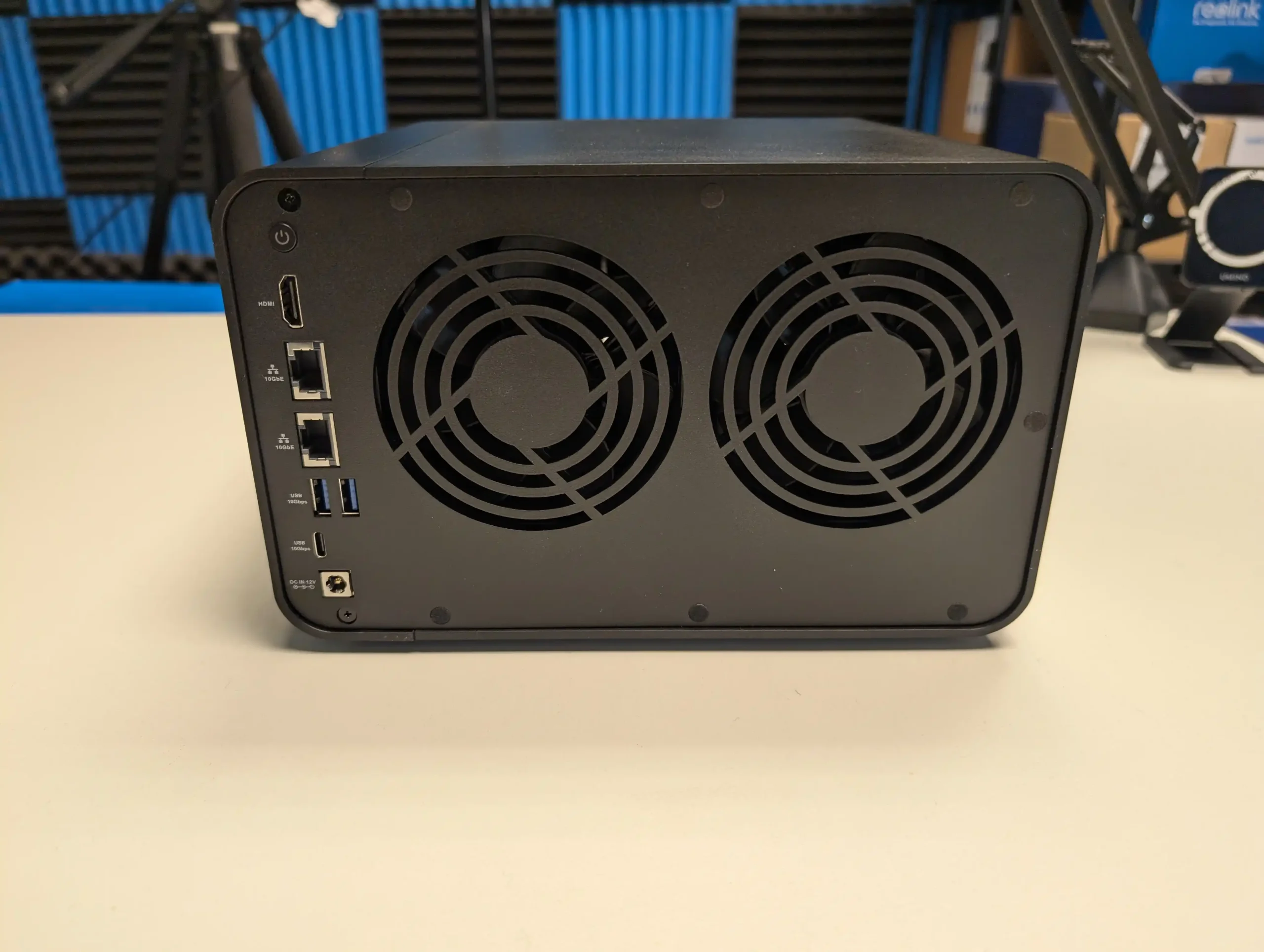
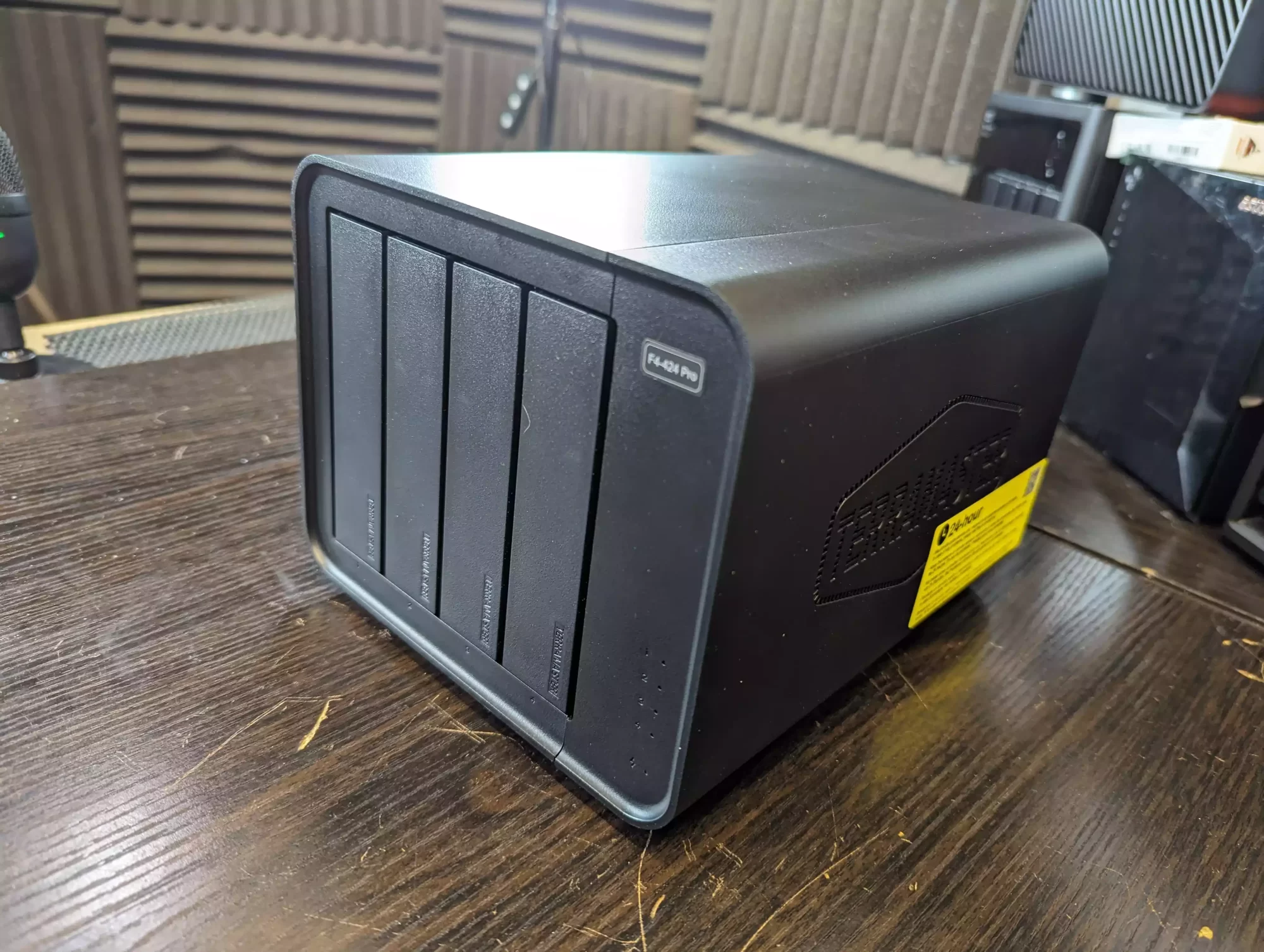
TerraMaster F4-424 Max / F6-424 Max
The TerraMaster F4-424 Max is a robust 4-bay NAS system that offers a powerful mix of features and flexibility for a wide range of tasks. Powered by the Intel i5-1235U CPU with 10 cores and 12 threads, the F4-424 Max excels at resource-intensive applications such as Plex media streaming, 4K hardware transcoding, and virtual machine hosting. Its dual M.2 NVMe slots running at PCIe Gen 4 speeds significantly improve storage performance, especially when used for caching, while the two 10GbE ports offer high-speed networking environments, allowing for 20Gbps throughput via link aggregation.
In terms of software, TOS 6 brings notable improvements, although it still lags behind the more polished ecosystems of Synology DSM and QNAP QTS. That said, TerraMaster’s continuous software evolution with each new version of TOS ensures that users have access to more robust tools and security features. For its price point of $899.99, the F4-424 Max is a compelling option for those seeking high-performance NAS solutions with scalability in mind. While the Pro model offers competitive performance, the Max takes it a step further with advanced networking, making it ideal for environments where speed is a priority.
Specs: Intel Core i5-1235U (10-core), 8 GB RAM, dual 10GbE ports, dual M.2, with 4 or 6 SATA bays depending on model.
Why It Helps: The F4-424 Max frequently drops below the $800 mark in promotions, offering unusually strong CPU performance and dual 10GbE at a mid-range price point.
Where to Buy?
Terramaster F4-424 Max ($899 Amazon) – HERETerramaster F4-424 Max ($799 Aliexpress) – HERE
SOFTWARE - 6/10
HARDWARE - 9/10
PERFORMANCE - 9/10
PRICE - 9/10
VALUE - 8/10
8.2
PROS
Powerful Hardware: Intel i5-1235U with 10 cores and 12 threads for resource-heavy tasks. Dual 10GbE Ports: High-speed networking capabilities with link aggregation for up to 20Gbps, ideal for large file transfers. PCIe Gen 4 NVMe Support: Two M.2 NVMe slots offering exceptional performance for caching or additional high-speed storage. Efficient Cooling: The large 120mm fan ensures quiet and effective cooling, making it suitable for home and office environments. Improved TOS 6 Software: Enhancements in GUI, backup tools, and overall security bring TOS closer to its competitors.
CONS
Higher Price Tag: At $899.99, it’s more expensive than TerraMaster’s other models, which may deter budget-conscious buyers. No PCIe Expansion: Lack of a PCIe slot limits potential for future upgrades, such as adding 10GbE cards or more M.2 drives. Presentation: The software has improved a lot, but still feels inconsistent in places compared with alternatives from brands such as Synology and QNAP.
This description contains links to Amazon. These links will take you to some of the products mentioned in today's content. As an Amazon Associate, I earn from qualifying purchases. Visit the NASCompares Deal Finder to find the best place to buy this device in your region, based on Service, Support and Reputation - Just Search for your NAS Drive in the Box Below
Need Advice on Data Storage from an Expert?
Finally, for free advice about your setup, just leave a message in the comments below here at NASCompares.com and we will get back to you.Need Help?
Where possible (and where appropriate) please provide as much information about your requirements, as then I can arrange the best answer and solution to your needs. Do not worry about your e-mail address being required, it will NOT be used in a mailing list and will NOT be used in any way other than to respond to your enquiry.
[contact-form-7]
TRY CHAT Terms and Conditions
If you like this service, please consider supporting us.
We use affiliate links on the blog allowing NAScompares information and advice service to be free of charge to you.Anything you purchase on the day you click on our links will generate a small commission which isused to run the website. Here is a link for Amazon and B&H.You can also get me a Ko-fi or old school Paypal. Thanks!To find out more about how to support this advice service checkHEREIf you need to fix or configure a NAS, check FiverHave you thought about helping others with your knowledge? Find Instructions Here
Or support us by using our affiliate links on Amazon UK and Amazon US
Alternatively, why not ask me on the ASK NASCompares forum, by clicking the button below. This is a community hub that serves as a place that I can answer your question, chew the fat, share new release information and even get corrections posted. I will always get around to answering ALL queries, but as a one-man operation, I cannot promise speed! So by sharing your query in the ASK NASCompares section below, you can get a better range of solutions and suggestions, alongside my own.

 Connexion



.png)

 SUBSCRIBE TO OUR NEWSLETTER


 TRY CHAT







 Nails down the fundamentals of NAS Storage very well
 7 Bays is a bit unusual, plus feels like the existing UNVR with different firmware