 Connexion
L’un des meilleurs smartphones milieu de gamme est moins cher sur Amazon pour les French Days
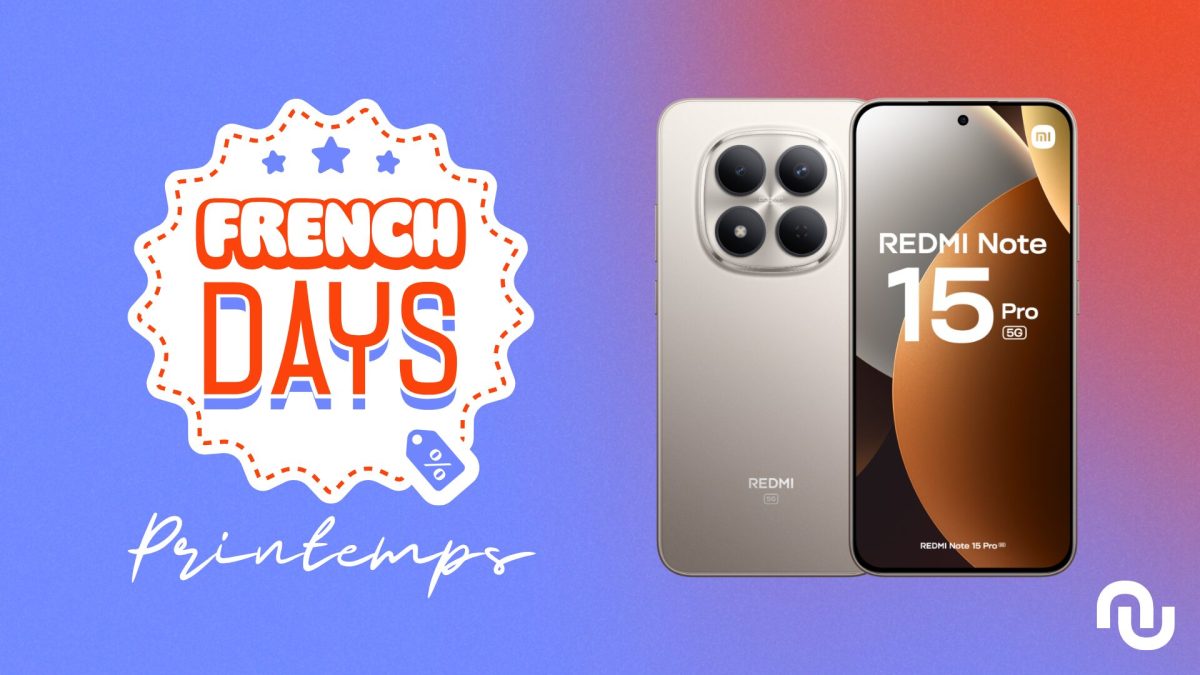
[Deal du jour] Pour les French Days, Amazon propose le Redmi Note 15 Pro 5G à moins de 290 €. Un excellent tarif pour un smartphone tout aussi excellent.

[Deal du jour] Pour les French Days, Amazon propose le Redmi Note 15 Pro 5G à moins de 290 €. Un excellent tarif pour un smartphone tout aussi excellent.
The UniFi Dream Machine Beast arrives as a more serious entry in the Dream Machine range, and that immediately raises the main question: who is it actually for? Existing UniFi users may look at it as a possible upgrade from a UDM Pro, UDM SE, or UDM Pro Max, while new buyers may see it as a way to start with a more capable console from day 1. On paper, it is clearly built for larger and busier networks, but that does not automatically make it the right choice for every UniFi setup. Whether the Dream Machine Beast makes sense depends less on the headline specification and more on the network around it. For some users, it may offer useful headroom for faster internet, heavier security processing, larger Protect installations, or wider UniFi management. For others, it may be more hardware than the deployment can realistically use, especially once the cost of switches, cabling, cameras, access points, and redundancy are taken into account. This article looks at where the Beast is a practical upgrade, where it may be excessive, and what trade-offs should be considered before buying.


The UniFi Dream Machine Beast is best viewed as a higher-capacity UniFi OS console for larger UniFi networks, rather than a default upgrade for every Dream Machine user. Its main advantages are the 8-core Arm v9 processor, 16GB of memory, 10GbE RJ45 ports, 10G SFP+ connectivity, 25G SFP28 support, 25Gbps-class IDS/IPS throughput, support for 750+ managed UniFi devices, 7,500+ concurrent clients, and 2 3.5-inch NVR bays for larger UniFi Protect deployments. These upgrades make it a more suitable option for businesses, multi-site networks, heavier camera installations, faster WAN environments, and users who are starting to outgrow the UDM Pro, UDM SE, or UDM Pro Max. It also makes sense where security inspection, VPN use, traffic analysis, and UniFi application hosting are all expected to run at a larger scale on the same appliance. However, the Beast is not a simple plug-in upgrade for every setup. The $1,499 price, lack of PoE, internal non-removable PSU, and dependency on wider 25GbE infrastructure all make the total cost higher than the unit alone suggests. Users with mostly 1GbE, 2.5GbE, or 10GbE networks may not see enough practical benefit to justify the move, especially if their existing Dream Machine is not close to its limits. In many smaller UniFi deployments, the better use of budget may be a UDM Pro, UDM SE, or UDM Pro Max combined with stronger switches, more access points, improved camera coverage, larger storage, or backup power. The Dream Machine Beast is therefore a strong option for larger and more demanding UniFi environments, but it should be bought with a clear network plan rather than as an automatic upgrade.
 BUILD QUALITY - 10/10
HARDWARE - 9/10PERFORMANCE - 9/10PRICE - 7/10VALUE - 8/10
BUILD QUALITY - 10/10
HARDWARE - 9/10PERFORMANCE - 9/10PRICE - 7/10VALUE - 8/10

8.6
PROS
 8-core Arm v9 processor: Gives the Beast more headroom for routing, firewall rules, VPNs, IDS/IPS, DPI, SD-WAN, and UniFi application hosting.25Gbps-class IDS/IPS throughput: A major step up from earlier Dream Machine models, making it better suited to high-speed networks with security inspection enabled.25G SFP28 connectivity: Provides a faster uplink path for aggregation switches, high-speed WAN, NAS systems, and larger network cores.10GbE RJ45 ports as standard: Makes the device more practical for users with existing 10GBASE-T equipment, without relying entirely on SFP modules or adapters.16GB of system memory: Helps the appliance manage heavier UniFi workloads when Network, Protect, VPNs, traffic analysis, and security services are active at the same time.Higher UniFi device and client capacity: Supports 750+ managed UniFi devices and 7,500+ concurrent clients, making it more suitable for larger sites and busy business networks.Larger UniFi Protect capability: Supports up to 100 HD cameras, 60 2K cameras, or 40 4K cameras.Dual 3.5-inch NVR drive bays: Gives Protect users more flexibility for recording capacity or redundancy than a single-drive Dream Machine.
CONS
8-core Arm v9 processor: Gives the Beast more headroom for routing, firewall rules, VPNs, IDS/IPS, DPI, SD-WAN, and UniFi application hosting.25Gbps-class IDS/IPS throughput: A major step up from earlier Dream Machine models, making it better suited to high-speed networks with security inspection enabled.25G SFP28 connectivity: Provides a faster uplink path for aggregation switches, high-speed WAN, NAS systems, and larger network cores.10GbE RJ45 ports as standard: Makes the device more practical for users with existing 10GBASE-T equipment, without relying entirely on SFP modules or adapters.16GB of system memory: Helps the appliance manage heavier UniFi workloads when Network, Protect, VPNs, traffic analysis, and security services are active at the same time.Higher UniFi device and client capacity: Supports 750+ managed UniFi devices and 7,500+ concurrent clients, making it more suitable for larger sites and busy business networks.Larger UniFi Protect capability: Supports up to 100 HD cameras, 60 2K cameras, or 40 4K cameras.Dual 3.5-inch NVR drive bays: Gives Protect users more flexibility for recording capacity or redundancy than a single-drive Dream Machine.
CONS
 High price compared with other Dream Machines: At $1,499, it costs far more than the UDM Pro, UDM SE, and UDM Pro Max.No built-in PoE: Cameras, access points, phones, and other powered UniFi devices require separate PoE switches or injectors.25GbE can make the wider upgrade expensive: To properly benefit from the Beast’s 25GbE capability, users may also need 25GbE switches, SFP28 modules, DACs, faster servers, or upgraded aggregation links.

| Where to Buy
UniFi Dream Machine BEAST (UDM-Beast) – $1499 HERE UniFi Dream Machine Pro Max –$599 HERE UniFi Pro XG 24 25Gb & 10Gb L3 Switch- $1099 HERE |
A key hardware change in the UniFi Dream Machine Beast is its move to an 8-core Arm v9 processor running at 2.1GHz. This is a notable step up from the older Dream Machine models, such as the UDM SE, which uses a quad-core Arm Cortex-A57 at 1.7GHz with 4GB of memory. The Beast is built around Arm Neoverse N2 architecture, which Arm describes as its 1st Arm v9 infrastructure CPU, designed for cloud-to-edge workloads with improved performance per watt and a claimed 40% scalar performance uplift over Neoverse N1.

In practical terms, the CPU matters because the gateway is not just passing traffic from 1 port to another. It may also be handling firewall rules, IDS/IPS inspection, VPN traffic, DPI, policy routing, SD-WAN, VLANs, and UniFi application management at the same time. The supplied specification lists IDS/IPS throughput at 24.9Gbps, which is far beyond the 3.5Gbps figure associated with the UDM Pro class. That does not mean every user will need this level of processing headroom, but for larger networks it reduces the chance that security features or encrypted traffic become the main limit before the ports themselves do.

The Dream Machine Beast makes a clear jump in physical connectivity compared with the smaller Dream Machine models. Instead of treating 10GbE as the higher-end connection, it uses 10GbE RJ45 as the baseline for its main LAN ports, alongside 10G SFP+ and 25G SFP28 connectivity. This matters because it gives the unit enough port flexibility to sit between faster WAN services, high-speed switches, NAS systems, and larger UniFi deployments without immediately forcing everything through a single 10GbE bottleneck.

The 25G SFP28 port is the more significant part of the design, as it gives the Beast room to aggregate traffic from larger networks rather than simply serve a handful of local devices. For users with multi-gig internet, large camera deployments, heavy internal routing, or multiple downstream switches, this creates a more capable central gateway than the UDM Pro Max. However, the benefit depends heavily on the rest of the network. A 25GbE port only becomes useful when switches, cabling, transceivers, and connected systems can also take advantage of it.

The Dream Machine Beast also increases system memory to 16GB, which is a practical upgrade when compared with smaller Dream Machine models. RAM is not as visible as the ports on the front of the unit, but it matters when the console is managing routing, firewall rules, VPNs, IDS/IPS, traffic identification, UniFi Network, UniFi Protect, and other UniFi applications at the same time. More memory gives the system more room to handle these services without the same pressure on resources as deployments grow.

In real terms, this is reflected in the stated management limits. The Beast is rated for 750+ managed UniFi devices and 7,500+ simultaneous connected users, while also supporting larger Protect deployments of up to 100 HD cameras, 60 2K cameras, or 40 4K cameras. Those figures put it in a different class from a typical small office or prosumer Dream Machine setup. The benefit is not just that the Beast can run faster, but that it is better equipped to keep multiple UniFi workloads active at once without becoming constrained as quickly.

The Dream Machine Beast includes 2 3.5-inch NVR HDD bays, which makes storage a more serious part of the appliance rather than a minor add-on. This is most relevant for UniFi Protect users, because camera recording is where local storage capacity has the biggest day-to-day impact. With support for up to 100 HD cameras, 60 2K cameras, or 40 4K cameras, the Beast is clearly intended to handle larger surveillance deployments than a basic Dream Machine setup.
The 2-bay design also gives users more flexibility than a single-drive console. It allows for higher total recording capacity or a redundant storage configuration, depending on how the system is deployed. The built-in 128GB SSD is separate from this and is used to keep the UniFi OS experience responsive rather than acting as the main video archive. This does not turn the Beast into a dedicated high-bay NVR, but it does make it more practical for sites that want gateway, management, and Protect recording in 1 rackmount device.
The main drawback with the Dream Machine Beast is the price. At the quoted $1,499 figure from the launch material, it sits well above the rest of the Dream Machine range. For comparison, the UDM Pro is listed by Ubiquiti’s UK store at £300 before VAT, while the UDM SE is listed at £395 before VAT and the UDM Pro Max at £475 before VAT. Those models are clearly lower in throughput and capacity, but the difference still matters because the Beast is not a small step up in cost.

That makes the buying decision less about whether the Beast is technically better, and more about whether the network will actually use what it offers. A UDM Pro Max already provides 5Gbps IPS routing, 2,000+ client support, 200+ UniFi device support, and 2 NVR drive bays, which is still enough for many UniFi deployments. The Beast makes more sense when the extra routing capacity, larger client count, 25GbE connectivity, and higher Protect ceiling are genuinely required. For smaller sites, the money saved by choosing a lower Dream Machine could be more useful if spent on switches, access points, cameras, or backup power instead.
The Dream Machine Beast does not include PoE ports, which is a noticeable omission for a device at this price and scale. This does not affect its role as a gateway, firewall, UniFi OS console, or NVR, but it does mean that access points, cameras, door access hardware, phones, and smaller UniFi devices will need power from a separate PoE switch, injector, or other power source. For larger deployments this may not be a major issue, because a dedicated PoE switch would usually be part of the design anyway.

The drawback is more obvious for users upgrading from a Dream Machine model that already includes PoE, such as the UDM SE. Even a small number of PoE ports can be useful for directly powering a nearby access point, test device, camera, or compact downstream switch. On the Beast, the lack of PoE reinforces the idea that it is not intended to be a self-contained all-in-one network box. It is better understood as the central gateway and controller for a wider UniFi installation, rather than a device that can power much of that installation on its own.

The Dream Machine Beast uses an internal AC/DC power supply rather than a removable PSU module. It does support DC power backup through UniFi’s RPS system, which gives it a path for power failover when used with the required external hardware. However, this is not the same as having a hot-swappable or easily replaceable PSU built into the unit itself. If the internal supply fails, servicing is likely to be less convenient than it would be on a rackmount device with a standard removable power module.

This matters more because the Beast is aimed at larger and more business-critical UniFi environments. At this level, some buyers may expect either dual onboard PSUs or at least a removable single PSU design for easier replacement and reduced maintenance time. The RPS option helps with continuity, but it also adds another device to the rack and another cost to the overall setup. For users planning around uptime, this is an area where the Beast is functional, but not as service-friendly as some enterprise-style rack hardware.

The Dream Machine Beast’s 25GbE capability is useful, but it can also change the scale of the upgrade. To take proper advantage of a 25GbE gateway, the rest of the network needs to be able to feed it and receive traffic from it at similar speeds. That usually means 25GbE-capable switches, suitable SFP28 modules or DAC cables, and potentially faster links to servers, NAS systems, or aggregation switches. Without that supporting hardware, the 25GbE port may end up being useful mainly as future headroom rather than something the network benefits from immediately.
This is where the Beast can become more expensive than it first appears. A network built around 2.5GbE or 10GbE copper may not need to move to 25GbE yet, especially if most endpoints are access points, cameras, desktops, or smaller servers. In those cases, a lower-cost Dream Machine paired with better 2.5GbE or 10GbE switching may be the more balanced upgrade. The Beast makes more sense when the wider network is already moving toward 25GbE, or when there is a clear plan to scale into it, rather than when the 25GbE port is the only part of the setup ready for that speed.
The UniFi Dream Machine Beast is a stronger fit for users who have already reached the limits of the existing Dream Machine models, or who can clearly see those limits approaching. Its faster processor, 16GB of memory, 25GbE connectivity, high IDS/IPS throughput, larger UniFi management capacity, and 2 NVR drive bays all point toward larger networks with heavier traffic, more cameras, more clients, or more demanding security features. In that context, it is not simply a faster UDM Pro Max. It is a more substantial gateway and UniFi OS console for deployments that need more headroom.

For everyone else, the value is less clear. The higher price, lack of PoE, internal non-removable PSU, and likely need for wider 25GbE infrastructure all make it a device that should be bought with a specific network plan in mind. Users running smaller UniFi systems, mostly 1GbE to 10GbE networks, or modest Protect installations may get better value from a UDM Pro, UDM SE, or UDM Pro Max with money left for switches, access points, storage, or backup power. The Beast is best judged as a targeted upgrade for larger UniFi environments, not as the default Dream Machine for every buyer.

| Where to Buy
UniFi Dream Machine BEAST (UDM-Beast) – $1499 HERE UniFi Dream Machine Pro Max –$599 HERE UniFi Pro XG 24 25Gb & 10Gb L3 Switch- $1099 HERE |
 SUBSCRIBE TO OUR NEWSLETTER
[contact-form-7]
 Join Inner Circle
Subscribe
This description contains links to Amazon. These links will take you to some of the products mentioned in today's content. As an Amazon Associate, I earn from qualifying purchases. Visit the NASCompares Deal Finder to find the best place to buy this device in your region, based on Service, Support and Reputation - Just Search for your NAS Drive in the Box Below
 Need Help?
Where possible (and where appropriate) please provide as much information about your requirements, as then I can arrange the best answer and solution to your needs. Do not worry about your e-mail address being required, it will NOT be used in a mailing list and will NOT be used in any way other than to respond to your enquiry.
[contact-form-7]
Need Help?
Where possible (and where appropriate) please provide as much information about your requirements, as then I can arrange the best answer and solution to your needs. Do not worry about your e-mail address being required, it will NOT be used in a mailing list and will NOT be used in any way other than to respond to your enquiry.
[contact-form-7]
 TRY CHAT
Terms and Conditions
TRY CHAT
Terms and Conditions
 Ko-fi or old school Paypal. Thanks!To find out more about how to support this advice service check HEREIf you need to fix or configure a NAS, check Fiver
Have you thought about helping others with your knowledge? Find Instructions Here
Ko-fi or old school Paypal. Thanks!To find out more about how to support this advice service check HEREIf you need to fix or configure a NAS, check Fiver
Have you thought about helping others with your knowledge? Find Instructions Here





|
 |

Si vous franchissez régulièrement les frontières, posséder un forfait mobile doté d'une généreuse enveloppe de données à l’international est le meilleur moyen de voyager sans trop se poser de questions dès que vous sortez votre smartphone. Pour vous épargner des heures de recherches, nous avons épluché les catalogues des opérateurs afin de retenir uniquement les meilleurs forfaits pour voyager à l'international.
The GL.iNet Comet 5G is a remote KVM built to provide keyboard, video, and mouse control of a connected computer from power on through BIOS, rather than relying on a working operating system like traditional remote desktop tools. It accepts HDMI input from the host and offers HDMI passthrough so a local display can remain connected, with support up to 4K at 30 fps or 1080p at 60 fps, plus 2 way audio. Connectivity is where the Comet 5G differentiates itself most clearly in this product line: it can be managed over Gigabit Ethernet and Wi-Fi 6, but it also includes a nano SIM slot for 5G RedCap with 4G LTE fallback, intended for out of band access when the site network is down, segmented, or simply not trusted. It also supports a local AP mode that broadcasts its own wireless network for nearby management sessions without joining the surrounding LAN. In day to day use, the device is mainly aimed at remote maintenance tasks such as OS installs, recovery and imaging, BIOS changes, and support work on machines that lack built in management like iDRAC or iLO. Compared with the Comet Pro, it keeps the same general platform and interface approach, but adds the cellular path, the AP mode, a larger 3.69 in touchscreen, and 64 GB of eMMC storage for ISO and file staging. The key questions for a review are less about raw compute, since the core platform is similar to the Comet Pro, and more about whether the extra connectivity options, storage capacity, and on device usability justify its higher price for the way it will actually be deployed.

The GL.iNet Comet 5G is essentially the Comet Pro style KVM experience with a stronger connectivity toolkit rather than a major jump in raw performance: you still get reliable BIOS level access, HDMI passthrough so a local screen can stay connected, and flexible access from a browser across different operating systems, but the main reason to choose it is the extra ways it can be reached when the local network is unavailable or not trusted. The nano SIM support (5G RedCap with 4G LTE fallback) gives an out of band route that can keep access available even when Ethernet or Wi-Fi are misconfigured, and the AP mode adds a direct nearby connection for quick point to point management without joining the site LAN, which can be genuinely useful in field work, segmented networks, or recovery situations. It also doubles the internal storage to 64 GB, which makes it easier to keep several ISO images and tools ready to mount remotely, and the larger 3.69 in touchscreen makes local setup and status checks less cramped. The trade offs are mostly about expectations: storage speeds remain modest, so uploading and copying large files is not fast; USB based storage expansion exists but is limited by USB 2.0, can require reboots, and drive compatibility is not always consistent; and while the device supports multiple paths and is marketed around failover, the current interface does not expose deep, router style controls for tuning how those paths behave. If you mostly run KVM over a stable wired or Wi-Fi network, the Comet Pro will usually cover the same core tasks for less money, but if you want a small KVM that gives you more options to regain access when networks are awkward or failing, the Comet 5G is the more complete tool as long as you accept the storage and configuration limitations.
 SOFTWARE - 9/10
HARDWARE - 9/10PERFORMANCE - 8/10PRICE - 8/10VALUE - 8/10
SOFTWARE - 9/10
HARDWARE - 9/10PERFORMANCE - 8/10PRICE - 8/10VALUE - 8/10

8.4
PROS
Cellular out of band access via nano SIM (5G RedCap with 4G LTE fallback) adds a separate path when the site LAN is down or misconfiguredNearby Control via AP mode enables direct point to point access without joining the surrounding network, useful for local BIOS work and isolated environmentsHDMI passthrough plus capture keeps a local monitor active while still providing remote KVM access (up to 4K 30 fps, 1080p 60 fps)Browser based management and access works across Windows, macOS, and Linux without requiring a dedicated client64 GB eMMC provides more room for ISO images and utility files than the 32 GB model, reducing how often media needs to be rotated3.69 in touchscreen makes on device setup and status checks less cramped than smaller panel implementationsMultiple remote access approaches are available (LAN, relay, and VPN style options like Tailscale and ZeroTier), allowing different trust and routing modelsLow complexity deployment with passive cooling and a small footprint makes it viable as a 24/7 appliance when powered independently
CONS
Storage performance is modest, and remains closer to mid range eMMC speeds than fast removable storageExternal storage expansion has caveats, including USB 2.0 limits, possible reboots, and inconsistent compatibility depending on the USB drive and power drawFailover and cellular controls are not deeply tunable in the current UI, so users expecting router grade policy controls may find configuration limited
| Buy the Gl.iNet KVM 5G from Amazon Below: | Buy the Gl.iNet Comet KVM ($219) from the Official Store Below: |
 |
 |
The Comet 5G follows the same general design language as the Comet Pro, but it is physically larger and more deployment focused. It measures 128 × 93 × 33 mm and weighs 285 g, which makes it more of a bag sized tool than something that disappears behind a monitor without planning. The casing relies on passive ventilation rather than active cooling, and in normal use it is intended to be left running continuously, provided it is powered independently rather than from the host machine.

A practical difference in the Comet 5G design is the addition of external antennas to support its wireless roles.

This includes cellular and Wi-Fi antennas, and the unit is clearly built around the expectation that it may be used away from a stable wired network, whether that is via the SIM slot or via a direct nearby wireless connection. In a fixed desk setup the antennas can feel like overkill, but for temporary installs and field support they suit the intended use case.

On the front, the Comet 5G uses a 3.69 in touchscreen, which is notably larger than the Comet Pro’s 2.22 in panel. In practice, that extra size does not materially change the experience of mirroring the host display on the device itself, since you remain limited by the source resolution and scaling.

Where it does help is in the local management interface, where menus and status screens have more room and are less cramped, particularly during setup or when checking network state and service toggles directly on the unit.

Storage is expanded to 64 GB eMMC, and the main advantage is capacity rather than speed. In use, the internal storage is primarily for keeping ISO images, recovery media, and utility files that can be mounted remotely as virtual media or exposed to the host as a remote drive.

File transfers to and from the internal storage typically sit in the same general performance range as the Comet Pro, which means it is functional for staging installers and smaller toolsets, but slow for moving large data sets.

A newer software feature available across the platform also allows external storage via a USB drive, but it comes with constraints that affect how usable it is in practice. Adding a drive can require a reboot, compatibility varies between drives, and the management interface tends to treat partitions individually rather than offering straightforward full disk handling.

Because the port involved is USB 2.0, external storage is more about adding space for additional ISOs than achieving a meaningful improvement in transfer speeds.

The Comet 5G keeps its I/O layout simple, with the core KVM connections built around full sized HDMI input and HDMI output for passthrough. This avoids adapter reliance and makes it easier to drop into existing setups where monitors and capture paths already use standard HDMI cabling. In a permanent install, passthrough is the more important part of that arrangement, since it allows a local user to keep working on the attached screen while remote access remains available in the background.

For host control, the unit presents USB based keyboard and mouse emulation over its USB-C connection, while power is also supplied via USB-C at 5V/3A with PD compatibility.

In practical terms, powering it from an independent adapter is the safer approach, because drawing power from the host machine can remove KVM access when the host is powered off, rebooting, or in a state where USB power is unstable.

Wired networking is provided by a 1 GbE RJ45 port, which is the most consistent option for image quality and responsiveness when the site network is stable. Alongside this, the Comet 5G supports Wi-Fi 6 on both 2.4 GHz and 5 GHz, and it also includes an AP mode that allows a direct nearby wireless connection without joining the surrounding LAN.

That AP mode is best understood as a local management path rather than a general purpose hotspot, and it is primarily useful when you want a quick point to point session for BIOS work or initial configuration.

The main connectivity addition over the Comet Pro is the nano SIM slot for cellular access, supporting 5G RedCap with 4G LTE fallback. This is positioned as an out of band route that can keep the management channel available when Ethernet and Wi-Fi are unavailable or misconfigured, and it also reduces dependence on VLAN routing rules and other site side constraints.

In the current software experience, the cellular side is exposed through its own configuration section, but it does not offer the same depth of policy and failover tuning found on GL.iNet’s router products.

Internally, the Comet 5G is built around a quad core ARM Cortex-A53 SoC paired with 1 GB of DDR3L memory, which is broadly the same class of platform used by the Comet Pro. In review terms, this means the Comet 5G is not trying to win on raw compute, but on connectivity and deployment options, because the core processing headroom is similar. The A53 class CPU is adequate for running the management services, handling multiple control sessions, and keeping the on device UI responsive, but it is not aimed at heavier workloads outside the core KVM functions. The OS is Linux 6.1, and the device behaves like a small embedded appliance rather than a general purpose system you would extend with additional packages and services.

The video path is designed around HDMI ingest and H.264 hardware encoding, with the remote stream adapting to available bandwidth and quality settings in the client interface. Support is listed up to 4K at 30 fps and 1080p at 60 fps, with HDMI passthrough keeping a local monitor active while the unit captures the same signal for remote viewing.

Audio is supported in 2 directions, but the device itself is not treated as a standalone audio endpoint, so the practical experience depends on how the host exposes audio over HDMI or USB and how the client session is configured. Input is handled via USB based HID emulation, which is why copy and paste and keystroke injection can sometimes behave differently between applications depending on how they interpret simulated typing versus clipboard shortcuts.

The storage subsystem uses 64 GB eMMC soldered to the board, and in practice it is tuned for predictable, mid range throughput rather than high performance. Real world transfer rates observed during ISO uploads and mounted storage tests typically sit around the mid 20s to mid 30s MB/s range, which aligns with the Comet Pro experience and reflects the limits of the flash and controller rather than a network bottleneck.

That makes it usable for staging installers, recovery media, and driver packs, but not ideal for repeated large image transfers or heavy file shuttling. Expansion is possible via a USB drive using the USB 2.0 Type-A port, but that is primarily a capacity extension, because USB 2.0 limits both bandwidth and available bus power, and drive compatibility can vary depending on the enclosure controller and power draw.

The Comet 5G uses the same GLKVM software family as the earlier Comet devices, with access provided through a browser interface, a desktop client, and a mobile app. In testing, the browser UI is the most straightforward for configuration and for working across different operating systems, and it also exposes most of the device settings without needing to install anything locally.

Firmware maturity differed slightly between units during side by side use, with the Comet Pro running a stable 1.8 release build while the Comet 5G was still presented as beta, though the overall layout and feature set were close enough that the differences felt tied to hardware options rather than a separate software branch.
#
Account and session security options are built into the platform, including 2 factor authentication and passkey support at the account level, plus the ability to apply an additional password gate per device before entering a remote session. Remote access can be handled locally over LAN, through GL.iNet’s relay service, or through peer to peer options. Tailscale support is part of the platform, and newer software revisions have also introduced ZeroTier support, which addresses earlier feedback around relying on a single remote access option.
For users who prefer not to use relay services, these VPN style paths can provide remote reachability without opening ports or depending on the vendor’s cloud beyond account management.

Where the Comet 5G differs in day to day software behavior is how cellular and nearby access are exposed. Cellular configuration appears as a dedicated section for SIM based connectivity, while the Wi-Fi settings include an AP mode that allows direct nearby connections without joining the site WLAN. In practice, these features improve the chances of reaching the device when the surrounding network is misconfigured or inaccessible, but the management interface does not currently provide the same depth of routing, policy control, or visible failover logic that GL.iNet includes in its router products. Multi path behavior is present at a feature level, but there is limited opportunity to tune it beyond selecting the available connection modes.

Performance during remote control sessions depends mainly on the network path and the host workload rather than differences between the Comet 5G and Comet Pro hardware. Video quality controls and stream settings allow the session to be made more stable on weaker links, and the general desktop experience remains usable for BIOS work, OS installs, and troubleshooting.

A copy and paste stress test with a large block of text showed both devices could transfer long input sequences, but the Comet 5G produced fewer odd spacing issues in the final pasted document during that run. On mobile, both devices provide touch mode and cursor mode plus access to a software keyboard, and external Bluetooth keyboards and mice can be used, but fluidity and compression artifacts were more noticeable when the phone was on cellular data compared with a local Wi-Fi or wired path.


The Comet 5G works as a continuation of the Comet Pro platform rather than a clean break. The remote session experience, general interface layout, and core feature set remain familiar, because the underlying compute and encoding approach is broadly the same, and both devices are aimed at the same type of work: BIOS access, OS installs, recovery tasks, and remote troubleshooting where standard remote desktop tools are not enough. The areas that do change the day to day ownership experience are mostly around how you can reach the device when things go wrong. The SIM based 5G RedCap and 4G LTE fallback adds a separate management path, and the AP mode provides a direct nearby connection that avoids relying on the site LAN. The larger 3.69 in screen also makes the on device menus easier to use, even if it does not transform the usefulness of live video mirroring on the panel itself.
On the positive side, the Comet 5G is more adaptable in awkward environments, such as networks with strict VLAN boundaries, unreliable Wi-Fi, or unknown cabling, and it gives you more ways to regain access without a site visit. The 64 GB eMMC storage is also easier to live with if you keep multiple ISO images or toolkits available, although transfer speed remains limited and does not materially improve over the 32 GB model. On the less positive side, the cellular and multi path story is currently presented more as a capability than as a deeply configurable system, so users expecting router style failover policies and detailed controls may find the options relatively basic. The external storage expansion feature helps with capacity, but it is constrained by USB 2.0, requires reboots in some situations, and drive compatibility can be inconsistent, which limits how predictable it is as a long term workflow.
Overall, the Comet 5G is easier to justify when you expect to use the cellular connection or the nearby AP mode regularly, because those are the main reasons it exists and the main differences you will notice. If the device will live on a stable wired network most of the time and you only need a straightforward remote KVM for routine maintenance, the Comet Pro will usually cover the same core tasks for less money. If your priority is having multiple ways to reach the box when the local network is down or not trusted, the Comet 5G is the more complete tool, but its value depends on those deployment realities rather than any large jump in raw performance.
| Buy the Gl.iNet KVM 5G from Amazon Below: | Buy the Gl.iNet Comet KVM ($219) from the Official Store Below: |
|
|

| Gl.iNet Comet 5G KVM Pros | Gl.iNet Comet 5G KVM CONs |
|
|
SUBSCRIBE TO OUR NEWSLETTER Join Inner Circle Subscribe
This description contains links to Amazon. These links will take you to some of the products mentioned in today's content. As an Amazon Associate, I earn from qualifying purchases. Visit the NASCompares Deal Finder to find the best place to buy this device in your region, based on Service, Support and Reputation - Just Search for your NAS Drive in the Box Below
Need Help?
Where possible (and where appropriate) please provide as much information about your requirements, as then I can arrange the best answer and solution to your needs. Do not worry about your e-mail address being required, it will NOT be used in a mailing list and will NOT be used in any way other than to respond to your enquiry.
[contact-form-7]
TRY CHAT
Terms and Conditions
Ko-fi or old school Paypal. Thanks!To find out more about how to support this advice service check HEREIf you need to fix or configure a NAS, check Fiver
Have you thought about helping others with your knowledge? Find Instructions Here
|
|
|
