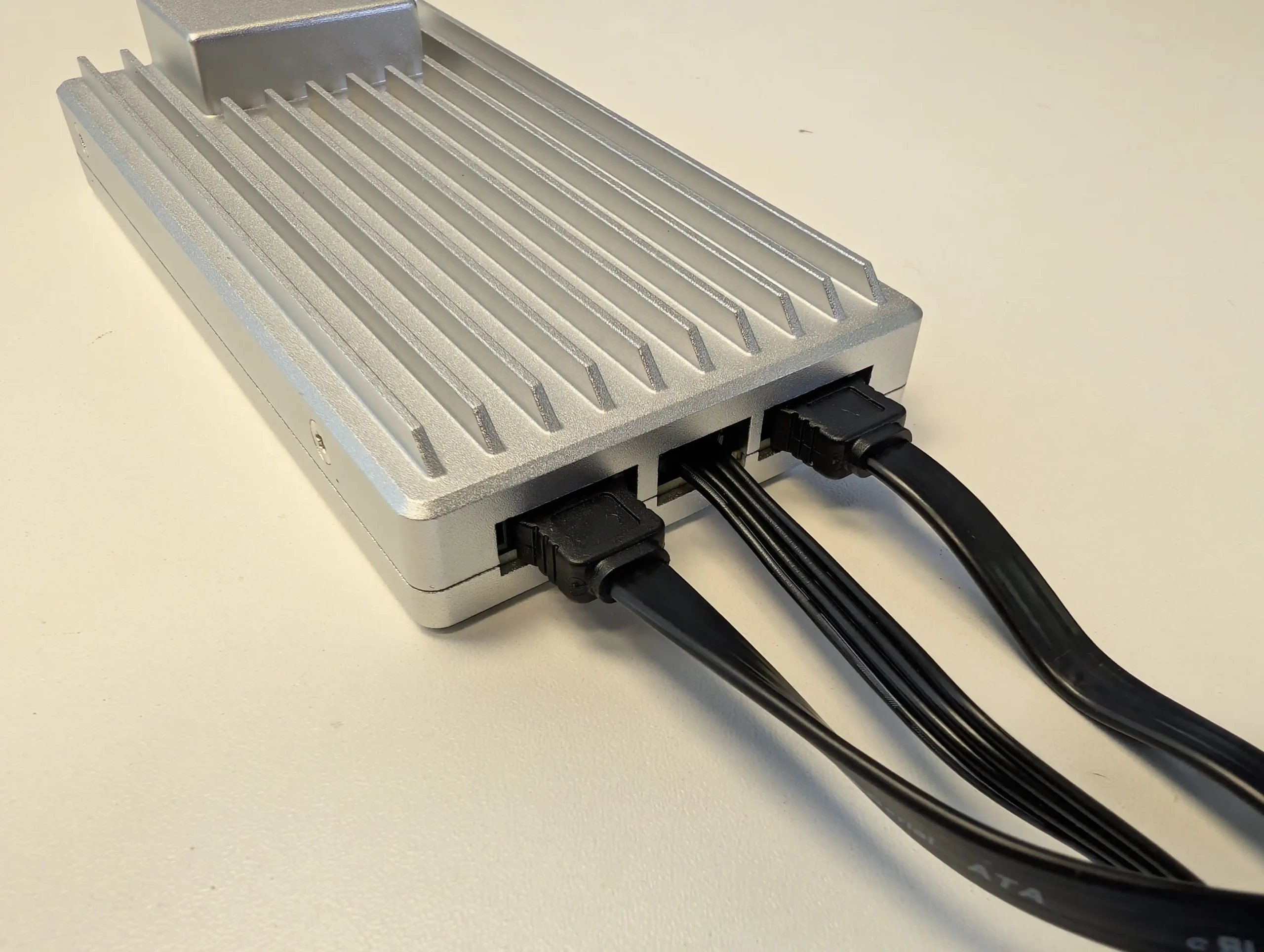
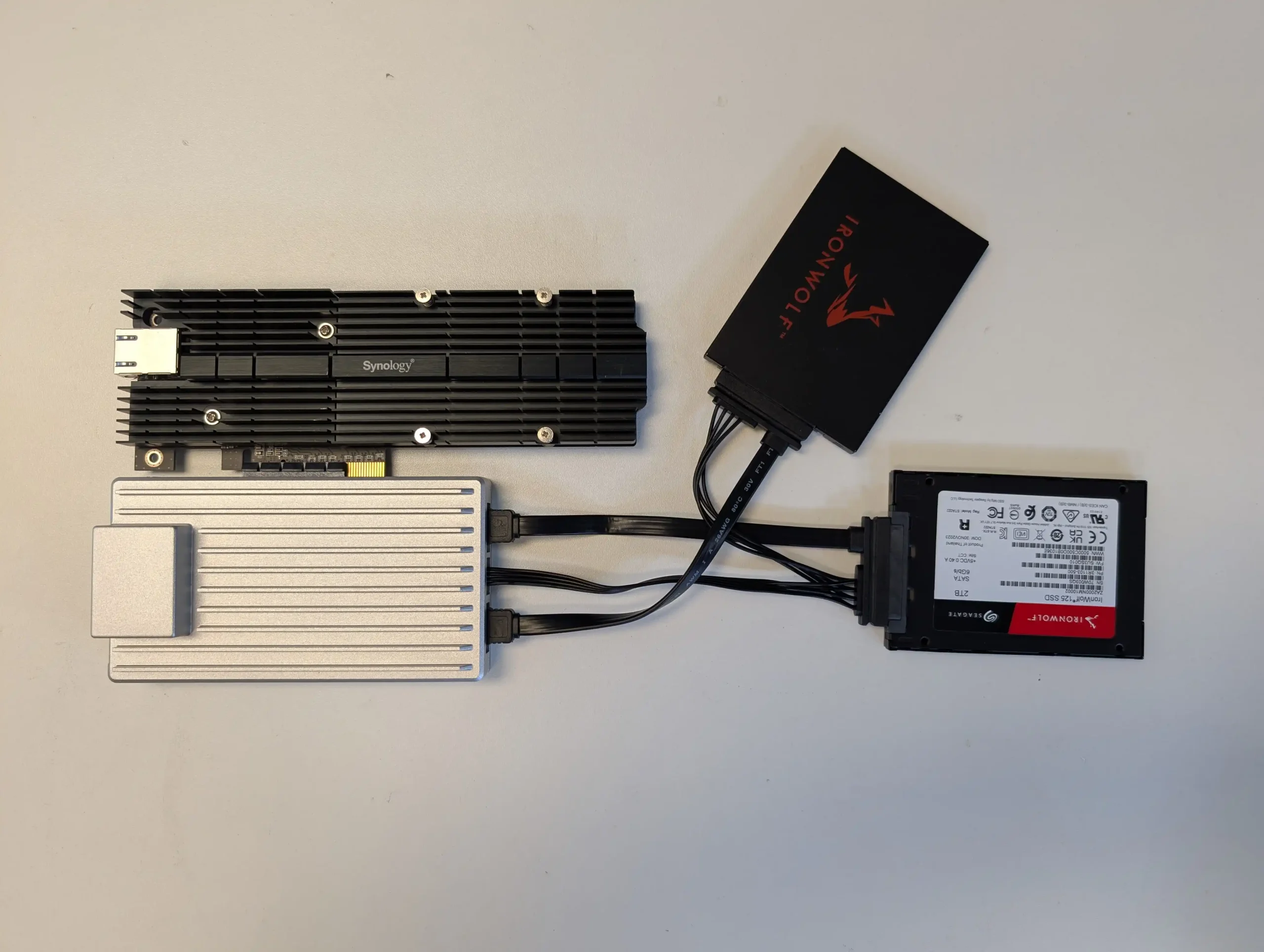
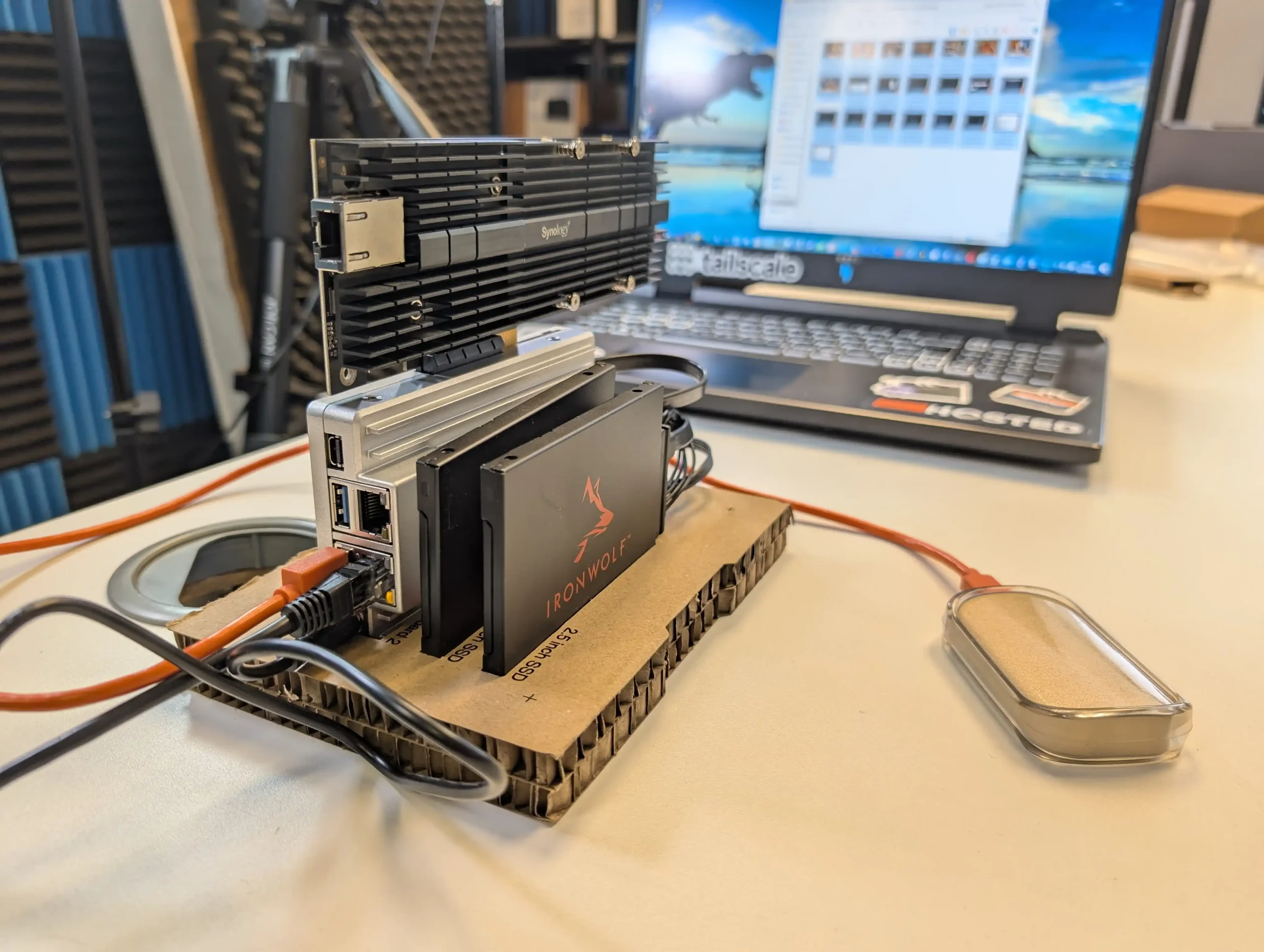
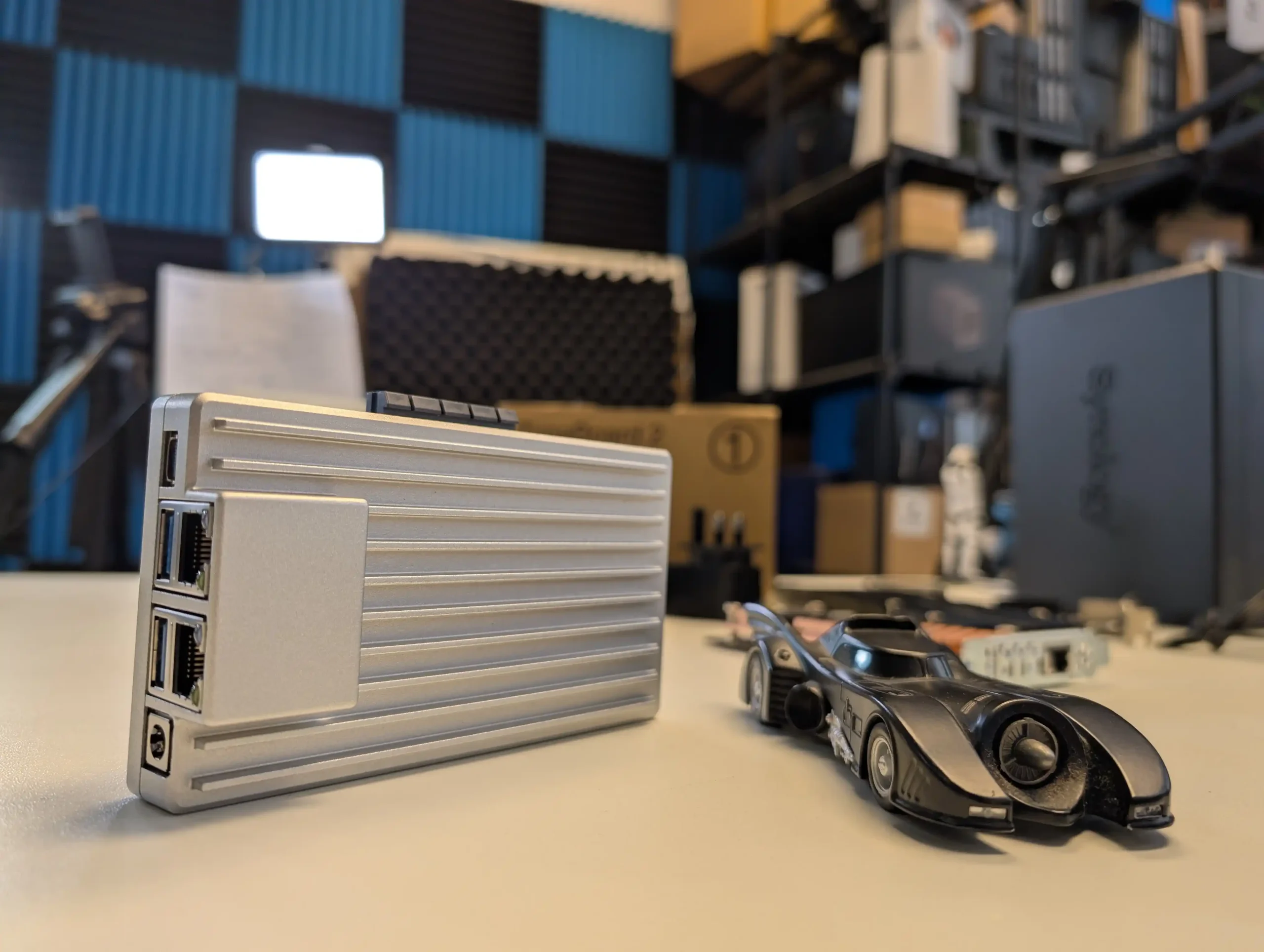
The Minisforum N5 Max was originally shown in January 2026 during CES 2026 as the next step in the company’s 5 bay NAS series, following the N5 Pro that arrived in summer 2025 and later sitting above the N5 Air that was introduced in February 2026. At that stage, most of the information around the system came from early hands on coverage, reveal material, and first wave specification details, which meant some elements were still provisional or inconsistent depending on source. Now, in April 2026, the picture around the N5 Max is much clearer. Minisforum has provided a more defined specification set, a clearer description of the hardware layout, and a much stronger explanation of how the system is intended to be positioned, not just as another compact 5 bay NAS, but as a higher tier platform that combines local AI capability, multi tier storage, and more advanced infrastructure features. This update is therefore intended to bring the original January reveal into line with what is currently known, clarify where earlier CES details have since been refined, and set out the N5 Max as it stands now based on the latest available information.
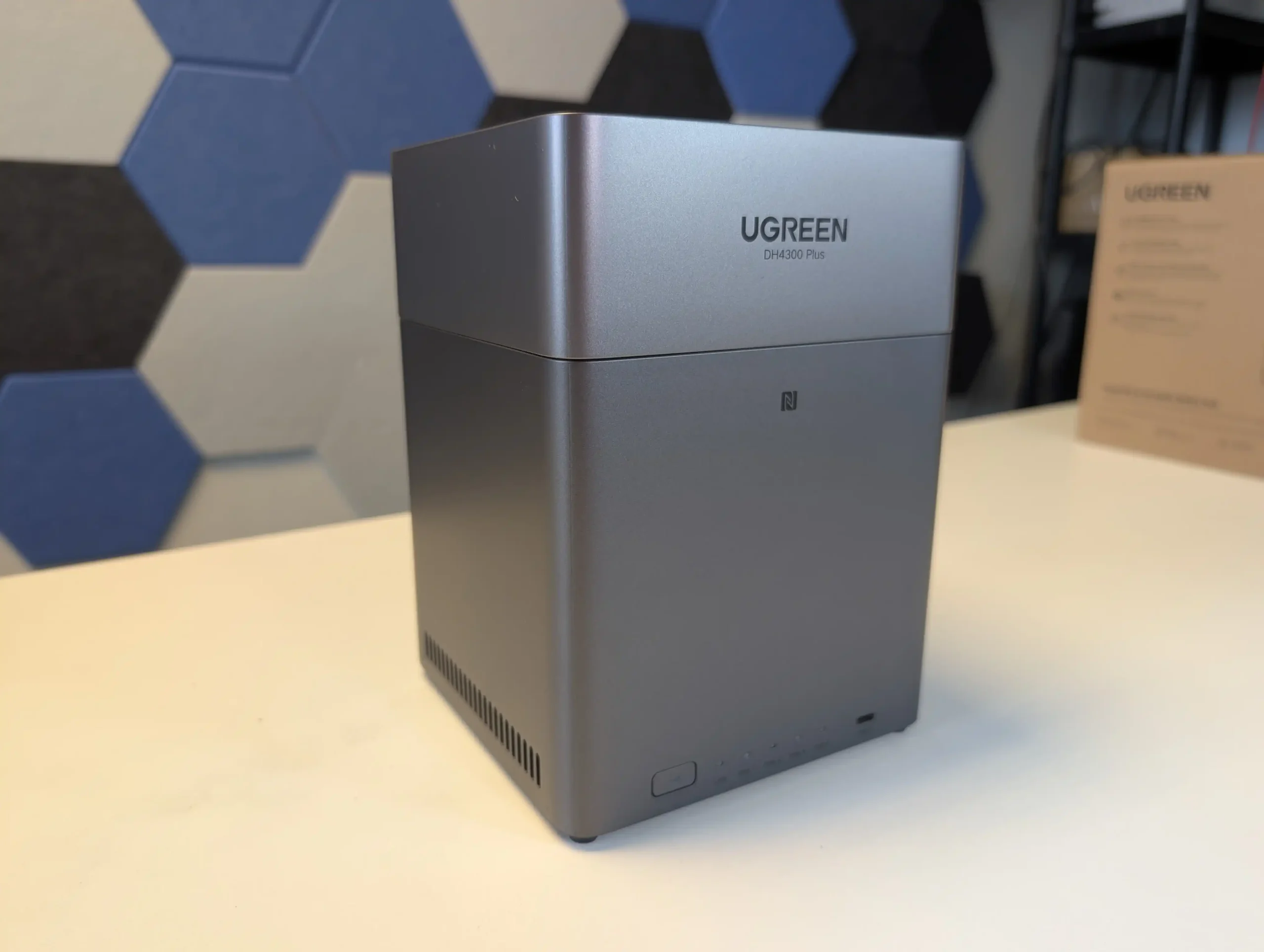
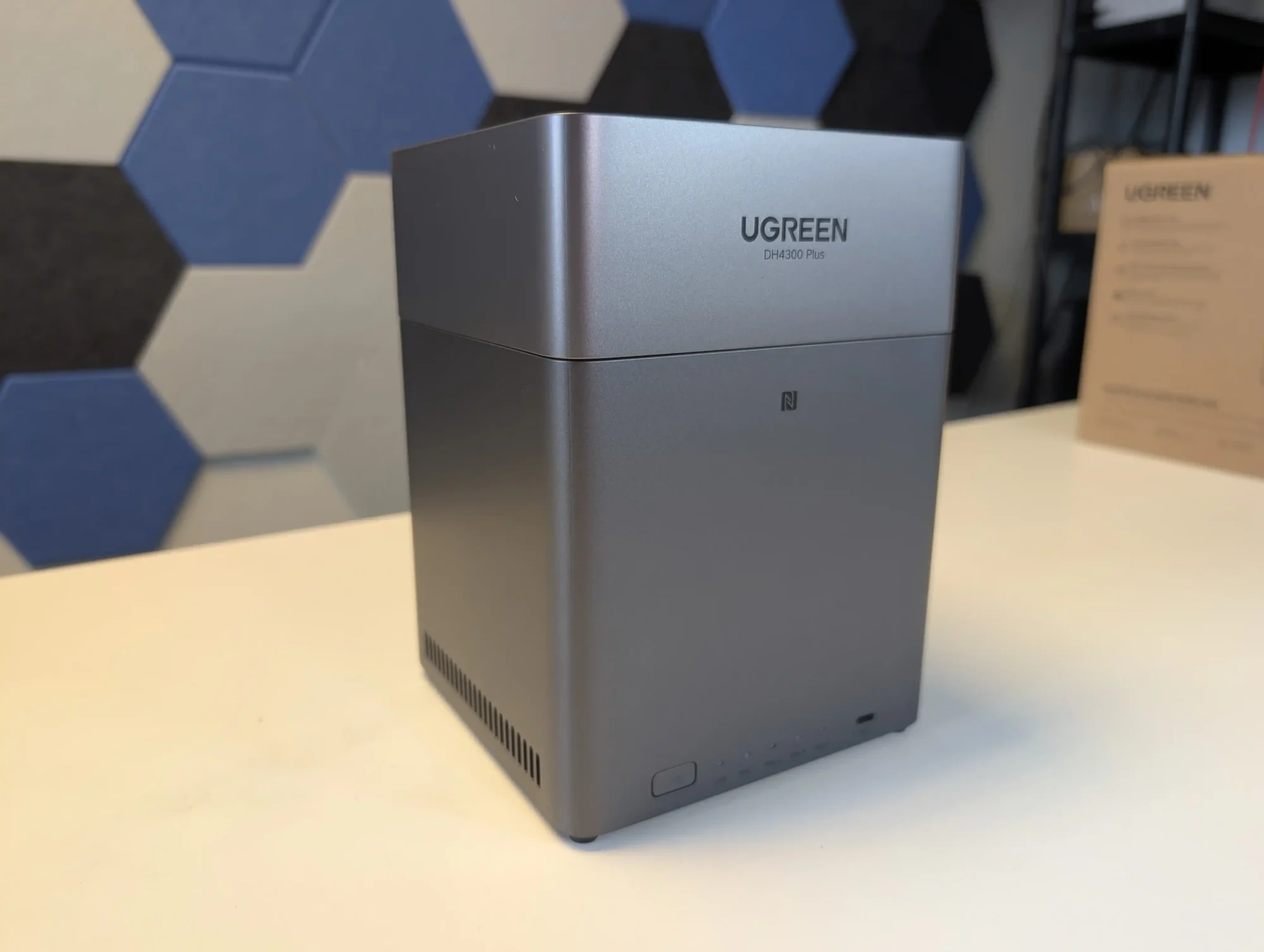
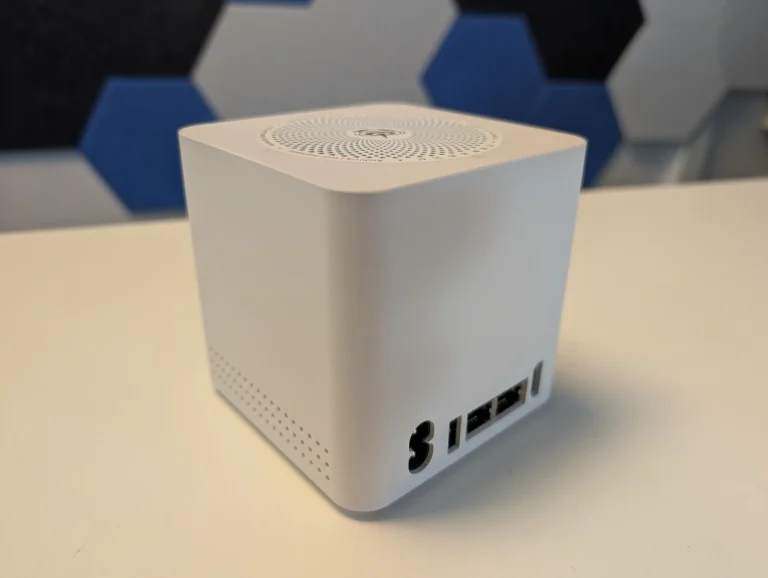
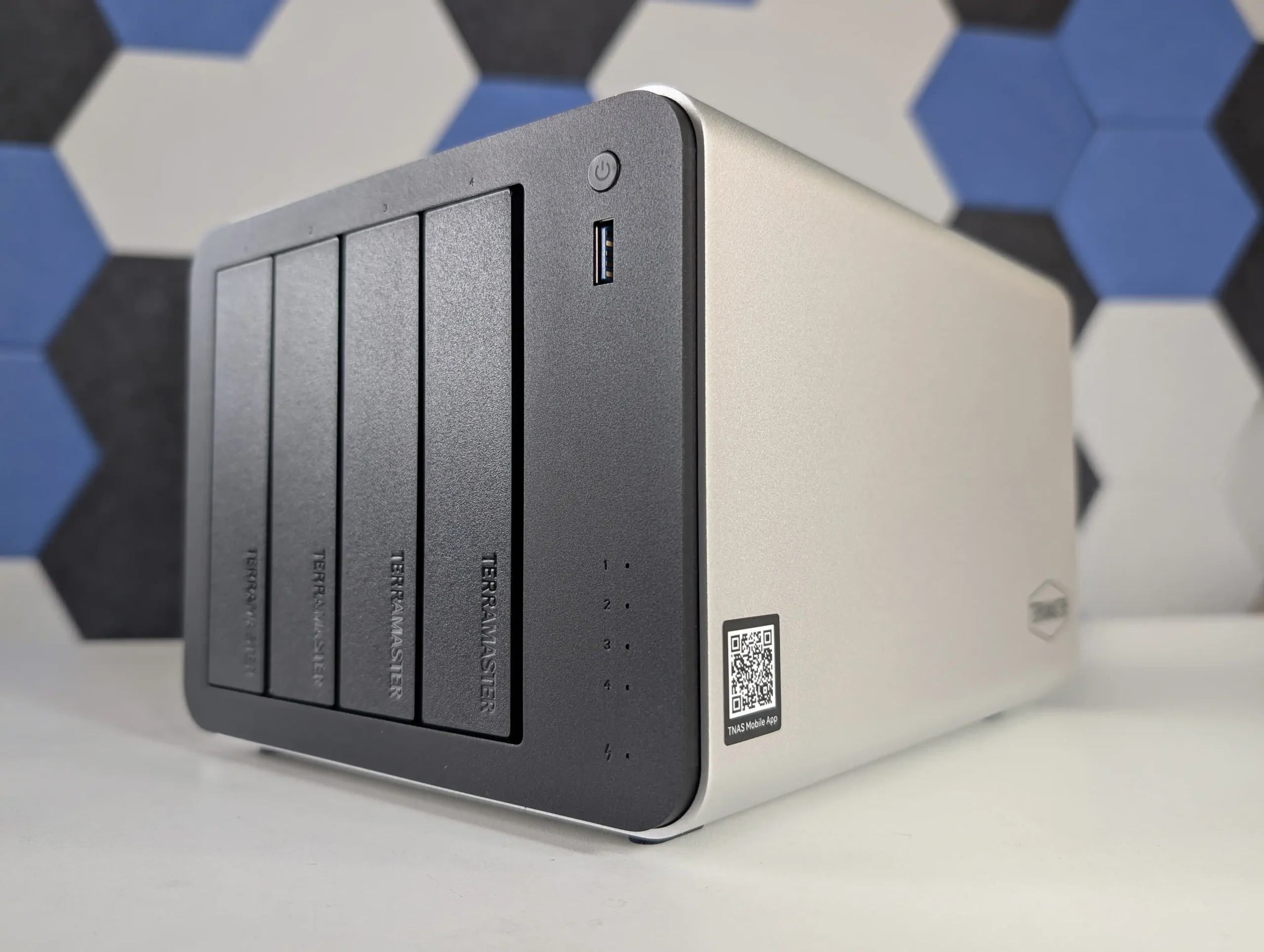
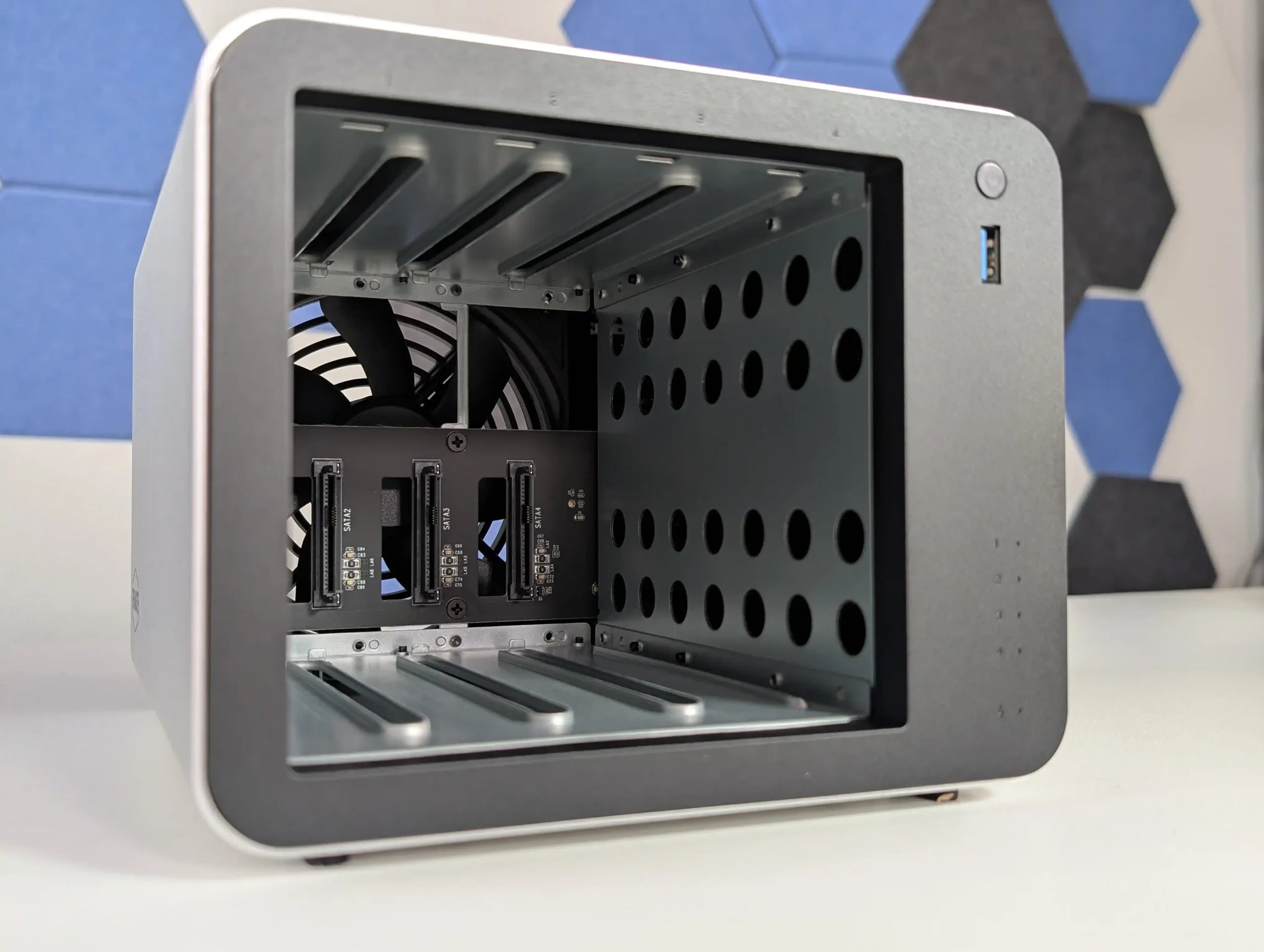
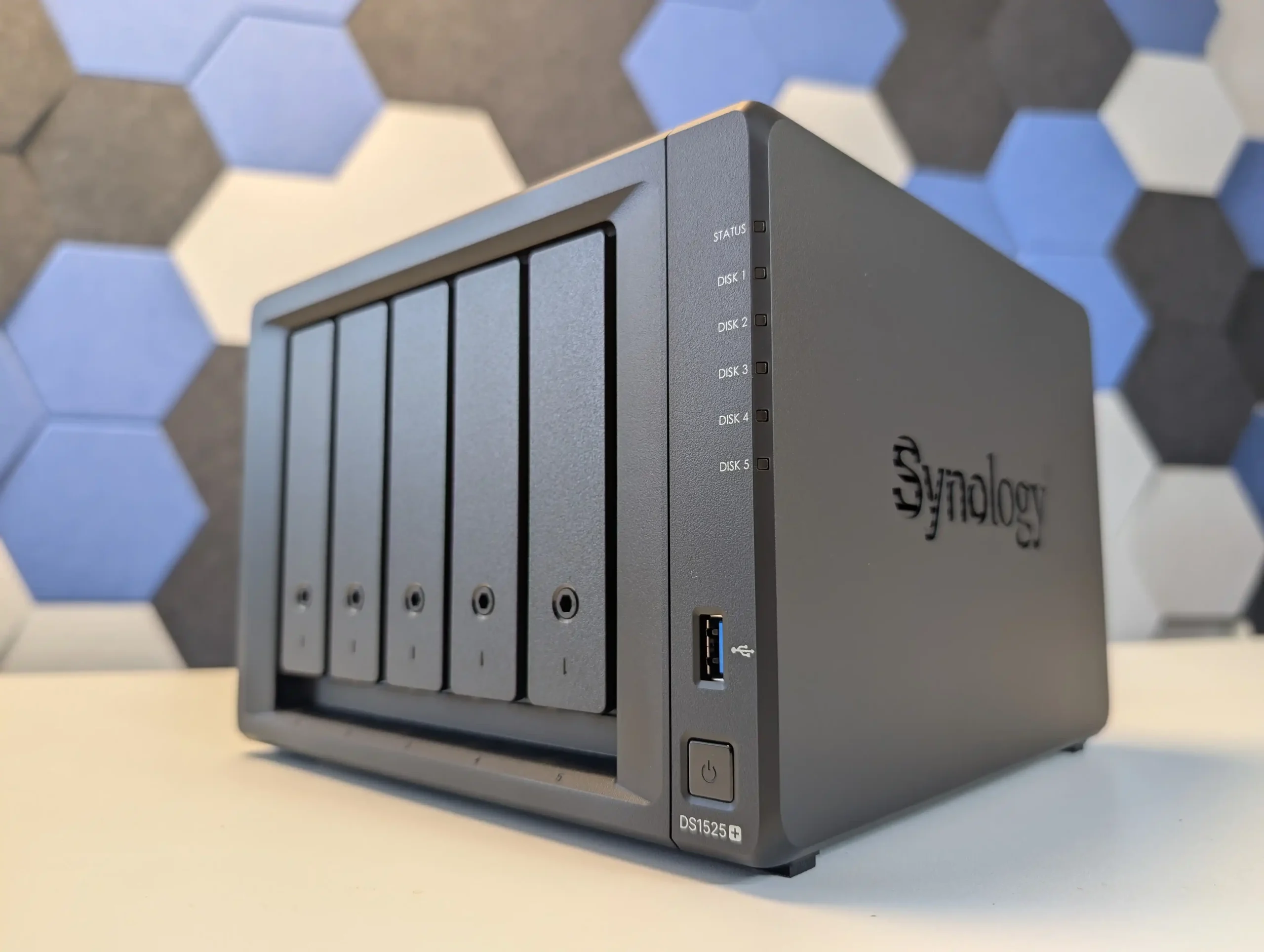
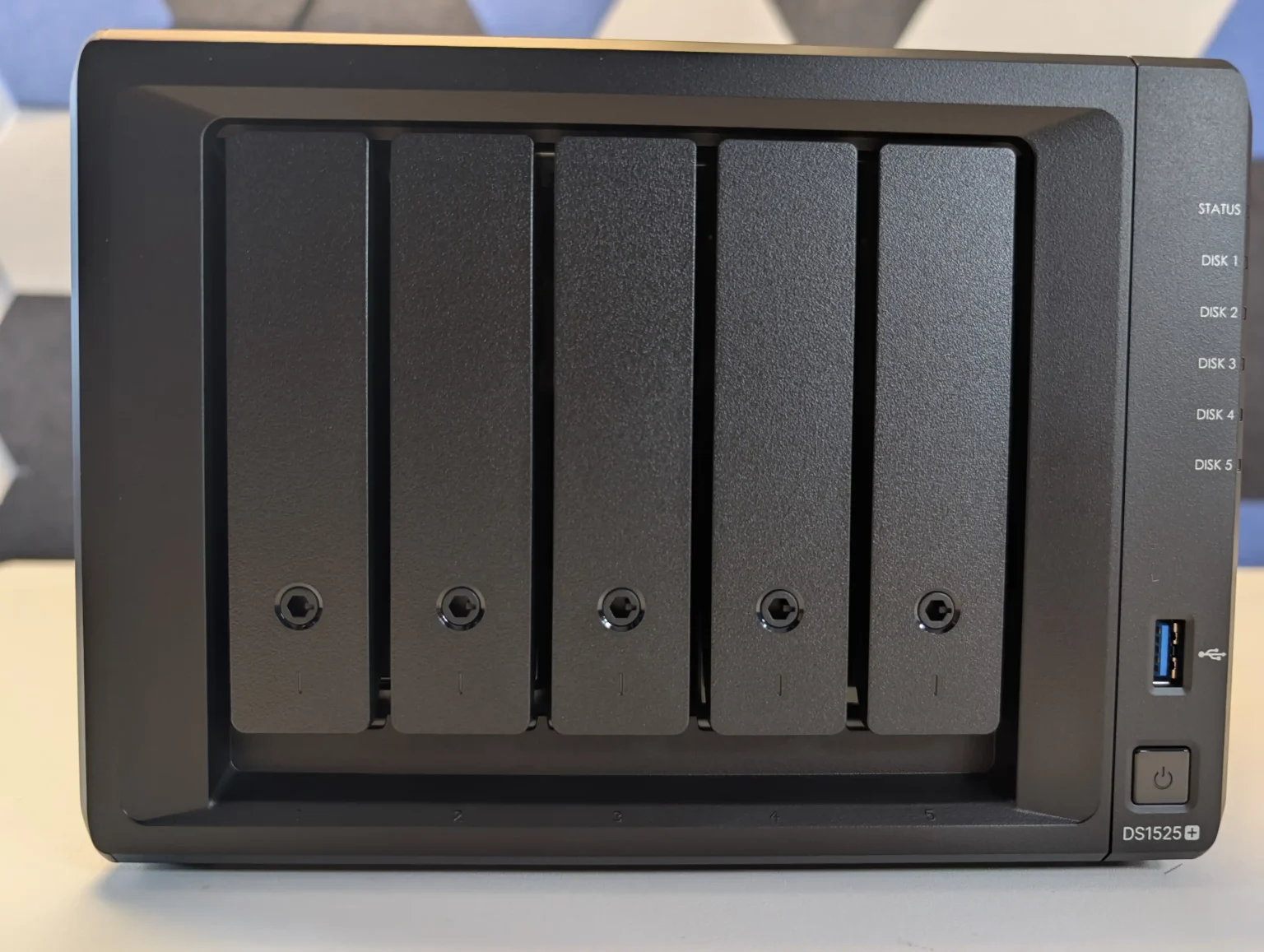
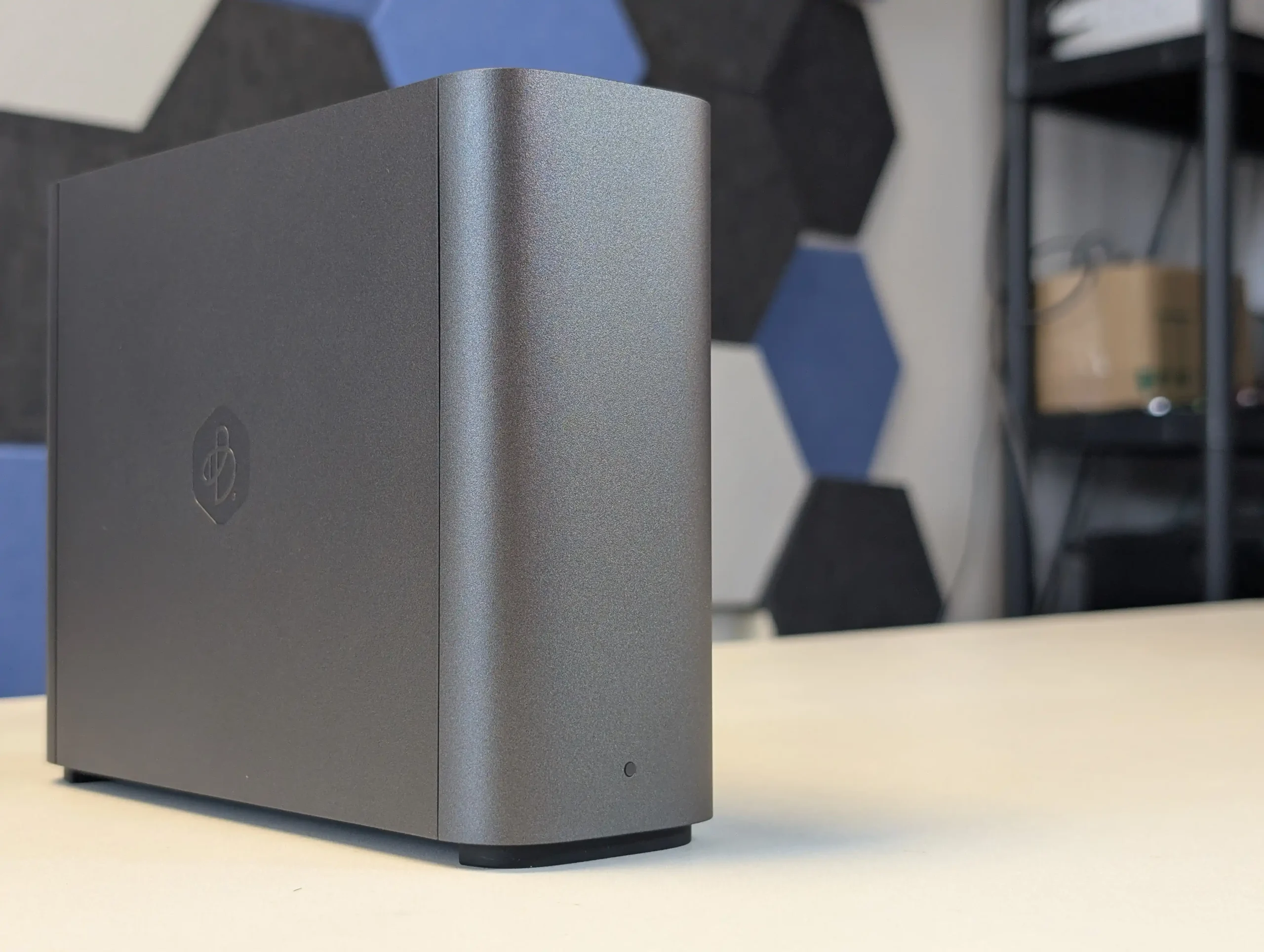
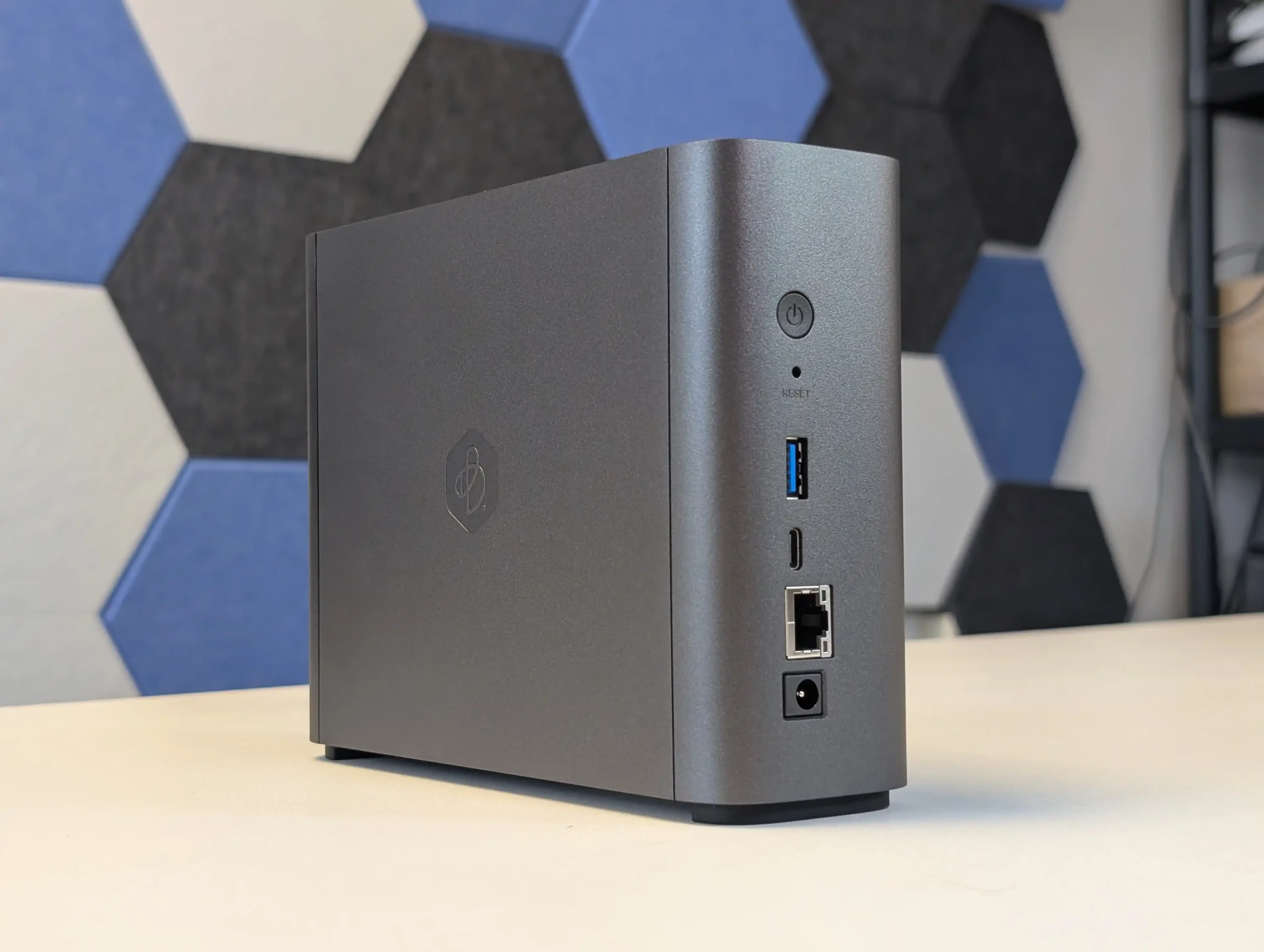
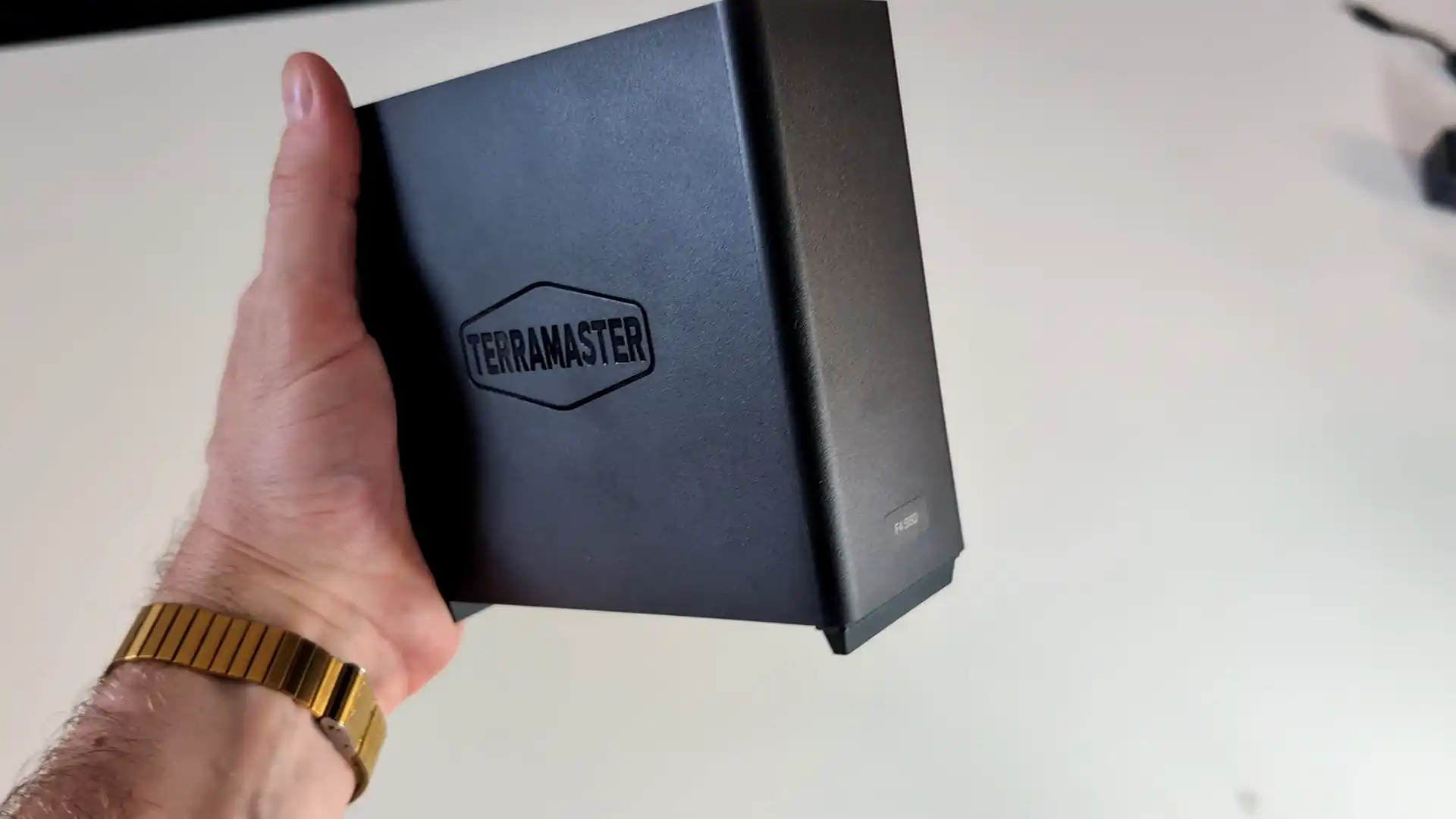
The N5 Max keeps the same broad chassis direction first seen in the earlier N5 systems, using a compact 5 bay enclosure that supports both 3.5 inch and 2.5 inch SATA drives. Physically, it remains very close to the N5 Pro and N5 Air in footprint, with the April 2026 dimensions now listed at 199 × 202.4 × 252.3 mm and a base unit weight of 5 kg. That means Minisforum has not redesigned the platform into a larger desktop tower, but instead chosen to scale capability within the same general enclosure class that defined the rest of the series.
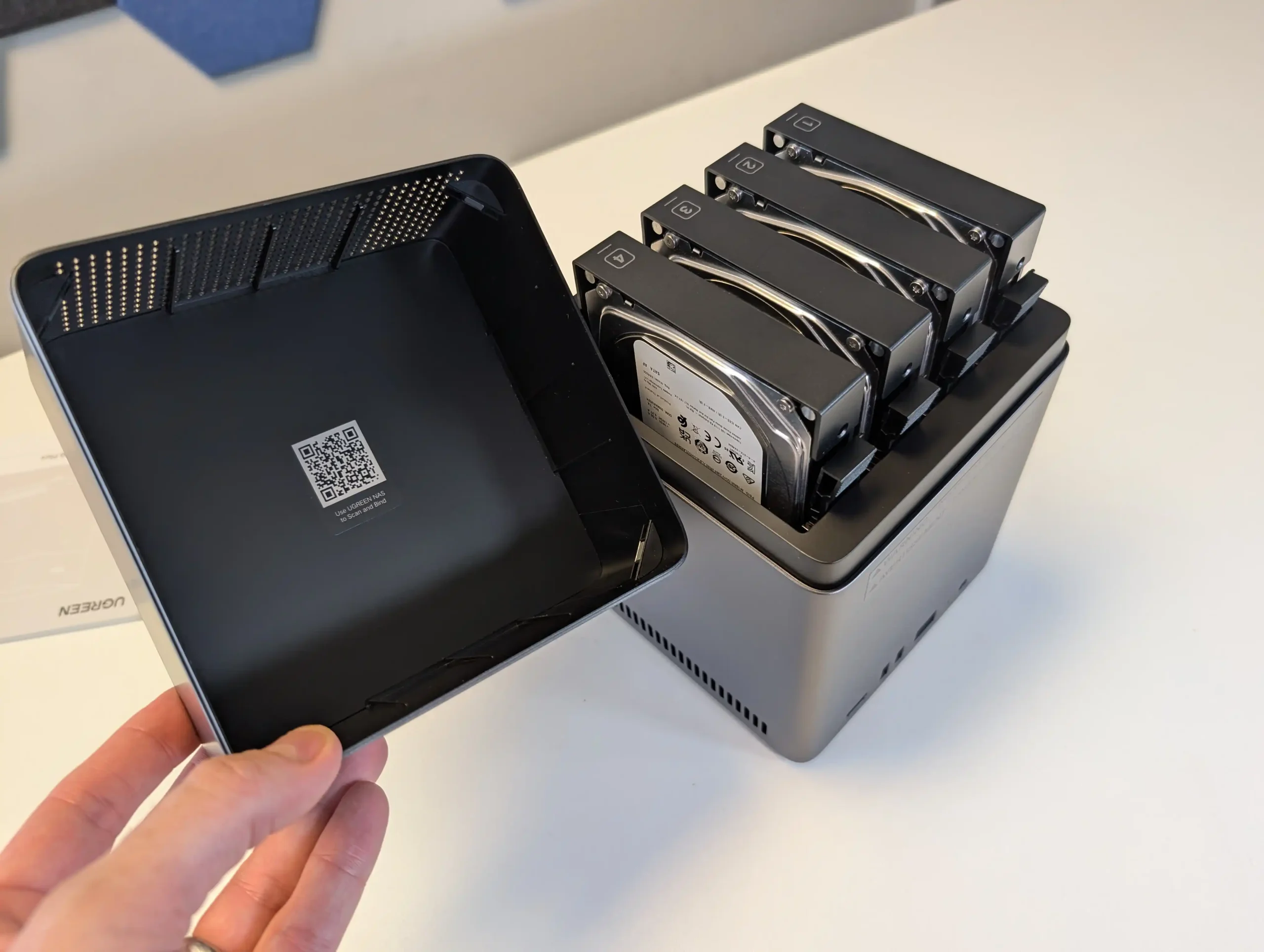
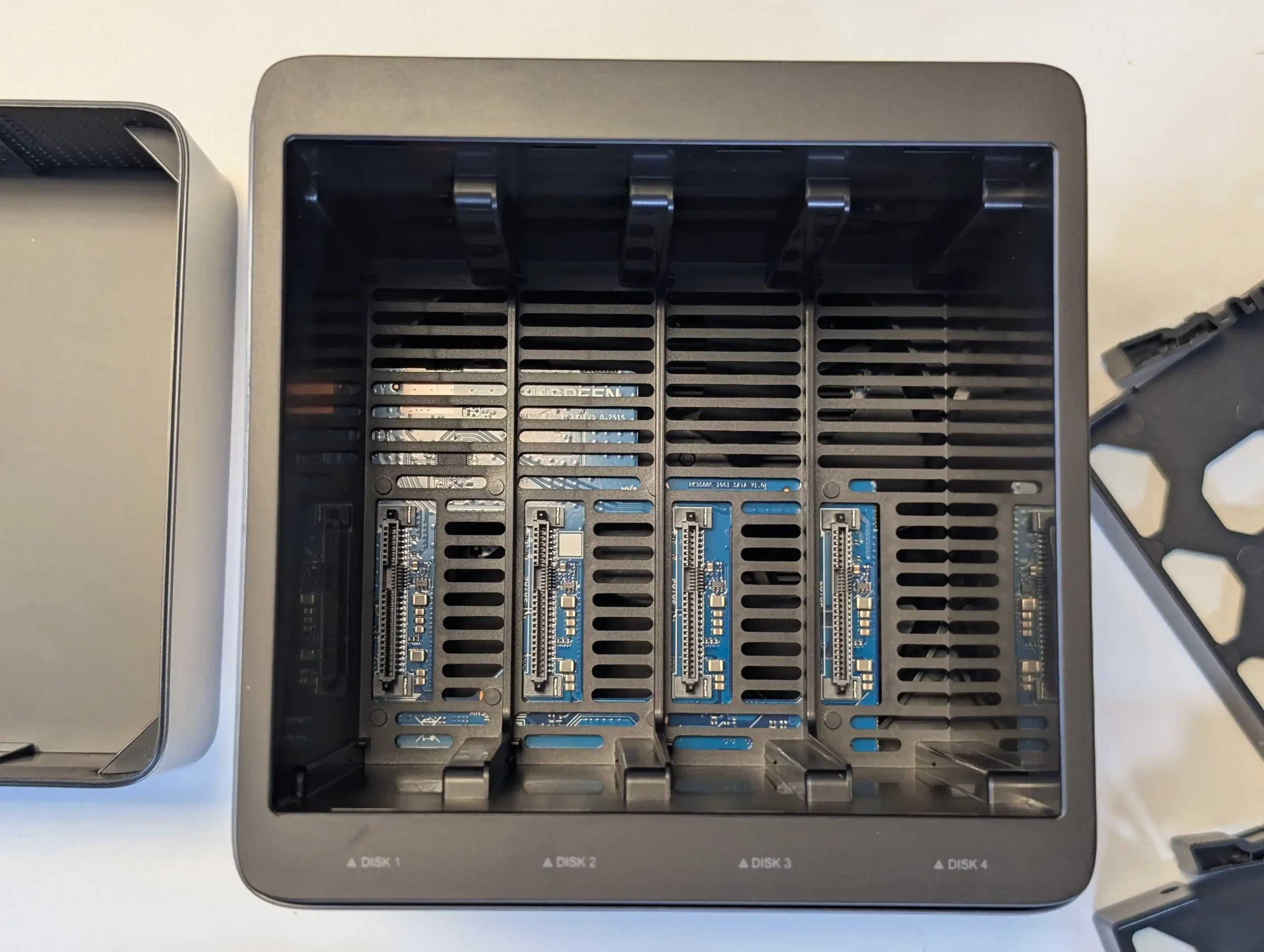
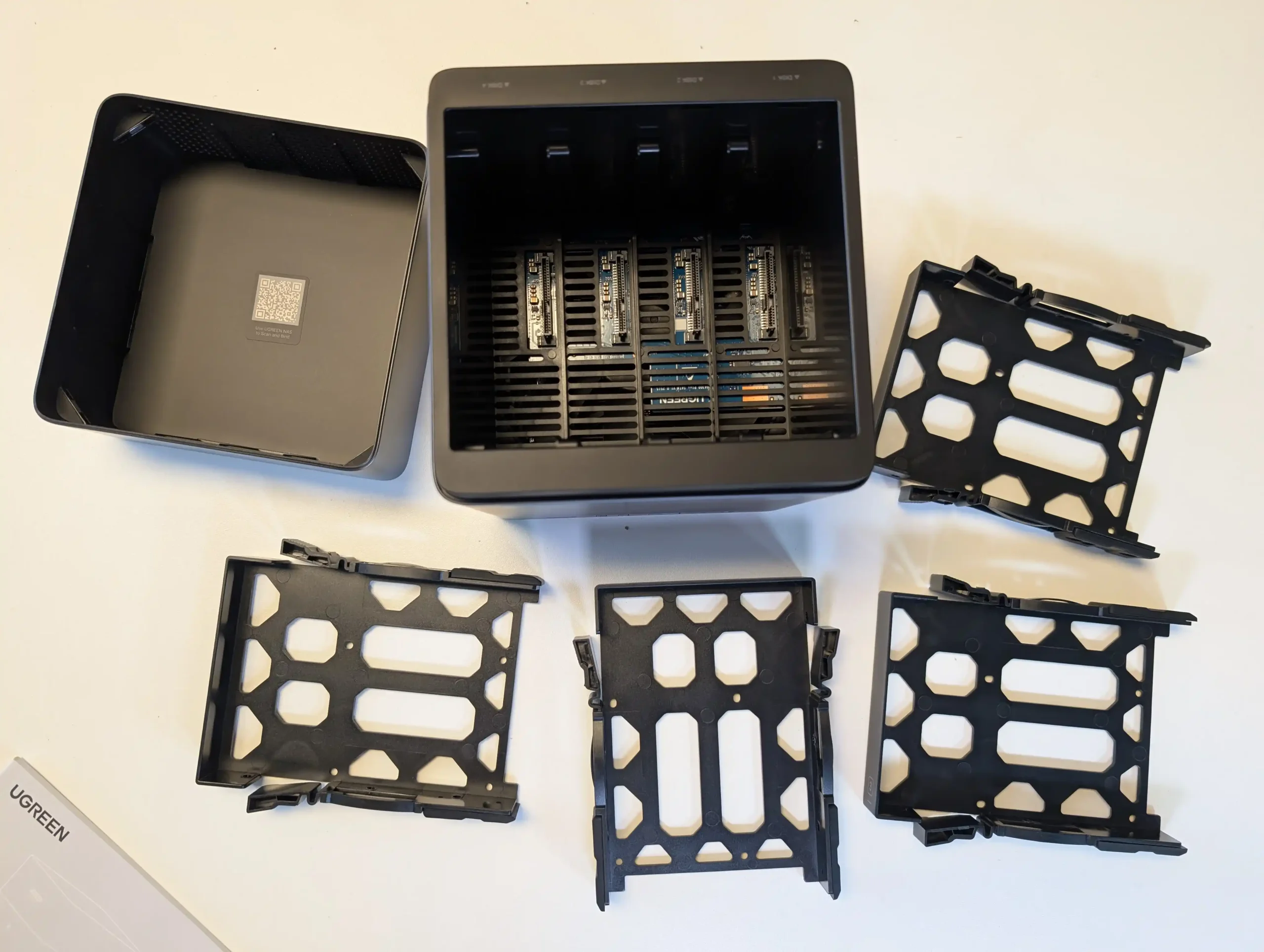
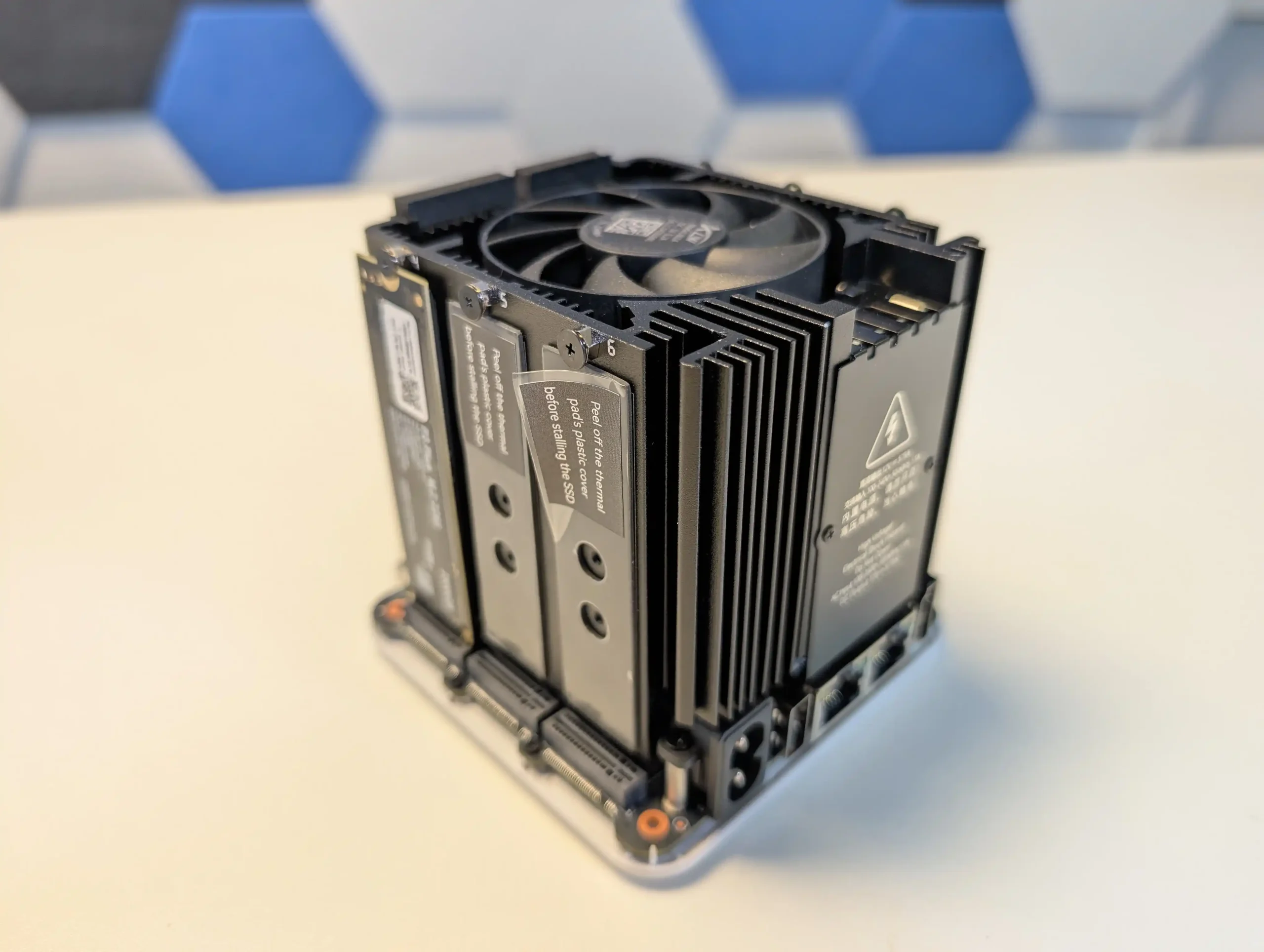
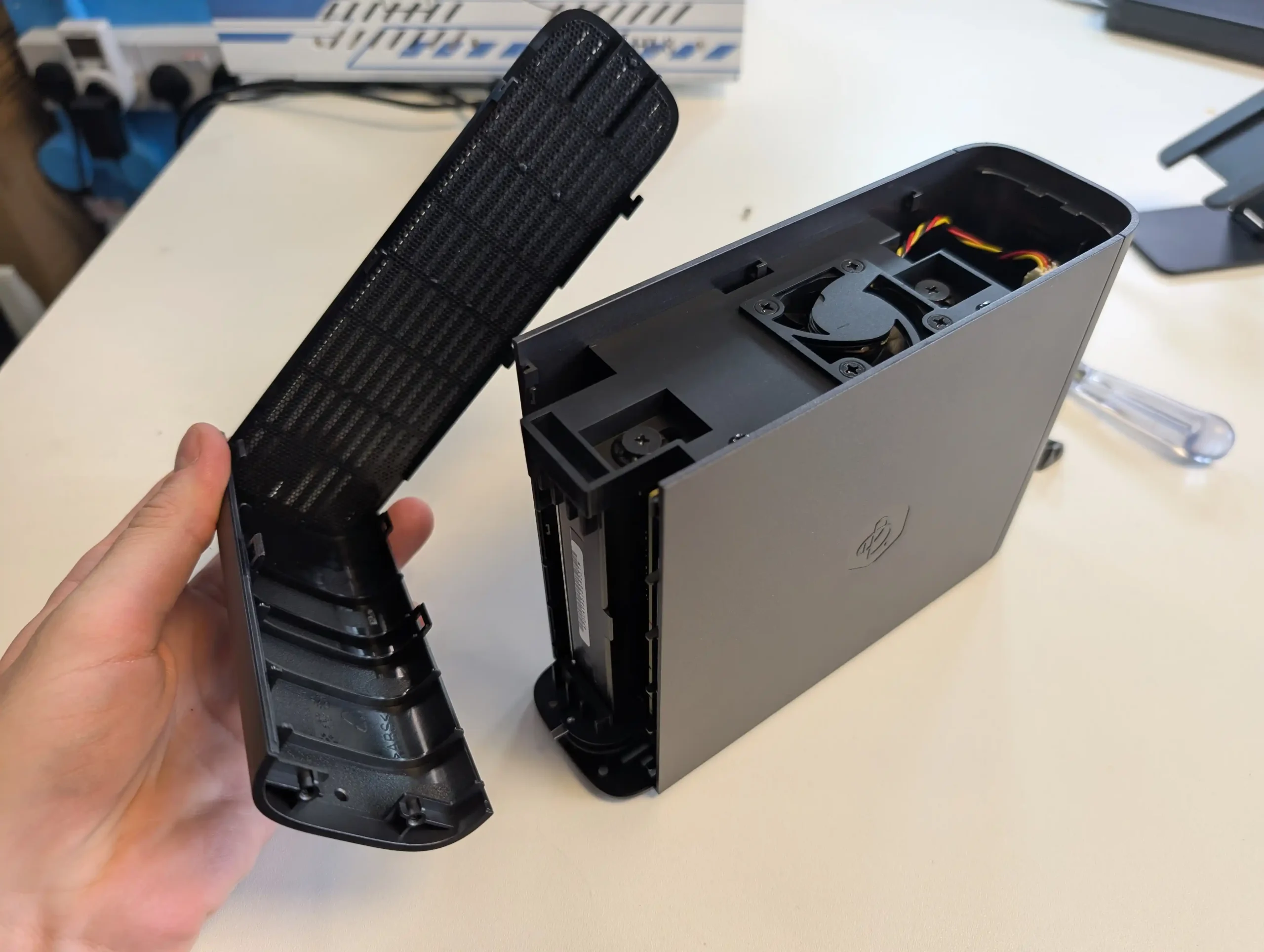
One of the more visible design changes carried over from the original January reveal is the inclusion of lockable drive trays. That may seem like a small revision, but it directly addresses one of the practical complaints raised around the earlier N5 generation. Minisforum is also still using the pull out internal layout, where the main board and flash storage area can be accessed through a more service friendly internal assembly rather than a completely fixed internal frame.
In structural terms, the N5 Max remains very much part of the same family, but it has been revised in several small ways that make it look more mature than the first N5 design.
On the hard drive side, the N5 Max is now specified with 5 SATA 3.0 bays supporting up to 30 TB per bay, giving the system a stated raw HDD ceiling of 150 TB before any NVMe storage is counted. Minisforum also lists the platform as supporting up to 190 TB total storage overall. Compared with the 22 TB per drive guidance attached to earlier N5 series documentation, this higher ceiling does not change the number of bays, but it does position the Max for a higher total capacity target within the same physical format. As with most NAS vendors, real world drive compatibility will still depend on validation over time, but the intent is clearly to place the N5 Max above the earlier models in maximum raw storage potential.
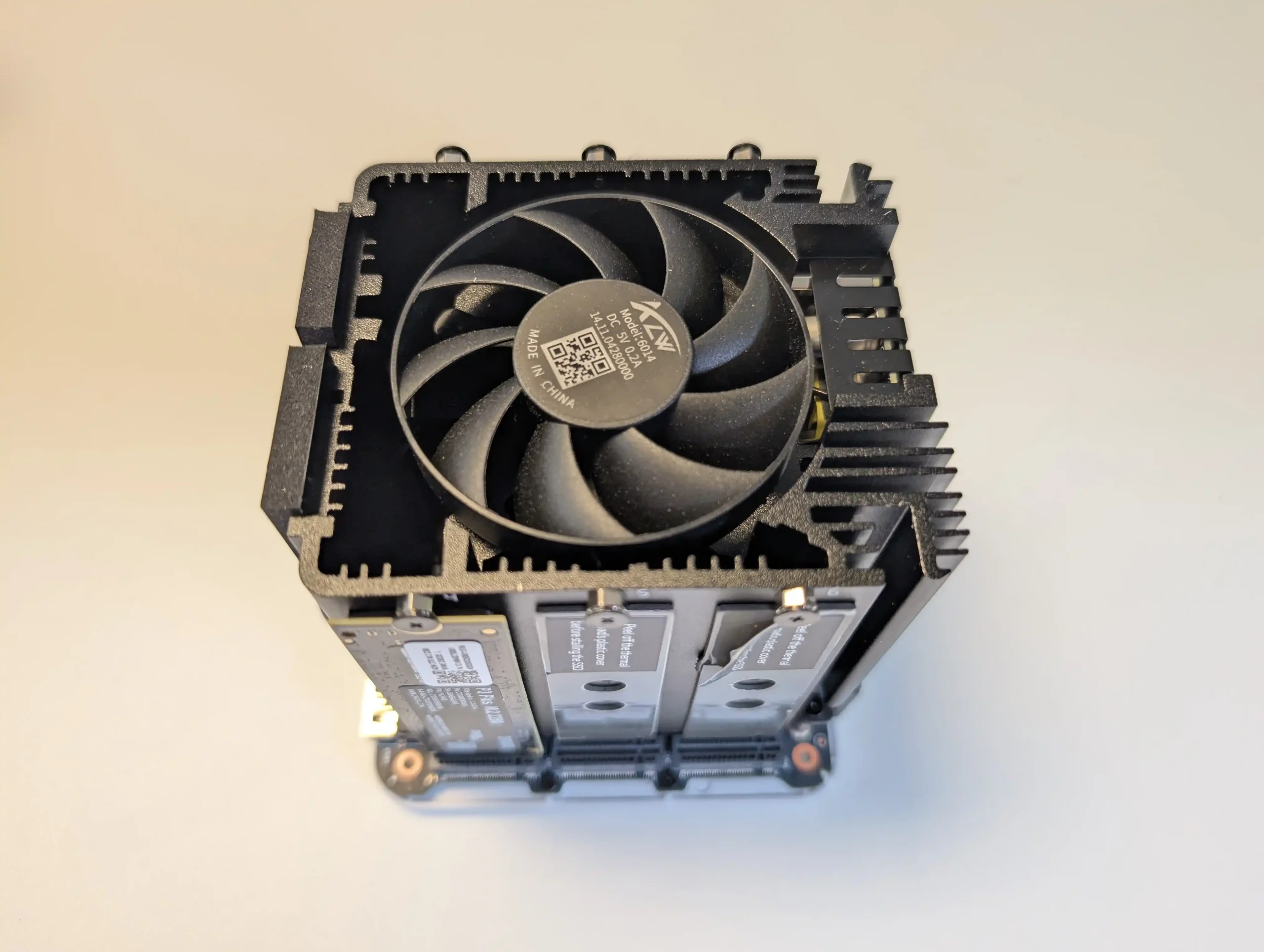
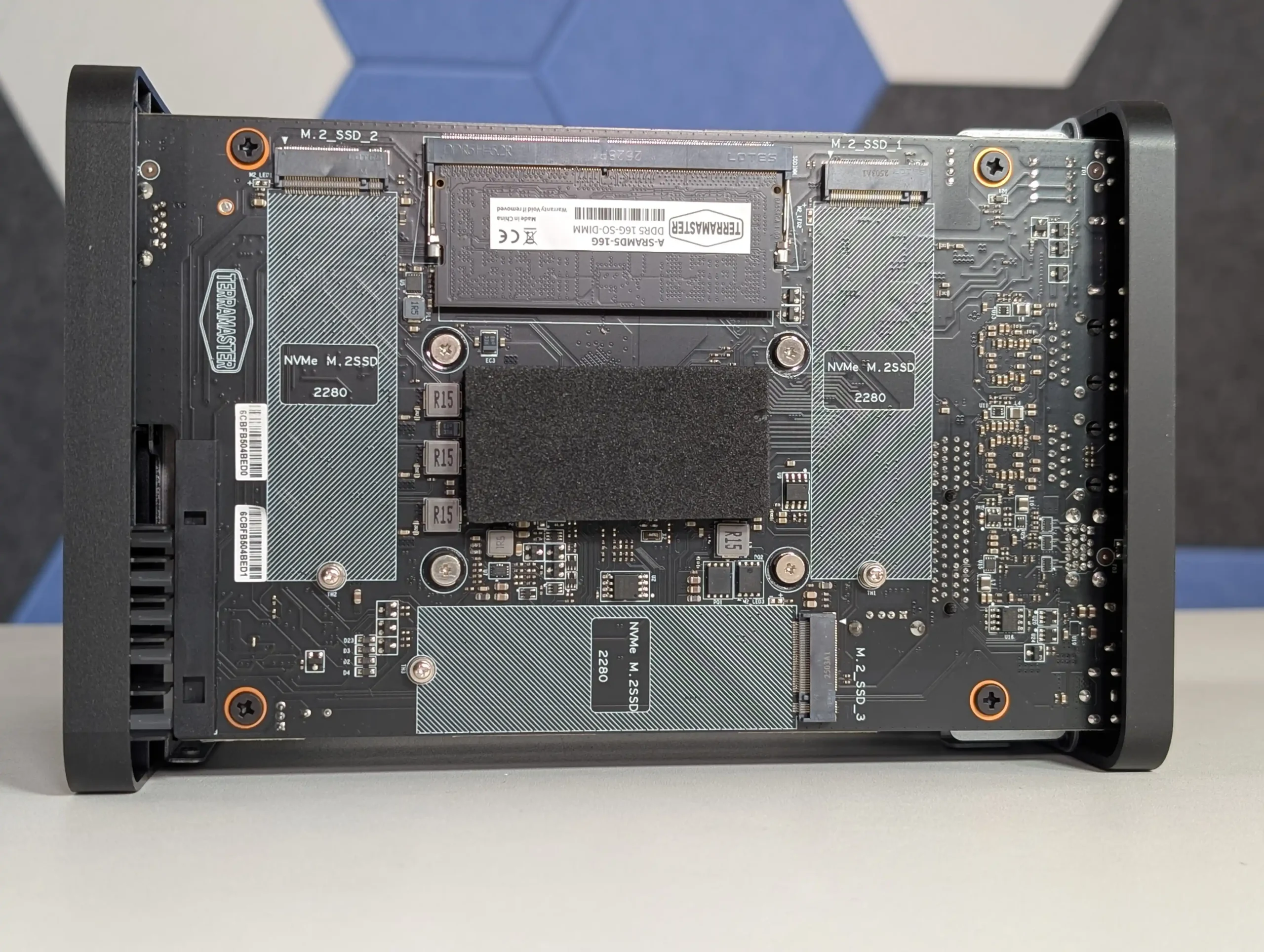
Flash storage is where the N5 Max diverges most clearly from the N5 Pro and N5 Air. Instead of the mixed M.2 and U.2 style arrangement used on those systems, the N5 Max is now described as having 5 M.2 NVMe positions in total. The current April 2026 specification lists 1 × M.2 2280 NVMe slot running at PCIe 4.0 x4 with support up to 8 TB, plus 4 × M.2 2280 NVMe slots running at PCIe 4.0 x1 with support up to 8 TB each. Minisforum also states that the system disk is a preinstalled 64 GB module occupying 1 of those SSD positions, which is relevant because it affects how many slots are immediately free to the user out of the box.
That layout gives the N5 Max a storage structure that is more layered than the earlier N5 models, with large capacity HDDs handling primary bulk storage while multiple NVMe slots can be used for cache, active project data, containers, VM storage, model files, or application workloads. It also fits the broader April 2026 positioning of the unit as a system meant to keep more data in an active state rather than simply acting as a passive archive box. The tradeoff is that the Max no longer appears to prioritize the same U.2 flexibility seen on the N5 Pro and N5 Air, instead leaning harder into a denser onboard M.2 arrangement within the same 5 bay chassis.
Minisforum N5 Max NAS Internal Hardware
The N5 Max is built around the AMD Ryzen AI Max+ 395, a 16 core, 32 thread processor with a 3 GHz base frequency and boost up to 5.1 GHz. Minisforum lists the chip with Radeon 8060S integrated graphics featuring 40 graphics cores, alongside AMD Ryzen AI support rated at up to 126 TOPS overall and up to 50 TOPS on the NPU. In simple terms, this places the N5 Max in a very different compute class to the original N5 and above the N5 Pro as well, making it much closer to a compact workstation platform than a conventional 5 bay NAS in processor terms.
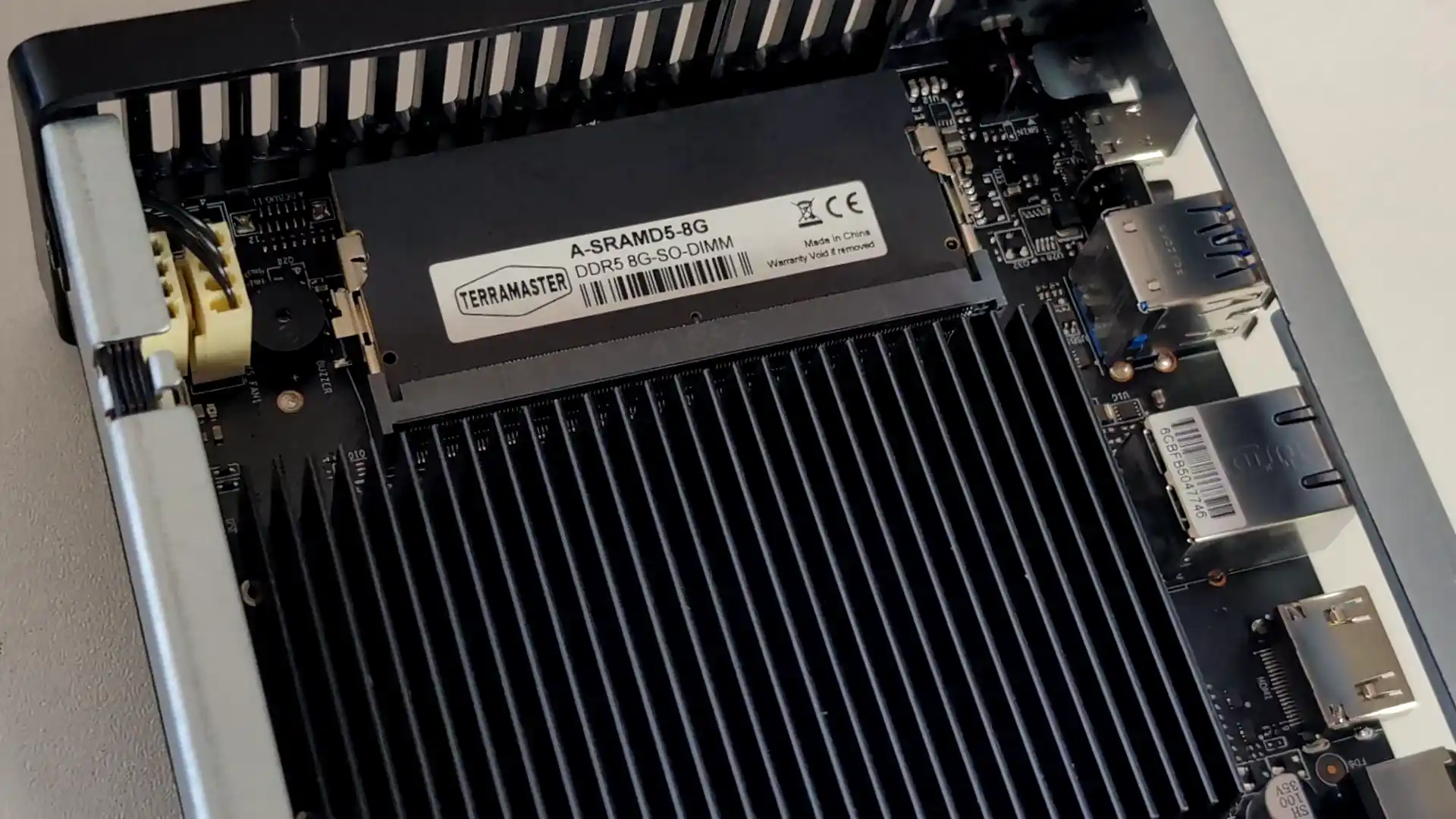
Memory is also handled very differently from the rest of the series. Rather than using upgradeable SO-DIMM slots, the N5 Max is listed with 128 GB of LPDDR5x memory on a 256 bit interface, with support references of 7500 to 8000 MT/s depending on source. That fixed memory design should provide substantially more bandwidth than the socketed DDR5 approach in the N5 Pro and N5 Air, which matters for integrated graphics and local AI workloads, but it also removes user upgrade flexibility. This is one of the clearest examples of Minisforum prioritizing performance density over long term modularity in the Max model.
Cooling and power delivery have also been scaled up to match that higher tier hardware. Minisforum lists a cooling system built around 5 heat pipes with PCM, dual 80 × 15 mm turbo fans for the CPU area, dual 92 × 25 mm axial fans for the HDD section, and a separate 60 × 12 mm turbo fan for the SSD and PSU area. Power is now handled by an internal 250 W supply with AC input built directly into the chassis, replacing the external brick used on the earlier N5 systems. Taken together, these changes suggest that the N5 Max is not simply using a faster CPU in the same shell, but has been reworked internally to support higher sustained load, denser flash storage, and a more integrated overall design.
Minisforum N5 Max NAS Connectivity
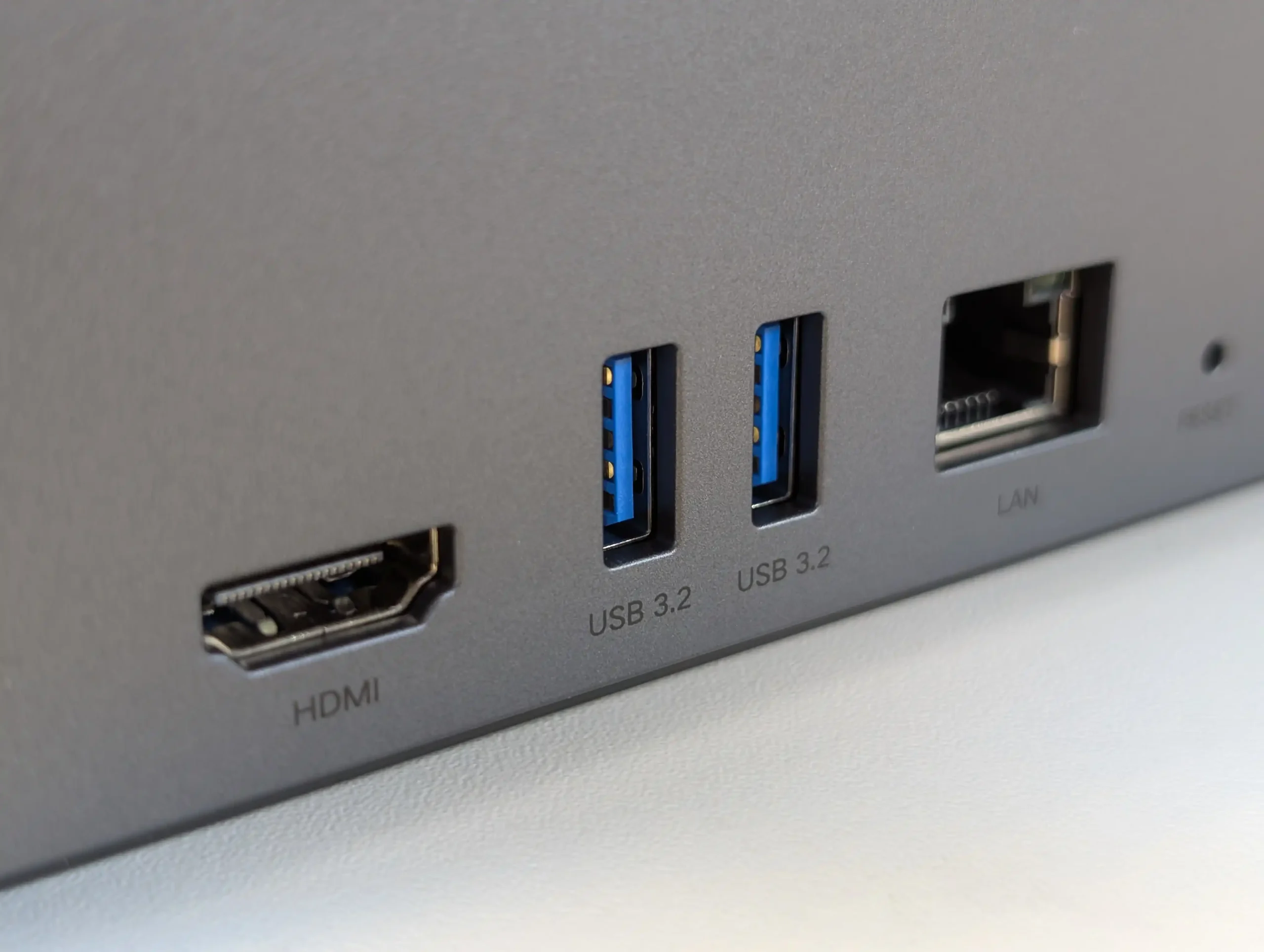
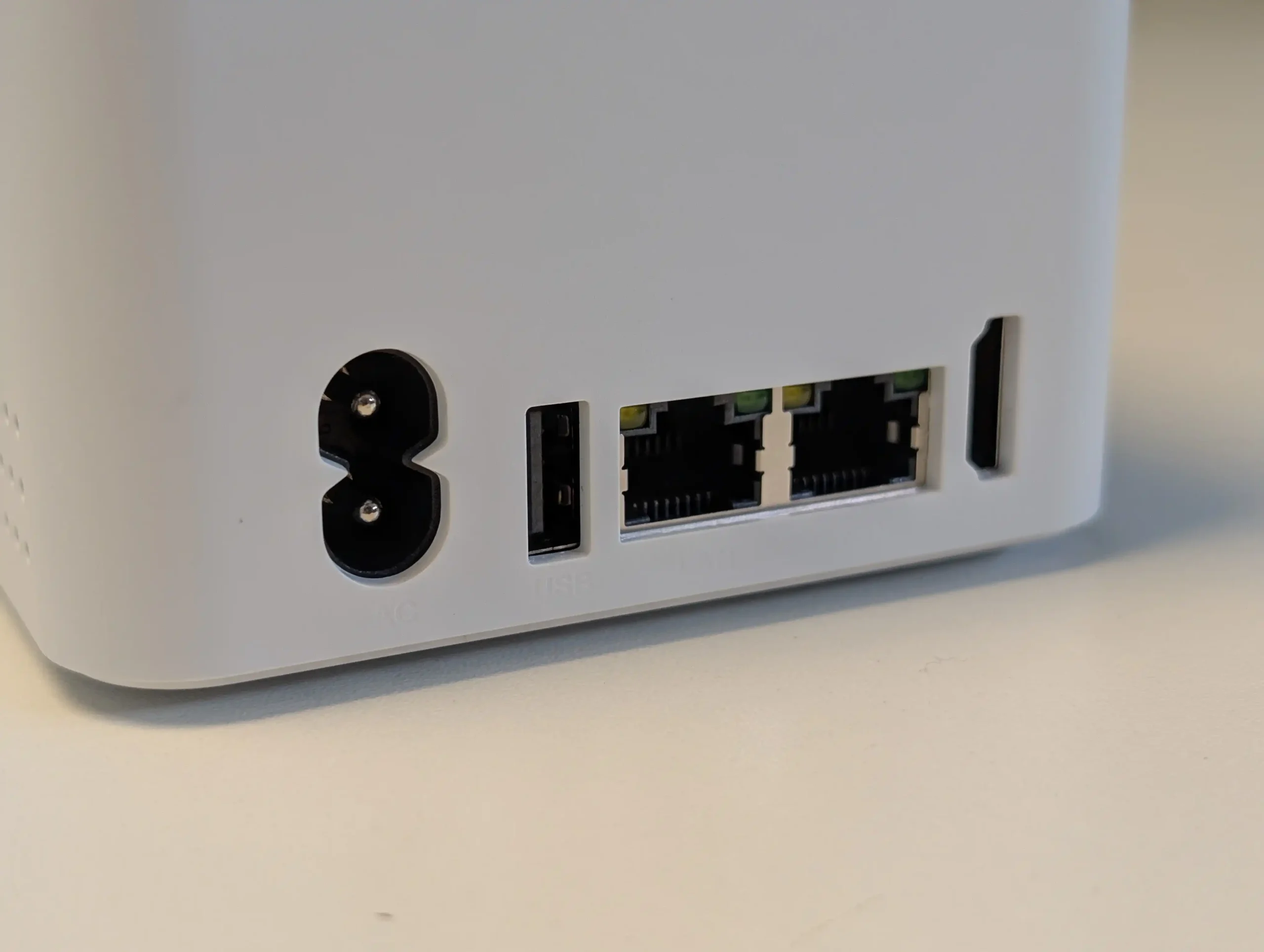
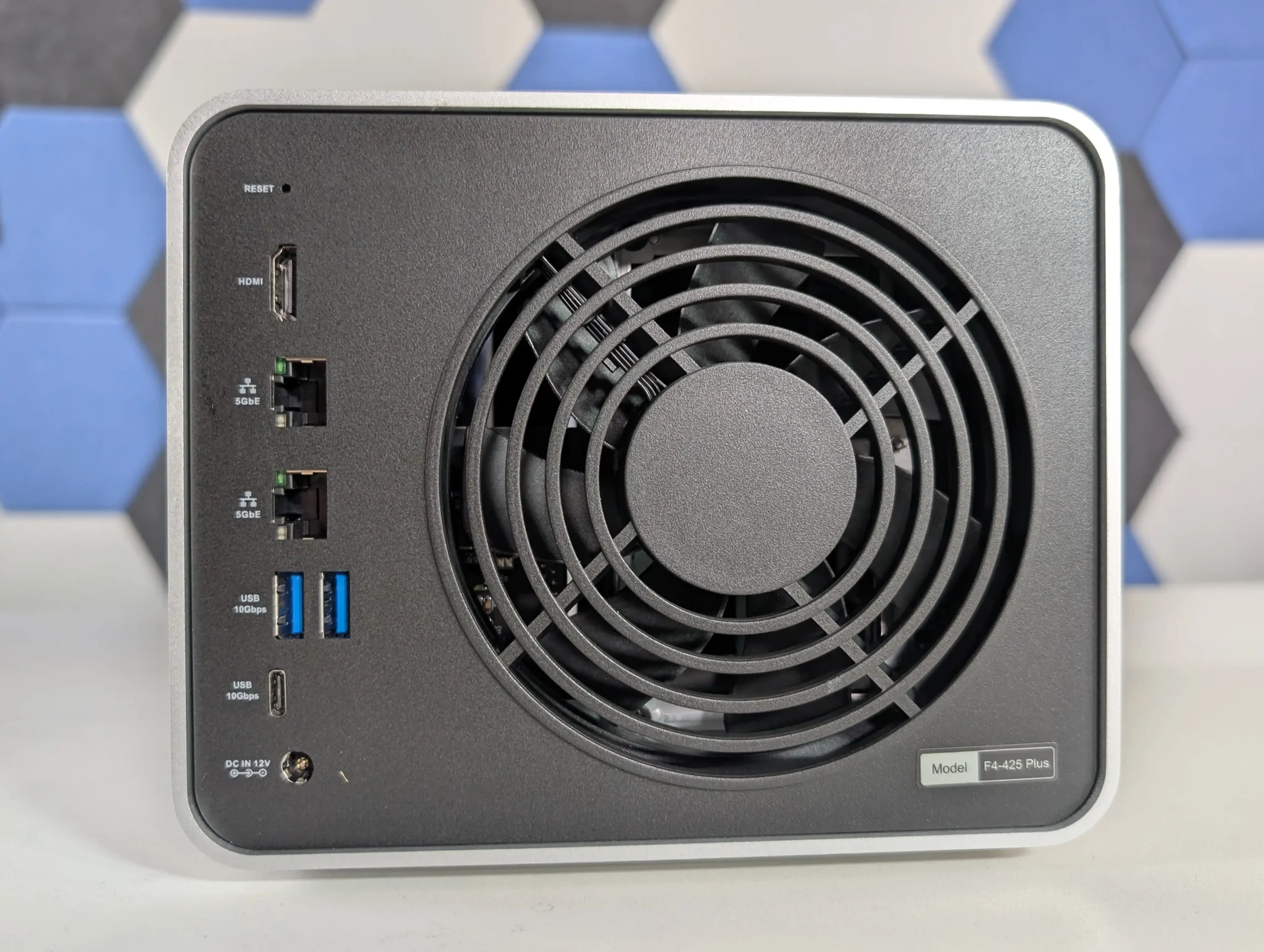
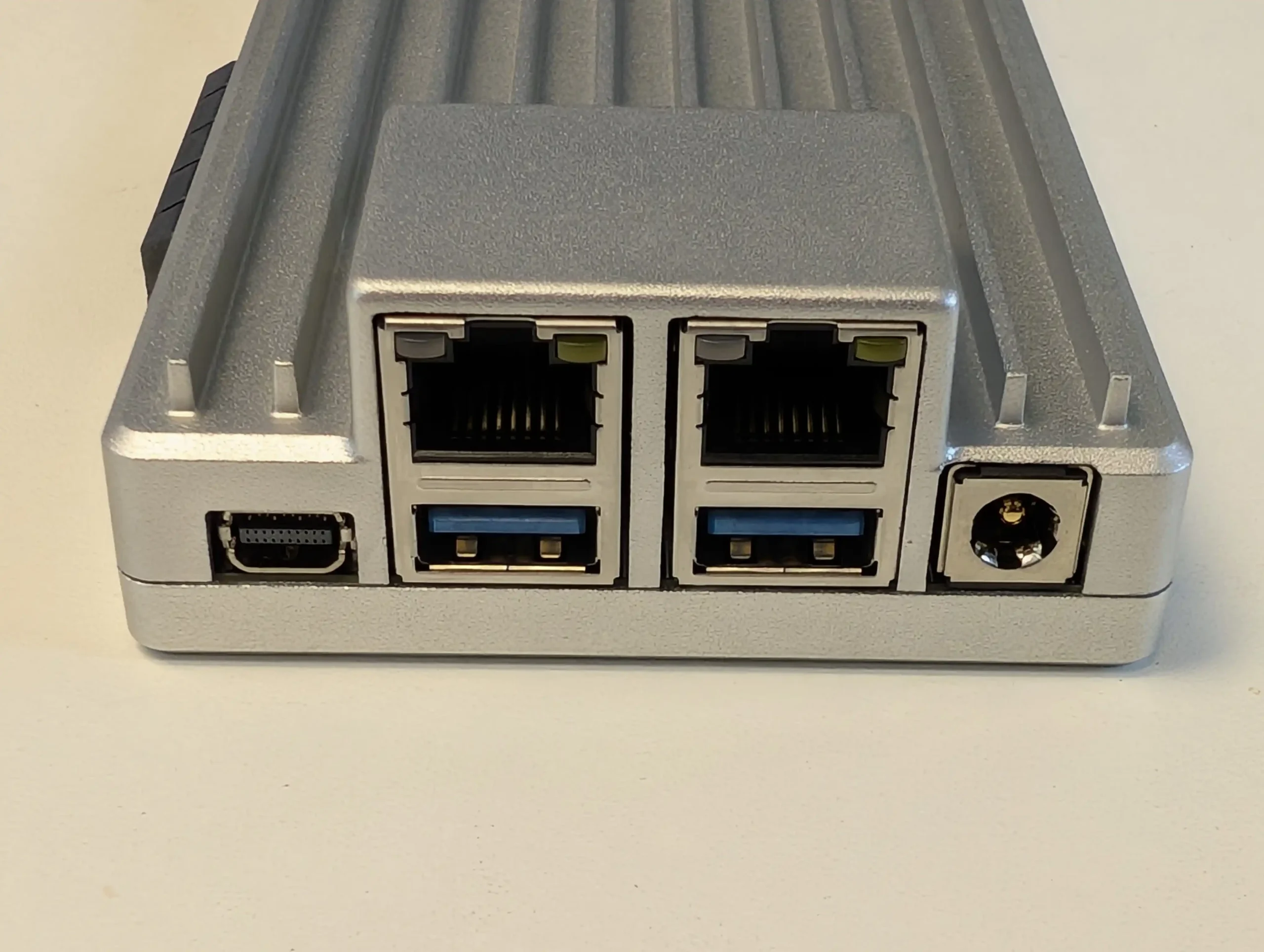
The N5 Max keeps the same broad I/O philosophy as the rest of the N5 family, but with a more aggressive top end specification. On the front, Minisforum lists 1 × USB4 port with DisplayPort Alt Mode 2.0 support and 1 × USB 3.2 Gen 2 port. On the rear, the system is listed with 2 × USB4 v2, 1 × USB 3.2 Gen 2, 1 × USB 2.0, 1 × HDMI 2.1 FRL, and 1 × AC input. There is also still an internal PCIe x16 slot operating at PCIe 4.0 x4, which means the N5 Max continues to support internal expansion in the same general way as the earlier N5 systems.
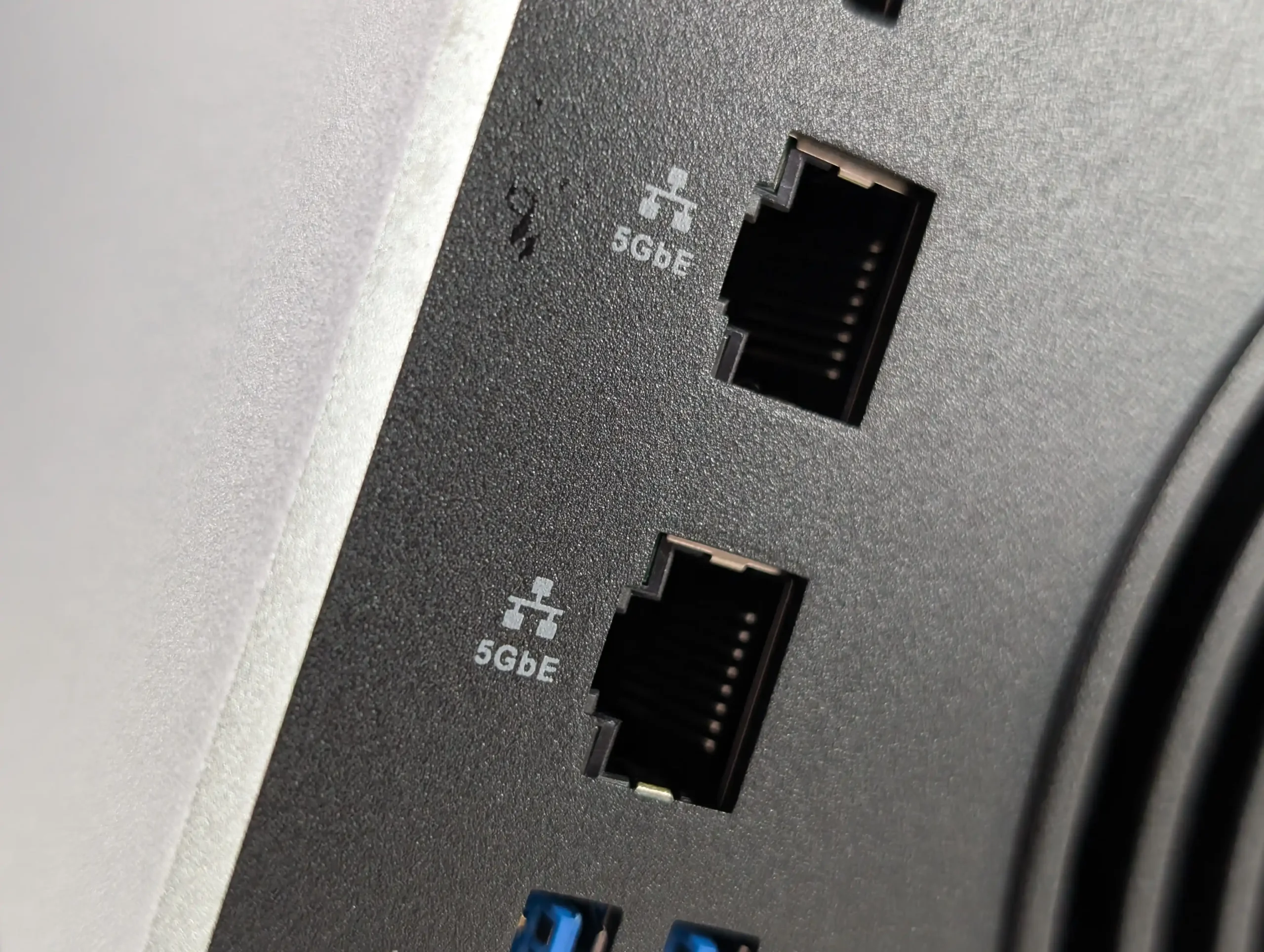
Networking is one of the areas where the April 2026 information has become more specific, but it is also where earlier coverage created some confusion. The latest specification material lists 2 × 10GbE LAN ports using Realtek RTL8127 controllers. That differs from some earlier CES era references that described 1 × 10GbE plus 1 × 5GbE, and it also differs from the N5 Pro and N5 Air, which were generally presented as 10GbE plus 5GbE systems. Based on the most recent material now available, the safest reading is that the N5 Max is currently positioned as a dual 10GbE model, though that was not consistently communicated in the earliest reveal phase.
Display and high speed external bandwidth are also stronger on the N5 Max than on the other N5 variants. Minisforum lists video output support through HDMI and USB4, with the current specification stating up to 8K at 60 Hz or 4K at 144 Hz. More notably, the USB configuration now includes 2 × USB4 v2 connections, which is a substantial increase in external bandwidth compared with standard USB4 implementations. In practical terms, that gives the N5 Max a better fit for high speed external storage, direct attach workflows, fast ingest tasks, and display connectivity, while reinforcing that this system is being pitched as more than just a standard network storage appliance.
What Can You Do with the Minisforum N5 Max NAS
At the most basic level, the N5 Max can still be understood as a compact 5 bay NAS for centralised storage, backup, and multi user file access. With support for up to 150 TB of raw HDD capacity across its SATA bays, plus additional NVMe storage for faster tiers, it can be used for the same core roles as more traditional NAS systems, including shared folders, media libraries, workstation backups, and project archives. The difference is that Minisforum is not presenting it as a storage box first and everything else second. Instead, the current messaging places storage alongside compute and local services as equal parts of the platform.
The second role is as a higher performance working data system for users who need more than simple network storage. The combination of 5 HDD bays, multiple NVMe slots, dual 10GbE, PCIe expansion, and high speed USB4 v2 means the N5 Max is better suited to active workloads than a typical 5 bay desktop NAS. That can include media production, large photo libraries, virtual machine storage, container workloads, active project caching, and heavier multi user access. In that sense, the N5 Max sits closer to a compact storage server or workstation adjacent appliance than to an entry level NAS.
The third and most distinctive role is local AI processing. Minisforum’s March 2026 positioning pushes the N5 Max as a platform for private AI workloads running directly on the device rather than through cloud services. The company has specifically highlighted OpenClaw deployment on local LLMs, semantic photo search, voice to text, summarisation, smart organisation, and a more unified AI assistant style interface inside its software environment. Whether all of those functions arrive in the same form and at the same maturity level at launch remains something that still needs real world validation, but the intended direction is clearly toward keeping both data and AI interactions local.
For more advanced users, the N5 Max is also being framed as a private infrastructure platform rather than only an appliance. Minisforum has attached features such as ZFS, snapshots, virtualization, Docker, UPS support, and stronger permission control to the product direction, which broadens its appeal beyond simple home storage. That means the N5 Max could be used not just for storing files or running AI assisted search, but also for self hosting services, managing recoverable local data pools, running isolated applications, or building a more controlled homelab environment around the same hardware.
Minisforum N5 Max Price & Release Date
As of April 6, 2026, Minisforum still does not appear to have published an official retail price or a confirmed shipping date for the N5 Max. The company’s March 11 announcement described the system as “to-be-launched,” and contemporaneous reporting also noted that pricing and release timing had not yet been announced. That means the N5 Max remains in a pre-release stage from a commercial point of view, even though the hardware platform, software direction, and much of the specification set are now clearer than they were during the original January CES reveal.
What can be said with more confidence is where the N5 Max is likely to sit within the existing Minisforum NAS range. On Minisforum’s current store listings, the N5 Air is shown at $519 sale price on the official store home page, the base N5 is shown at $599, and the N5 Pro is shown at $959, while no live product listing or price is currently visible there for the N5 Max. Given the Ryzen AI Max+ 395 platform, fixed 128 GB LPDDR5x memory, internal 250 W PSU, and broader AI focused positioning, it is reasonable to expect the N5 Max to land above the N5 Pro rather than alongside it, but until Minisforum formally opens orders or publishes a listing, that remains an informed expectation rather than a confirmed launch price.
This description contains links to Amazon. These links will take you to some of the products mentioned in today's content. As an Amazon Associate, I earn from qualifying purchases. Visit the NASCompares Deal Finder to find the best place to buy this device in your region, based on Service, Support and Reputation - Just Search for your NAS Drive in the Box Below
Need Advice on Data Storage from an Expert?
Finally, for free advice about your setup, just leave a message in the comments below here at NASCompares.com and we will get back to you.Need Help?
Where possible (and where appropriate) please provide as much information about your requirements, as then I can arrange the best answer and solution to your needs. Do not worry about your e-mail address being required, it will NOT be used in a mailing list and will NOT be used in any way other than to respond to your enquiry.
[contact-form-7]
TRY CHAT Terms and Conditions
If you like this service, please consider supporting us.
We use affiliate links on the blog allowing NAScompares information and advice service to be free of charge to you.Anything you purchase on the day you click on our links will generate a small commission which isused to run the website. Here is a link for Amazon and B&H.You can also get me a Ko-fi or old school Paypal. Thanks!To find out more about how to support this advice service checkHEREIf you need to fix or configure a NAS, check FiverHave you thought about helping others with your knowledge? Find Instructions Here
Or support us by using our affiliate links on Amazon UK and Amazon US
Alternatively, why not ask me on the ASK NASCompares forum, by clicking the button below. This is a community hub that serves as a place that I can answer your question, chew the fat, share new release information and even get corrections posted. I will always get around to answering ALL queries, but as a one-man operation, I cannot promise speed! So by sharing your query in the ASK NASCompares section below, you can get a better range of solutions and suggestions, alongside my own.
100 Reasons DIY NAS (TrueNAS, UnRAID, Proxmox) are BETTER than Turnkey (Synology/QNAP/etc)
Plenty of people who start with Synology, QNAP or other turnkey NAS boxes will quietly admit that they keep hearing the siren call of DIY platforms like TrueNAS, Unraid, Proxmox, OpenMediaVault and ZimaOS. They see the videos, the benchmarks and the insane builds that squeeze every last drop out of consumer and ex-enterprise hardware. No one is pretending that turnkey systems are not convenient or polished, but more and more users are realising that the raw control, scalability and flexibility you get from rolling your own NAS can be worth the extra effort. In 2025 it is easier than ever to grab a used server, a pile of drives and a USB stick and end up with something that outperforms many branded appliances, both in speed and long term value. So, below are 100 reasons why users decide to jump ship from the safe, curated and sometimes expensive world of turnkey NAS, and instead join the more open, powerful and endlessly customisable world of DIY storage. Some points are very homelab focused, others are about cost and longevity, and some are specific to individual platforms such as TrueNAS ZFS, Unraid parity arrays or Proxmox clustering.
IMPORTANT DISCLAIMER – Different tools suit different tasks! I use both DIY and Turnkey Solutions in my own personal/work data storage environments (as well as a little bit of DAS and even some off site cloud!),. This article is not designed to ‘attack’ or ‘slag off’ one side of the home server market over another! It is to help understand why users might choose one over the other. Not disimilar in some ways to how some people prefer PC gaming vs Console gaming (or even exclusively mobile, though even struggle to wrap my head around that one!).
1. Full control over your hardware
With TrueNAS, Unraid, ZimaOS, Proxmox or OMV you choose everything yourself, from CPU and RAM to motherboard, HBA, NIC, case and power supply. You are not restricted to a small list of approved chassis and expansion units, so you can build around quiet small form factor systems, big tower rigs, or used rack servers depending on your needs and budget.
2. No vendor lock on drives
DIY NAS platforms let you use almost any SATA or SAS drive you like, including shucked external drives and mixed brands. There are no vendor media lists, no compatibility warnings that nag you for using third party disks, and no artificial limits that push you toward expensive branded drives.
3. Advanced file system features
TrueNAS and some other DIY platforms give you direct access to ZFS features such as copy on write integrity, end to end checksums, compression, snapshots, clones and send or receive replication. You can design datasets and snapshot schedules exactly as you want rather than relying on simplified abstractions.
4. Flexible storage layouts and mixed disk sizes
Unraid and ZFS based DIY stacks allow non traditional layouts, with mixed disk sizes, parity only arrays, mirror vdevs, striped vdevs and multiple pools. You can start small and grow over time without following the fixed bay patterns or limited RAID options of many turnkey systems.
5. Deep performance tuning
DIY NAS operating systems usually expose more dials for memory usage, cache behaviour, record sizes, sync policy, queue depths and network stack tuning. Power users can squeeze more throughput or lower latency from the same hardware by testing and adjusting these settings, something appliance firmware often hides.
6. Multi role server in one box
A DIY NAS can be more than just storage. With Proxmox, Unraid, ZimaOS or OMV plus a hypervisor you can run VMs, containers, network services and lab workloads on the same system. This suits homelab users who want their storage server to double as a general purpose compute node.
7. Better use of high end or unusual components
If you invest in many core CPUs, large amounts of RAM, enterprise NVMe or special purpose HBAs, DIY platforms can take full advantage of them. You are not limited by a turnkey vendor firmware that assumes mid range hardware and sometimes underuses powerful components.
8. Lower cost at large scale
Once you move beyond a handful of bays, appliance NAS pricing climbs quickly. Building a DIY NAS with commodity parts or refurbished enterprise gear often gives you a much lower cost per bay and a cheaper upgrade path over five to ten years, especially for media servers and backup targets.
9. Reuse of existing hardware
Many people already have a spare gaming PC, workstation or decommissioned server. DIY NAS software lets you repurpose that hardware rather than buying a completely new appliance. You can then gradually replace parts over time without throwing the whole system away.
10. Independence from vendor roadmaps
With TrueNAS, Unraid, Proxmox or OMV you are not tied to one company product line or release schedule. If a vendor drops a feature, changes licensing, or stops making a class of device, your DIY stack keeps going and you can add or swap components as you see fit.
11. Open source transparency and auditability
Many DIY NAS platforms are open source or based on open distributions. You can inspect the code, follow public issue trackers, and see exactly how data path and management components behave. For organisations with strong security requirements this transparency can be more attractive than opaque appliance firmware.
12. Rich community plugin and container ecosystem
TrueNAS, Unraid, Proxmox and OMV all have active communities that publish templates, stacks and guides for a huge range of self hosted services. New applications usually appear first as containers or community charts, so you can experiment with cutting edge projects long before they arrive in any vendor app store.
13. Clean integration with existing homelab tools
If you already use tools such as Ansible, Terraform, Salt, Proxmox clusters, or Kubernetes, a DIY NAS fits into that world more naturally. It behaves like another Linux or BSD server, so you can reuse automation, monitoring, and configuration patterns that you already trust.
14. Freedom from feature based licensing
DIY platforms generally do not charge extra for adding more cameras, shares, users or applications. If your hardware can handle twenty containers or twenty camera streams, you can run them without buying more licences. That is very different from some turnkey systems where extra features are tightly controlled.
15. Strong privacy control and no enforced cloud accounts
TrueNAS, Unraid, ZimaOS, Proxmox and OMV can all run fully local with no requirement to create cloud accounts or sign in to a vendor portal. You choose if you want remote access and which VPN or reverse proxy you trust, so it is easier to keep storage isolated from external services.
16. Powerful scripting and automation options
Because DIY NAS software sits on standard Linux or BSD layers, you can use cron, systemd timers, full shell scripting and language runtimes such as Python or Go. Backup pipelines, integrity checks, archiving rules and housekeeping tasks can be scripted exactly as you need them.
17. Better fit for larger and denser builds
If you want twenty four, thirty six or more bays, DIY approaches scale more smoothly. You can use dedicated JBOD shelves, fibre or SAS expanders, and multiple HBAs, with TrueNAS or Proxmox managing pools across them. Many consumer appliances run out of official options long before that point.
18. Easier experimentation with new technologies
DIY platforms are ideal for lab work with new storage ideas, for example experimental ZFS features, new compression algorithms, alternative filesystems or clustered storage layers such as Ceph and Gluster. You can try these on real hardware without waiting for a turnkey vendor to embrace them.
19. Ability to virtualise the NAS itself
A DIY NAS stack can sit inside a virtual machine on top of Proxmox, VMware or another hypervisor. That makes it easier to move the entire storage system between hosts, snapshot the system disk, test upgrades in clones, or run multiple separate NAS instances on the same physical hardware.
21. Alignment with strict open source or compliance policies
Some companies and institutions prefer or require that core infrastructure runs on software with open licensing and source availability. DIY NAS stacks based on standard Linux or BSD distributions make it easier to satisfy those policies than closed vendor operating systems.
22. Efficient use of decommissioned enterprise hardware
The secondary market is full of cheap rack servers, HBAs and SAS shelves that are no longer wanted in data centres but are perfect for home or small business storage. TrueNAS, Proxmox and OMV can run happily on this hardware and give you enterprise level resilience for a fraction of the original cost.
23. Custom network roles on the same machine
A DIY NAS can also act as router, firewall, VPN concentrator or reverse proxy if you want to consolidate equipment. Proxmox or Unraid can host a firewall VM, DNS resolver and other network tools right next to your storage, which is not how most turnkey NAS devices are designed to be used.
24. Fine grained control of encryption and keys
DIY platforms usually let you decide exactly how encryption is applied, how keys are stored, how passphrases are entered and how this interacts with snapshots and replication. You can integrate with external key managers or strict manual processes rather than using a one size fits all wizard.
25. Easier avoidance of telemetry and phone home behaviour
If you want a storage stack that never connects to any remote service unless you deliberately configure it, DIY software is easier to keep quiet. You can review services, outgoing connections and packages yourself, instead of relying on a vendor to document what their appliance firmware does.
26. Flexible data retention and tiering schemes
Because you control the hierarchy of datasets, shares and pools, you can implement very detailed retention rules and archiving flows. Cold data can move to slower and cheaper disks, hot data can live on SSD pools, and you can enforce lifecycles with your own scripts instead of fixed vendor policies.
27. Shared skillset across storage and compute
When your storage servers and application servers all run similar bases, for example Debian or FreeBSD, the same administration knowledge applies everywhere. Teams do not need to learn a unique vendor interface for one box and a completely different approach for the rest of the estate.
28. Support for niche and emerging services
DIY NAS ecosystems often adopt new projects quickly, whether that is a young media server, a fresh photo tool, or an unusual database. Community templates for Unraid or Proxmox arrive much faster than official packages on proprietary platforms, so you can explore niche services early.
29. Long term reuse of hardware for other roles
If your storage needs change, a DIY NAS box can become a general server, a lab hypervisor or a test bench machine simply by reinstalling or repurposing the disks. You are not stuck with a chassis that only really makes sense as a proprietary NAS.
30. Lean installations without extra bloat
DIY stacks can be installed in a minimal way with only the services you actually need. There is no requirement to run vendor photo portals, cloud connectors or bundled office tools if you do not want them, which keeps resource use low and reduces the attack surface.
31. Granular control over updates and versions
DIY NAS platforms usually let you decide exactly when to update the core system, plugins and containers. You can hold a known good version for months, run a newer kernel only on a test VM, or pin specific containers while the rest of the stack moves forward, instead of accepting a single vendor update cadence across everything.
32. Ability to run several NAS platforms on one machine
With Proxmox or similar hypervisors you can run TrueNAS in one VM, Unraid in another and maybe a plain Linux storage stack beside them, all on the same hardware. This lets you compare platforms, migrate gradually or dedicate different virtual NAS instances to different clients without buying multiple appliances.
33. Deep visibility for troubleshooting and performance analysis
DIY systems expose full system logs, kernel messages, packet captures and low level profiling tools. When you hit a strange performance issue or network glitch you can drill right down into iostat, tcpdump or perf, rather than relying only on a high level vendor dashboard that may not reveal the root cause.
34. Configuration managed like code in Git
Because most DIY NAS configurations live in text or structured files, you can store them in Git, review changes, roll back to older commits and clone the same setup onto another node. This aligns your storage servers with modern configuration management practices instead of keeping all changes on a single vendor GUI.
35. Option to extend or maintain abandoned components
If a plugin, driver or feature you rely on is dropped by its original maintainer, an open DIY stack at least gives you the option to fork and maintain it or hire someone to do so. With a closed appliance firmware, once the vendor removes or changes a feature you generally have no way to bring it back.
36. Freedom to fully rebrand or white label
Service providers that build solutions for clients can install TrueNAS, Proxmox or OMV on standard hardware and theme the interfaces, hostnames and portals to match their own brand. There is no prominent third party logo on the front of the GUI, which is often preferable when you are selling a complete solution.
37. Direct choice of monitoring and alerting stack
DIY NAS servers can run native agents for Prometheus, Zabbix, Checkmk, commercial monitoring suites and whatever log pipeline you already use. You do not have to rely on a vendor specific cloud portal or proprietary alert format, so storage monitoring fits seamlessly into the rest of your infrastructure.
38. Support for unusual hardware form factors
Because you can install DIY NAS software on almost anything that runs a suitable kernel, it is easier to use very compact systems, blade servers, dense JBOD trays or custom builds that no turnkey NAS vendor offers. This flexibility is valuable when you have physical constraints or leftover hardware that does not match appliance shapes.
39. Full control over repositories and software sources
On a DIY stack you decide which package repositories are trusted, whether you mirror them locally and which versions are allowed. This is useful in secure environments that need all software to come from internal mirrors and want to block any unapproved external package feeds.
40. Faster access to new kernel and protocol features
New SMB or NFS versions, fresh filesystems, driver updates and network features typically land on general purpose Linux or BSD first. DIY platforms that stay close to upstream can adopt these improvements long before a NAS vendor ships them in a future firmware for a specific appliance.
41. Stronger learning value and career skills
Running TrueNAS, Unraid, Proxmox or OMV teaches real storage, networking and operating system concepts. Many homelab users treat their DIY NAS as a training ground, and the knowledge they gain with ZFS, KVM, Docker and Linux often translates directly into professional roles in IT and DevOps.
42. Better use of GPUs and accelerators
DIY NAS systems can use almost any supported GPU or accelerator card for tasks such as Plex transcoding, AI workloads, video processing or scientific computing. You can pass devices through to VMs or containers and tune them as you like, instead of being restricted to a short list of vendor approved cards.
43. True multi tenant storage on a single chassis
With Proxmox or other hypervisors you can run several separate NAS VMs for different customers or departments on one physical box, each with its own web UI, users and policies. This multi tenant approach is attractive for managed service providers and is harder to implement cleanly on a single turnkey NAS.
44. Custom identity and multifactor authentication integration
DIY NAS environments can tie directly into whatever identity stack you prefer, from simple LDAP through to complex single sign on with custom multifactor rules. You can adopt advanced access controls or experiment with new identity providers without waiting for a NAS vendor to support them.
45. Alignment with strict internal security tooling
Organisations that already use SELinux, AppArmor, central audit frameworks or host based intrusion detection can apply the same policies to DIY storage nodes. A TrueNAS or Proxmox box that runs on a standard distribution can join existing security baselines, which is much harder with proprietary NAS firmware.
46. Support for exotic and high performance networking
DIY NAS stacks can use specialist network cards such as Infiniband, RoCE capable adapters or unusual fibre interfaces as long as the drivers exist. This allows you to experiment with very high throughput or low latency technologies that are rarely supported on commodity appliance NAS hardware.
47. Custom backup and replication pipelines
With tools like ZFS send and receive, rclone, Restic or Borg you can build very specific backup and replication flows. You can script encryption, throttling, snapshot selection and multiple targets in a way that fits your environment instead of being limited to the fixed policies of one vendor backup tool.
48. Colocation friendly and data center ready
DIY NAS builds can follow data center norms such as using standard rack servers, redundant power supplies, remote management controllers and IPv6 heavy networks. Colocation providers expect this type of hardware, and DIY software lets your storage blend into a standard server fleet rather than being an odd office appliance.
49. Fine grained admin delegation at operating system level
On a DIY NAS you can use normal user, group and sudo rules with SSH keys to control who can run which commands. One person can manage pools, another can manage virtual machines, another can handle monitoring agents, all with precise restrictions that go beyond the coarse admin or user split of many appliances.
50. Integration with dynamic energy and solar setups
Because DIY NAS software can talk to external APIs and home automation systems, you can schedule heavy tasks such as scrubs, backups or transcoding to run when solar output is high or electricity tariffs are low. This kind of energy aware behaviour is difficult to achieve with fixed vendor power schedules.
51. Deep home automation and MQTT integration
DIY storage nodes can publish events into MQTT, Node Red or Home Assistant whenever backups finish, disks fail or space runs low, and can also respond to automation signals from the rest of the house. This lets your NAS participate in a wider automation fabric rather than living as an isolated appliance.
52. Use of enterprise secrets management for keys and passwords
DIY NAS servers can fetch encryption keys, passwords and API tokens from systems such as HashiCorp Vault or other corporate secret stores. That allows central management and rotation of sensitive data instead of keeping secrets inside a proprietary NAS configuration database.
53. Network boot and golden image strategies
You can build a standard disk image or network boot environment for your DIY NAS with all tooling and configuration baked in. If the system disk fails or you want to spin up a second node, you simply redeploy the image and reattach the existing storage pools, which is a very different model from appliance firmware.
54. Validation of changes through continuous integration
When configuration lives in files managed in Git, you can run linting and simulation jobs in a CI pipeline before applying changes to your DIY NAS servers. This allows you to catch syntax errors or bad parameters automatically, which is impossible when all edits happen only through a click driven vendor interface.
55. Custom user interfaces and portals on top of APIs
DIY stacks expose command line tools and often REST APIs that allow you to build your own lightweight dashboards for particular users or teams. You can present a simplified view for media editors, a different one for backup operators, and keep the full complexity of the base system hidden in the background.
56. Tailored localisation and language choices
If the default language or terminology of the platform does not suit your users, you can adjust translation files or web templates on a DIY system. Community contributions in minority languages are also easier to ship and maintain than on a closed vendor NAS where only official translations exist.
57. Customised drive qualification and burn in workflows
You can design a strict process for testing new disks, for example running multi day read and write passes, specific SMART tests and temperature checks before a drive ever joins a pool. Scripts and reports can enforce this burn in policy across all your DIY NAS nodes, something turnkey platforms rarely expose in detail.
58. Robust behaviour in extreme or niche environments
In vehicles, ships, remote cabins or unstable power conditions you may need unusual behaviours such as aggressive throttling at certain temperatures, logging to serial consoles or special shutdown routines. DIY software gives you the hooks to script and tune these reactions in ways that appliance firmware does not anticipate.
59. Clean integration with formal change management processes
Organisations with strict change control can insist that all NAS configuration changes arrive through reviewed pull requests and automated deployment tools. A DIY NAS whose configuration is driven by code fits smoothly into this world, whereas an appliance managed only through a browser is harder to audit and control.
60. Easy experimentation with clustered storage technologies
If you want to explore scale out storage such as Ceph, Gluster or other distributed systems, DIY hardware and open platforms are the most practical route. You can repurpose existing nodes into a cluster, test resilience and performance characteristics, and later reuse those machines for other lab work if requirements change.
61. Easier long term data salvage and portability
With DIY platforms such as TrueNAS, Unraid, ZimaOS, Proxmox and OMV, the on disk formats and pool layouts are widely documented and used in many contexts. If a motherboard dies in several years, you can move the disks to new hardware, reinstall the same software and import the pools, instead of hunting for an identical appliance or vendor recovery tool.
62. Broader protocol support and deeper tuning
DIY NAS software lets you expose storage over SMB, NFS, iSCSI, rsync modules, sometimes NVMe over TCP and more, with detailed control of versions, encryption, timeouts and caching. You can tune each protocol for a specific workload instead of accepting whatever subset and presets a turnkey vendor offers.
63. Custom hooks on file and dataset operations
Because you control the base system, you can attach your own scripts when files are written, moved or deleted in particular locations. That allows automatic virus scanning, metadata extraction, indexing, transcoding or business workflows that trigger whenever content changes, rather than relying only on built in features.
64. Comfortable operation with serial console and no local screen
DIY NAS platforms are happy on machines that have only serial console or out of band management with no HDMI or local keyboard. This matches how many server rooms and colocation racks actually work and lets you manage storage over low bandwidth links without any graphical tools if needed.
65. More compression and deduplication options per dataset
ZFS based DIY systems allow you to choose different compression algorithms and record sizes per dataset and to enable or disable deduplication only where it makes sense. You can optimise for databases, media archives or virtual machines individually rather than living with a single vendor setting for an entire volume.
66. Clear separation of storage and management planes
On a DIY NAS you can keep the storage node lean and run most of the management logic on other servers through SSH, APIs or orchestration tools. The storage device can behave as a focused data plane while the control plane lives elsewhere, which is attractive in environments that want very thin appliances.
67. Community culture that embraces experimentation
The forums and communities around TrueNAS, Unraid, Proxmox and OMV are full of people who enjoy deep technical dives, benchmarks and off label use cases. For homelab users and engineers that culture can feel more welcoming than vendor moderated communities that discourage unsupported combinations.
68. Reuse of one reference design across home, lab and office
Once you settle on a particular DIY stack and layout, you can repeat the same design at home, at work and in test environments with only minor changes. Automation scripts, monitoring templates and backup strategies can be shared almost unchanged between all these machines.
69. Neutral target for testing third party backup strategies
A DIY NAS can act as a neutral storage target for many different backup products and appliances from other vendors. You can point various commercial systems at the same TrueNAS or Proxmox storage, then compare how they behave for restore, versioning and verification, something that is harder when your main storage is itself a fixed vendor appliance.
70. No hard limits on shares, datasets or exports
DIY platforms rarely impose artificial limits on the number of datasets, snapshots, exports or shares you can create. As long as the underlying system can handle it, you can build very granular layouts for different teams, applications and projects without hitting a model based cap.
71. Better fit for reproducible research environments
In academic or scientific work, it is often important that another team can rebuild the same stack years later. A DIY NAS with configuration stored in code and based on standard distributions can be recreated on any suitable hardware, which supports reproducible experiments and shared lab setups.
72. Combination of storage and high performance computing
In some labs and studios the same physical machines are used both for heavy compute work and for fast local storage. DIY NAS software can happily coexist with HPC toolchains and schedulers on the same hardware, allowing you to run compute workloads close to the data without separate appliances.
73. Precise control of time and clock integration
DIY platforms give full access to NTP, Precision Time Protocol and kernel timing controls. For environments where consistent timing is critical, such as finance, measurement systems or some industrial setups, the storage node can participate in the same strict time hierarchy as the rest of the infrastructure.
74. Better support for unusual backup and archival devices
If you need to attach tape libraries, optical jukeboxes or rare archival devices, a DIY NAS running a general purpose operating system is more likely to support them. You can install the required drivers and tools for these devices rather than waiting for a turnkey vendor to recognise them.
75. Ideal for storage that is a pure backend service
Some administrators want their storage nodes to be invisible to end users and to present only block or file protocols to other systems. DIY NAS installations can be trimmed down to offer only SMB, NFS, iSCSI or object storage with no media portals or user apps, which suits this backend only role very well.
76. Flexible data transformation and ingestion pipelines
Because you can run whatever tools and containers you like, a DIY NAS can also host data transformation jobs. For example, you can receive raw data, clean it, compress it, encrypt it and then push it to cloud storage or another site, all driven by your own scripts and schedules.
77. Reduced reliance on any single vendor decision
With DIY platforms you are not waiting for one company to decide which media codecs, hardware accelerators or remote access features are allowed. If a particular vendor chooses a direction you dislike, you can still adopt the tools and configurations that suit you within your own stack.
78. No forced hardware replacement at support end dates
When a commercial NAS model reaches the vendor end of support, users are often encouraged to buy a new box even if the hardware is still reliable. With DIY storage you can keep updating the operating system on the same machine for as long as the components remain healthy, decoupling software support from hardware marketing cycles.
79. Good fit for very lean remote management
In remote or bandwidth constrained locations, being able to manage the NAS entirely with text tools and small configuration files is valuable. DIY platforms let you perform upgrades, configuration changes and even troubleshooting over slow links without relying on heavy web interfaces.
80. Custom quality of service tied to processes and containers
On DIY systems you can use native resource controllers to limit bandwidth, CPU time or IOPS per container, process group or user. This makes it possible to enforce complex quality of service rules that prioritise critical workloads while still allowing experimental services to run in the background.
81. Strong separation between data layout and hardware chassis
With pools and datasets defined at the software level, you can move storage from one chassis to another or rebalance between servers without changing how applications see their paths. This separation makes it easier to evolve the physical layer over time while keeping logical layout stable.
82. Use as a standard test bench for vendor devices
A DIY NAS environment can act as a standard reference platform when you test routers, backup appliances or other network gear. Because it is not tied to one brand, it is easier to observe how third party devices behave when they read and write to a known stable storage backend.
83. Ability to layer multiple security models
DIY stacks allow you to combine filesystem permissions, network firewalls, container isolation, mandatory access control frameworks and external identity providers in creative ways. You are not limited to the single security model that a turnkey NAS interface exposes, which allows more nuanced defence in depth.
84. Fine control over logging and audit detail
You can configure exactly what is logged, where logs are stored and how long they are kept, from kernel messages to application events. Logs can be shipped to central collectors in formats that match your existing observability stack, making compliance and forensic analysis simpler.
85. Tailored behaviour for backup and disaster drills
DIY platforms can be wired into automated disaster simulations, where systems are repeatedly torn down and rebuilt to prove that recovery works. Storage configurations can be recreated from code, pools imported and test data restored on a schedule, instead of relying on manual wizard driven tests.
86. Ability to swap out components in the software stack over time
Over the lifetime of a DIY NAS, you can replace almost every layer: change the init system, switch to a different web interface, adopt a new container engine or even move from one DIY distribution to another while keeping the same pools. This modularity keeps the platform adaptable as tastes and technology change.
87. Better fit for organisations that avoid proprietary formats
Some organisations have policies against storing important data in formats that depend on closed code or single vendor tools. DIY NAS solutions using standard filesystems and open source utilities are easier to justify under these rules than appliances that use proprietary volume managers and configuration stores.
88. Helpful for education and training labs
Training providers and universities can deploy DIY NAS stacks inside virtual environments so that students can break, repair and rebuild storage systems without touching production gear. The same images can be reset between classes, giving learners realistic hands on experience at low cost.
89. Capacity to follow very specific legal or regulatory rules
In some jurisdictions or industries, unusual requirements appear, such as special retention schedules, local encryption standards or niche logging rules. DIY NAS environments can be scripted to satisfy these specific requirements even when no turnkey NAS vendor has considered them.
90. Natural choice when mixing many self hosted applications
If you already run a wide range of self hosted tools in containers or VMs, adding storage duties to that world with DIY software keeps everything consistent. The NAS simply becomes another service in the same orchestration fabric rather than a separate product with its own way of doing things.
91. Easier experimentation with new network filesystems
When new network filesystem projects appear, such as experimental user space protocols or research systems, they nearly always target Linux and BSD first. A DIY NAS gives you a platform to test these technologies for specific problems, long before any commercial vendor would consider supporting them.
92. Ability to enforce very conservative update policies
Some organisations prefer to update only once or twice a year after extensive internal testing. DIY NAS stacks allow you to freeze versions and postpone upgrades until you have validated them, instead of accepting automatic firmware updates that may change behaviour on the vendor schedule.
93. Better suitability for mixed licence environments
If you already pay for certain commercial tools but want the storage layer to stay licence free, DIY approaches give you that mix. You can run proprietary database or backup software while keeping the underlying storage platform open and under your control.
94. Simple way to expose standard development environments next to data
With Proxmox or similar platforms you can spin up development VMs or containers right next to the storage that holds source code and artefacts. Developers can work close to large repositories and test data without hauling everything over the network, using the NAS as both storage and dev host.
95. Easier to integrate with custom dashboards and reporting systems
Because DIY NAS boxes export metrics in standard ways or can run your own collectors, it is straightforward to feed storage statistics into company specific dashboards and reports. You can show exactly the charts and summaries that matter for your audience instead of relying on whatever reporting screens a vendor includes.
96. Straightforward reuse of disks in other systems if needed
If your plans change, you can remove disks from a DIY NAS, wipe or repurpose them in other servers without dealing with vendor specific metadata or compatibility warnings. The drives are just drives, not part of an opaque appliance ecosystem that expects to keep them forever.
97. Good platform for testing security tools and hardening guides
A DIY NAS can serve as a lab for experimenting with new security scanners, vulnerability assessment tools and hardening recommendations before you roll them out to production servers. You can observe how these changes affect a real storage workload and adjust accordingly.
98. Realistic environment for practising incident response
Because you control every part of the stack, you can simulate failures, intrusions or misconfigurations on a DIY NAS and then practise your incident response procedure. This kind of training is harder with commercial appliances where you cannot fully control or inspect all layers.
99. Freedom to keep legacy protocols alive while you migrate
In some environments you still need to support older protocols for a while, for example legacy SMB dialects or older NFS versions. DIY NAS systems let you keep these services available during migration while still offering modern protocols to new clients, with careful isolation where needed.
100. Serves as a long lived foundation independent of brand trends
Vendors come and go, change direction or pivot to new markets, but the core technologies behind DIY NAS platforms have existed for decades and are used in many places beyond home storage. Building on that foundation means your data and workflows are less tied to the fashion of any particular hardware brand.
This description contains links to Amazon. These links will take you to some of the products mentioned in today's content. As an Amazon Associate, I earn from qualifying purchases. Visit the NASCompares Deal Finder to find the best place to buy this device in your region, based on Service, Support and Reputation - Just Search for your NAS Drive in the Box Below
Need Advice on Data Storage from an Expert?
Finally, for free advice about your setup, just leave a message in the comments below here at NASCompares.com and we will get back to you.Need Help?
Where possible (and where appropriate) please provide as much information about your requirements, as then I can arrange the best answer and solution to your needs. Do not worry about your e-mail address being required, it will NOT be used in a mailing list and will NOT be used in any way other than to respond to your enquiry.
[contact-form-7]
TRY CHAT Terms and Conditions
If you like this service, please consider supporting us.
We use affiliate links on the blog allowing NAScompares information and advice service to be free of charge to you.Anything you purchase on the day you click on our links will generate a small commission which isused to run the website. Here is a link for Amazon and B&H.You can also get me a Ko-fi or old school Paypal. Thanks!To find out more about how to support this advice service checkHEREIf you need to fix or configure a NAS, check FiverHave you thought about helping others with your knowledge? Find Instructions Here
Or support us by using our affiliate links on Amazon UK and Amazon US
Alternatively, why not ask me on the ASK NASCompares forum, by clicking the button below. This is a community hub that serves as a place that I can answer your question, chew the fat, share new release information and even get corrections posted. I will always get around to answering ALL queries, but as a one-man operation, I cannot promise speed! So by sharing your query in the ASK NASCompares section below, you can get a better range of solutions and suggestions, alongside my own.
100 Reasons Turnkey (Synology/QNAP/etc) are BETTER than DIY NAS (TrueNAS, UnRAID, Proxmox)
I think most users who use out-the-box NAS solutions (also known commonly as ‘turnkey‘) will admit that, although they hear alot of good things about TrueNAS and UnRAID (as well as Proxmox, OMV and ZimaOS) – there are plenty of reasons why they have not jumped ship from their Synology or QNAP yet. No one can argue that the low resource and flexibility of UnRAID, or the power and scalability of TrueNAS is not absolutely incredible – but all to often people can forget the convenience and ease of turnkey solutions – and why in 2025 that can be as appealing to us as it was back in the early 2000s, when solutions like these first appeared at retail! So, below are 100 reasons why users choose to pick and/or stay in the safe (if more expensive!) world of turnkey NAS! Some reasons are more business-focused, some more about ease of use, and others are actually more NAS brand specific (eg QNAP Qtier, Synology Active Backup, Terramaster TRAID, etc)
IMPORTANT DISCLAIMER – Different tools suit different tasks! I use both DIY and Turnkey Solutions in my own personal/work data storage environments (as well as a little bit of DAS and even some off site cloud!),. This article is not designed to ‘attack’ or ‘slag off’ one side of the home server market over another! It is to help understand why users might choose one over the other. Not disimilar in some ways to how some people prefer PC gaming vs Console gaming (or even exclusively mobile, though even struggle to wrap my head around that one!).
1. Simplified setup and onboarding
Vendor NAS software is typically ready out of the box with first run wizards, auto detection of drives, RAID suggestions and basic services pre enabled. Many users can reach a working file server or backup target in minutes without learning storage concepts in depth.
2. Unified interface across features
DSM, QTS, ADM, TOS, UGOS and UniFi Drive present storage, users, apps, snapshots, virtualisation and monitoring through one consistent GUI. In DIY platforms you often jump between different web apps, plugins or containers that each have their own interface and logic.
3. Opinionated defaults that reduce mistakes
Turnkey systems are designed around the most common small business and home use cases. They pre select file systems, background scrubs, SMART checks, scheduled snapshots and appropriate permissions. This reduces the risk of badly configured ZFS or array settings that can happen in DIY setups.
4. Integrated backup and sync ecosystem
Vendor NAS platforms usually bundle full backup suites for PCs, Macs, mobile devices, cloud sync and cross NAS replication, all controlled from one place. With DIY stacks you often assemble this from several separate tools such as Rsync, Restic, Duplicati, Hyper Backup style containers or custom scripts.
5. Official mobile and desktop apps
Synology, QNAP, Asustor, TerraMaster, UGREEN and UniFi all ship their own photo, video, music, file sync and admin apps for iOS, Android and desktop. Non technical users often rely on these instead of SMB, NFS or web portals. DIY platforms usually depend more on generic clients or community apps.
6. Vendor support and warranty alignment
When hardware and software come from the same company there is a single point of contact for troubleshooting, RMA and firmware issues. With DIY builds the user is responsible for diagnosing whether a problem is with the OS, the controller, the drives or their chosen container stack.
7. App stores and curated packages
Turnkey NAS operating systems provide an integrated app center with prebuilt and tested packages for Plex, Docker, databases, surveillance, office suites and more. Users avoid manual container creation or plugin hunting, and updates are delivered through the same update mechanism as the core OS.
8. Lower ongoing maintenance burden
Automatic OS updates, package updates, smart notifications and storage health checks are designed for people who do not want to maintain a homelab. DIY deployments like TrueNAS and UnRAID can be very stable but usually expect the admin to read changelogs, test new releases and manage hardware firmware themselves.
9. Polished UX for non technical family or staff
Many people want something they can hand to family members or colleagues without explaining datasets, pools or parity models. Vendor systems focus on friendly media apps, easy sharing links, simple user management and straightforward access control, which is less intimidating than more technical dashboards.
10. Purpose built hardware integration
Turnkey NAS software is tuned for the vendor chassis, CPU choices, fan curves, drive bays, expansion units and sometimes their own drives or NICs. This allows better power management, quieter cooling profiles and predictable performance under typical loads, whereas DIY setups sometimes require manual tweaking or custom scripts to reach the same level of integration.
11. Built in remote access services
Synology QuickConnect, QNAP myQNAPcloud, UGREEN remote access and UniFi cloud portals give relatively easy ways to reach the NAS from outside the home, with wizards for SSL certificates and relay or reverse proxy configuration. DIY solutions usually need separate VPN, reverse proxy or dynamic DNS setup, which can be a hurdle for less technical users.
12. Integrated surveillance and NVR features
Most turnkey NAS platforms bundle full camera management suites with motion detection, licensing, event timelines and mobile notification support. With DIY systems this often means combining separate containers or services and manually wiring storage, permissions and recording schedules together.
13. Smooth firmware and OS integration
Drive sleep, fan curves, thermal limits, UPS signals, LCD panels and front panel buttons are all tuned and tested by the vendor. This reduces strange edge cases such as fans stuck at full speed or drives not sleeping, which are more common when an OS is deployed on random DIY hardware.
14. Better experience for small offices and non technical teams
Turnkey NAS software is designed so that a small office without an IT department can manage users, quotas, shared folders, cloud sync and snapshots through a predictable interface. DIY stacks often assume there is a homelab style admin who is comfortable with shell access and manual recovery steps.
15. Pre integrated ecosystem services
Vendors often provide their own office suite, chat server, calendar, mail, photo and video applications that are aware of each other permissions and storage locations. Doing the same on a DIY system usually involves picking and integrating separate open source projects, each with its own user database and update cycle.
16. Clearer disaster recovery workflows
Many turnkey systems have guided workflows for replacing failed disks, expanding RAID, restoring from snapshots and recovering from another NAS or a cloud backup. DIY platforms are powerful here but often present more technical terminology and expect the admin to understand pool state, resilvering and dataset recovery in more detail.
17. Certification and ecosystem support
Synology, QNAP, Asustor and others often have official compatibility lists, certifications with backup vendors, hypervisors and camera brands, plus documentation that assumes their OS. This helps businesses that need a supported environment, rather than a custom stack that vendors may refuse to certify.
18. Predictable update cadence
Appliance style NAS software usually follows a documented release track, with security updates and feature releases pushed through a single updater. DIY NAS users often juggle OS upgrades, plugin or container updates and sometimes driver or kernel updates, which increases the risk of something breaking.
19. Lower learning curve for occasional admins
Some people only touch their NAS settings a few times per year. Turnkey software favours obvious icons, wizards and consistent terminology that are easier to come back to after a long gap. DIY environments frequently reward continuous familiarity and can feel opaque if you only log in when something has gone wrong.
20. Perceived professionalism and vendor reputation
For small businesses or freelance professionals, buying a branded NAS with an integrated OS feels closer to buying a finished appliance such as a router or firewall. This can inspire more confidence than a home built box with a community OS, even if the DIY system is technically superior, which influences purchasing decisions in many cases.
21. Built in cloud service integration
Turnkey NAS systems tend to ship with first party or curated apps for major cloud platforms such as Microsoft 365, Google Workspace, Dropbox and S3 compatible services. The wizards handle credentials, scheduling and throttling, so users do not need to wire up separate containers or command line tools for each provider.
22. Clear licensing and feature tiers
Commercial NAS platforms usually define which features are free, which require extra licenses such as camera channels or mail server and which are part of business tiers. DIY solutions often involve a mix of open source projects with different licenses plus optional paid plugins, which can be harder for a small business to audit.
23. Centralised security controls
Security options such as two factor authentication, account lockout rules, firewall profiles, certificate management and brute force protection are normally surfaced in one place in turnkey NAS software. On DIY stacks these controls may live separately in the operating system, reverse proxy, containers and hypervisor.
24. Extensive official documentation and training material
Vendors publish step by step guides, video tutorials and certification style training that assume their software stack. This makes it easier for junior staff or generalists to learn the system compared with assembling knowledge from multiple communities and wikis for a custom DIY setup.
25. Easier compliance reporting
For organisations that need to satisfy basic compliance such as audit trails, retention rules or off site backups, vendor NAS platforms often include reporting tools, logs and checklists that map to common requirements. With DIY environments the admin usually has to prove and document these controls manually.
26. More predictable multi site deployments
If several offices all use the same NAS brand, the admin can reuse the same playbook for remote management, replication, user templates and monitoring. DIY deployments may vary more in hardware and configuration between locations, which complicates support.
27. Lower barrier for third party support
External IT providers and managed service companies are more likely to have experience with popular turnkey NAS brands and their operating systems. That makes it easier to hand off support or get short term help, compared with a custom server running a niche or heavily customised DIY stack.
28. Consistent user experience during upgrades
When upgrading from an older appliance to a newer one from the same vendor, the interface, migration tools and storage layout are usually similar. This reduces retraining and migration complexity, while a move between different DIY platforms or versions can feel more like a full redesign.
29. Smaller risk of silent misconfiguration
Turnkey NAS software often validates settings and warns if you choose insecure or unsupported combinations, for example exposing services directly without encryption or mixing unusual RAID and cache arrangements. DIY tools frequently assume the admin knows the implications and allow more dangerous combinations without warning.
30. Better fit for plug and forget scenarios
Many users and small businesses want a storage appliance that they configure once, then largely ignore apart from occasional updates. Vendor NAS systems are aimed at this type of usage pattern, with notifications only when something important changes, whereas DIY environments typically reward regular attention and active administration.
QNAP Multimedia Applications and Tools
31. Better out of the box media experience
Turnkey platforms usually have polished photo, video and music apps, automatic indexing and pleasant web players for family or staff. DIY systems can match this with containers such as Jellyfin, Photoprism and Immich, but the user has to assemble and maintain all of it.
32. Built in wizards for directory services
Joining Microsoft 365, Azure AD, local Active Directory or LDAP is usually handled with simple wizards and documented steps. On DIY platforms it often means more manual configuration and troubleshooting of Samba, Kerberos and certificates.
33. Language, localisation and accessibility
Commercial NAS software is usually translated into many languages and tested for right to left scripts, date formats and accessibility features such as high contrast and screen reader support. DIY tools may only be fully usable in English and have less focus on accessibility.
34. Simpler notifications and alerting
Turnkey systems offer point and click setup for email alerts, mobile push messages and sometimes vendor cloud notifications. They choose sensible defaults for what counts as an important alert. DIY environments often need separate configuration for mail relays, monitoring containers and alert policies.
35. Integration with vendor hardware ecosystem
Vendors such as Synology, QNAP and UniFi design switches, routers, cameras and sometimes drives to work together. Using their NAS software often unlocks extra features or easier management when everything is from the same ecosystem, which is harder to replicate with a mixed DIY stack.
36. Cleaner upgrade path for non technical owners
If the original tech person leaves, a small office can more easily hand a vendor NAS to a new admin or outside consultant. A heavily customised TrueNAS or Unraid box may be much harder for someone new to understand, especially if it has many manual tweaks.
37. Better power management and noise tuning
Because the operating system is written for known hardware, the vendor usually has sensible defaults for drive spindown, CPU power states and fan speed curves. DIY builds sometimes run noisier or less efficiently until the owner spends time tuning them.
38. Easier resale and re deployment
A branded appliance that can be factory reset and resold is often more attractive on the second hand market, and the buyer knows they will get a familiar interface. A DIY server with a complex configuration is harder to pass on or repurpose.
39. Simple route to official feature requests
Turnkey NAS vendors maintain public roadmaps, ticket systems and sometimes beta programs where users can request features and see progress. DIY stacks rely more on open source project maintainers and community volunteers, which can be less predictable from a non technical user point of view.
40. Clear boundary between appliance and experiments
With a vendor box, many users treat the NAS as a stable appliance and do their experimental homelab work on other hardware. With DIY NAS platforms it can be tempting to mix storage, containers, VMs and random experiments on the same system, which increases the chance of self inflicted problems.
41. Integrated health check tools
Many turnkey NAS platforms include scheduled health scans, built in diagnostics and simple one click reports that summarise disk health, file system status and security posture. This gives casual admins a clear picture of whether things are normal without reading system logs.
42. Safer default network exposure
Vendor systems usually ship with conservative defaults for open ports, remote access and admin interfaces. They often require explicit confirmation before exposing services to the internet, which lowers the chance that a newcomer accidentally leaves something critical wide open.
43. Easier mixed environment support
Turnkey NAS software is designed from the start to serve Windows, macOS and Linux clients, as well as mobile devices, with presets for each. The same applies to printer shares, Time Machine and simple guest access, so a mixed household or office can work with fewer manual tweaks.
44. Family friendly features
Photo sharing, simple link based file sharing, parental controls and easy user creation make appliance NAS platforms attractive in homes where not everyone is technically minded. It is simpler to give each family member a home folder and app than to explain datasets and user groups in a more technical system.
45. Built in small business templates
Many vendor platforms include wizards labelled for small business tasks, for example file server for a workgroup, simple off site backup or camera recording for a shop. This template approach is less intimidating than building every share, permission and schedule from scratch.
46. Integrated antivirus and security scanners
Turnkey NAS operating systems usually include built in antivirus, basic malware detection and sometimes ransomware behaviour alerts that tie directly into shares and user accounts. With DIY stacks you often need to choose and connect your own security tools, then maintain them separately.
47. Built in help and guided troubleshooting
DSM, QTS, ADM and similar platforms tend to include integrated help panels, inline tooltips and simple diagnostic wizards that walk you through common problems such as slow access or failed backups. DIY platforms rely more on forum posts and community guides, which is slower for less experienced admins.
48. Tested support for vendor expansion hardware
Vendor NAS software is checked against their own expansion cards, external drive shelves, Wi Fi or cellular dongles and specific UPS models. This removes guesswork around drivers and compatibility that is more common when you deploy a general purpose OS on random hardware.
QNAP Virtual Machines and Containers
49. Clean virtual machine and container integration
On many turnkey NAS systems the built in virtualisation and container managers are linked directly into storage, networking and permissions with a unified permission model. DIY users often combine a separate hypervisor with storage and multiple container engines, which is more flexible but also more complex.
50. Easier link aggregation and networking features
Interface bonding, vlan tagging and basic quality of service are usually exposed through simple screens that understand the appliance hardware. On DIY setups these features can require manual configuration of network stacks or external switches with less guidance.
51. Integrated energy saving and scheduling
Turnkey NAS platforms frequently offer scheduled power on and power off, automatic hibernation and coordinated UPS shutdown in one place. DIY systems can do the same, but usually through a mixture of firmware settings, operating system tools and UPS software that are not collected into a single panel.
52. Simple handling of mixed storage tiers
Many vendor operating systems make it straightforward to mix solid state cache, solid state volumes and hard drive volumes with clear labels and usage suggestions. Users who just want a fast area and a bulk area can configure this quickly, without learning detailed tiering concepts.
53. Vendor tuned media indexing and AI features
Newer turnkey NAS software often includes ready configured services for face recognition, object tagging and quick search across photos and documents. Achieving the same on DIY systems typically means deploying several separate projects and ensuring they all stay updated and indexed correctly.
54. Friendly drive swap and expansion workflows
Guided workflows for swapping drives, upgrading disk size or adding new volumes reduce anxiety for people who only perform these tasks occasionally. DIY stacks present these operations at a lower level and expect the admin to understand more storage theory before they proceed.
55. Clearer codec and patent licensing story
For video playback and some network protocols the vendor usually takes care of licensing and legal obligations in the firmware and media apps. DIY stacks often leave it to the user to add codec packs, accept legal risk or live with reduced playback support.
56. Built in tools for privacy and data requests
Some turnkey NAS platforms provide simple tools for finding and exporting user data, wiping specific accounts and managing retention rules in ways that map to common privacy regulations. With DIY systems you usually have to design and script these workflows yourself.
57. Strong vendor partner and reseller ecosystem
Many service providers build standard offerings around Synology, QNAP or other vendor platforms, including fixed price backup, monitoring and remote management bundles. A customer can buy into that ecosystem more easily than asking a provider to support a one off DIY stack.
58. Remote diagnostic bundles for support
Vendor NAS software often includes support bundles that capture logs, system state and configuration in one archive that can be sent securely to support. On a DIY NAS, collecting everything a third party needs for diagnosis often involves more manual work and explanation.
59. Formal training and certification paths
Larger NAS vendors run structured training courses and certification exams focused on their platforms. Organisations can build a team of admins with recognised skills instead of relying only on informal community learning.
60. One click configuration backup and restore
Turnkey NAS systems usually have simple configuration backup features that capture users, shares, permissions and services in a single file that can be restored to identical or successor hardware. DIY platforms often have more moving parts, so configuration is spread across several tools and locations.
61. Better integration with office printers and scanners
Appliance NAS platforms commonly provide straightforward file shares and mail relay options with clear documentation for popular multifunction printers and scanners. In many cases, scan to folder and scan to mail work with only minor setup, which is harder on some DIY stacks.
62. Hardware backed security features surfaced clearly
Where the appliance includes secure boot, dedicated security modules or signed firmware, the NAS operating system usually exposes these with clear status indicators. DIY builds can also use such features, but enabling and monitoring them often involves lower level tools and more specialist knowledge.
63. Cloud based fleet management for many devices
Several vendors now offer cloud consoles that let you see, update and sometimes configure multiple NAS units from one place. This is useful for managed service providers and larger organisations and is not commonly available for DIY installations.
64. Reduced risk of software dependency conflicts
Vendor NAS software controls the package set tightly and exposes apps through a curated store. This lowers the chance that installing one package will silently break another through shared libraries or operating system updates. DIY systems give more freedom at the cost of more potential conflicts.
65. Integrated download and ingestion tools
Turnkey NAS platforms often include a full featured download client for web, ftp, torrent and nzb sources, tied directly into shares and quota rules. Non technical users can automate downloads and have them land in the right places without learning separate tools.
66. Native calendar and contact sync services
Many appliance systems expose built in calendar and contact sync using industry standard protocols, with setup wizards for common phones and desktop mail clients. Small teams get a simple private address book and calendar without having to assemble separate groupware software.
67. Turnkey VPN server with guided client setup
Synology, QNAP and others commonly include their own VPN server packages with wizards and downloadable client profiles, so remote users can get secure access without the admin needing to deploy a separate dedicated VPN appliance.
68. Integrated reverse proxy and virtual host manager
Turnkey NAS software often lets you publish several internal apps behind a single public address using a graphical reverse proxy manager, with automatic certificate handling. On DIY systems this usually means manual web server configuration and ongoing maintenance.
QNAP TS-231P2 Front USB Copy Button
69. Front panel copy and import workflows
Many branded NAS units wire the front usb port and copy button directly into the operating system, so pressing it can trigger predefined jobs such as importing photos or backing up a specific share. Replicating this behaviour on a DIY server normally needs custom scripting.
70. Effortless discovery by televisions and consoles
Vendor NAS operating systems usually ship with media servers that smart televisions and game consoles can see immediately, with almost no setup. For many households this simple living room playback is more important than advanced tuning.
71. Simple resource controls for apps and containers
Appliance platforms often expose per application limits for cpu, memory and sometimes network through sliders or basic fields in the app center. This reduces the chance that one heavy service will starve others without the admin needing to understand deeper container controls.
72. Structured beta and preview channels
Several commercial NAS ecosystems provide clearly labelled preview tracks for new features with documented rollback paths and support boundaries. Curious users can try new capabilities while still having a straightforward route back to a stable release.
73. Hardware aware media transcoding controls
Turnkey NAS software usually knows exactly which media acceleration features are present and exposes them through simple settings. Users can enable or disable hardware transcode and change quality limits without hand tuning media server parameters.
74. Native smart home and voice assistant integration
Many vendor platforms provide official skills or actions for major voice assistants and sometimes hooks for smart home platforms. This allows simple voice commands or automation rules for tasks such as checking storage status or pausing heavy jobs.
75. Unified performance monitoring and graphs
Turnkey NAS systems usually include dashboards that graph cpu, memory, network and disk activity over time. Admins get an at a glance view of behaviour without deploying a separate monitoring stack or learning specialised graphing tools.
76. Integrated snapshot browsing for end users
On many turnkey NAS platforms, users can see and restore earlier versions of files directly from the web file portal or desktop client, without needing admin access to the snapshot tools. DIY systems often expose snapshots mainly at the storage layer, which makes end user self service recovery more complicated to set up.
77. Pre defined permission and role templates
Vendor NAS software usually ships with ready made roles such as administrator, power user, standard user and guest that map to sensible permission sets. This reduces the chance of over privileged accounts and saves admins from building every permission scheme by hand, which is more common with DIY platforms.
78. Unified logging and audit views
Turnkey NAS systems tend to centralise system logs, access logs and app logs in one interface with filters and export options. Admins can quickly see who did what and when, instead of piecing together multiple log locations and formats as is typical on general purpose DIY servers.
79. Guided guest and project share creation
Appliance NAS platforms often include wizards specifically for temporary project folders or guest access, with options for automatic expiry and simple sharing links. DIY systems can do the same but usually require manual user creation, ACL tweaks and later cleanup that is easier to forget.
80. Consistent behaviour across the product range
Once someone has learned one model from a vendor, most of their knowledge applies across the whole family, even when hardware capabilities differ. Features behave in a consistent way, whereas DIY deployments can vary widely depending on how each server was built and configured.
81. Workload tuned defaults out of the box
Many vendor platforms come with presets for common workloads such as general file server, surveillance recording or virtualisation, each with tuned cache, connection and background task settings. DIY stacks often leave all the tuning to the admin and assume they understand how to optimise for each workload.
82. Multi administrator delegation with scoped access
Turnkey NAS software frequently supports multiple administrator level accounts with different scopes, for example a main system admin and a helpdesk admin who can reset passwords but not change storage. Implementing that kind of scoped admin access on a DIY stack usually demands deeper knowledge of underlying permission models.
83. Guided certificate and HTTPS management
Many appliance NAS platforms provide wizards that request, install and renew certificates from public authorities and apply them across web admin, file portals and apps. On DIY systems, certificate handling often requires manual web server configuration, file placement and periodic renewal scripts.
84. Vendor push notification channels
In addition to email alerts, turnkey NAS platforms often use vendor operated push services tied to their mobile apps and cloud accounts. This means important alerts such as disk failures or overheating can reach admins even when mail relays are misconfigured, something that is less common in DIY environments.
85. Clear support lifecycle and end of service timelines
Commercial NAS vendors publish how long each model and OS train will receive security and feature updates. That clarity makes it easier to plan hardware refreshes and budgets, whereas with DIY combinations of OS and plugins it can be harder to know which components will still be maintained in several years.
86. Offline update bundles for secure or air gapped sites
Turnkey NAS operating systems usually provide complete update files that can be downloaded once, checked and then applied to machines without direct internet access. Assembling equivalent offline update workflows for DIY stacks involves collecting OS updates, plugin updates and container images individually.
87. Dedicated tools to migrate from older or rival devices
Many vendor platforms include built in migration tools that pull data, permissions and sometimes application settings from older appliances or even competing NAS brands over the network. In DIY setups, migration is more often built around manual rsync, snapshots and recreation of users and shares.
88. Native S3 compatible object storage services
Some turnkey NAS systems include official S3 compatible endpoints that are tightly integrated with the built in user and permission model. This lets organisations expose object storage to applications without standing up and maintaining a separate object storage project on top of a DIY server.
89. Simple controls for scrubbing and integrity repair
Appliance NAS platforms typically expose data scrubbing and repair functions as a schedule choice rather than a low level command. Admins can enable regular scrubs to catch bit rot and silent corruption without needing to learn or script the underlying integrity tools.
90. Guided secure erase and decommission procedures
Many vendor NAS operating systems offer secure wipe options for entire volumes or selected shares, often including crypto erase where keys are destroyed. This makes it easier to safely dispose of or resell hardware, while DIY admins must design and verify their own data destruction workflows.
91. Predictable behaviour under partial hardware failures
Turnkey stacks are tested against common faults such as a dead fan, a missing expansion tray or a single failing drive, with clear warning messages in the GUI. DIY combinations of OS and hardware can behave less predictably when something fails, which increases pressure on the admin during incidents.
92. Wizards for expansion units and bay mapping
Where vendors sell expansion shelves, their NAS software usually provides screens that show which bay belongs to which chassis and guide the user through adding or replacing shelves. With DIY servers and generic JBODs, tracking physical bay mapping is often left to labelling and manual documentation.
93. Clean separation of admin and user facing portals
Appliance NAS platforms normally offer a clear split between the administrative interface and user portals for files, photos, mail or collaboration tools. End users rarely need to see the admin side, which reduces the risk of accidental changes compared with some DIY environments where everything is accessed in the same way.
94. Sector specific documentation and examples
Larger NAS vendors often produce guidance tailored to common sectors such as creative studios, surveillance deployments, education or small offices, including reference topologies and settings. DIY platforms rely more on generic documentation, leaving admins to translate that into sector specific designs themselves.
95. Reduced risk of command line mistakes
Because turnkey NAS systems guide most changes through the web interface and hide many low level options, there is less chance that an admin will break the system with a single incorrect shell command. DIY stacks encourage deeper shell access, which is powerful but also easier to misuse.
96. Factory reset and recovery options designed for non experts
Many vendor NAS devices include simple factory reset procedures and guided recovery wizards that bring the system back to a known state without needing installation media. On DIY servers, reinstalling or repairing the OS often involves bootable images, manual partitioning and reimporting storage.
97. Easier integration into vendor router and Wi Fi ecosystems
When a NAS, router and access points all come from the same brand, the software often includes shortcuts for service discovery, internal DNS and basic quality of service for media traffic. Recreating that level of smooth integration with a DIY NAS in a mixed vendor network typically takes more tuning.
98. Safer experimentation through vendor sandboxes or trial modes
Some turnkey NAS platforms offer limited scope trial zones or beta features that are clearly flagged and easy to disable, reducing the risk that experiments will affect core data. DIY environments can provide similar separation, but usually only if the admin designs careful virtualisation or lab setups.
99. Simple inclusion in vendor managed backup services
Vendors increasingly offer their own cloud backup platforms that recognise their NAS appliances automatically and apply sensible defaults for encryption, retention and throttling. DIY NAS users can pick any cloud they like, but must design the backup strategy, encryption and job tuning themselves.
100. Stronger non technical stakeholder confidence in the solution
Managers, clients or family members often feel more comfortable when critical data lives on a named appliance with an official operating system, public documentation and a support contract. That confidence in a recognisable product can be important even when a well built DIY alternative is technically very capable.
This description contains links to Amazon. These links will take you to some of the products mentioned in today's content. As an Amazon Associate, I earn from qualifying purchases. Visit the NASCompares Deal Finder to find the best place to buy this device in your region, based on Service, Support and Reputation - Just Search for your NAS Drive in the Box Below
Need Advice on Data Storage from an Expert?
Finally, for free advice about your setup, just leave a message in the comments below here at NASCompares.com and we will get back to you.Need Help?
Where possible (and where appropriate) please provide as much information about your requirements, as then I can arrange the best answer and solution to your needs. Do not worry about your e-mail address being required, it will NOT be used in a mailing list and will NOT be used in any way other than to respond to your enquiry.
[contact-form-7]
TRY CHAT Terms and Conditions
If you like this service, please consider supporting us.
We use affiliate links on the blog allowing NAScompares information and advice service to be free of charge to you.Anything you purchase on the day you click on our links will generate a small commission which isused to run the website. Here is a link for Amazon and B&H.You can also get me a Ko-fi or old school Paypal. Thanks!To find out more about how to support this advice service checkHEREIf you need to fix or configure a NAS, check FiverHave you thought about helping others with your knowledge? Find Instructions Here
Or support us by using our affiliate links on Amazon UK and Amazon US
Alternatively, why not ask me on the ASK NASCompares forum, by clicking the button below. This is a community hub that serves as a place that I can answer your question, chew the fat, share new release information and even get corrections posted. I will always get around to answering ALL queries, but as a one-man operation, I cannot promise speed! So by sharing your query in the ASK NASCompares section below, you can get a better range of solutions and suggestions, alongside my own.
If you are buying a NAS for the first time, it is very easy to focus on brand names, bay counts and discounts while overlooking practical issues that will shape your experience for the next 5 to 7 years. New buyers often underestimate noise in real rooms, forget to plan for future capacity growth, misjudge the usefulness of SSD cache, ignore long term power consumption, or assume that a couple of very large drives are always the best value. On top of that, many people treat a NAS like a simple external drive rather than a 24/7 network device that will sit near family members or co workers and quietly draw power every day. This article looks at 5 common mistakes that first time NAS owners make and explains how each one happens, what it looks like in normal home or small office use, and the straightforward checks you can perform before you spend any money so you do not end up with a noisy, inefficient or inflexible system.
Mistake #1: Underestimating NAS Noise in REAL-WORLD Use (IGNORE the official Specs Sheets)
A common mistake with a first NAS is to assume it will sound like a quiet router or a small external drive. In practice a NAS contains several moving parts that generate and transmit noise into the room, especially at night or in a small flat. Drive seek clicks, spindle hum, fan airflow and vibration passing into the furniture all add together. If the system ends up in a bedroom, living room or small home office, the constant whirr can lead to complaints from other people in the house and leave the owner wondering whether the device is faulty when it is simply behaving as designed. It is also easy to forget that scheduled tasks such as antivirus scans, backups and indexing will often push the CPU, fans and disks harder than normal file access, so a system that seems acceptable during light daytime use can become noticeably louder when these jobs run.
Noise levels are heavily influenced by physical design choices that new buyers rarely consider. Metal chassis units tend to amplify vibration compared with plastic enclosures, which means every drive click and fan change is more noticeable. Larger capacity HDDs, particularly above 8TB, usually contain more platters and a more active actuator assembly, which produces sharper clicks and a deeper background rumble than smaller disks. Fan design also matters. Rear mounted fans tend to push sound directly into the room, while models with downward facing or internal fans may spread the noise more evenly into the surface under the NAS. Even the desk or cabinet matters, since hard surfaces can resonate and make a quiet system sound louder. Simple changes such as placing the NAS on a foam pad, an anti vibration mat or thick rubber feet will reduce the amount of vibration transferred into the furniture and can make a noticeable difference to perceived noise without changing the hardware.
The practical way to avoid this problem is to plan acoustics at the same time as you choose capacity and CPU. If the NAS must live in an occupied room, it makes sense to look at lower noise HDD lines, to avoid the very largest capacities where possible, and to consider using SATA SSDs for the working volume if budget allows. Checking vendor spec sheets for noise ratings in dB is useful, but you should also think about where the NAS will physically sit and how air can flow around it, since putting a box in a sealed cupboard simply forces the fans to run harder. Most modern NAS systems allow fan speed profiles and drive hibernation, which can reduce noise during idle periods, and many also support power schedules so the unit can power down completely during hours when it is not needed. You can also move heavy jobs such as RAID scrubs, indexing and backup windows into predictable time slots, for example overnight if the NAS is in a separate room, so that short periods of higher noise are less disruptive while the system remains quiet for normal daytime access.
Mistake #2: Ignoring Future Capacity and Expansion (PLAN AHEAD!)
A second common mistake is to buy a NAS that only matches your current data footprint with no realistic allowance for growth. Many first time buyers look at their existing files, see that they use 2TB or 4TB, then choose a 2 bay unit and a pair of modest drives that cover today with a small buffer. Once the NAS is in use, however, new cameras, phones and laptops start backing up to it, family members begin storing photos and videos, and it often becomes the default place for downloads and shared work files. Within a year or 2, the system that once looked spacious can be near its usable limit, especially once you take RAID overhead and snapshots into account.
The physical bay count and the way you populate those bays on day 1 has a direct impact on how easy it will be to grow later. A 2 bay NAS that starts fully populated leaves you with only a couple of options when you run out of room. You either replace both drives with larger ones, which is expensive and involves a full rebuild, or you bolt on an external expansion chassis if the vendor offers one. A 4 bay unit that initially uses only 2 drives gives you a much smoother path. You can add extra disks one at a time, or take advantage of flexible RAID schemes from some brands that allow mixing different drive sizes over time, which is far more forgiving when budgets are tight or upgrade windows are short.
Avoiding this mistake means planning capacity as a multi year decision rather than a single purchase. It is usually better to buy a slightly larger chassis with more bays than you think you need, then start with a sensible number of mid sized drives that offer a good cost per TB. This gives you headroom to add disks later without reorganising everything and lets the array performance improve as you add more spindles. It also leaves space for other changes such as introducing SSD volumes or cache in the future without having to retire the entire unit. In short, it is safer to overspec the enclosure a little and understuff it at the start than to buy the smallest possible model and discover that you have run out of practical expansion options far sooner than expected.
Mistake #3: Assuming SSD Cache and RAM Upgrades are a Magic Performance Fix (SAVE YOUR MONEY!)
New NAS owners often treat SSD cache and RAM upgrades as a universal answer to “my NAS feels slow”, without checking whether the underlying workload or hardware actually benefits. It is common to see a 2 or 4 bay system with a modest CPU and a couple of M.2 slots promoted heavily as “cache ready”, which encourages buyers to add SSDs and memory on day 1. In reality, if the processor is already running close to 100 percent under load, extra RAM will mostly sit idle and cache will only accelerate specific types of access. For simple sequential workloads such as bulk media streaming or large backup jobs, disk performance and network limits usually matter more than having faster cache in front of the array, so the investment does not translate into a noticeable improvement.
SSD cache in particular is often misunderstood. Write cache temporarily lands incoming data on SSDs and then flushes it to HDDs later, which can smooth out bursty writes but does not change the final speed of the array. Read cache keeps copies of frequently accessed “hot” data on SSDs, but in most NAS use this tends to be small random IO, metadata and thumbnails rather than entire large media files. Some platforms allow you to tune cache block size and policy, which can help in database or VM heavy environments, but for simple file sharing the benefit is limited. If a NAS mainly serves big video files to a handful of clients, using SSD cache rarely justifies the cost. In many cases, placing the NAS operating system, app data and indexes on an SSD volume, or using SSDs as a small primary pool for truly performance sensitive shares, delivers more predictable advantages than a generic cache layer.
The same caution applies to memory upgrades. More RAM allows the NAS to keep more filesystem cache and run more services concurrently, but it does not compensate for an underpowered CPU or a saturated network link. A basic check of CPU and memory utilisation under your typical workload is essential before buying additional modules. If CPU usage is consistently low while memory is pegged, extra RAM may help. If the processor is the bottleneck, adding memory or cache will not change the response time of apps and shares. For most first time buyers, it is more sensible to size CPU, network and base storage correctly first, then consider SSD based OS volumes, manual or automated tiering, and targeted RAM upgrades later if monitoring shows clear evidence that these changes will address a real bottleneck rather than an assumed one.
Note – If you are a QNAP NAS owner, you CAN use an alternative to ‘SSD Cache’, but using QTier – this MOVES (not copy) to data from slower HDDs and onto faster SSDs, as data is frequently accessed.
Mistake #4: Treating Power Consumption as an Afterthought (You Have CONTROL)
Many new NAS buyers focus on purchase price and capacity, then only think about power consumption after the first full month of electricity bills. A NAS is designed to be available around the clock, which means that even modest differences in idle draw add up over a year. Larger HDDs with more platters, multiple bays running full time, and older or less efficient CPUs all contribute to a steady baseline load, even when no one is actively using the system. In small flats or home offices this continuous draw can be a surprise, particularly for users coming from purely cloud based workflows where the power cost is hidden in the subscription fee.
Hardware choices have a direct impact on how much power a NAS will use at idle and under load. High capacity HDDs tend to have higher idle consumption because the mechanics must be ready to spin and seek immediately. A system with fewer, larger disks may draw more power at rest than a similar capacity built from several smaller drives, although this is not a strict rule and depends on the specific models. CPU generation and class matter as well. Modern low power x86 chips such as Intel N series parts can idle in the single digit watt range but still turbo high enough for typical home workloads, while older desktop class processors often draw more even when idle. Buyers who only look at drive capacity and bay count without checking HDD datasheets and CPU TDP figures can easily end up with a system that runs hotter and more power hungry than necessary for basic file serving and backups.
Software features and configuration also play a major role, yet many first time owners never touch these options after initial setup. Enabling HDD hibernation for lightly used volumes can drop disk consumption from around 8 to 12 W per drive to well under 1 W when idle, multiplied across several bays. Most NAS platforms support scheduled power on and power off, which allows you to shut the system down completely during hours when it is not needed and wake it automatically for work periods or backup windows. Moving heavy jobs such as backups, RAID scrubs and indexing into specific time slots also helps, since the system can stay in a lower power state for more of the day. Simple measures like these, applied on top of sensible hardware selection, make the difference between a NAS that quietly adds a manageable cost to your electricity bill and one that runs at full power far more often than your usage requires.
Mistake #5: Assuming Fewer Large Drives are Better (Often the REVERSE is Better)
A frequent assumption among new NAS buyers is that the best approach is to purchase the largest individual HDDs they can afford, fit a pair into a small enclosure and rely on that pair for both capacity and protection. On paper this looks simple and neat. Two 30TB drives in a 2 bay unit appear to offer an easy route to 30TB of usable space with RAID protection. However, this approach often produces a poor price per TB compared with building the same or greater capacity from several mid sized disks, and it concentrates a lot of risk and cost into each individual drive. When one of these large disks fails or needs replacing, the financial hit is substantial and rebuilds can be lengthy.
In most cases, the price per terabyte on both sides will remain largely consistent at each capacity. HOWEVER, when you start putting these drives into a NAS/DAS enclosure and acting in the RAID configuration, it soon becomes apparent that the ben efits in Drive #s in a RAID 1 vs a RAID 5 immediately show a saving in almost every single capacity the smaller you go! Below are two examples of achieving 12TB in a NAS enclosure using RAID 1 vs using RAID 5 (so, still maintaining 1 disk drive failure protection and having 12TB of storage to use):
12TB Storage in a RAID 1 MIRROR
12TB Storage in a RAID 5
Looking at retail pricing makes the problem clear. Large capacity HDDs carry a significant premium that is not always reflected in proportional capacity gains. At the same time that a 30TB drive might cost 500 to 600 in local currency, 10TB or 12TB drives can often be found for less than 200 each. Four 12TB drives in RAID 5 or similar single disk fault tolerant layouts can deliver 36TB of usable space for less money than a pair of 30TB disks that only provide 30TB usable, while also offering more spindles for better aggregate performance. The trade off is higher drive count, which brings extra power use, more noise and additional points of failure, but in purely cost per TB terms the multi-drive configuration is often more efficient.
The practical lesson is that drive selection for a first NAS should consider more than headline capacity. New buyers should compare price per TB across several HDD sizes, factor in the desired RAID level and protection scheme, and understand how many drives their chassis can support now and in future. In many cases it is more effective to choose a slightly larger enclosure and populate it with several mid sized disks that offer a good value point, rather than filling a small unit with the largest drives available. This gives better flexibility for future expansion, more options if a disk fails, and a storage layout that balances cost, capacity and performance instead of relying entirely on a small number of very large and expensive disks.
Larger NAS/DAS systems are always more expensive, as they need to have more physical space, resource use in production and power/PSU sizes to run the larger enclosure. Add to this, thanks to memory shortages right now, that smaller scale NAS systems are starting to arrive with more memory by default (as 2-4GB is becoming less cost-effective to produce with chip shortages) and often with little/no increase in the base price. For example, below is the TS-264 and TS-464 NAS. Same CPU, design and ports – however the 2-Bay system has 8GB memory by default AND IS STILL $134 cheaper! So, this can often mean that you can save money on smaller quantities of larger capacity HDDs becuase the enclosure they are going in is cheaper over all.
Conclusion – PLAN AHEAD!
New NAS buyers rarely set out to make poor choices. The problems described above usually arise because a NAS is treated like a simple storage box rather than a device that will run all day, sit in shared spaces and gradually absorb more roles over several years. Noise, expansion, SSD cache, power consumption and drive sizing are all easy to overlook when you are comparing spec sheets or promotional bundles, yet each one has a direct and practical impact on how comfortable and economical the system will be to live with. The safest approach is to treat the first NAS purchase as a medium term infrastructure decision rather than a one off gadget. That means thinking realistically about where the box will sit, how many people will rely on it, how much data is likely to arrive over time and how much power draw and running cost is acceptable. A slightly quieter chassis, a few more bays, a balanced drive choice and sensible use of features like hibernation and scheduling will matter more in day to day use than chasing the biggest individual drives or adding SSD cache on day 1. By addressing these 5 areas before you buy, you reduce the risk of needing early upgrades or workarounds and increase the chance that the NAS you choose will remain suitable for several years without constant attention.
5 affordable Turnkey 10GbE NAS Solutions (Between $499 and $699)
For years, 10GbE networking has been seen as a premium feature reserved for high-end or enterprise-grade NAS devices, often pushing total system costs well beyond the reach of home users and small businesses. However, as controller prices have dropped and demand for faster data transfers has grown, a new wave of affordable NAS solutions has started to appear with built-in 10GbE. These systems no longer require expensive proprietary upgrade cards or third-party NICs, and many sit comfortably below the $699 / £599 price point. They cover a range of use cases, from compact SSD-based NAS devices to rackmount storage appliances and versatile desktop units. Below is a selection of some of the most notable options currently available, each offering a balance of performance, connectivity, and affordability for users who want to move beyond 1GbE or 2.5GbE without breaking the bank.
UniFi UNAS Pro (7-Bay, Rackmount)
I keep coming back to two words for the UniFi UNAS Pro—fundamentals and consistency. UniFi has clearly focused on making this system a strong addition to their ecosystem, prioritizing the essential storage needs of a NAS. They’ve succeeded in this, but comparisons with long-established competitors are inevitable. While solid, reliable, and stable, the UniFi UNAS Pro will take time to be competitive on the software front. If you’re deeply invested in the UniFi ecosystem, you’ll appreciate its ease of use and integration. However, outside of a UniFi network, it may feel feature-light compared to alternatives. The pricing is competitive for a launch product at $499, and while it’s not the best NAS on the market, it’s the most user-friendly and UniFi-ready. It will likely satisfy many users’ needs. I can certainly see this being integrated into existing UniFi networks as a 2nd stage backup alongside their already existing 3rd party NAS solution, with the potential to graduating to their primary storage as Ubiquiti continue to evolve this platform above and beyond the fundamentals their have nailed down in the UNAS Pro system.
Specs: ARM Cortex-A57 quad-core CPU, 8 GB RAM, seven 2.5″/3.5″ SATA bays, 1×10GbE SFP+ and 1×1GbE.
Why It Stands Out: Exceptional price-to-performance for pure storage needs. Lacks advanced multimedia or container apps but ideal for high-speed backups in a rackmount setup.
BUILD QUALITY - 10/10
HARDWARE - 7/10
PERFORMANCE - 7/10
PRICE - 9/10
VALUE - 8/10
8.2
PROS
Nails down the fundamentals of NAS Storage very well Easy to use GUI and well suited in the UniFi Ecosystem/UX Complete Offline Use is supported Use of a UI account is NOT compulsory Excellently deployed Snapshot Features 10GbE out-the-box Open HDD Compatibility, but also 1st party options too Backup and Restoration Options Nailed down perfectly Very power efficient and CPU/, Memory utilization rarely high Compact, Quite and well designed chassis The LCD controls are completely \'different level\' compared to other brands in the market Promised competitive pricing FAST deployment (3-5mins tops) Reactive Storage expandability and easy-to-understand storage failover options Mobile app deployment is intuitive/fast Feels stable, secure and reliable at all times Performance is respectable (considering SATA Bay count and CPU) but also sustained performance is very good Single screen dashboard is clear and intuitive Ditto for the native file explorer
CONS
7 Bays is a bit unusual, plus feels like the existing UNVR with different firmware Additional App installation (eg. \'Protect\') not currently supported. So no container support for 3rd party apps Network Controls are limited Works at it\'s best in an existing UniFi managed network, feels a little limited in \'standalone\' Multiple storage pools not supported (nor is RAID 0) Lack of Scheduled On/Off Lack of redundant PSU Only 1 10Gb port and 1x 1GbE, no USBs for expanded storage or an expansion
Asustor Flashstor 12 Gen 1 (Compact NVMe NAS)
The Asustor Flashstor Gen 2 12-Bay NAS is a robust and versatile solution for users with demanding storage needs. Its combination of high-performance hardware, extensive connectivity options, and compact design makes it a standout choice for content creators, small businesses, and enthusiasts. With dual 10GbE ports, USB 4.0 connectivity, and support for up to 12 M.2 NVMe drives, it offers exceptional speed and scalability. While the device has a few quirks, such as its mixed PCIe slot speeds and lack of M.2 heat sinks, these are manageable with proper planning and aftermarket solutions. The Flashstor Gen 2 excels in raw performance, handling intensive workflows with ease and maintaining low noise levels even under load. Its power efficiency and robust thermal management further enhance its appeal for 24/7 operation. For users prioritizing hardware capabilities and performance, the Flashstor Gen 2 delivers on its promises. While its complexity may deter less experienced users, those with the technical expertise to configure and optimize the system will find it a valuable addition to their workflow.
Specs: Intel Celeron N5105, 12×M.2 NVMe slots, single 10GbE port, compact form factor.
Notable Traits: High-density SSD storage in a small desktop chassis. Excellent value for SSD-heavy builds.
SOFTWARE - 6/10
HARDWARE - 9/10
PERFORMANCE - 10/10
PRICE - 7/10
VALUE - 8/10
8.0
PROS
Exceptional Performance: Dual 10-Gigabit Ethernet ports and USB 4.0 connectivity deliver fast and reliable data transfer speeds, ideal for 4K editing and collaborative environments. Extensive Storage Options: Supports up to 12 M.2 NVMe SSDs, allowing for large-scale, high-speed storage arrays. ECC Memory Support: Includes 16GB of DDR5-4800 ECC memory (expandable to 64GB), ensuring data integrity for critical applications. Compact Design: Small footprint makes it perfect for workspaces with limited room. Quiet Operation: Dual-fan system keeps noise levels low, even under heavy loads. Flexible Connectivity: Features two USB 4.0 Type-C ports and three USB 3.2 Gen 2 Type-A ports for direct storage access and peripheral integration. Power Efficiency: Low power consumption (32.2W idle, 56W under load) makes it economical to run, even for 24/7 operation. Thermal Management Enhancements: Dual fans and copper heat pipes efficiently dissipate heat, ensuring stable performance. Support for Third-Party Operating Systems: Compatible with platforms like TrueNAS and Unraid for advanced customization.
CONS
Mixed PCIe Slot Speeds: Inconsistent PCIe bandwidth across M.2 slots complicates unified RAID configurations. Lack of M.2 Heat Sinks: NVMe slots do not include heat sinks, requiring aftermarket cooling solutions for intensive workloads. No Integrated Graphics: The AMD Ryzen V3C14 processor lacks integrated graphics, limiting hardware transcoding and multimedia capabilities. Steep Price: The 12-bay model’s cost ($1,300–$1,400) and the six-bay version’s lack of ECC memory make them expensive compared to alternatives.
UGREEN NASync DXP4800 Plus
BOTTOM LINE – The UGREEN NASYnc DXP4800 Plus does not feel ‘finished’ yet and still needs more time in the over, but UGREEN have been very clear with me that this product is not intended for release and fulfilment till summer 2024 and improvements, optimization and product completion is still in progress. Judging the UGREEN NAS systems, when what we have is a pre-release and pre-crowdfunding sample, was always going to be tough. The DXP4800 PLUS is a very well put-together NAS solution, arriving with a fantastic launching price point (arguably even at its RRP for the hardware on offer). UGREEN has clearly made efforts here to carve out their own style, adding their own aesthetic to the traditional 4-bay server box design that plagues NAS boxes at this scale. Equally, although they are not the first brand to consider Kickstarter/Crowdfunding for launching a new product in the NAS/personal-cloud sector, this is easily one of the most confident entries I have seen yet. The fact that this system arrives on the market primarily as a crowdfunded solution (though almost certainly, if successful, will roll out at traditional retail) is definitely going to give users some pause for thought. Equally, the UGREEN NAS software, still in beta at the time of writing, although very responsive and nailing down the basics, still feels like it needs more work to compete with the bigger boys at Synology and QNAP. Hardware architecture, scalability, and performance are all pretty impressive, though the performance of the Gen 4×4 M.2 NVMe slots didn’t seem to hit the numbers I was expecting. Perhaps a question of PCIe bottlenecking internally, or a need for further tweaking and optimization as the system continues development. Bottom line, with expected software updates to roll out closer to launch and fulfillment, such as an expanded App center and mobile client, the UGREEN DXP4800 Plus is definitely a device worth keeping an eye on in the growing Turnkey and semi-DIY NAS market. As an alternative to public cloud services, this is a no-brainer and worth the entry price point. As an alternative to established Turnkey NAS Solutions, we will hold off judgment till it is publicly released.
Specs: Intel Pentium Gold 8505 (6-thread), 8 GB DDR5, 4×SATA + 2×M.2 slots, 1×10GbE and 1×2.5GbE, plus HDMI, USB-C, USB-A, and SD reader.
Why It’s Attractive: Well-rounded design with rich connectivity and media support, undercuts most rivals on price and features.
SOFTWARE - 6/10
HARDWARE - 9/10
PERFORMANCE - 6/10
PRICE - 9/10
VALUE - 8/10
7.6
PROS
Exceptional Hardware for the Price 4 HDDs + 2x Gen 4x4 M.2 in 1 box under $400 Good Balanced CPU choice in the Pentium Gold 8505 10GbE and 2.5GbE as standard An SD Card Slot (wielrd rare!) 10/10 Build Quality Great Scalability Fantastic Mobile Application (even vs Synology and QNAP etc) Desktop/Browser GUI shows promise Established Brand entering the NAS Market Not too noisy (comparatively) Very Appealing retail package+accessories
CONS
10GbE Performance was underwhelming Crowdfunding choice is confusing Software (still in Beta) is still far from ready 22/3/24 non-UGREEN PSU is unexpected
TerraMaster F4-424 Max / F6-424 Max
The TerraMaster F4-424 Max is a robust 4-bay NAS system that offers a powerful mix of features and flexibility for a wide range of tasks. Powered by the Intel i5-1235U CPU with 10 cores and 12 threads, the F4-424 Max excels at resource-intensive applications such as Plex media streaming, 4K hardware transcoding, and virtual machine hosting. Its dual M.2 NVMe slots running at PCIe Gen 4 speeds significantly improve storage performance, especially when used for caching, while the two 10GbE ports offer high-speed networking environments, allowing for 20Gbps throughput via link aggregation.
In terms of software, TOS 6 brings notable improvements, although it still lags behind the more polished ecosystems of Synology DSM and QNAP QTS. That said, TerraMaster’s continuous software evolution with each new version of TOS ensures that users have access to more robust tools and security features. For its price point of $899.99, the F4-424 Max is a compelling option for those seeking high-performance NAS solutions with scalability in mind. While the Pro model offers competitive performance, the Max takes it a step further with advanced networking, making it ideal for environments where speed is a priority.
Specs: Intel Core i5-1235U (10-core), 8 GB RAM, dual 10GbE ports, dual M.2, with 4 or 6 SATA bays depending on model.
Why It Helps: The F4-424 Max frequently drops below the $800 mark in promotions, offering unusually strong CPU performance and dual 10GbE at a mid-range price point.
Where to Buy?
Terramaster F4-424 Max ($899 Amazon) – HERETerramaster F4-424 Max ($799 Aliexpress) – HERE
SOFTWARE - 6/10
HARDWARE - 9/10
PERFORMANCE - 9/10
PRICE - 9/10
VALUE - 8/10
8.2
PROS
Powerful Hardware: Intel i5-1235U with 10 cores and 12 threads for resource-heavy tasks. Dual 10GbE Ports: High-speed networking capabilities with link aggregation for up to 20Gbps, ideal for large file transfers. PCIe Gen 4 NVMe Support: Two M.2 NVMe slots offering exceptional performance for caching or additional high-speed storage. Efficient Cooling: The large 120mm fan ensures quiet and effective cooling, making it suitable for home and office environments. Improved TOS 6 Software: Enhancements in GUI, backup tools, and overall security bring TOS closer to its competitors.
CONS
Higher Price Tag: At $899.99, it’s more expensive than TerraMaster’s other models, which may deter budget-conscious buyers. No PCIe Expansion: Lack of a PCIe slot limits potential for future upgrades, such as adding 10GbE cards or more M.2 drives. Presentation: The software has improved a lot, but still feels inconsistent in places compared with alternatives from brands such as Synology and QNAP.
This description contains links to Amazon. These links will take you to some of the products mentioned in today's content. As an Amazon Associate, I earn from qualifying purchases. Visit the NASCompares Deal Finder to find the best place to buy this device in your region, based on Service, Support and Reputation - Just Search for your NAS Drive in the Box Below
Need Advice on Data Storage from an Expert?
Finally, for free advice about your setup, just leave a message in the comments below here at NASCompares.com and we will get back to you.Need Help?
Where possible (and where appropriate) please provide as much information about your requirements, as then I can arrange the best answer and solution to your needs. Do not worry about your e-mail address being required, it will NOT be used in a mailing list and will NOT be used in any way other than to respond to your enquiry.
[contact-form-7]
TRY CHAT Terms and Conditions
If you like this service, please consider supporting us.
We use affiliate links on the blog allowing NAScompares information and advice service to be free of charge to you.Anything you purchase on the day you click on our links will generate a small commission which isused to run the website. Here is a link for Amazon and B&H.You can also get me a Ko-fi or old school Paypal. Thanks!To find out more about how to support this advice service checkHEREIf you need to fix or configure a NAS, check FiverHave you thought about helping others with your knowledge? Find Instructions Here
Or support us by using our affiliate links on Amazon UK and Amazon US
Alternatively, why not ask me on the ASK NASCompares forum, by clicking the button below. This is a community hub that serves as a place that I can answer your question, chew the fat, share new release information and even get corrections posted. I will always get around to answering ALL queries, but as a one-man operation, I cannot promise speed! So by sharing your query in the ASK NASCompares section below, you can get a better range of solutions and suggestions, alongside my own.
TerraMaster’s TOS 6 represents the company’s most comprehensive evolution of its NAS operating system, delivering an interface and architecture that is redesigned both visually and structurally. Replacing the earlier TOS 5, it builds on user feedback from the last three hardware generations and now arrives preinstalled on systems such as the F4-425 Plus, F2-425, and F6-424, as well as the all-flash F8 SSD Plus. The system adopts the Linux Kernel 6.1 LTS, which improves memory handling, file system performance, and hardware compatibility across newer Intel and AMD processors. With over forty new functions and more than three hundred individual refinements, TOS 6 is positioned as a more capable and robust platform for modern data storage and multi-user environments. TerraMaster’s objective with this version is to combine an accessible setup process with enterprise-style administration tools, allowing users to deploy features such as ACL permissions, SMB multichannel, Hyper-Lock WORM protection, and advanced RAID management within a simplified interface. Although still developing its ecosystem when compared with long-established NAS vendors, TOS 6 signals a step toward bridging the gap between budget and professional-grade systems.
Interested in Buying a Terramaster NAS? Support the work we do here at NASCompares, by using the links below.
We receive a small commission on anything you purchase from Amazon, AliExpress or B&H when using these links, and it results in you being able to passively support your favourite websites and creator, completely for free!
Terramaster TOS 6 – Design, GUI and UX
TOS 6 introduces a significantly redesigned interface that emphasizes simplicity and consistency while retaining the technical depth expected from a NAS management platform. The desktop layout has been decluttered, removing excess icons in favor of a single navigation bar that centralizes access to applications, settings, and the new “Start” shortcut menu. This layout, combined with subtle animation effects and theme customization options such as Night Mode and accent color selection, is intended to make the environment less visually overwhelming than previous releases. While the interface feels smoother and more responsive, some users may still find it utilitarian compared to the polished design language of DSM or QTS. Nevertheless, the decision to reduce visual clutter and allow personalized dashboards marks a meaningful progression toward a more user-centric control experience.
The control panel, which is the backbone of the system’s configuration layer, has undergone extensive structural improvement. It now allows users to jump between related settings without closing the current menu, effectively halving the time required to perform complex administrative tasks. The inclusion of a keyword search bar further simplifies access to hundreds of configuration options ranging from network tuning to caching policies. Real-time monitoring panels, including the resource manager and storage manager, remain integrated into the main interface, but TOS 6 refines them with more accurate live updates and adjustable widgets.
This customization extends to the new system dashboard, where users can drag and rearrange data modules to match their monitoring preferences. Despite these improvements, the GUI still presents a text-heavy design, particularly in areas dealing with drive management, which could be challenging for newcomers.
The user experience, while substantially enhanced, continues to cater more toward technically proficient users than beginners. Nearly every system element is accessible from the web interface, with contextual right-click menus providing file and folder actions similar to desktop OS environments. This native browser-based functionality eliminates the need for third-party explorers for most operations and allows complete administrative control without client software. However, the interface’s dense arrangement of settings can still appear intimidating for users expecting guided wizards or visualized workflows.
TerraMaster’s focus on efficiency and configurability, rather than aesthetic guidance, reflects a deliberate design choice favoring control and transparency. For experienced users, this approach offers depth and predictability, but it remains less forgiving to casual or first-time NAS owners.
Terramaster TOS 6 – Storage Services and File Services
Storage management within TOS 6 has evolved into a far more granular and flexible system. The platform supports both traditional RAID configurations and TerraMaster’s adaptive TRAID and TRAID+ systems, which allow mixed-capacity drives to be combined while retaining redundancy across one or two disks. This feature makes expansion and migration easier, particularly for users gradually upgrading storage capacity. RAID rebuilding efficiency has also improved through “fast repair,” a mechanism that prioritizes only data-occupied sectors rather than empty disk space, substantially reducing recovery times after drive replacement. The system now separates the operating system from storage volumes entirely, allowing users to install the OS on one or two designated drives, typically SSDs, to improve response speed and cache access performance. This separation not only increases system responsiveness but also helps to protect data pools from corruption caused by OS-level failures.
The volume creation process is more flexible than in previous iterations, supporting both Btrfs and EXT4 file systems alongside iSCSI targets for raw block-level storage. Btrfs, in particular, benefits from the Linux 6.1 kernel’s improved memory handling and snapshot reliability. The inclusion of Hyper-Lock WORM (Write Once, Read Many) in both Compliance and Enterprise modes offers organizations the ability to lock data for specific periods or indefinitely, preventing modification or deletion to meet audit or regulatory requirements.
Volume-level encryption can be enabled during creation, giving administrators the option to protect sensitive data without affecting system-level performance. The management interface also displays real-time disk health data and S.M.A.R.T. metrics, alerting users to failing drives through the Message Center and email notifications, minimizing downtime and data loss risks.
TOS 6’s file service layer emphasizes both accessibility and speed. SMB multichannel support, combined with link aggregation, allows the operating system to utilize multiple Ethernet ports simultaneously to multiply throughput on supported models, improving large file transfer rates in multi-user environments. Shared folder management includes advanced ACL permissions, extending beyond traditional read/write rules to thirteen distinct access types, providing fine-grained control for business use.
Native support for protocols such as SMB, AFP, NFS, FTP, and WebDAV ensures compatibility with Windows, macOS, and Linux systems, while local mounting enables users to attach external drives or even cloud-mapped directories that synchronize automatically. File management within the web interface now features a tab-based navigation system, a first among NAS platforms, enabling quick copy and move operations without opening multiple windows, reinforcing TerraMaster’s focus on operational efficiency.
Terramaster TOS 6 – Backups and Synchronisation
Backup management in TOS 6 consolidates all related tools into a single unified interface accessible from the desktop or the control panel. This centralized hub simplifies navigation between local, remote, and cloud-based backup options while maintaining compatibility with third-party systems. The platform supports Rsync for cross-NAS synchronization, Time Machine for macOS clients, and TerraMaster’s own Centralized Backup utility for deploying and scheduling protection across multiple TNAS and remote servers. Administrators can configure recurring snapshot tasks on individual volumes or shared folders, define retention policies, and even lock snapshots to prevent deletion within a specified period. While these snapshots are not substitutes for full backups, they provide a lightweight recovery mechanism that minimizes data loss in cases of user error or ransomware infection.
Local backup utilities have been expanded to support directory-level duplication, USB external drives, and iSCSI targets. This enables administrators to replicate data within the same device, between drives, or toward another NAS through the internal network. Although backing up within a single system cannot substitute true redundancy, it offers additional flexibility for temporary mirroring or fast internal restores. For users operating hybrid environments, TOS 6 integrates with major cloud providers using its CloudSync feature, which allows continuous bidirectional synchronization between TNAS and services such as Google Drive, Dropbox, OneDrive, and WebDAV storage. Mounted cloud directories appear as native local folders, simplifying file interaction and ensuring that any modifications are reflected remotely. The mounting mechanism also allows automatic synchronization of remote data without external applications, further streamlining multi-location workflows.
In terms of automation and security, backup tasks in TOS 6 can be scheduled to run incrementally or in real time, minimizing bandwidth usage and system load. Each task includes verification and logging, with the ability to send alerts on failure through the Message Center or by email. The inclusion of Hyper-Lock WORM at the backup level ensures archived backups cannot be altered for a defined compliance period, an important feature for business environments managing regulated data. Despite the lack of the same polish found in Synology’s Active Backup or QNAP’s Hybrid Backup Sync, TerraMaster’s solution achieves a comparable range of features for small-scale and mid-tier operations. The combination of flexible snapshot scheduling, cloud integration, and data-integrity verification makes TOS 6 a notable step forward from earlier releases and closes much of the functionality gap that existed between TerraMaster and its larger competitors.
Terramaster TOS 6 – Applications, Client Tools and Services
The application ecosystem in TOS 6 has expanded both in variety and integration depth, blending TerraMaster’s own utilities with third-party and open-source solutions. The App Center serves as the central hub for installing, updating, and managing applications, ranging from productivity tools and cloud clients to virtualization and multimedia services. Many of these applications are developed in-house, such as the Centralized Backup, File Manager, and Photo Gallery utilities, while others leverage established third-party frameworks like VirtualBox for virtualization and Portainer for container management. Users can deploy Docker containers directly from the interface or access the full registry for advanced workloads, making it possible to host additional media servers, AI indexing tools, or web applications. Although the ecosystem remains smaller than Synology’s Package Center or QNAP’s App Center, the available selection covers nearly all core NAS functions that general users and small business environments would require.
Client connectivity is also a strong component of the system’s service design. The TerraMaster desktop client for Windows and macOS allows users to discover NAS systems on the network, manage synchronized folders, and create automated transfer tasks. This complements the browser-based interface by offering a faster method for initiating replication jobs or file transfers between devices. Mobile applications are available for remote access, providing basic file management and media browsing functionality, though they remain limited compared to the desktop experience. One notable improvement in TOS 6 is the ability to download client tools directly from within the App Center rather than navigating to external links, streamlining deployment and maintaining version consistency across environments.#
In the area of multimedia and AI-driven services, TerraMaster has continued to refine its photo and video indexing utilities. The AI Photo Recognition tool, embedded within the Photo Gallery application, performs facial and object detection to organize content by identity or category. It uses metadata and machine learning libraries to recognize patterns across uploaded images, enabling faster search and auto-tagging capabilities. Video and photo thumbnails can be displayed directly within File Manager, which now supports large or small thumbnail scaling depending on user preference. For users requiring broader streaming capabilities, the system includes native support for Plex and Jellyfin through the App Center, allowing local or remote playback using widely adopted external platforms rather than proprietary ones. HDMI output remains inactive on TerraMaster NAS units, so these integrations rely solely on network streaming protocols.
System maintenance and troubleshooting services have also received attention in TOS 6. The platform’s security advisor can perform automated vulnerability checks, flagging weak passwords, exposed ports, or outdated configurations. Isolation Mode remains one of its more practical safety features, instantly disconnecting all non-administrative users and disabling PHP-based third-party apps to prevent intrusion. When users encounter system errors, they can utilize the integrated issue reporting tool, which generates diagnostic logs and can enable temporary remote support for TerraMaster engineers through an authentication key.
Although this feature should be used sparingly, it represents a more direct support pathway than previous versions. Taken together, these improvements show a gradual shift in TOS 6 toward professionalization, improving reliability and ease of management while still allowing extensive customization for experienced administrators.
Conclusion and Verdict
TOS 6 demonstrates that TerraMaster’s NAS platform has matured into a far more capable and structured ecosystem. The software now integrates a wide range of features that were once missing or underdeveloped, from advanced storage management and ACL permissions to cloud synchronization and AI-driven media tools. The interface redesign brings a measurable improvement in usability, and the decision to rebuild the system on the Linux Kernel 6.1 LTS ensures better hardware compatibility and long-term stability. However, it remains evident that the user experience still leans toward a more technical audience, with complex menus and limited guidance compared to the automated workflows found on Synology DSM or QNAP QTS. The system performs reliably, but its presentation and documentation could still benefit from refinement to fully appeal to non-specialist users.
Overall, TOS 6 is TerraMaster’s most complete and confident release to date, delivering a noticeable leap in speed, data protection, and operational consistency across the company’s NAS lineup. It now offers enough depth for small businesses, IT enthusiasts, and hybrid work setups while remaining open to third-party operating systems for those seeking additional flexibility. The platform still trails behind the larger ecosystems in app diversity and cloud integration polish, yet the progress made in this generation positions TerraMaster as one of the more serious alternatives in the mid-range NAS market. For users who value functionality and system control over visual refinement, TOS 6 provides a stable and expandable foundation that indicates TerraMaster is steadily closing the gap with its more established competitors.
Interested in Buying a Terramaster NAS? Support the work we do here at NASCompares, by using the links below.
We receive a small commission on anything you purchase from Amazon, AliExpress or B&H when using these links, and it results in you being able to passively support your favourite websites and creator, completely for free!
This description contains links to Amazon. These links will take you to some of the products mentioned in today's content. As an Amazon Associate, I earn from qualifying purchases. Visit the NASCompares Deal Finder to find the best place to buy this device in your region, based on Service, Support and Reputation - Just Search for your NAS Drive in the Box Below
Need Advice on Data Storage from an Expert?
Finally, for free advice about your setup, just leave a message in the comments below here at NASCompares.com and we will get back to you.Need Help?
Where possible (and where appropriate) please provide as much information about your requirements, as then I can arrange the best answer and solution to your needs. Do not worry about your e-mail address being required, it will NOT be used in a mailing list and will NOT be used in any way other than to respond to your enquiry.
[contact-form-7]
TRY CHAT Terms and Conditions
If you like this service, please consider supporting us.
We use affiliate links on the blog allowing NAScompares information and advice service to be free of charge to you.Anything you purchase on the day you click on our links will generate a small commission which isused to run the website. Here is a link for Amazon and B&H.You can also get me a Ko-fi or old school Paypal. Thanks!To find out more about how to support this advice service checkHEREIf you need to fix or configure a NAS, check FiverHave you thought about helping others with your knowledge? Find Instructions Here
Or support us by using our affiliate links on Amazon UK and Amazon US
Alternatively, why not ask me on the ASK NASCompares forum, by clicking the button below. This is a community hub that serves as a place that I can answer your question, chew the fat, share new release information and even get corrections posted. I will always get around to answering ALL queries, but as a one-man operation, I cannot promise speed! So by sharing your query in the ASK NASCompares section below, you can get a better range of solutions and suggestions, alongside my own.
Best NAS You Can Buy Right Now for Under $499 at the end of 2025
By late 2025, the under 499 dollar NAS segment has become far more crowded, with multiple vendors offering systems that combine capable hardware, established operating systems, and multi bay storage at a relatively accessible price. Home users, prosumers, and small workgroups now have access to devices that can centralise files, manage routine backups, and handle local media streaming at performance levels that were previously limited to higher priced units. The range of available designs has also grown, with everything from compact solid state based units to entry level rackmount models appearing in this category. This guide looks at five (technically 6!) turnkey NAS platforms that can be purchased for 499 dollars or less. Each one focuses on a different balance of features, whether that is throughput, virtualisation, containers, or ease of use, yet all provide a practical path toward reliable self hosted storage without pushing the budget too far.
Important Disclaimer and Notes Before You Buy
Every NAS in this bracket is sold without drives, so users must provide their own storage, whether that is 3.5 inch HDDs, 2.5 inch SSDs, or M.2 NVMe modules for all flash builds. This directly influences total cost, particularly for NVMe based systems. Some models include small flash or eMMC for the operating system, but these are not suitable for general data storage. Buyers should account for drive costs, planned RAID layouts, and any needed accessories such as cables, heatsinks, or extra cooling. Software support also varies, with many devices using vendor platforms like DSM, TOS, or UGOS, while others permit alternatives such as TrueNAS or Unraid without affecting hardware support. Systems with less mature software may require more setup work for Plex, Docker, or SMB services, making these NAS units better suited to users who are comfortable handling basic network configuration or are willing to learn more advanced features over time.
UniFi UNAS Pro 7-Bay NAS
$499 – ARM Cortex-A57 – 8GB – 7x 3.5″ SATA – 1x 10GbE SFP+, 1x 1GbE – UniFi OS – BUY HERE
The UniFi UNAS Pro is a two unit rackmount NAS that focuses on high throughput storage rather than general purpose application hosting. It includes seven hot swappable SATA bays for either 2.5 inch or 3.5 inch drives and is built on a quad core ARM Cortex A57 processor at 1.7GHz with 8GB of DDR4 memory. The platform is intended for straightforward file storage and does not provide container services, multimedia features, or virtualisation. Network connectivity consists of one 10GbE SFP plus port and one 1GbE RJ45 port, which makes the system well suited to central backups, shared project storage, and high volume file transfers inside a UniFi managed network.
Management is handled through the Drive application within UniFi OS, with support for RAID zero, one, five, and six. Power redundancy is enabled through an internal 200 watt AC and DC power supply and optional USP RPS failover. A 1.3 inch front panel touchscreen provides system information and basic diagnostics. Although the feature set is narrower than that of a typical multimedia or container focused NAS, the system integrates cleanly with UniFi infrastructure or can operate on its own as a dedicated storage target.
Here are all the current UniFi NAS Solutions & Prices:
Since launching the original UNAS models in 2024, UniFi has expanded the range with new desktop units, including the UNAS two bay at 199 dollars and the UNAS four bay at 349 dollars, along with Pro series models in four bay and eight bay configurations at 499 dollars and 799 dollars. The UNAS Pro sits at the entry point of the Pro line and offers a hardware driven approach suited to users who want reliable multi bay storage with 10GbE connectivity and do not require wider software extensibility.
Component
Specification
CPU
Quad-Core ARM Cortex-A57 @ 1.7GHz
Memory
8GB DDR4
Drive Bays
7x 2.5″/3.5″ SATA HDD/SSD
Networking
1x 10GbE SFP+, 1x 1GbE
Power
200W internal PSU + USP-RPS redundancy
OS
UniFi OS / Drive App
Display
1.3″ touchscreen
Form Factor
2U Rackmount
Dimensions
442 x 325 x 87 mm
Weight
9.5 kg with brackets
UGREEN NASync DXP4800 NAS
$499– Intel N100 – 8GB – 4x 3.5″ SATA + 2x M.2 NVMe – 2x 2.5GbE – UGOS Pro – BUY HERE
The UGREEN NASync DXP4800 is a four bay desktop NAS that combines hybrid storage options with a growing set of software features. It uses an Intel N100 quad core processor from the twelfth generation Alder Lake N series and includes 8GB of DDR5 memory along with 32GB of onboard eMMC for the operating system. The system provides four SATA bays for hard drives or SSDs and two M.2 NVMe slots that can be used for caching or for creating faster all flash volumes. Network connectivity consists of two 2.5GbE ports with support for link aggregation to improve throughput or provide failover. Front and rear USB 3.2 ports, a USB C connector, and an SD 3.0 card reader add convenience for users who work with external media.
UGOS Pro serves as the software platform and offers RAID zero, one, five, six, and ten, along with Docker, Plex support, cloud sync tools, snapshots, and standard file sharing services. Although UGOS Pro is not as established as DSM or TrueNAS, it has gained stability and functionality over repeated updates and provides a straightforward browser based interface for managing storage and services. For users who want hybrid storage flexibility and a graphical setup process, the DXP4800 fits comfortably in the under 499 dollar category, particularly during sales.
UGREEN also sells a more cost effective alternative called the DH4300 Plus. That model uses an ARM processor with fixed memory and provides only a single 2.5GbE connection. It is suitable for simpler workloads, but users who want stronger performance and broader feature support will likely prefer the DXP4800.
Component
Specification
CPU
Intel N100 (4 cores, up to 3.4GHz)
Memory
8GB DDR5 (upgradable to 16GB)
Drive Bays
4x SATA (3.5″/2.5″) + 2x M.2 NVMe
Networking
2x 2.5GbE LAN
Ports
1x USB-C (10Gbps), 2x USB-A, SD Card Reader
Video Output
1x HDMI (4K)
OS
UGOS Pro
Power Consumption
35.18W (access), 15.43W (hibernation)
Dimensions
257 x 178 x 178 mm (approx.)
LincStation N2 NAS
$399 – Intel N100 – 16GB – 2x 2.5″ SATA + 4x M.2 NVMe – 1x 10GbE – Unraid OS – BUY HERE
The LincStation N2 is a compact solid state NAS that offers higher performance than most systems in this price tier. It uses an Intel N100 processor with 16GB of LPDDR5 memory and supports two 2.5 inch SATA SSDs alongside four M.2 2280 NVMe drives. This six bay layout is aimed at users who want higher IOPS, quieter operation, and lower power consumption than a hard drive based configuration. Network connectivity is provided through a single 10GbE RJ45 port, which is uncommon at this price level and useful for workstation links or scenarios involving multiple simultaneous clients.
The unit includes an Unraid Starter license, giving users access to Docker containers, virtual machines, hardware passthrough, and flexible storage management. Unraid requires some familiarity to use effectively, but it offers greater adaptability than fixed vendor operating systems. The N2 also includes HDMI output, USB C, USB 3.2, and several USB 2.0 ports, which allows it to function as a lightweight home server or media oriented workstation in addition to its NAS role. For users who place priority on SSD storage, 10GbE connectivity, and virtualisation features, the LincStation N2 provides a level of capability that is not common in the sub 499 dollar category.
Component
Specification
CPU
Intel N100 (4 cores, up to 3.4GHz)
Memory
16GB LPDDR5 (non-upgradable)
Drive Bays
2x 2.5″ SATA + 4x M.2 NVMe
Networking
1x 10GbE LAN
Ports
1x USB-C (10Gbps), 1x USB 3.2, 2x USB 2.0
Video/Audio
HDMI 2.0, 3.5mm audio out
OS
Unraid (Starter license included)
Dimensions
210 x 152 x 39.8 mm
Weight
800g
TerraMaster F4 SSD NAS
$399 – Intel N95 – 8GB – 4x M.2 NVMe – 1x 5GbE – TOS (TerraMaster OS) – BUY HERE
The TerraMaster F4 SSD is a four bay solid state NAS designed for users who want faster access speeds and quieter operation than traditional hard drive systems. It uses an Intel N95 processor from the Alder Lake N family together with 8GB of DDR5 memory in a single SODIMM slot. Storage is provided through four M.2 NVMe positions, with two operating at PCIe 3.0 x2 and two at PCIe 3.0 x1. The system is intended for SSDs only and does not support SATA based drives. Network connectivity is handled through one 5GbE port, which allows higher single link performance than dual 2.5GbE designs and can attach to 10GbE networks at reduced speed.
The device runs the TOS platform, which offers multimedia tools, photo management with local AI tagging, cloud sync, user account controls, and a range of backup options. The system supports Btrfs, TRAID for flexible capacity planning, remote access, and mobile applications for file sync and photo uploads. HDMI output, two USB A ports, one USB C port, and quiet fan operation make the F4 SSD suited to home environments that need a compact all flash NAS with minimal configuration.
Users who want more performance can step up to the F8 SSD Plus for roughly 200 to 250 dollars more. That model offers eight M.2 NVMe slots, an eight core N305 i3 class processor, 16GB of memory, and 10GbE networking. The F4 SSD remains the more cost conscious option, while the F8 SSD Plus targets workloads that need considerably more CPU and network headroom.
The Synology DS425 Plus is a four bay NAS positioned as an accessible way to enter the DSM ecosystem while still offering capable hardware for home and small office use. It is built on the Intel Celeron J4125, a quad core processor with a 2.0GHz base frequency and up to 2.7GHz under load. The system includes 2GB of DDR4 memory that can be expanded to 6GB and supports both 3.5 inch and 2.5 inch SATA drives. Two M.2 NVMe slots are available for cache use or for creating faster solid state storage volumes. Network connectivity consists of one 2.5GbE port and one 1GbE port, which gives users some flexibility depending on the switches in their setup.
DSM remains one of the more complete NAS operating systems, with integrated tools for file management, media serving, backup and sync, surveillance, and virtualisation. Synology Hybrid RAID is supported for flexible capacity planning, and the use of Btrfs provides access to snapshots and integrity checks. A notable change in late 2025 is Synology’s updated stance on drive compatibility. The Plus series no longer restricts or warns against the use of third party hard drives or SSDs, meaning users can now deploy Seagate, WD, and other manufacturers without any prompts or reduced functionality. This removes a previous concern for buyers who wanted to reuse existing disks or avoid Synology branded media. For users who want long term software support, a stable operating system, and a straightforward four bay design within the 499 dollar range, the DS425 Plus remains a practical option, now with fewer limitations on drive choice.
Component
Specification
CPU
Intel Celeron J4125 (4 cores, up to 2.7GHz)
Memory
2GB DDR4 (expandable to 6GB)
Drive Bays
4x 3.5″/2.5″ SATA + 2x M.2 NVMe
Networking
1x 2.5GbE LAN, 1x 1GbE LAN
Ports
2x USB 3.2 Gen 1
OS
Synology DSM 7.x
File System
Btrfs, EXT4
Dimensions
166 x 199 x 223 mm
Weight
2.18 kg
UnifyDrive UT2 Mobile NAS Drive
$399 –RK3588 8GB, LPDDR4X 1, 2.5GbE, 6TOPS NPU, 4K HDMI 2.1, WiFi 6 + AP Mode, DAS Mode, 2 Hour Mobile Battery – BUY HERE ( Get a further 5% OFF with this code: NASCOMPARES )
The UnifyDrive UT2 Portable NAS is now a fully released product rather than a crowdfunding prototype, and its design reflects a complete, ready to ship package. The system is compact, roughly the size of a thick smartphone, and weighs around 350g with its protective rubber sleeve. It includes a 32GB eMMC module for the operating system, two M.2 NVMe SSD slots for storage, active cooling, WiFi 6, Bluetooth, a 2.5GbE port, HDMI output, and an internal battery that provides around 30 to 60 minutes of runtime and basic UPS functionality. The retail kit includes multiple USB cables, a power adapter, a remote control for HDMI use, SD and CFe card backup support, and printed quick start materials. Although the fan is audible under load, overall noise levels remain low for a compact ARM based system, and the design allows users to run the NAS handheld, placed on a desk, or carried in a bag without difficulty.
Connectivity is one of the UT2’s strongest aspects. Alongside its dual 5Gb USB ports, users can switch the device between network attached storage mode and direct attached storage mode. The two SD card slots support automated or one touch backups, and the 2.5GbE port gives the unit higher wired throughput than many portable or entry level NAS devices. HDMI output supports up to 4K60 and 8K playback, and media can be controlled either through the mobile application or the included remote. Internally, the UT2 uses a Rockchip RK3588C CPU with ARM Mali G610 graphics and 8GB of LPDDR4X memory. The two NVMe slots appear to operate at PCIe Gen 3 x1 speeds, which is adequate for saturating the wired and wireless interfaces. The memory is soldered and non upgradable, so users who intend to run more demanding workloads will need to account for that limit. Wireless access works through both client mode and the device’s own WiFi access point, enabling file sharing or backup without a pre existing network.
Software management centres on the UnifyDrive mobile application, which has expanded since the product first appeared and now includes RAID pool creation, the selective UDR RAID mode, SMB and FTP services, DLNA media streaming, direct HDMI output control, cloud sync, real time sharing, and device monitoring. Setup can be completed over LAN, WiFi, or Bluetooth, and firmware is updated over the air. The app provides tools for backups, encrypted folders, AI driven photo recognition, scheduled power controls, and general file management. Some advanced features such as additional downloader tools and container support remain under development, but the current software offers more control than most mobile focused NAS interfaces. Remote access is available through an integrated relay service, though support for third party VPN solutions is not yet included. With its combination of portability, NVMe storage, multi mode connectivity, and a growing software stack, the UT2 occupies a niche for users who want a personal cloud device that can be carried between locations while still supporting standard NAS workflows at its 399 to 599 dollar price point.
Use the LINK below + Get a further 5% OFF with this code: NASCOMPARES
The sub 499 dollar NAS segment in late 2025 offers a wide range of systems aimed at different performance levels and storage priorities. Buyers can choose between high capacity RAID focused platforms, SSD oriented designs, or systems built around established software ecosystems. The UniFi UNAS Pro remains a hardware driven storage appliance with 10GbE connectivity and seven bays, making it suitable for backup or archival workloads that require consistent throughput. The UGREEN DXP4800 and the LincStation N2 provide hybrid and all flash configurations, and both include support for containers, virtualisation, and the option to run alternative operating systems if required. Users who prefer a mature software stack with long term updates may gravitate toward the Synology DS425 Plus, which now supports third party drives without warnings or restrictions following Synology’s policy change in October 2025. The TerraMaster F4 SSD serves those who want a compact solid state platform with 5GbE networking and access to the expanding feature set of TOS, including local AI photo tools and multimedia functions. All of these NAS units require user supplied storage and may involve some degree of configuration depending on the software environment. The most suitable choice depends on whether you prioritise performance, software refinement, expansion options, or direct control over how the system is deployed within this price conscious category.
This description contains links to Amazon. These links will take you to some of the products mentioned in today's content. As an Amazon Associate, I earn from qualifying purchases. Visit the NASCompares Deal Finder to find the best place to buy this device in your region, based on Service, Support and Reputation - Just Search for your NAS Drive in the Box Below
Need Advice on Data Storage from an Expert?
Finally, for free advice about your setup, just leave a message in the comments below here at NASCompares.com and we will get back to you.Need Help?
Where possible (and where appropriate) please provide as much information about your requirements, as then I can arrange the best answer and solution to your needs. Do not worry about your e-mail address being required, it will NOT be used in a mailing list and will NOT be used in any way other than to respond to your enquiry.
[contact-form-7]
TRY CHAT Terms and Conditions
If you like this service, please consider supporting us.
We use affiliate links on the blog allowing NAScompares information and advice service to be free of charge to you.Anything you purchase on the day you click on our links will generate a small commission which isused to run the website. Here is a link for Amazon and B&H.You can also get me a Ko-fi or old school Paypal. Thanks!To find out more about how to support this advice service checkHEREIf you need to fix or configure a NAS, check FiverHave you thought about helping others with your knowledge? Find Instructions Here
Or support us by using our affiliate links on Amazon UK and Amazon US
Alternatively, why not ask me on the ASK NASCompares forum, by clicking the button below. This is a community hub that serves as a place that I can answer your question, chew the fat, share new release information and even get corrections posted. I will always get around to answering ALL queries, but as a one-man operation, I cannot promise speed! So by sharing your query in the ASK NASCompares section below, you can get a better range of solutions and suggestions, alongside my own.
Minisforum New Minisforum N5 Max and N5 Air NAS Revealed
Minisforum used CES 2026 to extend its 5 bay N5 NAS lineup with 2 new models, the N5 Max and the N5 Air, building on the original N5 and the better known N5 Pro that arrived in Summer 2025. The N5 Pro drew a lot of attention in the small form factor NAS space because it combined a compact 5 drive chassis with higher end AMD mobile silicon, 10 GbE plus 5 GbE networking, and expansion options like OCuLink and a PCIe slot, all in a system that was positioned as approachable for homelab and prosumer storage. That visibility also meant its weaker points were discussed publicly, including practical items such as drive tray security and the use of an external power brick, alongside broader questions about how far the platform could scale without changing the chassis concept.
The CES 2026 announcements read as an attempt to answer those conversations while keeping the core N5 identity intact. The N5 Max is framed as the scale up option, keeping the modular approach but shifting to a higher tier CPU platform, moving to 128 GB of onboard LPDDR5x at 8000 MT/s, expanding internal NVMe options, and switching to a built-in 250 W PSU rather than an external adapter. Minisforum also points to a larger internal thermal solution, which fits the idea of sustaining heavier compute and storage workloads. In parallel, the N5 Air effectively replaces the originally positioned base N5, keeping the same overall layout and I/O concept but aiming at a more cost conscious configuration while still retaining features that defined the series, including multi-gig Ethernet and the same general expansion philosophy.
Category
Minisforum N5 Max
Minisforum N5 Air
CPU
Up to AMD Ryzen AI Max+ 395 (16C/32T)
AMD Ryzen 7 255 (8C/16T)
GPU
Radeon 8060S (per CPU platform)
Radeon 780M
NPU / AI
AMD specs: up to 50 TOPS NPU, up to 126 TOPS overall
N/A listed
Memory
128 GB LPDDR5x, 256-bit, 8000 MT/s (soldered)
2x DDR5 SO-DIMM (non-ECC)
SATA bays
5x 3.5 inch or 2.5 inch SATA 3.0, up to 30 TB each
5x 3.5 inch or 2.5 inch SATA 3.0, up to 22 TB each
NVMe / U.2 storage
1x M.2 2280 NVMe PCIe 4.0 x4 (capacity listed as “BTB”); 1x M.2 2230/2280 NVMe up to 8 TB PCIe 4.0 x1; 3x M.2 2280 NVMe up to 8 TB each PCIe 4.0 x1
1x M.2 2230/2280/22110 NVMe up to 4 TB PCIe 4.0 x1; 1x U.2 or M.2 2280/22110 NVMe up to 15 TB PCIe 4.0 x1; 1x U.2 or M.2 2280/22110 NVMe up to 15 TB PCIe 4.0 x2
HDMI up to 8K 60 Hz or 4K 144 Hz; USB4 up to 8K 60 Hz or 4K 144 Hz
Audio
Via HDMI and Type-C (Alt DP)
Via HDMI and USB4
Power
Built-in 250 W PSU; secondary input USB-C PD 140 W (20 V 7 A)
DC 5525, 19 V 14.73 A, 280 W
OS listed
Linux, Windows 11
MinisCloud OS, Windows 11 Pro, Linux
Size
199 x 202.4 x 252.3 mm
199 x 202 x 252 mm class
Minisforum N5 Max and N5 Air NAS Design & Storage
Across the N5 family, the core physical concept remains a compact 5 bay enclosure designed around 3.5 inch or 2.5 inch SATA drive trays, with the internal platform arranged to keep compute, cooling, and expansion in a relatively dense footprint. The N5 Max keeps that same overall direction but applies several practical design revisions that align with feedback around the earlier models. One visible change is the inclusion of lockable drive trays, addressing a small but commonly noted omission on the original implementation. Minisforum also continues to lean into a modular internal layout, where key components and storage areas are organized around a pull-out or service-friendly mechanism rather than a fully fixed internal frame.
For bulk storage, the N5 Max increases the stated per-bay ceiling to 30 TB per drive across its 5 SATA bays, compared with 22 TB per drive on the N5 Air, N5 Pro, and original N5 specifications. In practical terms, that suggests the Max is being positioned for higher raw capacity targets without changing the 5 bay limit, which keeps it in the same general footprint category as the earlier systems. The N5 Air retains the same 5 bay arrangement and chassis approach as the prior N5 tier, intended to preserve the basic storage layout while shifting the internal bill of materials. The N5 Pro and N5 remain closely aligned on the SATA side, both being specified for 5 bays and the same 22 TB per disk guidance (realistically, this is just a compatibility on HDDs that needs updating on the docs!).
The larger differentiation in this generation is on flash storage density and placement. The N5 Pro and original N5 were defined by a mix of 1 standard M.2 slot and 2 additional high capacity NVMe positions that could be populated via U.2 or longer M.2 formats, allowing up to 15 TB on those larger bays depending on configuration. The N5 Air keeps that general storage strategy, with an M.2 slot plus 2 NVMe positions that can be used as U.2 or longer M.2, including a PCIe 4.0 x2 lane allocation on 1 of those slots. The N5 Max shifts the emphasis toward multiple M.2 placements instead, listing 5 total NVMe positions across 2230 and 2280 formats with PCIe 4.0 lanes spread between x4 and multiple x1 links, and also highlighting that the additional NVMe options are split across both sides of the internal assembly rather than being confined to a single board-facing area.
Minisforum N5 Max and N5 Air Internal Hardware
The main divider between these systems is the compute platform. The N5 Max moves to an AMD Ryzen AI Max+ 395, a 16 core, 32 thread Zen 5 processor with boost up to 5.1 GHz and a default 55 W TDP, with configurable TDP listed at 45 to 120 W. It also integrates Radeon 8060S graphics with 40 compute units and advertises an AI engine capability up to 126 TOPS overall, including up to 50 TOPS on the NPU. By comparison, the N5 Air is specified with an AMD Ryzen 7 255 and Radeon 780M graphics, matching the original N5 tier orientation rather than the higher end Pro or Max positioning. The earlier N5 Pro used an AMD Ryzen AI 9 HX PRO 370, pairing a higher class CPU with Radeon 890M graphics and an NPU rating up to 50 TOPS, while the original N5 stayed in the Ryzen 7 255 class without an NPU listed.
Memory design is also handled differently across the lineup. The N5 Max is specified with 128 GB of LPDDR5x on a 256-bit interface running at 8000 MT/s, and it is described as soldered rather than socketed. That approach fixes capacity at the factory but aligns with the CPU platform’s native support for LPDDR5x-8000 and the 128 GB maximum in AMD’s published specifications. The N5 Pro and original N5 both used 2 DDR5 SO-DIMM slots with a stated ceiling of 96 GB at up to 5600 MT/s, with the key difference being ECC support on the N5 Pro and non-ECC on the N5. The N5 Air follows the same SO-DIMM approach and is specified as non-ECC, aligning it more closely with the original N5 than the N5 Pro.
Power delivery and thermals are presented as a direct area of revision on the N5 Max. It is specified with a built-in 250 W PSU, replacing the external power brick approach used on the N5 Air, N5 Pro, and original N5, which are listed with a DC 5525 19 V 14.73 A 280 W adapter. The N5 Max also adds a secondary power input option via USB-C PD at up to 140 W (20 V 7 A), which is described separately from the internal PSU. On cooling, the N5 Max is described as having a larger heatsink and a scaled-up cooling solution compared with earlier N5 designs, positioned to better match the higher tier CPU platform and the denser NVMe configuration.
Minsforum N5 Max and N5 Air – Ports and Connections
Minisforum keeps a consistent external I/O layout across the N5 family, centered on a mix of high speed USB, direct display output, and storage or expansion links. The N5 Max and N5 Air are both listed with a rear HDMI 2.1 FRL output and USB4 Type C that supports DisplayPort Alt Mode (DP 2.0). Both also retain OCuLink on the rear, which is typically used for attaching external PCIe storage or expansion hardware, plus additional USB ports split between rear and front for local peripherals and service access. Audio output is handled through HDMI and USB-C DisplayPort Alt Mode rather than separate analog jacks.
Networking is positioned as a key feature, but the exact N5 Max configuration depends on which source you reference. The show floor description referenced 2 copper 10 GbE ports, while the specification set provided lists 1x 10 GbE (Realtek RTL8127) and 1x 5 GbE (Realtek RTL8126). The N5 Air matches the broader series approach with 1x 10 GbE (Realtek RTL8127) plus 1x 5 GbE (Realtek RTL8126). For the earlier N5 Pro and N5, the published configuration is also dual ports at 10 GbE plus 5 GbE, with the 10 GbE module listed as Marvell AQtion AQC113 and the 5 GbE module as Realtek RTL8126. Functionally, all of these configurations target multi-gig wired networking for faster client access, direct workstation links, or higher throughput to a switch.
USB4 capability is another differentiator on the N5 Max. The general port list shows USB4 on both the front and rear panels, while the additional connectivity notes for the Max indicate a combination of 2x USB4 v2 Type C ports capable of 80 Gbps or 120 Gbps operation, plus 1x USB4 Type C at 40 Gbps. Alongside USB4, the rear I/O includes USB 3.2 Gen 2 and USB 2.0, and the front adds another USB 3.2 Gen 2. Internally, all the N5 variants listed include a PCIe x16 physical slot wired for PCIe 4.0 x4, plus an internal USB 3.2 Gen 2 header or port, keeping the option open for add-in cards or internal devices without relying only on external ports.
Specification
Minisforum N5 Max
LAN: 1x 10 GbE (RTL8127) + 1x 5 GbE (RTL8126) listed, 2x 10 GbE described in show floor discussion
Rear: 1x USB4 (Alt DP 2.0), 1x HDMI 2.1 FRL, 1x OCuLink, 1x USB 3.2 Gen 2, 1x USB 2.0
Front: 1x USB4 (Alt DP 2.0), 1x USB 3.2 Gen 2
Internal: 1x PCIe x16 slot (PCIe 4.0 x4), 1x USB 3.2 Gen 2 header/port
Video notes: HDMI 2.1 (4K 60), USB4 Type C 40 Gbps (Alt DP 2.0), USB4 v2 Type C up to 80/120 Gbps (Alt DP 2.0)
Minisforum N5 Air
LAN: 1x 10 GbE (RTL8127) + 1x 5 GbE (RTL8126)
Rear: 1x USB4 (Alt DP 2.0), 1x HDMI 2.1 FRL, 1x OCuLink, 1x USB 3.2 Gen 2, 1x USB 2.0
Front: 1x USB4 (Alt DP 2.0), 1x USB 3.2 Gen 2
Internal: 1x PCIe x16 slot (PCIe 4.0 x4), 1x USB 3.2 Gen 2 header/port
Video notes: HDMI up to 8K 60 Hz or 4K 144 Hz, USB4 up to 8K 60 Hz or 4K 144 Hz
Minsforum N5 Max vs N5 Air vs N5 Pro NAS
For a straightforward view of where the lineup sits now, I compare the N5 Max, N5 Air, and the earlier N5 Pro side by side because they represent the clearest tiering of the platform. The N5 Max is the top spec option, built around the Ryzen AI Max+ 395 and a fixed 128 GB LPDDR5x-8000 memory configuration, with a built-in 250 W PSU and a storage layout that shifts toward multiple M.2 slots alongside the 5 SATA bays. The N5 Air stays closer to the original N5 concept with a Ryzen 7 255 and 2 DDR5 SO-DIMM slots (non-ECC), while keeping the same general chassis approach, dual multi-gig networking, and the same style of rear I/O and expansion features. The N5 Pro remains the point of reference from Summer 2025 because it pairs a higher tier Ryzen AI 9 HX PRO 370 with 2 DDR5 SO-DIMM slots that support ECC, while retaining the same 5 bay layout and the same overall connectivity concept. Where there are spec conflicts in early CES coverage, such as how many 10 GbE ports the N5 Max ultimately ships with, I treat the provided spec sheet values as the baseline and note the discrepancy separately.
Category
Minisforum N5 Max
Minisforum N5 Air
Minisforum N5 Pro
CPU
Up to AMD Ryzen AI Max+ 395 (16C/32T)
AMD Ryzen 7 255 (8C/16T)
AMD Ryzen AI 9 HX PRO 370 (12C/24T)
GPU
Radeon 8060S (per CPU platform)
Radeon 780M
Radeon 890M
NPU / AI
AMD specs: up to 50 TOPS NPU, up to 126 TOPS overall
N/A listed
Up to 50 TOPS
Memory
128 GB LPDDR5x, 256-bit, 8000 MT/s (soldered)
2x DDR5 SO-DIMM (non-ECC), up to 96 GB, up to 5600 MT/s
2x DDR5 SO-DIMM (ECC supported), up to 96 GB, up to 5600 MT/s
SATA bays
5x 3.5 inch or 2.5 inch, up to 30 TB each
5x 3.5 inch or 2.5 inch, up to 22 TB each
5x 3.5 inch or 2.5 inch, up to 22 TB each
NVMe layout
5x M.2 total: 1x 2280 PCIe 4.0 x4 (capacity listed as “BTB”), 1x 2230/2280 up to 8 TB PCIe 4.0 x1, 3x 2280 up to 8 TB each PCIe 4.0 x1
1x M.2 2230/2280/22110 up to 4 TB PCIe 4.0 x1; 1x U.2 or M.2 2280/22110 up to 15 TB PCIe 4.0 x1; 1x U.2 or M.2 2280/22110 up to 15 TB PCIe 4.0 x2
1x M.2 2230/2280/22110 up to 4 TB PCIe 4.0 x1; 1x U.2 or M.2 2280/22110 up to 15 TB PCIe 4.0 x1; 1x U.2 or M.2 2280/22110 up to 15 TB PCIe 4.0 x2
HDMI up to 8K 60 Hz or 4K 144 Hz; USB4 up to 8K 60 Hz or 4K 144 Hz
HDMI up to 8K 60 Hz or 4K 144 Hz; USB4 up to 8K 60 Hz or 4K 144 Hz
Power
Built-in 250 W PSU; secondary input USB-C PD 140 W (20 V 7 A)
DC 5525, 19 V 14.73 A, 280 W
DC 5525, 19 V 14.73 A, 280 W
OS listed
Linux, Windows 11
MinisCloud OS, Windows 11 Pro, Linux
MinisCloud OS, Windows 11 Pro, Linux
Size
199 x 202.4 x 252.3 mm
199 x 202 x 252 mm class
199 x 202 x 252 mm
Minsforum N5 Max and N5 Air – Conclusion
Taken together, the CES 2026 updates split the N5 lineup into clearer tiers than before. The N5 Max is positioned as the upper configuration, combining a higher class CPU platform with a fixed 128 GB memory design and a stronger emphasis on internal NVMe density. The N5 Air sits closer to the original N5 tier in processor class and upgrade flexibility, while keeping the same general chassis direction and expansion approach that defined the earlier models. The practical tradeoffs follow from those choices. The N5 Max concentrates capability into a more integrated build, which can simplify ownership but reduces user control over memory configuration and may increase base cost due to the included LPDDR5x. The N5 Air, N5 Pro, and original N5 retain socketed DDR5 and a more traditional external power arrangement, which can be easier to service or adjust over time. The series overall remains defined by a compact 5 bay layout paired with multi-gig networking and expansion options, with the main differences now centered on compute tier, memory strategy, and how far the platform is intended to scale.
This description contains links to Amazon. These links will take you to some of the products mentioned in today's content. As an Amazon Associate, I earn from qualifying purchases. Visit the NASCompares Deal Finder to find the best place to buy this device in your region, based on Service, Support and Reputation - Just Search for your NAS Drive in the Box Below
Need Advice on Data Storage from an Expert?
Finally, for free advice about your setup, just leave a message in the comments below here at NASCompares.com and we will get back to you.Need Help?
Where possible (and where appropriate) please provide as much information about your requirements, as then I can arrange the best answer and solution to your needs. Do not worry about your e-mail address being required, it will NOT be used in a mailing list and will NOT be used in any way other than to respond to your enquiry.
[contact-form-7]
TRY CHAT Terms and Conditions
If you like this service, please consider supporting us.
We use affiliate links on the blog allowing NAScompares information and advice service to be free of charge to you.Anything you purchase on the day you click on our links will generate a small commission which isused to run the website. Here is a link for Amazon and B&H.You can also get me a Ko-fi or old school Paypal. Thanks!To find out more about how to support this advice service checkHEREIf you need to fix or configure a NAS, check FiverHave you thought about helping others with your knowledge? Find Instructions Here
Or support us by using our affiliate links on Amazon UK and Amazon US
Alternatively, why not ask me on the ASK NASCompares forum, by clicking the button below. This is a community hub that serves as a place that I can answer your question, chew the fat, share new release information and even get corrections posted. I will always get around to answering ALL queries, but as a one-man operation, I cannot promise speed! So by sharing your query in the ASK NASCompares section below, you can get a better range of solutions and suggestions, alongside my own.
The Best RAID 5 Ready 4/5/6-Bay NAS Servers of 2025
Multi bay NAS units in the 4,5 and 6 bay bracket have become the default choice for users who want a single chassis that can handle RAID 5 or larger arrays, mix HDD and NVMe storage and still fit under a desk or on a shelf. This roundup looks at systems released in 2025 that sit in that space, from compact ARM based 4 bay boxes up to more expandable x86 platforms with additional M.2 slots and higher network bandwidth. The focus is on how each unit balances raw storage capacity across SATA and NVMe, the type of RAID and pool layouts it can realistically support, and the power, noise and feature overhead that comes with those choices, so readers can match a chassis to their plans for backup, media, virtualisation or general home lab use without stepping up to larger, more complex rack or 8 bay solutions.
SPECS: AMD Ryzen 7 255 8 core 16 thread up to 4.9 GHz – up to 96 GB DDR5 via 2 SODIMM slots – 5 x 3.5″/2.5″ SATA bays – 1 x 10 GbE RJ45 / 1 x 5 GbE RJ45 – 3 x M.2 NVMe or U.2 SSD slots (PCIe 4.0, mixed x1 and x2 lanes) plus 128 GB OS storage.
With 5 SATA bays rated for up to 22 TB per disk and 3 PCIe 4.0 NVMe or U.2 positions, the N5 can be configured as a hybrid array where high capacity RAID 5 or RAID 6 sits on HDDs while SSDs are used for fast pools or tiered storage. MinisCloud OS exposes ZFS style RAID options including RAID 0, 1, 5 and 6, snapshots and compression, so the storage layout can be tuned for sequential workloads, mixed containers or heavier virtualisation without replacing the base system. The Ryzen 7 255 and Radeon 780M iGPU give it enough compute and PCIe bandwidth for multi gig throughput over the combined 10 GbE and 5 GbE interfaces, but they also raise power use and thermal output compared with simpler ARM or low end x86 models. In a 4 or 5 bay context it therefore suits users who expect to keep expanding with higher density drives and multiple NVMe pools over several years, rather than those who just need a small RAID 5 and basic apps.
The Minisforum N5 Pro is an impressive and highly versatile NAS platform that successfully combines the core strengths of a storage appliance with the capabilities of a compact, workstation-class server, making it suitable for demanding and varied use cases. Its defining features include a 12-core Ryzen AI 9 HX PRO 370 CPU with 24 threads and onboard AI acceleration up to 50 TOPS, support for up to 96GB of ECC-capable DDR5 memory for data integrity, and a hybrid storage architecture offering up to 144TB total capacity through a mix of five SATA bays and three NVMe/U.2 slots. Additional highlights such as ZFS file system support with snapshots, inline compression, and self-healing, along with high-speed networking via dual 10GbE and 5GbE ports, and expansion through PCIe Gen 4 ×16 and OCuLink interfaces, position it well beyond the capabilities of typical consumer NAS systems. The compact, fully metal chassis is easy to service and efficiently cooled, enabling continuous operation even under sustained virtual machine, AI, or media workloads.
At the same time, the bundled MinisCloud OS, while feature-rich with AI photo indexing, Docker support, and mobile integration, remains a work in progress, lacking some enterprise-grade polish, robust localization, and more advanced tools expected in mature NAS ecosystems. Minor drawbacks such as the external PSU, the thermally challenged pre-installed OS SSD, and the higher cost of the Pro variant relative to the standard N5 are important to weigh, particularly for users who may not fully utilize the Pro’s ECC and AI-specific advantages. For advanced users, homelab builders, and technical teams who require high compute density, flexible storage, and full control over their software stack, the N5 Pro delivers workstation-level performance and configurability in NAS form—offering one of the most forward-thinking and adaptable solutions available today in this segment.
High-performance AMD Ryzen AI 9 HX PRO 370 CPU with 12 cores, 24 threads, and AI acceleration (50 TOPS NPU) is INCREDIBLE for a compact desktop purchase Support for up to 96GB DDR5 memory with ECC, ensuring data integrity and stability in critical environments ZFS-ready storage with numerous ZFS and TRADITIONAL RAID configurations, snapshots, and inline compression Hybrid storage support: five 3.5\\\"/2.5\\\" SATA bays plus three NVMe/U.2 SSD slots, with up to 144TB total capacity Versatile expansion options including PCIe Gen 4 ×16 slot (×4 electrical) and OCuLink port for GPUs or NVMe cages Dual high-speed networking: 10GbE and 5GbE RJ45 ports with link aggregation support + (using the inclusive MinisCloud OS) the use of the USB4 ports for direct PC/Mac connection! Fully metal, compact, and serviceable chassis with thoughtful cooling and accessible internal layout - makes maintenance, upgrades and troubleshooting a complete breeze! Compatibility with third-party OSes (TrueNAS, Unraid, Linux) without voiding warranty, offering flexibility for advanced users
CONS
MinisCloud OS is functional but immature, with unfinished localisation and limited advanced enterprise features - lacks MFA, iSCSI, Security Scanner and More. Nails several key fundamentals, but still feels unfinished at this time. Despite External PSU design (will already annoy some users), it generates a lot of additional heat and may not appeal to all users overall Preinstalled 64GB OS SSD runs hot under sustained use and lacks dedicated cooling. Plus, losing one of the 3 m.2 slots to it will not please everyone (most brands manage to find a way to apply an eMMC into the board more directly, or use a USB bootloader option as a gateway for their OS Premium $1000+ pricing may be hard to justify for users who don’t need ECC memory or AI capabilities compared to the standard N5 at $500+
SPECS: Rockchip RK3588 8 core ARM up to 2.0 GHz – 8 GB LPDDR4X – 4 x 3.5″/2.5″ SATA bays – 1 x 2.5 GbE RJ45 – no internal M.2 SSD slots.
The DH4300 Plus concentrates all of its storage on 4 SATA bays with support for RAID 0, 1, 5, 6 and 10, up to a stated 120 TB raw using 30 TB disks, which makes it a straightforward choice for traditional RAID 5 capacity rather than mixed media architectures. The absence of M.2 slots means there is no internal SSD cache tier, although SSDs can still be used in the main bays if lower latency is required, at the cost of capacity per bay. In return, the RK3588 SoC and LPDDR4X memory keep power consumption relatively low, with quoted figures under 25 W under load, and the 2.5 GbE interface is enough to saturate what 4 mechanical drives in RAID 5 or RAID 6 can usually deliver. UGreen’s UGOS Pro platform adds a container system, snapshot capable file services and consumer facing features such as AI photo indexing, so for a 4 bay RAID 5 appliance the trade off is clear: a fixed, HDD focused storage layout with no internal NVMe, in exchange for low complexity, modest power draw and a simple upgrade path based mainly on higher capacity disks.
The UGREEN DH4300 Plus carves out a unique niche in the budget NAS landscape by delivering hardware typically reserved for higher-tier systems at a much lower price point. Its RK3588 processor, 8GB of RAM, and support for 2.5GbE networking place it well ahead of most similarly priced competitors in terms of raw specifications. Additionally, features such as HDMI output, 10Gbps USB ports, and local AI-powered photo indexing are rare to find in entry-level NAS systems. Despite its plastic-heavy internal design and lack of expansion options like PCIe or M.2, the device delivers stable performance for file sharing, media access, and low-intensity AI workloads. It is not suited for power users demanding virtual machines or advanced snapshot automation, but within its class, the DH4300 Plus presents an appealing balance between cost and capability.
That said, the software experience is still a work in progress. UGOS Pro covers the essentials and offers a visually accessible UI, but lacks the advanced features and ecosystem integration found in more mature platforms like Synology DSM or QNAP QTS. Docker and snapshot support add welcome flexibility, but the absence of native Jellyfin, iSCSI, and VM functionality limits its use in more complex environments. Still, for home users, media collectors, or small office setups looking for reliable backup, modest AI-enhanced photo sorting, and smooth 4K playback, the DH4300 Plus delivers value well beyond its price tag. While it won’t replace high-end NAS appliances, it serves as a capable, efficient, and quietly innovative option in a saturated entry-level NAS market.
Powerful ARM CPU: Equipped with the RK3588 SoC, offering 8 cores, integrated GPU, and NPU for AI workloads. Generous (but fixed!) Memory: 8GB LPDDR4X RAM, rare in budget NAS systems, supports multitasking and Docker use. 2.5GbE Network Port: Provides faster-than-Gigabit throughput for backups, media streaming, and multi-user access. HDMI 2.1 Output: Rare on ARM powered turnkey NAS, and enables direct media playback or NAS control at up to 4K 60Hz, uncommon in value-tier NAS units. USB 10Gbps Ports: Dual USB-A 10Gbps and one USB-C 5Gbps allow for high-speed backups or external storage expansion. AI Photo Management: Built-in NPU supports facial recognition and scene detection for local, private media organization. Low Power Consumption: Efficient under load (~30W) and idle (~5W without drives), suitable for 24/7 operation.
CONS
No PCIe or M.2 Expansion: Lacks future scalability for NVMe caching, 10GbE, or other upgrades. Single LAN Port: Only one 2.5GbE port, with no failover or link aggregation support. Limited Software Ecosystem: UGOS Pro lacks iSCSI, VM support, and native Jellyfin, trailing behind DSM/QTS in maturity.
SPECS: Intel N150 quad core up to 3.6 GHz – 12 GB LPDDR5 (16 GB variants available) – 6 x M.2 SSD slots (1 preinstalled 2 TB PCIe 3.0 x2, 5 user accessible PCIe 3.0 x1) plus 64 GB eMMC – dual 2.5 GbE RJ45.
The ME Mini replaces conventional 3.5″ or 2.5″ bays with 6 M.2 sockets, one wired as a PCIe 3.0 x2 system drive and 5 as PCIe 3.0 x1, giving up to 24 TB of all flash capacity in a 99 mm cube chassis when populated with current 4 TB modules. Because there is no SATA backplane, any RAID is provided by the chosen OS or software layer, whether that is a Linux distribution, ZFS based platform or a dedicated NAS operating system installed in place of the default Windows image. From a power and thermal standpoint, the combination of an 8 to 10 W class Intel N150 and low voltage NVMe SSDs keeps system draw relatively low compared with multi bay HDD units, while still allowing the dual 2.5 GbE ports to be used effectively for small sequential workloads and many concurrent small reads. In practical terms this makes the ME Mini a compact all flash alternative to 4 or 5 bay HDD chassis for users willing to handle their own OS choice, trading spinning disk capacity and native RAID controls for high IOPS, small physical footprint and lower acoustic impact.
The Beelink ME Mini NAS delivers an uncommon blend of size, functionality, and efficiency in a market segment often dominated by larger, louder, and less integrated alternatives. It is not designed to compete with traditional enterprise-grade NAS devices or modular, scalable solutions for prosumers. Instead, its strengths lie in targeting the needs of home users who want a quiet, energy-efficient storage solution that is easy to deploy, aesthetically unobtrusive, and capable of handling daily tasks such as media streaming, file backup, or soft routing. The inclusion of six M.2 NVMe SSD slots—paired with a Gen 3 x2 system slot—offers a rare level of expansion in such a small enclosure. The integration of an internal PSU, silent fan-assisted cooling, and a surprisingly effective thermal design are thoughtful touches that differentiate it from the majority of DIY NAS mini PCs.
That said, it is not without limitations. The memory is non-upgradable, thermal accumulation at the base suggests room for improvement, and bandwidth ceilings imposed by Gen 3 x1 lanes will constrain users who demand high parallel throughput. Still, for its price point—particularly when pre-order discounts are applied—the ME Mini offers significant value, especially when compared to ARM-based NAS solutions with similar or lower specifications. With bundled Crucial SSD options and support for a wide range of NAS operating systems, it positions itself as a ready-to-go platform for tech-savvy users wanting to avoid the assembly of a fully DIY system. Overall, while not a product for every use case, the Beelink ME Mini succeeds in its aim to be a compact, stylish, and capable home NAS.
BUILD QUALITY - 9/10
HARDWARE - 8/10
PERFORMANCE - 8/10
PRICE - 9/10
VALUE - 10/10
8.8
PROS
Compact cube design (99x99x99mm) ideal for discreet home deployment Supports up to 6x M.2 NVMe SSDs with total capacity up to 24TB Integrated PSU eliminates bulky external power adapters Dual 2.5GbE LAN ports with link aggregation support Wi-Fi 6 and UnRAID7 Support means not limited to 2x2.5G Low power consumption (as low as 6.9W idle, ~30W peak with full load) Silent fan and effective internal thermal management via large heatsink Includes Crucial-branded SSDs in pre-configured options for reliability
CONS
Five of the six SSD slots are limited to PCIe Gen 3 x1 bandwidth Memory is soldered and non-upgradable Not 10GbE Upgradable (maybe m.2 adapter - messy) Bottom panel retains heat due to lack of active ventilation
Check Amazon in Your Region for the Beelink ME Mini NAS ($329 4/6)
Check AliExpress for the Beelink ME Mini NAS ($344 4/6)
Check the Official Beelink Site for the ME Mini NAS ($209 4/6)
SPECS: Intel N150 quad core up to 3.6 GHz – 16 GB DDR5 (1 slot, up to 32 GB) – 4 x 3.5″/2.5″ SATA bays – 2 x 5 GbE RJ45 – 3 x M.2 2280 NVMe PCIe 3.0 x1 slots.
The F4-425 Plus is built as a hybrid 4 bay chassis with 3 additional M.2 NVMe slots, allowing a mixed layout where HDDs hold bulk data in conventional RAID while SSDs are used for cache or as separate RAID 5 or RAID 1 pools. TerraMaster quotes support for up to 120 TB on the 4 SATA bays plus up to 24 TB across the 3 M.2 sockets, and TOS 6 can treat the SSDs as either acceleration for HDD arrays or discrete volumes for latency sensitive workloads. The dual 5 GbE ports give a potential aggregated 10 Gb link that better aligns with SSD capable throughput than 1 GbE or single 2.5 GbE designs, while the N150 CPU and 16 GB DDR5 memory are sized for small office backup, virtualisation light use and multi user file serving rather than heavy compute tasks. From a RAID planning perspective the device suits scenarios where a 4 disk RAID 5 or RAID 6 on large SATA drives is combined with SSD based scratch or application volumes, without moving to a physically larger 6 or 8 bay enclosure.
The TerraMaster F4-425 Plus demonstrates how far the company’s mid-range NAS lineup has progressed in terms of hardware refinement and real-world usability. By combining Intel’s efficient N150 processor with 16GB of DDR5 memory, dual 5GbE connectivity, and triple M.2 NVMe slots, it provides a specification normally reserved for higher-priced units. The build quality, centered around a full-metal chassis and quiet cooling design, contributes to consistent thermals and low power usage even under multi-day workloads. While the design omits premium touches like drive locks or redundant fans, the emphasis on practicality and efficient cooling makes it a dependable solution for continuous operation. From a user experience perspective, the integration of TOS 6 represents TerraMaster’s most stable and capable operating system to date, offering improved security features, cloud synchronization tools, snapshot management, and flexible storage configurations that appeal to both home and small office users.
From a value standpoint, the F4-425 Plus stands out as one of the most competitively priced NAS units in its category. At $569.99, or $484.99 during the initial discount period, it delivers strong network and storage performance that aligns closely with rivals from Synology and QNAP while retaining open installation flexibility for third-party platforms such as Unraid or TrueNAS. Its combination of high-speed connectivity, compact design, and mature software environment makes it an appealing option for anyone seeking a 4-bay system capable of multitasking across media streaming, data backup, and light virtualization. Although it cannot fully match the polish of Synology DSM or the plugin ecosystem of QNAP QTS, TerraMaster has successfully positioned this device as a bridge between affordability and professional performance, solidifying its place as one of the more balanced NAS releases of 2025.
• Dual 5GbE network ports with full independent bandwidth for high-speed transfers + lots of USB-to-5GbE $30 upgrades in the market now • Three PCIe 3.0 x1 M.2 NVMe slots supporting cache or storage pool configurations • Intel N150 processor with integrated graphics enabling 4K hardware decoding and AES-NI encryption • 16GB DDR5 memory (expandable to 32GB) offering improved bandwidth and multitasking performance • Full-metal chassis with efficient thermals, low noise levels, and minimal vibration • Comprehensive RAID and storage management through TOS 6 with snapshot and HyperLock-WORM protection • Supports Docker, virtual machines, Plex, Emby, and Jellyfin natively within TOS 6 • Competitive pricing with strong value relative to Synology and QNAP alternatives
CONS
• Cheaper N150 NAS Systems have arrived earlier in 2025 • 5GbE adoption is low, so only larger 10GbE ready groups (via auto-negotiation) will enjoy the benefits of 5GbE • TOS 6 interface and app ecosystem remain less polished than top-tier NAS platforms
SPECS: AMD Ryzen V1500B quad core 2.2 GHz – 8 GB DDR4 ECC (2 slots, up to 32 GB) – 5 x 3.5″/2.5″ SATA bays – 2 x 2.5 GbE RJ45 – 2 x M.2 2280 NVMe slots plus 1 x PCIe 3.0 x2 expansion slot.
The DS1525+ follows Synology’s typical pattern of putting all primary capacity on 5 hot swap SATA bays while reserving 2 internal M.2 slots for NVMe SSDs used as cache or, in some scenarios, as separate pools under DSM. Raw capacity on the main bays is specified around 100 TB, and with 2 supported DX525 expansion units the platform can scale to 15 drives and roughly 300 TB, giving it more growth headroom than most standalone 4 or 5 bay devices. DSM prefers Synology certified NVMe modules for cache, and the typical deployment is therefore a RAID 5 or RAID 6 array on the 5 SATA disks with SSD cache accelerating small random access workloads such as virtual machines, databases or heavy Synology Drive usage. The Ryzen V1500B and ECC memory are adequate for that role and integrate with DSM features like Btrfs snapshots, Active Backup Suite and Virtual Machine Manager, but they do not drive NVMe storage as a primary all flash tier in the way more other NAS brands do (i.e you can only use them for caching, or limited ‘synology only SSD’ use for pools to comparatively lower performance than most). The result is a system where the storage design is conservative but predictable, emphasising SATA RAID resilience and cache-assisted responsiveness rather than radical hybrid layouts, backed by a mature software stack.
The Synology DS1525+ is a capable and well built NAS that continues the company’s focus on dependable performance, solid build quality and very tight integration with DSM, which is the main justification for choosing this platform over more open hardware from other vendors. Its compact 5 bay design, quiet operation and scalable storage make it suitable for small offices, creative studios and prosumers who want a single system to handle file serving, backup and light virtualisation. The inclusion of a server grade Ryzen V1500B CPU and ECC memory support provides predictable performance for DSM services such as Synology Drive, Synology Office, Virtual Machine Manager and Surveillance Station, while the dual M.2 slots and PCIe expansion give enough headroom for cache and 10 GbE upgrades. DSM itself remains the central strength: Btrfs based volumes with snapshots, Active Backup Suite for Windows, Linux and SaaS workloads, integrated directory and access control, and relatively polished mobile and web clients mean that much of the day to day administration, recovery and user management can be handled inside a single, consistent interface rather than across multiple third party tools.
More importantly for many buyers, Synology’s 2025 Plus series, including the DS1525+, now fully supports third party hard drives without on screen warnings or functional restrictions, which removes a major concern from earlier policies and restores flexibility for users reusing existing disks or mixing capacities and brands under DSM’s storage manager. By contrast, M.2 SSD support remains locked to Synology’s own validated modules, so NVMe upgrades for DSM cache or SSD pools still carry a vendor premium and limit hardware choice. The switch from four 1 GbE ports to two 2.5 GbE ports trades some port level redundancy for higher per port bandwidth and may require compatible switches to realise the benefit, but DSM can aggregate links, shape traffic and expose detailed monitoring from within its own interface.
In practice the DS1525+ suits users who prioritise DSM’s software maturity, integrated backup and collaboration stack and the relative simplicity of a managed ecosystem over maximum hardware openness; for those who want unrestricted NVMe choices or the highest raw performance per dollar, more generic x86 systems with looser SSD validation may be a better fit.
Compact and quiet 5-bay design with support for 15 drives total Dual 2.5GbE ports with aggregation and optional 10GbE upgrade ECC memory support with upgradable capacity up to 32 GB Hot-swappable drive bays and tool-free tray design Integrated M.2 NVMe slots for caching or storage pools are easy to access, tooless and uncomplicated to deploy Excellent DSM software suite with extensive features Stable performance under multi-user and virtualized workloads Efficient cooling with low noise levels in office environments
CONS
Huge limitations on the choice of HDD and SSD Media you can use on this system USB ports limited to basic storage/UPS functionality M.2 NVMe performance has limited scope in current configuration and support
Taken together, the Minisforum N5, UGREEN DH4300 Plus, Beelink ME Mini, TerraMaster F4-425 Plus and Synology DS1525+ outline the main paths available in the 4,5 and 6 bay segment in 2025: high core count x86 with mixed SATA and NVMe for heavier workloads, low power ARM with straightforward 4 bay RAID for cost sensitive deployments, compact all flash designs where capacity scales through M.2 rather than 3.5 inch bays, hybrid chassis that combine 4 bay RAID with several SSD slots, and software led platforms where DSM’s feature set is the primary reason to buy. None of them is universally better than the others; the practical choice depends on whether the priority is raw HDD capacity in RAID 5 or RAID 6, a larger number of NVMe slots, lower power use, or tighter integration of backup, collaboration and virtualisation tools. For buyers who understand how they intend to balance SATA and NVMe storage over the next few years, these units set a useful reference point for what can realistically be expected from a modern 4,5 or 6 bay NAS without moving to larger rackmount or 8 bay hardware.
This description contains links to Amazon. These links will take you to some of the products mentioned in today's content. As an Amazon Associate, I earn from qualifying purchases. Visit the NASCompares Deal Finder to find the best place to buy this device in your region, based on Service, Support and Reputation - Just Search for your NAS Drive in the Box Below
Need Advice on Data Storage from an Expert?
Finally, for free advice about your setup, just leave a message in the comments below here at NASCompares.com and we will get back to you.Need Help?
Where possible (and where appropriate) please provide as much information about your requirements, as then I can arrange the best answer and solution to your needs. Do not worry about your e-mail address being required, it will NOT be used in a mailing list and will NOT be used in any way other than to respond to your enquiry.
[contact-form-7]
TRY CHAT Terms and Conditions
If you like this service, please consider supporting us.
We use affiliate links on the blog allowing NAScompares information and advice service to be free of charge to you.Anything you purchase on the day you click on our links will generate a small commission which isused to run the website. Here is a link for Amazon and B&H.You can also get me a Ko-fi or old school Paypal. Thanks!To find out more about how to support this advice service checkHEREIf you need to fix or configure a NAS, check FiverHave you thought about helping others with your knowledge? Find Instructions Here
Or support us by using our affiliate links on Amazon UK and Amazon US
Alternatively, why not ask me on the ASK NASCompares forum, by clicking the button below. This is a community hub that serves as a place that I can answer your question, chew the fat, share new release information and even get corrections posted. I will always get around to answering ALL queries, but as a one-man operation, I cannot promise speed! So by sharing your query in the ASK NASCompares section below, you can get a better range of solutions and suggestions, alongside my own.
The Best PLEX, Emby and/or Jellyfin NAS Devices Released in 2025
Network media servers in 2025 range from tiny single drive boxes to fairly serious multi bay systems that can sit at the center of a home network. This article looks specifically at NAS hardware released in 2025 that can sensibly replace or supplement streaming services by running Plex, Jellyfin or Emby. The focus is on devices that arrive as complete appliances, with both hardware and a NAS style operating system included, so you can put a box on the network, install a media server app and start watching without building a PC or learning a full server stack.
To be included here, a NAS has to have gone on general sale in 2025, ship with its own OS rather than as a bareboard, and be able to run Plex Media Server, with Jellyfin and Emby support noted where it exists. In practical terms, that means hardware that can handle 4K and 1080p playback for multiple users and is realistically capable of at least 2 simultaneous 4K transcodes and 5 simultaneous 1080p transcodes, with a single exception where the overall package still makes sense for more limited workloads. RAID options, expansion, power use and noise are all taken into account, but the main filter is whether the device can function reliably as a modern media server on a typical home or small office network.
SPECS: Intel Celeron J4125 quad core 2.0 to 2.7 GHz – 4 GB DDR4 – 1 x 3.5″ 8 TB SATA bay (pre installed) – 1 x 1 GbE RJ45 / 1 x USB A 3.2 Gen 1 / 1 x USB C 3.2 Gen 1 – no M.2 SSD support.
BeeStation Plus is aimed at users who want a simple, appliance like Plex box rather than a configurable NAS. It runs Synology’s cut down BeeStation OS, has Plex Media Server support built in, and is set up entirely through a guided app and browser flow, so there is minimal configuration overhead. The hardware is sufficient for basic 4K and 1080p Plex use for a small number of clients, but the single non replaceable drive bay and lack of expansion, RAID options or M.2 slots mean it is best treated as a starter Plex unit for light libraries rather than a long term, scalable media server, and there is no official Jellyfin or Emby integration at this time.
The Synology BeeStation marks a significant shift in Synology’s product line, targeting a new segment of users with its simplified yet functional design. This device stands out as an excellent middle ground between ease of use and a comprehensive private cloud system, providing secure and seamless access to stored data. While it is incredibly user-friendly and easy to set up, the lack of LAN access by default and its single-bay, 4TB-only configuration at launch might limit its appeal to more tech-savvy users or those seeking greater flexibility and expandability. The BeeStation’s unique selling point is its simplicity, making it a compelling choice for those new to NAS systems or for users who prioritize ease of use over extensive customization options. However, its simplicity also means that it lacks the extensive app support found in Synology’s DSM platform, potentially disappointing users accustomed to the richer application ecosystem offered by Synology’s more advanced models.
For users concerned about security, the BeeStation still upholds Synology’s reputation for secure data handling, with encrypted data transmission as a standard feature. However, experienced users who prefer a more hands-on approach to their NAS setup might find the BeeStation’s lack of advanced configuration options and its reliance on internet access for setup somewhat restrictive. In terms of market positioning, the BeeStation fills a gap left by other brands like WD and Seagate in offering ‘Easy NAS’ systems. Its competitive pricing, particularly considering the included 4TB of storage, makes it an attractive option for users seeking a private cloud solution without the recurring costs associated with third-party cloud services. Despite these potential drawbacks, the BeeStation is a solid entry-level NAS solution, especially for those seeking a personal cloud with minimal setup and maintenance. It may not be as feature-rich as Synology’s DSM-based NAS devices, but for its intended audience, the BeeStation provides a well-balanced combination of functionality, ease of use, and affordability. Synology’s move to cater to a broader, less technically inclined audience with the BeeStation demonstrates their understanding of market trends and user needs, offering a solution that balances simplicity with the reliability and quality Synology is known for.
In the end, the Synology BeeStation is an ideal choice for users seeking a straightforward, reliable, and cost-effective personal cloud solution. It represents Synology’s commitment to diversifying their product range, catering to the evolving needs of different user segments. While it may not suit everyone, especially those looking for advanced features and customization, it excels in its role as a user-friendly, secure, and affordable entry-level NAS device.
SOFTWARE - 7/10
HARDWARE - 8/10
PERFORMANCE - 7/10
PRICE - 10/10
VALUE - 10/10
8.4
PROS
User-friendly setup, ideal for beginners or those seeking a simple cloud solution. Secure data handling with encrypted data transmission. Comes with 4TB of storage included, offering good value. Compact and lightweight design, enhancing portability. Quiet operation, suitable for home or office environments. Integrates seamlessly with popular cloud services like Google Drive and OneDrive. Affordable pricing at $199, a cost-effective alternative to third-party cloud services. Supports remote access, allowing data management from anywhere and across client devices/OS Synologys reputation for quality and reliability is still clear on this smaller scale. Several client tools (BeeFiles, BeePhotos and Desktop sync tool) for Windows, Mac, iOS and Android available for tailored access System configuration backup option to USB/C2 (Often absent in budget cloud solutions) AI Photo Recognition in BeePhotos for faces, Objects and geo data scraping + Advanced filter/search
CONS
Lacks the extensive app support and customization found in Synology\'s DSM platform. Only available in a single-bay, 4TB configuration at launch, limiting expandability. Single 5400RPM HDD running everything leads to slowdown more than you think! LAN access is disabled by default, which may not suit all users. Designed for a specific user base, may not meet the needs of more advanced users.
SPECS: AMD Ryzen 7 255 8 core 16 thread up to 4.9 GHz – up to 96 GB DDR5 via 2 SODIMM slots – 5 x 3.5″/2.5″ SATA bays – 1 x 10 GbE RJ45 / 1 x 5 GbE RJ45 / 2 x USB4 – 3 x M.2 2280 NVMe or U.2 SSD slots (PCIe 4.0).
The Minisforum N5 is a compact 5-bay NAS that targets users who want preconfigured hardware with some workstation derived design features. It uses an x86 CPU in the same general class as the Aoostar WTR Max, paired with an internal storage module of 64 GB for the system volume, and is typically sold in the 599 to 699 USD range, with the separate Pro variant occupying a higher bracket. The chassis integrates a removable drive base section for easier maintenance, and the platform includes multi-gig networking up to 10 GbE and 5 GbE, a PCIe expansion slot and USB4 connectivity for additional bandwidth or external devices. Minisforum ships the N5 with its own NAS operating system to provide an immediate out of box experience, but the software is still relatively young and many buyers elect to overwrite the included module with a more established NAS or server OS. Throughout 2025, availability has been intermittent, reflecting a level of demand from home lab users who want higher specification NAS hardware without building entirely from individual components.
The Minisforum N5 Pro is an impressive and highly versatile NAS platform that successfully combines the core strengths of a storage appliance with the capabilities of a compact, workstation-class server, making it suitable for demanding and varied use cases. Its defining features include a 12-core Ryzen AI 9 HX PRO 370 CPU with 24 threads and onboard AI acceleration up to 50 TOPS, support for up to 96GB of ECC-capable DDR5 memory for data integrity, and a hybrid storage architecture offering up to 144TB total capacity through a mix of five SATA bays and three NVMe/U.2 slots. Additional highlights such as ZFS file system support with snapshots, inline compression, and self-healing, along with high-speed networking via dual 10GbE and 5GbE ports, and expansion through PCIe Gen 4 ×16 and OCuLink interfaces, position it well beyond the capabilities of typical consumer NAS systems. The compact, fully metal chassis is easy to service and efficiently cooled, enabling continuous operation even under sustained virtual machine, AI, or media workloads.
At the same time, the bundled MinisCloud OS, while feature-rich with AI photo indexing, Docker support, and mobile integration, remains a work in progress, lacking some enterprise-grade polish, robust localization, and more advanced tools expected in mature NAS ecosystems. Minor drawbacks such as the external PSU, the thermally challenged pre-installed OS SSD, and the higher cost of the Pro variant relative to the standard N5 are important to weigh, particularly for users who may not fully utilize the Pro’s ECC and AI-specific advantages. For advanced users, homelab builders, and technical teams who require high compute density, flexible storage, and full control over their software stack, the N5 Pro delivers workstation-level performance and configurability in NAS form—offering one of the most forward-thinking and adaptable solutions available today in this segment.
High-performance AMD Ryzen AI 9 HX PRO 370 CPU with 12 cores, 24 threads, and AI acceleration (50 TOPS NPU) is INCREDIBLE for a compact desktop purchase Support for up to 96GB DDR5 memory with ECC, ensuring data integrity and stability in critical environments ZFS-ready storage with numerous ZFS and TRADITIONAL RAID configurations, snapshots, and inline compression Hybrid storage support: five 3.5\\\"/2.5\\\" SATA bays plus three NVMe/U.2 SSD slots, with up to 144TB total capacity Versatile expansion options including PCIe Gen 4 ×16 slot (×4 electrical) and OCuLink port for GPUs or NVMe cages Dual high-speed networking: 10GbE and 5GbE RJ45 ports with link aggregation support + (using the inclusive MinisCloud OS) the use of the USB4 ports for direct PC/Mac connection! Fully metal, compact, and serviceable chassis with thoughtful cooling and accessible internal layout - makes maintenance, upgrades and troubleshooting a complete breeze! Compatibility with third-party OSes (TrueNAS, Unraid, Linux) without voiding warranty, offering flexibility for advanced users
CONS
MinisCloud OS is functional but immature, with unfinished localisation and limited advanced enterprise features - lacks MFA, iSCSI, Security Scanner and More. Nails several key fundamentals, but still feels unfinished at this time. Despite External PSU design (will already annoy some users), it generates a lot of additional heat and may not appeal to all users overall Preinstalled 64GB OS SSD runs hot under sustained use and lacks dedicated cooling. Plus, losing one of the 3 m.2 slots to it will not please everyone (most brands manage to find a way to apply an eMMC into the board more directly, or use a USB bootloader option as a gateway for their OS Premium $1000+ pricing may be hard to justify for users who don’t need ECC memory or AI capabilities compared to the standard N5 at $500+
SPECS: Intel N95 quad core up to 3.4 GHz – 8 GB DDR5 (expandable to 32 GB) – 4 x M.2 2280 NVMe SSD bays – 1 x 5 GbE RJ45 / 2 x USB A 3.2 Gen 2 / 1 x USB C 3.2 Gen 2 / HDMI 2.0b – 4 x M.2 NVMe PCIe 3.0 slots (2 x2 / 2 x1).
The F4 SSD is an all flash NAS designed for users who want a compact, relatively low power Plex or Jellyfin server without mechanical drives. Its Intel N95 CPU and integrated graphics are sufficient for multiple 1080p and a modest number of 4K transcodes, and the 5 GbE interface allows the box to make use of higher network throughput than 1 GbE units. TerraMaster’s TOS 6 system offers a one click Plex package and container support for Jellyfin and Emby, but the interface and ecosystem are less refined than those from the largest NAS brands, and performance is ultimately limited by the entry level CPU and PCIe layout when many concurrent streams or heavier background tasks are involved.
The TerraMaster F4 SSD presents itself as a well-considered entry into the compact, all-flash NAS segment, balancing low noise, energy efficiency, and competitive performance at a sub-$400 price point. With its fanless NVMe-based design, Intel N95 quad-core processor, and DDR5 memory, it meets the essential needs of home and small office users looking for a reliable and responsive storage solution. The inclusion of TerraMaster’s increasingly capable TOS 6 operating system, featuring AI-driven photo management, centralized backup, and Docker/VM support, makes it more than just a network storage device—it becomes a lightweight but versatile data center for the home. Its TRAID support allows for mixed SSD deployments with easy expansion, which is particularly attractive to users upgrading gradually or working within budget constraints. The thoughtful internal layout and cooling also ensure performance remains consistent even under sustained load, without sacrificing the near-silent operation.
However, the F4 SSD is not without caveats. The use of a single 5GbE port, without redundancy or aggregation, may deter users requiring network failover or higher throughput for simultaneous operations. Additionally, although the PCIe lane allocation strategy maximizes the N95’s limited bandwidth, the asymmetry between Gen3 x2 and x1 slots could bottleneck RAID performance depending on how volumes are configured. When compared to the larger F8 SSD or DIY options with dual 10GbE or ECC support, the F4 SSD may feel limiting to power users or business environments with stricter reliability requirements. That said, for the vast majority of home users, content creators, and prosumers looking for an all-in-one, high-speed NAS that blends well into living spaces, the F4 SSD delivers a solid and accessible solution. Its price-to-performance ratio, combined with the simplicity of deployment and maturing software ecosystem, makes it a compelling option in the growing market of SSD NAS devices.
Compact, toolless chassis with easy-access thumb screw and SSD installation All-flash NVMe architecture with support for four M.2 2280 SSDs 5GbE network port enables high-speed local and remote transfers TRAID and TRAID+ allow mixed-capacity SSDs and seamless storage expansion TOS 6 OS includes Plex, Jellyfin, Docker, VM support, and AI photo indexing Quiet operation (19 dB) and low power usage (32W under load) Priced competitively at $399 for a turnkey SSD NAS
CONS
Single 5GbE port with no failover or link aggregation Two of the four SSD slots are limited to PCIe Gen3 x1, creating potential RAID bottlenecks Non-ECC DDR5 memory may not meet strict data integrity requirements
SPECS: Intel N150 quad core up to 3.6 GHz – 8 or 16 GB LPDDR5x – 2 x SATA 3.0 6 Gb/s ports for 3.5″/2.5″ drives (external bays or enclosures required) – 2 x 2.5 GbE RJ45 / 2 x USB 3.1 Type A / 1 x Mini DisplayPort 1.4 – M.2 SSD support via PCIe 3.0 x4 add in card only.
ZimaBoard 2 functions as a small, fanless compute module that can be combined with any suitable SATA enclosure or loose drives to create a highly customised Plex or Jellyfin server. It ships with ZimaOS, which exposes a NAS style interface, app catalogue and container options, so the system is usable out of the box without manually installing a general purpose Linux distribution. Dual 2.5 GbE ports and Intel Quick Sync support give it enough capability for several 1080p and selected 4K transcodes, but the absence of internal bays or native M.2 slots means storage design is entirely external, and the device is better suited to users who do not mind assembling their own chassis or reusing existing cases and drive cages.
The ZimaBoard 2 is a competent and thoughtfully assembled single-board server that builds meaningfully on IceWhale’s earlier efforts, especially the original ZimaBoard and the ZimaBlade. Its design clearly targets users who want more flexibility and performance than traditional ARM-based boards can offer, but who also value power efficiency, silence, and a small footprint. The use of an Intel N150 CPU, 8GB of LPDDR5x memory, dual 2.5GbE ports, and a PCIe 3.0 x4 slot makes it viable for a variety of home server roles—from basic NAS and smart home coordination to lightweight container hosting and local media streaming. Features like onboard SATA, USB 3.1, and a DisplayPort connection further add to its utility. However, there are hardware limitations that may affect long-term suitability for advanced deployments. The soldered RAM cannot be upgraded, and the internal eMMC storage, while useful for initial setup, is too slow for OS-level responsiveness in more demanding use cases. Passive cooling, while appreciated for silence, also imposes some thermal limitations depending on the deployment environment.
On the software side, ZimaOS offers a decent out-of-the-box experience that caters to users with minimal technical background. It handles core tasks like application deployment, file sharing, and system monitoring without requiring advanced configuration, and its Docker-based App Store simplifies access to popular tools. For more experienced users, the system supports third-party OS installation, which is likely how many will ultimately use the ZimaBoard 2. Still, as a bundled solution, ZimaOS has matured significantly and now presents itself as a lightweight, capable, and non-intrusive platform for those who prefer to get started immediately. In the broader context of DIY server hardware, ZimaBoard 2 occupies a middle ground: more powerful and modular than Raspberry Pi-class systems, yet more constrained than full x86 mini PCs or enthusiast-grade NAS hardware. For those who understand and accept these trade-offs, and are willing to plan around its limitations, the ZimaBoard 2 offers a reliable and flexible foundation for compact, energy-efficient computing at the edge.
Check Amazon in Your Region for the Zimaboard 2
Check AliExpress for the Zimaboard 2
BUILD QUALITY - 10/10
HARDWARE - 8/10
PERFORMANCE - 8/10
PRICE - 9/10
VALUE - 10/10
9.0
PROS
x86 Architecture – Compatible with a wide range of operating systems including ZimaOS, Unraid, TrueNAS SCALE, and Proxmox. Dual 2.5GbE LAN Ports – Offers strong networking capabilities for multi-service workloads and gateway setups. PCIe 3.0 x4 Slot – Enables high-speed expansion for 10GbE NICs, NVMe storage, or combo cards. Fanless, Silent Operation – Completely passively cooled, ideal for home or quiet office environments. Compact and Durable Build – Small footprint with an all-metal chassis that doubles as a heatsink. ZimaOS Included – User-friendly OS with a Docker-based App Store and basic VM tools, ready out of the box. Flexible Storage Options – Dual SATA ports plus USB 3.1 support for connecting SSDs, HDDs, or external drives. Low Power Consumption – Efficient 6W CPU with ~10W idle and ~40W max under heavy load scenarios.
CONS
Non-Upgradable RAM – 8GB of soldered LPDDR5x limits long-term scalability for memory-intensive tasks. Slow/Small Default Internal Storage – 32GB eMMC is convenient but underperforms for OS-level responsiveness or high I/O workloads. Thermal Headroom is Limited – Passive cooling alone may not be sufficient in closed environments or under sustained load without added airflow. Not Launching on Traditional Retail, but instead on Crowdfunding.
SPECS: Rockchip RK3588 8 core ARM (4 x Cortex A76 + 4 x Cortex A55) up to around 2.4 GHz – 8 GB DDR5 – 4 x 3.5″/2.5″ SATA bays – 1 x 2.5 GbE RJ45 / HDMI 2.0b / 1 x front USB C 3.2 Gen 1 / 2 x USB A 3.2 Gen 1 – no internal M.2 SSD slots.
The NASync DH4300 Plus is a 4 bay ARM based NAS that targets users who want RAID 5 capable storage for Plex or Jellyfin along with general backup duties at a moderate price. UGREEN’s UGOS Pro operating system includes its own media apps, an app store and containerisation features, and community testing has confirmed that Plex can achieve multiple 1080p and several 4K streams, benefiting from the RK3588’s hardware video engines. There is only a single 2.5 GbE port and no M.2 cache or expansion options, so scaling is limited to the 4 SATA bays and external USB storage, but for users who prioritise RAID 5 resilience, low to mid range transcoding capacity and comparatively low power use, it fits the role of a budget multi user media and file server.
The UGREEN DH4300 Plus carves out a unique niche in the budget NAS landscape by delivering hardware typically reserved for higher-tier systems at a much lower price point. Its RK3588 processor, 8GB of RAM, and support for 2.5GbE networking place it well ahead of most similarly priced competitors in terms of raw specifications. Additionally, features such as HDMI output, 10Gbps USB ports, and local AI-powered photo indexing are rare to find in entry-level NAS systems. Despite its plastic-heavy internal design and lack of expansion options like PCIe or M.2, the device delivers stable performance for file sharing, media access, and low-intensity AI workloads. It is not suited for power users demanding virtual machines or advanced snapshot automation, but within its class, the DH4300 Plus presents an appealing balance between cost and capability.
That said, the software experience is still a work in progress. UGOS Pro covers the essentials and offers a visually accessible UI, but lacks the advanced features and ecosystem integration found in more mature platforms like Synology DSM or QNAP QTS. Docker and snapshot support add welcome flexibility, but the absence of native Jellyfin, iSCSI, and VM functionality limits its use in more complex environments. Still, for home users, media collectors, or small office setups looking for reliable backup, modest AI-enhanced photo sorting, and smooth 4K playback, the DH4300 Plus delivers value well beyond its price tag. While it won’t replace high-end NAS appliances, it serves as a capable, efficient, and quietly innovative option in a saturated entry-level NAS market.
mazon in Your Region for $349 the UGREEN DH4300 PLUS
Powerful ARM CPU: Equipped with the RK3588 SoC, offering 8 cores, integrated GPU, and NPU for AI workloads. Generous (but fixed!) Memory: 8GB LPDDR4X RAM, rare in budget NAS systems, supports multitasking and Docker use. 2.5GbE Network Port: Provides faster-than-Gigabit throughput for backups, media streaming, and multi-user access. HDMI 2.1 Output: Rare on ARM powered turnkey NAS, and enables direct media playback or NAS control at up to 4K 60Hz, uncommon in value-tier NAS units. USB 10Gbps Ports: Dual USB-A 10Gbps and one USB-C 5Gbps allow for high-speed backups or external storage expansion. AI Photo Management: Built-in NPU supports facial recognition and scene detection for local, private media organization. Low Power Consumption: Efficient under load (~30W) and idle (~5W without drives), suitable for 24/7 operation.
CONS
No PCIe or M.2 Expansion: Lacks future scalability for NVMe caching, 10GbE, or other upgrades. Single LAN Port: Only one 2.5GbE port, with no failover or link aggregation support. Limited Software Ecosystem: UGOS Pro lacks iSCSI, VM support, and native Jellyfin, trailing behind DSM/QTS in maturity.
This description contains links to Amazon. These links will take you to some of the products mentioned in today's content. As an Amazon Associate, I earn from qualifying purchases. Visit the NASCompares Deal Finder to find the best place to buy this device in your region, based on Service, Support and Reputation - Just Search for your NAS Drive in the Box Below
Need Advice on Data Storage from an Expert?
Finally, for free advice about your setup, just leave a message in the comments below here at NASCompares.com and we will get back to you.Need Help?
Where possible (and where appropriate) please provide as much information about your requirements, as then I can arrange the best answer and solution to your needs. Do not worry about your e-mail address being required, it will NOT be used in a mailing list and will NOT be used in any way other than to respond to your enquiry.
[contact-form-7]
TRY CHAT Terms and Conditions
If you like this service, please consider supporting us.
We use affiliate links on the blog allowing NAScompares information and advice service to be free of charge to you.Anything you purchase on the day you click on our links will generate a small commission which isused to run the website. Here is a link for Amazon and B&H.You can also get me a Ko-fi or old school Paypal. Thanks!To find out more about how to support this advice service checkHEREIf you need to fix or configure a NAS, check FiverHave you thought about helping others with your knowledge? Find Instructions Here
Or support us by using our affiliate links on Amazon UK and Amazon US
Alternatively, why not ask me on the ASK NASCompares forum, by clicking the button below. This is a community hub that serves as a place that I can answer your question, chew the fat, share new release information and even get corrections posted. I will always get around to answering ALL queries, but as a one-man operation, I cannot promise speed! So by sharing your query in the ASK NASCompares section below, you can get a better range of solutions and suggestions, alongside my own.

 Connexion


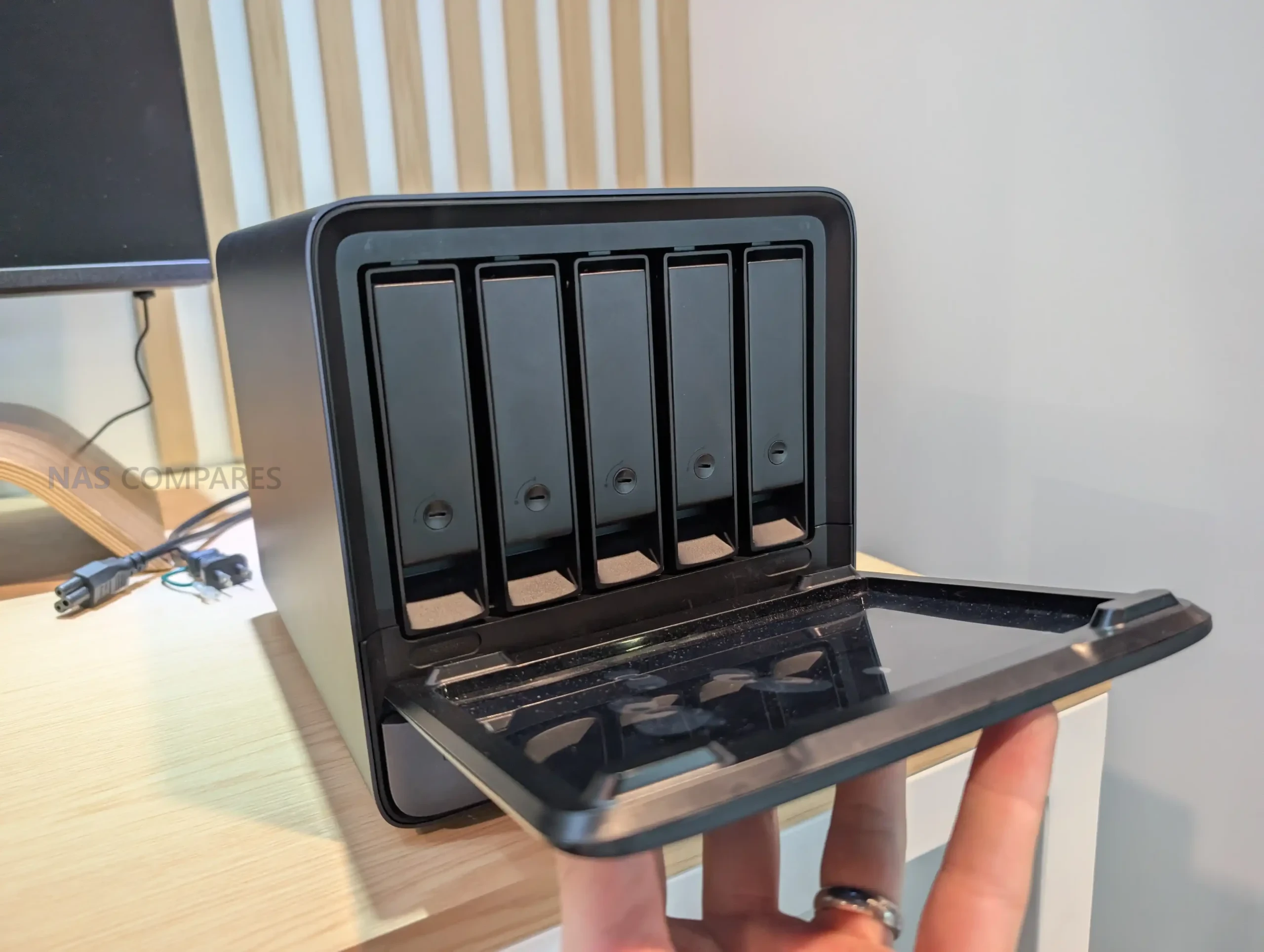
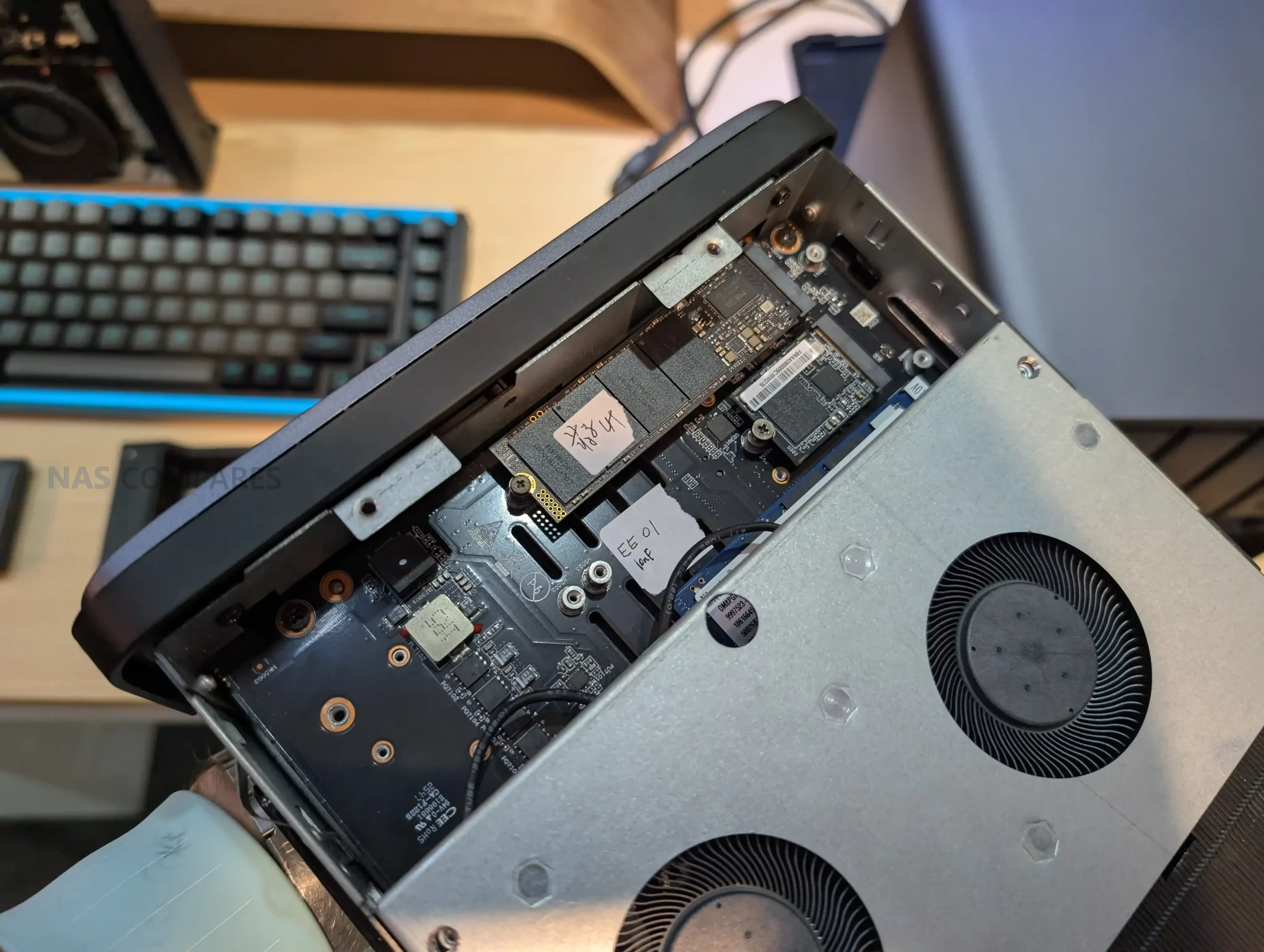
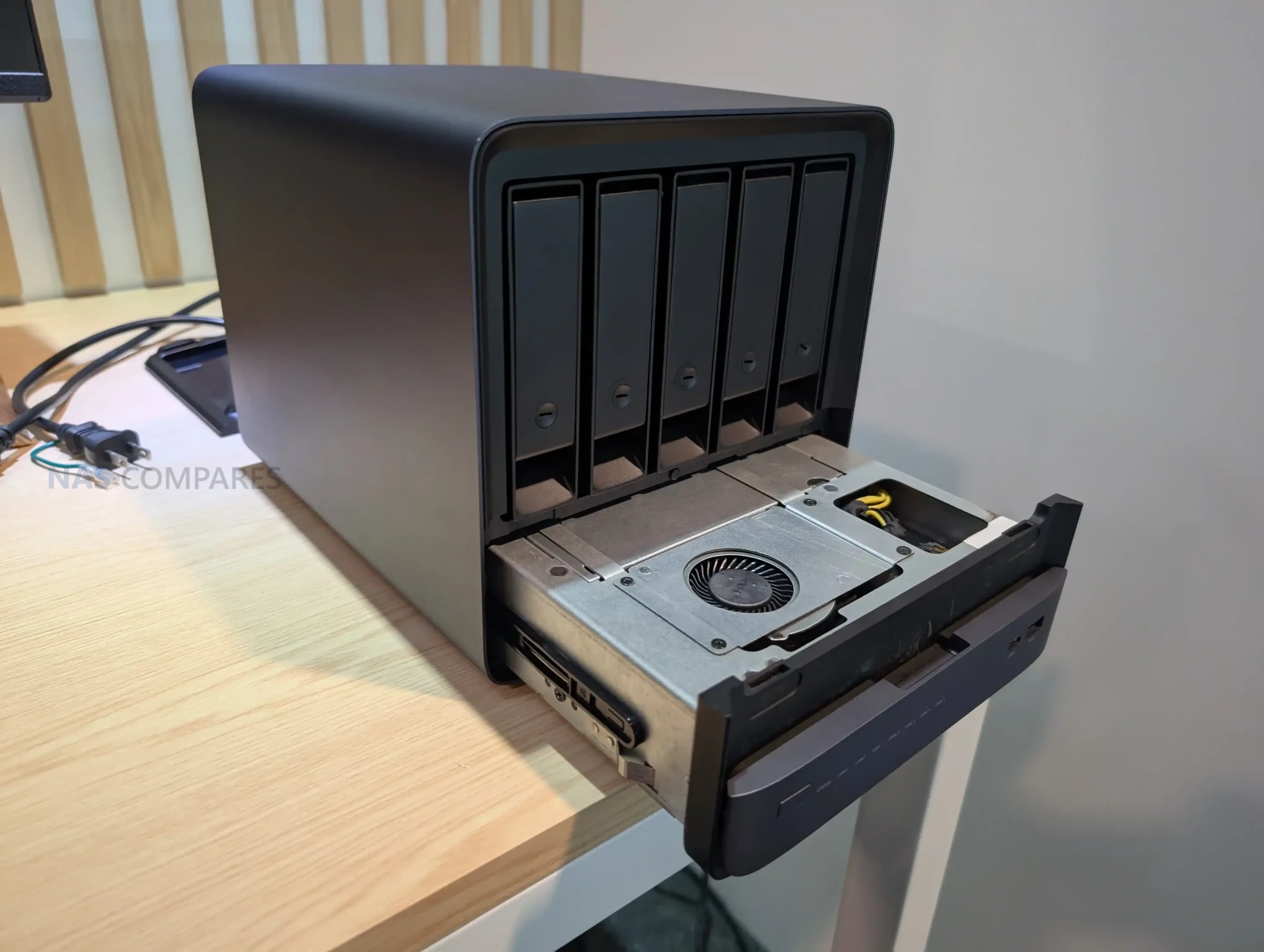

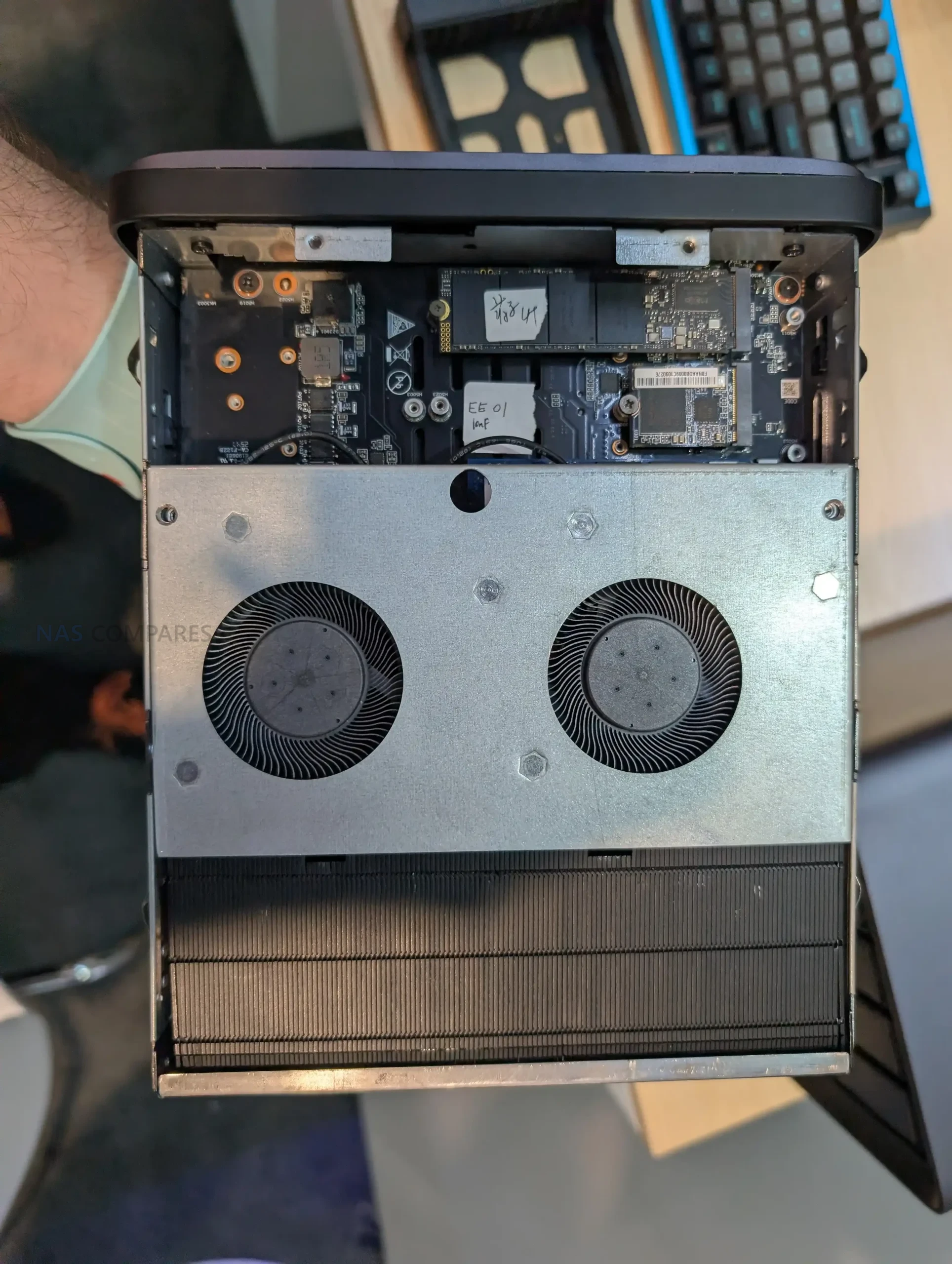

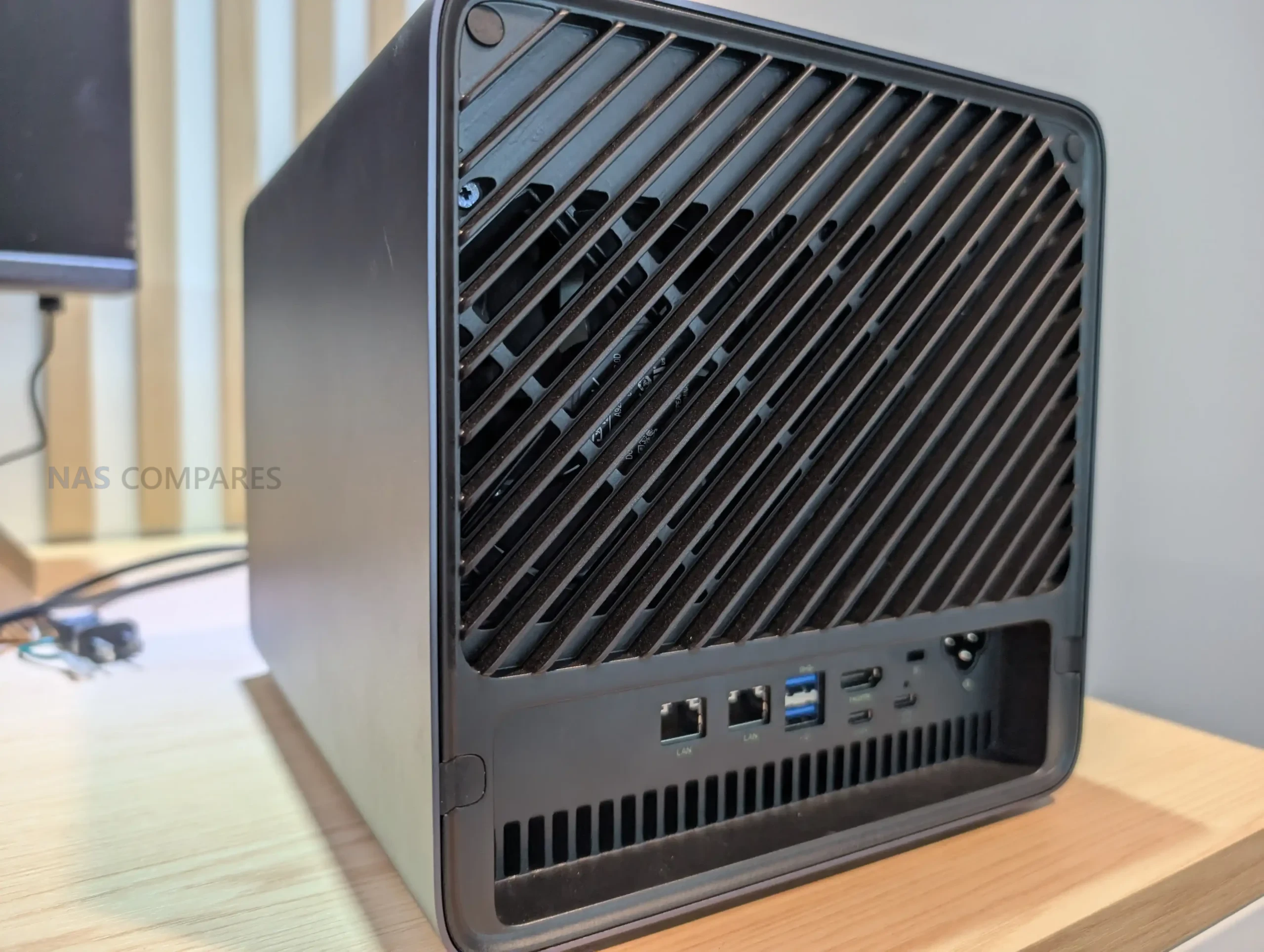

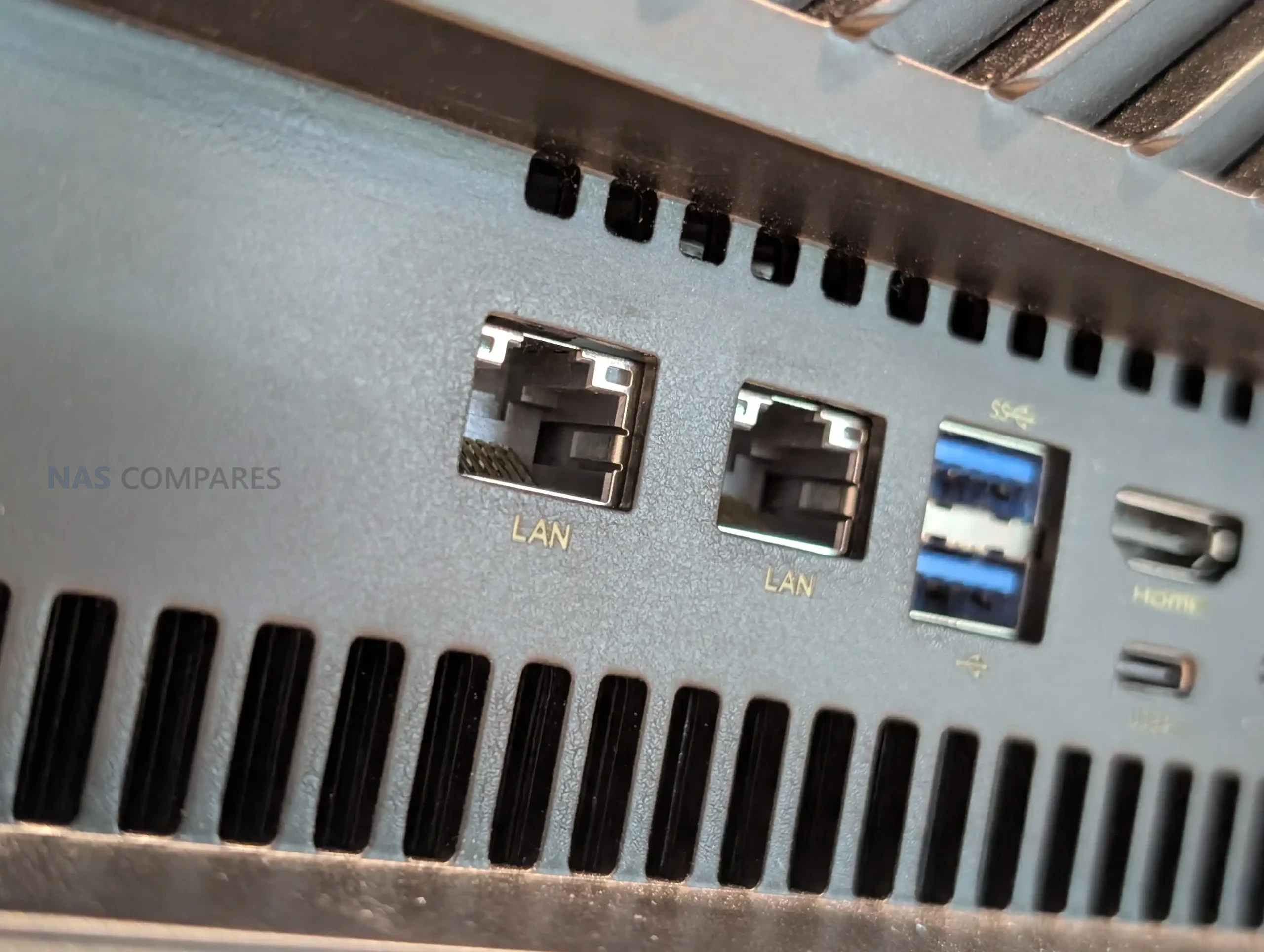
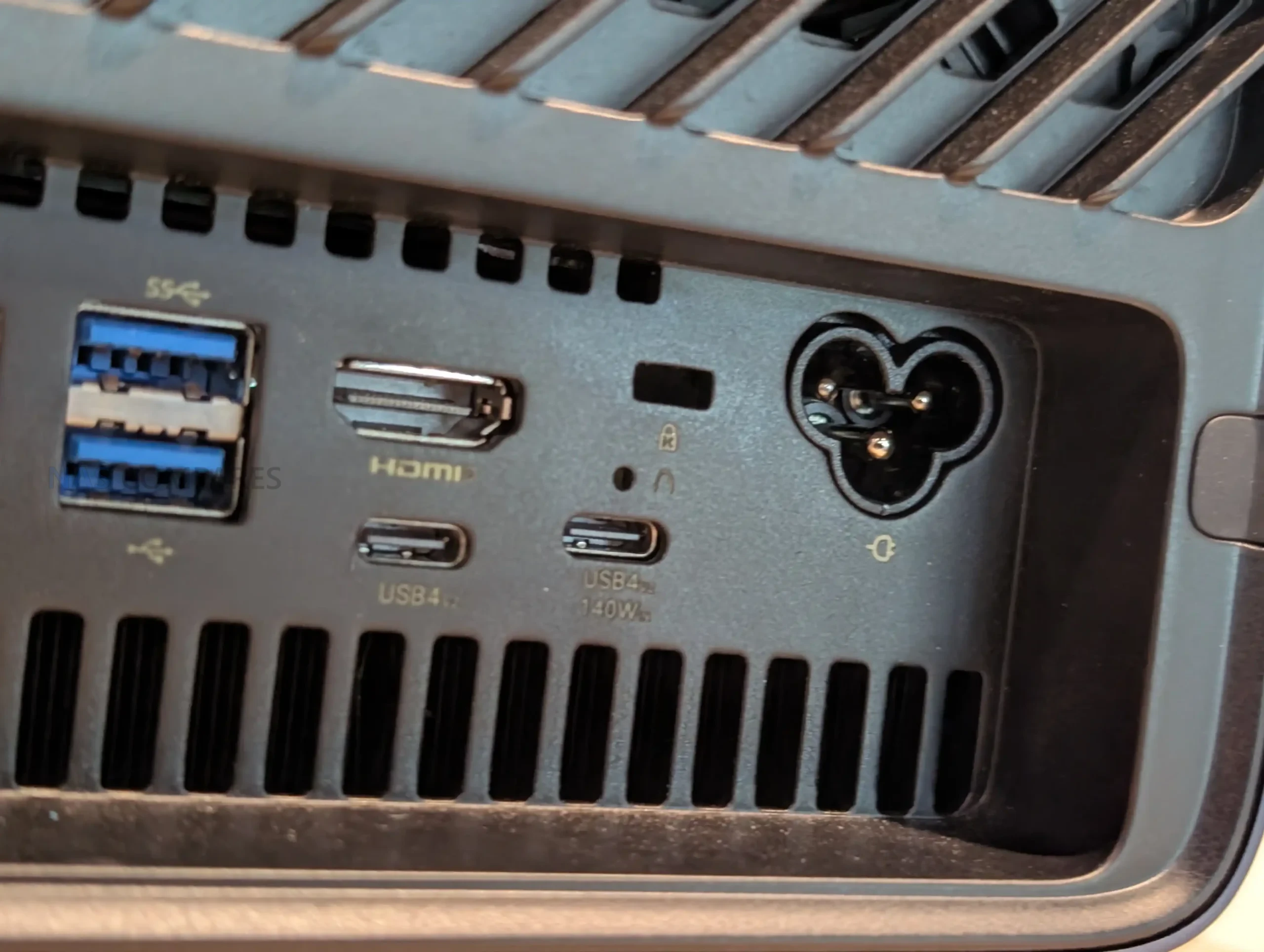


 SUBSCRIBE TO OUR NEWSLETTER
 Join Inner Circle
  Need Help?
Where possible (and where appropriate) please provide as much information about your requirements, as then I can arrange the best answer and solution to your needs. Do not worry about your e-mail address being required, it will NOT be used in a mailing list and will NOT be used in any way other than to respond to your enquiry.
[contact-form-7]
Need Help?
Where possible (and where appropriate) please provide as much information about your requirements, as then I can arrange the best answer and solution to your needs. Do not worry about your e-mail address being required, it will NOT be used in a mailing list and will NOT be used in any way other than to respond to your enquiry.
[contact-form-7]
 TRY CHAT
Terms and Conditions
TRY CHAT
Terms and Conditions
 Ko-fi or old school Paypal. Thanks!To find out more about how to support this advice service check HEREIf you need to fix or configure a NAS, check Fiver
Have you thought about helping others with your knowledge? Find Instructions Here
Ko-fi or old school Paypal. Thanks!To find out more about how to support this advice service check HEREIf you need to fix or configure a NAS, check Fiver
Have you thought about helping others with your knowledge? Find Instructions Here






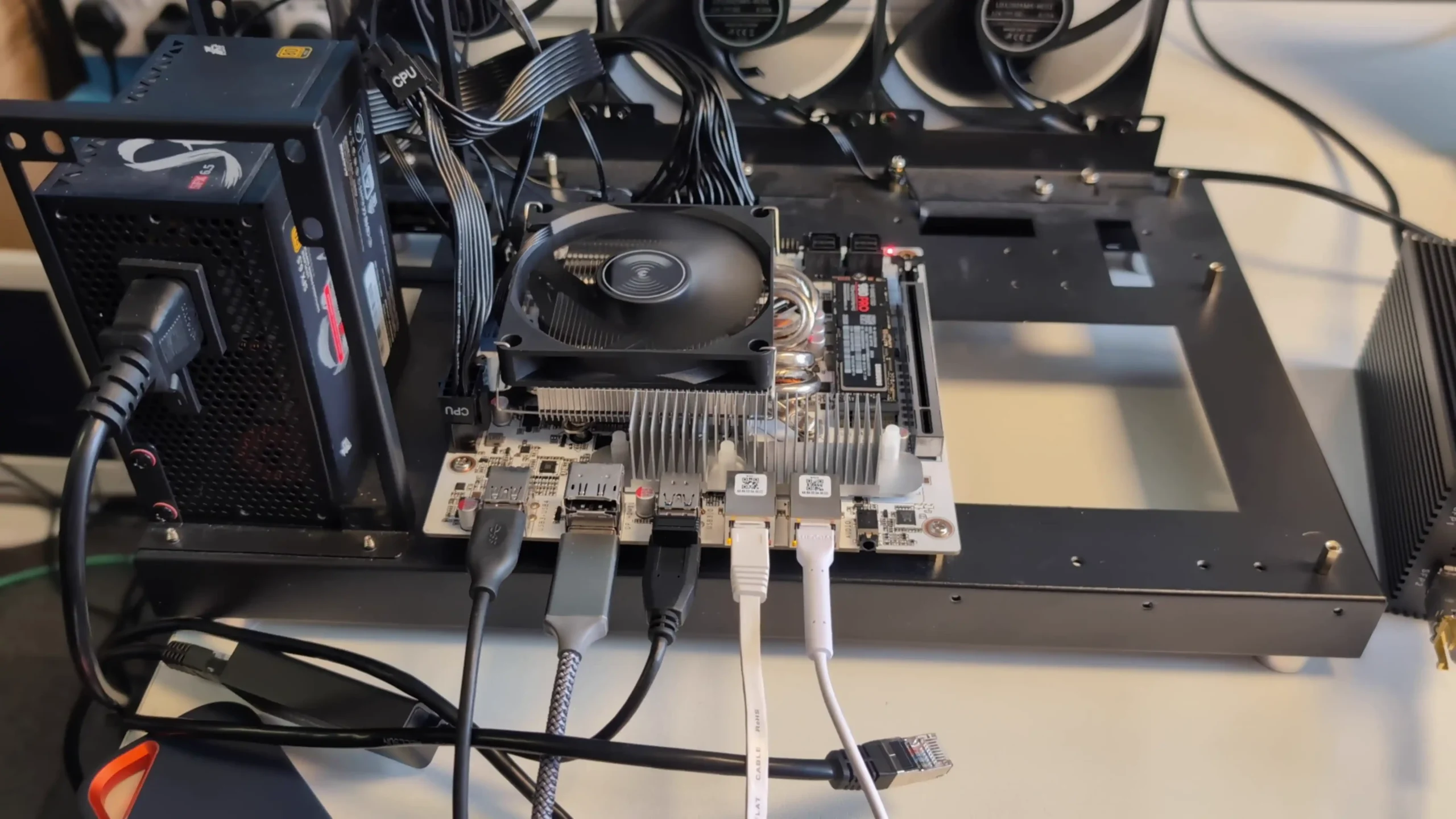
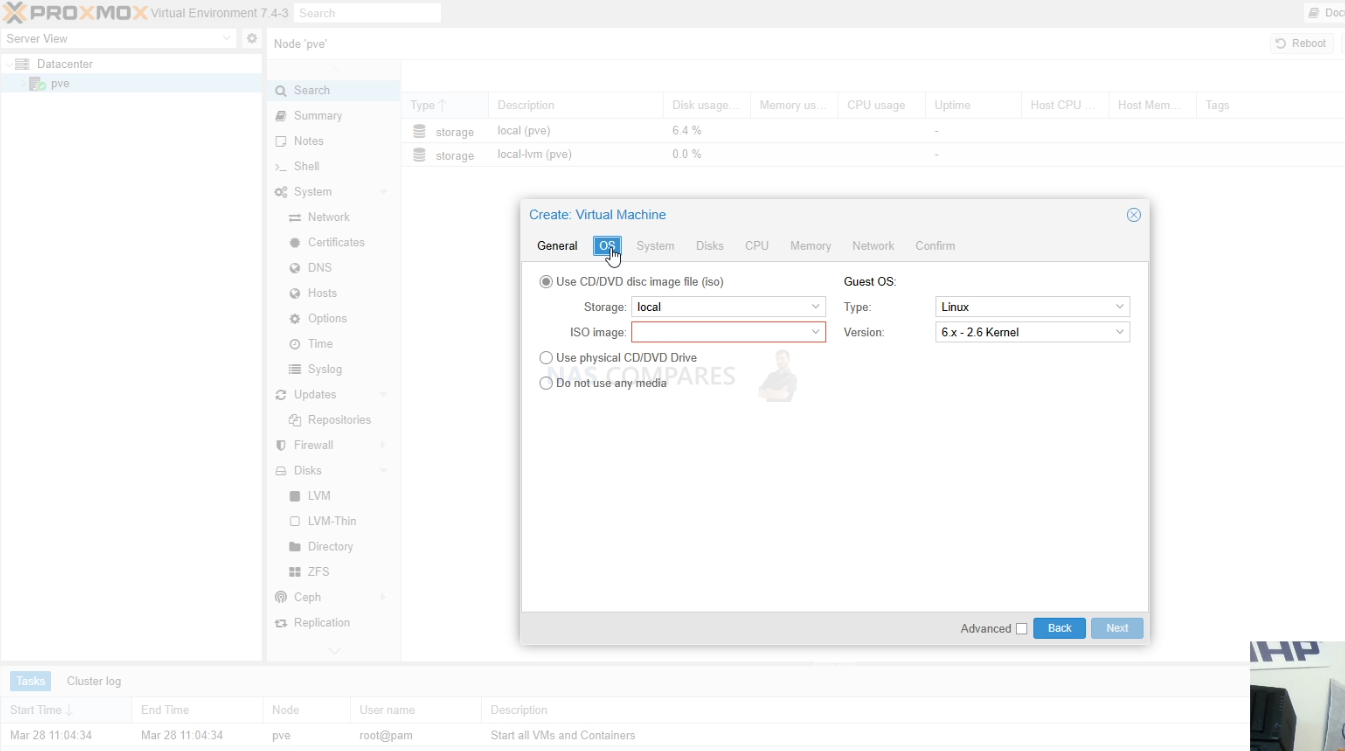
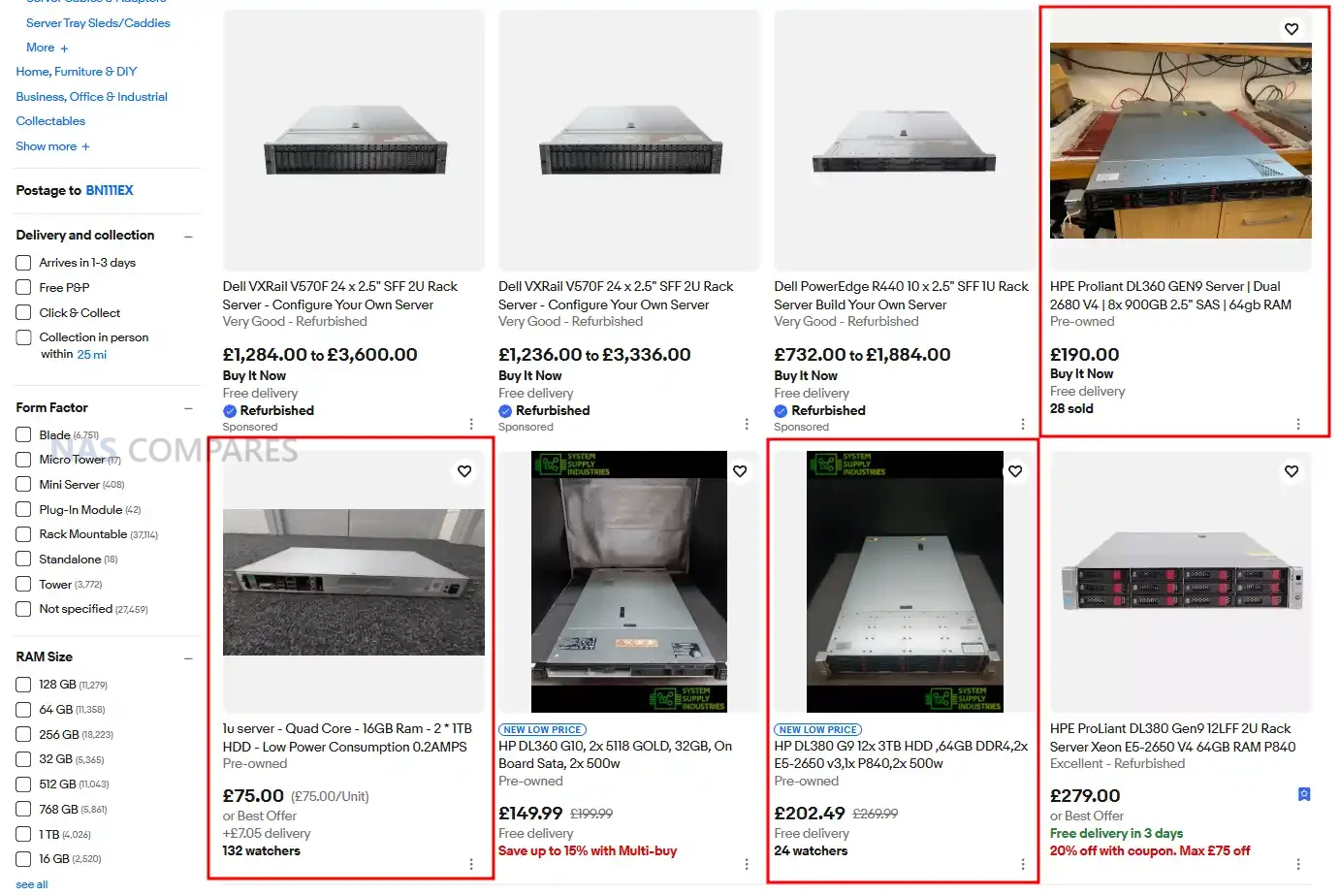
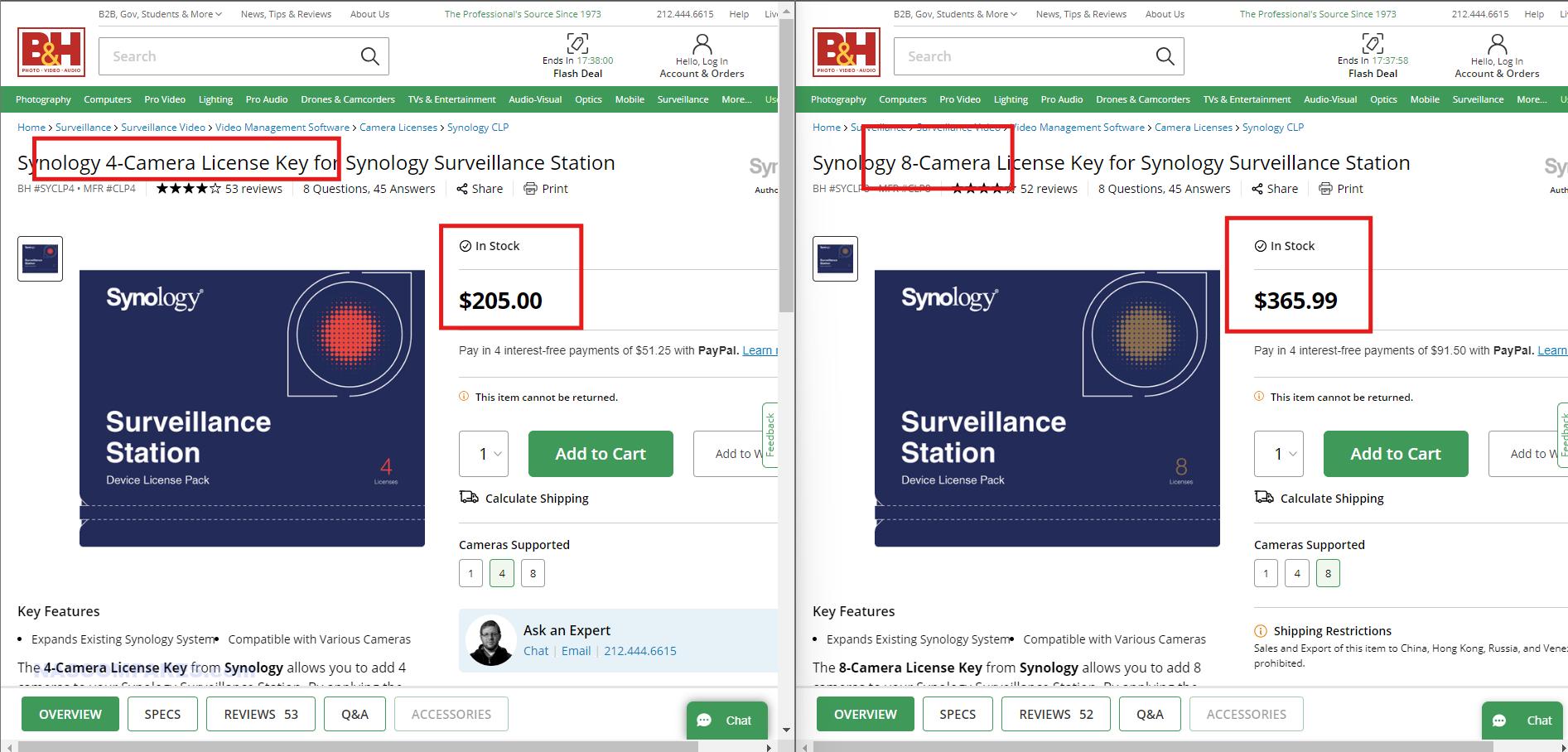

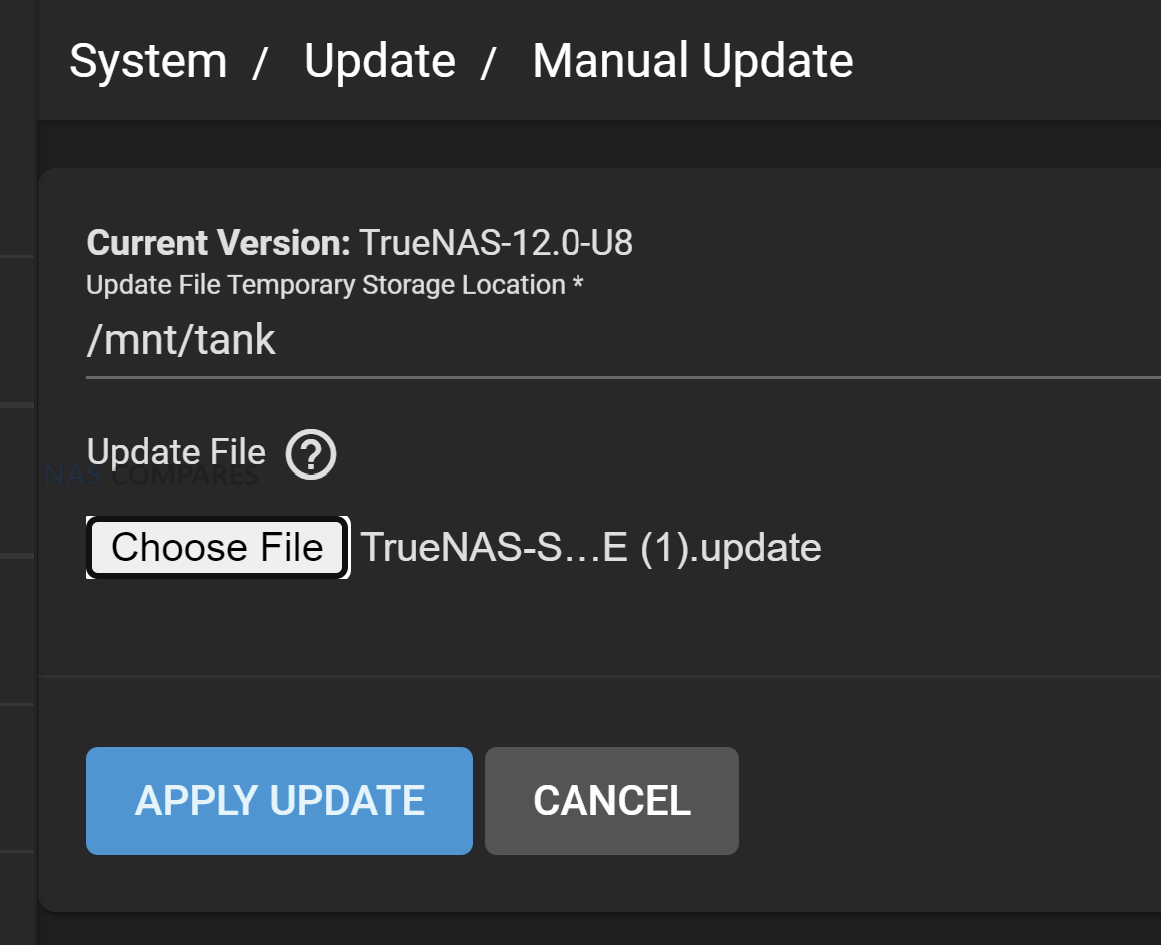
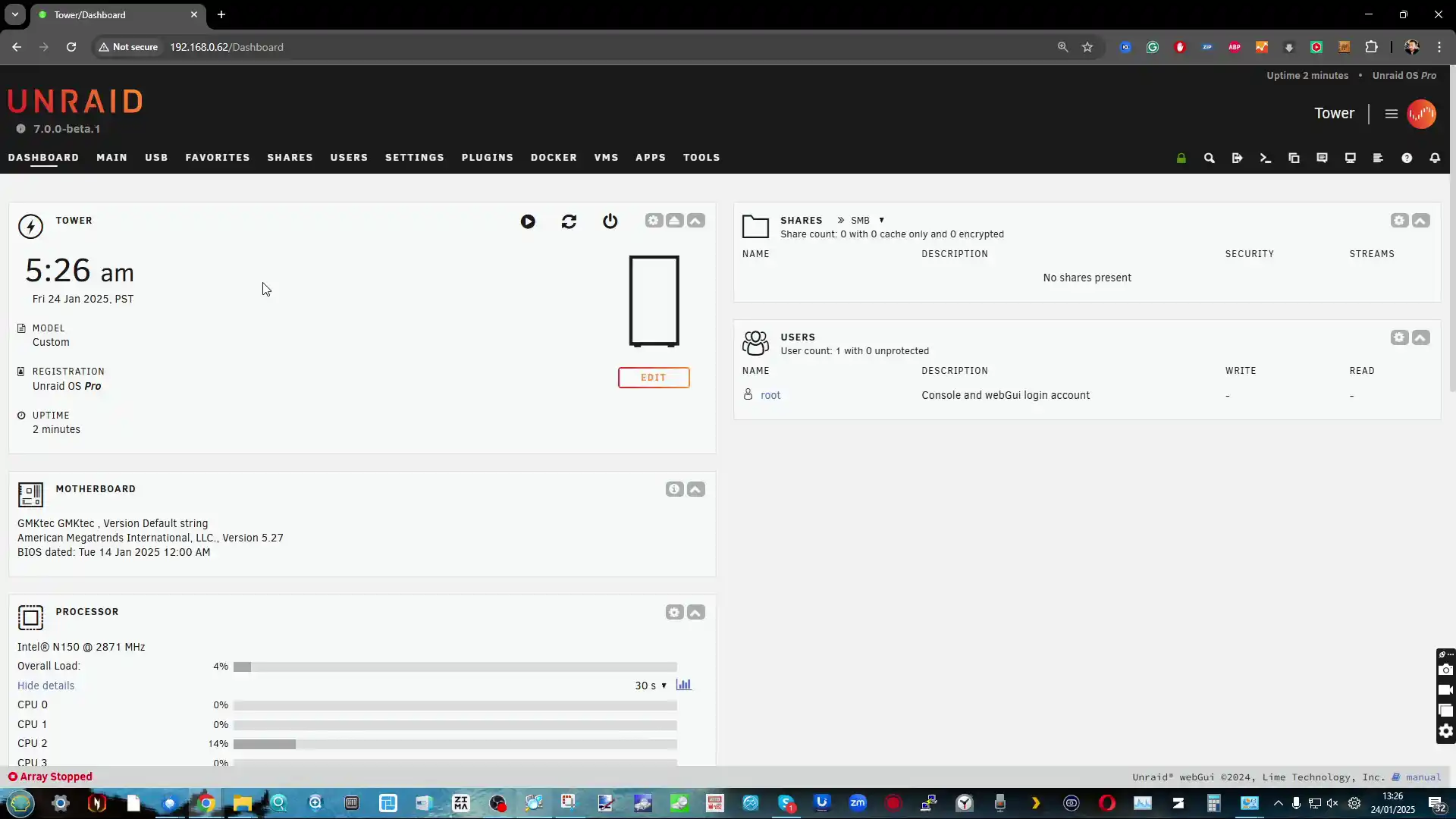
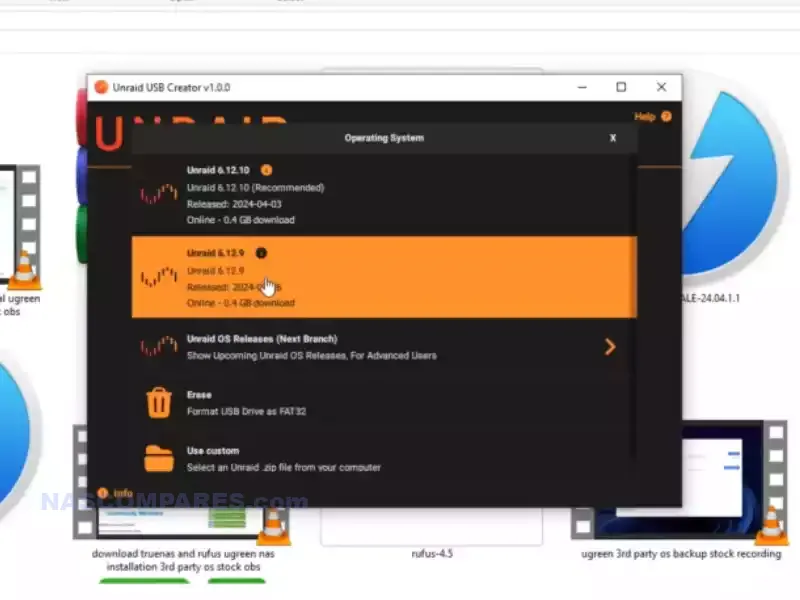
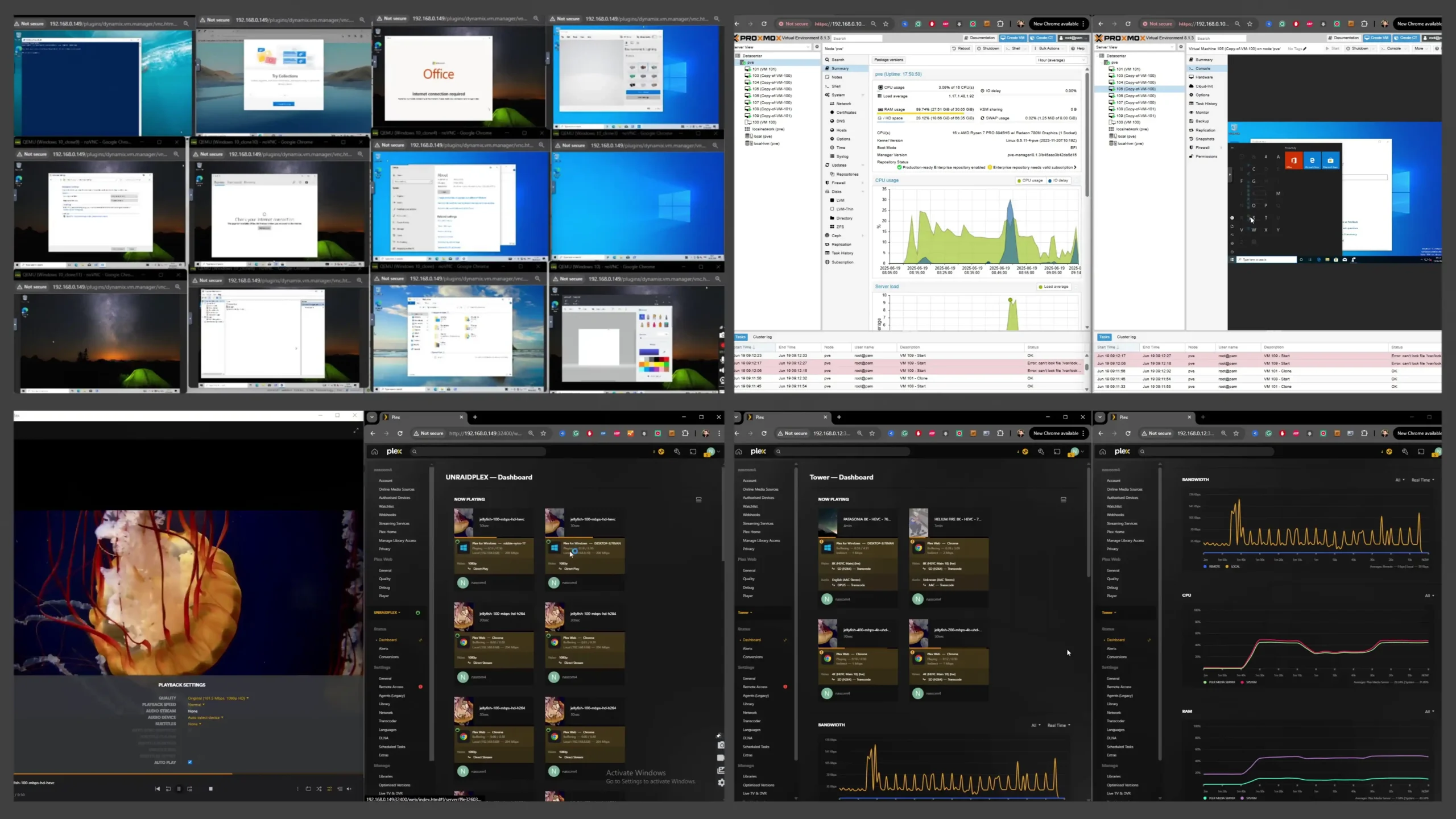
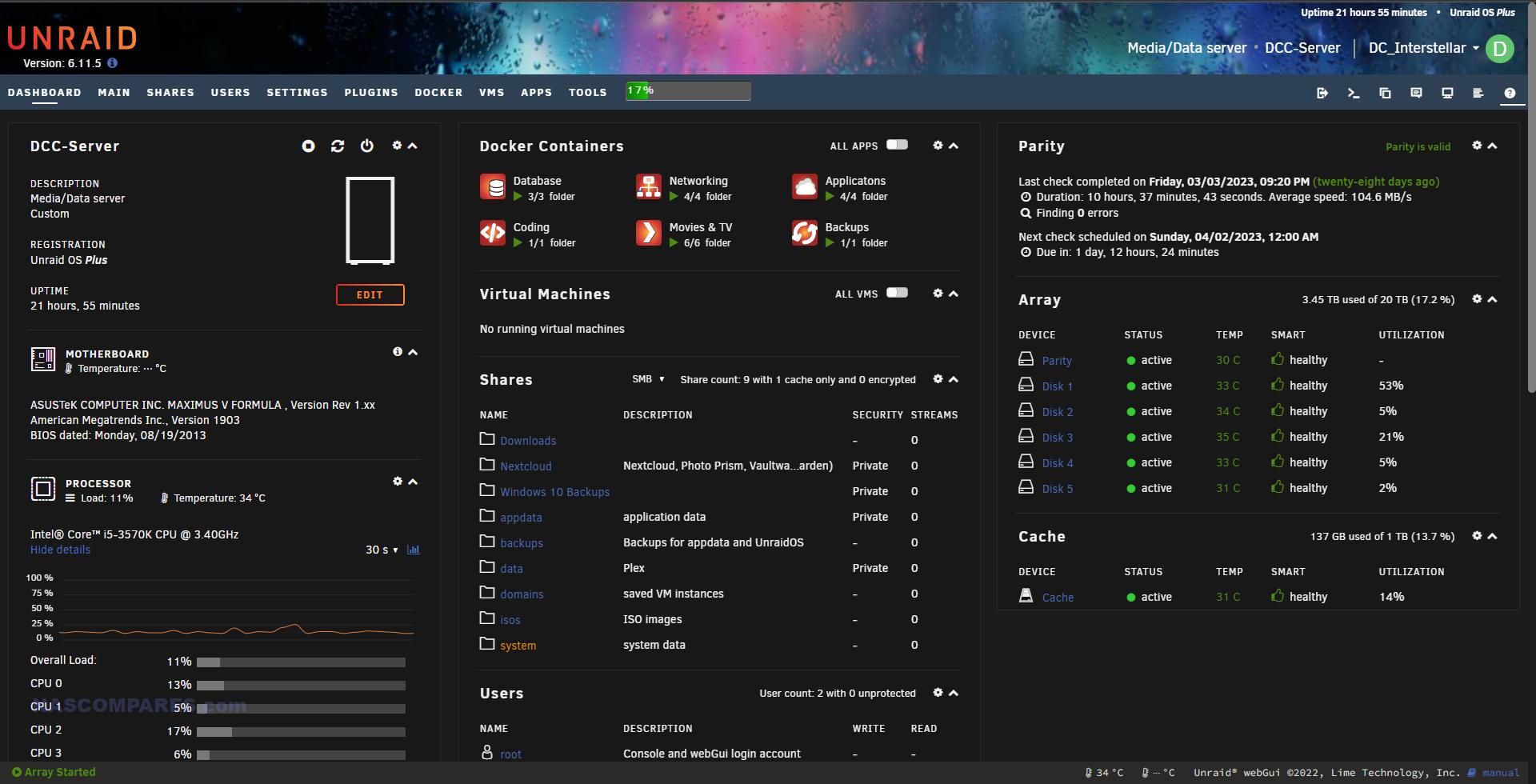
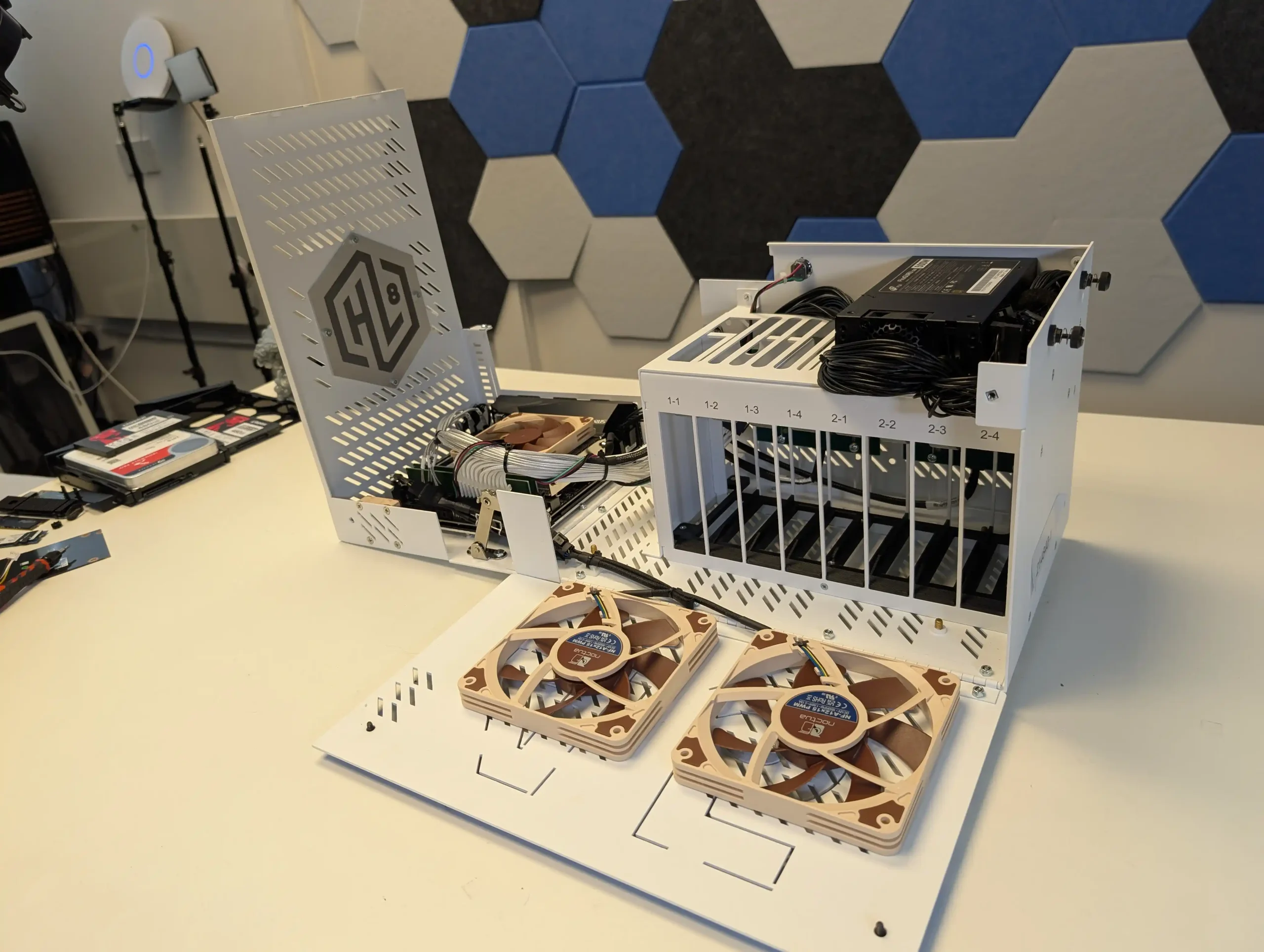
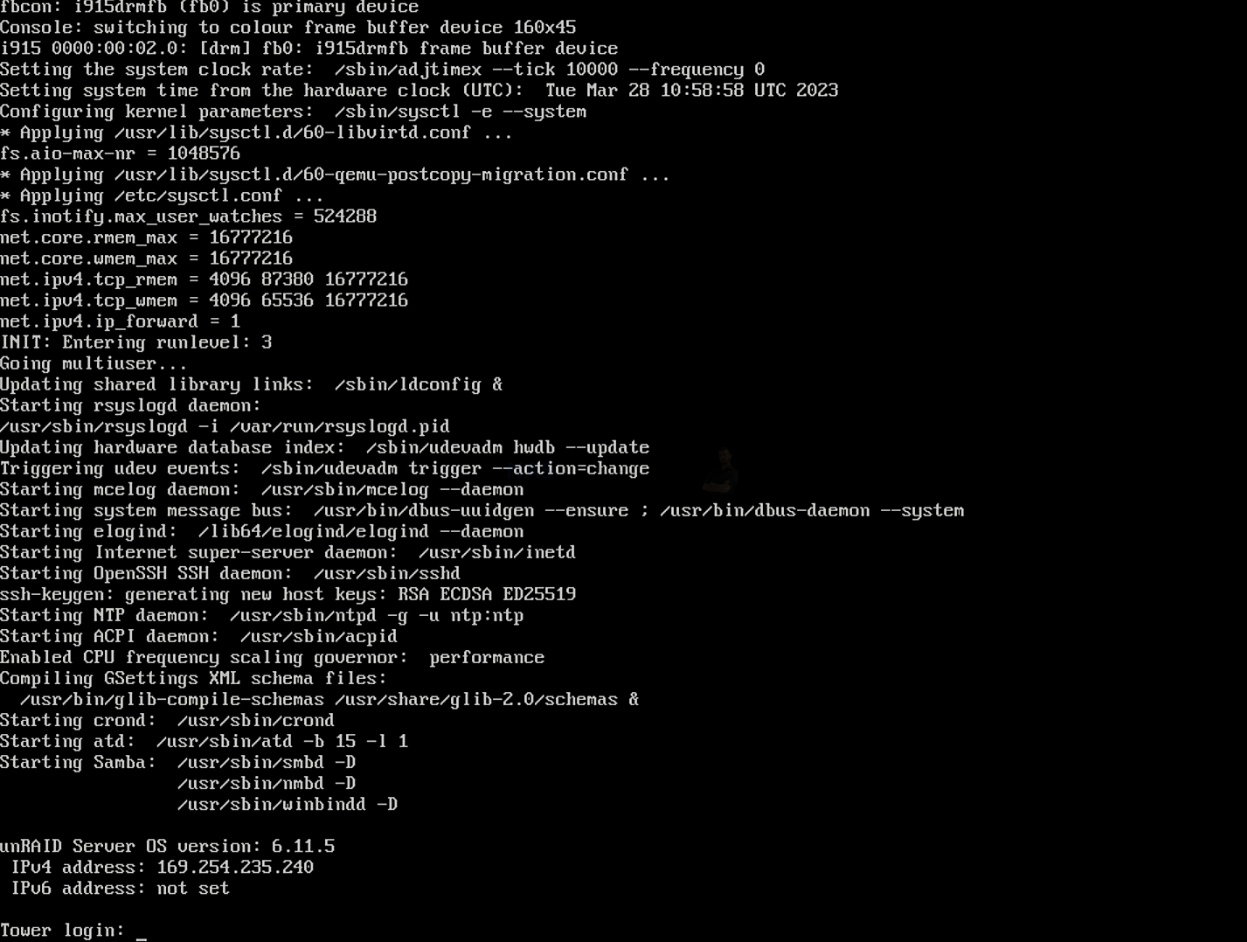
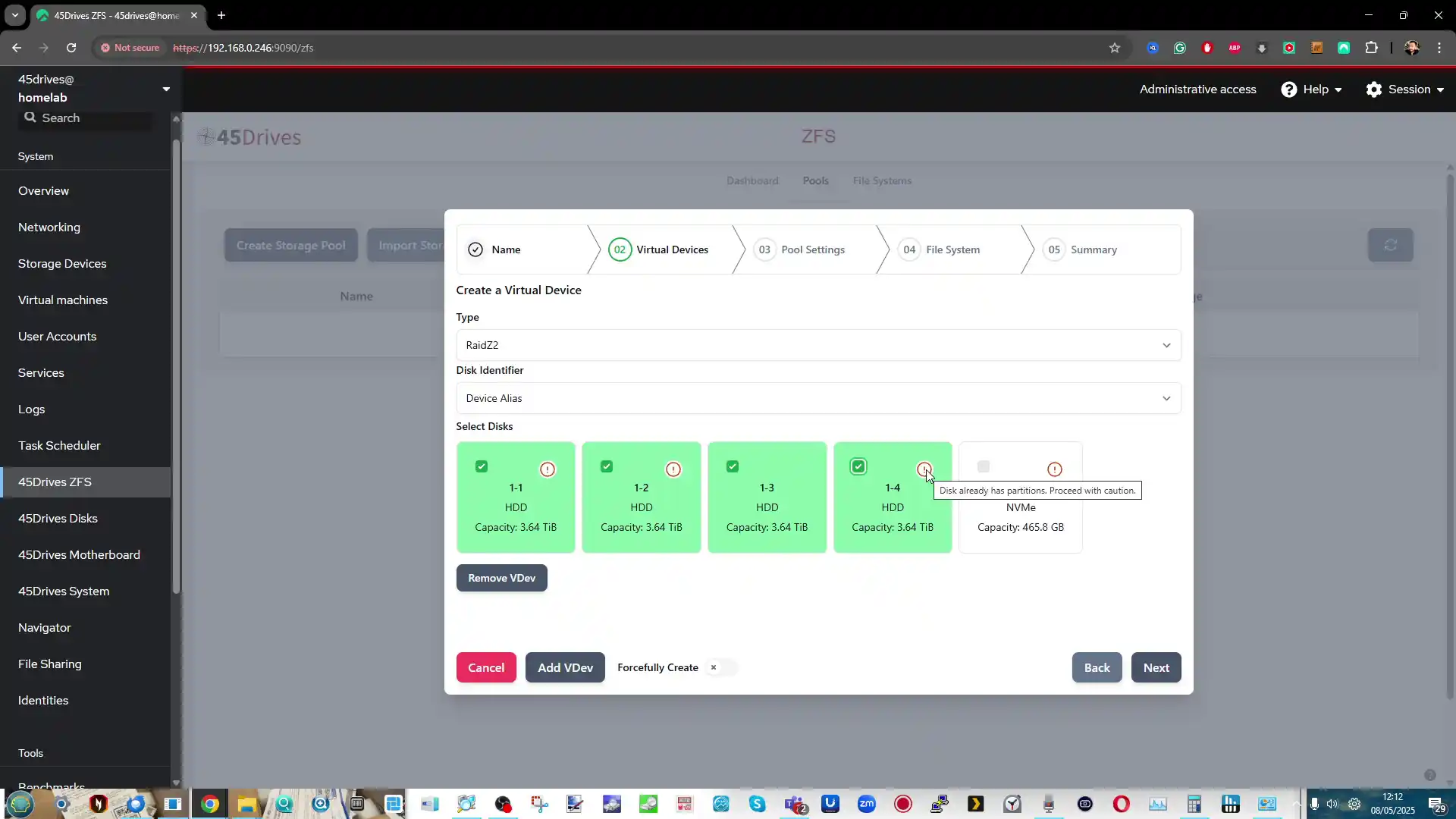
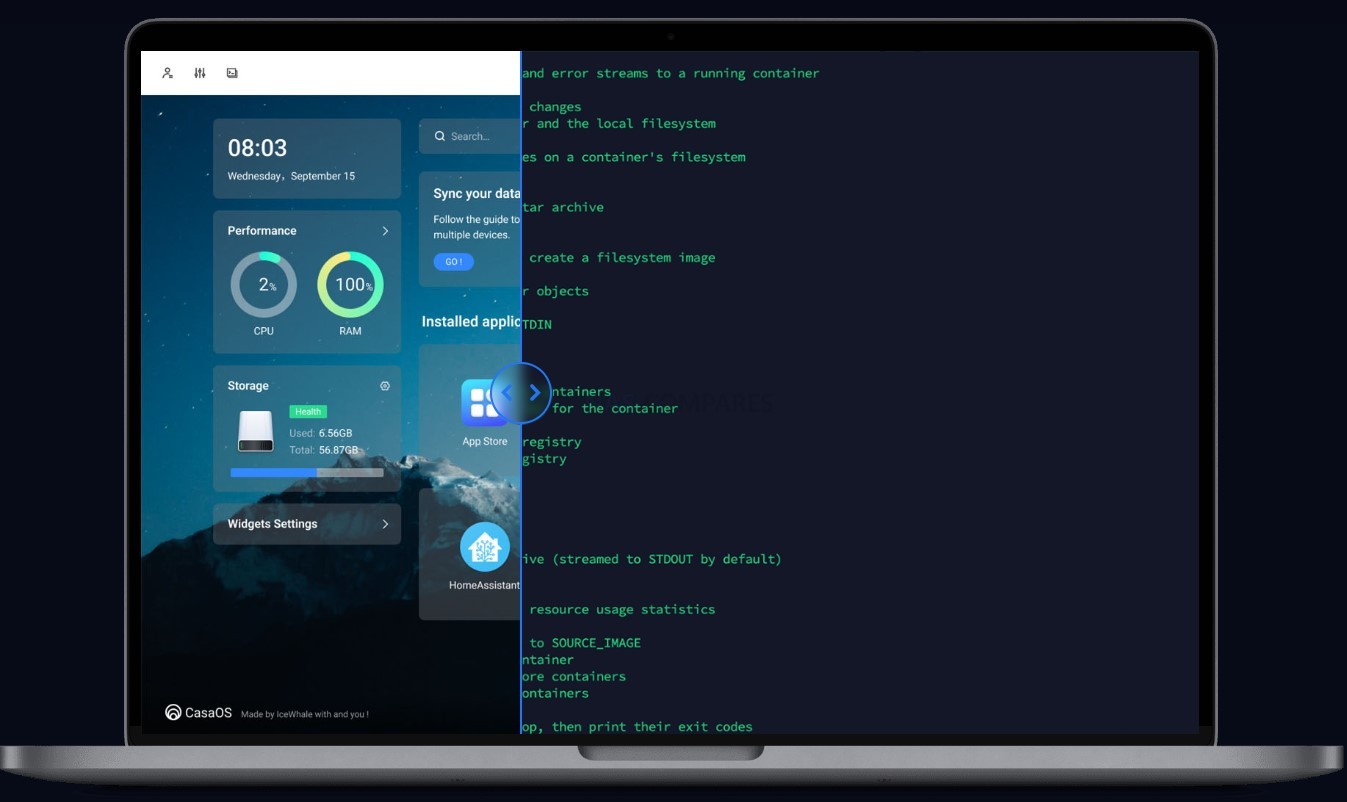
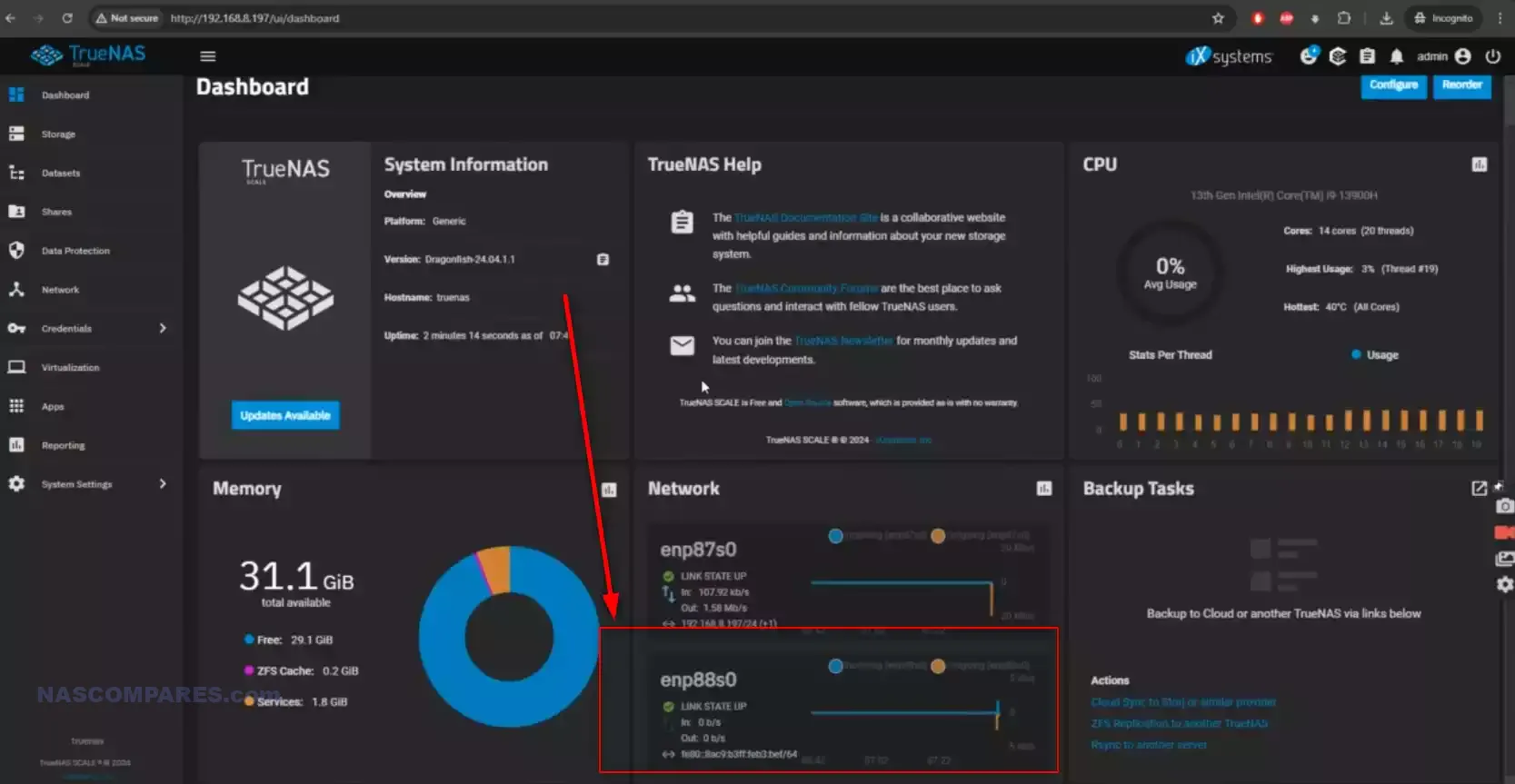
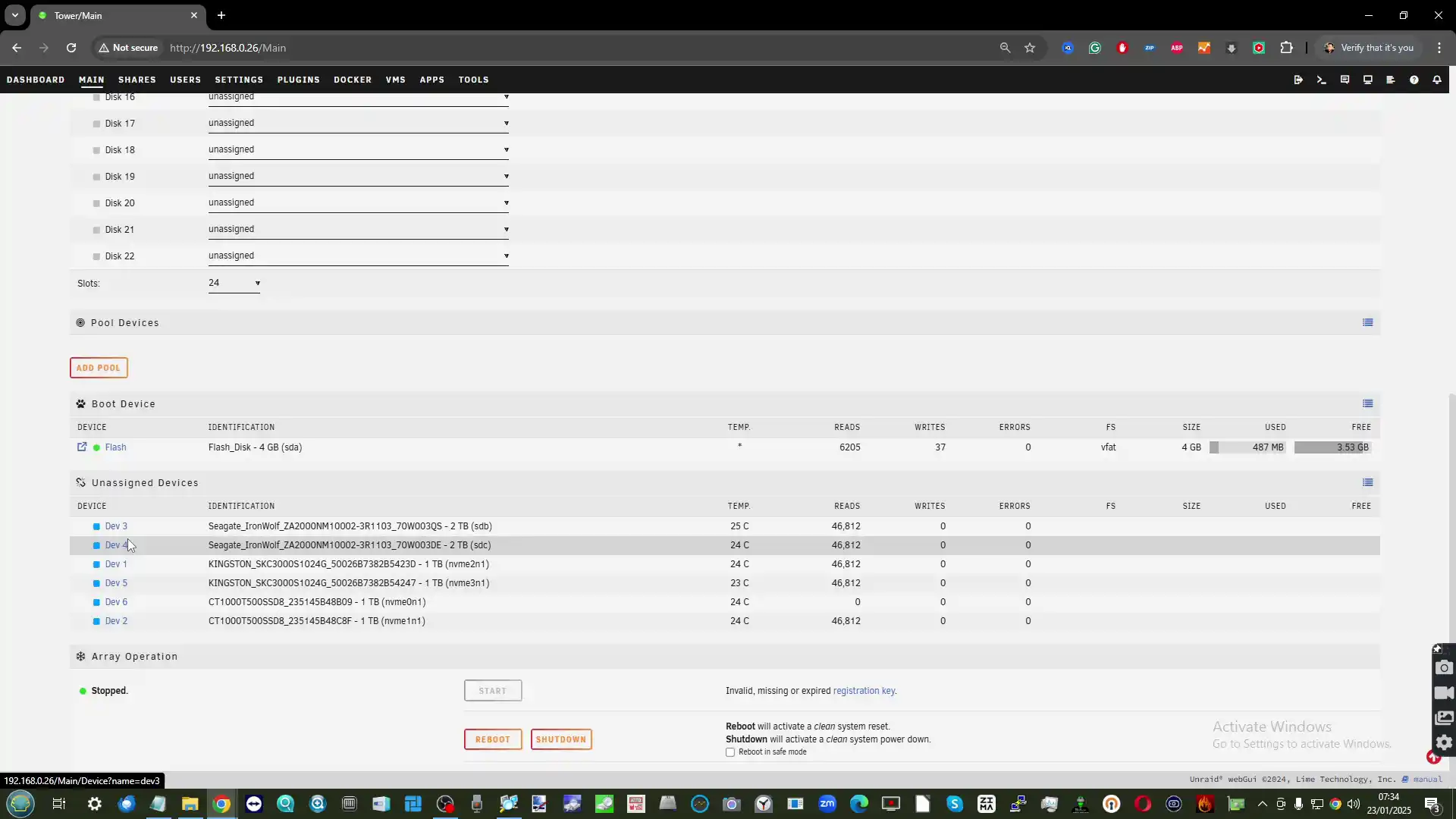
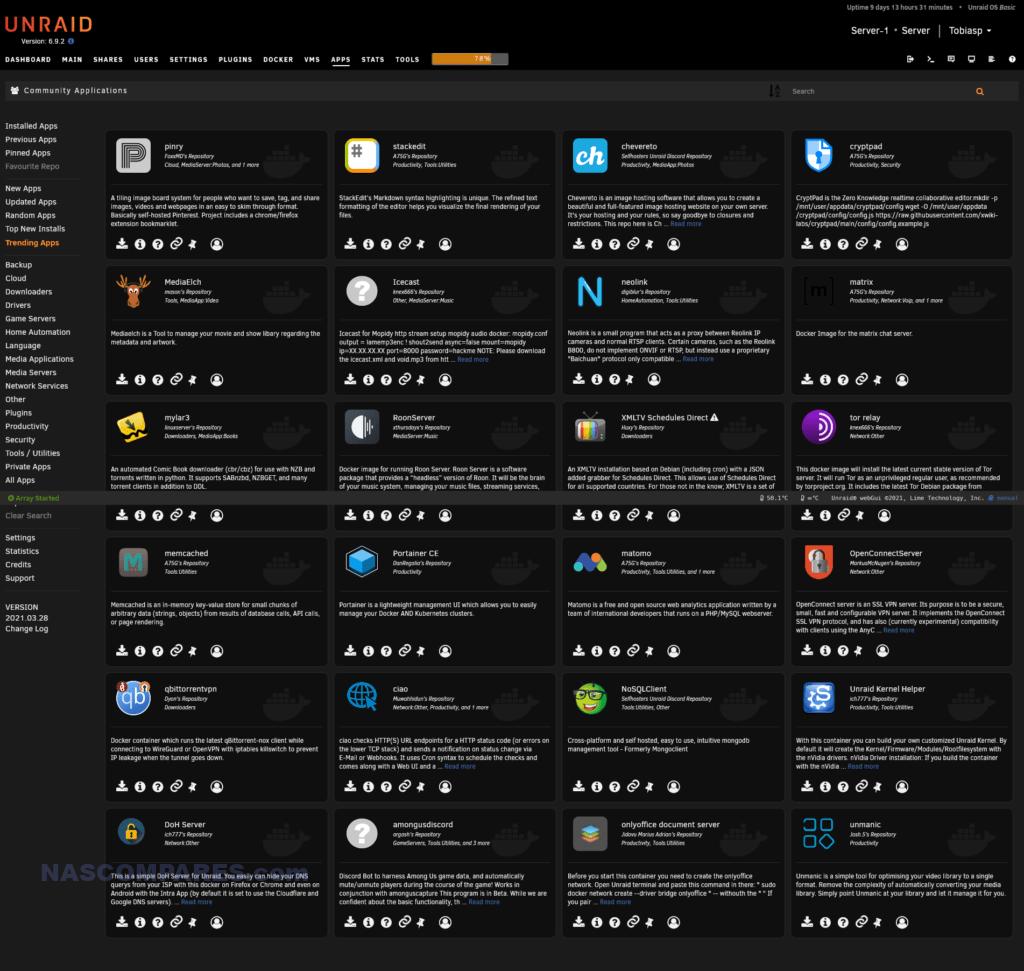
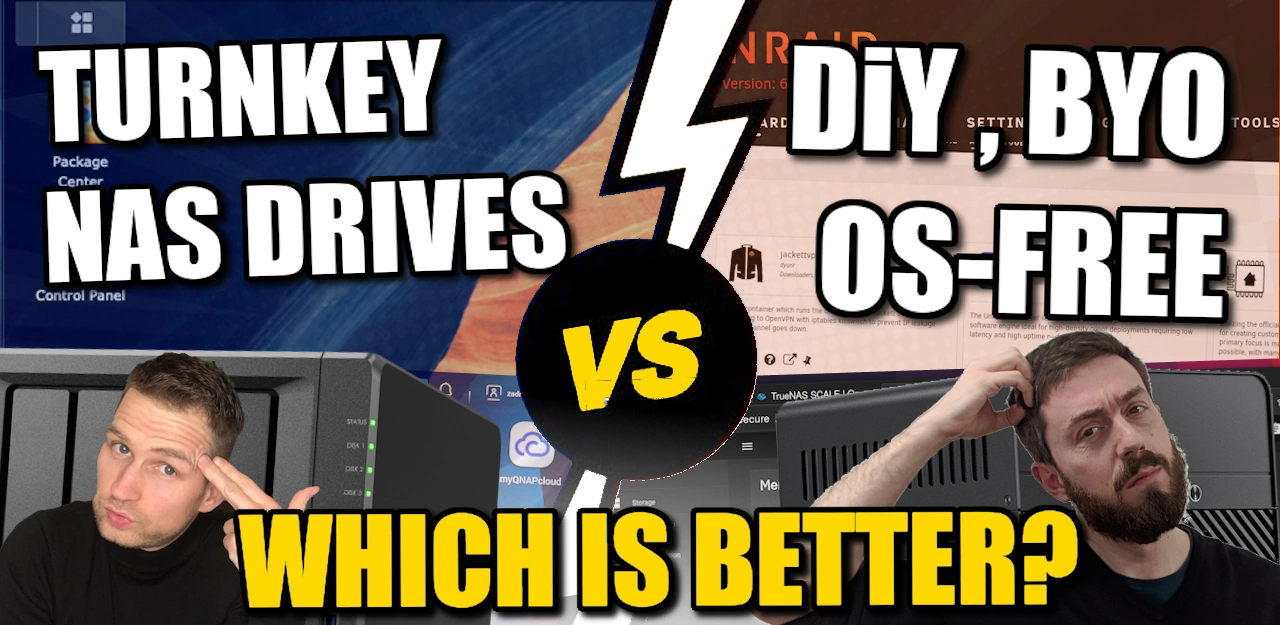
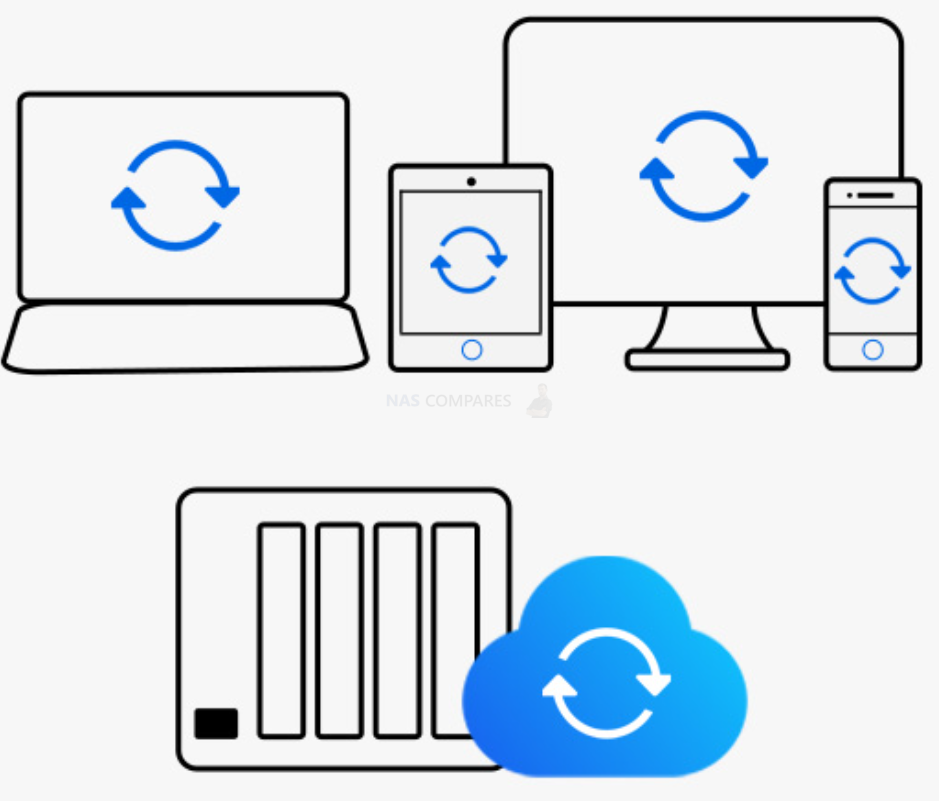
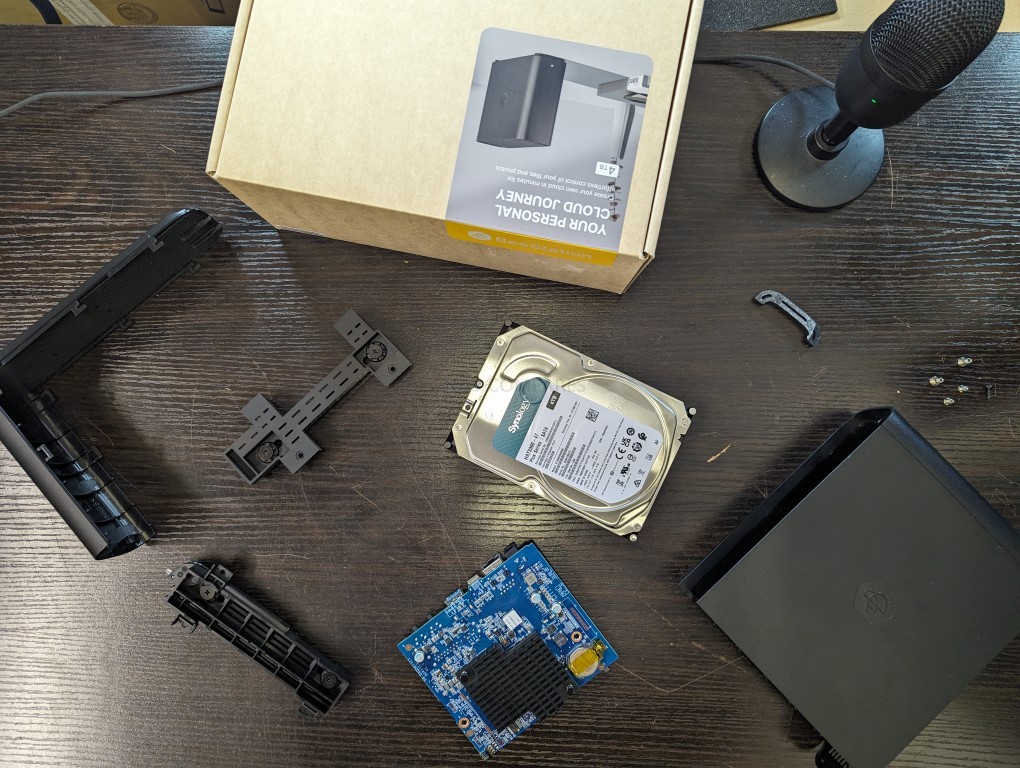
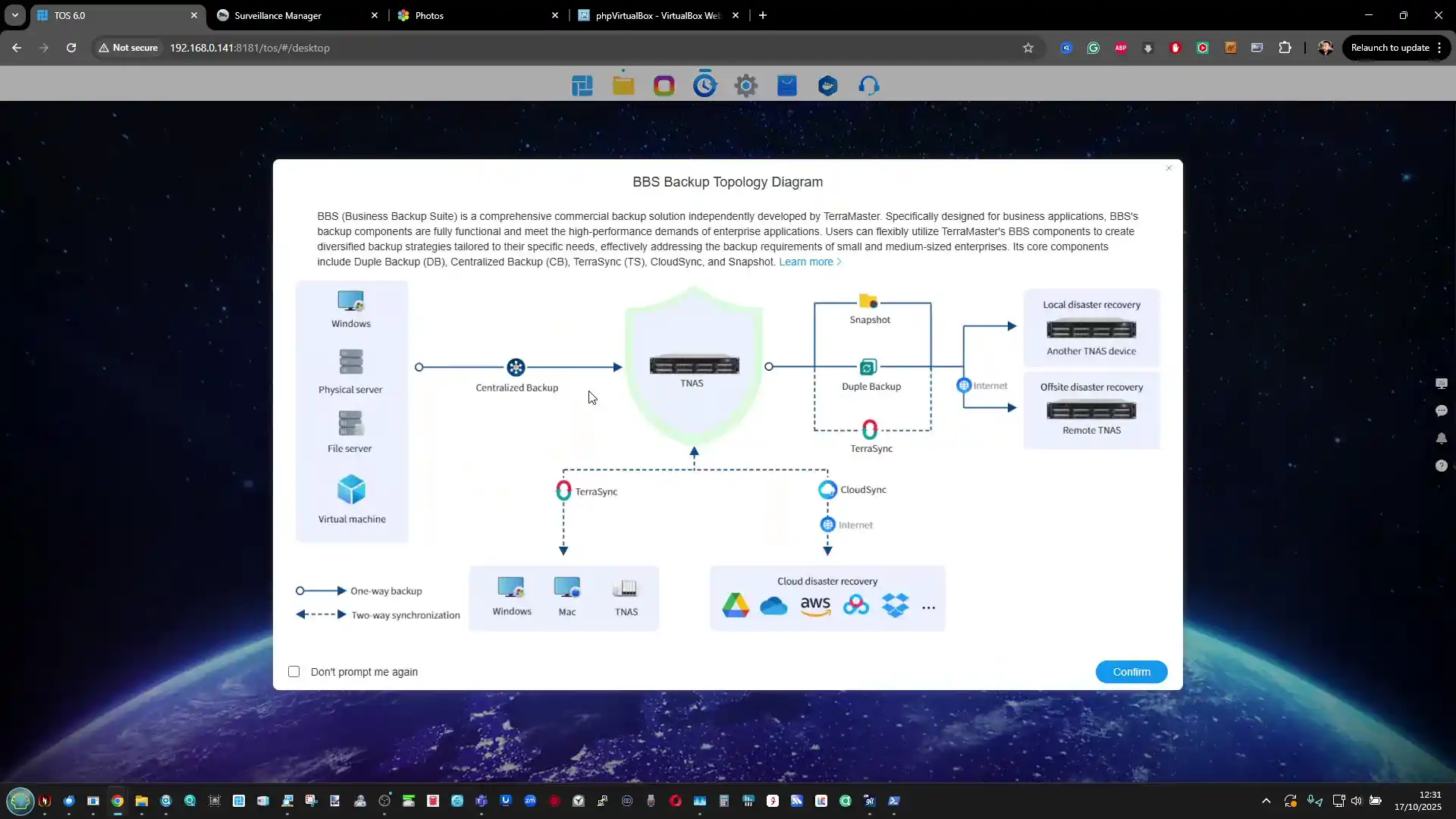
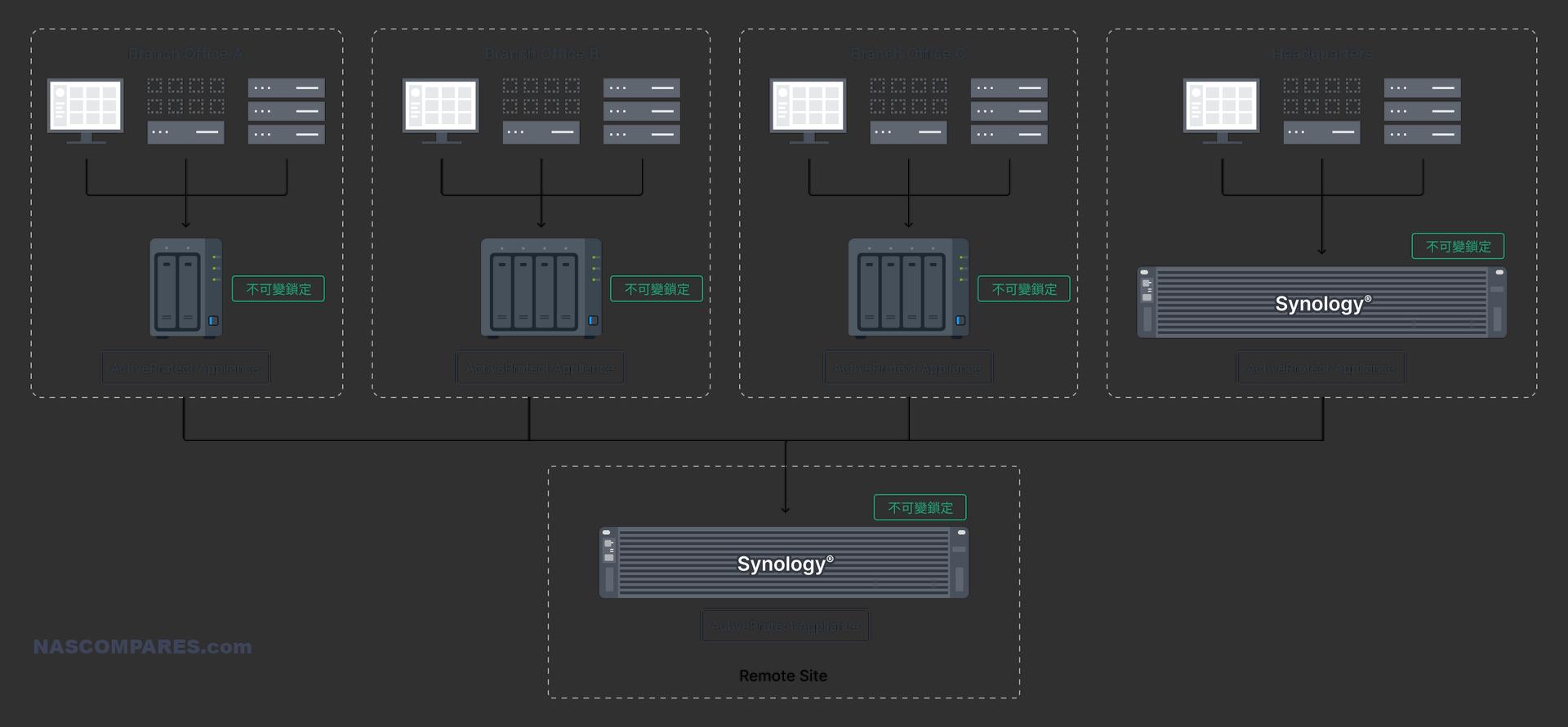

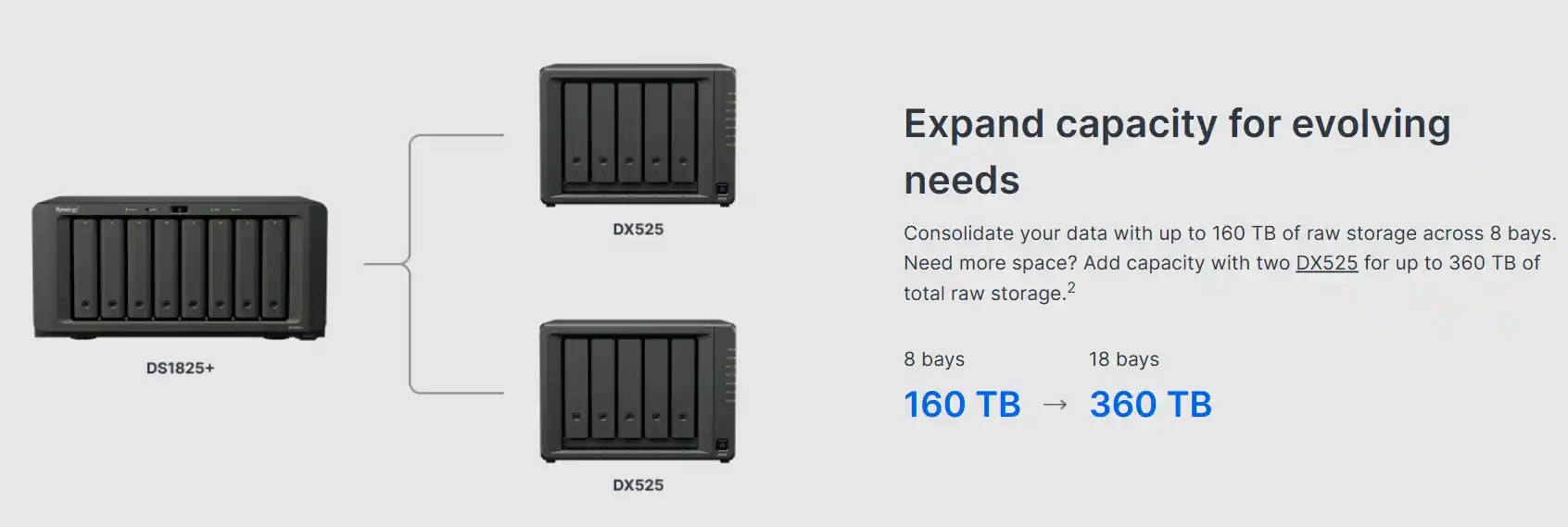
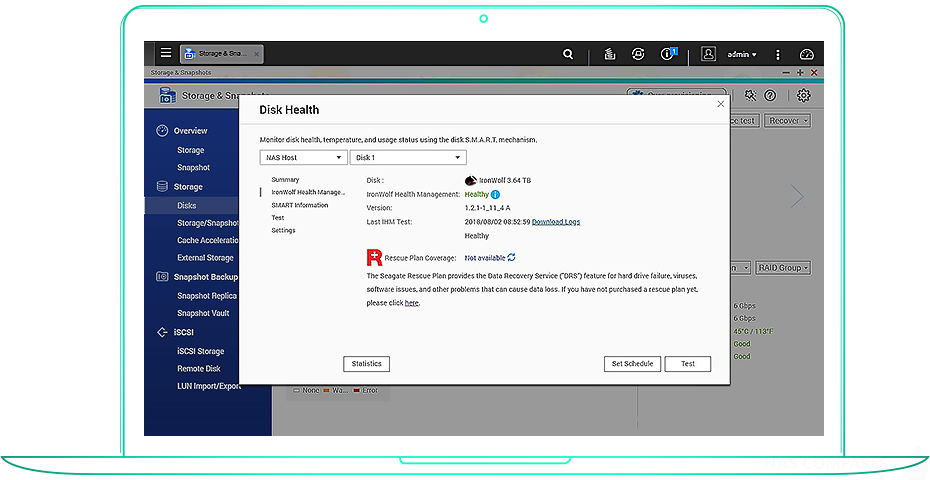
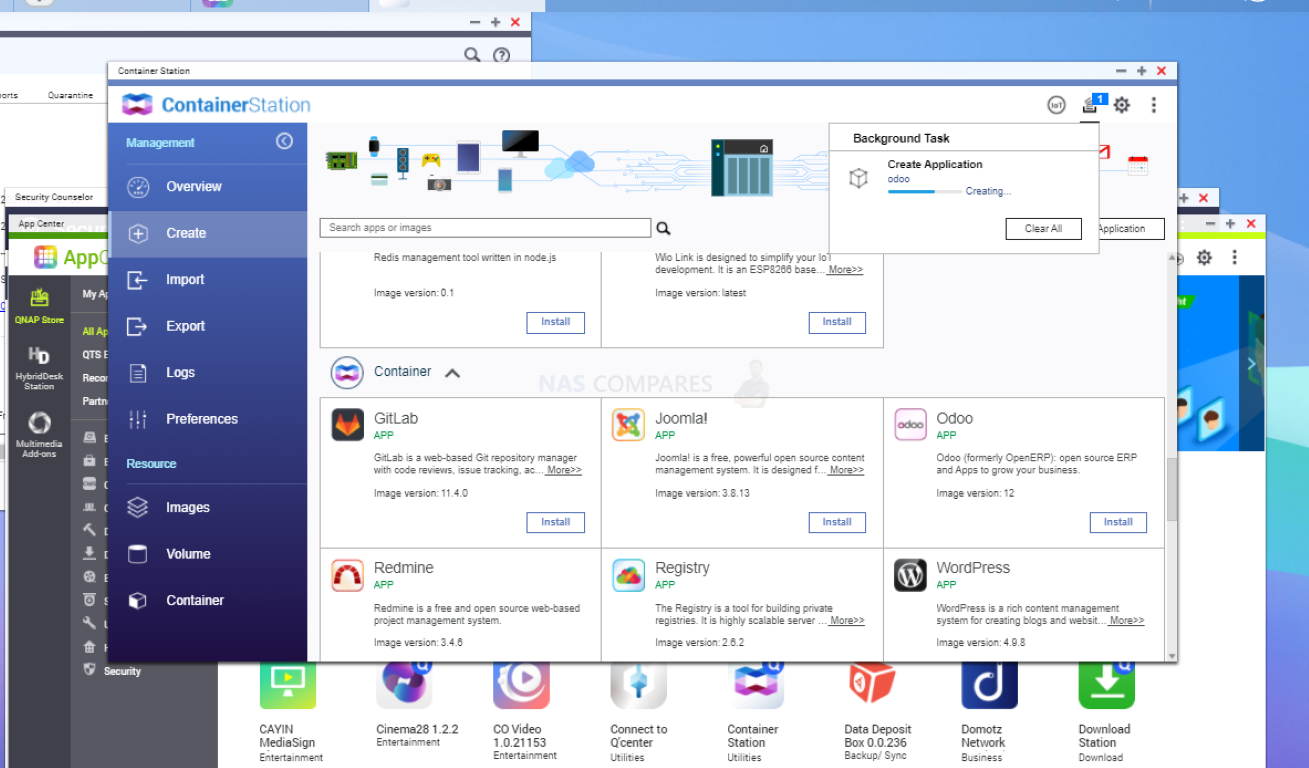
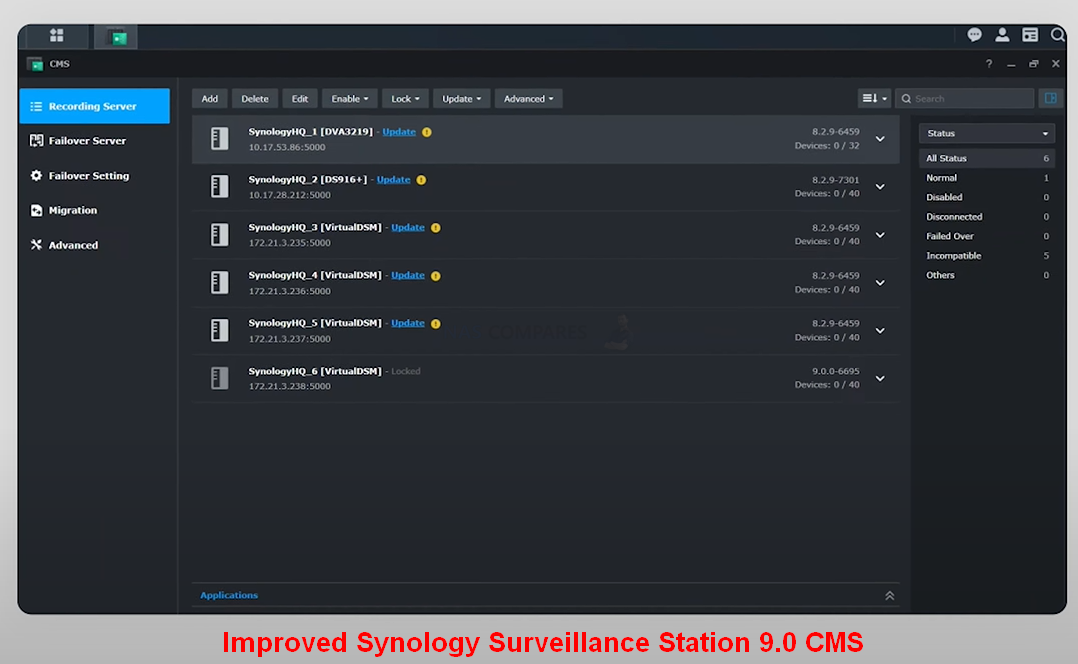
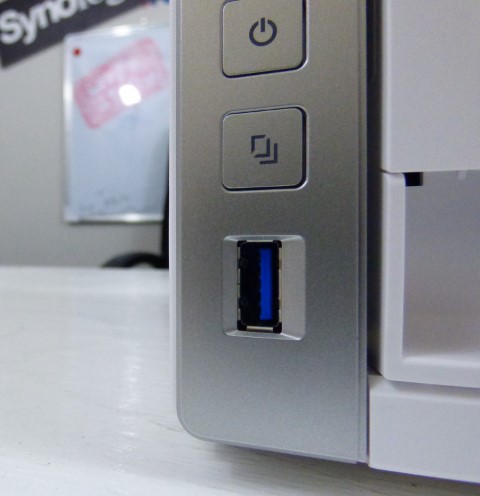
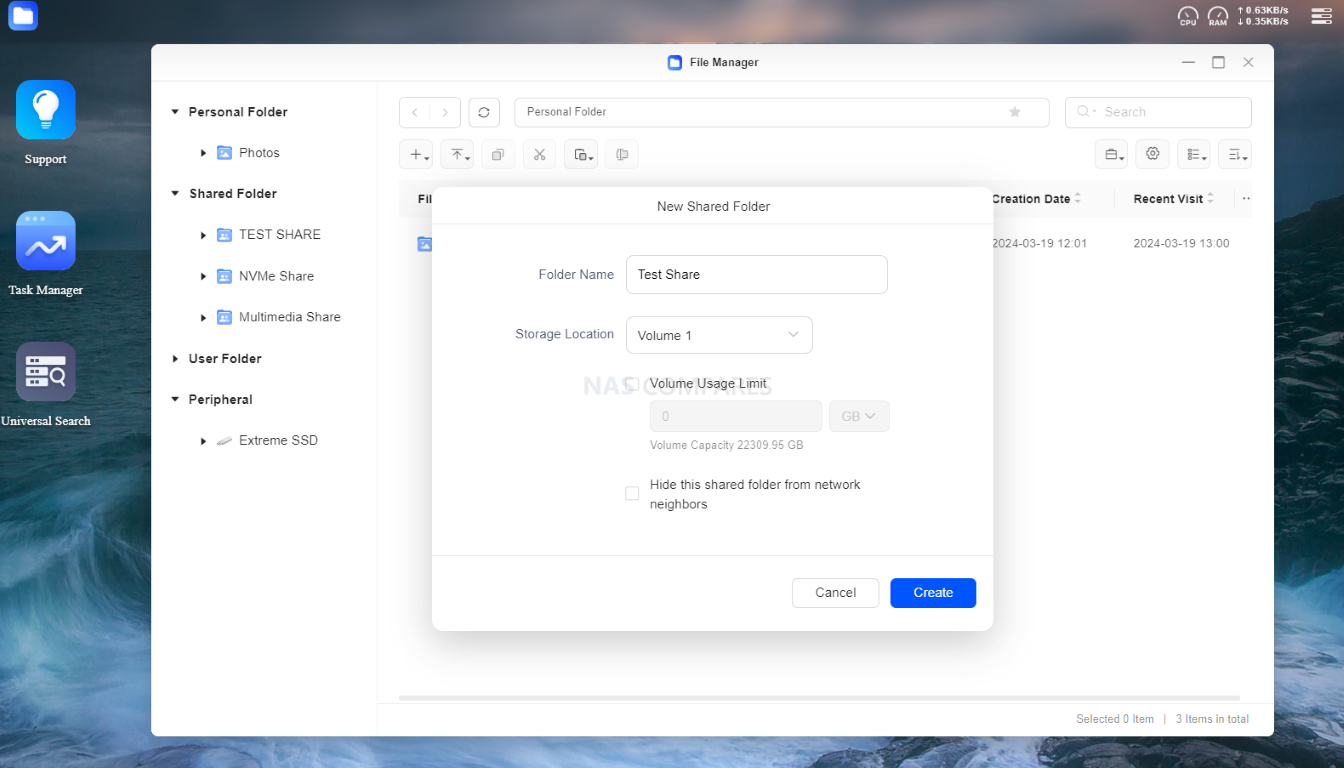
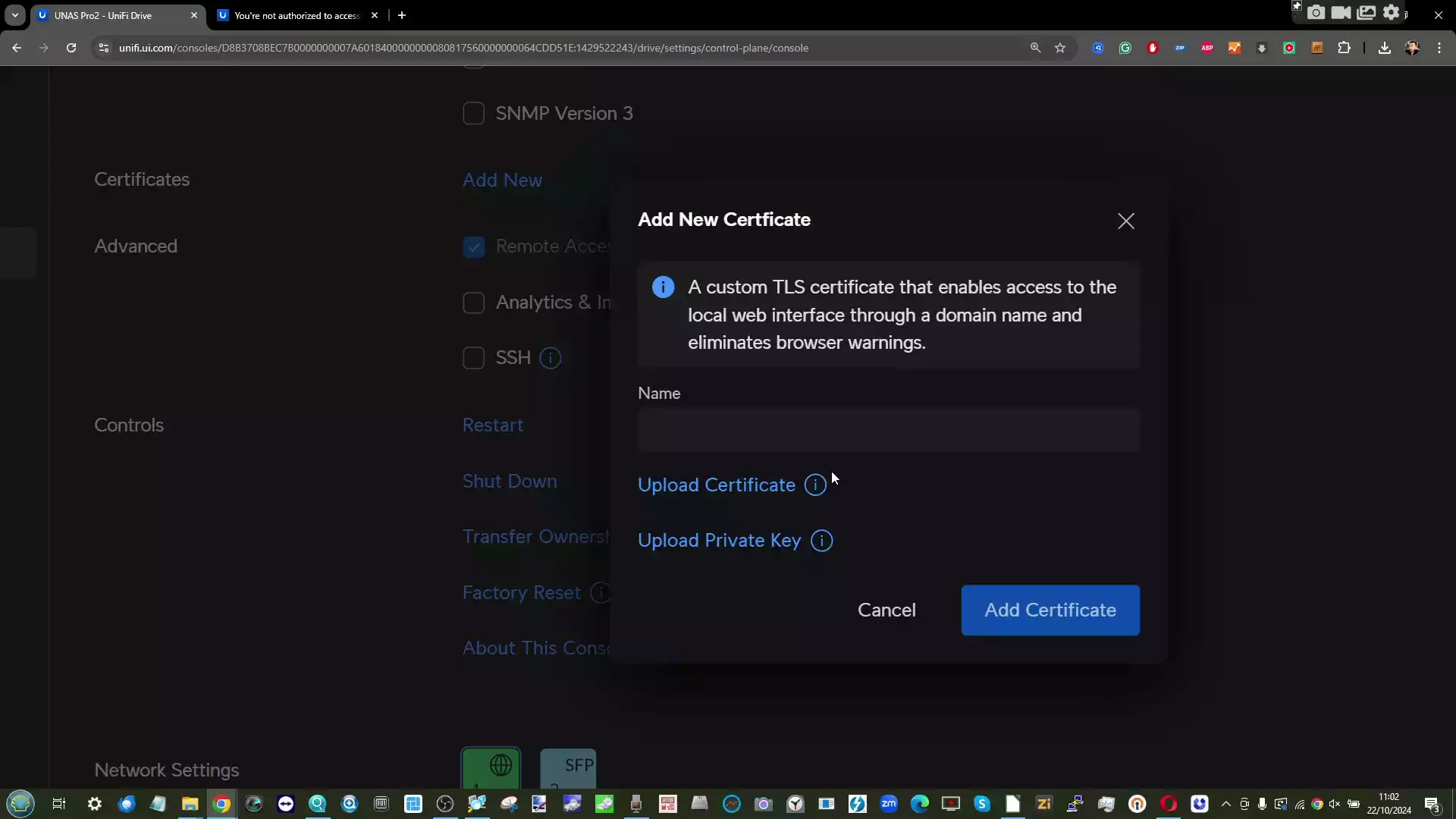
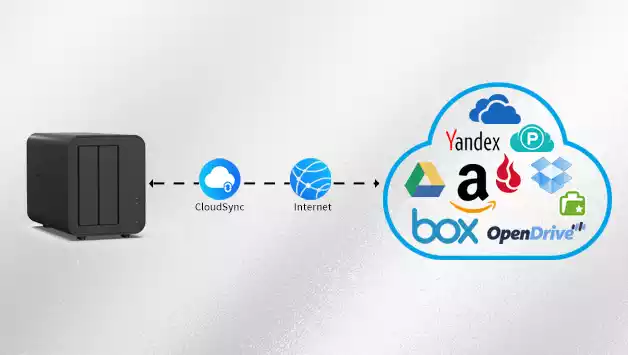
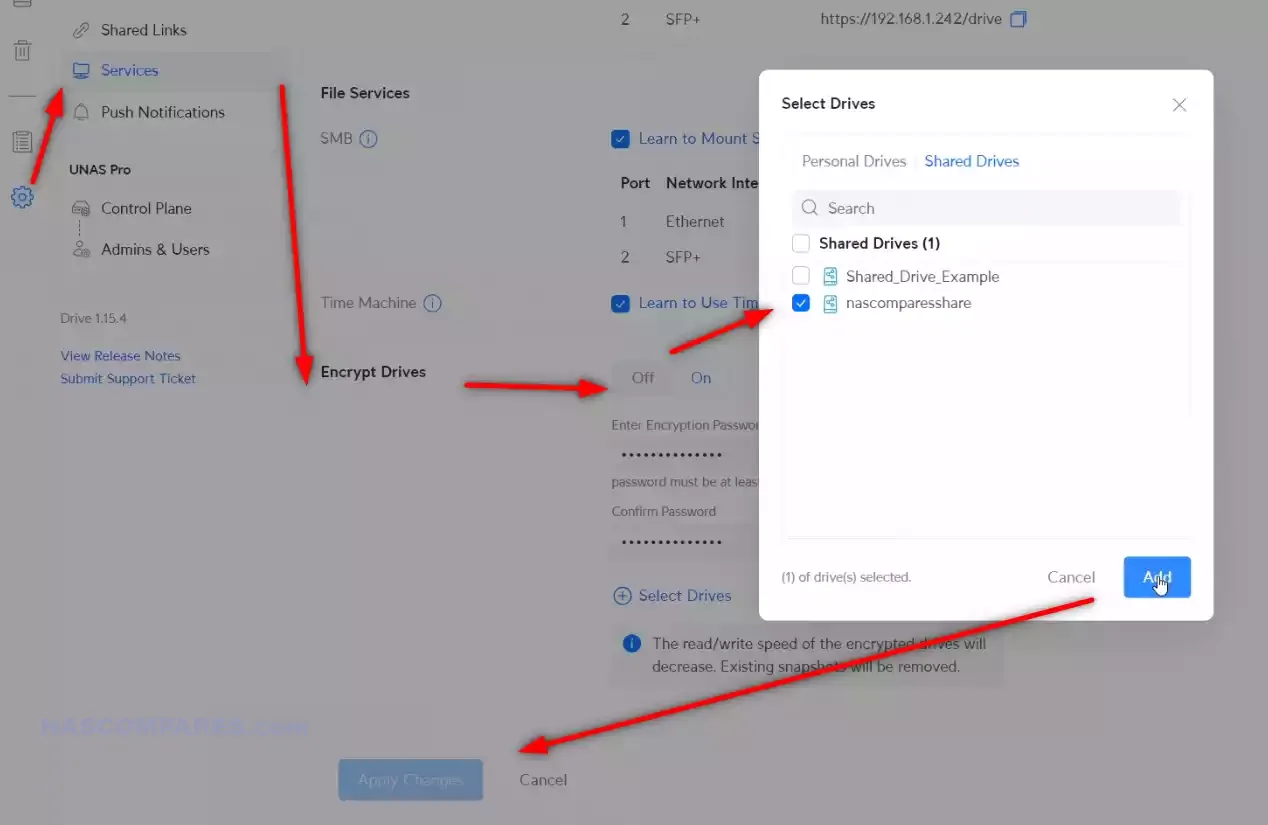
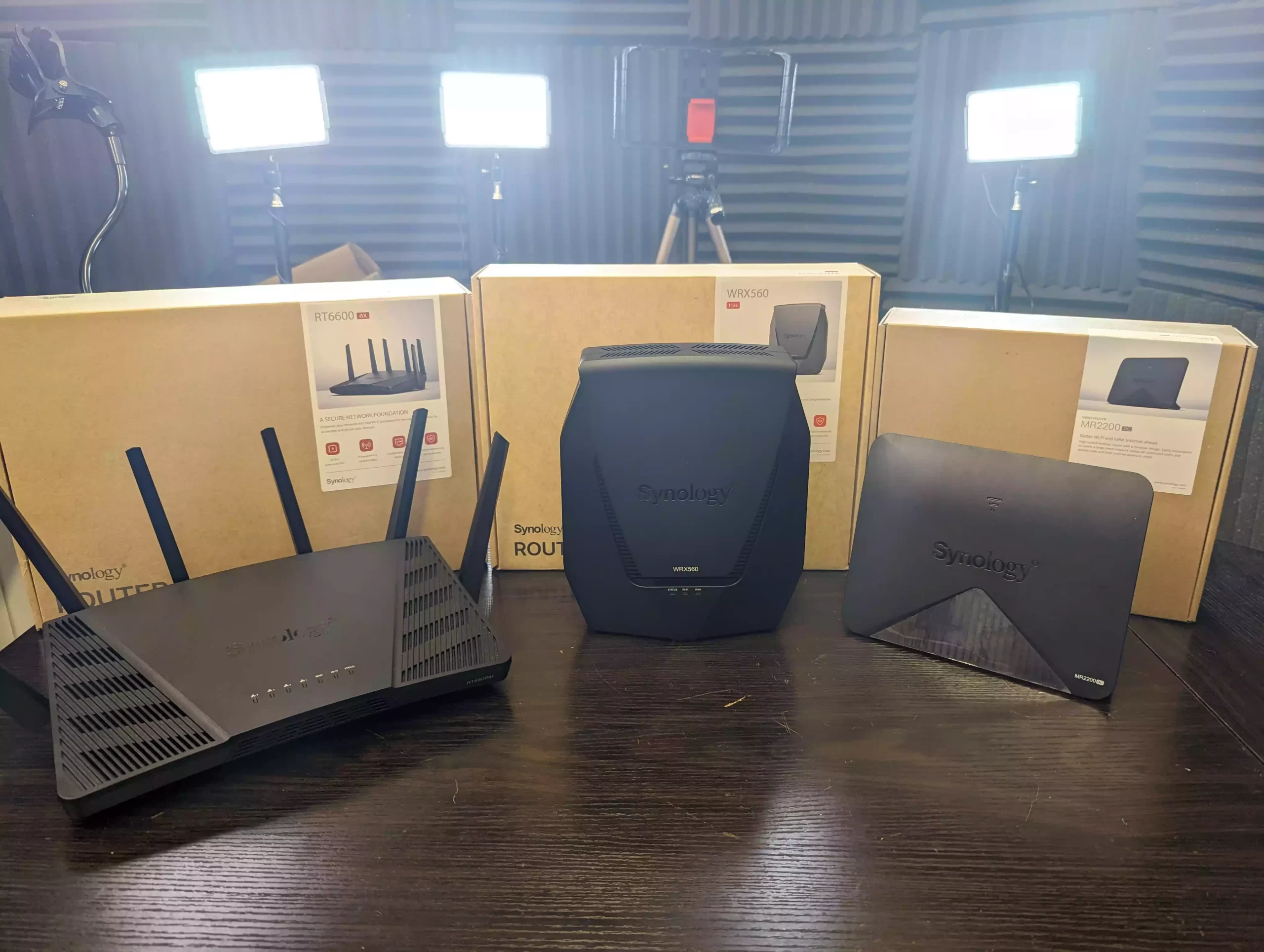
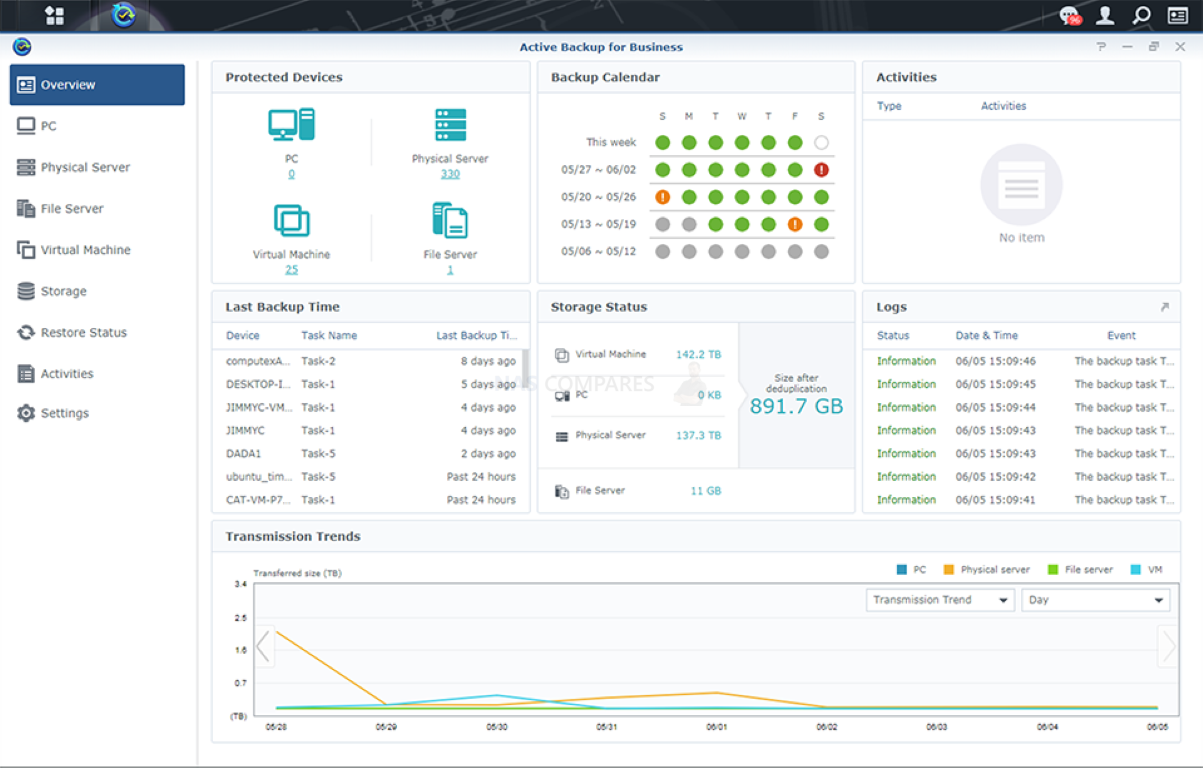
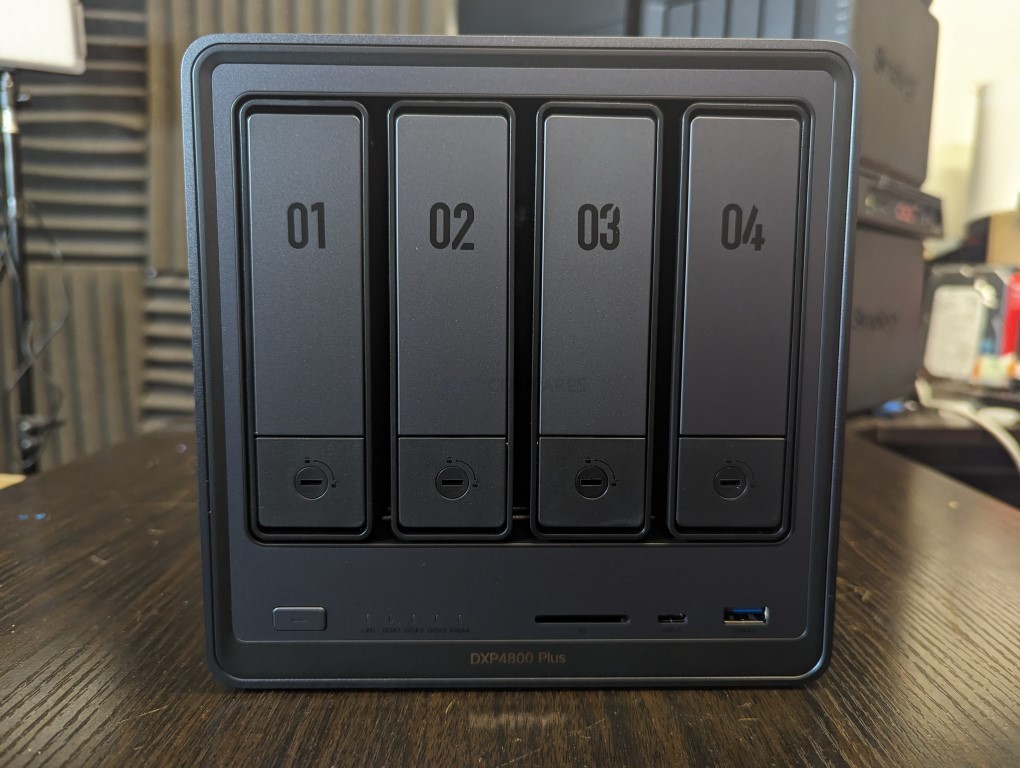
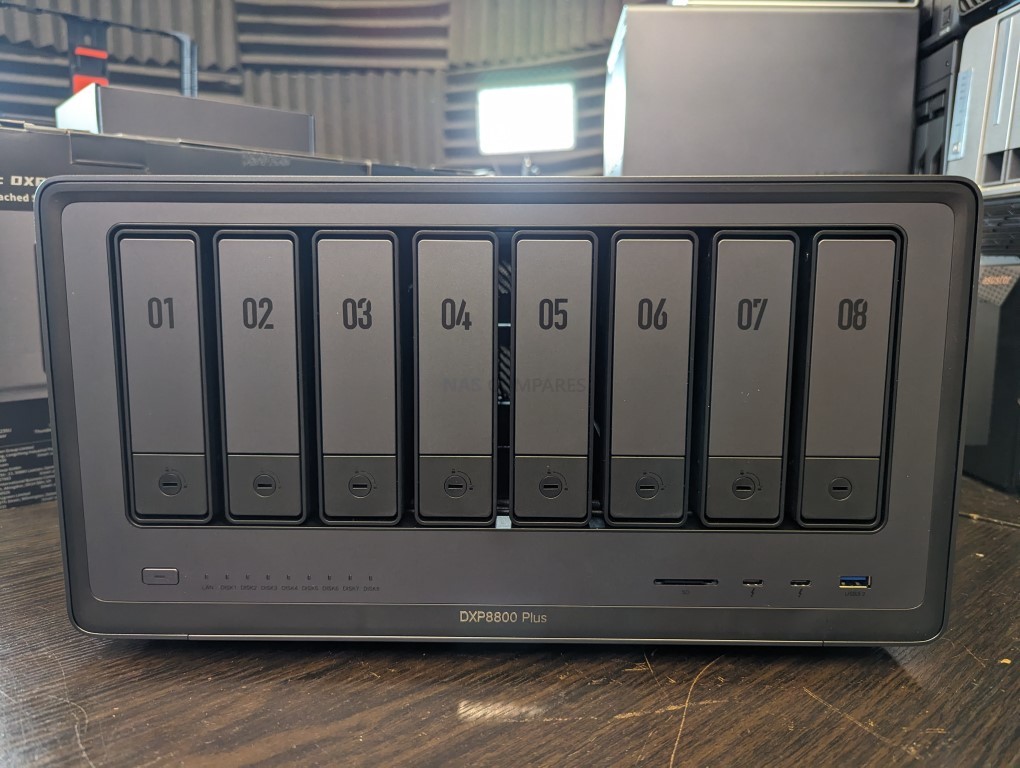
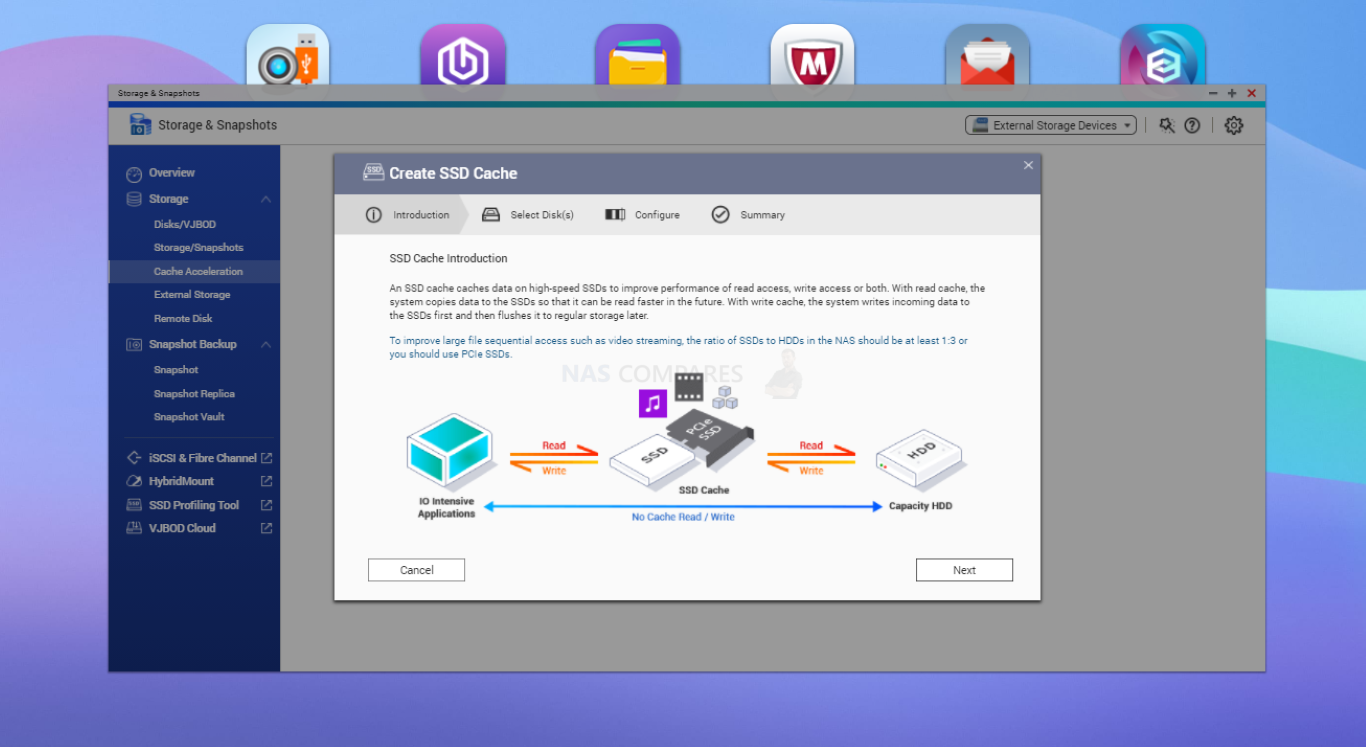
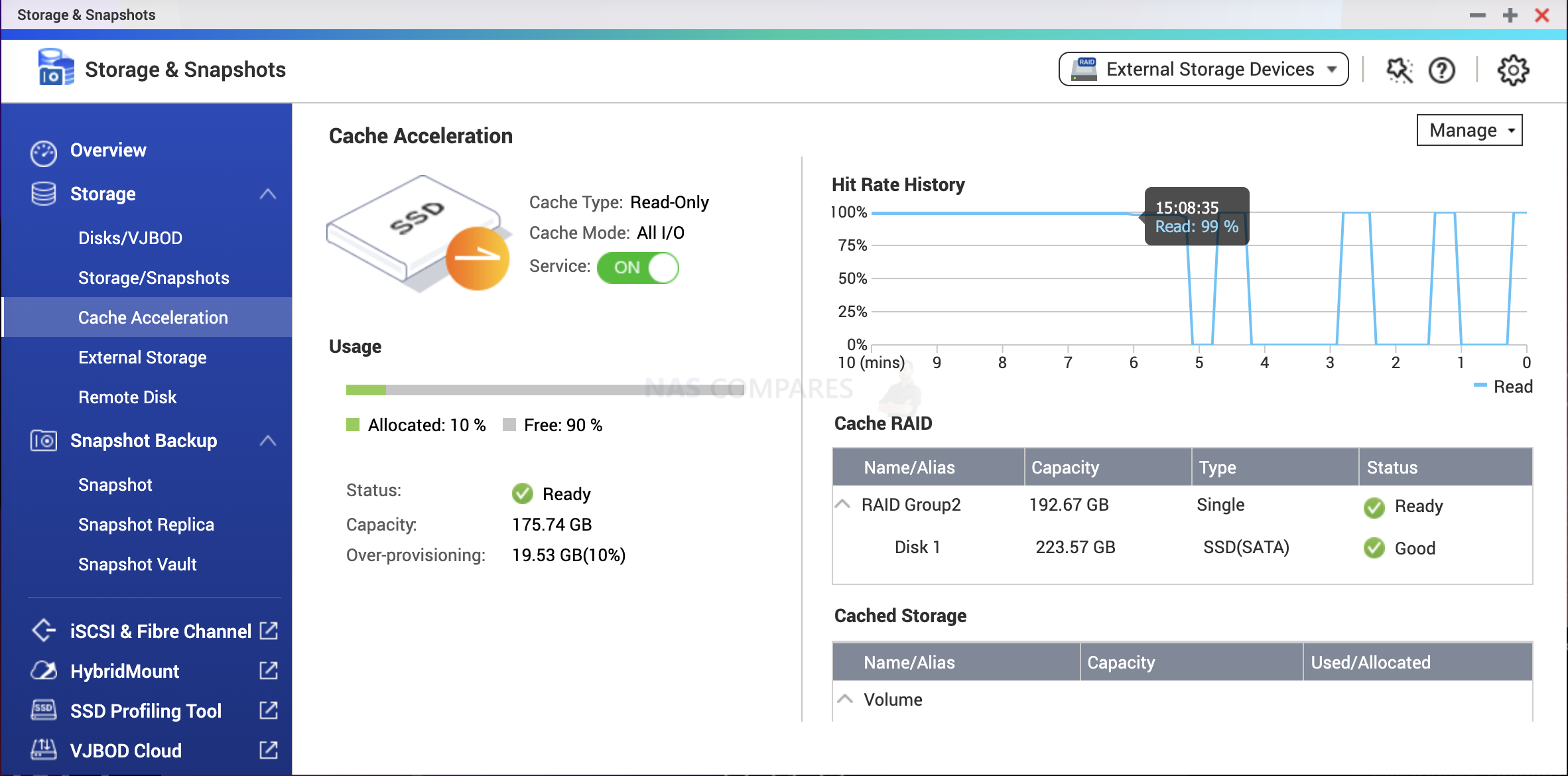
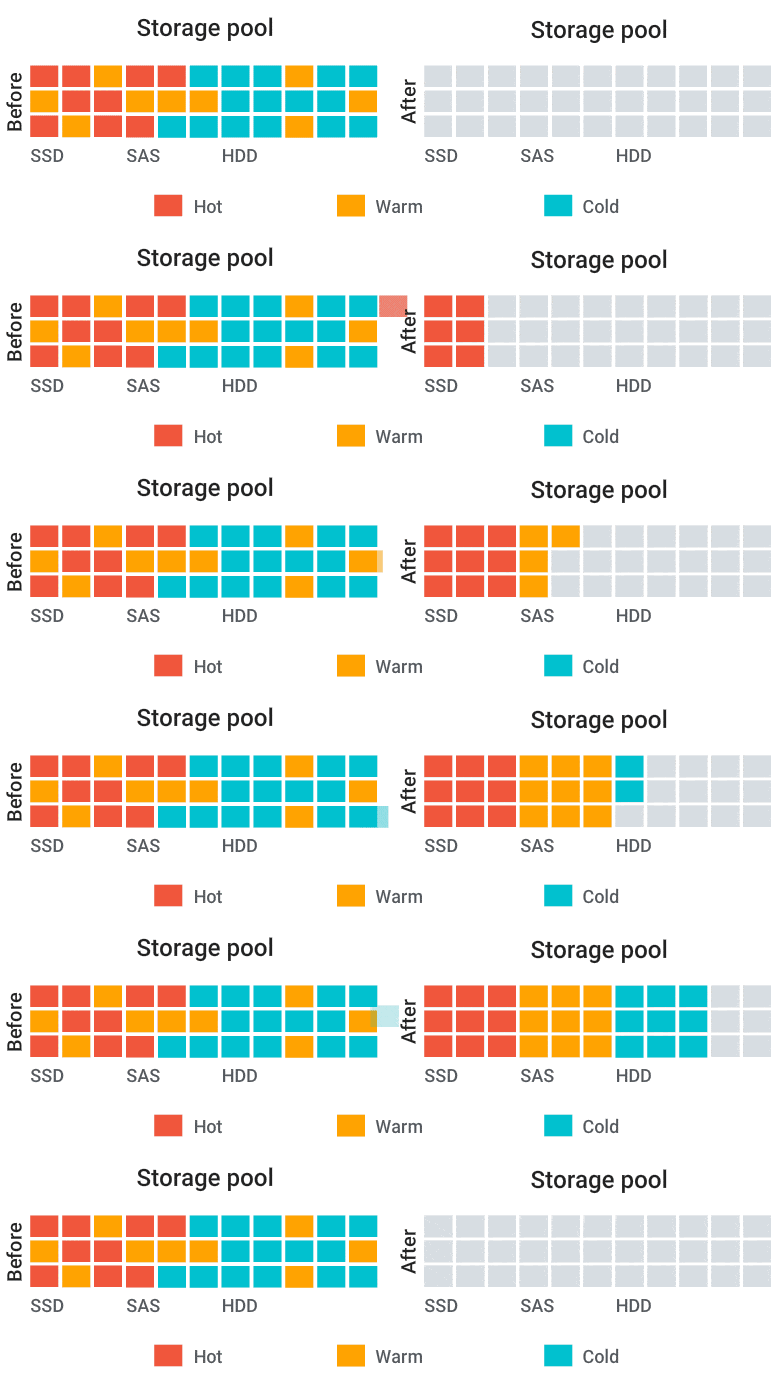
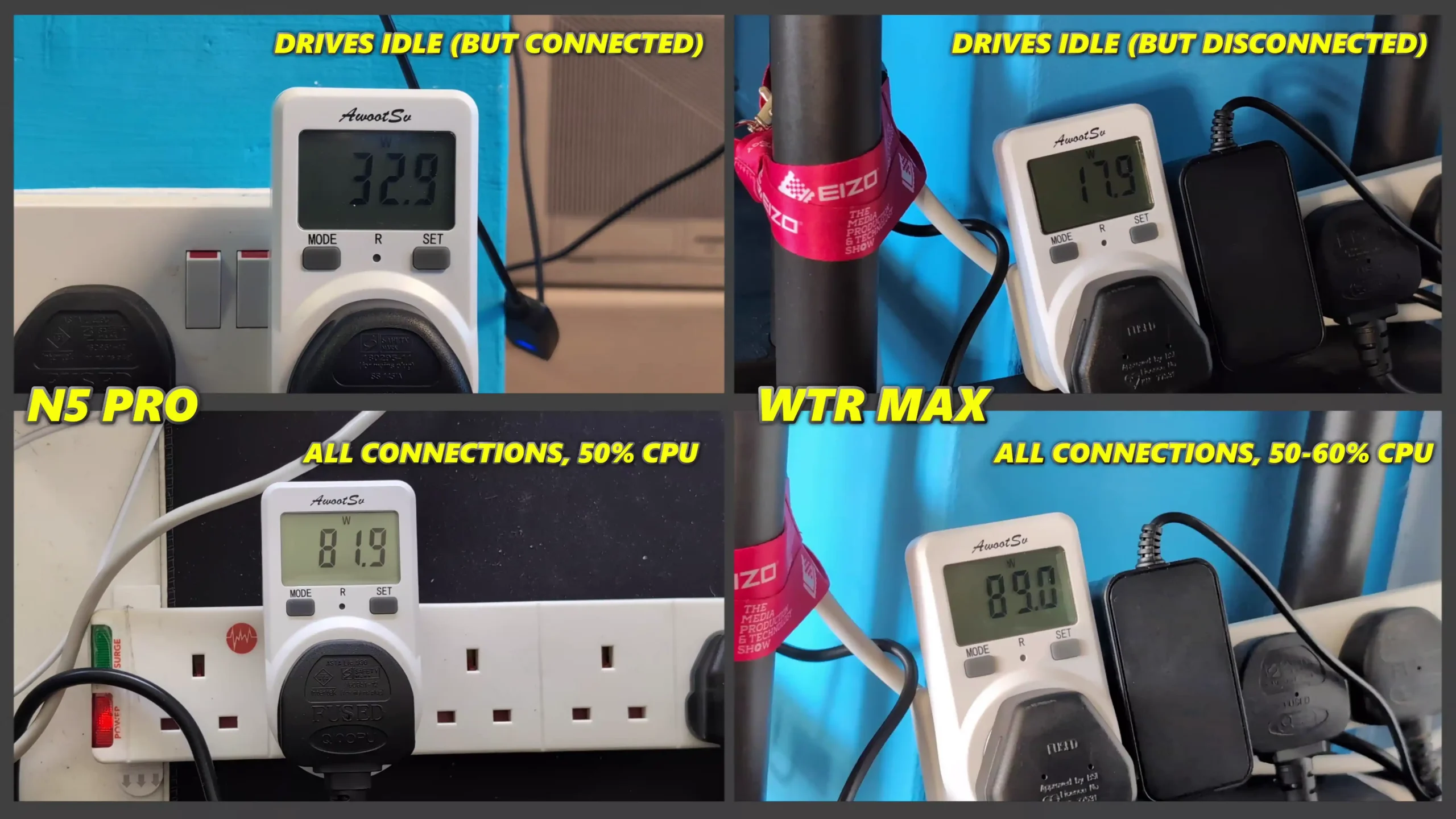
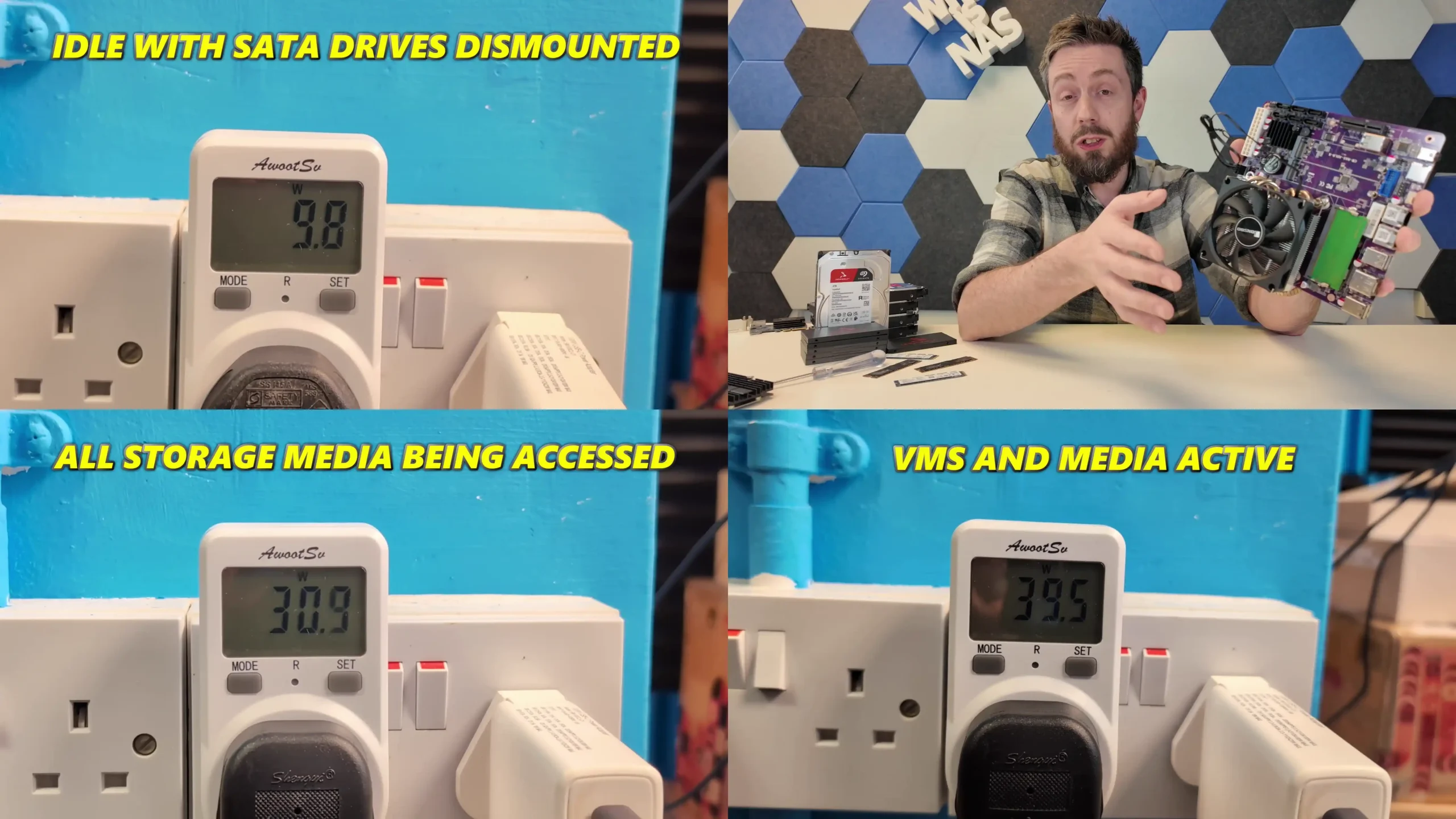
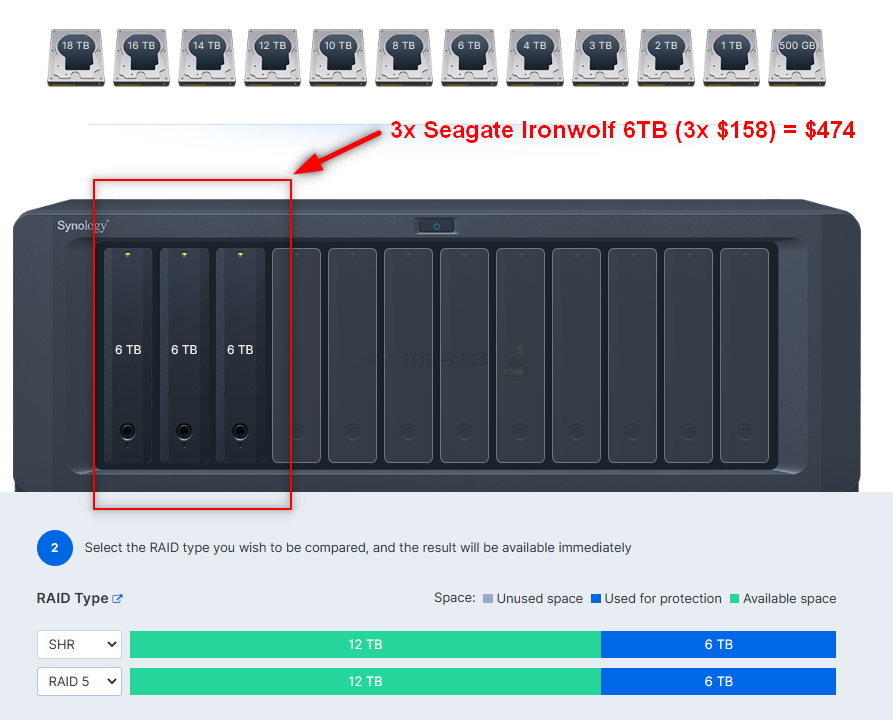
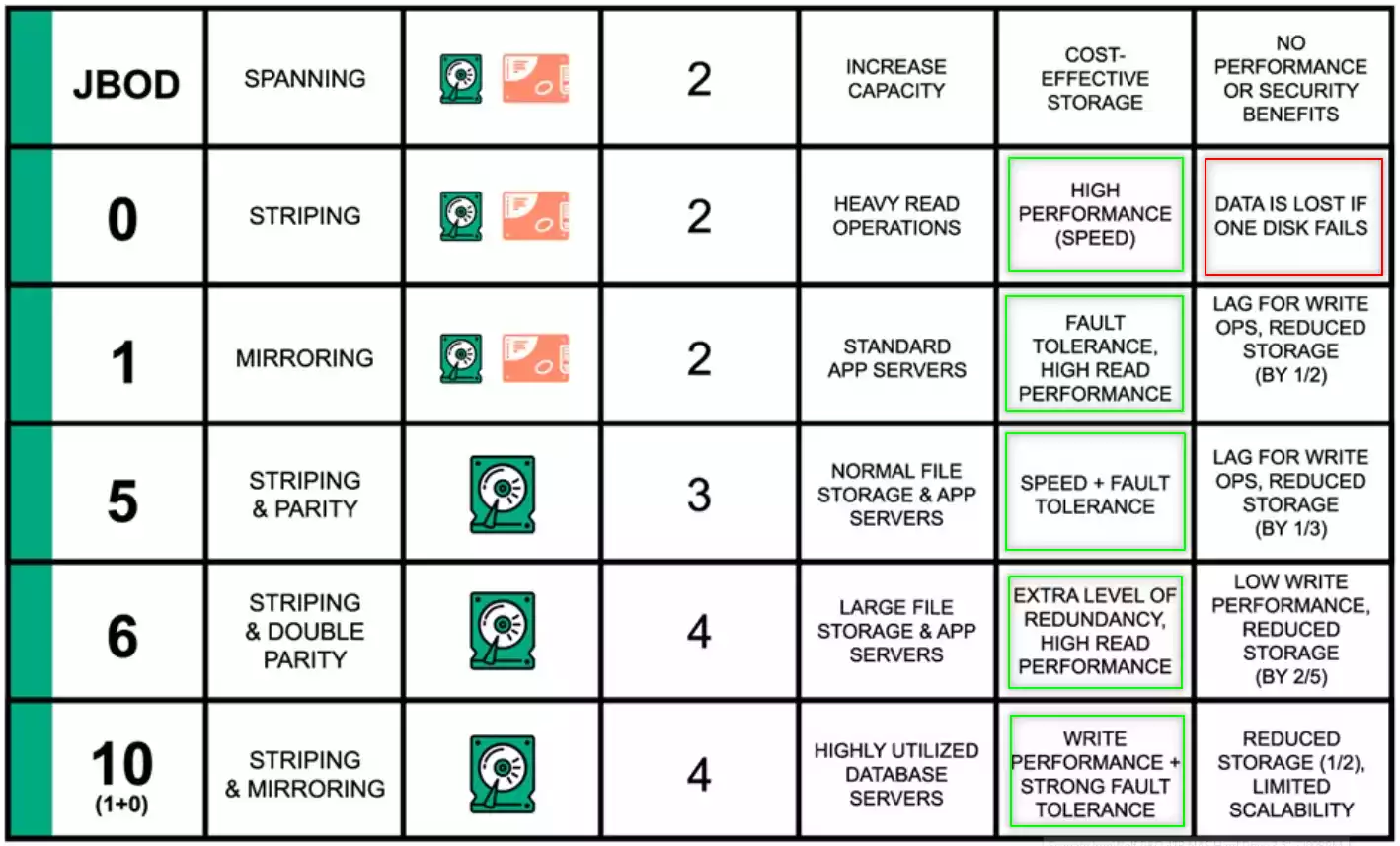
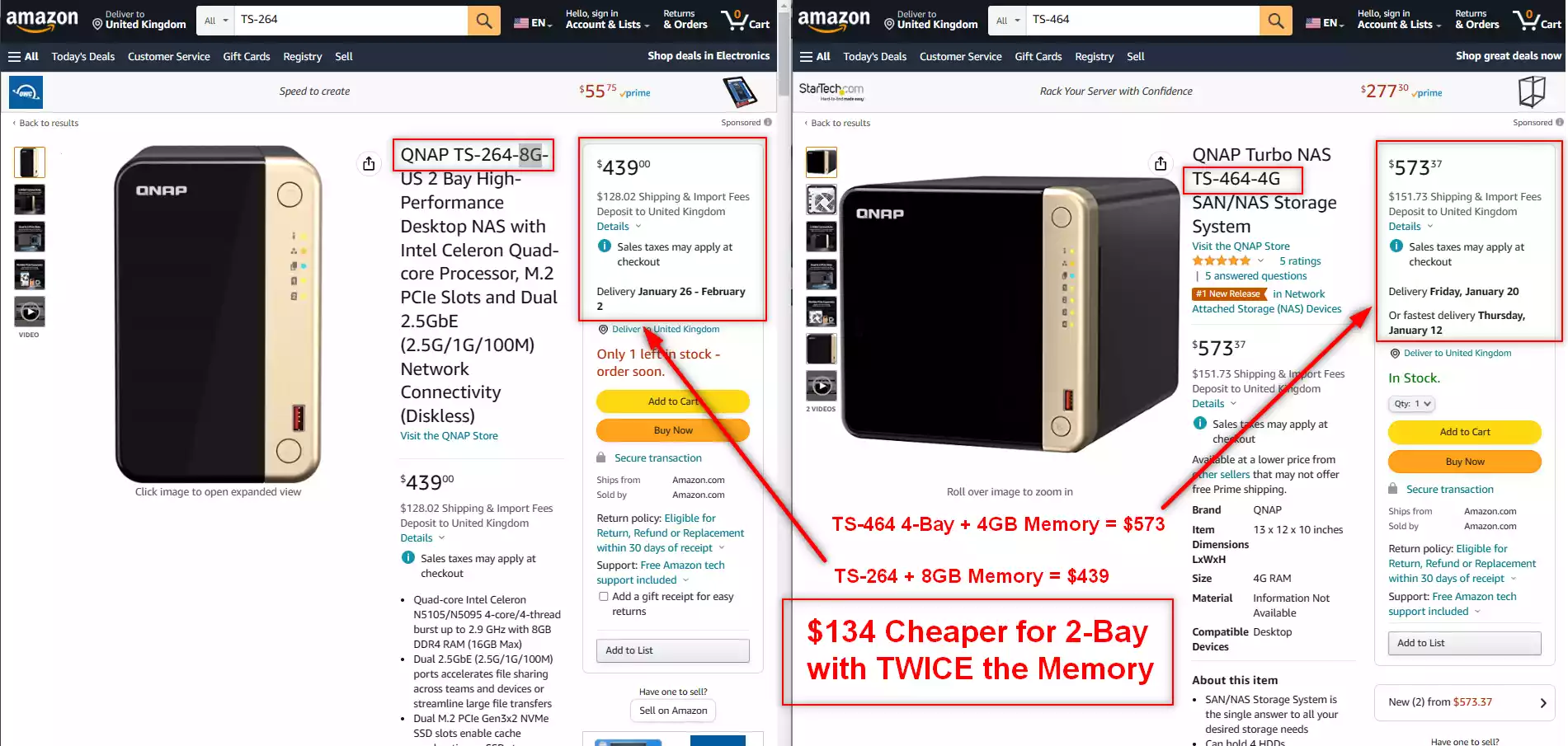
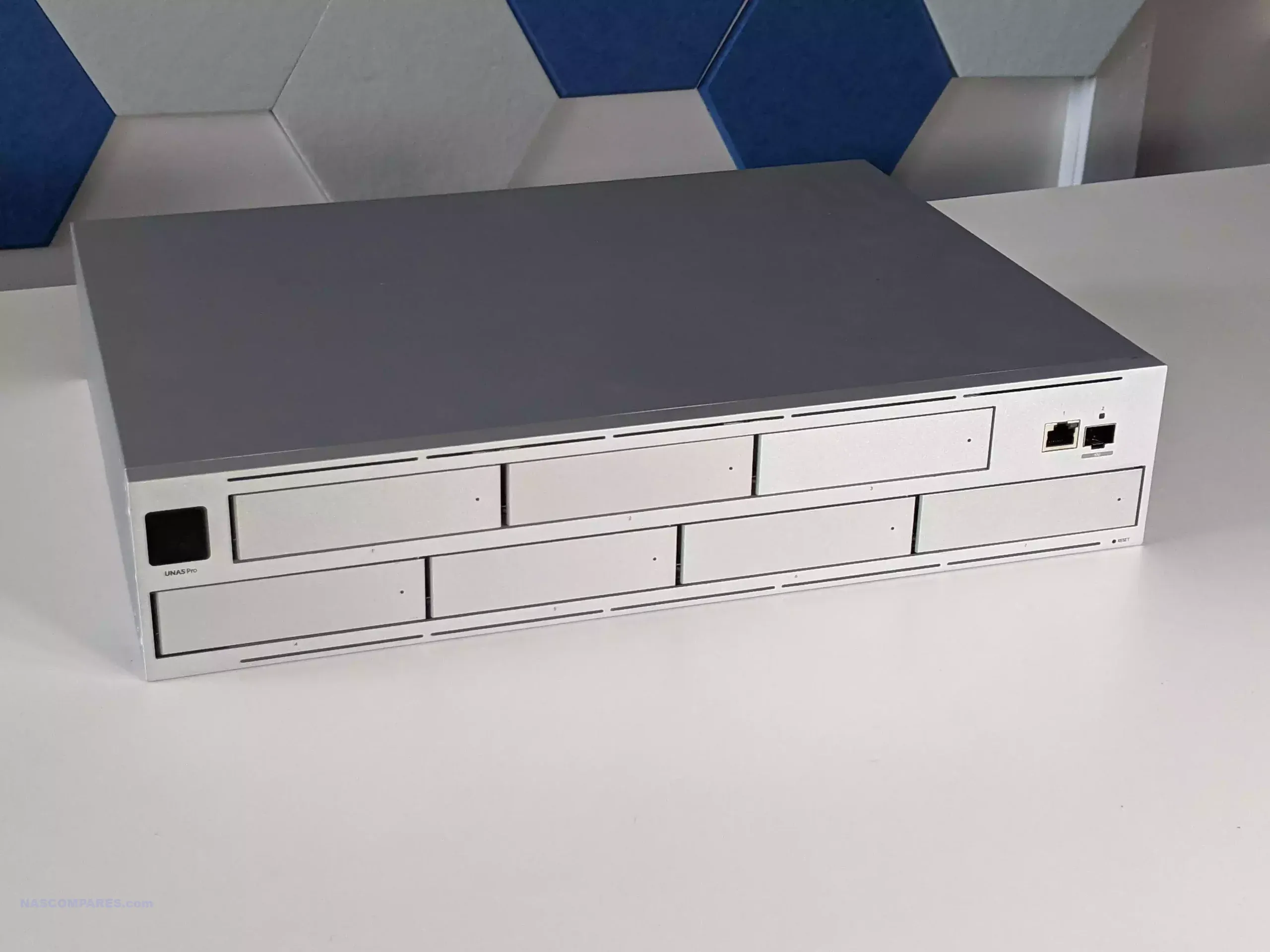
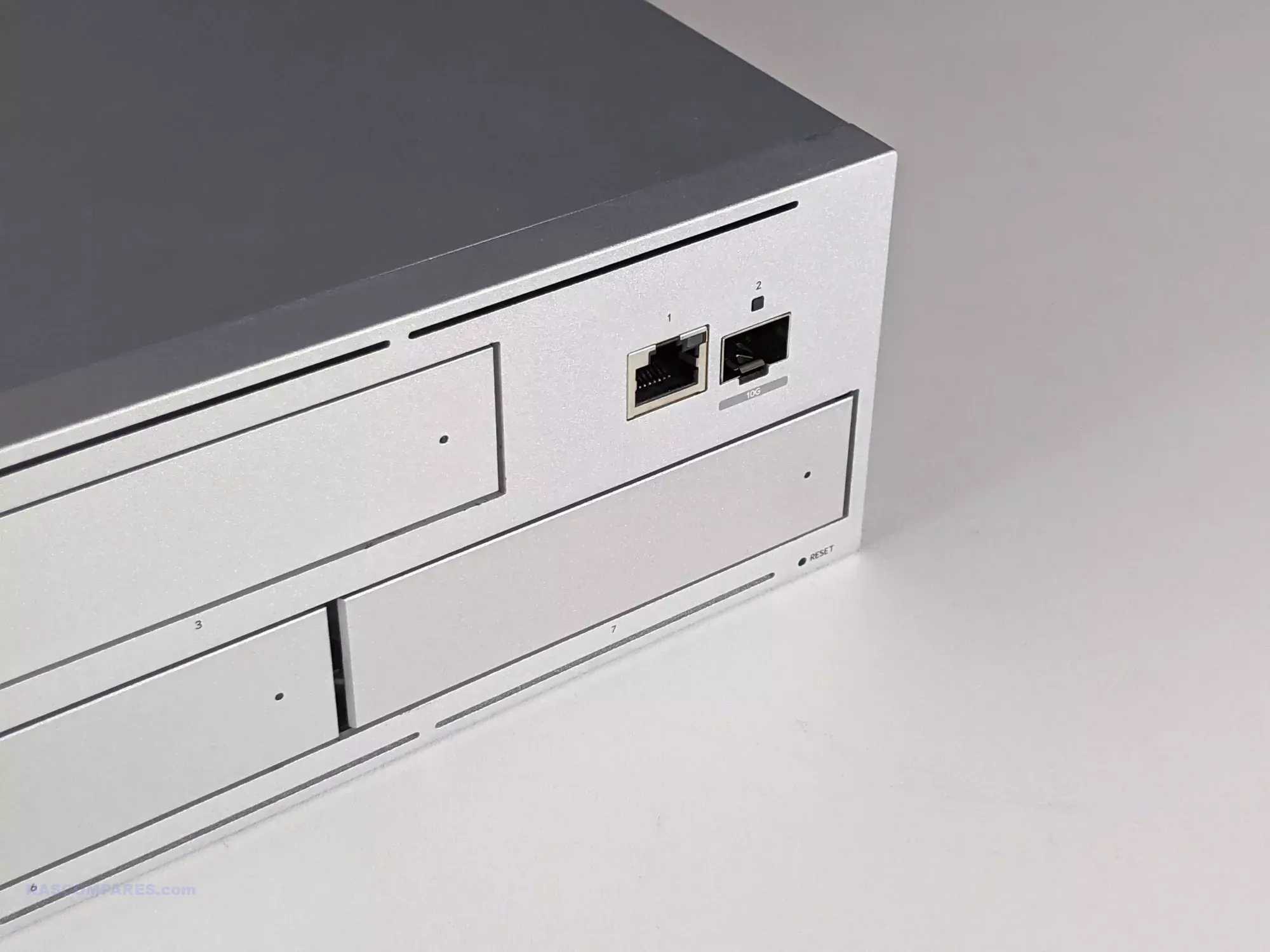

 Nails down the fundamentals of NAS Storage very well
 7 Bays is a bit unusual, plus feels like the existing UNVR with different firmware

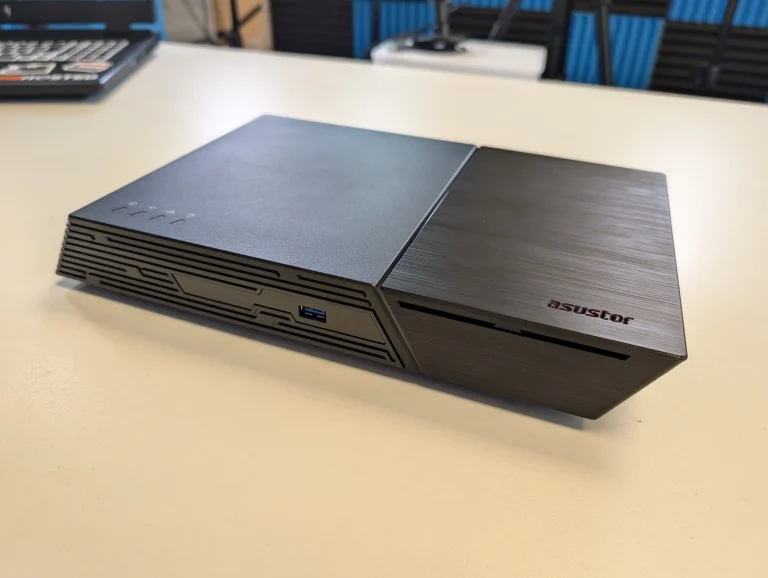

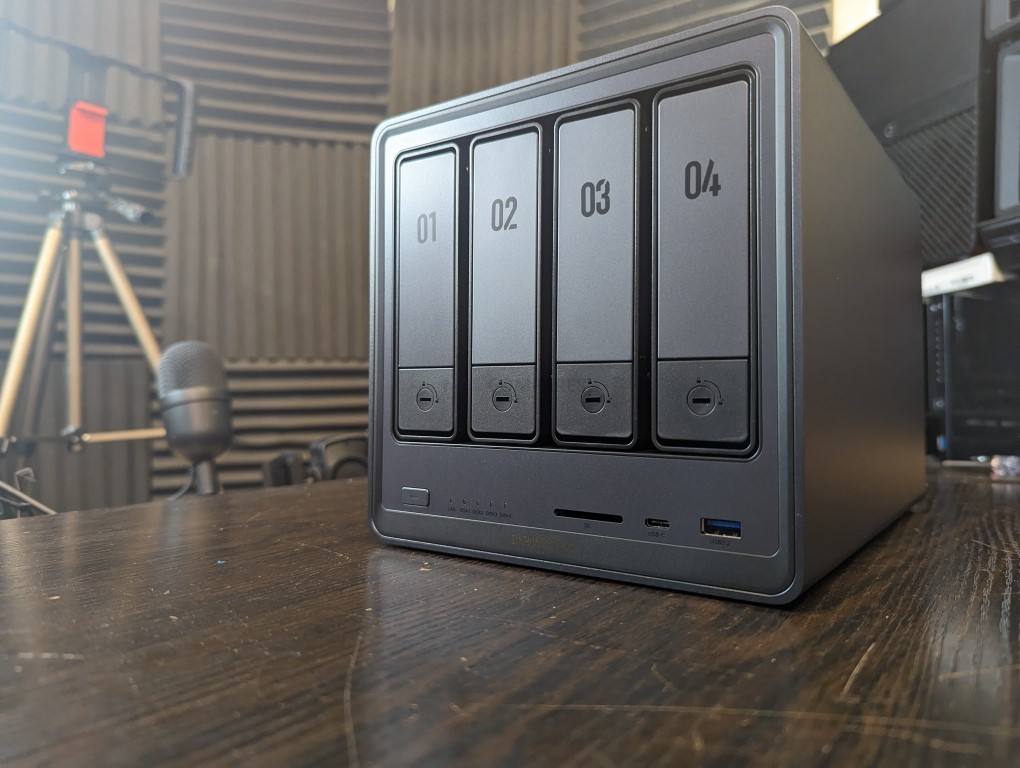
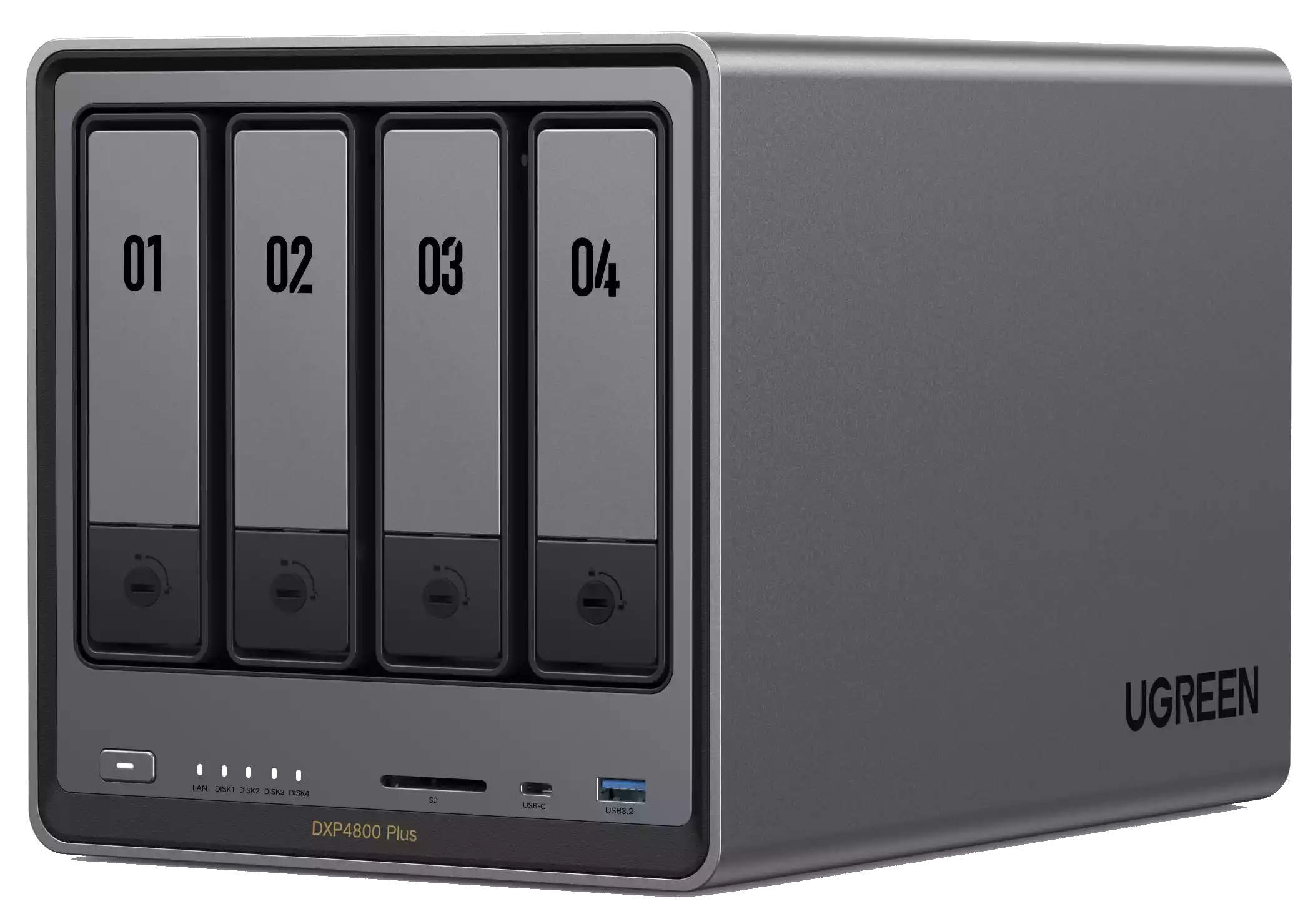
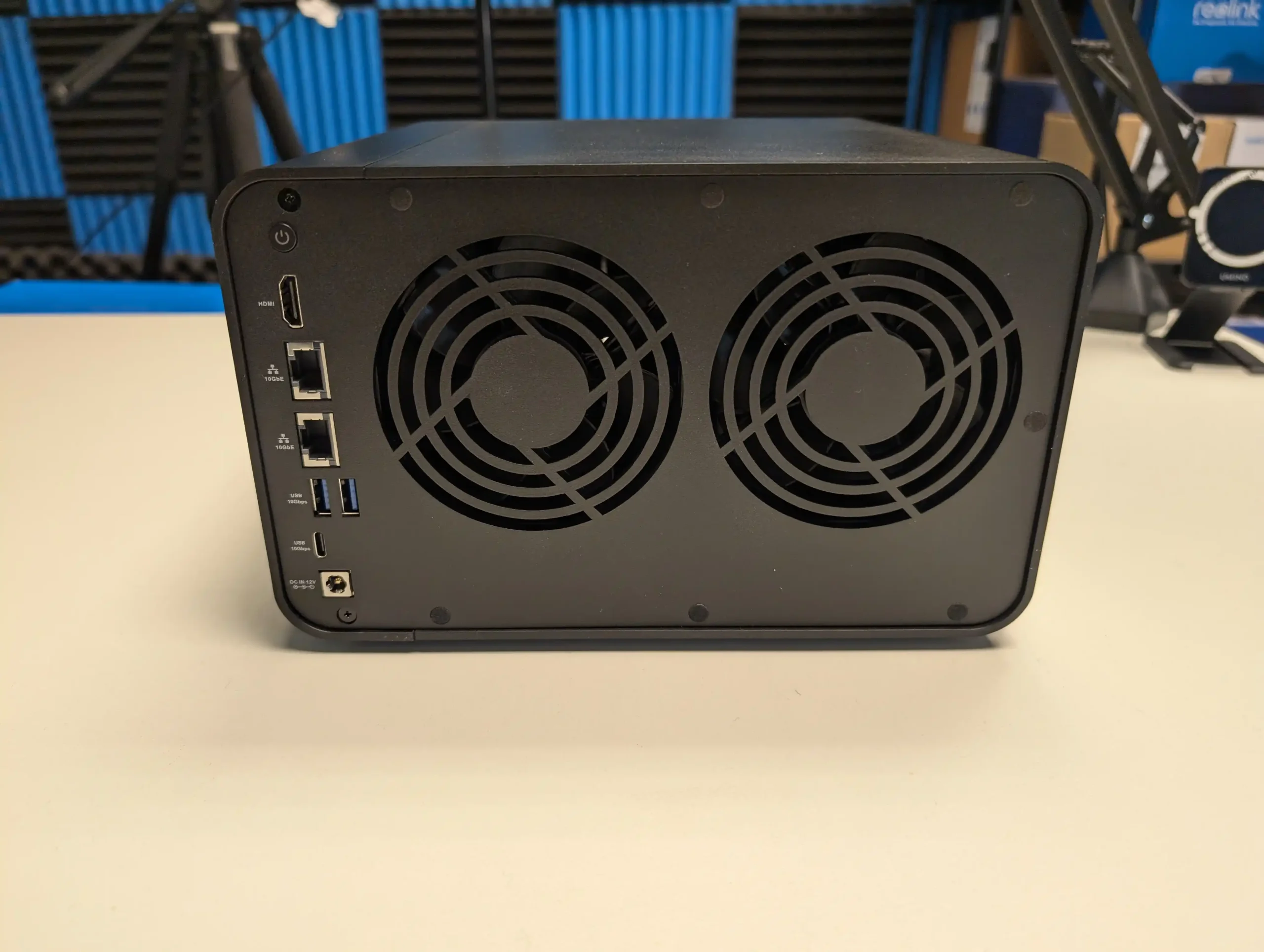
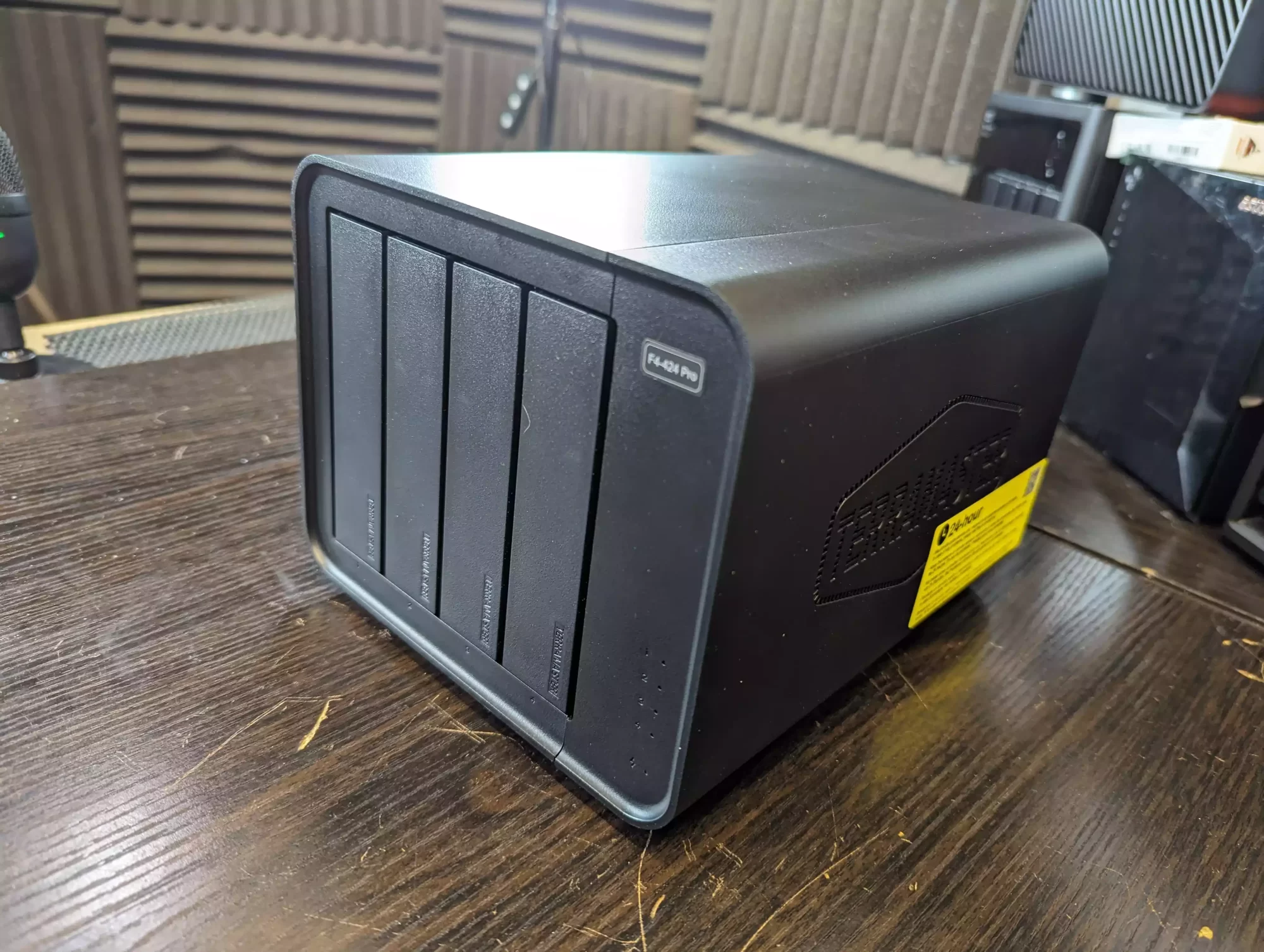
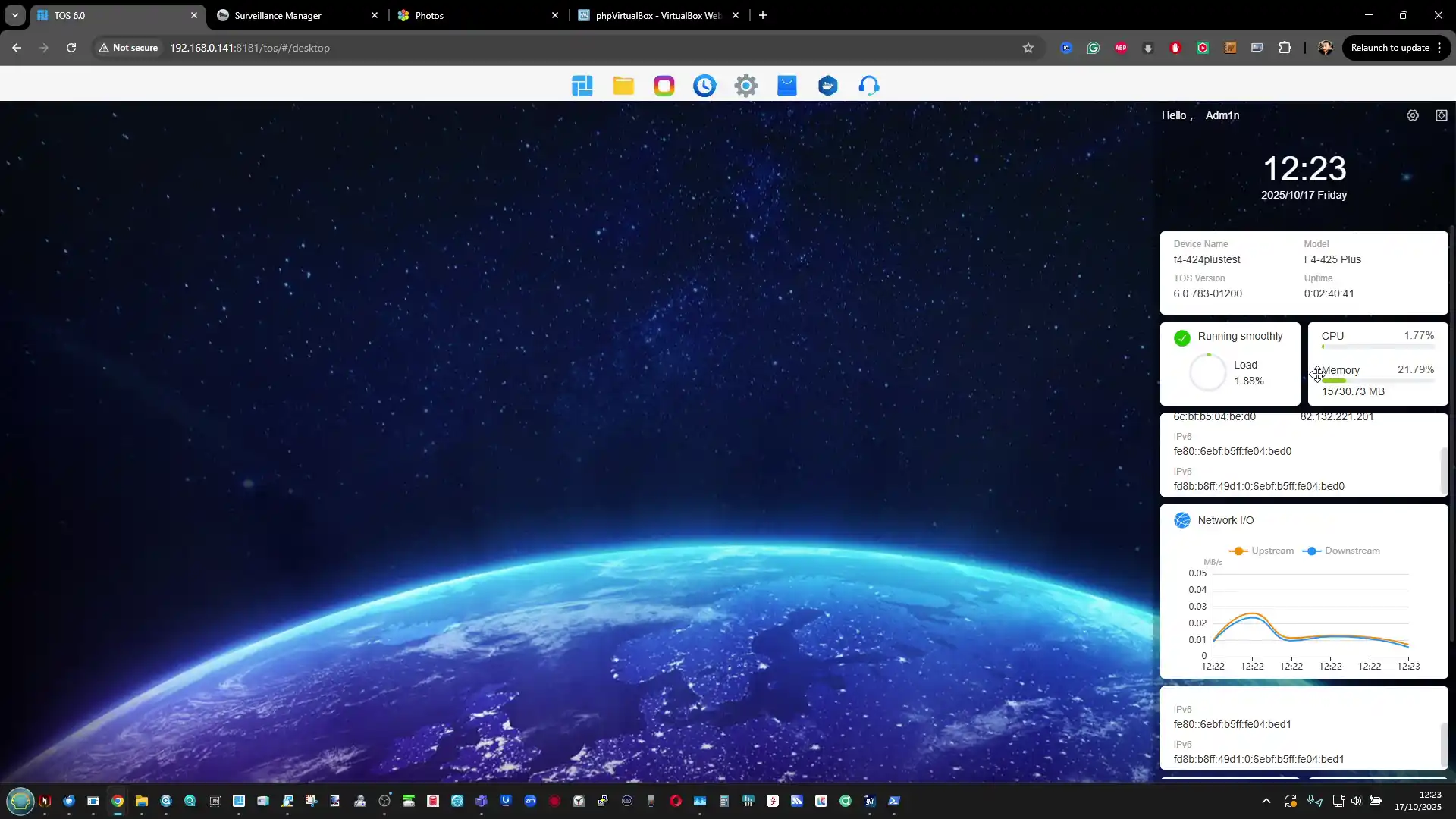
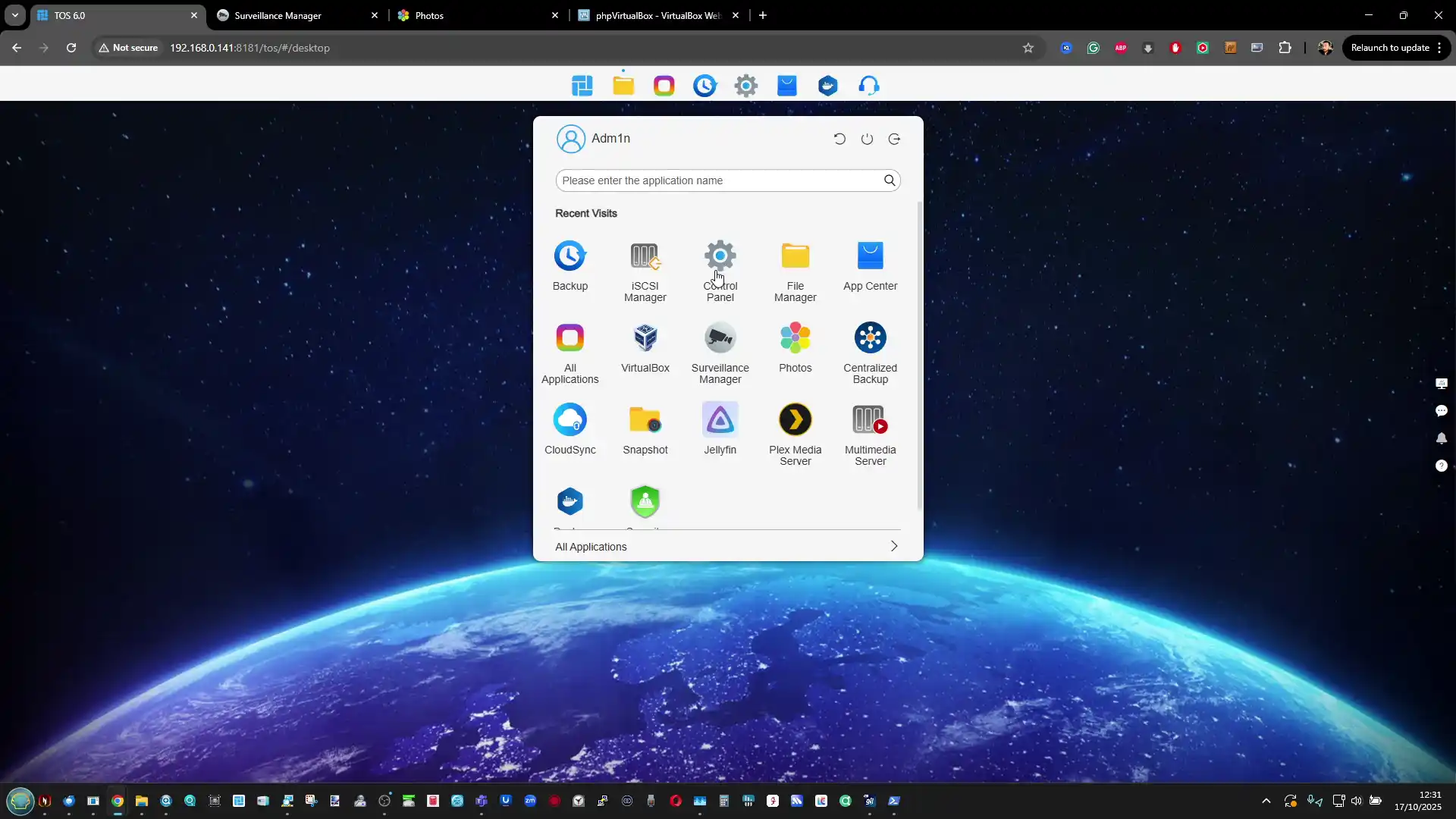
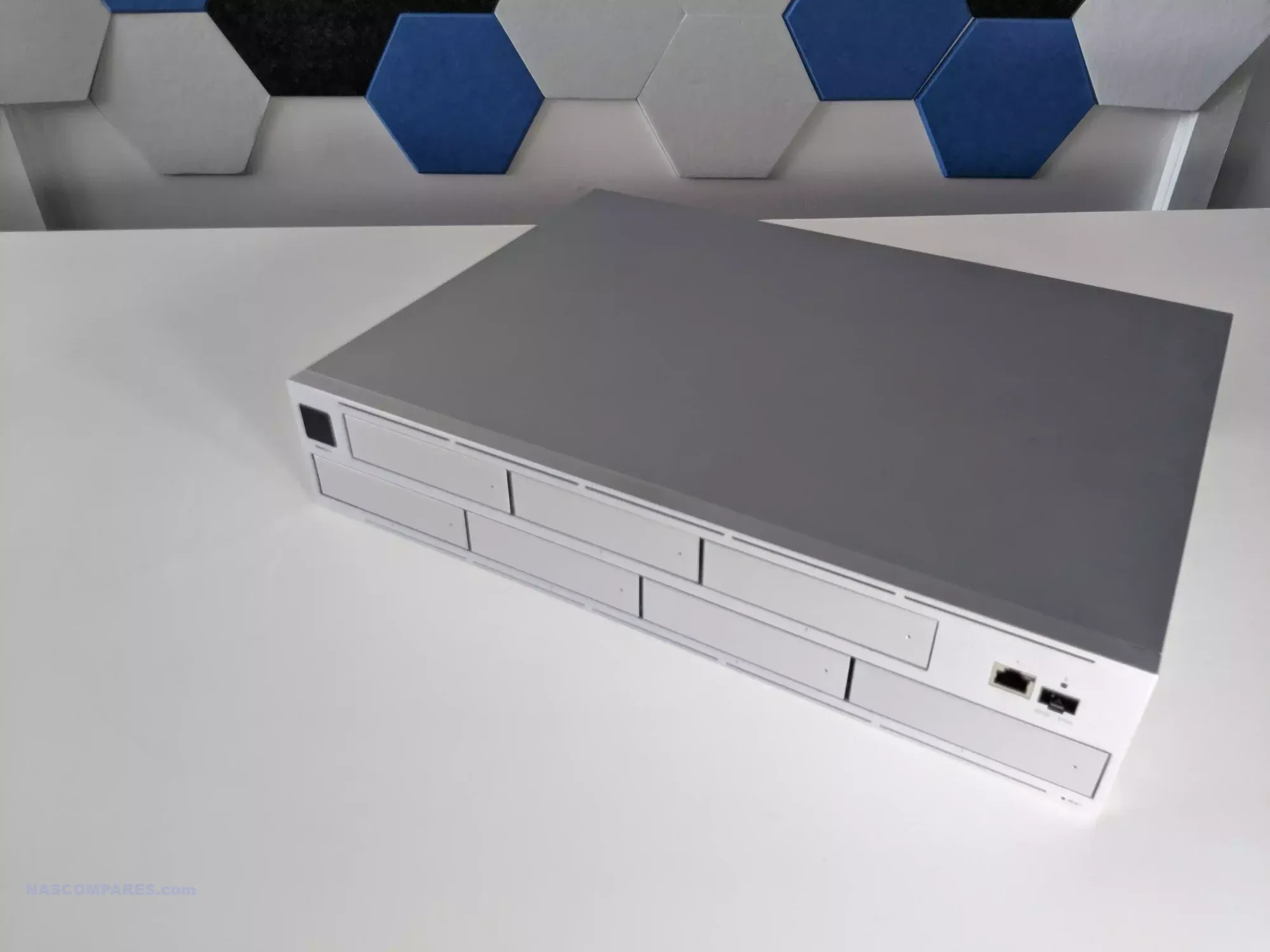
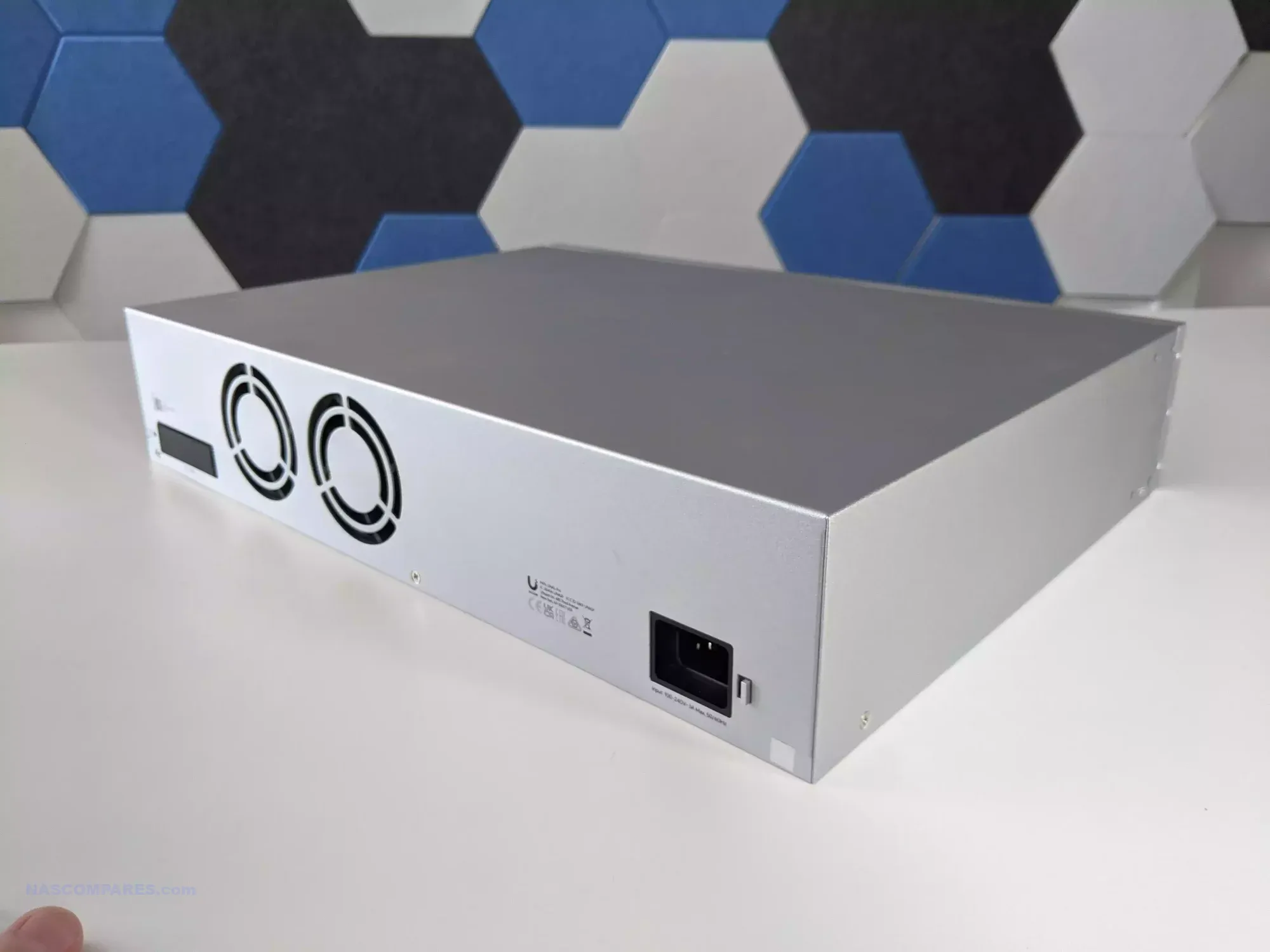
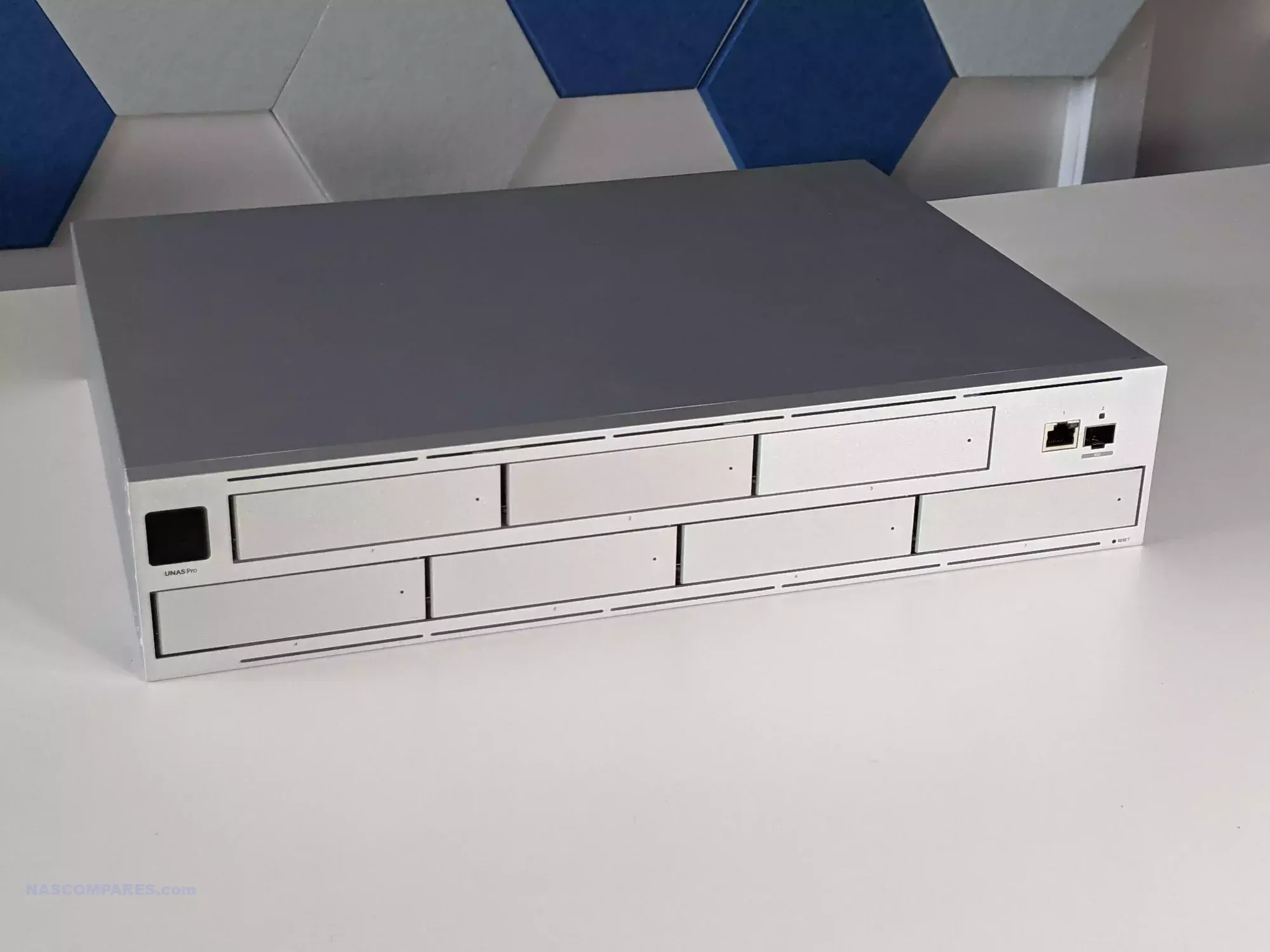
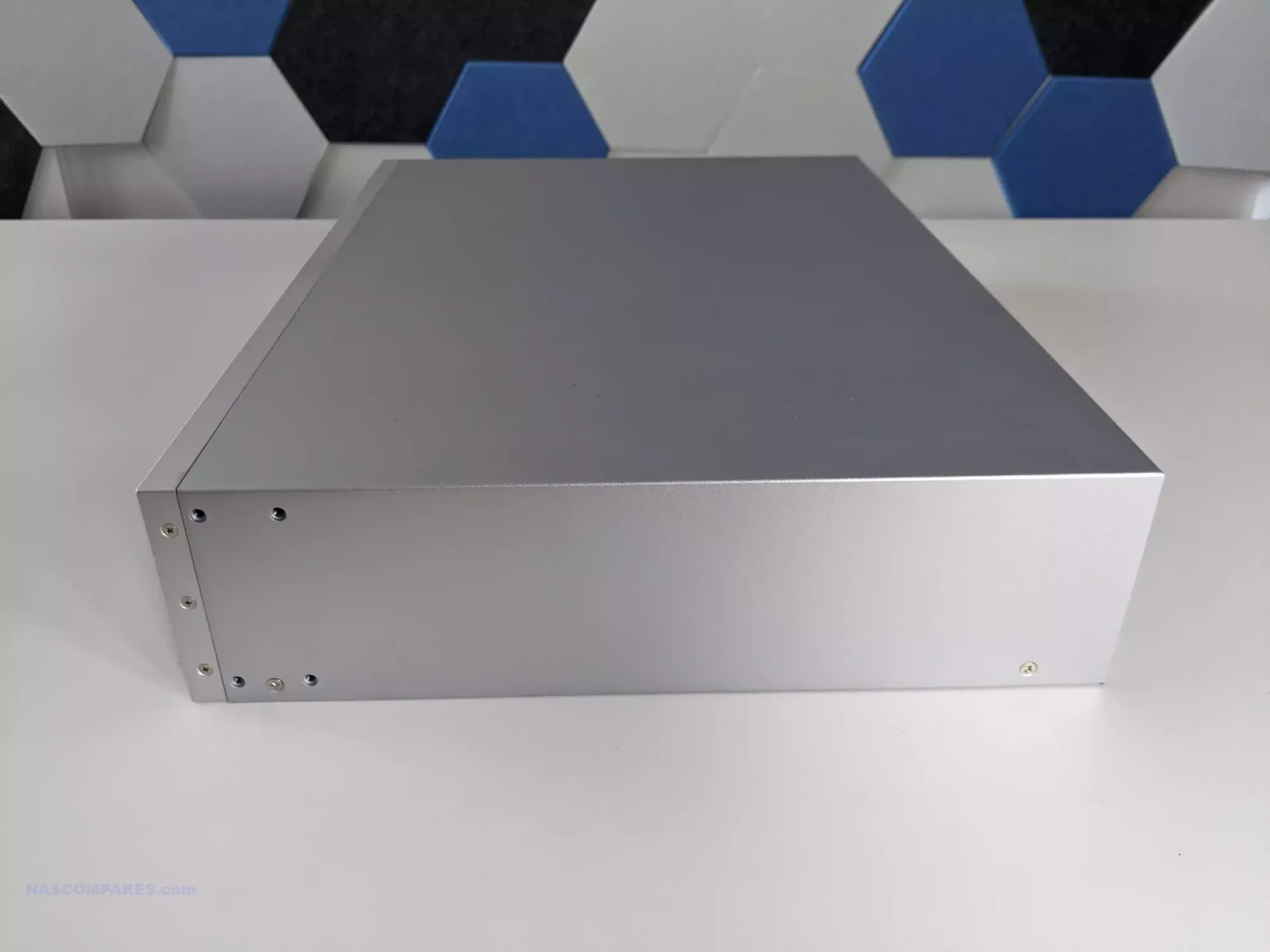
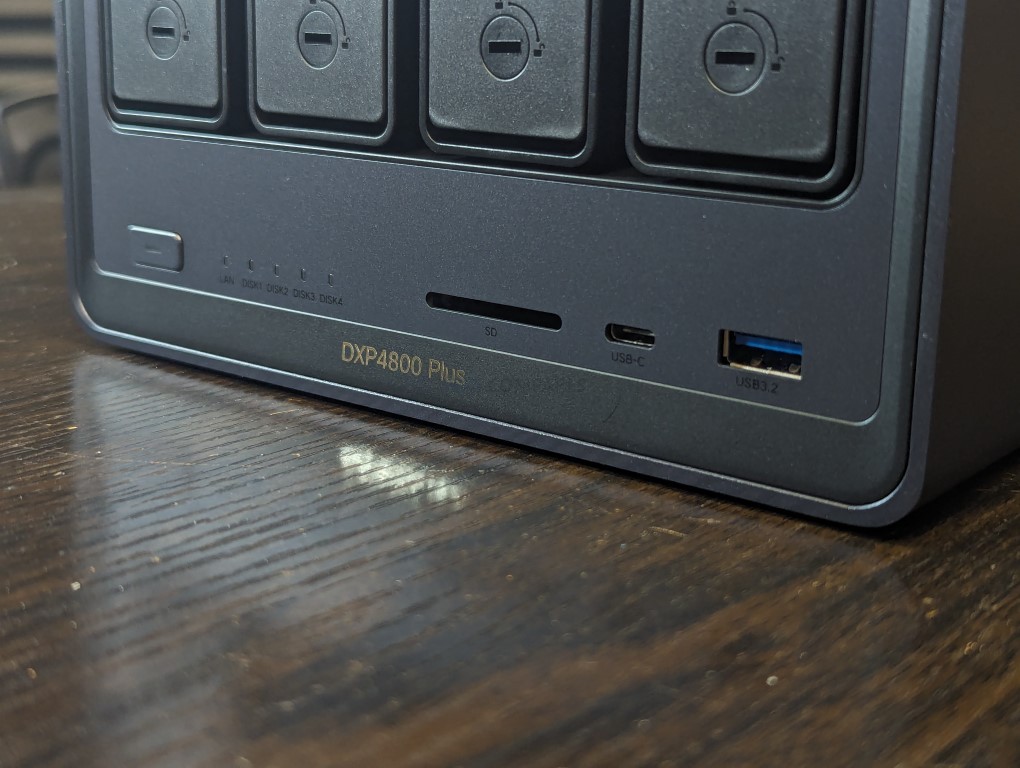
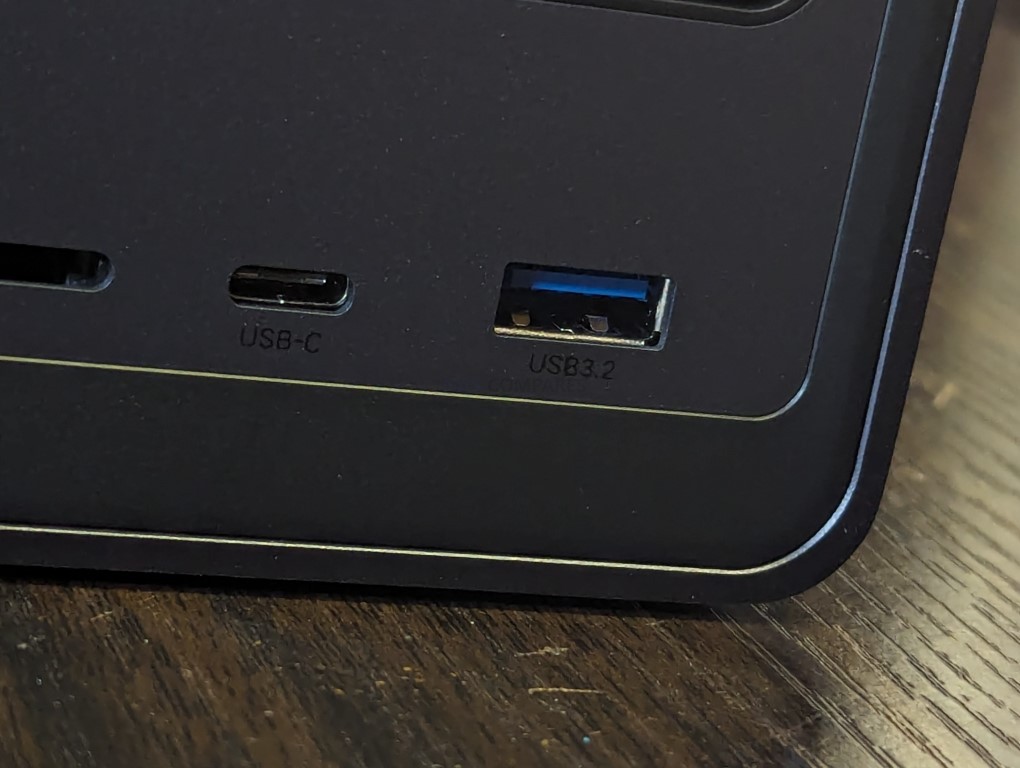
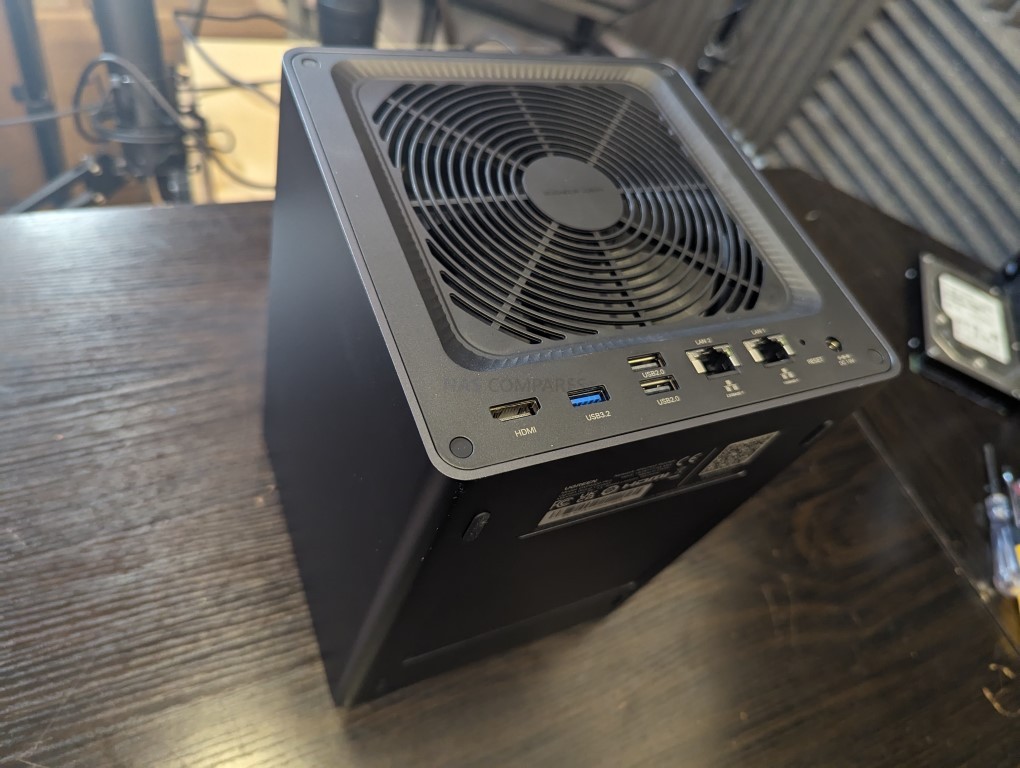
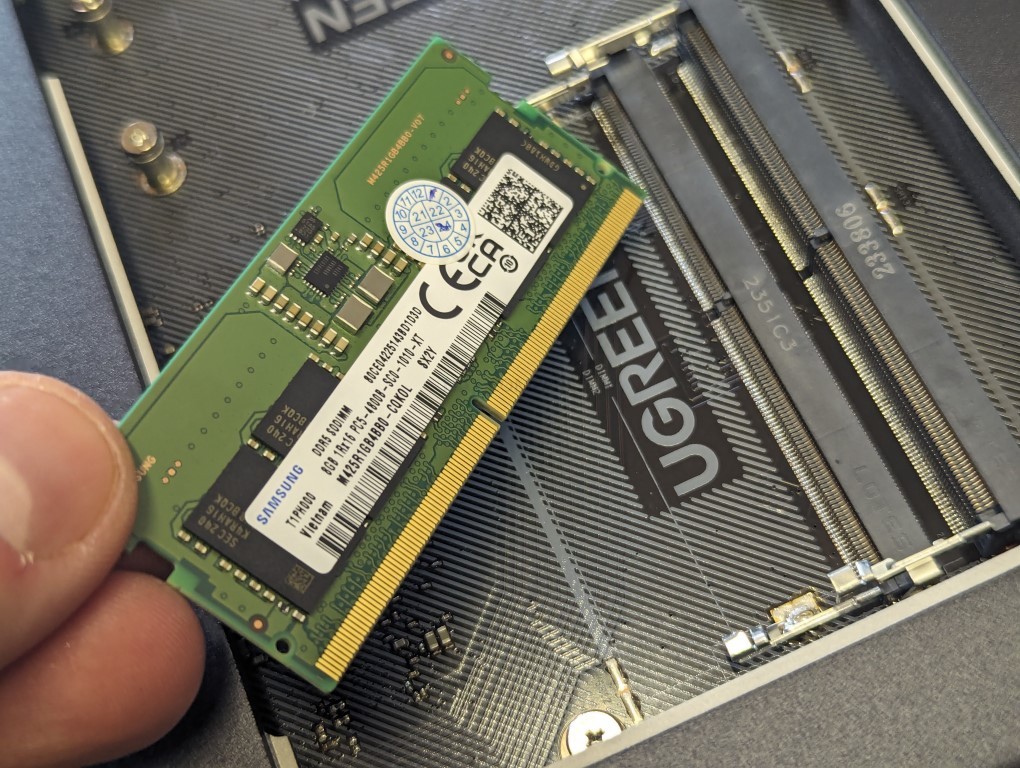
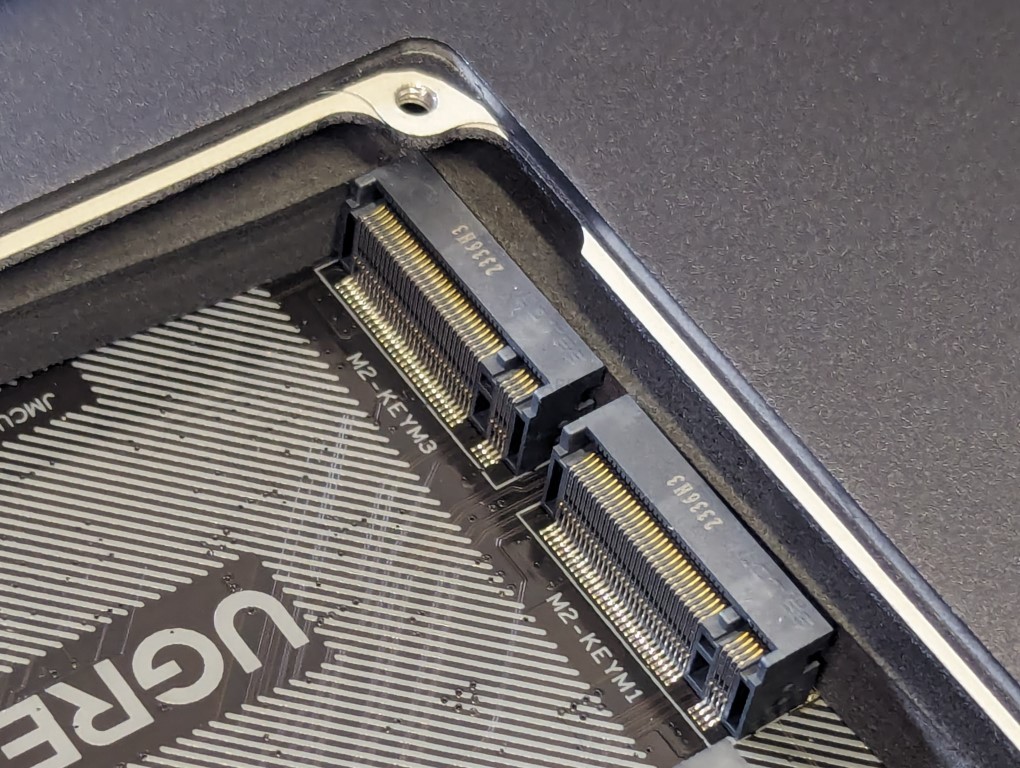
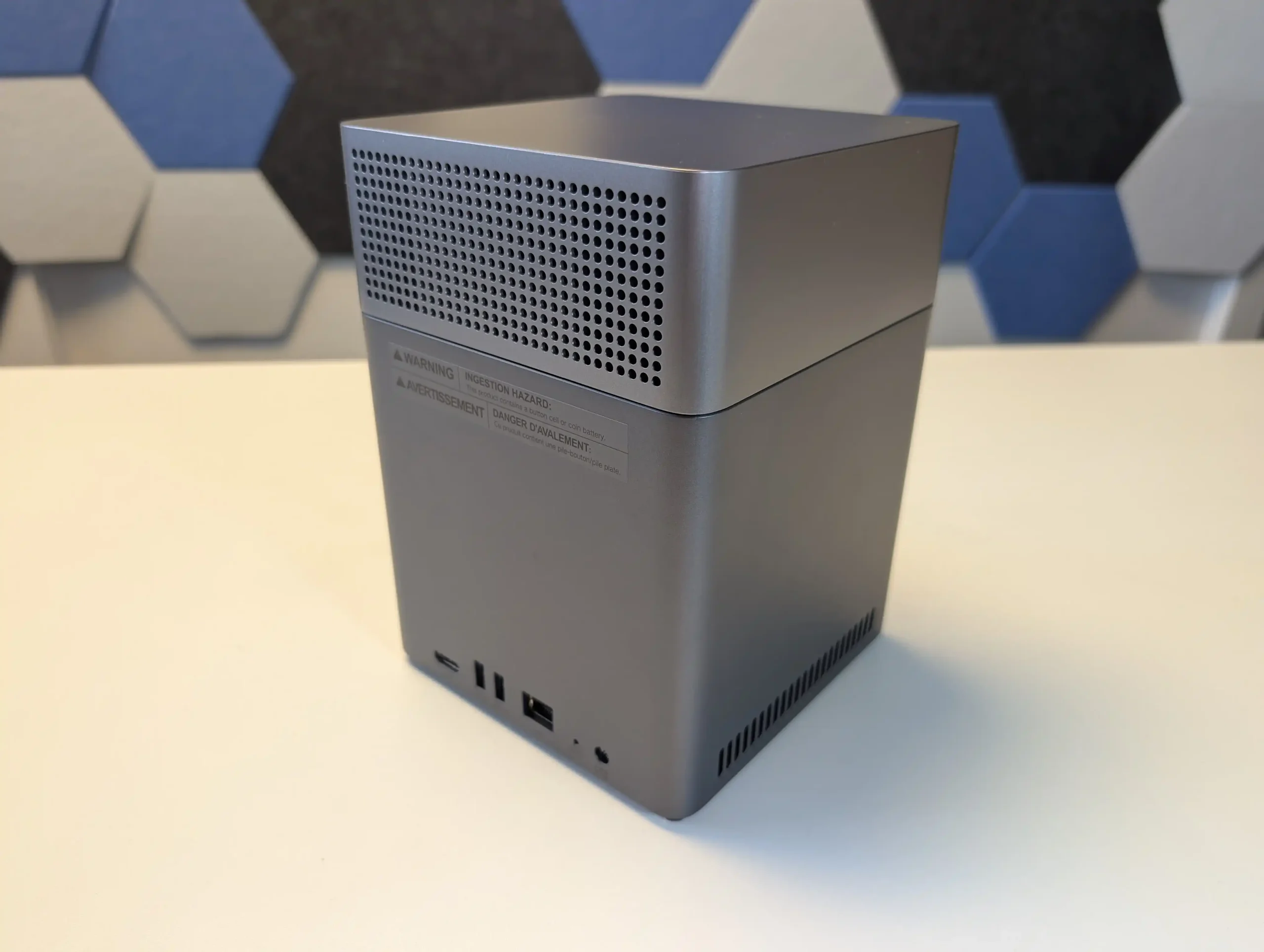


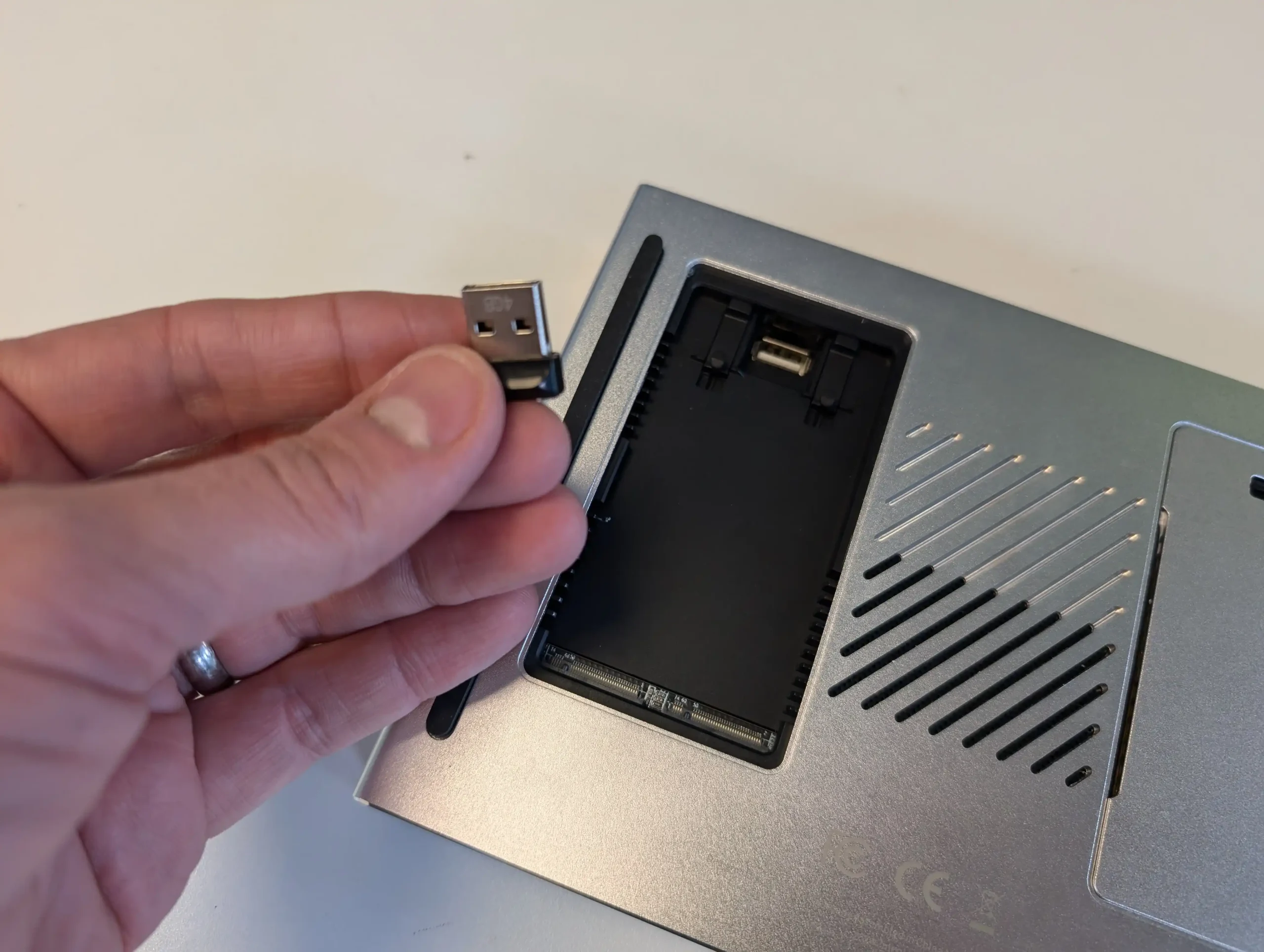
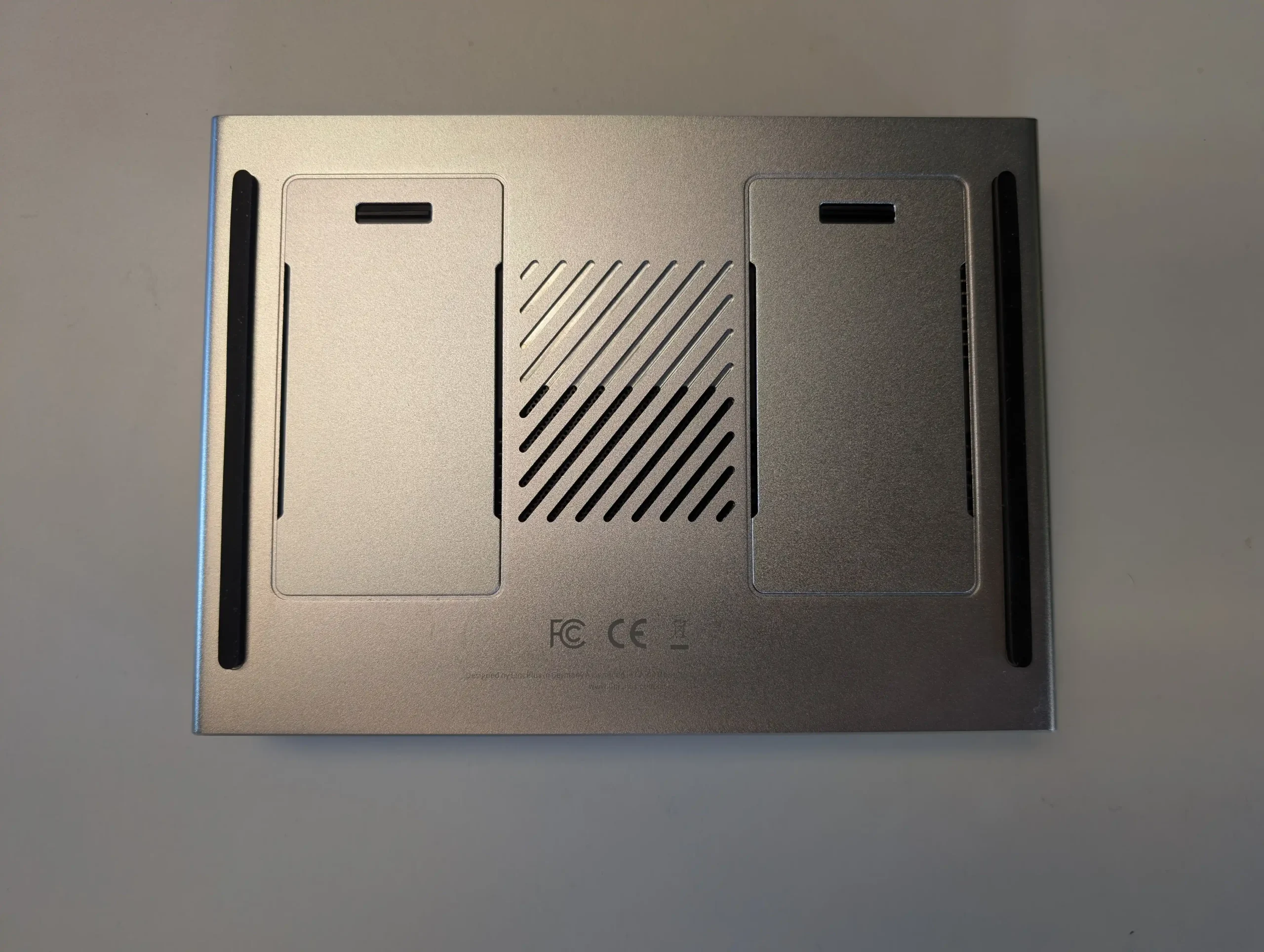
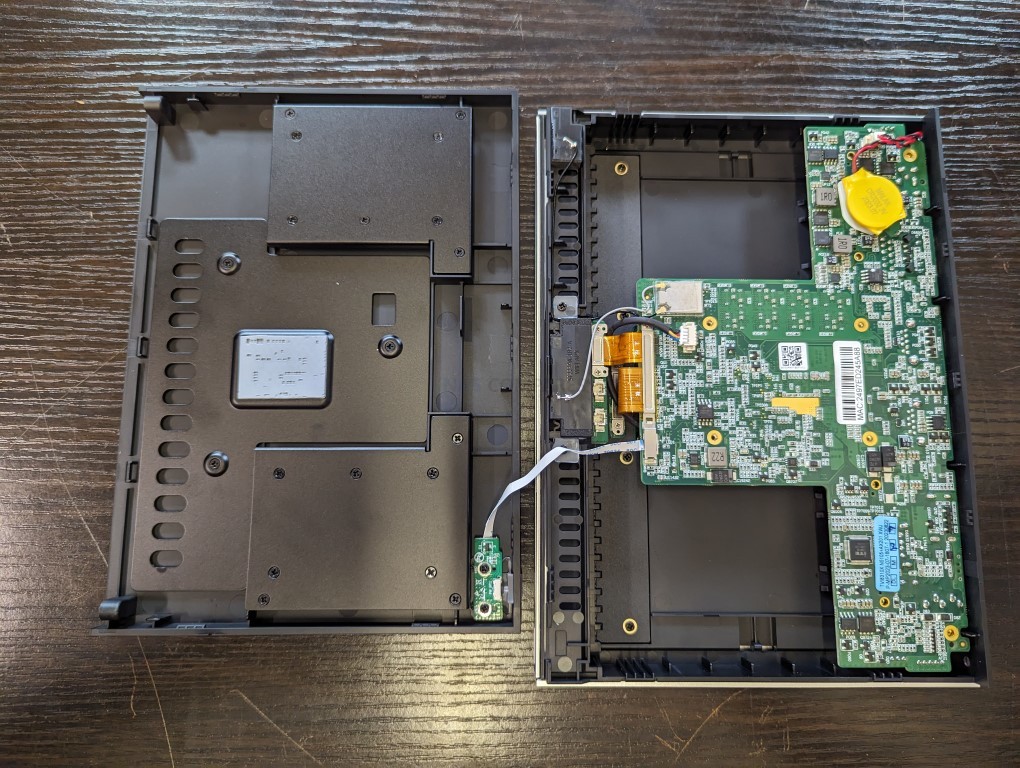
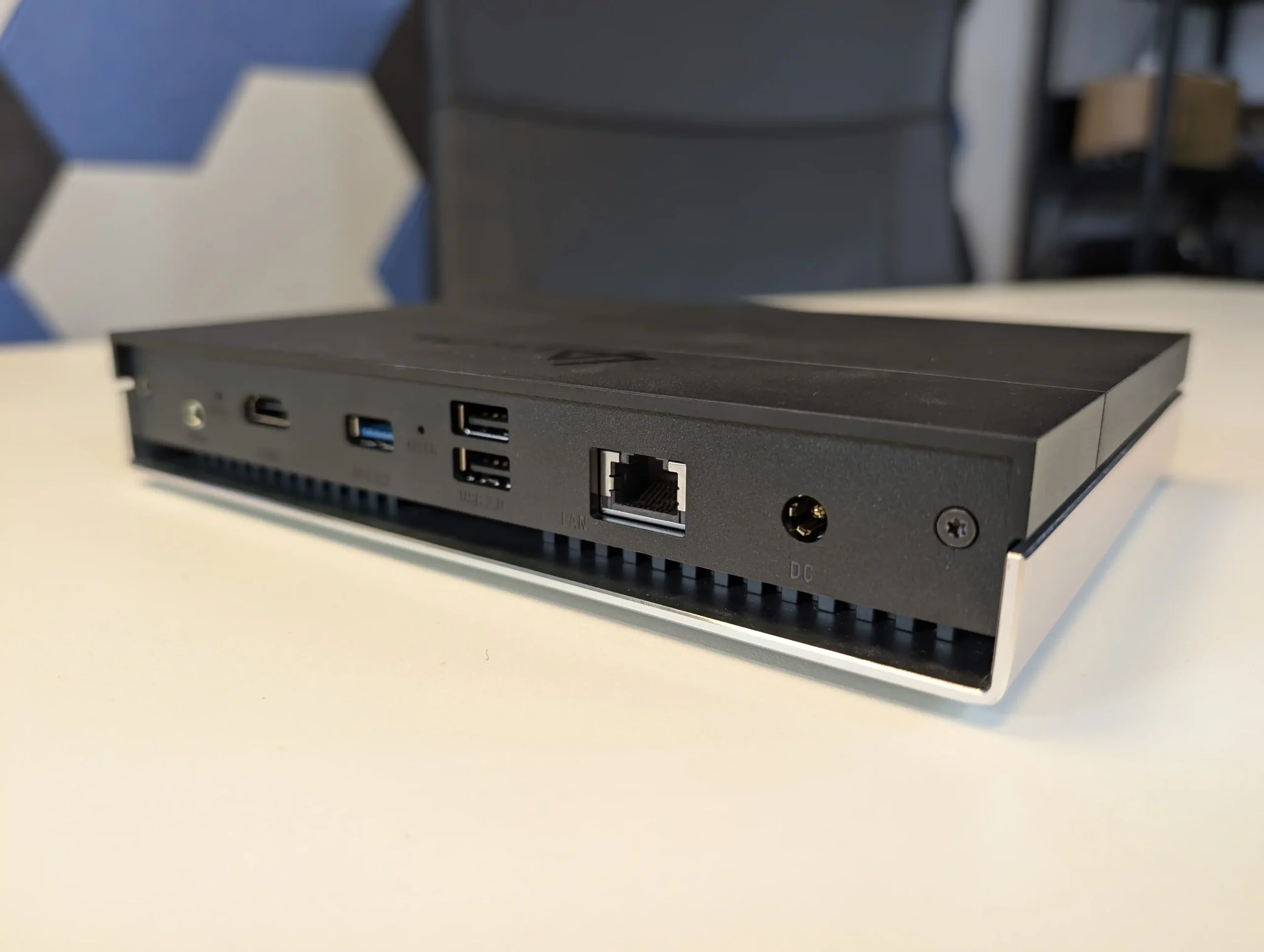
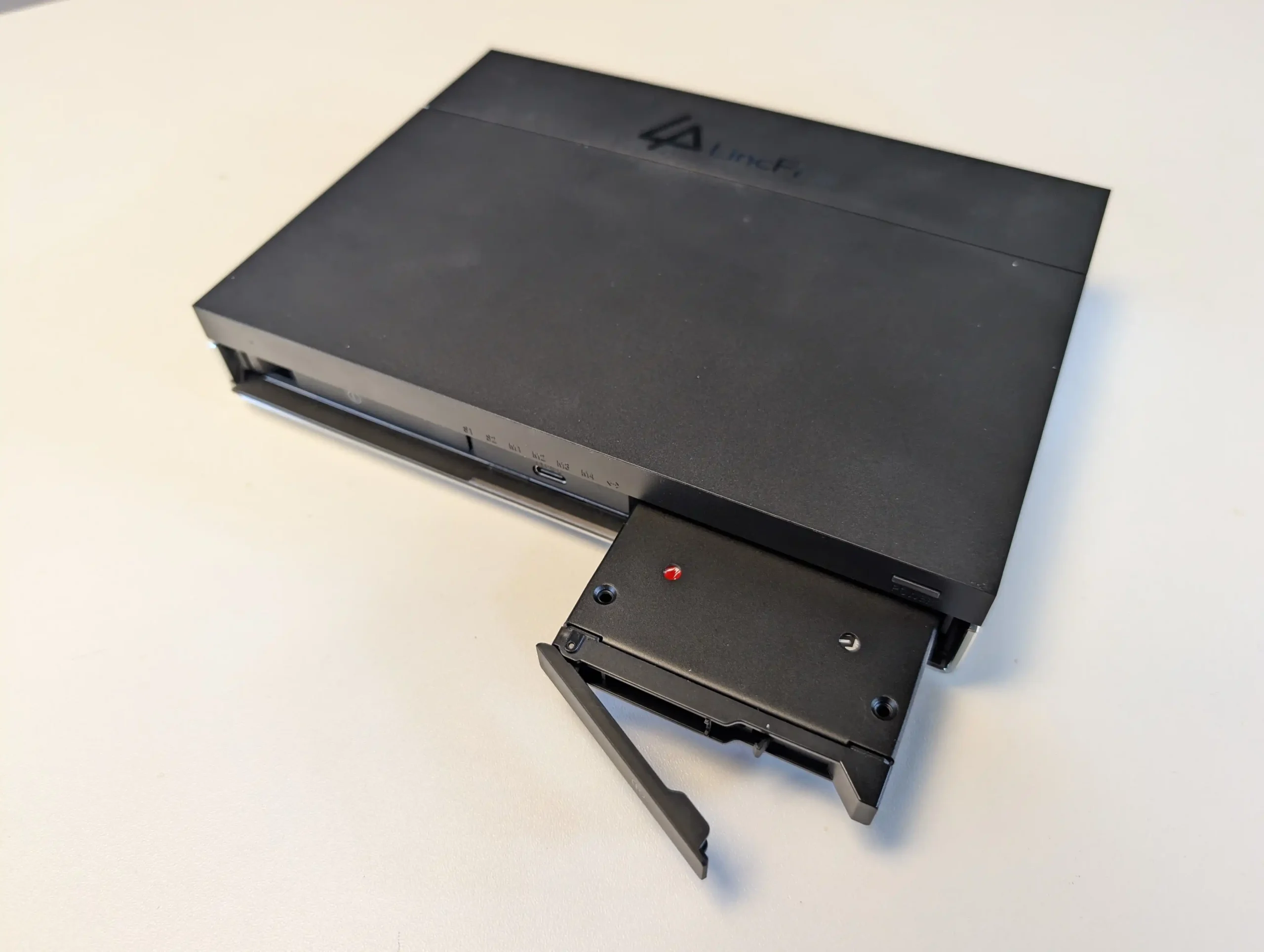
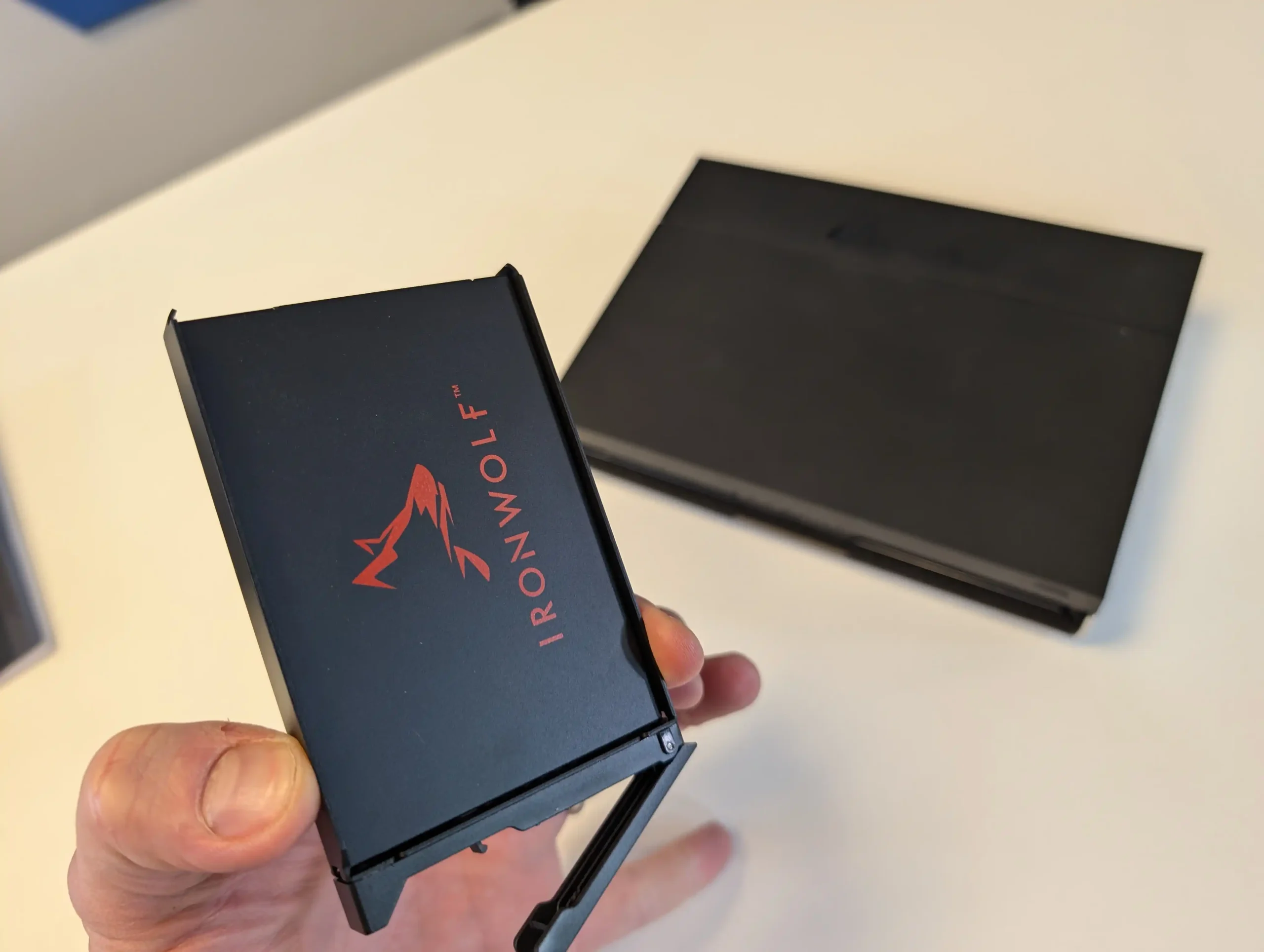
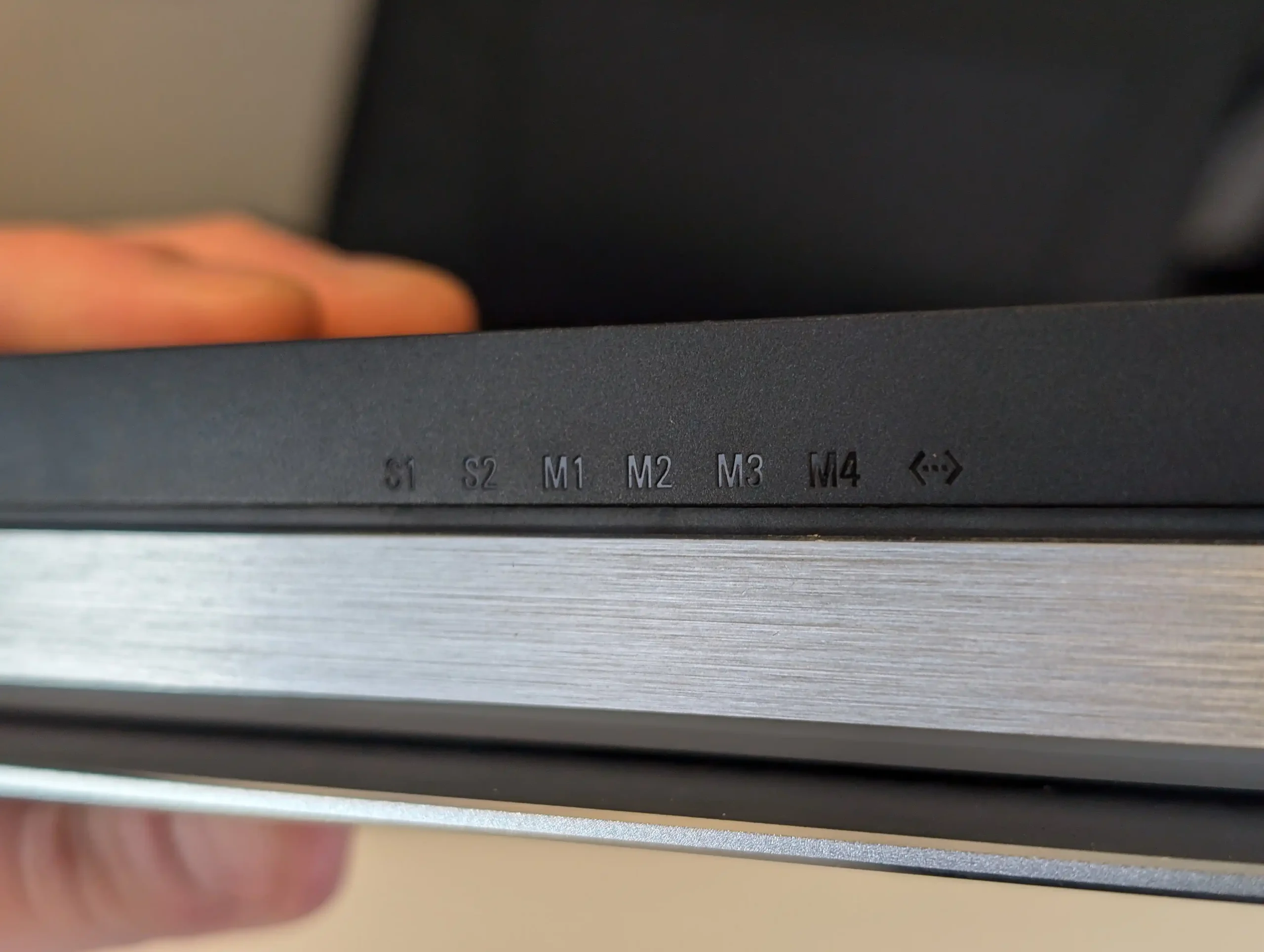
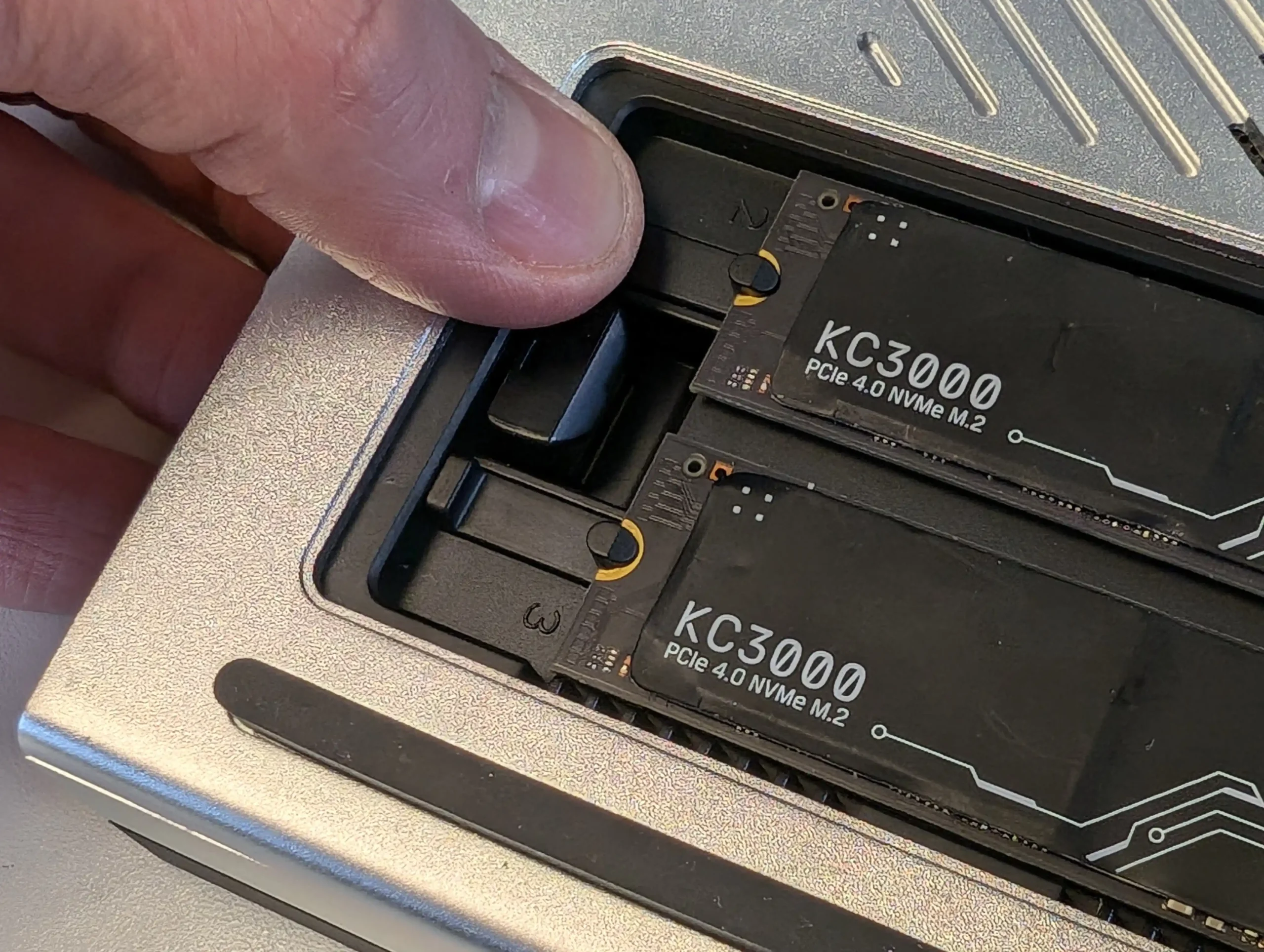
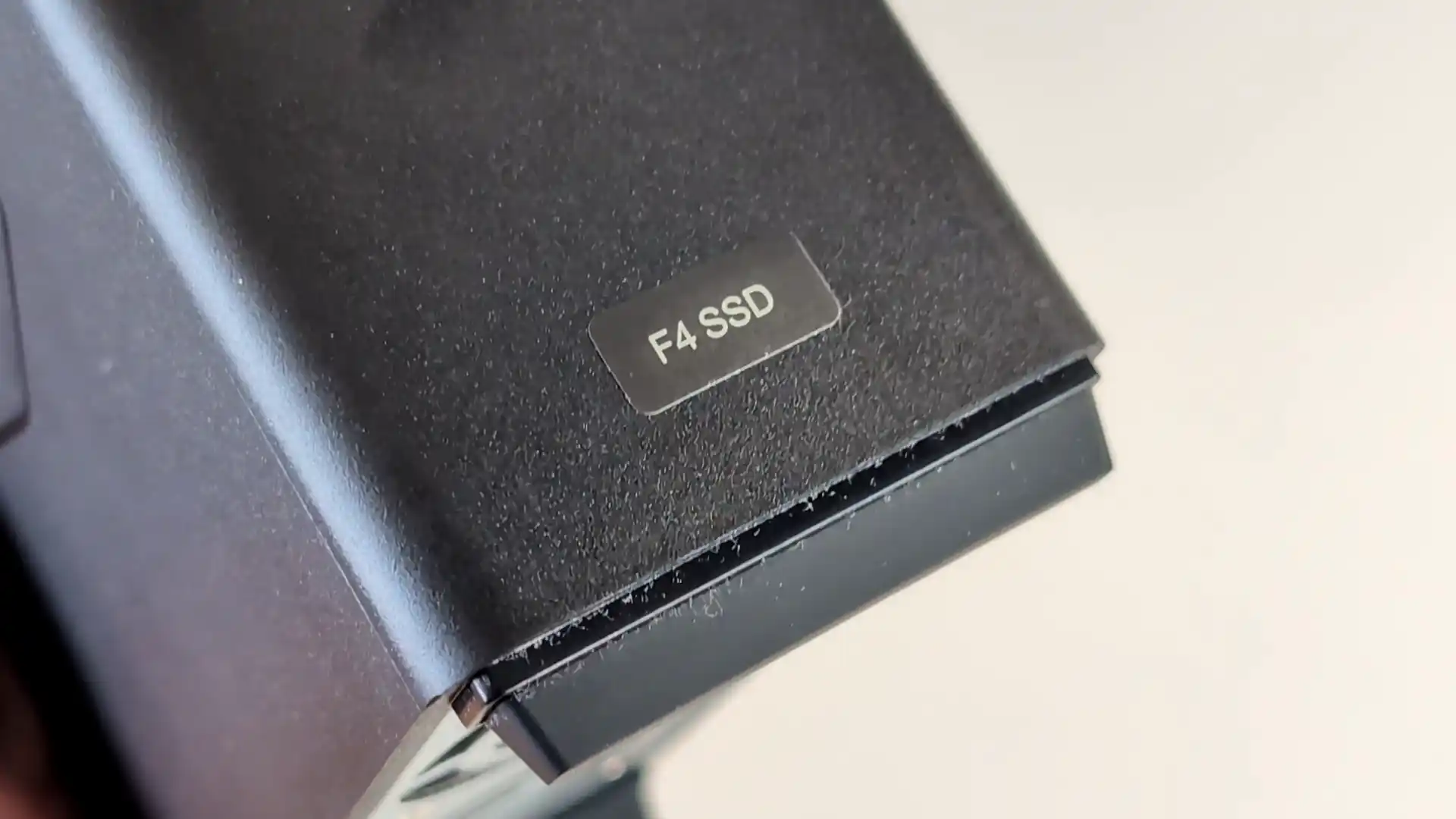
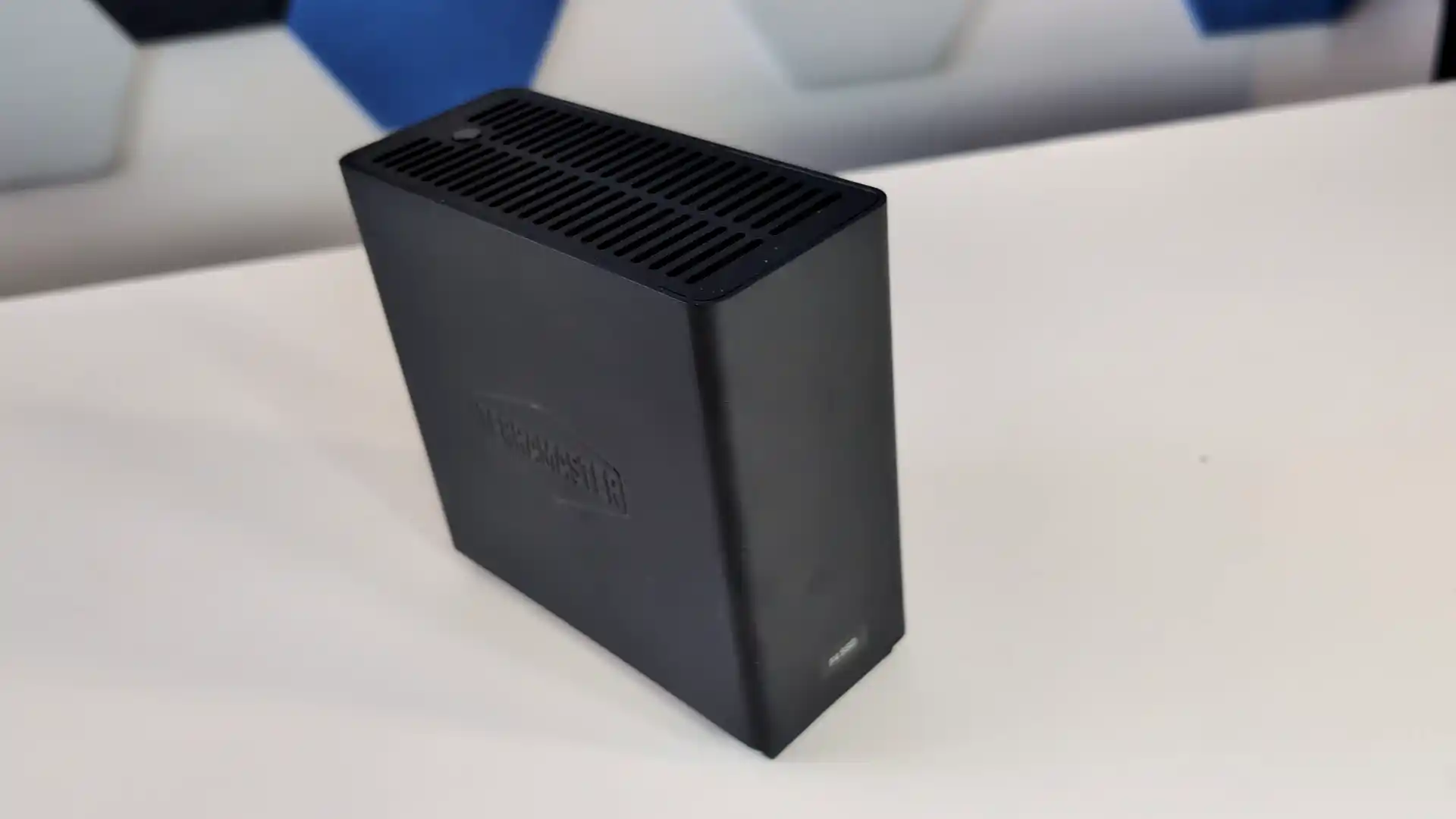
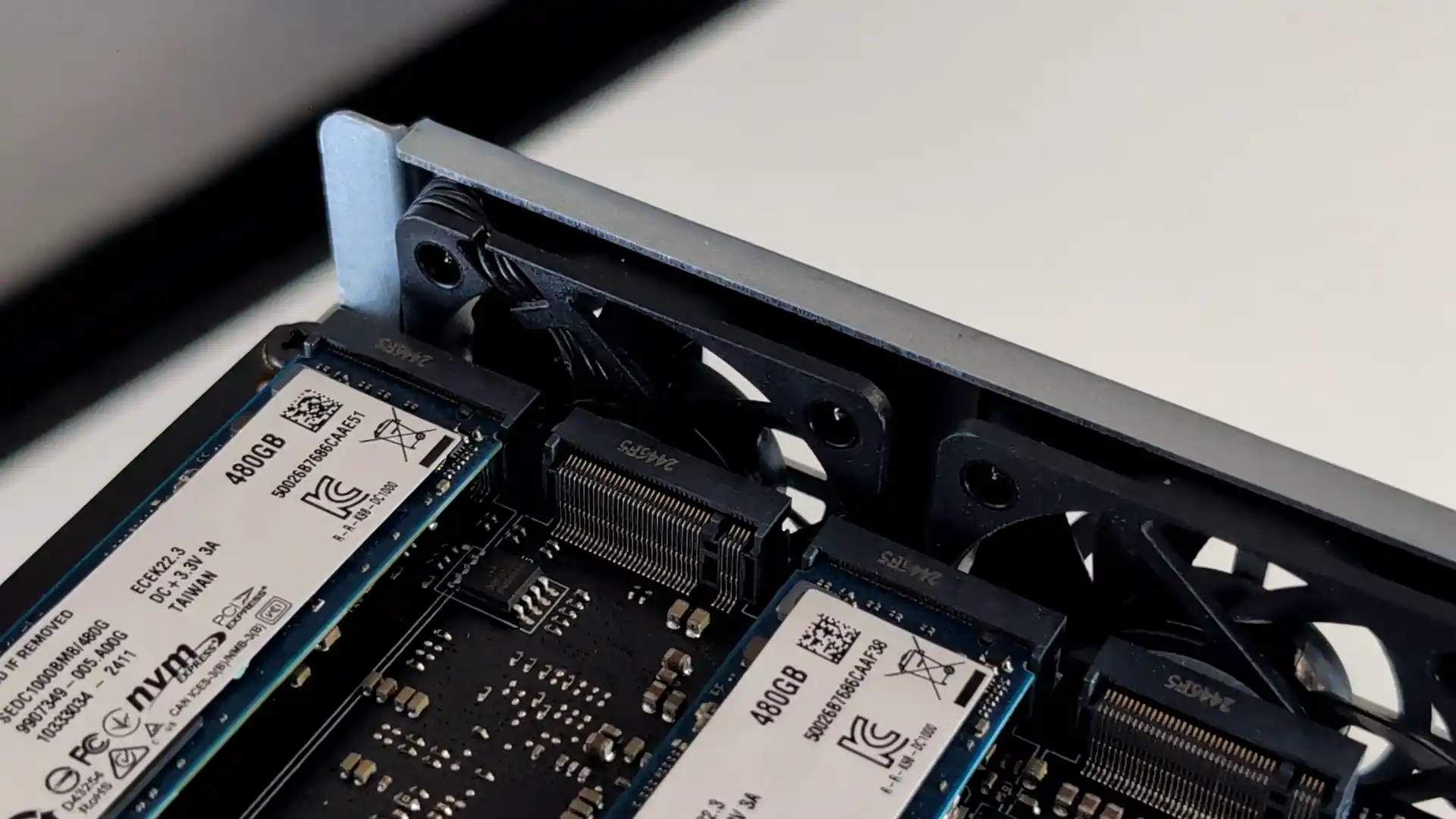
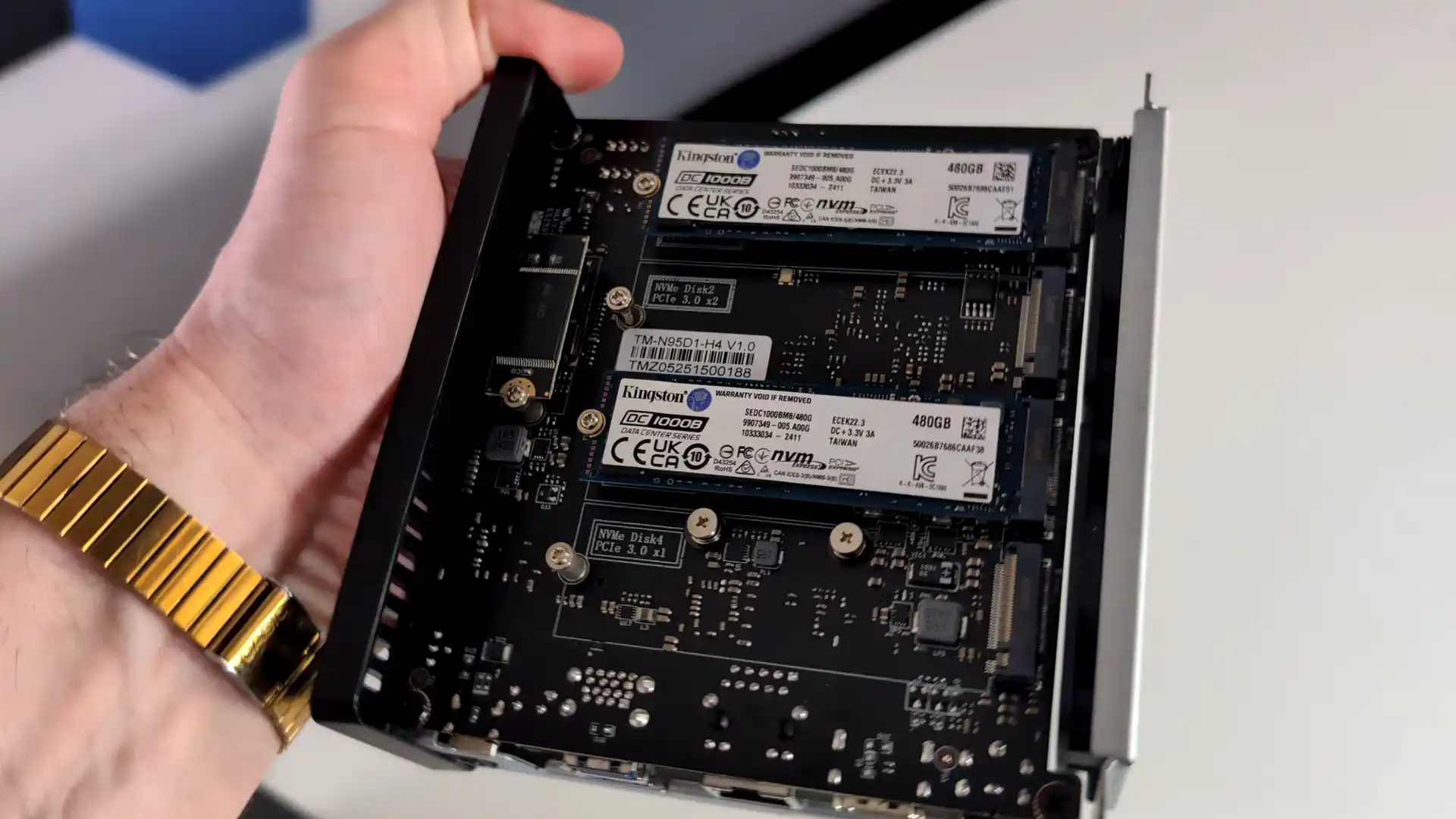
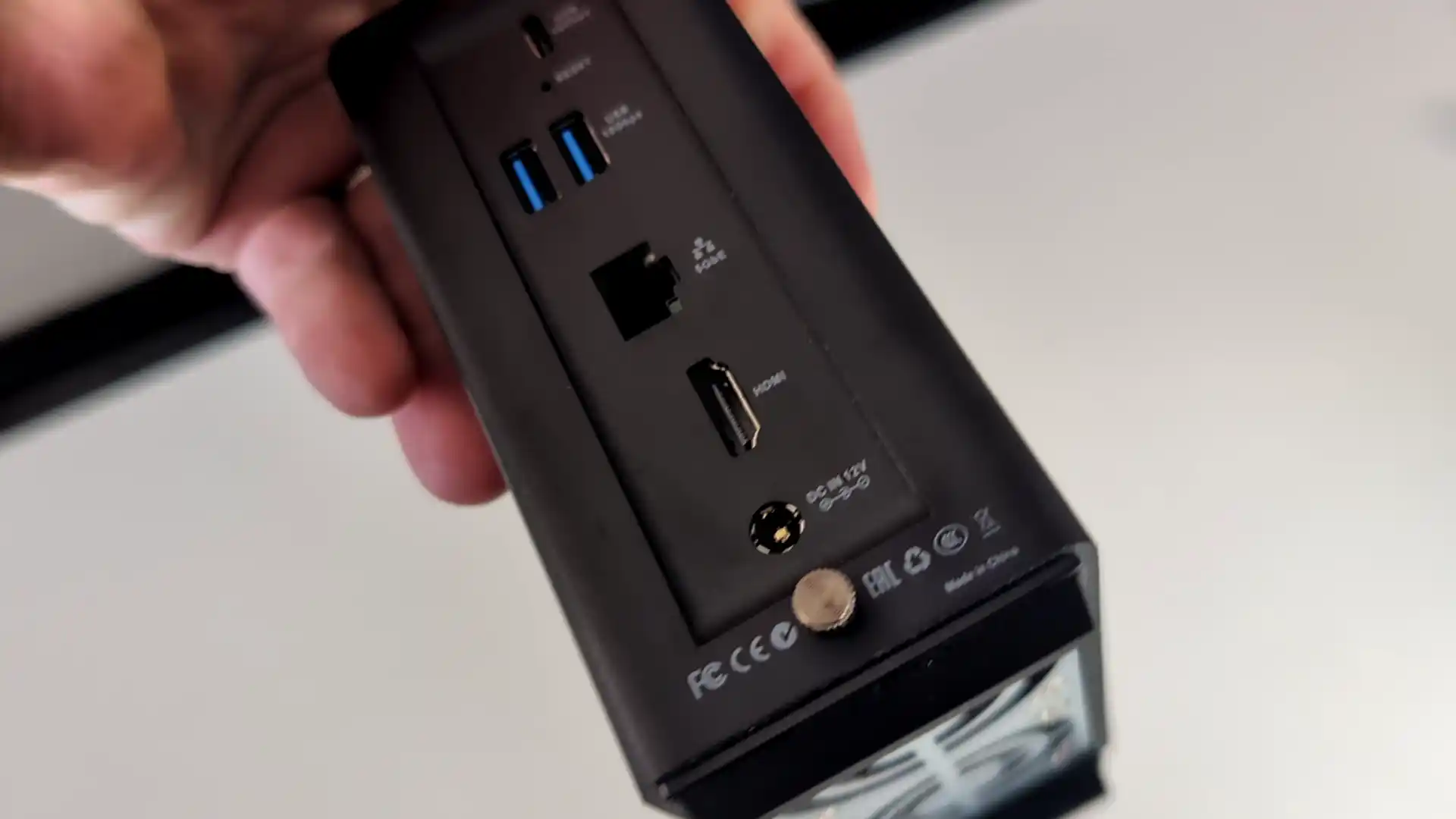
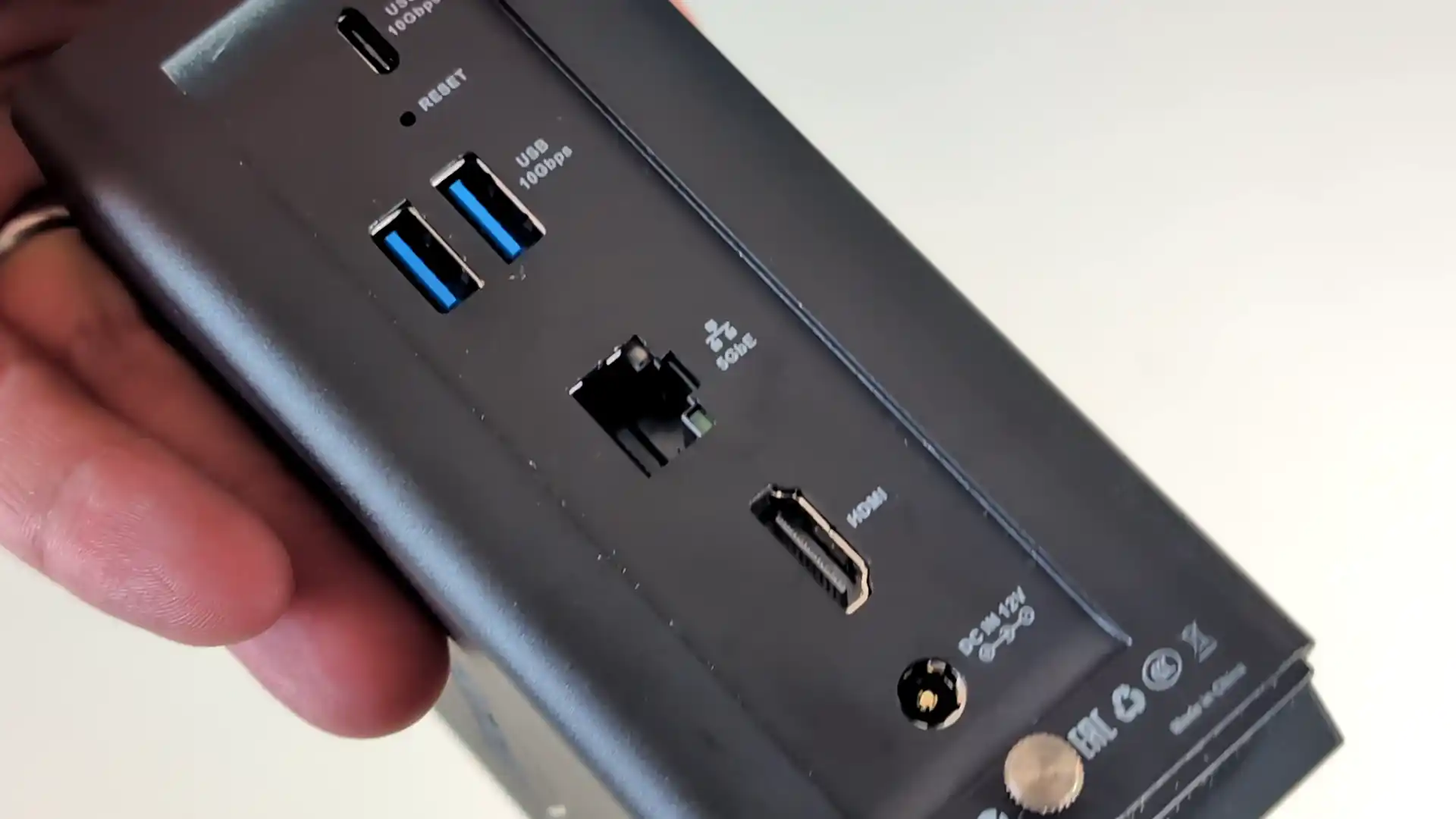
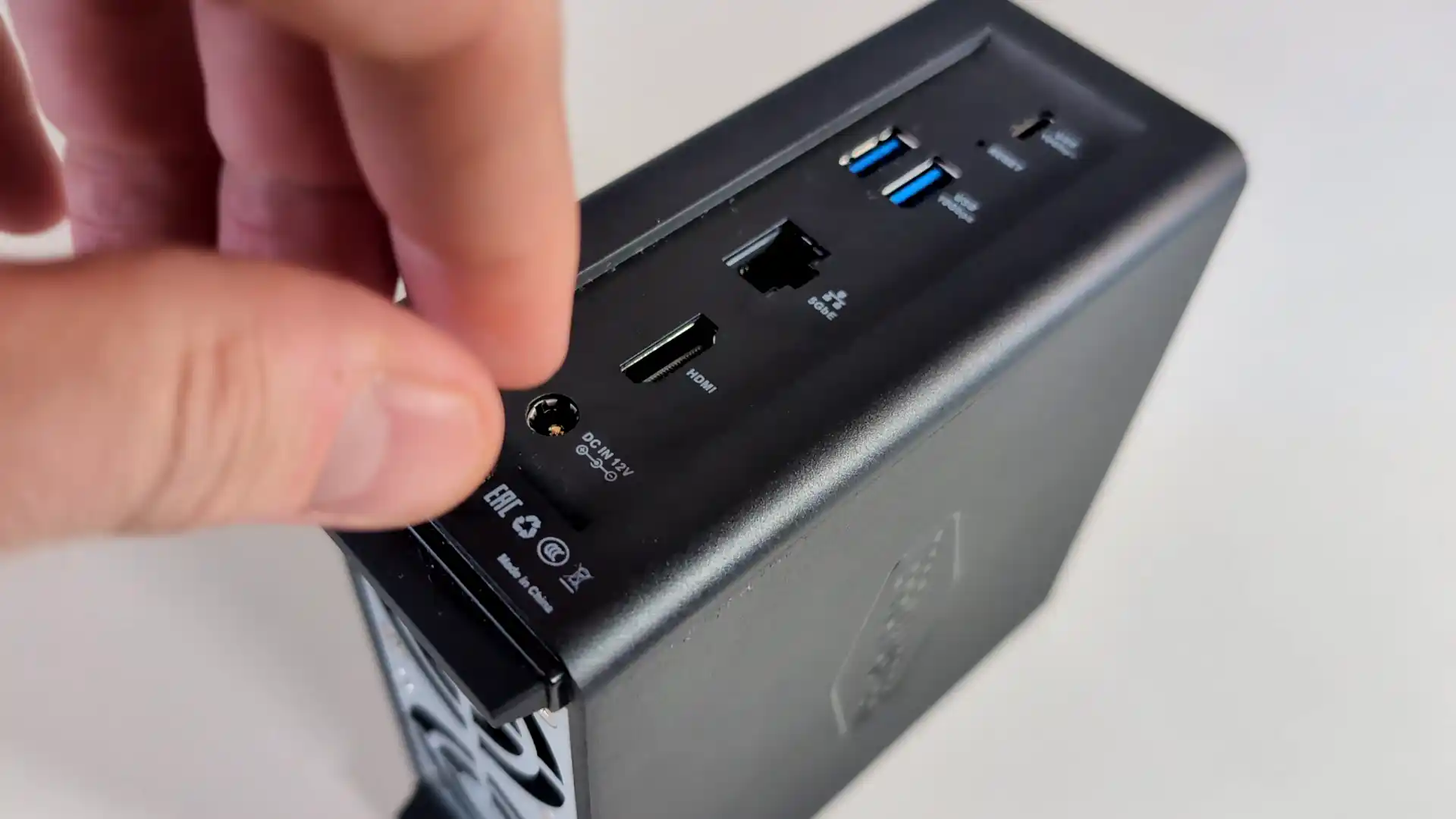
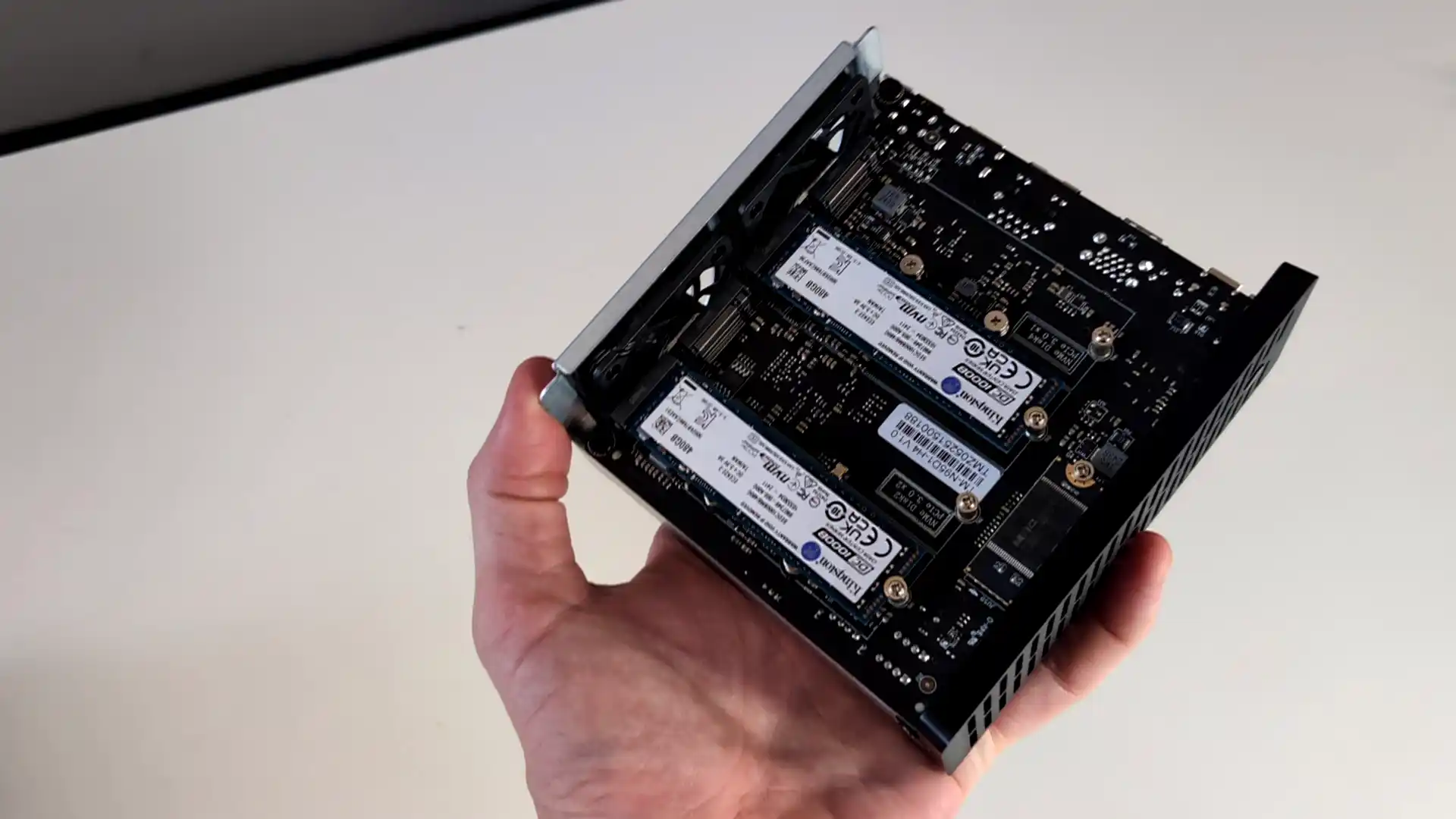
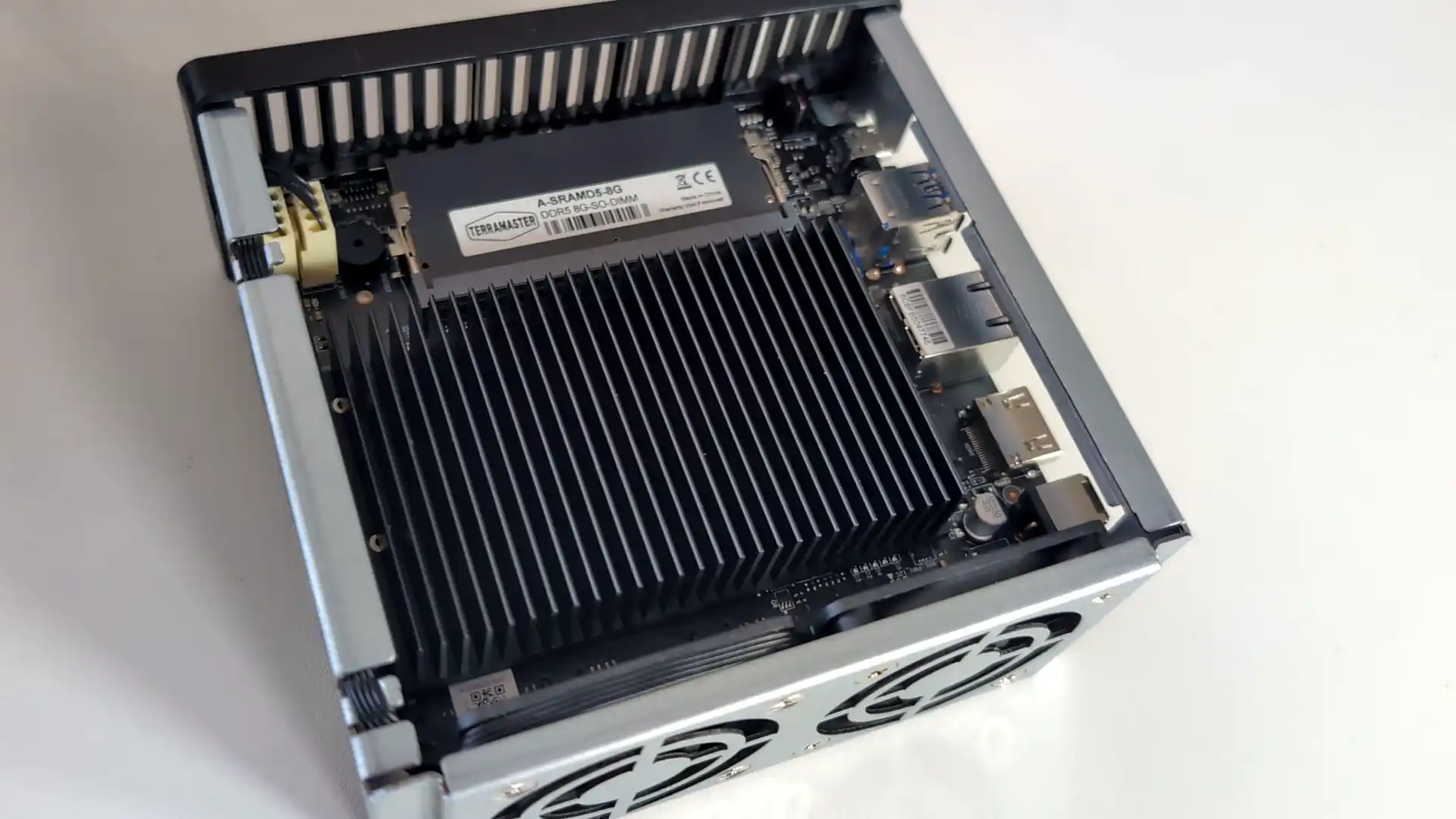
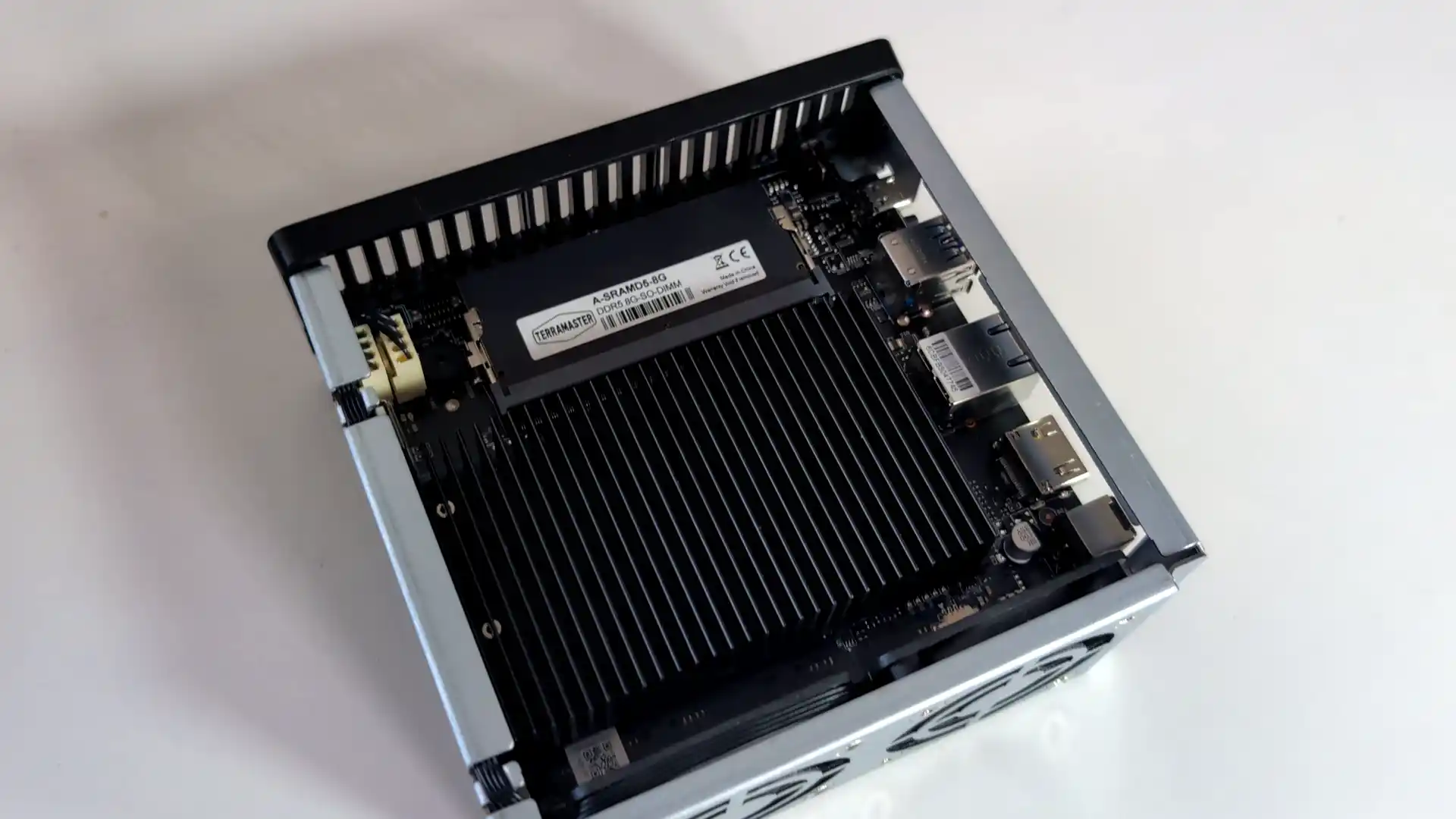
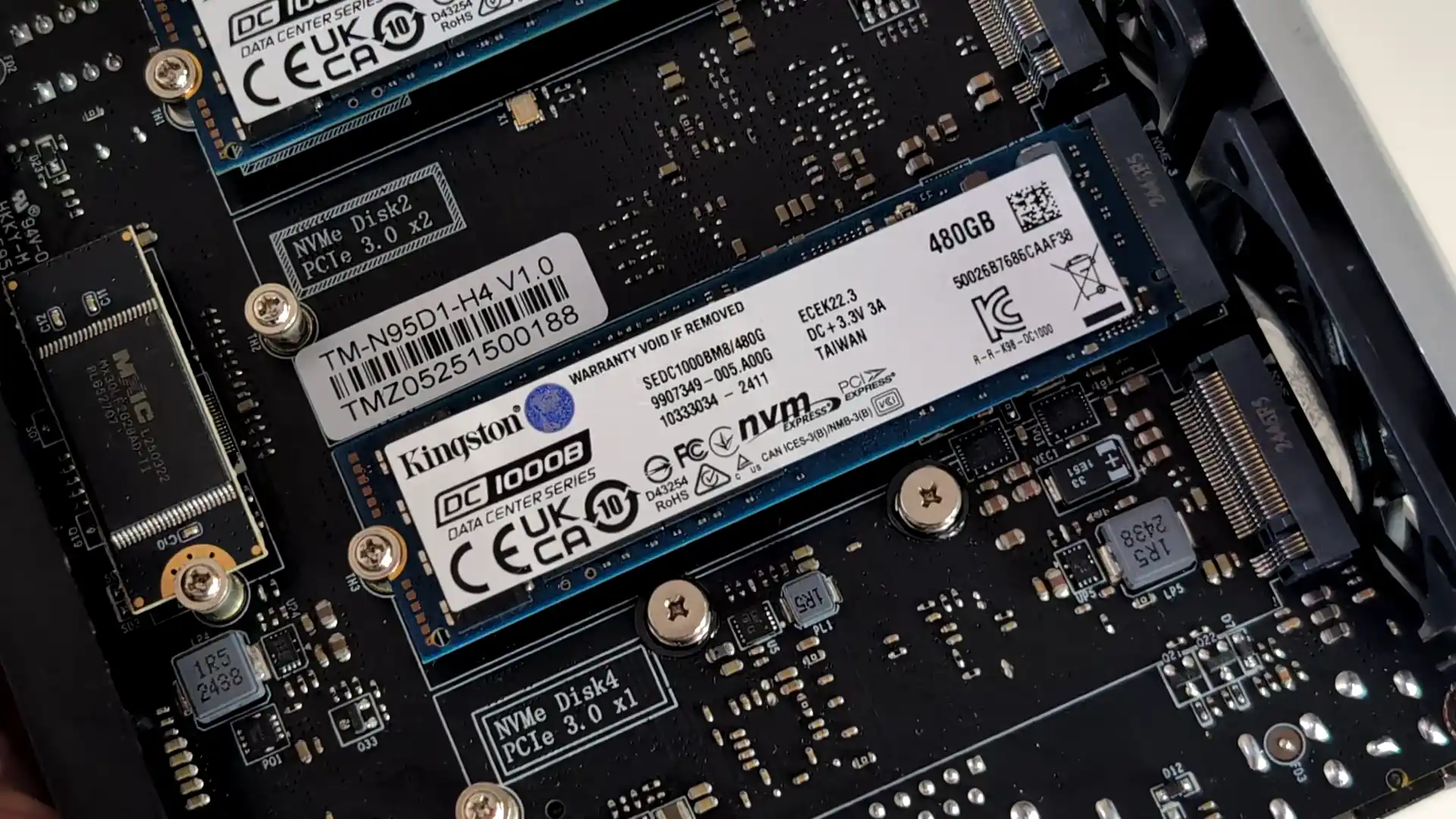
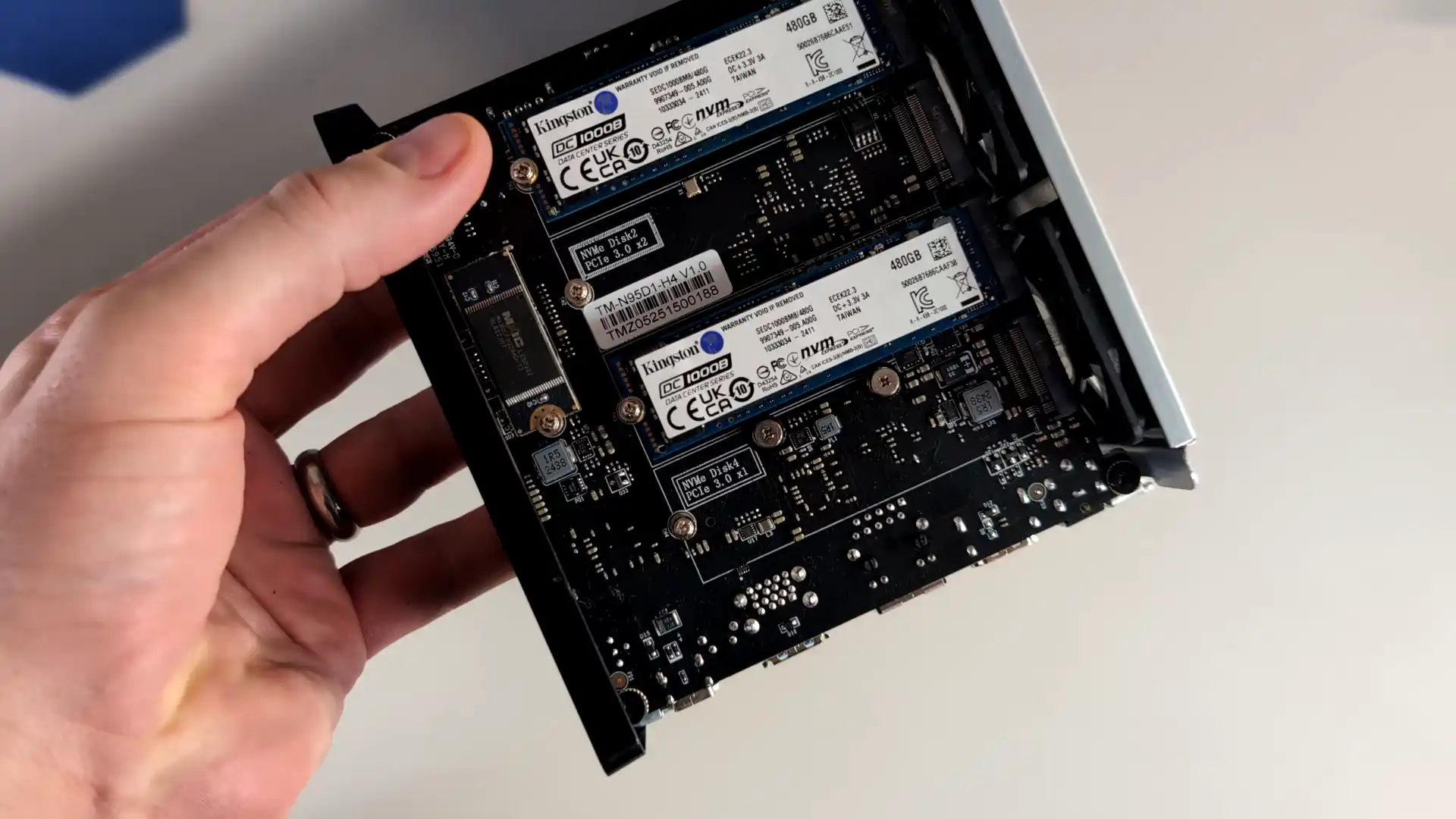
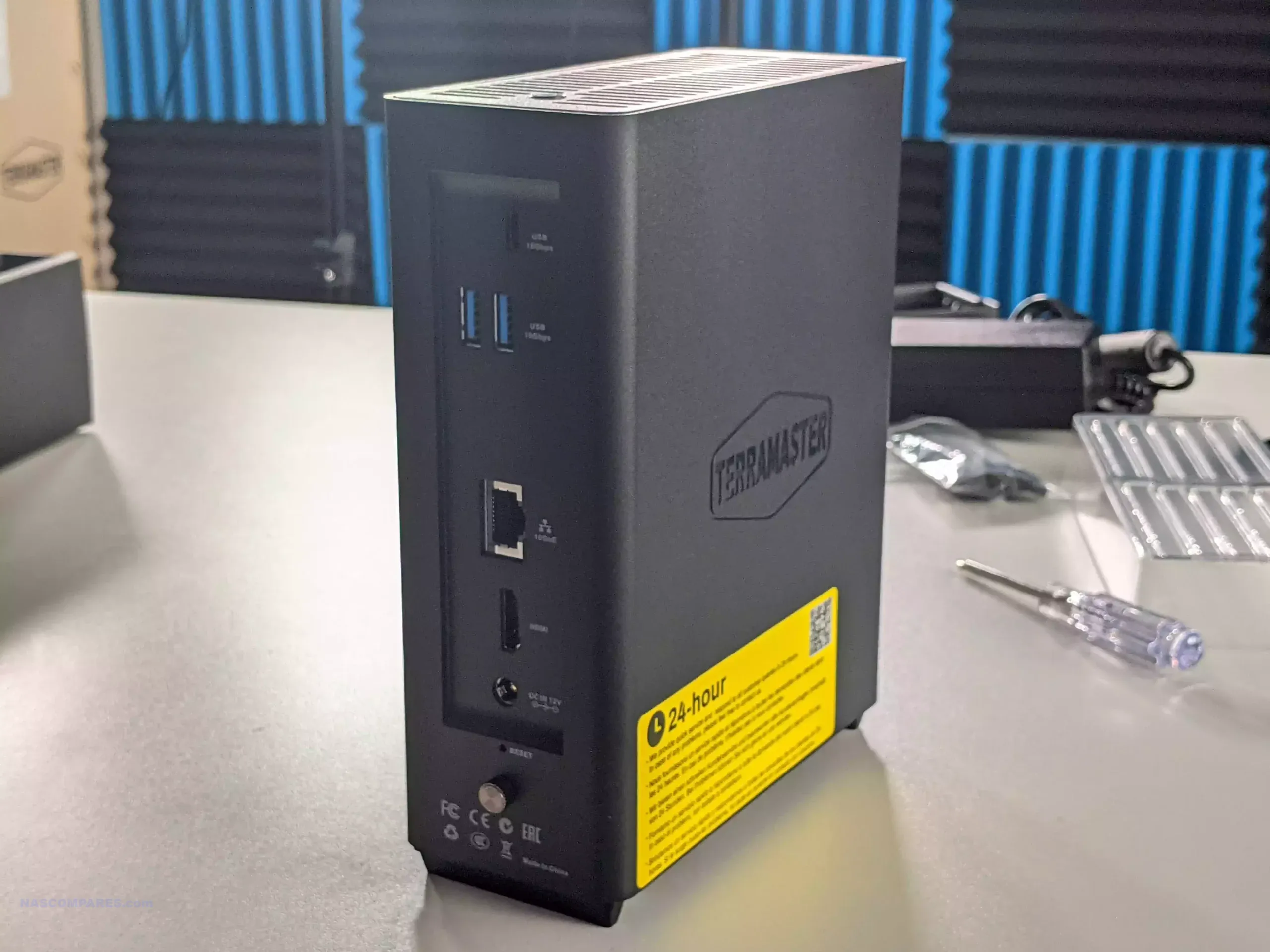
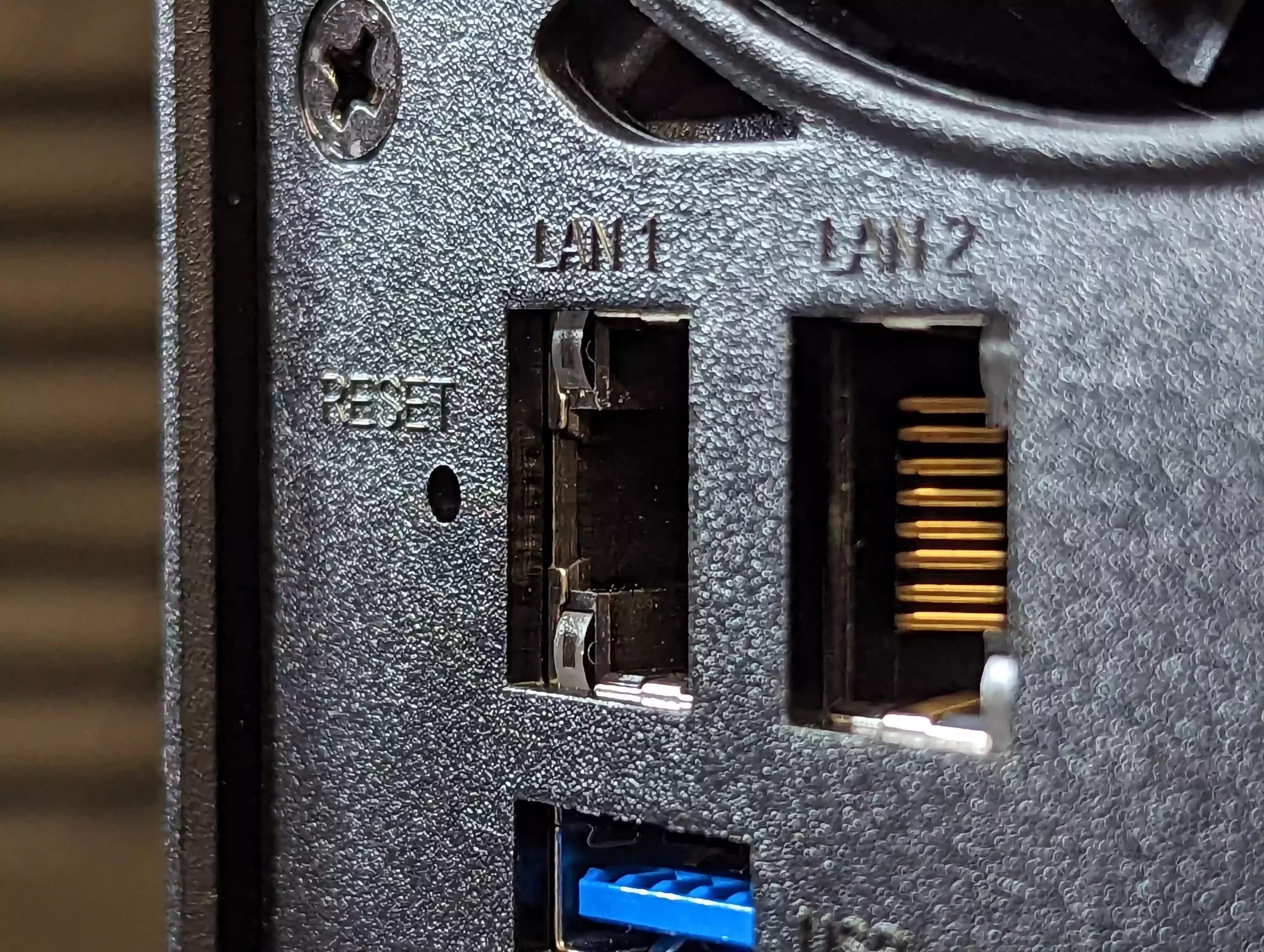
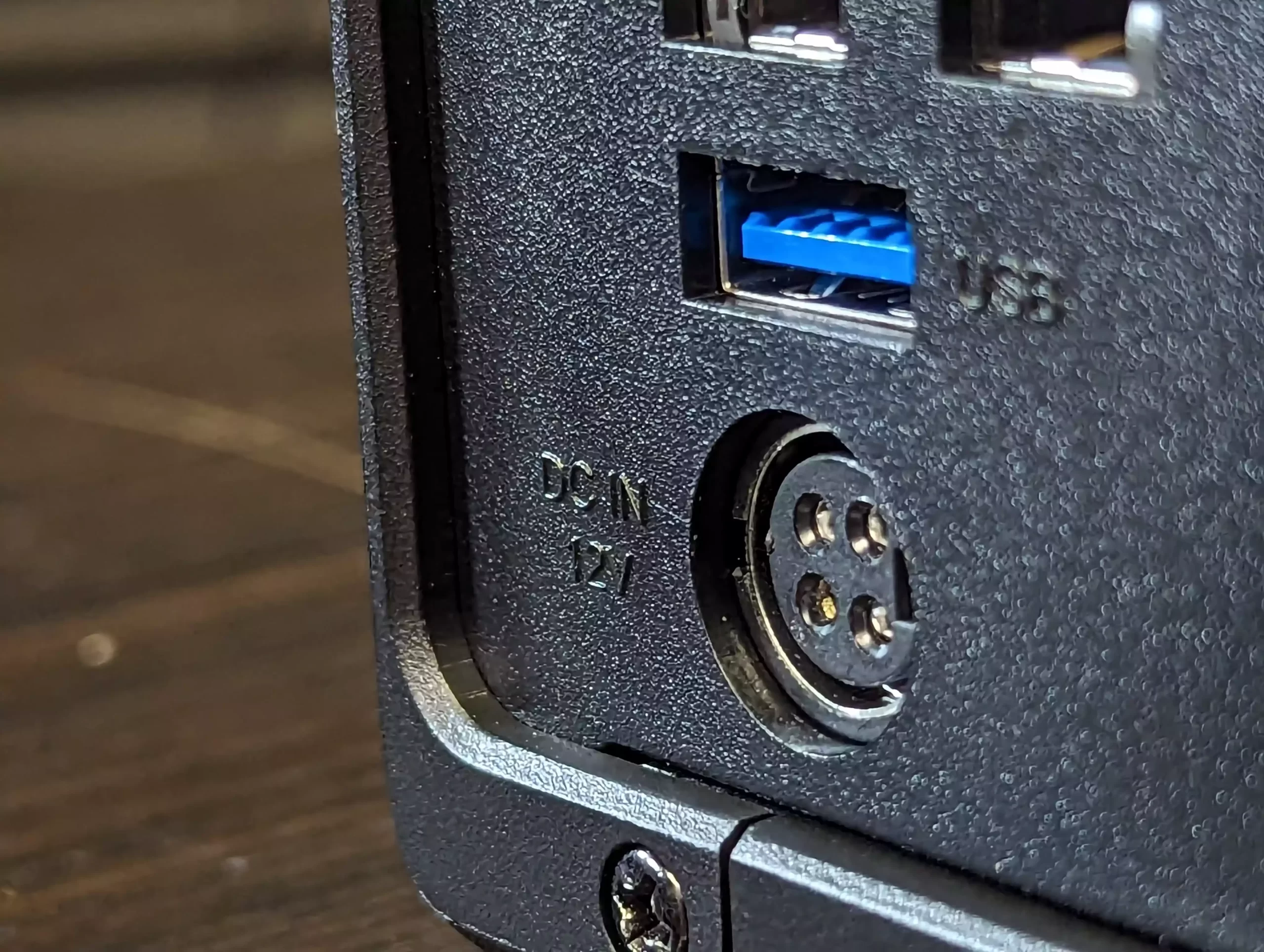
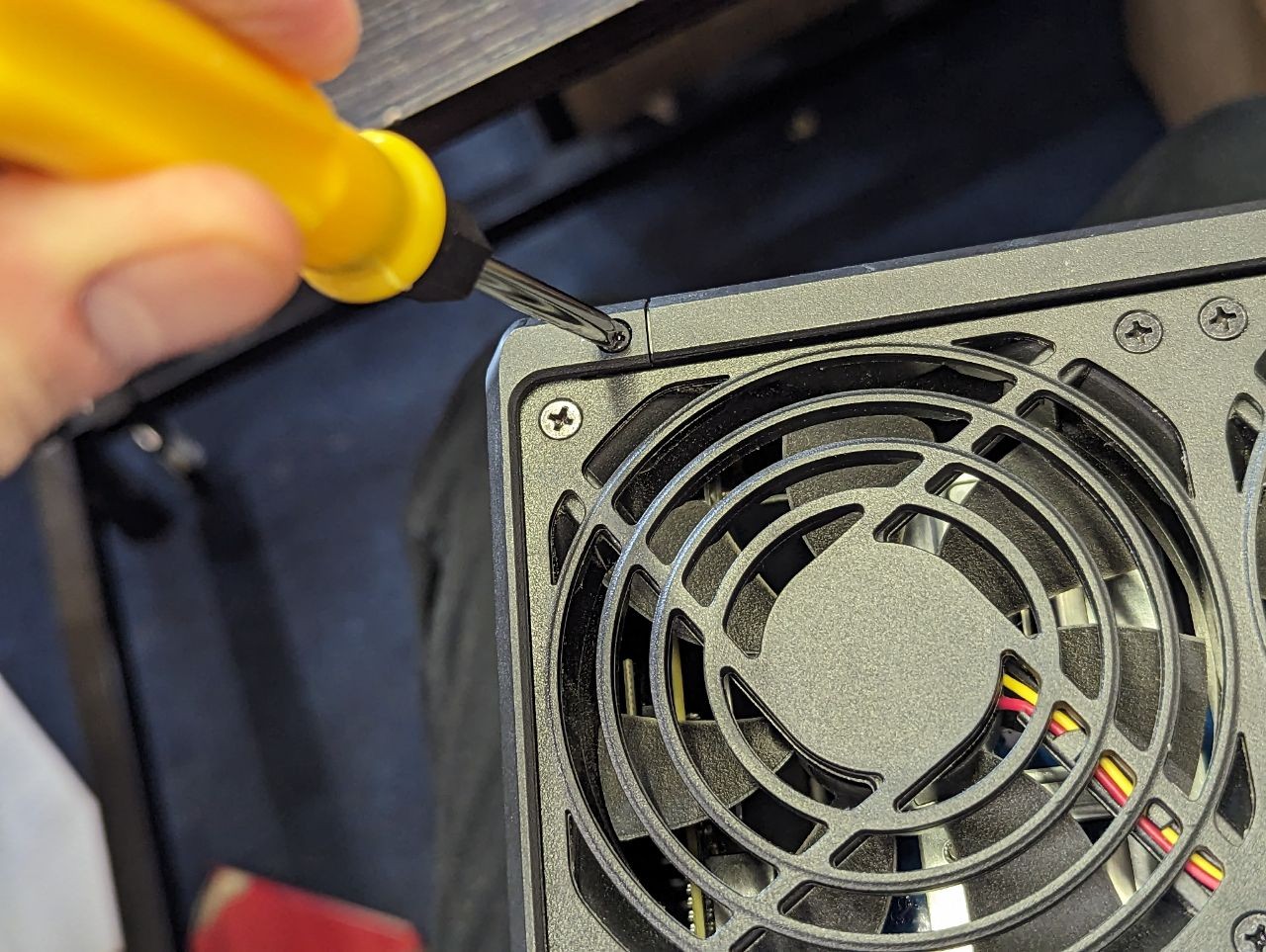
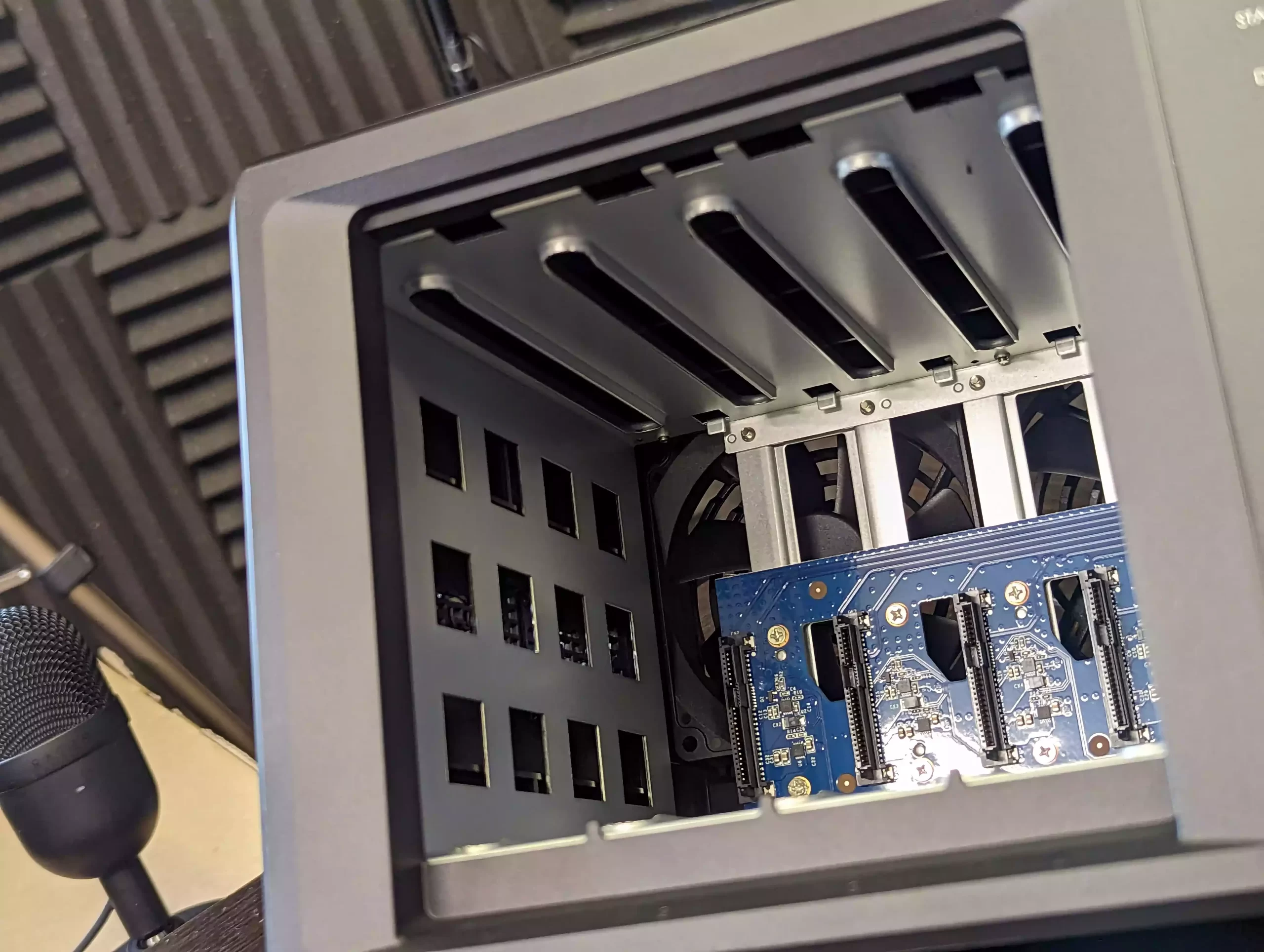
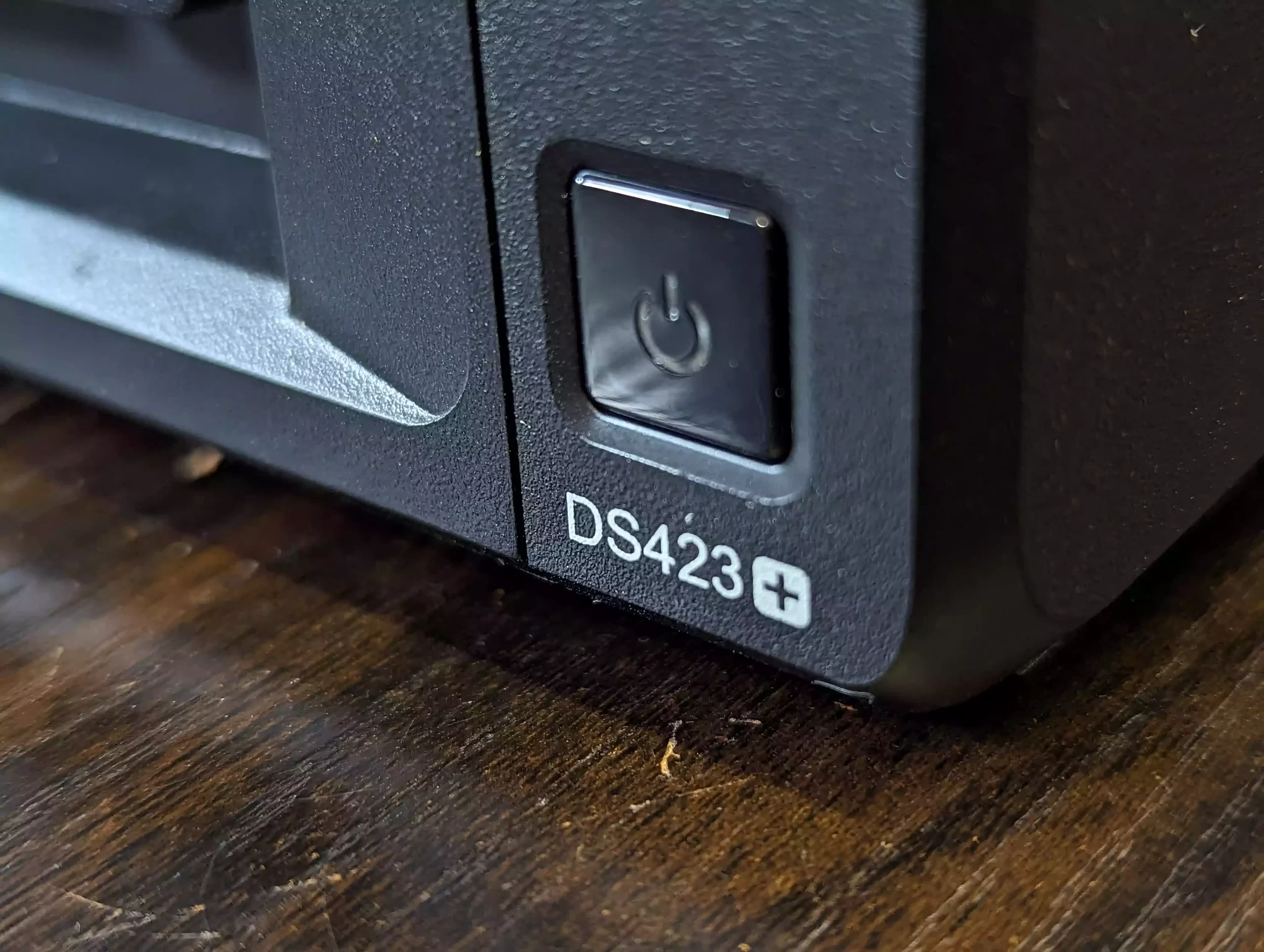
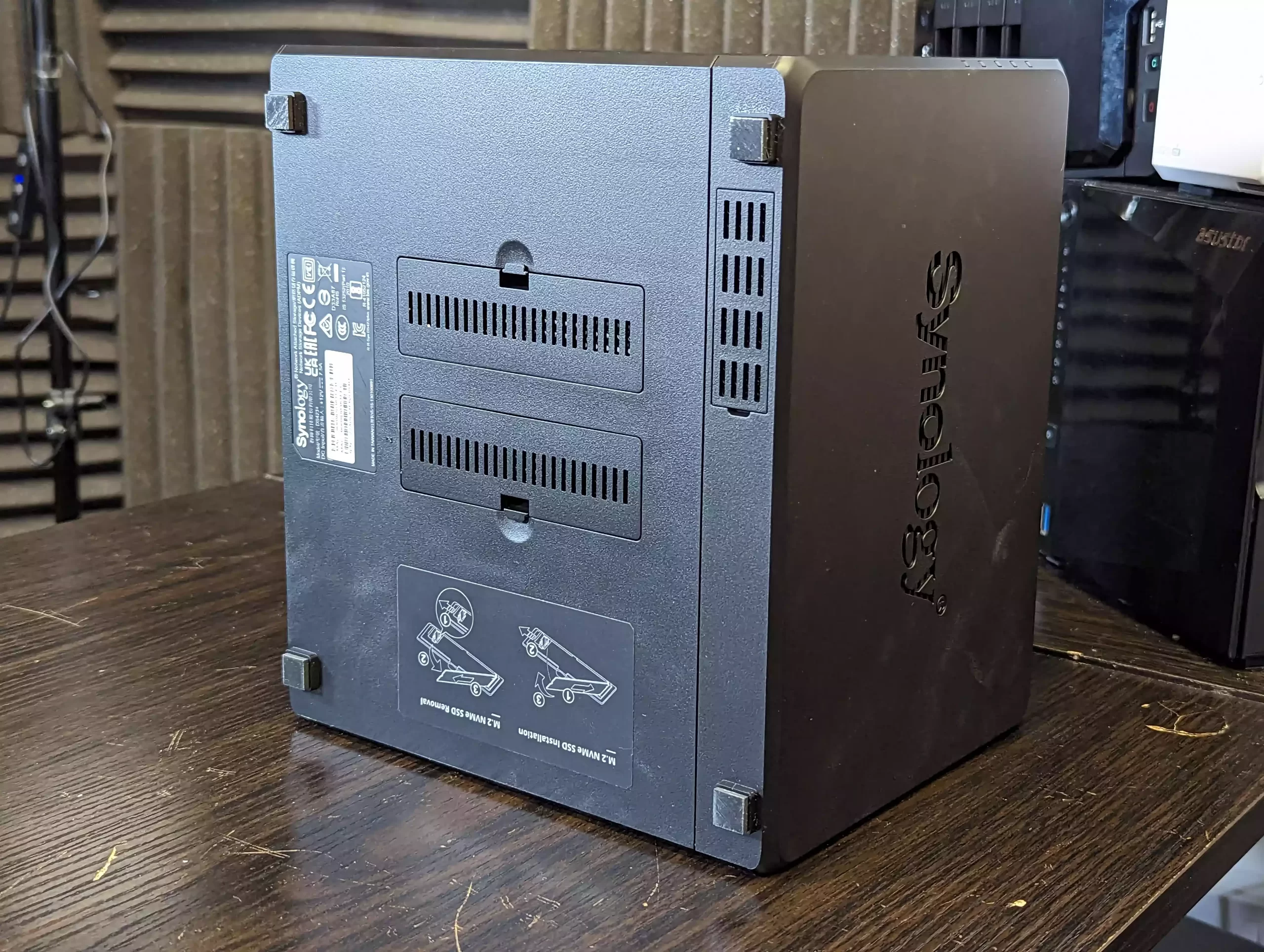
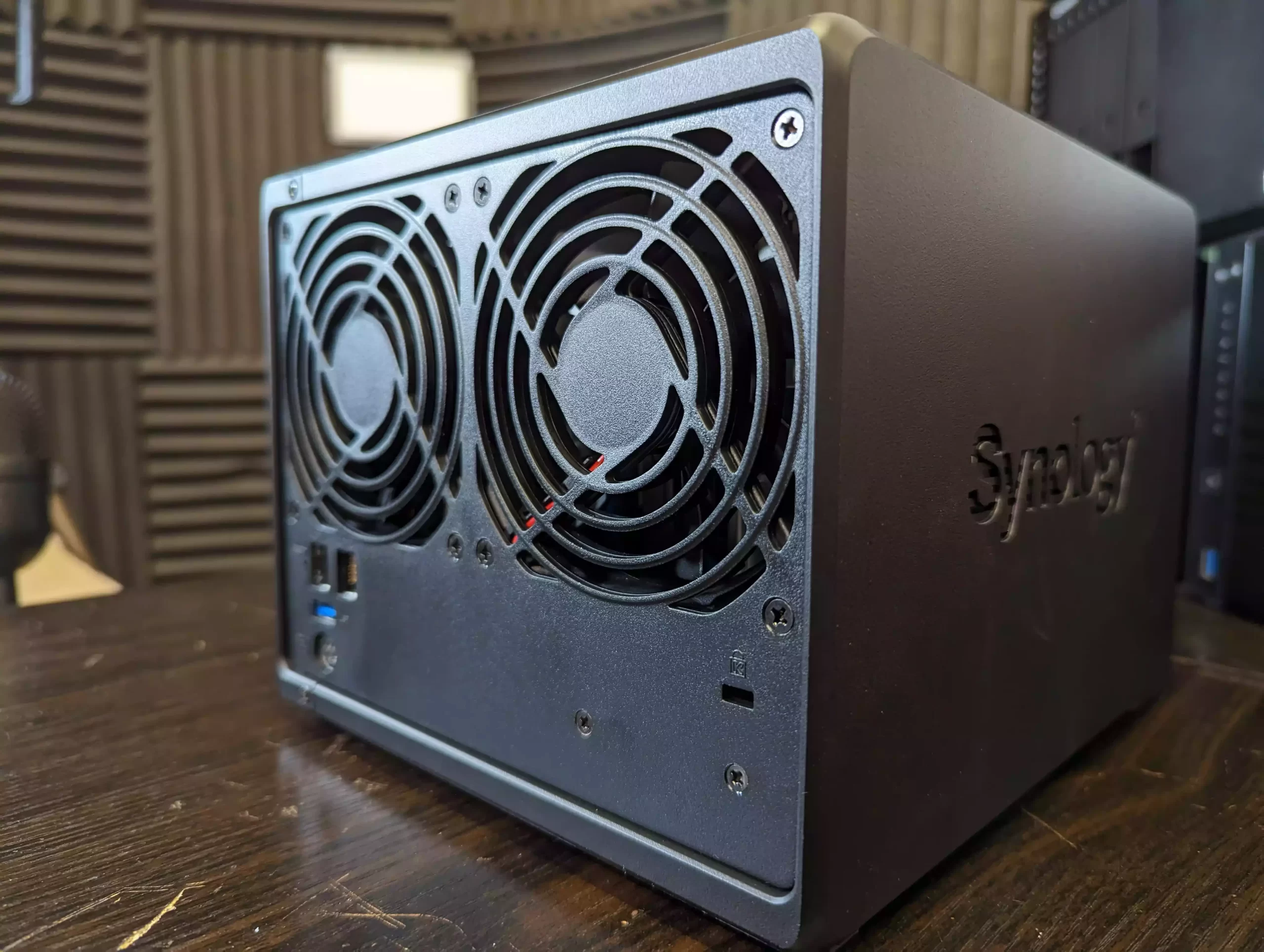
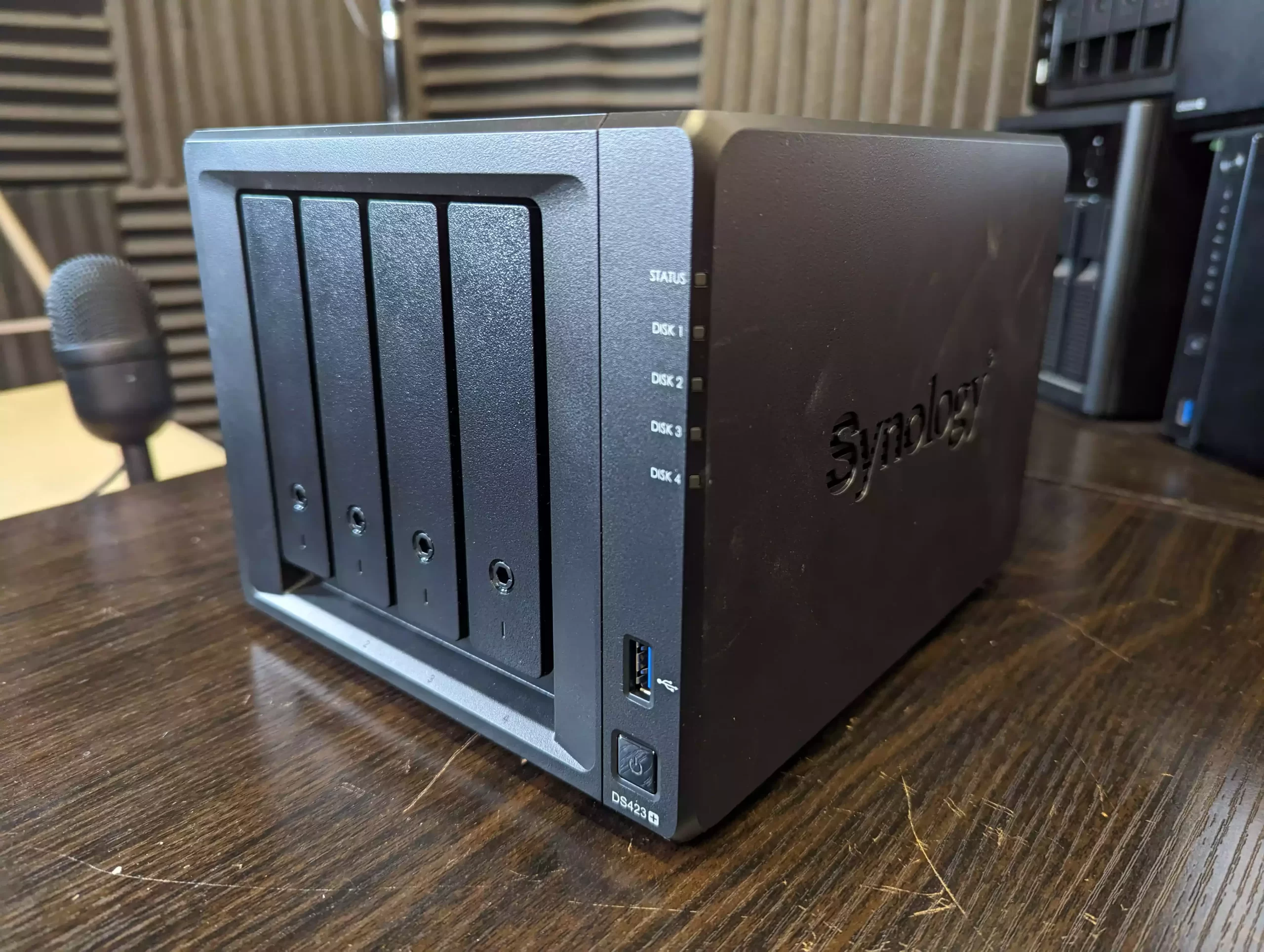
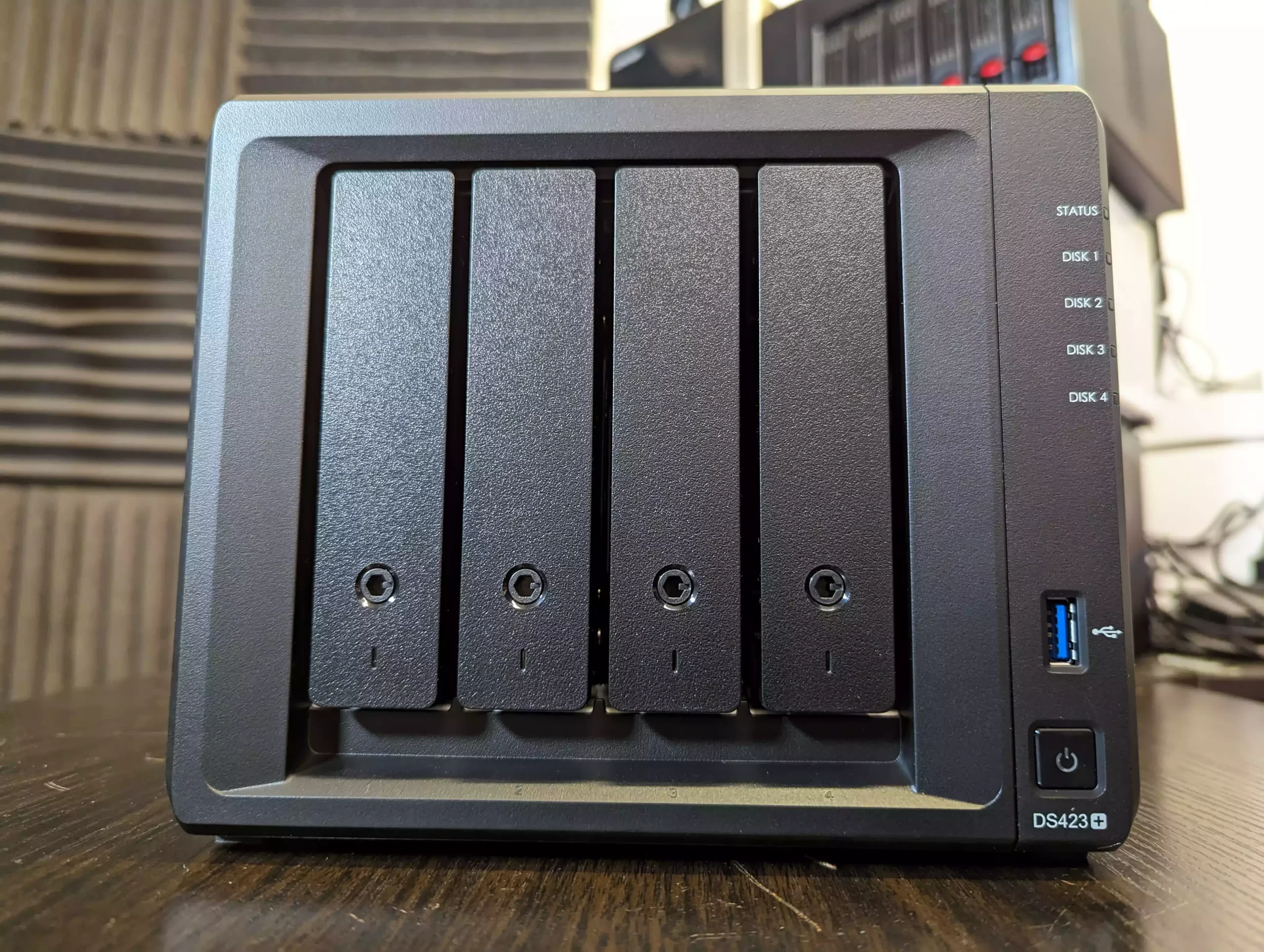




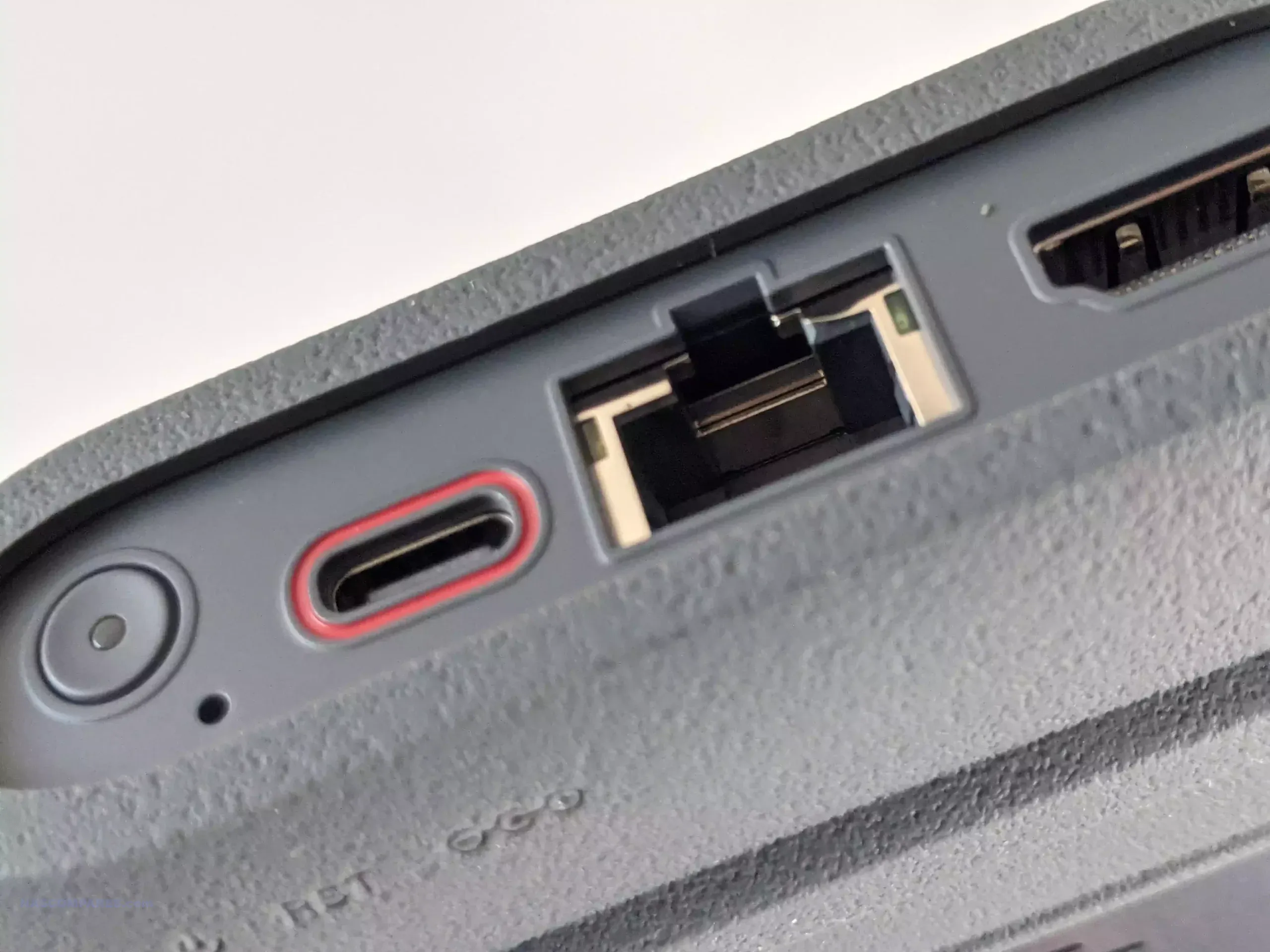
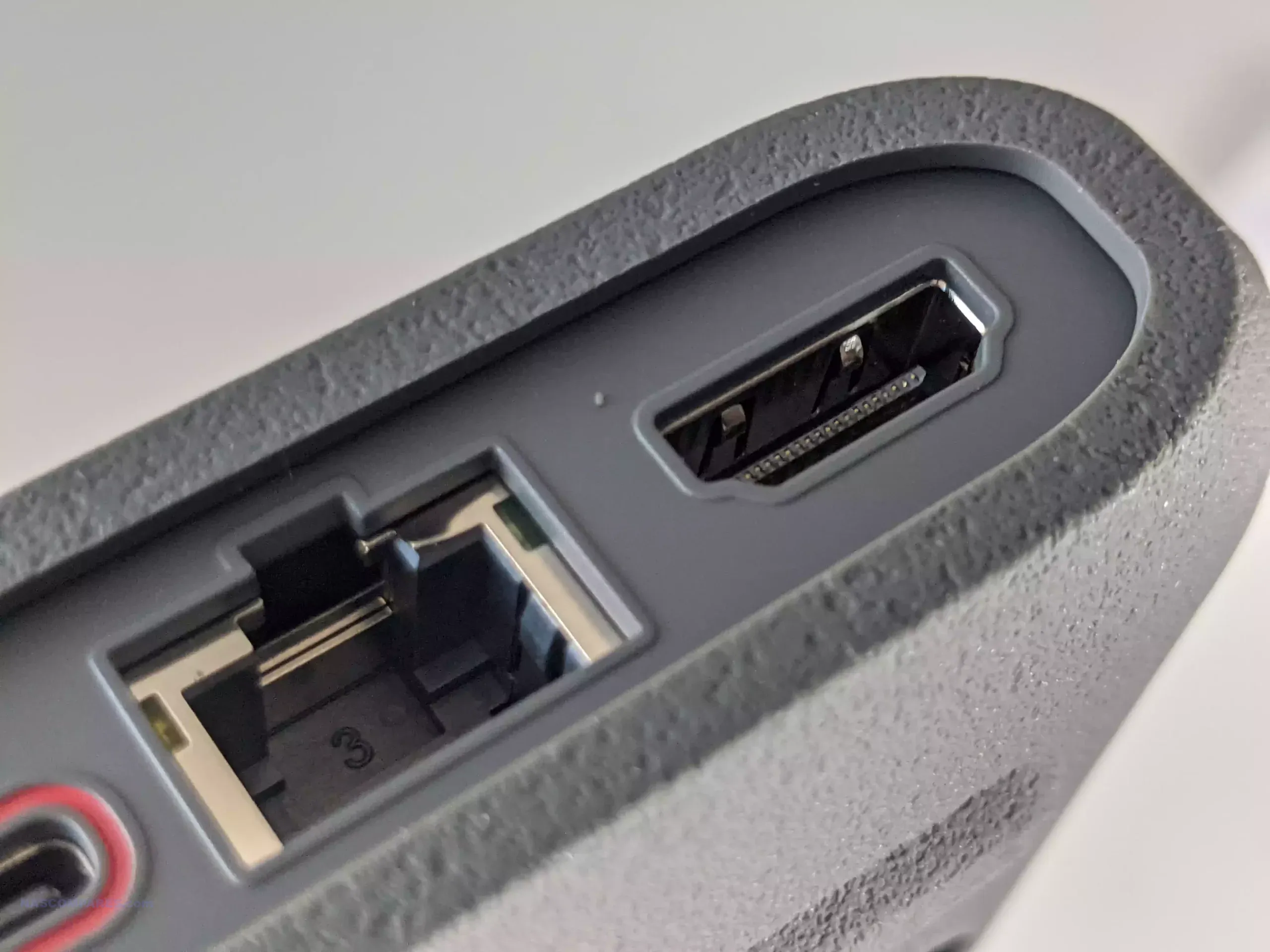
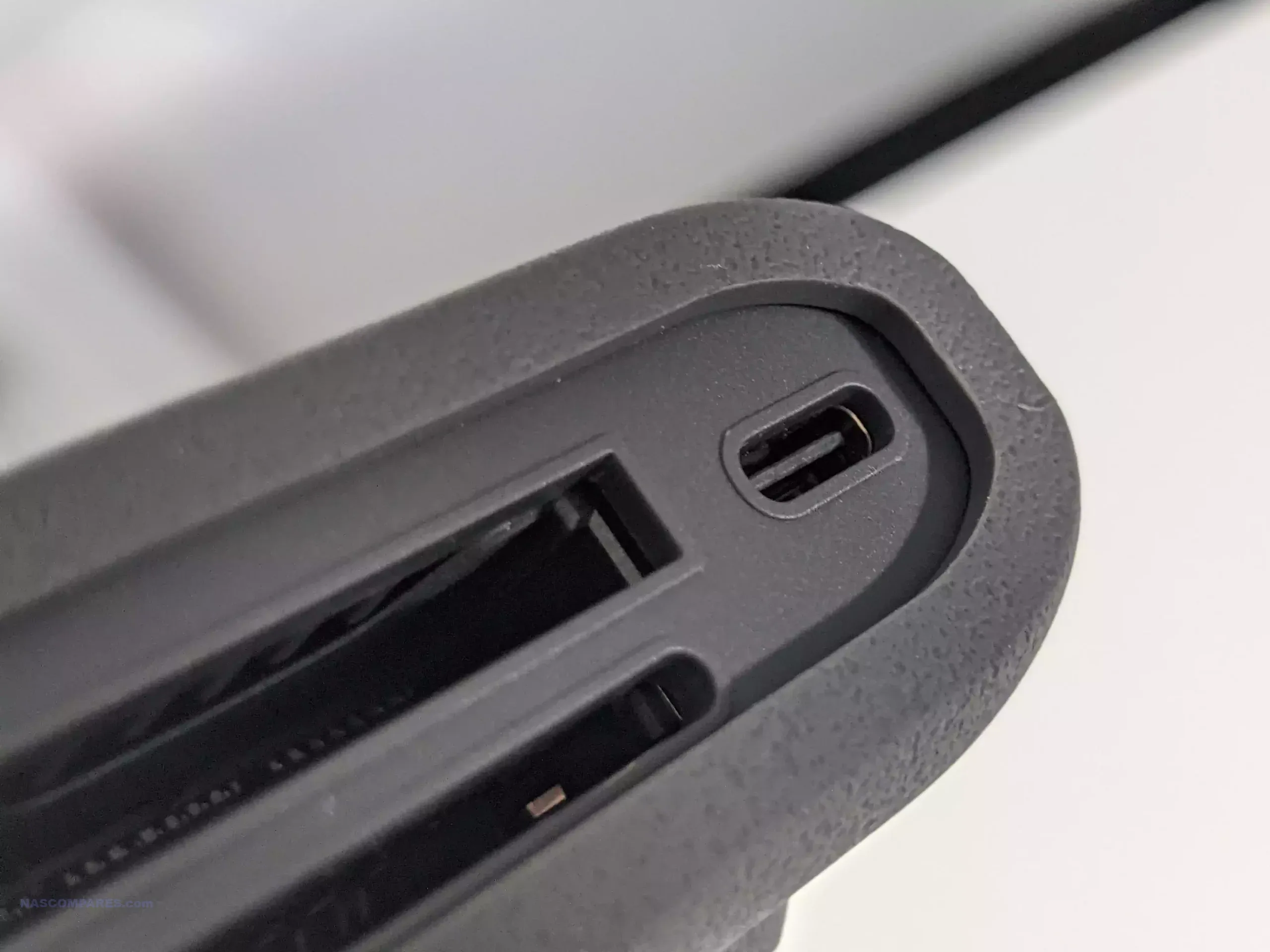
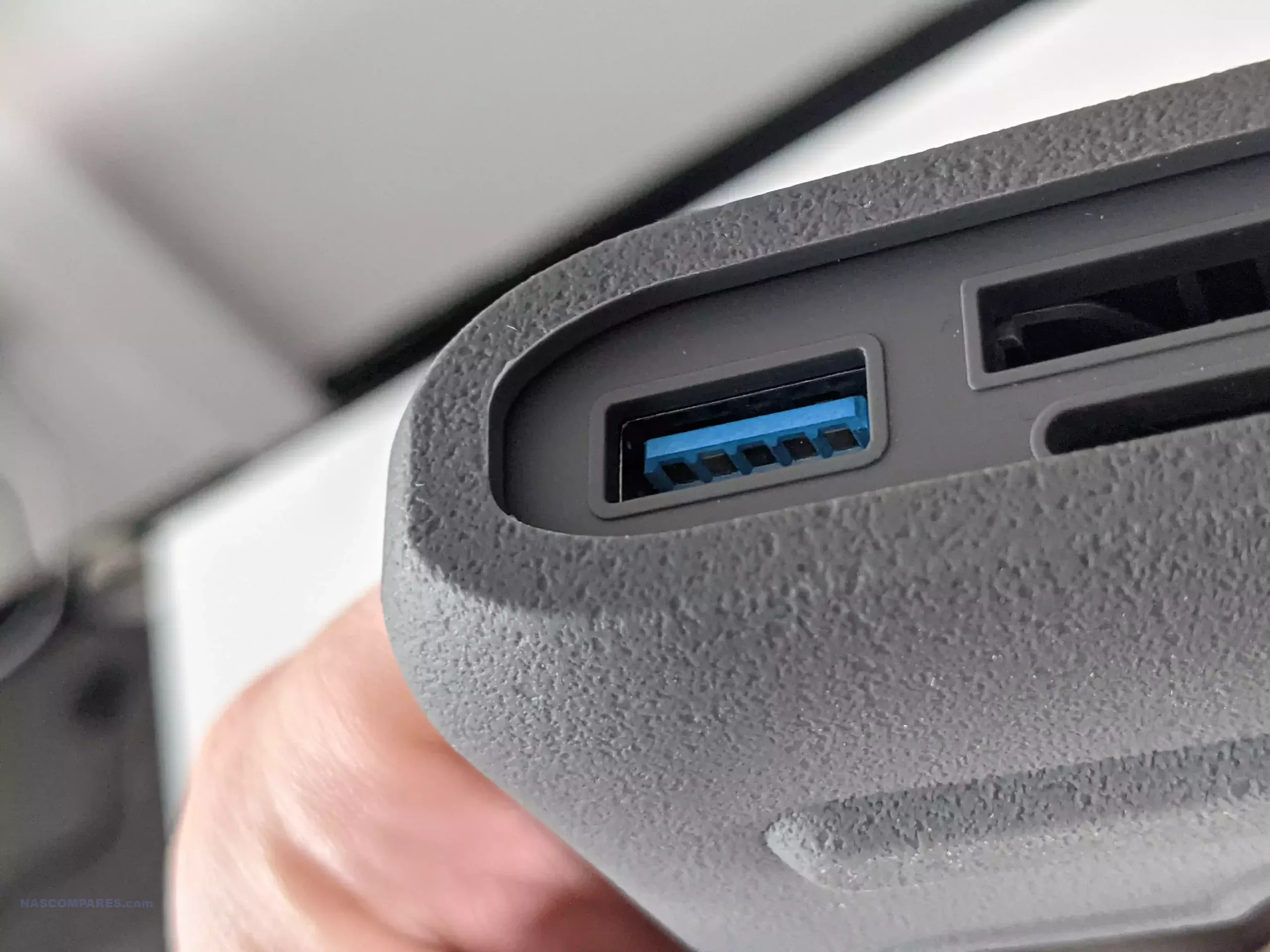

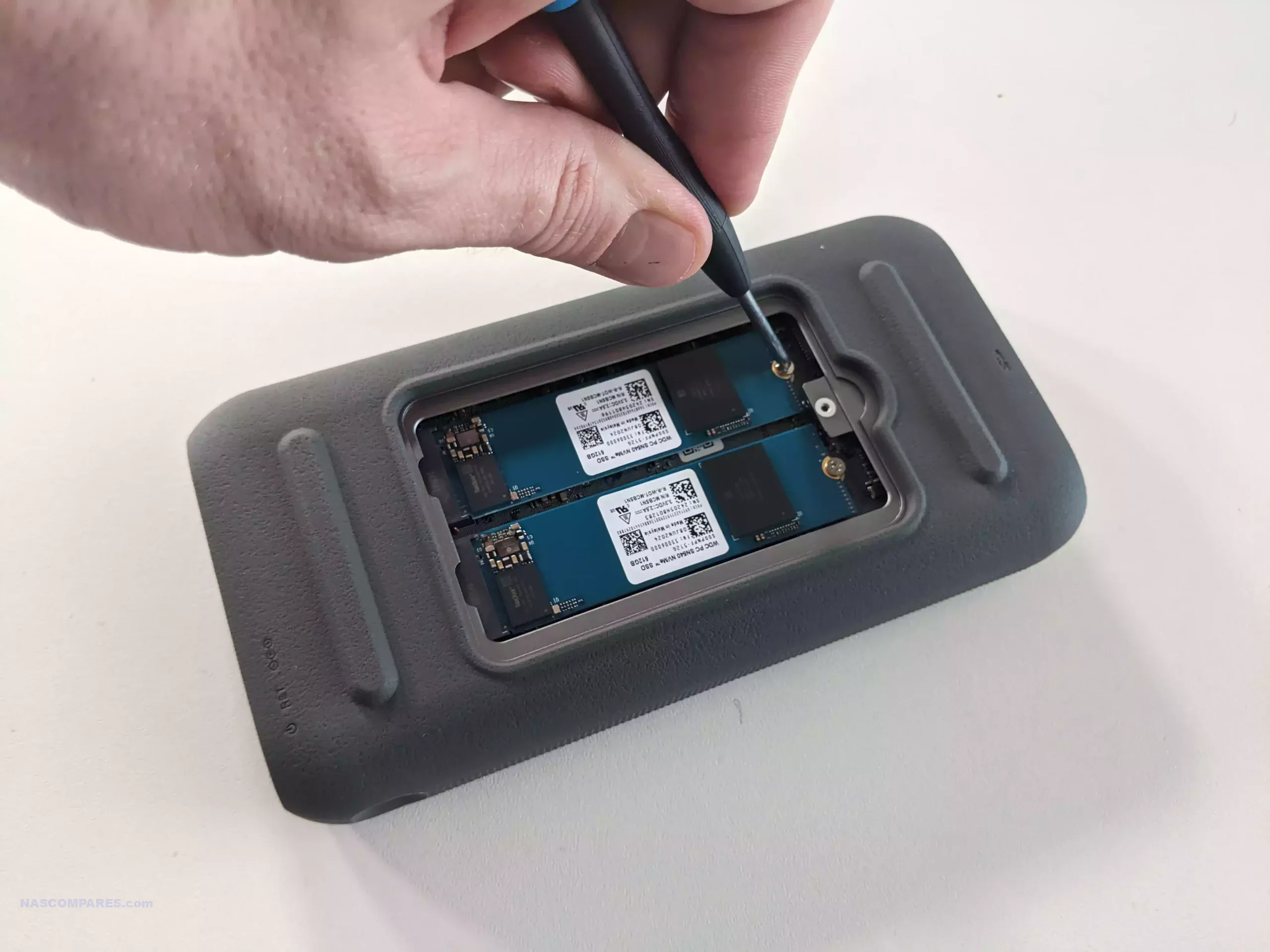
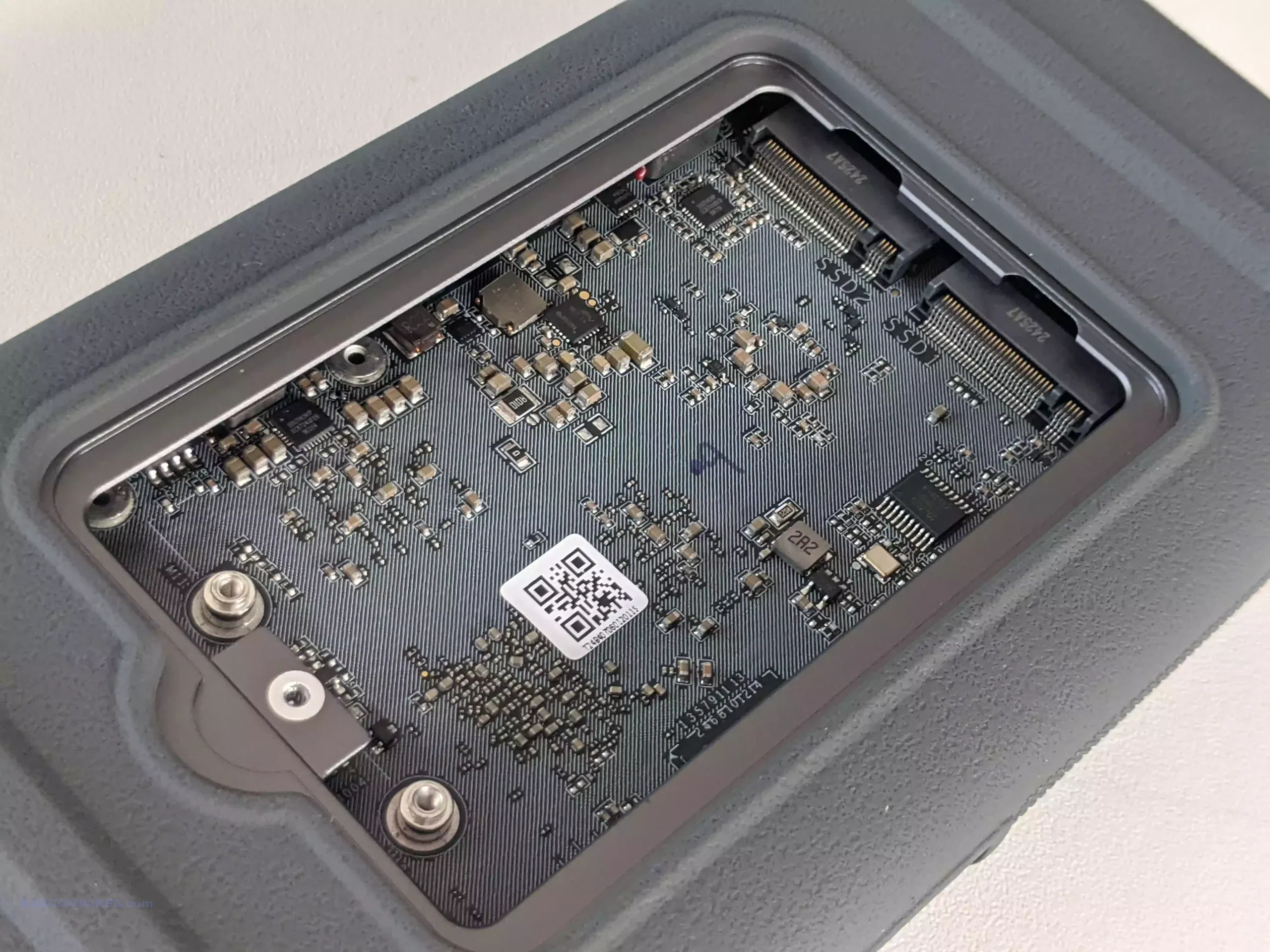



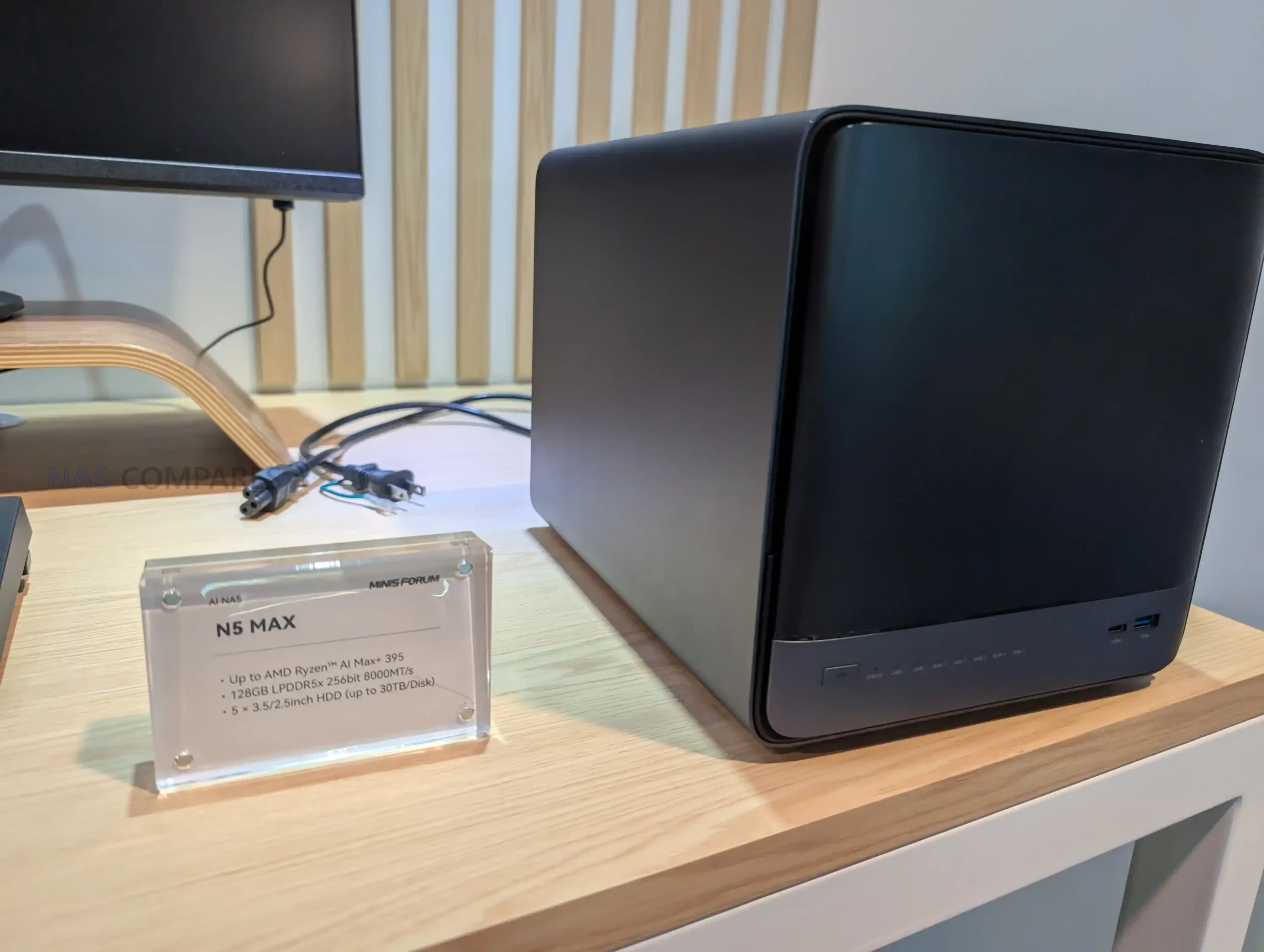
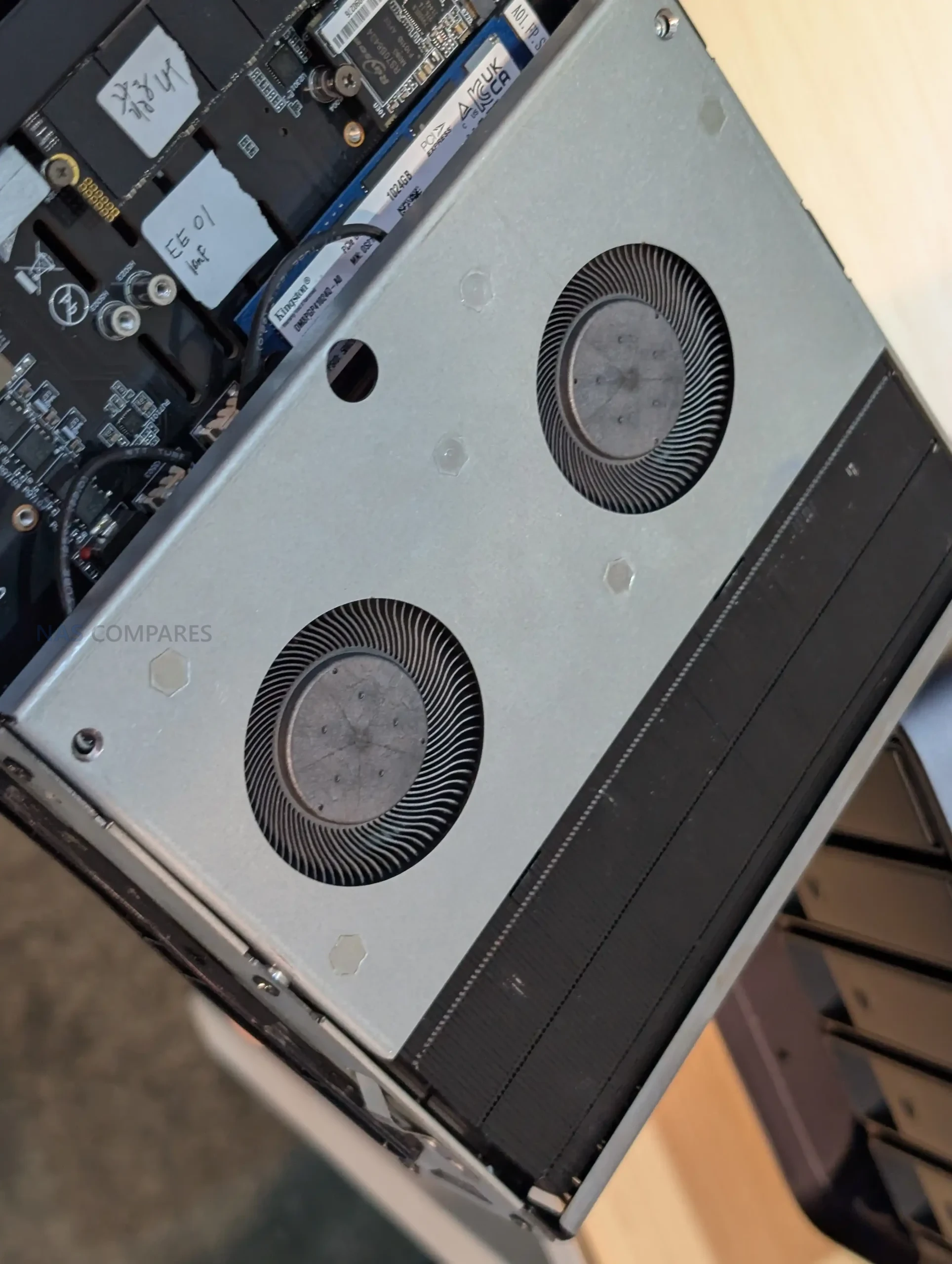
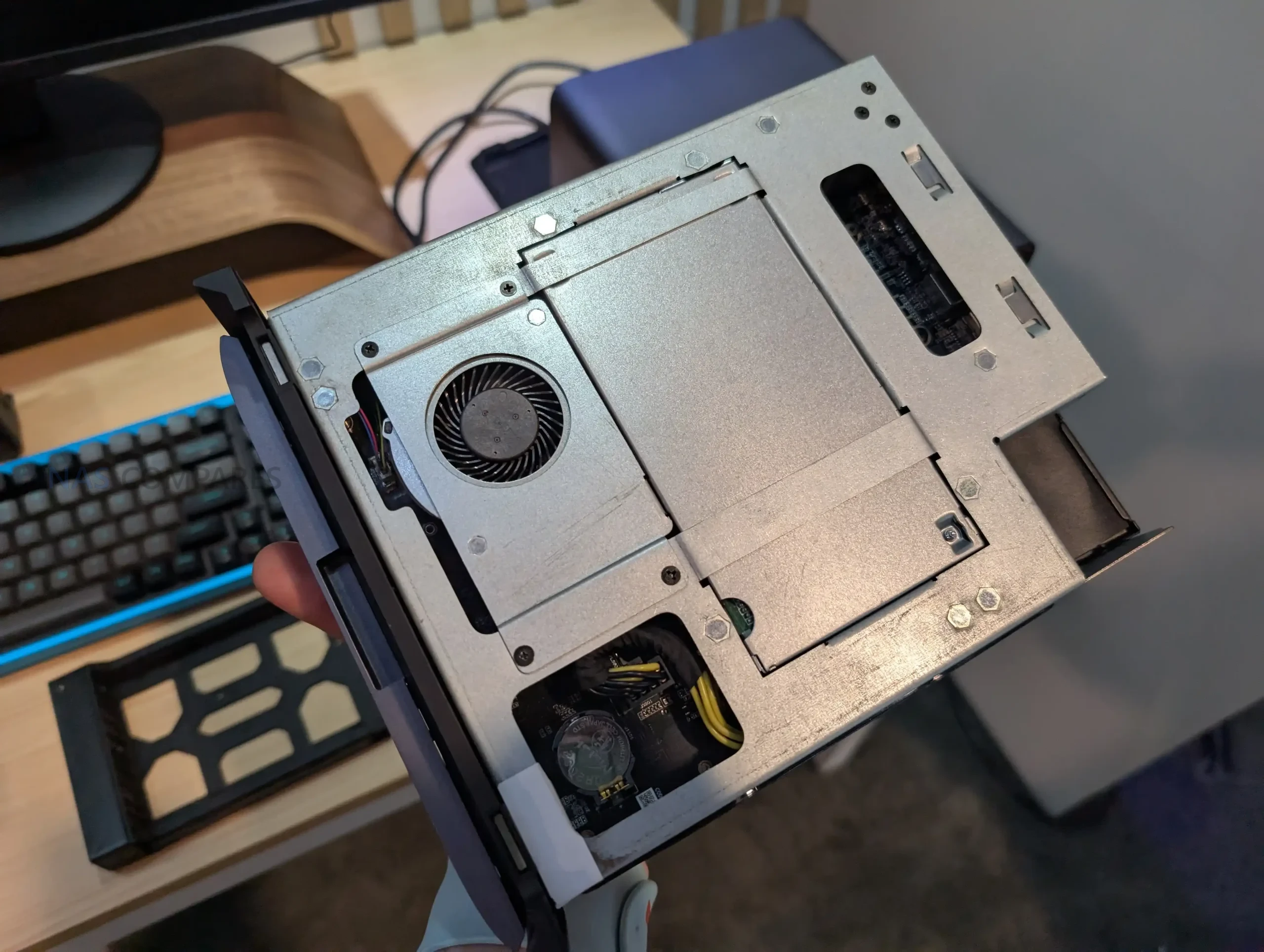
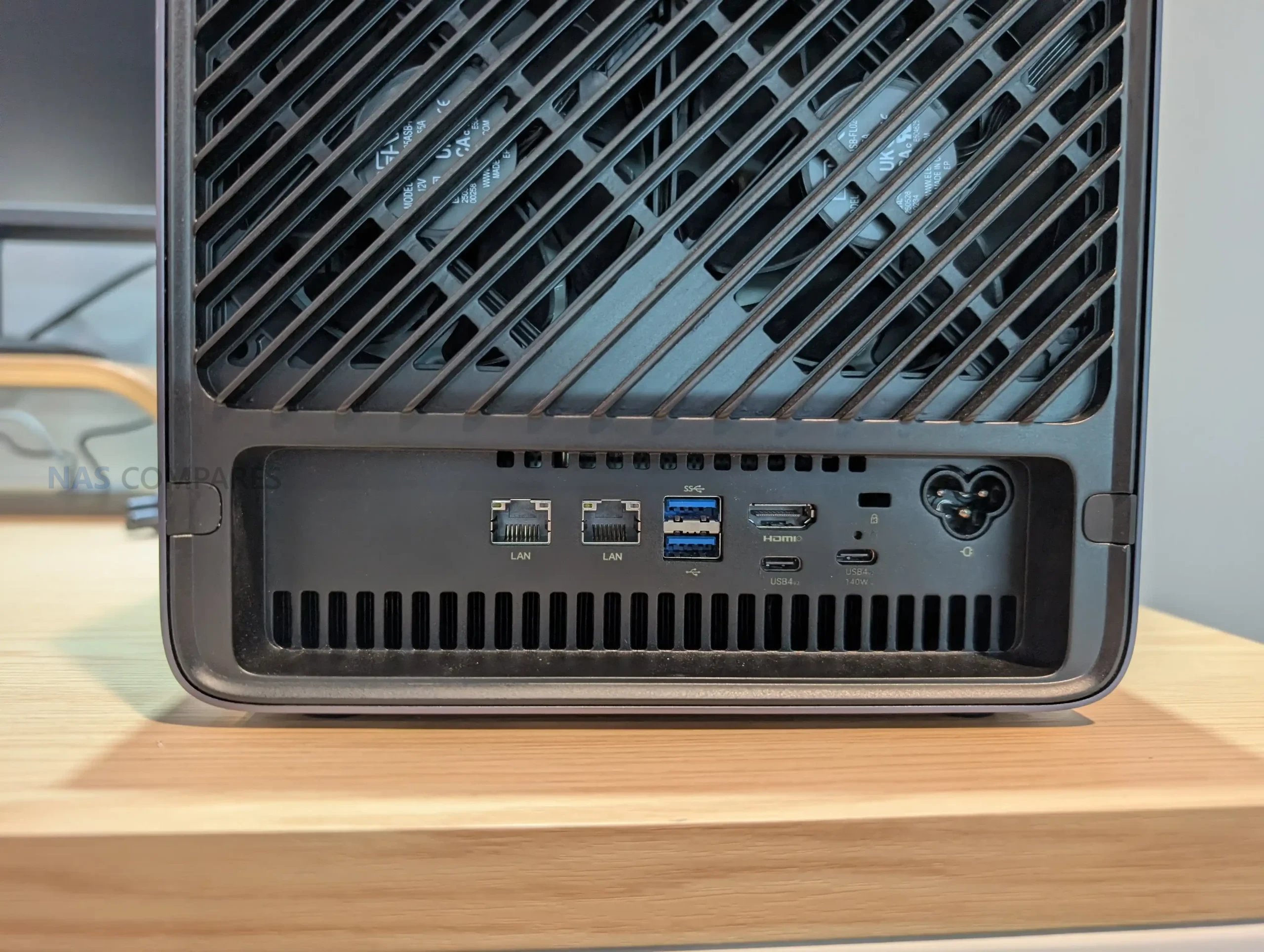
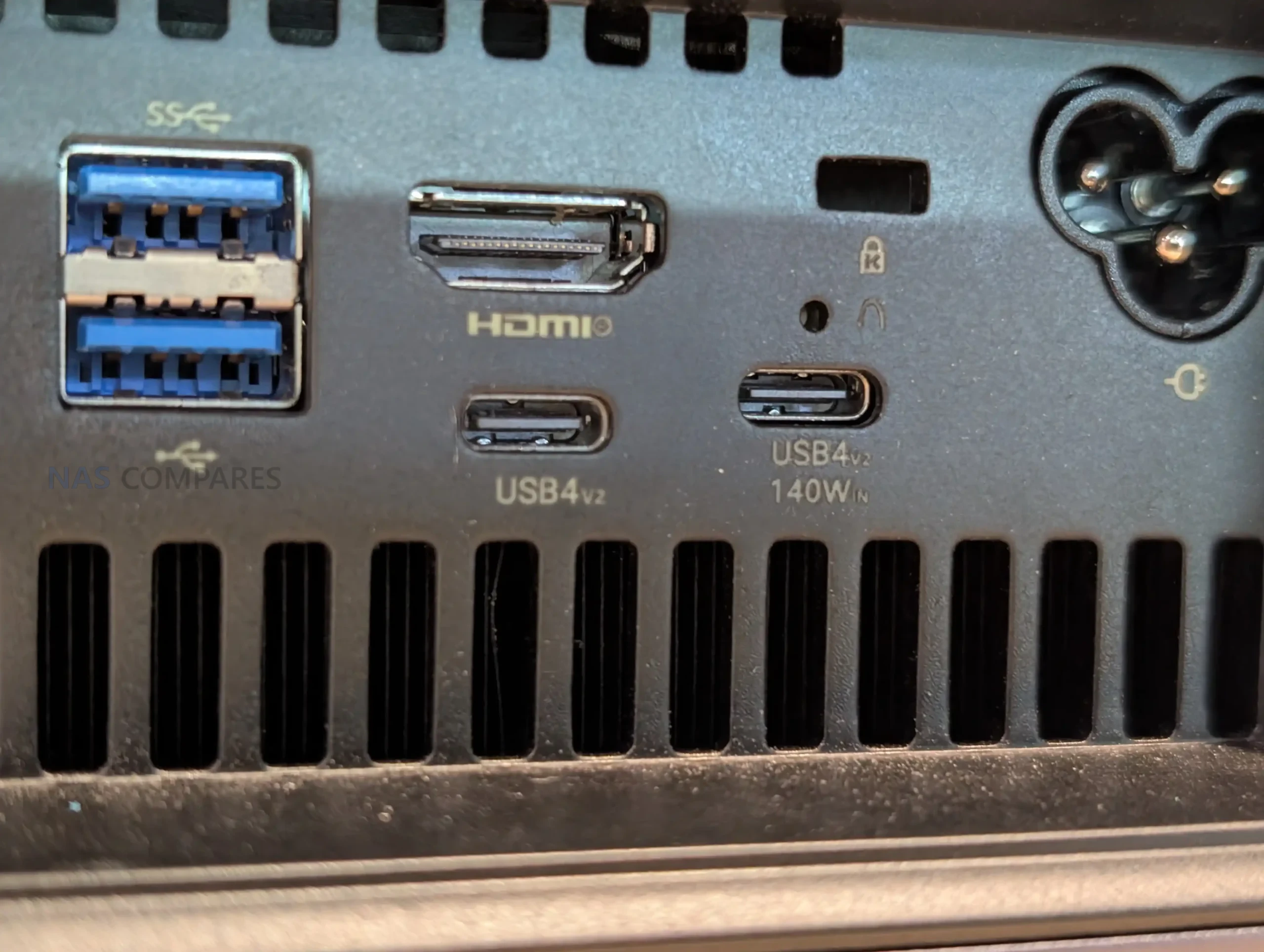
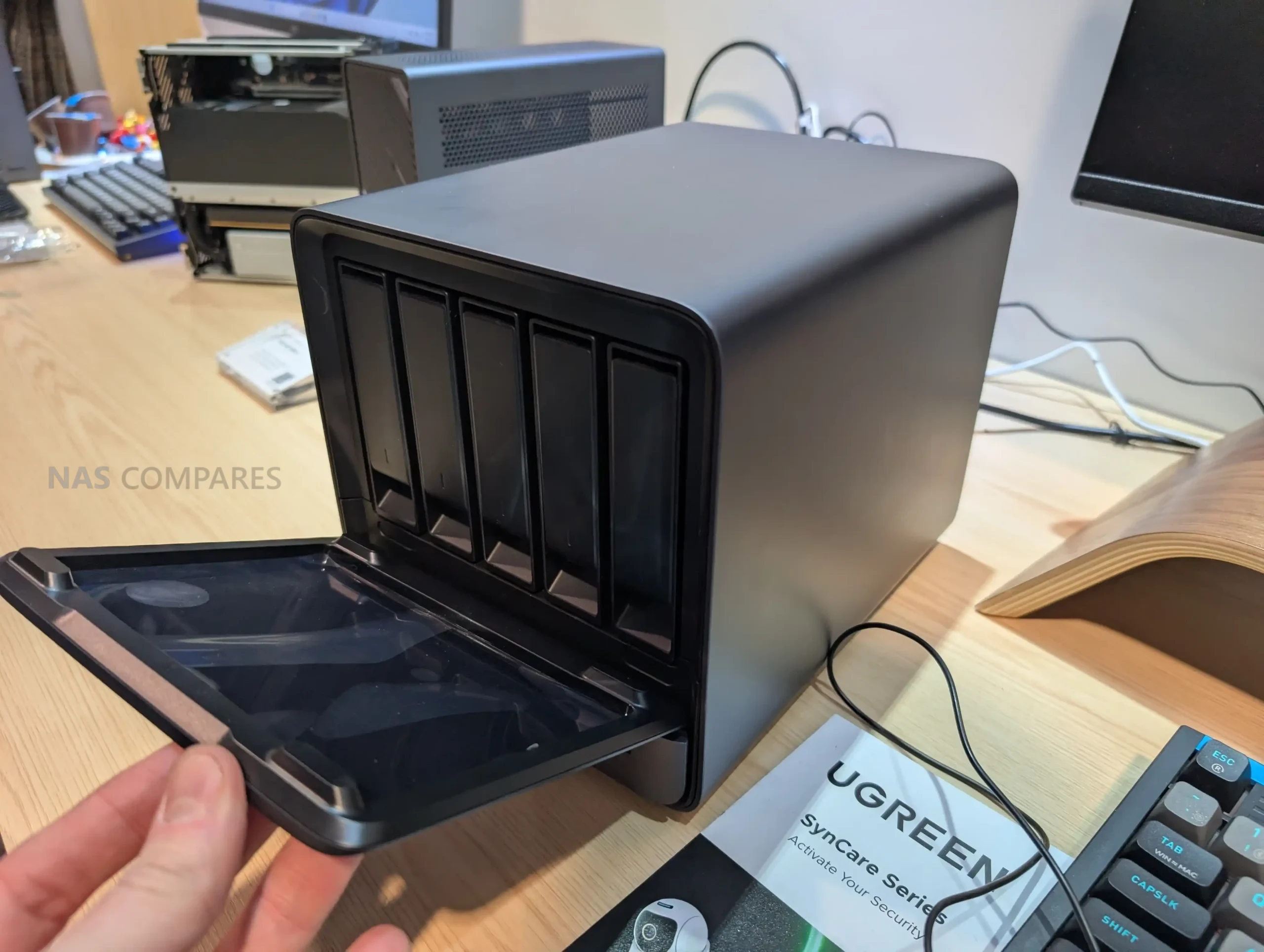
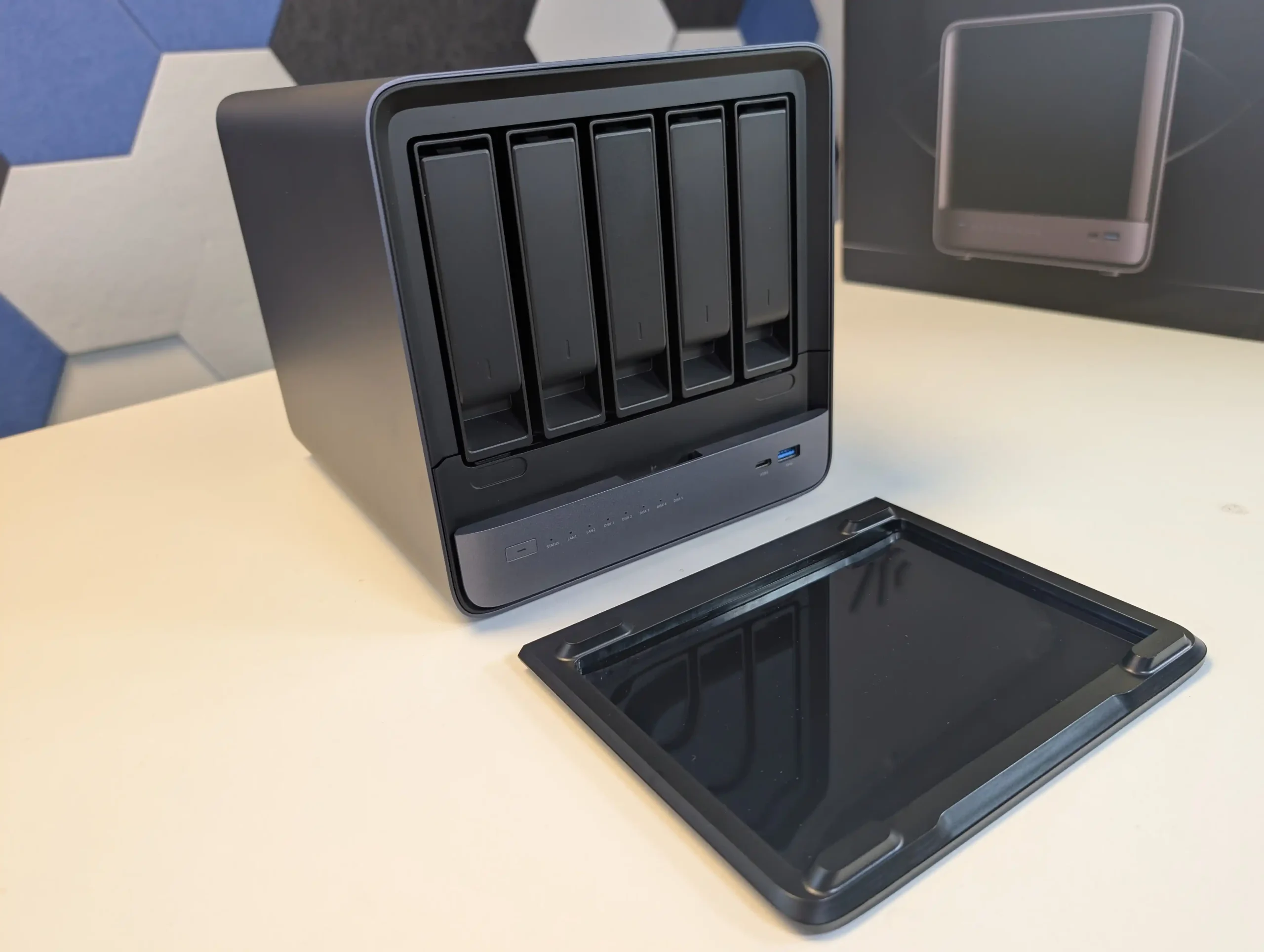
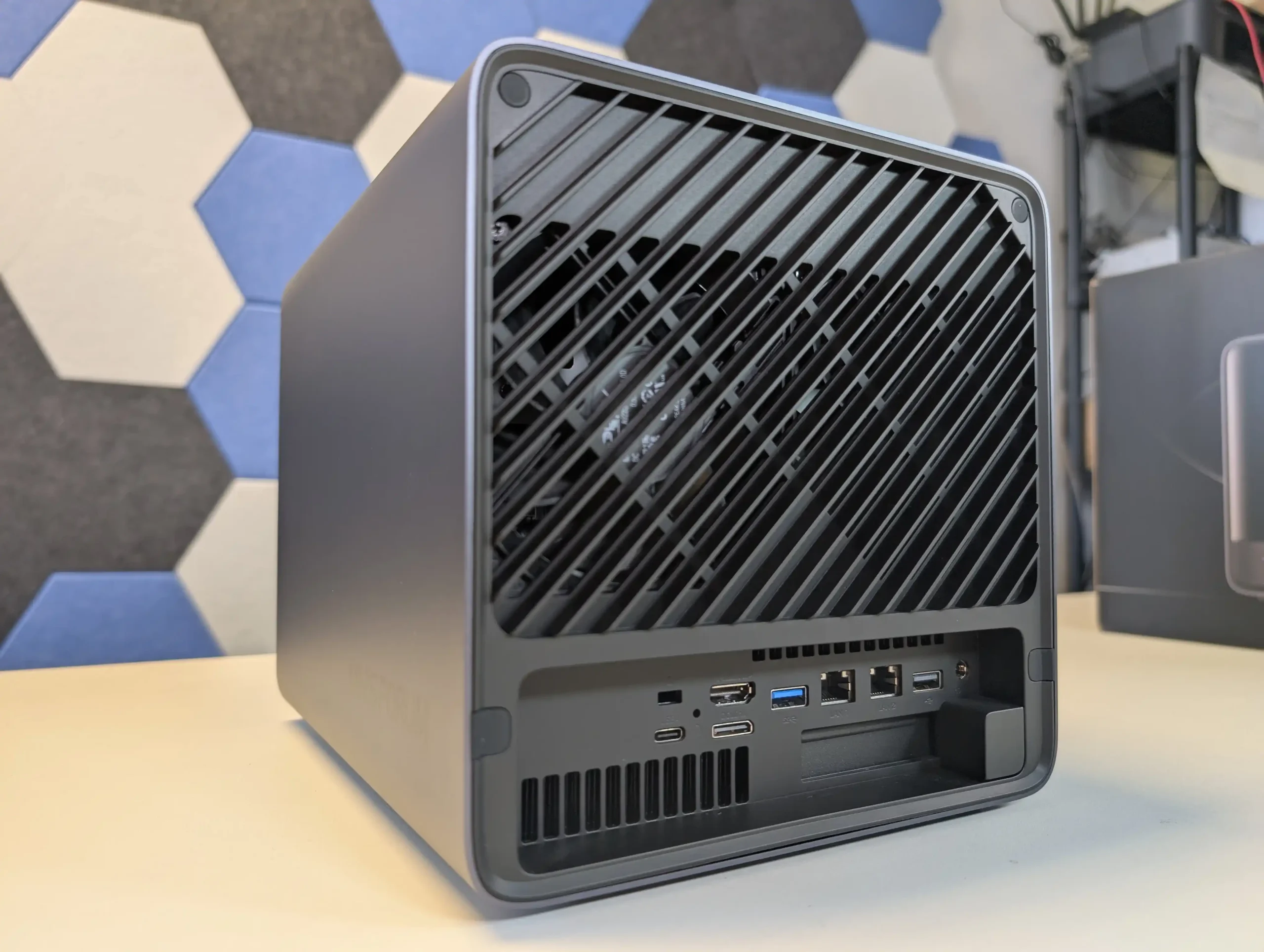
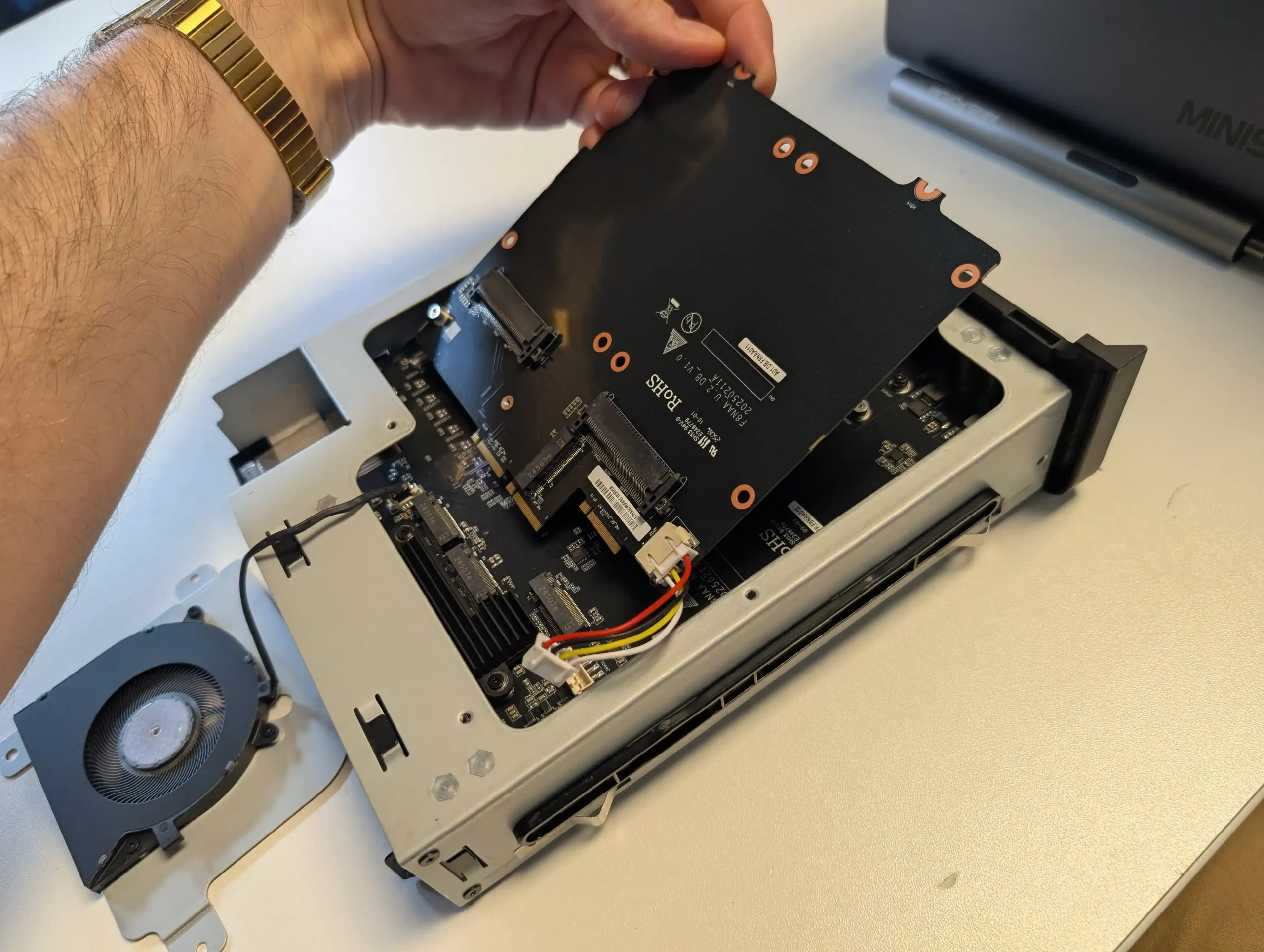
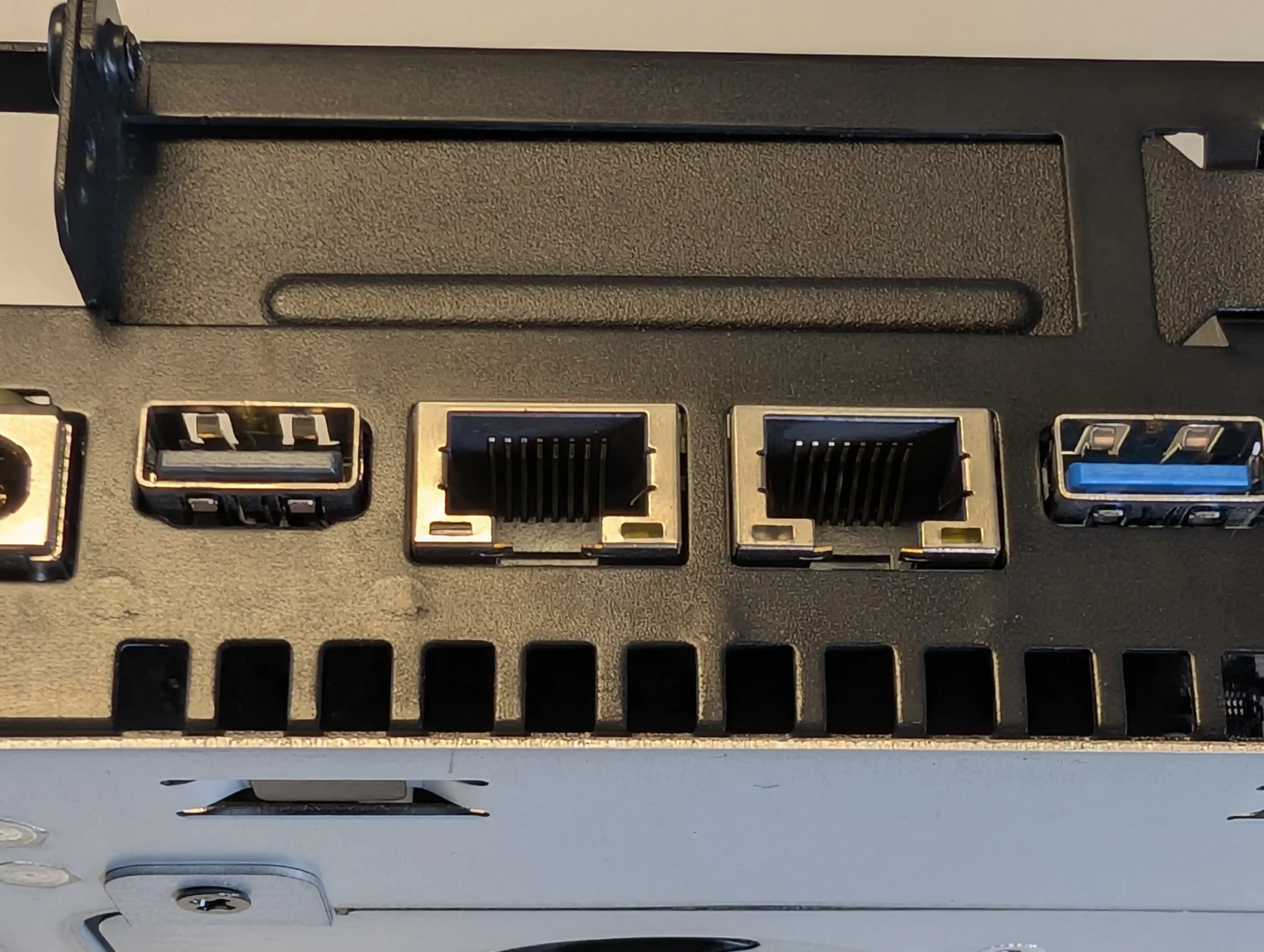
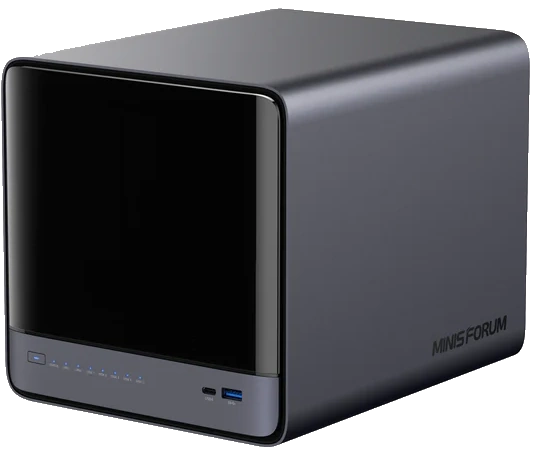
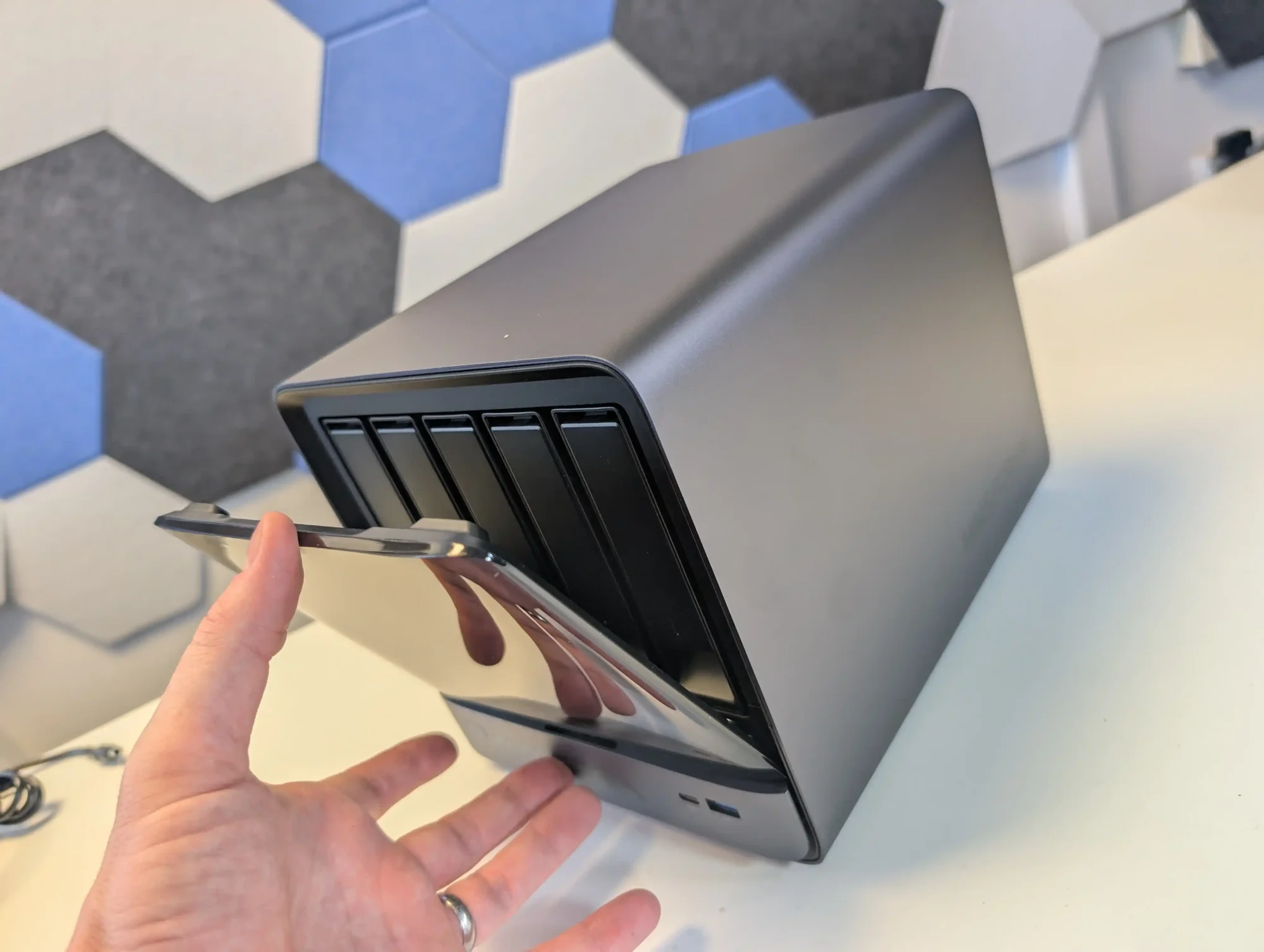

 AI 9 HX PRO 370 CPU with 12 cores, 24 threads, and AI acceleration (50 TOPS NPU) is INCREDIBLE for a compact desktop purchase