Si la suppression du port jack sur l’iPhone 7 en 2016 avait suscité l'incompréhension, elle a surtout propulsé les écouteurs true wireless au rang de norme incontournable. Dix ans plus tard, le confort du Bluetooth a définitivement relégué les câbles emmêlés aux oubliettes. Toutefois, choisir la bonne paire n'est pas toujours évident. Pour vous éviter les mauvais investissements dans un marché ultra-saturé, voici notre sélection des meilleurs modèles du moment.
[Précommande] Le studio qui a offert l’une des premières grandes exclusivités de la PlayStation 5 revient avec Saros. La suite spirituelle de Returnal est déjà disponible en précommande.
UniFi UNAS Pro 4 vs Pro vs Pro 8 NAS – WHICH ONE SHOULD YOU BUY?
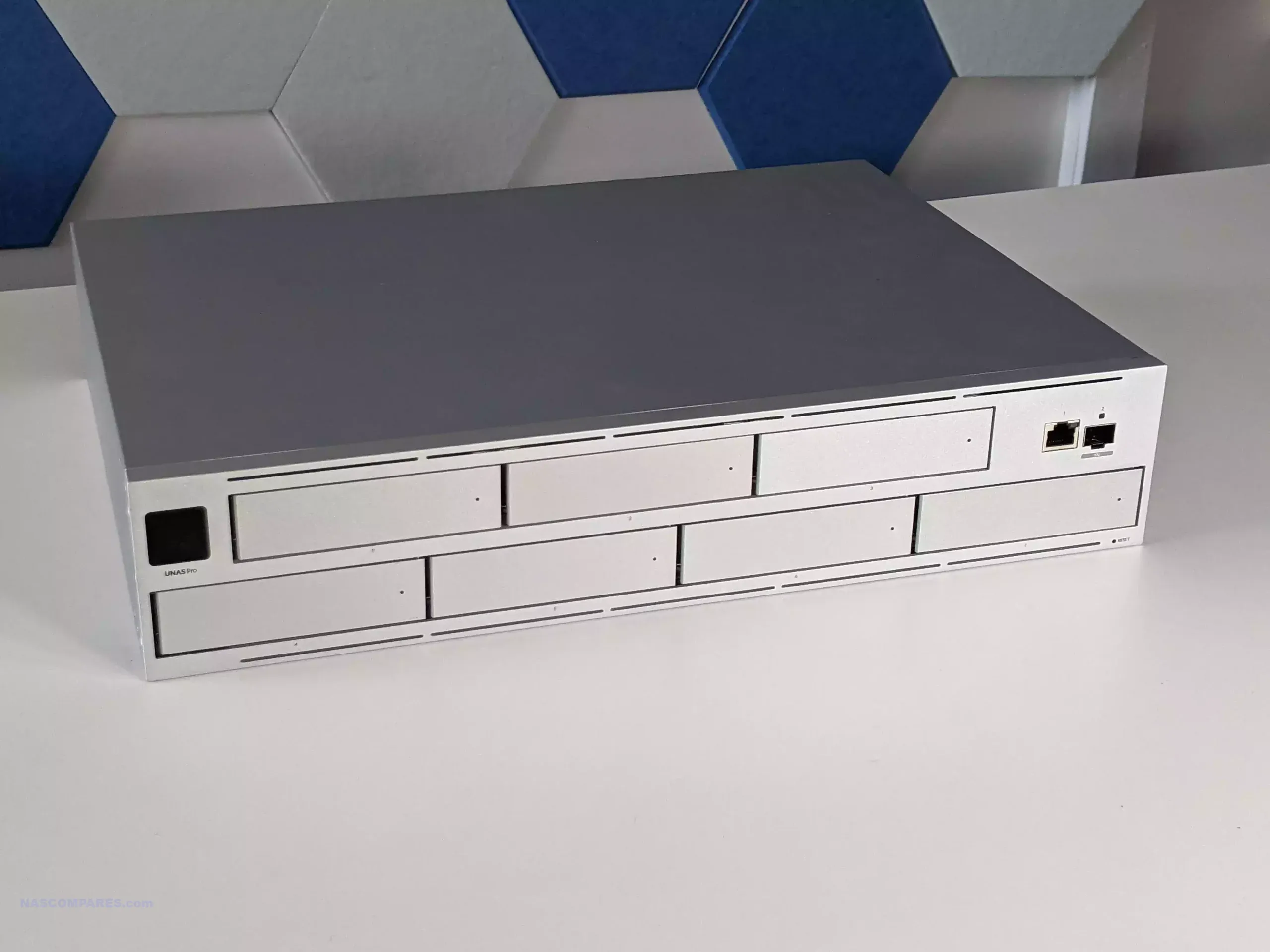
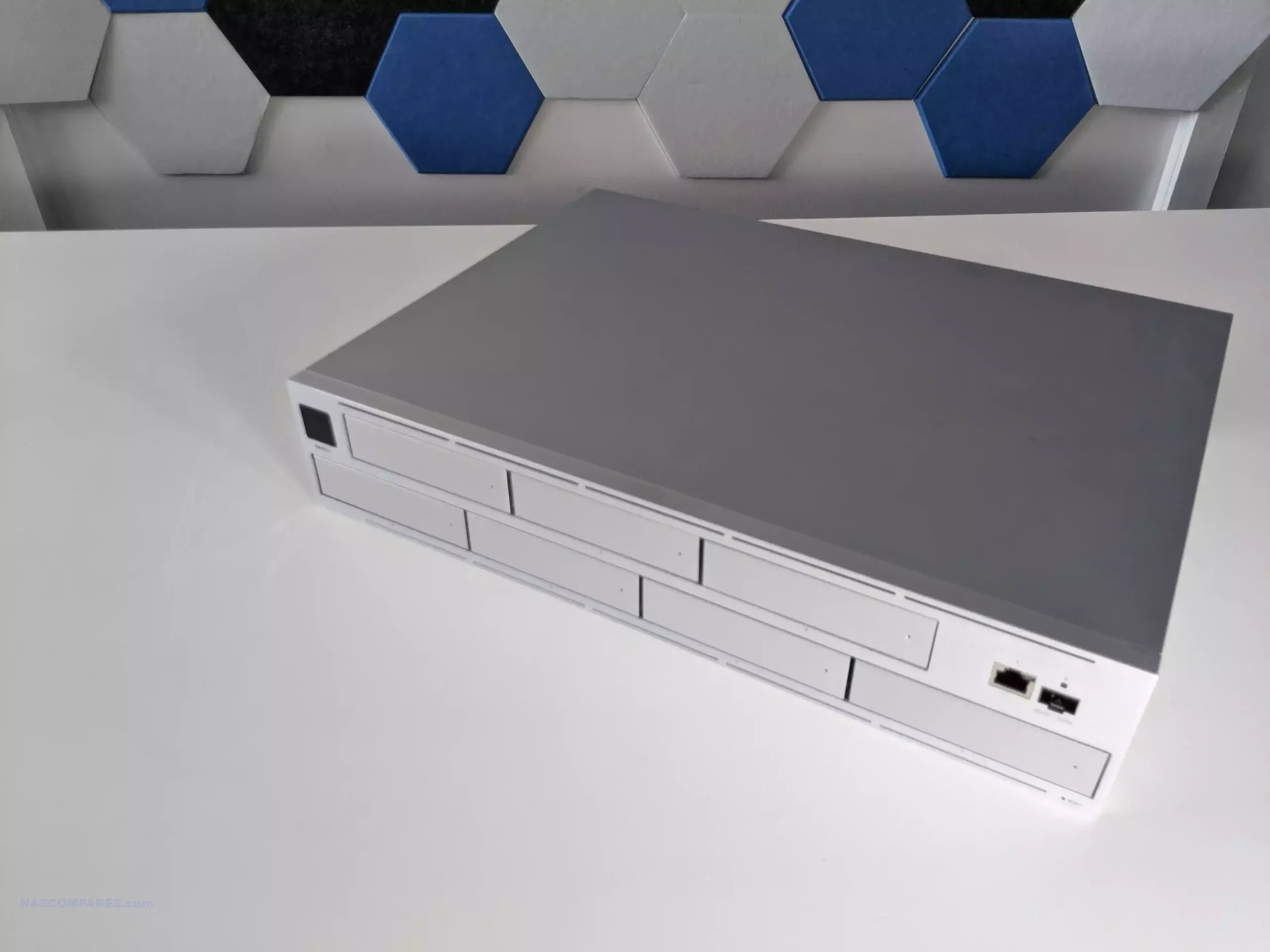
Within UniFi, the UNAS line is positioned as a straightforward, storage focused, turnkey NAS platform that fits into the same single pane management style as the rest of the ecosystem, prioritizing file storage, sharing, snapshots, and backup workflows over broader server style expandability. In this 3 way comparison, the UNAS Pro (7 bay, Nov 2024), UNAS Pro 8 (8 bay, Nov 2025), and UNAS Pro 4 (4 bay, Feb 2026) look similar on the surface, but they target different deployment constraints and ceiling limits in rack depth, storage scalability, cache options, memory headroom, network redundancy, and power design. Two of the units (Pro 4 and Pro 8) add M.2 NVMe cache support and higher availability 10GbE networking than the original Pro, while the Pro 8 also pushes furthest on RAM capacity and physical redundancy expectations for a rack install.
More 3.5 inch bays than UNAS Pro 4 at the same $499 price (7 vs 4)
1U chassis (smallest height)
Most total bays (8) plus 2x NVMe cache slots
Shallower chassis depth than both (325 mm), easier fit in short depth racks
2x 10G SFP+ instead of 1x 10G SFP+ on UNAS Pro
16 GB memory (double UNAS Pro and UNAS Pro 4)
Front 10G SFP+ and 1G RJ45 placement can suit front of rack cabling
NVMe cache support (absent on UNAS Pro)
3 total 10 GbE ports (2x 10G SFP+ plus 10 GbE RJ45), most flexible networking
1.3 inch touchscreen (absent on UNAS Pro 4 and UNAS Pro 8)
Longer CPU clock than UNAS Pro (2.0 GHz vs 1.7 GHz)
Hot swappable power modules (only model with this design)
Con
No NVMe cache support (both UNAS Pro 4 and UNAS Pro 8 have it)
Lowest bay ceiling and no official expansion path, so it fills up fastest
Highest price up front ($799)
Only 1x 10G SFP+ (UNAS Pro 4 has 2x, UNAS Pro 8 has 2x plus 10 GbE RJ45)
Deeper chassis than UNAS Pro (400 mm vs 325 mm)
Deepest chassis (480 mm), most demanding fit in shallow racks
Lower CPU clock than UNAS Pro 4 and UNAS Pro 8 (1.7 GHz vs 2.0 GHz)
No hot swap PSU design (UNAS Pro 8 is the only one with hot swappable power modules)
No touchscreen (UNAS Pro includes a front touchscreen)
Same 8 GB memory as UNAS Pro 4 and less than UNAS Pro 8 (16 GB)
Same 8 GB memory as UNAS Pro and less than UNAS Pro 8 (16 GB)
Higher power ceiling and max power consumption than the other 2 (250 W max)
At the same time, the lineup is notable for pricing that stays lower than many established rackmount NAS competitors at comparable connectivity, with both the UNAS Pro and UNAS Pro 4 landing at $499, and the UNAS Pro 8 stepping up to $799 for more bays, more memory, and more network paths. The practical decision usually comes down to whether the priority is maximum bays at the lowest buy in, a tighter 1U footprint with newer cache and dual 10GbE links, or a higher ceiling platform with the strongest long term headroom in bays, RAM, and connectivity for users who expect growth rather than a fixed storage target.
IMPORTANT – It is worth highlighting that all three UNAS solutions include the same software and updates in the UniFi Drive and NAS OS services. Alongside the client tools (eg Identity Endpoint and File/Folder services remotely) and can be easily integrated into an existing Ubiquiti/UniFi network landscape. HOWEVER crucially, it is not ‘mandotory’ – you can run any of the UNAS Pro systems completely ‘offline’ (i.e LAN only) and there is no need to already have an existing UniFi network (existing 3rd party network landscapes work perfectly fine) and you also do not need to use/register any kind of UI.com/Ubiquiti account to setup the device.
UniFi UNAS Pro 4 vs Pro vs Pro 8 NAS – Design
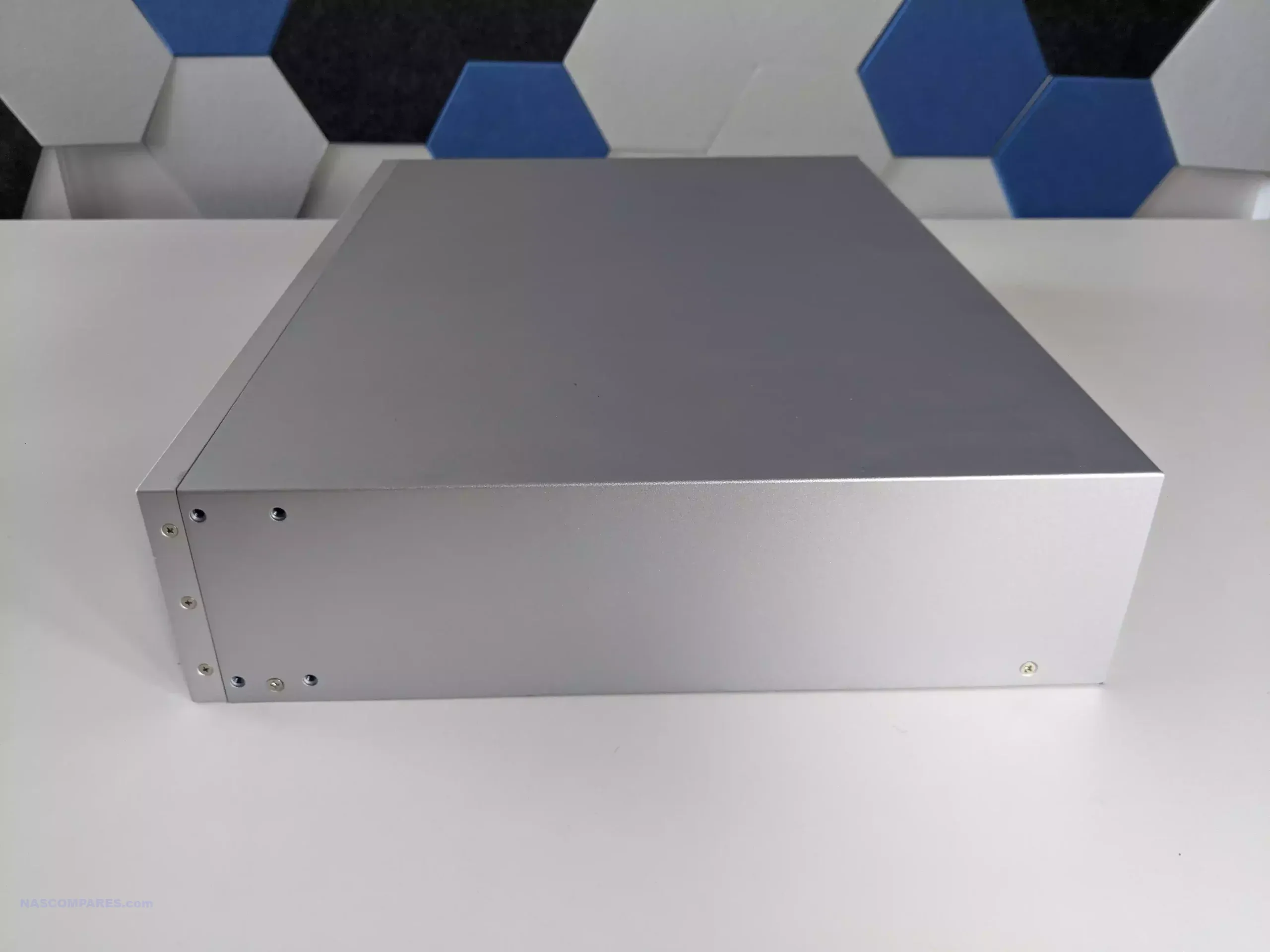
At a chassis level, the lineup splits into 2U and 1U designs, and that difference shapes how each unit fits into smaller racks and shallow cabinets.
The UNAS Pro is the shortest depth of the 3, while the UNAS Pro 4 and UNAS Pro 8 extend further back, which matters once you account for cable bend radius and rear clearance.
For compact wall racks and shorter cabinets, the older UNAS Pro tends to be easier to accommodate purely on physical depth, even before you consider anything about performance or features.
UNAS PRO 8 480MM DEPTH
UNAS PRO 325MM DEPTH
UNAS PRO 4 400MM DEPTH
DON’T FORGET RAILS!!!
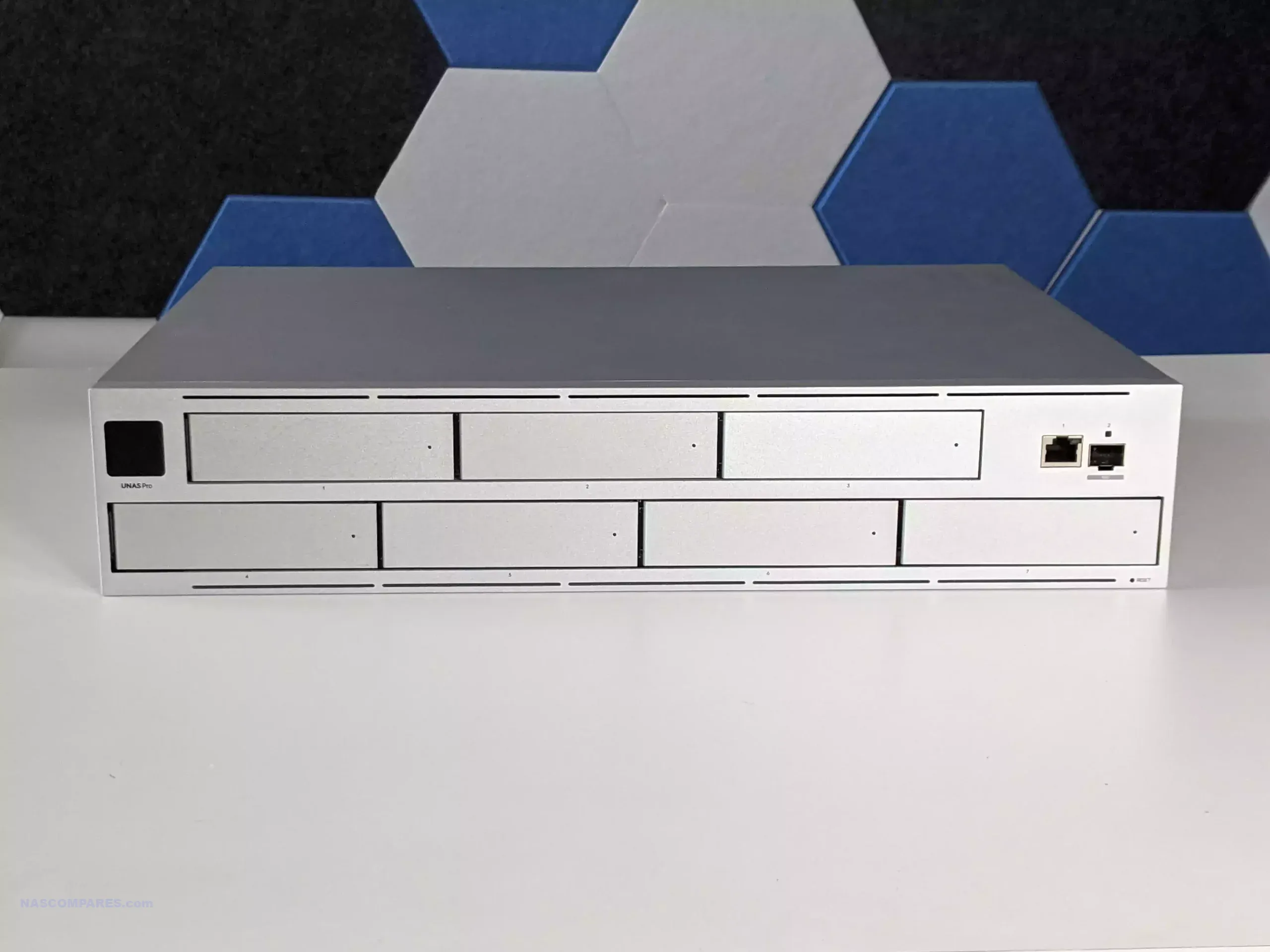
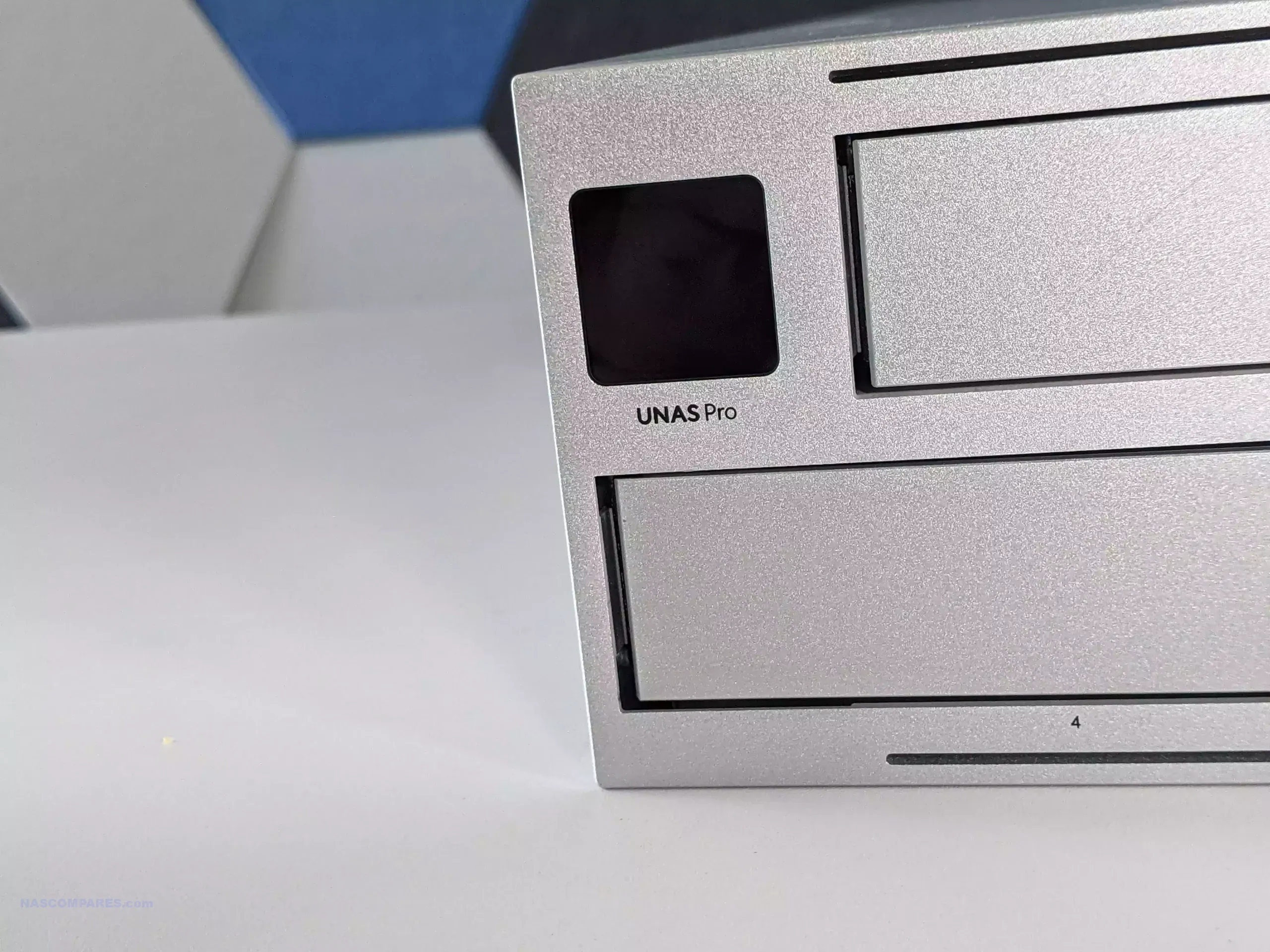
The UNAS Pro also stands apart on the front panel experience, because it includes a 1.3″ touchscreen that can surface live status information without needing to log into the UI. That is not present on the UNAS Pro 4 or UNAS Pro 8, which lean into a more conventional rack appliance faceplate focused on bay access and basic indicators. In day to day use, the screen is mainly a convenience feature for quick checks and basic local interaction, rather than something that changes how the system is deployed.
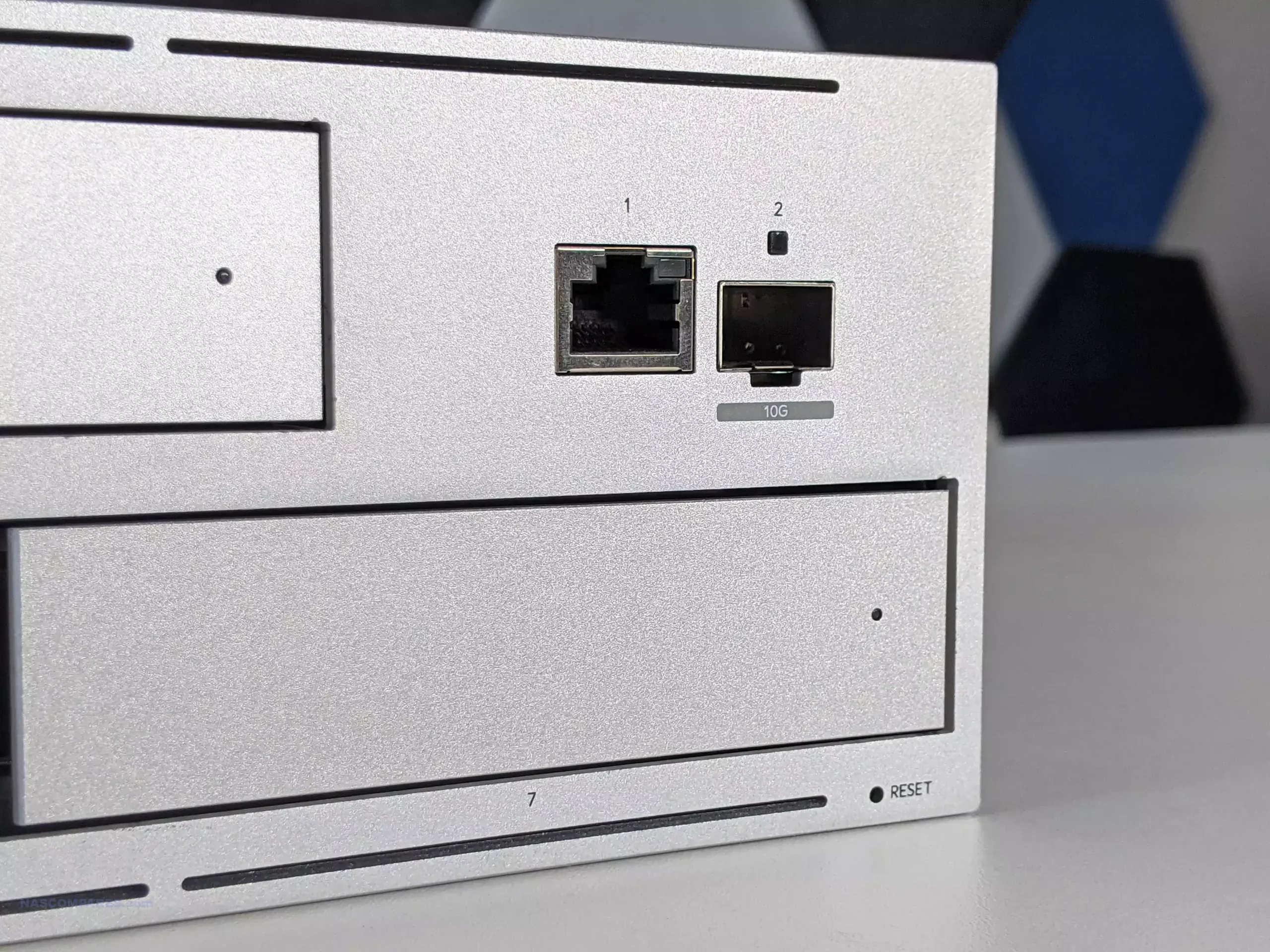
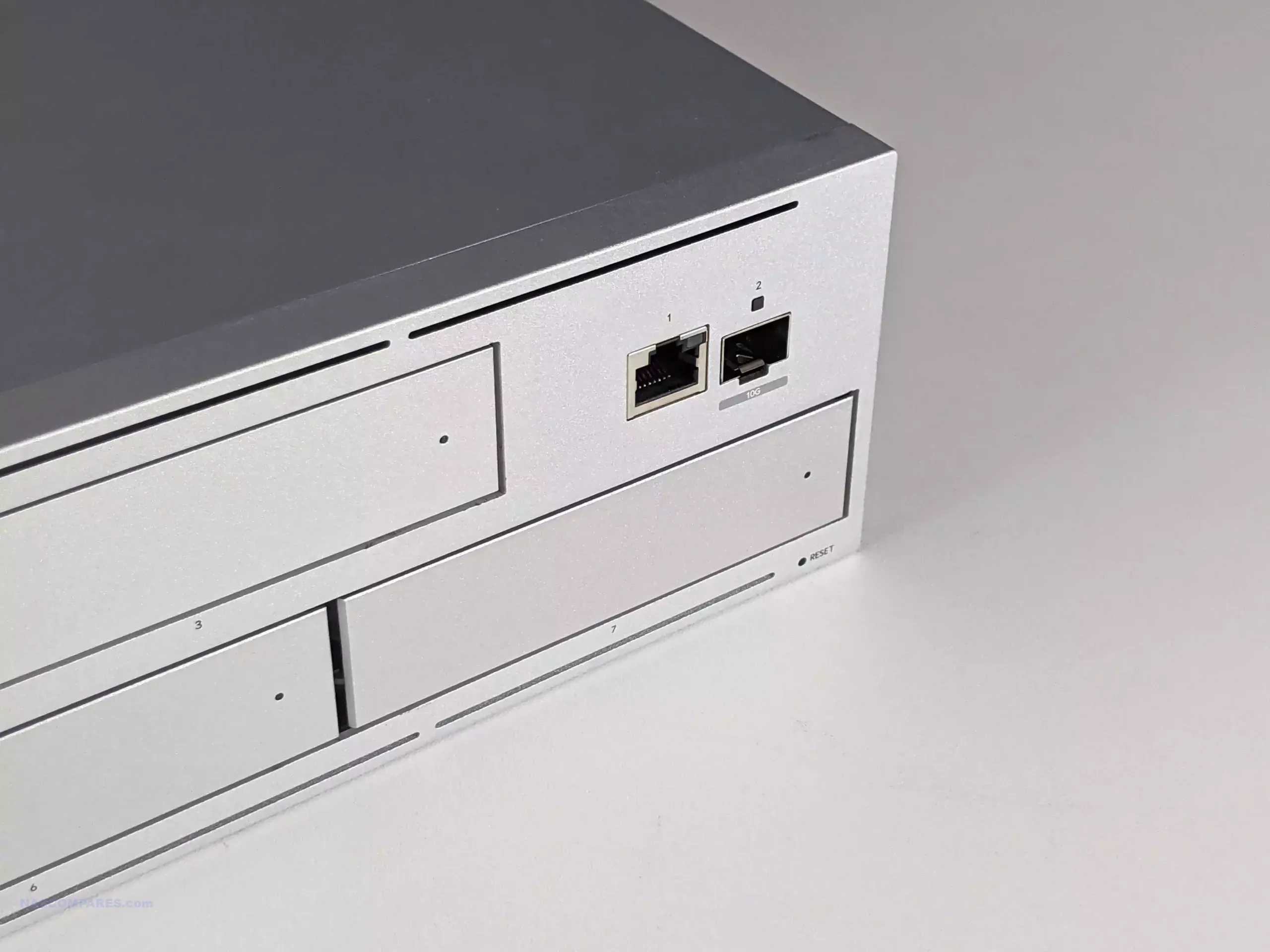
Another practical design difference is port placement philosophy. The UNAS Pro places its primary network connectivity on the front, while the UNAS Pro 4 and UNAS Pro 8 move connectivity to the rear, matching the typical layout most rackmount NAS systems follow. Front facing ports can reduce visible cabling in front of a rack and shorten patch runs in some UniFi heavy layouts, but rear mounted ports are generally easier to route cleanly in deeper cabinets with rear cable management.
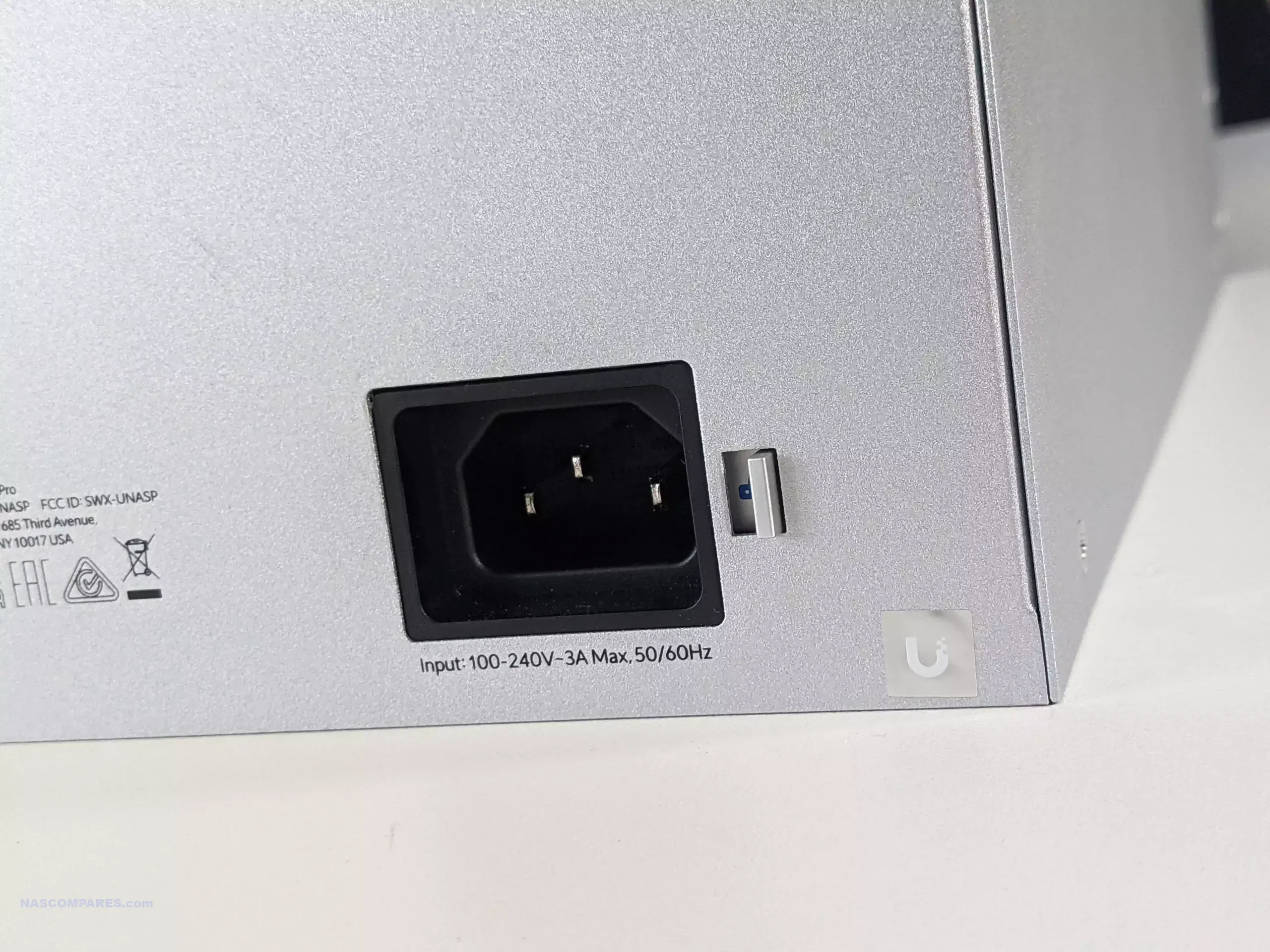
Power implementation also affects the physical serviceability profile of each unit. The UNAS Pro 8 uses hot swappable power modules, which changes how you handle failure or planned maintenance compared with the fixed internal power approach used by the UNAS Pro and UNAS Pro 4.
All 3 use a steel enclosure and ship as purpose built rack devices rather than desktop conversions, but the UNAS Pro 8 is the one that most closely matches what many buyers expect from a higher end rack appliance in terms of field replacement for key physical components.
UniFi UNAS Pro vs Pro 4 vs Pro 8 NAS – Storage
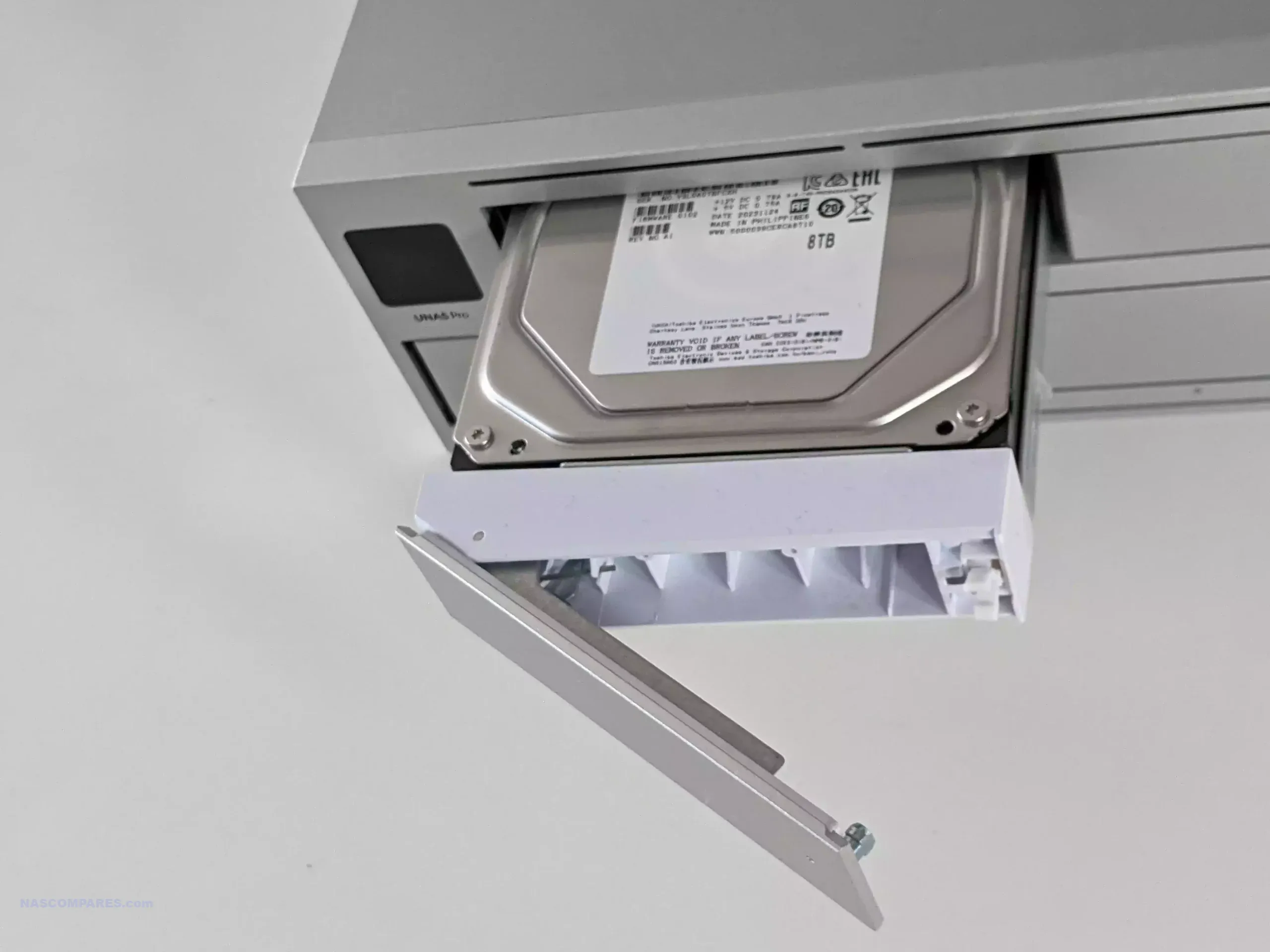
The most obvious storage difference is the bay count and what that does to capacity planning. The UNAS Pro provides 7 front accessible 2.5 inch or 3.5 inch bays in a 2U chassis, the UNAS Pro 4 offers 4 bays in a 1U chassis, and the UNAS Pro 8 increases that to 8 bays in 2U. If you expect to grow into larger pools over time, the 7 bay and 8 bay models give more headroom before you are forced into drive replacements, a second NAS, or a new storage tier. With no official expansion chassis support referenced here, the physical bay count is effectively the ceiling for each system.
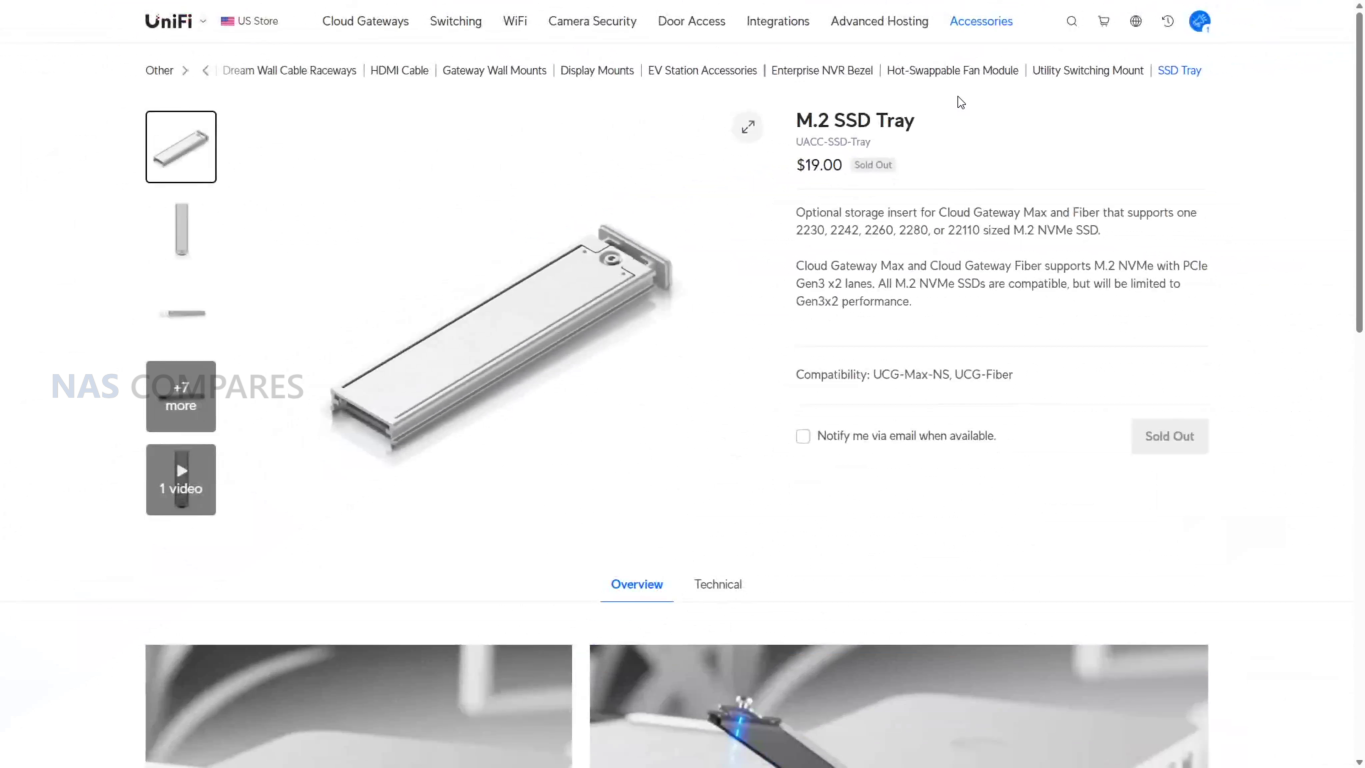
The UNAS Pro 4 and UNAS Pro 8 add 2 M.2 NVMe slots intended for SSD caching, while the UNAS Pro does not include NVMe slots. This changes how you can approach mixed workloads, because cache can reduce latency for repeated small file access and help smooth bursts of writes, depending on how the platform applies caching. It does not change the underlying reality that the main capacity tier is still the SATA bay set, but it gives the Pro 4 and Pro 8 a path to improve responsiveness for specific access patterns without committing to full SSD storage across all bays.
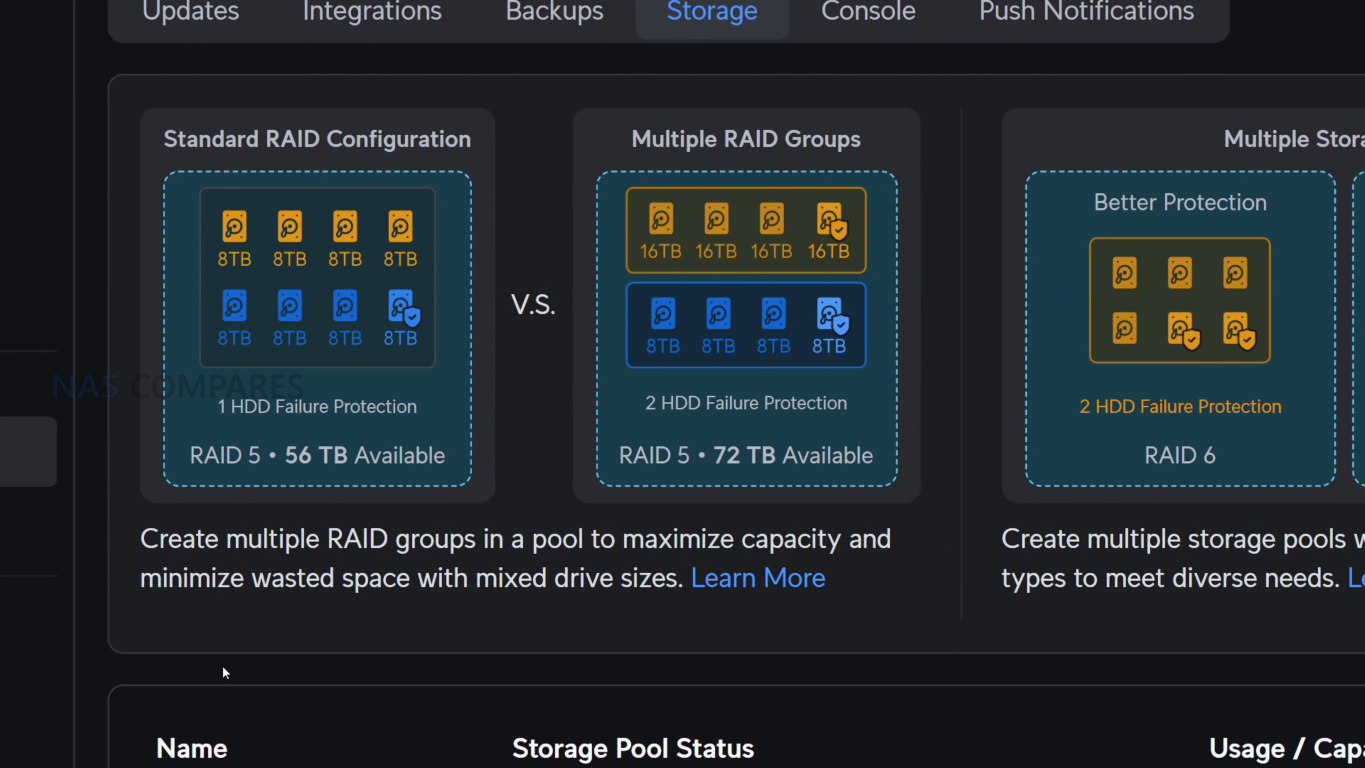
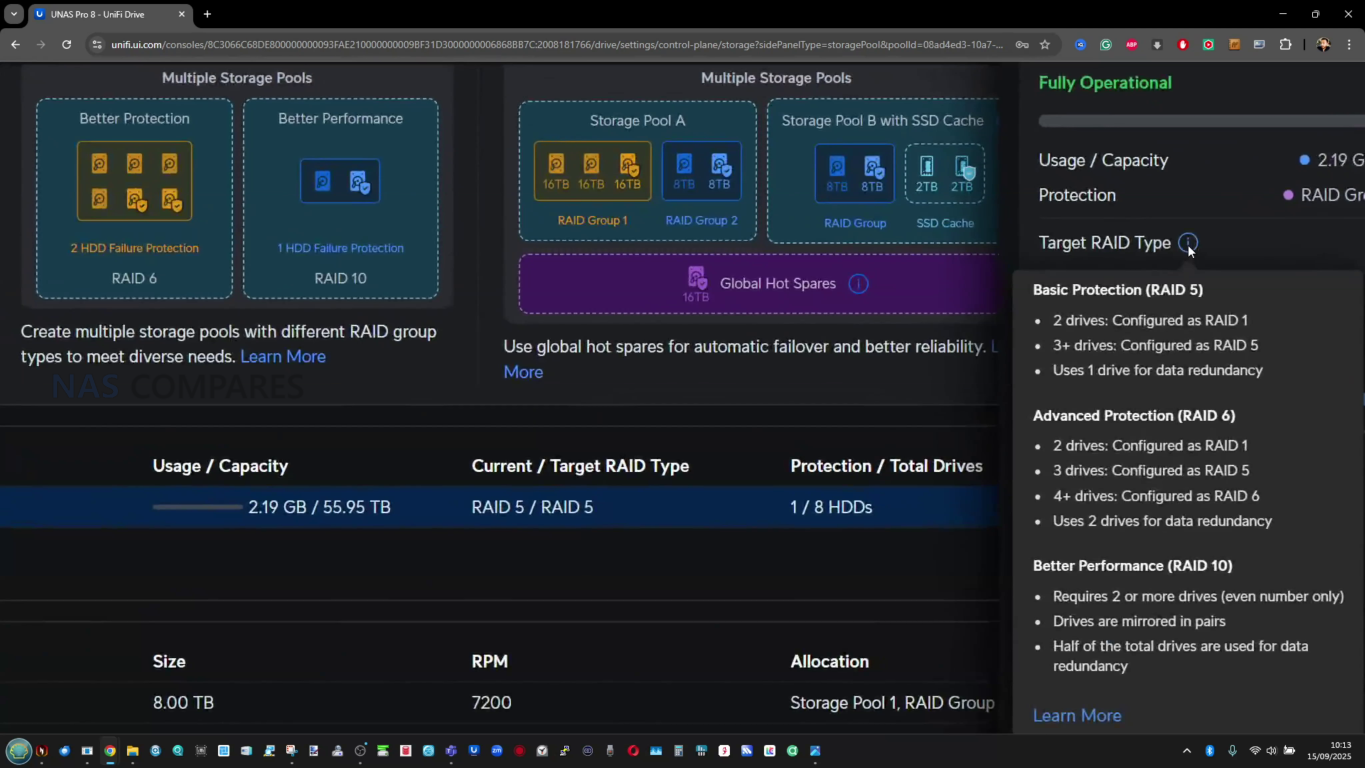
RAID flexibility also varies, not in the list of RAID levels available, but in how storage can be organized. All 3 units support RAID 5, RAID 6, and RAID 10, but the UNAS Pro 4 is listed as supporting a single RAID group, while the UNAS Pro and UNAS Pro 8 are listed with multiple RAID groups. In practice, the single group limitation matters if you prefer separating workloads or isolating different retention policies into distinct pools, rather than placing everything into 1 volume. On the larger models, multiple groups give more options for structuring storage around different priorities, such as performance versus redundancy, or shared storage versus dedicated project space.
Operational features tied to storage protection are also not identical across the range. Hot spare support is listed on the UNAS Pro and UNAS Pro 8, but not on the UNAS Pro 4, which affects how you plan for unattended recovery after a drive failure. All 3 support snapshots, file encryption, share links, Time Machine backup, and cloud and network backup targets, which makes baseline data protection and recovery workflows broadly consistent regardless of bay count.
The larger differentiation is therefore less about whether core protection features exist and more about how much flexibility you have in pool layout and drive management within the limits of each chassis.
Storage Feature
UNAS Pro
UNAS Pro 4
UNAS Pro 8
Form factor
2U rack
1U rack
2U rack
SATA bays
7x 2.5/3.5 inch
4x 2.5/3.5 inch
8x 2.5/3.5 inch
M.2 NVMe slots
0
2
2
SSD cache support
No
Yes
Yes
Max NVMe capacity supported
N/A
4 TiB
4 TiB
RAID types listed
RAID 5, RAID 6, RAID 10
RAID 5, RAID 6, RAID 10
RAID 5, RAID 6, RAID 10
RAID group support
Multiple
Single
Multiple
Hot spare support
Yes
No (not listed)
Yes
Snapshots
Yes
Yes
Yes
File encryption
Yes
Yes
Yes
UniFi UNAS Pro 8 vs Pro vs Pro 4 NAS – Internal Hardware
All 3 systems are built around a quad core ARM Cortex A57 platform, but they are not configured identically. The UNAS Pro runs the Cortex A57 at 1.7 GHz, while the UNAS Pro 4 and UNAS Pro 8 are listed at 2.0 GHz. In day to day use, this tends to show up less as a dramatic jump in peak throughput and more as extra headroom when the system is handling several background jobs at once, such as indexing, snapshots, and multi user access, while still servicing file activity. The architecture choice is aligned with lower draw compared with typical x86 NAS hardware, but it also sets a ceiling on heavier compute workloads that some buyers associate with higher end NAS platforms.Memory is where the split is clearer. The UNAS Pro and UNAS Pro 4 ship with 8 GB, while the UNAS Pro 8 steps up to 16 GB. The practical impact is less about basic file sharing and more about how much concurrent activity the system can absorb before responsiveness drops, particularly when you add more users, larger file operations, more snapshot activity, and cache related behavior on models that support it. None of these systems are positioned as memory expandable platforms in the provided specifications, so the installed capacity is effectively the long term limit.
Power delivery and serviceability differ meaningfully between the range. The UNAS Pro and UNAS Pro 4 use internal AC to DC power supplies with an additional USP RPS DC input for redundancy, and their overall platform power limits are lower, matching their smaller scale.
The UNAS Pro 8 uses hot swappable power modules and is designed to support more demanding configurations, reflected in the higher maximum power consumption and the larger drive power budget. This does not automatically translate into higher idle power, but it does indicate how much overhead the chassis is designed to tolerate when fully populated and under sustained activity.
Internal Hardware Detail
UNAS Pro
UNAS Pro 4
UNAS Pro 8
Processor
Quad Core ARM Cortex A57
Quad Core ARM Cortex A57
Quad Core ARM Cortex A57
CPU clock
1.7 GHz
2.0 GHz
2.0 GHz
Memory
8 GB
8 GB
16 GB
Power supply design
Internal AC DC, 200W
Internal AC DC, 150W
2x hot swappable AC DC modules, 550W
Power inputs
1x AC, 1x USP RPS DC input
1x AC, 1x USP RPS DC input
2x AC inputs via hot swap modules
Max power consumption
160W
150W
250W
Max drive power budget
135W
125W
225W
Management and setup radios
Bluetooth 4.1
Bluetooth 4.1
Bluetooth 4.1
Display
1.3 inch touchscreen
None listed
None listed
Operating environment
-5 to 40 C, 5 to 95 percent noncondensing
-5 to 40 C, 5 to 95 percent noncondensing
-5 to 40 C, 5 to 95 percent noncondensing
Weight
9.2 kg without brackets, 9.5 kg with brackets
6.7 kg
11.5 kg
UniFi UNAS Pro 4 vs Pro vs Pro 8 NAS – Ports and Connections
Across the 3 systems, the shared theme is 10 GbE as the primary path for file access, but the implementation differs. The UNAS Pro provides a single 10G SFP+ port plus a 1 GbE RJ45 port, which typically ends up used either for management traffic or as a slower access fallback. The UNAS Pro 4 shifts to a dual 10G SFP+ layout, giving more flexibility for link aggregation or failover planning, even if the practical benefit depends on the storage configuration and client support. The UNAS Pro 8 goes further with 2x 10G SFP+ and adds a 10 GbE RJ45 port that supports multi speed negotiation, which makes it easier to drop into networks that are already built around copper 10 GbE.
Port placement is also part of the decision, because the UNAS Pro uses front mounted networking, while the UNAS Pro 4 and UNAS Pro 8 keep network connections on the rear. Front mounted ports can simplify short patch runs in racks that are set up around front facing switching, while rear mounted ports follow the more common rack NAS convention and can be cleaner in racks that route cabling at the back. None of the 3 is positioned as a platform for network expansion cards, so what you buy is the long term connectivity ceiling.
In day to day operation, the multi port models are mainly about resiliency and network design options rather than guaranteeing linear scaling for a single user. You can plan for redundancy across switches, use bonding where your environment supports it, or segment traffic patterns in a more controlled way.
The UNAS Pro 8 is also the only model here with 10 GbE available on both SFP+ and RJ45 in the base hardware, which reduces the need for media converters or additional transceiver planning if your network is not SFP+ centric.
Connectivity
UNAS Pro
UNAS Pro 4
UNAS Pro 8
10 GbE SFP+
1 (10G/1G)
2 (10G only)
2 (10G only)
10 GbE RJ45
0
0
1 (10G/5G/2.5G/1G/100M)
1 GbE RJ45
1 (1G/100M/10M)
1 (1G/100M/10M)
0
Total high speed 10G ports
1
2
3
Network port location
Front
Rear
Rear
UniFi UNAS Pro 4 vs Pro 8 vs Pro NAS – Price and Value
At list pricing, the UNAS Pro and UNAS Pro 4 sit at the same $499, but they are selling different priorities. The UNAS Pro concentrates its value in raw bay count and a shorter 2U chassis, trading away NVMe cache support and additional 10 GbE links to keep the platform simple. The UNAS Pro 4 is priced the same while reducing the HDD bay count and moving to a 1U chassis, but it adds 2x NVMe cache slots and a second 10G SFP+ port, positioning it more as a “small but fast access” rack NAS rather than a capacity first box.
The UNAS Pro 8 steps up to $799and is priced like a higher tier option, but the spec sheet shows where that uplift is meant to land: more drive bays than either $499 model, NVMe cache capability like the Pro 4, more total 10 GbE ports, and a jump to 16 GB memory. It is also the only one of the 3 with a 10 GbE RJ45 port alongside SFP+, which can reduce friction in mixed copper and fiber environments. If the goal is to keep the same platform longer term, the Pro 8 is the only one here with both the capacity headroom and the memory ceiling to match it.
Using the simplified “price per bay” and “price per element” approach, the headline result is that the Pro 8 looks strongest once you count all the included hardware features rather than only the number of drive bays. The UNAS Pro has the lowest cost per bay because it is a 7 bay system at the same price as the 4 bay model, but the Pro 4 catches up when the NVMe slots and dual 10 GbE are treated as part of the value calculation. The Pro 8 is not the cheapest upfront, but it ends up close to the Pro 4 on cost per bay and is the lowest on cost per element because it stacks more of the “platform” features in one chassis.
The UNAS Pro 4, UNAS Pro, and UNAS Pro 8 are close enough in naming to look like simple capacity steps, but they are positioned more like 3 different takes on the same UniFi Drive appliance idea. The UNAS Pro is the most capacity oriented at $499, giving 7 bays in a shorter depth 2U chassis with a built in 1.3 inch touchscreen and a straightforward port layout that suits some front of rack workflows. The UNAS Pro 4 shifts the emphasis away from bay count and toward “newer platform features” at the same $499 price, combining a 1U form factor with 2x 10G SFP+ and 2x NVMe cache slots, at the cost of a deeper chassis and fewer total drive bays. The UNAS Pro 8 is the most complete hardware package in the lineup, adding more bays, NVMe cache, more total 10 GbE connectivity including 10 GbE RJ45, and 16 GB memory, while also being the only one of the 3 to use hot swappable power modules. None of the 3 supports an official expansion shelf approach, so the bay count you buy on day 1 is effectively the long term ceiling unless you plan a separate NAS later.
Choosing between them mostly comes down to which ceiling matters first in your deployment: total bays, total network options, or overall platform headroom. If you want the most bays at $499 and the chassis depth is a priority, the UNAS Pro remains the obvious pick, with the tradeoffs being no NVMe cache path and a simpler network layout than the newer units. If you want the $499 option that aligns most with modern expectations for a small rack NAS, the UNAS Pro 4 has the cleanest argument, because dual 10G and NVMe cache can matter more than extra bays in smaller, faster working sets, even if those cache slots are not usable as standalone storage pools. If you are planning for longer retention cycles, heavier multi user access, or you simply want the most complete feature set in a single chassis, the UNAS Pro 8 is the one that most clearly justifies its higher price, particularly once memory, network flexibility, and the power module design are considered together. The main limitation across the lineup is that the ARM platform and fixed memory approach sets expectations about the long term performance ceiling, but within that constraint, the decision is primarily about how you want the hardware budget divided between capacity, connectivity, and overall platform resources.
This description contains links to Amazon. These links will take you to some of the products mentioned in today's content. As an Amazon Associate, I earn from qualifying purchases. Visit the NASCompares Deal Finder to find the best place to buy this device in your region, based on Service, Support and Reputation - Just Search for your NAS Drive in the Box Below
Need Advice on Data Storage from an Expert?
Finally, for free advice about your setup, just leave a message in the comments below here at NASCompares.com and we will get back to you.Need Help?
Where possible (and where appropriate) please provide as much information about your requirements, as then I can arrange the best answer and solution to your needs. Do not worry about your e-mail address being required, it will NOT be used in a mailing list and will NOT be used in any way other than to respond to your enquiry.
[contact-form-7]
TRY CHAT Terms and Conditions
If you like this service, please consider supporting us.
We use affiliate links on the blog allowing NAScompares information and advice service to be free of charge to you.Anything you purchase on the day you click on our links will generate a small commission which isused to run the website. Here is a link for Amazon and B&H.You can also get me a Ko-fi or old school Paypal. Thanks!To find out more about how to support this advice service checkHEREIf you need to fix or configure a NAS, check FiverHave you thought about helping others with your knowledge? Find Instructions Here
Or support us by using our affiliate links on Amazon UK and Amazon US
Alternatively, why not ask me on the ASK NASCompares forum, by clicking the button below. This is a community hub that serves as a place that I can answer your question, chew the fat, share new release information and even get corrections posted. I will always get around to answering ALL queries, but as a one-man operation, I cannot promise speed! So by sharing your query in the ASK NASCompares section below, you can get a better range of solutions and suggestions, alongside my own.
Microsoft has completed the global rollout of AI workflow templates in the Teams Workflows app, powered by Microsoft 365 Copilot, as of mid-February 2026 (Roadmap ID 500379). The feature introduces scheduled prompts — recurring, AI-driven automations that run without manual intervention. You can use pre-built templates to automate tasks such as weekly project summaries or data monitoring across the Microsoft 365 ecosystem. The feature is restricted to users with a Microsoft 365 Copilot license and is currently available only in Teams for Web and Teams for Mac.
The Microsoft Security Dashboard for AI is a unified governance tool now available in public preview that aggregates real-time risk signals from Microsoft Defender, Microsoft Entra, and Microsoft Purview into a single interactive interface. Designed for CISOs and AI risk leaders, it provides inventory discovery, posture tracking, and remediation paths for AI agents, models, MCP servers, and applications. No additional licensing is required — access is included for organizations that already hold enterprise subscriptions to the relevant Microsoft security products.
Les Locations Longue Durée (LLD) ou Locations avec Option d'Achat (LOA) sont de bonnes alternatives pour acquérir une nouvelle voiture électrique. Beaucoup de constructeurs intègrent des offres de leasing attractives pour leurs modèles 100 % électrique. Profitez des meilleures offres du début d'année 2026.
Un lave-auto à 100 mètres : faut-il y aller à pied ou en voiture ? Derrière cette question en apparence absurde se cache un test redoutablement efficace pour évaluer le raisonnement des modèles d’IA. Numerama a obtenu des réponses parfois très justes… et parfois étonnamment à côté du sujet.
Microsoft has announced that moderation approvals in Exchange Online are transitioning from voting buttons to Actionable Messages Adaptive Cards, bringing Approve | Reject buttons directly into email bodies. This update enables moderators to approve or reject messages from any Outlook client, including Windows, macOS, web, and mobile. The rollout begins in late February 2026 and concludes by early April 2026 for Worldwide and GCC environments. The legacy voting button method remains available until July 31, 2026, after which Actionable Messages Adaptive Cards will be the only supported method.
Les casques restent aujourd'hui le meilleur dispositif pour écouter sa musique dans les meilleures conditions. Aujourd'hui, tous offrent également une réduction de bruit bluffante, capable de vous isoler complètement du reste du monde. Chez Numerama, nous testons régulièrement des modèles pour faire le bilan des meilleures références actuelles
The Terramaster F4-425 Value Intel 4-Bay – Does It Deserve your Data?
The TerraMaster F4-425 is positioned as a lower cost entry point into the company’s Intel based NAS lineup for the 2025 to 2026 generation, sitting below the Plus, Pro, and Max series models. It combines a 4 bay desktop chassis with the Intel Celeron N5095, 4GB of DDR4 memory with upgrade support up to 16GB, and a single 2.5GbE network interface. This places it squarely in the middle ground between basic ARM powered NAS systems and more fully featured x86 solutions with higher network bandwidth and NVMe expansion. The appeal of the F4-425 lies in its balance rather than specialization, offering enough CPU performance for multi user file access, media streaming, and general application use, while keeping cost, noise, and power consumption relatively controlled. It is clearly designed for users who want an Intel based NAS for everyday storage and media tasks, but who do not necessarily need the higher throughput, expansion options, or future scalability found in TerraMaster’s more expensive models.
SOFTWARE - 8/10
HARDWARE - 7/10
PERFORMANCE - 6/10
PRICE - 9/10
VALUE - 8/10
7.6
PROS
Competitive Intel-Based Value in a 4 Bay Format with the F4-425 vs other Intel Entry Systems Flexible Storage Management With TRAID and TRAID Plus in the F4-425 Balanced Performance for Media and Multi-User Access of the F4-425 system Practical Software Feature Set With TOS 6 of the F4-425 Flexible Platform for Turnkey or DIY NAS Use with the F4-425
CONS
Single 2.5GbE Network Port Limits Throughput of the F4-425 1.7 Lack of NVMe Expansion Limits Internal Performance in the F4-425 Aging CPU Platform for a New Generation NAS of the F4-425 HDMI Output With No Practical Software Use on the F4-425 Overlap With Better Equipped Models in the Same Lineup of the F4-425
Competitive Intel-Based Value in a 4 Bay Format with the F4-425 vs other Intel Entry Systems
One of the key advantages of the F4-425 is how it positions itself within the x86 turnkey NAS market, particularly in the 4 bay segment. Systems that combine an Intel processor, upgradeable memory, and faster than gigabit networking are typically aimed at prosumer or small business buyers and often carry a noticeably higher price. The F4-425 offers a complete, ready to use solution that includes TerraMaster’s TOS 6 operating system, allowing users to deploy storage, backups, and shared services without needing to install or license additional software.
This lowers the overall barrier to entry for buyers who want an Intel based NAS primarily for general purpose storage, media streaming, or light application hosting. While it does not compete directly with higher end 4 bay systems that include multi LAN configurations or NVMe expansion, it delivers a core x86 experience at a price level that is more approachable, especially for users who do not plan to saturate network bandwidth or push heavy virtualization workloads.
Flexible Storage Management With TRAID and TRAID Plus in the F4-425
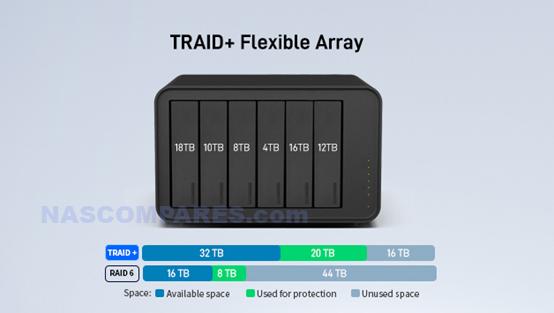
A notable strength of the F4-425 is its support for TerraMaster’s TRAID and TRAID Plus storage systems, which are particularly relevant in a 4 bay enclosure. Traditional RAID configurations often require matched drive sizes to avoid wasted capacity, and expanding an array later can involve rebuilding or replacing multiple disks at once. TRAID reduces this rigidity by allowing mixed capacity drives to be used more efficiently over time, automatically organizing available space while maintaining redundancy.
In a 4 bay system, this becomes more practical, as users are more likely to add drives gradually or replace older disks with higher capacity models as prices fall. The result is a storage setup that is easier to grow incrementally without complex planning. For users managing a family media library, backups from multiple devices, or shared data across several users, this flexibility can simplify long term storage expansion while reducing the need for disruptive migrations.
Balanced Performance for Media and Multi-User Access of the F4-425 system
The F4-425 offers a level of performance that is generally well suited to shared home or small office environments, particularly where multiple users are accessing data simultaneously. The Intel Celeron N5095 provides enough processing headroom to handle file transfers, background services, and media applications without the system feeling unresponsive under light to moderate load. In a 4 bay configuration, this performance profile pairs well with mixed workloads, such as ongoing backups, media indexing, and concurrent playback through applications like Plex, Emby, or Jellyfin using hardware assisted 4K decoding. While it is not intended for heavy virtualization or sustained high throughput tasks, the F4-425 can comfortably support several users accessing files or streaming content at the same time. This makes it suitable for households or teams where shared access and consistency are more important than peak benchmark performance.
Practical Software Feature Set With TOS 6 of the F4-425
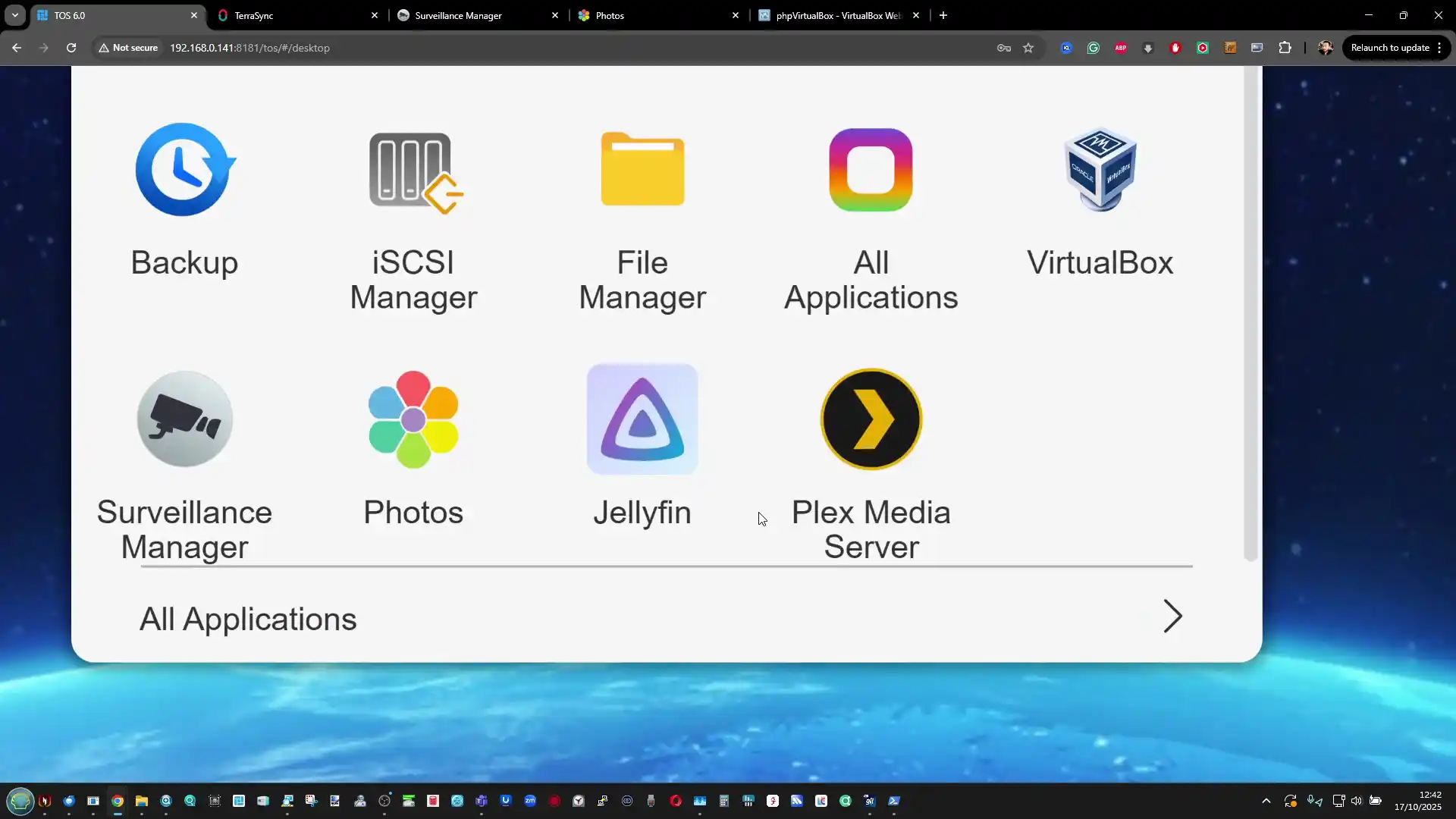
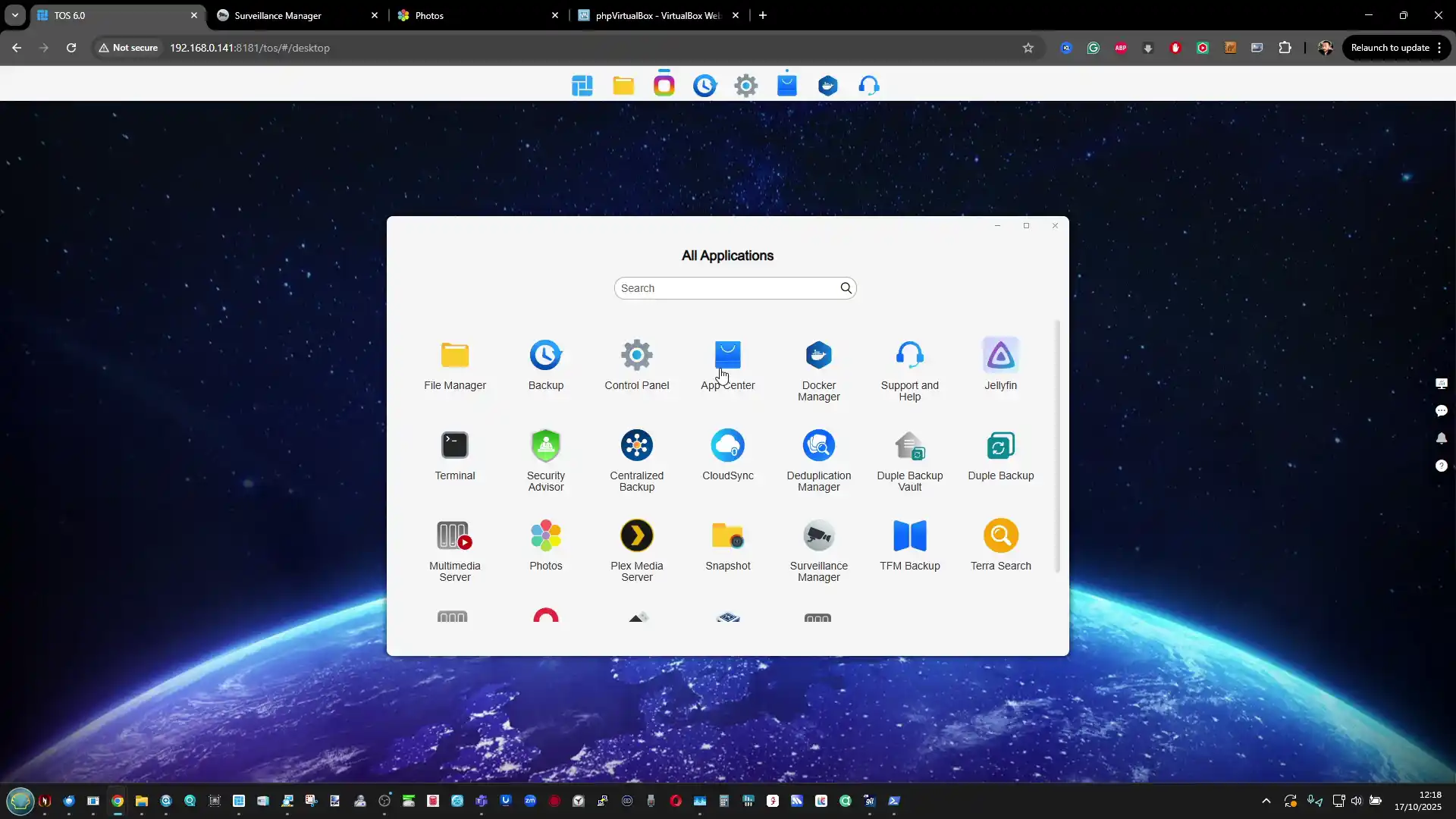
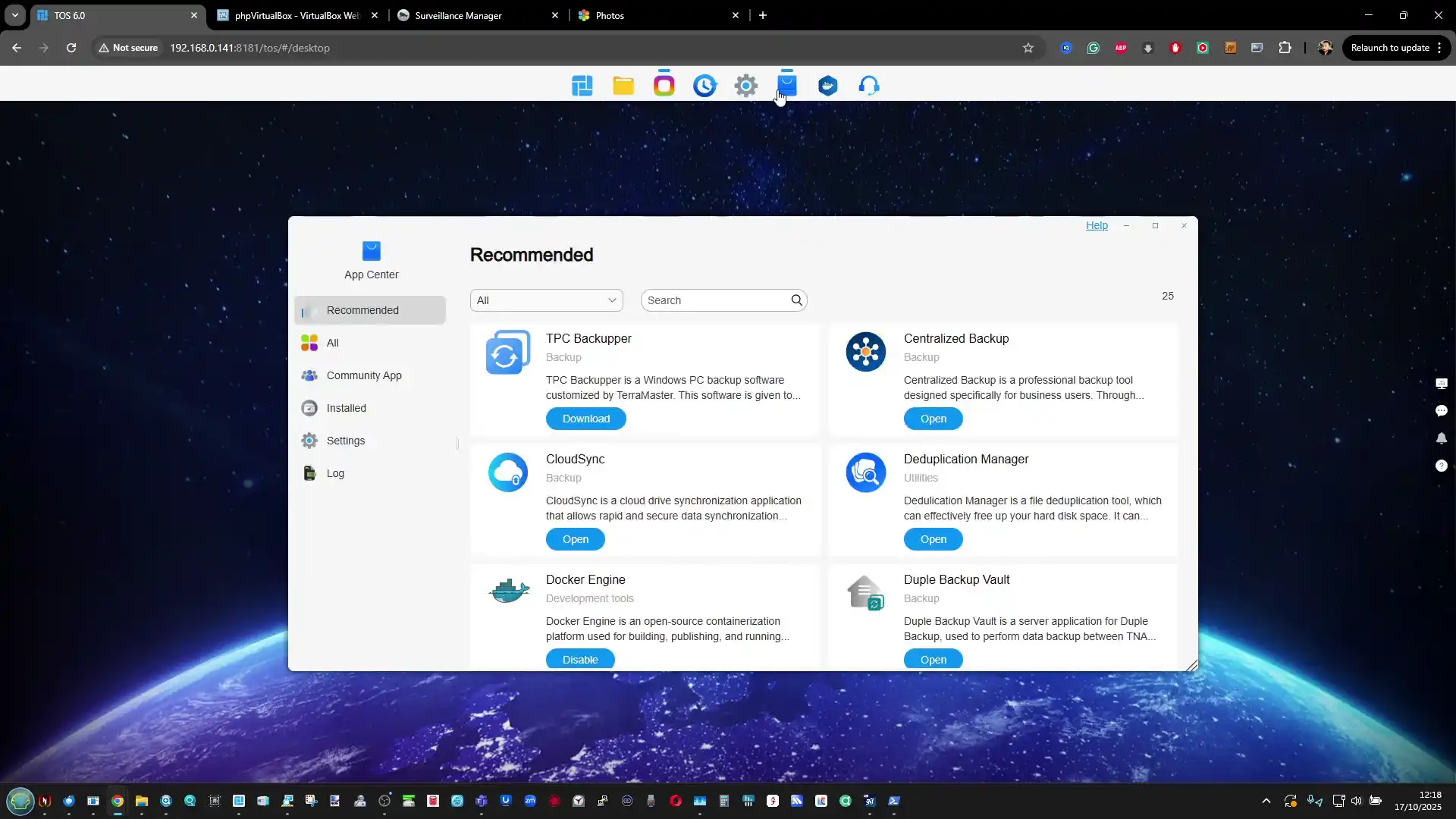
The F4-425 benefits from TerraMaster’s TOS 6 operating system, which provides a broad and functional software environment without requiring additional licenses or complex setup. The platform includes native tools for file sharing, snapshots, cloud synchronization, and multi device backups, allowing the NAS to act as a central data hub for several users. In a 4 bay system, these features become more relevant as storage is often shared across multiple PCs, mobile devices, and services.
TOS 6 also supports container based applications and virtualization features that, while limited by the underlying hardware, can still be useful for light workloads such as small services or test environments. The software is not as polished as some higher profile NAS platforms, but it offers a level of depth that covers most common use cases and reduces the need to rely on third party tools for everyday management.
Flexible Platform for Turnkey or DIY NAS Use with the F4-425
An often overlooked advantage of the F4-425 is how accommodating it is for users who may want to move beyond the included operating system in the future. While it is sold and marketed as a complete turnkey NAS with TOS 6, the underlying x86 architecture allows relatively straightforward installation of alternative NAS operating systems such as TrueNAS, Unraid, or other Linux based platforms. TerraMaster does not restrict this process at the firmware level, and using third party software does not invalidate the hardware warranty. In a 4 bay system, this flexibility can extend the useful lifespan of the device, particularly for users whose storage needs or technical confidence evolve over time. The presence of HDMI output and KVM support simplifies local setup when experimenting with other operating systems, even if that HDMI port is not fully utilized by TOS itself. This dual role as both a turnkey appliance and a potential DIY platform adds practical long term value for more technically inclined users.
Single 2.5GbE Network Port Limits Throughput of the F4-425
A clear limitation of the F4-425 is its networking configuration, which consists of a single 2.5GbE port with no additional LAN interfaces or internal upgrade options. In a 4 bay NAS, this can quickly become a bottleneck once multiple drives are active, particularly in RAID configurations that are capable of delivering higher aggregate read and write performance than the network interface can carry. Even with mechanical hard drives, it is possible to saturate a 2.5GbE connection under sequential workloads, and this leaves little headroom for multiple users or concurrent tasks.
The lack of link aggregation, 5GbE, or 10GbE options also limits the system’s suitability for users with faster network infrastructure or plans to upgrade in the future. While USB based network adapters can be added, this introduces extra cost and complexity, and it does not fully compensate for the absence of native multi port or higher speed networking in a 4 bay chassis.
Lack of NVMe Expansion Limits Internal Performance in the F4-425
The absence of any M.2 NVMe slots on the F4-425 places a clear ceiling on its internal performance and storage flexibility. In a 4 bay Intel based NAS released into the 2025 to 2026 market, NVMe support is commonly expected, either for SSD caching or for high speed storage pools that can absorb bursts of activity and improve responsiveness under mixed workloads. Without NVMe, all storage activity is constrained to SATA drives, which limits the benefits of the x86 platform when running applications, containers, or multiple background services. This is particularly relevant in scenarios where the system is handling indexing, backups, and media access at the same time. While TerraMaster offers other models in its lineup with extensive NVMe support, the omission here means the F4-425 cannot be easily optimized for latency sensitive tasks, regardless of how much memory is added or how the drives are configured.
Aging CPU Platform for a New Generation NAS of the F4-425
The F4-425 relies on the Intel Celeron N5095, a processor that has been widely used across multiple NAS generations and is now showing its age in the context of newer Intel platforms. While it remains capable of handling file services, media transcoding, and light application workloads, it lacks the efficiency and performance improvements found in more recent Intel N series processors. In a 4 bay system, this matters because the hardware is more likely to be tasked with simultaneous operations such as multi user access, background maintenance, and application services. The N5095 can manage these workloads, but it does so with less headroom than newer alternatives, which can impact long term relevance. As software platforms continue to add features and increase baseline requirements, the CPU choice places a practical limit on how far the system can scale over time.
HDMI Output With No Practical Software Use on the F4-425
The inclusion of an HDMI port on the F4-425 may appear useful on paper, but in practice it offers limited functionality within TerraMaster’s software environment. The HDMI output is primarily used for basic system information and troubleshooting during boot, rather than providing a usable local interface or media output experience. There is no native desktop mode, multimedia interface, or direct playback environment available through TOS that would allow the NAS to function as a locally controlled media device. In a 4 bay system with an Intel CPU capable of hardware video decoding, this unused output can feel like missed potential, especially when other NAS vendors and newer platforms have begun to implement functional HDMI driven interfaces. While the port can be helpful when installing third party operating systems, its role within the default configuration remains minimal.
Overlap With Better Equipped Models in the Same Lineup of the F4-425
A practical concern with the F4-425 is how closely it sits to other TerraMaster models that offer substantially more capability for a relatively modest increase in cost. Within the same product family, there are options that add faster networking, NVMe expansion, additional LAN ports, or more modern Intel processors, sometimes at a price difference that may be difficult to justify ignoring. For buyers who already anticipate growing storage needs, higher throughput, or heavier application use, the F4-425 can feel constrained when compared directly against these alternatives. This internal competition weakens its long term value proposition, as users may find that spending slightly more upfront would avoid the limitations around bandwidth and expansion that cannot be addressed later through upgrades.
Conclusion and Verdict of the F4-425 Review – Should You Buy?
The TerraMaster F4-425 is best understood as a deliberately constrained Intel based NAS that prioritizes affordability and simplicity over expandability and peak performance. It delivers competent multi user storage, media streaming, and general NAS functionality in a 4 bay format, supported by a software platform that covers most common requirements without forcing reliance on third party tools. Its strengths lie in predictable behavior, flexible RAID options, and openness to alternative operating systems, rather than cutting edge hardware features. For users with clearly defined needs who value an x86 platform but do not expect to push high bandwidth workflows or advanced storage tiers, the F4-425 can meet expectations without unnecessary complexity. At the same time, its limitations are structural rather than temporary. The single 2.5GbE port, absence of NVMe expansion, and older CPU architecture set firm boundaries on future growth. These constraints become more apparent when viewed alongside other models in TerraMaster’s own lineup that address these gaps at a higher but not disproportionate cost. As a result, the F4-425 makes the most sense for buyers who want a straightforward Intel NAS for shared storage and media use today, and who are comfortable accepting that it is not designed to scale significantly beyond that role.
This description contains links to Amazon. These links will take you to some of the products mentioned in today's content. As an Amazon Associate, I earn from qualifying purchases. Visit the NASCompares Deal Finder to find the best place to buy this device in your region, based on Service, Support and Reputation - Just Search for your NAS Drive in the Box Below
Need Advice on Data Storage from an Expert?
Finally, for free advice about your setup, just leave a message in the comments below here at NASCompares.com and we will get back to you.Need Help?
Where possible (and where appropriate) please provide as much information about your requirements, as then I can arrange the best answer and solution to your needs. Do not worry about your e-mail address being required, it will NOT be used in a mailing list and will NOT be used in any way other than to respond to your enquiry.
[contact-form-7]
TRY CHAT Terms and Conditions
If you like this service, please consider supporting us.
We use affiliate links on the blog allowing NAScompares information and advice service to be free of charge to you.Anything you purchase on the day you click on our links will generate a small commission which isused to run the website. Here is a link for Amazon and B&H.You can also get me a Ko-fi or old school Paypal. Thanks!To find out more about how to support this advice service checkHEREIf you need to fix or configure a NAS, check FiverHave you thought about helping others with your knowledge? Find Instructions Here
Or support us by using our affiliate links on Amazon UK and Amazon US
Alternatively, why not ask me on the ASK NASCompares forum, by clicking the button below. This is a community hub that serves as a place that I can answer your question, chew the fat, share new release information and even get corrections posted. I will always get around to answering ALL queries, but as a one-man operation, I cannot promise speed! So by sharing your query in the ASK NASCompares section below, you can get a better range of solutions and suggestions, alongside my own.
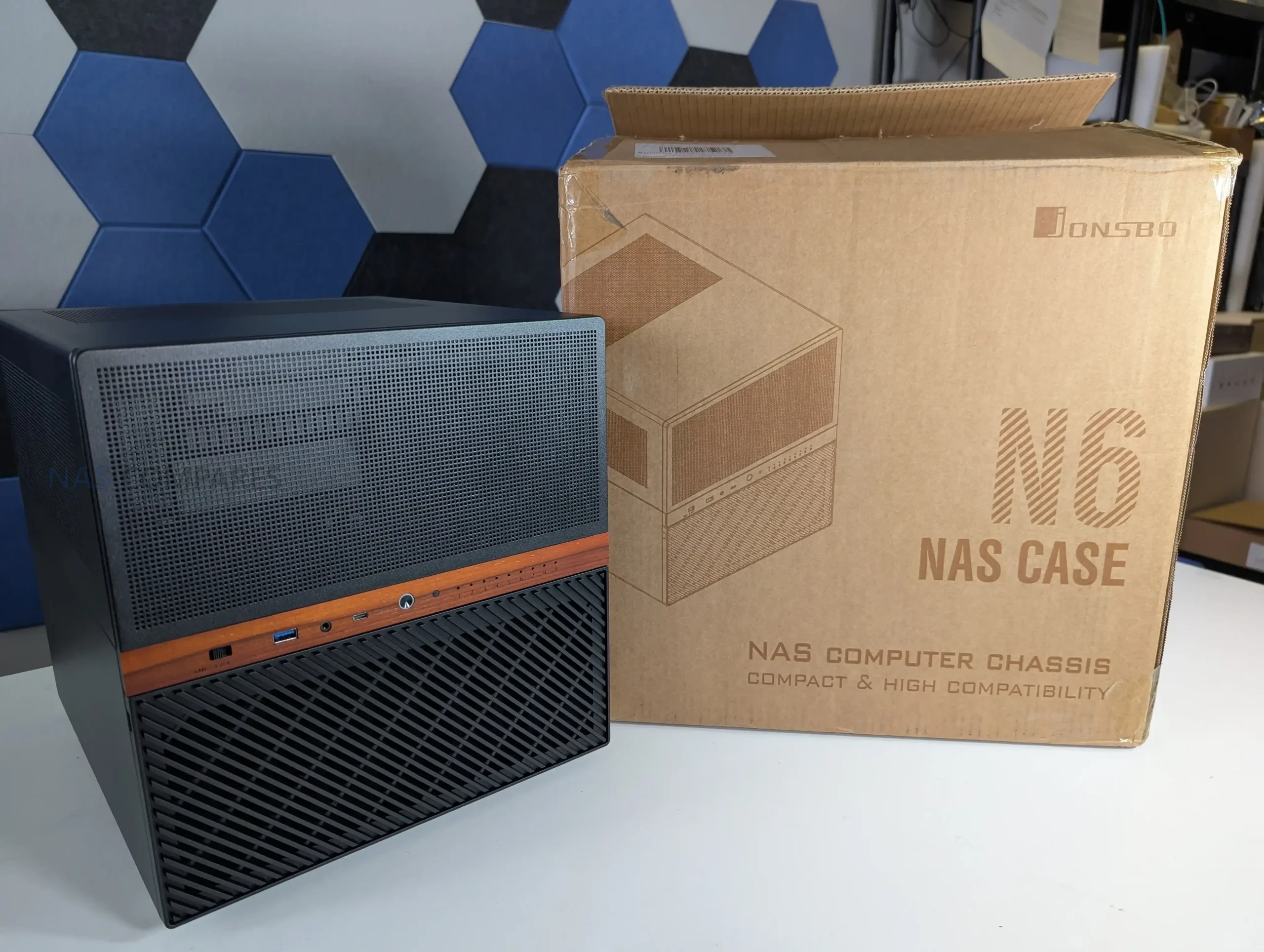
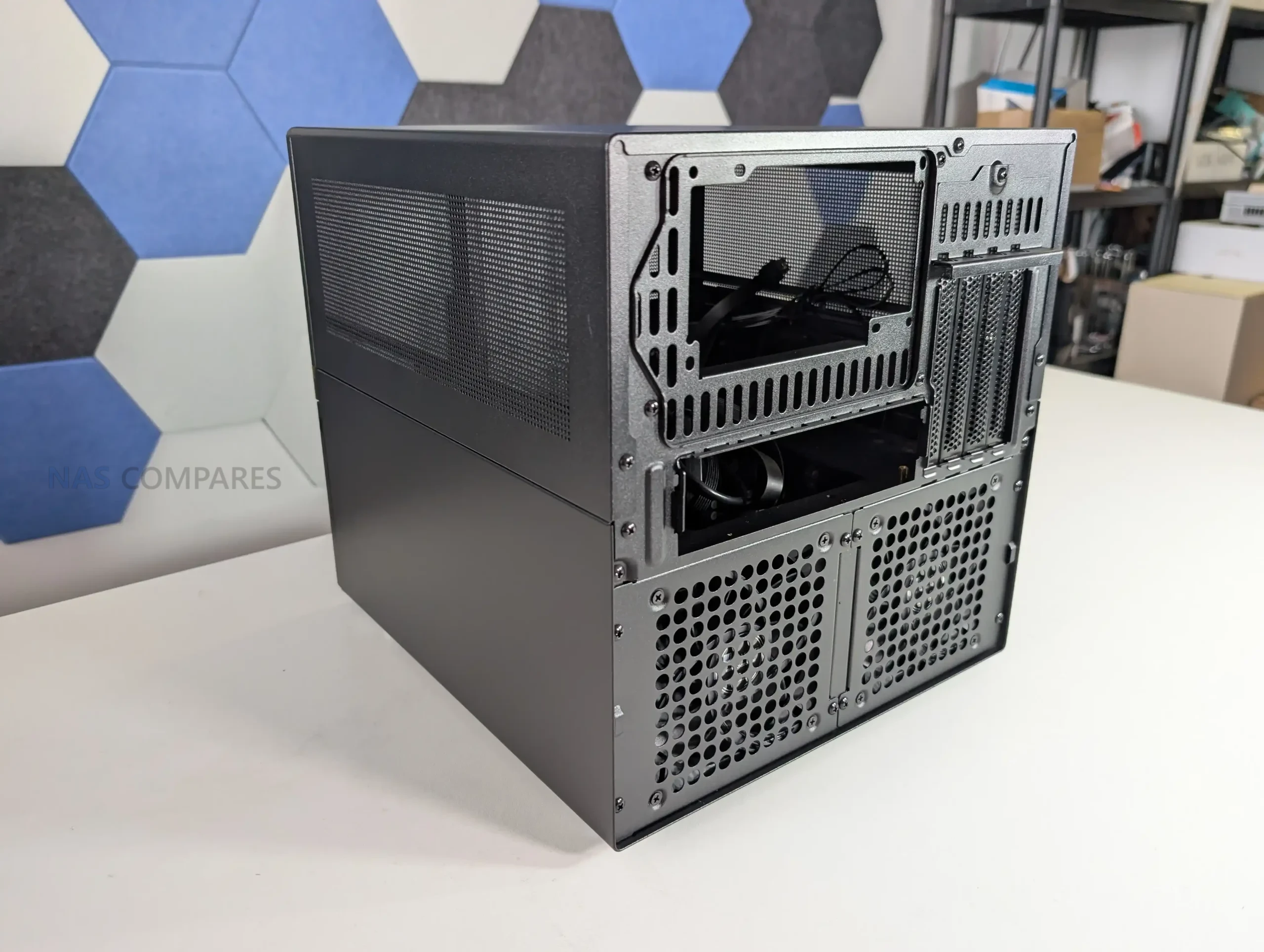
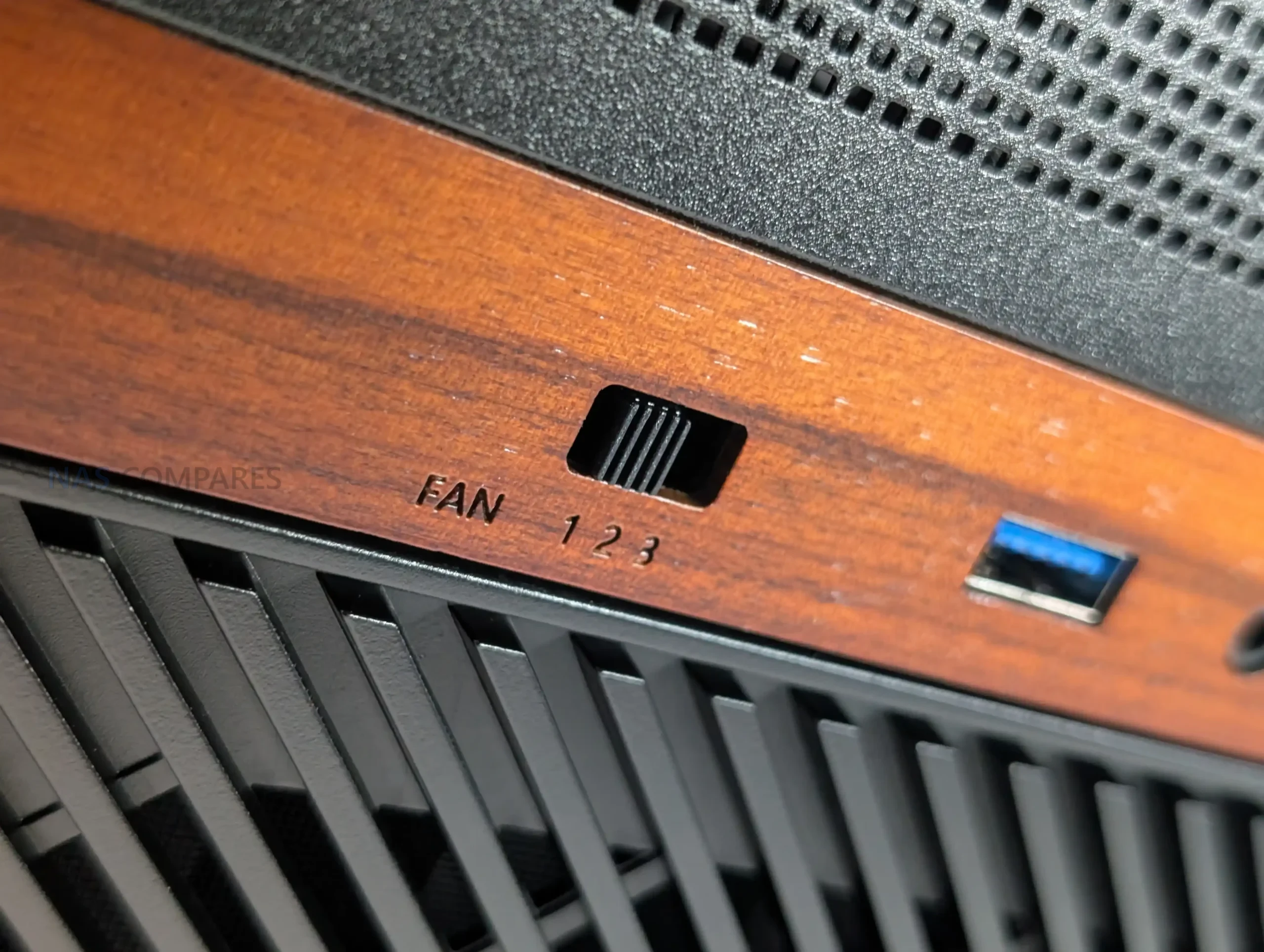
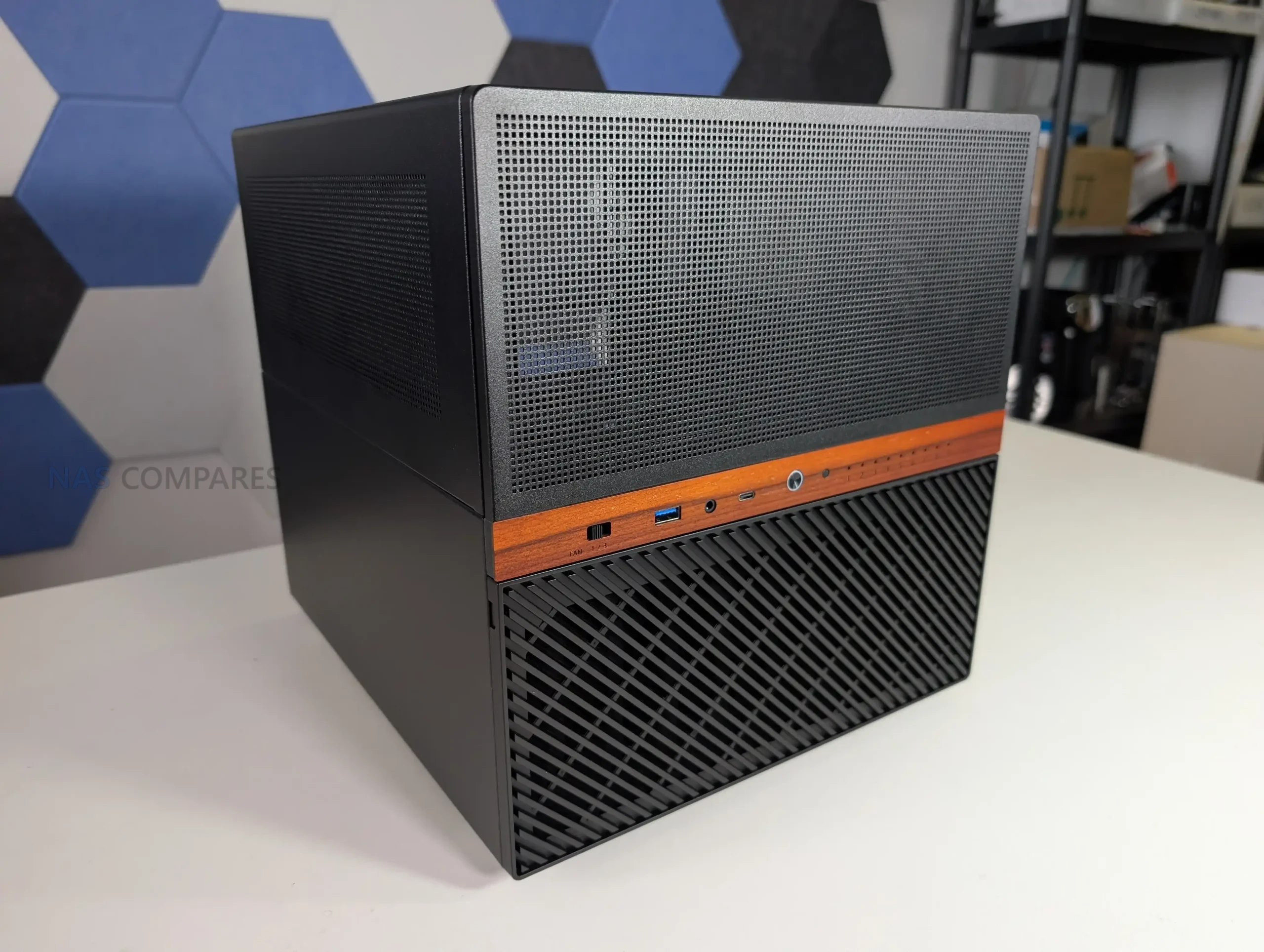
The Jonsbo N6 is the latest addition to the company’s long running lineup of DIY NAS focused enclosures, positioned between the compact N4 and the much larger N5. It is designed as a 9 bay desktop NAS chassis that supports both ITX and Micro ATX motherboards, while also introducing several changes compared with earlier Jonsbo designs. These include proper metal drive trays instead of rubber mounted sleds, expanded fan support, flexible PSU placement, and the inclusion of a physical fan controller. After spending the last 2 weeks building, configuring, and testing the N6 in a real world NAS environment, this review looks at how the case performs in practice, how its design decisions affect usability, and where it fits within the wider Jonsbo NAS case range.
Component Area
Specification
Motherboard Support
Mini ITX, Micro ATX
PCIe Expansion Slots
4 full height
PSU Support
ATX up to 220mm, SFX up to 100mm
Dual PSU Support
Yes
Max CPU Cooler Height
65mm to 160mm depending on PSU placement
Max GPU Length
275mm to 320mm depending on configuration
Drive Interface
SATA via rear backplane
Drive Count
9 x 3.5 inch or 9 x 2.5 inch
Jonsbo N6 Review – Quick Conclusion
The Jonsbo N6 positions itself as a compact but flexible DIY NAS enclosure that sits neatly between small form factor NAS cases and much larger tower style solutions. It combines a 9 bay storage layout with support for mATX and ITX motherboards, multiple PSU configurations, and extensive cooling options, aiming to address many of the limitations found in earlier Jonsbo NAS designs. In practical use, it delivers solid thermal behavior, manageable noise levels, and a relatively straightforward build process, while also introducing long requested changes such as proper drive trays and integrated fan control. That said, it is not without compromises, particularly around internal clearance when using larger components and the continued reliance on SATA connectors on the backplane. Overall, the N6 feels like a mature evolution of Jonsbo’s NAS lineup, offering meaningful improvements over smaller models like the N2, N3, and N4, while intentionally stopping short of replacing the larger and more expandable N5.
Check Amazon in Your Region for the Jonsbo N6 Case
Supports up to 9 x 3.5 inch or 2.5 inch drives, allowing dense storage in a relatively compact footprint Compatible with ITX and Micro ATX motherboards, offering more flexibility than earlier Jonsbo NAS cases Flexible PSU placement with support for ATX and SFX units, including multiple mounting positions Integrated drive backplane simplifies installation and reduces individual cable clutter Built in 3 speed fan controller provides basic manual airflow control without software dependency Extensive ventilation on all sides, top, and base helps maintain reasonable thermals under load Drive trays replace older rubber grommet mounting, making drive installation more straightforward Build quality feels solid overall, with steel construction and improved internal layout for cable routing
CONS
Backplane uses individual SATA connectors rather than Mini SAS, limiting appeal for SAS focused builds Clearance becomes tight with Micro ATX boards and larger ATX PSUs, especially around CPU cooling Drive trays lack tool less latches, locks, or orientation indicators, increasing the chance of installation mistakes
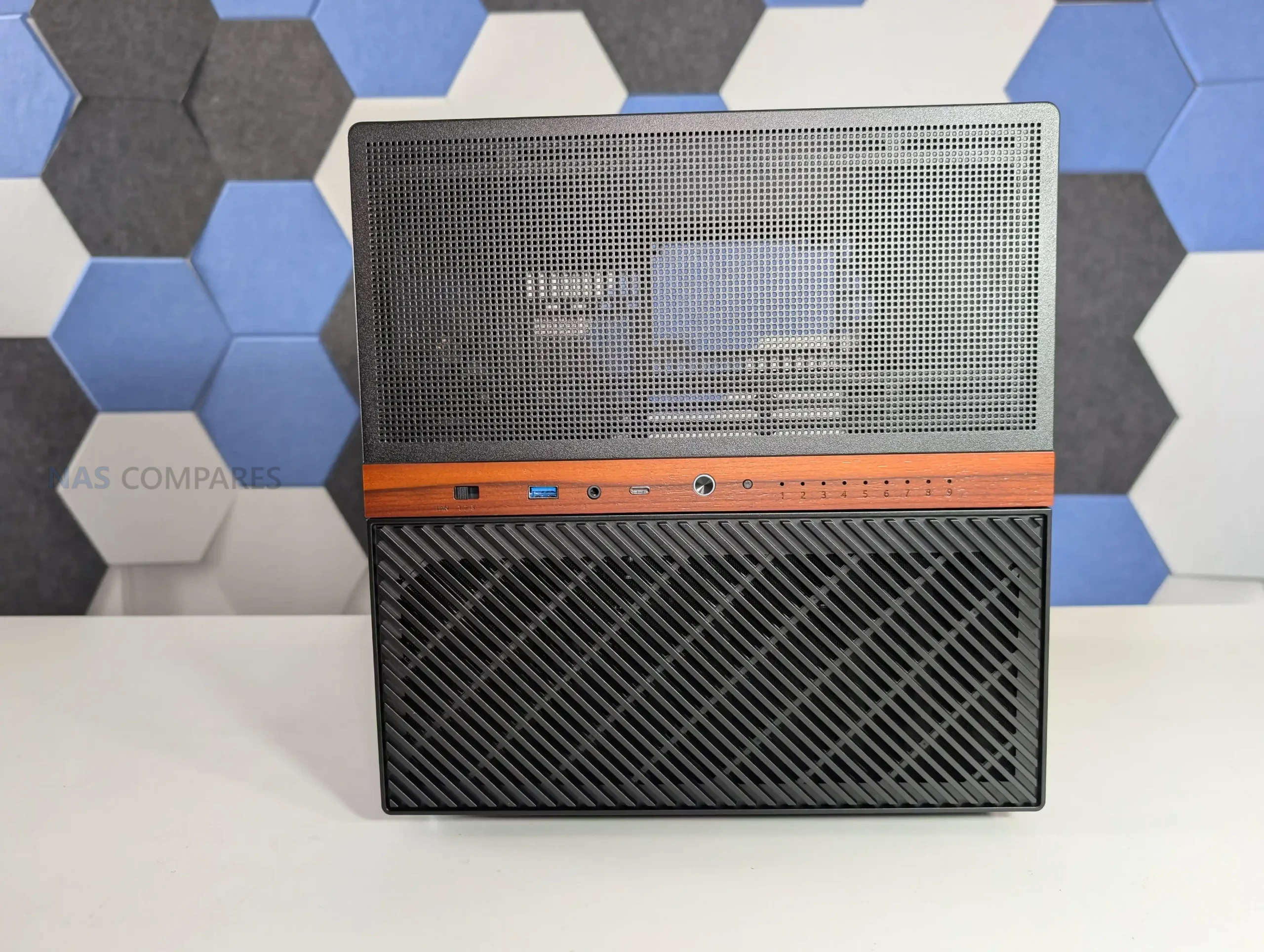
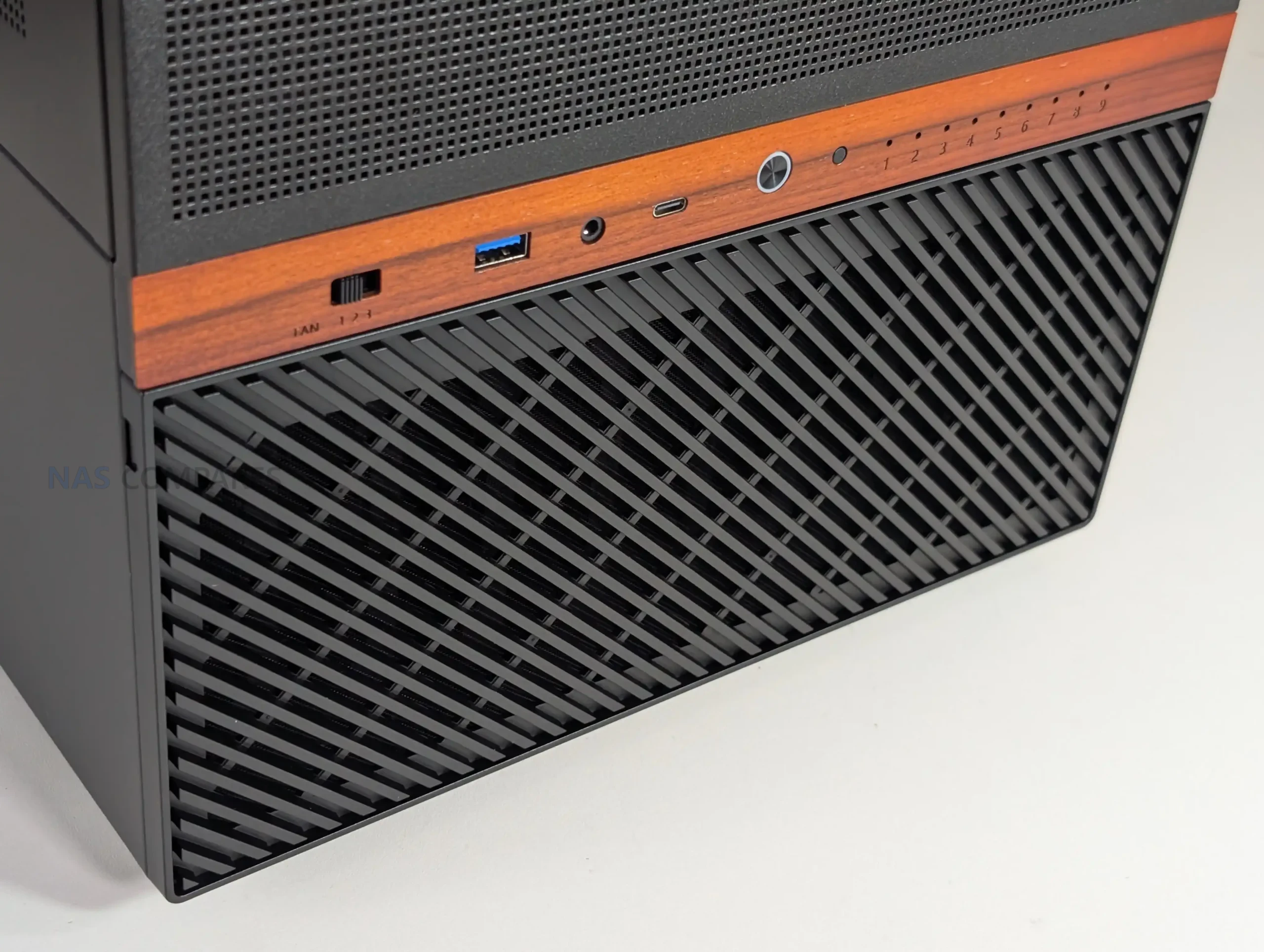
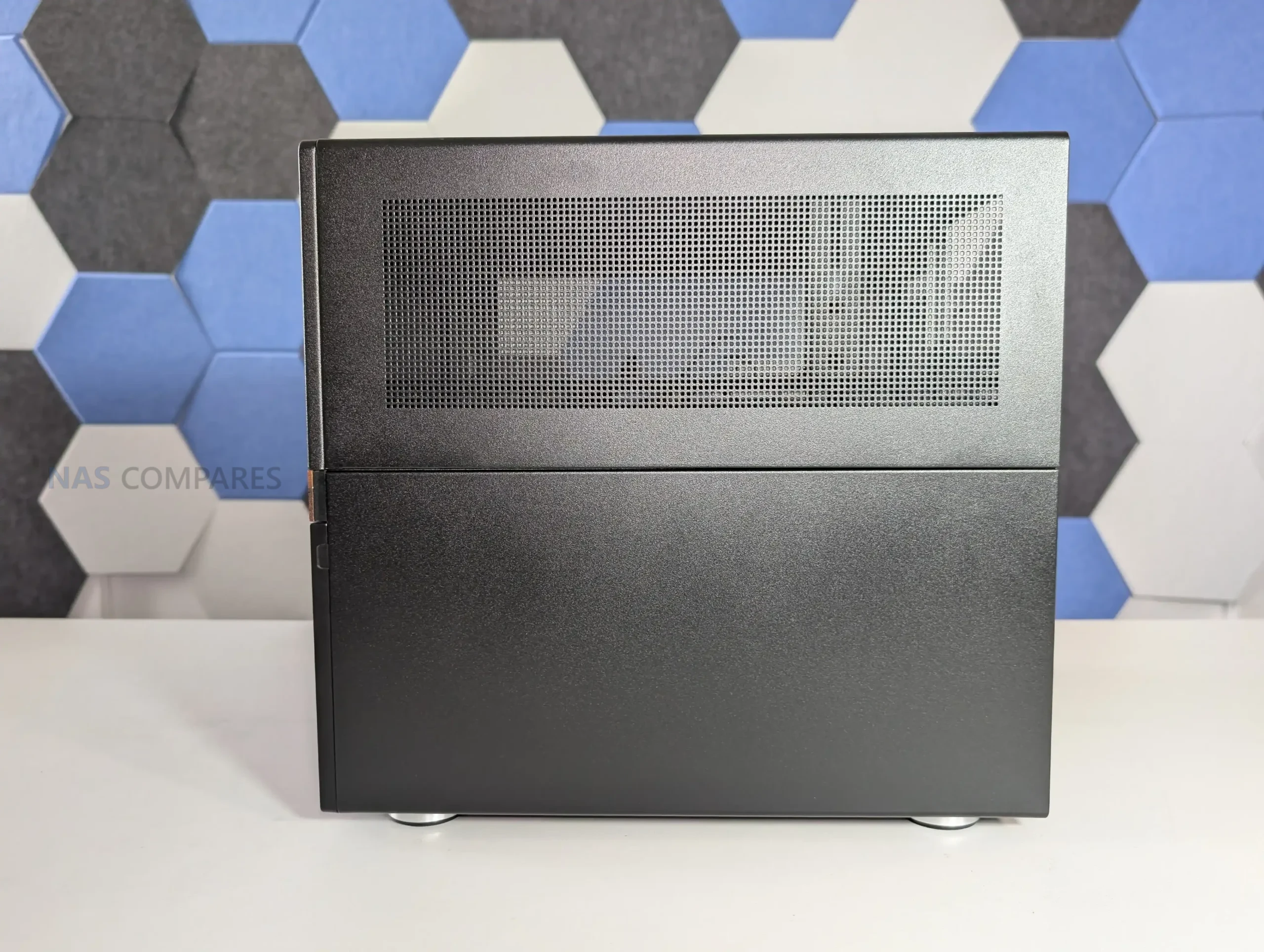
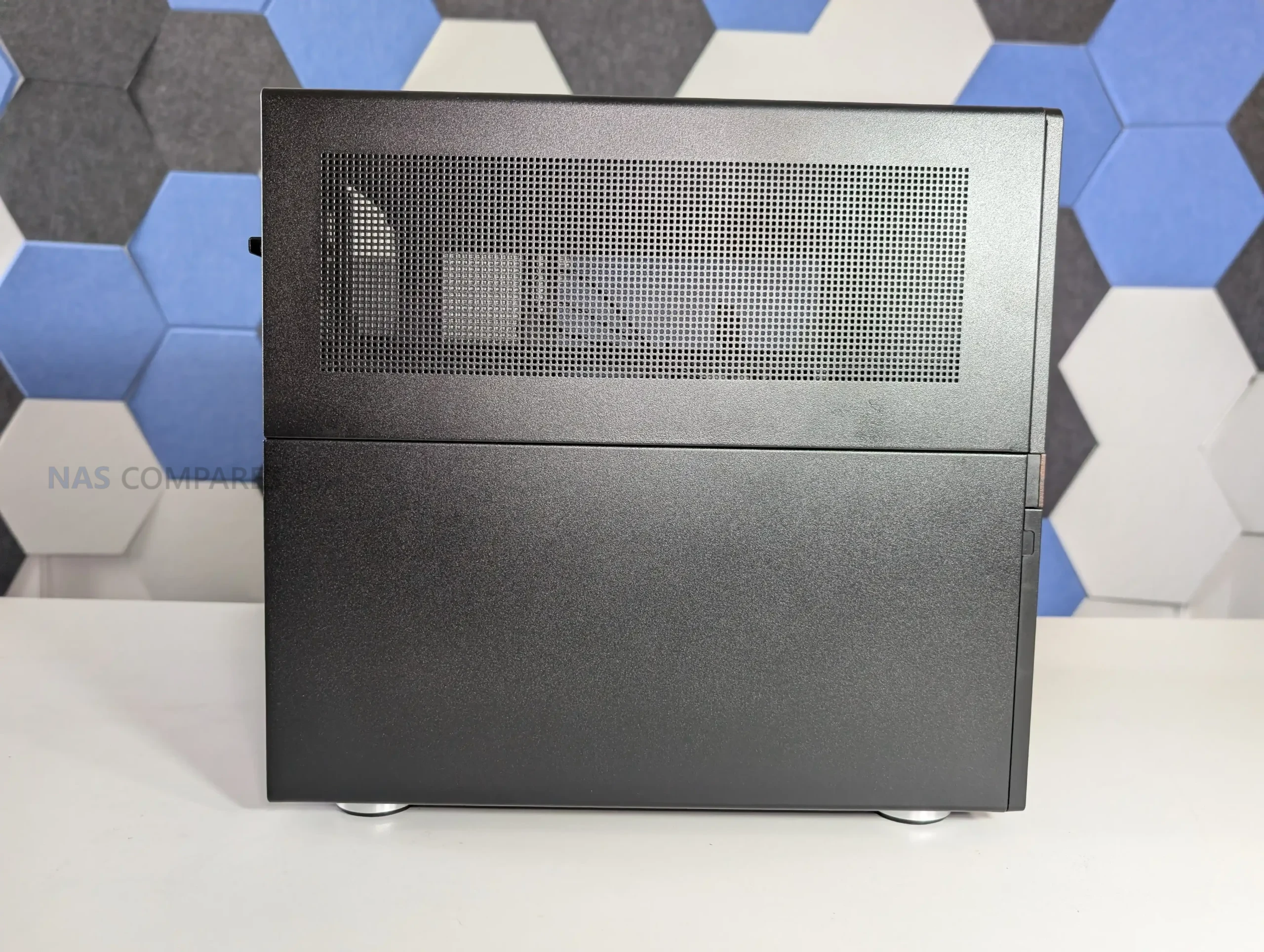
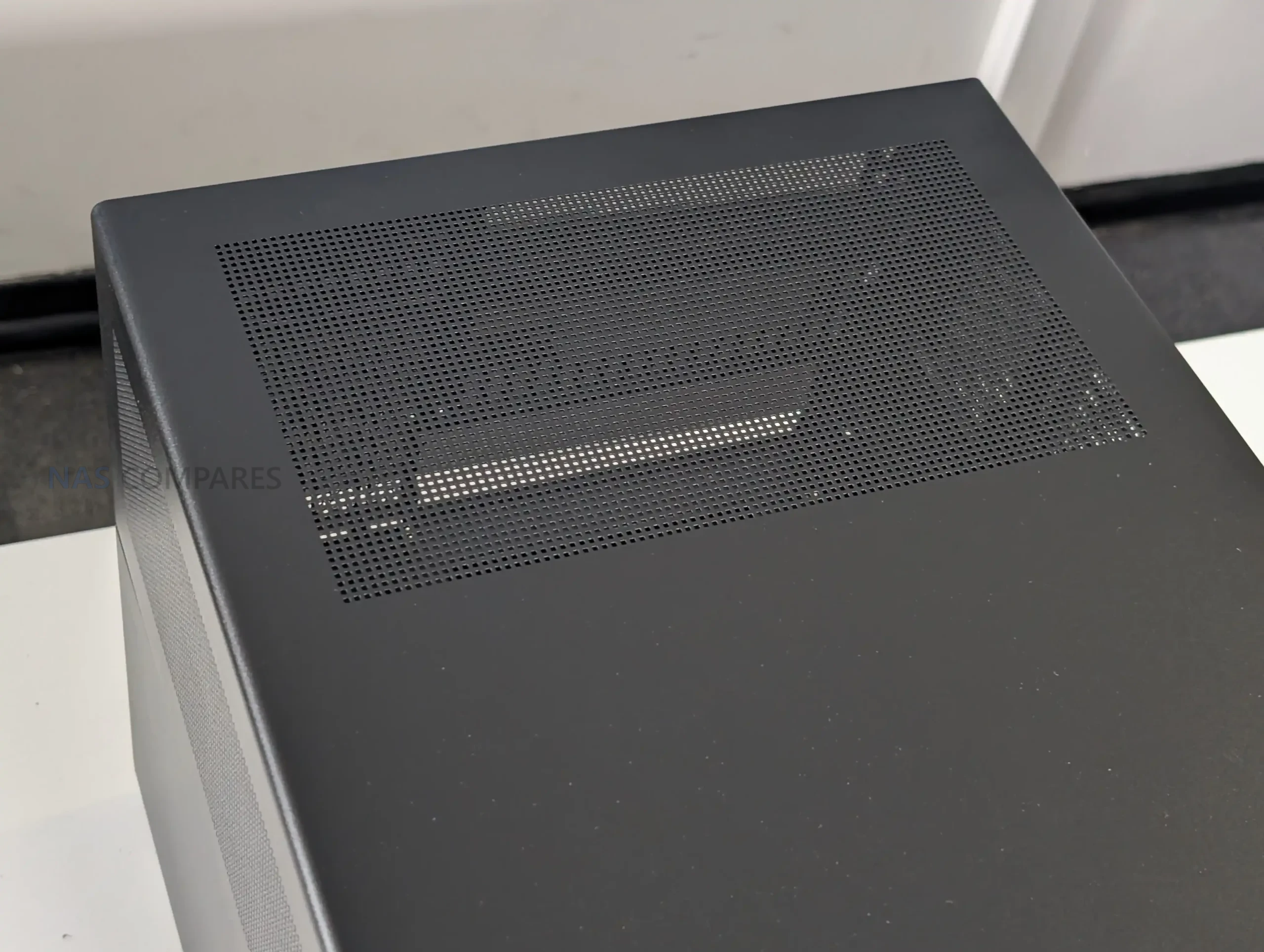
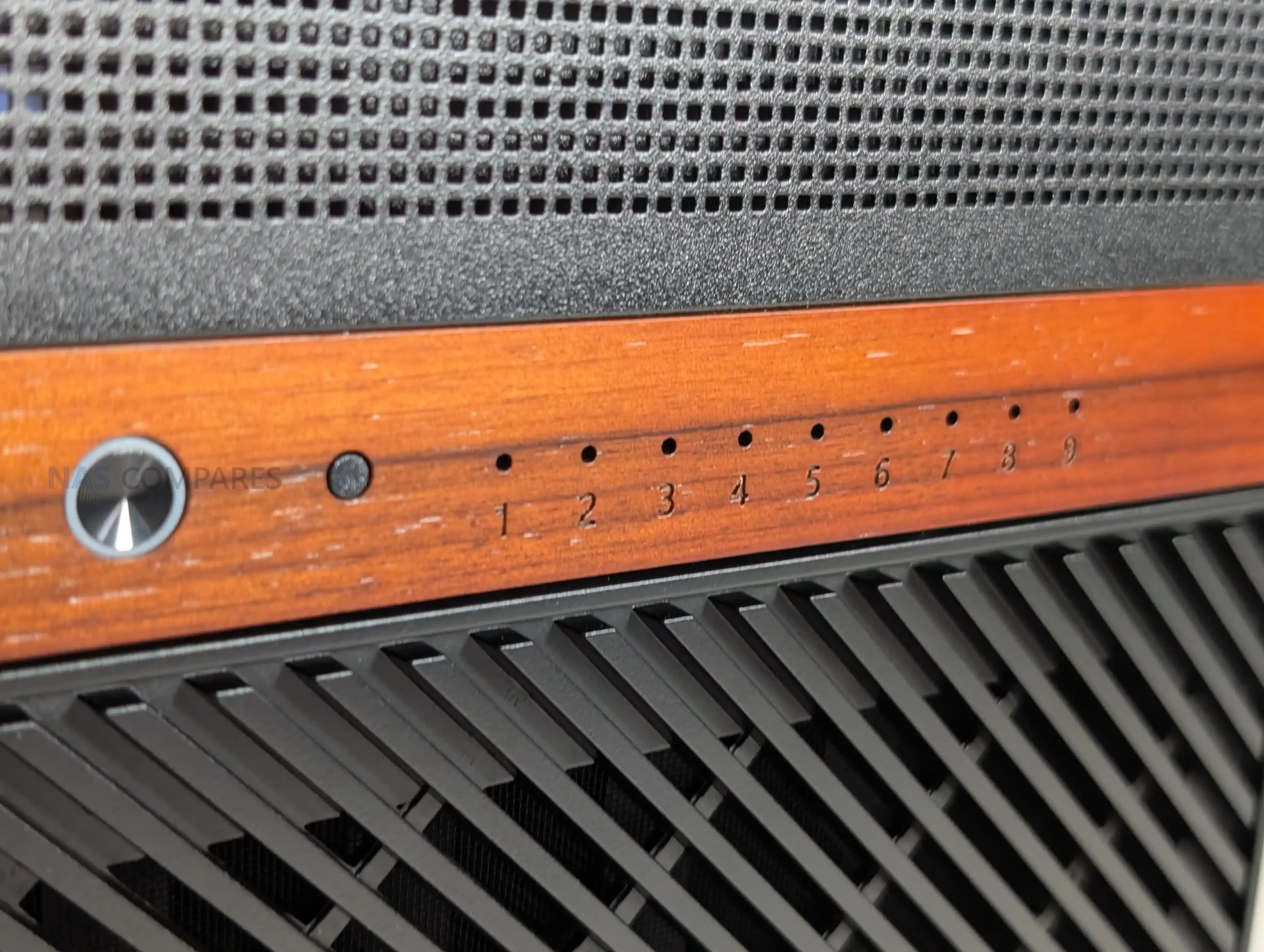
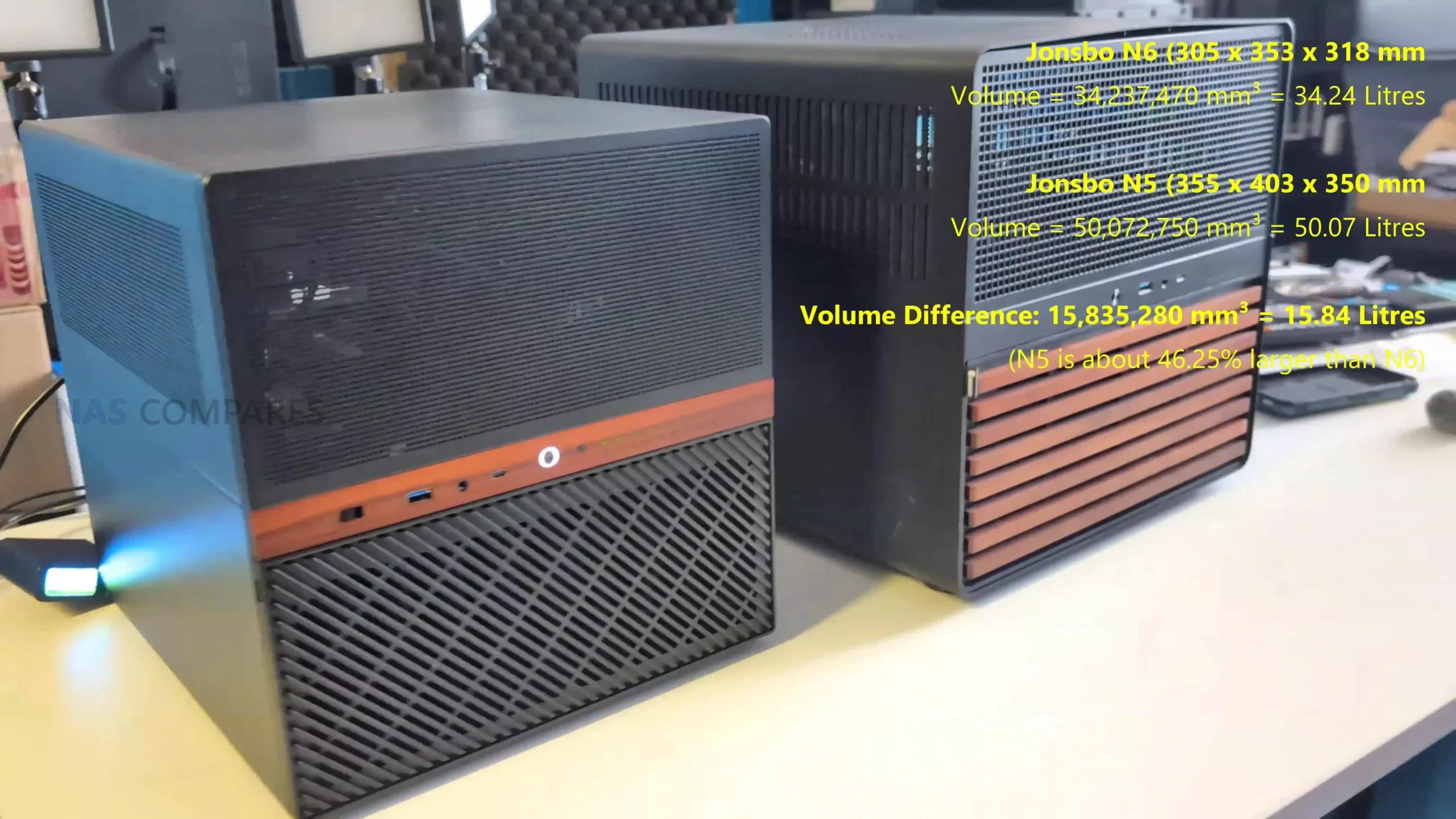
The Jonsbo N6 continues the brand’s established NAS focused design language, combining a compact tower format with a restrained, industrial appearance. The chassis uses a steel construction with aluminum accents and a wooden front trim, which has become a recognizable feature across several recent Jonsbo NAS cases. While the wood insert will not appeal to everyone, it is purely cosmetic and does not interfere with airflow or structural rigidity. Overall dimensions place the N6 clearly below the larger N5, though it is still substantial compared to many ITX cases due to its storage capacity.
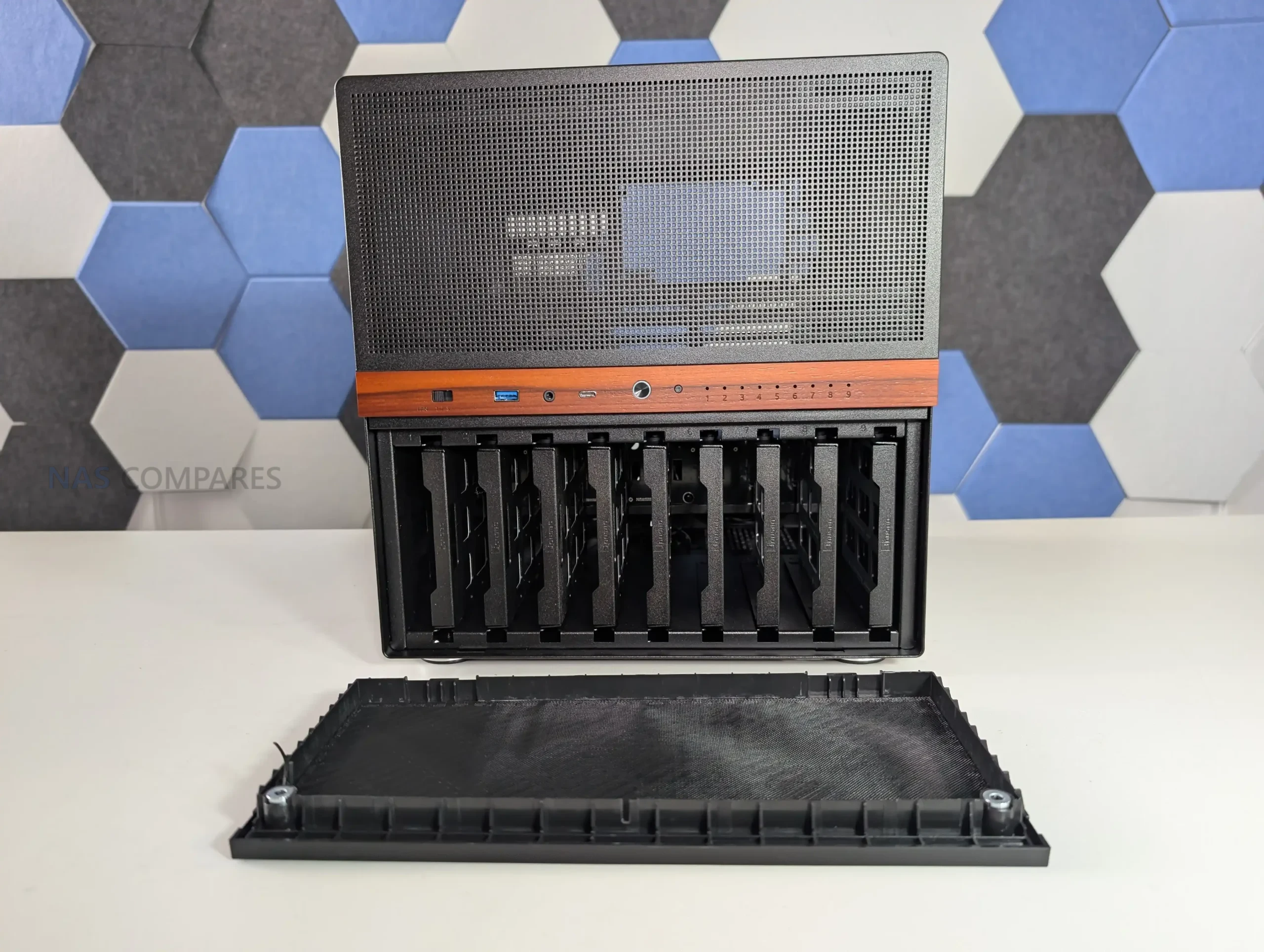
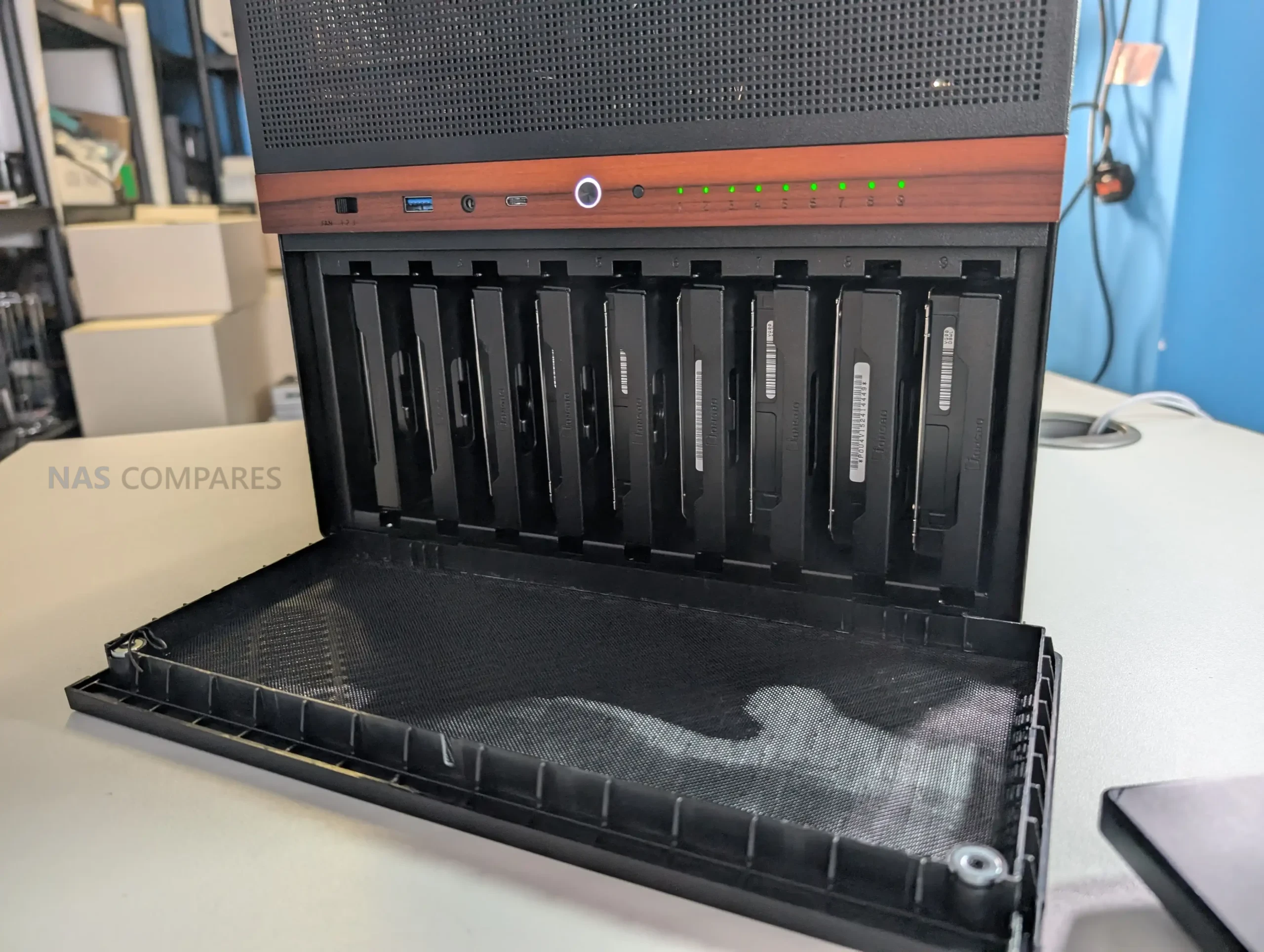
Storage is the defining feature of the N6, with support for up to 9 drives in either 3.5 inch HDD or 2.5 inch SSD formats. All drives are housed in a dedicated lower compartment, separated from the motherboard area. This layout helps with cable management and keeps storage thermals isolated from CPU and expansion hardware. The capacity places the N6 in a relatively uncommon position, offering more drive bays than most compact NAS cases without stepping into full tower territory.
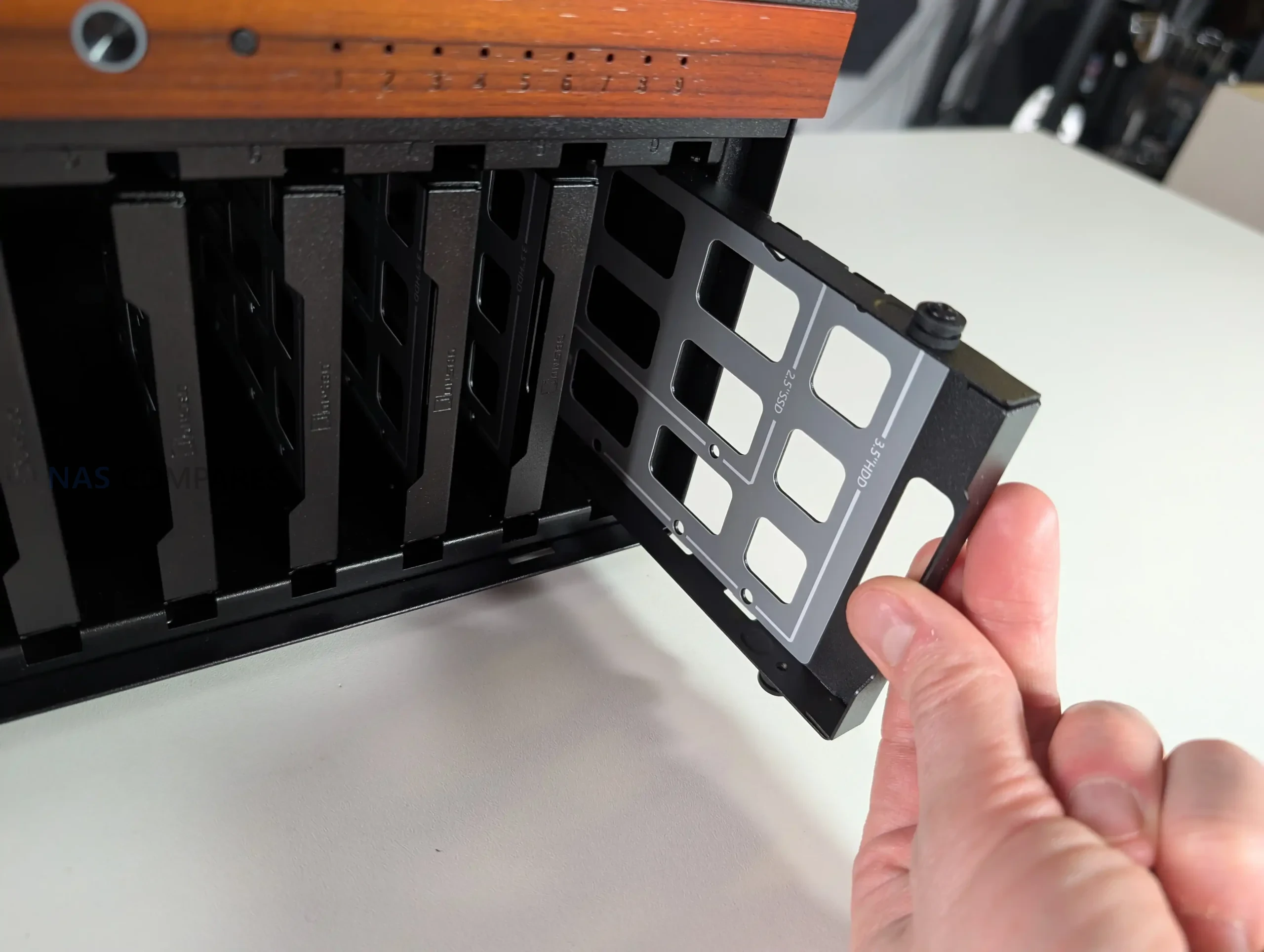
Unlike earlier Jonsbo NAS models that relied on rubber grommets and pull tabs, the N6 uses metal drive trays as standard. Each tray supports both 3.5 inch and 2.5 inch drives and slots directly into a rear mounted backplane. The trays are functional rather than refined, lacking tool less locking mechanisms or individual activity LEDs. However, spacing between drives allows some passive airflow, which is important given the density of a fully populated array.
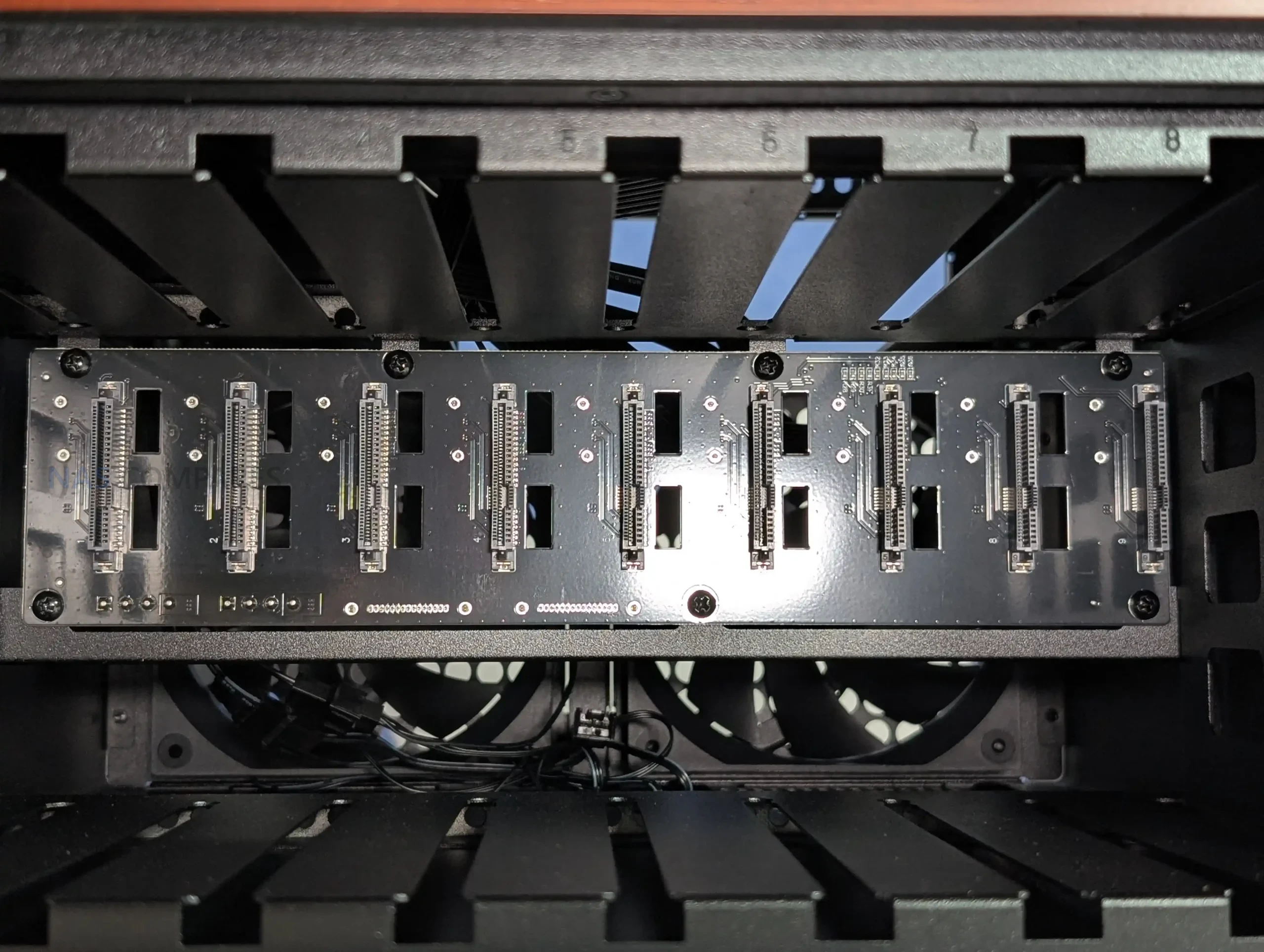
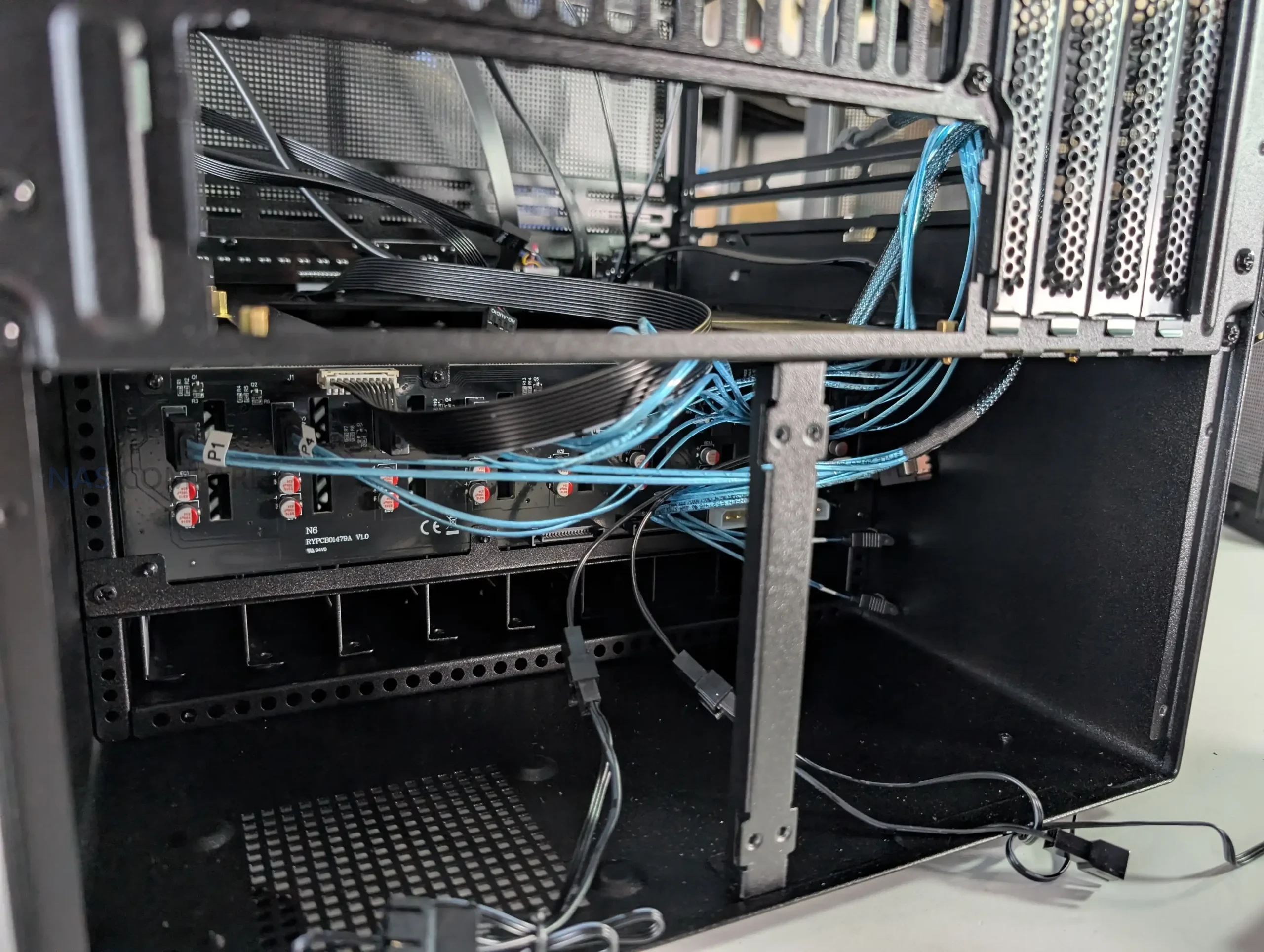
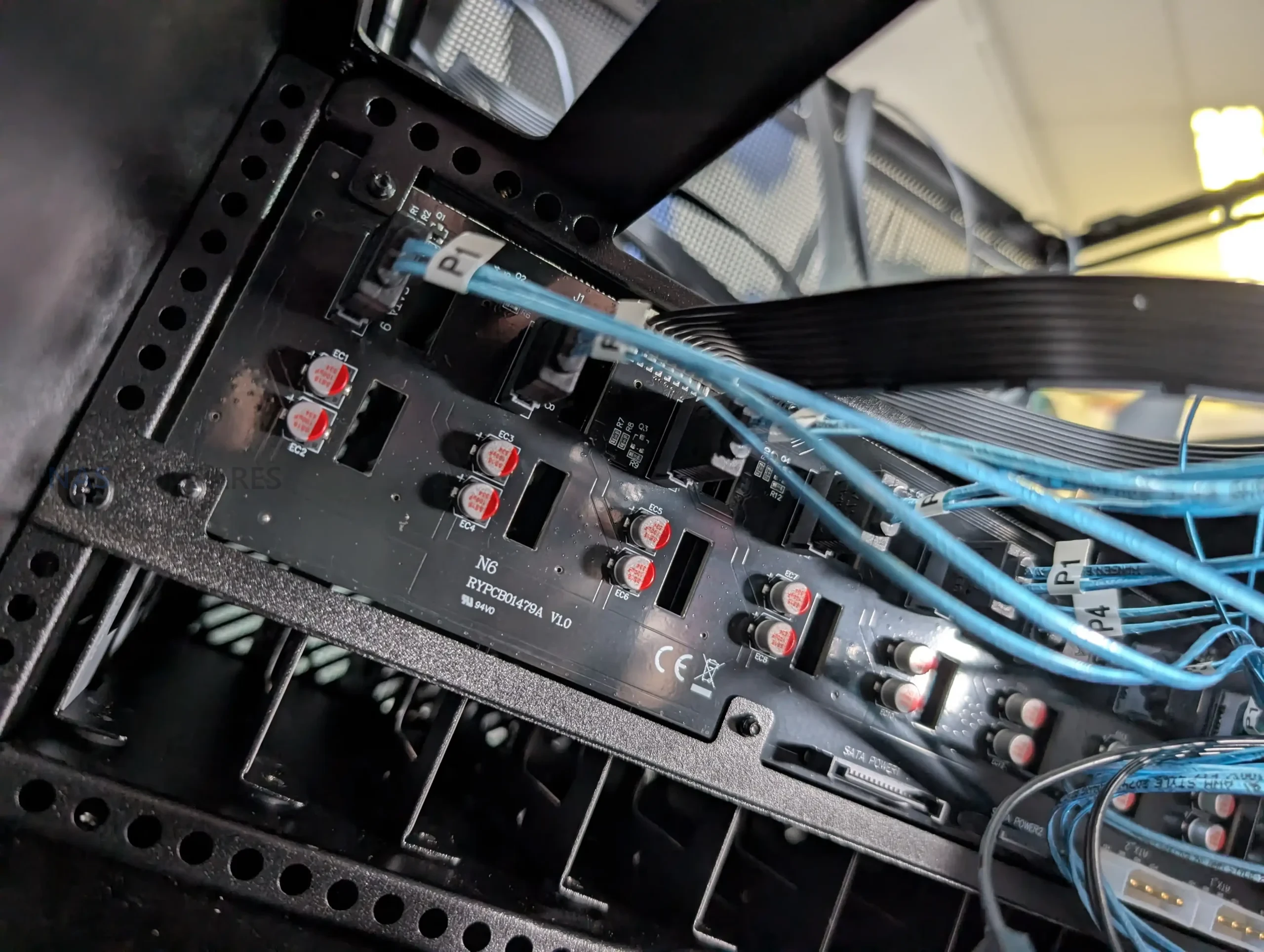
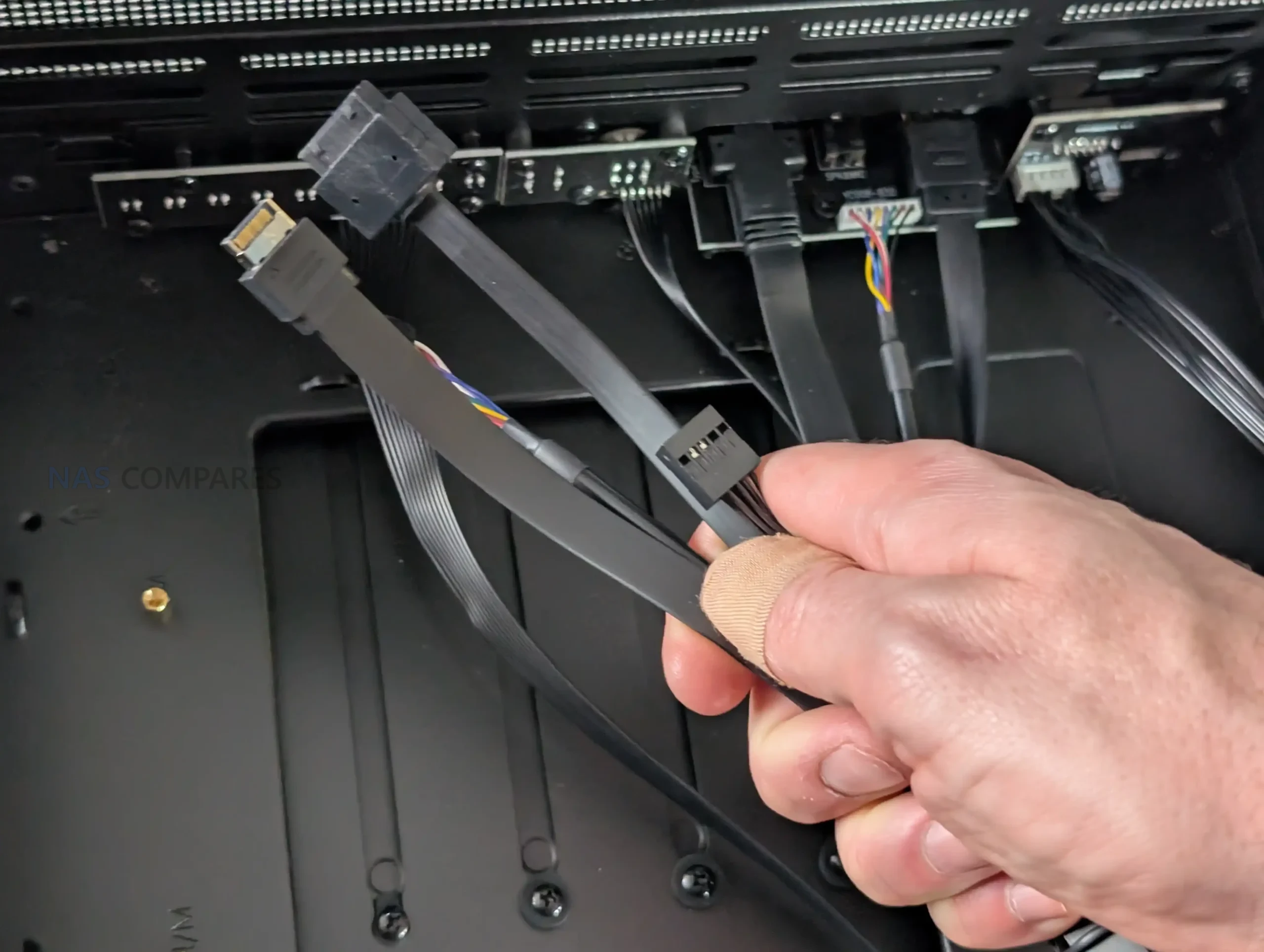
All 9 drive trays connect to a single backplane PCB located at the rear of the drive cage. The front side of the board uses individual SATA connectors for each bay, simplifying installation compared to loose cabling. On the output side, the board breaks out into standard SATA data connectors rather than Mini SAS, alongside SATA and Molex power inputs. This choice favors compatibility but limits native SAS support, which may matter to users running enterprise drives or SAS controllers.
From an installation standpoint, drive access is straightforward, but orientation is something to be careful with. The trays do not include visual indicators for correct alignment, making it possible to insert a drive incorrectly if rushed. While this is not unique to the N6, it does introduce some risk during initial setup or drive swaps. Overall, the storage design prioritizes density and compatibility over convenience features, aligning with the case’s focus on DIY NAS builders rather than hot swap environments.
Jonsbo N6 Review – Internal Structure
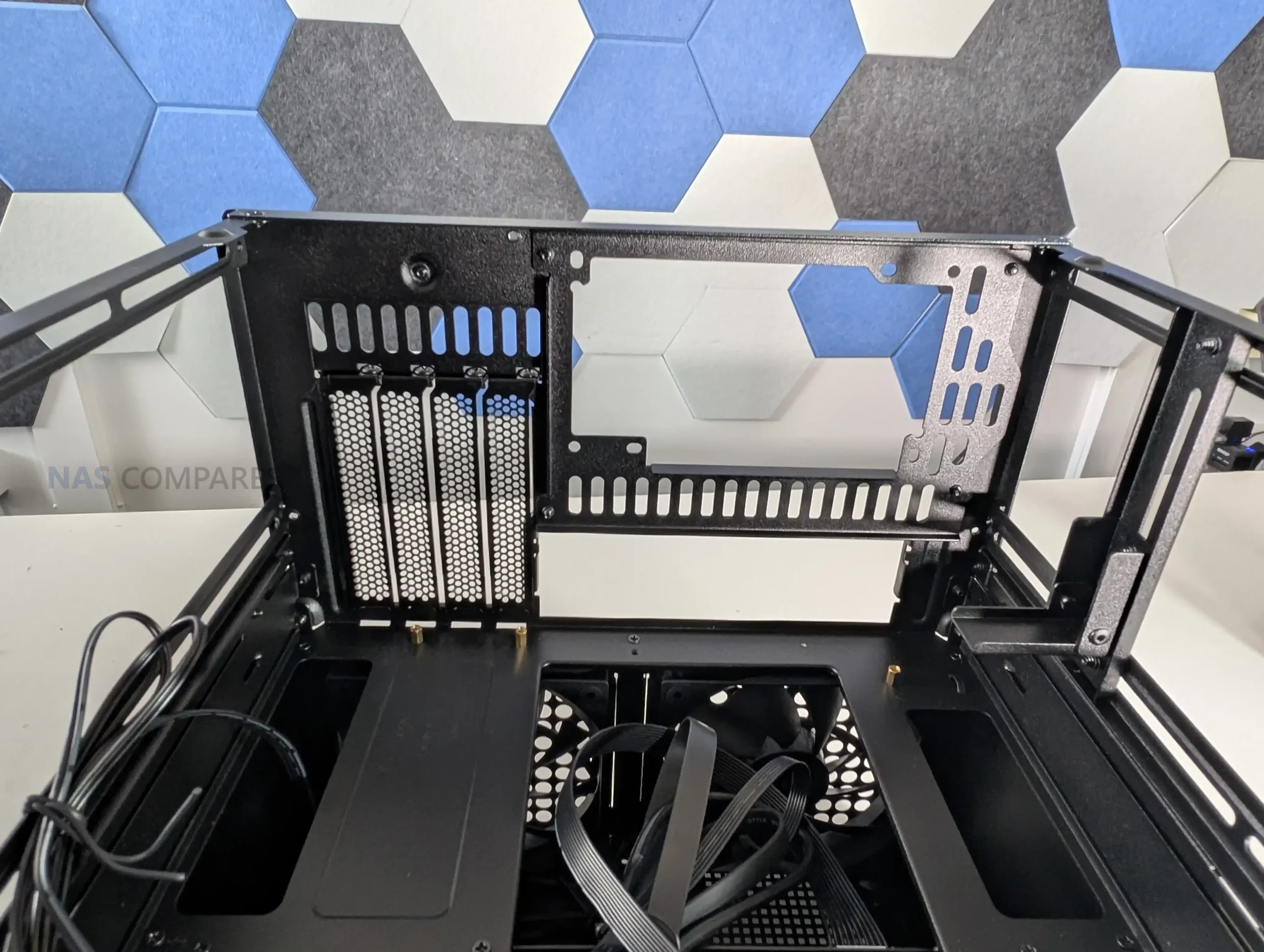
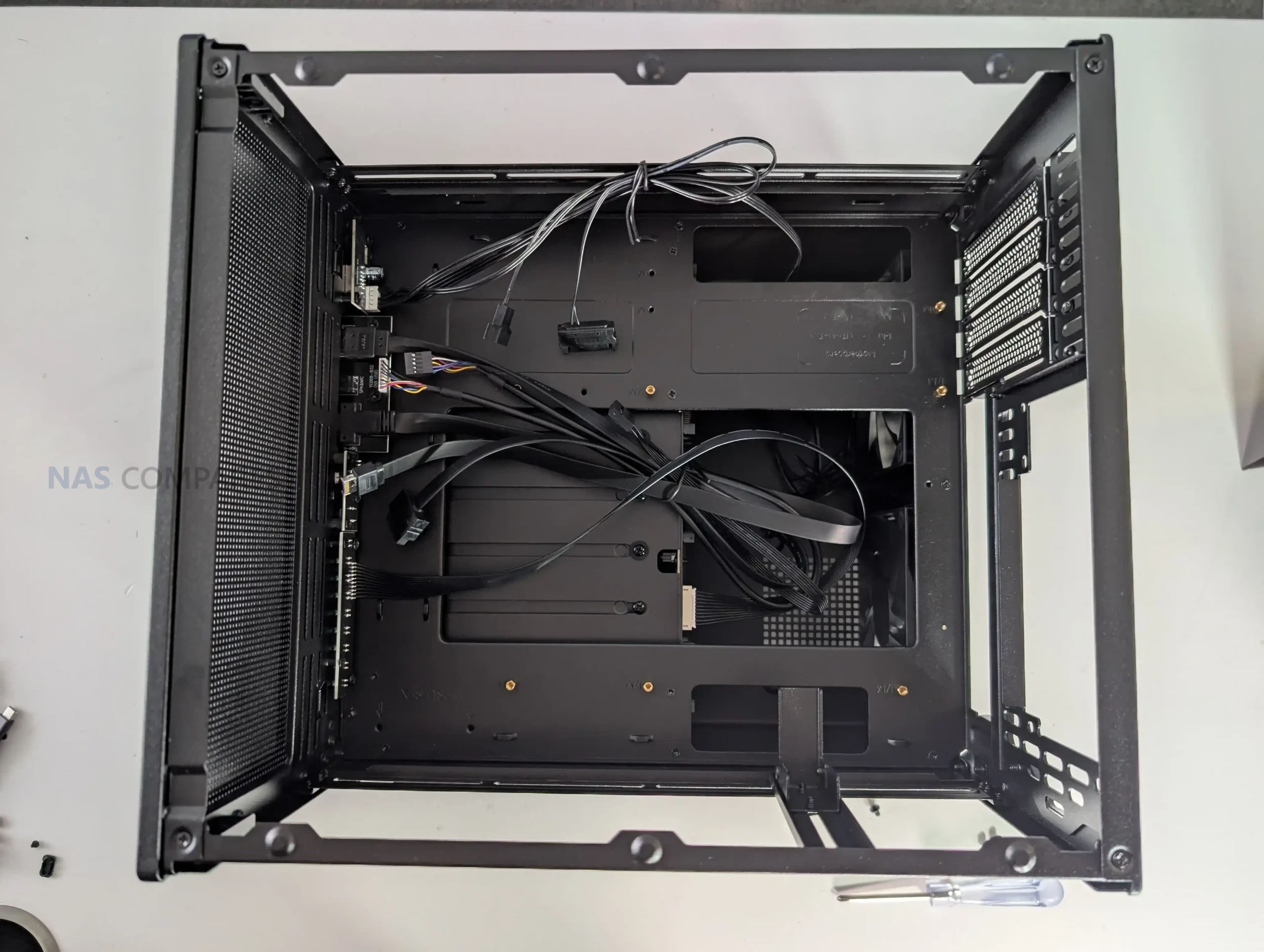
The internal layout of the Jonsbo N6 is designed around flexibility rather than absolute clearance, and that becomes clear once hardware installation begins. The case supports Mini ITX and Micro ATX motherboards, but does not officially support full ATX boards, despite physical dimensions that appear close.
In practice, fitting an ATX board is technically possible but leaves insufficient clearance for cabling, airflow, and component access, making it impractical for most builds. With ITX boards, internal space is generous and largely unobstructed, while Micro ATX installations require more planning due to tighter edge clearances near the drive backplane and PSU mounting areas.
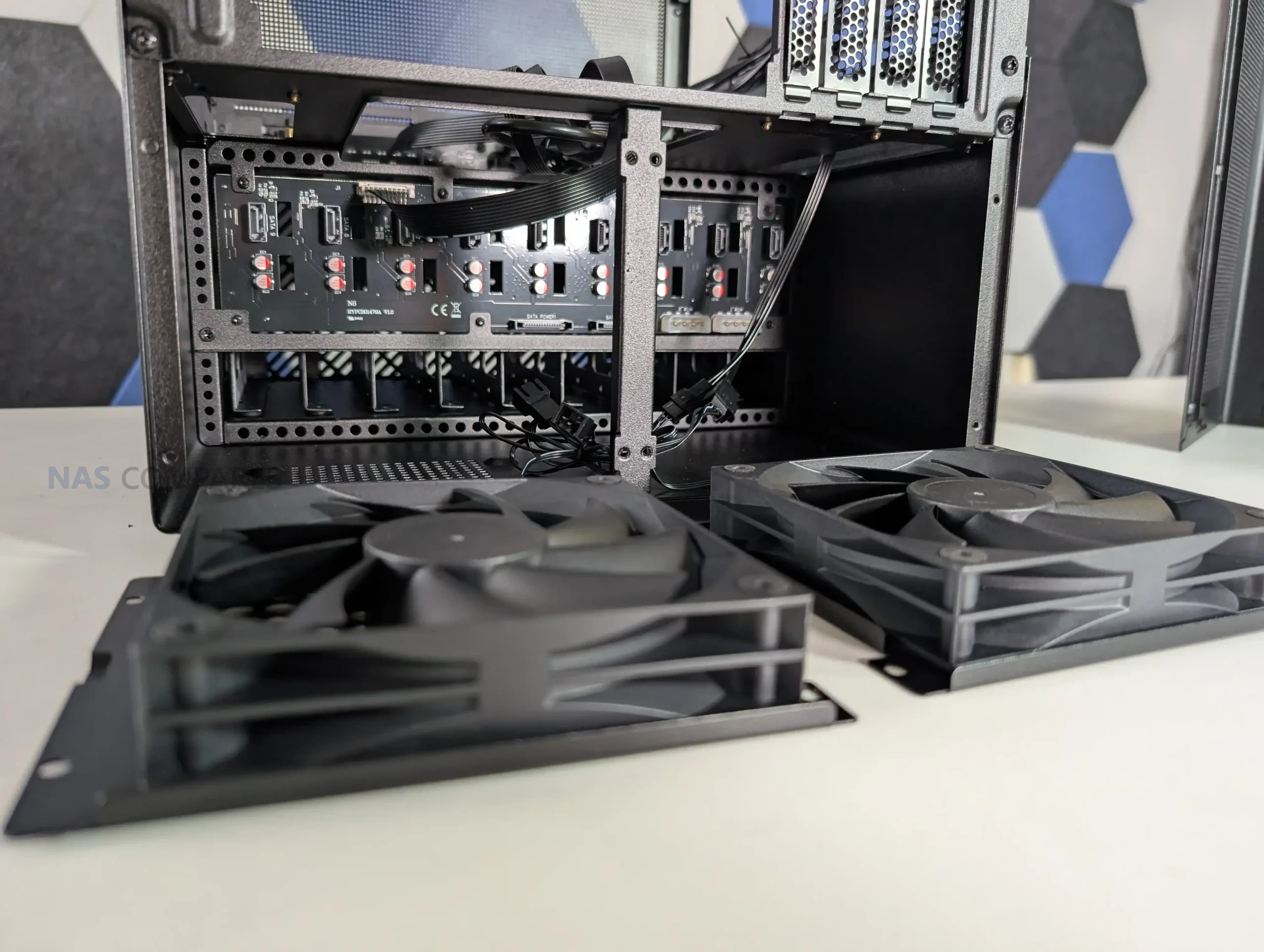
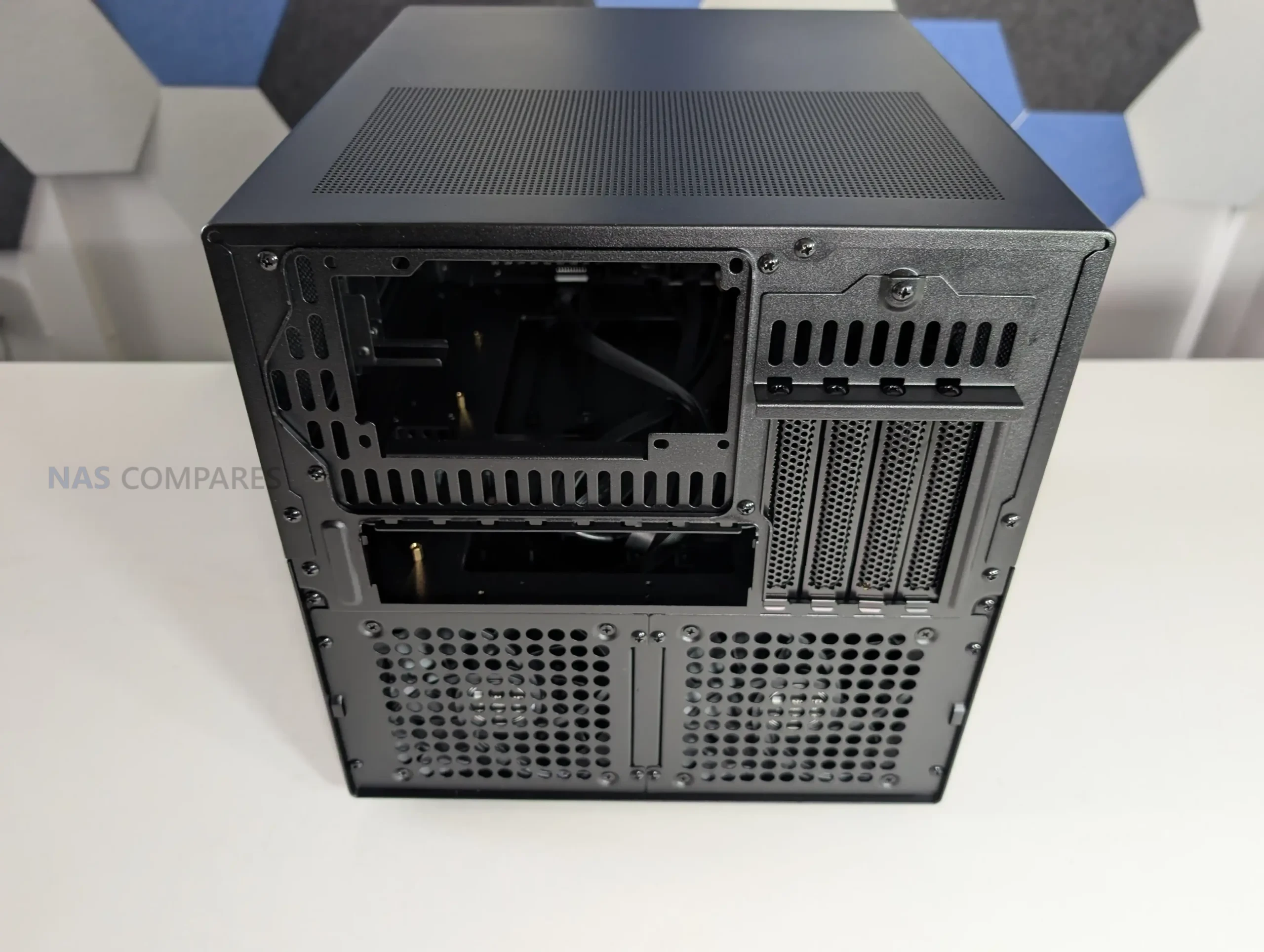
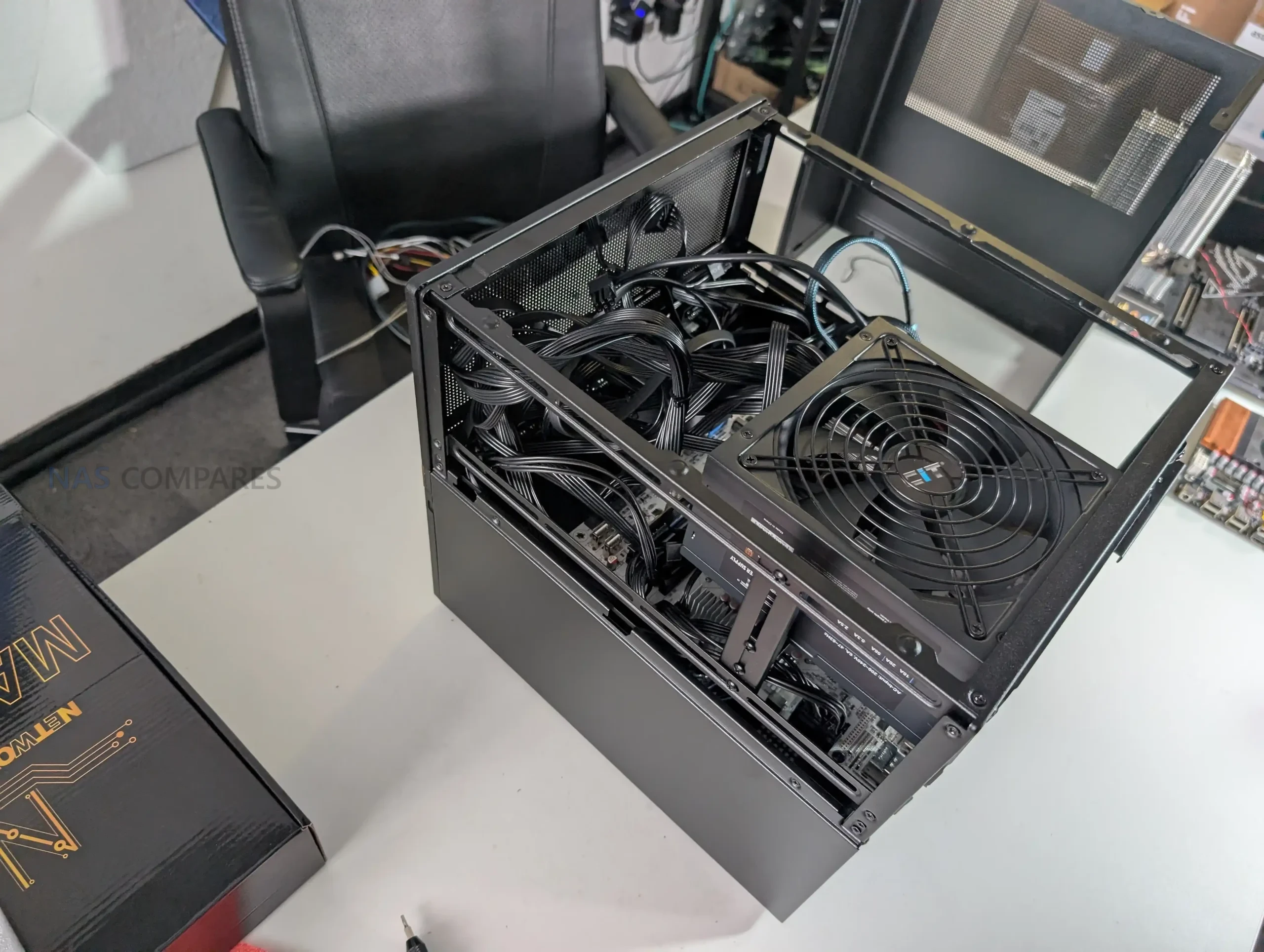
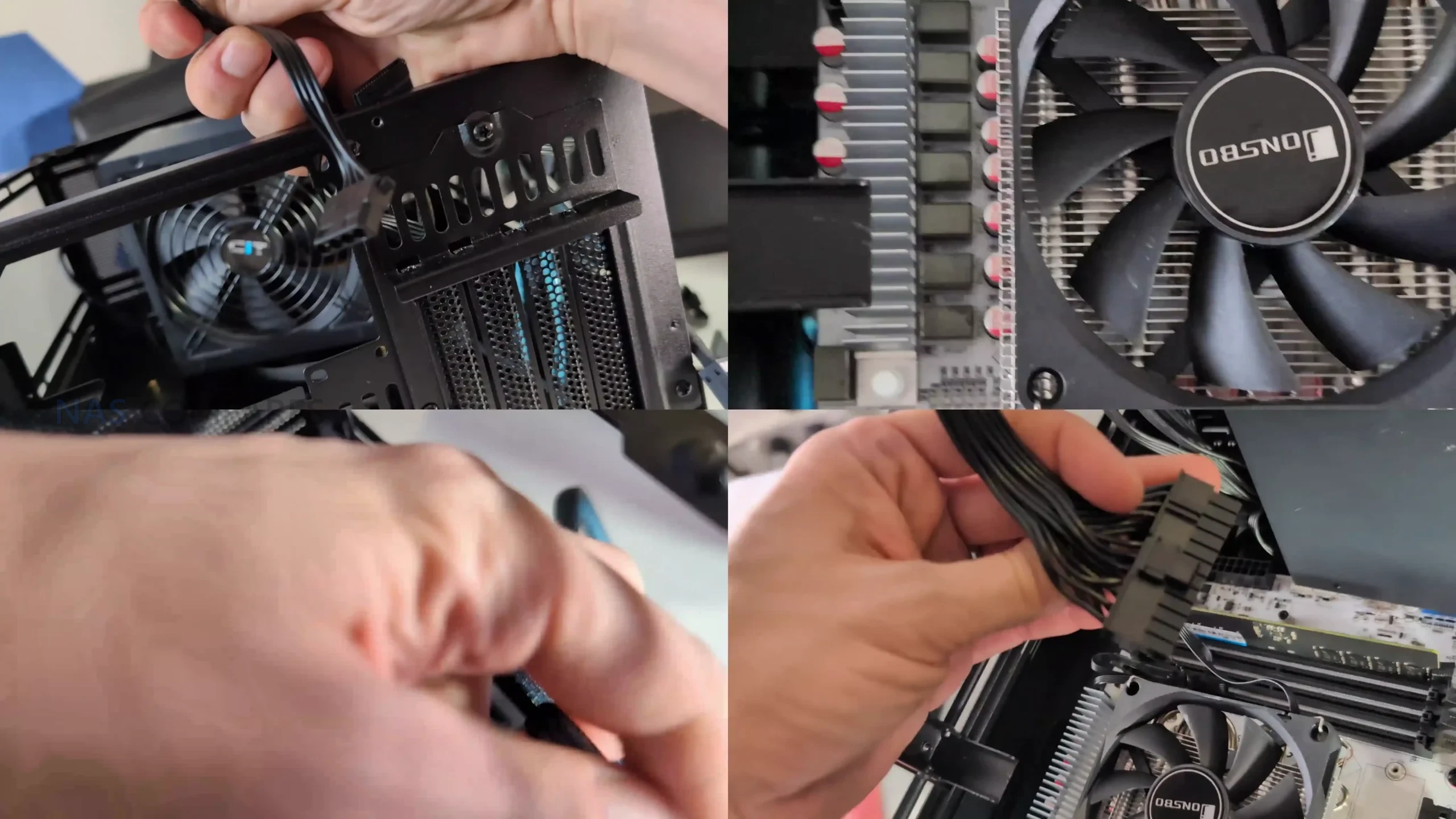
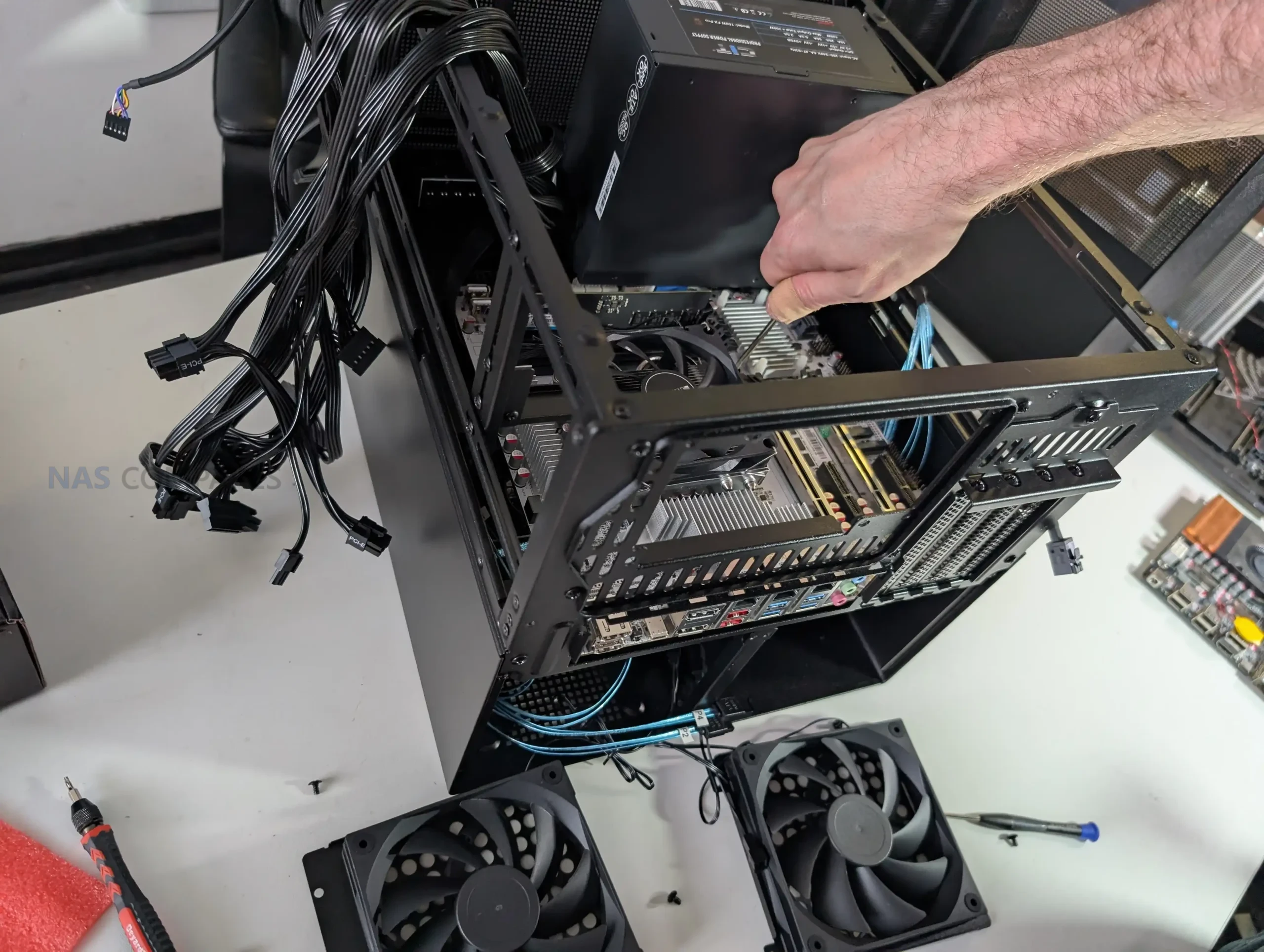
PSU placement plays a major role in how the internal hardware layout behaves. The N6 supports both ATX and SFX power supplies and allows installation in multiple positions using included brackets. Mounting a full size ATX PSU above the motherboard significantly reduces available CPU cooler height, which can limit cooler selection to low profile or compact tower designs. SFX power supplies offer more flexibility and reduce conflicts around the CPU socket area, particularly when using Micro ATX boards.
The option for dual PSU installation adds another layer of configurability, but it further increases complexity around airflow paths and cable routing.
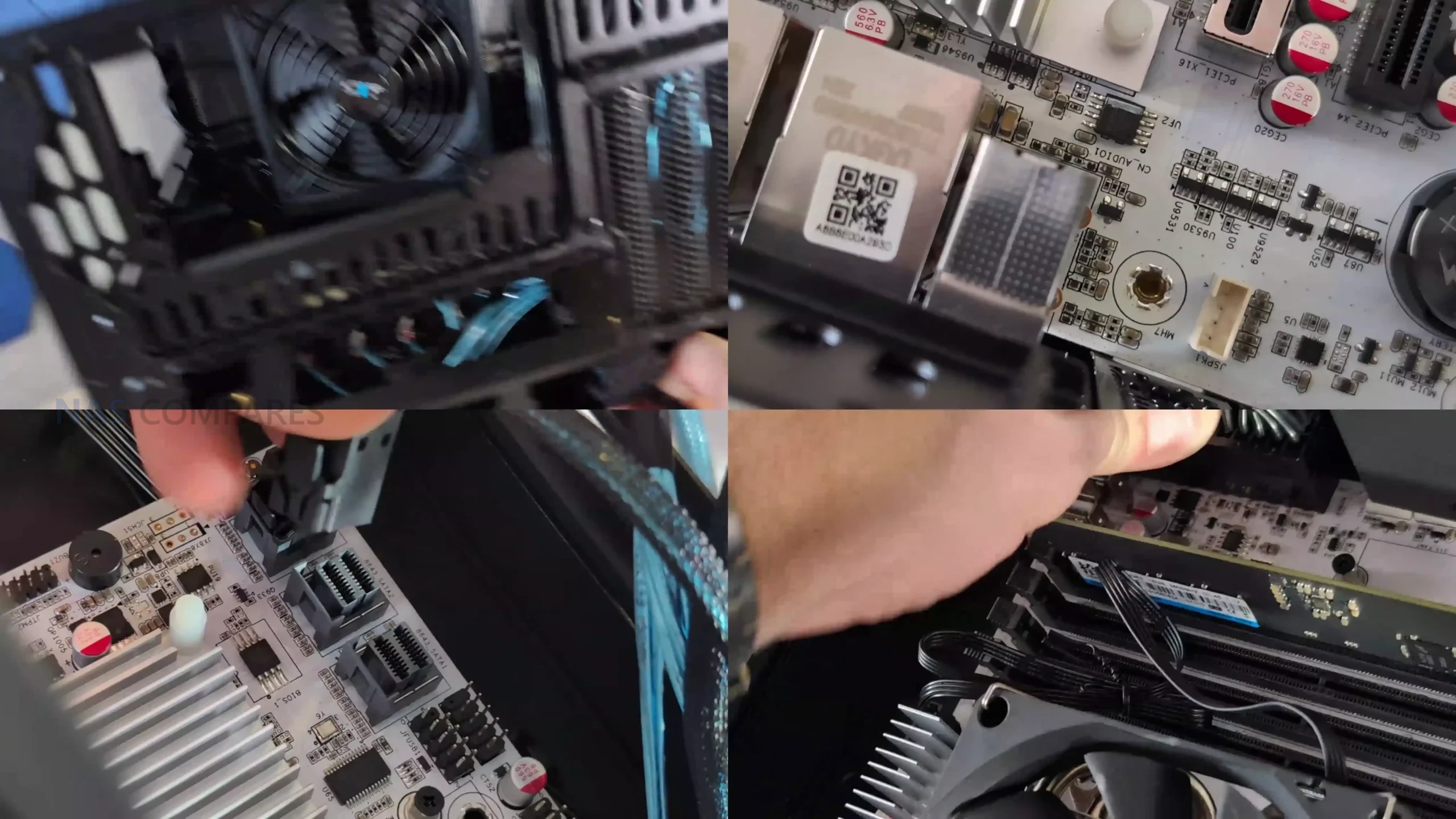
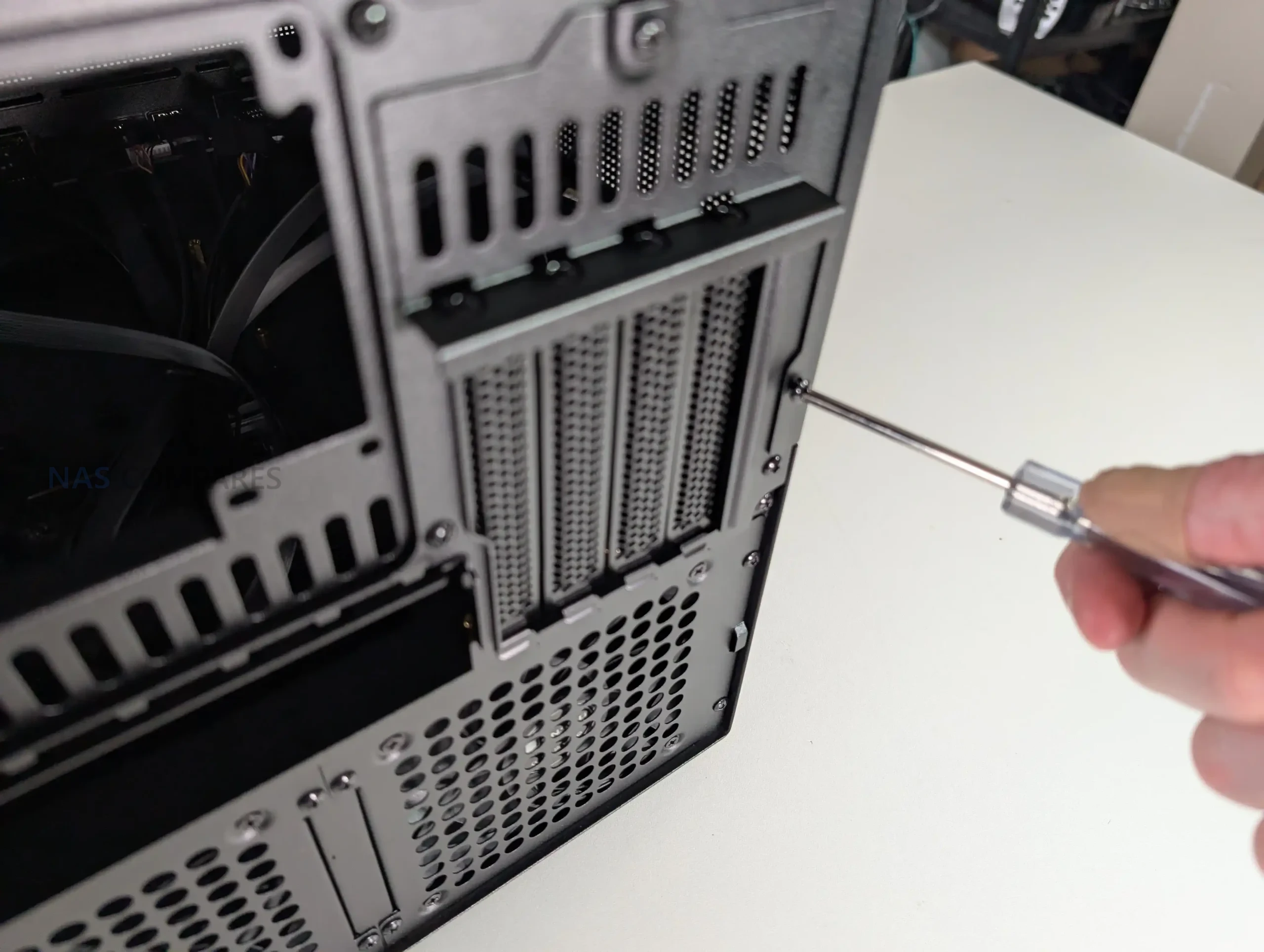
PCIe expansion is relatively strong for a case in this category, with support for up to 4 full height expansion slots. This allows for the use of HBAs, network cards, or even a discrete GPU, provided length and thickness limits are respected. Clearance becomes tight when multiple expansion cards are installed alongside side mounted fans, especially on the lowest slot. Cable routing is generally straightforward, with clear channels and anchor points, but routing SATA or Mini SAS fan out cables is easier if completed before final motherboard installation, particularly in Micro ATX configurations.
Jonsbo N6 Review – Connectivity
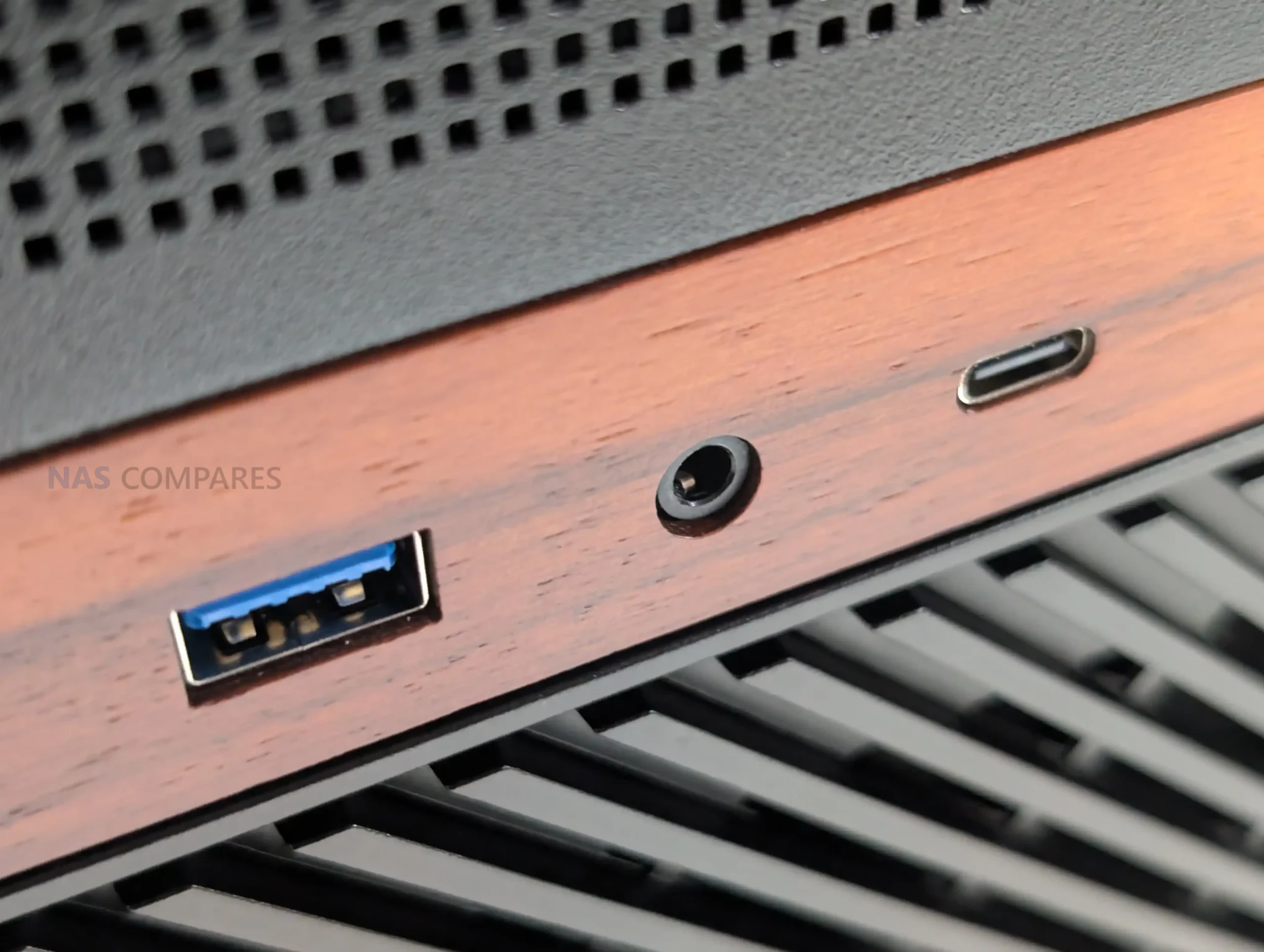
The Jonsbo N6 keeps external connectivity relatively straightforward, with all user facing ports located on the front panel for easy access. This placement makes sense for a NAS chassis that is likely to be positioned on a desk, shelf, or rack adjacent surface rather than frequently accessed from the rear. The front I O layout focuses on essential connectivity rather than attempting to replicate a full desktop case feature set.
In practical use, the inclusion of a USB 3.2 Gen2 Type C port provides a high bandwidth option for external storage, temporary backups, or maintenance tasks such as system recovery media. Alongside it, the USB 3.0 Type A port offers compatibility with a wide range of existing peripherals. This combination should be sufficient for most NAS focused workflows, where frequent hot swapping of peripherals is uncommon but occasional high speed access is still required.
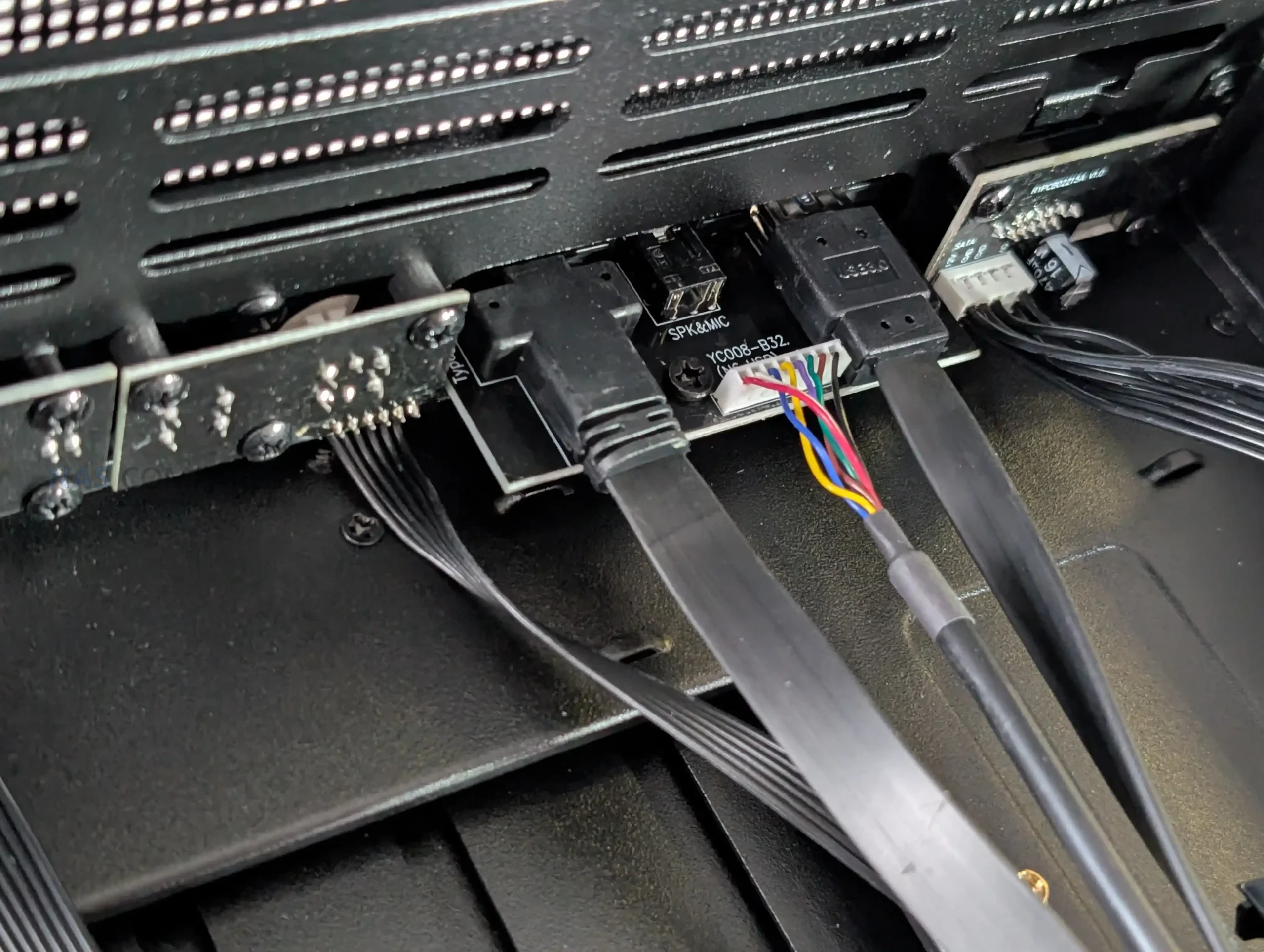
Internally, connectivity is more complex and is closely tied to the integrated drive backplane. All 9 drive bays connect through the rear mounted PCB, which uses individual SATA data connectors rather than Mini SAS or SAS HD outputs. Power delivery is handled through a mix of SATA power and Molex connectors, which provides flexibility but may increase cable management complexity depending on the power supply used.
While functional, this approach places more responsibility on the user to plan cabling carefully, especially in fully populated configurations.
Feature
Specification
Front USB Type C
USB 3.2 Gen2
Front USB Type A
USB 3.0
Audio I O
Combined headphone and microphone
Drive Data Interface
Individual SATA per bay
Drive Power Inputs
2 x SATA power, 2 x Molex
Backplane SAS Support
No
Front Panel Cabling
Pre routed internal cables
Jonsbo N6 Review – N5 vs N6
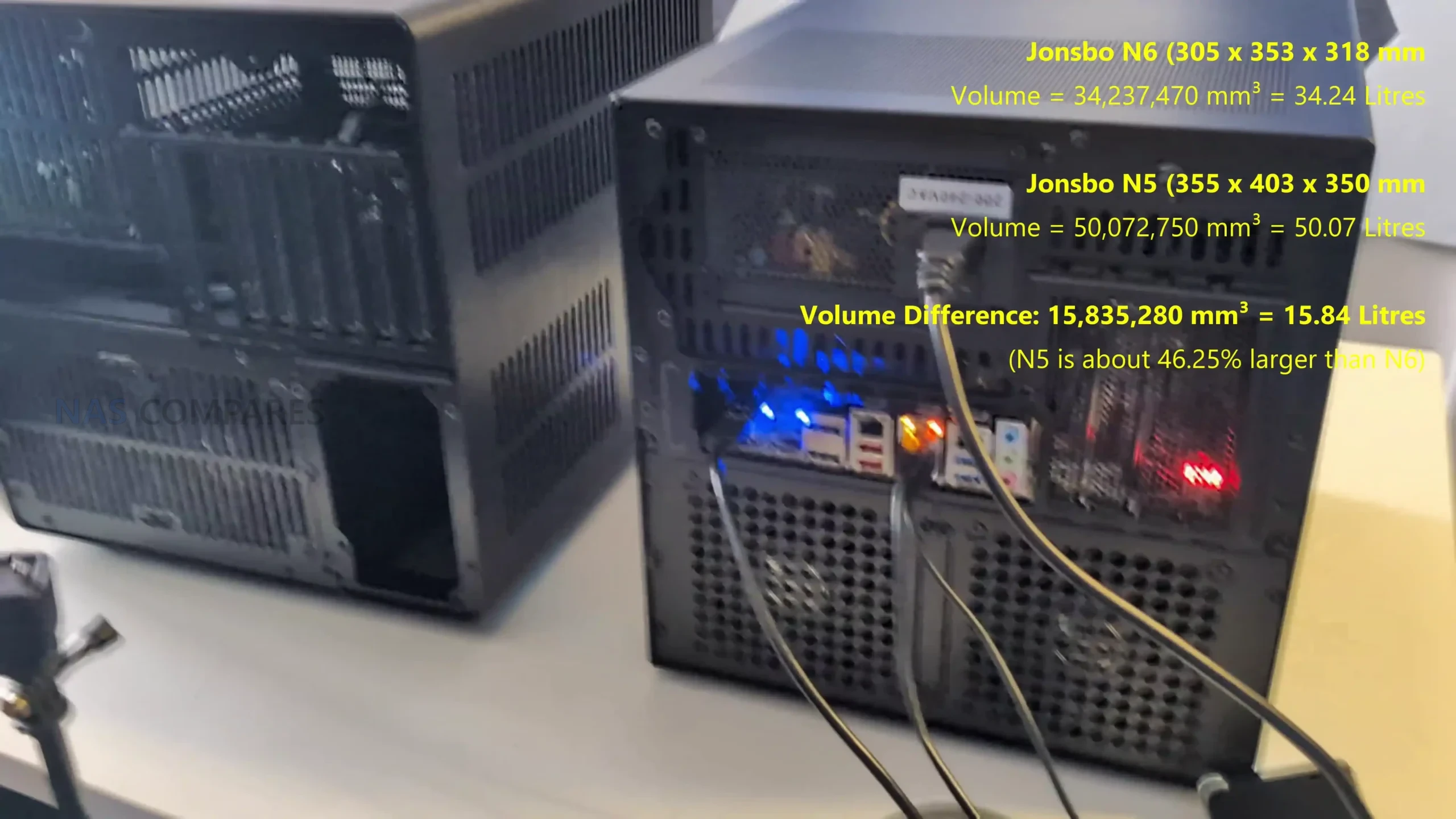
The Jonsbo N6 and the N5 address similar DIY NAS use cases but sit at different points in the product lineup in terms of capacity and flexibility. The N6 is designed around a nine-bay drive layout with support for ITX and micro-ATX motherboards and compatibility with either ATX or SFX power supplies, offering a balance between storage density and a relatively compact footprint, which makes it suitable for builds that need a significant number of drives without a full tower size. By contrast, the N5 supports up to twelve 3.5-inch drives and up to four 2.5-inch SSDs, and accepts larger motherboard formats including ITX, micro-ATX, ATX, and E-ATX, giving it broader component compatibility and expansion potential.
The N5 also provides more PCIe slots and larger GPU clearance, supporting use cases that may combine NAS storage with workstation-class expansions, and includes a mesh front and more extensive cooling provisions to manage heat in its larger enclosure. Both cases offer USB-C and USB-A front I/O for quick access, but the N5’s larger size and multi-material construction generally result in greater internal space for hardware and cooling options. In practice, the N6 aims to offer a middle ground with substantial drive capacity and flexible power supply choices, while the N5 pushes more towards maximum expandability and support for larger and more powerful builds within the Jonsbo NAS ecosystem
Jonsbo N6 Review – Build Testing
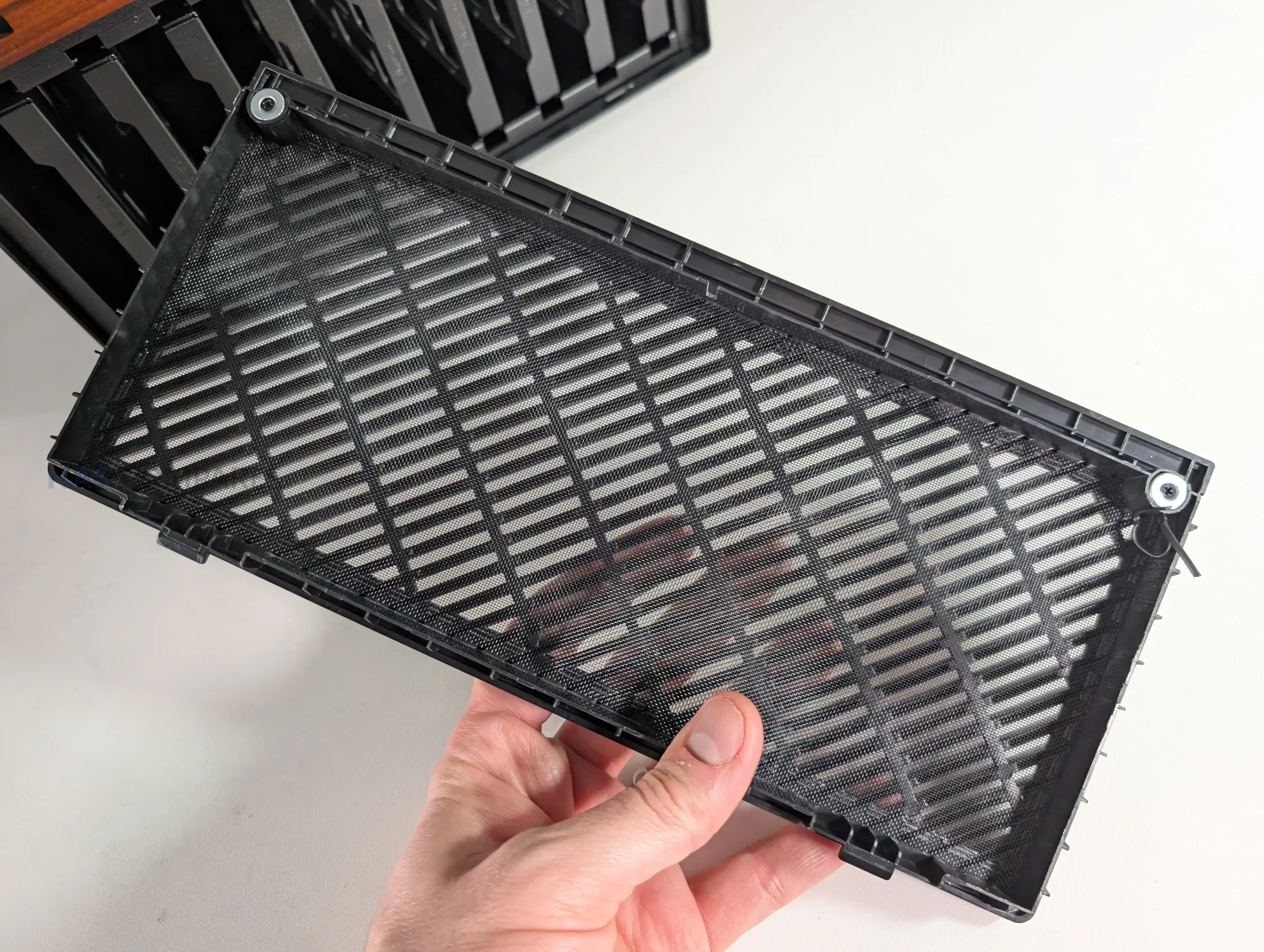
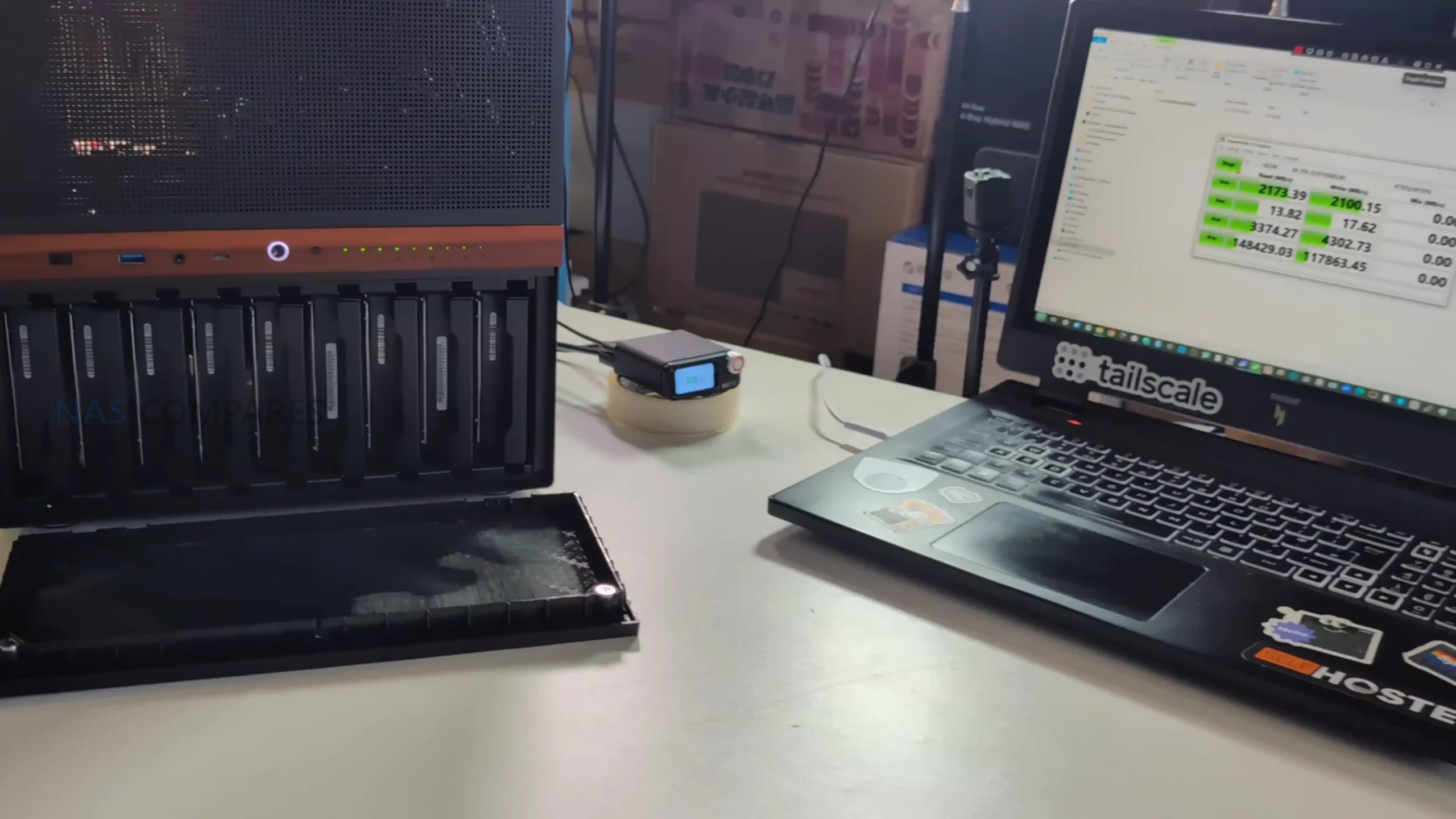
In day to day use, the Jonsbo N6 shows that its performance characteristics are shaped more by component choice than by any inherent limitation of the chassis itself. With a fully populated 9 bay configuration using 7200 RPM hard drives, the case does not introduce noticeable bottlenecks in sustained storage workloads. During extended uptime testing across multiple days, system stability remained consistent, with no unexpected thermal throttling or airflow related instability observed. This aligns with the case design philosophy, which prioritizes open ventilation paths and modular fan placement rather than aggressive acoustic dampening.
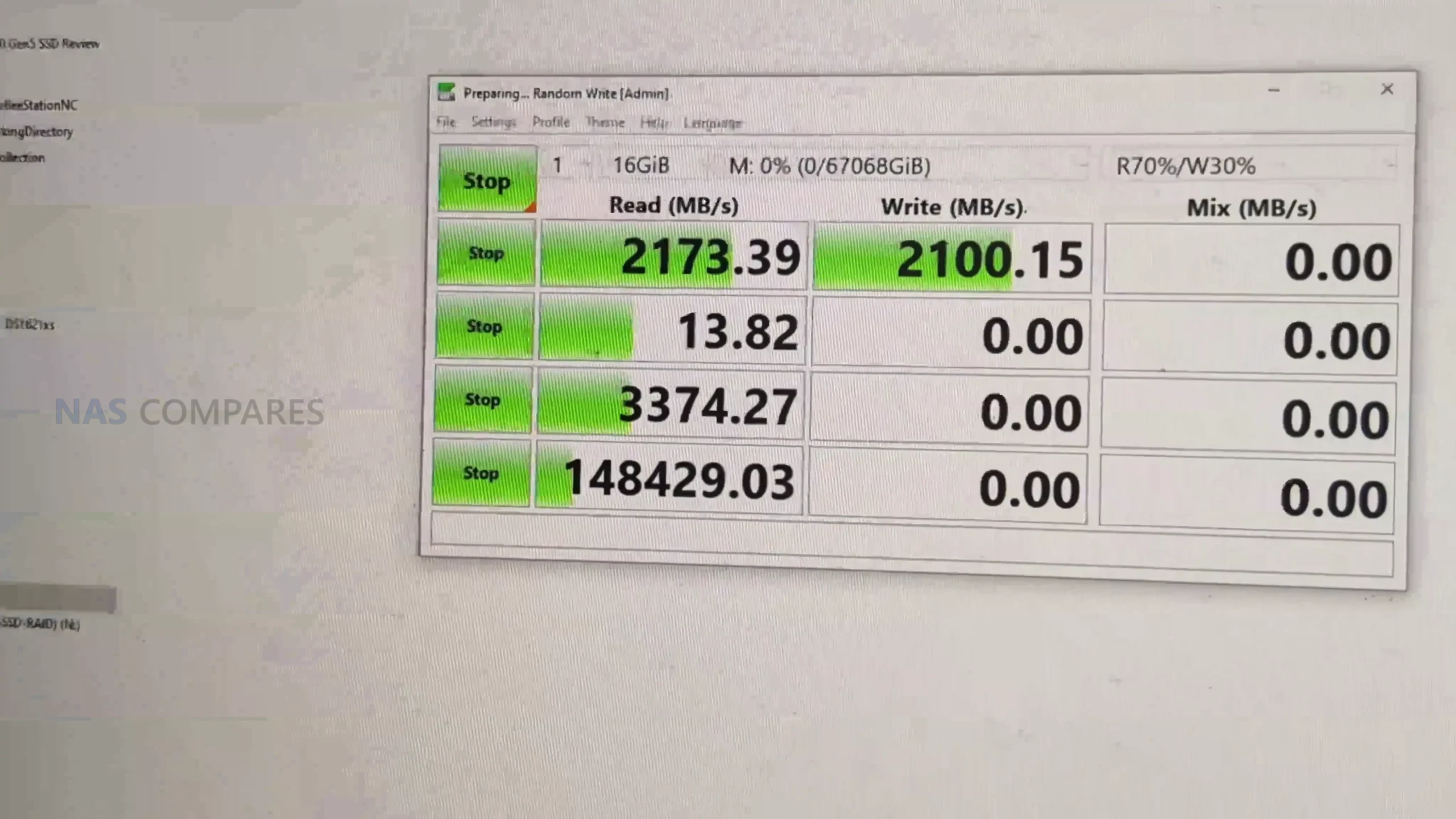
Storage performance testing was carried out using a RAID 0 array across 9 mechanical drives, paired with a workstation class MATX motherboard and a dedicated SATA controller. Sequential read and write speeds reached approximately 2.0 to 2.1 GB/s in CrystalDiskMark, indicating that the enclosure itself does not constrain throughput. These figures are primarily governed by controller bandwidth, PCIe lane allocation, and drive characteristics, rather than the internal backplane. Random access behavior remained typical for high capacity HDD arrays, with no anomalies linked to vibration or drive seating within the metal trays.
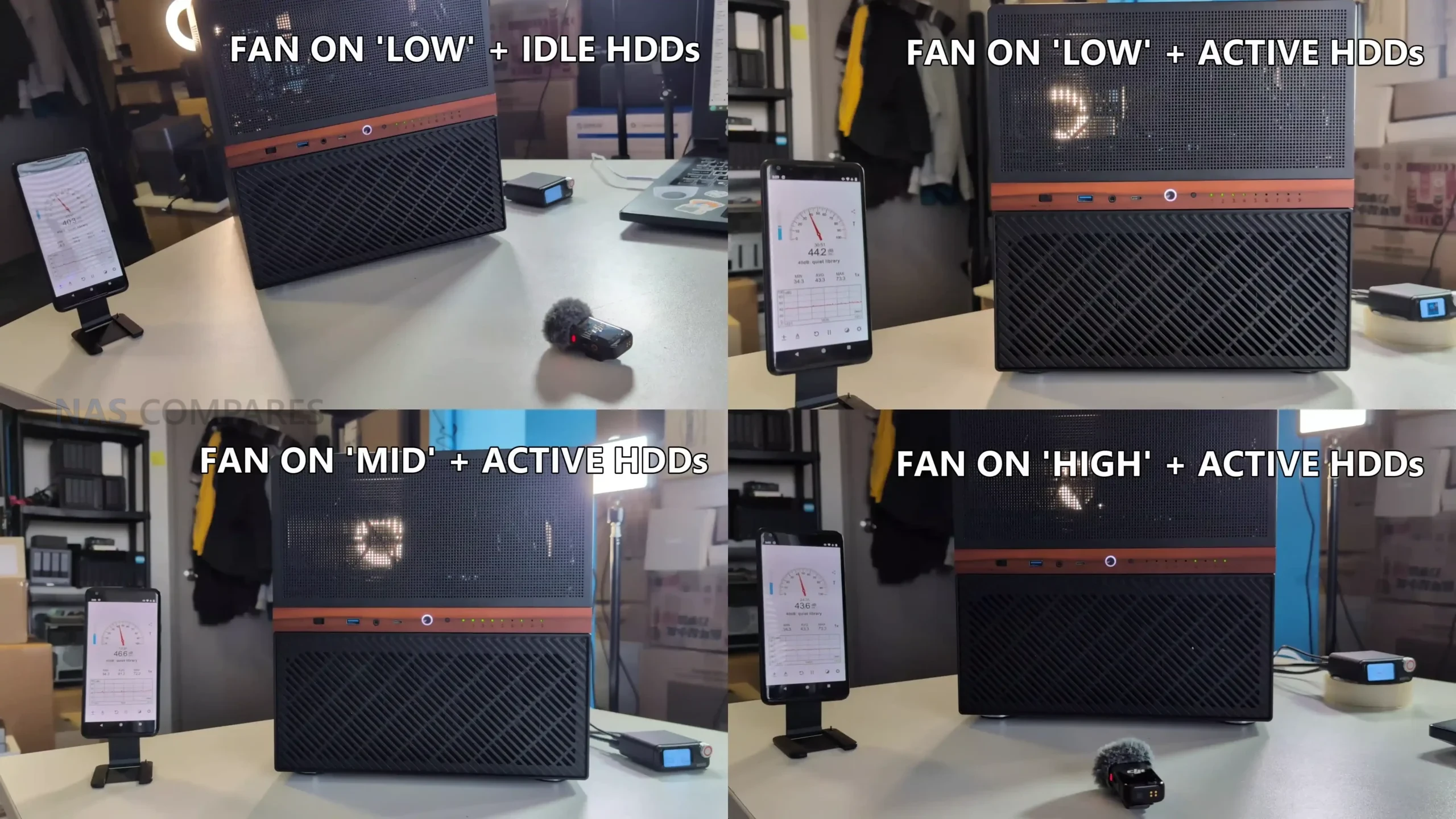
Noise testing was conducted under multiple operating conditions to evaluate how the N6 behaves in real environments rather than synthetic silence. At idle with fans set to the lowest manual setting and drives spun down, measured noise levels hovered around 37 to 39 dBA. Under active disk access with the same fan profile, noise increased modestly to around 41 to 44 dBA, with most audible output coming from the rear exhaust area. Increasing the fan controller to mid and high settings resulted in only marginal increases, topping out around 43 to 44 dBA, suggesting diminishing returns in airflow relative to acoustic output.
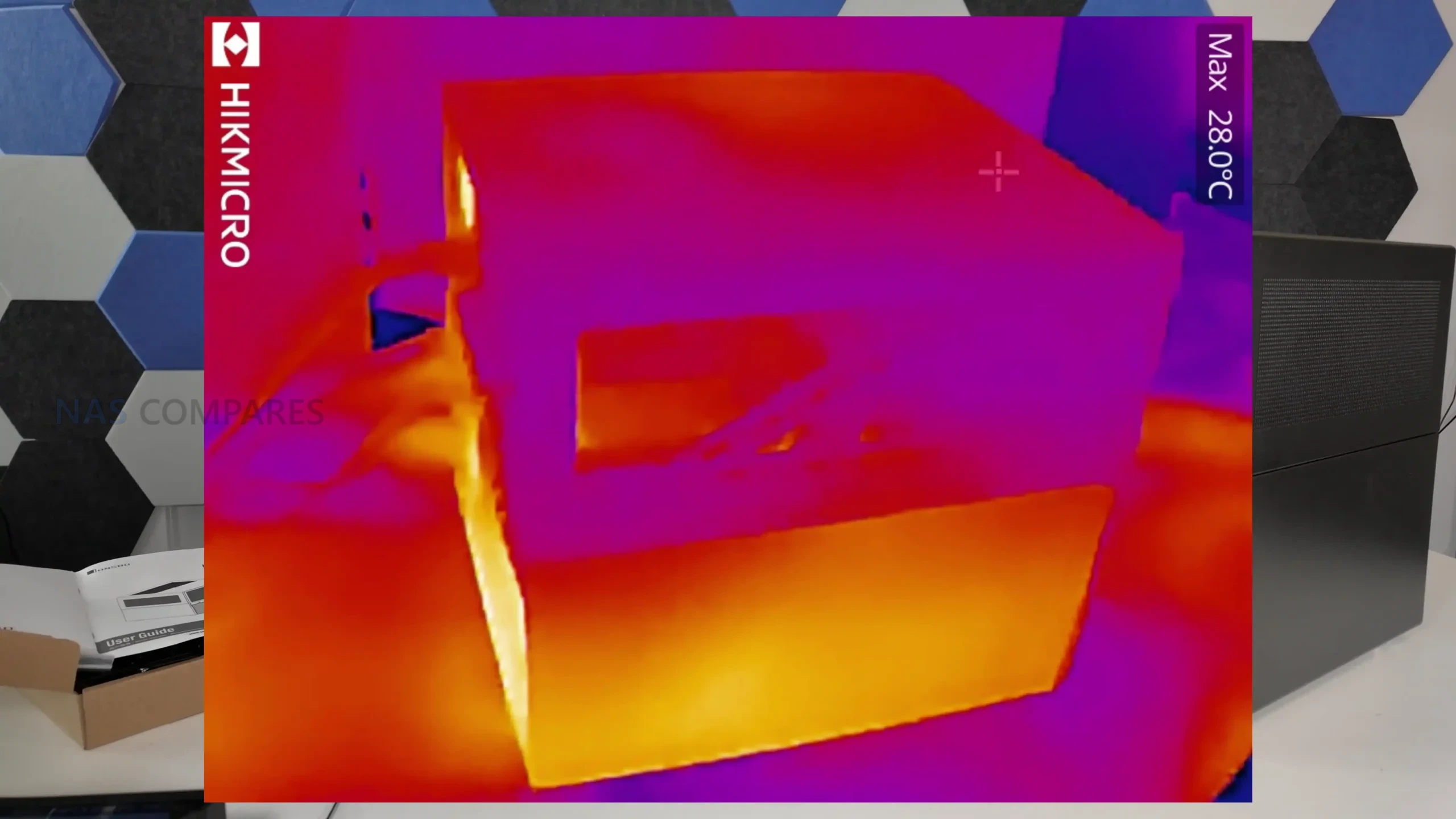
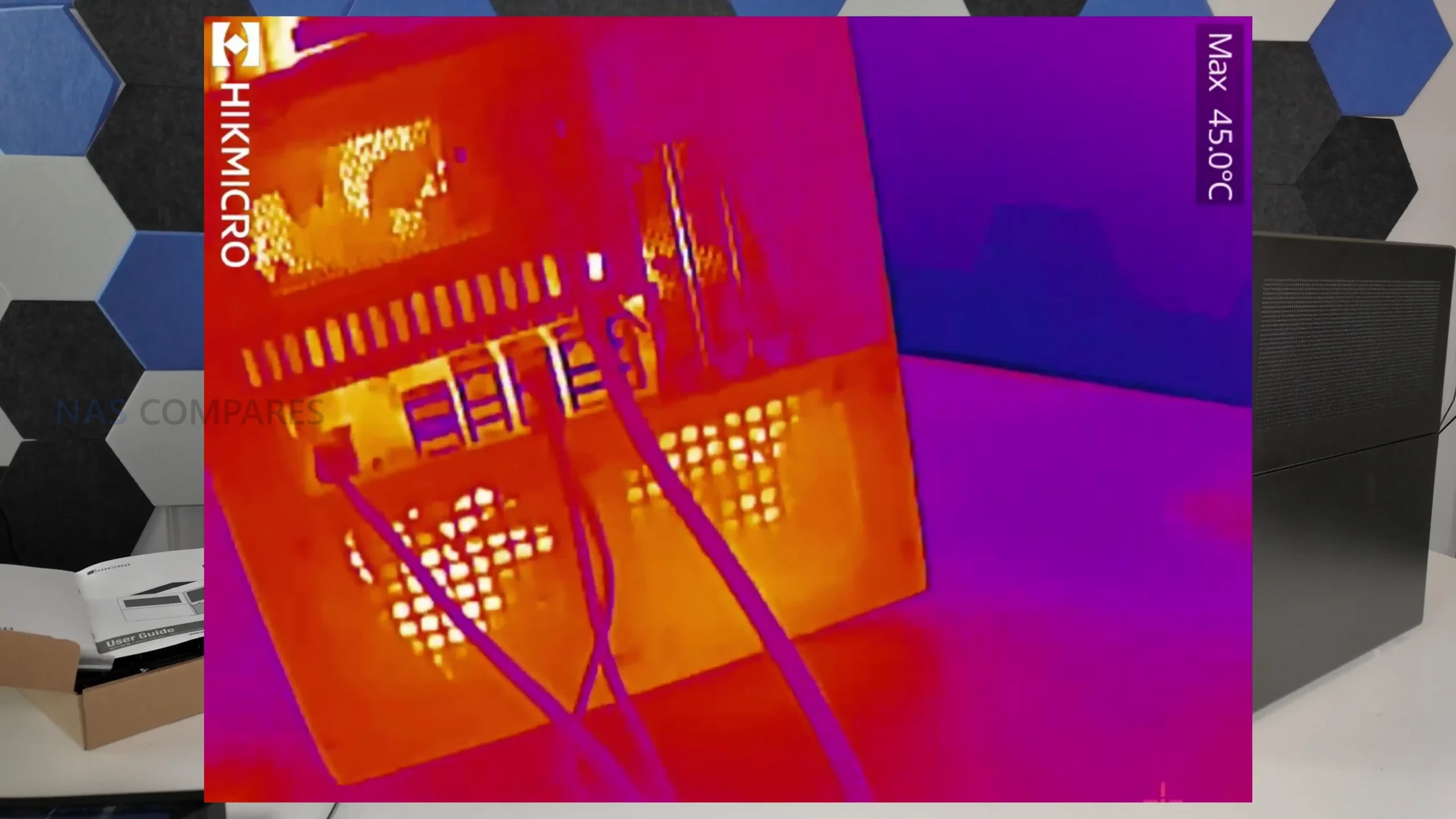
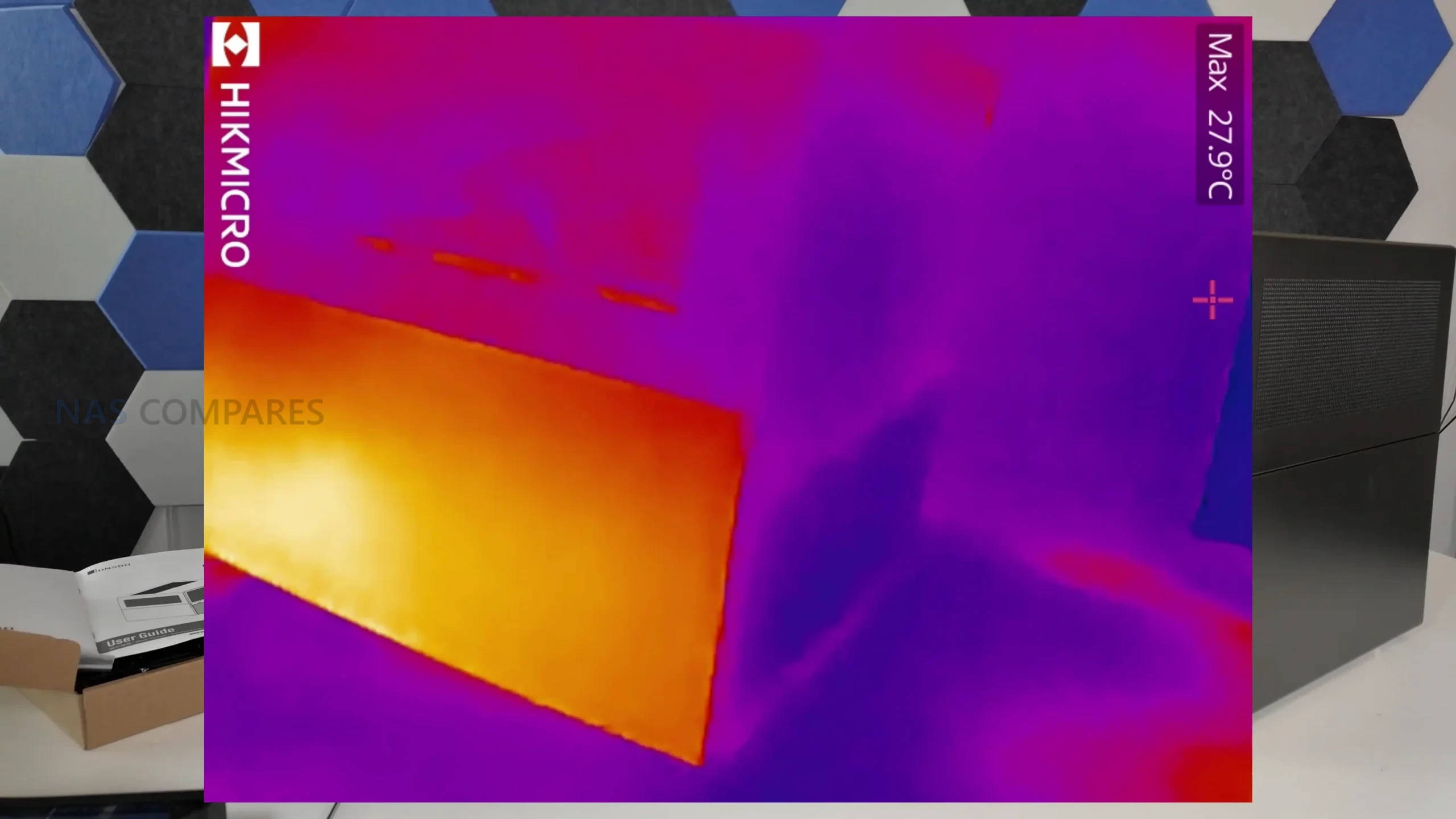
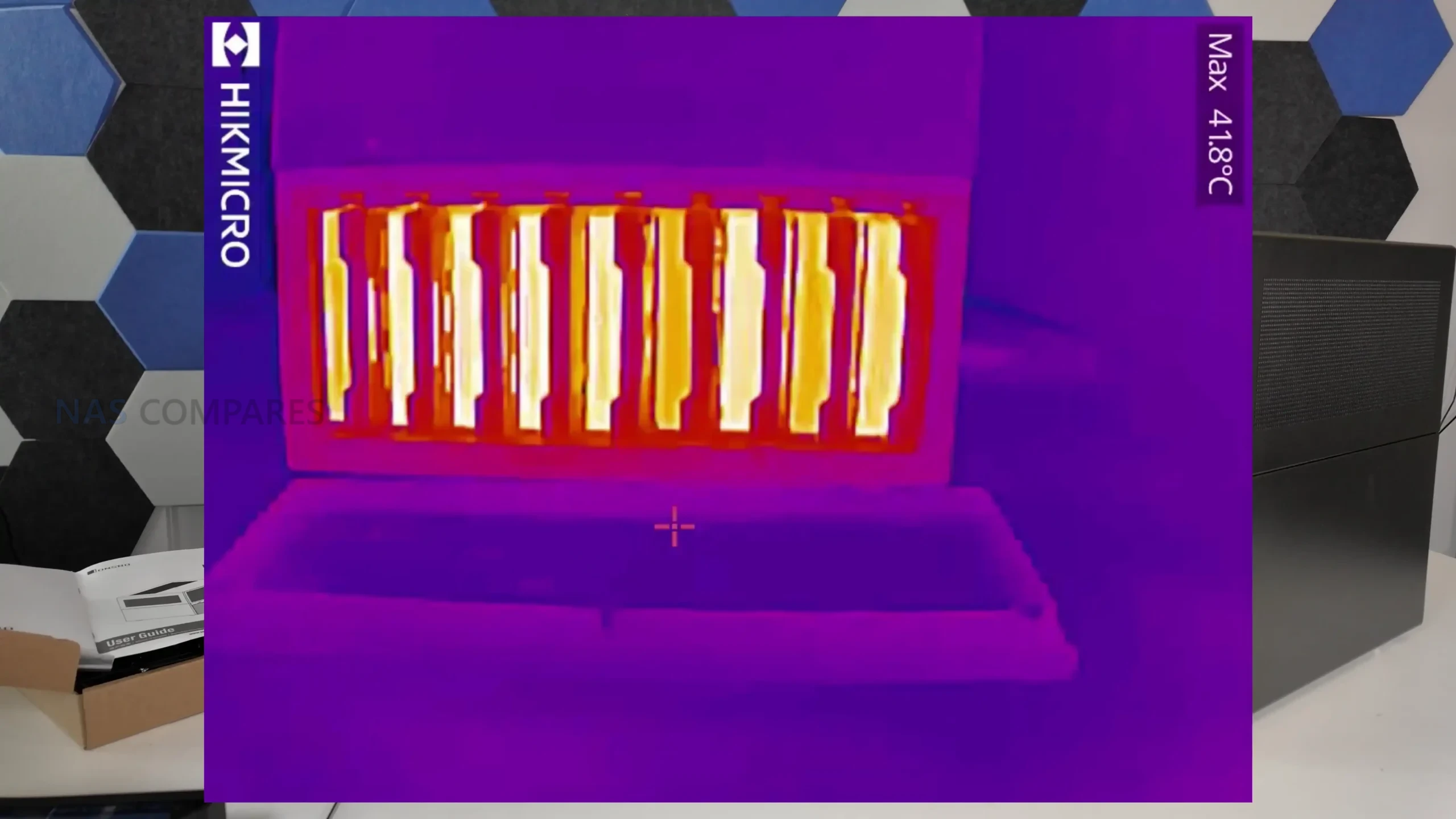
Thermal measurements were taken after the system had been operating continuously for roughly 2.5 days, followed by active load and cooldown observation. Drive temperatures during idle periods generally sat between 25°C and 28°C, with active access pushing internal drive area temperatures to around 42°C. Surface readings across the chassis showed consistent heat distribution, with the rear PCB area and PSU zone measuring close to 42°C, while the top and side panels remained closer to ambient at roughly 26°C to 27°C. These results indicate that while airflow around the drive backplane is not optimal, overall thermal behavior remains within acceptable limits for a 9 bay enclosure.
Test Area
Result
Sequential Read Speed
~2.0 to 2.1 GB/s
Sequential Write Speed
~2.0 to 2.1 GB/s
Idle Noise Level
37 to 39 dBA
Load Noise Level
41 to 44 dBA
Idle Drive Temperature
25°C to 28°C
Load Drive Area Temperature
~42°C
PSU Area Temperature
~41.8°C to 42°C
Jonsbo N6 Review – Verdict and Conclusion
After extended hands on use, the Jonsbo N6 positions itself as a compact but ambitious DIY NAS enclosure that sits clearly between the smaller N4 and the larger, more expansive N5. It delivers a high storage density with 9 drive bays while introducing support for Micro ATX motherboards, which meaningfully expands hardware choice compared with earlier Jonsbo NAS cases. Build quality is consistent with the brand’s established approach, using thick steel panels, simple exterior styling, and a layout that prioritizes airflow potential and internal flexibility over visual flair. The inclusion of drive trays, a physical fan controller, multiple PSU mounting options, and extensive fan support marks a clear evolution over previous generations.
That said, the N6 is not without compromises. ATX motherboard support is effectively absent despite tight tolerances, cooling outcomes remain highly dependent on fan selection and placement, and the backplane design relies on standard SATA connections rather than SAS aggregation. Pricing at launch also places it in a competitive bracket where expectations are higher, particularly around refinement of drive trays and airflow optimization around the disk stack. For users who found the N5 too large or excessive but felt constrained by the N3 or N4, the N6 fills a specific and practical gap. It does not replace the N5 as a flagship option, but it stands as a capable and thoughtfully designed alternative for builders who value density, flexibility, and manageable footprint over absolute expansion.
Check Amazon in Your Region for the Jonsbo N6 Case
This description contains links to Amazon. These links will take you to some of the products mentioned in today's content. As an Amazon Associate, I earn from qualifying purchases. Visit the NASCompares Deal Finder to find the best place to buy this device in your region, based on Service, Support and Reputation - Just Search for your NAS Drive in the Box Below
Need Advice on Data Storage from an Expert?
Finally, for free advice about your setup, just leave a message in the comments below here at NASCompares.com and we will get back to you.Need Help?
Where possible (and where appropriate) please provide as much information about your requirements, as then I can arrange the best answer and solution to your needs. Do not worry about your e-mail address being required, it will NOT be used in a mailing list and will NOT be used in any way other than to respond to your enquiry.
[contact-form-7]
TRY CHAT Terms and Conditions
If you like this service, please consider supporting us.
We use affiliate links on the blog allowing NAScompares information and advice service to be free of charge to you.Anything you purchase on the day you click on our links will generate a small commission which isused to run the website. Here is a link for Amazon and B&H.You can also get me a Ko-fi or old school Paypal. Thanks!To find out more about how to support this advice service checkHEREIf you need to fix or configure a NAS, check FiverHave you thought about helping others with your knowledge? Find Instructions Here
Or support us by using our affiliate links on Amazon UK and Amazon US
Alternatively, why not ask me on the ASK NASCompares forum, by clicking the button below. This is a community hub that serves as a place that I can answer your question, chew the fat, share new release information and even get corrections posted. I will always get around to answering ALL queries, but as a one-man operation, I cannot promise speed! So by sharing your query in the ASK NASCompares section below, you can get a better range of solutions and suggestions, alongside my own.
Christopher Judge, voix de Kratos dans God of War et God of War Ragnarök, s'est peut-être montré un peu trop bavard lors d'une discussion avec la créatrice de contenu Fuzhpuzy. Il a révélé que le prochain épisode pourrait être dévoilé cet été.
Un lave-auto à 100 mètres : faut-il y aller à pied ou en voiture ? Derrière cette question en apparence absurde se cache un test redoutablement efficace pour évaluer le raisonnement des modèles d’IA. Numerama a obtenu des réponses parfois très justes… et parfois étonnamment à côté du sujet.
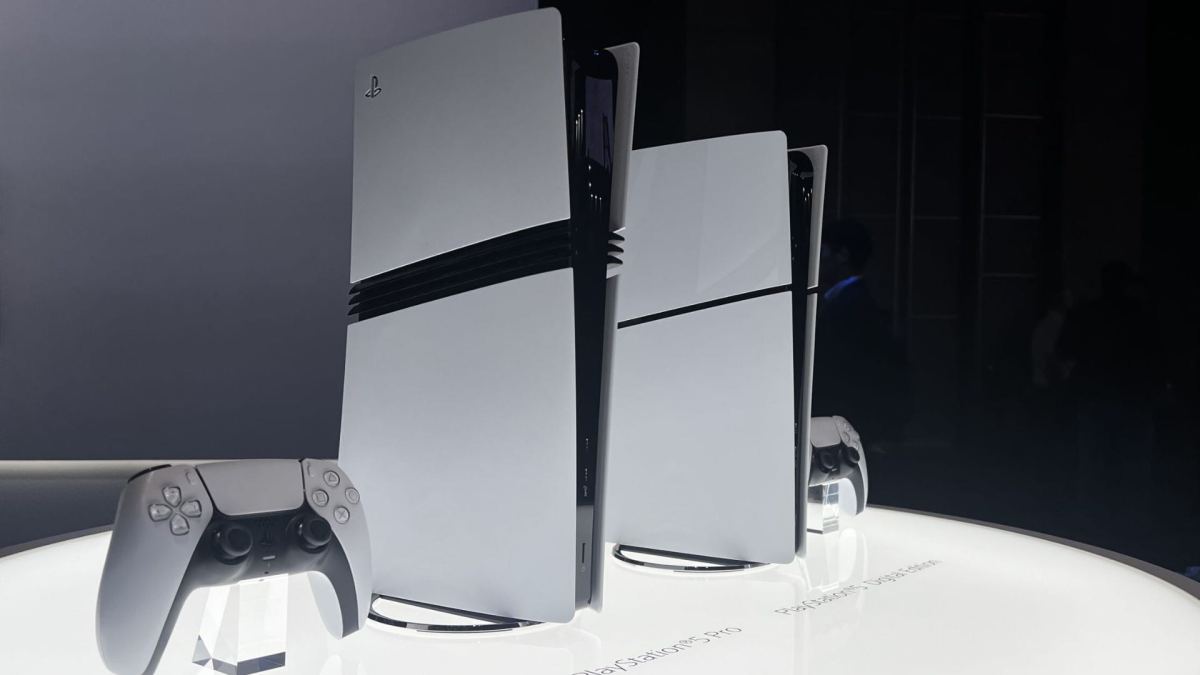
Au catalogue de Sony, on compte désormais deux PS5 : la version Slim (ayant pris la relève du premier modèle FAT) et la version Pro, une version dopée. La vraie question est de savoir laquelle constitue le meilleur investissement pour les prochaines sorties. Ce guide vous aide à trancher.
Unity veut passer de l’assistance au développement à la génération complète de jeux. Son PDG a annoncé une mise à jour de Unity AI capable de créer des casual games jouables à partir d’une simple description en langage naturel.
Commercialisée en 2020, la Xbox Series affiche aujourd'hui un grand catalogue de jeux, parmi lesquels on retrouve quelques pépites qui valent vraiment le coup d'être lancées sur la console. Qu'il s'agisse d'un cadeau ou juste d'une découverte, voici nos recommandations des valeurs sûres sur la console de Microsoft.
La traditionnelle conférence annuelle de Google aura lieu en mai 2026, toujours depuis le campus californien du géant du web. C'est lors de ce (long) événement que Google dévoile toutes ses technologies à venir, à commencer par le futur de Gemini.
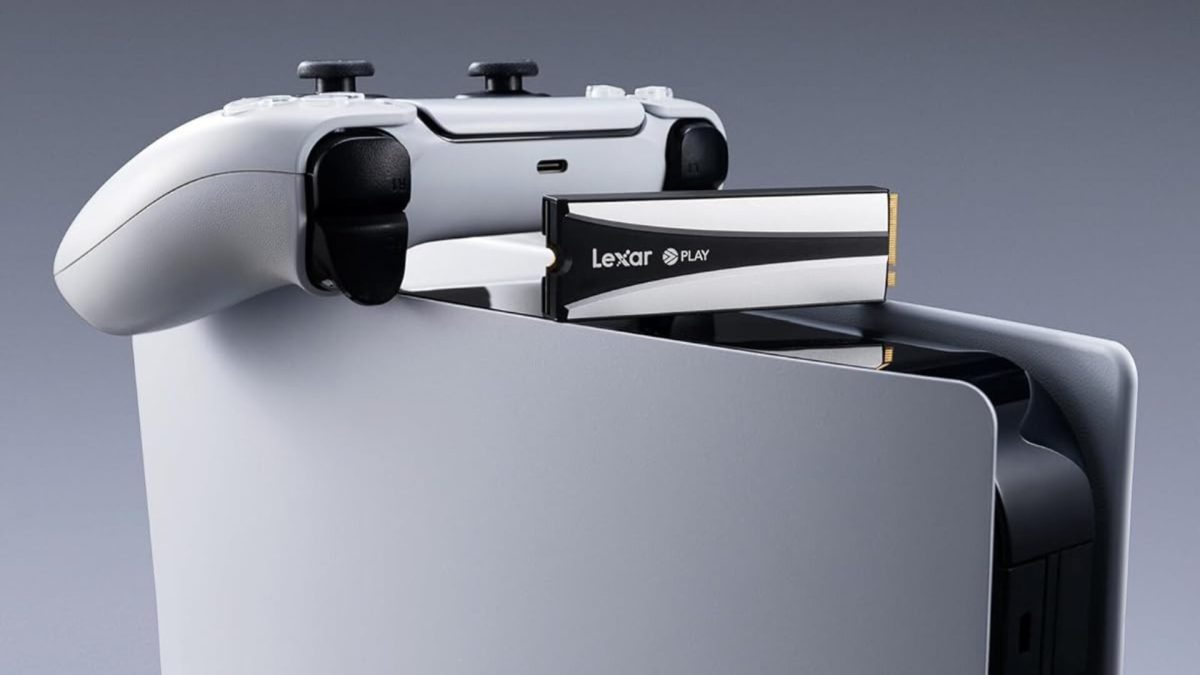
[Deal du jour] Vous souhaitez augmenter le stockage de votre PS5 ou redonner un petit coup de jeune à votre PC ? Ce SSD de Lexar de 2 To est actuellement en promotion.

 Connexion
 En Europe une tendance semble se confirmer. Les prix de la DDR5 commencent à baisser. Est-ce une bonne nouvelle ? Ce n'est pas certain.


















 SUBSCRIBE TO OUR NEWSLETTER


 TRY CHAT






.png)
.png)


.png)




 Competitive Intel-Based Value in a 4 Bay Format with the F4-425 vs other Intel Entry Systems
 Single 2.5GbE Network Port Limits Throughput of the F4-425