USB4 to 2x 10GbE Adapter – Genius, or Too Little Too Late? (QNA-UC10G2T Review)
The QNAP QNA-UC10G2T is a USB 4 to dual 10GbE adapter built for systems that lack native high-speed network expansion and need dependable multi-gig connectivity through a single Type C port. It provides 2 x 10GBASE-T copper ports, supports multi-speed operation from 10Gbps down to 100Mbps, and includes full driver support for Windows 11, macOS 12.7 to 15.4, and Ubuntu 22.04. Internally it uses dedicated AQC113 controllers for each port, allowing the OS to treat the adapter as two distinct NICs and enabling features such as SMB Multi Channel for aggregated bandwidth. The enclosure is a passive full-metal heatsink that spreads thermal load through a multi stage cooling structure, which your testing confirmed remained below typical thermal expectations even during 24-hour sustained transfers. As a premium module priced significantly higher than generic USB 4 adapters, it is designed for users who require stable long-duration performance, predictable throughput, and compatibility with modern USB 4 or Thunderbolt 3 and 4 hosts rather than the improvised multi controller designs seen in low cost alternatives.
QNAP QNA-UC10G2T Review – Quick Conclusion
The QNAP QNA-UC10G2T is a premium dual-port 10GbE adapter built around USB 4, designed for users who need stable, sustained multi gigabit performance rather than the inconsistent behaviour often seen in low cost USB network adapters. Its dual AQC113 controllers provide two discrete interfaces that operate independently at full speed, which allows for reliable SMB Multi Channel operation and predictable multi stream transfers. The all metal chassis functions as a multi stage passive heatsink, keeping temperatures stable during long workloads and preventing throttling even after hours of continuous access. Performance closely matches QNAP’s published figures, with both ports maintaining high throughput when paired with capable NVMe based systems. Driver installation is required on all supported platforms, and the adapter is not currently usable when plugged directly into most NAS operating systems, which limits flexibility. The price is considerably higher than generic USB 4 network adapters, but for professionals who rely on consistent 10GbE throughput on laptops, workstations, or compact systems without PCIe expansion, the QNA-UC10G2T offers a stable, well engineered solution that prioritises long term reliability over entry level cost.
QNAP QNA-UC10G2T Review – Design & Cooling
The QNA-UC10G2T uses a solid metal chassis that functions as a structural shell and a primary thermal dissipation surface, giving it a distinctive weight and density compared with typical USB network dongles. The outer enclosure is machined with large surface area ridges that extend across the top panel, while the base remains flat to maintain direct thermal contact with the internal controllers. This physical design is not decorative but exists to distribute heat from the AQC113 chips into the enclosure walls and then outward into the surrounding airflow. Its appearance is closer to a purpose built passive heatsink than a consumer accessory, which mirrors the product’s emphasis on maintaining stability during sustained high throughput workloads.
Internally the design is organized around a single board layout that places both controllers on the lower PCB surface, pressed directly against the internal heat spreader via thermal pads and paste. This arrangement ensures that the highest heat generating components transfer their thermal output into the metal layers with minimal resistance. Above this, the chassis integrates a second stage aluminium heat spreader that covers the width of the unit, supported by an additional top panel that completes the third passive cooling stage. This layered thermal design reflects a more methodical architecture than the mixed component assemblies found in low cost USB 4 to network adapters, which commonly rely on bridging older interfaces and produce unpredictable heat patterns under load.
The fanless approach is a key design choice, giving the adapter completely silent operation during heavy transfers. In your testing, the enclosure maintained stable temperatures even after several minutes of saturation, typically remaining in the 47 to 51 degree range depending on activity and ambient levels. This thermal profile suggests that the shell’s passive system prevents hot spots and avoids the typical thermal throttling behaviour found in cheaper adapters, especially those built around multiple controllers stacked on different interconnected PCB modules. The predictable cooling also assists long term reliability for users who expect constant 10GbE connectivity during file editing, remote rendering, or multi channel transfers.
The physical I/O layout consists of a single USB 4 Type C port on one end and 2 x 10GBASE T ports on the opposite face, keeping cable paths separated to prevent mechanical strain or excess heat mingling between connectors. The RJ45 ports support Cat 6a cabling as recommended by QNAP and can operate across 10Gbps, 5Gbps, 2.5Gbps, 1Gbps, and 100Mbps speeds depending on the switch or device connected. While minimalistic, this separation aligns with the use case of the adapter as a mobile or desktop expansion tool where the position of cables may influence airflow and heat shedding around the chassis.
The cooling strategy also reflects QNAP’s intention for the adapter to be used in long-running, high-intensity environments rather than short bursts. During your extended 24 hour tests, the chassis maintained consistent thermal readings, with the USB side remaining cooler than the network interface side. The overall thermal balance avoided thermal spikes, which is essential for dual port operation where simultaneous read and write tasks across two 10GbE channels can push less optimized adapters into throttling. By spreading heat evenly across the frame, the device sustains performance in ways that improvised USB 4 adapters often fail to achieve during multi hour workloads.
QNAP QNA-UC10G2T Review – Internal Hardware and Connectivity
Inside the QNA-UC10G2T, the hardware is centred around two AQC113 controllers, each dedicated to one 10GbE port. This avoids the shared bandwidth and internal bottlenecks that occur in budget adapters that route multiple ports through a single controller or bridge older chipsets together. Each controller appears to have a direct path to the USB 4 interface, allowing the host operating system to detect two independent network interfaces. This structure is essential for features such as SMB Multi Channel, NIC bonding, and network segmentation, since it ensures that both ports operate with consistent throughput rather than competing for limited controller resources. The hardware layout intentionally avoids stacked modules or mixed technology bridges, creating a predictable and uniform architecture.
Connectivity through the USB 4 Type C interface is built to support both USB 4 and Thunderbolt 3 and 4 on most systems. QNAP includes a 1m USB 4 certified cable in the package to ensure full bandwidth without relying on third party cables that may deliver reduced link speeds. Host compatibility extends to Windows 11, macOS 12.7 to 15.4, and Ubuntu 22.04, although all require installation of the Marvell AQtion driver to enable proper operation. This software dependency reflects the adapter’s use of high performance controllers that are not handled by generic drivers. The device is not compatible with ARM based Windows systems, which limits use with some compact laptops and tablets but aligns with the adapter’s focus on fully featured desktop and workstation class hardware.
The dual 10GBASE T ports support 10Gbps, 5Gbps, 2.5Gbps, 1Gbps, and 100Mbps operation and auto negotiate based on the connected switch or device. This makes the adapter usable in mixed infrastructure where not all devices run at 10GbE rates. The reliance on RJ45 also gives it broad physical compatibility, making it suitable for direct PC to NAS connections, multi port NAS access, or integration with 10GbE switches. Your testing confirmed that the independent controllers allowed each port to reach close to saturation independently and operate simultaneously with sustained transfer rates across both links.
The internal hardware layout also supports clear network identification through the OS. When connected, the adapter exposes two discrete interfaces, each carrying its own MAC address, speed negotiation, and jumbo frame support. This allows users to create dedicated VLANs, segment traffic, or assign separate subnets without the limitations seen in single controller USB adapters that present only one interface for both ports. The device is therefore capable of acting as a genuine dual port NIC rather than a multi port breakout filtered through a single internal path. In testing, each interface responded consistently when used with tools such as iperf and CrystalDisk, confirming symmetric behaviour between both controllers.
While the adapter is designed primarily for client devices, your testing highlighted that direct USB 4 to 10GbE connectivity on NAS platforms remains limited. Most NAS operating systems lack mature USB 4 drivers or Thunderbolt over IP integration, which prevented the adapter from functioning when connected directly to TrueNAS or Unraid. This reflects current software gaps rather than a hardware limitation, and future NAS platforms with USB 4 or Thunderbolt support may unlock additional use cases. For now, the hardware is best suited to upgrading laptops, mini PCs, and workstations where USB 4 is available and supported through platform level drivers.
QNAP QNA-UC10G2T Review – Performance
In practical testing, the QNA-UC10G2T delivered sustained throughput that closely aligned with QNAP’s published figures, with both ports maintaining stable operation during long running transfers. When used with IP based benchmarking tools, each 10GbE connection reached near saturation independently, confirming that the internal controllers can deliver full bandwidth without cross interference. During concurrent testing where two separate sessions targeted different devices, both ports maintained consistent performance levels, which demonstrated the benefit of having two discrete AQC113 controllers rather than a single shared architecture that would introduce contention under load.
The adapter also showed strong results during SMB based file transfers, which typically stress both network performance and host storage. Using high speed NVMe backed devices such as the Minisforum MSS1 Max and the Asustor Flashstor Gen 2, throughput regularly approached the upper limits of a single 10GbE link and in some cases exceeded 13 to 14 Gbps combined when SMB Multi Channel was enabled. This reflected not only raw link speed but the ability of the device to maintain a stable, predictable data path without drops or thermal throttling. The performance was also consistent during repeated transfers, confirming sustained operation rather than peak only figures.
Thermal stability had a direct impact on performance, and the adapter’s multi stage passive cooling structure prevented heat buildup during heavy access. After several minutes of continuous transfer, external surface readings typically ranged from 47 to 51 degrees depending on the measurement point, with the USB interface side remaining cooler than the network side. Even after 24 hours of operation, temperatures remained within a narrow range, and throughput did not degrade. This behaviour contrasts with budget adapters built from stacked controller layers, which often throttle or lose throughput when thermals rise beyond the enclosure’s capacity to dissipate heat.
The adapter performed best when paired with systems that support jumbo frames, high performance modes, and direct NVMe based storage, since these environments can fully exploit dual 10GbE bandwidth. On platforms that lack USB 4 optimisation or rely on generic drivers, performance may vary, and your testing confirmed that most NAS operating systems were unable to recognise the adapter due to limited Thunderbolt or USB 4 networking support. For desktop and mobile clients, however, the performance remained consistent and aligned closely with QNAP’s internal lab measurements, provided that the user installed the appropriate drivers and used the supplied USB 4 certified cable.
QNAP QNA-UC10G2T Review – Verdict & Conclusion
The QNA-UC10G2T positions itself as a specialised tool for users who require reliable dual 10GbE connectivity through a single USB 4 port and are prepared to invest in a more robust architecture than the improvised solutions found in low cost adapters. Its metal chassis, multi stage passive cooling design, and independent AQC113 controllers result in predictable behaviour during long duration workloads, with sustained throughput that remains close to full 10GbE saturation on both ports. The requirement for platform specific drivers and the lack of NAS side support limits its flexibility in certain environments, yet for desktop systems, laptops, and compact workstations, the adapter provides one of the most stable USB based 10GbE implementations currently available.
Although priced well above many alternatives, the hardware and performance characteristics position it for users who prioritise reliability over entry level cost. Photographers, editors, engineers, and remote teams who depend on consistent multi gig file transfers may find the premium justified, especially when mobility or small form factor systems prevent installation of PCIe cards. For users simply seeking an inexpensive path to 10GbE, the high cost will be difficult to justify, but for those needing dependable, long term dual port connectivity in a portable form, the QNA-UC10G2T delivers a focused and technically capable solution.
QNAP QNA-UC10G2T Adapter PROs
QNAP QNA-UC10G2T Adapter CONs
• Dual AQC113 controllers provide two fully independent 10GbE interfaces • Sustained throughput remains close to line speed on both ports during long transfers • Multi stage passive cooling design maintains stable thermals without throttling • Full metal chassis acts as a large heat spreader for consistent performance • Broad client OS compatibility with Windows 11, macOS 12.7 to 15.4, and Ubuntu 22.04 • Supports SMB Multi Channel for aggregated bandwidth beyond a single 10GbE link • USB 4 architecture avoids the bandwidth contention common in low cost adapters
• High purchase price compared with consumer grade USB to 10GbE adapters • Requires manual driver installation on all supported platforms • Limited or no support when connected directly to most NAS operating systems at the moment
This description contains links to Amazon. These links will take you to some of the products mentioned in today's content. As an Amazon Associate, I earn from qualifying purchases. Visit the NASCompares Deal Finder to find the best place to buy this device in your region, based on Service, Support and Reputation - Just Search for your NAS Drive in the Box Below
Need Advice on Data Storage from an Expert?
Finally, for free advice about your setup, just leave a message in the comments below here at NASCompares.com and we will get back to you.Need Help?
Where possible (and where appropriate) please provide as much information about your requirements, as then I can arrange the best answer and solution to your needs. Do not worry about your e-mail address being required, it will NOT be used in a mailing list and will NOT be used in any way other than to respond to your enquiry.
[contact-form-7]
TRY CHAT Terms and Conditions
If you like this service, please consider supporting us.
We use affiliate links on the blog allowing NAScompares information and advice service to be free of charge to you.Anything you purchase on the day you click on our links will generate a small commission which isused to run the website. Here is a link for Amazon and B&H.You can also get me a Ko-fi or old school Paypal. Thanks!To find out more about how to support this advice service checkHEREIf you need to fix or configure a NAS, check FiverHave you thought about helping others with your knowledge? Find Instructions Here
Or support us by using our affiliate links on Amazon UK and Amazon US
Alternatively, why not ask me on the ASK NASCompares forum, by clicking the button below. This is a community hub that serves as a place that I can answer your question, chew the fat, share new release information and even get corrections posted. I will always get around to answering ALL queries, but as a one-man operation, I cannot promise speed! So by sharing your query in the ASK NASCompares section below, you can get a better range of solutions and suggestions, alongside my own.
UGREEN DXP4800 PRO Review – Step Up, or Side Step?
The UGREEN NASync DXP4800 Pro is a 4 bay desktop NAS that builds on the existing DXP4800 Plus rather than replacing it outright. From a hardware and design perspective, the system remains very familiar, but it introduces a newer Intel Core i3 1315U processor and increases the maximum supported memory to 96GB. Networking remains unchanged, with both 10GbE and 2.5GbE available, and the unit continues to support dual NVMe SSDs for caching or dedicated storage pools. These updates position the DXP4800 Pro as a slightly more capable option for users who want additional CPU headroom without moving into a larger and more expensive multi bay platform.
Category
Specification
Model
UGREEN NASync DXP4800 Pro
Drive Bays
4 x SATA (2.5 inch and 3.5 inch)
CPU
Intel Core i3 1315U
Memory
8GB DDR5 5600MHz, expandable to 96GB
ODECC
Supported
M.2 Slots
2 x M.2 NVMe
System Drive
128GB SSD (flash memory system disk)
RAID
JBOD, Basic, RAID 0, 1, 5, 6, 10
Max Storage
136TB (4 x 30TB plus 2 x 8TB)
LAN
1 x 2.5GbE, 1 x 10GbE
USB Front
1 x USB C 10Gbps, 1 x USB A 10Gbps
USB Rear
1 x USB A 5Gbps, 2 x USB A 480Mbps
SD Card
SD 3.0
HDMI
4K (60Hz mentioned in product overview)
OS
UGOS Pro
Dimensions
10.1 inch x 7.0 inch x 7.0 inch
Power
42.36W drive access, 18.12W drive hibernation
Warranty
2 years
Price
$699.99 (diskless, listed sale price)
At launch, the DXP4800 Pro is listed as a diskless system at $699.99 and is aimed at home power users, creators and small offices looking for a turnkey NAS that can handle container workloads, virtual machines and media workloads more comfortably than entry level models. While the hardware changes are relatively contained, they directly affect performance scaling and long term flexibility. This makes the DXP4800 Pro less of a generational leap and more of a mid cycle refinement, intended for buyers who want modest improvements in processing capability and memory capacity while keeping the same overall form factor and feature set.
UGREEN DXP4800 PRO Review – Quick Conclusion
The UGREEN NASync DXP4800 Pro is a 4 bay NAS that focuses on incremental improvement rather than major change, pairing an Intel Core i3 1315U with up to 96GB of DDR5 memory, dual NVMe slots and 10GbE plus 2.5GbE networking in the same compact metal chassis as the DXP4800 Plus. It delivers solid real world performance for file transfers, SSD caching, media workloads and container use, with good NVMe throughput and reliable 10GbE performance, but power consumption is noticeably higher than lower power NAS alternatives and internal SSD to SSD transfers do not always reach their theoretical limits. Build quality and storage flexibility are strong, noise levels are generally reasonable but rise under heavy load, and thermals remain under control despite limited underside clearance. UGOS Pro offers a broad feature set with Docker, virtualization, snapshots and AI assisted photo tools, though its security scanning remains focused on malware rather than wider system hardening and application availability is still maturing. Overall, the DXP4800 Pro is a capable and well balanced mid tier NAS best suited to users who want extra CPU headroom and long term flexibility, but it does not represent a compelling upgrade for existing DXP4800 Plus owners and its value depends largely on how much the added performance will actually be used.
SOFTWARE - 8/10
HARDWARE - 8/10
PERFORMANCE - 8/10
PRICE - 8/10
VALUE - 9/10
8.2
PROS
Intel Core i3 1315U provides noticeably more CPU headroom than the DXP4800 Plus, particularly for multitasking, containers and light virtualization Supports up to 96GB of DDR5 memory, offering strong long term flexibility for advanced workloads Dual network ports with both 10GbE and 2.5GbE included, enabling high speed transfers without link aggregation Dual M.2 NVMe slots support SSD caching or dedicated SSD storage pools alongside SATA drives Dedicated 128GB system SSD keeps the operating system separate from main storage volumes. Plus, usable with TrueNAS, UnRAID, OMV etc Solid metal chassis with good overall build quality and effective passive heat dissipation Good real world performance over 10GbE for both SATA RAID arrays and NVMe storage UGOS Pro includes Docker, virtualization, snapshots and AI assisted photo management without subscription fees
CONS
Higher power consumption than low power NAS systems, particularly under sustained CPU and disk load Hardware changes are incremental, making it a limited upgrade for existing DXP4800 Plus owners - and the DXP6800 is only a smaller spend away! Security scanning tools focus mainly on malware and lack deeper configuration or exposure analysis
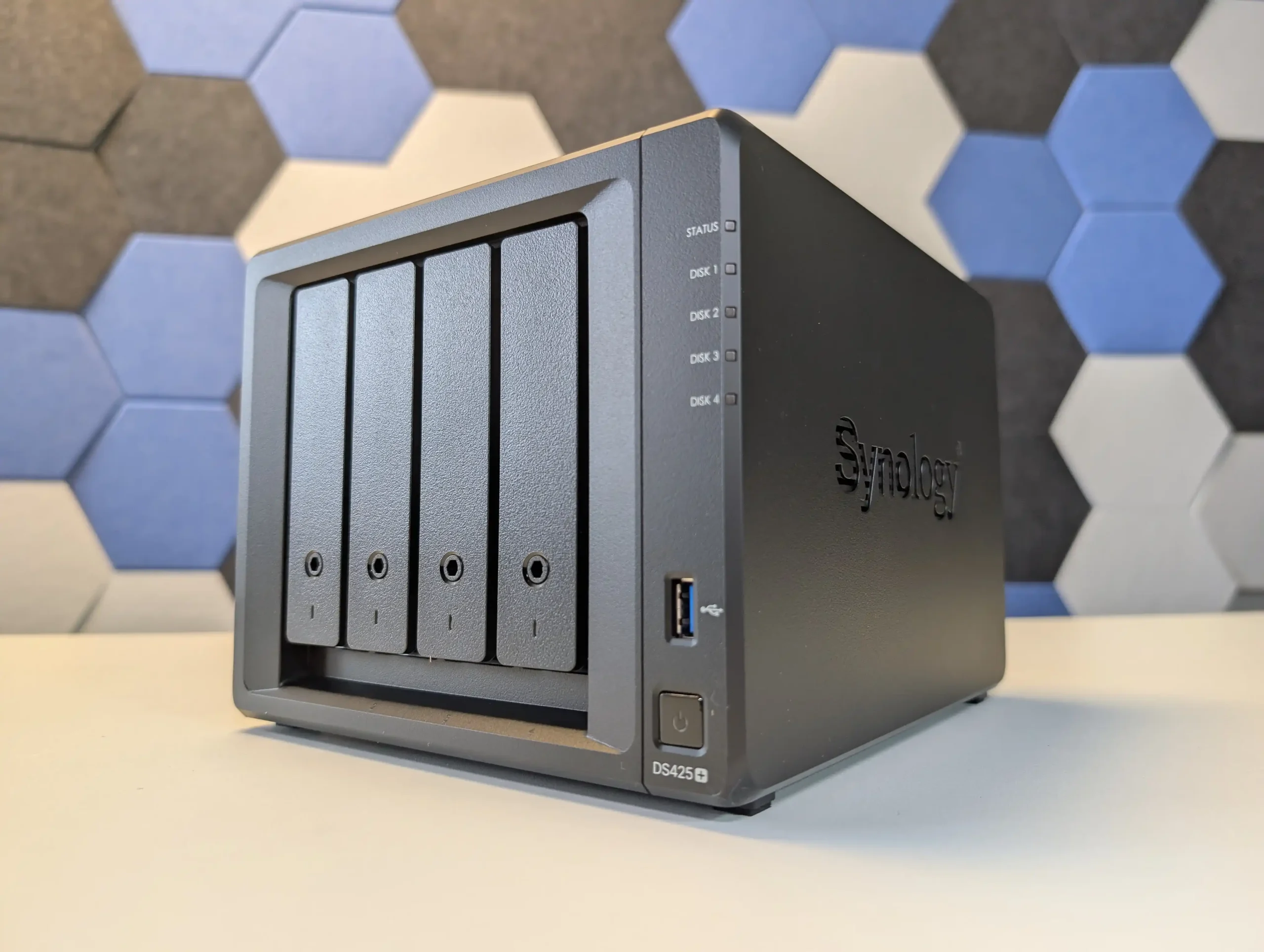
The DXP4800 Pro continues to use the same compact metal chassis as the DXP4800 Plus, with no structural redesign to the enclosure itself. The overall dimensions and layout remain unchanged, which makes it easy to place alongside other desktop NAS systems in this class. While the external appearance is largely identical, the surface finish feels slightly different to the touch compared with the earlier model. This change does not affect durability or rigidity, but it does subtly distinguish the Pro from the Plus when handled directly. The metal construction also plays a functional role by assisting with passive heat dissipation across the enclosure.
On the front of the unit, four SATA drive bays are arranged vertically and support both 2.5 inch and 3.5 inch drives. The trays are tool free and lockable, with keys included, which provides a basic level of physical drive security.
Each bay connects to a shared backplane that feeds into an ASMedia 1164 SATA controller running over a PCIe Gen3 x2 link. This controller configuration is typical for a 4 bay NAS and provides adequate bandwidth for RAID 5 and RAID 6 arrays without becoming an immediate bottleneck under normal workloads.
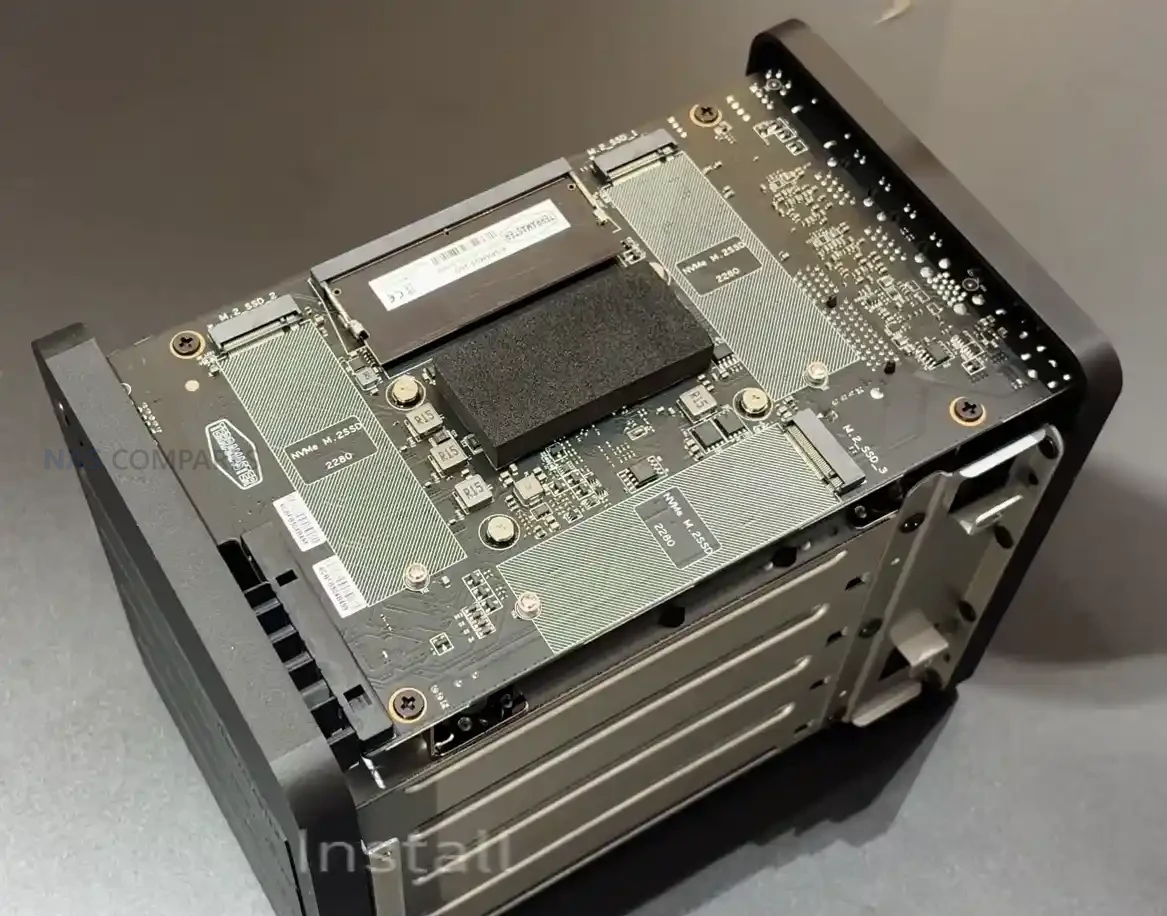
Additional storage options are located on the underside of the chassis. Removing a small access panel reveals two M.2 NVMe slots along with two DDR5 SODIMM memory slots. This placement keeps the top and sides of the enclosure clean but requires the system to be powered down and removed from its location for upgrades. The two user accessible NVMe slots operate at PCIe Gen4 x4 speeds and can be used for SSD caching or for creating dedicated SSD storage pools, depending on workload requirements.
Thermal handling for the NVMe drives is addressed through the use of thick thermal pads that make direct contact with the metal base panel. Once installed, the base of the chassis effectively acts as a large passive heat spreader. Clearance between the bottom of the NAS and the desk surface is limited, which restricts airflow underneath the unit. However, during typical usage this design appears sufficient to keep NVMe temperatures within reasonable operating ranges, particularly when combined with the system’s active rear fan.
From a storage flexibility standpoint, the DXP4800 Pro offers a conventional but well rounded setup. Users can combine large capacity SATA drives with high speed NVMe SSDs, configure multiple RAID types, or separate workloads across different storage pools. While there is no support for external expansion units or PCIe add in cards, the internal layout covers the needs of most home and small office users looking for a balance between capacity, performance and simplicity.
UGREEN DXP4800 PRO Review – Internal Hardware
At the core of the DXP4800 Pro is the Intel Core i3 1315U, a 13th generation processor that replaces the Pentium Gold used in the DXP4800 Plus. This CPU brings a higher core and thread count, along with slightly higher boost frequencies and improved integrated graphics capability. In practical terms, this provides more headroom for parallel workloads such as Docker containers, background indexing tasks and light virtual machine use. While it is still a mobile class processor, it represents a measurable step up in sustained performance compared with the previous model.
The system ships with 8GB of DDR5 memory running at 5600MHz and supports expansion up to 96GB across two SODIMM slots. This increased memory ceiling is one of the more meaningful hardware changes, particularly for users running multiple services simultaneously or experimenting with virtualization. ODECC support is listed, although this remains dependent on compatible memory modules. Accessing the memory slots requires removing the base panel, which is straightforward but not tool free.
Internally, the DXP4800 Pro also includes a dedicated 128GB SSD used as the system drive for UGOS Pro. This drive operates independently of the two user accessible NVMe slots and ensures the operating system does not consume space from the main storage pools. The presence of a separate system disk also allows users to repurpose the NAS with alternative operating systems if desired, without interfering with the primary storage configuration or voiding the hardware warranty.
UGREEN DXP4800 PRO Review – Ports and Connections
The DXP4800 Pro offers the same port layout as the DXP4800 Plus, with no changes to the overall external connectivity. On the networking side, it includes both a 2.5GbE port and a 10GbE port on the rear of the unit. This dual network setup allows the system to integrate easily into standard home or office networks while also supporting higher bandwidth workflows where compatible switches and clients are available. Link aggregation is not required to access higher speeds, as the 10GbE port operates independently.
USB connectivity is split between the front and rear panels. On the front, there is one USB C and one USB A port, both operating at up to 10Gbps. These are suited for fast external storage, temporary backups or quick data transfers without needing to access the rear of the system. The rear panel includes one USB A port running at 5Gbps, along with two USB 2.0 ports intended for lower bandwidth peripherals such as UPS connections or input devices.
Additional I O options include an SD 3.0 card reader on the front panel and an HDMI output on the rear. The SD slot is primarily aimed at photographers and videographers who regularly offload media directly to the NAS, while the HDMI port supports local display output at up to 4K resolution. Together, these ports allow the DXP4800 Pro to function not only as a network storage device but also as a basic local media or management system when connected directly to a display.
UGREEN DXP4800 PRO Review – Noise, Heat, Power and Performance Tests
In network file transfers using four SATA hard drives configured in RAID 5, the DXP4800 Pro delivers performance in line with expectations for a 4 bay NAS equipped with 10GbE. Sequential read speeds during testing typically fell in the 450 to 500MB/s range, while write speeds were closer to 300 to 350MB/s. These figures reflect the limits of mechanical drives rather than any immediate system bottleneck, and represent a noticeable uplift compared with single drive performance when accessed over a high speed network connection.
NVMe performance is stronger, particularly when the two user accessible M.2 slots are configured as an SSD storage pool. Synthetic benchmarks conducted within the system reported read speeds in the 5.5 to 6GB/s range, while real world transfers over a 10GbE connection sustained approximately 660 to 680MB/s when copying large media files.
These results are consistent with the constraints of the network interface and show that the NVMe subsystem is not the limiting factor during external transfers.
1GB x 100 – SSH Read/Write Test over SSH – SSD Bay #1 (Gen 3×4 Slot)
1GB x 100 – SSH Read/Write Test over SSH – SSD Bay #2 (Gen 4×4 Slot)
Internal SSD testing via SSH revealed some variation depending on which drives were involved. The system SSD, operating over PCIe Gen3 x4, delivered around 3.1GB/s read and 2.4GB/s write in repeated tests.
Transfers between the two PCIe Gen4 NVMe drives reached higher raw throughput in isolation, but inter SSD transfers were lower than expected (AROUND 1-2 to 1.5Gb/s, suggesting that some operations may still route through system level processes rather than achieving full peer to peer speeds.
Power consumption is higher than that of entry level NAS models using low power CPUs. With four hard drives installed and both network ports connected, idle power draw measured around 28W. Under moderate load with active disks and light CPU usage, consumption increased to approximately 58 to 59W. At sustained full load, including CPU intensive tasks, active hard drives, NVMe access and network activity, power draw peaked in the low to mid 80W range. Noise levels remained modest at idle, but increased noticeably under heavy drive or cooling loads, particularly when the fan profile was set to prioritize cooling over acoustics.
During extended testing, the DXP4800 Pro maintained generally stable operating temperatures across the chassis and internal components, even under mixed workloads. After a 24 hour period with intermittent access and background activity, external surface temperatures measured in the mid to high 30°C range across most of the enclosure, with the front drive area and drive bays reaching the low 40°C range. The rear fan area and network ports remained cooler, typically in the high 30°C range. Particular attention was paid to the underside of the chassis, where the NVMe SSDs are thermally coupled to the metal base panel using thick thermal pads. Despite the relatively low clearance between the NAS and the desk surface, temperatures at the base remained around 34 to 35°C, indicating that heat dissipation through the chassis was effective. Overall, thermal behavior was well controlled for a compact metal 4 bay NAS, with no signs of excessive heat buildup during sustained operation.
Multimedia testing with Jellyfin showed that the DXP4800 Pro handles both playback and transcoding tasks efficiently for a system in this class. When playing high bitrate 4K HEVC content with hardware transcoding enabled, GPU utilization remained low, typically in the mid single digit percentage range, indicating effective use of Intel Quick Sync. Scaling up to 8K content, hardware transcoding continued to perform reliably, with GPU usage generally staying below the low teens and CPU utilization remaining modest.
Native playback of multiple 8K files without transcoding placed limited strain on the system, while simultaneous transcoding of several 8K streams pushed CPU usage higher but still within manageable limits. Overall, Jellyfin performance on the DXP4800 Pro demonstrates that the upgraded CPU and integrated graphics provide sufficient headroom for demanding media workloads, particularly when hardware acceleration is used, without causing system instability or excessive resource contention.
UGREEN DXP4800 PRO Review – Software and Services
The DXP4800 Pro runs UGREEN’s UGOS Pro operating system, which is accessed through a web browser, desktop client or mobile app. Initial setup is straightforward, with the desktop and mobile applications able to automatically detect the NAS on the local network. Most day to day management tasks are handled through a centralized web interface that groups storage, users, services and security settings in a way that is generally easy to navigate, even when multiple features are enabled at the same time.
User and security management are handled through the control panel, where password policies, account permissions and two factor authentication can be configured. The system supports individual users and groups, allowing access rights to be defined at both the folder and application level.
Basic security tools such as IP blocking rules and login attempt limits are included, although the built in security scanning focuses primarily on malware detection rather than broader configuration audits, such as identifying weak passwords or exposed services.
Storage and backup functionality is spread across several integrated tools. Users can create and manage RAID arrays, SSD caches or NVMe storage pools directly from the storage manager. Both EXT4 and BTRFS are supported, with BTRFS enabling snapshot based protection and file versioning. Backup options include local backups, synchronization between folders, backups to other NAS systems and support for iSCSI targets, which may be of interest to users running virtual machines or editing workloads from external systems.
Application support covers a range of common NAS use cases, including Docker containers, a built in virtual machine manager and a growing selection of multimedia tools. Photo management includes AI assisted features such as face recognition, object detection and duplicate filtering, all of which can be enabled or restricted on a per folder basis.
Video playback can be handled through the built in media tools or via third party applications such as Jellyfin, which supports hardware accelerated transcoding. While the platform continues to evolve, the software experience on the DXP4800 Pro is largely defined by the same strengths and limitations seen across the wider UGREEN NAS lineup.
UGREEN DXP4800 PRO vs DXP4800 PLUS – What Is The Difference?
The primary difference between the DXP4800 Pro and the DXP4800 Plus is the processor. The Plus model uses the Intel Pentium Gold 8505, a 12th generation x86 CPU with 5 cores and 6 threads that operates at a variable clock speed and delivers moderate performance for general NAS tasks. The Pro upgrades this to the Intel Core i3 1315U, a 13th generation processor with 6 cores and 8 threads that generally offers higher base and boost clock speeds. In addition to more cores and threads, the i3 benefits from a broader instruction set and enhanced power management, allowing it to sustain higher performance under load without excessive thermal or power draw penalties.
While both CPUs are built on Intel’s “Intel 7” process and share similar TDP behaviour, the Core i3 has a higher turbo frequency ceiling and stronger integrated graphics. This translates to improved performance in parallel workloads, multimedia tasks and certain GPU assisted processes. The integrated graphics in the i3 are also more capable than those in the Pentium Gold, which can assist in hardware accelerated transcoding and UI responsiveness, though neither CPU is designed for heavy graphical workloads. In practical use, the i3’s combination of higher clocks, additional threads and more robust graphics support results in more headroom for Docker, indexing, virtual machines or sustained multi service usage than the Pentium Gold.
Specification
Intel Pentium Gold 8505
Intel Core i3 1315U
Generation
12th Gen Alder Lake
13th Gen Raptor Lake
CPU Cores
5 cores (1P + 4E)
6 cores (2P + 4E)
Threads
6 threads
8 threads
Base Clock
1.2GHz
1.2GHz
Max Turbo Clock
Up to 4.4GHz
Up to 4.5GHz
Cache
8MB Intel Smart Cache
10MB Intel Smart Cache
Memory Support
Up to 64GB DDR5
Up to 96GB DDR5
Memory Channels
Dual channel
Dual channel
Integrated Graphics
Intel UHD Graphics
Intel Iris Xe Graphics
GPU Execution Units
48 EUs
64 EUs
Max GPU Frequency
Up to 1.10GHz
Up to 1.25GHz
TDP Range
15W base, configurable
15W base, configurable
Memory is the second meaningful distinction between the two systems. Both ship with 8GB of DDR5 RAM, support ODECC and use a dual SODIMM layout, but the maximum supported capacity differs. The DXP4800 Plus supports up to 64GB, while the DXP4800 Pro increases this limit to 96GB, allowing more room for virtual machines, larger container stacks or memory intensive applications over time. Outside of CPU and memory, the two models are effectively identical. They share the same chassis, 4 bay SATA layout, dual M.2 NVMe slots, dedicated 128GB system SSD, identical RAID options, dual Ethernet ports (10GbE plus 2.5GbE), front and rear USB connectivity, SD 3.0 card reader and an HDMI output. Power consumption figures and physical dimensions are also the same on paper. As a result, the Pro model is best viewed as a performance focused refinement rather than a broader feature upgrade, with its value tied almost entirely to the stronger CPU performance and higher memory ceiling rather than any changes to storage, networking or overall platform design.
UGREEN DXP4800 PRO Review – Verdict & Conclusions
The UGREEN NASync DXP4800 Pro positions itself as a careful update to the existing DXP4800 Plus rather than a clear generational replacement. The transition to the Intel Core i3 1315U brings tangible improvements in CPU capability, particularly for users running multiple background services, Docker containers or occasional virtual machines. The higher memory ceiling also improves long term flexibility, especially for workloads that scale gradually over time. At the same time, the unchanged chassis, storage layout and connectivity mean that day to day usage will feel very familiar to anyone who has used earlier DXP models. From a broader perspective, the DXP4800 Pro sits in a narrow space within UGREEN’s lineup.
It offers more processing headroom than the Plus model, but it does not fundamentally change what the platform can do. Network performance, storage expandability and external I O remain the same, and the gains are most noticeable under heavier or more sustained workloads rather than light file serving. This makes the system better suited to users who already know they will push the CPU or memory harder, rather than those simply looking for basic network storage. For new buyers, the DXP4800 Pro can be a sensible choice if the price difference over the DXP4800 Plus is reasonable and the additional CPU capacity is likely to be used. For existing Plus owners, the case for upgrading is limited unless current workloads are already CPU constrained. Overall, the DXP4800 Pro is a competent and well executed 4 bay NAS that emphasizes incremental improvement over innovation. Its appeal lies in refinement and stability rather than standout features, and its value ultimately depends on whether those refinements align with the intended use case.
This description contains links to Amazon. These links will take you to some of the products mentioned in today's content. As an Amazon Associate, I earn from qualifying purchases. Visit the NASCompares Deal Finder to find the best place to buy this device in your region, based on Service, Support and Reputation - Just Search for your NAS Drive in the Box Below
Need Advice on Data Storage from an Expert?
Finally, for free advice about your setup, just leave a message in the comments below here at NASCompares.com and we will get back to you.Need Help?
Where possible (and where appropriate) please provide as much information about your requirements, as then I can arrange the best answer and solution to your needs. Do not worry about your e-mail address being required, it will NOT be used in a mailing list and will NOT be used in any way other than to respond to your enquiry.
[contact-form-7]
TRY CHAT Terms and Conditions
If you like this service, please consider supporting us.
We use affiliate links on the blog allowing NAScompares information and advice service to be free of charge to you.Anything you purchase on the day you click on our links will generate a small commission which isused to run the website. Here is a link for Amazon and B&H.You can also get me a Ko-fi or old school Paypal. Thanks!To find out more about how to support this advice service checkHEREIf you need to fix or configure a NAS, check FiverHave you thought about helping others with your knowledge? Find Instructions Here
Or support us by using our affiliate links on Amazon UK and Amazon US
Alternatively, why not ask me on the ASK NASCompares forum, by clicking the button below. This is a community hub that serves as a place that I can answer your question, chew the fat, share new release information and even get corrections posted. I will always get around to answering ALL queries, but as a one-man operation, I cannot promise speed! So by sharing your query in the ASK NASCompares section below, you can get a better range of solutions and suggestions, alongside my own.
100 Reasons Turnkey (Synology/QNAP/etc) are BETTER than DIY NAS (TrueNAS, UnRAID, Proxmox)
I think most users who use out-the-box NAS solutions (also known commonly as ‘turnkey‘) will admit that, although they hear alot of good things about TrueNAS and UnRAID (as well as Proxmox, OMV and ZimaOS) – there are plenty of reasons why they have not jumped ship from their Synology or QNAP yet. No one can argue that the low resource and flexibility of UnRAID, or the power and scalability of TrueNAS is not absolutely incredible – but all to often people can forget the convenience and ease of turnkey solutions – and why in 2025 that can be as appealing to us as it was back in the early 2000s, when solutions like these first appeared at retail! So, below are 100 reasons why users choose to pick and/or stay in the safe (if more expensive!) world of turnkey NAS! Some reasons are more business-focused, some more about ease of use, and others are actually more NAS brand specific (eg QNAP Qtier, Synology Active Backup, Terramaster TRAID, etc)
IMPORTANT DISCLAIMER – Different tools suit different tasks! I use both DIY and Turnkey Solutions in my own personal/work data storage environments (as well as a little bit of DAS and even some off site cloud!),. This article is not designed to ‘attack’ or ‘slag off’ one side of the home server market over another! It is to help understand why users might choose one over the other. Not disimilar in some ways to how some people prefer PC gaming vs Console gaming (or even exclusively mobile, though even struggle to wrap my head around that one!).
1. Simplified setup and onboarding
Vendor NAS software is typically ready out of the box with first run wizards, auto detection of drives, RAID suggestions and basic services pre enabled. Many users can reach a working file server or backup target in minutes without learning storage concepts in depth.
2. Unified interface across features
DSM, QTS, ADM, TOS, UGOS and UniFi Drive present storage, users, apps, snapshots, virtualisation and monitoring through one consistent GUI. In DIY platforms you often jump between different web apps, plugins or containers that each have their own interface and logic.
3. Opinionated defaults that reduce mistakes
Turnkey systems are designed around the most common small business and home use cases. They pre select file systems, background scrubs, SMART checks, scheduled snapshots and appropriate permissions. This reduces the risk of badly configured ZFS or array settings that can happen in DIY setups.
4. Integrated backup and sync ecosystem
Vendor NAS platforms usually bundle full backup suites for PCs, Macs, mobile devices, cloud sync and cross NAS replication, all controlled from one place. With DIY stacks you often assemble this from several separate tools such as Rsync, Restic, Duplicati, Hyper Backup style containers or custom scripts.
5. Official mobile and desktop apps
Synology, QNAP, Asustor, TerraMaster, UGREEN and UniFi all ship their own photo, video, music, file sync and admin apps for iOS, Android and desktop. Non technical users often rely on these instead of SMB, NFS or web portals. DIY platforms usually depend more on generic clients or community apps.
6. Vendor support and warranty alignment
When hardware and software come from the same company there is a single point of contact for troubleshooting, RMA and firmware issues. With DIY builds the user is responsible for diagnosing whether a problem is with the OS, the controller, the drives or their chosen container stack.
7. App stores and curated packages
Turnkey NAS operating systems provide an integrated app center with prebuilt and tested packages for Plex, Docker, databases, surveillance, office suites and more. Users avoid manual container creation or plugin hunting, and updates are delivered through the same update mechanism as the core OS.
8. Lower ongoing maintenance burden
Automatic OS updates, package updates, smart notifications and storage health checks are designed for people who do not want to maintain a homelab. DIY deployments like TrueNAS and UnRAID can be very stable but usually expect the admin to read changelogs, test new releases and manage hardware firmware themselves.
9. Polished UX for non technical family or staff
Many people want something they can hand to family members or colleagues without explaining datasets, pools or parity models. Vendor systems focus on friendly media apps, easy sharing links, simple user management and straightforward access control, which is less intimidating than more technical dashboards.
10. Purpose built hardware integration
Turnkey NAS software is tuned for the vendor chassis, CPU choices, fan curves, drive bays, expansion units and sometimes their own drives or NICs. This allows better power management, quieter cooling profiles and predictable performance under typical loads, whereas DIY setups sometimes require manual tweaking or custom scripts to reach the same level of integration.
11. Built in remote access services
Synology QuickConnect, QNAP myQNAPcloud, UGREEN remote access and UniFi cloud portals give relatively easy ways to reach the NAS from outside the home, with wizards for SSL certificates and relay or reverse proxy configuration. DIY solutions usually need separate VPN, reverse proxy or dynamic DNS setup, which can be a hurdle for less technical users.
12. Integrated surveillance and NVR features
Most turnkey NAS platforms bundle full camera management suites with motion detection, licensing, event timelines and mobile notification support. With DIY systems this often means combining separate containers or services and manually wiring storage, permissions and recording schedules together.
13. Smooth firmware and OS integration
Drive sleep, fan curves, thermal limits, UPS signals, LCD panels and front panel buttons are all tuned and tested by the vendor. This reduces strange edge cases such as fans stuck at full speed or drives not sleeping, which are more common when an OS is deployed on random DIY hardware.
14. Better experience for small offices and non technical teams
Turnkey NAS software is designed so that a small office without an IT department can manage users, quotas, shared folders, cloud sync and snapshots through a predictable interface. DIY stacks often assume there is a homelab style admin who is comfortable with shell access and manual recovery steps.
15. Pre integrated ecosystem services
Vendors often provide their own office suite, chat server, calendar, mail, photo and video applications that are aware of each other permissions and storage locations. Doing the same on a DIY system usually involves picking and integrating separate open source projects, each with its own user database and update cycle.
16. Clearer disaster recovery workflows
Many turnkey systems have guided workflows for replacing failed disks, expanding RAID, restoring from snapshots and recovering from another NAS or a cloud backup. DIY platforms are powerful here but often present more technical terminology and expect the admin to understand pool state, resilvering and dataset recovery in more detail.
17. Certification and ecosystem support
Synology, QNAP, Asustor and others often have official compatibility lists, certifications with backup vendors, hypervisors and camera brands, plus documentation that assumes their OS. This helps businesses that need a supported environment, rather than a custom stack that vendors may refuse to certify.
18. Predictable update cadence
Appliance style NAS software usually follows a documented release track, with security updates and feature releases pushed through a single updater. DIY NAS users often juggle OS upgrades, plugin or container updates and sometimes driver or kernel updates, which increases the risk of something breaking.
19. Lower learning curve for occasional admins
Some people only touch their NAS settings a few times per year. Turnkey software favours obvious icons, wizards and consistent terminology that are easier to come back to after a long gap. DIY environments frequently reward continuous familiarity and can feel opaque if you only log in when something has gone wrong.
20. Perceived professionalism and vendor reputation
For small businesses or freelance professionals, buying a branded NAS with an integrated OS feels closer to buying a finished appliance such as a router or firewall. This can inspire more confidence than a home built box with a community OS, even if the DIY system is technically superior, which influences purchasing decisions in many cases.
21. Built in cloud service integration
Turnkey NAS systems tend to ship with first party or curated apps for major cloud platforms such as Microsoft 365, Google Workspace, Dropbox and S3 compatible services. The wizards handle credentials, scheduling and throttling, so users do not need to wire up separate containers or command line tools for each provider.
22. Clear licensing and feature tiers
Commercial NAS platforms usually define which features are free, which require extra licenses such as camera channels or mail server and which are part of business tiers. DIY solutions often involve a mix of open source projects with different licenses plus optional paid plugins, which can be harder for a small business to audit.
23. Centralised security controls
Security options such as two factor authentication, account lockout rules, firewall profiles, certificate management and brute force protection are normally surfaced in one place in turnkey NAS software. On DIY stacks these controls may live separately in the operating system, reverse proxy, containers and hypervisor.
24. Extensive official documentation and training material
Vendors publish step by step guides, video tutorials and certification style training that assume their software stack. This makes it easier for junior staff or generalists to learn the system compared with assembling knowledge from multiple communities and wikis for a custom DIY setup.
25. Easier compliance reporting
For organisations that need to satisfy basic compliance such as audit trails, retention rules or off site backups, vendor NAS platforms often include reporting tools, logs and checklists that map to common requirements. With DIY environments the admin usually has to prove and document these controls manually.
26. More predictable multi site deployments
If several offices all use the same NAS brand, the admin can reuse the same playbook for remote management, replication, user templates and monitoring. DIY deployments may vary more in hardware and configuration between locations, which complicates support.
27. Lower barrier for third party support
External IT providers and managed service companies are more likely to have experience with popular turnkey NAS brands and their operating systems. That makes it easier to hand off support or get short term help, compared with a custom server running a niche or heavily customised DIY stack.
28. Consistent user experience during upgrades
When upgrading from an older appliance to a newer one from the same vendor, the interface, migration tools and storage layout are usually similar. This reduces retraining and migration complexity, while a move between different DIY platforms or versions can feel more like a full redesign.
29. Smaller risk of silent misconfiguration
Turnkey NAS software often validates settings and warns if you choose insecure or unsupported combinations, for example exposing services directly without encryption or mixing unusual RAID and cache arrangements. DIY tools frequently assume the admin knows the implications and allow more dangerous combinations without warning.
30. Better fit for plug and forget scenarios
Many users and small businesses want a storage appliance that they configure once, then largely ignore apart from occasional updates. Vendor NAS systems are aimed at this type of usage pattern, with notifications only when something important changes, whereas DIY environments typically reward regular attention and active administration.
QNAP Multimedia Applications and Tools
31. Better out of the box media experience
Turnkey platforms usually have polished photo, video and music apps, automatic indexing and pleasant web players for family or staff. DIY systems can match this with containers such as Jellyfin, Photoprism and Immich, but the user has to assemble and maintain all of it.
32. Built in wizards for directory services
Joining Microsoft 365, Azure AD, local Active Directory or LDAP is usually handled with simple wizards and documented steps. On DIY platforms it often means more manual configuration and troubleshooting of Samba, Kerberos and certificates.
33. Language, localisation and accessibility
Commercial NAS software is usually translated into many languages and tested for right to left scripts, date formats and accessibility features such as high contrast and screen reader support. DIY tools may only be fully usable in English and have less focus on accessibility.
34. Simpler notifications and alerting
Turnkey systems offer point and click setup for email alerts, mobile push messages and sometimes vendor cloud notifications. They choose sensible defaults for what counts as an important alert. DIY environments often need separate configuration for mail relays, monitoring containers and alert policies.
35. Integration with vendor hardware ecosystem
Vendors such as Synology, QNAP and UniFi design switches, routers, cameras and sometimes drives to work together. Using their NAS software often unlocks extra features or easier management when everything is from the same ecosystem, which is harder to replicate with a mixed DIY stack.
36. Cleaner upgrade path for non technical owners
If the original tech person leaves, a small office can more easily hand a vendor NAS to a new admin or outside consultant. A heavily customised TrueNAS or Unraid box may be much harder for someone new to understand, especially if it has many manual tweaks.
37. Better power management and noise tuning
Because the operating system is written for known hardware, the vendor usually has sensible defaults for drive spindown, CPU power states and fan speed curves. DIY builds sometimes run noisier or less efficiently until the owner spends time tuning them.
38. Easier resale and re deployment
A branded appliance that can be factory reset and resold is often more attractive on the second hand market, and the buyer knows they will get a familiar interface. A DIY server with a complex configuration is harder to pass on or repurpose.
39. Simple route to official feature requests
Turnkey NAS vendors maintain public roadmaps, ticket systems and sometimes beta programs where users can request features and see progress. DIY stacks rely more on open source project maintainers and community volunteers, which can be less predictable from a non technical user point of view.
40. Clear boundary between appliance and experiments
With a vendor box, many users treat the NAS as a stable appliance and do their experimental homelab work on other hardware. With DIY NAS platforms it can be tempting to mix storage, containers, VMs and random experiments on the same system, which increases the chance of self inflicted problems.
41. Integrated health check tools
Many turnkey NAS platforms include scheduled health scans, built in diagnostics and simple one click reports that summarise disk health, file system status and security posture. This gives casual admins a clear picture of whether things are normal without reading system logs.
42. Safer default network exposure
Vendor systems usually ship with conservative defaults for open ports, remote access and admin interfaces. They often require explicit confirmation before exposing services to the internet, which lowers the chance that a newcomer accidentally leaves something critical wide open.
43. Easier mixed environment support
Turnkey NAS software is designed from the start to serve Windows, macOS and Linux clients, as well as mobile devices, with presets for each. The same applies to printer shares, Time Machine and simple guest access, so a mixed household or office can work with fewer manual tweaks.
44. Family friendly features
Photo sharing, simple link based file sharing, parental controls and easy user creation make appliance NAS platforms attractive in homes where not everyone is technically minded. It is simpler to give each family member a home folder and app than to explain datasets and user groups in a more technical system.
45. Built in small business templates
Many vendor platforms include wizards labelled for small business tasks, for example file server for a workgroup, simple off site backup or camera recording for a shop. This template approach is less intimidating than building every share, permission and schedule from scratch.
46. Integrated antivirus and security scanners
Turnkey NAS operating systems usually include built in antivirus, basic malware detection and sometimes ransomware behaviour alerts that tie directly into shares and user accounts. With DIY stacks you often need to choose and connect your own security tools, then maintain them separately.
47. Built in help and guided troubleshooting
DSM, QTS, ADM and similar platforms tend to include integrated help panels, inline tooltips and simple diagnostic wizards that walk you through common problems such as slow access or failed backups. DIY platforms rely more on forum posts and community guides, which is slower for less experienced admins.
48. Tested support for vendor expansion hardware
Vendor NAS software is checked against their own expansion cards, external drive shelves, Wi Fi or cellular dongles and specific UPS models. This removes guesswork around drivers and compatibility that is more common when you deploy a general purpose OS on random hardware.
QNAP Virtual Machines and Containers
49. Clean virtual machine and container integration
On many turnkey NAS systems the built in virtualisation and container managers are linked directly into storage, networking and permissions with a unified permission model. DIY users often combine a separate hypervisor with storage and multiple container engines, which is more flexible but also more complex.
50. Easier link aggregation and networking features
Interface bonding, vlan tagging and basic quality of service are usually exposed through simple screens that understand the appliance hardware. On DIY setups these features can require manual configuration of network stacks or external switches with less guidance.
51. Integrated energy saving and scheduling
Turnkey NAS platforms frequently offer scheduled power on and power off, automatic hibernation and coordinated UPS shutdown in one place. DIY systems can do the same, but usually through a mixture of firmware settings, operating system tools and UPS software that are not collected into a single panel.
52. Simple handling of mixed storage tiers
Many vendor operating systems make it straightforward to mix solid state cache, solid state volumes and hard drive volumes with clear labels and usage suggestions. Users who just want a fast area and a bulk area can configure this quickly, without learning detailed tiering concepts.
53. Vendor tuned media indexing and AI features
Newer turnkey NAS software often includes ready configured services for face recognition, object tagging and quick search across photos and documents. Achieving the same on DIY systems typically means deploying several separate projects and ensuring they all stay updated and indexed correctly.
54. Friendly drive swap and expansion workflows
Guided workflows for swapping drives, upgrading disk size or adding new volumes reduce anxiety for people who only perform these tasks occasionally. DIY stacks present these operations at a lower level and expect the admin to understand more storage theory before they proceed.
55. Clearer codec and patent licensing story
For video playback and some network protocols the vendor usually takes care of licensing and legal obligations in the firmware and media apps. DIY stacks often leave it to the user to add codec packs, accept legal risk or live with reduced playback support.
56. Built in tools for privacy and data requests
Some turnkey NAS platforms provide simple tools for finding and exporting user data, wiping specific accounts and managing retention rules in ways that map to common privacy regulations. With DIY systems you usually have to design and script these workflows yourself.
57. Strong vendor partner and reseller ecosystem
Many service providers build standard offerings around Synology, QNAP or other vendor platforms, including fixed price backup, monitoring and remote management bundles. A customer can buy into that ecosystem more easily than asking a provider to support a one off DIY stack.
58. Remote diagnostic bundles for support
Vendor NAS software often includes support bundles that capture logs, system state and configuration in one archive that can be sent securely to support. On a DIY NAS, collecting everything a third party needs for diagnosis often involves more manual work and explanation.
59. Formal training and certification paths
Larger NAS vendors run structured training courses and certification exams focused on their platforms. Organisations can build a team of admins with recognised skills instead of relying only on informal community learning.
60. One click configuration backup and restore
Turnkey NAS systems usually have simple configuration backup features that capture users, shares, permissions and services in a single file that can be restored to identical or successor hardware. DIY platforms often have more moving parts, so configuration is spread across several tools and locations.
61. Better integration with office printers and scanners
Appliance NAS platforms commonly provide straightforward file shares and mail relay options with clear documentation for popular multifunction printers and scanners. In many cases, scan to folder and scan to mail work with only minor setup, which is harder on some DIY stacks.
62. Hardware backed security features surfaced clearly
Where the appliance includes secure boot, dedicated security modules or signed firmware, the NAS operating system usually exposes these with clear status indicators. DIY builds can also use such features, but enabling and monitoring them often involves lower level tools and more specialist knowledge.
63. Cloud based fleet management for many devices
Several vendors now offer cloud consoles that let you see, update and sometimes configure multiple NAS units from one place. This is useful for managed service providers and larger organisations and is not commonly available for DIY installations.
64. Reduced risk of software dependency conflicts
Vendor NAS software controls the package set tightly and exposes apps through a curated store. This lowers the chance that installing one package will silently break another through shared libraries or operating system updates. DIY systems give more freedom at the cost of more potential conflicts.
65. Integrated download and ingestion tools
Turnkey NAS platforms often include a full featured download client for web, ftp, torrent and nzb sources, tied directly into shares and quota rules. Non technical users can automate downloads and have them land in the right places without learning separate tools.
66. Native calendar and contact sync services
Many appliance systems expose built in calendar and contact sync using industry standard protocols, with setup wizards for common phones and desktop mail clients. Small teams get a simple private address book and calendar without having to assemble separate groupware software.
67. Turnkey VPN server with guided client setup
Synology, QNAP and others commonly include their own VPN server packages with wizards and downloadable client profiles, so remote users can get secure access without the admin needing to deploy a separate dedicated VPN appliance.
68. Integrated reverse proxy and virtual host manager
Turnkey NAS software often lets you publish several internal apps behind a single public address using a graphical reverse proxy manager, with automatic certificate handling. On DIY systems this usually means manual web server configuration and ongoing maintenance.
QNAP TS-231P2 Front USB Copy Button
69. Front panel copy and import workflows
Many branded NAS units wire the front usb port and copy button directly into the operating system, so pressing it can trigger predefined jobs such as importing photos or backing up a specific share. Replicating this behaviour on a DIY server normally needs custom scripting.
70. Effortless discovery by televisions and consoles
Vendor NAS operating systems usually ship with media servers that smart televisions and game consoles can see immediately, with almost no setup. For many households this simple living room playback is more important than advanced tuning.
71. Simple resource controls for apps and containers
Appliance platforms often expose per application limits for cpu, memory and sometimes network through sliders or basic fields in the app center. This reduces the chance that one heavy service will starve others without the admin needing to understand deeper container controls.
72. Structured beta and preview channels
Several commercial NAS ecosystems provide clearly labelled preview tracks for new features with documented rollback paths and support boundaries. Curious users can try new capabilities while still having a straightforward route back to a stable release.
73. Hardware aware media transcoding controls
Turnkey NAS software usually knows exactly which media acceleration features are present and exposes them through simple settings. Users can enable or disable hardware transcode and change quality limits without hand tuning media server parameters.
74. Native smart home and voice assistant integration
Many vendor platforms provide official skills or actions for major voice assistants and sometimes hooks for smart home platforms. This allows simple voice commands or automation rules for tasks such as checking storage status or pausing heavy jobs.
75. Unified performance monitoring and graphs
Turnkey NAS systems usually include dashboards that graph cpu, memory, network and disk activity over time. Admins get an at a glance view of behaviour without deploying a separate monitoring stack or learning specialised graphing tools.
76. Integrated snapshot browsing for end users
On many turnkey NAS platforms, users can see and restore earlier versions of files directly from the web file portal or desktop client, without needing admin access to the snapshot tools. DIY systems often expose snapshots mainly at the storage layer, which makes end user self service recovery more complicated to set up.
77. Pre defined permission and role templates
Vendor NAS software usually ships with ready made roles such as administrator, power user, standard user and guest that map to sensible permission sets. This reduces the chance of over privileged accounts and saves admins from building every permission scheme by hand, which is more common with DIY platforms.
78. Unified logging and audit views
Turnkey NAS systems tend to centralise system logs, access logs and app logs in one interface with filters and export options. Admins can quickly see who did what and when, instead of piecing together multiple log locations and formats as is typical on general purpose DIY servers.
79. Guided guest and project share creation
Appliance NAS platforms often include wizards specifically for temporary project folders or guest access, with options for automatic expiry and simple sharing links. DIY systems can do the same but usually require manual user creation, ACL tweaks and later cleanup that is easier to forget.
80. Consistent behaviour across the product range
Once someone has learned one model from a vendor, most of their knowledge applies across the whole family, even when hardware capabilities differ. Features behave in a consistent way, whereas DIY deployments can vary widely depending on how each server was built and configured.
81. Workload tuned defaults out of the box
Many vendor platforms come with presets for common workloads such as general file server, surveillance recording or virtualisation, each with tuned cache, connection and background task settings. DIY stacks often leave all the tuning to the admin and assume they understand how to optimise for each workload.
82. Multi administrator delegation with scoped access
Turnkey NAS software frequently supports multiple administrator level accounts with different scopes, for example a main system admin and a helpdesk admin who can reset passwords but not change storage. Implementing that kind of scoped admin access on a DIY stack usually demands deeper knowledge of underlying permission models.
83. Guided certificate and HTTPS management
Many appliance NAS platforms provide wizards that request, install and renew certificates from public authorities and apply them across web admin, file portals and apps. On DIY systems, certificate handling often requires manual web server configuration, file placement and periodic renewal scripts.
84. Vendor push notification channels
In addition to email alerts, turnkey NAS platforms often use vendor operated push services tied to their mobile apps and cloud accounts. This means important alerts such as disk failures or overheating can reach admins even when mail relays are misconfigured, something that is less common in DIY environments.
85. Clear support lifecycle and end of service timelines
Commercial NAS vendors publish how long each model and OS train will receive security and feature updates. That clarity makes it easier to plan hardware refreshes and budgets, whereas with DIY combinations of OS and plugins it can be harder to know which components will still be maintained in several years.
86. Offline update bundles for secure or air gapped sites
Turnkey NAS operating systems usually provide complete update files that can be downloaded once, checked and then applied to machines without direct internet access. Assembling equivalent offline update workflows for DIY stacks involves collecting OS updates, plugin updates and container images individually.
87. Dedicated tools to migrate from older or rival devices
Many vendor platforms include built in migration tools that pull data, permissions and sometimes application settings from older appliances or even competing NAS brands over the network. In DIY setups, migration is more often built around manual rsync, snapshots and recreation of users and shares.
88. Native S3 compatible object storage services
Some turnkey NAS systems include official S3 compatible endpoints that are tightly integrated with the built in user and permission model. This lets organisations expose object storage to applications without standing up and maintaining a separate object storage project on top of a DIY server.
89. Simple controls for scrubbing and integrity repair
Appliance NAS platforms typically expose data scrubbing and repair functions as a schedule choice rather than a low level command. Admins can enable regular scrubs to catch bit rot and silent corruption without needing to learn or script the underlying integrity tools.
90. Guided secure erase and decommission procedures
Many vendor NAS operating systems offer secure wipe options for entire volumes or selected shares, often including crypto erase where keys are destroyed. This makes it easier to safely dispose of or resell hardware, while DIY admins must design and verify their own data destruction workflows.
91. Predictable behaviour under partial hardware failures
Turnkey stacks are tested against common faults such as a dead fan, a missing expansion tray or a single failing drive, with clear warning messages in the GUI. DIY combinations of OS and hardware can behave less predictably when something fails, which increases pressure on the admin during incidents.
92. Wizards for expansion units and bay mapping
Where vendors sell expansion shelves, their NAS software usually provides screens that show which bay belongs to which chassis and guide the user through adding or replacing shelves. With DIY servers and generic JBODs, tracking physical bay mapping is often left to labelling and manual documentation.
93. Clean separation of admin and user facing portals
Appliance NAS platforms normally offer a clear split between the administrative interface and user portals for files, photos, mail or collaboration tools. End users rarely need to see the admin side, which reduces the risk of accidental changes compared with some DIY environments where everything is accessed in the same way.
94. Sector specific documentation and examples
Larger NAS vendors often produce guidance tailored to common sectors such as creative studios, surveillance deployments, education or small offices, including reference topologies and settings. DIY platforms rely more on generic documentation, leaving admins to translate that into sector specific designs themselves.
95. Reduced risk of command line mistakes
Because turnkey NAS systems guide most changes through the web interface and hide many low level options, there is less chance that an admin will break the system with a single incorrect shell command. DIY stacks encourage deeper shell access, which is powerful but also easier to misuse.
96. Factory reset and recovery options designed for non experts
Many vendor NAS devices include simple factory reset procedures and guided recovery wizards that bring the system back to a known state without needing installation media. On DIY servers, reinstalling or repairing the OS often involves bootable images, manual partitioning and reimporting storage.
97. Easier integration into vendor router and Wi Fi ecosystems
When a NAS, router and access points all come from the same brand, the software often includes shortcuts for service discovery, internal DNS and basic quality of service for media traffic. Recreating that level of smooth integration with a DIY NAS in a mixed vendor network typically takes more tuning.
98. Safer experimentation through vendor sandboxes or trial modes
Some turnkey NAS platforms offer limited scope trial zones or beta features that are clearly flagged and easy to disable, reducing the risk that experiments will affect core data. DIY environments can provide similar separation, but usually only if the admin designs careful virtualisation or lab setups.
99. Simple inclusion in vendor managed backup services
Vendors increasingly offer their own cloud backup platforms that recognise their NAS appliances automatically and apply sensible defaults for encryption, retention and throttling. DIY NAS users can pick any cloud they like, but must design the backup strategy, encryption and job tuning themselves.
100. Stronger non technical stakeholder confidence in the solution
Managers, clients or family members often feel more comfortable when critical data lives on a named appliance with an official operating system, public documentation and a support contract. That confidence in a recognisable product can be important even when a well built DIY alternative is technically very capable.
This description contains links to Amazon. These links will take you to some of the products mentioned in today's content. As an Amazon Associate, I earn from qualifying purchases. Visit the NASCompares Deal Finder to find the best place to buy this device in your region, based on Service, Support and Reputation - Just Search for your NAS Drive in the Box Below
Need Advice on Data Storage from an Expert?
Finally, for free advice about your setup, just leave a message in the comments below here at NASCompares.com and we will get back to you.Need Help?
Where possible (and where appropriate) please provide as much information about your requirements, as then I can arrange the best answer and solution to your needs. Do not worry about your e-mail address being required, it will NOT be used in a mailing list and will NOT be used in any way other than to respond to your enquiry.
[contact-form-7]
TRY CHAT Terms and Conditions
If you like this service, please consider supporting us.
We use affiliate links on the blog allowing NAScompares information and advice service to be free of charge to you.Anything you purchase on the day you click on our links will generate a small commission which isused to run the website. Here is a link for Amazon and B&H.You can also get me a Ko-fi or old school Paypal. Thanks!To find out more about how to support this advice service checkHEREIf you need to fix or configure a NAS, check FiverHave you thought about helping others with your knowledge? Find Instructions Here
Or support us by using our affiliate links on Amazon UK and Amazon US
Alternatively, why not ask me on the ASK NASCompares forum, by clicking the button below. This is a community hub that serves as a place that I can answer your question, chew the fat, share new release information and even get corrections posted. I will always get around to answering ALL queries, but as a one-man operation, I cannot promise speed! So by sharing your query in the ASK NASCompares section below, you can get a better range of solutions and suggestions, alongside my own.
If you are buying a NAS for the first time, it is very easy to focus on brand names, bay counts and discounts while overlooking practical issues that will shape your experience for the next 5 to 7 years. New buyers often underestimate noise in real rooms, forget to plan for future capacity growth, misjudge the usefulness of SSD cache, ignore long term power consumption, or assume that a couple of very large drives are always the best value. On top of that, many people treat a NAS like a simple external drive rather than a 24/7 network device that will sit near family members or co workers and quietly draw power every day. This article looks at 5 common mistakes that first time NAS owners make and explains how each one happens, what it looks like in normal home or small office use, and the straightforward checks you can perform before you spend any money so you do not end up with a noisy, inefficient or inflexible system.
Mistake #1: Underestimating NAS Noise in REAL-WORLD Use (IGNORE the official Specs Sheets)
A common mistake with a first NAS is to assume it will sound like a quiet router or a small external drive. In practice a NAS contains several moving parts that generate and transmit noise into the room, especially at night or in a small flat. Drive seek clicks, spindle hum, fan airflow and vibration passing into the furniture all add together. If the system ends up in a bedroom, living room or small home office, the constant whirr can lead to complaints from other people in the house and leave the owner wondering whether the device is faulty when it is simply behaving as designed. It is also easy to forget that scheduled tasks such as antivirus scans, backups and indexing will often push the CPU, fans and disks harder than normal file access, so a system that seems acceptable during light daytime use can become noticeably louder when these jobs run.
Noise levels are heavily influenced by physical design choices that new buyers rarely consider. Metal chassis units tend to amplify vibration compared with plastic enclosures, which means every drive click and fan change is more noticeable. Larger capacity HDDs, particularly above 8TB, usually contain more platters and a more active actuator assembly, which produces sharper clicks and a deeper background rumble than smaller disks. Fan design also matters. Rear mounted fans tend to push sound directly into the room, while models with downward facing or internal fans may spread the noise more evenly into the surface under the NAS. Even the desk or cabinet matters, since hard surfaces can resonate and make a quiet system sound louder. Simple changes such as placing the NAS on a foam pad, an anti vibration mat or thick rubber feet will reduce the amount of vibration transferred into the furniture and can make a noticeable difference to perceived noise without changing the hardware.
The practical way to avoid this problem is to plan acoustics at the same time as you choose capacity and CPU. If the NAS must live in an occupied room, it makes sense to look at lower noise HDD lines, to avoid the very largest capacities where possible, and to consider using SATA SSDs for the working volume if budget allows. Checking vendor spec sheets for noise ratings in dB is useful, but you should also think about where the NAS will physically sit and how air can flow around it, since putting a box in a sealed cupboard simply forces the fans to run harder. Most modern NAS systems allow fan speed profiles and drive hibernation, which can reduce noise during idle periods, and many also support power schedules so the unit can power down completely during hours when it is not needed. You can also move heavy jobs such as RAID scrubs, indexing and backup windows into predictable time slots, for example overnight if the NAS is in a separate room, so that short periods of higher noise are less disruptive while the system remains quiet for normal daytime access.
Mistake #2: Ignoring Future Capacity and Expansion (PLAN AHEAD!)
A second common mistake is to buy a NAS that only matches your current data footprint with no realistic allowance for growth. Many first time buyers look at their existing files, see that they use 2TB or 4TB, then choose a 2 bay unit and a pair of modest drives that cover today with a small buffer. Once the NAS is in use, however, new cameras, phones and laptops start backing up to it, family members begin storing photos and videos, and it often becomes the default place for downloads and shared work files. Within a year or 2, the system that once looked spacious can be near its usable limit, especially once you take RAID overhead and snapshots into account.
The physical bay count and the way you populate those bays on day 1 has a direct impact on how easy it will be to grow later. A 2 bay NAS that starts fully populated leaves you with only a couple of options when you run out of room. You either replace both drives with larger ones, which is expensive and involves a full rebuild, or you bolt on an external expansion chassis if the vendor offers one. A 4 bay unit that initially uses only 2 drives gives you a much smoother path. You can add extra disks one at a time, or take advantage of flexible RAID schemes from some brands that allow mixing different drive sizes over time, which is far more forgiving when budgets are tight or upgrade windows are short.
Avoiding this mistake means planning capacity as a multi year decision rather than a single purchase. It is usually better to buy a slightly larger chassis with more bays than you think you need, then start with a sensible number of mid sized drives that offer a good cost per TB. This gives you headroom to add disks later without reorganising everything and lets the array performance improve as you add more spindles. It also leaves space for other changes such as introducing SSD volumes or cache in the future without having to retire the entire unit. In short, it is safer to overspec the enclosure a little and understuff it at the start than to buy the smallest possible model and discover that you have run out of practical expansion options far sooner than expected.
Mistake #3: Assuming SSD Cache and RAM Upgrades are a Magic Performance Fix (SAVE YOUR MONEY!)
New NAS owners often treat SSD cache and RAM upgrades as a universal answer to “my NAS feels slow”, without checking whether the underlying workload or hardware actually benefits. It is common to see a 2 or 4 bay system with a modest CPU and a couple of M.2 slots promoted heavily as “cache ready”, which encourages buyers to add SSDs and memory on day 1. In reality, if the processor is already running close to 100 percent under load, extra RAM will mostly sit idle and cache will only accelerate specific types of access. For simple sequential workloads such as bulk media streaming or large backup jobs, disk performance and network limits usually matter more than having faster cache in front of the array, so the investment does not translate into a noticeable improvement.
SSD cache in particular is often misunderstood. Write cache temporarily lands incoming data on SSDs and then flushes it to HDDs later, which can smooth out bursty writes but does not change the final speed of the array. Read cache keeps copies of frequently accessed “hot” data on SSDs, but in most NAS use this tends to be small random IO, metadata and thumbnails rather than entire large media files. Some platforms allow you to tune cache block size and policy, which can help in database or VM heavy environments, but for simple file sharing the benefit is limited. If a NAS mainly serves big video files to a handful of clients, using SSD cache rarely justifies the cost. In many cases, placing the NAS operating system, app data and indexes on an SSD volume, or using SSDs as a small primary pool for truly performance sensitive shares, delivers more predictable advantages than a generic cache layer.
The same caution applies to memory upgrades. More RAM allows the NAS to keep more filesystem cache and run more services concurrently, but it does not compensate for an underpowered CPU or a saturated network link. A basic check of CPU and memory utilisation under your typical workload is essential before buying additional modules. If CPU usage is consistently low while memory is pegged, extra RAM may help. If the processor is the bottleneck, adding memory or cache will not change the response time of apps and shares. For most first time buyers, it is more sensible to size CPU, network and base storage correctly first, then consider SSD based OS volumes, manual or automated tiering, and targeted RAM upgrades later if monitoring shows clear evidence that these changes will address a real bottleneck rather than an assumed one.
Note – If you are a QNAP NAS owner, you CAN use an alternative to ‘SSD Cache’, but using QTier – this MOVES (not copy) to data from slower HDDs and onto faster SSDs, as data is frequently accessed.
Mistake #4: Treating Power Consumption as an Afterthought (You Have CONTROL)
Many new NAS buyers focus on purchase price and capacity, then only think about power consumption after the first full month of electricity bills. A NAS is designed to be available around the clock, which means that even modest differences in idle draw add up over a year. Larger HDDs with more platters, multiple bays running full time, and older or less efficient CPUs all contribute to a steady baseline load, even when no one is actively using the system. In small flats or home offices this continuous draw can be a surprise, particularly for users coming from purely cloud based workflows where the power cost is hidden in the subscription fee.
Hardware choices have a direct impact on how much power a NAS will use at idle and under load. High capacity HDDs tend to have higher idle consumption because the mechanics must be ready to spin and seek immediately. A system with fewer, larger disks may draw more power at rest than a similar capacity built from several smaller drives, although this is not a strict rule and depends on the specific models. CPU generation and class matter as well. Modern low power x86 chips such as Intel N series parts can idle in the single digit watt range but still turbo high enough for typical home workloads, while older desktop class processors often draw more even when idle. Buyers who only look at drive capacity and bay count without checking HDD datasheets and CPU TDP figures can easily end up with a system that runs hotter and more power hungry than necessary for basic file serving and backups.
Software features and configuration also play a major role, yet many first time owners never touch these options after initial setup. Enabling HDD hibernation for lightly used volumes can drop disk consumption from around 8 to 12 W per drive to well under 1 W when idle, multiplied across several bays. Most NAS platforms support scheduled power on and power off, which allows you to shut the system down completely during hours when it is not needed and wake it automatically for work periods or backup windows. Moving heavy jobs such as backups, RAID scrubs and indexing into specific time slots also helps, since the system can stay in a lower power state for more of the day. Simple measures like these, applied on top of sensible hardware selection, make the difference between a NAS that quietly adds a manageable cost to your electricity bill and one that runs at full power far more often than your usage requires.
Mistake #5: Assuming Fewer Large Drives are Better (Often the REVERSE is Better)
A frequent assumption among new NAS buyers is that the best approach is to purchase the largest individual HDDs they can afford, fit a pair into a small enclosure and rely on that pair for both capacity and protection. On paper this looks simple and neat. Two 30TB drives in a 2 bay unit appear to offer an easy route to 30TB of usable space with RAID protection. However, this approach often produces a poor price per TB compared with building the same or greater capacity from several mid sized disks, and it concentrates a lot of risk and cost into each individual drive. When one of these large disks fails or needs replacing, the financial hit is substantial and rebuilds can be lengthy.
In most cases, the price per terabyte on both sides will remain largely consistent at each capacity. HOWEVER, when you start putting these drives into a NAS/DAS enclosure and acting in the RAID configuration, it soon becomes apparent that the ben efits in Drive #s in a RAID 1 vs a RAID 5 immediately show a saving in almost every single capacity the smaller you go! Below are two examples of achieving 12TB in a NAS enclosure using RAID 1 vs using RAID 5 (so, still maintaining 1 disk drive failure protection and having 12TB of storage to use):
12TB Storage in a RAID 1 MIRROR
12TB Storage in a RAID 5
Looking at retail pricing makes the problem clear. Large capacity HDDs carry a significant premium that is not always reflected in proportional capacity gains. At the same time that a 30TB drive might cost 500 to 600 in local currency, 10TB or 12TB drives can often be found for less than 200 each. Four 12TB drives in RAID 5 or similar single disk fault tolerant layouts can deliver 36TB of usable space for less money than a pair of 30TB disks that only provide 30TB usable, while also offering more spindles for better aggregate performance. The trade off is higher drive count, which brings extra power use, more noise and additional points of failure, but in purely cost per TB terms the multi-drive configuration is often more efficient.
The practical lesson is that drive selection for a first NAS should consider more than headline capacity. New buyers should compare price per TB across several HDD sizes, factor in the desired RAID level and protection scheme, and understand how many drives their chassis can support now and in future. In many cases it is more effective to choose a slightly larger enclosure and populate it with several mid sized disks that offer a good value point, rather than filling a small unit with the largest drives available. This gives better flexibility for future expansion, more options if a disk fails, and a storage layout that balances cost, capacity and performance instead of relying entirely on a small number of very large and expensive disks.
Larger NAS/DAS systems are always more expensive, as they need to have more physical space, resource use in production and power/PSU sizes to run the larger enclosure. Add to this, thanks to memory shortages right now, that smaller scale NAS systems are starting to arrive with more memory by default (as 2-4GB is becoming less cost-effective to produce with chip shortages) and often with little/no increase in the base price. For example, below is the TS-264 and TS-464 NAS. Same CPU, design and ports – however the 2-Bay system has 8GB memory by default AND IS STILL $134 cheaper! So, this can often mean that you can save money on smaller quantities of larger capacity HDDs becuase the enclosure they are going in is cheaper over all.
Conclusion – PLAN AHEAD!
New NAS buyers rarely set out to make poor choices. The problems described above usually arise because a NAS is treated like a simple storage box rather than a device that will run all day, sit in shared spaces and gradually absorb more roles over several years. Noise, expansion, SSD cache, power consumption and drive sizing are all easy to overlook when you are comparing spec sheets or promotional bundles, yet each one has a direct and practical impact on how comfortable and economical the system will be to live with. The safest approach is to treat the first NAS purchase as a medium term infrastructure decision rather than a one off gadget. That means thinking realistically about where the box will sit, how many people will rely on it, how much data is likely to arrive over time and how much power draw and running cost is acceptable. A slightly quieter chassis, a few more bays, a balanced drive choice and sensible use of features like hibernation and scheduling will matter more in day to day use than chasing the biggest individual drives or adding SSD cache on day 1. By addressing these 5 areas before you buy, you reduce the risk of needing early upgrades or workarounds and increase the chance that the NAS you choose will remain suitable for several years without constant attention.
5 affordable Turnkey 10GbE NAS Solutions (Between $499 and $699)
For years, 10GbE networking has been seen as a premium feature reserved for high-end or enterprise-grade NAS devices, often pushing total system costs well beyond the reach of home users and small businesses. However, as controller prices have dropped and demand for faster data transfers has grown, a new wave of affordable NAS solutions has started to appear with built-in 10GbE. These systems no longer require expensive proprietary upgrade cards or third-party NICs, and many sit comfortably below the $699 / £599 price point. They cover a range of use cases, from compact SSD-based NAS devices to rackmount storage appliances and versatile desktop units. Below is a selection of some of the most notable options currently available, each offering a balance of performance, connectivity, and affordability for users who want to move beyond 1GbE or 2.5GbE without breaking the bank.
UniFi UNAS Pro (7-Bay, Rackmount)
I keep coming back to two words for the UniFi UNAS Pro—fundamentals and consistency. UniFi has clearly focused on making this system a strong addition to their ecosystem, prioritizing the essential storage needs of a NAS. They’ve succeeded in this, but comparisons with long-established competitors are inevitable. While solid, reliable, and stable, the UniFi UNAS Pro will take time to be competitive on the software front. If you’re deeply invested in the UniFi ecosystem, you’ll appreciate its ease of use and integration. However, outside of a UniFi network, it may feel feature-light compared to alternatives. The pricing is competitive for a launch product at $499, and while it’s not the best NAS on the market, it’s the most user-friendly and UniFi-ready. It will likely satisfy many users’ needs. I can certainly see this being integrated into existing UniFi networks as a 2nd stage backup alongside their already existing 3rd party NAS solution, with the potential to graduating to their primary storage as Ubiquiti continue to evolve this platform above and beyond the fundamentals their have nailed down in the UNAS Pro system.
Specs: ARM Cortex-A57 quad-core CPU, 8 GB RAM, seven 2.5″/3.5″ SATA bays, 1×10GbE SFP+ and 1×1GbE.
Why It Stands Out: Exceptional price-to-performance for pure storage needs. Lacks advanced multimedia or container apps but ideal for high-speed backups in a rackmount setup.
BUILD QUALITY - 10/10
HARDWARE - 7/10
PERFORMANCE - 7/10
PRICE - 9/10
VALUE - 8/10
8.2
PROS
Nails down the fundamentals of NAS Storage very well Easy to use GUI and well suited in the UniFi Ecosystem/UX Complete Offline Use is supported Use of a UI account is NOT compulsory Excellently deployed Snapshot Features 10GbE out-the-box Open HDD Compatibility, but also 1st party options too Backup and Restoration Options Nailed down perfectly Very power efficient and CPU/, Memory utilization rarely high Compact, Quite and well designed chassis The LCD controls are completely \'different level\' compared to other brands in the market Promised competitive pricing FAST deployment (3-5mins tops) Reactive Storage expandability and easy-to-understand storage failover options Mobile app deployment is intuitive/fast Feels stable, secure and reliable at all times Performance is respectable (considering SATA Bay count and CPU) but also sustained performance is very good Single screen dashboard is clear and intuitive Ditto for the native file explorer
CONS
7 Bays is a bit unusual, plus feels like the existing UNVR with different firmware Additional App installation (eg. \'Protect\') not currently supported. So no container support for 3rd party apps Network Controls are limited Works at it\'s best in an existing UniFi managed network, feels a little limited in \'standalone\' Multiple storage pools not supported (nor is RAID 0) Lack of Scheduled On/Off Lack of redundant PSU Only 1 10Gb port and 1x 1GbE, no USBs for expanded storage or an expansion
Asustor Flashstor 12 Gen 1 (Compact NVMe NAS)
The Asustor Flashstor Gen 2 12-Bay NAS is a robust and versatile solution for users with demanding storage needs. Its combination of high-performance hardware, extensive connectivity options, and compact design makes it a standout choice for content creators, small businesses, and enthusiasts. With dual 10GbE ports, USB 4.0 connectivity, and support for up to 12 M.2 NVMe drives, it offers exceptional speed and scalability. While the device has a few quirks, such as its mixed PCIe slot speeds and lack of M.2 heat sinks, these are manageable with proper planning and aftermarket solutions. The Flashstor Gen 2 excels in raw performance, handling intensive workflows with ease and maintaining low noise levels even under load. Its power efficiency and robust thermal management further enhance its appeal for 24/7 operation. For users prioritizing hardware capabilities and performance, the Flashstor Gen 2 delivers on its promises. While its complexity may deter less experienced users, those with the technical expertise to configure and optimize the system will find it a valuable addition to their workflow.
Specs: Intel Celeron N5105, 12×M.2 NVMe slots, single 10GbE port, compact form factor.
Notable Traits: High-density SSD storage in a small desktop chassis. Excellent value for SSD-heavy builds.
SOFTWARE - 6/10
HARDWARE - 9/10
PERFORMANCE - 10/10
PRICE - 7/10
VALUE - 8/10
8.0
PROS
Exceptional Performance: Dual 10-Gigabit Ethernet ports and USB 4.0 connectivity deliver fast and reliable data transfer speeds, ideal for 4K editing and collaborative environments. Extensive Storage Options: Supports up to 12 M.2 NVMe SSDs, allowing for large-scale, high-speed storage arrays. ECC Memory Support: Includes 16GB of DDR5-4800 ECC memory (expandable to 64GB), ensuring data integrity for critical applications. Compact Design: Small footprint makes it perfect for workspaces with limited room. Quiet Operation: Dual-fan system keeps noise levels low, even under heavy loads. Flexible Connectivity: Features two USB 4.0 Type-C ports and three USB 3.2 Gen 2 Type-A ports for direct storage access and peripheral integration. Power Efficiency: Low power consumption (32.2W idle, 56W under load) makes it economical to run, even for 24/7 operation. Thermal Management Enhancements: Dual fans and copper heat pipes efficiently dissipate heat, ensuring stable performance. Support for Third-Party Operating Systems: Compatible with platforms like TrueNAS and Unraid for advanced customization.
CONS
Mixed PCIe Slot Speeds: Inconsistent PCIe bandwidth across M.2 slots complicates unified RAID configurations. Lack of M.2 Heat Sinks: NVMe slots do not include heat sinks, requiring aftermarket cooling solutions for intensive workloads. No Integrated Graphics: The AMD Ryzen V3C14 processor lacks integrated graphics, limiting hardware transcoding and multimedia capabilities. Steep Price: The 12-bay model’s cost ($1,300–$1,400) and the six-bay version’s lack of ECC memory make them expensive compared to alternatives.
UGREEN NASync DXP4800 Plus
BOTTOM LINE – The UGREEN NASYnc DXP4800 Plus does not feel ‘finished’ yet and still needs more time in the over, but UGREEN have been very clear with me that this product is not intended for release and fulfilment till summer 2024 and improvements, optimization and product completion is still in progress. Judging the UGREEN NAS systems, when what we have is a pre-release and pre-crowdfunding sample, was always going to be tough. The DXP4800 PLUS is a very well put-together NAS solution, arriving with a fantastic launching price point (arguably even at its RRP for the hardware on offer). UGREEN has clearly made efforts here to carve out their own style, adding their own aesthetic to the traditional 4-bay server box design that plagues NAS boxes at this scale. Equally, although they are not the first brand to consider Kickstarter/Crowdfunding for launching a new product in the NAS/personal-cloud sector, this is easily one of the most confident entries I have seen yet. The fact that this system arrives on the market primarily as a crowdfunded solution (though almost certainly, if successful, will roll out at traditional retail) is definitely going to give users some pause for thought. Equally, the UGREEN NAS software, still in beta at the time of writing, although very responsive and nailing down the basics, still feels like it needs more work to compete with the bigger boys at Synology and QNAP. Hardware architecture, scalability, and performance are all pretty impressive, though the performance of the Gen 4×4 M.2 NVMe slots didn’t seem to hit the numbers I was expecting. Perhaps a question of PCIe bottlenecking internally, or a need for further tweaking and optimization as the system continues development. Bottom line, with expected software updates to roll out closer to launch and fulfillment, such as an expanded App center and mobile client, the UGREEN DXP4800 Plus is definitely a device worth keeping an eye on in the growing Turnkey and semi-DIY NAS market. As an alternative to public cloud services, this is a no-brainer and worth the entry price point. As an alternative to established Turnkey NAS Solutions, we will hold off judgment till it is publicly released.
Specs: Intel Pentium Gold 8505 (6-thread), 8 GB DDR5, 4×SATA + 2×M.2 slots, 1×10GbE and 1×2.5GbE, plus HDMI, USB-C, USB-A, and SD reader.
Why It’s Attractive: Well-rounded design with rich connectivity and media support, undercuts most rivals on price and features.
SOFTWARE - 6/10
HARDWARE - 9/10
PERFORMANCE - 6/10
PRICE - 9/10
VALUE - 8/10
7.6
PROS
Exceptional Hardware for the Price 4 HDDs + 2x Gen 4x4 M.2 in 1 box under $400 Good Balanced CPU choice in the Pentium Gold 8505 10GbE and 2.5GbE as standard An SD Card Slot (wielrd rare!) 10/10 Build Quality Great Scalability Fantastic Mobile Application (even vs Synology and QNAP etc) Desktop/Browser GUI shows promise Established Brand entering the NAS Market Not too noisy (comparatively) Very Appealing retail package+accessories
CONS
10GbE Performance was underwhelming Crowdfunding choice is confusing Software (still in Beta) is still far from ready 22/3/24 non-UGREEN PSU is unexpected
TerraMaster F4-424 Max / F6-424 Max
The TerraMaster F4-424 Max is a robust 4-bay NAS system that offers a powerful mix of features and flexibility for a wide range of tasks. Powered by the Intel i5-1235U CPU with 10 cores and 12 threads, the F4-424 Max excels at resource-intensive applications such as Plex media streaming, 4K hardware transcoding, and virtual machine hosting. Its dual M.2 NVMe slots running at PCIe Gen 4 speeds significantly improve storage performance, especially when used for caching, while the two 10GbE ports offer high-speed networking environments, allowing for 20Gbps throughput via link aggregation.
In terms of software, TOS 6 brings notable improvements, although it still lags behind the more polished ecosystems of Synology DSM and QNAP QTS. That said, TerraMaster’s continuous software evolution with each new version of TOS ensures that users have access to more robust tools and security features. For its price point of $899.99, the F4-424 Max is a compelling option for those seeking high-performance NAS solutions with scalability in mind. While the Pro model offers competitive performance, the Max takes it a step further with advanced networking, making it ideal for environments where speed is a priority.
Specs: Intel Core i5-1235U (10-core), 8 GB RAM, dual 10GbE ports, dual M.2, with 4 or 6 SATA bays depending on model.
Why It Helps: The F4-424 Max frequently drops below the $800 mark in promotions, offering unusually strong CPU performance and dual 10GbE at a mid-range price point.
Where to Buy?
Terramaster F4-424 Max ($899 Amazon) – HERETerramaster F4-424 Max ($799 Aliexpress) – HERE
SOFTWARE - 6/10
HARDWARE - 9/10
PERFORMANCE - 9/10
PRICE - 9/10
VALUE - 8/10
8.2
PROS
Powerful Hardware: Intel i5-1235U with 10 cores and 12 threads for resource-heavy tasks. Dual 10GbE Ports: High-speed networking capabilities with link aggregation for up to 20Gbps, ideal for large file transfers. PCIe Gen 4 NVMe Support: Two M.2 NVMe slots offering exceptional performance for caching or additional high-speed storage. Efficient Cooling: The large 120mm fan ensures quiet and effective cooling, making it suitable for home and office environments. Improved TOS 6 Software: Enhancements in GUI, backup tools, and overall security bring TOS closer to its competitors.
CONS
Higher Price Tag: At $899.99, it’s more expensive than TerraMaster’s other models, which may deter budget-conscious buyers. No PCIe Expansion: Lack of a PCIe slot limits potential for future upgrades, such as adding 10GbE cards or more M.2 drives. Presentation: The software has improved a lot, but still feels inconsistent in places compared with alternatives from brands such as Synology and QNAP.
This description contains links to Amazon. These links will take you to some of the products mentioned in today's content. As an Amazon Associate, I earn from qualifying purchases. Visit the NASCompares Deal Finder to find the best place to buy this device in your region, based on Service, Support and Reputation - Just Search for your NAS Drive in the Box Below
Need Advice on Data Storage from an Expert?
Finally, for free advice about your setup, just leave a message in the comments below here at NASCompares.com and we will get back to you.Need Help?
Where possible (and where appropriate) please provide as much information about your requirements, as then I can arrange the best answer and solution to your needs. Do not worry about your e-mail address being required, it will NOT be used in a mailing list and will NOT be used in any way other than to respond to your enquiry.
[contact-form-7]
TRY CHAT Terms and Conditions
If you like this service, please consider supporting us.
We use affiliate links on the blog allowing NAScompares information and advice service to be free of charge to you.Anything you purchase on the day you click on our links will generate a small commission which isused to run the website. Here is a link for Amazon and B&H.You can also get me a Ko-fi or old school Paypal. Thanks!To find out more about how to support this advice service checkHEREIf you need to fix or configure a NAS, check FiverHave you thought about helping others with your knowledge? Find Instructions Here
Or support us by using our affiliate links on Amazon UK and Amazon US
Alternatively, why not ask me on the ASK NASCompares forum, by clicking the button below. This is a community hub that serves as a place that I can answer your question, chew the fat, share new release information and even get corrections posted. I will always get around to answering ALL queries, but as a one-man operation, I cannot promise speed! So by sharing your query in the ASK NASCompares section below, you can get a better range of solutions and suggestions, alongside my own.
QNAP annonce une nouvelle étape dans sa stratégie de protection des données en unifiant l’ensemble de ses solutions de sauvegarde sous une bannière unique : Hyper Data Protection (HDP). Derrière ce nom se cache bien plus qu’un simple changement de nom. Le nouvelle solution vise à clarifier et renforcer la cohérence produit…
Hyper Data Protection
Comme beaucoup d’utilisateurs, vous utilisez certainement plusieurs applications de sauvegarde sur votre NAS QNAP. Les noms et usages sont complètement différents : sauvegarde de l’ordinateur, d’un serveur, d’une machine virtuelle, d’un environnement SaaS ou encore de votre site WordPress. Avec Hyper Data Protection, QNAP souhaiter regrouper toutes ces briques sous une identité commune…
Concrètement, Hyper Data Protector devient HDP for PC/VM, Boxafe est renommé HDP for SaaS, MARS devient HDP for WordPress, tandis que NetBak PC Agent adopte l’appellation HDP PC Agent. Le nom Hyper Data Protection sert de socle à l’ensemble, incarnant la vision globale de QNAP en matière de sauvegarde et de restauration.
Du bout en bout assumé
Cette unification reflète l’ambition de QNAP de proposer une protection des données réellement transversale. Les solutions HDP couvrent aussi bien les environnements Windows que les infrastructures virtualisées VMware et Hyper-V, les services cloud comme Microsoft 365 et Google Workspace…
Pour QNAP, il s’agit de permettre aux entreprises comme aux particuliers de déployer une stratégie de sauvegarde cohérente, quel que soit le type de charge de travail. Un positionnement logique dans un contexte où les environnements IT sont de plus en plus hybrides et fragmentés.
Transition transparente pour vous
Cette évolution est totalement transparente pour vous. Aucune migration, aucune réinstallation, aucune modification de licence n’est nécessaire. Les applications continuent de fonctionner normalement, seules les dénominations évoluent dans les interfaces et la documentation
QNAP insiste sur la continuité de service et sur son engagement à faire évoluer progressivement Hyper Data Protection…
En synthèse
Avec Hyper Data Protection, QNAP simplifie son discours et aligne son offre de sauvegarde sous une marque forte. On va se le dire, cela devenait urgent de rationaliser tout en restant pragmatique. Afin de conquérir de nouveaux clients ou marchés, il faut proposer un discours et des outils cohérents avec des bases solides autour de la protection des données.
Best NAS You Can Buy Right Now for Under $249 at the end of 2025
As personal data storage requirements continue to rise in 2025, many users are moving away from cloud platforms and monthly subscription services in search of something more private and cost effective. A dedicated NAS, or network attached storage system, allows you to back up photo collections, host a home media library, or manage small business files while keeping full control of your data and avoiding ongoing fees. The good news is that the market now includes several capable options priced at or under 249 dollars. Improvements in low power processors, wider use of DDR5 memory, and leaner operating systems have made entry level systems far more powerful than they were even a year ago. They can comfortably handle tasks such as Plex playback, simple virtualization, and lightweight container apps. This article looks at five NAS units currently available within this price bracket, each offering a practical mix of performance, connectivity, and storage flexibility for anyone building a reliable setup on a limited budget.
Important Disclaimer and Notes Before You Buy!
Before looking at specific NAS models, it helps to understand the common limits of systems in this price tier. Most units under 249 dollars arrive without drives, and rely on NVMe or SATA bays that must be filled separately. Some include small onboard storage such as 32GB to 64GB eMMC that only covers the operating system. This means the total cost of a usable setup will usually be higher than the base price. These devices are aimed at home users and personal cloud tasks rather than heavier business workloads. Several models also lack a full NAS operating system and instead use lightweight platforms such as CasaOS or ZimaOS, or provide only a simple interface for local file access and containers. These options are improving, yet they may not offer advanced RAID tools, snapshot automation, or detailed permission control found on systems like Synology DSM or TrueNAS. Overall, these NAS units suit users with some technical confidence or anyone who wants a simple setup with limited depth.
Beelink ME Mini NAS – 6 Bay SSD NAS
$209– Intel N150 – 12GB – No SSD (64GB eMMC Only) – 2x 2.5GbE + WiFi 6 – No OS / User Install – BUY HERE
The Beelink ME Mini is a compact NAS designed for anyone who wants fast SSD storage in a very small enclosure. It measures 99mm on each side and includes six M.2 2280 NVMe slots that can deliver as much as 24TB when fully populated. The system uses an Intel N150 processor with 12GB of LPDDR5 memory, which provides a solid mix of performance and low power draw. Connectivity includes two 2.5GbE ports, WiFi 6, and Bluetooth 5.2, giving it flexibility for both wired and wireless use. Cooling is handled passively and the unit contains its own power supply, which keeps noise and cable clutter to a minimum and makes it a good fit for living rooms or compact office spaces.
The device does not include a built in operating system and requires the user to install something like CasaOS, Ubuntu Server, or a container driven platform. It also ships without storage apart from a 64GB eMMC system partition, so the overall price will rise depending on the NVMe drives you select. Since it offers no 3.5 inch or 2.5 inch SATA support, this NAS is best suited to users who want a silent SSD focused setup with strong networking features and the freedom to install a custom OS.
Component
Specification
CPU
Intel N150 (4 cores, up to 3.6 GHz)
Memory
12GB LPDDR5
Internal Storage
64GB eMMC + 6x M.2 2280 NVMe slots
Networking
2x 2.5GbE LAN, WiFi 6, Bluetooth 5.2
Ports
USB 2.0, USB 3.2, USB-C, HDMI
OS
User-defined (Linux-based preferred)
Dimensions
99 x 99 x 99 mm
Terramaster F2-425 2- Bay Intel Value Turnkey NAS
$249– Intel N5105 – 4GB – TOS 6 Software – 1x 2.5GbE – 2x SATA – BUY HERE
The Terramaster F2-424 is a two bay NAS that sits near the upper edge of the 249 dollar bracket and focuses on providing a more traditional turnkey experience. It uses an Intel Celeron class x86 quad core processor with 4GB of memory that can be upgraded, which allows it to handle general home NAS tasks and hardware assisted 4K decoding for applications such as Plex, Emby, and Jellyfin.
The system supports two SATA drives for a total capacity of up to 60TB and includes TRAID for flexible expansion and space management. Connectivity is limited to a single 2.5GbE port, which is sufficient for most home use but less flexible than some other systems in this list that offer two LAN ports. The unit runs TOS 6, which provides RAID options, snapshots, cloud sync, and a broad selection of built in apps for backup, media, and light productivity needs.
Setup can be completed through the TNAS Mobile app, which also supports automatic photo and video backups from mobile devices. Local AI driven sorting for photos is included, and cross platform access is available through the TNAS client or standard network mapping. TerraSync enables PC backups with version history, and security features include OTP authentication, firewall controls, DoS protections, snapshots, and HyperLock WORM for ransomware resistance. The chassis is quiet in operation and uses tool free push lock trays that allow quick installation or replacement of drives.
Terramaster also offers the F2-425 Plus at roughly 130 dollars more. That model increases CPU and memory resources and is aimed at users who want stronger performance and scalability. For those who want to remain within the 249 dollar limit, the F2-424 provides a straightforward Intel based platform with a familiar OS, upgradable memory, and native HDD support, as long as the single network port meets the user’s needs.
The GMKTec G9 provides hardware that closely matches the Beelink ME Mini, since it also uses the Intel N150 processor and 12GB of LPDDR5 memory. It arrives in a more traditional rectangular enclosure and includes four M.2 2280 NVMe slots instead of six. The system contains 64GB of onboard eMMC storage that is mainly used to boot Ubuntu 24.10, and it can dual boot into Windows 11 when an additional SSD is installed. As with the Beelink, there is no SATA support, so all storage relies on NVMe drives up to 4TB each. Cooling is handled by an active fan and the device includes two HDMI outputs, which makes it a stronger option for anyone who wants a small desktop system or direct media output as part of their NAS setup. The manufacturer issued a refresh in summer 2025 that improved the cooling layout with better vent placement and more efficient airflow.
The system stands out for its wider OS compatibility and expanded connectivity, including three USB 3.2 ports and a USB C connector with DisplayPort support. This makes it a more adaptable choice for users who want a multi role device with stronger visual output options. It still requires the user to provide their own NVMe storage and complete the OS installation process. It also runs warm, so SSD heatsinks and a well ventilated deployment location are strongly recommended.
Component
Specification
CPU
Intel N150 (4 cores, up to 3.6 GHz)
Memory
12GB LPDDR5
Internal Storage
64GB eMMC + 4x M.2 2280 NVMe slots
Networking
2x 2.5GbE LAN, WiFi 6, Bluetooth 5.2
Ports
3x USB 3.2, 1x Type-C (DP), 2x HDMI, Audio
OS
Ubuntu 24.10 by default, dual-boot capable
Dimensions
146.6 x 100.25 x 38.75 mm
Synology BeeStation 4TB NAS – ALL IN ONE!
$199 – Realtek RTD1619B – 1GB – 4TB SINGLE BAY – 1x 1GbE – BeeStation Manager (BSM) – BUY HERE
The Synology BeeStation 4TB is a single bay NAS designed for users who want a ready to use system with no installation work. It arrives with a pre installed 4TB hard drive and a sealed enclosure, so there is no need to source or fit storage. The system uses a Realtek RTD1619B ARM processor with 1GB of DDR4 memory and connects through a single 1GbE port. It runs BeeStation Manager, which focuses on beginner friendly features such as cloud style file access, simple photo management, and smooth integration with Synology mobile apps. Synology also released the BeeStation Plus model in 2025 with an Intel processor, more memory, and 8TB of storage, but it sits at roughly double the price. If you are willing to spend more, that model gives you greater performance and capacity.
The BeeStation 4TB suits households or individuals who want basic local backup and file sharing that behaves more like a smart external drive than a configurable NAS. It supports remote access, simple multimedia use, and manual backups through USB A and USB C ports, but it does not offer expansion, internal upgrades, or RAID. Since it is a sealed single drive system, users should maintain a second backup either in the cloud or on another external device. With its all in one design, three year warranty, and a learning curve aimed at beginners, it remains one of the few fully plug and play NAS options available under 250 dollars.
Component
Specification
CPU
Realtek RTD1619B (Quad-core ARM)
Memory
1GB DDR4
Internal Storage
4TB HDD (included, sealed)
Networking
1x 1GbE LAN
Ports
1x USB-A 3.2 Gen 1, 1x USB-C 3.2 Gen 1
OS
Synology BeeStation Manager (BSM)
Dimensions
148 x 62.6 x 196.3 mm
UGREEN NASync DXP2800 NAS – The New Challenger!
$249 – Intel N100 – 8GB – No Storage (32GB eMMC) – 1x 2.5GbE – UGOS Pro – BUY HERE
The UGREEN DXP2800 sits in the NASync series and targets users who want a mix of expandability and value. It supports both hard drives and SSDs through two 3.5 inch SATA bays and two M.2 NVMe slots that can be used for caching or fast active data work. The system uses an Intel N100 processor from the twelfth generation energy efficient N series and pairs it with 8GB of DDR5 memory that can be upgraded. A 32GB eMMC module holds the UGOS Pro operating system. Connectivity is built around a single 2.5GbE port with several USB ports on the front and rear including USB C and 10Gbps USB A. UGOS Pro offers a clean web interface with containers, RAID options such as zero, one, and JBOD, simple multimedia features, and remote file access.
UGREEN recently released the DH2300 two bay NAS at a noticeably lower price of roughly 100 to 120 dollars below the DXP2800. That model uses a lower power ARM processor, far less memory, and only one 1GbE port. It is acceptable for very light duties, but most users will benefit from spending a little more on the DXP2800 due to its stronger CPU, memory capacity, and networking.
Although UGOS Pro does not match the ecosystem depth of Synology DSM or QNAP QTS, the DXP2800 remains one of the few turnkey systems in this bracket that supports SSD and HDD storage in a flexible layout without proprietary limits. Users will still need to supply their own drives and configure storage pools, yet the combination of hardware capability and manageable software makes it a strong choice for anyone comfortable handling a modest amount of setup work.
$199 – Intel N150 – 8GB – No Storage (32GB eMMC) – 2x 2.5GbE – ZimaOS – BUY HERE
The ZimaBoard 2 (832) is a compact single board NAS platform built for users who want flexibility and modular control rather than a traditional enclosure based system. It arrives as a bare embedded board with all interfaces exposed, which makes it ideal for custom builds. The system uses the Intel N150 quad core processor with 8GB of LPDDR5x memory and includes 32GB of onboard eMMC storage for ZimaOS. The device ships with a lifetime ZimaOS license, which is notable at this price level. It also stands out by providing two powered SATA 3.0 ports, giving it native support for hard drives without any need for USB to SATA adapters. The product is now sold on Amazon, although the price can move between 249 and 349 dollars depending on current stock and promotions, so it is worth watching for discounts.
Connectivity is strong for a low profile platform. It offers two 2.5GbE ports, USB 3.1, a PCIe 3.0 x4 slot, and a Mini DisplayPort output that can deliver 4K60 video. The PCIe slot opens the door for add on networking, storage controllers, or accelerators, although most users will start by using the SATA ports for core NAS storage. The large passive heatsink keeps the board silent, although thermal results will depend on the case you choose and the surrounding environment.
This system suits DIY builders who want to create their own NAS, firewall appliance, lightweight media server, or container host. ZimaOS provides a simple web interface and allows the user to switch to CasaOS or other Linux based platforms if preferred. It is aimed at users who want maximum control and are comfortable managing their own setup rather than those seeking a plug and play NAS.
Component
Specification
CPU
Intel N150 (4 cores, up to 3.6GHz)
Memory
8GB LPDDR5x
Internal Storage
32GB eMMC + 2x SATA 3.0 (powered)
Networking
2x 2.5GbE LAN
Ports
2x USB 3.1, Mini DisplayPort, PCIe 3.0 x4
OS
ZimaOS (also supports CasaOS, Linux distros)
Dimensions
140 x 83 x 31 mm
Each NAS covered in this guide delivers its own mix of hardware capability, expansion potential, and overall usability while staying within the 249 dollar limit. Users who want a fully prepared option with minimal setup will likely prefer the Synology BeeStation, and anyone who wants a small SSD focused system with stronger customisation features may find the Beelink ME Mini or GMKTec G9 more suitable. The UGREEN DXP2800 stands out for its combination of HDD and SSD support and a more developed software platform, while the ZimaBoard 2 is aimed at technical users who want full control over every layer of the build. None of these devices is a perfect all rounder, yet each one provides a practical entry into local storage, self hosted media, and personal backup without exceeding a modest budget
This description contains links to Amazon. These links will take you to some of the products mentioned in today's content. As an Amazon Associate, I earn from qualifying purchases. Visit the NASCompares Deal Finder to find the best place to buy this device in your region, based on Service, Support and Reputation - Just Search for your NAS Drive in the Box Below
Need Advice on Data Storage from an Expert?
Finally, for free advice about your setup, just leave a message in the comments below here at NASCompares.com and we will get back to you.Need Help?
Where possible (and where appropriate) please provide as much information about your requirements, as then I can arrange the best answer and solution to your needs. Do not worry about your e-mail address being required, it will NOT be used in a mailing list and will NOT be used in any way other than to respond to your enquiry.
[contact-form-7]
TRY CHAT Terms and Conditions
If you like this service, please consider supporting us.
We use affiliate links on the blog allowing NAScompares information and advice service to be free of charge to you.Anything you purchase on the day you click on our links will generate a small commission which isused to run the website. Here is a link for Amazon and B&H.You can also get me a Ko-fi or old school Paypal. Thanks!To find out more about how to support this advice service checkHEREIf you need to fix or configure a NAS, check FiverHave you thought about helping others with your knowledge? Find Instructions Here
Or support us by using our affiliate links on Amazon UK and Amazon US
Alternatively, why not ask me on the ASK NASCompares forum, by clicking the button below. This is a community hub that serves as a place that I can answer your question, chew the fat, share new release information and even get corrections posted. I will always get around to answering ALL queries, but as a one-man operation, I cannot promise speed! So by sharing your query in the ASK NASCompares section below, you can get a better range of solutions and suggestions, alongside my own.
QNAP a mis en ligne QuTS hero h6.0 (Bêta), une mise à jour majeure de son système embarqué pour les NAS basé sur ZFS. Cette version vise avant tout la haute disponibilité, la protection immuable des données et une meilleure prise en charge des workloads d’IA. Elle se positionne comme une réponse aux besoins des entreprises confrontées à des volumes de données croissants et à des exigences renforcées en matière de continuité de service…
QuTS hero h6.0 Bêta
Avant d’entrer dans le détail, il convient de rappeler que cette nouvelle mouture marque une étape importante pour QNAP. Au-delà d’une interface rafraîchie, h6.0 renforce la disponibilité des systèmes et la protection des données. Le constructeur mise clairement sur cette version et, à première vue, le résultat est convaincant. Est-ce que QuTS va dépasser DSM ?
Haute disponibilité
Parmi les nouveautés les plus importantes, QuTS hero h6.0 introduit un mode Dual-NAS High Availability (HA) via l’High Availability Manager. Deux NAS peuvent désormais former un cluster actif/passif pour assurer la continuité des services et réduire les interruptions planifiés ou non. QNAP annonce une compatibilité étendue des services pouvant bénéficier du HA, ce qui améliore l’efficacité opérationnelle.
Snapshots immuables
La seconde avancée dans QuTS hero h6.0, c’est l’arrivée des snapshots immuables. Ces clichés protégés contre la suppression ou la modification ajoutent une couche de défense contre les ransomwares et les corruptions accidentelles. Combinés au ZFS et à des politiques de rétention adaptées, ils renforcent considérablement les stratégies de sauvegarde et de reprise.
IA en local
QNAP met également en avant des améliorations destinées à faciliter les workflows IA en local : optimisation des performances, meilleure gestion des jeux de données volumineux et réduction de la dépendance au cloud pour certaines tâches d’inférence ou de traitement.
En synthèse
QuTS hero h6.0 constitue une évolution logique et ambitieuse de l’écosystème ZFS chez QNAP : plus de disponibilité, une résilience renforcée face aux menaces modernes et des outils mieux adaptés aux environnements manipulant de grands volumes de données ou des charges IA.
Du côté de la sécurité et de l’administration, cette version Bêta améliore les outils de gestion et introduit des mécanismes adaptés aux environnements sensibles (audit renforcé, contrôles d’accès…). Pour les entreprises où l’intégrité et la continuité des données sont prioritaires, cette Bêta mérite une phase de test en environnement contrôlé, en gardant à l’esprit que la version finale pourra encore affiner la compatibilité matérielle et logicielle.
Important : QuTS hero h6.0 est actuellement en bêta publique. Il est déconseillé de l’installer sur un NAS de production. Pensez à vérifier la compatibilité de votre matériel, des applications installées (certains services peuvent nécessiter une mise à jour) et à préparer un plan de test avant toute migration vers un environnement opérationnel.
It has now been one full year since Ubiquiti made its formal debut in the NAS market with the launch of the UniFi UNAS Pro, a 7-bay rackmount storage system designed to integrate seamlessly within the existing UniFi ecosystem. At launch, the device was seen as a bold but limited step into a space traditionally dominated by established brands such as Synology and QNAP, focusing more on straightforward network storage than application-heavy server functions. Over the following twelve months, the company has steadily expanded the UNAS lineup and rolled out numerous firmware and software updates, refining its NAS operating system, UniFi Drive, and addressing user feedback gathered through real-world testing. From introducing multiple new RAID configurations, encryption, fan control, and USB backup capabilities, to expanding cloud backup support and improving system responsiveness, UniFi has demonstrated a consistent approach to building out the platform incrementally rather than replacing hardware prematurely. Today, the UNAS family includes five systems spanning both desktop and rackmount designs, with capacity options ranging from 2-bay PoE-powered units to 8-bay multi-10GbE solutions. Taken together, these changes illustrate a deliberate evolution of UniFi’s NAS portfolio from a proof of concept into a structured, multi-tier ecosystem with increasing competitiveness in the storage market.
Here are all the current UniFi NAS Solutions & Prices:
In a rush and just want the cold facts? Here’s a clear TL;DR breakdown of all major UniFi UNAS product and software changes over the past 12 months, based entirely on your three video transcripts (3 months, 6 months, 1 year). It captures both software and hardware evolution, along with remaining limitations and future signals.
Initial Launch (UNAS Pro, Oct 2024)
First UniFi NAS, priced at $499, 7-bay rackmount, ARM CPU, 10GbE networking.
Marketed as “pure storage” for UniFi ecosystem integration, not an app-rich NAS.
Praised for value, build quality, and easy setup.
Criticized for missing features: iSCSI, RAID 6, multiple pools, containerization, USB ports, UniFi Protect integration, and limited cloud backup (Google Drive only).
Early software lacked advanced admin control, backup management, and multi-user oversight.
SMB performance and file integrity inconsistencies appeared during large data transfers.
Frequent backend updates released in first quarter, addressing GUI layout, alignment, and minor stability fixes.
3-Month Mark (Jan 2025)
Rapid patching cycle began: RAID 6 added, marking UniFi’s first major new feature.
Ongoing bugs fixed in the Drive OS interface and file manager.
Still missing key functionality like iSCSI and multiple pools.
Admin-level restrictions persisted; super admins could not manage user backups.
Snapshot performance improved, faster rollback and lower latency.
SMB and NFS protocols optimized for better throughput and reduced latency.
Improved admin tools for shared drives and user management.
Software Features Added/Improved in UniFi UNAS in 12 Months
In the twelve months since the release of the original UNAS Pro, UniFi Drive OS has developed from a relatively simple file server interface into a more complete NAS management platform. Early releases of the Drive software offered only basic storage creation and sharing options, limited to single-pool RAID 5 or mirror configurations with few administrative tools. Over time, multiple key features have been introduced, including support for RAID 6, multiple storage pools, clustered RAID pools, and hot spare functionality, each of which was implemented through system firmware updates and confirmed through beta and public release candidates. The platform now supports encrypted volumes, user-defined snapshots, and restoration features, offering greater resilience and improved recovery options after system events or accidental deletions. These updates collectively mark a notable improvement in fault tolerance and customization, allowing the UNAS range to better serve both small business and advanced home deployments that require multiple storage tiers or redundancy strategies.
Beyond storage structure, UniFi Drive has also introduced new tools for day-to-day administration and external connectivity. Cloud backup support has expanded to include Dropbox, OneDrive, and Google Drive, replacing the early limitation to only local or UNAS-to-UNAS replication. Shared drive management now includes central administrative oversight, allowing super admins to configure and monitor user-level backup routines across all profiles. The graphical interface itself has become more responsive, adding a file activity monitor that provides timeline-based access logs for folders and files. Support for Apple Time Machine has been added, as well as improved handling of executable files via SMB, and overall network protocol efficiency has increased through back-end adjustments to Samba and NFS. With these refinements, UniFi Drive OS now feels less like an experimental branch and more like a unified part of the broader UniFi management ecosystem, with greater parity across its networking, surveillance, and storage products.
Feature Category
Initial State (Oct 2024)
Current State (Oct 2025)
Improvement Summary
RAID Configurations
Single RAID 5 / 1
RAID 0, 1, 5, 6, clustered pools
Major redundancy and performance improvements
Storage Pools
Single unified pool only
Multiple pools with clustering
Hot/cold data separation, flexible tiering
Encryption
None
Volume encryption supported
Improved data protection and compliance
Snapshots
Basic rollback
Full timeline management
Faster recovery and rollback precision
Backup Options
Local & Google Drive
Google Drive, Dropbox, OneDrive
Wider offsite backup compatibility
Admin Control
User-limited backups
Central admin management
Full oversight of shared and user drives
File Monitoring
Absent
Folder-based activity tracking
Improved audit trail visibility
Time Machine Support
Absent
Full support
Expanded Mac OS compatibility
SMB/NFS Performance
Unoptimized
Tuned with caching improvements
Higher throughput, lower latency
Hardware Products Added/Improved in UniFi UNAS in 12 Months
Since the launch of the original UniFi UNAS Pro in late 2024, Ubiquiti has expanded the UNAS product line into a full hardware family, each model tailored for different deployment scales and power requirements. The first expansion arrived with the compact UNAS 2, a two-bay desktop NAS powered by PoE++, marking the brand’s first use of Power-over-Ethernet as a primary power source for network storage. This device, built around a quad-core ARM Cortex-A55 CPU and 4 GB of LPDDR4 memory, aimed to serve as a lightweight edge storage unit for small offices or UniFi network environments that rely on central power distribution. Its 2.5GbE connection and USB-C port (5 Gbps) provided moderate performance for local transfers and basic backup operations, while its non-hot-swappable dual-drive cage emphasized affordability over convenience. This smaller system demonstrated UniFi’s intent to create entry-level options that could still operate within their ecosystem while maintaining core integration with UniFi Drive OS and cloud management via ui.com.
The next step up in the product family is the UNAS 4, a four-bay desktop NAS that builds directly on the UNAS 2’s design but adds more flexibility. It retains the same ARM Cortex-A55 processor and 4 GB RAM, but introduces dual M.2 NVMe slots for SSD caching or storage expansion and four 3.5-inch SATA bays for larger arrays. It still uses 2.5GbE with PoE+++ as its main power and data input, though at the time of writing, UniFi has not confirmed if the final retail version will include a secondary Ethernet port for redundancy or faster link aggregation. This model brings the UniFi storage ecosystem closer to small business-level performance, allowing for RAID 6 redundancy and improved cooling through a refined chassis design. While compact, the inclusion of NVMe caching and full integration into UniFi Drive 3.3 makes it a practical choice for users who want local storage with minimal cabling and higher data throughput.
At the higher end, the UNAS Pro 4 and UNAS Pro 8 extend the lineup into the rackmount segment, reinforcing UniFi’s move toward professional and enterprise environments. The UNAS Pro 4 adopts a 1U form factor, supporting four 3.5-inch SATA drives and two M.2 NVMe slots, while maintaining the same ARM Cortex-A57 CPU and 16 GB LPDDR4 memory as its larger sibling. It also supports dual hot-swappable PSUs for redundancy and arrives with improved thermal airflow optimized for data center racks. The flagship UNAS Pro 8 offers eight 3.5-inch bays, two rear M.2 NVMe bays, and three 10GbE ports (one RJ45 and two SFP+), making it the highest-performing UniFi NAS to date. The system consumes up to 200W under load, uses Btrfs as the primary file system, and integrates the most comprehensive cooling and failover options in the UniFi NAS lineup. Together, these models illustrate UniFi’s full-tier hardware strategy: from PoE-powered desktop storage to rackmount systems supporting multi-gigabit networking and dual redundant power.
Model
Form Factor
Drive Bays
CPU
Memory
Network Interface
NVMe Support
Power Method
Key Features
UNAS 2
Desktop
2 x SATA (3.5″)
Quad-Core ARM Cortex-A55, 1.7 GHz
4 GB LPDDR4
1 x 2.5GbE (PoE++)
None
PoE++ / 60W
Compact PoE NAS, USB-C 5Gbps, LCD panel
UNAS 4
Desktop
4 x SATA (3.5″)
Quad-Core ARM Cortex-A55, 1.7 GHz
4 GB LPDDR4
1 x 2.5GbE (PoE+++)
2 x M.2 NVMe
PoE+++
Dual M.2, compact 4-bay, UniFi Drive 3.3 ready
UNAS Pro 4
1U Rackmount
4 x SATA (3.5″)
Quad-Core ARM Cortex-A57, 1.7 GHz
16 GB LPDDR4
2 x 10GbE (RJ45 + SFP+)
2 x M.2 NVMe
Dual PSU
Redundant PSU, RAID 6, enterprise airflow
UNAS Pro 8
2U Rackmount
8 x SATA (3.5″)
Quad-Core ARM Cortex-A57, 1.7 GHz
16 GB LPDDR4
3 x 10GbE (1 RJ45, 2 SFP+)
2 x M.2 NVMe
Dual PSU
8-bay, clustered RAID, high throughput
UNAS Pro (2024)
2U Rackmount
7 x SATA (3.5″)
Quad-Core ARM Cortex-A57, 1.7 GHz
16 GB LPDDR4
2 x 10GbE
None
Single PSU
Fixes, Changes and Improvements in UniFi UNAS in 12 Months
Over the past year, UniFi has steadily refined the UNAS operating environment, addressing a number of software and usability issues identified by early adopters of the original UNAS Pro. Many of these improvements were released through incremental firmware updates across both the Drive OS and UniFi Controller platforms. Among the most significant early fixes was the resolution of file handling inconsistencies between the built-in web file manager and SMB-based network access, which previously caused discrepancies when deleting or restoring data.
This issue, which affected synchronization between the NAS GUI and mapped network shares, has now been corrected. Similarly, early memory leak and permission errors during large-scale SMB transfers have been resolved through back-end optimization, reducing skipped files and improving overall data reliability. Updates to the system logs and storage integrity checks also brought clearer reporting of failed transfers and RAID rebuild activity, ensuring that users now receive consistent system notifications and warnings.
Another key focus for UniFi’s development team over the last twelve months has been user management, network integration, and environmental control. Earlier versions of Drive OS restricted backup operations to individual users, preventing the super admin from managing backups or schedules across the system. This has since been rectified, allowing full central backup management, while user permission hierarchies have been expanded to distinguish between local-only accounts, remote accounts, and enterprise identity-linked users.
Environmental improvements include the long-requested fan control interface, which gives users the option to manually adjust fan speeds or keep automatic control active depending on temperature thresholds. The addition of real-time thermal monitoring, more accurate CPU and drive temperature reporting, and improved resource graphs now make it easier to track system health. The Drive 3.3 release also introduced a refined GUI with more responsive dashboard elements, consistent data updates in the system console, and a correction to the long-standing uptime reporting bug that falsely displayed “20,000 days active.”
Area of Improvement
Previous Limitation
Current Status / Fix
Impact
File Handling (SMB vs GUI)
Files deleted via GUI not matching SMB state
Unified file operations between interfaces
Consistent data management
Memory & Transfer Errors
Large SMB jobs skipped files, memory overflow
Memory optimization and error logging fixes
Improved reliability in large transfers
Admin Backup Control
Admins could not manage user-level backups
Centralized backup control added
Easier global administration
Thermal & Fan Controls
No manual fan speed control
Manual and auto fan profiles integrated
Better system cooling management
Temperature Accuracy
Inconsistent CPU and drive readings
Updated sensors and calibration
More reliable thermal data
GUI Responsiveness
Lag when creating shares or users
Streamlined front-end caching
Faster configuration changes
Uptime Reporting
Displayed exaggerated uptime values
Corrected uptime counter logic
Accurate monitoring metrics
System Logs
Limited data visibility
Extended log detail for transfers and RAID rebuilds
Clearer diagnostic insights
Missing Features and Planned Features in UniFi UNAS in the Next 12 Months
Despite significant progress since the launch of the original UNAS Pro, several key features are still missing from the UniFi Drive OS ecosystem. The most frequently requested addition from users continues to be iSCSI target and initiator support, a capability that would allow direct block-level storage mapping for virtual machines and professional applications. Its absence limits the UNAS series to traditional network file protocols such as SMB and NFS, which are less efficient for tasks requiring raw storage access or integration with virtualization platforms. Equally, the continued lack of RAID 0 support restricts high-performance users who are willing to trade redundancy for speed. While RAID 6 and clustered pools have been introduced, there is still no configuration option that prioritizes sequential throughput over redundancy. Another omission is a native UniFi Drive client tool for Windows, macOS, or Linux that would allow direct desktop synchronization, local file pinning, and on-demand streaming similar to Synology Drive or Dropbox. At present, users must rely on the web interface or manually mapped drives, which limits productivity and offline access.
Looking forward, UniFi has hinted through developer notes and recent firmware structure that the ENAS (Enterprise NAS) line will introduce ZFS file system support, marking a major shift toward high-end storage with data integrity and snapshot efficiency beyond Btrfs. This aligns with the observed trend of UniFi testing ZFS integration within their enterprise roadmap, possibly extending limited functionality to future revisions of the Pro 4 and Pro 8. The upcoming UniFi Drive 3.3 and 3.4 updates are also expected to expand fan and power scheduling, allowing users to define specific system on/off cycles and control Ethernet port activation schedules, effectively creating customizable air-gap routines. Additionally, UniFi’s roadmap includes exploring expansion connectivity, potentially leveraging unused 10GbE interfaces for network-based expansion enclosures or storage clustering between UNAS units. This would mirror the high-availability (HA) or expansion behavior of established NAS brands, though implemented entirely over the UniFi network layer.
UniFi is also expected to refine NVMe handling, particularly the ability to use installed M.2 drives as standalone storage pools rather than just as cache devices. The introduction of pool-level tiering and dynamic storage balancing could allow users to automatically assign workloads between SSD and HDD pools, improving I/O efficiency without manual adjustment. Beyond hardware-level improvements, there is ongoing demand for the integration of UniFi Protect within the NAS family, allowing video surveillance to run on the same physical storage units rather than on separate NVRs. Although UniFi has historically separated its Protect and Drive ecosystems, internal hardware similarities between the UNAS Pro and UNVR Pro systems suggest eventual compatibility is possible. Finally, more advanced backup filters, bandwidth scheduling, and automated snapshot policies are likely to appear in the next major OS iteration as part of UniFi’s effort to close the gap with traditional NAS brands while maintaining its minimalist network-first design approach.
Feature / Function
Current Status
Planned / Proposed Update
Expected Benefit
iSCSI Support
Not available
Under evaluation for enterprise roadmap
Block-level access for VMs and servers
RAID 0
Unsupported
Potential inclusion in Drive 3.4+
High-speed sequential workloads
UniFi Drive Client App
Not available
Planned for 2026
Desktop sync and offline access
ZFS File System (ENAS)
In development
Expected on ENAS and future Pro models
Greater data integrity and snapshot efficiency
Fan & Power Scheduling
Manual control only
Scheduled automation (Drive 3.3+)
Energy savings, thermal management
10GbE Expansion Support
Not implemented
Proposed network-based expansion option
Scale-out storage via UniFi network
NVMe as Storage Pool
Cache-only
Drive 3.4+ feature under testing
SSD-only pools and tiering
UniFi Protect Integration
Not supported
Possible future overlap
Unified surveillance and storage system
Backup Filters & Scheduling
Basic inclusion/exclusion
Enhanced filters and timed backups
Greater control and efficiency
Conclusion and Verdict – Is the UniFi UNAS Good Now?
One year after the launch of the original UniFi UNAS Pro, the UniFi NAS platform has evolved from a single experimental product into a diversified ecosystem that spans both desktop and rackmount storage. The introduction of the UNAS 2, UNAS 4, UNAS Pro 4, and UNAS Pro 8 demonstrates that Ubiquiti is committed to building a scalable product range capable of serving both home users and small business environments. On the software side, the development of UniFi Drive OS has been steady and deliberate, with a focus on improving reliability, expanding RAID options, and tightening cloud and local backup integration. These changes, combined with improved temperature management, admin-level control, and performance tuning for SMB and NFS, have resulted in a more mature and dependable NAS experience than the early versions from 2024. However, the range remains deliberately streamlined, prioritizing simplicity and ecosystem integration over third-party app support or virtualization features.
Looking ahead, the next phase of the UniFi NAS roadmap appears to focus on deeper enterprise integration and feature parity with long-standing NAS brands. The likely addition of iSCSI, ZFS, and network-based expansion options will determine how far UniFi can move beyond entry and mid-range use cases. The hardware continues to rely on ARM processors rather than x86, which reinforces UniFi’s focus on efficiency and security but limits advanced workloads such as containerization and VM hosting. Even so, the value proposition remains strong, particularly given the aggressive pricing across the entire UNAS range and its seamless compatibility with the existing UniFi infrastructure. Overall, UniFi’s NAS systems are no longer a novelty—they represent a serious and rapidly developing branch of the company’s portfolio that has gained stability, utility, and confidence within just one year.
You can buy the UniFi UNAS Pro 8 NAS via the link below – doing so will result in a small commission coming to me and Eddie at NASCompares, and allows us to keep doing what we do!
Here are all the current UniFi NAS Solutions & Prices:
This description contains links to Amazon. These links will take you to some of the products mentioned in today's content. As an Amazon Associate, I earn from qualifying purchases. Visit the NASCompares Deal Finder to find the best place to buy this device in your region, based on Service, Support and Reputation - Just Search for your NAS Drive in the Box Below
Need Advice on Data Storage from an Expert?
Finally, for free advice about your setup, just leave a message in the comments below here at NASCompares.com and we will get back to you.Need Help?
Where possible (and where appropriate) please provide as much information about your requirements, as then I can arrange the best answer and solution to your needs. Do not worry about your e-mail address being required, it will NOT be used in a mailing list and will NOT be used in any way other than to respond to your enquiry.
[contact-form-7]
TRY CHAT Terms and Conditions
If you like this service, please consider supporting us.
We use affiliate links on the blog allowing NAScompares information and advice service to be free of charge to you.Anything you purchase on the day you click on our links will generate a small commission which isused to run the website. Here is a link for Amazon and B&H.You can also get me a Ko-fi or old school Paypal. Thanks!To find out more about how to support this advice service checkHEREIf you need to fix or configure a NAS, check FiverHave you thought about helping others with your knowledge? Find Instructions Here
Or support us by using our affiliate links on Amazon UK and Amazon US
Alternatively, why not ask me on the ASK NASCompares forum, by clicking the button below. This is a community hub that serves as a place that I can answer your question, chew the fat, share new release information and even get corrections posted. I will always get around to answering ALL queries, but as a one-man operation, I cannot promise speed! So by sharing your query in the ASK NASCompares section below, you can get a better range of solutions and suggestions, alongside my own.
Chaque année, Pwn2Own rassemble la communauté d’expert en cybersécurité autour de la découverte de vulnérabilités critiques dans des appareils et logiciels du quotidien. Du 21 au 23 octobre dernier, l’édition irlandaise de Pwn2Own à Dublin a réuni des experts et hackers éthiques pour tester la sécurité de nombreux équipements : NAS, routeurs, caméras IP, imprimantes, smartphones… utilisés par les entreprises et les particuliers. Les principaux sponsors de cette édition étaient Meta, Synology et QNAP. Nous ne reviendrons pas sur l’ensemble des failles découvertes (elles sont nombreuses), mais nous allons nous concentrer sur celles touchant Synology et QNAP.
Qu’est-ce que le Pwn2Own ?
Pwn2Own est une compétition internationale de cybersécurité créée par la Zero Day Initiative (ZDI), un programme de recherche en sécurité géré par Trend Micro. Son objectif, c’est d’encourager les chercheurs en sécurité à identifier et exploiter des vulnérabilités dans des logiciels, systèmes d’exploitation ou matériels populaires. Les fabricants fournissent eux-mêmes les appareils à tester, afin de les soumettre à des attaques contrôlées et sécurisées. Les participants tentent de découvrir des failles “zero-day”, c’est-à-dire non documentées et non corrigées. À la clé, des récompenses financières plutôt conséquentes, proportionnelles à la gravité et à l’impact des failles découvertes. Pour cette édition, la cagnotte globale s’élevait à 2 millions de dollars.
Synology
Dès les premières heures, plusieurs produits Synology ont été compromis :
BeeStation Plus : débordement de pile permettant un accès root — gain de 40 000 $
DS925+ : exploitation de deux bugs combinés pour obtenir une exécution de code arbitraire — gain de 40 000 $
DP320 : là encore, deux bugs exploités conjointement — gain de 50 000 $
Caméra IP CC400W : faille déjà connue du fabricant (non corrigée et non documentée à ce jour) — gain de 30 000 $
DS925+ (nouvelle attaque) : exploitation de deux bugs pour contourner l’authentification et exécuter du code en tant que root — gain de 40 000 $
BeeStation Plus (hors scope) : vulnérabilité découverte mais non récompensée, car en dehors du périmètre de la compétition.
QNAP
Les appareils QNAP ont eux aussi été la cible de plusieurs exploits notables au cours de la compétition.
Une équipe est parvenue à compromettre les QHora-322 et TS-453E grâce à la combinaison de huit vulnérabilités, incluant plusieurs injections — gain de 100 000 $.
Une autre équipe a exploité sur le TS-453E un enchaînement d’injections multiples et un bug de chaîne de format, permettant une exécution de code — gain de 40 000 $.
Une faille d’injection de code unique a ensuite permis à des chercheurs de prendre le contrôle du TS-453E — gain de 40 000 $.
Enfin, une autre vulnérabilité, liée à un identifiant codé en dur combiné à une injection, a conduit à une nouvelle compromission du TS-453E — gain de 40 000 $.
Autres fabricants concernés
D’autres marques ont également vu leurs produits compromis :
Canon et Lexmark (imprimantes)
Philips Hue (lampes connectées)
Sonos (enceintes connectées)
Samsung (smartphones Galaxy)
Ubiquiti (systèmes de surveillance AI Pro)
En synthèse
L’édition 2025 de Pwn2Own Dublin a une nouvelle fois démontré la richesse et la pertinence de ce type d’événement pour l’industrie. Il faut saluer les constructeurs qui acceptent d’exposer leurs produits à ce niveau de test (et donc de risque financier). Le fait que QNAP et Synology soient co-sponsors, aux côtés de Meta, illustre clairement leur engagement en faveur de la cybersécurité et leur volonté d’adopter une démarche proactive dans la protection de leurs utilisateurs.
The Terramaster F4-425 PLUS NAS Review – The New $500+ NAS Standard?
The TerraMaster F4-425 Plus represents a significant step forward in the brand’s 4-bay NAS lineup, targeting users who demand capable hardware and broad feature support at a mid-range price point. Retailing at $569.99, or $484.99 during its introductory discount, it is positioned to compete directly with systems like the Synology DS925+ and QNAP TS-464, both of which occupy similar price and hardware tiers. TerraMaster’s intention with this model is to deliver a “jack of all trades” device that suits both home multimedia environments and small business offices. Internally, it uses Intel’s quad-core N150 processor, part of the newer Twin Lake architecture, with a base clock of 1 GHz and a turbo frequency up to 3.6 GHz. This CPU is paired with 16GB of DDR5 memory, offering a notable upgrade in bandwidth and responsiveness compared to previous DDR4-based TerraMaster models.
Complementing that performance core are three PCIe 3.0 x1 M.2 NVMe slots and four SATA drive bays, supporting a combined raw capacity of up to 144TB when fully populated. This configuration allows the device to accommodate both large-scale HDD storage for bulk data and high-speed SSD arrays for caching or dedicated performance pools. Dual 5GbE network ports on the rear enable theoretical aggregate transfer speeds exceeding 1,000 MB/s, aligning with the system’s positioning as a performance-focused yet affordable NAS. TerraMaster’s TOS 6 operating system comes preinstalled, providing modernized storage management, AI-based photo organization, and security tools like HyperLock WORM protection and isolation mode. Altogether, the F4-425 Plus arrives as one of the most fully featured mid-tier NAS options available in 2025, combining strong hardware, software maturity, and quiet, power-efficient design suited to both personal and professional use cases.
The Terramaster F4-425 PLUS NAS Review – Quick Conclusion
The TerraMaster F4-425 Plus delivers one of the most complete mid-tier NAS packages currently available, balancing strong hardware, efficient design, and flexible software at a highly competitive price. Its Intel N150 processor, 16GB of DDR5 memory, and dual 5GbE ports provide ample speed for data-heavy workloads, while three M.2 NVMe slots add rare versatility for caching or SSD-based pools. The all-metal enclosure maintains low temperatures and quiet operation, and the TOS 6 operating system has matured into a capable platform with snapshot protection, Docker, virtualization, and AI photo management. Although it lacks premium details such as drive locks and redundant fans, and the interface remains less refined than Synology DSM or QNAP QTS, the F4-425 Plus stands out as a practical and forward-looking NAS. It bridges affordability and professional capability, making it suitable for home users, content creators, and small offices that need reliable, fast, and adaptable network storage.
SOFTWARE - 7/10
HARDWARE - 9/10
PERFORMANCE - 8/10
PRICE - 9/10
VALUE - 10/10
8.6
PROS
• Dual 5GbE network ports with full independent bandwidth for high-speed transfers + lots of USB-to-5GbE $30 upgrades in the market now • Three PCIe 3.0 x1 M.2 NVMe slots supporting cache or storage pool configurations • Intel N150 processor with integrated graphics enabling 4K hardware decoding and AES-NI encryption • 16GB DDR5 memory (expandable to 32GB) offering improved bandwidth and multitasking performance • Full-metal chassis with efficient thermals, low noise levels, and minimal vibration • Comprehensive RAID and storage management through TOS 6 with snapshot and HyperLock-WORM protection • Supports Docker, virtual machines, Plex, Emby, and Jellyfin natively within TOS 6 • Competitive pricing with strong value relative to Synology and QNAP alternatives
CONS
• Cheaper N150 NAS Systems have arrived earlier in 2025 • 5GbE adoption is low, so only larger 10GbE ready groups (via auto-negotiation) will enjoy the benefits of 5GbE • TOS 6 interface and app ecosystem remain less polished than top-tier NAS platforms
The Terramaster F4-425 PLUS NAS Review – Design & Storage
The exterior design of the TerraMaster F4-425 Plus maintains the brand’s familiar compact metal chassis but introduces small refinements that improve both usability and thermals. Measuring 150 by 181 by 219 millimeters and weighing just under 3 kilograms, it fits comfortably into a home office or studio setup without generating significant heat or noise. The enclosure is almost entirely metal, with a brushed silver finish that enhances rigidity and passive cooling compared with earlier plastic-faced designs. Four individual drive trays occupy the front panel, each featuring a simple click-and-load mechanism for 3.5-inch or 2.5-inch drives. Although there are no locking latches or LCD displays, the trays are tool-free and straightforward to handle. A single 120mm fan at the rear provides adjustable cooling across smart, low, and high-speed profiles, maintaining an operational noise level as low as 20.9 dB(A) when idle with drives installed, according to TerraMaster’s own test figures.
From a structural perspective, the F4-425 Plus has clearly benefited from improved thermal management. The metal shell acts as a heat spreader, with typical external temperatures ranging from 25 to 27°C across the enclosure after extended operation, even under multi-day workload testing. Internal drive bays were observed to maintain around 27 to 29°C, while the rear ports and fan area registered between 36 and 38°C during prolonged use. These figures indicate an efficient heat dissipation design, aided by the more conductive chassis material and smart fan calibration. For users concerned with energy efficiency, the power draw remains modest thanks to the Intel N150 processor’s low TDP, allowing the system to idle at roughly 13 watts with SSDs installed and scale to around 60 watts under sustained load with four enterprise-class HDDs spinning.
In terms of drive configuration, the NAS supports up to four SATA 6Gb/s drives and three M.2 2280 NVMe SSDs. This combination provides a theoretical maximum raw capacity of 144TB, assuming four 30TB HDDs and three 8TB SSDs. The inclusion of three NVMe slots rather than the more typical one or two is a notable strength. Each operates on a PCIe 3.0 x1 lane, delivering real-world throughput of approximately 800 to 900 MB/s per SSD, suitable for caching or storage pools. This setup makes it possible to allocate two drives for cache acceleration while dedicating the third to an independent SSD-based pool for high-speed operations like video editing or database hosting. Such flexibility is rare at this price point and broadens the system’s appeal to users with both large data sets and high-performance requirements.
Storage management is handled through TOS 6, TerraMaster’s web-based operating system, which supports a wide range of RAID configurations including TRAID, TRAID+, JBOD, and traditional RAID 0, 1, 5, 6, and 10. TOS 6 also enables SSD caching, snapshots, and HyperLock write-once-read-many functionality for data integrity. Users can assign storage pools to specific workloads, such as separating SSD-based scratch space from HDD archival volumes. Combined with the new graphical interface and more detailed health monitoring tools, it provides a much more transparent overview of drive temperatures, utilization, and S.M.A.R.T. status. For additional flexibility, the system supports online RAID migration and expansion, meaning users can start small and scale capacity over time without data loss.
Beyond local storage, the device integrates directly with TerraMaster’s CloudSync service, which connects to providers like Google Drive, OneDrive, Dropbox, and Baidu Cloud. Hybrid storage configurations allow partial replication or tiered backup between the NAS and the cloud, offering an extra level of redundancy for professional workflows. External connectivity through USB 3.2 ports also supports direct backups to DAS enclosures or portable drives. Altogether, the F4-425 Plus’s design emphasizes efficient cooling, solid construction, and versatile storage architecture, making it a flexible foundation for both data-heavy projects and long-term digital archiving.
The Terramaster F4-425 PLUS NAS Review – Internal Hardware
Internally, the TerraMaster F4-425 Plus is structured around Intel’s N150 processor, a 4-core, 4-thread CPU from the Twin Lake generation. Built on a 6W TDP architecture, this chip delivers a significant efficiency advantage over the previous N5095-based systems while offering a higher burst clock of up to 3.6 GHz. The CPU integrates Intel UHD Graphics, allowing 4K hardware decoding for H.264, H.265, VC-1, and MPEG-4, which is particularly beneficial for Plex, Emby, or Jellyfin users who want native transcoding without GPU add-ons.
This combination makes the system viable not only as a file server but also as a local multimedia hub, capable of decoding and streaming 4K video at up to 60 frames per second. Despite being a low-power chip, its instruction set includes AES-NI hardware encryption, ensuring efficient data security without notable throughput loss when encryption is enabled.
The system’s memory architecture uses a single DDR5 SO-DIMM slot, populated with a 16GB non-ECC module by default and expandable up to 32GB. The adoption of DDR5 over DDR4 marks a generational improvement in bandwidth and latency, leading to faster multitasking, smoother virtualization performance, and reduced overhead when handling multiple users or services. The memory module is non-ECC but benefits from on-die error correction at the hardware level, offering stability improvements over standard DDR4 implementations. This approach aligns with the unit’s target demographic of small offices, creators, and advanced home users who want server-grade responsiveness without enterprise complexity.
Storage connectivity within the system is distributed between four SATA III 6Gb/s interfaces managed by an ASMedia controller and three PCIe 3.0 x1 lanes dedicated to M.2 NVMe SSDs. This configuration ensures balanced throughput for simultaneous HDD and SSD activity. Internally, the layout is straightforward, providing easy access to both the memory slot and M.2 bays via the removable top panel. The power supply is a single 90W external brick, keeping internal temperatures lower and simplifying maintenance.
Together, the hardware configuration represents a thoughtful balance between efficiency, expandability, and performance, aimed at users who need consistent data access, multimedia capabilities, and reliable long-term operation without excess noise or heat.
Component
Details
Processor
Intel N150 Quad-Core (1.0 GHz base, up to 3.6 GHz burst)
Architecture
x86 64-bit, Intel Twin Lake
Hardware Encryption
AES-NI engine
Hardware Transcoding
H.264, H.265, VC-1, MPEG-4 up to 4K 60 FPS
Memory
16 GB DDR5 non-ECC SO-DIMM (1x16GB preinstalled)
Max Memory
32 GB DDR5
Drive Bays
4 x 3.5″/2.5″ SATA 6Gb/s
NVMe Slots
3 x M.2 2280 PCIe 3.0 x1
Max Storage
120 TB (HDDs) + 24 TB (SSDs) = up to 144 TB combined
The Terramaster F4-425 PLUS NAS Review – Ports and Connections
The TerraMaster F4-425 Plus offers a broad range of connectivity designed to meet both high-speed networking and general expansion needs. On the rear panel, two 5GbE RJ-45 network ports serve as the central performance feature. These are among the first dual 5GbE implementations in a mid-tier NAS, and each port operates through its own dedicated PCIe 3.0 x1 lane, avoiding bandwidth contention. In testing, each port achieved full theoretical throughput, confirming proper lane allocation. Users can enable link aggregation or SMB multichannel for multi-user workloads, although saturating both ports simultaneously requires fast SSD or hybrid storage configurations. These ports support IPv4/IPv6, VLAN tagging, link aggregation, and Wake-on-LAN, making the system suitable for both small office environments and direct workstation connections.
Complementing the network interfaces, the F4-425 Plus includes four USB 3.2 ports: three Type-A and one Type-C, all operating at 10Gbps. These ports can handle external DAS enclosures, UPS devices, or high-capacity backup drives. The inclusion of a front-mounted USB port improves convenience for ad hoc backups or quick file transfers, addressing a long-standing omission in earlier TerraMaster models. Additionally, an HDMI 2.1 output is positioned on the rear, though its practical use remains limited within TOS, which lacks a native display interface. It may, however, prove useful for third-party operating systems such as Unraid or TrueNAS, where direct console access or local media playback is desired.
Overall, the port layout is clean and efficient, optimized for straightforward cable management. The system’s single large fan sits adjacent to the networking array, allowing for effective airflow without excessive cable obstruction. Power is supplied through a standard barrel connector linked to an external 90W adapter, which helps reduce internal heat buildup. Though it lacks built-in 10GbE or PCIe expansion, the dual 5GbE setup provides more than enough bandwidth for its class, especially when paired with NVMe caching. Users can also connect the NAS to TerraMaster’s USB-based DAS units for storage expansion or off-site replication, offering flexibility without compromising portability or noise levels.
Connection Type
Quantity / Type
Details
Network Ports
2 × 5GbE RJ-45
Independent PCIe 3.0 x1 lanes, Link Aggregation and SMB Multichannel supported
USB Ports
3 × USB 3.2 Type-A, 1 × USB 3.2 Type-C
10Gbps transfer rate, supports external DAS, UPS, and peripheral devices
HDMI Output
1 × HDMI 2.1
Up to 4K 60Hz, limited TOS functionality, usable under third-party OS
Power Input
1 × DC-in (90W adapter)
External PSU to minimize chassis heat
Cooling
1 × 120mm Smart Fan
Adjustable speed profiles, rear-mounted
Expansion Options
USB DAS expansion
Supports TerraMaster DAS units for external scaling
The Terramaster F4-425 PLUS NAS Review – Tests, Noise, Heat and Power Consumption
Performance testing on the TerraMaster F4-425 Plus showed that the system comfortably meets its advertised speed class, particularly when networked over a single 5GbE connection. Using four Toshiba MG-series 7200 RPM enterprise hard drives configured in RAID 5, the system achieved full saturation of one 5GbE port during both AJA and ATTO benchmark tests, reaching consistent read and write speeds around 500 to 520 MB/s. When tested with mixed media files totaling 50.5 GB, it completed the transfer in approximately 3 minutes and 45 seconds, equating to an average throughput of about 224 MB/s.
This is a strong result for a mechanical-drive setup, reflecting efficient caching and balanced SATA bandwidth. SMB Multichannel and link aggregation are supported, though the CPU’s available PCIe lanes limit simultaneous dual-port saturation. Even so, the system handles multiple concurrent transfers and backups without a noticeable decline in throughput.
Testing with NVMe SSDs improved overall responsiveness considerably. The three M.2 2280 PCIe 3.0 x1 slots each sustained sequential transfer rates between 800 and 900 MB/s, allowing the NAS to maintain a high level of random IOPS for metadata-heavy workloads. When used as cache devices, these drives accelerated small-file transfers and application access times, especially when paired with the system’s 16GB of DDR5 memory.
TerraMaster’s TOS 6 supports flexible use of these drives, enabling independent storage pools or hybrid cache layers, depending on the task. In sustained transfers over SMB and iSCSI, the system achieved write speeds close to 950 MB/s and reads near 1020 MB/s when using SSD-based arrays, validating the advantage of dual 5GbE interfaces for all-flash or mixed-tier environments.
Power consumption during operation remained modest, aligning with the platform’s efficient design. With no hard drives installed and three SSDs active, idle draw measured around 13.3 watts. Adding four 7200 RPM HDDs increased idle power to 55 watts and full-load consumption to roughly 61–63 watts under concurrent read/write activity. These figures indicate a well-balanced design that prioritizes power efficiency without restricting performance. Fan speed settings affect both thermals and acoustics predictably: in low-speed mode, the NAS operated near 33 dB(A), while mid and high-speed profiles raised that figure to 37 and 39 dB(A) respectively. During heavy disk operations, readings peaked briefly at around 43 dB(A), which is reasonable given the metal chassis and high-RPM drives used in testing.
Thermal results further underscored the system’s stability. Surface readings from the aluminum body remained between 25°C and 27°C on average, while drive bays hovered at 28–30°C after extended workload sessions. The rear fan exhaust area reached approximately 36–38°C under sustained load. The efficient heat dispersion of the chassis prevented thermal throttling during prolonged transfers or virtualization testing, even with all seven storage devices active. This consistent temperature range indicates that TerraMaster’s choice of single-fan cooling and full-metal housing achieves a practical balance between noise, airflow, and longevity.
Test Condition
Configuration
Observed Results
Network Throughput (HDD RAID 5)
4 × Toshiba MG08 7200RPM HDDs
~500–520 MB/s read/write (single 5GbE port)
File Transfer Test
50.5 GB mixed media
3m 45s total, 224 MB/s average
SSD Performance
3 × NVMe Gen3 x1
800–900 MB/s per slot, ~1020 MB/s combined read
Power Consumption (Idle)
3 × SSD, no HDD
13.3 W
Power Consumption (Active)
4 × HDD, CPU ~80%
61–63 W
Noise Levels
Low–High Fan Speeds
33–43 dB(A)
Temperature Range
3-day uptime, mixed load
25°C–38°C overall system temperature
The Terramaster F4-425 PLUS NAS Review – Verdict and Conclusion
The TerraMaster F4-425 Plus demonstrates how far the company’s mid-range NAS lineup has progressed in terms of hardware refinement and real-world usability. By combining Intel’s efficient N150 processor with 16GB of DDR5 memory, dual 5GbE connectivity, and triple M.2 NVMe slots, it provides a specification normally reserved for higher-priced units. The build quality, centered around a full-metal chassis and quiet cooling design, contributes to consistent thermals and low power usage even under multi-day workloads. While the design omits premium touches like drive locks or redundant fans, the emphasis on practicality and efficient cooling makes it a dependable solution for continuous operation. From a user experience perspective, the integration of TOS 6 represents TerraMaster’s most stable and capable operating system to date, offering improved security features, cloud synchronization tools, snapshot management, and flexible storage configurations that appeal to both home and small office users.
From a value standpoint, the F4-425 Plus stands out as one of the most competitively priced NAS units in its category. At $569.99, or $484.99 during the initial discount period, it delivers strong network and storage performance that aligns closely with rivals from Synology and QNAP while retaining open installation flexibility for third-party platforms such as Unraid or TrueNAS. Its combination of high-speed connectivity, compact design, and mature software environment makes it an appealing option for anyone seeking a 4-bay system capable of multitasking across media streaming, data backup, and light virtualization. Although it cannot fully match the polish of Synology DSM or the plugin ecosystem of QNAP QTS, TerraMaster has successfully positioned this device as a bridge between affordability and professional performance, solidifying its place as one of the more balanced NAS releases of 2025.
• Dual 5GbE network ports with full independent bandwidth for high-speed transfers + lots of USB-to-5GbE $30 upgrades in the market now • Three PCIe 3.0 x1 M.2 NVMe slots supporting cache or storage pool configurations • Intel N150 processor with integrated graphics enabling 4K hardware decoding and AES-NI encryption • 16GB DDR5 memory (expandable to 32GB) offering improved bandwidth and multitasking performance • Full-metal chassis with efficient thermals, low noise levels, and minimal vibration • Comprehensive RAID and storage management through TOS 6 with snapshot and HyperLock-WORM protection • Supports Docker, virtual machines, Plex, Emby, and Jellyfin natively within TOS 6 • Competitive pricing with strong value relative to Synology and QNAP alternatives
• Cheaper N150 NAS Systems have arrived earlier in 2025 • 5GbE adoption is low, so only larger 10GbE ready groups (via auto-negotiation) will enjoy the benefits of 5GbE • TOS 6 interface and app ecosystem remain less polished than top-tier NAS platforms
This description contains links to Amazon. These links will take you to some of the products mentioned in today's content. As an Amazon Associate, I earn from qualifying purchases. Visit the NASCompares Deal Finder to find the best place to buy this device in your region, based on Service, Support and Reputation - Just Search for your NAS Drive in the Box Below
Need Advice on Data Storage from an Expert?
Finally, for free advice about your setup, just leave a message in the comments below here at NASCompares.com and we will get back to you.Need Help?
Where possible (and where appropriate) please provide as much information about your requirements, as then I can arrange the best answer and solution to your needs. Do not worry about your e-mail address being required, it will NOT be used in a mailing list and will NOT be used in any way other than to respond to your enquiry.
[contact-form-7]
TRY CHAT Terms and Conditions
If you like this service, please consider supporting us.
We use affiliate links on the blog allowing NAScompares information and advice service to be free of charge to you.Anything you purchase on the day you click on our links will generate a small commission which isused to run the website. Here is a link for Amazon and B&H.You can also get me a Ko-fi or old school Paypal. Thanks!To find out more about how to support this advice service checkHEREIf you need to fix or configure a NAS, check FiverHave you thought about helping others with your knowledge? Find Instructions Here
Or support us by using our affiliate links on Amazon UK and Amazon US
Alternatively, why not ask me on the ASK NASCompares forum, by clicking the button below. This is a community hub that serves as a place that I can answer your question, chew the fat, share new release information and even get corrections posted. I will always get around to answering ALL queries, but as a one-man operation, I cannot promise speed! So by sharing your query in the ASK NASCompares section below, you can get a better range of solutions and suggestions, alongside my own.
In the rapidly shifting world of network-attached storage (NAS), QNAP remains one of the most established and technically capable names in the field, yet its place in the market has never felt more uncertain. While Synology has spent much of 2025 dealing with backlash over its increasingly closed-ecosystem strategy—restricting support for third-party drives and limiting upgrade paths—QNAP’s relative quietness has been equally striking. Rather than taking advantage of Synology’s missteps to present itself as the more open and flexible alternative, QNAP has maintained a notably low public profile. This has led many in the community to wonder whether the company is missing a rare opportunity to redefine the market narrative in its favour. Meanwhile, the NAS landscape itself has become more fragmented than ever, with emerging brands such as UGREEN entering the space aggressively, and DIY-friendly systems like ZimaOS, CasaOS, and TrueNAS reshaping what users expect from network storage. In this increasingly complex environment, QNAP’s silence raises an important question: where does the company stand today, and what direction is it heading next?
What Stops QNAP from Achieving Market Dominance?
For much of the last decade, QNAP and Synology were the twin pillars of consumer and SMB NAS. Both set the standards for design, functionality, and software maturity. But while Synology’s restrictive policies have alienated parts of its user base, QNAP has struggled to control the narrative. The company’s openness to third-party hardware remains one of its strongest selling points, yet it has failed to capitalise on that advantage through clear messaging or aggressive marketing. Instead, the brand has allowed the spotlight to drift toward newcomers offering simpler, more modern experiences. Without stronger communication, QNAP risks being seen not as the flexible choice, but as the complicated one. At the same time, the entry-level NAS market is shifting under QNAP’s feet. UGREEN’s arrival has changed expectations by blending appealing industrial design, approachable software, and low price points that attract first-time buyers. Asustor and Terramaster have also expanded their share through steady, incremental improvements that emphasise usability and value over complexity. These competitors are building ecosystems designed for beginners, while QNAP’s traditional focus on advanced workflows can appear intimidating to casual users. For those who simply want a plug-and-play media server or backup appliance, QNAP’s power and depth can feel like overkill.
The DIY and Open-Source Challenge
Beyond traditional competitors, the DIY NAS scene has exploded. Open-source operating systems and flexible, modular hardware are giving enthusiasts and professionals more freedom than ever. Platforms like ZimaOS, CasaOS, and LincStation deliver near-commercial polish at minimal cost, while established heavyweights such as TrueNAS and Unraid continue to dominate the prosumer and homelab segments. Even projects like HexOS, which simplifies TrueNAS for newcomers, show how far the DIY ecosystem has evolved toward user-friendliness. These developments put pressure on QNAP from two directions: on one side, budget newcomers promising simplicity; on the other, flexible open-source solutions offering near-unlimited control. QNAP’s traditional middle-ground position—balancing enterprise-grade features with consumer usability—has never been more difficult to defend.
Where Is the QNAP TS-464 Refresh?
One of the clearest signs of uncertainty around QNAP’s current direction is the lack of a follow-up to the widely praised TS-464 series. Three years after its launch, this model remains one of QNAP’s most balanced and popular NAS systems, yet there has been no formal announcement of a successor. During a recent QNAP partner event in London, attended by distributors and sales partners, several new devices were discussed—such as the USB-to-Dual-10GbE adapter, a 60-bay enterprise expansion chassis, and the QUTS-based AI systems shown earlier at Computex—but no mention was made of a new desktop refresh. What has been confirmed is the upcoming TS-62A series, effectively a value-tier alternative built on the same Intel Celeron N5095 processor found in the TS-464. While this helps QNAP reach a lower price point, it also highlights the absence of real progress in its mainstream lineup. More advanced models, such as the QU504, QU506, and QU508, featuring Intel’s newer Twin Lake N150 and N355 CPUs, have been spotted—but these are confirmed to be China-only releases, likely replacing the “C” series that previously served that region. This means global customers remain without a direct 464 successor in 2025.
The Twin Lake CPUs represent a notable improvement over the Celeron family, offering higher efficiency, DDR5 memory support, and lower power draw, though they are limited to a single memory channel and a maximum of 16GB. Their PCIe layout offers nine Gen3 lanes, potentially allowing QNAP to scale network speeds to 5GbE or even dual-5GbE configurations. However, insiders suggest the company may delay such upgrades until its World Partner Tour later this year, possibly aligning a new desktop rollout with that event. If true, the earliest a genuine TS-464 refresh might appear is early-to-mid-2026, leaving the current model to carry the banner longer than expected. This gap has created visible frustration within the NAS community. While competitors like UGREEN and Minisforum push out new models with 2023–2024 generation CPUs, QNAP continues to rely on hardware first introduced in 2021. The TS-464 remains capable, but QNAP’s silence about its replacement feeds the perception that the brand has slowed its consumer-level innovation cycle.
QNAP Is Doing More Than People Think
Despite appearances, QNAP has not been idle. At the 2025 Tech Summit in Taipei, the company showcased several major initiatives reinforcing its enterprise and AI ambitions. Highlights included the TVR-AI200 intelligent NVR, high-availability rackmount systems, and updates to QuTS hero, its ZFS-based OS. These developments show that QNAP is not chasing the beginner market but doubling down on performance, scalability, and professional reliability. Its quietness in consumer circles may therefore reflect a strategic pivot toward enterprise and prosumer deployments where its technology already excels. QNAP’s continued support for both QTS (EXT4) and QuTS hero (ZFS) remains one of its key differentiators. Few other vendors offer users this level of choice between consumer simplicity and enterprise-grade data integrity. Meanwhile, hardware flexibility continues to set QNAP apart: PCIe expansion, GPU support for AI and virtualization, 10GbE networking, and hybrid storage pools that combine HDD, SSD, and NVMe tiers. These factors allow QNAP to appeal to serious creators, labs, and businesses seeking more control than a typical turnkey NAS provides.
QNAP’s challenge now is less about technology and more about perception. To regain consumer trust and market visibility, it must simplify its message without diluting its strengths. Its dual-OS ecosystem, PCIe expandability, and AI integration are powerful advantages, but they must be communicated as accessible, not intimidating. Streamlining setup and maintenance could help QNAP reclaim the middle ground between Synology’s walled garden and the raw complexity of TrueNAS or UnRAID. A clearer consumer strategy is also essential. The company has the resources and product depth to compete head-to-head with UGREEN and Asustor, but a quiet marketing approach has allowed newer names to dominate the conversation. Reinforcing its openness to third-party drives, highlighting its unique Thunderbolt and ZFS support, and launching refreshed hardware with current-generation processors would go a long way toward rebuilding enthusiasm among home and prosumer users.
In Conclusion: Where Is QNAP in 2025?
QNAP stands at a pivotal point. Synology’s restrictive direction has created an opportunity for alternatives to flourish, yet QNAP has not fully seized it. Instead, it has focused on strengthening its enterprise and AI product lines while leaving a gap in its mainstream portfolio—most notably the missing TS-464 refresh. Meanwhile, challenger brands like UGREEN, Minisforum, and Aoostar are gaining traction with faster hardware and more aggressive pricing.
Still, QNAP retains unique advantages. Its dual-OS ecosystem, long-term software support, and deep hardware ecosystem remain unmatched in many respects. The TS-x64, TS-x62, and TVS-hx74 series may be ageing, but their ongoing QuTS hero updates show QNAP’s commitment to support longevity. The key now lies in timing: if QNAP can re-enter the consumer market in 2026 with refreshed Intel Twin Lake or similar platforms—balancing performance, energy efficiency, and modern connectivity—it could reassert itself as the most capable and open NAS brand available.
Until then, the silence surrounding its next-generation desktop NAS line speaks volumes. QNAP’s technical foundation remains solid, but in a market that rewards visibility and momentum, even the most capable brand cannot afford to stay quiet for long.
This description contains links to Amazon. These links will take you to some of the products mentioned in today's content. As an Amazon Associate, I earn from qualifying purchases. Visit the NASCompares Deal Finder to find the best place to buy this device in your region, based on Service, Support and Reputation - Just Search for your NAS Drive in the Box Below
Need Advice on Data Storage from an Expert?
Finally, for free advice about your setup, just leave a message in the comments below here at NASCompares.com and we will get back to you.Need Help?
Where possible (and where appropriate) please provide as much information about your requirements, as then I can arrange the best answer and solution to your needs. Do not worry about your e-mail address being required, it will NOT be used in a mailing list and will NOT be used in any way other than to respond to your enquiry.
[contact-form-7]
TRY CHAT Terms and Conditions
If you like this service, please consider supporting us.
We use affiliate links on the blog allowing NAScompares information and advice service to be free of charge to you.Anything you purchase on the day you click on our links will generate a small commission which isused to run the website. Here is a link for Amazon and B&H.You can also get me a Ko-fi or old school Paypal. Thanks!To find out more about how to support this advice service checkHEREIf you need to fix or configure a NAS, check FiverHave you thought about helping others with your knowledge? Find Instructions Here
Or support us by using our affiliate links on Amazon UK and Amazon US
Alternatively, why not ask me on the ASK NASCompares forum, by clicking the button below. This is a community hub that serves as a place that I can answer your question, chew the fat, share new release information and even get corrections posted. I will always get around to answering ALL queries, but as a one-man operation, I cannot promise speed! So by sharing your query in the ASK NASCompares section below, you can get a better range of solutions and suggestions, alongside my own.
Terramaster F4-425 PLUS (and F2-425 PLUS) NAS Coming Soon
The Terramaster F2-425 PLUS (8 GB, priced around US$399) and F4-425 PLUS (16 GB, priced around US$569) represent Terramaster’s latest step forward in its midrange NAS portfolio, arriving near the end of 2025 as a response to the growing competition from brands such as QNAP, Synology, UGREEN, and Asustor. Both models share the same Intel N150 quad-core processor running up to 3.6 GHz, use DDR5 memory, and include multiple M.2 NVMe slots, positioning them well above Terramaster’s previous generation of Celeron-based systems. The F4-425 PLUS is a four-bay platform that expands on the two-bay F2-425 PLUS by offering higher throughput and significantly greater storage flexibility, making it suitable for heavier workloads and multi-user environments. Terramaster appears to have used this release to redefine what can be expected in the $400–$600 NAS tier, especially by including dual 5 GbE network ports, three NVMe SSD slots, and native hardware transcoding for 4K and even 8K content through integrated Intel UHD graphics. Together these systems aim to deliver competitive all-in-one solutions for home and small-office users who require reliable local backup, multimedia streaming, and virtualization support without moving into enterprise-grade pricing.
Note – The Terramaster F4-425 PLUS and F2-425 PLUS NAS have now been launched, and are available to buy HERE for $569 and HERE for $399 (with 15% off as an introductory price till November 21st)
Terramaster F4-425 PLUS & F2-425 PLUS NAS Hardware Specifications
Terramaster’s F2-425 PLUS and F4-425 PLUS NAS units share a unified hardware architecture centered on Intel’s N150 processor, part of the Twin Lake family. This 4-core, 4-thread CPU operates at a base clock of 1.0 GHz and boosts up to 3.6 GHz, with integrated Intel UHD graphics that support hardware acceleration for 4K and 8K video decoding. While the N150 is not a high-power processor by desktop standards, it provides excellent balance between performance and efficiency for NAS workloads such as Plex or Jellyfin media streaming, file indexing, and lightweight virtualization. The use of this chip also aligns Terramaster’s lineup with newer offerings from competitors who have adopted similar architectures in their 2025 models.
The memory configuration has moved to DDR5, marking a notable generational shift from the DDR4 modules used in previous Terramaster systems. The F2-425 PLUS includes 8 GB of DDR5, while the F4-425 PLUS doubles this to 16 GB, both expandable up to 32 GB. DDR5 provides higher bandwidth and reduced latency, which benefits multitasking environments, particularly when running Docker containers, multiple user sessions, or AI-driven indexing services such as local photo recognition. This upgrade positions the new PLUS series closer to the performance levels found in more expensive NAS systems while maintaining efficient power draw and thermal output. In terms of storage capacity, the F4-425 PLUS can house up to four 3.5-inch or 2.5-inch SATA drives, while the smaller F2-425 PLUS accommodates two. Both models also integrate three M.2 NVMe slots, allowing up to 8 TB per SSD and enabling users to reach a maximum combined capacity of approximately 144 TB in the four-bay model. Terramaster’s hybrid storage design allows these NVMe drives to serve either as a dedicated storage pool or as cache acceleration for HDD volumes, giving users flexibility to prioritize capacity or performance. The inclusion of three M.2 slots is unusual at this price tier and stands out against most two- and four-bay competitors, which typically provide only two.
For network connectivity, Terramaster has equipped both models with dual 5 GbE ports. This configuration effectively doubles the throughput available in the previous 2.5 GbE generation and can deliver an aggregated bandwidth of up to 10 Gbps through link aggregation. Although the lack of a dedicated 10 GbE port might limit direct single-link transfers, the two 5 GbE ports provide redundancy, failover, and multi-user performance advantages. Both models also include a front-mounted USB-C port and rear USB 3.2 Gen 2 Type-A connectors for high-speed external backups and peripheral connections, reflecting a refinement in Terramaster’s chassis design compared with earlier models that relied solely on rear ports.
Cooling and chassis design remain consistent with Terramaster’s recent metal-based enclosures, using active fan ventilation with independent drive bay access. The F4-425 PLUS features dual rear fans to maintain airflow across four bays, while the F2-425 PLUS employs a single high-efficiency unit. The new layout provides improved front-to-rear ventilation and easier access to drive trays. Internally, the systems do not include a PCIe expansion slot, which limits the potential for GPU or high-speed NIC upgrades but simplifies internal lane allocation for the CPU’s nine available PCIe lanes. Terramaster appears to have distributed these lanes between the three M.2 interfaces and dual network controllers to maintain balanced throughput across all functions.
Specification
F2-425 PLUS
F4-425 PLUS
Processor
Intel N150 Quad-Core (up to 3.6 GHz)
Intel N150 Quad-Core (up to 3.6 GHz)
Graphics
Intel UHD Graphics (4K/8K decoding)
Intel UHD Graphics (4K/8K decoding)
Memory
8 GB DDR5 (expandable to 32 GB)
16 GB DDR5 (expandable to 32 GB)
Drive Bays
2 x 3.5″/2.5″ SATA + 3 x M.2 NVMe
4 x 3.5″/2.5″ SATA + 3 x M.2 NVMe
Maximum Capacity
Up to 88 TB (2 x 30 TB HDD + 3 x 8 TB NVMe)
Up to 144 TB (4 x 30 TB HDD + 3 x 8 TB NVMe)
Network Ports
2 x 5 GbE (Link Aggregation Supported)
2 x 5 GbE (Link Aggregation Supported)
USB Ports
1 x USB-C, 2 x USB 3.2 Gen 2 Type-A
1 x USB-C, 2 x USB 3.2 Gen 2 Type-A
Operating System
TOS 6.0
TOS 6.0
Cooling
1 x Smart Fan
2 x Smart Fans
Power Consumption
~20 W (Idle)
~35 W (Idle)
Price (Approx.)
US$399
US$569
How the F4-425 PLUS Compares with QNAP TS-464 and Synology DS425+
The QNAP TS-464 is built around the Intel Celeron N5095, a 4-core, 4-thread processor that can boost up to 2.9 GHz, and ships with 8 GB of DDR4 memory. It supports four SATA bays plus M.2 expansion and includes dual 2.5 GbE ports that can be aggregated for improved bandwidth. QNAP’s system benefits from a mature software ecosystem, offering HDMI output, virtualization support, and extensive backup tools. In performance testing, it delivers sequential speeds around 560 MB/s under RAID 5, limited mainly by network bandwidth. Compared with the F4-425 PLUS, the TS-464 offers stronger software flexibility and PCIe expandability, but its networking hardware is slower and it relies on older memory standards.
The Synology DS425+ takes a more conservative hardware route, using the Intel Celeron J4125 with four cores running at 2.0 GHz base and 2.7 GHz burst. It includes 2 GB of DDR4 memory, expandable to 6 GB, and offers one 2.5 GbE port alongside a 1 GbE port. Two M.2 NVMe slots are available but only for cache acceleration, not full storage pools. Sequential throughput typically reaches about 280 MB/s for reads and writes. Against the F4-425 PLUS, Synology’s system trails in memory, raw processing speed, and throughput potential, but maintains an advantage in software polish and long-term reliability through DSM integration.
In side-by-side terms, the F4-425 PLUS aims for a higher performance envelope. Its dual 5 GbE ports deliver aggregate throughput potential far beyond both the QNAP and Synology options, and its DDR5 memory with three M.2 NVMe slots allows flexible caching or tiered storage setups uncommon at this price tier. The trade-off lies in expandability and software maturity, where QNAP’s platform remains more modular and Synology’s DSM ecosystem offers more stability. For users focused on performance-per-dollar, the F4-425 PLUS introduces hardware that surpasses both competitors on paper, though long-term evaluation will depend on software development under TOS 6.
Feature
F4-425 PLUS
QNAP TS-464
Synology DS425+
CPU
Intel N150 (4 cores, up to 3.6 GHz)
Intel Celeron N5095 (4 cores, up to 2.9 GHz)
Intel Celeron J4125 (4 cores, up to 2.7 GHz)
Memory
16 GB DDR5 (expandable to 32 GB)
8 GB DDR4 (expandable)
2 GB DDR4 (expandable to 6 GB)
Drive Bays + NVMe
4 SATA + 3 M.2 NVMe
4 SATA + 2 M.2 NVMe (plus PCIe slot)
4 SATA + 2 M.2 NVMe (cache only)
Network
2 × 5 GbE
2 × 2.5 GbE
1 × 2.5 GbE + 1 × 1 GbE
Throughput
Up to 1,010 MB/s
Up to 560 MB/s
Up to 280 MB/s
Expansion / PCIe
No PCIe slot
PCIe slot for add-on cards
No PCIe slot
Ecosystem Strength
TOS 6, expanding app support
Mature QNAP QTS ecosystem
Mature DSM ecosystem
Terramaster TOS 6 Software
The F2-425 PLUS and F4-425 PLUS both ship with TOS 6, Terramaster’s latest operating system that replaces the earlier TOS 5 platform across its new generation of NAS hardware. TOS 6 introduces a redesigned interface with improved responsiveness and a more modular layout intended to reduce latency during multitasking.
It expands Terramaster’s range of built-in applications to include enhanced TRAID and TRAID+ hybrid array configurations, snapshot scheduling, and real-time data synchronization features. Backup utilities such as Duple Backup, Centralized Backup, TerraSync, and CloudSync provide integration across local drives, offsite NAS devices, and major cloud providers. The system also integrates hardware-assisted AES-NI encryption, supporting secure data transmission over 256-bit TLS and optional two-factor authentication. Although its design remains more lightweight than QNAP’s QTS or Synology’s DSM, it is notably faster to load and more accessible to new users.
Beyond core management tools, TOS 6 also incorporates AI-assisted photo management and multimedia indexing designed to run locally rather than relying on external cloud resources. Its facial, object, and scene recognition algorithms operate entirely on the NAS, avoiding external data transfers while maintaining privacy for personal collections. The OS additionally supports Docker and VirtualBox, enabling light virtualization tasks or deployment of third-party services without command-line setup.
Multimedia servers such as Plex, Emby, and Jellyfin can use Intel’s integrated graphics for hardware decoding, improving playback efficiency in 4K and 8K environments. While TOS 6 still trails mature ecosystems in app diversity, it delivers steady progress toward matching more established competitors, particularly for backup, synchronization, and AI-driven photo organization.
Verdict? The New4-Bay NAS Score to Beat?
The Terramaster F2-425 PLUS and F4-425 PLUS introduce a considerable upgrade to the company’s mid-tier NAS range, setting new expectations for what users can expect at the $400–$600 level. Both models adopt the Intel N150 processor, DDR5 memory, and dual 5 GbE networking, bringing performance that previously required higher-priced hardware. The F4-425 PLUS, in particular, combines four SATA bays with three M.2 NVMe slots, creating one of the most storage-flexible designs in its category. This configuration makes it a practical option for users who require hybrid pools or tiered caching but prefer to remain within consumer-level power and cost limits. Terramaster’s decision to include high-speed networking and DDR5 support at this price point demonstrates an emphasis on raw throughput and bandwidth efficiency, although it comes at the expense of PCIe expandability. From a broader market perspective, the F4-425 PLUS positions Terramaster competitively against alternatives from QNAP and Synology, trading ecosystem maturity for stronger base hardware. TOS 6 continues to evolve, offering usable AI-based media tools, secure backup systems, and local synchronization features. The platform still lacks some advanced management functions and third-party integrations seen in more established ecosystems, yet it now provides sufficient stability and depth for both professional and enthusiast users. Overall, the F4-425 PLUS presents an incremental but strategically significant advancement in Terramaster’s NAS design philosophy, marking a shift toward higher efficiency and versatility within its compact, consumer-oriented systems.
This description contains links to Amazon. These links will take you to some of the products mentioned in today's content. As an Amazon Associate, I earn from qualifying purchases. Visit the NASCompares Deal Finder to find the best place to buy this device in your region, based on Service, Support and Reputation - Just Search for your NAS Drive in the Box Below
Need Advice on Data Storage from an Expert?
Finally, for free advice about your setup, just leave a message in the comments below here at NASCompares.com and we will get back to you.Need Help?
Where possible (and where appropriate) please provide as much information about your requirements, as then I can arrange the best answer and solution to your needs. Do not worry about your e-mail address being required, it will NOT be used in a mailing list and will NOT be used in any way other than to respond to your enquiry.
[contact-form-7]
TRY CHAT Terms and Conditions
If you like this service, please consider supporting us.
We use affiliate links on the blog allowing NAScompares information and advice service to be free of charge to you.Anything you purchase on the day you click on our links will generate a small commission which isused to run the website. Here is a link for Amazon and B&H.You can also get me a Ko-fi or old school Paypal. Thanks!To find out more about how to support this advice service checkHEREIf you need to fix or configure a NAS, check FiverHave you thought about helping others with your knowledge? Find Instructions Here
Or support us by using our affiliate links on Amazon UK and Amazon US
Alternatively, why not ask me on the ASK NASCompares forum, by clicking the button below. This is a community hub that serves as a place that I can answer your question, chew the fat, share new release information and even get corrections posted. I will always get around to answering ALL queries, but as a one-man operation, I cannot promise speed! So by sharing your query in the ASK NASCompares section below, you can get a better range of solutions and suggestions, alongside my own.

 Connexion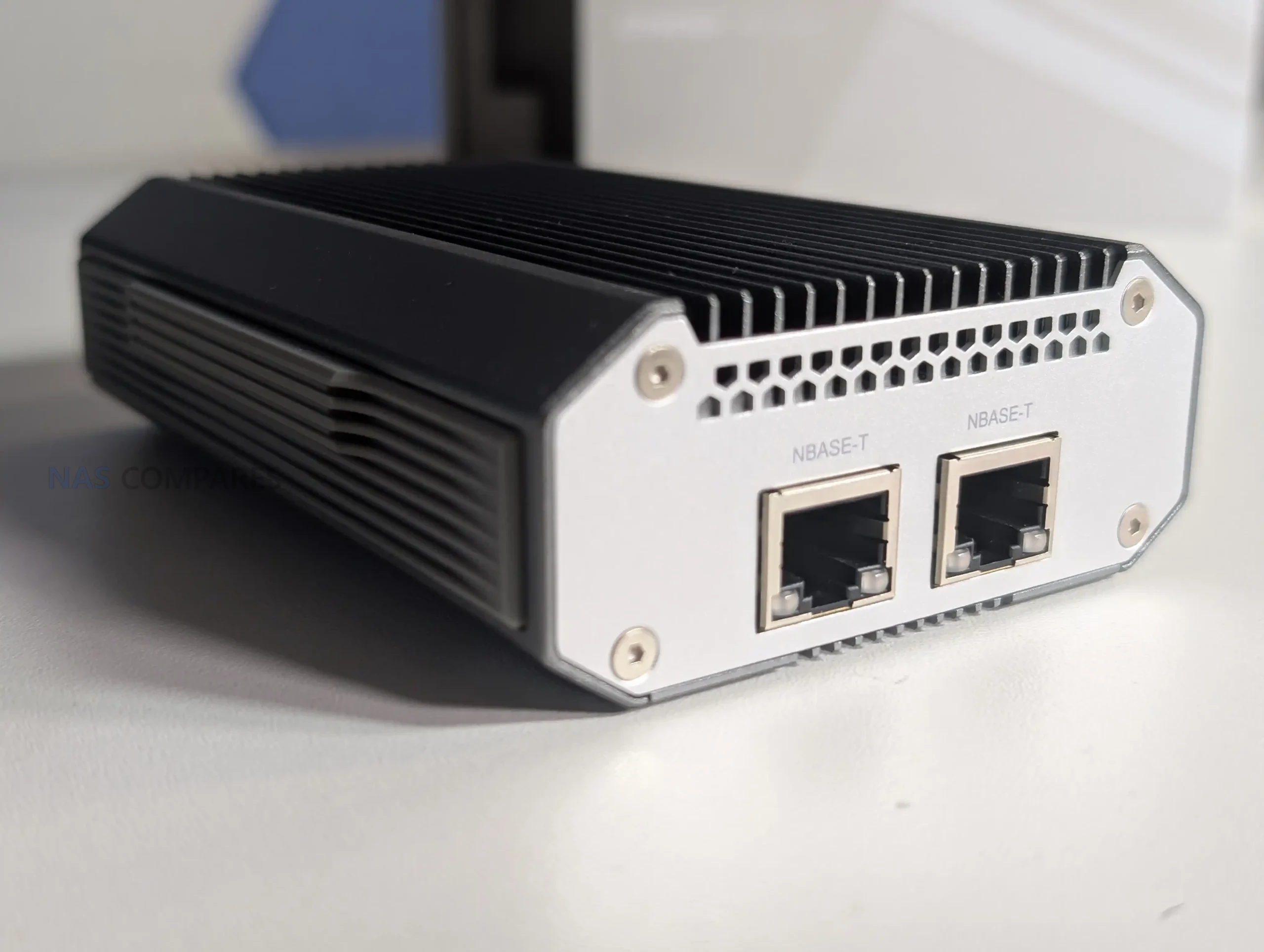
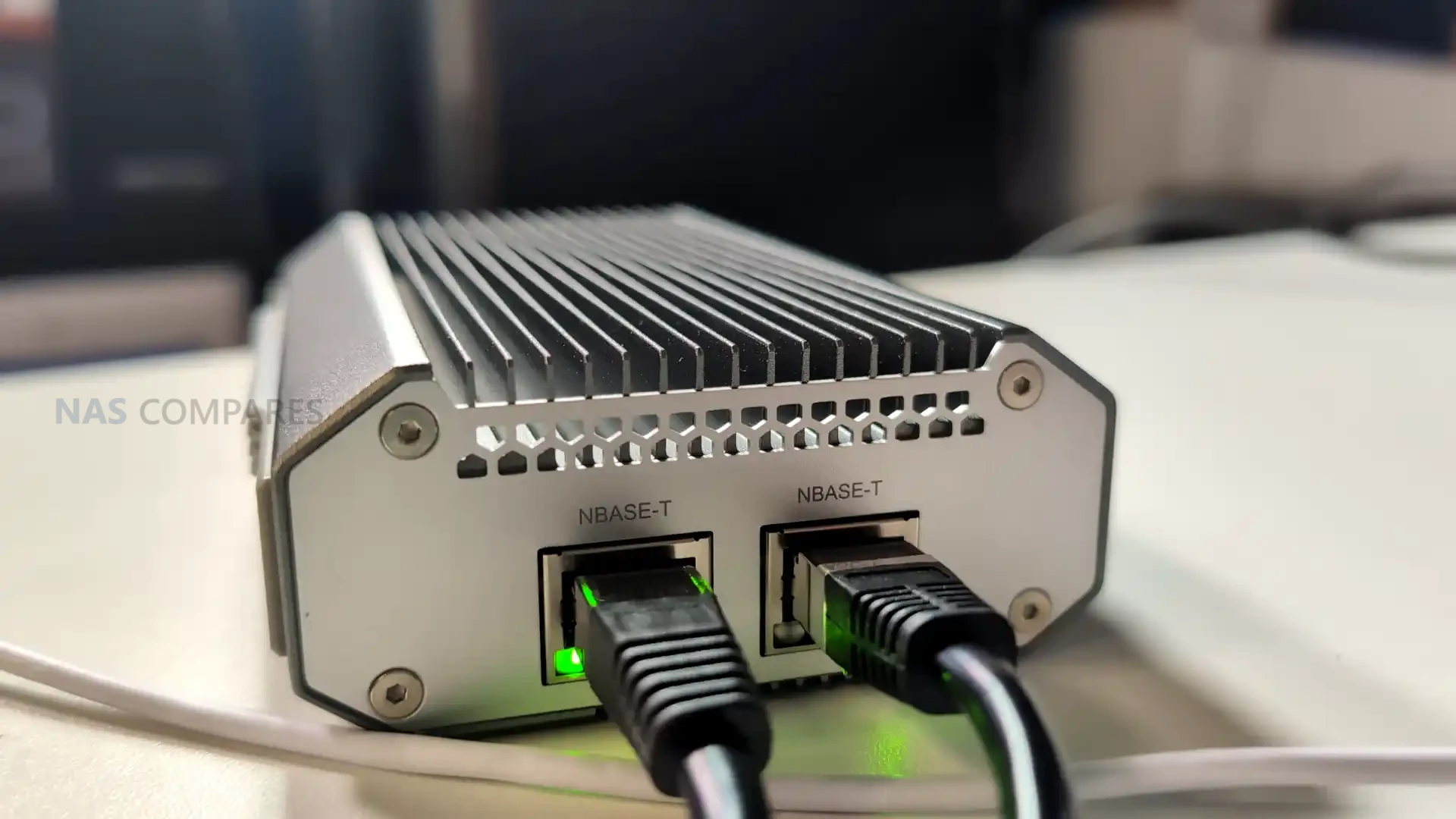
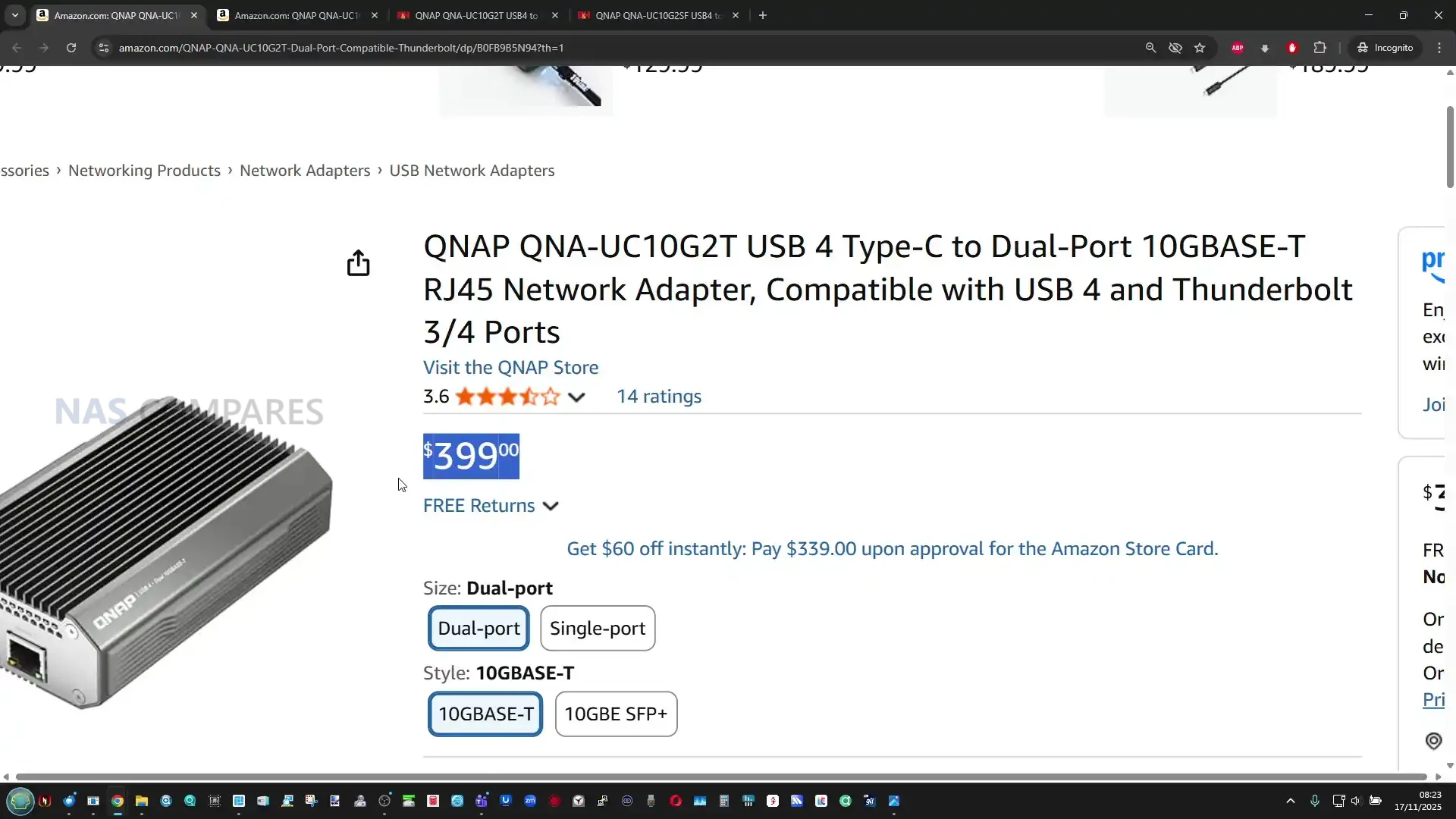
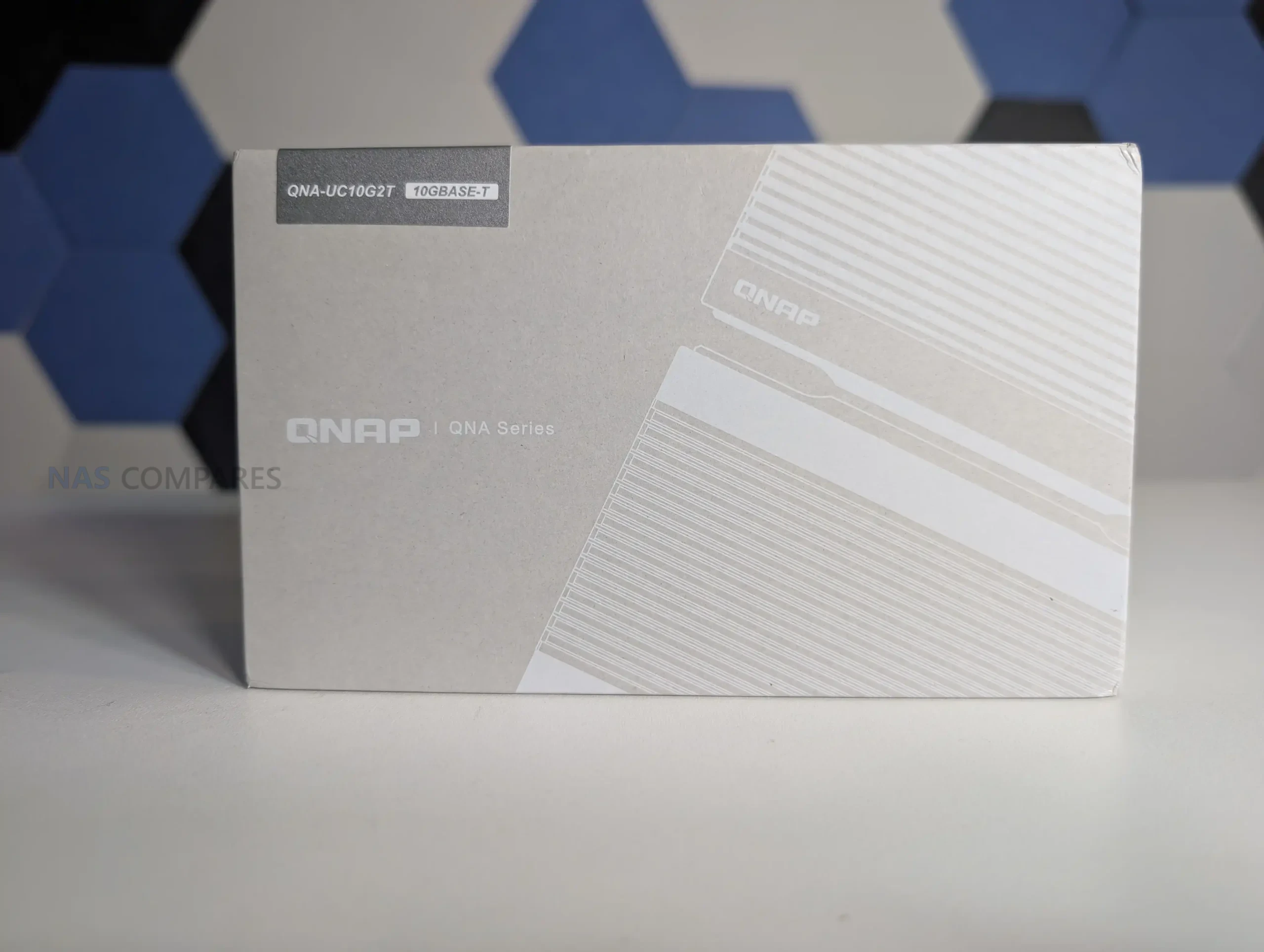
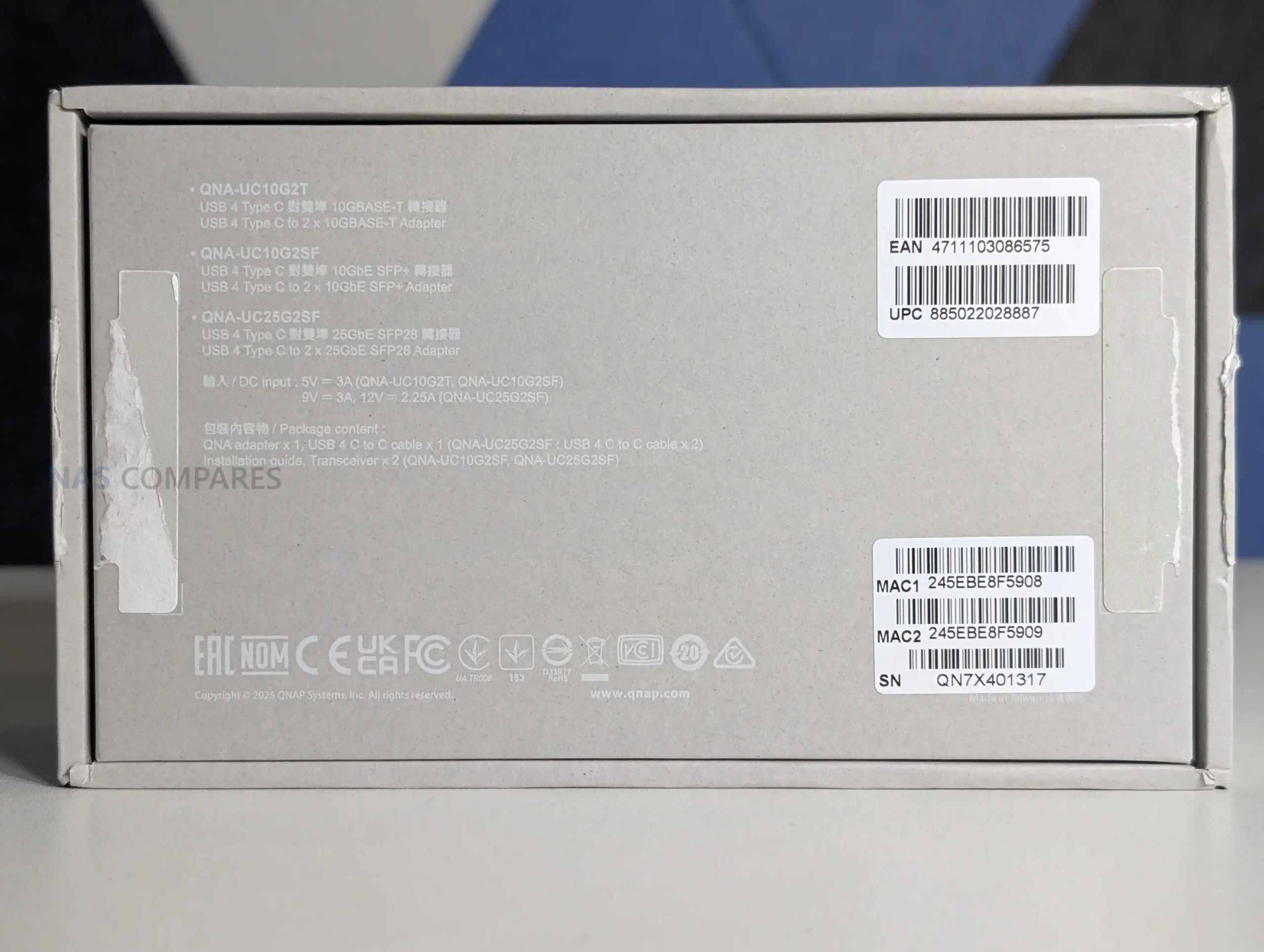
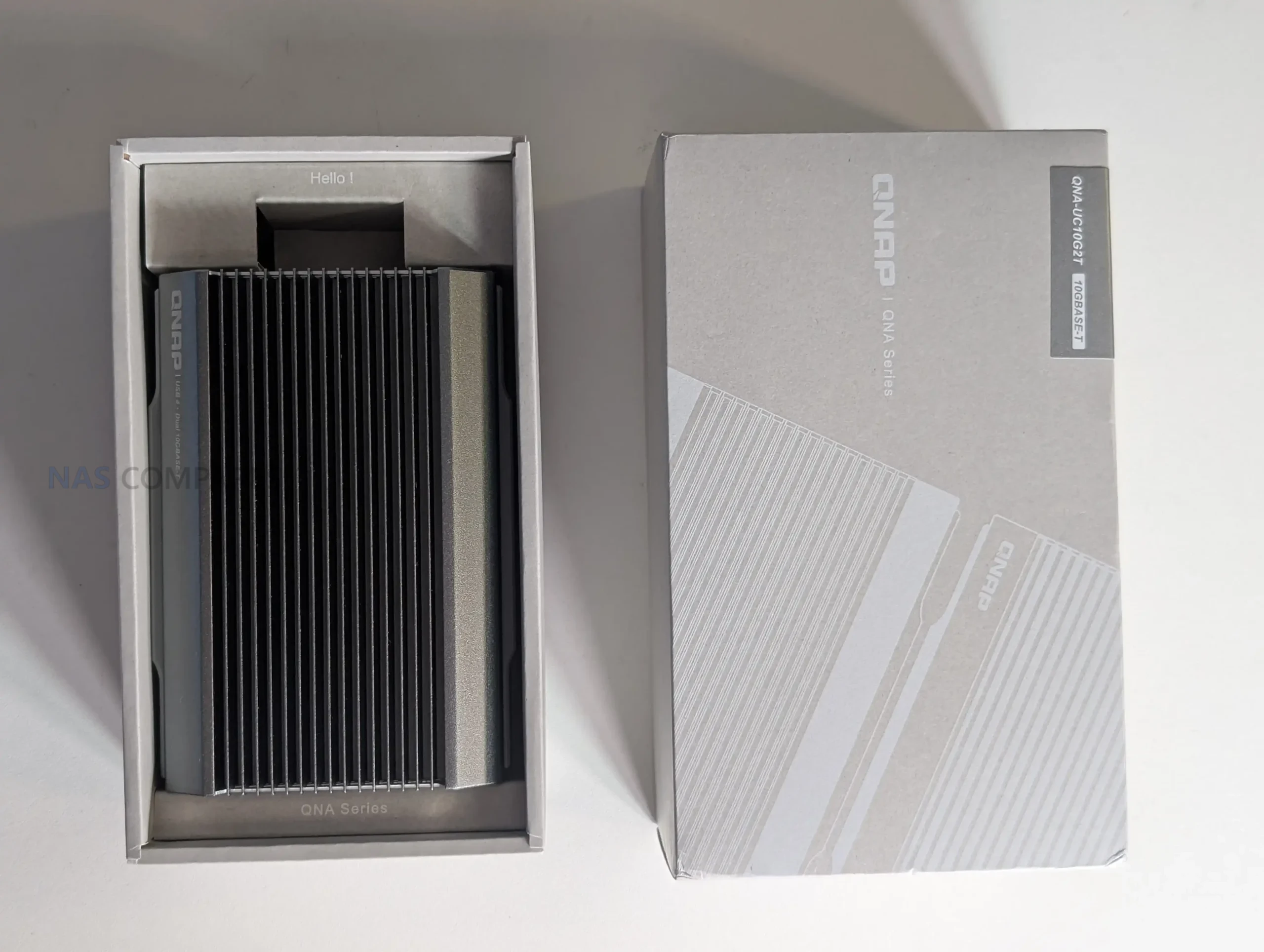

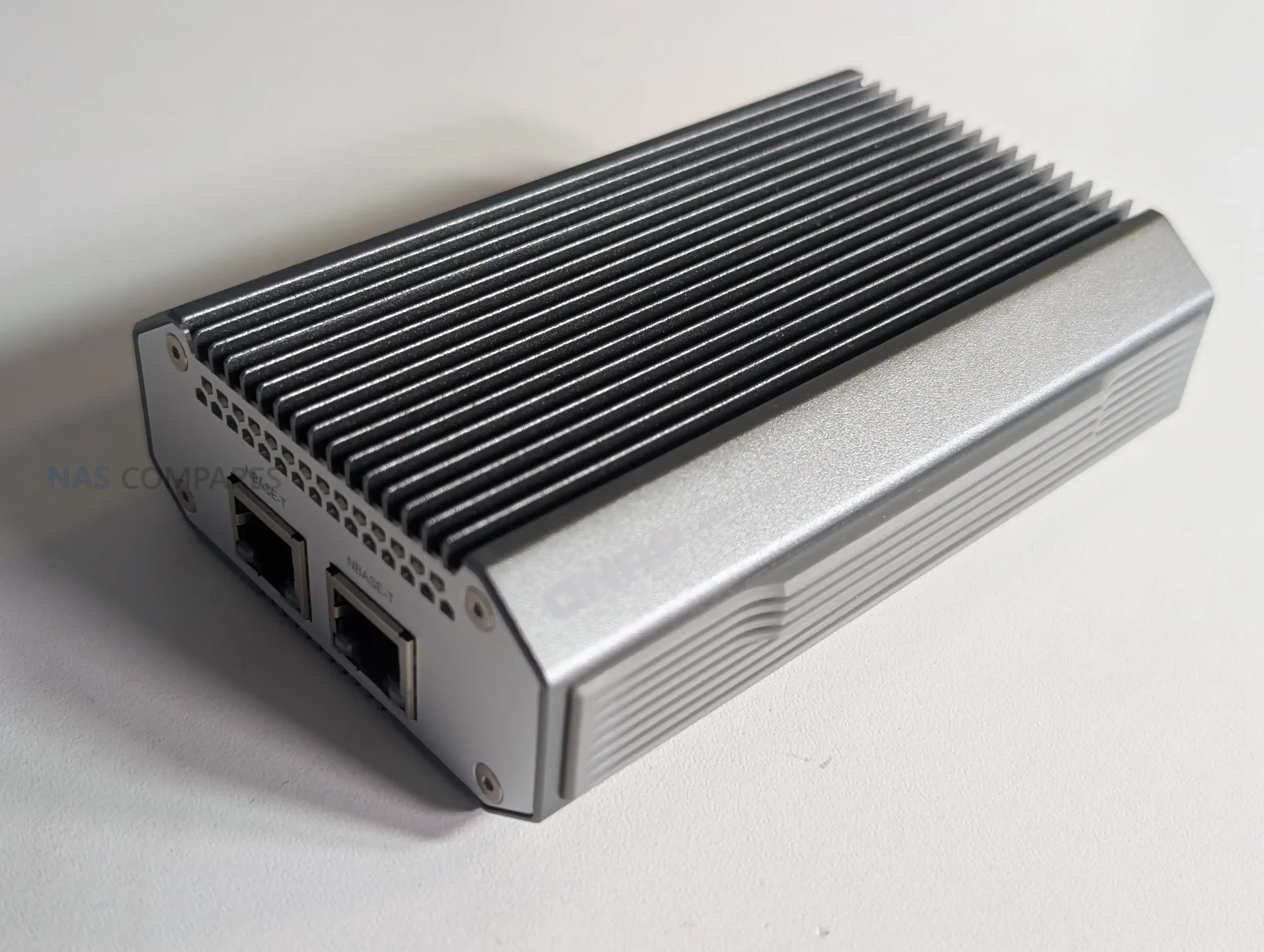
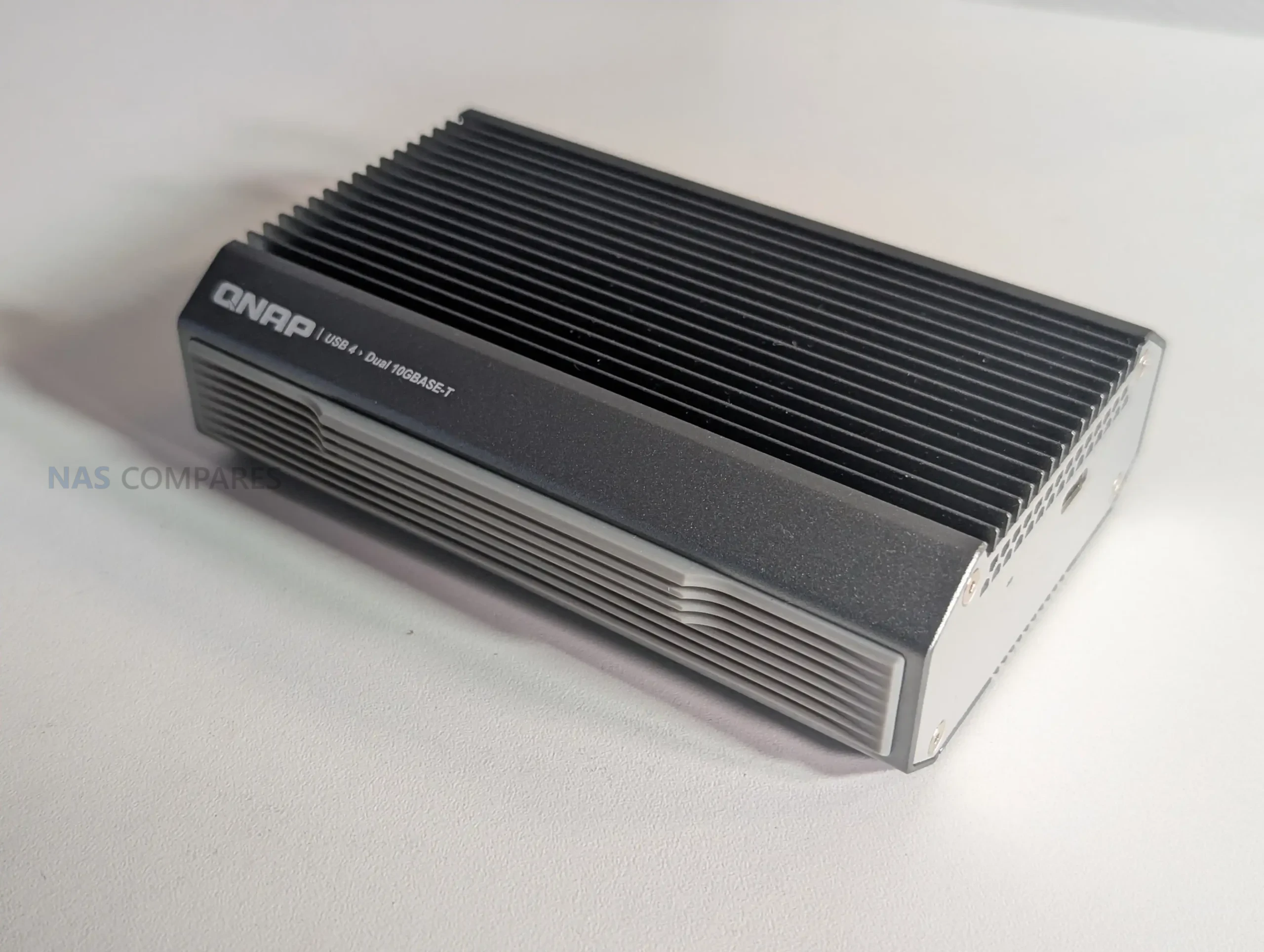
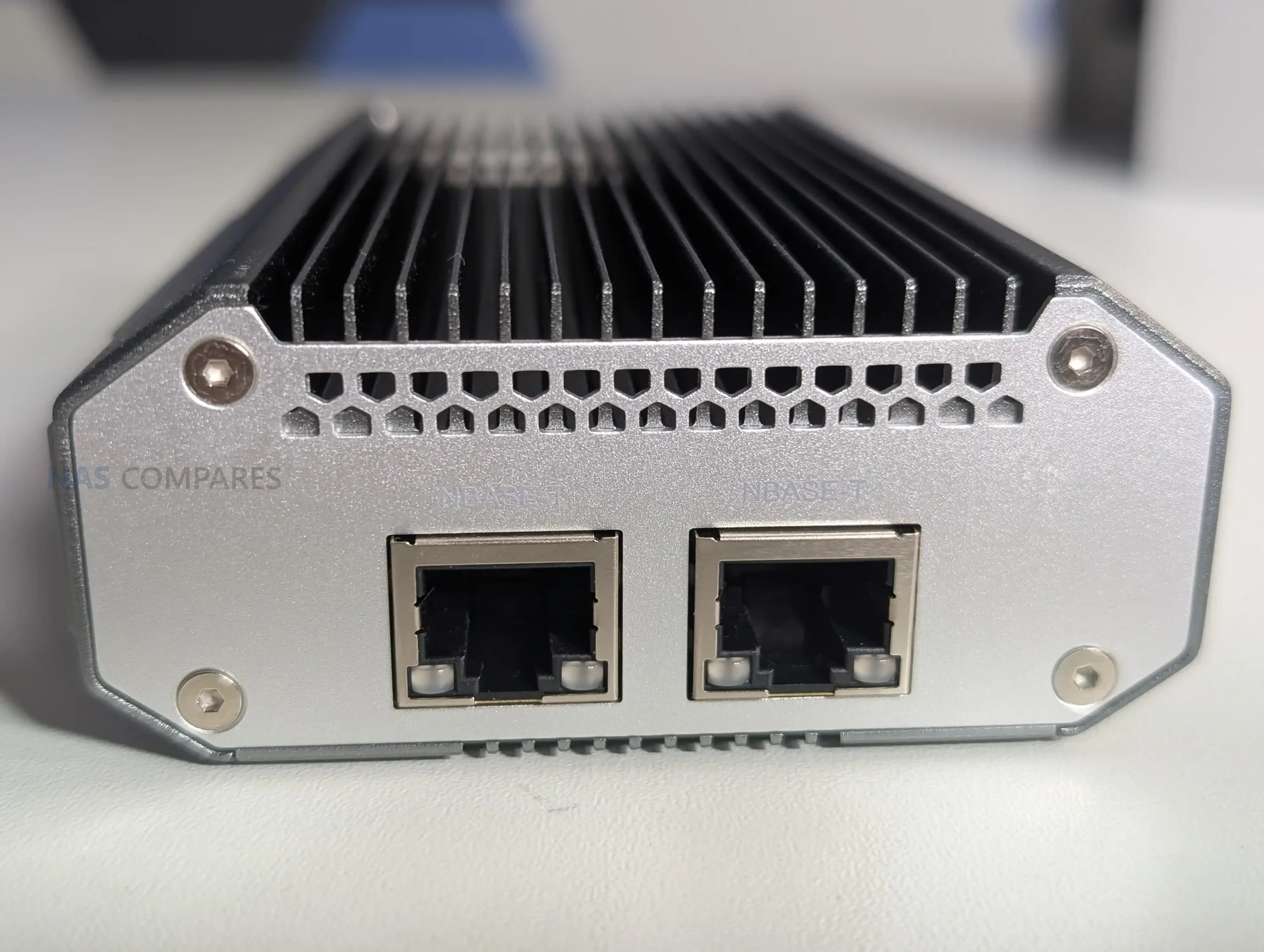
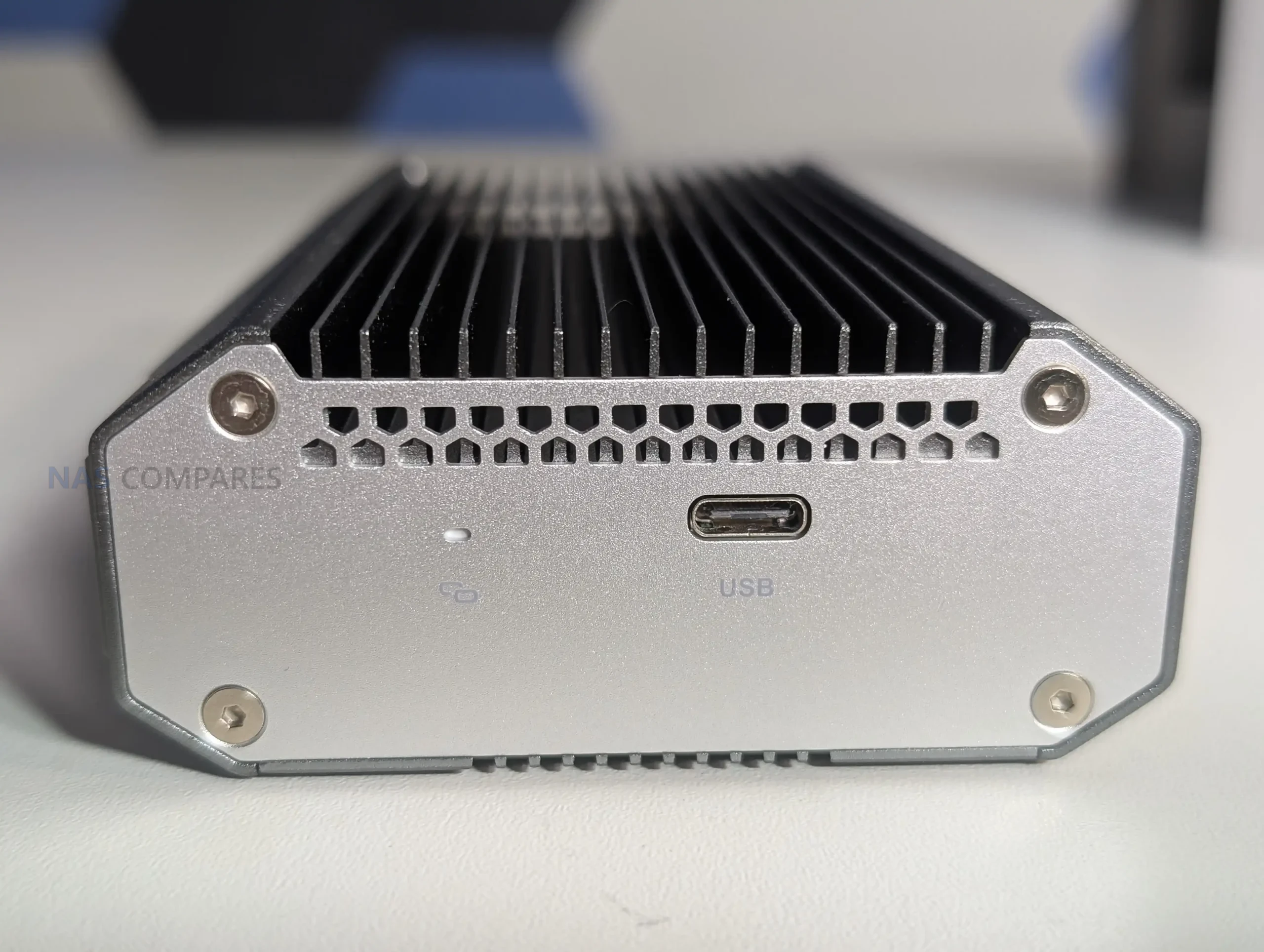
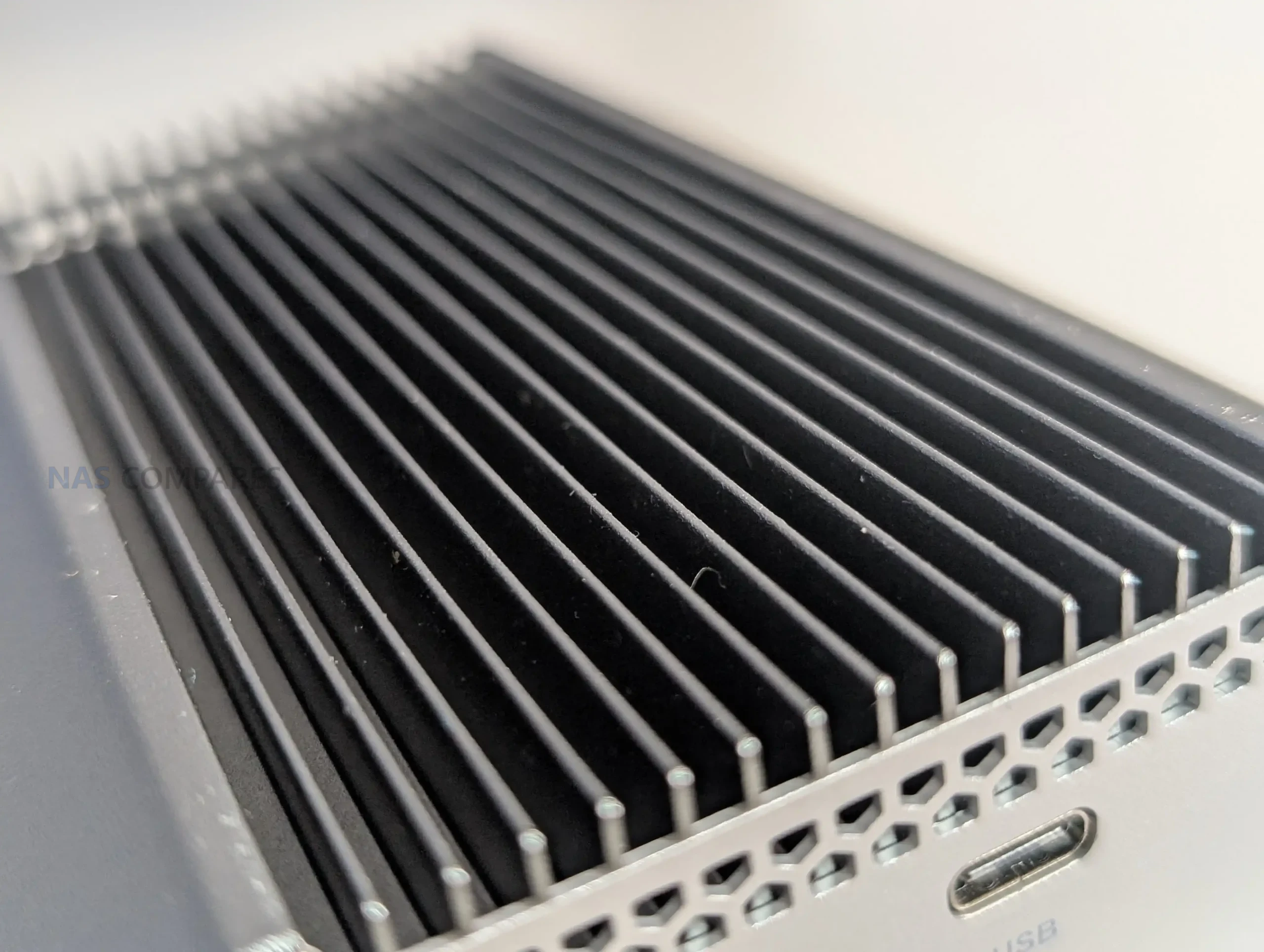
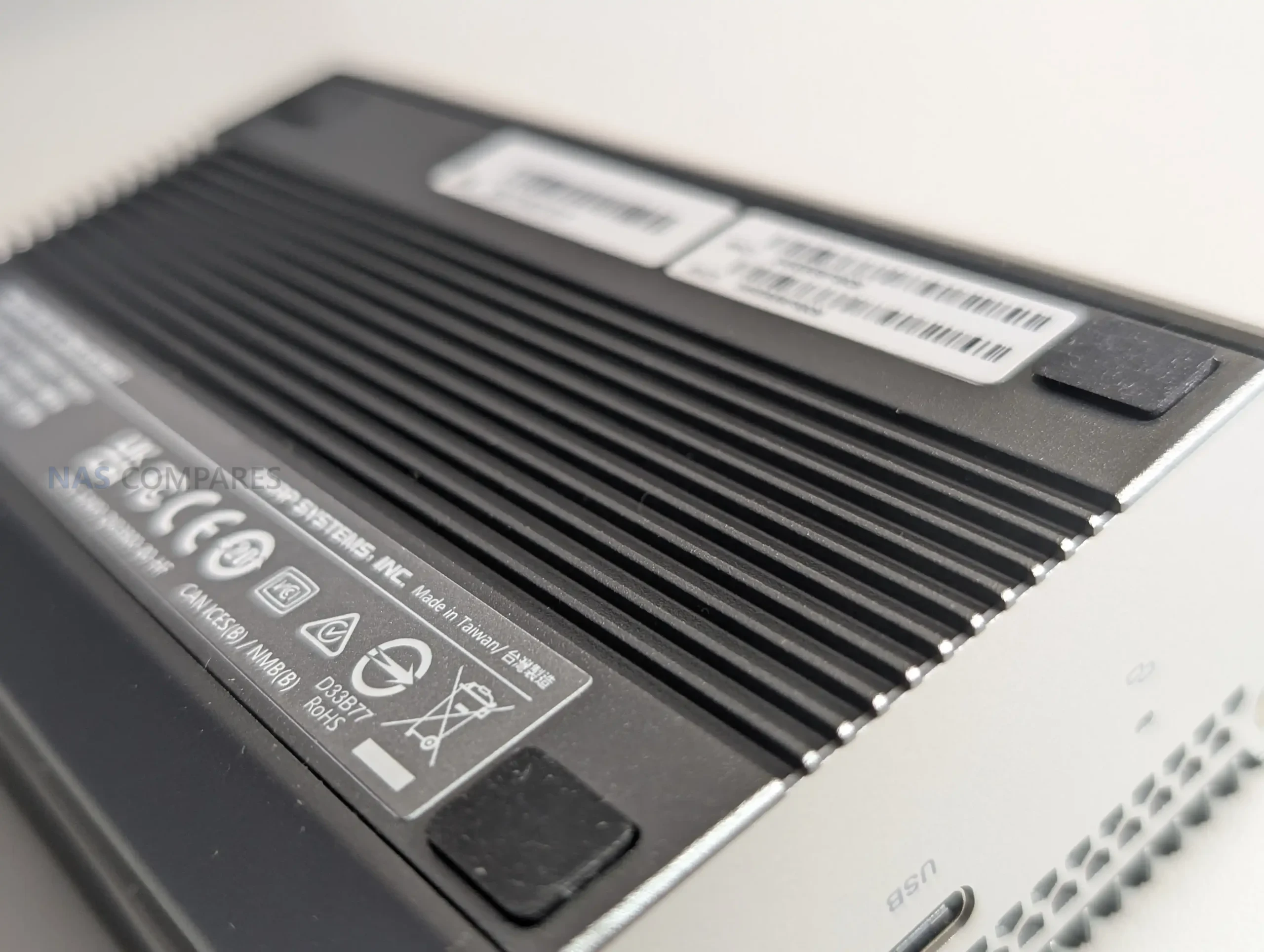
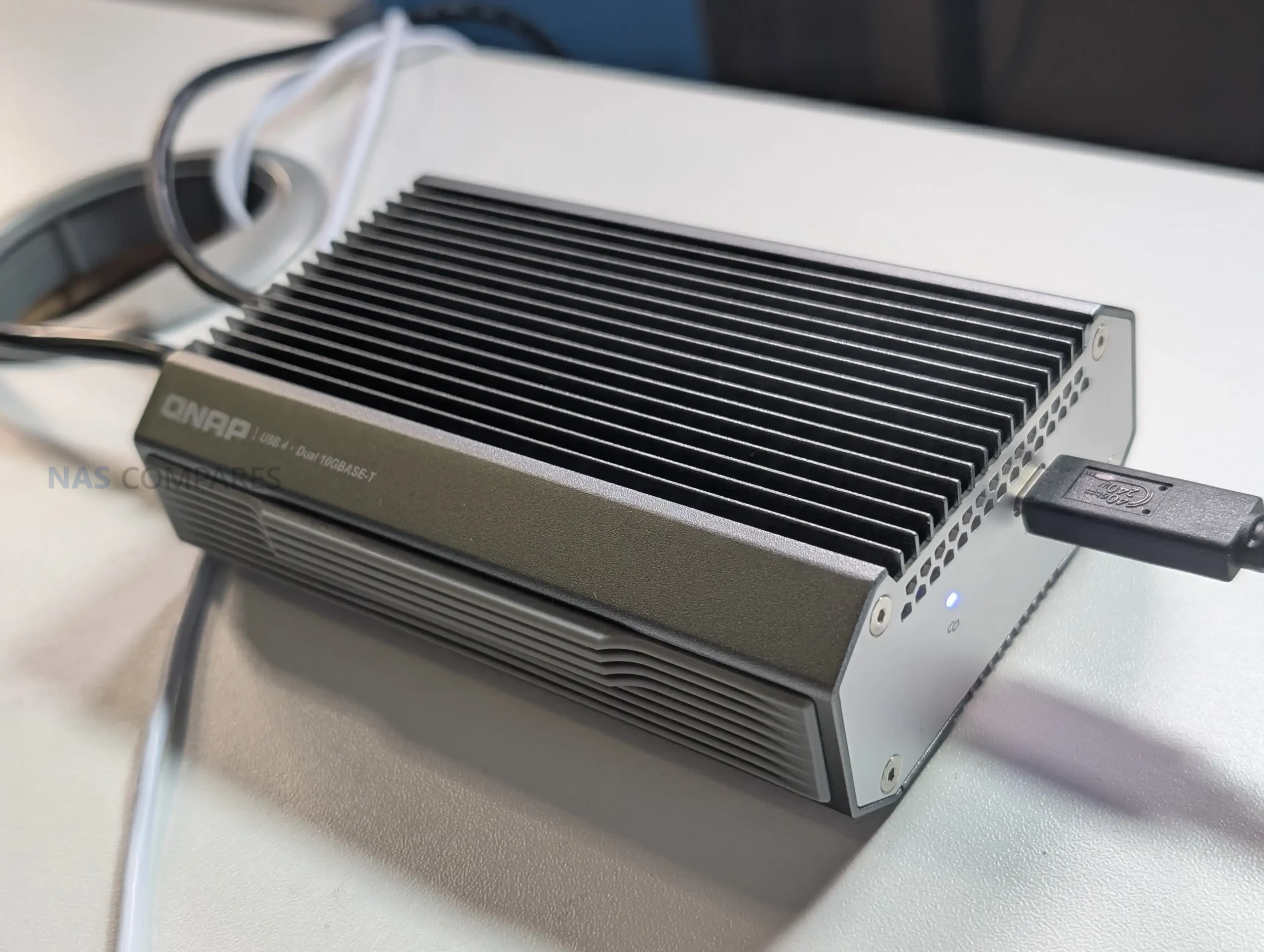
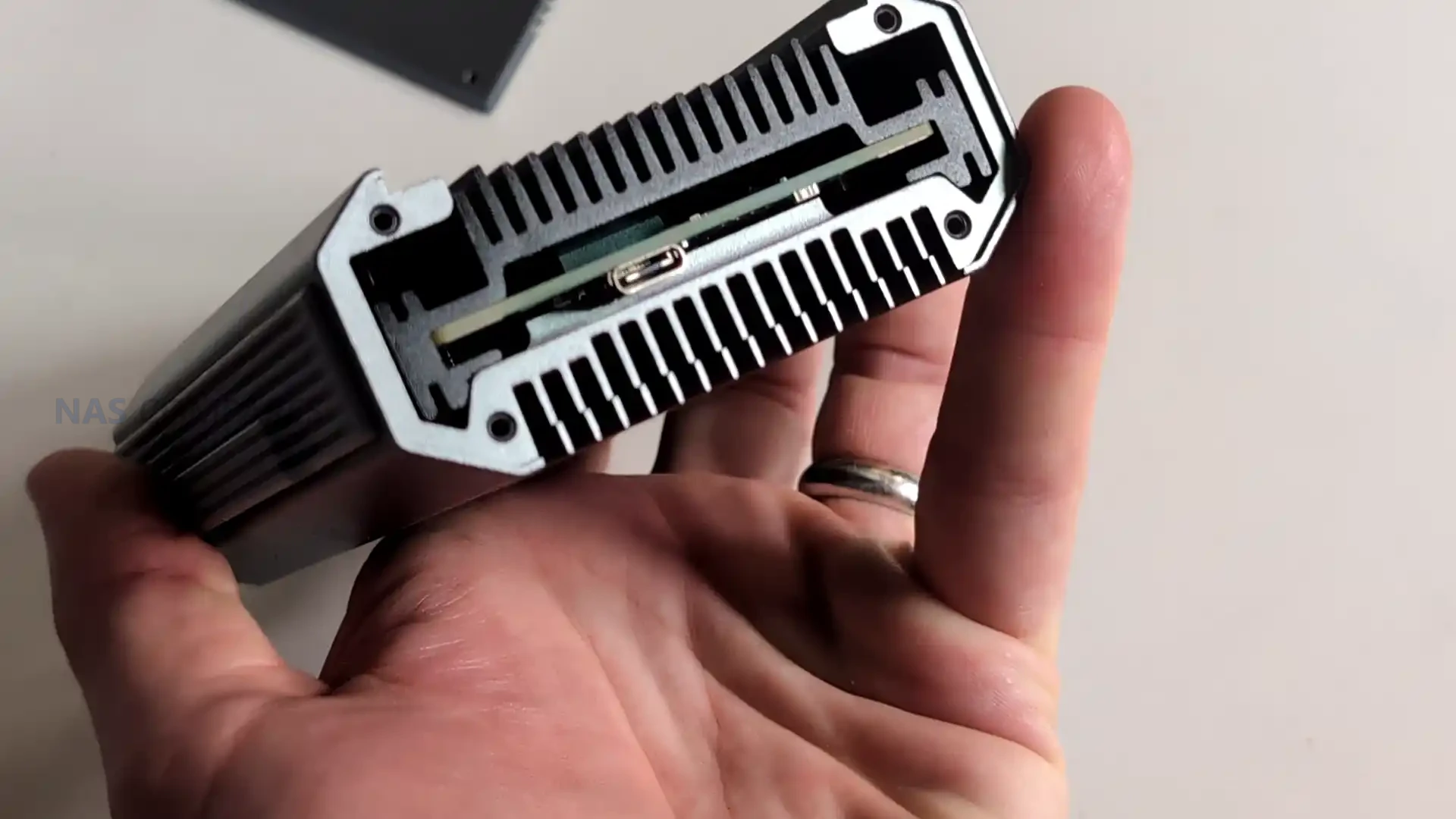
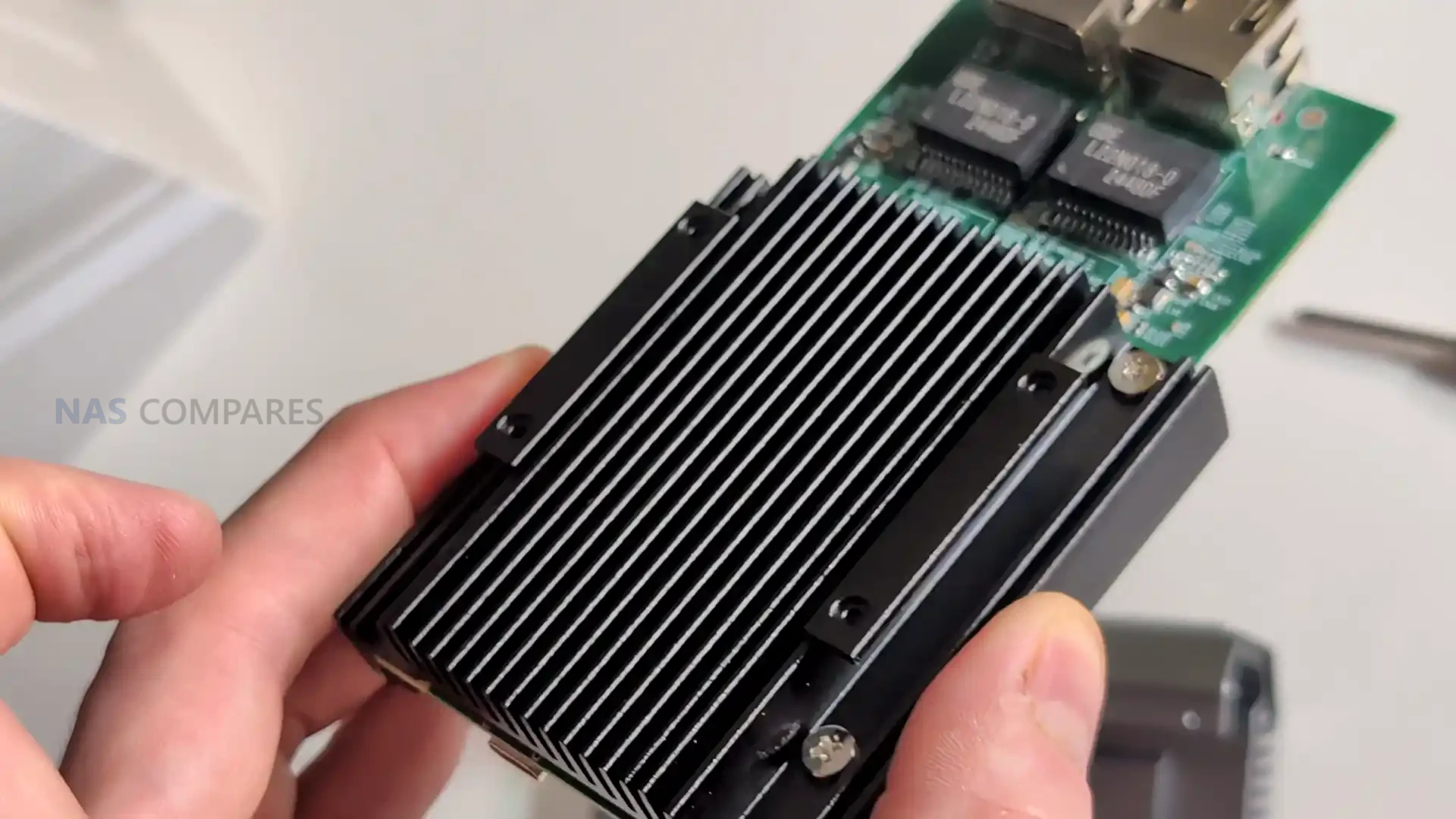
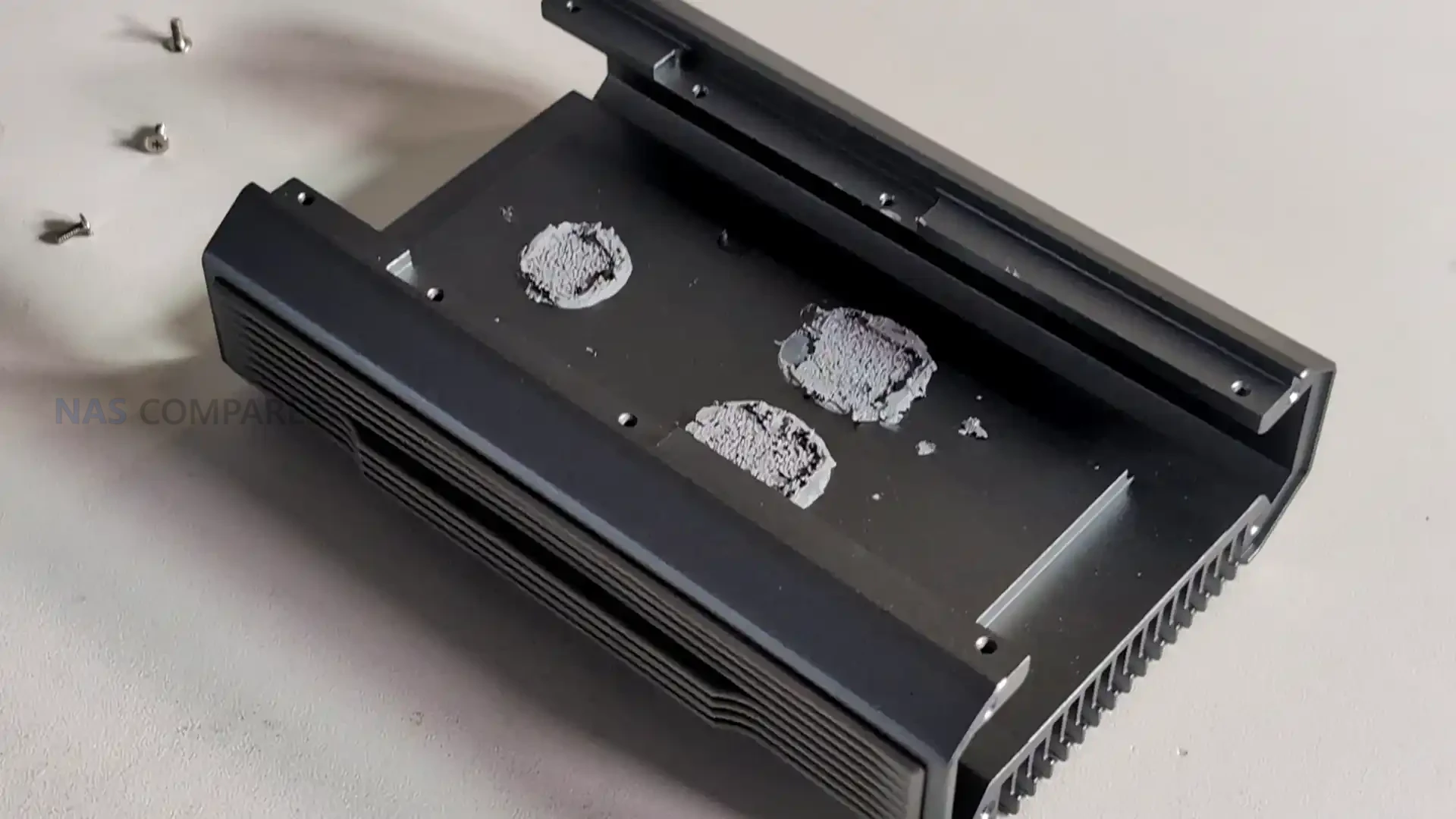
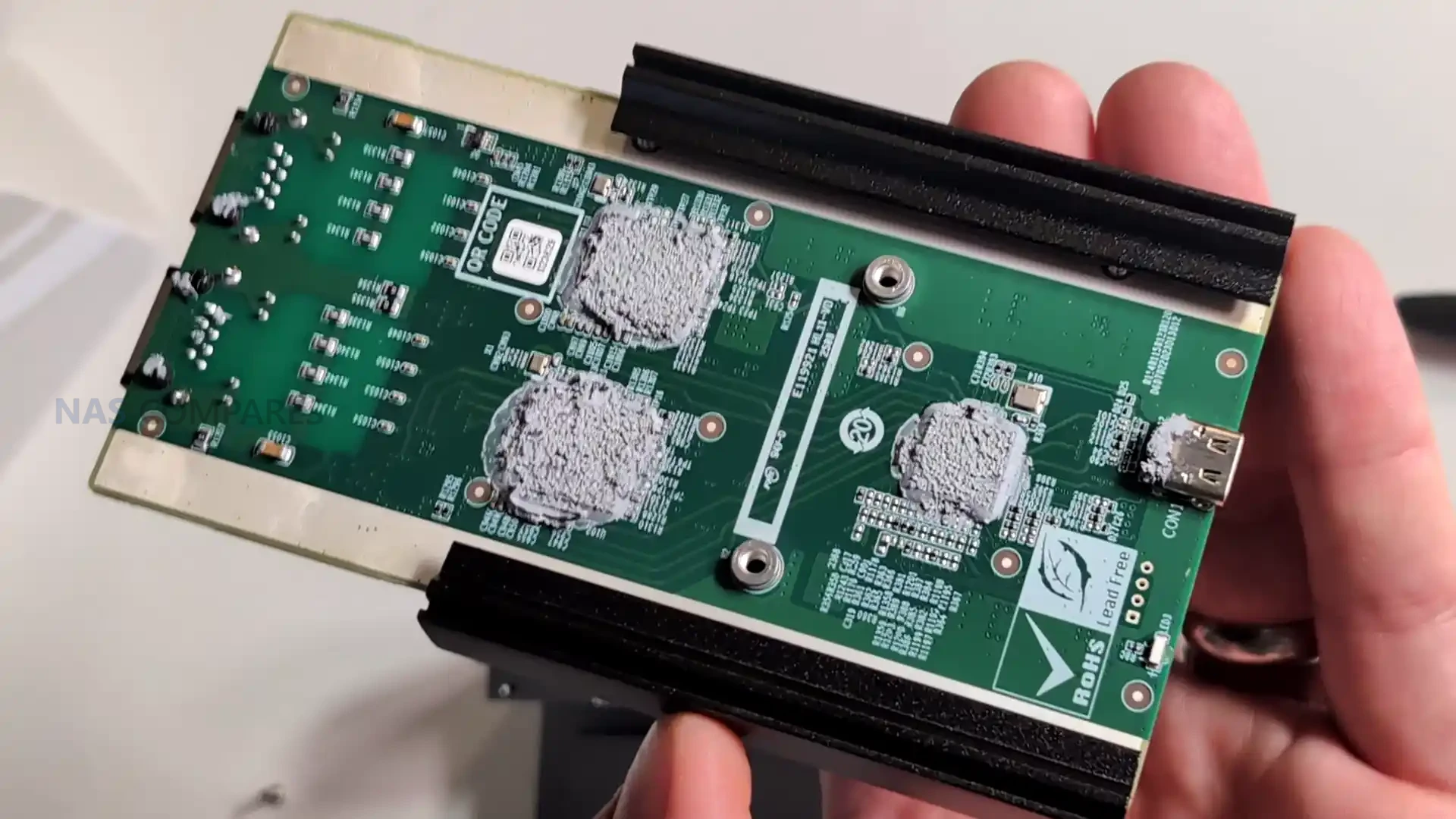
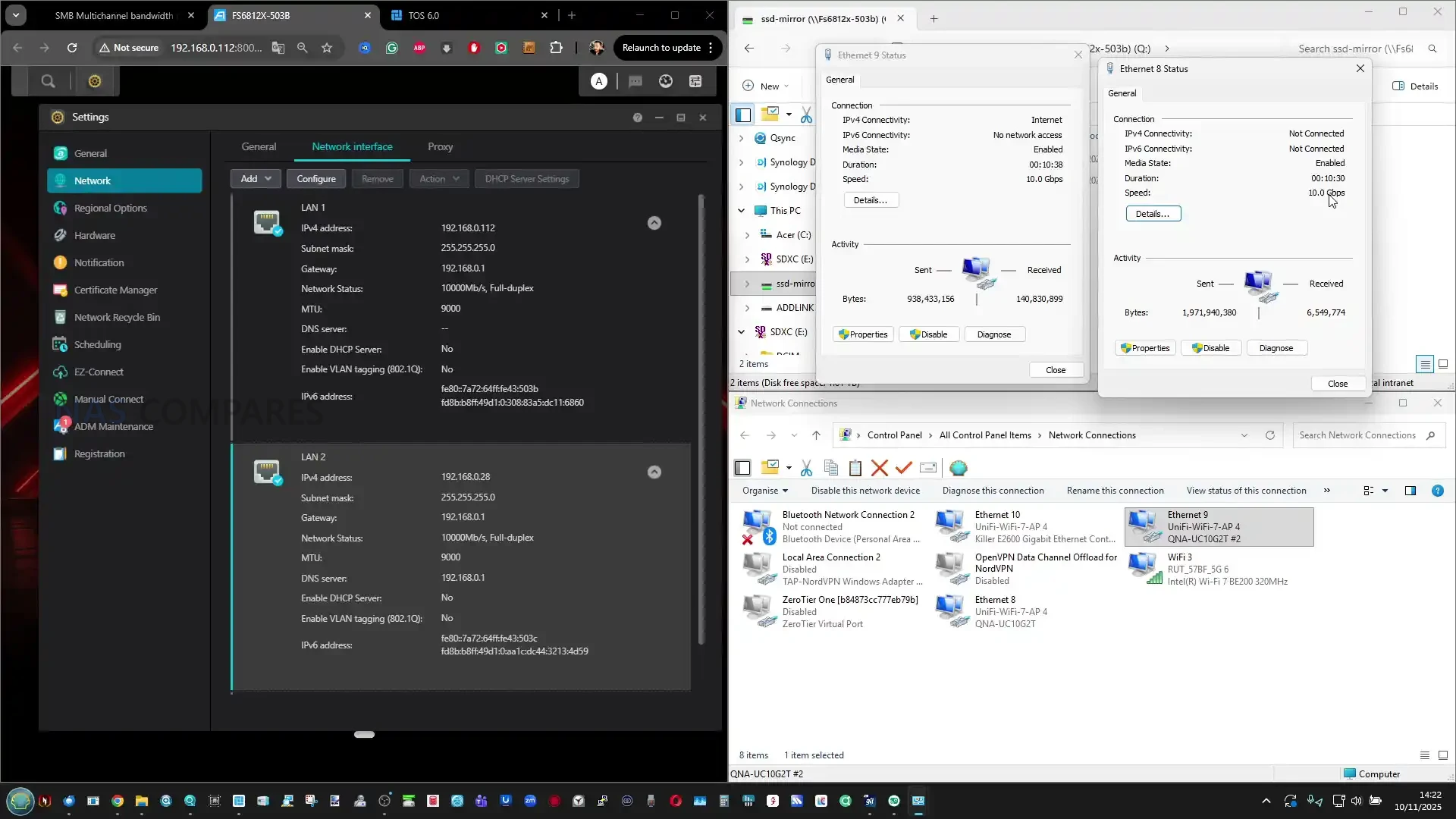
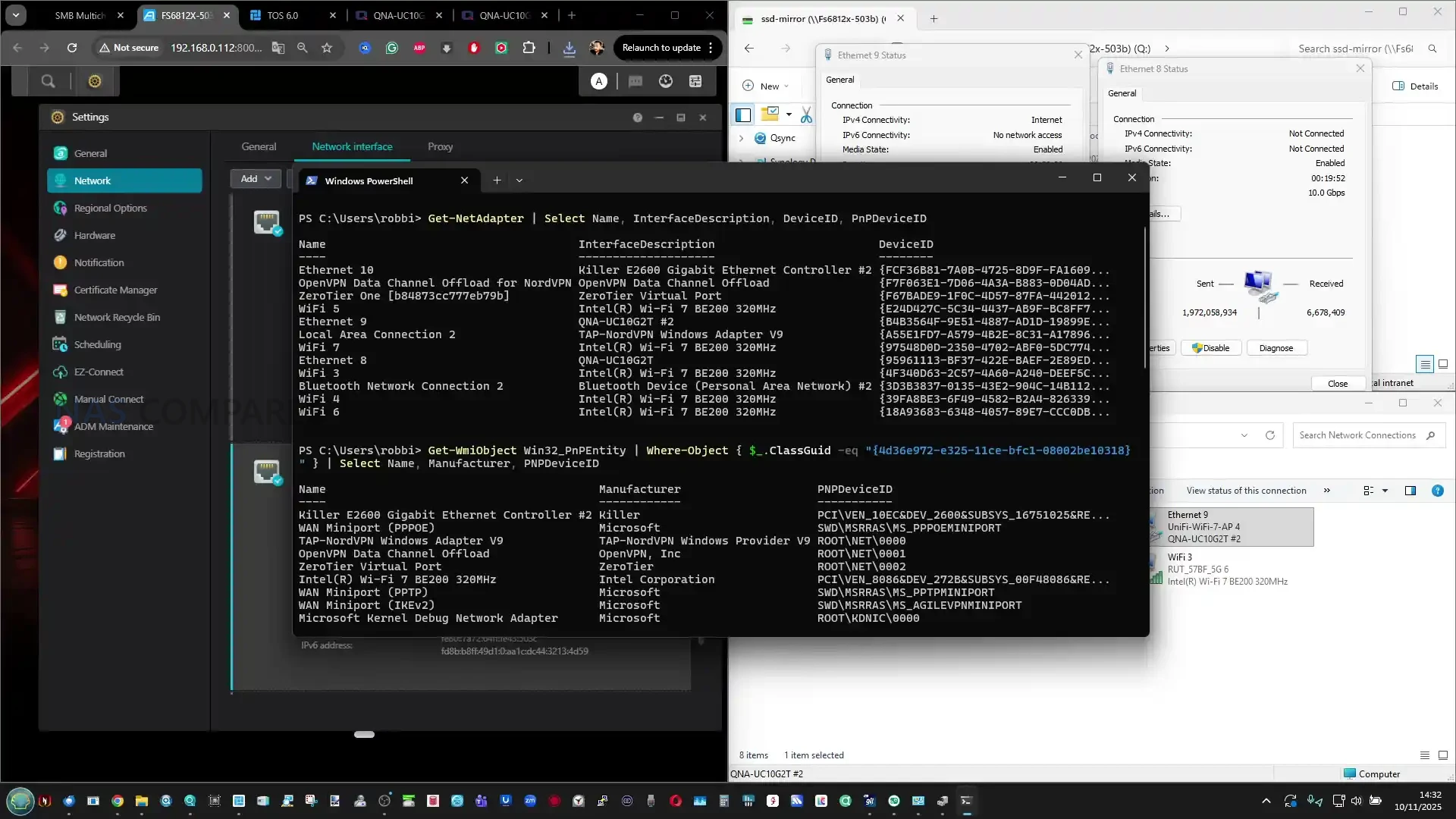
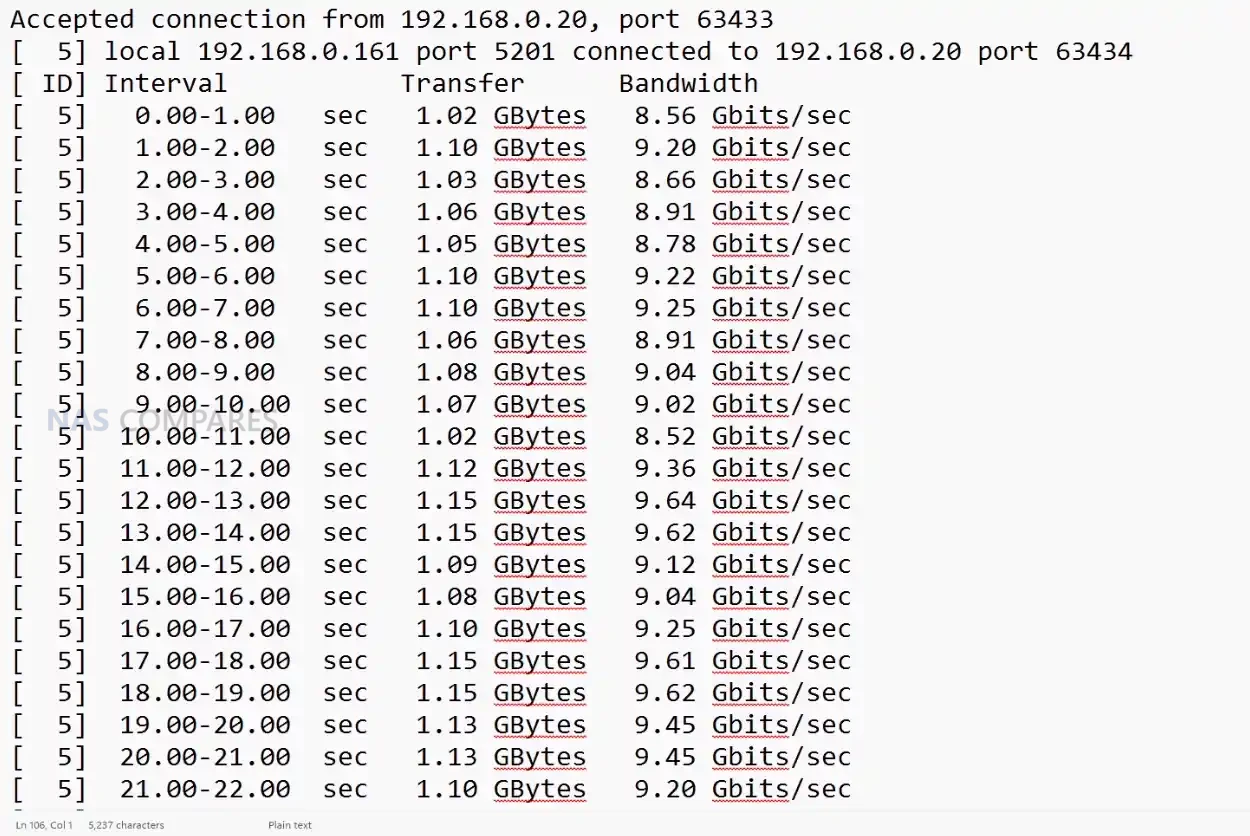
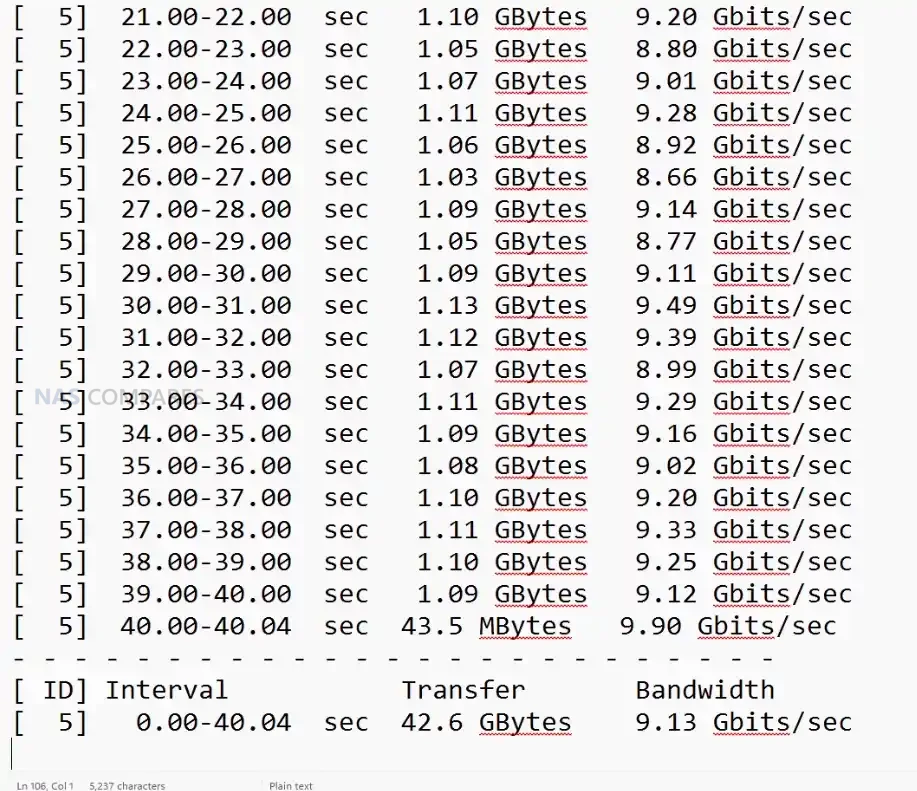
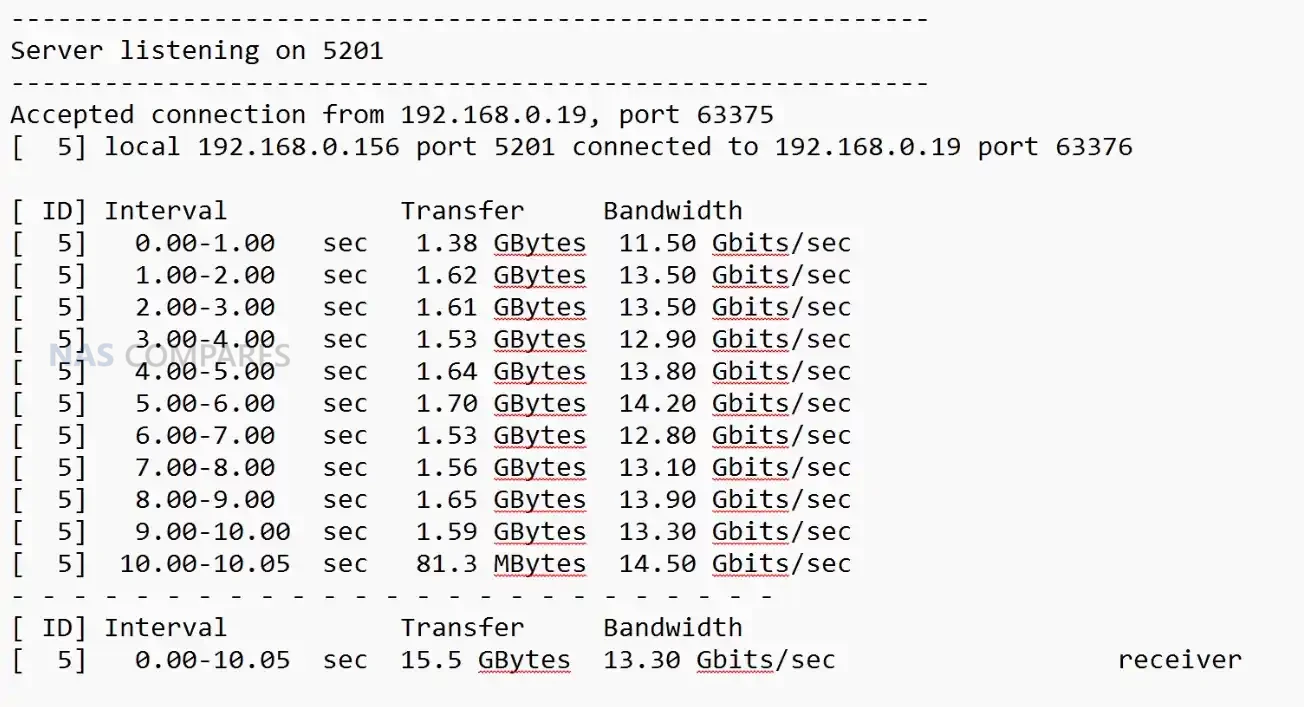
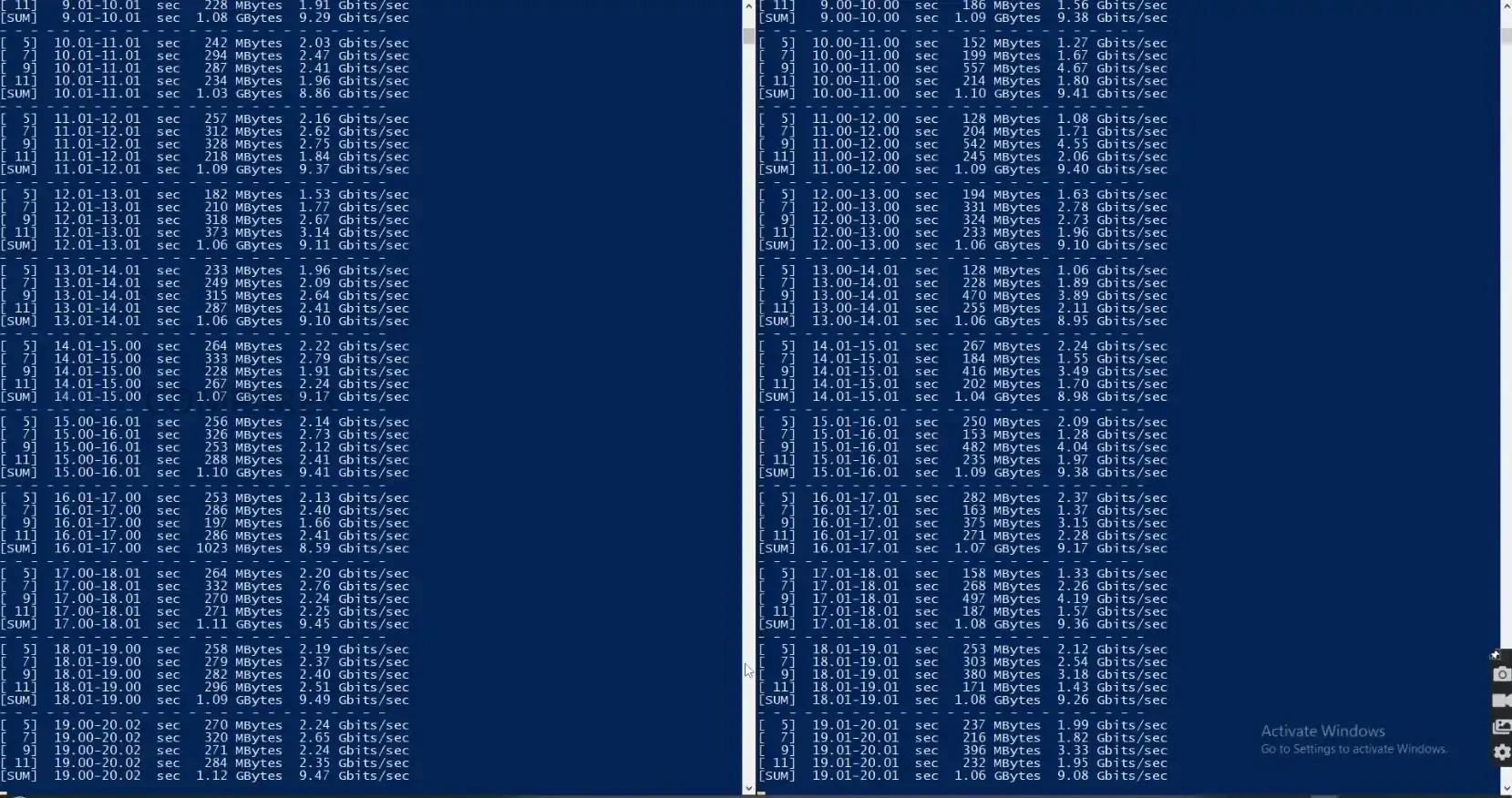






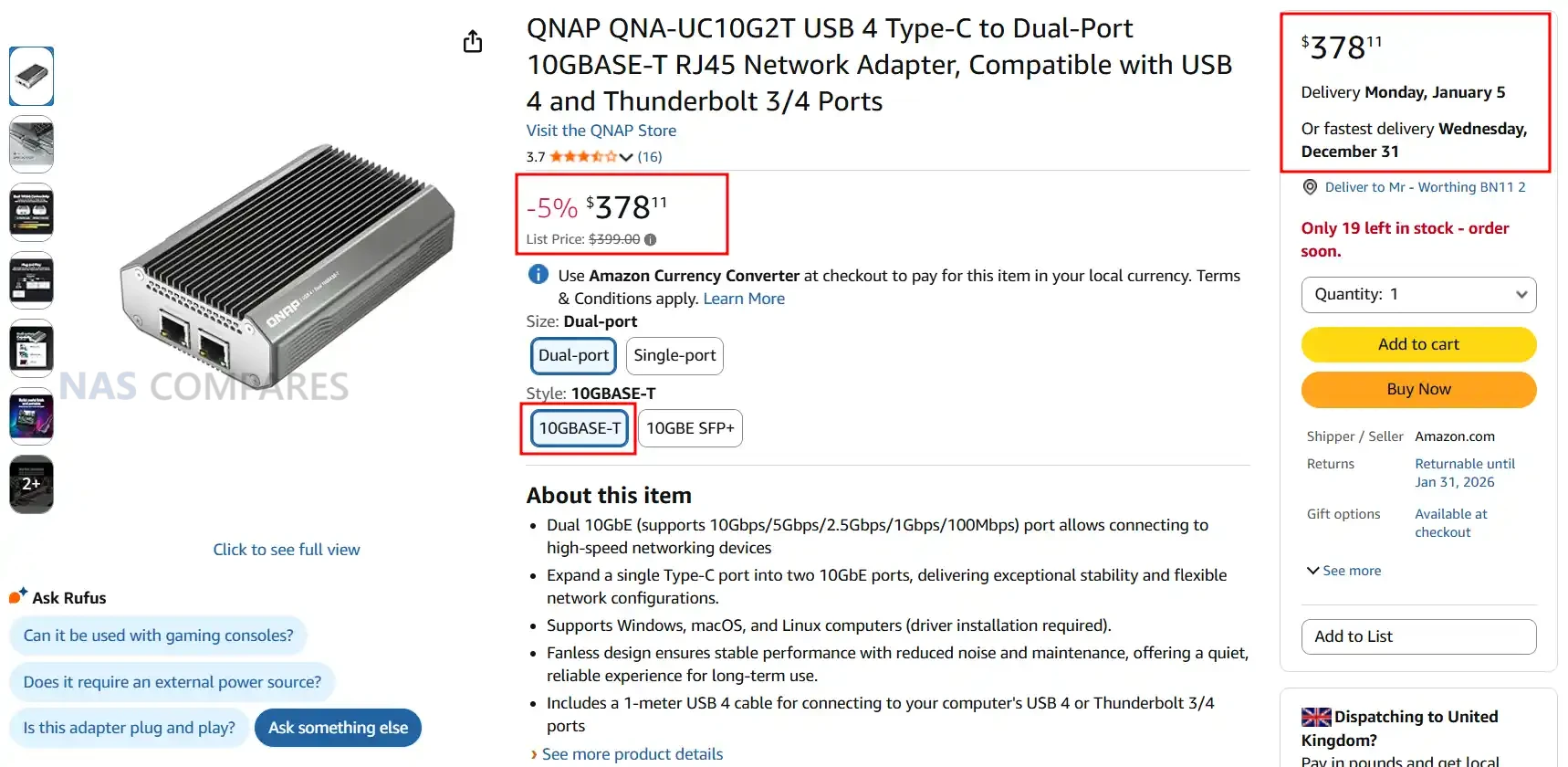
 SUBSCRIBE TO OUR NEWSLETTER
 Join Inner Circle
  Need Help?
Where possible (and where appropriate) please provide as much information about your requirements, as then I can arrange the best answer and solution to your needs. Do not worry about your e-mail address being required, it will NOT be used in a mailing list and will NOT be used in any way other than to respond to your enquiry.
[contact-form-7]
Need Help?
Where possible (and where appropriate) please provide as much information about your requirements, as then I can arrange the best answer and solution to your needs. Do not worry about your e-mail address being required, it will NOT be used in a mailing list and will NOT be used in any way other than to respond to your enquiry.
[contact-form-7]
 TRY CHAT
Terms and Conditions
TRY CHAT
Terms and Conditions
 Ko-fi or old school Paypal. Thanks!To find out more about how to support this advice service check HEREIf you need to fix or configure a NAS, check Fiver
Have you thought about helping others with your knowledge? Find Instructions Here
Ko-fi or old school Paypal. Thanks!To find out more about how to support this advice service check HEREIf you need to fix or configure a NAS, check Fiver
Have you thought about helping others with your knowledge? Find Instructions Here






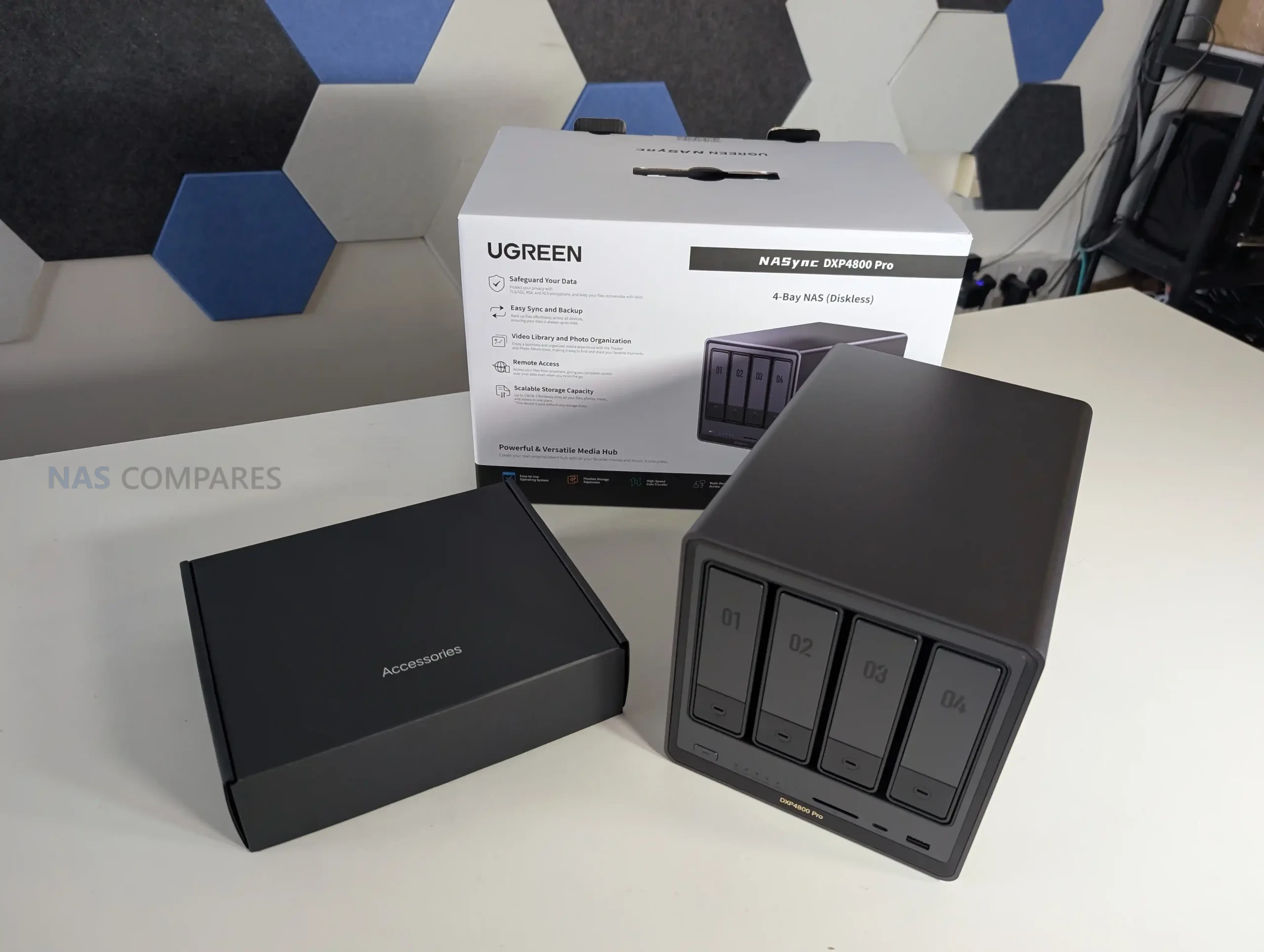
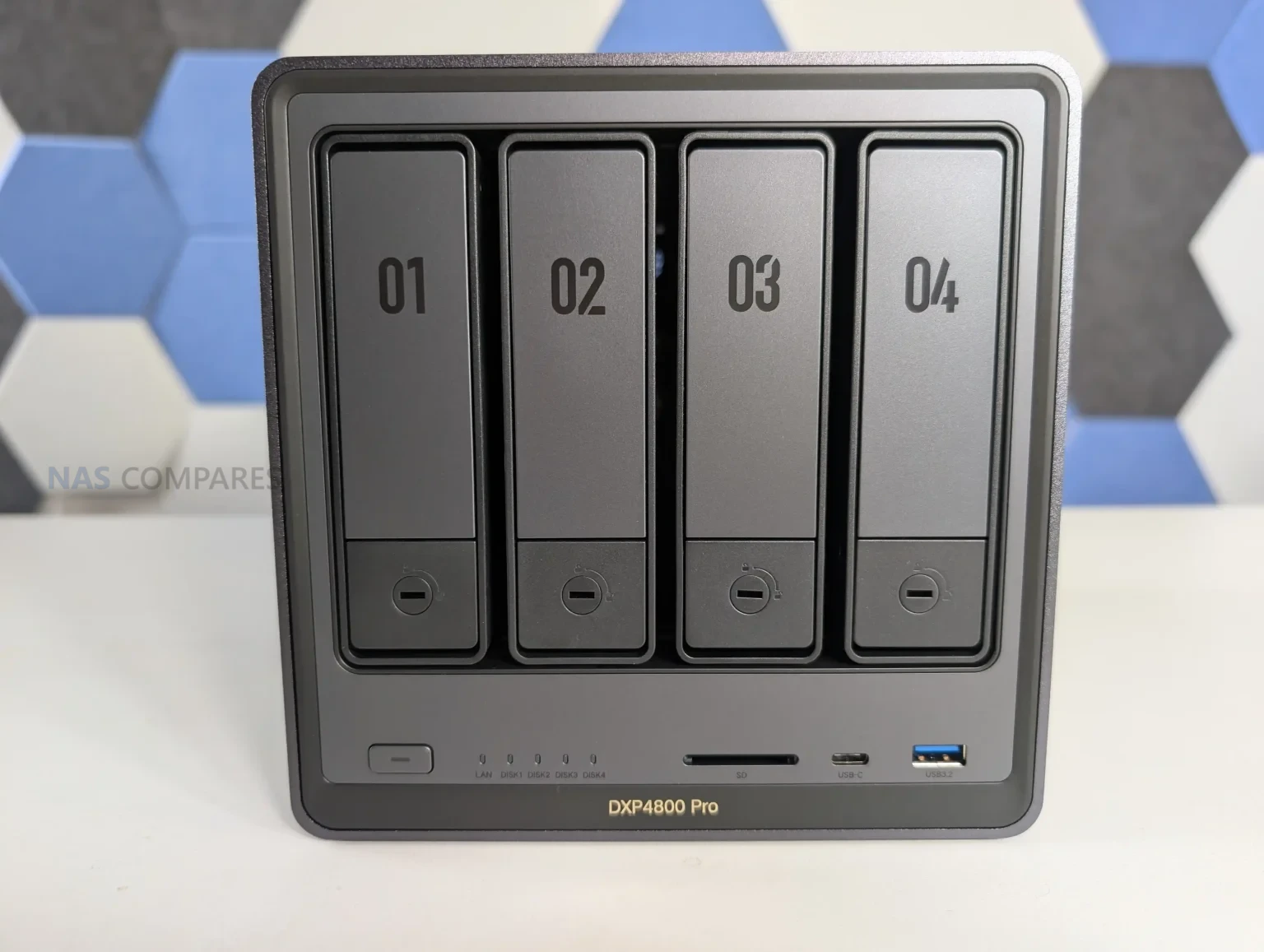

 Intel Core i3 1315U provides noticeably more CPU headroom than the DXP4800 Plus, particularly for multitasking, containers and light virtualization
 Higher power consumption than low power NAS systems, particularly under sustained CPU and disk load


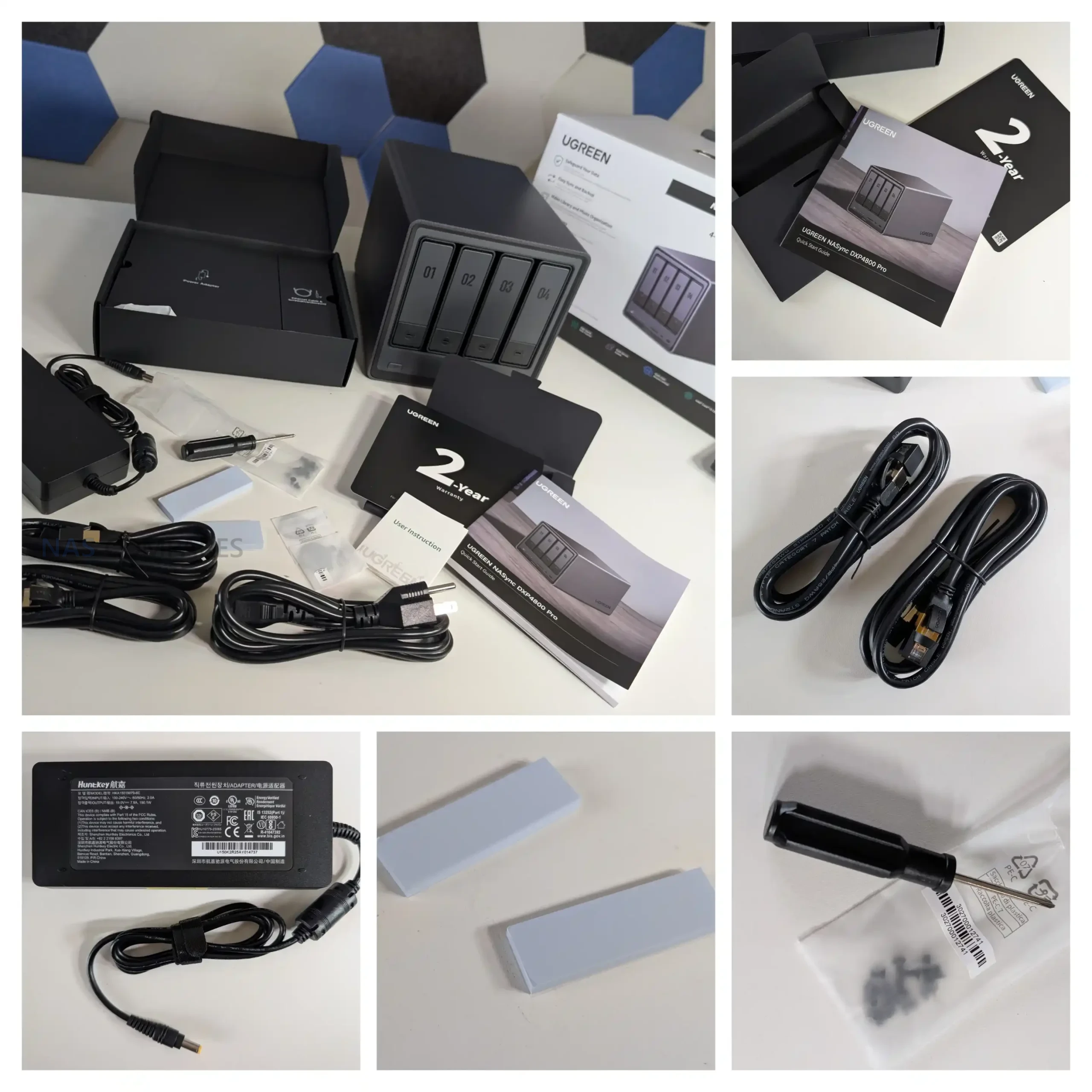
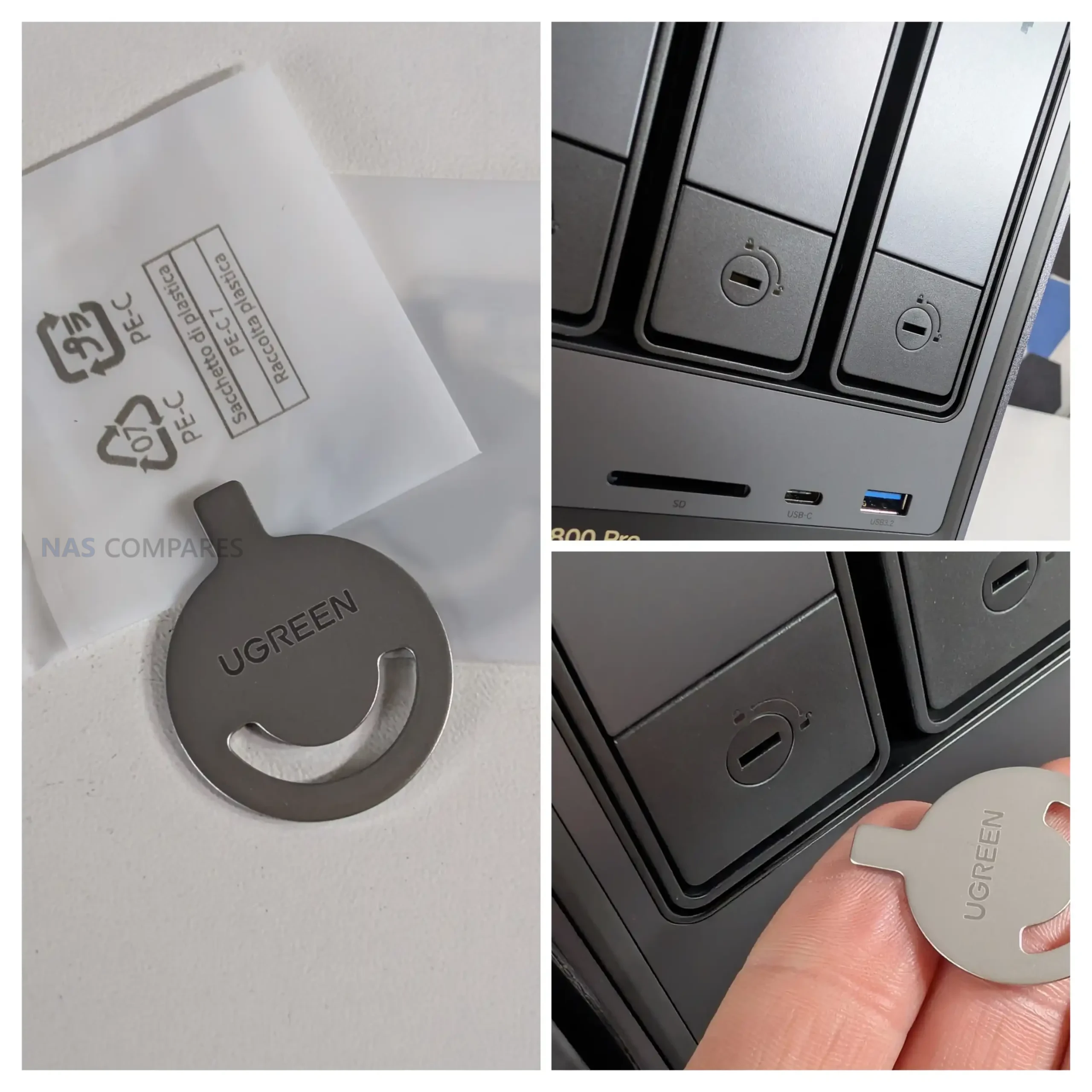
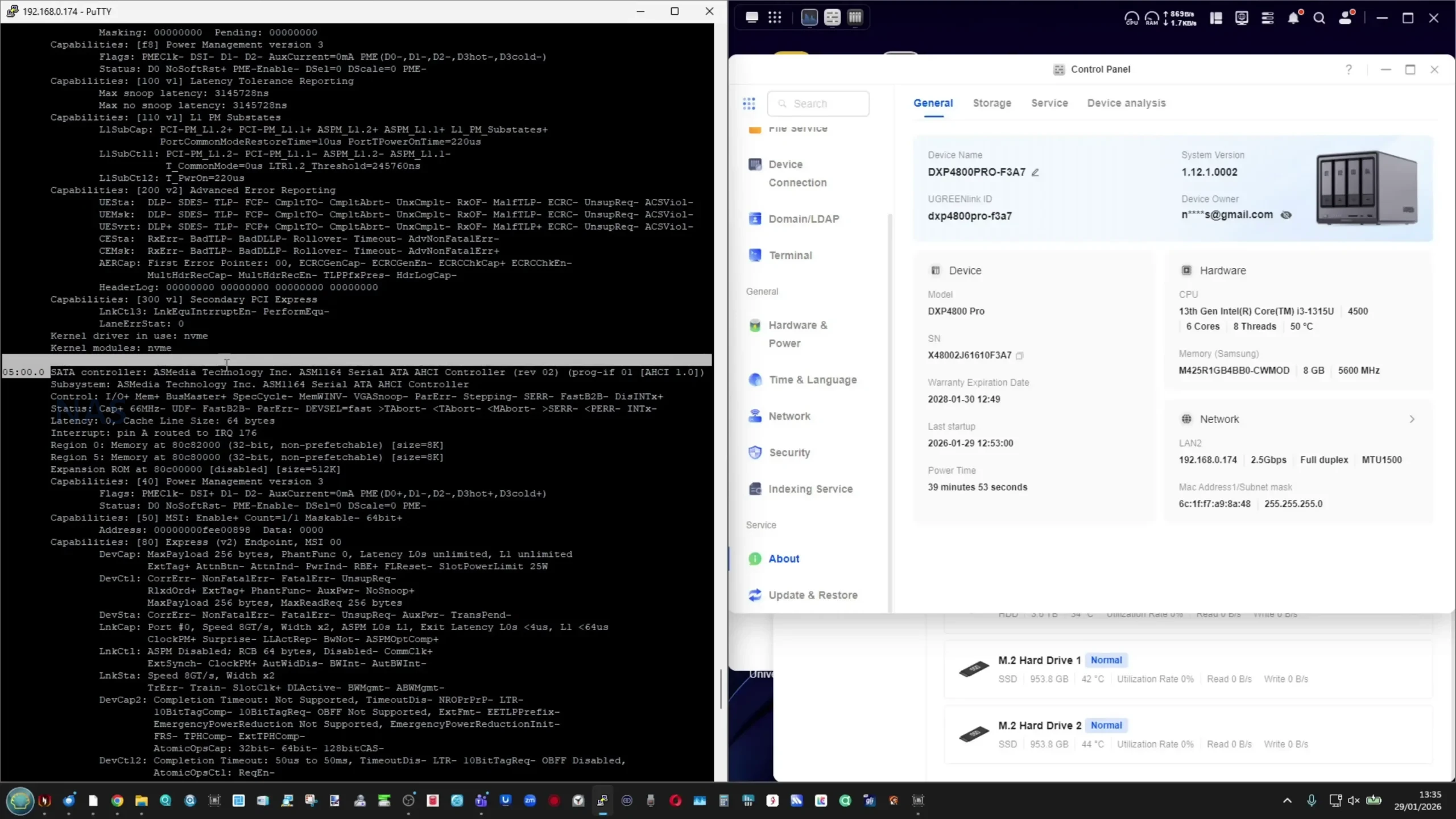
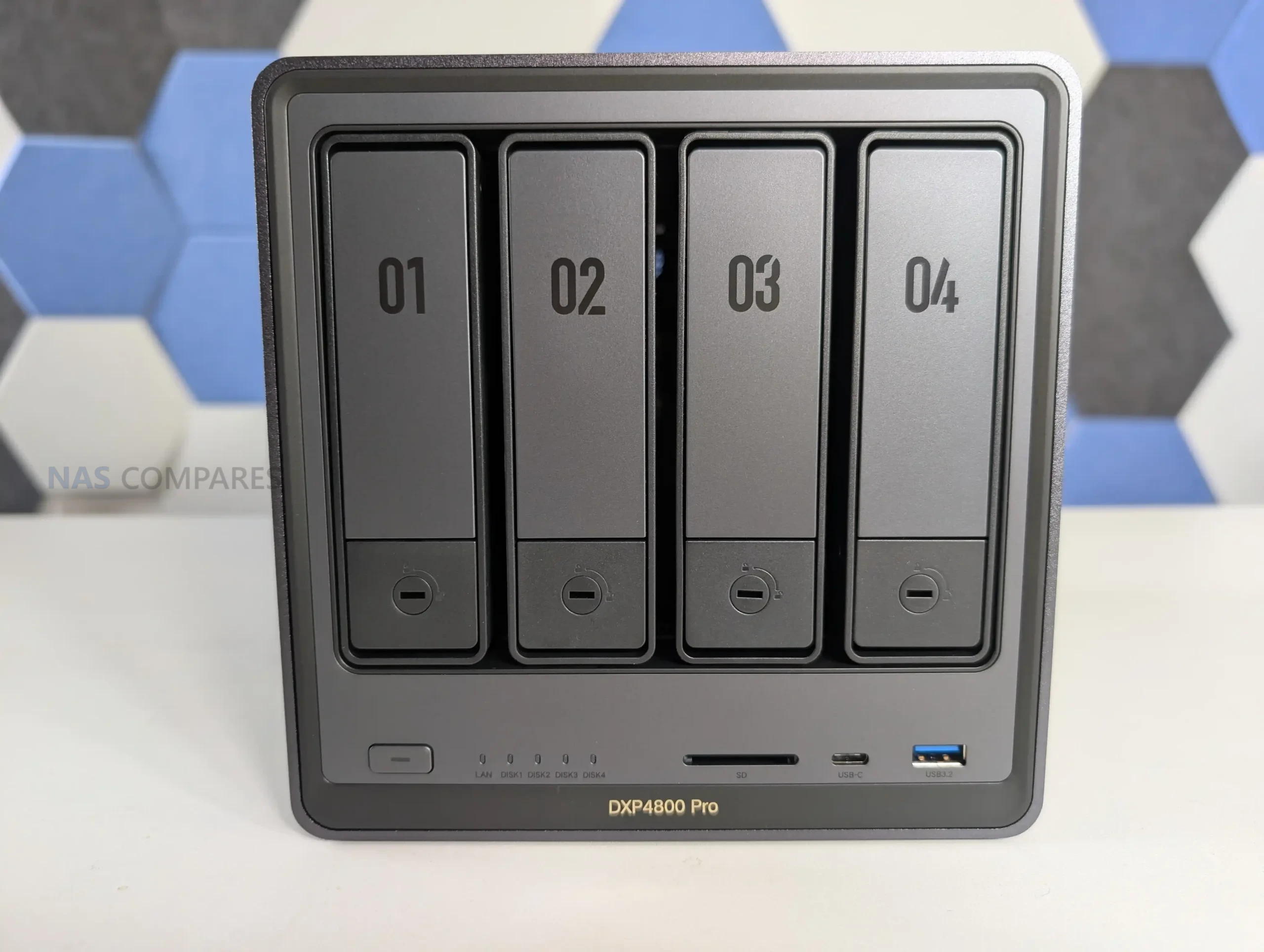
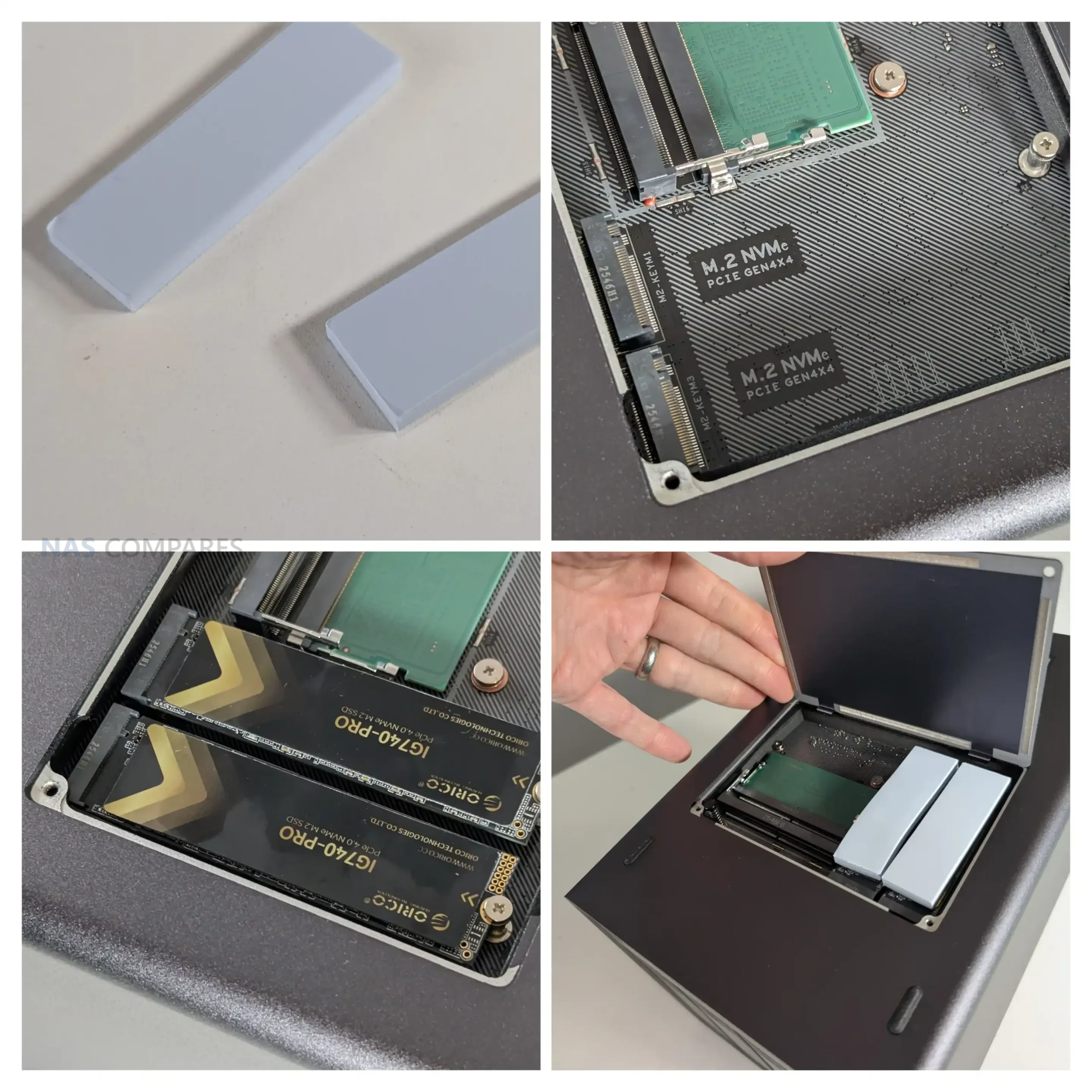
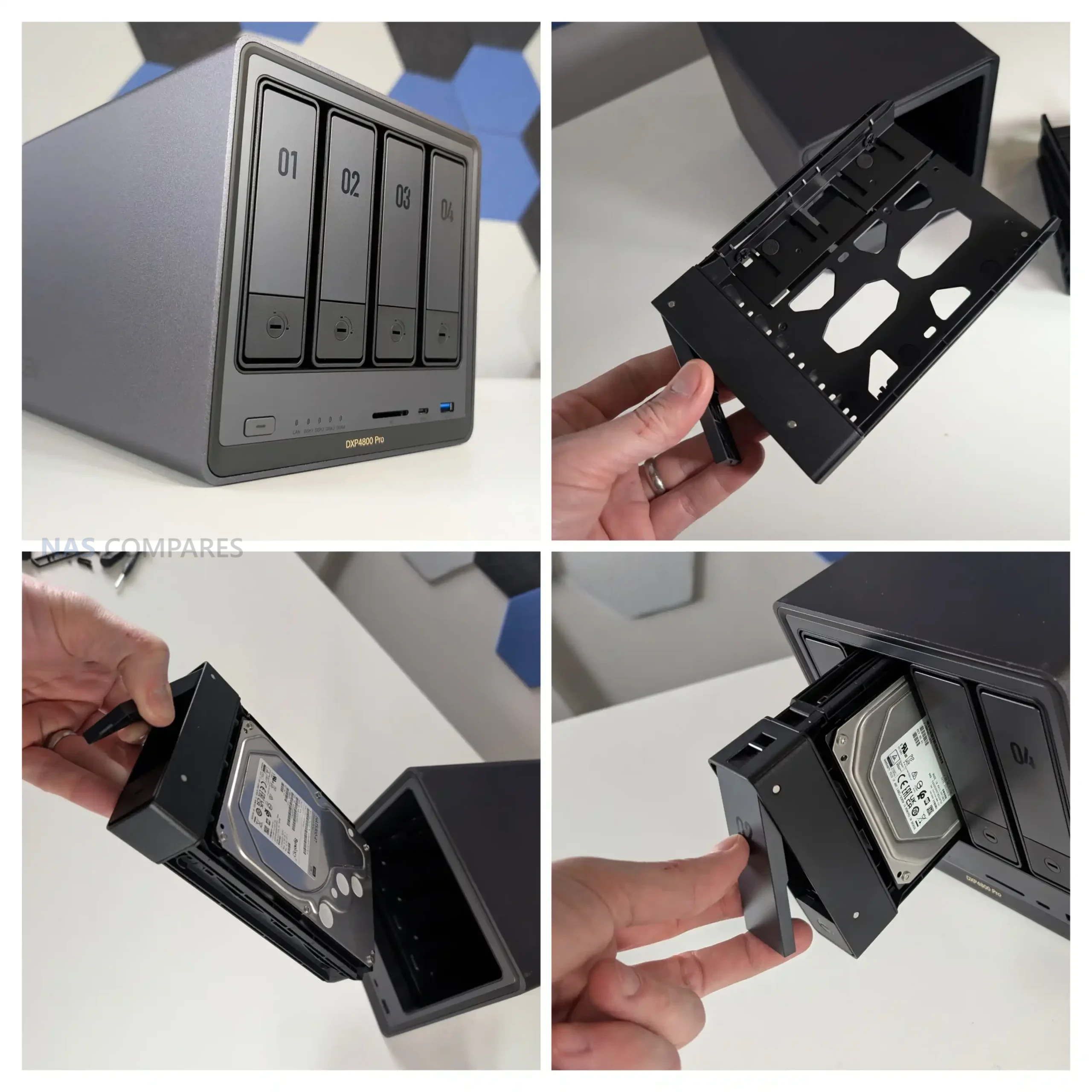
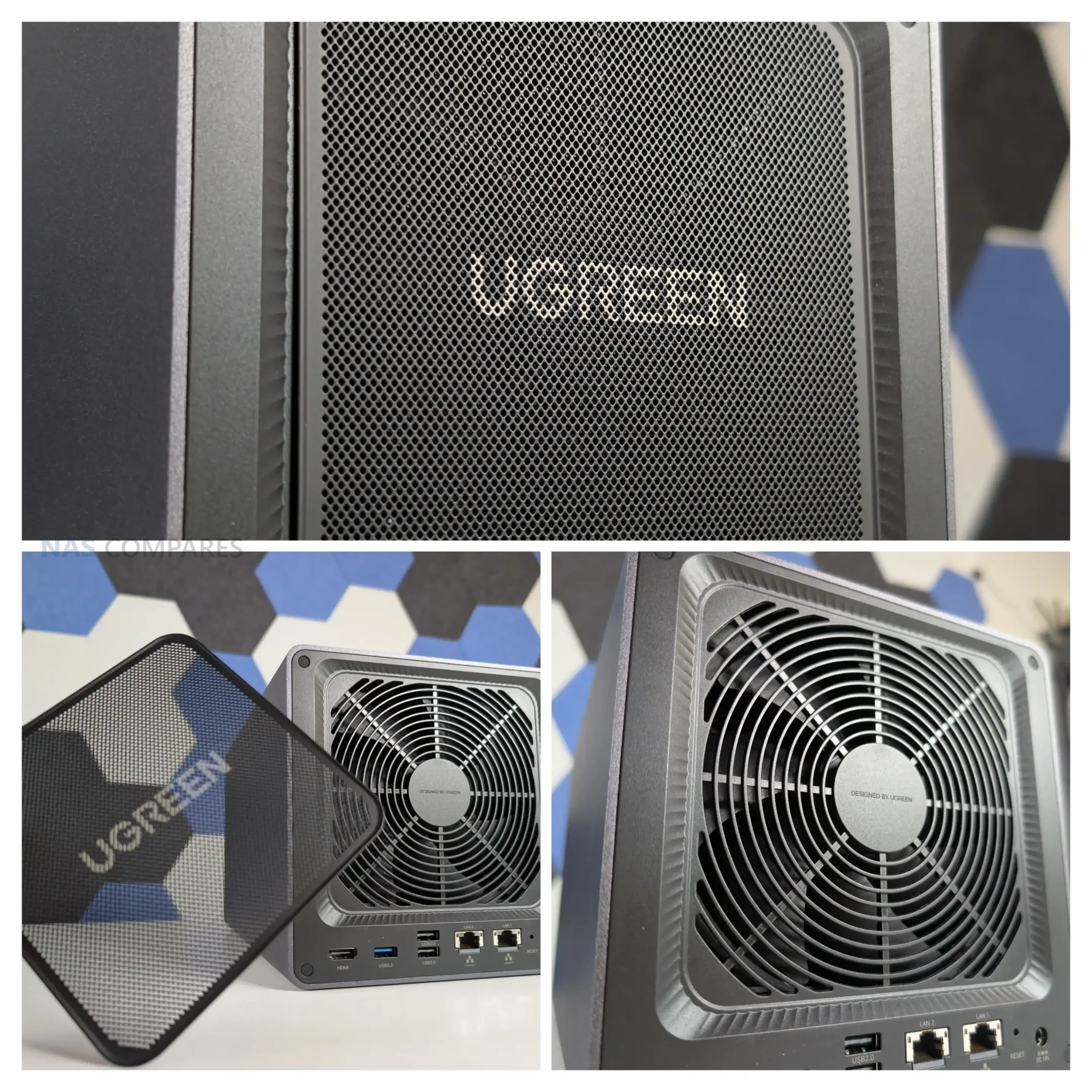
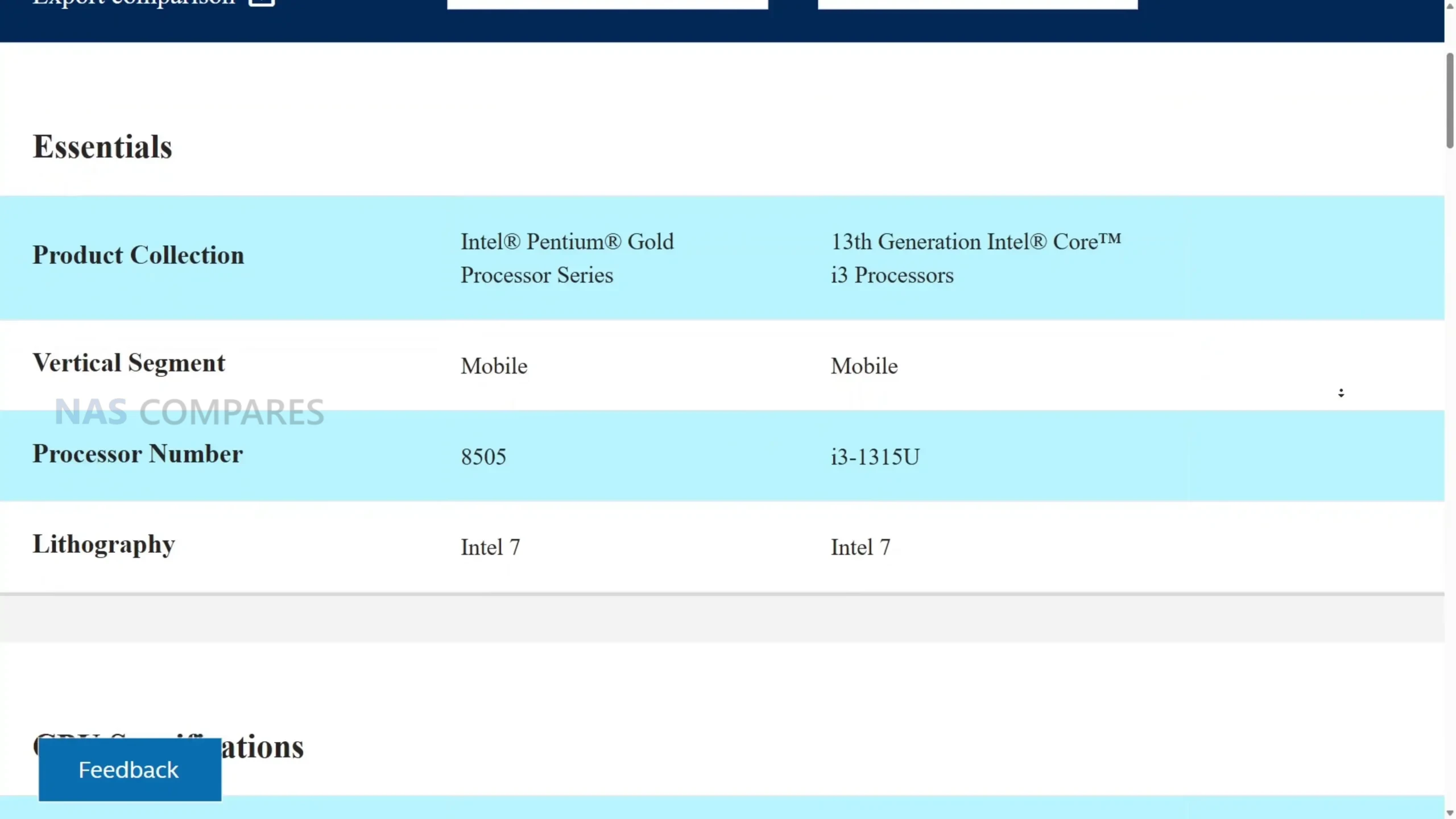
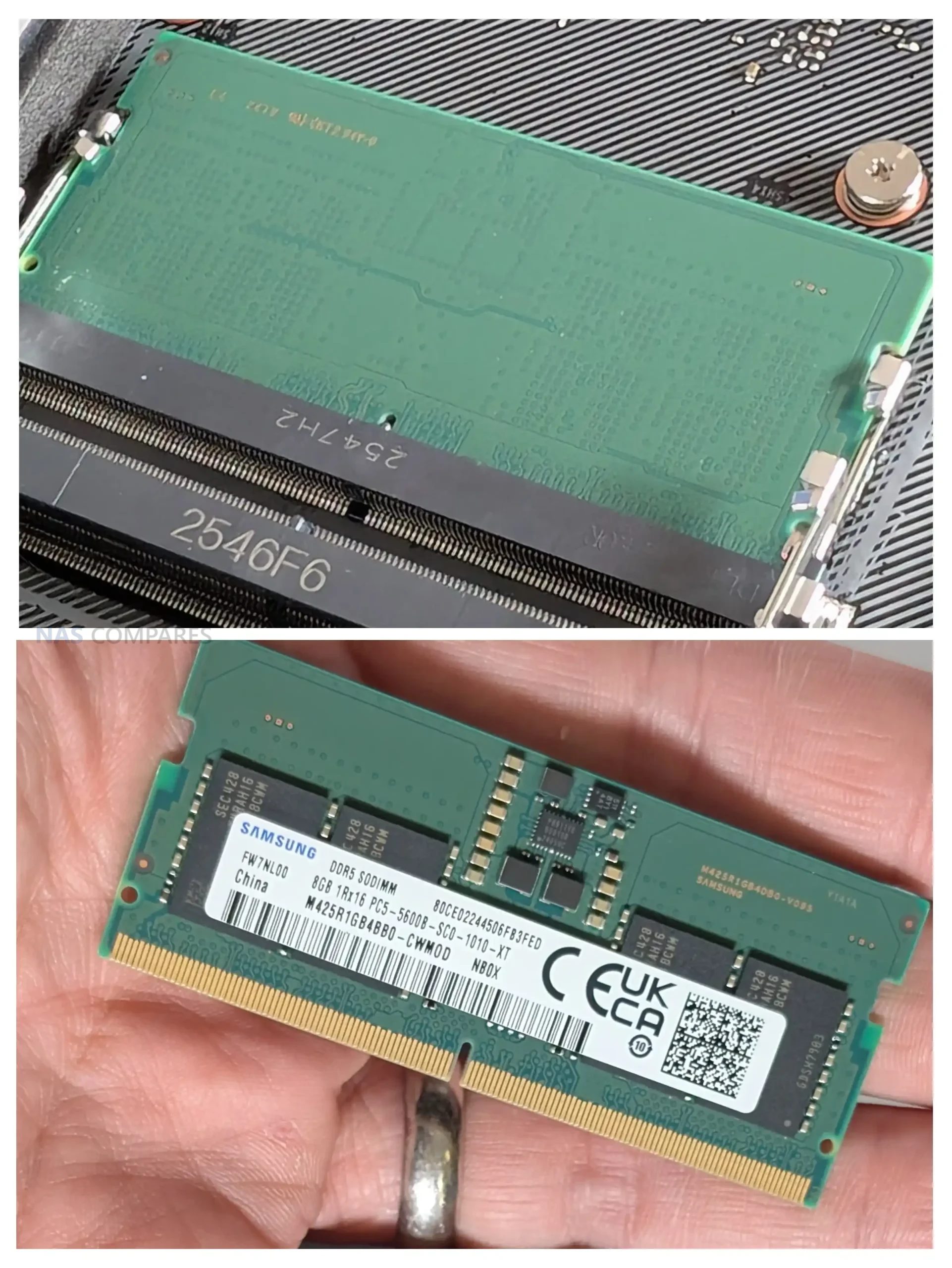
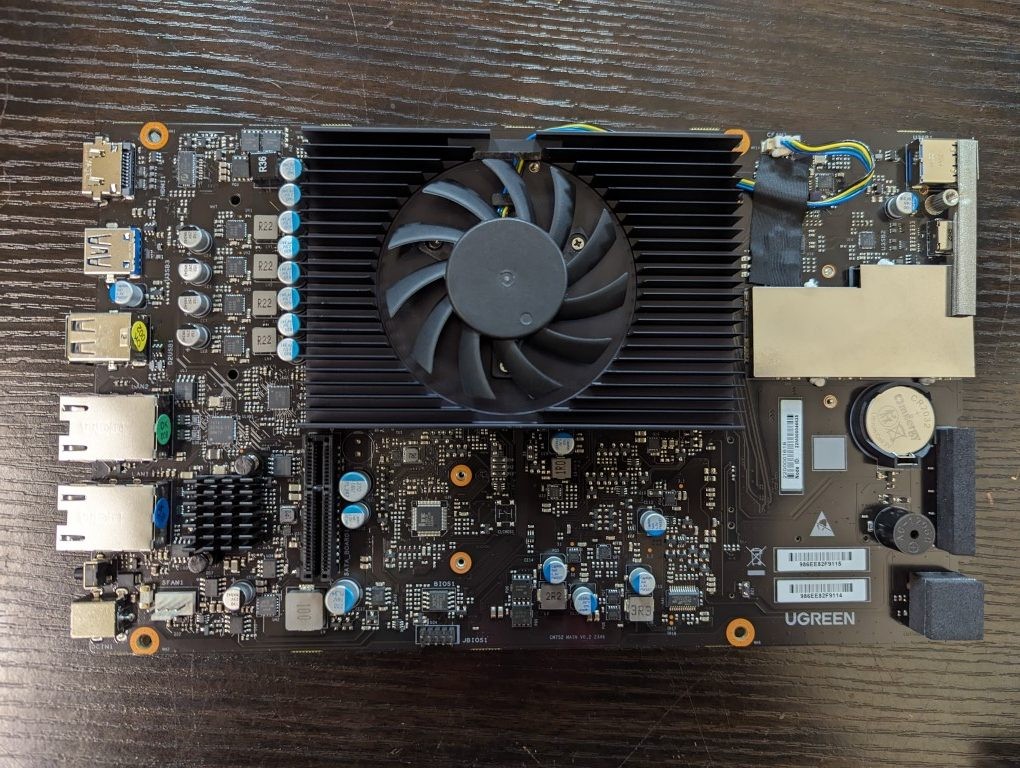
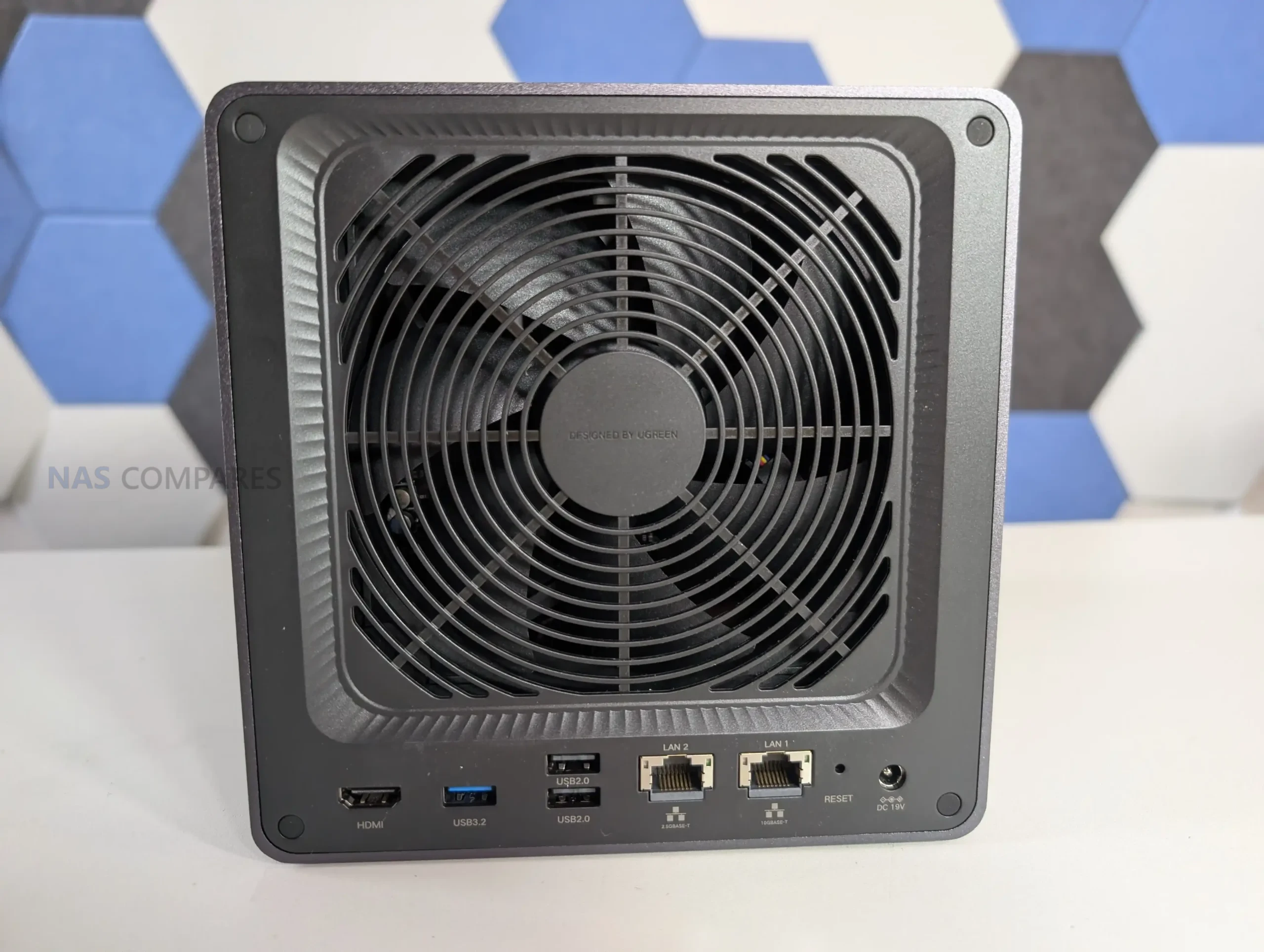
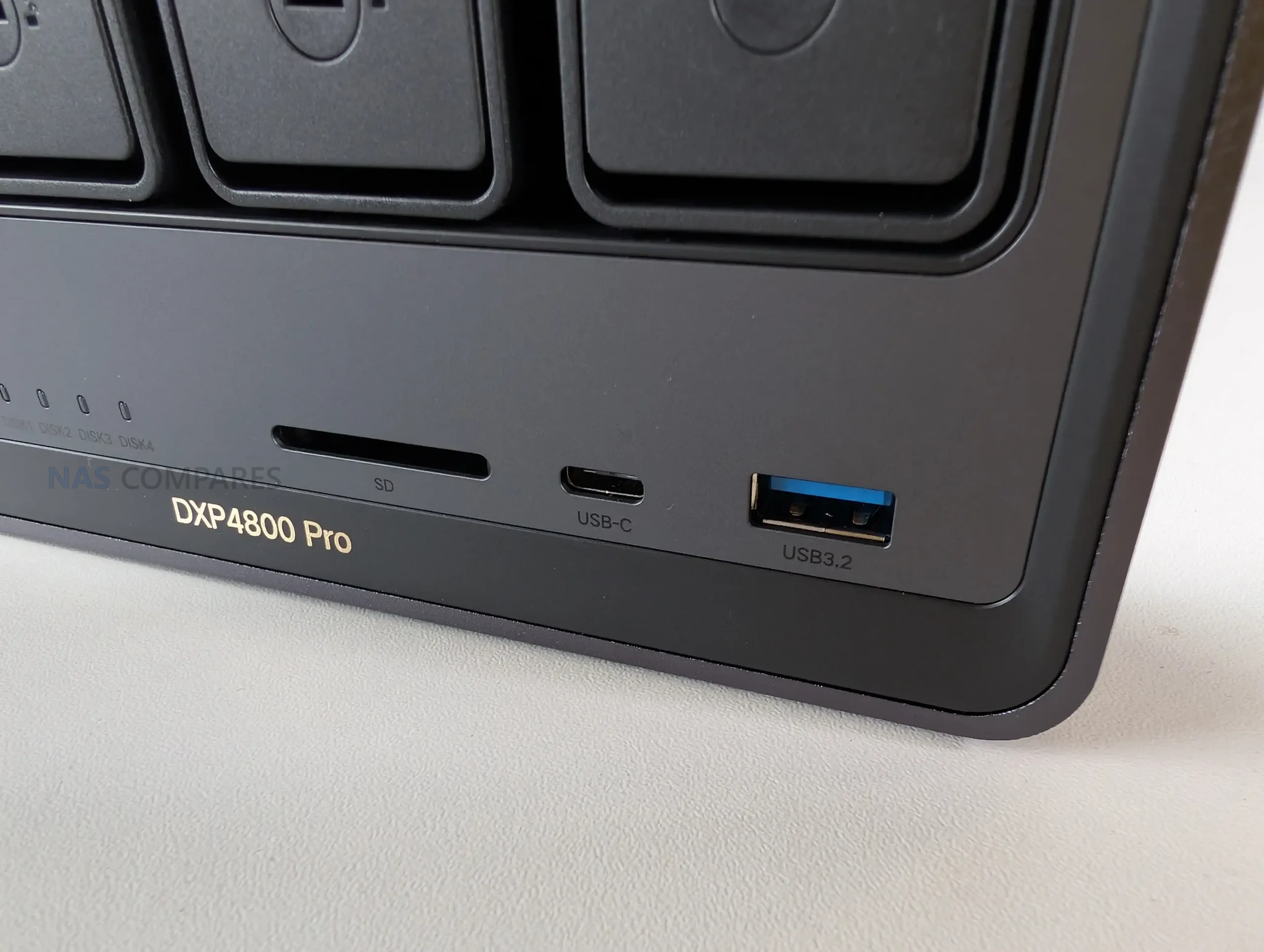
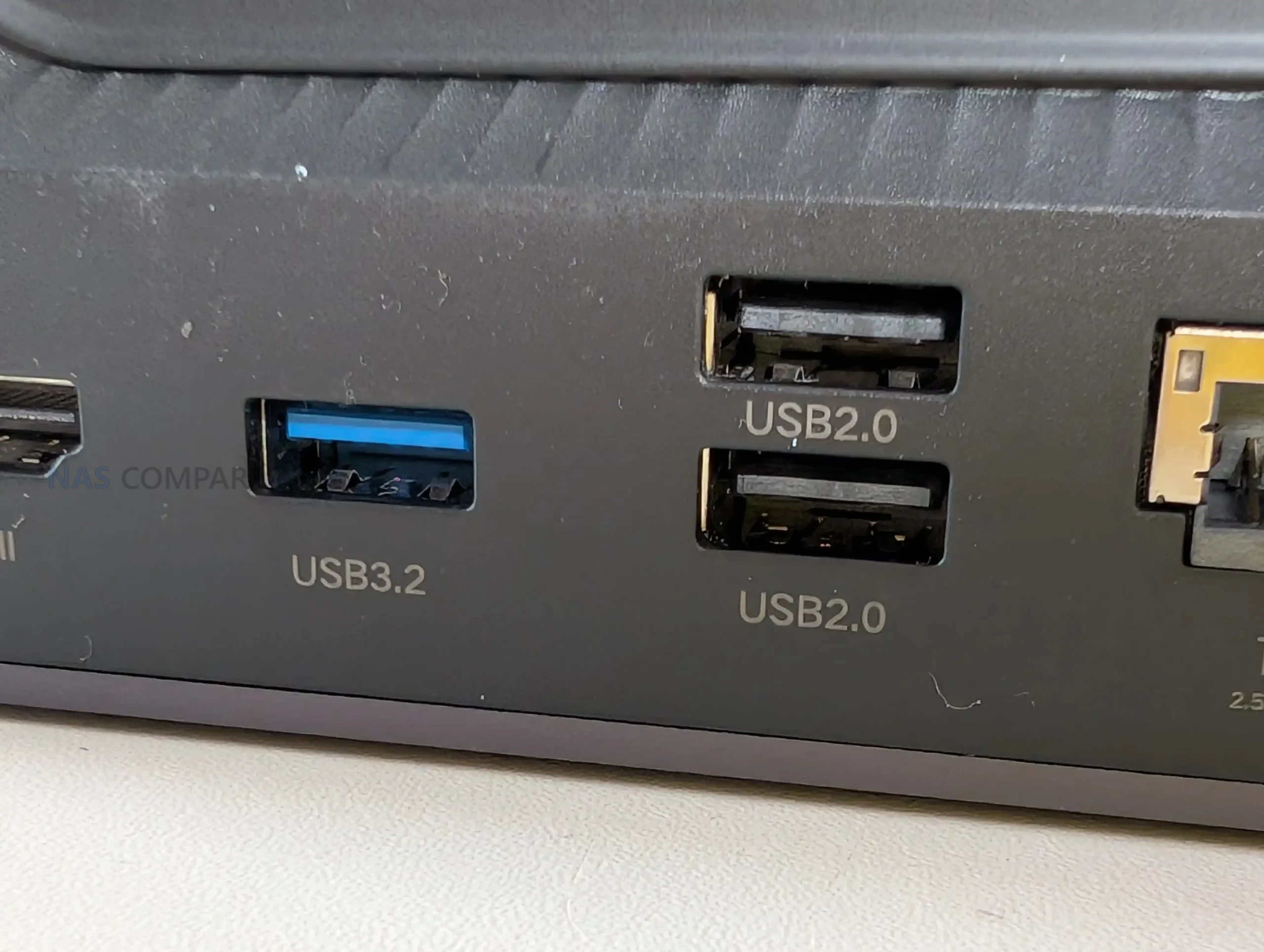
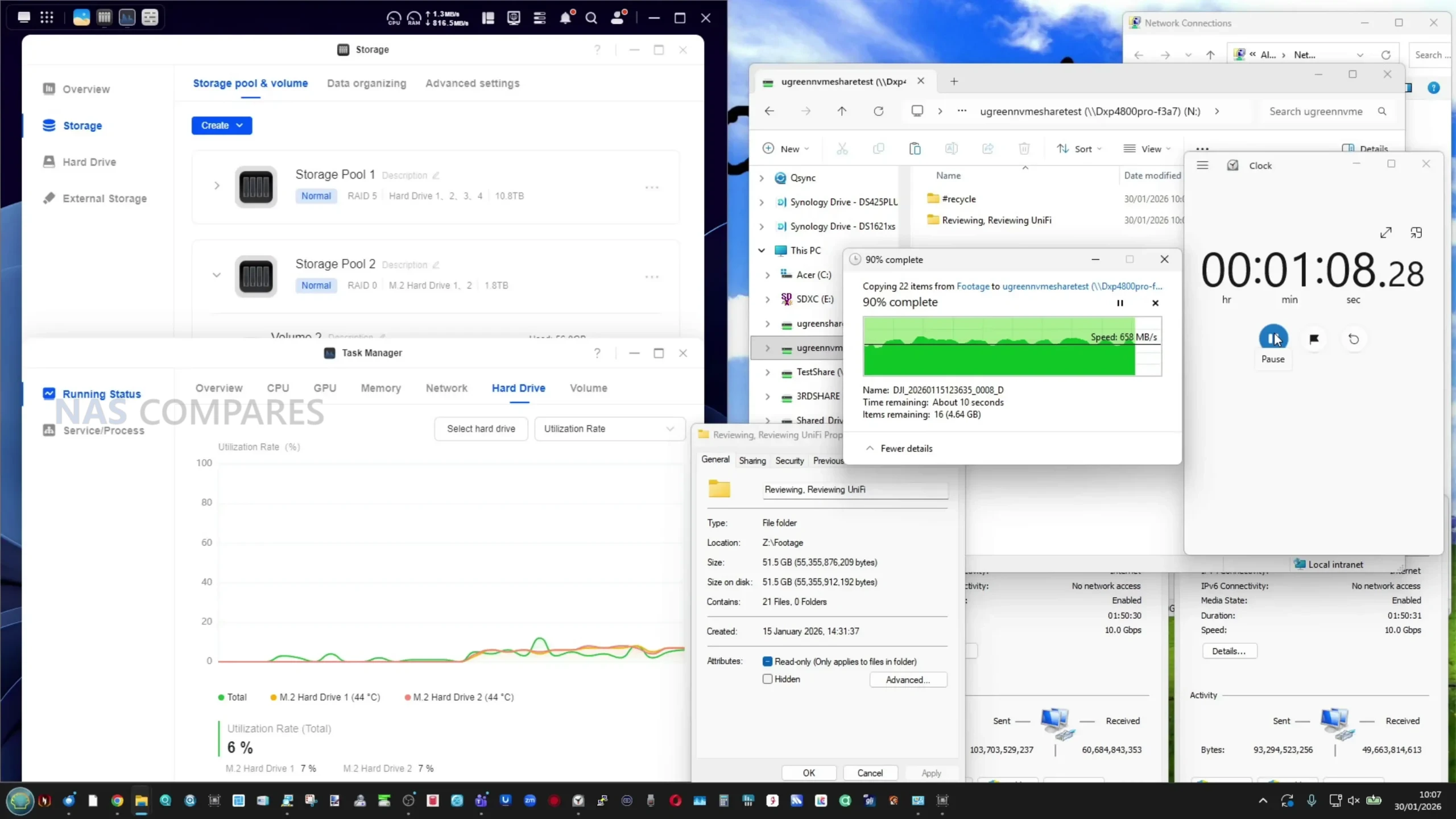
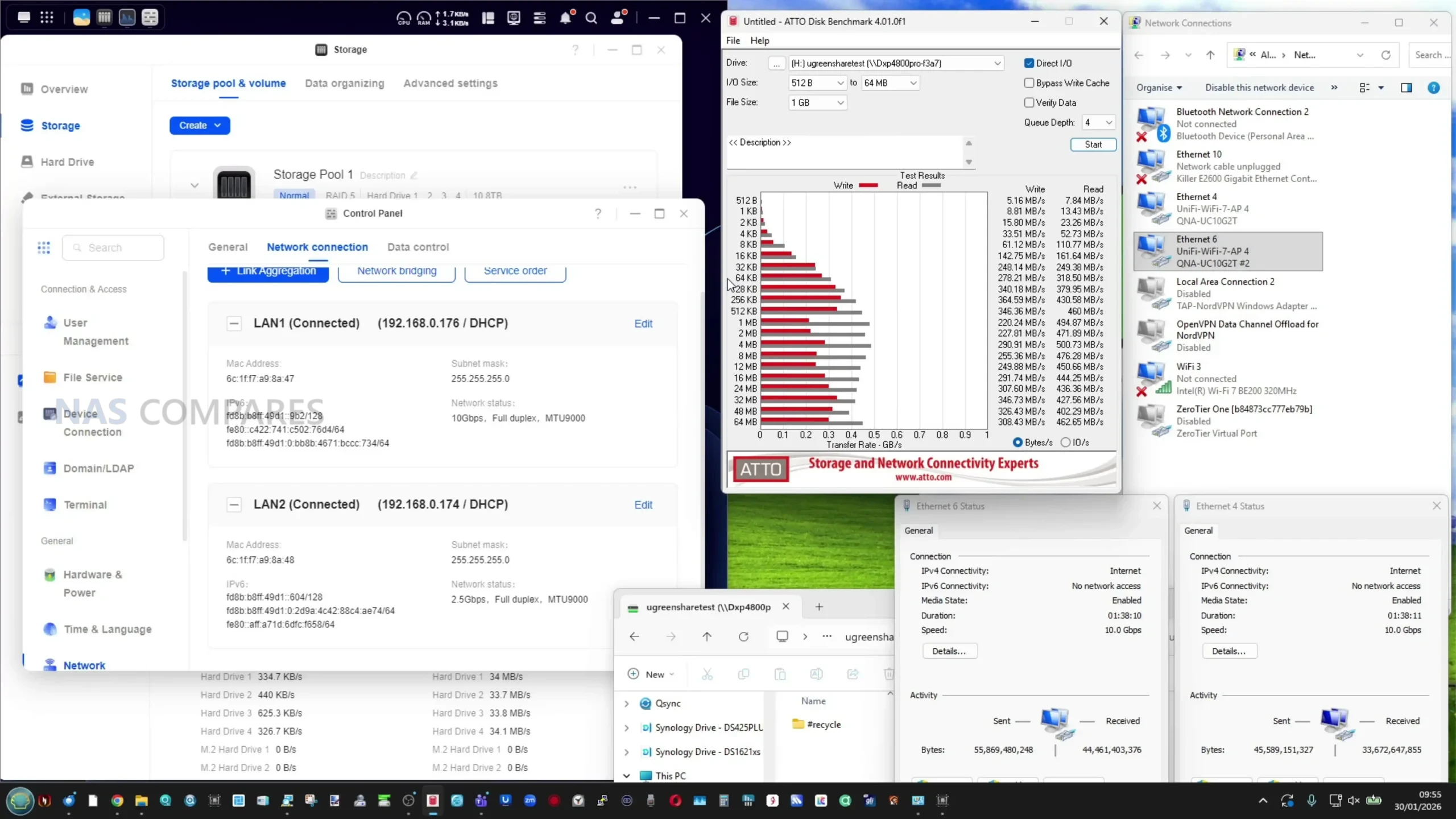
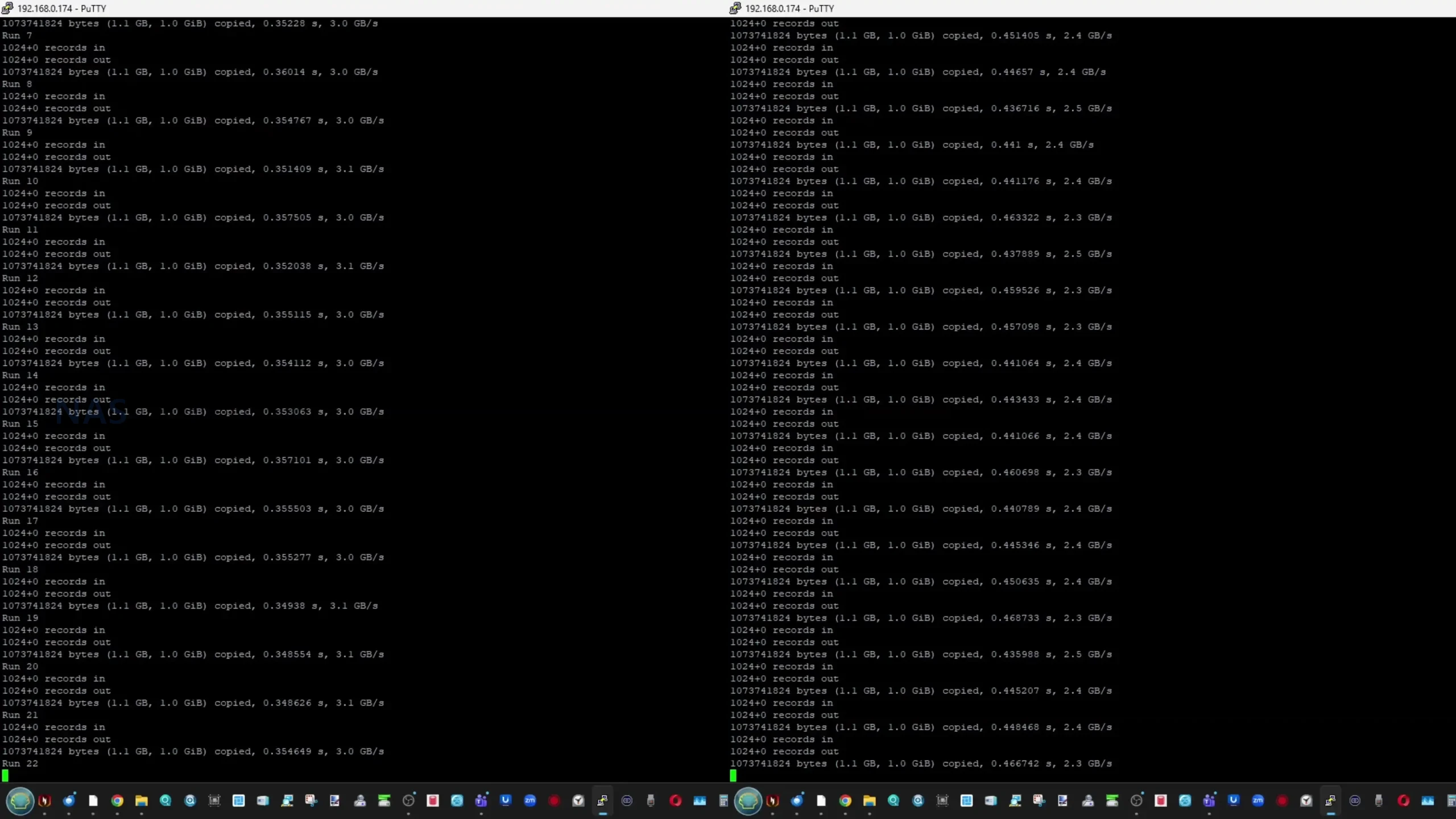
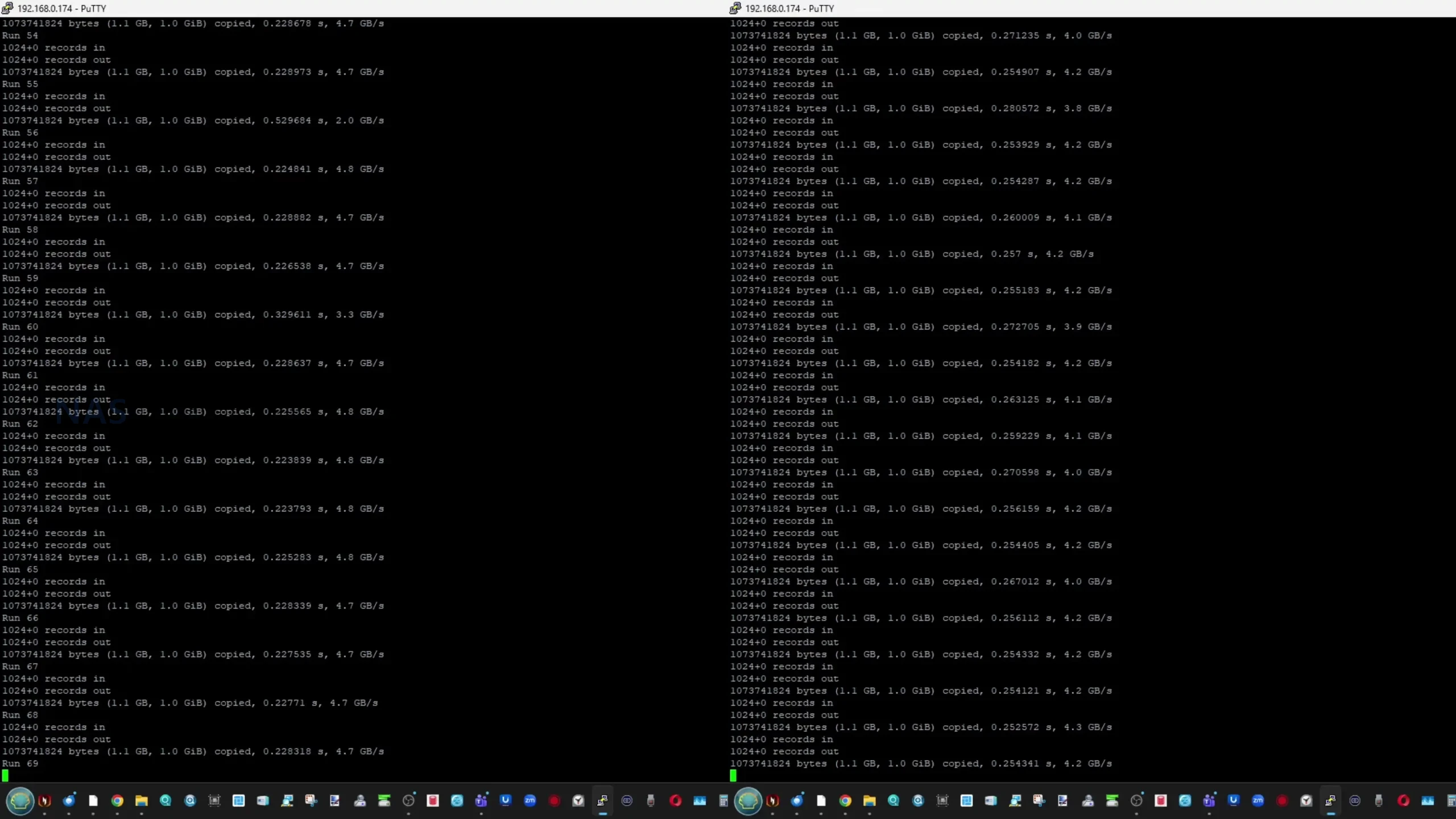
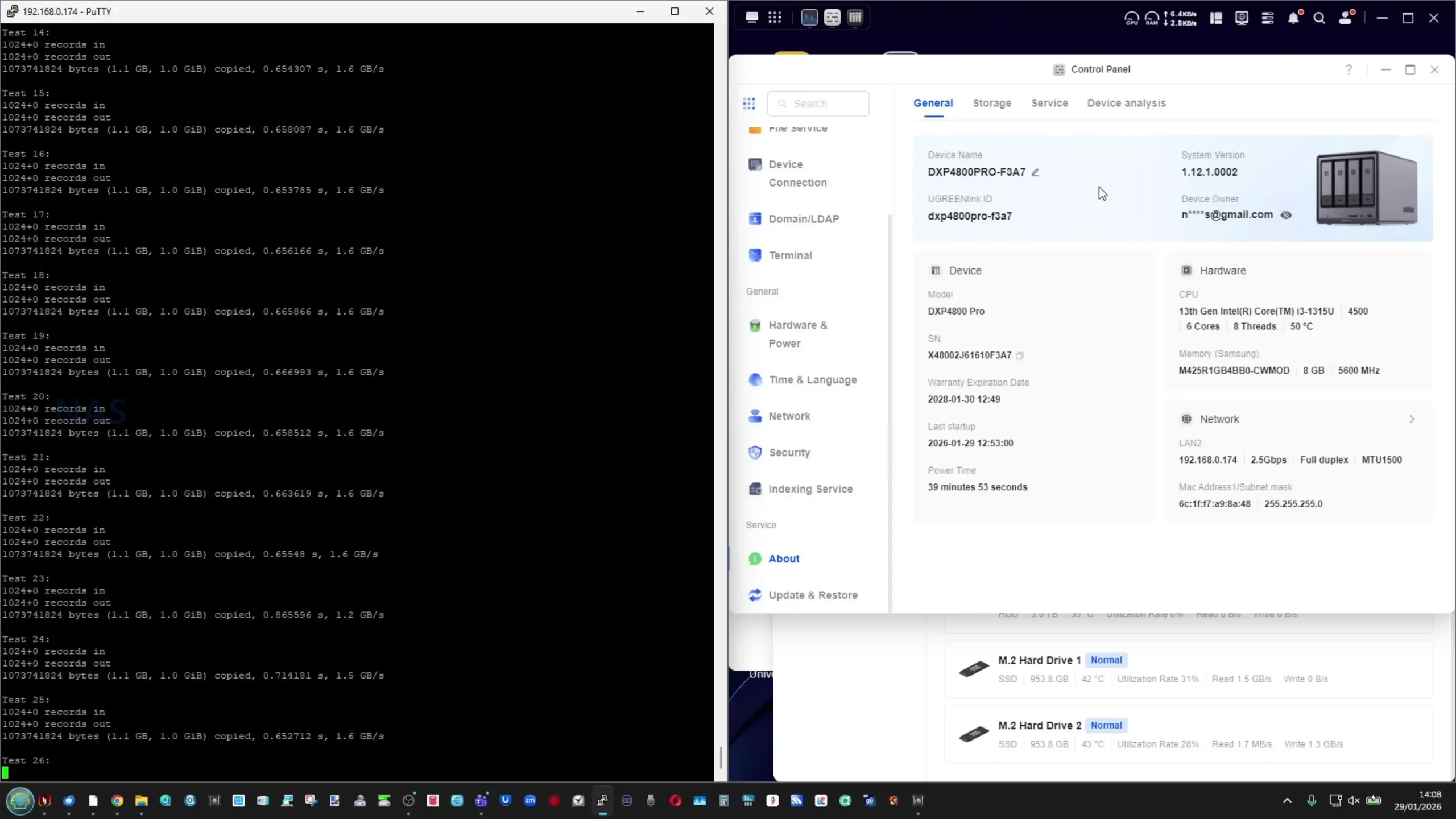
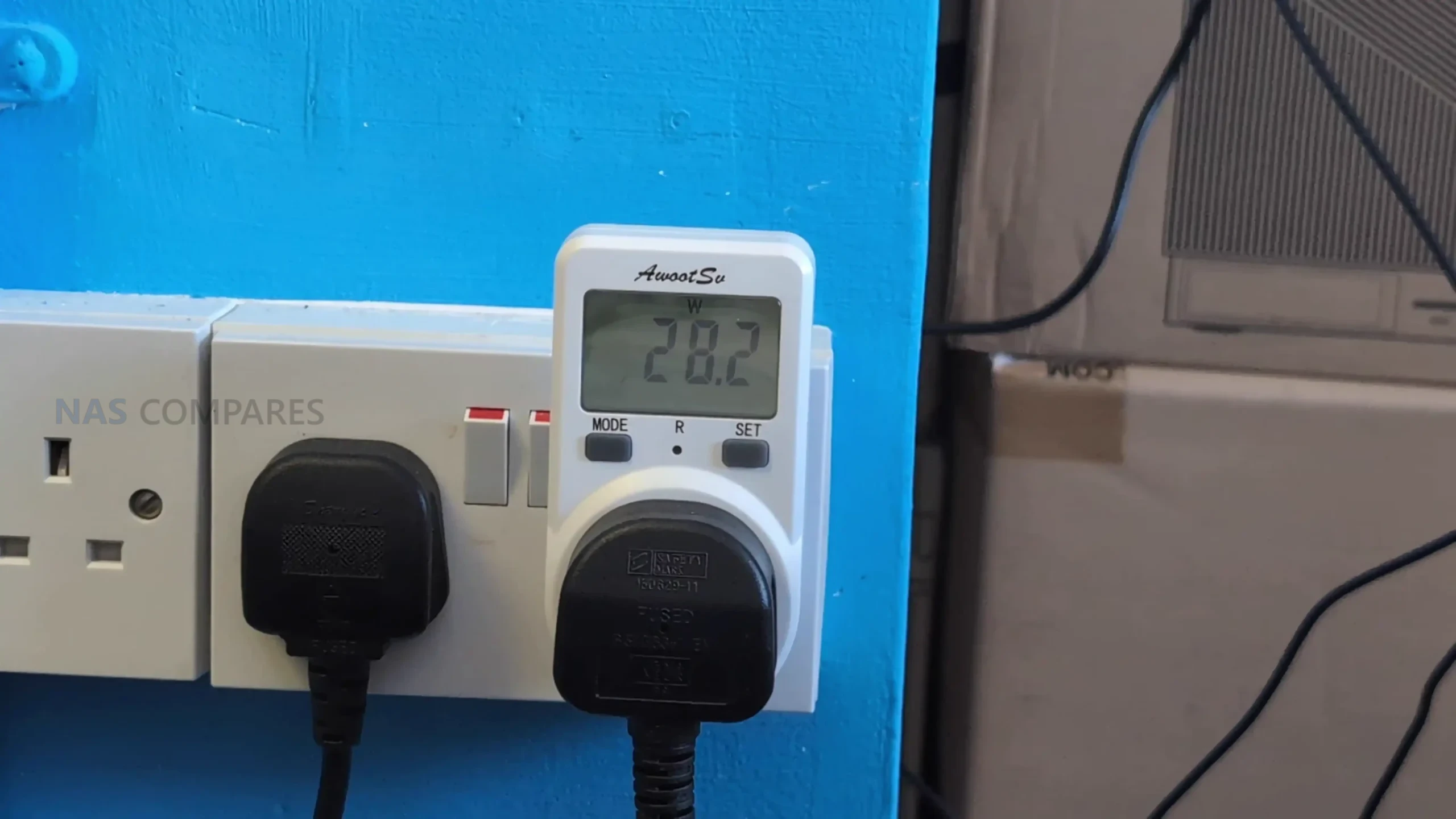
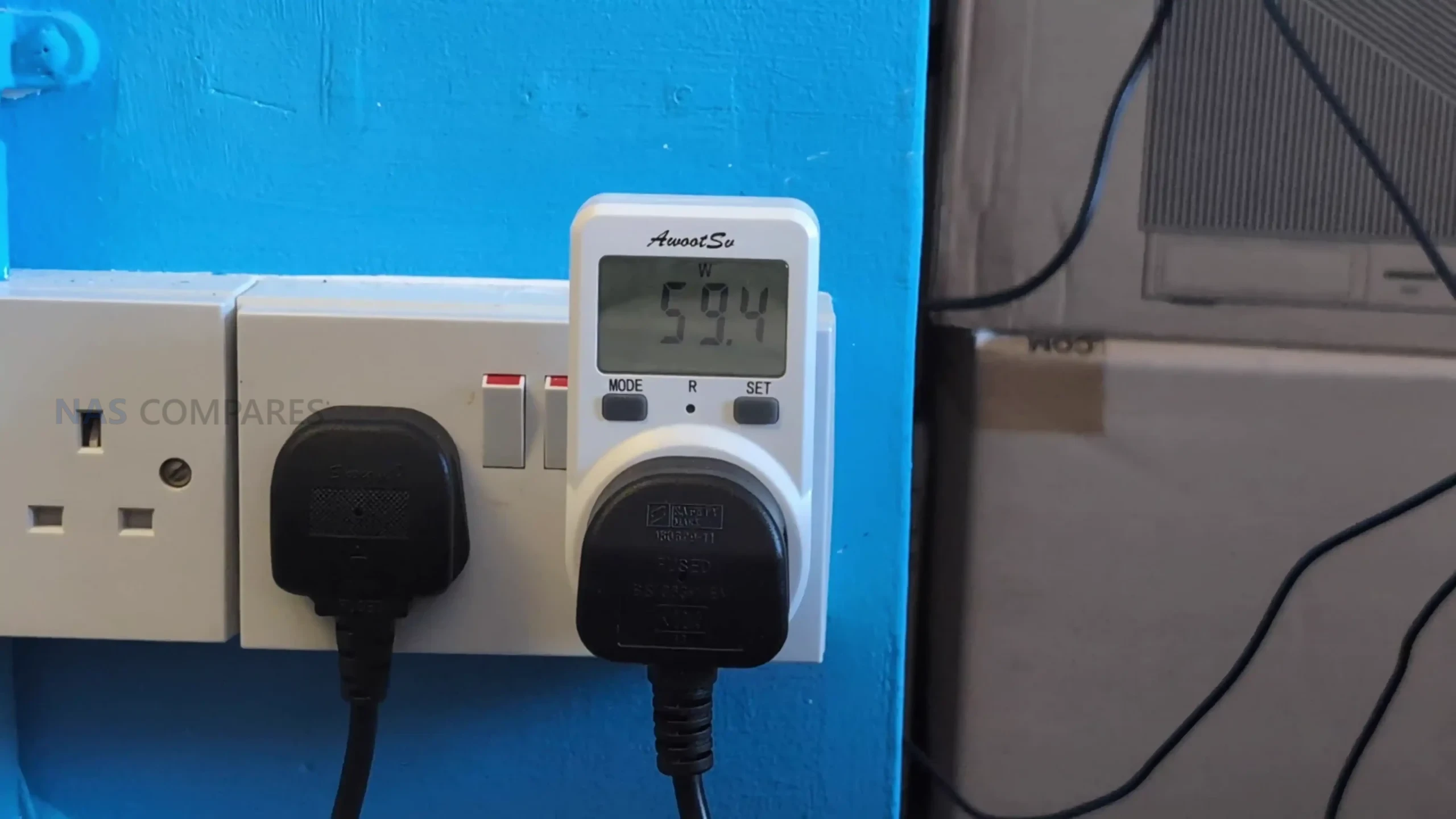
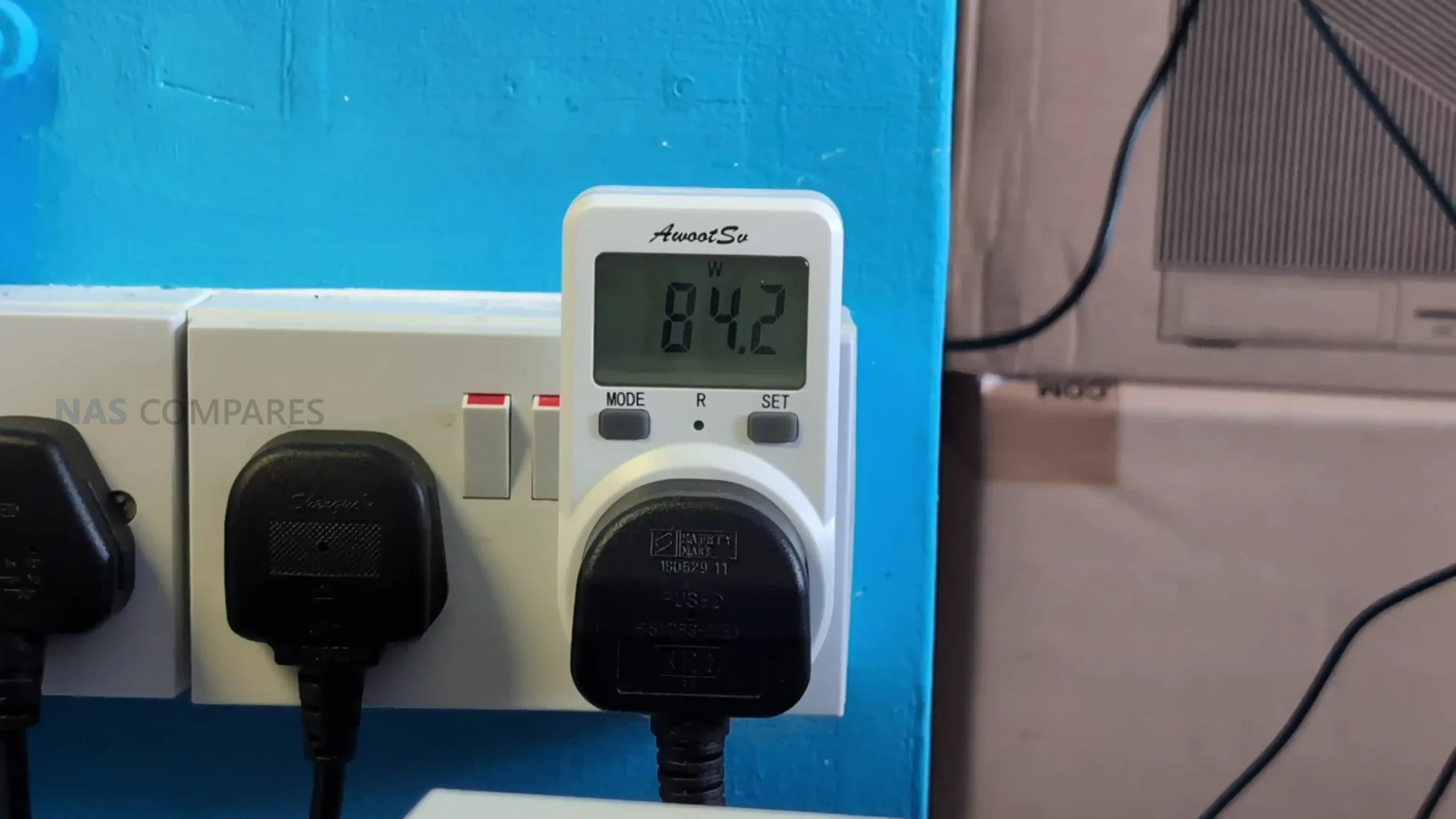
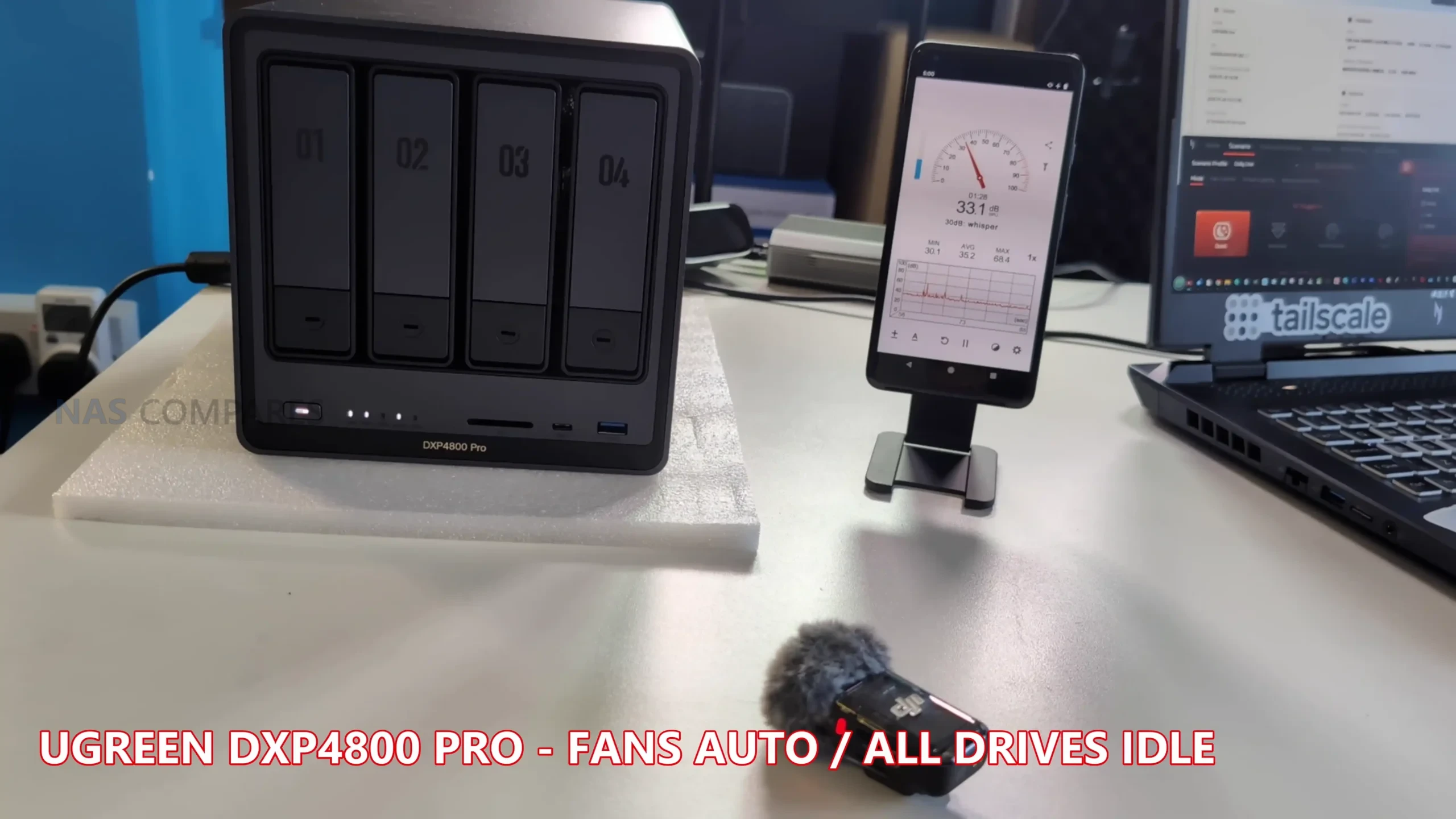
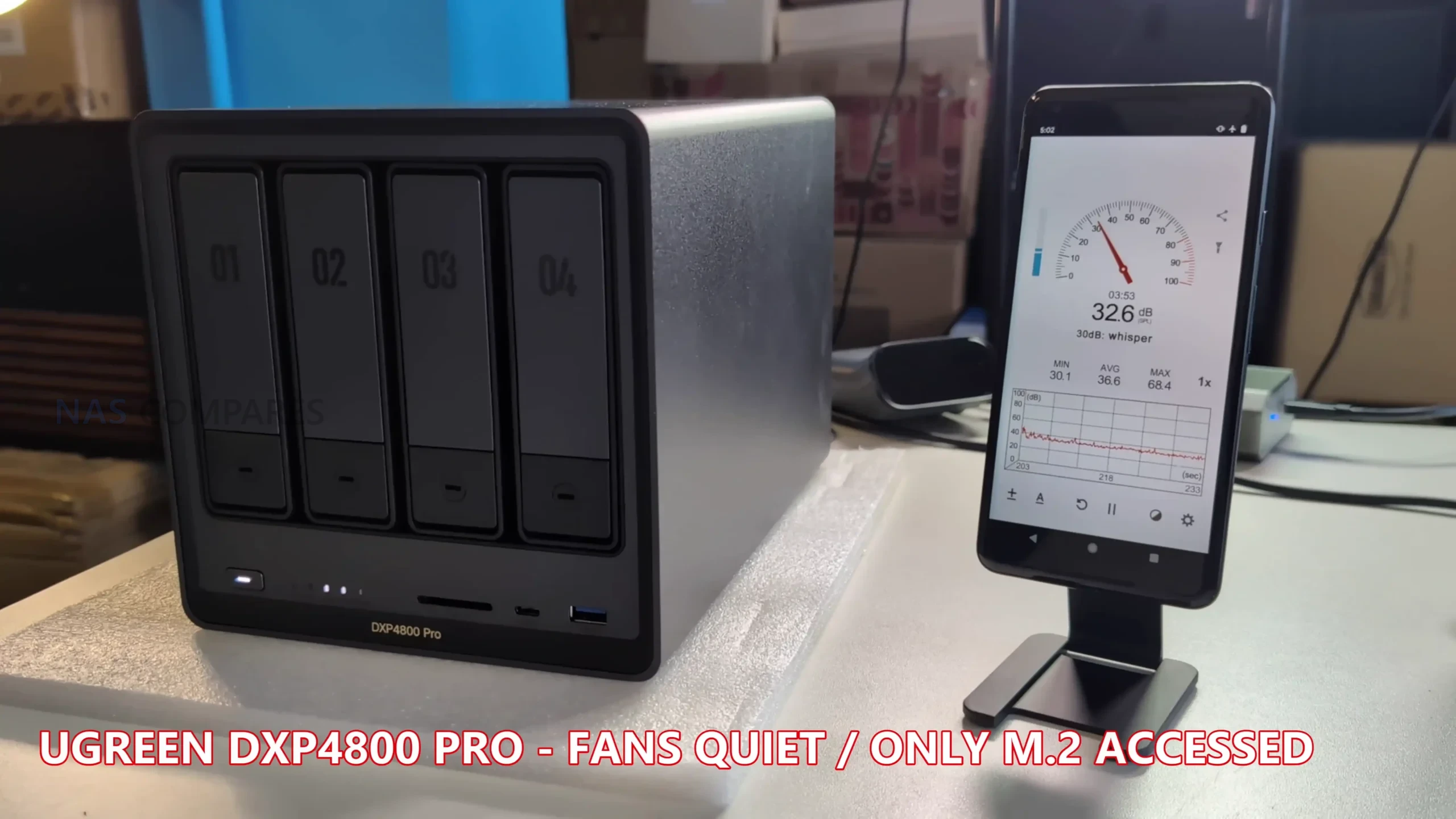
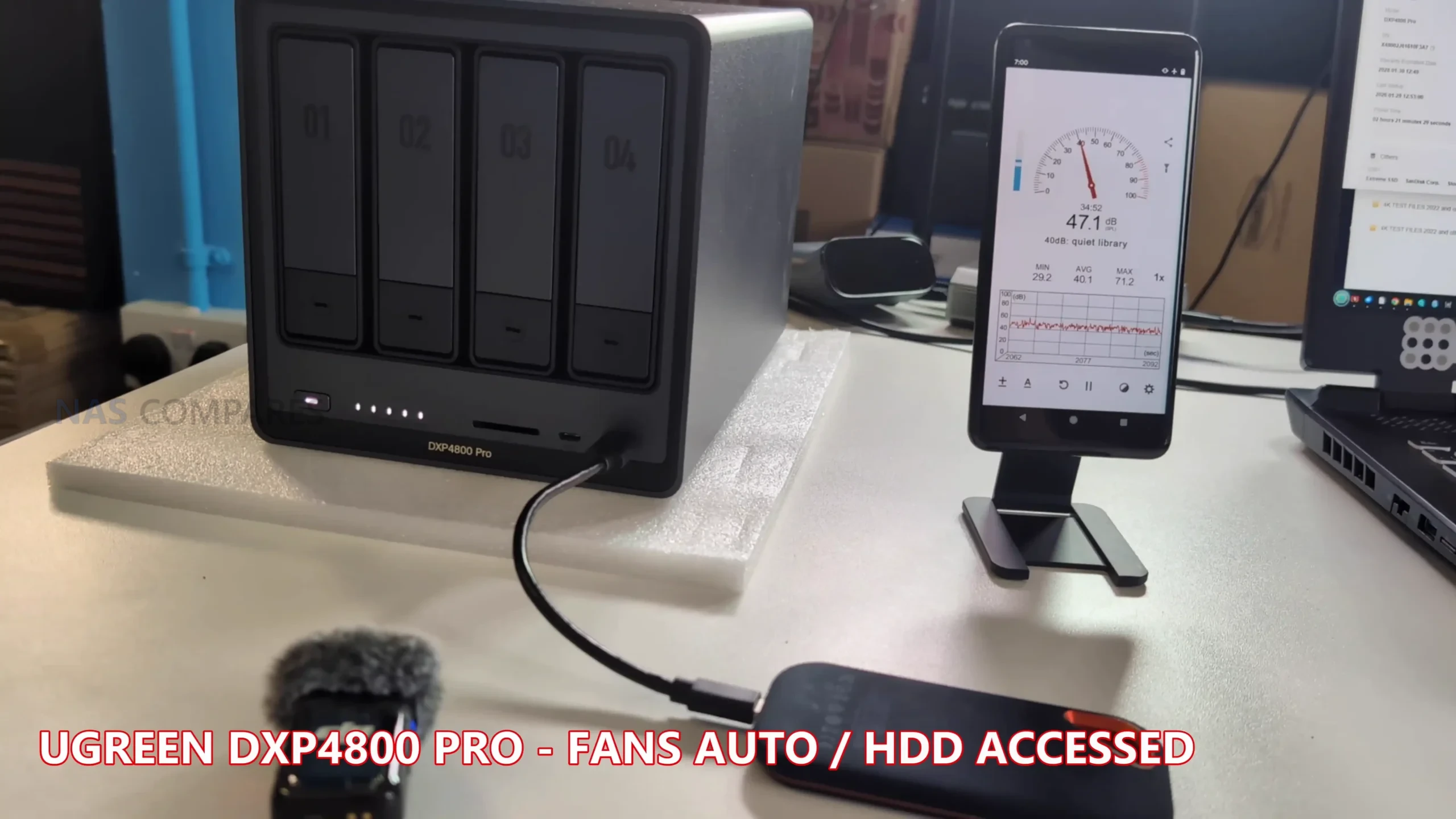
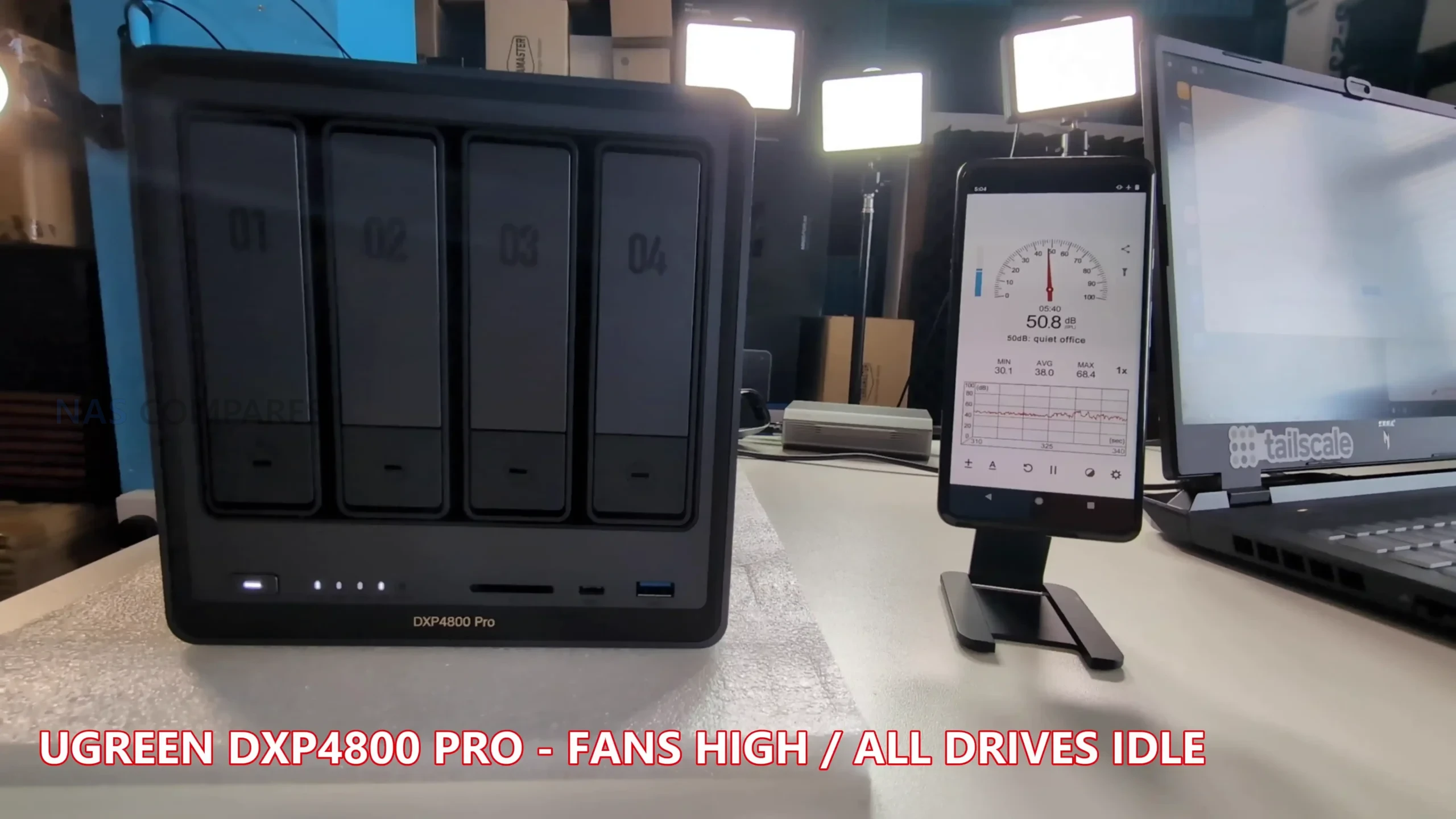

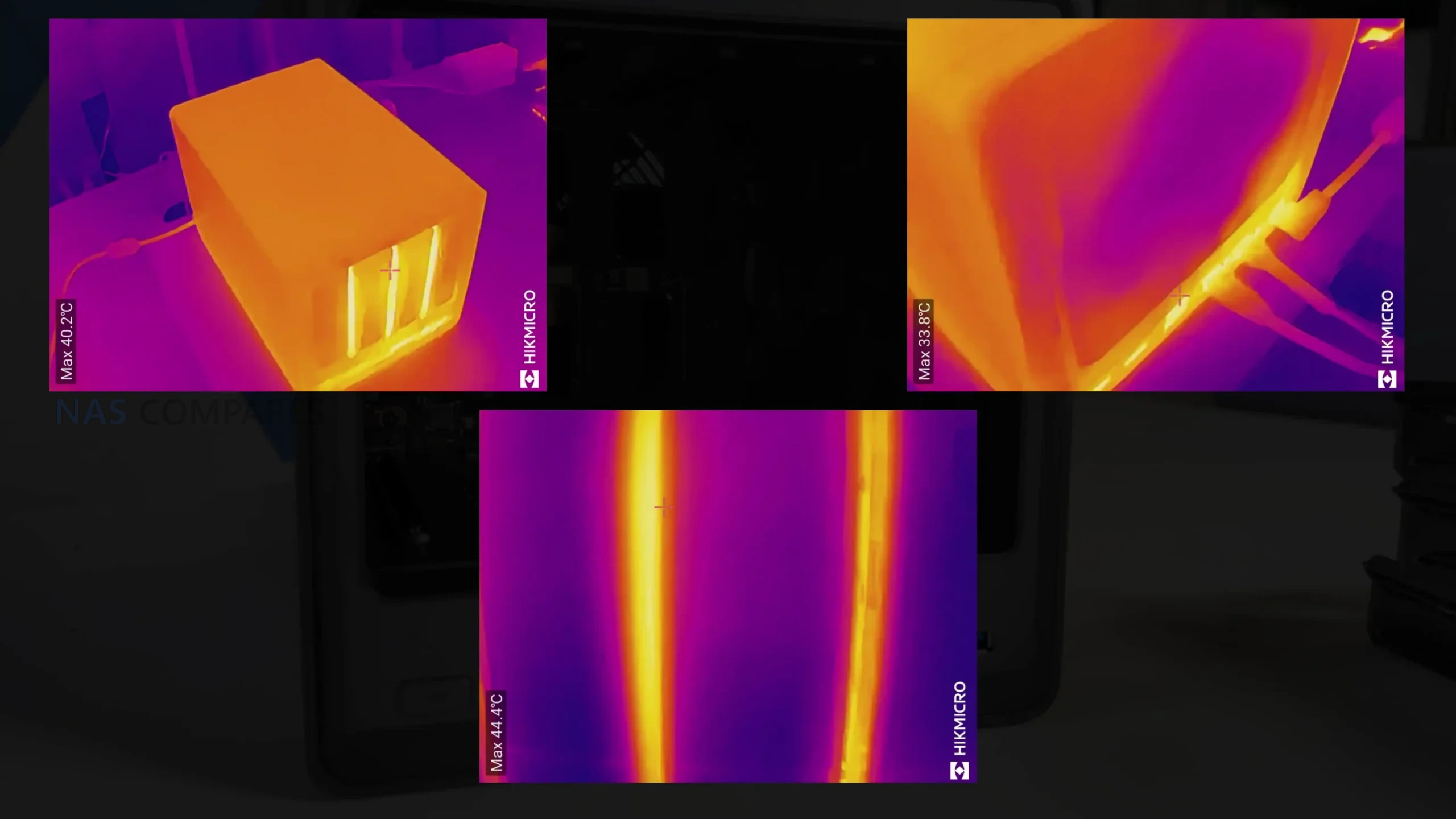
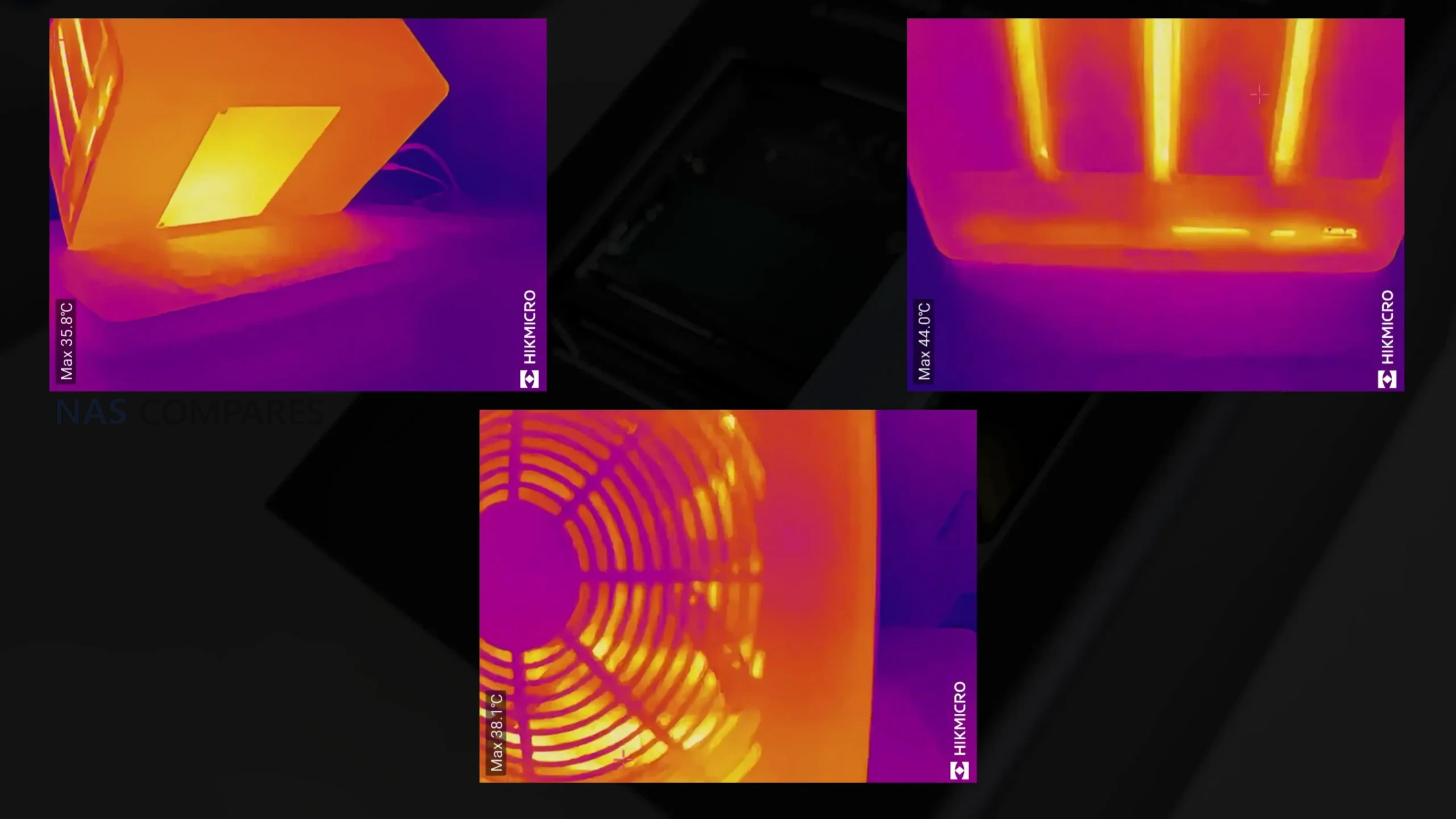

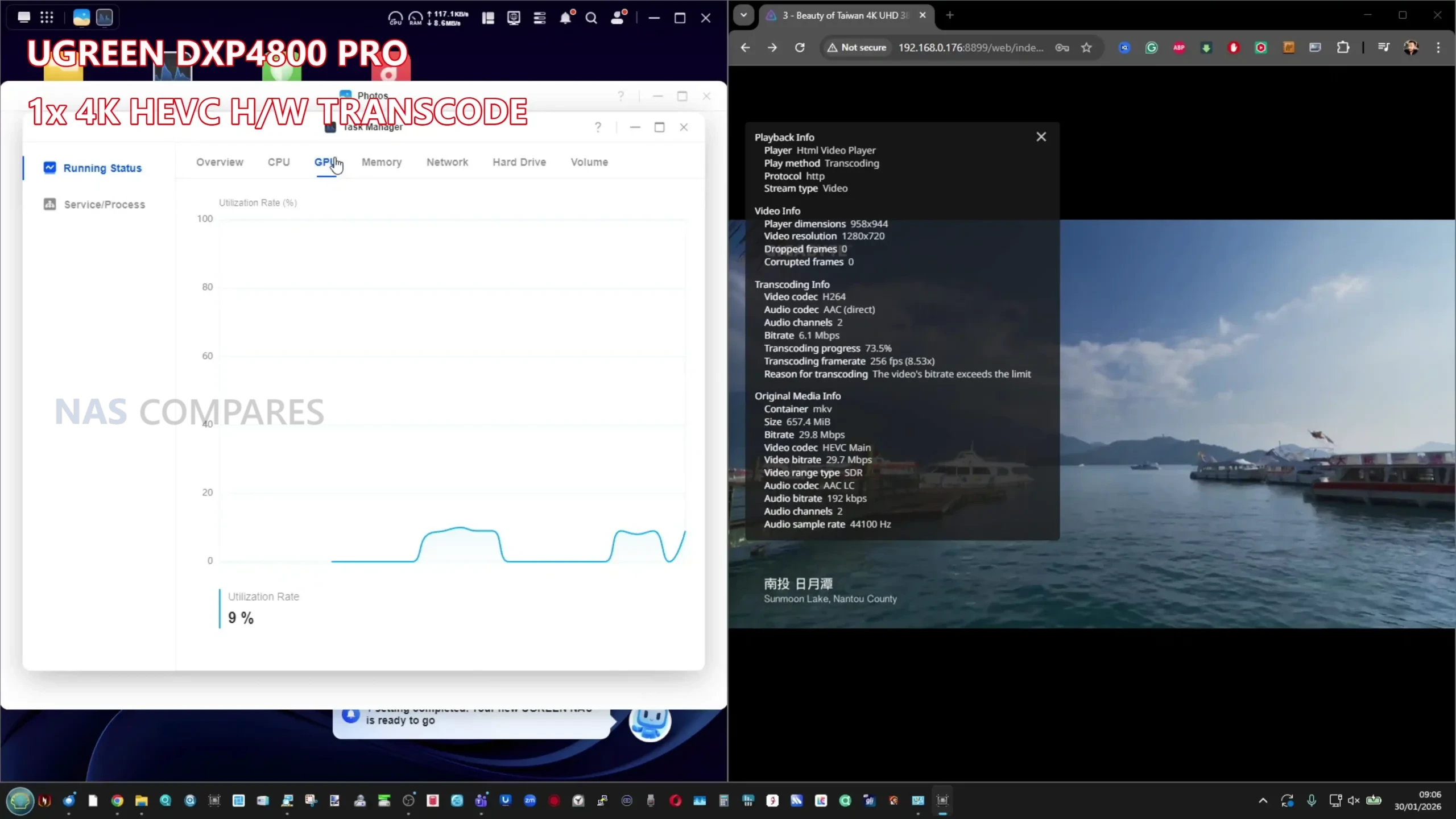
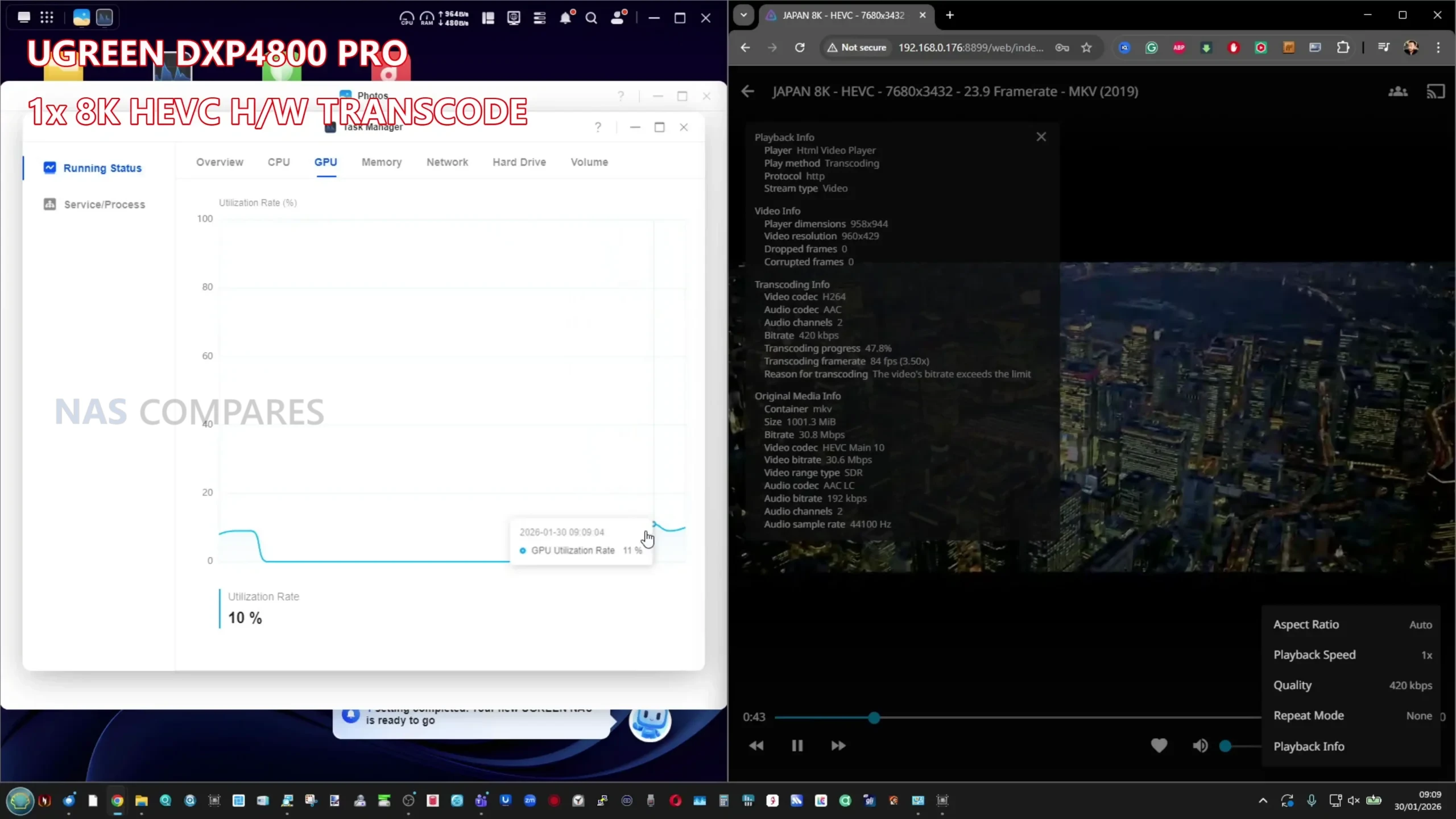
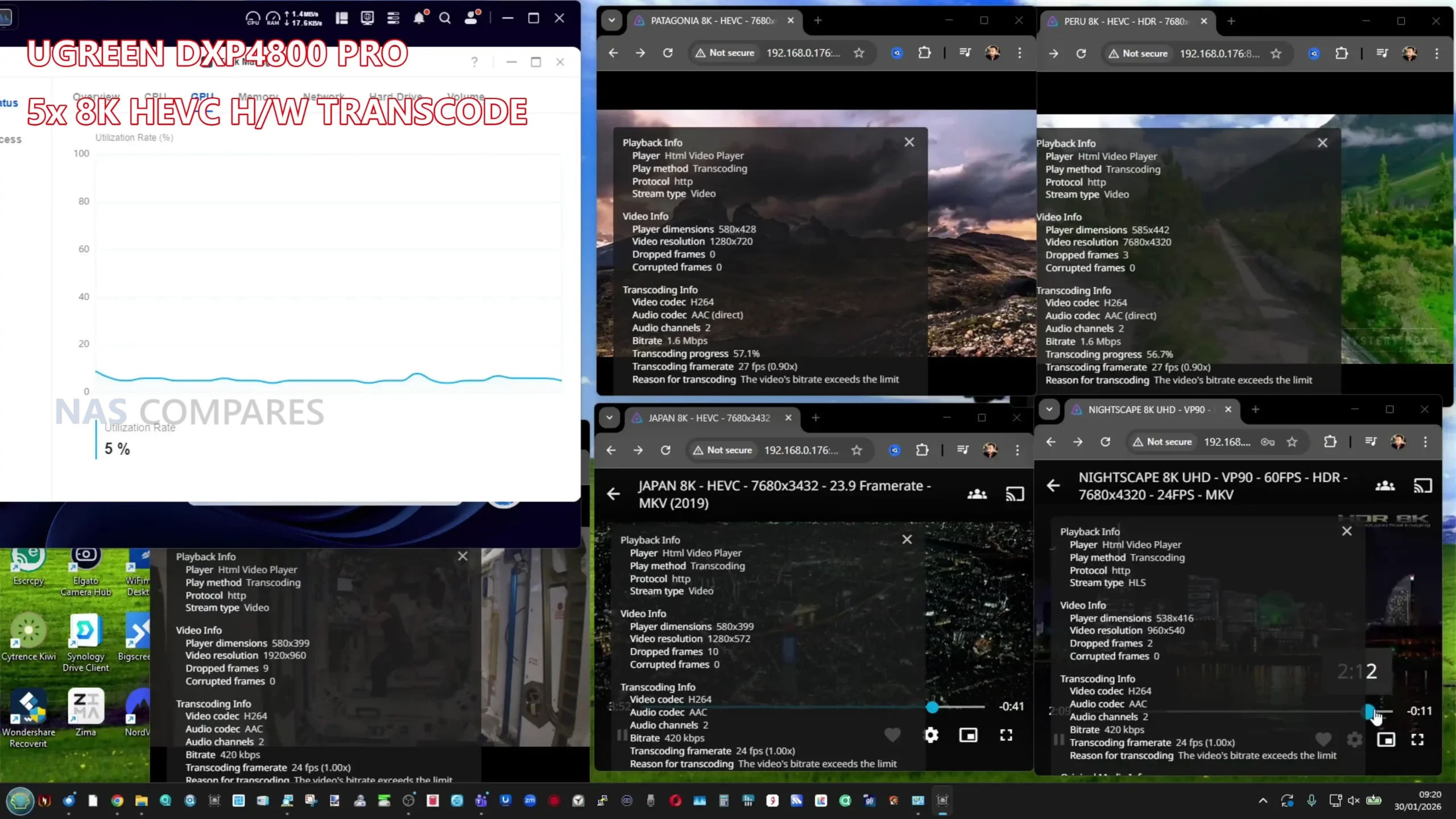
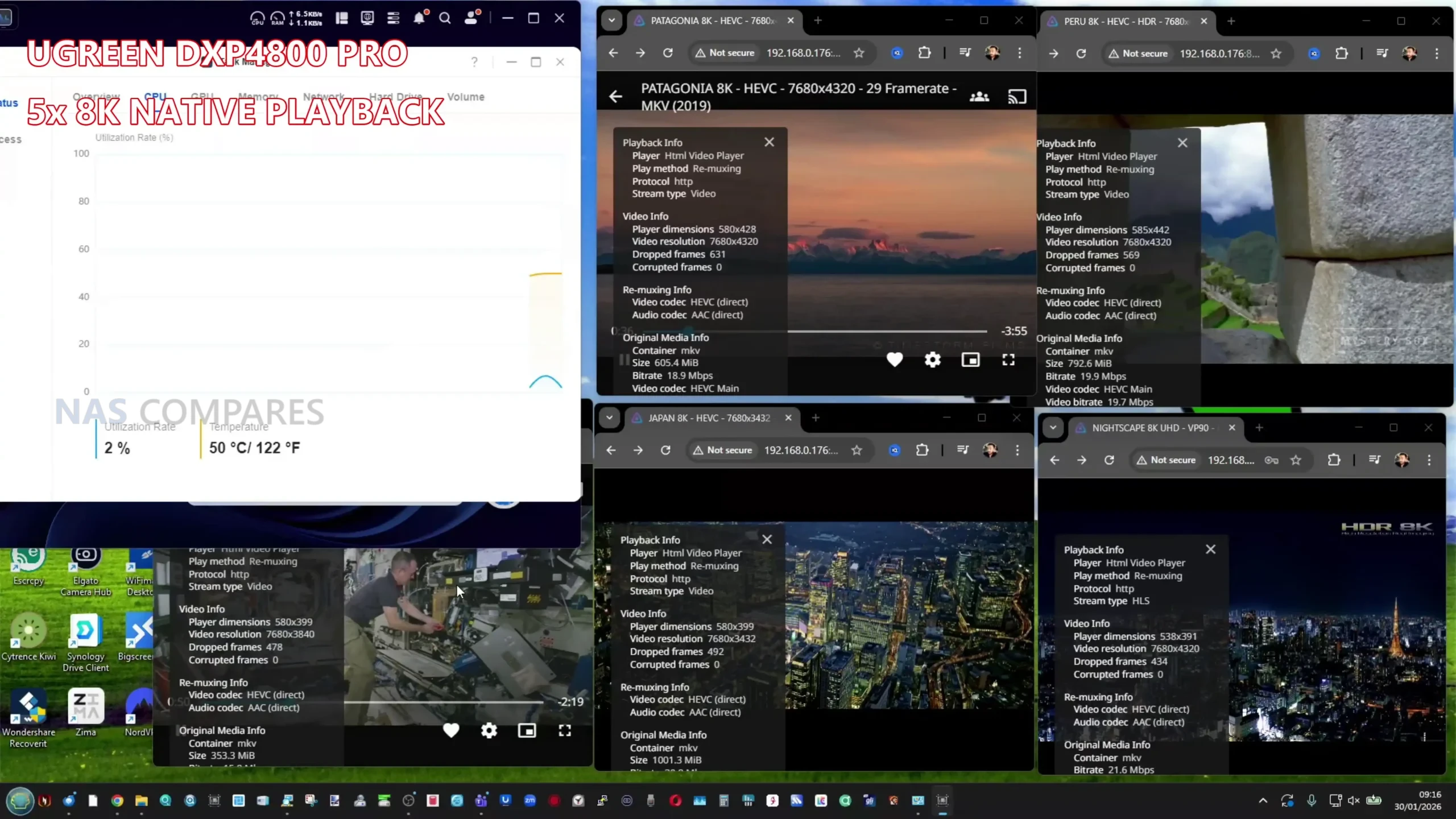
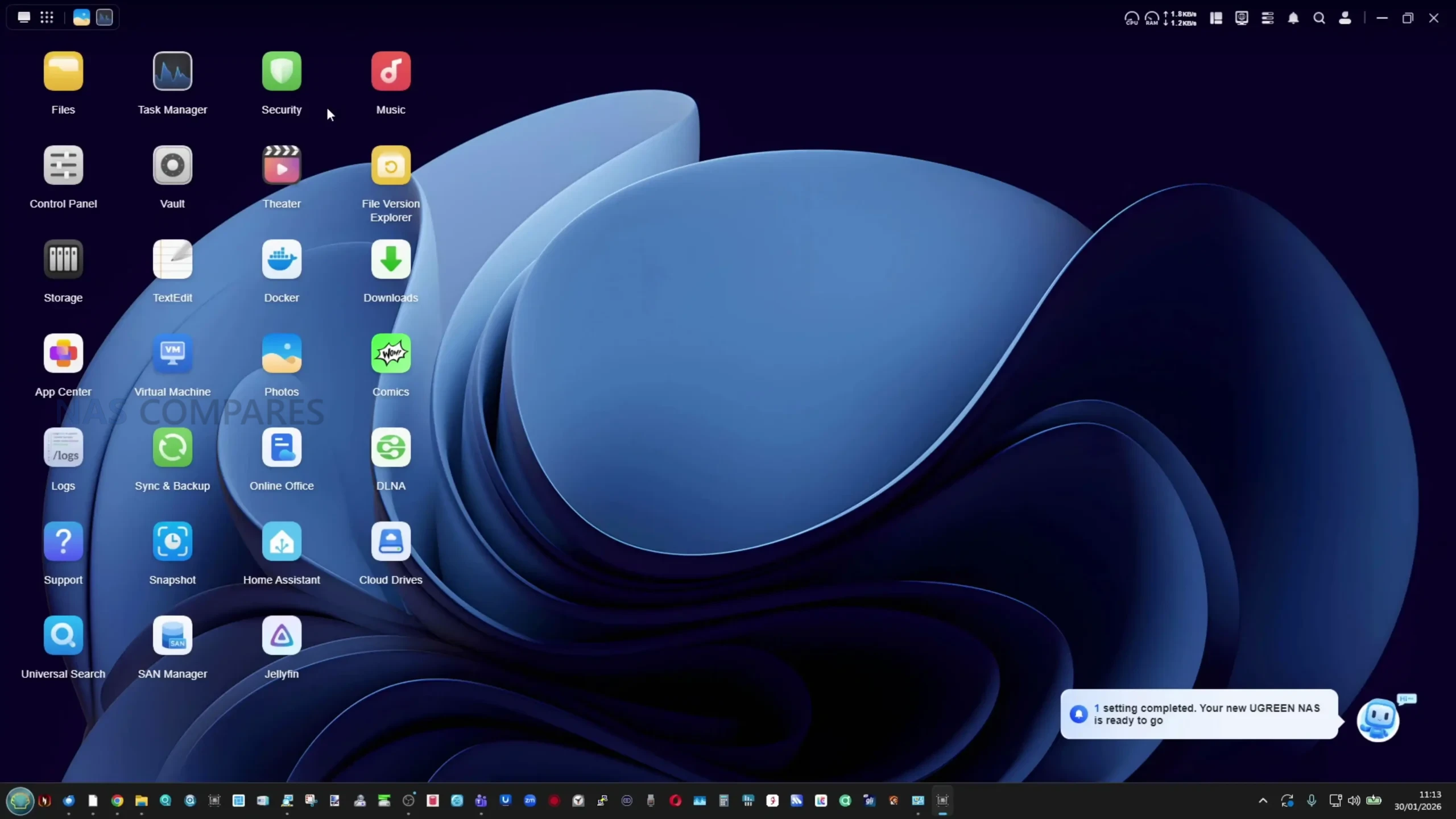
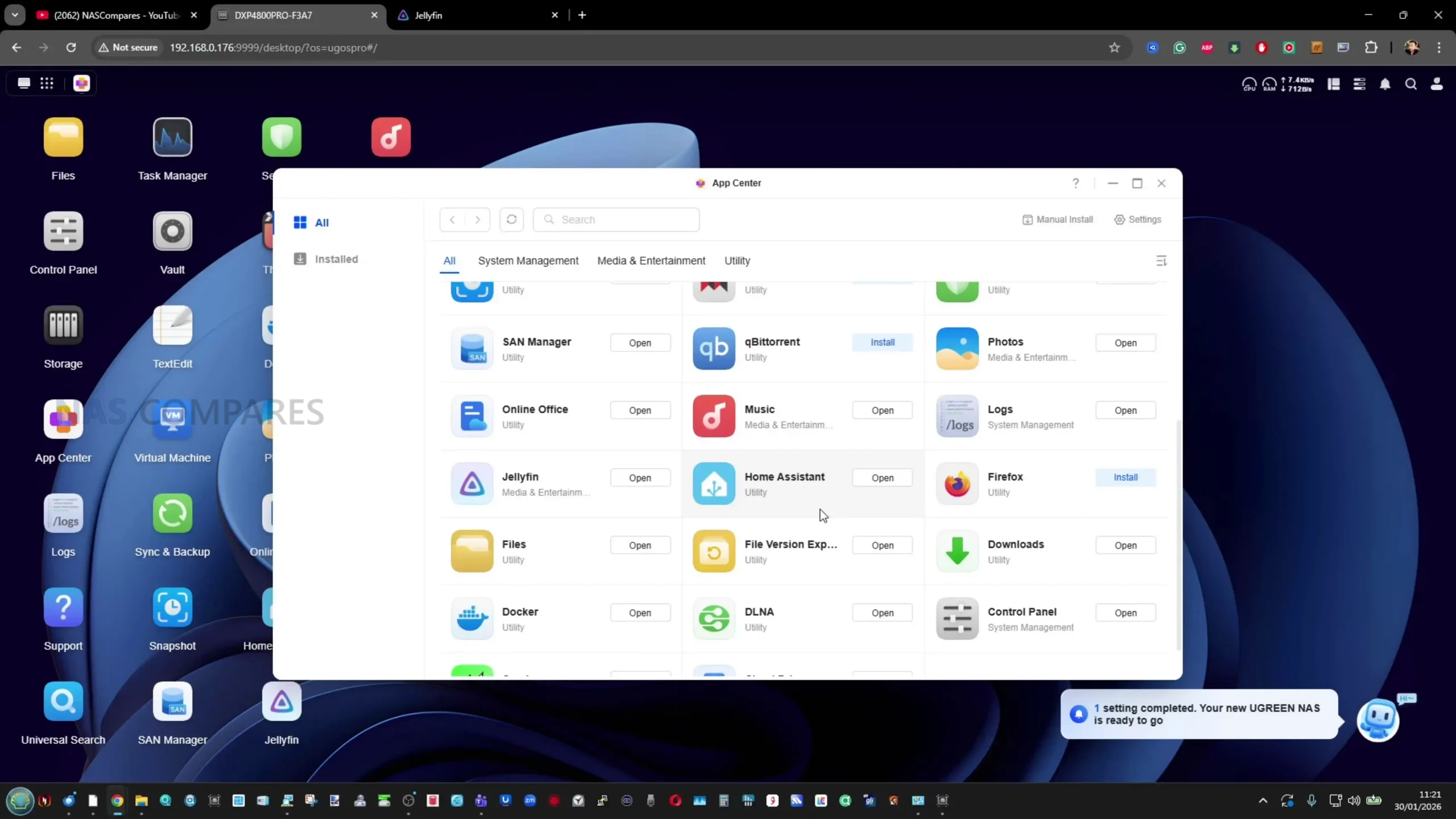
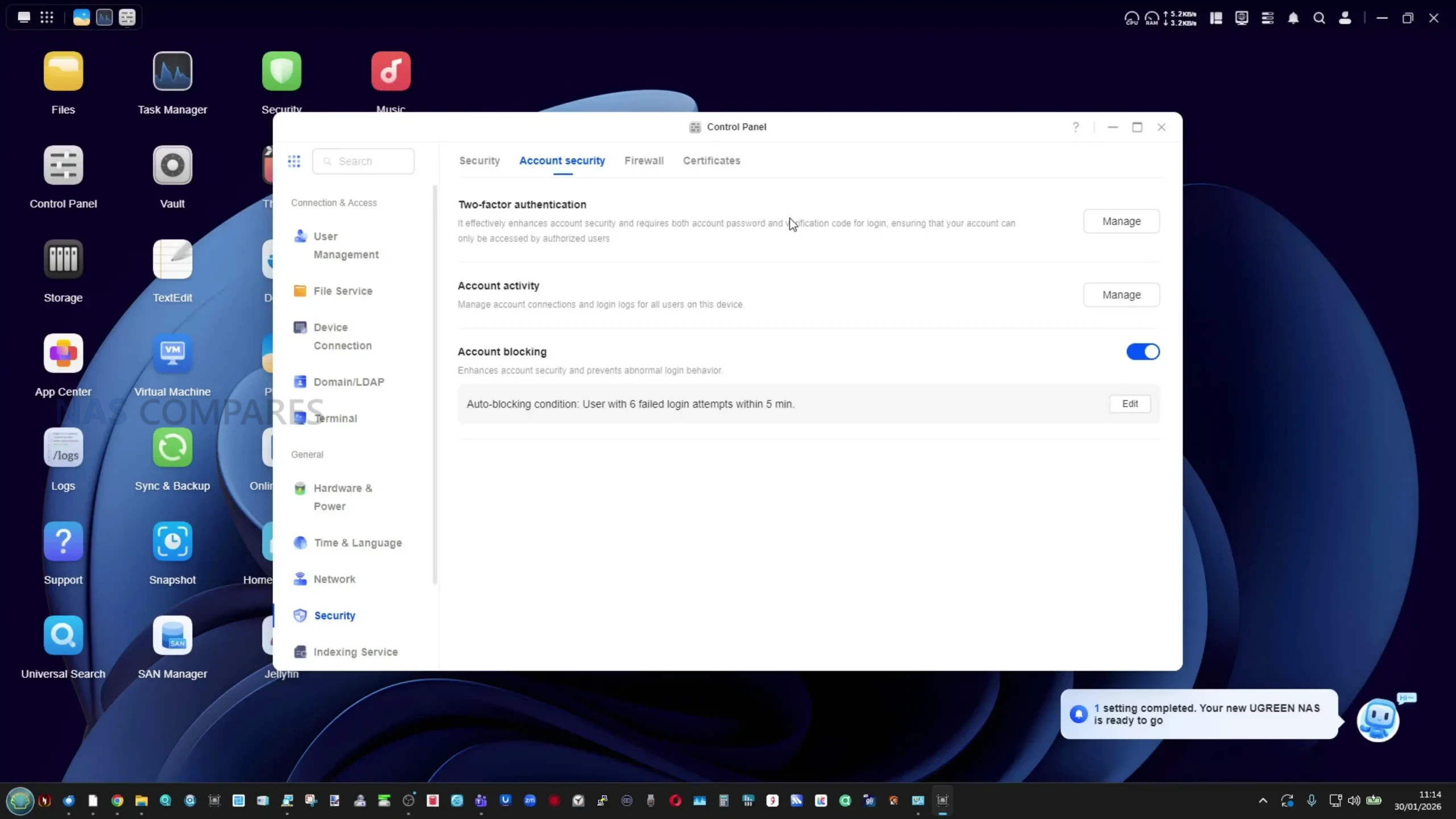
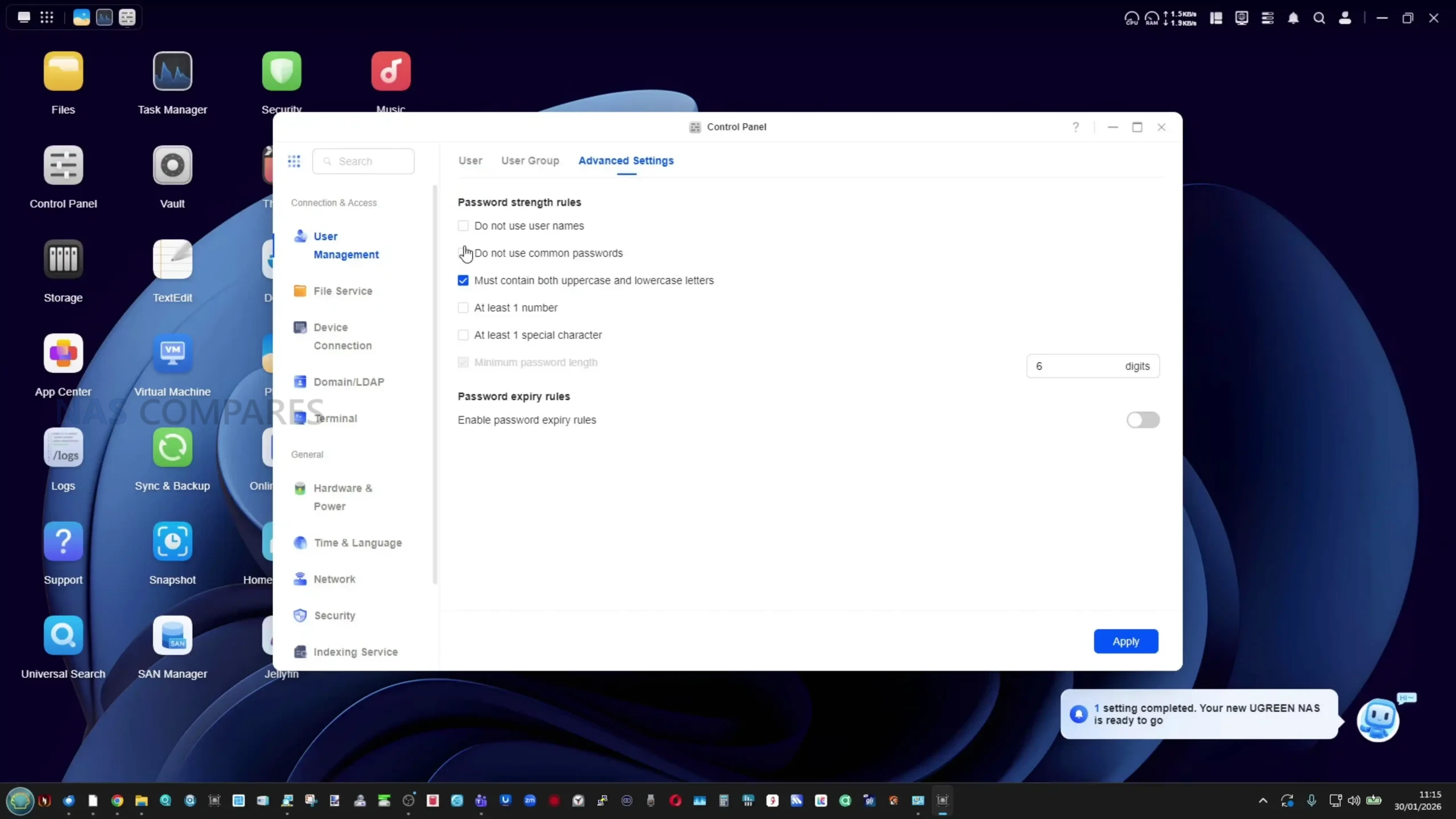
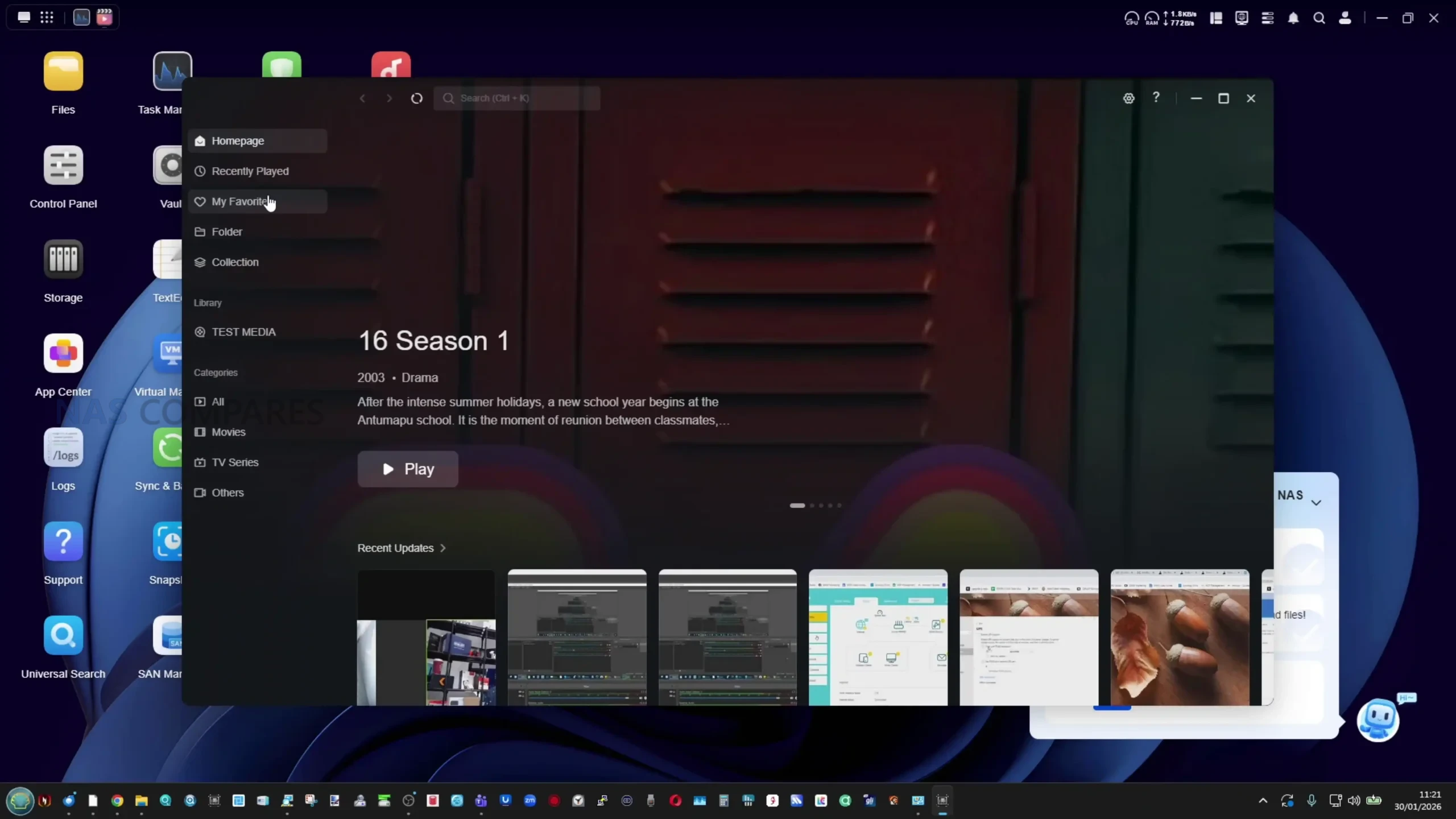
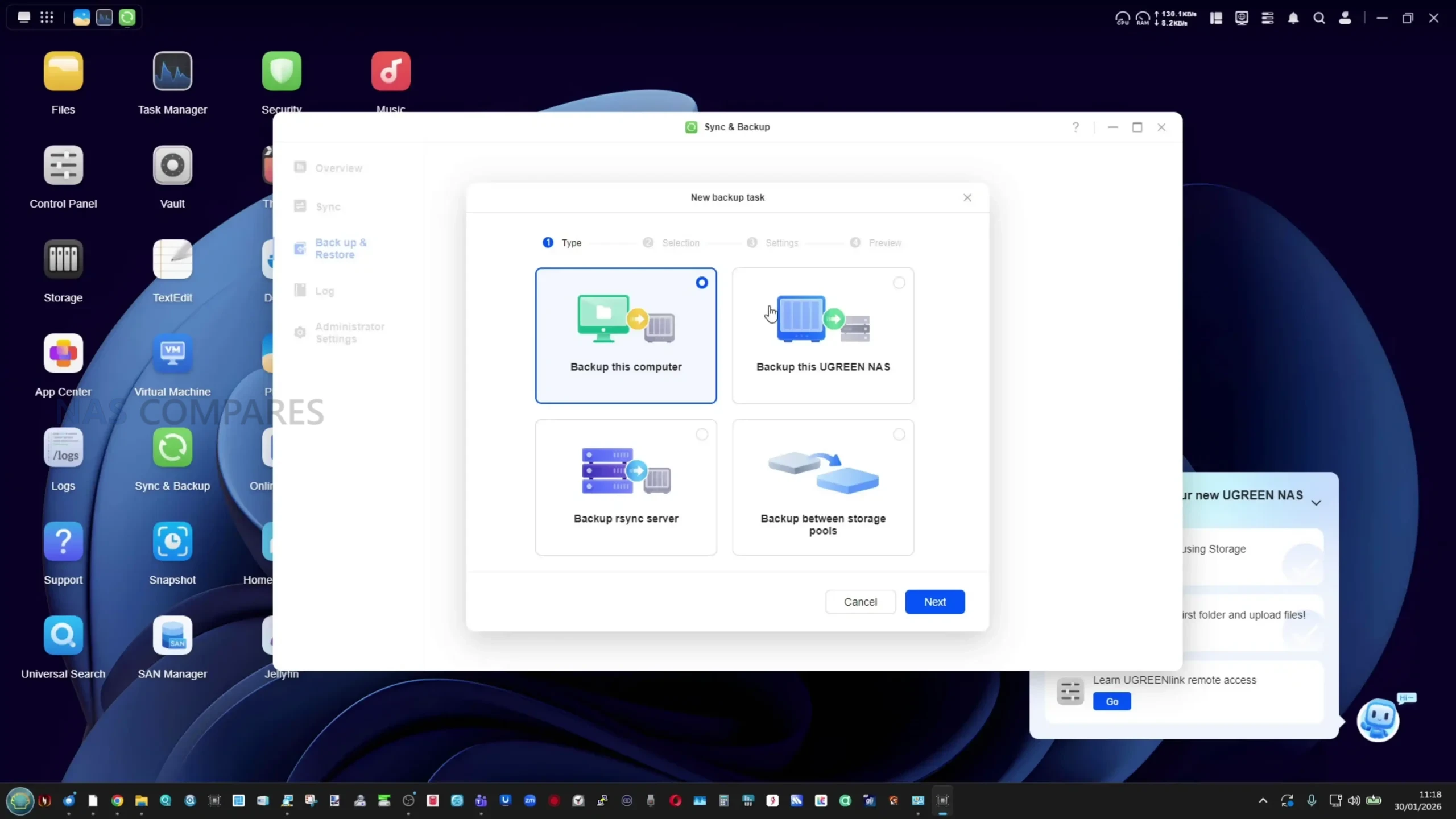
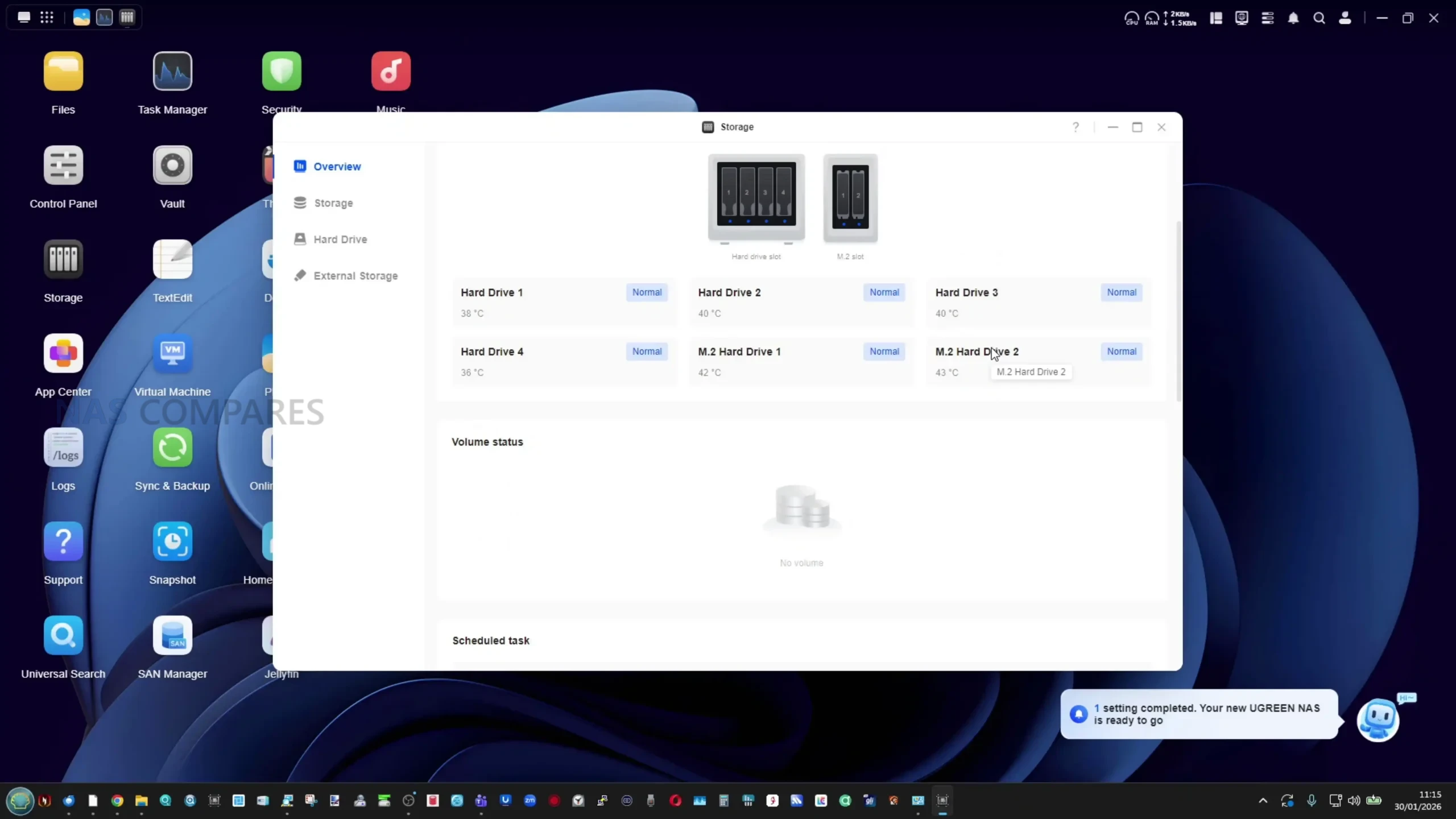
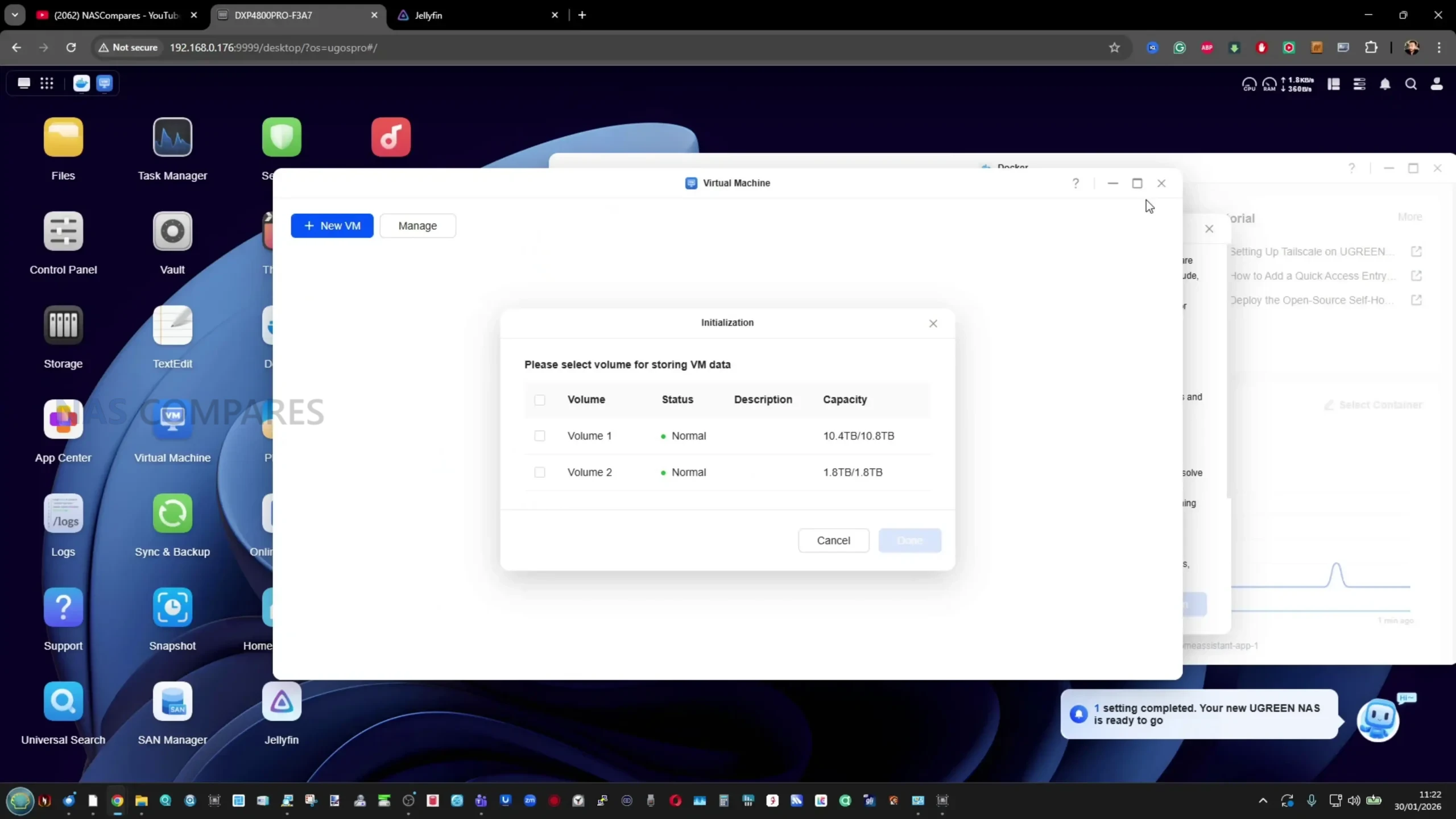
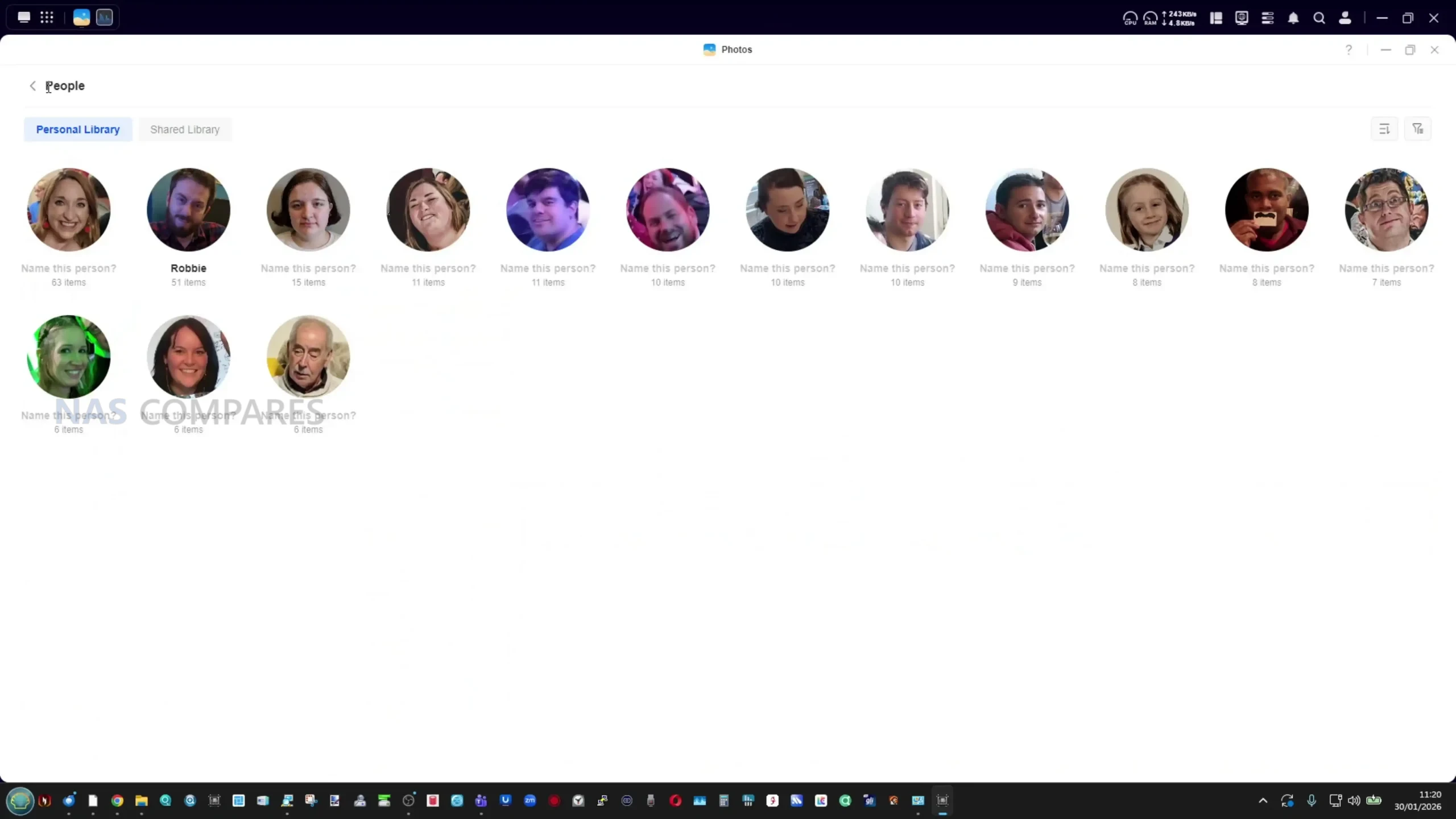
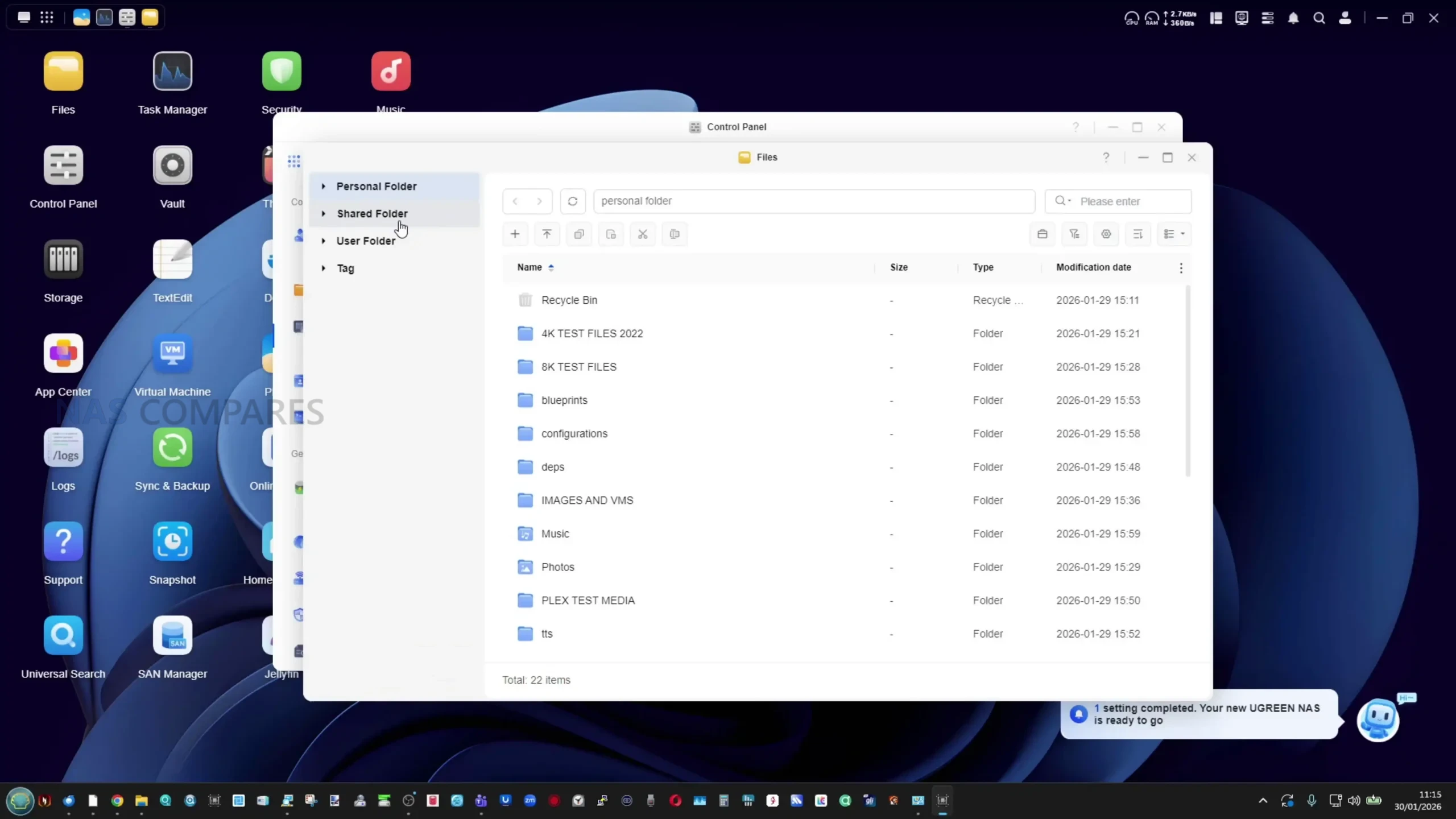
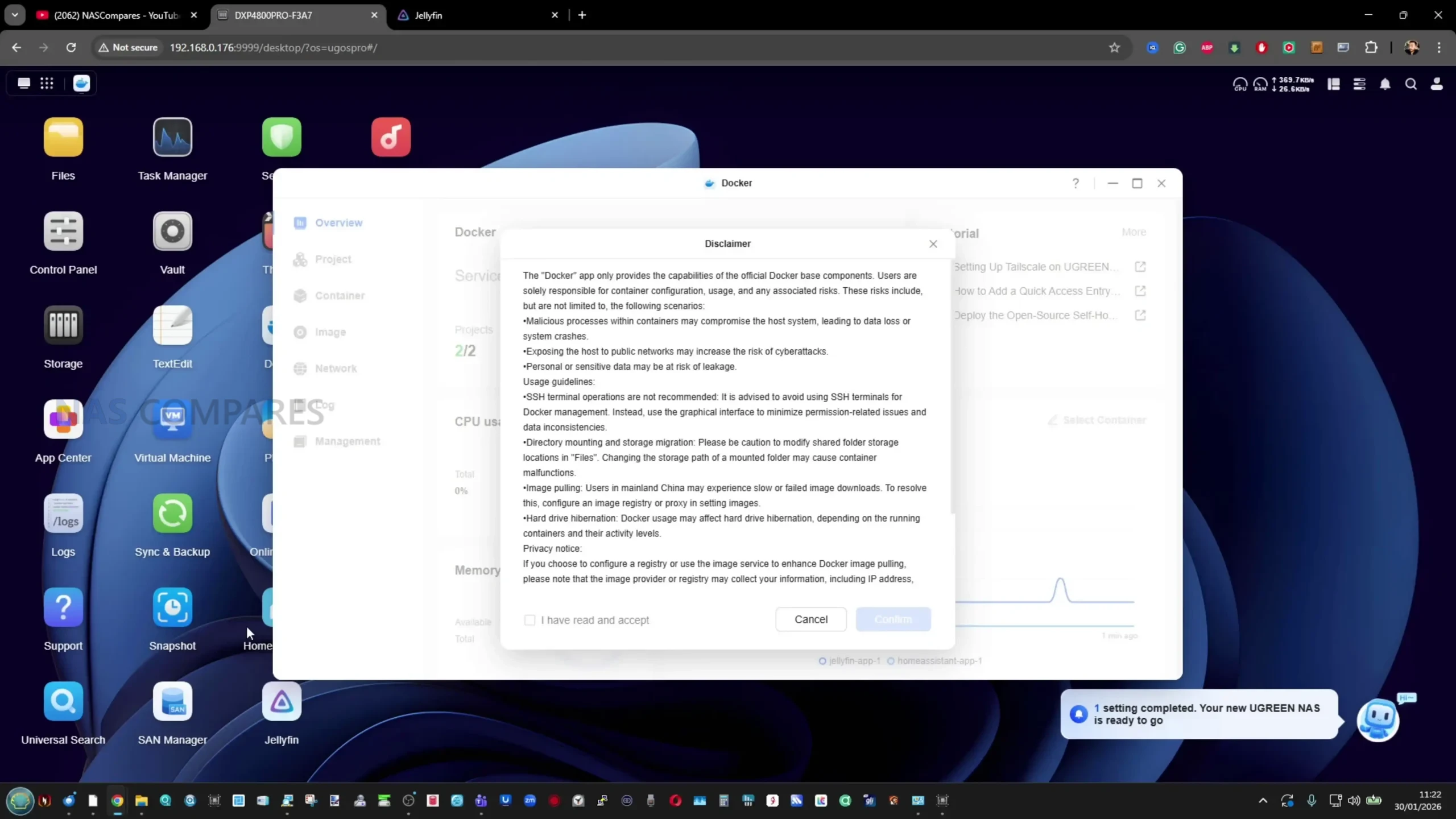
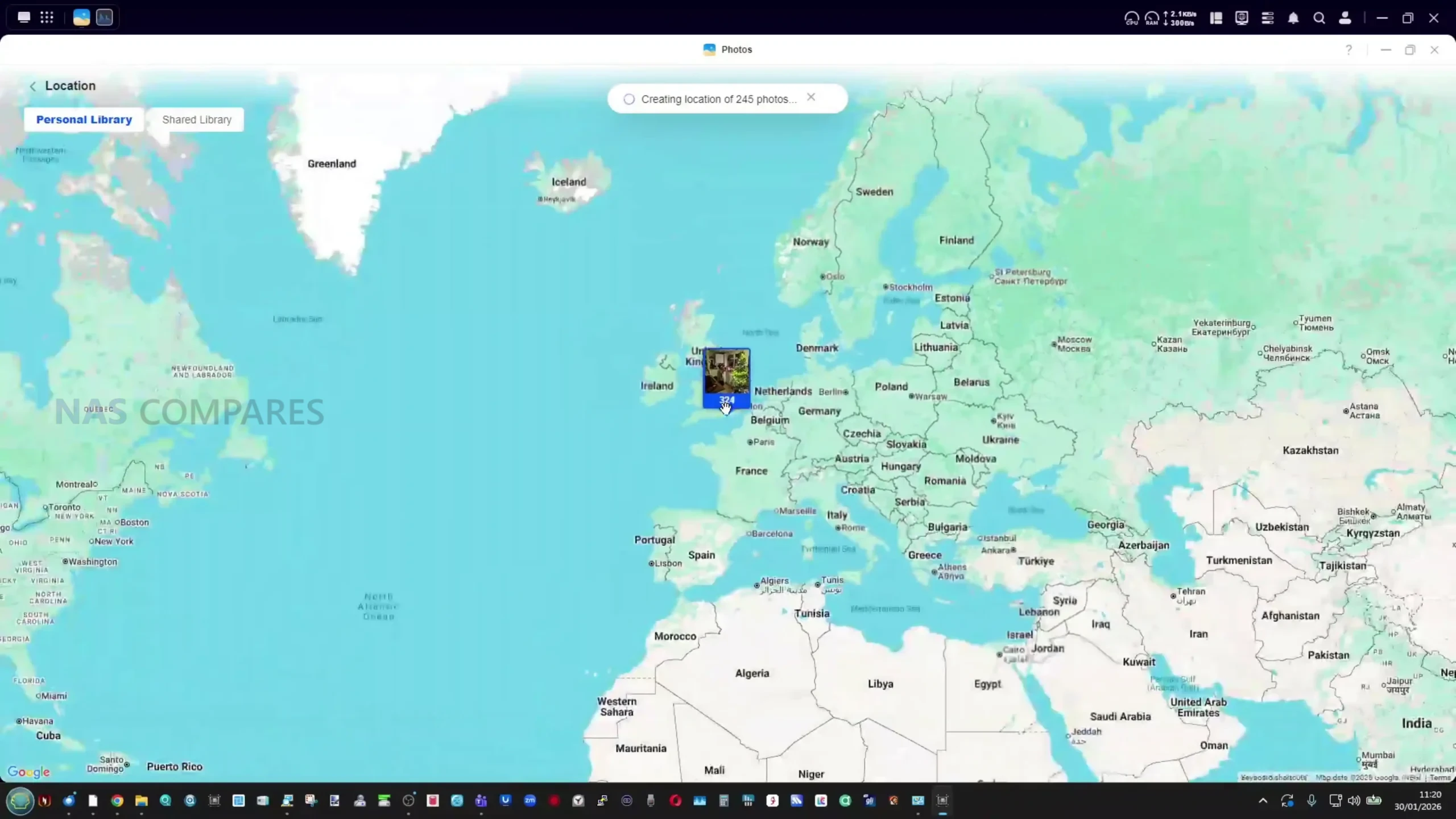
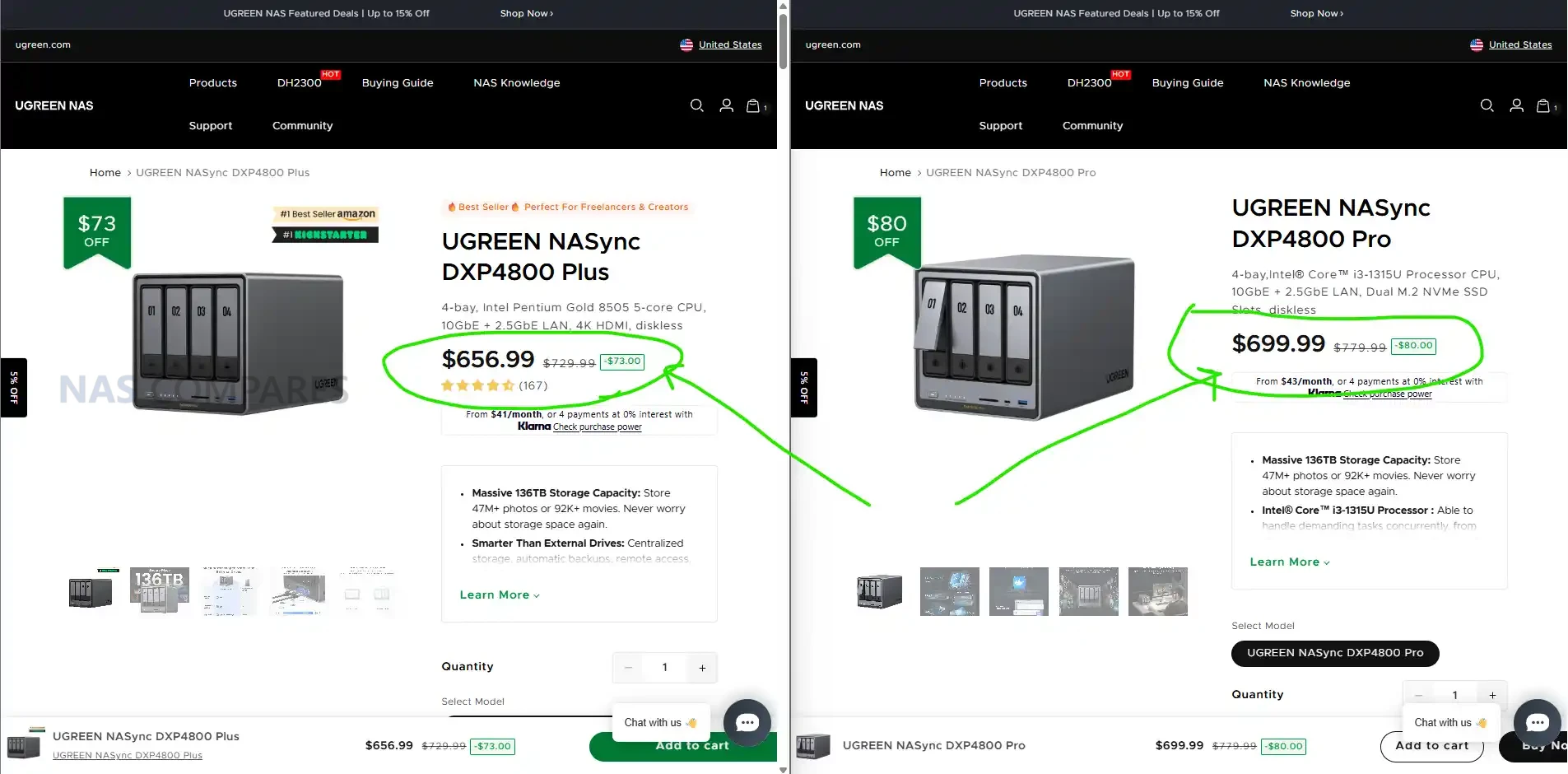
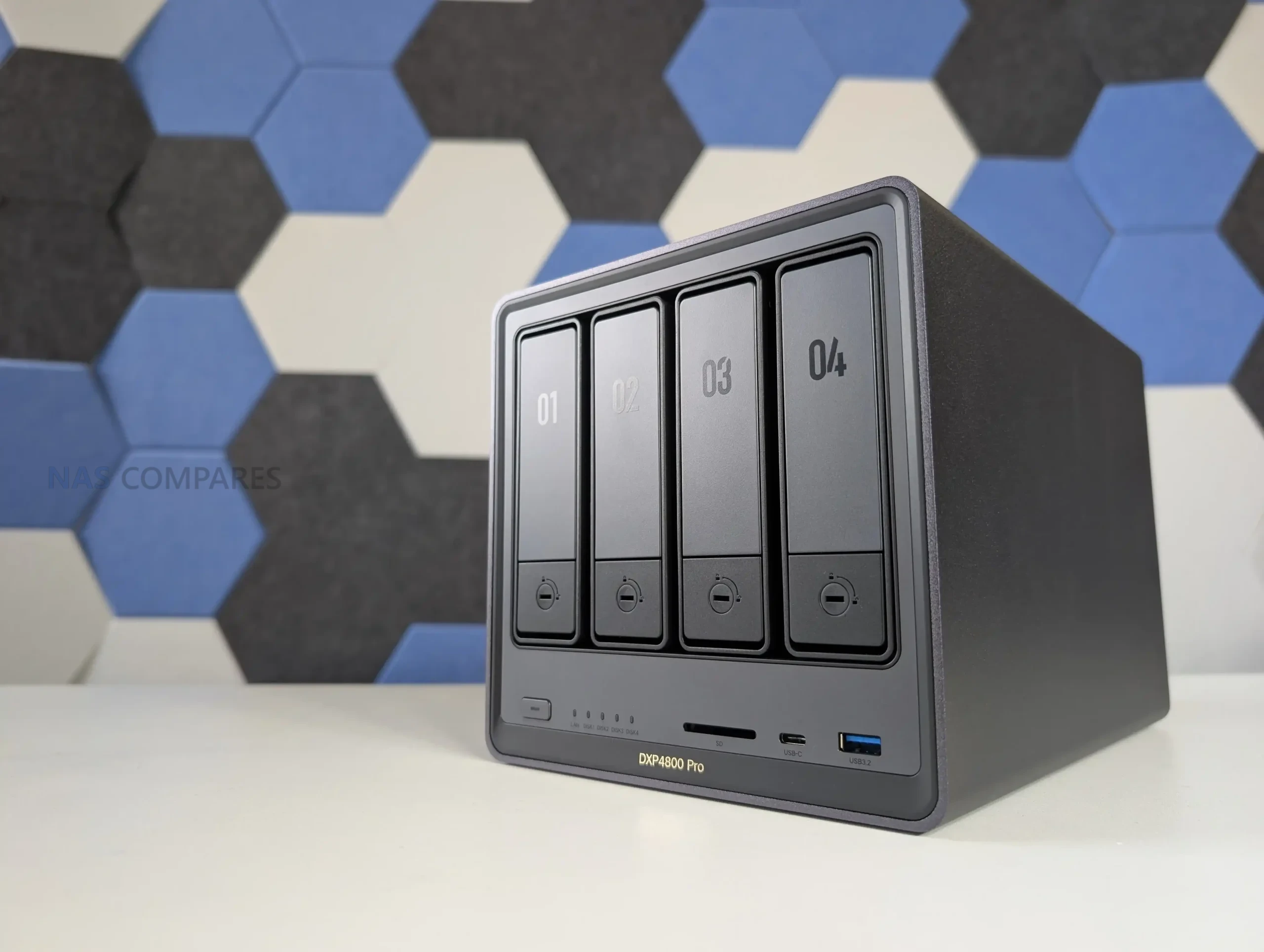
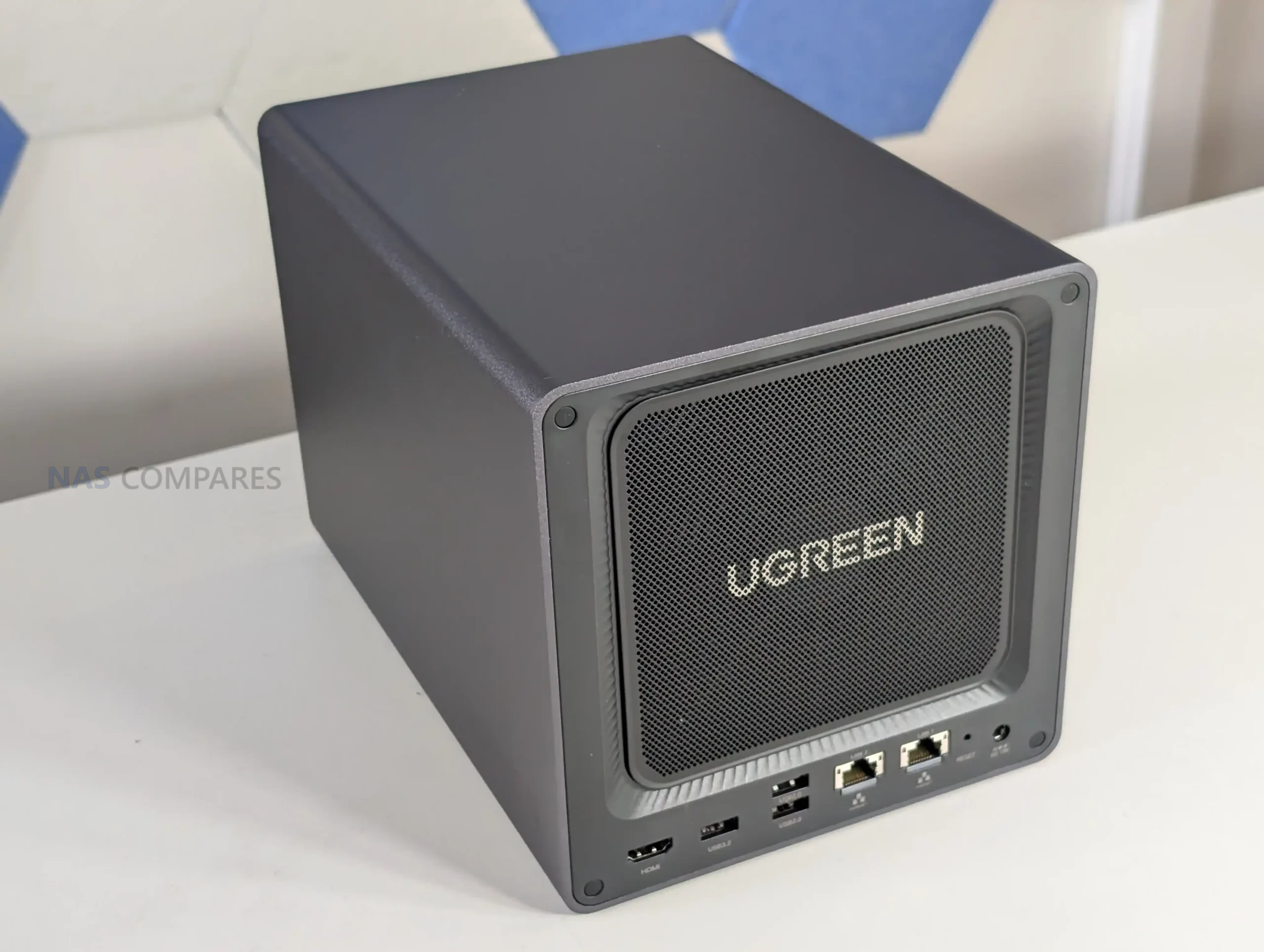
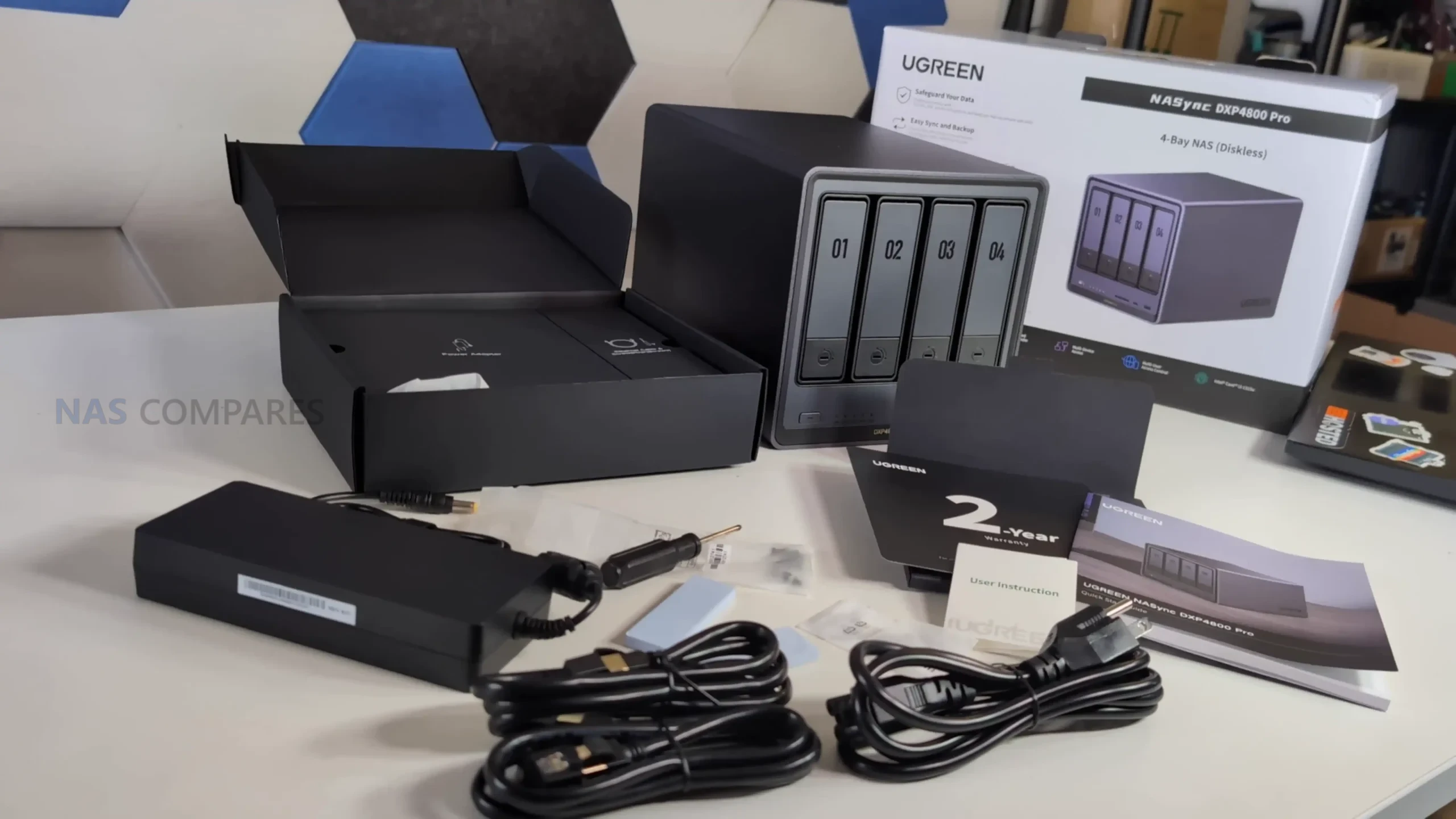
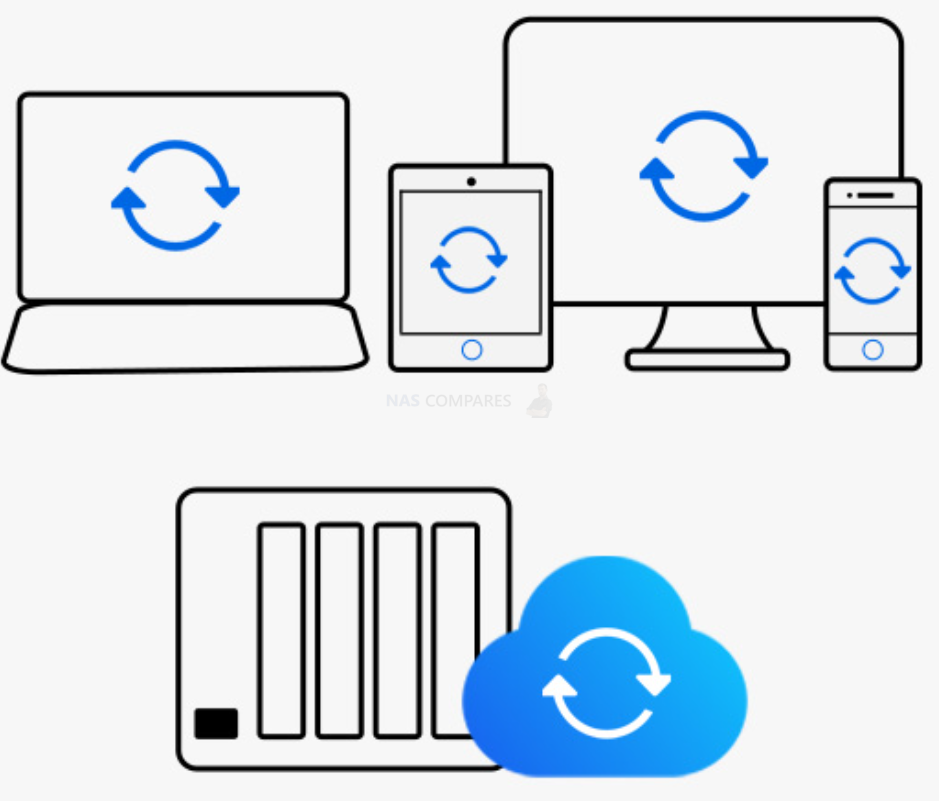
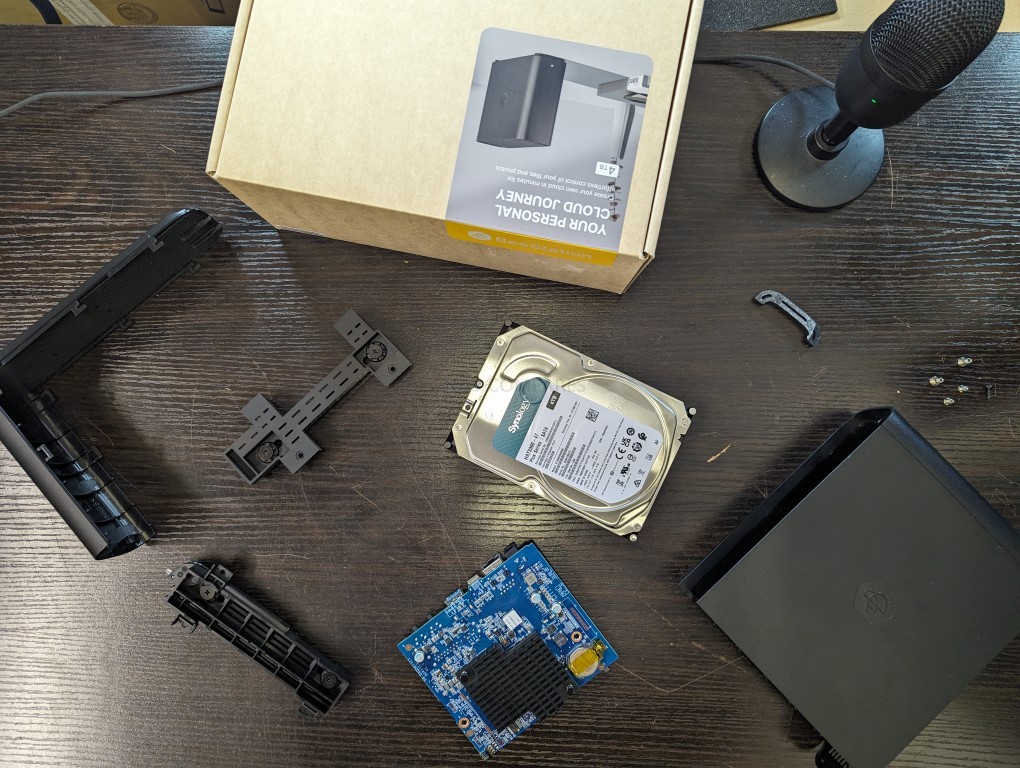
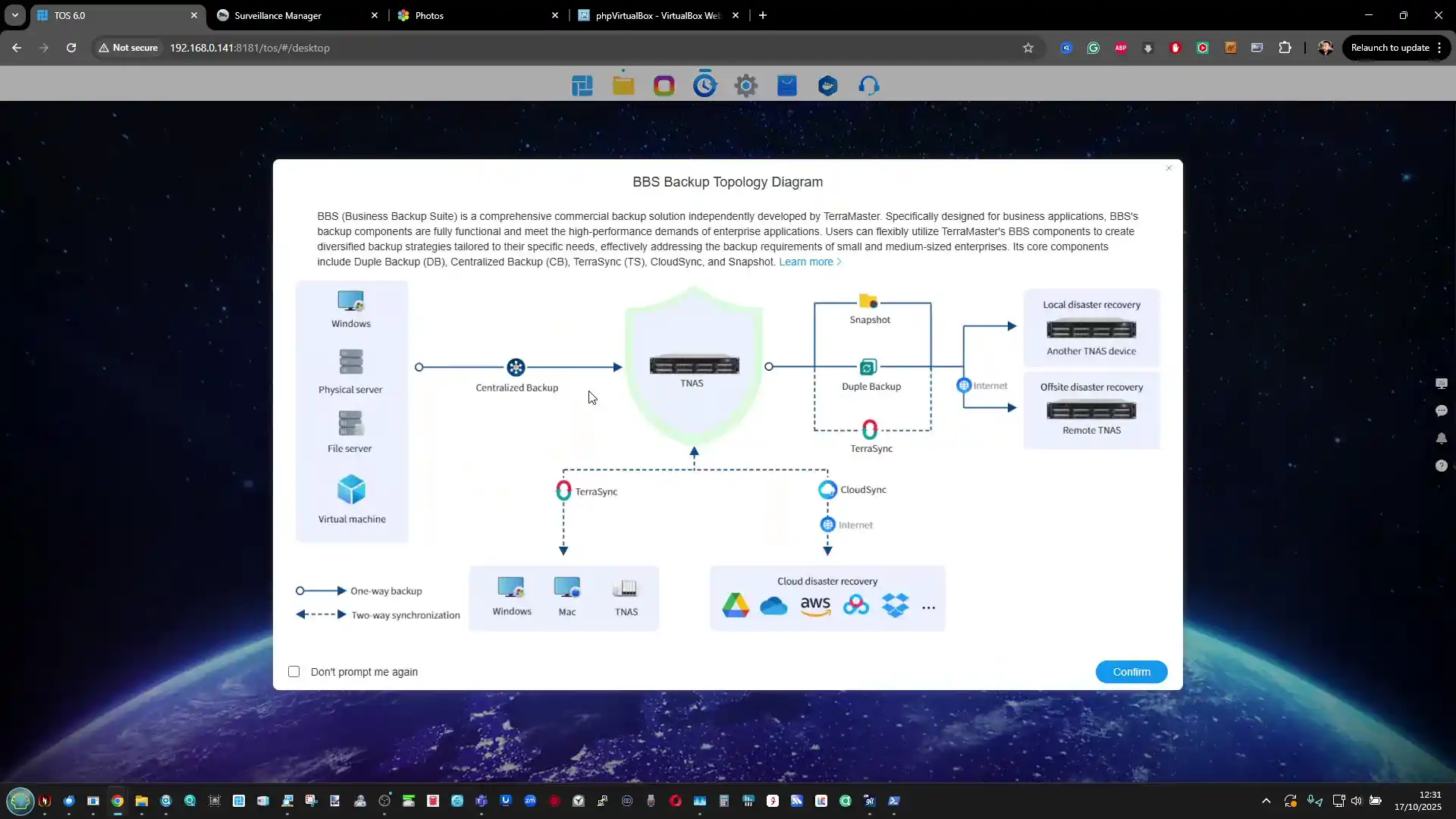
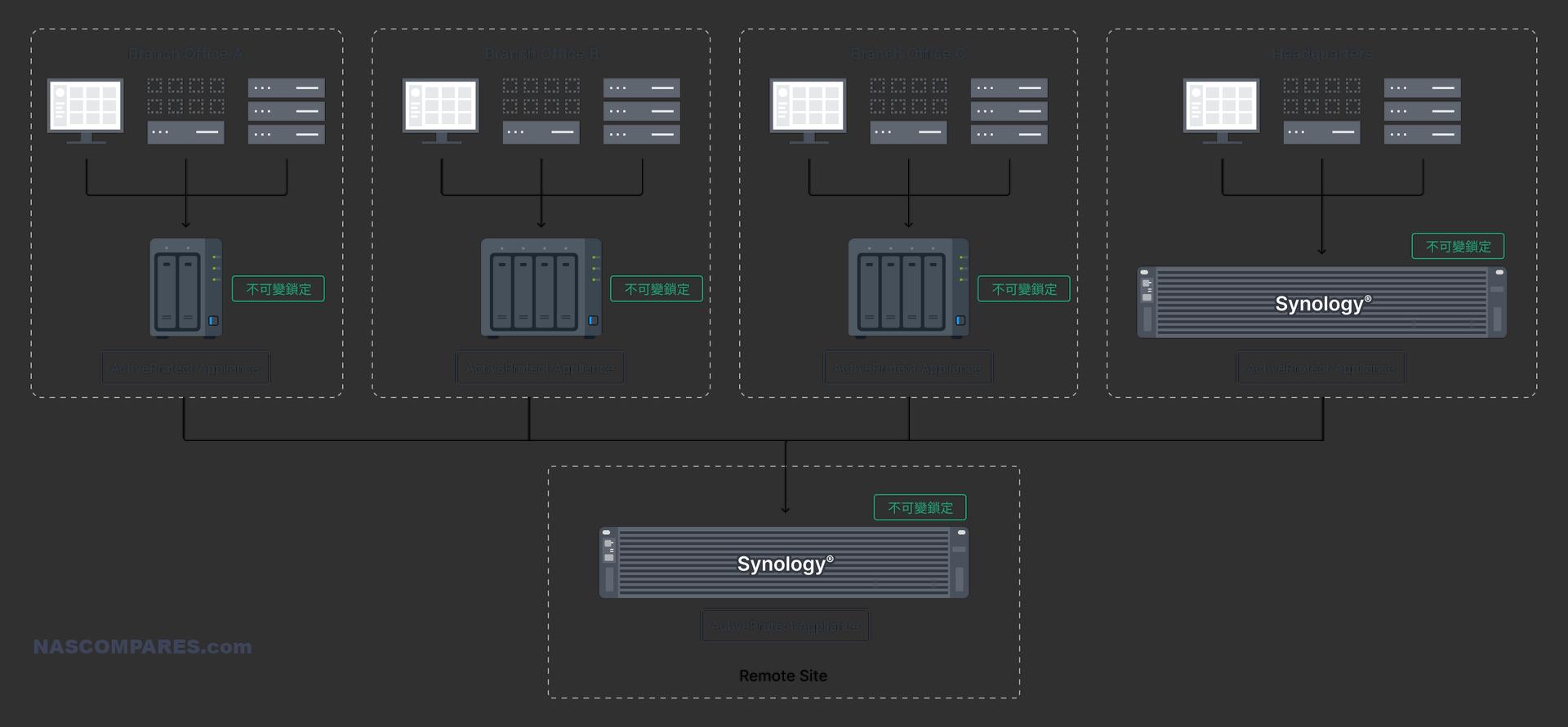

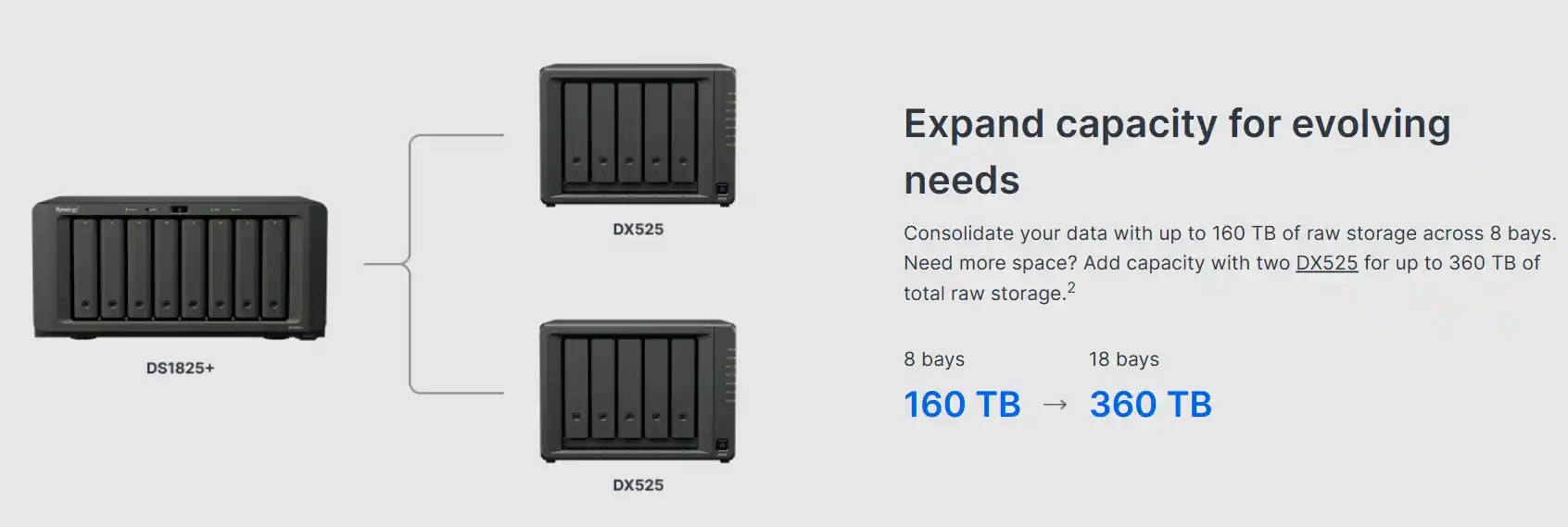
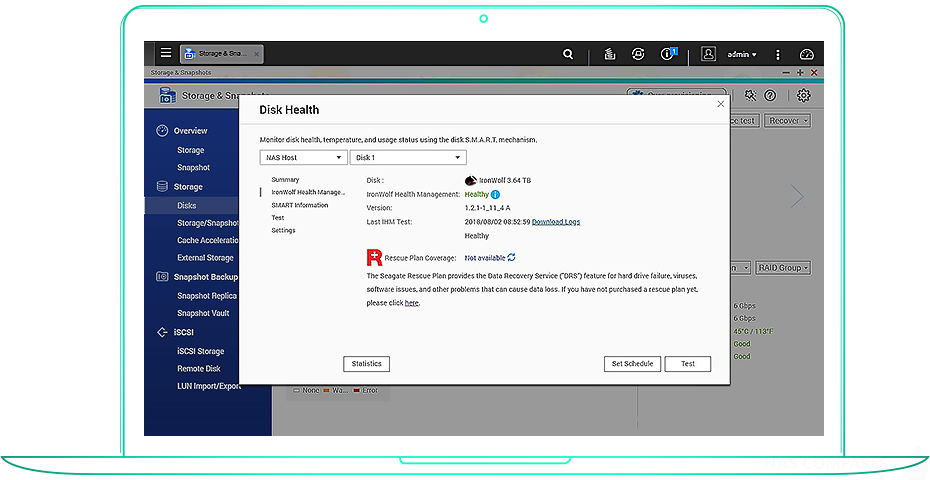
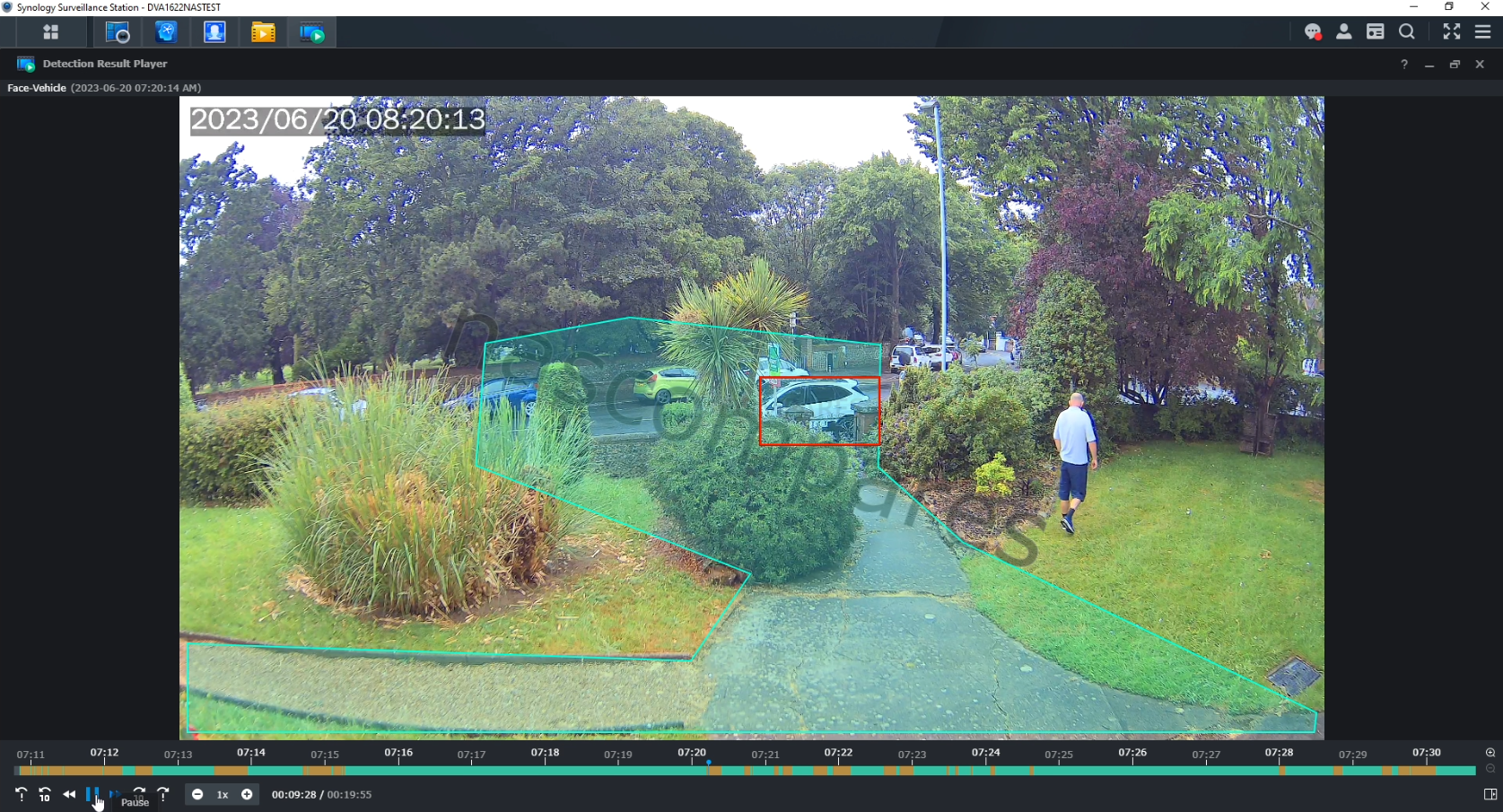
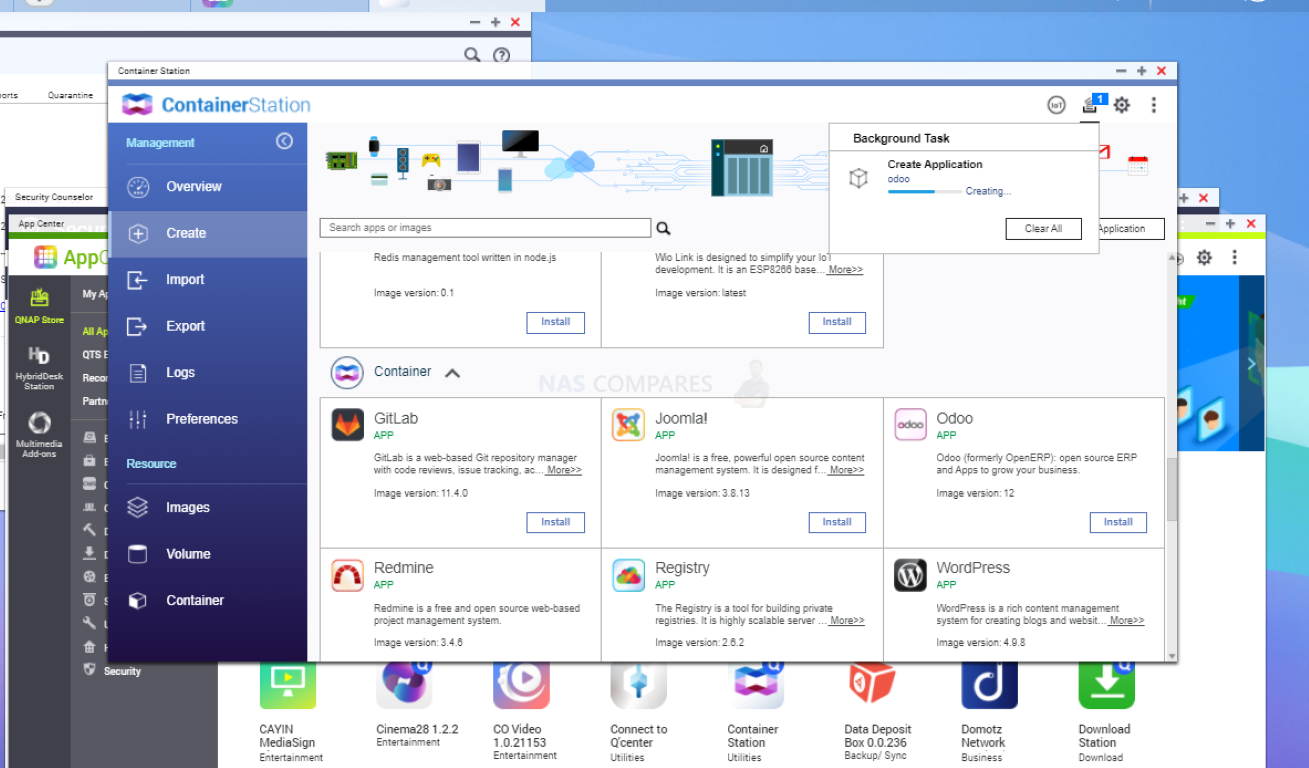
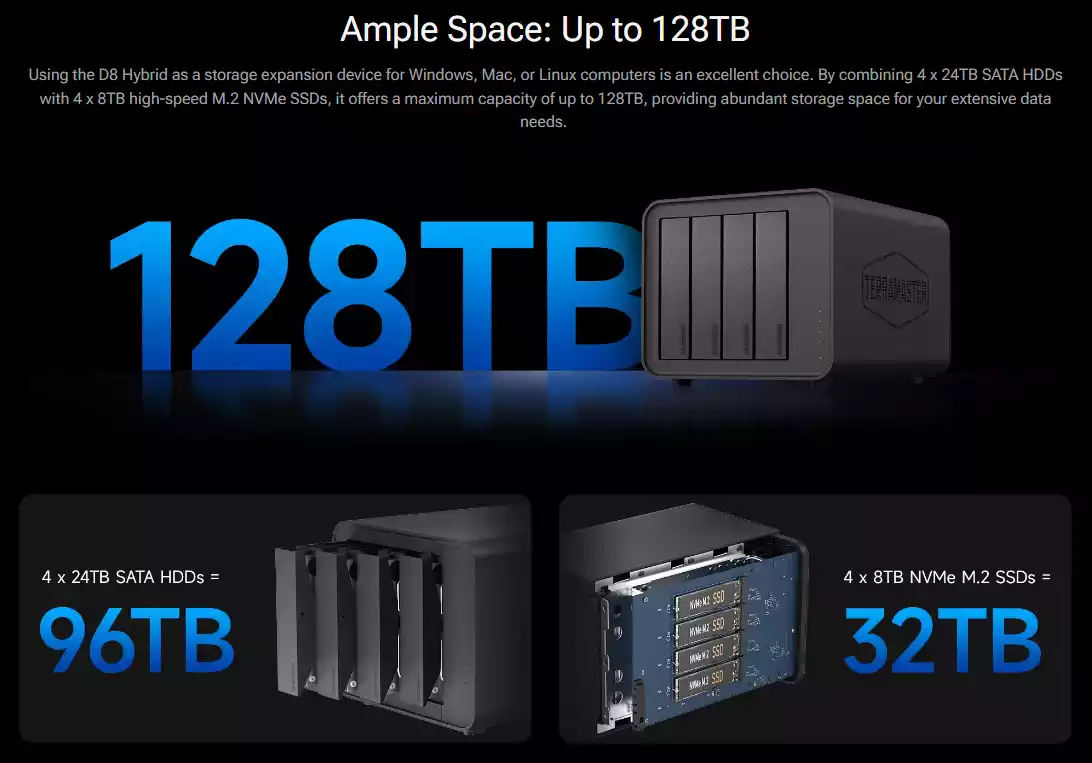
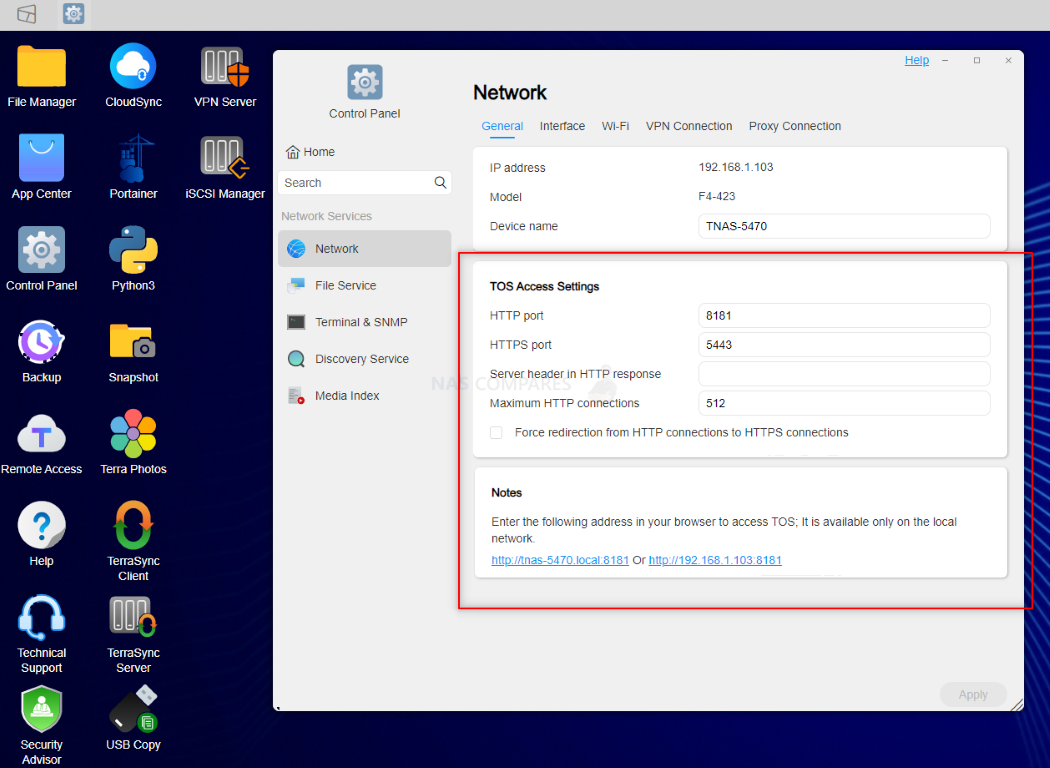
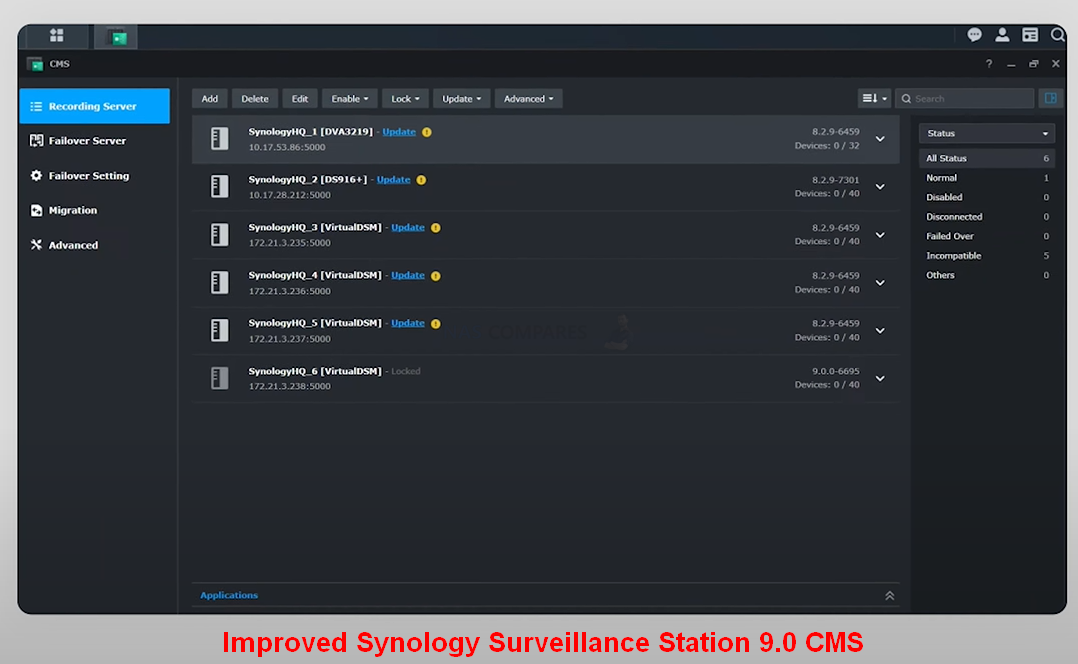
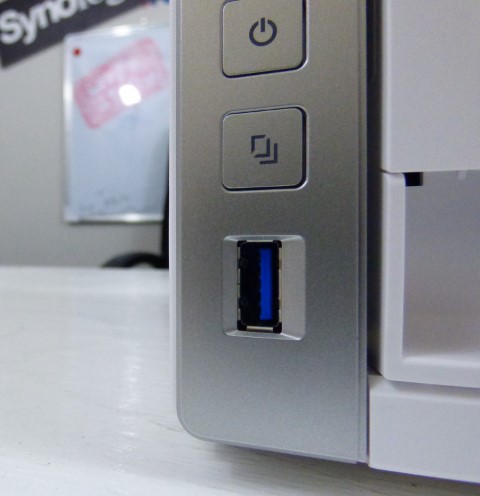
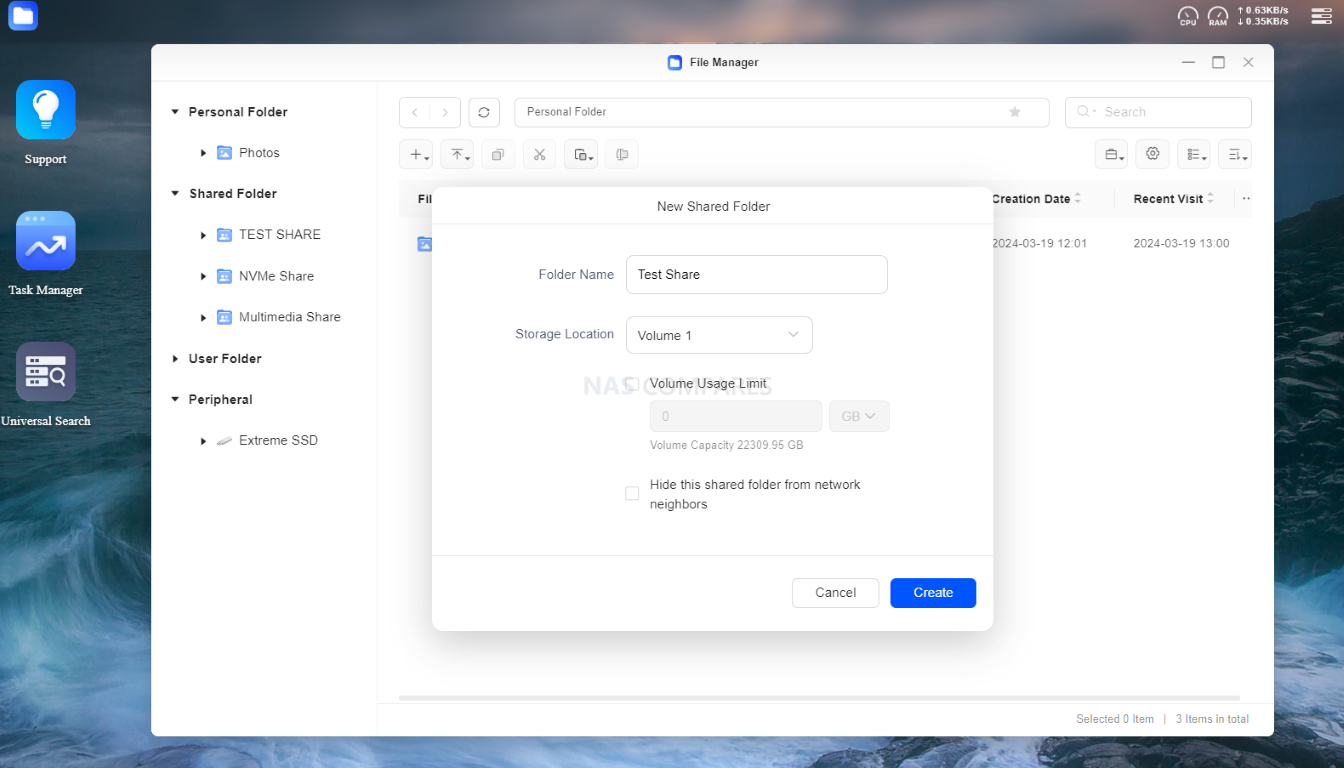
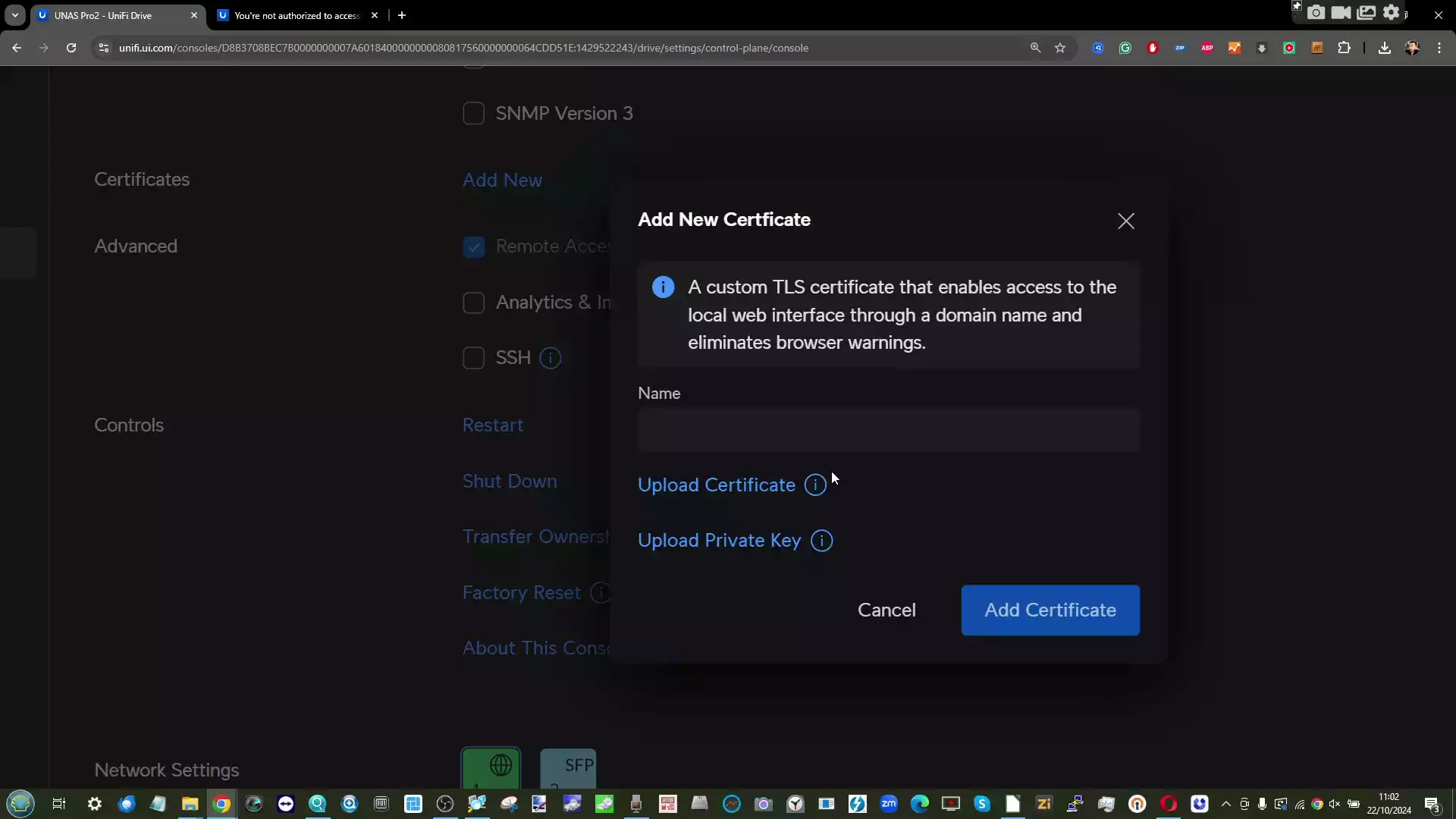
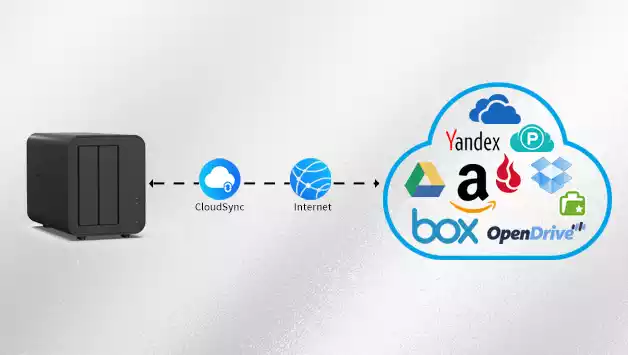
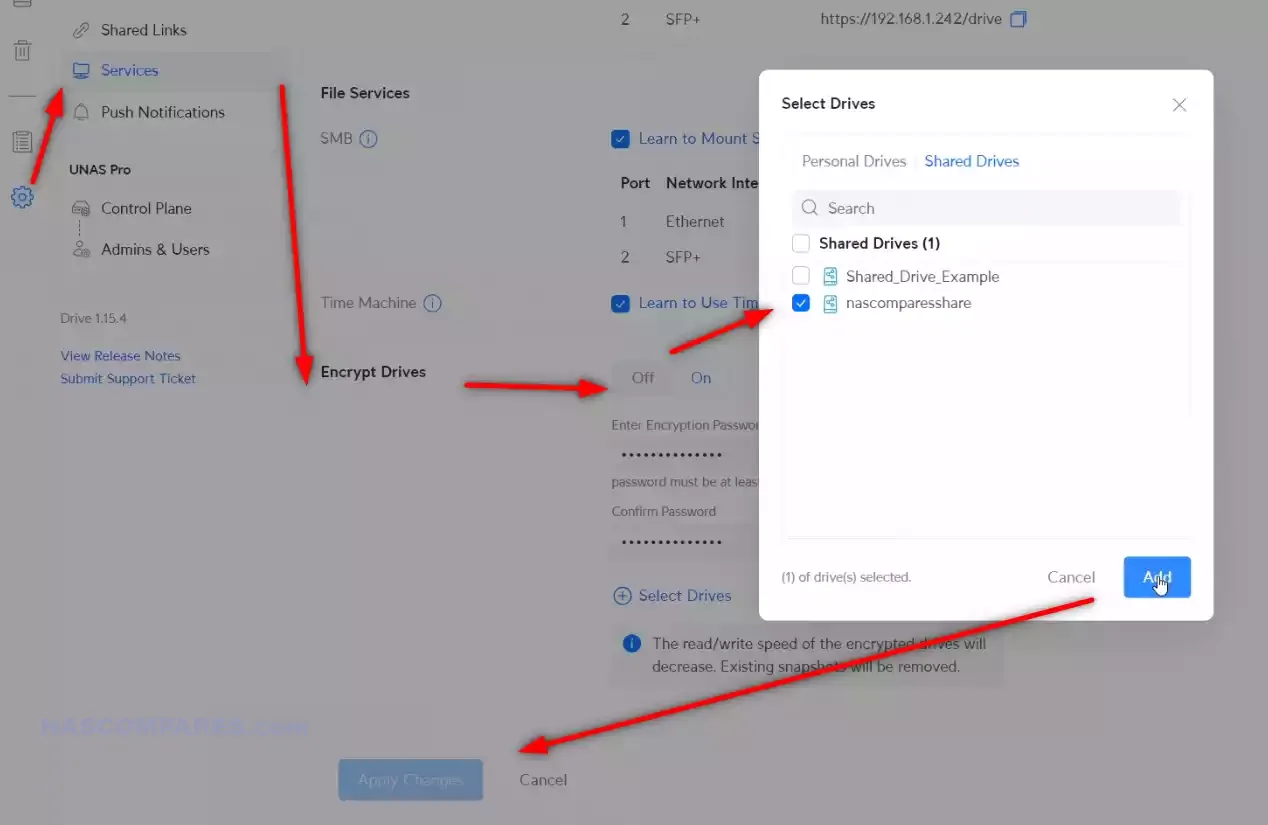
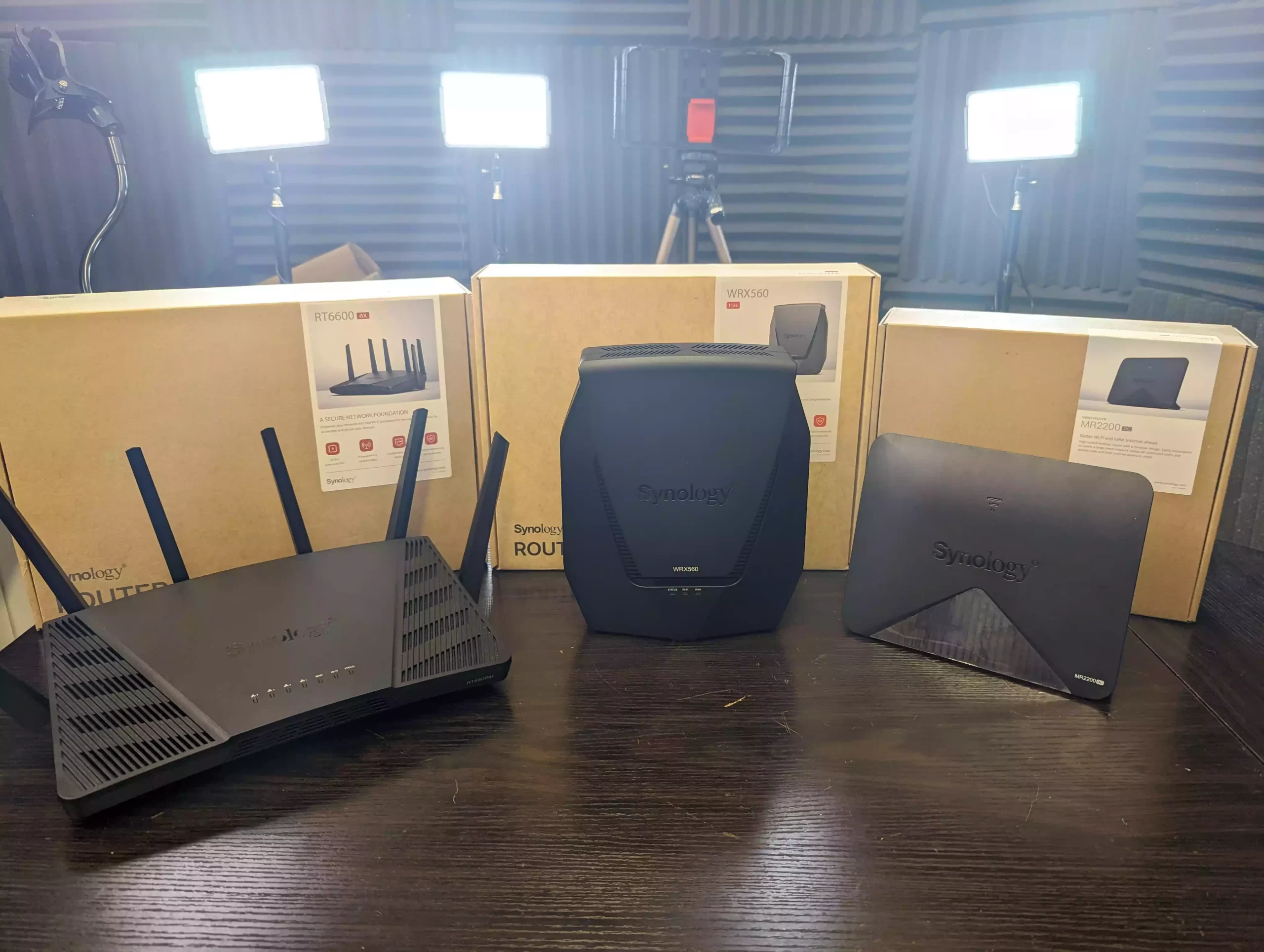
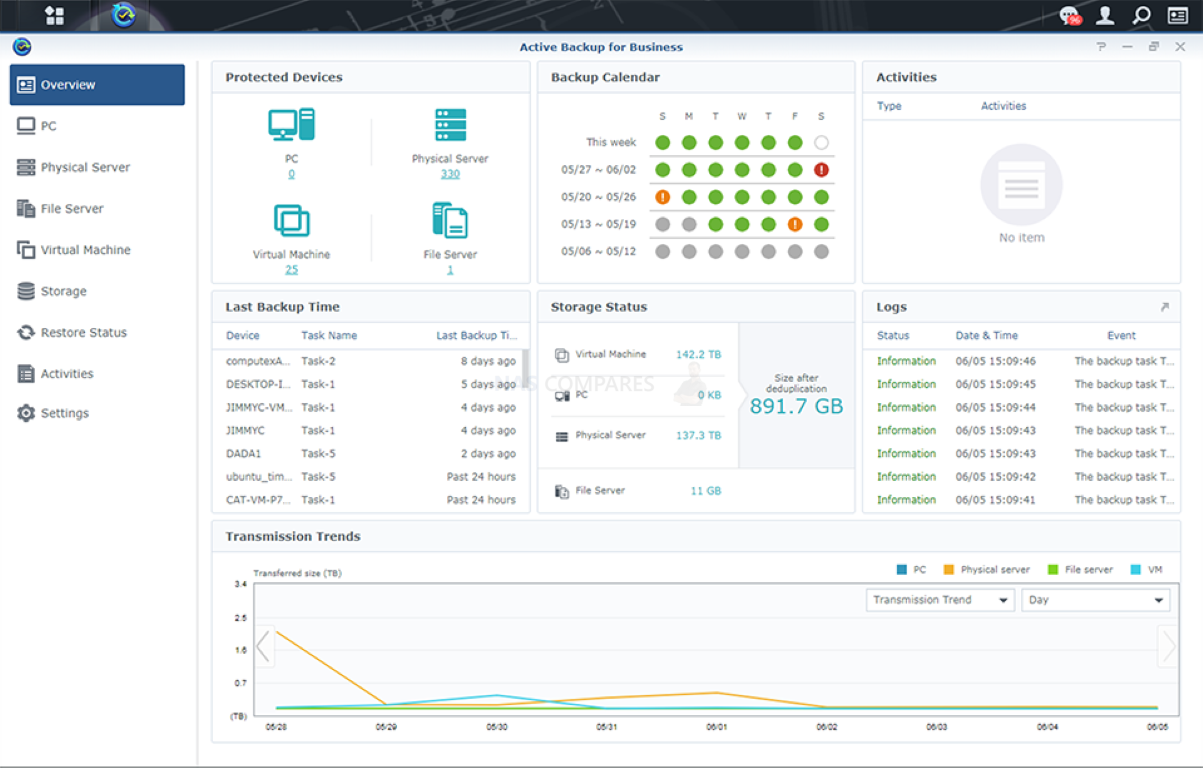
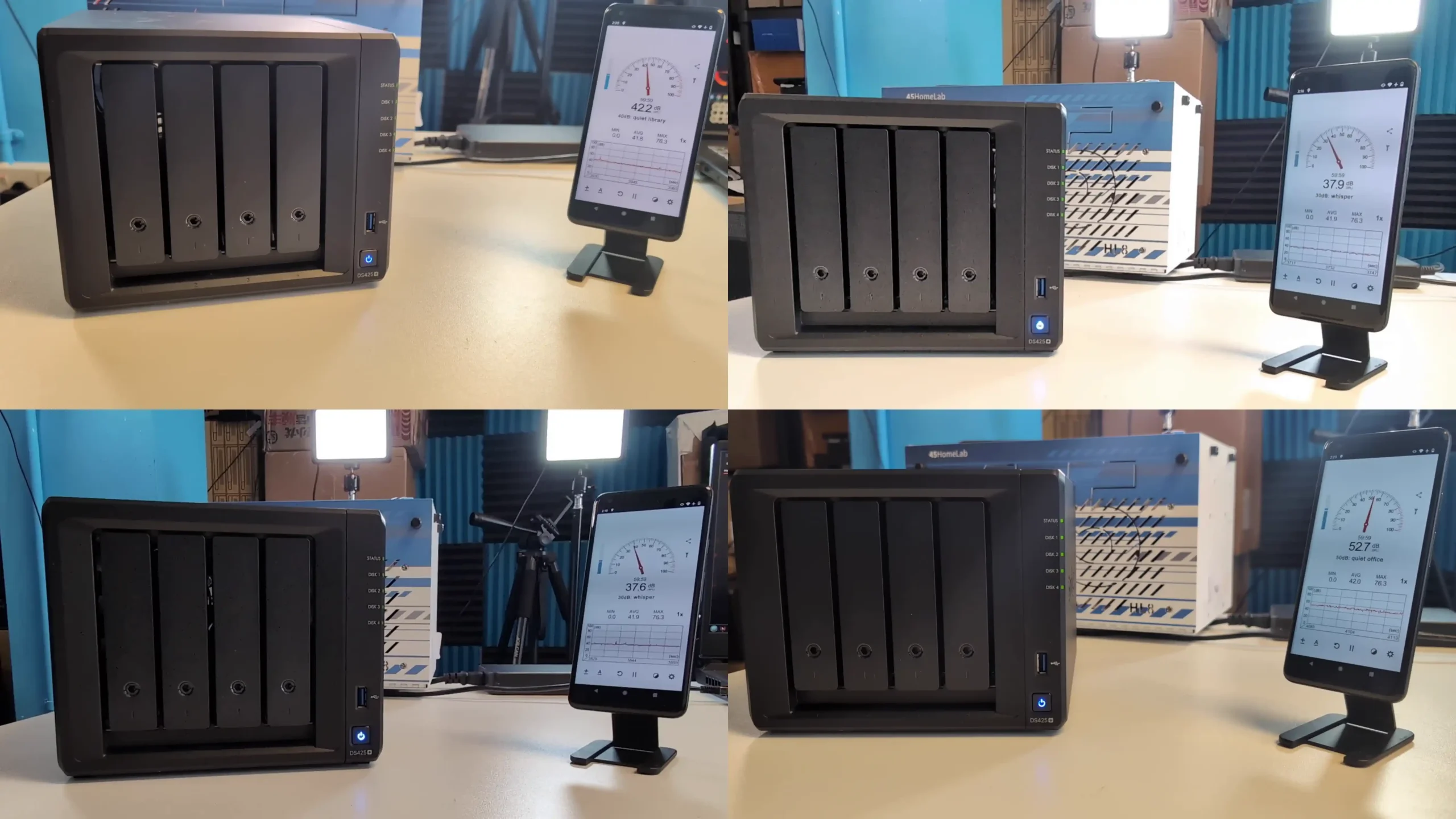
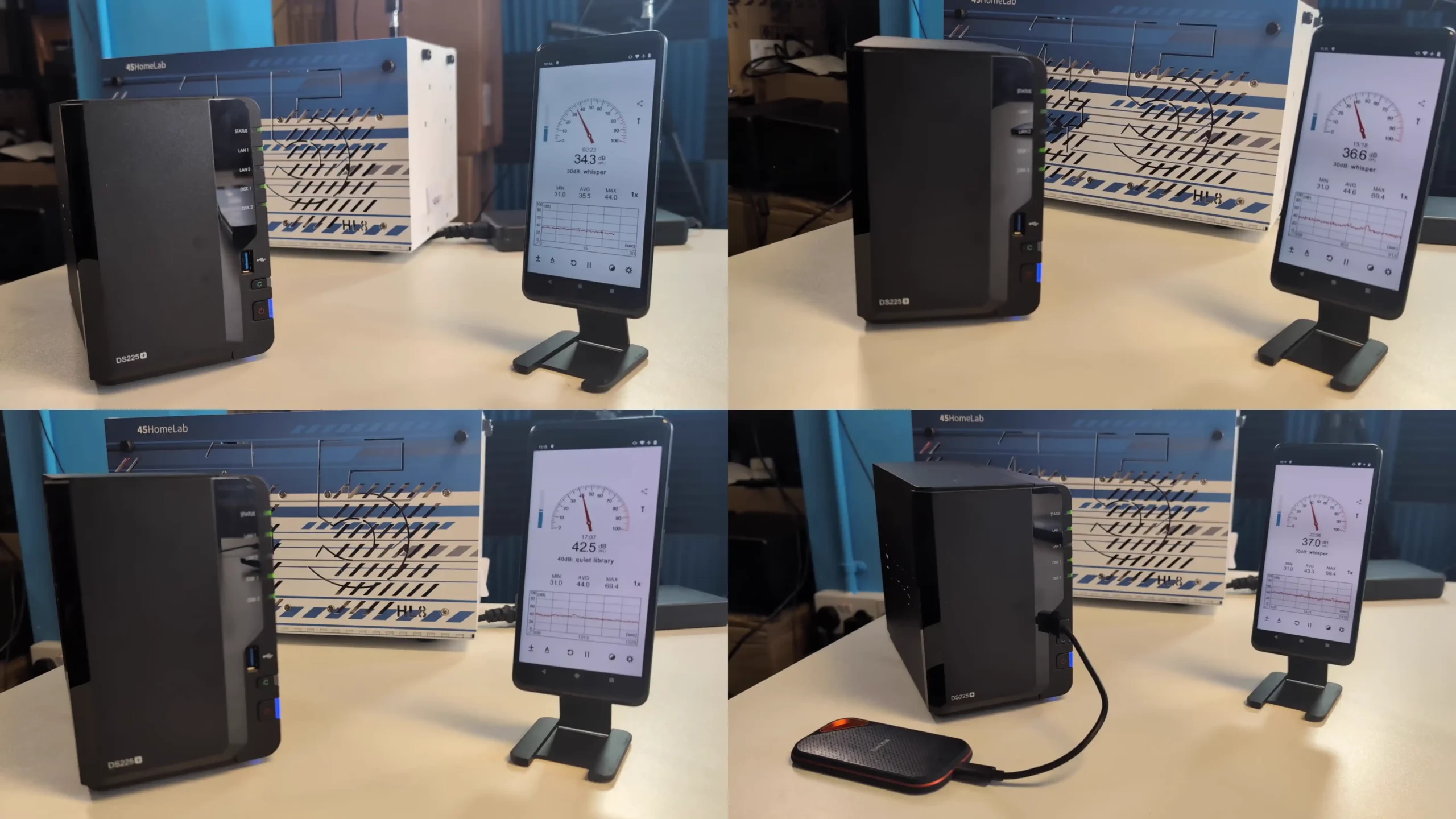
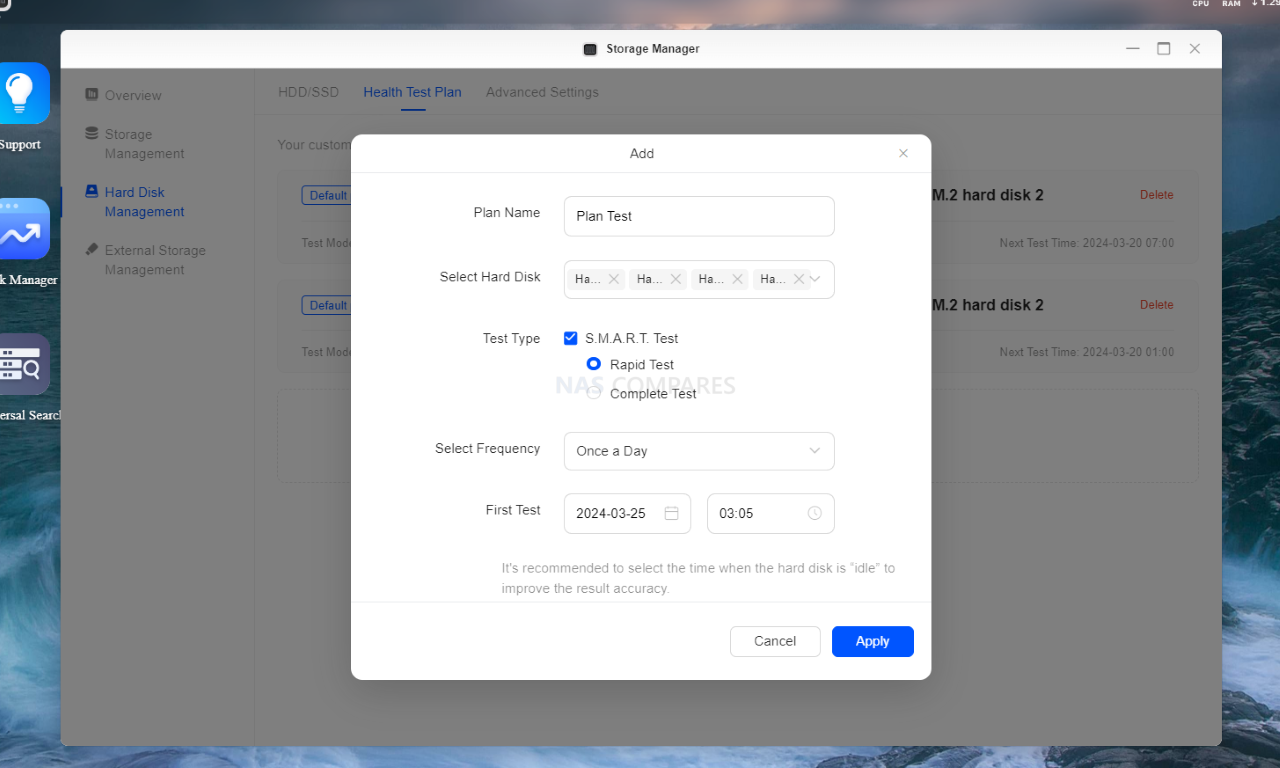
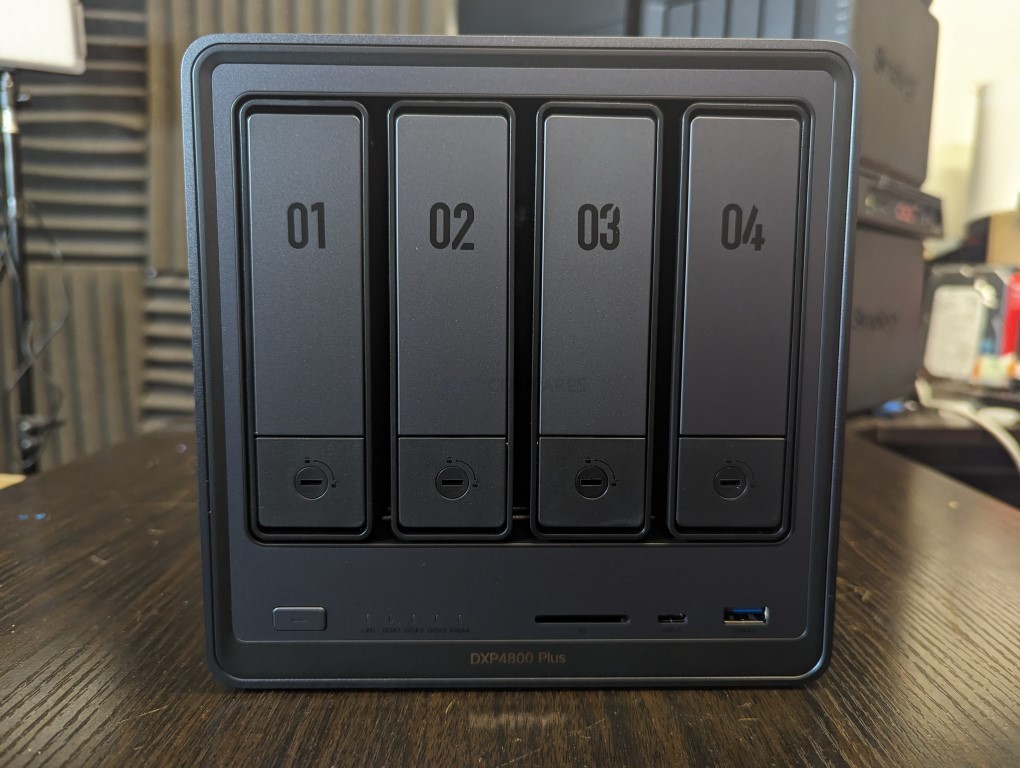
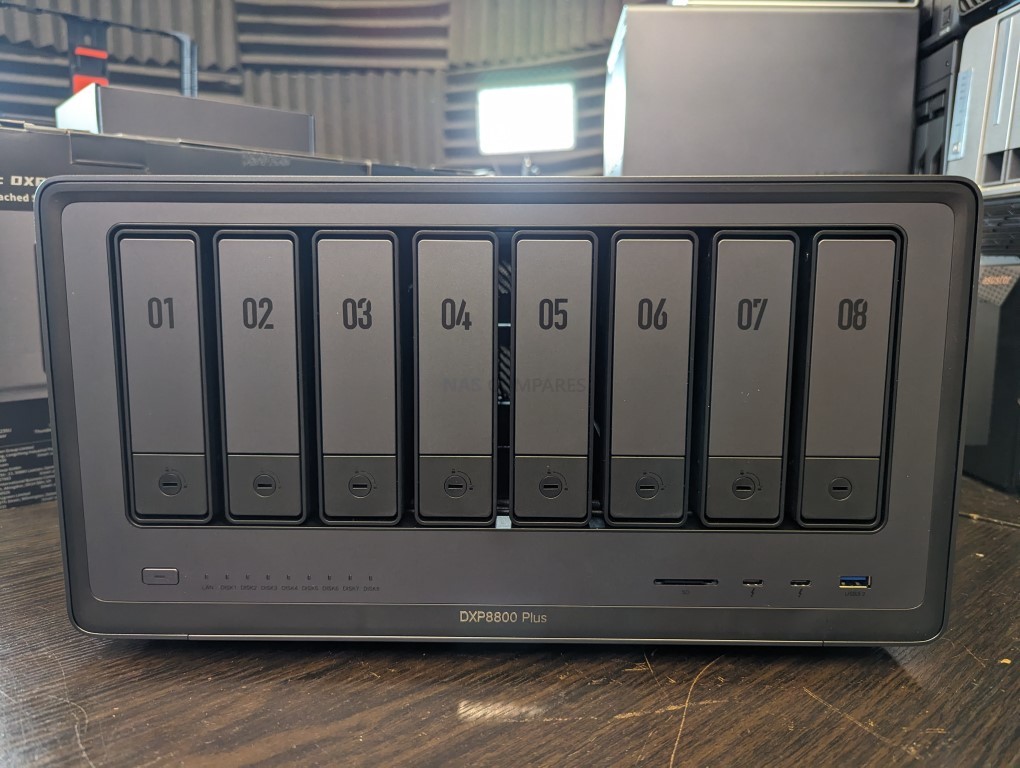
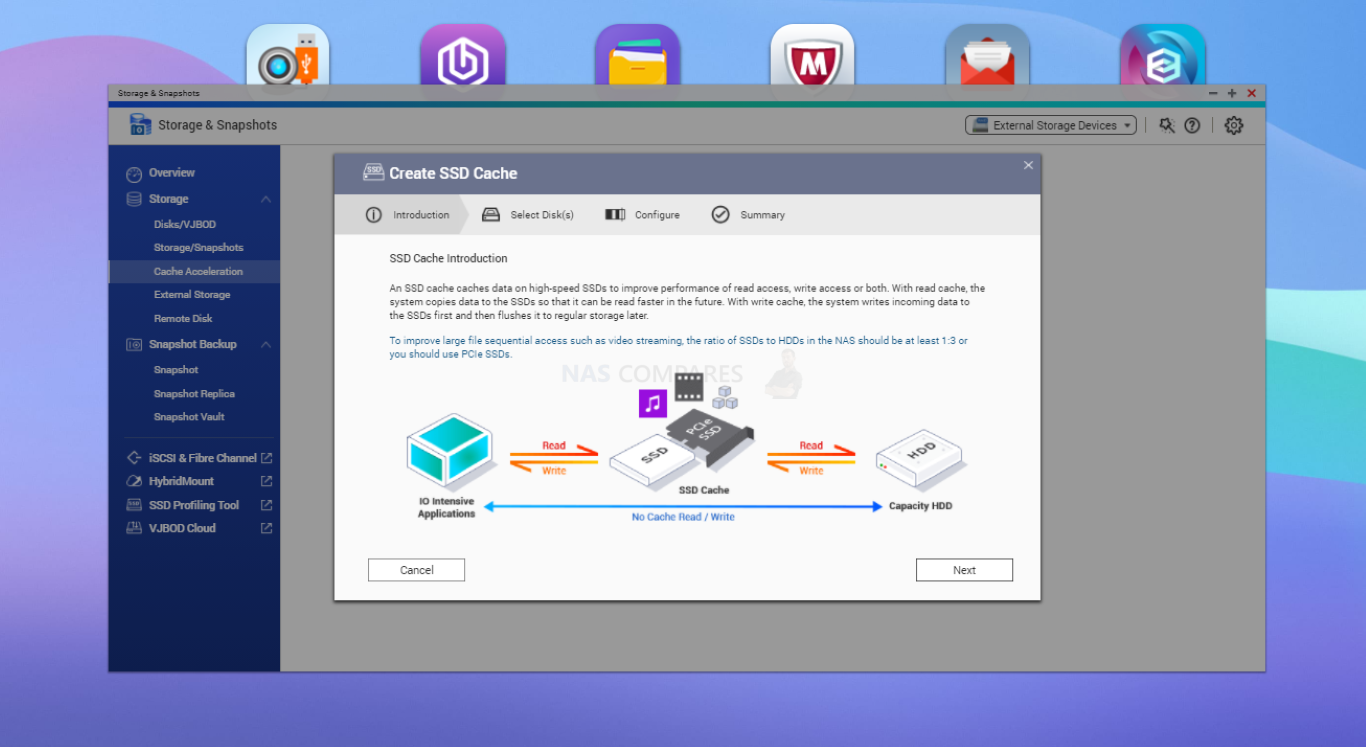
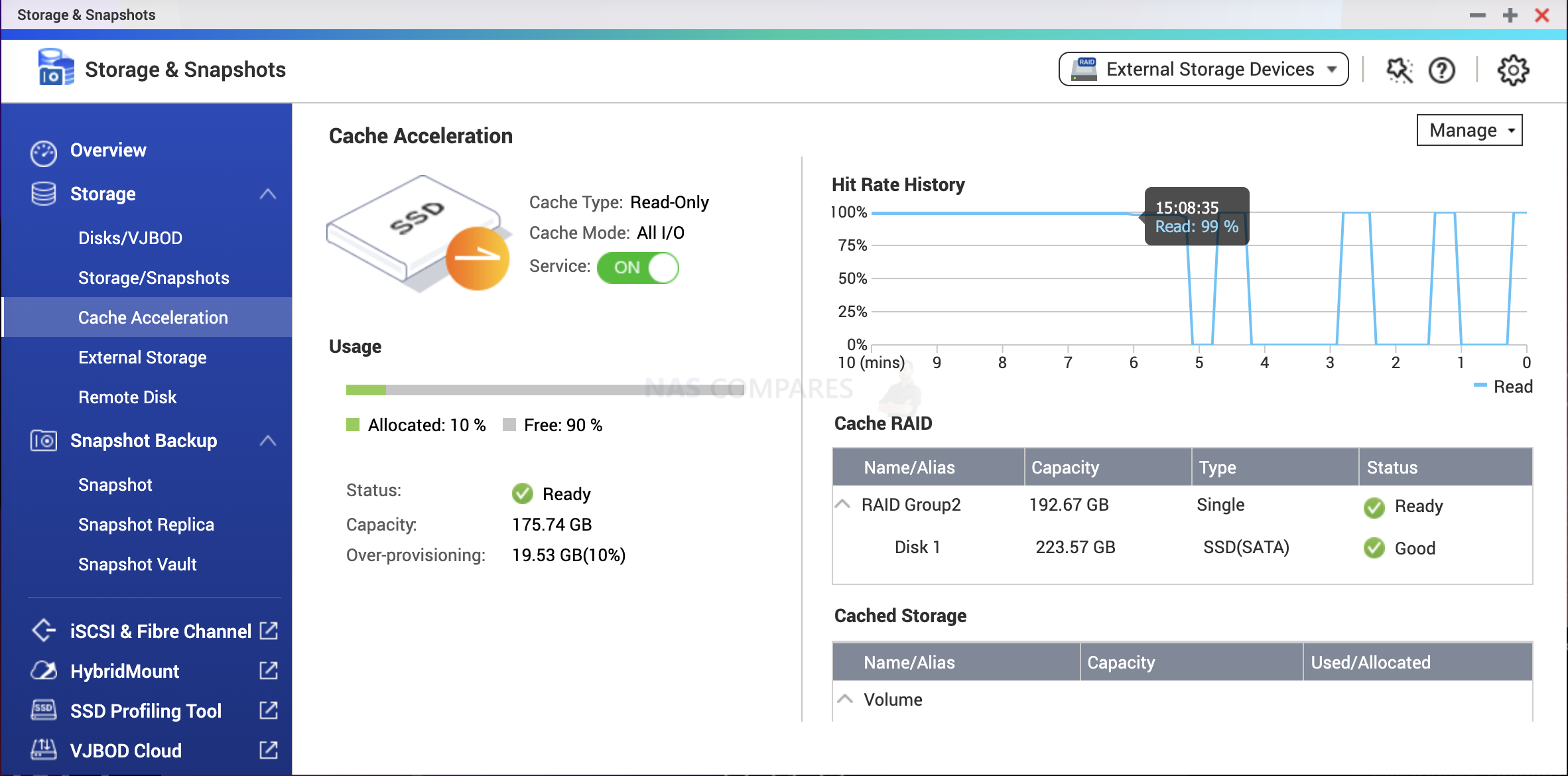
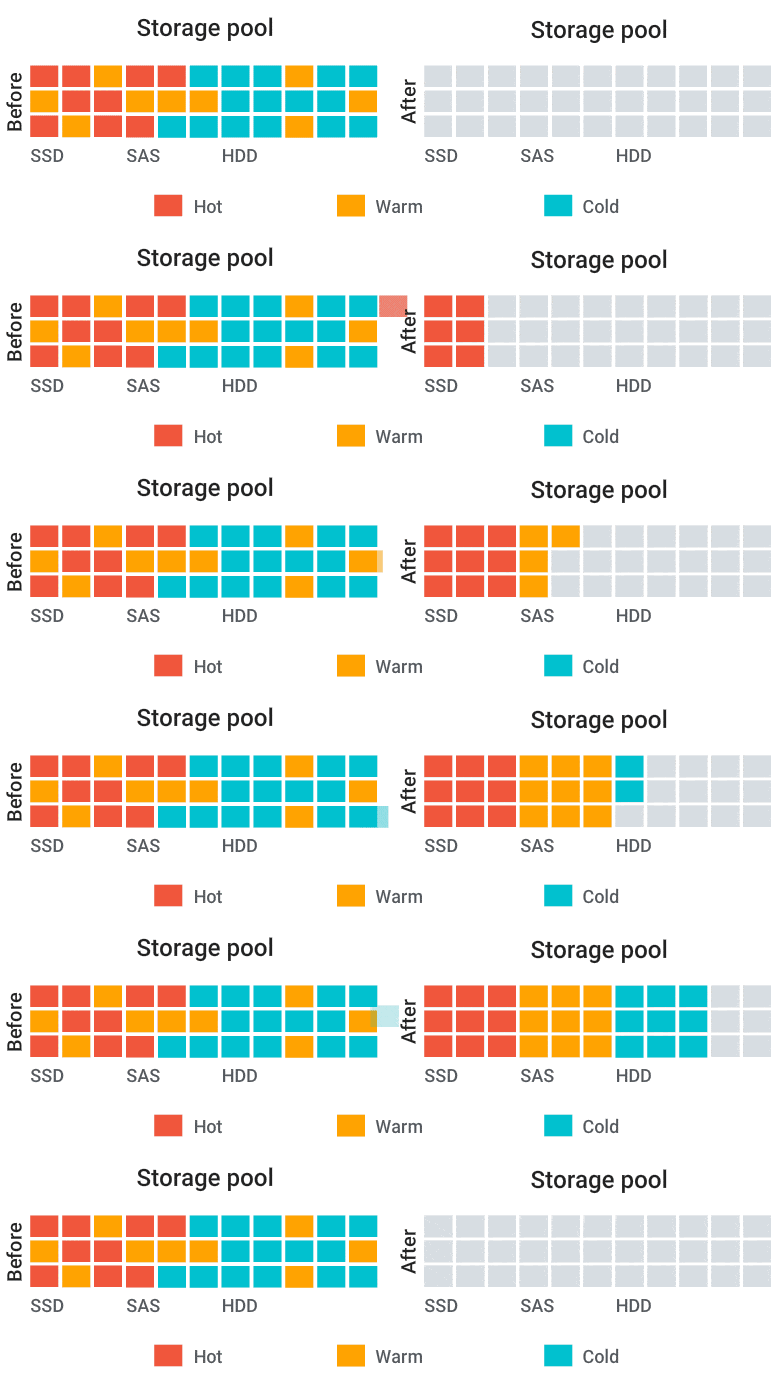
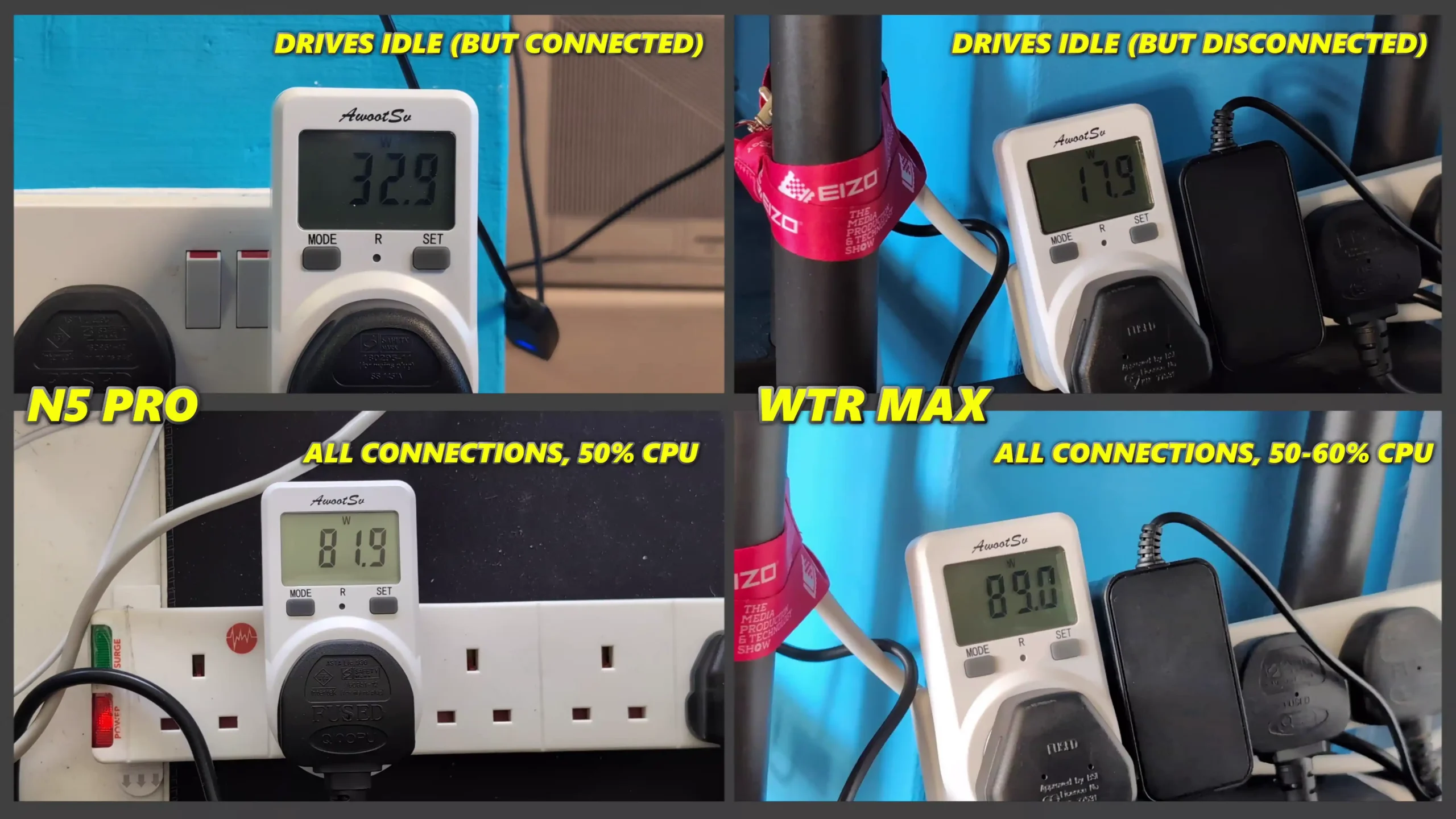
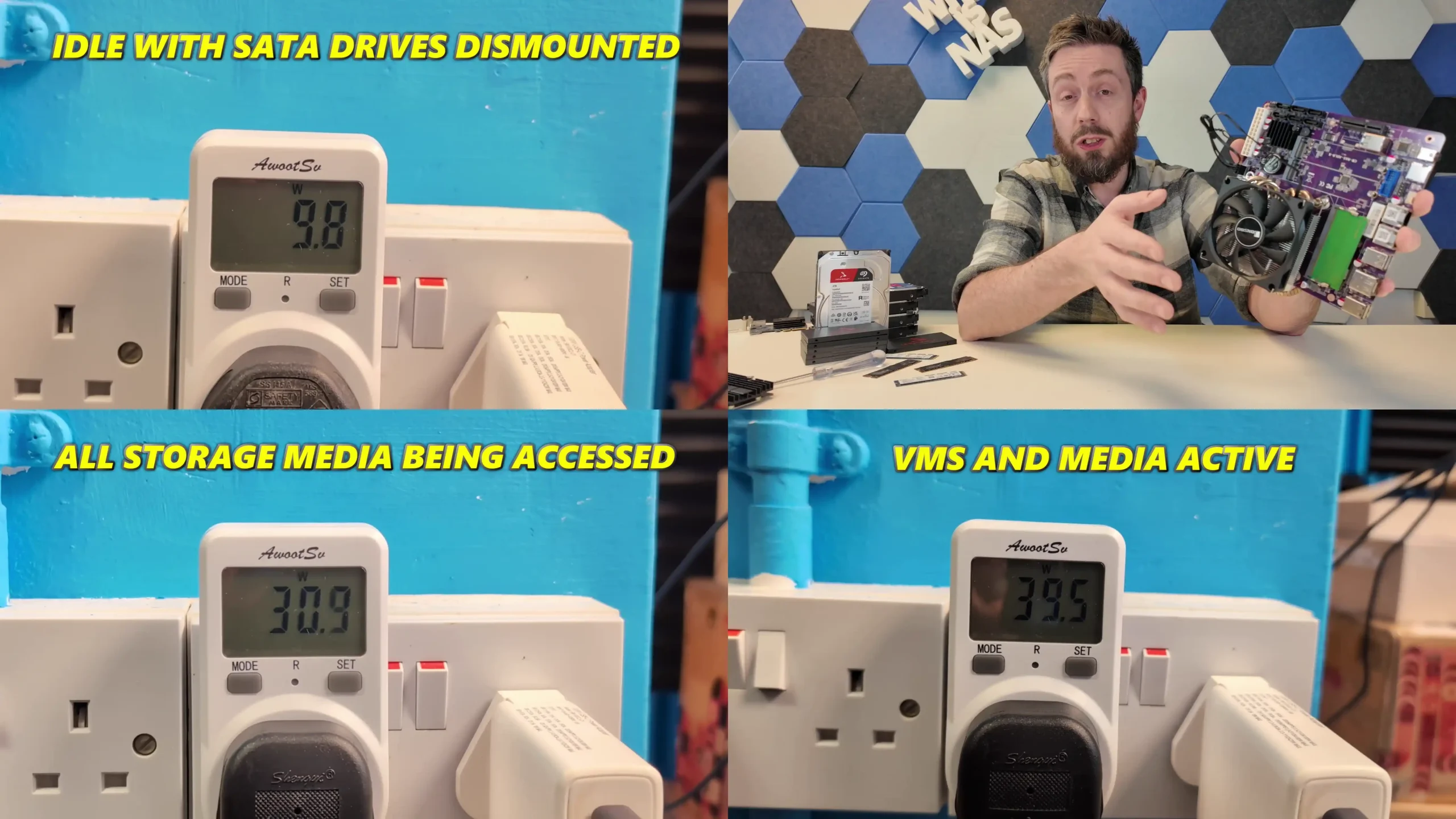
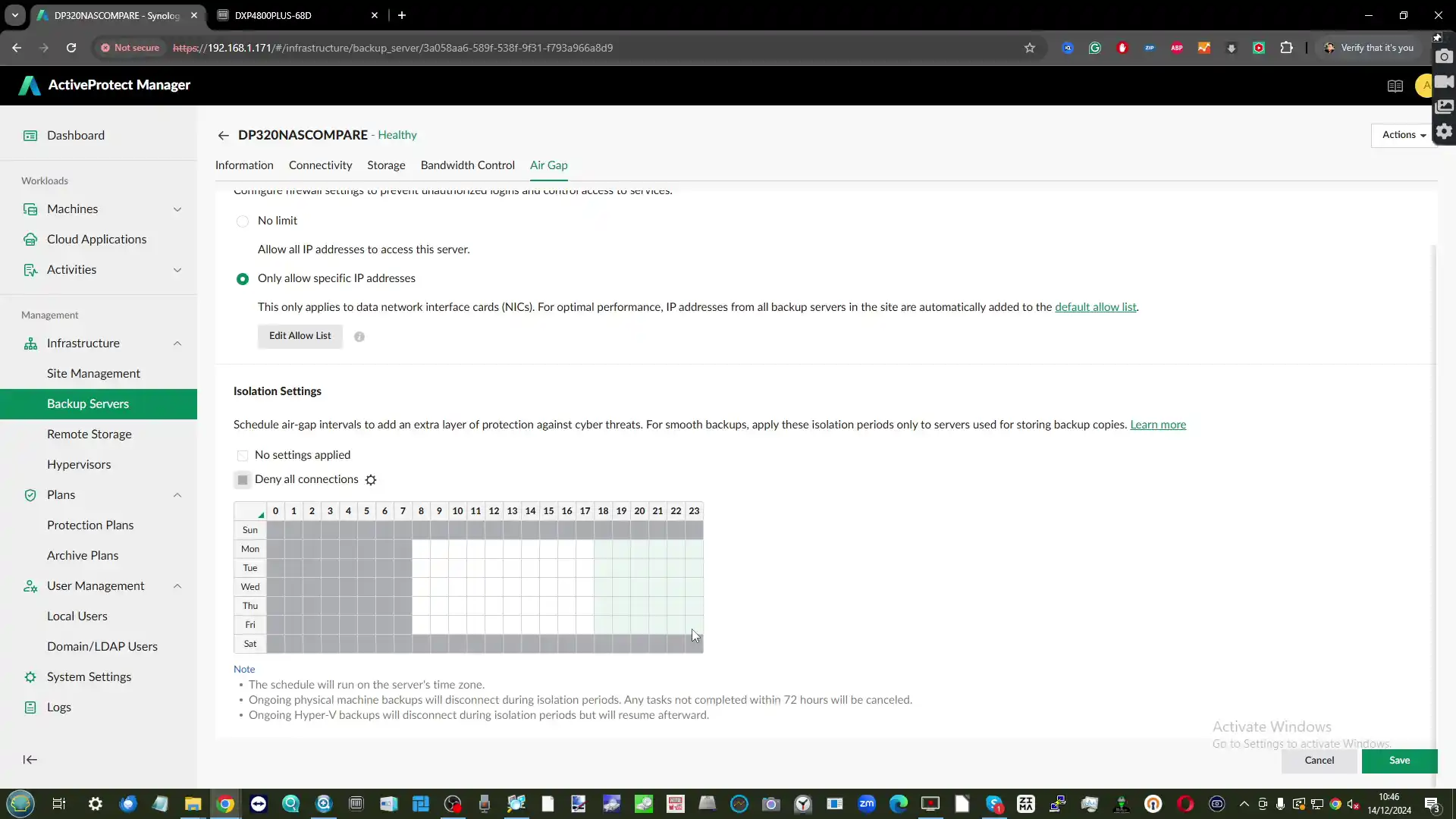
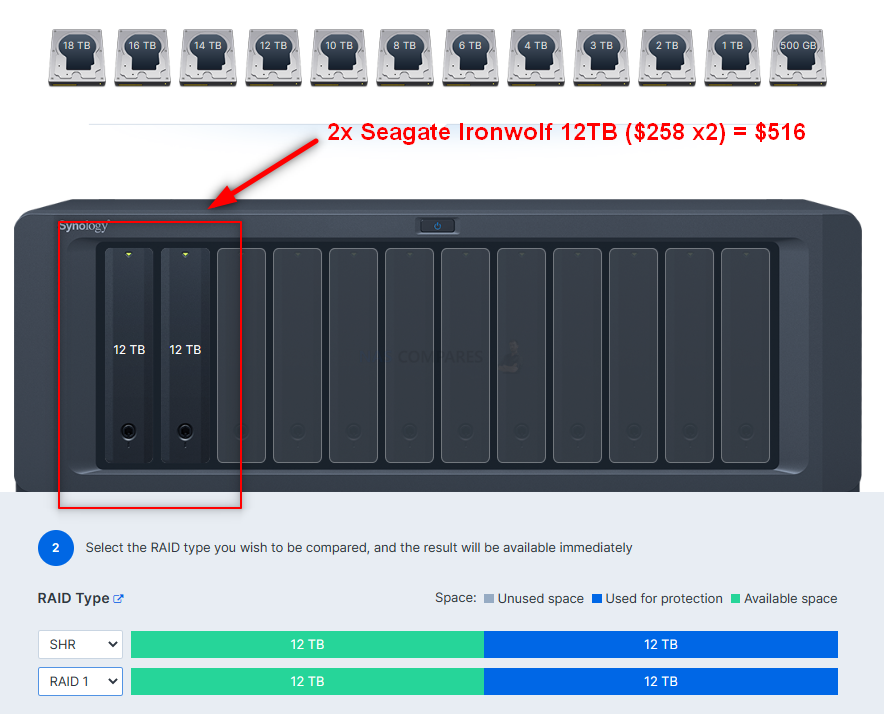
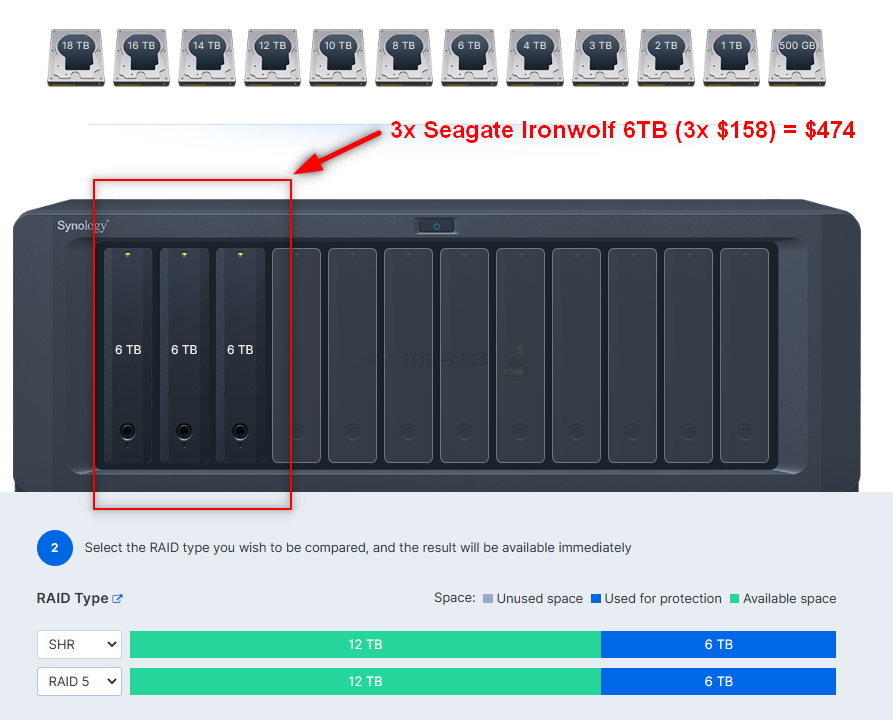
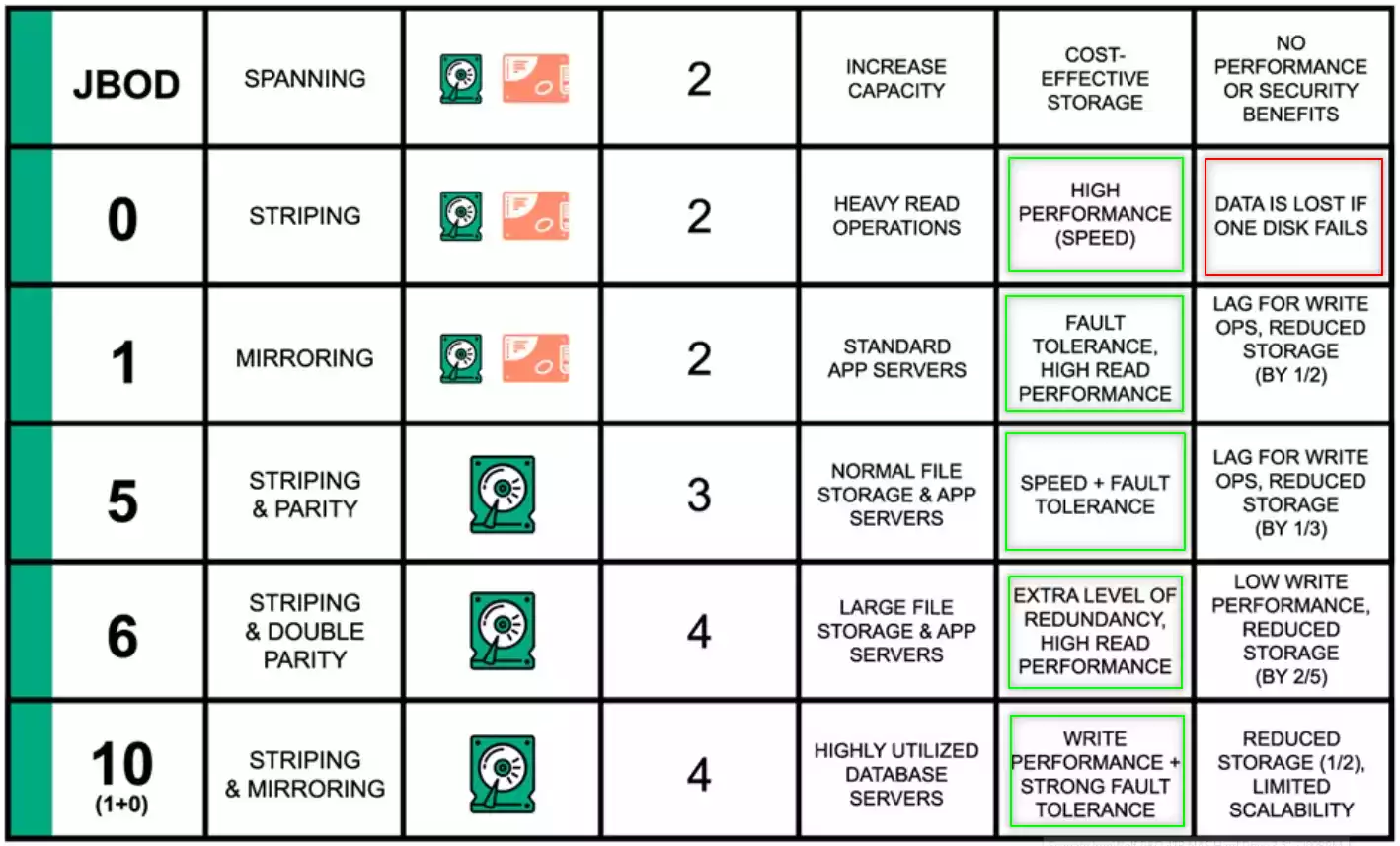
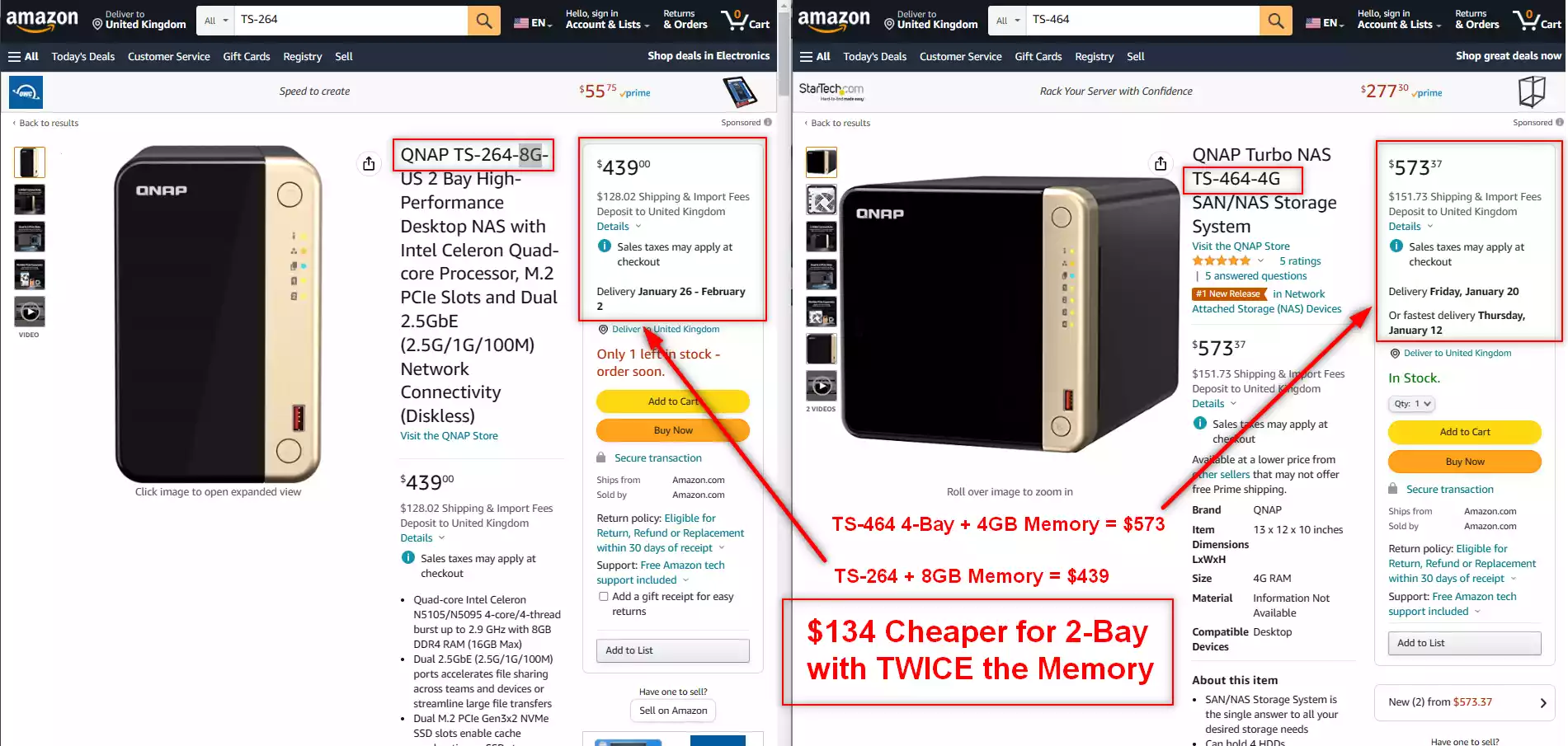
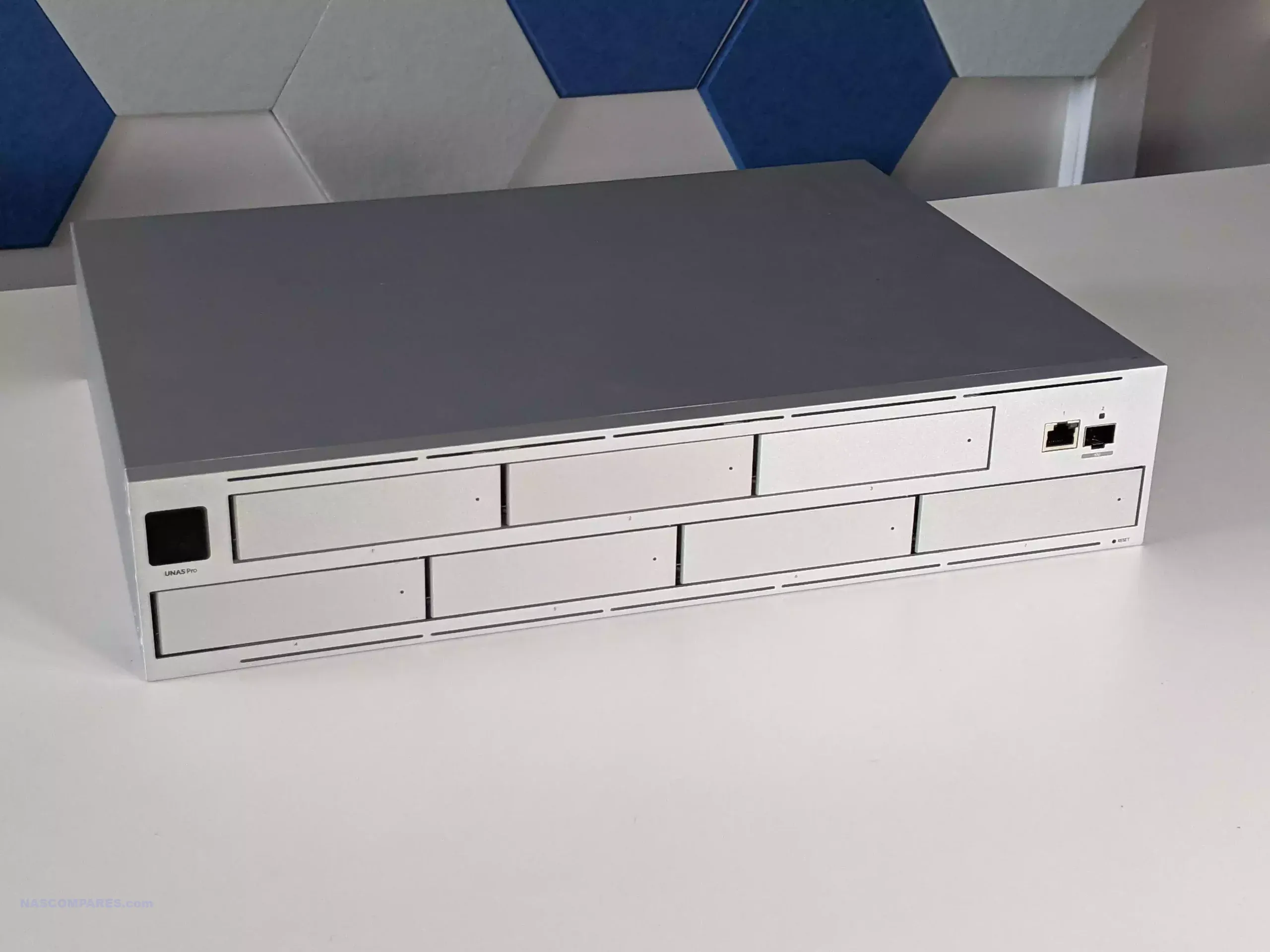
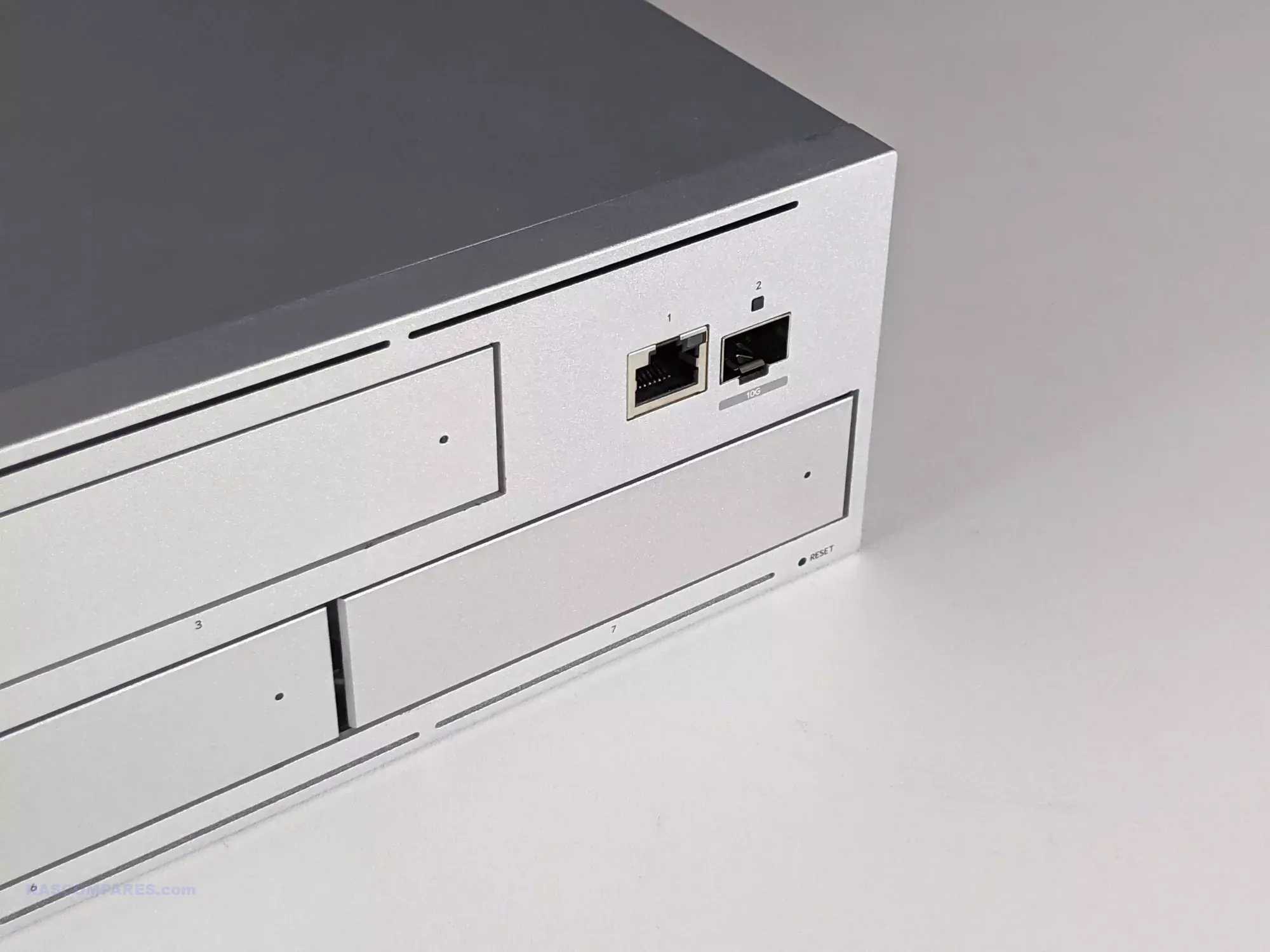


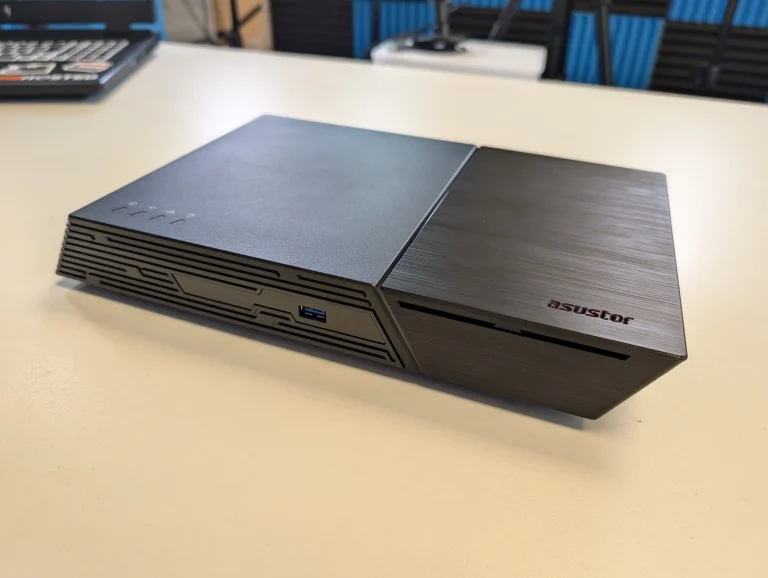

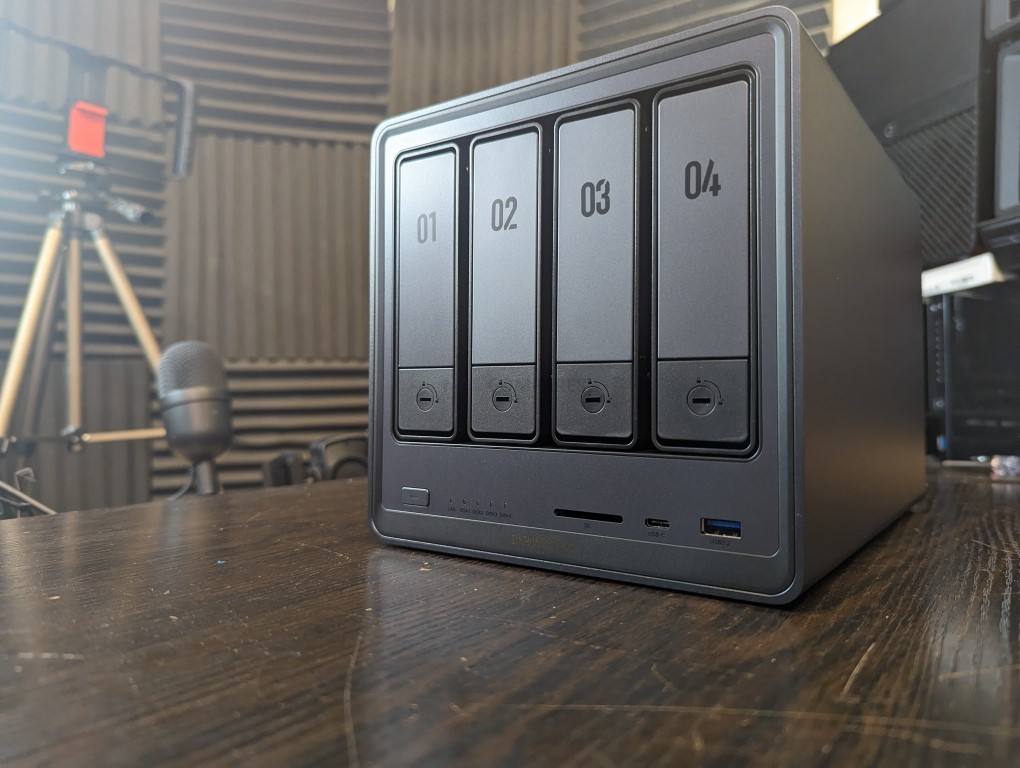
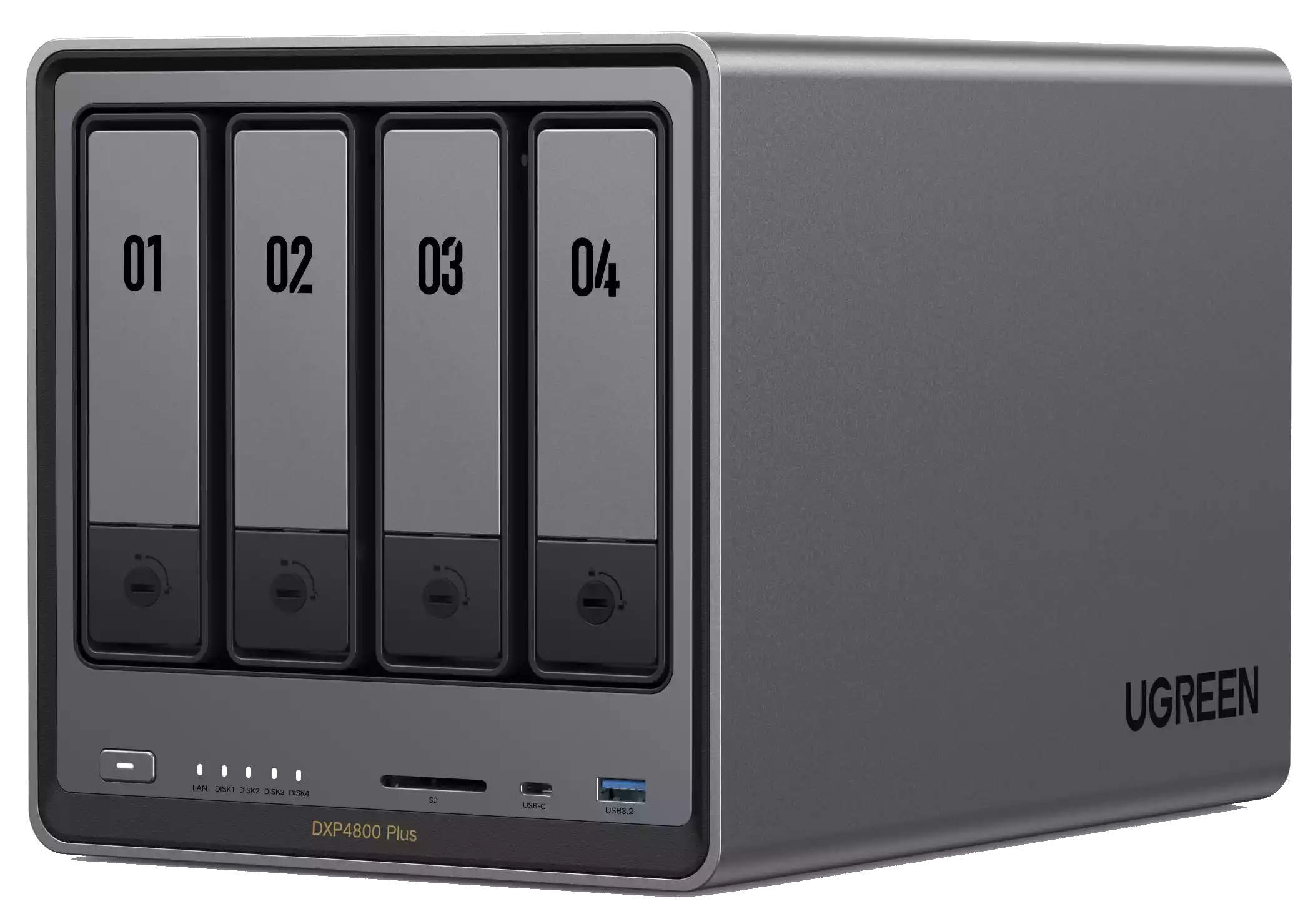
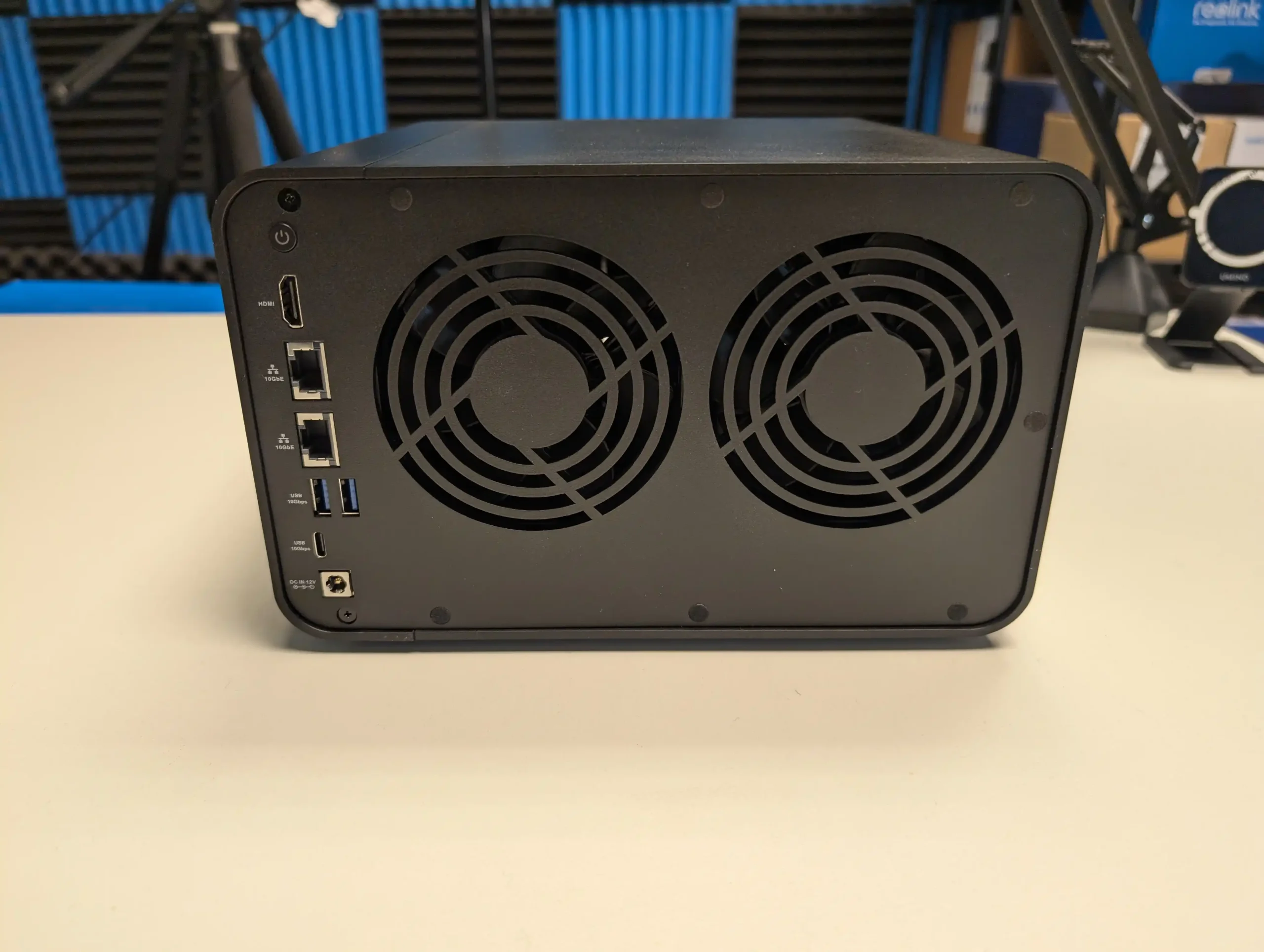
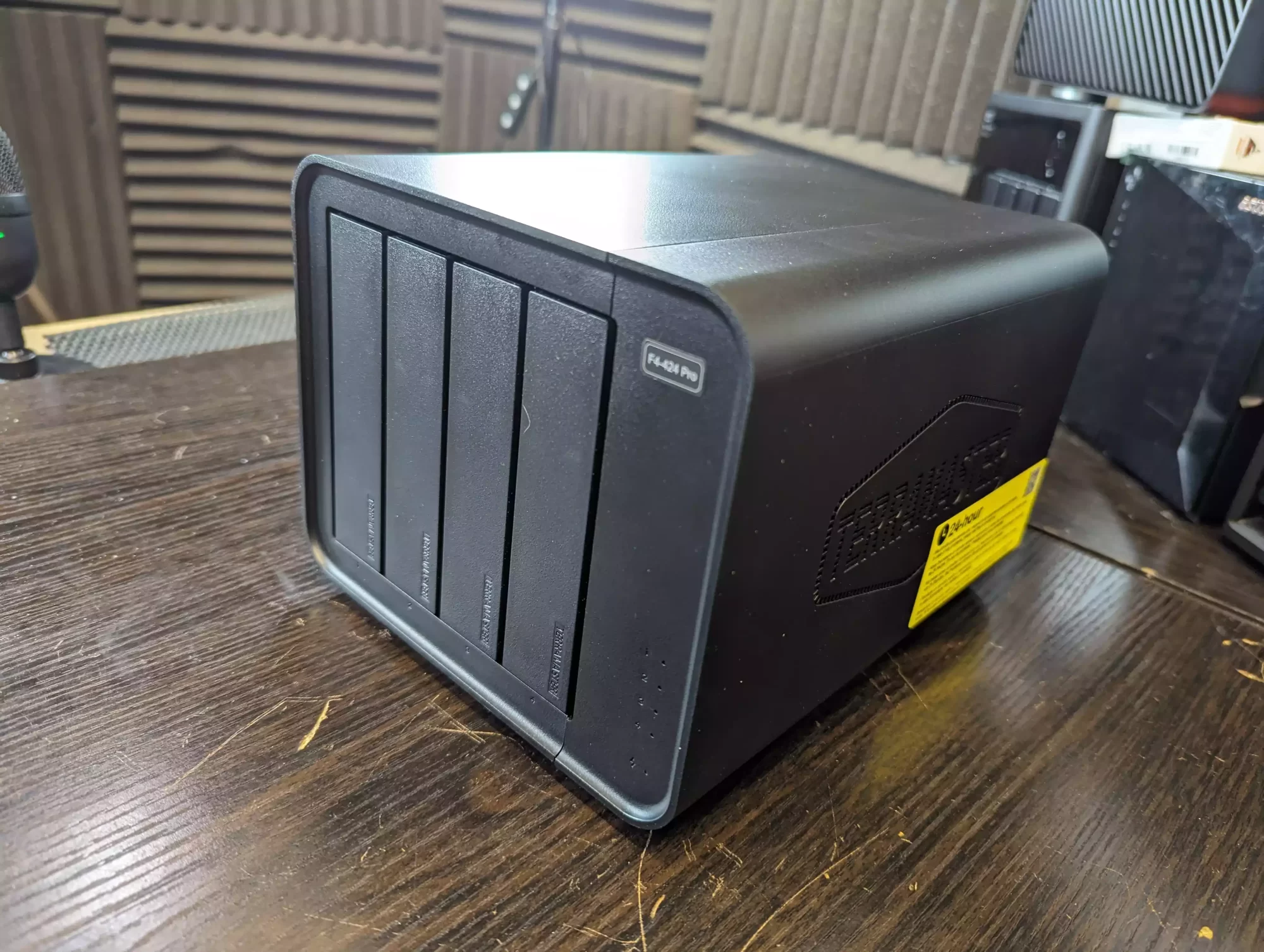


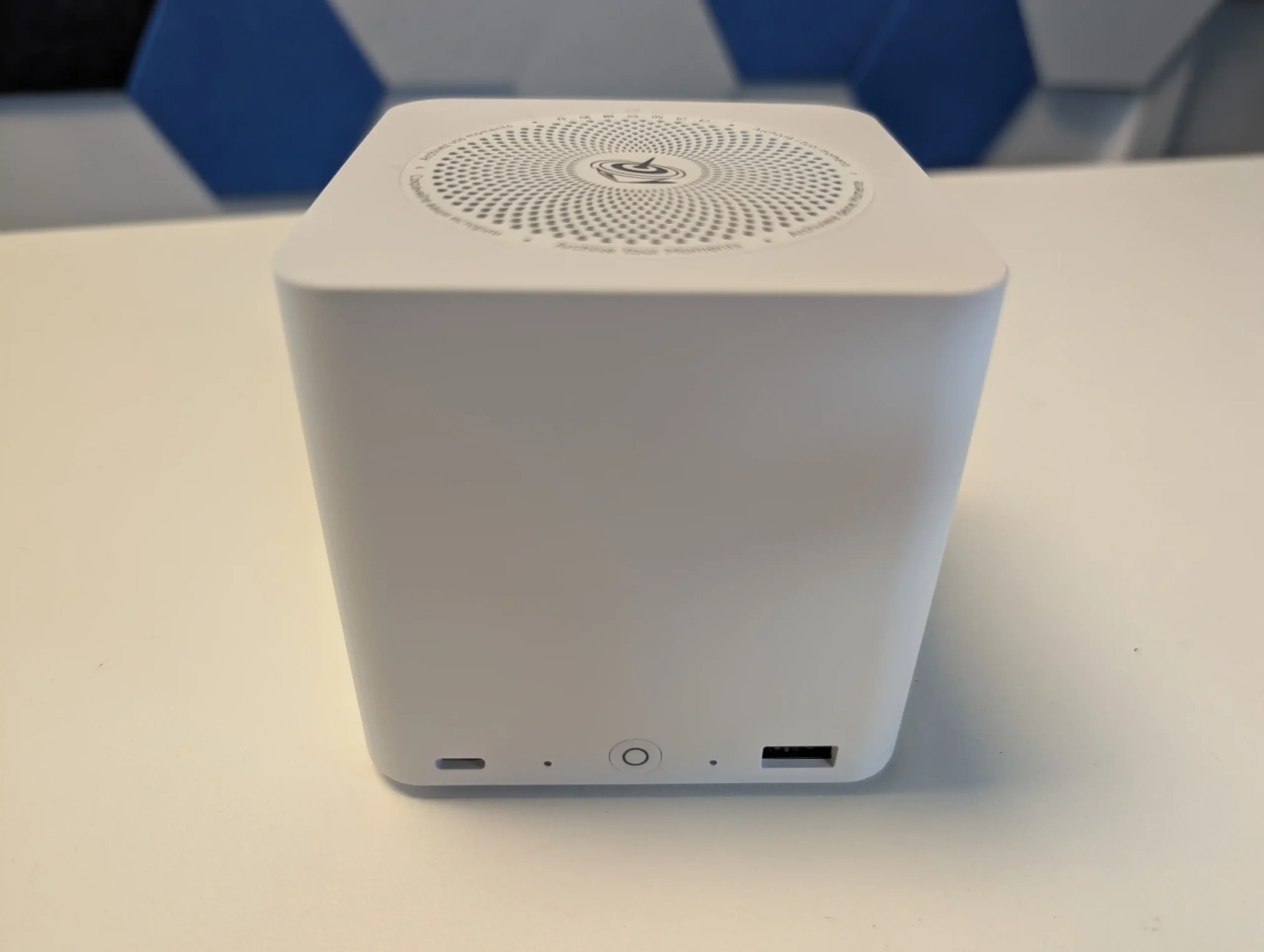
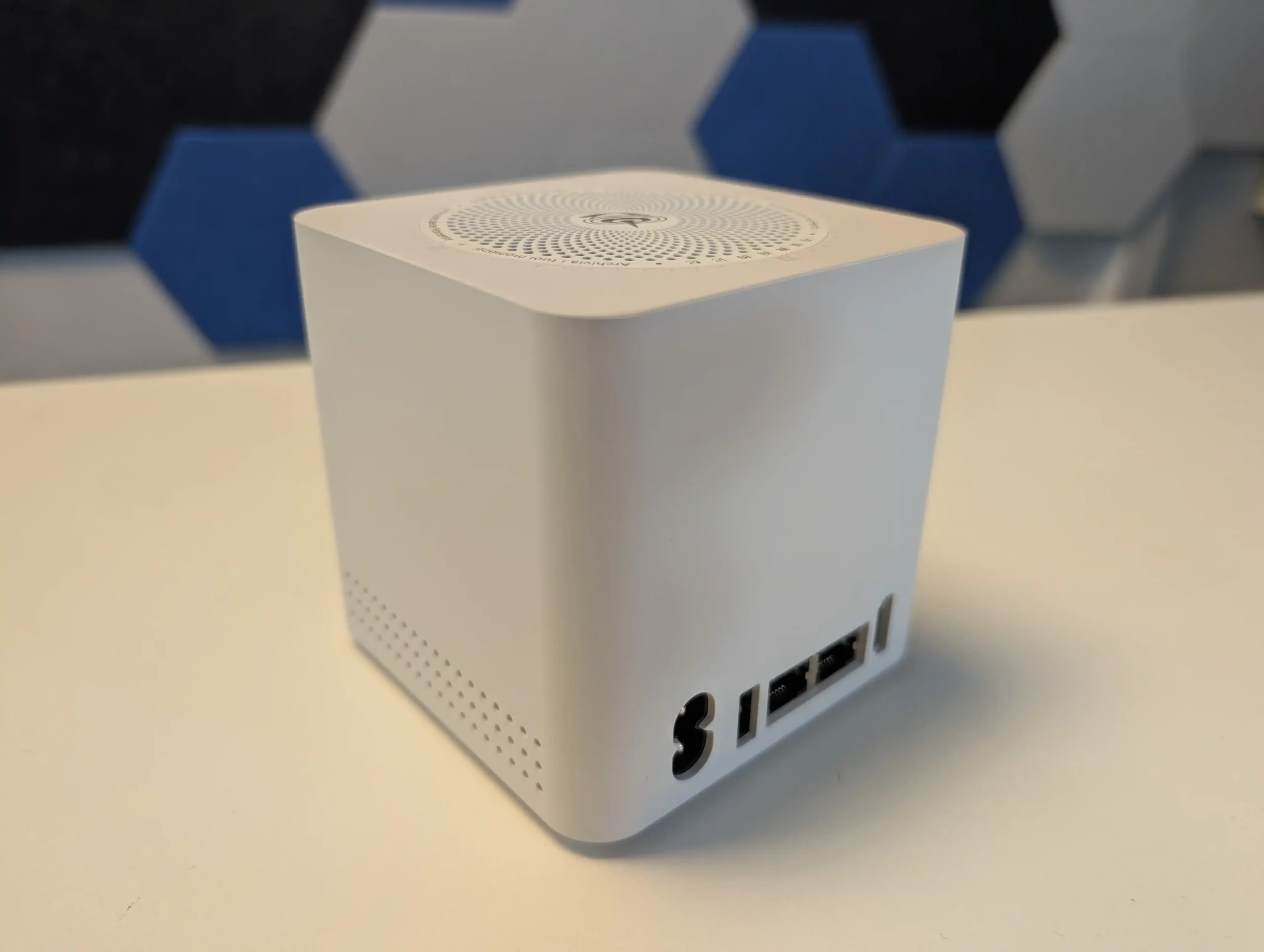
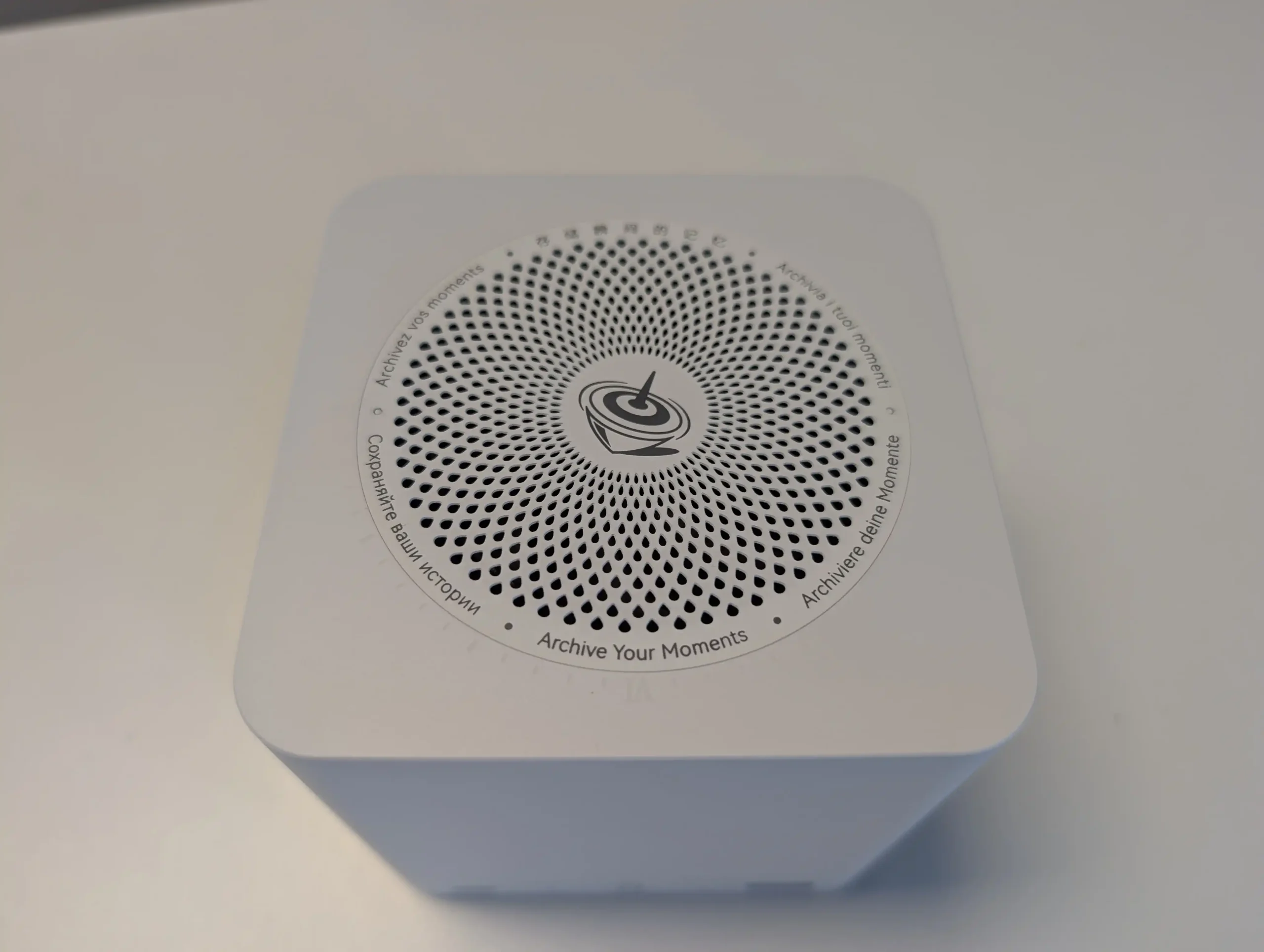
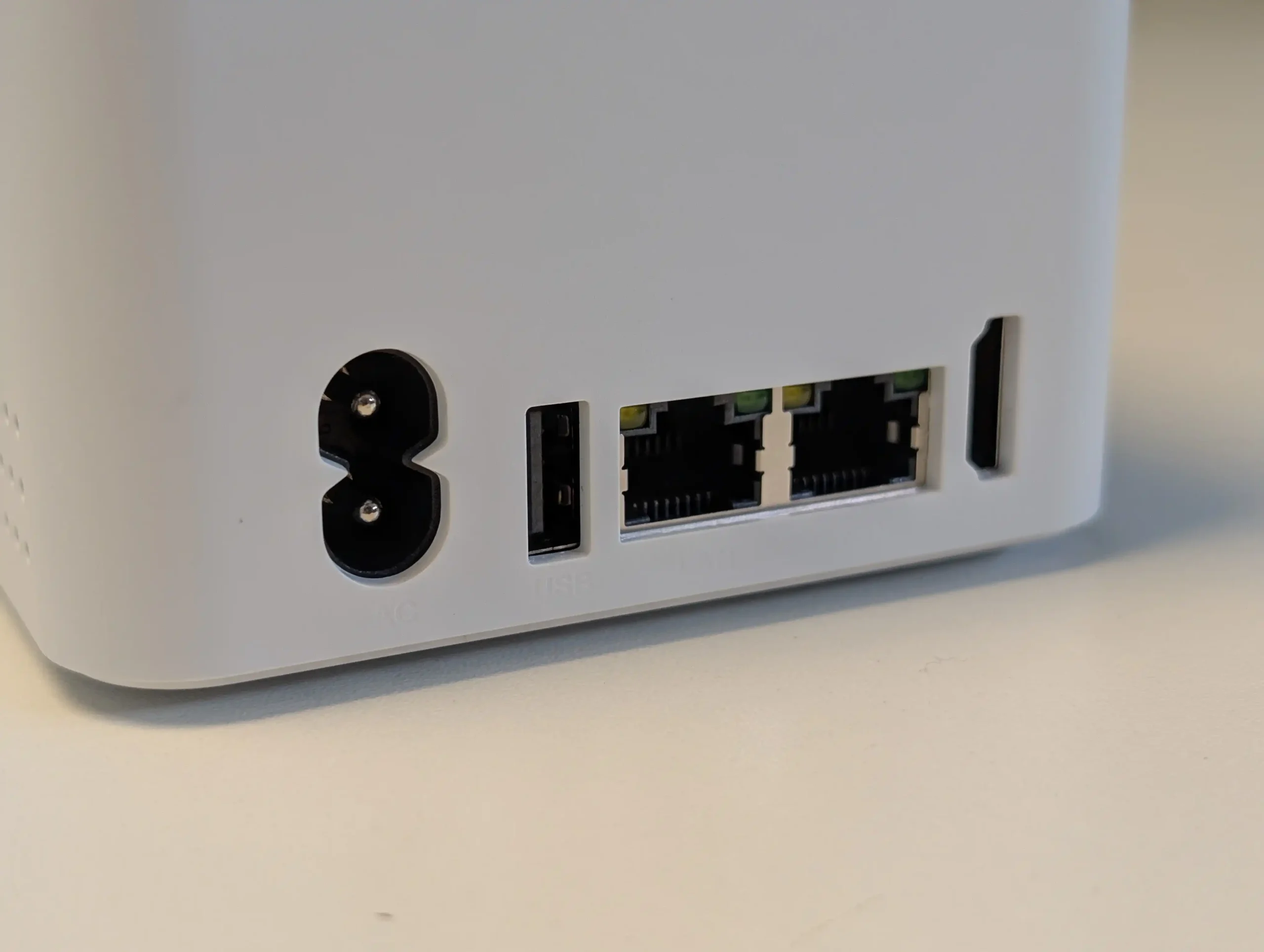
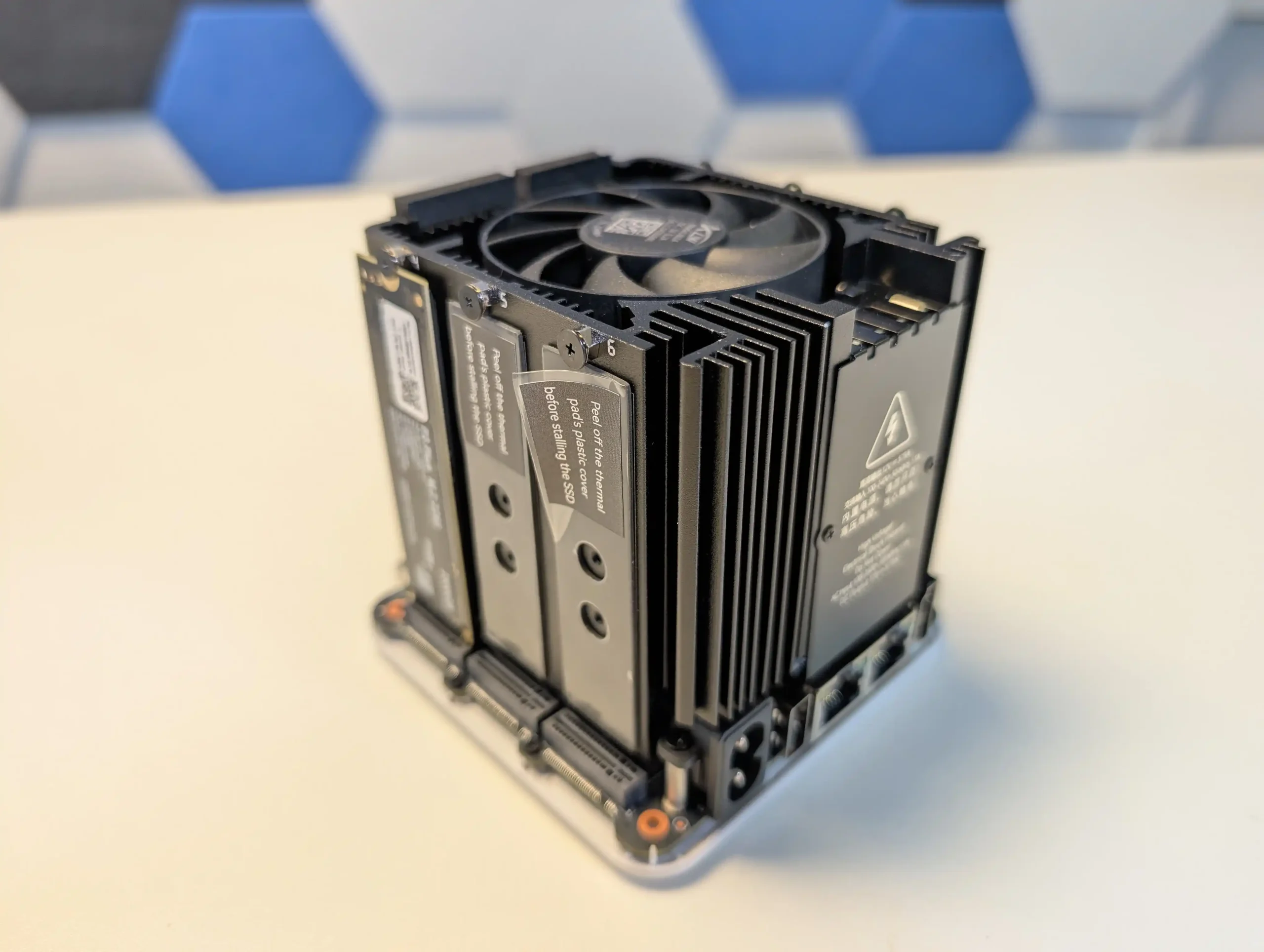
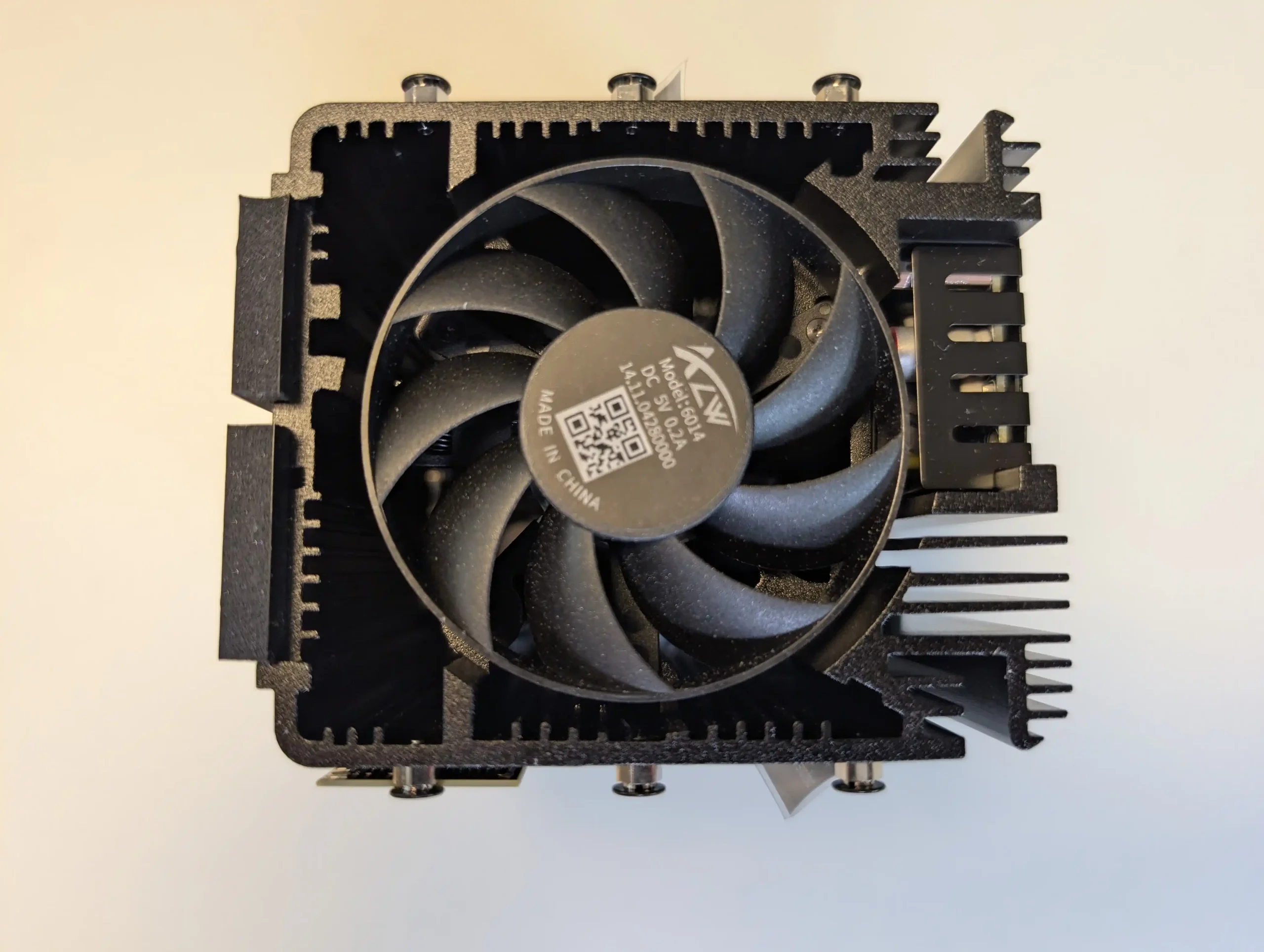
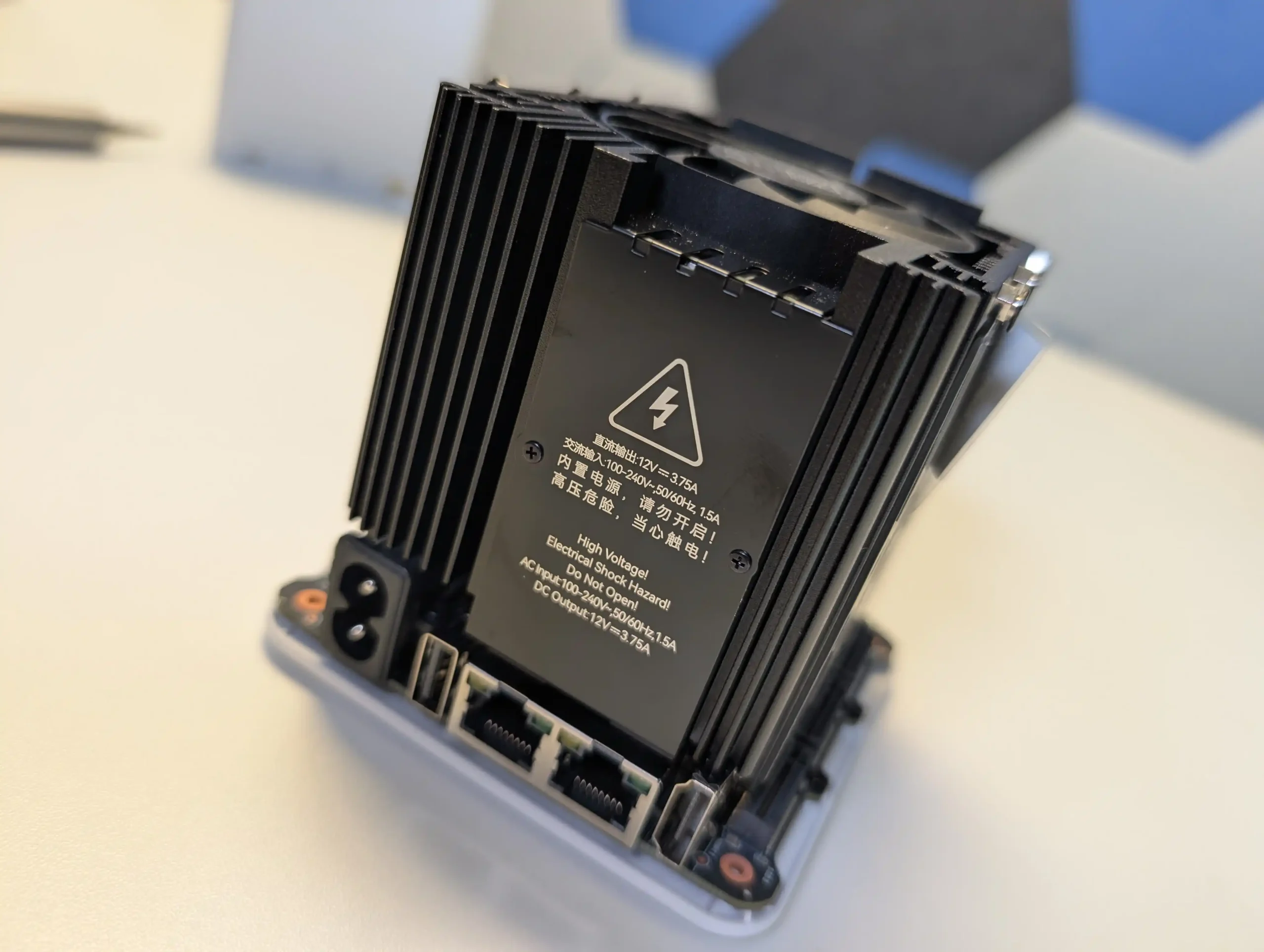
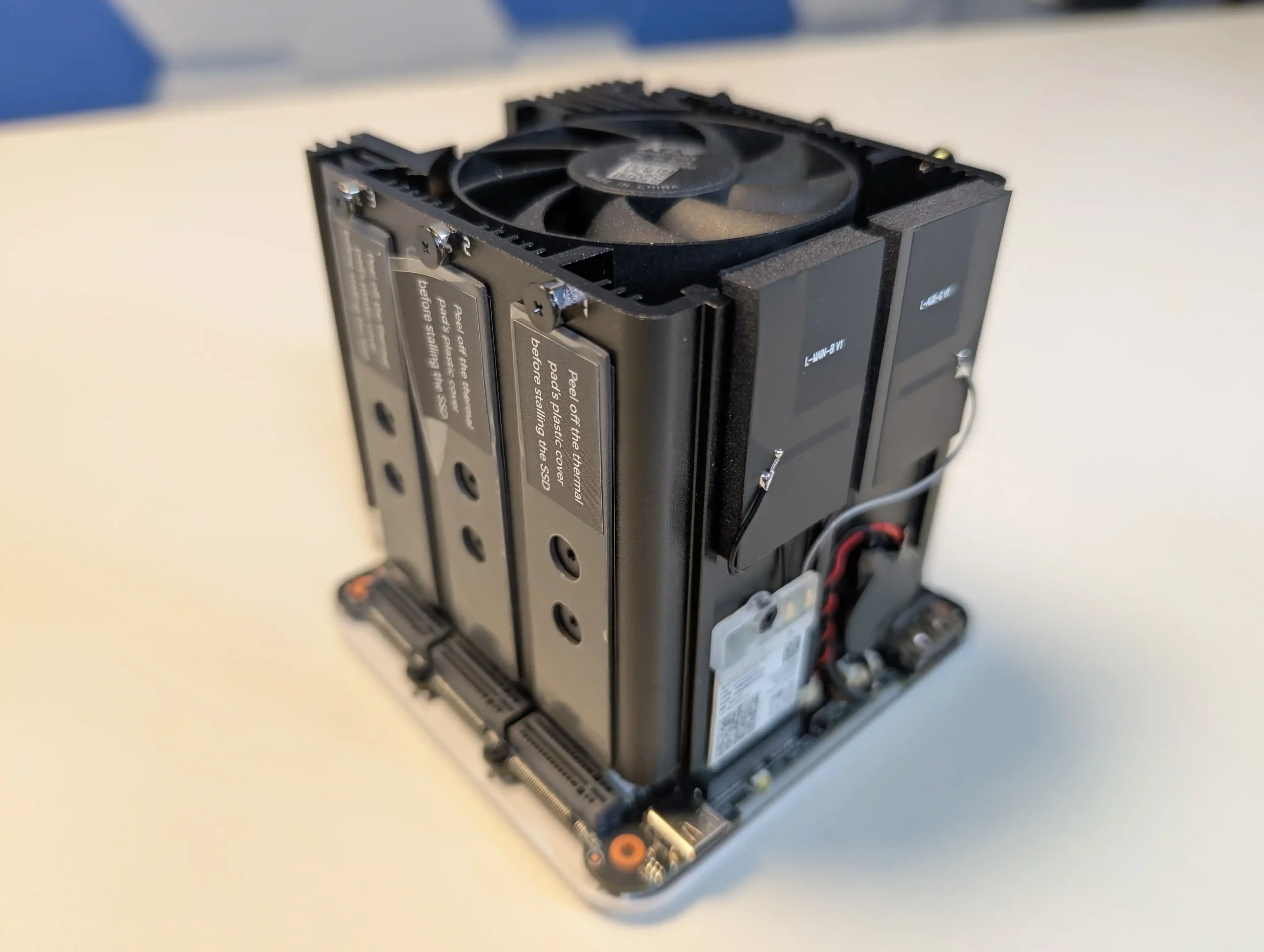
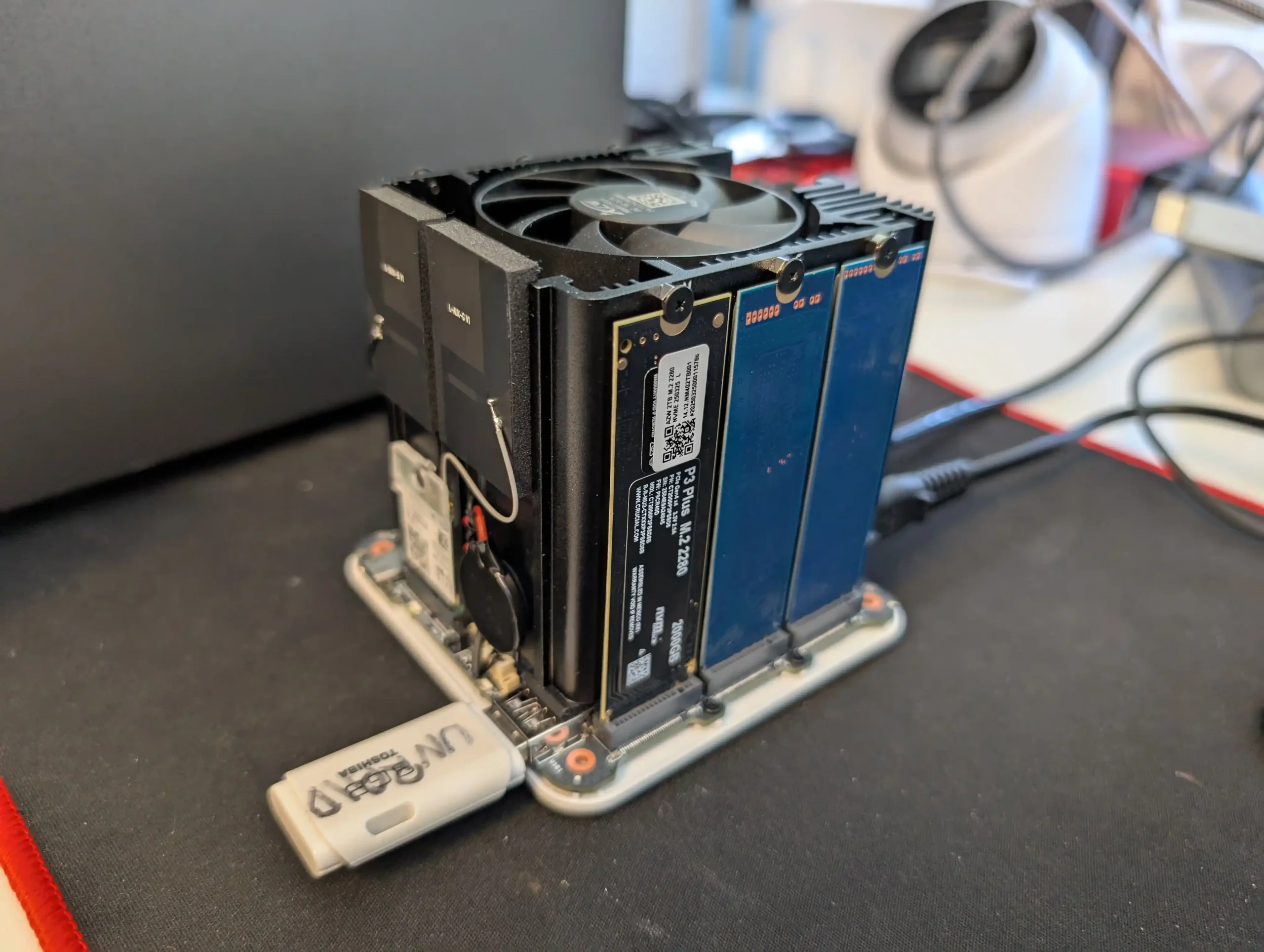


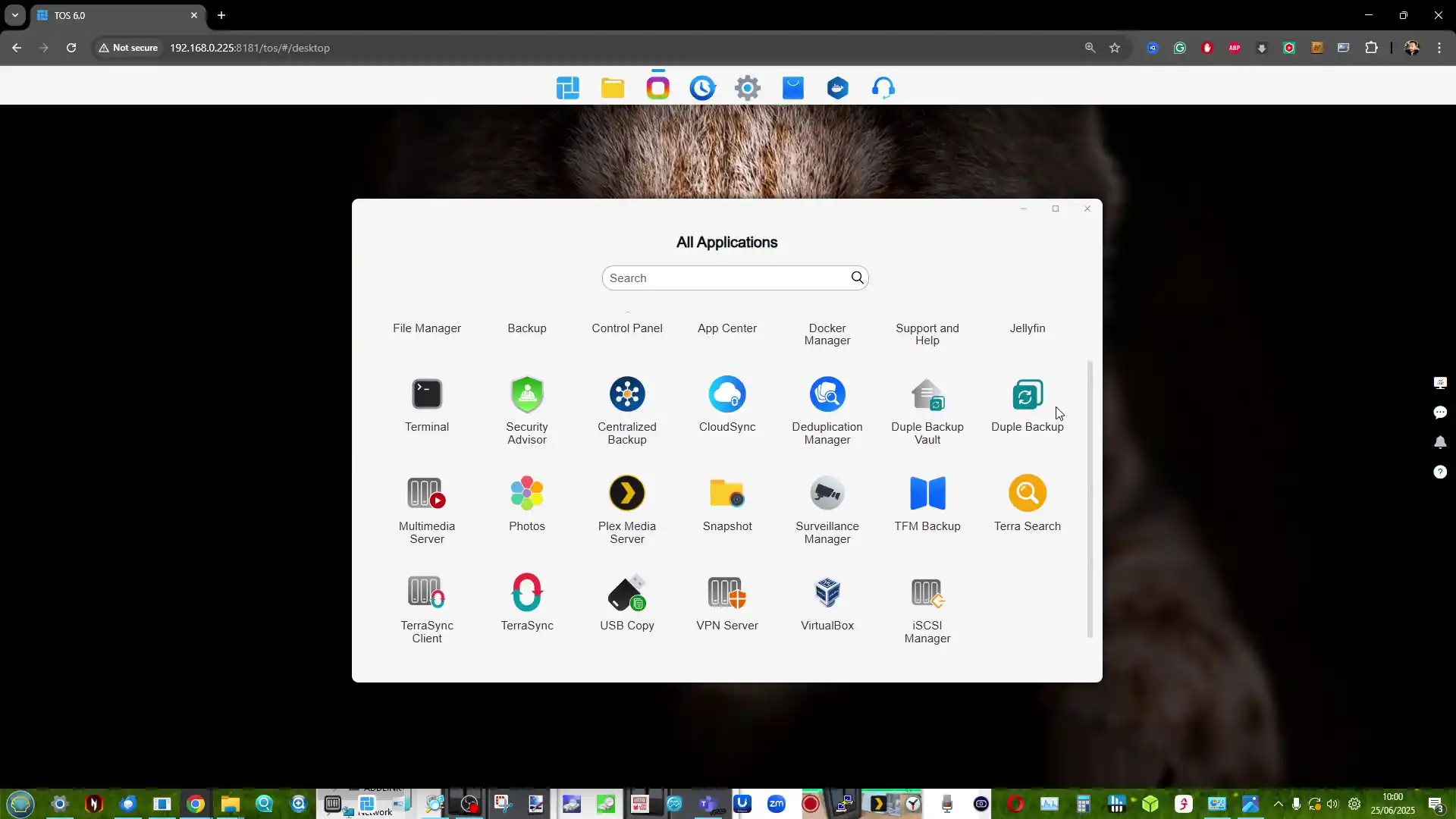
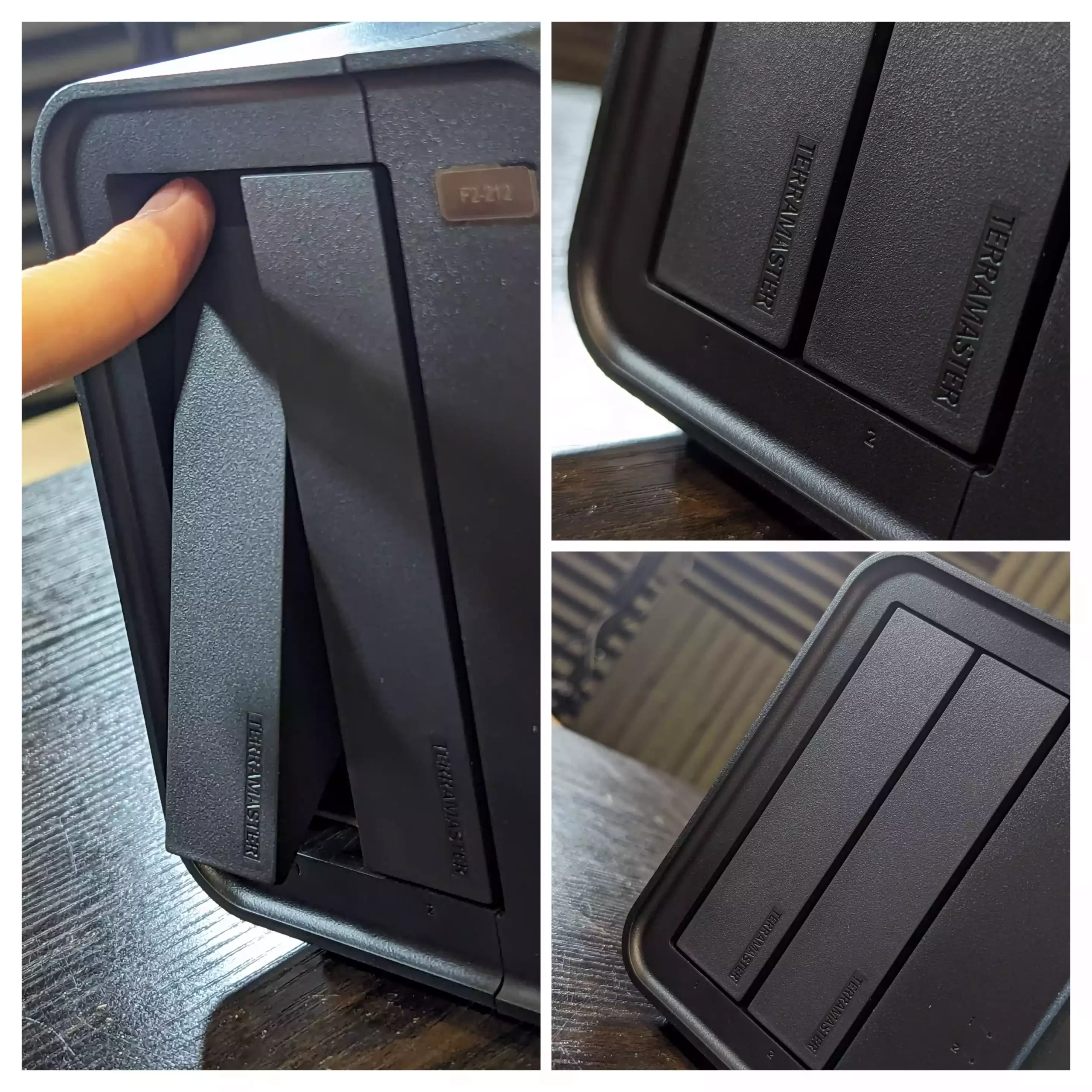
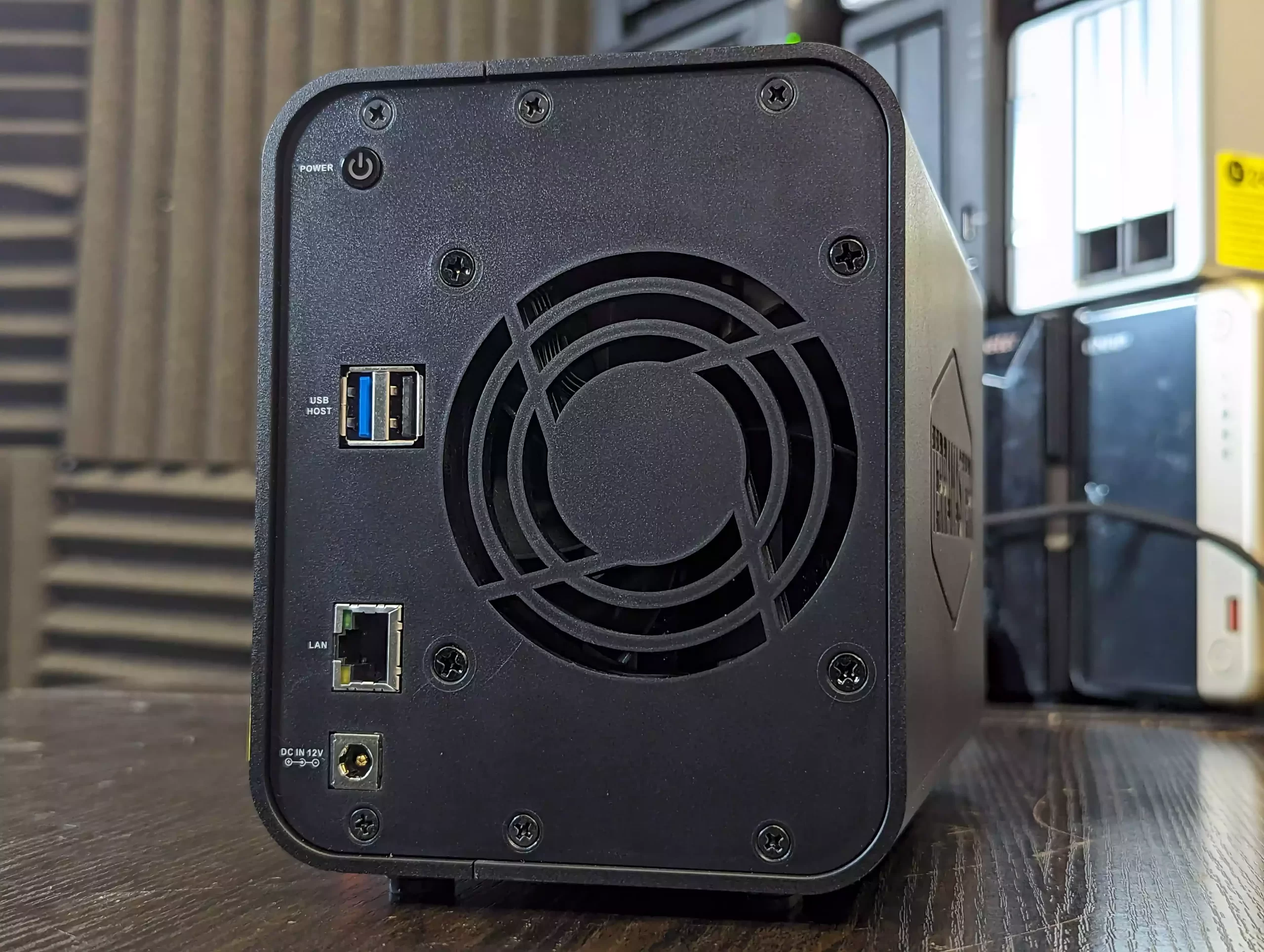
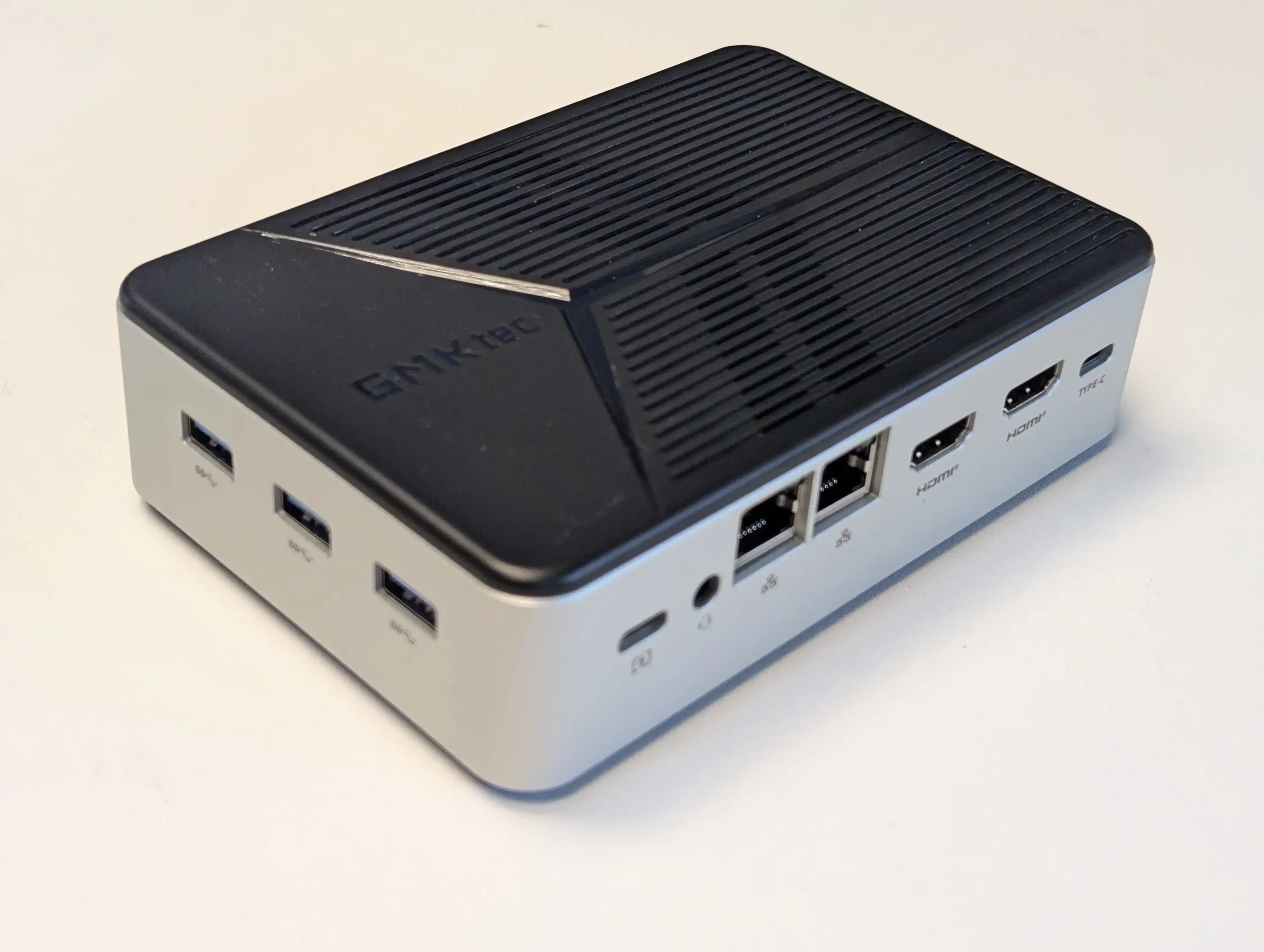
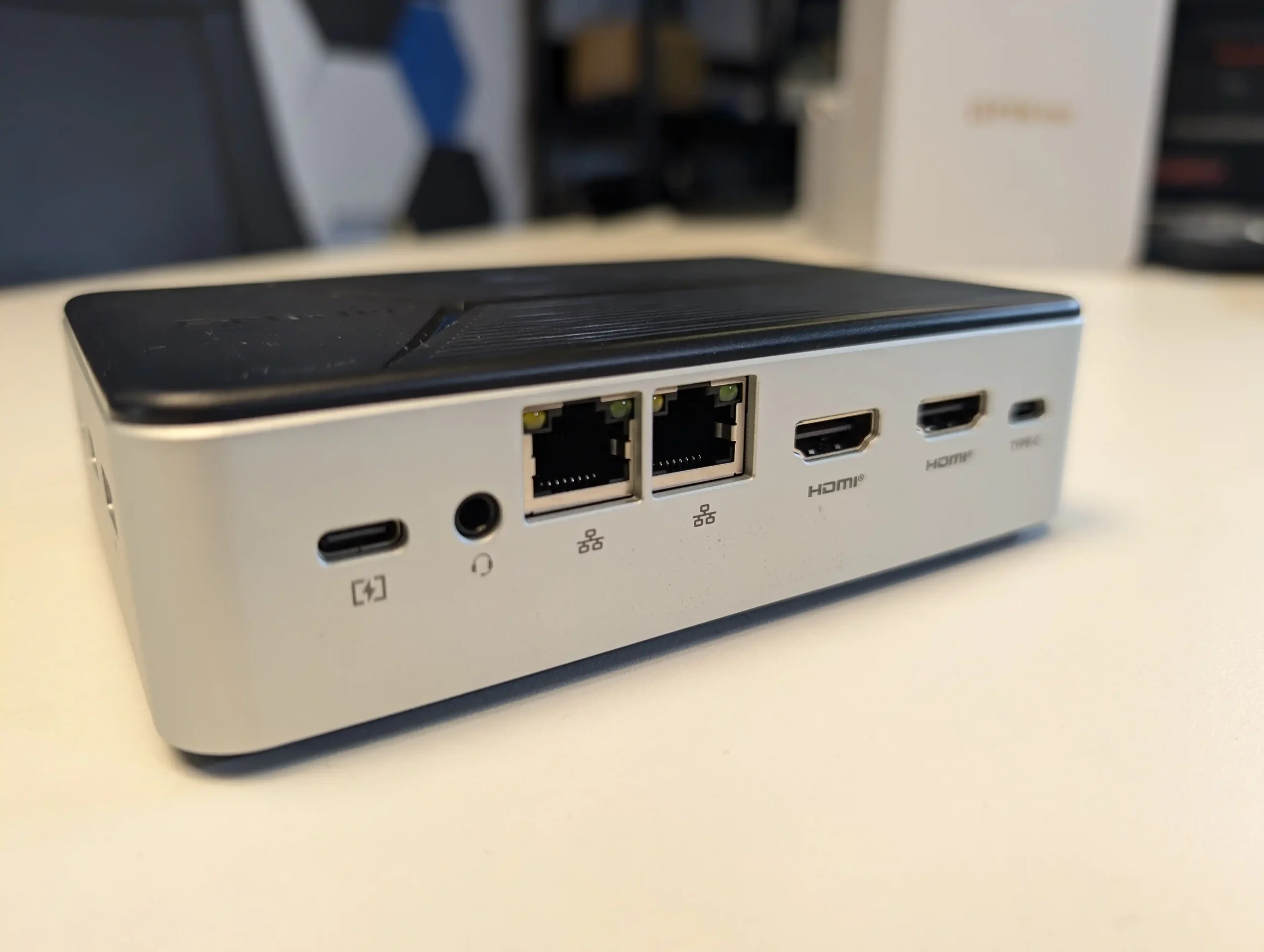
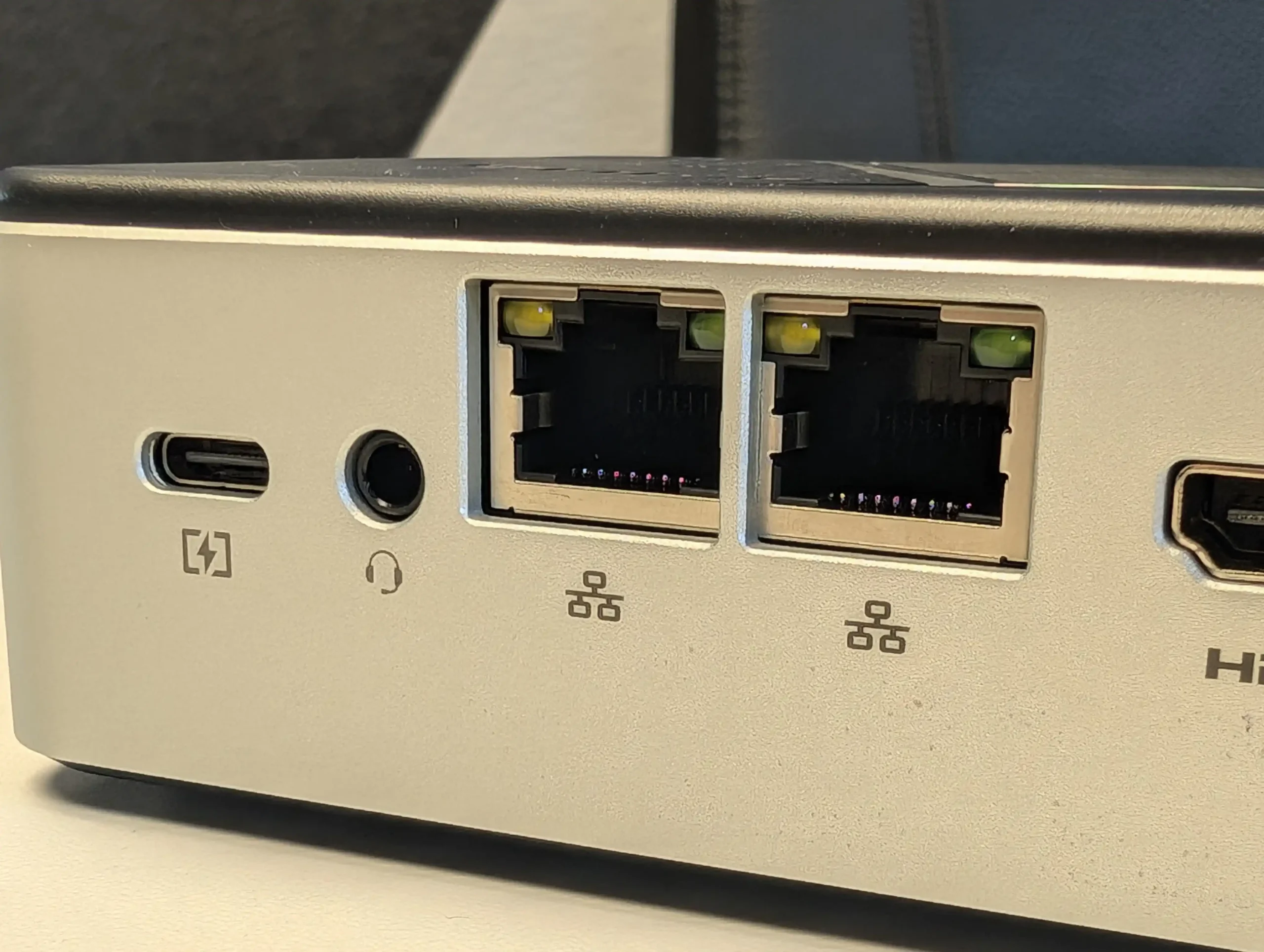
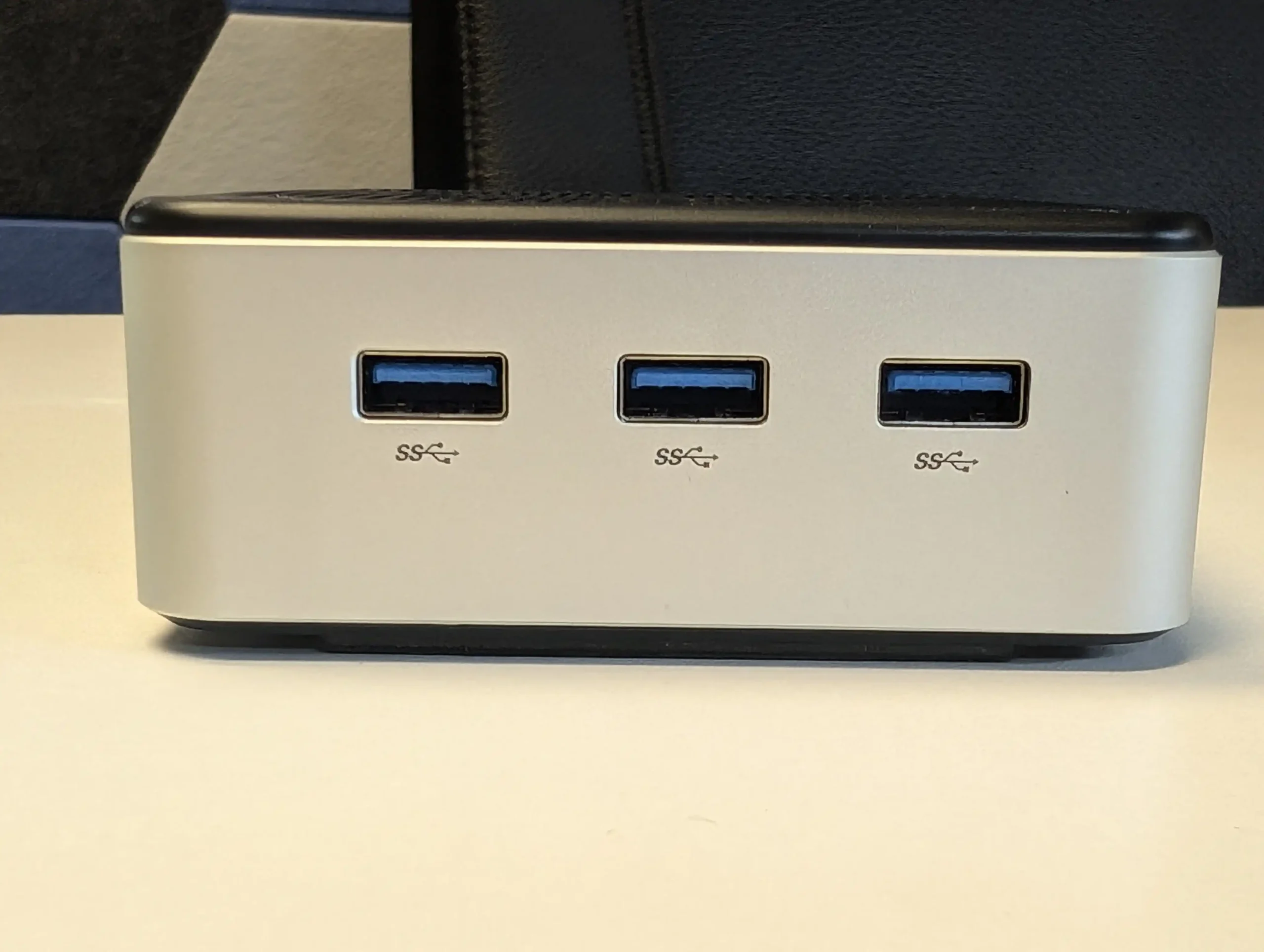
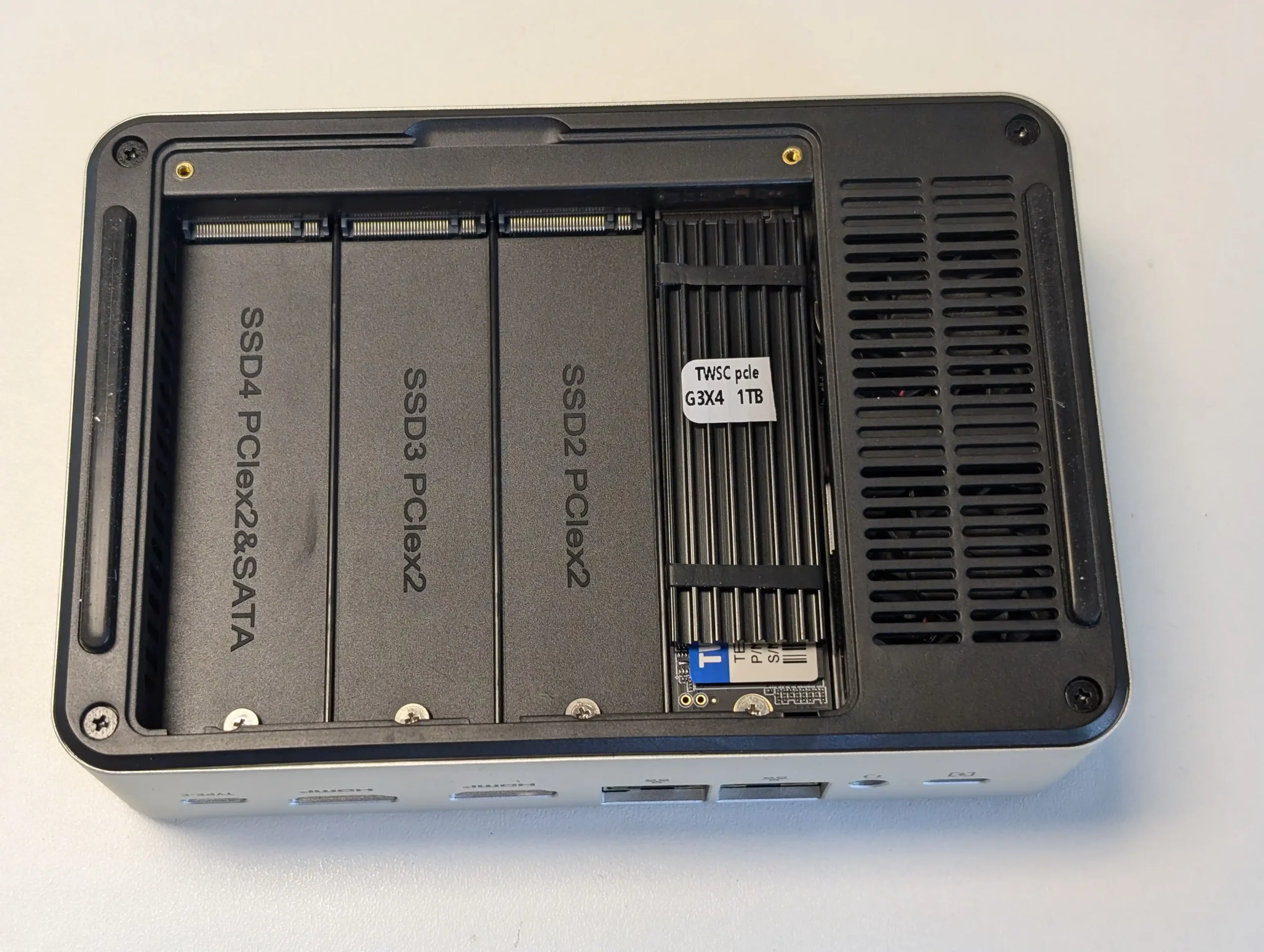
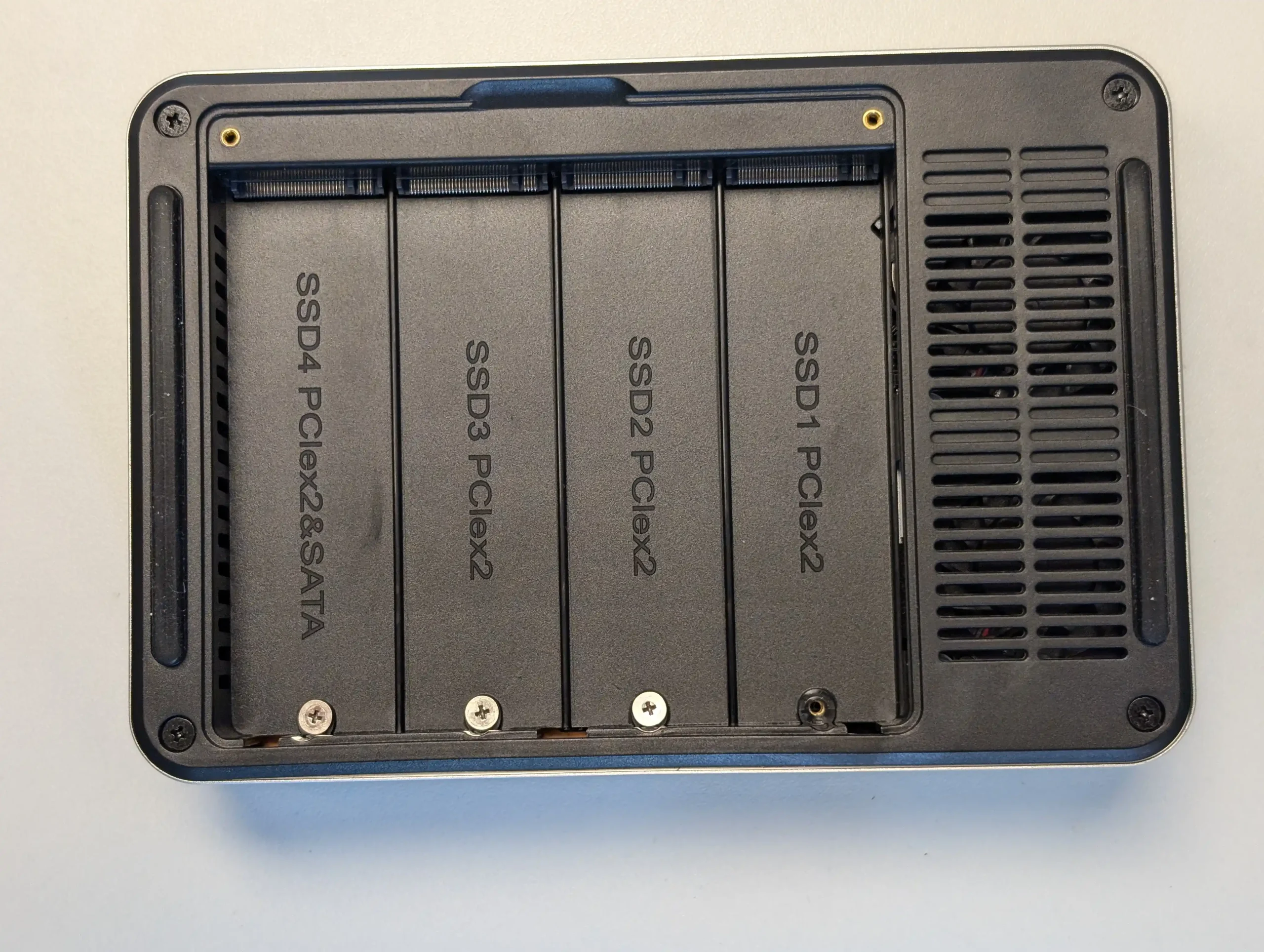
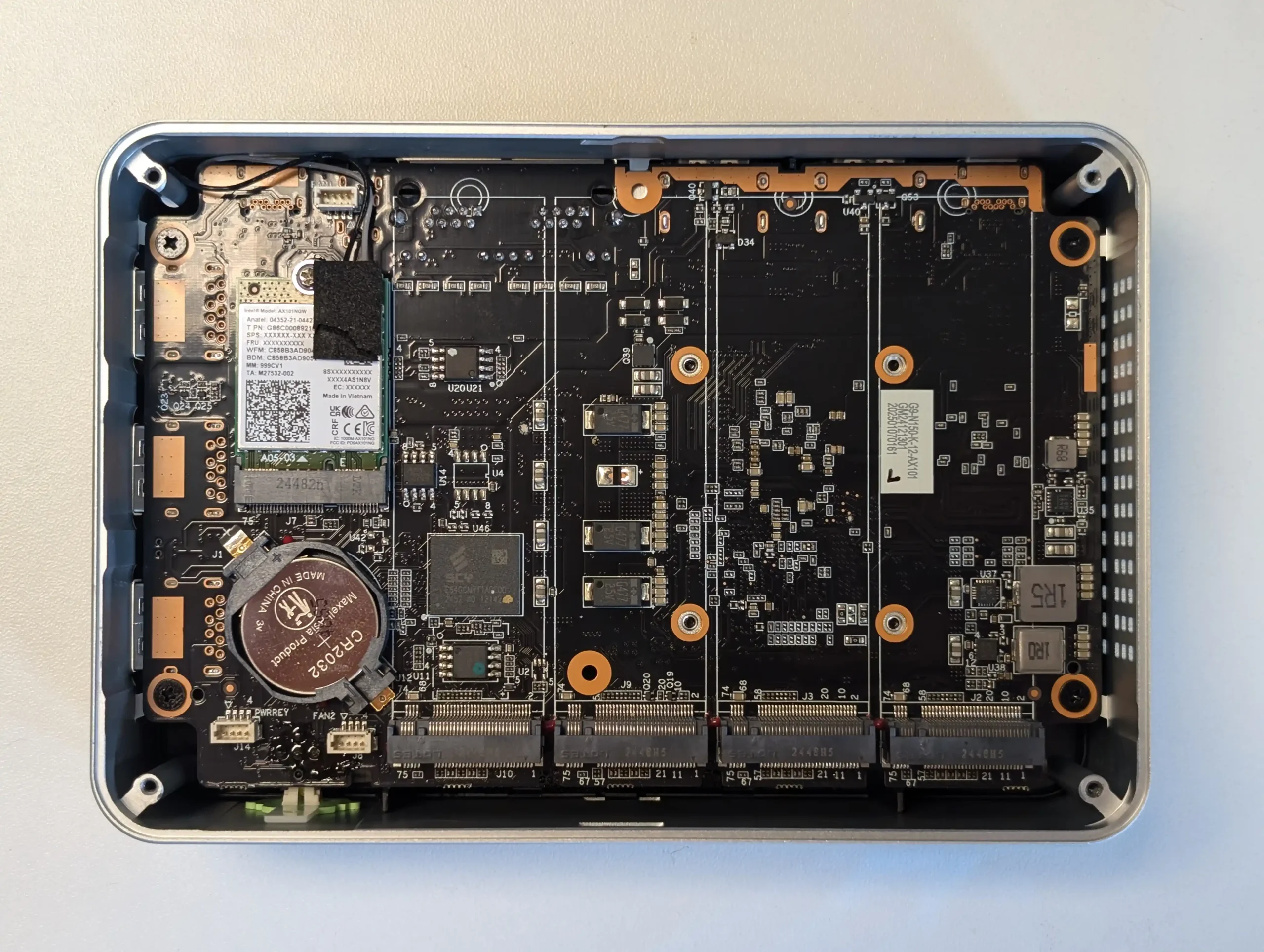
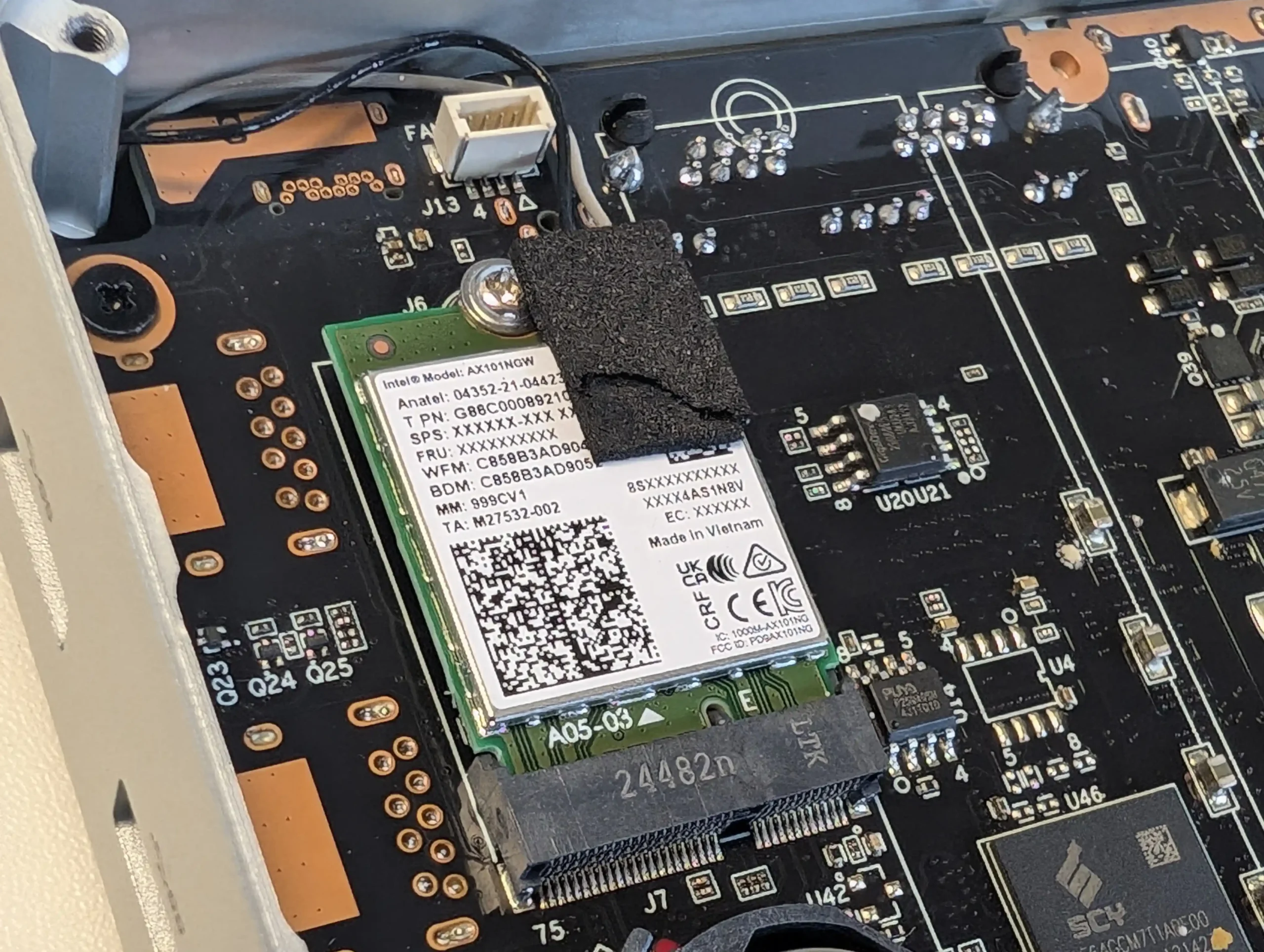
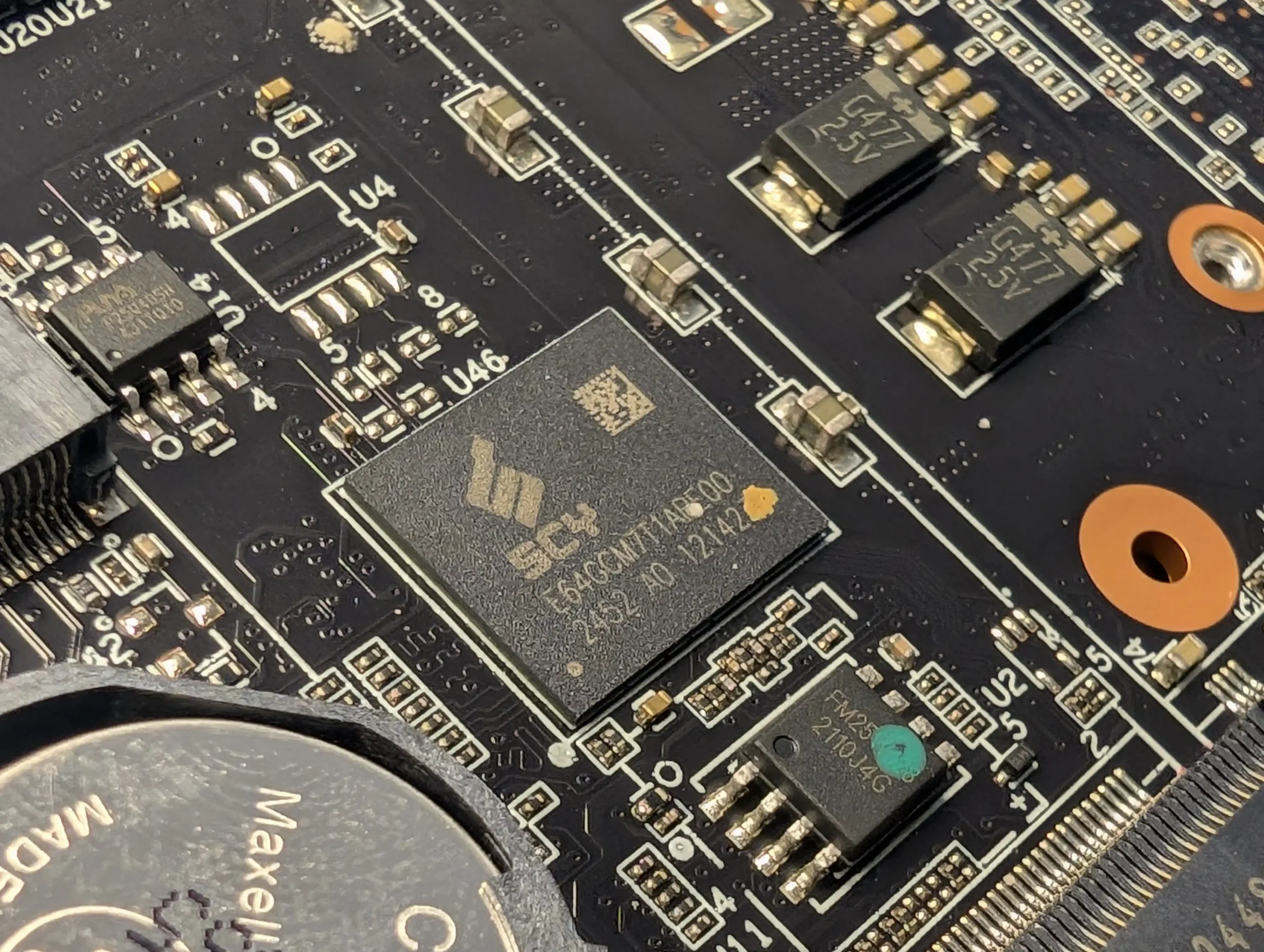
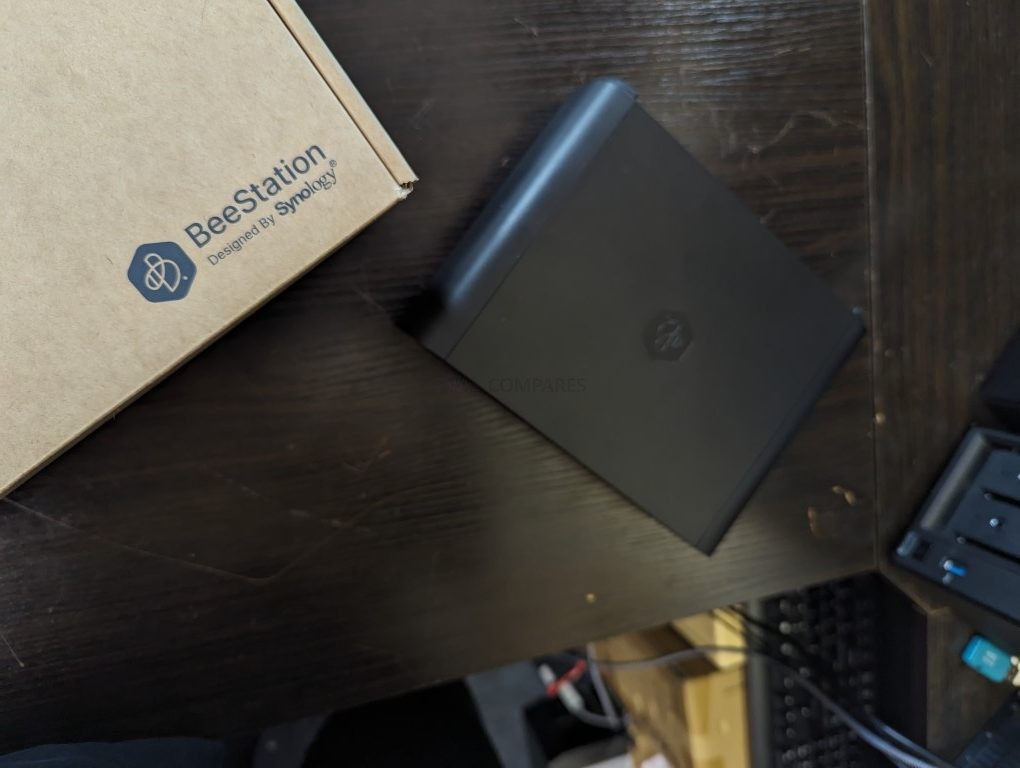
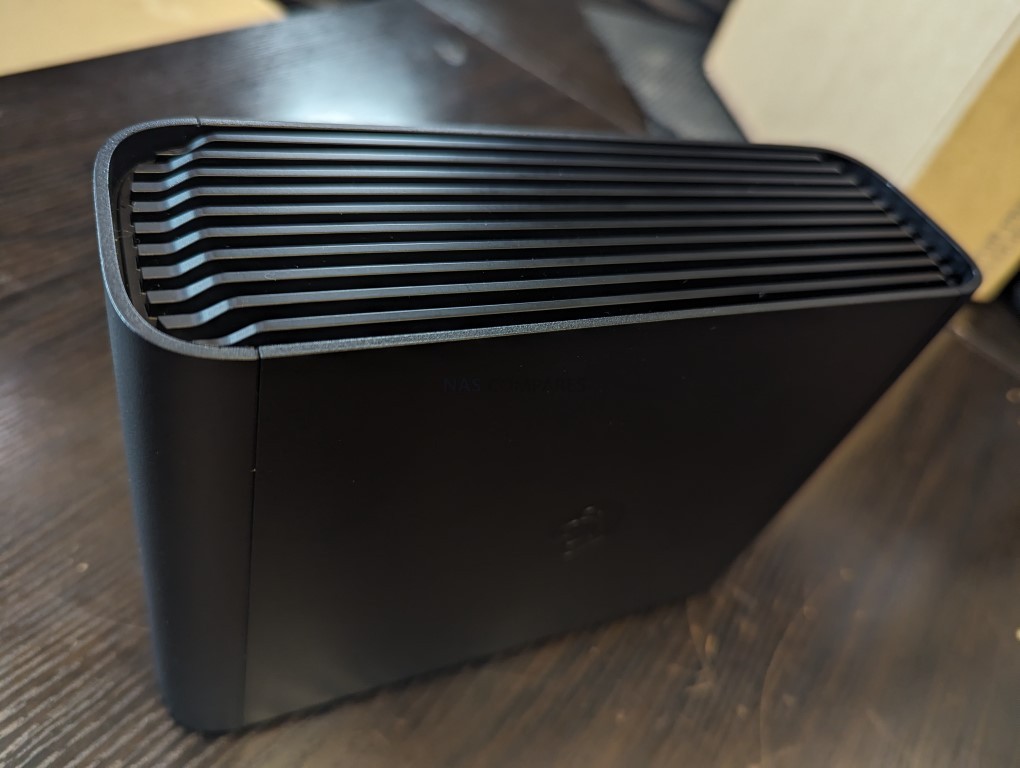
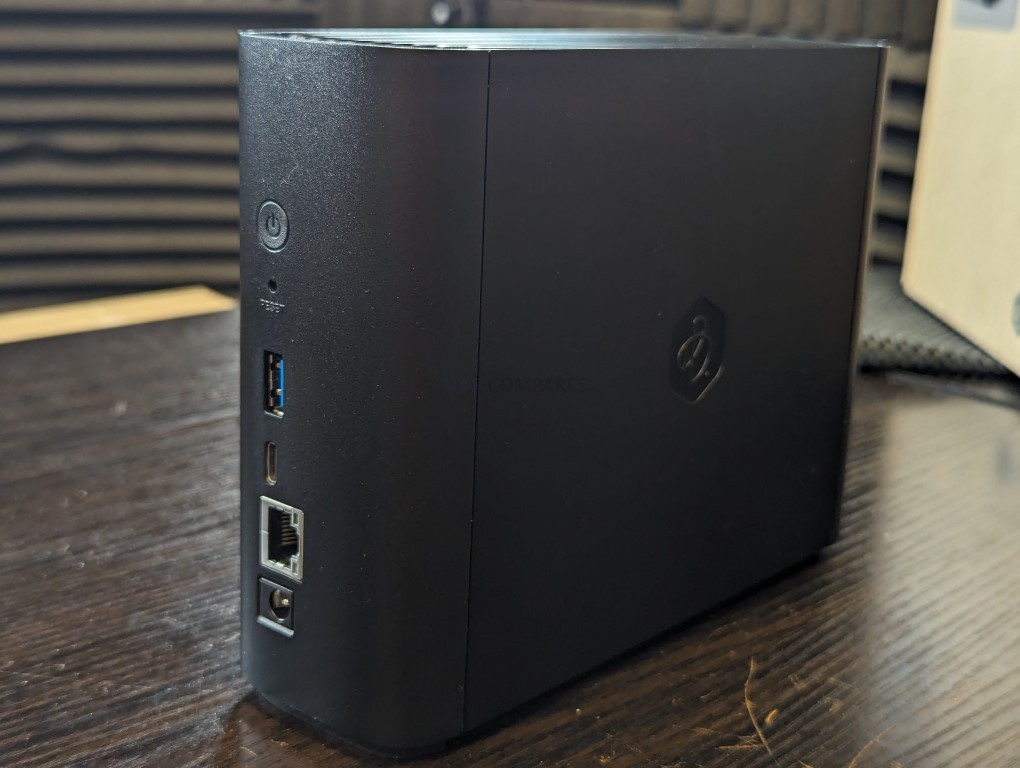
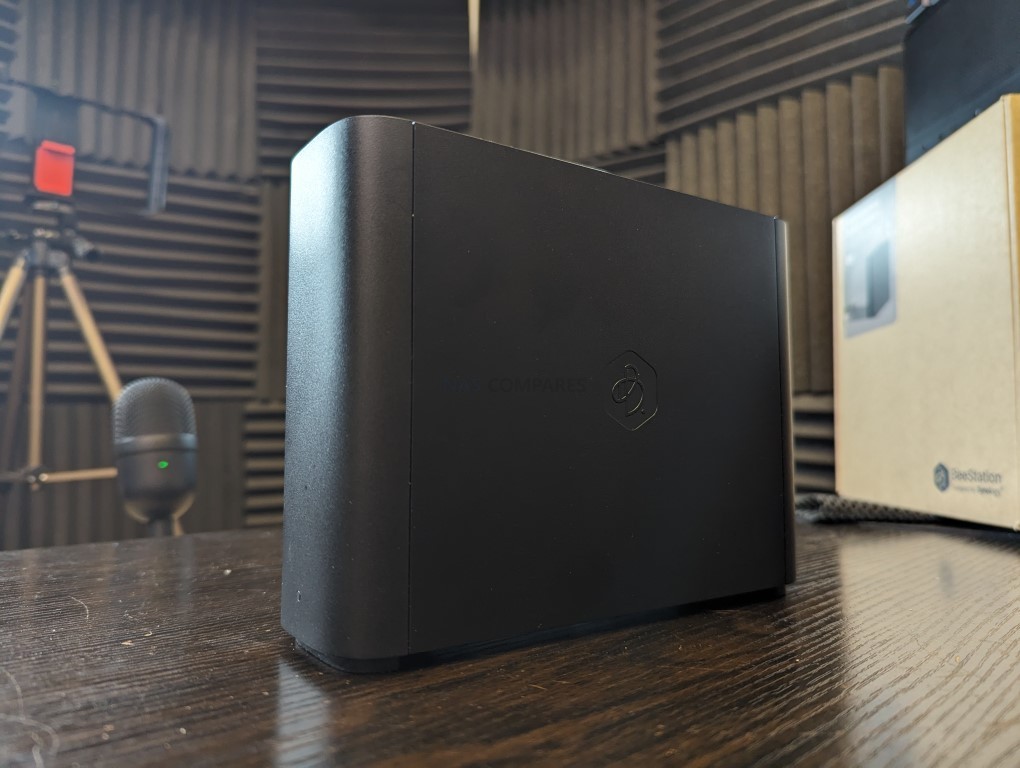
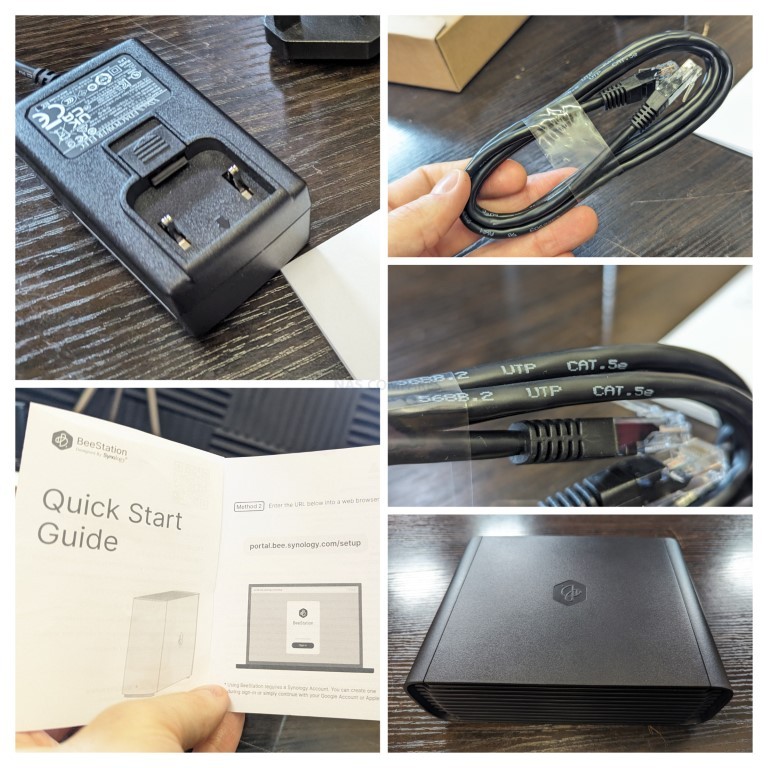



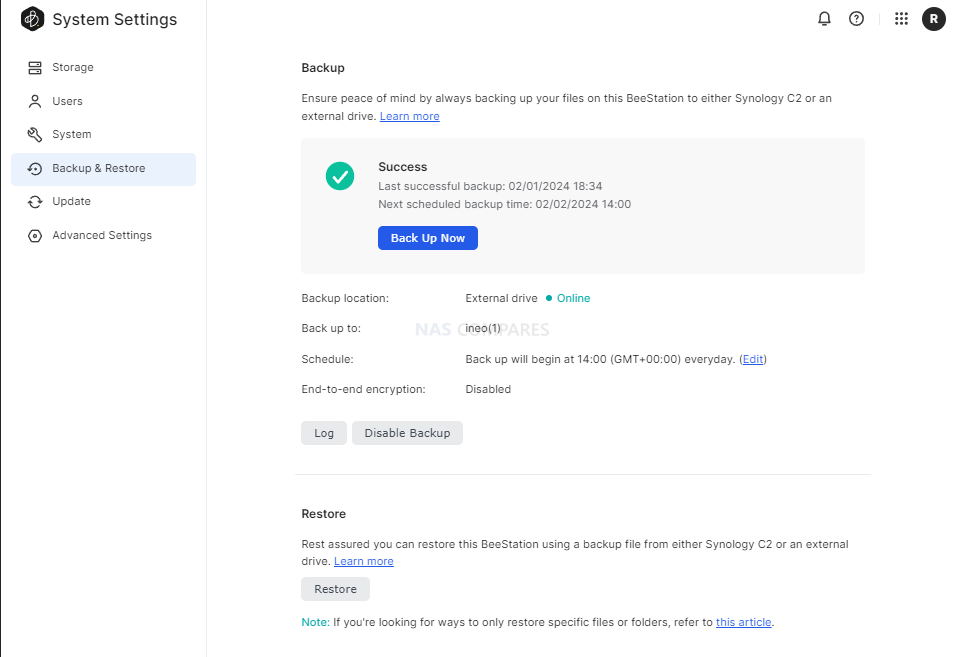
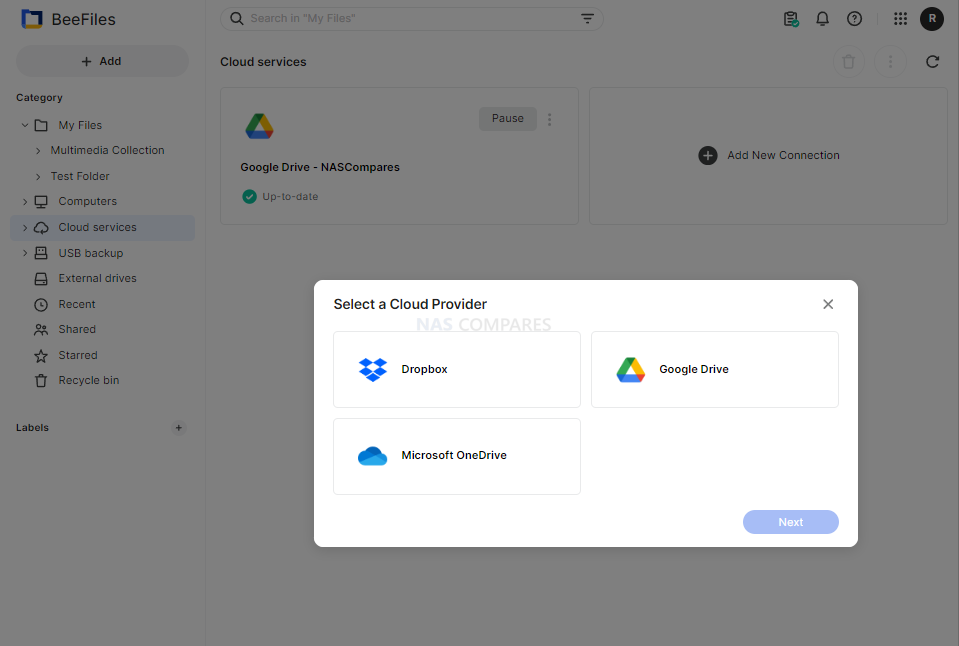
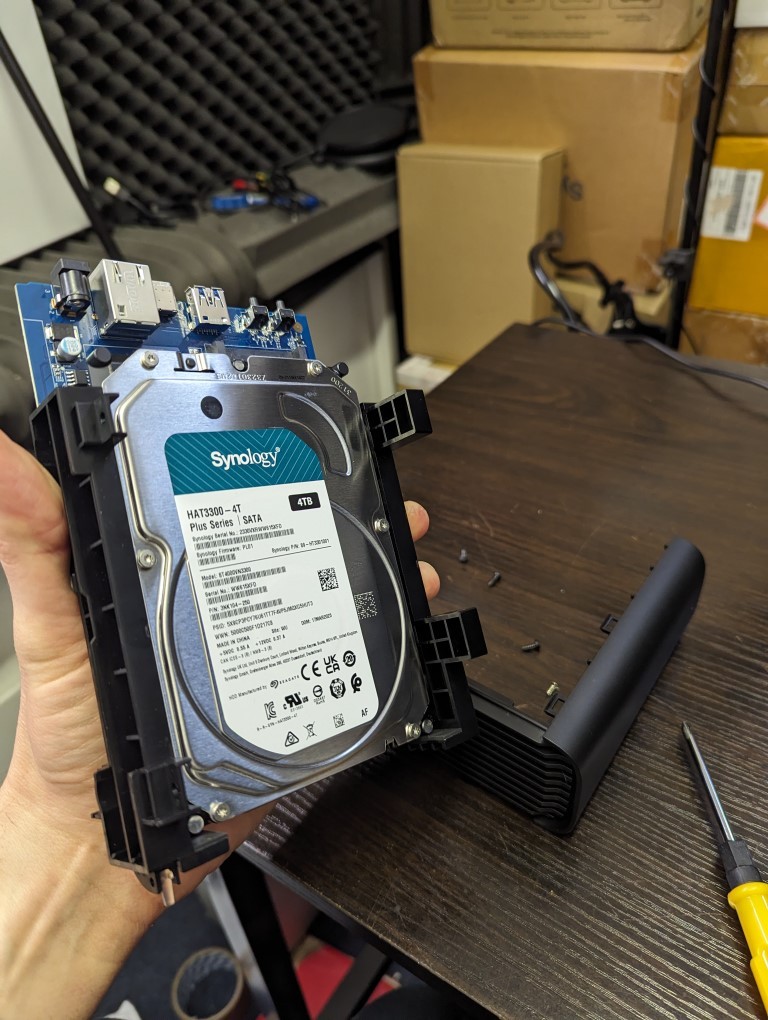
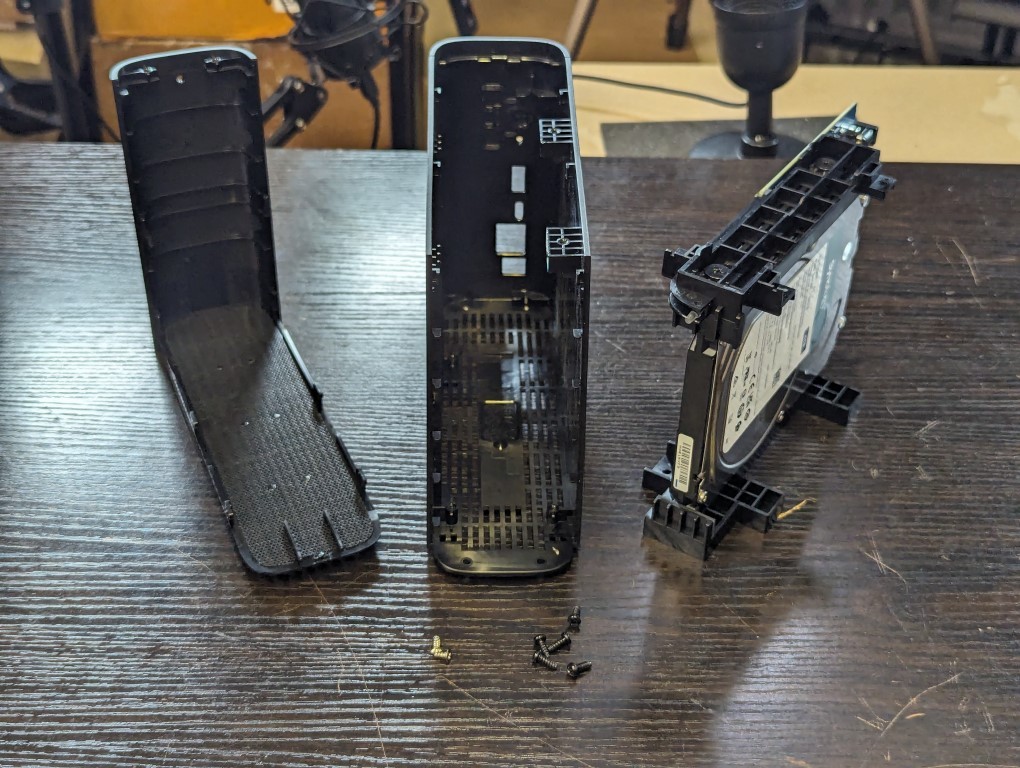
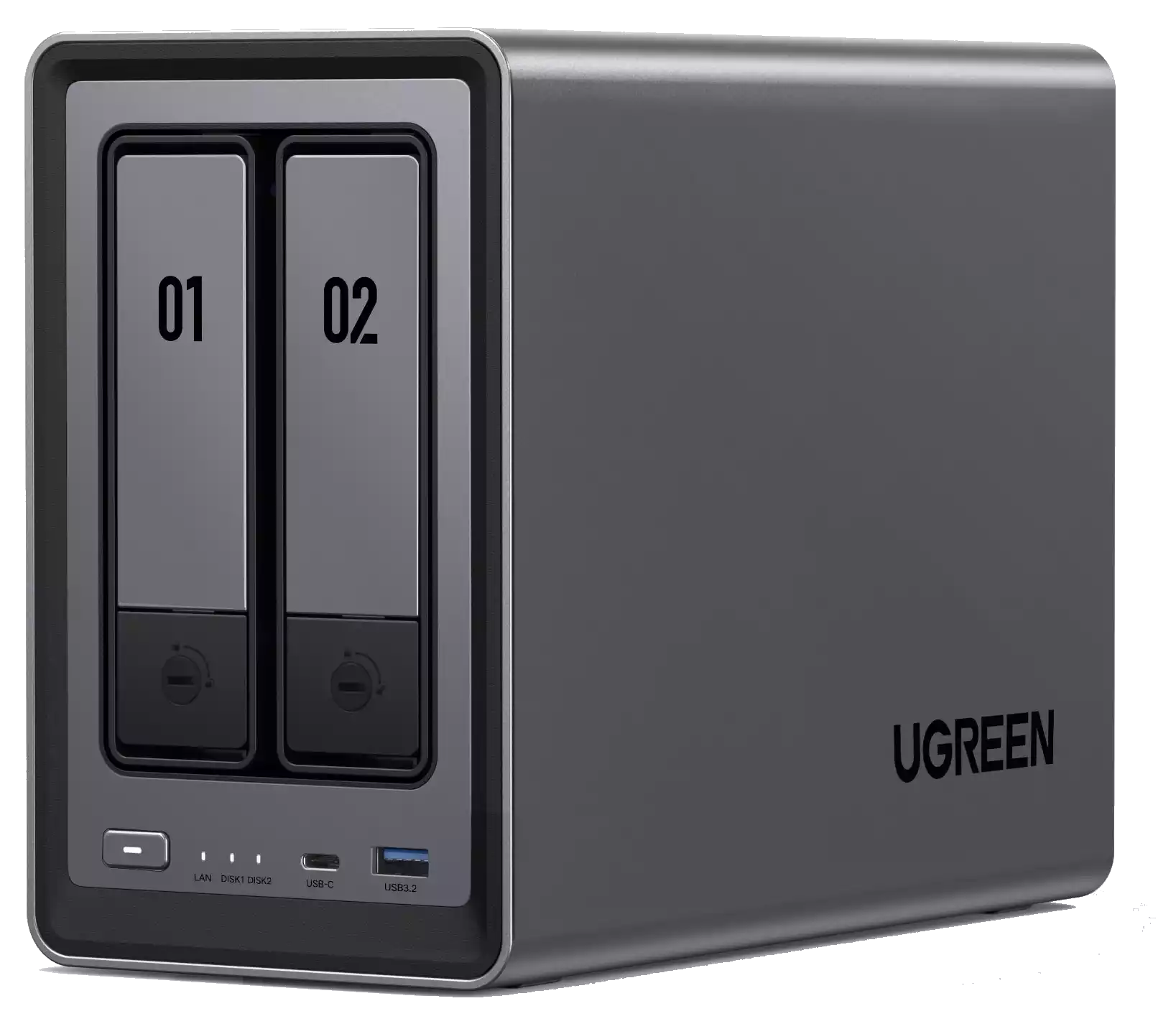
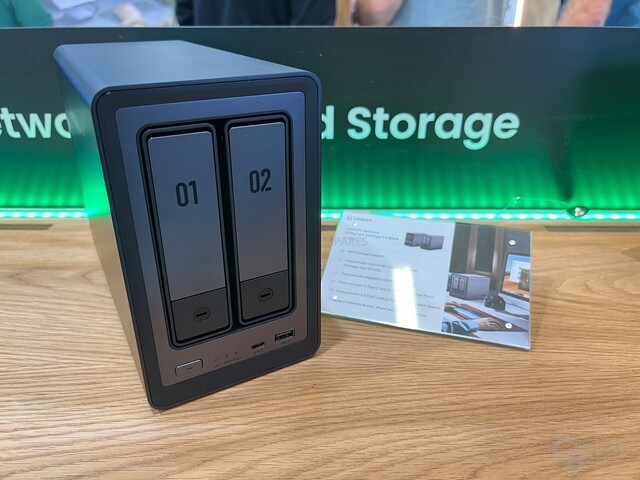
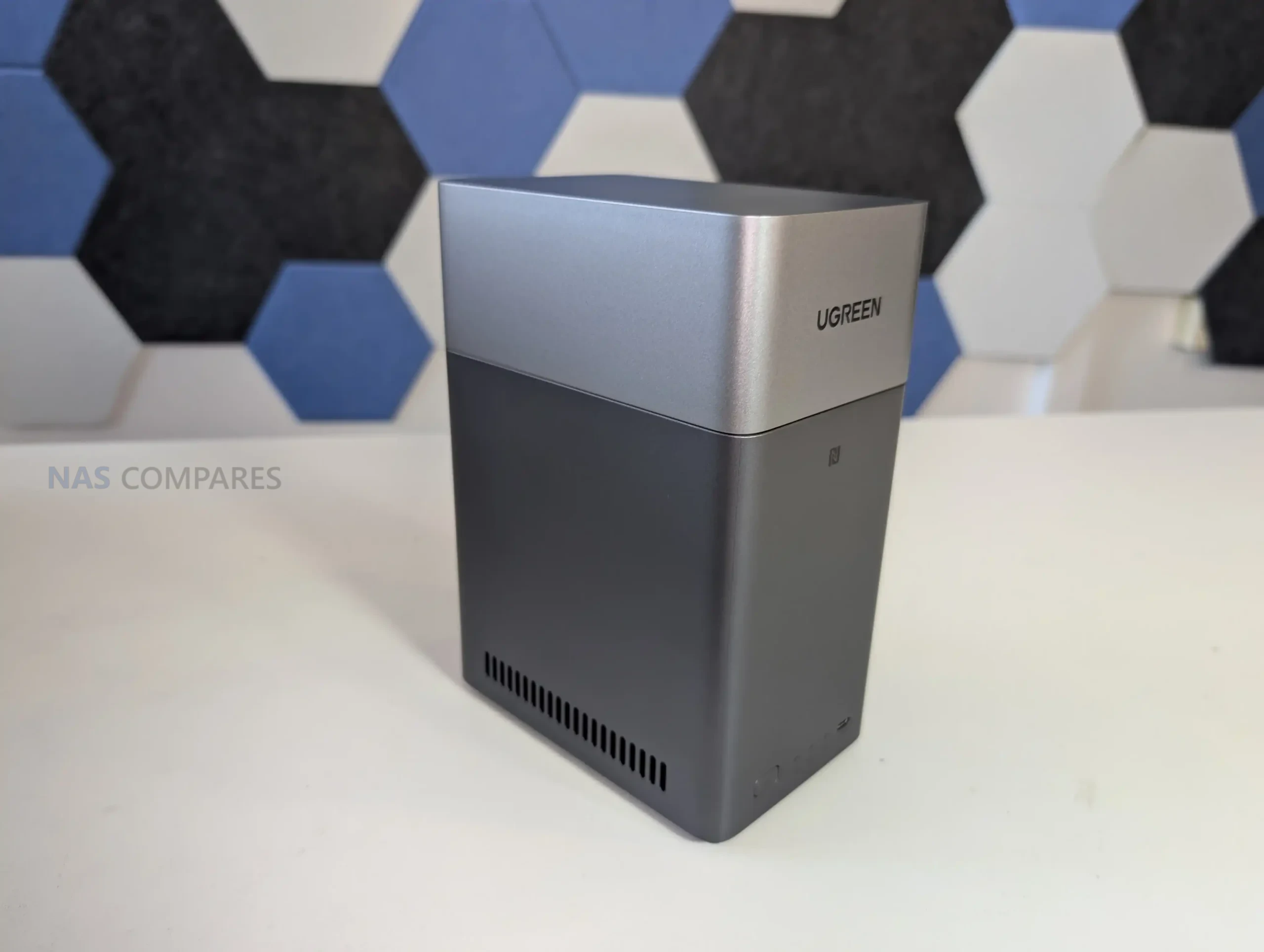
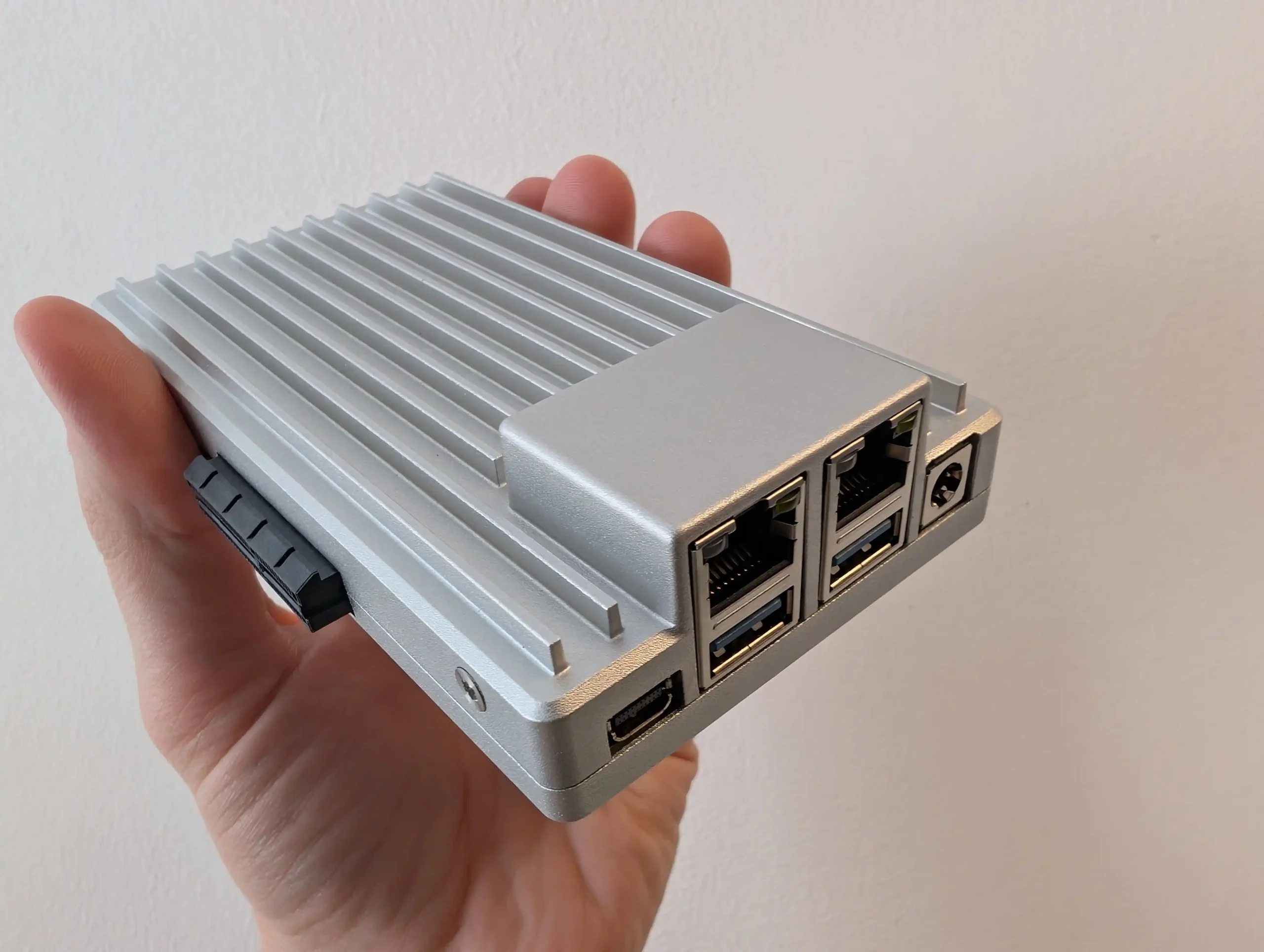
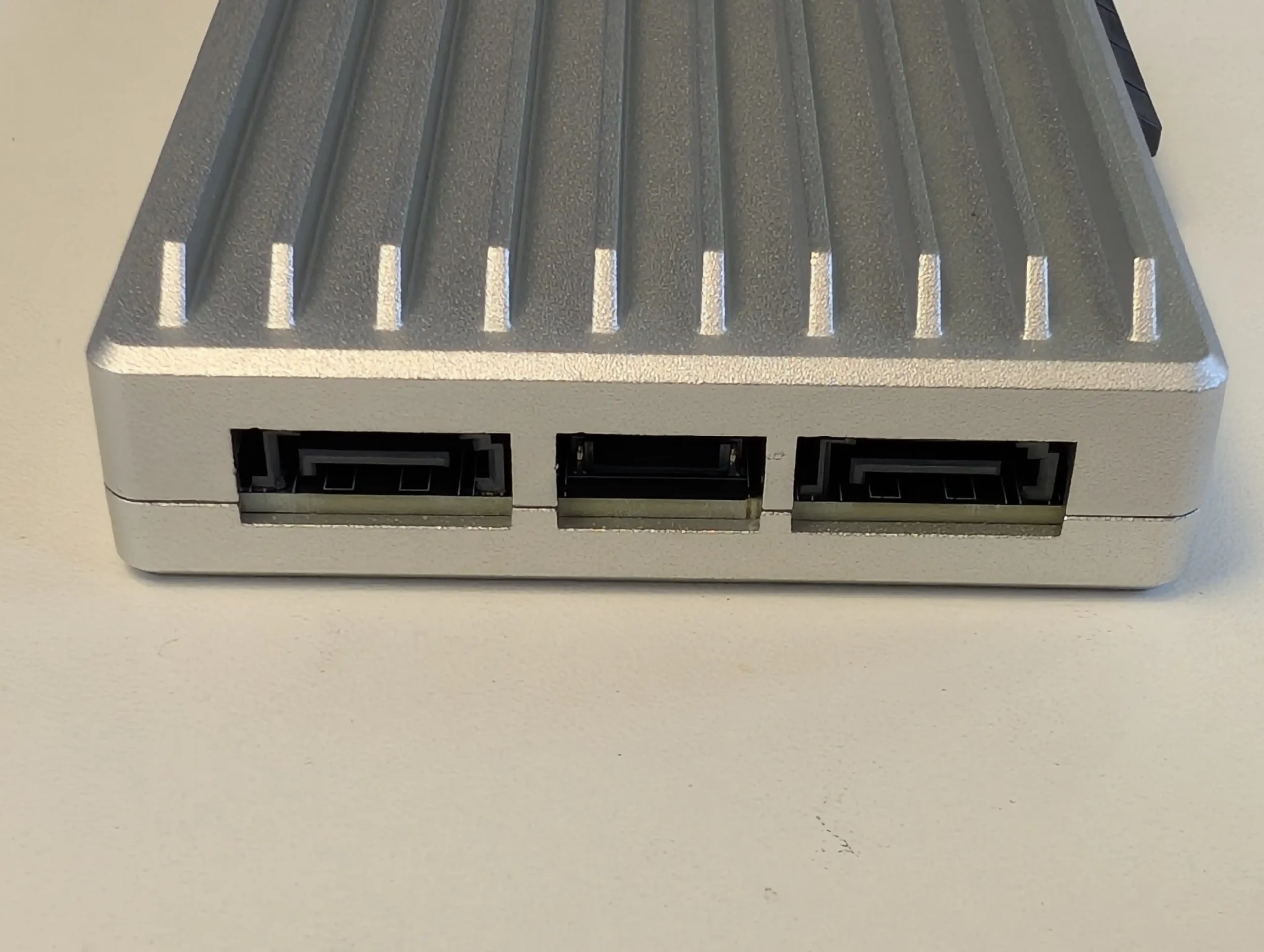
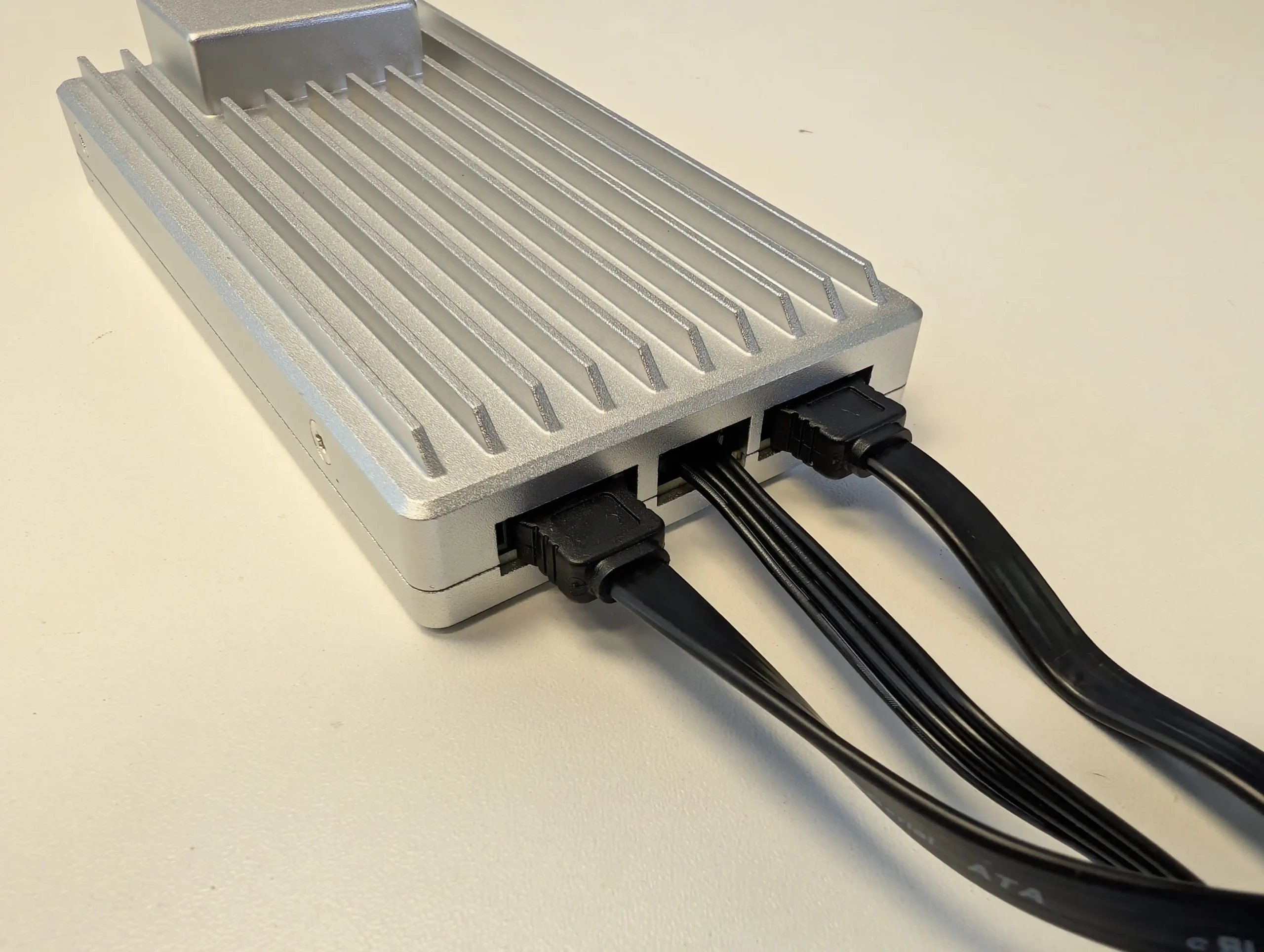

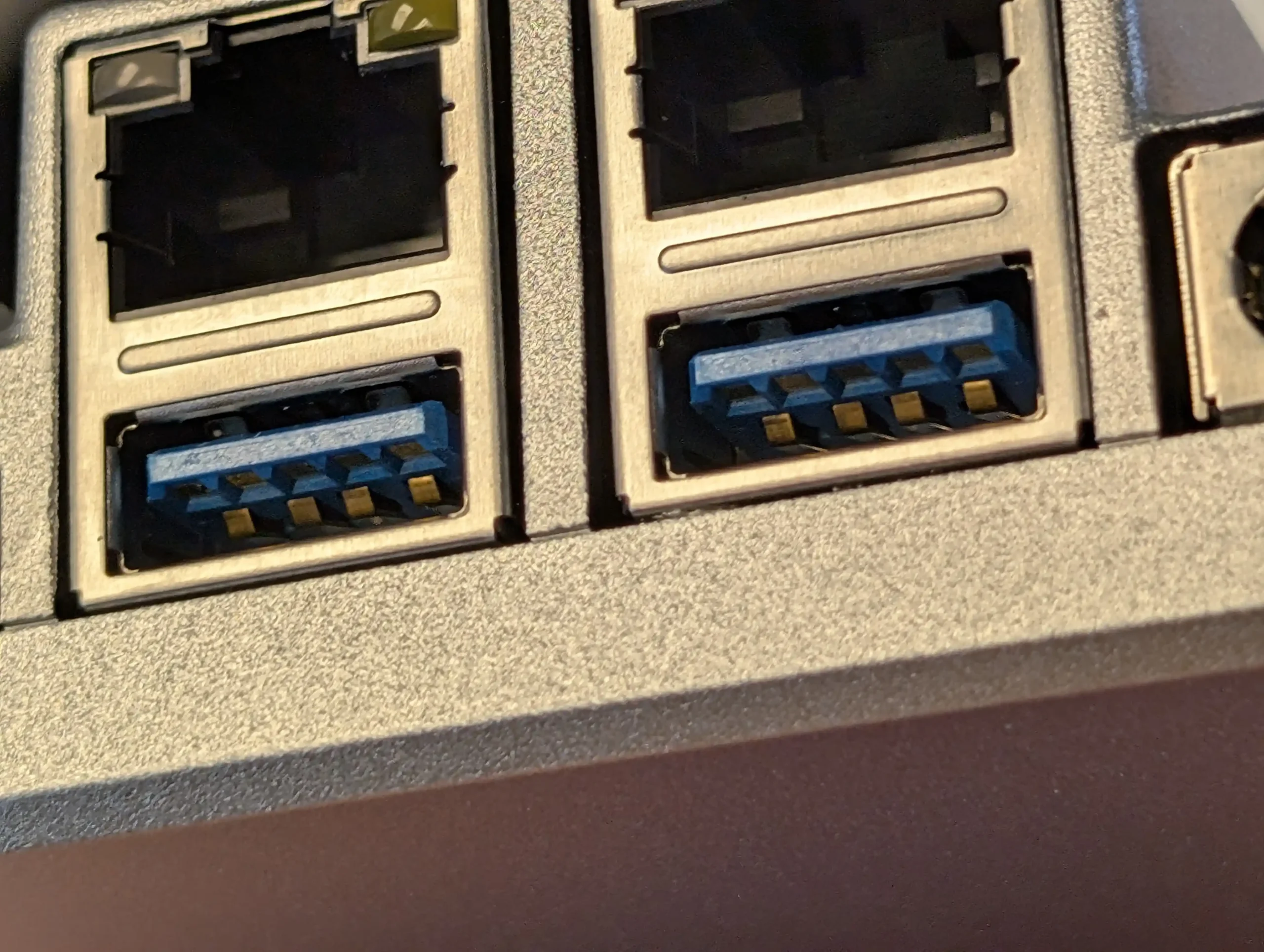
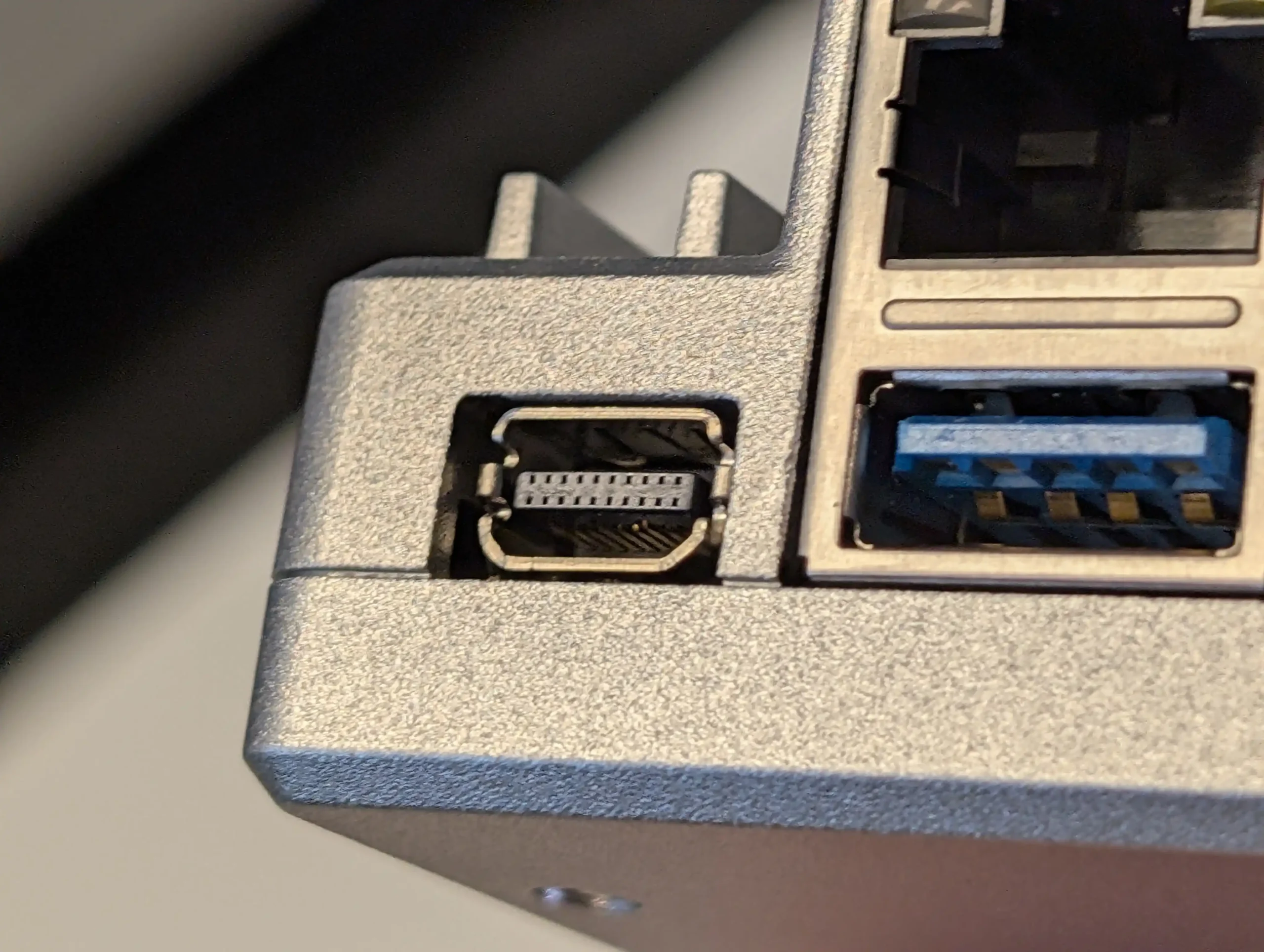
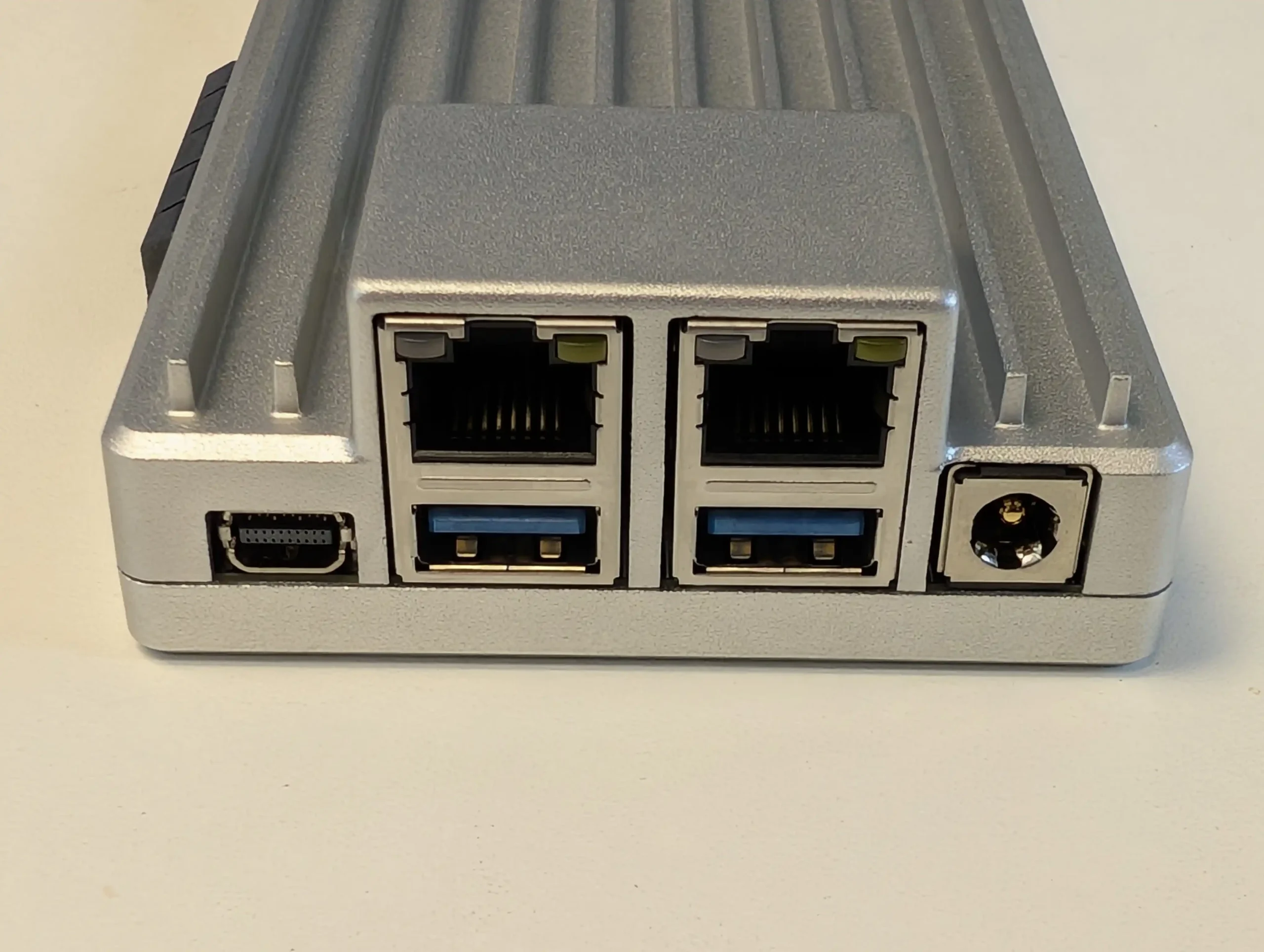
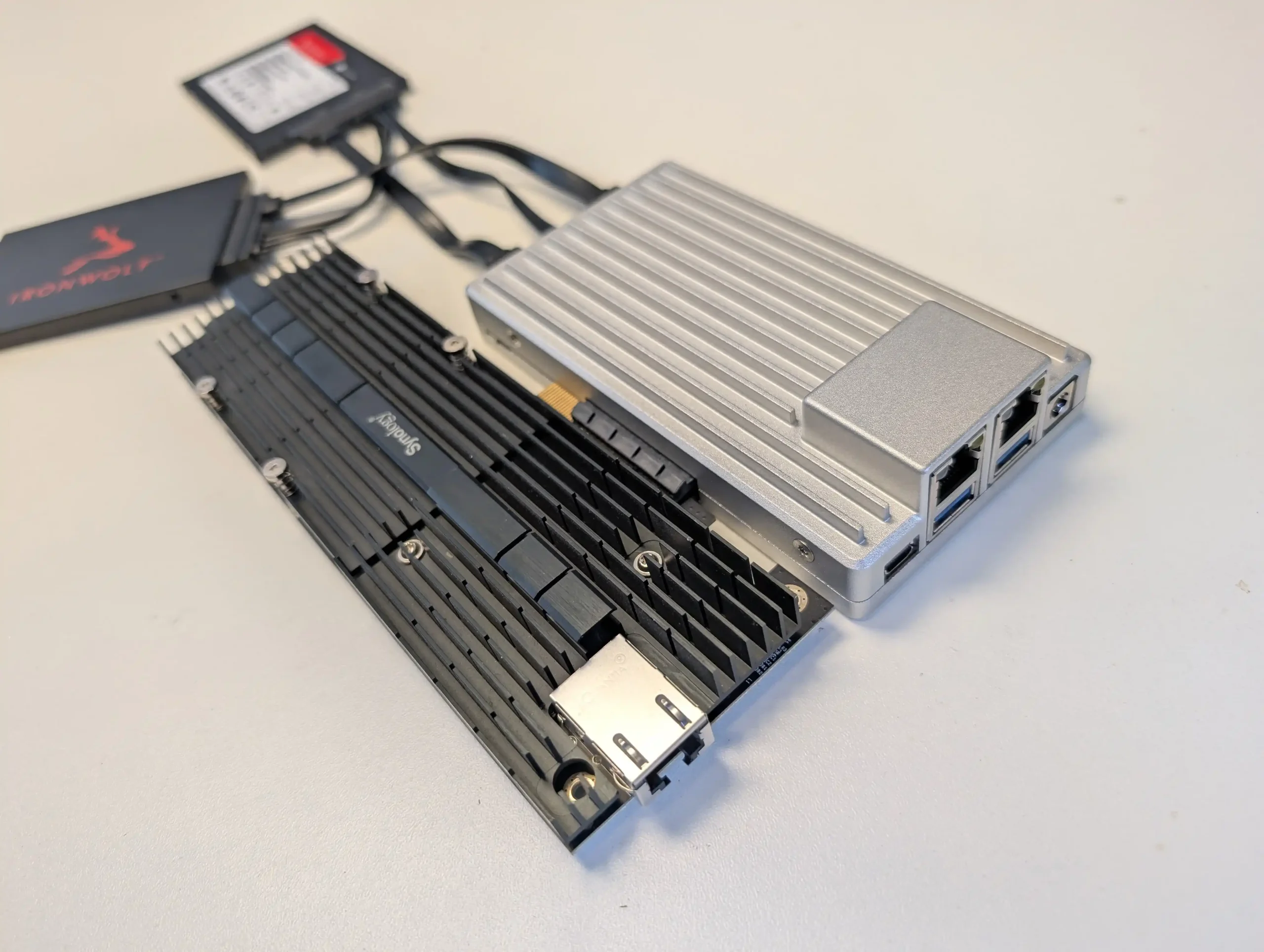
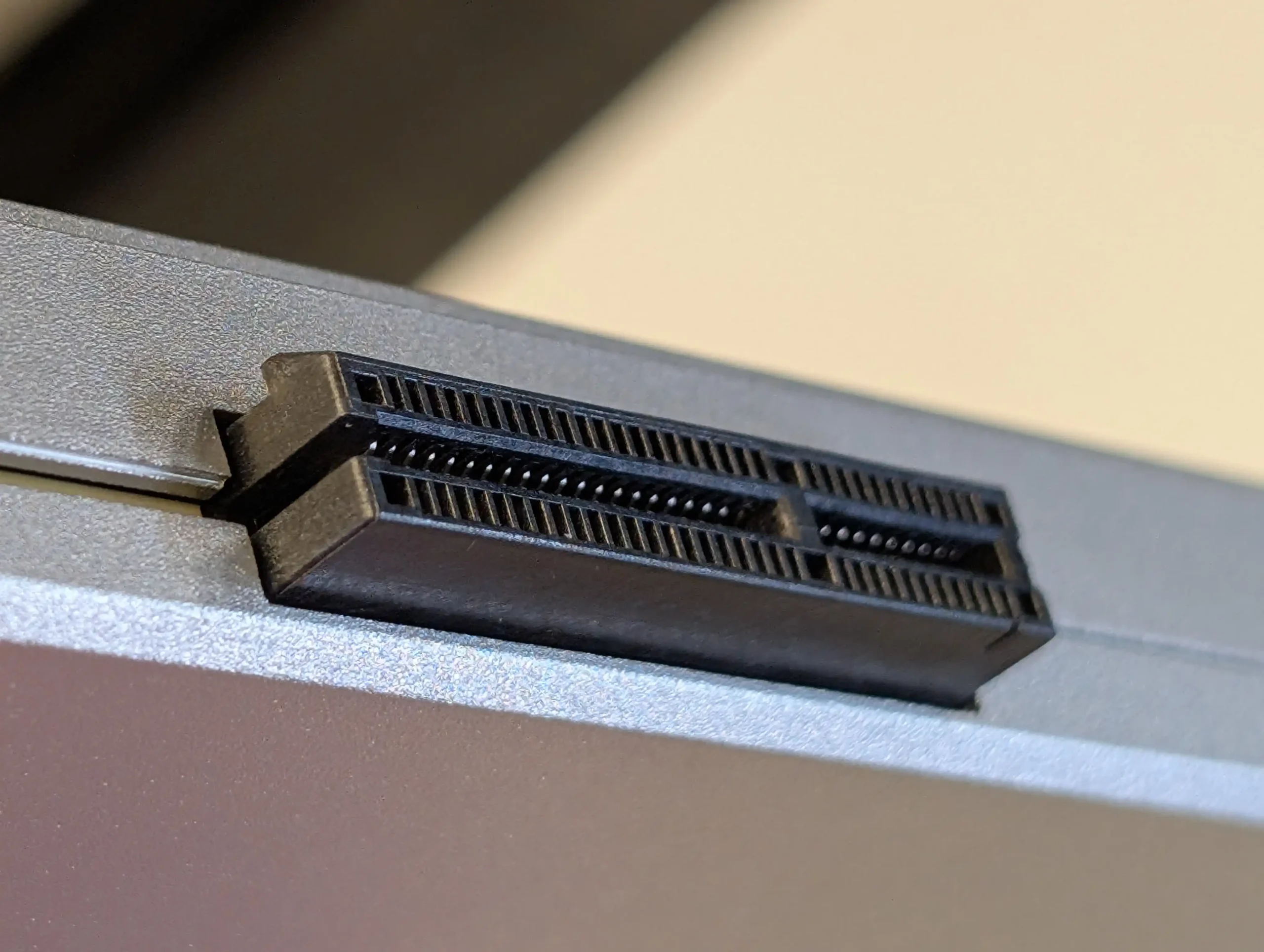
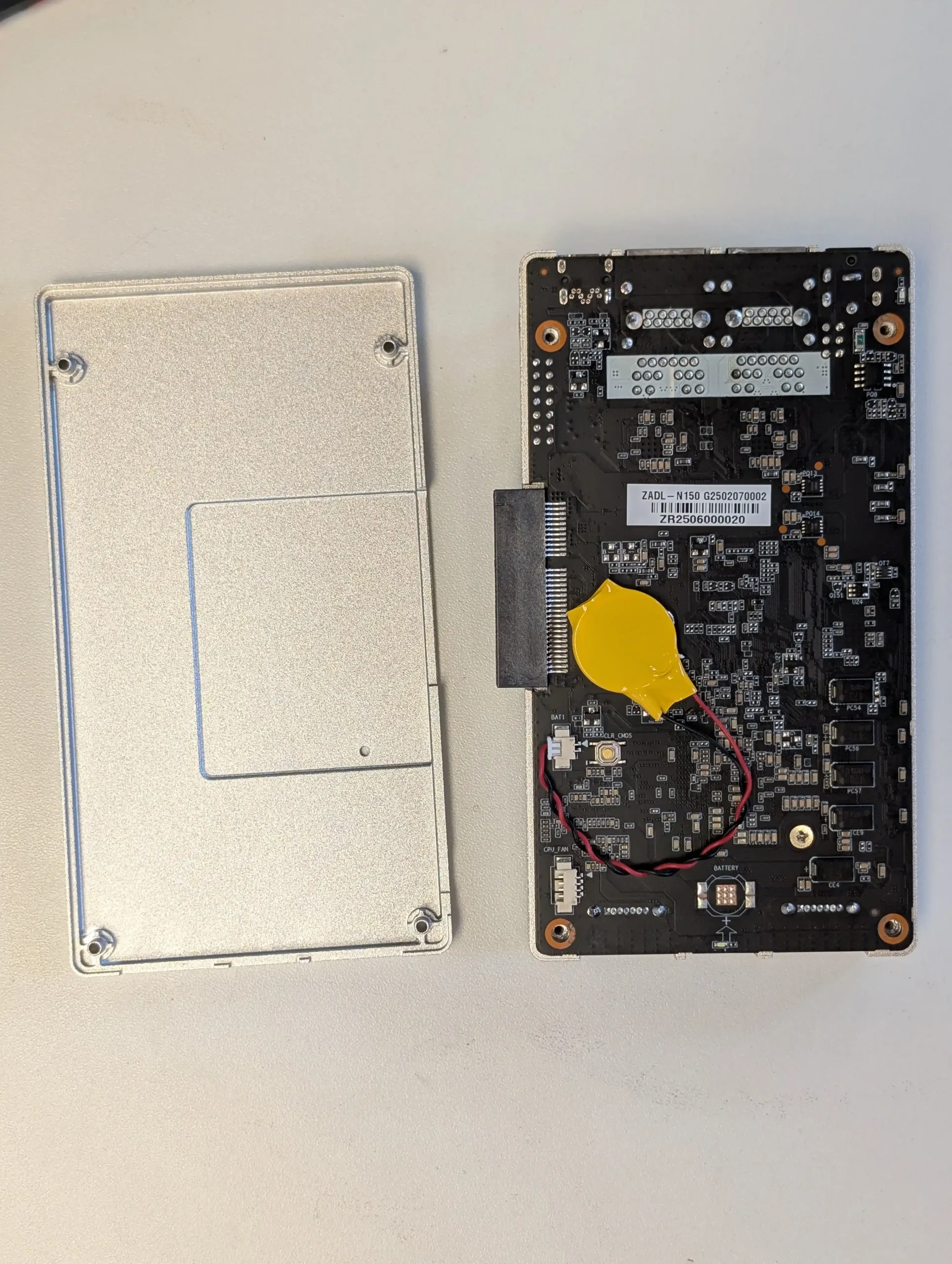
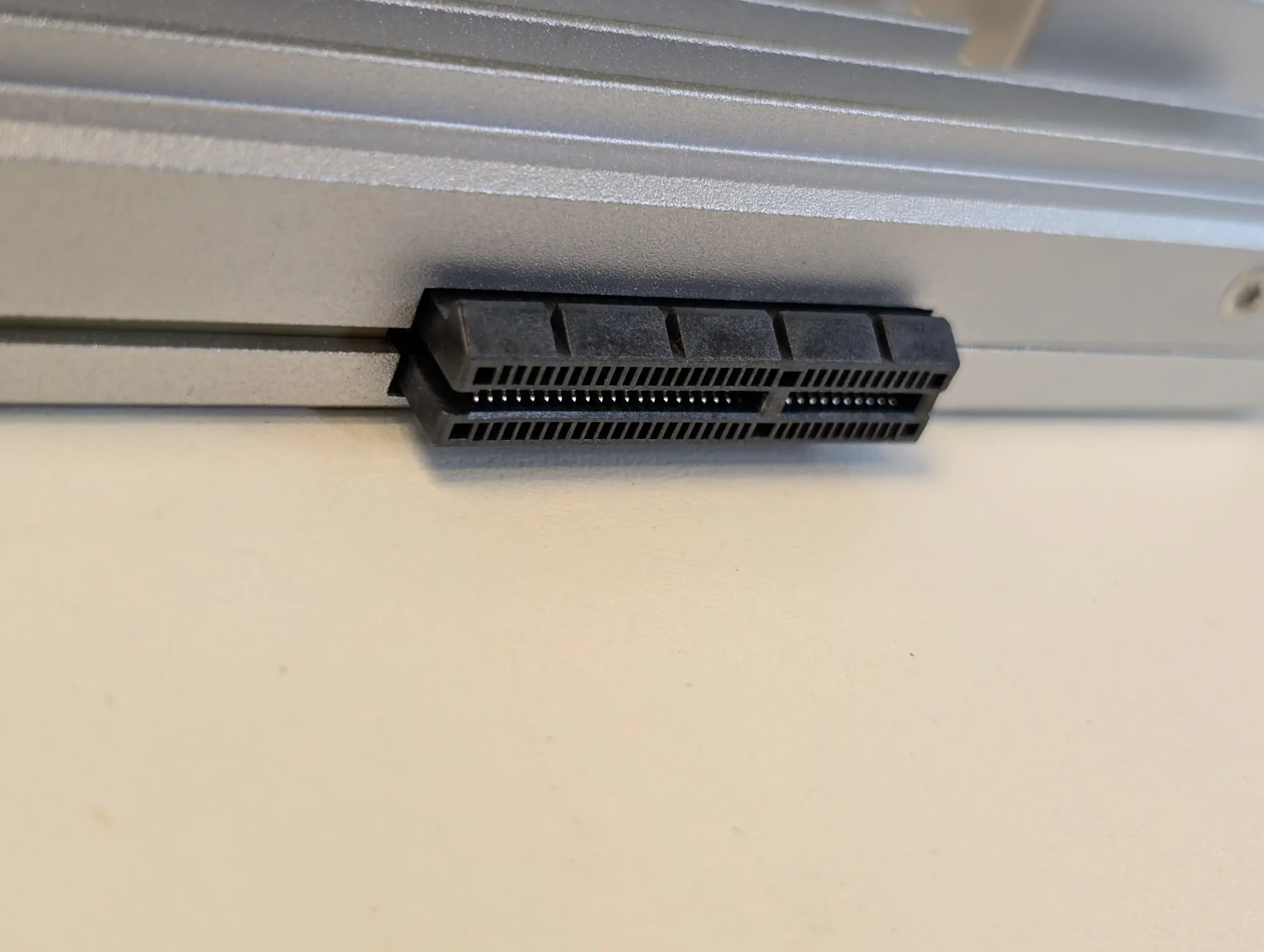
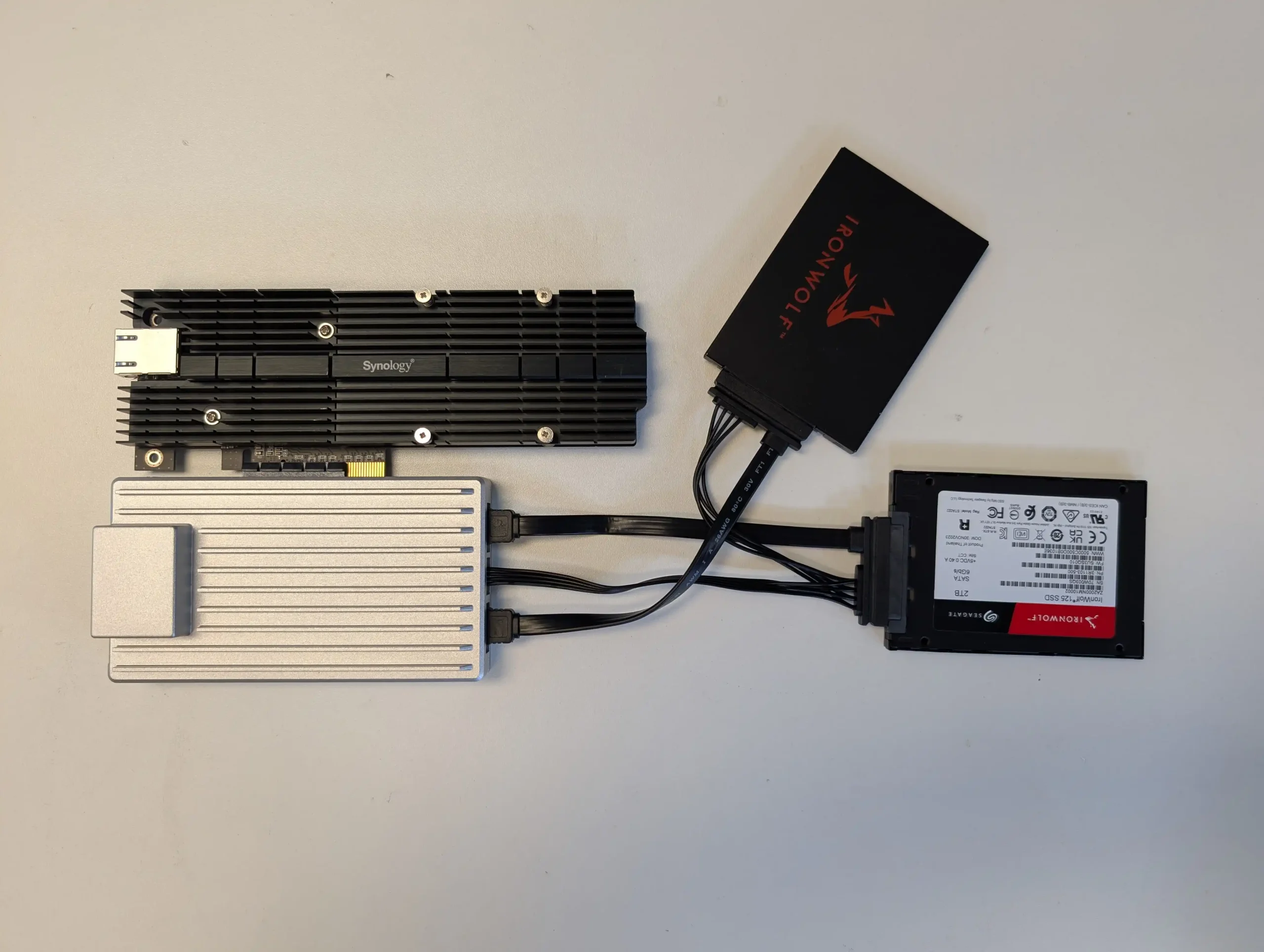
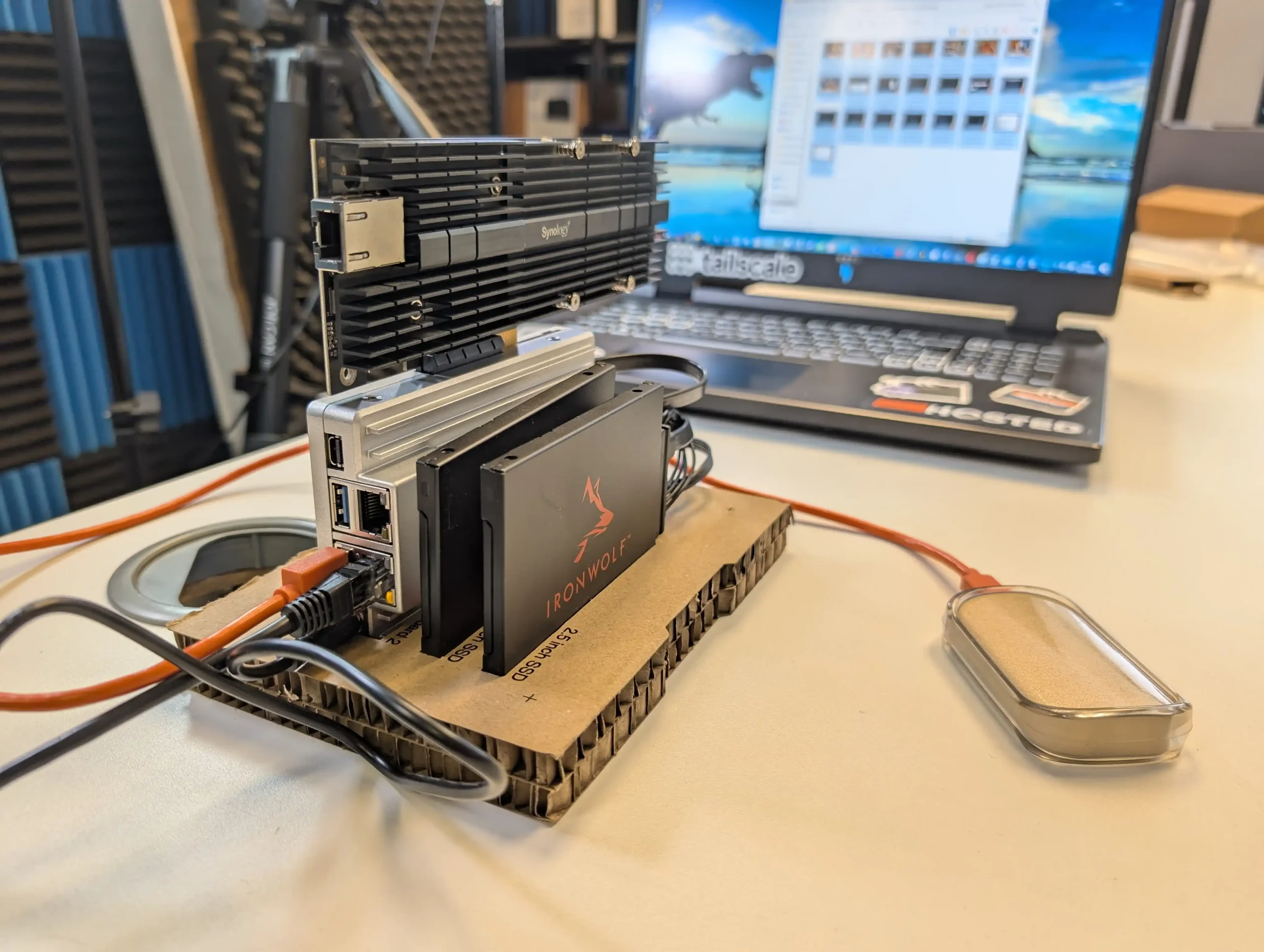






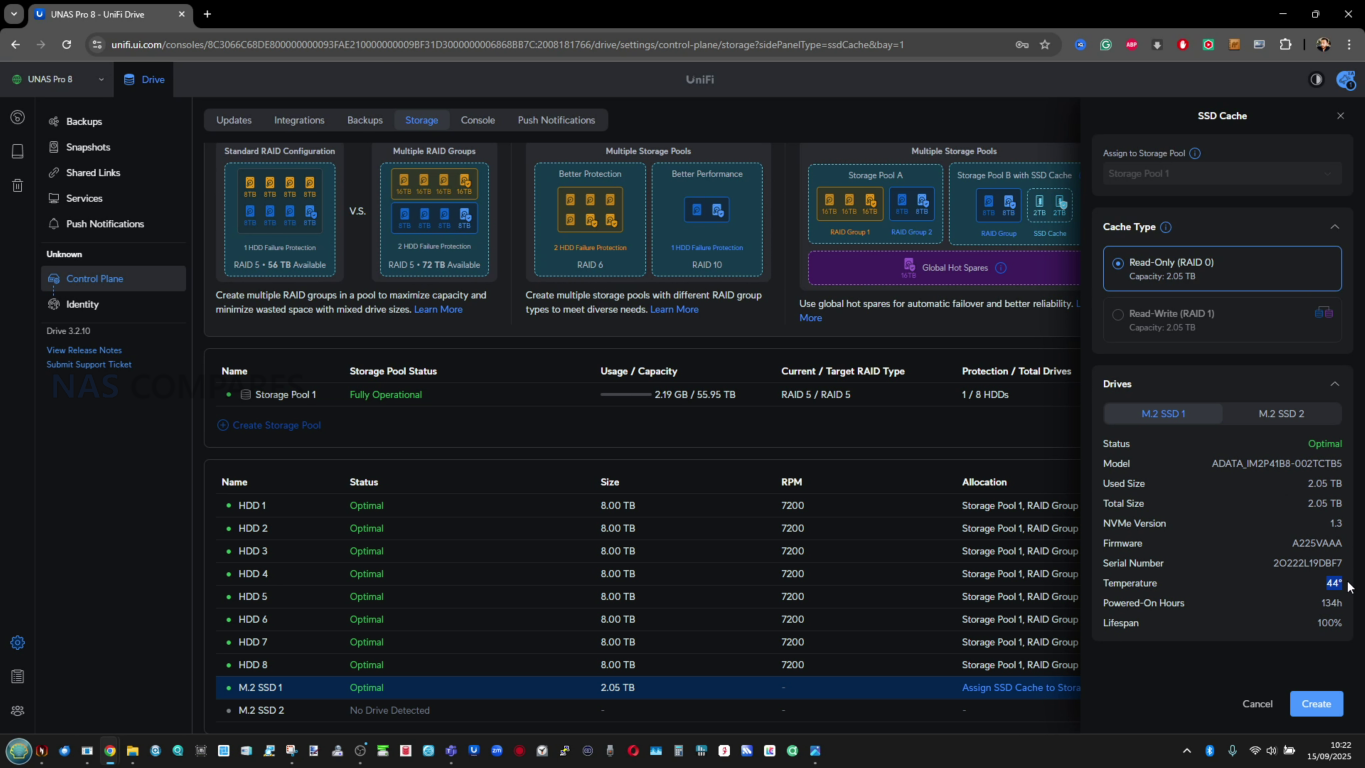
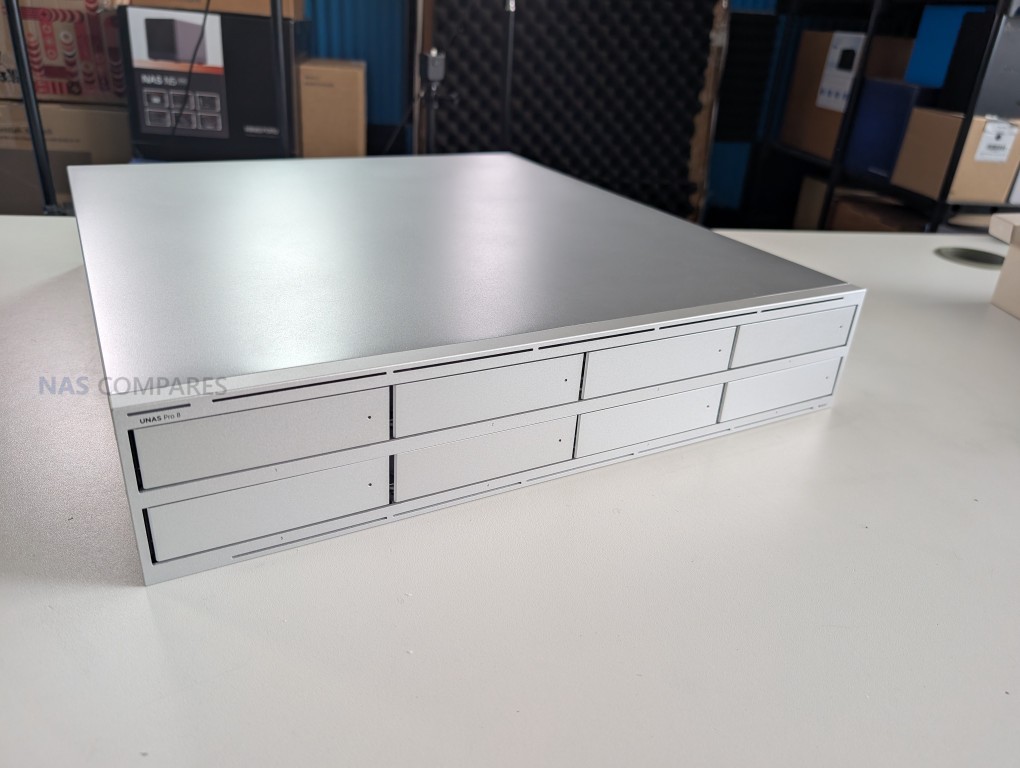
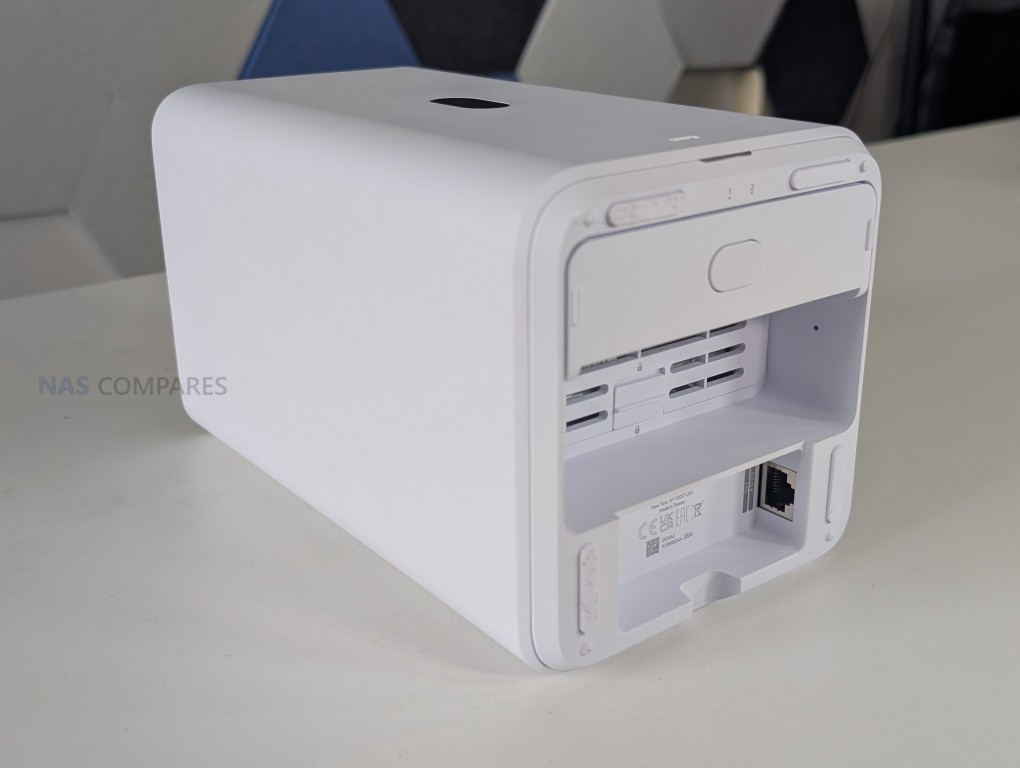
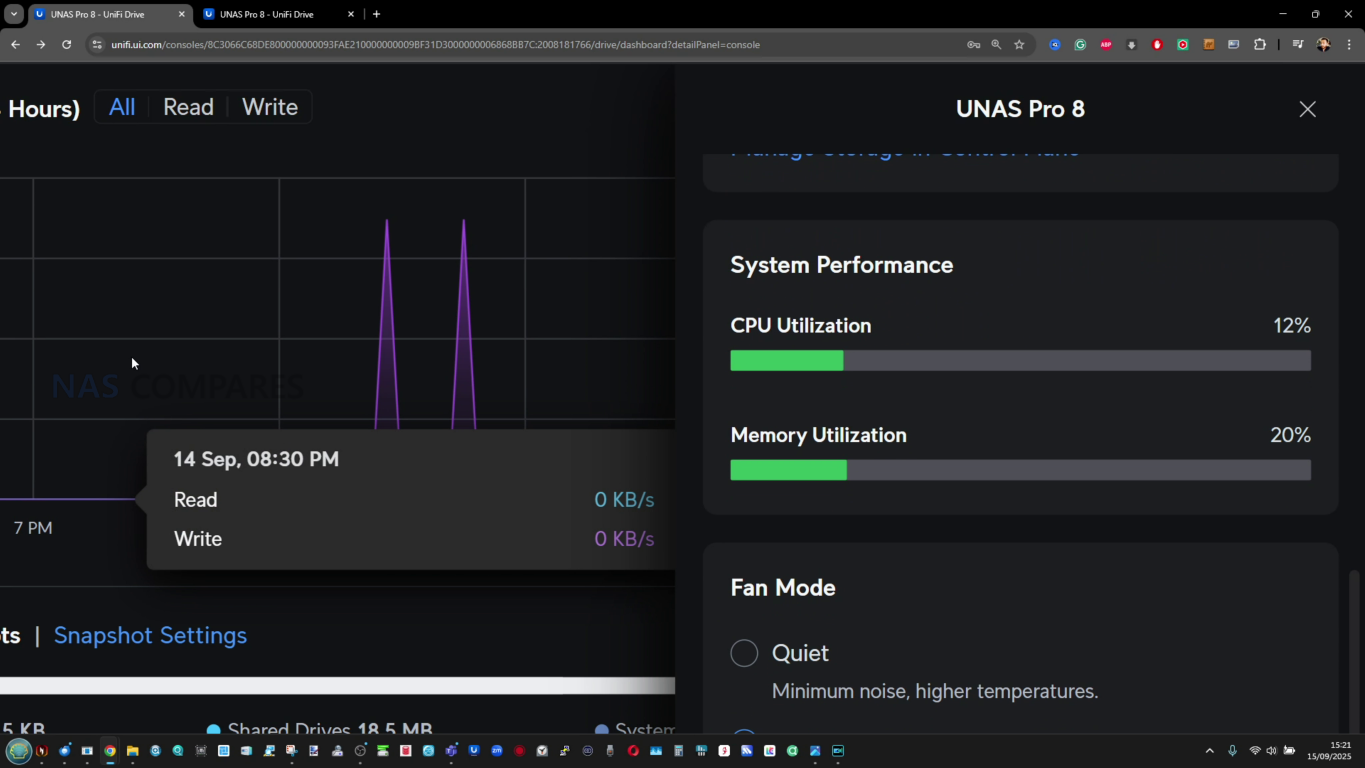
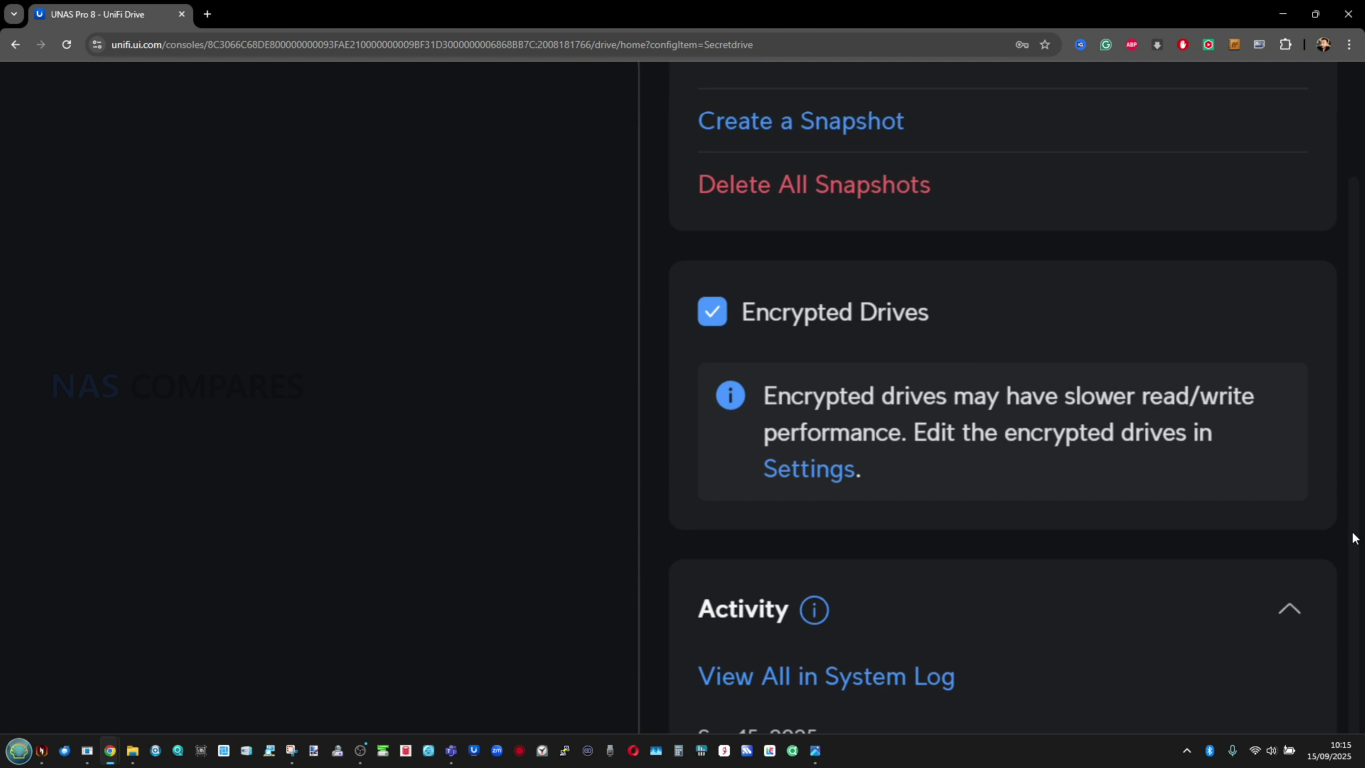
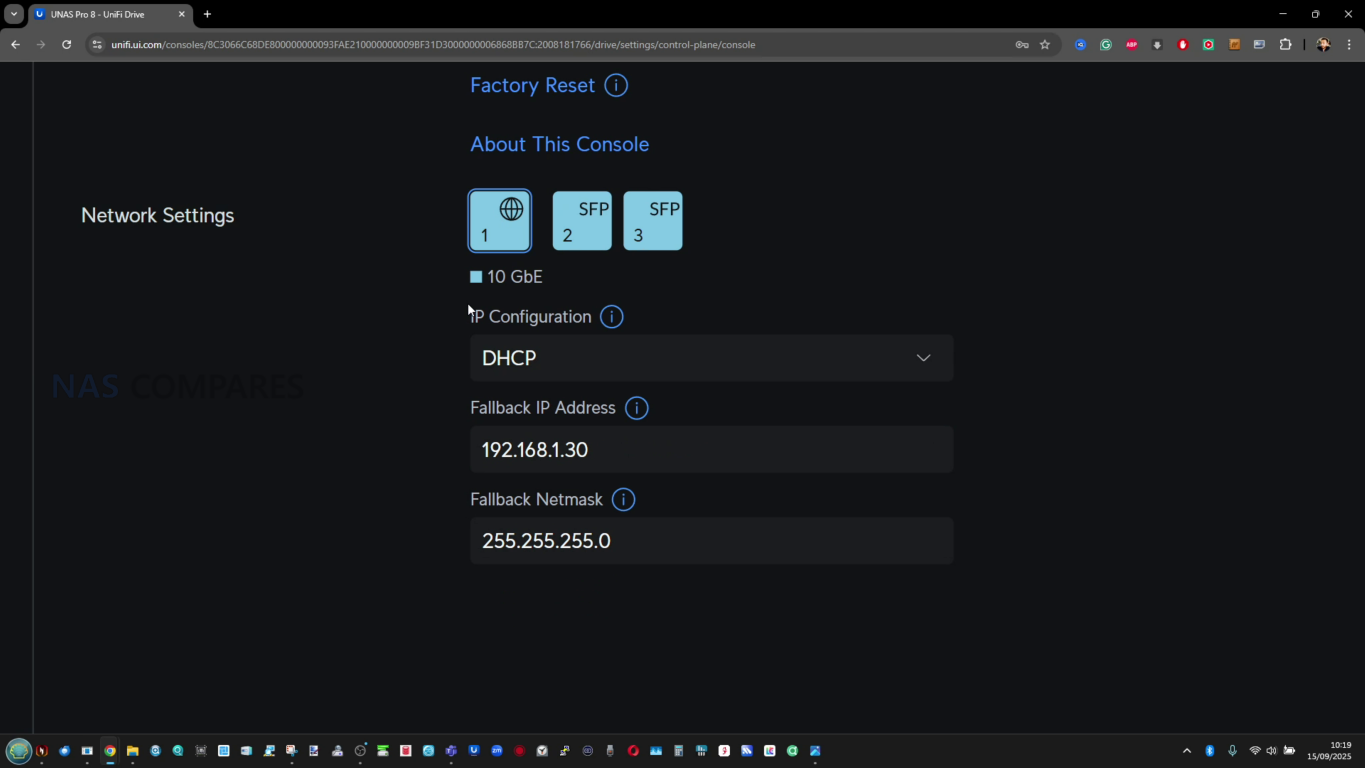
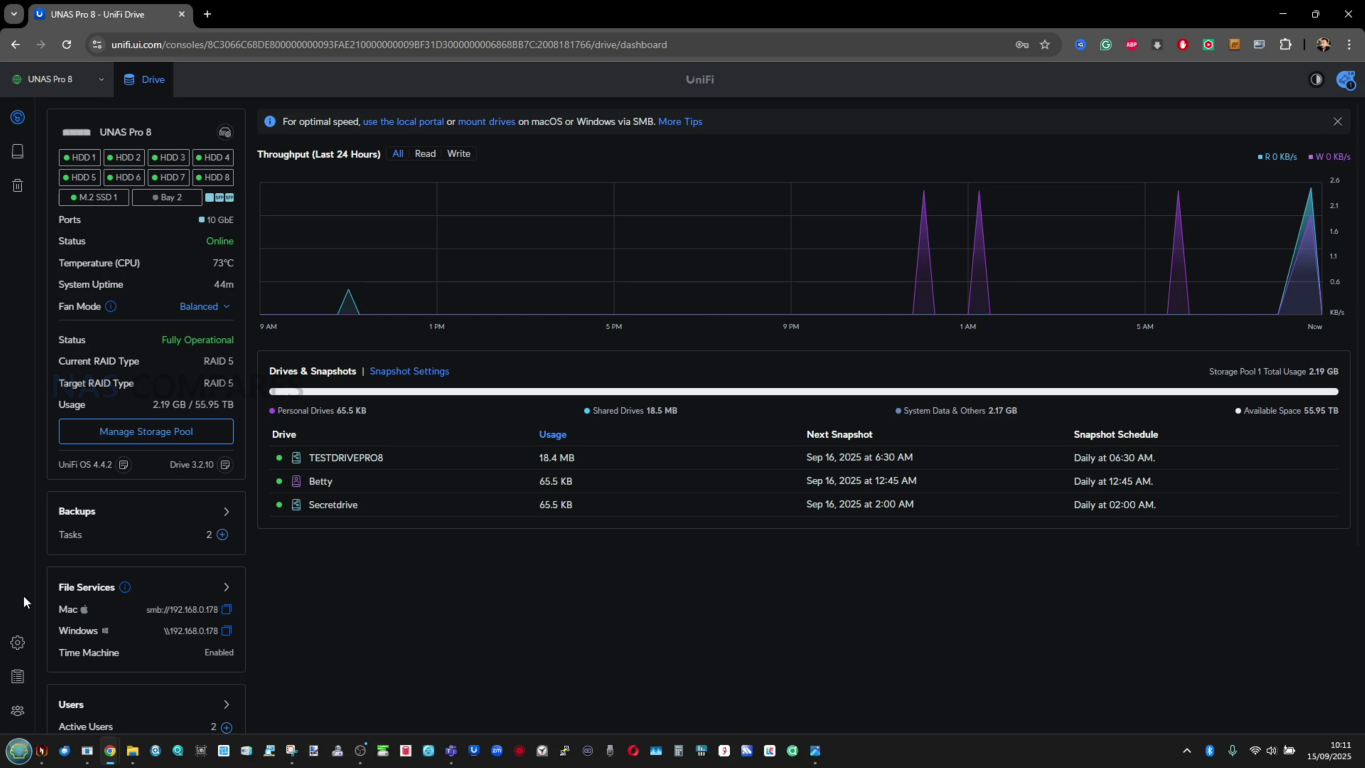
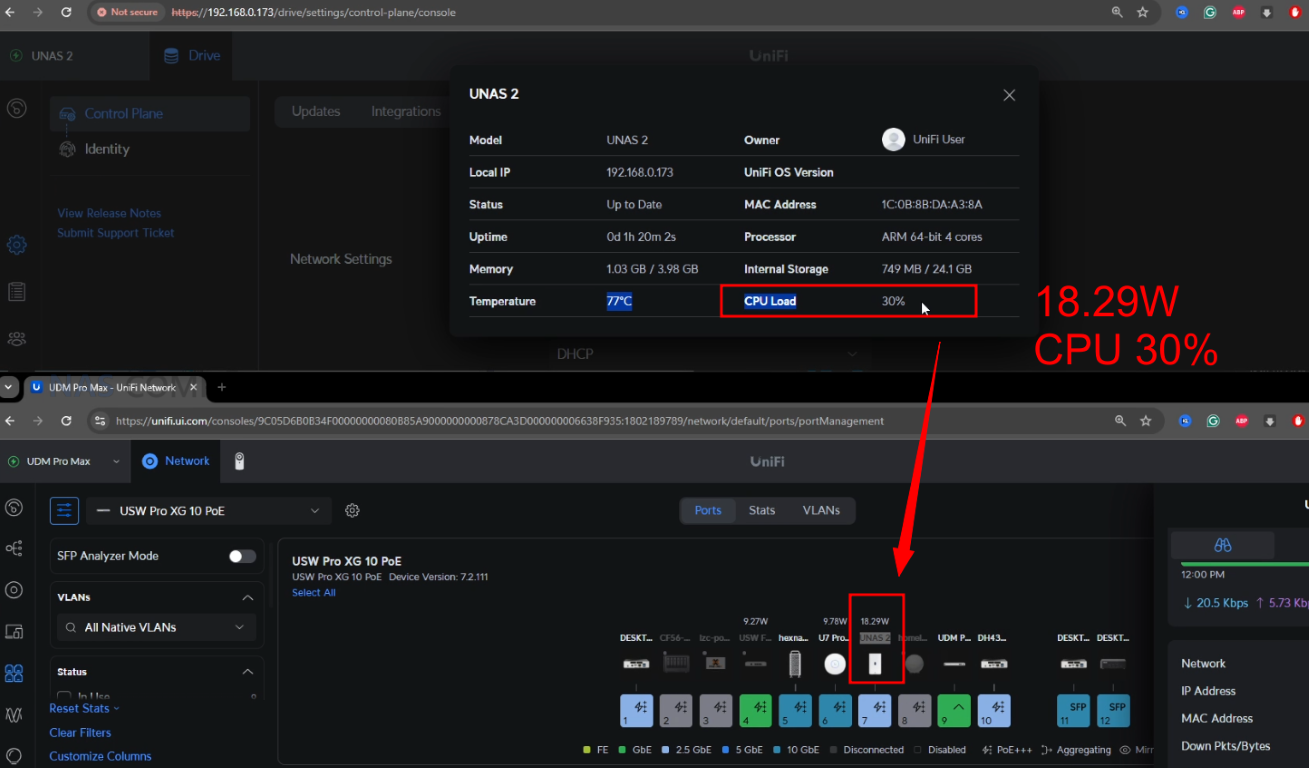
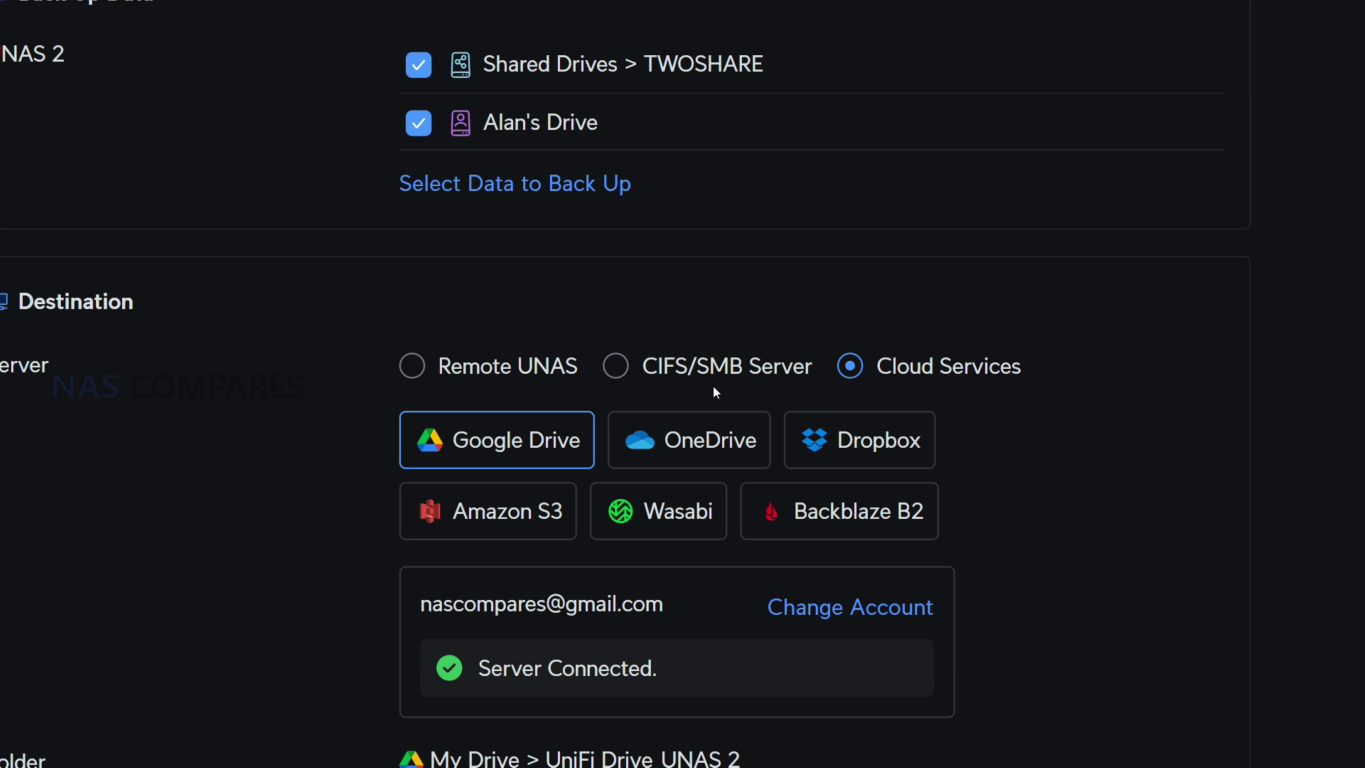
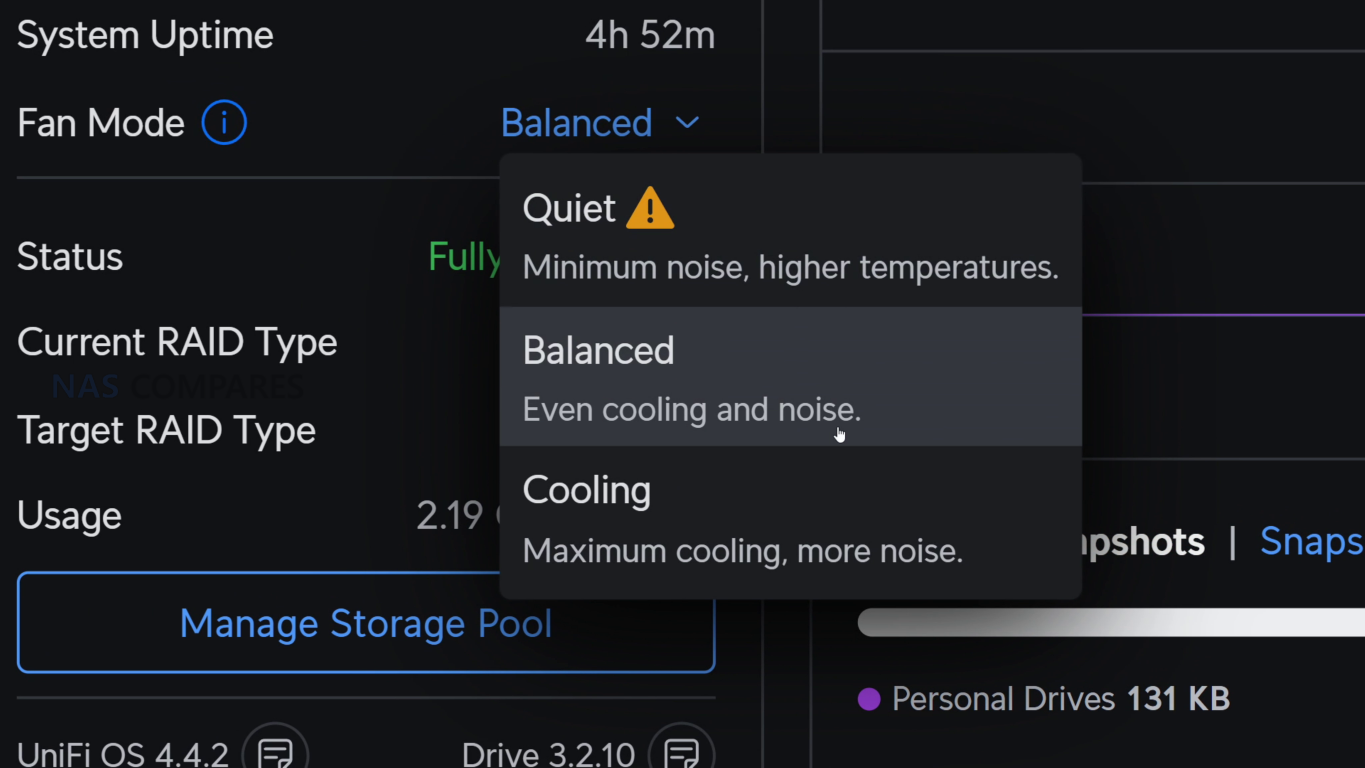
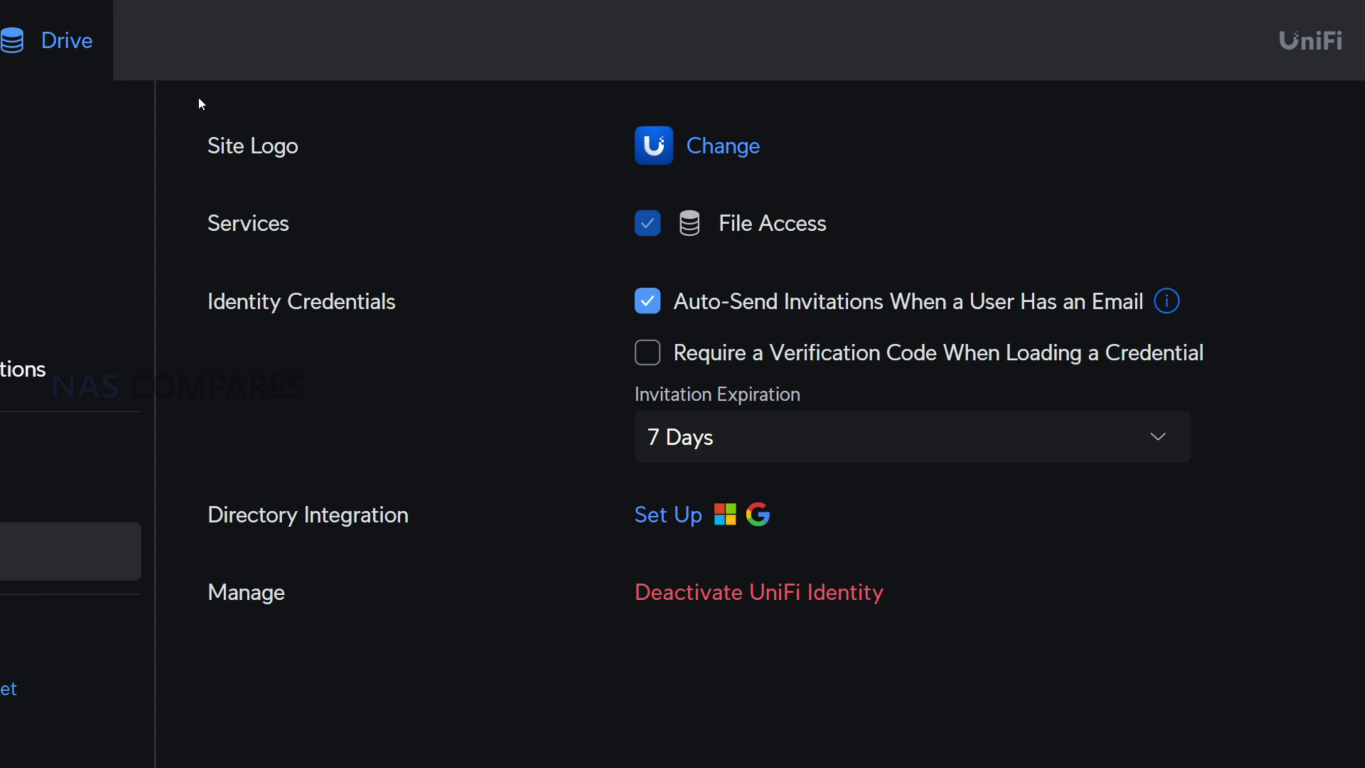
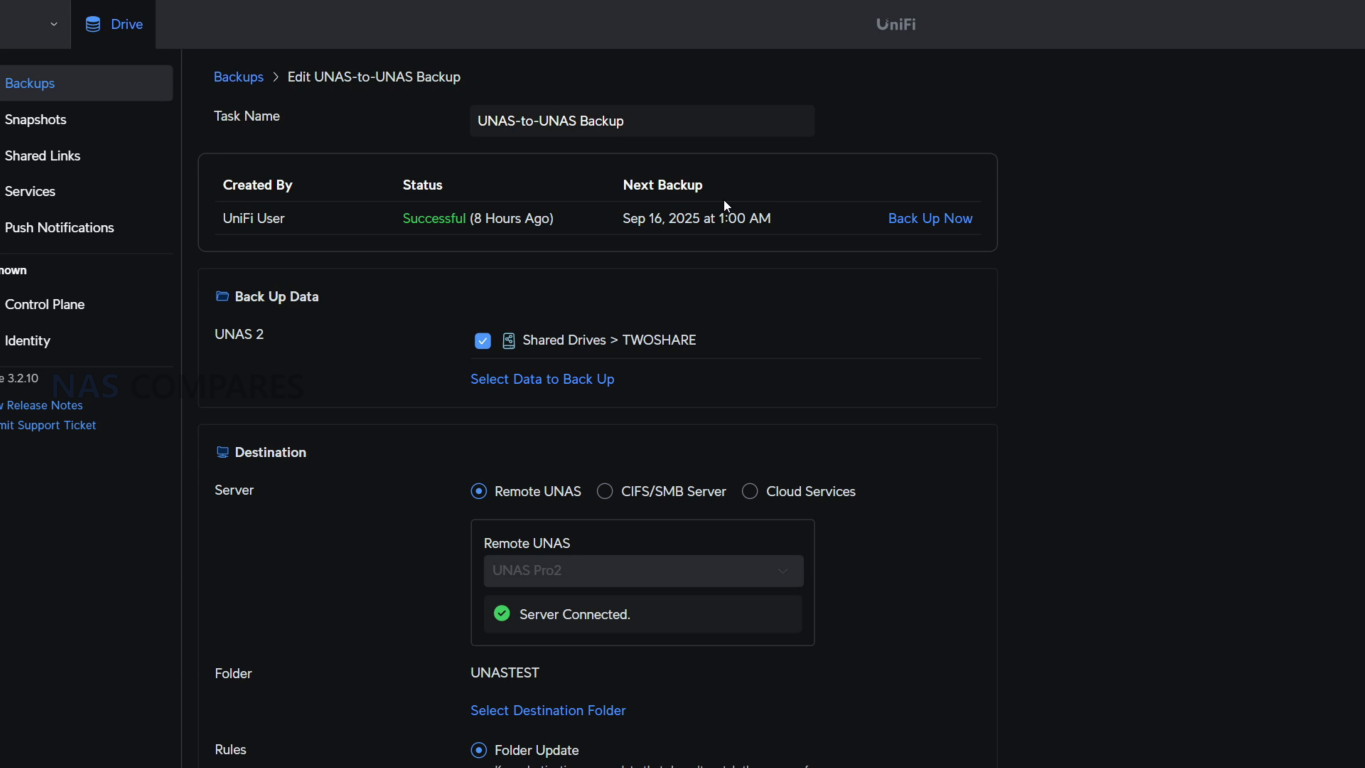
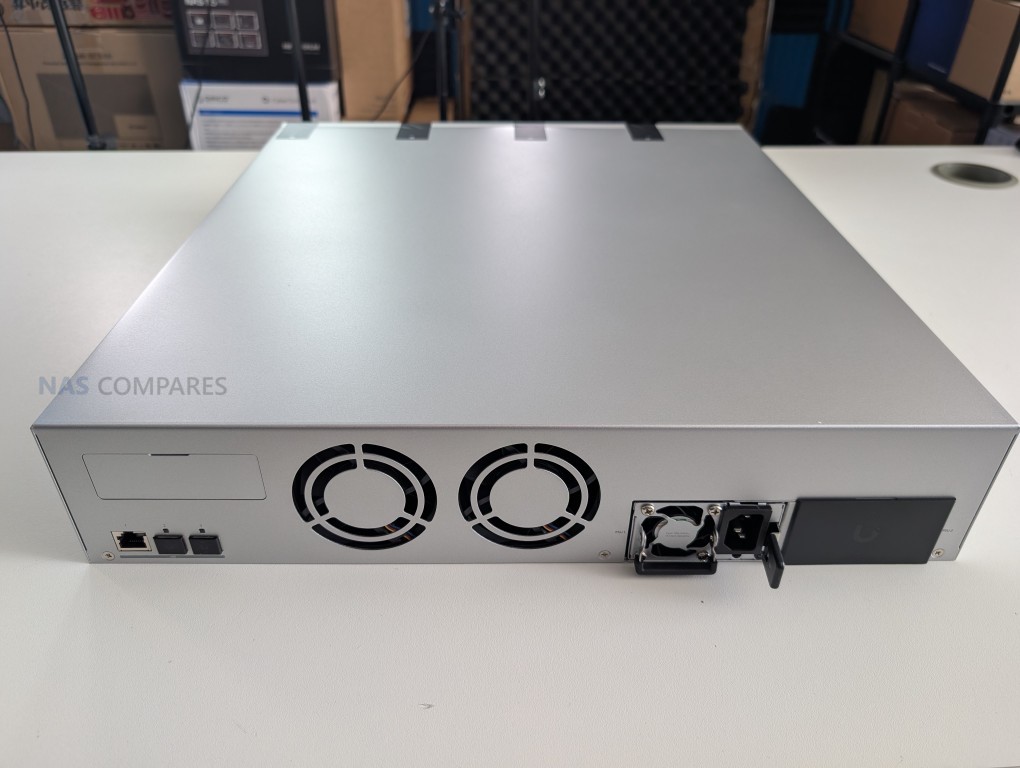
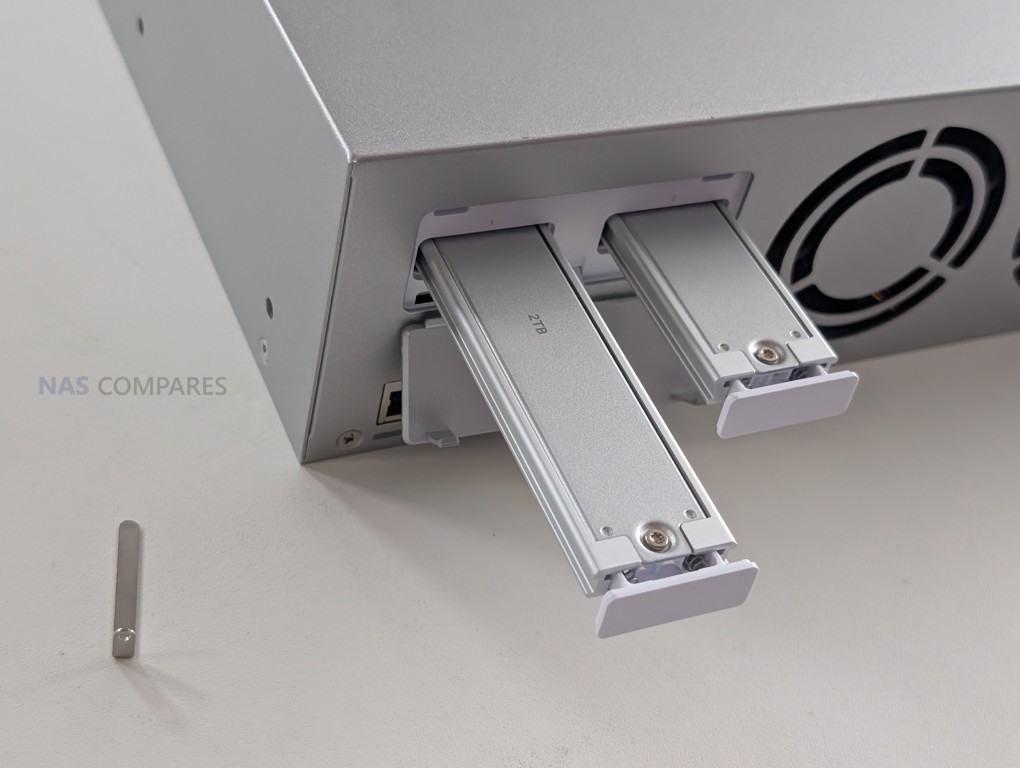

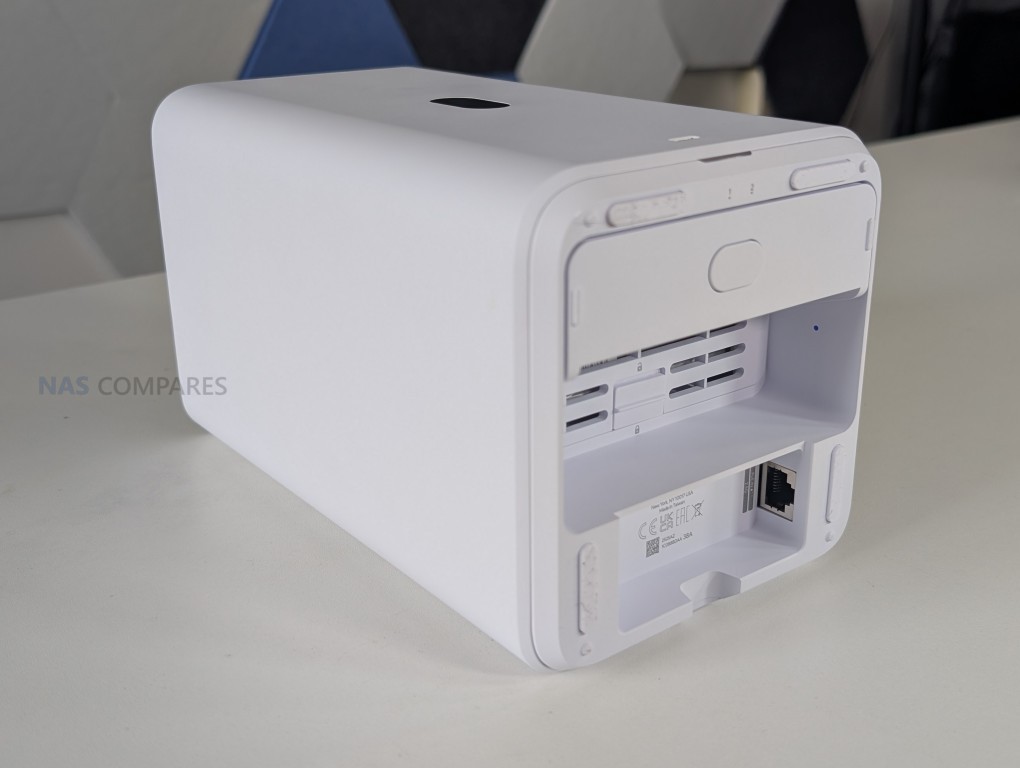
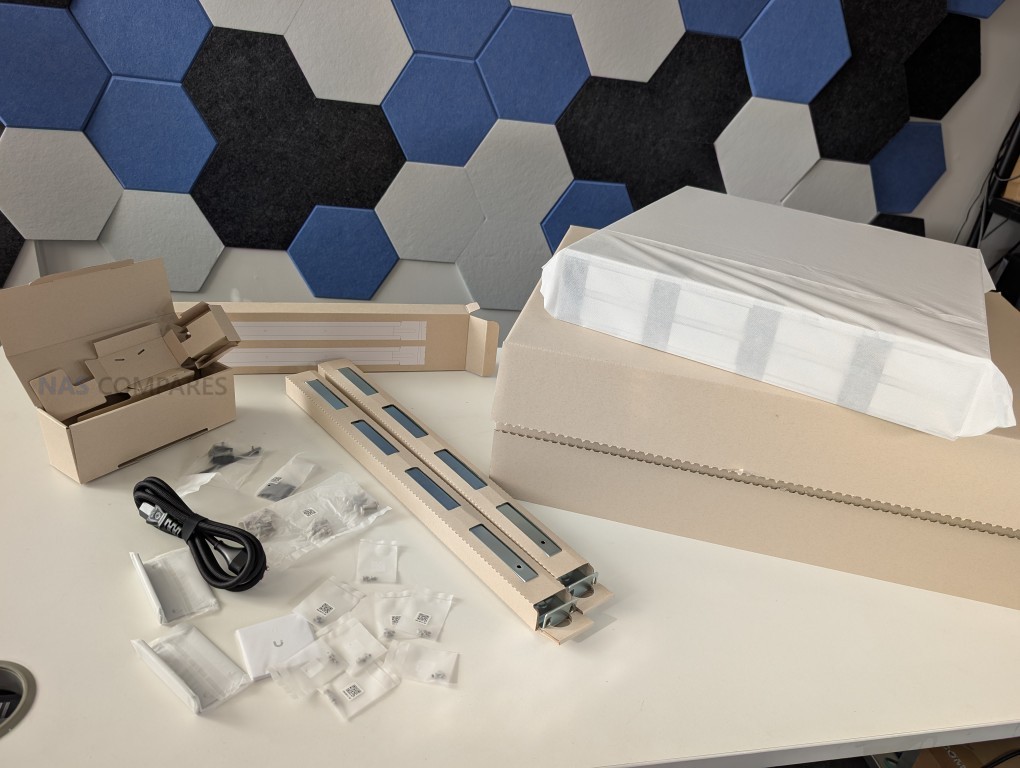
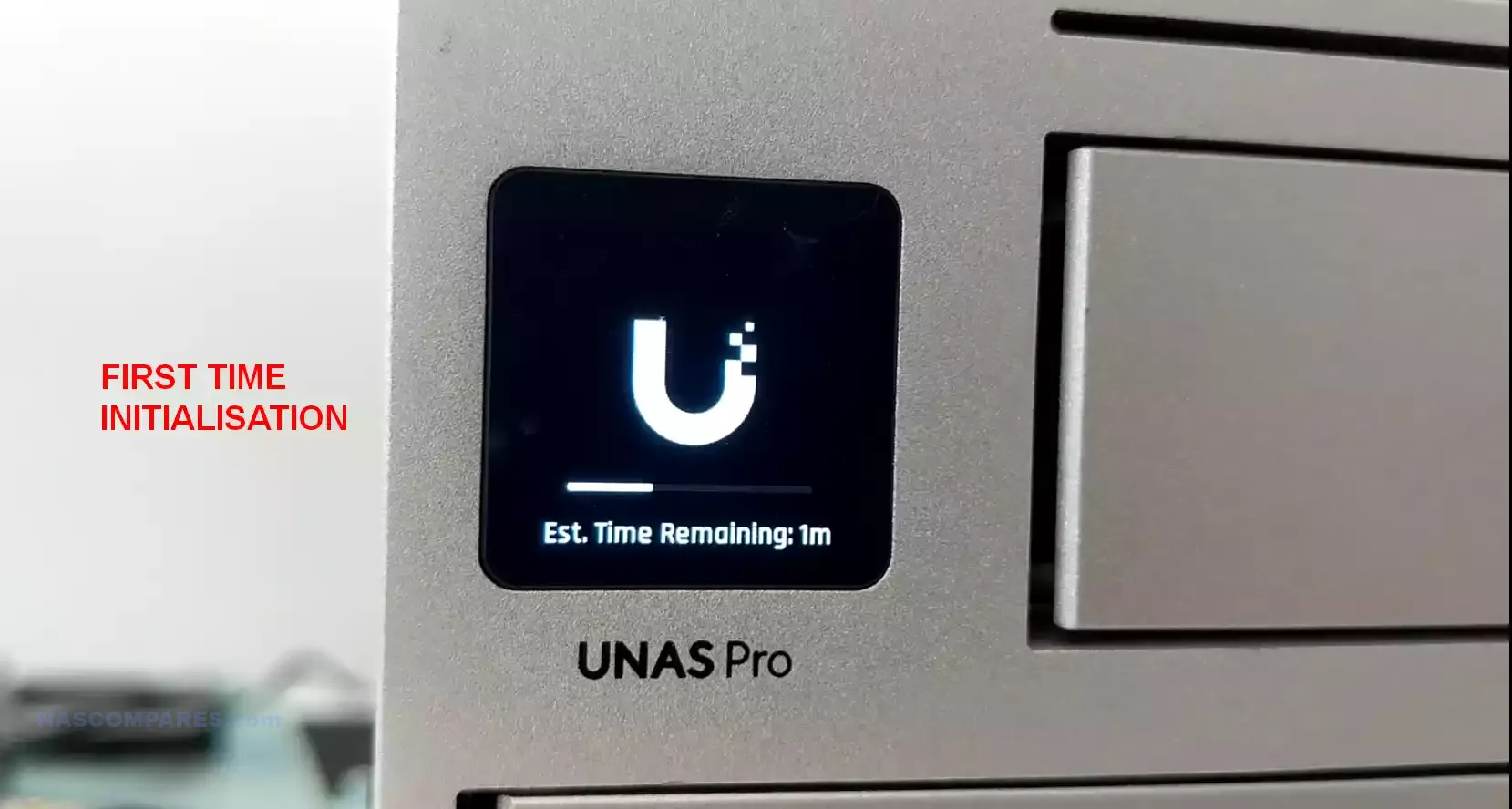
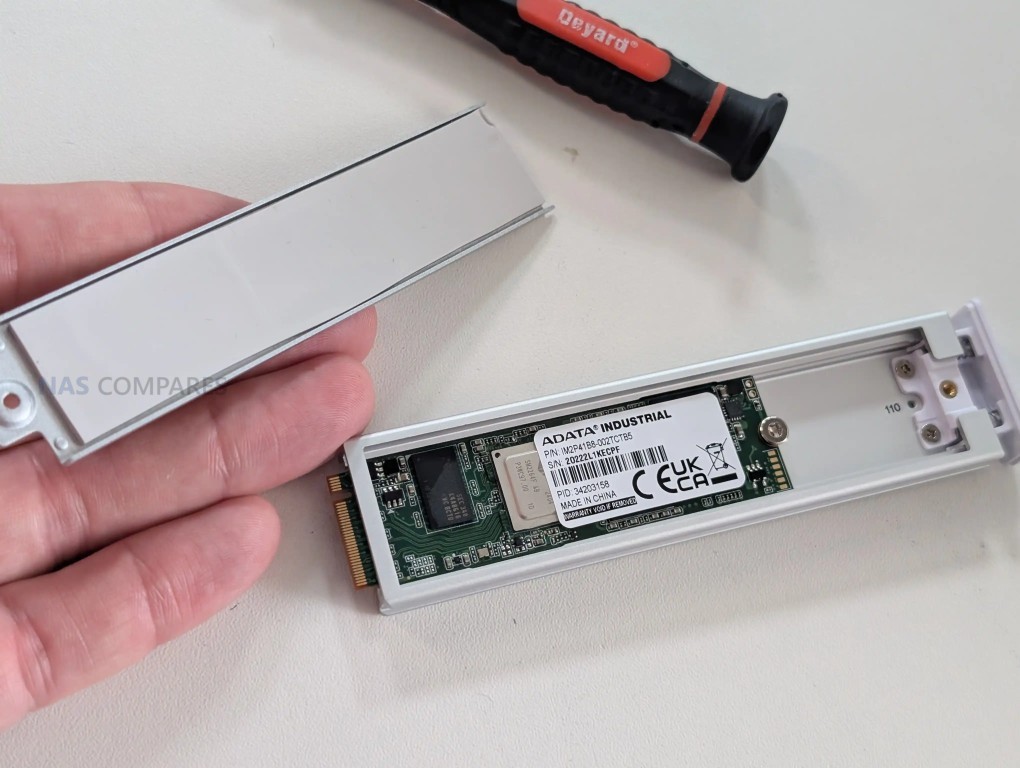
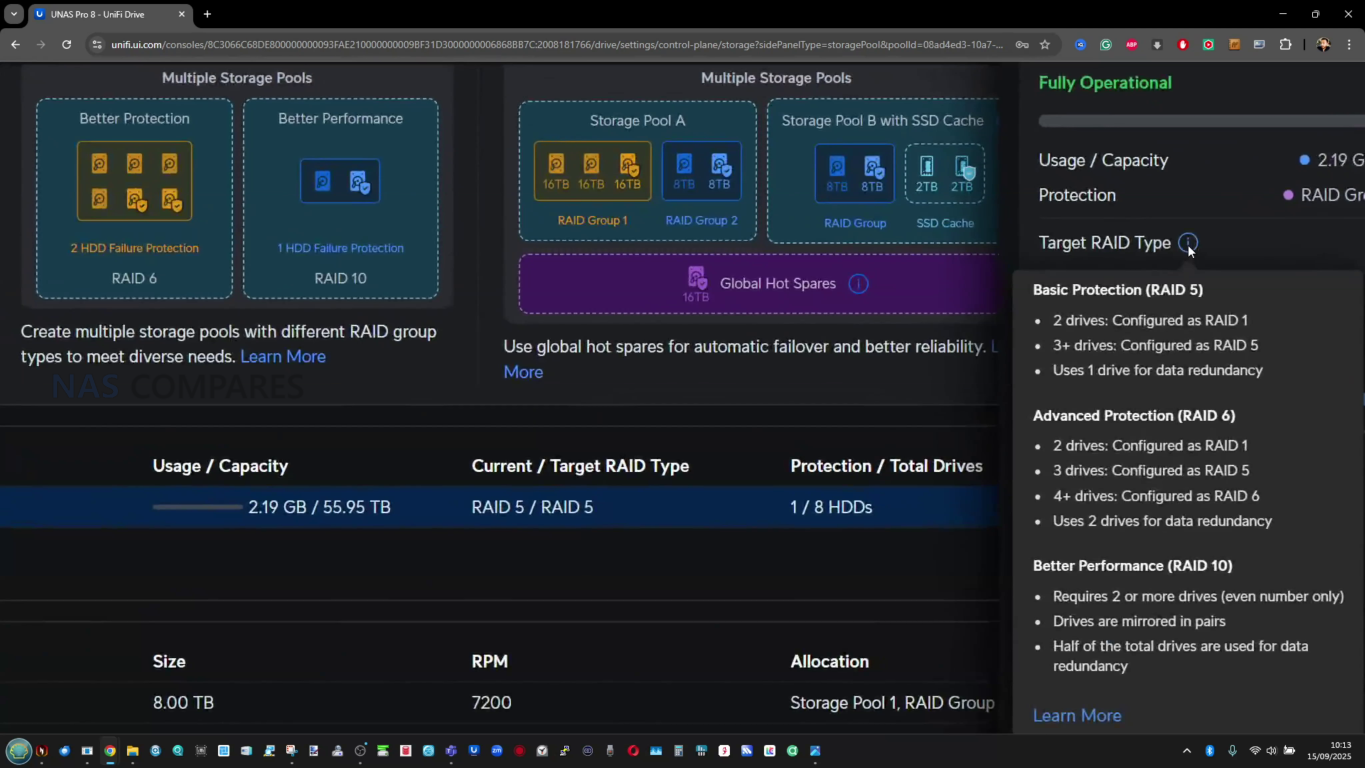
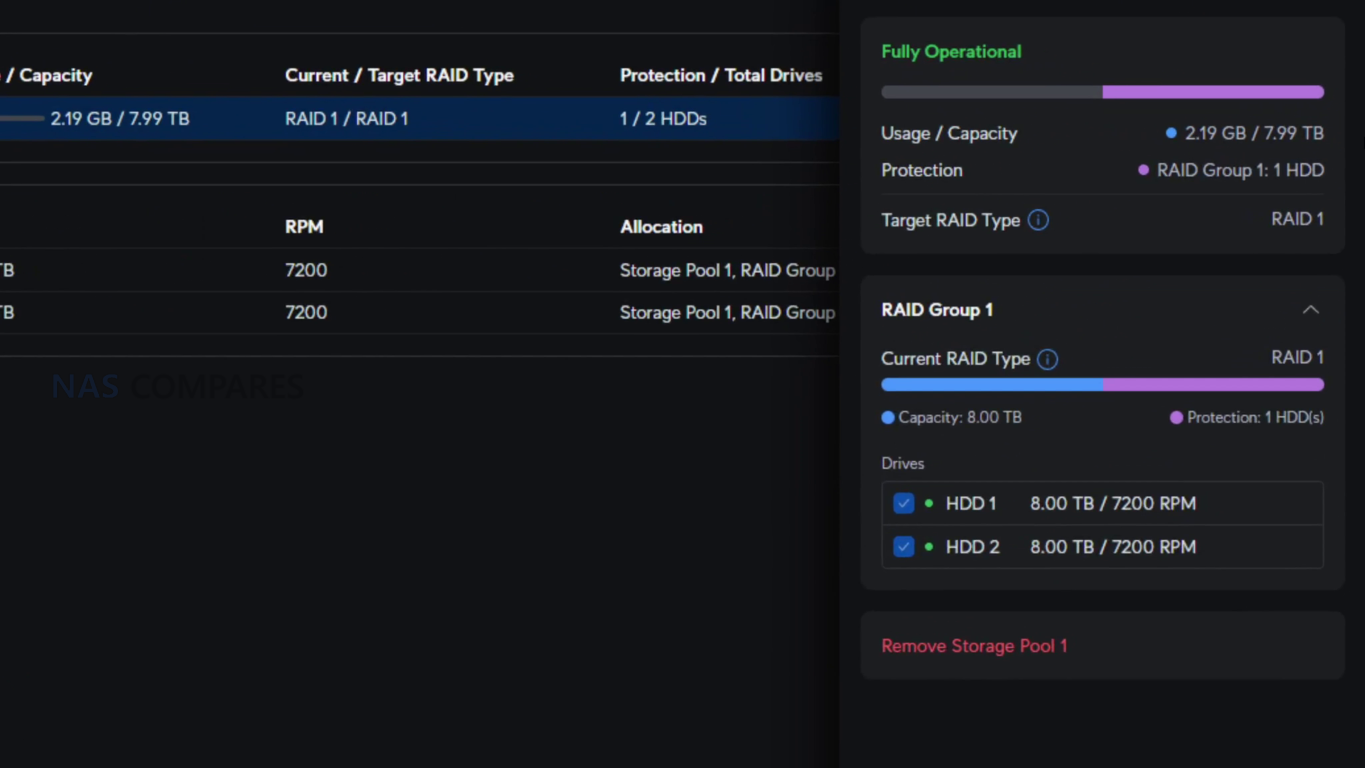
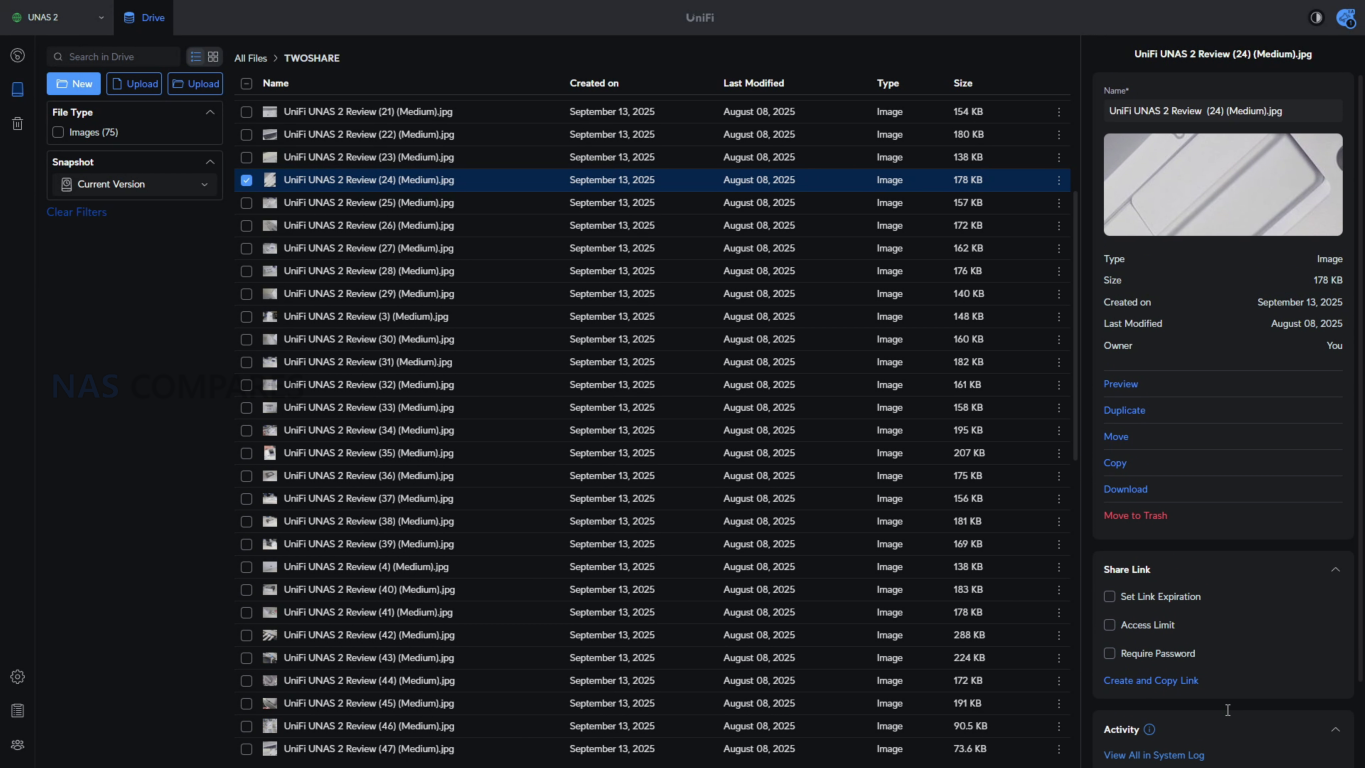
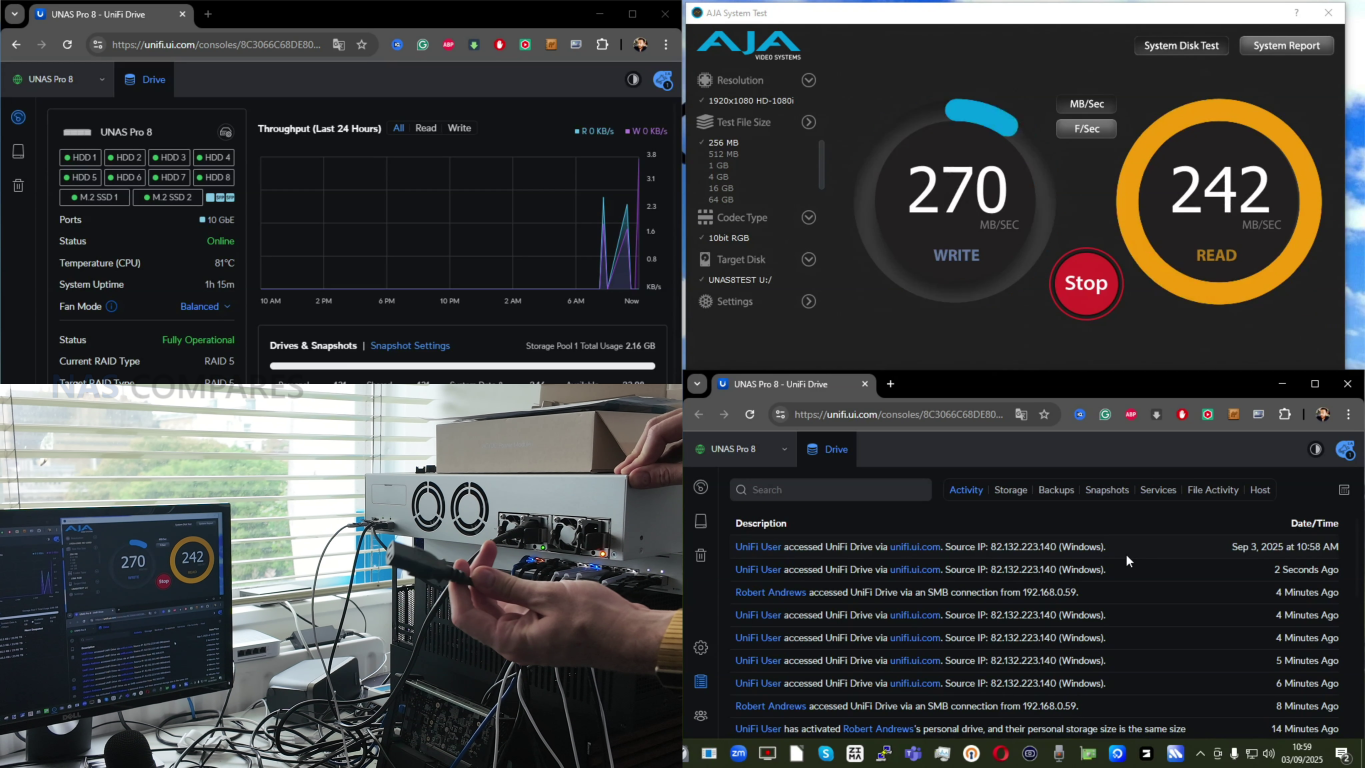
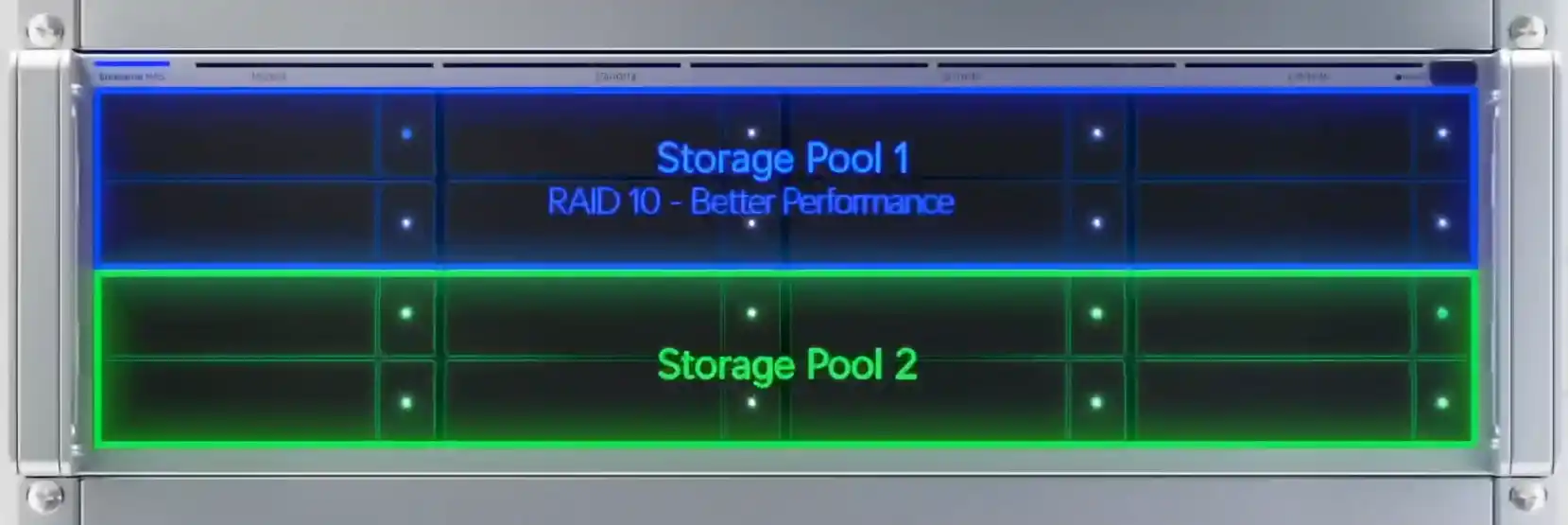
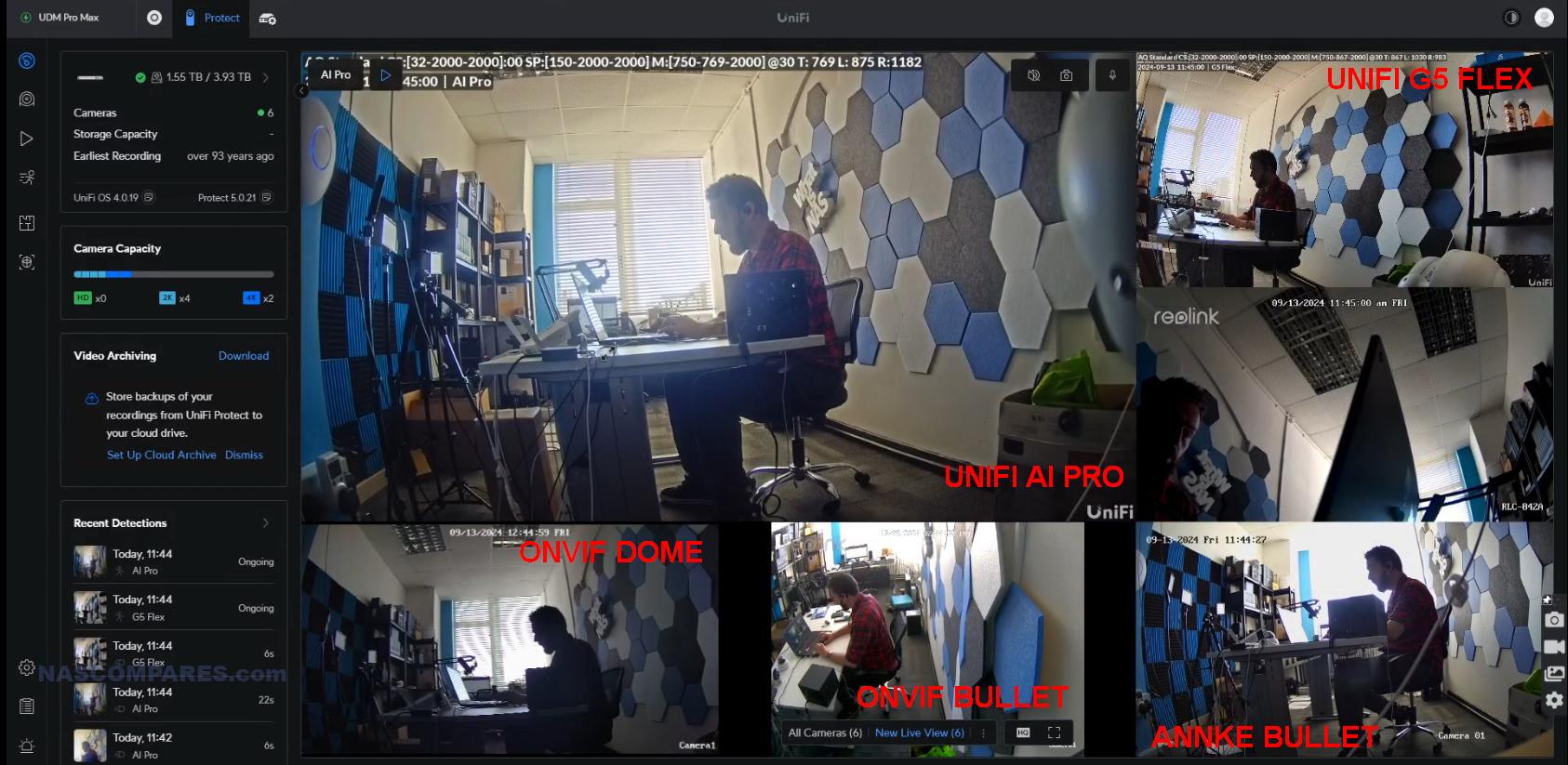
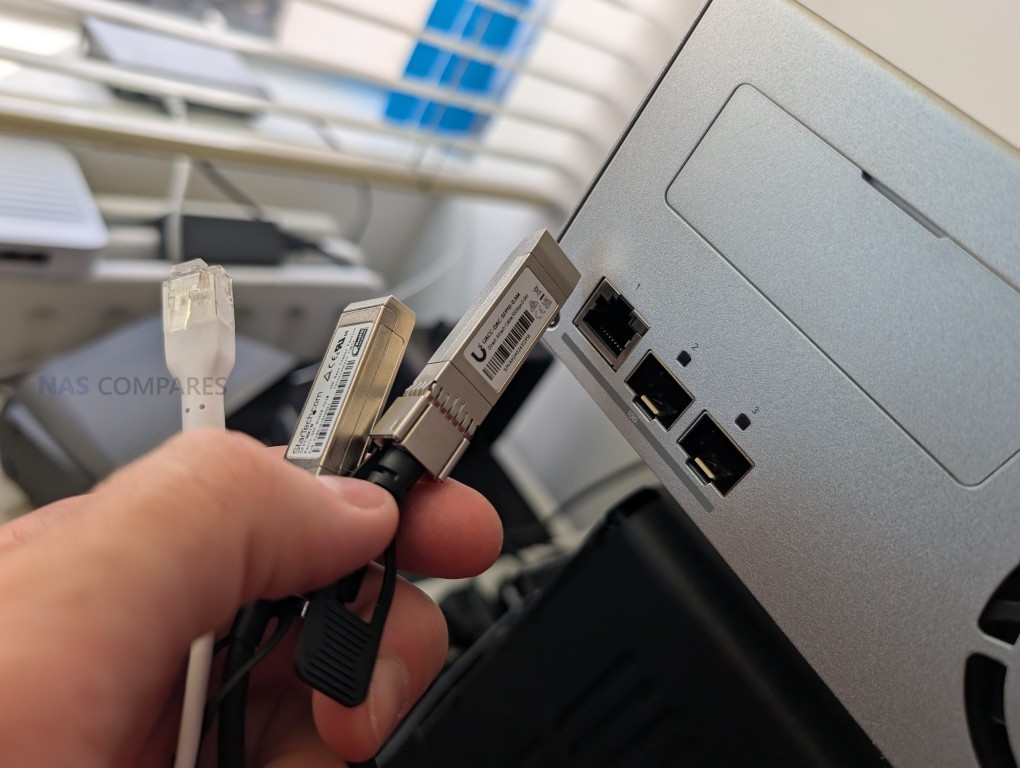
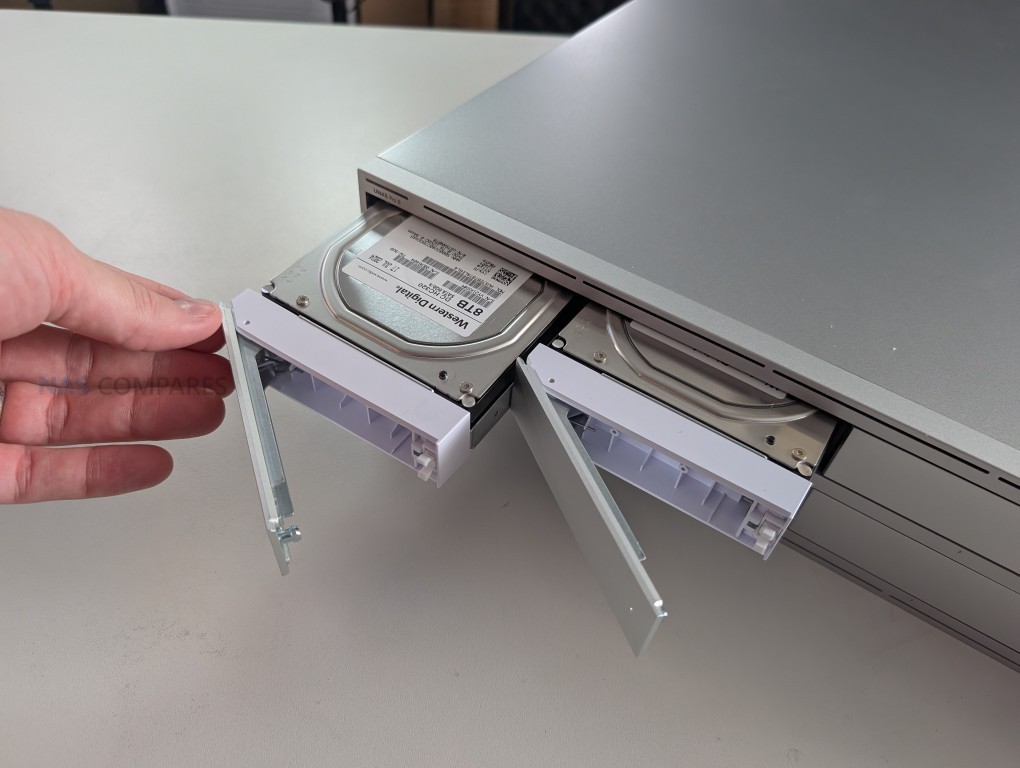
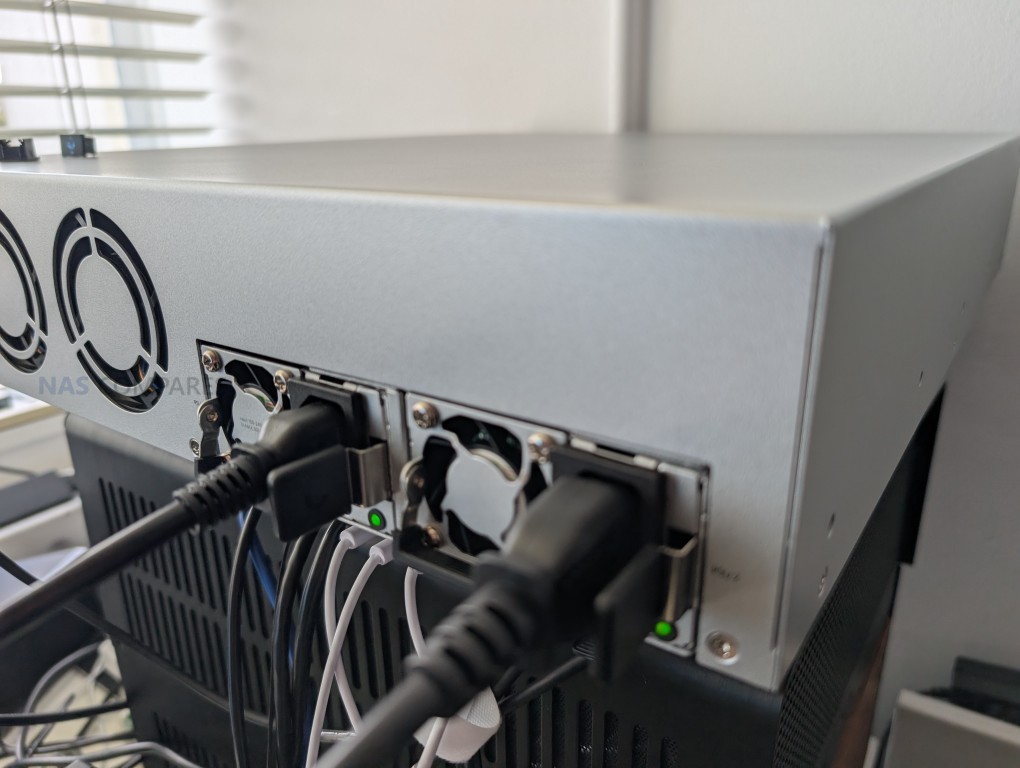
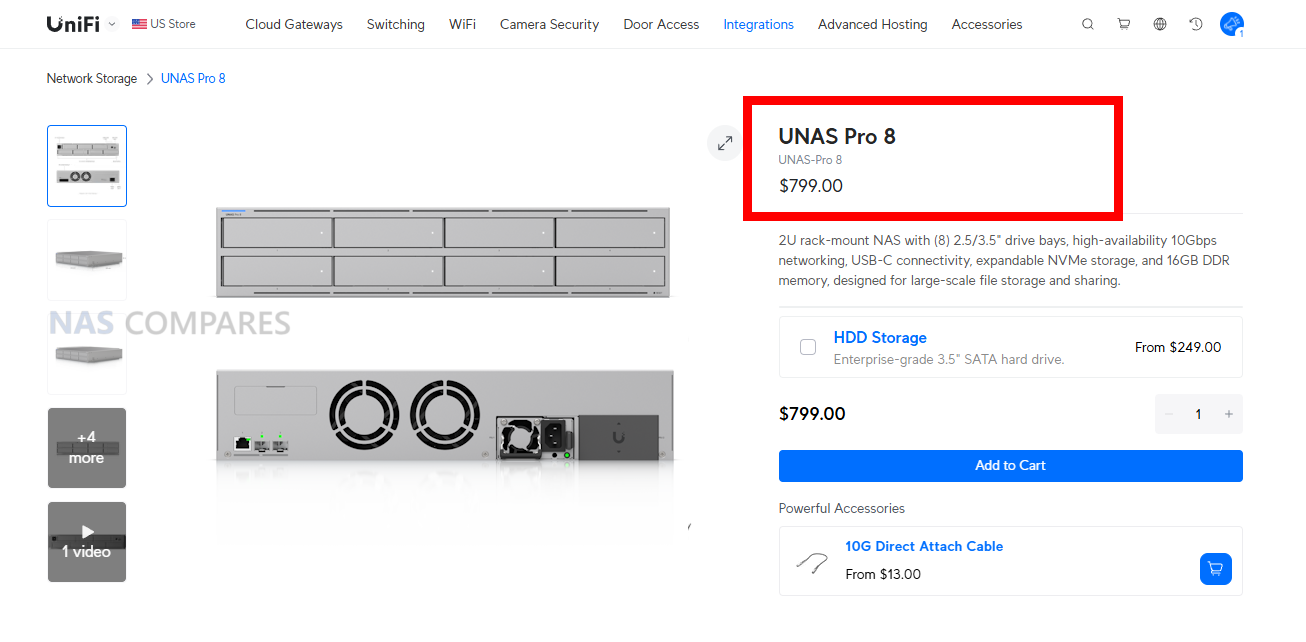


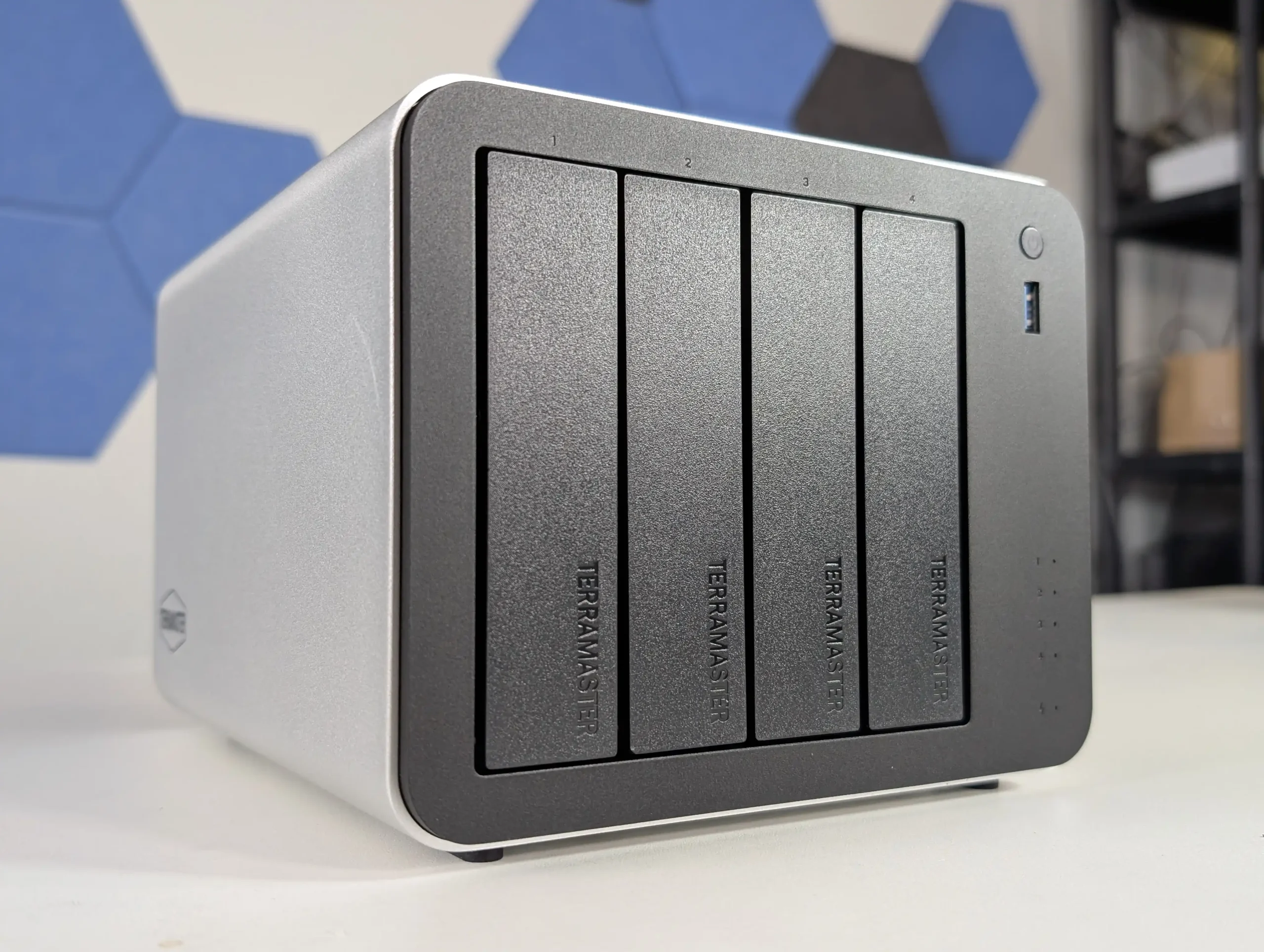
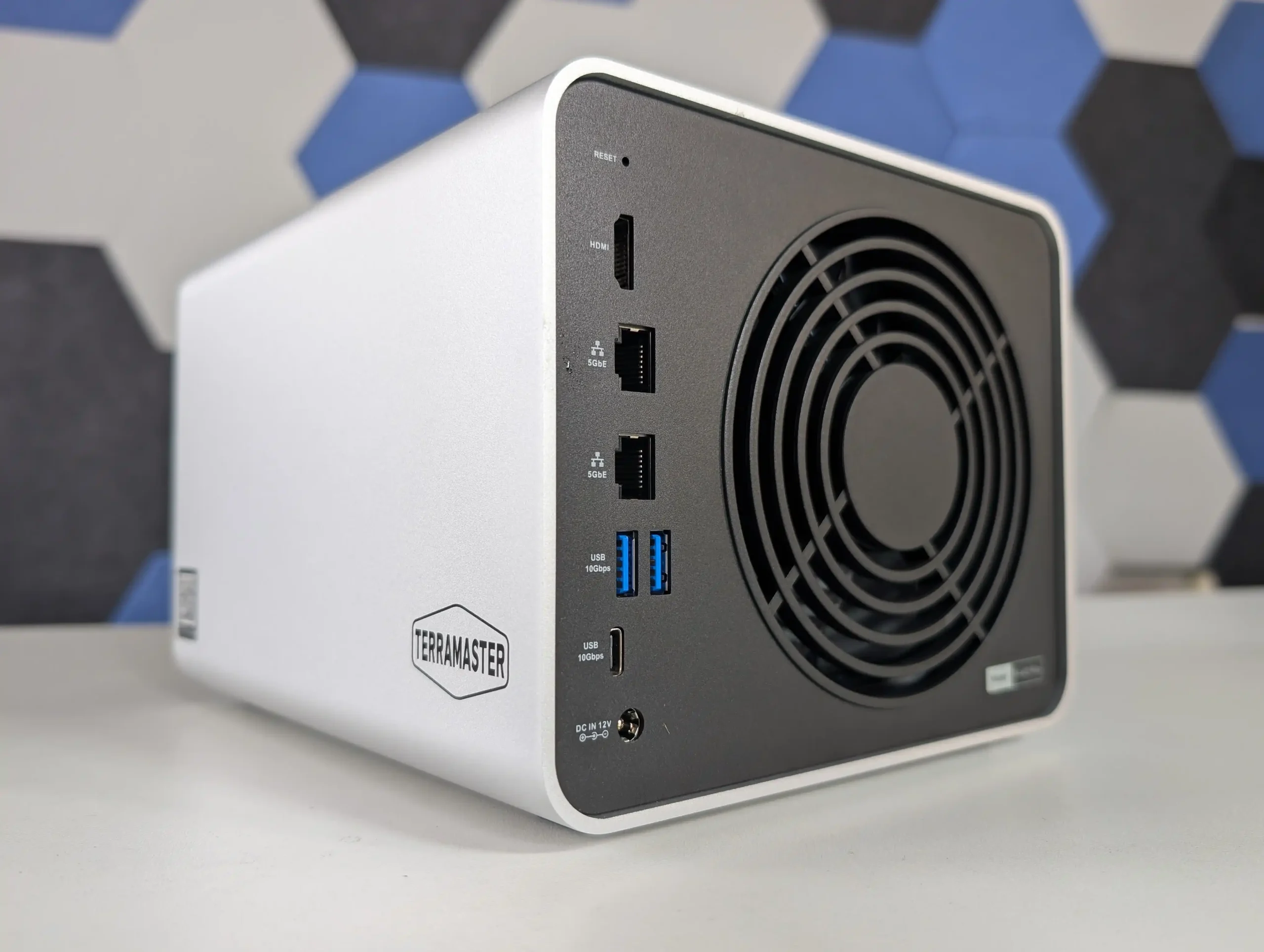
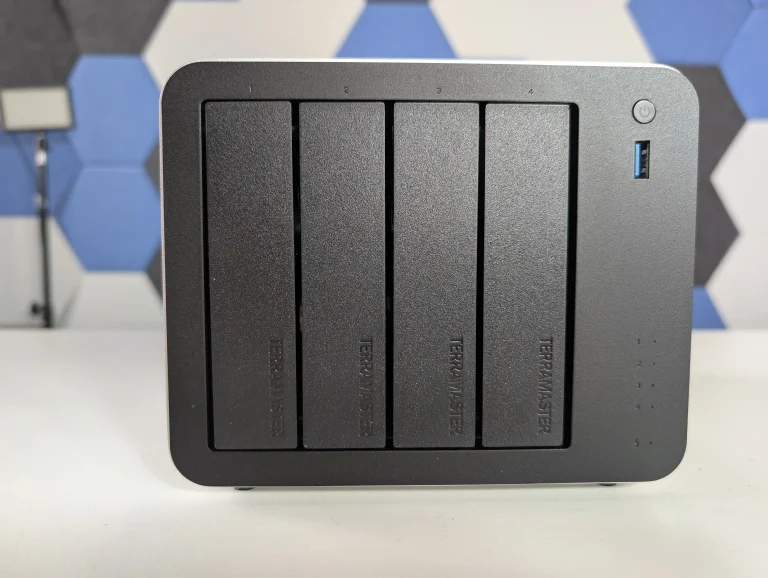

 • Dual 5GbE network ports with full independent bandwidth for high-speed transfers + lots of USB-to-5GbE $30 upgrades in the market now
 • Cheaper N150 NAS Systems have arrived earlier in 2025


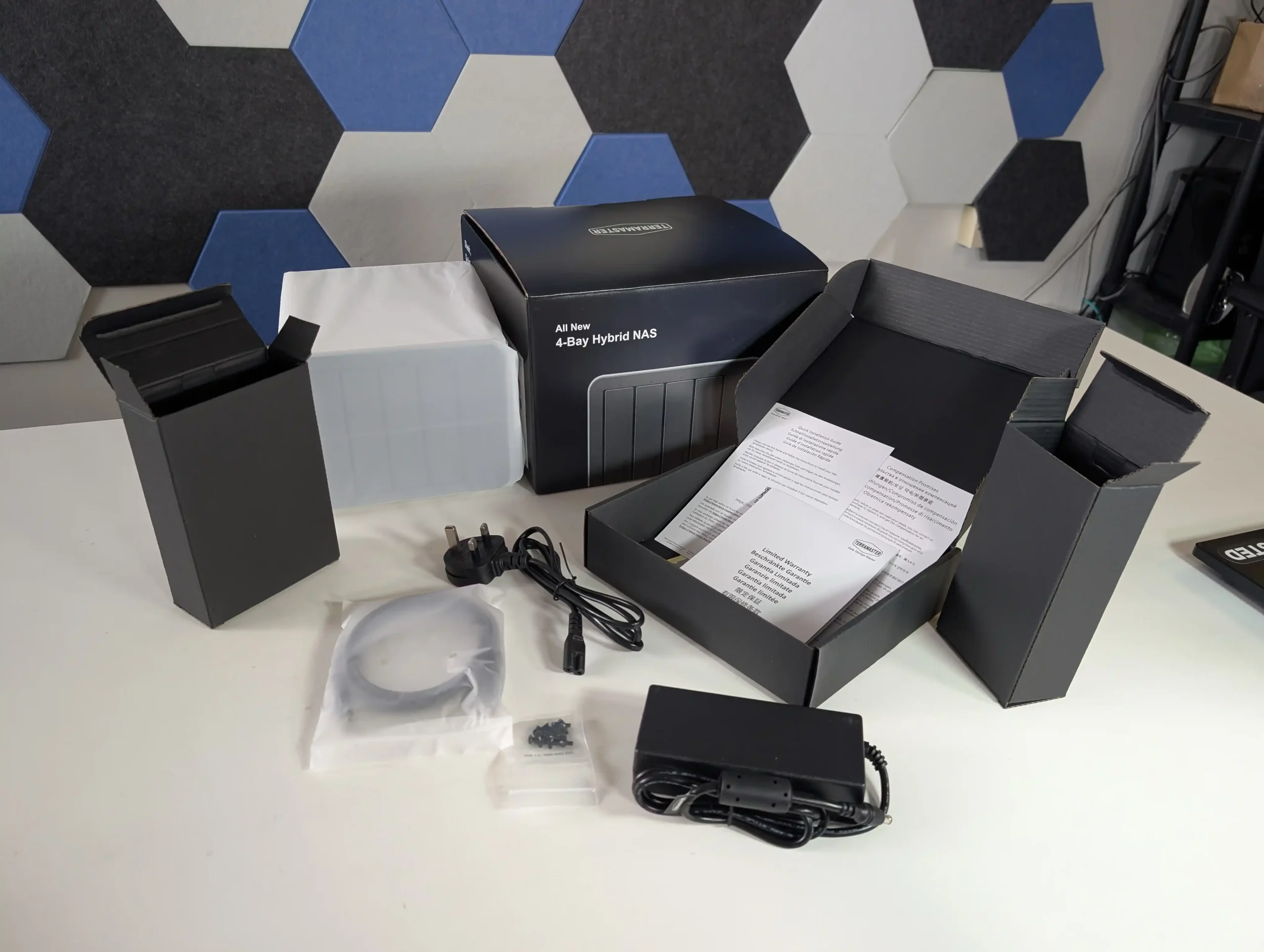
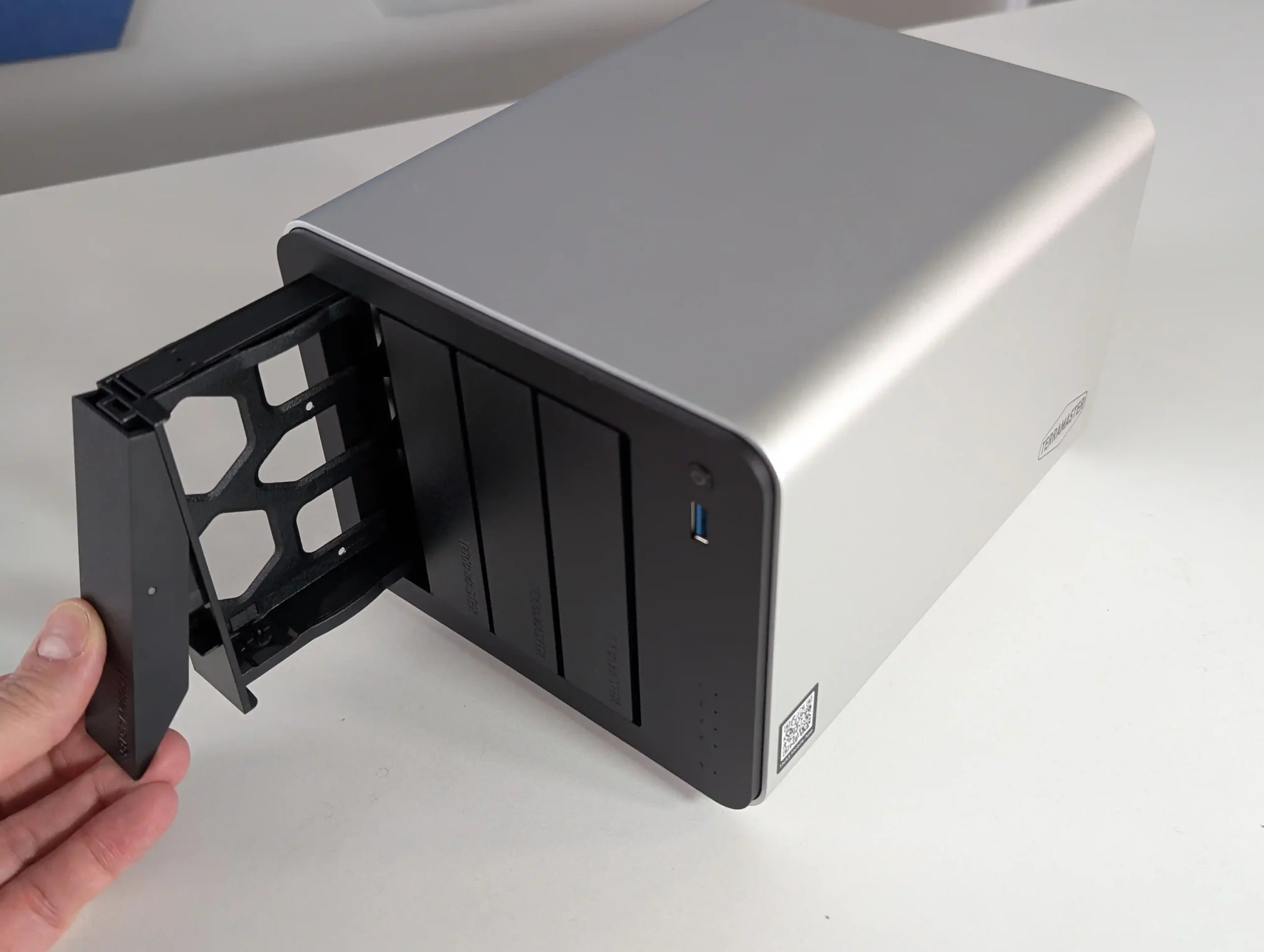
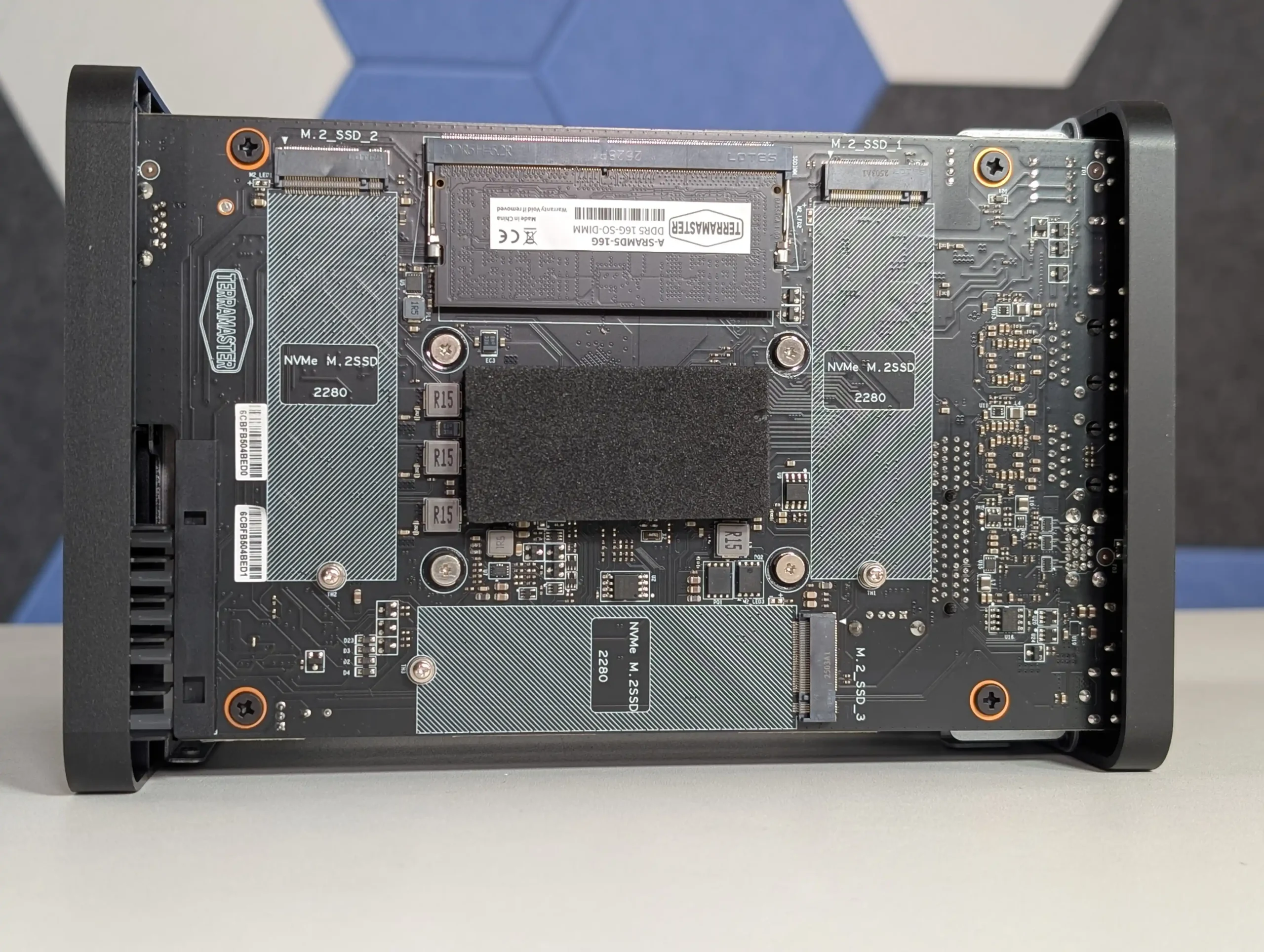
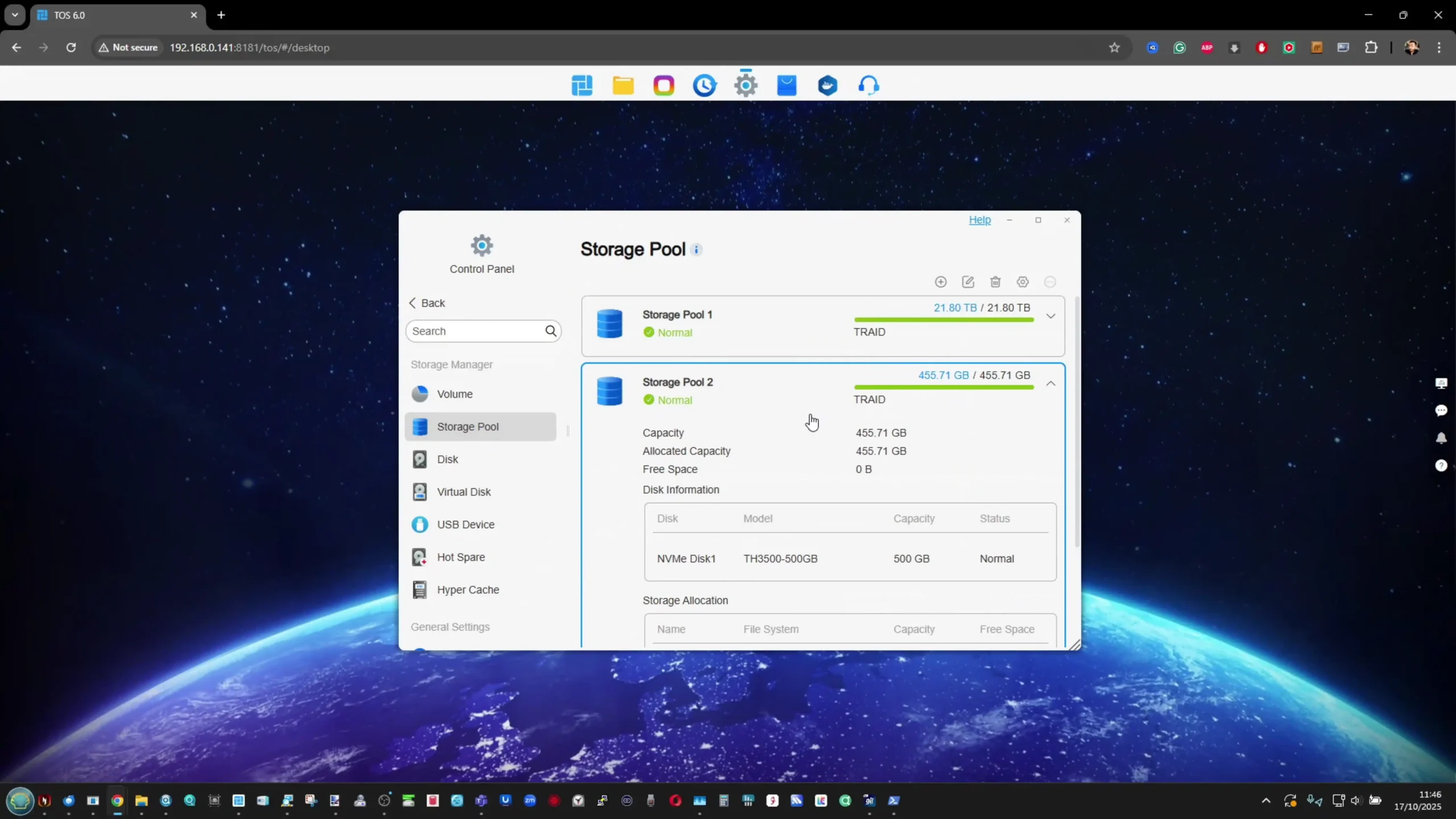
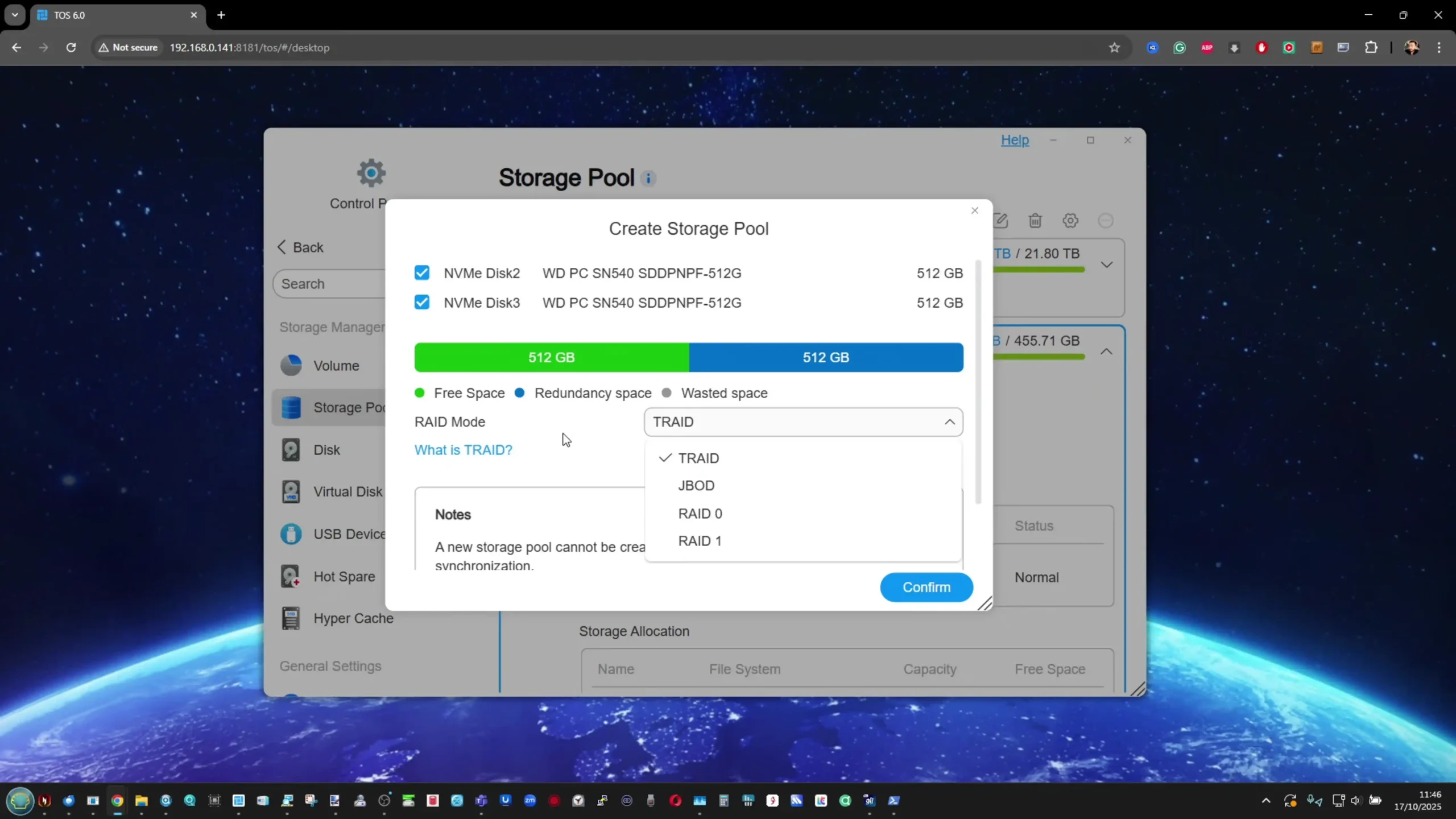
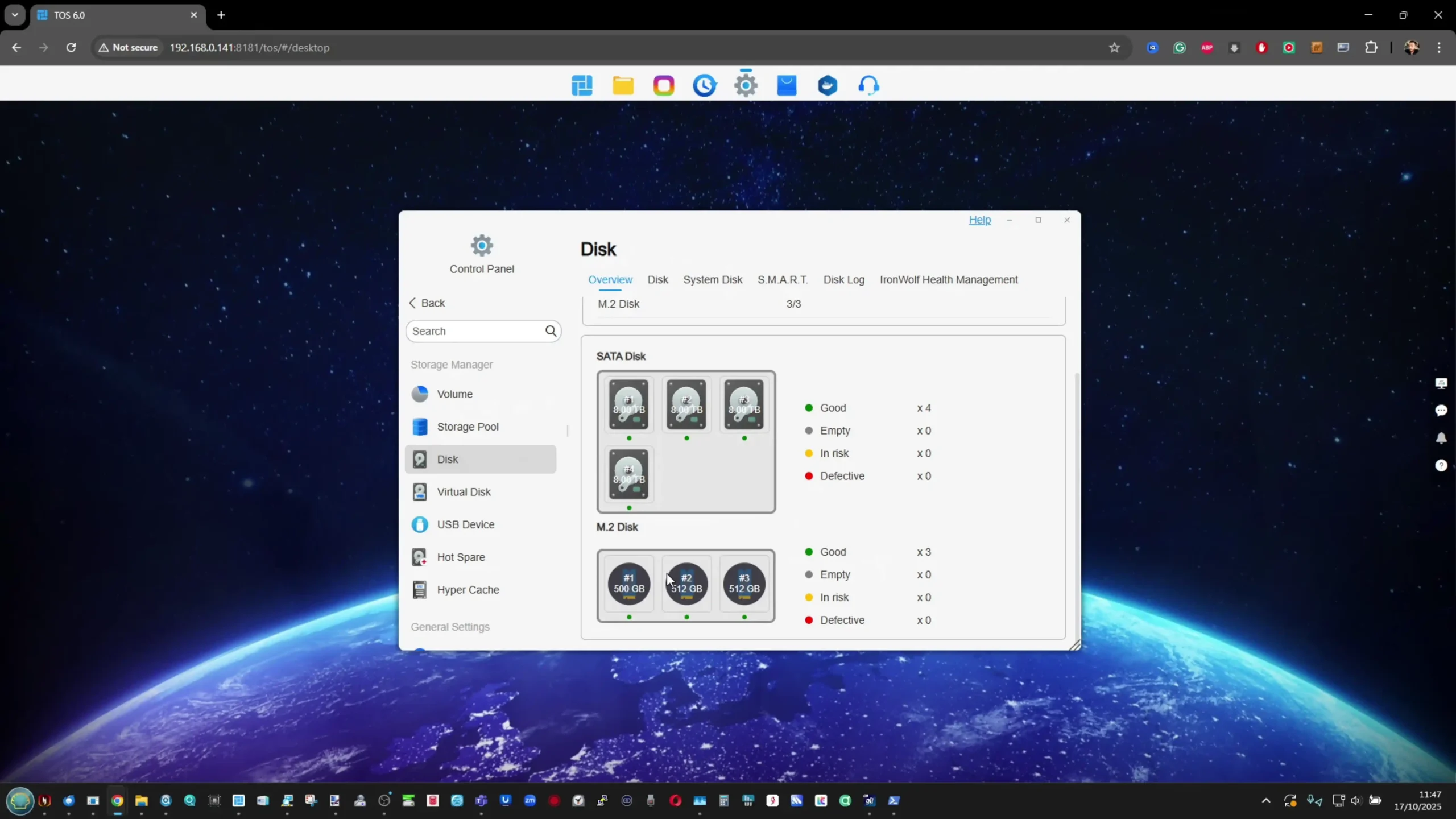
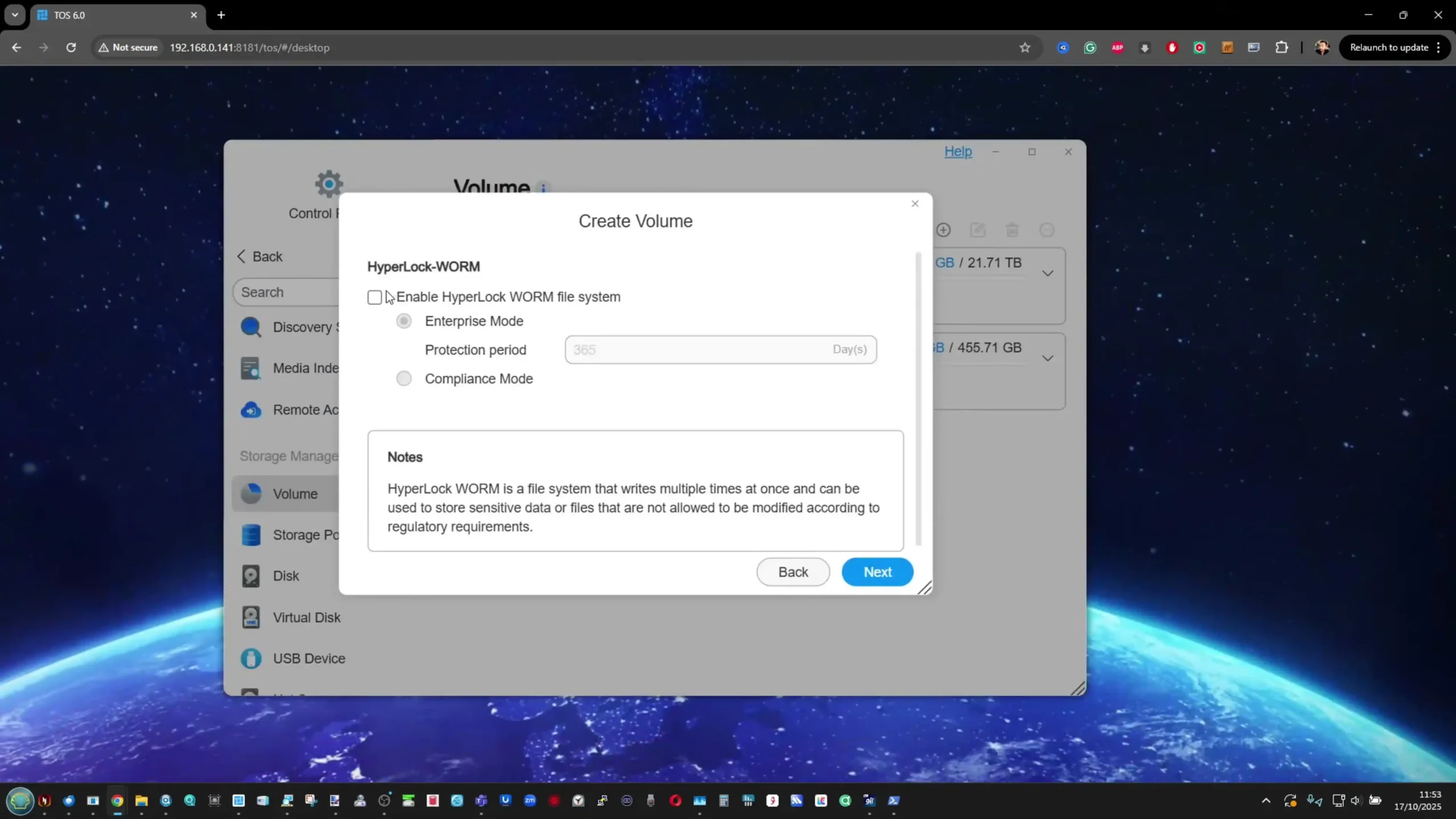
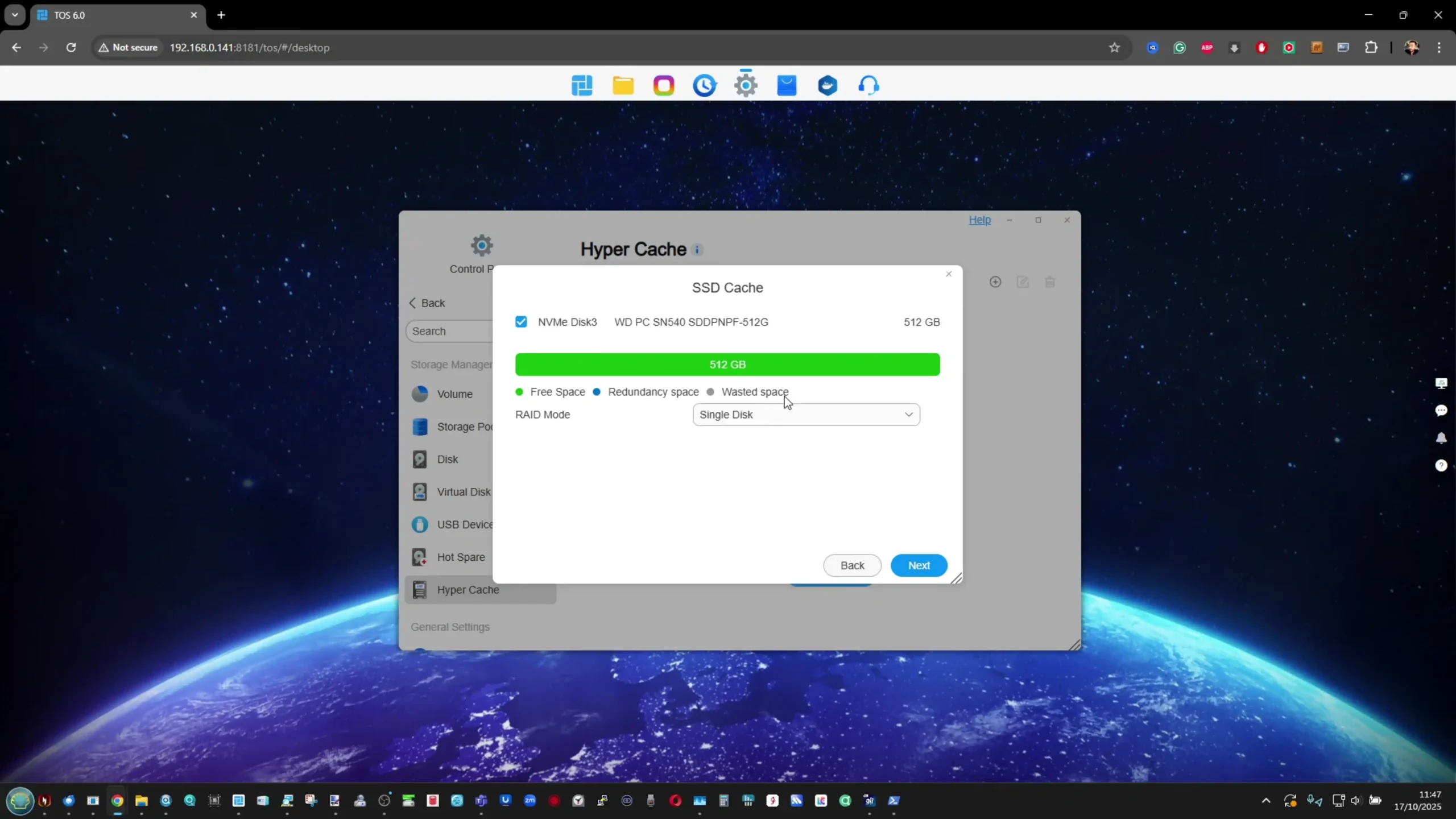
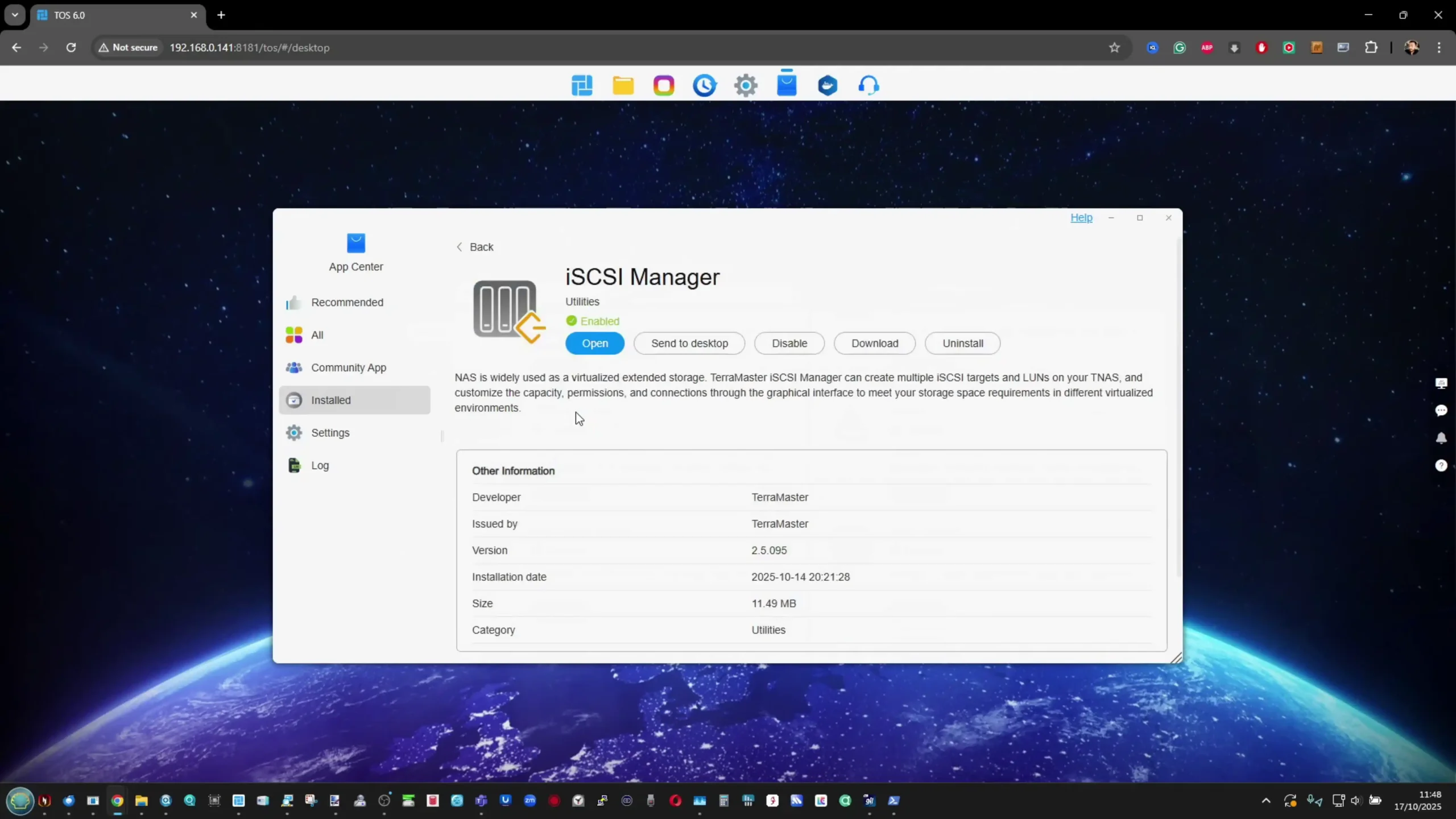
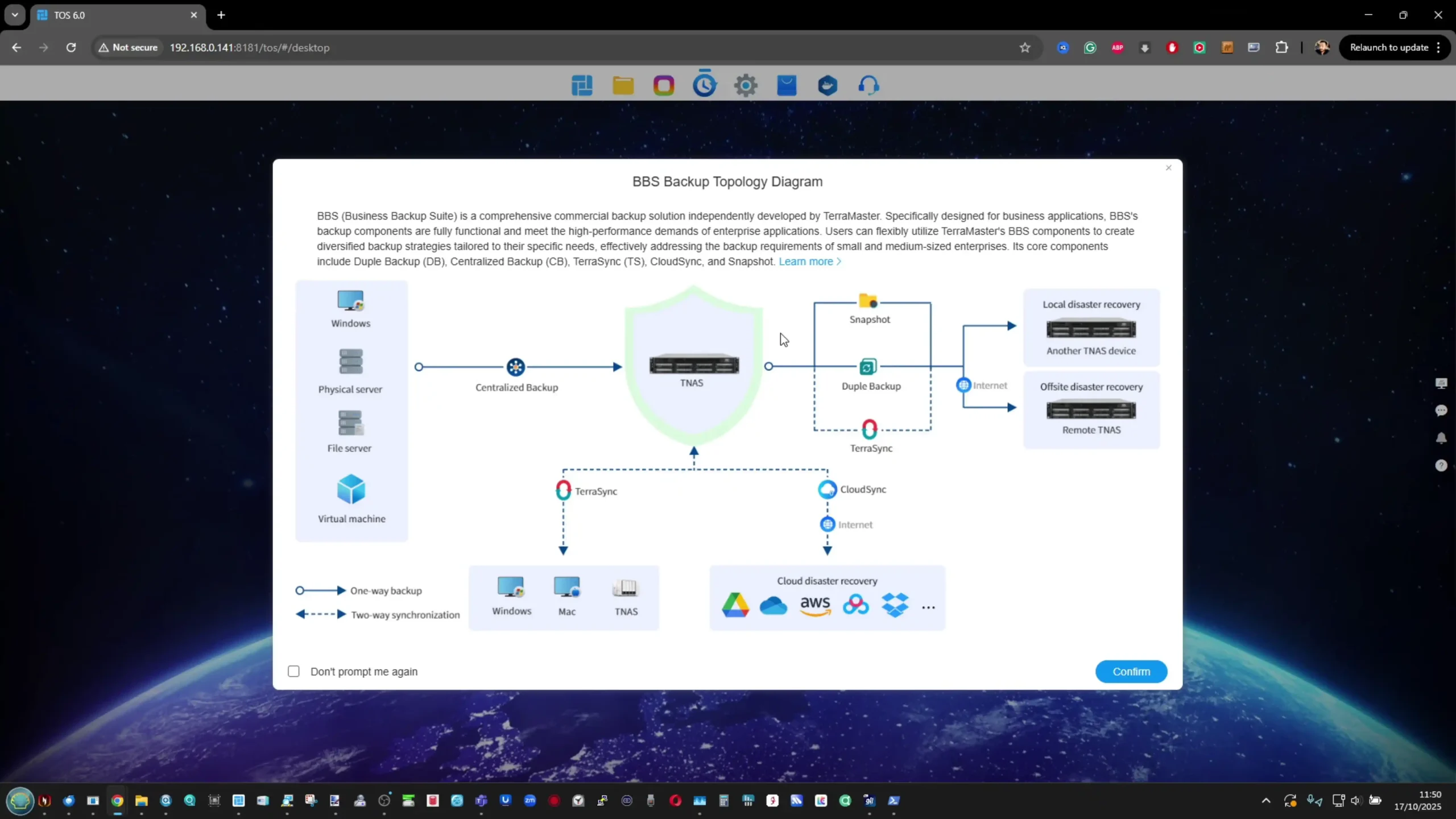
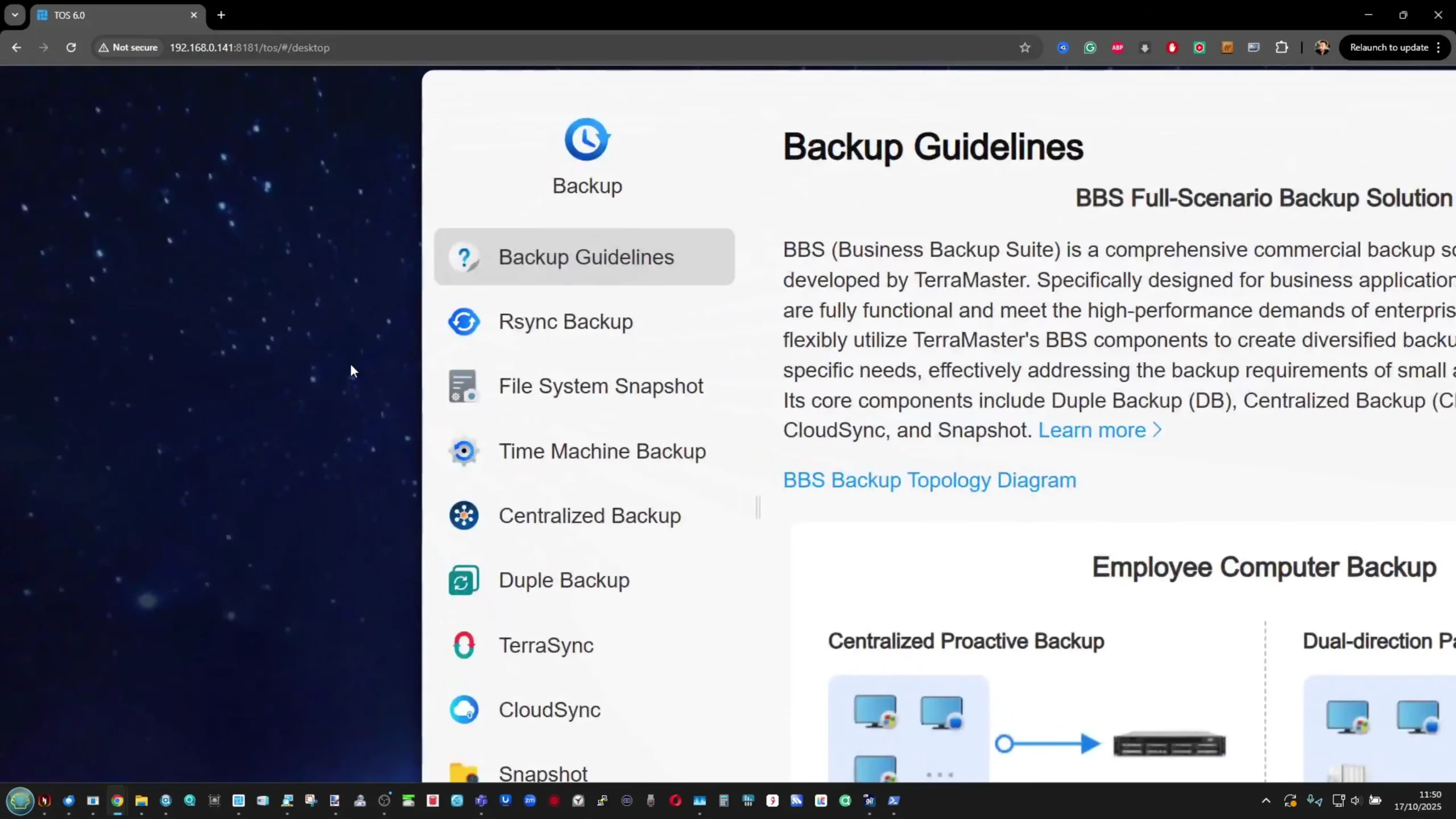
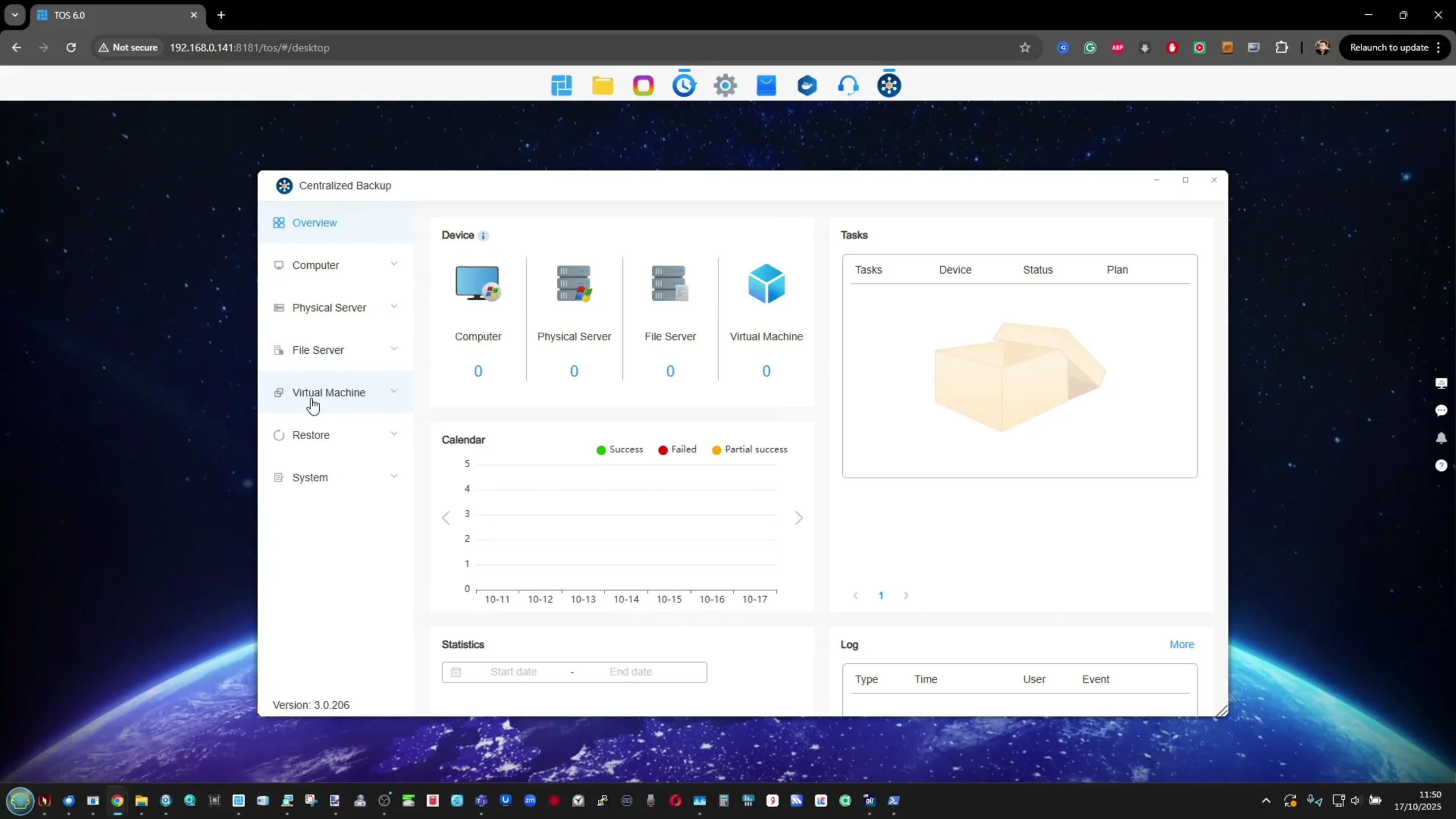
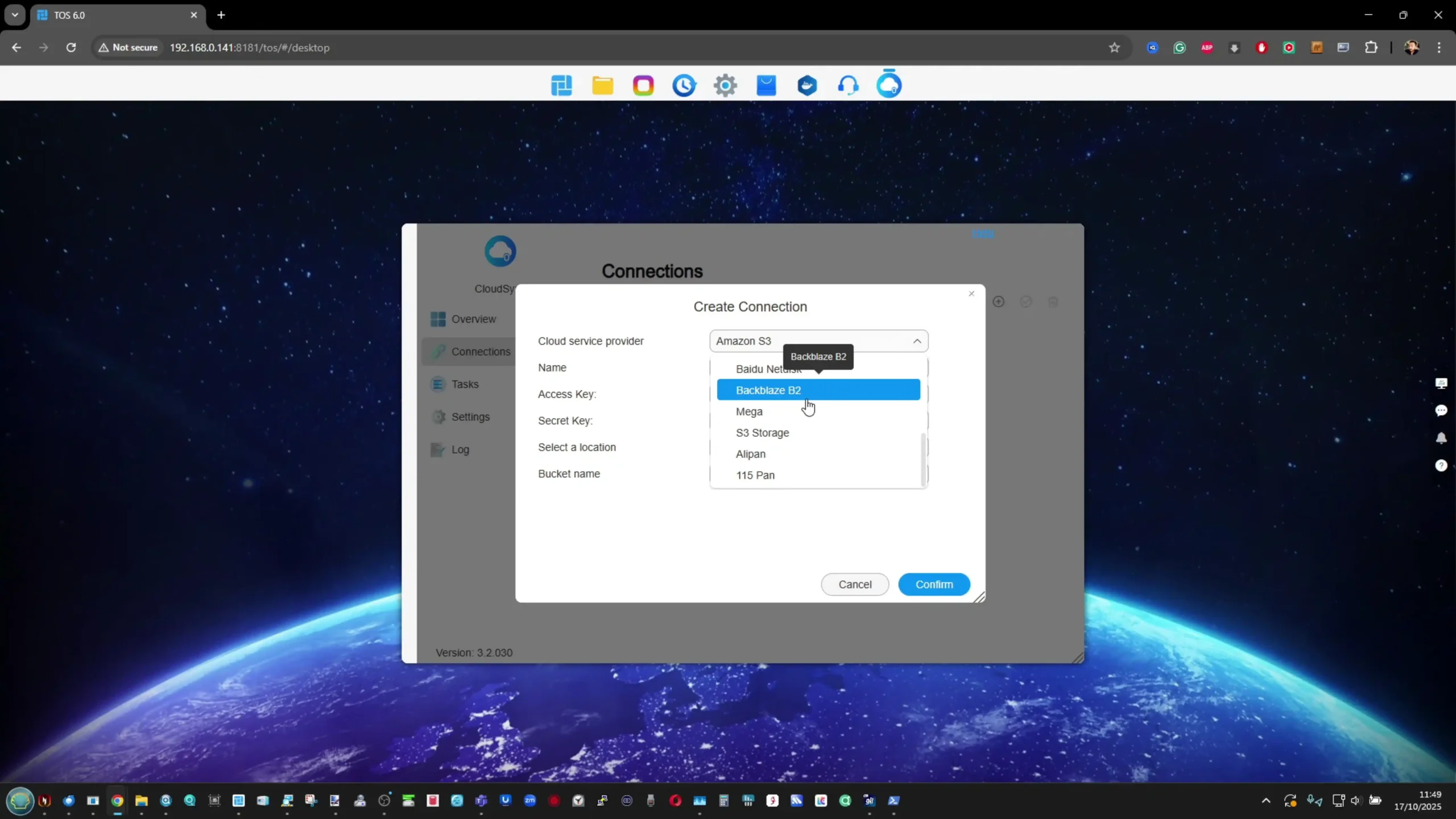
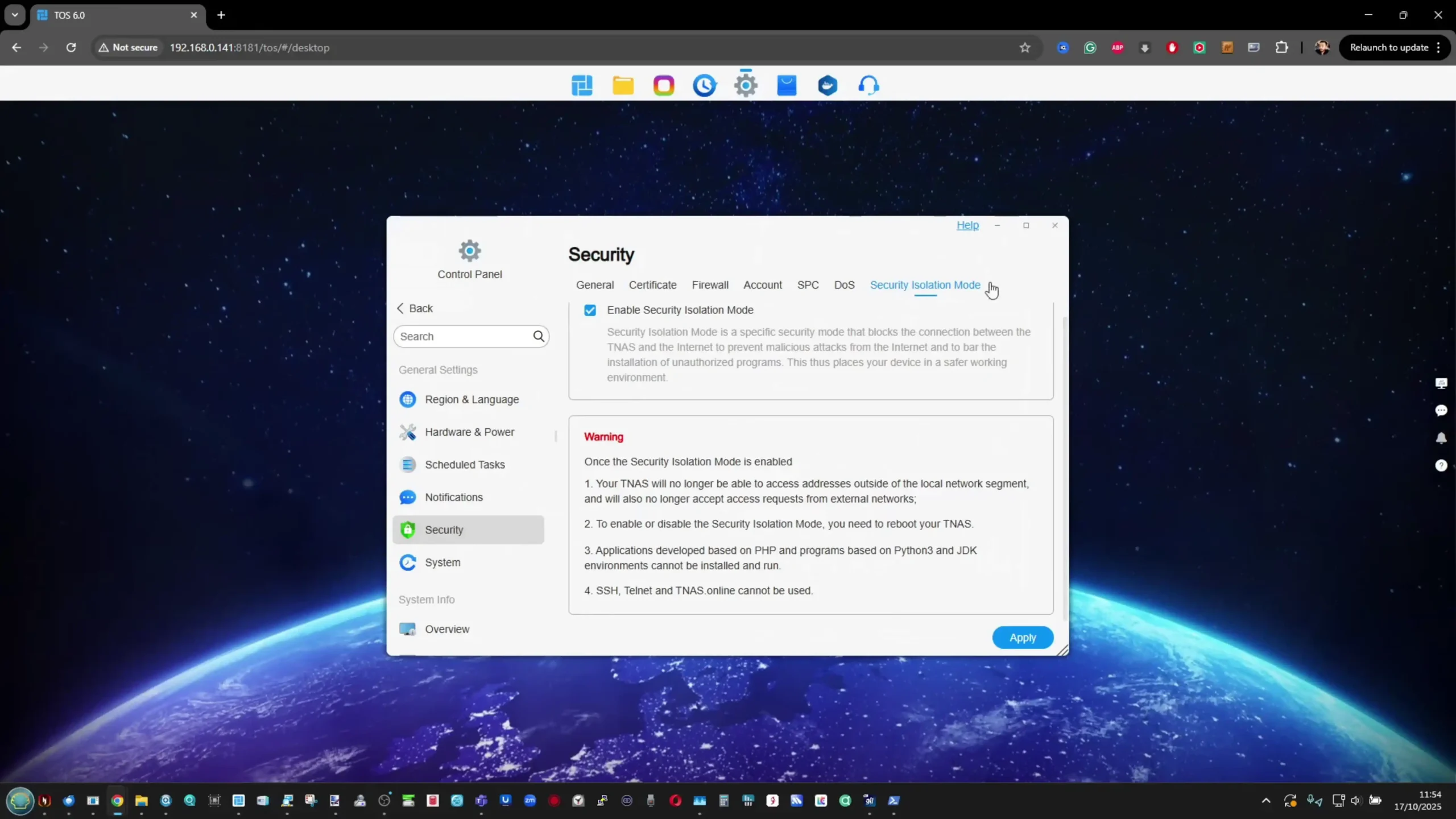
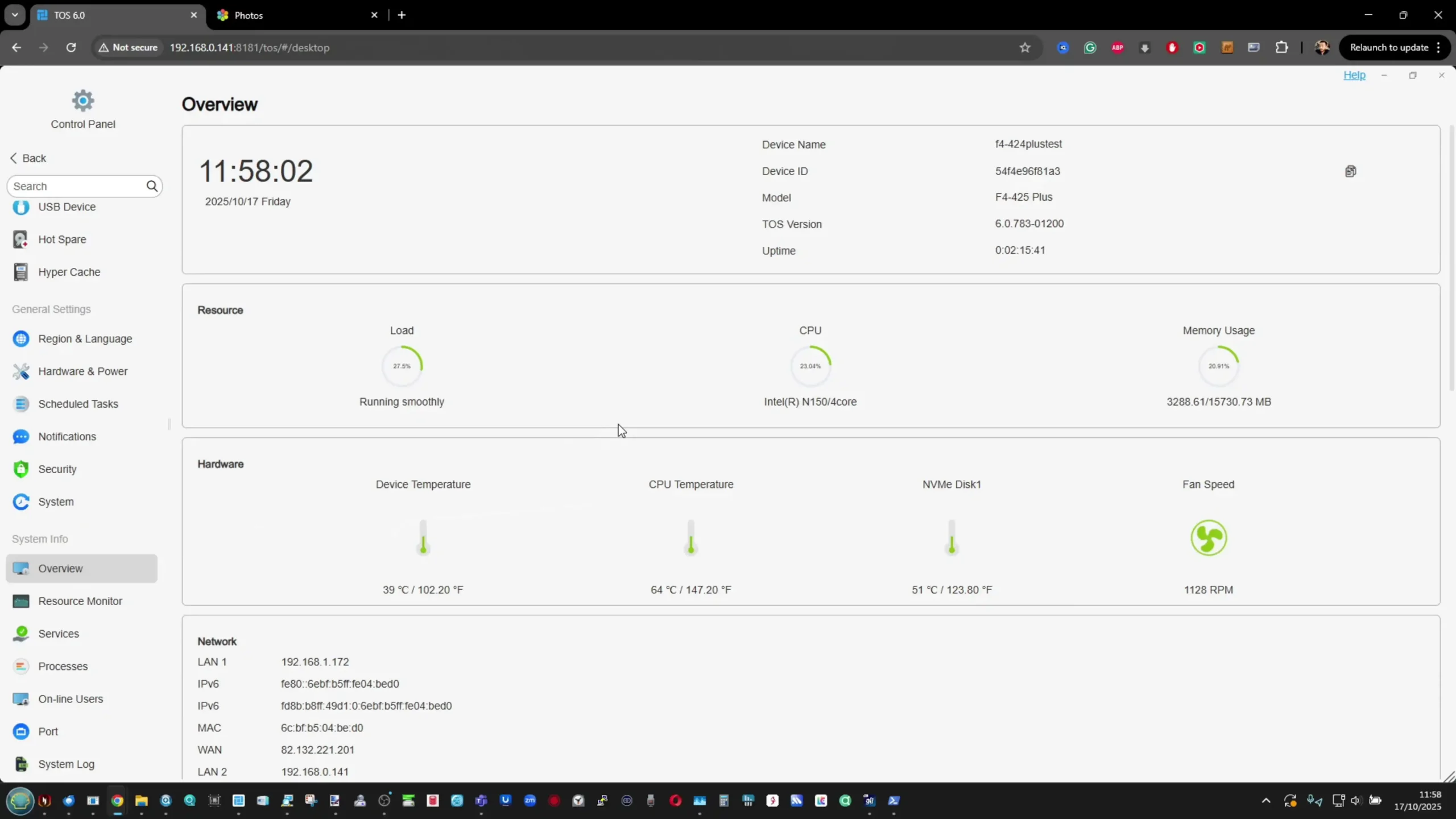
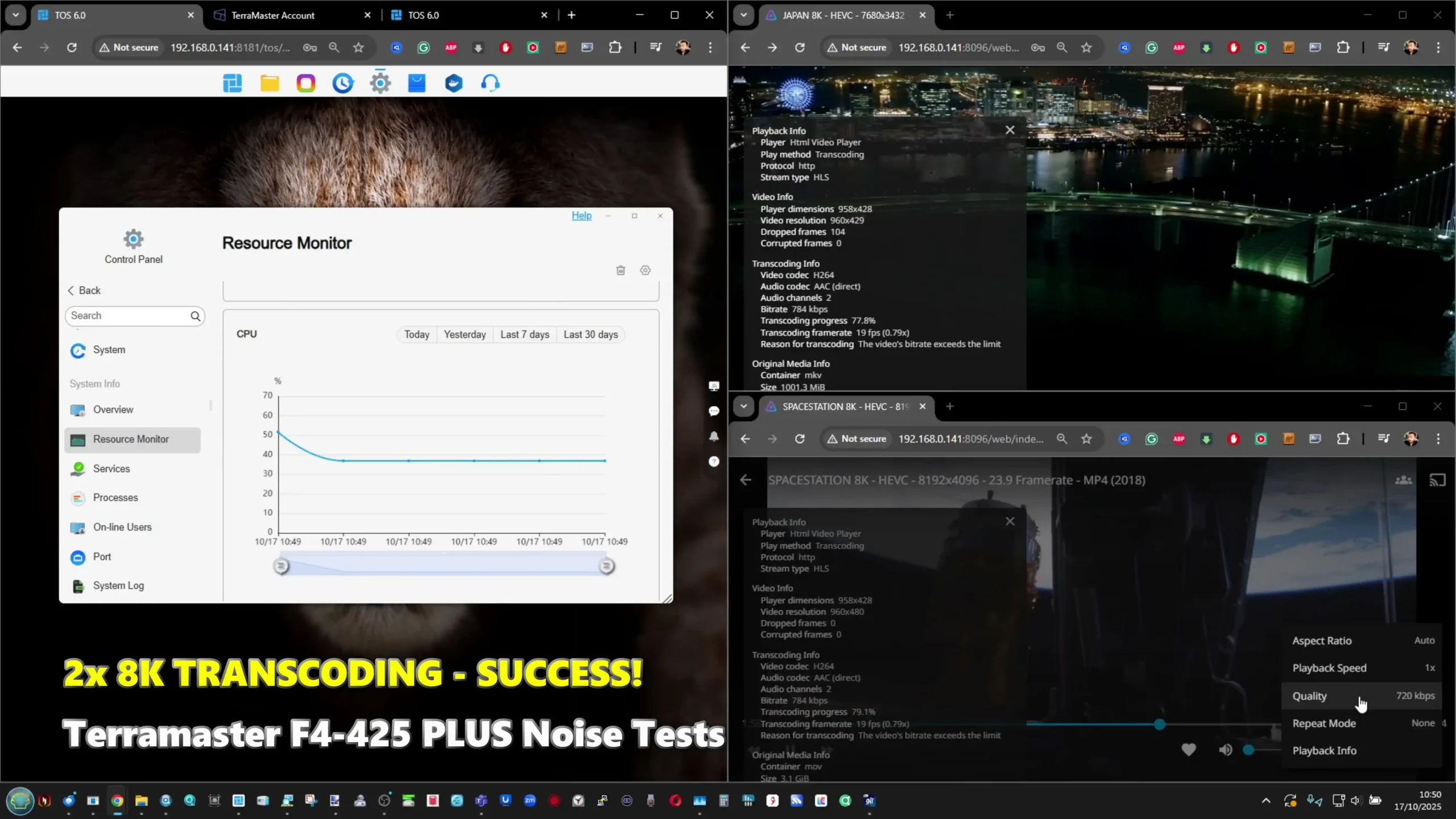
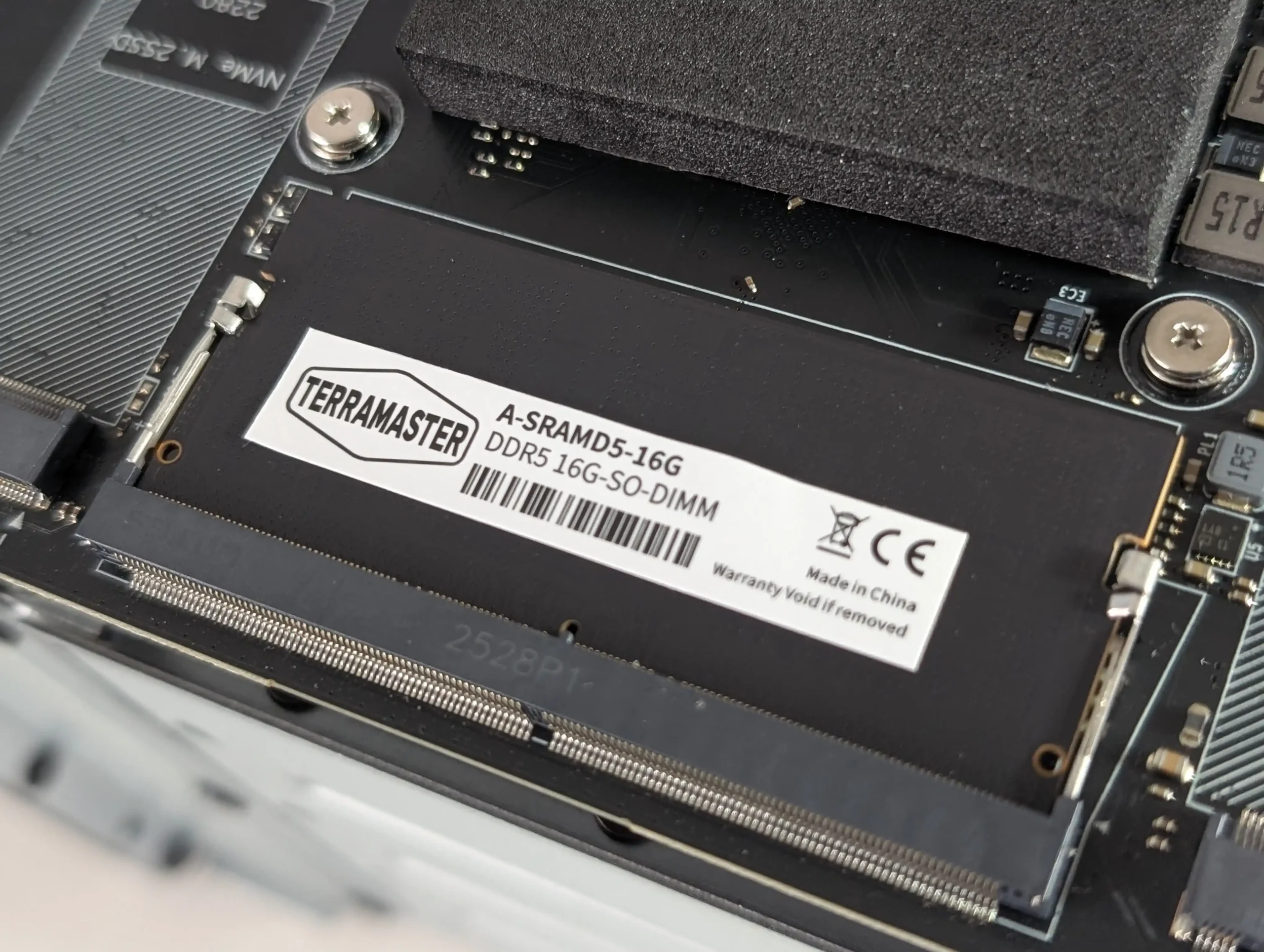
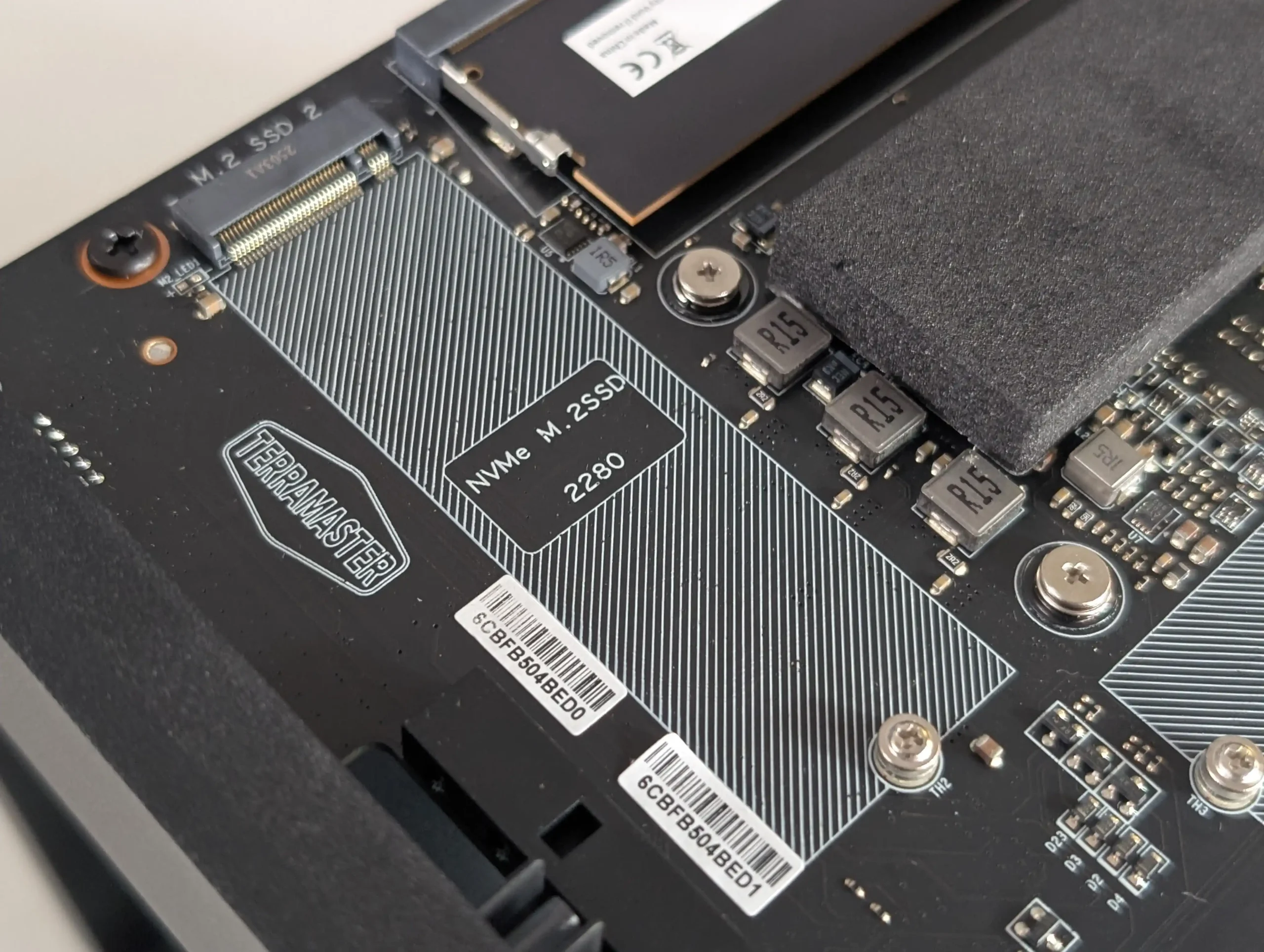
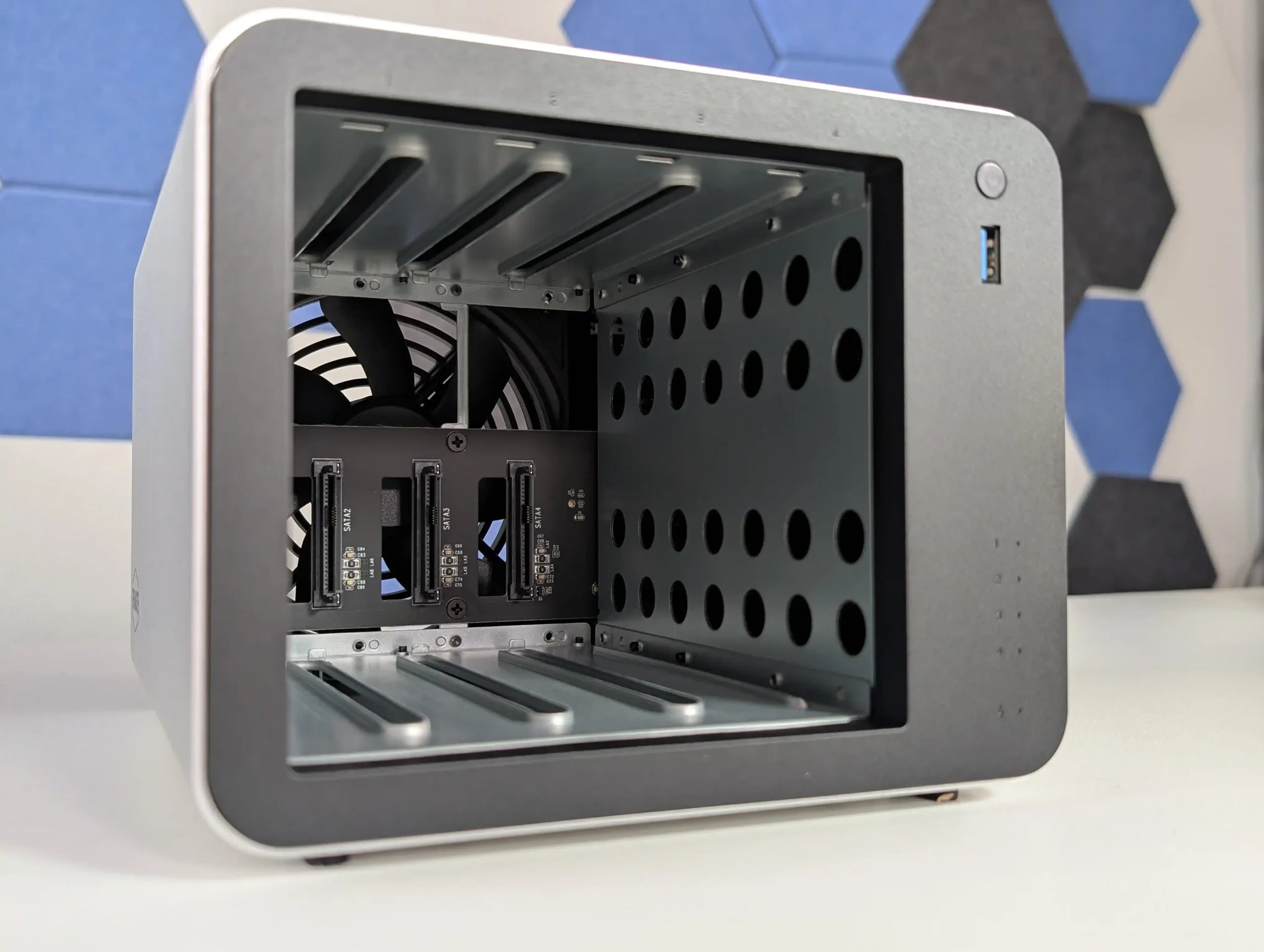
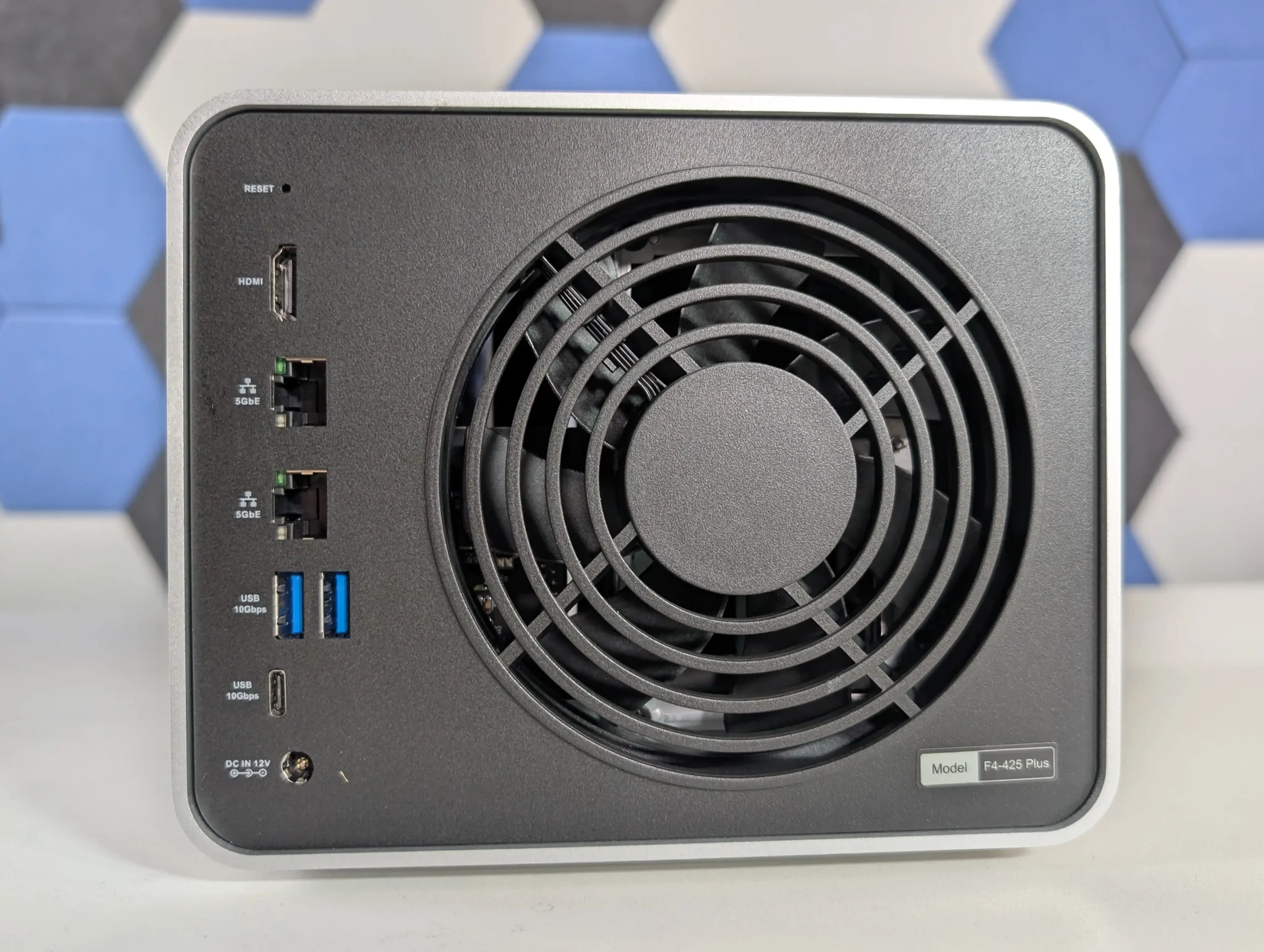
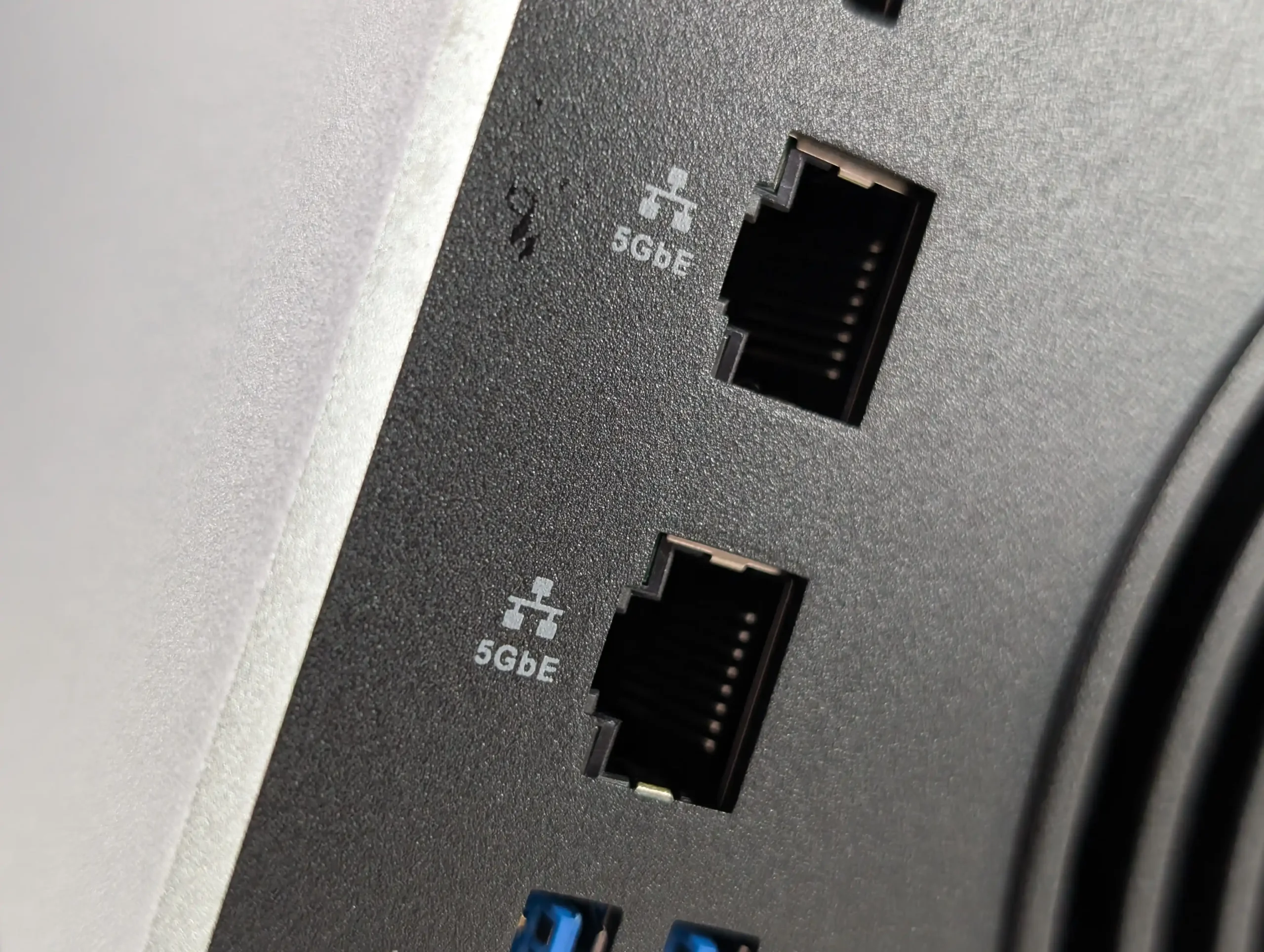
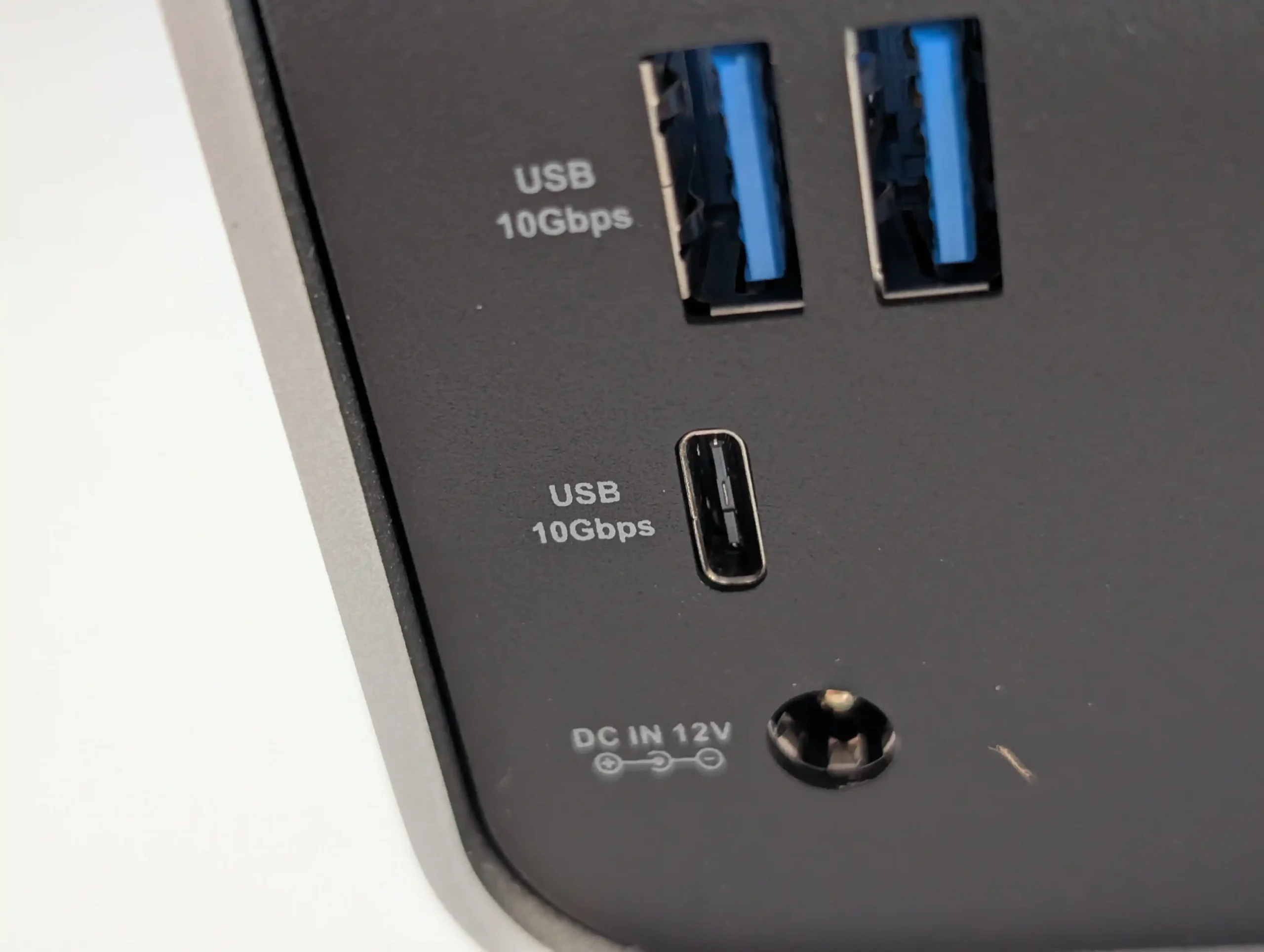

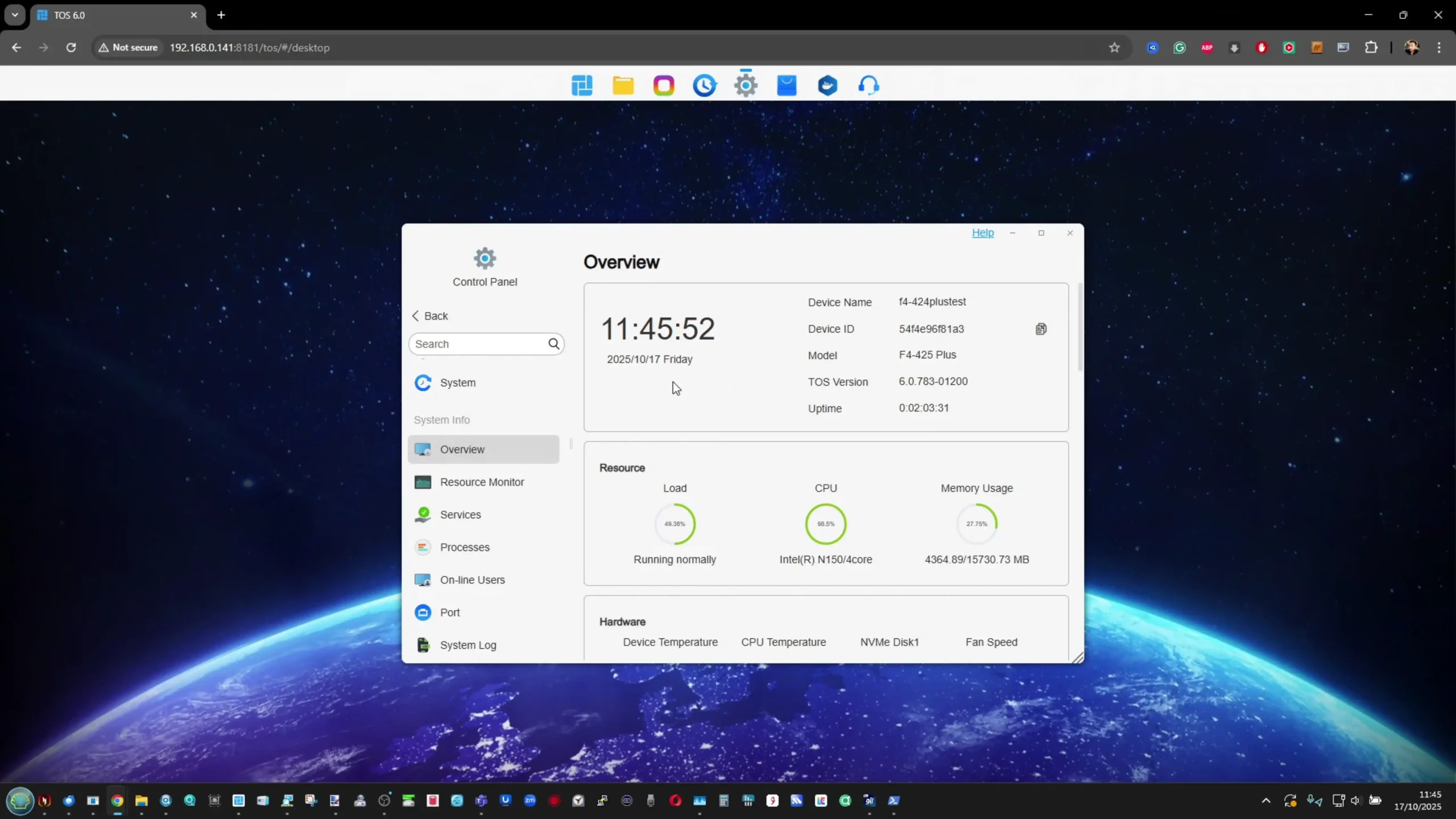
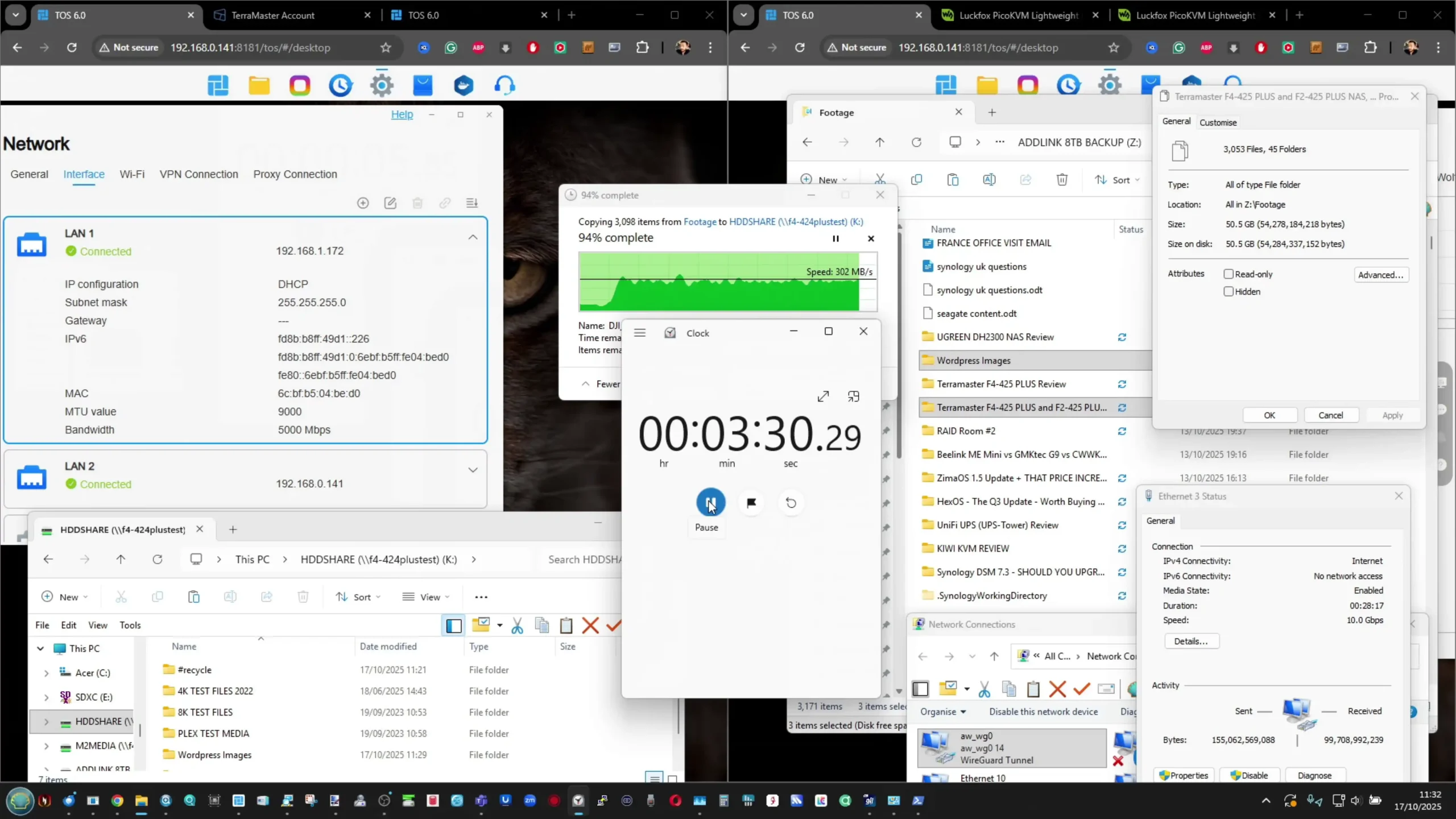
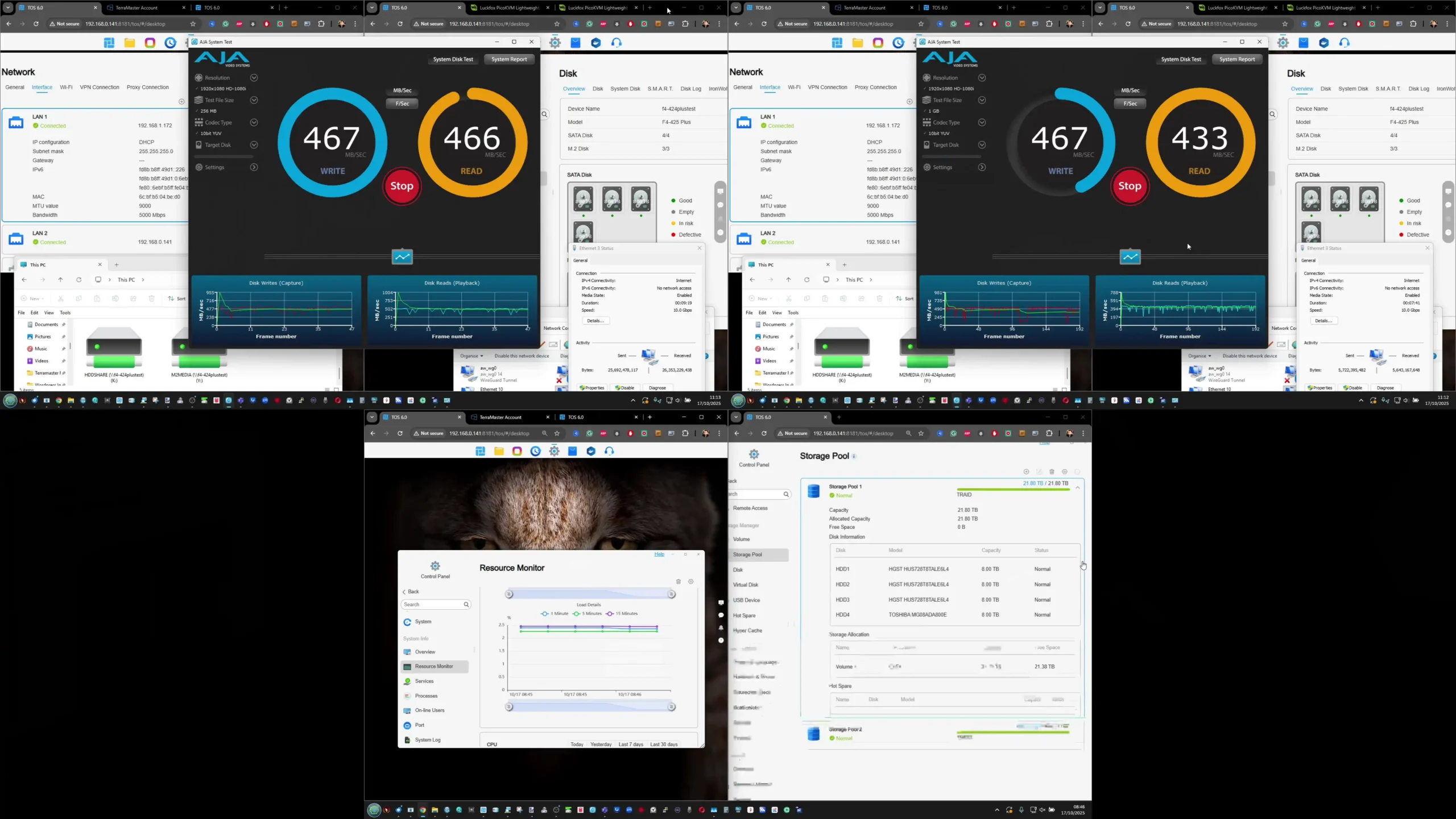
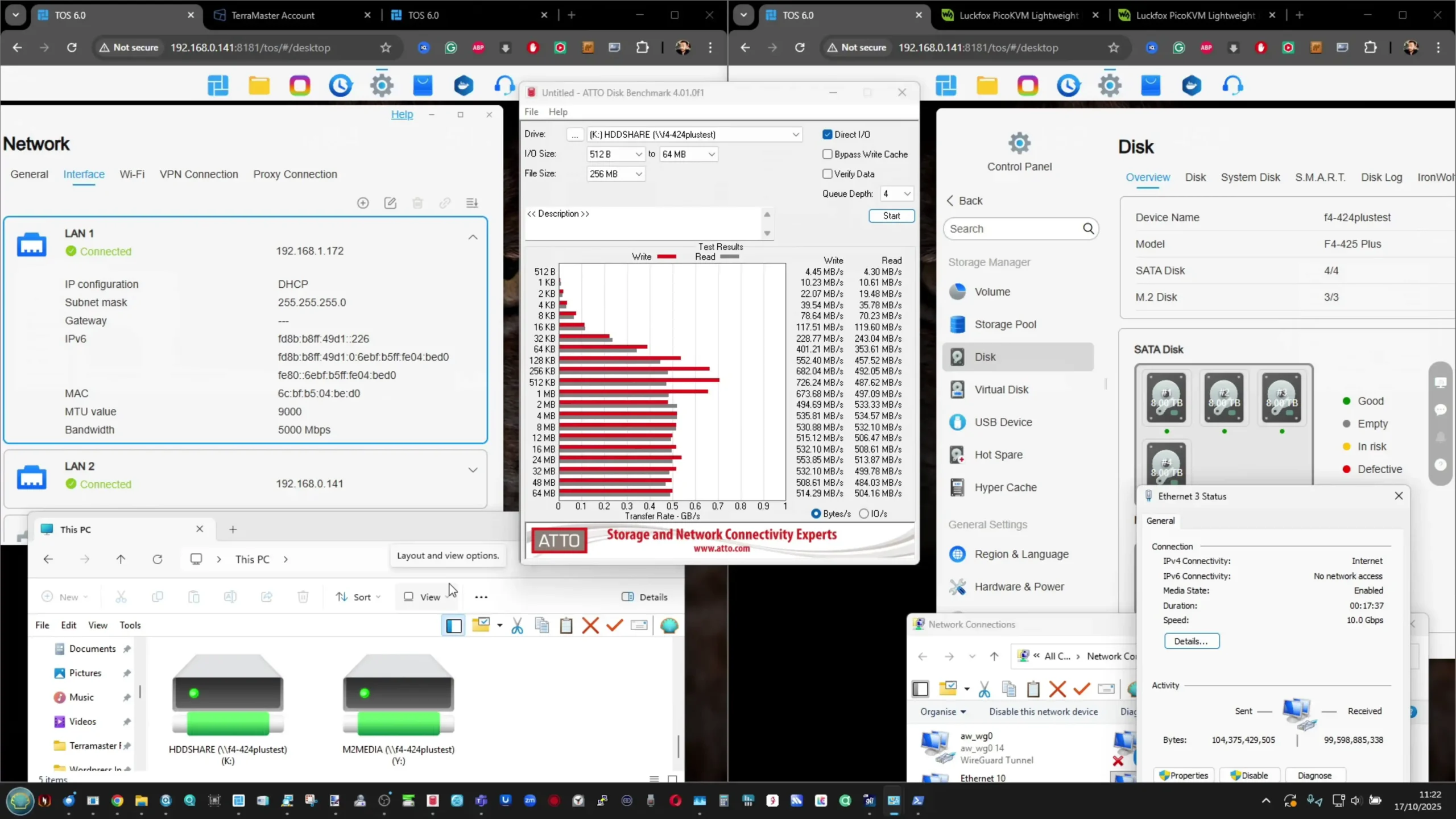
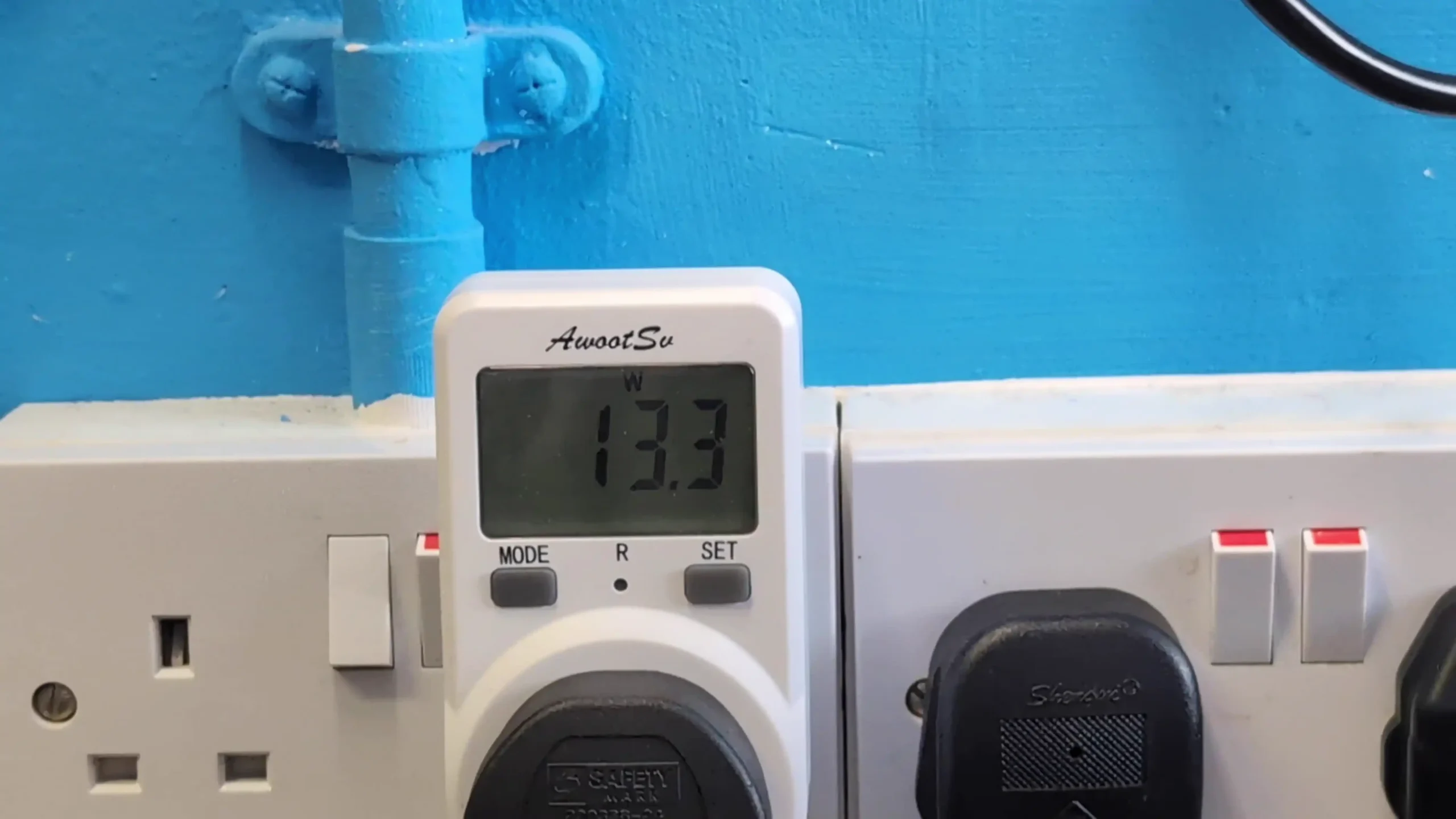
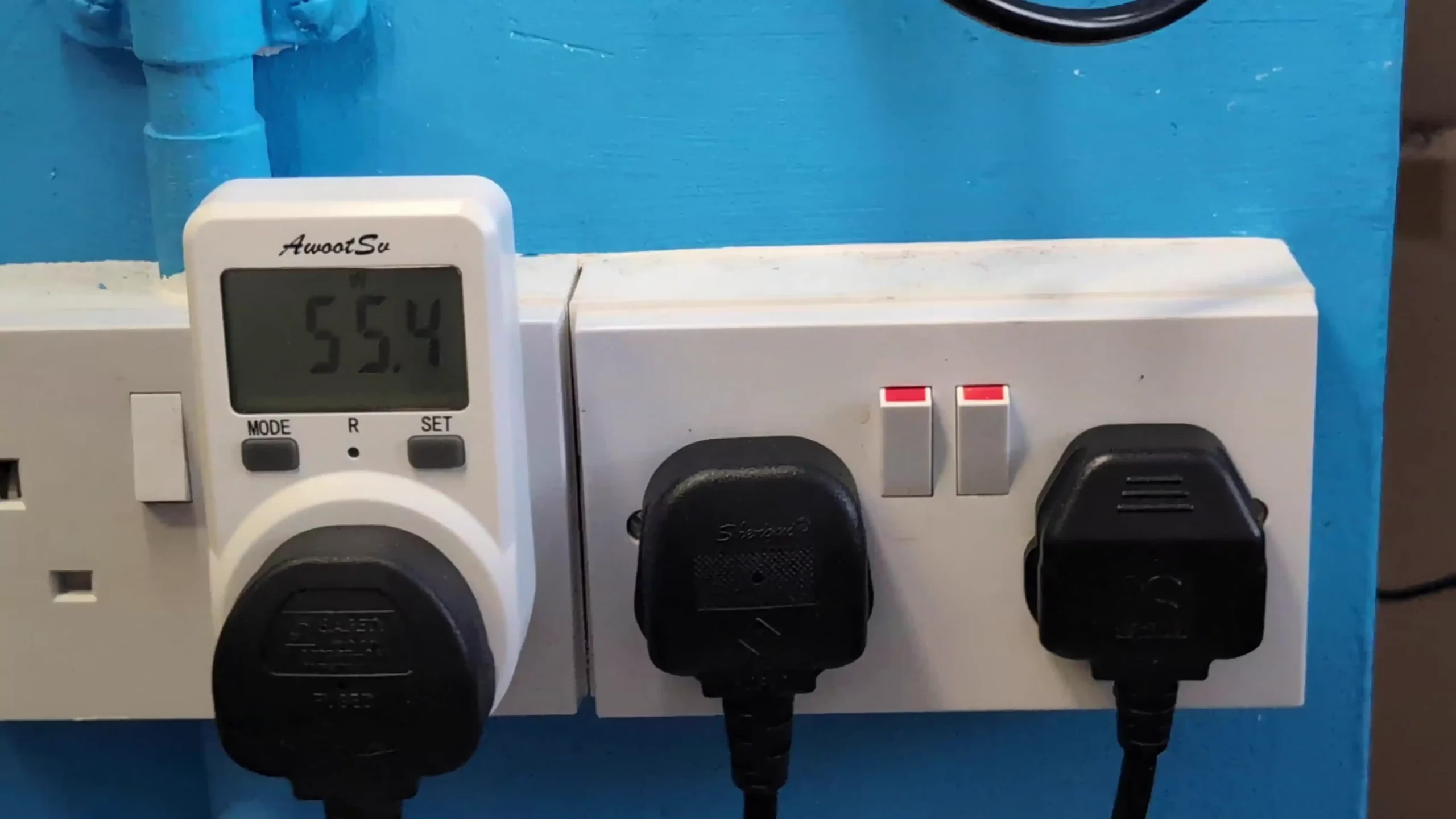
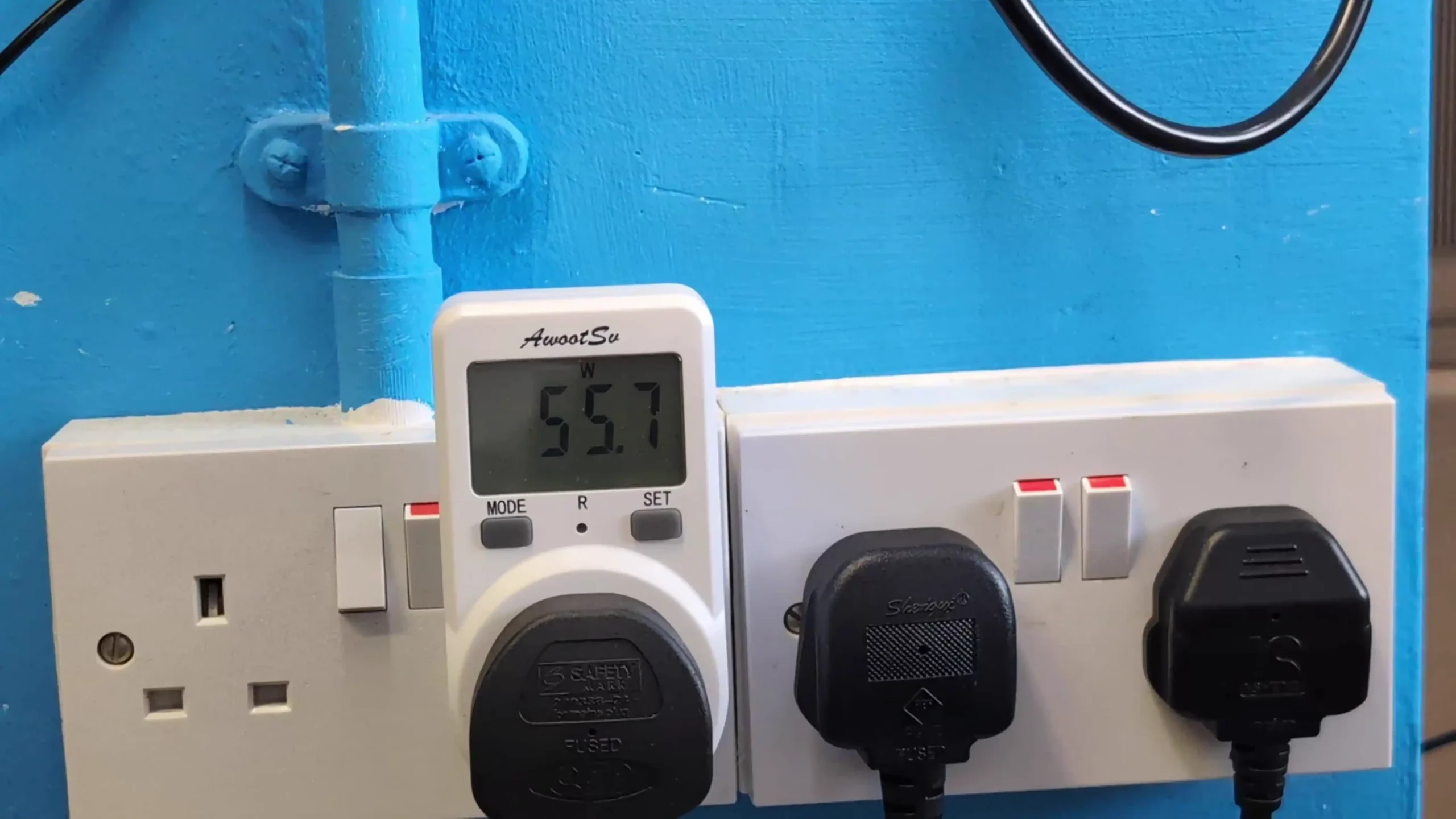
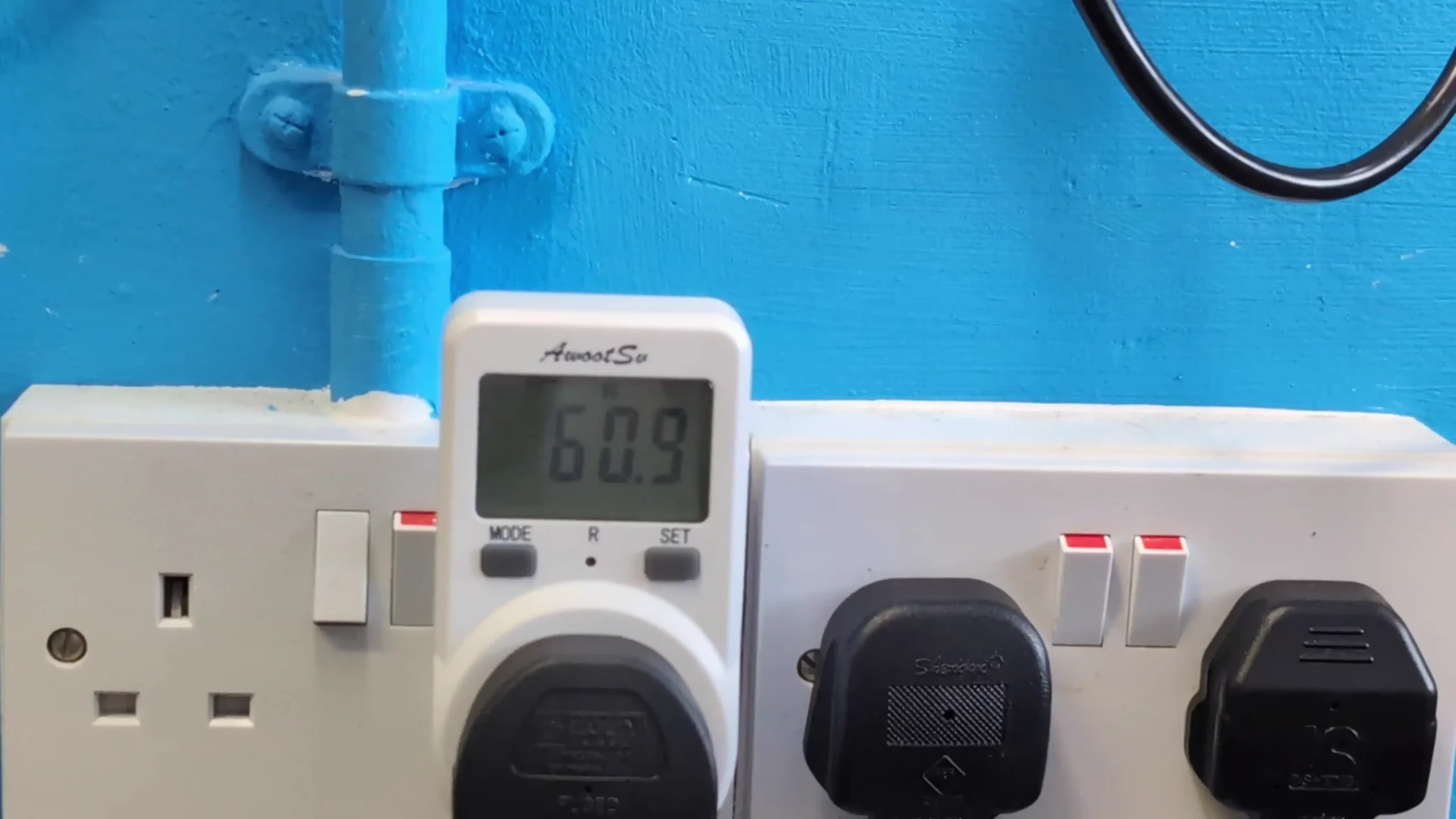
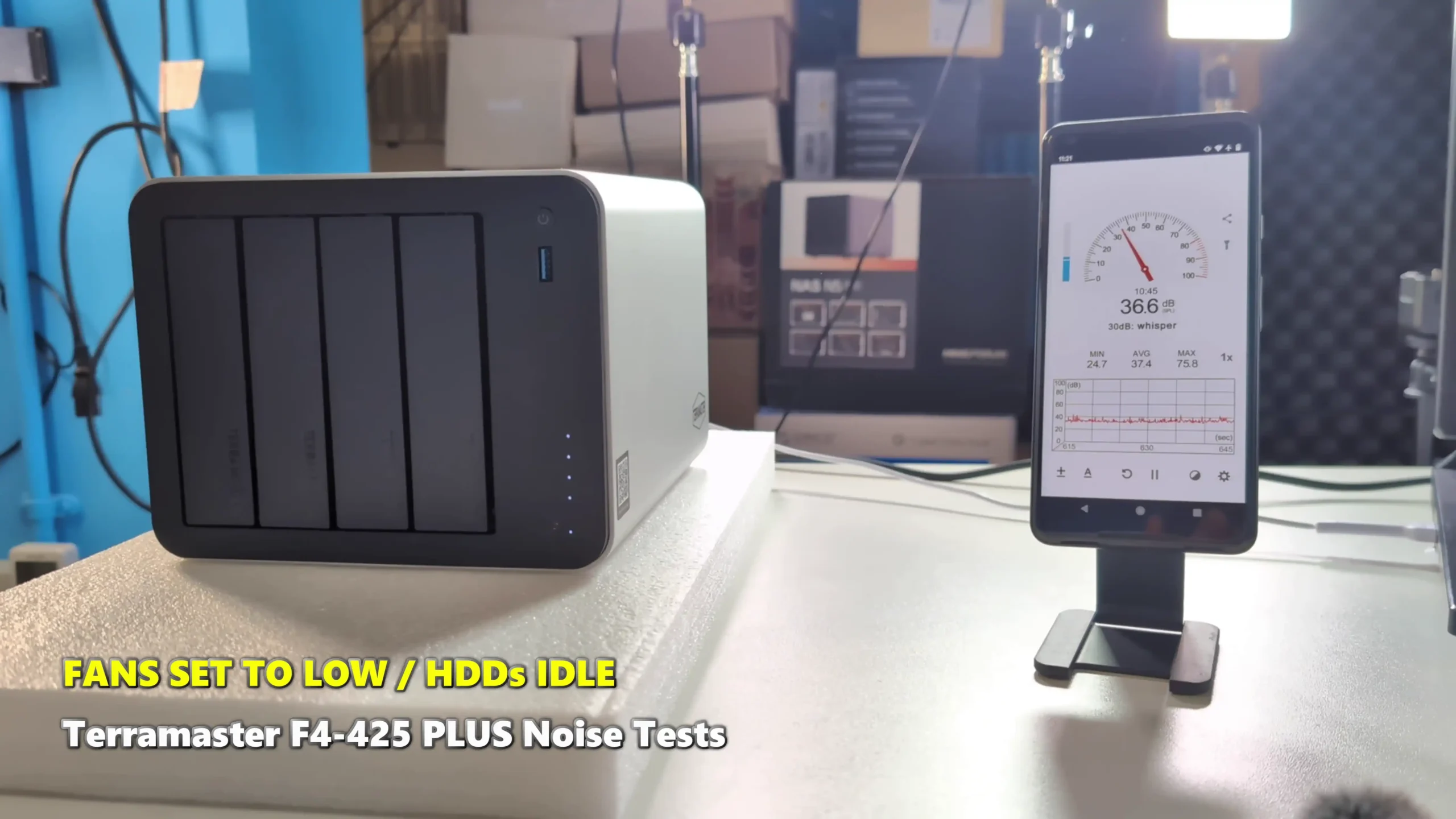
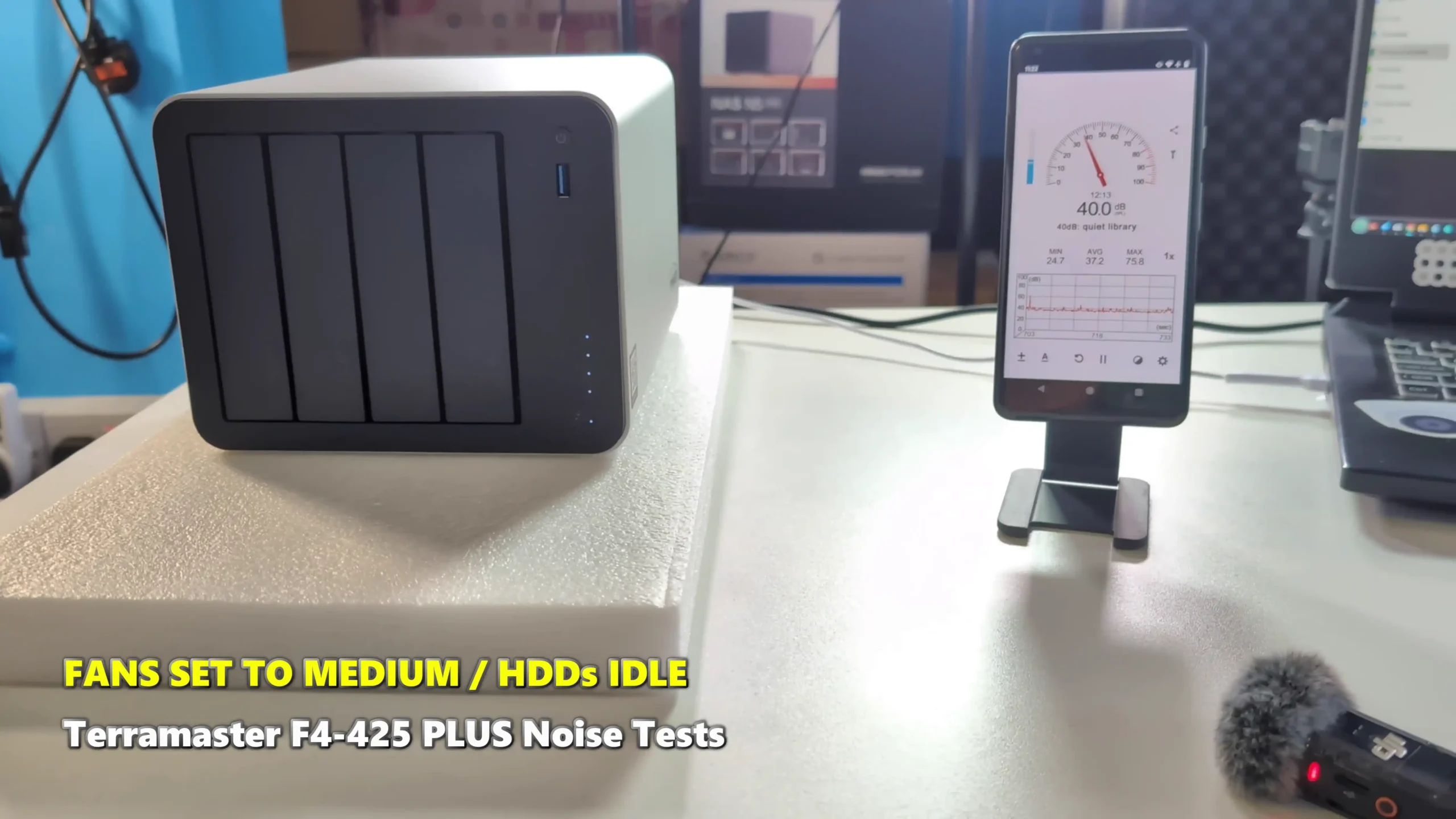
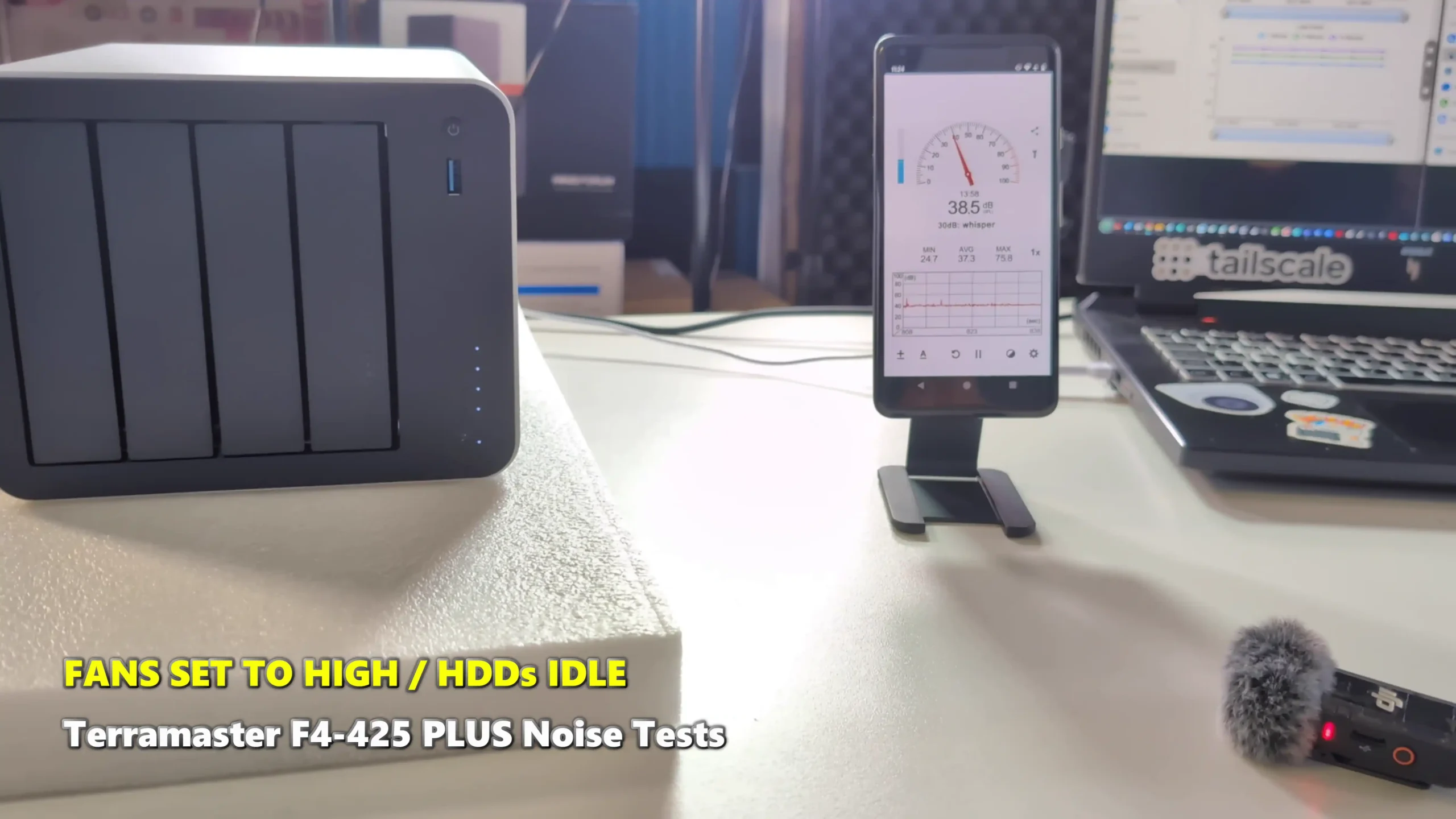
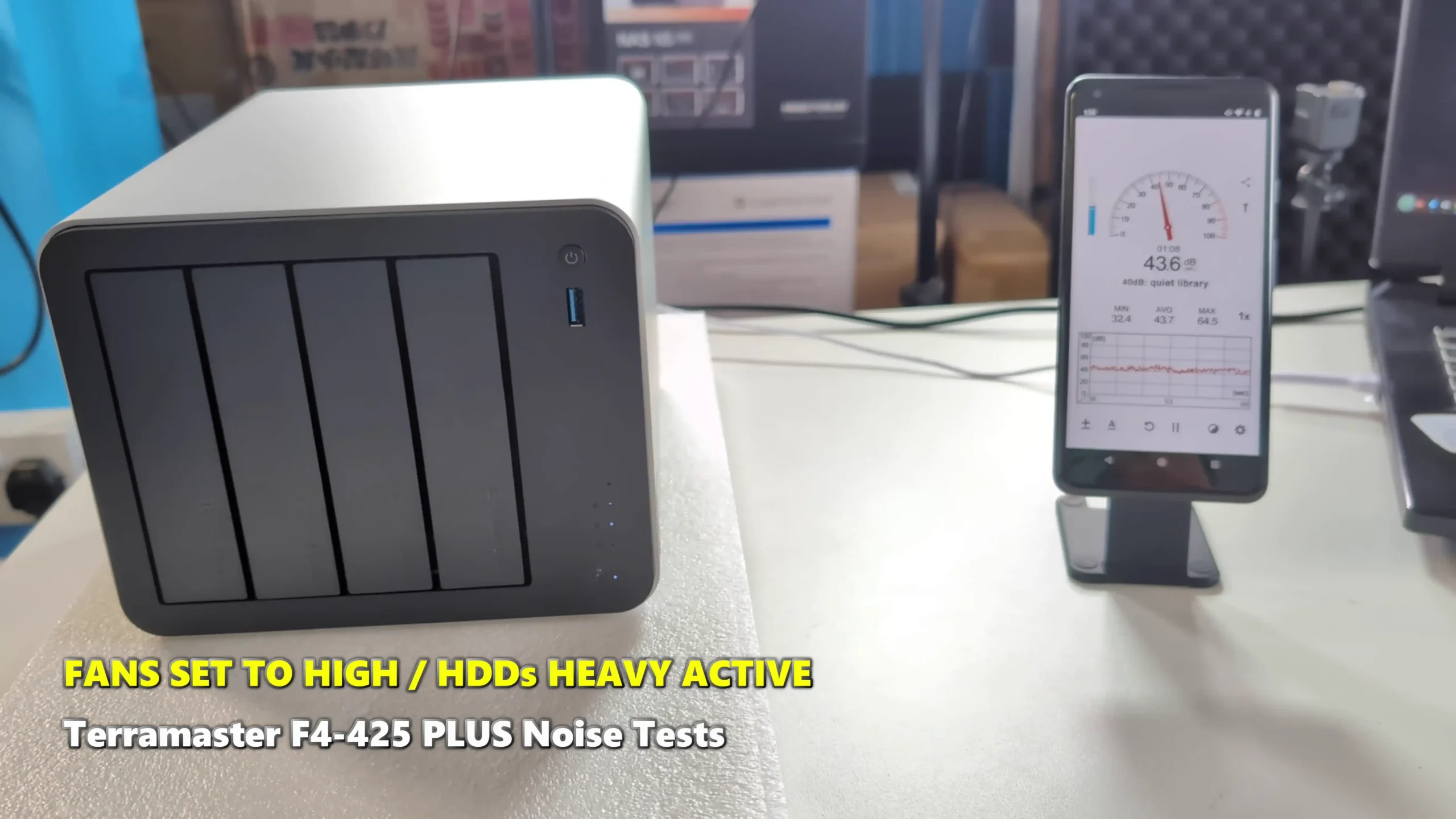
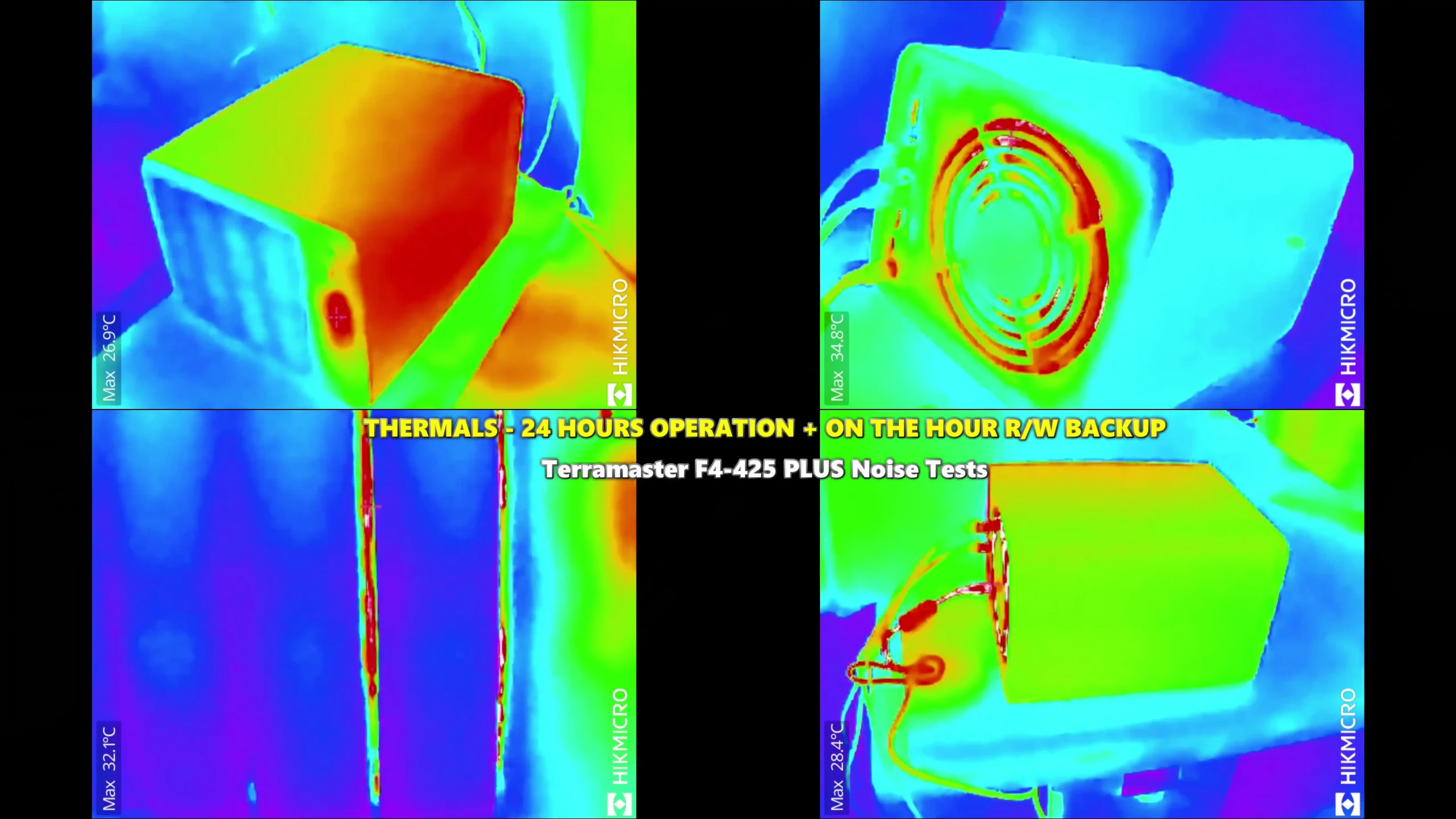
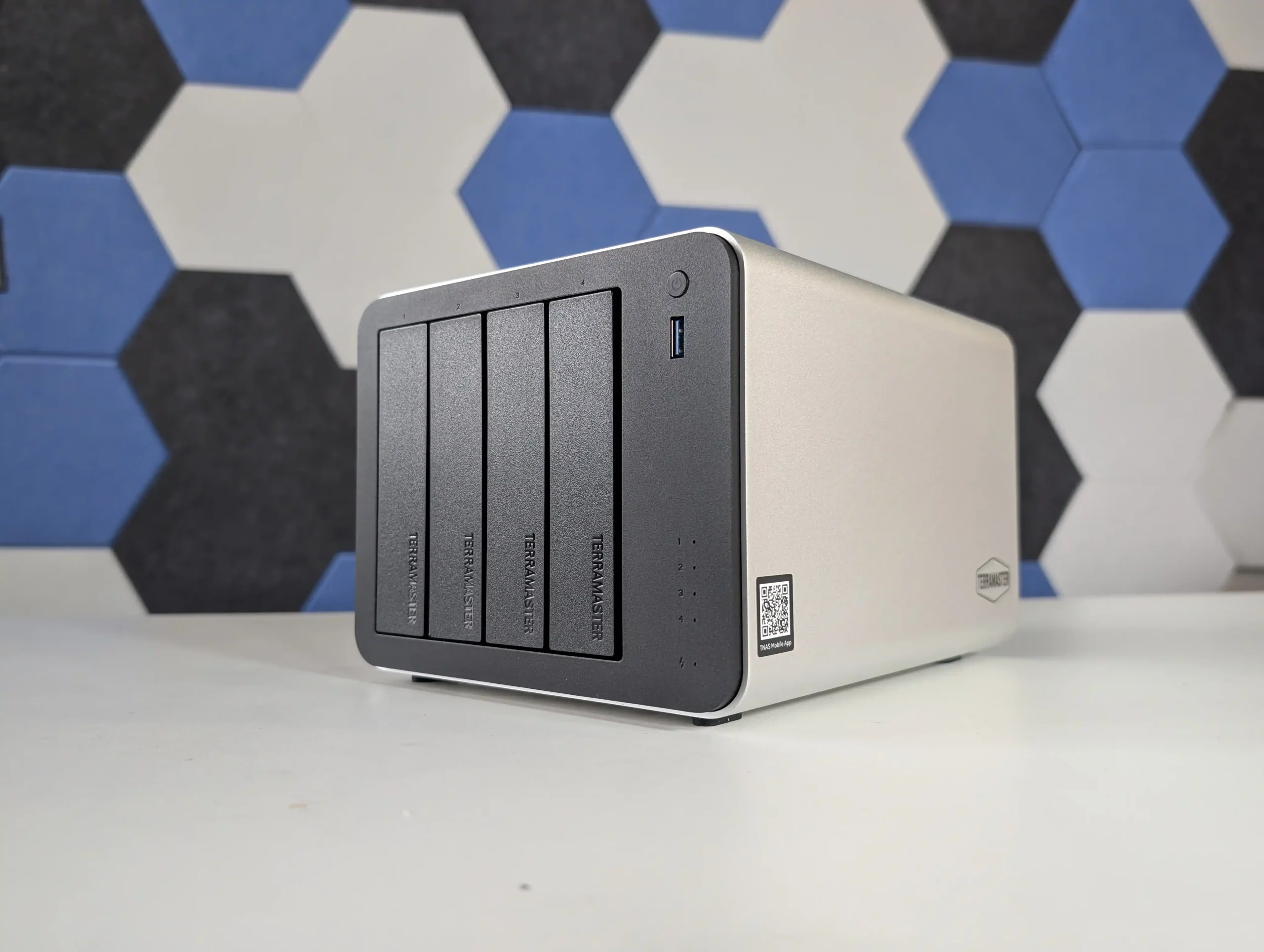
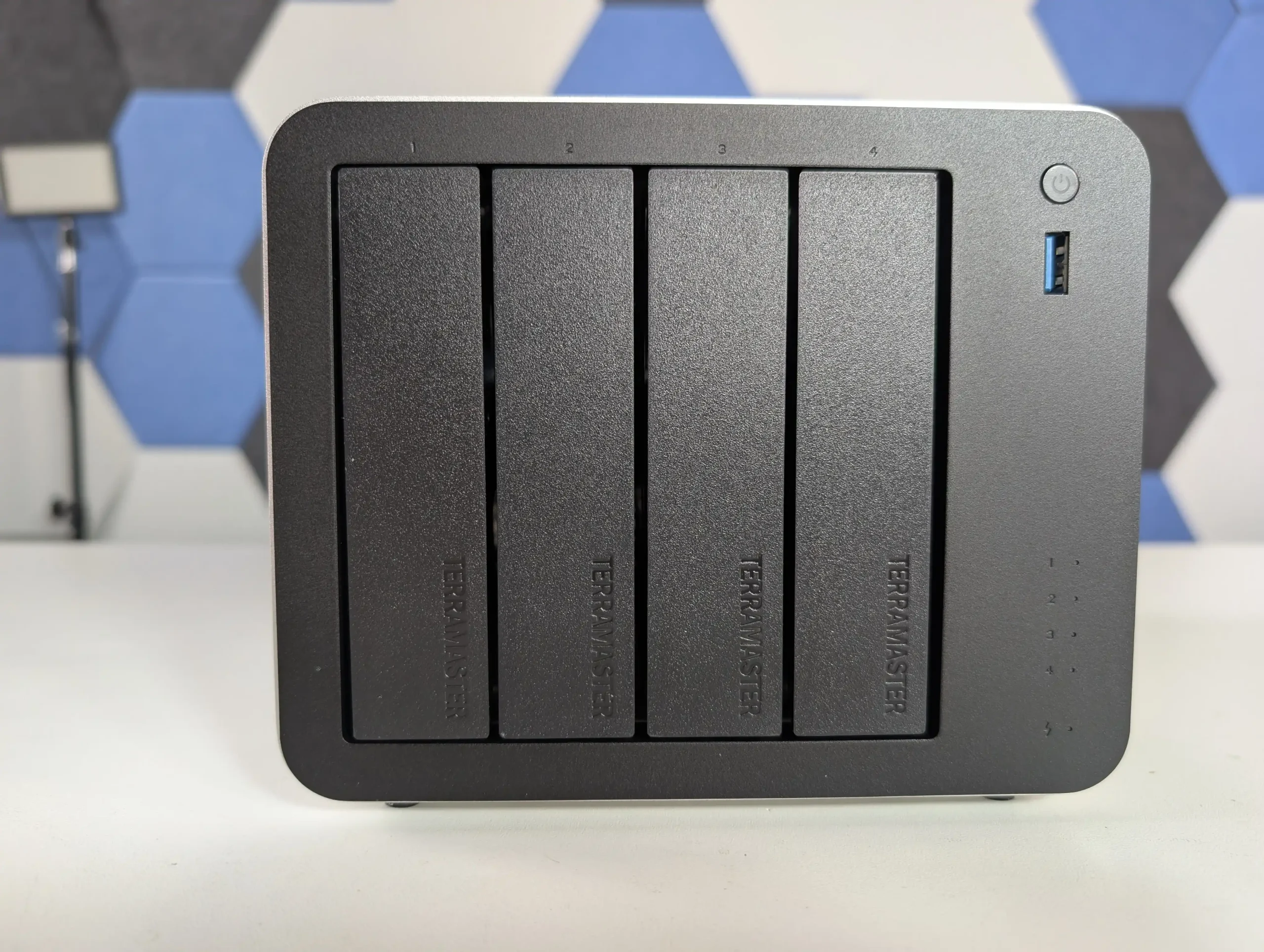
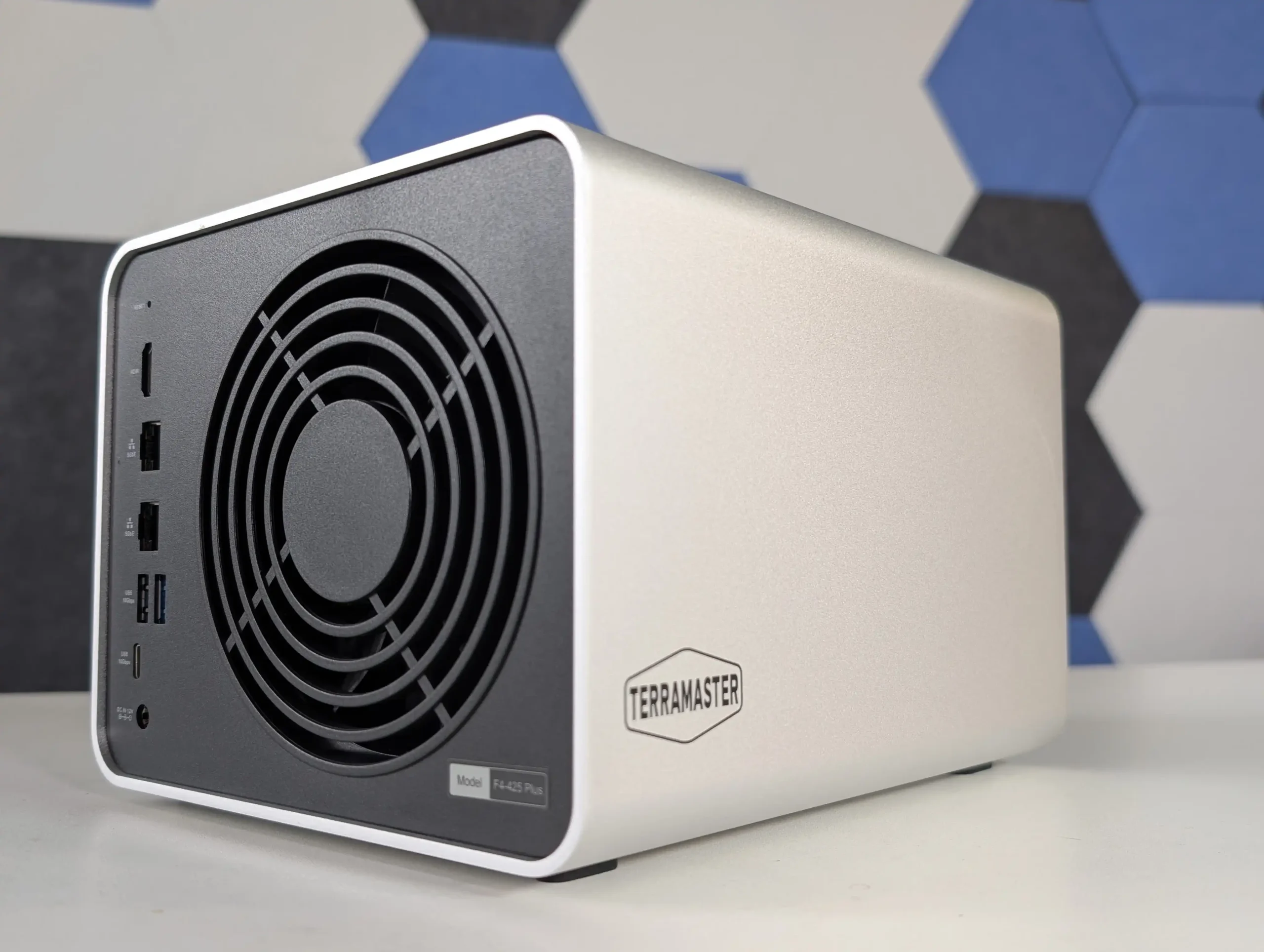
 SUBSCRIBE TO OUR NEWSLETTER