Le 17 février 2026, le fournisseur d'accès internet Free a annoncé offrir la fonctionnalité Cybersécurité Essentielle sans surcoût à tous ses clients Freebox Pro. Une offre déjà incluse pour les nouveaux abonnés, désormais accessible à l'ensemble des anciens clients.
Le 17 février 2026, le fournisseur d'accès internet Free a annoncé offrir la fonctionnalité Cybersécurité Essentielle sans surcoût à tous ses clients Freebox Pro. Une offre déjà incluse pour les nouveaux abonnés, désormais accessible à l'ensemble des anciens clients.
La PS6 de Sony, attendue autour de 2027, pourrait finalement sortir en 2028 voire 2029, ont indiqué des sources proches du dossier à Bloomberg. En cause : la pénurie mondiale de RAM.
Après les Pixel 10, au tour des Pixel 9 de recevoir une compatibilité avec la technologie AirDrop d'Apple. D'autres appareils devraient être servis en 2026.
Voilà maintenant près de six ans que la PS5 est présente dans nos salons. Au fil des années, la console a accumulé non seulement des déclinaisons (Slim et Pro), mais aussi tout un tas de classiques. Du survival horror au FPS nerveux jusqu'au RPG, il y a de quoi faire. On a réuni ici les 20 meilleurs que l'on a pu tester chez Numerama tout au long de la vie de la console.
Deux ans après la sortie du Apple Vision Pro, Google vient de lancer une application YouTube native sur le casque de réalité mixte d'Apple. Un don du ciel pour le produit qui récupère enfin une des applications de streaming les plus populaires.
Sony a organisé une longue conférence dans la nuit du 12 au 13 février dédiée aux futurs jeux de la PS5. Les licences God of War et Kena ont fait leur grand retour, sans oublier des dizaines d'annonces qui devraient plaire aux amateurs de jeux vidéo... Voici le résumé complet des nouveautés du PlayStation State of Play.
– Article invité, rédigé par Vincent Lautier, contient des liens affiliés Amazon –
Tiens, et si on parlait de NAS aujourd’hui ? On va même parle d’une nouveauté qui est sortie il y a quelques jours, le
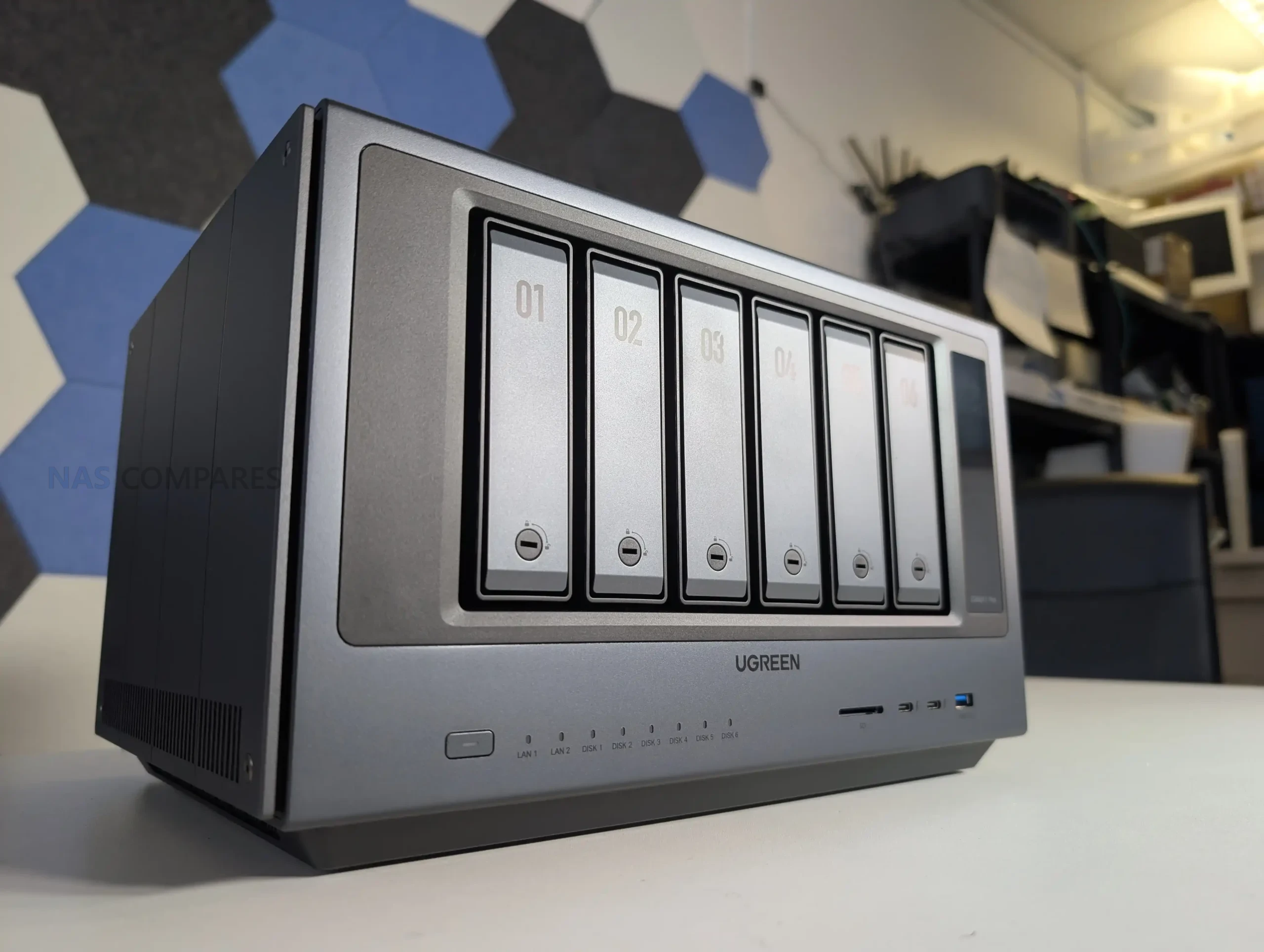
UGREEN NASync DXP4800 Pro
. On ne parle pas de la version "Plus", mais bien du modèle "Pro" qui commence à avoir de sérieux arguments pour lui.
Pour tout vous dire, j'ai profité du besoin d’un couple d'amis pour leur faire une installation propre, avec ce modèle, et c’est vraiment un super produit. Lui est sur PC, elle sur Mac, et ils bossent tout les deux dans la création audiovisuelle. Sauf que voilà, comme souvent dans ces métiers, avec des centaines de gigas de russes qui trainent un peu partout, la gestion des données devient vite un sujet sensible et d'inquiétude, avec plein de disques durs externes un peu partout, en vrac, rien de pratique.
Si on regarde dans les détails son équipement c'est vraiment pas mal du tout. Le bouzin est équipé d'un processeur Intel Core i3-1315U avec 6 cœurs, de 8 Go de RAM DDR5 (qu'on peut pousser jusqu'à 96 Go) et surtout d'un port 10GbE et d'un port 2,5GbE. On a aussi deux emplacements M.2 NVMe pour le cache, c'est complètement optionnel mais ça peut servir pour booster les accès aux petits fichiers. Alors oui, vous allez me dire que ce NAS est peut-être un peu surdimenssioné pour un usage à la maison, mais quand on a aussi un usage pro ou semi-pro, c'est quand même rassurant d'avoir une machine qui ne sera pas à genoux dans trois ans, et qui est évolutive.
Pour l'installation des disques, on a essayé d'être stratégiques en optimisant au mieux les 4 baies. On a monté les deux premiers disques en RAID 1 pour tout ce qui touche au boulot : sauvegarde des projets, rushs originaux et documents administratifs. C'est la ceinture et les bretelles, si un disque lâche, le travail est en sécurité. Pour les deux autres baies, on est partis sur du RAID 0 dédié à Plex. Pourquoi ? Parce que leur bibliothèque de films, on s'en fiche un peu de la perdre. Si un disque fini par décéder, ce n'est pas un drame national, on re-télécharge les fichiers et c'est reparti.
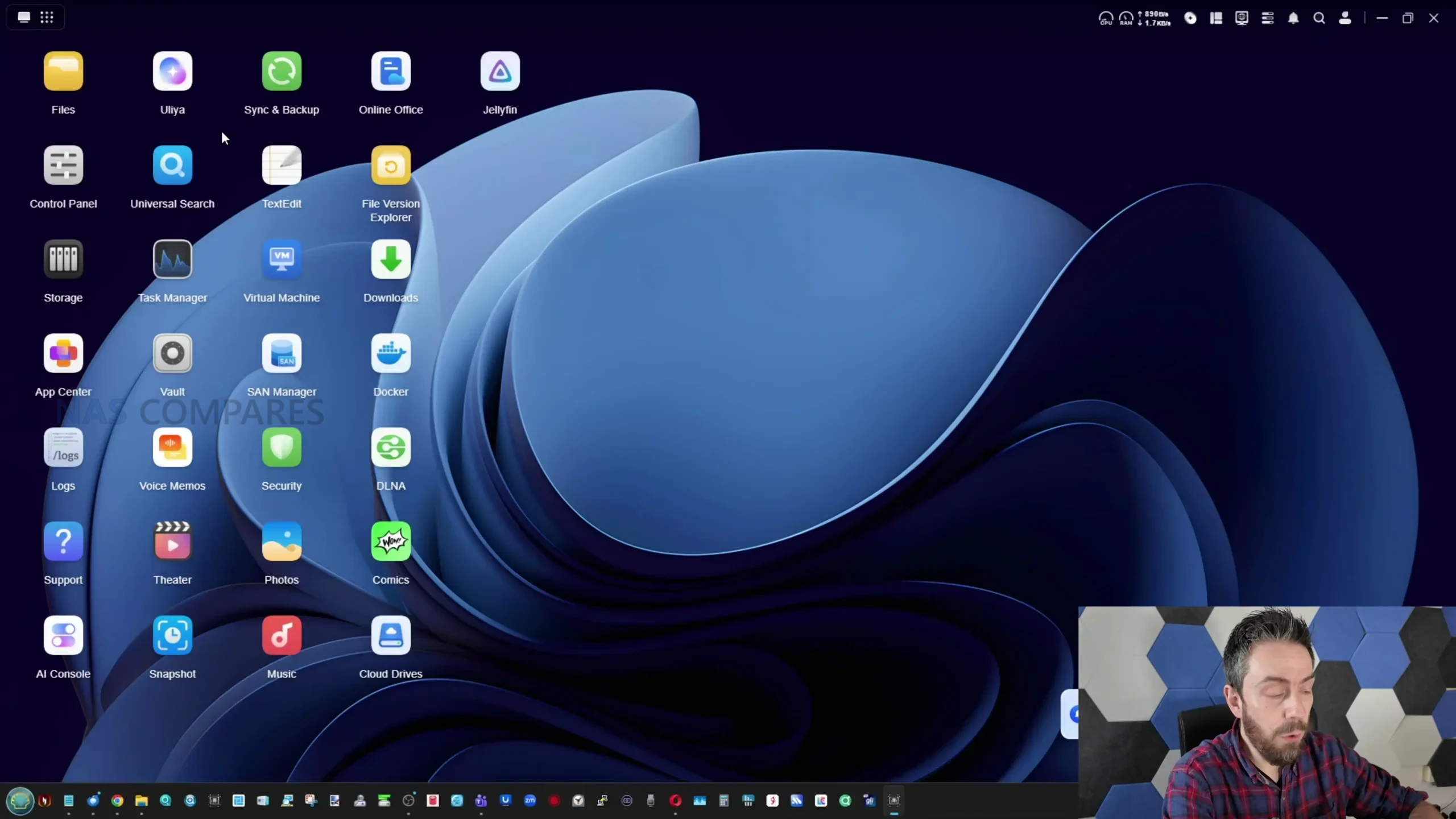
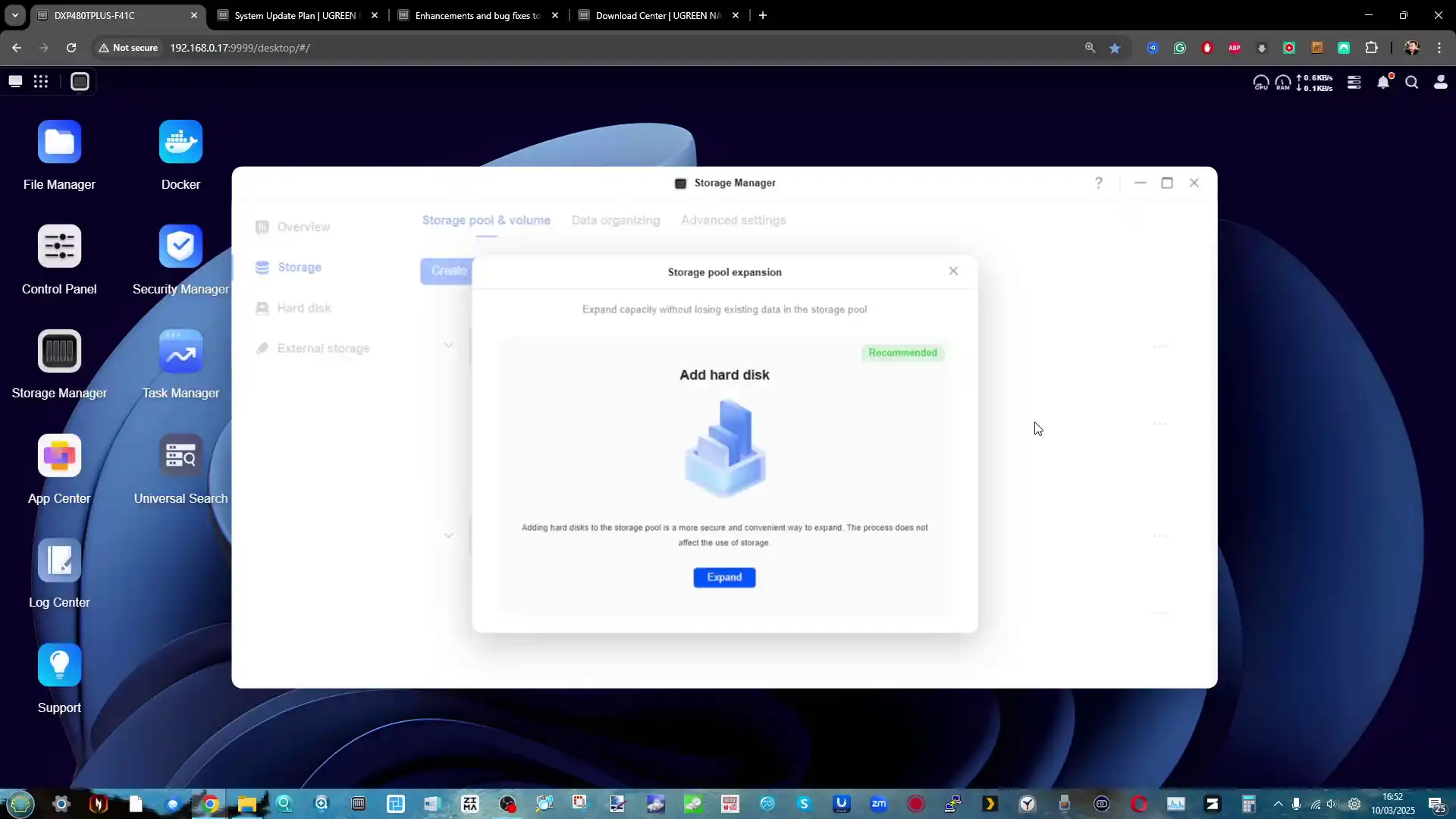
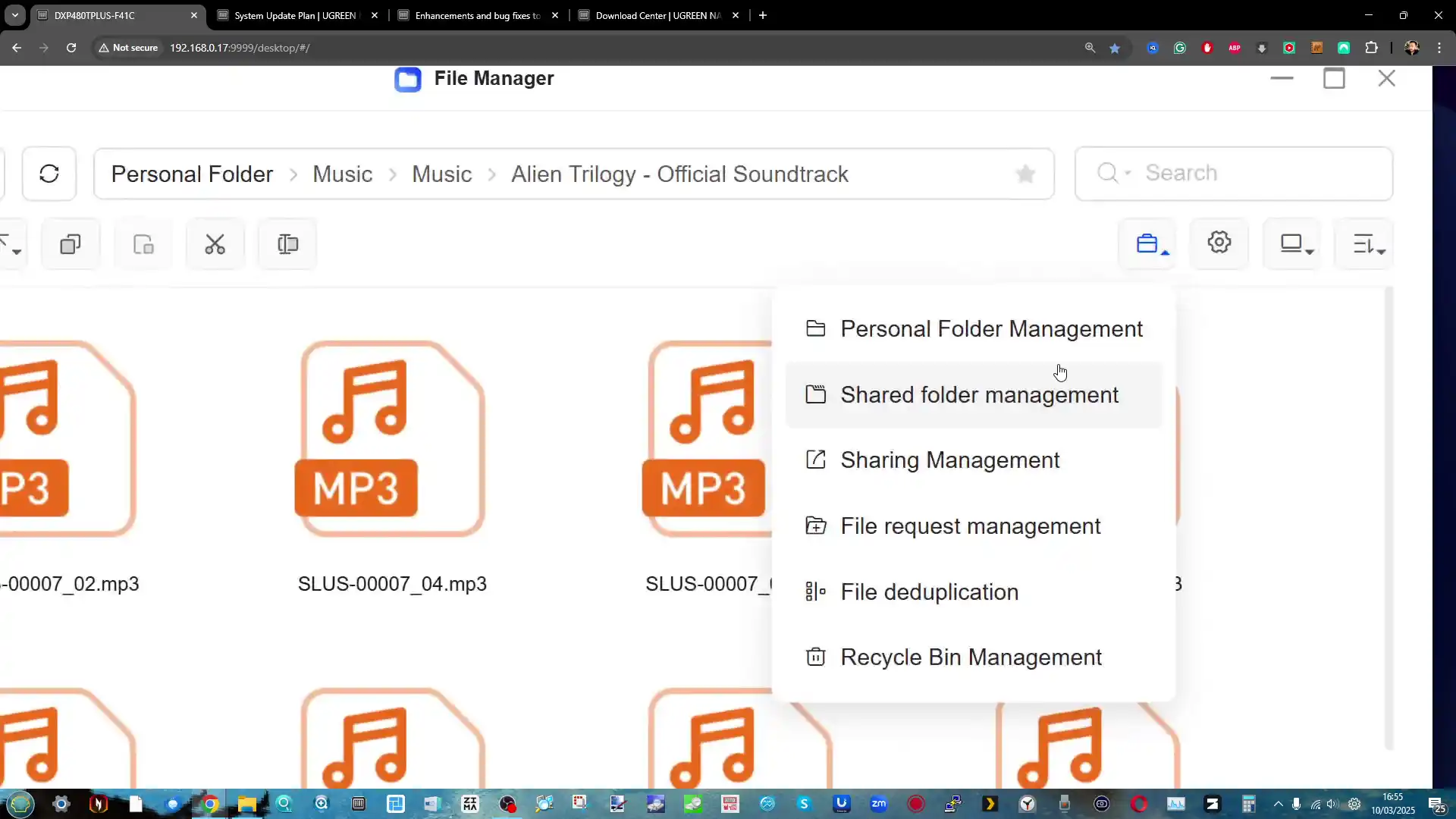
Ce qui m'a vraiment bluffé, c'est la rapidité de la mise en route. En quelques minutes, l'UGOS Pro, le système d'exploitation maison basé sur Debian, était opérationnel. UGREEN a fait un boulot assez dingue sur l'interface : c'est propre, c'est fluide et on n'est pas perdu dans des menus labyrinthiques. On sent que la marque veut venir chasser sur les terres de Synology en proposant une expérience utilisateur léchée tout en gardant une puissance matérielle brute supérieure. L’installation de Plex n’est pas encore proposée nativement sur l’OS de UGREEN (ça reste possible, en passant par Docker). Mais très franchement, même sur mon Synology je préfère avoir Plex qui tourne sur une machine déporté (en l’occurrence un Mac mini dans mon cas). Pour eux, ça sera sur le PC de la maison. Le NAS servant uniquement pour le stockage et le partage de données.
Ce NAS est disponible pour sa sortie à 699,99€ en promo (au lieu de 779,99€, il faut cocher le coupon sur Amazon), ça n’est pas donné, mais c’est vraiment un NAS très solide, bien fini, et qui doit faire le job pendant au moins 7-8 ans. Puis quand on regarde la qualité de fabrication en aluminium et la connectivité réseau, le rapport performance-prix est vraiment bon. C'est une machine de guerre silencieuse qui s'intègre parfaitement dans un bureau ou un salon. Mes amis ont maintenant un système où le PC et le Mac communiquent sans friction, avec une vitesse de transfert qui permet de monter directement depuis le NAS.
Si vous voulez un NAS solide, qui tiendra dans le temps, et que vous n'avez pas à bidouiller dans tous les sens, c'est franchement un très bon choix, et pour tout vous dire j'ai même envie d'en prendre un pour moi ha ha.
Après Microsoft et Nintendo, c'est au tour de Sony de prendre la parole avec une nouvelle édition de State of Play. La firme nippone promet une longue présentation d'une heure, ce qui s'annonce copieux.
Apple ne vend plus seulement un iPad, mais une gamme complète de tablettes. iPad classique, mini, Air ou Pro : chaque modèle vise un public bien précis, avec des écarts de prix parfois importants. Pour éviter de payer trop cher ou de choisir un modèle, au contraire, trop éloigner de votre usage, voici notre guide complet pour faire le bon choix en 2026.
Chaque année, la famille des iPhone s’agrandit un peu plus. Entre certains anciens modèles toujours vendus et les nouvelles déclinaisons Standard, Air, Pro et Pro Max, difficile de savoir lequel choisir, quand l'heure est venue de changer. Voici notre guide complet pour choisir le bon iPhone selon votre budget et vos usages.
[Deal du jour] L’iPhone 17 Pro est un smartphone aux performances haut de gamme, à la hauteur de sa réputation. Il se distingue en ce moment par une belle promotion de 200 €.
UGREEN DXP4800 PRO Review – Step Up, or Side Step?
The UGREEN NASync DXP4800 Pro is a 4 bay desktop NAS that builds on the existing DXP4800 Plus rather than replacing it outright. From a hardware and design perspective, the system remains very familiar, but it introduces a newer Intel Core i3 1315U processor and increases the maximum supported memory to 96GB. Networking remains unchanged, with both 10GbE and 2.5GbE available, and the unit continues to support dual NVMe SSDs for caching or dedicated storage pools. These updates position the DXP4800 Pro as a slightly more capable option for users who want additional CPU headroom without moving into a larger and more expensive multi bay platform.
Category
Specification
Model
UGREEN NASync DXP4800 Pro
Drive Bays
4 x SATA (2.5 inch and 3.5 inch)
CPU
Intel Core i3 1315U
Memory
8GB DDR5 5600MHz, expandable to 96GB
ODECC
Supported
M.2 Slots
2 x M.2 NVMe
System Drive
128GB SSD (flash memory system disk)
RAID
JBOD, Basic, RAID 0, 1, 5, 6, 10
Max Storage
136TB (4 x 30TB plus 2 x 8TB)
LAN
1 x 2.5GbE, 1 x 10GbE
USB Front
1 x USB C 10Gbps, 1 x USB A 10Gbps
USB Rear
1 x USB A 5Gbps, 2 x USB A 480Mbps
SD Card
SD 3.0
HDMI
4K (60Hz mentioned in product overview)
OS
UGOS Pro
Dimensions
10.1 inch x 7.0 inch x 7.0 inch
Power
42.36W drive access, 18.12W drive hibernation
Warranty
2 years
Price
$699.99 (diskless, listed sale price)
At launch, the DXP4800 Pro is listed as a diskless system at $699.99 and is aimed at home power users, creators and small offices looking for a turnkey NAS that can handle container workloads, virtual machines and media workloads more comfortably than entry level models. While the hardware changes are relatively contained, they directly affect performance scaling and long term flexibility. This makes the DXP4800 Pro less of a generational leap and more of a mid cycle refinement, intended for buyers who want modest improvements in processing capability and memory capacity while keeping the same overall form factor and feature set.
UGREEN DXP4800 PRO Review – Quick Conclusion
The UGREEN NASync DXP4800 Pro is a 4 bay NAS that focuses on incremental improvement rather than major change, pairing an Intel Core i3 1315U with up to 96GB of DDR5 memory, dual NVMe slots and 10GbE plus 2.5GbE networking in the same compact metal chassis as the DXP4800 Plus. It delivers solid real world performance for file transfers, SSD caching, media workloads and container use, with good NVMe throughput and reliable 10GbE performance, but power consumption is noticeably higher than lower power NAS alternatives and internal SSD to SSD transfers do not always reach their theoretical limits. Build quality and storage flexibility are strong, noise levels are generally reasonable but rise under heavy load, and thermals remain under control despite limited underside clearance. UGOS Pro offers a broad feature set with Docker, virtualization, snapshots and AI assisted photo tools, though its security scanning remains focused on malware rather than wider system hardening and application availability is still maturing. Overall, the DXP4800 Pro is a capable and well balanced mid tier NAS best suited to users who want extra CPU headroom and long term flexibility, but it does not represent a compelling upgrade for existing DXP4800 Plus owners and its value depends largely on how much the added performance will actually be used.
SOFTWARE - 8/10
HARDWARE - 8/10
PERFORMANCE - 8/10
PRICE - 8/10
VALUE - 9/10
8.2
PROS
Intel Core i3 1315U provides noticeably more CPU headroom than the DXP4800 Plus, particularly for multitasking, containers and light virtualization Supports up to 96GB of DDR5 memory, offering strong long term flexibility for advanced workloads Dual network ports with both 10GbE and 2.5GbE included, enabling high speed transfers without link aggregation Dual M.2 NVMe slots support SSD caching or dedicated SSD storage pools alongside SATA drives Dedicated 128GB system SSD keeps the operating system separate from main storage volumes. Plus, usable with TrueNAS, UnRAID, OMV etc Solid metal chassis with good overall build quality and effective passive heat dissipation Good real world performance over 10GbE for both SATA RAID arrays and NVMe storage UGOS Pro includes Docker, virtualization, snapshots and AI assisted photo management without subscription fees
CONS
Higher power consumption than low power NAS systems, particularly under sustained CPU and disk load Hardware changes are incremental, making it a limited upgrade for existing DXP4800 Plus owners - and the DXP6800 is only a smaller spend away! Security scanning tools focus mainly on malware and lack deeper configuration or exposure analysis
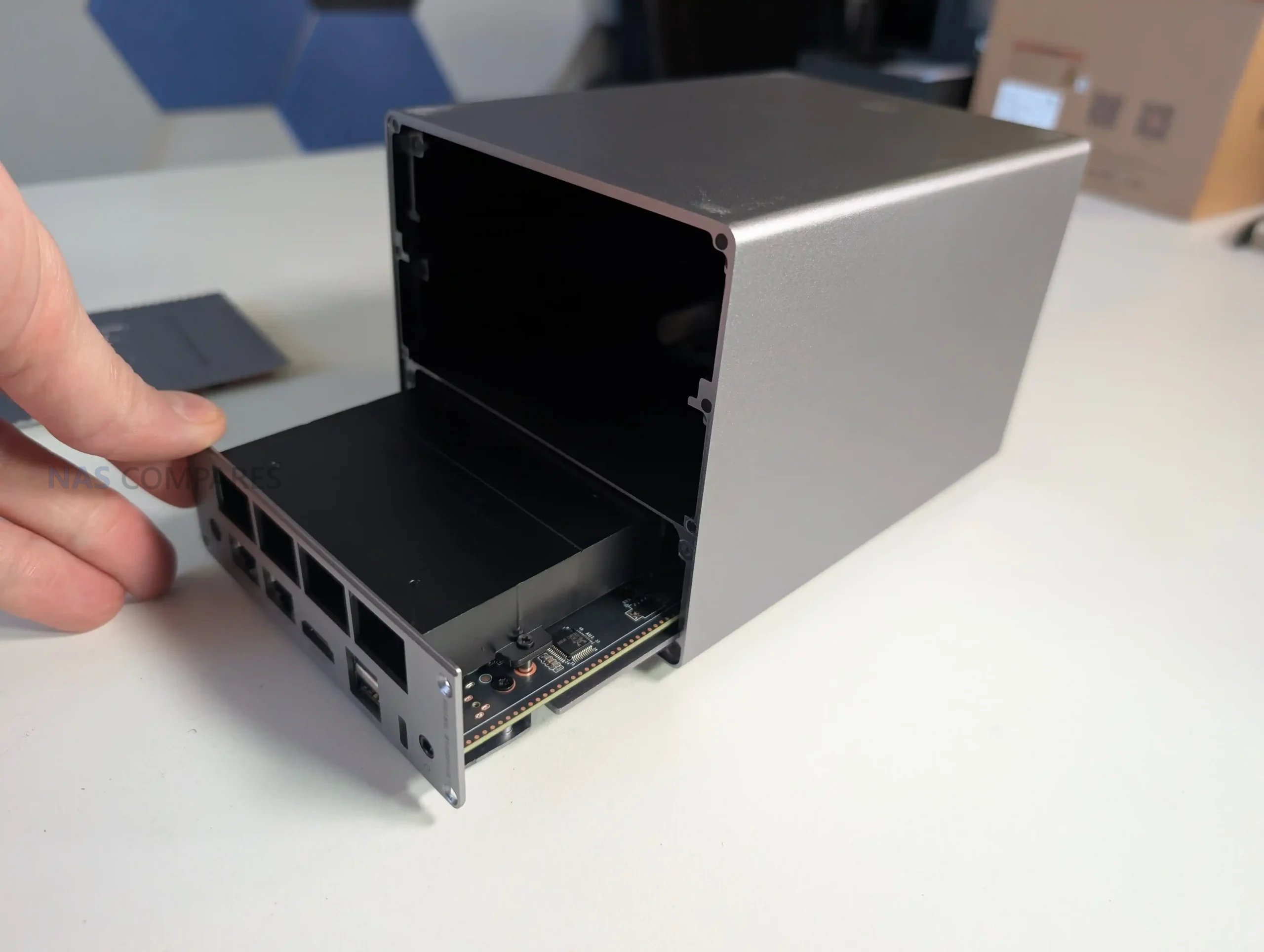
The DXP4800 Pro continues to use the same compact metal chassis as the DXP4800 Plus, with no structural redesign to the enclosure itself. The overall dimensions and layout remain unchanged, which makes it easy to place alongside other desktop NAS systems in this class. While the external appearance is largely identical, the surface finish feels slightly different to the touch compared with the earlier model. This change does not affect durability or rigidity, but it does subtly distinguish the Pro from the Plus when handled directly. The metal construction also plays a functional role by assisting with passive heat dissipation across the enclosure.
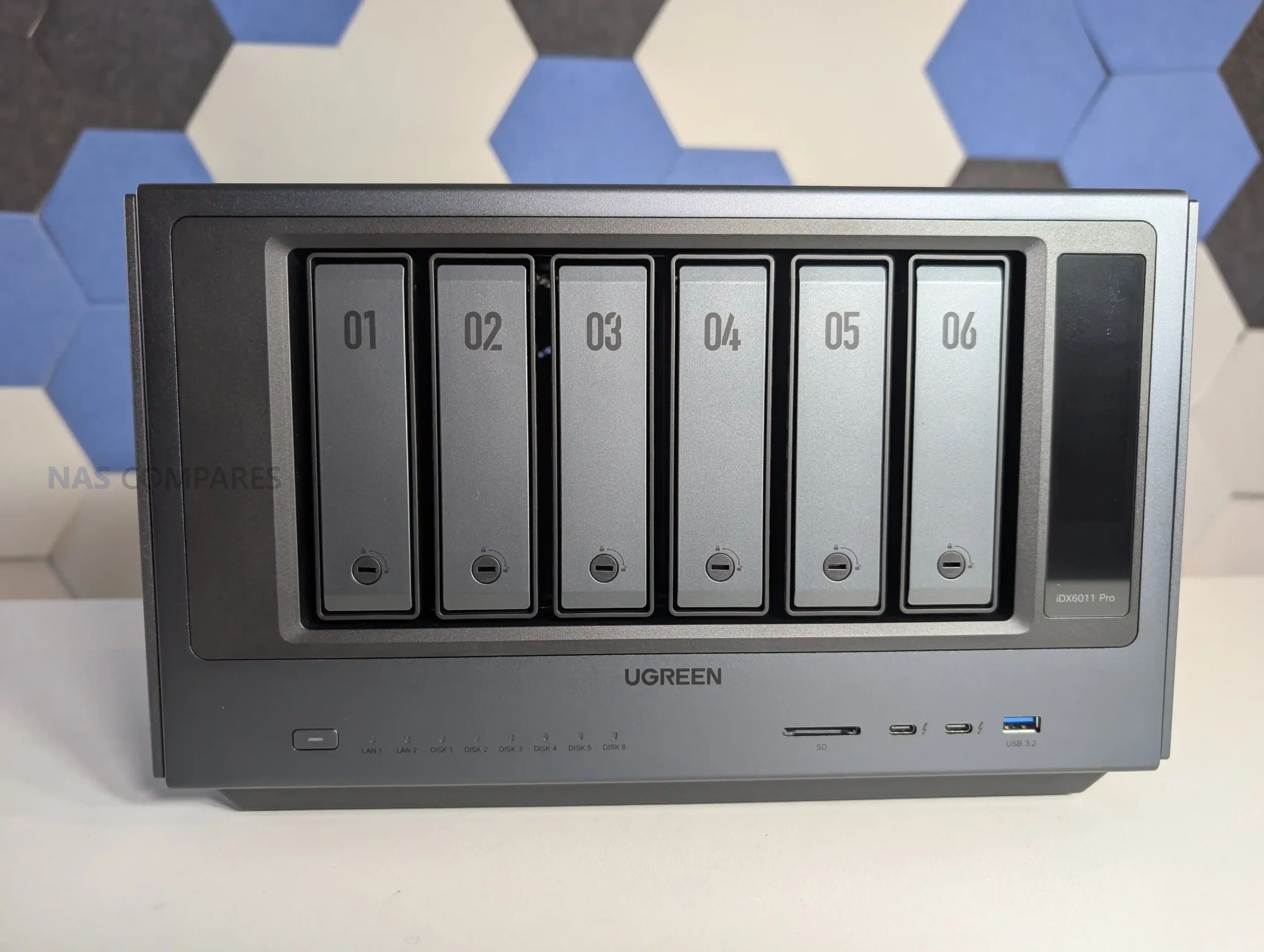
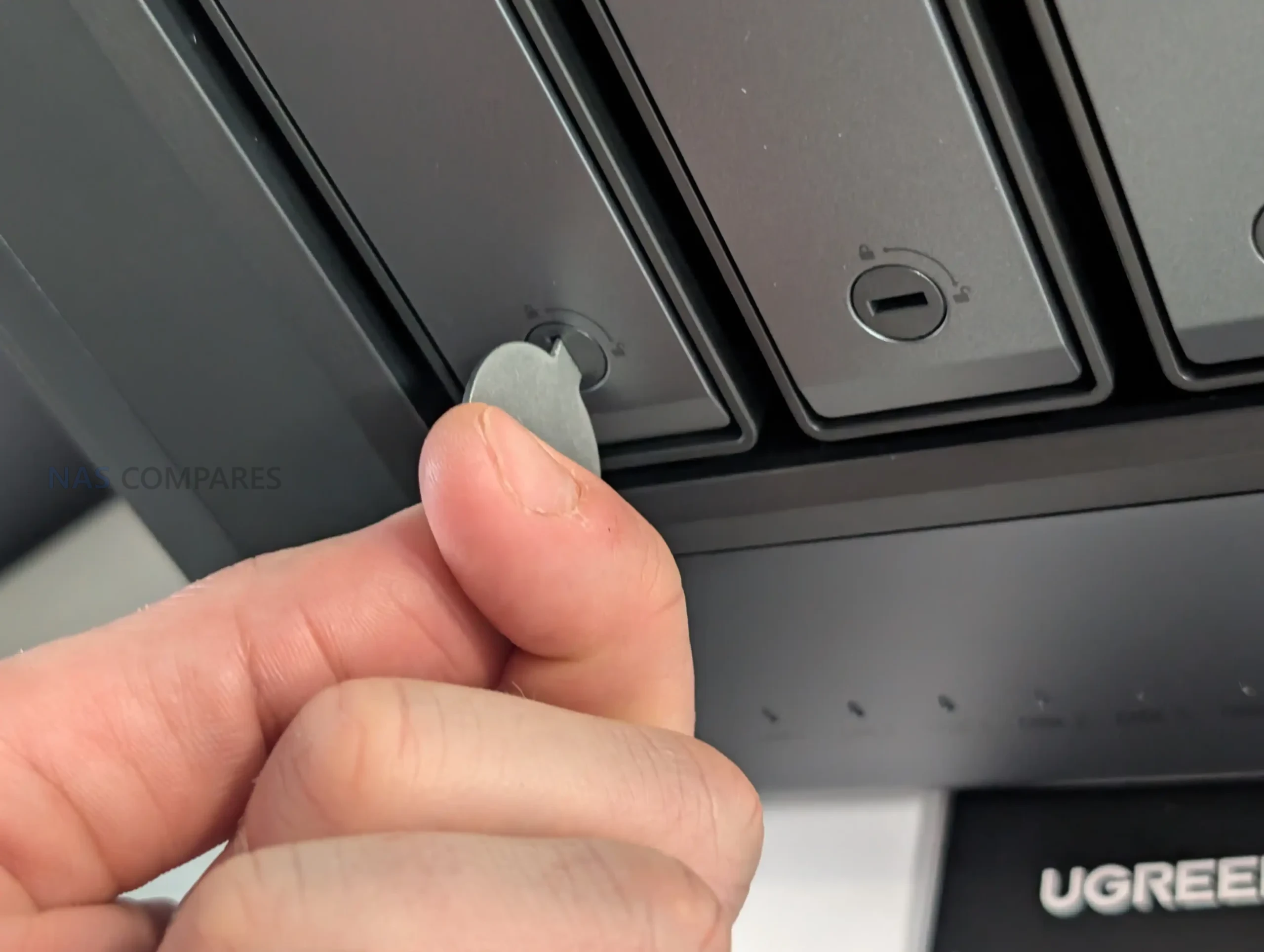
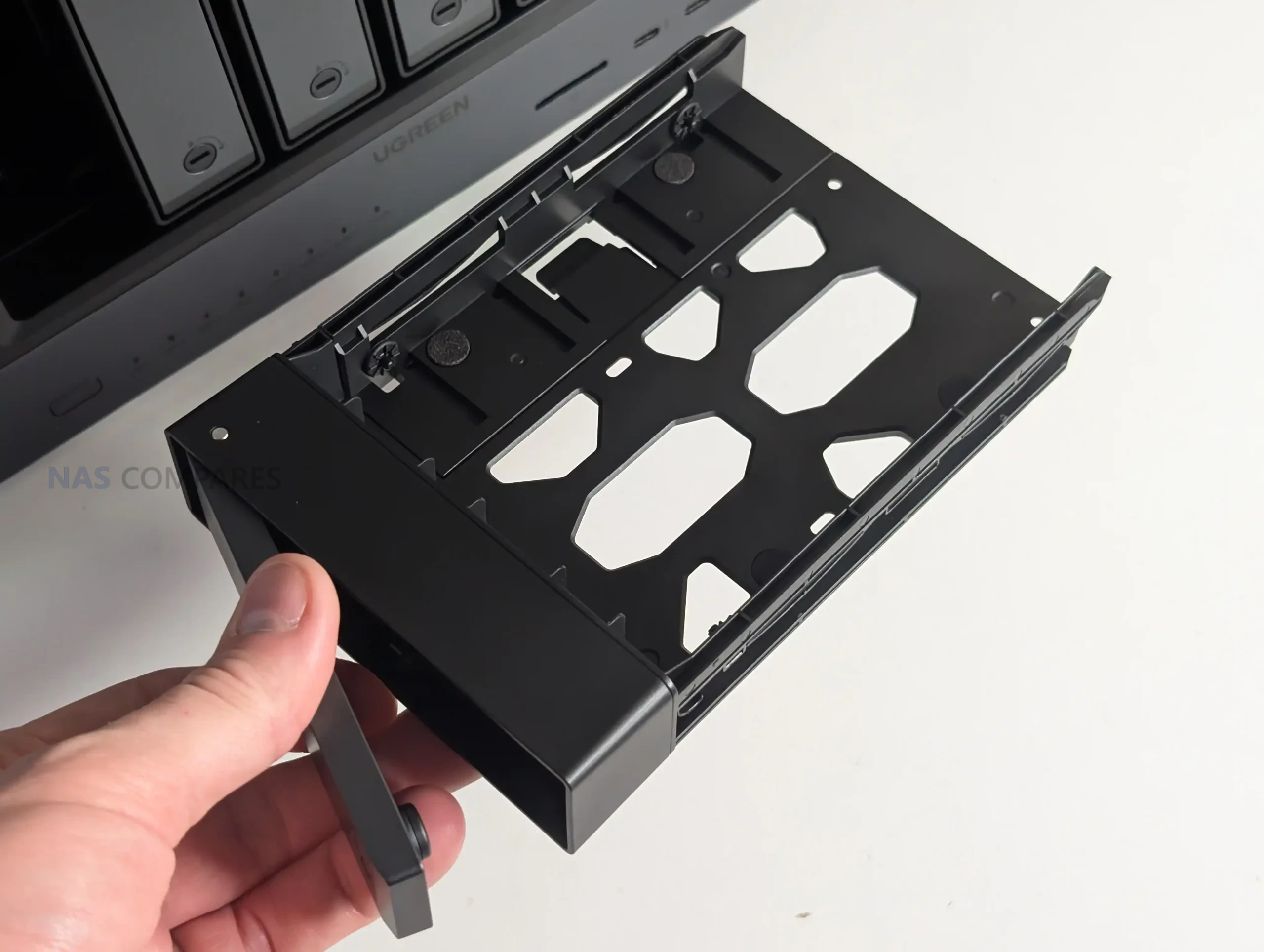
On the front of the unit, four SATA drive bays are arranged vertically and support both 2.5 inch and 3.5 inch drives. The trays are tool free and lockable, with keys included, which provides a basic level of physical drive security.
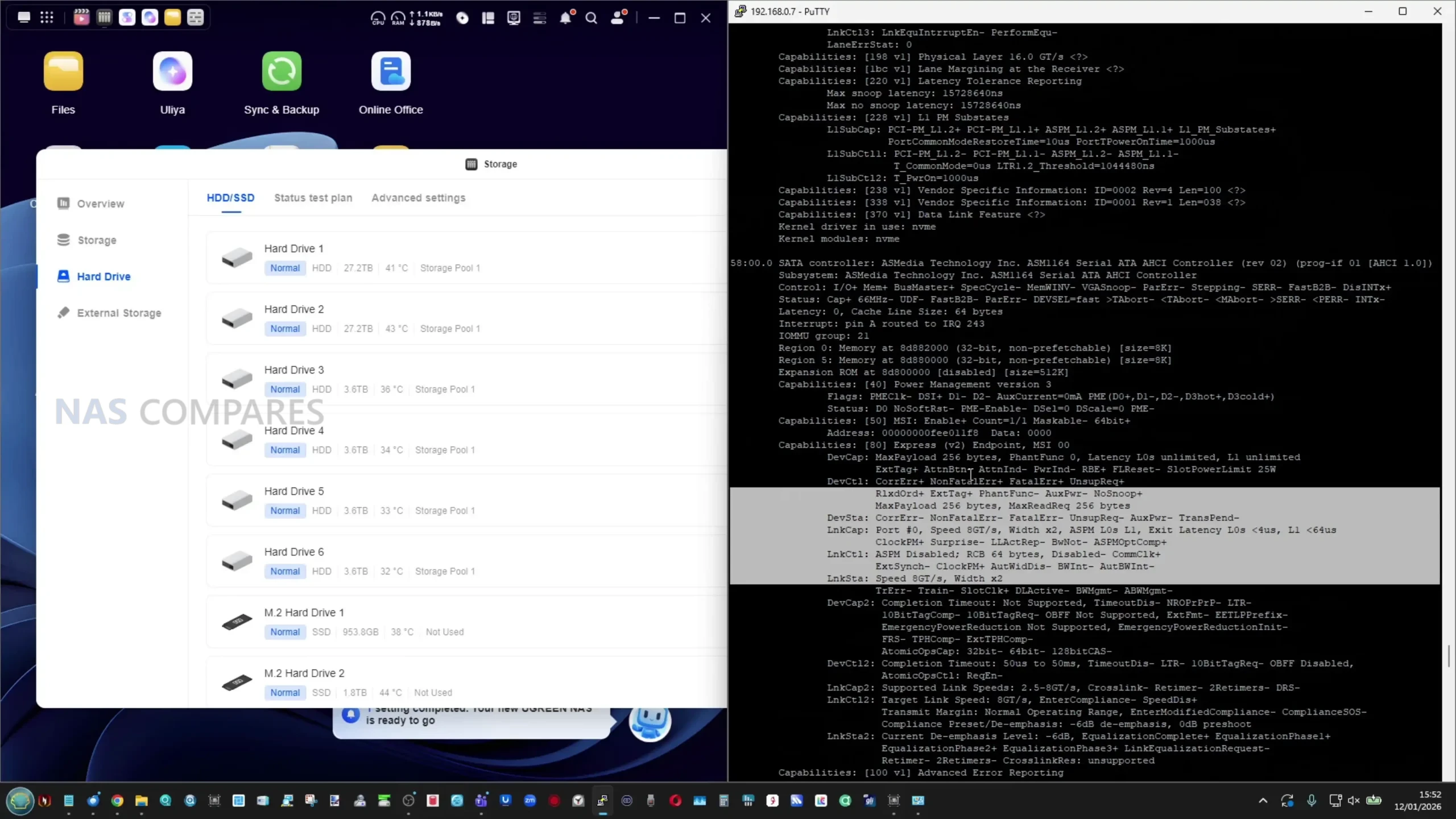
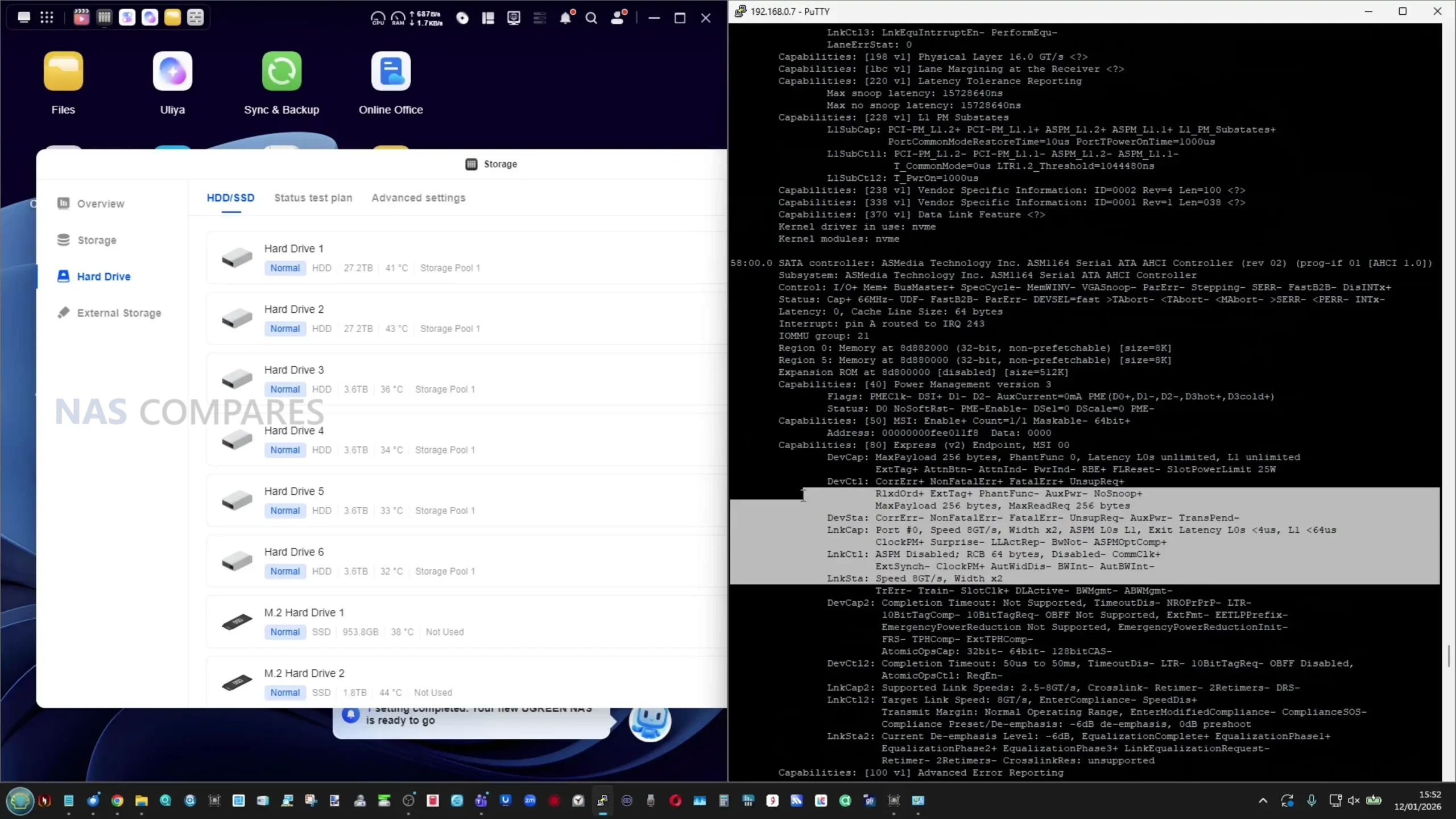
Each bay connects to a shared backplane that feeds into an ASMedia 1164 SATA controller running over a PCIe Gen3 x2 link. This controller configuration is typical for a 4 bay NAS and provides adequate bandwidth for RAID 5 and RAID 6 arrays without becoming an immediate bottleneck under normal workloads.
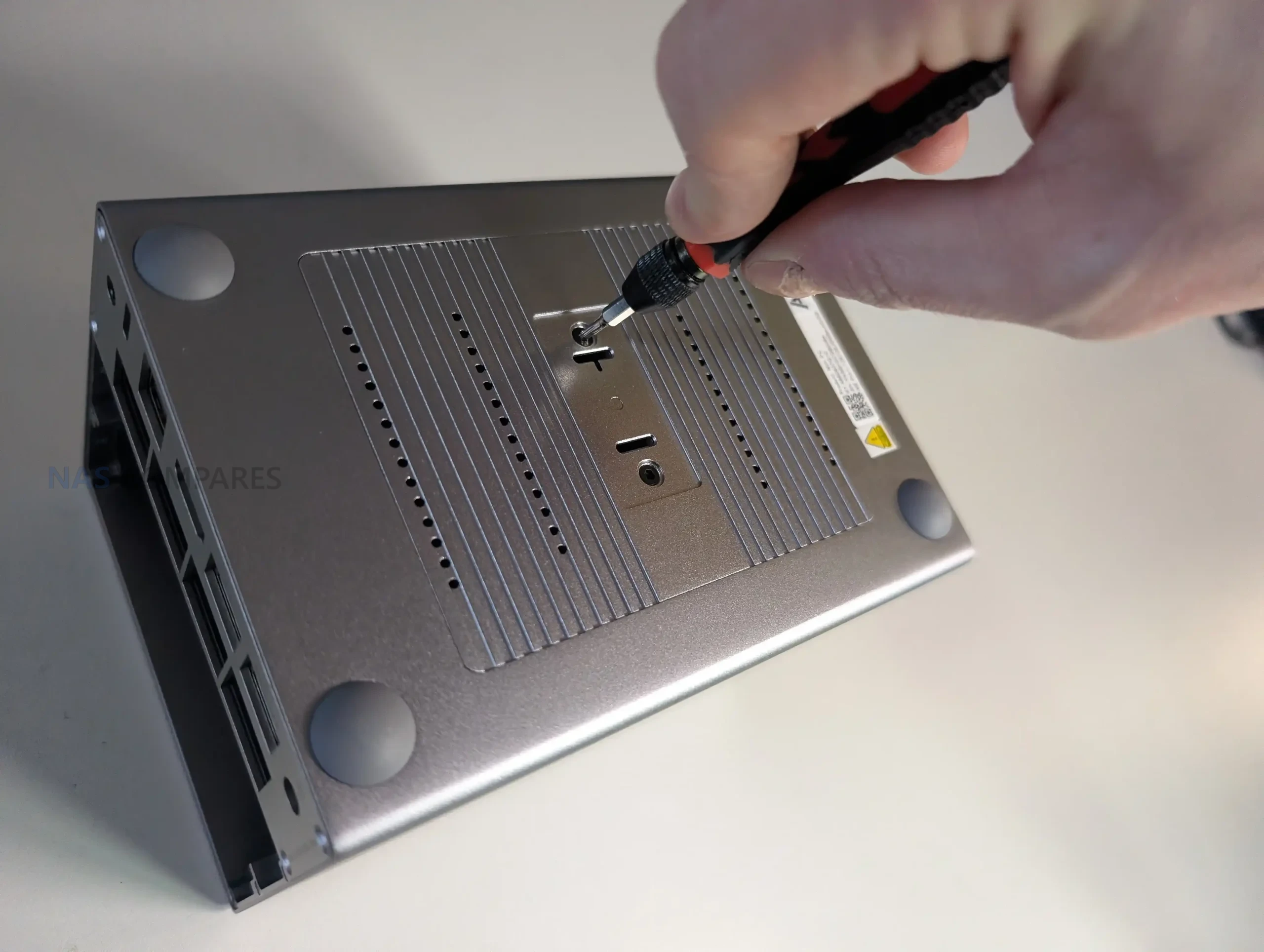
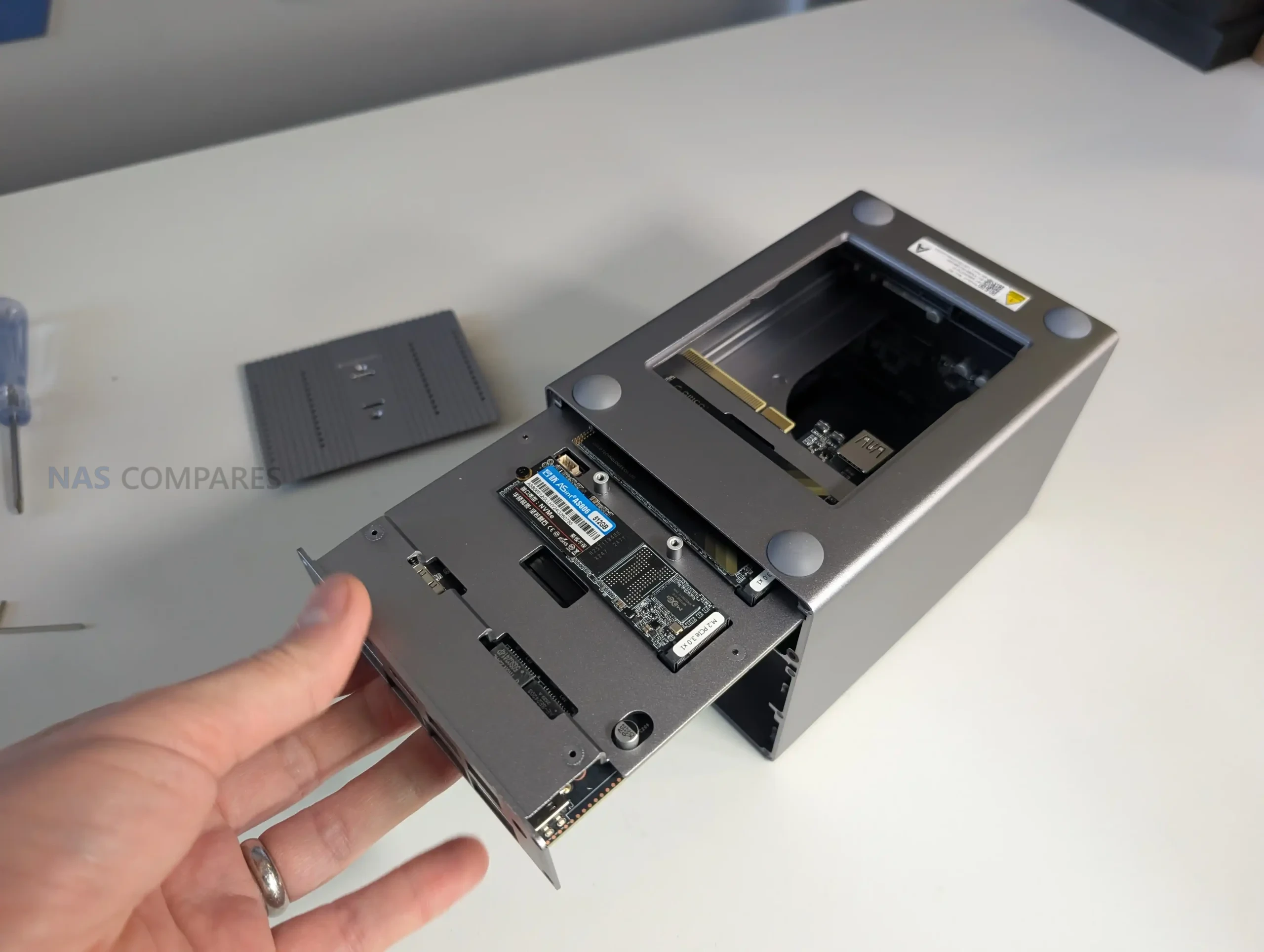
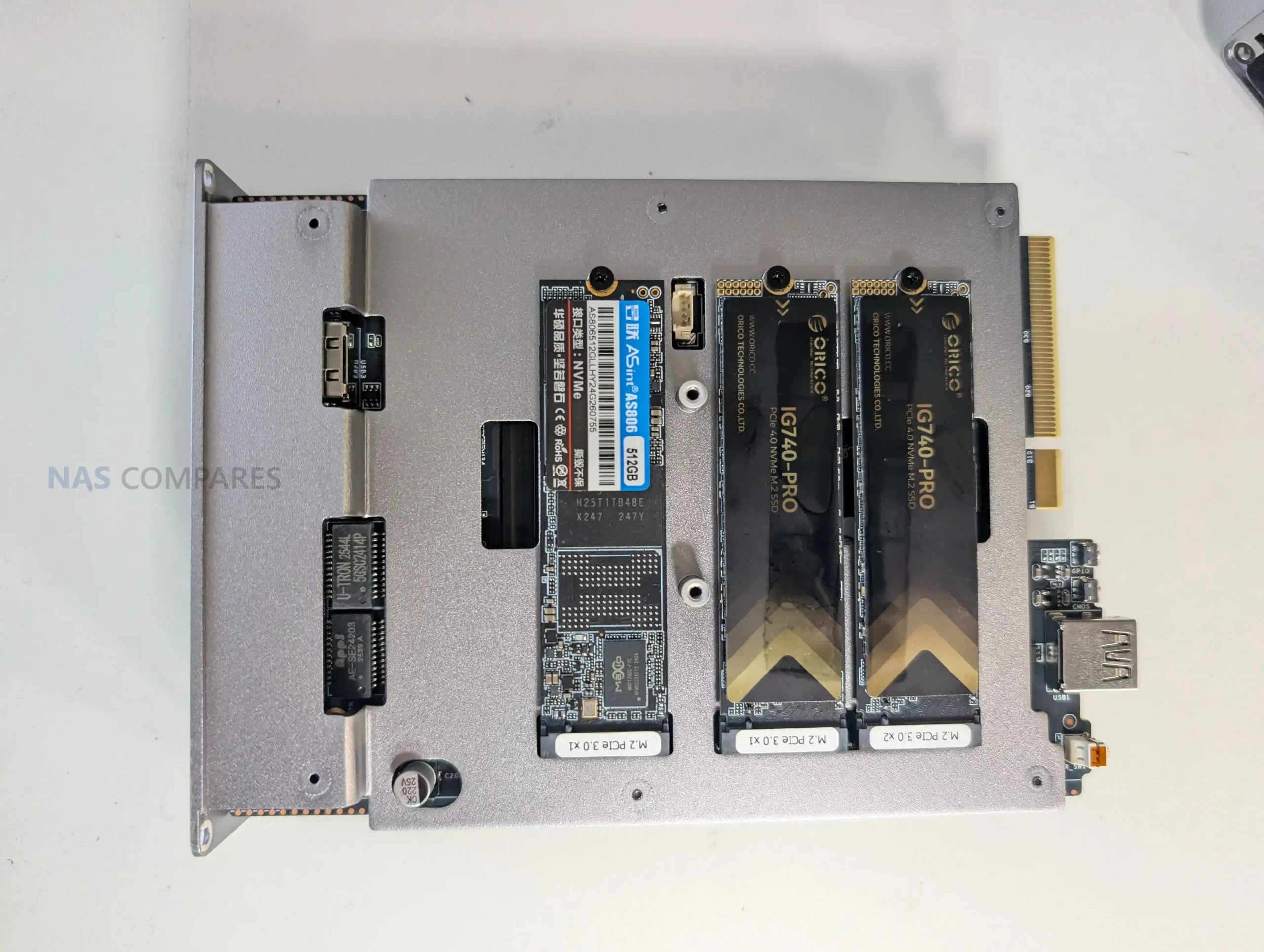
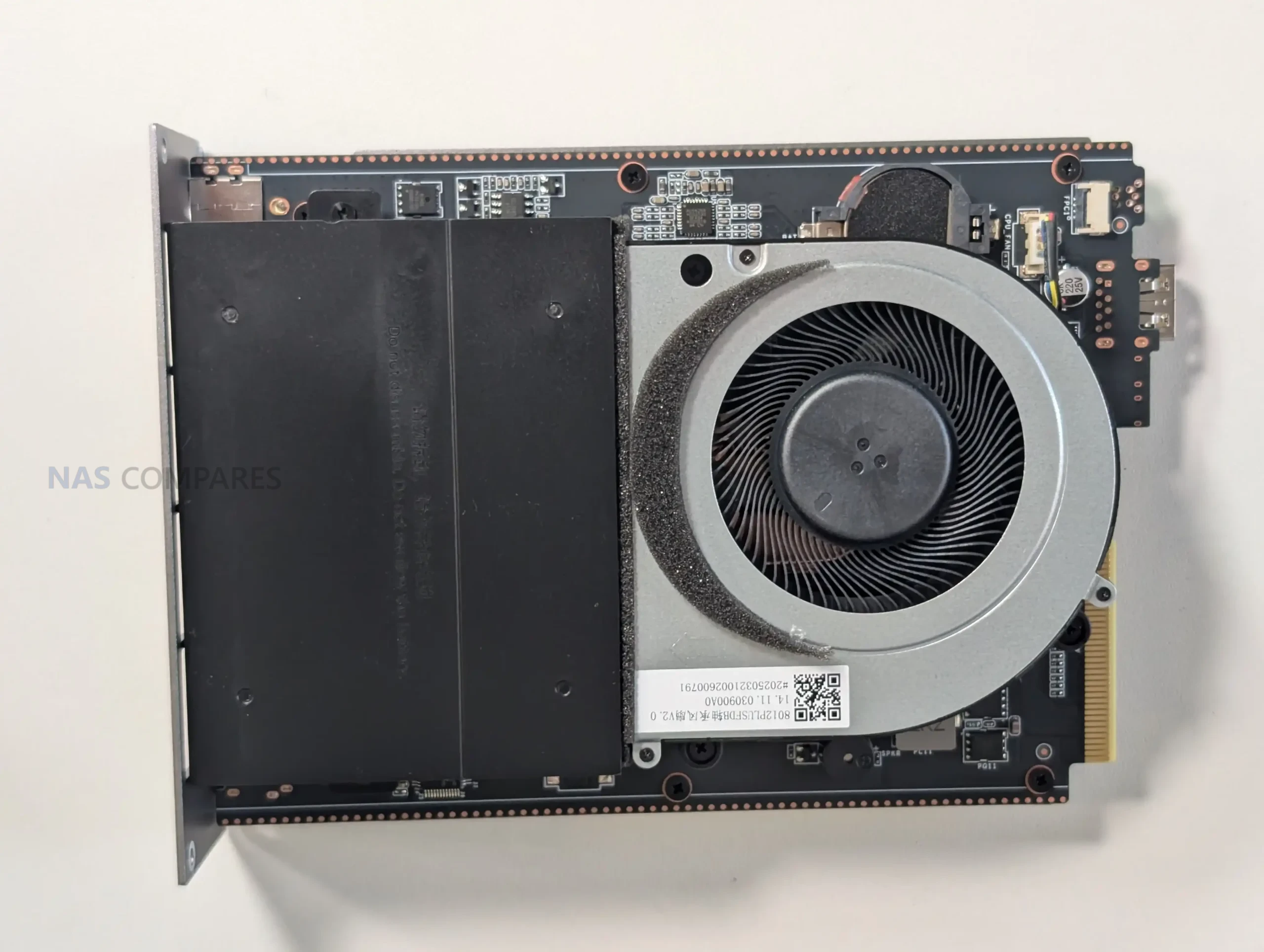
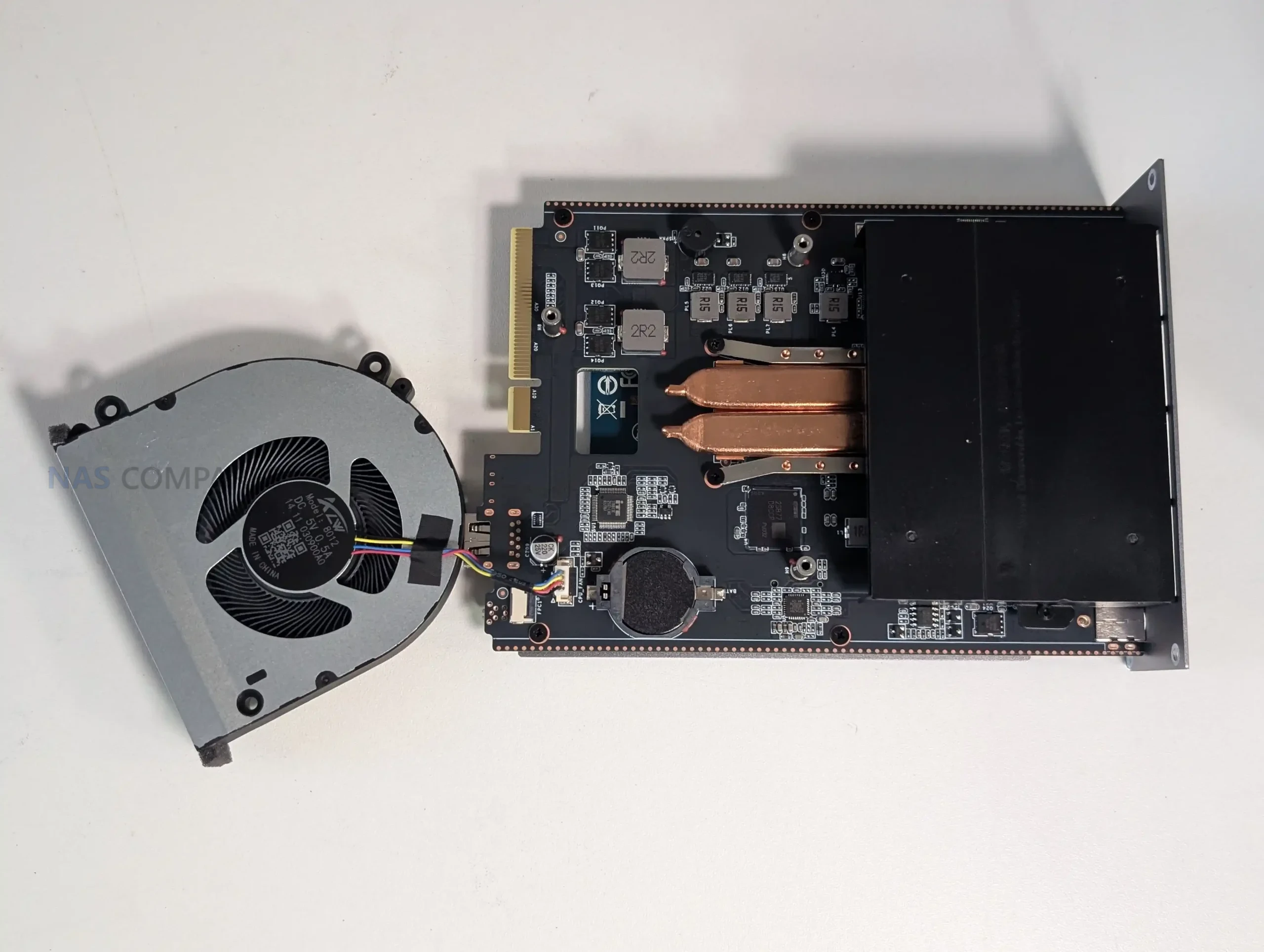
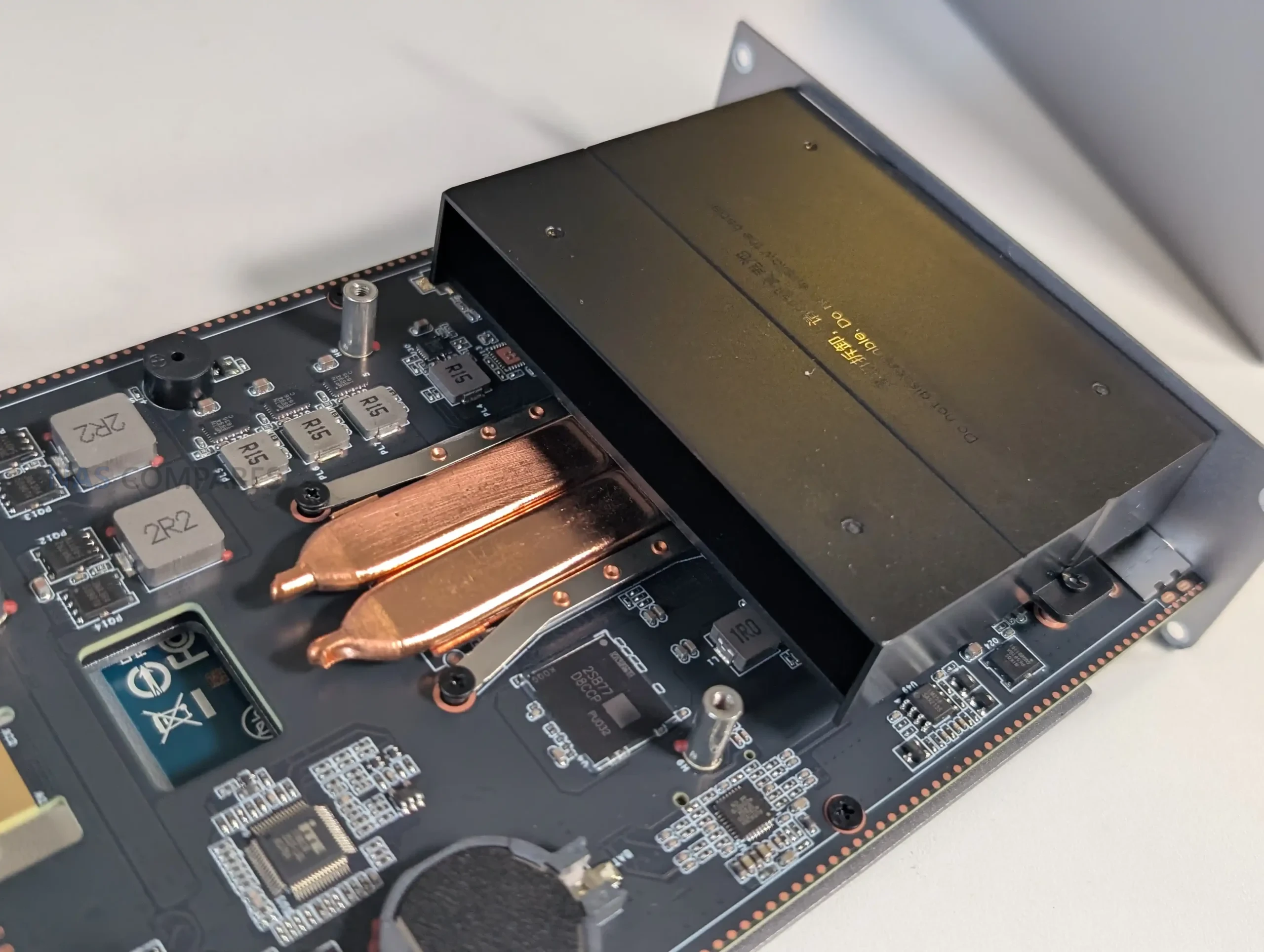
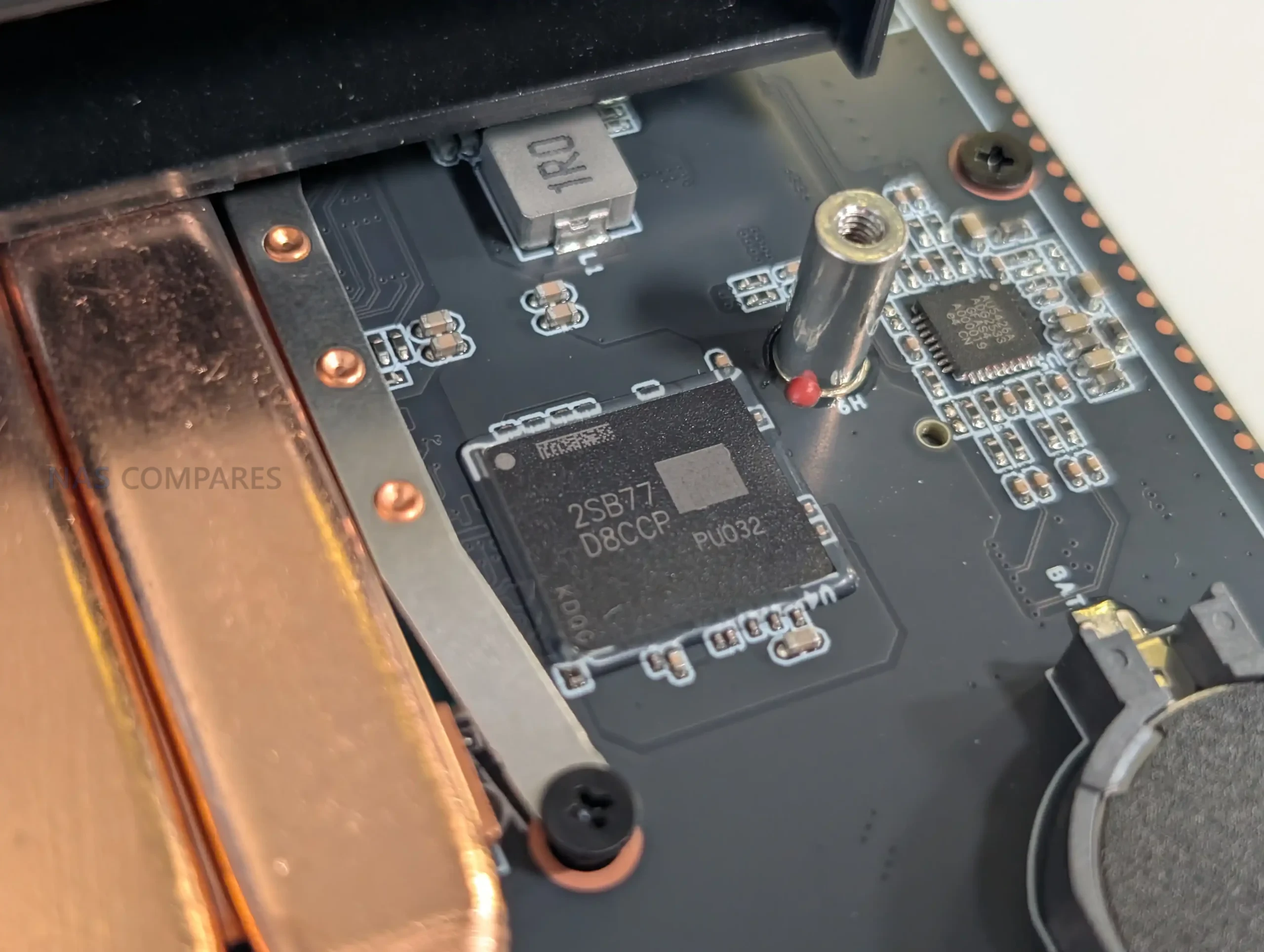
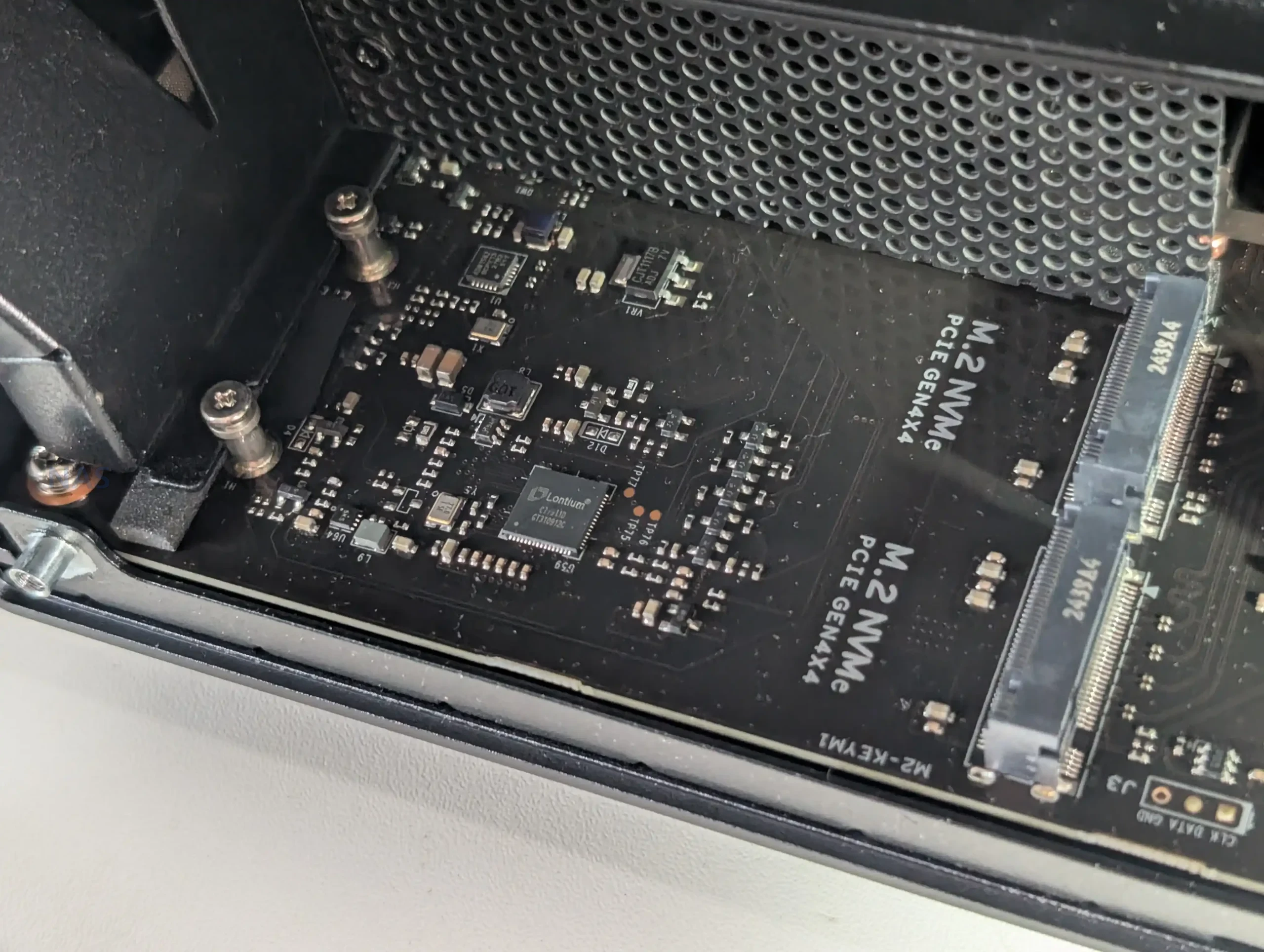
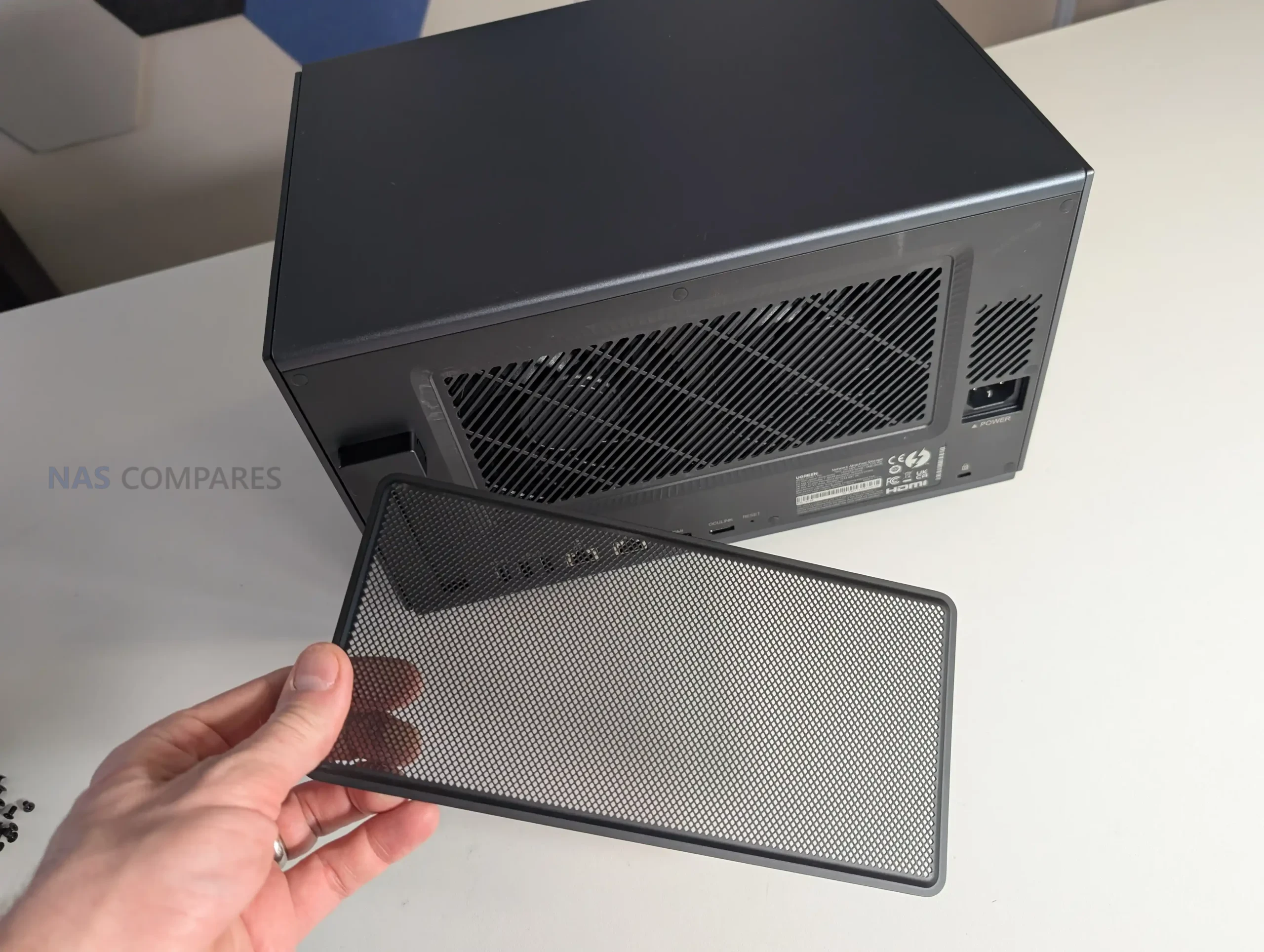
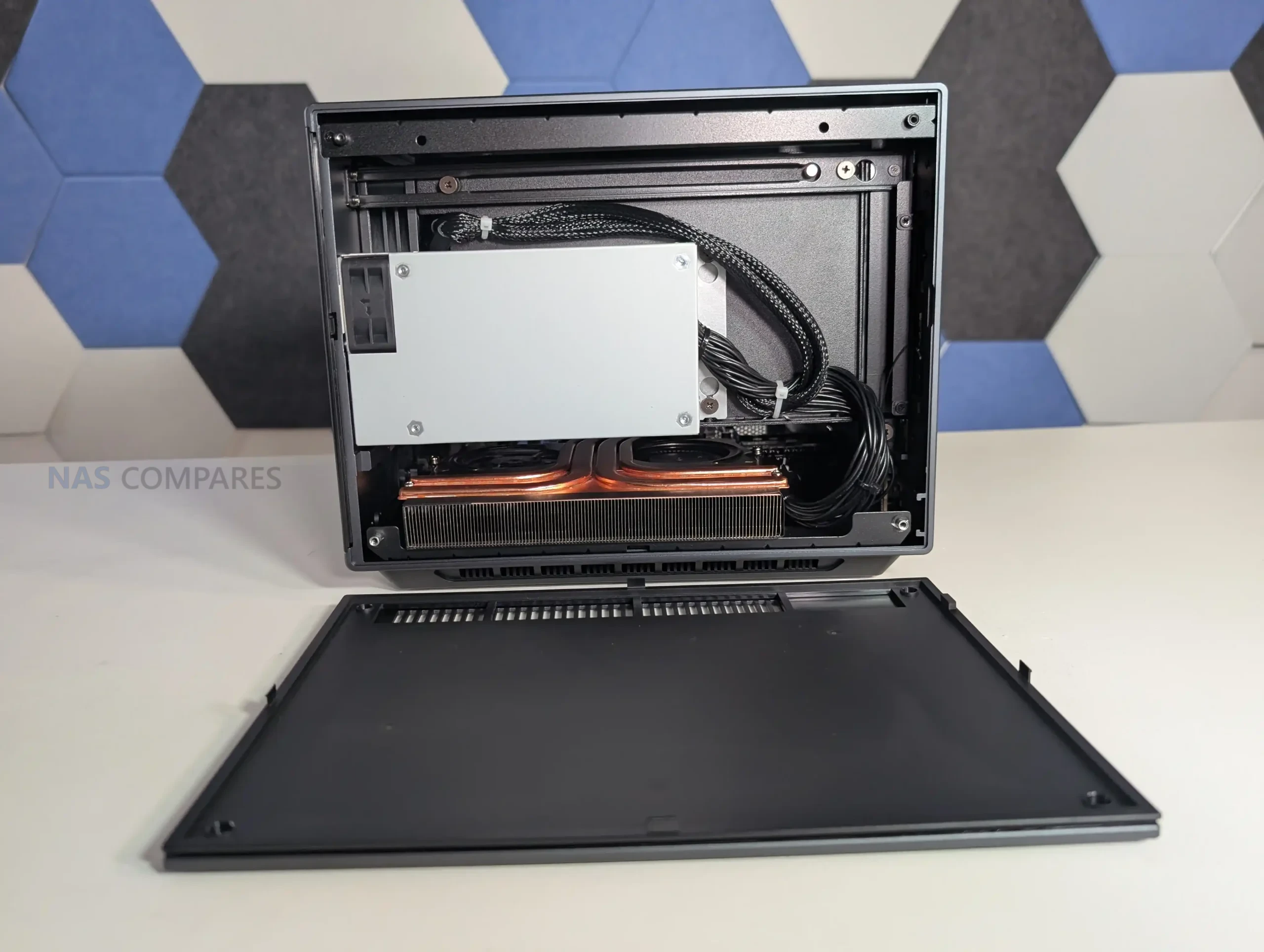
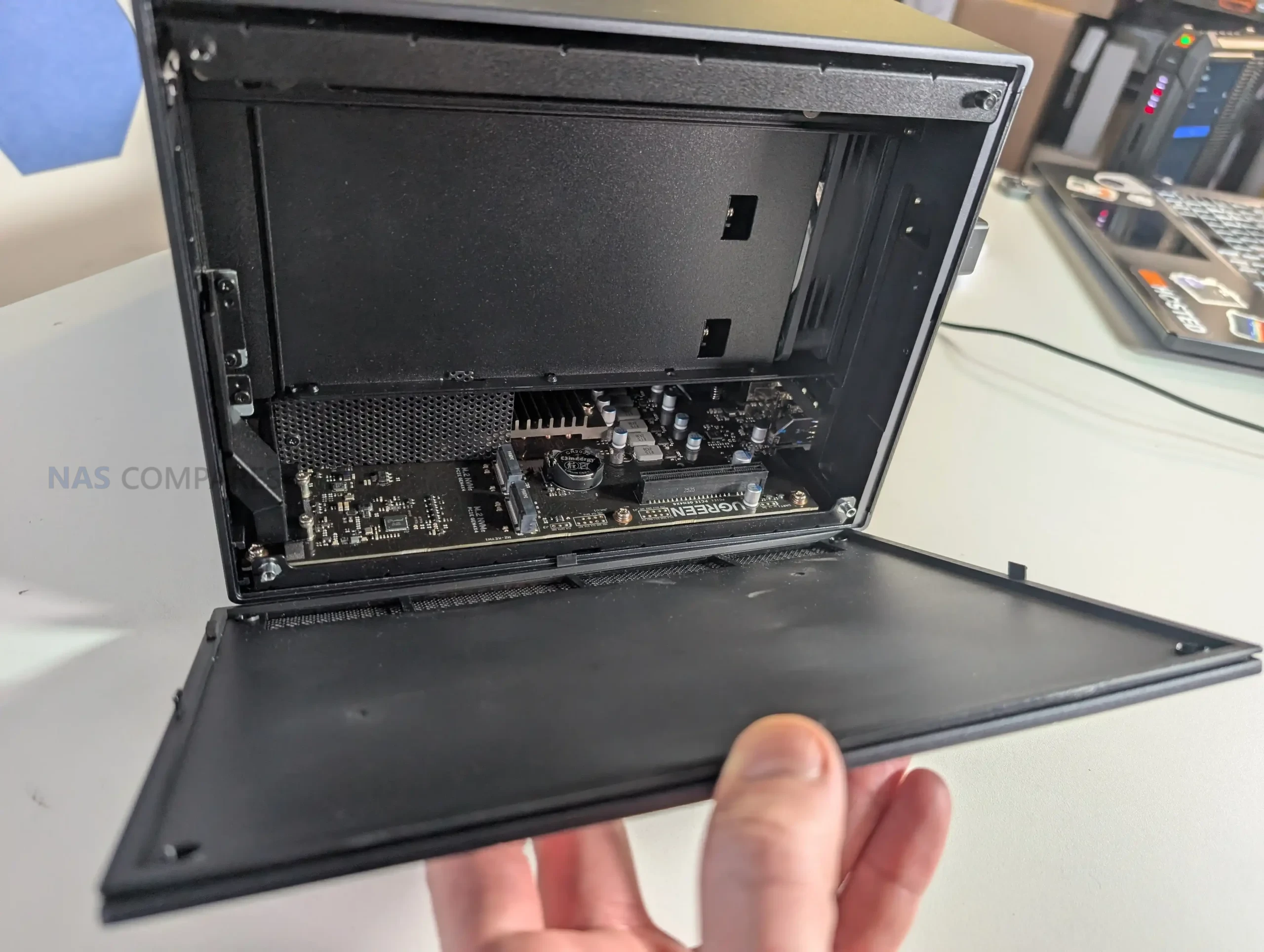
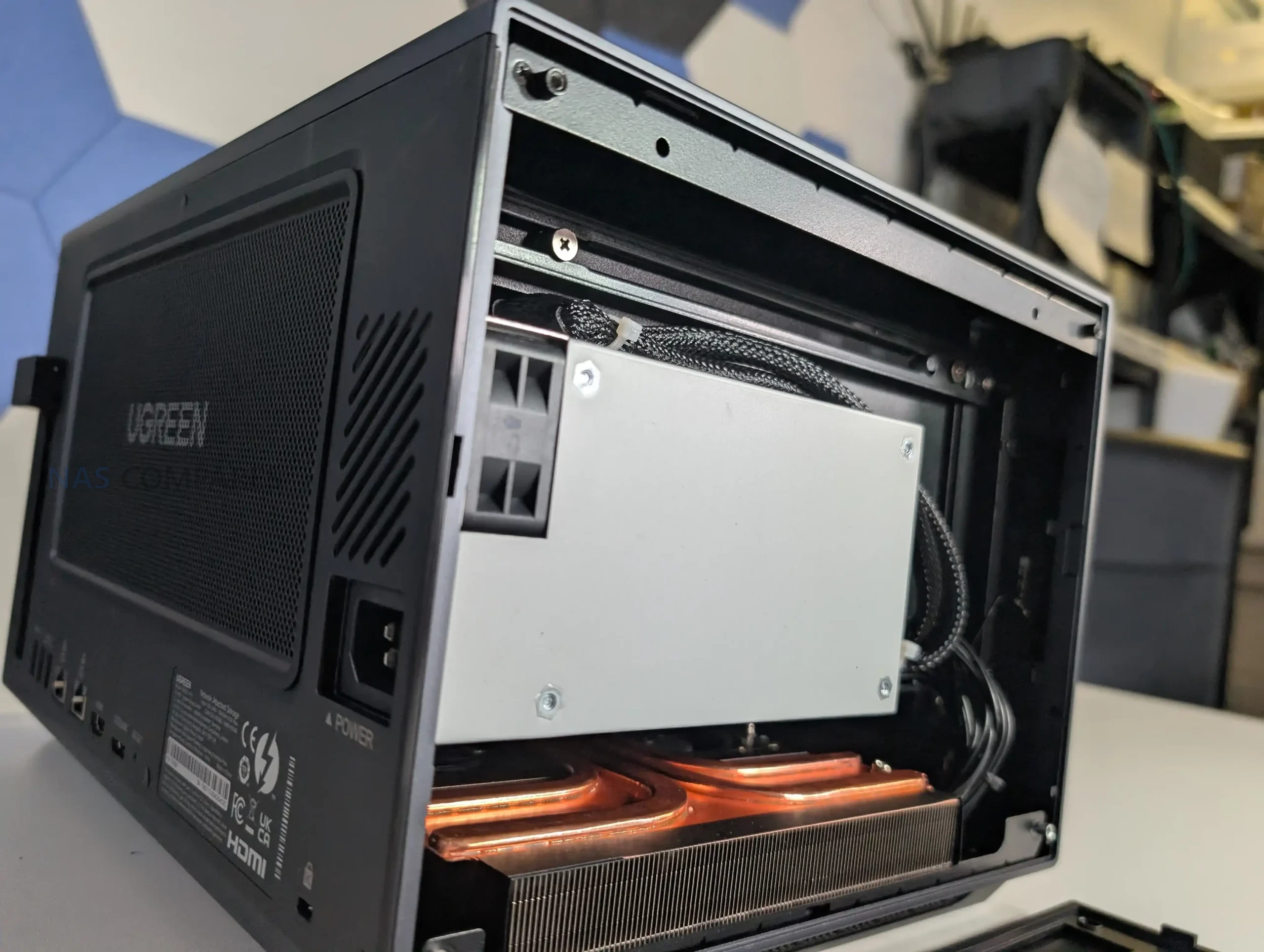
Additional storage options are located on the underside of the chassis. Removing a small access panel reveals two M.2 NVMe slots along with two DDR5 SODIMM memory slots. This placement keeps the top and sides of the enclosure clean but requires the system to be powered down and removed from its location for upgrades. The two user accessible NVMe slots operate at PCIe Gen4 x4 speeds and can be used for SSD caching or for creating dedicated SSD storage pools, depending on workload requirements.
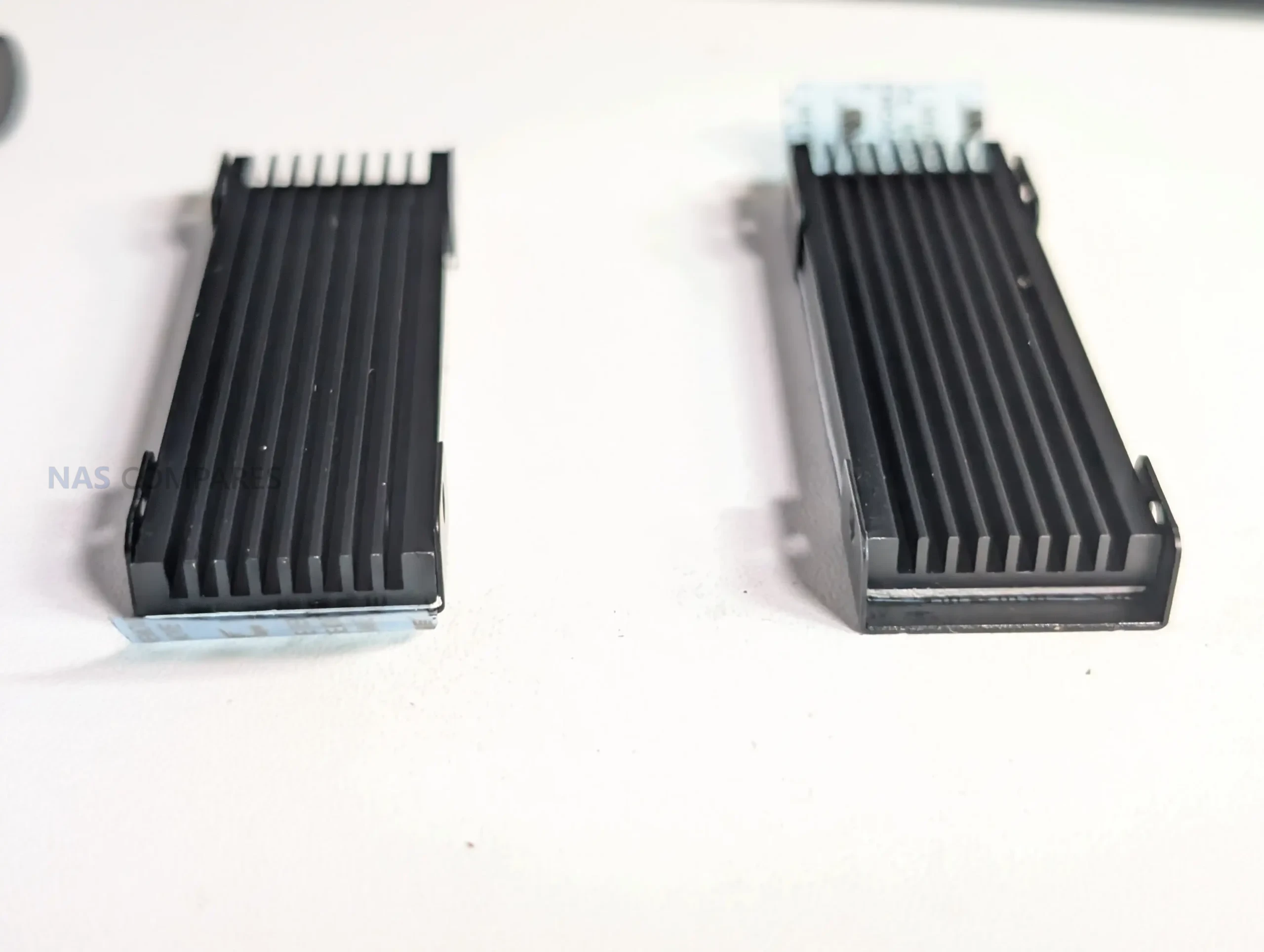
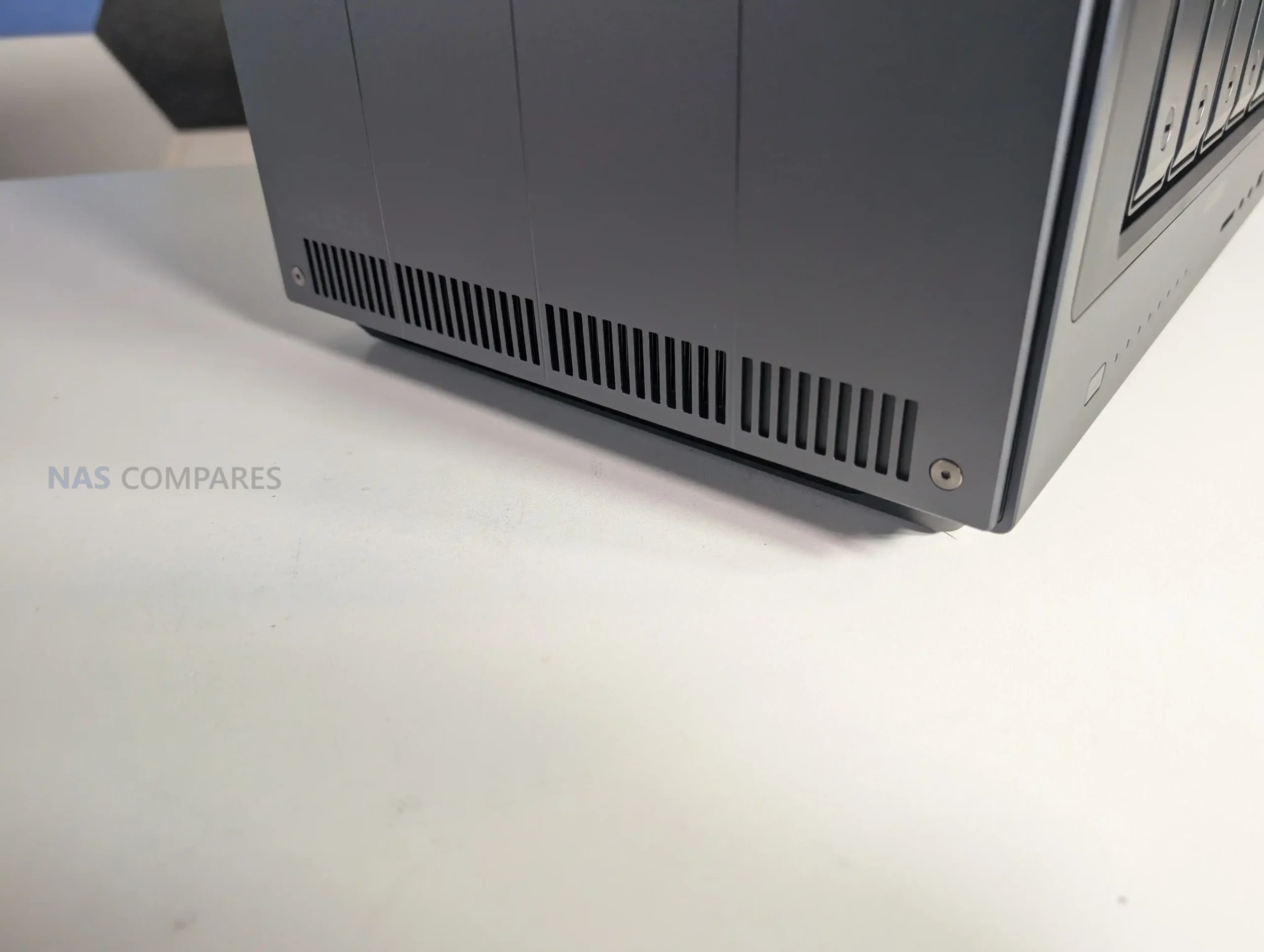
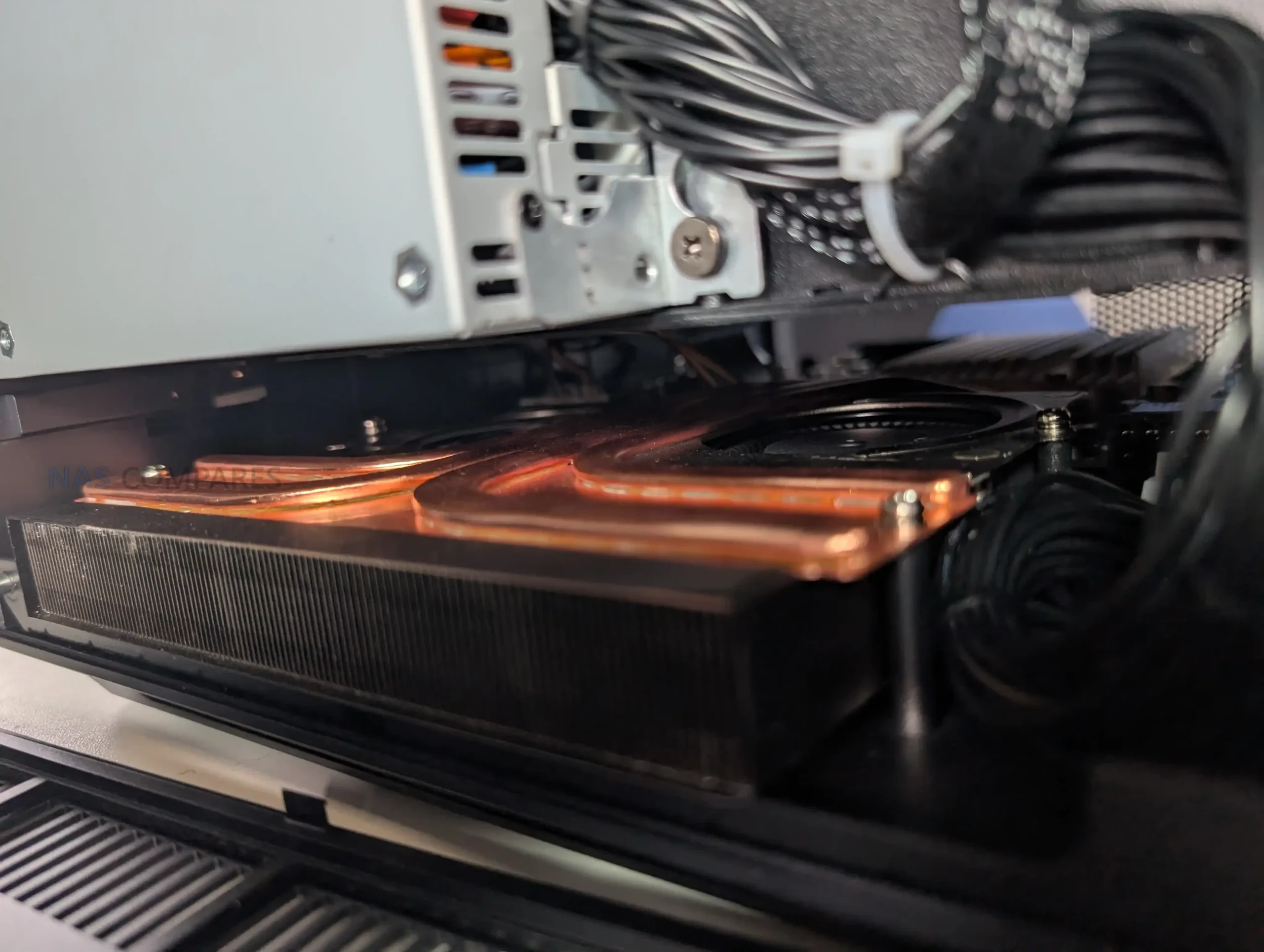
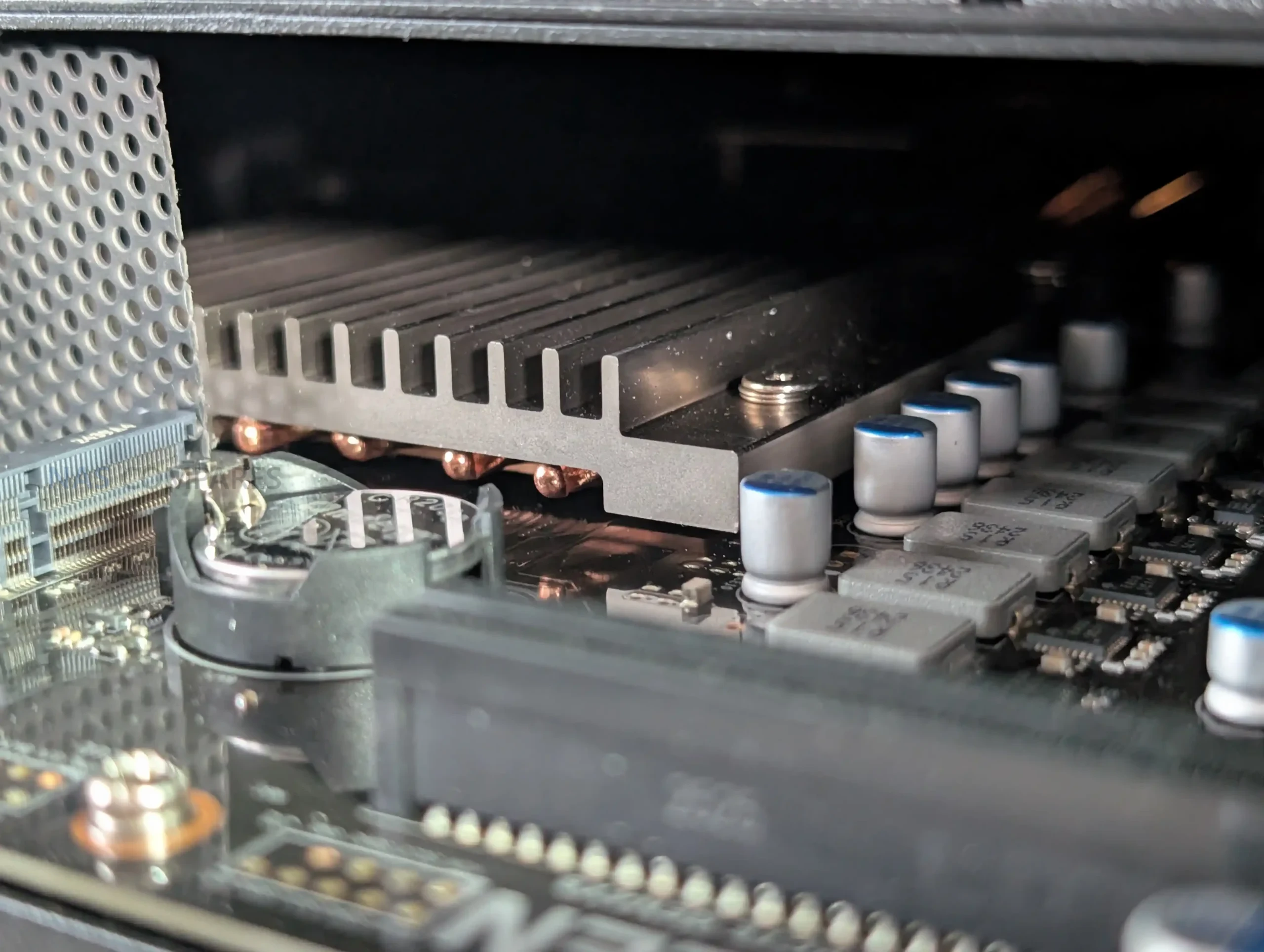
Thermal handling for the NVMe drives is addressed through the use of thick thermal pads that make direct contact with the metal base panel. Once installed, the base of the chassis effectively acts as a large passive heat spreader. Clearance between the bottom of the NAS and the desk surface is limited, which restricts airflow underneath the unit. However, during typical usage this design appears sufficient to keep NVMe temperatures within reasonable operating ranges, particularly when combined with the system’s active rear fan.
From a storage flexibility standpoint, the DXP4800 Pro offers a conventional but well rounded setup. Users can combine large capacity SATA drives with high speed NVMe SSDs, configure multiple RAID types, or separate workloads across different storage pools. While there is no support for external expansion units or PCIe add in cards, the internal layout covers the needs of most home and small office users looking for a balance between capacity, performance and simplicity.
UGREEN DXP4800 PRO Review – Internal Hardware
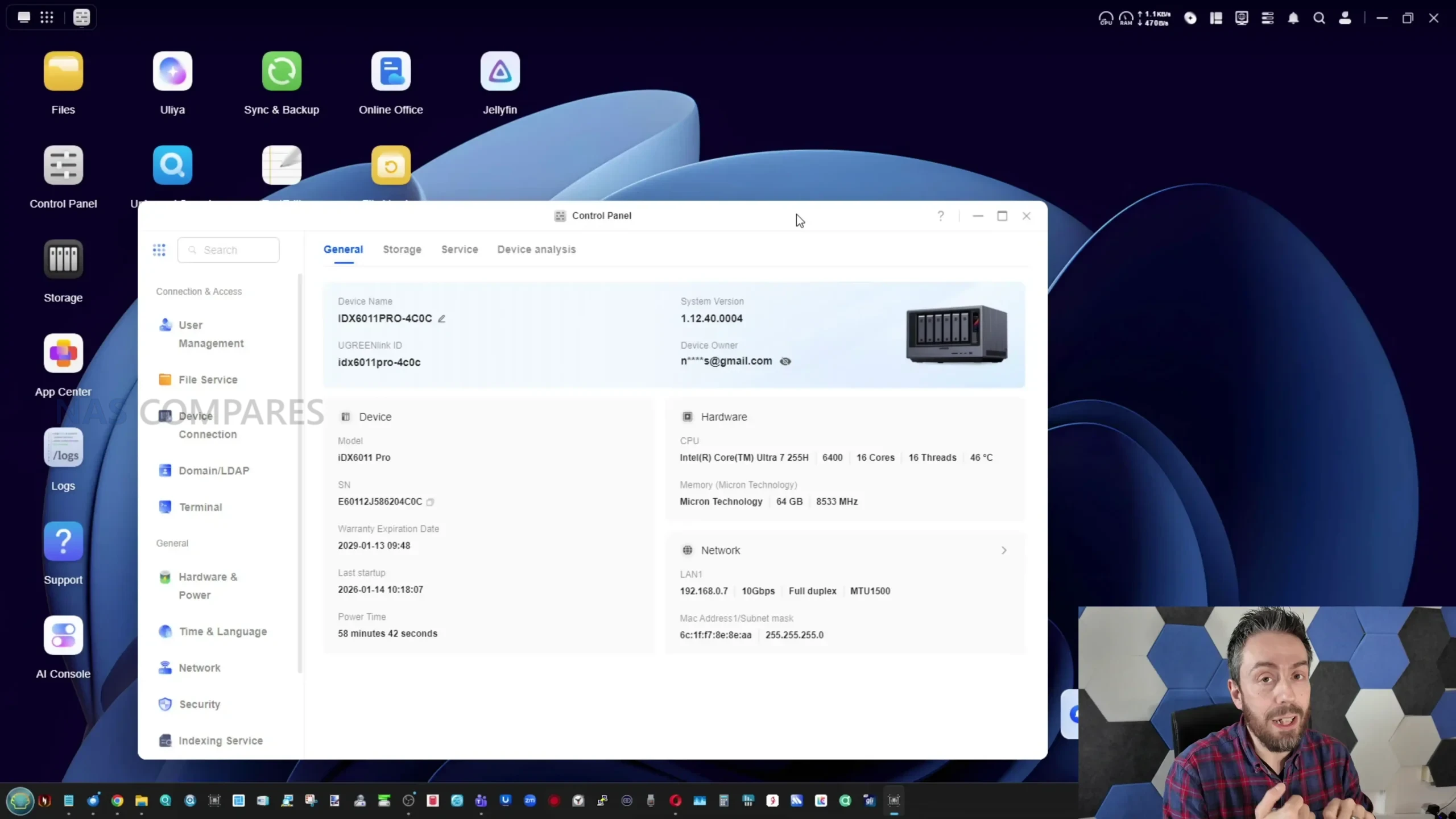
At the core of the DXP4800 Pro is the Intel Core i3 1315U, a 13th generation processor that replaces the Pentium Gold used in the DXP4800 Plus. This CPU brings a higher core and thread count, along with slightly higher boost frequencies and improved integrated graphics capability. In practical terms, this provides more headroom for parallel workloads such as Docker containers, background indexing tasks and light virtual machine use. While it is still a mobile class processor, it represents a measurable step up in sustained performance compared with the previous model.
The system ships with 8GB of DDR5 memory running at 5600MHz and supports expansion up to 96GB across two SODIMM slots. This increased memory ceiling is one of the more meaningful hardware changes, particularly for users running multiple services simultaneously or experimenting with virtualization. ODECC support is listed, although this remains dependent on compatible memory modules. Accessing the memory slots requires removing the base panel, which is straightforward but not tool free.
Internally, the DXP4800 Pro also includes a dedicated 128GB SSD used as the system drive for UGOS Pro. This drive operates independently of the two user accessible NVMe slots and ensures the operating system does not consume space from the main storage pools. The presence of a separate system disk also allows users to repurpose the NAS with alternative operating systems if desired, without interfering with the primary storage configuration or voiding the hardware warranty.
UGREEN DXP4800 PRO Review – Ports and Connections
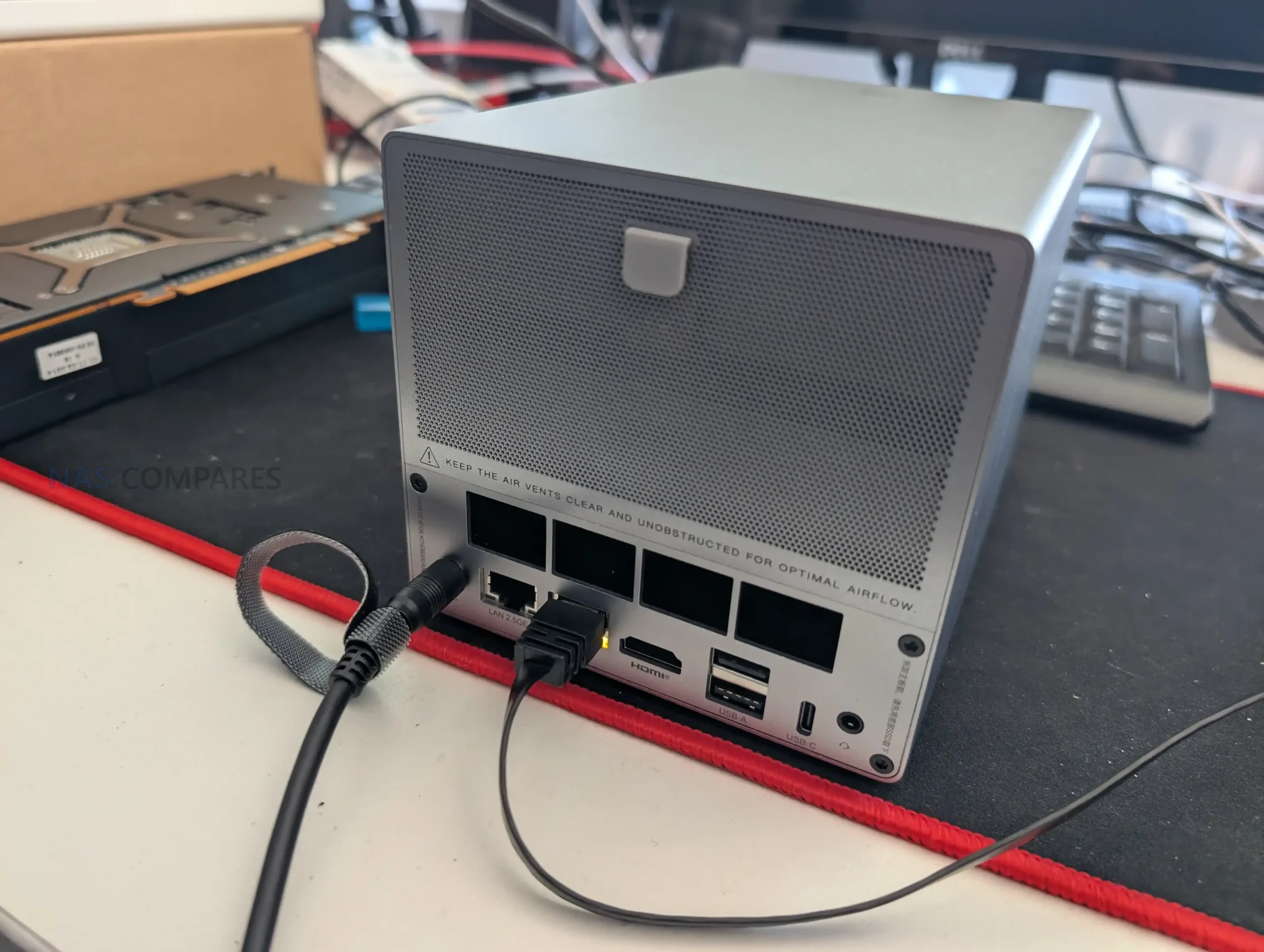
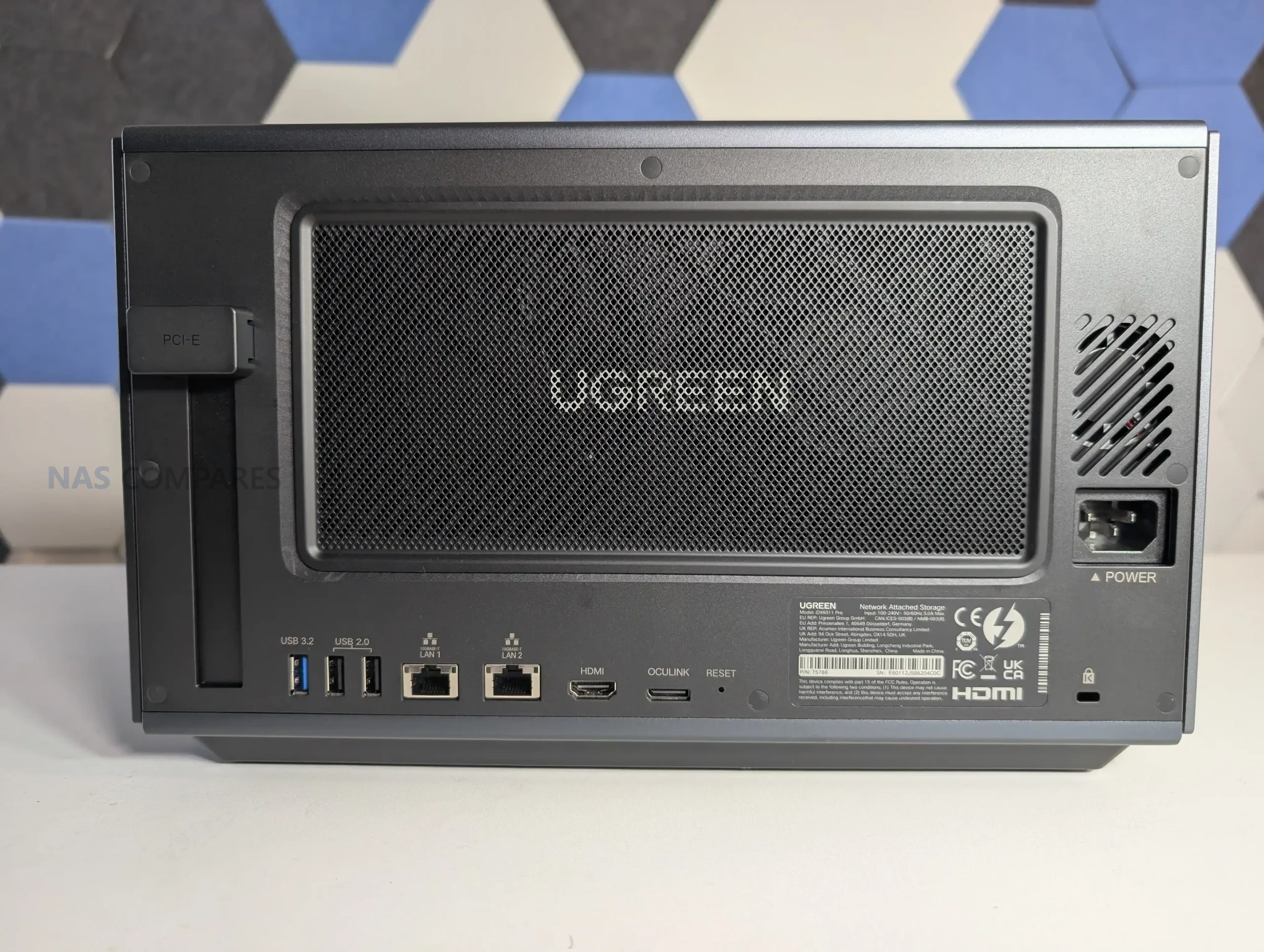
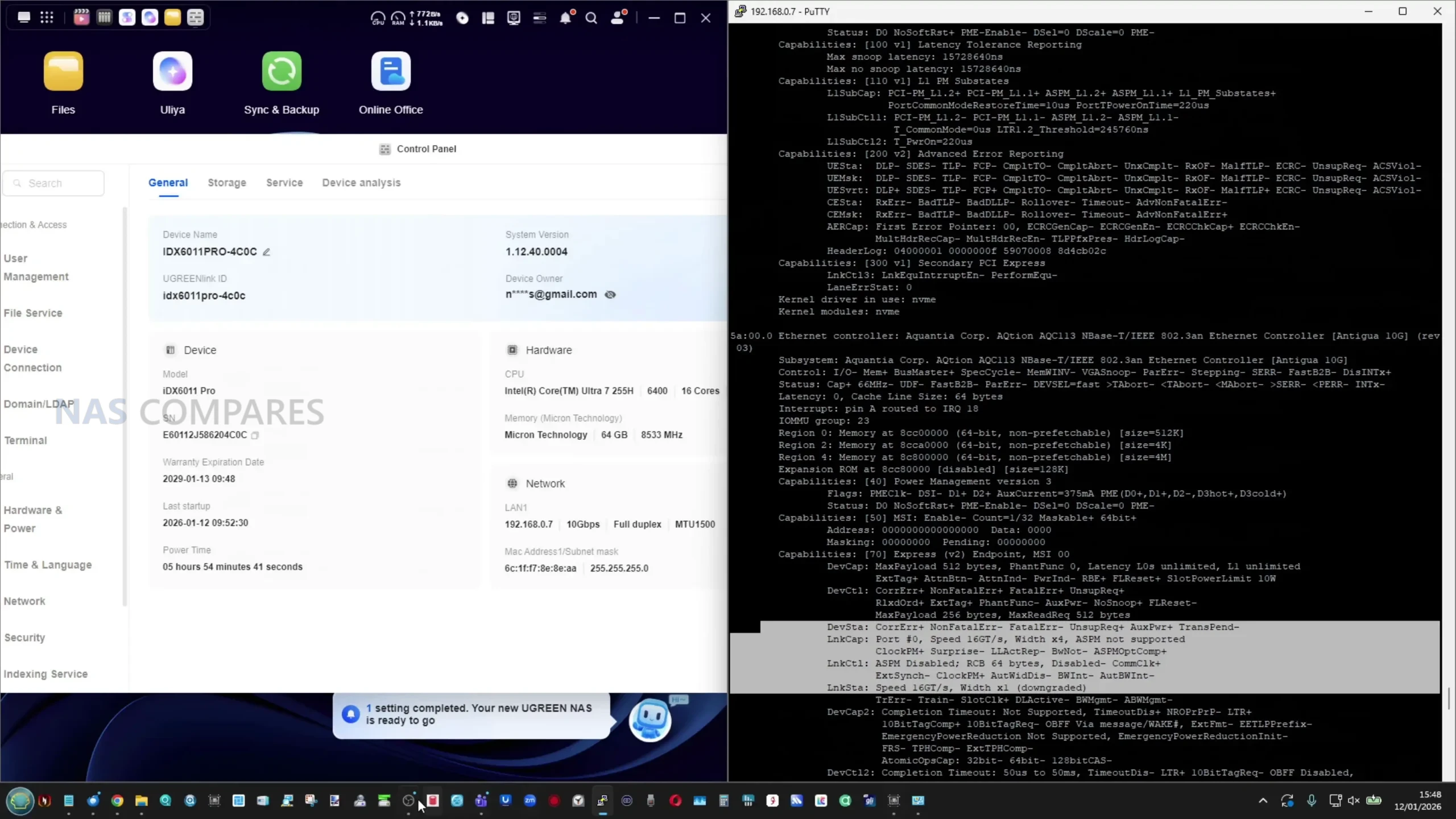
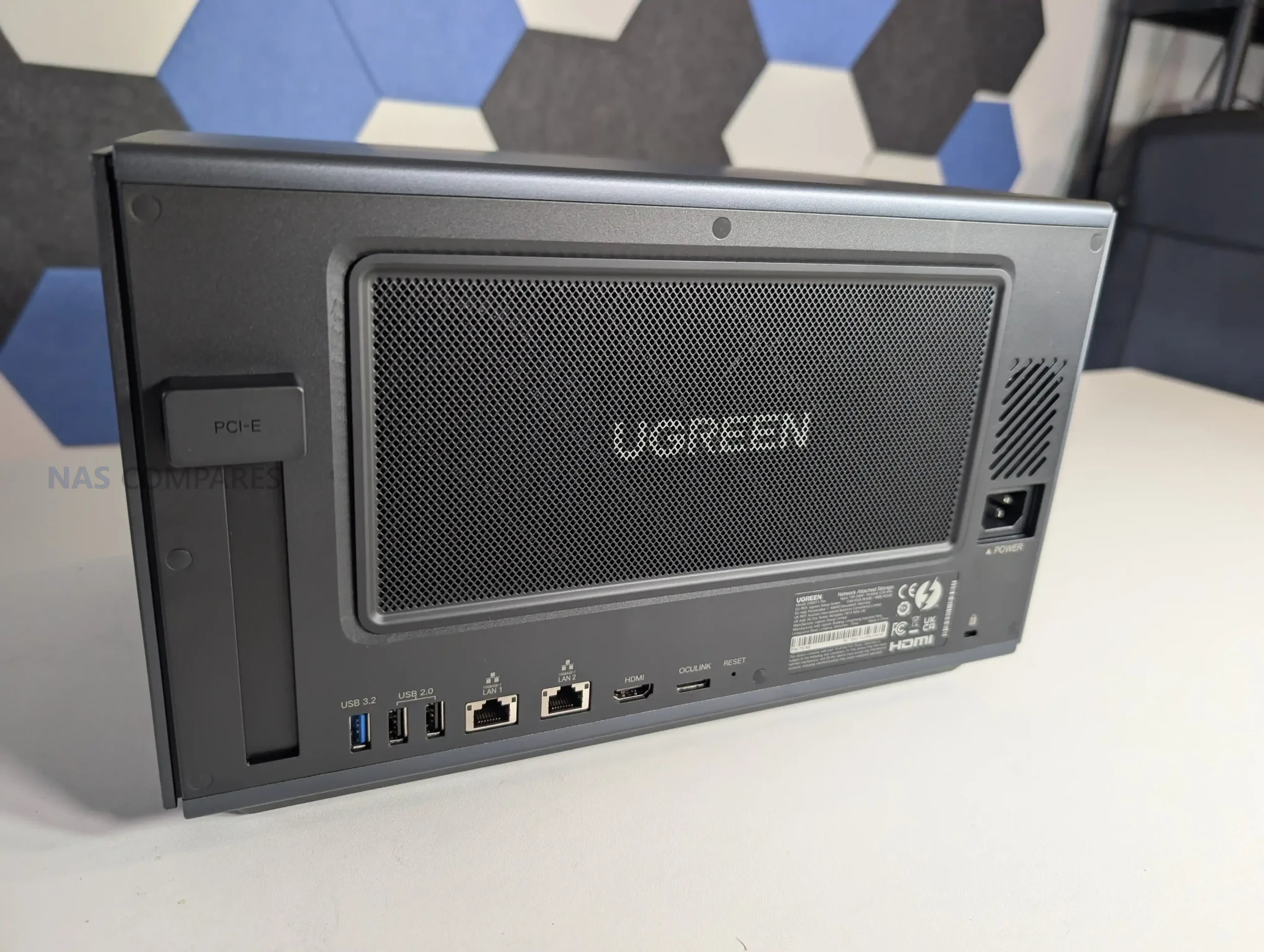
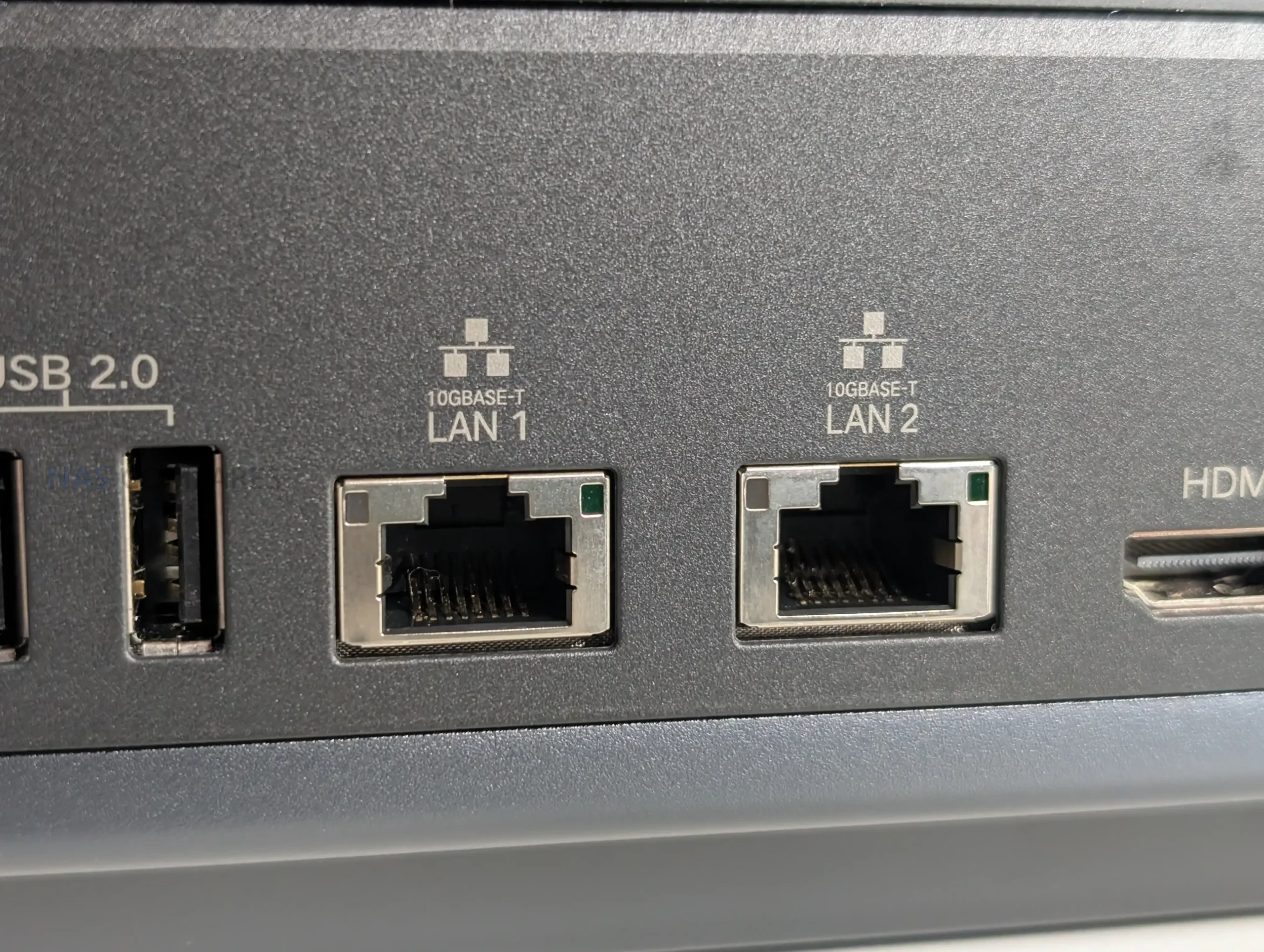
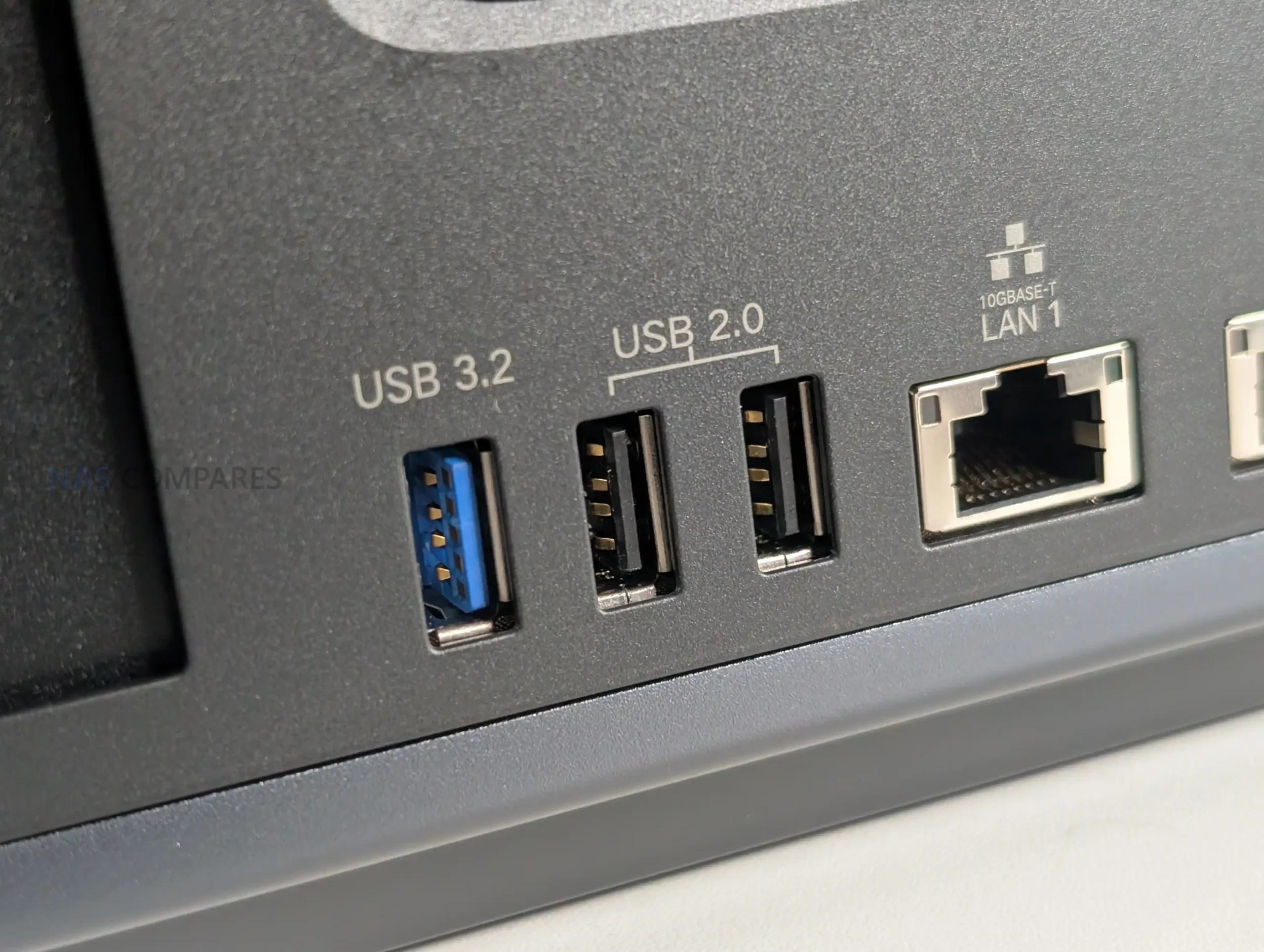
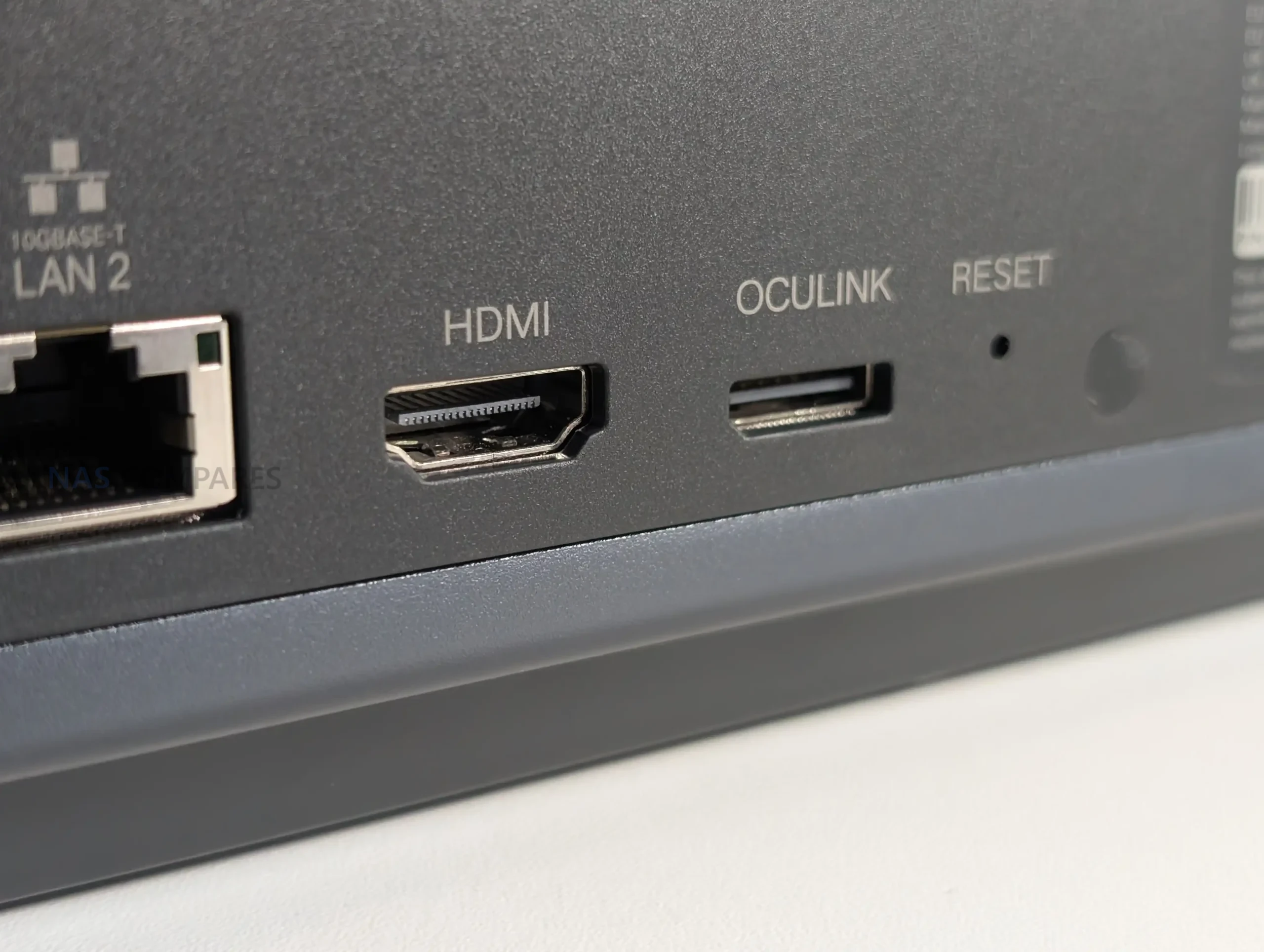
The DXP4800 Pro offers the same port layout as the DXP4800 Plus, with no changes to the overall external connectivity. On the networking side, it includes both a 2.5GbE port and a 10GbE port on the rear of the unit. This dual network setup allows the system to integrate easily into standard home or office networks while also supporting higher bandwidth workflows where compatible switches and clients are available. Link aggregation is not required to access higher speeds, as the 10GbE port operates independently.
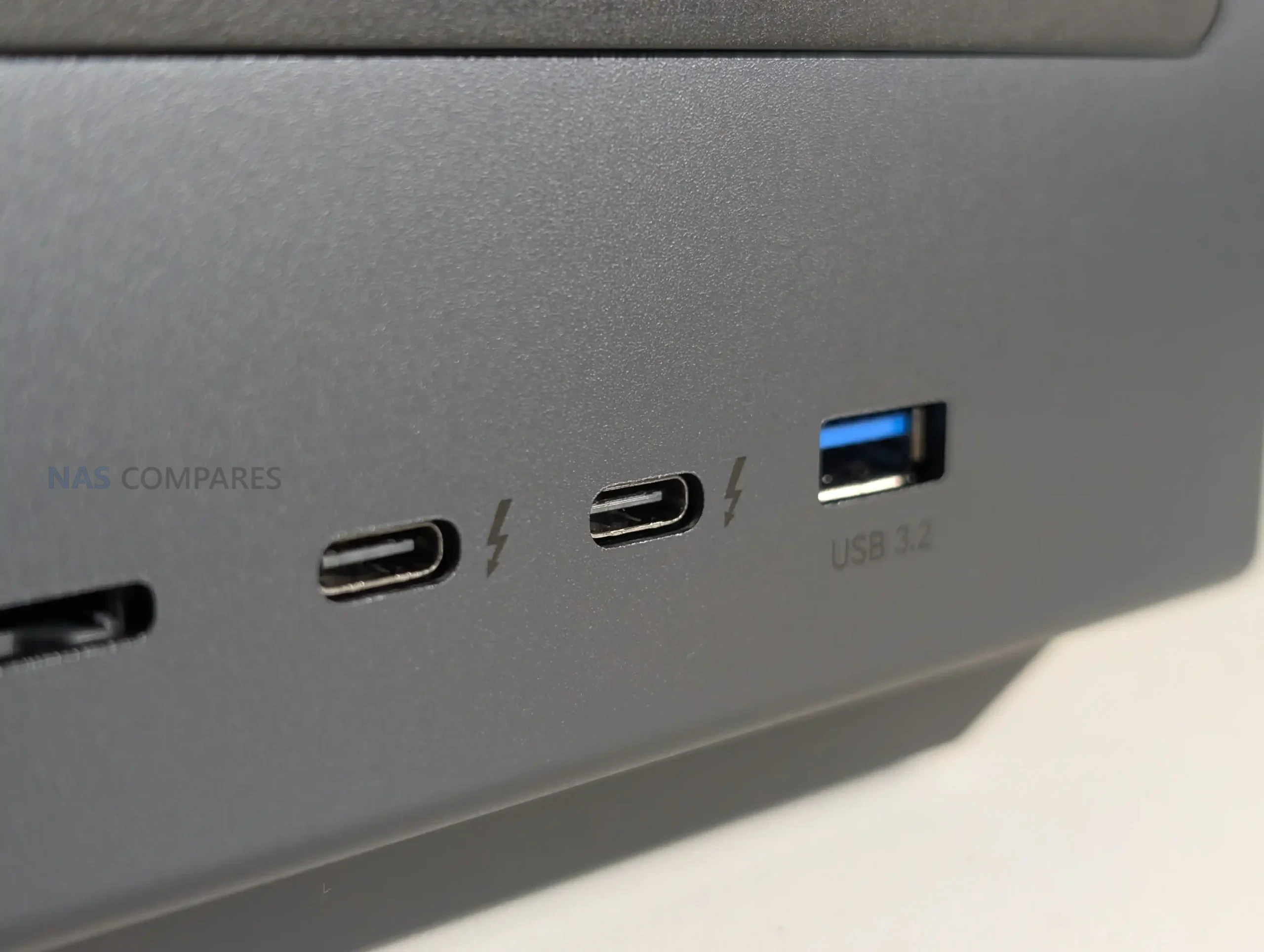
USB connectivity is split between the front and rear panels. On the front, there is one USB C and one USB A port, both operating at up to 10Gbps. These are suited for fast external storage, temporary backups or quick data transfers without needing to access the rear of the system. The rear panel includes one USB A port running at 5Gbps, along with two USB 2.0 ports intended for lower bandwidth peripherals such as UPS connections or input devices.
Additional I O options include an SD 3.0 card reader on the front panel and an HDMI output on the rear. The SD slot is primarily aimed at photographers and videographers who regularly offload media directly to the NAS, while the HDMI port supports local display output at up to 4K resolution. Together, these ports allow the DXP4800 Pro to function not only as a network storage device but also as a basic local media or management system when connected directly to a display.
UGREEN DXP4800 PRO Review – Noise, Heat, Power and Performance Tests
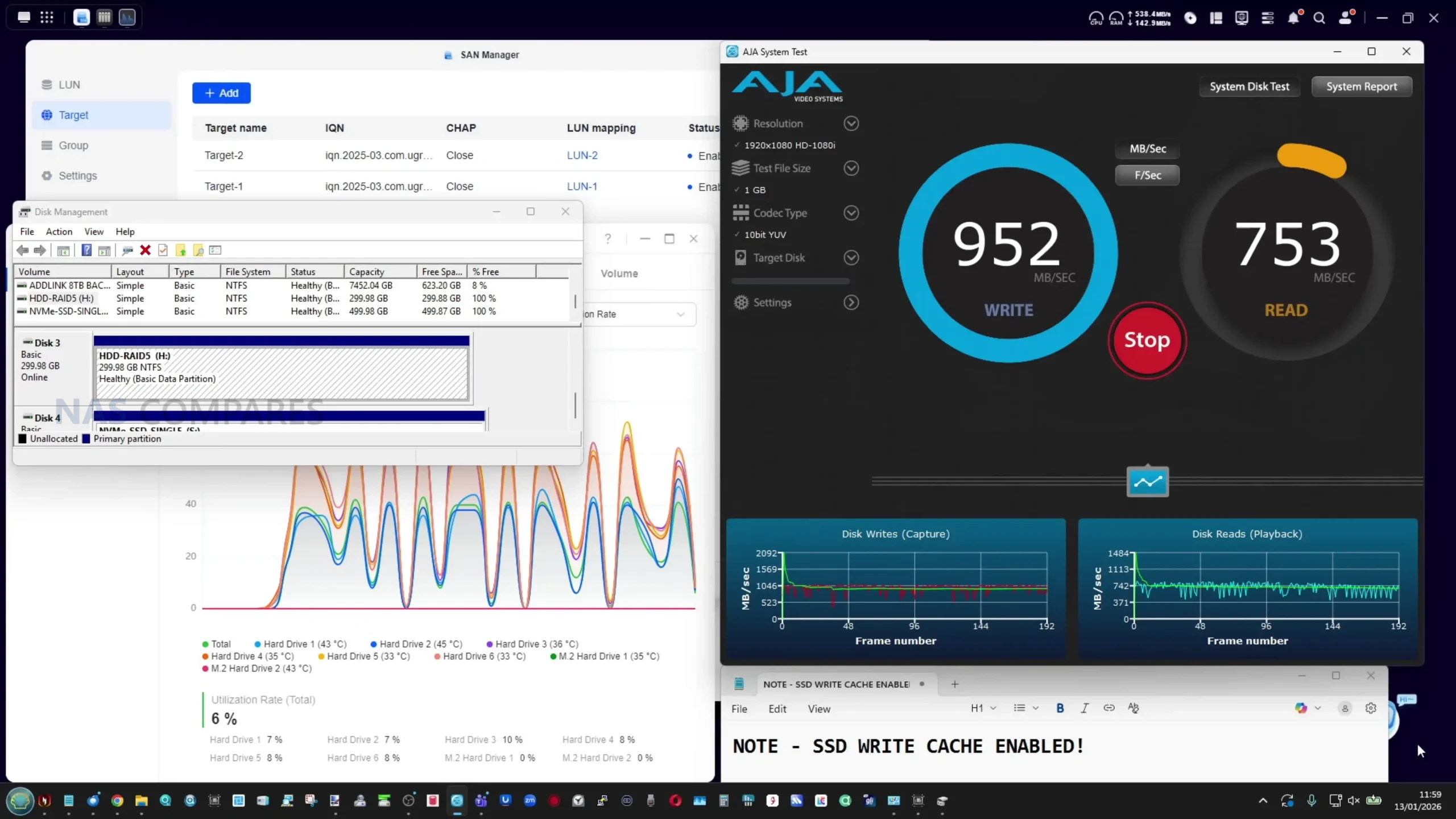
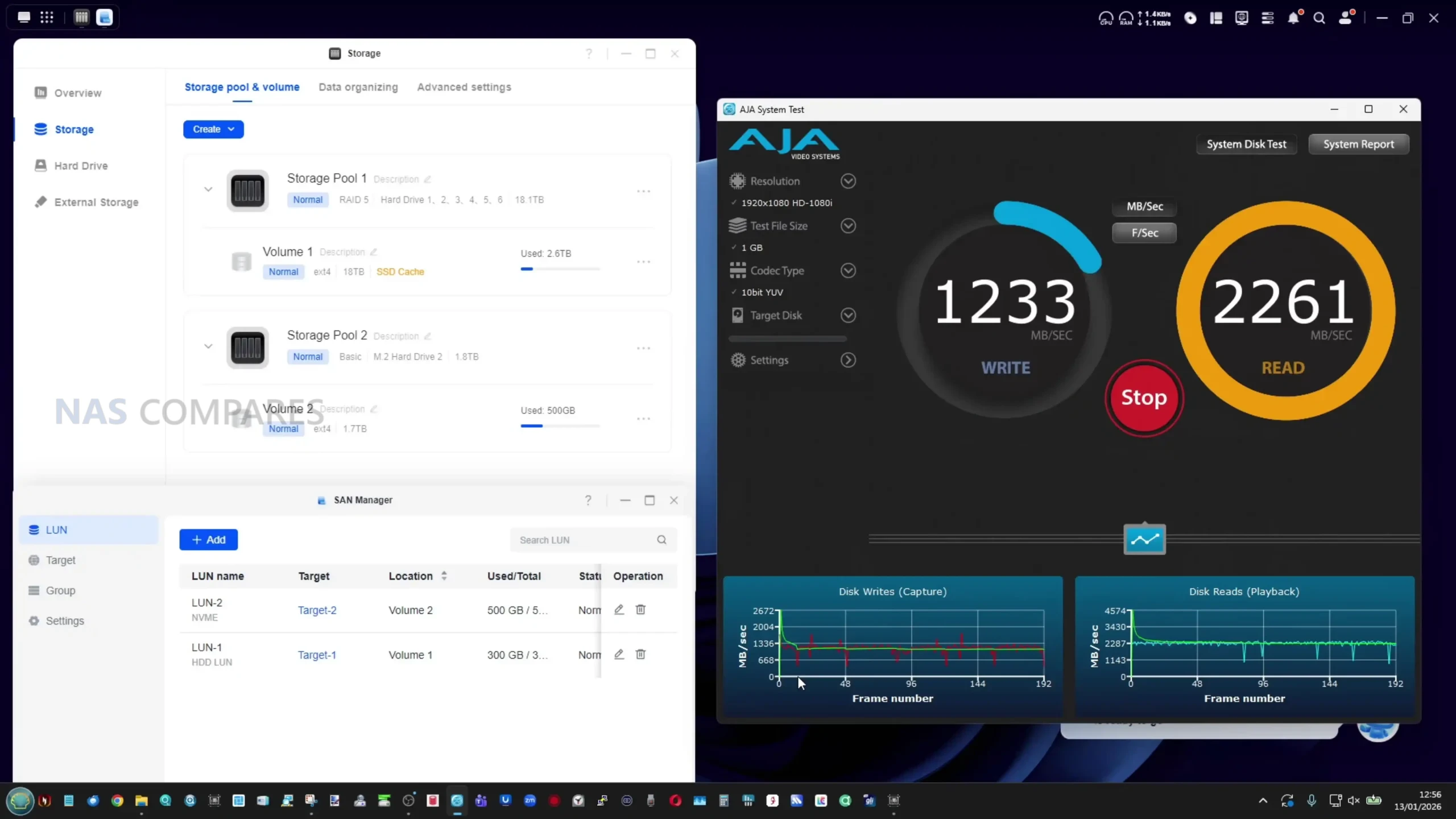
In network file transfers using four SATA hard drives configured in RAID 5, the DXP4800 Pro delivers performance in line with expectations for a 4 bay NAS equipped with 10GbE. Sequential read speeds during testing typically fell in the 450 to 500MB/s range, while write speeds were closer to 300 to 350MB/s. These figures reflect the limits of mechanical drives rather than any immediate system bottleneck, and represent a noticeable uplift compared with single drive performance when accessed over a high speed network connection.
NVMe performance is stronger, particularly when the two user accessible M.2 slots are configured as an SSD storage pool. Synthetic benchmarks conducted within the system reported read speeds in the 5.5 to 6GB/s range, while real world transfers over a 10GbE connection sustained approximately 660 to 680MB/s when copying large media files.
These results are consistent with the constraints of the network interface and show that the NVMe subsystem is not the limiting factor during external transfers.
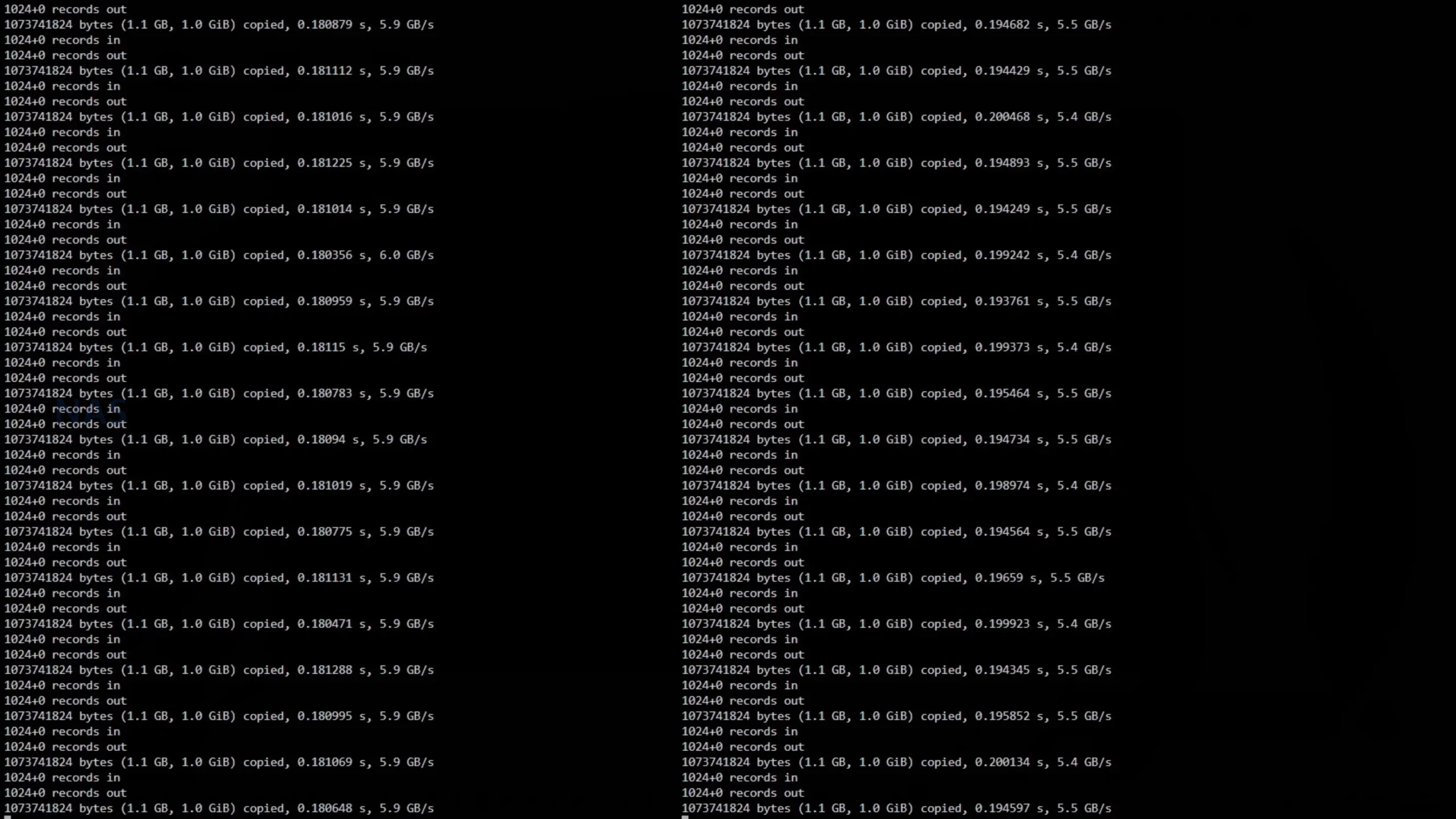
1GB x 100 – SSH Read/Write Test over SSH – SSD Bay #1 (Gen 3×4 Slot)
1GB x 100 – SSH Read/Write Test over SSH – SSD Bay #2 (Gen 4×4 Slot)
Internal SSD testing via SSH revealed some variation depending on which drives were involved. The system SSD, operating over PCIe Gen3 x4, delivered around 3.1GB/s read and 2.4GB/s write in repeated tests.
Transfers between the two PCIe Gen4 NVMe drives reached higher raw throughput in isolation, but inter SSD transfers were lower than expected (AROUND 1-2 to 1.5Gb/s, suggesting that some operations may still route through system level processes rather than achieving full peer to peer speeds.
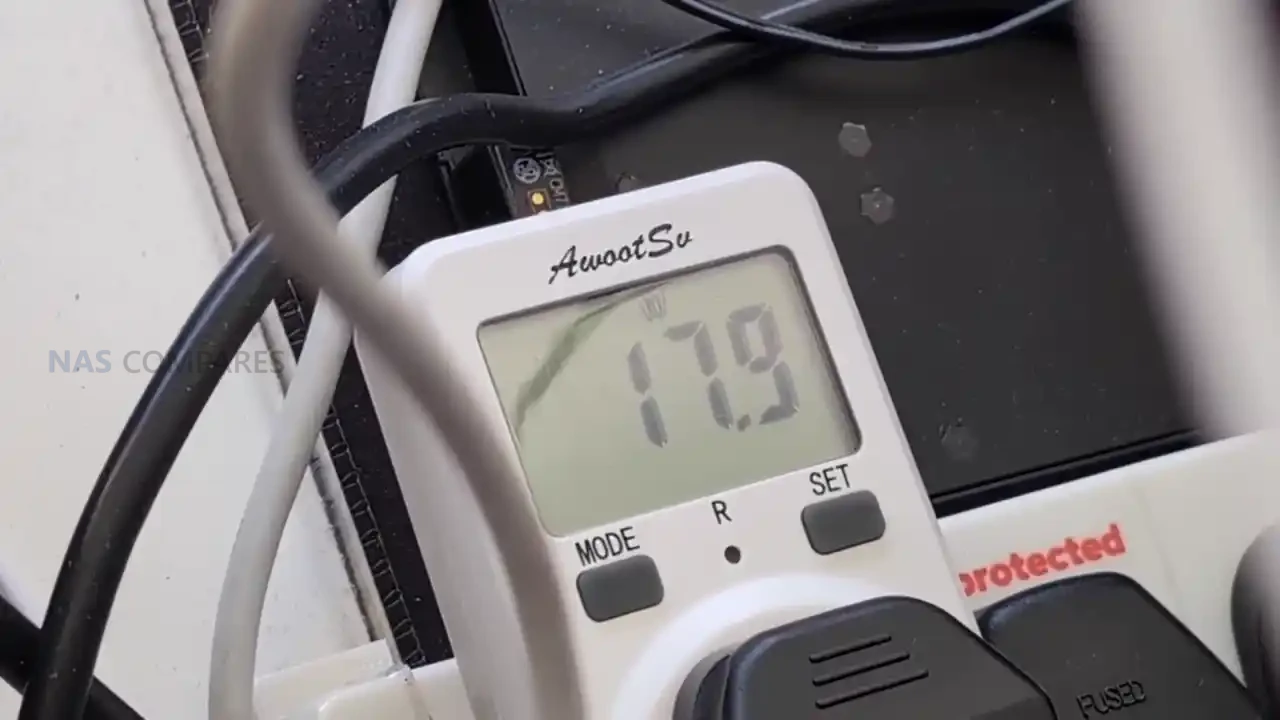
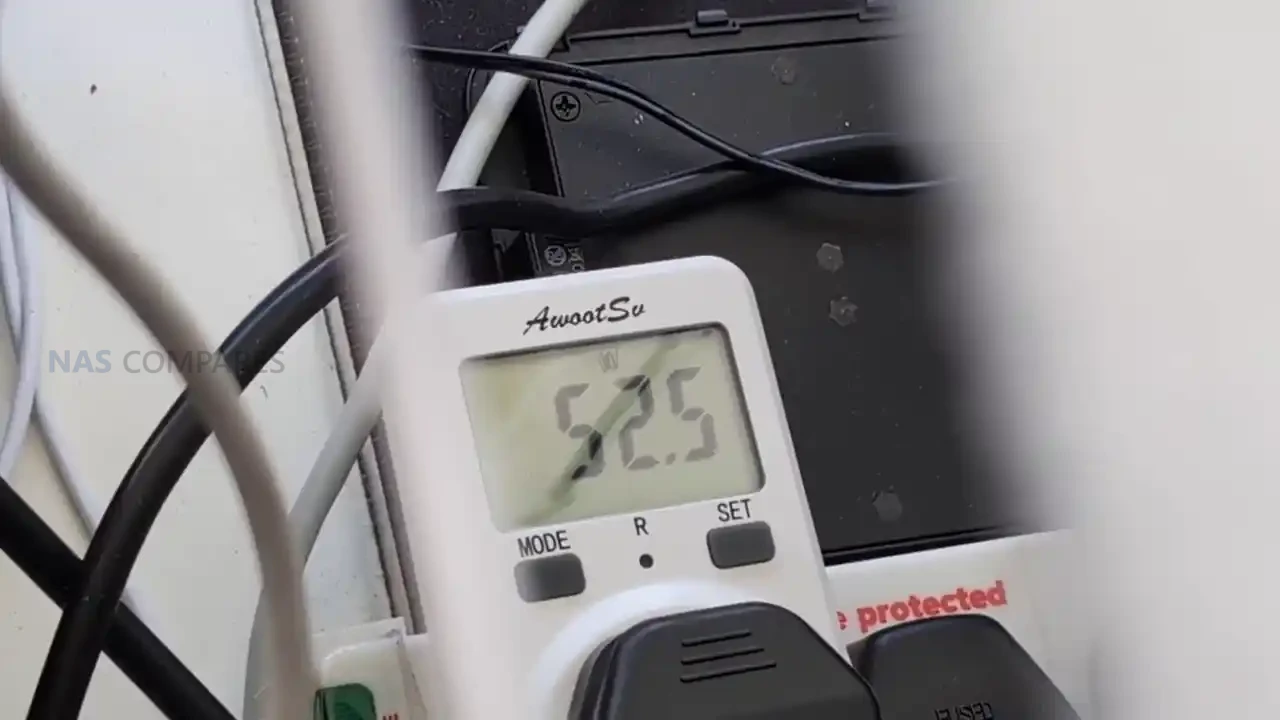
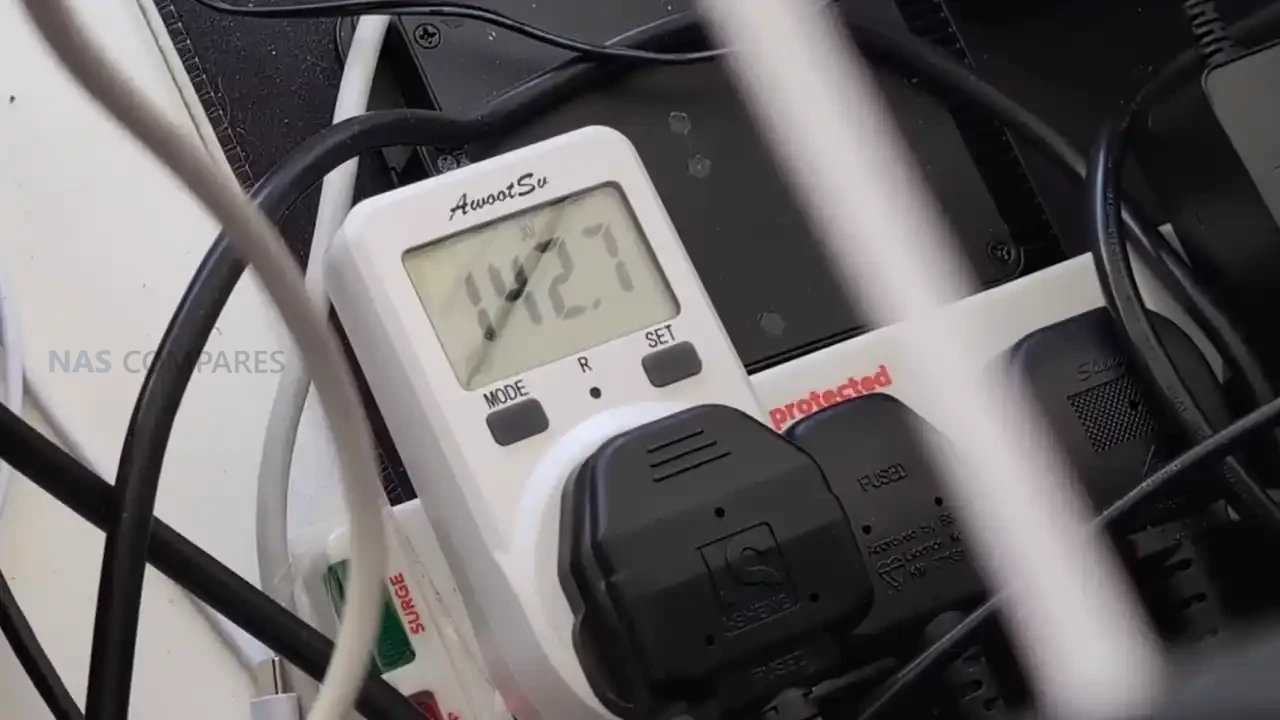
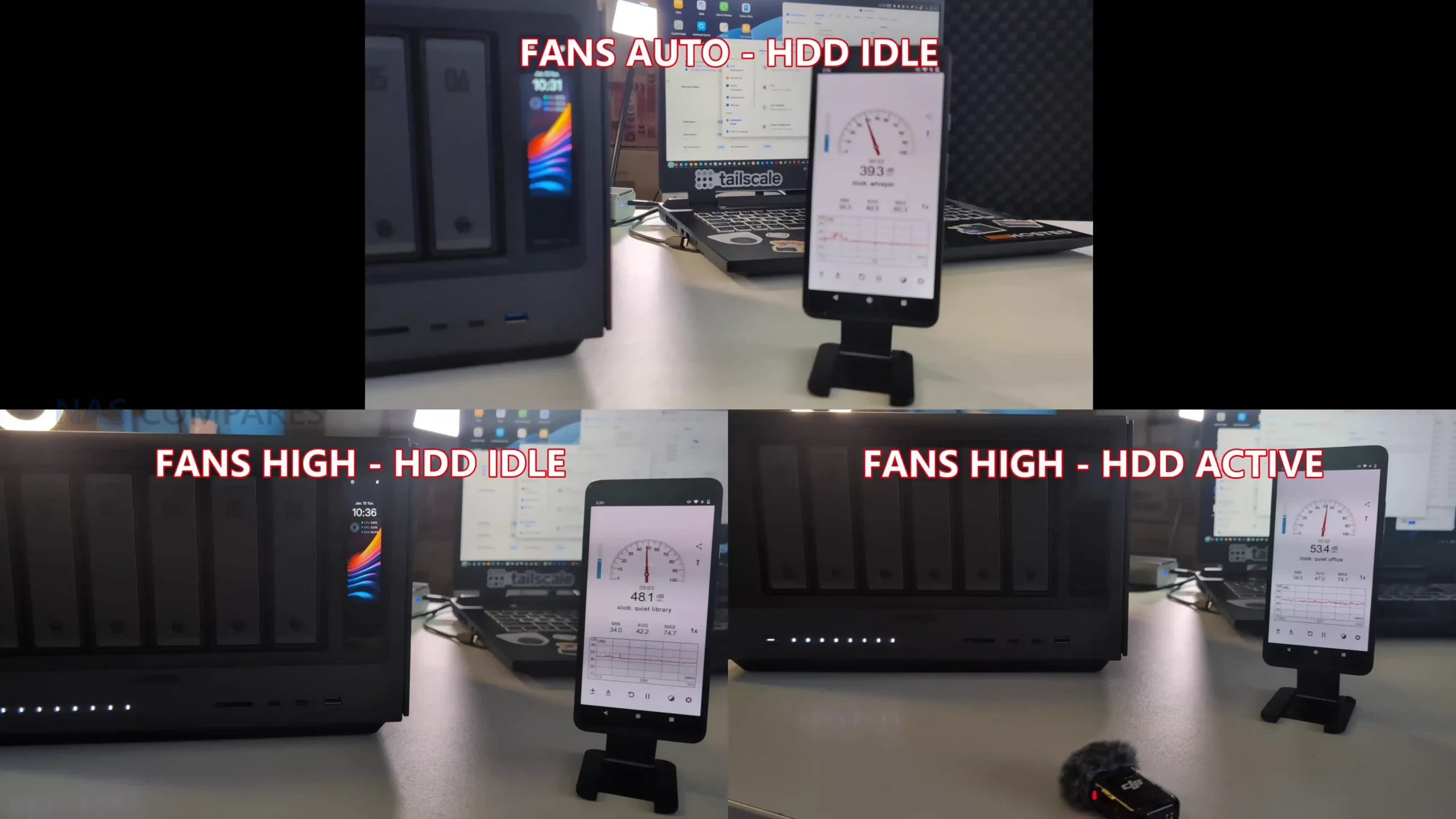
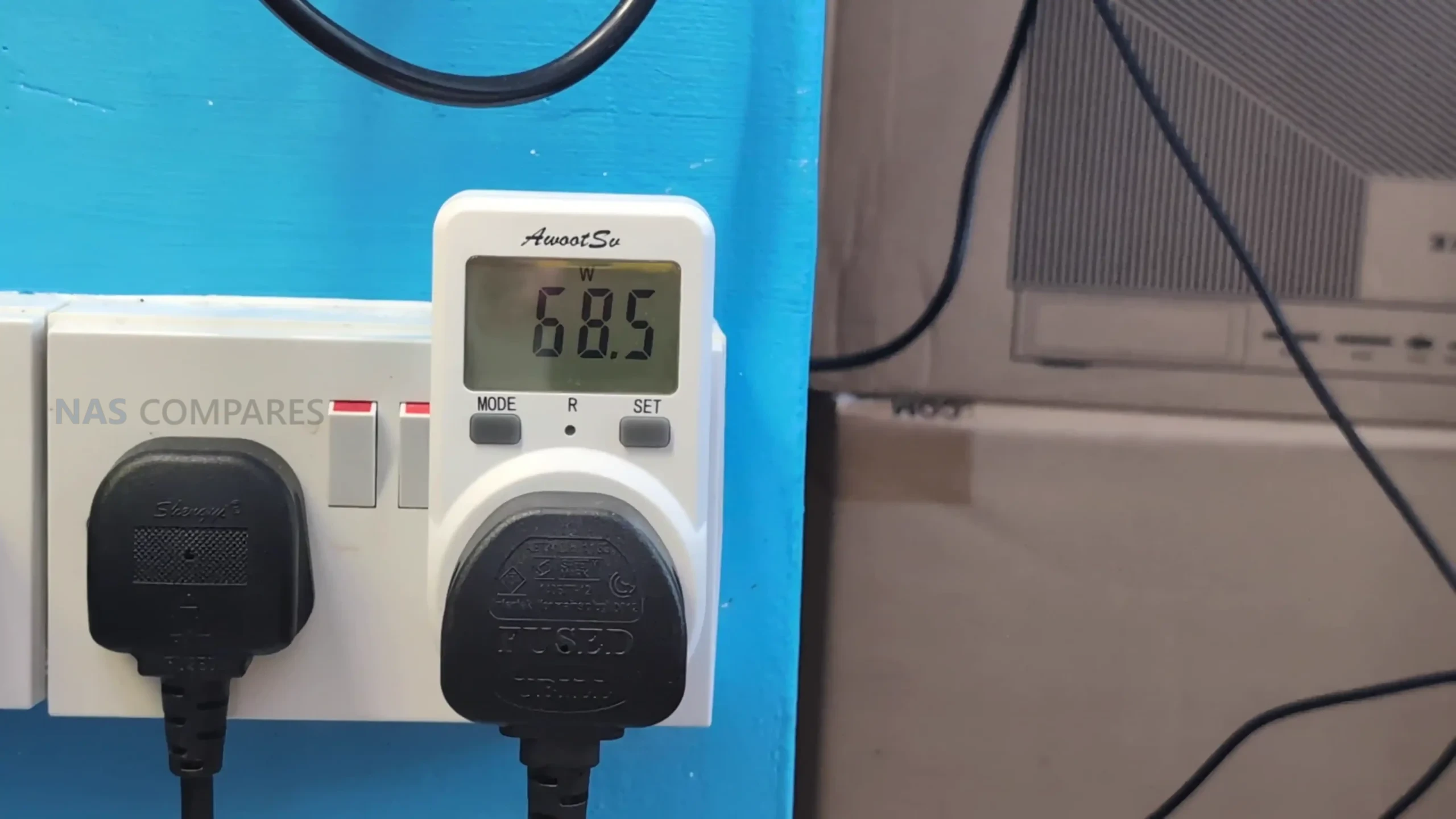
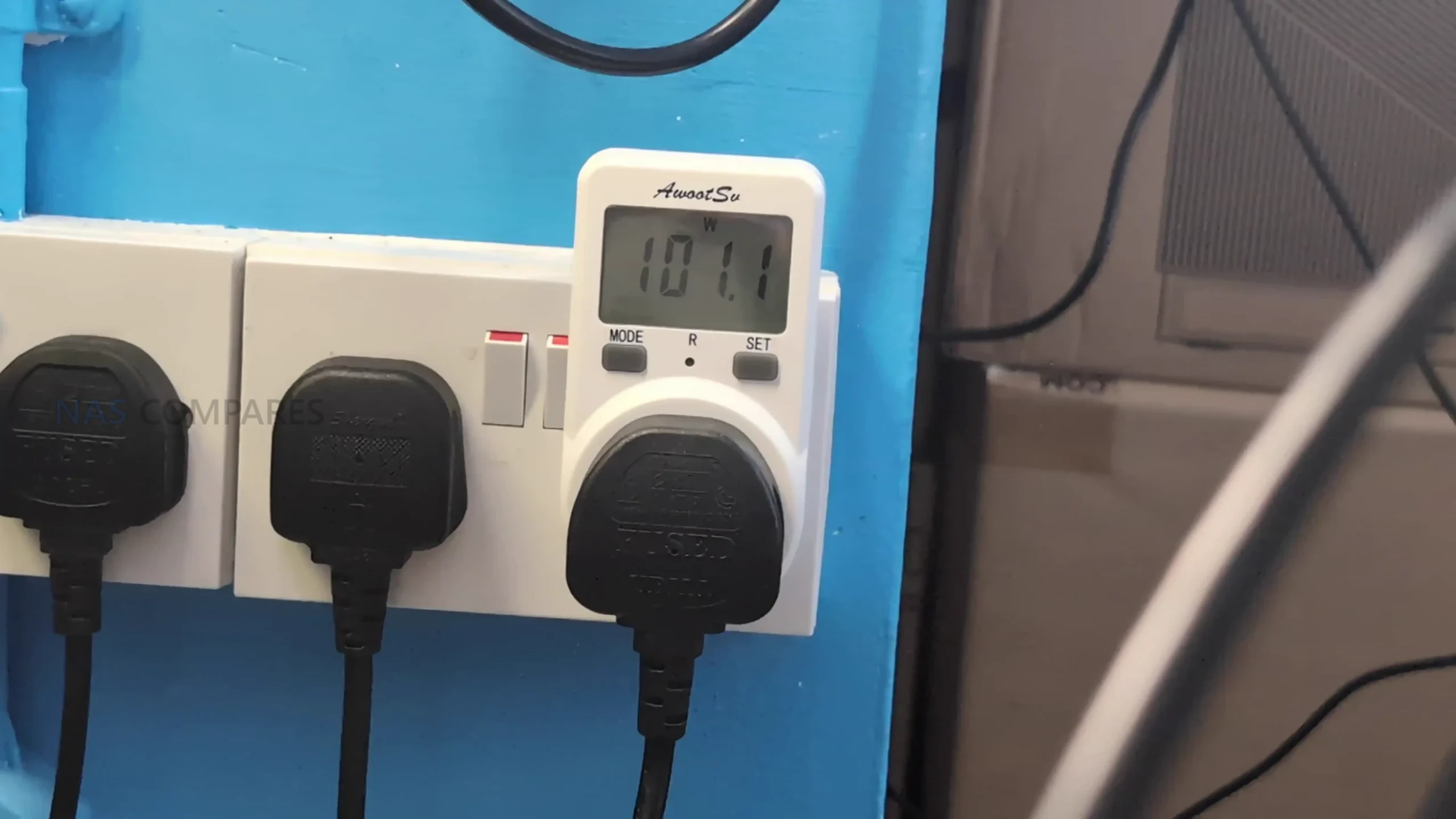
Power consumption is higher than that of entry level NAS models using low power CPUs. With four hard drives installed and both network ports connected, idle power draw measured around 28W. Under moderate load with active disks and light CPU usage, consumption increased to approximately 58 to 59W. At sustained full load, including CPU intensive tasks, active hard drives, NVMe access and network activity, power draw peaked in the low to mid 80W range. Noise levels remained modest at idle, but increased noticeably under heavy drive or cooling loads, particularly when the fan profile was set to prioritize cooling over acoustics.
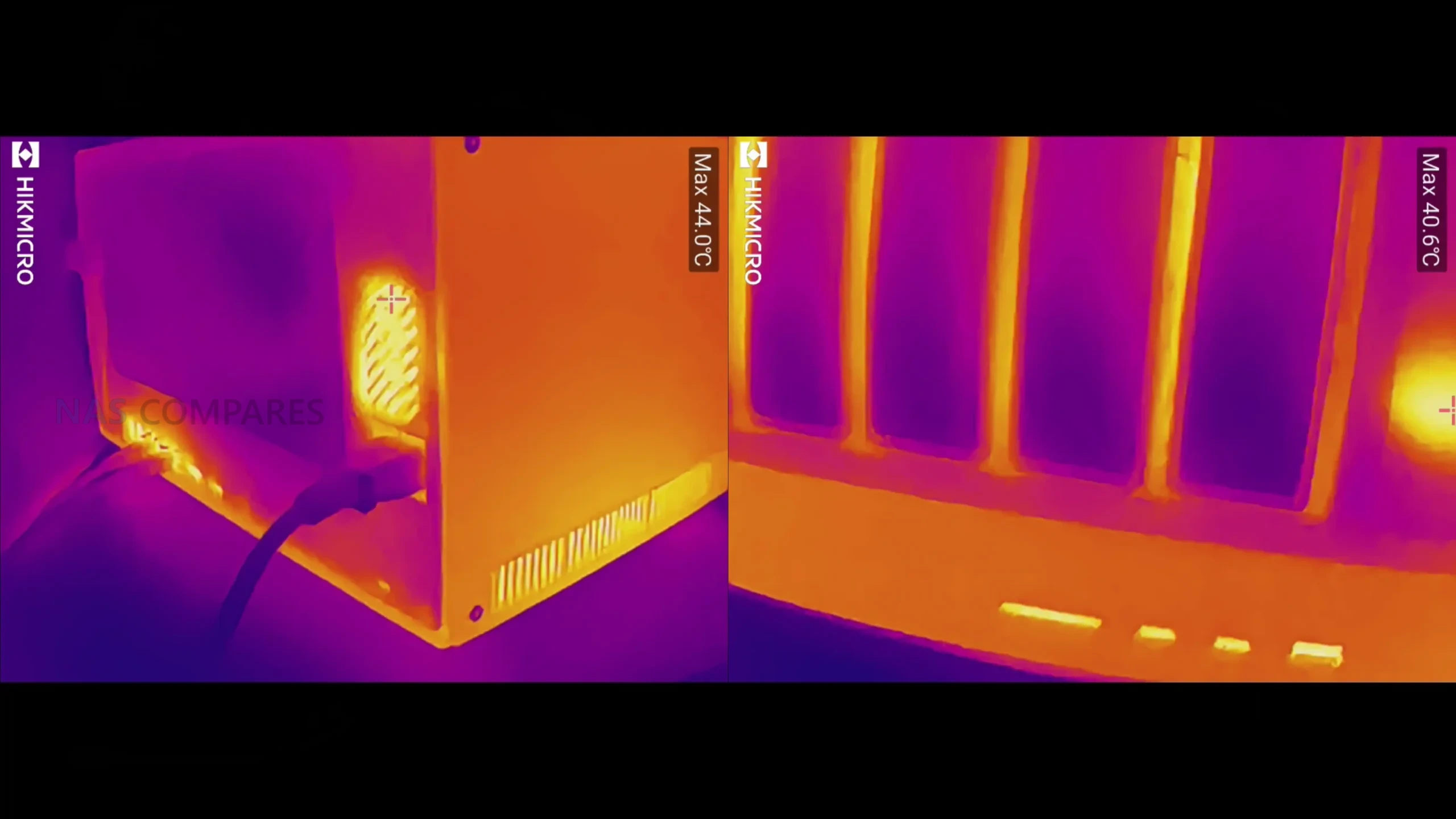
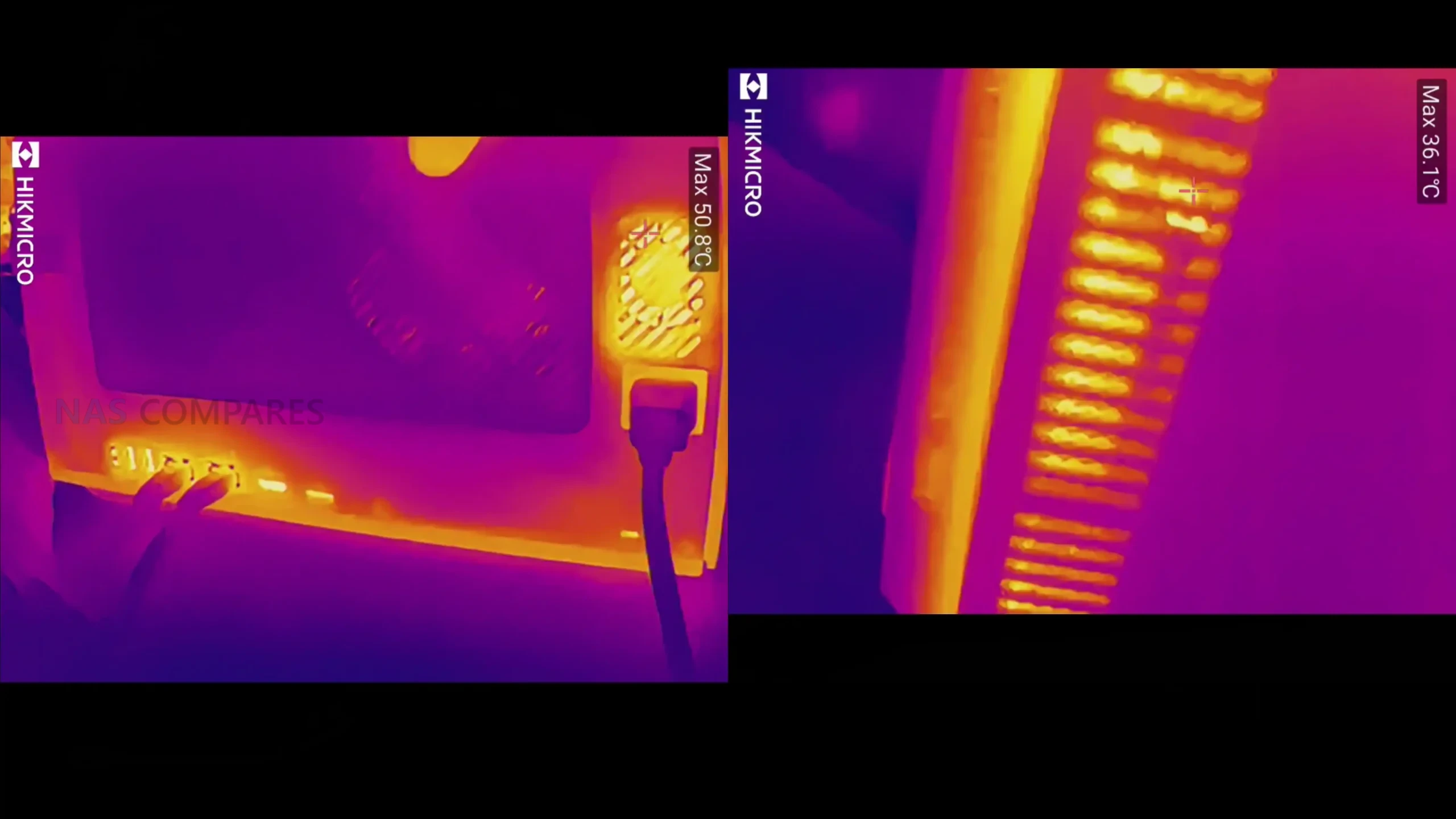
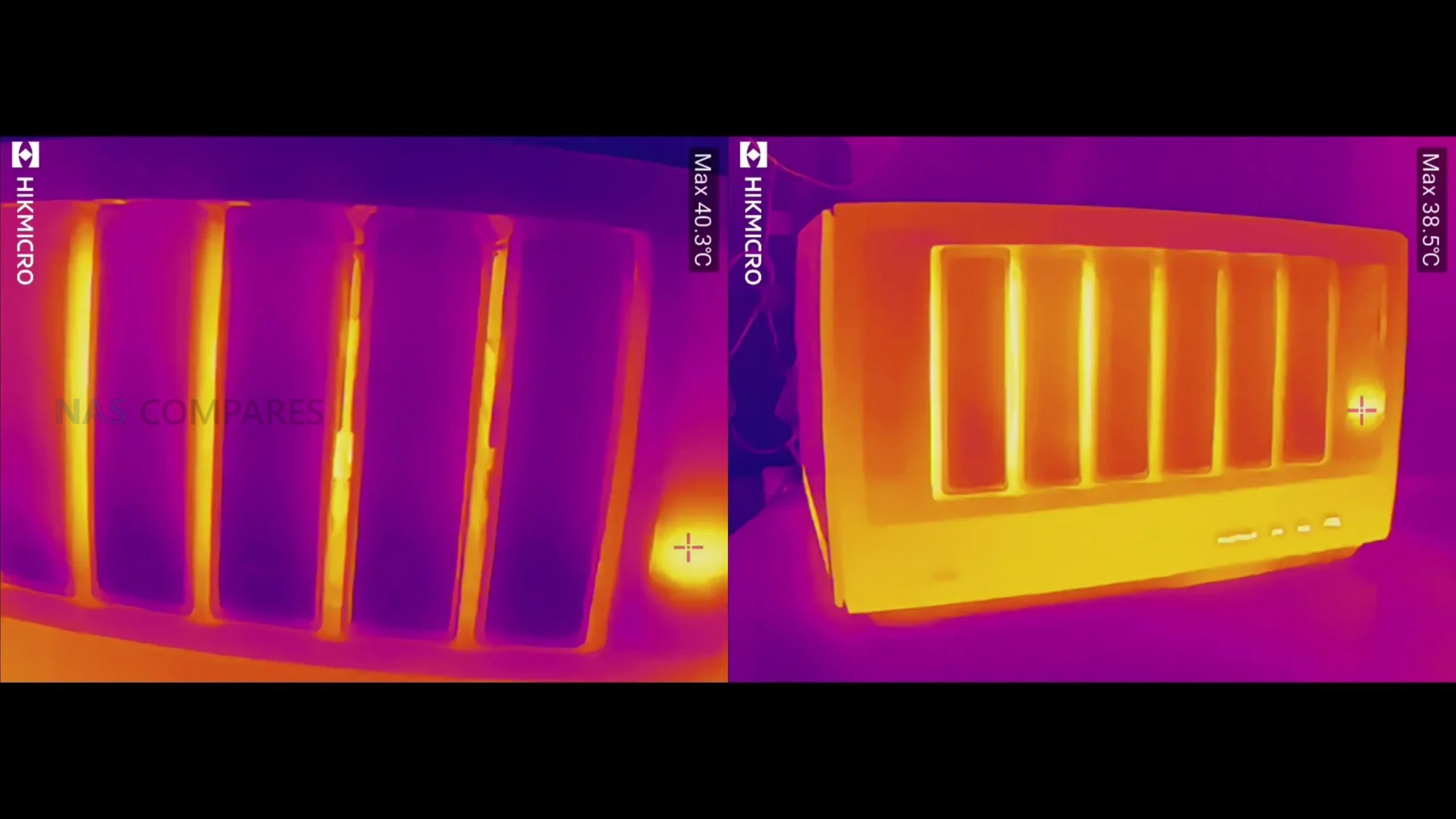
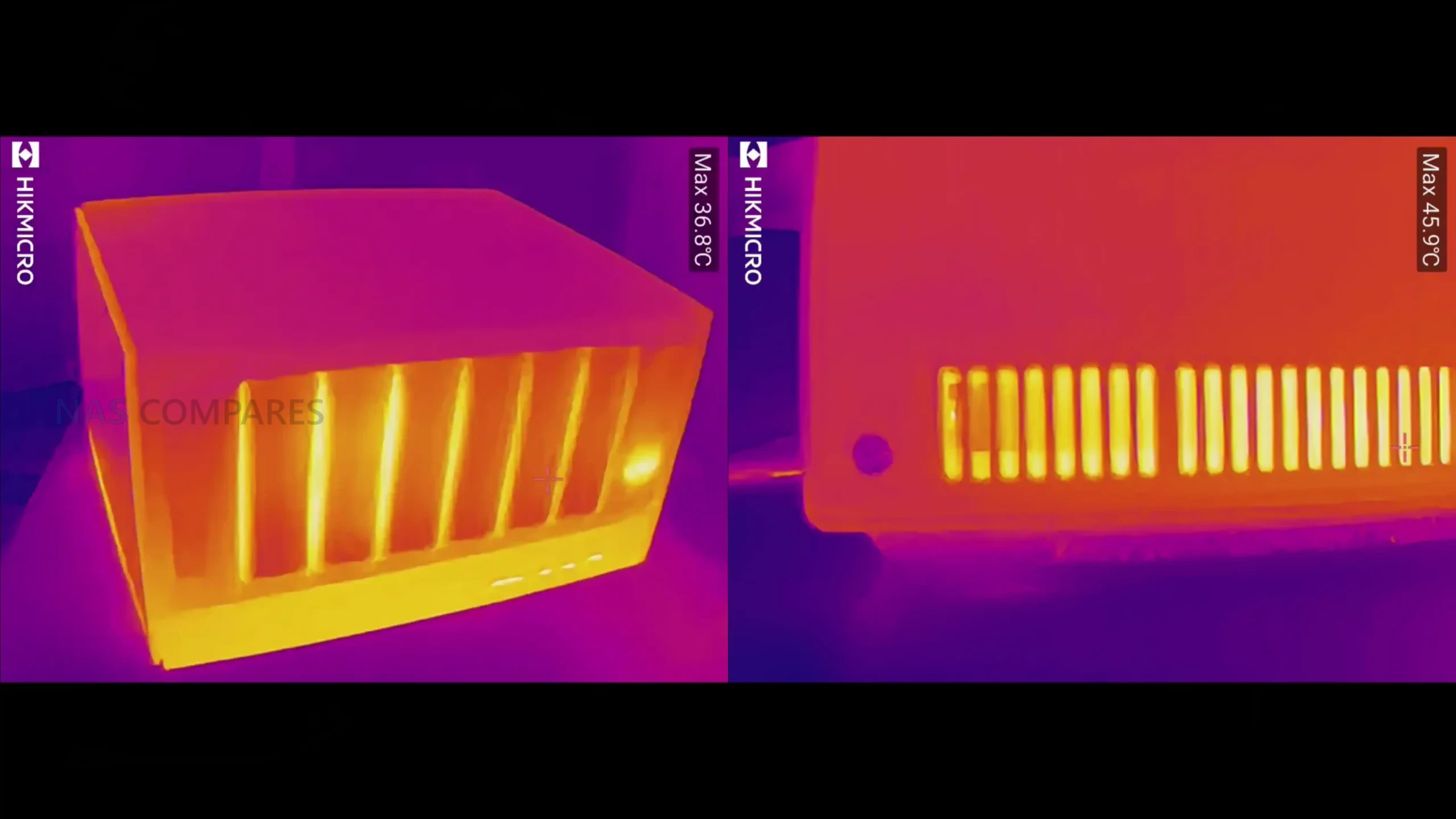
During extended testing, the DXP4800 Pro maintained generally stable operating temperatures across the chassis and internal components, even under mixed workloads. After a 24 hour period with intermittent access and background activity, external surface temperatures measured in the mid to high 30°C range across most of the enclosure, with the front drive area and drive bays reaching the low 40°C range. The rear fan area and network ports remained cooler, typically in the high 30°C range. Particular attention was paid to the underside of the chassis, where the NVMe SSDs are thermally coupled to the metal base panel using thick thermal pads. Despite the relatively low clearance between the NAS and the desk surface, temperatures at the base remained around 34 to 35°C, indicating that heat dissipation through the chassis was effective. Overall, thermal behavior was well controlled for a compact metal 4 bay NAS, with no signs of excessive heat buildup during sustained operation.
Multimedia testing with Jellyfin showed that the DXP4800 Pro handles both playback and transcoding tasks efficiently for a system in this class. When playing high bitrate 4K HEVC content with hardware transcoding enabled, GPU utilization remained low, typically in the mid single digit percentage range, indicating effective use of Intel Quick Sync. Scaling up to 8K content, hardware transcoding continued to perform reliably, with GPU usage generally staying below the low teens and CPU utilization remaining modest.
Native playback of multiple 8K files without transcoding placed limited strain on the system, while simultaneous transcoding of several 8K streams pushed CPU usage higher but still within manageable limits. Overall, Jellyfin performance on the DXP4800 Pro demonstrates that the upgraded CPU and integrated graphics provide sufficient headroom for demanding media workloads, particularly when hardware acceleration is used, without causing system instability or excessive resource contention.
UGREEN DXP4800 PRO Review – Software and Services
The DXP4800 Pro runs UGREEN’s UGOS Pro operating system, which is accessed through a web browser, desktop client or mobile app. Initial setup is straightforward, with the desktop and mobile applications able to automatically detect the NAS on the local network. Most day to day management tasks are handled through a centralized web interface that groups storage, users, services and security settings in a way that is generally easy to navigate, even when multiple features are enabled at the same time.
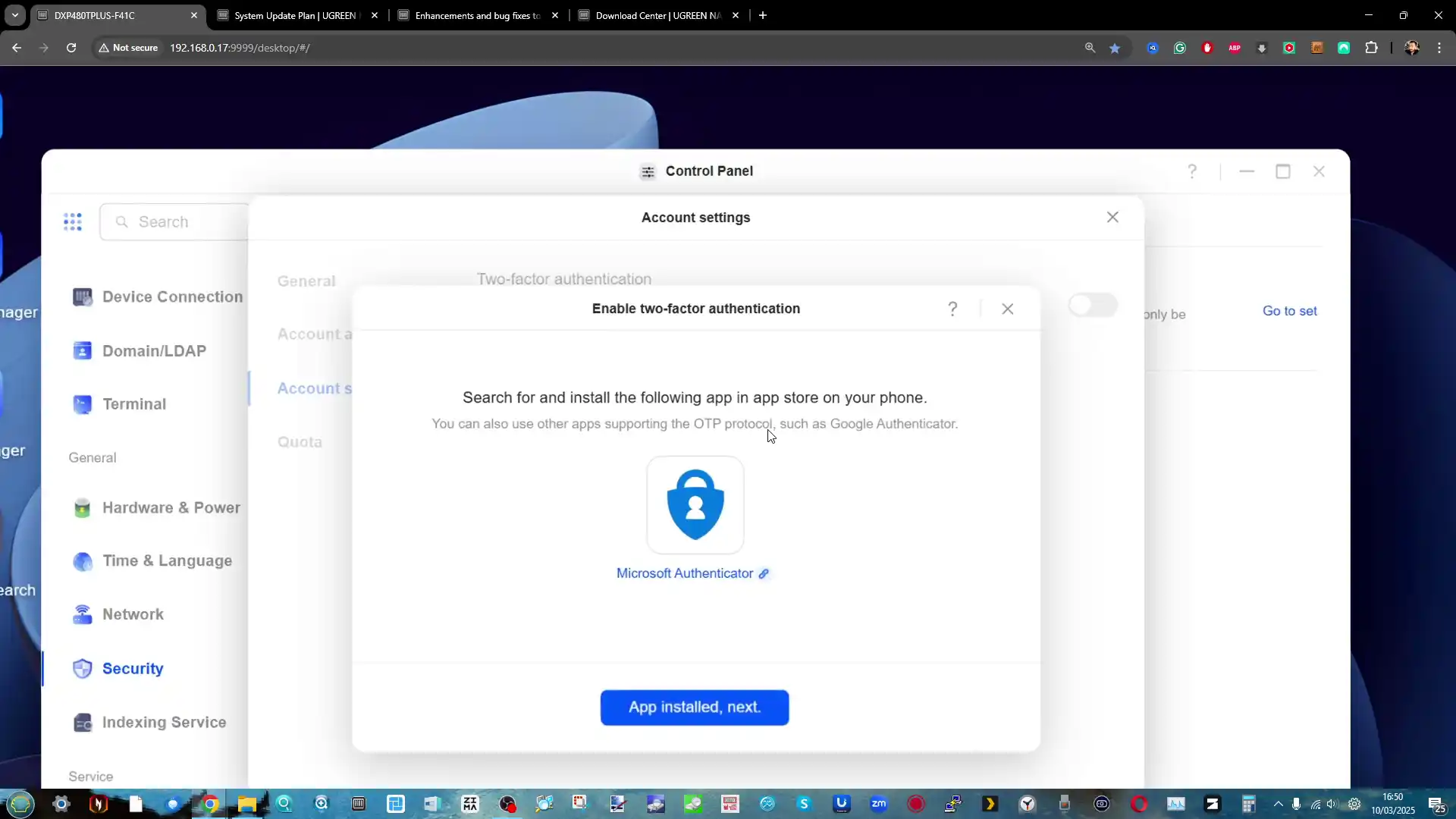
User and security management are handled through the control panel, where password policies, account permissions and two factor authentication can be configured. The system supports individual users and groups, allowing access rights to be defined at both the folder and application level.
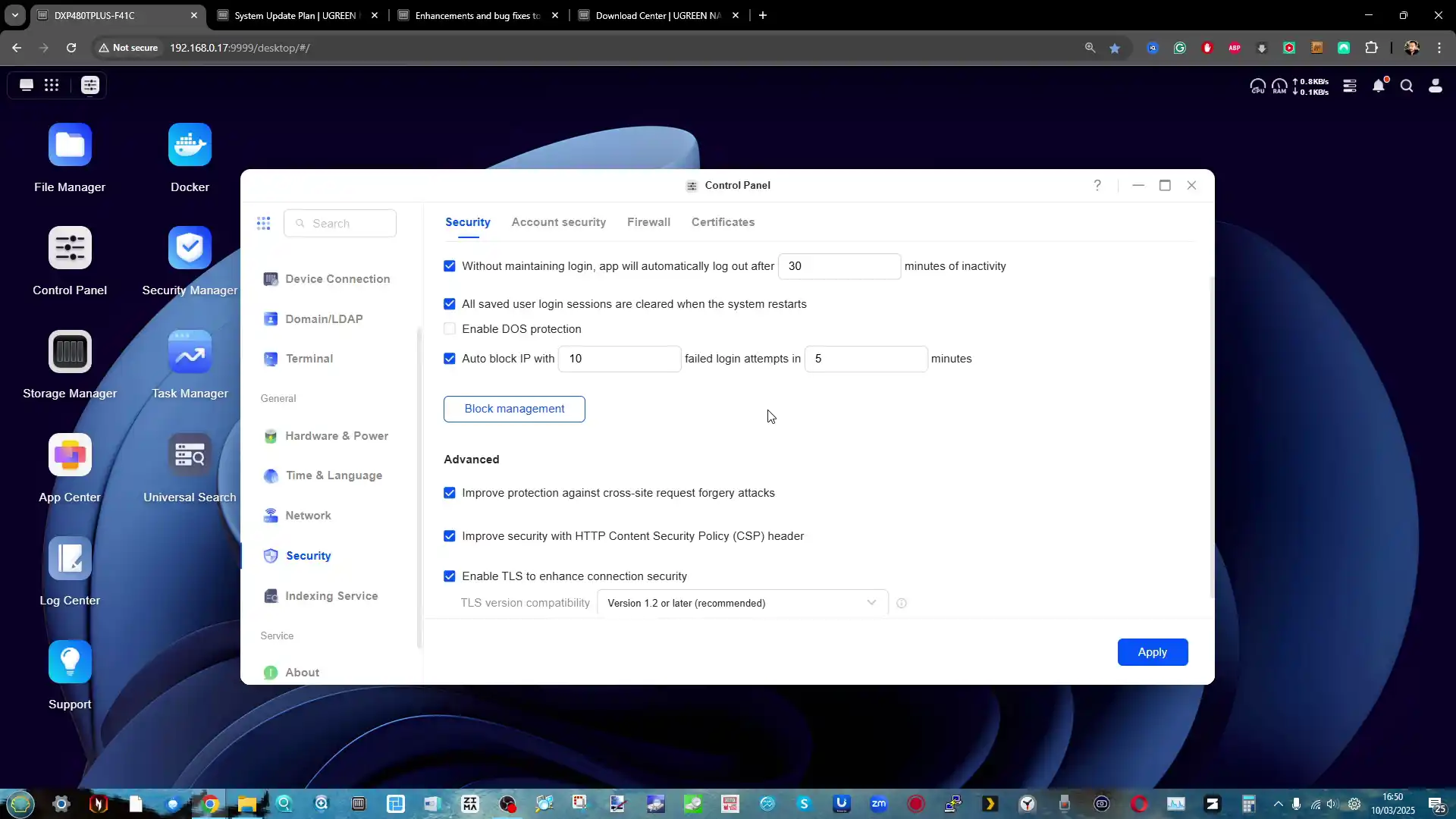
Basic security tools such as IP blocking rules and login attempt limits are included, although the built in security scanning focuses primarily on malware detection rather than broader configuration audits, such as identifying weak passwords or exposed services.
Storage and backup functionality is spread across several integrated tools. Users can create and manage RAID arrays, SSD caches or NVMe storage pools directly from the storage manager. Both EXT4 and BTRFS are supported, with BTRFS enabling snapshot based protection and file versioning. Backup options include local backups, synchronization between folders, backups to other NAS systems and support for iSCSI targets, which may be of interest to users running virtual machines or editing workloads from external systems.
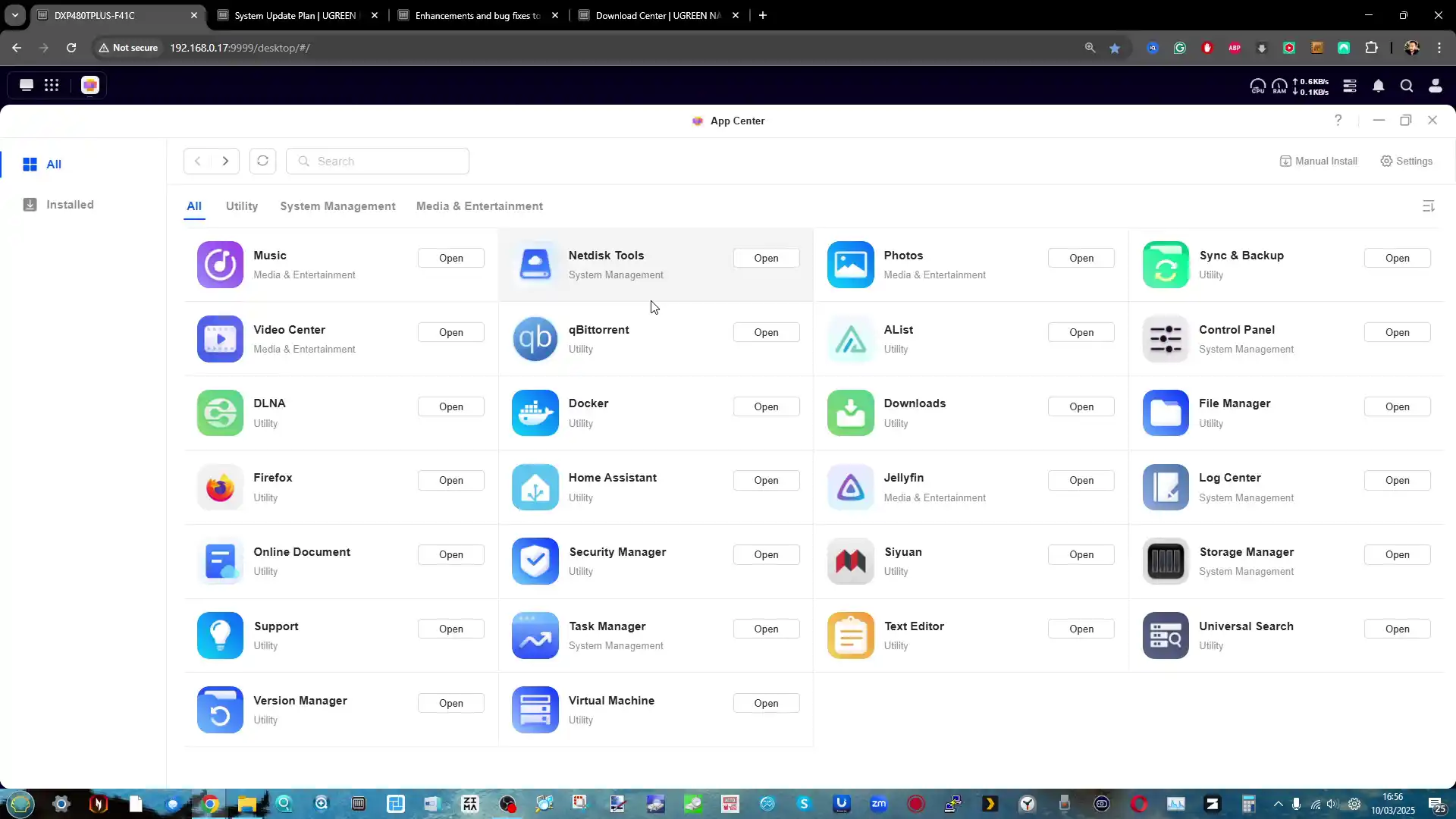
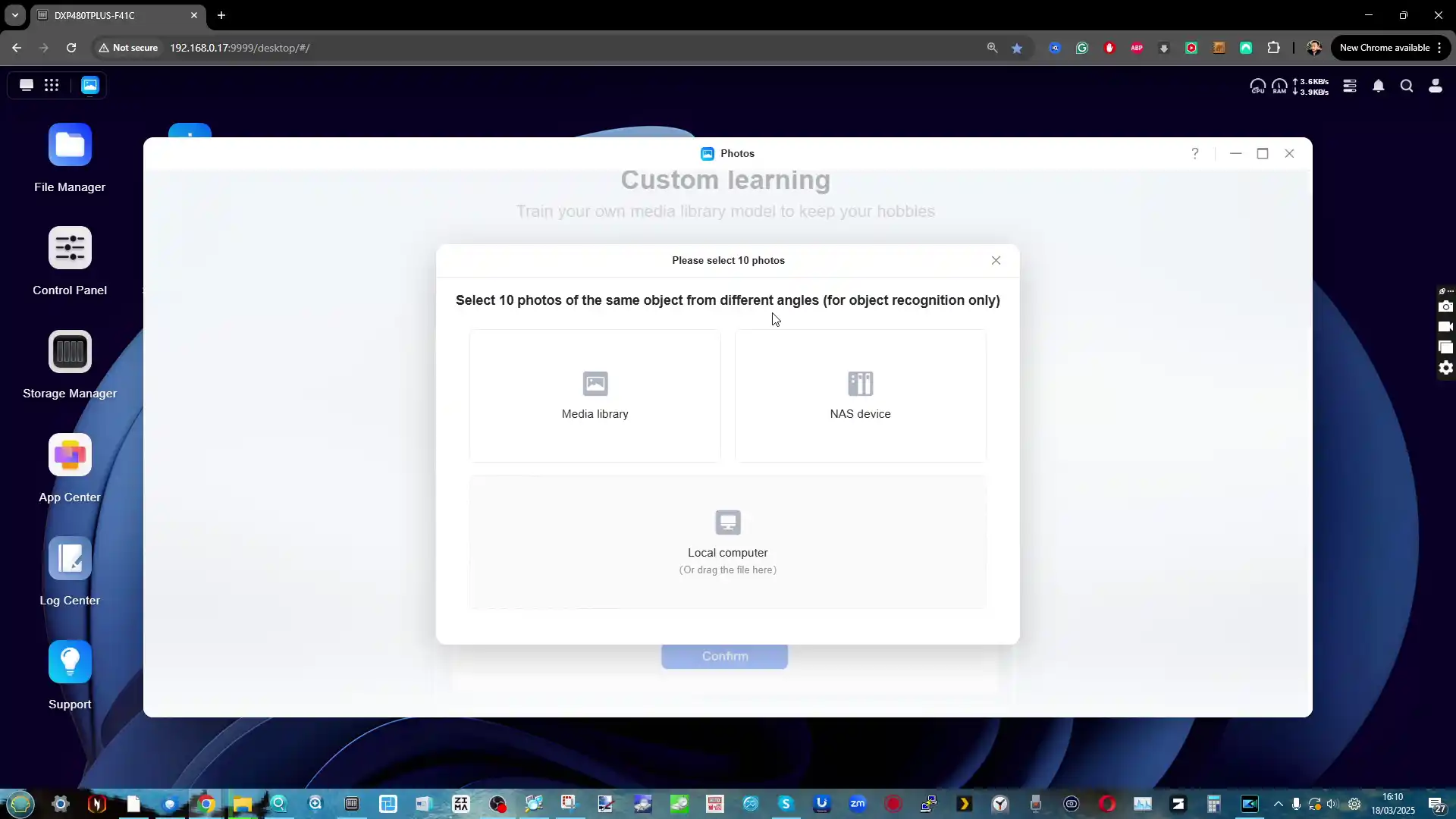
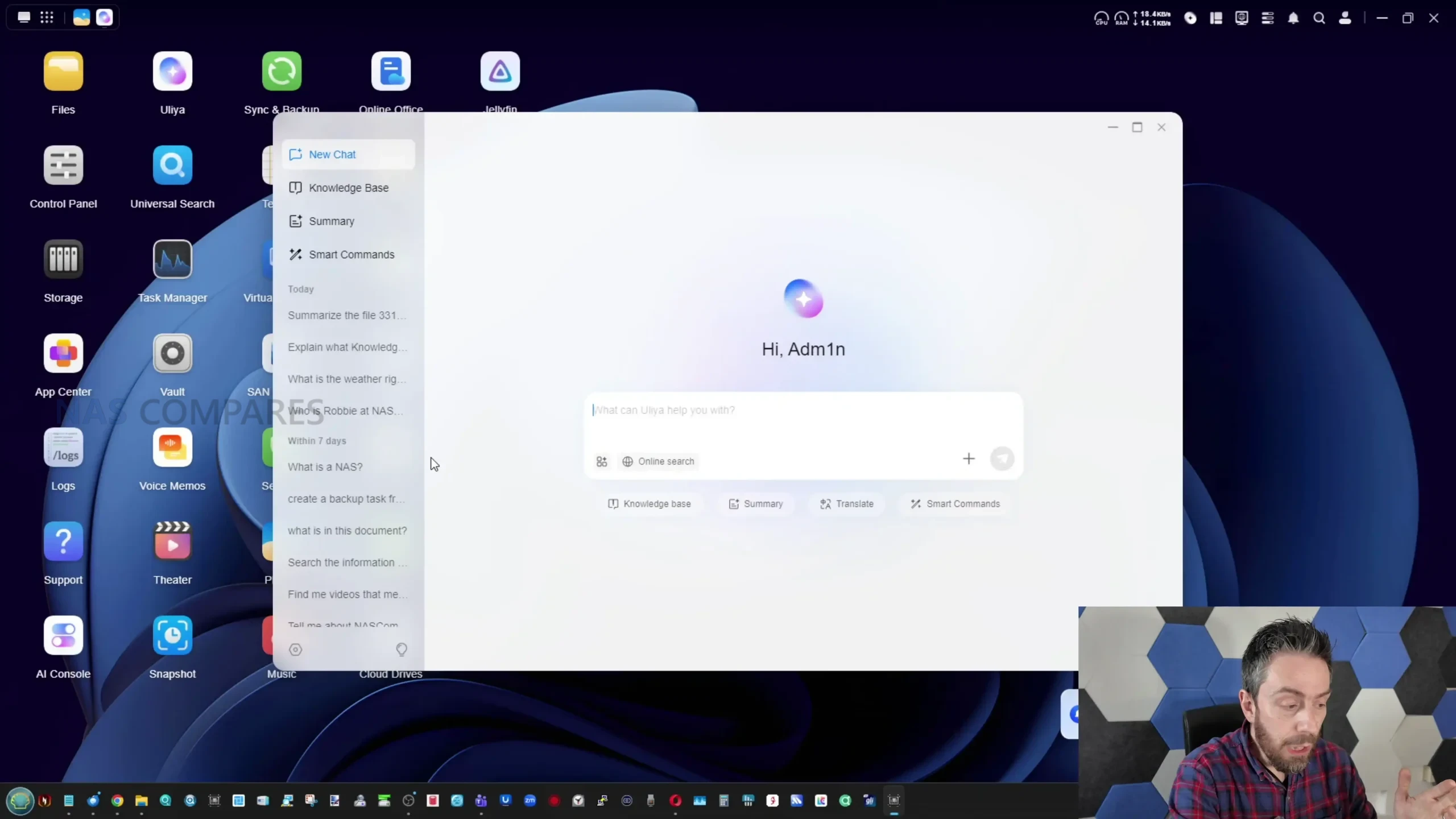
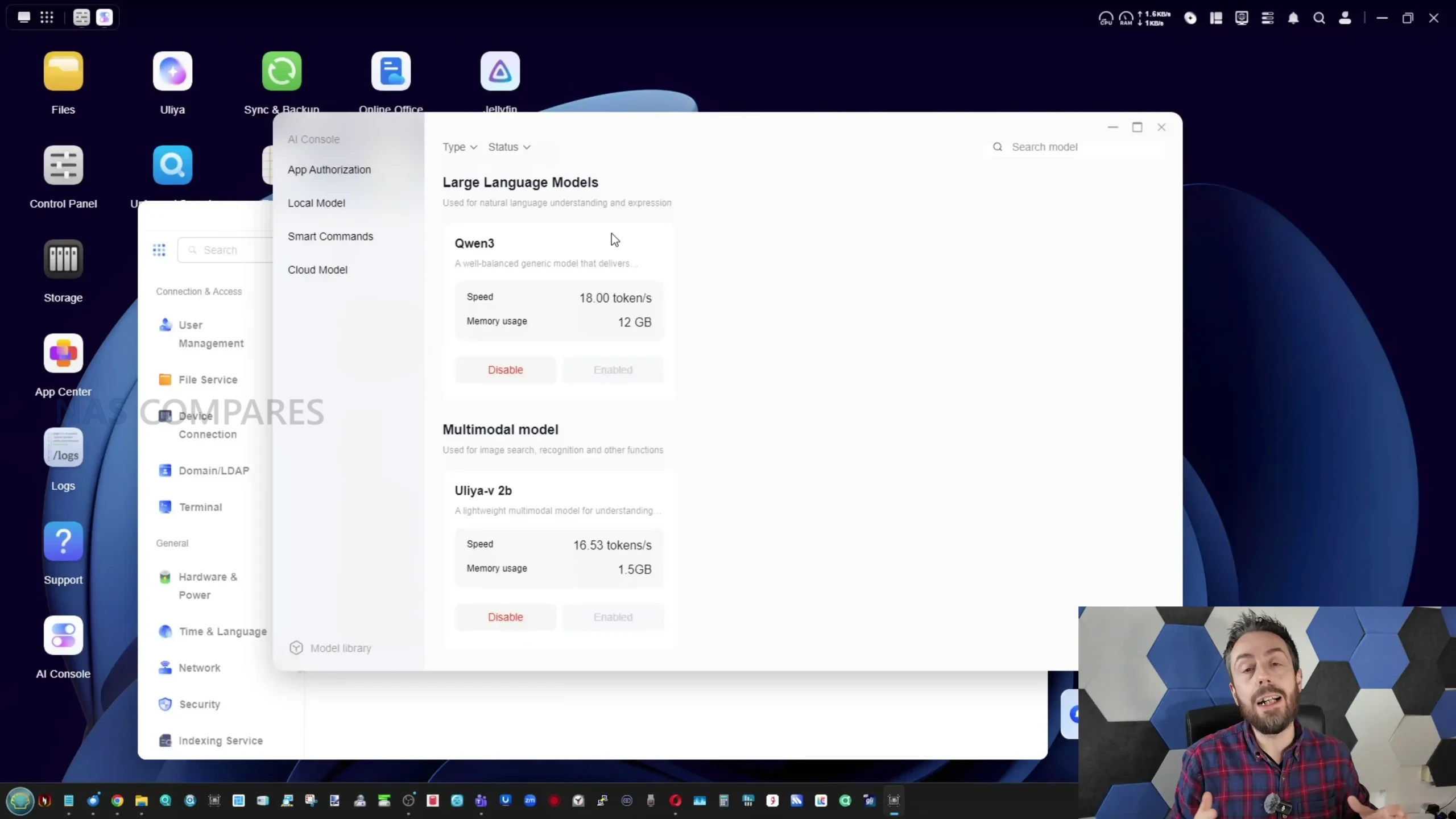
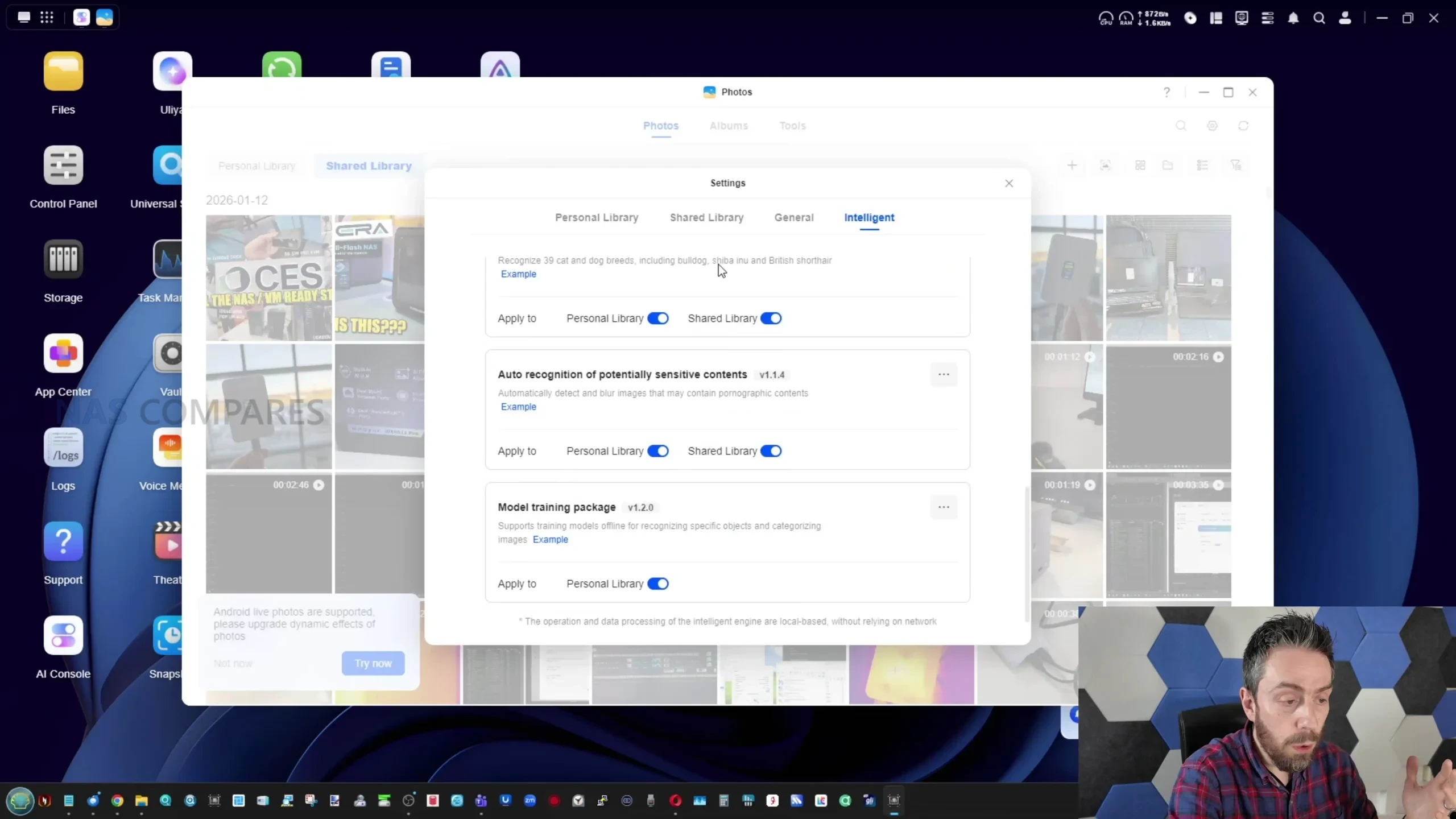
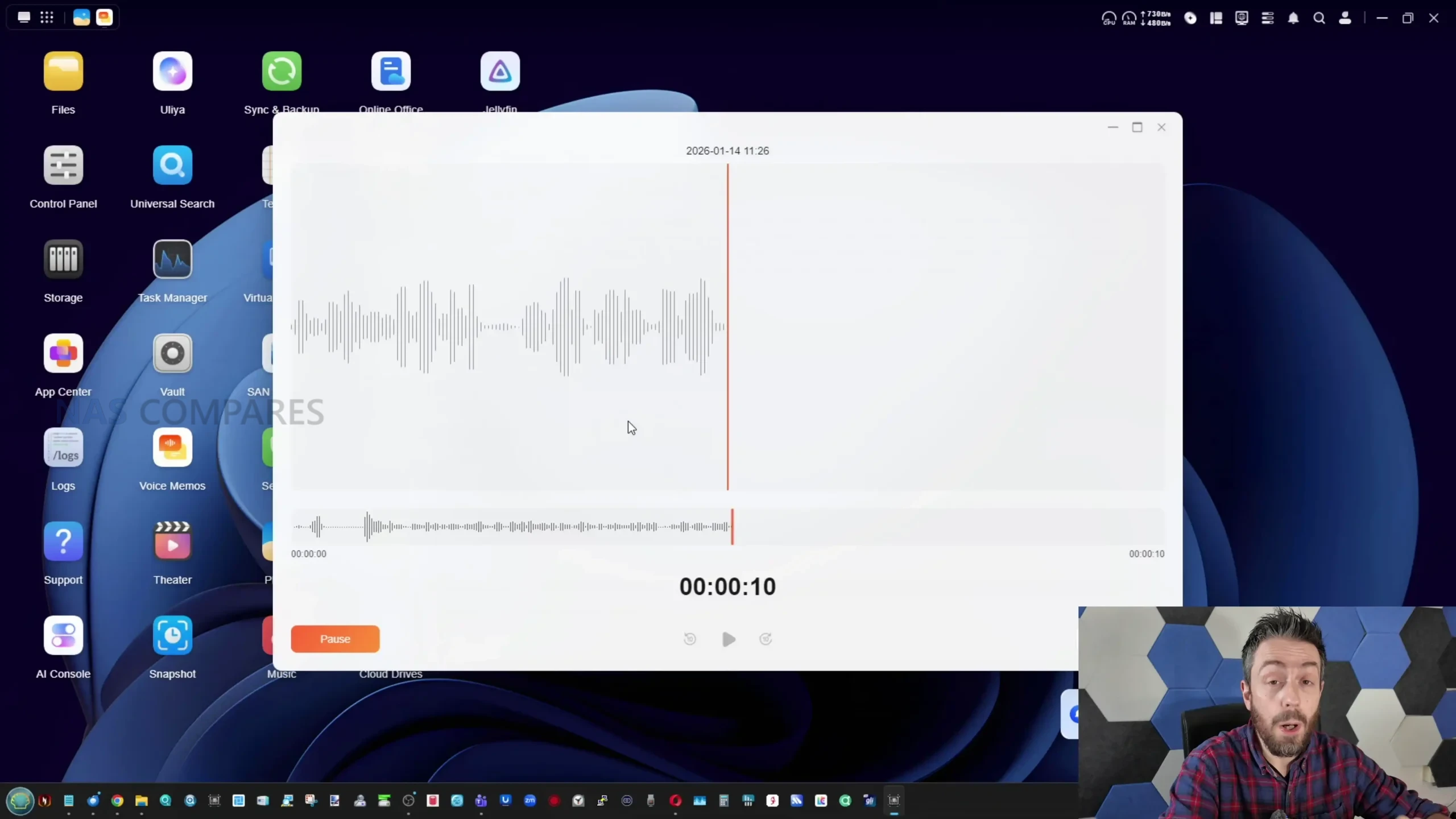
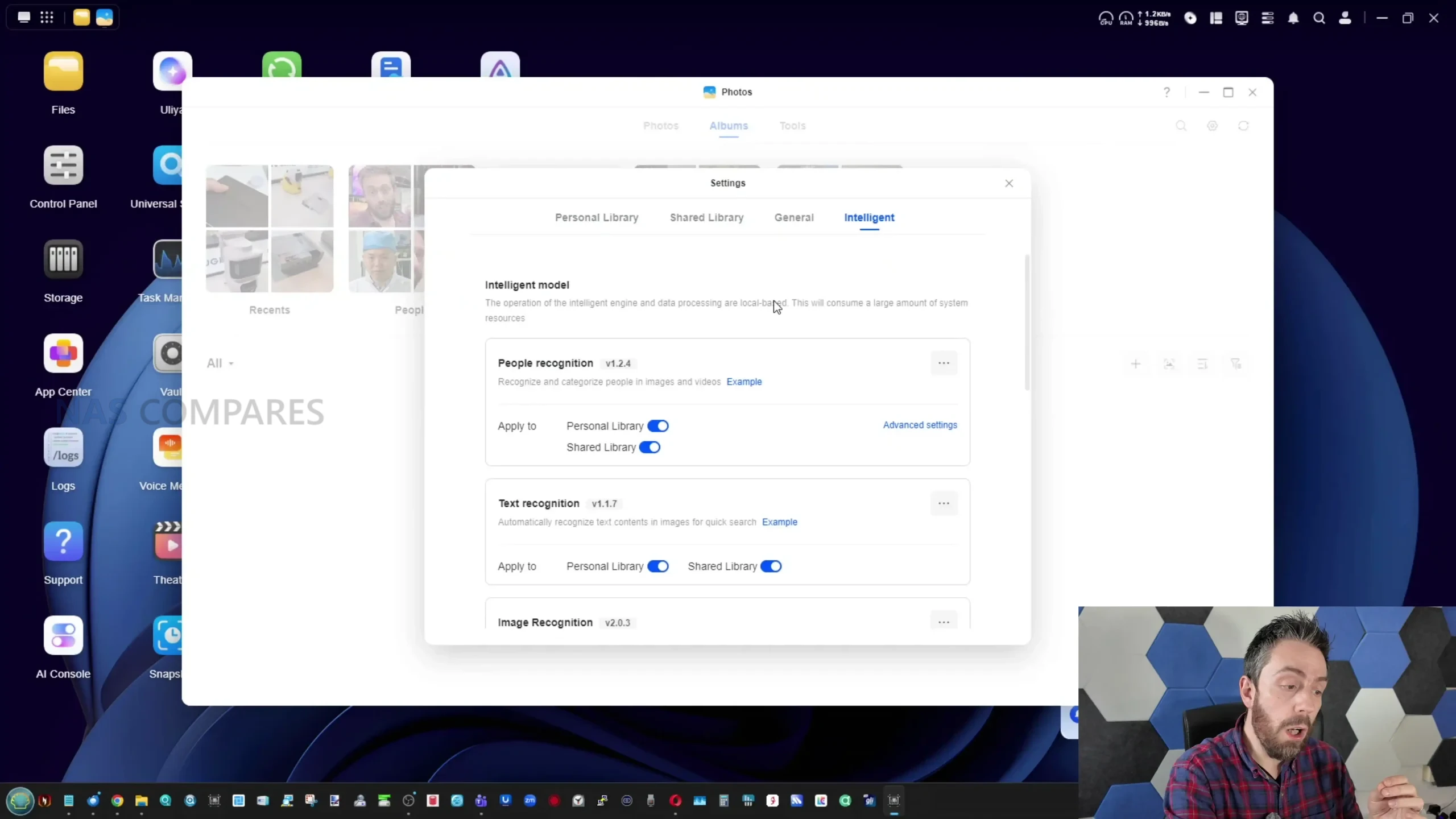
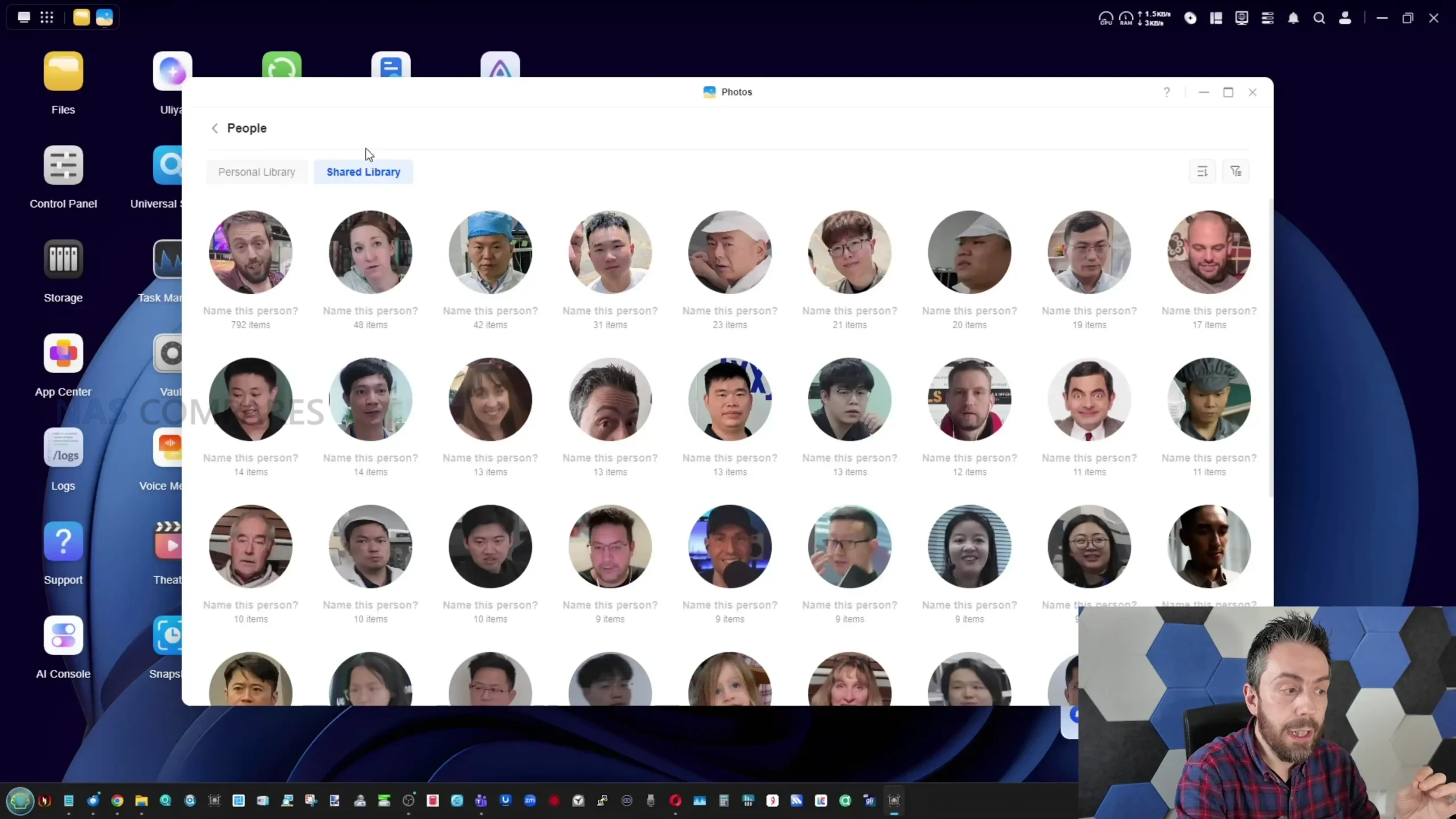
Application support covers a range of common NAS use cases, including Docker containers, a built in virtual machine manager and a growing selection of multimedia tools. Photo management includes AI assisted features such as face recognition, object detection and duplicate filtering, all of which can be enabled or restricted on a per folder basis.
Video playback can be handled through the built in media tools or via third party applications such as Jellyfin, which supports hardware accelerated transcoding. While the platform continues to evolve, the software experience on the DXP4800 Pro is largely defined by the same strengths and limitations seen across the wider UGREEN NAS lineup.
UGREEN DXP4800 PRO vs DXP4800 PLUS – What Is The Difference?
The primary difference between the DXP4800 Pro and the DXP4800 Plus is the processor. The Plus model uses the Intel Pentium Gold 8505, a 12th generation x86 CPU with 5 cores and 6 threads that operates at a variable clock speed and delivers moderate performance for general NAS tasks. The Pro upgrades this to the Intel Core i3 1315U, a 13th generation processor with 6 cores and 8 threads that generally offers higher base and boost clock speeds. In addition to more cores and threads, the i3 benefits from a broader instruction set and enhanced power management, allowing it to sustain higher performance under load without excessive thermal or power draw penalties.
While both CPUs are built on Intel’s “Intel 7” process and share similar TDP behaviour, the Core i3 has a higher turbo frequency ceiling and stronger integrated graphics. This translates to improved performance in parallel workloads, multimedia tasks and certain GPU assisted processes. The integrated graphics in the i3 are also more capable than those in the Pentium Gold, which can assist in hardware accelerated transcoding and UI responsiveness, though neither CPU is designed for heavy graphical workloads. In practical use, the i3’s combination of higher clocks, additional threads and more robust graphics support results in more headroom for Docker, indexing, virtual machines or sustained multi service usage than the Pentium Gold.
Specification
Intel Pentium Gold 8505
Intel Core i3 1315U
Generation
12th Gen Alder Lake
13th Gen Raptor Lake
CPU Cores
5 cores (1P + 4E)
6 cores (2P + 4E)
Threads
6 threads
8 threads
Base Clock
1.2GHz
1.2GHz
Max Turbo Clock
Up to 4.4GHz
Up to 4.5GHz
Cache
8MB Intel Smart Cache
10MB Intel Smart Cache
Memory Support
Up to 64GB DDR5
Up to 96GB DDR5
Memory Channels
Dual channel
Dual channel
Integrated Graphics
Intel UHD Graphics
Intel Iris Xe Graphics
GPU Execution Units
48 EUs
64 EUs
Max GPU Frequency
Up to 1.10GHz
Up to 1.25GHz
TDP Range
15W base, configurable
15W base, configurable
Memory is the second meaningful distinction between the two systems. Both ship with 8GB of DDR5 RAM, support ODECC and use a dual SODIMM layout, but the maximum supported capacity differs. The DXP4800 Plus supports up to 64GB, while the DXP4800 Pro increases this limit to 96GB, allowing more room for virtual machines, larger container stacks or memory intensive applications over time. Outside of CPU and memory, the two models are effectively identical. They share the same chassis, 4 bay SATA layout, dual M.2 NVMe slots, dedicated 128GB system SSD, identical RAID options, dual Ethernet ports (10GbE plus 2.5GbE), front and rear USB connectivity, SD 3.0 card reader and an HDMI output. Power consumption figures and physical dimensions are also the same on paper. As a result, the Pro model is best viewed as a performance focused refinement rather than a broader feature upgrade, with its value tied almost entirely to the stronger CPU performance and higher memory ceiling rather than any changes to storage, networking or overall platform design.
UGREEN DXP4800 PRO Review – Verdict & Conclusions
The UGREEN NASync DXP4800 Pro positions itself as a careful update to the existing DXP4800 Plus rather than a clear generational replacement. The transition to the Intel Core i3 1315U brings tangible improvements in CPU capability, particularly for users running multiple background services, Docker containers or occasional virtual machines. The higher memory ceiling also improves long term flexibility, especially for workloads that scale gradually over time. At the same time, the unchanged chassis, storage layout and connectivity mean that day to day usage will feel very familiar to anyone who has used earlier DXP models. From a broader perspective, the DXP4800 Pro sits in a narrow space within UGREEN’s lineup.
It offers more processing headroom than the Plus model, but it does not fundamentally change what the platform can do. Network performance, storage expandability and external I O remain the same, and the gains are most noticeable under heavier or more sustained workloads rather than light file serving. This makes the system better suited to users who already know they will push the CPU or memory harder, rather than those simply looking for basic network storage. For new buyers, the DXP4800 Pro can be a sensible choice if the price difference over the DXP4800 Plus is reasonable and the additional CPU capacity is likely to be used. For existing Plus owners, the case for upgrading is limited unless current workloads are already CPU constrained. Overall, the DXP4800 Pro is a competent and well executed 4 bay NAS that emphasizes incremental improvement over innovation. Its appeal lies in refinement and stability rather than standout features, and its value ultimately depends on whether those refinements align with the intended use case.
This description contains links to Amazon. These links will take you to some of the products mentioned in today's content. As an Amazon Associate, I earn from qualifying purchases. Visit the NASCompares Deal Finder to find the best place to buy this device in your region, based on Service, Support and Reputation - Just Search for your NAS Drive in the Box Below
Need Advice on Data Storage from an Expert?
Finally, for free advice about your setup, just leave a message in the comments below here at NASCompares.com and we will get back to you.Need Help?
Where possible (and where appropriate) please provide as much information about your requirements, as then I can arrange the best answer and solution to your needs. Do not worry about your e-mail address being required, it will NOT be used in a mailing list and will NOT be used in any way other than to respond to your enquiry.
[contact-form-7]
TRY CHAT Terms and Conditions
If you like this service, please consider supporting us.
We use affiliate links on the blog allowing NAScompares information and advice service to be free of charge to you.Anything you purchase on the day you click on our links will generate a small commission which isused to run the website. Here is a link for Amazon and B&H.You can also get me a Ko-fi or old school Paypal. Thanks!To find out more about how to support this advice service checkHEREIf you need to fix or configure a NAS, check FiverHave you thought about helping others with your knowledge? Find Instructions Here
Or support us by using our affiliate links on Amazon UK and Amazon US
Alternatively, why not ask me on the ASK NASCompares forum, by clicking the button below. This is a community hub that serves as a place that I can answer your question, chew the fat, share new release information and even get corrections posted. I will always get around to answering ALL queries, but as a one-man operation, I cannot promise speed! So by sharing your query in the ASK NASCompares section below, you can get a better range of solutions and suggestions, alongside my own.
Cela fait maintenant plusieurs jours que nous utilisons le dernier NAS Beelink ME Pro. Un produit hybride, à mi-chemin entre un NAS traditionnel et un mini-PC. Comme vous allez le constater dans ce test, le tableau est globalement très positif, malgré quelques points perfectibles. Disponible à moins de 400€, que vaut vraiment ce nouveau produit…
Test Beelink ME Pro
Beelink est un acteur bien connu du marché des mini-PC. La marque s’est forgé une solide réputation grâce à des produits fiables, performants et proposés à des tarifs compétitifs. En 2025, le constructeur a franchi une nouvelle étape en se lançant sur le marché des NAS avec le ME mini, un modèle équipé de 6 emplacements NVMe. En toute fin d’année 2025, Beelink a dévoilé un concept encore plus original : un NAS doté d’un bloc matériel interchangeable intégrant carte mère, processeur et mémoire. C’est précisément ce modèle(le ME Pro) que nous testons aujourd’hui.
Contenu de la boîte
La boite est vraiment très petite, mais on trouve à l’intérieur :
Le NAS Beelink ME Pro ;
1 câble réseau RJ45 Cat.6 ;
1 câble HDMI ;
Des vis de fixation pour les SSD et HDD ;
Une alimentation externe ;
Un guide de démarrage rapide.
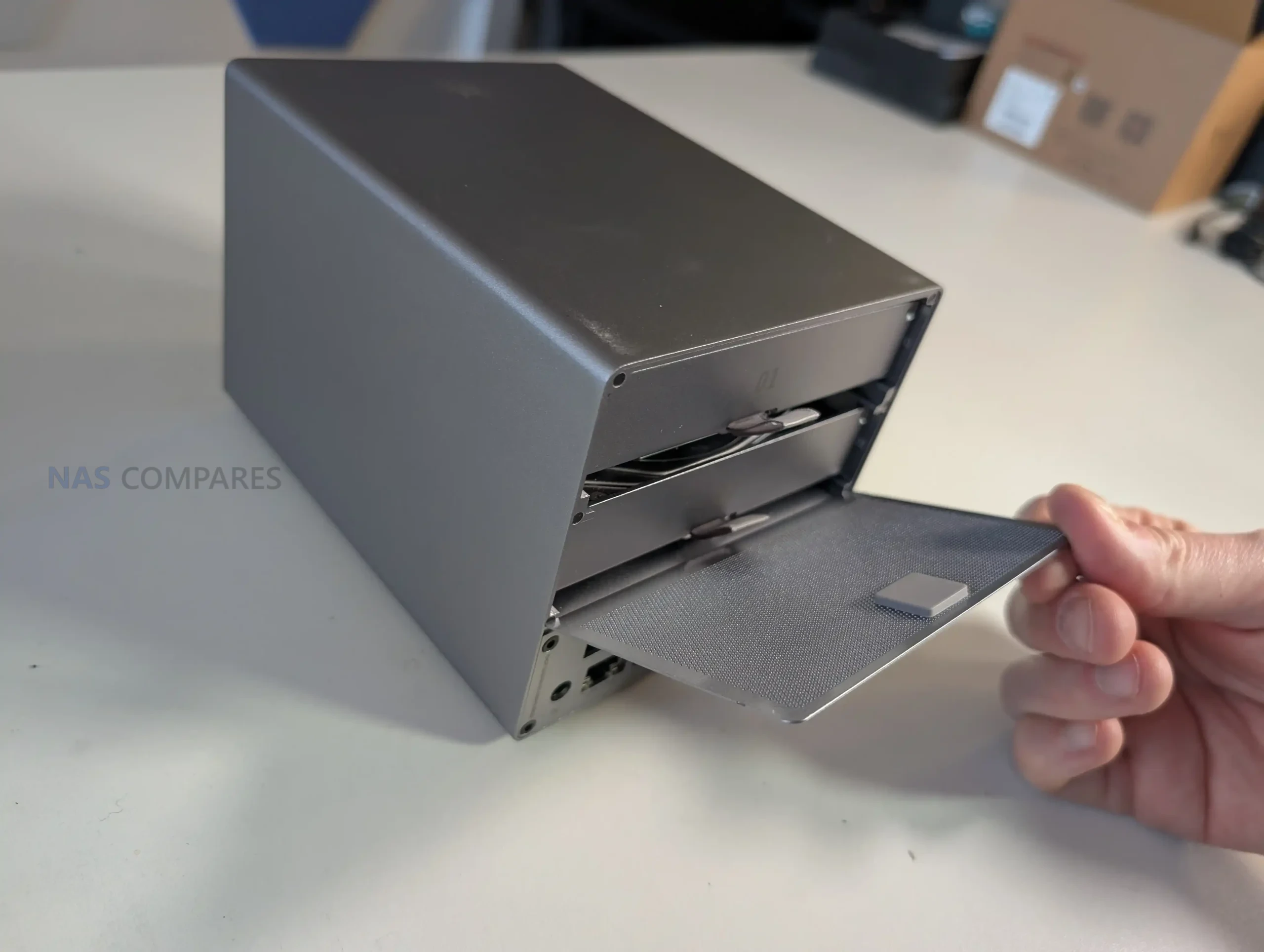
Beelink a eu la bonne idée d’optimiser l’espace en rangeant les câbles et les vis directement dans les chariots des disques (voir photo ci-dessous).
Une solution simple et efficace.
Construction du NAS et design
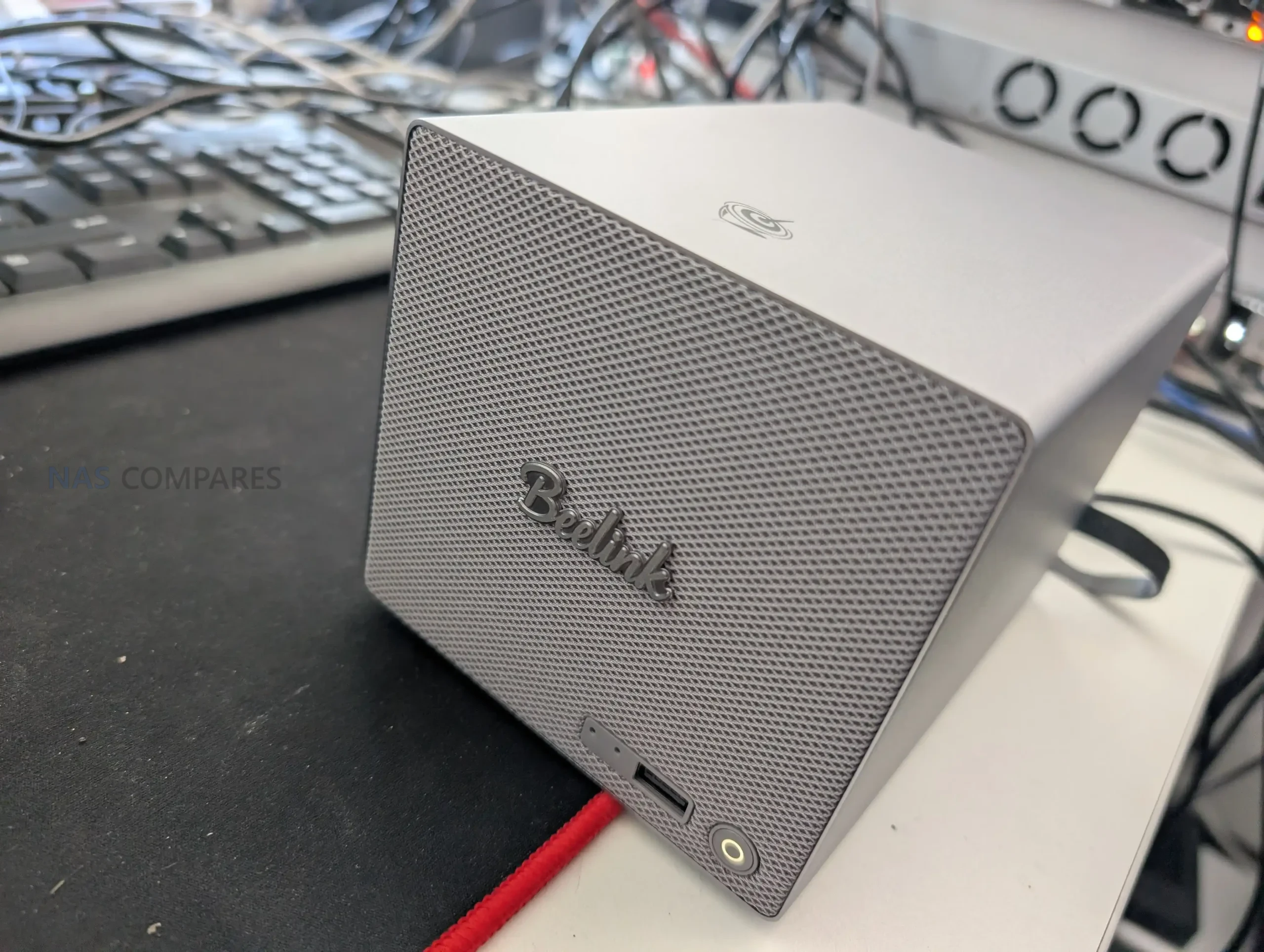
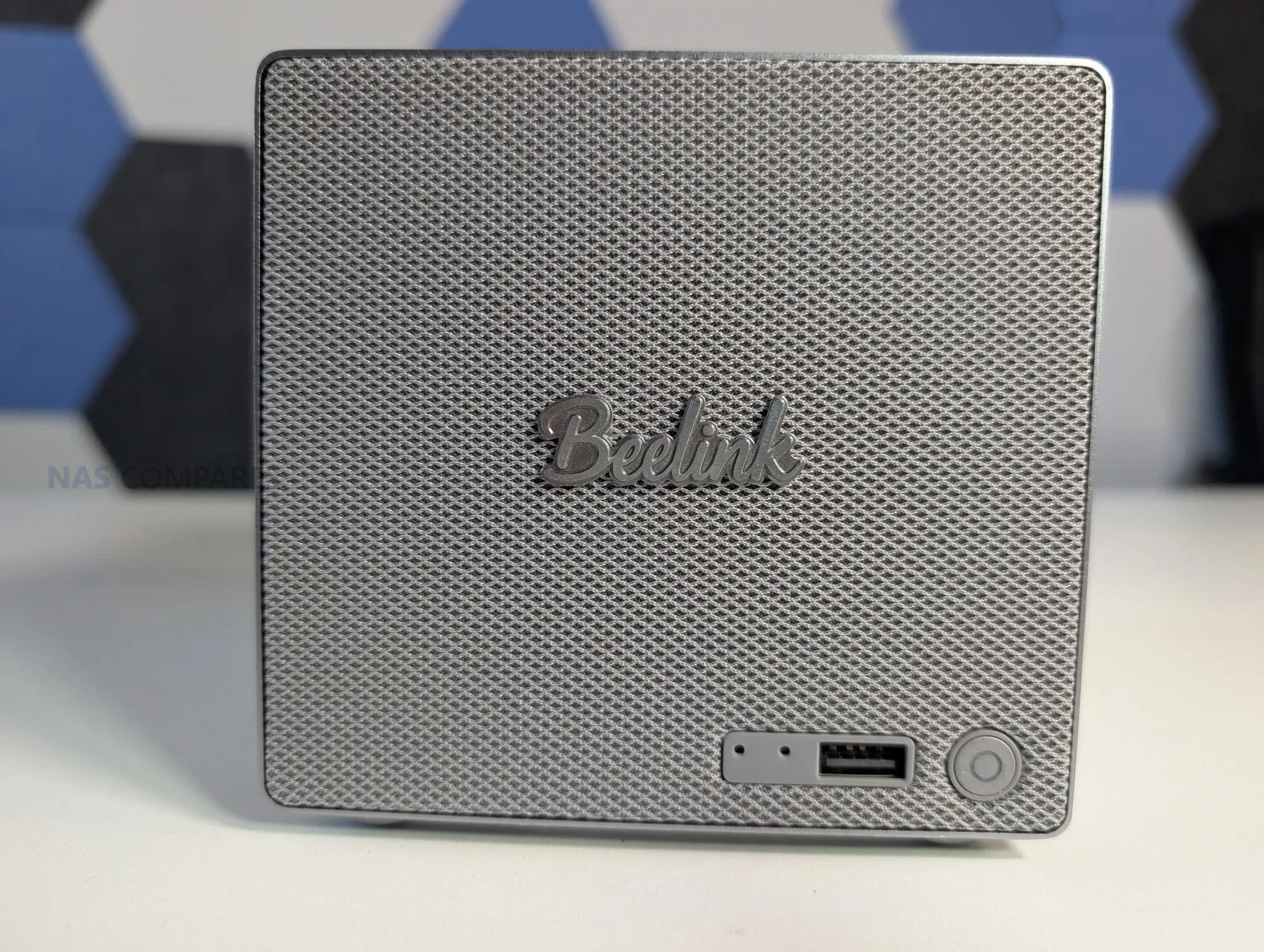
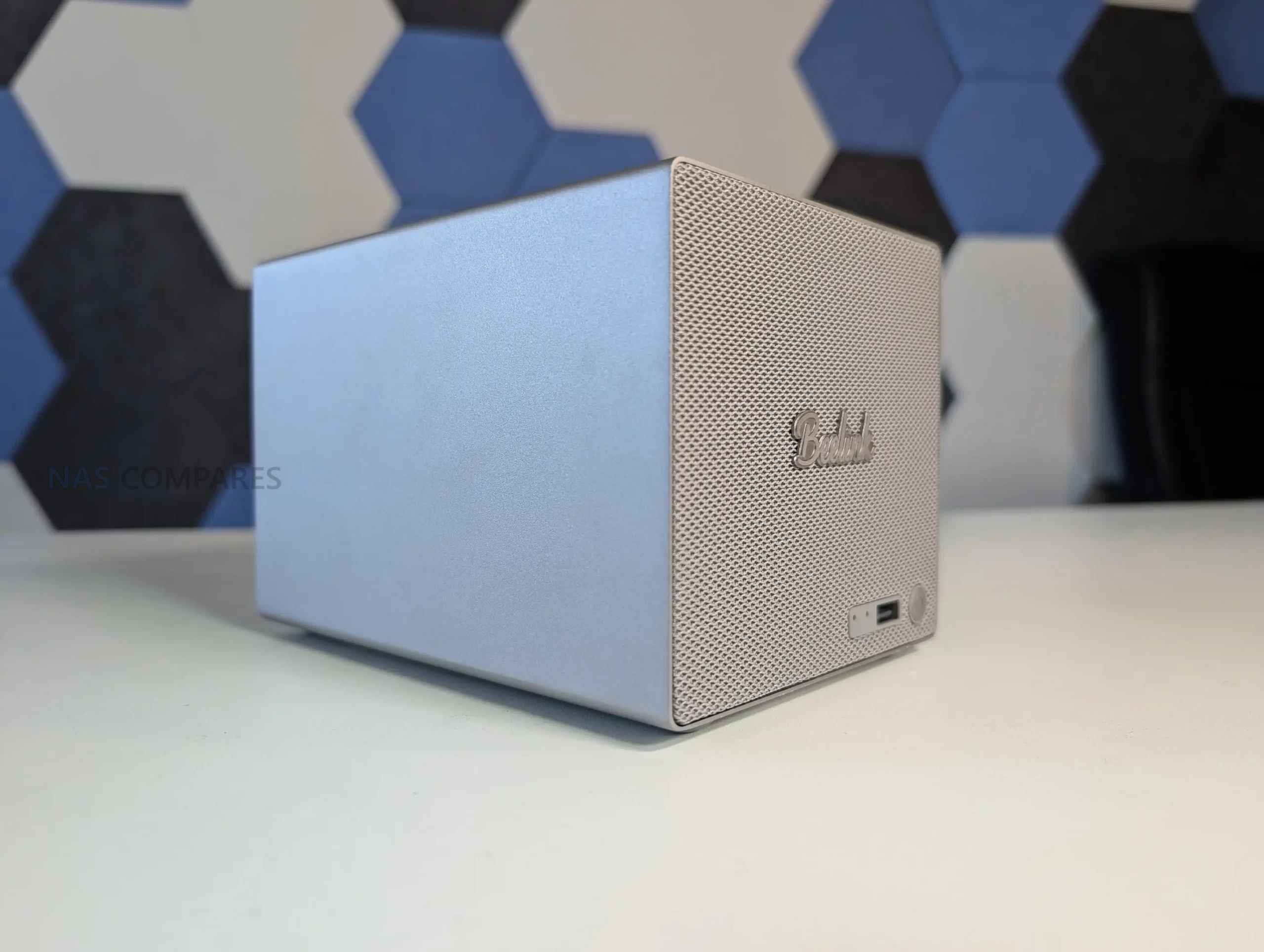
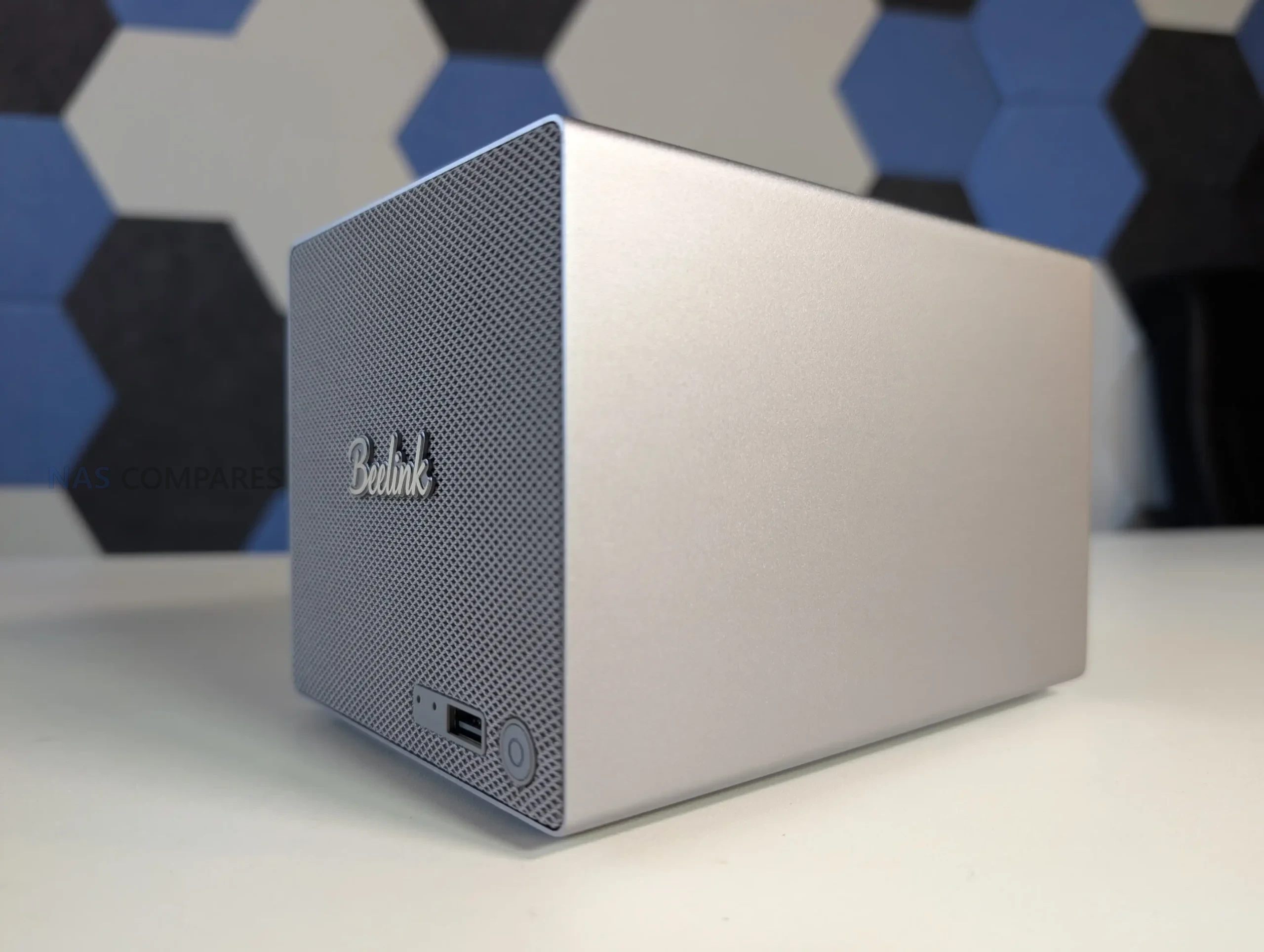
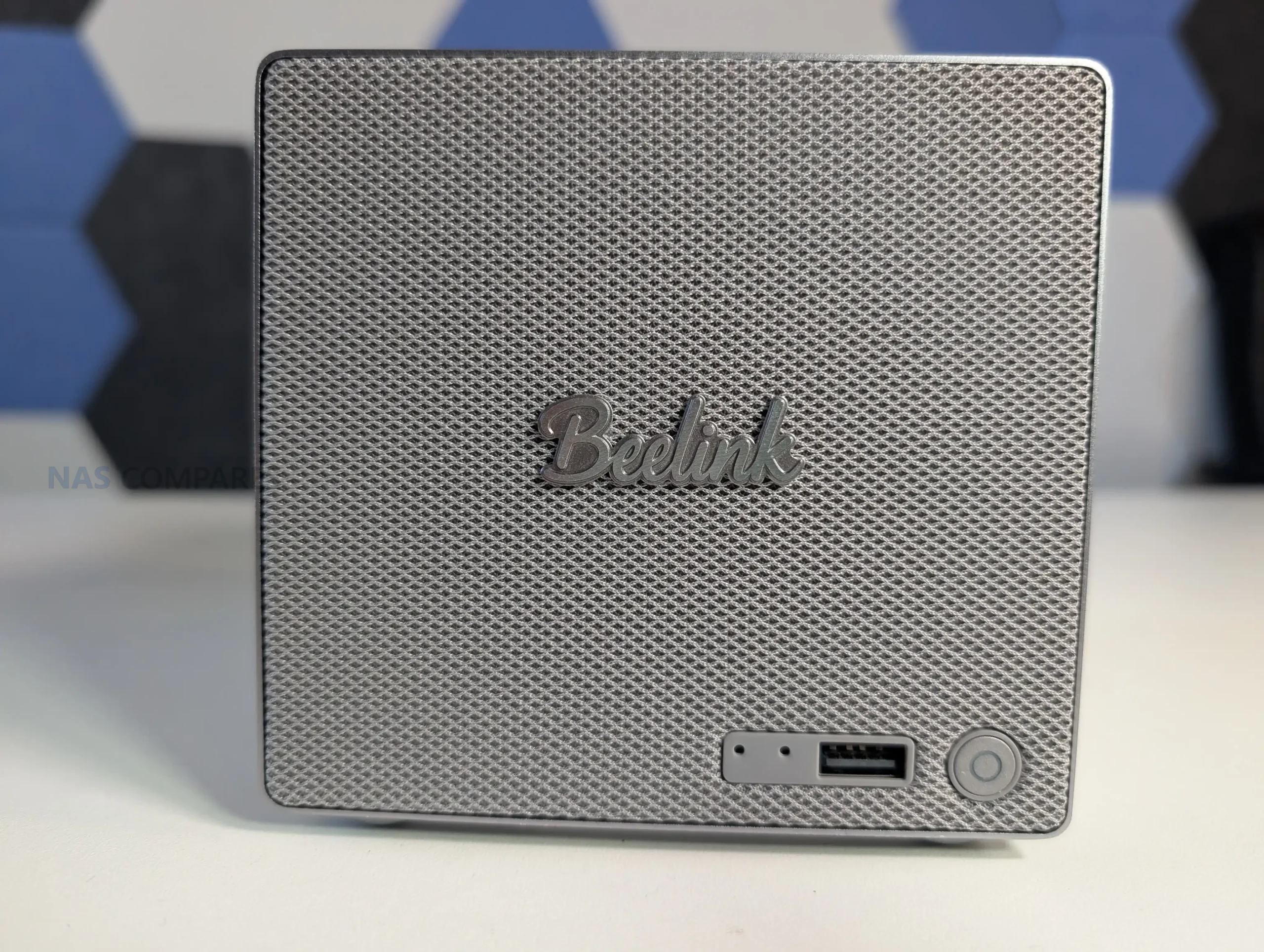
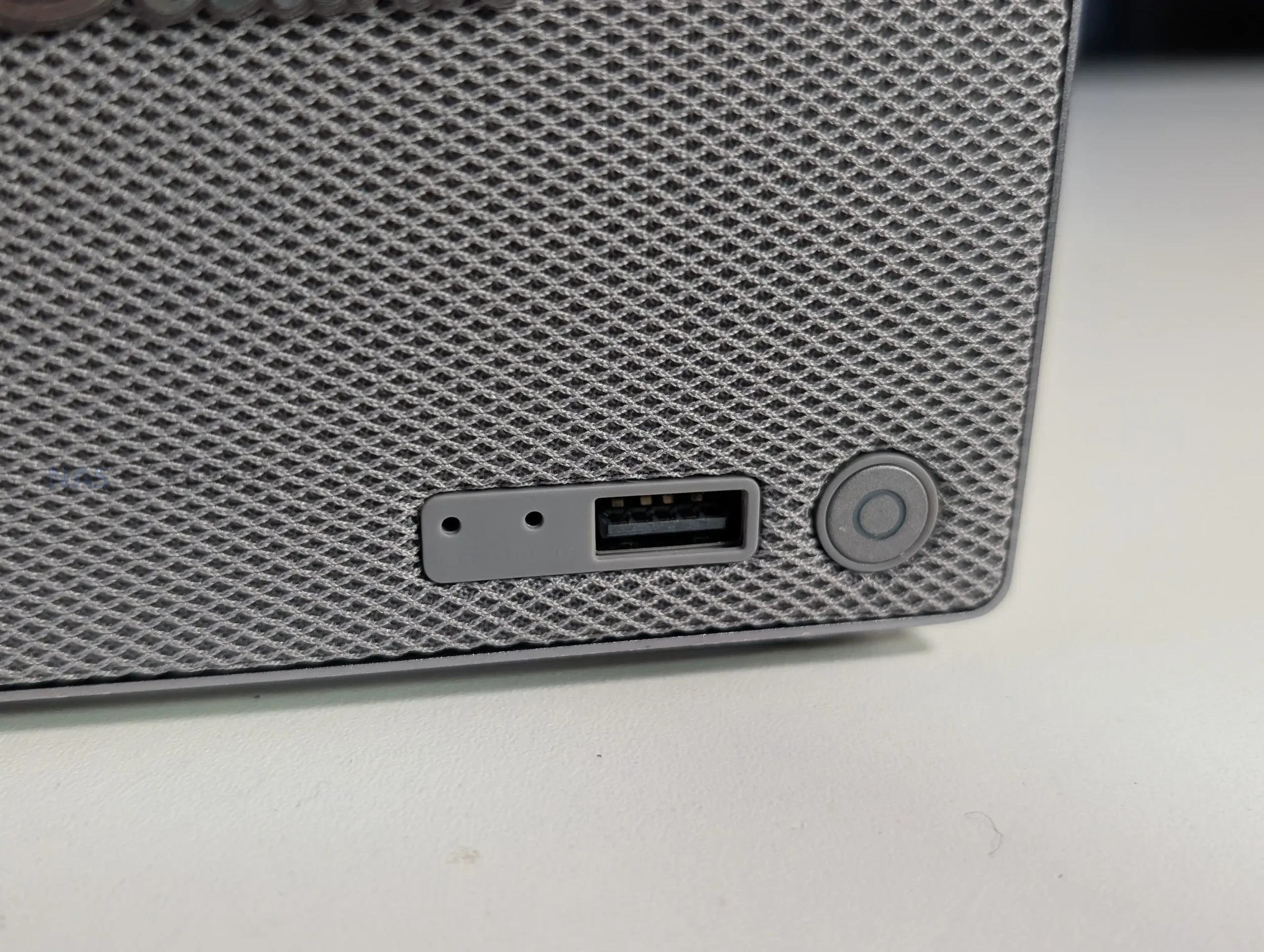
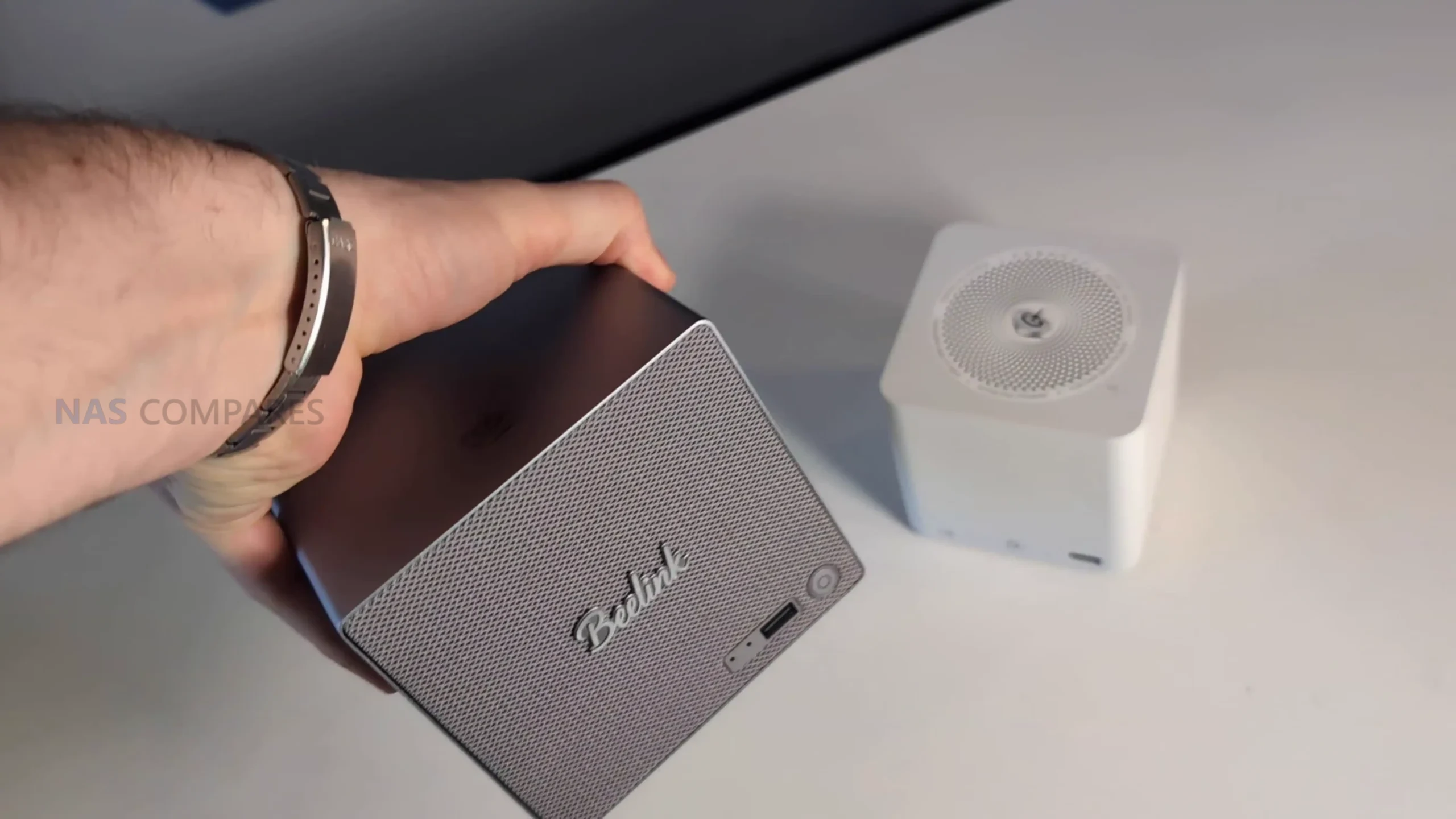
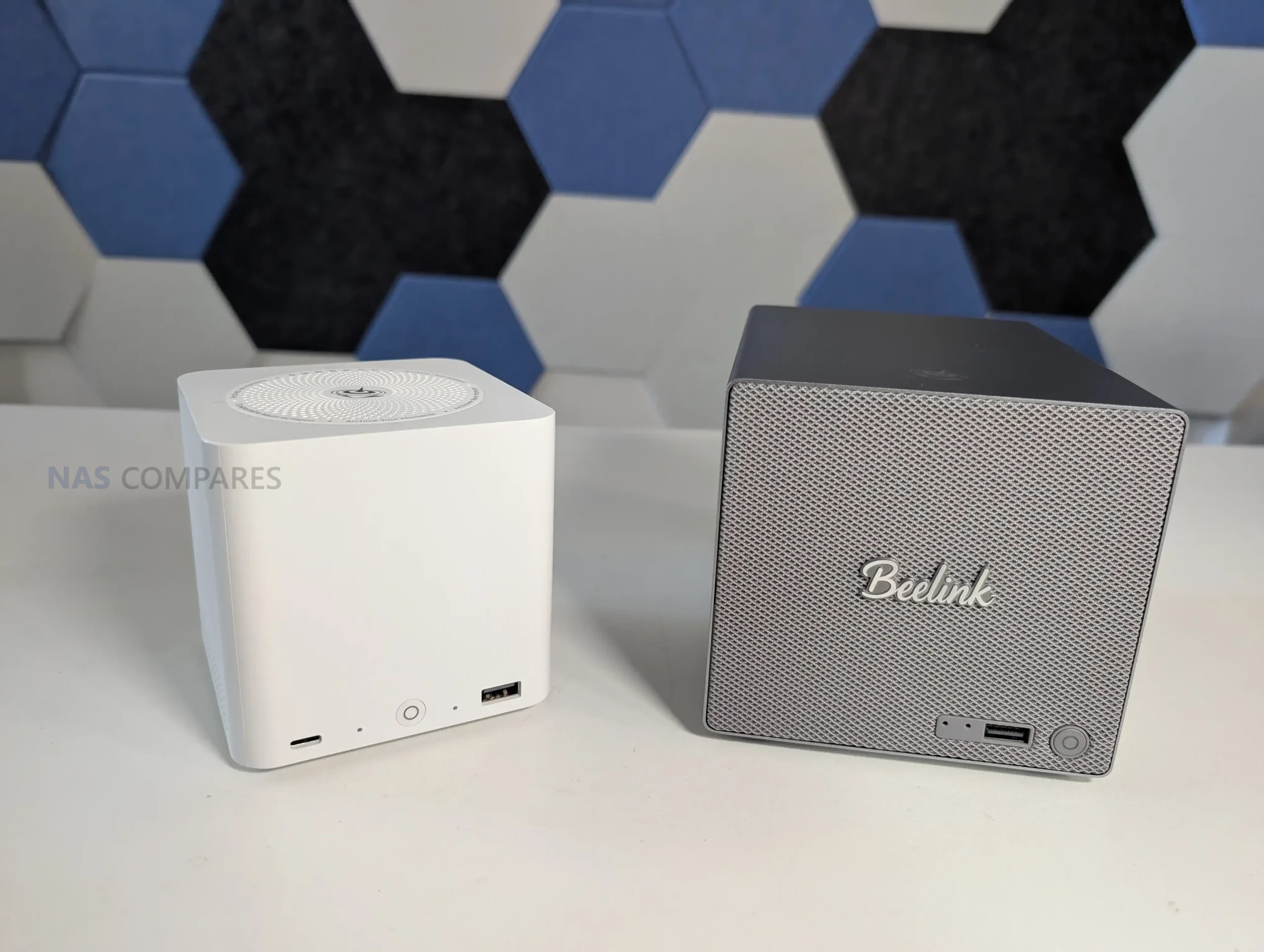
Le ME Pro affiche un design sobre et élégant. Le boîtier, entièrement en métal gris, mesure 166 × 121 × 112 mm pour un poids de 2,1 kg. La façade avant est recouverte d’un tissu gris, apportant une touche discrète et moderne. L’ensemble inspire confiance et s’intègre facilement dans un environnement domestique ou professionnel.
Connectique
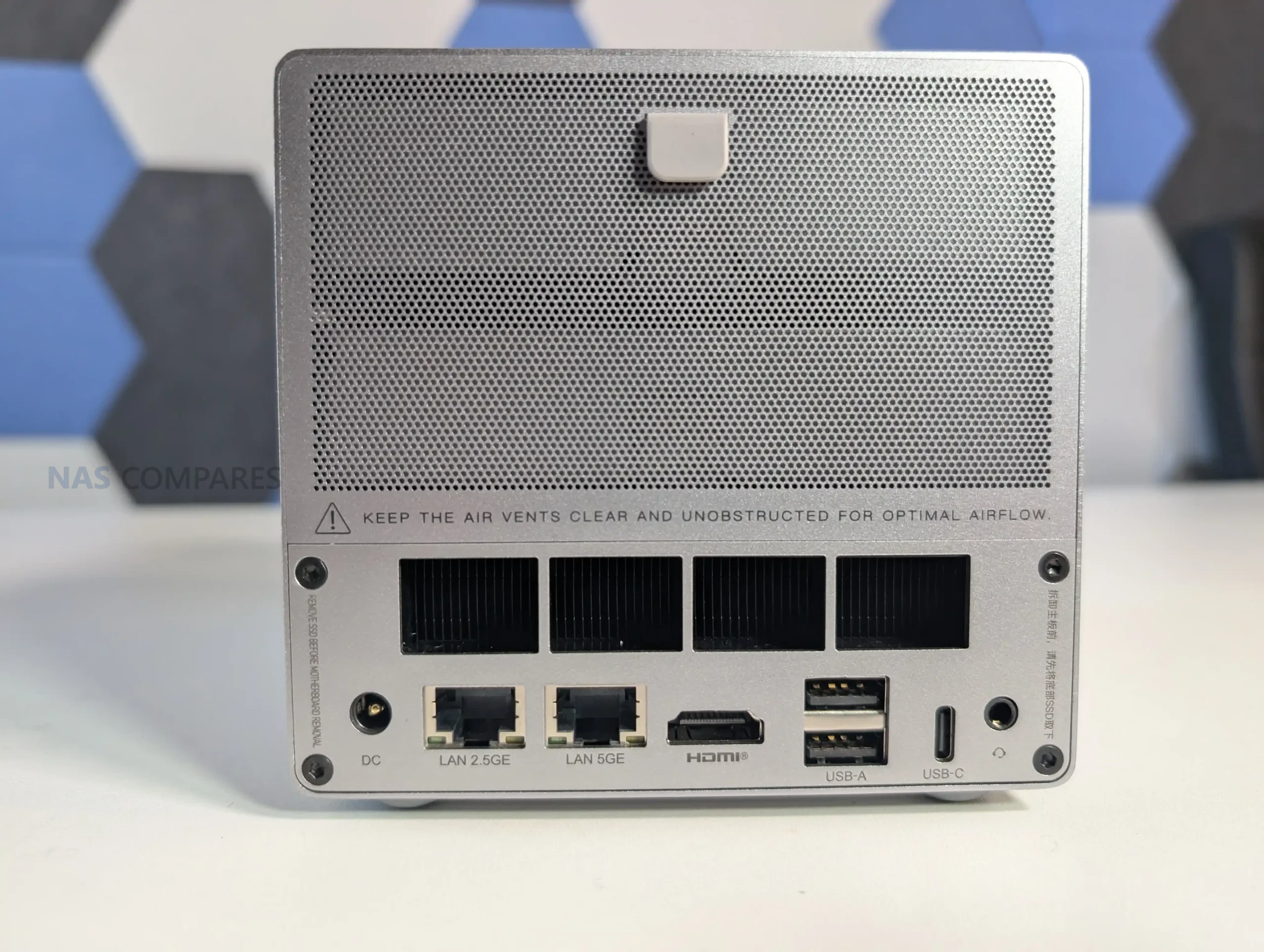
Côté connectique, le Beelink ME Pro est plutôt bien doté :
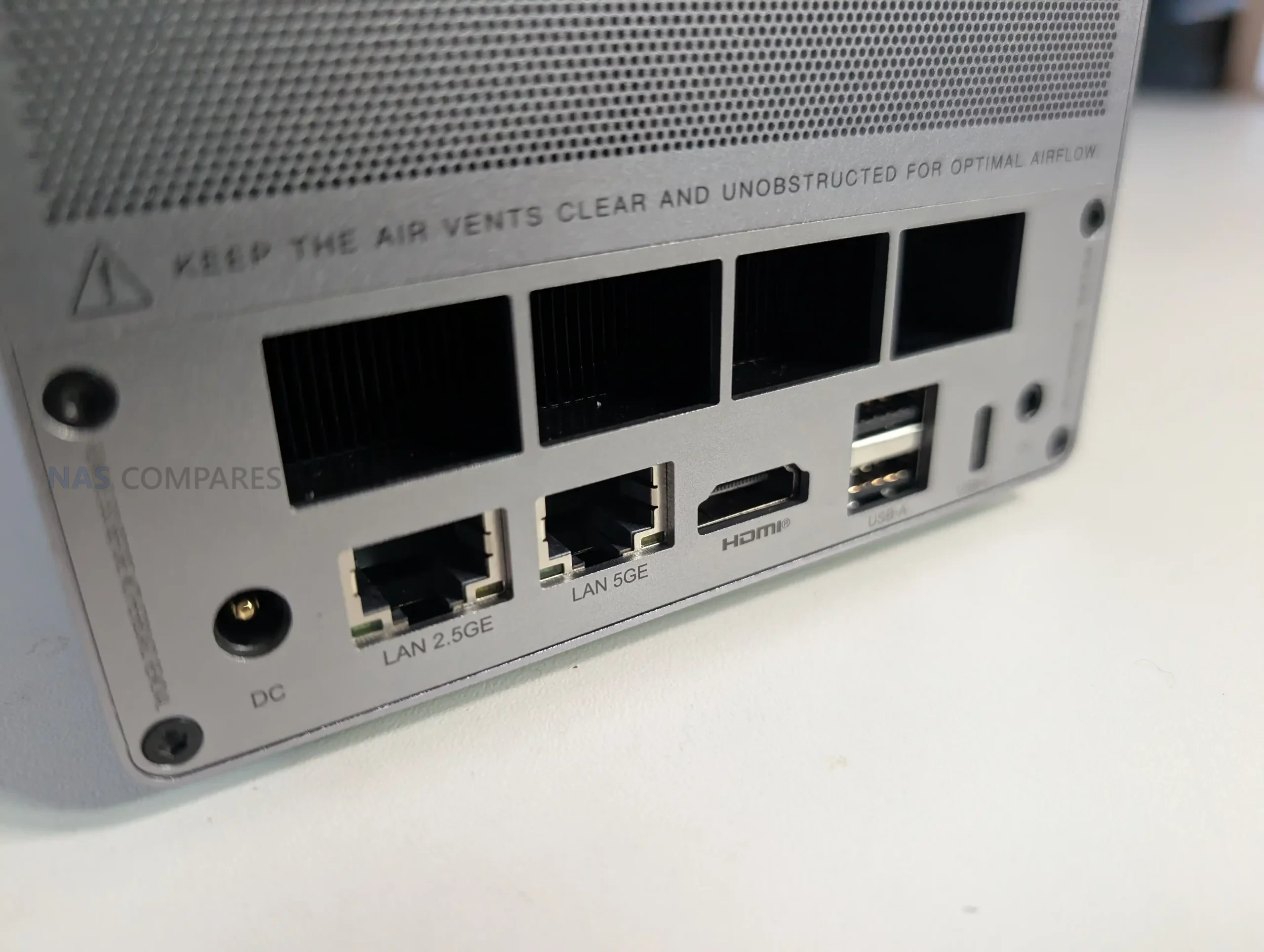
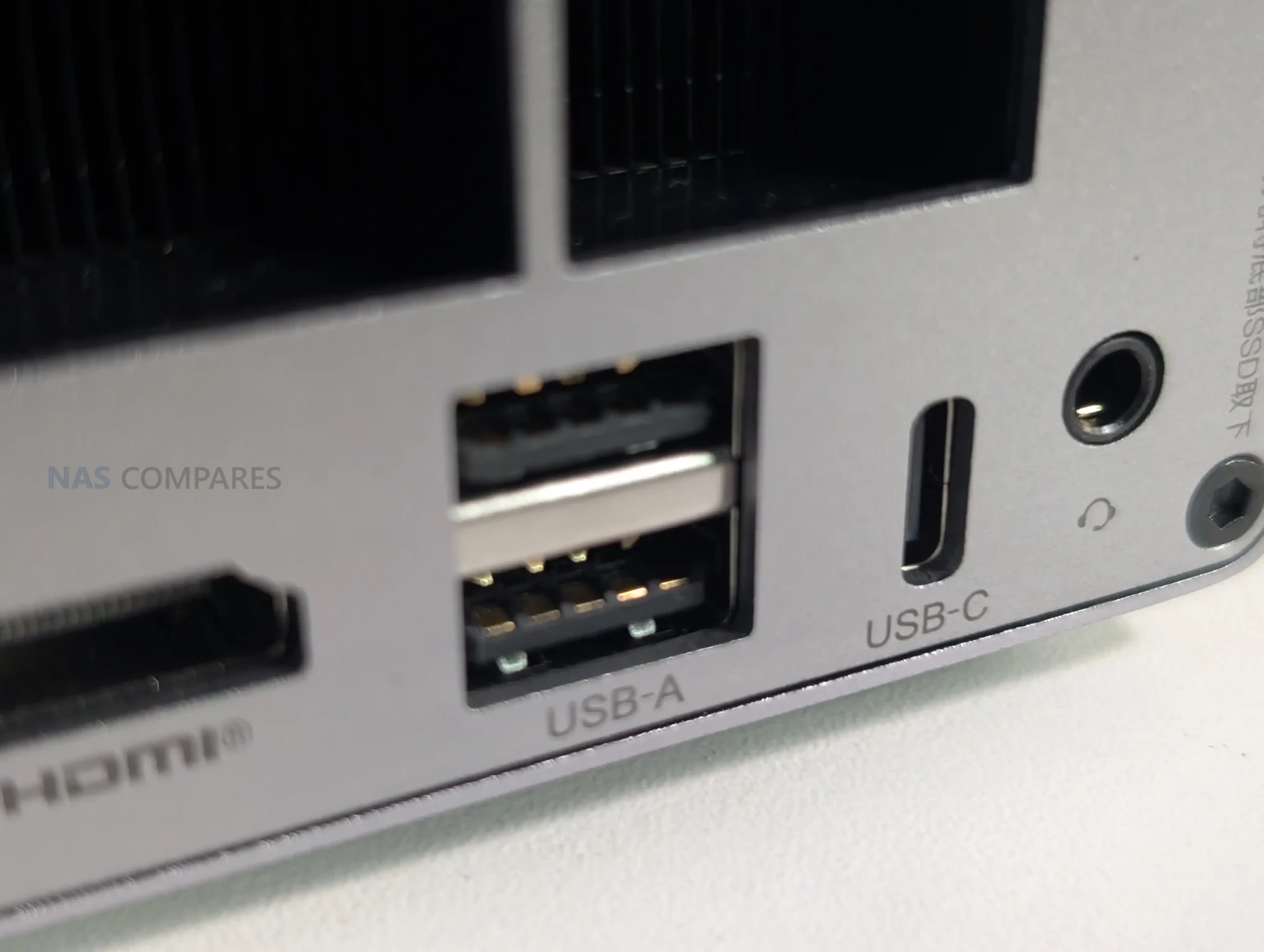
2 ports USB 3.2 Gen 2 (10 Gb/s), dont un port USB-C à l’arrière;
2 port USB 2.0 ;
1 sortie audio-video HDMI Ultra HD/4K ;
1 sortie audio jack 3,5mm ;
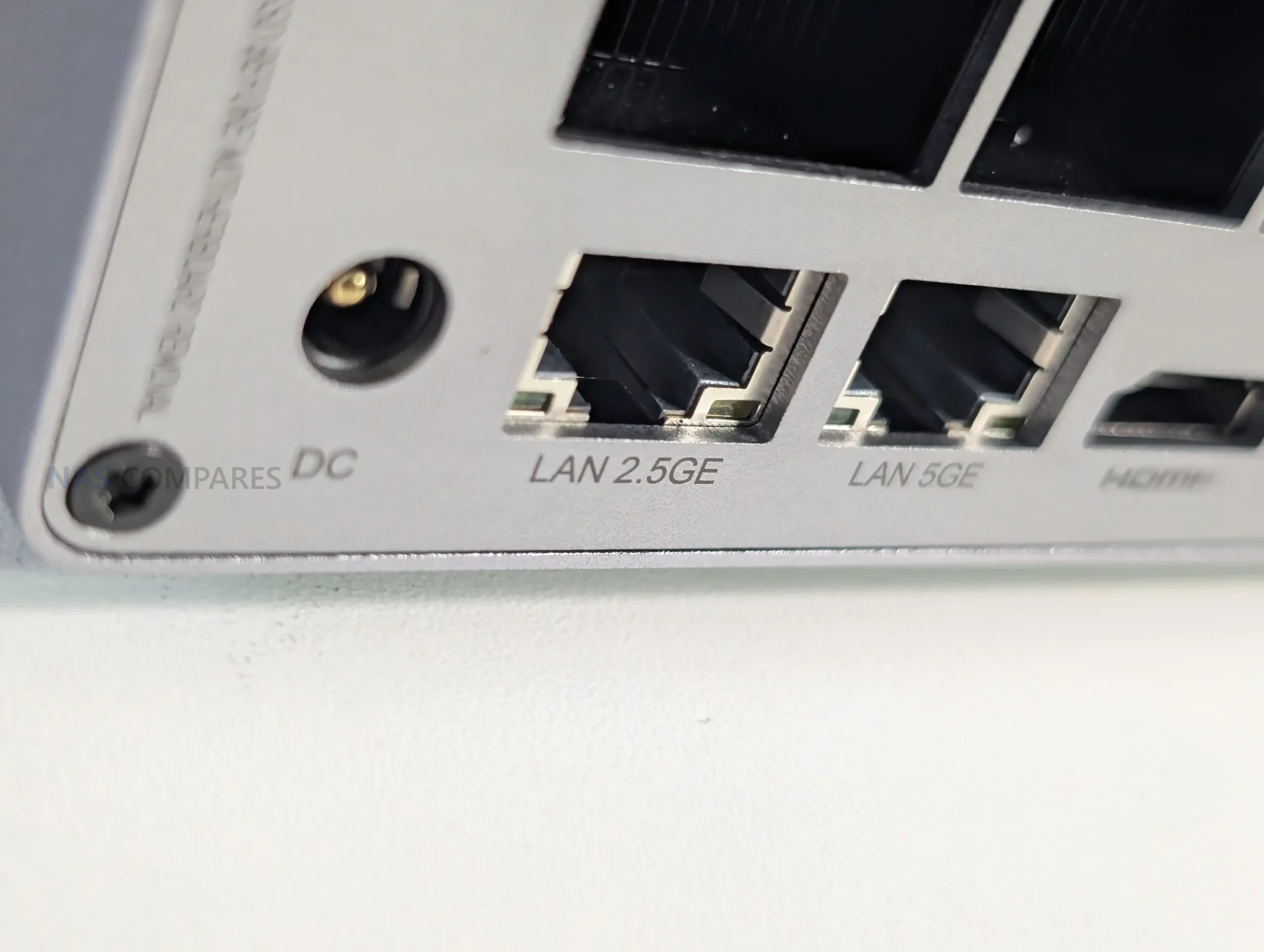
1 port réseau 2,5 Gb/s ;
1 port réseau 5 Gb/s.
Beelink n’a clairement pas lésiné sur le nombre de ports. Un point mérite d’être signalé, le port USB-C est compatible avec la sortie vidéo (« Supports video output »).
À noter également la présence du Wi-Fi 6 et du Bluetooth 5.4, ce qui reste assez rare sur un NAS.
Intérieur du Me Pro
Le Beelink ME Pro repose sur un processeur Quad-Core Intel N95 cadencé à 2 GHz (jusqu’à 3,4 GHz en mode turbo). Un CPU bien connu, parfaitement adapté à un usage NAS polyvalent. Selon PassMark, il obtient un score d’environ 5 299 points, ce qui le place dans la moyenne des NAS commercialisés en 2026.
La mémoire vive est fixée à 12 Go de RAM, un choix plutôt généreux. En revanche, elle n’est pas évolutive, ce qui pourra en freiner certains. Notre modèle de test était livré avec un SSD NVMe WD SN540 de 512 Go, sur lequel Windows 11 Home est préinstallé.
Bloc interchangeable
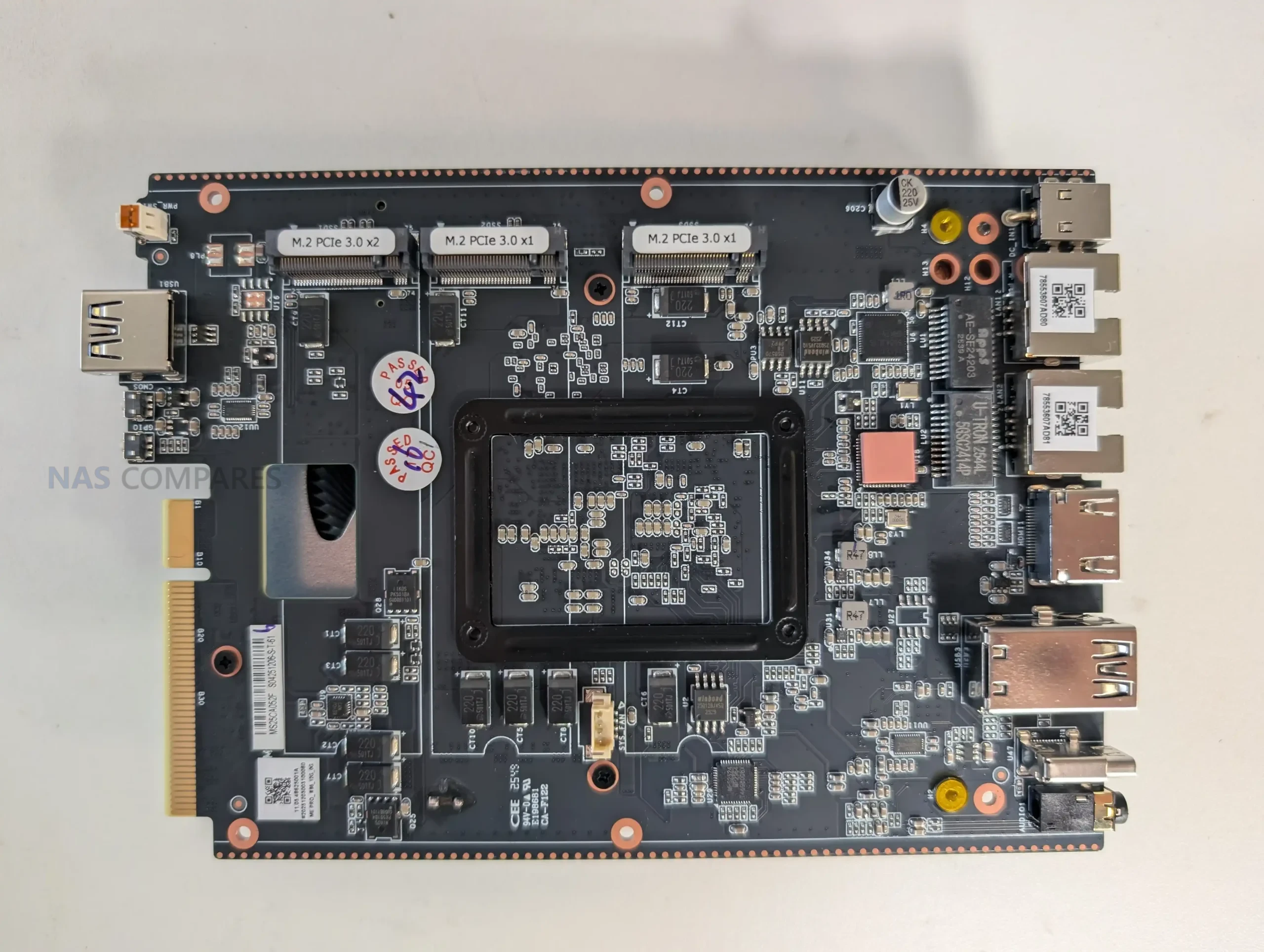
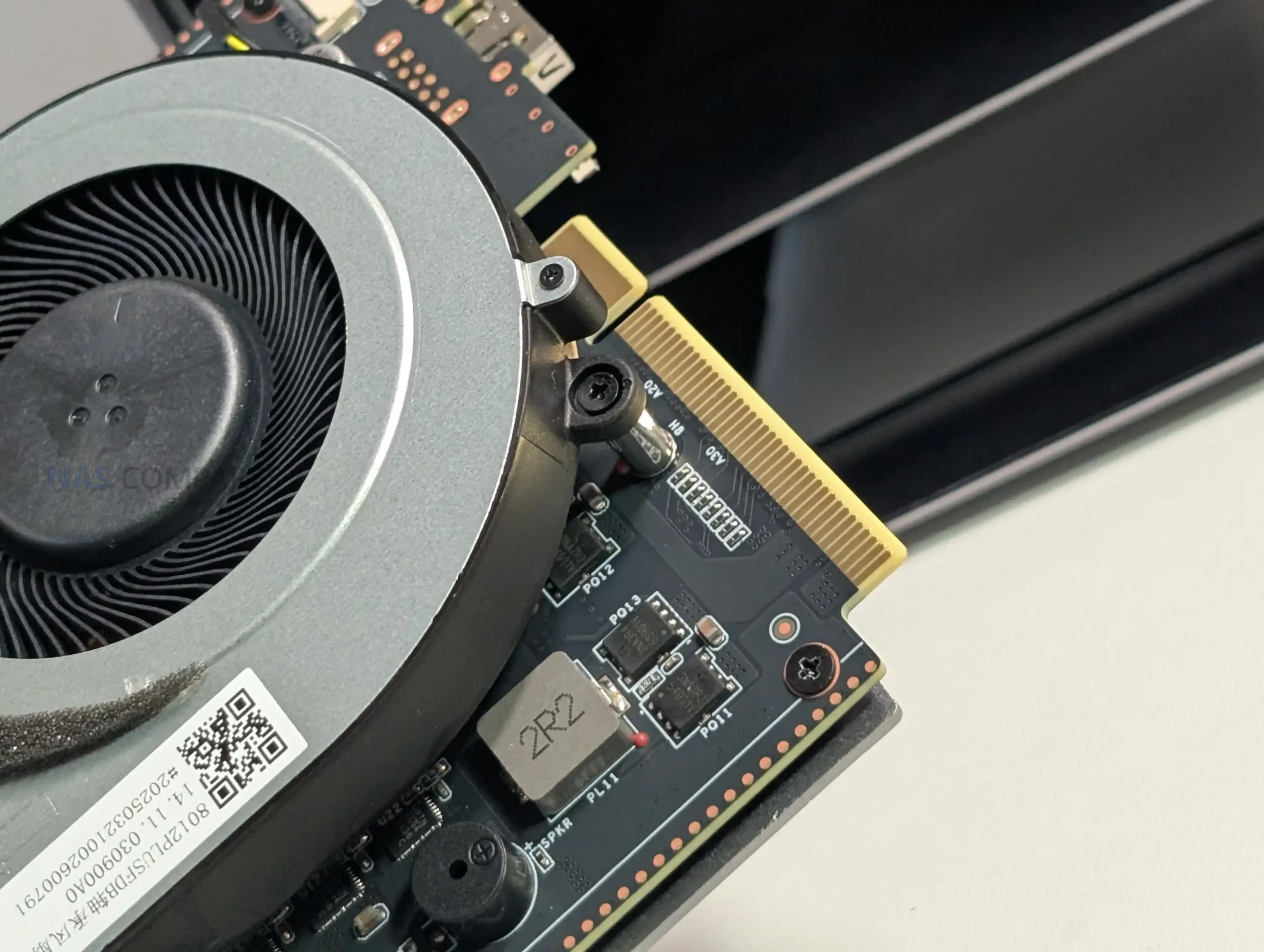
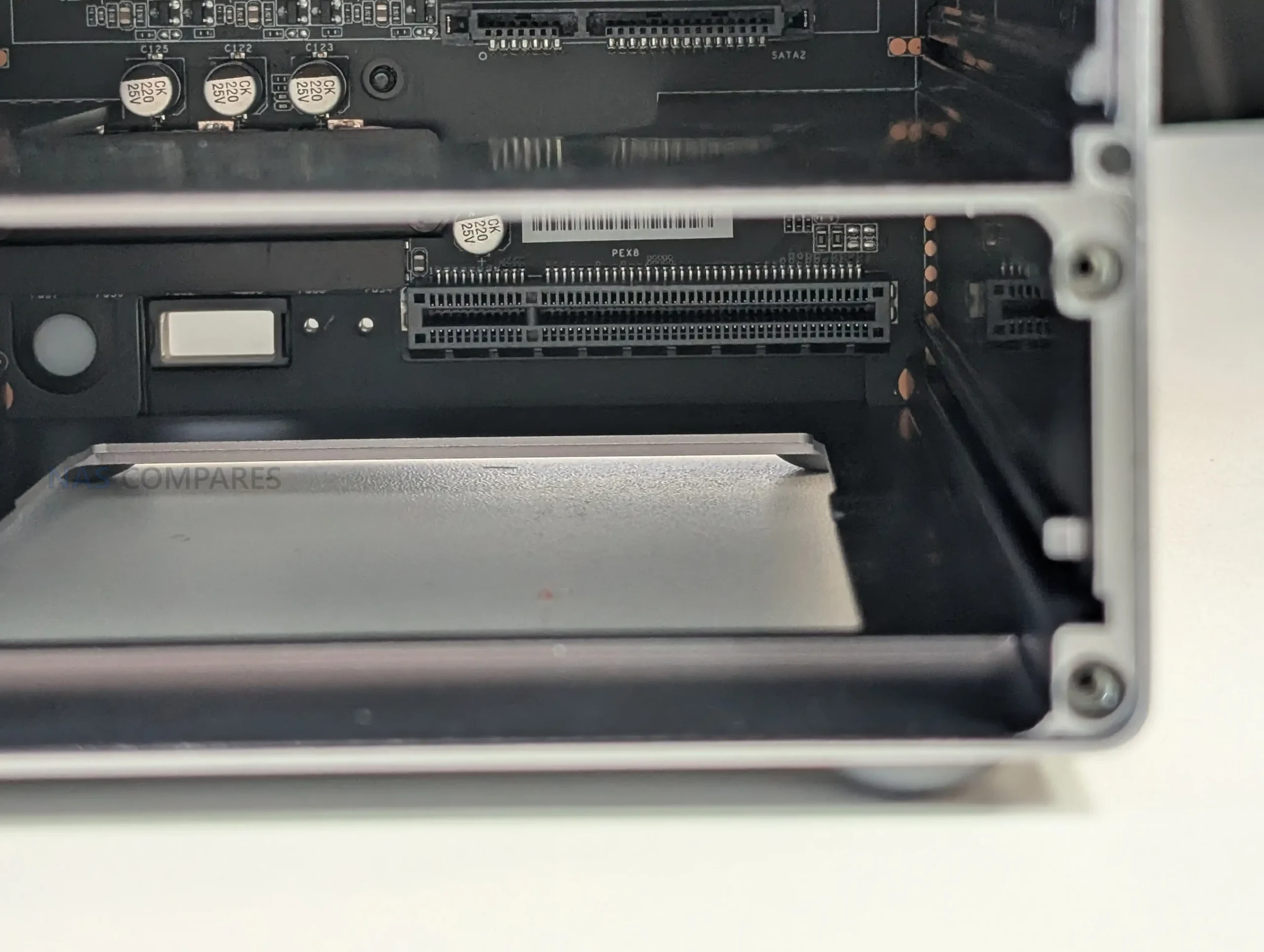
L’une des particularités intéressantes du ME Pro réside dans son bloc interchangeable (carte mère, processeur et mémoire). En théorie, cela permet de faire évoluer la machine sans changer tout le châssis. Dans la pratique, l’intérêt reste à confirmer pour un usage domestique. Cela reste néanmoins une option appréciable, que peu de fabricants proposent aujourd’hui.
Disque dur et SSD
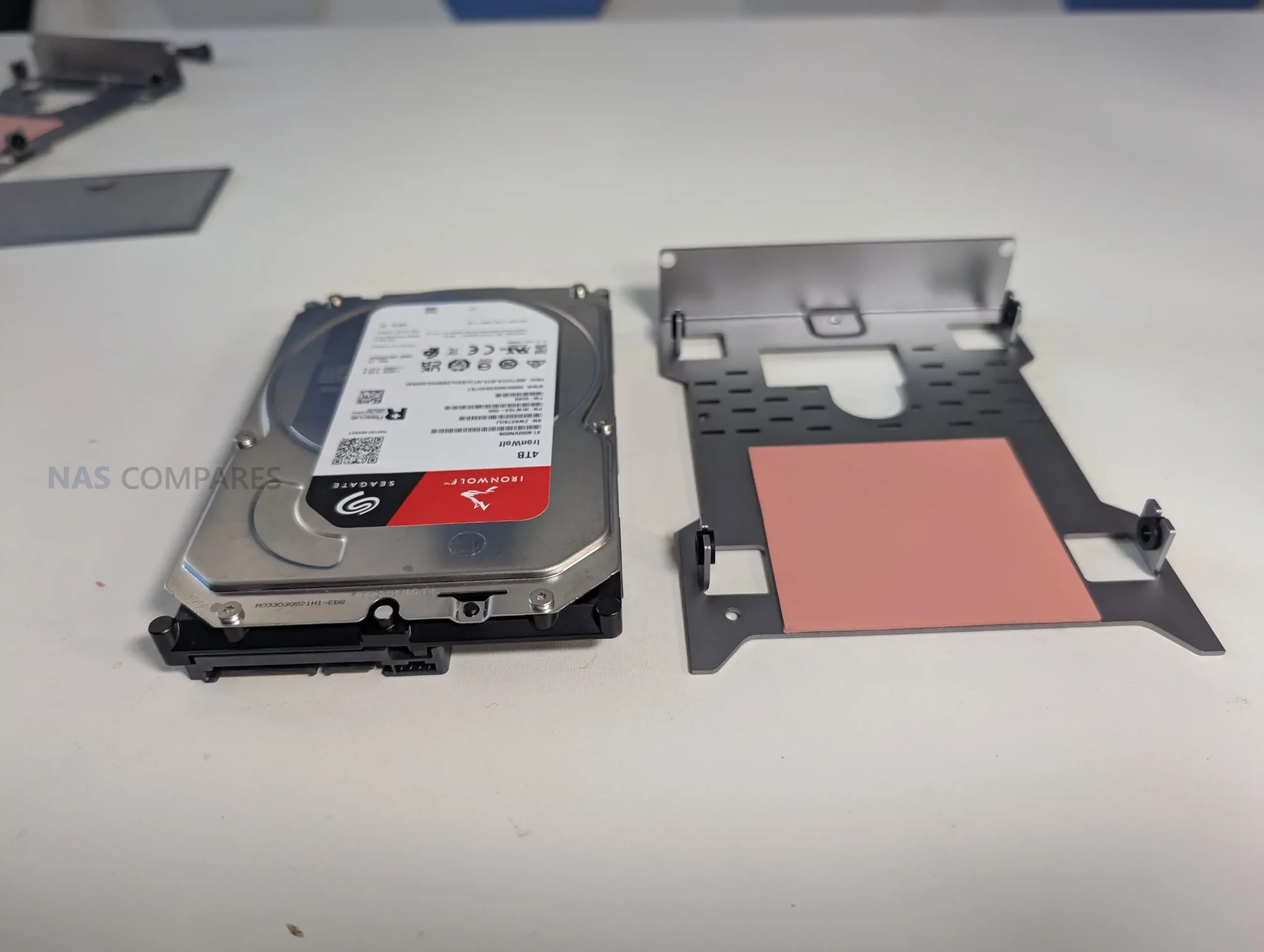
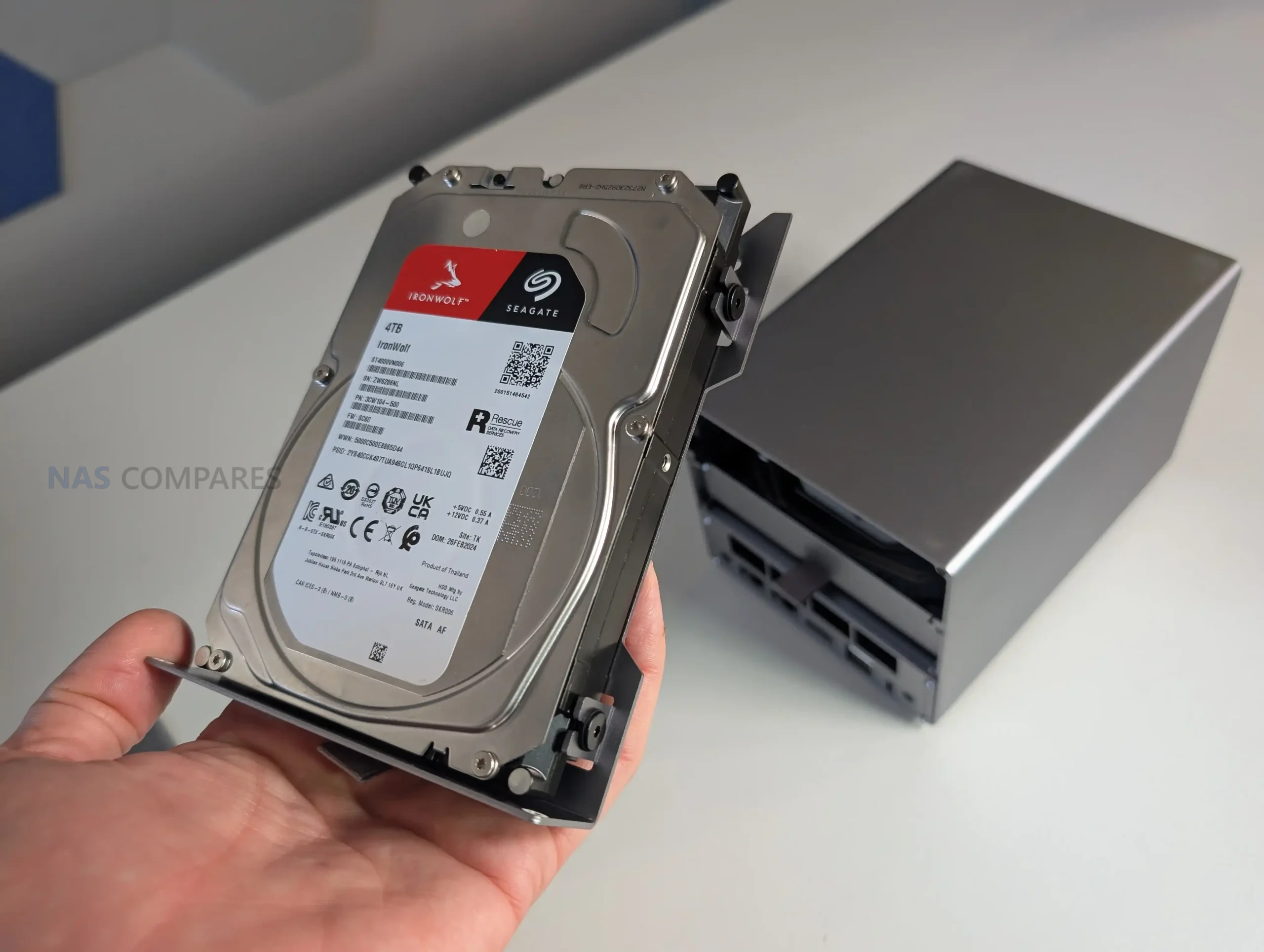
Le NAS dispose de 2 emplacements pouvant recevoir des disques dur (3,5 ou 2,5 pouces) ou des SSD SATA (débit théorique : 768 Mo/s). L’installation nécessite l’utilisation d’un tournevis pour installer les disques. J’avoue que je n’ai compris l’utilité de la pâte thermique sur les chariots.
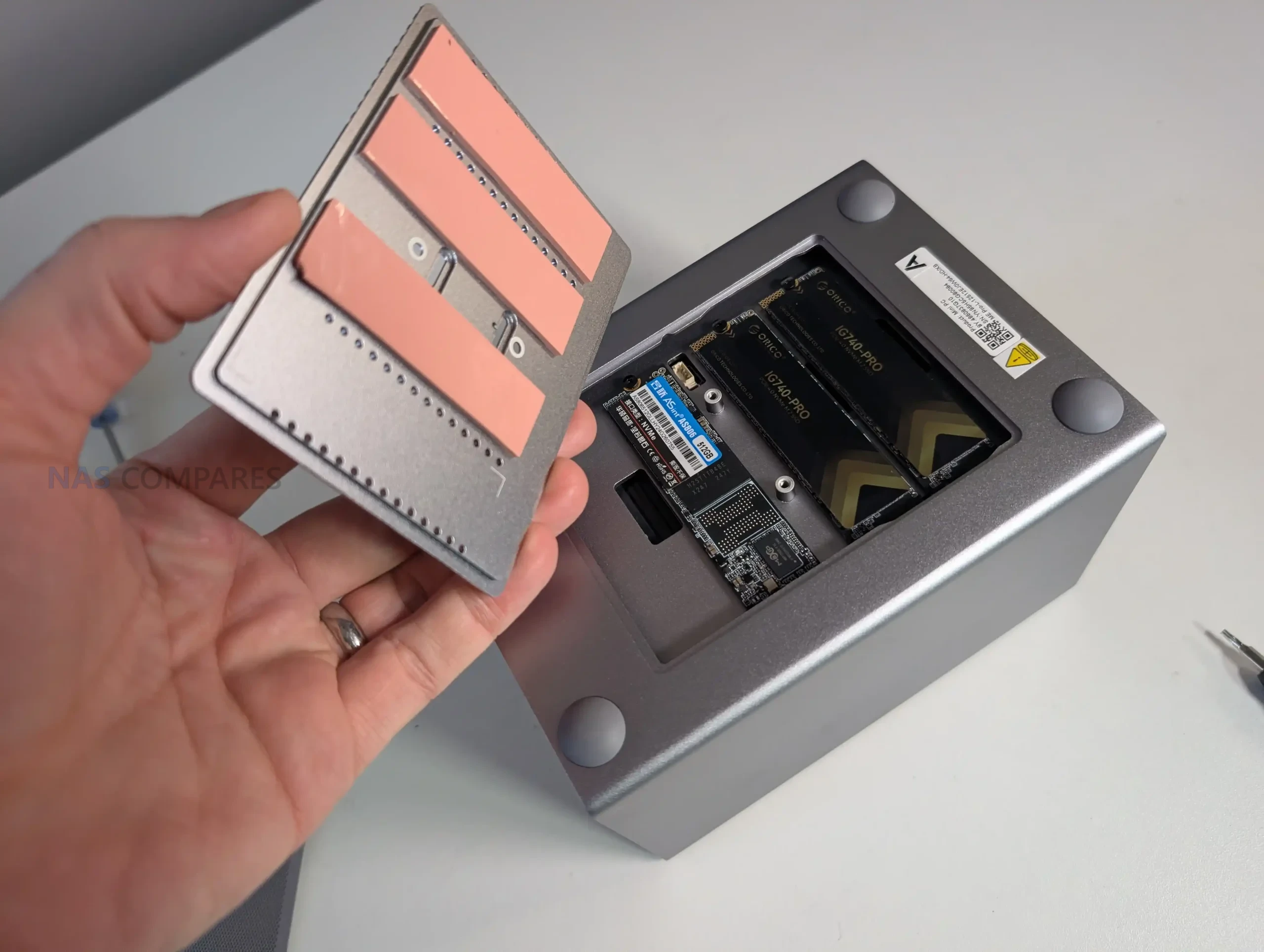
Sous le boîtier, on retrouve le SSD NVMe (PCIe 3.0 x2 : 1 969 Go/s théorique) système, ainsi que 2 emplacements NVMe (PCIe 3.0 x1 : 985 Mo/s théorique) supplémentaires. Une configuration flexible, offrant de nombreuses possibilités de stockage dans un format aussi compact.
Système et applications
Beelink fait le choix d’intégrer Windows 11 Home par défaut. Une décision que nous avons du mal à justifier dans le cadre d’un NAS. Il s’agit d’une version standard, sans outils dédiés au stockage réseau. Aucun assistant, aucun logiciel spécifique ne guide l’utilisateur dans la création de partages, la gestion des utilisateurs ou la configuration du système. Après avoir consulté le site officiel, nous n’avons trouvé aucune documentation réellement utile à ce sujet. C’est clairement le principal point faible du ME Pro. Cela pourra intéresser ceux qui veulent en faire un Mini PC avec un gros stockage et non pas un NAS.
Heureusement, Beelink annonce une compatibilité complète avec des systèmes alternatifs tels que TrueNAS, Unraid ou Proxmox. Pour nos tests, nous avons opté pour TrueNAS, bien adapté à ce type de matériel.
Dans la première partie de nos tests, nous allons évaluer les performances des transferts à travers un réseau 5 Gb/s (entre le NAS et des ordinateurs). Ensuite, nous regarderons les capacités du processeur, en analysant ses performances dans la virtualisation et le transcodage vidéo.
Vitesses dans les transferts
Depuis plusieurs années, nous avons mis en place un protocole de tests rigoureux fournissant des données fiables et comparables avec les performances des autres NAS. Pour cela, nous utilisons 4 applications de mesure différentes (2 sous macOS et 2 sous Windows) et réalisons en plus des transferts de fichiers de tailles variées dans les deux sens (NAS -> Ordinateur puis Ordinateur -> NAS) :
Petites tailles : 100 fichiers de 500 Ko à 12 Mo (MP3, photos, documents Office)
Tailles moyennes : 30 fichiers de 12 à 350 Mo (DivX, images RAW, archives ZIP)
Fichiers volumineux : 10 fichiers avec une taille comprise entre 4 et 10 Go (MKV, ISO)
À partir de ces tests, nous calculons une moyenne des transferts que nous représentons sous forme de graphiques, exprimée en mégaoctets par seconde. Plus le nombre est élevé, plus le NAS est rapide. Pour notre évaluation du ME Pro, nous avons configuré un premier volume avec 2 SSD NVMe en RAID 0 (mode STRIPE), puis avec le chiffrement des données et enfin avec 2 SSD en RAID 1 (MIROIR).
RAID 0
Nous avons pu profiter pleinement de la connexion 5 Gb/s… même si on aurait aimer aller au-delà. Le maximum que nous avons pu atteindre : 564 Mo/s en lecture séquentielle.
RAID 0 avec chiffrement des données
Le N95 a montré toute son efficacité, le chiffrement des données a réduit très légèrement la vitesse d’écriture.
RAID 1
En RAID 1, si la lecture est peu impactée. Cependant, l’écriture qui a montré quelques signes de ralentissement. Cela reste bien entendu une moyenne, dans une configuration ZFS.
Performances générales
Avec TrueNAS, le Beelink ME Pro s’est montré particulièrement convaincant. Le système est fluide, riche en options et parfaitement stable. La virtualisation ne pose aucun problème, tout comme l’utilisation de conteneurs Docker avec plusieurs services actifs simultanément. Grâce à son iGPU intégré, le NAS gère sans difficulté le transcodage matériel vidéo, notamment avec Jellyfin. Plusieurs flux simultanés peuvent être lus sans ralentissement…
En résumé, les performances sont au rendez-vous.
Consommation électrique et nuisance sonore
Le ventilateur interne est très discret, au point d’être quasiment inaudible. Côté consommation électrique, le ME Pro affiche environ 20 W en usage normal (avec cinq SSD installés) et jusqu’à 32 W en charge plus soutenue. Des chiffres tout à fait normal pour un NAS de cette catégorie.
CONCLUSION
Le Beelink ME Pro s’impose comme une solution NAS atypique, pensée pour les utilisateurs avancés à la recherche de performances, de flexibilité et d’un format compact. Son processeur Intel N95, sa connectique réseau 5 Gb/s, sa compatibilité avec TrueNAS, Unraid ou Proxmox, ainsi que ses multiples emplacements pour le stockage en font une base très solide pour un serveur domestique ou un petit environnement professionnel.
En revanche, l’intégration de Windows 11 Home n’apporte aucune réelle valeur ajoutée dans un usage NAS et nécessitera presque systématiquement une réinstallation vers un système plus adapté. Le concept de bloc matériel interchangeable reste intéressant sur le papier, mais son intérêt réel dépendra de l’évolution future de la gamme.
Au final, le Beelink ME Pro est un excellent NAS pour utilisateurs avertis, capable d’assurer du stockage réseau rapide, de la virtualisation et du transcodage vidéo, à condition d’accepter une phase de configuration plus technique.
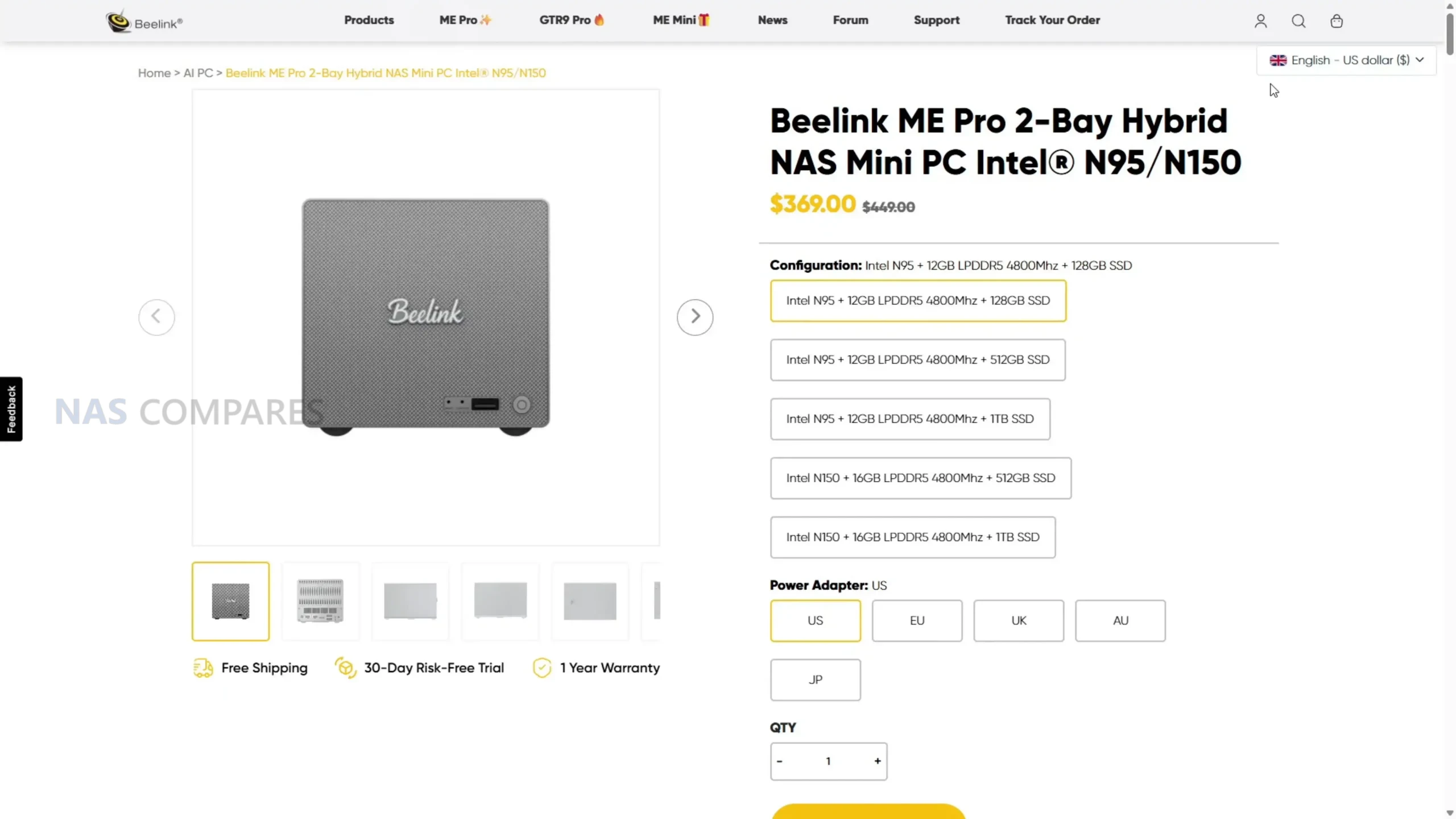
The Beelink ME Pro is a 2-bay NAS-style mini PC that aims to deliver a full home or small office storage setup in a much smaller chassis than most traditional 2-bay systems. It is sold in 2 main versions, based on the Intel N95 or Intel N150, and both ship with pre-attached LPDDR5 memory and a bundled NVMe SSD as the system drive. Storage expansion is a mix of 2 SATA bays for 2.5-inch or 3.5-inch drives, plus 3 internal M.2 NVMe slots (1 running at PCIe 3.0 x2 and 2 running at PCIe 3.0 x1), and networking includes 5GbE plus 2.5GbE alongside WiFi 6 and Bluetooth 5.4. This review is based on several weeks of use and a set of structured tests covering temperatures over extended uptime, noise in idle and active states, power draw across different drive and workload combinations, and storage and network performance over both HDD and NVMe, with additional notes on the system’s internal layout and the practical limitations that come from its compact design.
Beelink ME Pro NAS Review – Quick Conclusion
The Beelink ME Pro is a very compact 2-bay NAS-style mini PC that combines 2 SATA bays with 3 M.2 NVMe slots and multi-gig connectivity, aiming to deliver a small footprint system without dropping features that are often reserved for larger enclosures. It is sold in N95 and N150 versions, both with pre-attached LPDDR5 memory (12GB or 16GB) and a bundled system SSD, and its internal layout uses 1 PCIe 3.0 x2 NVMe slot plus 2 PCIe 3.0 x1 slots, with 5GbE plus 2.5GbE Ethernet, WiFi 6, USB-C 10Gbps (with video output), HDMI 4K60, and a barrel-powered 120W PSU. In testing over extended uptime, external chassis temperatures stayed broadly in the mid-30C range with the rear around 38C, HDDs sat around 34C to 36C with modest 4TB drives installed, and NVMe temperatures rose sharply if the base thermal panel was removed, indicating the thermal pads and chassis contact are part of the cooling design and leaving no practical clearance for NVMe heatsinks. Noise in the tested setup remained in the mid-30 dBA range both at idle and under mixed access, power draw ranged from around 15W to 16W with no drives installed, 18W to 19W with only NVMe, about 22W to 23W with HDDs and NVMe idle, and peaked around 41W to 42W under a combined heavy workload. Performance was consistent with the hardware layout: HDD RAID1 throughput landed around 250MB/s to 267MB/s and will not saturate 5GbE, while NVMe could saturate the 5GbE link and internal testing showed about 1.5GB/s to 1.6GB/s reads and 1.1GB/s to 1.2GB/s writes on the PCIe 3.0 x2 slot, with the PCIe 3.0 x1 slots closer to roughly 830MB/s reads and 640MB/s to 670MB/s writes; media server use handled 4 simultaneous high bitrate 4K playback streams with CPU usage in the teens using Jellyfin. The main drawbacks are tied to the compact design choices: the RAM is not upgradeable, the chassis and storage fitting are very tight during installation, fan control outside BIOS was not straightforward in early testing, the NVMe slots are mixed speed by design, and the CPU options are closely spaced, meaning the upgrade decision is often about the bundled memory and SSD tier as much as the processor. Official messaging also says hot swapping is not supported, yet it worked during testing in a RAID1 scenario, suggesting a support-position limitation rather than a strict hardware block.
DESIGN - 9/10
HARDWARE - 8/10
PERFORMANCE - 8/10
PRICE - 8/10
VALUE - 8/10
8.2
PROS
Very compact footprint for a 2-bay NAS class system (166 x 121 x 112mm, metal chassis) 2x SATA bays (2.5-inch or 3.5-inch) plus 3x M.2 NVMe slots in the same enclosure Multi-gig wired networking: 5GbE + 2.5GbE, plus WiFi 6 and Bluetooth 5.4 Strong idle efficiency in testing with drives installed and idle (about 22W to 23W) Noise stayed in the mid-30 dBA range in the tested HDD and NVMe configuration NVMe performance is sufficient to saturate the 5GbE link, with the PCIe 3.0 x2 slot clearly faster than the x1 slots Chassis thermal design appears effective under typical always-on use, with external temps broadly in the mid-30C range Practical service access features: magnetic rear cover, base access for M.2, stored tool in the base, reset and CLR CMOS available
CONS
RAM is fixed (no SO-DIMM), so memory cannot be upgraded after purchase Very tight internal tolerances make drive and bracket insertion less forgiving during installation and changes Mixed NVMe slot speeds (1x PCIe 3.0 x2 and 2x PCIe 3.0 x1) and no 10GbE option
The ME Pro is built around an all-metal unibody chassis that prioritizes footprint over easy internal spacing. In physical terms it sits noticeably smaller than many mainstream 2-bay enclosures, and in my comparisons it looked roughly 20% to 25% smaller next to typical 2-bay units from brands like Synology and TerraMaster. The front panel styling leans into a speaker-like look, and it has been compared to a Marshall speaker design, which is likely intentional given the mesh and badge layout. Functionally, that front area is not a speaker, and the design choice is mostly about appearance and airflow rather than adding any front-facing audio hardware.
From a storage perspective, the ME Pro is a hybrid layout rather than a traditional “2-bay only” NAS. It supports 2 SATA bays for 2.5-inch or 3.5-inch drives, and Beelink positions it as supporting up to 30TB per SATA bay, giving a stated 60TB HDD ceiling. Alongside that, it has 3 internal M.2 NVMe slots with a stated 4TB per slot limit, which Beelink frames as up to 12TB of SSD capacity. Taken together, that is the basis for the commonly quoted 72TB maximum figure, although most buyers will treat that as an upper boundary rather than a typical real-world configuration due to drive cost and heat considerations.
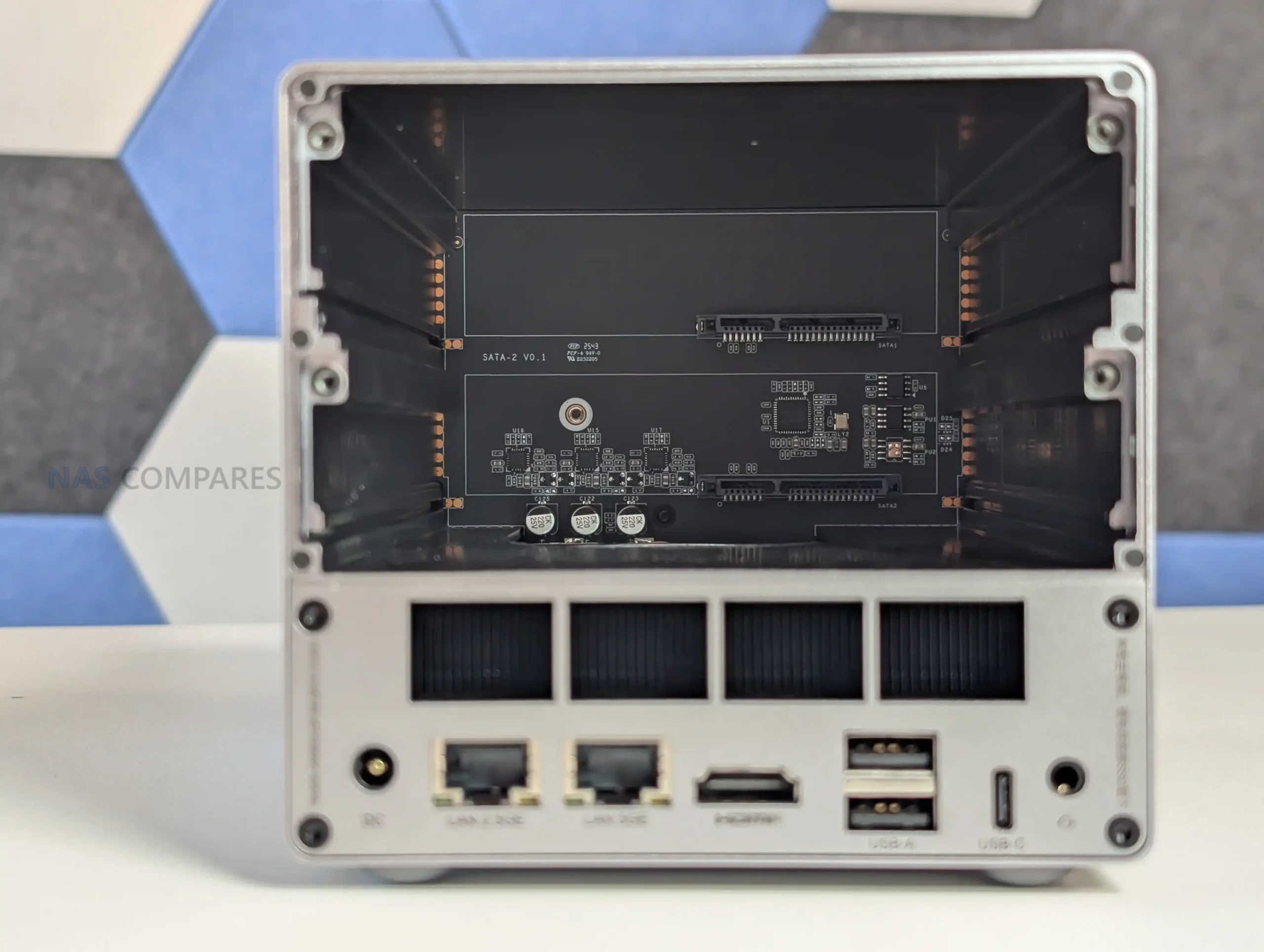
The SATA bays are accessed from the rear by removing a magnetic cooling mesh cover, then sliding out the drive bracket assembly. The trays are screw-mounted rather than tool-less, and the manual specifies different screw types depending on whether you are installing 2.5-inch or 3.5-inch drives. In practice, it is possible to physically place a drive in a tray without fully fastening it, but the design clearly expects proper screw mounting for stability and vibration control. The device also includes silicone plugs intended to reduce vibration and protect the drives, and the overall bay system is designed to sit very flush once reassembled.
One unusual design detail is that each HDD tray includes a thermal pad intended to draw heat away from the drive’s underside. That is not common on many 2-bay systems, and it suggests Beelink is trying to compensate for the compact enclosure by using direct contact points for heat transfer. The tradeoff is that this design pushes the product toward precision fitting, and it aligns with the wider theme of the ME Pro being tightly engineered rather than roomy.
If you typically choose NAS hardware where drive swaps are quick and frequent, this approach will feel more like a compact appliance that expects occasional changes, not a platform designed around constant drive rotation.
The compact chassis also affects how storage installation feels in the hands. Because clearances are tight, inserting the drive bracket and getting everything seated can feel less smooth than on larger 2-bay boxes, even though it looks clean once it is in place. This tightness is likely part of how Beelink is managing airflow paths and vibration control in such a small enclosure, but it still means you have less margin for error during installation. Overall, the storage design is best described as space-efficient and deliberate, but it asks for patience during assembly and it rewards users who install drives once and leave the configuration largely unchanged.
Beelink ME Pro NAS Review – Internal Hardware
The ME Pro is sold in 2 CPU variants, based on Intel’s N95 or N150, both 4-core and 4-thread chips with integrated graphics. In practical NAS terms, these CPUs sit in the low power mini PC category rather than the heavier desktop class, so the platform is designed around efficiency and compact integration rather than raw compute headroom. In your testing and general use, that design target showed up as stable day-to-day responsiveness for typical NAS tasks, plus enough iGPU capability for common media server workloads when paired with the right software stack.
Memory is integrated rather than socketed. The configurations pair the N95 with 12GB LPDDR5 4800MHz and the N150 with 16GB LPDDR5 4800MHz, and there is no user-accessible SO-DIMM slot to expand it later. In the context of a small NAS, this matters less for basic file serving and backups, but it becomes more relevant if the device is expected to run multiple containers, heavier indexing, or virtual machines. Because the memory is fixed at purchase, the CPU choice is also effectively tied to your long-term memory ceiling.
Internally, the platform is constrained by limited PCIe resources, which affects how the storage and networking are wired. In the review you noted the CPU platform has 9 lanes available, and the device uses a split approach across its internal components rather than giving every subsystem the same bandwidth. The NVMe area reflects this most clearly, with 1 slot operating at PCIe 3.0 x2 while the other slots operate at PCIe 3.0 x1, which makes slot choice part of performance planning for any workload that leans heavily on NVMe. This lane budgeting also helps explain why the system lands at 5GbE plus 2.5GbE rather than a single 10GbE port, since 10GbE would typically add pressure to an already tight allocation.
Controller choices are mixed rather than uniform, and you called that out as unusual. The 5GbE port uses a Realtek RTL8126 controller and the 2.5GbE port uses an Intel i226-V controller, which is not a common pairing in the same chassis. On the storage side, the SATA side is handled by an ASMedia ASM2116 controller, and in your notes you referenced it operating on a PCIe 3.0 x1 link, which is still sufficient for 2 SATA bays in most real-world use. These choices are relevant for OS compatibility and driver maturity, particularly if the unit is being used with NAS focused platforms rather than the included Windows 11 installation.
Cooling is one of the main internal design decisions that enables the smaller enclosure. Instead of a traditional rear fan placed at the drive backplane, the system uses a CPU fan working with a vapor chamber arrangement, and airflow is routed so that it also passes over other internal heat sources rather than treating the CPU as a separate cooling zone. In your thermal testing, you observed that the front panel area ran warmer than the rest of the chassis due to the WiFi hardware placement, and you also saw a noticeable rise in NVMe temperatures when the base thermal panel was removed, which supports the idea that the chassis panels and pads are intended to be part of the heat management system. Power is delivered via a barrel connector using a 120W external PSU, which provides headroom for spin-up and load, but it also means this is not a USB-C powered design.
Beelink ME Pro NAS Review – Ports and Connections
Up front, the ME Pro keeps things simple: a power button and a single front-mounted USB port for quick access. This suits the NAS-first intent, where most interaction is remote, but it also sets expectations for local use. If you plan to attach multiple peripherals directly to the unit, you are quickly pushed toward using a hub or relying on network-based management rather than treating it like a conventional mini PC with generous front I/O.
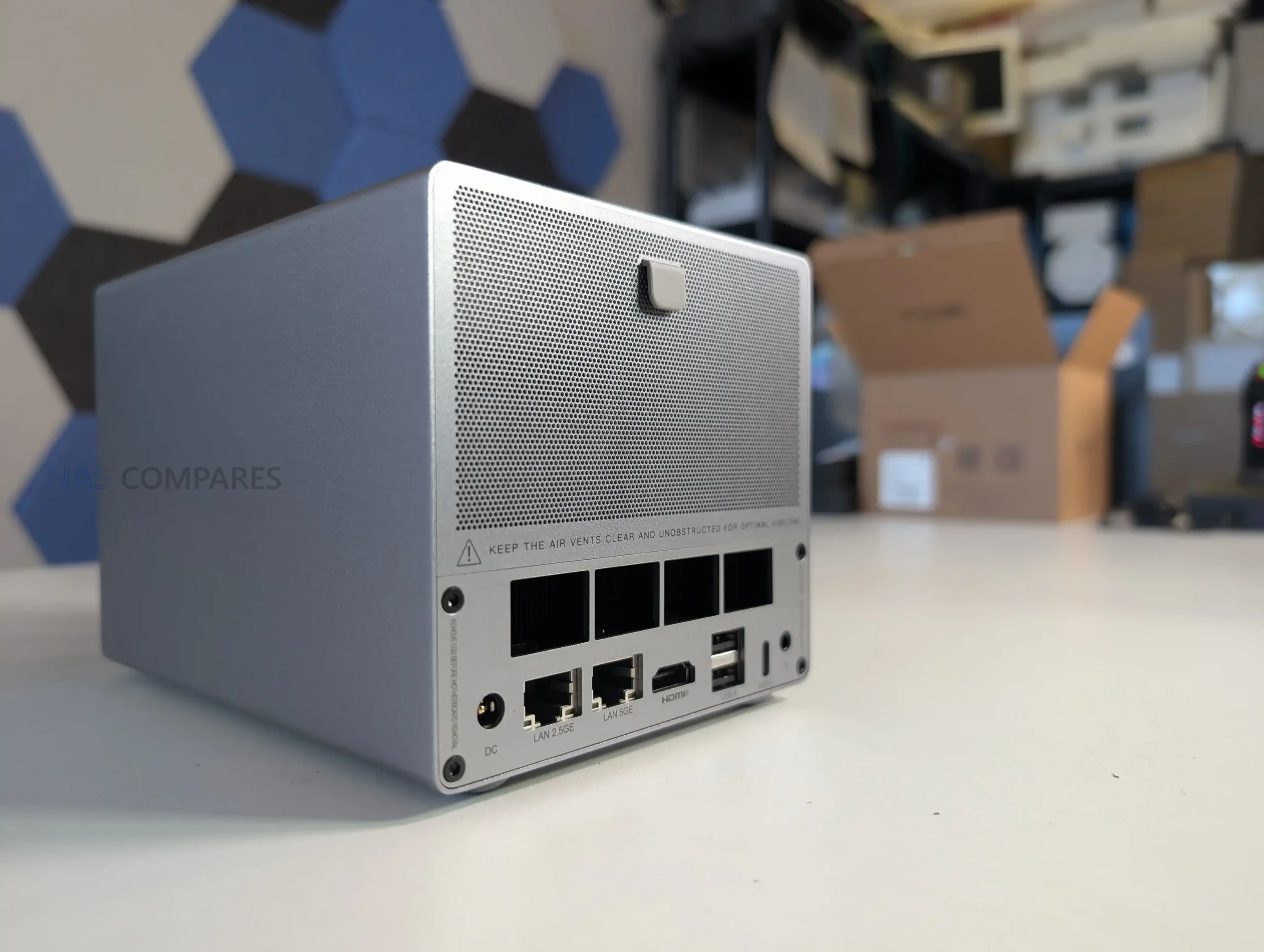
Most connectivity is placed at the rear and along the base section of the chassis, which also helps keep cables routed in one direction when the unit is placed on a desk or shelf. Wired networking is split across 2 Ethernet ports, a 5GbE port and a 2.5GbE port, and the unit also includes WiFi 6 plus Bluetooth 5.4. That mix allows both a standard single-cable setup and more flexible layouts such as separating traffic across the 2 wired links, or keeping WiFi available for temporary placement, troubleshooting, or scenarios where pulling Ethernet is not straightforward.
For general external connectivity, the ME Pro includes a USB-C port rated at 10Gbps for data and it supports video output, but it is not used for power input. Power is delivered through a barrel connector and the unit ships with a 120W external PSU, which provides comfortable headroom and removes any questions around USB-C PD negotiation. Alongside USB-C, it includes 1 USB 3.2 port rated at 10Gbps and 2 USB 2.0 ports at 480Mbps, which covers basic keyboard, mouse, UPS signalling, or low bandwidth accessories, but it is still a small selection compared with many mini PCs.
For local display and basic audio, there is 1 HDMI output rated up to 4K 60Hz and a 3.5mm audio jack. The manual also calls out a reset hole and a CLR CMOS function, which is useful context for users who intend to experiment with different operating systems, boot media, or BIOS settings, since recovery options are clearly exposed rather than being hidden inside the chassis. Overall, the port selection feels intentionally weighted toward networking and core connectivity, with enough display and USB support for setup and troubleshooting, but not a layout aimed at heavy local peripheral use.
Beelink ME Pro NAS Review – Noise, Heat, Power and Speed Tests
Testing was done over several weeks of general use and targeted measurements, with a focus on temperatures, noise, power draw, and storage and network throughput. The typical configuration used for the core measurements included 2 SATA HDDs and 3 installed NVMe drives, with the system left running for extended periods and accessed regularly throughout the day. In addition to network file transfers, I also checked internal storage performance directly over SSH to separate storage limits from network limits.
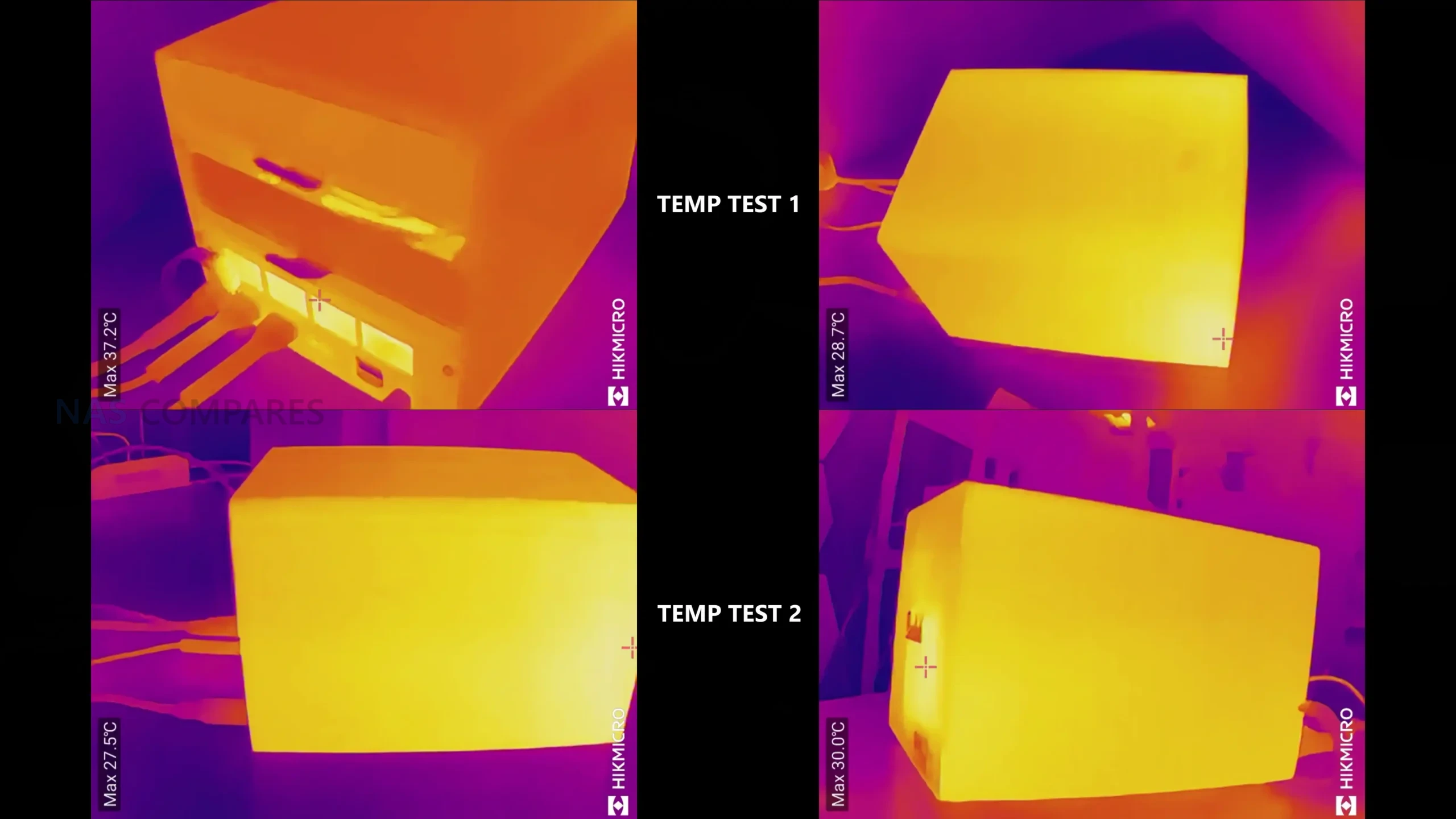
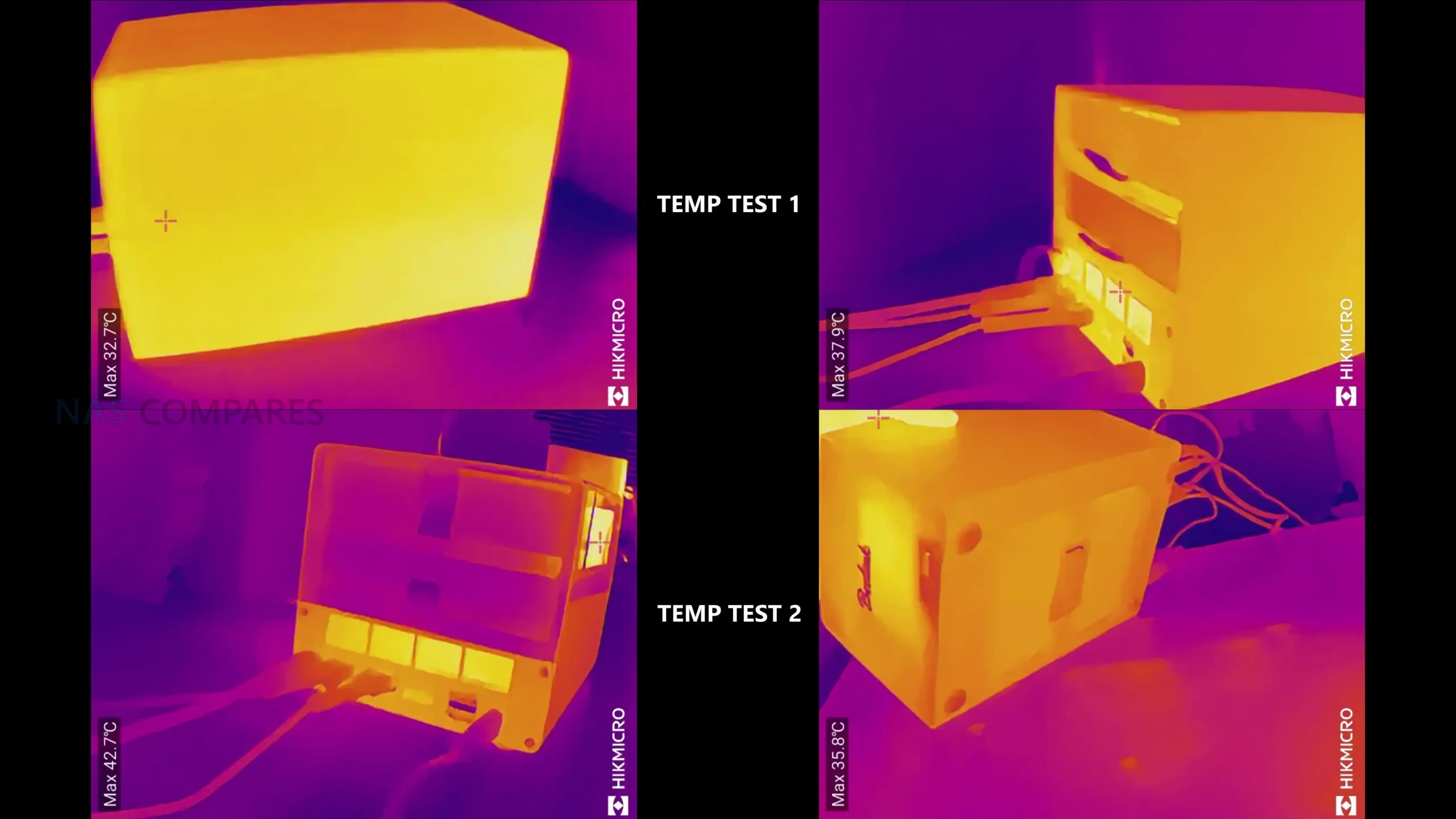
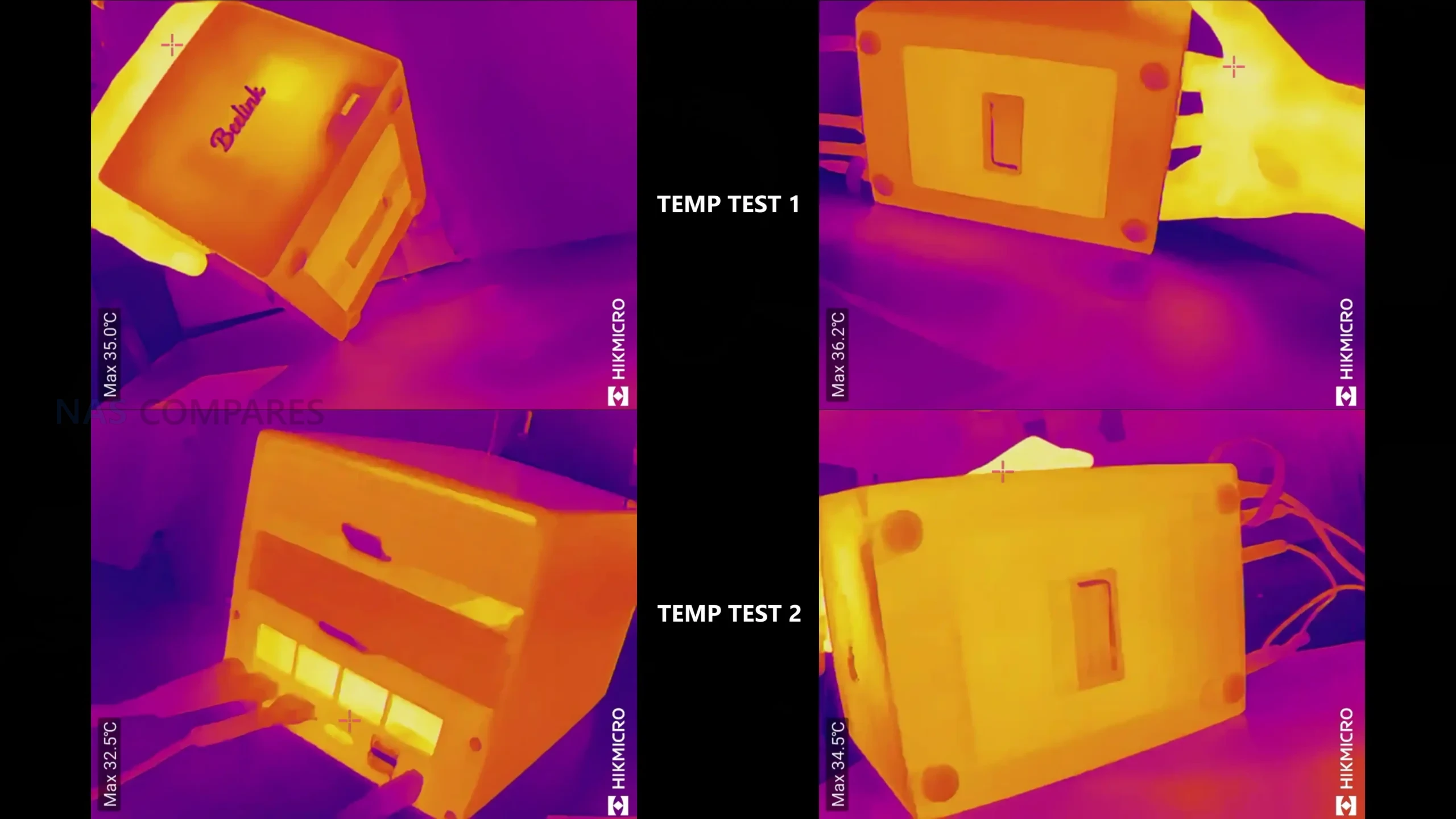
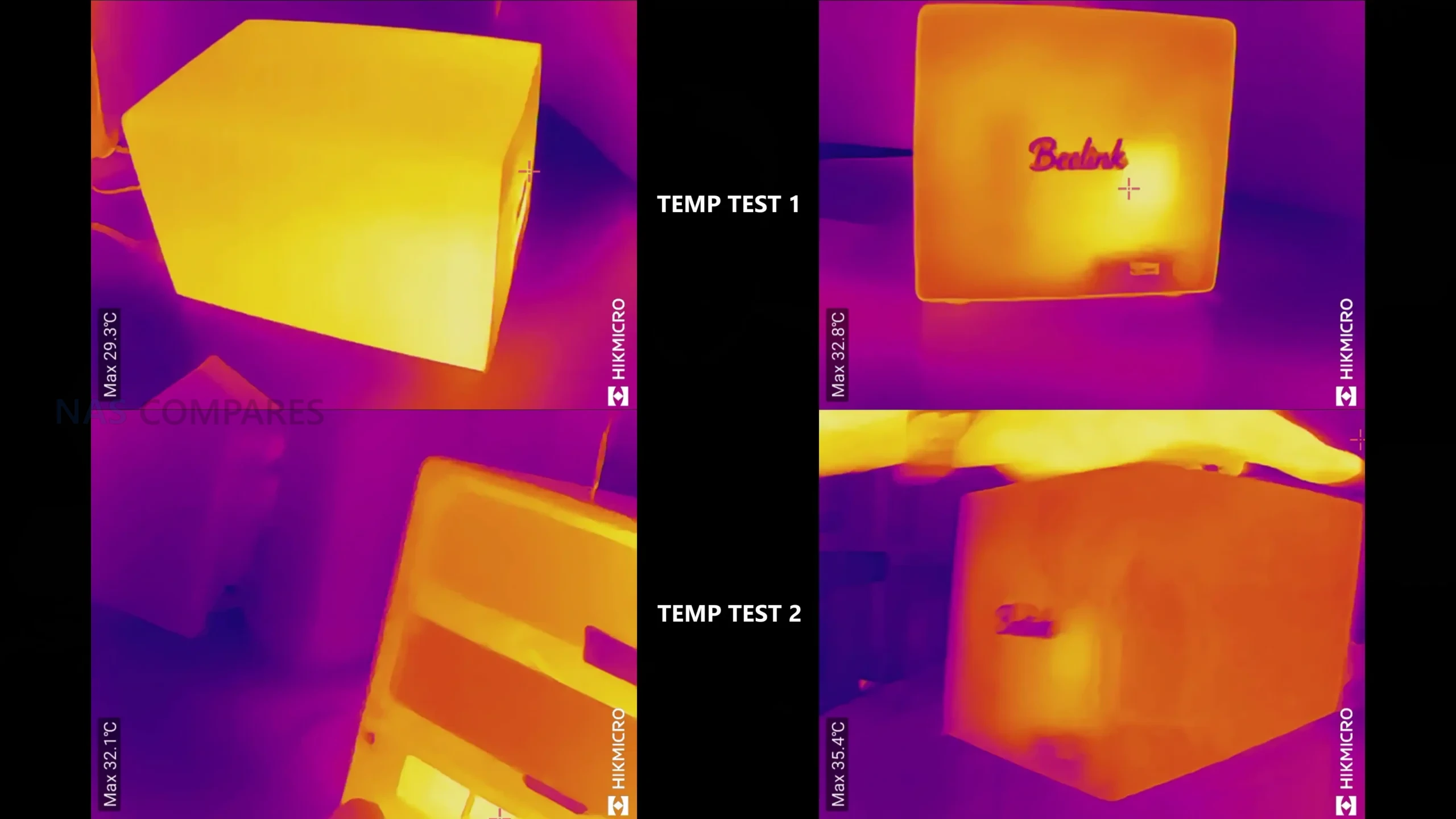
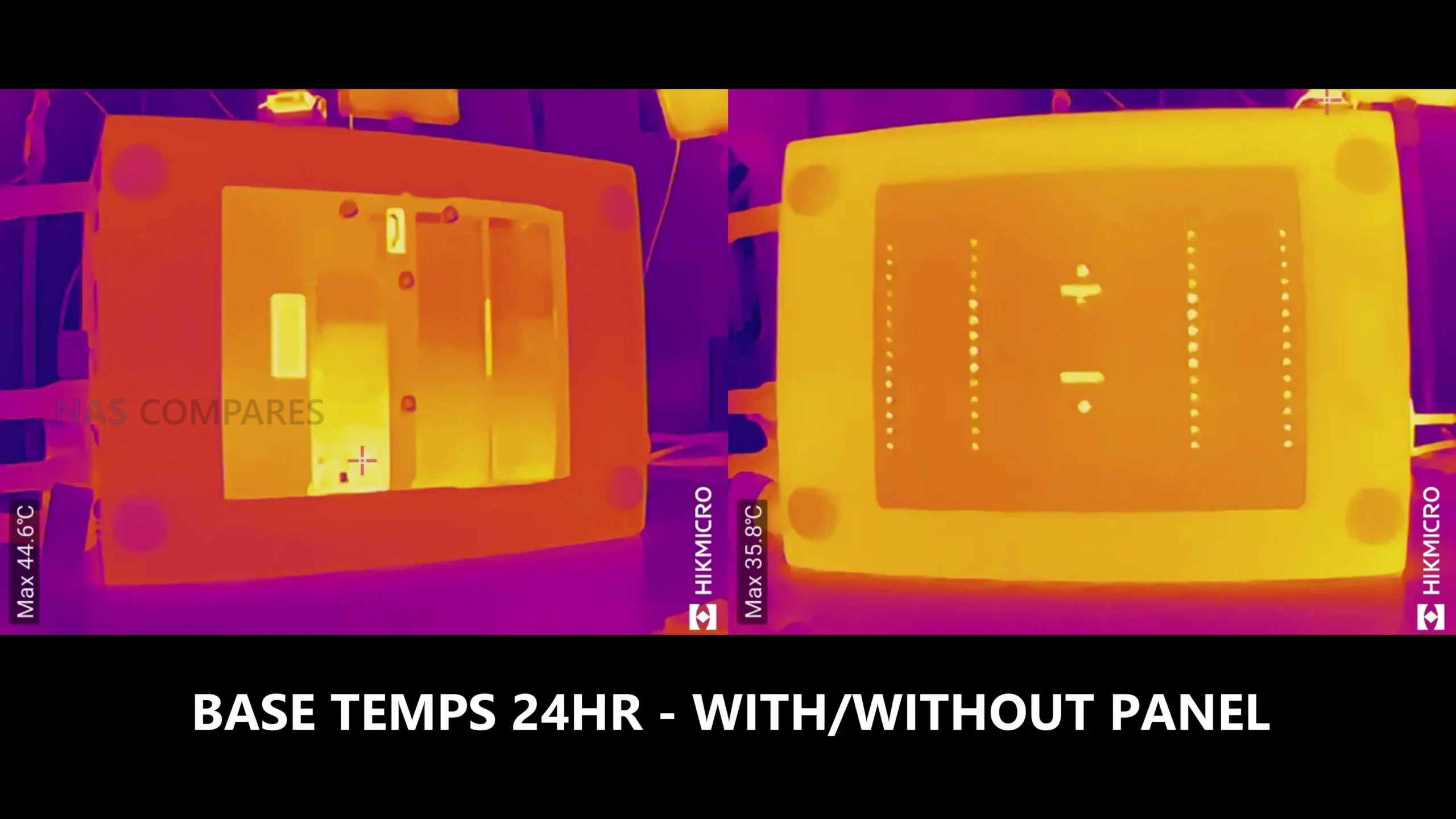
On thermals, external chassis temperatures after a 24-hour period of operation with regular hourly access sat around 34C to 35C across most sides. The base area was a little warmer at roughly 34C to 38C, and the rear section around the motherboard and vapor chamber area was around 38C. The installed HDDs sat around 34C to 36C in that same period, using 4TB IronWolf drives, so not high power enterprise class media. The front panel area peaked higher than the rest of the enclosure, which aligned with the internal placement of the WiFi hardware near the front of the chassis.
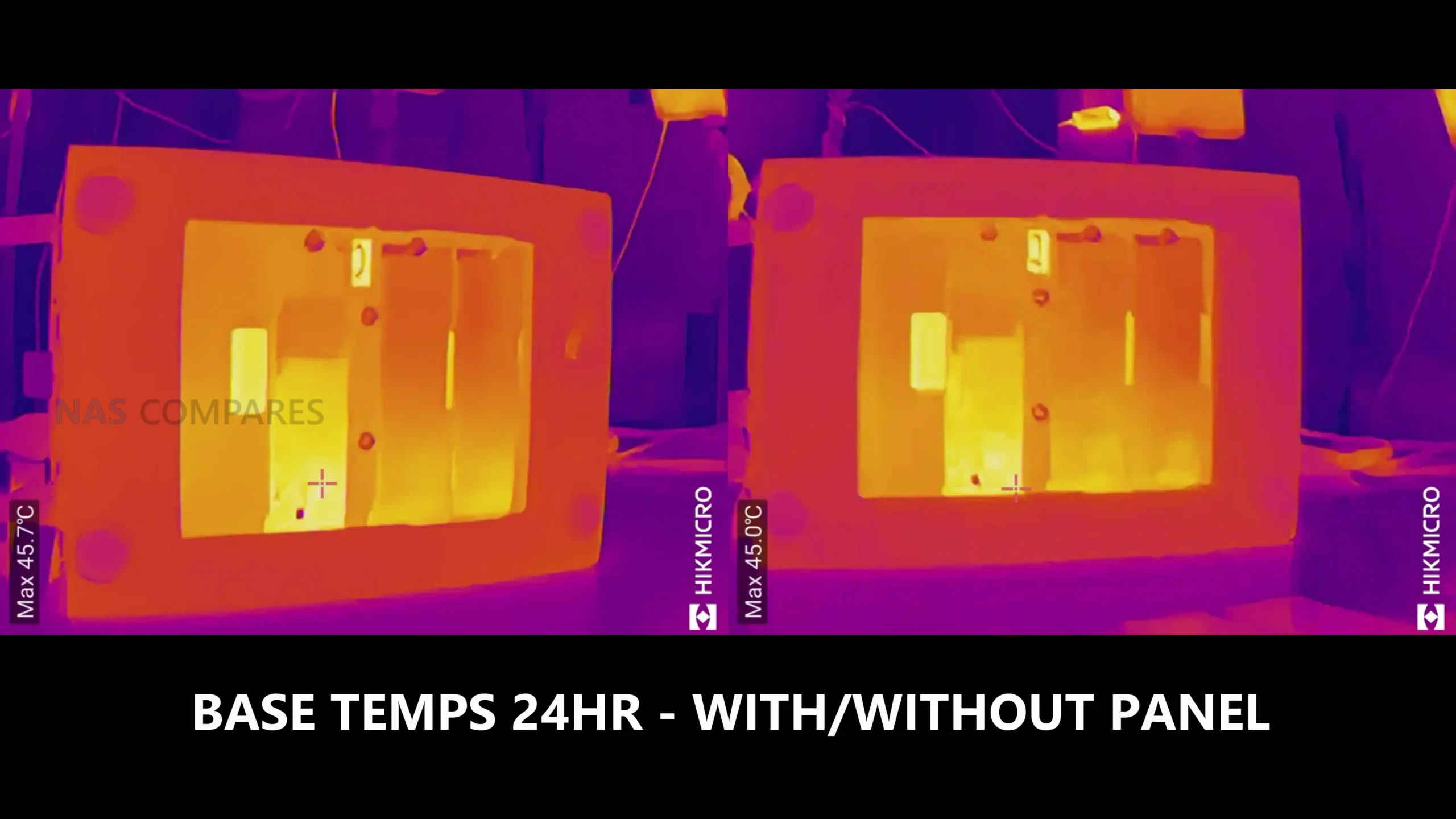
The NVMe area showed the clearest example of how much the chassis panels and pads matter. With the base thermal panel in place, the panel itself sat around 36C over the same extended uptime. When that panel was removed, temperatures on the NVMe drives rose noticeably, with the PCIe 3.0 x2 slot drive reaching around 45C to 46C and the PCIe 3.0 x1 slot drives sitting around 38C to 41C. The difference suggested that the base panel and thermal pad contact are doing meaningful work as part of the heat path, and it also reinforces that there is no practical clearance for NVMe heatsinks in this chassis.
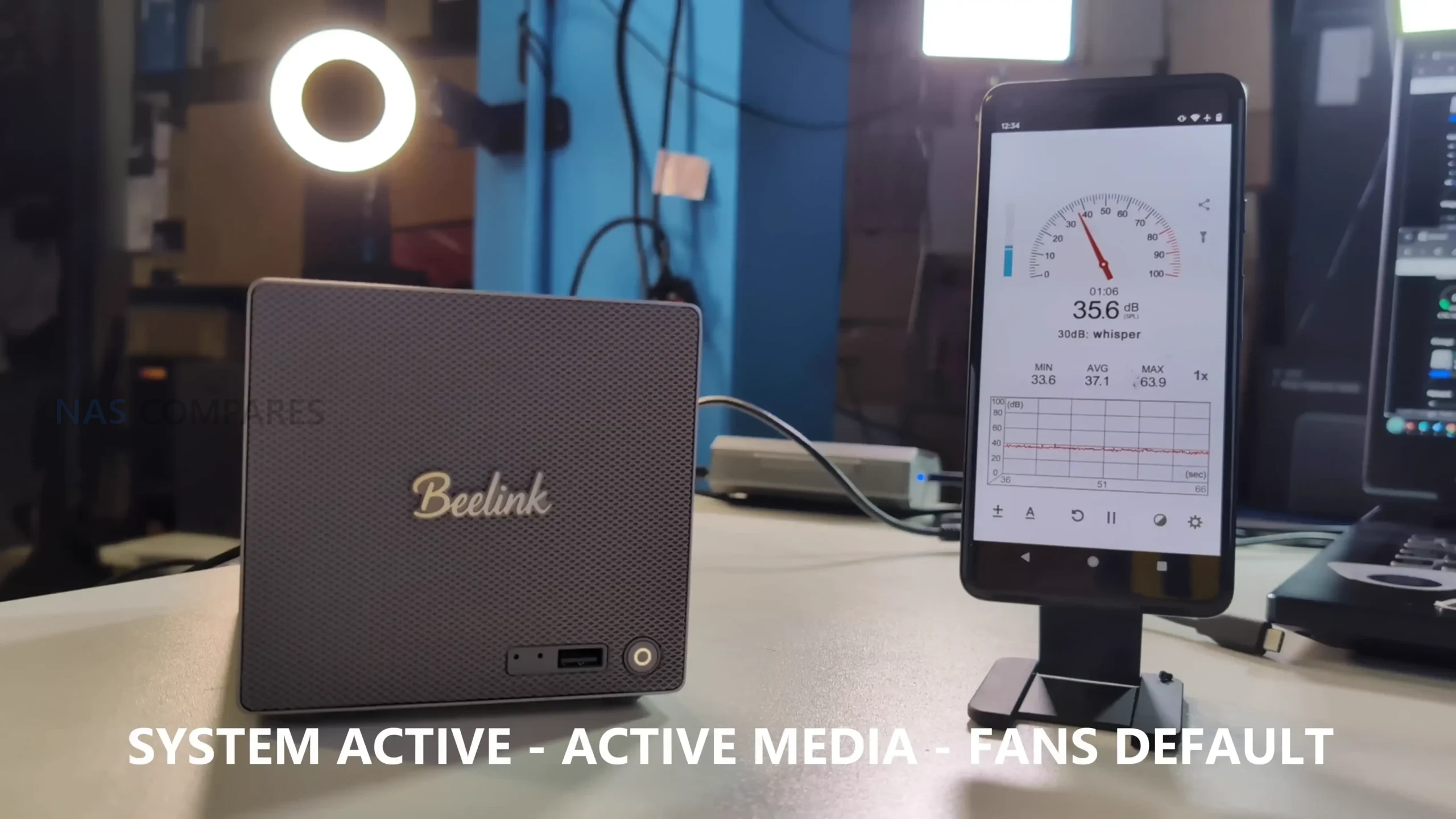
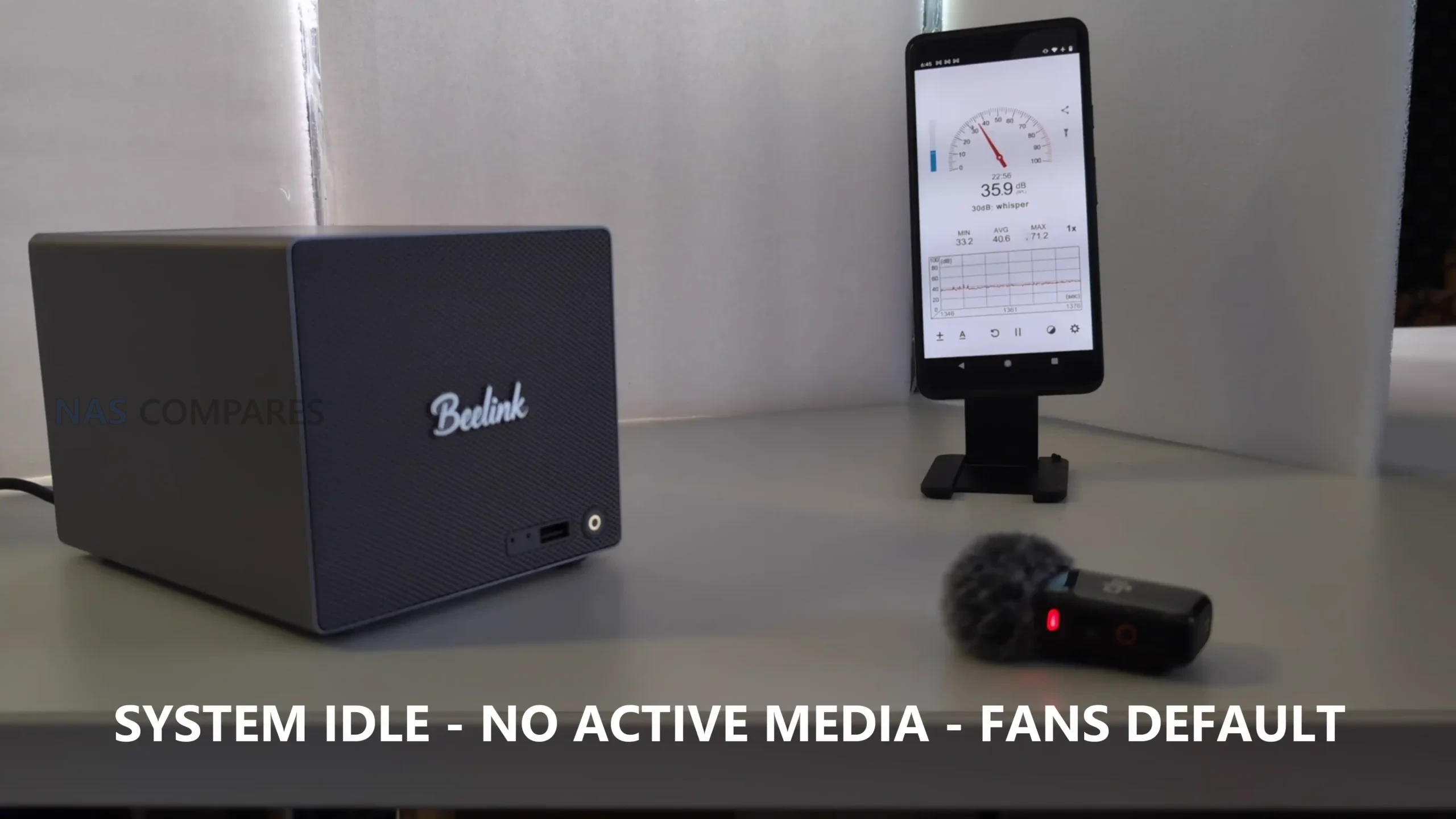
Noise levels were measured in a modest drive configuration, and they stayed in the mid-30 dBA range in the test environment. With the HDDs idle and the system otherwise sitting in standby, noise came in around 36 dBA to 37 dBA. With both HDDs being accessed simultaneously and NVMe activity occurring, it sat around 35 dBA to 38 dBA. The system uses a compact fan approach tied to the CPU cooling path, and one limitation I ran into is that I did not find a straightforward way to control the fan outside the BIOS during early testing, including attempts via SSH, which reduces fine tuning options for users who want tighter acoustics control.
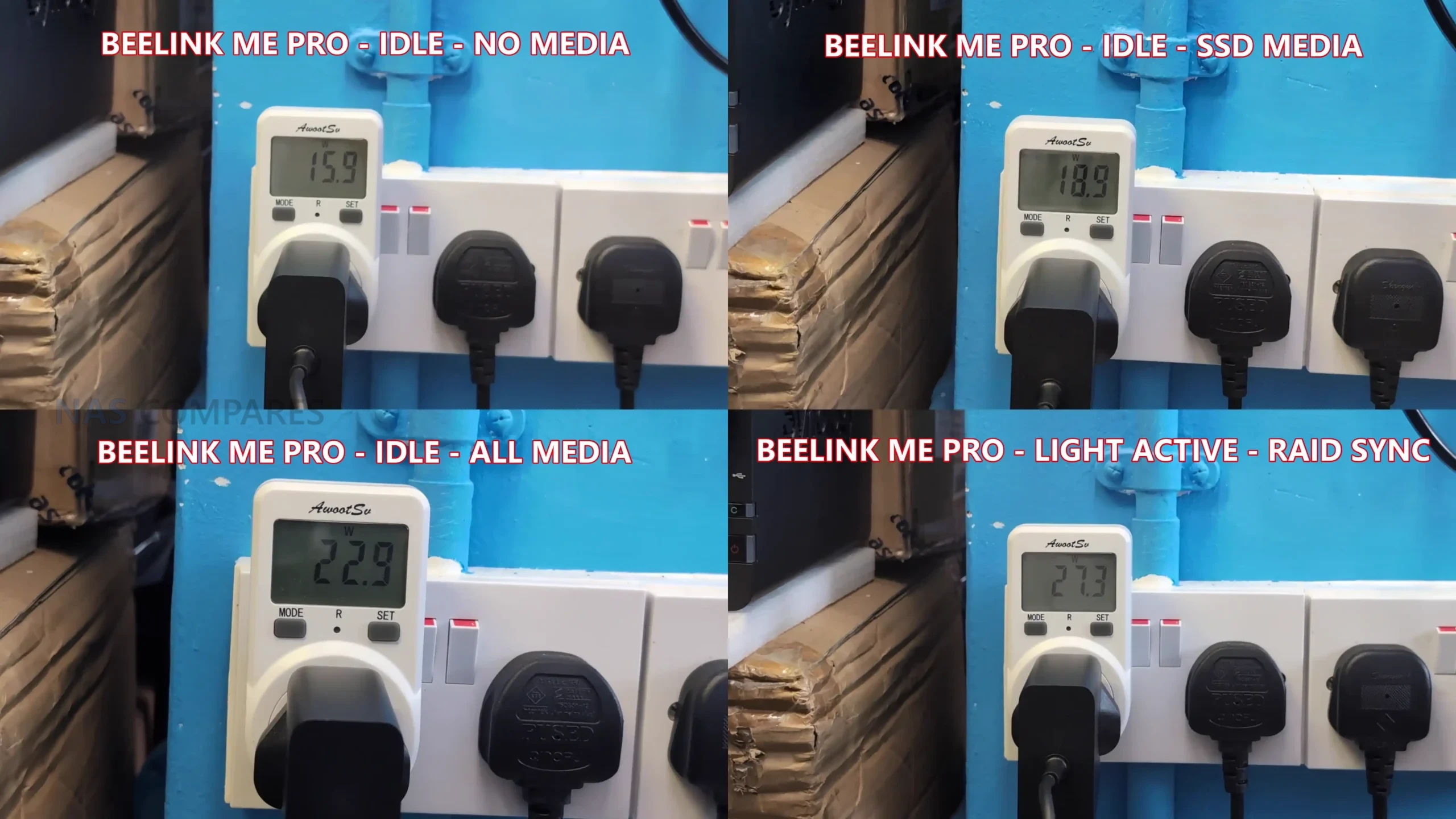
Power consumption was tested in several stages to isolate the impact of installed storage. With no HDDs or NVMe installed and the system powered on, it drew around 15W to 16W. With 3 NVMe installed and no HDDs, it rose to around 18W to 19W. With 2 HDDs and 3 NVMe installed but all media idle, it sat around 22W to 23W.
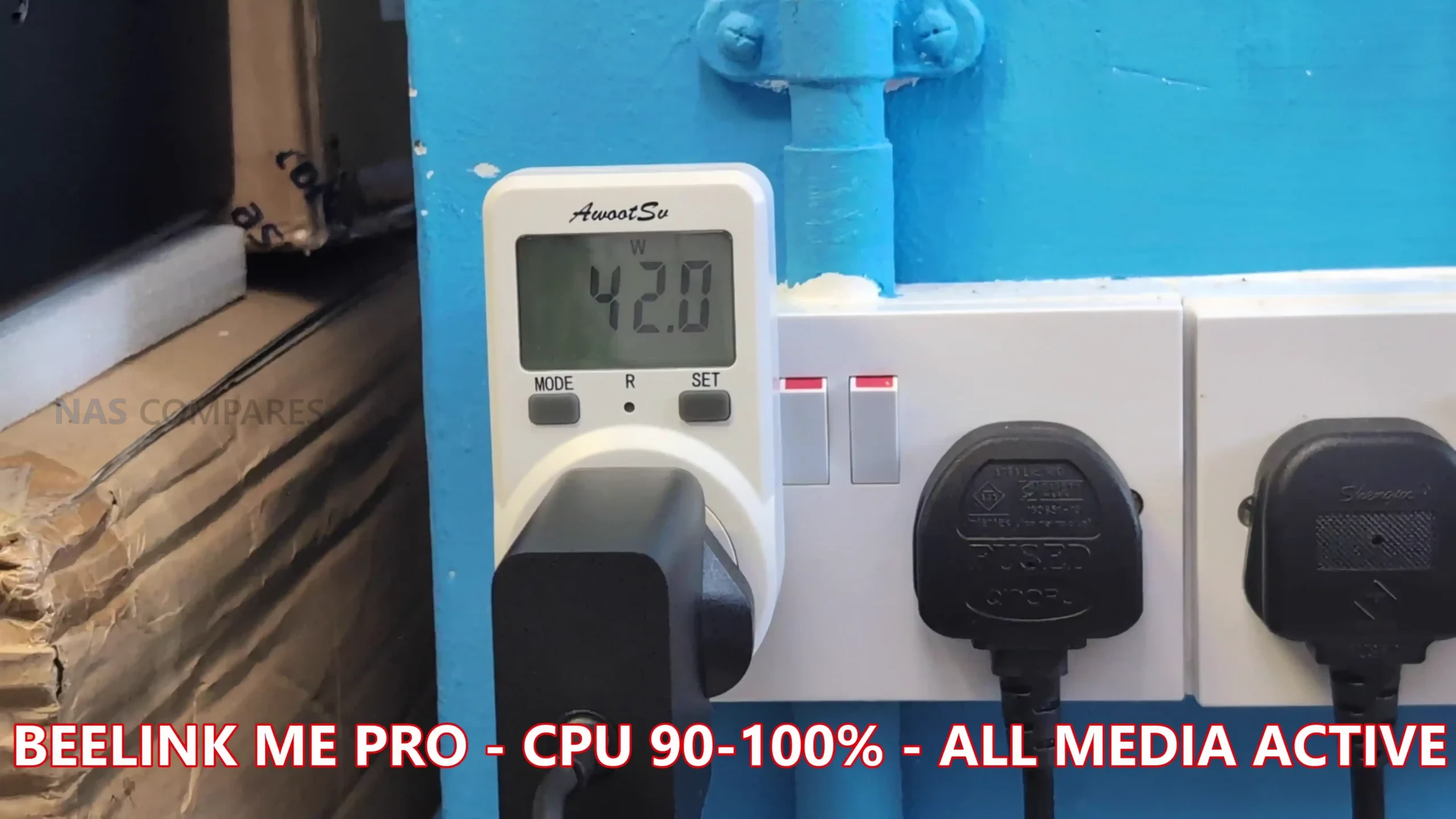
Under a heavy combined workload with HDD and NVMe activity plus the CPU at full utilization, power draw reached around 41W to 42W, which reflects a worst case state rather than typical idle or light service operation.
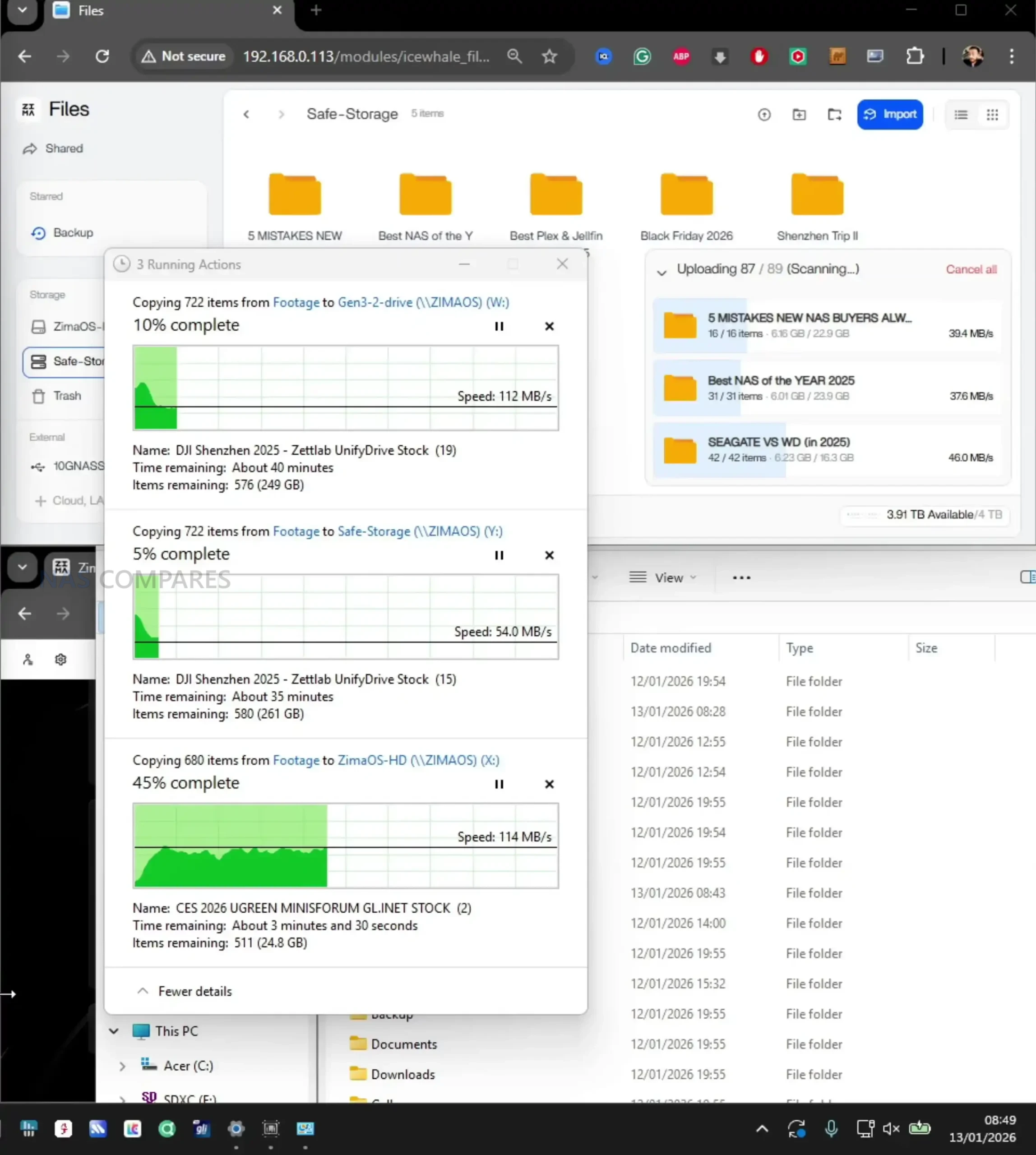
For throughput, 2 HDDs in a RAID1 style setup were able to deliver around 250 MB/s to 267 MB/s, which is consistent with what you would expect from 2-bay HDD performance and means the HDD side will not saturate a 5GbE link.
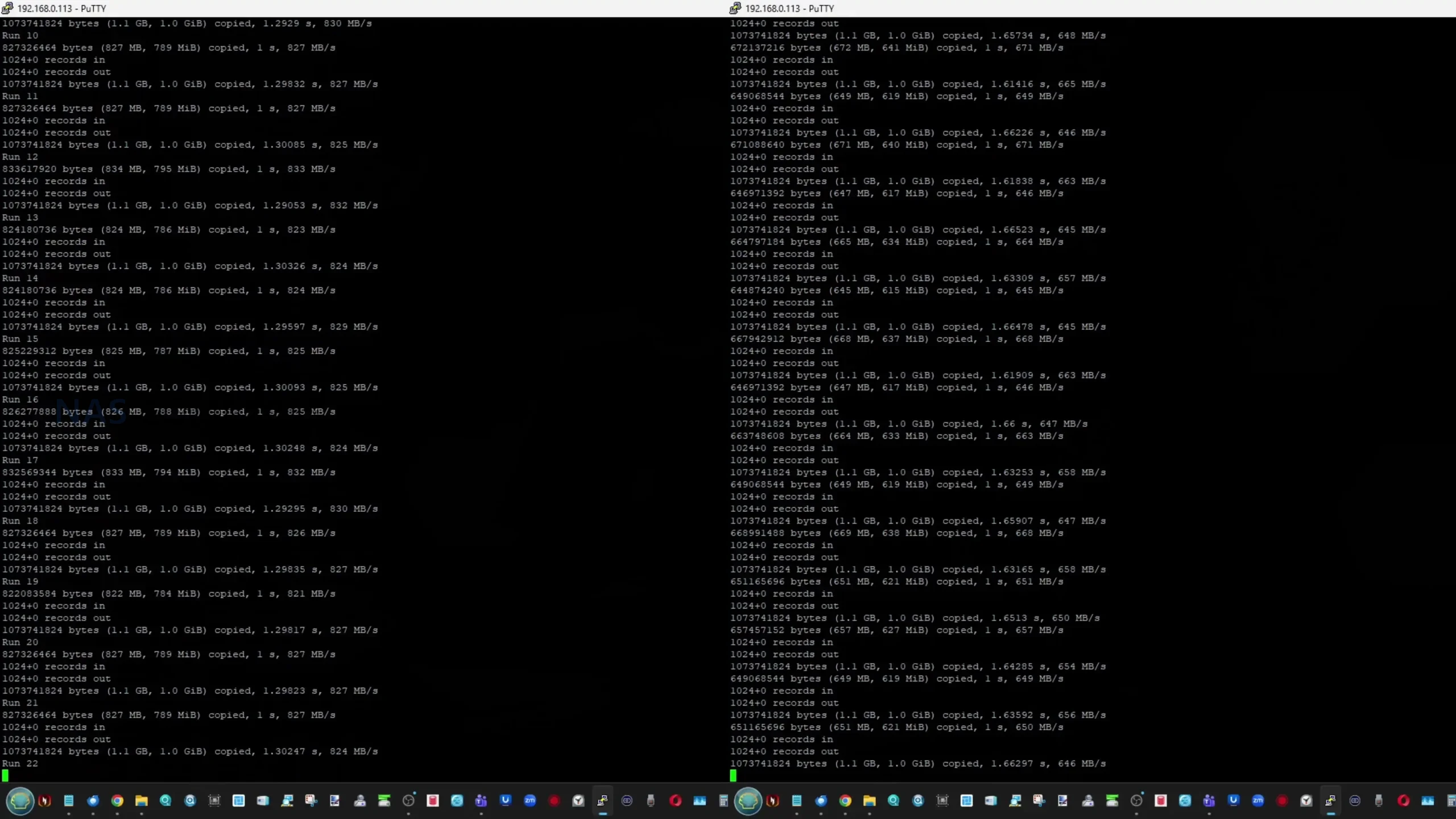
NVMe storage over the 5GbE connection was able to reach full saturation of the network link in testing, so the network became the limiting factor rather than the SSD. Internal NVMe testing over SSH showed the expected split between slots, with the PCIe 3.0 x2 slot delivering roughly 1.5 GB/s to 1.6 GB/s reads and 1.1 GB/s to 1.2 GB/s writes, while the PCIe 3.0 x1 slots delivered around 830 MB/s to 835 MB/s reads and roughly 640 MB/s to 670 MB/s writes with more variability.
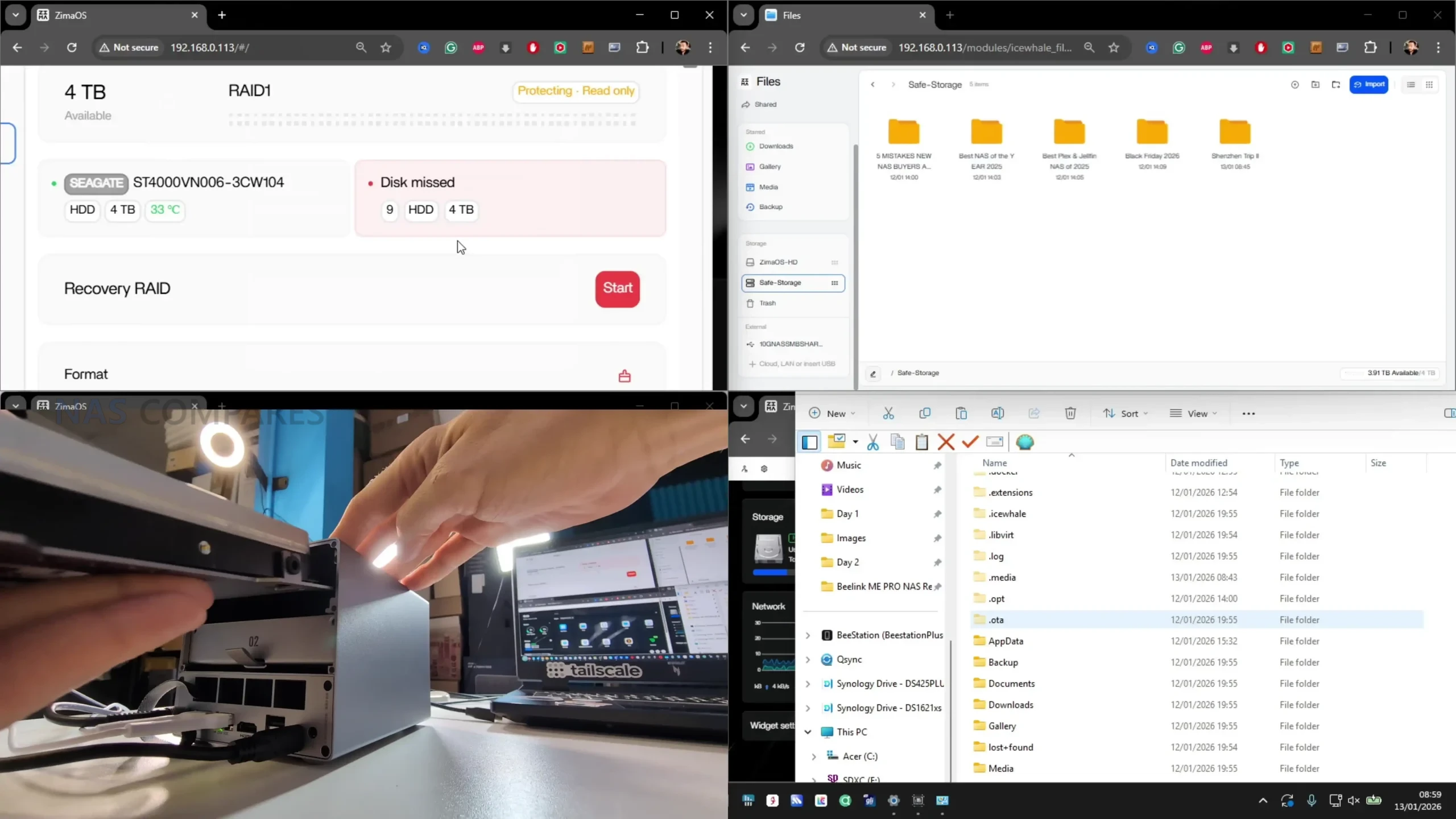
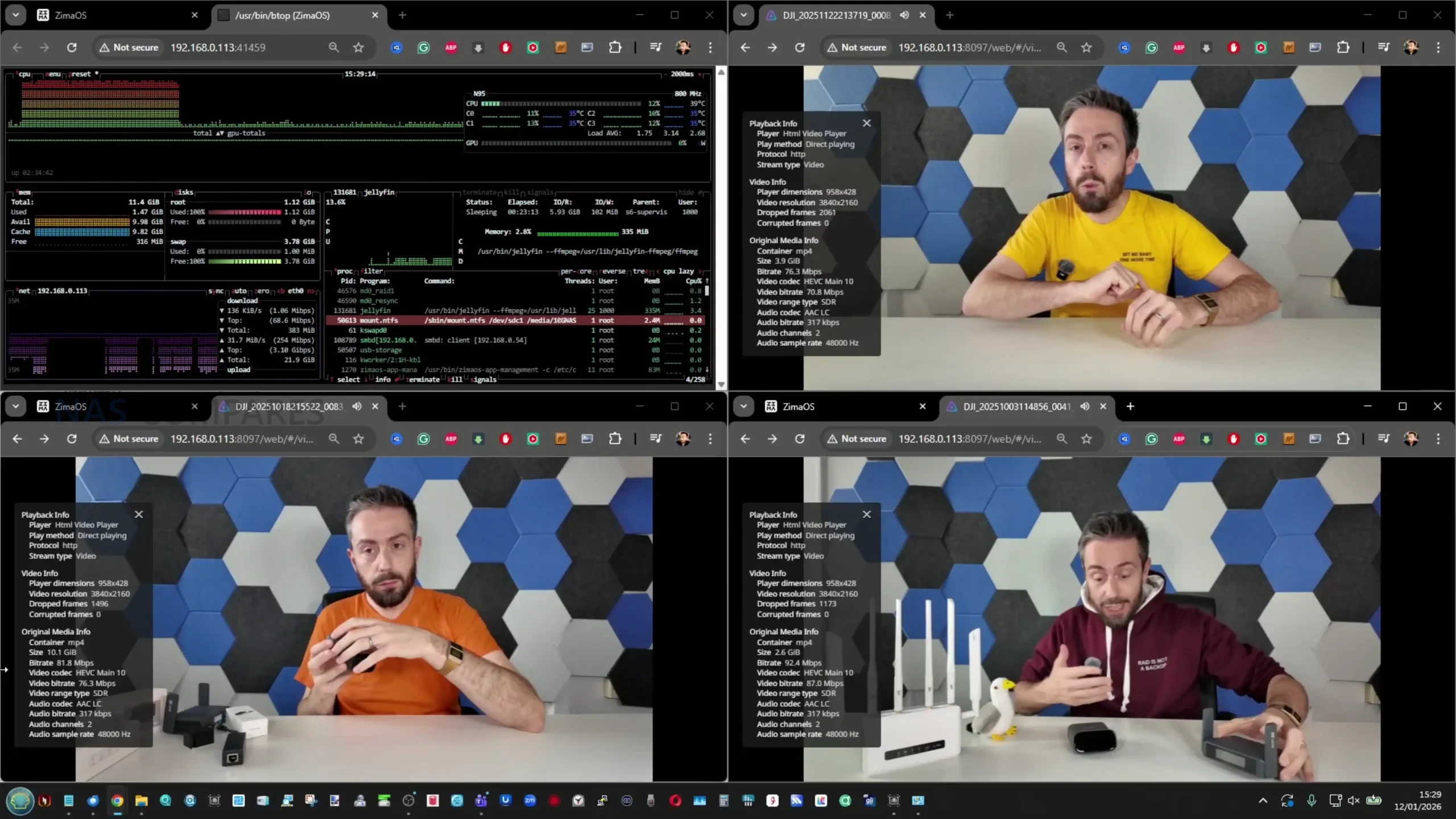
On media server use, 4 simultaneous high bitrate 4K playback streams ran with CPU usage in the teens, using Jellyfin. One extra operational note from testing is that while official messaging indicates hot swapping is not supported, I was able to remove and replace a drive in a RAID1 environment without powering down and continue the rebuild process, which suggests the limitation may be a support stance rather than an absolute hardware block.
Beelink ME Pro NAS Review – Conclusion & Verdict
The ME Pro’s main practical strengths are the space-efficient chassis, the combination of 2 SATA bays with 3 internal NVMe slots, and a connectivity set that includes 5GbE plus 2.5GbE and WiFi 6. In measured testing it delivered controlled external temperatures under typical always-on use, mid-30 dBA noise levels in the tested configuration, and power draw that stayed in the low-20W range at idle with drives installed, rising into the low-40W range under a full combined workload. Storage performance matched the internal design limits: HDD throughput was solid but not enough to saturate 5GbE, while NVMe performance split clearly between the PCIe 3.0 x2 slot and the PCIe 3.0 x1 slots, with the faster NVMe slot capable of saturating the 5GbE link in network transfers.
The main limitations are tied to the same compact, integrated approach that makes it unusual. Memory is fixed at purchase with no SO-DIMM upgrade path, NVMe cooling relies on chassis contact and leaves no clearance for heatsinks, and the lane allocation results in mixed NVMe slot speeds rather than uniform bandwidth across all 3 slots. The launch CPU options also remain close enough that the decision is often as much about bundled memory and SSD tier as it is about a clear performance tier shift. For buyers who want a small, always-on NAS with mixed SATA and NVMe storage, multi-gig networking, and reasonable thermals, noise, and power characteristics, the ME Pro aligns with that goal, but it is less suitable for users who expect frequent hardware changes, want expandability in RAM, or prefer a more conventional 10GbE-first network design.
PROs of the Beelink ME Pro NAS
CONs of the Beelink ME Pro NAS
Very compact footprint for a 2-bay NAS class system (166 x 121 x 112mm, metal chassis)
2x SATA bays (2.5-inch or 3.5-inch) plus 3x M.2 NVMe slots in the same enclosure
Multi-gig wired networking: 5GbE + 2.5GbE, plus WiFi 6 and Bluetooth 5.4
Strong idle efficiency in testing with drives installed and idle (about 22W to 23W)
Noise stayed in the mid-30 dBA range in the tested HDD and NVMe configuration
NVMe performance is sufficient to saturate the 5GbE link, with the PCIe 3.0 x2 slot clearly faster than the x1 slots
Chassis thermal design appears effective under typical always-on use, with external temps broadly in the mid-30C range
Practical service access features: magnetic rear cover, base access for M.2, stored tool in the base, reset and CLR CMOS available
RAM is fixed (no SO-DIMM), so memory cannot be upgraded after purchase
Very tight internal tolerances make drive and bracket insertion less forgiving during installation and changes
Mixed NVMe slot speeds (1x PCIe 3.0 x2 and 2x PCIe 3.0 x1) and no 10GbE option
This description contains links to Amazon. These links will take you to some of the products mentioned in today's content. As an Amazon Associate, I earn from qualifying purchases. Visit the NASCompares Deal Finder to find the best place to buy this device in your region, based on Service, Support and Reputation - Just Search for your NAS Drive in the Box Below
Need Advice on Data Storage from an Expert?
Finally, for free advice about your setup, just leave a message in the comments below here at NASCompares.com and we will get back to you.Need Help?
Where possible (and where appropriate) please provide as much information about your requirements, as then I can arrange the best answer and solution to your needs. Do not worry about your e-mail address being required, it will NOT be used in a mailing list and will NOT be used in any way other than to respond to your enquiry.
[contact-form-7]
TRY CHAT Terms and Conditions
If you like this service, please consider supporting us.
We use affiliate links on the blog allowing NAScompares information and advice service to be free of charge to you.Anything you purchase on the day you click on our links will generate a small commission which isused to run the website. Here is a link for Amazon and B&H.You can also get me a Ko-fi or old school Paypal. Thanks!To find out more about how to support this advice service checkHEREIf you need to fix or configure a NAS, check FiverHave you thought about helping others with your knowledge? Find Instructions Here
Or support us by using our affiliate links on Amazon UK and Amazon US
Alternatively, why not ask me on the ASK NASCompares forum, by clicking the button below. This is a community hub that serves as a place that I can answer your question, chew the fat, share new release information and even get corrections posted. I will always get around to answering ALL queries, but as a one-man operation, I cannot promise speed! So by sharing your query in the ASK NASCompares section below, you can get a better range of solutions and suggestions, alongside my own.
Ever Wanted a Modern Mac Mini, but Windows? And for AI? The MS-S1 Max Review
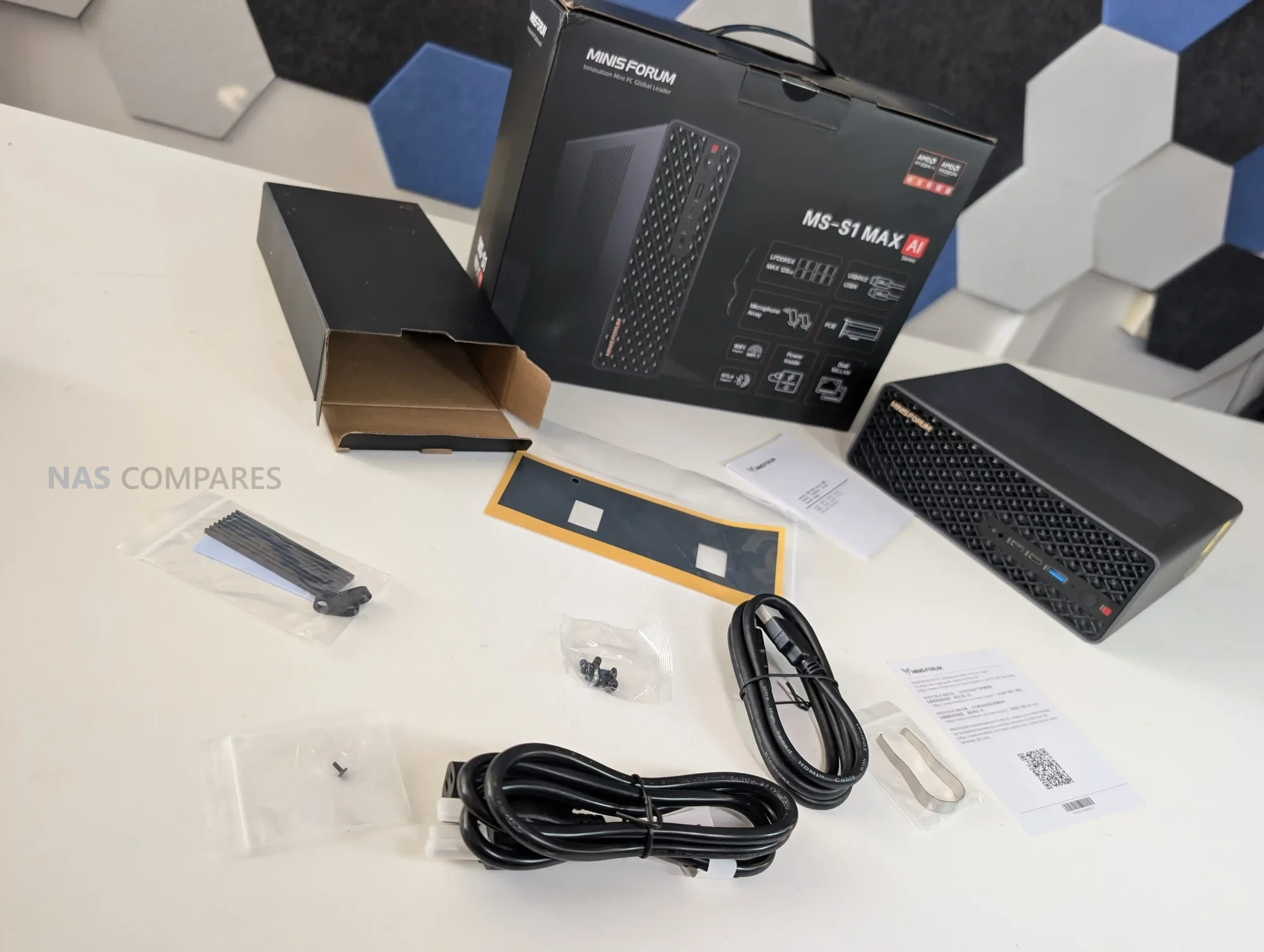
The Minisforum MS-S1 Max is one of those mini workstations that looks straightforward on paper, but starts to feel unusual once you look at how it is put together and who it seems to be aimed at. It is built around AMD’s Ryzen AI Max+ 395, pairing a 16C/32T CPU with Radeon 8060S integrated graphics and an NPU that contributes to a quoted platform total of up to 126 TOPS. The big differentiator is the memory design: 128GB of LPDDR5x-8000 UMA, shared between the CPU and GPU, which changes the usual limits you hit on iGPU systems where VRAM is the first bottleneck. Minisforum also leans into “serious deployment” features here, including dual 10GbE, WiFi 7, USB4 v2, a slide-out chassis for maintenance, and even references to clustering and 2U rack mounting. The result is a machine that can make sense for creators, power users, and AI-focused workloads, but it also comes with a price level that forces the obvious question: what are you actually getting for that money beyond raw specs.
Spec
Details
Model
MS-S1 Max (128GB + 2TB bundle)
Price (USD)
$2,639
CPU
AMD Ryzen AI Max+ 395 (16C/32T, up to 5.1GHz)
GPU
AMD Radeon 8060S (40 CUs, up to 2900MHz)
AI performance
NPU up to 50 TOPS; total up to 126 TOPS
Memory
128GB LPDDR5x-8000, 256-bit UMA (shared CPU/GPU)
Storage included
2TB SSD (bundle listing)
M.2 expansion
2x M.2 2280 (1x PCIe 4.0 x4 up to 8TB, 1x PCIe 4.0 x1 up to 8TB)
PCIe expansion
PCIe x16 physical slot (PCIe 4.0 x4 electrical)
Wired networking
2x 10GbE RJ45 (Realtek RTL8127)
Wireless
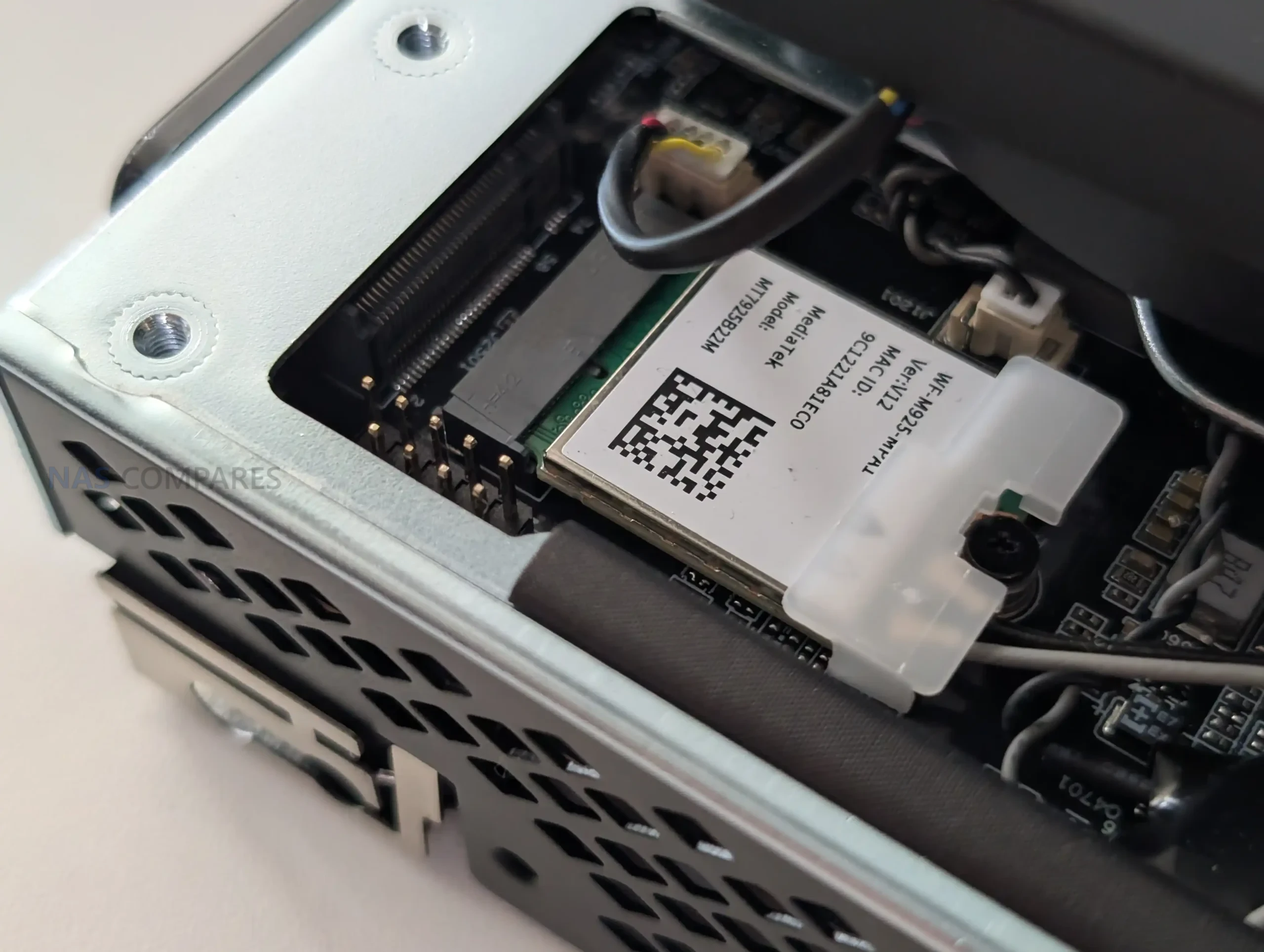
WiFi 7, Bluetooth 5.4
Front I/O
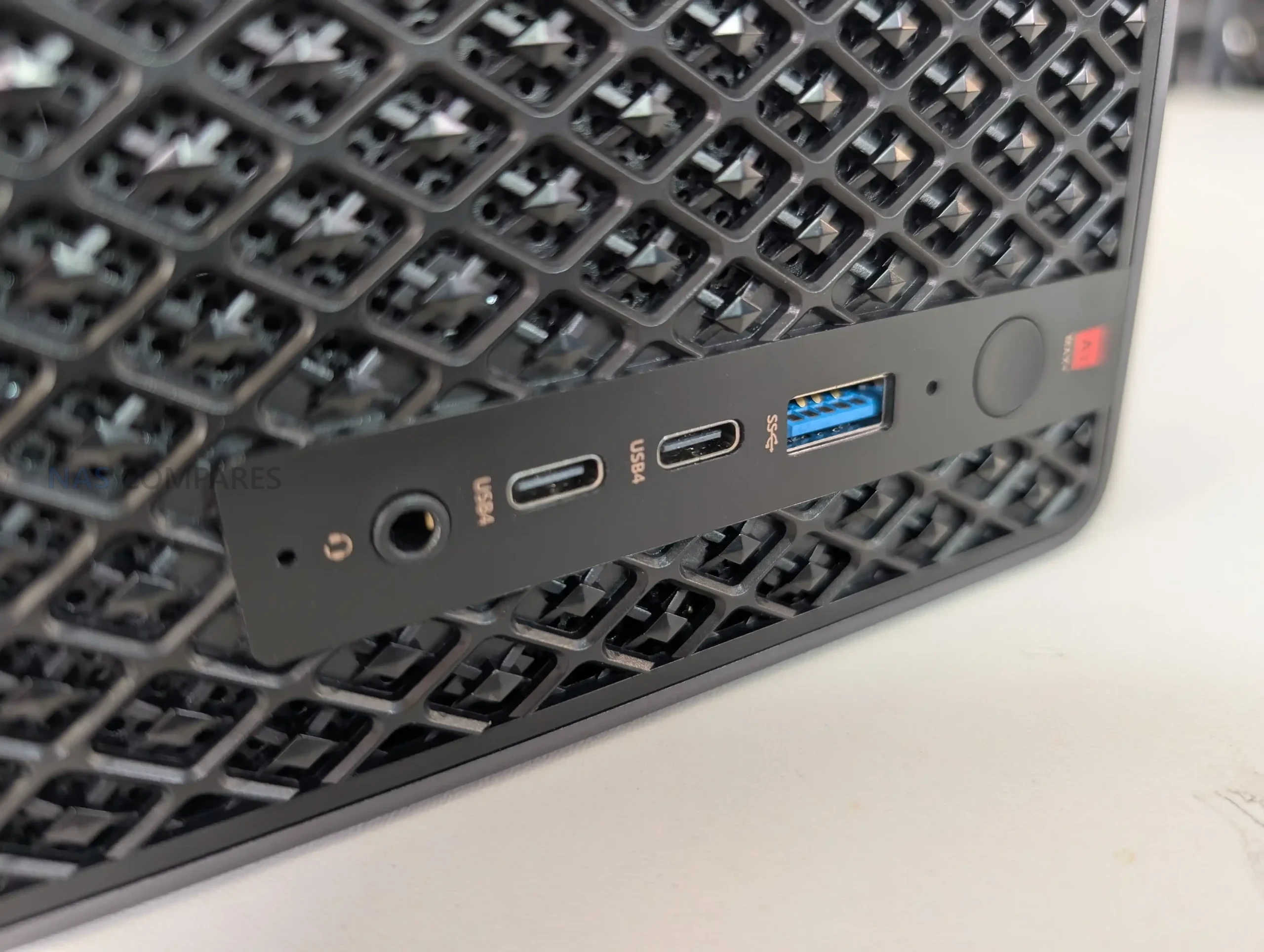
2x USB4 (40Gbps, DP Alt Mode, 15W PD), 1x USB 3.2 Gen2 (10Gbps), 1x 3.5mm TRRS combo, 2x DMIC, power button (LED)
Rear I/O
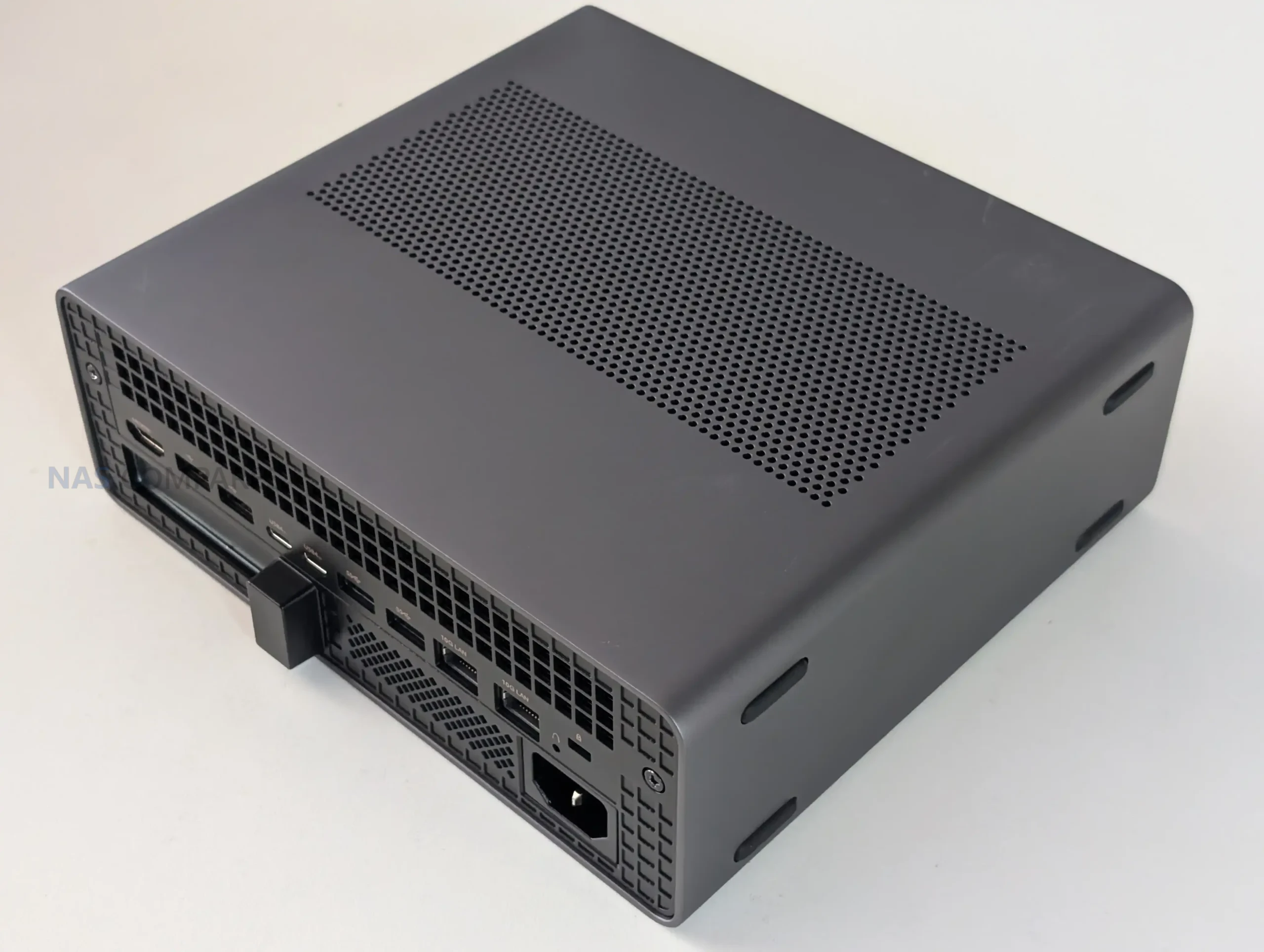
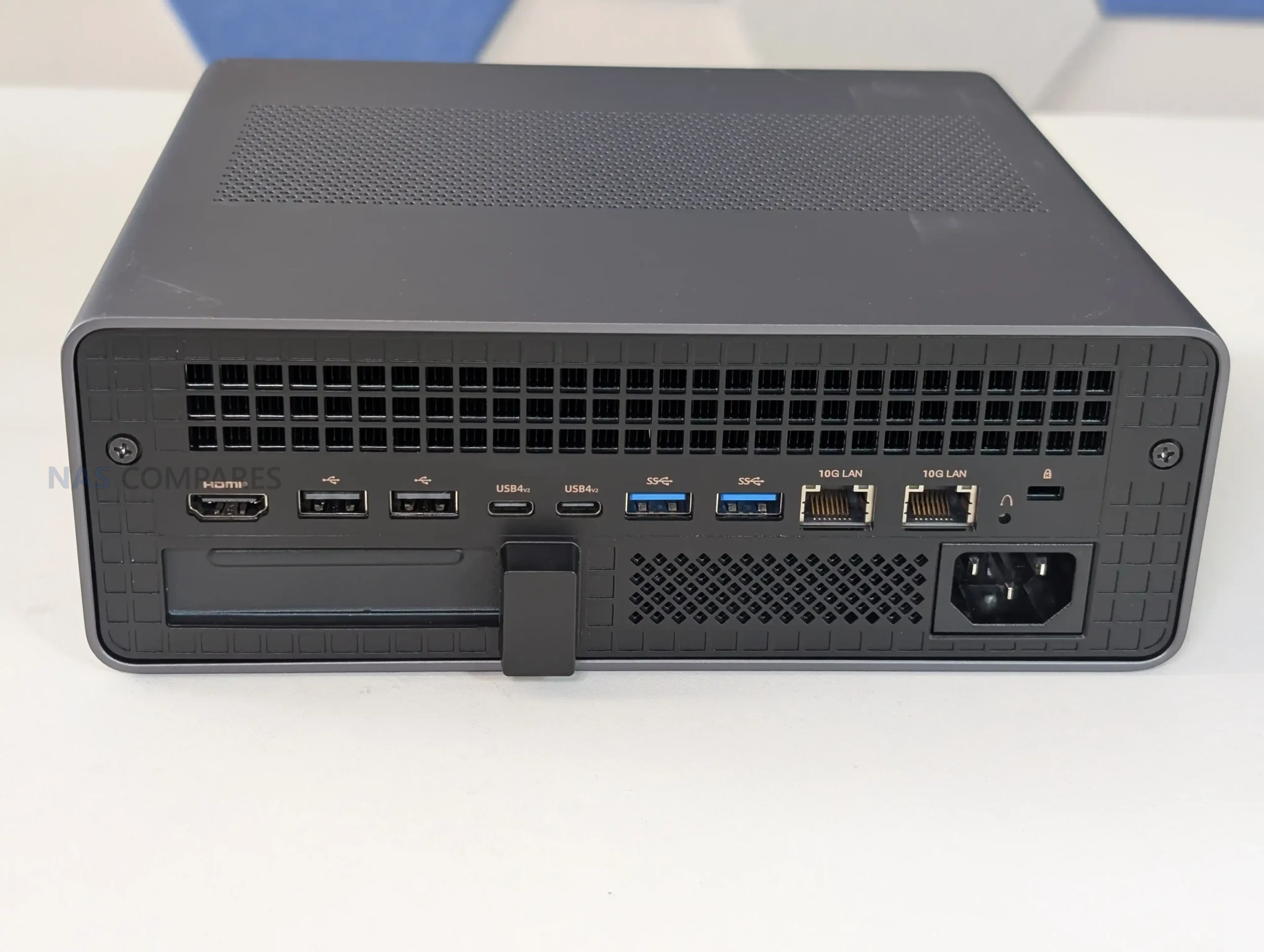
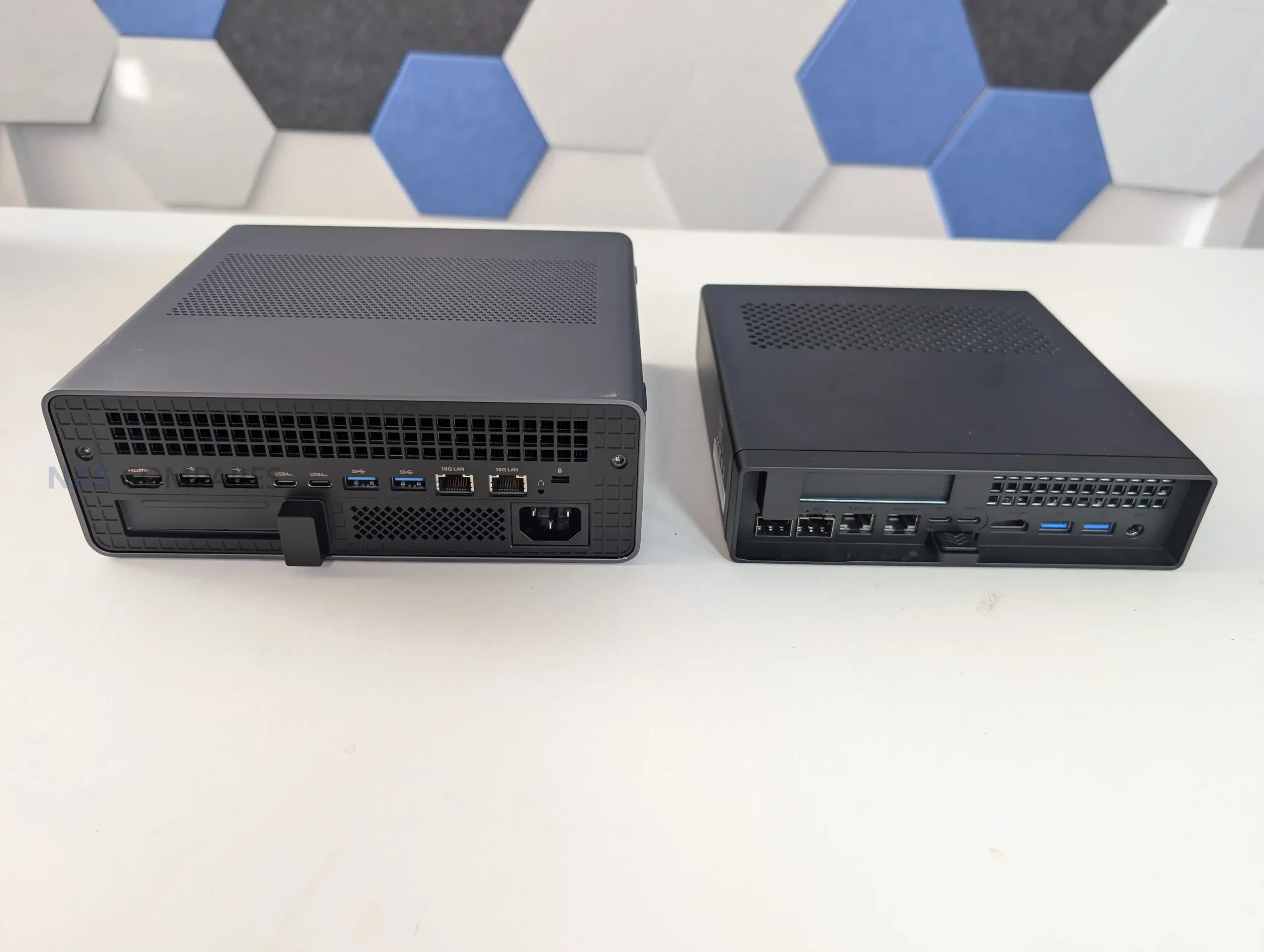
2x USB4 v2 (80Gbps, DP Alt Mode, 15W PD), 2x USB 3.2 Gen2 (10Gbps), 2x USB 2.0, 2x 10GbE RJ45, 1x HDMI 2.1 FRL, BIOS reset hole
Video output
HDMI 2.1 FRL (up to 8K@60Hz / 4K@120Hz), DP Alt Mode over USB4/USB4 v2
The Minisforum MS-S1 Max is best understood as a compact Strix Halo workstation rather than a conventional mini PC, because its value is tied to the Ryzen AI Max+ 395 APU, the Radeon 8060S iGPU, and especially the 128GB LPDDR5x-8000 UMA memory pool that helps avoid the usual iGPU VRAM ceiling in creation, GPU-accelerated work, and local AI experimentation. It pairs that core platform with unusually strong external connectivity for its size, including dual 10GbE RJ45, WiFi 7, and a mix of USB4 and USB4 v2 ports that make high-bandwidth docks and storage setups practical, while the internal 320W PSU and heavy cooling stack are clearly built for sustained loads rather than short bursts. In testing, the system’s behavior has a few quirks that matter in daily use, particularly the way the chassis can feel hot to the touch in idle until the fan profile becomes more reactive under load, and the fact that noise ramps into the low 50 dBA range once the cooling really gets going, even if idle acoustics are more modest. Expandability is also a mixed bag: the slide-out design is convenient, but the storage layout includes a PCIe 4.0 x4 M.2 slot alongside a second M.2 limited to PCIe 4.0 x1, and the PCIe x16 slot is PCIe 4.0 x4 electrically, so it rewards buyers who already know what they plan to add. The price is the real gatekeeper here, because it only makes sense if you will actually use the UMA memory capacity, the iGPU performance, and the high-speed networking and USB bandwidth, but for that narrower audience, it offers a rare combination of compact form factor, strong APU compute, and connectivity that is difficult to match without moving to a much larger desktop or adding a discrete GPU.
BUILD QUALITY - 10/10
HARDWARE - 10/10
PERFORMANCE - 9/10
PRICE - 6/10
VALUE - 7/10
8.4
PROS
Ryzen AI Max+ 395 (16C/32T) delivers workstation-class CPU performance in a compact chassis Radeon 8060S (40 CUs) iGPU is capable enough for 1080p gaming and GPU-accelerated workloads without a dGPU 128GB LPDDR5x-8000 UMA reduces typical iGPU VRAM limitations for creation and local AI tasks Strong idle efficiency with power draw observed around 13 to 16W in light desktop use Dual 10GbE RJ45 enables high-throughput workflows without needing add-in NICs WiFi 7 and Bluetooth 5.4 provide fast wireless connectivity for setups where wired is not practical 4 total USB4-class ports (2x USB4 40Gbps + 2x USB4 v2 80Gbps) support high-speed docks and storage Slide-out chassis design improves serviceability compared with many compact desktops Multiple power and fan modes (Performance/Balanced/Quiet/Rack) allow tuning for noise vs sustained load
CONS
High price puts it outside typical mini PC value expectations Storage expansion is uneven (1x M.2 PCIe 4.0 x4 + 1x M.2 PCIe 4.0 x1), limiting the second slot for high-performance SSD use Exterior can feel very hot at idle, with fan response seeming less aggressive until load begins PCIe x16 slot is PCIe 4.0 x4 electrically, and physical space constraints limit card choices
Check Amazon in Your Region for the Minisforum MS-S1 Max
Check AliExpress or the Minisforum MS-S1 Max
Minisforum MS-S1 Max Review – Design & Storage
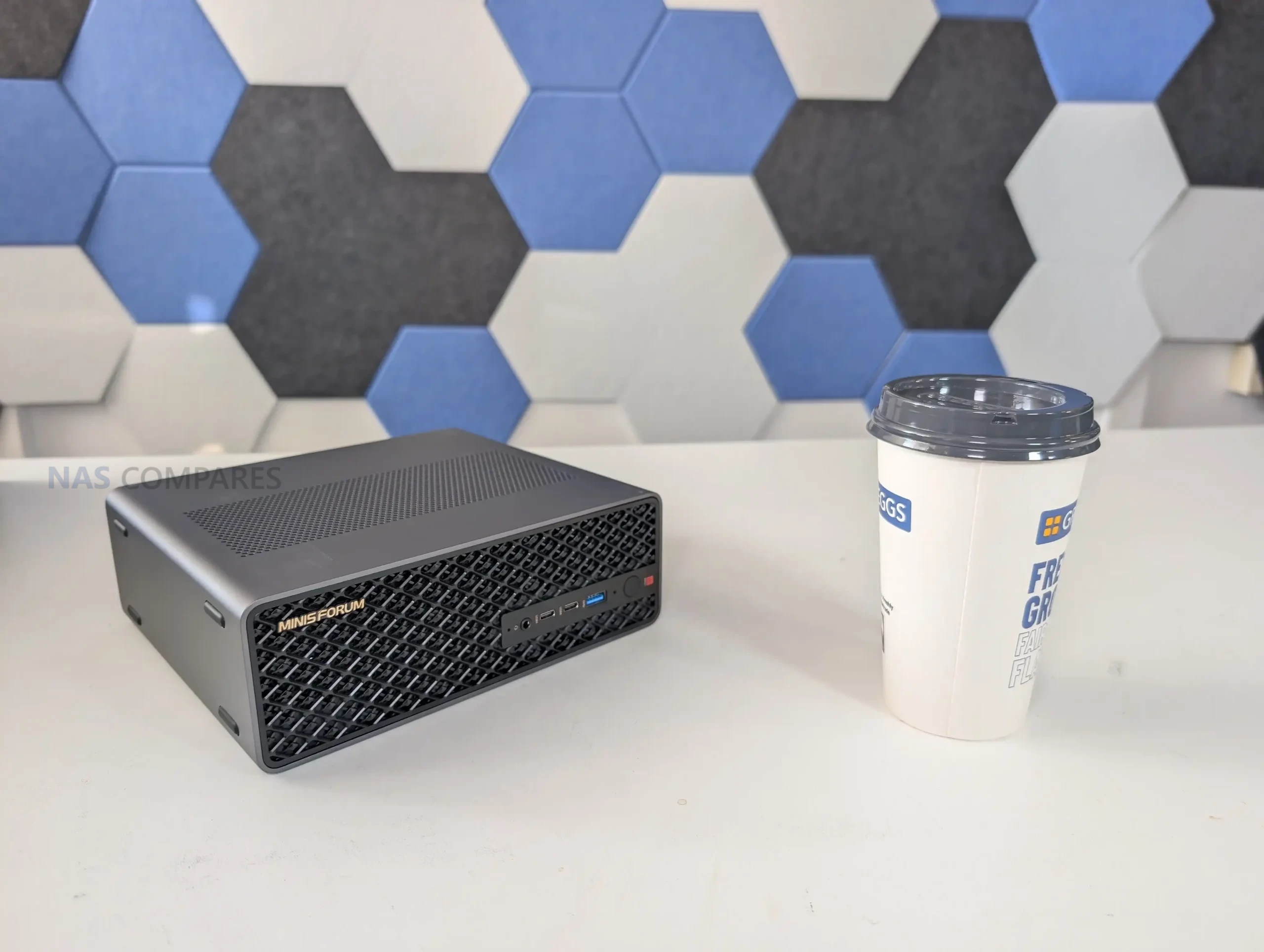
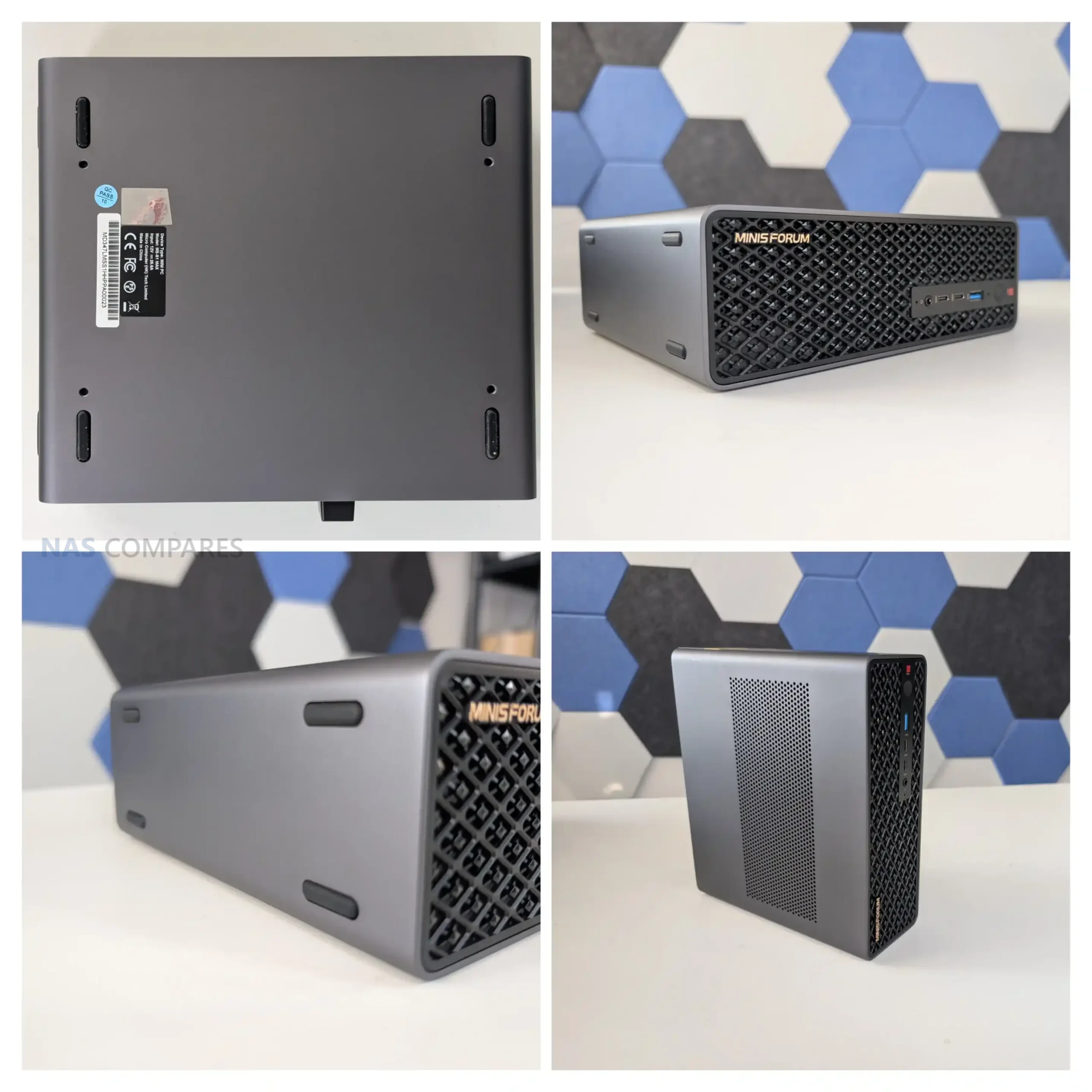
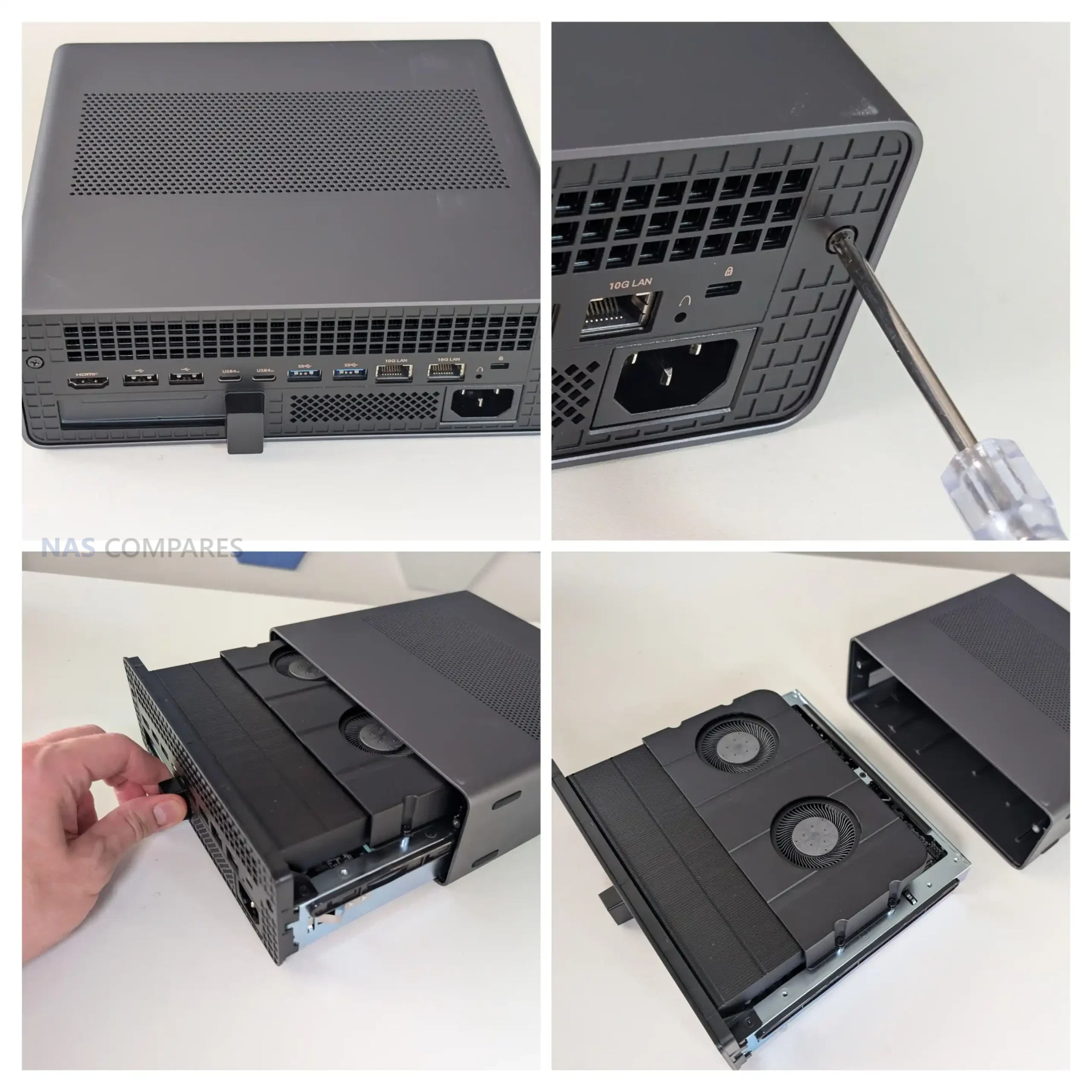
The MS-S1 Max feels like Minisforum took the general “mini workstation” idea and then built a thicker, more industrial version of it to cope with the Strix Halo platform. The chassis is metal and noticeably more substantial than the smaller MS-series boxes, with ventilation cut across multiple sides rather than relying on a single intake and exhaust path. It can be used vertically or horizontally thanks to feet on more than one face, which makes sense given how much of the marketing leans toward desk use one day and rack or shelf use the next.
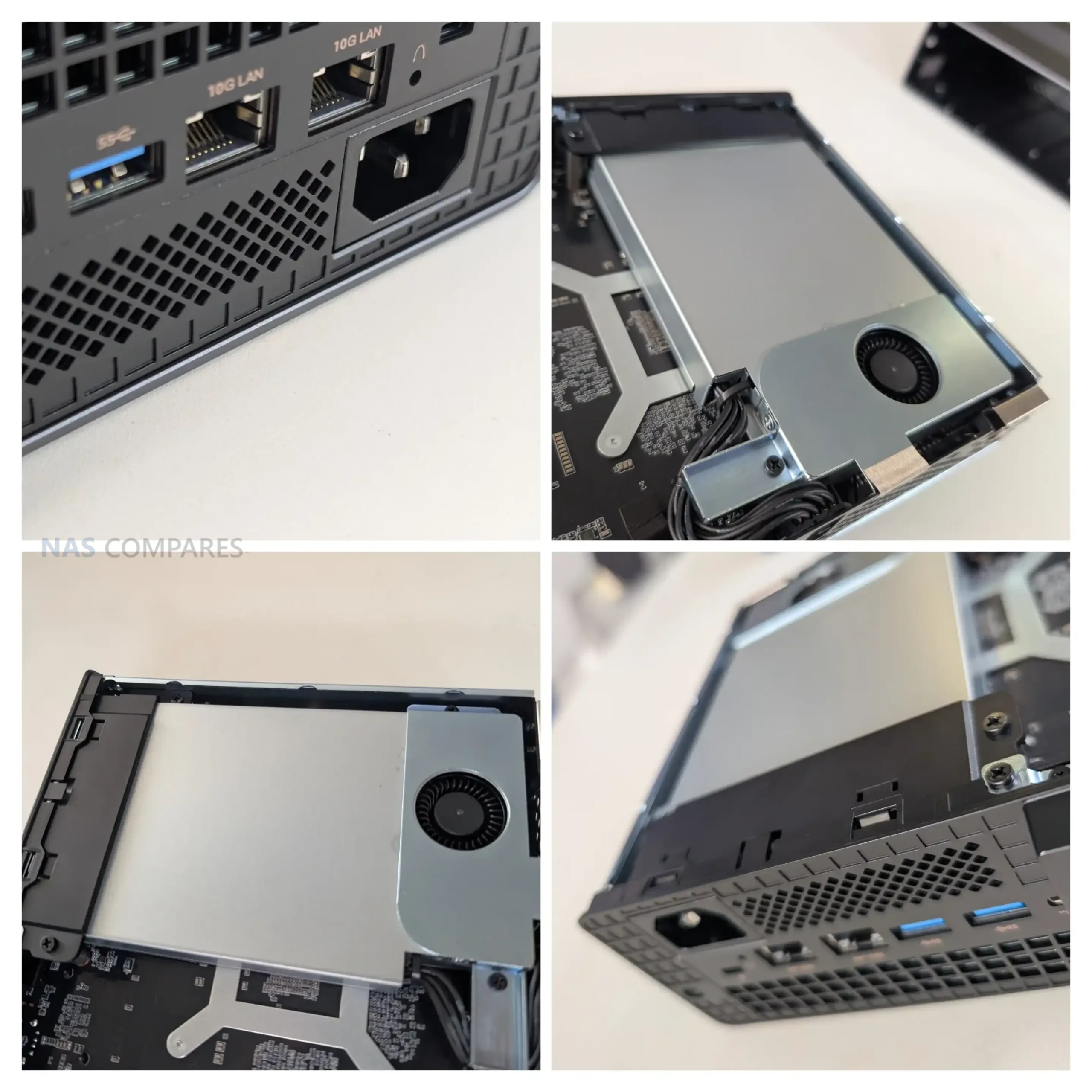
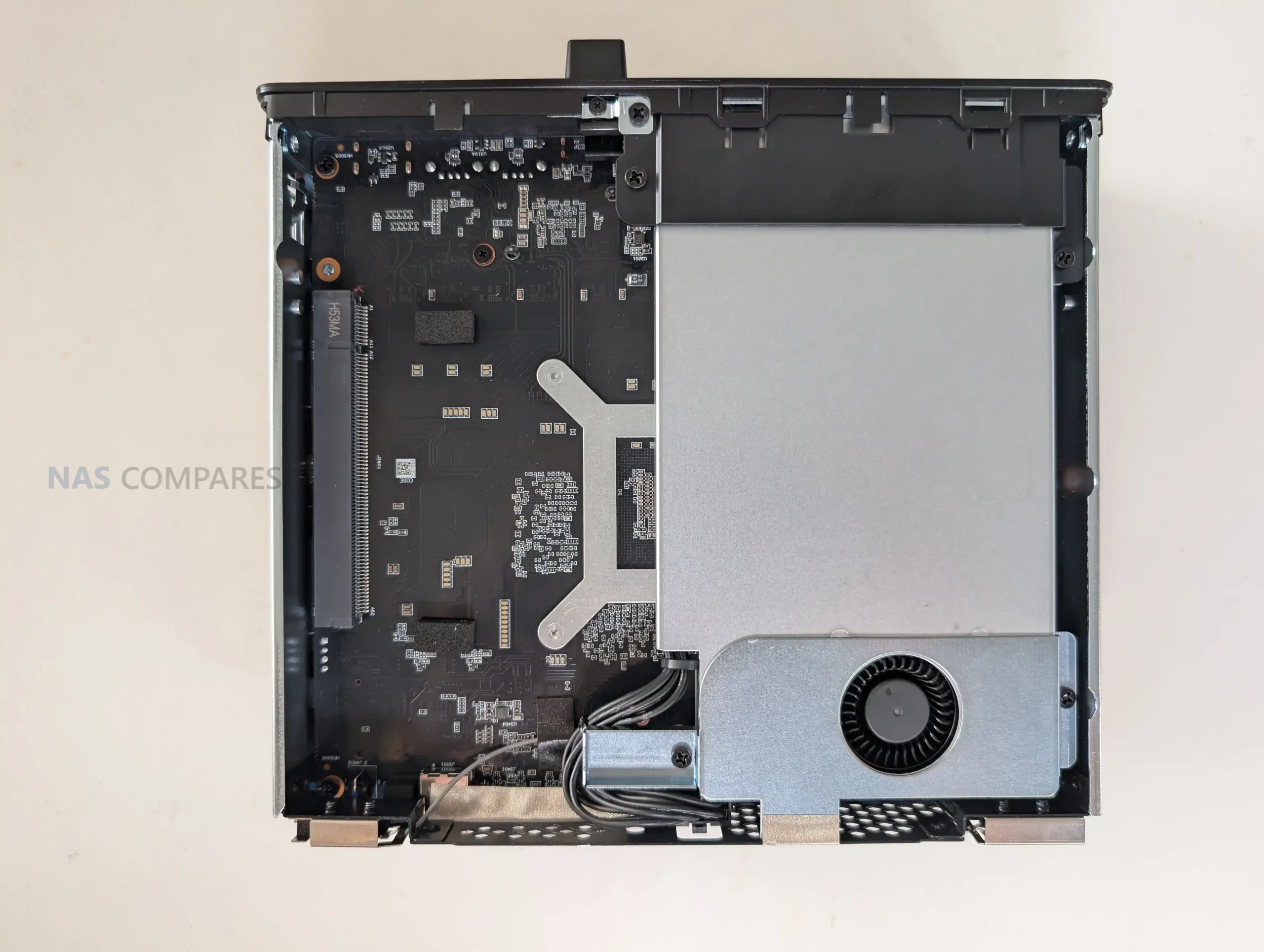
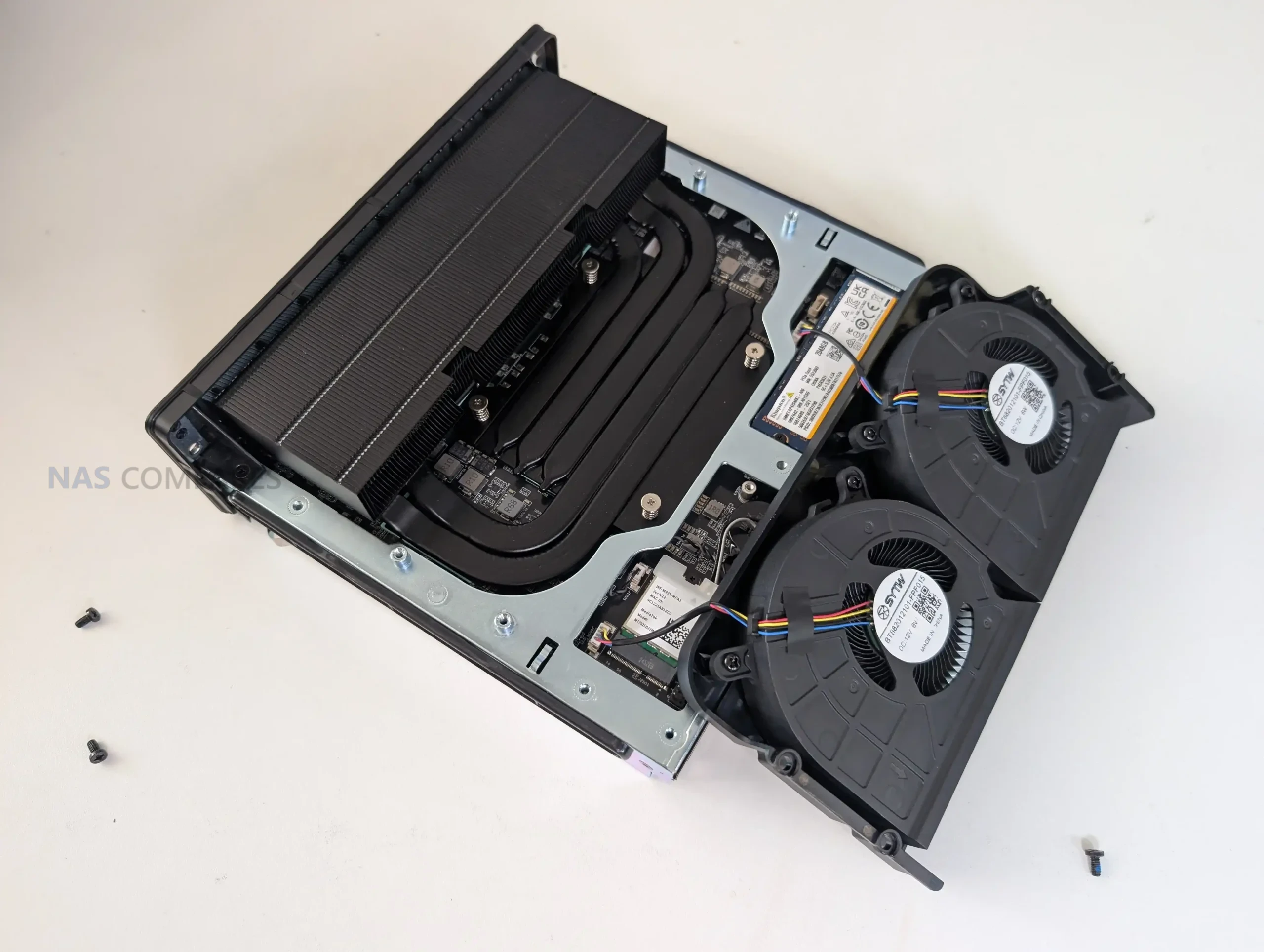
Minisforum also keeps the slide-out structure here, and it is clearly intended to make maintenance less annoying than a traditional small desktop. In practice, it is still a compact, dense build, but you are not dismantling the entire enclosure just to access the main service areas. The system also has a couple of physical touches that make it feel more “deployment aware” than most mini PCs, like the mounting points underneath and the general emphasis on stacking, shelving, or grouping more than 1 unit together.
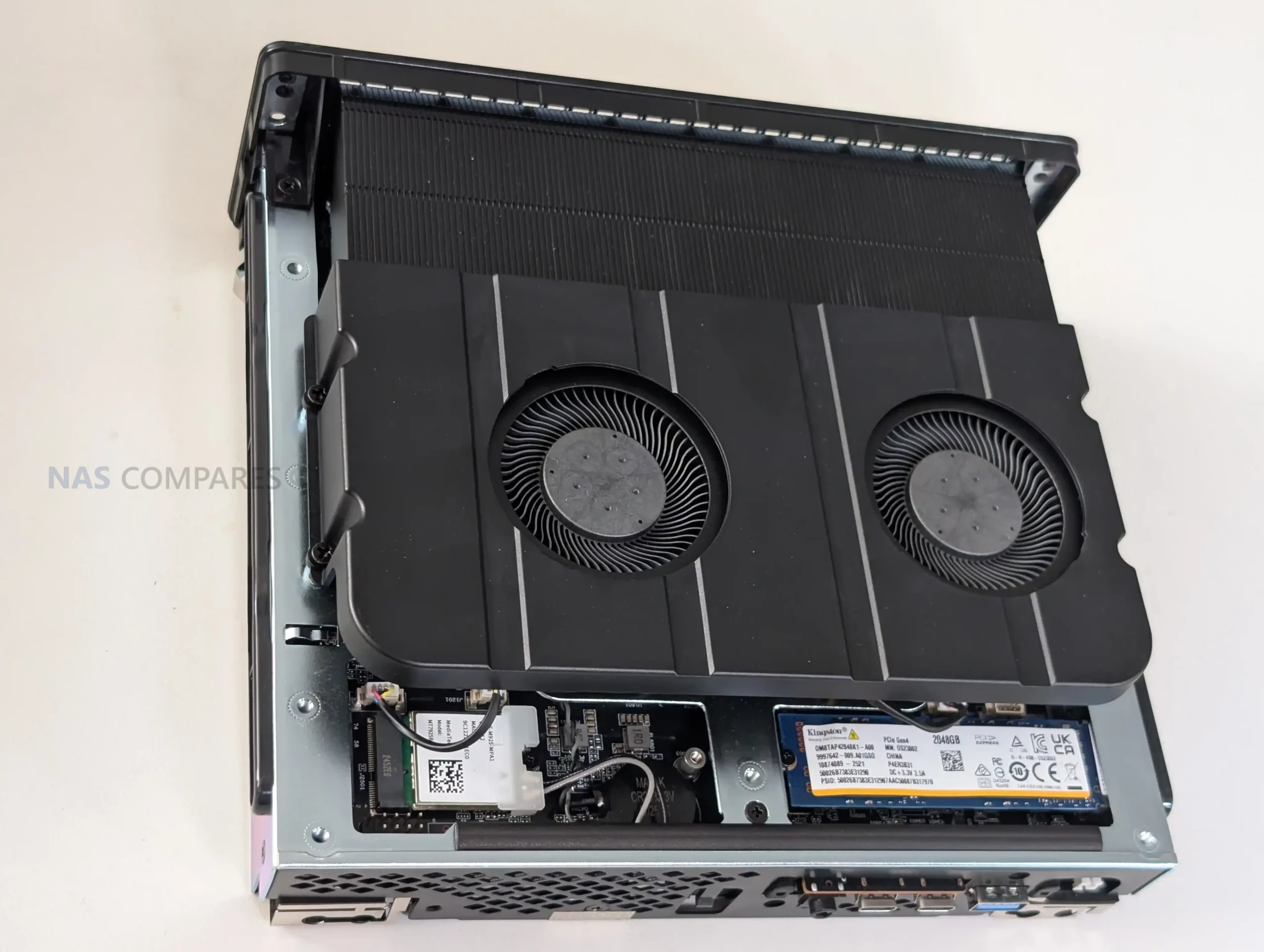
Storage is one of the areas where the MS-S1 Max shows both its strengths and its compromises. You get 2 internal M.2 2280 slots, but they are not equal: 1 is PCIe 4.0 x4 and the other is PCIe 4.0 x1. That means you can have a fast primary NVMe for OS and active work, but the second slot is better treated as capacity storage, warm data, or a secondary pool where peak throughput matters less. Minisforum ships the reviewed configuration with a 2TB Gen 4 SSD, so you can start testing immediately, but once you begin planning expansion, that lane split becomes a real consideration.
Physically, the M.2 placement is functional but not especially convenient. The slots sit low in the chassis near the base and tucked behind a lot of the cooling hardware, which makes upgrades feel more fiddly than they need to be. There is airflow down there, but it is not the kind of open, easy-access layout you get in a larger desktop. It also does not really encourage tall, pre-fitted heatsinks on SSDs, since clearance is limited and the space around the cooling assembly is tight. If you plan to run heavy sustained writes, you will probably end up choosing low-profile drives or slim heatsinks simply because it is the easiest fit.
On the expansion side, the MS-S1 Max includes a full-length PCIe x16 physical slot, but it is PCIe 4.0 x4 electrically, and that matters if you are buying cards based on the x16 shape alone. The form factor also pushes you toward half-height, half-length cards in most practical installs, and even then it can get cramped depending on cabling and where the PSU wiring runs.
In other words, the slot is useful for NICs, storage adapters, capture cards, and some compact accelerators, but it is not a “drop in any x16 card” situation, and the system rewards planning ahead before you buy hardware for it.
Minisforum MS-S1 Max Review – Internal Hardware
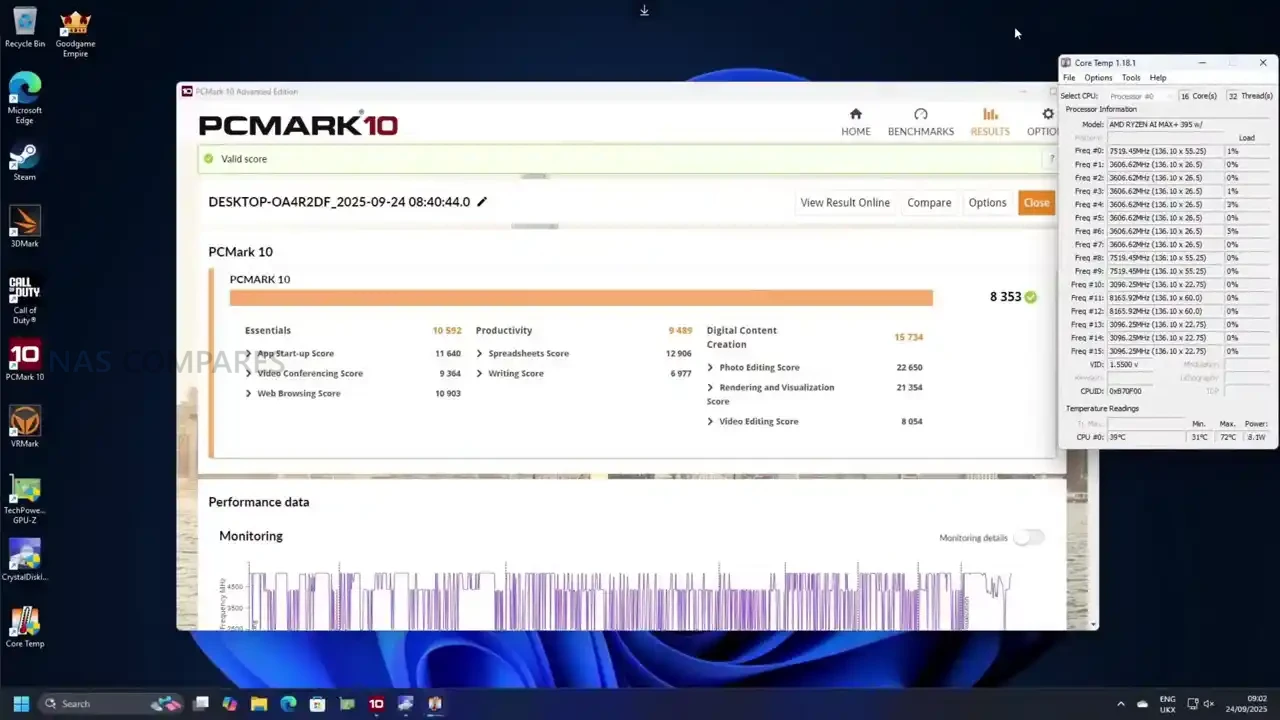
At the heart of the MS-S1 Max is AMD’s Ryzen AI Max+ 395, and the main thing to understand is that it is an APU platform built to behave more like a compact workstation than a typical integrated-graphics mini PC. You are getting a 16C/32T Zen 5 CPU with boost up to 5.1GHz, paired with an on-die Radeon 8060S GPU with 40 CUs and up to 2900MHz. In real use, that combination shifts the expectations around what “no discrete GPU” actually means, because the compute and graphics capability are designed to scale together rather than feeling like a strong CPU with an afterthought iGPU.
The most defining hardware choice is memory, because you do not get SODIMM slots here at all. The system uses up to 128GB LPDDR5x-8000 on a 256-bit bus, and it is shared between CPU and GPU via UMA. That has practical implications in workloads that normally hit VRAM limits first, like GPU-accelerated creative work or local AI inference, where the ability to allocate a much larger pool to the GPU can matter more than raw shader count. It also means your “upgrade path” is basically decided at purchase, so the value proposition depends heavily on whether 128GB UMA is something you will genuinely use, rather than just admire on a spec sheet.
On the AI side, the platform is marketed around a combined figure of up to 126 TOPS, with the NPU itself rated up to 50 TOPS. In day-to-day terms, that does not automatically translate into every app running faster, because it depends on whether your software actually targets the NPU, the GPU, or the CPU. What is clear from the positioning, and from how similar Strix Halo systems are being used, is that this design is meant to handle local model work without immediately forcing you into a discrete GPU purchase. That also explains why Minisforum leans into “run large models locally” messaging more than it usually does on its mainstream mini PCs.
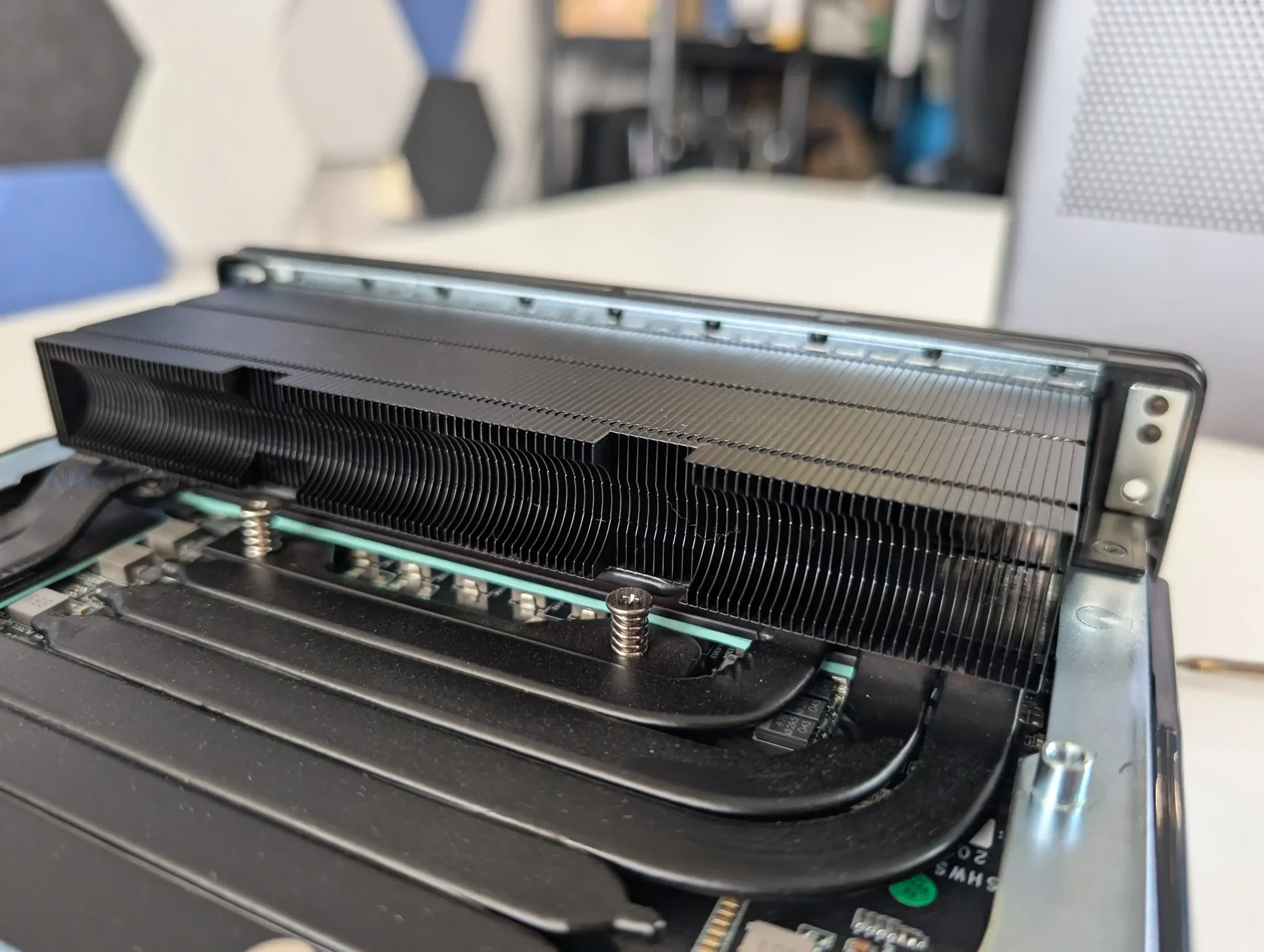
Cooling and power delivery are tightly linked to the internal hardware decisions. Minisforum rates the system at 130W in Performance mode, 95W in Balanced, and 60W in Quiet, and the cooling stack is built around a copper base, 6 heat pipes, phase change material, and dual turbine fans, with a max fan speed of 3600 RPM. The PSU is internal and rated up to 320W, which helps explain why the chassis is thicker than many of Minisforum’s earlier workstations. In practice, that internal PSU choice also supports the idea that this box is expected to hold higher sustained loads than a typical mini PC without relying on a large external power brick.
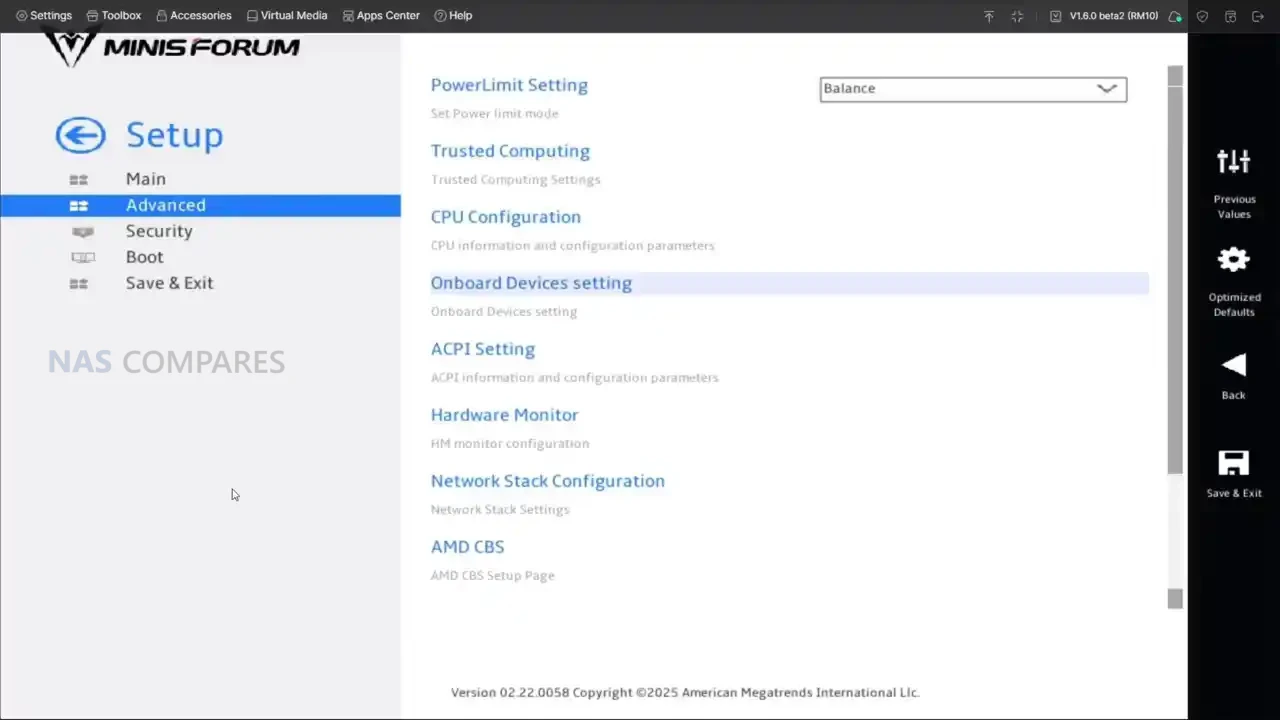
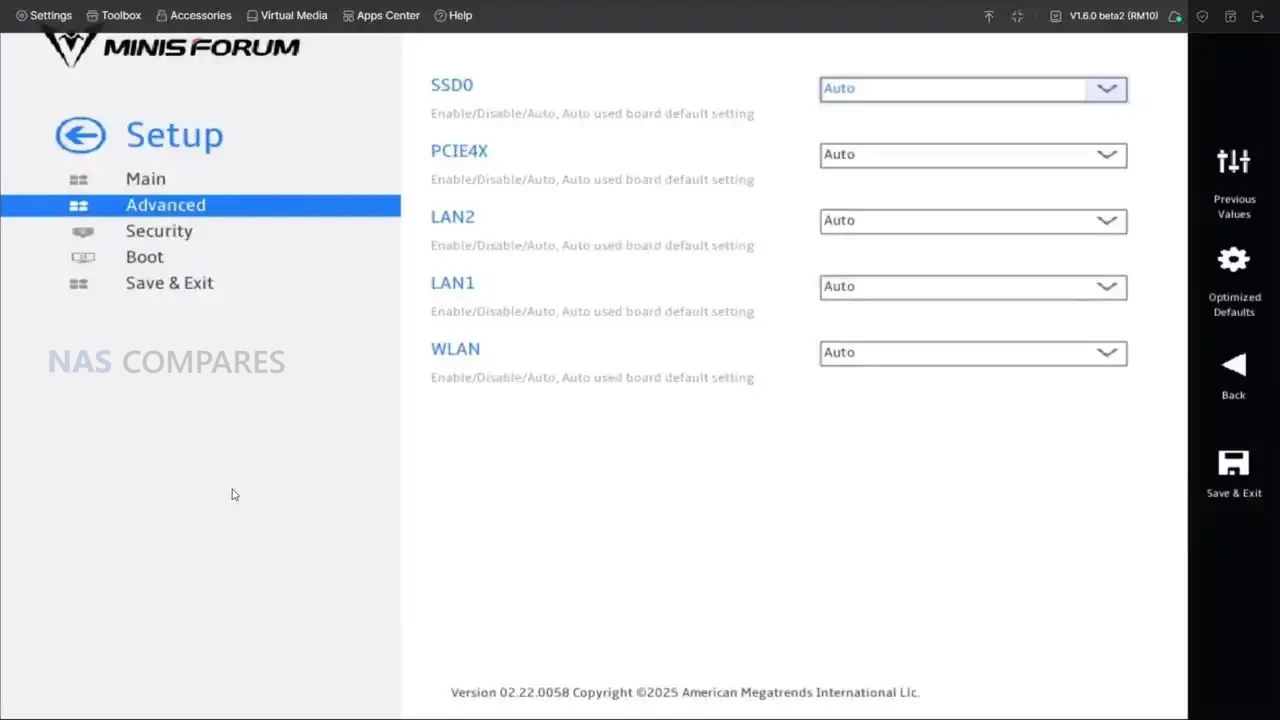
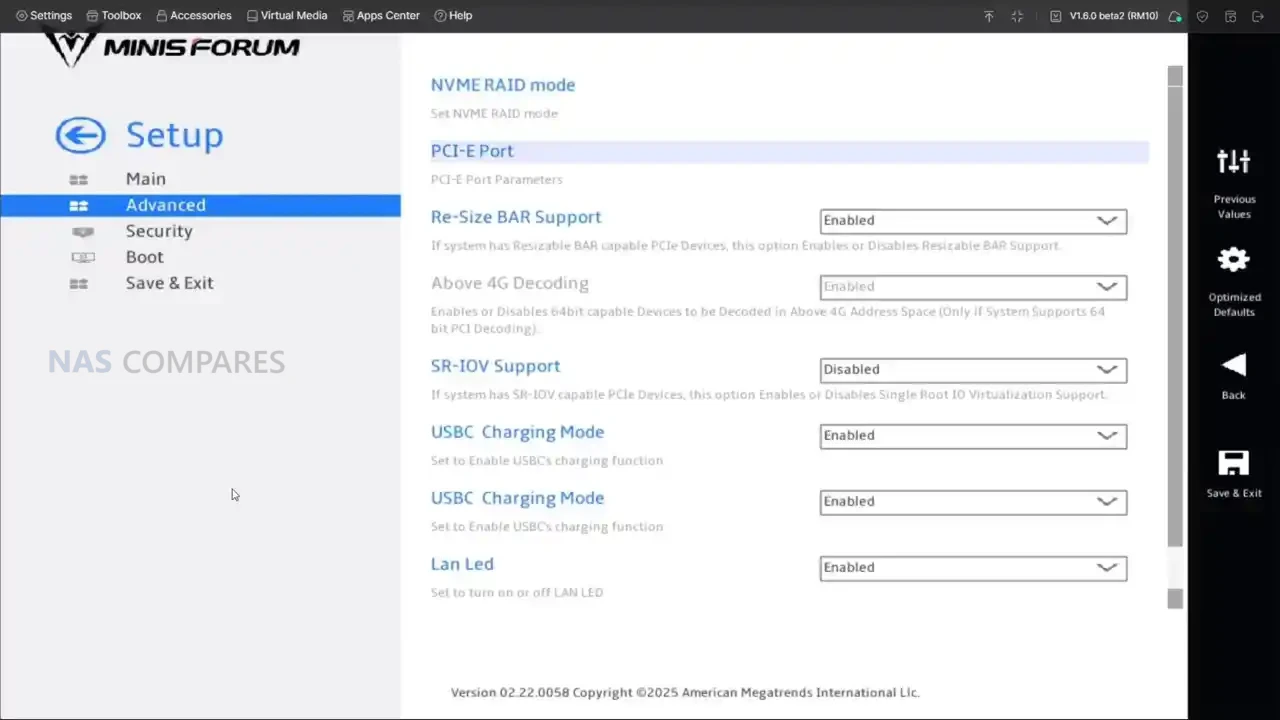
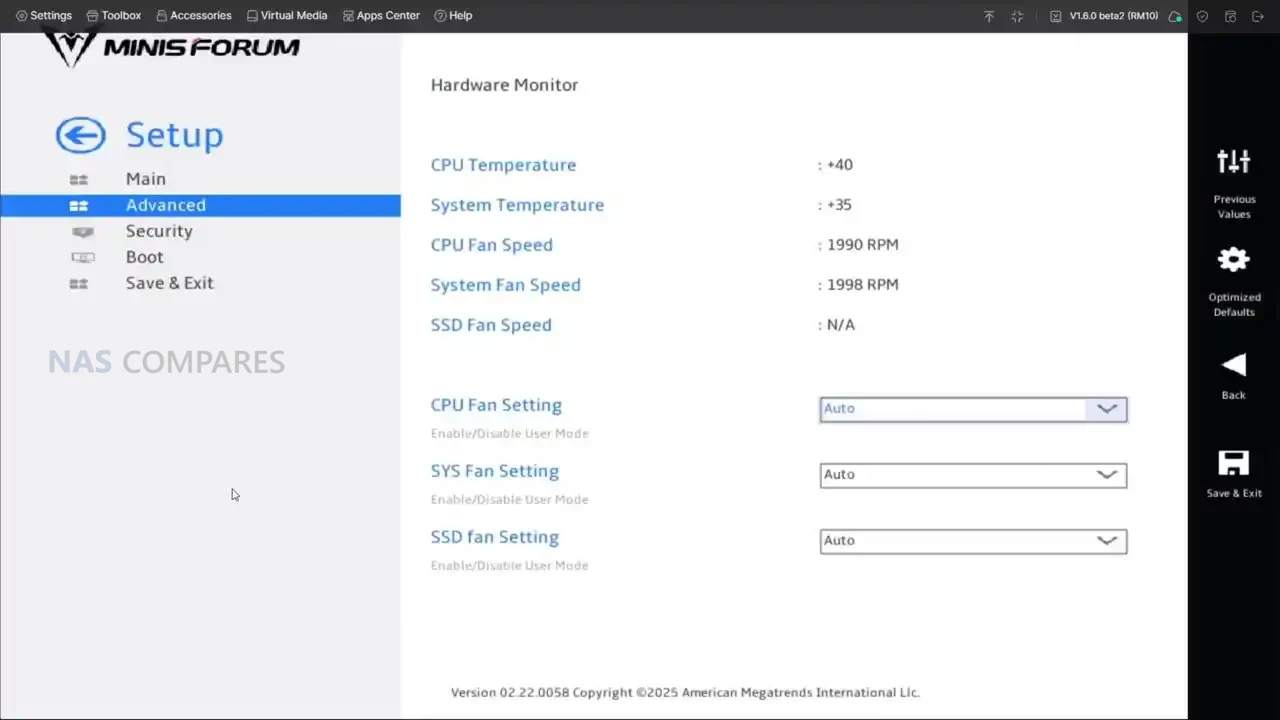
There are also a few platform-level details that shape how “workstation-like” it feels. The system supports Windows 11 Pro and Windows 11 24H2 Pro/Home, and the BIOS is positioned as feature-rich, with fan monitoring and tuning options plus platform toggles that matter to power users. This is relevant because the MS-S1 Max is not just built for one narrow purpose, it is built for people who will switch between modes, tweak profiles, and repurpose it across different roles over time. If you treat it like a sealed appliance, you will still get high performance, but you are leaving a lot of what the platform is trying to offer on the table.
Minisforum MS-S1 Max Review – Ports & Connections
The MS-S1 Max is one of the more connectivity-heavy systems Minisforum has put out, and it is clearly designed around the assumption that it will sit in a workstation or lab environment rather than acting as a living-room mini PC. On the front, you get 2 USB4 ports at 40Gbps, a USB 3.2 Gen2 Type-A at 10Gbps, and a 3.5mm TRRS combo jack, plus 2 built-in DMIC mics that are pitched for voice and AI-assisted capture use. In practice, that front layout feels aimed at day-to-day convenience: fast external storage, a dock or capture device, and simple headset or mic options without needing to reach around the back.
On the rear, Minisforum doubles down on bandwidth. There are 2 USB4 v2 ports at 80Gbps, which is the kind of future-proofing that only really makes sense if you plan to use high-speed docks, external storage, or potentially GPU enclosures over time. The review experience lines up with that idea: the ports work as normal USB4 for most peripherals, but the value is really in the headroom, because 80Gbps devices and adapters are still not common in most studios. Alongside those, you get 2 USB 3.2 Gen2 ports at 10Gbps and 2 USB 2.0 ports, which is a more practical mix than it sounds, because it means you are not “wasting” high-speed ports on low-speed peripherals like keyboards, UPS management cables, or dongles.
Networking is a major selling point here, but it is also a slightly divisive one depending on your setup. The MS-S1 Max provides 2 10GbE RJ45 ports, both using Realtek RTL8127 controllers, and it also includes WiFi 7 and Bluetooth 5.4. In use, the wired ports are straightforward and do what you would expect in a compact workstation, including saturating 10GbE when paired with storage that can keep up.
WiFi 7 is also immediately usable, and the practical takeaway is that you can get multi-gig wireless performance without much effort if you already have a WiFi 7 router, but it is still not a replacement for wired 10GbE if you are treating this as part of a storage or production workflow.
Video output is handled through 1 HDMI 2.1 FRL port plus DisplayPort Alt Mode over USB4 and USB4 v2, which makes multi-display setups easy without any additional hardware. Minisforum rates these outputs up to 8K@60Hz and 4K@120Hz, and in the real world that means you can run high-refresh 4K displays or multiple monitors with less compromise than most iGPU-based mini PCs. The only real caveat is that the system leans heavily on USB4 for flexible display and peripheral expansion, so the people who get the most out of the port selection are the ones already planning to use docks, external storage, or high-bandwidth accessories, rather than just plugging in a keyboard and a single monitor.
Minisforum MS-S1 Max Review – Performance & Tests
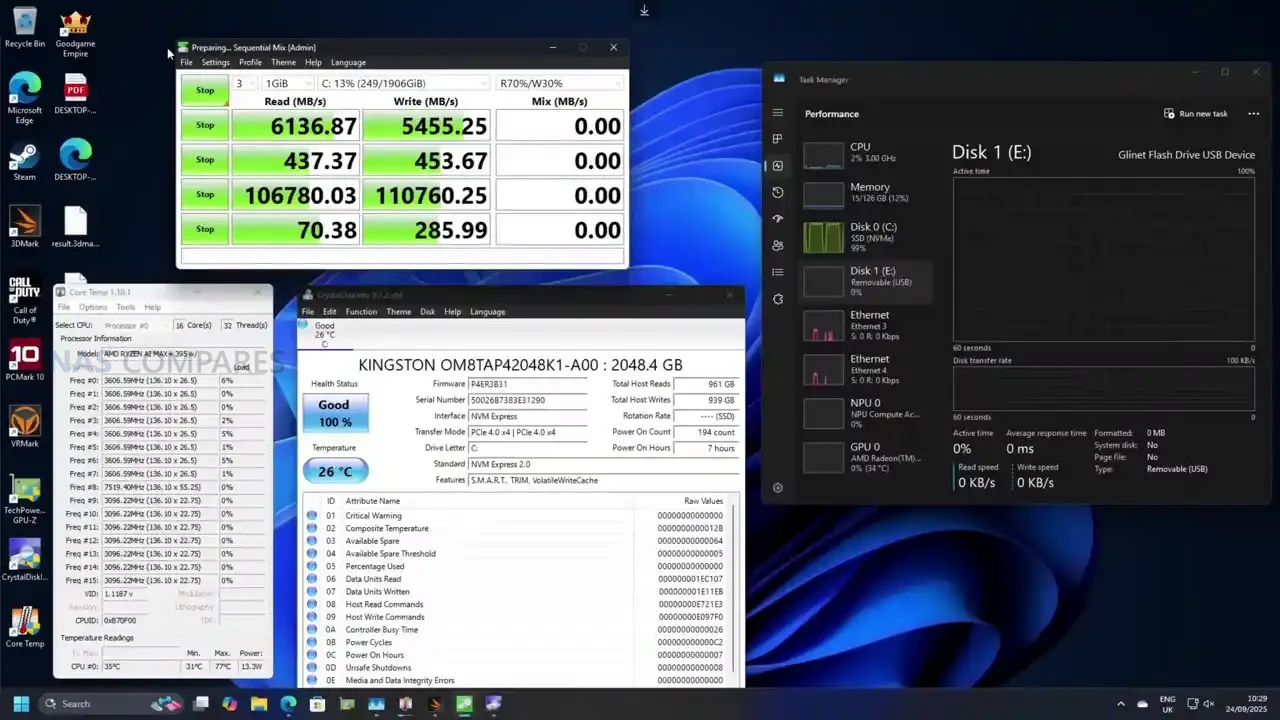
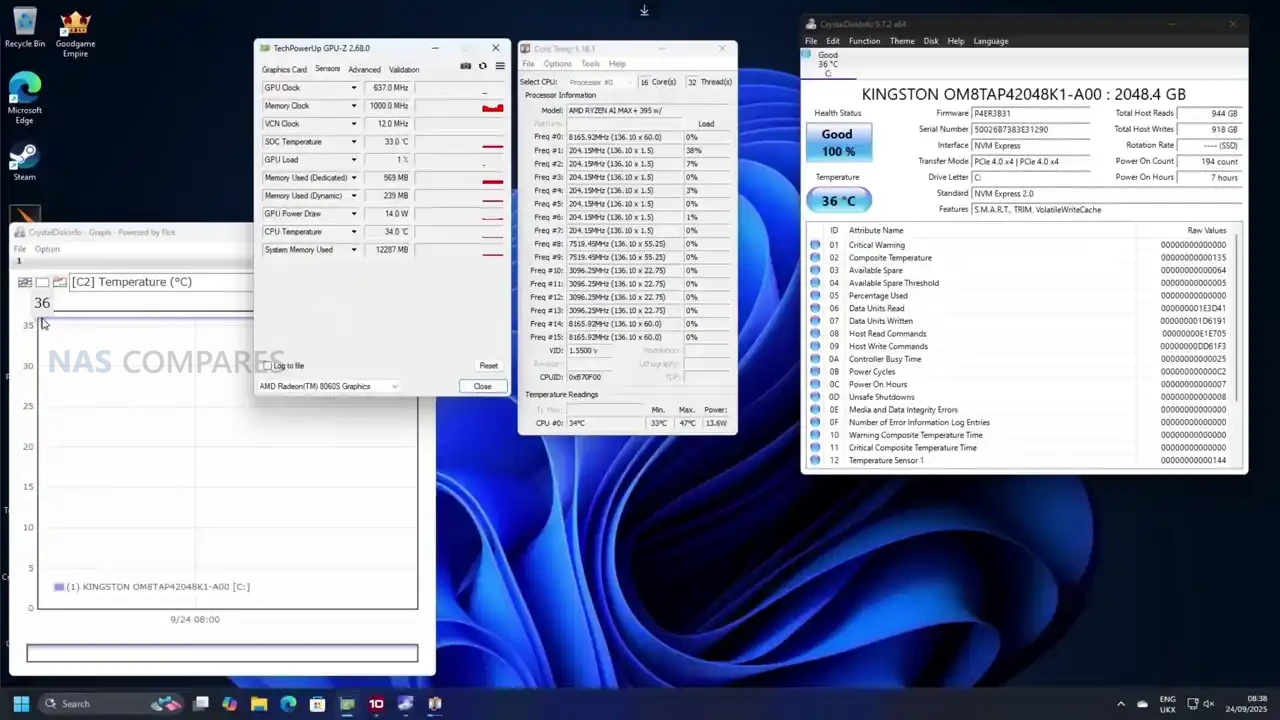
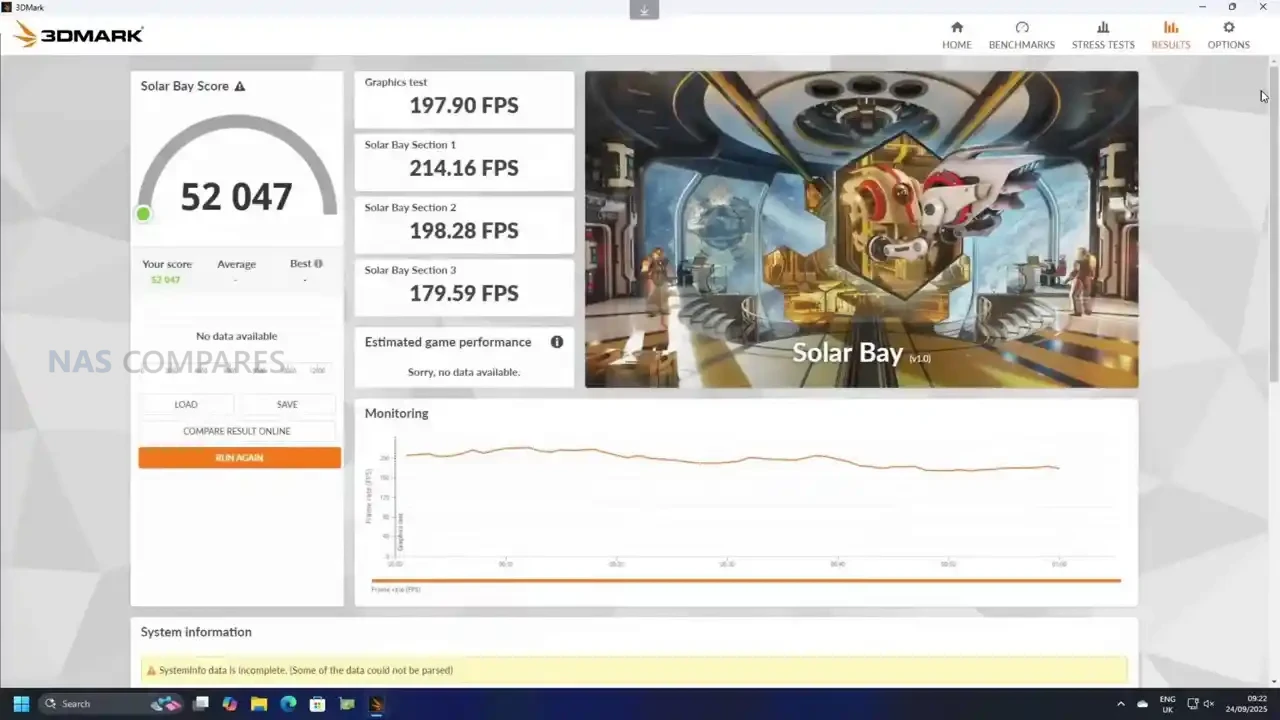
In day-to-day use, the MS-S1 Max feels less like a typical mini PC and more like a compact workstation that happens to have an iGPU. General desktop operation is consistently responsive, and the platform’s bandwidth-heavy design shows up most clearly when you start stacking tasks that normally push integrated graphics systems into obvious slowdown. One thing that stood out early is how “hot to the touch” the exterior can feel when the system is sitting idle, with thermal imaging showing roughly 55 to 60°C around sections of the chassis and vents in that state. At the same time, internal sensor readings were not presenting anything alarming, which suggests the metal body is doing what it is meant to do as part of heat dissipation, but the idle fan curve behavior did not feel especially reactive until a workload actually kicked in.
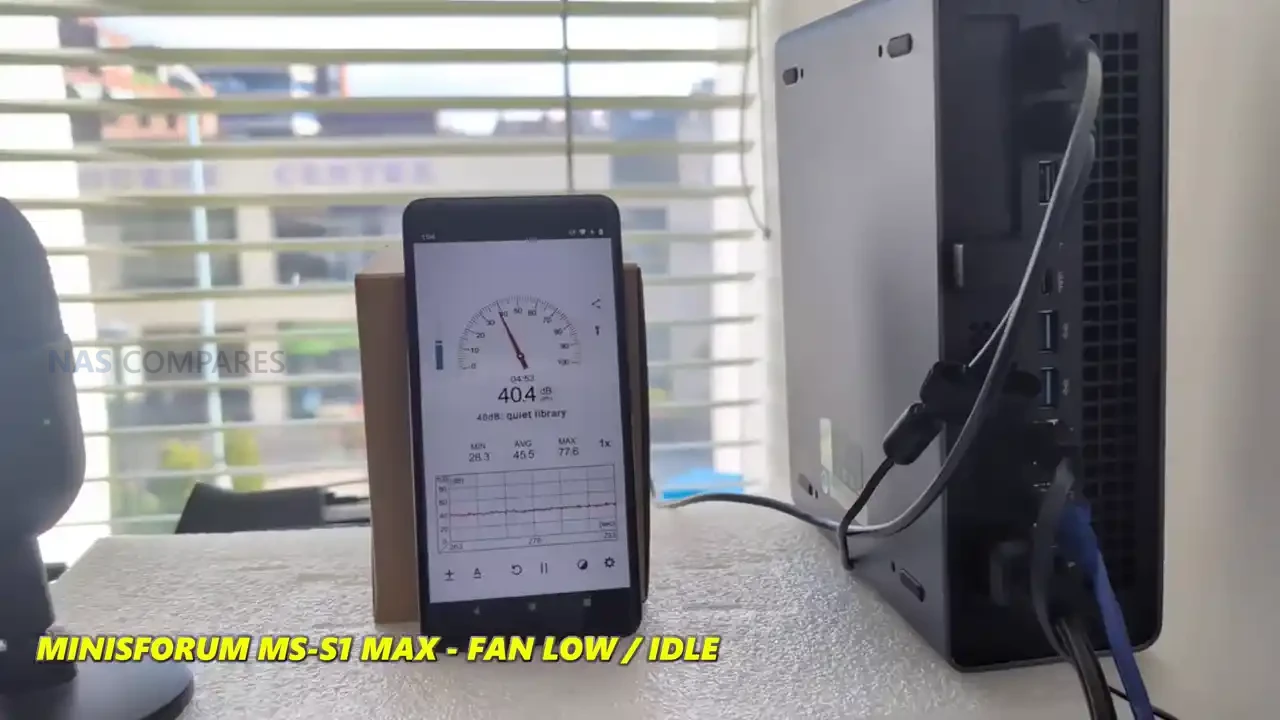
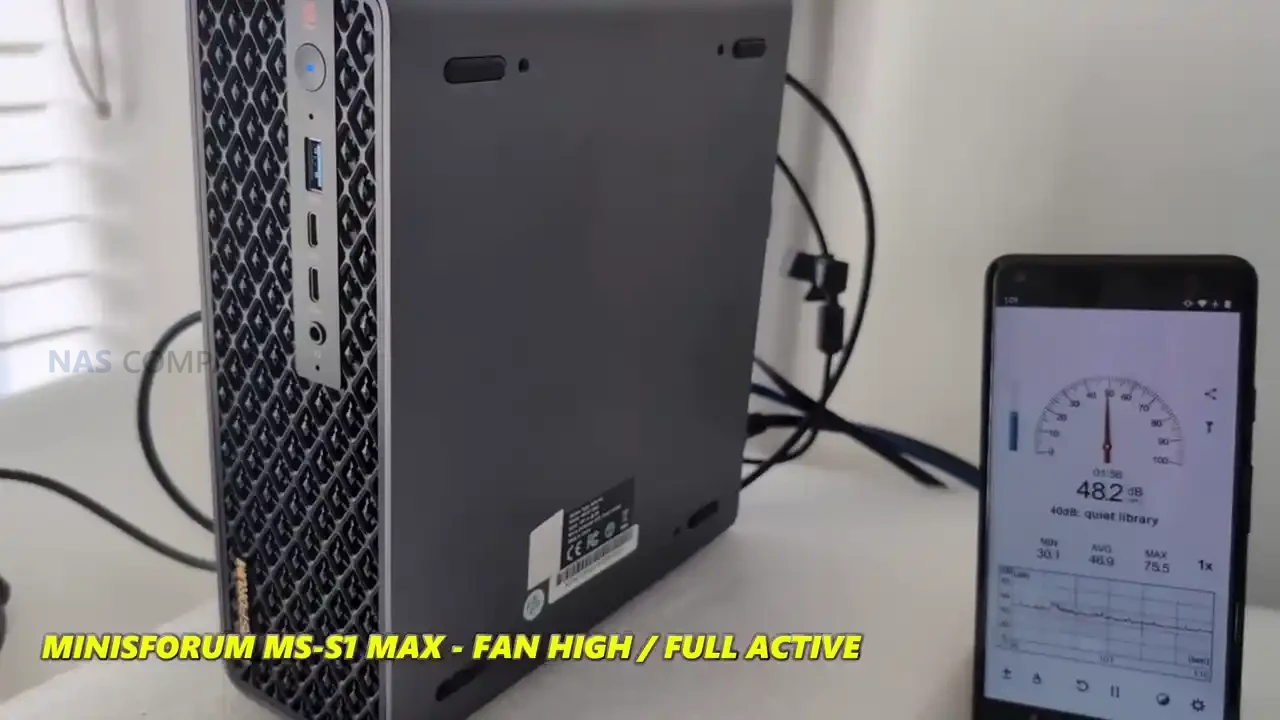
Once the system is put under load, the cooling behavior becomes easier to understand and, in practice, more reassuring. During active workloads, the external readings dropped notably in many areas, with measurements around 31 to 34°C being observed on parts of the casing once sustained tasks were running, and internal hot spots that had looked extreme during idle did not remain in that range once the fan profile ramped. Noise levels followed the same pattern: at idle the system sat around 39 to 41 dBA, but under heavier load it ramped to roughly 51 to 53 dBA. It is not silent, but it is also not unexpectedly loud for a high-power APU system with multiple fans and a chassis that is clearly built to move air.
Power draw is one of the more interesting parts of the MS-S1 Max story because it is unusually low when the system is doing very little, then rises quickly once the GPU side is engaged. Idle consumption landed around 13 to 16 W, which is striking given the CPU, GPU, memory bandwidth, and overall positioning of the device. More moderate CPU-oriented workloads pushed consumption into roughly the 45 to 58 W range, with brief spikes into the 70 to 80 W area depending on thread behavior in the test. Once the Radeon 8060S was hit hard in GPU-heavy testing, total system power moved into triple digits, with figures around 141 to 158 W being recorded, which lines up with the idea that this chassis is designed to translate a lot of electrical budget into sustained APU performance rather than short bursts.
Benchmarking results were strong, but the platform’s newness made comparison data less useful than usual in several tools. PCMark produced a score of 8,353, and a run through 3DMark showed a wide spread depending on the test: Solar Bay scored 5,200, Speedway landed at 1,900 with frame rates around 18 to 19 FPS, and Steel Nomad Light cleared 11,000 with an average of 82.3 FPS. Night Raid, which is a better fit for integrated graphics platforms, came in at 70,000 overall, with a graphics score of 130,522 and a CPU score of 19,312. The practical takeaway from these results is that the MS-S1 Max can behave like a “real” gaming-capable APU system in the right workloads, but it also sits in a strange middle ground where some benchmark suites still struggle to place it cleanly against older mini PCs or discrete-GPU desktops.
Minisforum MS-S1 Max Review – Verdict & Conclusion
The MS-S1 Max is easier to understand once you stop thinking of it as a “mini PC with good specs” and instead treat it as a purpose-built Strix Halo workstation in a compact chassis. The big wins are the APU design and the 128GB UMA memory pool, because that combination changes what is practical on integrated graphics, especially for workloads that normally fall over due to VRAM limits. In use, it shows up as a system that can handle serious creative and compute tasks without immediately forcing you into a discrete GPU upgrade path, while still giving you enough connectivity to fit into faster workflows through dual 10GbE, WiFi 7, and USB4 v2. It is not flawless though: the system can feel surprisingly hot to the touch in idle despite internal sensors looking fine, and the fan behavior seems more tuned for “react under load” than “stay cool at rest,” which is a real-world usability detail you notice when it is sitting on a desk near you.
Where things get more complicated is the value discussion. At pricing around the mid/high $2,000 range depending on configuration, this is not competing with mainstream mini PCs at all, and it is not trying to. The audience is much narrower: people who want a high-bandwidth APU platform, who will actually use the memory capacity and fast external connectivity, and who are comfortable paying for that kind of compact engineering. If your workload is mostly general office, light creation, or basic homelab tasks, it is difficult to justify over more conventional systems, including Minisforum’s own smaller workstations. But if you are specifically chasing a compact workstation that can credibly do gaming, content work, and local AI experimentation without a discrete GPU, the MS-S1 Max is one of the few systems that makes that argument feel realistic, even if it comes with the usual early-platform quirks and a price tag that will still put off most buyers.
Check Amazon in Your Region for the Minisforum MS-S1 Max
Check AliExpress or the Minisforum MS-S1 Max
Minisforum MS-S1 Max PROs
Minisforum MS-S1 Max CONs
Ryzen AI Max+ 395 (16C/32T) delivers workstation-class CPU performance in a compact chassis
Radeon 8060S (40 CUs) iGPU is capable enough for 1080p gaming and GPU-accelerated workloads without a dGPU
128GB LPDDR5x-8000 UMA reduces typical iGPU VRAM limitations for creation and local AI tasks
Strong idle efficiency with power draw observed around 13 to 16W in light desktop use
Dual 10GbE RJ45 enables high-throughput workflows without needing add-in NICs
WiFi 7 and Bluetooth 5.4 provide fast wireless connectivity for setups where wired is not practical
4 total USB4-class ports (2x USB4 40Gbps + 2x USB4 v2 80Gbps) support high-speed docks and storage
Slide-out chassis design improves serviceability compared with many compact desktops
Multiple power and fan modes (Performance/Balanced/Quiet/Rack) allow tuning for noise vs sustained load
High price puts it outside typical mini PC value expectations
Storage expansion is uneven (1x M.2 PCIe 4.0 x4 + 1x M.2 PCIe 4.0 x1), limiting the second slot for high-performance SSD use
Exterior can feel very hot at idle, with fan response seeming less aggressive until load begins
PCIe x16 slot is PCIe 4.0 x4 electrically, and physical space constraints limit card choices
This description contains links to Amazon. These links will take you to some of the products mentioned in today's content. As an Amazon Associate, I earn from qualifying purchases. Visit the NASCompares Deal Finder to find the best place to buy this device in your region, based on Service, Support and Reputation - Just Search for your NAS Drive in the Box Below
Need Advice on Data Storage from an Expert?
Finally, for free advice about your setup, just leave a message in the comments below here at NASCompares.com and we will get back to you.Need Help?
Where possible (and where appropriate) please provide as much information about your requirements, as then I can arrange the best answer and solution to your needs. Do not worry about your e-mail address being required, it will NOT be used in a mailing list and will NOT be used in any way other than to respond to your enquiry.
[contact-form-7]
TRY CHAT Terms and Conditions
If you like this service, please consider supporting us.
We use affiliate links on the blog allowing NAScompares information and advice service to be free of charge to you.Anything you purchase on the day you click on our links will generate a small commission which isused to run the website. Here is a link for Amazon and B&H.You can also get me a Ko-fi or old school Paypal. Thanks!To find out more about how to support this advice service checkHEREIf you need to fix or configure a NAS, check FiverHave you thought about helping others with your knowledge? Find Instructions Here
Or support us by using our affiliate links on Amazon UK and Amazon US
Alternatively, why not ask me on the ASK NASCompares forum, by clicking the button below. This is a community hub that serves as a place that I can answer your question, chew the fat, share new release information and even get corrections posted. I will always get around to answering ALL queries, but as a one-man operation, I cannot promise speed! So by sharing your query in the ASK NASCompares section below, you can get a better range of solutions and suggestions, alongside my own.
UGREEN AI NAS Review – Is the iDX6011 Pro NAS a Kind of Greatness or Gimmick?
UGREEN has moved from being a peripheral brand in storage accessories to a recognisable name in turnkey NAS hardware in a relatively short time, helped in part by the NASync range that arrived via crowdfunding in 2024 and then transitioned into regular retail availability. The NASync iDX6011 series is the company’s next step, and it is a bigger swing than the earlier systems because it is trying to appeal to 2 different audiences at once. On one side, it is a high spec 6 bay NAS with features typically aimed at heavier workloads, including dual 10GbE, dual Thunderbolt 4, PCIe Gen4 expansion, and NVMe slots for caching or SSD volumes. On the other side, it is being marketed as a “local AI NAS” built around an on device assistant and offline processing, intended for people who like the idea of using natural language to search, summarise, and organise large private libraries without sending data to a public cloud. The practical question is whether buyers actually need an AI layer on a NAS, since many users simply want reliable storage, backups, and fast access, and will judge it on fundamentals like performance, noise, power, and software stability first. Based on hands on testing of the iDX6011 Pro hardware and the early UGOS Pro plus AI implementation, the platform looks close to finished on the hardware side, while the AI layer feels more like a developing feature set that is not yet consistently polished, which raises the possibility that UGREEN is attempting to deliver a full “appliance plus assistant” experience before every part of that assistant workflow is fully mature.
This product is being sold through a crowdfunding campaign rather than as a conventional retail NAS, and that changes the risk profile regardless of brand size or prior success. Pricing is tied to a refundable reservation deposit system and early bird tiers, and delivery timing is based on stated production and dispatch windows rather than the predictable stock availability that comes with established retail channels. Even though UGREEN has previously completed a large NAS crowdfunding campaign and later moved those products into normal retail, that track record does not remove the usual Kickstartervariables, such as software features changing between prototype and shipping units, performance tuning continuing during the campaign window, and schedules shifting due to manufacturing or regional fulfilment constraints. In this case, the hardware shown appears close to final, but the software, particularly the AI layer, is explicitly described as still in active optimisation, so any evaluation should treat feature completeness as provisional until the campaign is live, the final software build is confirmed, and post launch updates show what is actually delivered at scale.
UGREEN iDX6011 Pro Review – Quick Conclusion
The UGREEN NASync iDX6011 Pro is a high spec 6 bay NAS that, in hardware terms, behaves more like a compact workstation class storage appliance than a typical consumer NAS, with dual 10GbE, dual Thunderbolt 4, PCIe Gen4 x8 expansion, OCuLink, 8K HDMI, 2 x M.2 NVMe slots, and a dedicated 128GB system SSD, backed by an Intel Core Ultra 7 255H and 64GB fixed LPDDR5X memory. In testing, the fundamentals were generally strong, including RAID 5 throughput around 950 MB/s read and 670 MB/s write with SSD caching, internal NVMe performance around 5.5 to 6.0 GB/s, acceptable sustained thermals for a metal chassis under long access periods, and noise and power figures that tracked with a 6 drive high performance platform rather than a low power home NAS. The main performance concern was that SMB multichannel scaling was uneven, with reads around 2200 to 2300 MB/s but writes closer to 1300 to 1500 MB/s in a dual 10GbE client setup, suggesting software or tuning limits that may or may not improve by launch. UGOS Pro is broadly feature complete for mainstream NAS use, with Docker, VMs, snapshots, iSCSI, and comprehensive backup and sync options, but it still lacks some ecosystem level elements that established competitors deliver, including ZFS and a more comprehensive security posture scanner, and the app catalogue gap around Plex remains notable. The local AI layer, marketed as a key differentiator, is currently the least mature part of the product, with useful building blocks like document summarisation, audio transcription, and photo recognition, but inconsistent workflows that rely on manual uploads rather than directory level crawling, limited smart commands, and permission controls that can be too rigid for practical assistant use, while also not offering generative photo or video creation. Overall, the iDX6011 Pro looks close to finished on hardware and competitive on capability at its early campaign pricing, but the AI experience still feels in development, and the Kickstarter purchase route adds risk for buyers who expect fully polished features on day 1.
SOFTWARE - 7/10
HARDWARE - 9/10
PERFORMANCE - 8/10
PRICE - 8/10
VALUE - 9/10
8.2
PROS
High bandwidth connectivity as standard, including 10GbE x2 and Thunderbolt 4 x2 Strong expansion options for a turnkey NAS, with PCIe Gen4 x8 and OCuLink on the Pro model 6 bay capacity design with a quoted 196TB maximum raw storage ceiling Dedicated 128GB system SSD keeps the OS separate from the main storage pool NVMe support via 2 x M.2 Gen4 slots with tested performance around 5.5 to 6.0 GB/s RAID support includes 0, 1, 5, 6, 10 plus JBOD and Basic for flexible storage layouts Tested RAID 5 plus SSD cache throughput was close to the practical limits of 10GbE class networking in many scenarios Cooling design and sustained thermal readings remained within normal bounds during extended access testing UGOS Pro covers mainstream NAS needs, including Docker, VMs, snapshots, iSCSI, and broad backup and sync options
CONS
Crowdfunding purchase path adds delivery and feature risk compared with conventional retail availability AI layer feels unfinished, with limited pre crawling, uneven knowledge base behaviour, and incomplete integration across file types Fixed LPDDR5X memory limits future upgrade options, so configuration choice is permanent UGOS ecosystem gaps remain, notably no ZFS support and no native Plex app at the time of testing
UGREEN iDX6011 Pro Review – Design and Storage
The iDX6011 Pro is physically a more industrial looking unit than UGREEN’s earlier NAS designs, with a full metal outer chassis that feels closer to workstation gear than living room appliance styling. It is not a sealed box either, as the side panels are removable and intended to give access to internal expansion areas, though the process uses a hex key rather than a simple tool free latch. That approach is functional and keeps the exterior clean, but it also makes routine access slightly slower if you expect to swap SSDs or a PCIe card regularly. Ventilation is distributed around the sides rather than concentrated in a single grille, and the chassis is raised off the surface to allow airflow beneath, which matters in a system designed to host 6 hard drives plus NVMe storage and a higher performance CPU class than entry NAS models.
Storage capacity is built around 6 front loading SATA bays, with UGREEN quoting 196TB maximum raw capacity for the platform. Drive insertion uses the same general tray approach seen on the company’s recent NAS units, including lockable bay fronts and a plastic click and load mechanism intended to speed up installation without tools. It is a conventional arrangement for a 6 bay desktop NAS, but the metal enclosure can make drive acoustics more noticeable depending on the HDD model and rotational behaviour, which becomes relevant when users populate the unit with larger capacity drives that often have more platters and more audible seek patterns. The front bay layout is straightforward, prioritising density and serviceability, with the expectation that this is a system meant to hold a large primary library rather than act as a small secondary backup target.
Alongside the 6 bays, UGREEN separates the operating system onto a dedicated 128GB internal SSD, which avoids consuming any of the user’s drive pool for the system partition and aligns with how most modern NAS vendors isolate OS storage. In practical terms, that makes initial setup cleaner and reduces the chance that a storage rebuild or volume reconfiguration impacts the boot environment, though it also means the overall platform depends on an internal system SSD that is not part of the RAID group. Two internal M.2 NVMe slots are available for SSD cache or SSD volumes, and in testing they behaved like high performance local storage rather than token add ons, which fits the broader design goal of making this NAS suitable for heavier workflows and not just cold storage. The storage story here is therefore split into 3 layers, hard drive bays for capacity, M.2 for performance acceleration, and a separate system SSD for OS stability.
The Pro model also adds a front mounted 3.71 inch LCD, which provides real time status visibility such as usage and system state at a glance. As implemented in early hardware, it appears more like a monitoring and basic control surface than a full management interface, and it is not treated as a secure console with authentication, so it is best understood as a convenience feature rather than an administrative tool. In a shared environment, that trade off matters because a display that is easy to use is also easy to interact with physically, so the value depends on where the unit is placed and who has access to it. For some users it will be useful simply to confirm system health without opening the web UI, but it does not replace normal management, and it is not aimed at the same kind of on device control that some touchscreen equipped NAS systems attempt.
Maintenance and long term usability are supported by design choices such as accessible cooling and a removable rear panel area, which makes it easier to clean and service the main fans compared with fully enclosed designs. The unit includes an internal power supply, reducing external power brick clutter, and cooling is built around a combination of rear system fans and a dedicated CPU cooling assembly using copper heat piping and a dual fan arrangement. User control in software focuses on the rear fans, while the CPU fan behaviour is not exposed in the same way, which is typical for compact systems where CPU thermals are managed automatically. Overall, the enclosure and storage layout suggest UGREEN is treating this as a high duty appliance expected to run continuously, host large volumes, and remain serviceable, even if some access choices like hex key panels are more conservative than tool free designs.
UGREEN iDX6011 Pro Review – Internal Hardware
At the centre of the iDX6011 lineup is a split CPU strategy, with the Pro model using Intel Core Ultra 7 255H and the non Pro models using Intel Core Ultra 5 125H, both in a 28W class envelope but with different core layouts and advertised AI compute capability. In practical terms, the Pro is the higher headroom option for simultaneous workloads, including heavier multitasking, more concurrent services, and more demanding local indexing or analysis tasks, while the Ultra 5 models are positioned as a lower cost entry that still retains the broader platform features. The Core Ultra family also brings an integrated graphics and NPU component, which matters here because UGREEN’s “local AI” positioning depends more on on device acceleration and sustained compute than on a simple low power NAS CPU. The important point from testing is that the system behaves like a higher performance appliance than the entry level NAS class, with clear implications for throughput, thermals, and power draw once you start adding drive count, caching, and background services.
Memory is LPDDR5X across all configurations, offered at 64GB on the Pro and one of the Ultra 5 models, and 32GB on the lower tier Ultra 5 model. This memory is fixed rather than modular, so there is no user upgrade path later, and buyers need to decide upfront how much headroom they want for containers, virtual machines, caching, and AI services. Fixed memory can bring benefits in bandwidth and power efficiency, but it also removes one of the typical ways NAS owners extend lifespan as demands grow. In the context of UGOS Pro, 32GB is likely to be workable for mainstream file services and lighter container use, but 64GB is the safer fit if the system is intended to run multiple applications at once, keep more services resident, or handle heavier indexing tasks, particularly when the AI layer is enabled and models are loaded into memory during use.
Storage connectivity inside the chassis is arranged so that the M.2 NVMe slots operate as high speed local devices rather than secondary add ons, and the system’s design encourages using them for caching or fast volumes alongside the 6 drive array. Beyond storage, the platform includes a PCIe Gen4 x8 expansion slot, which gives the unit a more flexible upgrade path than many turnkey NAS systems that are limited to fixed networking and fixed I O. The Pro model also includes an OCuLink port, which in practical testing allowed attachment of external PCIe devices such as a GPU dock, and the system recognised the hardware when connected, even though this is not the typical way consumer NAS boxes expand capability. This internal and external PCIe story is one of the defining hardware traits of the Pro model, because it creates options for future add ons that extend beyond storage, even if most buyers will never use it.
From an internal power and cooling perspective, the unit uses an internal PSU and a cooling layout that separates general chassis airflow from CPU cooling, with software fan control focused on the rear fans rather than the CPU fan assembly. That matters because the system’s CPU class, NVMe support, and expansion options can create load scenarios that are closer to small server behaviour than basic home NAS idle patterns, particularly during sustained indexing, RAID rebuilds, or heavy file operations across fast links like 10GbE and Thunderbolt.
The hardware review unit is described as a pre release prototype, and while the physical build appears close to final, some behaviour, especially around performance tuning and software integration, should be treated as subject to change before shipping. The overall internal hardware direction is clear though: this is not designed around the low power NAS CPU segment, and the component choices indicate UGREEN is targeting users who want workstation class connectivity and compute inside a NAS form factorAM, rather than a minimal file server.
UGREEN iDX6011 Pro Review – Ports and Connections
The iDX6011 Pro is configured around higher bandwidth connectivity than most mainstream 6 bay NAS units, and the port layout reflects an intention to sit closer to a workstation or small office backbone rather than being limited to standard home networking. Dual 10GbE is present across all configurations, providing both higher single link throughput and the option for link aggregation or segmented network roles depending on the user’s environment. In practice, dual 10GbE also opens the door to multichannel SMB performance in supported client setups, and the platform is clearly built with large file workflows in mind, where sequential transfer speed and low friction access matter as much as raw storage capacity. Unlike NAS designs that reserve high speed networking for optional add in cards, the iDX6011 platform treats 10GbE as baseline rather than upgrade.
Thunderbolt 4 appears as 2 ports, and in your testing this mattered because it enabled direct high speed attachment use cases and compatibility with external adapters and docks. The most obvious implication is fast ingest and offload for users working from laptops or mobile workstations where Thunderbolt is a primary high speed interface, but it also intersects with the Pro model’s expansion story because external PCIe style docks become viable. The unit also includes USB connectivity split between faster USB 3 class ports and USB 2 ports for lower bandwidth peripherals, plus an SD 4.0 card slot that is front placed for frequent media ingest. That placement is relevant because it avoids reaching behind the unit for daily tasks, which is more aligned with content creation workflows than with the typical NAS assumption of mostly remote file transfer.
Video output is handled through an 8K capable HDMI port, which supports the idea of using the NAS as a directly attached media endpoint as well as a server, though this is a secondary function compared with network access. The presence of HDMI also ties into the software layer you described, where the system can be used for local playback and controlled through the broader UGOS environment, but it is still a NAS first device rather than a dedicated media box. For users who want the NAS to sit near a display and act as a playback source, the port is present, but the value depends heavily on application availability and the user’s preferred media stack.
Expansion is where the Pro model separates itself, because it combines an internal PCIe Gen4 x8 slot with an external OCuLink port, while the non Pro models omit OCuLink. In testing, the OCuLink path successfully recognised an attached GPU dock, which indicates that UGREEN is not treating this as a purely decorative specification, even if most of the AI positioning is currently built around CPU and NPU resources rather than discrete GPU acceleration. The PCIe slot provides additional flexibility for add in networking or other cards within the physical constraints of the chassis, and together these interfaces make the iDX6011 Pro less locked to its factory I O than typical turnkey NAS appliances. That said, the practical value of these ports depends on driver support, how UGOS exposes attached hardware, and whether users plan to run third party operating systems where PCIe device support can be more familiar.
UGREEN iDX6011 Pro Review – Speed, Temp, Noise and Power Tests
In file transfer testing, the iDX6011 Pro showed performance that aligns with its connectivity and internal storage design, but also revealed at least one area where optimisation may still be needed. With 6 HDDs configured in RAID 5 and SSD caching enabled for read and write, throughput reached roughly 950 MB/s read and 670 MB/s write, which is consistent with a well tuned array benefitting from cache acceleration and a fast network path. The larger point is that the platform can make practical use of 10GbE class throughput without feeling artificially capped by an entry level CPU, and the results suggest the system is capable of handling sustained large file movement without immediately falling behind. The caveat is that this was tested on a pre release unit, and the way UGOS configures caching and network services can materially affect the final numbers.
The internal NVMe performance was strong, and importantly it was consistent whether measured through the UGOS interface or via SSH testing. In the built in NVMe benchmark, both drives returned around 6 GB/s reads and writes after repeated testing, and additional 1GB SSH tests also clustered around 5.5 to 6.0 GB/s. Those figures suggest the M.2 implementation is not a token feature and can support either aggressive caching configurations or fast SSD volumes for workloads that benefit from low latency access. This matters in the context of the iDX6011 Pro’s target audience because the NVMe layer is a primary tool for keeping responsiveness high when multiple services are active, when many small files are being indexed, or when a user wants a high performance workspace alongside bulk HDD capacity.
Where results were less ideal was in a dual 10GbE client scenario using SMB multichannel, where reads scaled well but writes did not. Using a USB4 laptop connected through a dual 10GbE to USB4 adapter, 2x 10GbE connections were visible and green-for-go on both ends! So, the system SHOUD saturate more than a single 10GbE link and make real use of multichannel behaviour to use both (with the right media!) – which is exactly what we saw in sequential Read speed tests. Writes, however, sat around 1300 to 1500 MB/s, often behaving closer to a single 10GbE stream, with occasional dips that suggested the second link was not being fully utilised for upstream traffic in that setup. Jumbo frames were enabled with MTU set to 9000, and alternative approaches were tested, so the remaining explanation could be software overhead, SMB tuning, client limitations, or an area of UGOS optimisation that is not yet final in the pre release software build.
Thermally, the unit behaved within expected bounds for a metal chassis hosting multiple high capacity HDDs and sustained access patterns. After roughly 36 hours of continuous activity, surface readings showed around 35C at the top, roughly 38C around the drive bay area and side ventilation panels, and around 41 to 44C in lower vent channel areas where airflow is concentrated. The rear fan region was around 44 to 45C, the PSU region hovered around 38C, and the LCD area reached around 45C, with most of the base sitting around 35 to 38C. Importantly, internal software did not raise thermal warnings in normal testing, and the only notable heat related stress occurred during repetitive synthetic SSD write loops that are not representative of typical mixed use.
Noise and power draw reflect the fact that this is a higher performance NAS platform with 6 drive density and a stronger CPU class than low power appliances. With fans set to the lowest mode and drives idling after RAID setup and synchronisation, noise landed around 39 to 40 dBA, rising to around 40 to 43 dBA on automatic fan mode. With fans set to maximum, idle noise increased to around 48 dBA, and with active drive access plus high fan mode, measurements were around 50 to 51 dBA using 64TB NAS class HDDs, with the reminder that a metal chassis can transmit drive vibration and seek noise more readily than plastic enclosures. Power draw in a heavily populated configuration with 6 x 64TB drives, 2 x 1TB NVMe, and both 10GbE links active was around 67 to 68W at idle, rising to around 93 to 100W plus under active access, with the expectation that sustained CPU intensive AI tasks and any external GPU usage could push consumption substantially higher than typical home NAS patterns.
Test specification summary
RAID and cache test: 6 HDDs in RAID 5, SSD read/write cache enabled
NVMe internal performance: ~5.5 to 6.0 GB/s read and write (UGOS benchmark and SSH tests)
Dual 10GbE SMB multichannel via USB4 adapter: ~2200 to 2300 MB/s read, ~1300 to 1500 MB/s write
Noise: ~39 to 40 dBA (low, idle), ~40 to 43 dBA (auto, idle), ~48 dBA (max, idle), ~50 to 51 dBA (high, active)
Power: ~67 to 68W (idle with populated drives), ~93 to 100W plus (active access)
Thermals after ~36 hours sustained access: top ~35C, bays ~38C, vents ~38C, lower channels ~41 to 44C, rear ~44 to 45C, LCD ~45C
UGREEN iDX6011 Pro Review – UGOS Software and Services
UGOS Pro on the iDX6011 Pro presents a broadly familiar turnkey NAS experience, with the same general design language and application structure used across UGREEN’s recent NAS products, and most of the mainstream services expected in a current platform. Initial setup and day to day navigation are oriented around a unified web interface and companion apps, with storage management, user permissions, and application deployment consolidated into a single environment rather than split across multiple tools. In practical use, this matters because the value of a higher end NAS is not just the hardware, but the ability to configure it quickly and maintain it without constant manual intervention, particularly once you start adding multiple shares, remote access rules, and background services that need to run reliably without ongoing tuning.
Core storage features cover the standard RAID modes offered by the platform, along with typical NAS file systems used here, and the ability to configure M.2 SSDs either as cache or as separate storage volumes depending on the desired balance between speed and simplicity. Snapshot support and file versioning are included, which is a baseline requirement for protecting against accidental deletion and some ransomware scenarios, and the system also provides a dedicated encrypted vault style storage area for data that needs an additional password protected layer beyond normal share permissions. For users building a general purpose private cloud, the platform includes the expected file sharing and access tools and supports the usual network protocols, reducing the need for third party add ons for basic file serving and multi device access.
On the services side, UGOS Pro supports Docker and virtual machine deployment, which expands the platform beyond file storage into general application hosting and light server roles. The presence of both container support and VM support is relevant in a system with fixed memory configurations, because it encourages buyers to evaluate the 32GB versus 64GB models based on their intent to run multiple services concurrently. In addition, iSCSI support is integrated and in testing could be set up in a straightforward manner, allowing the NAS to present block storage to client machines for workflows where mapped drives are not ideal. Backup and synchronisation features include multi target options, including NAS to NAS, NAS to cloud, and other scheduled operations with filtering and policy controls, which is the foundation most users will rely on rather than the newer AI layer.
Where UGOS Pro still shows gaps is less about missing basic NAS features and more about the absence of certain mature ecosystem level tools that established competitors provide. There is no ZFS option in the platform’s storage stack, which will matter to users who specifically want ZFS features and workflows, and the application ecosystem still lacks certain expected first party packages, with Plex media server being the most obvious omission in your evaluation despite alternatives like Jellyfin being possible. Security tooling is also mixed, with useful features such as 2FA, firewall controls, and automatic blocking, but without a comprehensive security posture scanner that audits weak passwords, exposed services, open ports, and other common misconfigurations in a way that guides less technical owners. The end result is a software platform that can cover the core NAS job for many users, but may still push power users toward third party operating systems or additional manual administration depending on priorities.
UGREEN iDX6011 Pro Review – What the AI Can and Cannot Do?
The AI layer on the iDX6011 Pro is built around Uliya, which functions as the interface for local model use and a set of assistant driven tools that sit alongside the normal UGOS experience. AI features are disabled by default on first use, and the local models are not pre installed, which means users must actively opt in and download what they want, rather than having the system continuously analyse data out of the box. Once enabled, the AI console exposes model choices and basic operational details such as estimated resource requirements, and it also includes permission style controls that determine which AI services are active, for example speech to text or large language model usage. There is also an option to connect cloud based AI providers via API key, and a separate option to allow online search as a supplement to responses, but the platform’s primary selling point is that most of its AI functions can run locally without transmitting content to a third party service.
What it can do in its current form is focused on analysis, summarisation, and retrieval rather than creation. Uliya supports conversational queries that can operate offline using local resources, with optional online search when enabled, and it can accept uploaded files for analysis, including images that it can describe at a basic content level. Document handling is one of the more practically useful parts, because the system can summarise documents and PDFs and then allow follow up questions based on that output, and this capability is integrated into the file manager via right click actions for supported file types. The voice memo tool extends this into audio, allowing recordings or imported audio files to be transcribed, summarised, and represented as a basic topic map, with export and translation options available using local processing for supported languages. Separately, UGREEN’s existing photo management features include recognition and categorisation that can identify people and other elements in photo libraries, and this part of the platform appears more mature than the newer assistant workflows.
What it cannot do is equally important, because some of the expected behaviours associated with “AI NAS” marketing are either absent or only partially implemented. There is no generative photo or video creation feature set, so the AI functionality is limited to text generation, transcription, and content analysis rather than producing new media. The system also does not currently provide broad pre scraping of user libraries in the way some users might expect, where a chosen directory is crawled in the background so that later conversational queries can pull from an already indexed knowledge store. Instead, several workflows rely on manual file uploads into a knowledge base, and the knowledge base itself feels under explained and inconsistent, sometimes returning incomplete or incorrect results when it cannot find enough relevant material within the data it is allowed to access. There is also limited visibility into how responses are formed, and no clear built in way to observe what portion of an answer is derived from local data versus general model knowledge when online search is disabled.
A recurring limitation in testing was the balance between privacy controls and usefulness. Permission settings exist, but they are comparatively rigid, and there is not yet the level of directory by directory or user by user access scoping that would allow an owner to confidently grant the assistant deeper access to some datasets while keeping other areas restricted. In practice, that can lead to cases where the assistant refuses or fails to answer a question because it lacks access, even when the user would prefer to grant broader permissions for a specific folder or project. Smart commands are present and can trigger a small set of device actions, but the command library is limited, and some attempts showed contextual confusion where a request was handled as a conversational prompt rather than an actionable instruction.
Across these areas, the underlying direction is clear, but the current implementation behaves more like an early stage feature set that needs expansion, better background indexing options, and broader integration across file types such as images, video, and spreadsheets before it matches the implied promise of a fully “assistant ready” NAS.
UGREEN iDX6011 Pro Review – Review and Conclusion
As a hardware platform, the iDX6011 Pro presents a clear step up in UGREEN’s NAS range, with a configuration that prioritises high bandwidth I O, expansion options, and enough CPU class performance to avoid feeling constrained in common multi service scenarios. The combination of 6 bays, NVMe support, dual 10GbE, dual Thunderbolt 4, PCIe expansion, and OCuLink creates a NAS that can serve both as large capacity storage and as a faster workspace tier when configured with caching or SSD volumes, and measured results generally reflect that intent. Thermals and acoustics were within expected limits for a dense metal chassis populated with high capacity drives, and while power draw is higher than low power NAS designs, it tracks with the component class and connectivity. In short, the hardware side looks close to finished and competitive on specification and practical performance, with the main open question being how much final tuning will improve edge cases such as multichannel write behaviour.
The AI services are the less settled part of the product, not because the core idea is unclear, but because the current workflows still require too much manual direction and the assistant is not yet integrated deeply enough across data types and system control. The most useful elements today are transcription, document summarisation, and the existing photo recognition features, while the larger “AI NAS” promise is limited by the absence of directory level pre crawling, a knowledge base that can feel incomplete, smart commands that are not yet extensive, and permission controls that do not provide fine grained scoping. For buyers primarily interested in a high spec NAS at early campaign pricing, and who view AI as optional or developing, the platform may be straightforward to justify if crowdfunding risk is acceptable. For buyers whose purchase decision depends on a polished local assistant experience that is ready to analyse and retrieve information from large libraries with minimal setup, the current AI layer suggests waiting to see how the feature set and optimisation mature by the time the campaign software build is final.
PROs of the UGREEN AI NAS
CONs of the UGREEN AI NAS
High bandwidth connectivity as standard, including 10GbE x2 and Thunderbolt 4 x2
Strong expansion options for a turnkey NAS, with PCIe Gen4 x8 and OCuLink on the Pro model
6 bay capacity design with a quoted 196TB maximum raw storage ceiling
Dedicated 128GB system SSD keeps the OS separate from the main storage pool
NVMe support via 2 x M.2 Gen4 slots with tested performance around 5.5 to 6.0 GB/s
RAID support includes 0, 1, 5, 6, 10 plus JBOD and Basic for flexible storage layouts
Tested RAID 5 plus SSD cache throughput was close to the practical limits of 10GbE class networking in many scenarios
Cooling design and sustained thermal readings remained within normal bounds during extended access testing
UGOS Pro covers mainstream NAS needs, including Docker, VMs, snapshots, iSCSI, and broad backup and sync options
Crowdfunding purchase path adds delivery and feature risk compared with conventional retail availability
AI layer feels unfinished, with limited pre crawling, uneven knowledge base behaviour, and incomplete integration across file types
Fixed LPDDR5X memory limits future upgrade options, so configuration choice is permanent
UGOS ecosystem gaps remain, notably no ZFS support and no native Plex app at the time of testing
This description contains links to Amazon. These links will take you to some of the products mentioned in today's content. As an Amazon Associate, I earn from qualifying purchases. Visit the NASCompares Deal Finder to find the best place to buy this device in your region, based on Service, Support and Reputation - Just Search for your NAS Drive in the Box Below
Need Advice on Data Storage from an Expert?
Finally, for free advice about your setup, just leave a message in the comments below here at NASCompares.com and we will get back to you.Need Help?
Where possible (and where appropriate) please provide as much information about your requirements, as then I can arrange the best answer and solution to your needs. Do not worry about your e-mail address being required, it will NOT be used in a mailing list and will NOT be used in any way other than to respond to your enquiry.
[contact-form-7]
TRY CHAT Terms and Conditions
If you like this service, please consider supporting us.
We use affiliate links on the blog allowing NAScompares information and advice service to be free of charge to you.Anything you purchase on the day you click on our links will generate a small commission which isused to run the website. Here is a link for Amazon and B&H.You can also get me a Ko-fi or old school Paypal. Thanks!To find out more about how to support this advice service checkHEREIf you need to fix or configure a NAS, check FiverHave you thought about helping others with your knowledge? Find Instructions Here
Or support us by using our affiliate links on Amazon UK and Amazon US
Alternatively, why not ask me on the ASK NASCompares forum, by clicking the button below. This is a community hub that serves as a place that I can answer your question, chew the fat, share new release information and even get corrections posted. I will always get around to answering ALL queries, but as a one-man operation, I cannot promise speed! So by sharing your query in the ASK NASCompares section below, you can get a better range of solutions and suggestions, alongside my own.
Ah qu'ils sont chaud bouillants les technophobes de la Gen Z !
Enfin technophobes c'est un bien grand mot pour des gens qui veulent juste arrêter de scroller comme des zombies sur TikTok à 3h du matin, mais cela ne vous aura pas échappé, la nouvelle tendance, ou du moins l'aspiration de pas mal de djeuns si j'en crois
Wired
, c'est de jeter son iPhone dernier cri, pour repasser au bon vieux téléphone à clapet de maman et papa.
Mais attention, décrocher de cette manière des réseaux, pourrait bien vous coûter quelques neurones au passage. Et déjà qu'il ne nous en reste plus beaucoup collectivement, ça peut faire mal !
Le délire théorique derrière tout ça c'est ce qui s'appelle l'hypothèse de "l'esprit étendu" (Extended Mind) balancée par les philosophes Andy Clark et David Chalmers en 1998.
Pour nos 2 gugusses, nos outils tech ne sont pas uniquement des gadgets. Non, ce sont de véritables extensions de notre cerveau. RÉELLEMENT !! Du coup, retirer votre smartphone de l'équation, ce serait un peu comme vous infliger un handicap cognitif volontairement. Clark parle même d'une "classe désémancipée" qui n'arriverait plus à naviguer dans une société où les appli sont devenues la "loi", du parking à l'authentification bancaire.
Pour ceux qui débarquent (bienvenue, soutenez moi sur
Patreon
, ahaha !), un dumbphone c'est simplement un mobile basique qui se concentre sur l'essentiel à savoir téléphoner à sa grand-mère et envoyer des SMS au livreur Amazon. Aux chiottes les notifications qui vibrent dans votre poche toutes les dix secondes et les photos de vacances de vos amis hipsters.
Alors je trouve cette théorie de la désémancipation (dur dur à écrire ^^) intéressante mais est ce que Wired ne pousserait pas le bouchon un peu trop loin (qui a dit dans sa tête "Maurice" ?? hein ??).
Est-ce qu'on est vraiment devenus "handicapés" parce qu'on ne sait plus trouver une pizzeria sans Google Maps ? C'est galère, certes, mais de là à parler de lésions cérébrales... faut pas pousser mémé dans les orties ! Je ne sais pas si cette théorie sera confirmée un jour mais si c'est le cas et que le smartphone est une extension indispensable à notre cerveau ramolli, je pense que l'IA aura exactement le même effet.
Heureusement, si vous voulez tenter l'aventure sans finir comme un ermite au fond d'une grotte (oui, j'aime le drame), il existe des solutions hybrides. Prenez le CAT S22 par exemple, c'est un truc super cool qui ressemble à un téléphone de chantier qui aurait survécu à une guerre mondiale (peut-être bientôt si notre trio Macron Poutine Trump continuent leur manège), mais il fait aussi tourner un Android hyper léger, ce qui permet d'y installer le strict minimum : Spotify, Maps et WhatsApp.
Comme ça vous avez l'outil, mais sans la tentation de mater des Reels pendant trois heures. Dans le même genre, le Qin F21 Pro (le petit cousin de chez Xiaomi) permet de garder un pied dans le monde moderne tout en fermant la porte au grand n'importe quoi.
Et si vous êtes plutôt branché bidouille logicielle, jetez un œil à
l'application The Boring Mode
. Elle transforme votre terminal actuel en un truc austère mais utilisable quand même. Et pour les puristes, des modèles comme le Punkt MP02 ou le Light Phone 2 sont des bijoux de design qui ne vendront pas votre vie privée au premier GAFAM venu. Enfin, normalement, c'est fabriqué en Chine quand même...ahahah.
D'ailleurs, si comme moi, vous avez encore votre
vieux Nokia N900
qui prend la poussière, sachez que certains s'amusent encore à lui greffer des supercondensateurs et de l'USB-C. Et c'est ça finalement, la vraie liberté... C'est choisir ses outils au lieu de les subir comme un cyber-mouton.
Bref, pas mal de temps gagné et surtout un peu de sérénité retrouvée si vous arrivez à décrocher de la matrice. Maintenant, à voir si ça nous rend plus con ou pas...

 Connexion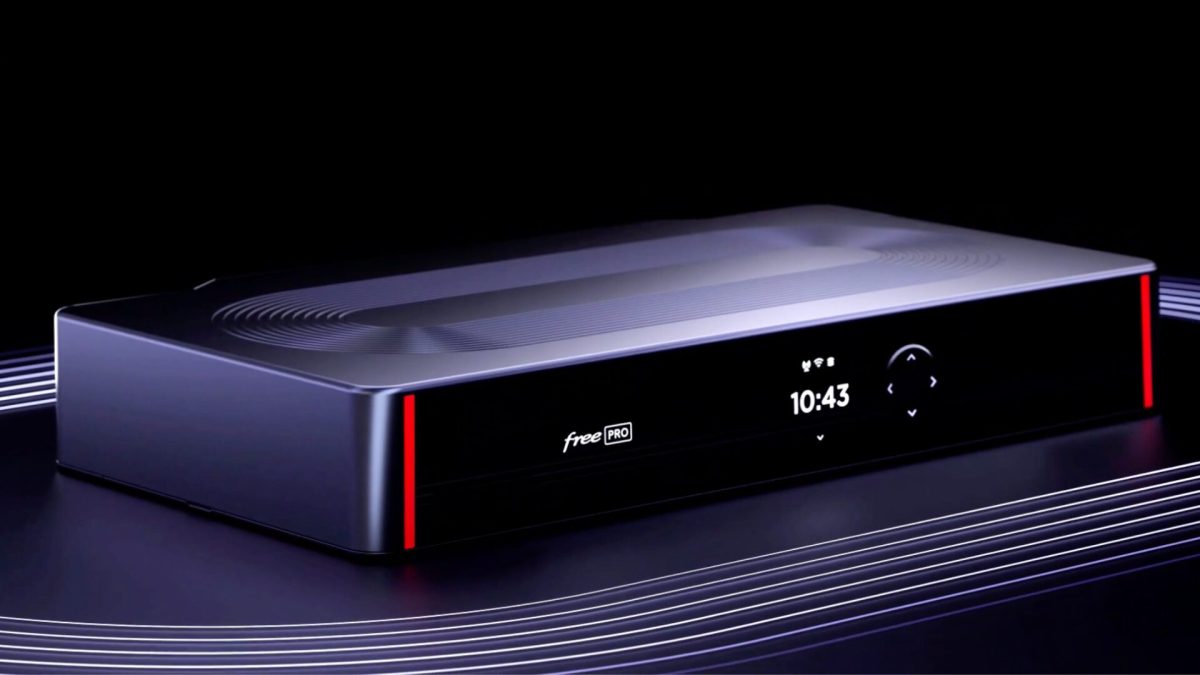


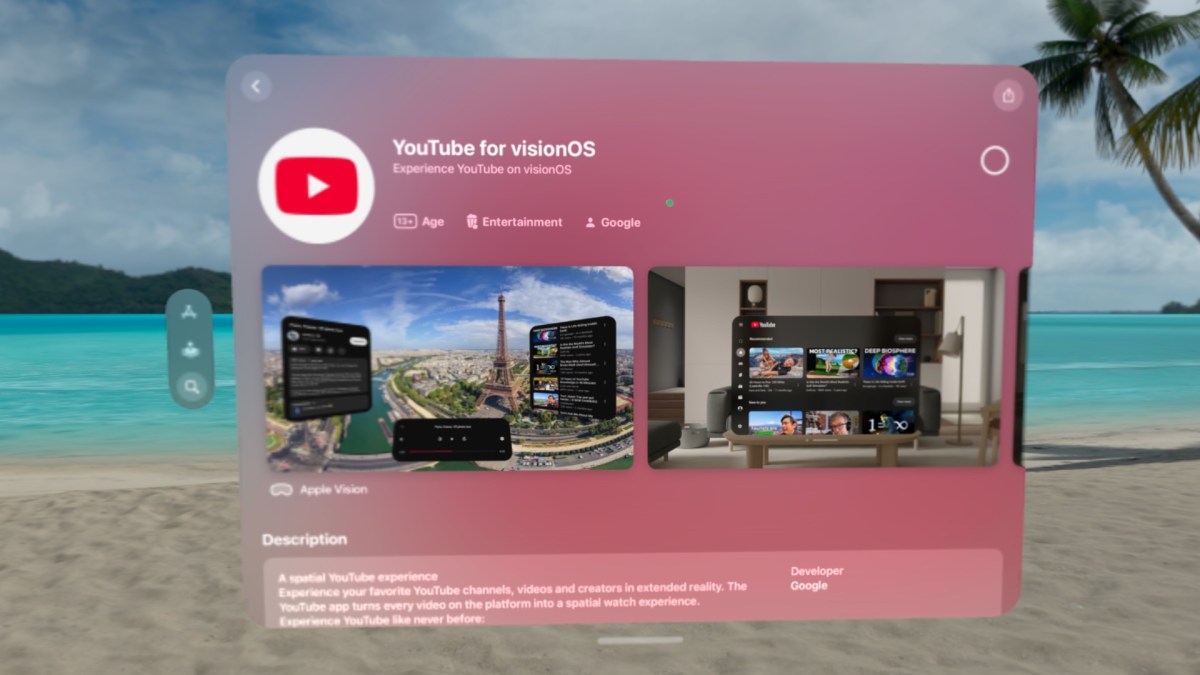






 Un acheteur pensait avoir fait une bonne affaire en s’offrant un SSD Samsung 990 PRO de 2 To. Attention aux prix alléchants !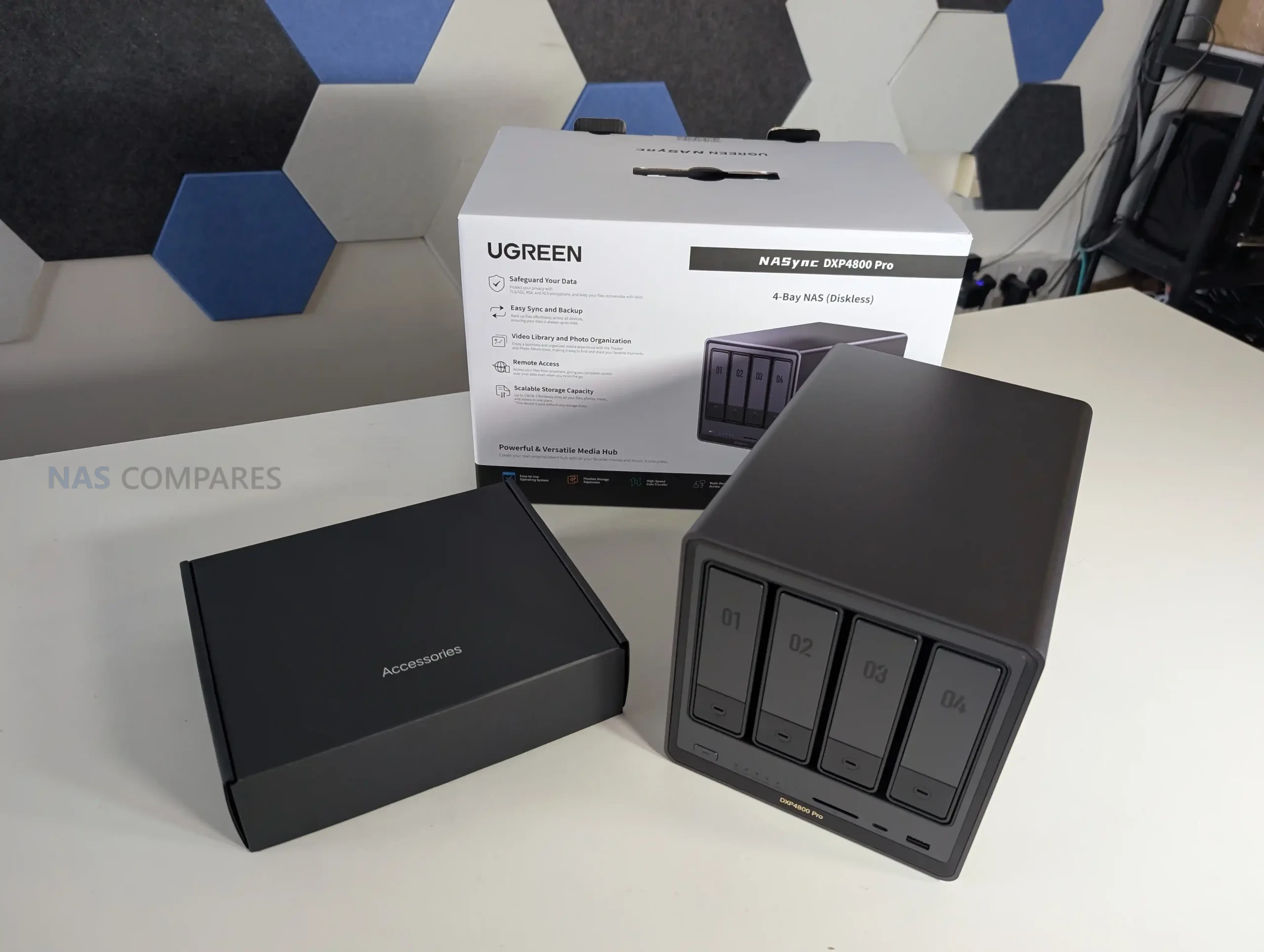
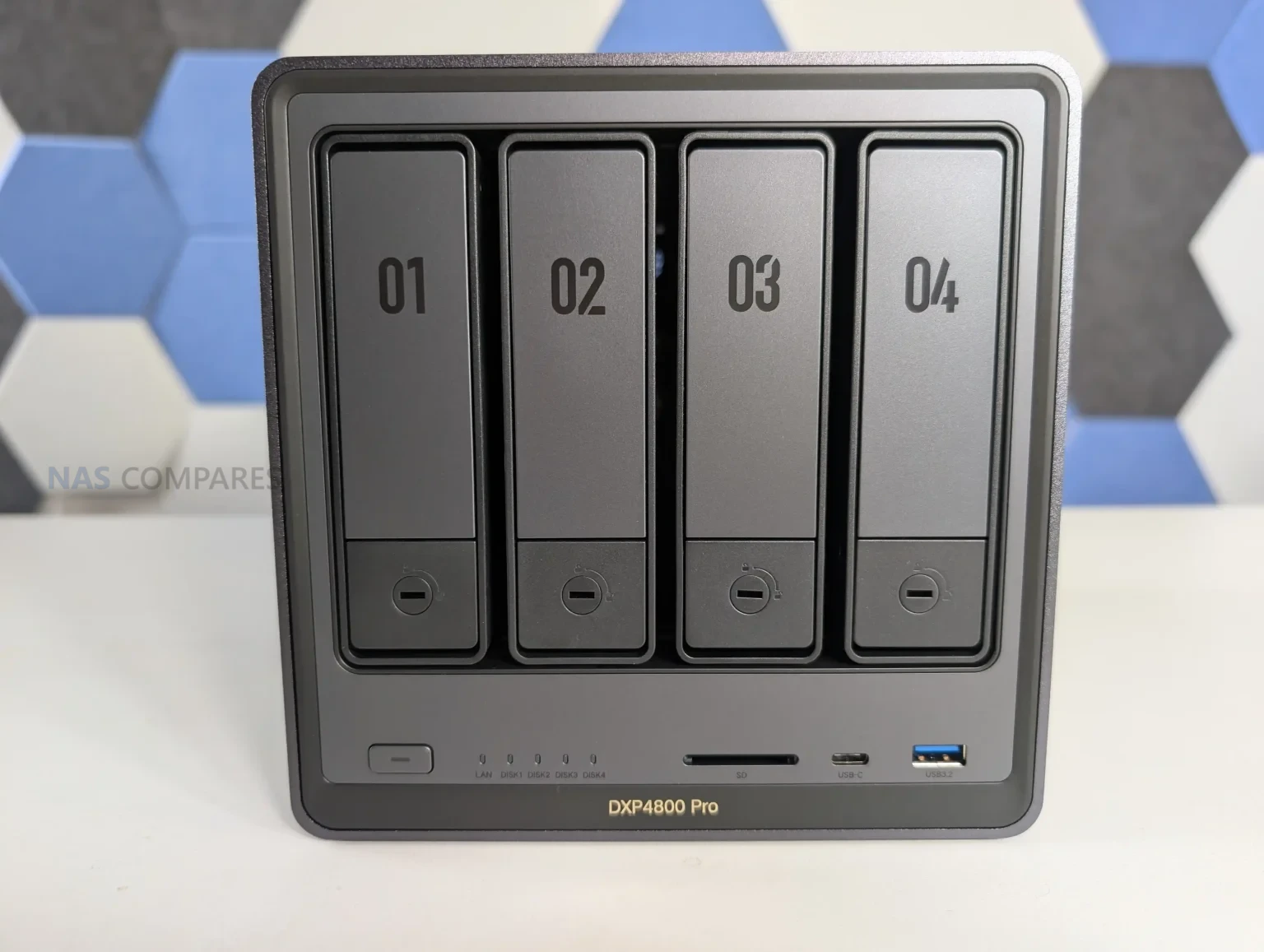

 Intel Core i3 1315U provides noticeably more CPU headroom than the DXP4800 Plus, particularly for multitasking, containers and light virtualization
 Higher power consumption than low power NAS systems, particularly under sustained CPU and disk load


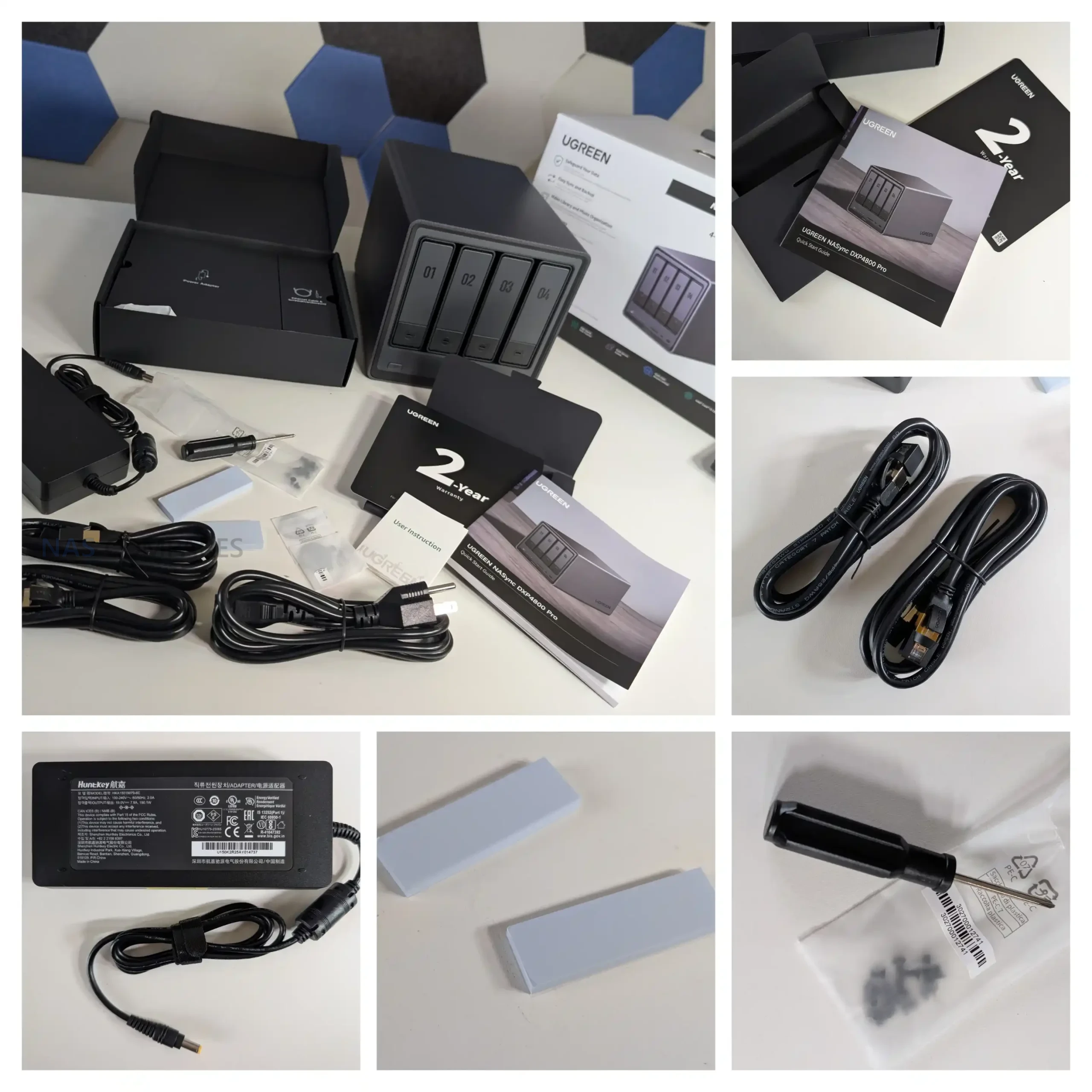
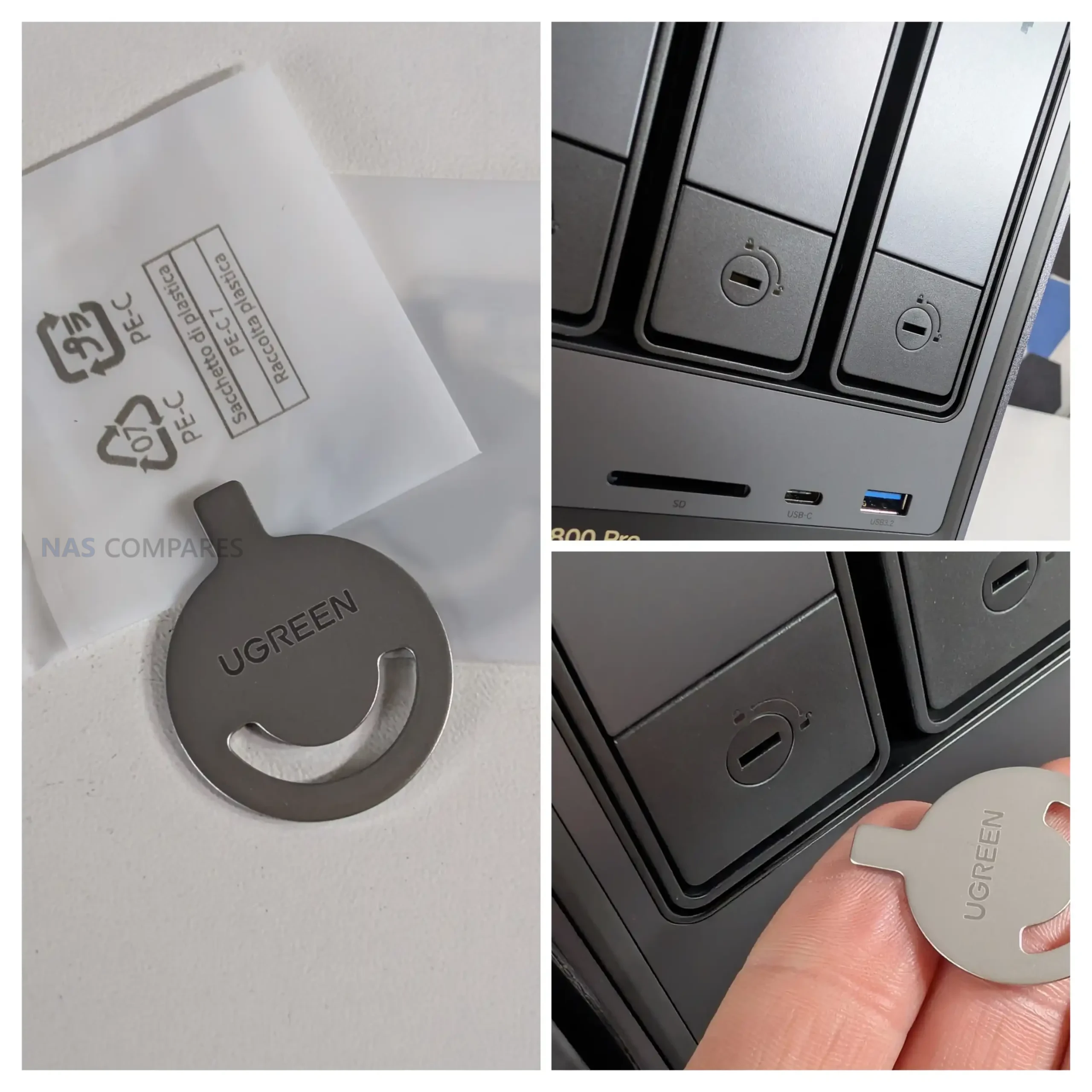
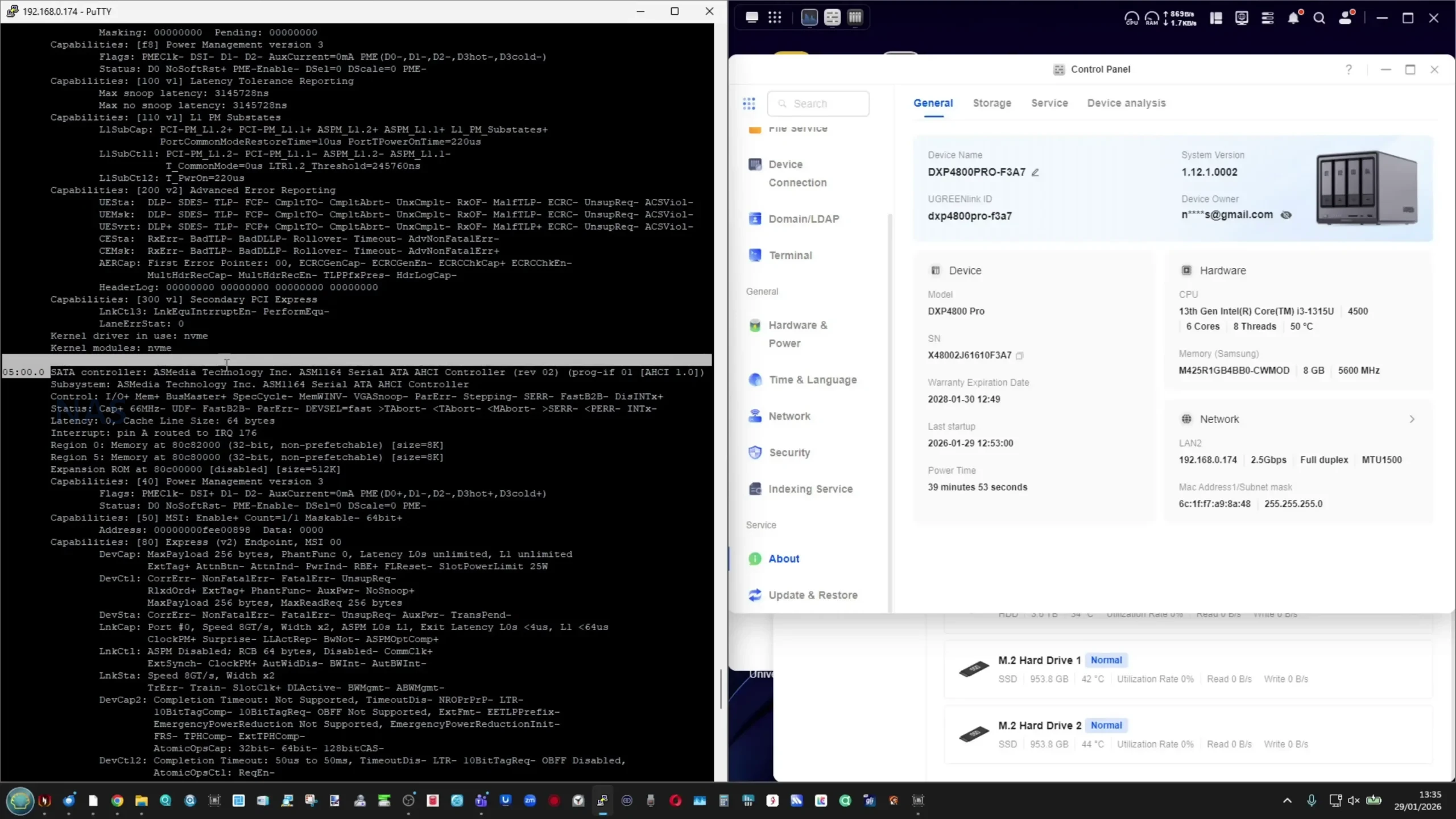
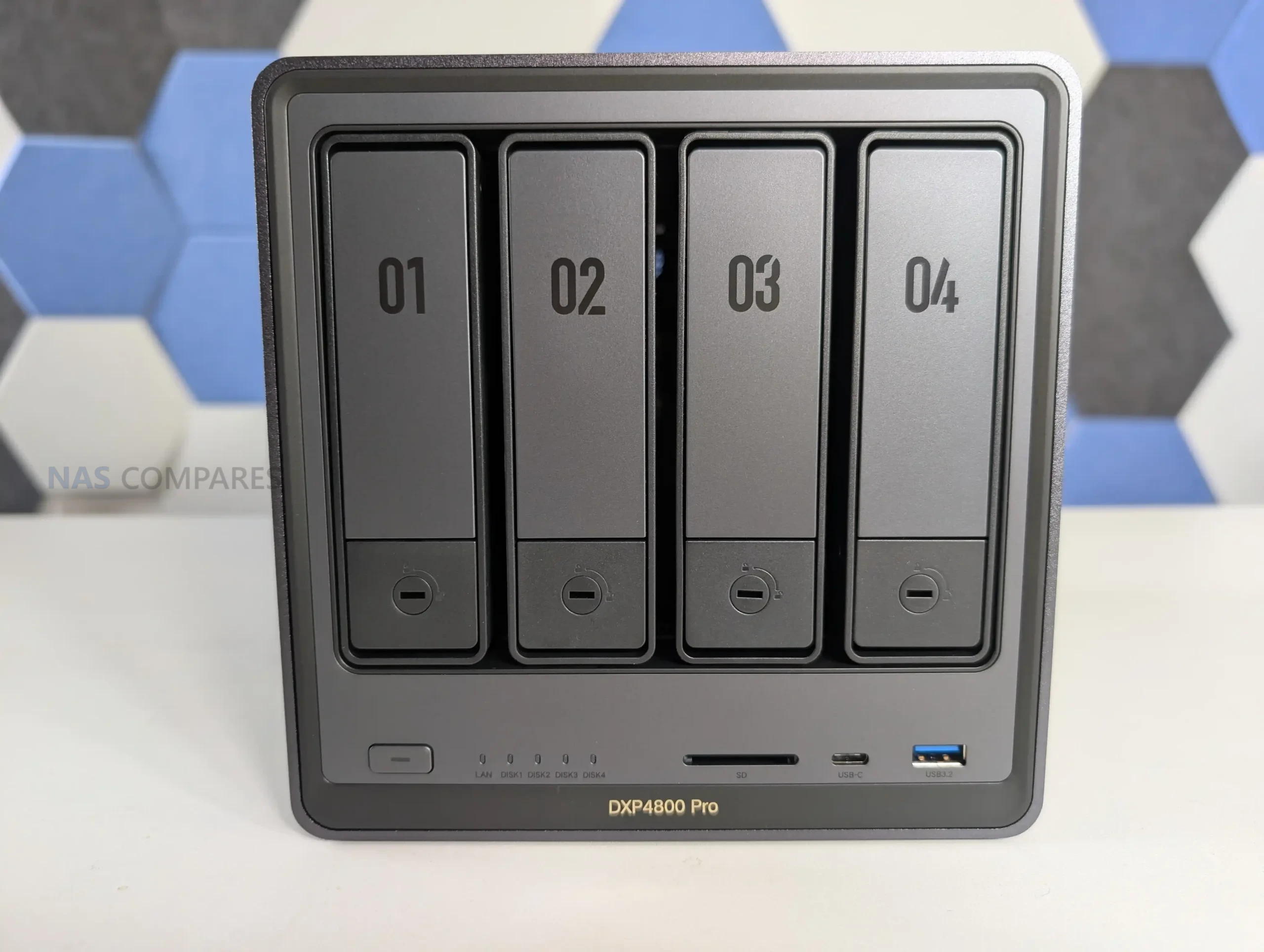
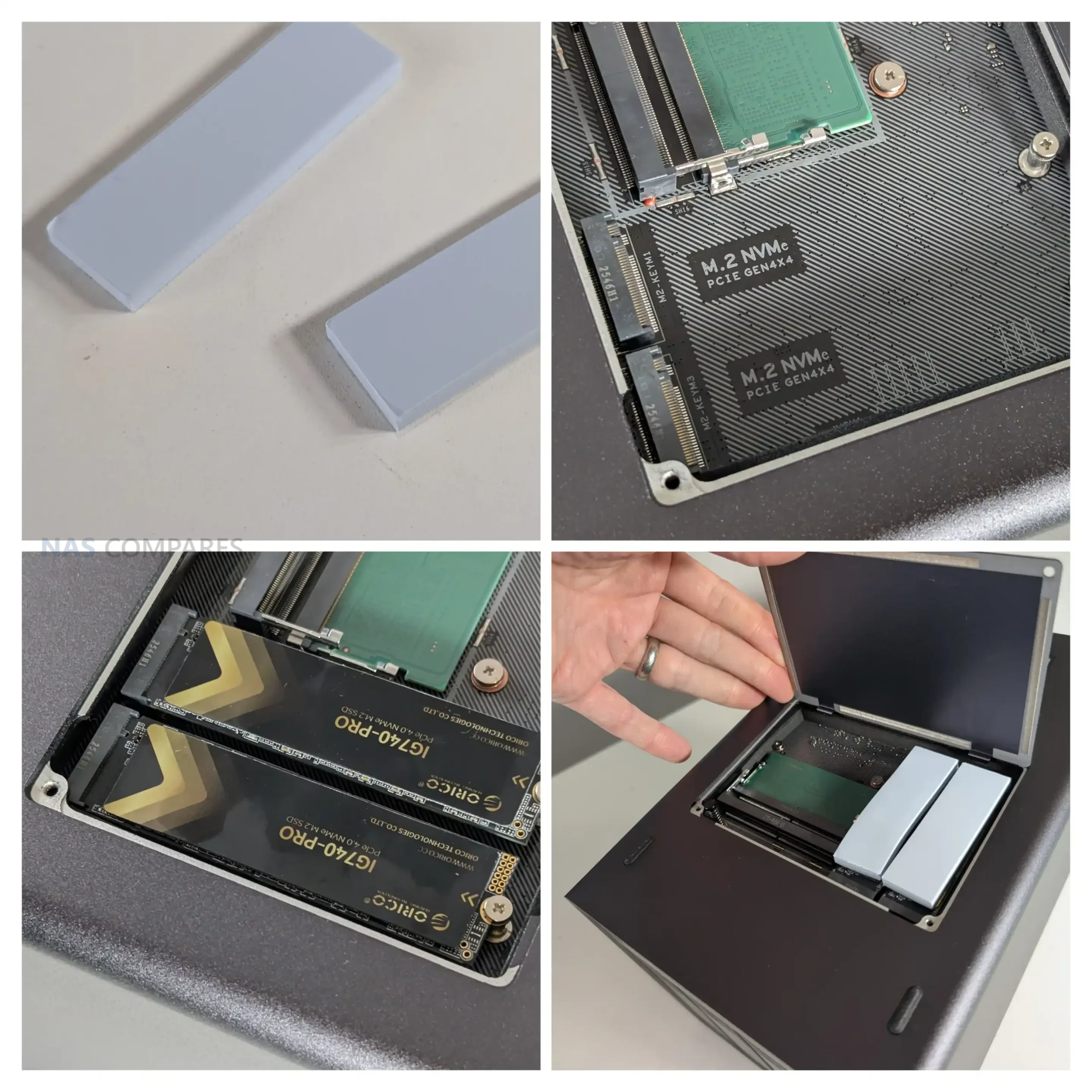
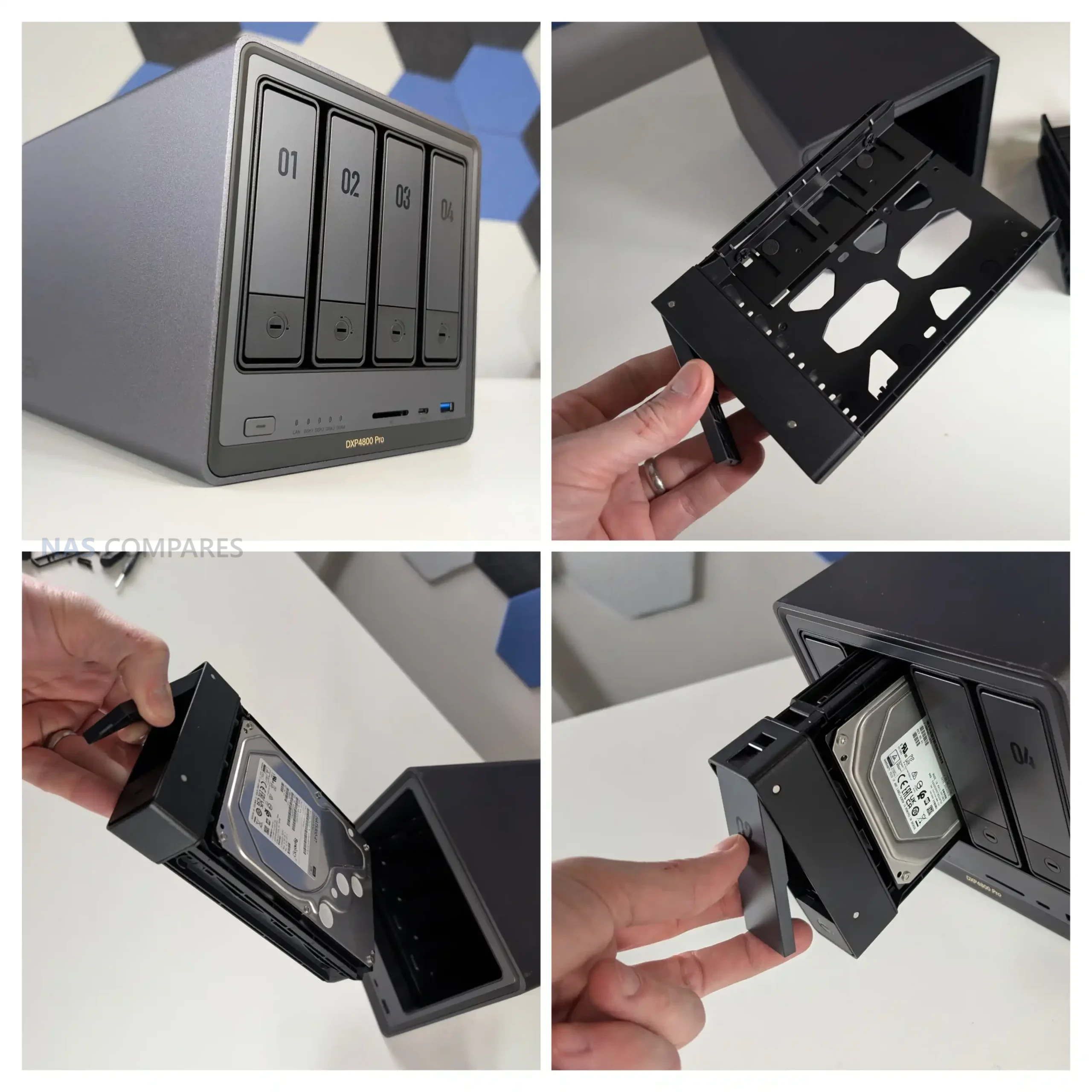
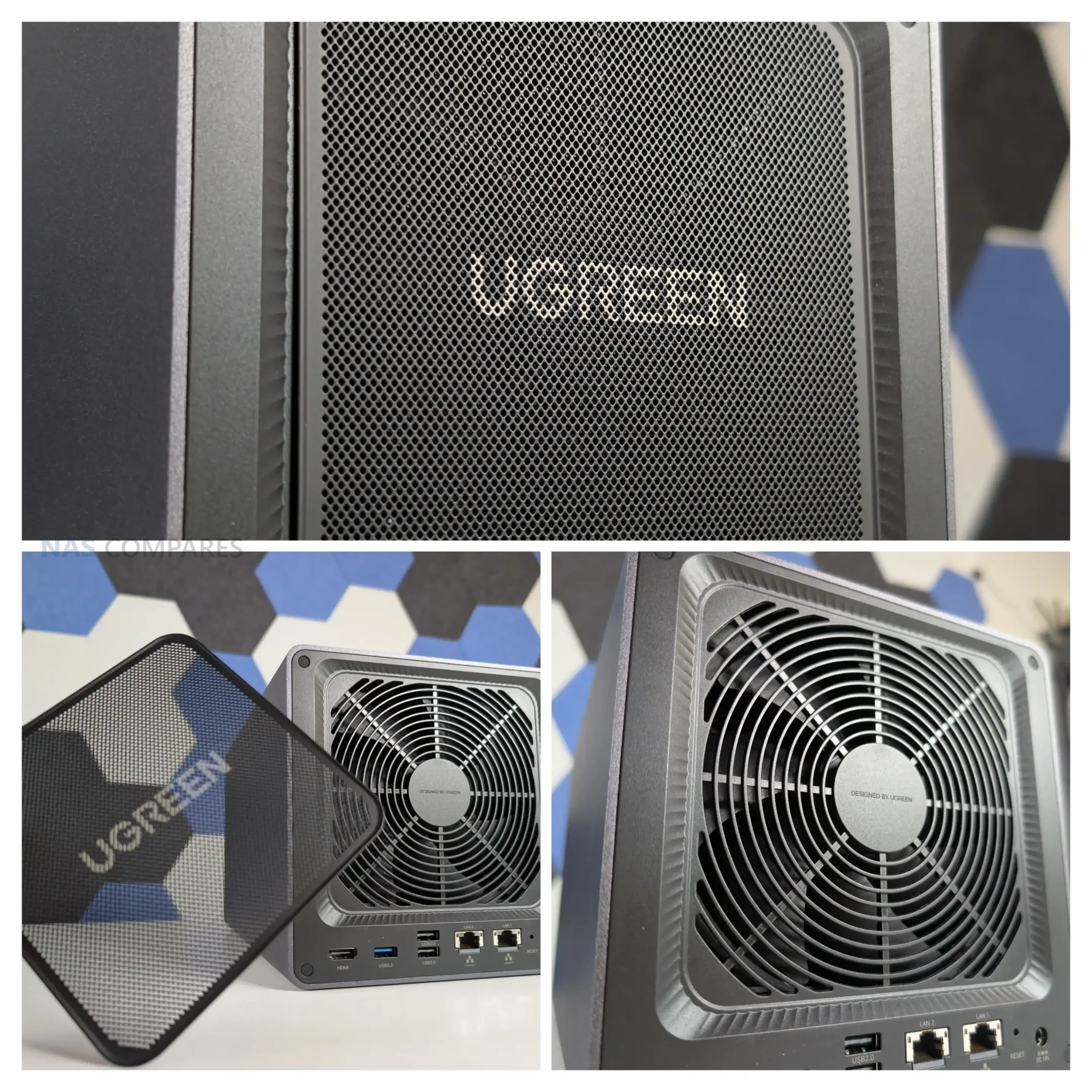
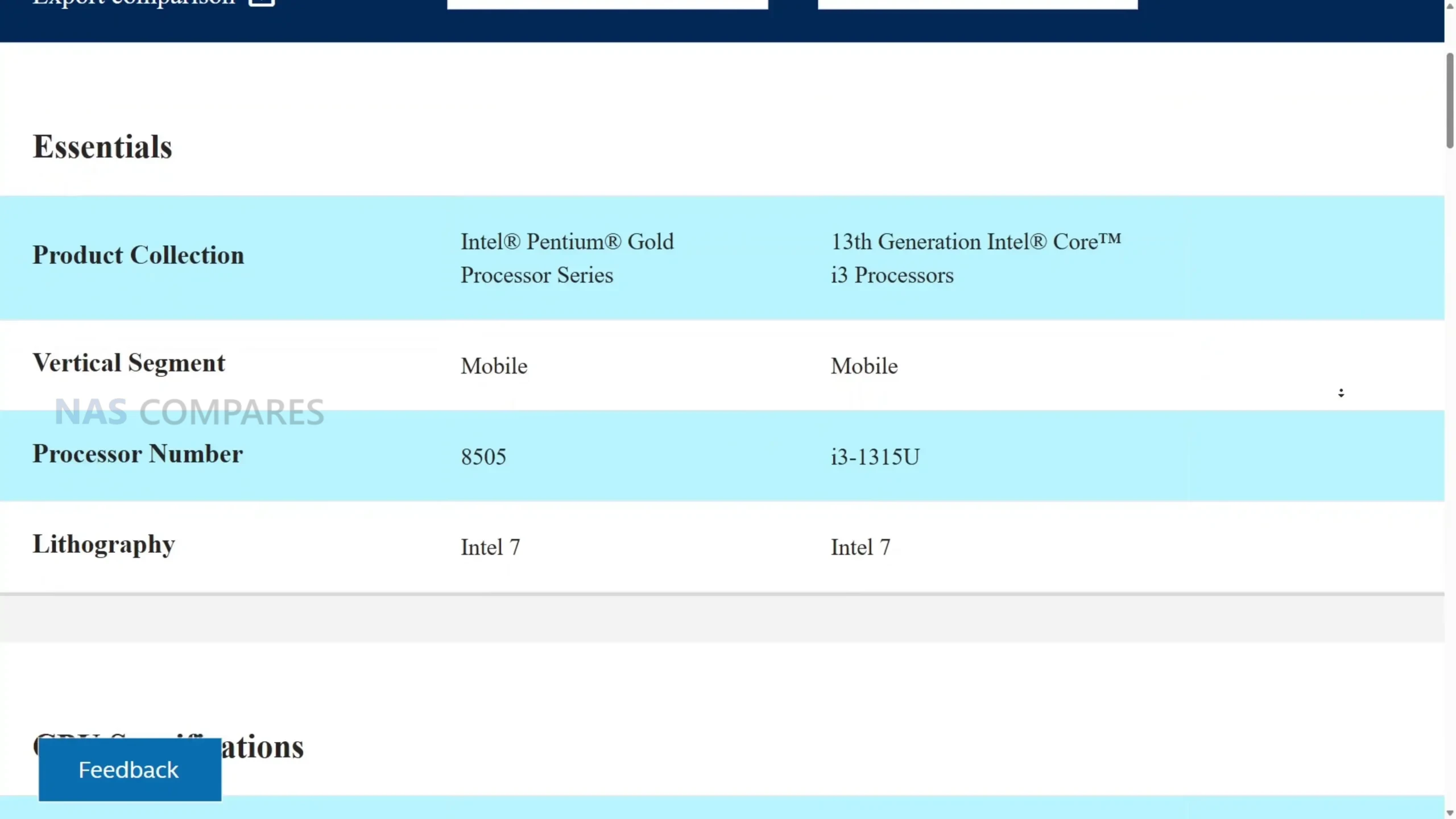
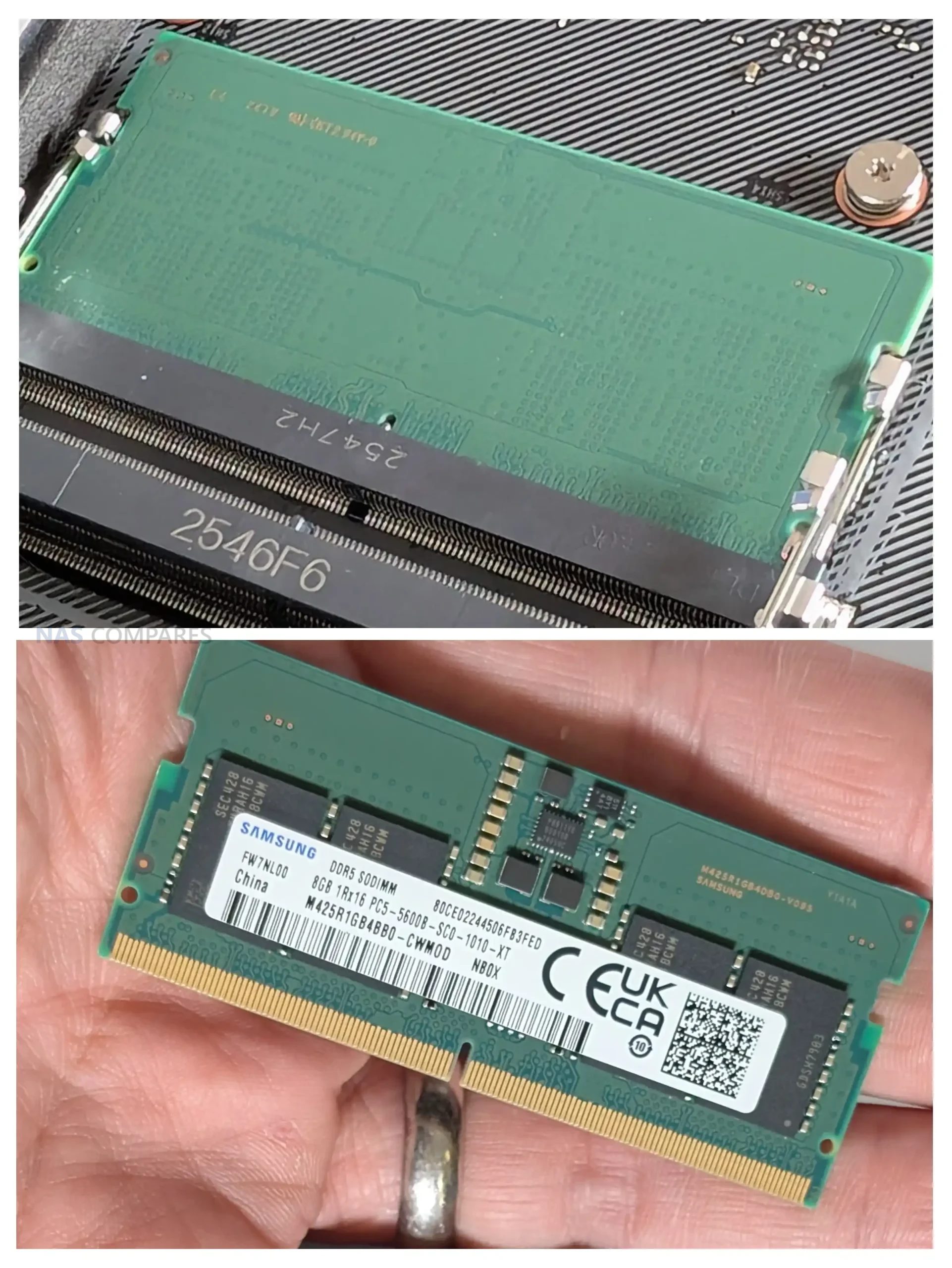
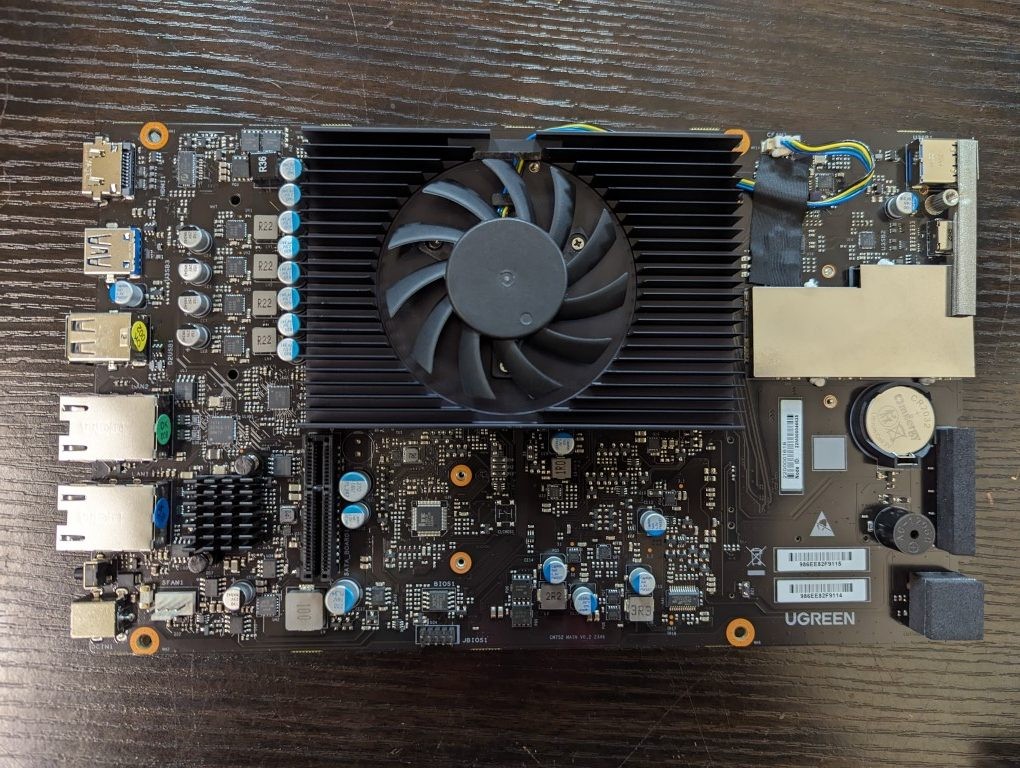
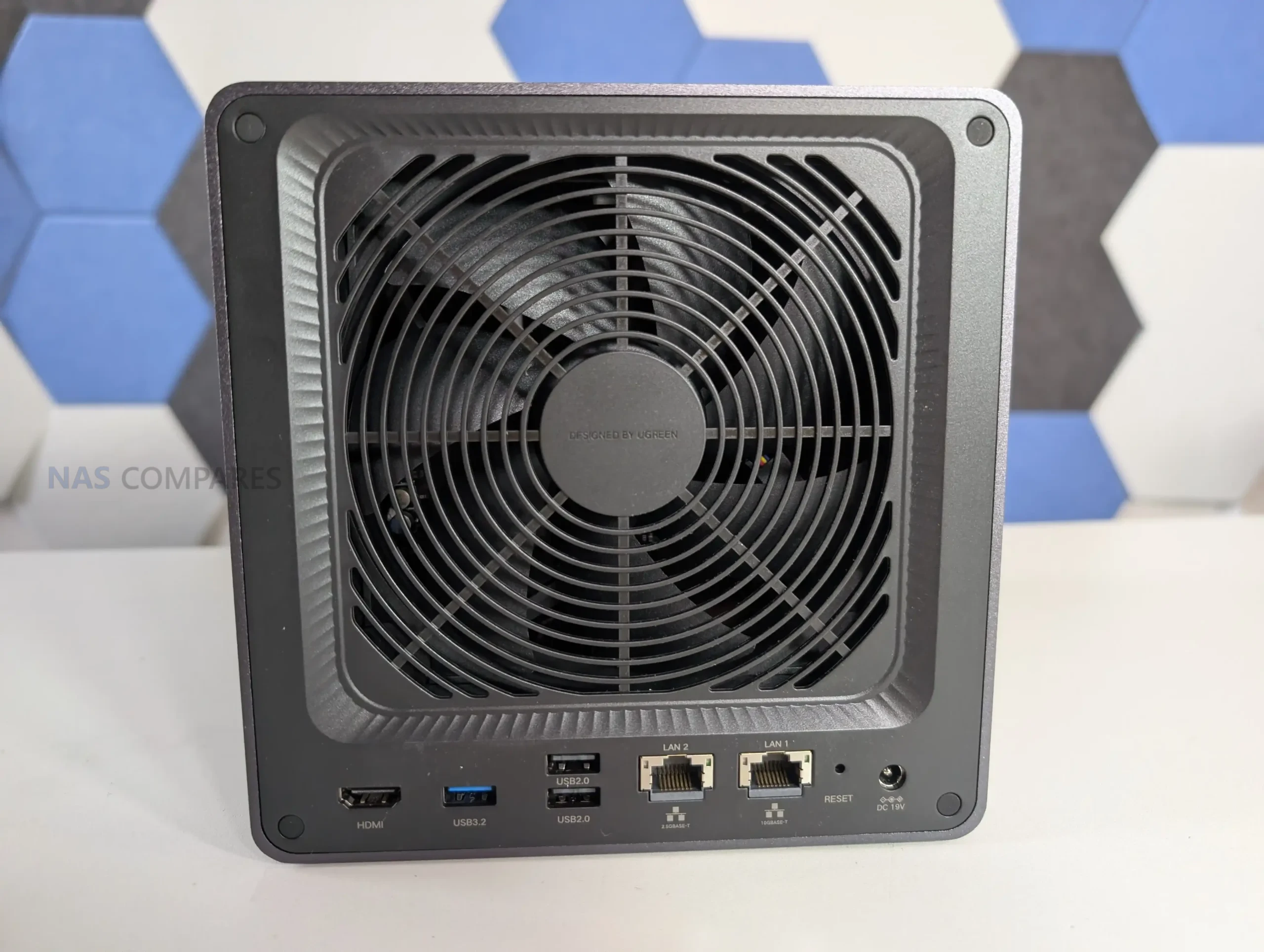
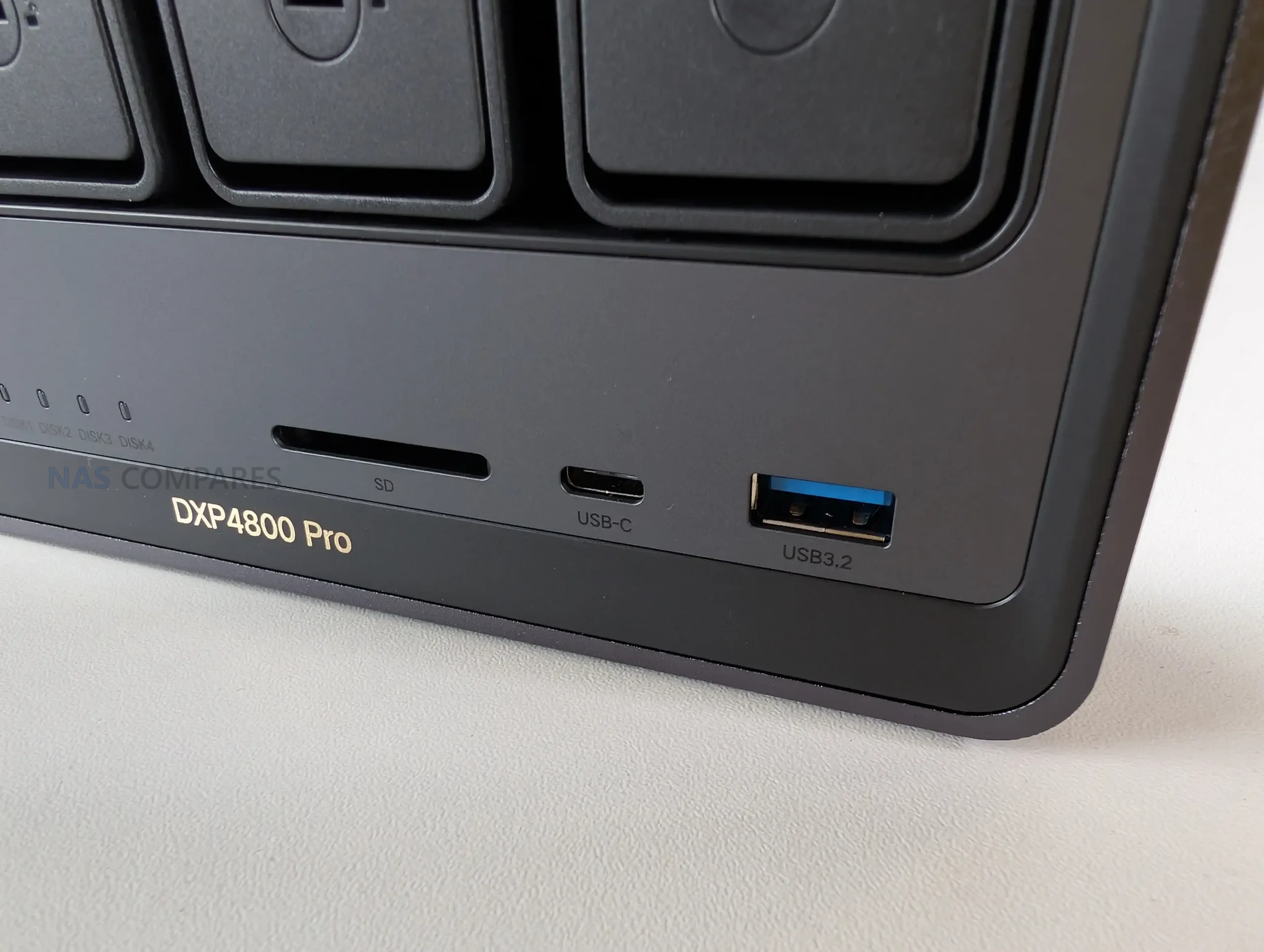
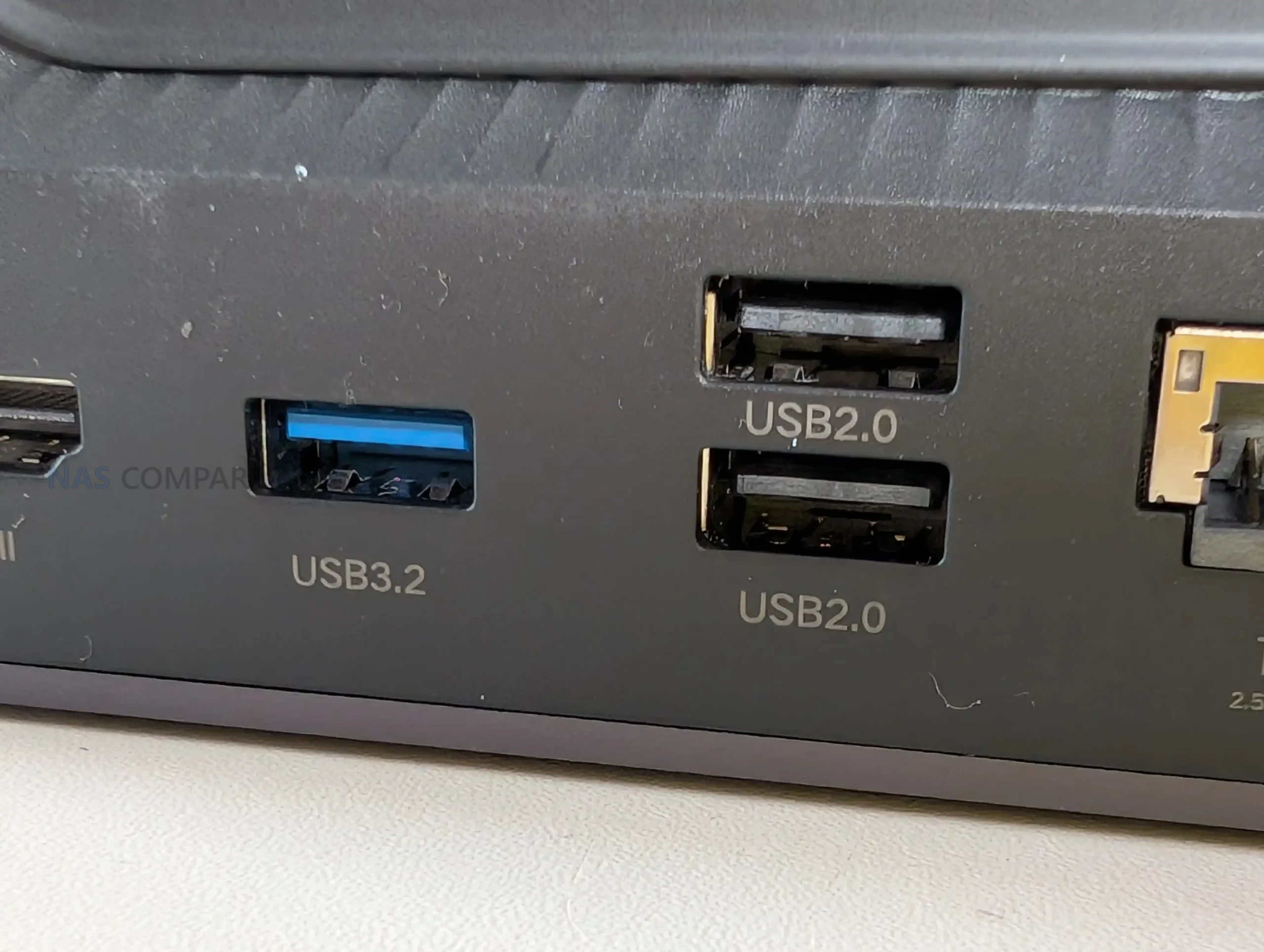
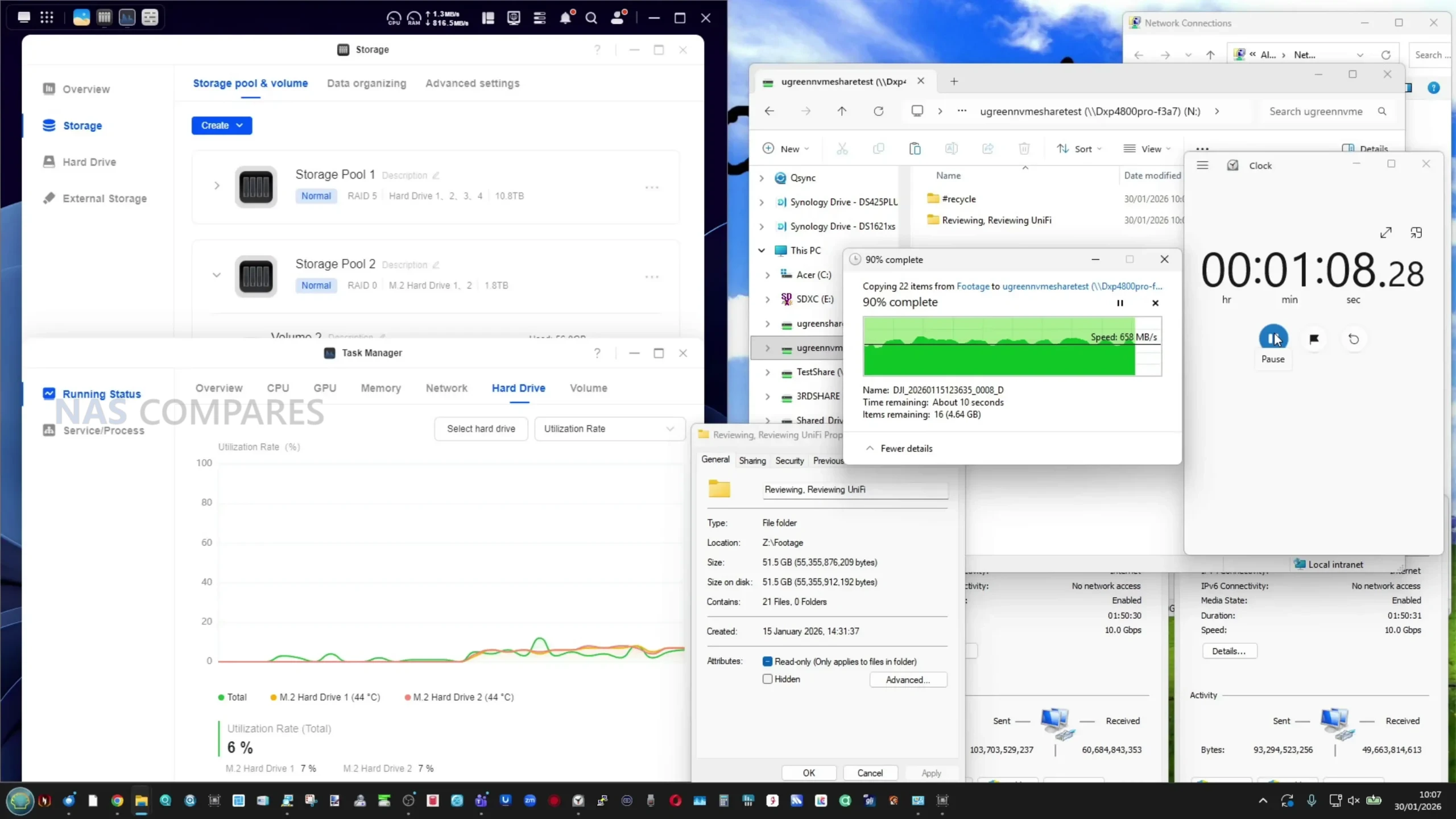
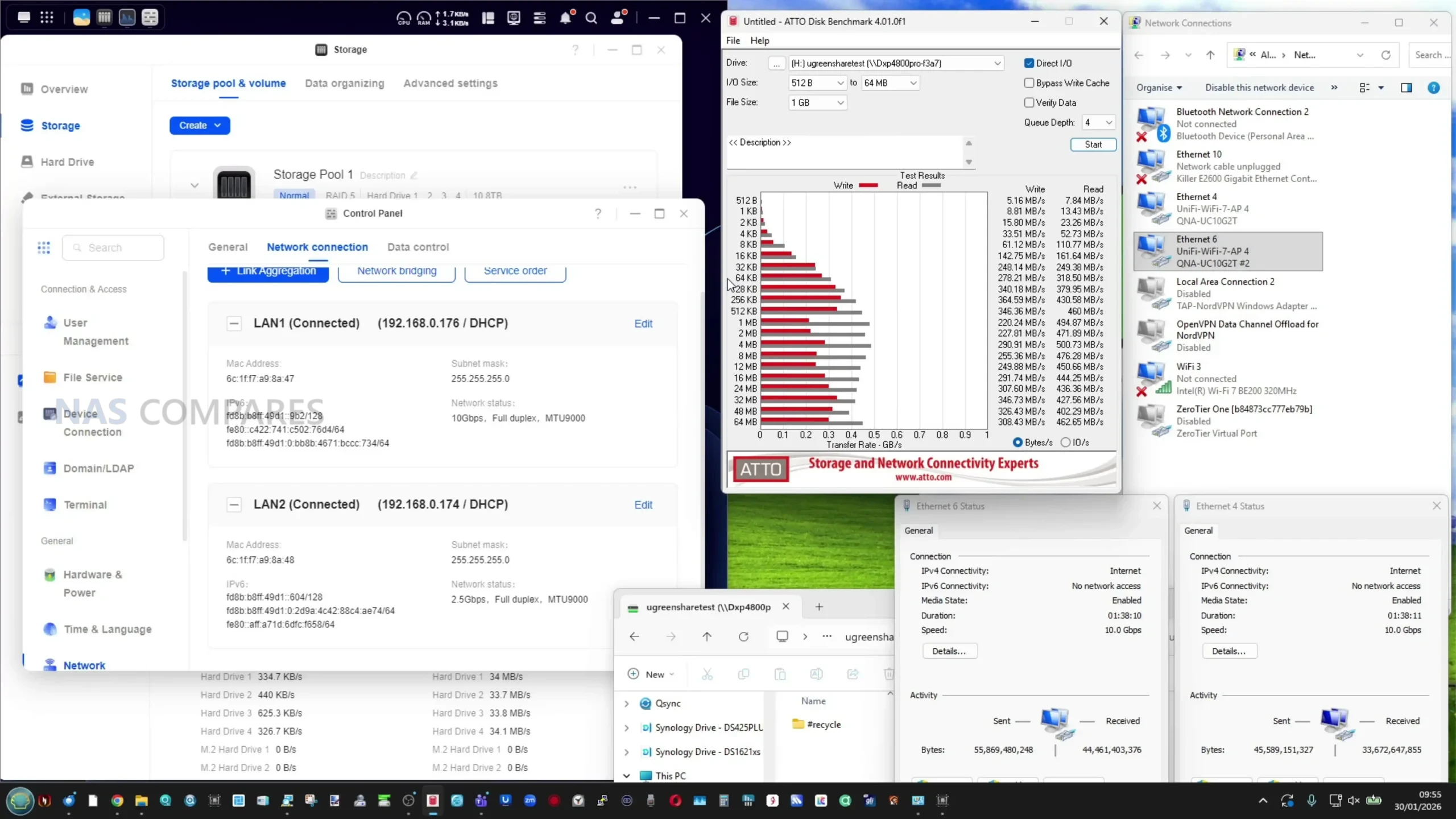
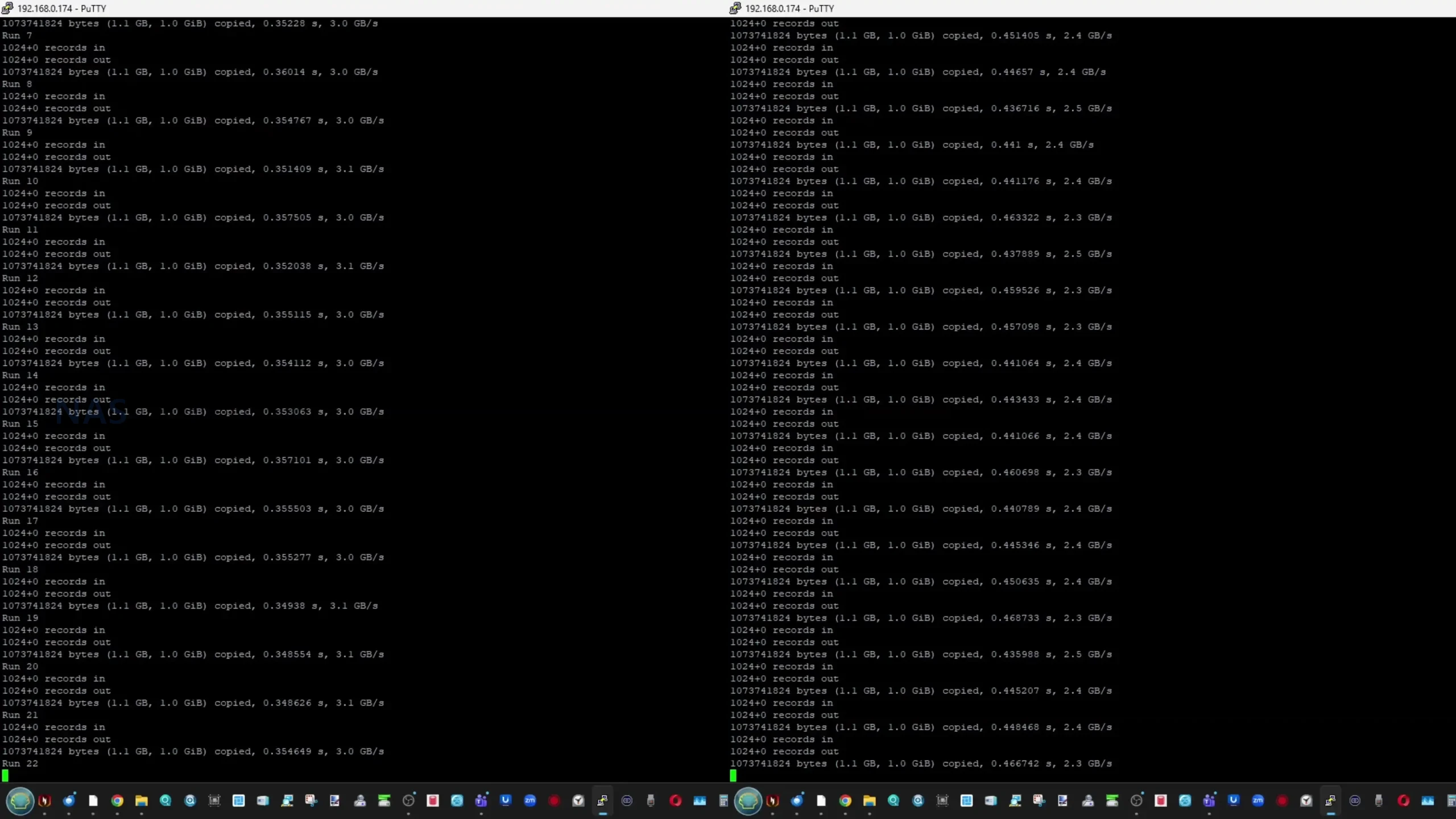
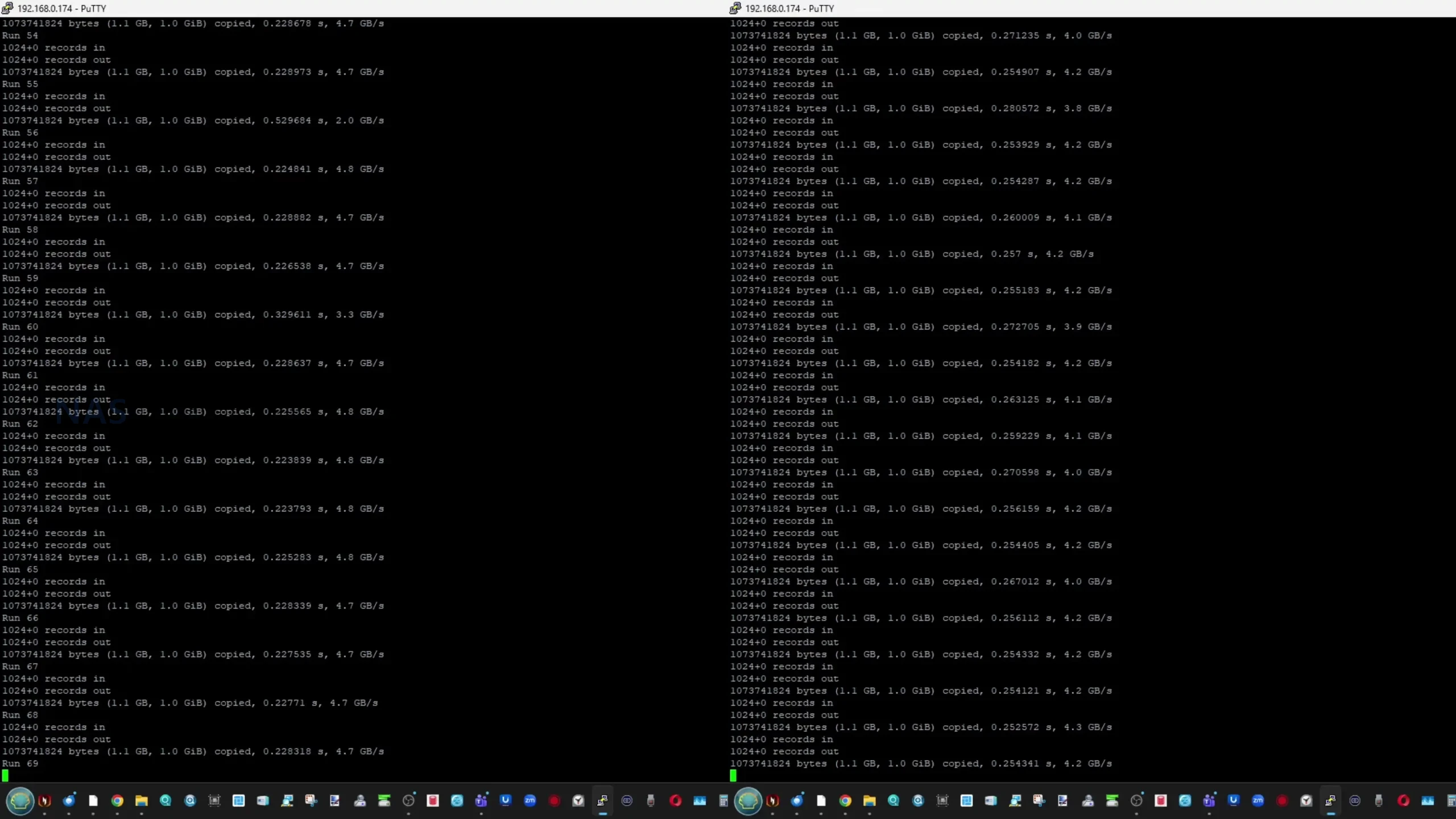
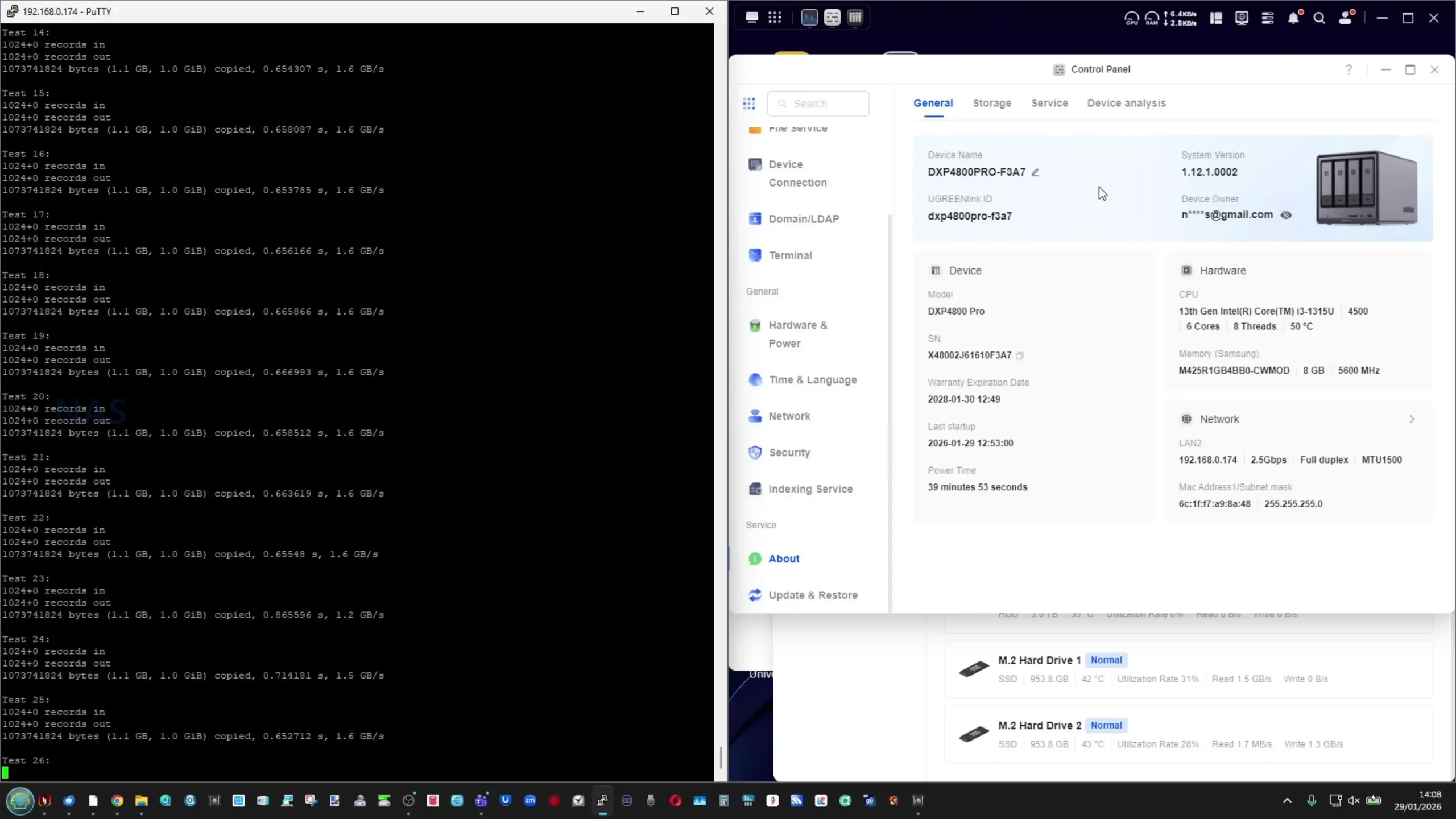
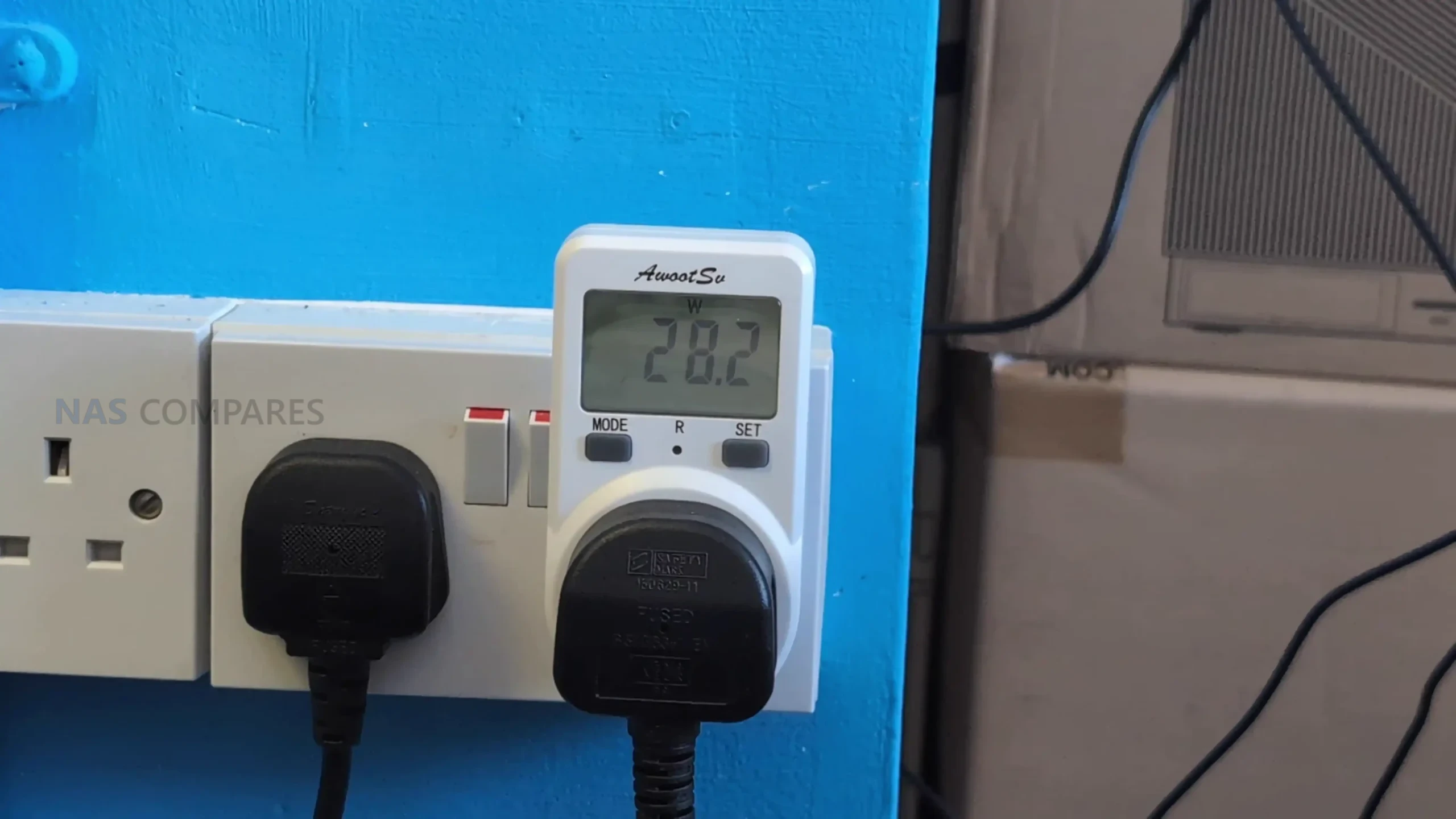
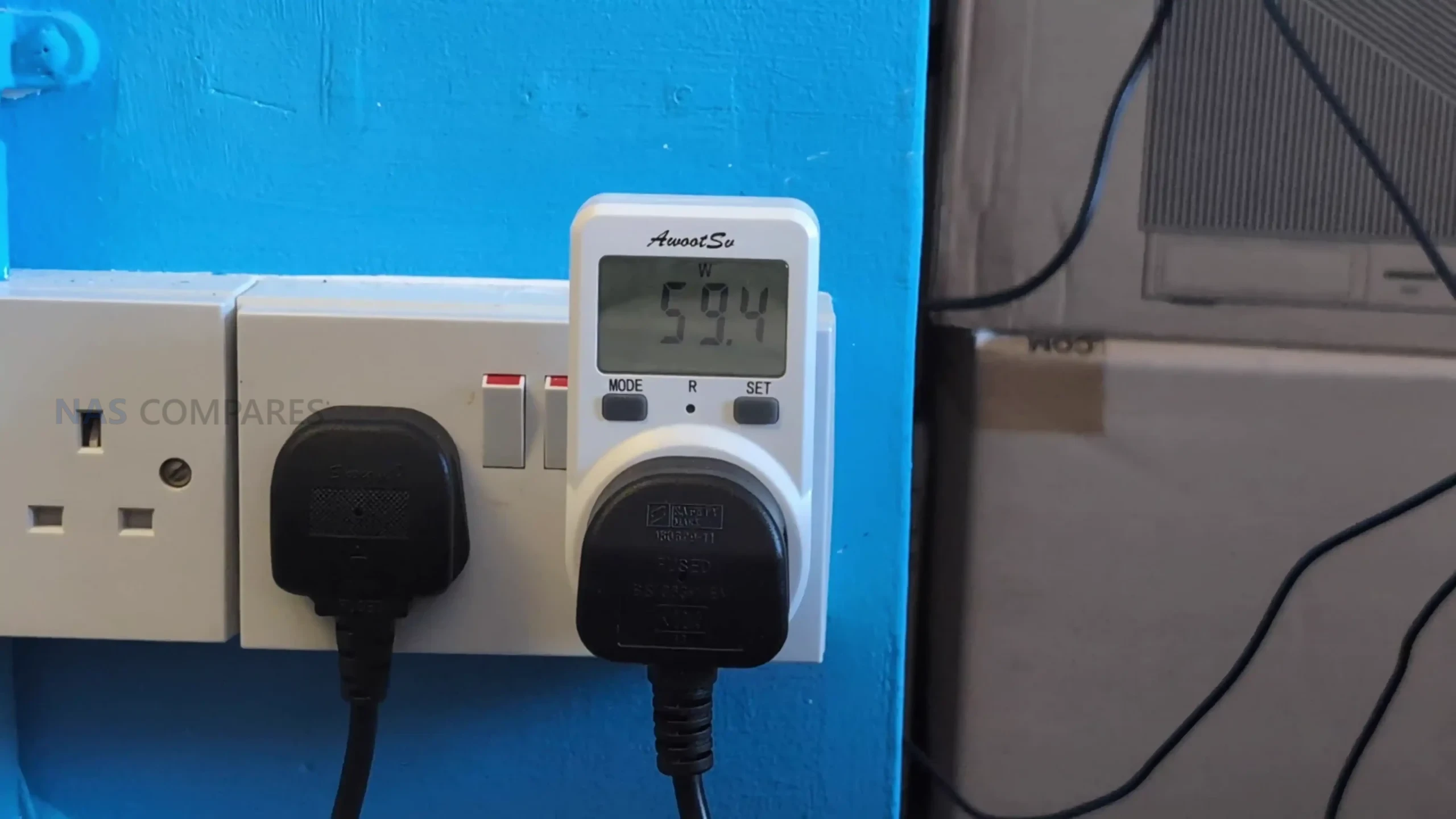
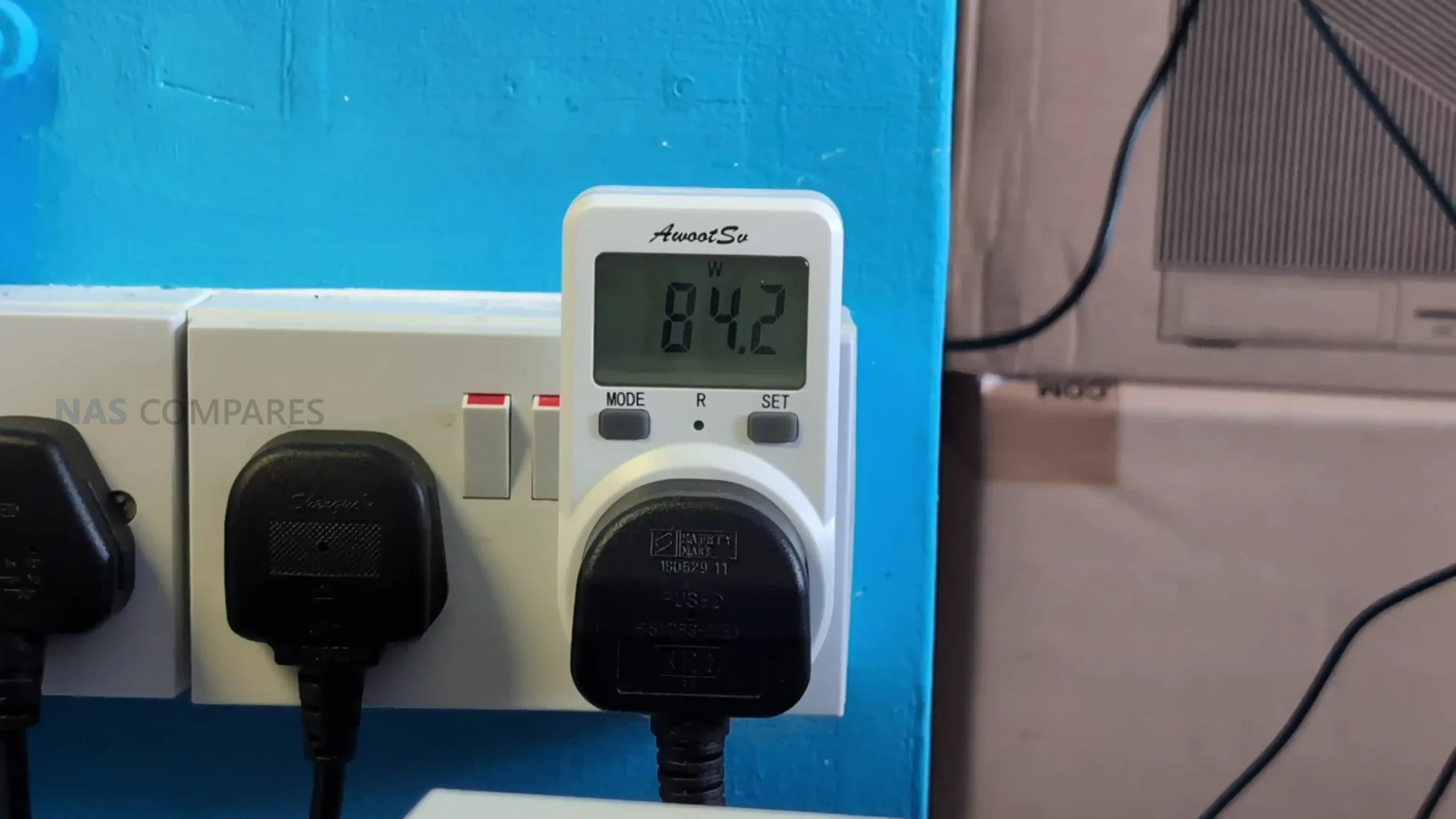
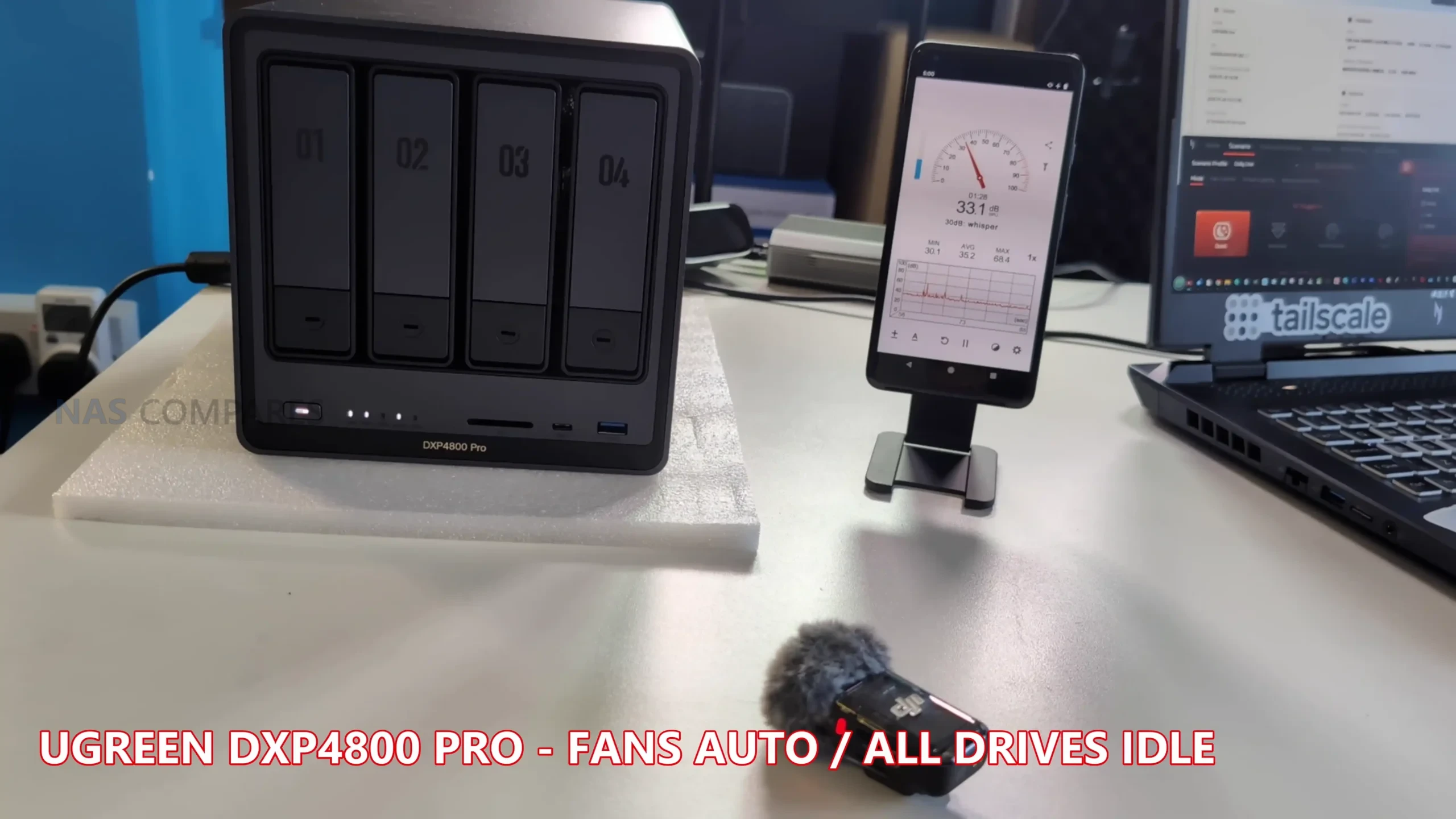
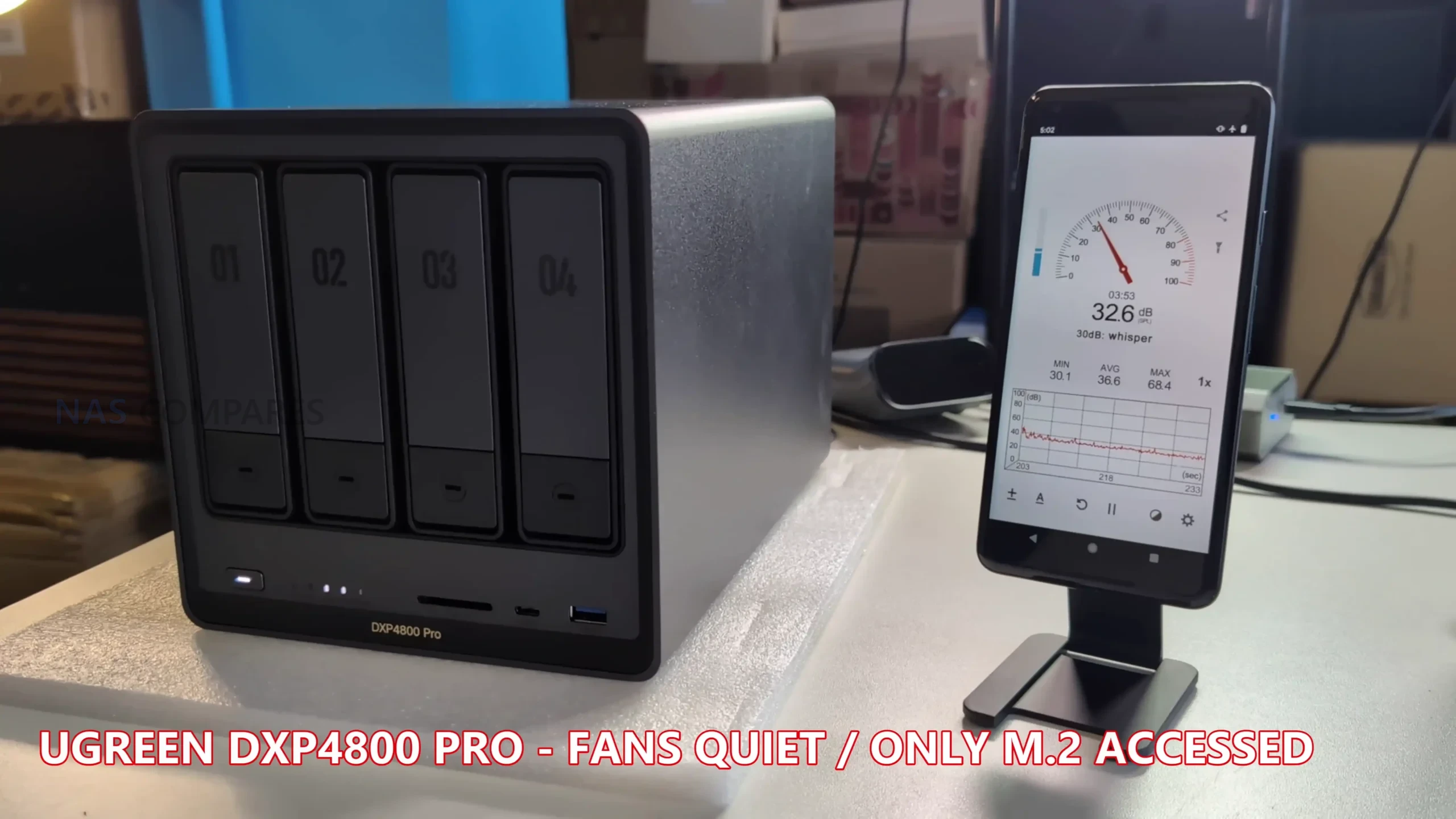
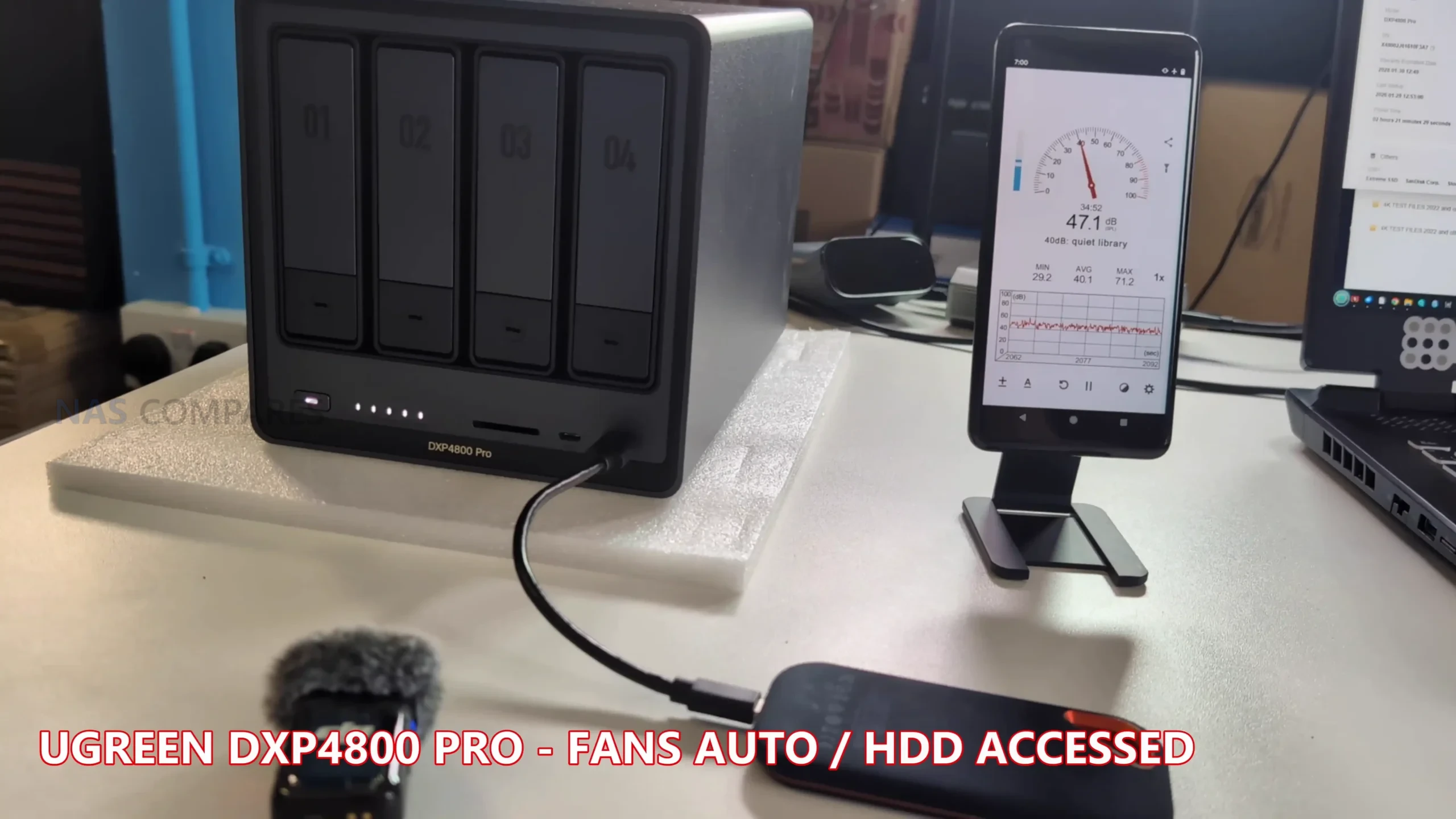
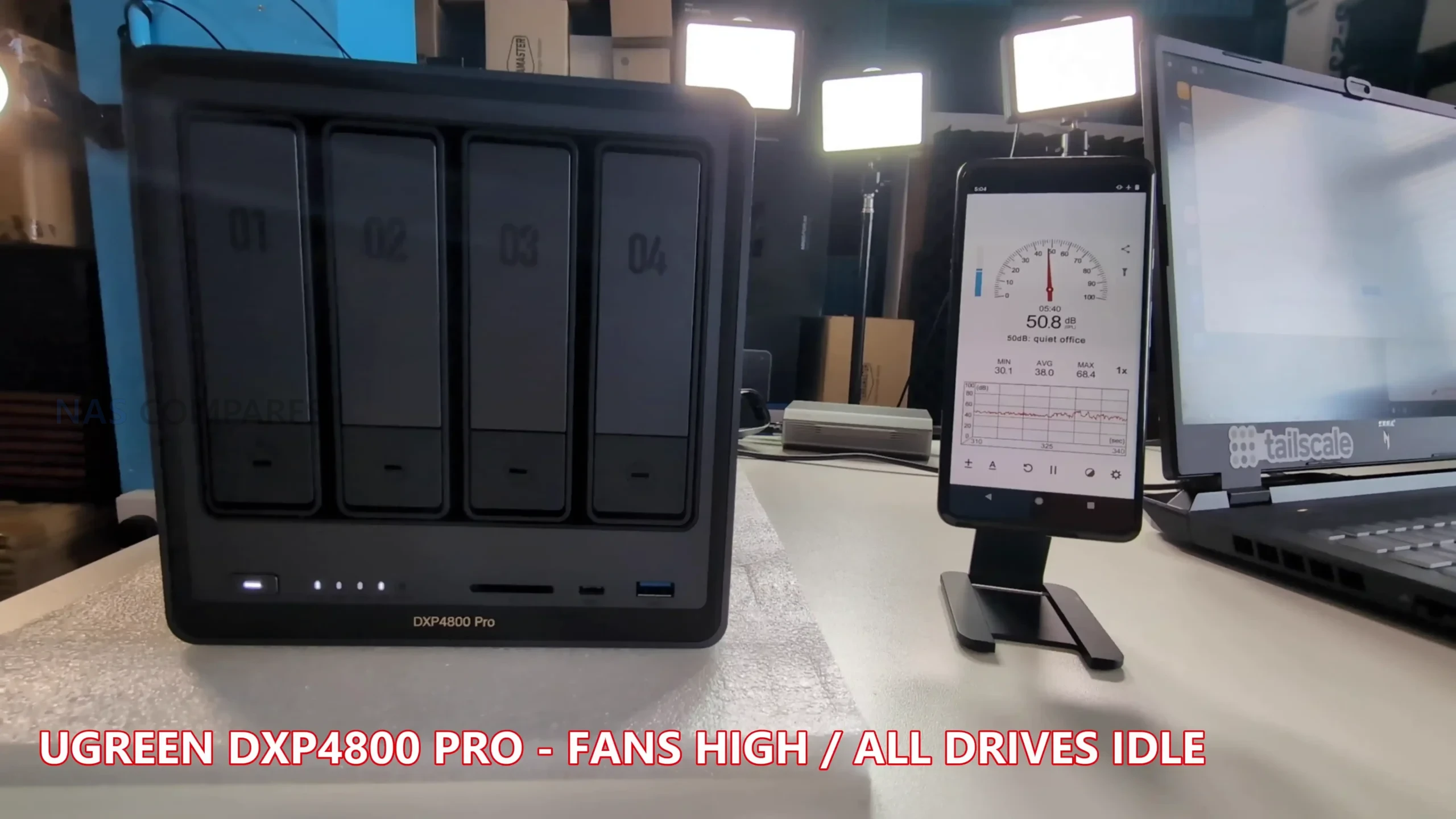
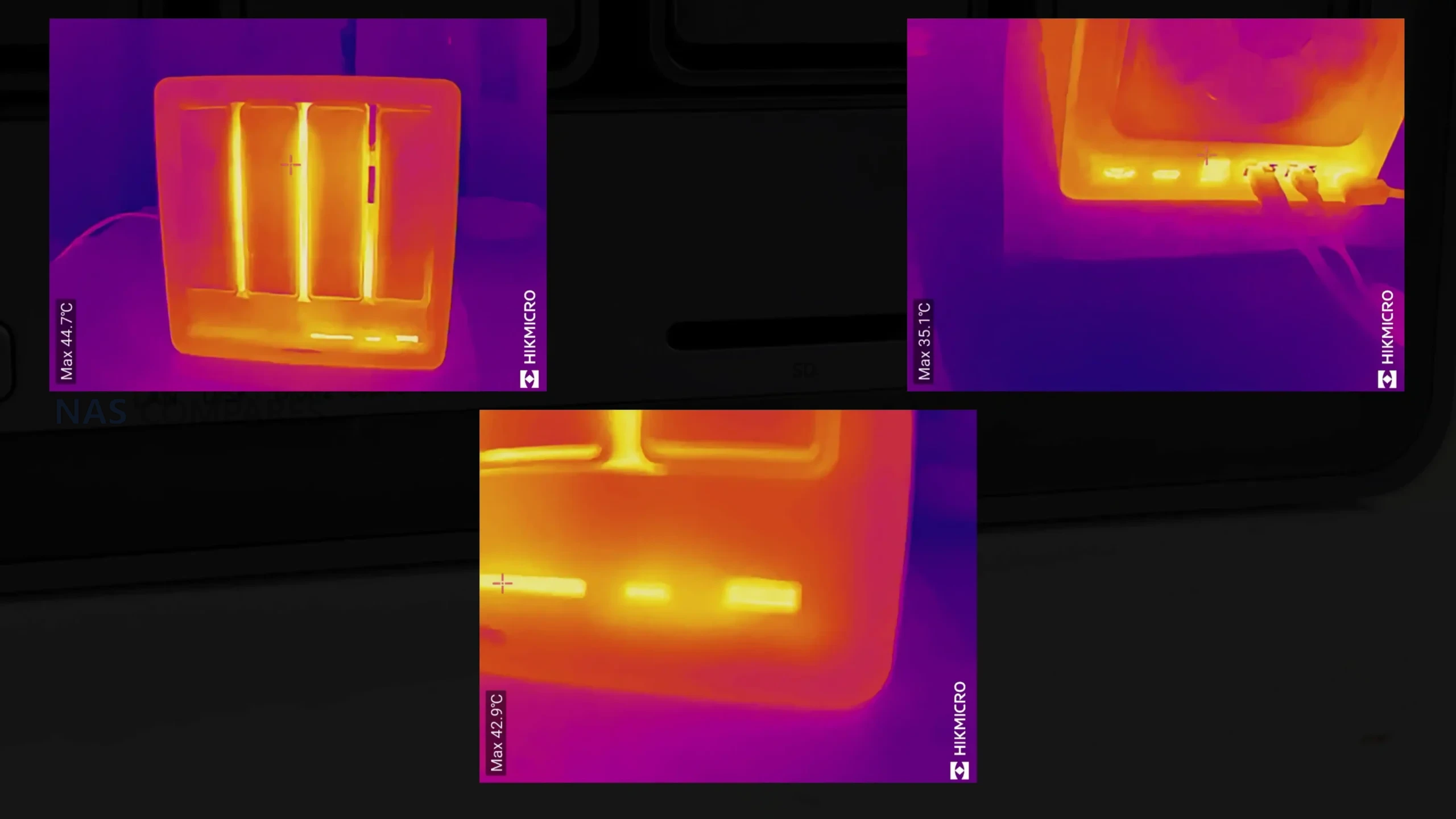
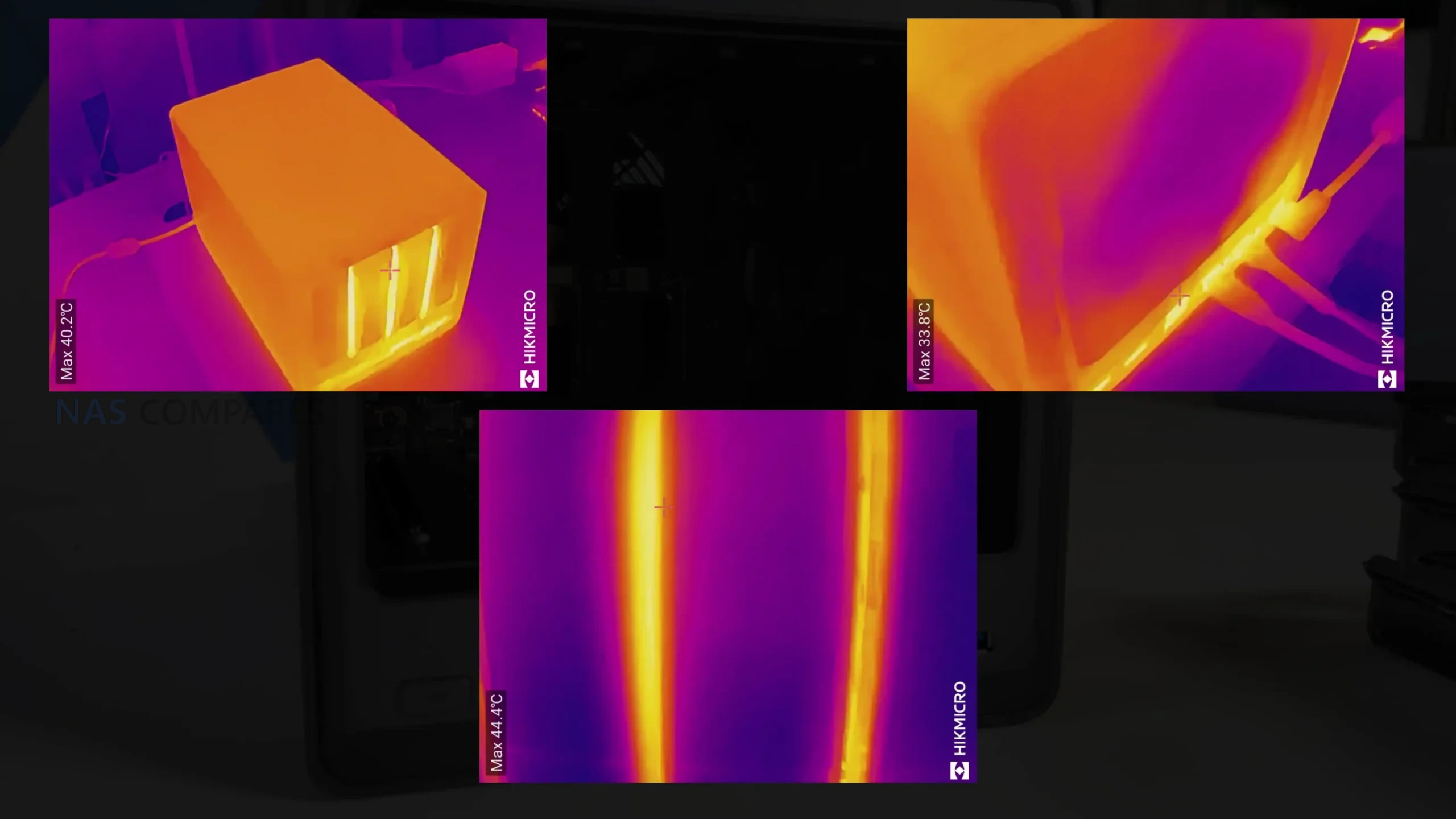
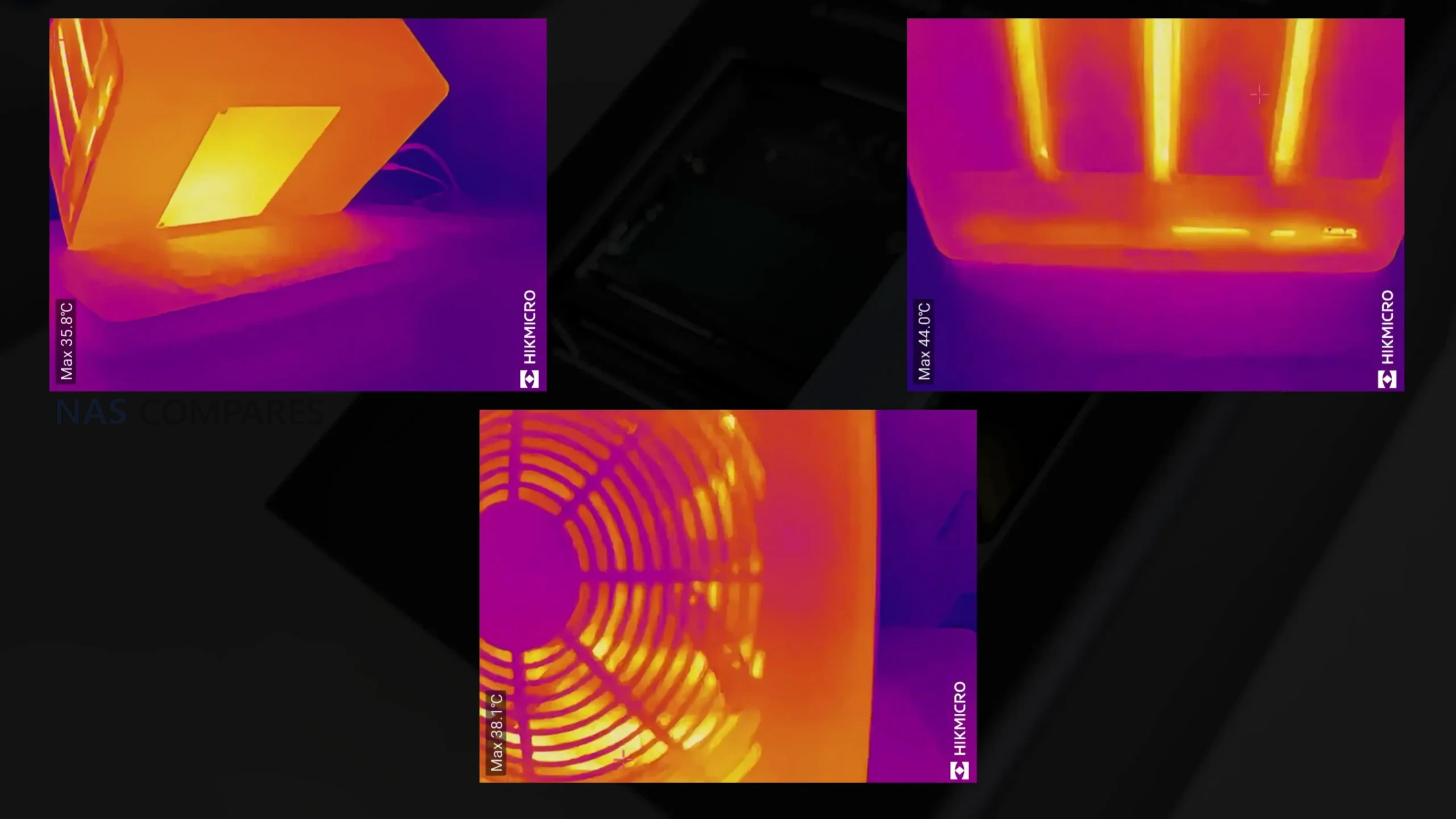
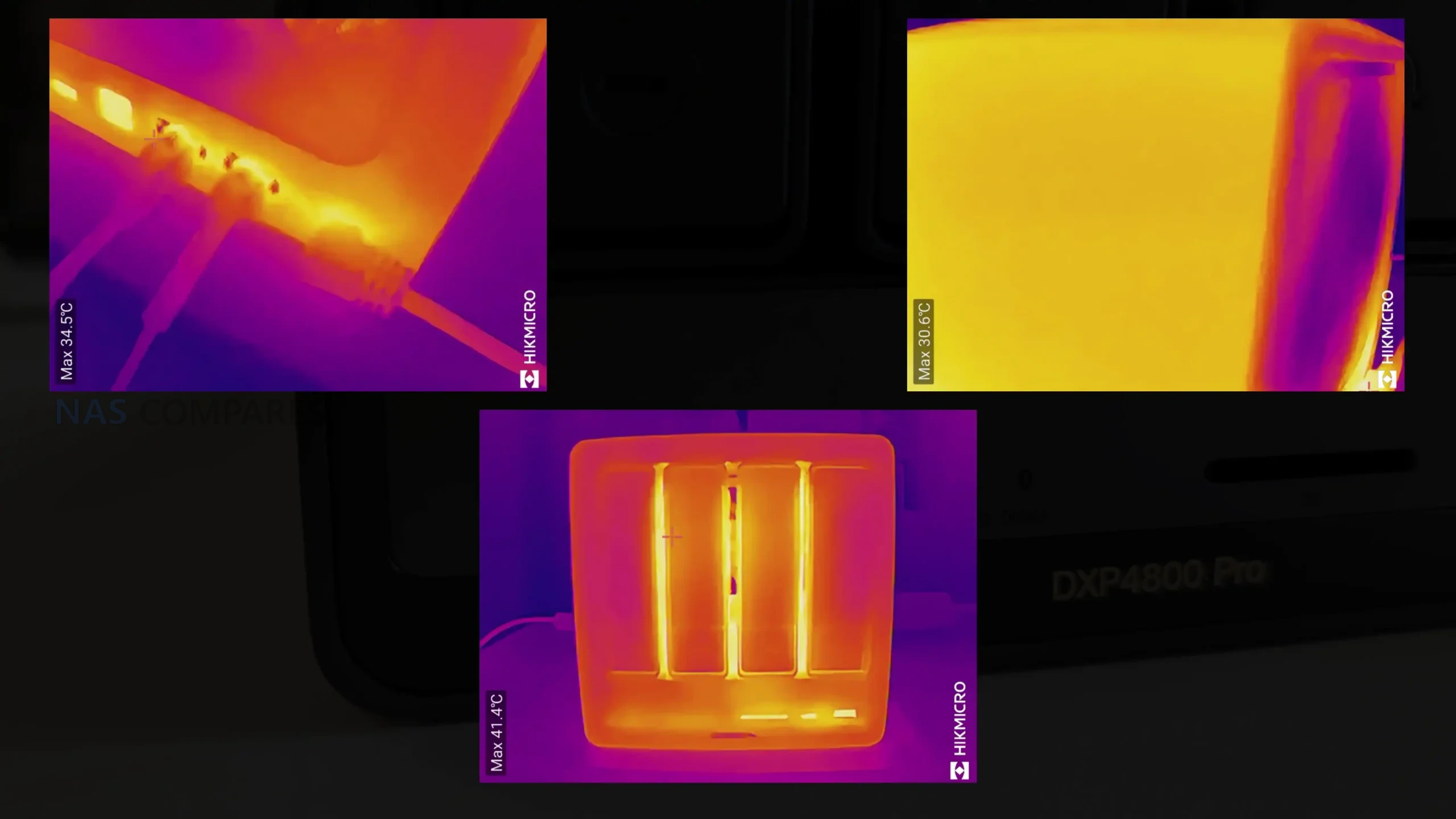
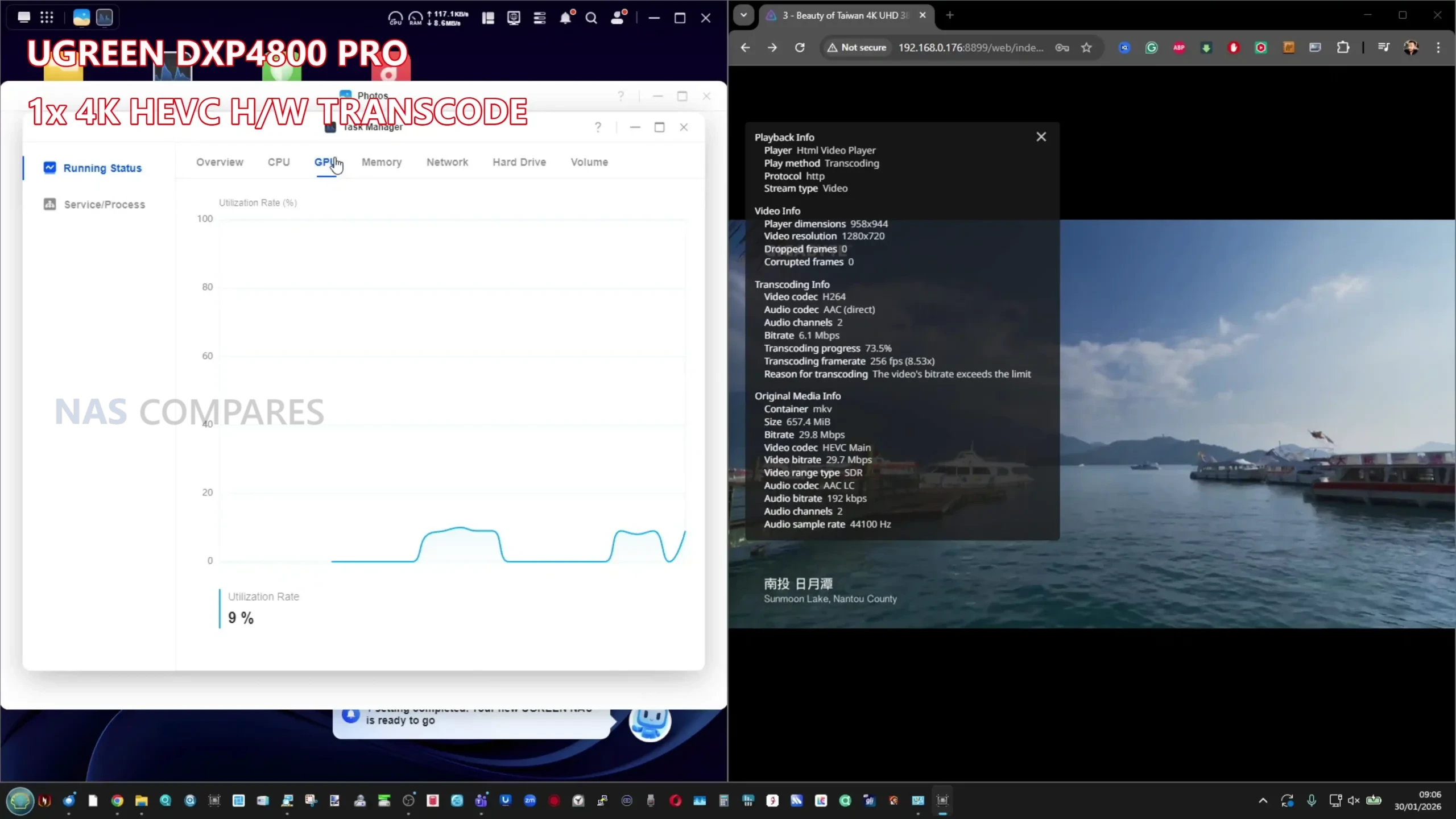
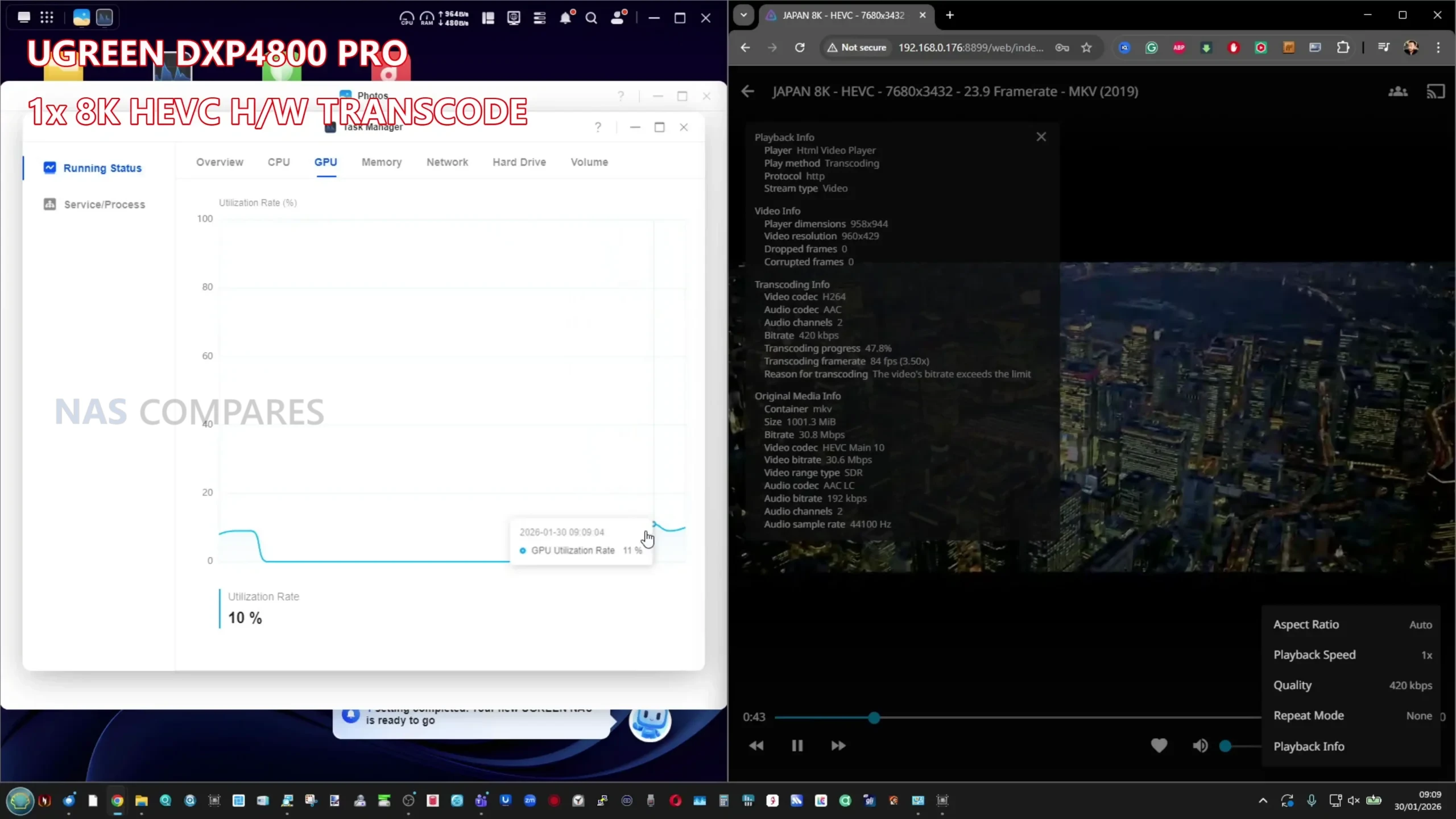
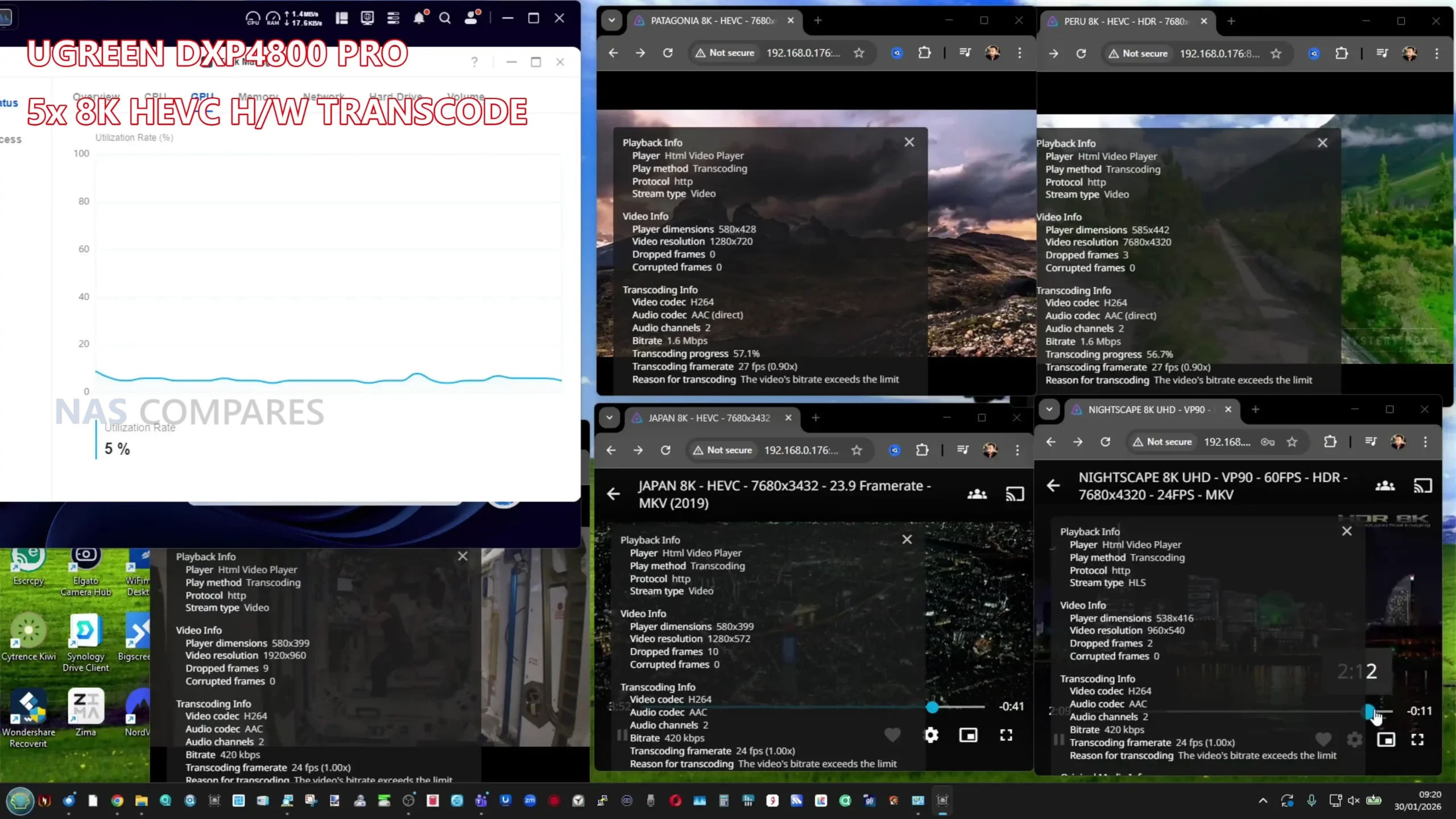
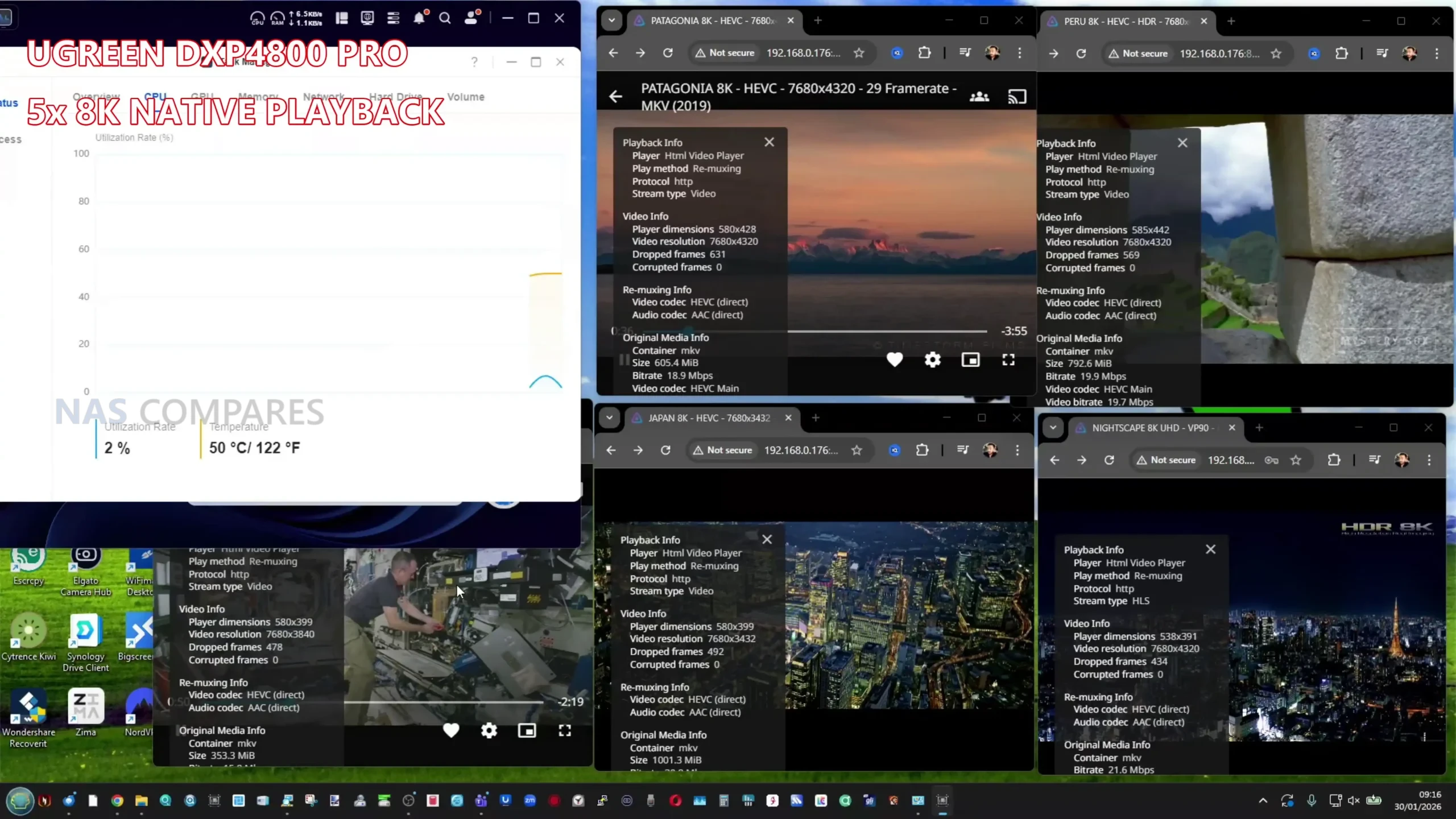
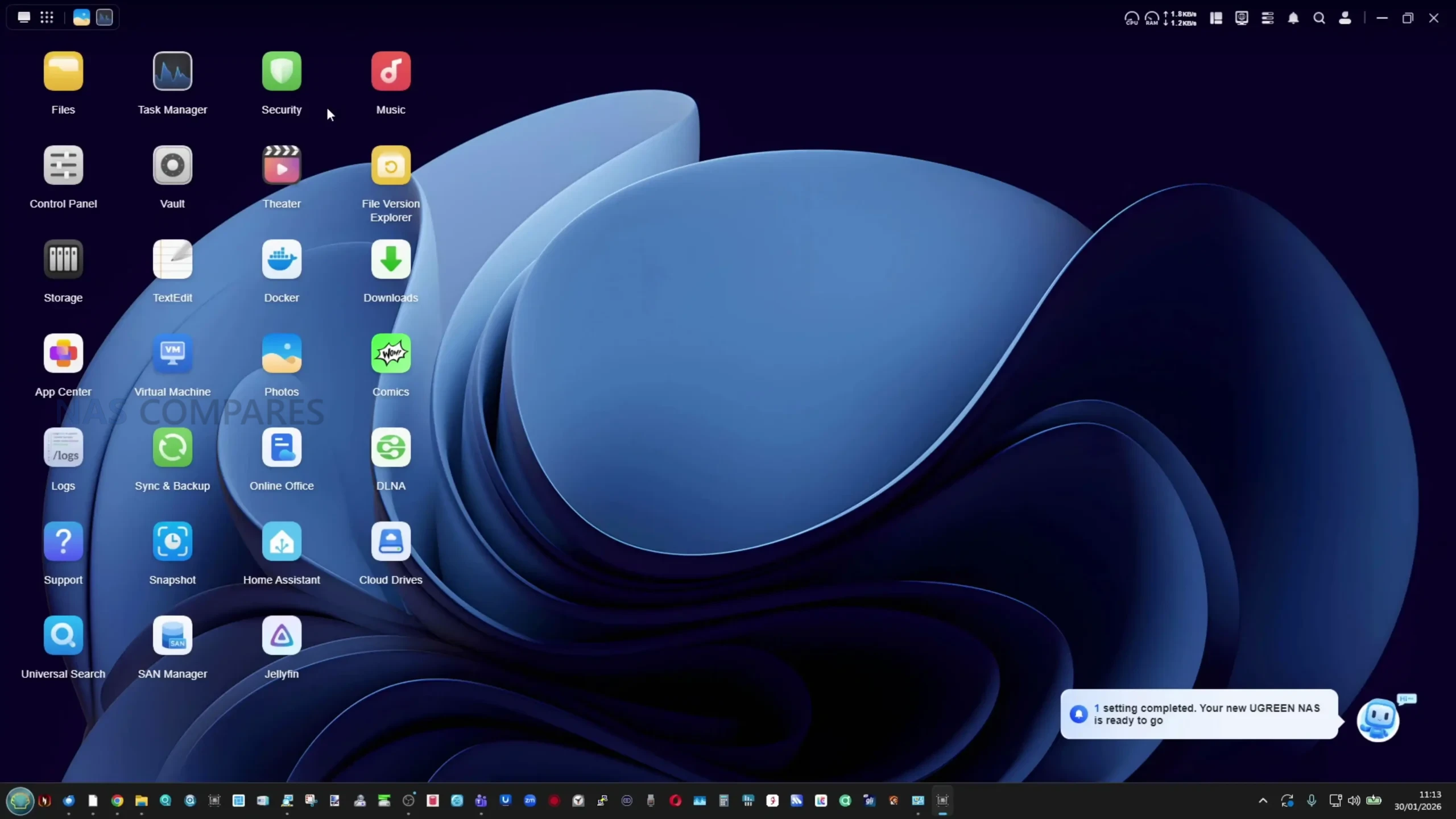
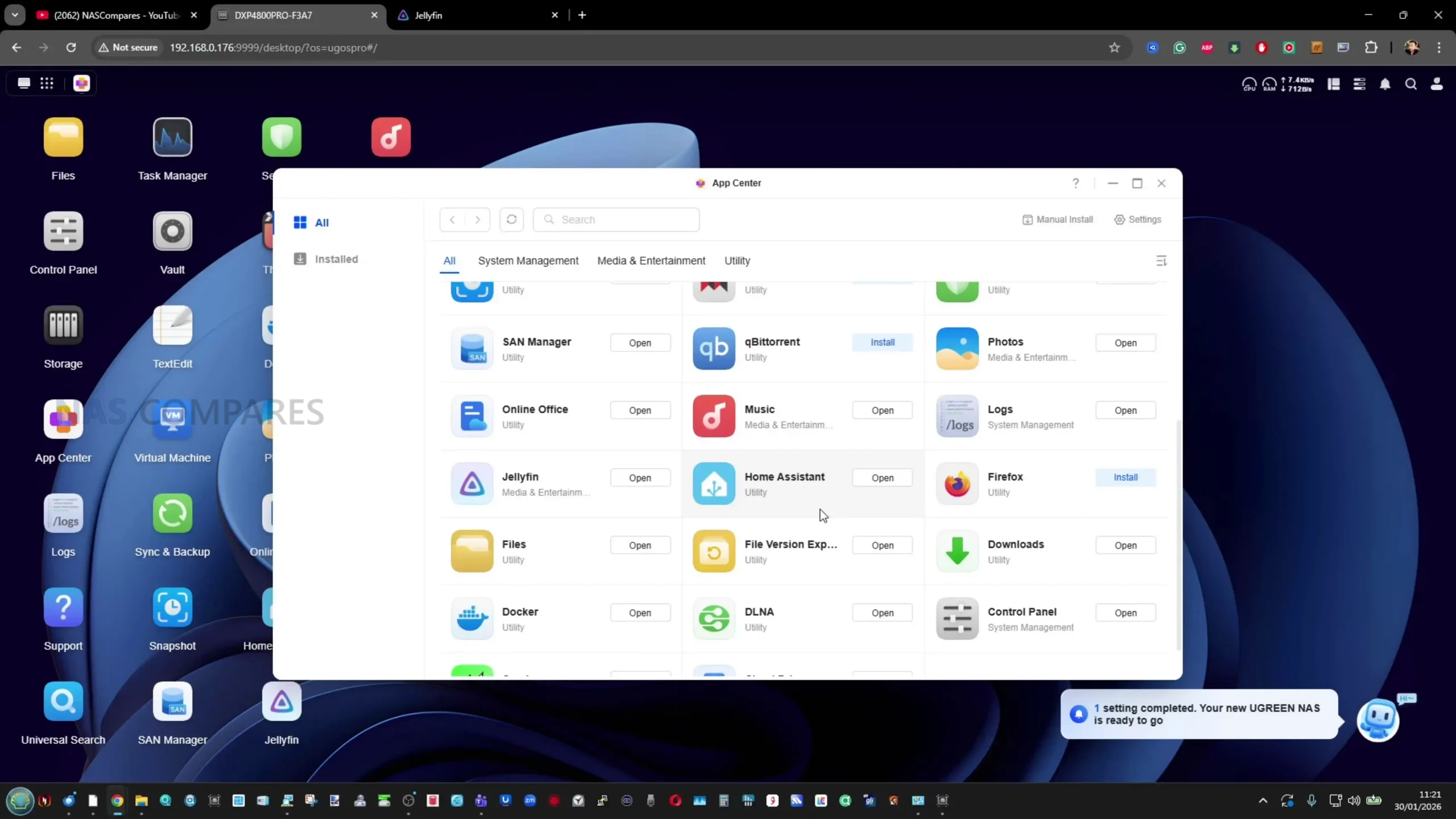
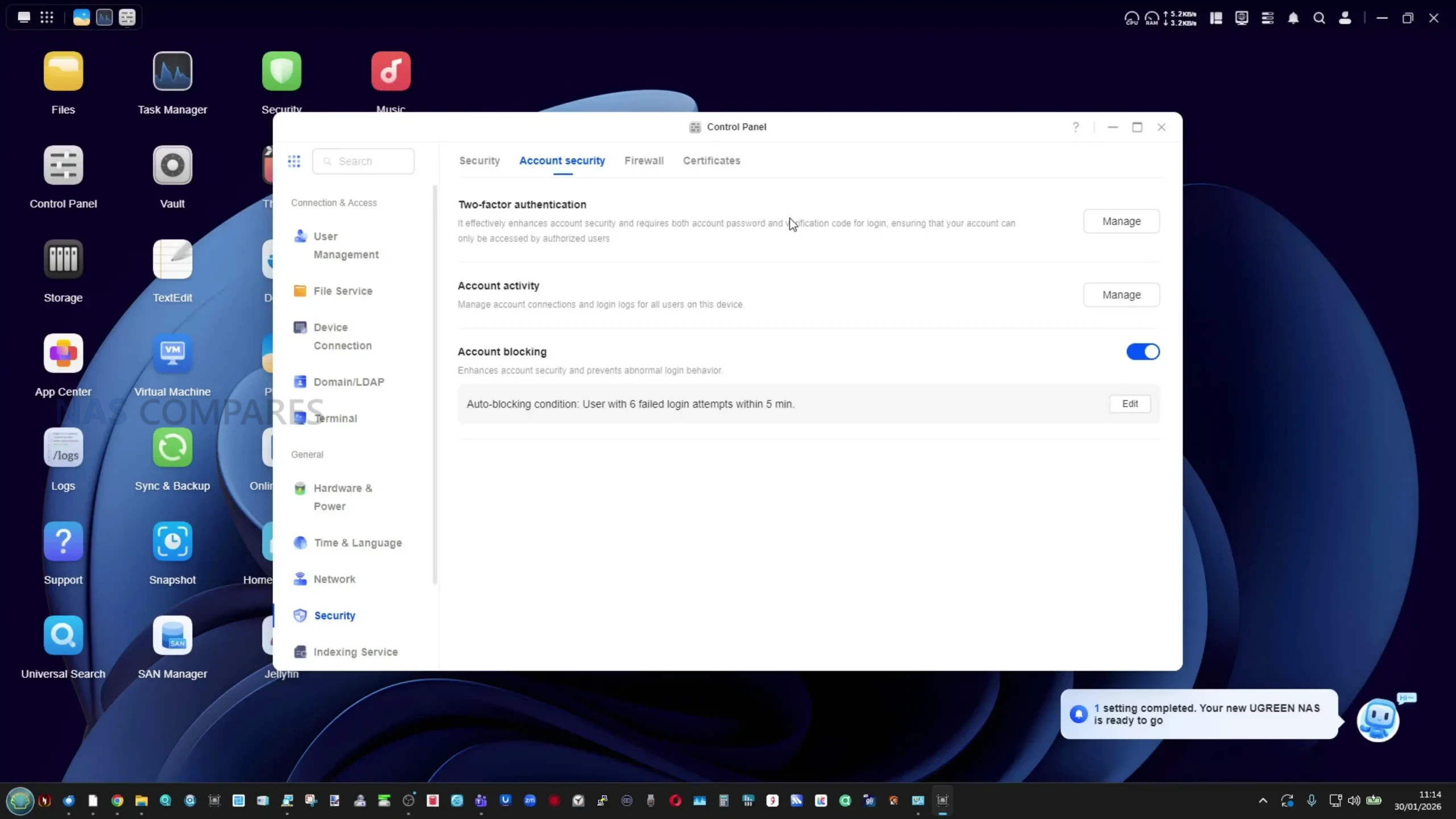
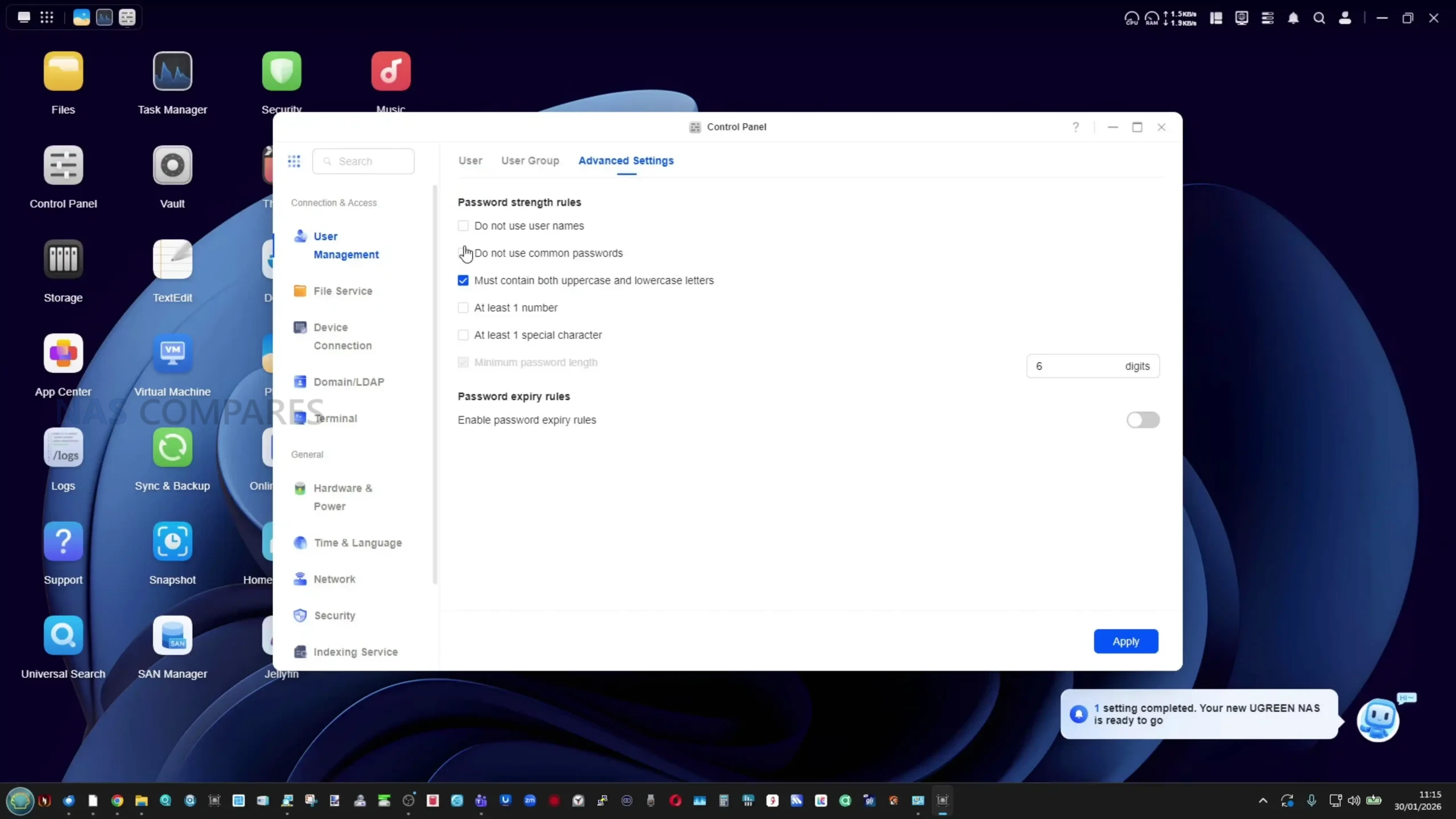
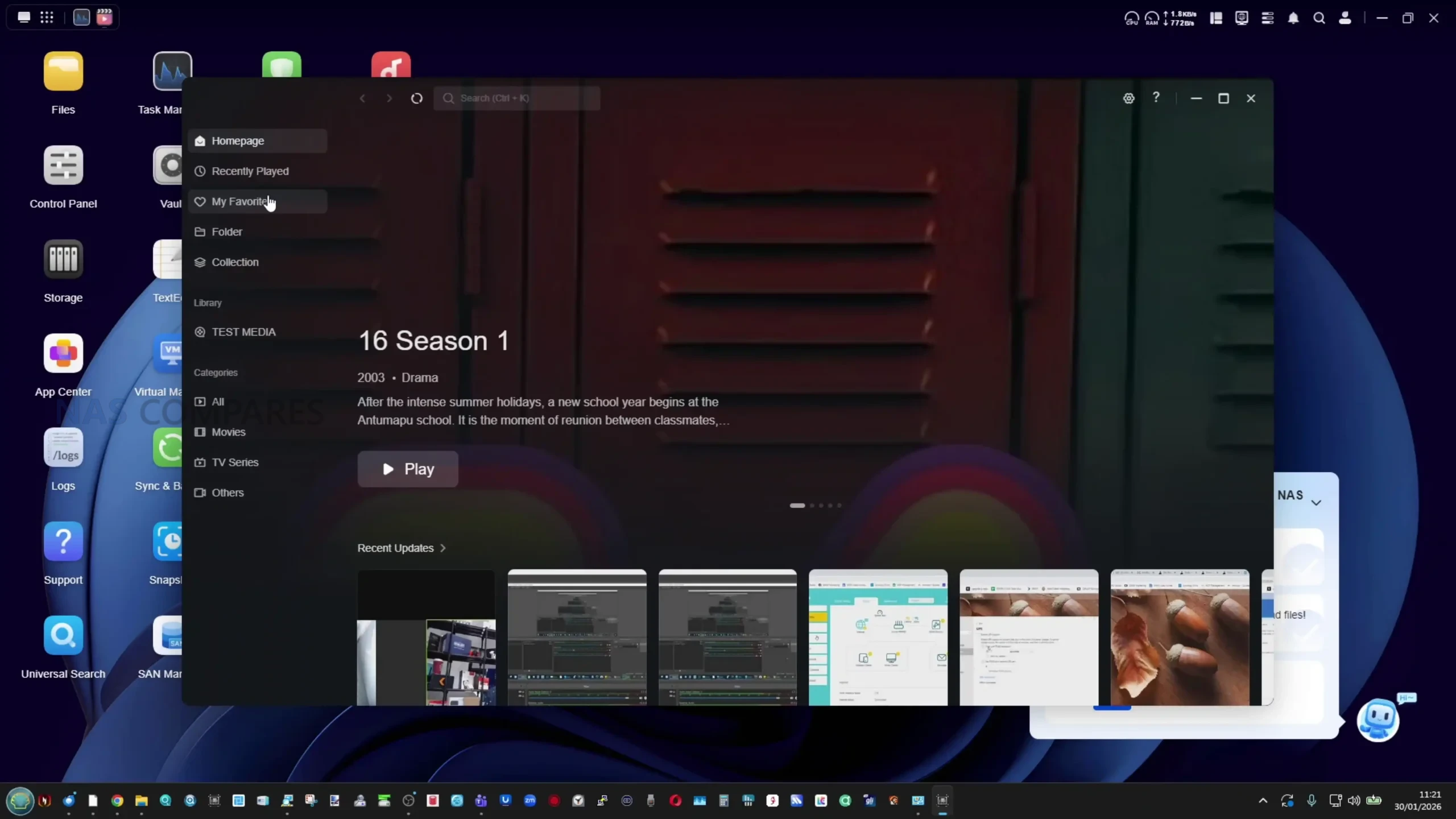
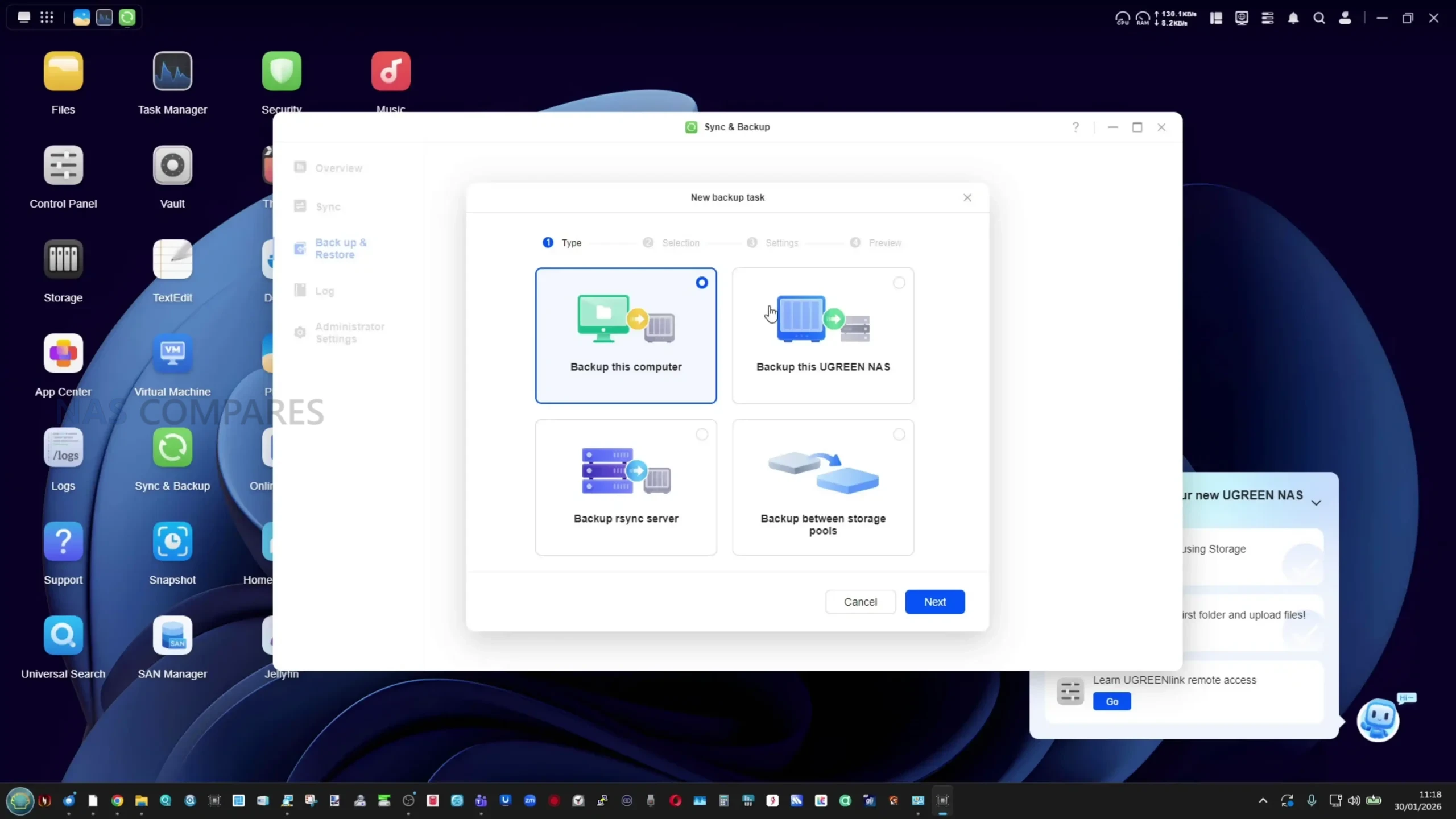
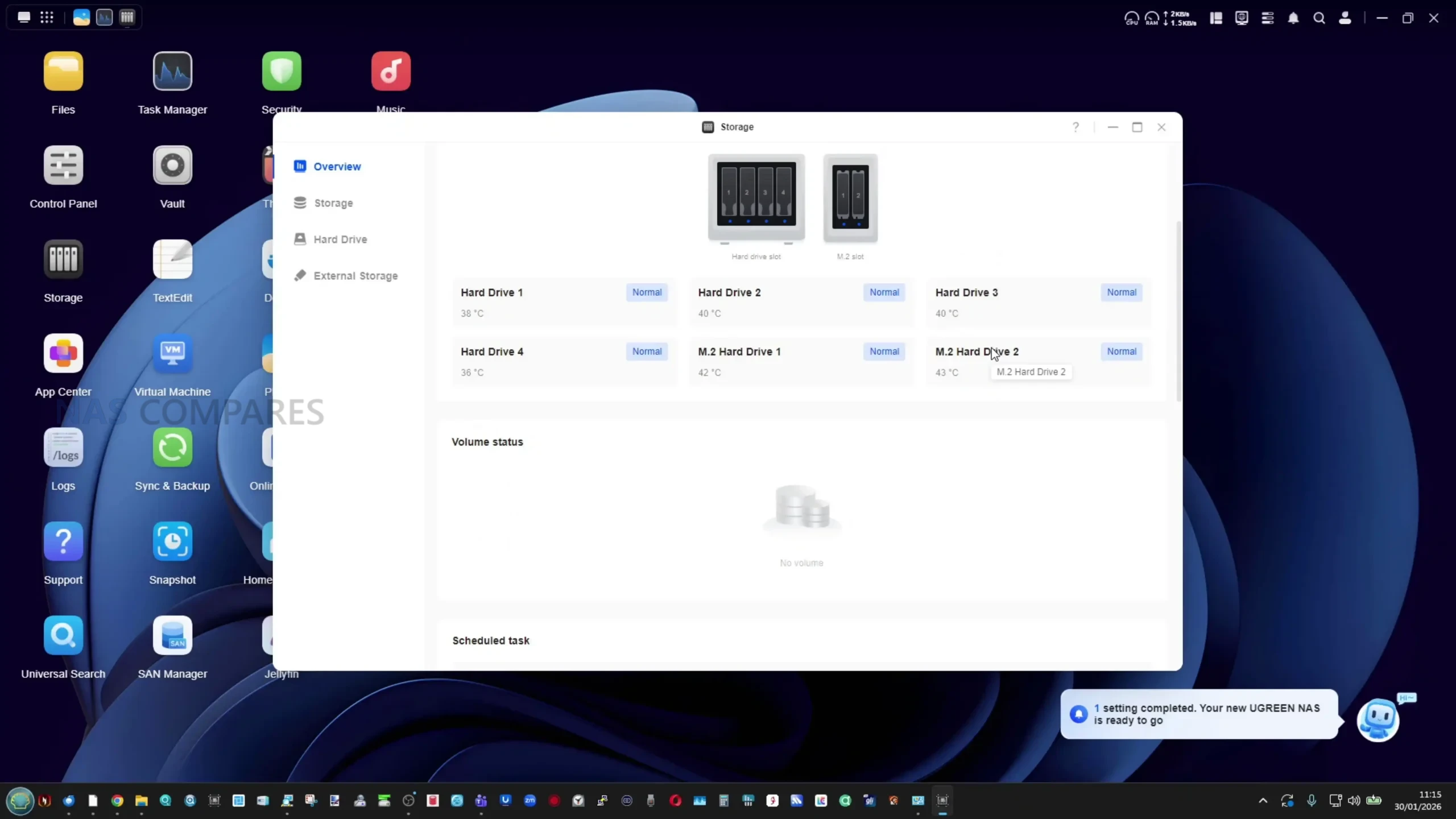
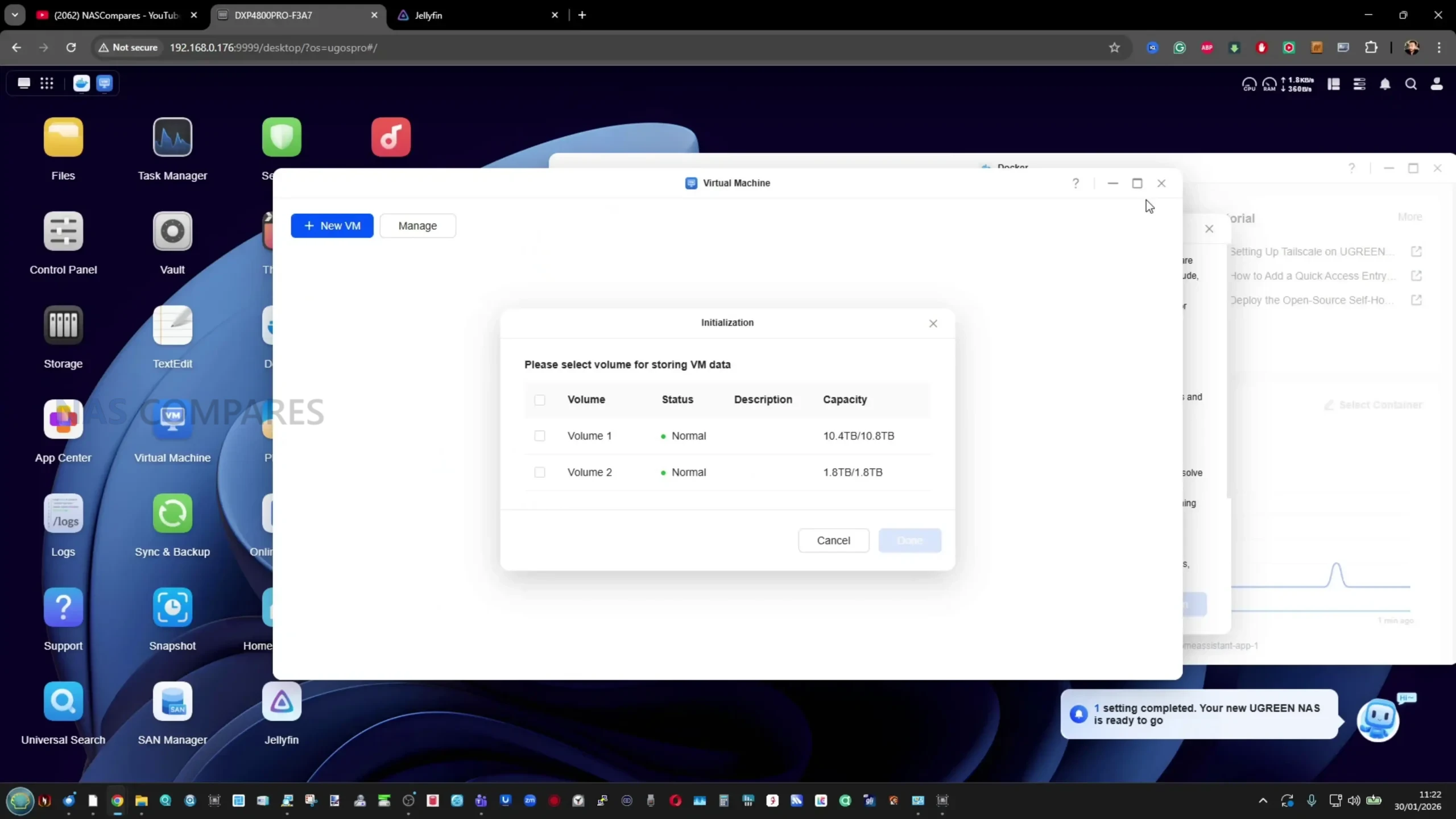
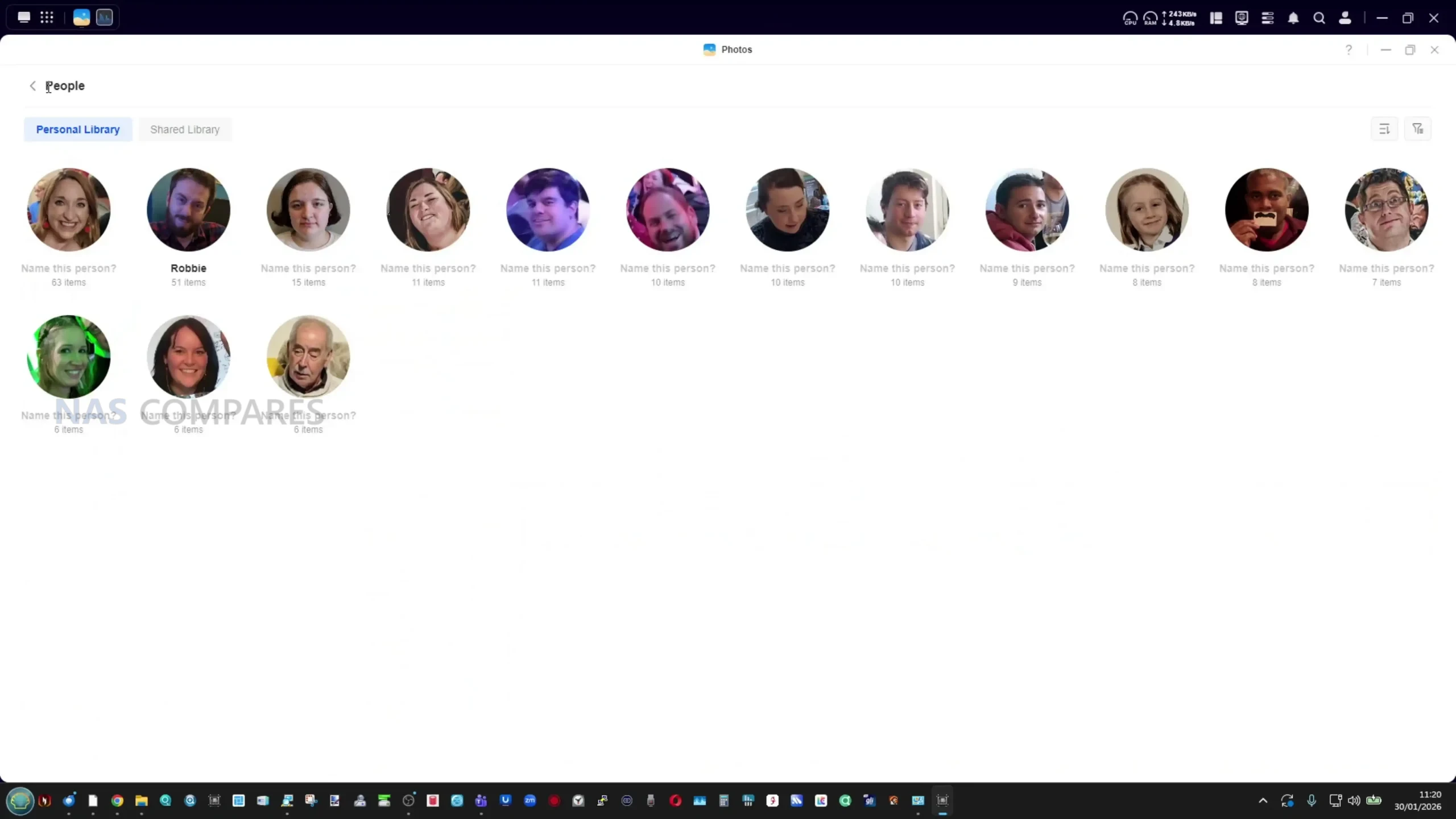
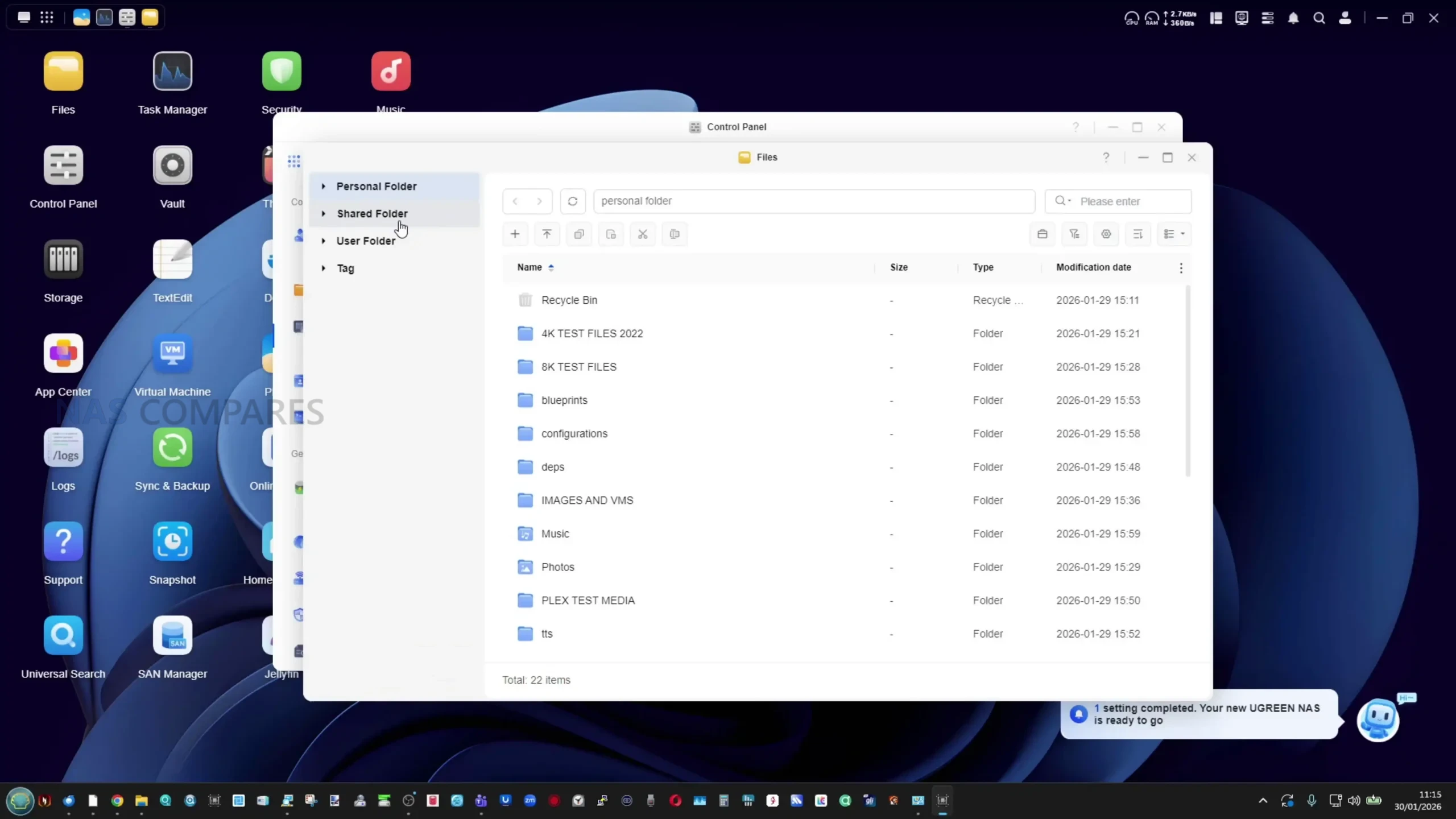
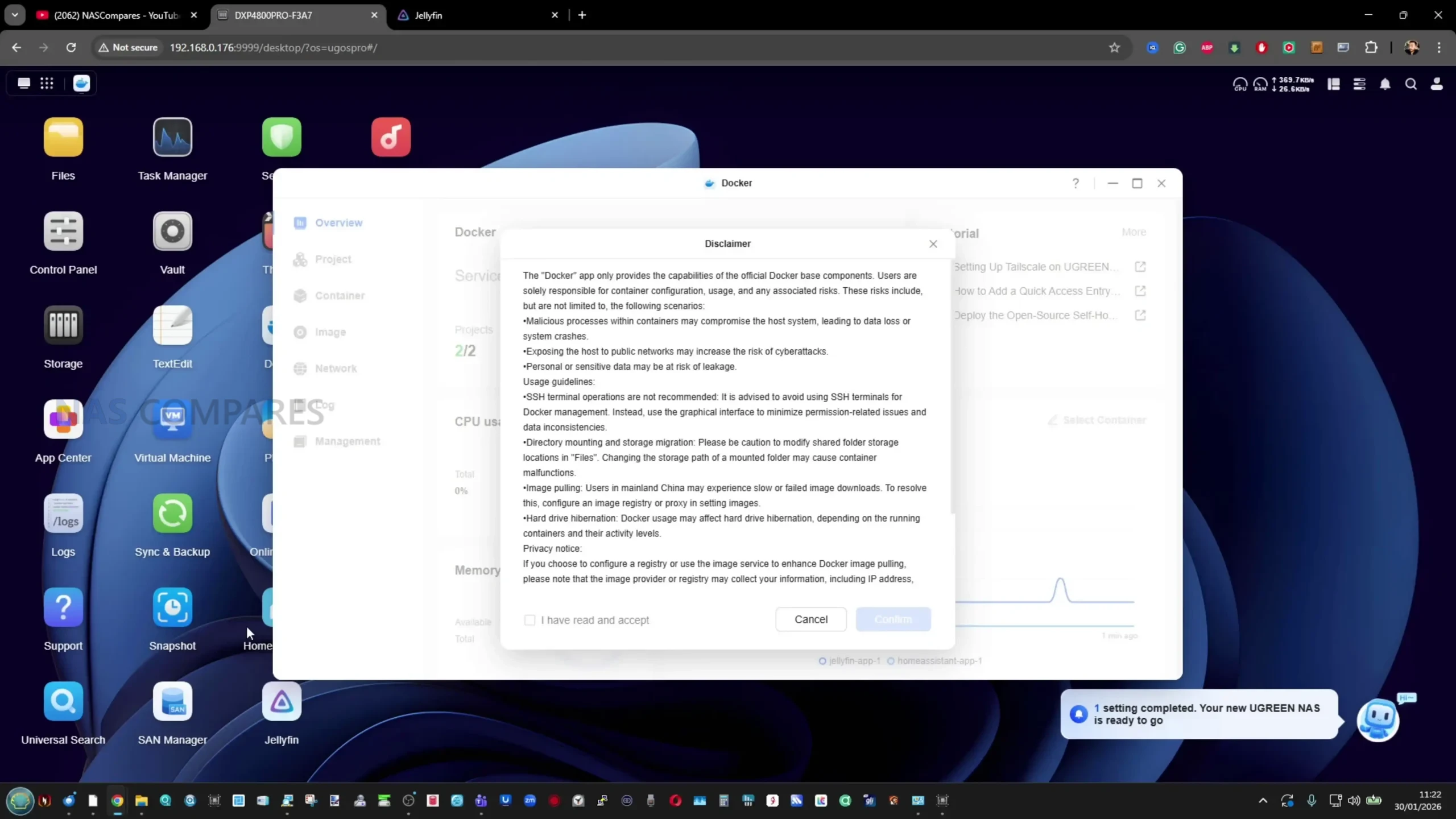
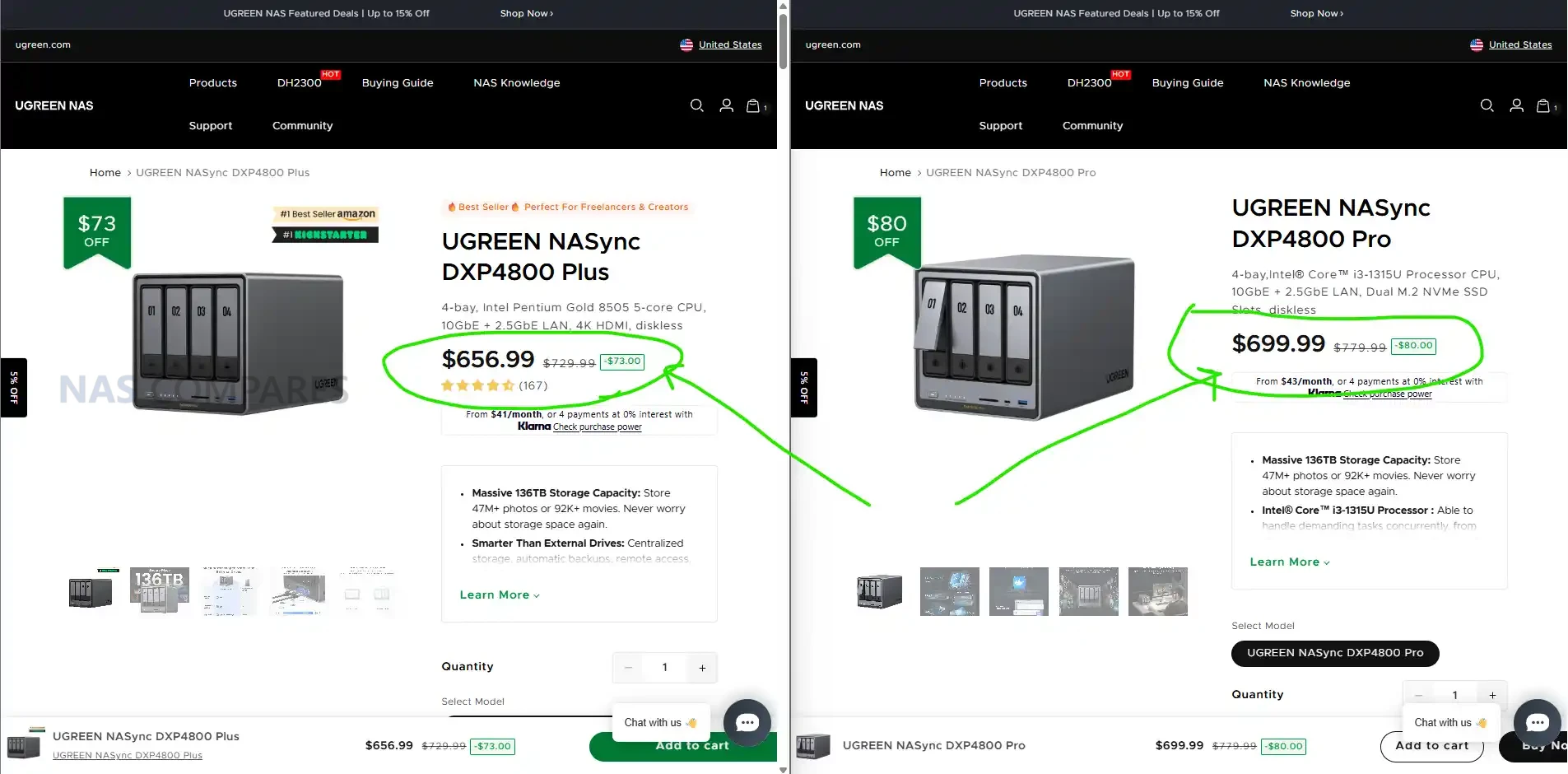
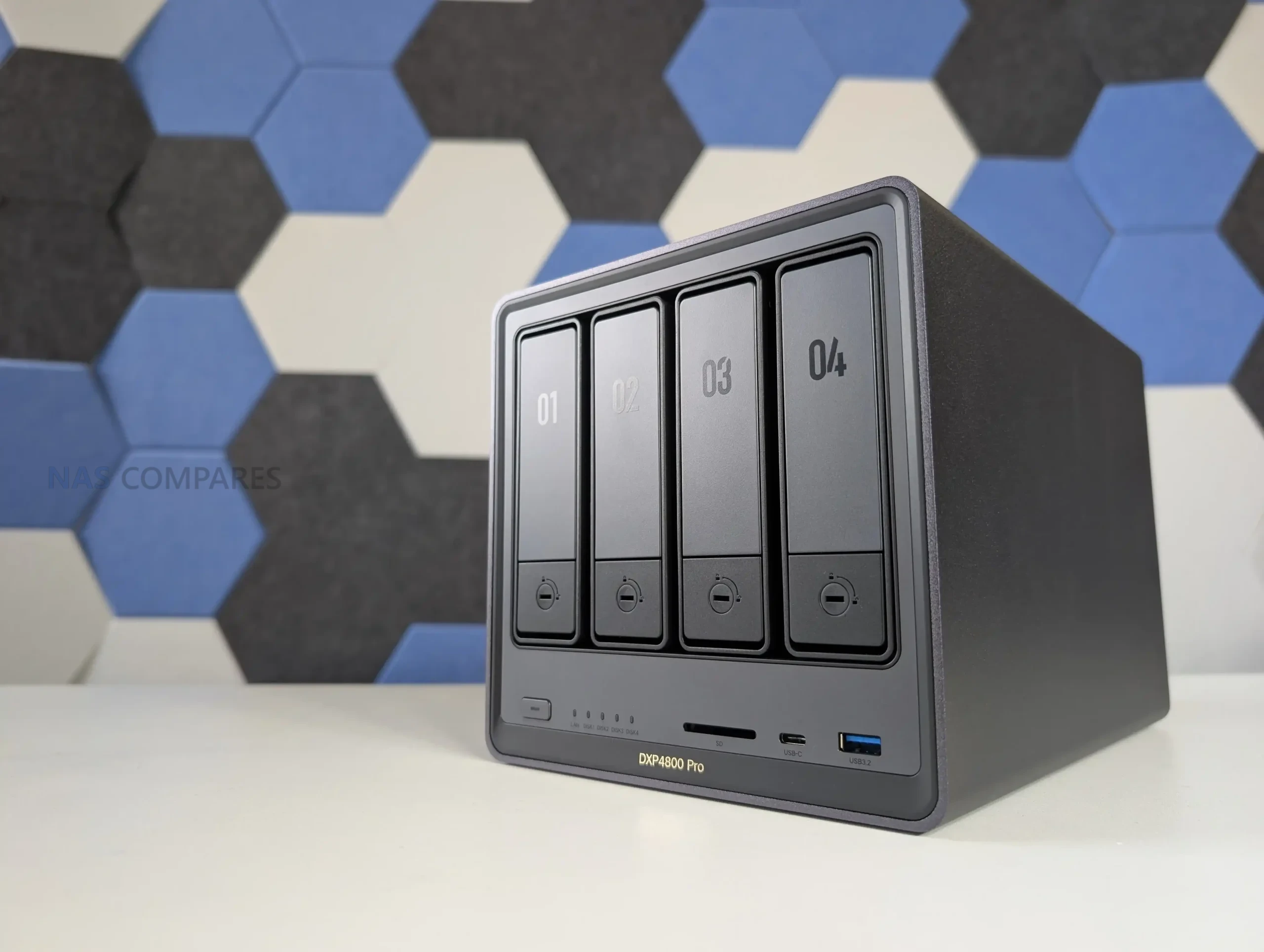
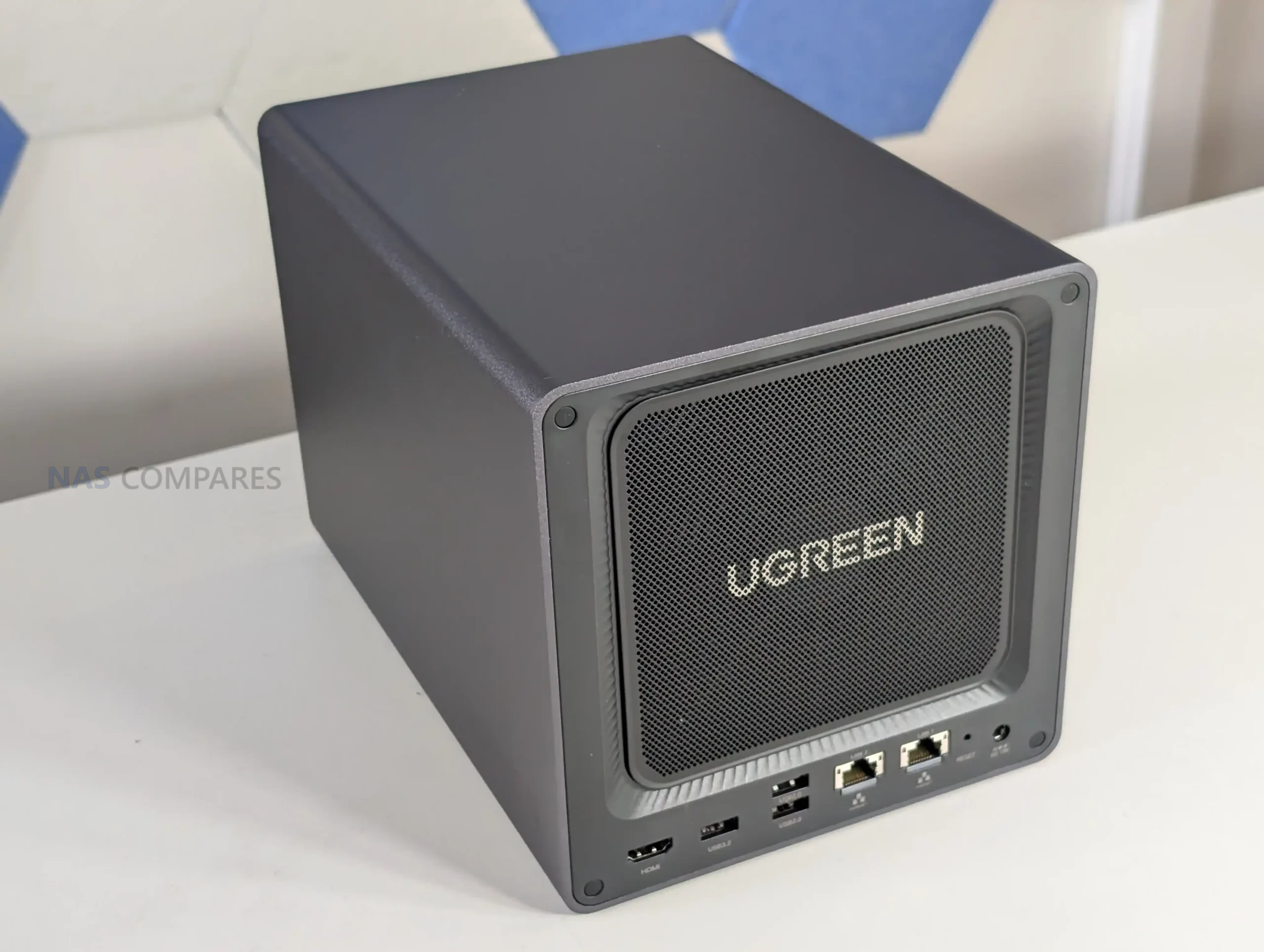
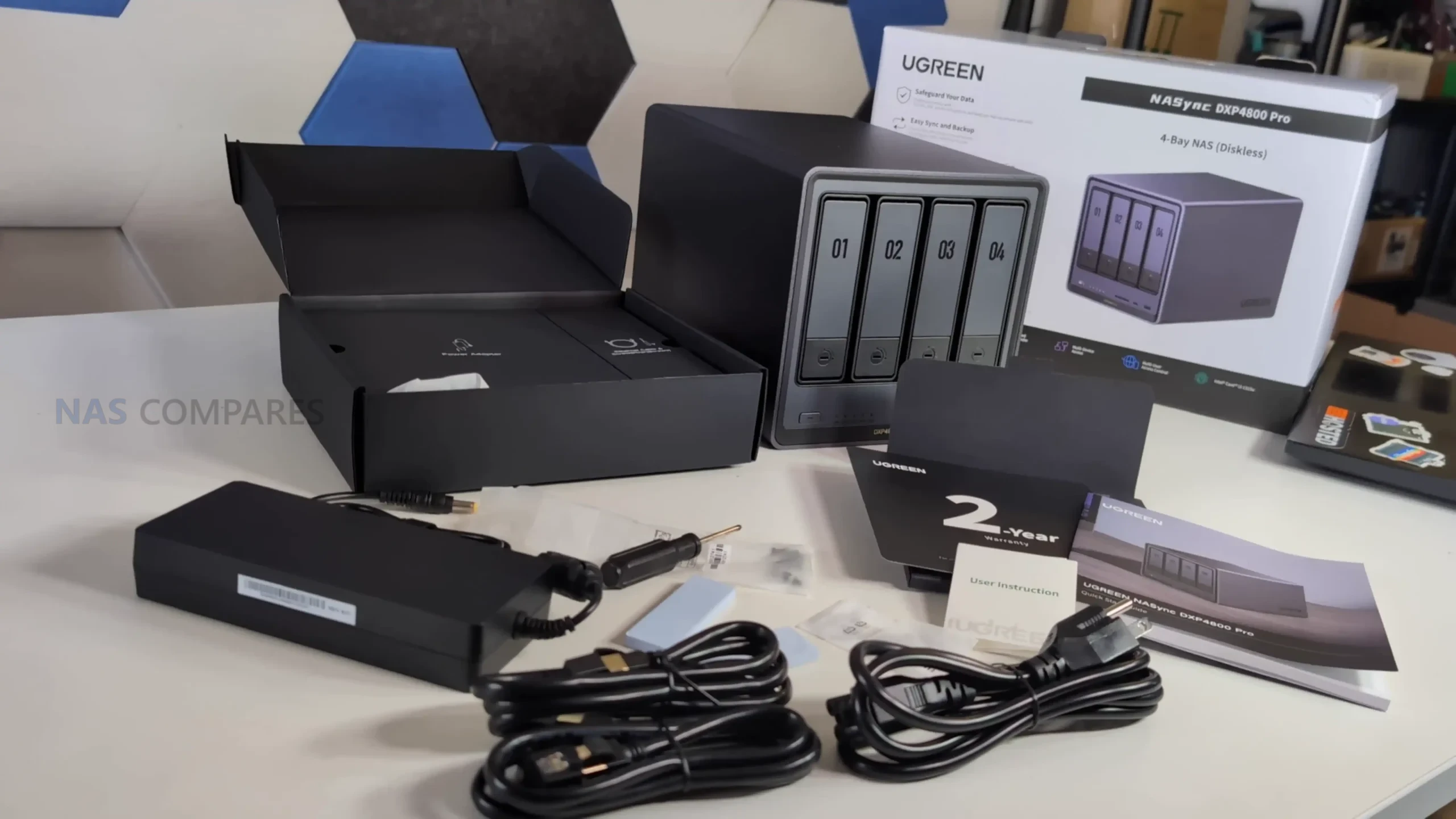
 SUBSCRIBE TO OUR NEWSLETTER


 TRY CHAT








 NAS DIY en 2026 : quel système choisir ?