Cette année, les certificats Secure Boot de votre PC arrivent à expiration, avec des conséquences directes sur la sécurité de votre système. Ces certificats sont en effet au cœur du démarrage sécurisé (Secure Boot), une fonctionnalité de sécurité essentielle présente sur tous les ordinateurs modernes qui vérifie, dès l’allumage, que tous les programmes qui se … Lire la suite
En juin 2026, les certificats Secure Boot de Windows expireront. Mais pas de panique : avec une ligne de commande, vous saurez en 10 secondes si votre PC est prêt et sera protégé en juin 2026 ! Si vous suivez l’actualité Windows, vous avez probablement entendu parler de l’expiration prochaine des certificats Secure Boot datant … Lire la suite
Vous avez pris connaissance de l’expiration des certificats Secure Boot de Windows en 2026 et vous vous demandez maintenant si votre PC possède les nouveaux certificats ? Bonne nouvelle : il existe une méthode simple pour le vérifier vous-même, sans avoir besoin de compétences techniques particulières. Dans ce tutoriel, je vais vous montrer pas à … Lire la suite
Une mise à jour de sécurité majeure se prépare sur tous les PC Windows. Les certificats Secure Boot utilisés depuis 2011 arrivent à expiration en juin et octobre 2026. Pour la grande majorité des utilisateurs, la transition se fera en douceur et automatiquement via Windows Update, mais certains d’entre vous devront agir manuellement avant qu’il … Lire la suite
You have found this guide because your PC only boots after a second attempt. This situation is often called a false boot and can be really frustrating; however, we help you resolve it in this guide.
Why is My PC Booting only after a Second Attempt?
When you cannot boot on the first attempt, you possibly have faulty hardware. These may also be faulty connected peripheral devices. Common devices associated with this problem are the RAM module, graphics card, and the motherboard.
You also may have loosely connected cables inside your PC. These may be the power cables connecting the motherboard or even cables for the hard drive.
Lastly, you may have dust build-up. This is a real problem because it may stop air flow and cause the computer to overheat, making it impossible to boot until it is cool.
What to Do When a Computer Is Not Booting on the First Attempt
1. Remove Peripheral Devices and Power Cycle your Computer
This solutions is very effective because it addresses power draw issues, it also resolves conflicting driver issues making it impossible to boot on first attempt. It is also a good way to resolve minor hardware bugs that cause problems.
Simply start by making sure no peripheral devices are connected. These may include external drives, controllers, etc. Once disconnected, press the power button for a few seconds until the computer shuts down. Wait a few seconds, then press the power button again to restart it.
2. Disable Fast Startup
Fast Startup will prevent perfect shutdown because it puts the computer into a state of hibernation. By disabling it, the computer shuts down perfectly, allowing it to boot without any problems.
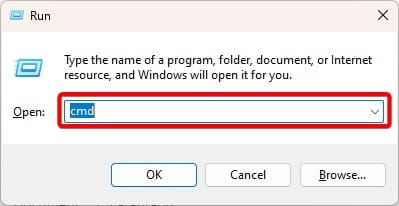
1. Press Windows + R, type cmd and hit Ctrl + Shift + Enter to open the Command Prompt.
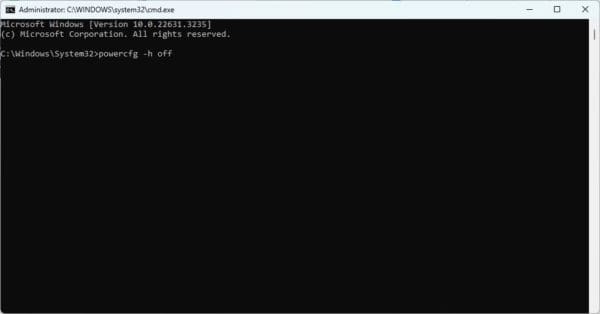
2. Type the command below and hit Enter.
powercfg -h off
3. Run a Memory Test
Hardware components are a common reason your PC only boots after a second attempt. The RAM, in particular, would lead to the problem once it becomes faulty. You should run a RAM test and change the faulty RAM if needed.
4. Update Power Plan
When you update the power plan, it potentially addresses the issue of a corrupted power plan. It fixes power management conflicts that may make it difficult for your PC to start, especially on the first attempt.
Follow the steps below.
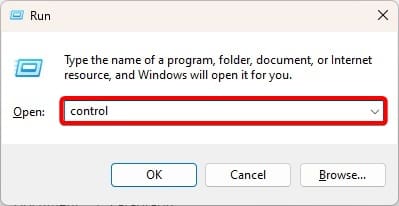
1. Press Windows + R, type control, and hit Enter.
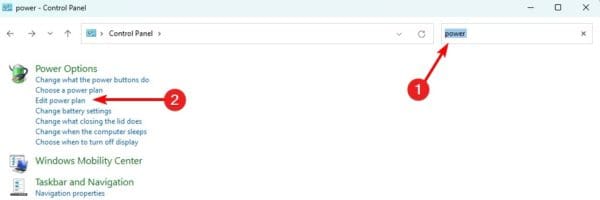
2. Type power in the Control Panel search and click Edit power plan.
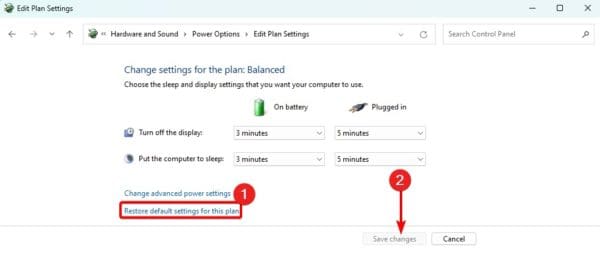
3. Click Restore default settings for this plan and click Save Changes.
4. Update BIOS
When you update your BIOS, it addresses the problem of your PC not booting on the first attempt by fixing bugs and compatibility issues that trigger it. An update may also include improved power management.
We show you how to update the BIOS in HP. The steps will differ for other manufacturers.
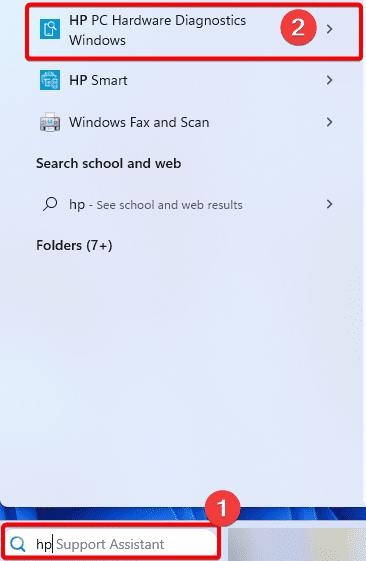
1. Type HP on the Taskbar’s search box and select HP PC Hardware Diagnostics Windows.
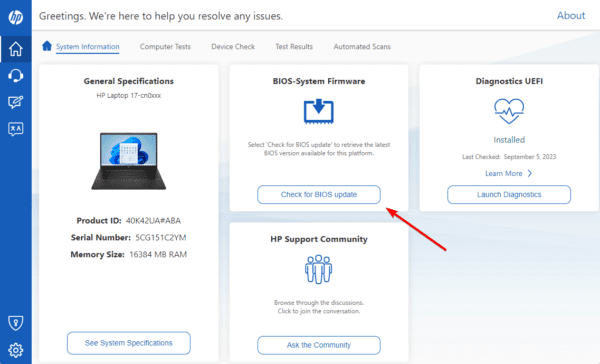
2. In the BIOS-System Firmware category, click Check for BIOS updates.
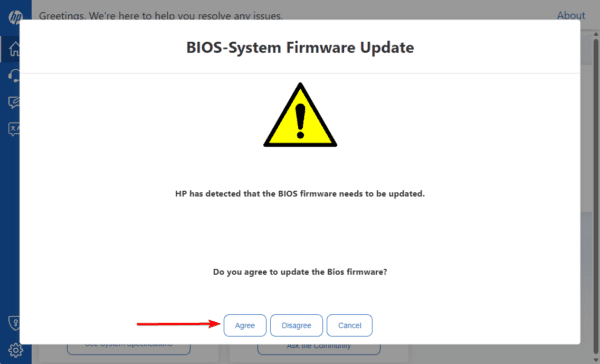
3. Click Agree.
5. Reset BIOS
If an update does not work, you may reset the BIOS. This will be especially useful if you notice the problem after making changes to your BIOS.
1. Restart your computer and start tapping the BIOS key when you see the manufacturer’s logo. The BIOS key is usually one of the function keys, and you may verify with your manufacturer.
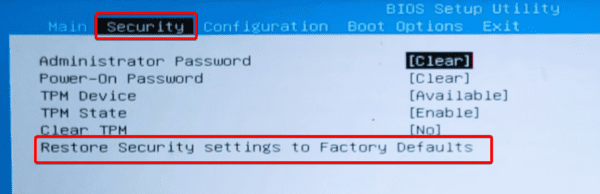
2. Go to the Security tab, then select Restore Security settings to factory defaults using the arrow keys.
3. Read the description, input a passcode, and hit Enter.
4. Save changes, then exit the BIOS.
Regain Smooth PC Booting
We have come to the end of this guide. Now your computer should be able to booth without hiccup. We have not made solutions in any particular order; starting from what seems the most effective is wise.
Please tell us what was most effective in the comment section below.

 Connexion