
 Connexion
Terramaster TOS 6 Software Review
How Good is the Terramaster TOS 6 NAS Software?
TerraMaster’s TOS 6 represents the company’s most comprehensive evolution of its NAS operating system, delivering an interface and architecture that is redesigned both visually and structurally. Replacing the earlier TOS 5, it builds on user feedback from the last three hardware generations and now arrives preinstalled on systems such as the F4-425 Plus, F2-425, and F6-424, as well as the all-flash F8 SSD Plus. The system adopts the Linux Kernel 6.1 LTS, which improves memory handling, file system performance, and hardware compatibility across newer Intel and AMD processors. With over forty new functions and more than three hundred individual refinements, TOS 6 is positioned as a more capable and robust platform for modern data storage and multi-user environments. TerraMaster’s objective with this version is to combine an accessible setup process with enterprise-style administration tools, allowing users to deploy features such as ACL permissions, SMB multichannel, Hyper-Lock WORM protection, and advanced RAID management within a simplified interface. Although still developing its ecosystem when compared with long-established NAS vendors, TOS 6 signals a step toward bridging the gap between budget and professional-grade systems.
Interested in Buying a Terramaster NAS? Support the work we do here at NASCompares, by using the links below.
We receive a small commission on anything you purchase from Amazon, AliExpress or B&H when using these links, and it results in you being able to passively support your favourite websites and creator, completely for free! |
Terramaster TOS 6 – Design, GUI and UX
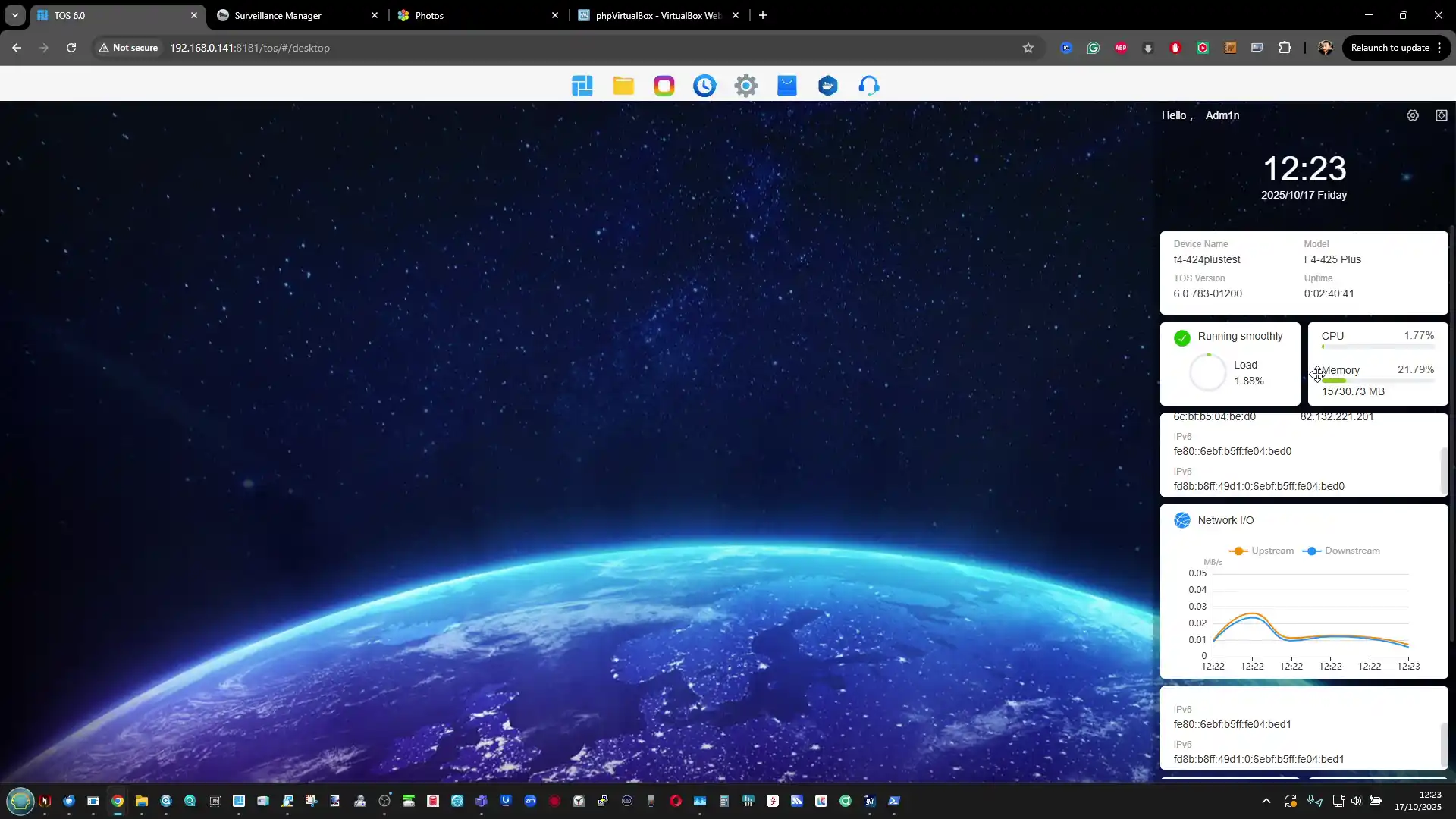
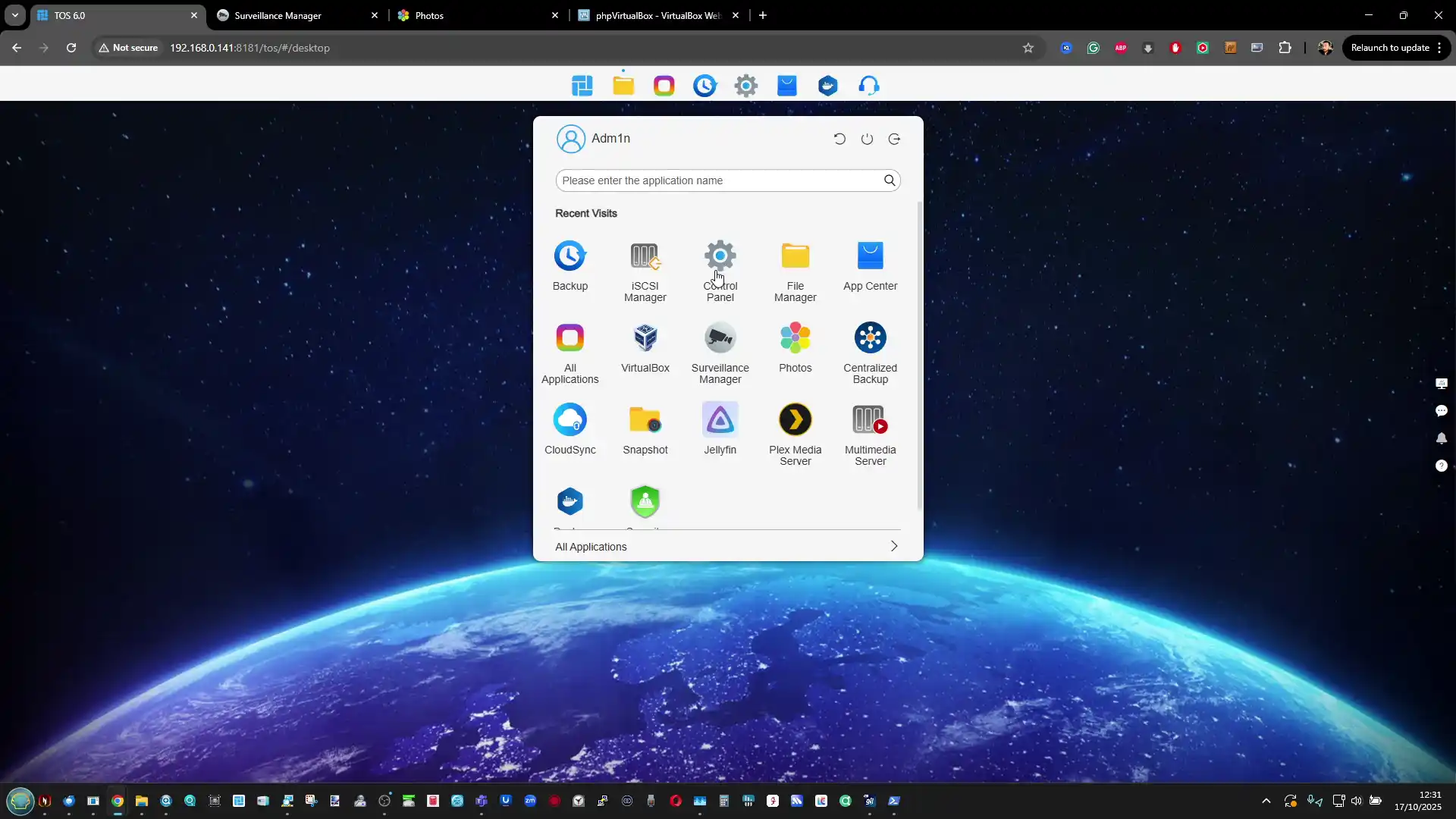
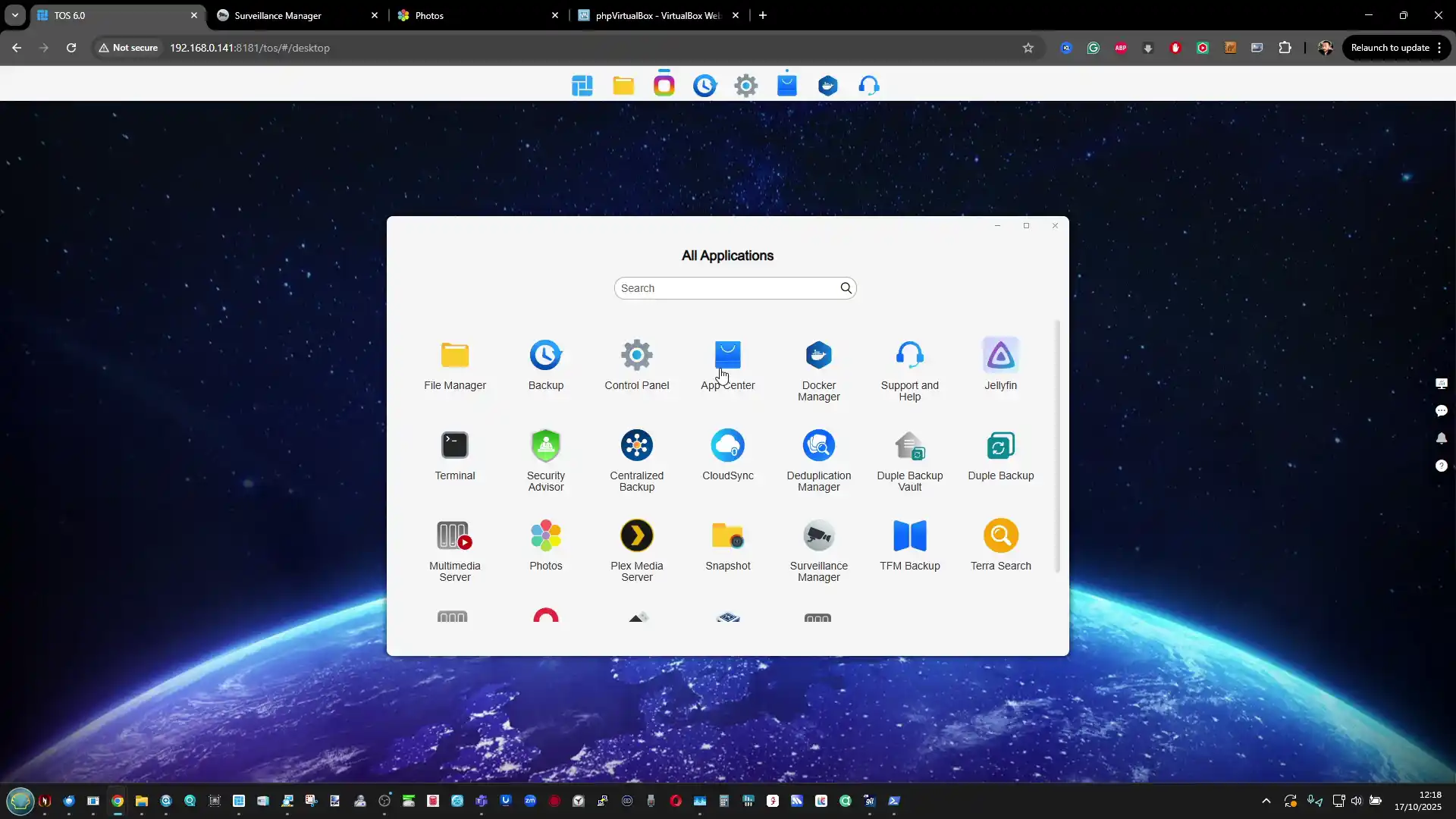
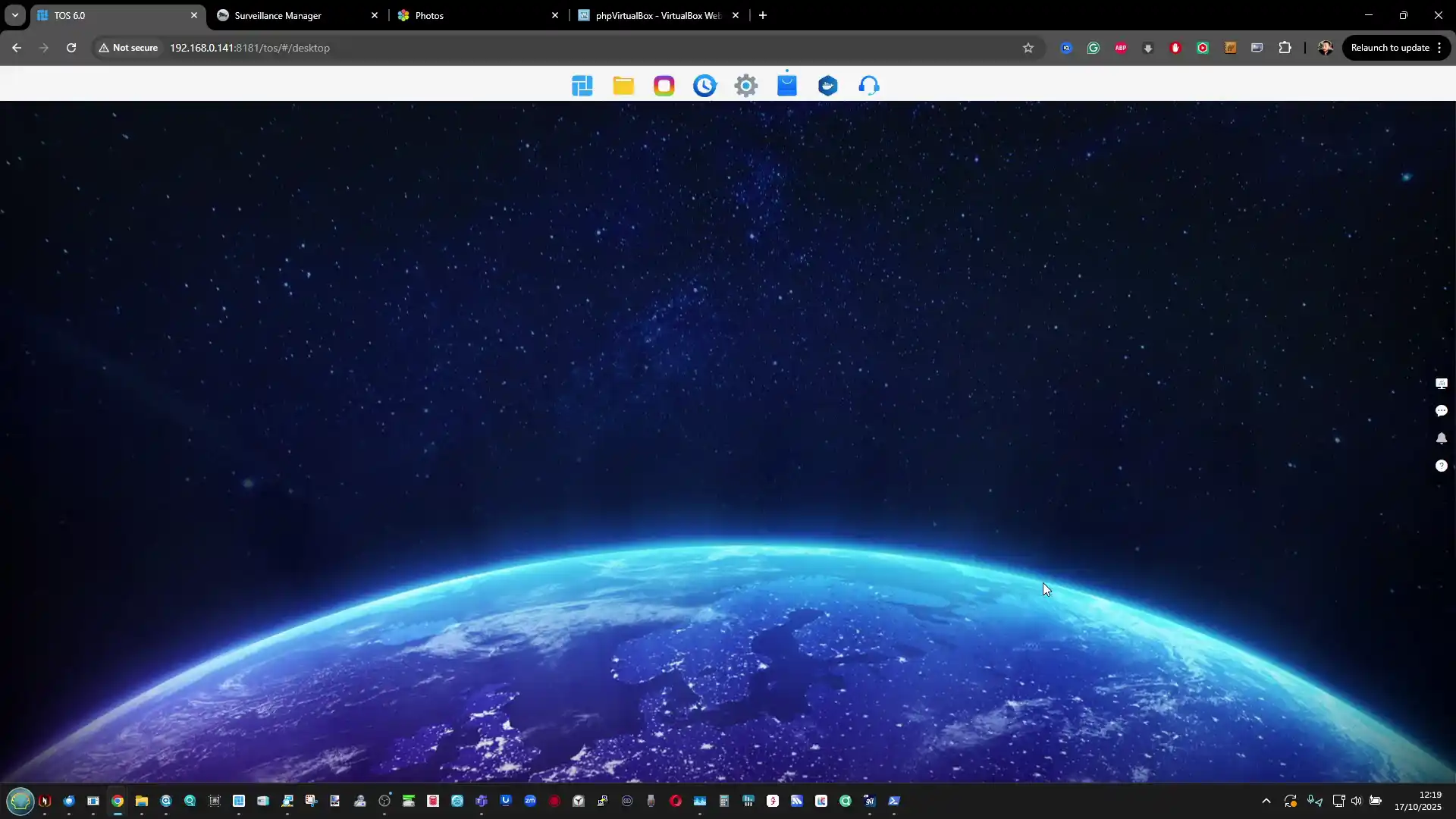
TOS 6 introduces a significantly redesigned interface that emphasizes simplicity and consistency while retaining the technical depth expected from a NAS management platform. The desktop layout has been decluttered, removing excess icons in favor of a single navigation bar that centralizes access to applications, settings, and the new “Start” shortcut menu. This layout, combined with subtle animation effects and theme customization options such as Night Mode and accent color selection, is intended to make the environment less visually overwhelming than previous releases. While the interface feels smoother and more responsive, some users may still find it utilitarian compared to the polished design language of DSM or QTS. Nevertheless, the decision to reduce visual clutter and allow personalized dashboards marks a meaningful progression toward a more user-centric control experience.
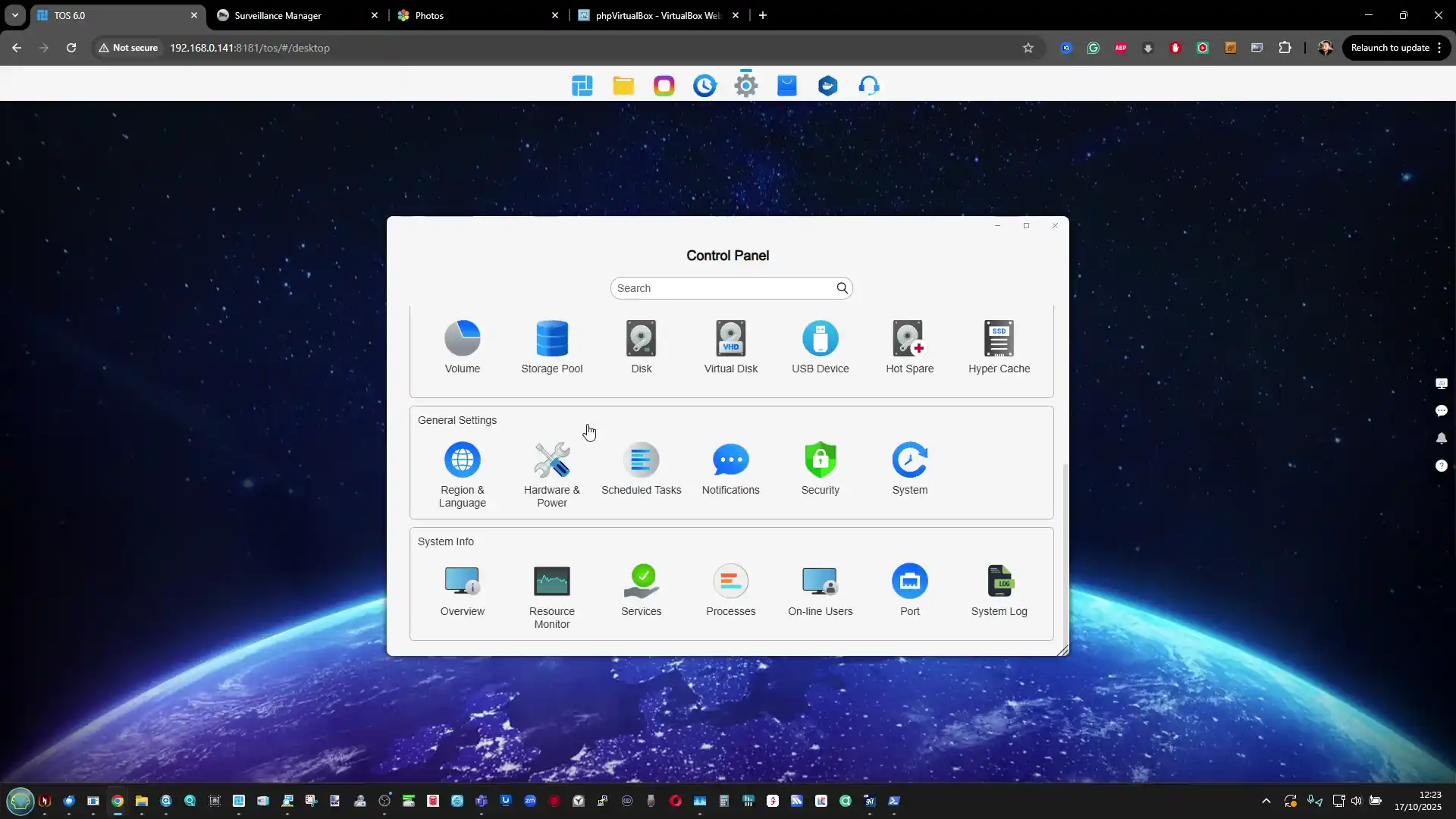
The control panel, which is the backbone of the system’s configuration layer, has undergone extensive structural improvement. It now allows users to jump between related settings without closing the current menu, effectively halving the time required to perform complex administrative tasks. The inclusion of a keyword search bar further simplifies access to hundreds of configuration options ranging from network tuning to caching policies. Real-time monitoring panels, including the resource manager and storage manager, remain integrated into the main interface, but TOS 6 refines them with more accurate live updates and adjustable widgets.
This customization extends to the new system dashboard, where users can drag and rearrange data modules to match their monitoring preferences. Despite these improvements, the GUI still presents a text-heavy design, particularly in areas dealing with drive management, which could be challenging for newcomers.
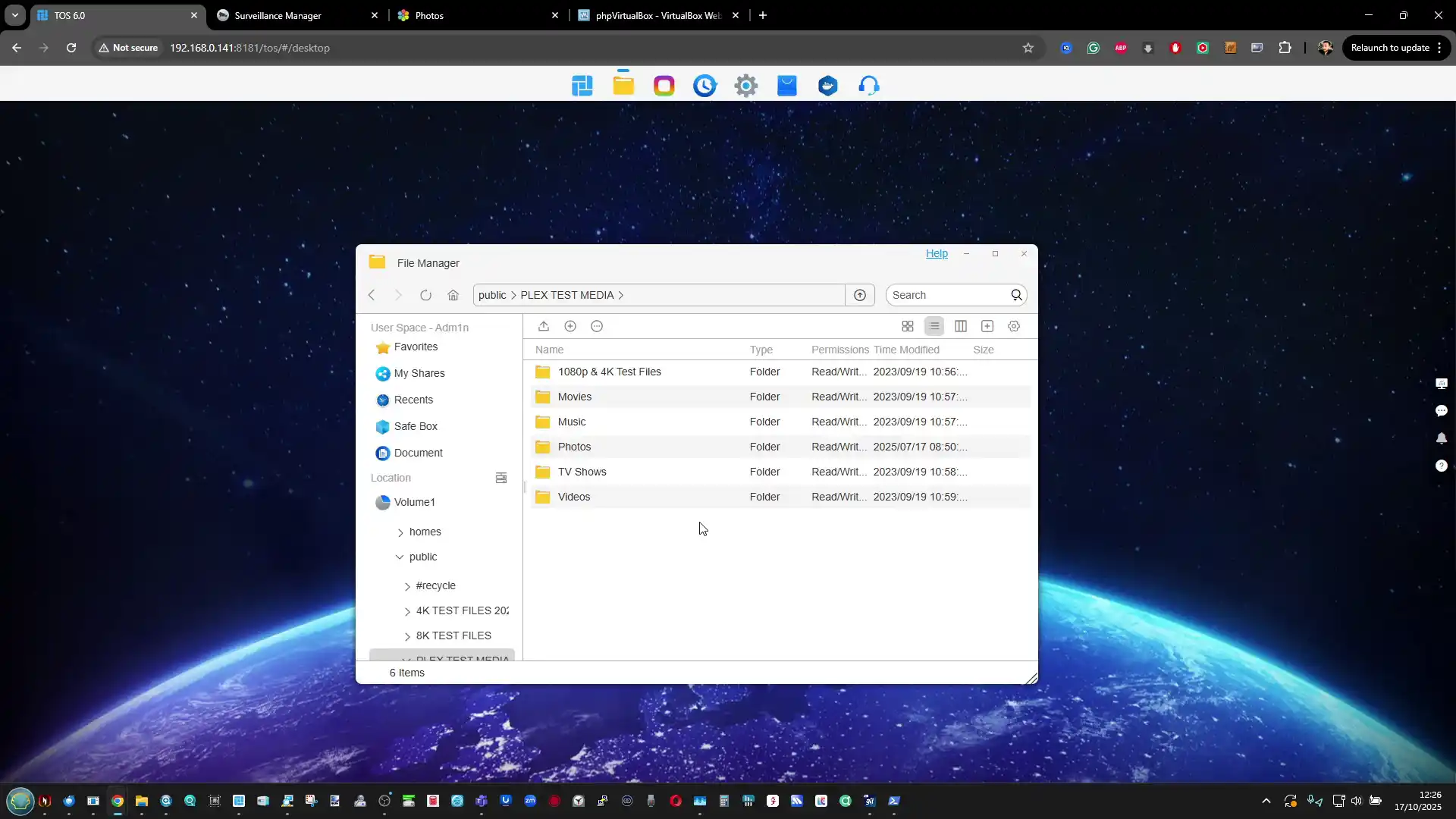
The user experience, while substantially enhanced, continues to cater more toward technically proficient users than beginners. Nearly every system element is accessible from the web interface, with contextual right-click menus providing file and folder actions similar to desktop OS environments. This native browser-based functionality eliminates the need for third-party explorers for most operations and allows complete administrative control without client software. However, the interface’s dense arrangement of settings can still appear intimidating for users expecting guided wizards or visualized workflows.
TerraMaster’s focus on efficiency and configurability, rather than aesthetic guidance, reflects a deliberate design choice favoring control and transparency. For experienced users, this approach offers depth and predictability, but it remains less forgiving to casual or first-time NAS owners.
Terramaster TOS 6 – Storage Services and File Services
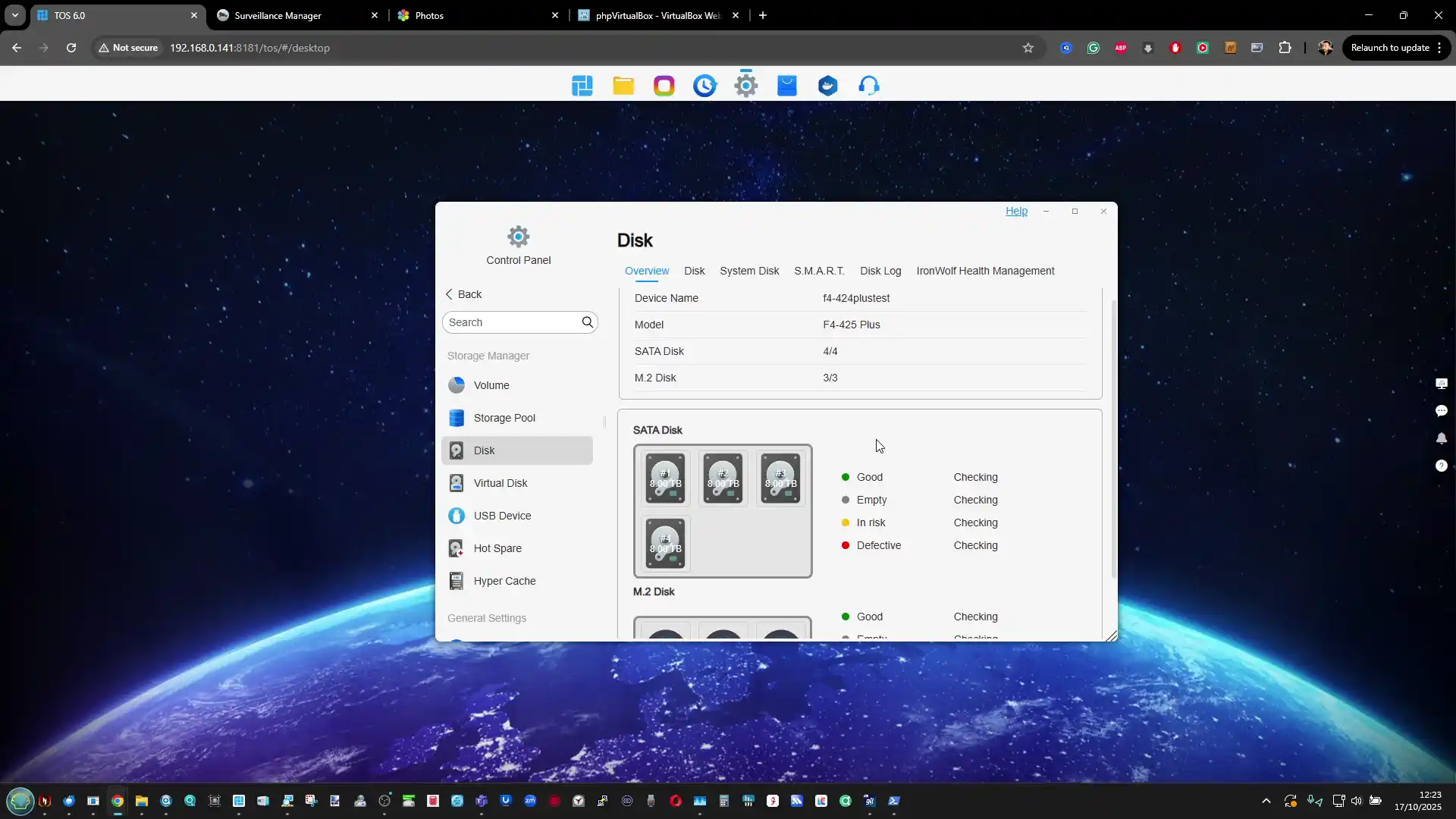
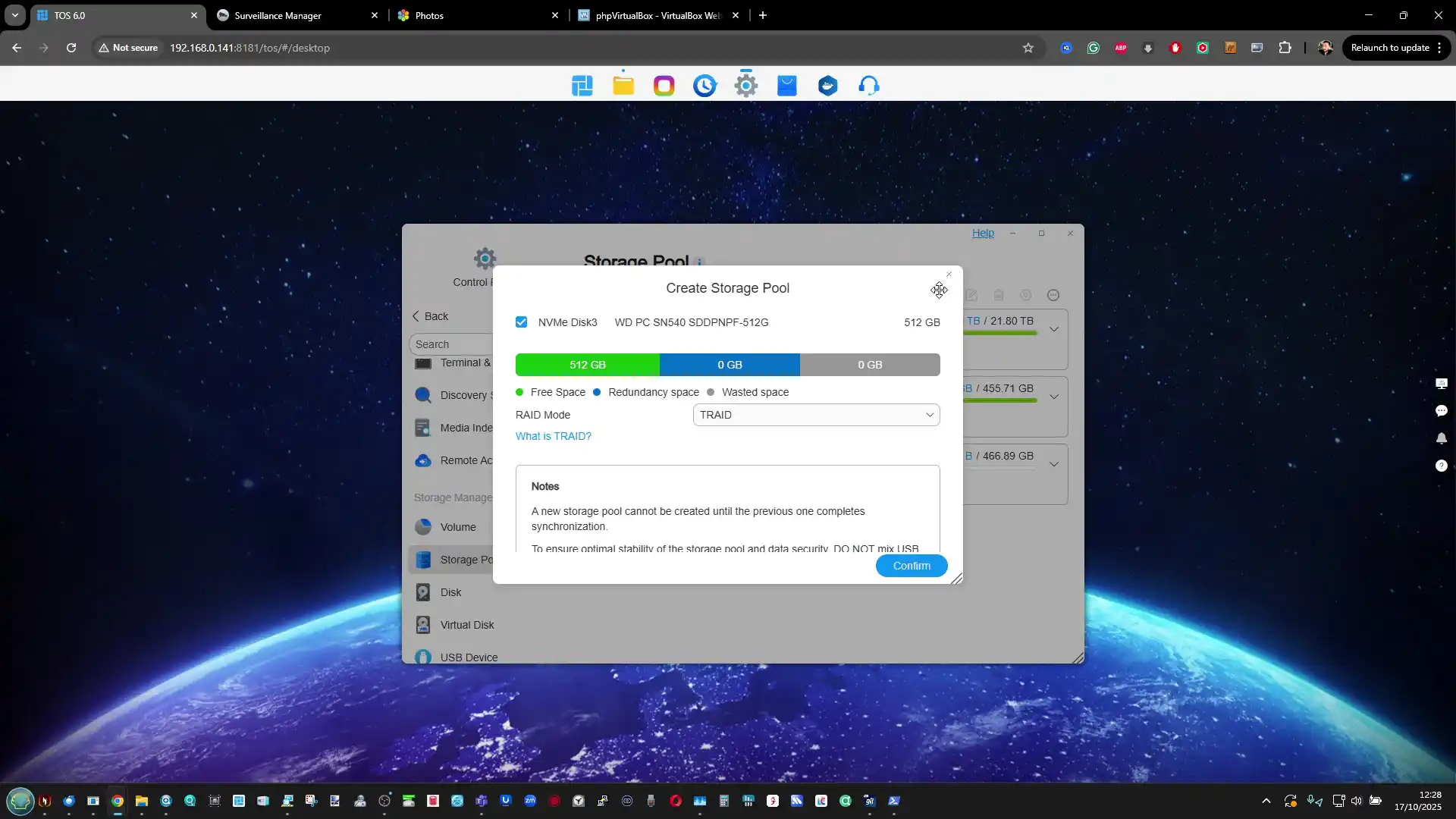
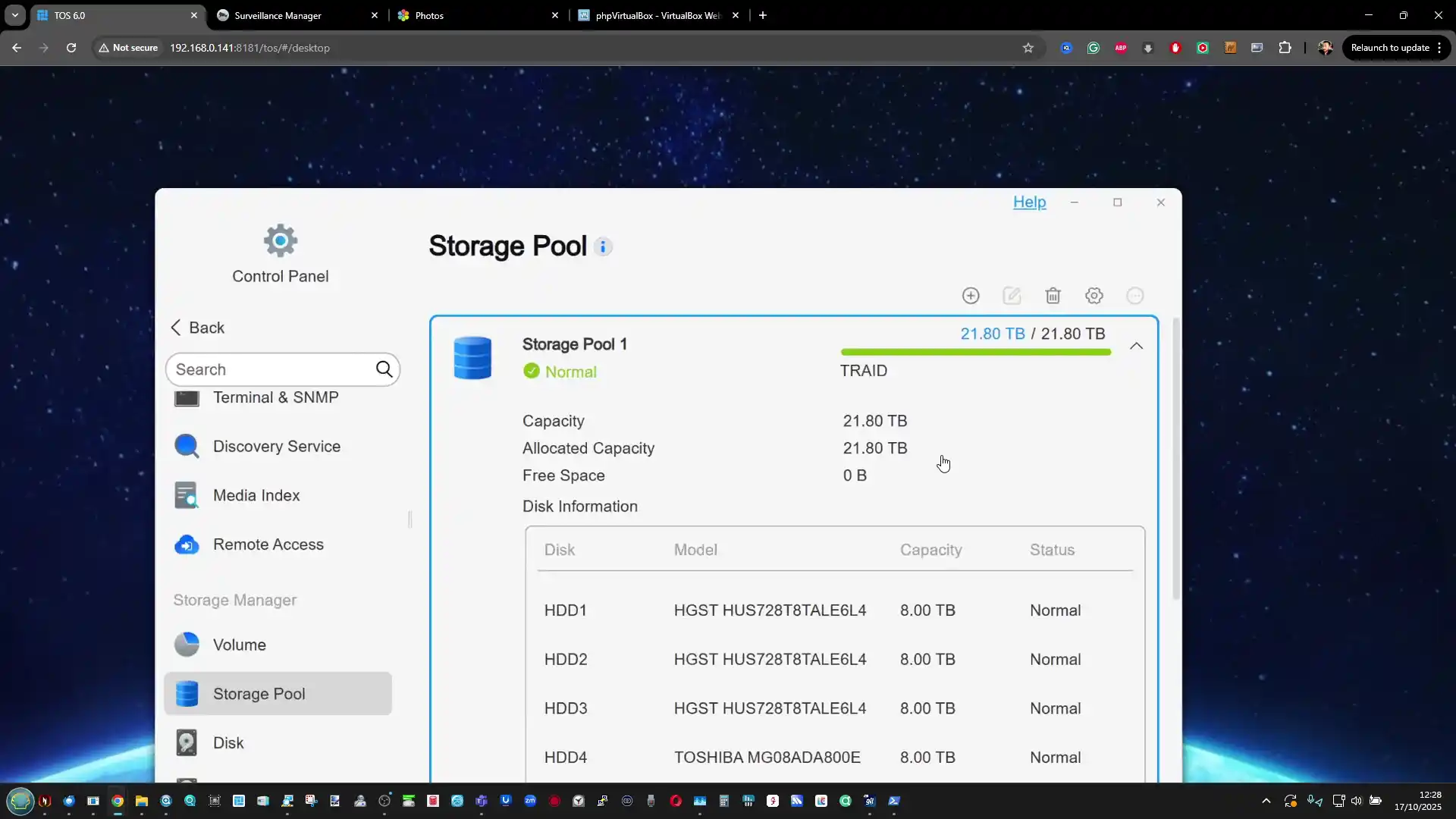
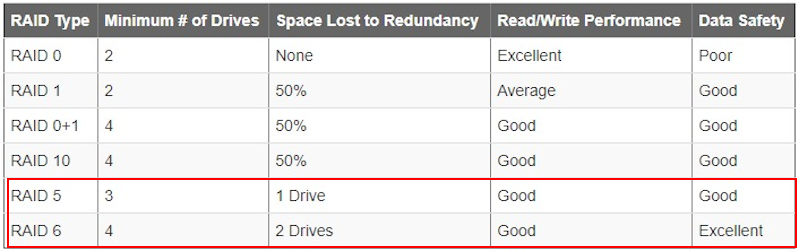
Storage management within TOS 6 has evolved into a far more granular and flexible system. The platform supports both traditional RAID configurations and TerraMaster’s adaptive TRAID and TRAID+ systems, which allow mixed-capacity drives to be combined while retaining redundancy across one or two disks. This feature makes expansion and migration easier, particularly for users gradually upgrading storage capacity. RAID rebuilding efficiency has also improved through “fast repair,” a mechanism that prioritizes only data-occupied sectors rather than empty disk space, substantially reducing recovery times after drive replacement. The system now separates the operating system from storage volumes entirely, allowing users to install the OS on one or two designated drives, typically SSDs, to improve response speed and cache access performance. This separation not only increases system responsiveness but also helps to protect data pools from corruption caused by OS-level failures.
 |
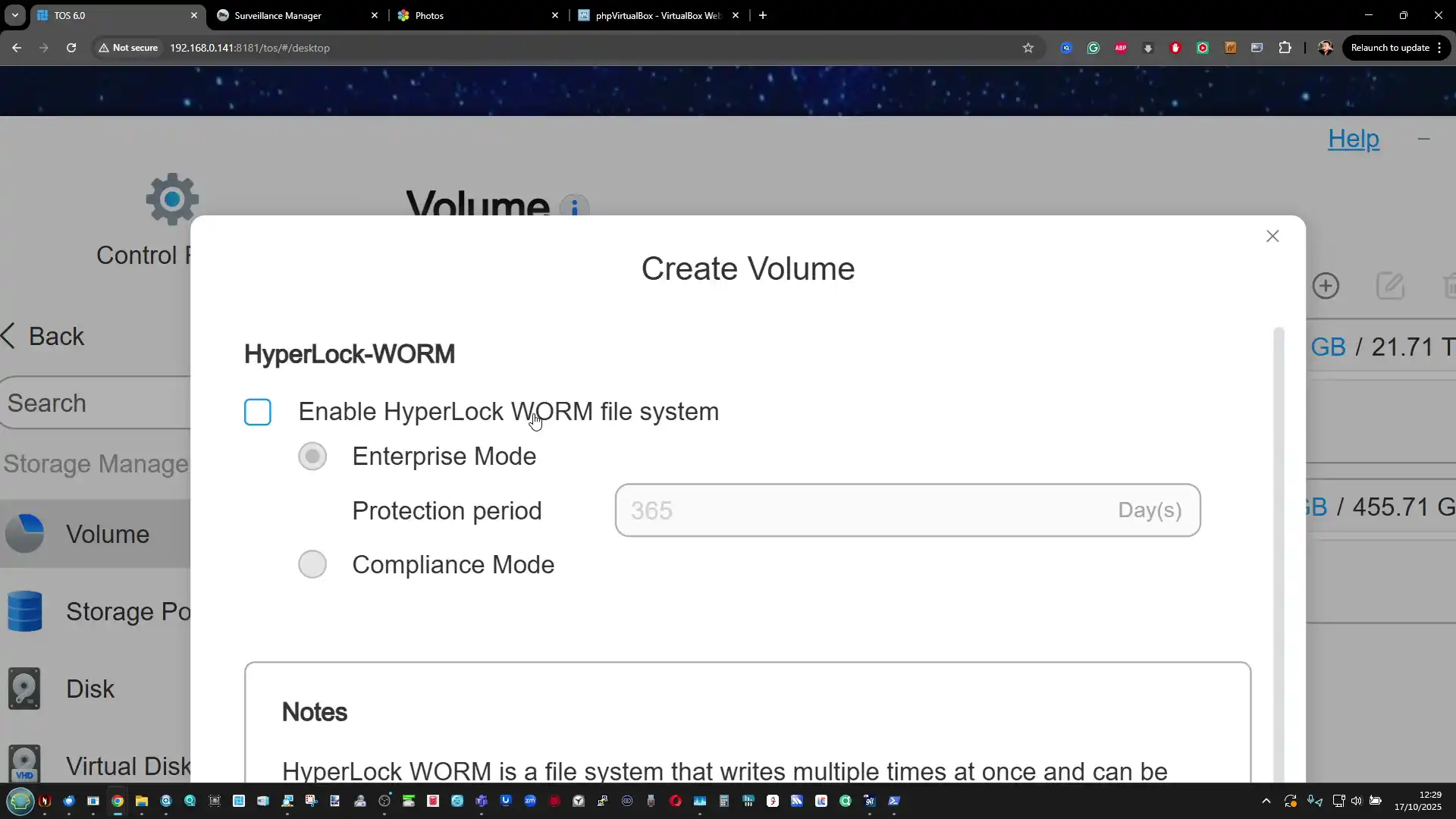 |
The volume creation process is more flexible than in previous iterations, supporting both Btrfs and EXT4 file systems alongside iSCSI targets for raw block-level storage. Btrfs, in particular, benefits from the Linux 6.1 kernel’s improved memory handling and snapshot reliability. The inclusion of Hyper-Lock WORM (Write Once, Read Many) in both Compliance and Enterprise modes offers organizations the ability to lock data for specific periods or indefinitely, preventing modification or deletion to meet audit or regulatory requirements.
 |
 |
Volume-level encryption can be enabled during creation, giving administrators the option to protect sensitive data without affecting system-level performance. The management interface also displays real-time disk health data and S.M.A.R.T. metrics, alerting users to failing drives through the Message Center and email notifications, minimizing downtime and data loss risks.
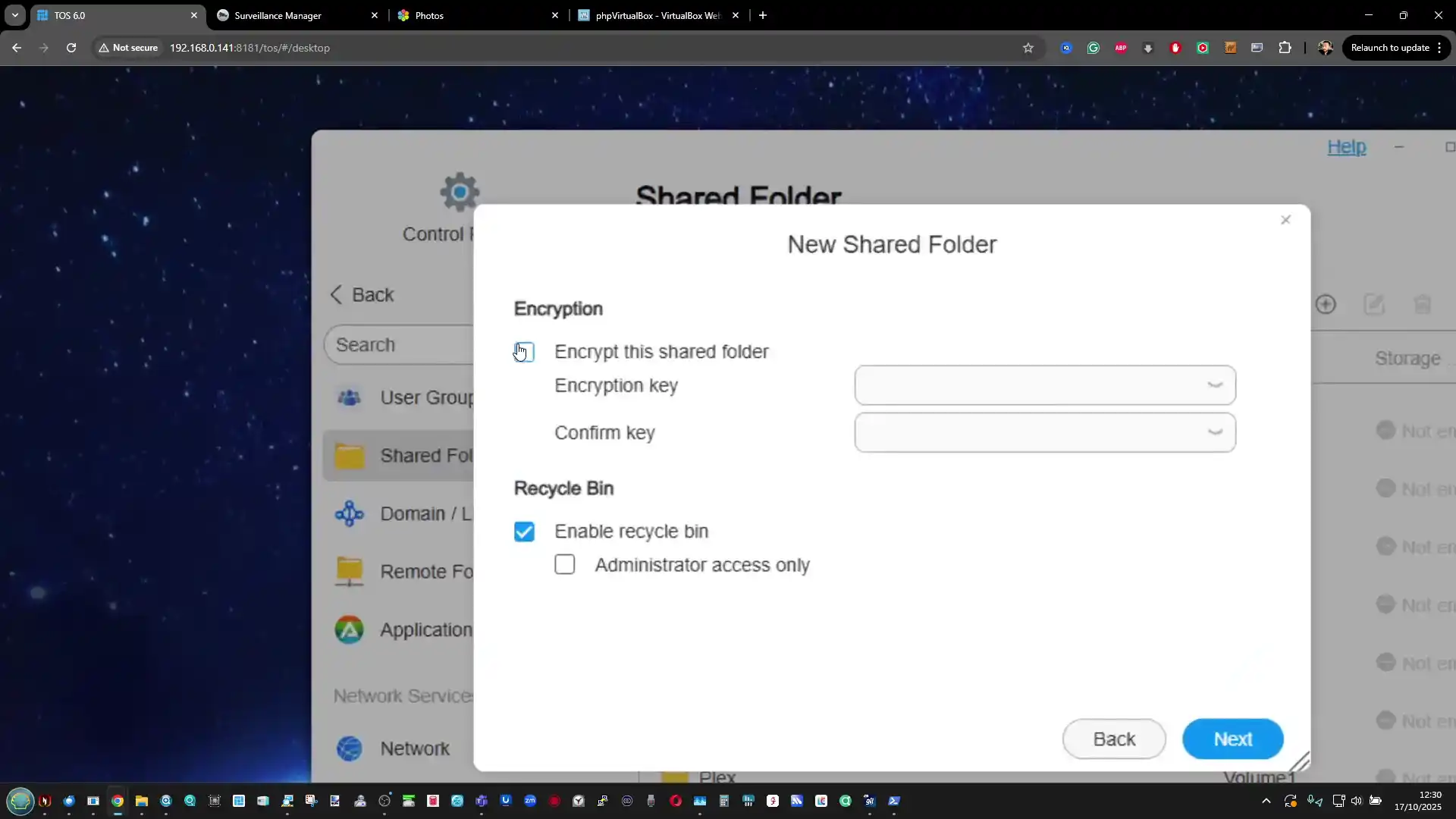
TOS 6’s file service layer emphasizes both accessibility and speed. SMB multichannel support, combined with link aggregation, allows the operating system to utilize multiple Ethernet ports simultaneously to multiply throughput on supported models, improving large file transfer rates in multi-user environments. Shared folder management includes advanced ACL permissions, extending beyond traditional read/write rules to thirteen distinct access types, providing fine-grained control for business use.
 |
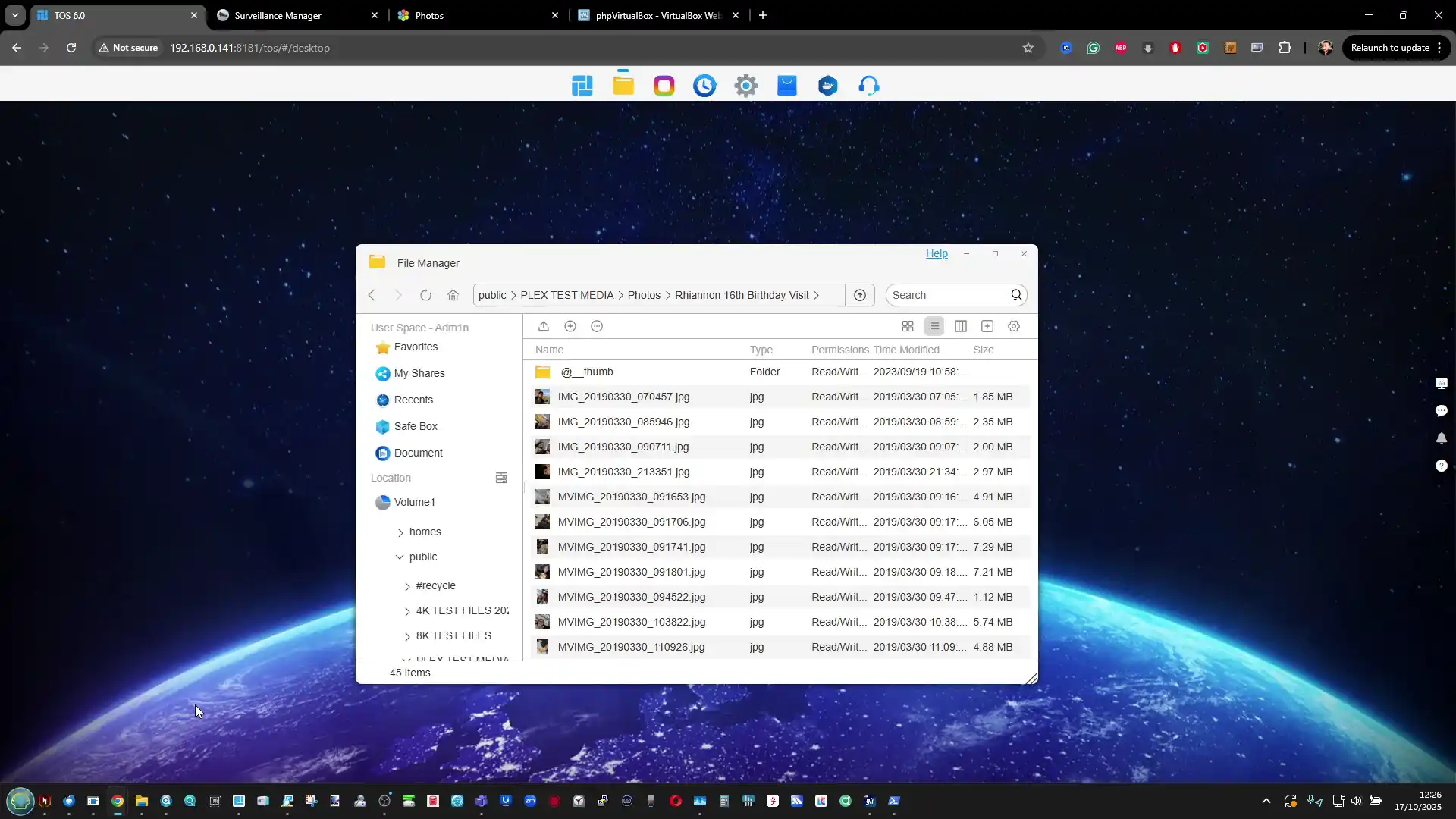 |
Native support for protocols such as SMB, AFP, NFS, FTP, and WebDAV ensures compatibility with Windows, macOS, and Linux systems, while local mounting enables users to attach external drives or even cloud-mapped directories that synchronize automatically. File management within the web interface now features a tab-based navigation system, a first among NAS platforms, enabling quick copy and move operations without opening multiple windows, reinforcing TerraMaster’s focus on operational efficiency.
Terramaster TOS 6 – Backups and Synchronisation
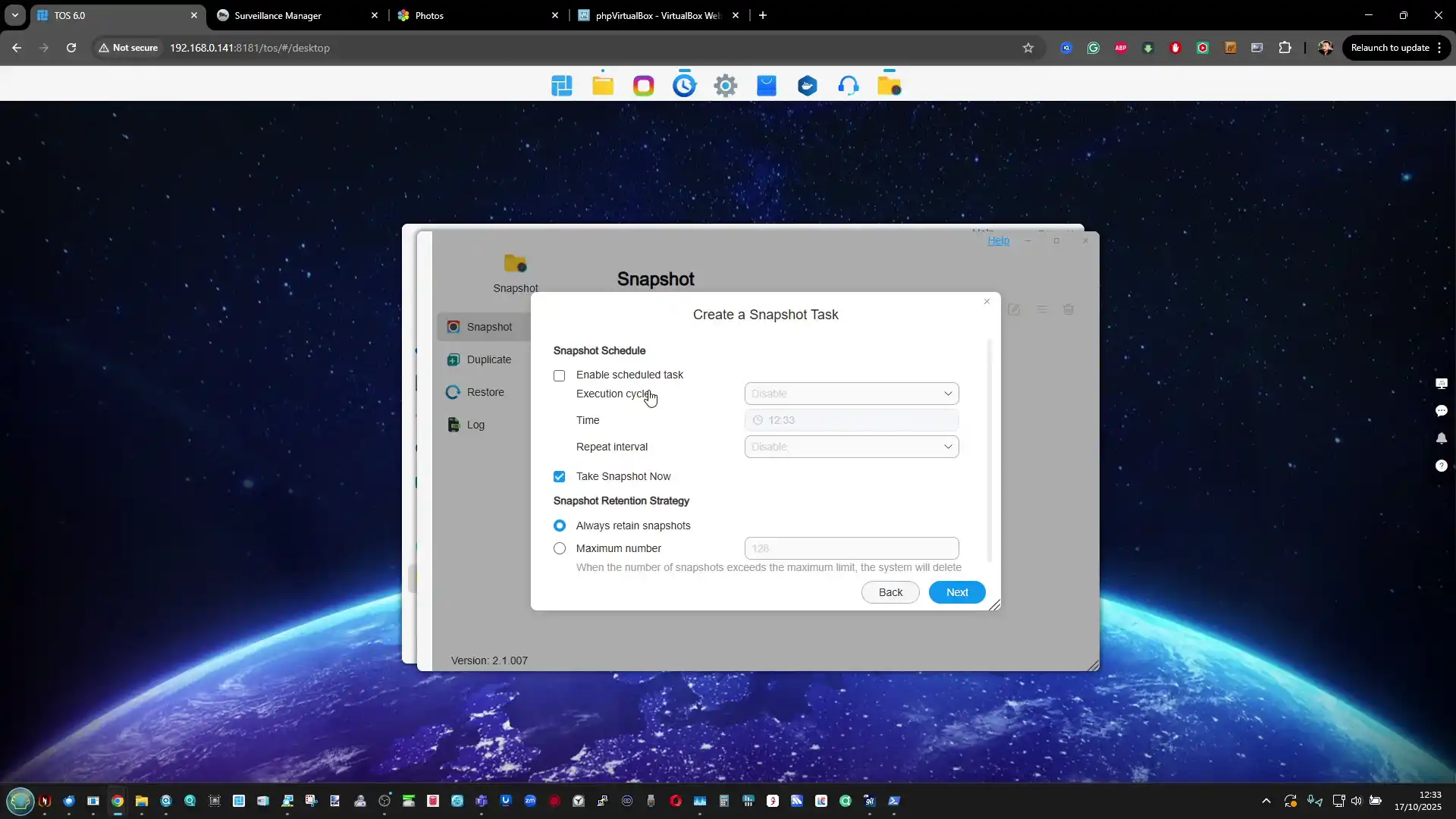
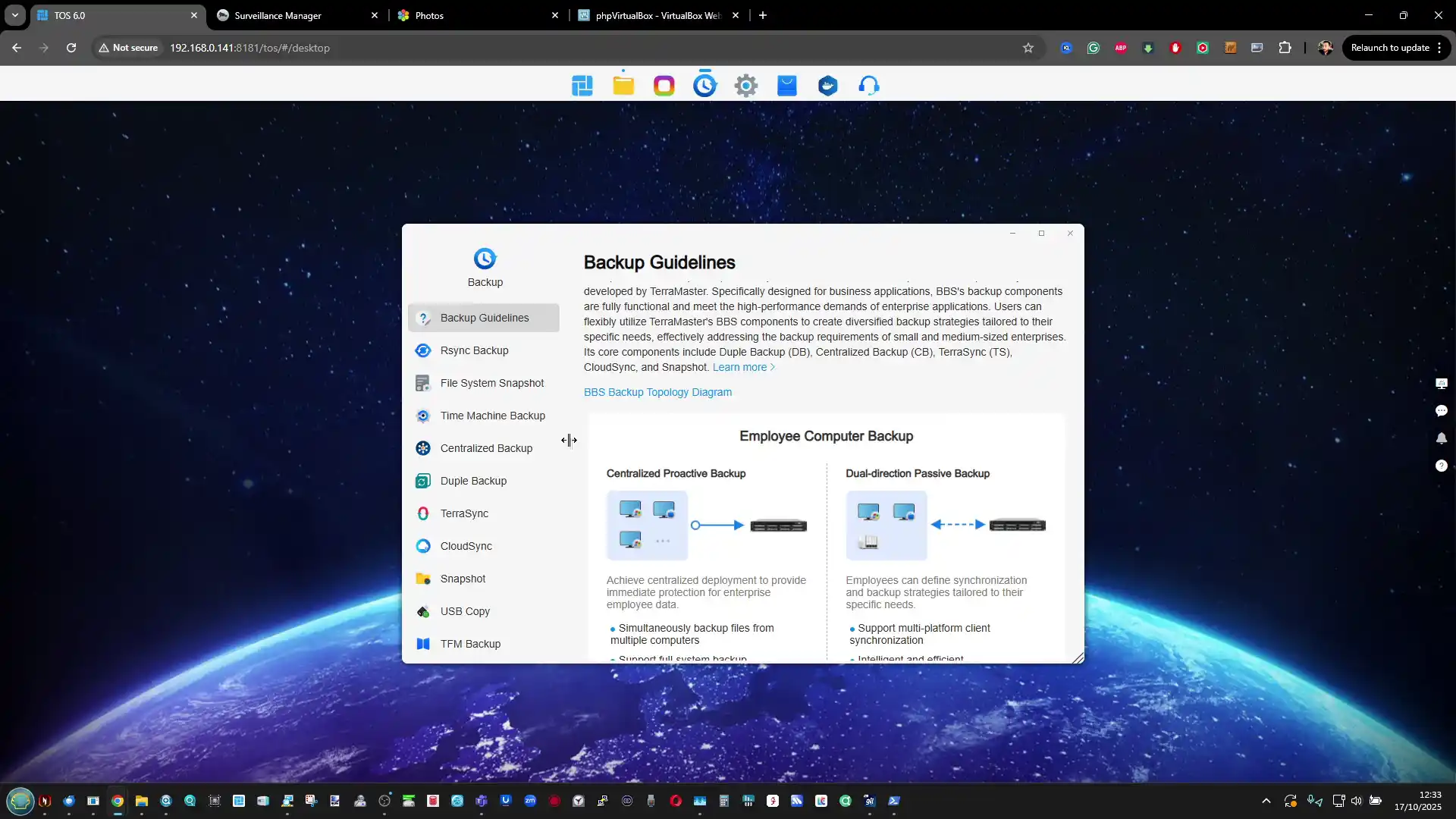
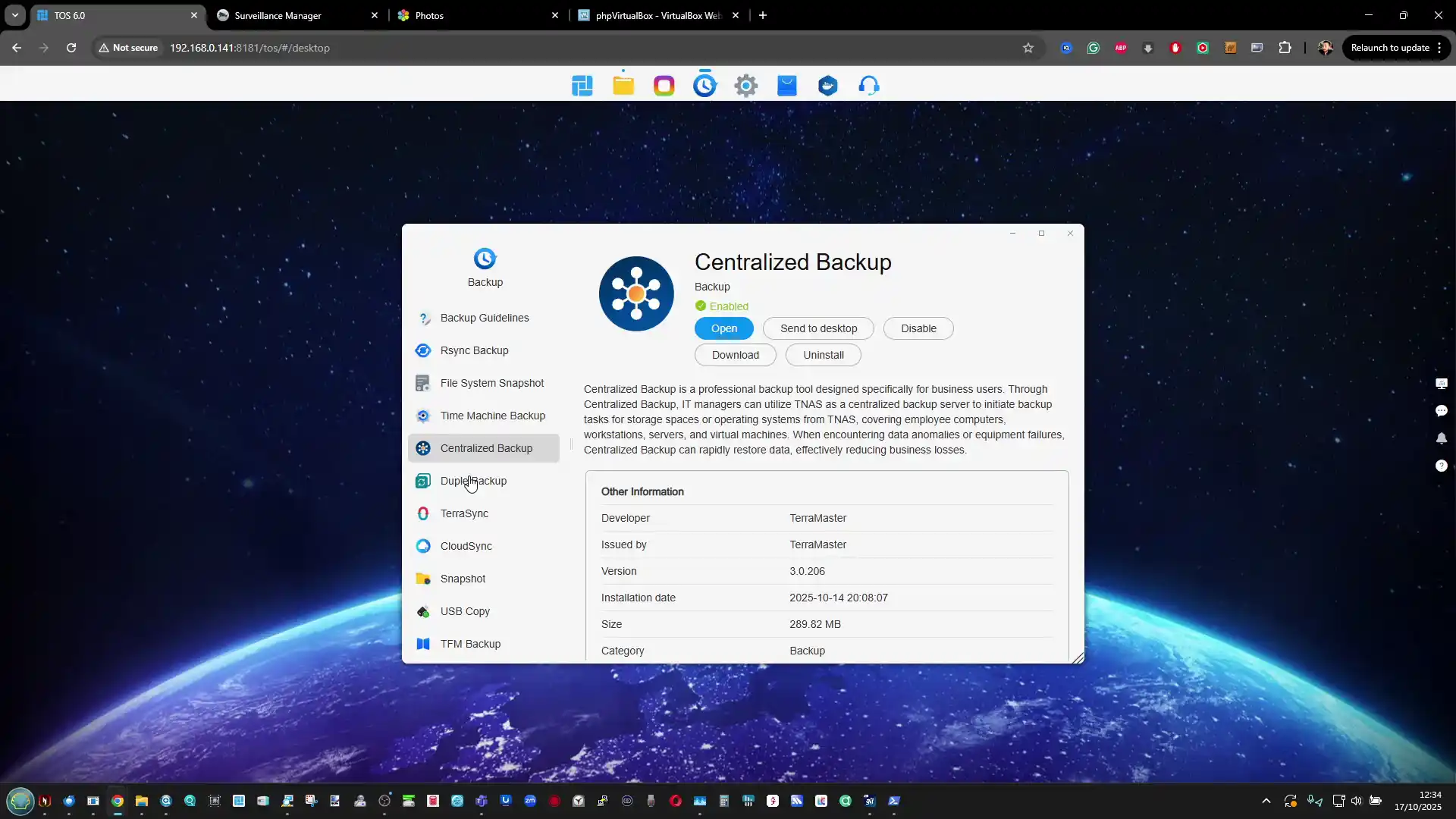
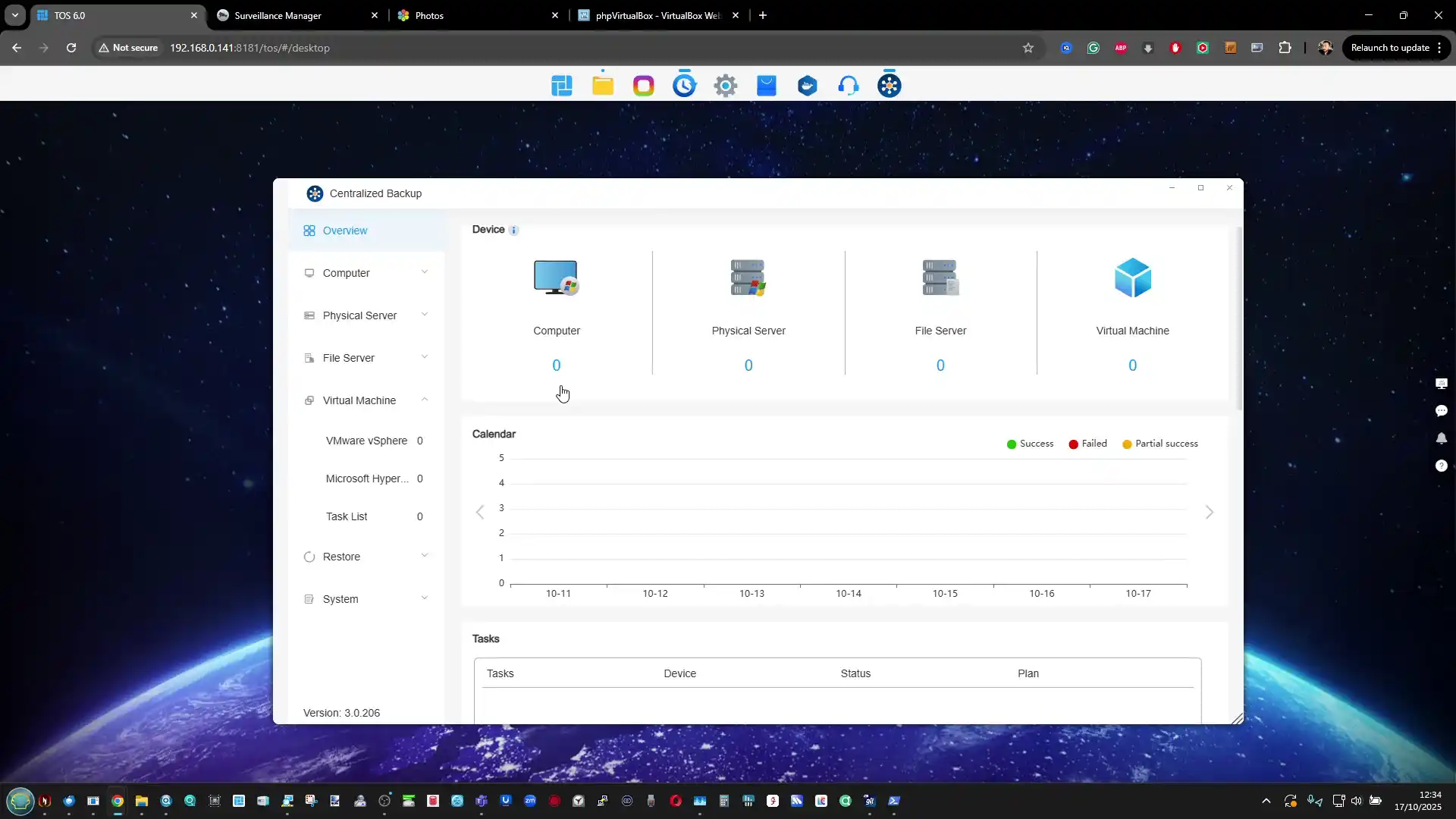
Backup management in TOS 6 consolidates all related tools into a single unified interface accessible from the desktop or the control panel. This centralized hub simplifies navigation between local, remote, and cloud-based backup options while maintaining compatibility with third-party systems. The platform supports Rsync for cross-NAS synchronization, Time Machine for macOS clients, and TerraMaster’s own Centralized Backup utility for deploying and scheduling protection across multiple TNAS and remote servers. Administrators can configure recurring snapshot tasks on individual volumes or shared folders, define retention policies, and even lock snapshots to prevent deletion within a specified period. While these snapshots are not substitutes for full backups, they provide a lightweight recovery mechanism that minimizes data loss in cases of user error or ransomware infection.
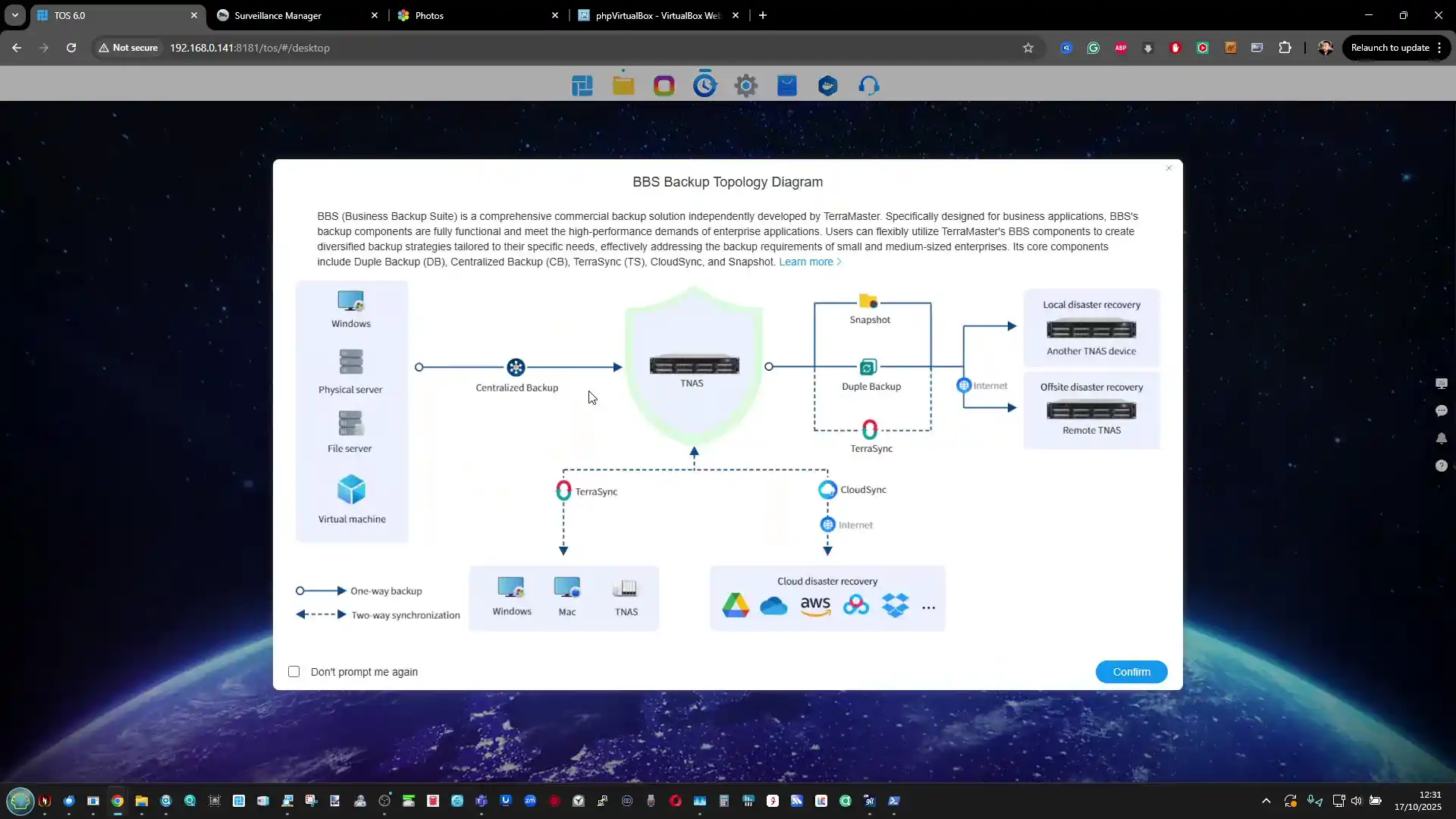
Local backup utilities have been expanded to support directory-level duplication, USB external drives, and iSCSI targets. This enables administrators to replicate data within the same device, between drives, or toward another NAS through the internal network. Although backing up within a single system cannot substitute true redundancy, it offers additional flexibility for temporary mirroring or fast internal restores. For users operating hybrid environments, TOS 6 integrates with major cloud providers using its CloudSync feature, which allows continuous bidirectional synchronization between TNAS and services such as Google Drive, Dropbox, OneDrive, and WebDAV storage. Mounted cloud directories appear as native local folders, simplifying file interaction and ensuring that any modifications are reflected remotely. The mounting mechanism also allows automatic synchronization of remote data without external applications, further streamlining multi-location workflows.
 |
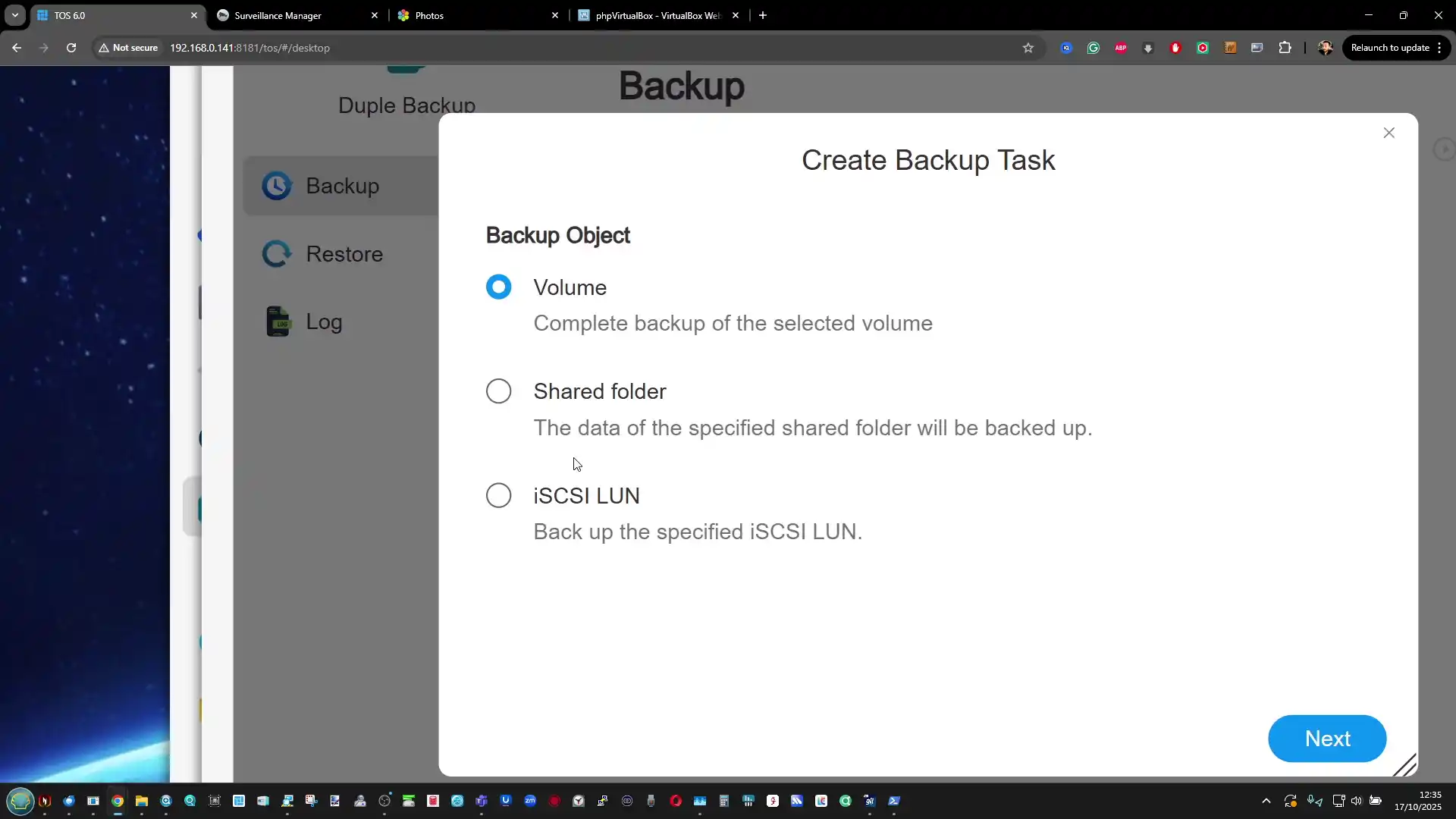 |
In terms of automation and security, backup tasks in TOS 6 can be scheduled to run incrementally or in real time, minimizing bandwidth usage and system load. Each task includes verification and logging, with the ability to send alerts on failure through the Message Center or by email. The inclusion of Hyper-Lock WORM at the backup level ensures archived backups cannot be altered for a defined compliance period, an important feature for business environments managing regulated data. Despite the lack of the same polish found in Synology’s Active Backup or QNAP’s Hybrid Backup Sync, TerraMaster’s solution achieves a comparable range of features for small-scale and mid-tier operations. The combination of flexible snapshot scheduling, cloud integration, and data-integrity verification makes TOS 6 a notable step forward from earlier releases and closes much of the functionality gap that existed between TerraMaster and its larger competitors.
Terramaster TOS 6 – Applications, Client Tools and Services
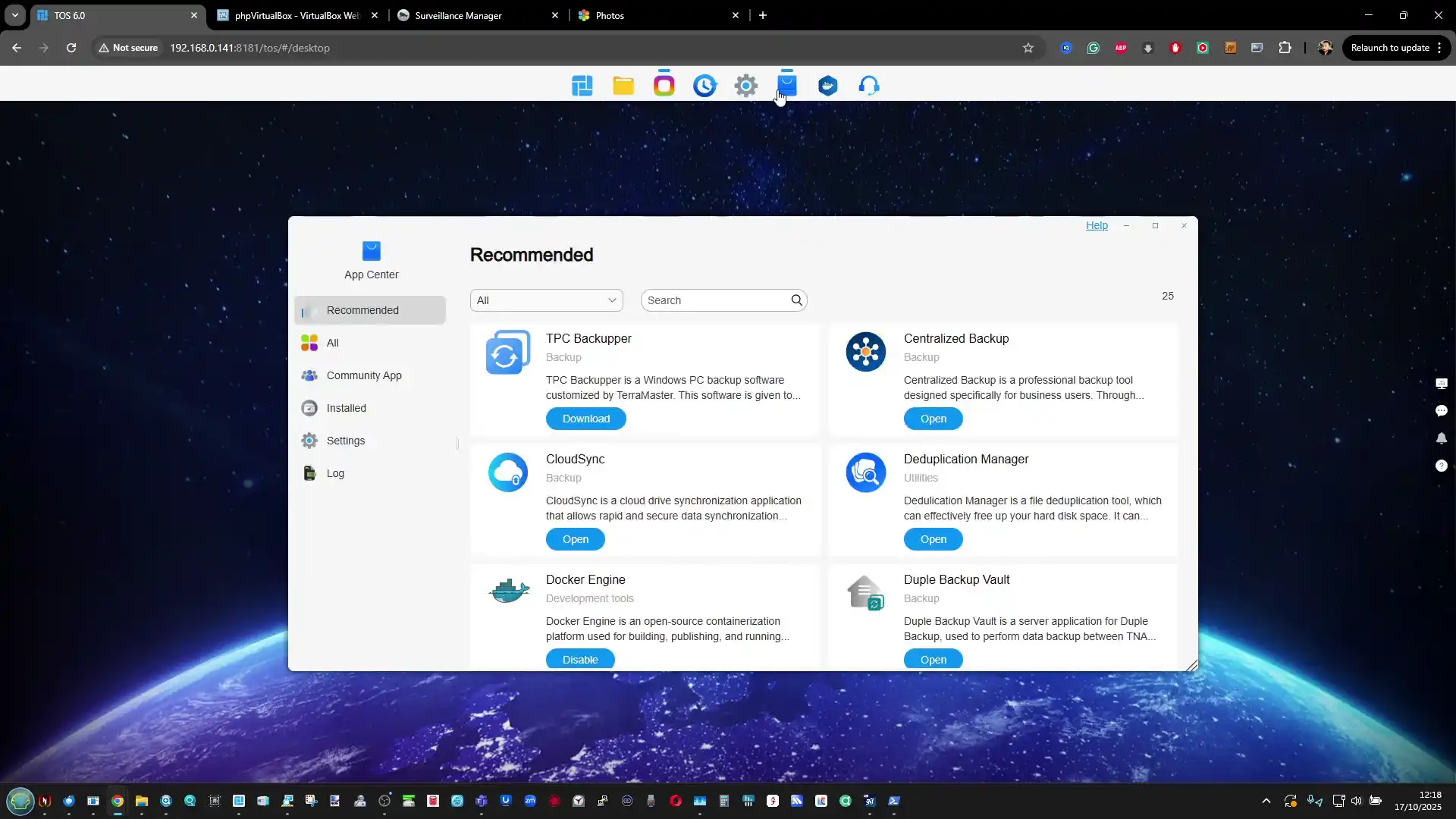
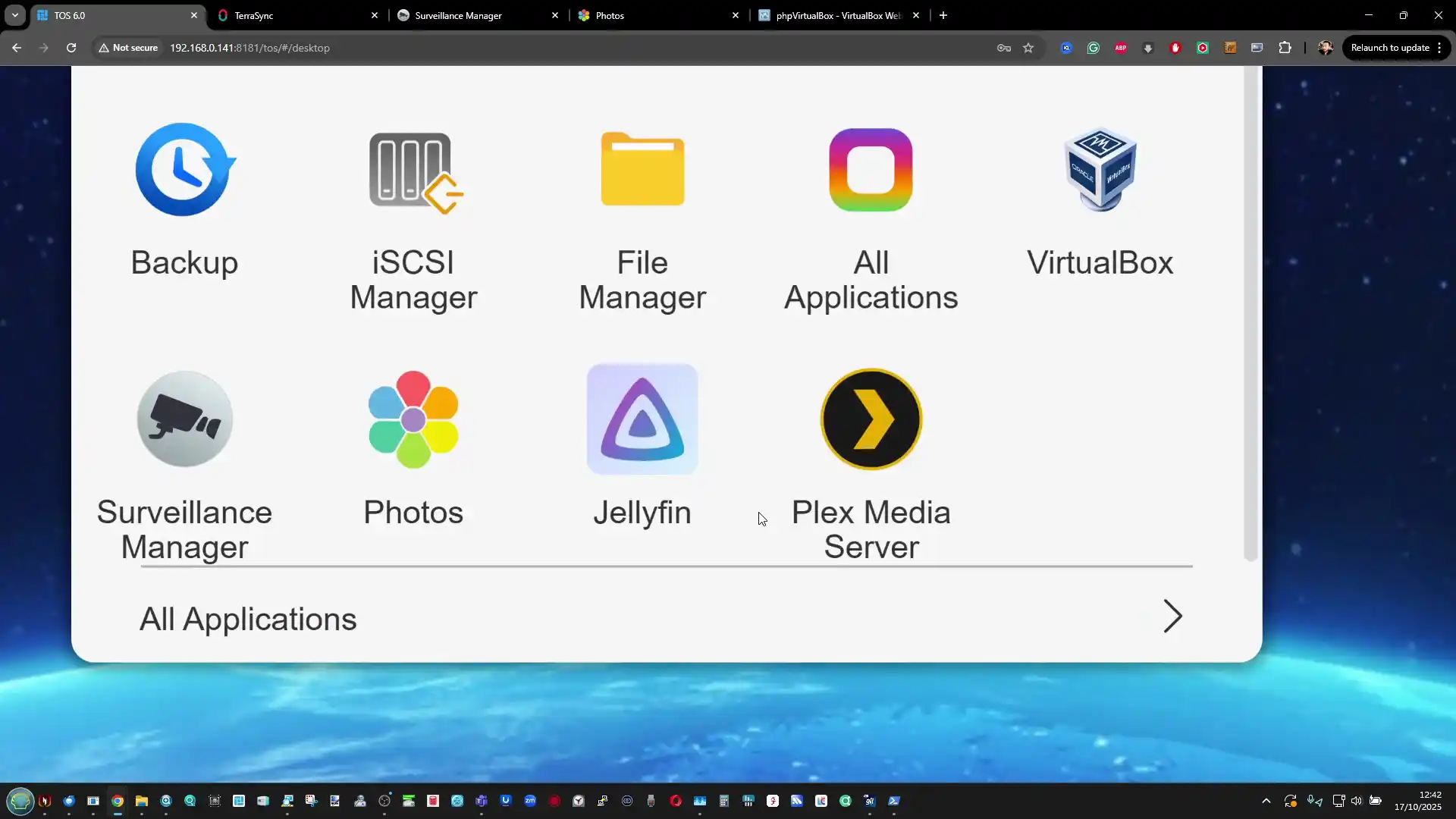
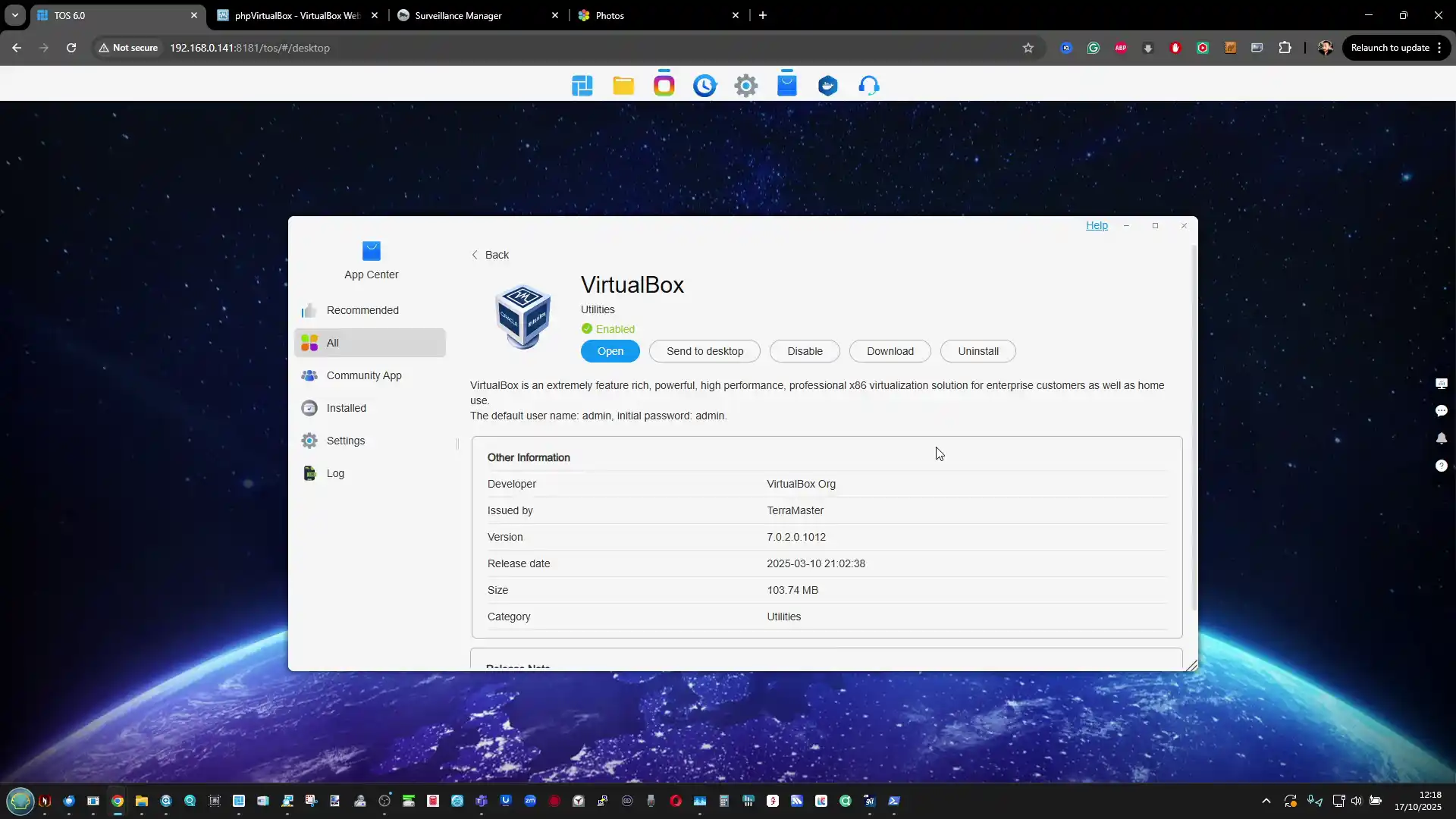
The application ecosystem in TOS 6 has expanded both in variety and integration depth, blending TerraMaster’s own utilities with third-party and open-source solutions. The App Center serves as the central hub for installing, updating, and managing applications, ranging from productivity tools and cloud clients to virtualization and multimedia services. Many of these applications are developed in-house, such as the Centralized Backup, File Manager, and Photo Gallery utilities, while others leverage established third-party frameworks like VirtualBox for virtualization and Portainer for container management. Users can deploy Docker containers directly from the interface or access the full registry for advanced workloads, making it possible to host additional media servers, AI indexing tools, or web applications. Although the ecosystem remains smaller than Synology’s Package Center or QNAP’s App Center, the available selection covers nearly all core NAS functions that general users and small business environments would require.
Client connectivity is also a strong component of the system’s service design. The TerraMaster desktop client for Windows and macOS allows users to discover NAS systems on the network, manage synchronized folders, and create automated transfer tasks. This complements the browser-based interface by offering a faster method for initiating replication jobs or file transfers between devices. Mobile applications are available for remote access, providing basic file management and media browsing functionality, though they remain limited compared to the desktop experience. One notable improvement in TOS 6 is the ability to download client tools directly from within the App Center rather than navigating to external links, streamlining deployment and maintaining version consistency across environments.#
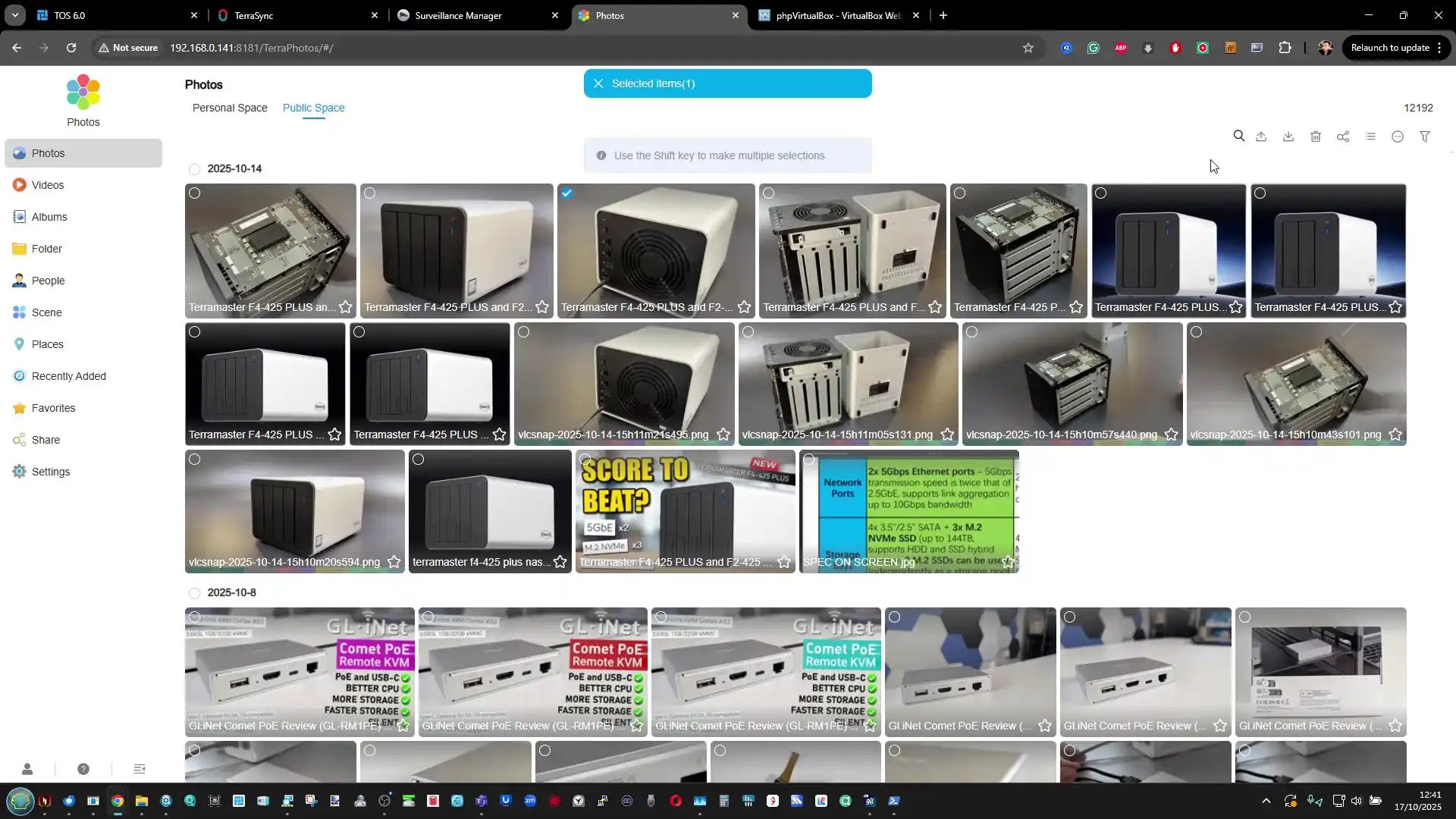
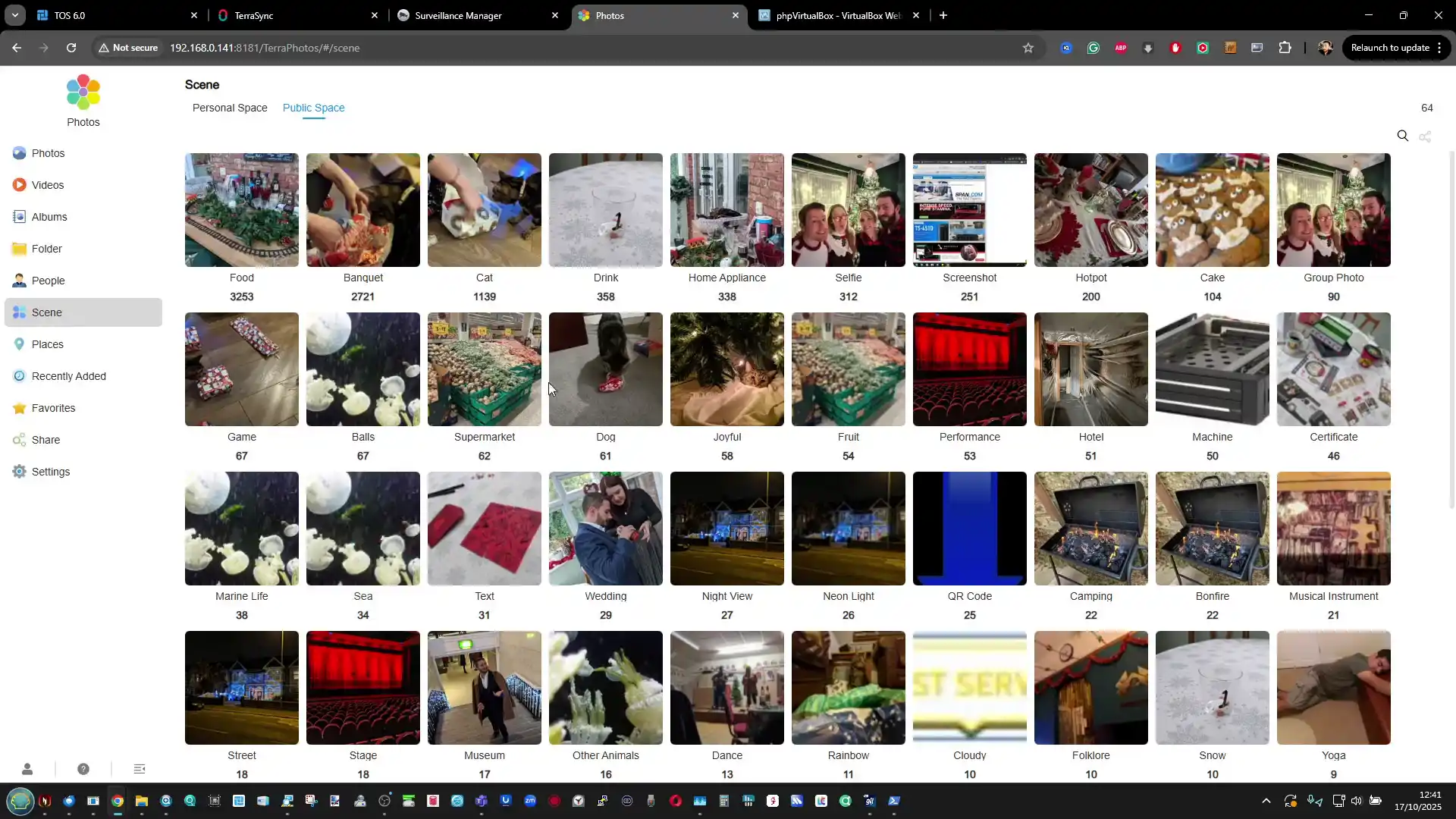
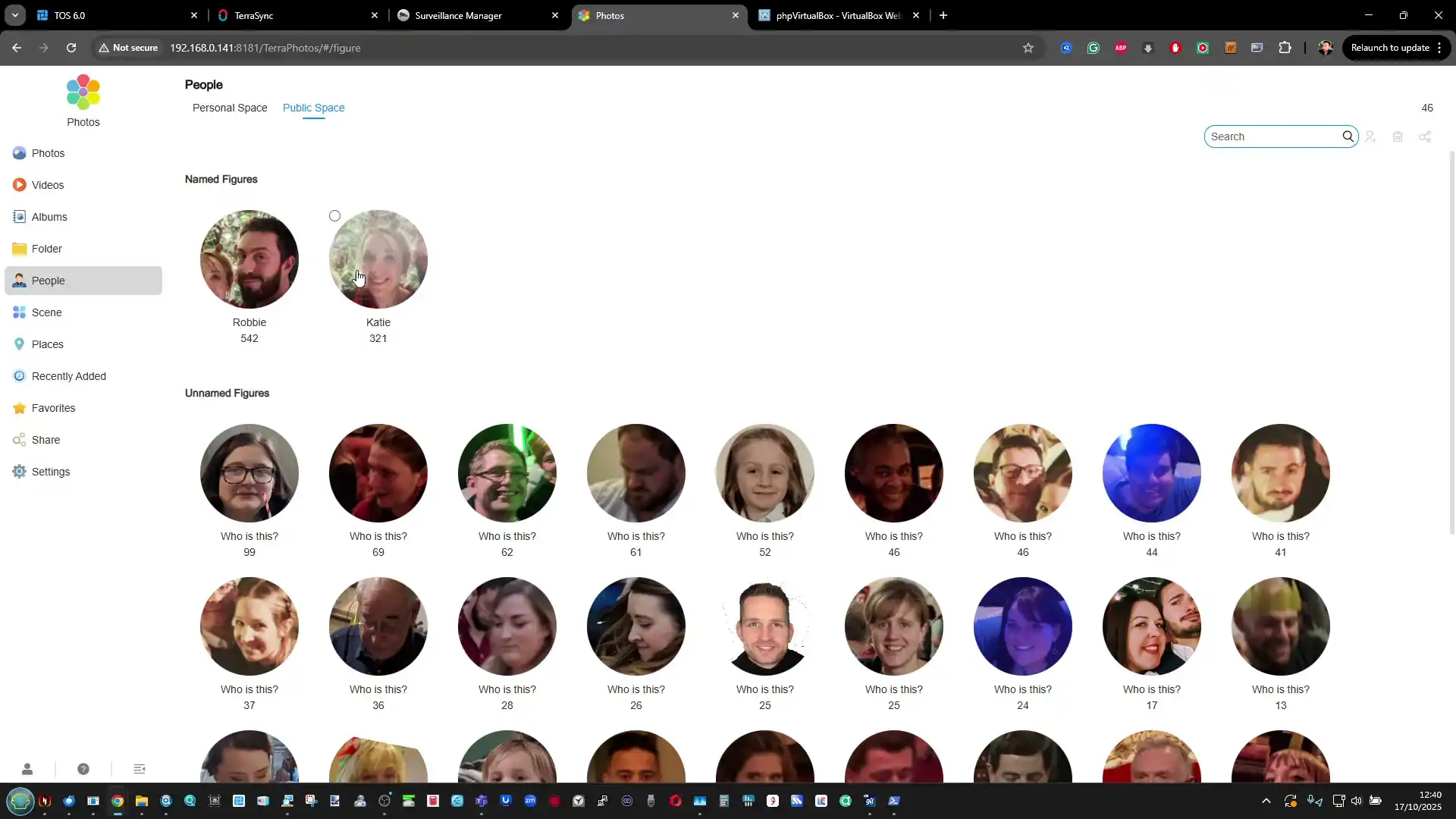
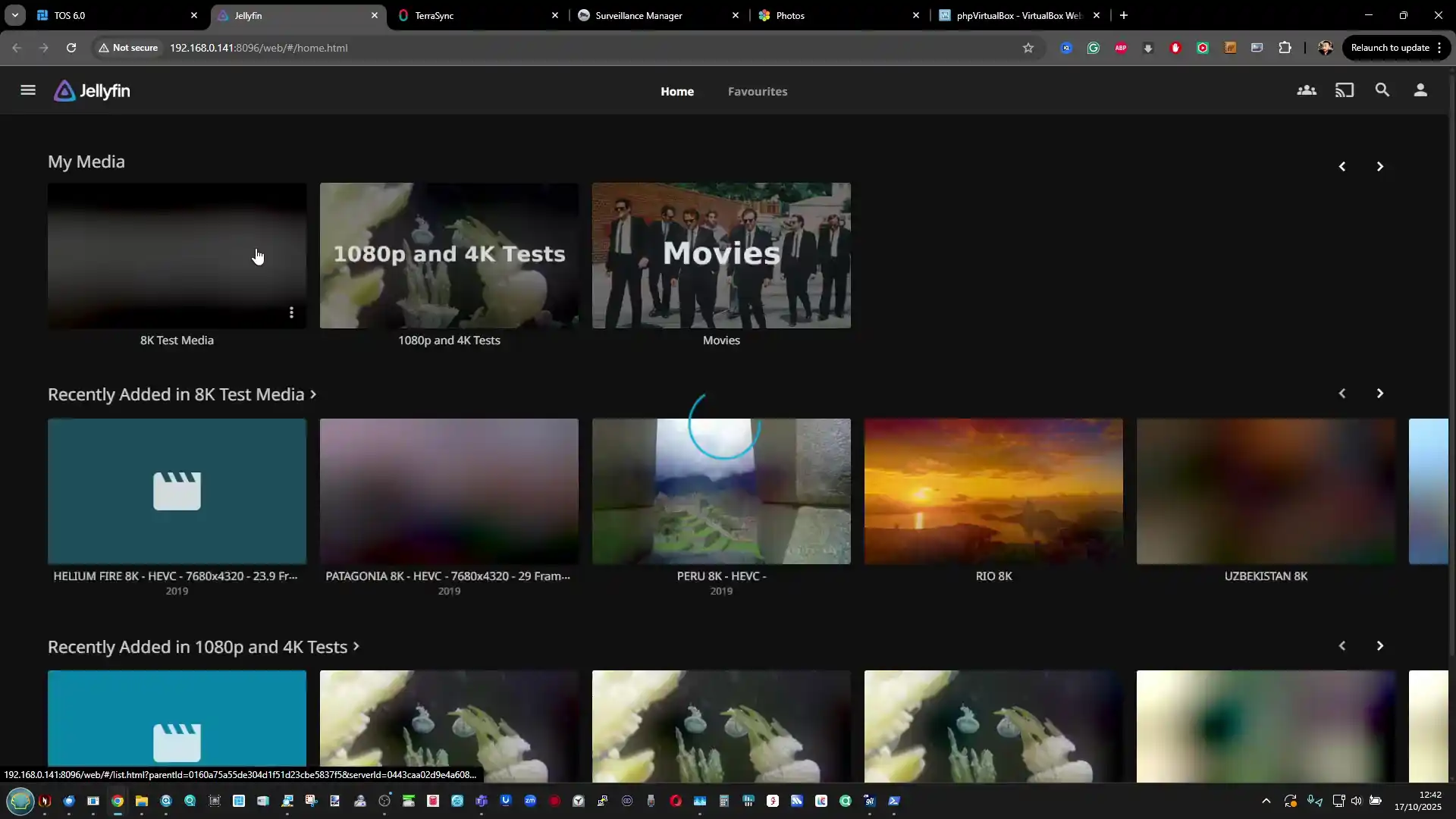
In the area of multimedia and AI-driven services, TerraMaster has continued to refine its photo and video indexing utilities. The AI Photo Recognition tool, embedded within the Photo Gallery application, performs facial and object detection to organize content by identity or category. It uses metadata and machine learning libraries to recognize patterns across uploaded images, enabling faster search and auto-tagging capabilities. Video and photo thumbnails can be displayed directly within File Manager, which now supports large or small thumbnail scaling depending on user preference. For users requiring broader streaming capabilities, the system includes native support for Plex and Jellyfin through the App Center, allowing local or remote playback using widely adopted external platforms rather than proprietary ones. HDMI output remains inactive on TerraMaster NAS units, so these integrations rely solely on network streaming protocols.
 |
 |
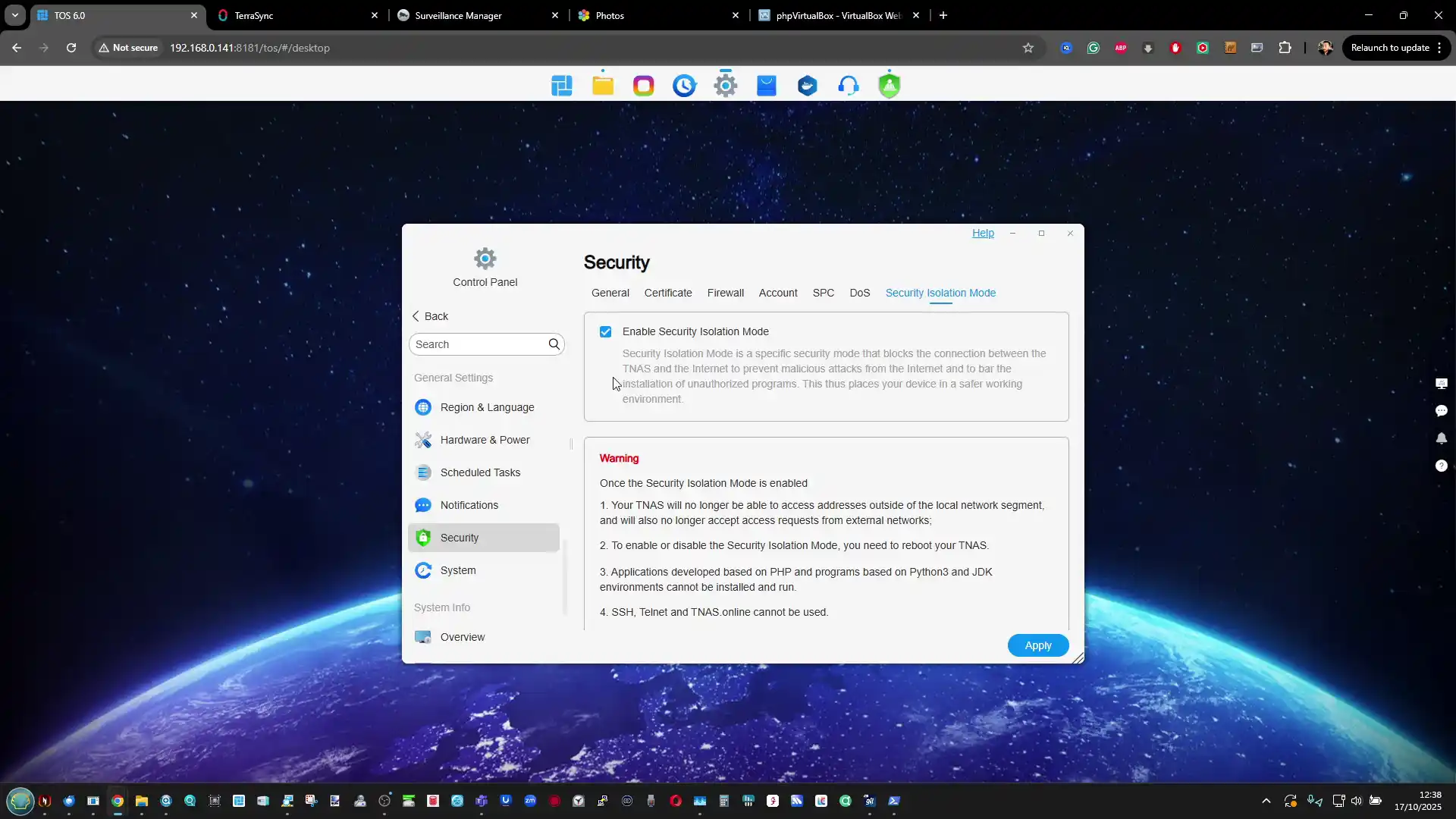
System maintenance and troubleshooting services have also received attention in TOS 6. The platform’s security advisor can perform automated vulnerability checks, flagging weak passwords, exposed ports, or outdated configurations. Isolation Mode remains one of its more practical safety features, instantly disconnecting all non-administrative users and disabling PHP-based third-party apps to prevent intrusion. When users encounter system errors, they can utilize the integrated issue reporting tool, which generates diagnostic logs and can enable temporary remote support for TerraMaster engineers through an authentication key.
 |
|
Although this feature should be used sparingly, it represents a more direct support pathway than previous versions. Taken together, these improvements show a gradual shift in TOS 6 toward professionalization, improving reliability and ease of management while still allowing extensive customization for experienced administrators.
 |
 |
Conclusion and Verdict
TOS 6 demonstrates that TerraMaster’s NAS platform has matured into a far more capable and structured ecosystem. The software now integrates a wide range of features that were once missing or underdeveloped, from advanced storage management and ACL permissions to cloud synchronization and AI-driven media tools. The interface redesign brings a measurable improvement in usability, and the decision to rebuild the system on the Linux Kernel 6.1 LTS ensures better hardware compatibility and long-term stability. However, it remains evident that the user experience still leans toward a more technical audience, with complex menus and limited guidance compared to the automated workflows found on Synology DSM or QNAP QTS. The system performs reliably, but its presentation and documentation could still benefit from refinement to fully appeal to non-specialist users.
Overall, TOS 6 is TerraMaster’s most complete and confident release to date, delivering a noticeable leap in speed, data protection, and operational consistency across the company’s NAS lineup. It now offers enough depth for small businesses, IT enthusiasts, and hybrid work setups while remaining open to third-party operating systems for those seeking additional flexibility. The platform still trails behind the larger ecosystems in app diversity and cloud integration polish, yet the progress made in this generation positions TerraMaster as one of the more serious alternatives in the mid-range NAS market. For users who value functionality and system control over visual refinement, TOS 6 provides a stable and expandable foundation that indicates TerraMaster is steadily closing the gap with its more established competitors.
Interested in Buying a Terramaster NAS? Support the work we do here at NASCompares, by using the links below.
We receive a small commission on anything you purchase from Amazon, AliExpress or B&H when using these links, and it results in you being able to passively support your favourite websites and creator, completely for free! |
 SUBSCRIBE TO OUR NEWSLETTER
[contact-form-7]
 Join Inner Circle
 Get an alert every time something gets added to this specific article!
Subscribe
This description contains links to Amazon. These links will take you to some of the products mentioned in today's content. As an Amazon Associate, I earn from qualifying purchases. Visit the NASCompares Deal Finder to find the best place to buy this device in your region, based on Service, Support and Reputation - Just Search for your NAS Drive in the Box Below
Need Advice on Data Storage from an Expert?
Finally, for free advice about your setup, just leave a message in the comments below here at NASCompares.com and we will get back to you. Need Help?
Where possible (and where appropriate) please provide as much information about your requirements, as then I can arrange the best answer and solution to your needs. Do not worry about your e-mail address being required, it will NOT be used in a mailing list and will NOT be used in any way other than to respond to your enquiry.
[contact-form-7]
Need Help?
Where possible (and where appropriate) please provide as much information about your requirements, as then I can arrange the best answer and solution to your needs. Do not worry about your e-mail address being required, it will NOT be used in a mailing list and will NOT be used in any way other than to respond to your enquiry.
[contact-form-7]
 TRY CHAT
Terms and Conditions
TRY CHAT
Terms and Conditions
 Ko-fi or old school Paypal. Thanks!To find out more about how to support this advice service check HEREIf you need to fix or configure a NAS, check Fiver
Have you thought about helping others with your knowledge? Find Instructions Here
Ko-fi or old school Paypal. Thanks!To find out more about how to support this advice service check HEREIf you need to fix or configure a NAS, check Fiver
Have you thought about helping others with your knowledge? Find Instructions Here





|
 |









 SUBSCRIBE TO OUR NEWSLETTER


