Vue lecture

Il y a de nouveaux articles disponibles, cliquez pour rafraîchir la page.

Best PLEX, Jellyfin or Emby NAS of 2025

The Best PLEX, Emby and/or Jellyfin NAS Devices Released in 2025

Network media servers in 2025 range from tiny single drive boxes to fairly serious multi bay systems that can sit at the center of a home network. This article looks specifically at NAS hardware released in 2025 that can sensibly replace or supplement streaming services by running Plex, Jellyfin or Emby. The focus is on devices that arrive as complete appliances, with both hardware and a NAS style operating system included, so you can put a box on the network, install a media server app and start watching without building a PC or learning a full server stack.

To be included here, a NAS has to have gone on general sale in 2025, ship with its own OS rather than as a bareboard, and be able to run Plex Media Server, with Jellyfin and Emby support noted where it exists. In practical terms, that means hardware that can handle 4K and 1080p playback for multiple users and is realistically capable of at least 2 simultaneous 4K transcodes and 5 simultaneous 1080p transcodes, with a single exception where the overall package still makes sense for more limited workloads. RAID options, expansion, power use and noise are all taken into account, but the main filter is whether the device can function reliably as a modern media server on a typical home or small office network.

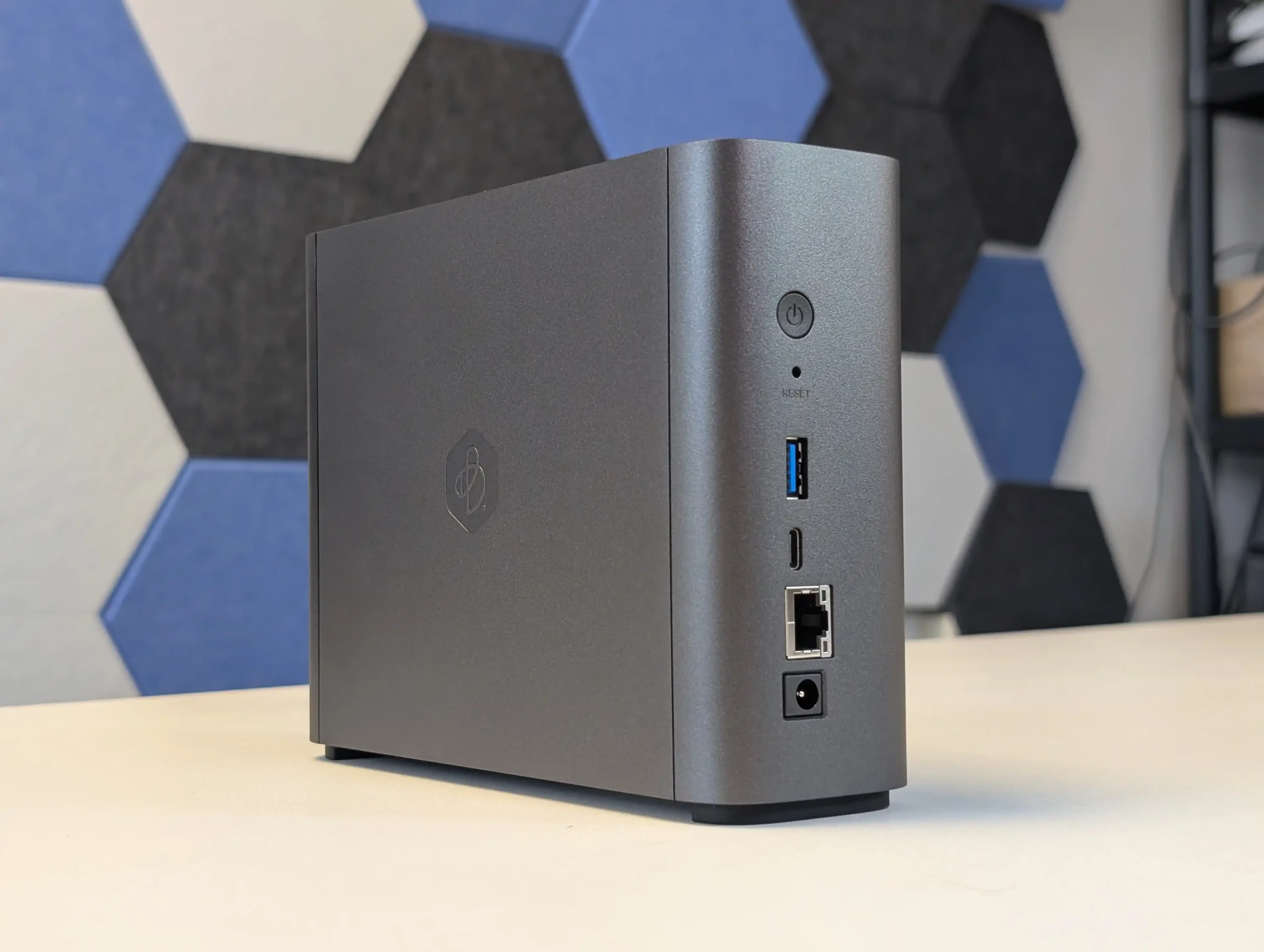
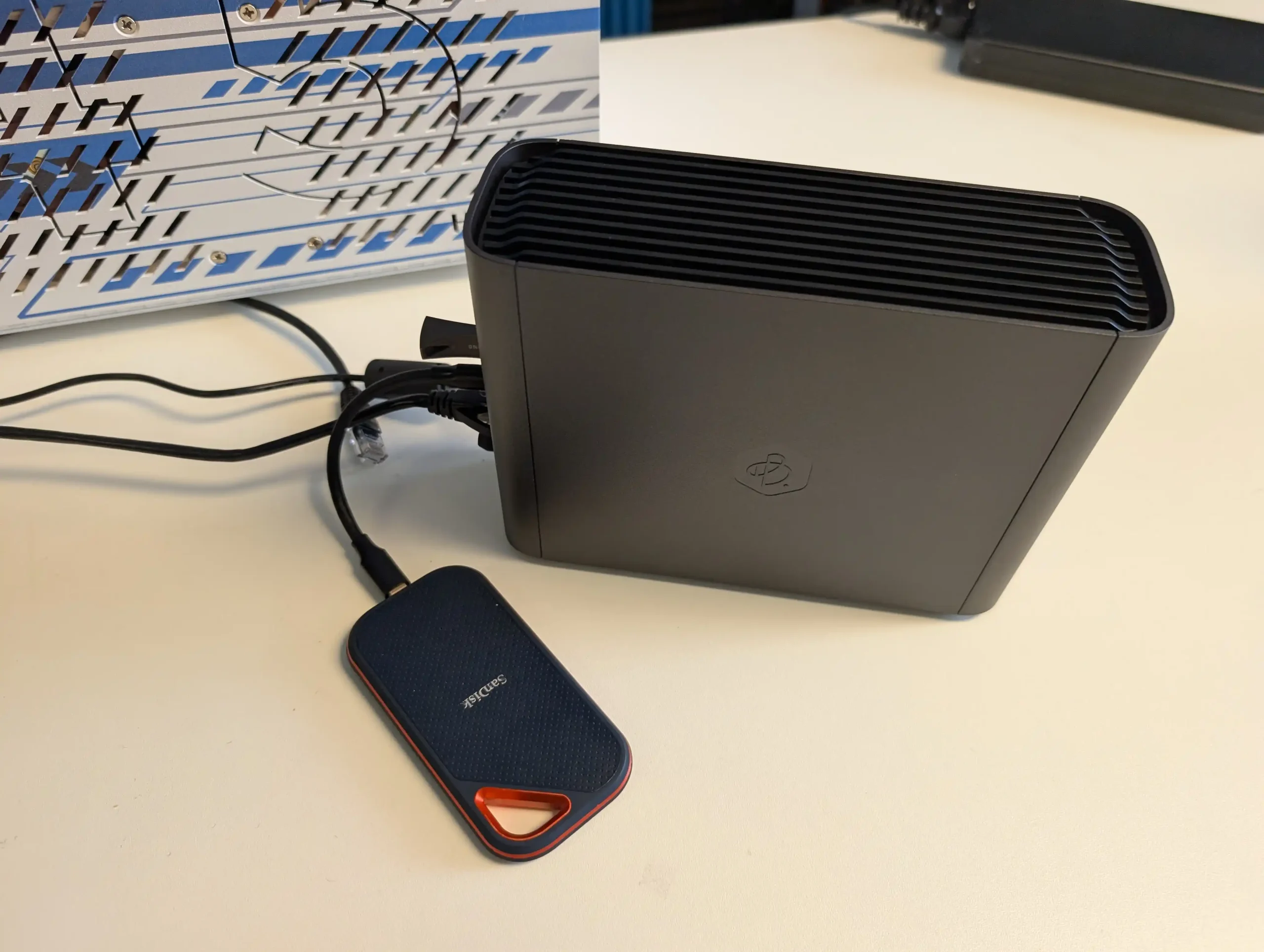
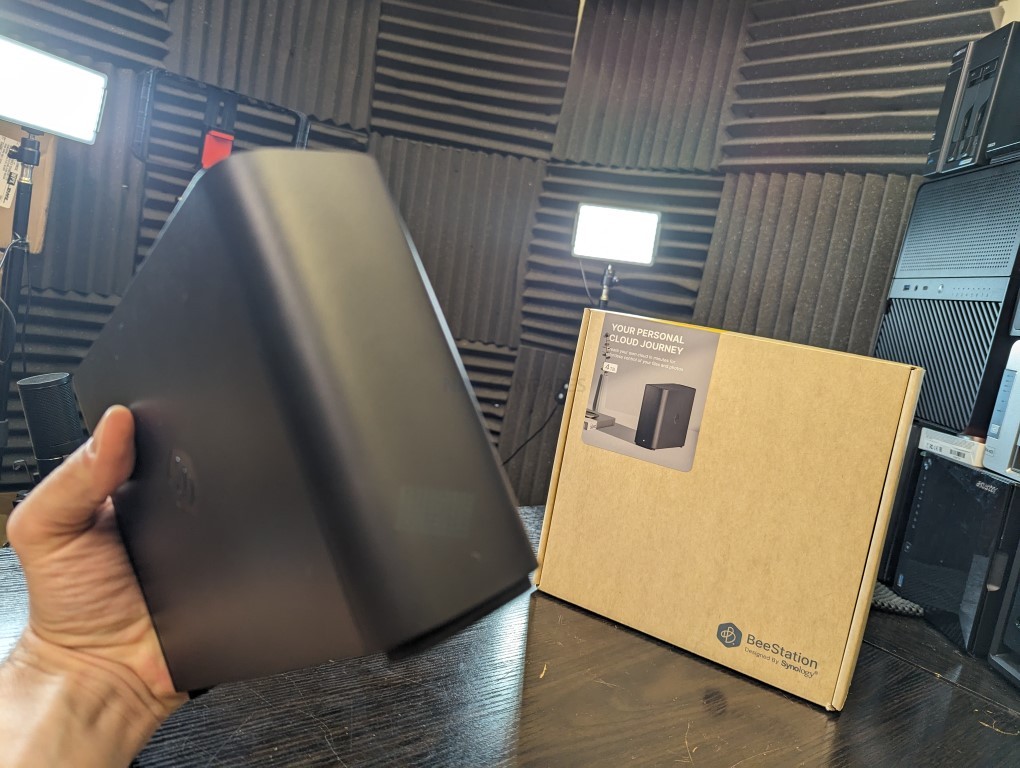
#1 Synology BeeStation Plus 8TB – $399 to $419

SPECS: Intel Celeron J4125 quad core 2.0 to 2.7 GHz – 4 GB DDR4 – 1 x 3.5″ 8 TB SATA bay (pre installed) – 1 x 1 GbE RJ45 / 1 x USB A 3.2 Gen 1 / 1 x USB C 3.2 Gen 1 – no M.2 SSD support.

BeeStation Plus is aimed at users who want a simple, appliance like Plex box rather than a configurable NAS. It runs Synology’s cut down BeeStation OS, has Plex Media Server support built in, and is set up entirely through a guided app and browser flow, so there is minimal configuration overhead. The hardware is sufficient for basic 4K and 1080p Plex use for a small number of clients, but the single non replaceable drive bay and lack of expansion, RAID options or M.2 slots mean it is best treated as a starter Plex unit for light libraries rather than a long term, scalable media server, and there is no official Jellyfin or Emby integration at this time.

What we said in our March ’25 Review HERE:

The Synology BeeStation marks a significant shift in Synology’s product line, targeting a new segment of users with its simplified yet functional design. This device stands out as an excellent middle ground between ease of use and a comprehensive private cloud system, providing secure and seamless access to stored data. While it is incredibly user-friendly and easy to set up, the lack of LAN access by default and its single-bay, 4TB-only configuration at launch might limit its appeal to more tech-savvy users or those seeking greater flexibility and expandability. The BeeStation’s unique selling point is its simplicity, making it a compelling choice for those new to NAS systems or for users who prioritize ease of use over extensive customization options. However, its simplicity also means that it lacks the extensive app support found in Synology’s DSM platform, potentially disappointing users accustomed to the richer application ecosystem offered by Synology’s more advanced models.
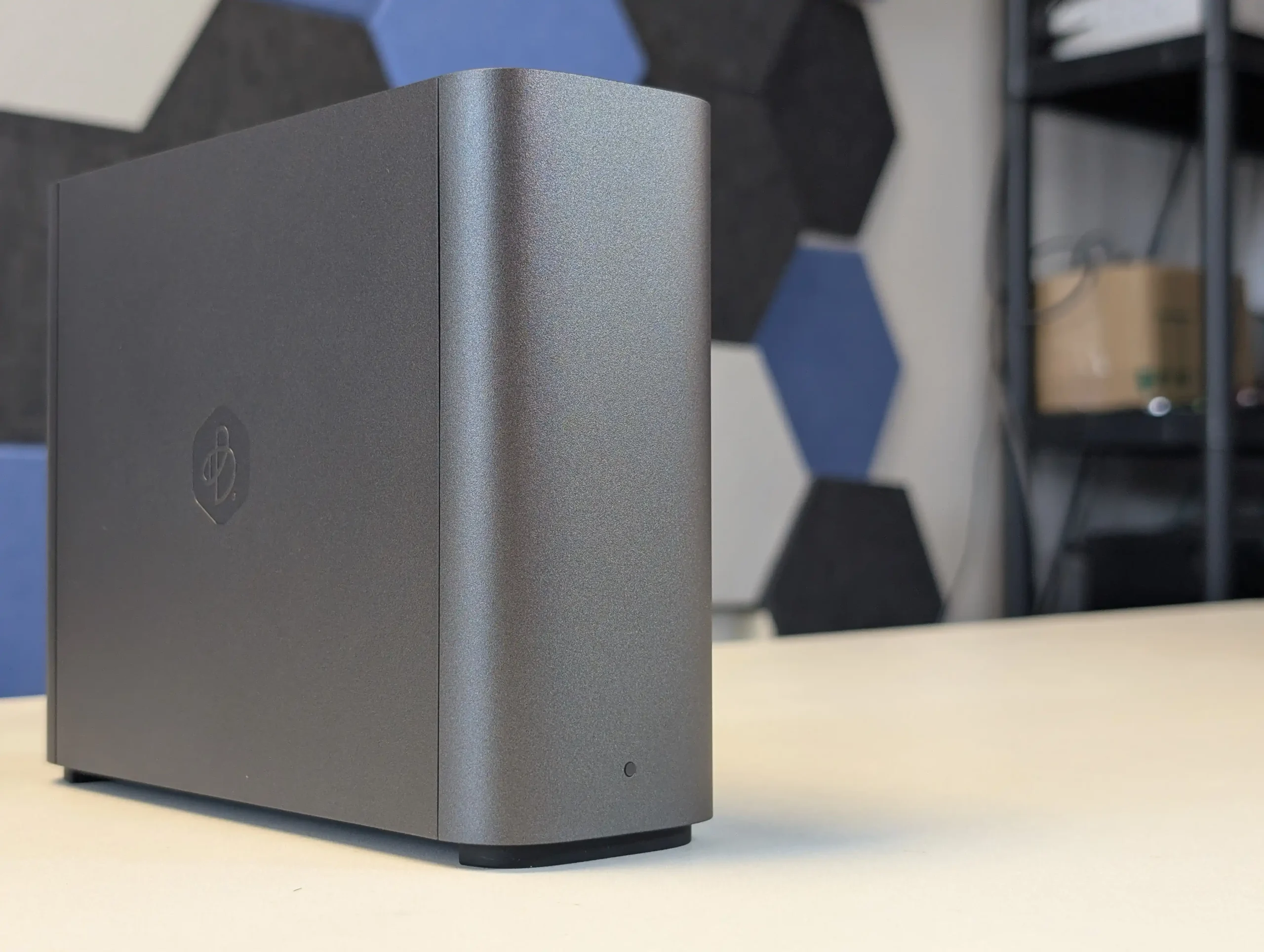
For users concerned about security, the BeeStation still upholds Synology’s reputation for secure data handling, with encrypted data transmission as a standard feature. However, experienced users who prefer a more hands-on approach to their NAS setup might find the BeeStation’s lack of advanced configuration options and its reliance on internet access for setup somewhat restrictive. In terms of market positioning, the BeeStation fills a gap left by other brands like WD and Seagate in offering ‘Easy NAS’ systems. Its competitive pricing, particularly considering the included 4TB of storage, makes it an attractive option for users seeking a private cloud solution without the recurring costs associated with third-party cloud services. Despite these potential drawbacks, the BeeStation is a solid entry-level NAS solution, especially for those seeking a personal cloud with minimal setup and maintenance. It may not be as feature-rich as Synology’s DSM-based NAS devices, but for its intended audience, the BeeStation provides a well-balanced combination of functionality, ease of use, and affordability. Synology’s move to cater to a broader, less technically inclined audience with the BeeStation demonstrates their understanding of market trends and user needs, offering a solution that balances simplicity with the reliability and quality Synology is known for.
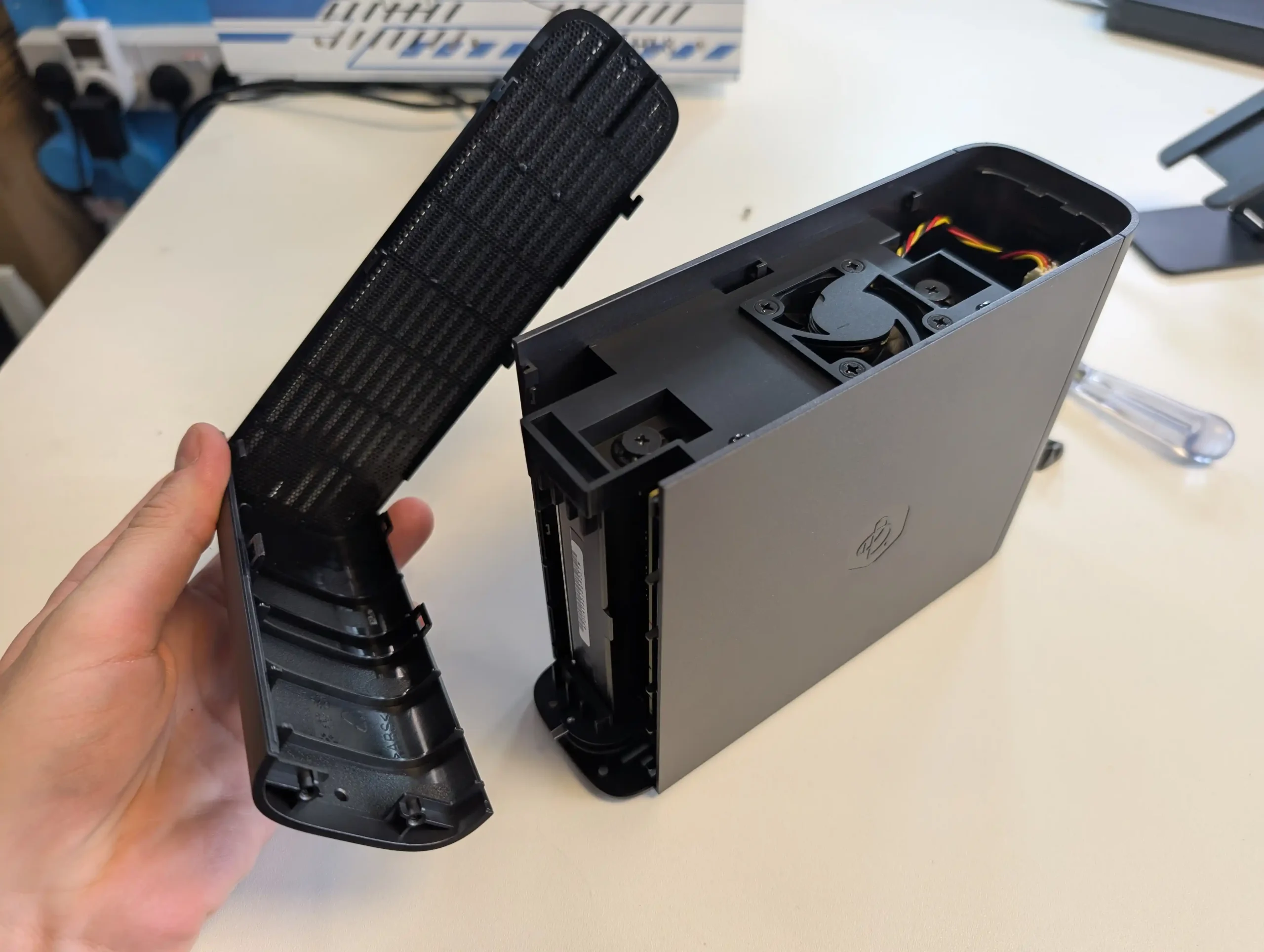
In the end, the Synology BeeStation is an ideal choice for users seeking a straightforward, reliable, and cost-effective personal cloud solution. It represents Synology’s commitment to diversifying their product range, catering to the evolving needs of different user segments. While it may not suit everyone, especially those looking for advanced features and customization, it excels in its role as a user-friendly, secure, and affordable entry-level NAS device.


SOFTWARE - 7/10
HARDWARE - 8/10
PERFORMANCE - 7/10
PRICE - 10/10
VALUE - 10/10


8.4
PROS
👍🏻User-friendly setup, ideal for beginners or those seeking a simple cloud solution.
👍🏻Secure data handling with encrypted data transmission.
👍🏻Comes with 4TB of storage included, offering good value.
👍🏻Compact and lightweight design, enhancing portability.
👍🏻Quiet operation, suitable for home or office environments.
👍🏻Integrates seamlessly with popular cloud services like Google Drive and OneDrive.
👍🏻Affordable pricing at $199, a cost-effective alternative to third-party cloud services.
👍🏻Supports remote access, allowing data management from anywhere and across client devices/OS
👍🏻Synologys reputation for quality and reliability is still clear on this smaller scale.
👍🏻Several client tools (BeeFiles, BeePhotos and Desktop sync tool) for Windows, Mac, iOS and Android available for tailored access
👍🏻System configuration backup option to USB/C2 (Often absent in budget cloud solutions)
👍🏻AI Photo Recognition in BeePhotos for faces, Objects and geo data scraping + Advanced filter/search
CONS
👎🏻Lacks the extensive app support and customization found in Synology\'s DSM platform.
👎🏻Only available in a single-bay, 4TB configuration at launch, limiting expandability.
👎🏻Single 5400RPM HDD running everything leads to slowdown more than you think!
👎🏻LAN access is disabled by default, which may not suit all users.
👎🏻Designed for a specific user base, may not meet the needs of more advanced users.


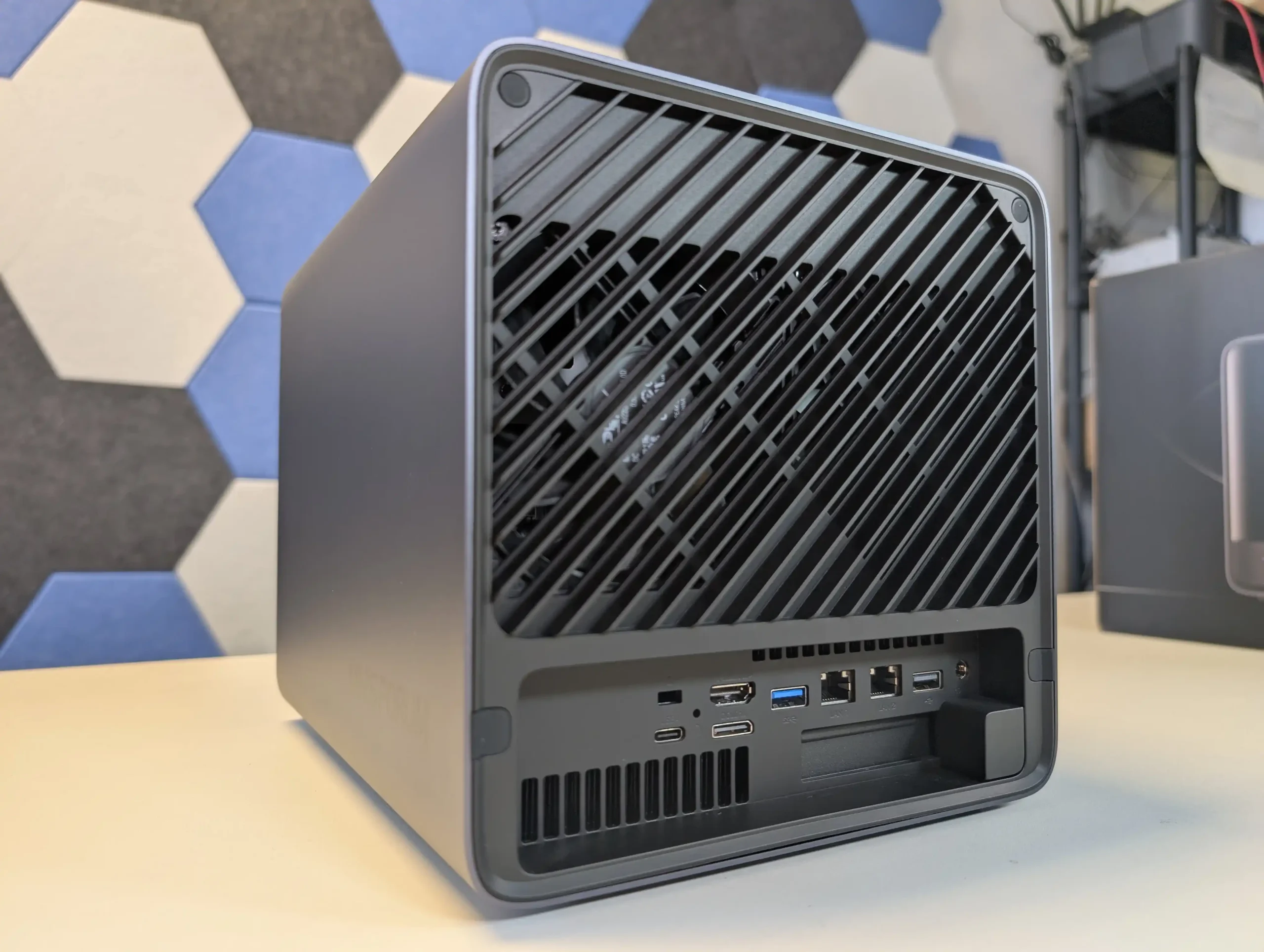
#2 Minisforum N5 NAS – $599 to $749

SPECS: AMD Ryzen 7 255 8 core 16 thread up to 4.9 GHz – up to 96 GB DDR5 via 2 SODIMM slots – 5 x 3.5″/2.5″ SATA bays – 1 x 10 GbE RJ45 / 1 x 5 GbE RJ45 / 2 x USB4 – 3 x M.2 2280 NVMe or U.2 SSD slots (PCIe 4.0).

The Minisforum N5 is a compact 5-bay NAS that targets users who want preconfigured hardware with some workstation derived design features. It uses an x86 CPU in the same general class as the Aoostar WTR Max, paired with an internal storage module of 64 GB for the system volume, and is typically sold in the 599 to 699 USD range, with the separate Pro variant occupying a higher bracket. The chassis integrates a removable drive base section for easier maintenance, and the platform includes multi-gig networking up to 10 GbE and 5 GbE, a PCIe expansion slot and USB4 connectivity for additional bandwidth or external devices. Minisforum ships the N5 with its own NAS operating system to provide an immediate out of box experience, but the software is still relatively young and many buyers elect to overwrite the included module with a more established NAS or server OS. Throughout 2025, availability has been intermittent, reflecting a level of demand from home lab users who want higher specification NAS hardware without building entirely from individual components.
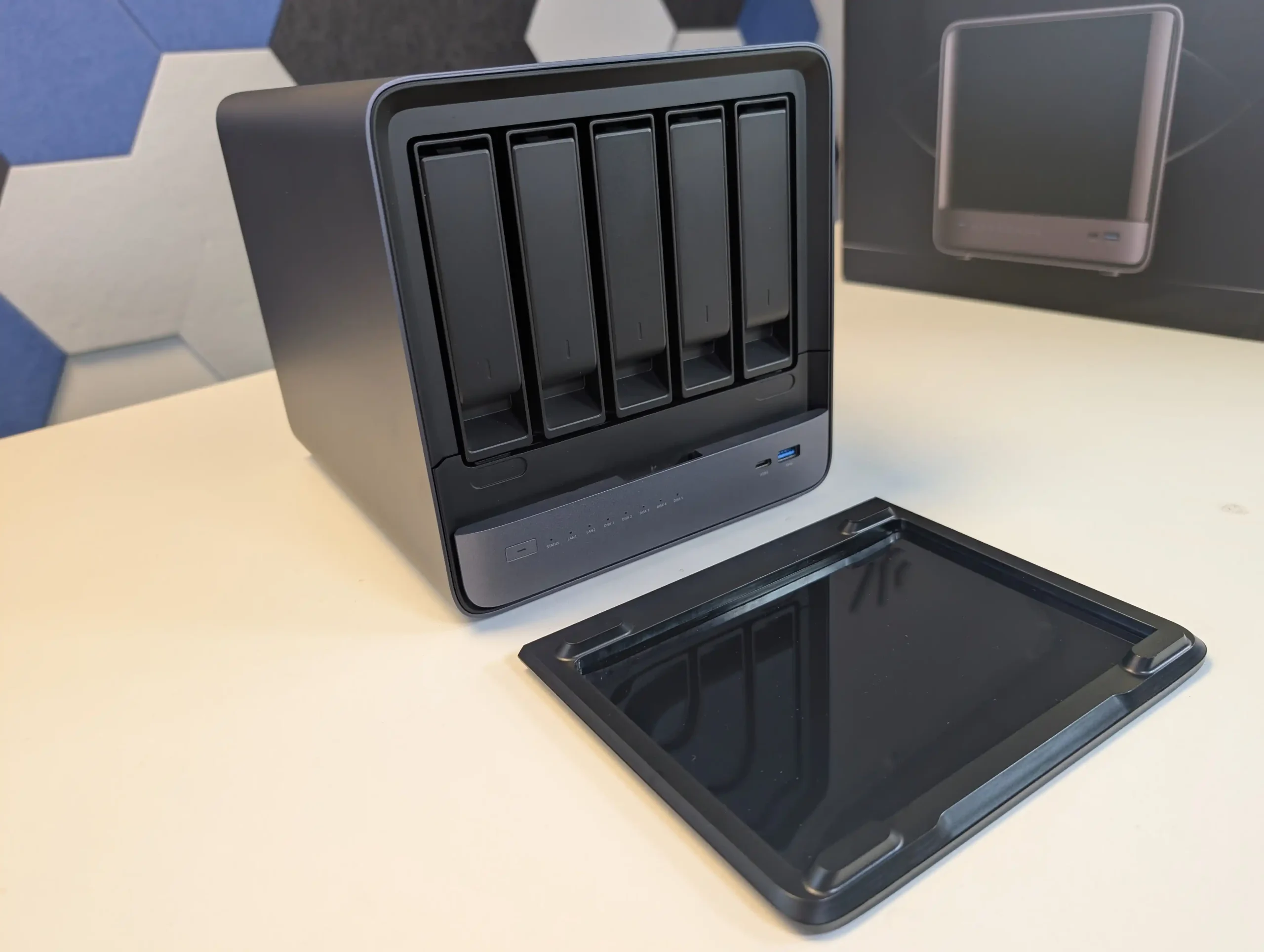
What we said in our July ’25 Review HERE:

The Minisforum N5 Pro is an impressive and highly versatile NAS platform that successfully combines the core strengths of a storage appliance with the capabilities of a compact, workstation-class server, making it suitable for demanding and varied use cases. Its defining features include a 12-core Ryzen AI 9 HX PRO 370 CPU with 24 threads and onboard AI acceleration up to 50 TOPS, support for up to 96GB of ECC-capable DDR5 memory for data integrity, and a hybrid storage architecture offering up to 144TB total capacity through a mix of five SATA bays and three NVMe/U.2 slots. Additional highlights such as ZFS file system support with snapshots, inline compression, and self-healing, along with high-speed networking via dual 10GbE and 5GbE ports, and expansion through PCIe Gen 4 ×16 and OCuLink interfaces, position it well beyond the capabilities of typical consumer NAS systems. The compact, fully metal chassis is easy to service and efficiently cooled, enabling continuous operation even under sustained virtual machine, AI, or media workloads.
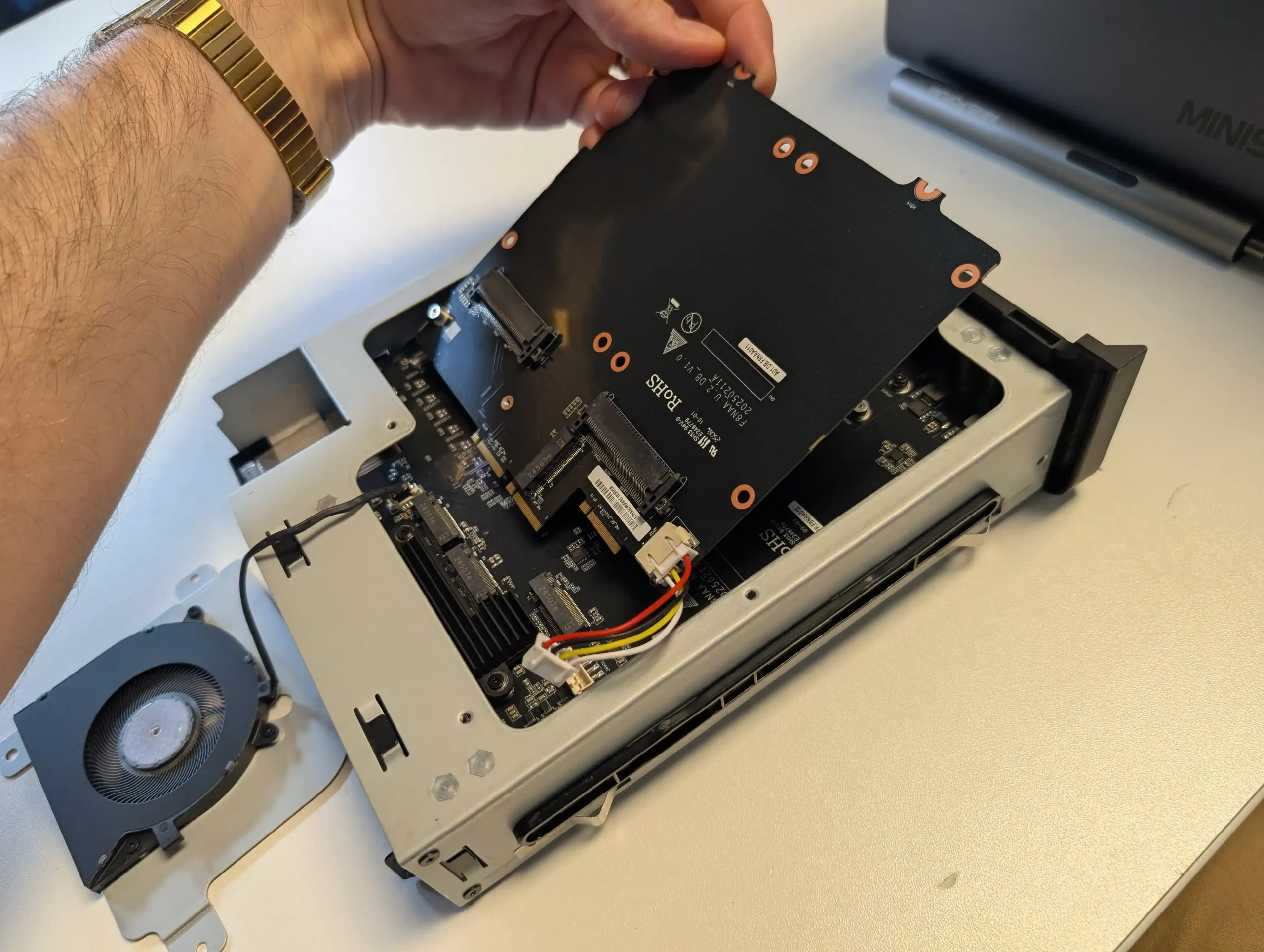
At the same time, the bundled MinisCloud OS, while feature-rich with AI photo indexing, Docker support, and mobile integration, remains a work in progress, lacking some enterprise-grade polish, robust localization, and more advanced tools expected in mature NAS ecosystems. Minor drawbacks such as the external PSU, the thermally challenged pre-installed OS SSD, and the higher cost of the Pro variant relative to the standard N5 are important to weigh, particularly for users who may not fully utilize the Pro’s ECC and AI-specific advantages. For advanced users, homelab builders, and technical teams who require high compute density, flexible storage, and full control over their software stack, the N5 Pro delivers workstation-level performance and configurability in NAS form—offering one of the most forward-thinking and adaptable solutions available today in this segment.
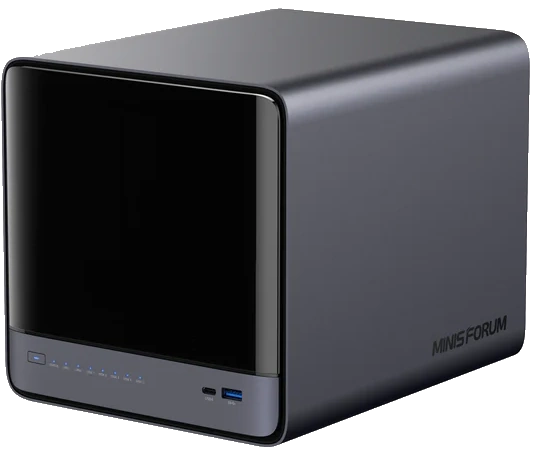
The is now available to buy:

  • Minisforum N5 Pro (Check Amazon) – HERE
  • Minisforum N5 Pro (Check AliExpress) – HERE
  • Shop for NAS Hard Drives on Amazon – HERE
  • Shop for SSDs for your N5 Pro on Amazon – HERE

BUILD QUALITY - 10/10
HARDWARE - 9/10
PERFORMANCE - 9/10
PRICE - 7/10
VALUE - 8/10


8.6
PROS
👍🏻High-performance AMD Ryzen™ AI 9 HX PRO 370 CPU with 12 cores, 24 threads, and AI acceleration (50 TOPS NPU) is INCREDIBLE for a compact desktop purchase
👍🏻Support for up to 96GB DDR5 memory with ECC, ensuring data integrity and stability in critical environments
👍🏻ZFS-ready storage with numerous ZFS and TRADITIONAL RAID configurations, snapshots, and inline compression
👍🏻Hybrid storage support: five 3.5\\\"/2.5\\\" SATA bays plus three NVMe/U.2 SSD slots, with up to 144TB total capacity
👍🏻Versatile expansion options including PCIe Gen 4 ×16 slot (×4 electrical) and OCuLink port for GPUs or NVMe cages
👍🏻Dual high-speed networking: 10GbE and 5GbE RJ45 ports with link aggregation support + (using the inclusive MinisCloud OS) the use of the USB4 ports for direct PC/Mac connection!
👍🏻Fully metal, compact, and serviceable chassis with thoughtful cooling and accessible internal layout - makes maintenance, upgrades and troubleshooting a complete breeze!
👍🏻Compatibility with third-party OSes (TrueNAS, Unraid, Linux) without voiding warranty, offering flexibility for advanced users
CONS
👎🏻MinisCloud OS is functional but immature, with unfinished localisation and limited advanced enterprise features - lacks MFA, iSCSI, Security Scanner and More. Nails several key fundamentals, but still feels unfinished at this time.
👎🏻Despite External PSU design (will already annoy some users), it generates a lot of additional heat and may not appeal to all users overall
👎🏻Preinstalled 64GB OS SSD runs hot under sustained use and lacks dedicated cooling. Plus, losing one of the 3 m.2 slots to it will not please everyone (most brands manage to find a way to apply an eMMC into the board more directly, or use a USB bootloader option as a gateway for their OS
👎🏻Premium $1000+ pricing may be hard to justify for users who don’t need ECC memory or AI capabilities compared to the standard N5 at $500+


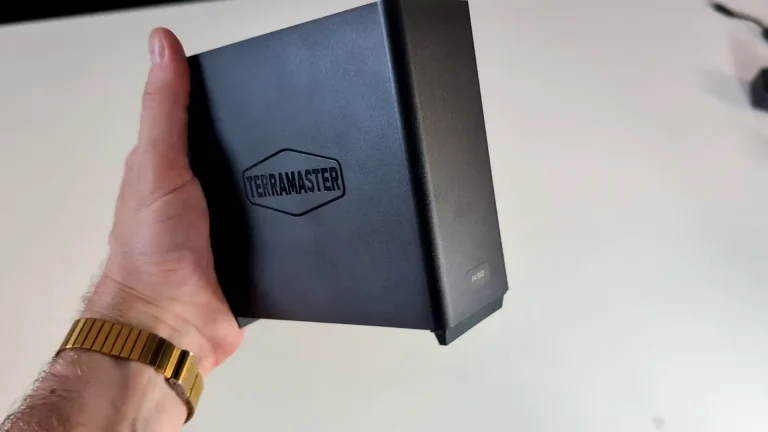
#3 TerraMaster F4 SSD NAS – $320 to $399

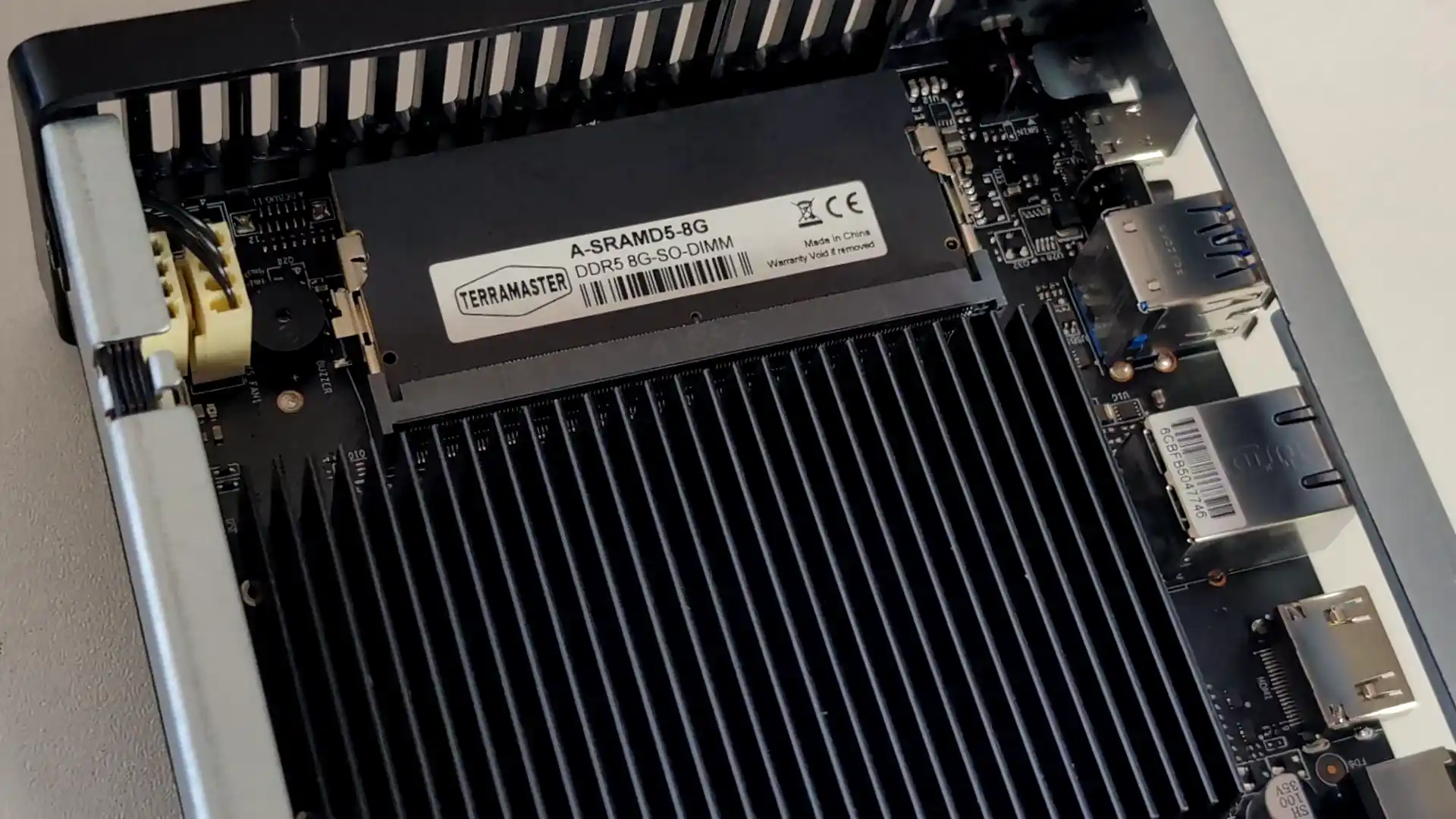
SPECS: Intel N95 quad core up to 3.4 GHz – 8 GB DDR5 (expandable to 32 GB) – 4 x M.2 2280 NVMe SSD bays – 1 x 5 GbE RJ45 / 2 x USB A 3.2 Gen 2 / 1 x USB C 3.2 Gen 2 / HDMI 2.0b – 4 x M.2 NVMe PCIe 3.0 slots (2 x2 / 2 x1).

The F4 SSD is an all flash NAS designed for users who want a compact, relatively low power Plex or Jellyfin server without mechanical drives. Its Intel N95 CPU and integrated graphics are sufficient for multiple 1080p and a modest number of 4K transcodes, and the 5 GbE interface allows the box to make use of higher network throughput than 1 GbE units. TerraMaster’s TOS 6 system offers a one click Plex package and container support for Jellyfin and Emby, but the interface and ecosystem are less refined than those from the largest NAS brands, and performance is ultimately limited by the entry level CPU and PCIe layout when many concurrent streams or heavier background tasks are involved.
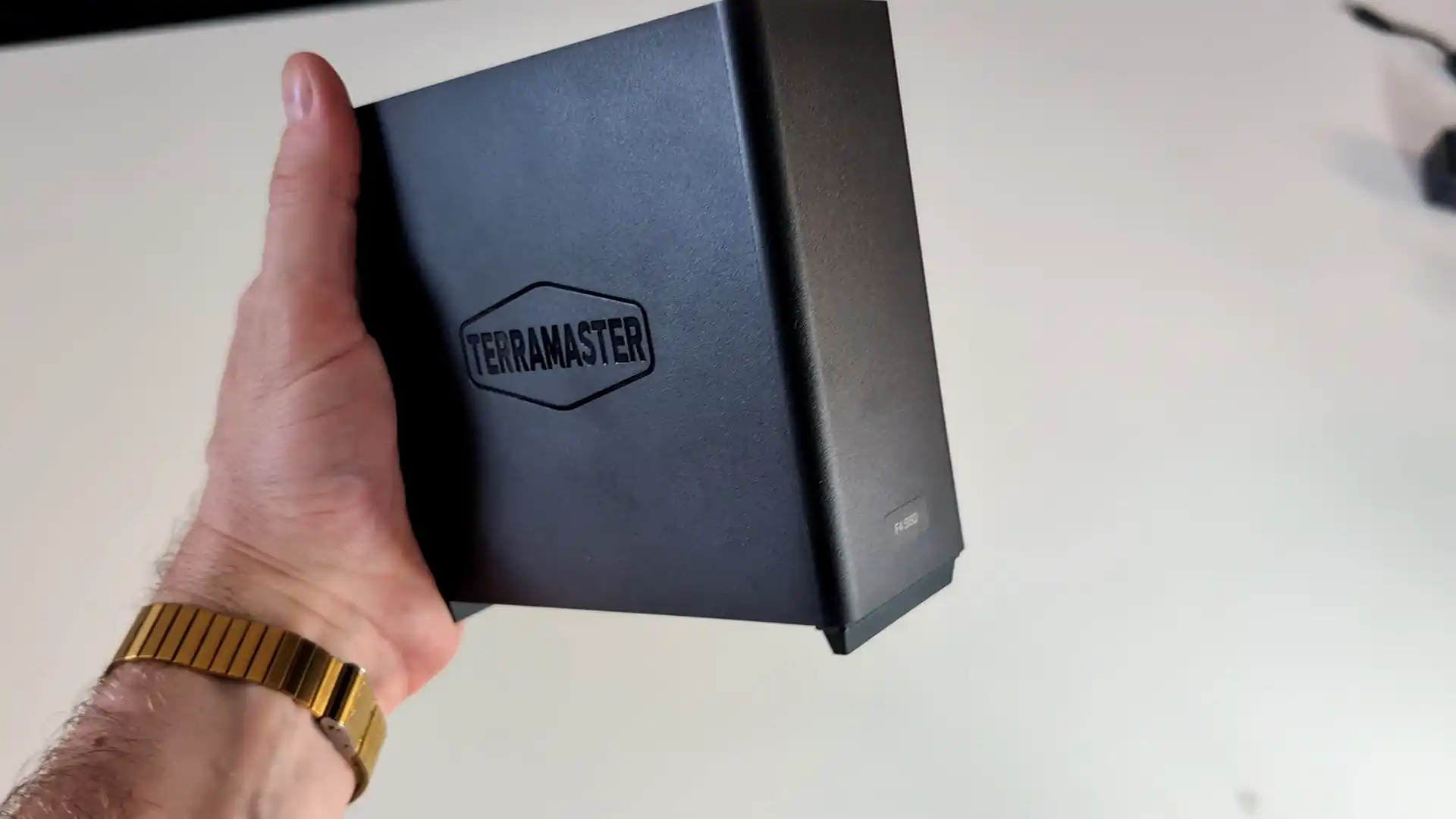
What we said in our Aug ’25 Review HERE:

The TerraMaster F4 SSD presents itself as a well-considered entry into the compact, all-flash NAS segment, balancing low noise, energy efficiency, and competitive performance at a sub-$400 price point. With its fanless NVMe-based design, Intel N95 quad-core processor, and DDR5 memory, it meets the essential needs of home and small office users looking for a reliable and responsive storage solution. The inclusion of TerraMaster’s increasingly capable TOS 6 operating system, featuring AI-driven photo management, centralized backup, and Docker/VM support, makes it more than just a network storage device—it becomes a lightweight but versatile data center for the home. Its TRAID support allows for mixed SSD deployments with easy expansion, which is particularly attractive to users upgrading gradually or working within budget constraints. The thoughtful internal layout and cooling also ensure performance remains consistent even under sustained load, without sacrificing the near-silent operation.
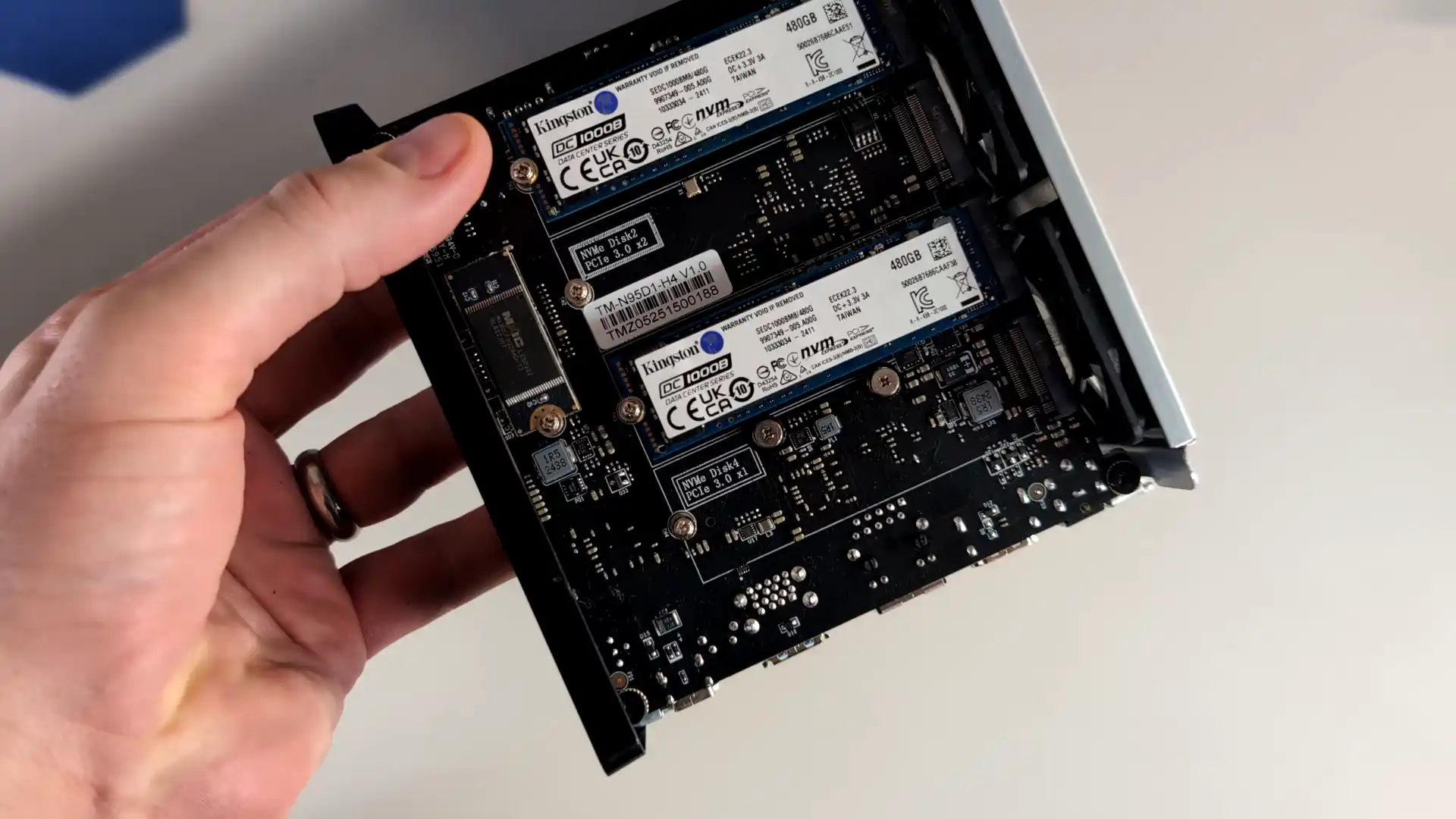
However, the F4 SSD is not without caveats. The use of a single 5GbE port, without redundancy or aggregation, may deter users requiring network failover or higher throughput for simultaneous operations. Additionally, although the PCIe lane allocation strategy maximizes the N95’s limited bandwidth, the asymmetry between Gen3 x2 and x1 slots could bottleneck RAID performance depending on how volumes are configured. When compared to the larger F8 SSD or DIY options with dual 10GbE or ECC support, the F4 SSD may feel limiting to power users or business environments with stricter reliability requirements. That said, for the vast majority of home users, content creators, and prosumers looking for an all-in-one, high-speed NAS that blends well into living spaces, the F4 SSD delivers a solid and accessible solution. Its price-to-performance ratio, combined with the simplicity of deployment and maturing software ecosystem, makes it a compelling option in the growing market of SSD NAS devices.
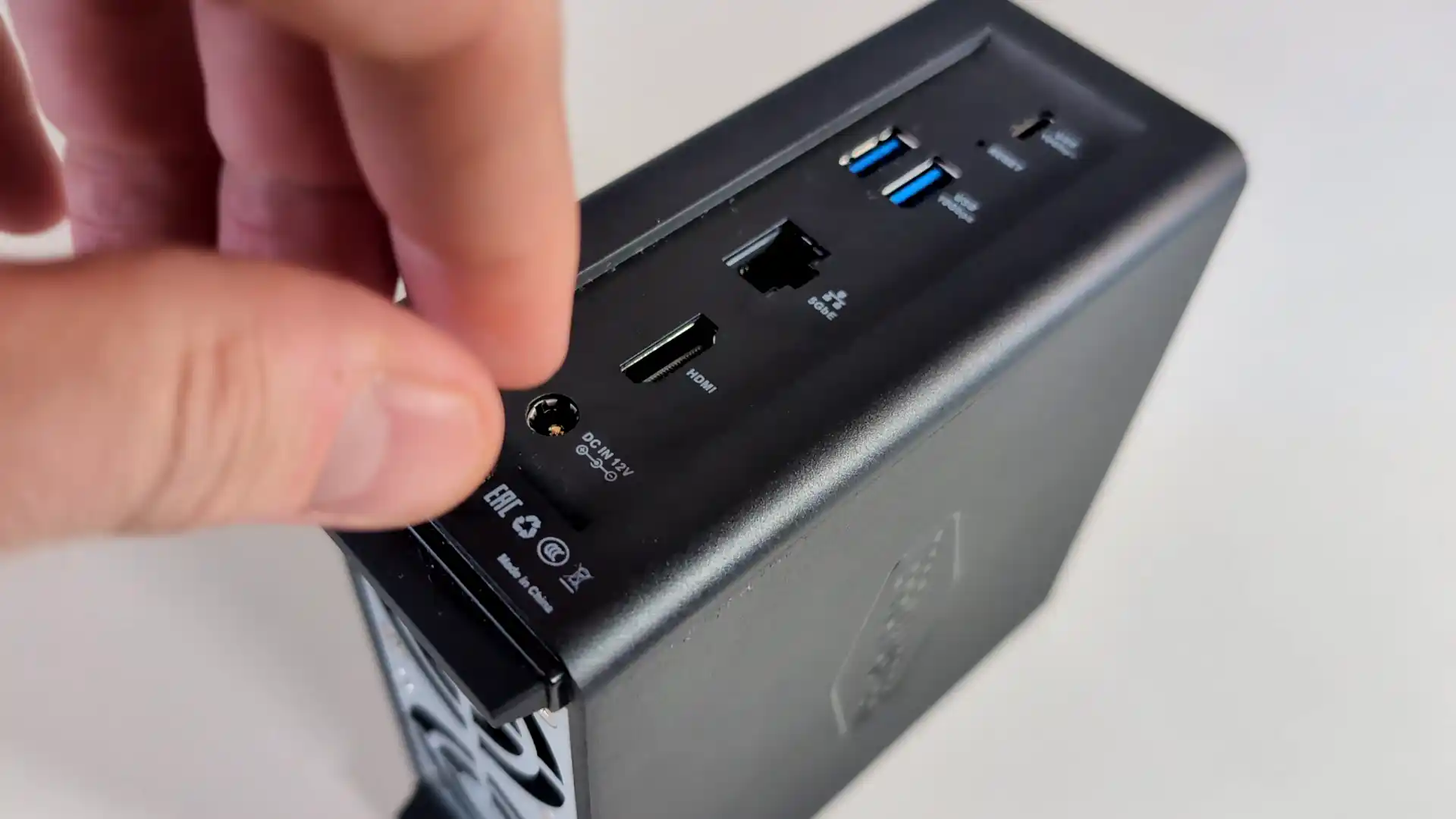
Terramaster F4 SSD NAS

Amazon in Your Region for the Terramaster F4 SSD NAS @ $399

B&H for the Terramaster F4 SSD NAS @ $399.99

SOFTWARE - 7/10
HARDWARE - 8/10
PERFORMANCE - 7/10
PRICE - 9/10
VALUE - 9/10


8.0
PROS
👍🏻Compact, toolless chassis with easy-access thumb screw and SSD installation
👍🏻All-flash NVMe architecture with support for four M.2 2280 SSDs
👍🏻5GbE network port enables high-speed local and remote transfers
👍🏻TRAID and TRAID+ allow mixed-capacity SSDs and seamless storage expansion
👍🏻TOS 6 OS includes Plex, Jellyfin, Docker, VM support, and AI photo indexing
👍🏻Quiet operation (19 dB) and low power usage (32W under load)
👍🏻Priced competitively at $399 for a turnkey SSD NAS
CONS
👎🏻Single 5GbE port with no failover or link aggregation
👎🏻Two of the four SSD slots are limited to PCIe Gen3 x1, creating potential RAID bottlenecks
👎🏻Non-ECC DDR5 memory may not meet strict data integrity requirements


#4 ZimaBoard 2 Single Board Server – $239 to $349

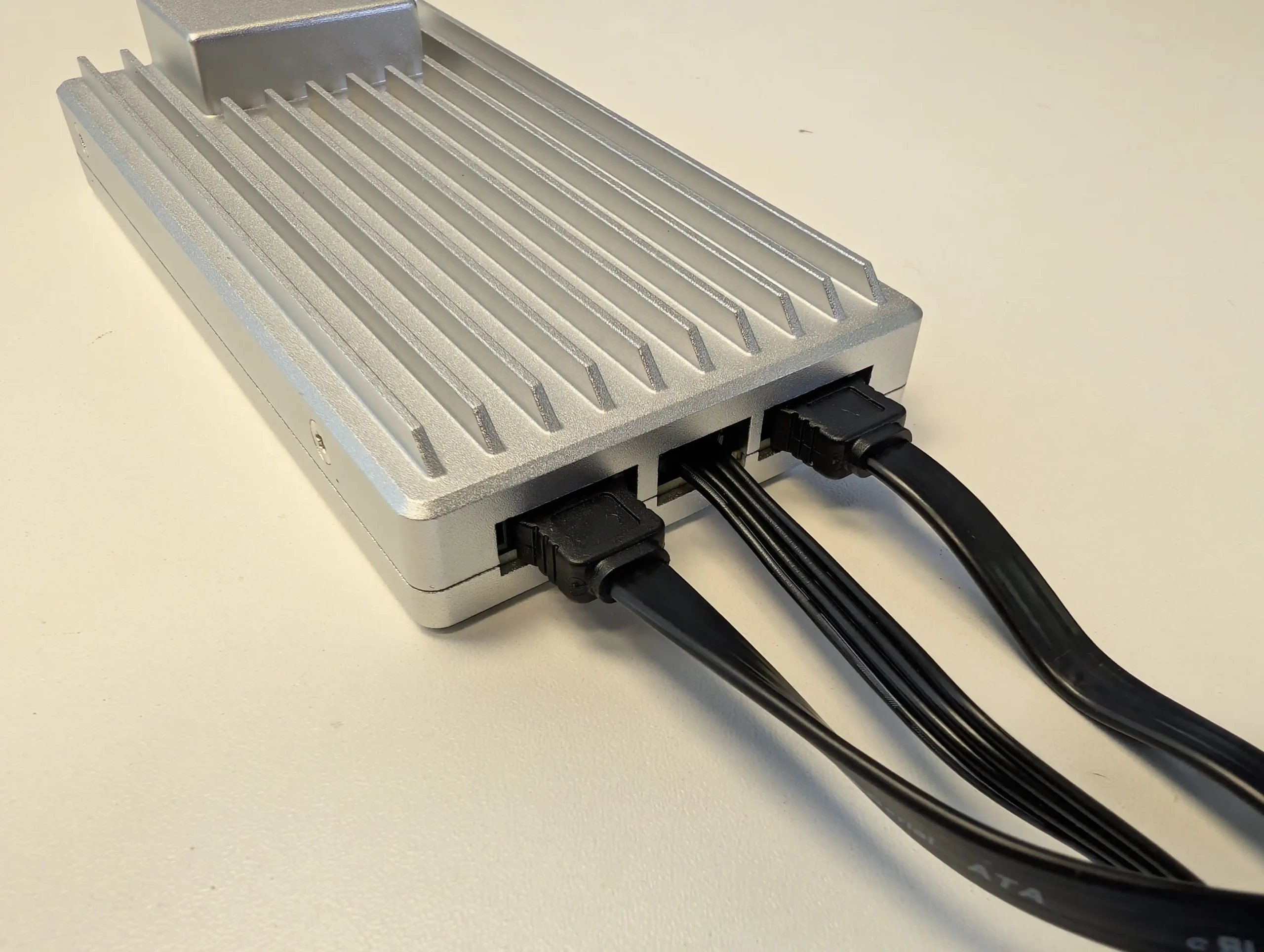
SPECS: Intel N150 quad core up to 3.6 GHz – 8 or 16 GB LPDDR5x – 2 x SATA 3.0 6 Gb/s ports for 3.5″/2.5″ drives (external bays or enclosures required) – 2 x 2.5 GbE RJ45 / 2 x USB 3.1 Type A / 1 x Mini DisplayPort 1.4 – M.2 SSD support via PCIe 3.0 x4 add in card only.

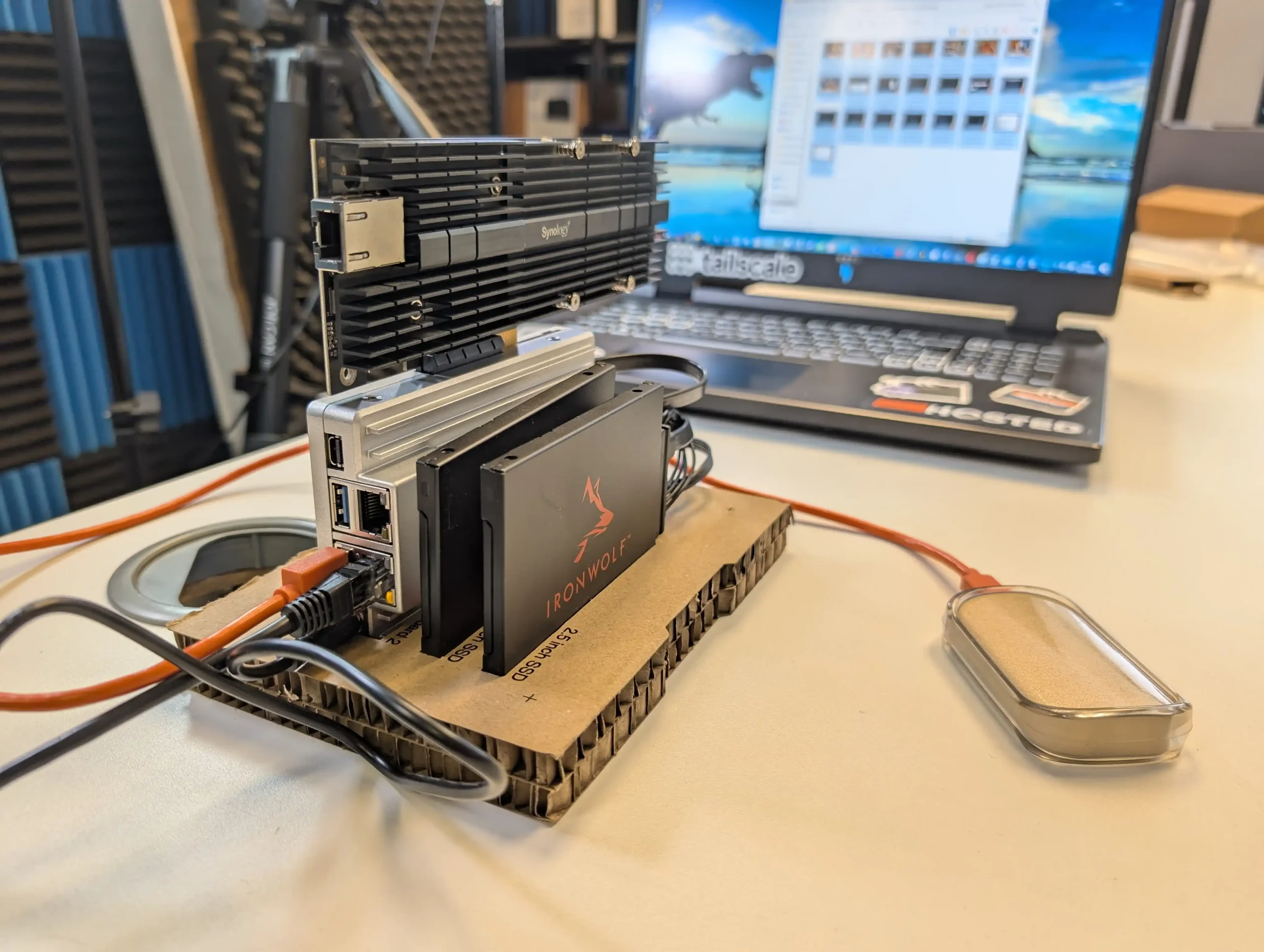
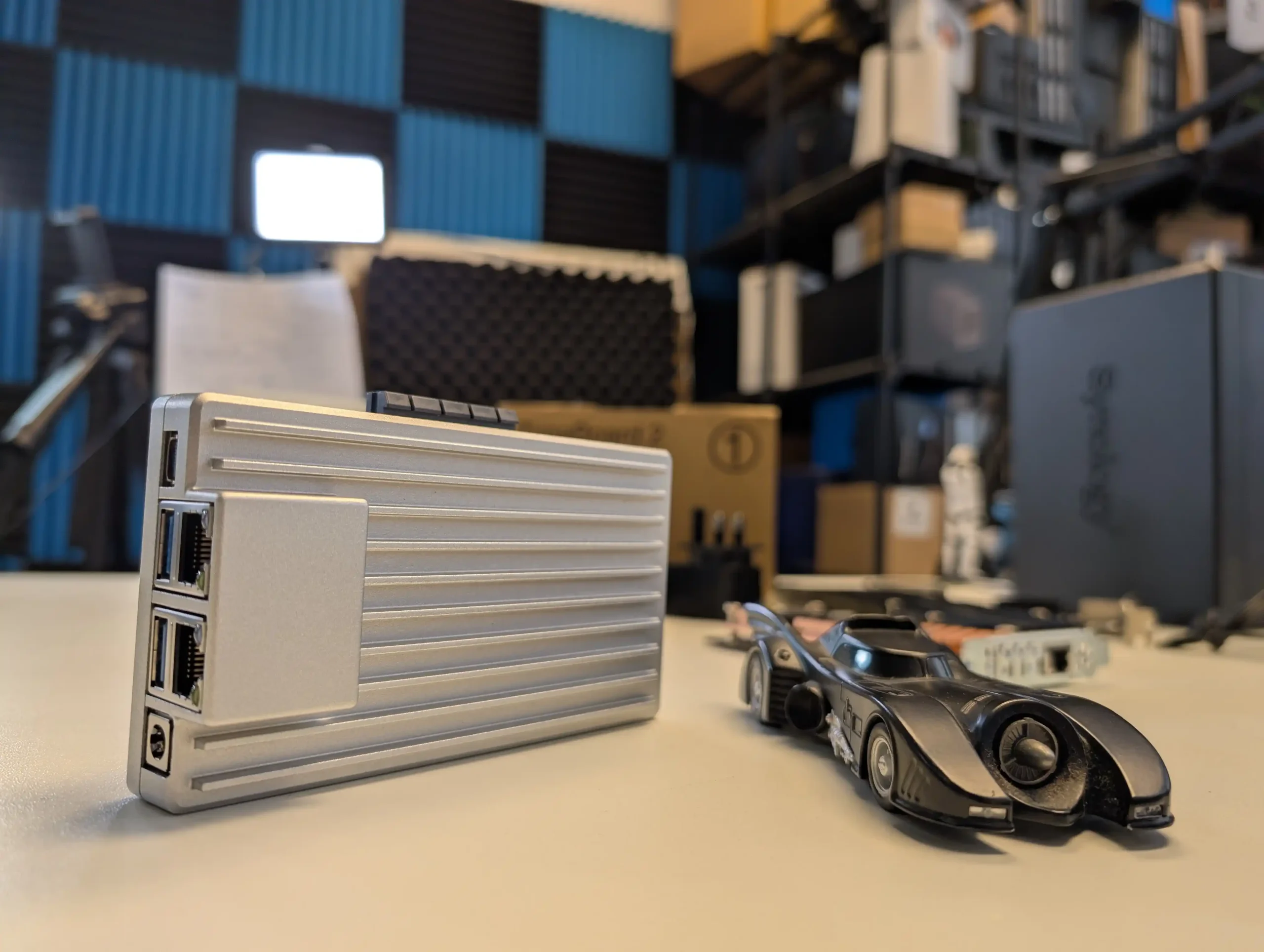
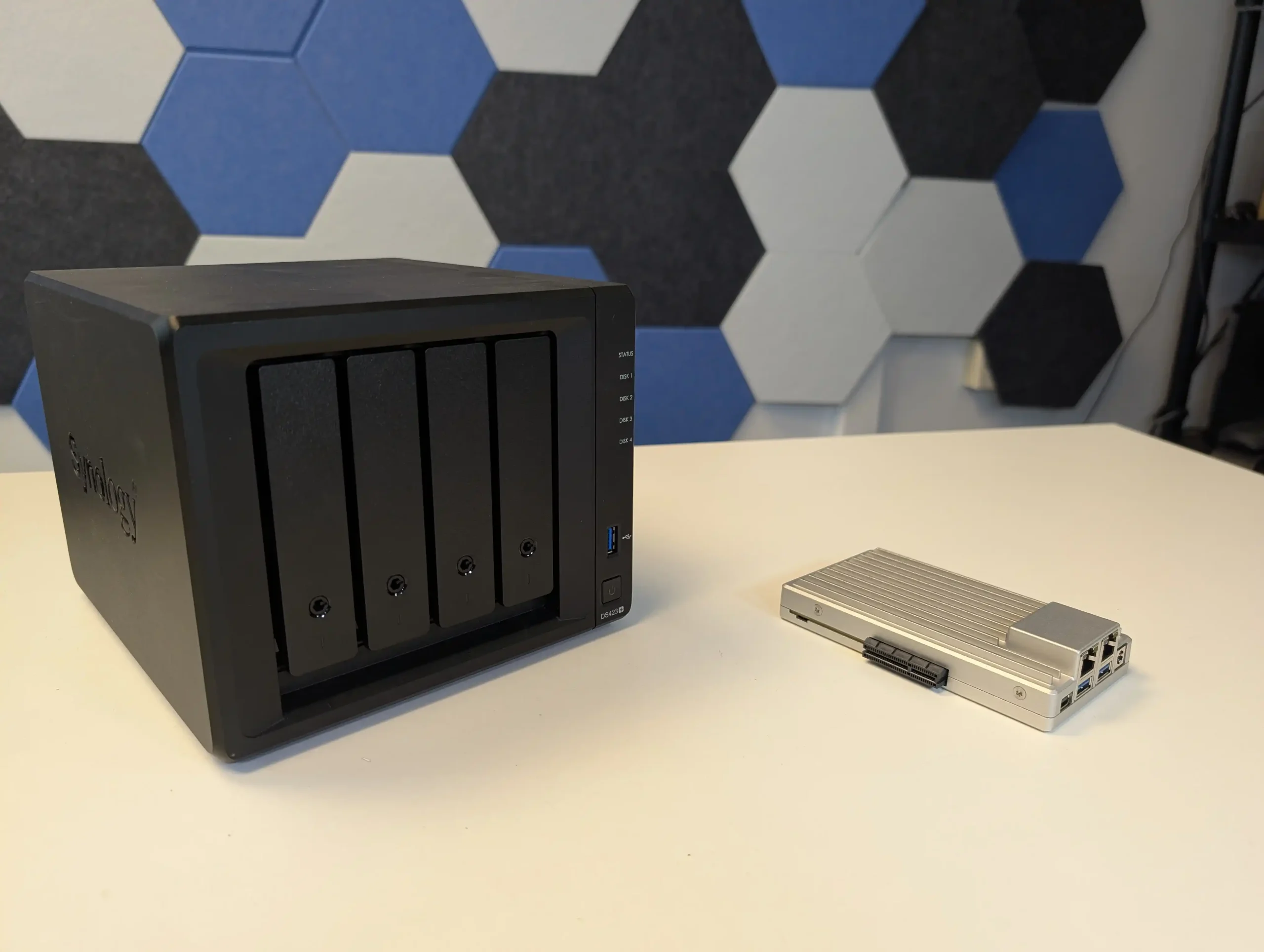
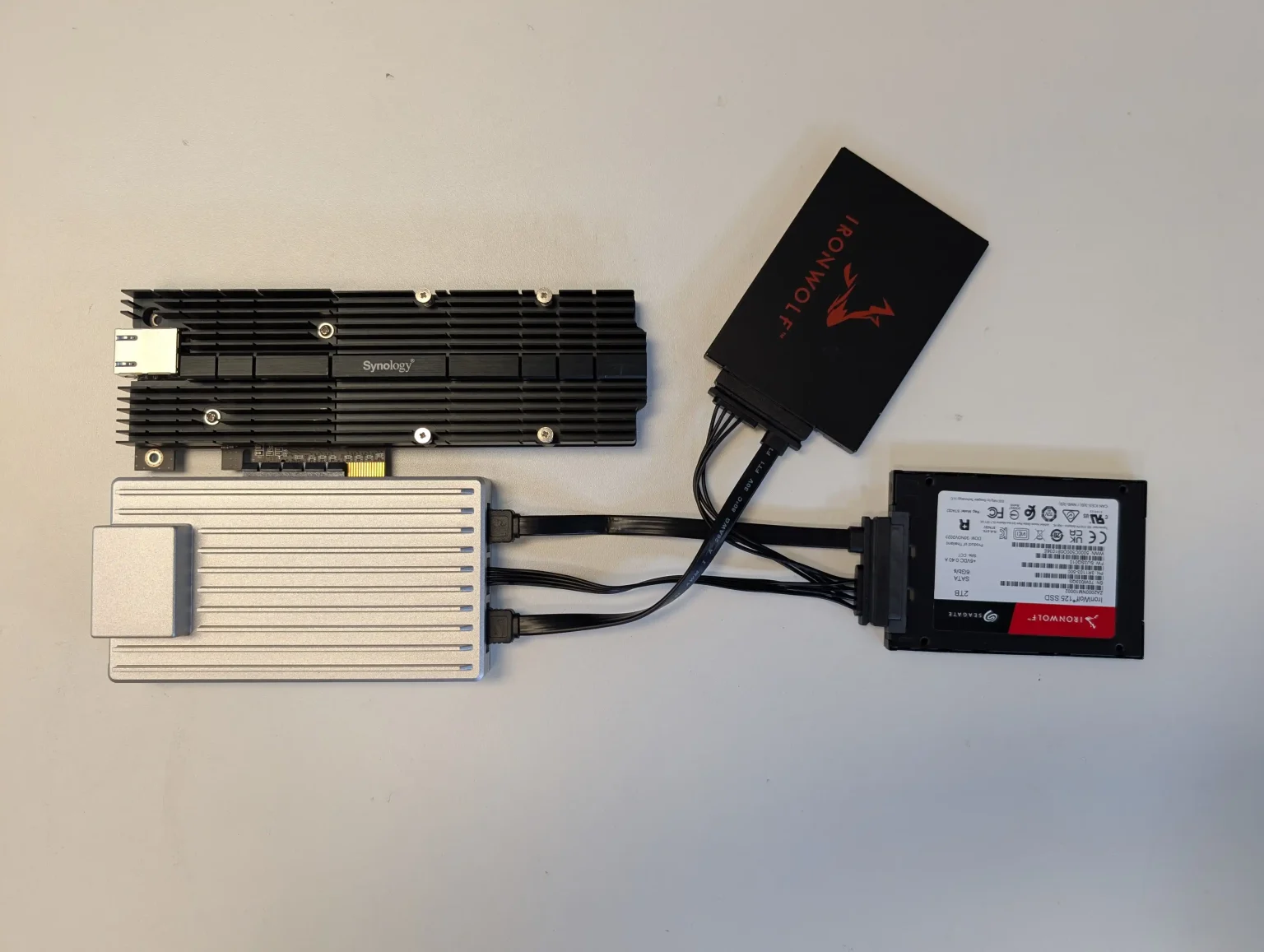
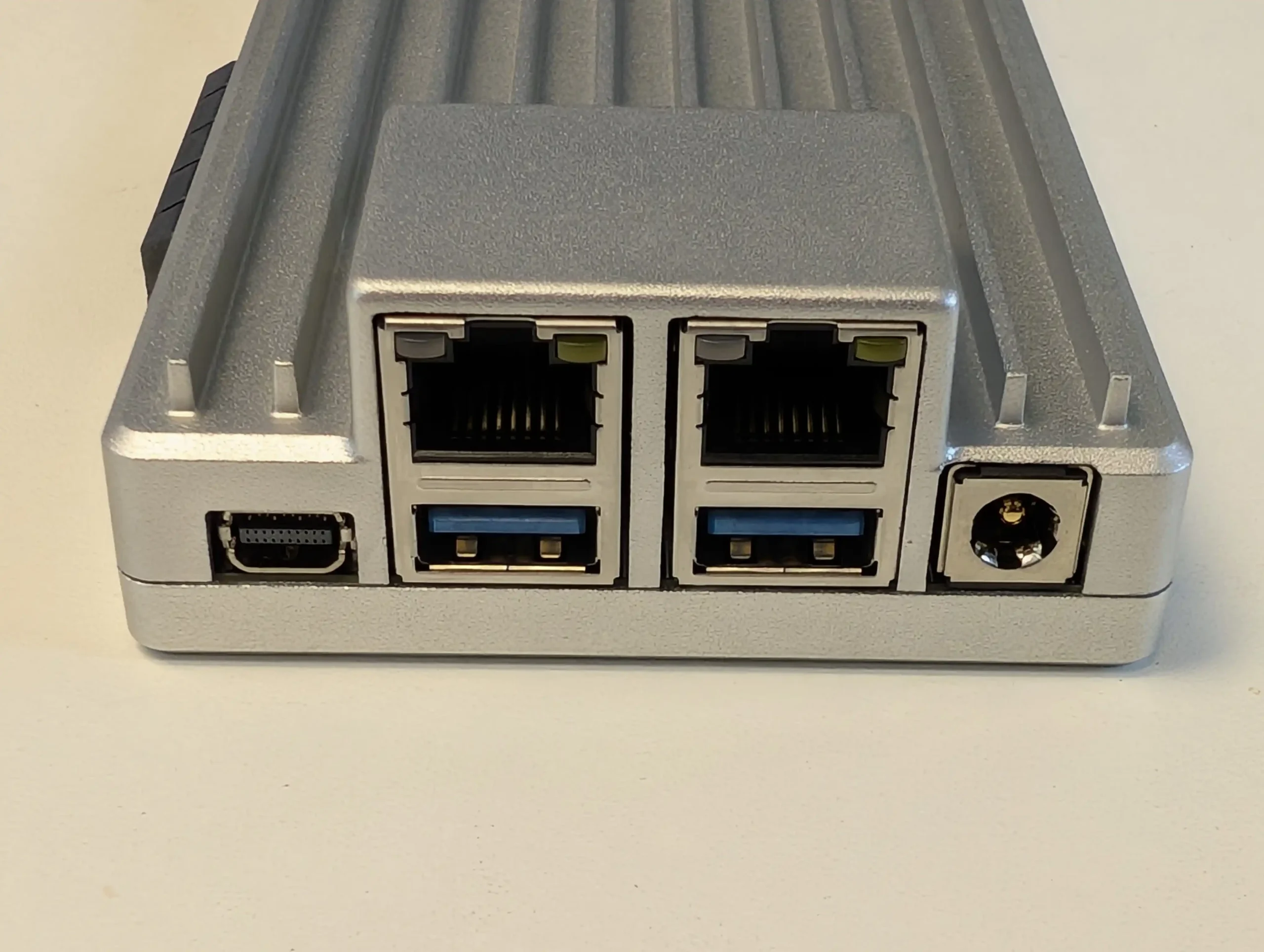
ZimaBoard 2 functions as a small, fanless compute module that can be combined with any suitable SATA enclosure or loose drives to create a highly customised Plex or Jellyfin server. It ships with ZimaOS, which exposes a NAS style interface, app catalogue and container options, so the system is usable out of the box without manually installing a general purpose Linux distribution. Dual 2.5 GbE ports and Intel Quick Sync support give it enough capability for several 1080p and selected 4K transcodes, but the absence of internal bays or native M.2 slots means storage design is entirely external, and the device is better suited to users who do not mind assembling their own chassis or reusing existing cases and drive cages.
What we said in our April ’25 Review HERE:

The ZimaBoard 2 is a competent and thoughtfully assembled single-board server that builds meaningfully on IceWhale’s earlier efforts, especially the original ZimaBoard and the ZimaBlade. Its design clearly targets users who want more flexibility and performance than traditional ARM-based boards can offer, but who also value power efficiency, silence, and a small footprint. The use of an Intel N150 CPU, 8GB of LPDDR5x memory, dual 2.5GbE ports, and a PCIe 3.0 x4 slot makes it viable for a variety of home server roles—from basic NAS and smart home coordination to lightweight container hosting and local media streaming. Features like onboard SATA, USB 3.1, and a DisplayPort connection further add to its utility. However, there are hardware limitations that may affect long-term suitability for advanced deployments. The soldered RAM cannot be upgraded, and the internal eMMC storage, while useful for initial setup, is too slow for OS-level responsiveness in more demanding use cases. Passive cooling, while appreciated for silence, also imposes some thermal limitations depending on the deployment environment.
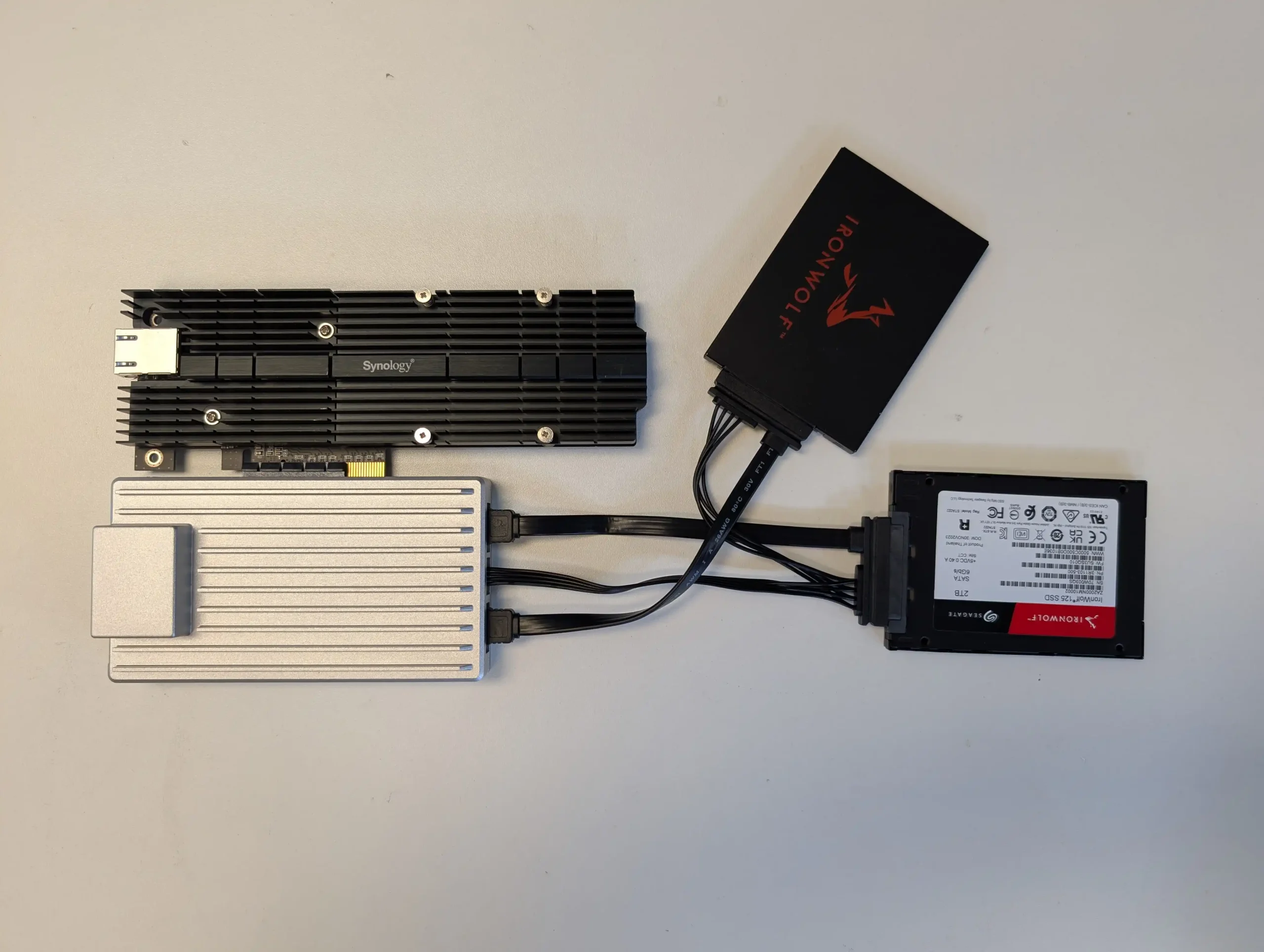
On the software side, ZimaOS offers a decent out-of-the-box experience that caters to users with minimal technical background. It handles core tasks like application deployment, file sharing, and system monitoring without requiring advanced configuration, and its Docker-based App Store simplifies access to popular tools. For more experienced users, the system supports third-party OS installation, which is likely how many will ultimately use the ZimaBoard 2. Still, as a bundled solution, ZimaOS has matured significantly and now presents itself as a lightweight, capable, and non-intrusive platform for those who prefer to get started immediately. In the broader context of DIY server hardware, ZimaBoard 2 occupies a middle ground: more powerful and modular than Raspberry Pi-class systems, yet more constrained than full x86 mini PCs or enthusiast-grade NAS hardware. For those who understand and accept these trade-offs, and are willing to plan around its limitations, the ZimaBoard 2 offers a reliable and flexible foundation for compact, energy-efficient computing at the edge.

Check Amazon in Your Region for the Zimaboard 2

Check AliExpress for the Zimaboard 2

BUILD QUALITY - 10/10
HARDWARE - 8/10
PERFORMANCE - 8/10
PRICE - 9/10
VALUE - 10/10


9.0
PROS
👍🏻x86 Architecture – Compatible with a wide range of operating systems including ZimaOS, Unraid, TrueNAS SCALE, and Proxmox.
👍🏻Dual 2.5GbE LAN Ports – Offers strong networking capabilities for multi-service workloads and gateway setups.
👍🏻PCIe 3.0 x4 Slot – Enables high-speed expansion for 10GbE NICs, NVMe storage, or combo cards.
👍🏻Fanless, Silent Operation – Completely passively cooled, ideal for home or quiet office environments.
👍🏻Compact and Durable Build – Small footprint with an all-metal chassis that doubles as a heatsink.
👍🏻ZimaOS Included – User-friendly OS with a Docker-based App Store and basic VM tools, ready out of the box.
👍🏻Flexible Storage Options – Dual SATA ports plus USB 3.1 support for connecting SSDs, HDDs, or external drives.
👍🏻Low Power Consumption – Efficient 6W CPU with ~10W idle and ~40W max under heavy load scenarios.
CONS
👎🏻Non-Upgradable RAM – 8GB of soldered LPDDR5x limits long-term scalability for memory-intensive tasks.
👎🏻Slow/Small Default Internal Storage – 32GB eMMC is convenient but underperforms for OS-level responsiveness or high I/O workloads.
👎🏻Thermal Headroom is Limited – Passive cooling alone may not be sufficient in closed environments or under sustained load without added airflow.
👎🏻Not Launching on Traditional Retail, but instead on Crowdfunding.


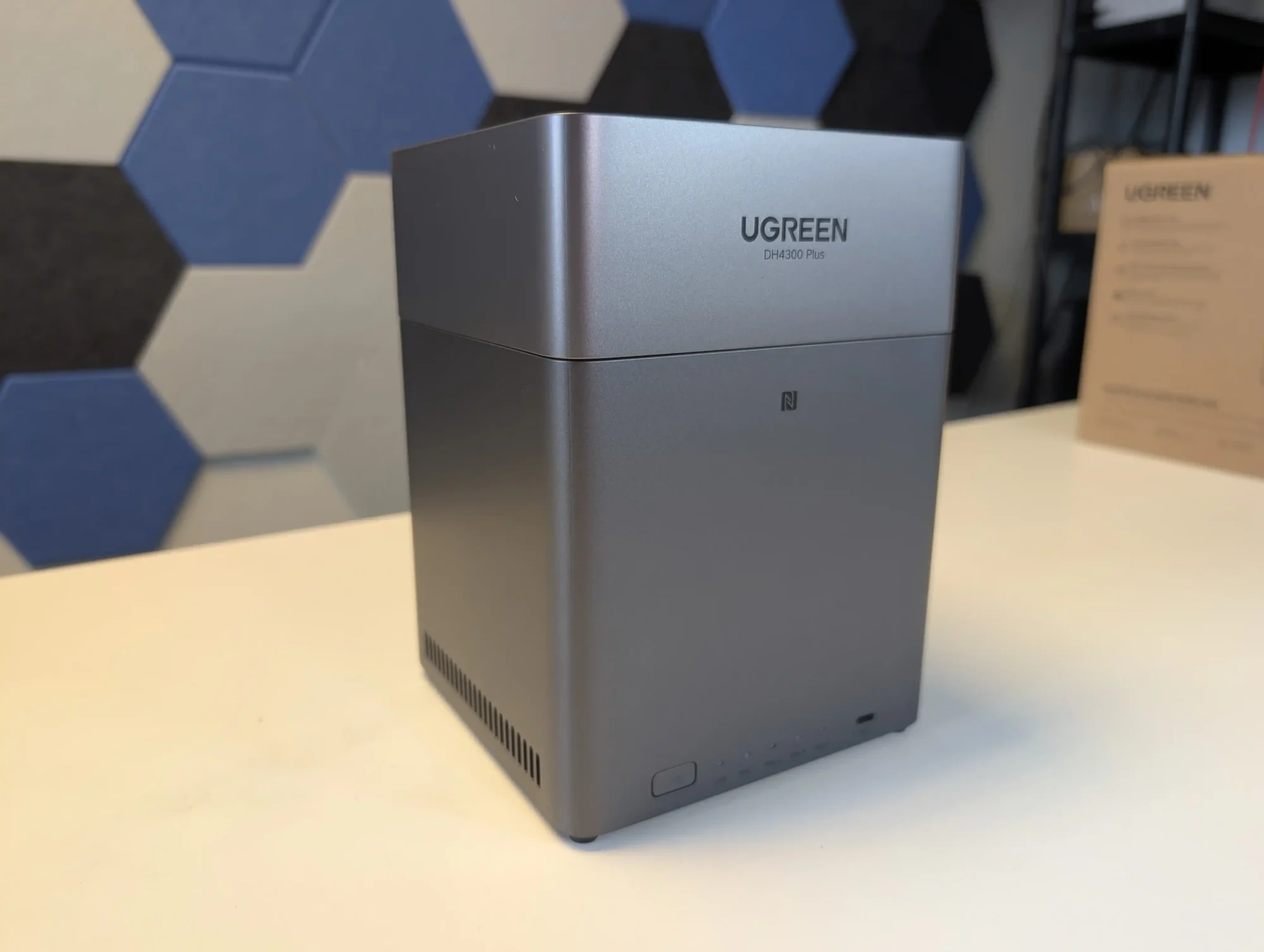
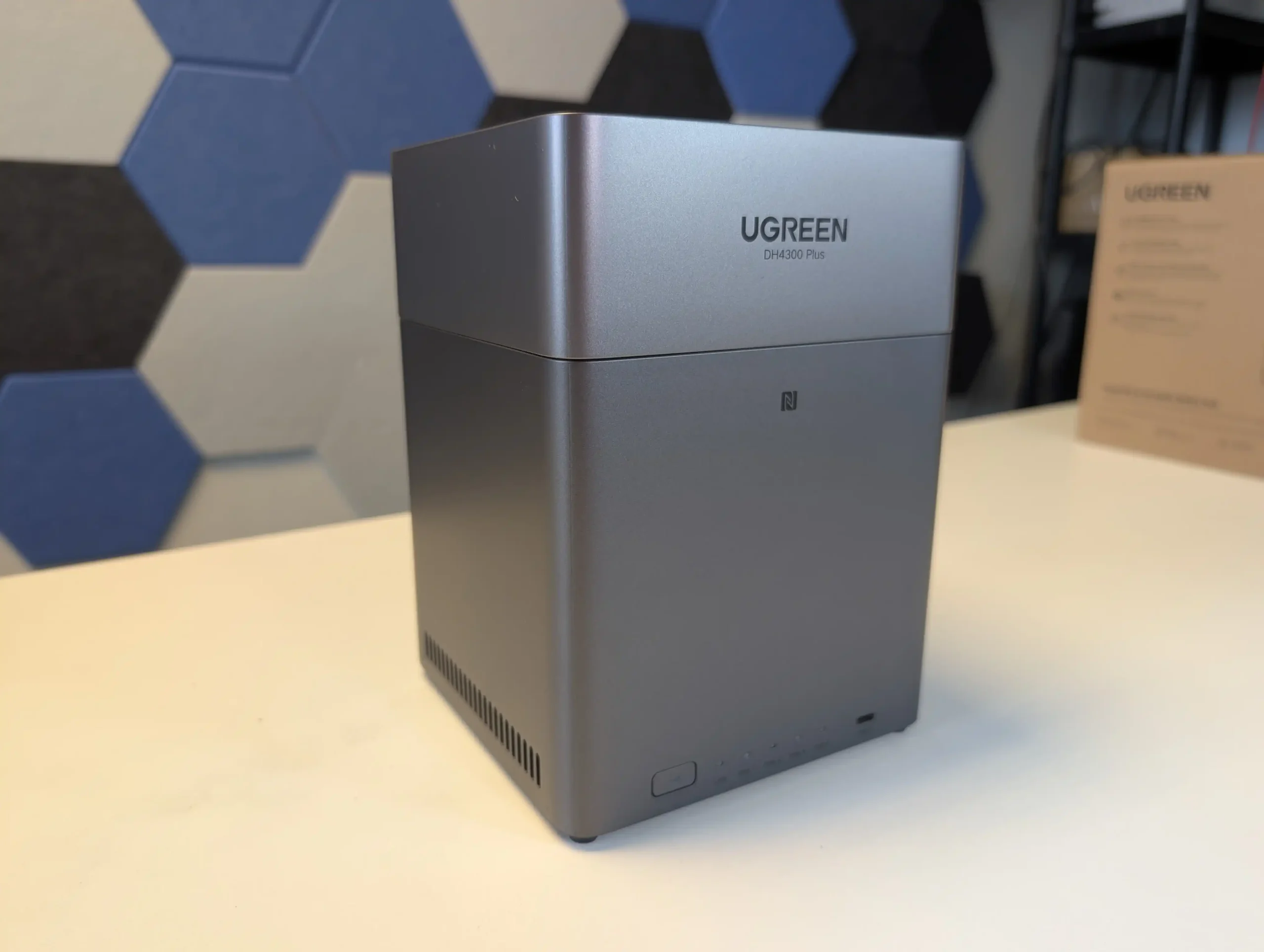
#5 UGREEN NASync DH4300 Plus – $365 to $390

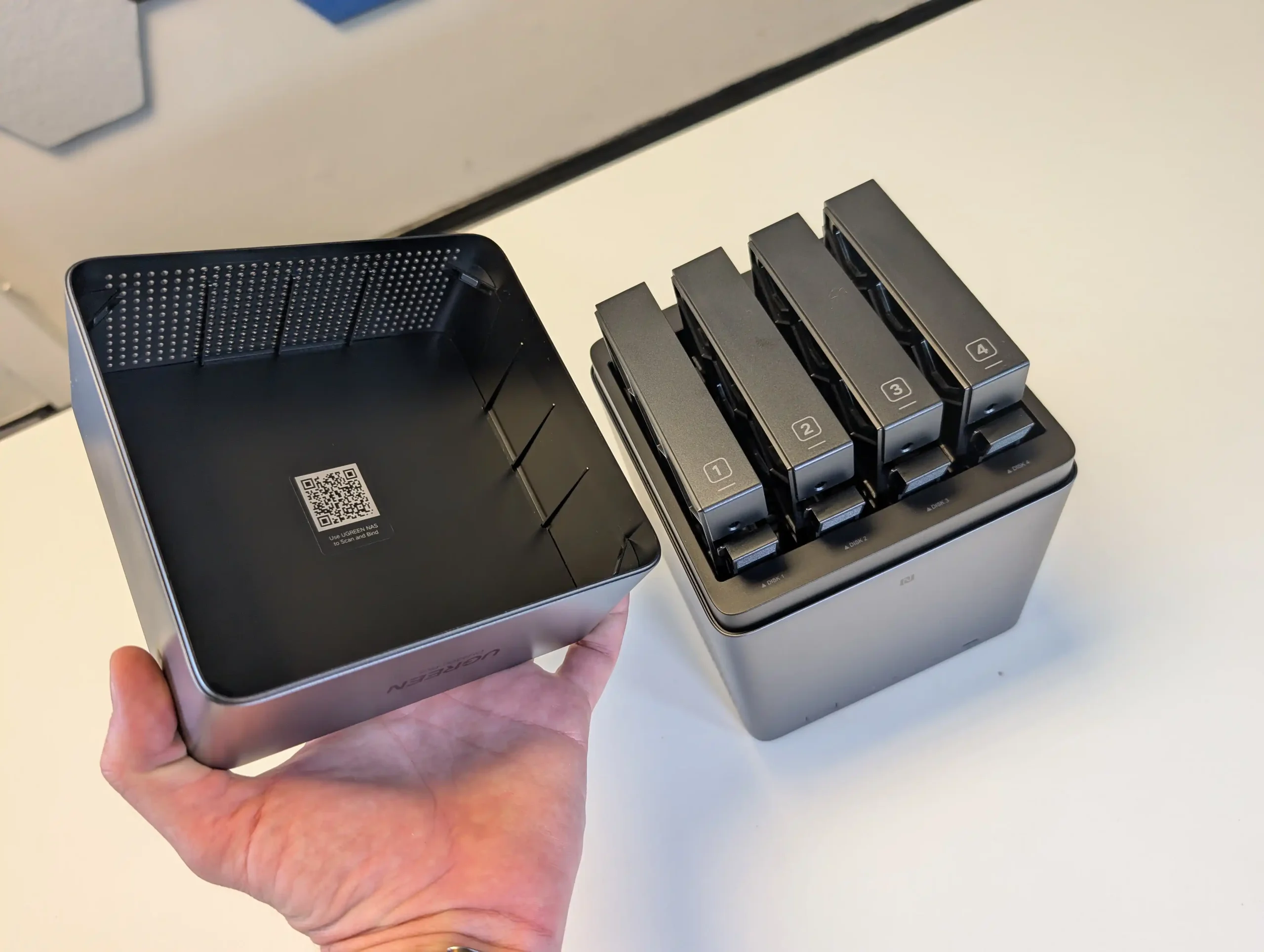
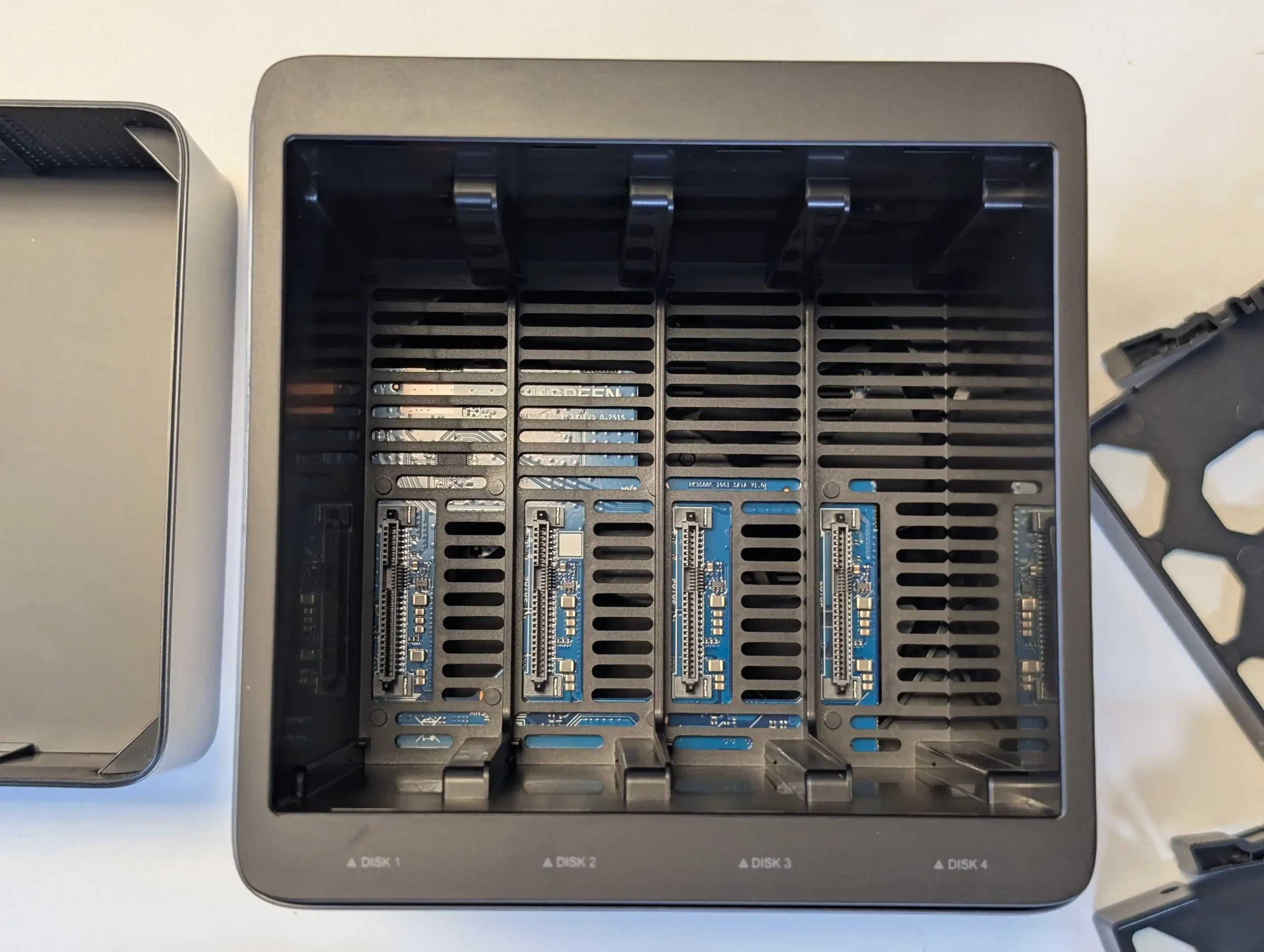
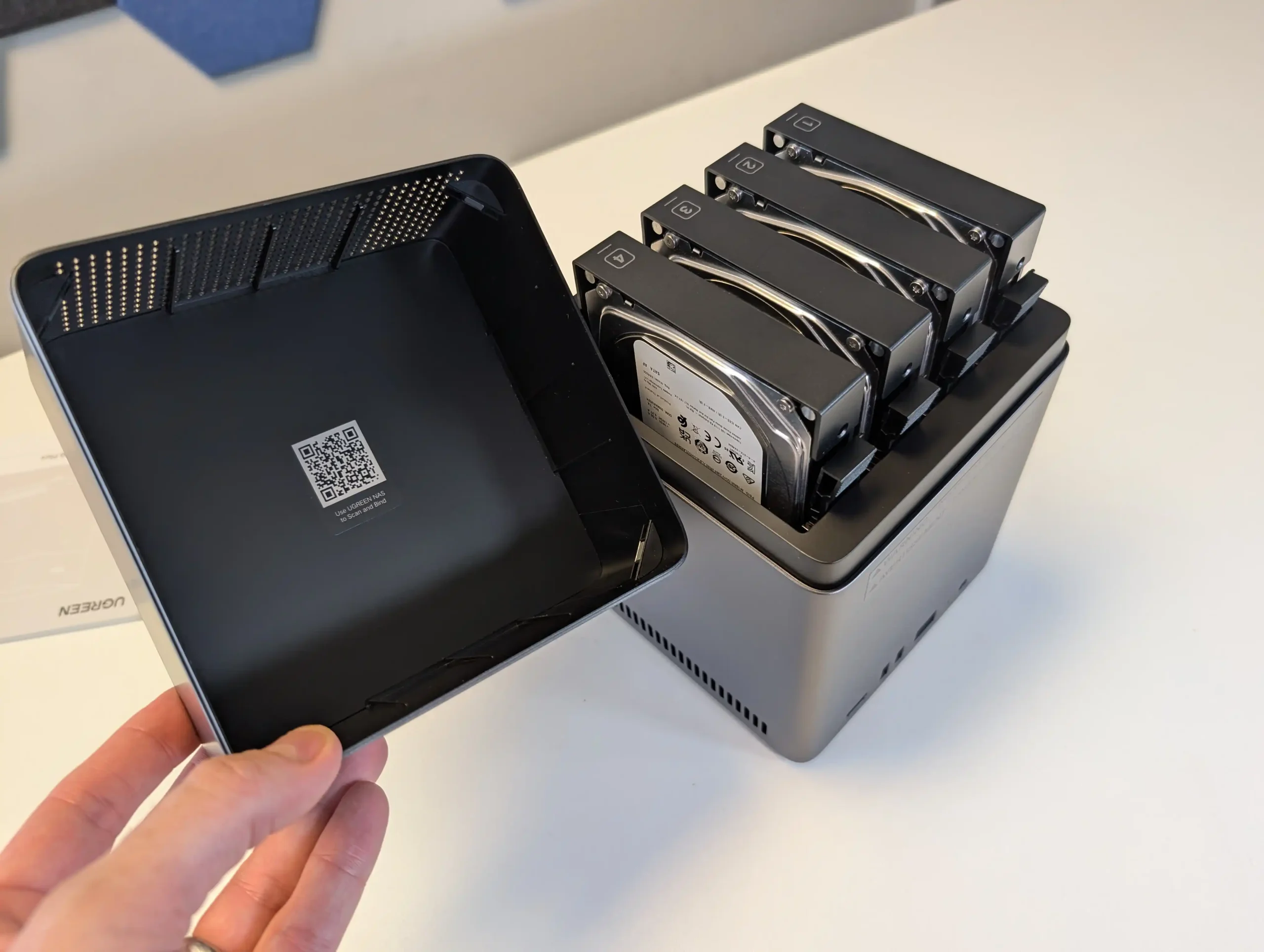
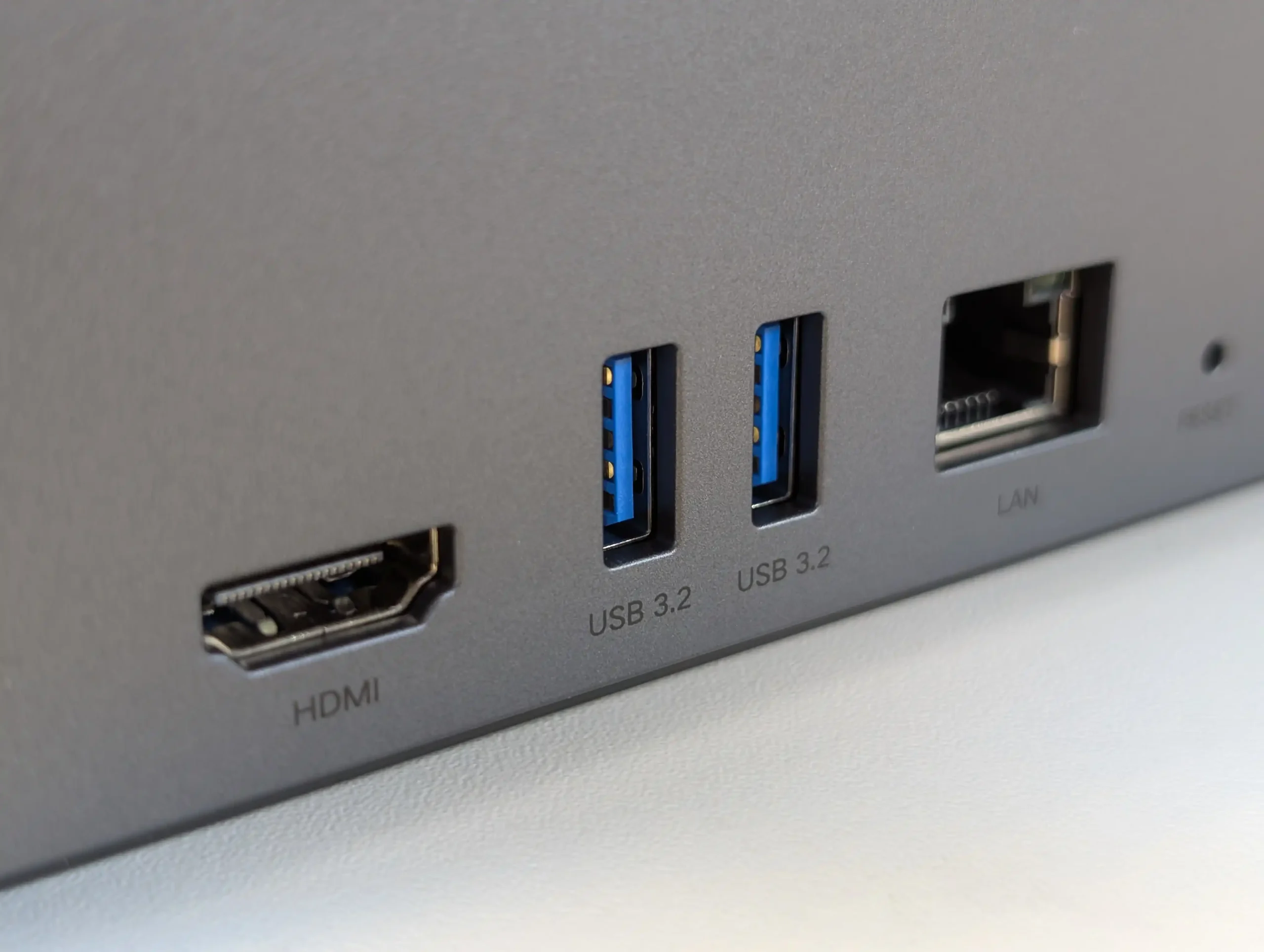
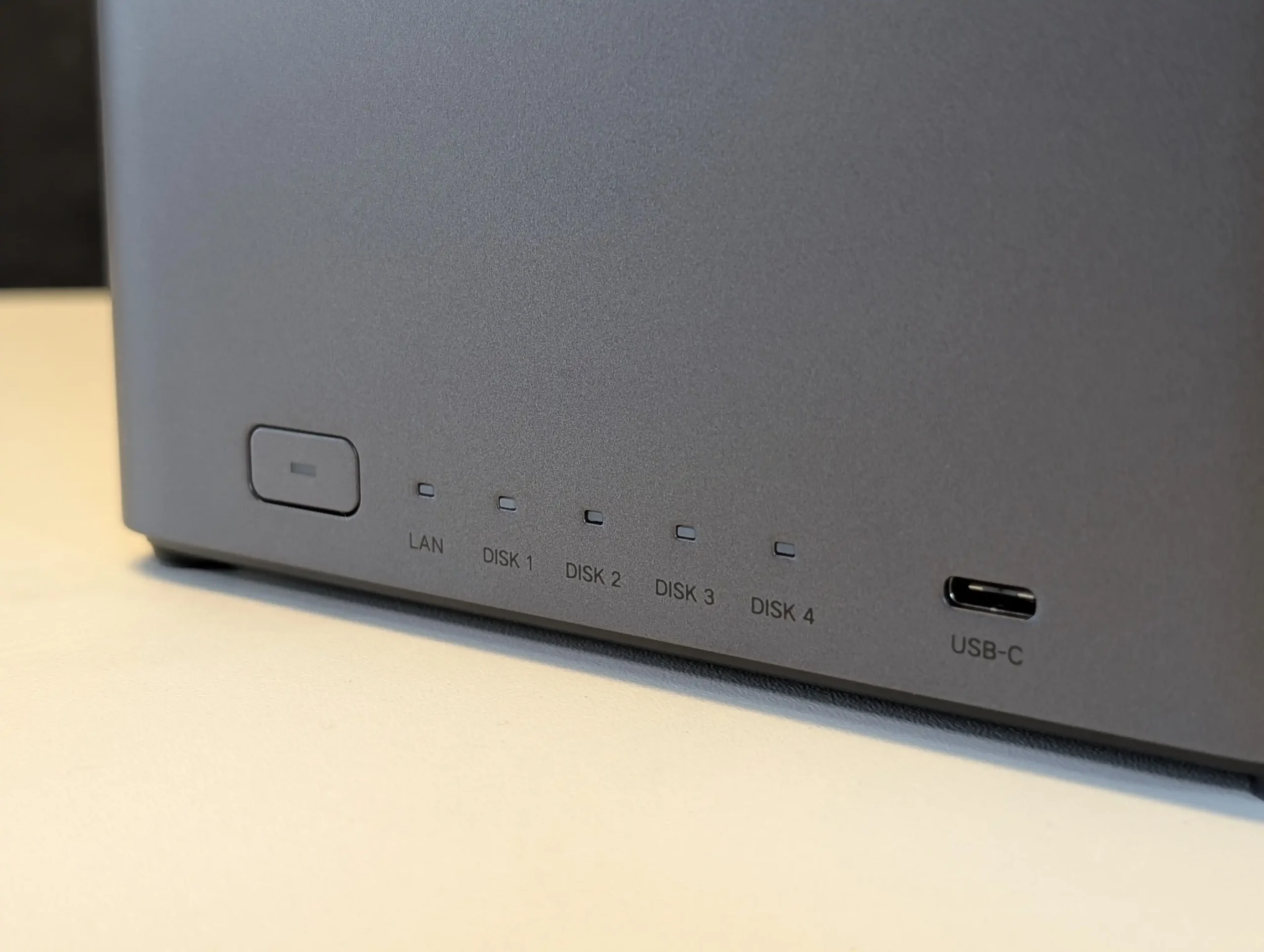
SPECS: Rockchip RK3588 8 core ARM (4 x Cortex A76 + 4 x Cortex A55) up to around 2.4 GHz – 8 GB DDR5 – 4 x 3.5″/2.5″ SATA bays – 1 x 2.5 GbE RJ45 / HDMI 2.0b / 1 x front USB C 3.2 Gen 1 / 2 x USB A 3.2 Gen 1 – no internal M.2 SSD slots.

The NASync DH4300 Plus is a 4 bay ARM based NAS that targets users who want RAID 5 capable storage for Plex or Jellyfin along with general backup duties at a moderate price. UGREEN’s UGOS Pro operating system includes its own media apps, an app store and containerisation features, and community testing has confirmed that Plex can achieve multiple 1080p and several 4K streams, benefiting from the RK3588’s hardware video engines. There is only a single 2.5 GbE port and no M.2 cache or expansion options, so scaling is limited to the 4 SATA bays and external USB storage, but for users who prioritise RAID 5 resilience, low to mid range transcoding capacity and comparatively low power use, it fits the role of a budget multi user media and file server.
What we said in our August ’25 Review Here:

The UGREEN DH4300 Plus carves out a unique niche in the budget NAS landscape by delivering hardware typically reserved for higher-tier systems at a much lower price point. Its RK3588 processor, 8GB of RAM, and support for 2.5GbE networking place it well ahead of most similarly priced competitors in terms of raw specifications. Additionally, features such as HDMI output, 10Gbps USB ports, and local AI-powered photo indexing are rare to find in entry-level NAS systems. Despite its plastic-heavy internal design and lack of expansion options like PCIe or M.2, the device delivers stable performance for file sharing, media access, and low-intensity AI workloads. It is not suited for power users demanding virtual machines or advanced snapshot automation, but within its class, the DH4300 Plus presents an appealing balance between cost and capability.
That said, the software experience is still a work in progress. UGOS Pro covers the essentials and offers a visually accessible UI, but lacks the advanced features and ecosystem integration found in more mature platforms like Synology DSM or QNAP QTS. Docker and snapshot support add welcome flexibility, but the absence of native Jellyfin, iSCSI, and VM functionality limits its use in more complex environments. Still, for home users, media collectors, or small office setups looking for reliable backup, modest AI-enhanced photo sorting, and smooth 4K playback, the DH4300 Plus delivers value well beyond its price tag. While it won’t replace high-end NAS appliances, it serves as a capable, efficient, and quietly innovative option in a saturated entry-level NAS market.
mazon in Your Region for $349 the UGREEN DH4300 PLUS

Buy the UGREEN DH4300 on UGREEN.COM

STORE

B&H for the UGREEN DH4300 PLUS

SOFTWARE - 6/10
HARDWARE - 7/10
PERFORMANCE - 6/10
PRICE - 9/10
VALUE - 10/10


7.6
PROS
👍🏻Powerful ARM CPU: Equipped with the RK3588 SoC, offering 8 cores, integrated GPU, and NPU for AI workloads.
👍🏻Generous (but fixed!) Memory: 8GB LPDDR4X RAM, rare in budget NAS systems, supports multitasking and Docker use.
👍🏻2.5GbE Network Port: Provides faster-than-Gigabit throughput for backups, media streaming, and multi-user access.
👍🏻HDMI 2.1 Output: Rare on ARM powered turnkey NAS, and enables direct media playback or NAS control at up to 4K 60Hz, uncommon in value-tier NAS units.
👍🏻USB 10Gbps Ports: Dual USB-A 10Gbps and one USB-C 5Gbps allow for high-speed backups or external storage expansion.
👍🏻AI Photo Management: Built-in NPU supports facial recognition and scene detection for local, private media organization.
👍🏻Low Power Consumption: Efficient under load (~30W) and idle (~5W without drives), suitable for 24/7 operation.
CONS
👎🏻No PCIe or M.2 Expansion: Lacks future scalability for NVMe caching, 10GbE, or other upgrades.
👎🏻Single LAN Port: Only one 2.5GbE port, with no failover or link aggregation support.
👎🏻Limited Software Ecosystem: UGOS Pro lacks iSCSI, VM support, and native Jellyfin, trailing behind DSM/QTS in maturity.


📧 SUBSCRIBE TO OUR NEWSLETTER 🔔
[contact-form-7]
🔒 Join Inner Circle


Get an alert every time something gets added to this specific article!


Want to follow specific category? 📧 Subscribe

This description contains links to Amazon. These links will take you to some of the products mentioned in today's content. As an Amazon Associate, I earn from qualifying purchases. Visit the NASCompares Deal Finder to find the best place to buy this device in your region, based on Service, Support and Reputation - Just Search for your NAS Drive in the Box Below

Need Advice on Data Storage from an Expert?

Finally, for free advice about your setup, just leave a message in the comments below here at NASCompares.com and we will get back to you. Need Help? Where possible (and where appropriate) please provide as much information about your requirements, as then I can arrange the best answer and solution to your needs. Do not worry about your e-mail address being required, it will NOT be used in a mailing list and will NOT be used in any way other than to respond to your enquiry. [contact-form-7] TRY CHAT Terms and Conditions

If you like this service, please consider supporting us. We use affiliate links on the blog allowing NAScompares information and advice service to be free of charge to you.Anything you purchase on the day you click on our links will generate a small commission which isused to run the website. Here is a link for Amazon and B&H.You can also get me a ☕ Ko-fi or old school Paypal. Thanks!To find out more about how to support this advice service check HEREIf you need to fix or configure a NAS, check Fiver Have you thought about helping others with your knowledge? Find Instructions Here  

 
Or support us by using our affiliate links on Amazon UK and Amazon US
    
 
Alternatively, why not ask me on the ASK NASCompares forum, by clicking the button below. This is a community hub that serves as a place that I can answer your question, chew the fat, share new release information and even get corrections posted. I will always get around to answering ALL queries, but as a one-man operation, I cannot promise speed! So by sharing your query in the ASK NASCompares section below, you can get a better range of solutions and suggestions, alongside my own.

☕ WE LOVE COFFEE ☕


Should You Use RAID 5 or RAID 6 in Your NAS?

Is RAID 5 or RAID 6 Best For You and Your NAS?

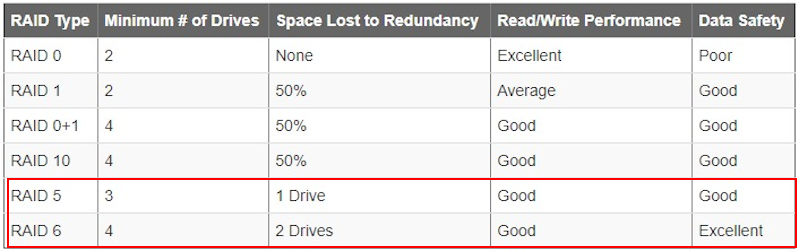
When setting up a NAS, one of the most important and long-lasting decisions you’ll make is choosing the right RAID level. This choice directly impacts how much protection you have against drive failures, how much usable storage space you retain, and how long rebuilds will take when things go wrong. Among the most debated options are RAID 5 and RAID 6, both of which use parity for data protection but differ in how much risk they can tolerate. RAID 5 offers single-drive failure protection with better capacity efficiency, while RAID 6 provides dual-drive fault tolerance at the cost of more storage overhead and longer rebuild times. It’s worth noting that although you can graduate a RAID 5 into a RAID 6 later if your needs change, this is a slow and resource-heavy process. On the other hand, RAID 6 cannot be reversed back into RAID 5, so it’s a decision that requires careful planning from the outset. The balance of speed, safety, capacity, and risk tolerance will determine which configuration is truly best for your setup.

IMPORTANT – It is essential to understand that RAID, whether RAID 5 or RAID 6, should never be considered a true backup solution. RAID protects against drive failures, but it cannot safeguard you from accidental deletion, malware, hardware faults beyond the disks, or disasters like fire and theft.

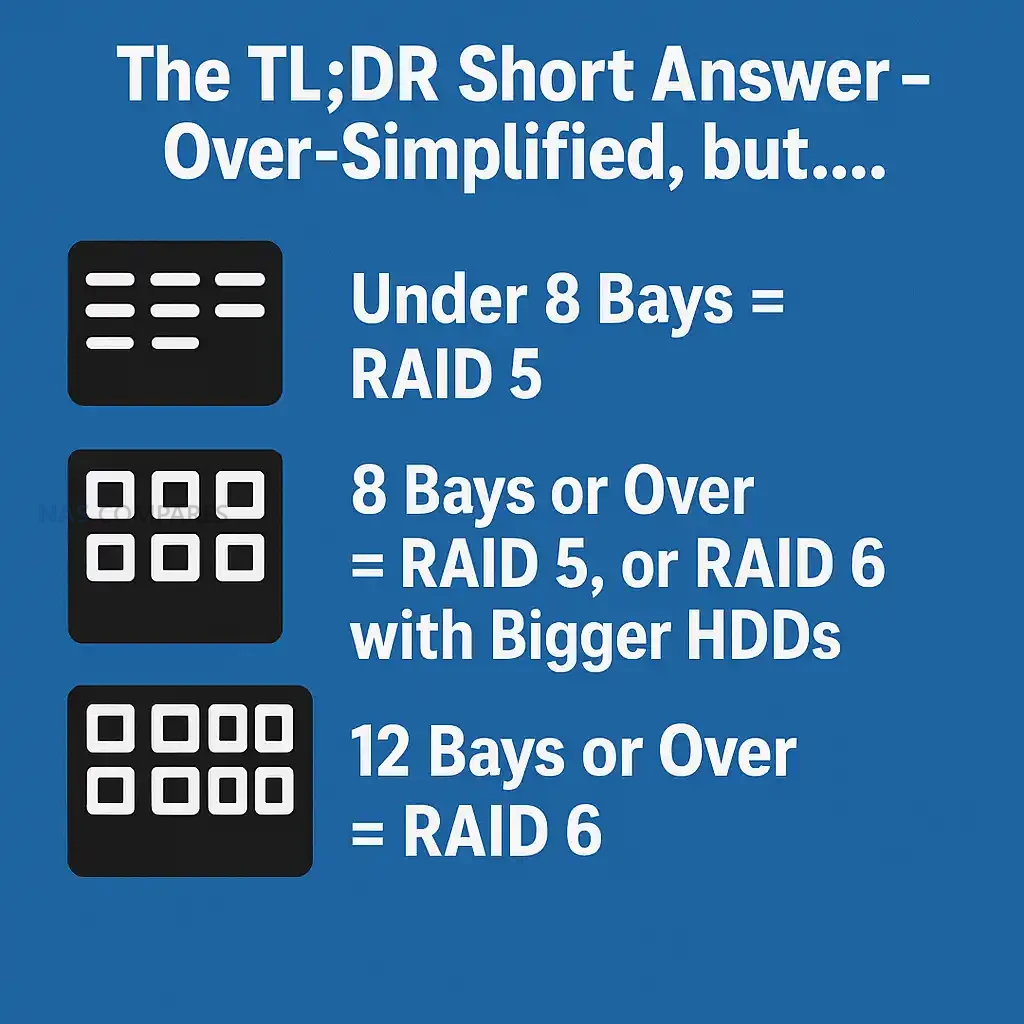
The TL;DR Short Answer – Over-Simplified, but….

  • Under 8 Bays = RAID 5
  • 8 Bays or Over = RAID 5, or RAID 6 with Bigger HDDs
  • 12 Bays or Over = RAID 6

If you are looking for simplicity, RAID 5 will usually give you the best balance of speed, storage efficiency, and cost, but it comes with higher risk. RAID 6 is slower to rebuild, consumes more usable capacity, and involves heavier parity calculations, but it provides a much stronger safety net against drive failures. For smaller arrays with modest drive sizes, RAID 5 can be entirely sufficient, especially when paired with reliable backups. However, as drive capacities continue to grow and rebuild times stretch into days, RAID 6 becomes more attractive because it can withstand the failure of two drives without losing the array. In essence, RAID 5 is about maximizing space and performance with a moderate level of safety, while RAID 6 is about maximizing resilience and peace of mind at the expense of capacity and speed. Choosing between them comes down to how valuable your data is, how large your drives are, and how much risk you are willing to tolerate during rebuild windows.

For systems with fewer than 8 bays, RAID 5 will usually be sufficient unless you are running especially large-capacity drives or operating at a business scale where data loss cannot be tolerated. Once you reach 8 bays or higher, RAID 6 should be seriously considered, as the chances of a second drive failing during a rebuild increase along with the overall storage pool size and the scale of potential loss. At 12 bays and beyond, RAID 6 is effectively mandatory, as relying on RAID 5 at that scale means gambling with too many points of failure and too much at stake if something goes wrong.

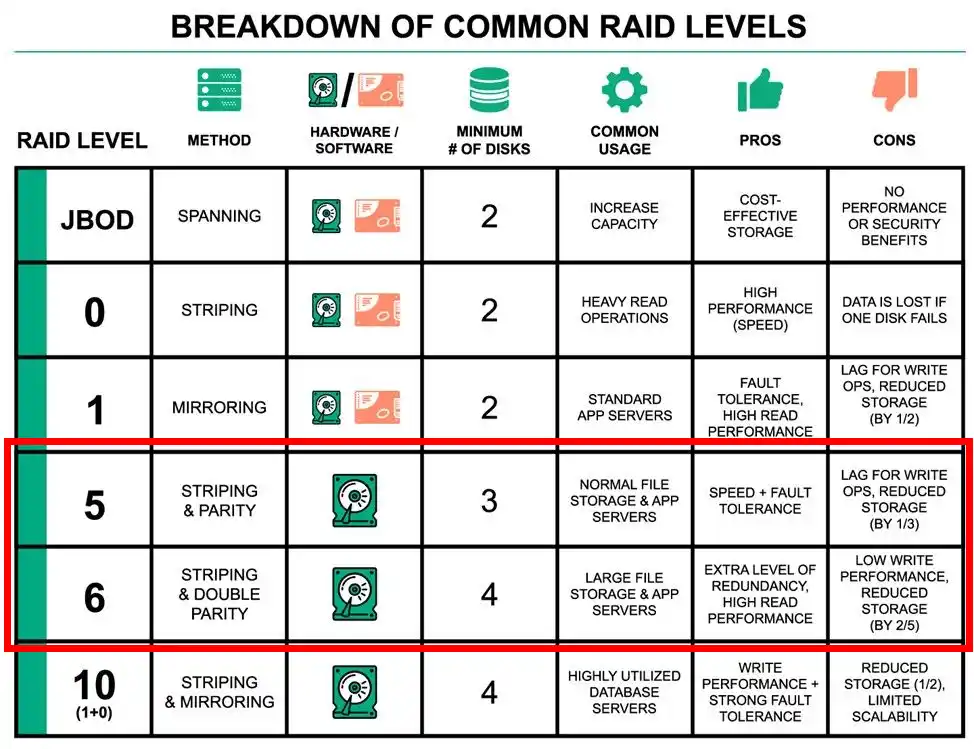
RAID 5 RAID 6
Pros Higher usable capacity (only 1 drive lost to parity) Dual-drive failure protection
Faster rebuild times Much lower risk of catastrophic rebuild failure
Lower cost per TB Strong choice for very large drives (10TB+)
Less parity overhead (better write speeds) Safer for arrays with 6+ disks
Widely supported and simple to manage More reliable for mission-critical or archival data
Cons Vulnerable if a second drive fails during rebuild Slower rebuild times
Higher risk of data loss with large drives Higher cost per TB (2 drives lost to parity)
Less safe for arrays over 6–8 disks More computational overhead, slightly slower writes

RAID 5 vs RAID 6 – Build Time and RAID Recovery Time

The initial creation of a RAID array, sometimes called synchronization or initialization, is one of the first differences you’ll notice between RAID 5 and RAID 6. A RAID 5 setup generally completes its initial build faster because it only has to calculate and assign a single parity block across the drives. RAID 6, by contrast, has to generate and distribute two independent parity values on every stripe, which increases the workload on the system. This means that on a fresh setup, RAID 6 will take longer to complete the synchronization process before the array is fully operational, though this is usually a one-time inconvenience at the beginning of deployment. For home and small office setups, this extra build time might not matter too much, but in larger systems with many terabytes of data, it can mean several hours or even days of extra initialization work compared with RAID 5.

The difference becomes more significant when a drive fails and a rebuild is needed. In RAID 5, the system only needs to reconstruct the missing data using the surviving disks and a single parity calculation, which usually makes recovery noticeably faster. RAID 6, however, must perform double parity calculations and restore both sets of parity information onto the replacement drive, extending the recovery window. On large modern HDDs where rebuilds can take dozens of hours, or sometimes multiple days, this extra time becomes a major factor. The trade-off is that RAID 6 offers much stronger resilience while this rebuild is in progress, because the system can continue to operate and survive even if another disk fails during the process. In other words, RAID 5 rebuilds faster but carries more risk, while RAID 6 rebuilds slower but provides a crucial safety margin during the vulnerable degraded state.

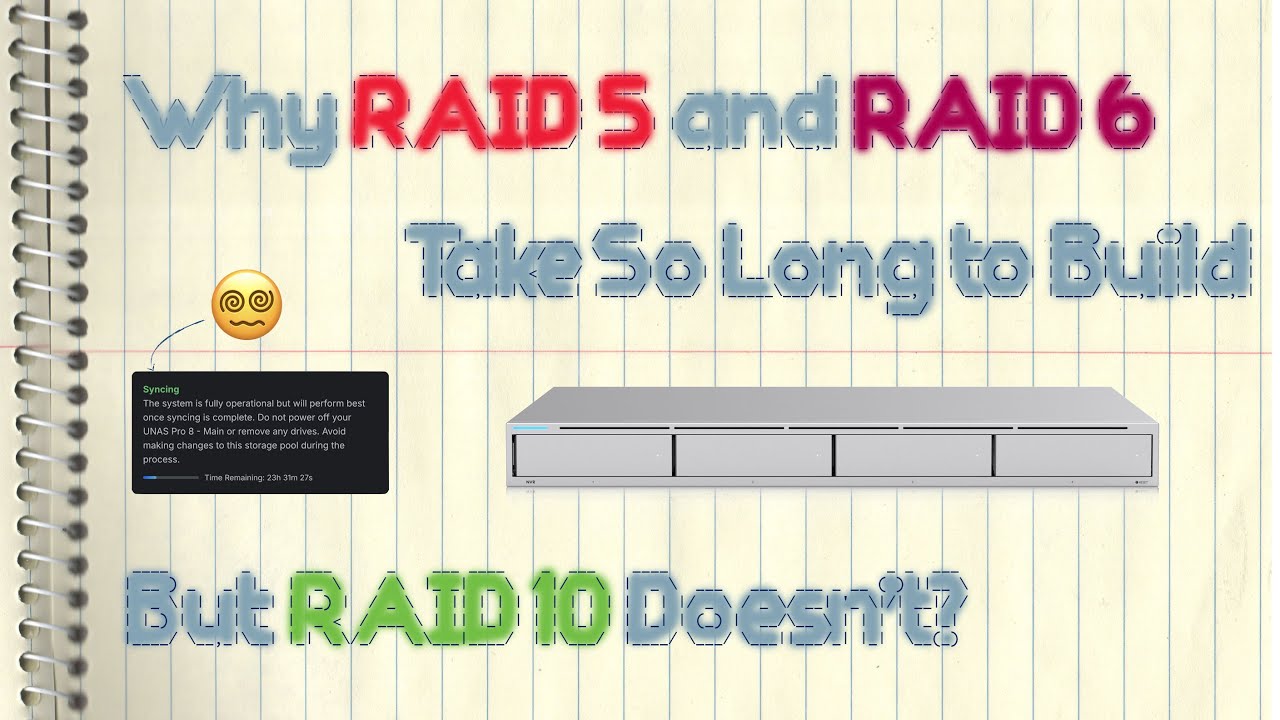
Here is a recent video (using the UniFi server platform) that talks about RAID 5/6 vs RAID 10 build times and parity from 777 or 404:

RAID 5 vs RAID 6 – Protection and Vulnerability

The most important factor when comparing RAID 5 and RAID 6 is how well they protect data when drives fail. RAID 5 uses single parity, meaning the system can survive one drive failure without losing data. However, if a second drive fails during the rebuild, the entire array is lost. RAID 6 adds dual parity, which allows the system to tolerate the loss of two drives simultaneously. This extra layer of protection is especially valuable during rebuild windows, which can take many hours or days on modern high-capacity HDDs. In practice, RAID 6 dramatically reduces the risk of catastrophic data loss, at the expense of slower rebuilds and less usable capacity. A subtle but often overlooked vulnerability is the issue of batch manufacturing. Many users buy multiple drives at once, often from the same supplier, meaning the disks may come from the same production batch. If there was a hidden flaw introduced during manufacturing, it is possible that more than one disk could develop problems around the same time. With RAID 5, this creates a dangerous scenario: a second disk failure during a rebuild results in complete data loss. RAID 6 provides a safety margin against these correlated failures by protecting the array even if two drives fail close together in time. Another major risk comes from unrecoverable read errors (UREs) that can occur during rebuilds. Because every sector of every remaining drive must be read to restore the lost disk, the chance of encountering a read error rises significantly with larger drives. In RAID 5, a single URE during rebuild can corrupt the recovery process, whereas RAID 6 has an additional layer of parity to compensate, making it much more reliable during rebuilds. This is especially important in arrays of 8 or more drives, where the probability of encountering at least one problematic sector grows. For users with large arrays or very high-capacity drives, RAID 6’s extra fault tolerance is the difference between a successful rebuild and complete data loss.

RAID 5 vs RAID 6 – Capacity and Price per TB

One of the clearest differences between RAID 5 and RAID 6 lies in how much usable capacity you end up with. RAID 5 only sacrifices the equivalent of a single drive’s worth of storage to parity, which makes it the more space-efficient option. In a six-bay system with 10TB drives, RAID 5 would deliver 50TB of usable storage, while RAID 6 would only provide 40TB. That 10TB difference can be substantial when you are working with large libraries of data such as media collections, surveillance archives, or backups. For users trying to maximize every terabyte of their investment, RAID 5 makes the most efficient use of available space. However, RAID 6’s higher storage overhead translates directly into a higher effective cost per terabyte. Since two drives are always reserved for parity, the total usable space is reduced, and the price you pay for storage per TB goes up. For small home users, this may feel like wasted potential, but the trade-off is the additional layer of fault tolerance. In environments where the cost of downtime or data loss far outweighs the cost of an extra disk, RAID 6 provides stronger long-term value despite the higher price per terabyte. Ultimately, the decision comes down to whether you are more concerned with minimizing cost and maximizing space, or ensuring redundancy and peace of mind.

RAID 6 vs RAID 5 + Hot Spare Drive?

Some users prefer to run RAID 5 with a dedicated hot spare drive rather than choosing RAID 6 outright. In this setup, a single extra disk sits idle until one of the active drives fails, at which point the spare is automatically used for the rebuild. This reduces the amount of time the array spends in a degraded and vulnerable state, since the rebuild begins immediately without waiting for a replacement disk to be manually installed. While this approach still leaves you with only single-drive fault tolerance, it can feel like a middle ground between RAID 5 and RAID 6. In terms of capacity, RAID 5 with a hot spare sacrifices the same amount of usable space as RAID 6, but it does not provide the same dual-drive protection. For arrays of six to eight drives, this compromise can make sense if you prioritize capacity efficiency and faster automated recovery, but once you move into larger-scale storage systems, RAID 6 remains the safer and more resilient option.

RAID 5 vs RAID 6 – Conclusion and Verdict

When choosing between RAID 5 and RAID 6, the decision comes down to weighing efficiency against resilience. RAID 5 is faster to rebuild, provides more usable storage, and costs less per terabyte, which makes it well suited to smaller NAS setups or users who prioritize capacity and speed. RAID 6, on the other hand, offers stronger protection against drive failures, making it far more reliable for larger arrays and higher-capacity drives where rebuild times are long and risks multiply. The general consensus is that RAID 5 can still be a smart choice for arrays under eight bays, but RAID 6 becomes the clear recommendation for systems of eight drives or more, and an essential requirement at twelve drives and beyond. Above all else, it is critical to remember that RAID is not a backup. Neither RAID 5 nor RAID 6 will protect you against accidental deletion, ransomware, hardware faults beyond the disks, or disasters such as fire or theft. RAID is a safety net that improves availability, but it must always be paired with a proper backup strategy if your data truly matters.


📧 SUBSCRIBE TO OUR NEWSLETTER 🔔
[contact-form-7]
🔒 Join Inner Circle

Get an alert every time something gets added to this specific article!


Want to follow specific category? 📧 Subscribe

This description contains links to Amazon. These links will take you to some of the products mentioned in today's content. As an Amazon Associate, I earn from qualifying purchases. Visit the NASCompares Deal Finder to find the best place to buy this device in your region, based on Service, Support and Reputation - Just Search for your NAS Drive in the Box Below

Need Advice on Data Storage from an Expert?

Finally, for free advice about your setup, just leave a message in the comments below here at NASCompares.com and we will get back to you. Need Help? Where possible (and where appropriate) please provide as much information about your requirements, as then I can arrange the best answer and solution to your needs. Do not worry about your e-mail address being required, it will NOT be used in a mailing list and will NOT be used in any way other than to respond to your enquiry. [contact-form-7] TRY CHAT Terms and Conditions
If you like this service, please consider supporting us. We use affiliate links on the blog allowing NAScompares information and advice service to be free of charge to you.Anything you purchase on the day you click on our links will generate a small commission which isused to run the website. Here is a link for Amazon and B&H.You can also get me a ☕ Ko-fi or old school Paypal. Thanks!To find out more about how to support this advice service check HEREIf you need to fix or configure a NAS, check Fiver Have you thought about helping others with your knowledge? Find Instructions Here  

 
Or support us by using our affiliate links on Amazon UK and Amazon US
    
 
Alternatively, why not ask me on the ASK NASCompares forum, by clicking the button below. This is a community hub that serves as a place that I can answer your question, chew the fat, share new release information and even get corrections posted. I will always get around to answering ALL queries, but as a one-man operation, I cannot promise speed! So by sharing your query in the ASK NASCompares section below, you can get a better range of solutions and suggestions, alongside my own.

☕ WE LOVE COFFEE ☕


Why is 10GbE STILL NOT Everywhere (especially on NAS)?

Why are NAS Systems not 10GbE as Standard Right Now?

It is 2025, yet the majority of NAS systems on the market continue to ship with 1GbE or, at best, 2.5GbE networking, leaving many users questioning why 10GbE has not become a standard feature. Over the past decade, the cost of 10GbE networking equipment, including switches, NICs, and adapters, has steadily declined, and the technology has long since moved from being an enterprise-only option into mainstream availability. Home labs, creative professionals, and small businesses are increasingly working with 4K and 8K media, large VM environments, and multi-terabyte datasets, all of which can easily saturate a 1GbE or even 2.5GbE connection. Despite this shift, when browsing the portfolios of Synology, QNAP, Asustor, TerraMaster, or even newer DIY-friendly NAS brands, the entry-level and mid-tier systems remain locked at bandwidth speeds that are already dwarfed by modern SSD arrays and multi-bay RAID configurations.

asdasd

This gap between user expectations and manufacturer offerings has become more striking as affordable consumer motherboards and even some mini-PCs now integrate 5GbE or 10GbE as standard. By contrast, NAS vendors still tend to position 10GbE as a high-end add-on or restrict it to flagship models, often requiring costly proprietary NIC upgrades. For the average buyer, this creates the perception that NAS devices are lagging behind broader networking trends and are artificially constrained to maintain price tiers. The reality is more complex. The question of why 10GbE has not become universal in NAS hardware cannot be answered solely by pointing to falling market prices of controllers and switches. Instead, the explanation lies in a mix of economics, hardware design limitations, CPU lane allocations, and the fact that networking itself is evolving beyond 10GbE into alternatives like 25GbE and USB4. All of these factors together show why the integration of 10GbE into NAS devices remains more complicated than it may first appear.

Discussing the Issue / Barriers to Manufacturers

One of the most persistent barriers to universal 10GbE adoption in NAS systems is the economic reality of how these devices are positioned. Vendors like Synology, QNAP, and Asustor operate in a layered product ecosystem, where each tier is designed to push customers toward more expensive models. Entry-level devices often compete on affordability rather than raw performance, meaning that features like 10GbE are deliberately held back to differentiate mid-range and enterprise systems. The actual bill of materials (BOM) cost for including 10GbE hardware is lower than it was five years ago, but manufacturers still view it as a premium feature that justifies higher price points. By holding 10GbE in reserve for upper tiers, vendors protect their margins, avoid cannibalising sales of more profitable models, and keep upgrade paths clear for customers as their needs grow. This is not simply technical gatekeeping but a conscious market segmentation strategy.

A second, more technical challenge comes from CPU and chipset design. The processors used in affordable NAS devices are almost always low-power embedded models—Intel Celeron, Atom, or entry-level AMD Ryzen Embedded chips—which provide only a limited number of PCIe lanes. These lanes must be distributed across storage controllers, NVMe slots, expansion slots, and network interfaces. Introducing 10GbE requires not only dedicating at least two, and often four, PCIe lanes, but also ensuring that the CPU can handle the higher throughput without becoming the bottleneck. If a vendor reallocates lanes to add 10GbE, they may have to reduce the number of NVMe slots, cut down on SATA ports, or compromise expansion card bandwidth. For many manufacturers, it is simpler to leave 10GbE out of the base design than to risk producing a system that looks good on paper but struggles to deliver in practice.

Beyond lane allocation, there is also the issue of power, thermals, and board layout. 10GbE controllers typically draw more power and generate more heat than 1GbE or 2.5GbE chips. In compact NAS enclosures designed for low-noise operation, this can force more aggressive cooling solutions or tighter thermal management. For brands already working within strict acoustic and energy efficiency limits, especially in home or small office NAS devices, the integration of 10GbE becomes a balancing act between speed and stability. Higher thermal load can also reduce the overall lifespan of components or require larger enclosures, both of which erode the appeal of entry-level systems where buyers expect compact and efficient designs.

Another factor that discourages widespread 10GbE adoption is ecosystem alignment. NAS vendors are keenly aware that a large percentage of their target audience does not yet operate in 10GbE-ready environments. Even though 10GbE switches and NICs are more affordable in 2025, many households and small offices still rely on routers and switches with 1GbE or 2.5GbE uplinks. For these users, the inclusion of 10GbE would have little practical benefit, since the rest of the network infrastructure cannot support it. From the manufacturer’s perspective, bundling 10GbE into a device that will simply be throttled by the customer’s network backbone risks making the feature look pointless, or worse, “non-functional.” As such, 10GbE tends to be reserved for prosumer and enterprise segments, where it is more likely that users already have or are willing to invest in compatible infrastructure.

Finally, there is a subtle but important business factor at play: vendor ecosystems and upsell opportunities. Many NAS brands sell proprietary 10GbE upgrade cards or branded NICs, which can only be used with their systems. By omitting onboard 10GbE but providing expansion slots, vendors create an additional revenue stream while giving customers flexibility to upgrade later. This model also ensures that users who truly require 10GbE end up spending more within the brand’s ecosystem, while casual buyers stick to lower-cost systems that do not overdeliver. In this sense, the absence of 10GbE on affordable NAS units is not only about technical limitations, but also about preserving a staged upgrade model that aligns with each brand’s long-term revenue strategy.

The Solution – How Can 10GbE Be More Accessible?

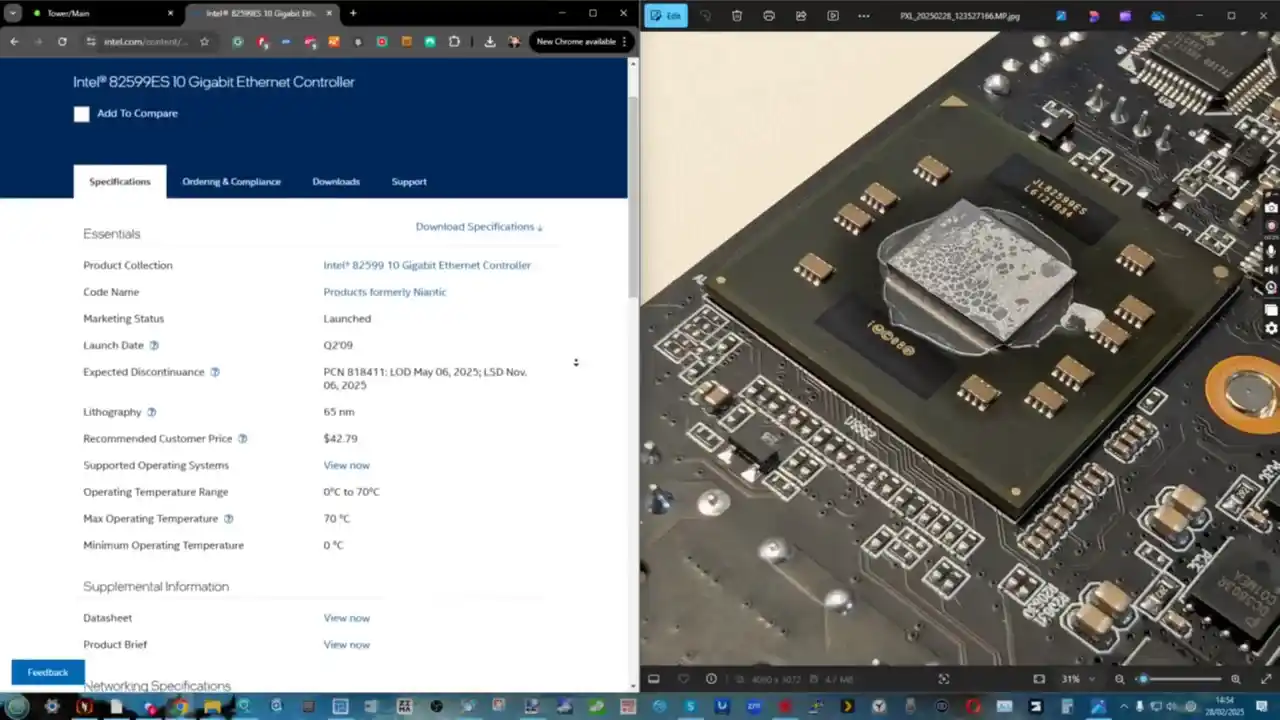
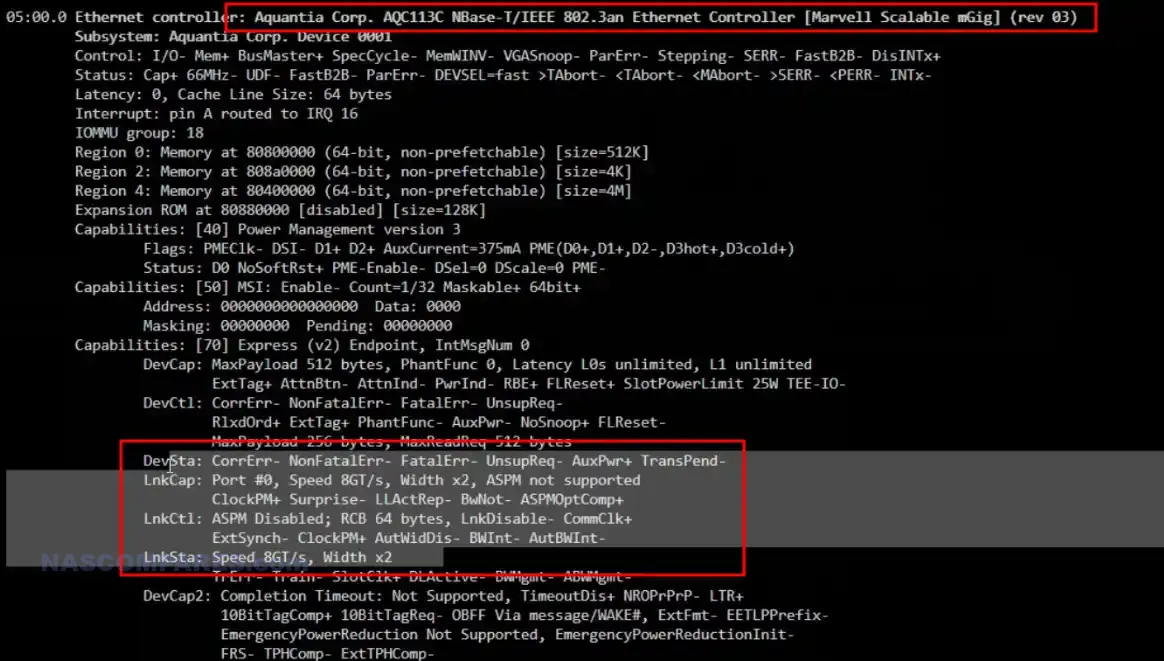
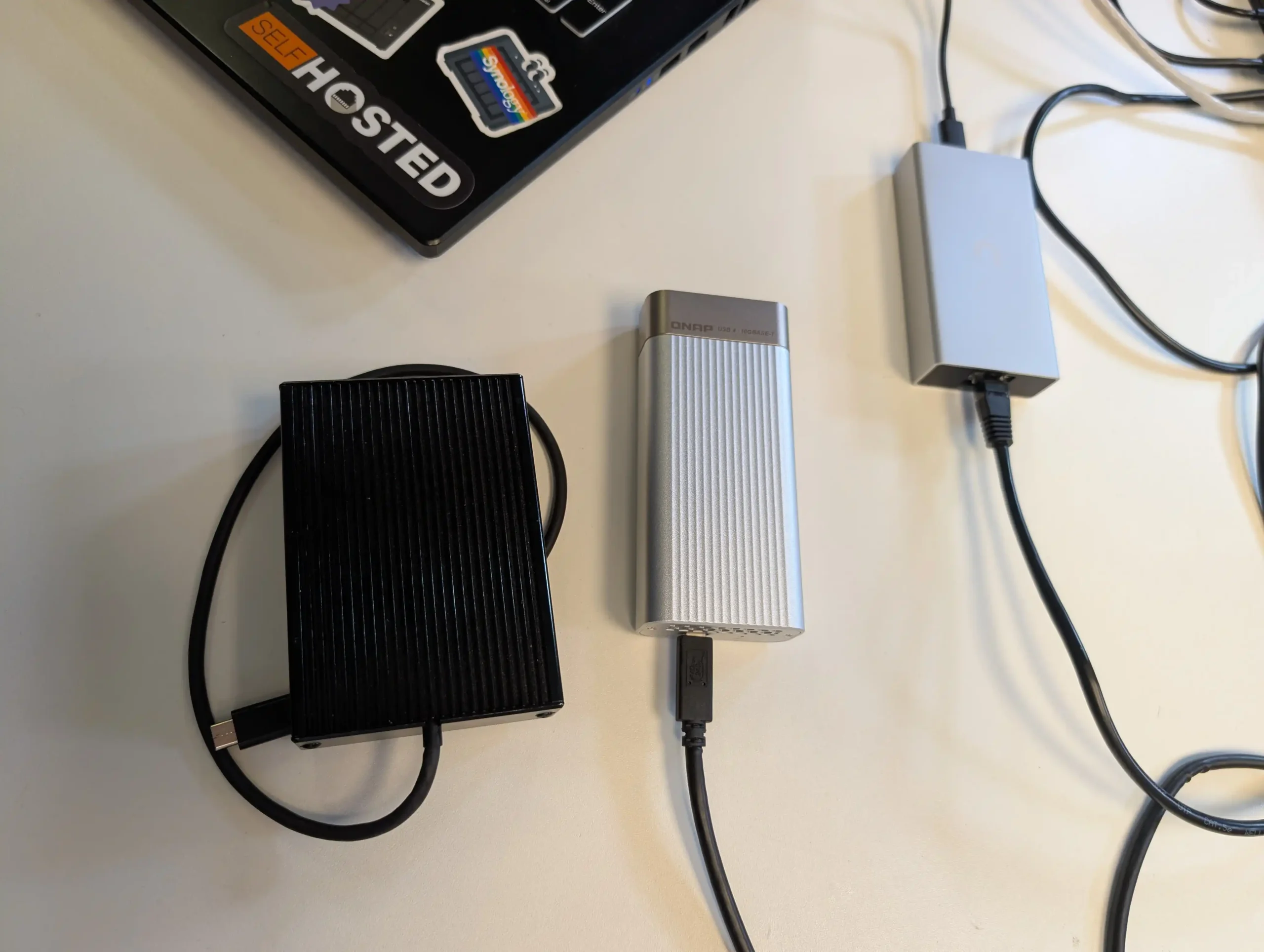
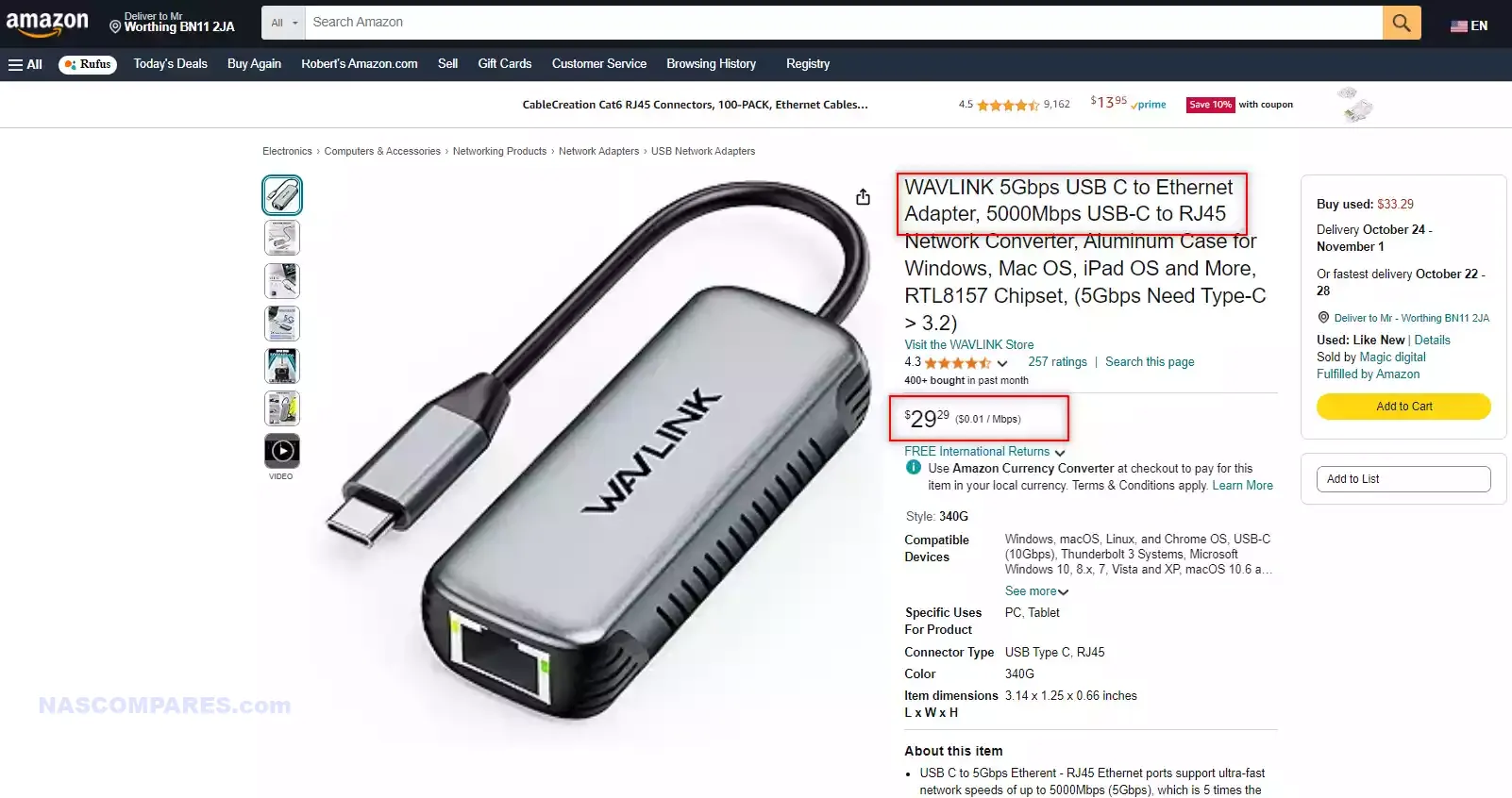
The landscape for 10GbE networking hardware has improved significantly in the last few years, with controllers becoming cheaper, more efficient, and easier to integrate into consumer systems. Early 10GbE relied heavily on costly Intel or Mellanox chipsets designed primarily for enterprise servers, often priced in the hundreds of dollars per card. Today, vendors such as Realtek, Aquantia (now under Marvell), and Broadcom produce consumer-focused 10GbE controllers that are smaller, run cooler, and consume less power. These newer chipsets are also designed to integrate more smoothly with mainstream CPUs and motherboards, reducing the need for complex PCB layouts. The result has been a marked reduction in the cost of standalone NICs and USB-to-10GbE adapters, which now frequently sell for under $100, making them accessible even for home users experimenting with faster networking.

Even with this progress, manufacturers remain hesitant to make 10GbE a baseline feature across all NAS devices. Part of the reason lies in how modern NAS systems must juggle limited resources. As CPUs have shifted to PCIe Gen 4 and Gen 5, the available bandwidth has increased, but vendors are also using these lanes to expand NVMe storage pools, enable GPU acceleration, or add AI-focused co-processors for surveillance, indexing, or media analysis. In many cases, vendors see greater value in offering more M.2 slots, dual PCIe expansion options, or flexible NIC bays than in permanently dedicating space to 10GbE. This explains why hybrid designs are now common: devices shipping with 2.5GbE or 5GbE onboard, with a dedicated slot for an optional 10GbE card. Such configurations give users a faster-than-gigabit baseline, but also keep upgrade paths open for power users who truly need multi-gigabit networking.

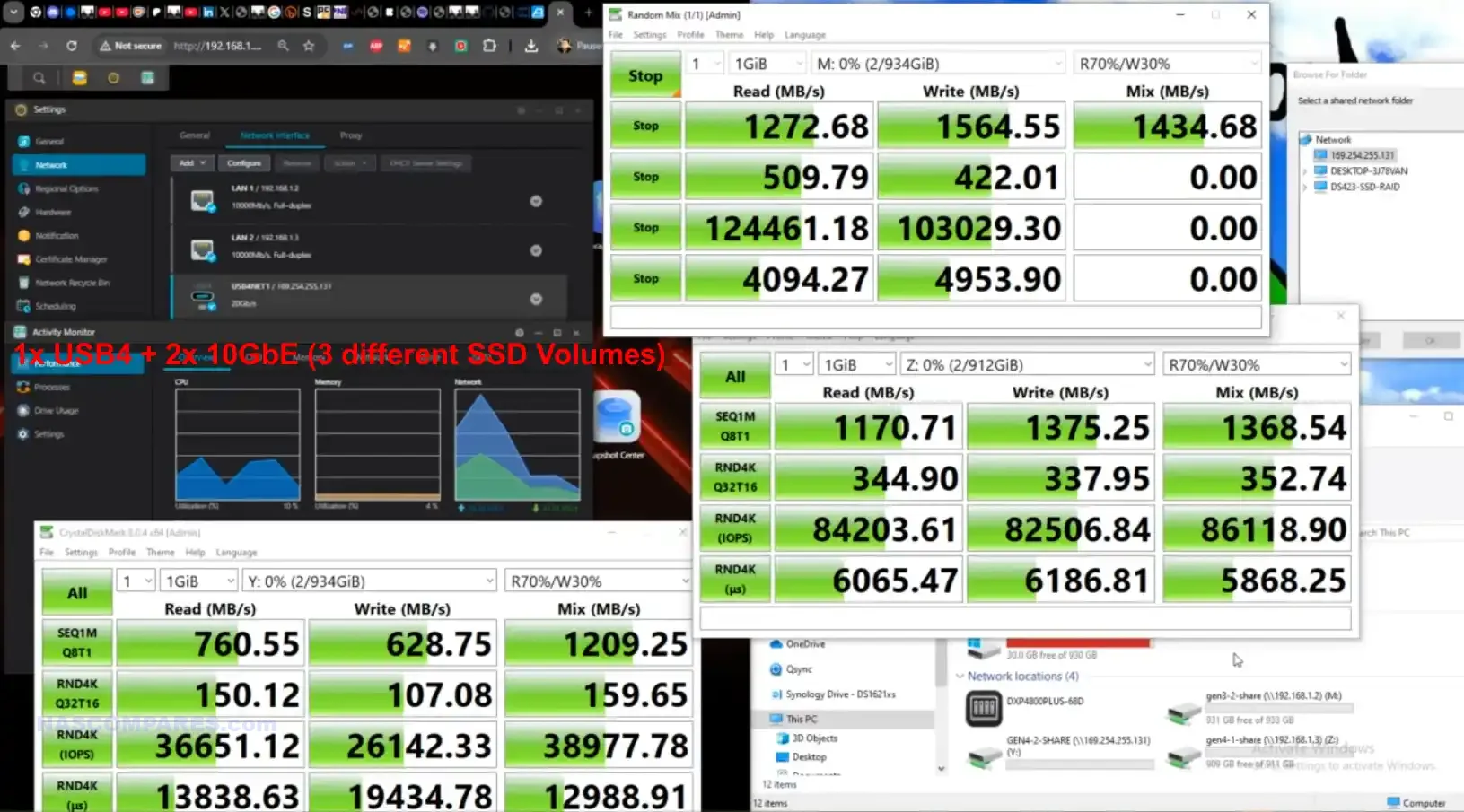
The state of 10GbE is also being influenced by the rapid adoption of adjacent technologies. 2.5GbE has become the de facto standard in new consumer motherboards and mid-tier switches, offering a cheap and widely compatible upgrade path for everyday users who want more than 1GbE without changing their cabling. At the other end of the spectrum, higher-speed networking such as 25GbE or 40GbE is filtering down from data centres to advanced prosumer setups, while direct-connect solutions like Thunderbolt 4 and USB4 offer bandwidth well beyond 10GbE with less CPU overhead and simpler plug-and-play deployment. Software optimisation is also playing a role: modern NAS operating systems increasingly support IP over Thunderbolt or USB4, which provides a parallel path to multi-gigabit performance without the traditional reliance on Ethernet standards. As a result, 10GbE finds itself squeezed in the middle—too expensive to be a no-brainer at the entry level, but increasingly overshadowed by faster alternatives at the top end. It remains a critical sweet spot for small businesses and creative professionals, but its window of dominance is being challenged by the pace of networking innovation.

Verdict and Conclusion – Buy a 10GbE NAS Now or Wait?

The question of why 10GbE has not become a standard feature across NAS devices in 2025 does not have a single answer, but rather a convergence of factors. Manufacturers face technical challenges in CPU lane allocation, thermal management, and system design, while also making deliberate market choices to protect product segmentation and encourage upsell opportunities. At the same time, 10GbE sits in an awkward position within the networking landscape: cheaper and more efficient than ever, yet increasingly bypassed by the widespread adoption of 2.5GbE on the low end and the emergence of 25GbE, Thunderbolt, and USB4 on the high end. For now, this means that 10GbE remains reserved for higher-tier NAS systems where the hardware can genuinely sustain its throughput and where the user base is prepared to invest in compatible infrastructure. While prices will continue to fall and adoption will grow, it is unlikely that every NAS will adopt 10GbE as standard before other technologies begin to replace it as the next performance baseline.

5 affordable Turnkey 10GbE NAS Solutions (Between $499 and $699)

For years, 10GbE networking has been seen as a premium feature reserved for high-end or enterprise-grade NAS devices, often pushing total system costs well beyond the reach of home users and small businesses. However, as controller prices have dropped and demand for faster data transfers has grown, a new wave of affordable NAS solutions has started to appear with built-in 10GbE. These systems no longer require expensive proprietary upgrade cards or third-party NICs, and many sit comfortably below the $699 / £599 price point. They cover a range of use cases, from compact SSD-based NAS devices to rackmount storage appliances and versatile desktop units. Below is a selection of some of the most notable options currently available, each offering a balance of performance, connectivity, and affordability for users who want to move beyond 1GbE or 2.5GbE without breaking the bank.

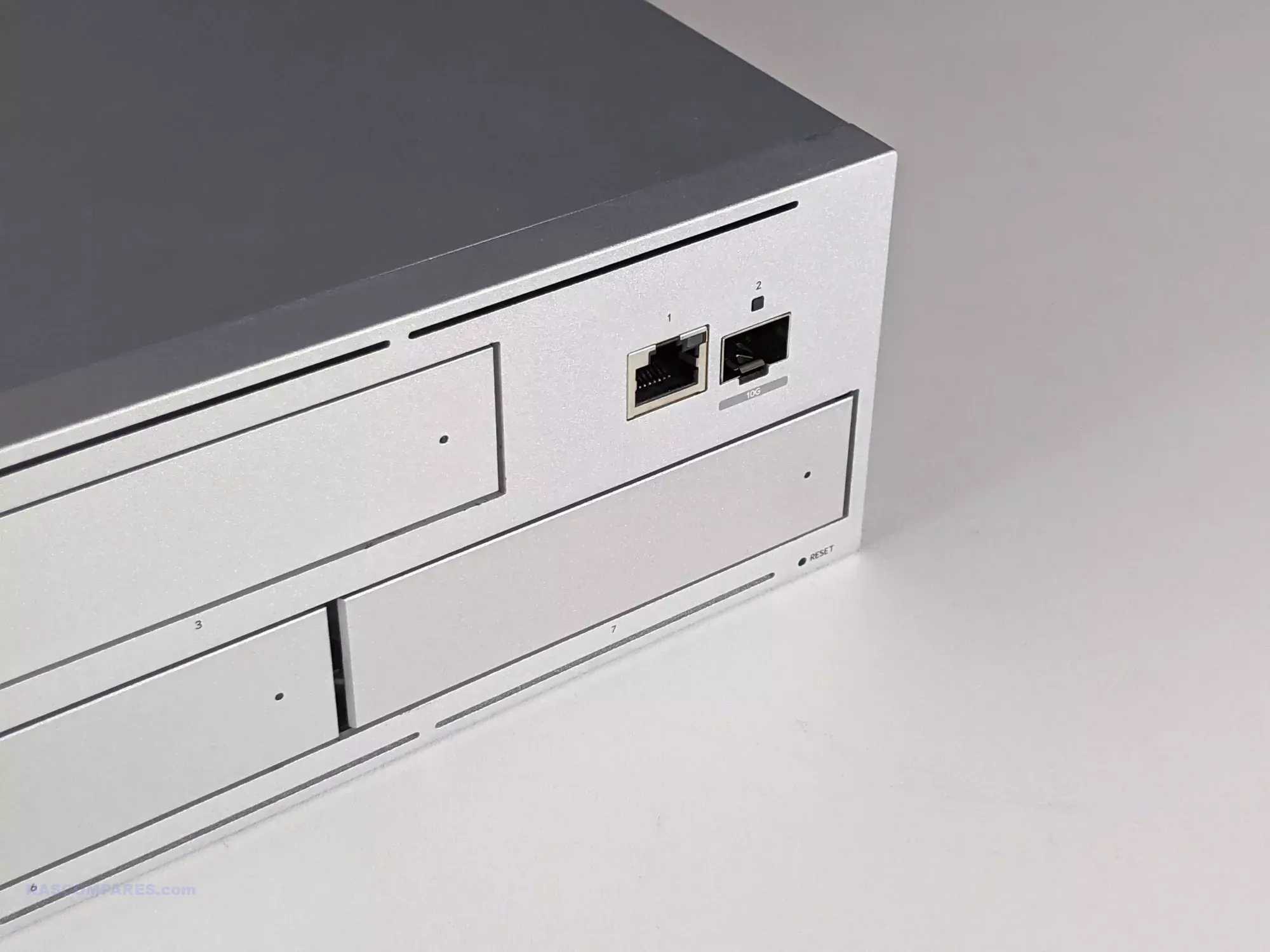
UniFi UNAS Pro (7-Bay, Rackmount)

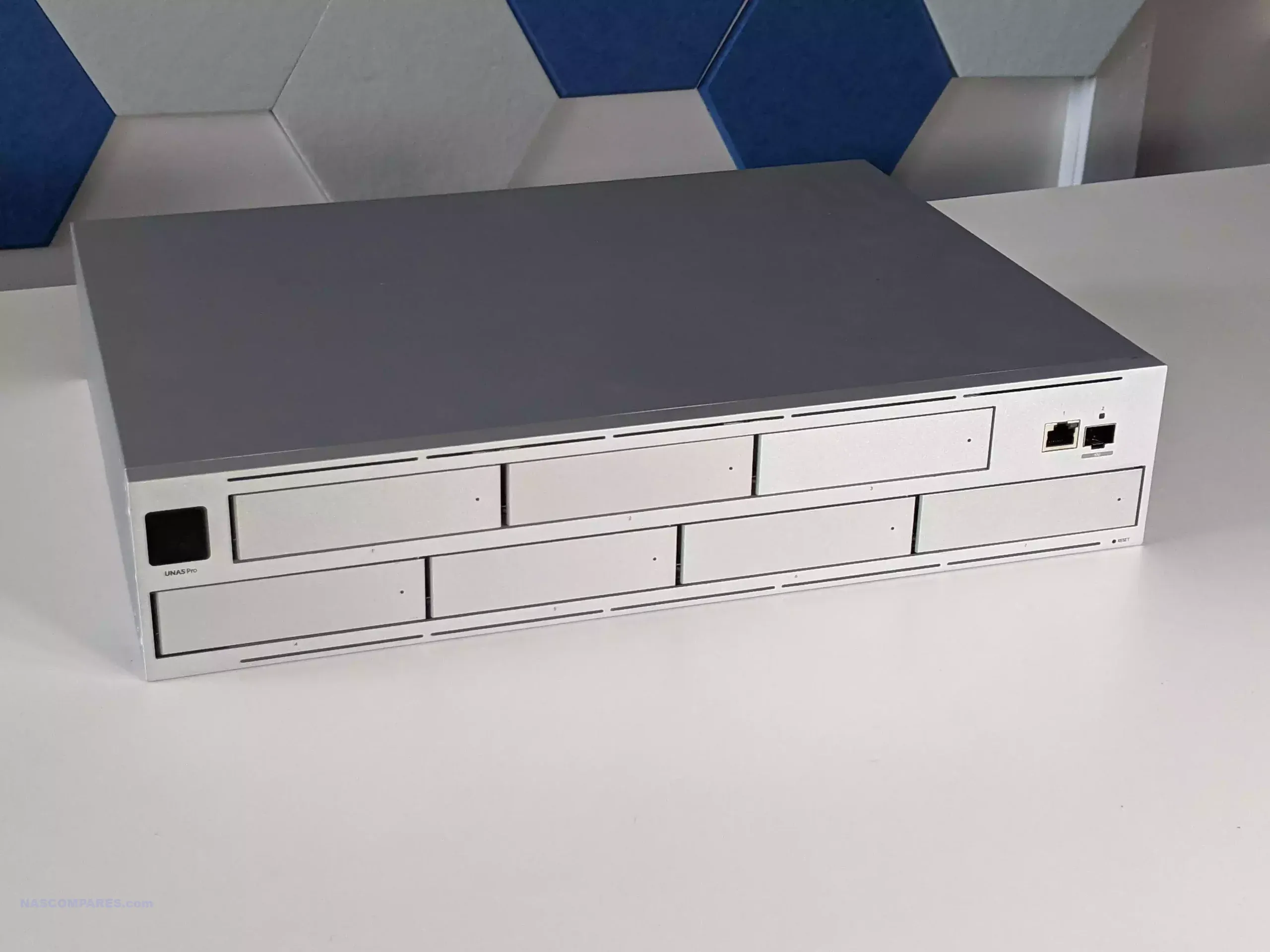
I keep coming back to two words for the UniFi UNAS Pro—fundamentals and consistency. UniFi has clearly focused on making this system a strong addition to their ecosystem, prioritizing the essential storage needs of a NAS. They’ve succeeded in this, but comparisons with long-established competitors are inevitable. While solid, reliable, and stable, the UniFi UNAS Pro will take time to be competitive on the software front. If you’re deeply invested in the UniFi ecosystem, you’ll appreciate its ease of use and integration. However, outside of a UniFi network, it may feel feature-light compared to alternatives. The pricing is competitive for a launch product at $499, and while it’s not the best NAS on the market, it’s the most user-friendly and UniFi-ready. It will likely satisfy many users’ needs. I can certainly see this being integrated into existing UniFi networks as a 2nd stage backup alongside their already existing 3rd party NAS solution, with the potential to graduating to their primary storage as Ubiquiti continue to evolve this platform above and beyond the fundamentals their have nailed down in the UNAS Pro system.

  • Approx. Price: $499 / £400

  • Specs: ARM Cortex-A57 quad-core CPU, 8 GB RAM, seven 2.5″/3.5″ SATA bays, 1×10GbE SFP+ and 1×1GbE.

  • Why It Stands Out: Exceptional price-to-performance for pure storage needs. Lacks advanced multimedia or container apps but ideal for high-speed backups in a rackmount setup.

BUILD QUALITY - 10/10
HARDWARE - 7/10
PERFORMANCE - 7/10
PRICE - 9/10
VALUE - 8/10


8.2
PROS
👍🏻Nails down the fundamentals of NAS Storage very well
👍🏻Easy to use GUI and well suited in the UniFi Ecosystem/UX
👍🏻Complete Offline Use is supported
👍🏻Use of a UI account is NOT compulsory
👍🏻Excellently deployed Snapshot Features
👍🏻10GbE out-the-box
👍🏻Open HDD Compatibility, but also 1st party options too
👍🏻Backup and Restoration Options Nailed down perfectly
👍🏻Very power efficient and CPU/, Memory utilization rarely high
👍🏻Compact, Quite and well designed chassis
👍🏻The LCD controls are completely \'different level\' compared to other brands in the market
👍🏻Promised competitive pricing
👍🏻FAST deployment (3-5mins tops)
👍🏻Reactive Storage expandability and easy-to-understand storage failover options
👍🏻Mobile app deployment is intuitive/fast
👍🏻Feels stable, secure and reliable at all times
👍🏻Performance is respectable (considering SATA Bay count and CPU) but also sustained performance is very good
👍🏻Single screen dashboard is clear and intuitive
👍🏻Ditto for the native file explorer
CONS
👎🏻7 Bays is a bit unusual, plus feels like the existing UNVR with different firmware
👎🏻Additional App installation (eg. \'Protect\') not currently supported. So no container support for 3rd party apps
👎🏻Network Controls are limited
👎🏻Works at it\'s best in an existing UniFi managed network, feels a little limited in \'standalone\'
👎🏻Multiple storage pools not supported (nor is RAID 0)
👎🏻Lack of Scheduled On/Off
👎🏻Lack of redundant PSU
👎🏻Only 1 10Gb port and 1x 1GbE, no USBs for expanded storage or an expansion


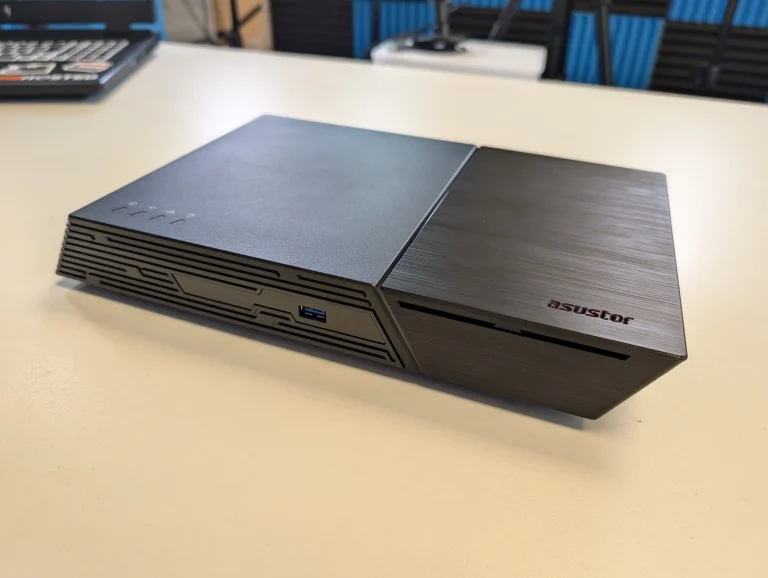
Asustor Flashstor 12 Gen 1 (Compact NVMe NAS)

The Asustor Flashstor Gen 2 12-Bay NAS is a robust and versatile solution for users with demanding storage needs. Its combination of high-performance hardware, extensive connectivity options, and compact design makes it a standout choice for content creators, small businesses, and enthusiasts. With dual 10GbE ports, USB 4.0 connectivity, and support for up to 12 M.2 NVMe drives, it offers exceptional speed and scalability. While the device has a few quirks, such as its mixed PCIe slot speeds and lack of M.2 heat sinks, these are manageable with proper planning and aftermarket solutions. The Flashstor Gen 2 excels in raw performance, handling intensive workflows with ease and maintaining low noise levels even under load. Its power efficiency and robust thermal management further enhance its appeal for 24/7 operation. For users prioritizing hardware capabilities and performance, the Flashstor Gen 2 delivers on its promises. While its complexity may deter less experienced users, those with the technical expertise to configure and optimize the system will find it a valuable addition to their workflow.

  • Approx. Price: $750 / £600

  • Specs: Intel Celeron N5105, 12×M.2 NVMe slots, single 10GbE port, compact form factor.

  • Notable Traits: High-density SSD storage in a small desktop chassis. Excellent value for SSD-heavy builds.

SOFTWARE - 6/10
HARDWARE - 9/10
PERFORMANCE - 10/10
PRICE - 7/10
VALUE - 8/10


8.0
PROS
👍🏻Exceptional Performance: Dual 10-Gigabit Ethernet ports and USB 4.0 connectivity deliver fast and reliable data transfer speeds, ideal for 4K editing and collaborative environments.
👍🏻Extensive Storage Options: Supports up to 12 M.2 NVMe SSDs, allowing for large-scale, high-speed storage arrays.
👍🏻ECC Memory Support: Includes 16GB of DDR5-4800 ECC memory (expandable to 64GB), ensuring data integrity for critical applications.
👍🏻Compact Design: Small footprint makes it perfect for workspaces with limited room.
👍🏻Quiet Operation: Dual-fan system keeps noise levels low, even under heavy loads.
👍🏻Flexible Connectivity: Features two USB 4.0 Type-C ports and three USB 3.2 Gen 2 Type-A ports for direct storage access and peripheral integration.
👍🏻Power Efficiency: Low power consumption (32.2W idle, 56W under load) makes it economical to run, even for 24/7 operation.
👍🏻Thermal Management Enhancements: Dual fans and copper heat pipes efficiently dissipate heat, ensuring stable performance.
👍🏻Support for Third-Party Operating Systems: Compatible with platforms like TrueNAS and Unraid for advanced customization.
CONS
👎🏻Mixed PCIe Slot Speeds: Inconsistent PCIe bandwidth across M.2 slots complicates unified RAID configurations.
👎🏻Lack of M.2 Heat Sinks: NVMe slots do not include heat sinks, requiring aftermarket cooling solutions for intensive workloads.
👎🏻No Integrated Graphics: The AMD Ryzen V3C14 processor lacks integrated graphics, limiting hardware transcoding and multimedia capabilities.
👎🏻Steep Price: The 12-bay model’s cost ($1,300–$1,400) and the six-bay version’s lack of ECC memory make them expensive compared to alternatives.


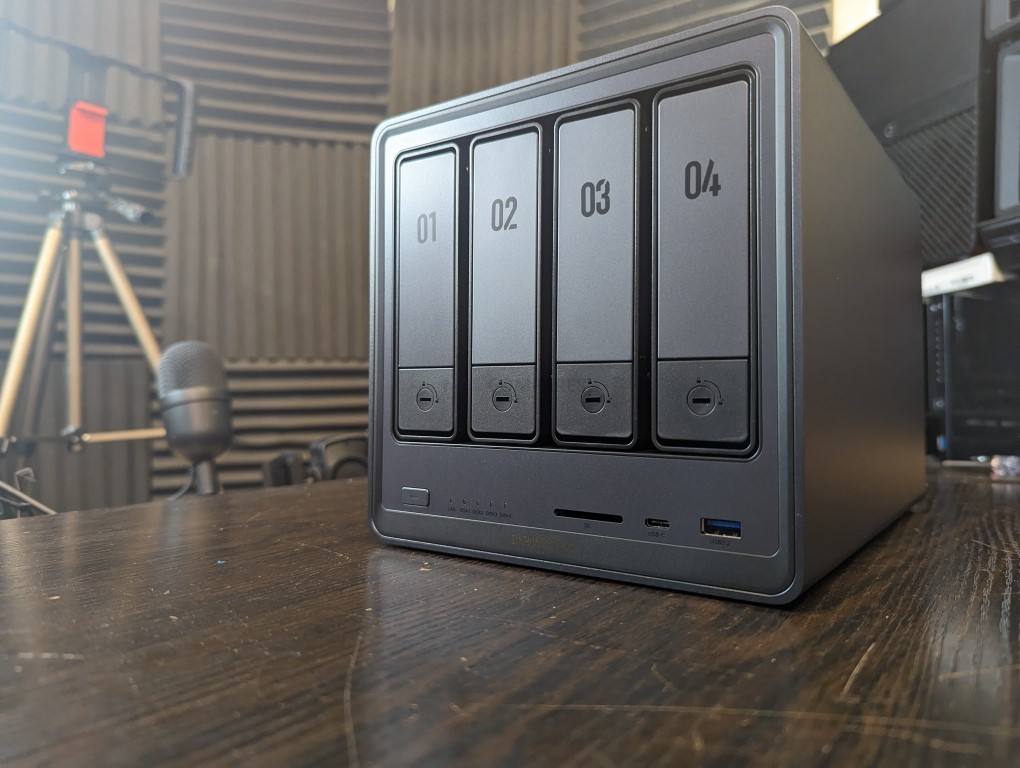
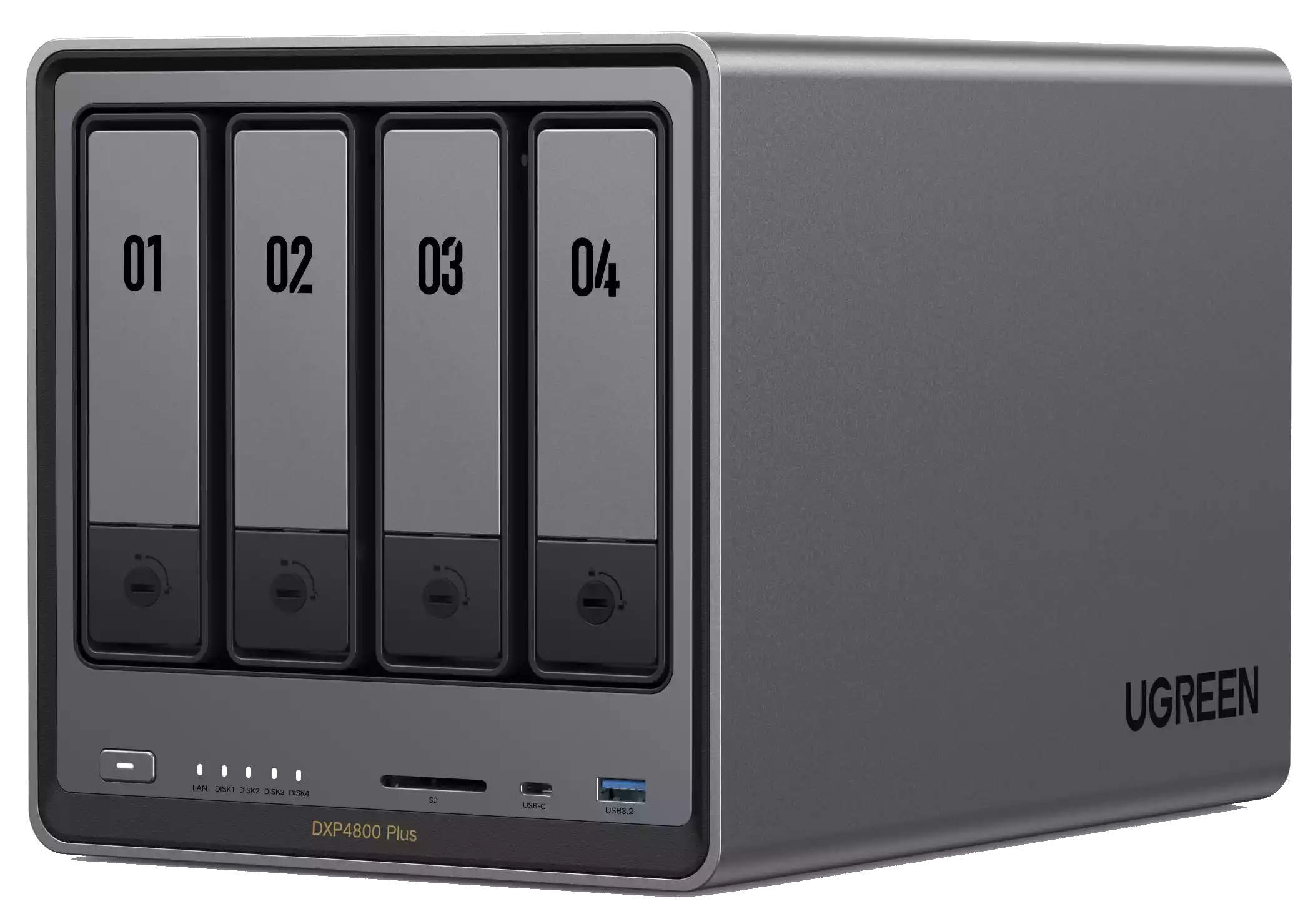
UGREEN NASync DXP4800 Plus

BOTTOM LINE – The UGREEN NASYnc DXP4800 Plus does not feel ‘finished’ yet and still needs more time in the over, but UGREEN have been very clear with me that this product is not intended for release and fulfilment till summer 2024 and improvements, optimization and product completion is still in progress. Judging the UGREEN NAS systems, when what we have is a pre-release and pre-crowdfunding sample, was always going to be tough. The DXP4800 PLUS is a very well put-together NAS solution, arriving with a fantastic launching price point (arguably even at its RRP for the hardware on offer). UGREEN has clearly made efforts here to carve out their own style, adding their own aesthetic to the traditional 4-bay server box design that plagues NAS boxes at this scale. Equally, although they are not the first brand to consider Kickstarter/Crowdfunding for launching a new product in the NAS/personal-cloud sector, this is easily one of the most confident entries I have seen yet. The fact that this system arrives on the market primarily as a crowdfunded solution (though almost certainly, if successful, will roll out at traditional retail) is definitely going to give users some pause for thought. Equally, the UGREEN NAS software, still in beta at the time of writing, although very responsive and nailing down the basics, still feels like it needs more work to compete with the bigger boys at Synology and QNAP. Hardware architecture, scalability, and performance are all pretty impressive, though the performance of the Gen 4×4 M.2 NVMe slots didn’t seem to hit the numbers I was expecting. Perhaps a question of PCIe bottlenecking internally, or a need for further tweaking and optimization as the system continues development. Bottom line, with expected software updates to roll out closer to launch and fulfillment, such as an expanded App center and mobile client, the UGREEN DXP4800 Plus is definitely a device worth keeping an eye on in the growing Turnkey and semi-DIY NAS market. As an alternative to public cloud services, this is a no-brainer and worth the entry price point. As an alternative to established Turnkey NAS Solutions, we will hold off judgment till it is publicly released.

  • Approx. Price: $595 / £475

  • Specs: Intel Pentium Gold 8505 (6-thread), 8 GB DDR5, 4×SATA + 2×M.2 slots, 1×10GbE and 1×2.5GbE, plus HDMI, USB-C, USB-A, and SD reader.

  • Why It’s Attractive: Well-rounded design with rich connectivity and media support, undercuts most rivals on price and features.

SOFTWARE - 6/10
HARDWARE - 9/10
PERFORMANCE - 6/10
PRICE - 9/10
VALUE - 8/10


7.6
PROS
👍🏻Exceptional Hardware for the Price
👍🏻4 HDDs + 2x Gen 4x4 M.2 in 1 box under $400
👍🏻Good Balanced CPU choice in the Pentium Gold 8505
👍🏻10GbE and 2.5GbE as standard
👍🏻An SD Card Slot (wielrd rare!)
👍🏻10/10 Build Quality
👍🏻Great Scalability
👍🏻Fantastic Mobile Application (even vs Synology and QNAP etc)
👍🏻Desktop/Browser GUI shows promise
👍🏻Established Brand entering the NAS Market
👍🏻Not too noisy (comparatively)
👍🏻Very Appealing retail package+accessories
CONS
👎🏻10GbE Performance was underwhelming
👎🏻Crowdfunding choice is confusing
👎🏻Software (still in Beta) is still far from ready 22/3/24
👎🏻non-UGREEN PSU is unexpected
👎🏻


TerraMaster F4-424 Max / F6-424 Max

The TerraMaster F4-424 Max is a robust 4-bay NAS system that offers a powerful mix of features and flexibility for a wide range of tasks. Powered by the Intel i5-1235U CPU with 10 cores and 12 threads, the F4-424 Max excels at resource-intensive applications such as Plex media streaming, 4K hardware transcoding, and virtual machine hosting. Its dual M.2 NVMe slots running at PCIe Gen 4 speeds significantly improve storage performance, especially when used for caching, while the two 10GbE ports offer high-speed networking environments, allowing for 20Gbps throughput via link aggregation.

In terms of software, TOS 6 brings notable improvements, although it still lags behind the more polished ecosystems of Synology DSM and QNAP QTS. That said, TerraMaster’s continuous software evolution with each new version of TOS ensures that users have access to more robust tools and security features. For its price point of $899.99, the F4-424 Max is a compelling option for those seeking high-performance NAS solutions with scalability in mind. While the Pro model offers competitive performance, the Max takes it a step further with advanced networking, making it ideal for environments where speed is a priority.

  • Approx. Price: $675 / £550 (F4-424 Max, during sale) – $899 / £700 (F6-424 Max, regular)

  • Specs: Intel Core i5-1235U (10-core), 8 GB RAM, dual 10GbE ports, dual M.2, with 4 or 6 SATA bays depending on model.

  • Why It Helps: The F4-424 Max frequently drops below the $800 mark in promotions, offering unusually strong CPU performance and dual 10GbE at a mid-range price point.

Where to Buy?

Terramaster F4-424 Max ($899 Amazon)HERETerramaster F4-424 Max ($799 Aliexpress) – HERE

SOFTWARE - 6/10
HARDWARE - 9/10
PERFORMANCE - 9/10
PRICE - 9/10
VALUE - 8/10


8.2
PROS
👍🏻Powerful Hardware: Intel i5-1235U with 10 cores and 12 threads for resource-heavy tasks.
👍🏻Dual 10GbE Ports: High-speed networking capabilities with link aggregation for up to 20Gbps, ideal for large file transfers.
👍🏻PCIe Gen 4 NVMe Support: Two M.2 NVMe slots offering exceptional performance for caching or additional high-speed storage.
👍🏻Efficient Cooling: The large 120mm fan ensures quiet and effective cooling, making it suitable for home and office environments.
👍🏻Improved TOS 6 Software: Enhancements in GUI, backup tools, and overall security bring TOS closer to its competitors.
CONS
👎🏻Higher Price Tag: At $899.99, it’s more expensive than TerraMaster’s other models, which may deter budget-conscious buyers.
👎🏻No PCIe Expansion: Lack of a PCIe slot limits potential for future upgrades, such as adding 10GbE cards or more M.2 drives.
👎🏻Presentation: The software has improved a lot, but still feels inconsistent in places compared with alternatives from brands such as Synology and QNAP.


Summary Table


Model 10GbE Ports Price (USD) Under $800? Highlights
UniFi UNAS Pro 1×10GbE SFP+ ~$499 Yes Rackmount, high bay count, pure storage
Asustor Flashstor 12 Gen 1 1×10GbE ~$750 Yes 12×M.2 NVMe, SSD-focused design
UGREEN DXP4800 Plus 1×10GbE + 1×2.5GbE ~$595 Yes Versatile ports, compact and affordable
QNAP TS-332X 1×10GbE SFP+ ~$600–700 Yes Entry-level 10GbE desktop NAS
TerraMaster F4-424 Max 2×10GbE ~$675 (sale) Yes Strong CPU, 4-bay, Plex-friendly
TerraMaster F6-424 Max 2×10GbE ~$899 No 6-bay version, exceeds budget


📧 SUBSCRIBE TO OUR NEWSLETTER 🔔
[contact-form-7]
🔒 Join Inner Circle

Get an alert every time something gets added to this specific article!


Want to follow specific category? 📧 Subscribe

This description contains links to Amazon. These links will take you to some of the products mentioned in today's content. As an Amazon Associate, I earn from qualifying purchases. Visit the NASCompares Deal Finder to find the best place to buy this device in your region, based on Service, Support and Reputation - Just Search for your NAS Drive in the Box Below

Need Advice on Data Storage from an Expert?

Finally, for free advice about your setup, just leave a message in the comments below here at NASCompares.com and we will get back to you. Need Help? Where possible (and where appropriate) please provide as much information about your requirements, as then I can arrange the best answer and solution to your needs. Do not worry about your e-mail address being required, it will NOT be used in a mailing list and will NOT be used in any way other than to respond to your enquiry. [contact-form-7] TRY CHAT Terms and Conditions
If you like this service, please consider supporting us. We use affiliate links on the blog allowing NAScompares information and advice service to be free of charge to you.Anything you purchase on the day you click on our links will generate a small commission which isused to run the website. Here is a link for Amazon and B&H.You can also get me a ☕ Ko-fi or old school Paypal. Thanks!To find out more about how to support this advice service check HEREIf you need to fix or configure a NAS, check Fiver Have you thought about helping others with your knowledge? Find Instructions Here  
 
Or support us by using our affiliate links on Amazon UK and Amazon US
    
 
Alternatively, why not ask me on the ASK NASCompares forum, by clicking the button below. This is a community hub that serves as a place that I can answer your question, chew the fat, share new release information and even get corrections posted. I will always get around to answering ALL queries, but as a one-man operation, I cannot promise speed! So by sharing your query in the ASK NASCompares section below, you can get a better range of solutions and suggestions, alongside my own.

☕ WE LOVE COFFEE ☕

 
❌