Windows 11 will finally support automatic switching between dark mode and light mode. The most recent Windows Insider build that shipped to the experimental Channel shows strings for the feature, though we still lack key information about the option.
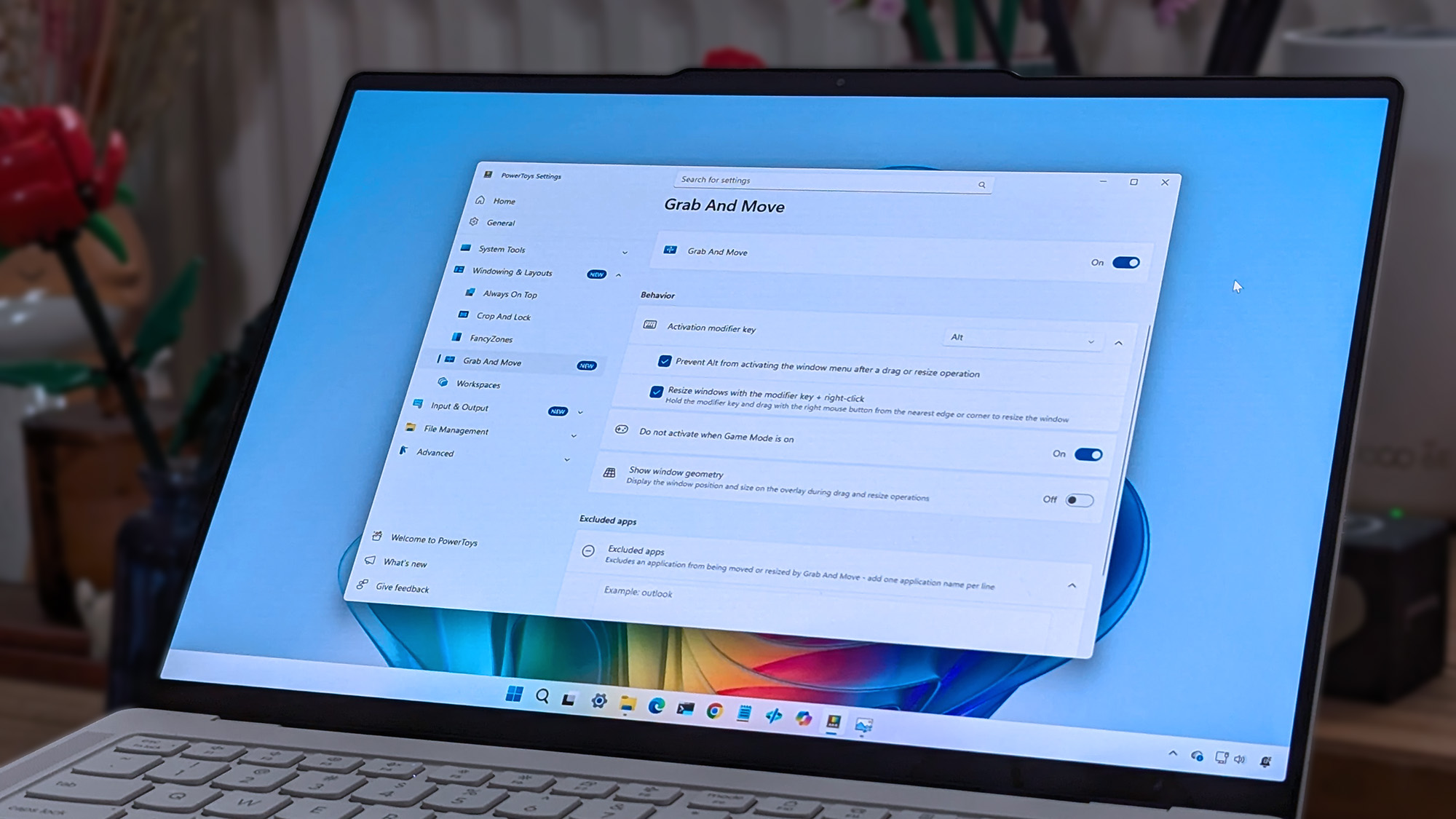
It's been possible to schedule shifts between light and dark mode on Windows 11 for a while, but it has required a third-party application. Auto Dark Mode works well and is a must-have app for Windows 11. The ever-popular PowerToys can also handle theme switching through its "Light Switch" feature.
While both those apps are great, some features need to be built into Windows 11. People shouldn't have to search for an app or install a multi-tool utility to automate theme switching.
"This prevents the mode from changing while you're working or in meetings"
"Turn on location services to automatically schedule dark mode. When location services are turned off, dark mode is active from [START] to [END]."
Since there are likely many other strings about the feature, we only have a small idea of how auto mode will work. But the snippets we can see now look promising.
It appears that the feature will support shifting between modes based on your location to better match sunrise or sunset. Alternatively, you'll be able to schedule switches for specific times.
The feature also looks like it will have the option to only switch themes when your PC is idle, which should prevent a jarring change from happening in the middle of important work.
Again, this functionality is already available on Windows 11 through apps, but I'll be happy to see it ship to Windows 11. I love tinkering with apps to customize my PC, but general users shouldn't have to do that to get such a straightforward feature.
This app switches the theme of your PC at scheduled times, such as enabling dark mode after sunset. It's always been a bit odd that Windows does not have this as an option by default, but Auto Dark Mode does a great job.View Deal
Microsoft PowerToys is a collection of utilities that often outshine similar tools on Windows 11. It already includes a utility that lets you schedule switches between light mode and dark mode.View Deal
Microsoft has just announced a set of new Windows 11 preview builds that are packing some notable improvements and changes that are now in testing with Insiders. This week's preview builds come packing an upgraded set of settings for sound and audio devices on Windows, enhanced cross device features that sync with your phone, and new family safety options.
First up, Microsoft has introduced a new design for the volume sliders that appear in the Sound Settings area of Windows Settings. The sliders now also show audio activity for when music or video is playing in the background while you configure your settings, making it easier to dial in exactly where you want your volume.
Microsoft is also porting over more Control Panel sound settings to Windows Settings, including the ability to set default devices, and the ability to allow hardware acceleration for devices that support it.
The new live audio activity indicator. (Image credit: Microsoft)
Here's a list of the new sound settings coming to Windows 11:
We've updated the design of the volume sliders in Sound Settings so that they display audio activity on the side when audio is playing.
If your audio device supports hardware acceleration, an option to allow hardware acceleration is now available in the Advanced section of the device's properties.
You can now configure exclusive mode for an audio device in the Advanced section of the device's properties, so you don't have to go to Control Panel.
You can now configure adaptive communication sound levels, which reduce the volume of other sounds when communications activity is detected, directly in Settings.
The option to set an audio device as the default sound device for communication now always appears in Properties. The option is unavailable if the device is already the default instead of being hidden.
We've updated the text for allowing audio devices to make it clearer.
We've added a new banner when mono audio is enabled to make it clear that some properties don't take effect while mono audio is active.
We've updated the All sound devices page:
You can now change default devices from this page.
We've adjusted the page design so that you can filter whether you're viewing input or output devices.
We've added toggles so that you can choose whether to hide or show disabled, disconnected, and unplugged devices.
We've also updated the input and output audio properties pages in Settings to include jack information for devices that need it.
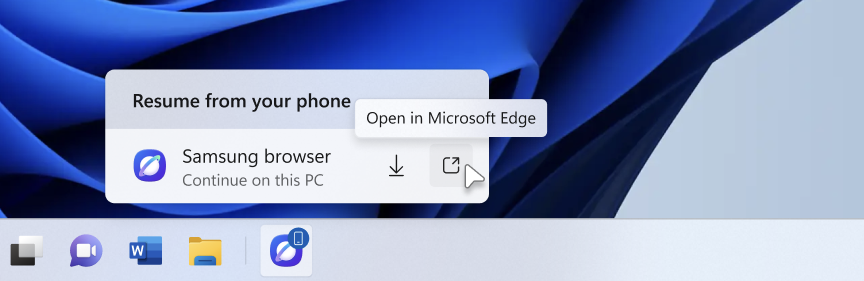
Another new feature in testing is the ability to quickly download the Windows app for a phone app that appears in the Taskbar via Phone Link. If you use the cross-device sync features that comes with Phone Link, hovering over an open app such as your phone's browser on the Taskbar will now let you quickly pick up where you left off without missing a beat.
Quickly resume web browsing activity from your phone from the Taskbar! (Image credit: Microsoft)
In addition to the new sound settings, Microsoft has announced major upgrades to the family safety features in Windows 11. The company says family safety is a top priority for the company, and is addressing key issues and concerns from parents.
Key areas of focus include:
Parental approvals for offerings like screen-time extensions, app access, and purchases now happen faster, so kids aren’t left waiting and parents stay in control.
We restored clear visibility into web and app activity so parents can trust what they see in their reports.
Made spending more transparent, with wallet balances.
We also gave adults in a family more control over their own experience, making it far easier to add, manage, or leave a family group
"Each of these improvements came from a real family experience — from issues parents told us mattered most: speed, accuracy, control, transparency, and peace of mind." Microsoft Distinguished Engineer, Rob Mauceri said. "This is the compounding effect of a team that treats every piece of customer feedback as a commitment to do better."
These improvements are welcome to see, and a sign that Microsoft continues to modernize and improve Windows 11 for the masses. These improvements are part of Microsoft's ongoing Windows K2 effort, which is focused on fixing Windows 11's biggest flaws.
Join us on Reddit at r/WindowsCentral to share your insights and discuss our latest news, reviews, and more.
Another record-setting Patch Tuesday is here for Windows 11. The operating system has a massive number of security patches and fixes that are now available to hundreds of millions of PCs.
At the time of publication, we do not have the change log of the latest updates. You can, however, grab the most recent builds through the Microsoft Update Catalog. We will update this piece as more information becomes available.
According to The Verge, this month's Patch Tuesday update includes more than 650 security fixes just for Windows. That's a six-fold increase over what we normally saw in a usual month until recently. But advances in AI have sped up the process of discovering vulnerabilities as well as the need to patch them swiftly.
This is a breaking news story. It will be updated after Microsoft releases the change log for this month's Patch Tuesday updates.
Thanks in large part to AI, it's now common to see hundreds of security patches ship on a Patch Tuesday.
AI is a useful tool for Microsoft's engineers, but it can also be used by malicious actors. We're seeing an AI arms race for discovering and patching vulnerabilities.
In addition to helping discover vulnerabilities, AI can help malicious actors take advantage of vulnerabilities that have been discovered or disclosed. That process has been accelerated greatly by AI, putting pressure on organizations and IT admins to test security patches quickly so they can be rolled out.
Join us on Reddit at r/WindowsCentral to share your insights and discuss our latest news, reviews, and more.
Last week at IFA 2026, Microsoft announced Project Zenith, the codename of a new class of devices aimed squarely at developers looking to build apps and local AI experiences on top of Windows 11. The announcement came out of the blue, which naturally caused a bit of confusion online.
So, what is it? Well, Zenith is an effort to formalize a baseline for "developer-ready" hardware: devices that meet a minimum bar for performance and are ready out of box to begin coding and compiling. This means the configuration of Windows 11 that ships on these devices is different from normal PCs, with different default settings and pre-installed apps.
To be clear: This isn't a new or different version of Windows 11. Zenith devices will almost definitely still ship with either Windows 11 Home or Pro, depending on the OEM. It's simply how Windows 11 is configured out of box that differentiates these developer-class devices from normal Windows 11 PCs.
There's seemingly also a hardware component at play, too. Microsoft says Zenith devices must ship with at least 64GB of unified memory and be capable of 250GB/s of memory bandwidth if they want to ship with this specially preconfigured version of Windows 11 for developers. All other hardware will ship with the normal configurations of Windows 11.
In recent years, there has been an uptick in developers making the switch from Windows to Mac for a variety of reasons, including OS quality issues or lack of capable hardware in the wake of Apple Silicon. Developers have also complained that it just takes too long to set up a Windows PC for development, sometimes taking hours or even days from the first power-up.
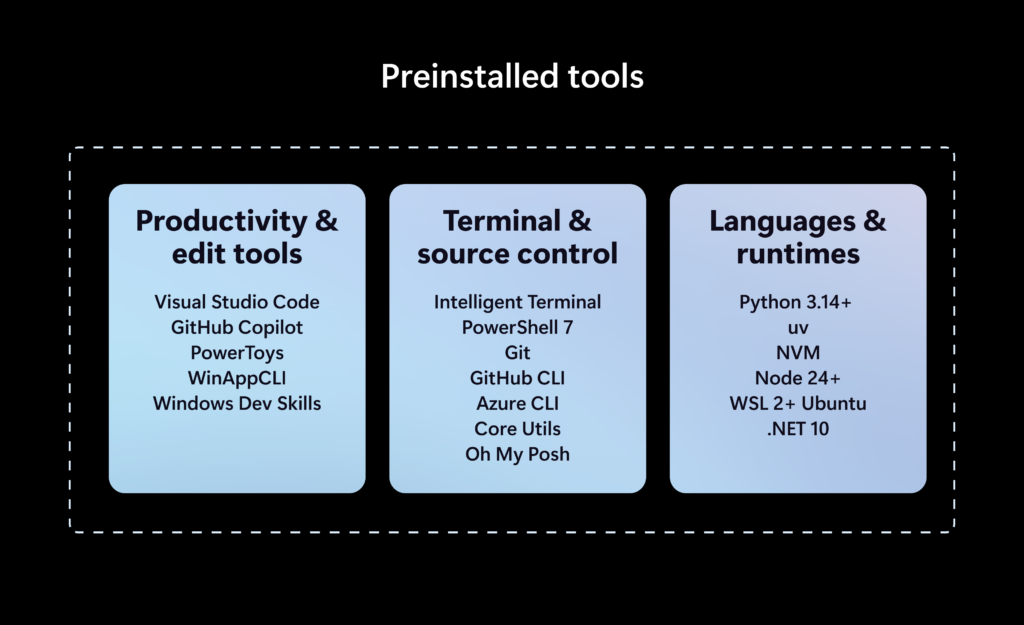
The developer-focused apps and frameworks that come preloaded on Zenith PCs. (Image credit: Microsoft)
Zenith removes this friction. These devices are certified high-end and ship from the factory in a state that is ready to code, with apps like Visual Studio and GitHub Copilot already installed and ready to go as soon as you reach the desktop. They also ship with Windows 11 in a configuration that already dials back the annoyances that developers have complained about.
Out of box, "File Explorer shows file extensions, hidden files, the full path in the title bar, and the details pane, with long-path support enabled. Recently used files and folders and sync provider tips are turned off for a cleaner workspace. In Search and Start, Command Palette is enabled, while Start menu tips and account notifications are turned off to reduce distractions."
These are small but meaningful changes to the default Windows configuration, one that can save minutes of setup time. If you're managing a fleet of developer devices, this will save you hours of configuration time. The good news is these settings aren't unique to Zenith PCs.
If you don't fancy spending the money on a new Zenith device, you can manually configure your existing Windows 11 PC to match the configuration that comes preloaded on Zenith PCs. Of course, it'll take longer to do, but you'll save yourself the cost of a new PC in the process.
Ultimately, the goal of Zenith is to signal to developers that Microsoft is listening and wants to position Windows as the preferred platform for on-device AI and app development. The first Zenith devices to ship will be ones powered by AMD's Ryzen AI Halo chips, with other chipmakers such as the RTX Spark expected to follow.
No word on which OEMs will build Zenith hardware, or when the first Zenith devices will begin shipping just yet. We'll keep you posted when we know more!
Join us on Reddit at r/WindowsCentral to share your insights and discuss our latest news, reviews, and more.
Windows 11 will soon be able to provide a "distraction-free" experience with less clutter... as long as you are a developer with an extremely expensive PC. Microsoft just announced Project Zenith, which feels like a mixture of marketing speak and a good idea.
Project Zenith devices will come with pre-enabled settings and pre-installed apps to reduce how much developers need to do to start working. None of the features are exclusive to those devices, however. You could just manually set Windows 11 a certain way and install apps like Visual Studio Code.
Project Zenith devices also need to have at least 64 GB of unified memory and at least 250 GB/s memory bandwidth.
But if you can already buy a PC with those specs and install apps and change settings yourself, what's the point of Project Zenith? That's a fair question, but I think there is a solid idea to build on.
Biggest News of the Week
Windows 11 runs on over a billion devices, ranging from lightweight laptops in classrooms to powerful gaming rigs. There are different SKUs of Windows 11 already, but too many people are tossed into the standard Windows experience out of the box.
Having a configuration of Windows 11 tailored to developers is a fine idea, and I'd love to see Microsoft explore the concept further. We're seeing that a bit on the gaming side of things with Game Mode and Project Helix.
The Surface Pro 11 was one of many Surface devices that demonstrated what Snapdragon-powered PCs can do. (Image credit: Windows Central)
The concept of a tailored version of Windows is not new. Microsoft has toyed around with the idea several times over the years. We saw a glimmer of hope with Windows 10X, but that version of Windows never made it out of testing. Windows 10 S mode was another attempt to tweak the OS for certain users.
I'd love to see a dynamic version of Windows with entire components stripped out if they're unneeded. A glorious modern version of Windows that can easily add full legacy support with the flip of a switch. But that doesn't seem realistic.
Instead, Microsoft needs to lean into the idea of tailoring the "full fat" version of Windows 11 to different use cases. For example, a lot of people hate AI but Microsoft appears to be a big fan of it. Microsoft could have Copilot+ PCs come with AI features pre-enabled and Copilot pre-installed. The tech giant could then have a "non-AI" version of Windows 11 that has AI features disabled or not installed at all.
Alternatively, this could be done through the unboxing experience. Microsoft already asks you questions to determine how you plan to use your PC. Having different modes could make that process more impactful. But since your PC is running Windows 11, you could always enable or install what you need later.
Of course, this would require Microsoft to admit that there's a real demand for an AI-free version of Windows 11, and that users shouldn't need an EU mandate just to get a PC without ads.
Join us on Reddit at r/WindowsCentral to share your insights and discuss our latest news, reviews, and more.
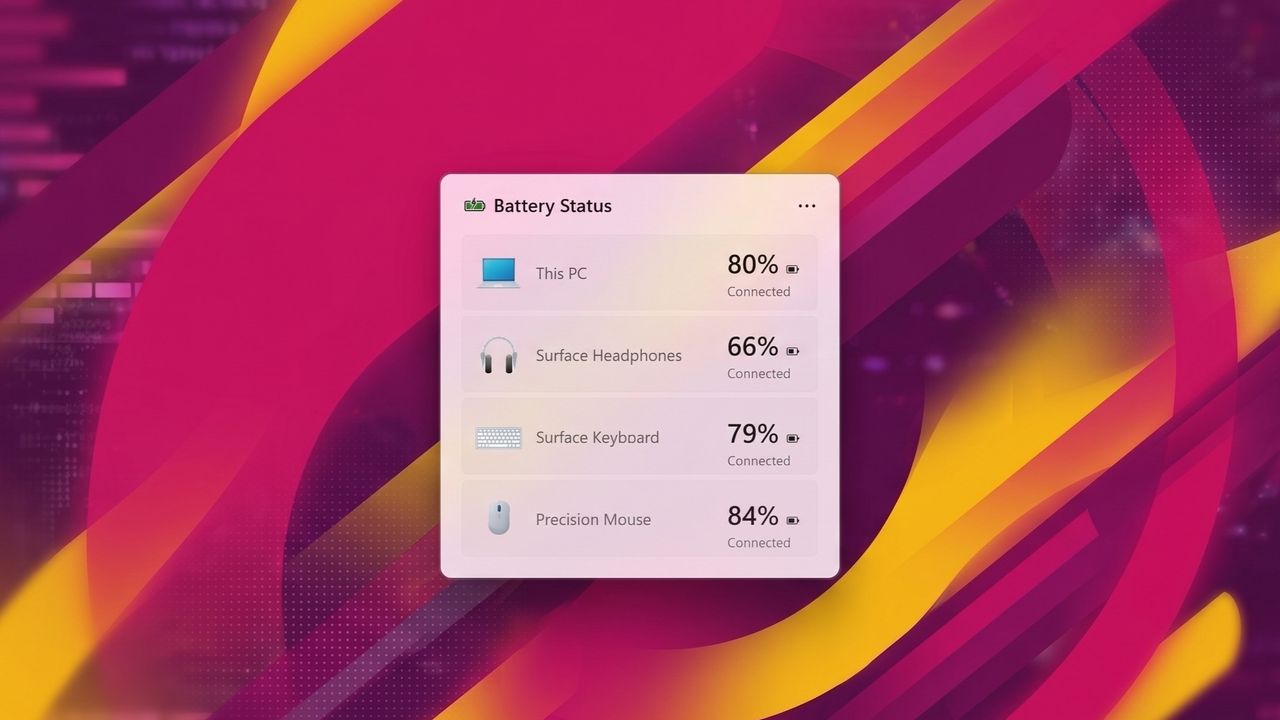
It looks like Microsoft is working on a handy new widget for Windows 11 that will display the status of your device's battery, along with any wireless peripherals connected to your PC. References to such a widget were first discovered on Discord in the latest Windows 11 preview builds, though it doesn't appear to be functional just yet.
The new battery widget will be available in the Windows 11 Widget Board and will also be placeable on the Windows 11 lock screen, too. Although it's not functional just yet, strings and assets are already present in the latest builds, revealing how the widget will function and what it will actually look like.
The widget features light and dark mode themes and will show devices in a vertical list, starting with your PC battery at the top. Each device will include an icon representing the peripheral, along with the name of the device and the battery percentage. The widget will also be able to show when a device is charging, or has energy saver enabled or disabled.
Of course, other platforms have featured a battery widget of some kind of years. Both Android and iOS have battery widgets that show the battery levels of all accessories connected, and now Windows 11 is catching up with the same feature.
The new battery widget will be a nice addition to the Widgets Board, which many might argue has been kind of useless since its debut in 2021. While some apps have taken advantage of it, most apps haven't. Phone Link, OneDrive, and Weather are the only useful widgets I've found on Windows 11, and it would be nice to have some more.
In fact, more system-level widgets wouldn't go amiss. Widgets for checking on current CPU or memory usage would be a nice addition alongside the battery widget, though there's no sign that this is in the works just yet. For now, we just have the battery widget to look forward to, which I'm happy to see is in development.
Now, if only we could convince Microsoft to let us pin widgets to the Start menu or desktop. Perhaps then they'd actually get some use!
Join us on Reddit at r/WindowsCentral to share your insights and discuss our latest news, reviews, and more.
A "ready-to-code distraction-free Windows experience" is on the way for developers. Microsoft just detailed how Windows 11 will be optimized for people with developer-class devices.
The idea behind Project Zenith is to save developers time by preinstalling apps and having Settings pre-enabled that are optimized for development. For example, File Explorer will show file extensions, hidden files, and the full path in the title bar.
Those options are not new, but they can take a while to set up when you also have to install a bunch of apps and tweak other settings.
We already knew about some of these experiences because of announcements made at Build 2026, but we now know a name for the project and more information about how Windows 11 will be optimized for developer-class devices.
Those devices will be able to run 30B+ parameter models locally and unmetered and use a variety of tools out of the box. Windows Terminal and Visual Studio Code are pinned to the Taskbar by default. GitHub Copilot, PowerToys, WinAppCLI, and Windows Dev Skills will also be preinstalled, according to The Verge.
Project Zenith will launch first on AMD's Ryzen AI Halo devices, but it will make its way to other systems over the coming months.
To classify as a developer-class device, a system will need at least 64 GB of unified memory and at least 250 GB/s memory bandwidth.
The best version of Windows 11
A natural response to Microsoft's blog post is to ask, "don't we all want a distraction-free Windows experience?" I don't know anyone clamoring for more distractions on their PC. But I believe Project Zenith is specific to developers for a good reason.
Many developers have a similar workflow or rely on a set of tools. What would be considered a useful preinstalled app for developers would be viewed as bloat for general users.
Similarly, the enabled settings viewed as useful by developers would make Windows 11 feel crowded for everyday computing.
A better approach would be to tailor Windows 11 to different use cases. We're starting to see that with Xbox Mode on Windows 11 and now Project Zenith for developers.
Of course, Project Zenith devices, PCs running Xbox Mode, and all other Windows 11 devices benefit from the general improvements to Windows 11, such as reducing memory usage and improving Search and File Explorer. Many of those changes can be seen in the latest major update to Windows 11.
Join us on Reddit at r/WindowsCentral to share your insights and discuss our latest news, reviews, and more.
In a new blog post, Microsoft has announced that starting in October 2026, "Memory Integrity Protection" will become enabled on more eligible devices. The feature, which is already enabled by default on most modern Windows PCs, is a kernel-level security feature designed to protect PCs from "sophisticated attacks with little or no additional configuration."
"Built on Virtualization-based Security (VBS), memory integrity helps protect critical parts of Windows from tampering," Microsoft says. "It forms a foundation for modern security innovations such as hotpatch updates that improve user experience and productivity, as well as protection."
The company says that memory integrity protection will begin being enabled by default on eligible PCs starting next month, enhancing security with no additional setup required. "Windows quality updates will begin enabling memory integrity protection on eligible devices. If not already enabled, these updates will also enable VBS, helping make additional security capabilities available"
Of course, users still have control over whether they want memory integrity protection enabled. Most Windows PCs today come with it enabled by default already, but the user is able to control whether it is turned on or off. If you've already manually disabled memory integrity protection, it won't be automatically enabled next month.
"To help ensure a reliable device experience, Windows automatically evaluates readiness before enabling memory integrity."
The automatic rollout will only really apply to older PCs that never had it enabled to begin with. For those users, this will be an invisible change that makes your PC more secure. "Memory integrity helps make this possible by allowing only trusted kernel-mode code and drivers to run."
Microsoft has been working to make Windows 11 more secure while also reducing the frequency and annoyances of Windows Update. In recent months, the company has announced a complete overhaul to the Windows Update system, reducing how often it prompts users to restart to just once a month.
With features like hotpatch on commercial editions of Windows, Microsoft is now also able to update the OS on the fly without restarting the OS. While hotpatching isn't yet available on Windows 11 Home or Pro, it's something that we would love to see on consumer editions of Windows in the future too.
Join us on Reddit at r/WindowsCentral to share your insights and discuss our latest news, reviews, and more.
A major Windows 11 update is just around the corner. Microsoft just shipped Windows 11 version 26H2 to the Release Preview Channel and general rollout of the update starts in a few weeks.
The upcoming update to Windows 11 includes UI changes such as the ability to move the Taskbar and under-the-hood improvements. It's a more substantial change than we've seen in previous years, which begs the question, "Where is the Surface to showcase all these improvements to Windows 11?"
Microsoft appears serious about its push to improve Windows 11 and listen to feedback about the operating system. The first real wave of improvements is essentially here, so why isn't there someone on stage showing them on a Surface?
Biggest News of the Week
Microsoft is a gigantic company and its teams often don’t talk to each other enough to create full unity of design. I talked about this last week in the Windows Wrap when discussing the app situation on Windows 11. While Microsoft is working to fix many of its inbox apps, it's not addressing the same inconsistencies across Microsoft 365, Teams, and other apps.
Microsoft has shuffled things around over the years, combining Surface with Windows and changing how leadership is structured. But right now it feels like Windows and Surface are distant. Microsoft does not have a unified marketing push to highlight all the changes to Windows 11. There isn’t an announced event or upcoming device that would showcase the major Windows 11 improvements that will ship to PCs in only a couple of weeks.
Surface is supposed to show the best of Windows and Microsoft will miss an opportunity unless it has an ace up its sleeve. Microsoft used to announce Surface hardware in April and October. I’d love to see Microsoft surprise us with something that showcases Windows 11.
Windows and Snapdragon
The Surface Pro 11 was one of many Surface devices that demonstrated what Snapdragon-powered PCs can do. (Image credit: Daniel Rubino)
Microsoft did a good job pairing Windows 11 and Snapdragon developments. At one point the Surface Pro X showed that a Snapdragon-powered PC can be fanless. Microsoft later shifted away from that, instead emphasizing the power efficiency and unplugged performance offered by Snapdragon PCs.
But the principal remained the same; Microsoft used it’s flagship hardware to highlight improvements to Windows 11 on Arm. Microsoft's faith in Snapdragon also pushed other PC manufacturers to make laptops powered by Qualcomm's chips. Snapdragon PCs are sold side-by-side with laptops powered by Intel or AMD chips.
Of course, it’s easier to use Windows 11 to show hardware improvements when there are concrete examples such as improve battery life or better unplugged performance. Microsoft has more of a mountain to climb when it comes to marketing the ability to move the taskbar and improved start menu. Under the hood improvements are tricky to show off.
That challenge is why I asked earlier this month if the next major Windows 11 update should be Windows 12. But that’s precisely why Microsoft needs to use Surface to highlight the improvements to Windows 11. Without a major marketing push about an OS upgrade, Microsoft needs to use its other resources to make sure shoppers know that this isn’t the same old Windows 11.
Join us on Reddit at r/WindowsCentral to share your insights and discuss our latest news, reviews, and more.
Microsoft has begun rolling out the next version of Windows 11 to testers in the Windows Insider Release Preview Channel, which is the very last phase of testing before general availability begins. With version 26H2 now in the Release Preview Channel, the company is signaling that this new version is just about done, and testing of the final bits can begin.
Windows 11 version 26H2 is similar to version 25H2 in scope. It's based on the same platform release as both 25H2 and 24H2 before it, which means it's not a major OS upgrade and won't be making major changes to the OS core. Instead, 26H2 serves to reset the support clock for Windows 11 users, with 26H2 offering a refreshed 24 months of support for consumers and 36 months for commercial customers.
That's good news for users who usually dismiss new versions of Windows 11 for being unstable or buggy. 26H2 shares the same core OS, feature stack, and security updates as 25H2, meaning there are no compatibility or software quality concerns to be worried about. If it works on 25H2, it'll work on 26H2 also.
"As Windows 11, version 26H2 shares the same servicing branch as Windows 11, version 25H2, the update is implemented through an enablement package (eKB). This means your device will be updated to the next version through a single restart – providing a familiar, fast, and reliable update experience."
There may be some instances where 26H2 gets new features first, but for as long as 25H2 (and 24H2) are supported, they should get the same features also. For now, version 26H2 is at feature parity with version 25H2, which is expected to receive the same Windows K2 improvements such as the more customizable Start menu and new Windows Search pane at the same time.
Now that Windows 11 version 26H2 is now in the Release Preview Channel, that typically means we're just a few weeks away from general availability beginning. Bits that are flighted to the Release Preview Channel are production-ready, and so now it's just a matter of ensuring the final bits don't have any last-minute bugs or issues.
Should everything go according to plan, I expect we'll begin hearing about version 26H2 general availability in the next few weeks. Microsoft usually aims to begin rolling out new versions of Windows 11 towards the end of September and into October, and I expect the same to happen this year.
Join us on Reddit at r/WindowsCentral to share your insights and discuss our latest news, reviews, and more.
Microsoft's Link to Windows app for Android may soon support restarting or shutting down a computer or putting a PC to sleep. Code within the app was discovered that suggests the functionality is on the way, but nothing has been confirmed by Microsoft at this time.
Windows Latest found evidence suggesting that a pairing of Link to Windows and Phone Link will soon gain greater control of your PC. It's already possible to lock your PC from your Android phone, but the code suggests support for other actions is on the way.
I occasionally forget to turn off my PC, especially since I work from home and can get distracted after my work day ends. Being able to shut down my PC remotely without having to set up a Remote Desktop would be a nice option.
The feature could also come in handy if you need to leave your PC running unattended for a while. The other day I had to download a bunch of large files and knew my PC had to run for a while. If the new Link to Windows feature had been available, I could have shut down my PC after I knew the files were downloaded.
Putting your PC to sleep through Link to Windows will work a bit differently, according to Windows Latest. A warning message discovered by the outlet states, "After it’s asleep, it will be disconnected from this device. You need to go to your PC to wake it up."
Separate warnings appear when you try to restart or shut down your PC in the middle of an update.
Microsoft continues to work on integrating the smartphone and PC experience. The tech giant expanded the connection between devices by adding a section to the Start menu on Windows 11. Microsoft is also testing several flyouts and menus that will make it easier to connect your phone and your PC.
Join us on Reddit at r/WindowsCentral to share your insights and discuss our latest news, reviews, and more.
Microsoft has published a new blog post celebrating significant progress around the Windows on Arm platform over the last year. The company is excited to welcome NVIDIA to the Windows on Arm family with its RTX Spark SoC later this year, joining the Qualcomm Snapdragon X platform and solidifying the Windows on Arm platform as here to stay.
"The market is sending a clear signal: more silicon providers and more OEM partners are investing in Windows on Arm because customer demand is growing for these powerful and efficient Windows devices and experiences," says Klaus Diaconu, Partner Director at Microsoft. "In the fall of 2026, devices from Microsoft Surface, ASUS, Dell, HP, Lenovo, and MSI will be available [with RTX Spark.]"
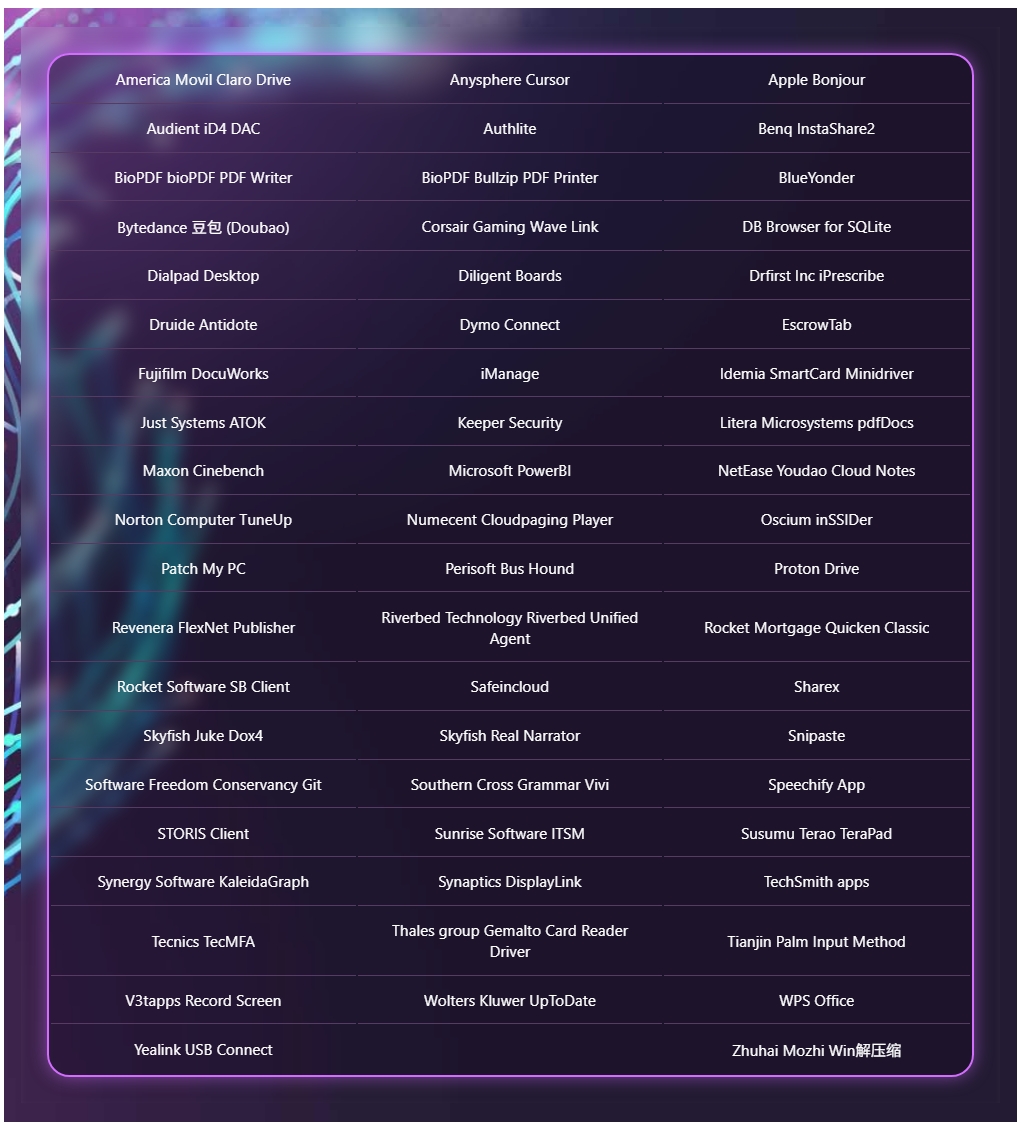
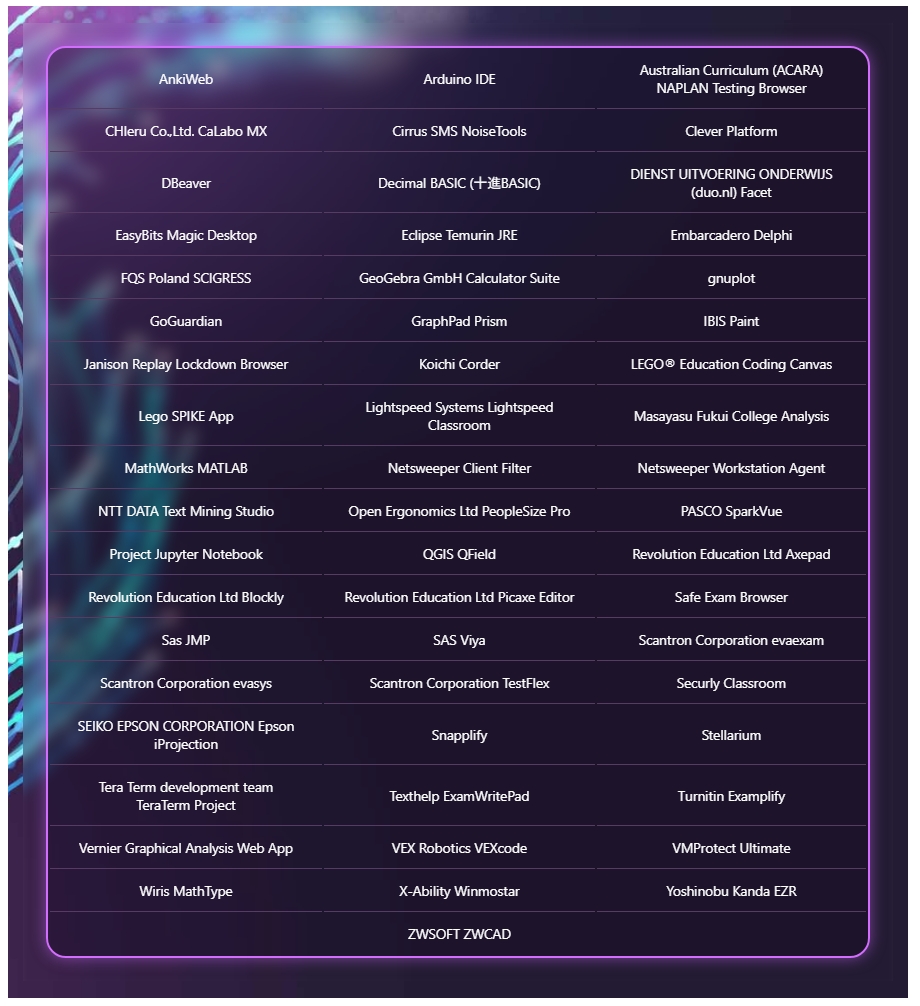
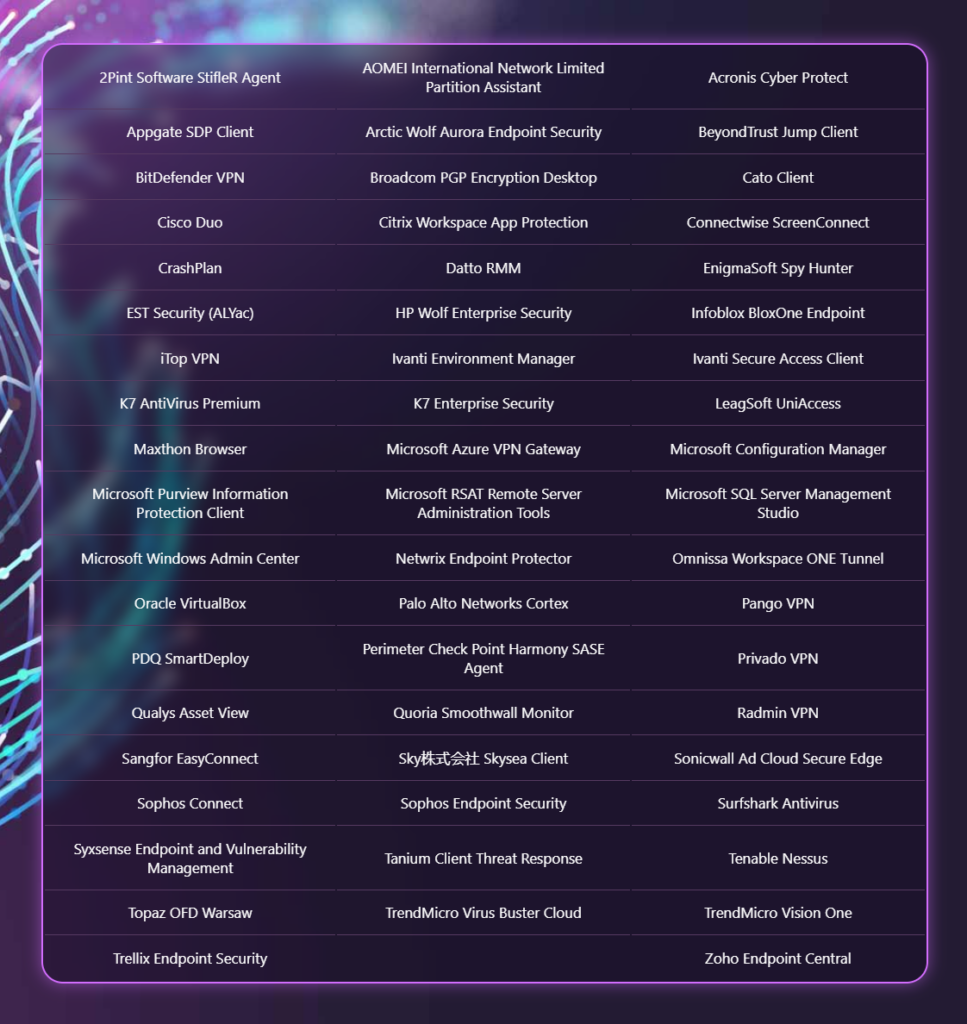
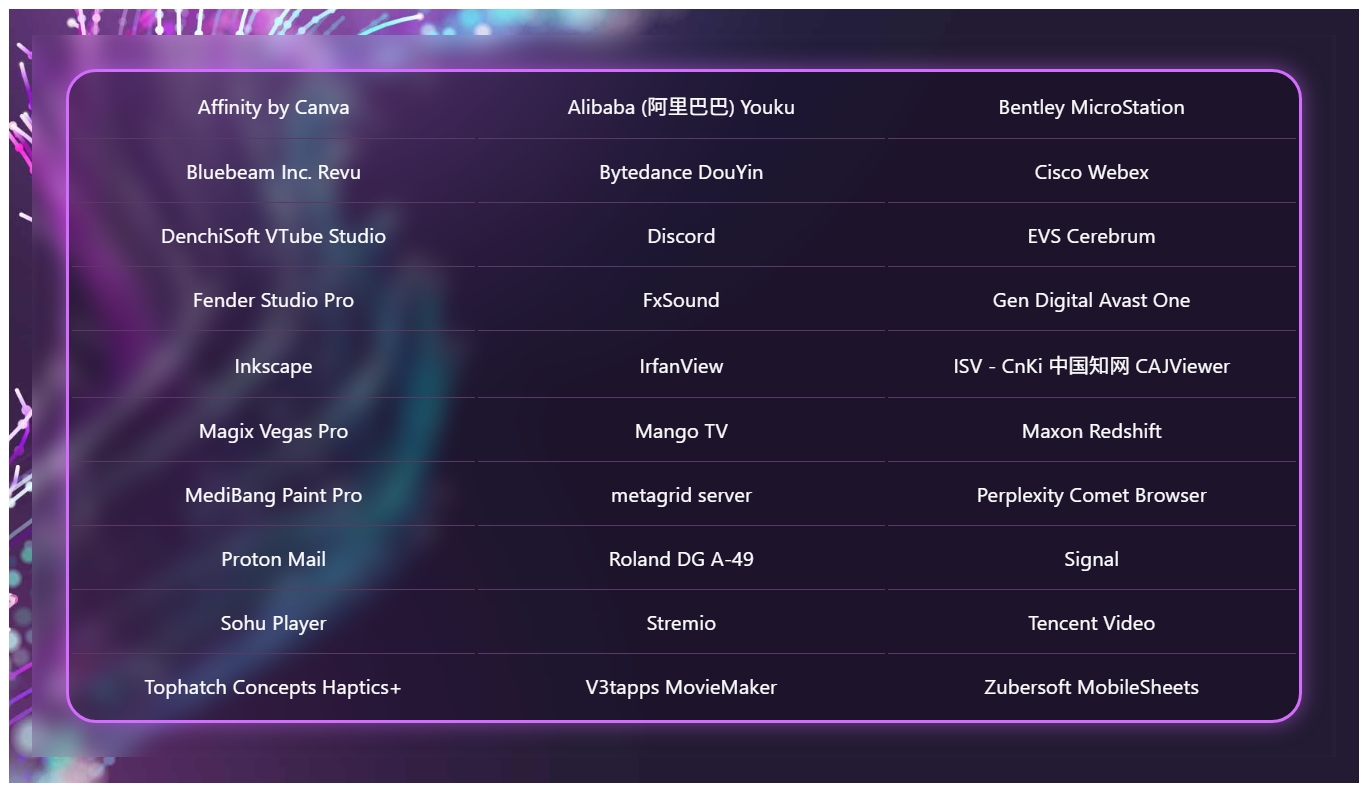
In addition to highlighting silicon and hardware makers bringing Windows on Arm to market, Microsoft is also excited to spotlight Windows apps that are now available on the Arm platform, including STEM and education apps, security apps, productivity apps, creativity apps, entertainment and media apps.
MicrosoftMicrosoftMicrosoftMicrosoft
"Productivity apps remain the cornerstone of how people get work done on Windows. Whether managing projects, collaborating with teammates, organizing information, or communicating across teams, these apps are essential to our customers’ daily work. The growing list of productivity apps now available reflects both customer demand and increasing momentum from developers building with Arm as a first-class Windows platform."
Some of the highlights include apps like Sharex, Proton Mail, Signal, Discord, FxSound, and more. In fact, Microsoft says there are now over 7,000 compatible Windows on Arm apps being tracked on the "Works on WOA" website, which the company recommends as a comprehensive source for app compatibility information.
While most mainstream apps are now natively supported on Arm, there are still Windows apps that don't yet have an Arm native version. With the Windows Prism emulation layer, these apps still run on Windows on Arm, and on the latest Arm PCs they feel native thanks to improvements to performance from both the silicon and software.
"Windows on Arm is no longer defined by potential, but by a rapidly expanding ecosystem of devices with apps available across workloads that customers depend on most," Microsoft states. "As developers continue to invest in Arm-native experiences and compatibility, customers gain more choices, flexibility, and confidence in adopting the next generation of Windows devices."
Join us on Reddit at r/WindowsCentral to share your insights and discuss our latest news, reviews, and more.
Windows 11 will soon let you pick how much unified memory is reserved for graphics and AI. The feature is hidden in a recent Windows Insider build (29648) and was discovered by X user @XenoPanther.
Unified memory is high-bandwidth memory that can be shared between a CPU, GPU, and other processors. Traditionally, PCs with discrete graphics cards have dedicated VRAM (video memory) that lives separately from other memory.
Unified memory is still relatively new to PCs. The upcoming NVIDIA RTX Spark lets you use up to 128GB of unified RAM. AMD's Ryzen AI Max already features unified RAM.
Apple popularized the concept of unified memory with its M-Series chips, though the technology is not exclusive to Apple.
If the unified memory feature in testing rolls out, Windows 11 will have a key differentiator from macOS.
Here is how the Unified Memory settings will appear (Under System > Advanced) https://t.co/eN8Gs0BYKs pic.twitter.com/2OpiBrWspZAugust 21, 2026
Microsoft's new feature lets Windows 11 users "reserve additional unified memory for graphics and AI intensive games and applications." The setting would help ensure smooth performance for certain types of workloads that require a lot of memory.
Normally, Windows manages shared memory dynamically, shifting resources back and forth as apps demand them. That approach works fine for general multitasking, but it runs into problems with heavy workloads like local AI inference or 3D gaming.
When memory is shared like that, background OS tasks and apps can contend for the same pool of RAM. That competition can cause latency spikes, frame drops, or total out-of-memory crashes when you're trying to run something demanding.
By letting users reserve memory, workloads with high demands for graphics and AI have uninterrupted access to high-speed memory.
The feature is not finished and has not been announced by Microsoft, so it requires some extra work to see. You can force it to appear using ViveTool.
I'd recommend waiting until the feature enters testing or even ships to general users before using it. In most cases, it's worth letting Microsoft work out any issues and polish the experience rather than use a hidden feature.
Join us on Reddit at r/WindowsCentral to share your insights and discuss our latest news, reviews, and more.
In this week's episode of the Windows Central Podcast, Daniel Rubino and Zac Bowden break down the latest Windows 11 insider features, focusing heavily on major overhauls coming to context menus, File Explorer polish, and options to force apps to open full-screen. They also dive into a surprising new Signal 65 processor study highlighting how Qualcomm's Snapdragon X2 chips stack up against Intel and AMD, wrap up recent Windows 11 improvements from March onward, and touch on various tech ecosystem shifts.
This episode of the Windows Central Podcast is sponsored by Surfshark VPN. Unlimited devices, access your content from anywhere, and auto-block malware on Windows, Edge, and other platforms from $2.50/mo, with 3 months extra FREE. Sign up today!
00:00 — Introduction & Welcome: Daniel Rubino and Zach Bowden kick off Episode 402 of the Windows Central Podcast.
03:45 — Qualcomm Snapdragon X2 vs. Intel & AMD: Analyzing the Signal 65 processor study results, showing how Qualcomm beats out Intel and AMD chips in recent laptop testing.
10:15 — Windows 11 Context Menu Overhaul: Breaking down new customizable, faster context menus in Windows 11 Insider builds, including default cleanups and third-party app management.
24:30 — File Explorer Improvements: Reviewing massive performance updates, elimination of freezing/hang delays, and better UI polish for File Explorer.
42:10 — Forcing Apps to Open Full-Screen: Discussing the new Windows settings toggle that allows users to automatically launch apps in full-screen mode.
52:00 — Recap of Windows 11 K2 Features & General State of the OS: A look back at the overall quality-of-life improvements rolled out to Windows 11 since March.
1:05:15 — Wrap-Up & Outro: Final thoughts, social media handles, and sign-offs until next week's episode.
Have a question you want us to answer on the podcast? Send it to us at [email protected]
Microsoft continues to improve Windows 11. Just this past week, the company began testing new context menus with Windows Insiders and revamped the ancient AutoPlay dialog box.
The Windows K2 initiative to improve the operating system is going so well that I've asked if the next big update should be Windows 12. But fixing the Windows experience is about more than context menus and a unified user interface. Even if Windows is fixed, Microsoft needs to make better apps.
If a person logs onto a PC running a beautiful and zippy version of Windows 11, they won't care about the OS if Microsoft Teams takes too long to load. Microsoft needs to lead by example by making the best Windows apps.
Biggest News of the Week
To give Microsoft credit, work is being done to improve some apps. Rudy Huyn, a well-known Windows developer who worked on the Microsoft Store, is putting a team together to improve Windows apps. That team is still in its infancy, so we will have to wait to see the results.
But Microsoft's app issue isn't just about having a team dedicated to in-box apps or hiring good developers. It's about the direction Microsoft pushes those developers. Microsoft Teams and other Microsoft apps have been "rebuilt from the ground up" or "refreshed with performance in mind" several times over the years. But the underlying problem still exists. Microsoft made the wrong choice by going all-in on web apps, and it needs to course correct.
Huyn's team is all about native apps, but it's not clear right now how many apps will fall under its umbrella. Will we see a new native version of Outlook? What about Microsoft Teams? If Huyn's team is just focused on in-box apps, some of the most-used apps on Windows 11 will remain laggy web apps.
Plus, several of Microsoft's biggest apps aren't even in the same part of the company as Huyn's team. If Microsoft fixes the Photos app, OneDrive, and other in-box apps, but Teams is still laggy, Microsoft is still delivering a poor user experience.
Shopping with Sean
Speaking of apps, this week's top deal is on the ever-popular Microsoft 365. That software suite is massively discounted right now if you bundle it with NordVPN. You'll get the best value if you use both Microsoft 365 and NordVPN, but the bundle is more affordable than Microsoft 365 on its own.
This bundle is the most affordable way to get a year of Microsoft 365. As an added bonus, it comes with a year of NordVPN Basic, which is a $49.99 value on its own.View Deal
Microsoft 365 Family provides access to the software suite for up to six people. Each of those users will have their own copy of apps like Word, PowerPoint, and Excel plus 1TB of OneDrive storage. This bundle also includes a free year of NordVPN Basic.View Deal
Join us on Reddit at r/WindowsCentral to share your insights and discuss our latest news, reviews, and more.
As part of the September 2026 update, Microsoft is giving users more control over some of Windows 11's most visible features. The update introduces several customization options that let you change how the desktop works and make some of the default experiences less intrusive.
Once you install the update on your computer, you'll be able to move the Taskbar to the top of the screen, adjust the size of the Start menu, and disable web results from Windows Search. The options are part of Microsoft's ongoing Windows K2 work to make the desktop more customizable, and they're available through the Settings app.
In this how-to guide, I'll show you the easy steps to customize your desktop with features that are coming back to Windows 11.
Important: Starting with the September update, Microsoft is expected to begin gradually rolling out these features, meaning not every device will get them right away.
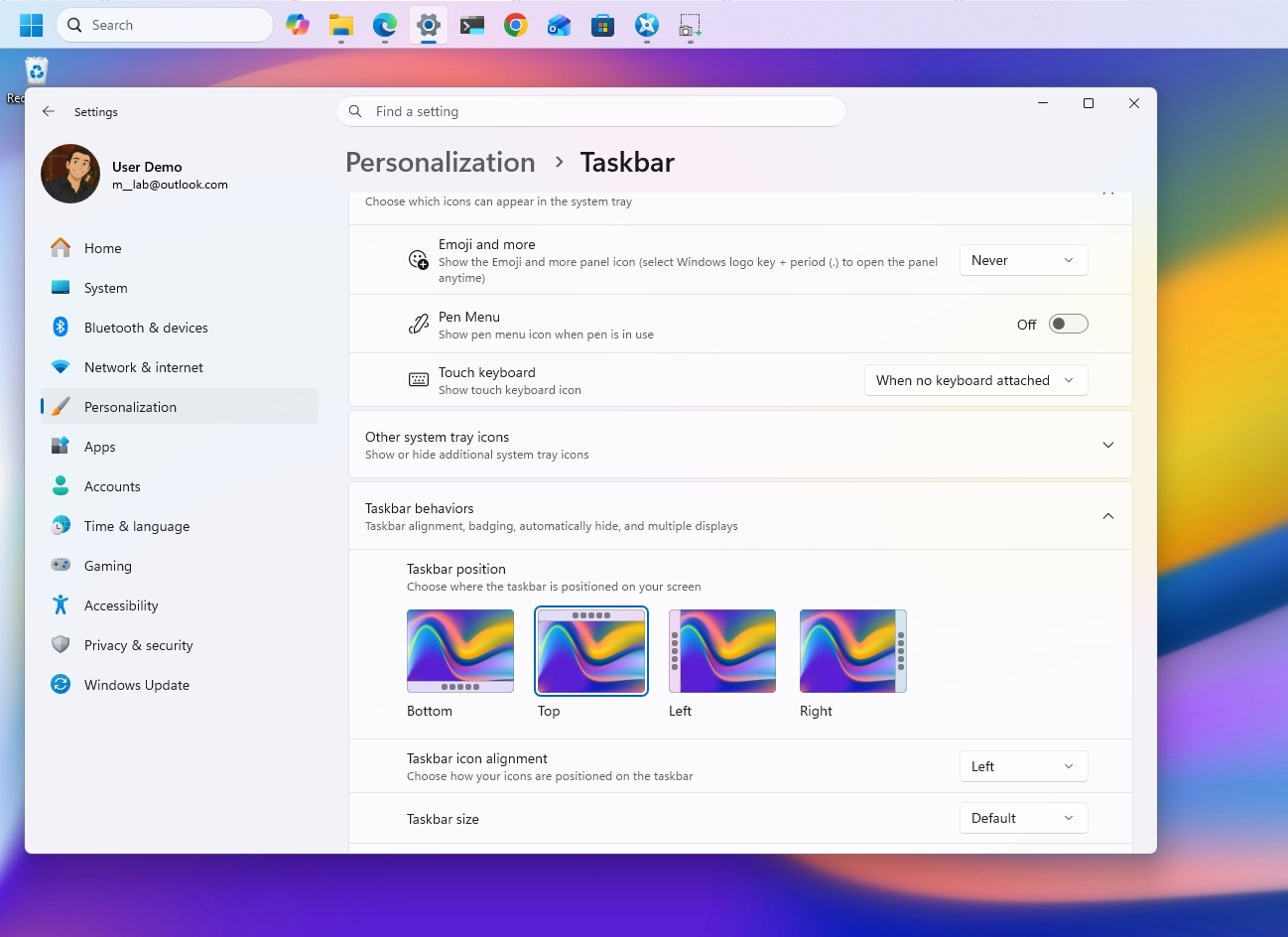
1. Place the Taskbar at the top of the screen
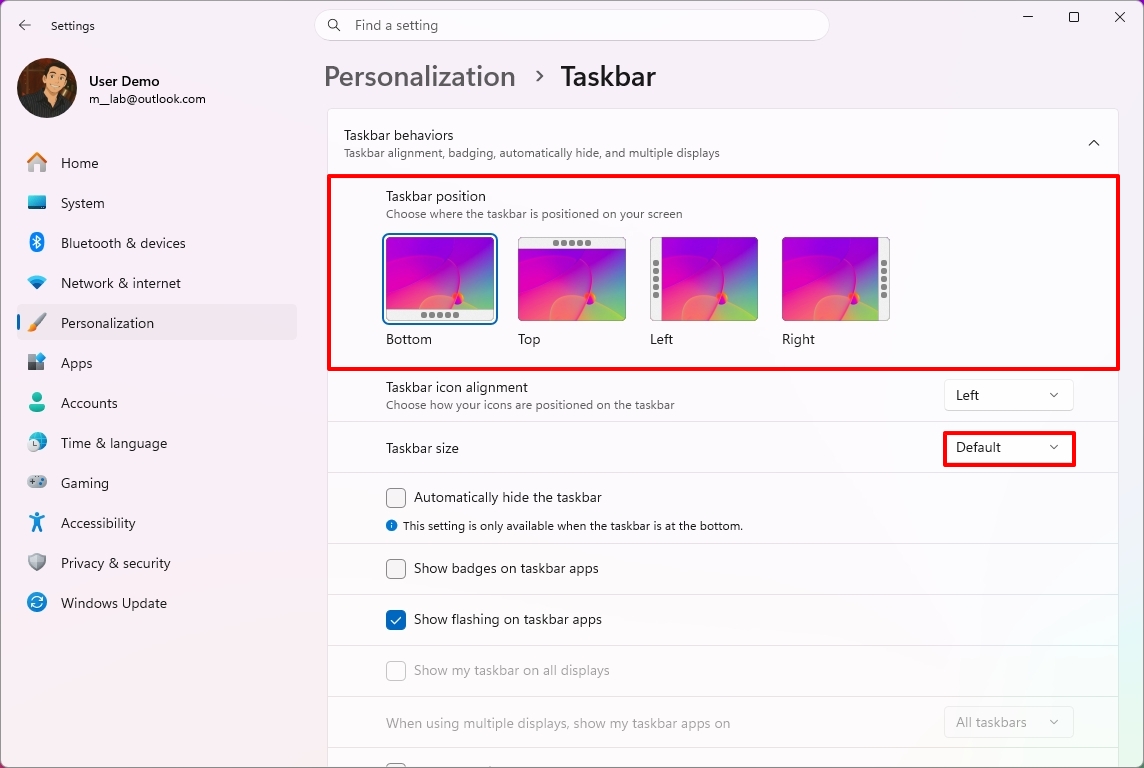
Starting with this release, the company begins a gradual rollout of changes that let you change the position and size of the Taskbar.
To change the Taskbar position, use these steps:
Open Settings.
Click on Personalization.
Click the Taskbar page on the right side.
Select the Taskbar position (including Bottom, Top, Left, and Right) under the new "Taskbar position" setting.
(Image credit: Mauro Huculak)
(Optional) Choose the Small option in the "Taskbar size" option to make the Taskbar and icons smaller and free up screen space on your desktop.
Once you complete the steps, the Taskbar will apply your current configuration, and flyouts, tooltips, and animations will continue to appear as expected based on the position.
(Image credit: Mauro Huculak)
However, I've noticed that docking the Taskbar on the left side also slides the Notification Center to the left, which many people find not ideal.
2. Change the Start menu size
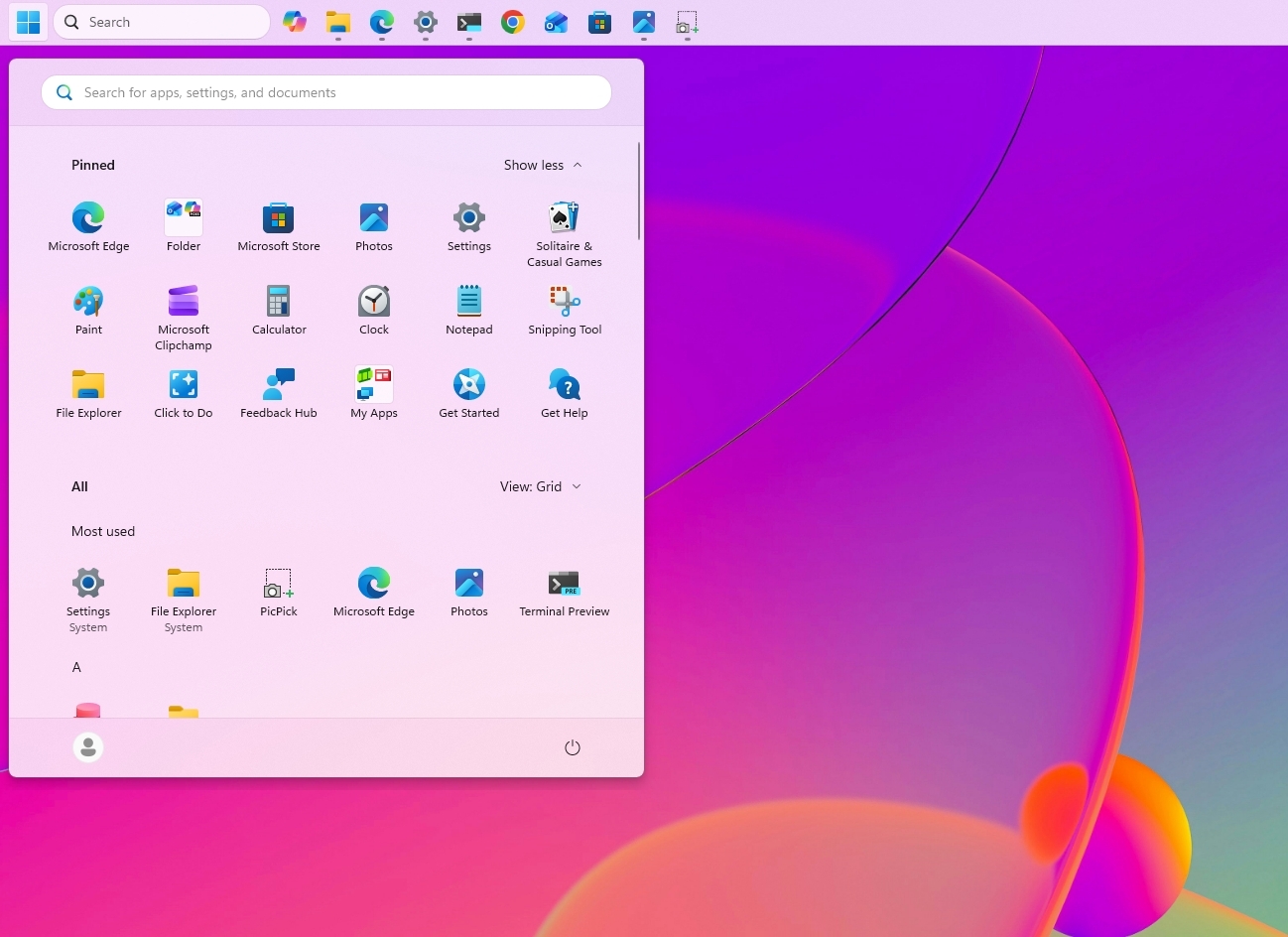
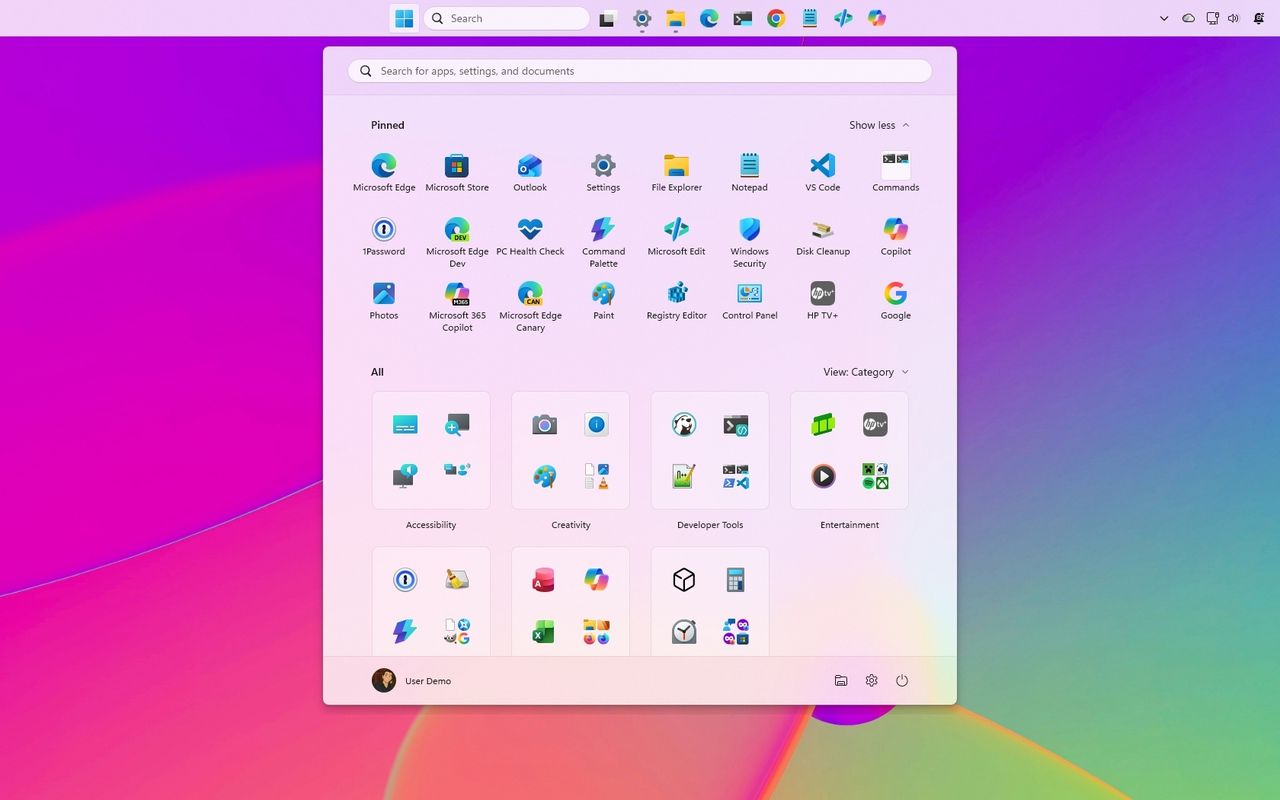
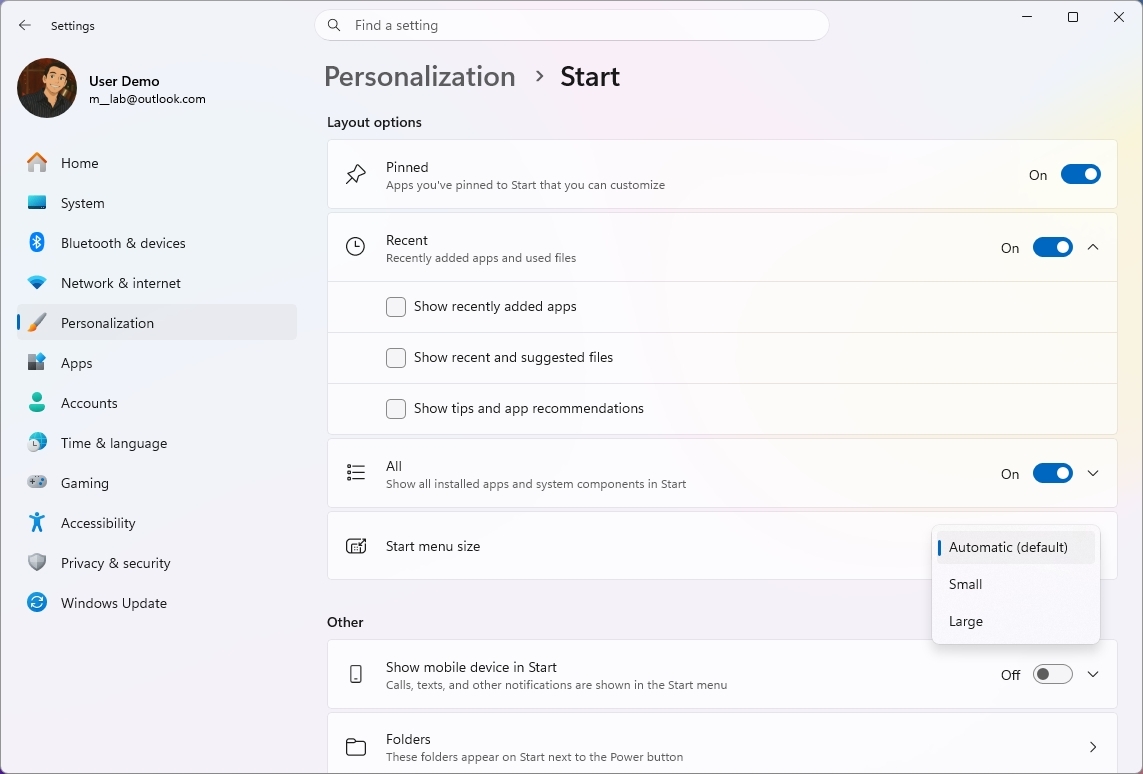
Microsoft also lets users further customize the Start menu. As part of the new changes, you can finally change the Start menu sides, decide what sections appear in the menu, and hide your profile name and picture from the experience.
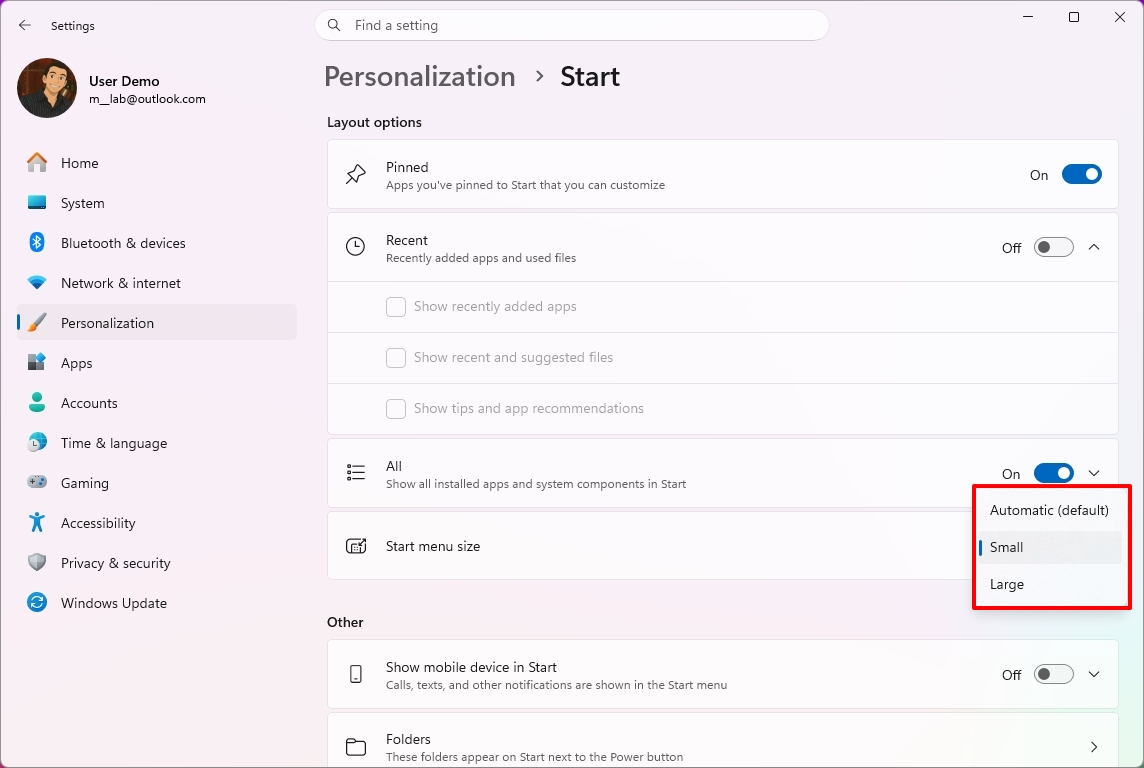
To resize the Start menu on Windows 11, use these steps:
Open Settings.
Click on Personalization.
Click the Start page on the right side.
Turn off the toggle switches for the sections you don't want to see in the Start menu.
(Optional) Choose whether the Recent section (formerly Recommended) shows recently added apps, recent and suggested files, and tips and app recommendations.
Quick tip: The "Show recent and suggested files" option works independently from the File Explorer file history.
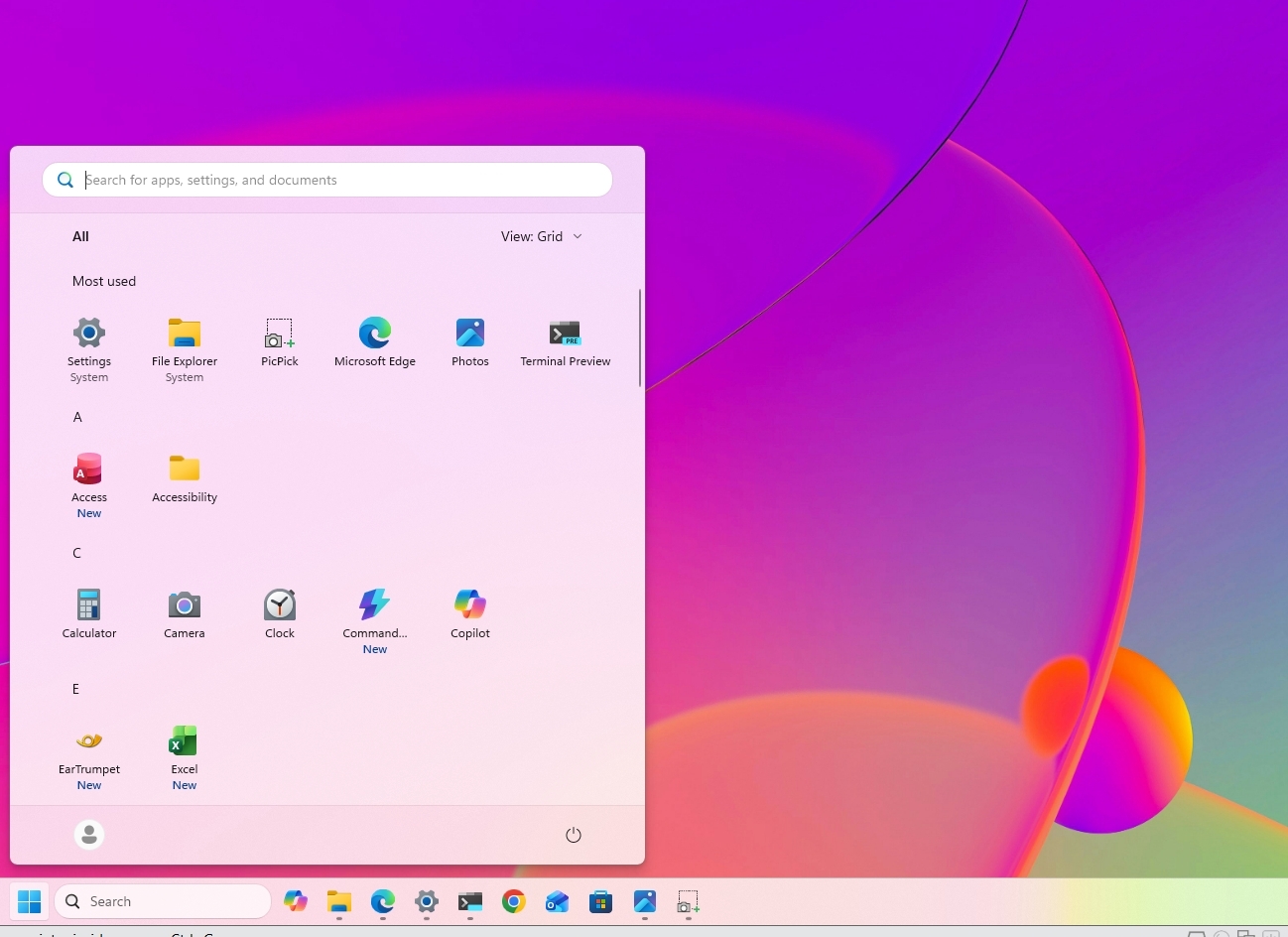
Choose the Small or Large option in the "Start menu size" setting to change the menu size.
(Image credit: Mauro Huculak)
(Optional) Turn on the "Hide your name and profile picture on Start" toggle switch.
After you complete the steps, the new customization settings will apply to the Start menu for a more personalized experience.
(Image credit: Mauro Huculak)
3. Disable web results from Windows Search
Finally, Microsoft is also improving the Windows Search experience with several interface tweaks and, more importantly, with the ability to disable web results as well as Microsoft Store app suggestions.
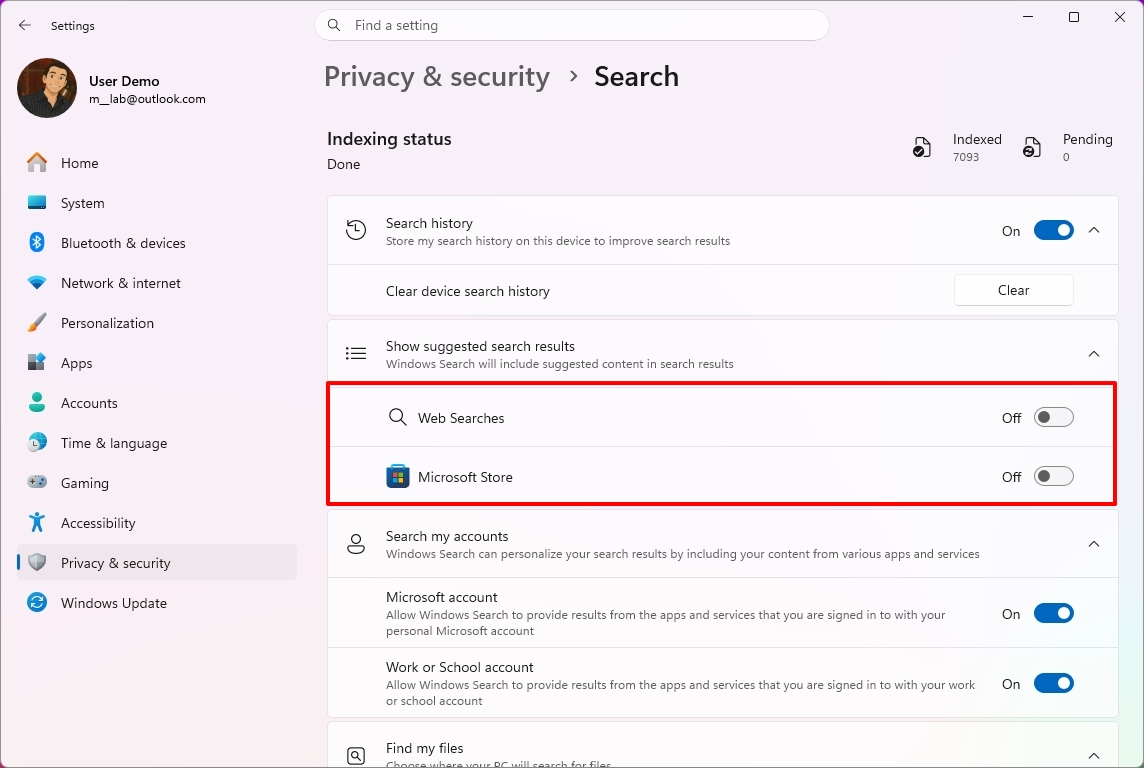
To disable web results from Windows Search, use these steps:
Open Settings.
Click on Privacy & security.
Click the Search page on the right side.
Turn off the Web Searches toggle switch to prevent Bing results from appearing in searches under the "Show suggested search results" setting.
(Image credit: Mauro Huculak)
Turn off the Microsoft Store toggle switch to prevent app suggestions from the Store when performing a search.
Once you complete the steps, when performing a search, the results will focus on files, settings, and apps.
(Image credit: Future)
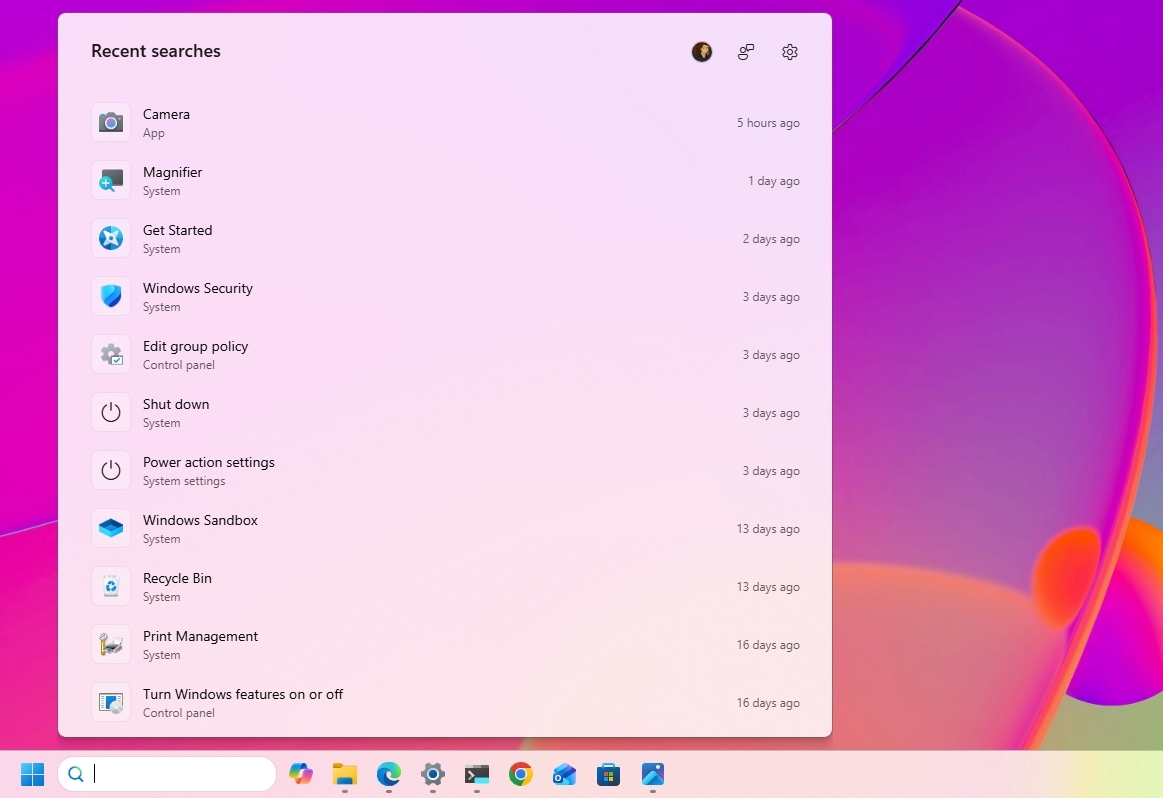
Windows Search also gets several usability improvements with the September update. The Search home experience is being simplified to reduce clutter and make recent searches easier to access.
Also, search results will make it clearer whether an item is an app, setting, file, web result, or Microsoft Store suggestion.
Finally, the operating system will additionally be able to automatically index frequently used folders, helping files from those locations appear more quickly in future searches.
Windows Central's Take
I like this update because it addresses a few of the areas where Windows 11 has felt unnecessarily restrictive since its original release. Being able to move the Taskbar, change the Start menu size, and finally remove web and Store suggestions from Search gives me more control over how I actually use the desktop instead of being forced into specific defaults.
The Taskbar change is probably the biggest deal for long-time users. I still think the ability to move it should have been there from the beginning, but bringing back that flexibility is better than continuing to defend the original Windows 11 design decision. The same goes for Search. If I'm looking for a file, app, or setting, I don't always want Bing or Store suggestions mixed into those results.
I wouldn't call these revolutionary changes, but that's exactly why I think they are important. A lot of people use the operating system differently, and these small controls can make the experience feel much more personal. I recommend changing them to fit your workflow. Microsoft is rolling them out gradually, so they may not appear immediately after installing the update.
What are your thoughts about these new customization options on Windows 11? Let me know in the comments.
More resources
Explore more in-depth how-to guides, troubleshooting advice, and essential tips to get the most out of Windows 11 and 10. Start browsing here:
Windows 11 is finally starting to look less like the operating system Microsoft wanted everyone to use, and more like the experience users have been asking for.
It might sound like an overstatement, but look at what the company has been changing lately.
Microsoft is giving users more control over the context menu. It's bringing back the ability to move and resize the Taskbar. It's giving users more control over the Start menu. And across the experience, the company continues to modernize legacy tools without stripping away the functionality that made them useful in the first place.
These changes are part of the company's Windows K2 initiative, which is focused on improving Windows 11's performance, reliability, responsiveness, and overall experience. However, there's another theme running through some of these changes that deserves more attention.
Microsoft is giving users back some of the control it took away when it launched Windows 11. And frankly, it's about time.
Windows 11's biggest problem was never the new design
When Windows 11 first became available, Microsoft wanted the desktop to feel simpler, cleaner, and more approachable. That meant redesigning major parts of the shell, simplifying menus, and reducing what the company considered "unnecessary" complexity.
The problem wasn't that Windows 11 looked different. The problem was that Microsoft sometimes confused simplification with removing choices.
(Image credit: Mauro Huculak)
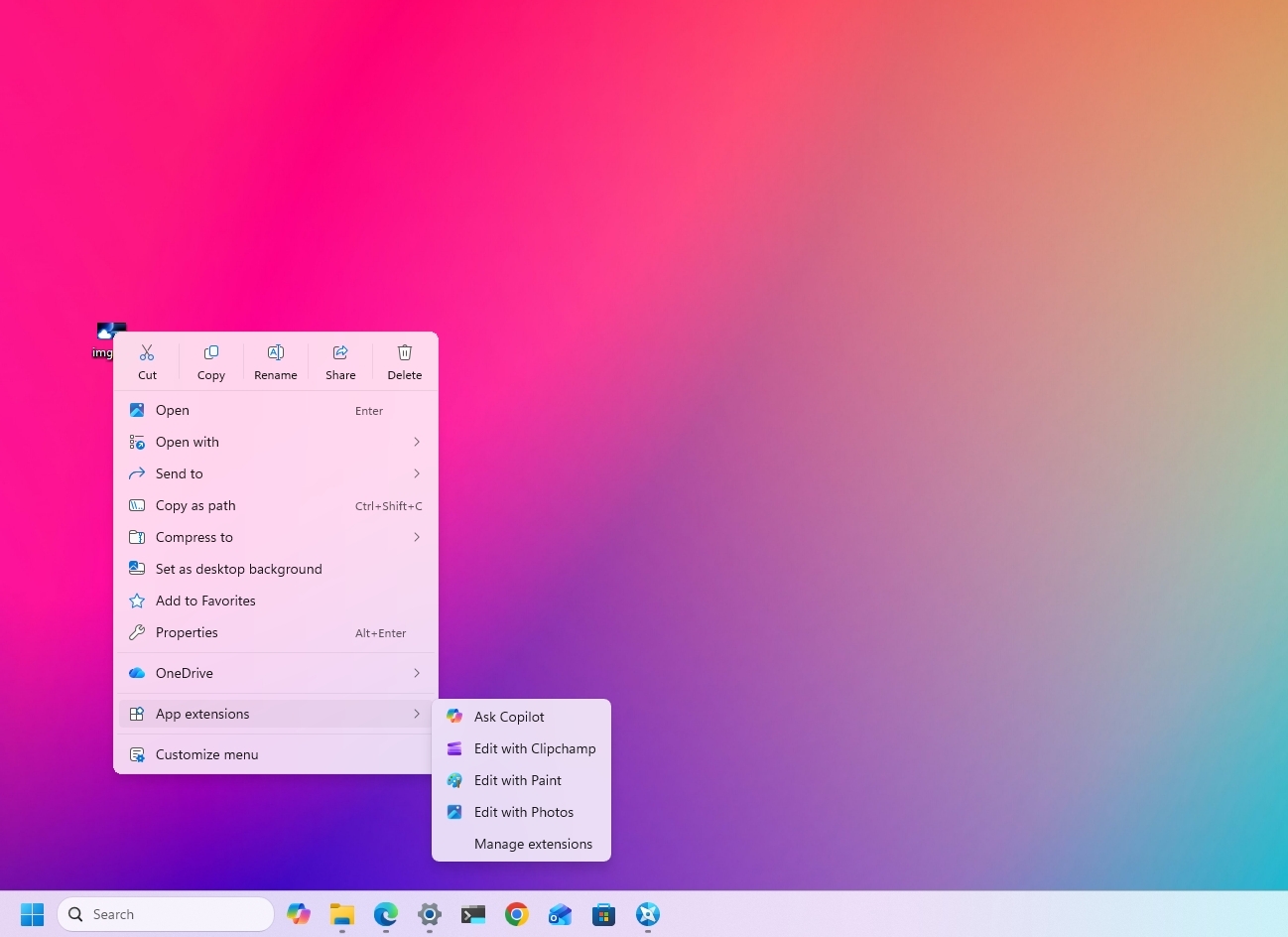
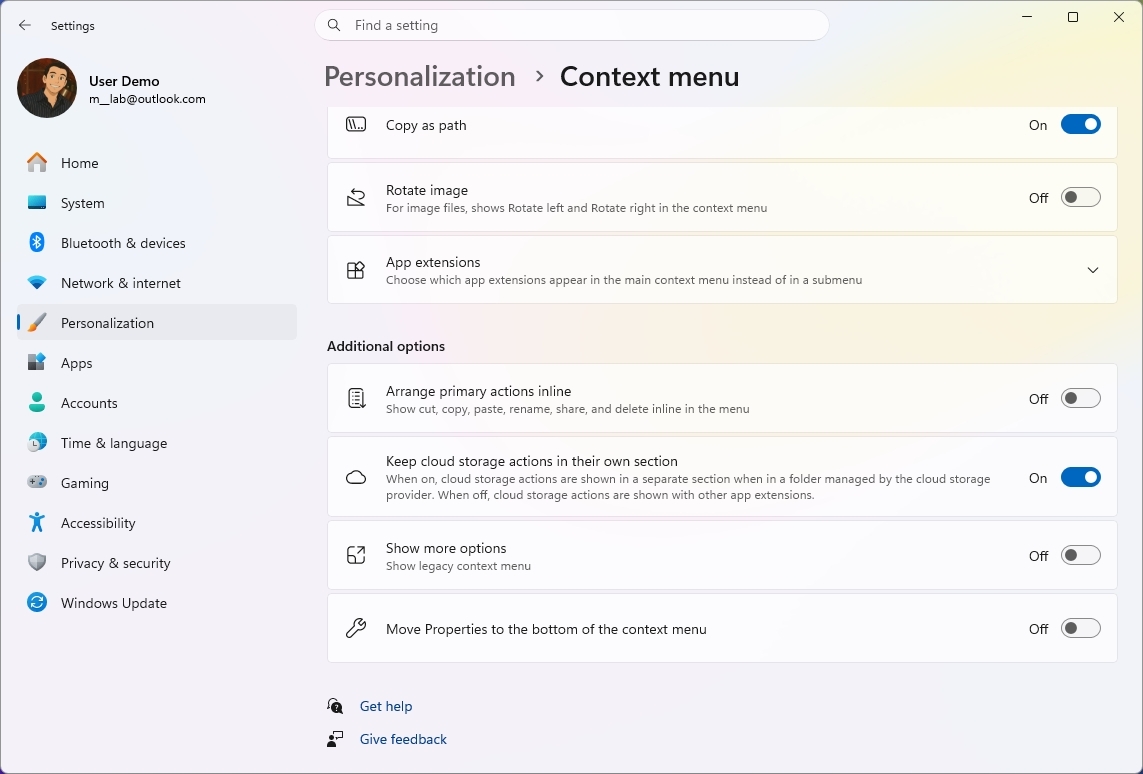
The redesigned context menu is probably the best example. Microsoft created a simpler menu that left out many existing commands, forcing users to open the classic menu to access them. However, over time, the modern menu started becoming cluttered again as more commands and app integrations were added, weakening the simplicity that was one of the reasons for the redesign in the first place.
(Image credit: Mauro Huculak)
The Taskbar lost several customization options. Users could no longer move it to the top or sides of the screen. The Start menu became more rigid. A lot of familiar pieces of the operating system were redesigned around the company's preferred workflow rather than the different ways people had used the desktop for years.
Microsoft's intentions were understandable, but the results weren't always convincing. For an operating system built around flexibility, Windows 11 sometimes felt surprisingly restrictive.
Now Microsoft is giving users more control again
That's why the latest context menu changes are more interesting than they initially appear. Microsoft isn't simply making the context menu faster and easier to use. It's giving users more control over how it works.
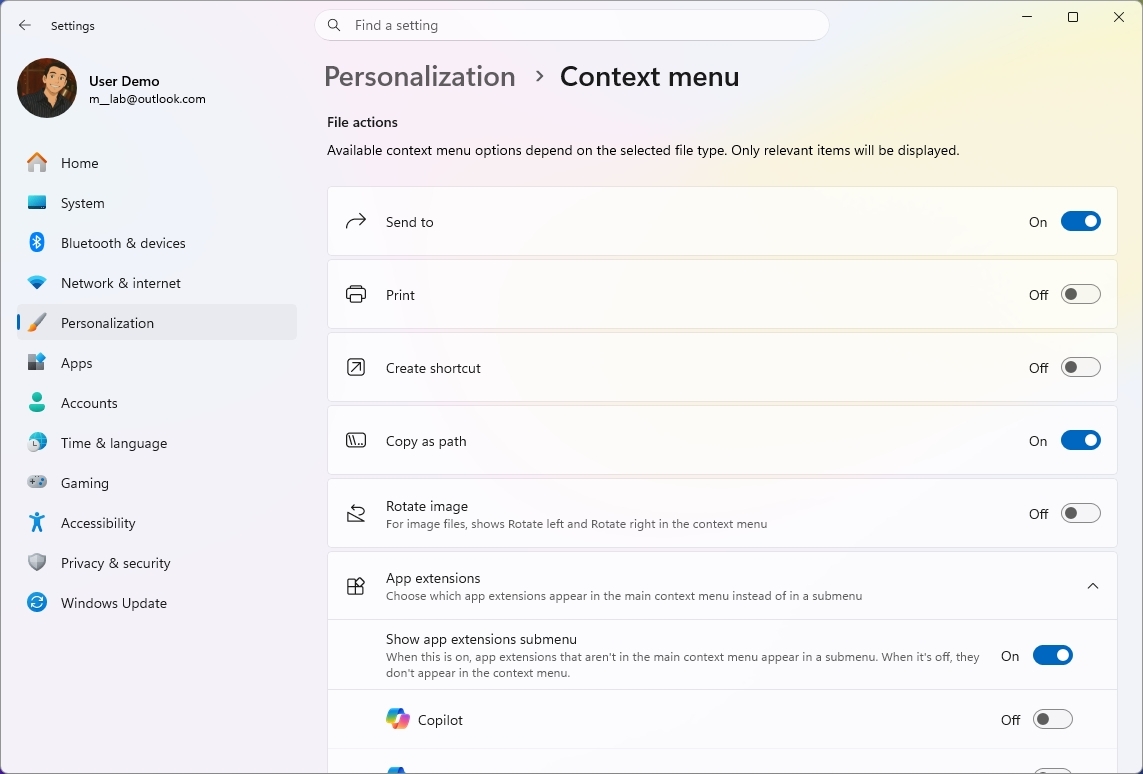
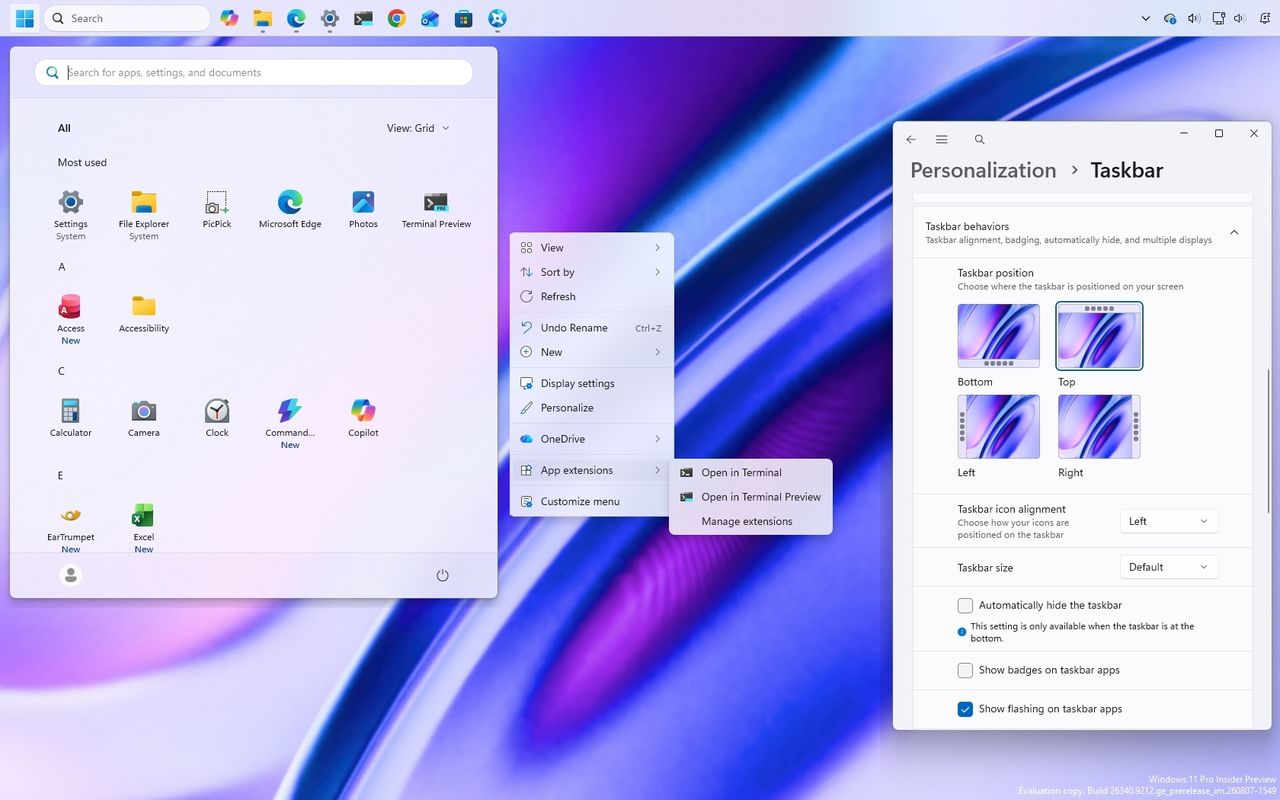
Users will be able to customize which actions appear, manage entries from apps separately, and control how certain commands show up in the experience. The development team is also working on an option to restore a more traditional vertical arrangement for primary actions, such as Cut, Paste, and Delete.
(Image credit: Mauro Huculak)
That's a significant change in how Microsoft is approaching the design of Windows 11. Instead of deciding exactly how everyone should use the context menu, the company is giving users more control over the experience.
We've seen similar changes across the operating system. Microsoft is bringing back Taskbar positioning and sizing options. The company continues to rethink the Start menu. It's also modernizing older components without necessarily throwing away the functionality users depend on.
(Image credit: Mauro Huculak)
The context menu isn't the only example, since the company is also giving users more control in other parts of the experience.
Microsoft is learning users don't all use the OS the same way
This is where I think the software giant got Windows 11 wrong. There is no single correct way to use the operating system.
For instance, some people want a clean desktop with as little clutter as possible. Others want every option available at their fingertips.
Some people want the Taskbar at the bottom. Others prefer it at the top or along the side.
(Image credit: Mauro Huculak)
Some users rarely use the context menu. Power users can depend on it dozens or even hundreds of times a day.
The operating system has always been able to accommodate those differences. That's one of the reasons the platform became so successful.
Microsoft doesn't need to force everyone into the same workflow to make the desktop easier to use. It can provide reasonable defaults while still letting people change the experience when they want to.
Microsoft shouldn't get too much credit for restoring what it removed
There is an important caveat here. I like where Windows 11 is heading, but Microsoft shouldn't get a free pass simply because it's restoring functionality that didn't necessarily need to disappear in the first place.
The Taskbar didn't need to lose its positioning options, and the context menu didn't need to become so restrictive. And that makes the current changes somewhat frustrating.
The company spent years moving Windows 11 toward a more controlled experience. Now, several years into the operating system's life, it's gradually bringing some of that flexibility back.
I'd rather Microsoft learn from this and not make the same mistake again.
Windows 11 doesn't need fewer choices
I don't think the company needs to turn Windows 11 into Windows 10 again. Windows 11 should look like Windows 11.
It should have its modern interface, new architecture, and new capabilities. Microsoft should keep improving the entire experience and continue modernizing older parts of the operating system.
However, modernization shouldn't mean reducing functionality. A modern component should ideally be better than the old one without being less capable. That's the standard Microsoft should stick to, and the context menu is a surprisingly good example.
If the company can give Windows 11 a cleaner, more modern context menu while also letting users decide which commands they want and how they want to access them, that's a much better solution than forcing everyone into the same interface.
The same principle should apply throughout Windows 11. The operating system should be easy to use by default while still giving users the flexibility to make it work the way they want.
Windows Central's Take
The most interesting thing happening to Windows 11 right now isn't another visual redesign or another collection of new features. It's that Microsoft appears to be reconsidering how much control it should take away from users.
That matters even more as the Windows K2 initiative continues pushing broader improvements to the operating system. Better performance, reliability, design, and responsiveness are important, but the way people interact with the elements and features matters just as much.
A faster operating system that makes people work around unnecessary restrictions isn't necessarily better.
What I appreciate about these changes is that Microsoft isn't simply trying to make Windows 11 look different. It's addressing some of the decisions that made the operating system feel less flexible than previous versions. The movable and resizable Taskbar, a more customizable Start menu, and now a context menu that users can configure all point in the same direction.
Microsoft is starting to recognize that Windows 11's problem wasn't that it gave users too many choices. It was that it sometimes took too many choices away.
That's the lesson I hope the company keeps in mind as the Windows K2 project continues. Make the operating system easy to use out of the box, but still give users the freedom to customize it and make it work the way they want.
More resources
Explore more in-depth how-to guides, troubleshooting advice, and essential tips to get the most out of Windows 11 and 10. Start browsing here:
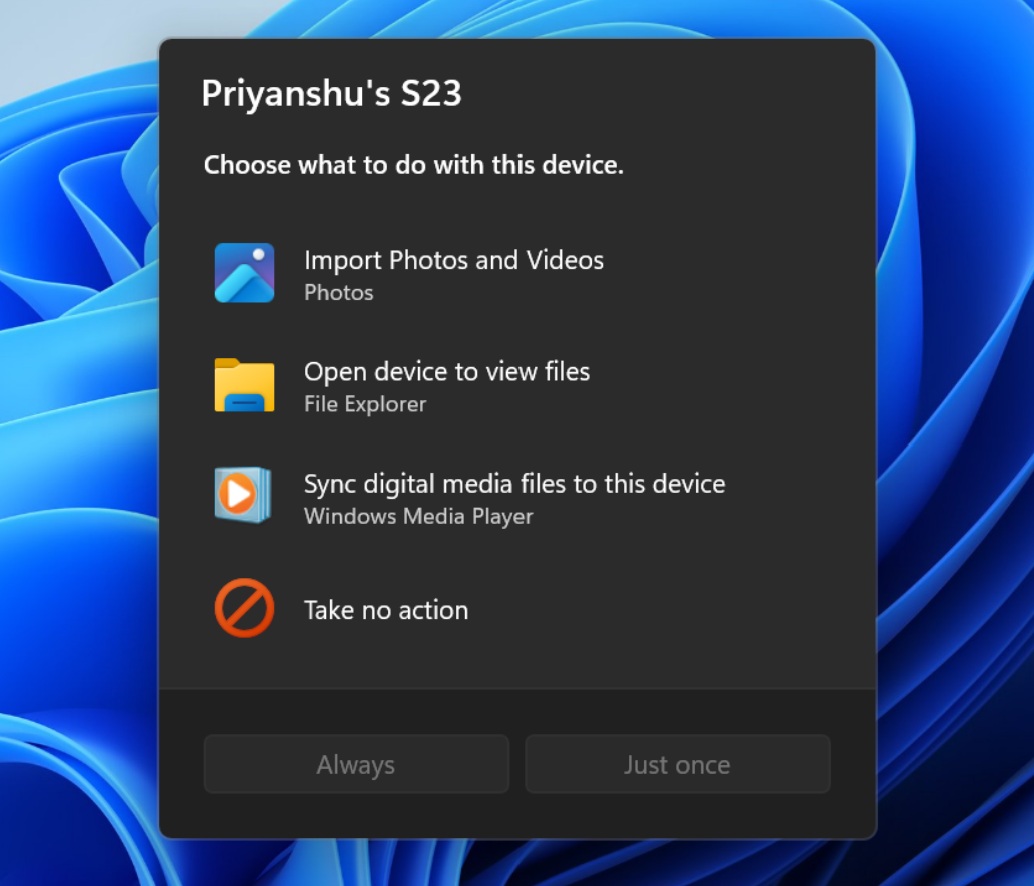
Microsoft's makeover of Windows 11 continues. A refreshed AutoPlay dialog box headlines the latest Windows Insider build.
That experience is more than a palette swap or color change. Microsoft rebuilt the experience with WinUI. That brings better performance, more visual consistency with the modern parts of Windows 11, and better responsiveness to text scaling.
The AutoPlay dialog box is a relatively small feature, but it has looked outdated for years. Microsoft's current push to polish Windows 11 includes smaller fixes like updating the AutoPlay dialog box and bigger improvements like optimizing Windows 11 for systems with 8GB of RAM.
The AutoPlay dialog box is the latest part of Windows 11 to get a modern overhaul. (Image credit: Microsoft)
Several Windows Insider builds shipped today, but I'll focus on the one available through the Experimental Channel. If you want to catch up on the smaller releases, you can check out Microsoft's collection of release notes.
Build 26340.9233
Modernized AutoPlay experience
We've updated the AutoPlay dialog that helps you choose the preferred experience when devices are connected to your PC, such as a phone, camera, or removable drive. Rebuilt with WinUI, the refreshed experience is more consistent with the rest of Windows, supports dark mode, and continues to provide the familiar AutoPlay actions you use today. The experience is also more responsive to text scaling and display settings. Notifications for this dialog are now docked in the notification center for easy access.
Accessibility
A simpler way to open apps maximized
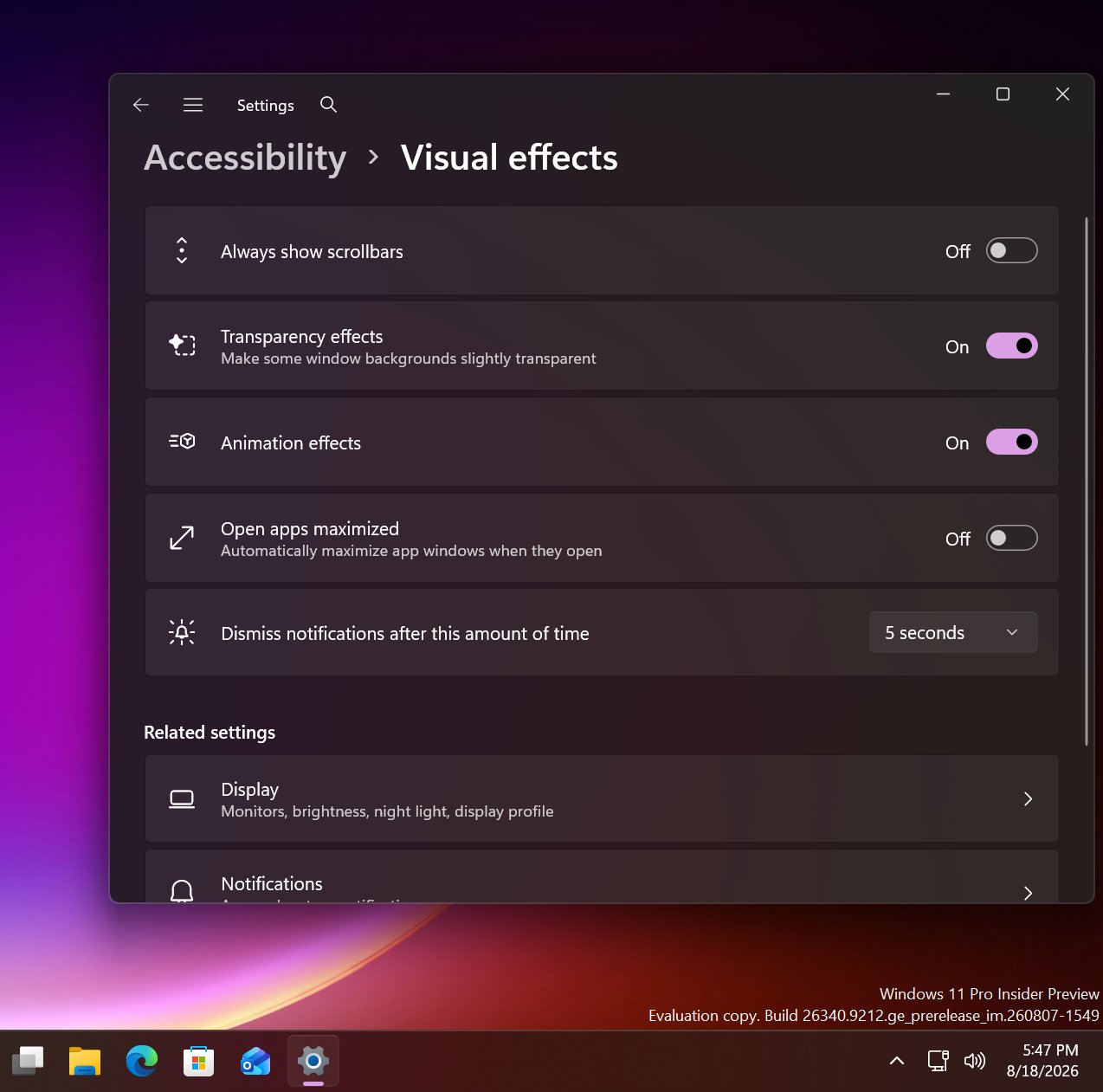
We're introducing a new accessibility setting, Open apps maximized, that automatically maximizes app windows when they open, so you no longer have to do it yourself every time. This small change removes a bit of everyday friction, whether you use a screen reader or magnification, work in tablet mode, or simply prefer a consistent, full-screen workspace.
To turn it on, go to Settings > Accessibility > Visual effects, and turn on Open apps maximized. Once enabled, Windows maximizes app windows for you as they open. Give it a try, and let us know how it works for you.
Manage camera, microphone, and location access for desktop apps
Windows Insiders can now manage camera, microphone, and location permissions for individual desktop apps. Previously, access for traditional desktop applications was managed through a single device-wide setting.
With this update, you can review and control access on an app-by-app basis, giving you greater visibility into which apps are requesting access to sensitive resources and more control over your privacy choices. Our goal is to make privacy permissions easier to understand and manage across the wide range of desktop apps people use every day.
What's changing
Allow or deny access for each desktop app individually.
Go to Settings > Privacy & security > Camera, Microphone, or Location to review and manage permissions.
Apps that haven't yet accessed a resource prompt for permission the first time access is requested.
What stays the same
Existing app permission decisions are preserved.
Apps previously granted access continue to have access.
Apps previously denied access remain denied.
No action is required, and no settings are reset.
Existing enterprise policies continue to function as designed. We're exploring additional management capabilities.
Notes
Most desktop apps appear with clear app attribution. However, some apps that rely on shared system components, browser-hosted experiences, or similar technologies might appear under a different name than expected.
Some desktop apps might appear as Unsigned if Windows can't verify publisher information. Only grant access to apps you recognize and trust.
File Explorer
PDF and non-HTML files downloaded from the web can now be previewed automatically in the preview pane.
Microsoft Store
This update provides support for in-app purchases in packaged WinUI 3 apps that require elevation, helping developers offer purchases through Microsoft's integrated commerce platform.
Taskbar
Fixed an issue in the latest builds causing taskbar animations to briefly work and then stop working.
Input
Fixed an issue in the latest builds causing the mouse cursor not to be visible in certain apps.
Other
Fixed an issue from the last flight causing Settings > Windows Update > Windows Insider Program > Flags to appear empty even though flags were available.
Updated Settings > Apps > Installed apps to show the version number at the top level for packaged apps, as it already does for other apps.
This update also includes some improvements we already knew about, including the option to open apps maximized.
It looks like Microsoft is working on a new feature for Windows 11 that will allow users to configure the behavior of apps when they first open. Right now, pretty much all Windows app will open in windowed mode, until manually set to open maximized by the user. But in the latest Windows 11 preview builds, a new option has been discovered that changes this.
First spotted by phantomofearth, the new option appears in the accessibility area of Windows Settings. The option reads: "Automatically open app windows maximized when they open" with the ability to toggle it on or off. When enabled, all Windows apps will opened in a maximized state by default, meaning the user will no longer be forced to do so for every app they open.
This feature will be great for devices with relatively small screens. PCs with screen sizes of less than 13-inches will benefit greatly from this. On my Surrface Pro 12-inch for example, I almost always find apps are easer to use when maximized as the screen it just too small to enjoy using apps in windowed mode.
The new toggle to force apps to open full screen in Settings. (Image credit: Phantomofearth on X)
This will be especially beneficial for devices with sub 10-inch screens or less, like the Surface Go line or more commonly, PC handheld gaming devices like the Xbox ROG Ally X, which has a 7-inch screen. Windows is famously not very optimized for these small screen sizes, but letting users open apps full screen will make the experience a little better.
It's also beneficial for PCs where the screen may be far away from the user, such as with a PC under a living room TV that's used primarily for watching movies or playing games. In that instance, you wouldn't want apps opening in windowed mode basically ever, and so this option will come in handy.
For a while, Windows 11 included an automatic behavior change that forced apps to open maximized on PCs with small screens, but at some point that behavior stopped. Now, it seems Microsoft is going to give users the option to enable this on any screen size, which makes more sense.
These quality of life improvements are great to see, and another example of Microsoft making WIndows 11 more customizable. Recently, it announces a whole wave of new customization options for the Start menu and context menus, with more customization to come in the next few months.
Join us on Reddit at r/WindowsCentral to share your insights and discuss our latest news, reviews, and more.
 Connexion