Vue lecture

Il y a de nouveaux articles disponibles, cliquez pour rafraîchir la page.

UniFi UNAS Pro 4 NAS Review

Review of the UniFi UNAS Pro 4 NAS – Possibly the Best Value 1U Rack Ever?

Over the last 18-24 months, Ubiquiti has shifted the ‘UniFi’ label from being a networking and bridging ecosystem into a wider storage hardware and software platform that now includes a steadily expanding NAS line under UniFi Drive. Early UniFi UNAS storage products leaned heavily on simple file sharing and basic backup, but the pace of updates and the broader product rollout in 2025/2026 pushed the range closer to what small business buyers expect from an entry level NAS platform: clearer storage management, stronger snapshot and backup tooling, and tighter integration with the UniFi account and identity layer for remote access and user control (with the recent Drive 4.0 Update really uping their game considerably). The UniFi UNAS Pro 4 sits within that context as a compact 1U, 4 bay rack mount system designed mainly for file storage and sharing over SMB and NFS, rather than running third party applications, containers, or virtual machines. At $499, it is priced noticeably lower than many competing 1U rack NAS products at broadly comparable “headline” hardware, particularly where dual 10Gb networking and NVMe caching are concerned, which makes it hard to ignore if the goal is simple, high bandwidth storage in a rack footprint without moving into significantly higher spend.

UniFi UNAS Pro 4 Review – Quick Conclusion

The UniFi UNAS Pro 4 is a 1U, 4 bay rack mount NAS aimed at straightforward SMB and NFS file storage, and its main differentiator is value: at $499 it undercuts many comparable 1U rack units while still offering 2x 10Gb SFP+ plus a separate 1GbE management port, 4 hot swap bays for 3.5 inch or 2.5 inch drives, and 2 M.2 NVMe slots for read and write caching. In testing with 4 HDDs in RAID 5 over 10GbE, it delivered strong real-world file transfer results for a small SATA array, with synthetic benchmarks showing high peak throughput but some variability depending on the tool used, and the platform’s power draw and noise profile were heavily influenced by drive choice and fan mode, including very loud output if maximum cooling is forced. UniFi Drive covers the core fundamentals expected at this level, including snapshots, encrypted volumes, and a wide range of backup targets (NAS, SMB, and multiple cloud services, with Microsoft 365 direction evident in recent updates), but the interface still limits deeper tuning in places and the feature set remains focused on storage rather than apps. The main downsides are structural and easy to identify up front: NVMe can only be used for cache rather than storage pools, the NVMe carriers are an extra purchase, there are no USB ports for local copy tasks, the PSU is internal and not a hot swap module, and missing features like iSCSI, ECC, and RAM upgradability place a clear ceiling on more advanced workloads, though those trade-offs are broadly consistent with a $499 ‘turnkey’ NAS appliance in 2026 though and hard to criticise!


BUILD QUALITY - 9/10
HARDWARE - 7/10
PERFORMANCE - 7/10
PRICE - 9/10
VALUE - 10/10


8.4
PROS
👍🏻Dual 10Gb SFP+ networking is unusual in a 1U 4 bay NAS at this price point + failover will not result in bandwidth throttle
👍🏻A separate 1GbE port is useful for management or fallback connectivity
👍🏻1U chassis with relatively short depth is easier to fit in smaller racks and cabinets
👍🏻Rails and rack hardware included, reducing extra setup cost and friction
👍🏻Ubiquiti and UniFi online/brand services are optional (i.e pure offline/LAN is possible)+ no need for a Ubiquiti/UniFi network setup to use
👍🏻NVMe read and write caching support can improve responsiveness in mixed workloads
👍🏻UniFi Drive provides snapshots, encryption, and a broad set of backup targets (NAS, SMB, and multiple cloud providers)
👍🏻Setup and management are streamlined, especially for users already running UniFi infrastructure
👍🏻Drive 4.0 Update scales up the Business Utilities notably
CONS
👎🏻NVMe is cache only, with no option to use M.2 drives as primary storage pools
👎🏻NVMe trays or carriers are not included, adding extra cost and an extra purchase step
👎🏻Single PSU (no redundency) and non-slide removable SFX/ATX PSU (relies on propriatary UniFi Battery Backup rack module or external UPS)
👎🏻No NAS Expansion Support, so 4 HDDs are your limit

Here are all the current UniFi NAS Solutions & Prices:
  • UniFi UNAS Pro 4 (4 Bay + 2x M.2, $499) – HERE
  • UniFi UNAS 2 (2 Bay, $199) – HERE
  • UniFi UNAS 4  (4 Bay + 2x M2, $379) – HERE
  • UniFi UNAS Pro (7 Bay, $499) – HERE
  • UniFi UNAS Pro 8 (8-Bay + 2x M.2, $799) HERE

You can buy the UniFi UNAS Pro 4 NAS via the link below – doing so will result in a small commission coming to me and Eddie at NASCompares, and allows us to keep doing what we do! 

 

UniFi UNAS Pro 4 Review – Design & Storage

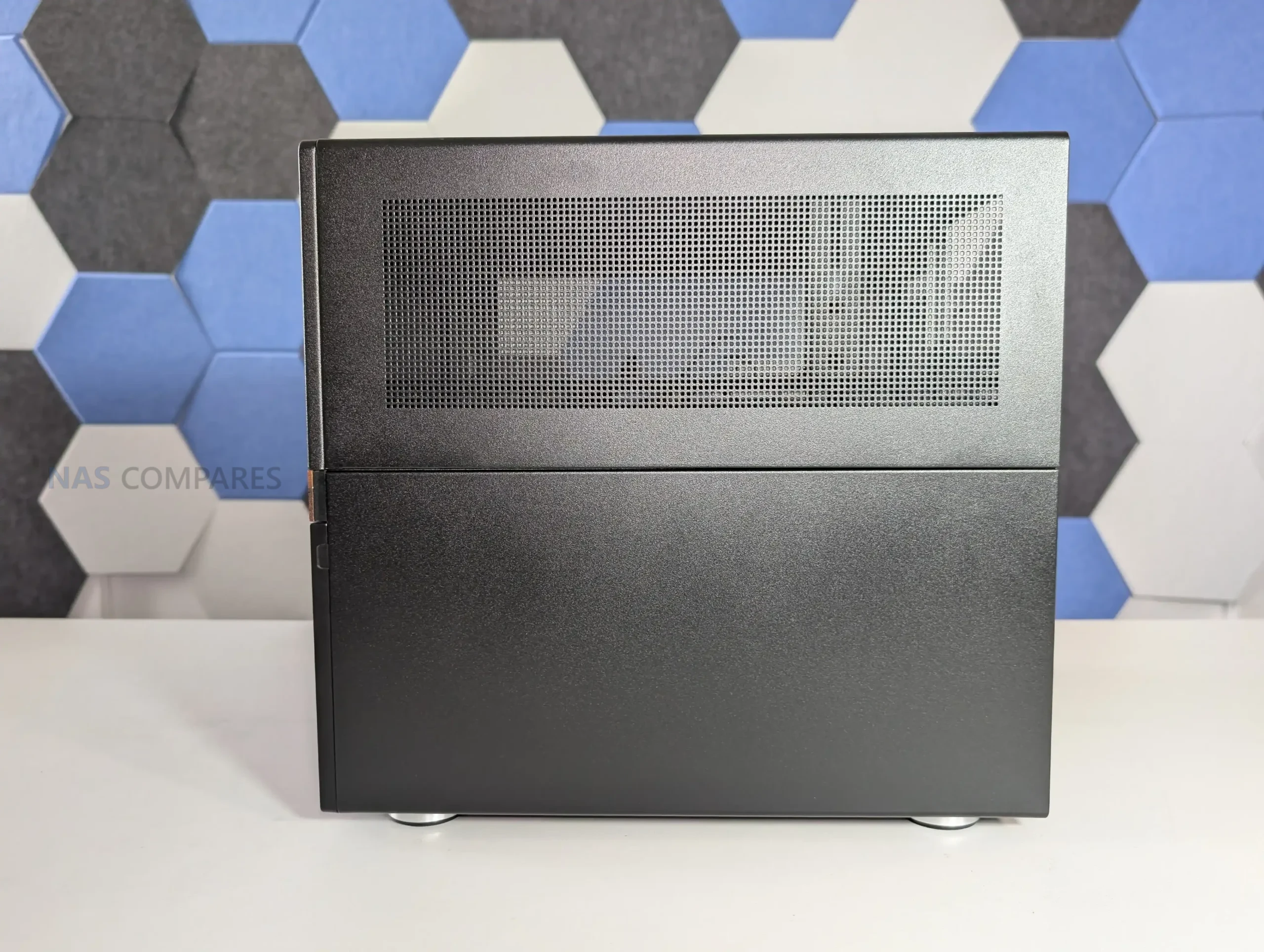
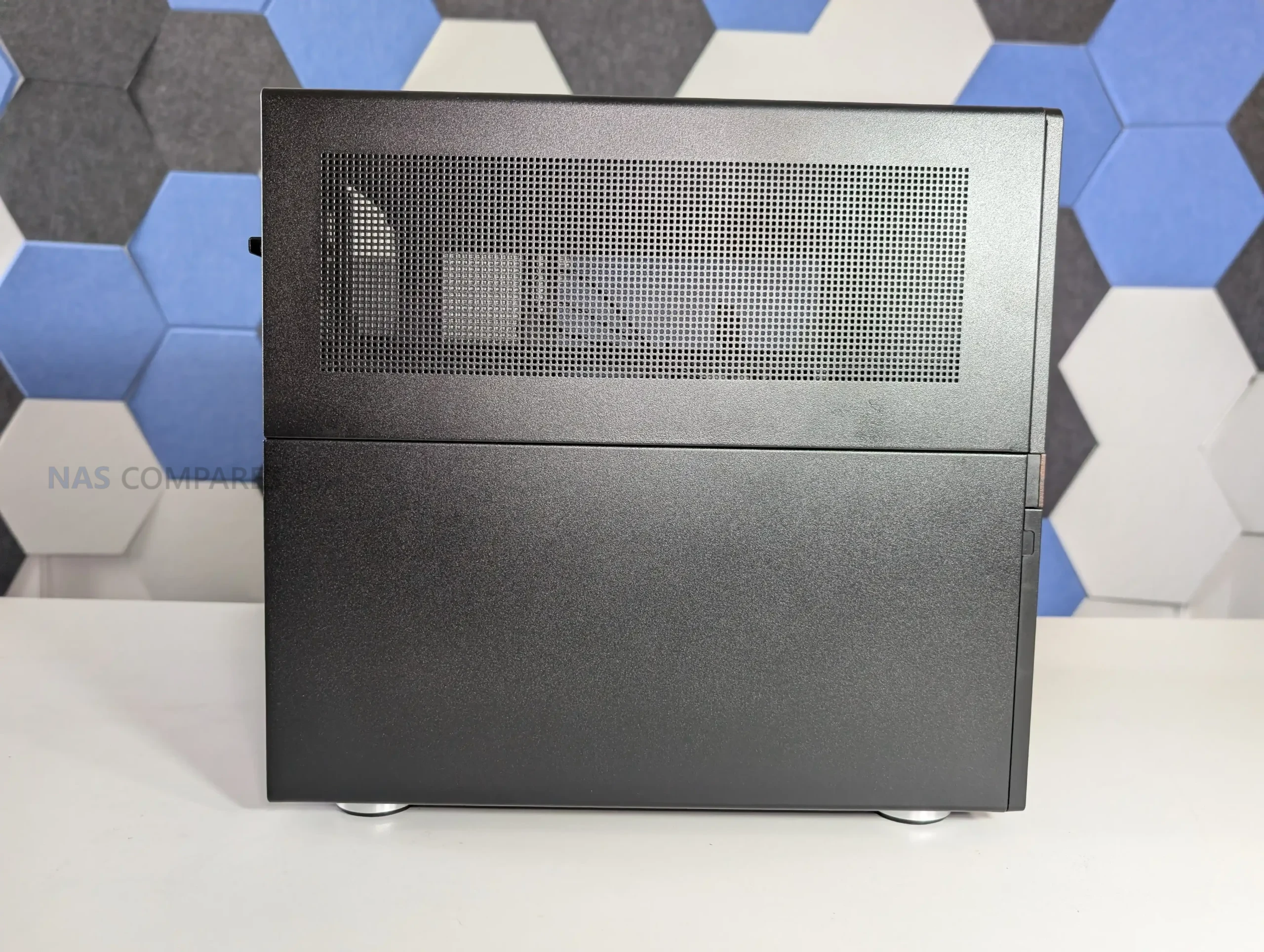
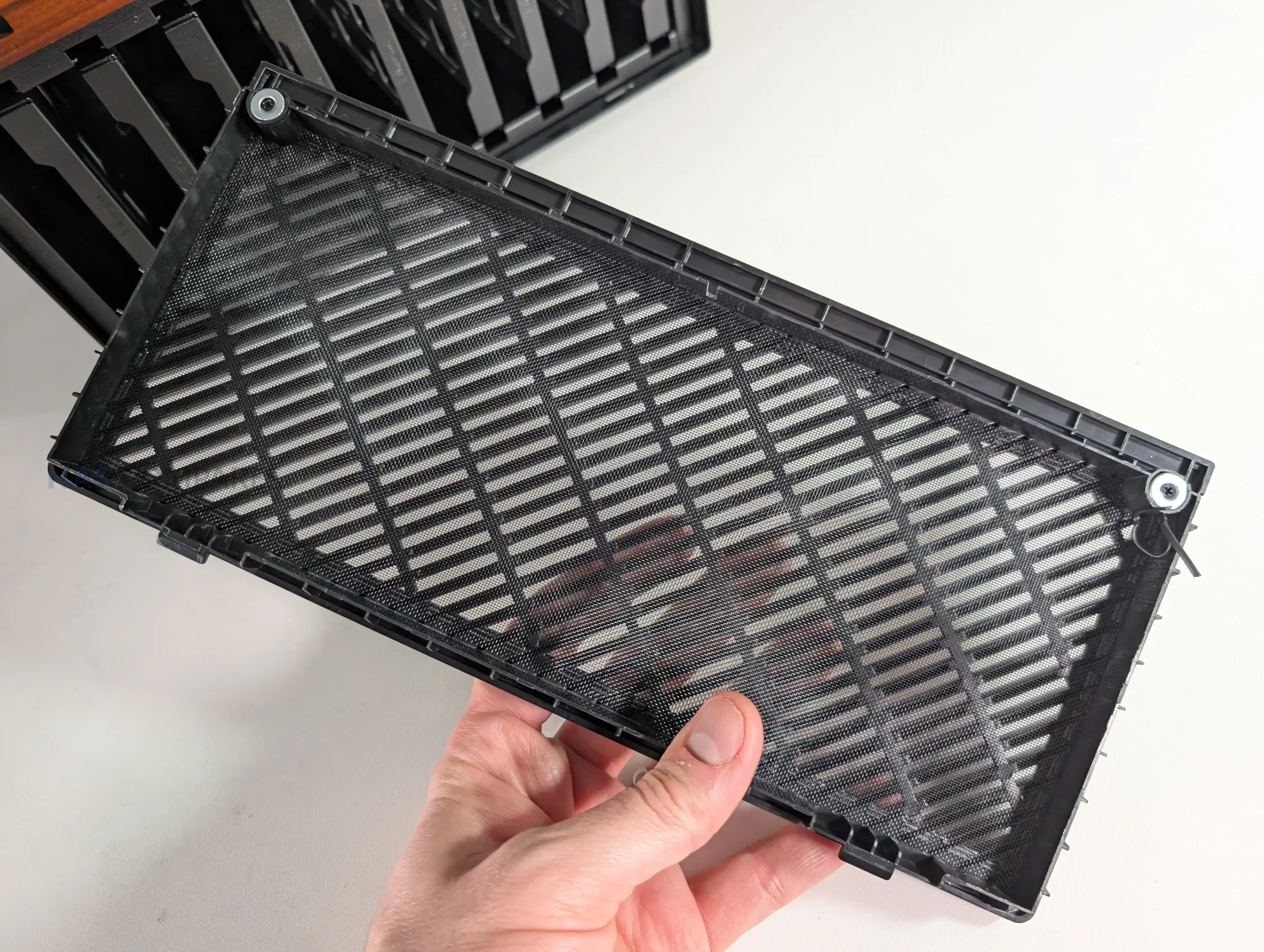
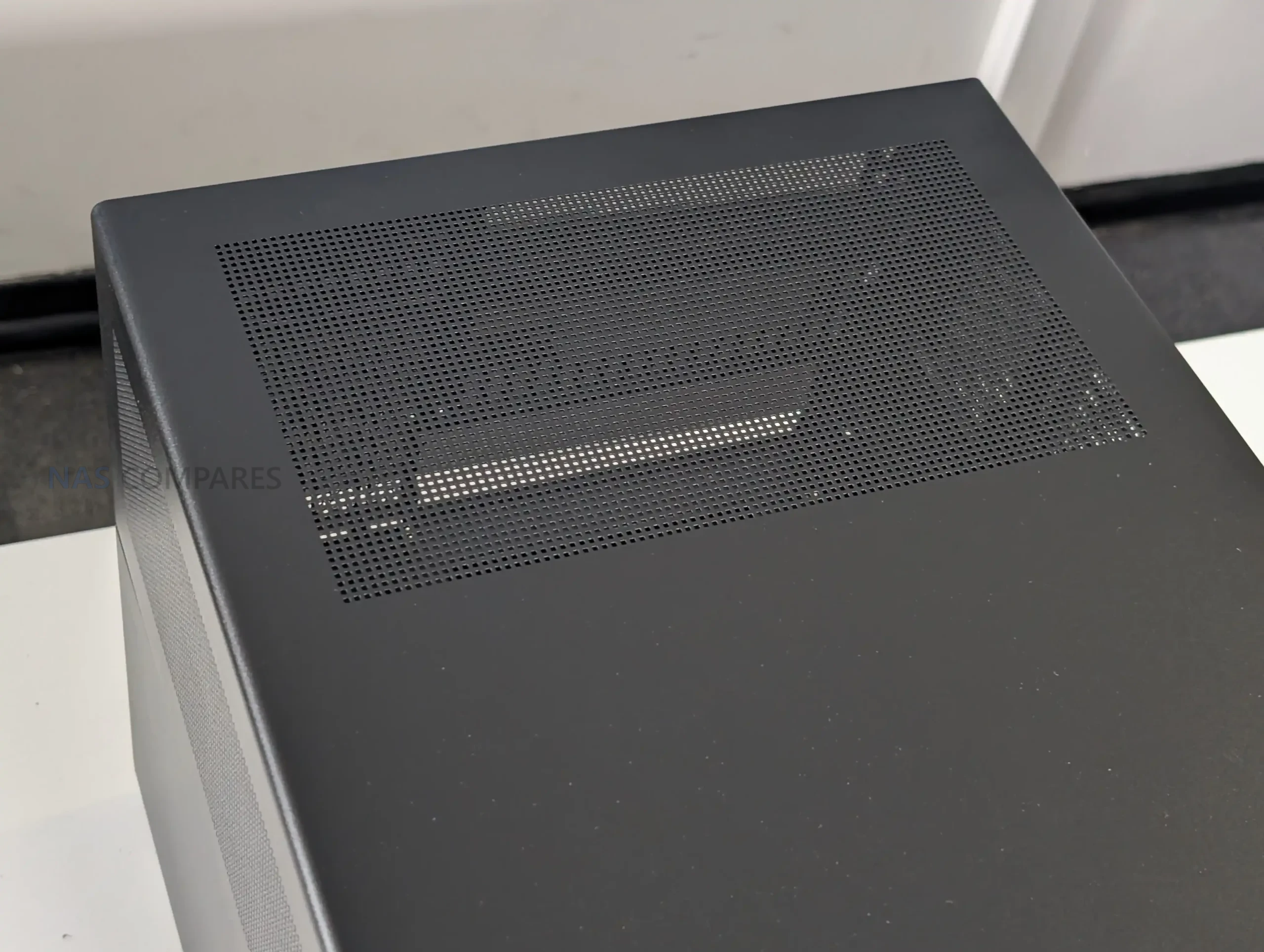
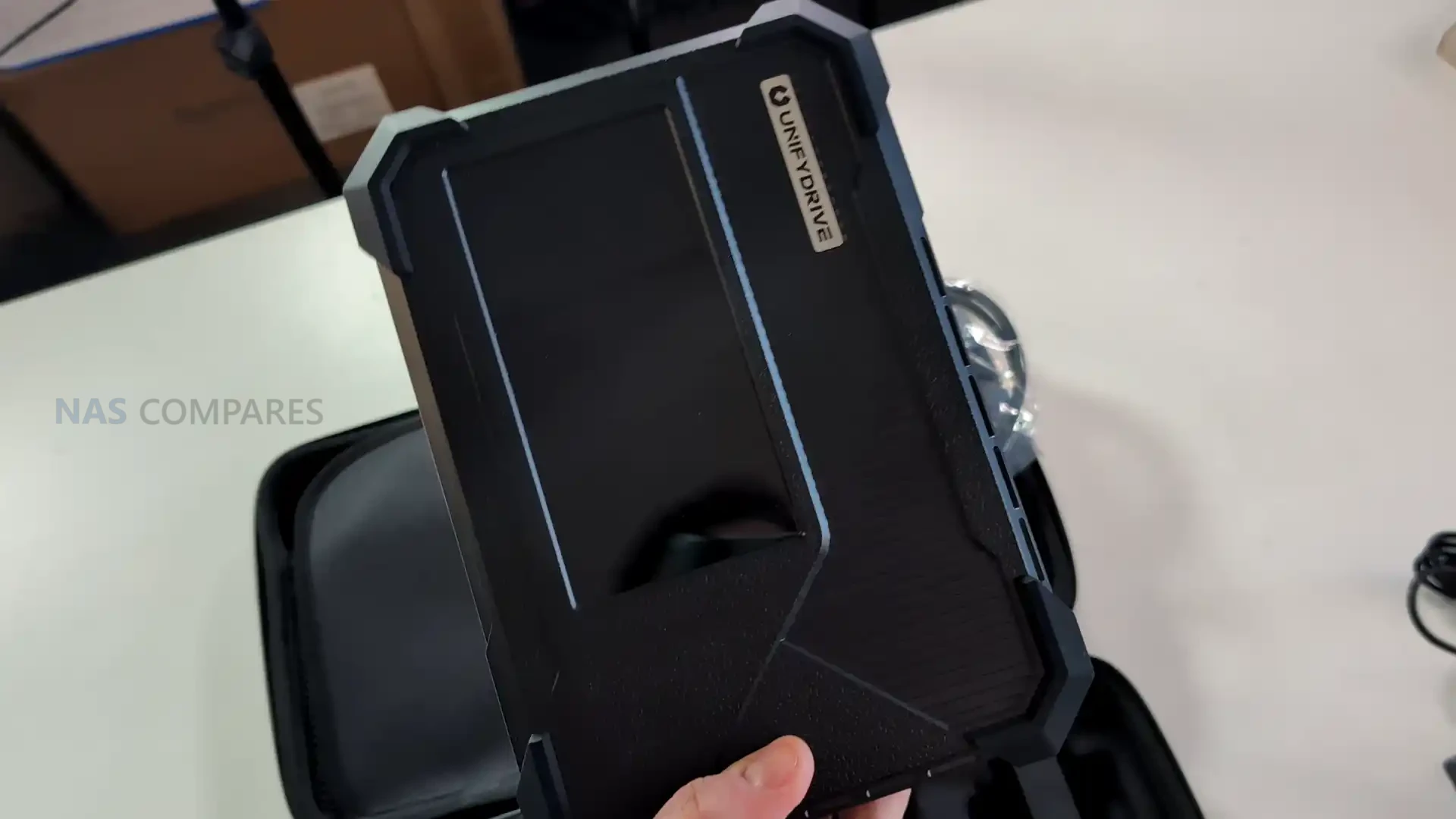
The UNAS Pro 4 uses a conventional 1U rack mount layout, with a plain, functional front panel and an all metal enclosure intended for permanent installation rather than desktop use. It ships with rails and rack handles, which removes the usual extra step of sourcing mounting hardware separately. The chassis depth is about 400 mm, so it is not in the “full depth server” category, and that helps in smaller cabinets where rear clearance and cable management space can be limited.

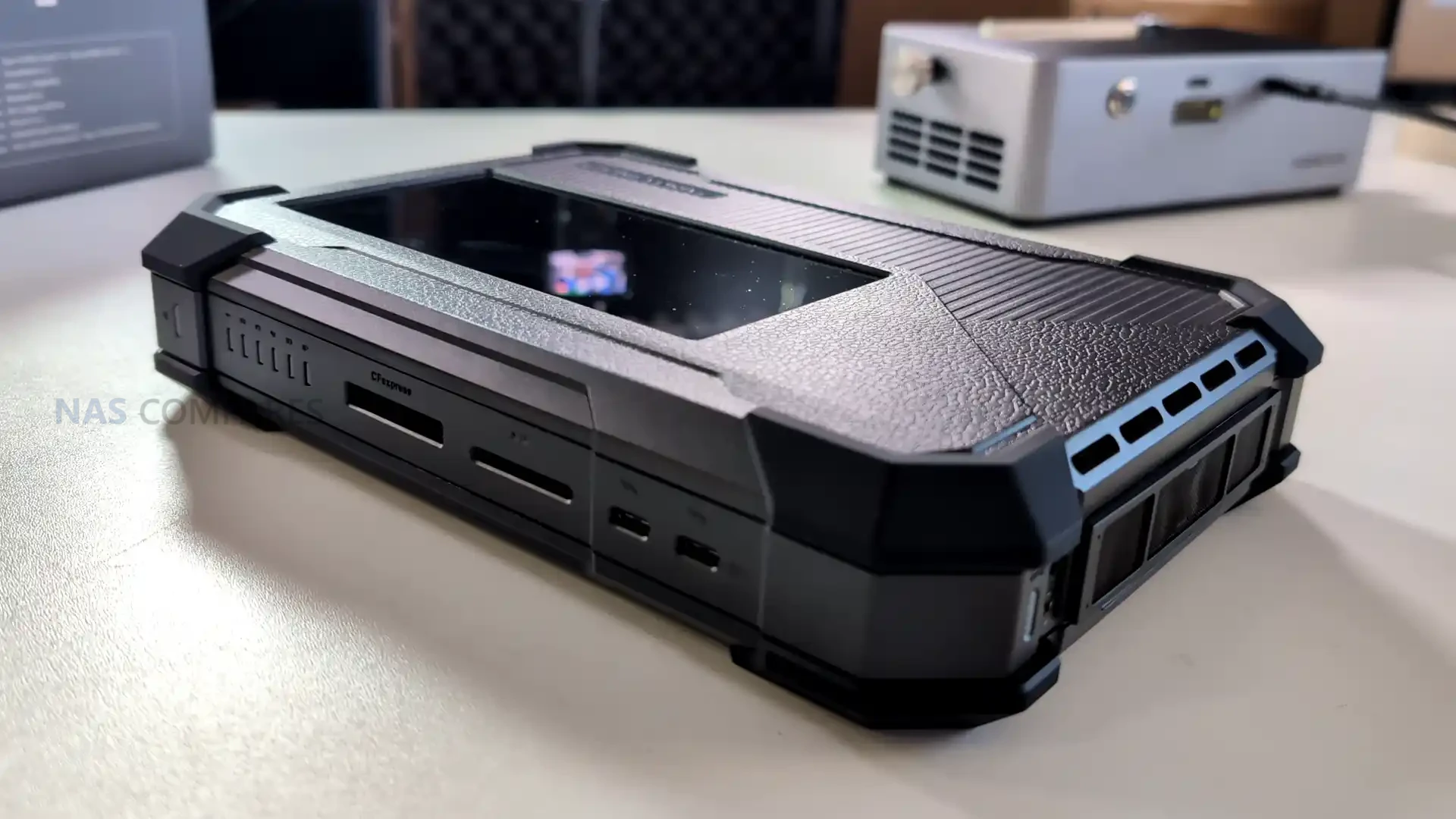
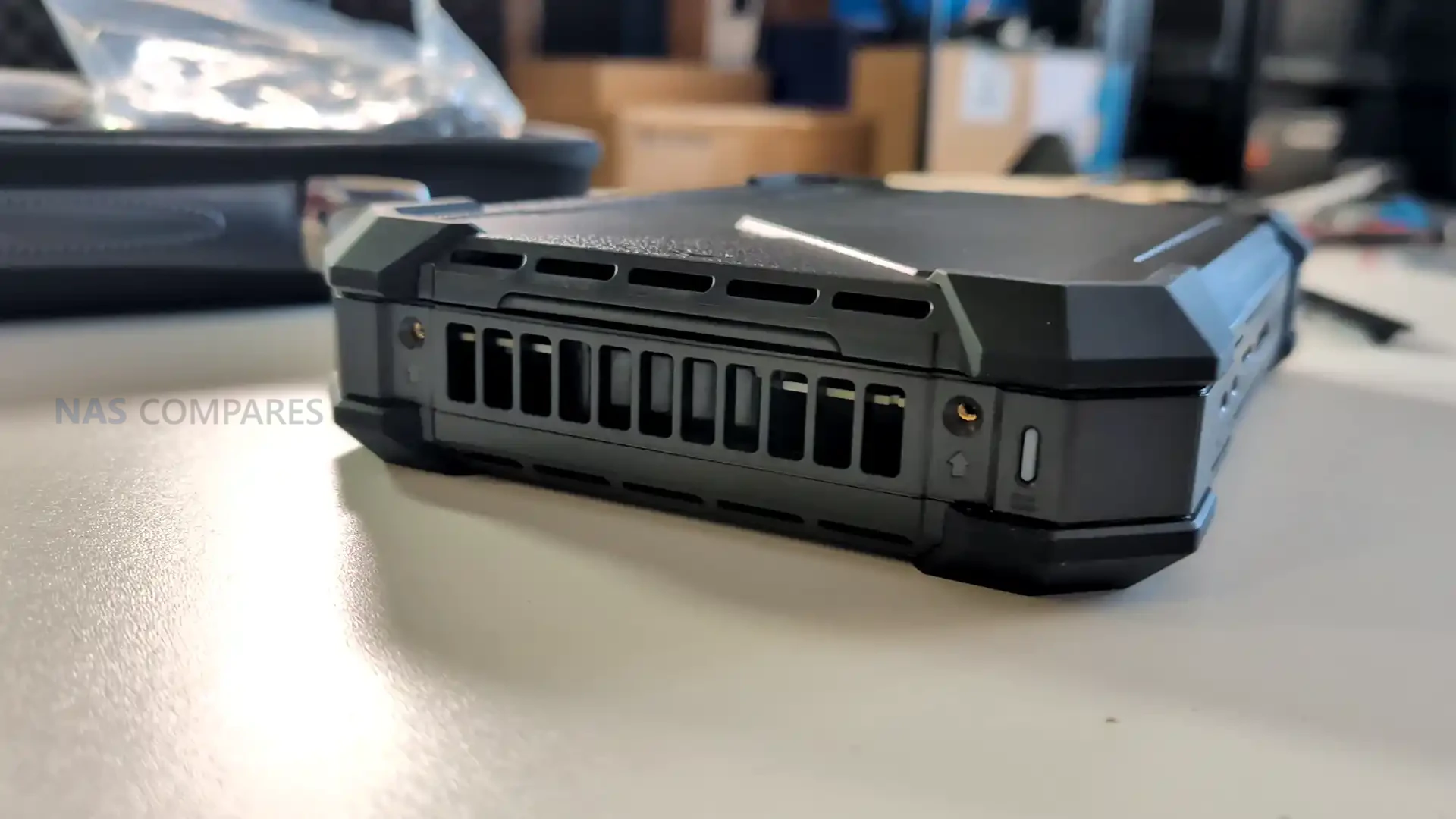
Across the front are 4 hot swap bays supporting both 3.5 inch and 2.5 inch SATA drives. The trays are set up for tool-less 3.5 inch HDD installation with a click-in fit, while 2.5 inch SSDs still require screws to secure them properly. Each bay has status lighting, and the front panel also provides system level indicators so you can identify basic state and drive activity at a glance without logging into the interface. The trays feel rigid and spring-loaded, but they are not lockable, which is a practical consideration if the unit is placed in a shared rack or anywhere physical access is not strictly controlled.

From a capacity and planning perspective, this system is defined by its fixed 4 bay layout. You can configure a conventional RAID group within those bays, but there is no built-in path to scale beyond the internal slots, and there is no supported external expansion shelf option to push the same chassis further later on. That means the decision on drive sizes and redundancy level matters upfront, because the ceiling is reached quickly compared with higher bay count rack units. In a small rack deployment, it also means the unit is either a compact standalone store or part of a broader multi-NAS approach rather than a single box that grows over time.

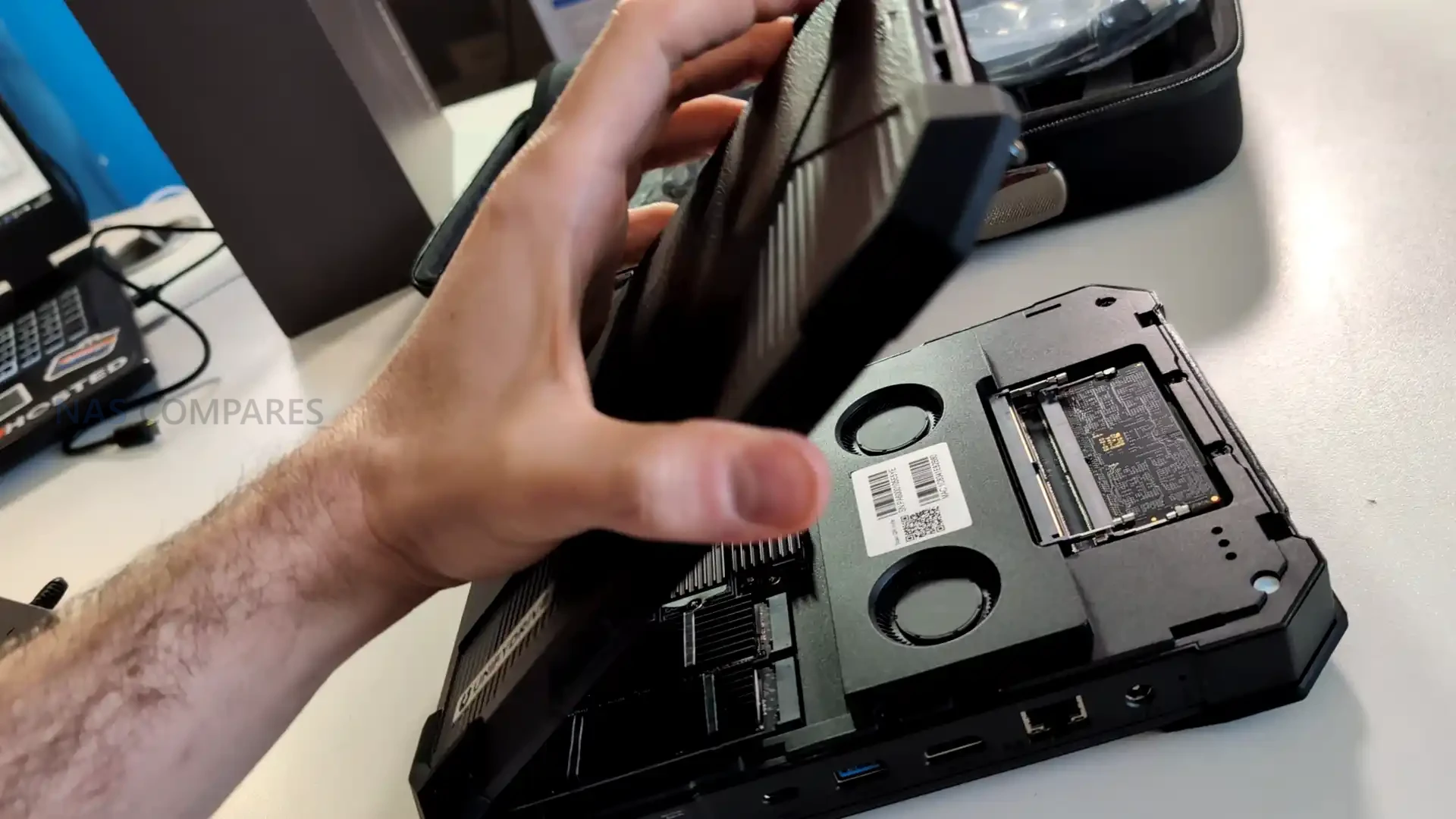
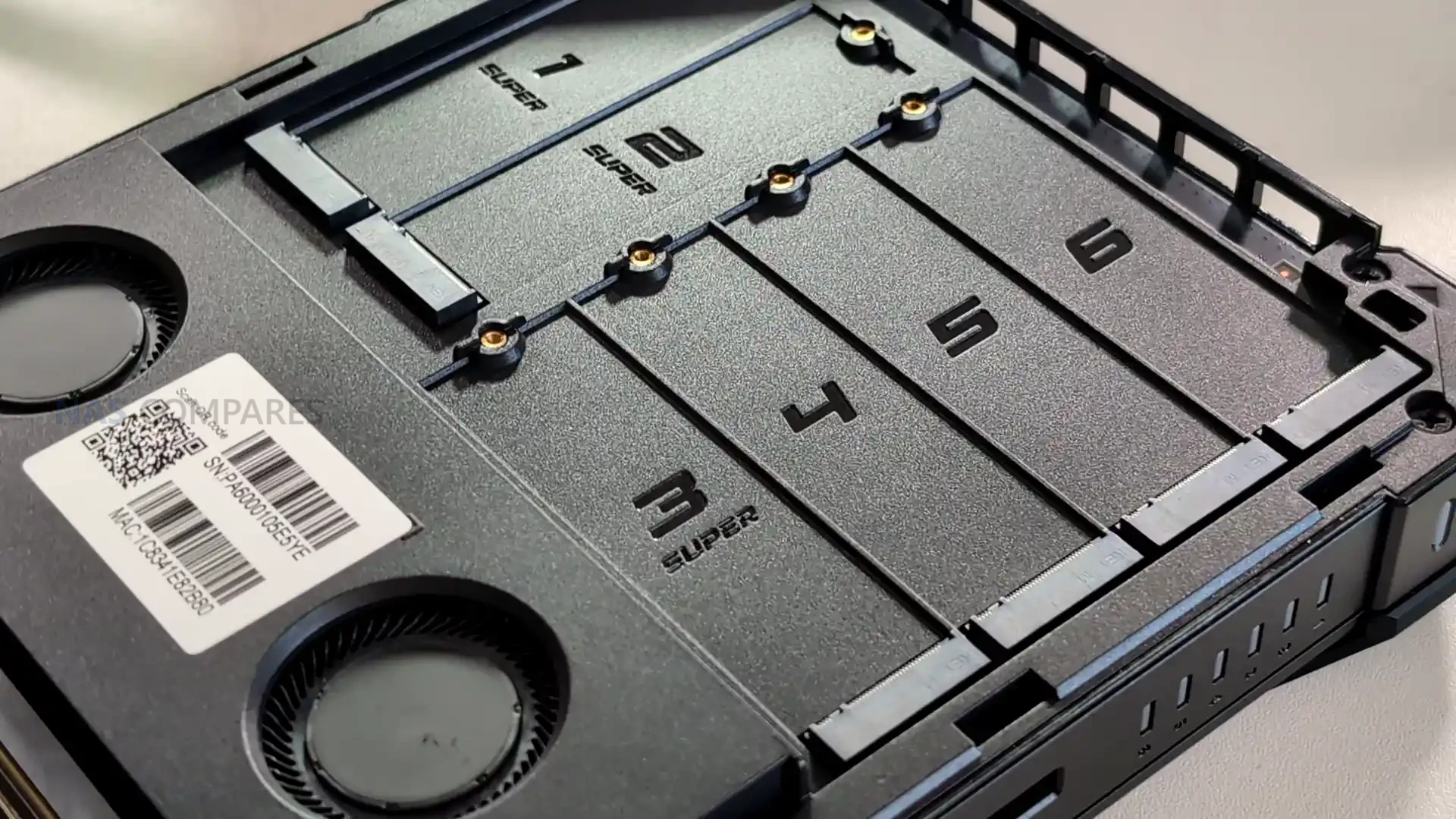
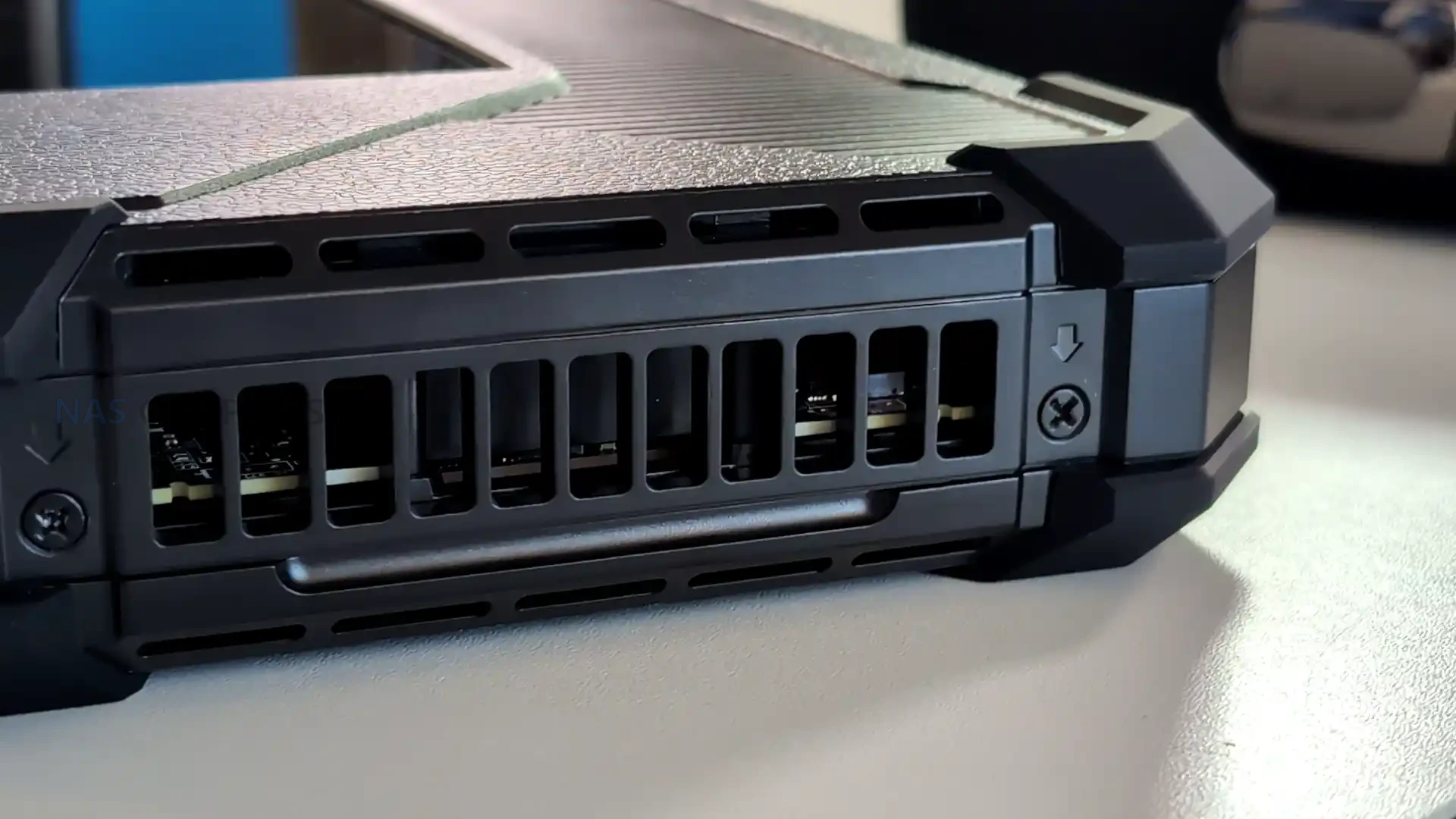
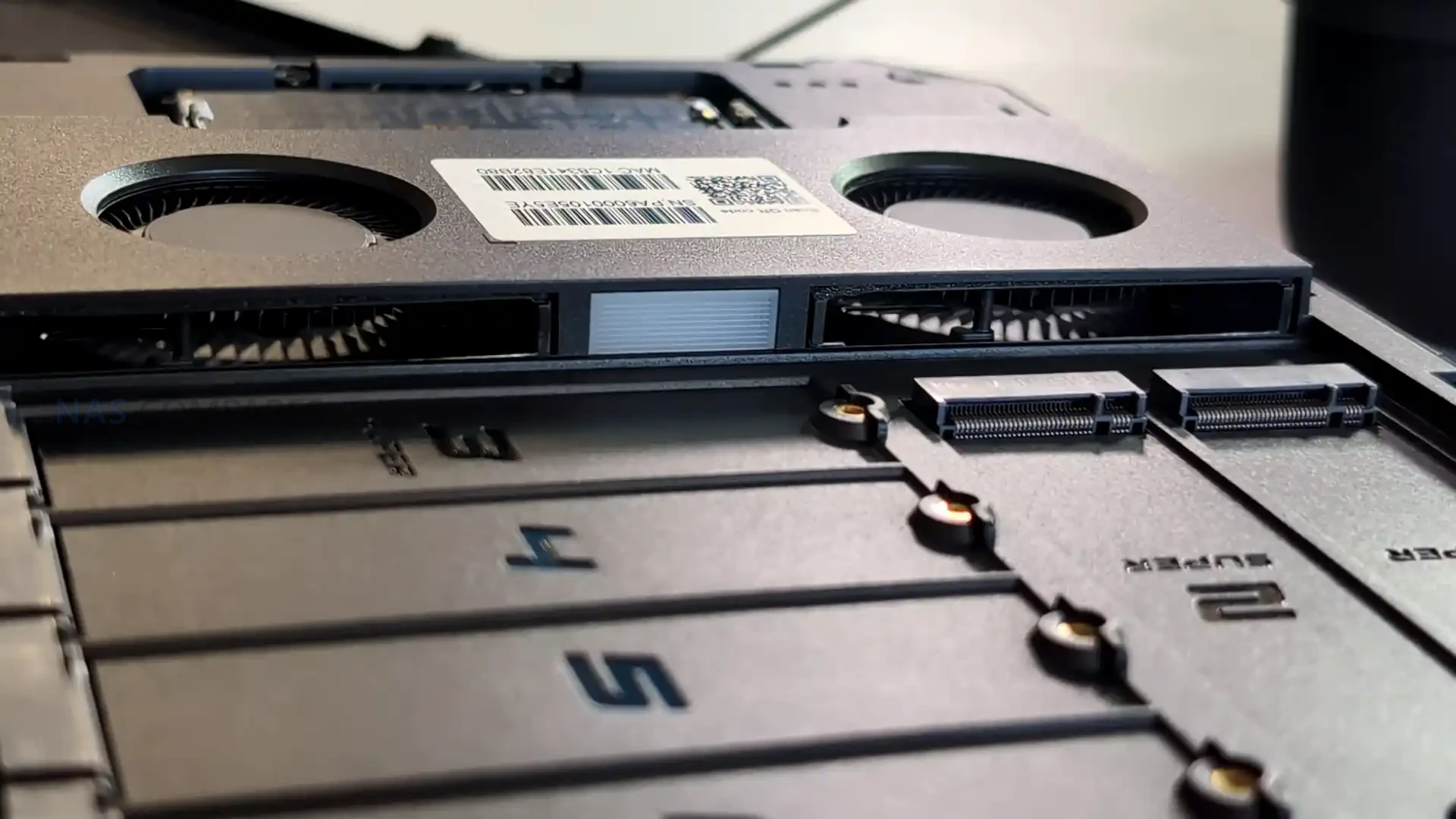
In addition to the SATA bays, the chassis supports 2 M.2 NVMe slots intended specifically for SSD caching. The caching model is designed to accelerate HDD-based storage by using SSDs as a performance layer, rather than allowing NVMe drives to become their own primary pool for general file storage. Practically, that positions the NVMe feature as a supplement for mixed workloads, such as improving responsiveness for frequently accessed data and smoothing write behavior, rather than a route to running the system as a small all flash NAS.

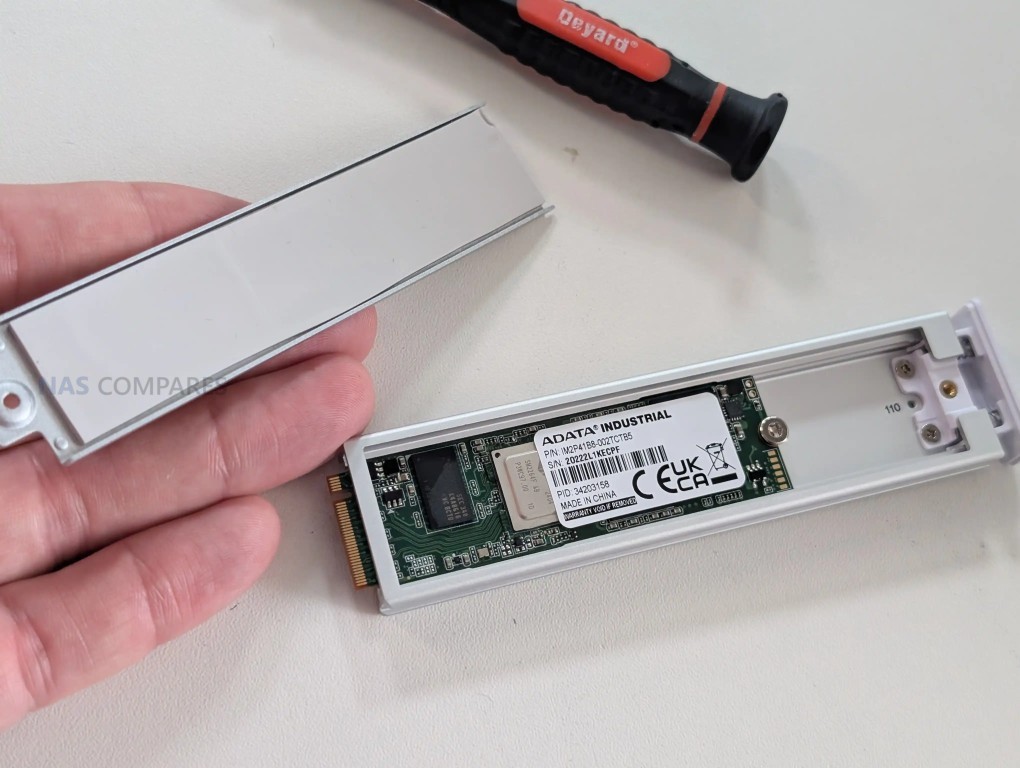
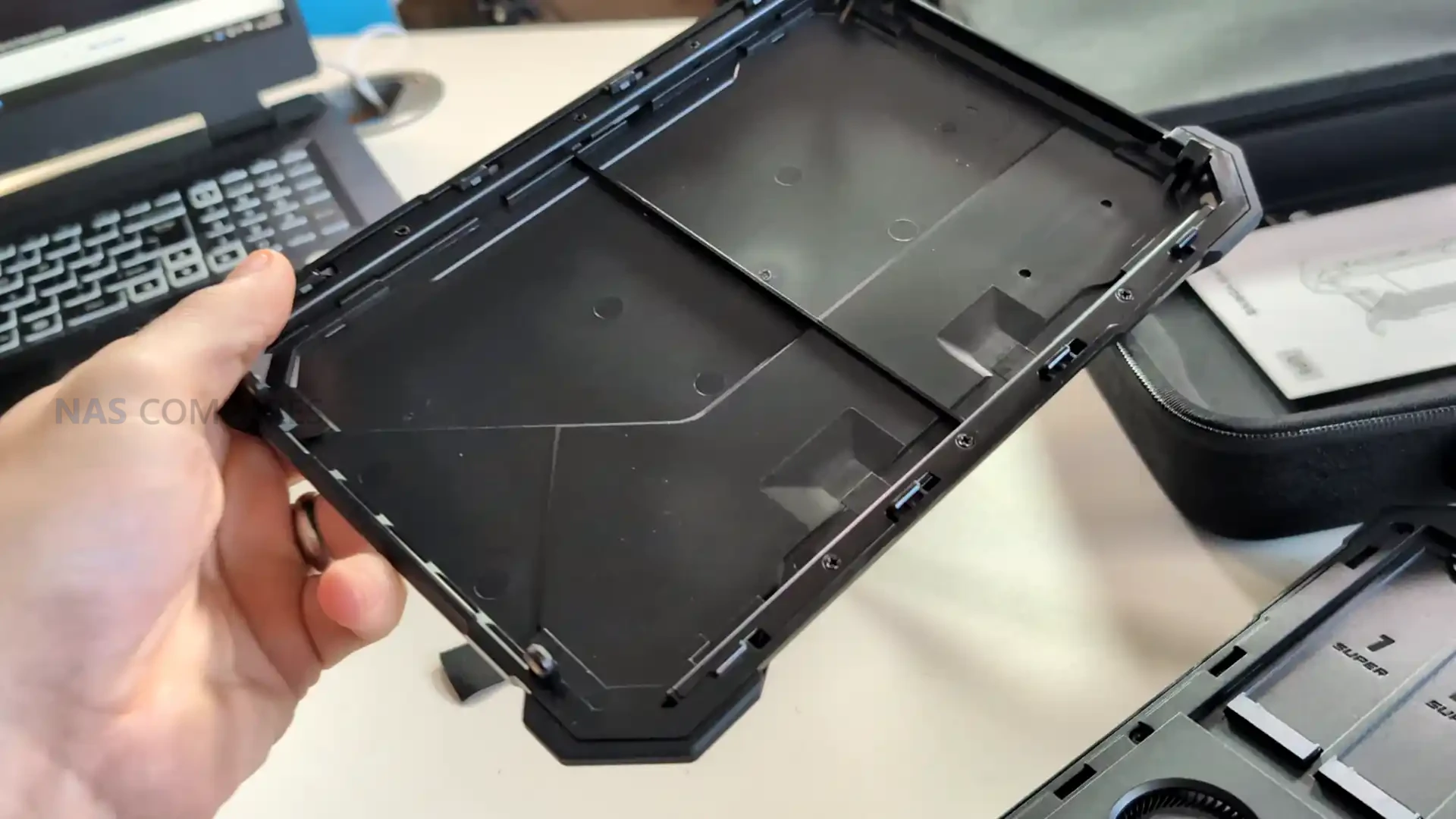
A design detail that affects the storage experience is the physical NVMe mounting method. Instead of a simple screw-down slot on a board, the NVMe drives are installed via a tray or carrier mechanism, and that carrier is not included with the base unit. The carrier itself is neatly engineered with a clip-in style insertion and thermal padding, and it supports common M.2 lengths including 2280 and 22110, but requiring an additional part adds friction if caching is part of the plan from day 1. It is a small issue, but it is the kind of detail that can slow down an otherwise straightforward deployment.

UniFi UNAS Pro 4 Review – Internal Hardware

The UNAS Pro 4 is built around a quad core ARM Cortex-A57 CPU clocked at 2.0 GHz and paired with 8 GB of memory, which sets expectations for the type of workloads it is designed to handle. This is not a platform aimed at heavyweight compute tasks, but for file services and scheduled backup activity it has enough headroom to keep the system responsive, particularly when multiple users are accessing shared folders and snapshots are being taken in the background.

The CPU choice also reflects a focus on predictable appliance behavior and lower overall platform complexity rather than maximum expandable performance.

Internally, the power system is a single 150 W unit mounted inside the chassis rather than a hot swap module, which influences servicing and downtime planning. If the PSU fails, replacement is more involved than swapping an external canister, and that is a meaningful difference compared with rack systems that use easily replaceable redundant modules.

The unit does, however, support UniFi’s USP-RPS DC input as an alternative redundancy method, which changes the redundancy approach from “dual PSU in the chassis” to “centralized redundant supply for multiple devices,” with different trade-offs in cost, cabling, and rack layout.

A further internal design choice is how the system treats its software environment as a dedicated appliance rather than an OS sharing space with user storage. The system software runs on its own internal storage rather than living on the same disks that hold your data. In practical terms, that reduces the chance of the OS being affected by changes to the main array, and it can make maintenance tasks like drive replacement or pool rebuilds feel more self-contained, because the unit remains manageable even while the primary storage is under stress.

ARM-based NAS platforms typically bring some efficiency advantages, and this model follows that general pattern. The CPU class and memory configuration are aligned with lower baseline overhead than many x86 NAS designs, which can help keep idle draw and sustained power use in check relative to equivalent rack hardware, though drive choice still dominates the total. The trade-off is a lower performance ceiling compared with modern x86 systems for certain workloads, plus the usual limitations seen in this category: no practical RAM upgrade path, no ECC support, and fewer options for buyers who want to push beyond file services into heavier compute. At $499, those omissions are consistent with the target price bracket in 2026 rather than being unexpected corner cutting.

UniFi UNAS Pro 4 Review – Ports and Connections

The rear connectivity is centered on 2x 10Gb SFP+ ports, and that is the defining hardware choice for this NAS in a 1U, 4 bay format. It allows the unit to be placed into a 10Gb environment without adapters, and it also opens up practical options beyond raw throughput, such as separating traffic types, connecting into different switches, or keeping a second path available for failover. The choice of SFP+ over 10GBase-T will suit users already running fiber or DAC links in a rack, but it can be less convenient for small setups built around copper RJ45.

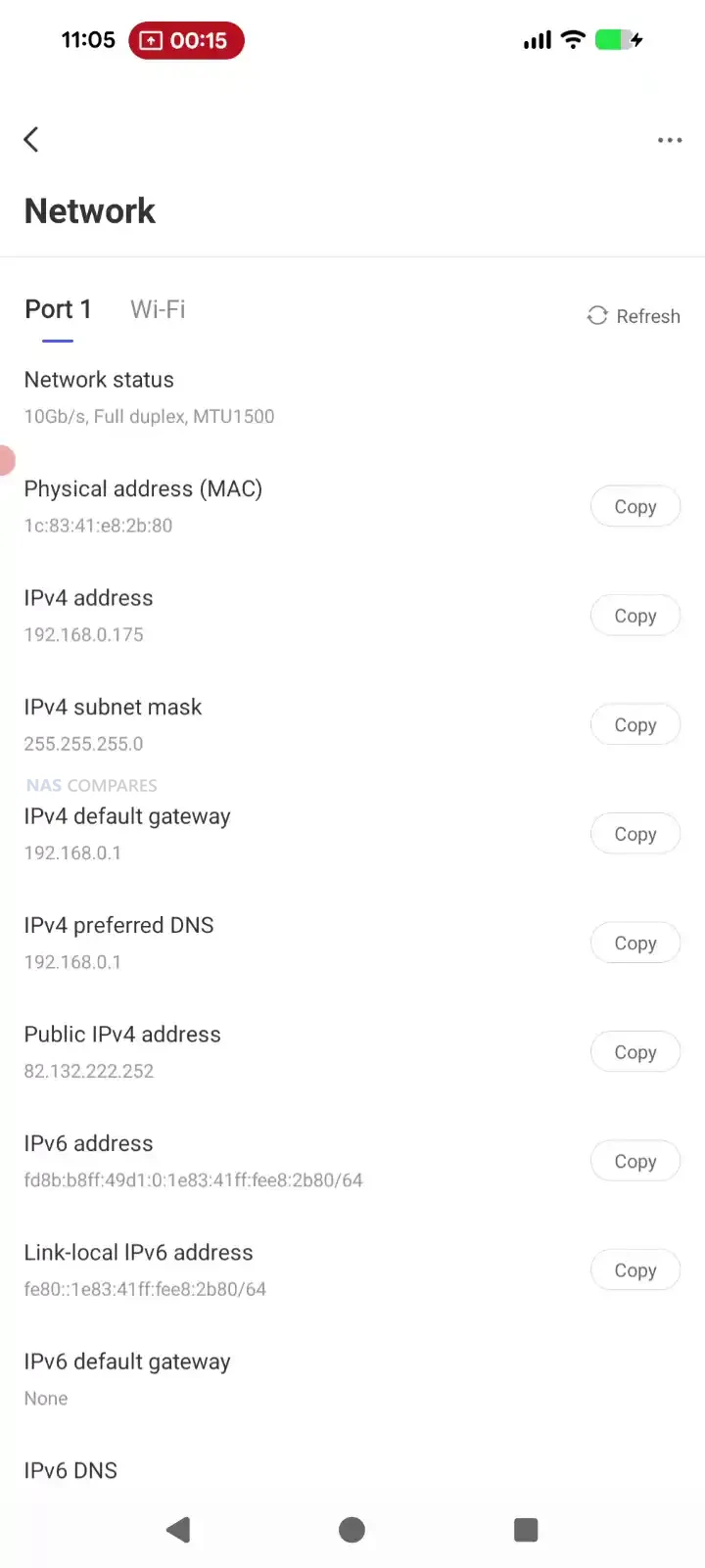
Alongside the 10Gb ports is a separate 1GbE RJ45 port that can be used for management or for general connectivity in networks where 10Gb is not available everywhere. In a mixed UniFi environment, this is useful because it avoids tying basic onboarding and administration to a 10Gb port that might be better reserved for file traffic. It also gives a simple fallback path for access and troubleshooting if the 10Gb side is being reconfigured, moved between switches, or temporarily taken offline.

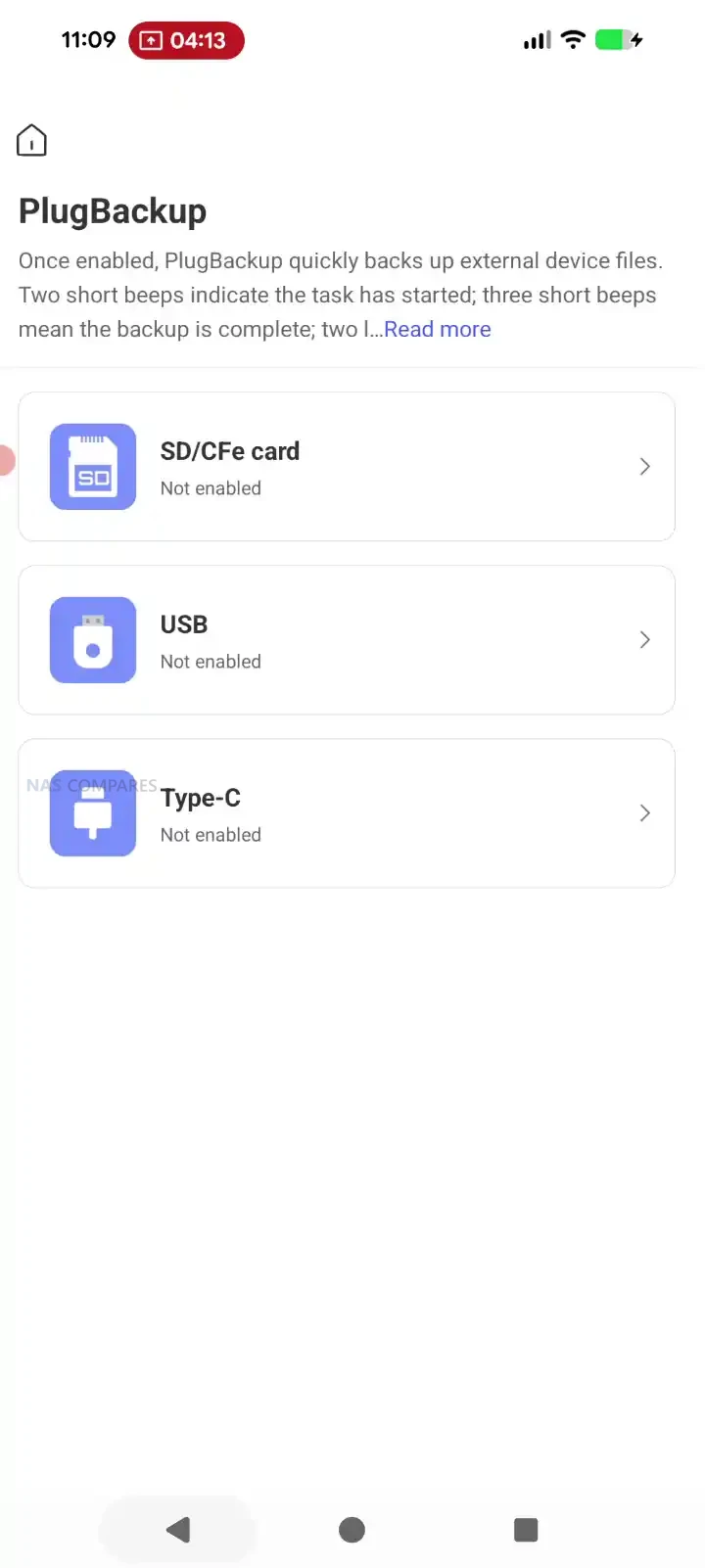
What is missing is just as relevant as what is included. There are no USB ports for quick ingest, offline copy tasks, or attaching temporary media, which some rack NAS platforms still provide for convenience even in 1U designs. Wireless is not a focus here, though Bluetooth is present for initial setup workflows, which fits the product’s “appliance onboarding” approach more than it does ongoing connectivity. The result is a port layout that prioritizes network-first storage and rack integration, while leaving out local expansion and quick-access I/O features that some users expect on a NAS.

However, (and I am sounding like a broken record at this point) at $499, these ports and connections are a notable degree more than most other turn-key NAS solutions from Synology, QNAP and even Terramaster (the more budget end of the NAS market already) are offering at under 500! So, what is presented here is a great value Day 1 solution in terms of base connectivity, but there is no denying that it might well feel the pinch in 5 years down the road when your storage is filling and your storage speeds begin to bottleneck vs your other equipment bandwidth.

UniFi UNAS Pro 4 Review – Testing Noise, Temps, Power Consumption & Speed

Performance here needs to be framed around the physical limits of 4 SATA bays and the role of SSD caching. Even with dual 10Gb networking available, a 4 drive HDD array has a throughput ceiling that will be reached long before the network becomes the bottleneck in most single-client scenarios. The value of 10Gb in this context is less about hitting theoretical maximums and more about maintaining higher transfer rates consistently, handling multiple simultaneous users, and keeping latency lower when lots of smaller operations are happening alongside big file moves.

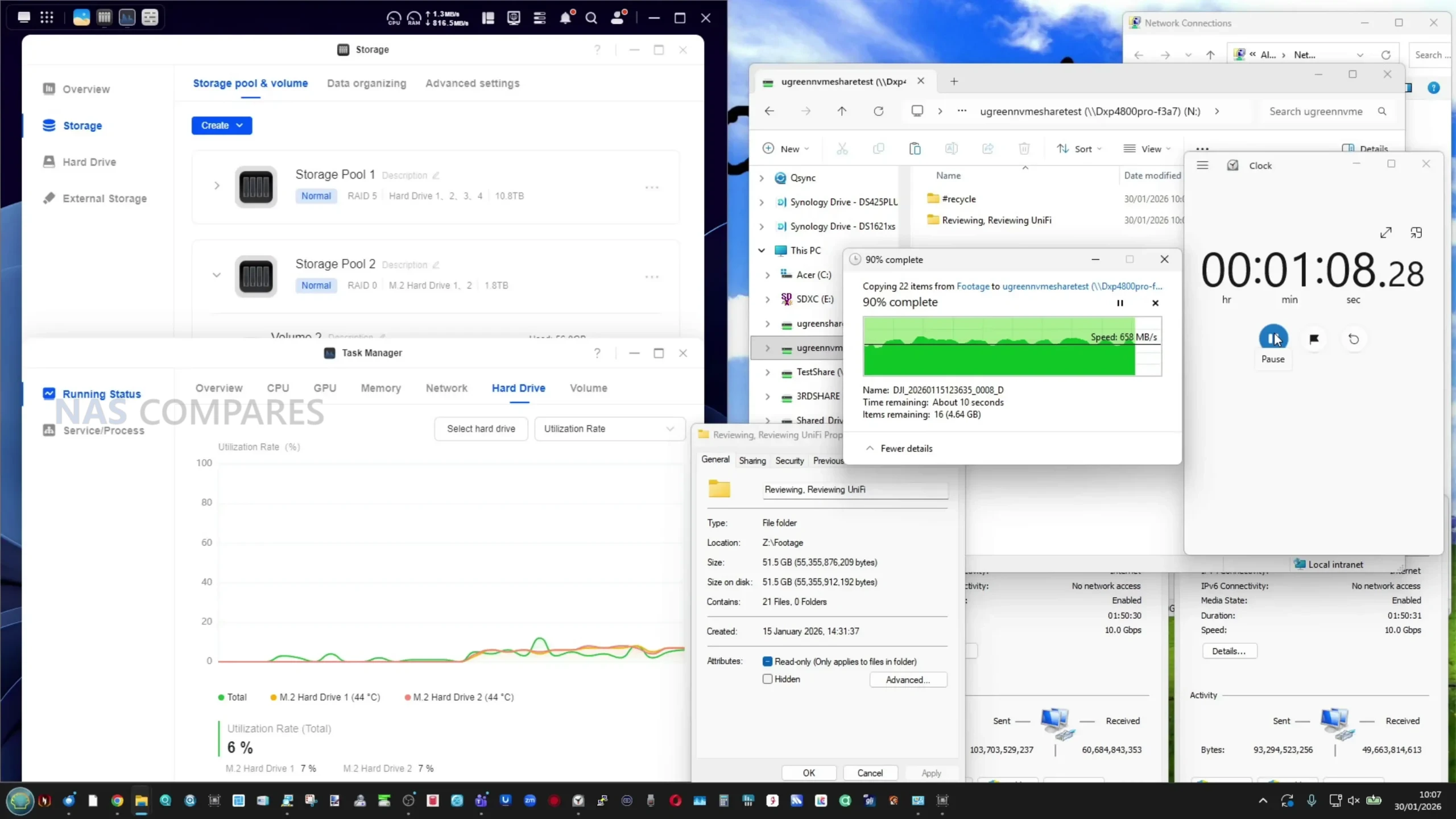
In testing with 4 HDDs in a RAID 5 configuration over a 10Gb link to a Windows 11 client, measured throughput landed in the range expected of a well-tuned 4 disk array. Using AJA with a repeated 1 GB test file, results sat around 680 to 730 MB/s for download and 520 to 600 MB/s for upload. A real-world Windows file transfer of 101 GB made up of 1,231 mixed files completed in 3 minutes and 57 seconds, which works out at an average of about 426 MB/s across the transfer, reflecting the usual drop from synthetic peak results when file variety and filesystem overhead are introduced.

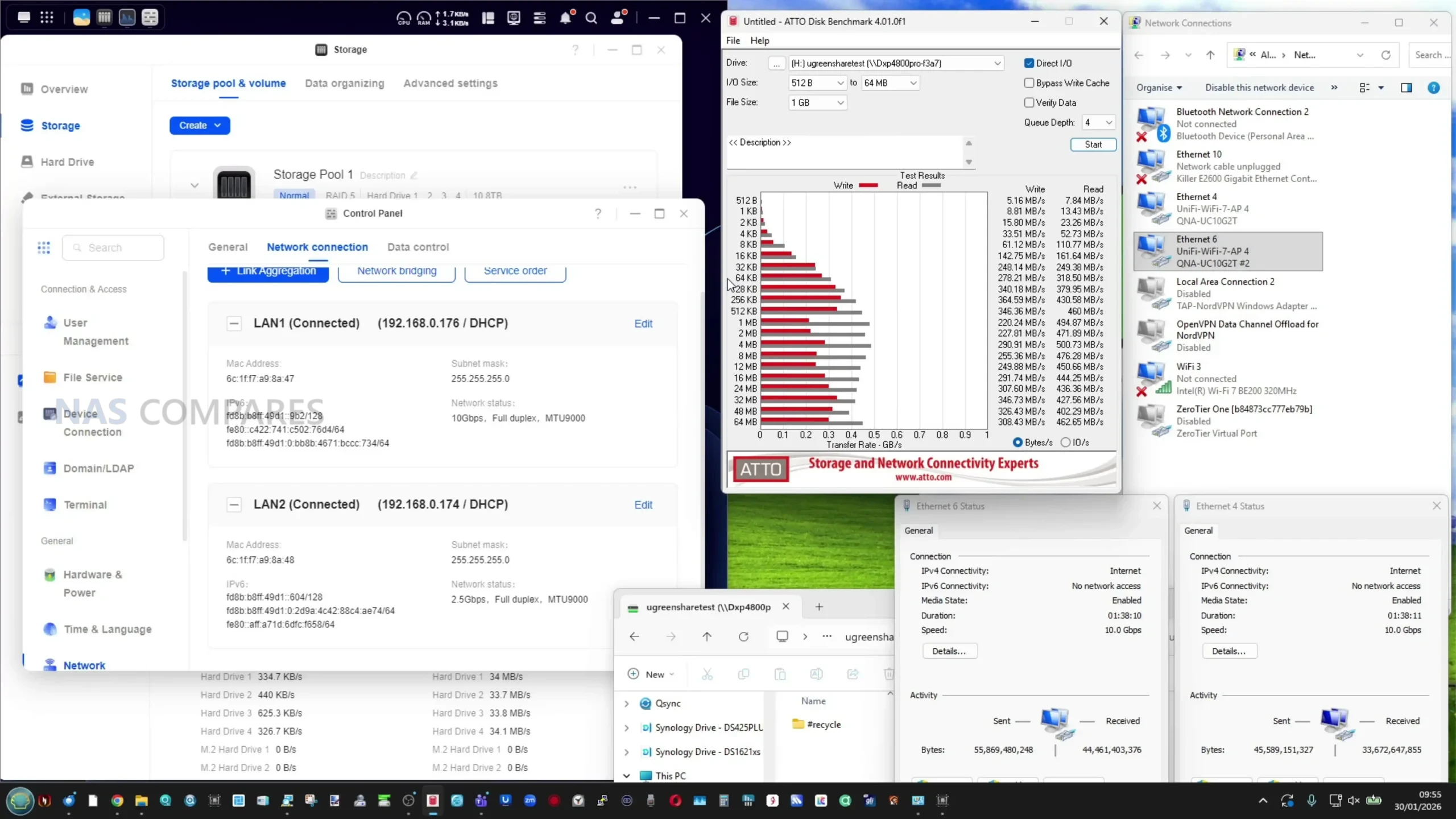
Synthetic benchmarking results varied depending on the tool used, which is not unusual when caching behavior and test patterns differ. CrystalDiskMark with a 1 GB test file reported 353 MB/s read and 429 MB/s write in this run, with write coming out higher than read, which is atypical enough to treat as an outlier pending further retesting. ATTO produced stronger peak figures of 860 MB/s read and 570 MB/s write at the top end, which aligns more closely with the best-case behavior seen in sequential-focused tests on multi-drive arrays.

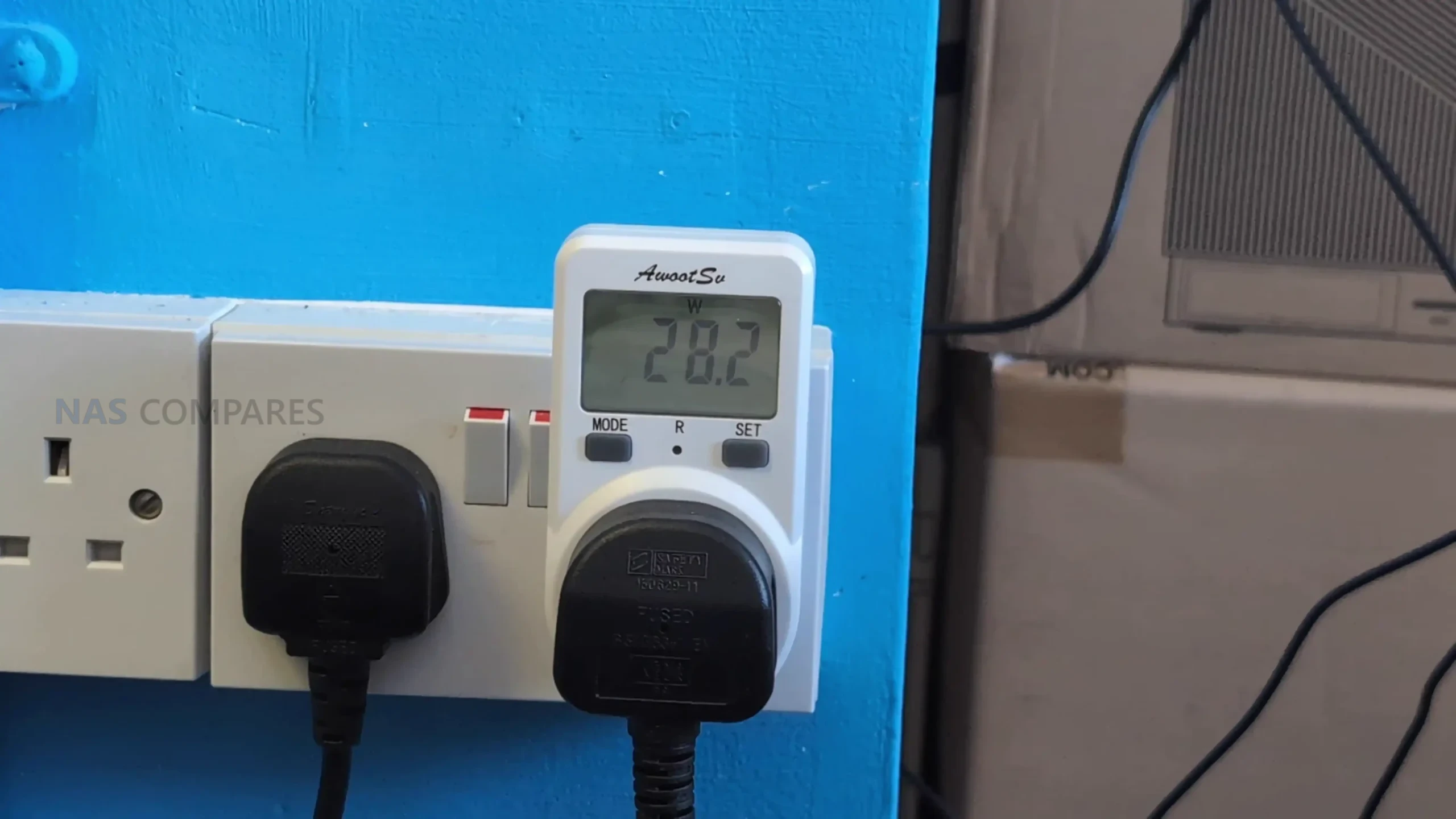
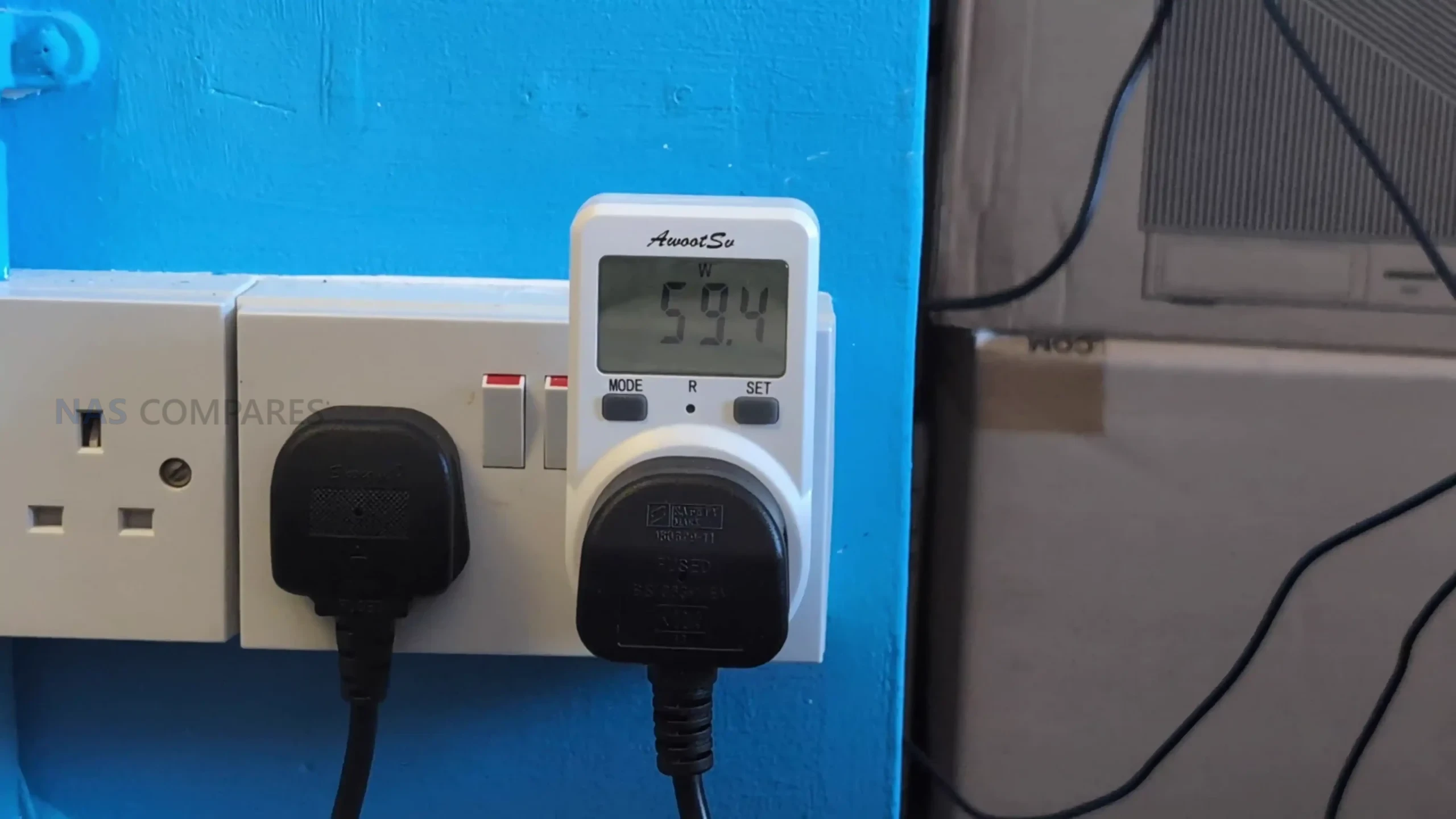
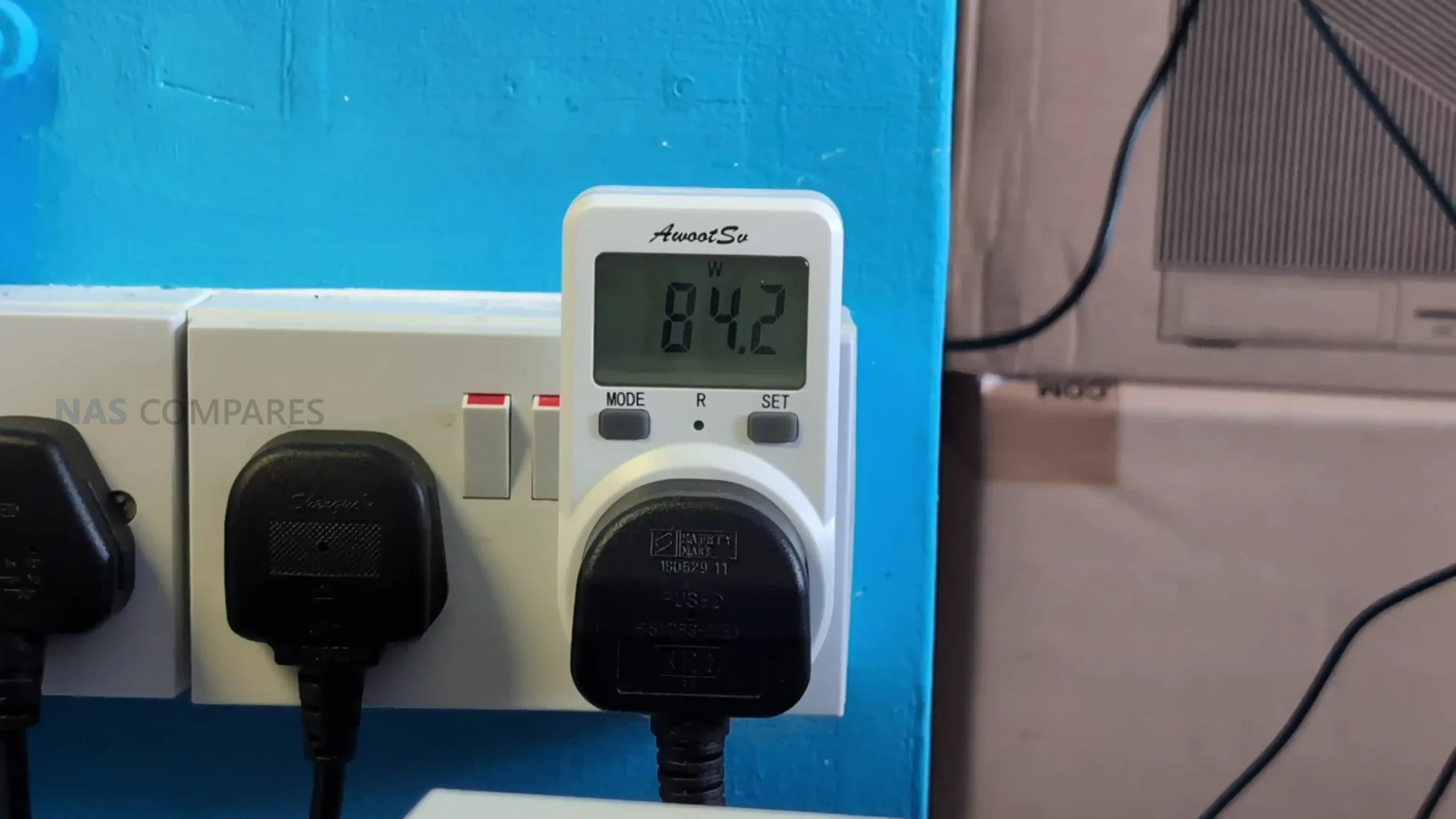
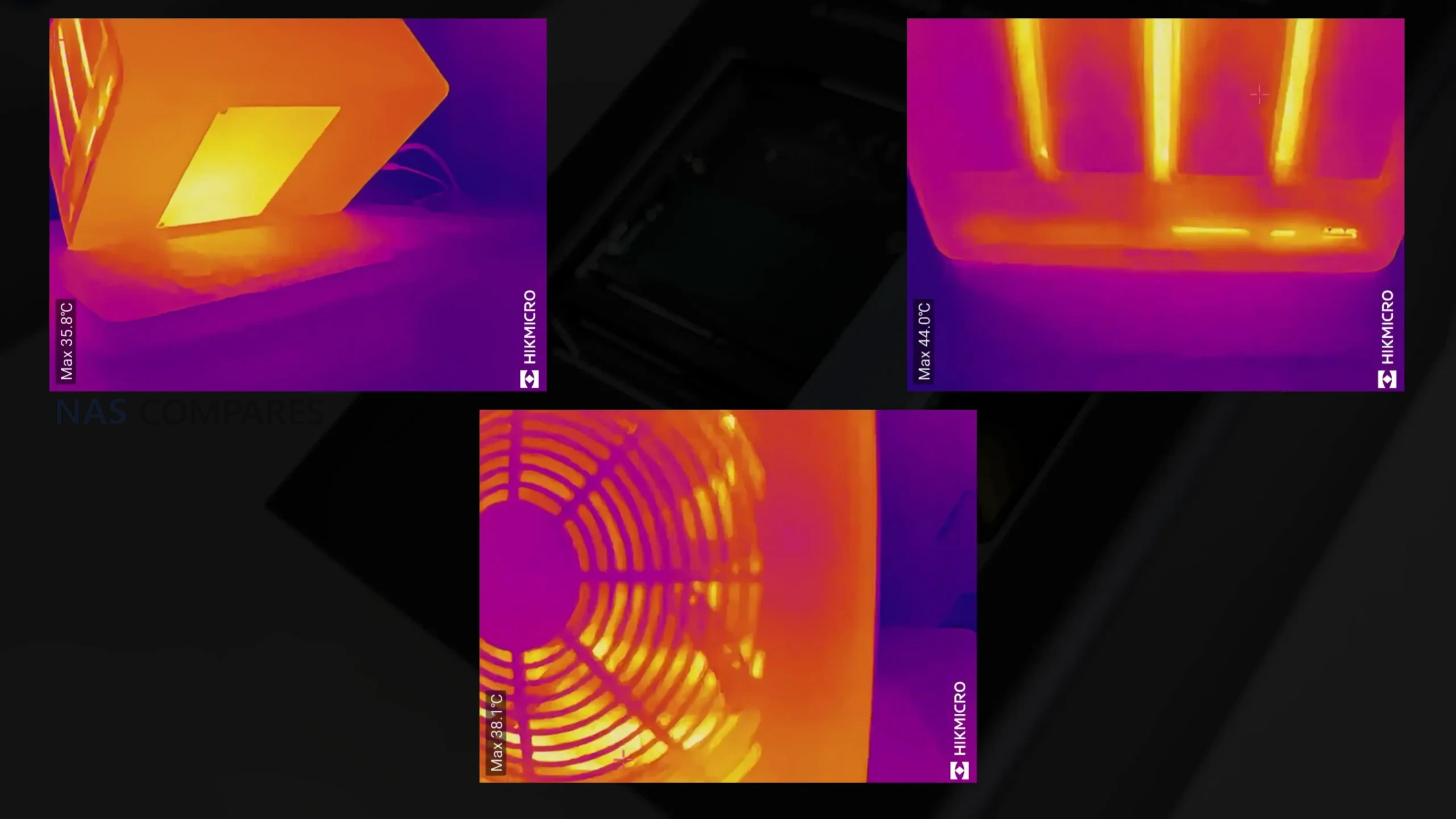
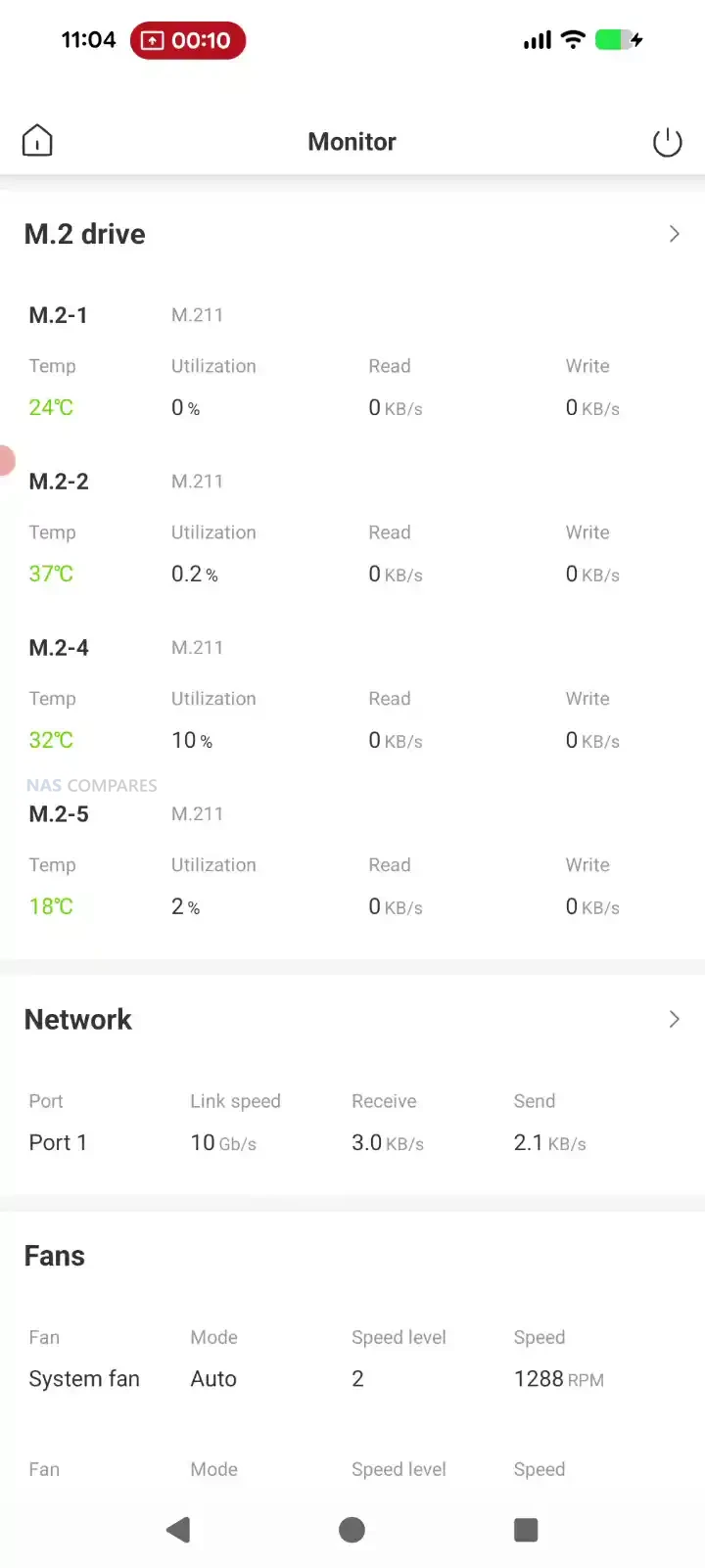
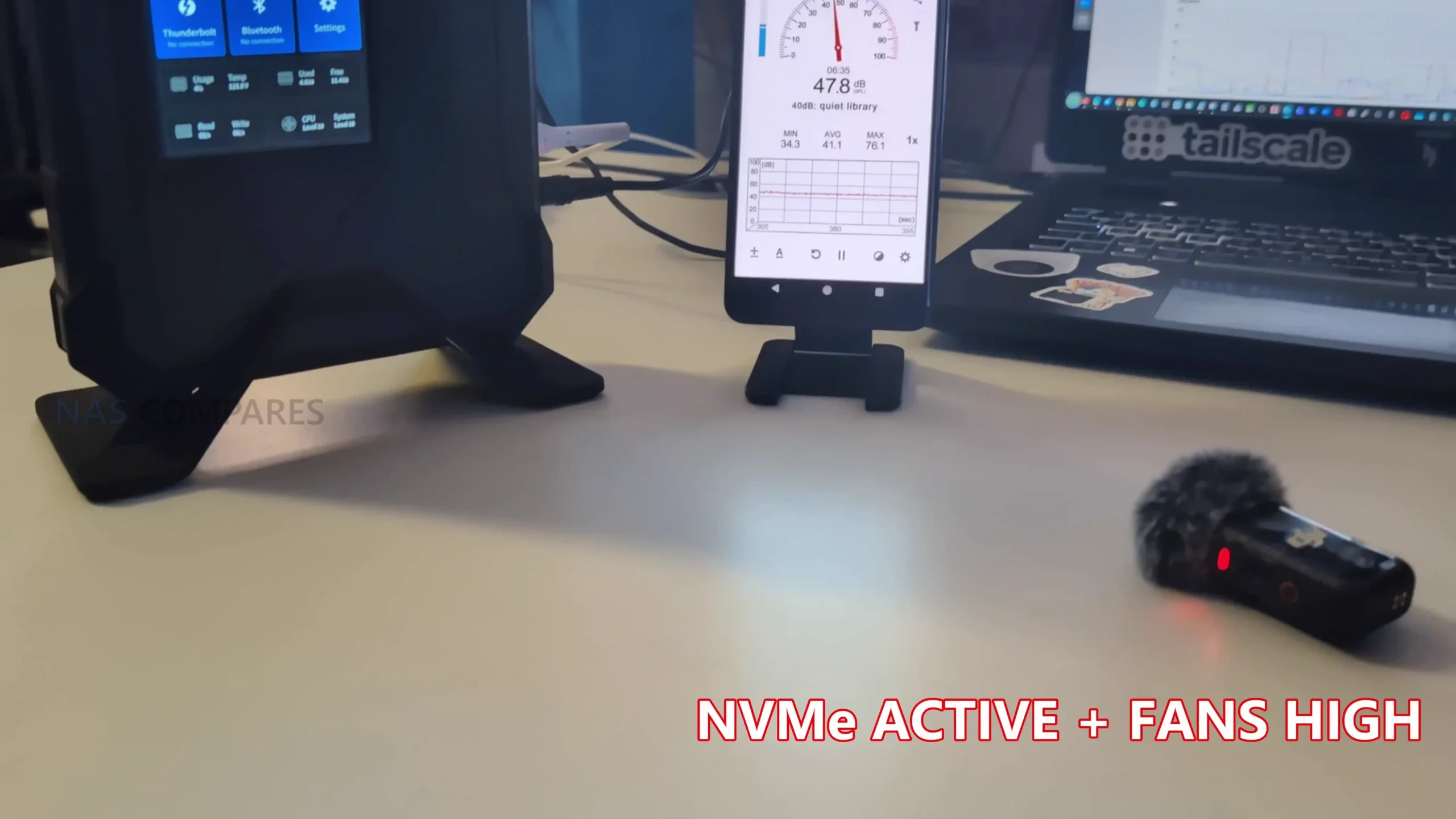
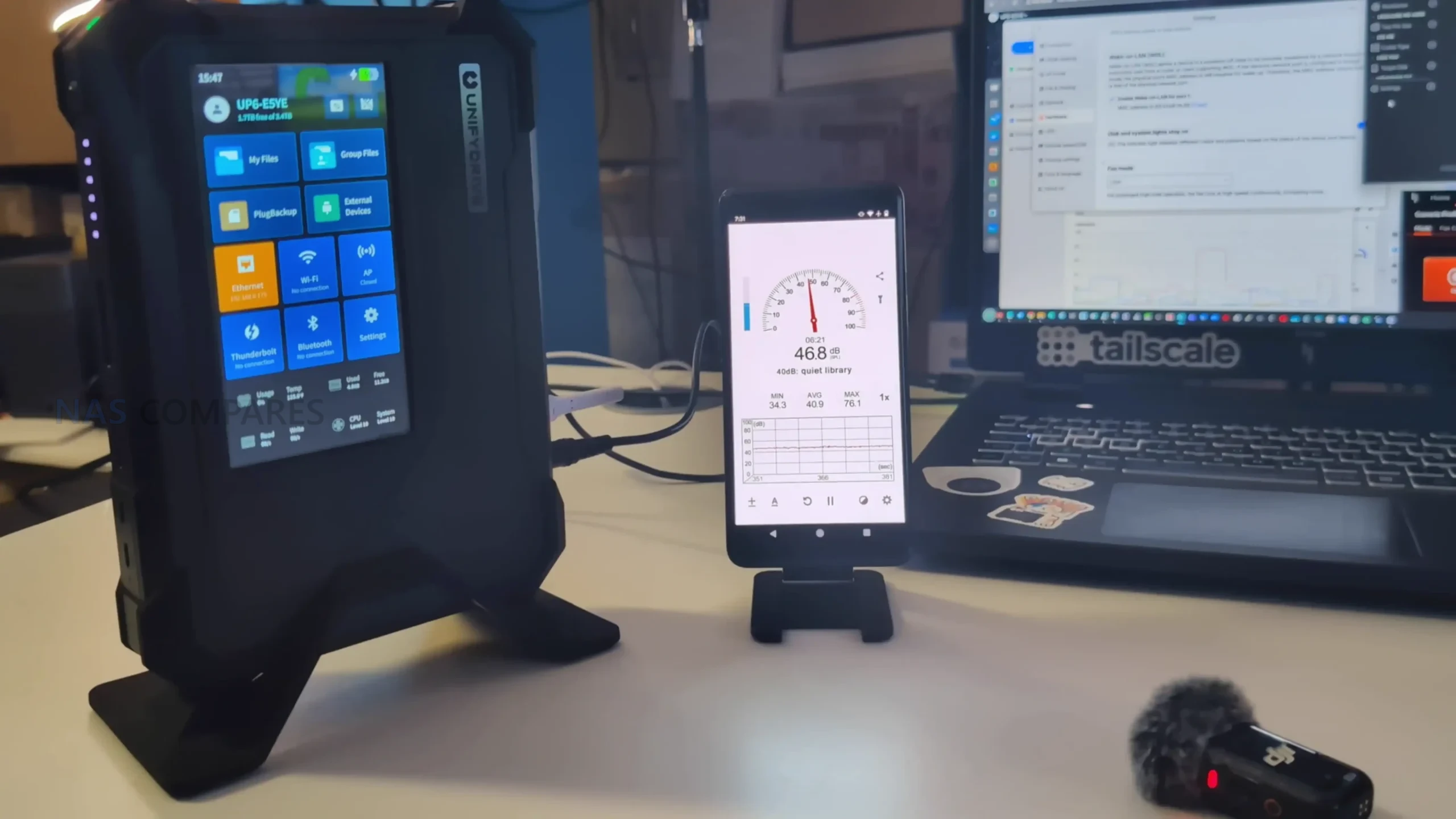
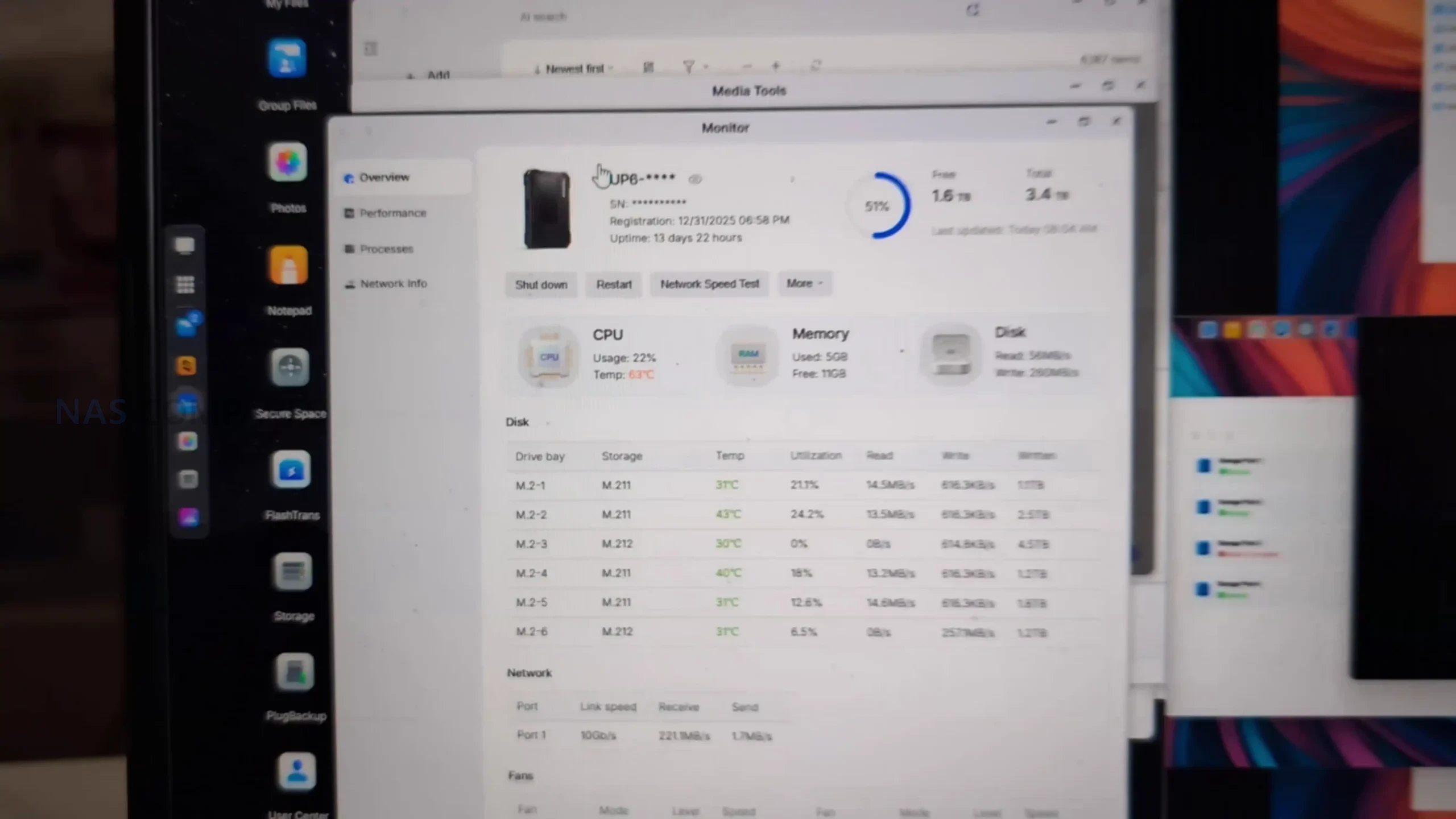
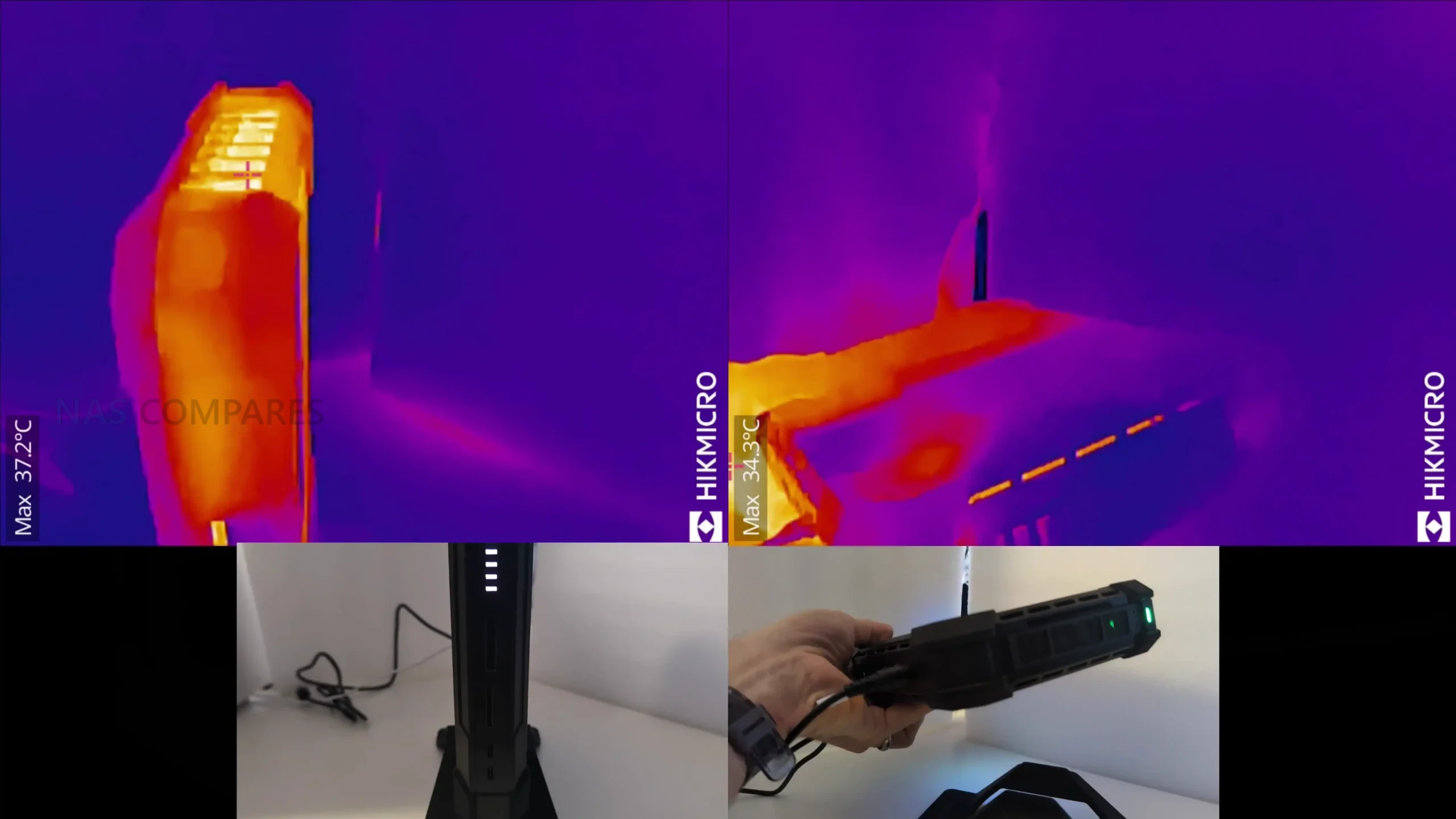
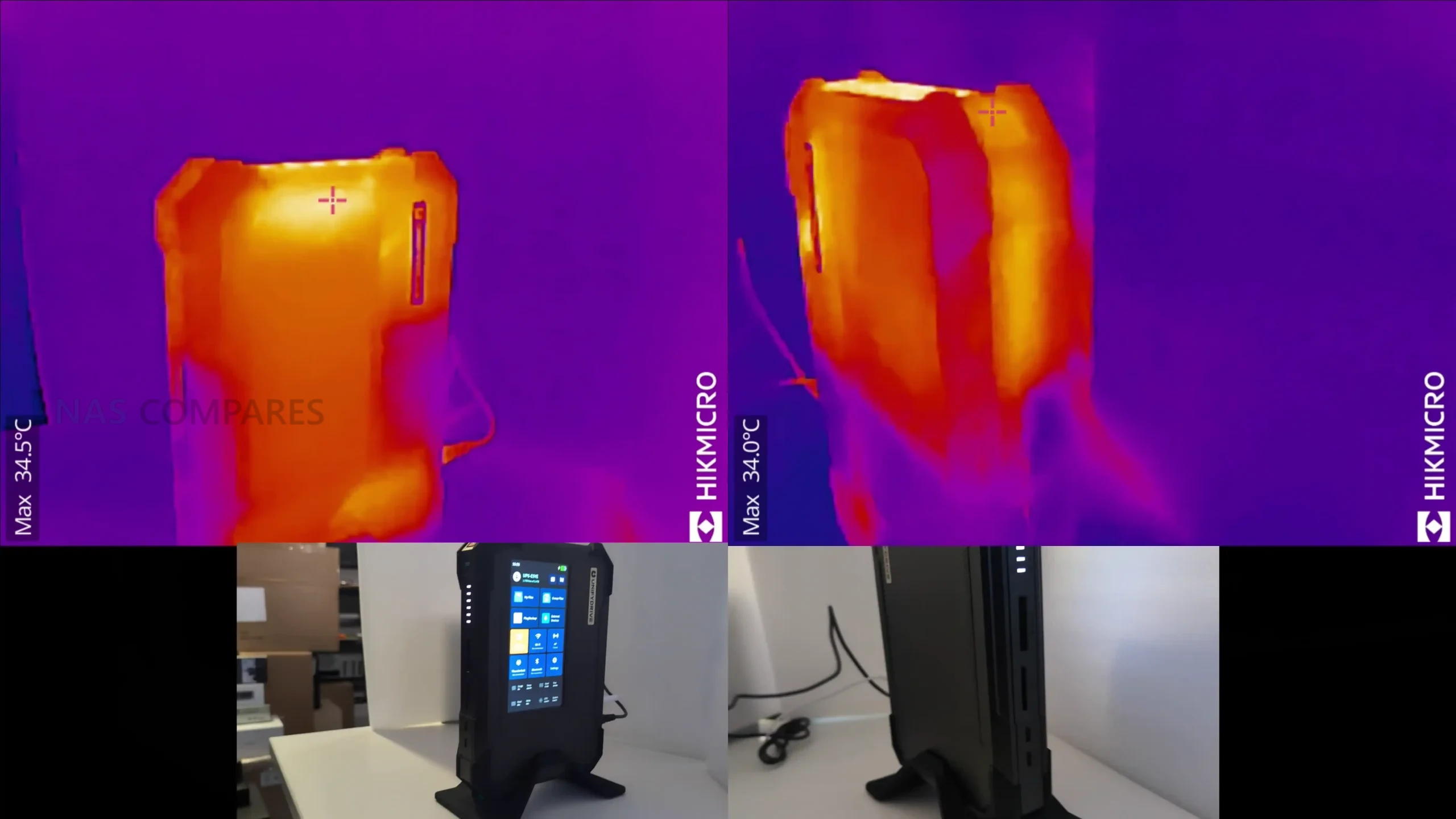
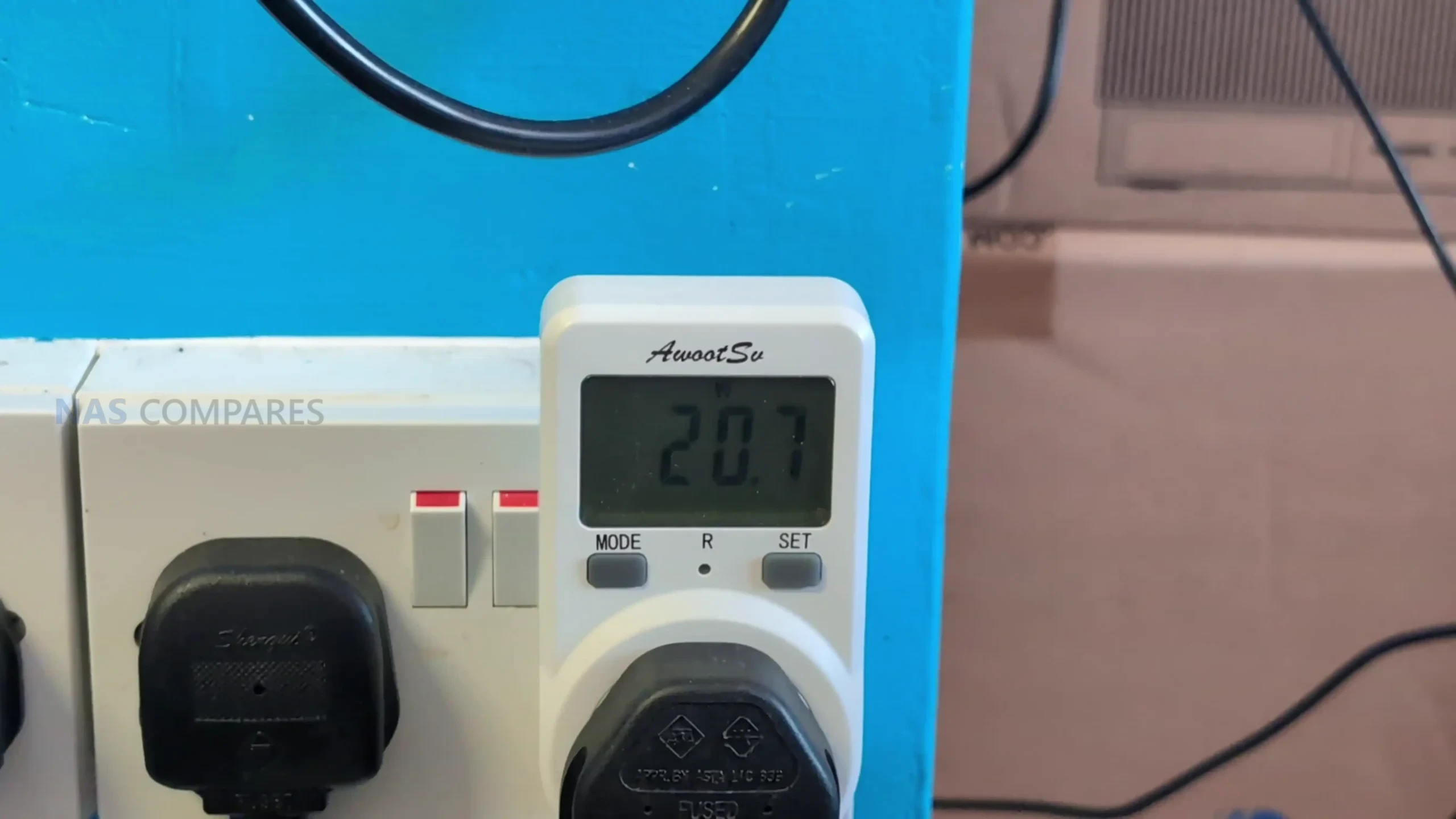
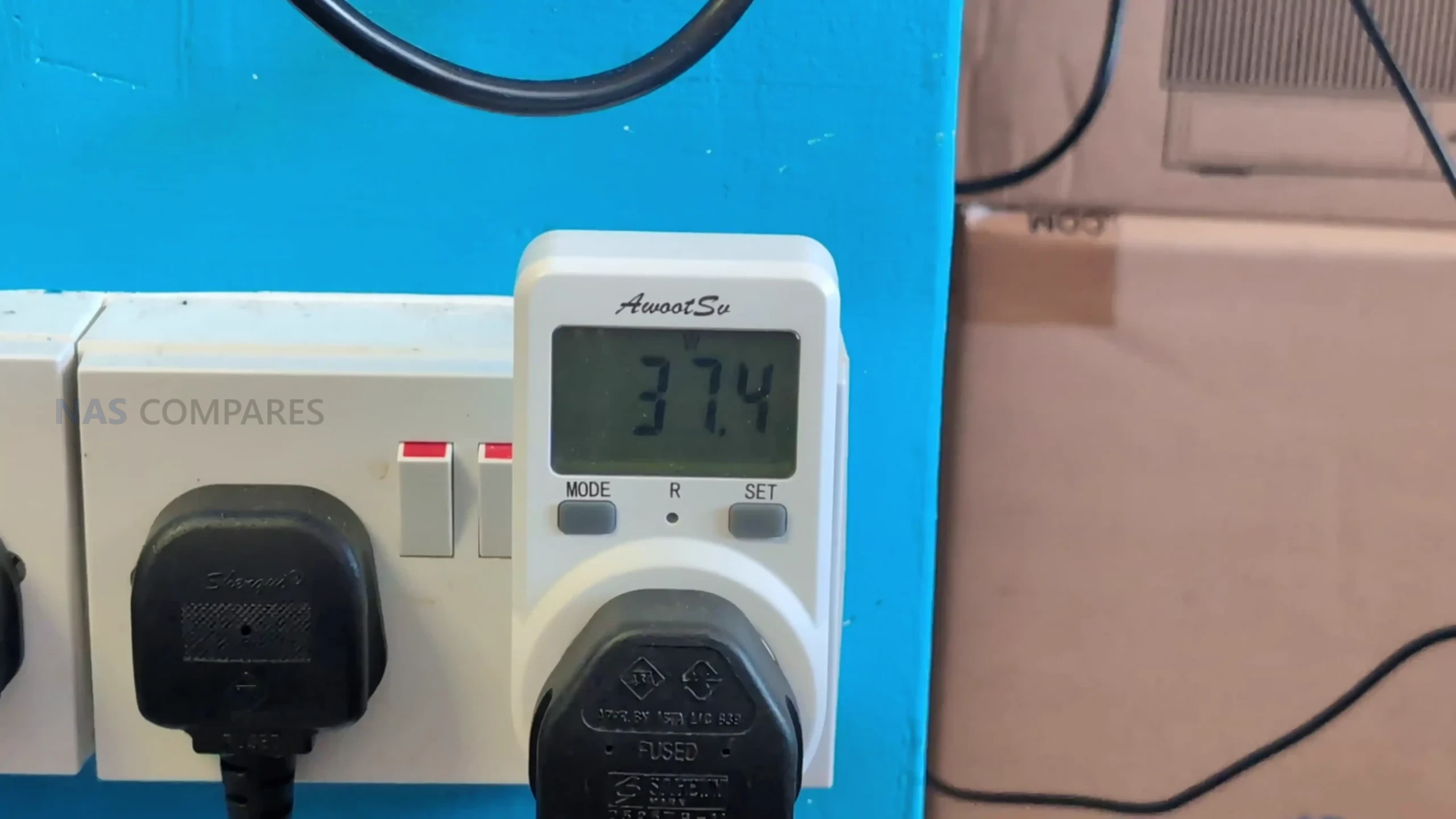
Noise, power draw, and thermal behavior were also measured because they affect rack placement and operating cost. With the fan profile set to auto and drives idle, noise sat around 42 to 44 dBA, dropping to roughly 38 to 40 dBA in the lowest RPM mode. Manually forcing maximum cooling pushed noise to around 56 to 57 dBA, and that level remained dominant even when drive activity increased, suggesting the cooling system prioritizes aggressive airflow when pushed. Power consumption with 4 enterprise HDDs measured roughly 49 to 50 W at idle and 60 to 62 W under activity, while swapping to 4 SATA SSDs reduced that to around 32 W during synchronization, underlining how drive choice can change the overall profile as much as the base platform.

UniFi UNAS Pro 4 Review – Software and Services

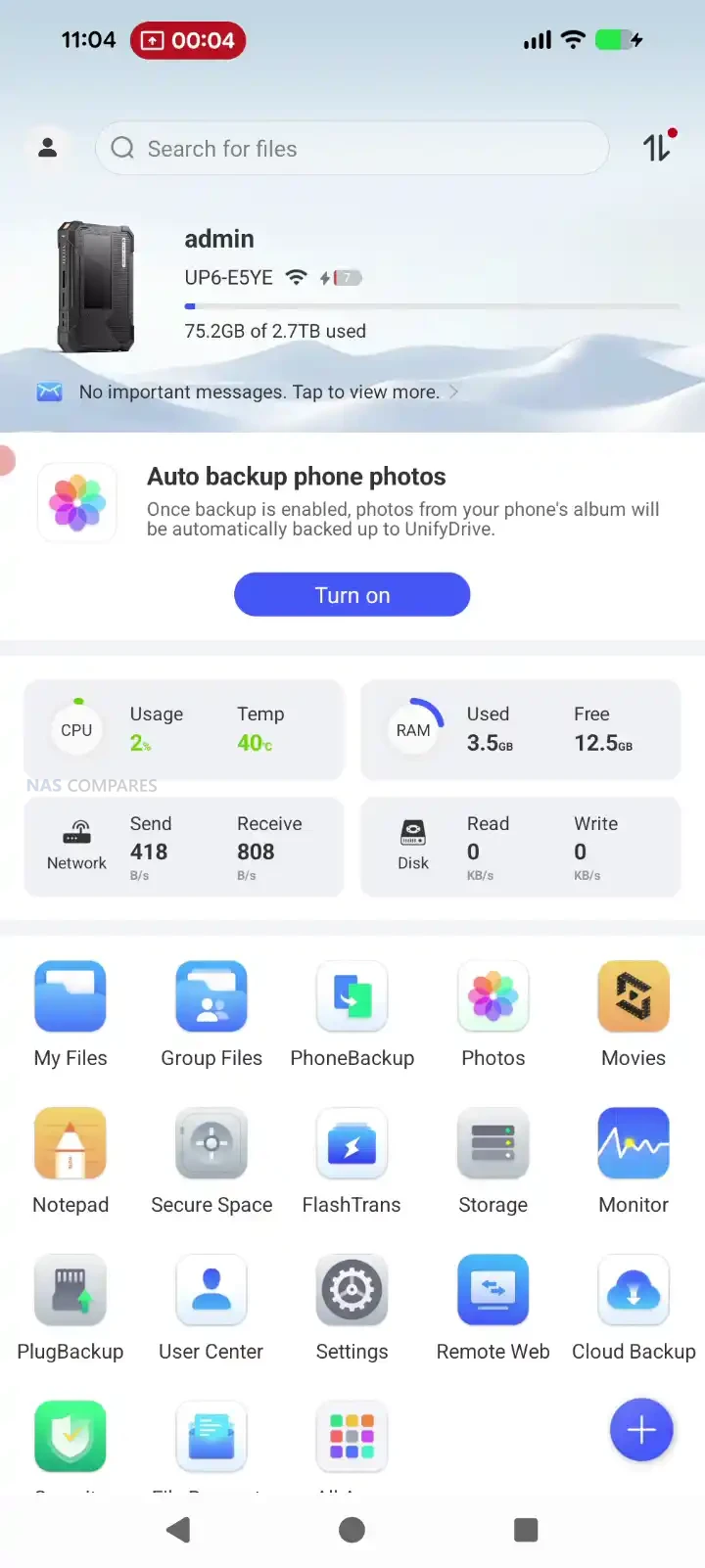
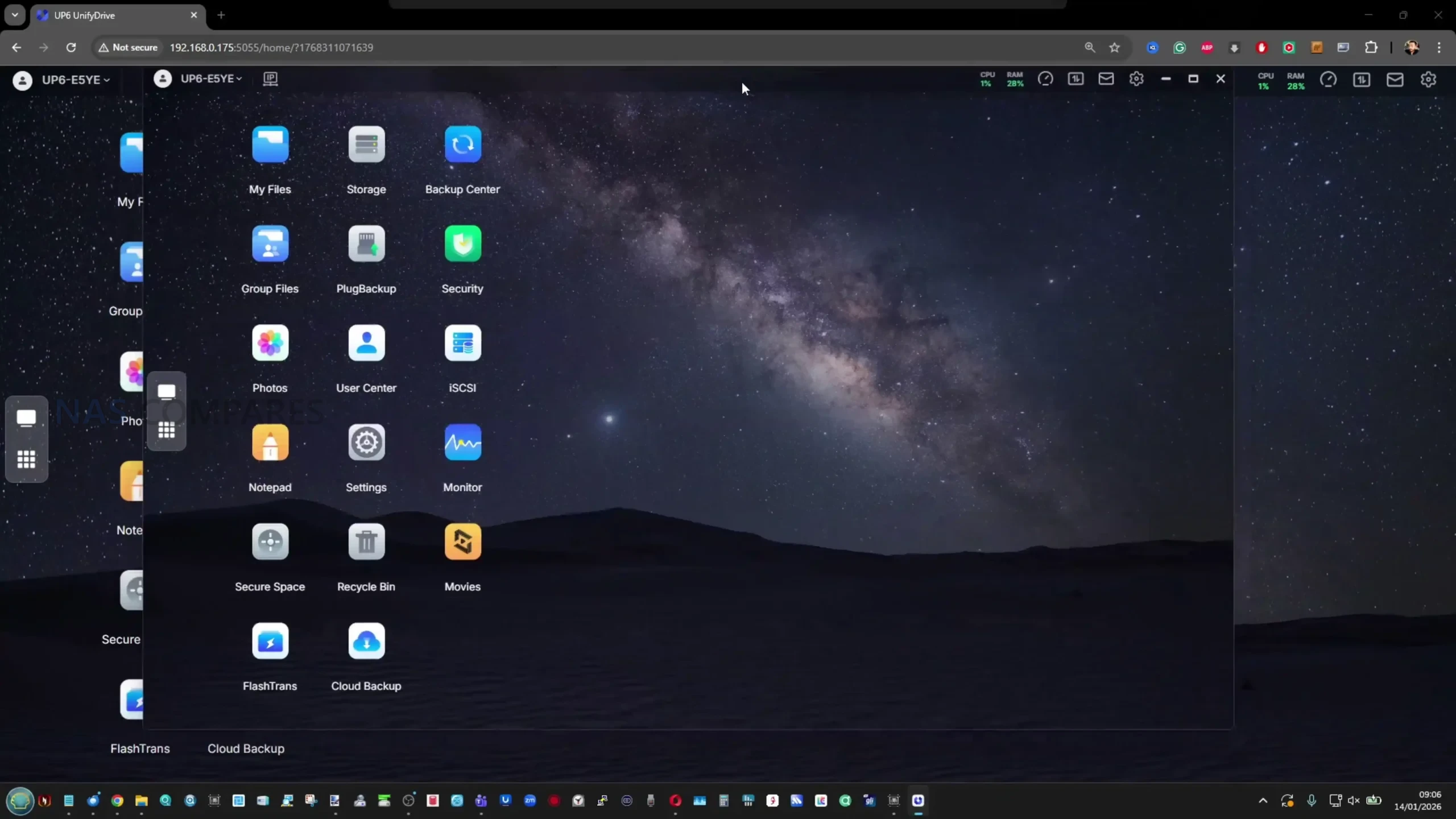
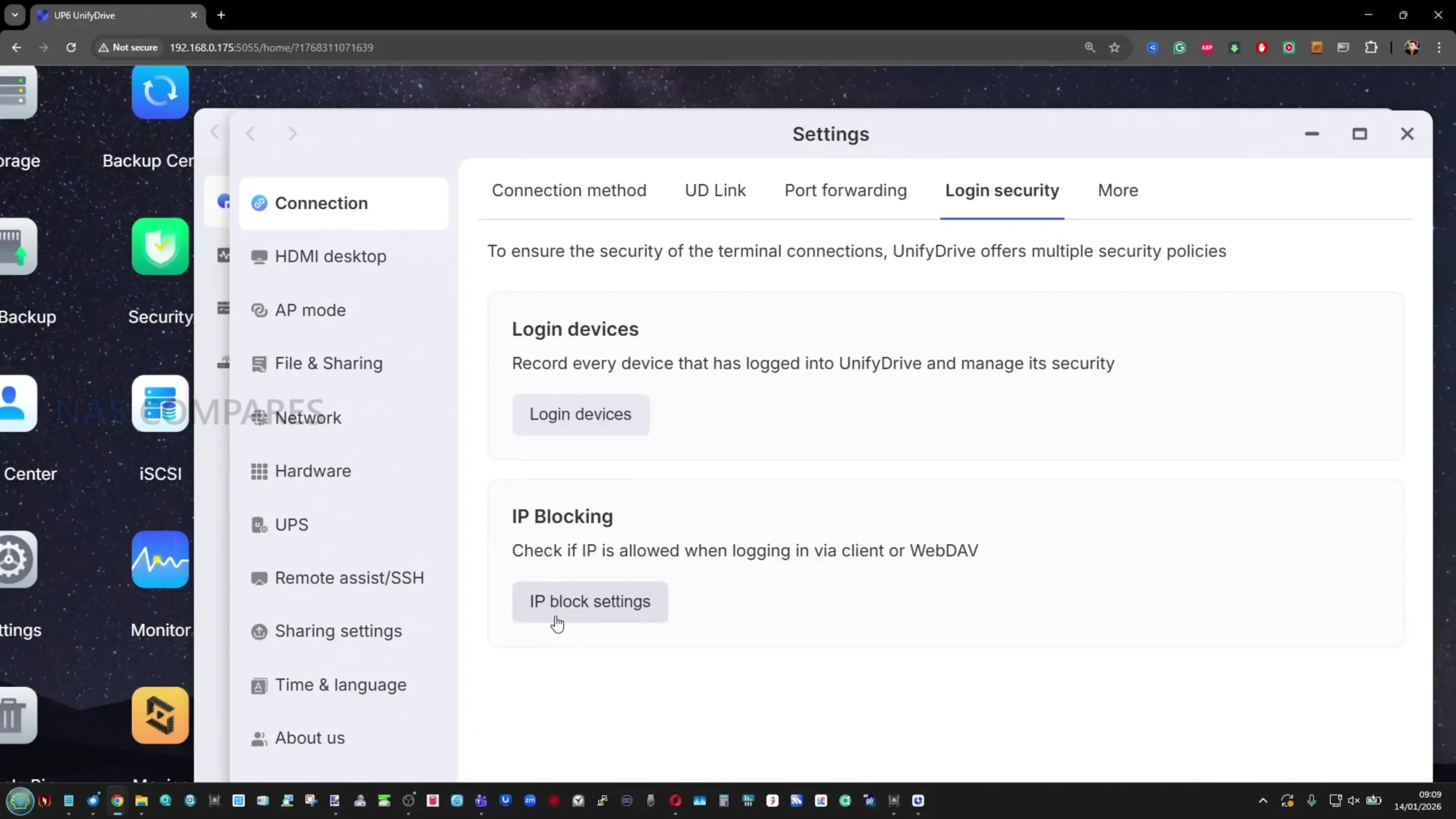
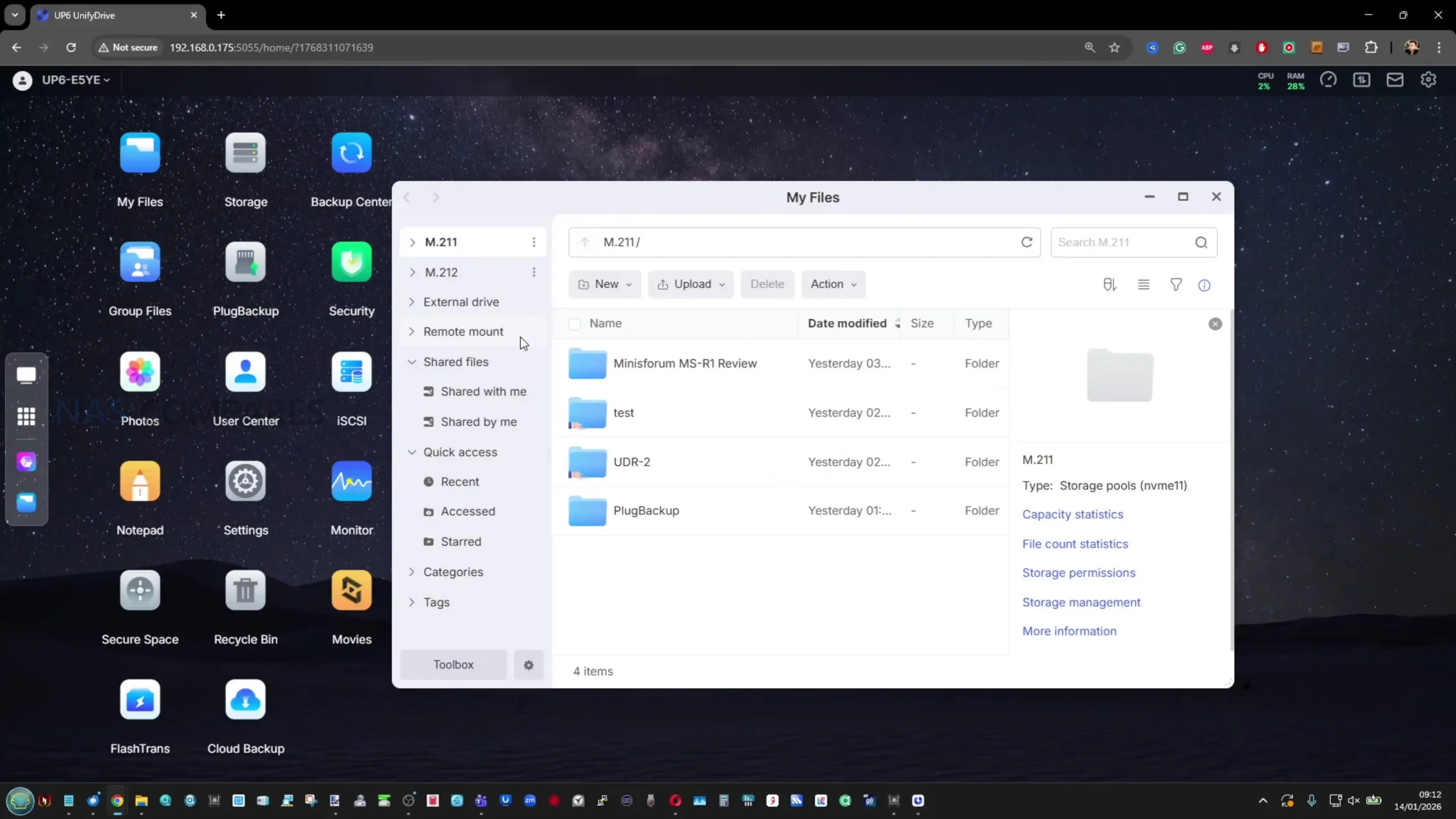
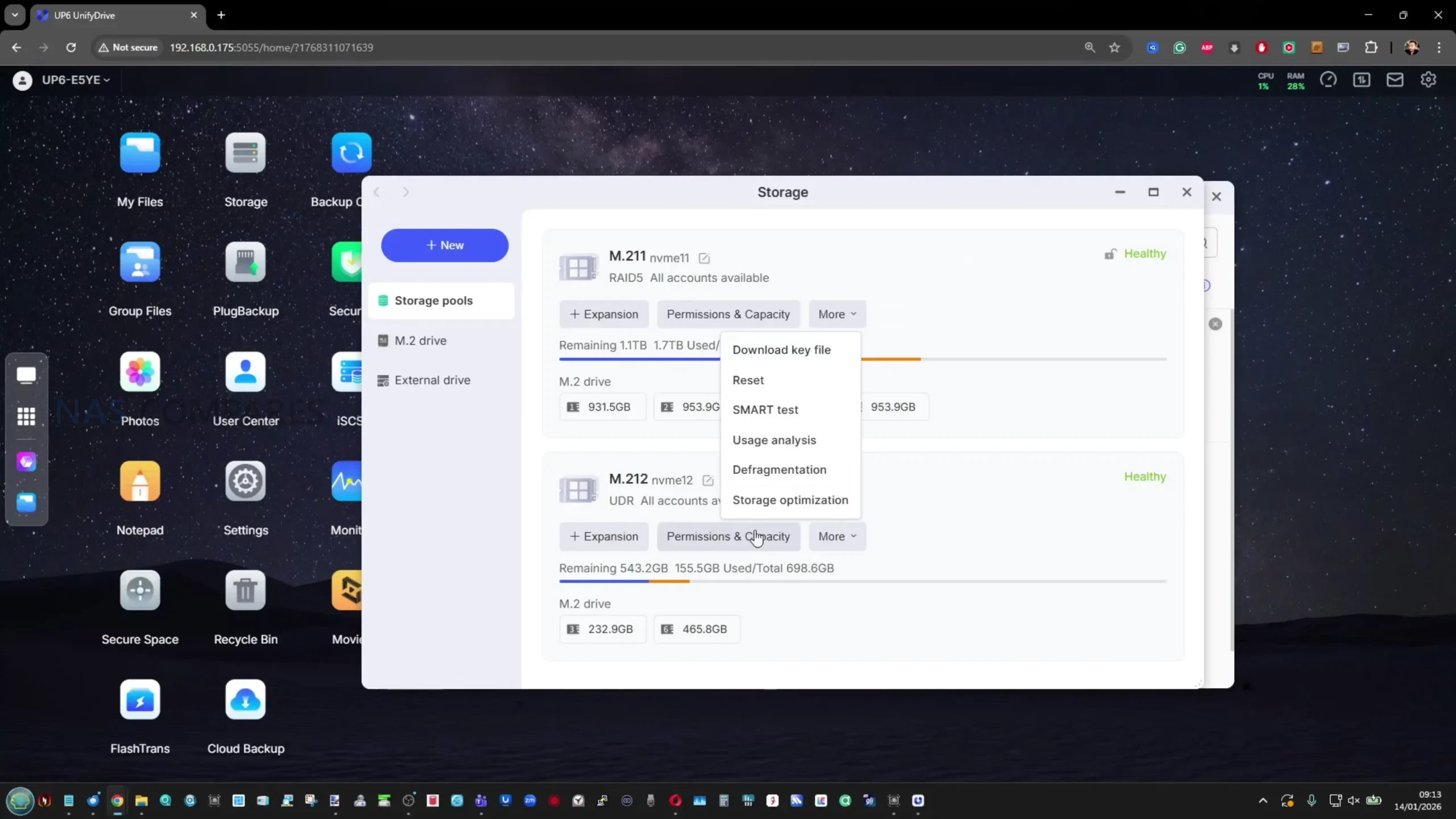
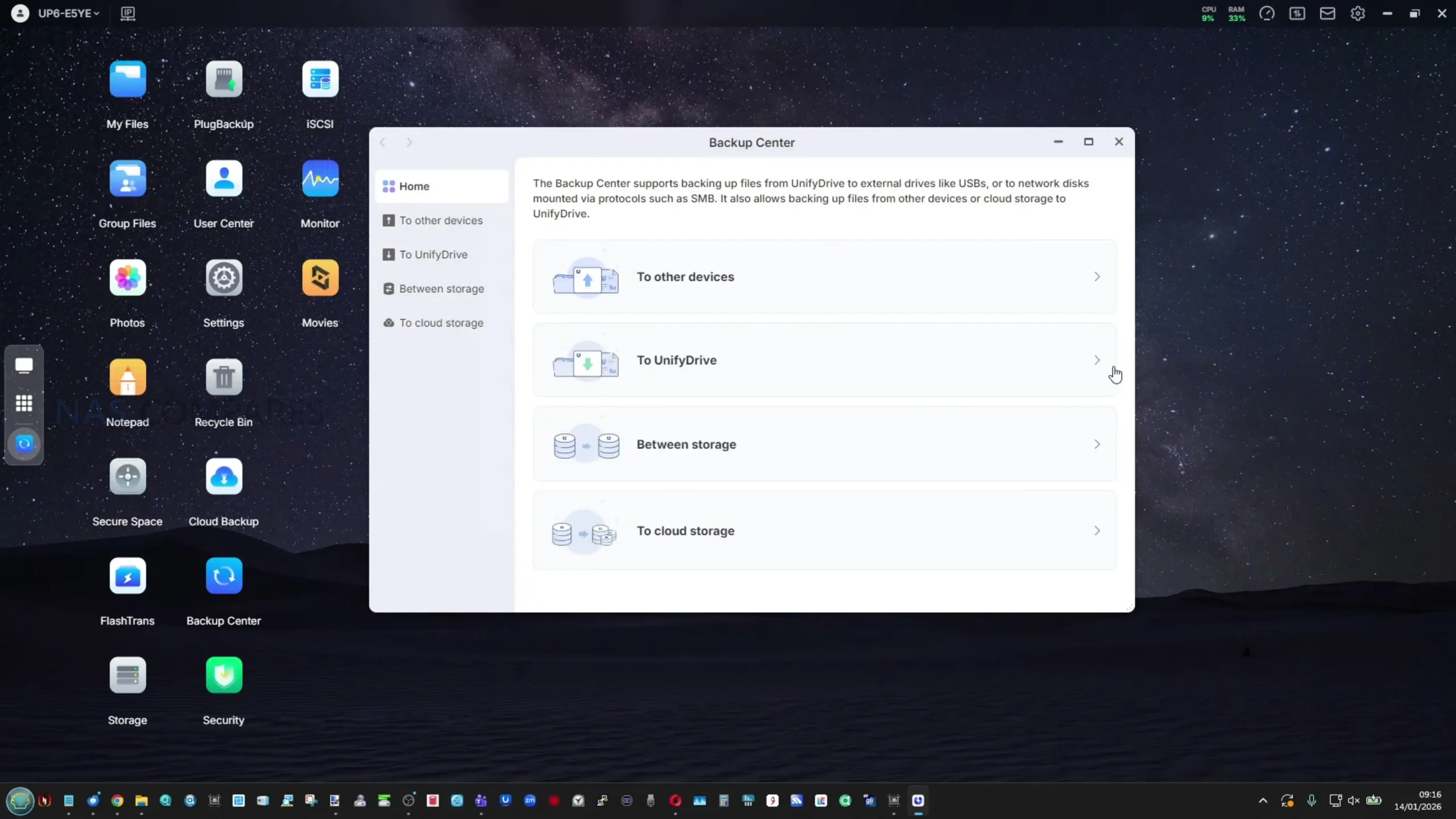
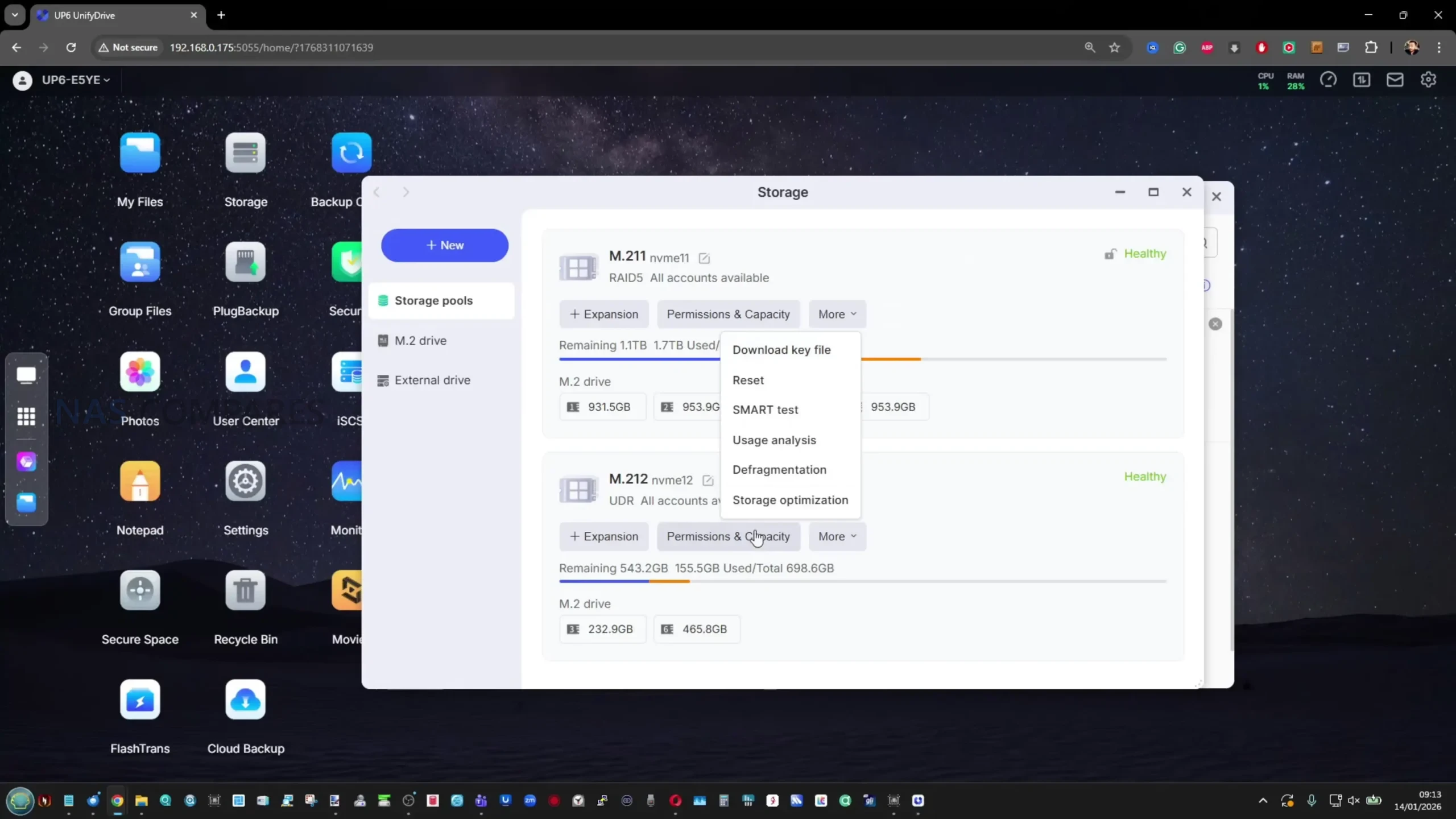
The UNAS Pro 4 runs UniFi Drive and is managed through the same style of web interface used across the broader UniFi portfolio, with system status, storage, backups, and user access presented in a single dashboard. For basic NAS use, the core functions are in place: creating storage pools, managing shares, enabling file services, and monitoring drive health. The interface is generally structured around doing common tasks quickly rather than exposing every possible tuning option, which keeps setup approachable but also limits deeper control in areas that some experienced NAS users look for.

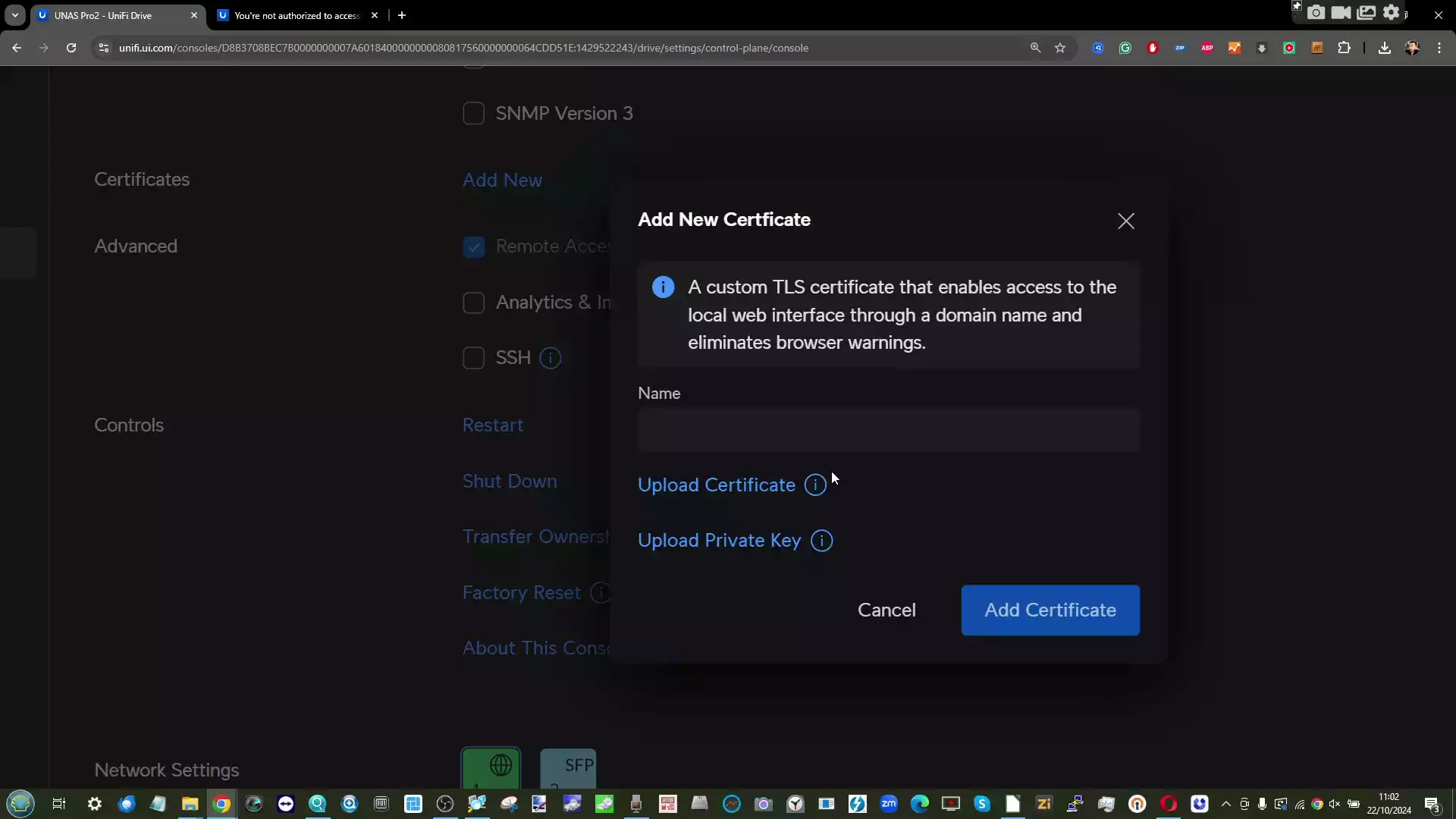
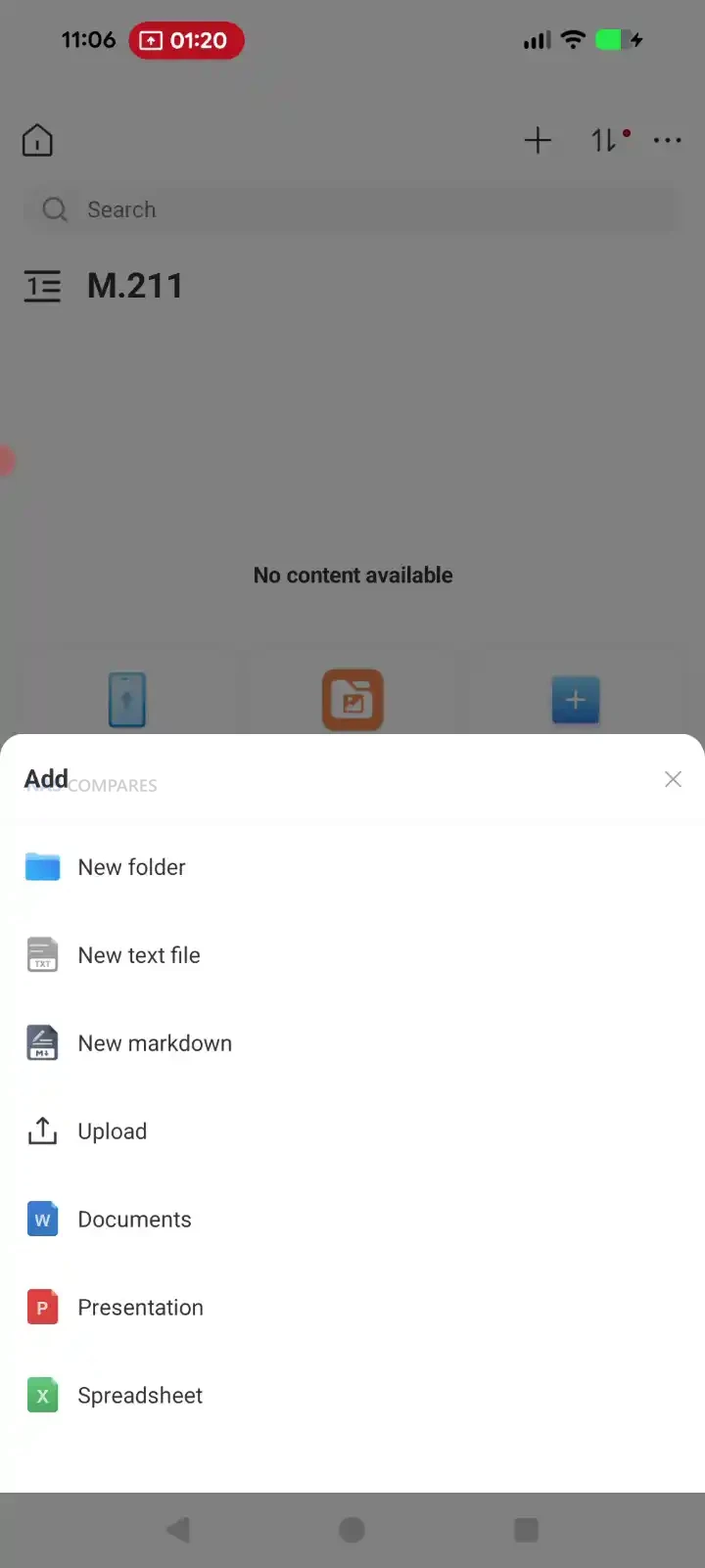
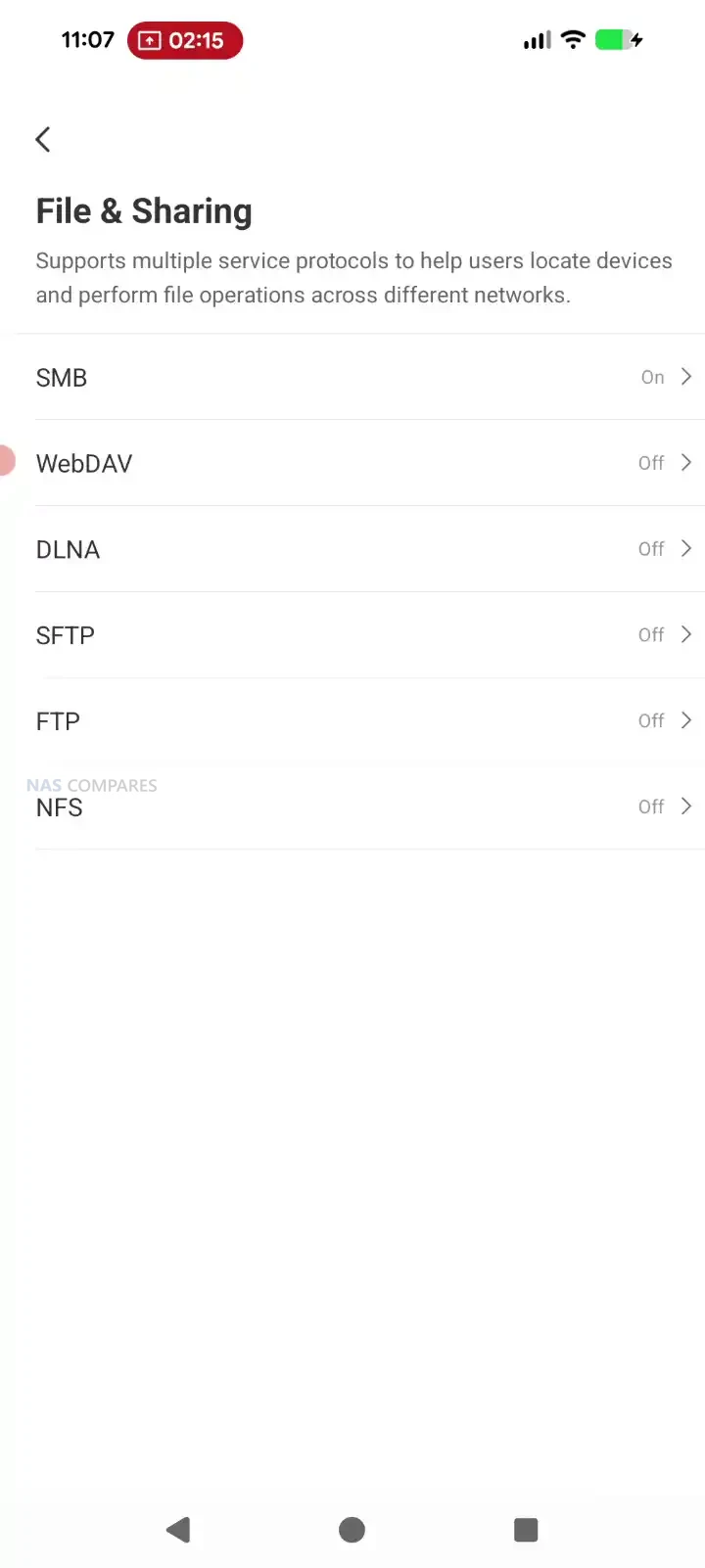
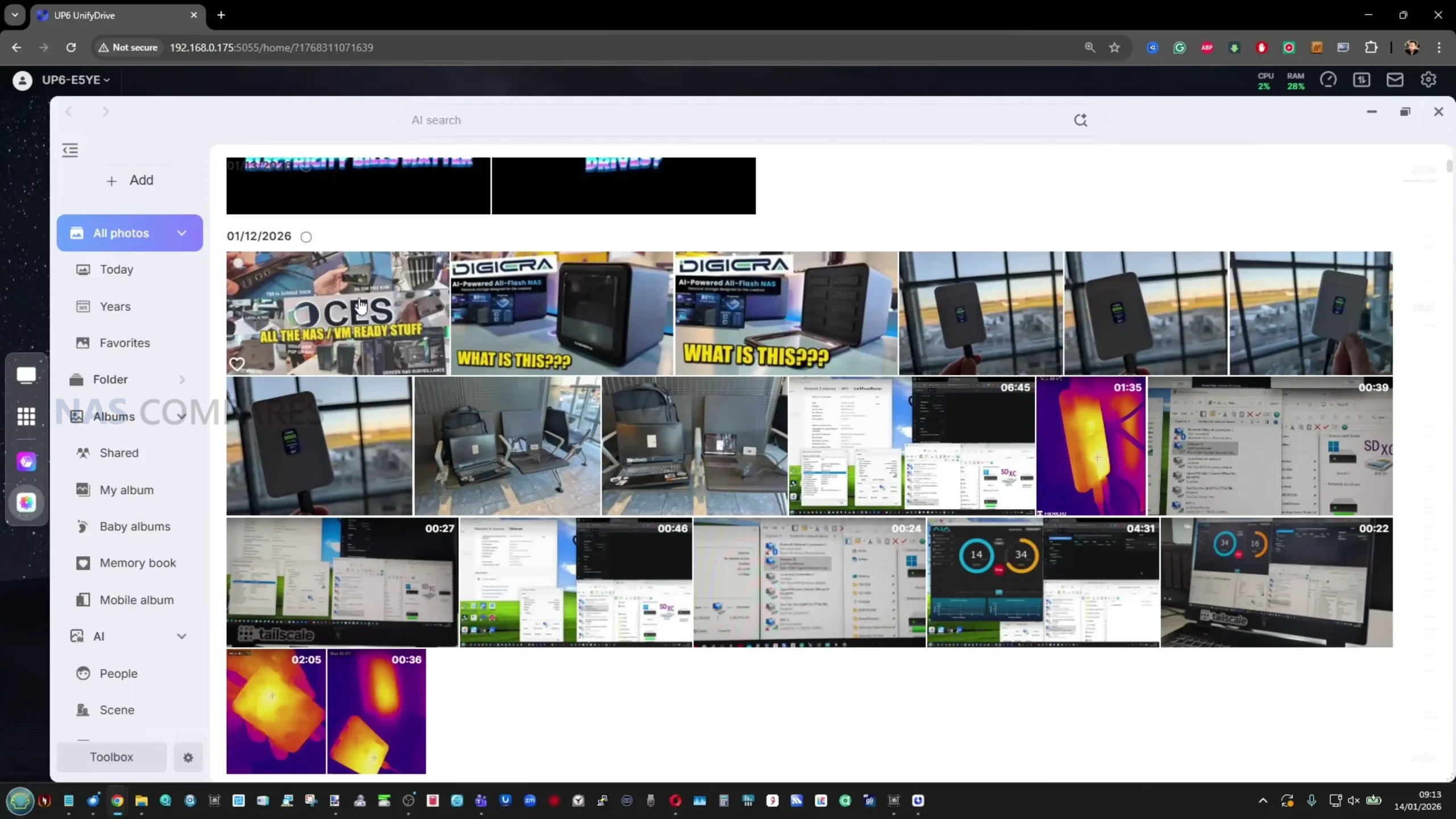
File access is centered on SMB and NFS, with browser-based file management available for basic upload, download, and folder navigation. The browser file manager covers the essentials and includes sharing link creation, but it is not positioned as a full productivity layer with advanced file handling or rich collaboration features. Remote access and identity-based access tools are tied into UniFi’s account and identity layer, and while local-only deployment is possible, the most integrated remote workflow is clearly designed around UniFi’s own services rather than third party remote networking tools.

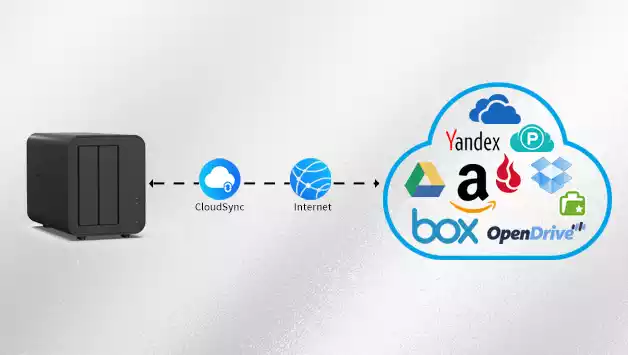
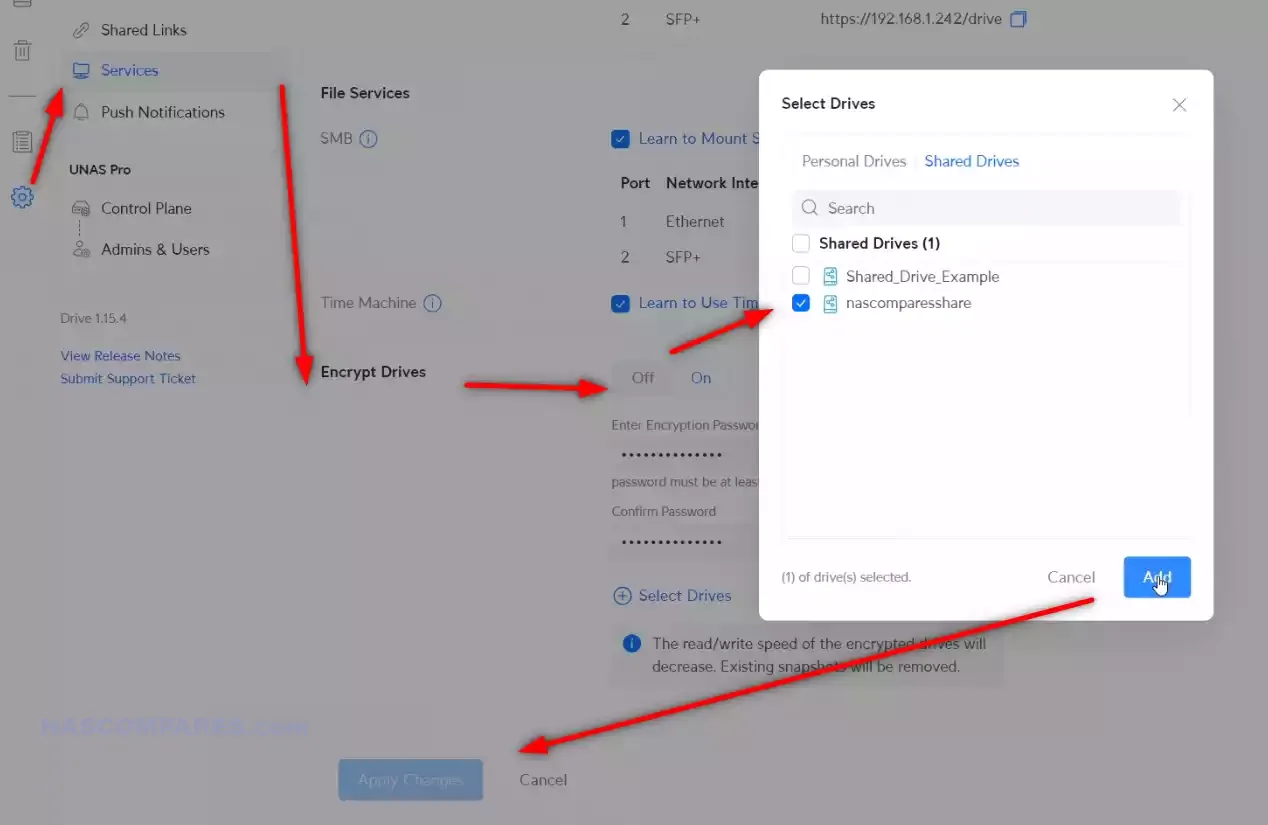
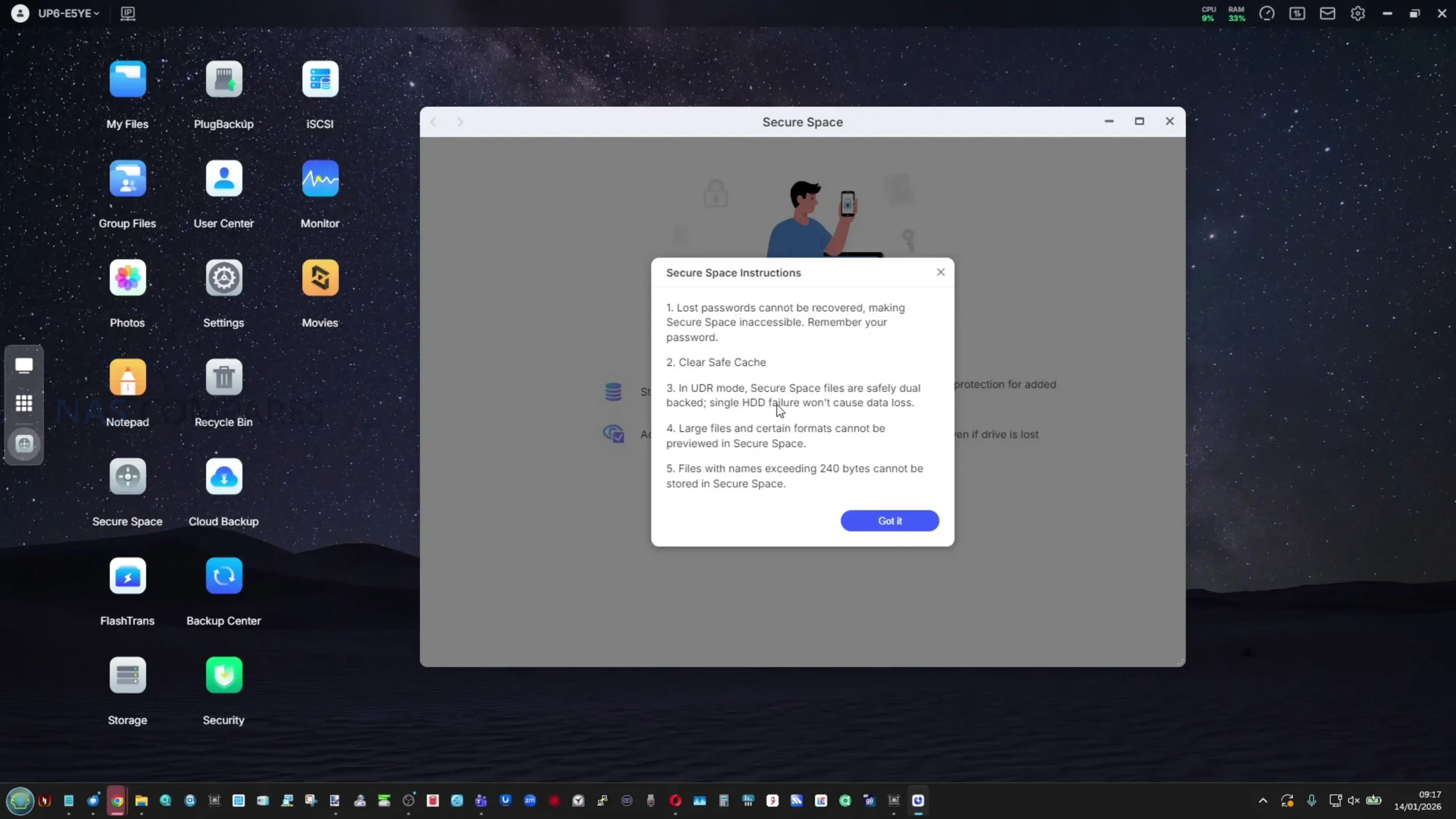
Storage protection features include snapshot support, encrypted volumes, and configurable retention policies, which addresses most common rollback and recovery needs for file storage. Backup tooling covers several targets, including backing up to another UniFi NAS, to SMB targets, and to cloud services such as Google Drive, OneDrive, Dropbox, Amazon S3, Backblaze B2, and Wasabi, with Microsoft 365 backup support also part of the broader UniFi Drive direction. These features reflect the brand’s recent focus on strengthening data protection rather than expanding into application hosting or media server style functionality.

The gaps are consistent with the product’s current scope. There is no iSCSI target support, which limits certain virtualization and block-storage workflows, and there is no container or VM layer for running third party services directly on the NAS. NVMe usage remains limited to caching rather than becoming its own storage pool, which narrows the performance paths available if the goal is to build a small all-flash volume.

Client-side tooling is also still limited compared with platforms that provide a dedicated sync-and-pin application, with access leaning on standard network shares and UniFi’s identity-driven access methods rather than a full drive-style client experience.

UniFi UNAS Pro 4 Review – Conclusion & Verdict

The UNAS Pro 4 is a focused 1U, 4 bay NAS that prioritizes networked file storage and straightforward deployment over broader application support. The hardware choices align with that goal: dual 10Gb SFP+ connectivity, 4 hot swap bays, and optional NVMe caching provide a platform that can deliver strong file transfer rates for a small array, while the ARM-based design keeps the system positioned as an appliance rather than a general-purpose server. Its main compromises are largely structural rather than hidden: fixed bay count with no expansion path, NVMe limited to cache, no USB I/O for local tasks, and a single internal PSU rather than a hot swap redundant design.

At $499, the value case is driven by how much rack-oriented networking is included at a price that undercuts many comparable 1U NAS systems, especially those offering 10Gb as standard. The software is usable for core storage tasks and has clearly improved over the last year in areas like snapshots and backup targets, but it still leaves out features that matter to some buyers, including iSCSI and a fuller client sync experience. For users who want a compact rack NAS primarily for SMB or NFS file storage with modern backup and snapshot features, it fits its role well; for users expecting a broader NAS app ecosystem or more hardware serviceability, the limitations are likely to be decisive. But, as Delboy once said, at this price, “what do you want? Jam on it?”. This system is giving more at this price than anyone else right now and for its limitations, for many these will be paletable in the grand scheme of things. 1U 4Bay rackmounts has always been something that most turnkey NAS brands treat poorly, due to the low saturation point of four SATA drives and why waste more capable hardware on that? In that sense, Ubiquiti is really piling on the hardware here at this price – and I for one applaud this.

Here are all the current UniFi NAS Solutions & Prices:
  • UniFi UNAS Pro 4 (4 Bay + 2x M.2, $499) – HERE
  • UniFi UNAS 2 (2 Bay, $199) – HERE
  • UniFi UNAS 4  (4 Bay + 2x M2, $379) – HERE
  • UniFi UNAS Pro (7 Bay, $499) – HERE
  • UniFi UNAS Pro 8 (8-Bay + 2x M.2, $799) HERE

You can buy the UniFi UNAS Pro 4 NAS via the link below – doing so will result in a small commission coming to me and Eddie at NASCompares, and allows us to keep doing what we do! 

PROs of the UniFi UNAS Pro 4 NAS PROs of the UniFi UNAS Pro 4 NAS
  • Dual 10Gb SFP+ networking is unusual in a 1U 4 bay NAS at this price point + failover will not result in bandwidth throttle

  • A separate 1GbE port is useful for management or fallback connectivity

  • 1U chassis with relatively short depth is easier to fit in smaller racks and cabinets

  • Rails and rack hardware included, reducing extra setup cost and friction

  • Ubiquiti and UniFi online/brand services are optional (i.e pure offline/LAN is possible)+ no need for a Ubiquiti/UniFi network setup to use

  • NVMe read and write caching support can improve responsiveness in mixed workloads

  • UniFi Drive provides snapshots, encryption, and a broad set of backup targets (NAS, SMB, and multiple cloud providers)

  • Setup and management are streamlined, especially for users already running UniFi infrastructure

  • Drive 4.0 Update scales up the Business Utilities notably
  • NVMe is cache only, with no option to use M.2 drives as primary storage pools

  • NVMe trays or carriers are not included, adding extra cost and an extra purchase step

  • Single PSU (no redundency) and non-slide removable SFX/ATX PSU (relies on propriatary UniFi Battery Backup rack module or external UPS)

  • No NAS Expansion Support, so 4 HDDs are your limit


📧 SUBSCRIBE TO OUR NEWSLETTER 🔔
[contact-form-7]
🔒 Join Inner Circle

Get an alert every time something gets added to this specific article!


Want to follow specific category? 📧 Subscribe

This description contains links to Amazon. These links will take you to some of the products mentioned in today's content. As an Amazon Associate, I earn from qualifying purchases. Visit the NASCompares Deal Finder to find the best place to buy this device in your region, based on Service, Support and Reputation - Just Search for your NAS Drive in the Box Below

Need Advice on Data Storage from an Expert?

Finally, for free advice about your setup, just leave a message in the comments below here at NASCompares.com and we will get back to you. Need Help? Where possible (and where appropriate) please provide as much information about your requirements, as then I can arrange the best answer and solution to your needs. Do not worry about your e-mail address being required, it will NOT be used in a mailing list and will NOT be used in any way other than to respond to your enquiry. [contact-form-7] TRY CHAT Terms and Conditions

If you like this service, please consider supporting us. We use affiliate links on the blog allowing NAScompares information and advice service to be free of charge to you.Anything you purchase on the day you click on our links will generate a small commission which isused to run the website. Here is a link for Amazon and B&H.You can also get me a ☕ Ko-fi or old school Paypal. Thanks!To find out more about how to support this advice service check HEREIf you need to fix or configure a NAS, check Fiver Have you thought about helping others with your knowledge? Find Instructions Here  

 
Or support us by using our affiliate links on Amazon UK and Amazon US
    
 
Alternatively, why not ask me on the ASK NASCompares forum, by clicking the button below. This is a community hub that serves as a place that I can answer your question, chew the fat, share new release information and even get corrections posted. I will always get around to answering ALL queries, but as a one-man operation, I cannot promise speed! So by sharing your query in the ASK NASCompares section below, you can get a better range of solutions and suggestions, alongside my own.

☕ WE LOVE COFFEE ☕


Terramaster F4-425 NAS – Should You Buy This NAS?

The Terramaster F4-425 Value Intel 4-Bay – Does It Deserve your Data?

The TerraMaster F4-425 is positioned as a lower cost entry point into the company’s Intel based NAS lineup for the 2025 to 2026 generation, sitting below the Plus, Pro, and Max series models. It combines a 4 bay desktop chassis with the Intel Celeron N5095, 4GB of DDR4 memory with upgrade support up to 16GB, and a single 2.5GbE network interface. This places it squarely in the middle ground between basic ARM powered NAS systems and more fully featured x86 solutions with higher network bandwidth and NVMe expansion. The appeal of the F4-425 lies in its balance rather than specialization, offering enough CPU performance for multi user file access, media streaming, and general application use, while keeping cost, noise, and power consumption relatively controlled. It is clearly designed for users who want an Intel based NAS for everyday storage and media tasks, but who do not necessarily need the higher throughput, expansion options, or future scalability found in TerraMaster’s more expensive models.

SOFTWARE - 8/10
HARDWARE - 7/10
PERFORMANCE - 6/10
PRICE - 9/10
VALUE - 8/10


7.6
PROS
👍🏻Competitive Intel-Based Value in a 4 Bay Format with the F4-425 vs other Intel Entry Systems
👍🏻Flexible Storage Management With TRAID and TRAID Plus in the F4-425
👍🏻Balanced Performance for Media and Multi-User Access of the F4-425 system
👍🏻Practical Software Feature Set With TOS 6 of the F4-425
👍🏻Flexible Platform for Turnkey or DIY NAS Use with the F4-425
CONS
👎🏻Single 2.5GbE Network Port Limits Throughput of the F4-425
👎🏻1.7 Lack of NVMe Expansion Limits Internal Performance in the F4-425
👎🏻Aging CPU Platform for a New Generation NAS of the F4-425
👎🏻HDMI Output With No Practical Software Use on the F4-425
👎🏻Overlap With Better Equipped Models in the Same Lineup of the F4-425


Where to Buy a Product
amzamexmaestrovisamaster 24Hfree delreturn VISIT RETAILER ➤ 
amzamexmaestrovisamaster 24Hfree delreturn VISIT RETAILER ➤

Amazon in Your Region Terramaster F4-425 on AliExpress B&H NAS Shop

Competitive Intel-Based Value in a 4 Bay Format with the F4-425 vs other Intel Entry Systems

One of the key advantages of the F4-425 is how it positions itself within the x86 turnkey NAS market, particularly in the 4 bay segment. Systems that combine an Intel processor, upgradeable memory, and faster than gigabit networking are typically aimed at prosumer or small business buyers and often carry a noticeably higher price. The F4-425 offers a complete, ready to use solution that includes TerraMaster’s TOS 6 operating system, allowing users to deploy storage, backups, and shared services without needing to install or license additional software.

This lowers the overall barrier to entry for buyers who want an Intel based NAS primarily for general purpose storage, media streaming, or light application hosting. While it does not compete directly with higher end 4 bay systems that include multi LAN configurations or NVMe expansion, it delivers a core x86 experience at a price level that is more approachable, especially for users who do not plan to saturate network bandwidth or push heavy virtualization workloads.

Flexible Storage Management With TRAID and TRAID Plus in the F4-425

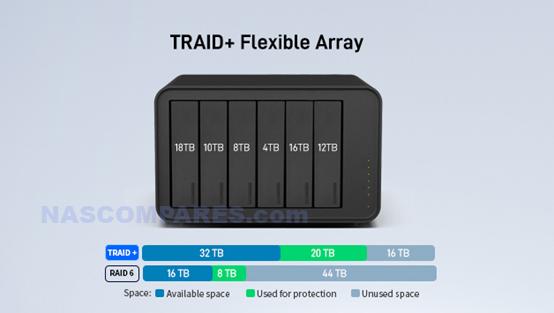
A notable strength of the F4-425 is its support for TerraMaster’s TRAID and TRAID Plus storage systems, which are particularly relevant in a 4 bay enclosure. Traditional RAID configurations often require matched drive sizes to avoid wasted capacity, and expanding an array later can involve rebuilding or replacing multiple disks at once. TRAID reduces this rigidity by allowing mixed capacity drives to be used more efficiently over time, automatically organizing available space while maintaining redundancy.

In a 4 bay system, this becomes more practical, as users are more likely to add drives gradually or replace older disks with higher capacity models as prices fall. The result is a storage setup that is easier to grow incrementally without complex planning. For users managing a family media library, backups from multiple devices, or shared data across several users, this flexibility can simplify long term storage expansion while reducing the need for disruptive migrations.

Balanced Performance for Media and Multi-User Access of the F4-425 system

The F4-425 offers a level of performance that is generally well suited to shared home or small office environments, particularly where multiple users are accessing data simultaneously. The Intel Celeron N5095 provides enough processing headroom to handle file transfers, background services, and media applications without the system feeling unresponsive under light to moderate load. In a 4 bay configuration, this performance profile pairs well with mixed workloads, such as ongoing backups, media indexing, and concurrent playback through applications like Plex, Emby, or Jellyfin using hardware assisted 4K decoding. While it is not intended for heavy virtualization or sustained high throughput tasks, the F4-425 can comfortably support several users accessing files or streaming content at the same time. This makes it suitable for households or teams where shared access and consistency are more important than peak benchmark performance.

Practical Software Feature Set With TOS 6 of the F4-425

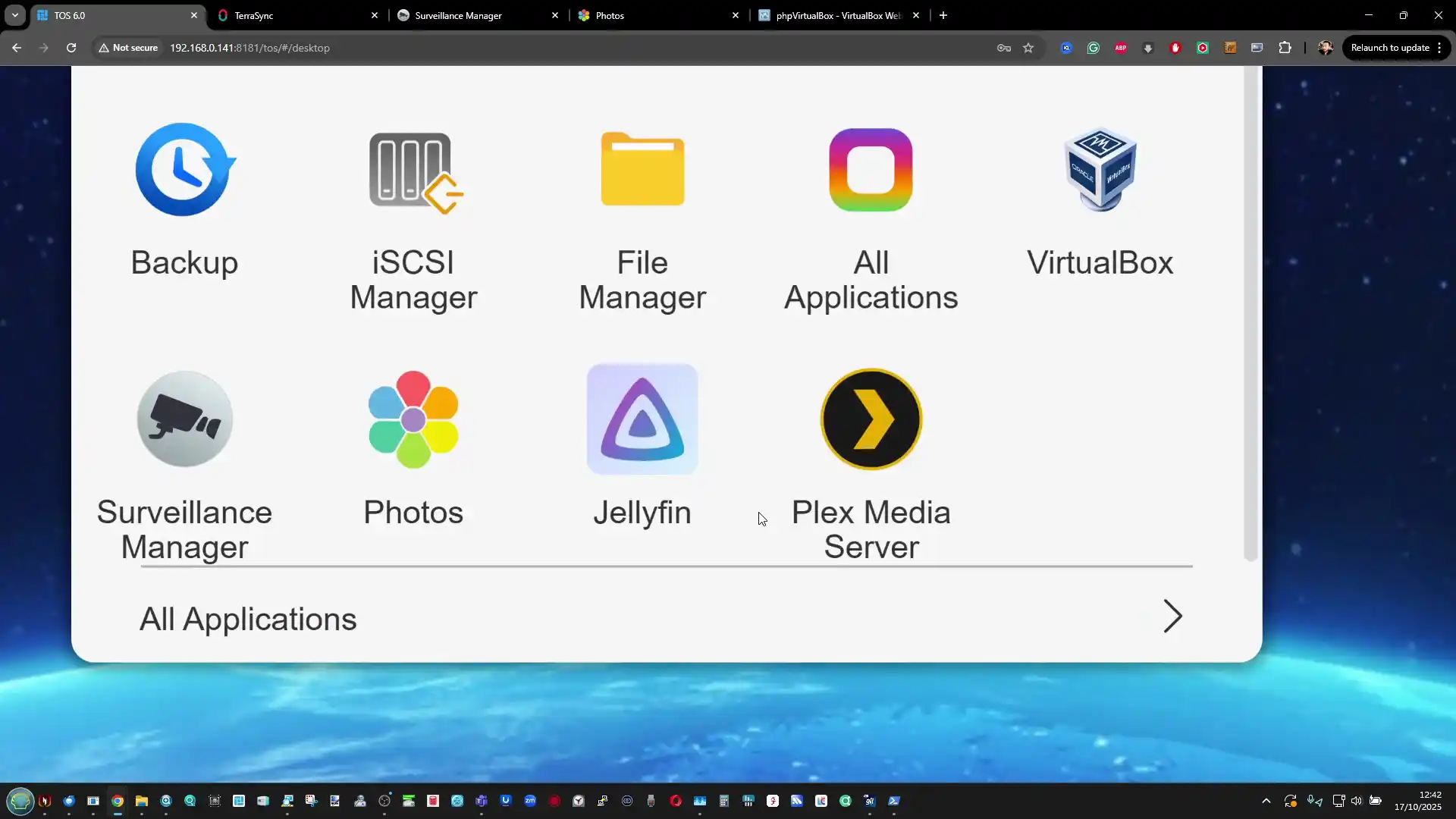
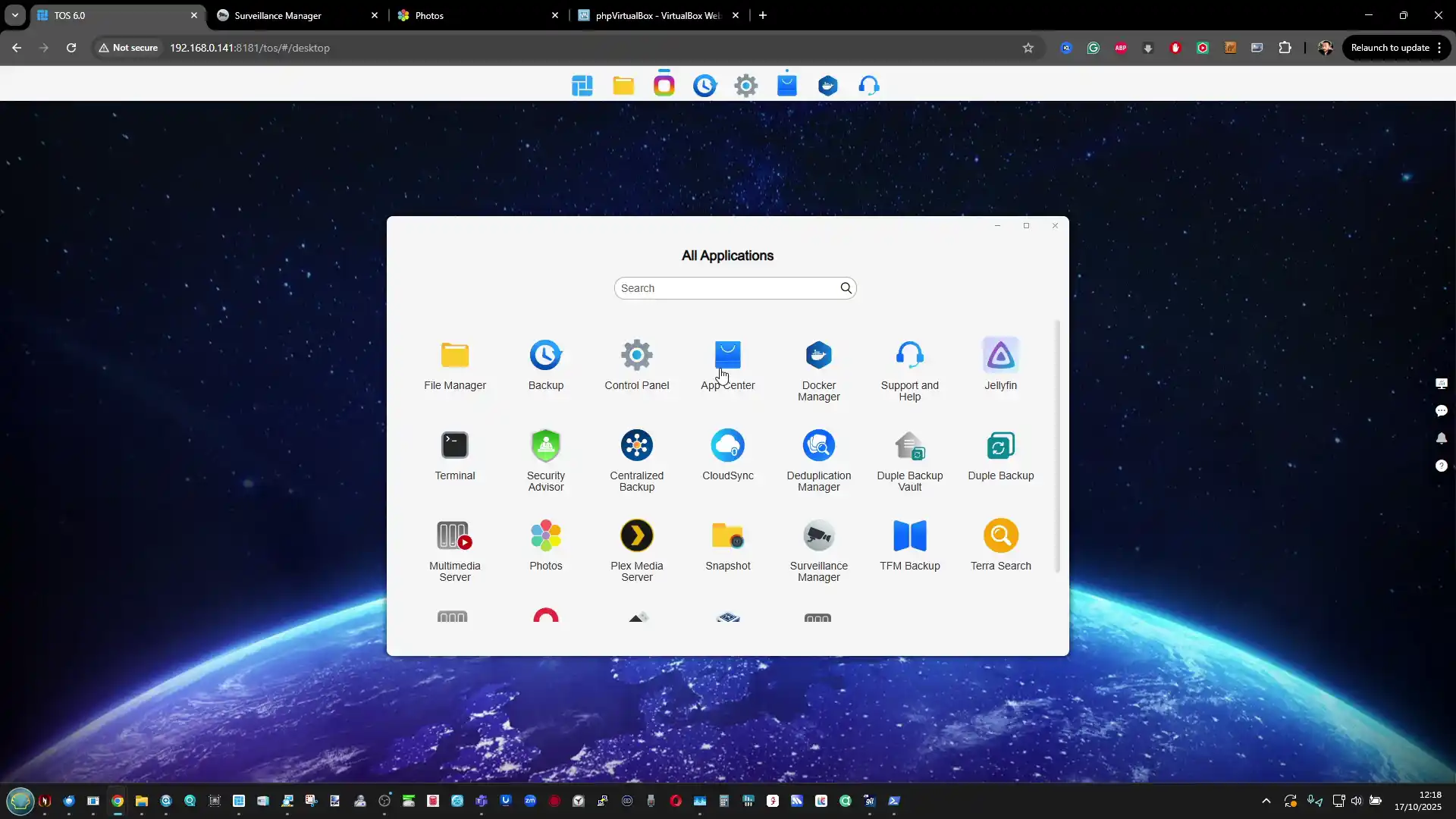
The F4-425 benefits from TerraMaster’s TOS 6 operating system, which provides a broad and functional software environment without requiring additional licenses or complex setup. The platform includes native tools for file sharing, snapshots, cloud synchronization, and multi device backups, allowing the NAS to act as a central data hub for several users. In a 4 bay system, these features become more relevant as storage is often shared across multiple PCs, mobile devices, and services.

TOS 6 also supports container based applications and virtualization features that, while limited by the underlying hardware, can still be useful for light workloads such as small services or test environments. The software is not as polished as some higher profile NAS platforms, but it offers a level of depth that covers most common use cases and reduces the need to rely on third party tools for everyday management.

Flexible Platform for Turnkey or DIY NAS Use with the F4-425

An often overlooked advantage of the F4-425 is how accommodating it is for users who may want to move beyond the included operating system in the future. While it is sold and marketed as a complete turnkey NAS with TOS 6, the underlying x86 architecture allows relatively straightforward installation of alternative NAS operating systems such as TrueNAS, Unraid, or other Linux based platforms. TerraMaster does not restrict this process at the firmware level, and using third party software does not invalidate the hardware warranty. In a 4 bay system, this flexibility can extend the useful lifespan of the device, particularly for users whose storage needs or technical confidence evolve over time. The presence of HDMI output and KVM support simplifies local setup when experimenting with other operating systems, even if that HDMI port is not fully utilized by TOS itself. This dual role as both a turnkey appliance and a potential DIY platform adds practical long term value for more technically inclined users.

Single 2.5GbE Network Port Limits Throughput of the F4-425

A clear limitation of the F4-425 is its networking configuration, which consists of a single 2.5GbE port with no additional LAN interfaces or internal upgrade options. In a 4 bay NAS, this can quickly become a bottleneck once multiple drives are active, particularly in RAID configurations that are capable of delivering higher aggregate read and write performance than the network interface can carry. Even with mechanical hard drives, it is possible to saturate a 2.5GbE connection under sequential workloads, and this leaves little headroom for multiple users or concurrent tasks.

The lack of link aggregation, 5GbE, or 10GbE options also limits the system’s suitability for users with faster network infrastructure or plans to upgrade in the future. While USB based network adapters can be added, this introduces extra cost and complexity, and it does not fully compensate for the absence of native multi port or higher speed networking in a 4 bay chassis.

Lack of NVMe Expansion Limits Internal Performance in the F4-425

The absence of any M.2 NVMe slots on the F4-425 places a clear ceiling on its internal performance and storage flexibility. In a 4 bay Intel based NAS released into the 2025 to 2026 market, NVMe support is commonly expected, either for SSD caching or for high speed storage pools that can absorb bursts of activity and improve responsiveness under mixed workloads. Without NVMe, all storage activity is constrained to SATA drives, which limits the benefits of the x86 platform when running applications, containers, or multiple background services. This is particularly relevant in scenarios where the system is handling indexing, backups, and media access at the same time. While TerraMaster offers other models in its lineup with extensive NVMe support, the omission here means the F4-425 cannot be easily optimized for latency sensitive tasks, regardless of how much memory is added or how the drives are configured.

Aging CPU Platform for a New Generation NAS of the F4-425

The F4-425 relies on the Intel Celeron N5095, a processor that has been widely used across multiple NAS generations and is now showing its age in the context of newer Intel platforms. While it remains capable of handling file services, media transcoding, and light application workloads, it lacks the efficiency and performance improvements found in more recent Intel N series processors. In a 4 bay system, this matters because the hardware is more likely to be tasked with simultaneous operations such as multi user access, background maintenance, and application services. The N5095 can manage these workloads, but it does so with less headroom than newer alternatives, which can impact long term relevance. As software platforms continue to add features and increase baseline requirements, the CPU choice places a practical limit on how far the system can scale over time.

HDMI Output With No Practical Software Use on the F4-425

The inclusion of an HDMI port on the F4-425 may appear useful on paper, but in practice it offers limited functionality within TerraMaster’s software environment. The HDMI output is primarily used for basic system information and troubleshooting during boot, rather than providing a usable local interface or media output experience. There is no native desktop mode, multimedia interface, or direct playback environment available through TOS that would allow the NAS to function as a locally controlled media device. In a 4 bay system with an Intel CPU capable of hardware video decoding, this unused output can feel like missed potential, especially when other NAS vendors and newer platforms have begun to implement functional HDMI driven interfaces. While the port can be helpful when installing third party operating systems, its role within the default configuration remains minimal.

Overlap With Better Equipped Models in the Same Lineup of the F4-425

A practical concern with the F4-425 is how closely it sits to other TerraMaster models that offer substantially more capability for a relatively modest increase in cost. Within the same product family, there are options that add faster networking, NVMe expansion, additional LAN ports, or more modern Intel processors, sometimes at a price difference that may be difficult to justify ignoring. For buyers who already anticipate growing storage needs, higher throughput, or heavier application use, the F4-425 can feel constrained when compared directly against these alternatives. This internal competition weakens its long term value proposition, as users may find that spending slightly more upfront would avoid the limitations around bandwidth and expansion that cannot be addressed later through upgrades.

Conclusion and Verdict of the F4-425 Review – Should You Buy?

The TerraMaster F4-425 is best understood as a deliberately constrained Intel based NAS that prioritizes affordability and simplicity over expandability and peak performance. It delivers competent multi user storage, media streaming, and general NAS functionality in a 4 bay format, supported by a software platform that covers most common requirements without forcing reliance on third party tools. Its strengths lie in predictable behavior, flexible RAID options, and openness to alternative operating systems, rather than cutting edge hardware features. For users with clearly defined needs who value an x86 platform but do not expect to push high bandwidth workflows or advanced storage tiers, the F4-425 can meet expectations without unnecessary complexity. At the same time, its limitations are structural rather than temporary. The single 2.5GbE port, absence of NVMe expansion, and older CPU architecture set firm boundaries on future growth. These constraints become more apparent when viewed alongside other models in TerraMaster’s own lineup that address these gaps at a higher but not disproportionate cost. As a result, the F4-425 makes the most sense for buyers who want a straightforward Intel NAS for shared storage and media use today, and who are comfortable accepting that it is not designed to scale significantly beyond that role.

Amazon in Your Region Terramaster F4-425 PLUS B&H NAS Shop


📧 SUBSCRIBE TO OUR NEWSLETTER 🔔
[contact-form-7]
🔒 Join Inner Circle

Get an alert every time something gets added to this specific article!


Want to follow specific category? 📧 Subscribe

This description contains links to Amazon. These links will take you to some of the products mentioned in today's content. As an Amazon Associate, I earn from qualifying purchases. Visit the NASCompares Deal Finder to find the best place to buy this device in your region, based on Service, Support and Reputation - Just Search for your NAS Drive in the Box Below

Need Advice on Data Storage from an Expert?

Finally, for free advice about your setup, just leave a message in the comments below here at NASCompares.com and we will get back to you. Need Help? Where possible (and where appropriate) please provide as much information about your requirements, as then I can arrange the best answer and solution to your needs. Do not worry about your e-mail address being required, it will NOT be used in a mailing list and will NOT be used in any way other than to respond to your enquiry. [contact-form-7] TRY CHAT Terms and Conditions
If you like this service, please consider supporting us. We use affiliate links on the blog allowing NAScompares information and advice service to be free of charge to you.Anything you purchase on the day you click on our links will generate a small commission which isused to run the website. Here is a link for Amazon and B&H.You can also get me a ☕ Ko-fi or old school Paypal. Thanks!To find out more about how to support this advice service check HEREIf you need to fix or configure a NAS, check Fiver Have you thought about helping others with your knowledge? Find Instructions Here  

 
Or support us by using our affiliate links on Amazon UK and Amazon US
    
 
Alternatively, why not ask me on the ASK NASCompares forum, by clicking the button below. This is a community hub that serves as a place that I can answer your question, chew the fat, share new release information and even get corrections posted. I will always get around to answering ALL queries, but as a one-man operation, I cannot promise speed! So by sharing your query in the ASK NASCompares section below, you can get a better range of solutions and suggestions, alongside my own.

☕ WE LOVE COFFEE ☕


Gl.iNet Beryl 7 Travel Router GL-MT3600BE Review

Gl.iNet Beryl 7 Review – Best Budget WiFi 7 Travel Router

The Beryl 7 (GL-MT3600BE) is a compact dual band Wi Fi 7 travel router developed by GL.iNet as the successor to the Beryl AX (GL-MT3000), positioned as a mid range portable networking solution that introduces Wi Fi 7 support, dual 2.5GbE ports, and substantially higher VPN throughput while remaining priced at 139.99 dollars. Unlike traditional home routers designed for fixed installations and wide coverage, the Beryl 7 is intended for temporary and mobile deployments such as hotel rooms, shared offices, dorm setups, and remote work environments where portability and flexibility are priorities. Within the travel router segment, the Beryl series has focused on balancing price, control, and performance, and this model shifts further toward higher throughput networking, particularly in wired connectivity and encrypted traffic handling. With advertised VPN speeds of up to 1100Mbps via WireGuard and 1000Mbps via OpenVPN DCO, it exceeds many similarly sized travel routers that remain limited to 1GbE and lower VPN acceleration, yet it does not attempt to compete with higher cost tri band Wi Fi 7 devices that include 6GHz radios. Instead, it sits between entry-level Wi-Fi 6 travel routers and more expensive portable options such as the Slate 7, offering newer wireless standards without entering premium desktop router pricing from brands like Netgear or ASUS. Although branded as Wi Fi 7, it operates on 2.4GHz and 5GHz only, without 6GHz support, limiting full spectrum capability but still enabling features such as Multi Link Operation across its two bands. The device is aimed at technically aware users and frequent travelers who require advanced routing controls, VPN flexibility, and OpenWrt-based customisation in a compact chassis measuring 120 x 83 x 34mm and weighing 205g, modernizing the travel router category without moving into high end pricing tiers.

Category Specification
Model GL-MT3600BE
Wi Fi Standard IEEE 802.11a/b/g/n/ac/ax/be
Wi Fi Speed 688Mbps (2.4GHz) + 2882Mbps (5GHz)
Ethernet Ports 1 x 2.5GbE WAN, 1 x 2.5GbE LAN
USB 1 x USB 3.0
CPU MediaTek Quad core @2.0GHz
Memory 512MB DDR4
Storage 512MB NAND Flash
VPN Speed Up to 1100Mbps WireGuard, 1000Mbps OpenVPN DCO
Power Input USB C (5V/3A, 9V/3A, 12V/2.5A)
Dimensions 120 x 83 x 34mm
Weight 205g

Gl.iNet Beryl 7 Review – Quick Conclusion

The Beryl 7 (GL-MT3600BE) is a compact dual band Wi Fi 7 travel router from GL.iNet that builds on the Beryl AX by adding dual 2.5GbE ports, a quad core 2.0GHz MediaTek CPU, 512MB DDR4 memory, 512MB flash storage, and substantially higher VPN throughput of up to 1100Mbps via WireGuard and 1000Mbps via OpenVPN DCO, while maintaining a portable near pocket sized scale and just 205g in weight. It supports Wi Fi 7 features such as Multi Link Operation across 2.4GHz and 5GHz, but omits 6GHz and 320MHz channel width, limiting full spectrum Wi Fi 7 capability. Design priorities include silent passive cooling, foldable antennas, minimal LEDs, and a programmable hardware toggle for VPN control, alongside flexible connectivity through wired WAN, LAN, repeater mode, and USB tethering with automatic failover. Boot time is approximately 51 seconds, captive portal access is typically achieved in around 35 seconds, power draw ranges from roughly 3.7W to 6.7W depending on load, and thermals remain stable under sustained use. The OpenWrt based firmware provides both simplified management and full LuCI access, plus an app ecosystem and GoodCloud remote management, though USB storage performance remains limited to around 50MB/s to 70MB/s and only a single USB port is available. Positioned between entry level Wi Fi 6 travel routers and higher priced portable Wi Fi 7 models such as the Slate 7, it does not include integrated battery, SIM, or 6GHz support, but offers strong wired flexibility, fast VPN acceleration, and granular configuration control at 139.99 dollars, making it a technically capable and competitively placed option for travel and temporary network deployments.

SOFTWARE - 10/10
HARDWARE - 7/10
PERFORMANCE - 8/10
PRICE - 8/10
VALUE - 8/10


8.2
PROS
👍🏻Dual 2.5GbE WAN and LAN ports enable multi gig wired connectivity
👍🏻WireGuard performance up to 1100Mbps with strong OpenVPN DCO throughput
👍🏻Wi Fi 7 support with Multi Link Operation across 2.4GHz and 5GHz
👍🏻Compact 120 x 83 x 34mm chassis with 205g weight for travel deployment
👍🏻Low power consumption between ~3.7W and ~6.7W under typical loads
👍🏻Fast boot time of approximately 51 seconds from cold start
👍🏻Robust OpenWrt based firmware with full LuCI access and app ecosystem
👍🏻Multi WAN failover across wired, repeater, and USB tethering sources
CONS
👎🏻No 6GHz band support, limiting full Wi Fi 7 capability
👎🏻USB storage performance limited to approximately 50MB/s to 70MB/s
👎🏻Only 1 USB 3.0 port, restricting simultaneous tethering and storage use

Buy the Gl.iNet Beryl 7 from Amazon Below: Buy the Gl.iNet Beryl 7 from the Official Store Below:

Gl.iNet Beryl 7 Review – Design and Connectivity

The Beryl 7 follows the compact design language established by earlier Beryl models, maintaining a footprint of 120 x 83 x 34mm and a weight of 205g. It is not pocket sized in the strictest sense, but it remains small enough to fit easily into hand luggage, a laptop bag, or a cable pouch. The chassis uses rounded edges rather than sharp corners, which makes it easier to handle and store alongside other equipment. Ventilation is distributed around the casing to support passive cooling, and there is no internal fan, meaning operation is silent under load.

A distinguishing visual change compared to previous models is the mint green finish, which replaces the darker tones commonly associated with networking hardware. While aesthetic preference is subjective, the color makes the device visually distinct from most black or grey travel routers on the market. The overall construction feels rigid, and the dual external antennas are foldable and adjustable up to 180°, allowing users to reposition them depending on orientation and signal direction.

In terms of physical connectivity, the Beryl 7 includes 2 x 2.5GbE ports, configurable as 1 x WAN and 1 x LAN. This is a notable upgrade over older 1GbE limited travel routers and enables higher throughput when connected to multi gig internet services or high speed local networks. For portable scenarios, this can be relevant in environments such as serviced apartments or offices where faster wired backhaul is available. The inclusion of 2.5GbE on both ports provides flexibility, particularly when using the router in bridge, repeater, or failover configurations.

A single USB 3.0 Type A port is located on the side, supporting external storage devices or USB tethering from a smartphone. While it provides expansion capability, the presence of only one USB port means users must choose between storage and tethering unless they rely on a powered hub, which may introduce stability or power delivery considerations.

Power is delivered via a USB C input, supporting 5V/3A, 9V/3A, and 12V/2.5A. This allows the router to be powered by standard phone chargers, power banks, or USB outlets commonly found on transport systems.

Additional physical controls include a reset button and a programmable toggle button. The toggle button can be configured for tasks such as enabling or disabling a VPN or switching network modes, providing quick hardware level control without accessing the web interface. LED indicators are minimal and can be adjusted or disabled via software, reducing visual distraction in low light environments. Overall, the design prioritizes portability, silent operation, and practical connectivity over integrated batteries or cellular modems, reflecting its focus on wired and Wi Fi based networking rather than standalone mobile broadband functionality.

Gl.iNet Beryl 7 Review – Internal Hardware

The Beryl 7 is built around a MediaTek quad core processor running at 2.0GHz, marking a clear step up from the dual core 1.3GHz platform used in the previous Beryl AX. This increase in core count and clock speed directly supports higher VPN throughput, improved multi WAN handling, and better performance under concurrent client load. In portable routing scenarios where encryption, traffic shaping, and failover may be active simultaneously, the additional processing headroom is relevant, particularly when compared to entry level travel routers that rely on lower power chipsets.

Memory and storage are provisioned at 512MB DDR4 RAM and 512MB NAND flash. The RAM capacity is sufficient for running multiple services concurrently, including VPN client or server roles, firewall rules, and installed plugins through the OpenWrt environment. The increased flash storage compared to the Beryl AX allows for a broader range of optional packages and services without immediately encountering storage constraints. For users intending to extend functionality beyond basic routing, this additional internal space provides practical flexibility.

On the wireless side, the router supports dual band Wi Fi 7 operation across 2.4GHz and 5GHz, with theoretical combined speeds of 3600Mbps. While it does not include 6GHz support, it does retain Multi Link Operation across the available bands, enabling simultaneous use of both radios for compatible clients. The internal architecture is therefore designed to balance power efficiency and thermal stability with next generation protocol support, rather than pursuing maximum theoretical bandwidth at the expense of heat output or energy draw.

Gl.iNet Beryl 7 Review – Software and Services

The Beryl 7 runs a customized OpenWrt based firmware developed by GL.iNet, providing a layered interface that caters to both general users and more technically experienced administrators. The primary web interface presents a structured dashboard for managing WAN connections, Wi Fi networks, VPN profiles, client devices, and failover rules without requiring direct interaction with raw OpenWrt configuration files. For users who prefer deeper customization, full access to the underlying OpenWrt LuCI environment is available, allowing granular control over firewall rules, routing tables, VLAN configuration, and advanced networking parameters.

VPN functionality is a central component of the platform. The router supports both client and server modes, including WireGuard and OpenVPN with DCO acceleration. Configuration can be handled manually or through profile imports from commercial VPN providers. A physical toggle button on the device can be assigned to enable or disable VPN connections instantly, providing hardware level control without logging into the interface. This is particularly relevant in travel scenarios where switching between encrypted and non encrypted traffic may be necessary for compatibility with certain captive portals or services.

Multi WAN support is integrated into the firmware, enabling wired WAN, Wi Fi repeater mode, and USB tethering to operate in combination or as automatic failover paths. Users can define priority levels so that if one connection drops, the router transitions to another within seconds.

This feature is typically found in larger business oriented routers and is less common in compact travel models. The ability to combine wired and wireless sources adds resilience in temporary setups where network stability may vary.

An integrated app center allows additional services to be installed directly onto the router’s internal storage or external USB storage if attached. These may include ad blocking tools, network monitoring utilities, file sharing services, and lightweight media server applications. While performance is limited by the ARM based hardware and USB throughput, the software ecosystem provides flexibility beyond standard routing tasks. Remote management is also supported through the GoodCloud platform, enabling off site monitoring and configuration if required.

Gl.iNet Beryl 7 Review – Tests and Performance

Boot time from a full power off state to complete interface availability measured approximately 51 seconds, which is relatively quick for a router running a full OpenWrt based stack. Accessing and connecting to a public Wi Fi network, including reaching a captive portal login page, typically took around 35 seconds from initial startup. In practical travel scenarios, this reduces setup friction when moving between networks in hotels, cafés, or shared office environments.

Power consumption remained low across multiple usage patterns. With 3 wireless client devices streaming 4K video simultaneously, draw averaged between 3.7W and 3.8W. Under heavier mixed load involving multiple wireless clients, an active wired WAN and LAN connection, and repeated speed testing, consumption increased to roughly 5W to 6W. When adding a USB connected SSD and sustained traffic, readings reached approximately 6.4W to 6.7W. These figures allow the device to be powered reliably by common USB C chargers and mid capacity power banks without stability issues.

Thermal behavior reflected the passive cooling design. After 1 hour of sustained wireless streaming load, external casing temperatures remained around 41°C to 42°C. Under heavier combined wired and wireless traffic for a similar duration, surface temperatures rose to approximately 51°C to 54°C, with localized vent readings reaching about 56°C. No thermal throttling was observed during testing, and the absence of an internal fan resulted in silent operation throughout.

VPN throughput and failover functionality were key performance areas. Using WireGuard, speeds approached the advertised 1100Mbps ceiling under favorable conditions, while OpenVPN DCO performance reached close to 1000Mbps over Ethernet. Compared to non VPN traffic, throughput reductions of roughly 20% to 25% were observed depending on server location and encryption overhead. Multi WAN failover switching between wired, repeater, and tethered connections typically completed within 4 to 5 seconds, maintaining active sessions in most cases. USB storage performance, however, was limited, with transfer rates generally between 50MB/s and 70MB/s, indicating that while file sharing is possible, it is not a replacement for a dedicated NAS.

Gl.iNet Beryl 7 Review – Verdict and Conclusion

The Beryl 7 (GL-MT3600BE) represents an incremental but meaningful update to the Beryl travel router line. It introduces dual 2.5GbE connectivity, significantly higher VPN throughput, and Wi Fi 7 protocol support within a compact and low power chassis. Its strengths lie in wired flexibility, strong encryption performance, multi WAN failover capability, and the depth of control provided by its OpenWrt based firmware. Boot times are short, public Wi Fi onboarding is quick, power consumption remains modest even under mixed wired and wireless load, and thermal behavior stays within reasonable limits despite the absence of active cooling. The programmable hardware toggle for VPN control adds practical usability in travel scenarios, and the ability to power the device from common USB C chargers or transport based USB outlets increases deployment flexibility. At the same time, it omits 6GHz support, limiting full spectrum Wi Fi 7 functionality and restricting channel width to 160MHz rather than 320MHz. USB storage performance remains modest compared to dedicated network storage devices, and the single USB port can constrain simultaneous tethering and storage use without additional powered accessories.

In market terms, the device sits between entry level Wi Fi 6 travel routers and higher priced Wi Fi 7 portable platforms such as the Slate 7. It does not attempt to compete with tri band hardware, integrated batteries, SIM or eSIM functionality, or touchscreen management panels. The release timing also places it within a crowded product window that includes closely related models from the same manufacturer, which may narrow differentiation for some buyers. However, at 139.99 dollars, it provides an accessible entry point into multi gig wired networking and high speed VPN acceleration in a travel focused form factor. It does not redefine the category or present itself as a flagship device, but for users who prioritize portability, advanced routing controls, reliable failover, and strong encrypted throughput over full band Wi Fi 7 or integrated mobile broadband features, the Beryl 7 remains a technically competent and competitively positioned option within its segment.

Buy the Gl.iNet Beryl 7 from Amazon Below: Buy the Gl.iNet Beryl 7 from the Official Store Below:


Gl.iNet Beryl 7 PROs Gl.iNet Beryl 7 PROs
  • Dual 2.5GbE WAN and LAN ports enable multi gig wired connectivity

  • WireGuard performance up to 1100Mbps with strong OpenVPN DCO throughput

  • Wi Fi 7 support with Multi Link Operation across 2.4GHz and 5GHz

  • Compact 120 x 83 x 34mm chassis with 205g weight for travel deployment

  • Low power consumption between ~3.7W and ~6.7W under typical loads

  • Fast boot time of approximately 51 seconds from cold start

  • Robust OpenWrt based firmware with full LuCI access and app ecosystem

  • Multi WAN failover across wired, repeater, and USB tethering sources

  • No 6GHz band support, limiting full Wi Fi 7 capability

  • USB storage performance limited to approximately 50MB/s to 70MB/s

  • Only 1 USB 3.0 port, restricting simultaneous tethering and storage use


📧 SUBSCRIBE TO OUR NEWSLETTER 🔔
[contact-form-7]
🔒 Join Inner Circle

Get an alert every time something gets added to this specific article!


Want to follow specific category? 📧 Subscribe

This description contains links to Amazon. These links will take you to some of the products mentioned in today's content. As an Amazon Associate, I earn from qualifying purchases. Visit the NASCompares Deal Finder to find the best place to buy this device in your region, based on Service, Support and Reputation - Just Search for your NAS Drive in the Box Below

Need Advice on Data Storage from an Expert?

Finally, for free advice about your setup, just leave a message in the comments below here at NASCompares.com and we will get back to you. Need Help? Where possible (and where appropriate) please provide as much information about your requirements, as then I can arrange the best answer and solution to your needs. Do not worry about your e-mail address being required, it will NOT be used in a mailing list and will NOT be used in any way other than to respond to your enquiry. [contact-form-7] TRY CHAT Terms and Conditions
If you like this service, please consider supporting us. We use affiliate links on the blog allowing NAScompares information and advice service to be free of charge to you.Anything you purchase on the day you click on our links will generate a small commission which isused to run the website. Here is a link for Amazon and B&H.You can also get me a ☕ Ko-fi or old school Paypal. Thanks!To find out more about how to support this advice service check HEREIf you need to fix or configure a NAS, check Fiver Have you thought about helping others with your knowledge? Find Instructions Here  
 
Or support us by using our affiliate links on Amazon UK and Amazon US
    
 
Alternatively, why not ask me on the ASK NASCompares forum, by clicking the button below. This is a community hub that serves as a place that I can answer your question, chew the fat, share new release information and even get corrections posted. I will always get around to answering ALL queries, but as a one-man operation, I cannot promise speed! So by sharing your query in the ASK NASCompares section below, you can get a better range of solutions and suggestions, alongside my own.

☕ WE LOVE COFFEE ☕


Jonsbo N6 DIY NAS Case Review

Jonsbo N6 DIY NAS Case Review

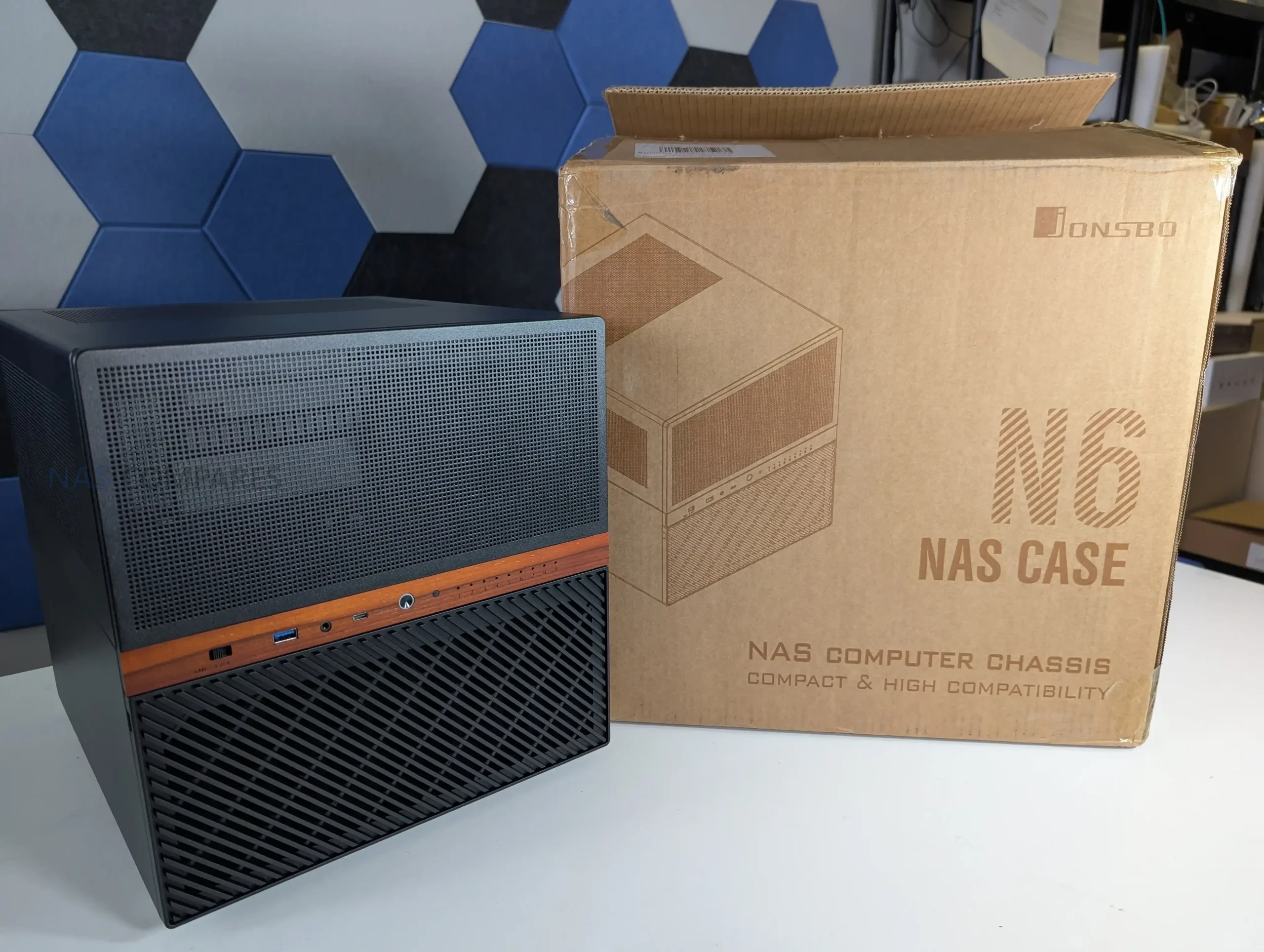
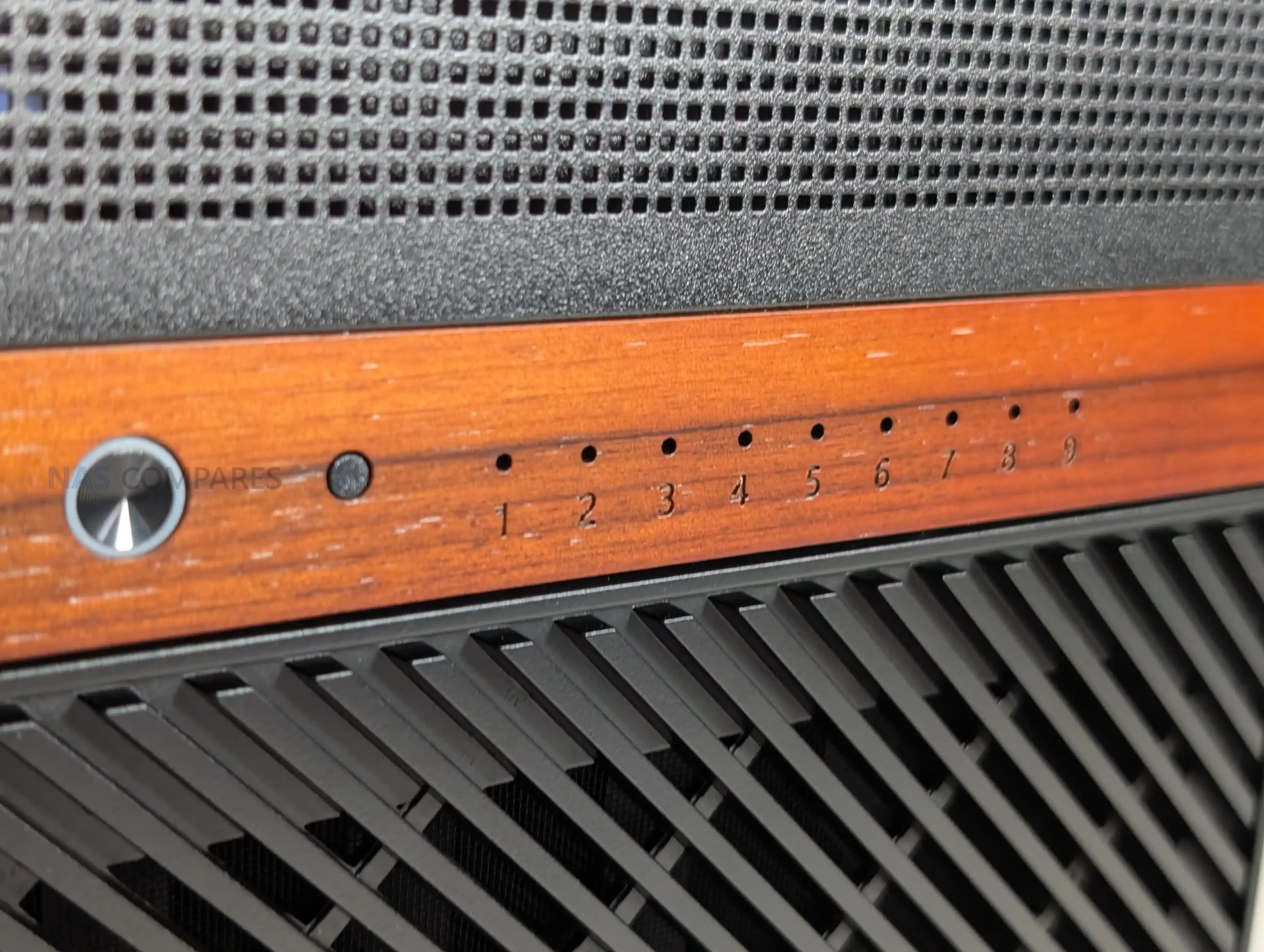
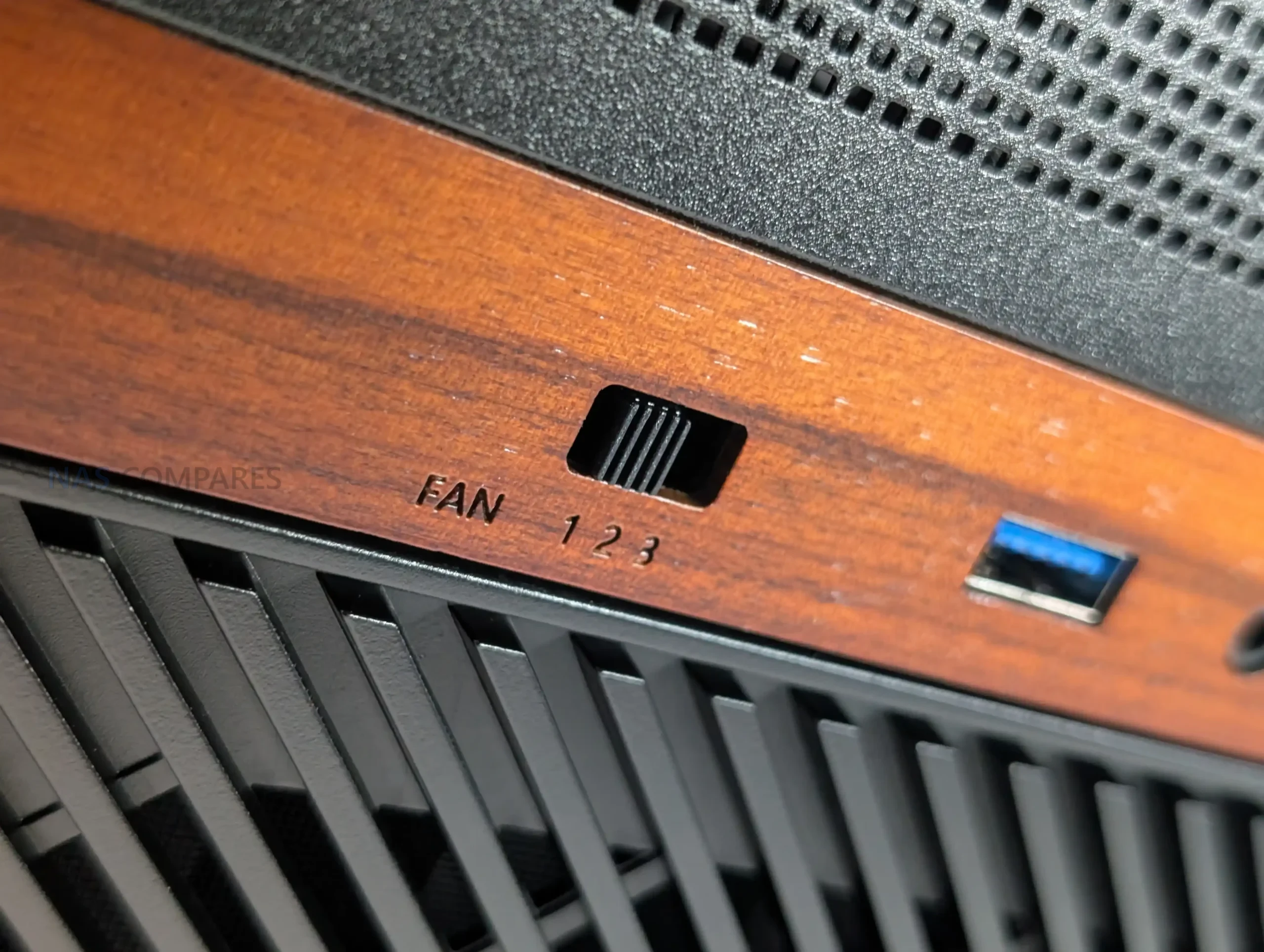
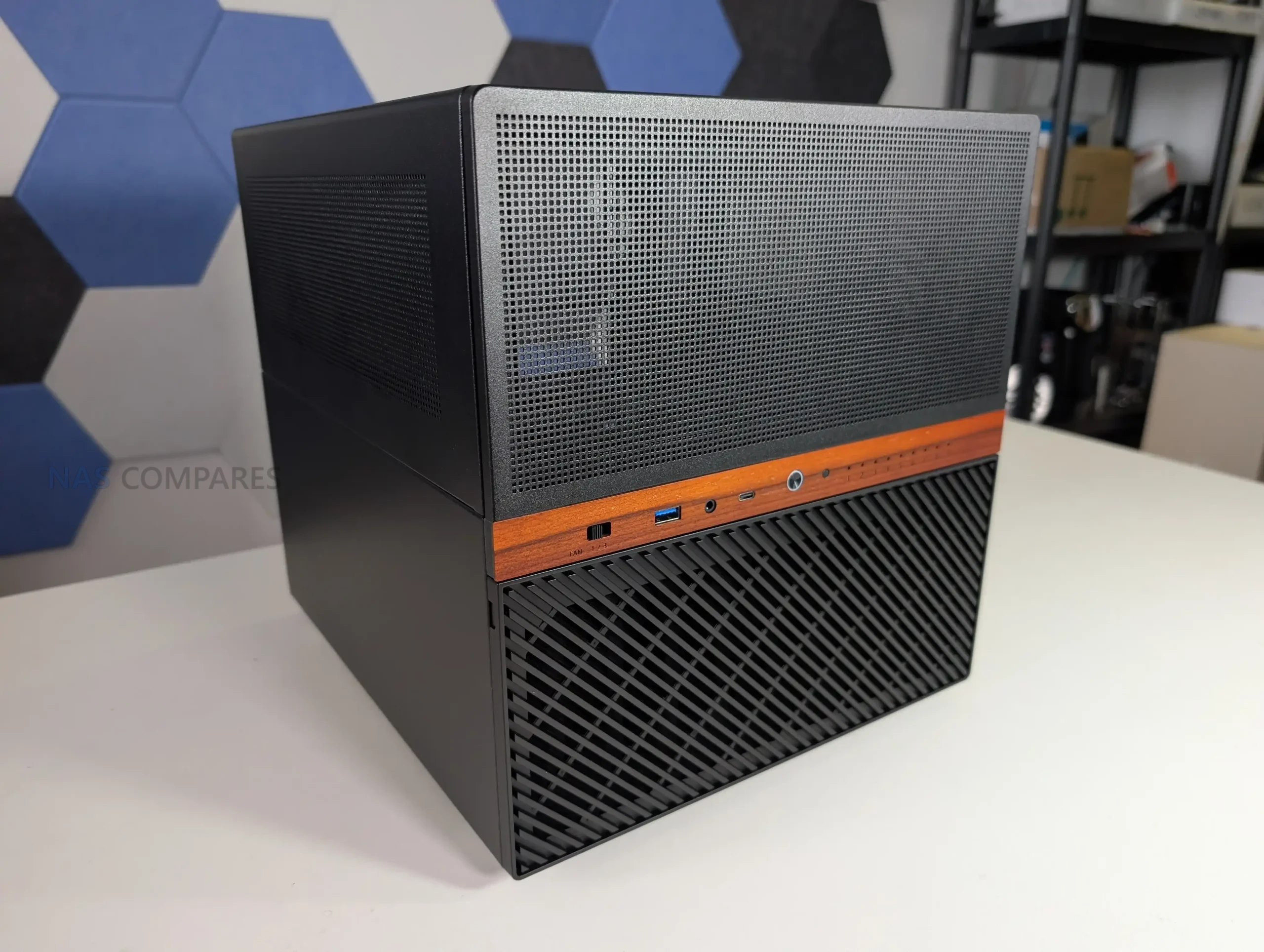
The Jonsbo N6 is the latest addition to the company’s long running lineup of DIY NAS focused enclosures, positioned between the compact N4 and the much larger N5. It is designed as a 9 bay desktop NAS chassis that supports both ITX and Micro ATX motherboards, while also introducing several changes compared with earlier Jonsbo designs. These include proper metal drive trays instead of rubber mounted sleds, expanded fan support, flexible PSU placement, and the inclusion of a physical fan controller. After spending the last 2 weeks building, configuring, and testing the N6 in a real world NAS environment, this review looks at how the case performs in practice, how its design decisions affect usability, and where it fits within the wider Jonsbo NAS case range.

Component Area Specification
Motherboard Support Mini ITX, Micro ATX
PCIe Expansion Slots 4 full height
PSU Support ATX up to 220mm, SFX up to 100mm
Dual PSU Support Yes
Max CPU Cooler Height 65mm to 160mm depending on PSU placement
Max GPU Length 275mm to 320mm depending on configuration
Drive Interface SATA via rear backplane
Drive Count 9 x 3.5 inch or 9 x 2.5 inch

Jonsbo N6 Review –  Quick Conclusion

The Jonsbo N6 positions itself as a compact but flexible DIY NAS enclosure that sits neatly between small form factor NAS cases and much larger tower style solutions. It combines a 9 bay storage layout with support for mATX and ITX motherboards, multiple PSU configurations, and extensive cooling options, aiming to address many of the limitations found in earlier Jonsbo NAS designs. In practical use, it delivers solid thermal behavior, manageable noise levels, and a relatively straightforward build process, while also introducing long requested changes such as proper drive trays and integrated fan control. That said, it is not without compromises, particularly around internal clearance when using larger components and the continued reliance on SATA connectors on the backplane. Overall, the N6 feels like a mature evolution of Jonsbo’s NAS lineup, offering meaningful improvements over smaller models like the N2, N3, and N4, while intentionally stopping short of replacing the larger and more expandable N5.

Check Amazon in Your Region for the Jonsbo N6 Case

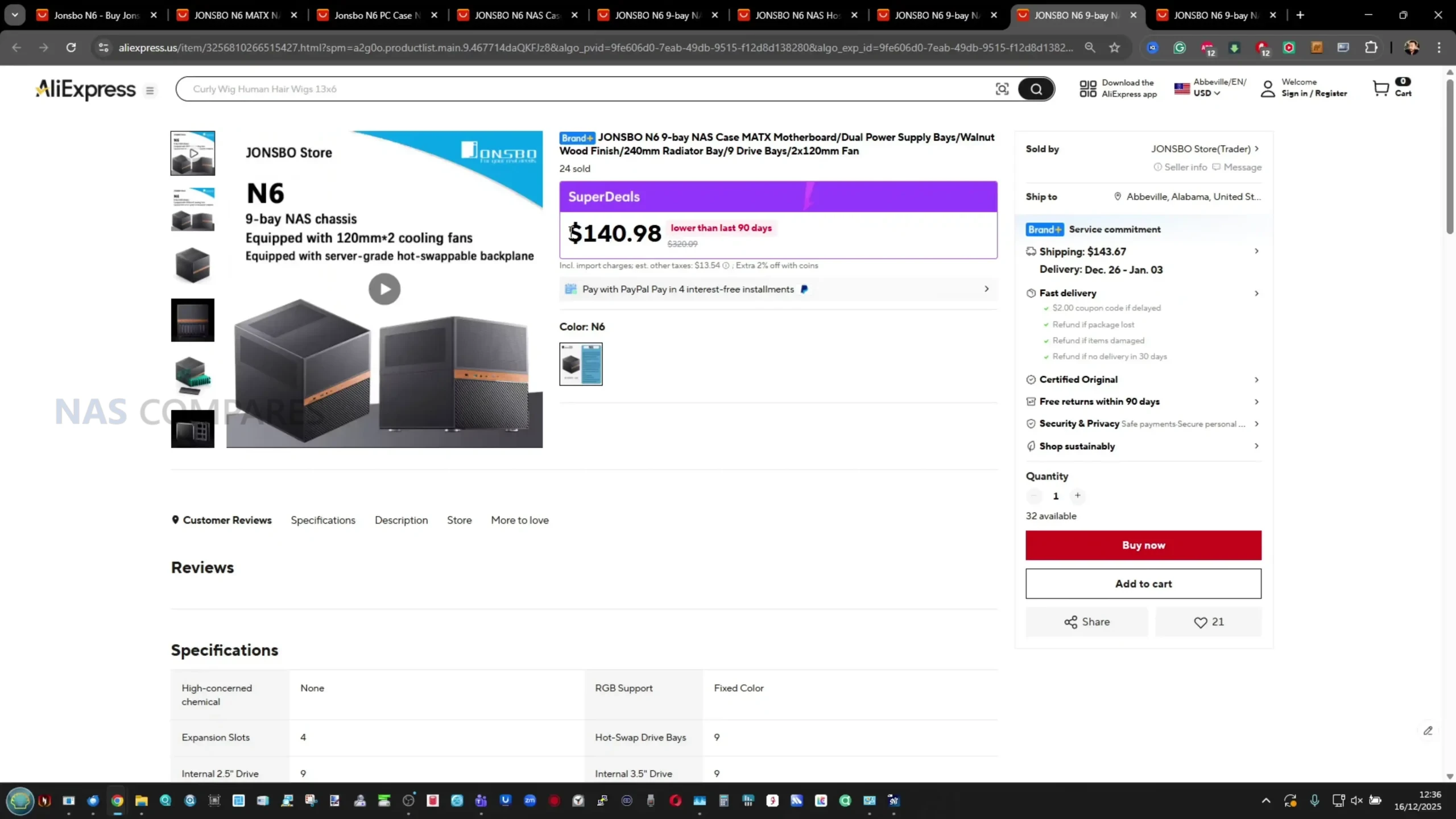
Check AliExpress or the Jonsbo N6 Case

BUILD QUALITY - 10/10
HARDWARE - 9/10
PERFORMANCE - 9/10
PRICE - 7/10
VALUE - 8/10


8.6
PROS
👍🏻Supports up to 9 x 3.5 inch or 2.5 inch drives, allowing dense storage in a relatively compact footprint
👍🏻Compatible with ITX and Micro ATX motherboards, offering more flexibility than earlier Jonsbo NAS cases
👍🏻Flexible PSU placement with support for ATX and SFX units, including multiple mounting positions
👍🏻Integrated drive backplane simplifies installation and reduces individual cable clutter
👍🏻Built in 3 speed fan controller provides basic manual airflow control without software dependency
👍🏻Extensive ventilation on all sides, top, and base helps maintain reasonable thermals under load
👍🏻Drive trays replace older rubber grommet mounting, making drive installation more straightforward
👍🏻Build quality feels solid overall, with steel construction and improved internal layout for cable routing
CONS
👎🏻Backplane uses individual SATA connectors rather than Mini SAS, limiting appeal for SAS focused builds
👎🏻Clearance becomes tight with Micro ATX boards and larger ATX PSUs, especially around CPU cooling
👎🏻Drive trays lack tool less latches, locks, or orientation indicators, increasing the chance of installation mistakes


Where to Buy a Product
amzamexmaestrovisamaster 24Hfree delreturn VISIT RETAILER ➤ 
amzamexmaestrovisamaster 24Hfree delreturn VISIT RETAILER ➤

Jonsbo N6 Review – Design & Storage

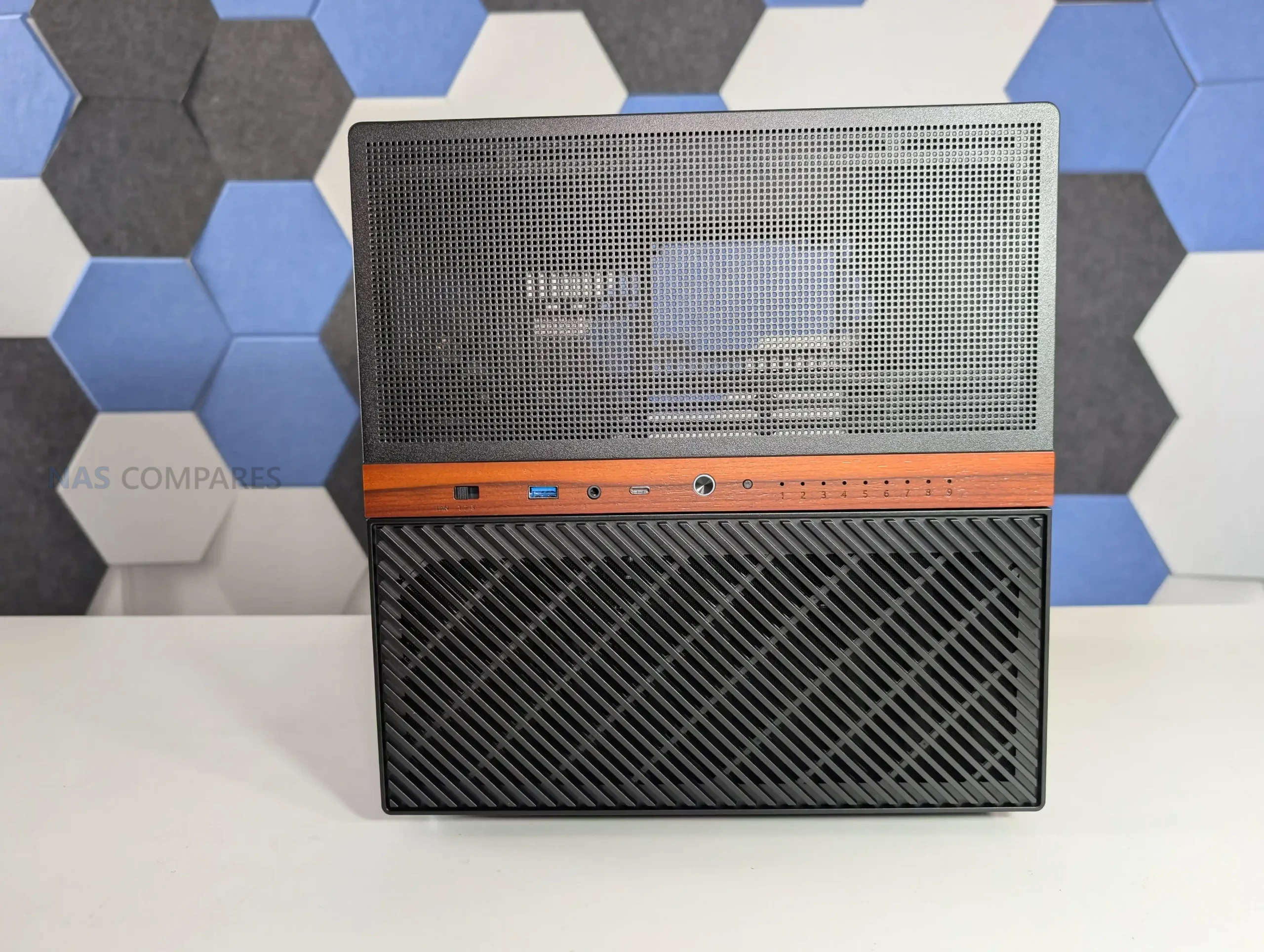
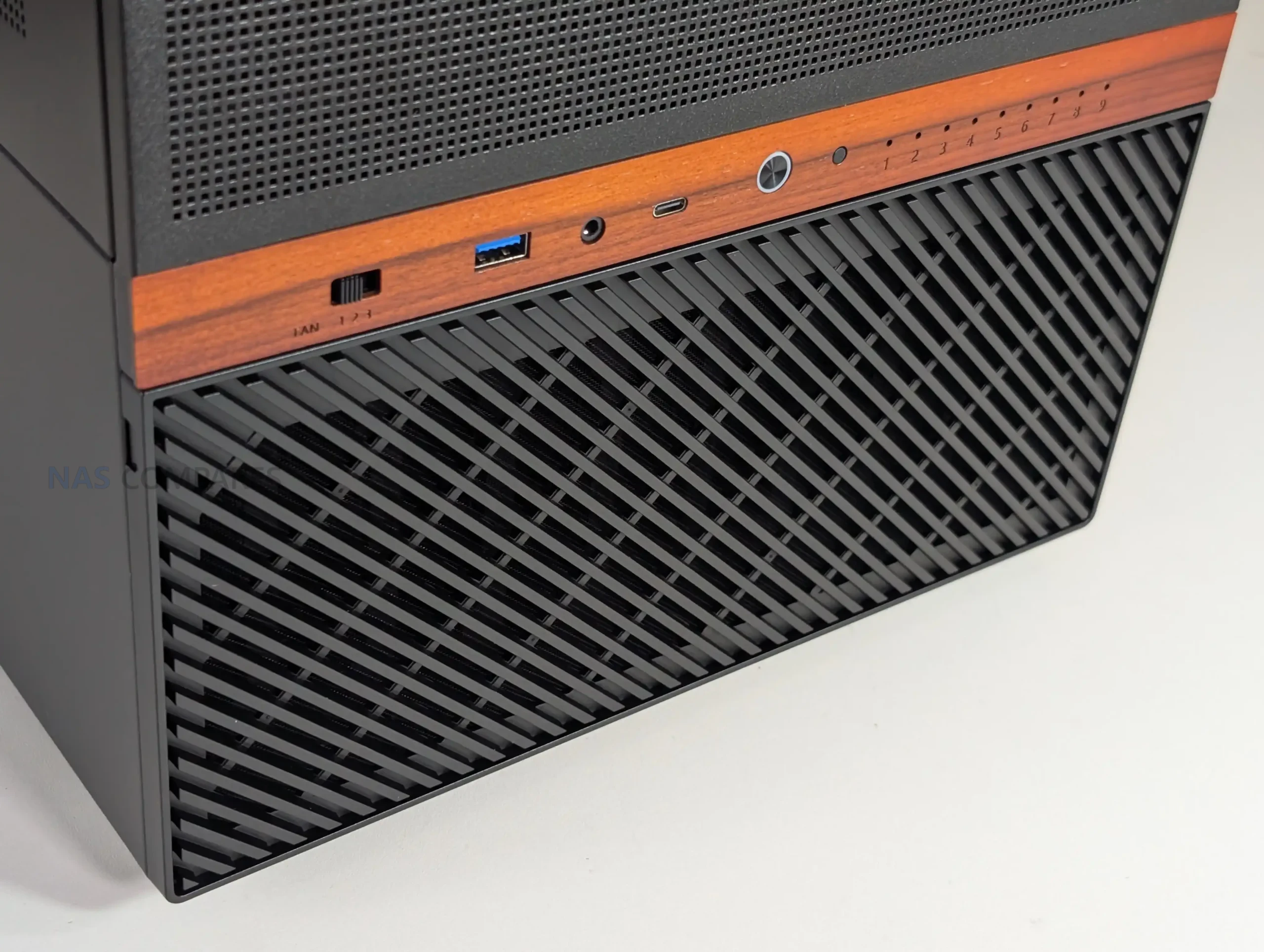
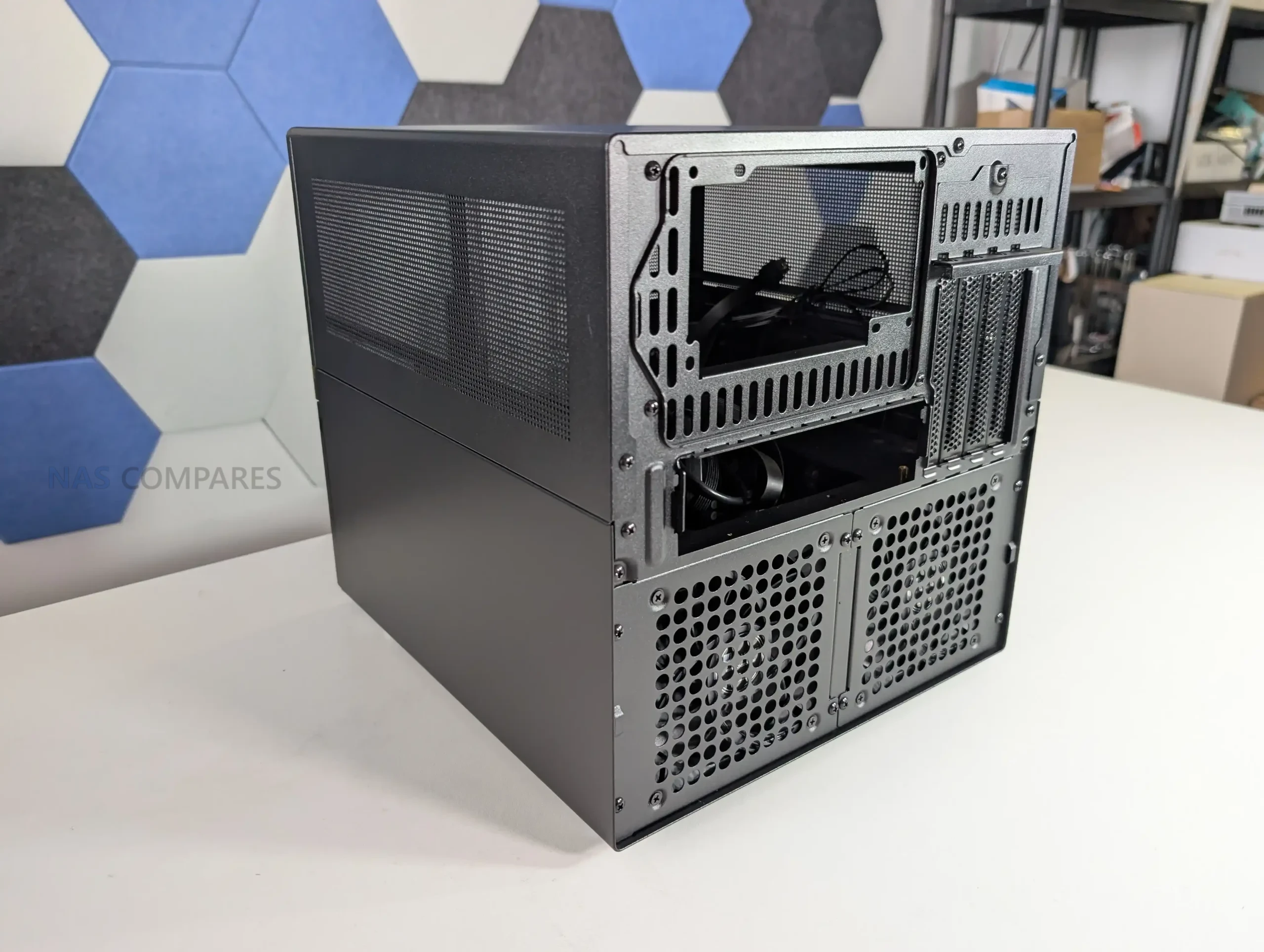
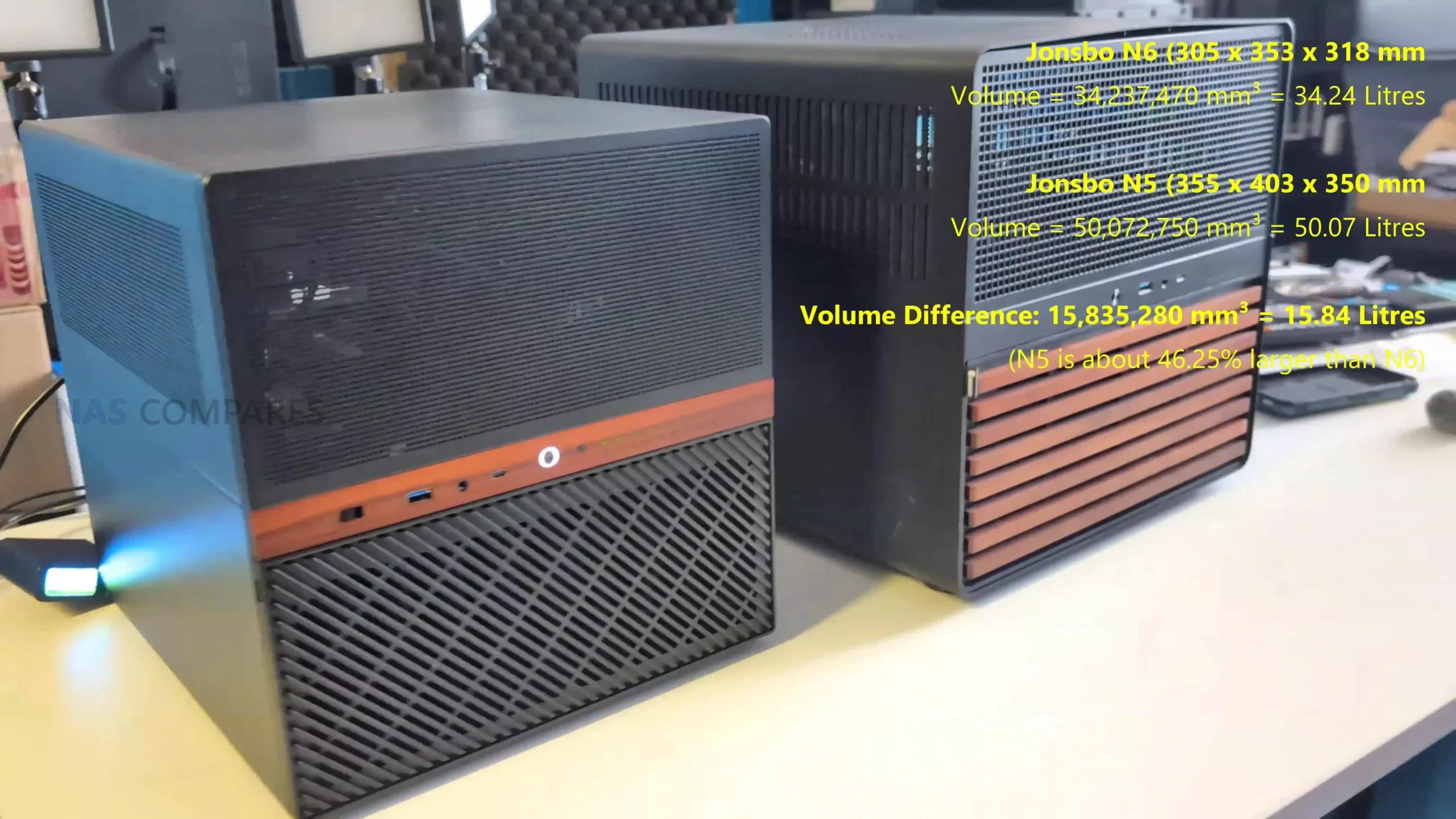
The Jonsbo N6 continues the brand’s established NAS focused design language, combining a compact tower format with a restrained, industrial appearance. The chassis uses a steel construction with aluminum accents and a wooden front trim, which has become a recognizable feature across several recent Jonsbo NAS cases. While the wood insert will not appeal to everyone, it is purely cosmetic and does not interfere with airflow or structural rigidity. Overall dimensions place the N6 clearly below the larger N5, though it is still substantial compared to many ITX cases due to its storage capacity.

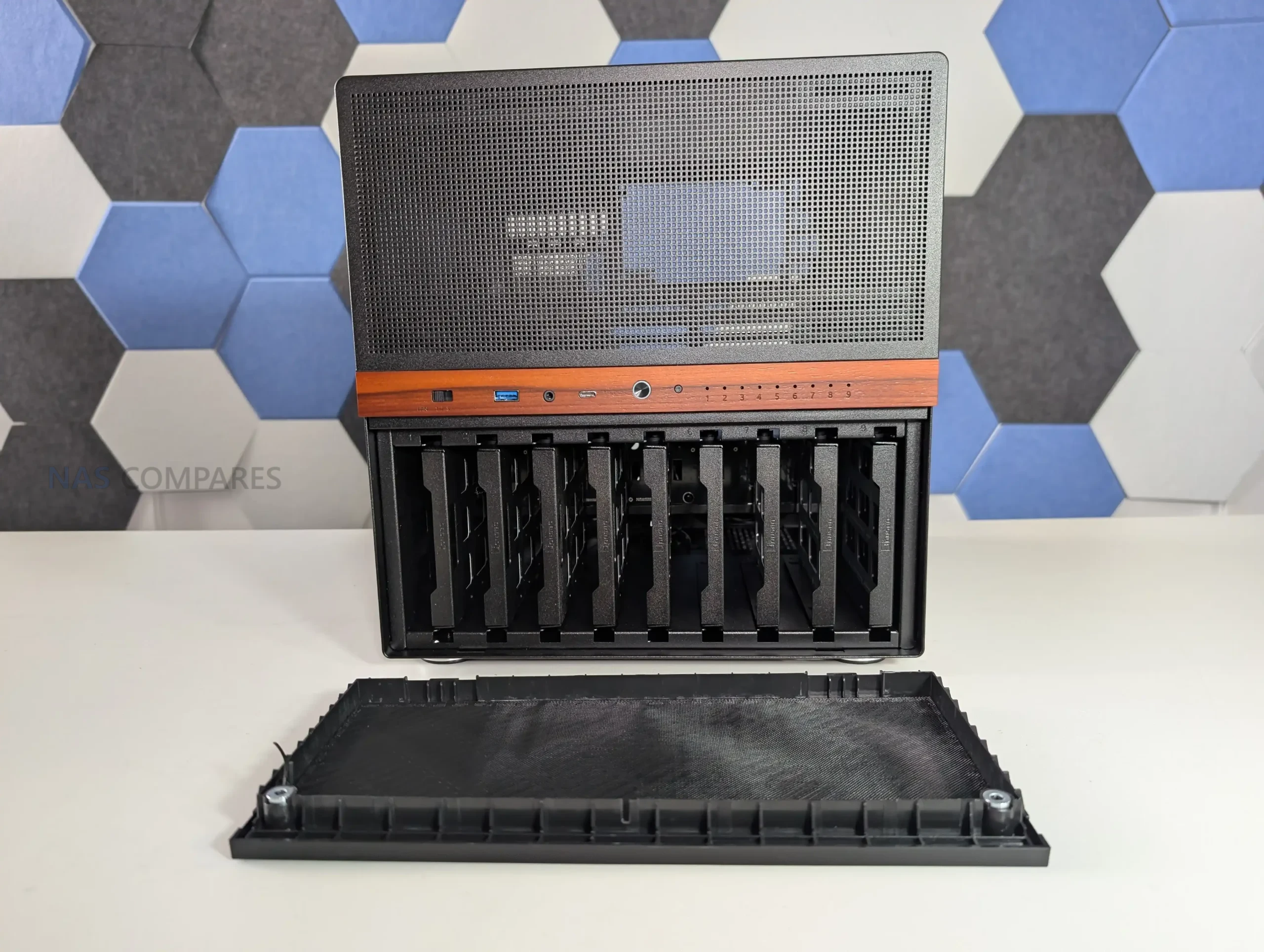
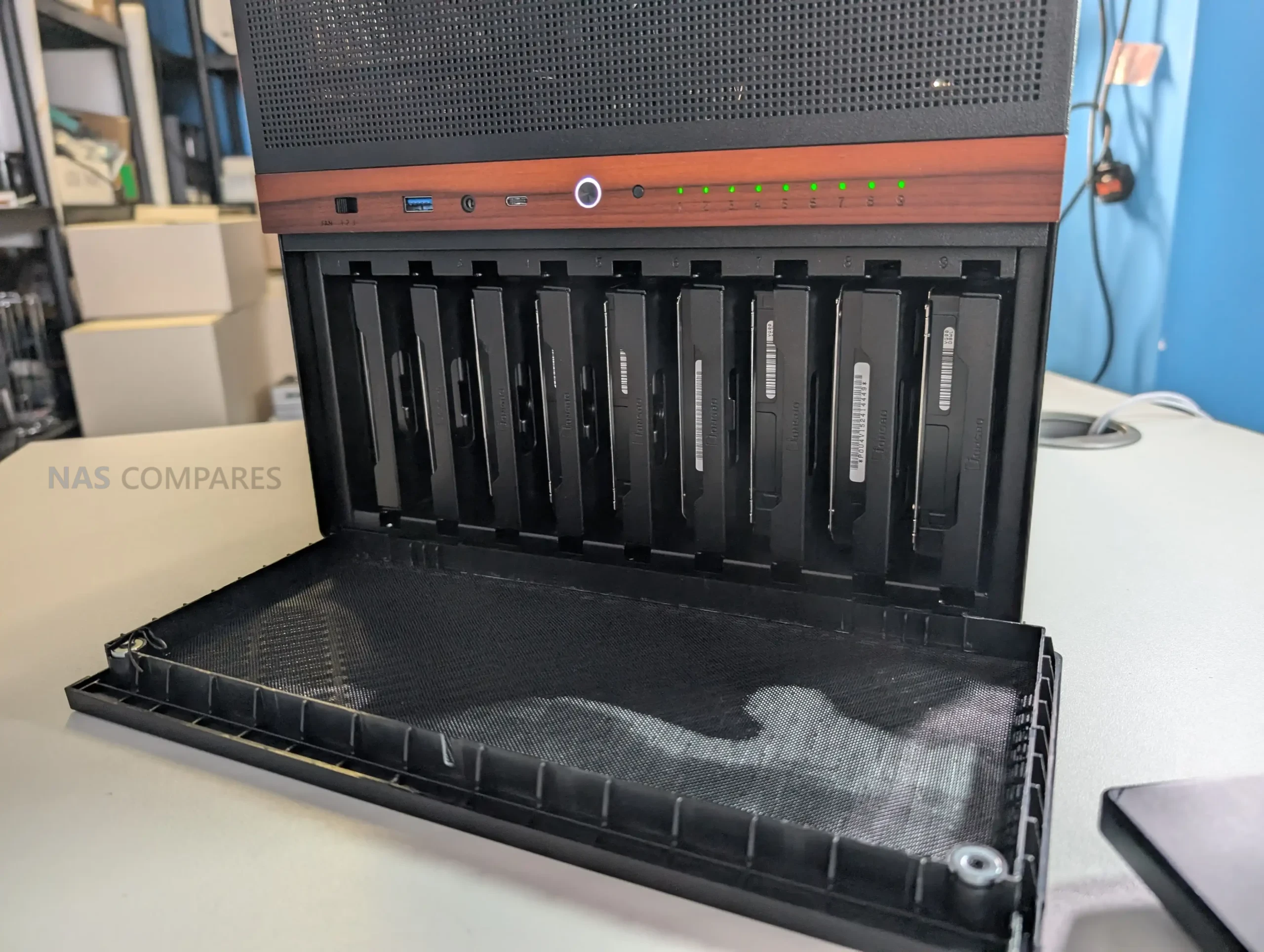
Storage is the defining feature of the N6, with support for up to 9 drives in either 3.5 inch HDD or 2.5 inch SSD formats. All drives are housed in a dedicated lower compartment, separated from the motherboard area. This layout helps with cable management and keeps storage thermals isolated from CPU and expansion hardware. The capacity places the N6 in a relatively uncommon position, offering more drive bays than most compact NAS cases without stepping into full tower territory.

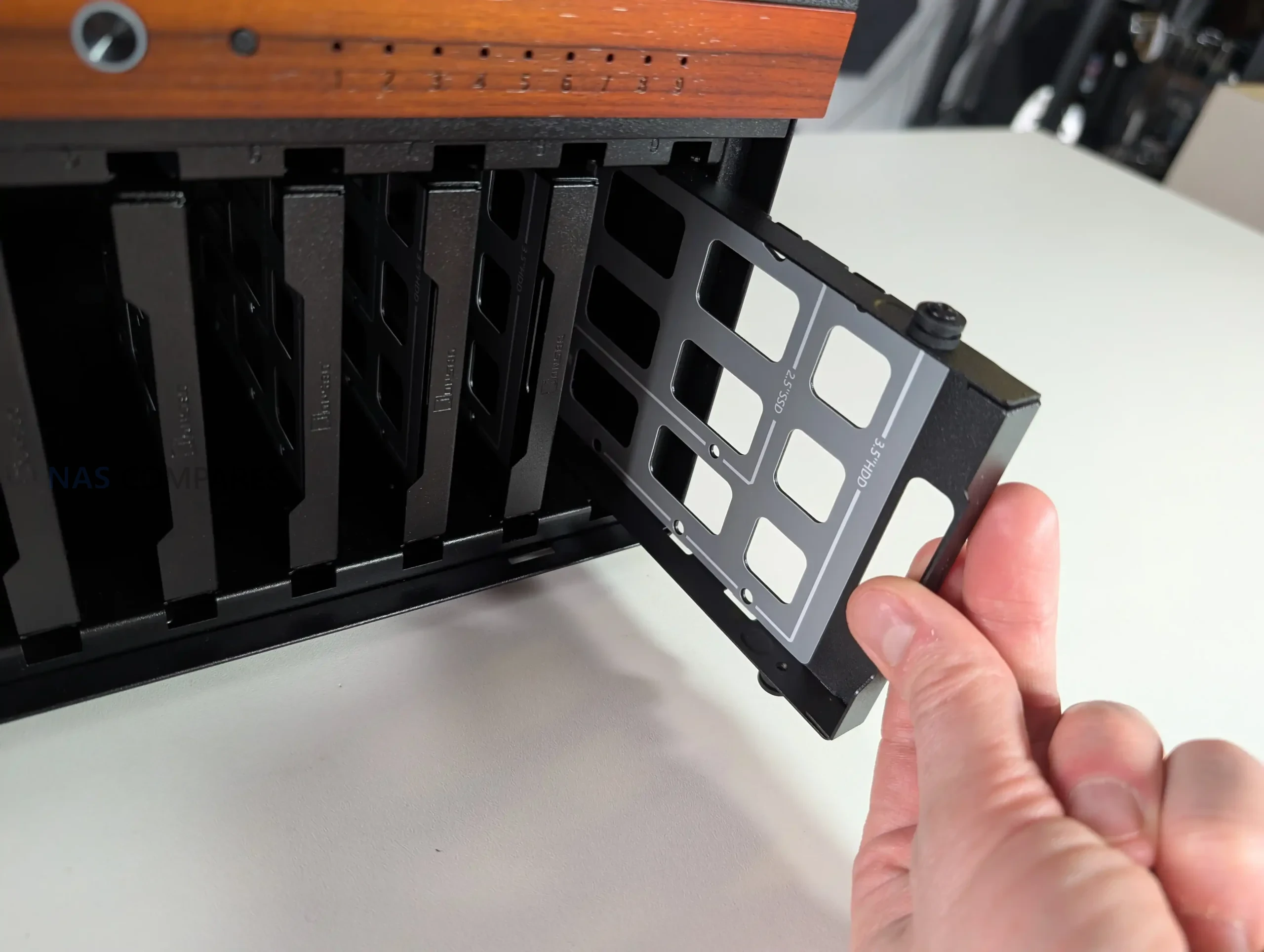
Unlike earlier Jonsbo NAS models that relied on rubber grommets and pull tabs, the N6 uses metal drive trays as standard. Each tray supports both 3.5 inch and 2.5 inch drives and slots directly into a rear mounted backplane. The trays are functional rather than refined, lacking tool less locking mechanisms or individual activity LEDs. However, spacing between drives allows some passive airflow, which is important given the density of a fully populated array.

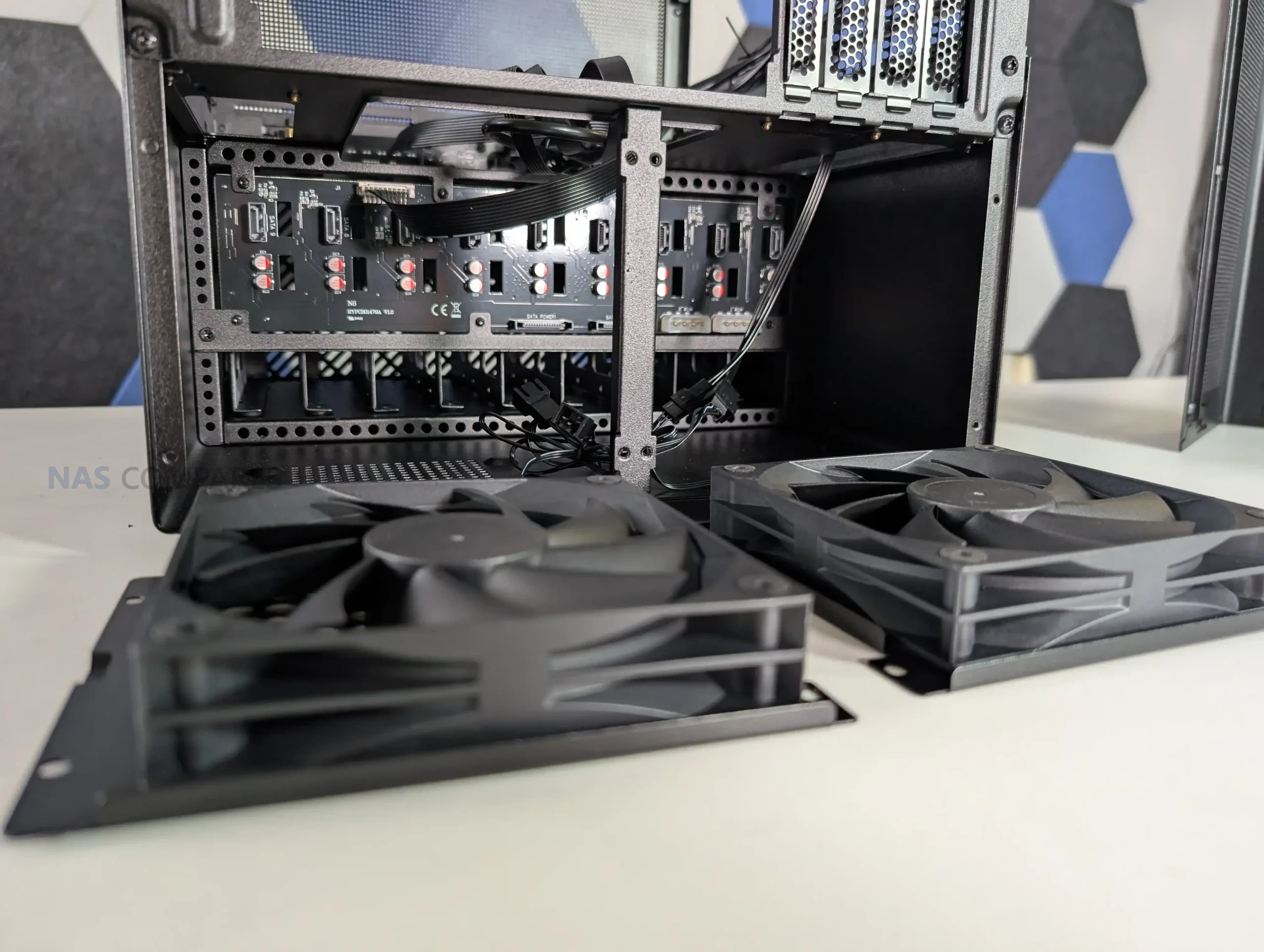
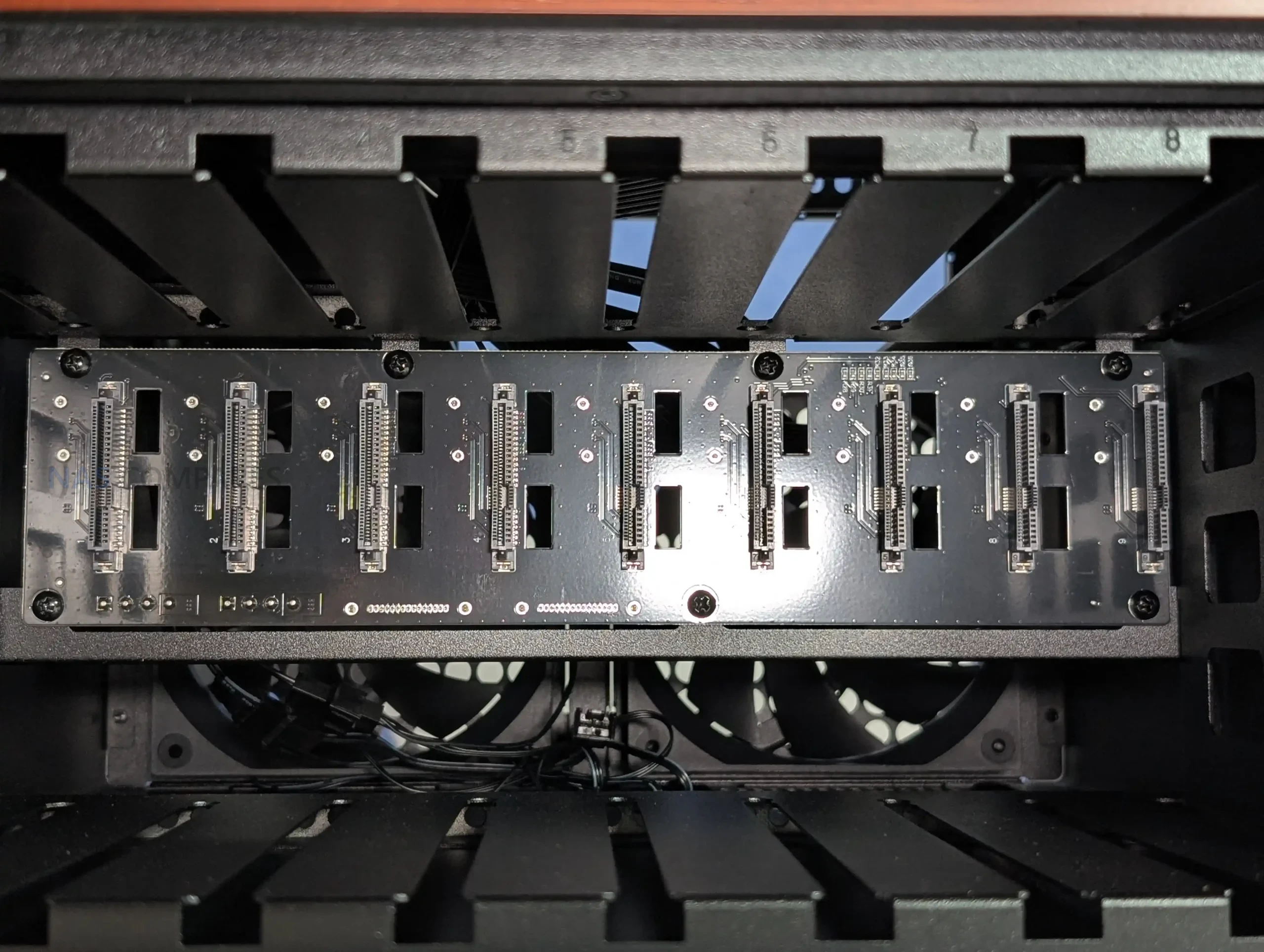
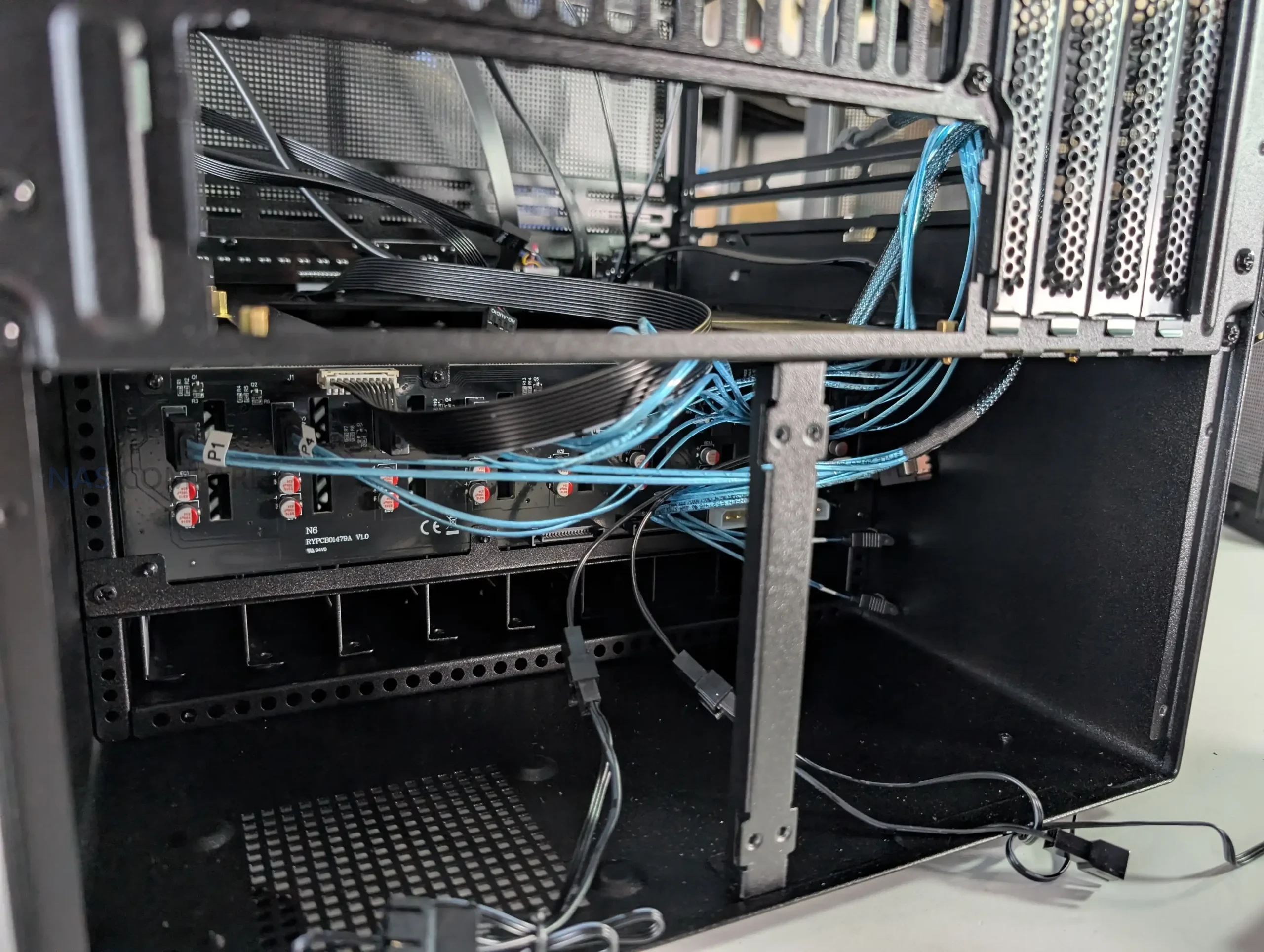
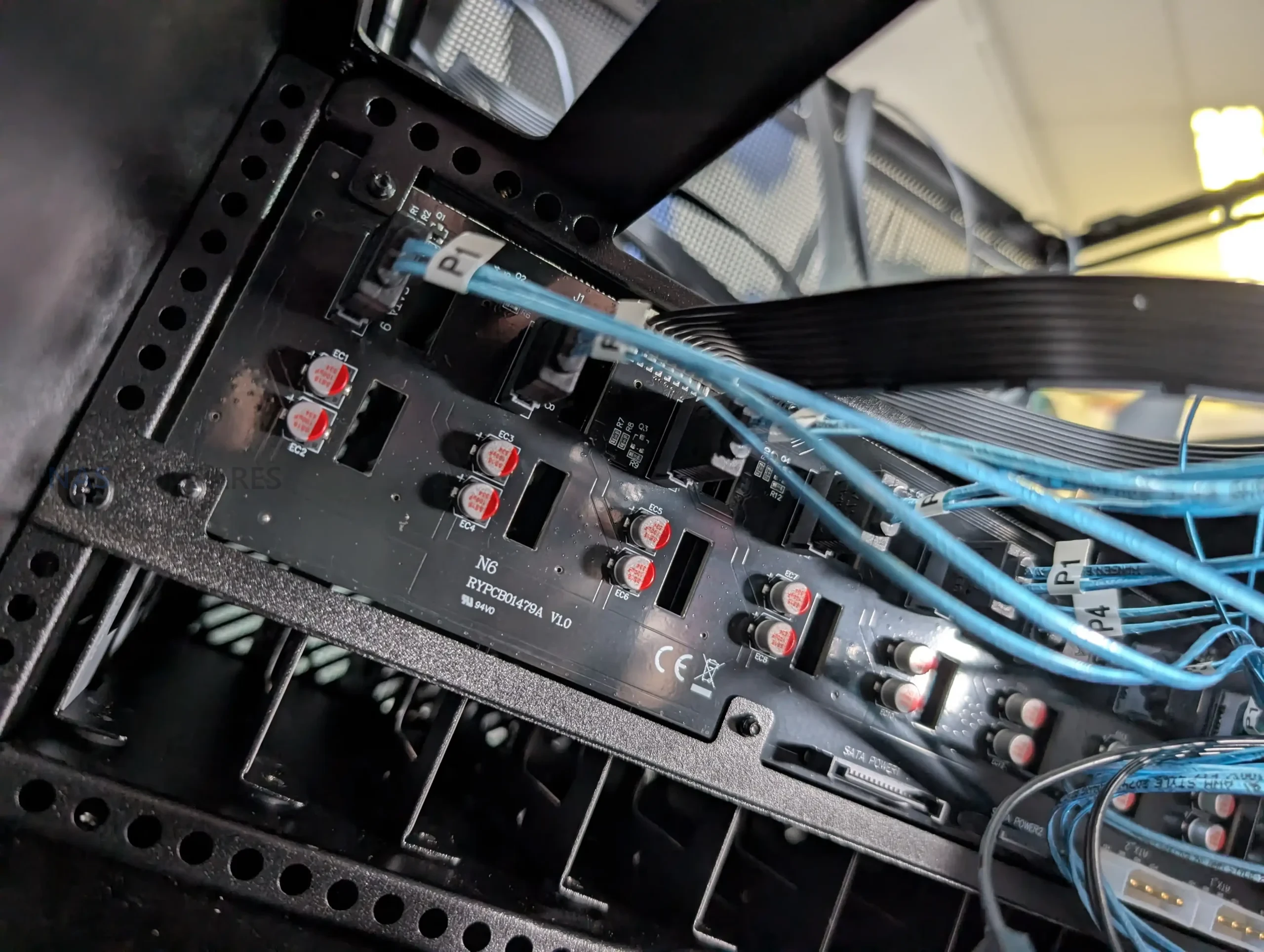
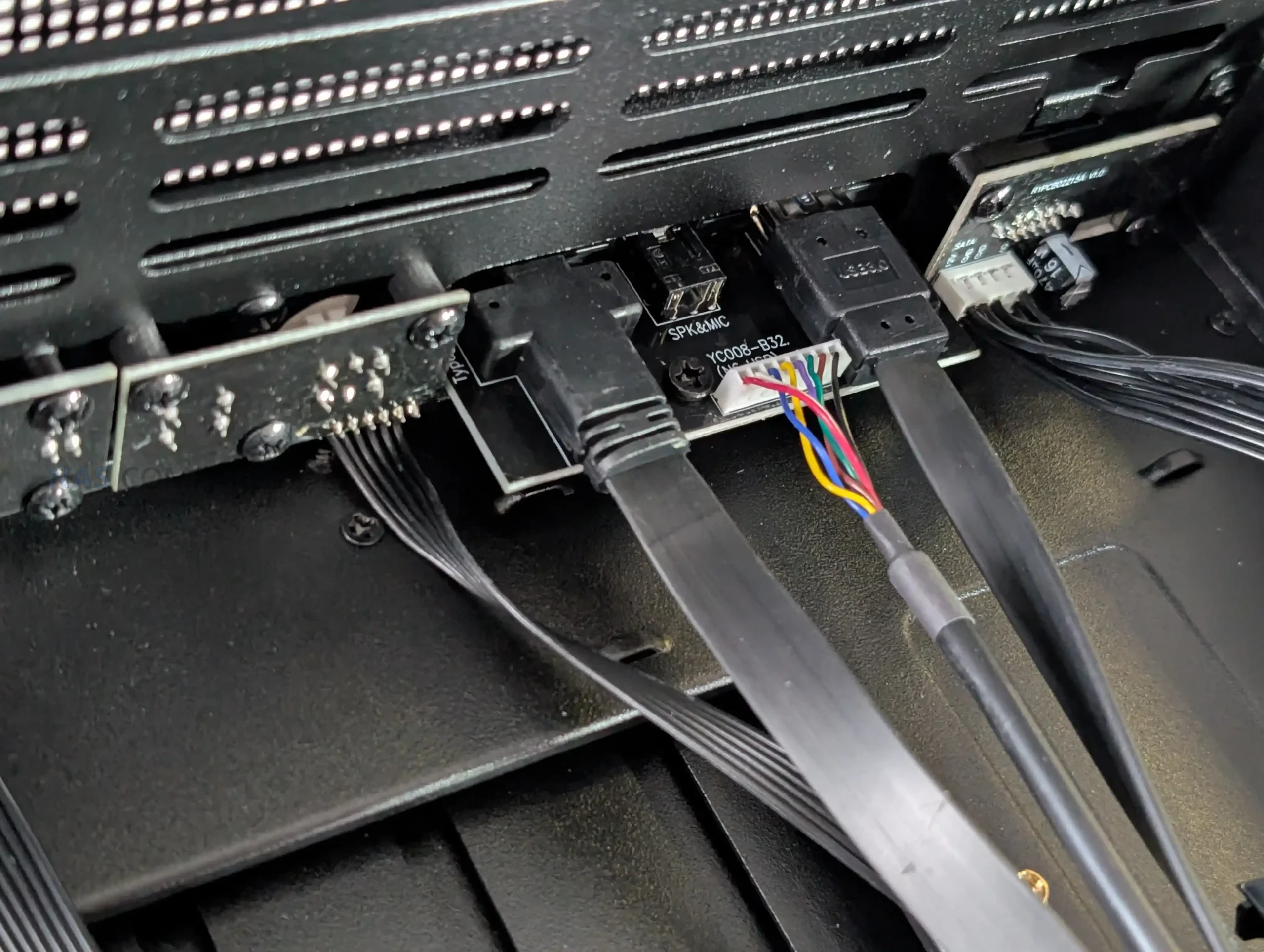
All 9 drive trays connect to a single backplane PCB located at the rear of the drive cage. The front side of the board uses individual SATA connectors for each bay, simplifying installation compared to loose cabling. On the output side, the board breaks out into standard SATA data connectors rather than Mini SAS, alongside SATA and Molex power inputs. This choice favors compatibility but limits native SAS support, which may matter to users running enterprise drives or SAS controllers.

From an installation standpoint, drive access is straightforward, but orientation is something to be careful with. The trays do not include visual indicators for correct alignment, making it possible to insert a drive incorrectly if rushed. While this is not unique to the N6, it does introduce some risk during initial setup or drive swaps. Overall, the storage design prioritizes density and compatibility over convenience features, aligning with the case’s focus on DIY NAS builders rather than hot swap environments.

Jonsbo N6 Review – Internal Structure

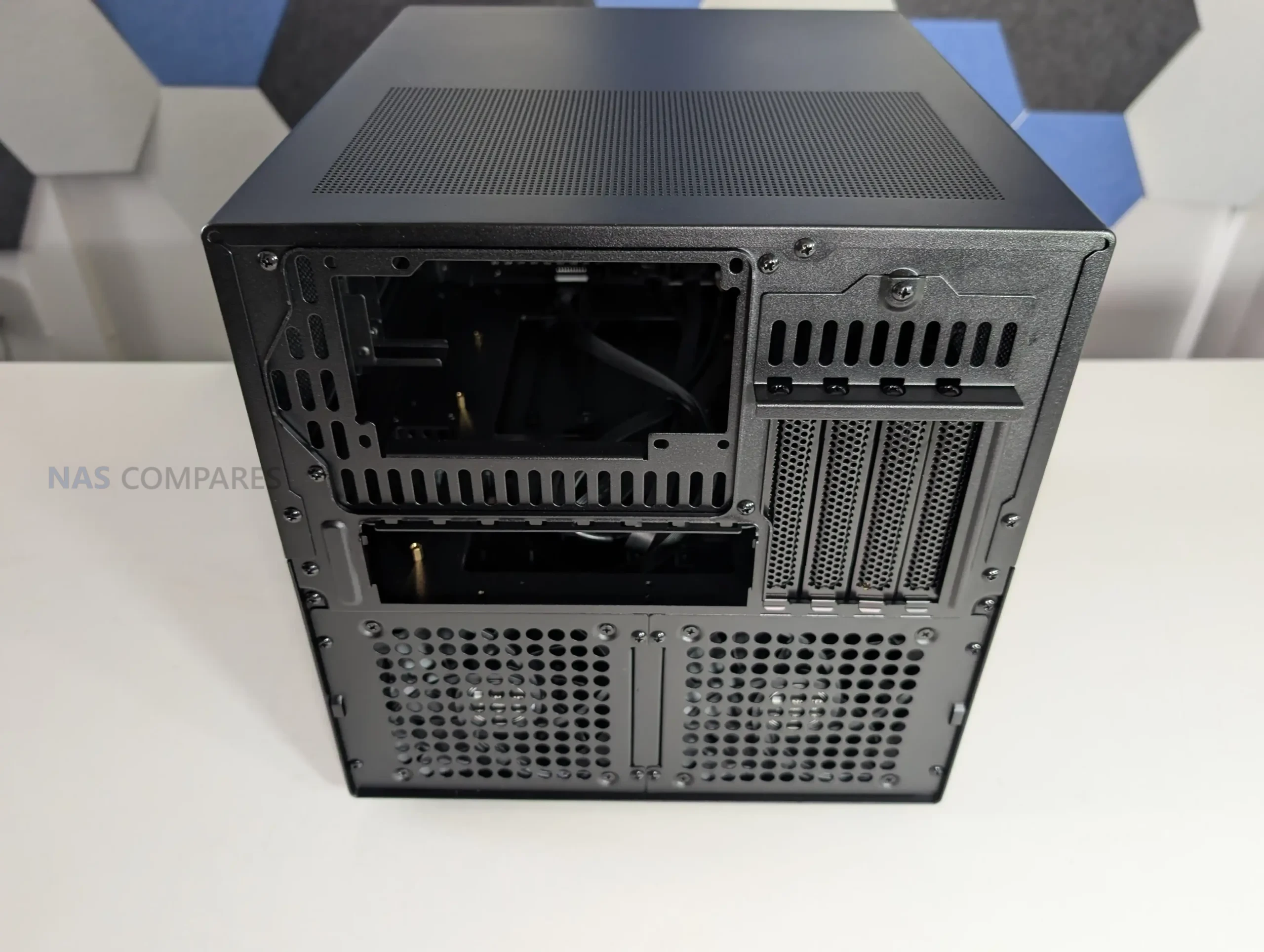
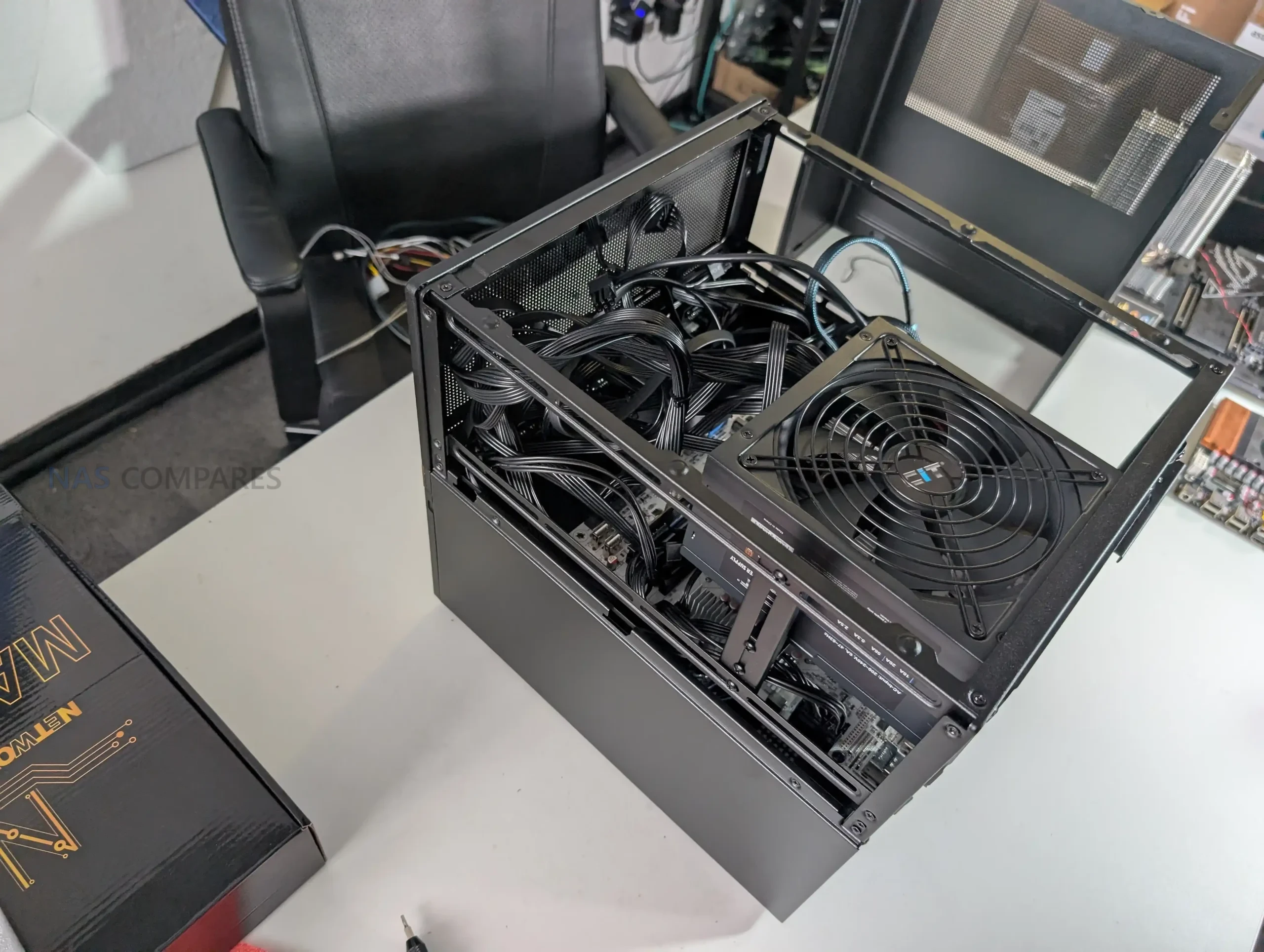
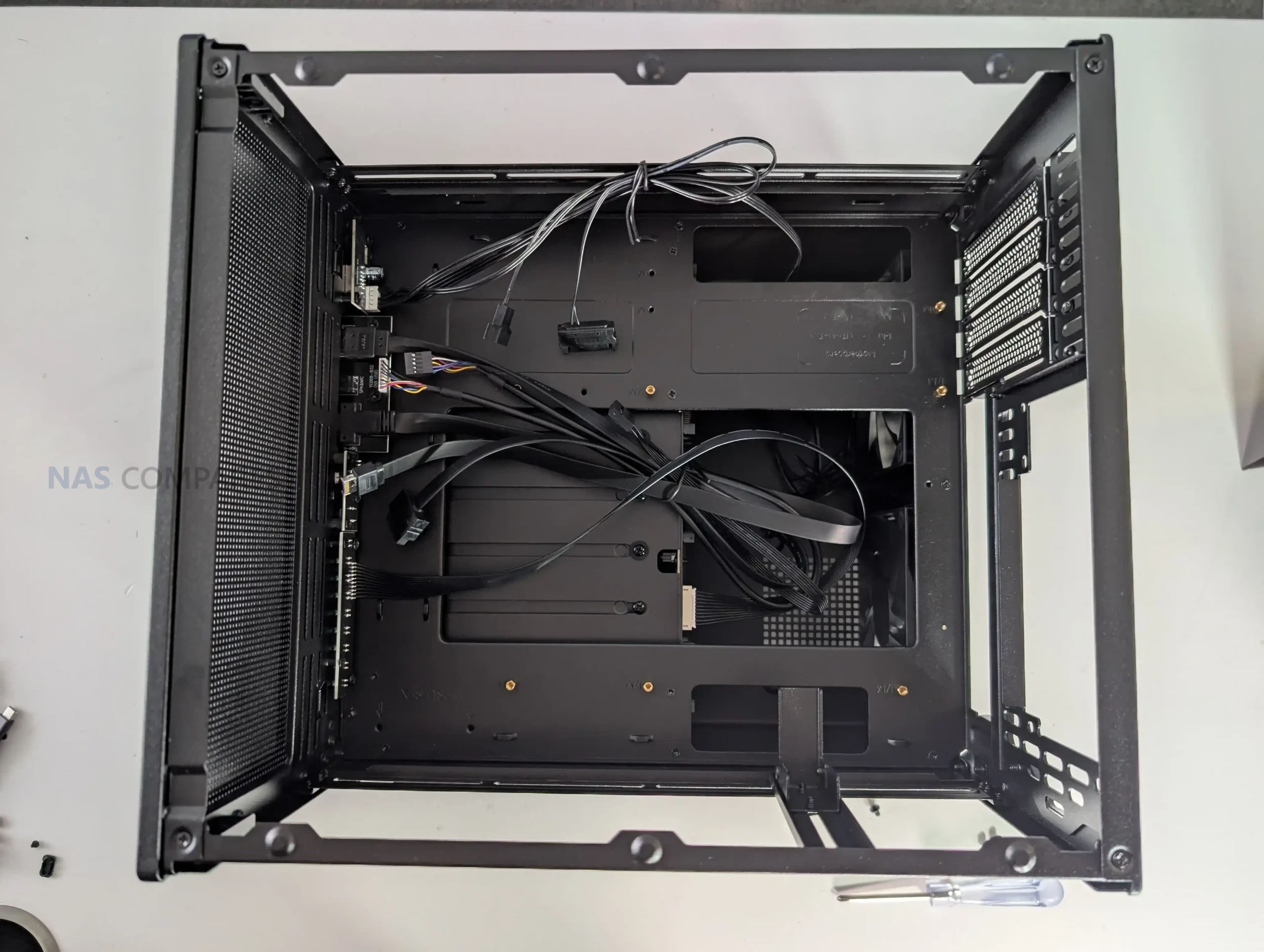
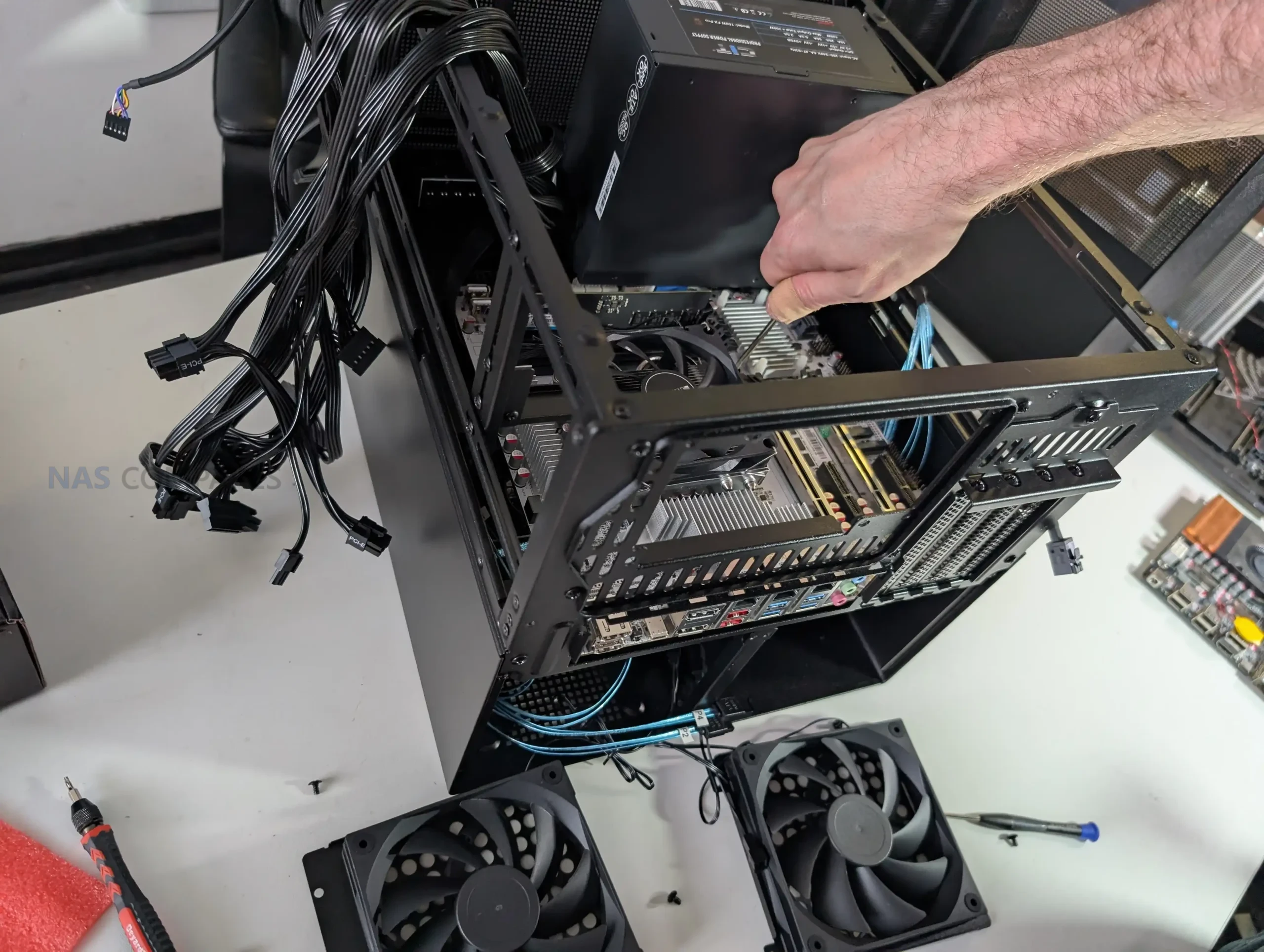
The internal layout of the Jonsbo N6 is designed around flexibility rather than absolute clearance, and that becomes clear once hardware installation begins. The case supports Mini ITX and Micro ATX motherboards, but does not officially support full ATX boards, despite physical dimensions that appear close.

In practice, fitting an ATX board is technically possible but leaves insufficient clearance for cabling, airflow, and component access, making it impractical for most builds. With ITX boards, internal space is generous and largely unobstructed, while Micro ATX installations require more planning due to tighter edge clearances near the drive backplane and PSU mounting areas.

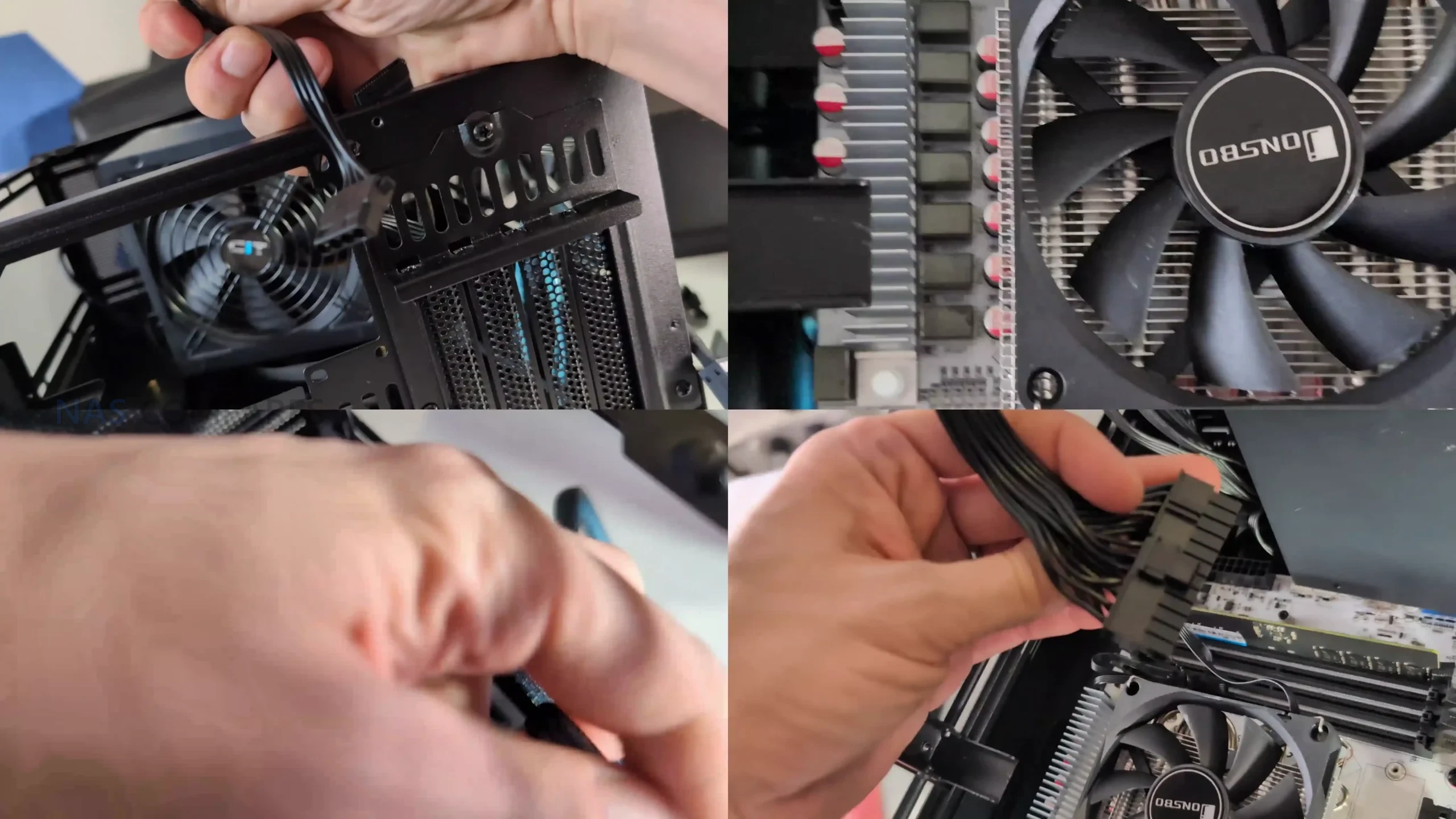
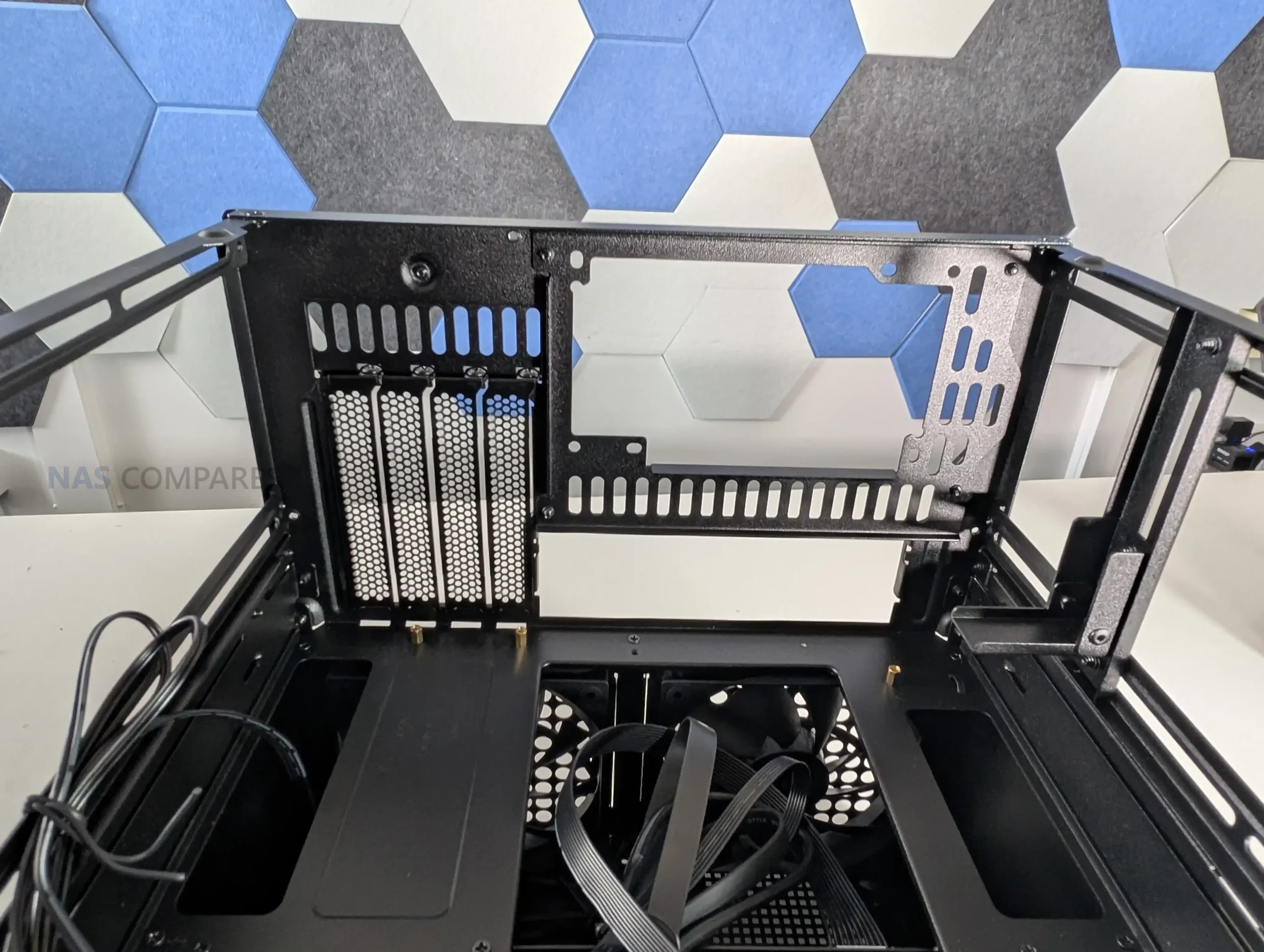
PSU placement plays a major role in how the internal hardware layout behaves. The N6 supports both ATX and SFX power supplies and allows installation in multiple positions using included brackets. Mounting a full size ATX PSU above the motherboard significantly reduces available CPU cooler height, which can limit cooler selection to low profile or compact tower designs. SFX power supplies offer more flexibility and reduce conflicts around the CPU socket area, particularly when using Micro ATX boards.

The option for dual PSU installation adds another layer of configurability, but it further increases complexity around airflow paths and cable routing.

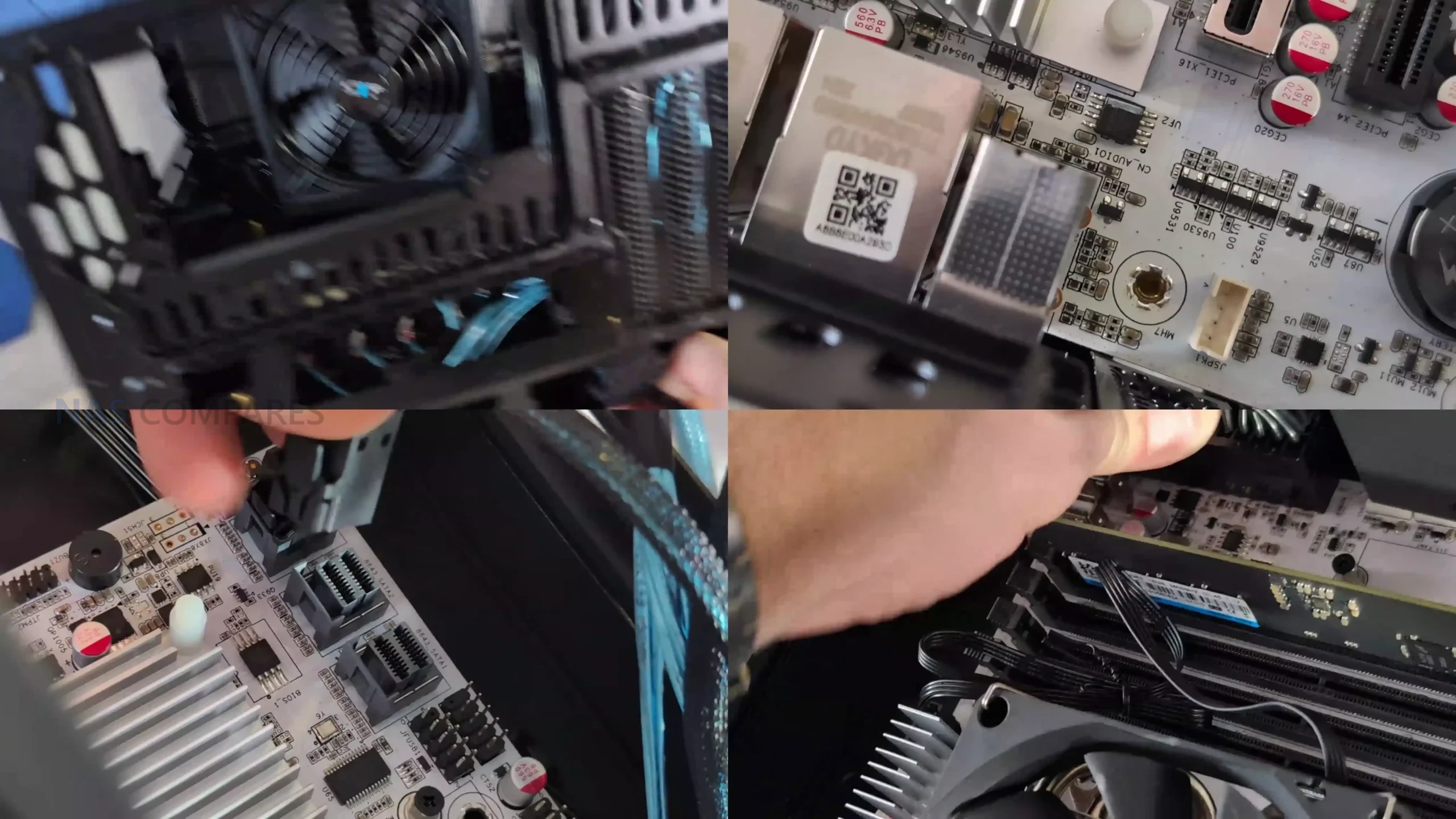
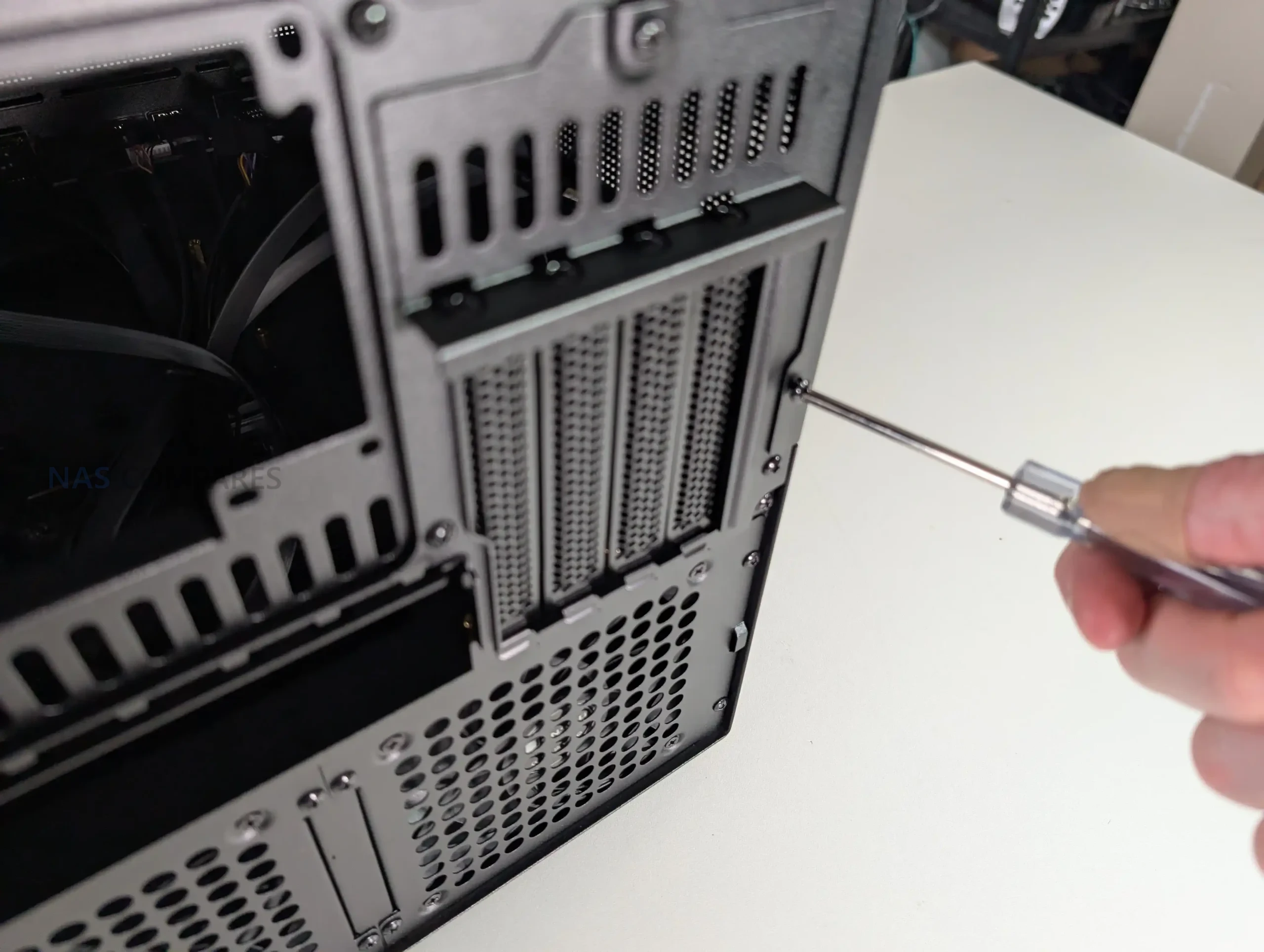
PCIe expansion is relatively strong for a case in this category, with support for up to 4 full height expansion slots. This allows for the use of HBAs, network cards, or even a discrete GPU, provided length and thickness limits are respected. Clearance becomes tight when multiple expansion cards are installed alongside side mounted fans, especially on the lowest slot. Cable routing is generally straightforward, with clear channels and anchor points, but routing SATA or Mini SAS fan out cables is easier if completed before final motherboard installation, particularly in Micro ATX configurations.

Jonsbo N6 Review – Connectivity

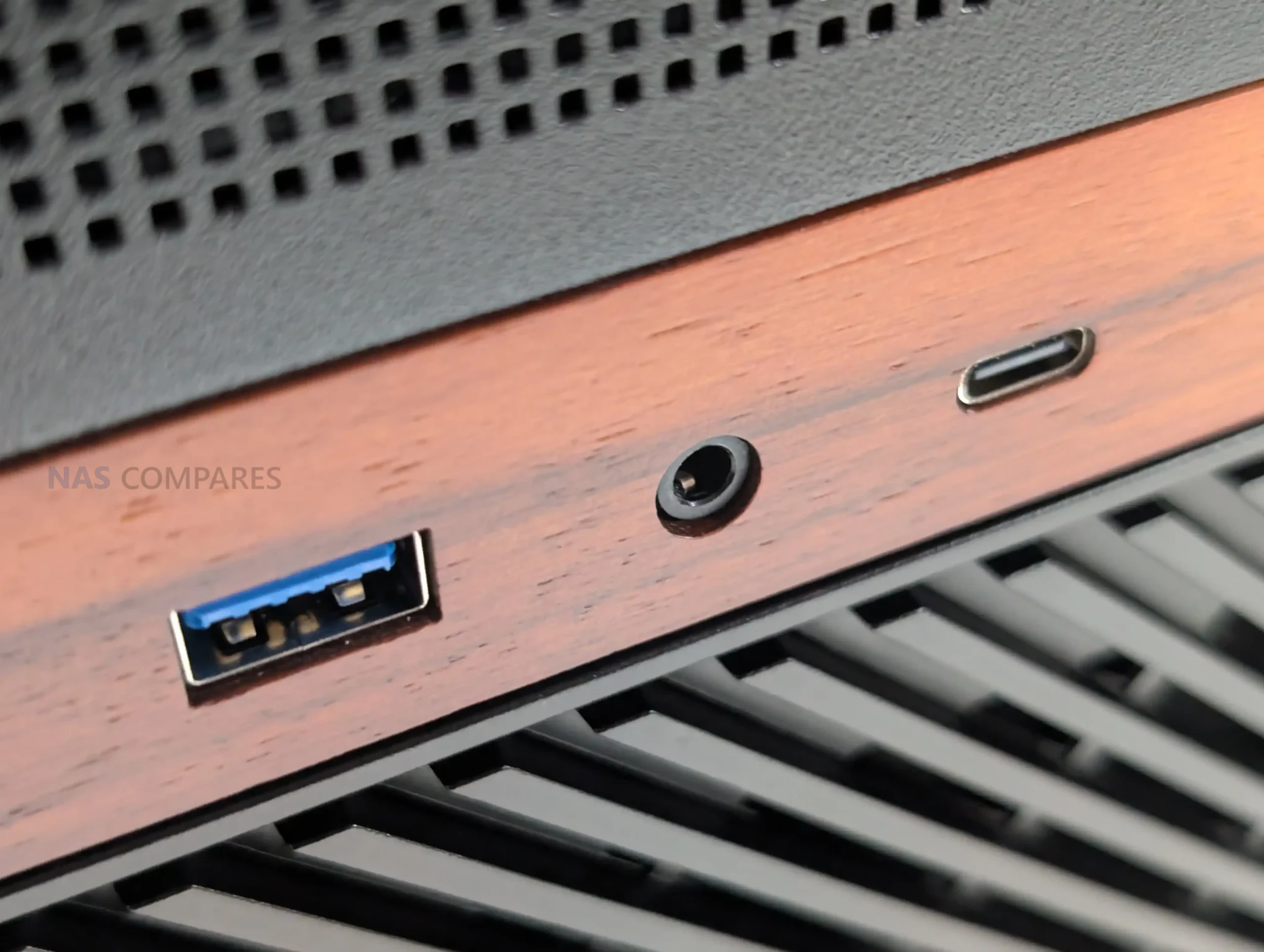
The Jonsbo N6 keeps external connectivity relatively straightforward, with all user facing ports located on the front panel for easy access. This placement makes sense for a NAS chassis that is likely to be positioned on a desk, shelf, or rack adjacent surface rather than frequently accessed from the rear. The front I O layout focuses on essential connectivity rather than attempting to replicate a full desktop case feature set.

In practical use, the inclusion of a USB 3.2 Gen2 Type C port provides a high bandwidth option for external storage, temporary backups, or maintenance tasks such as system recovery media. Alongside it, the USB 3.0 Type A port offers compatibility with a wide range of existing peripherals. This combination should be sufficient for most NAS focused workflows, where frequent hot swapping of peripherals is uncommon but occasional high speed access is still required.

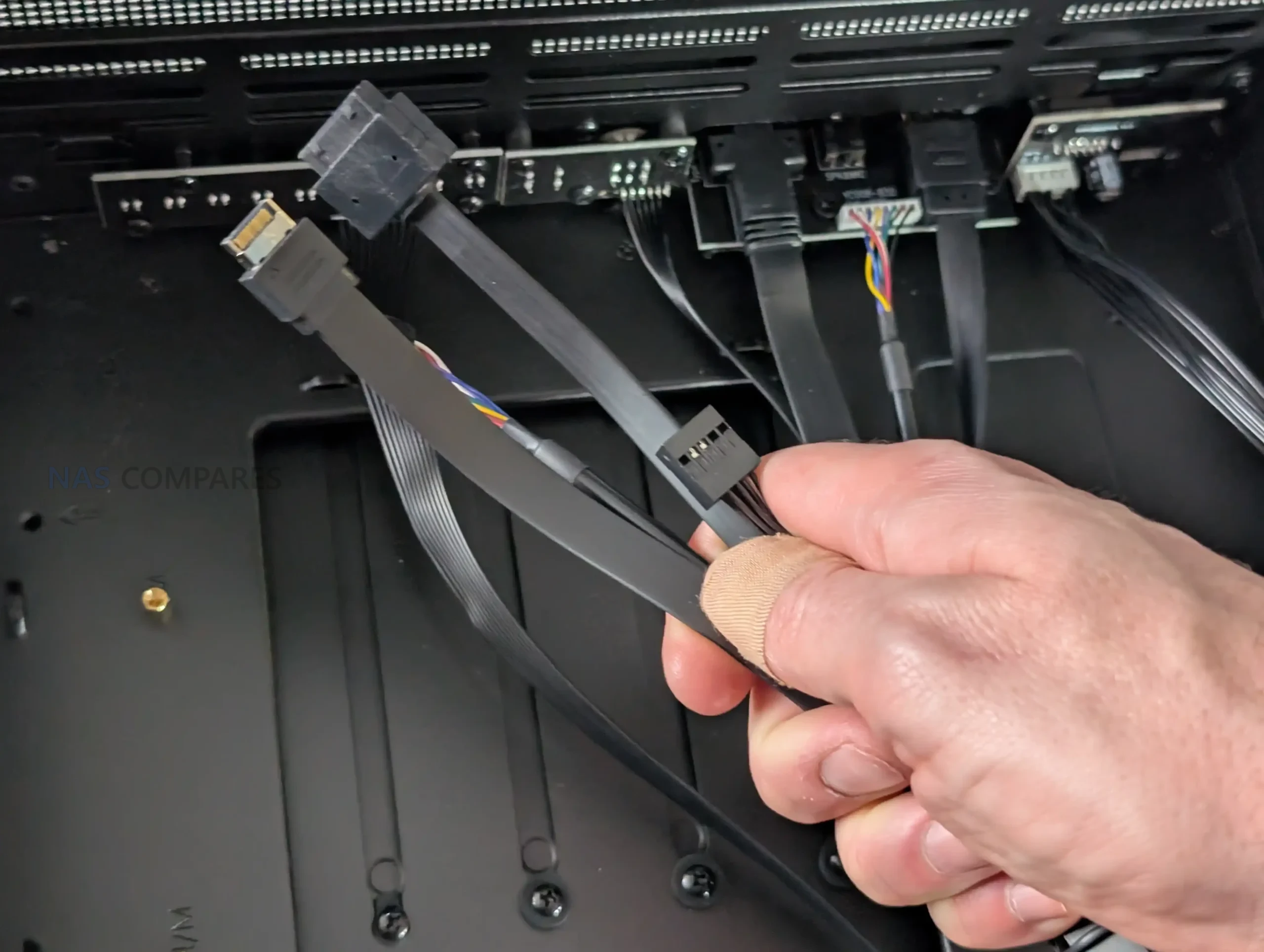
Internally, connectivity is more complex and is closely tied to the integrated drive backplane. All 9 drive bays connect through the rear mounted PCB, which uses individual SATA data connectors rather than Mini SAS or SAS HD outputs. Power delivery is handled through a mix of SATA power and Molex connectors, which provides flexibility but may increase cable management complexity depending on the power supply used.

While functional, this approach places more responsibility on the user to plan cabling carefully, especially in fully populated configurations.

Feature Specification
Front USB Type C USB 3.2 Gen2
Front USB Type A USB 3.0
Audio I O Combined headphone and microphone
Drive Data Interface Individual SATA per bay
Drive Power Inputs 2 x SATA power, 2 x Molex
Backplane SAS Support No
Front Panel Cabling Pre routed internal cables

Jonsbo N6 Review – N5 vs N6

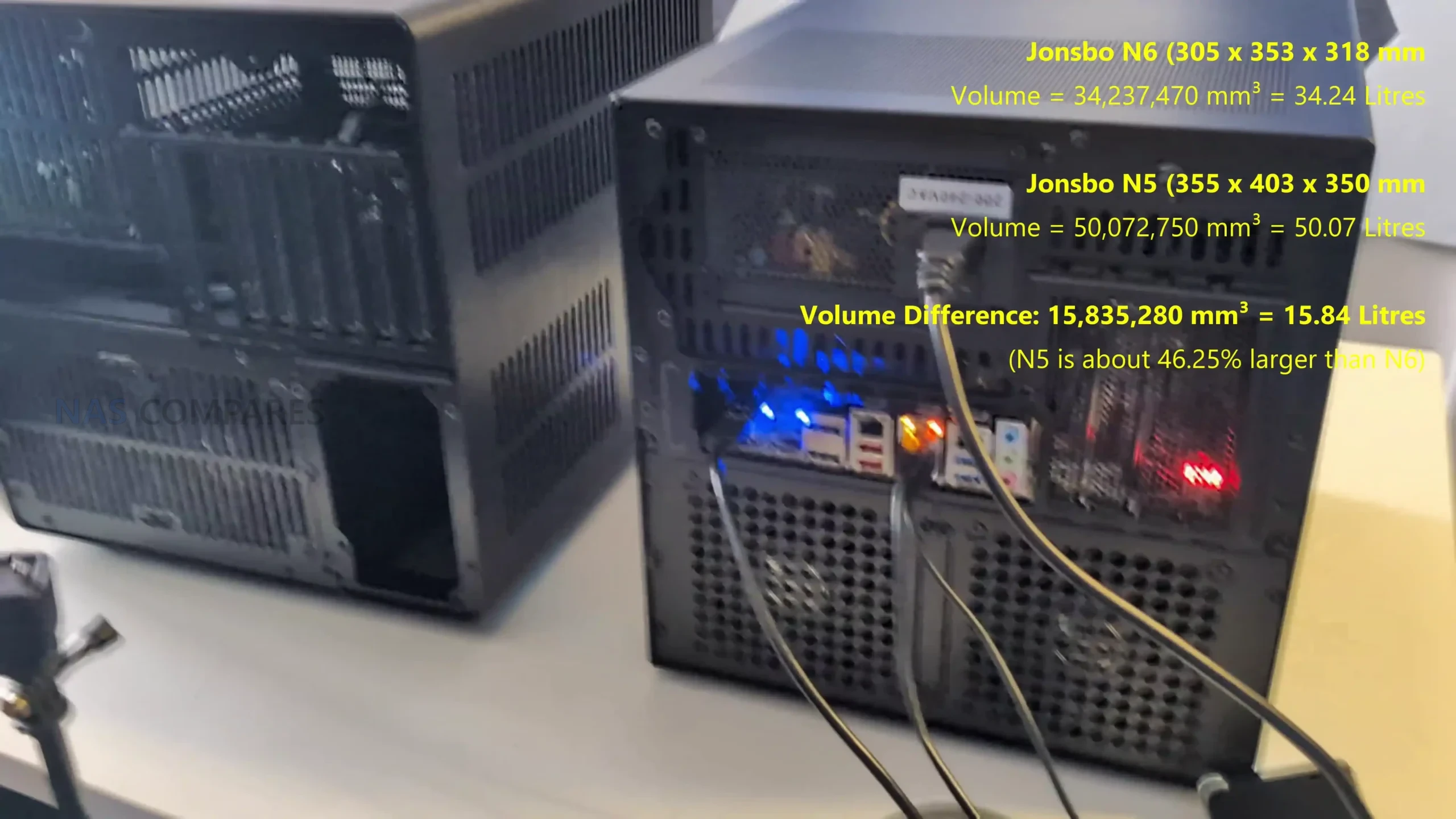
The Jonsbo N6 and the N5 address similar DIY NAS use cases but sit at different points in the product lineup in terms of capacity and flexibility. The N6 is designed around a nine-bay drive layout with support for ITX and micro-ATX motherboards and compatibility with either ATX or SFX power supplies, offering a balance between storage density and a relatively compact footprint, which makes it suitable for builds that need a significant number of drives without a full tower size. By contrast, the N5 supports up to twelve 3.5-inch drives and up to four 2.5-inch SSDs, and accepts larger motherboard formats including ITX, micro-ATX, ATX, and E-ATX, giving it broader component compatibility and expansion potential.

The N5 also provides more PCIe slots and larger GPU clearance, supporting use cases that may combine NAS storage with workstation-class expansions, and includes a mesh front and more extensive cooling provisions to manage heat in its larger enclosure. Both cases offer USB-C and USB-A front I/O for quick access, but the N5’s larger size and multi-material construction generally result in greater internal space for hardware and cooling options. In practice, the N6 aims to offer a middle ground with substantial drive capacity and flexible power supply choices, while the N5 pushes more towards maximum expandability and support for larger and more powerful builds within the Jonsbo NAS ecosystem

Jonsbo N6 Review – Build Testing

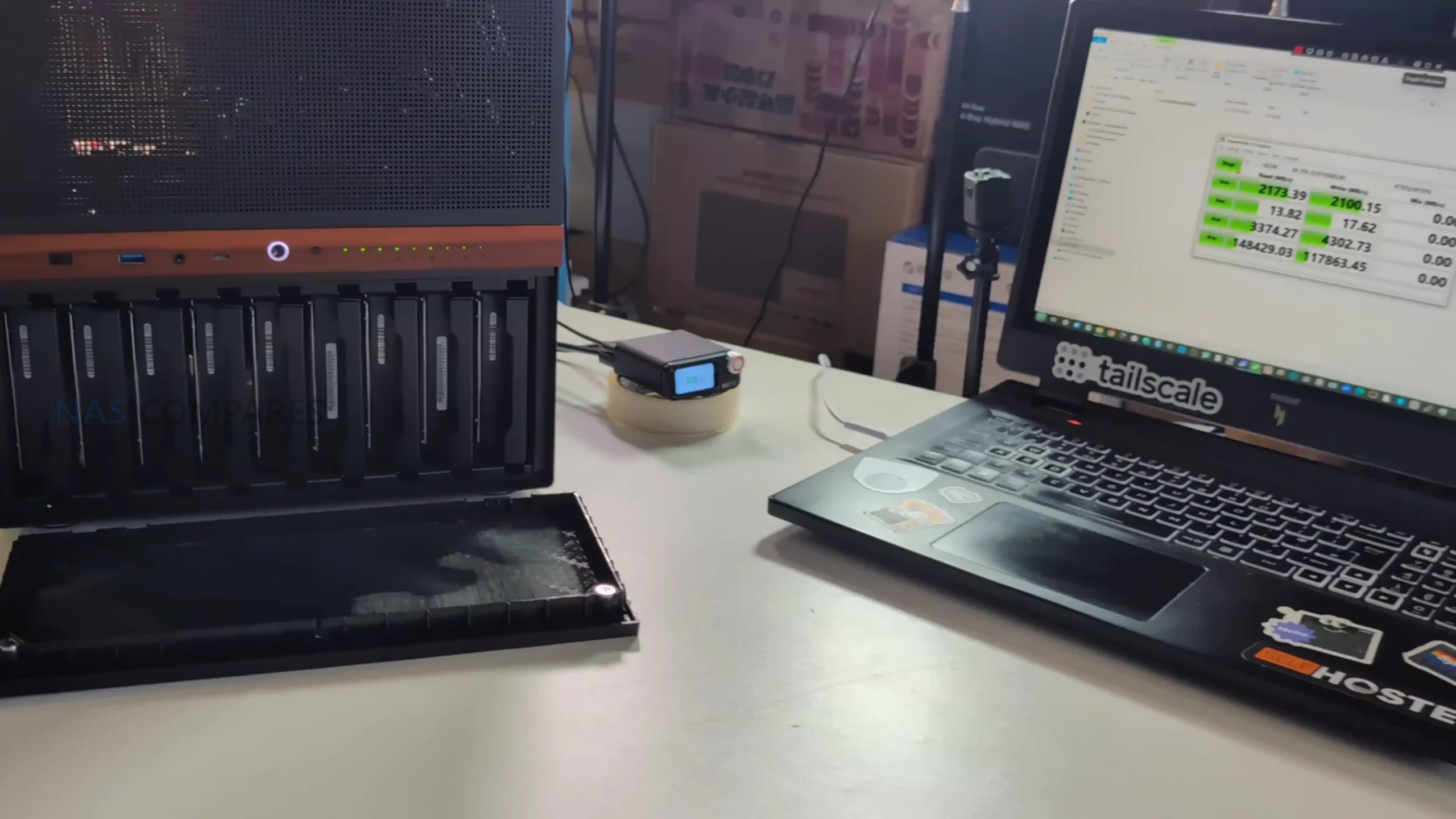
In day to day use, the Jonsbo N6 shows that its performance characteristics are shaped more by component choice than by any inherent limitation of the chassis itself. With a fully populated 9 bay configuration using 7200 RPM hard drives, the case does not introduce noticeable bottlenecks in sustained storage workloads. During extended uptime testing across multiple days, system stability remained consistent, with no unexpected thermal throttling or airflow related instability observed. This aligns with the case design philosophy, which prioritizes open ventilation paths and modular fan placement rather than aggressive acoustic dampening.

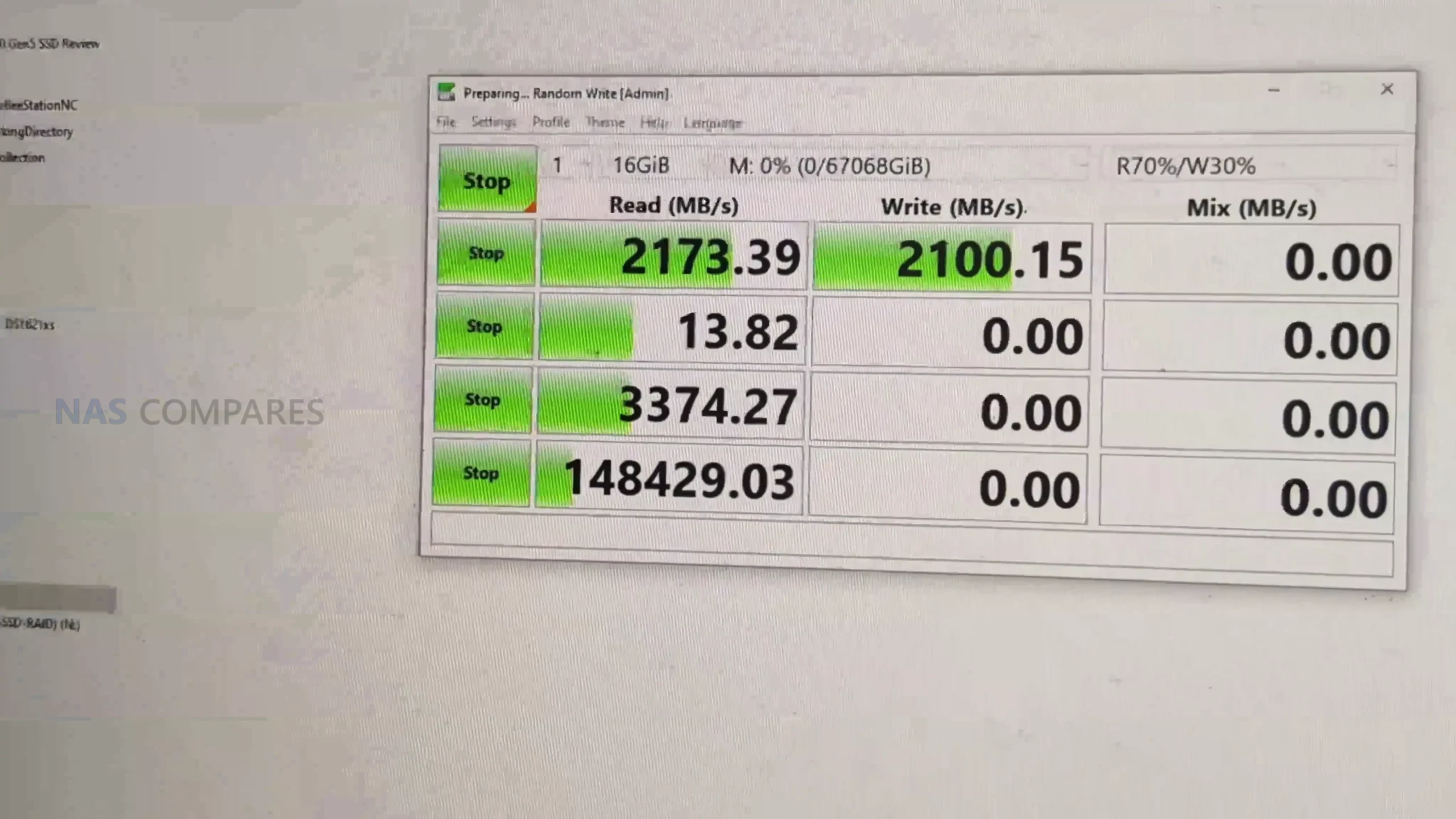
Storage performance testing was carried out using a RAID 0 array across 9 mechanical drives, paired with a workstation class MATX motherboard and a dedicated SATA controller. Sequential read and write speeds reached approximately 2.0 to 2.1 GB/s in CrystalDiskMark, indicating that the enclosure itself does not constrain throughput. These figures are primarily governed by controller bandwidth, PCIe lane allocation, and drive characteristics, rather than the internal backplane. Random access behavior remained typical for high capacity HDD arrays, with no anomalies linked to vibration or drive seating within the metal trays.

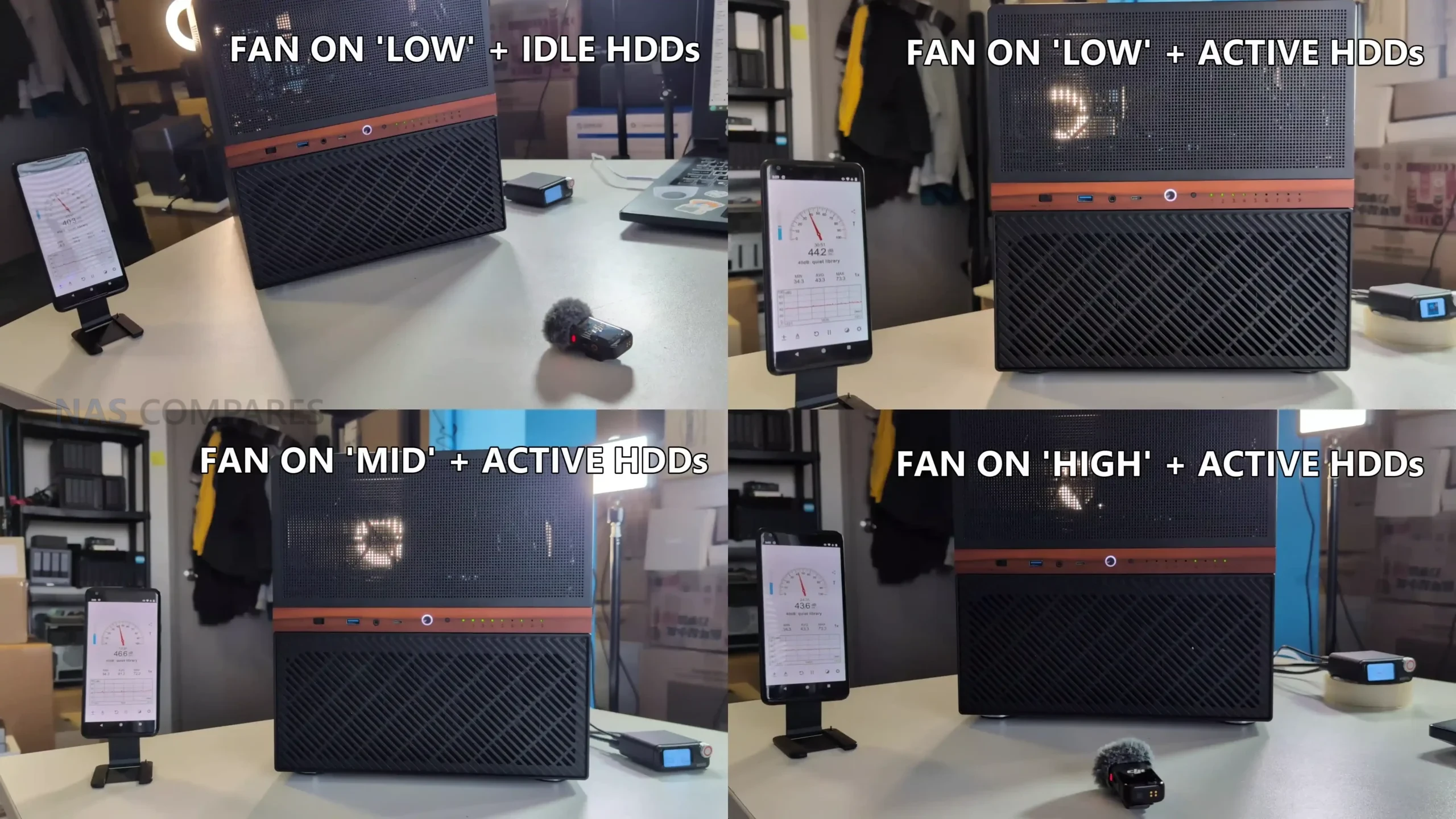
Noise testing was conducted under multiple operating conditions to evaluate how the N6 behaves in real environments rather than synthetic silence. At idle with fans set to the lowest manual setting and drives spun down, measured noise levels hovered around 37 to 39 dBA. Under active disk access with the same fan profile, noise increased modestly to around 41 to 44 dBA, with most audible output coming from the rear exhaust area. Increasing the fan controller to mid and high settings resulted in only marginal increases, topping out around 43 to 44 dBA, suggesting diminishing returns in airflow relative to acoustic output.

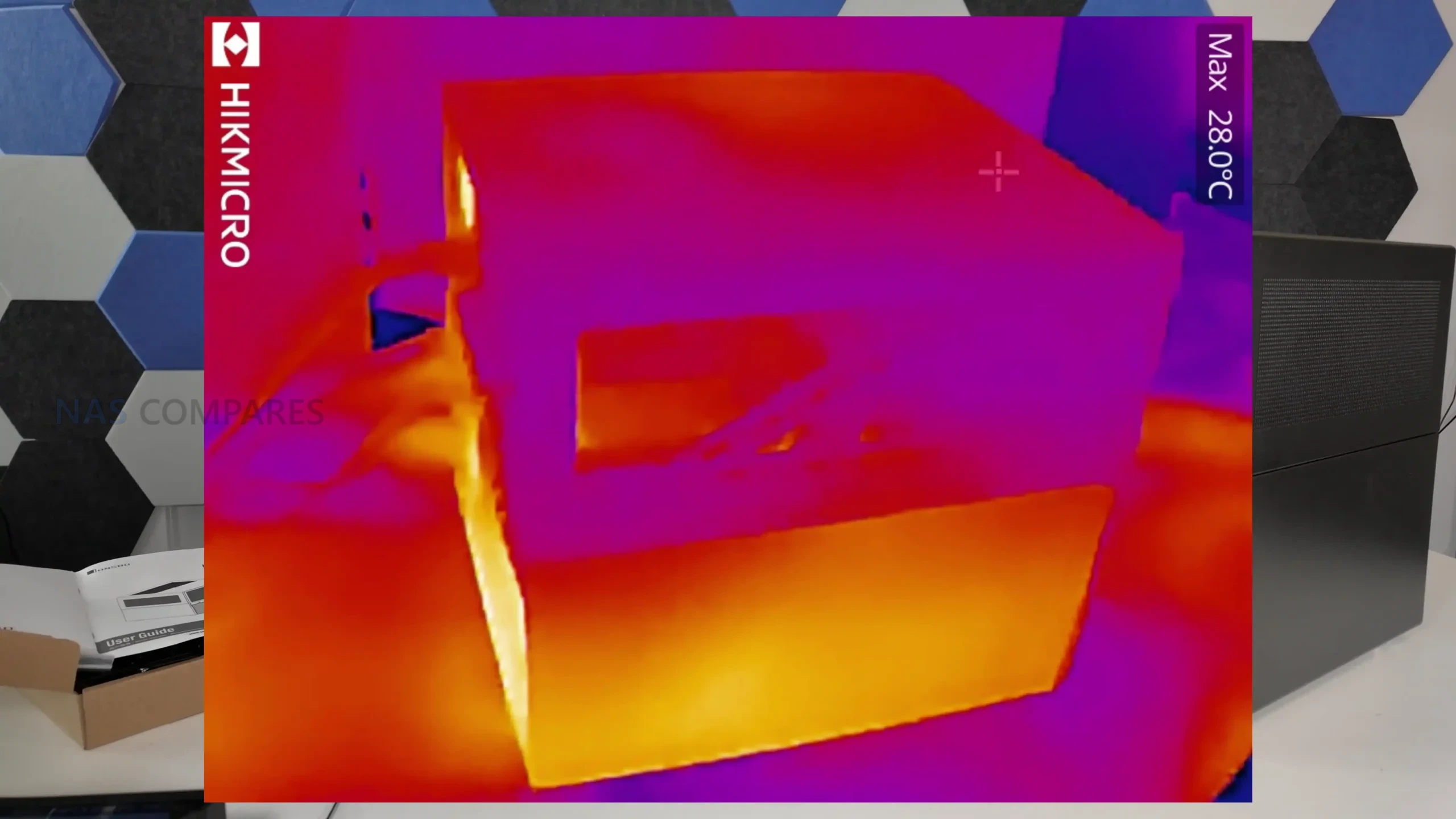
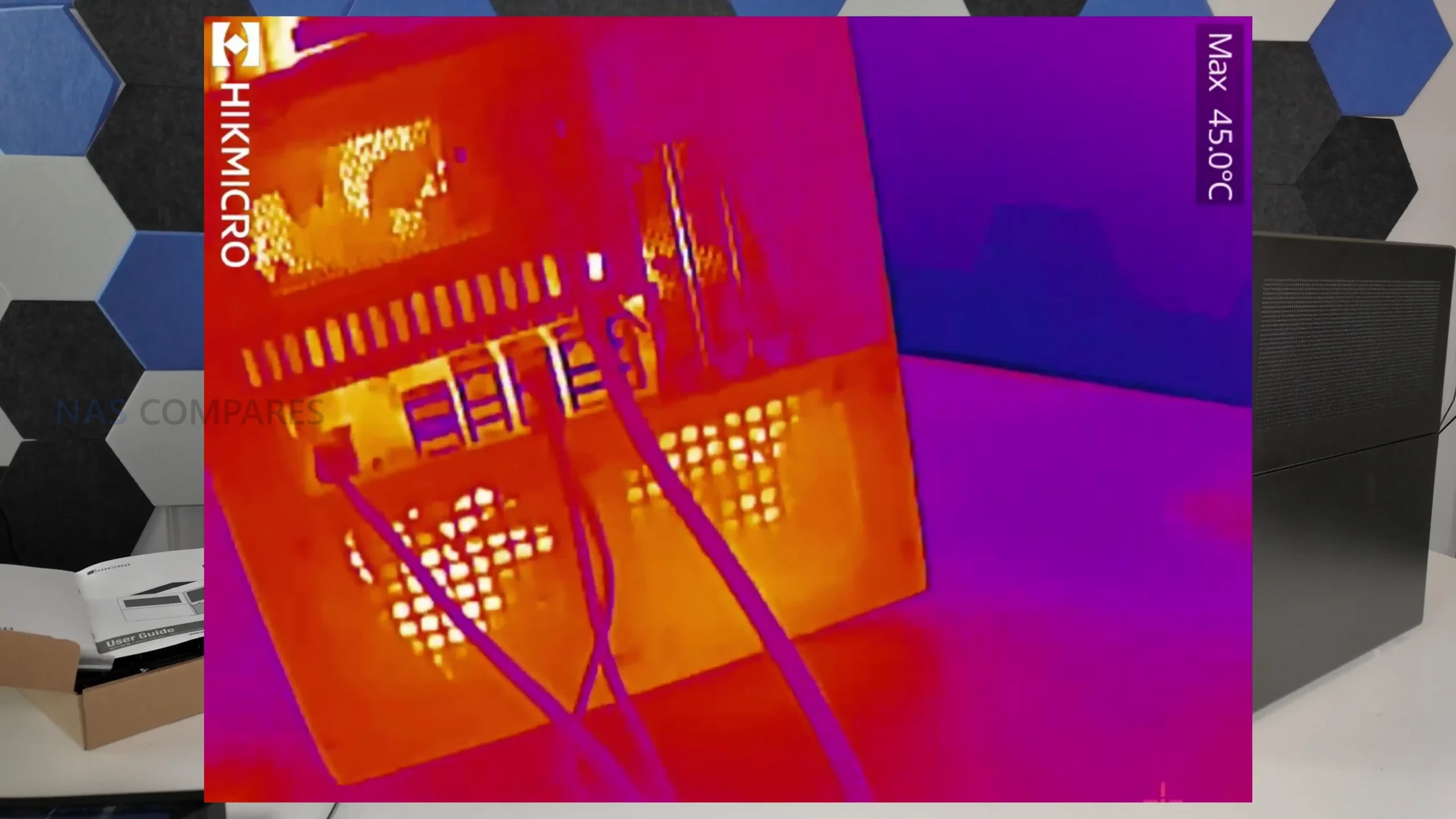
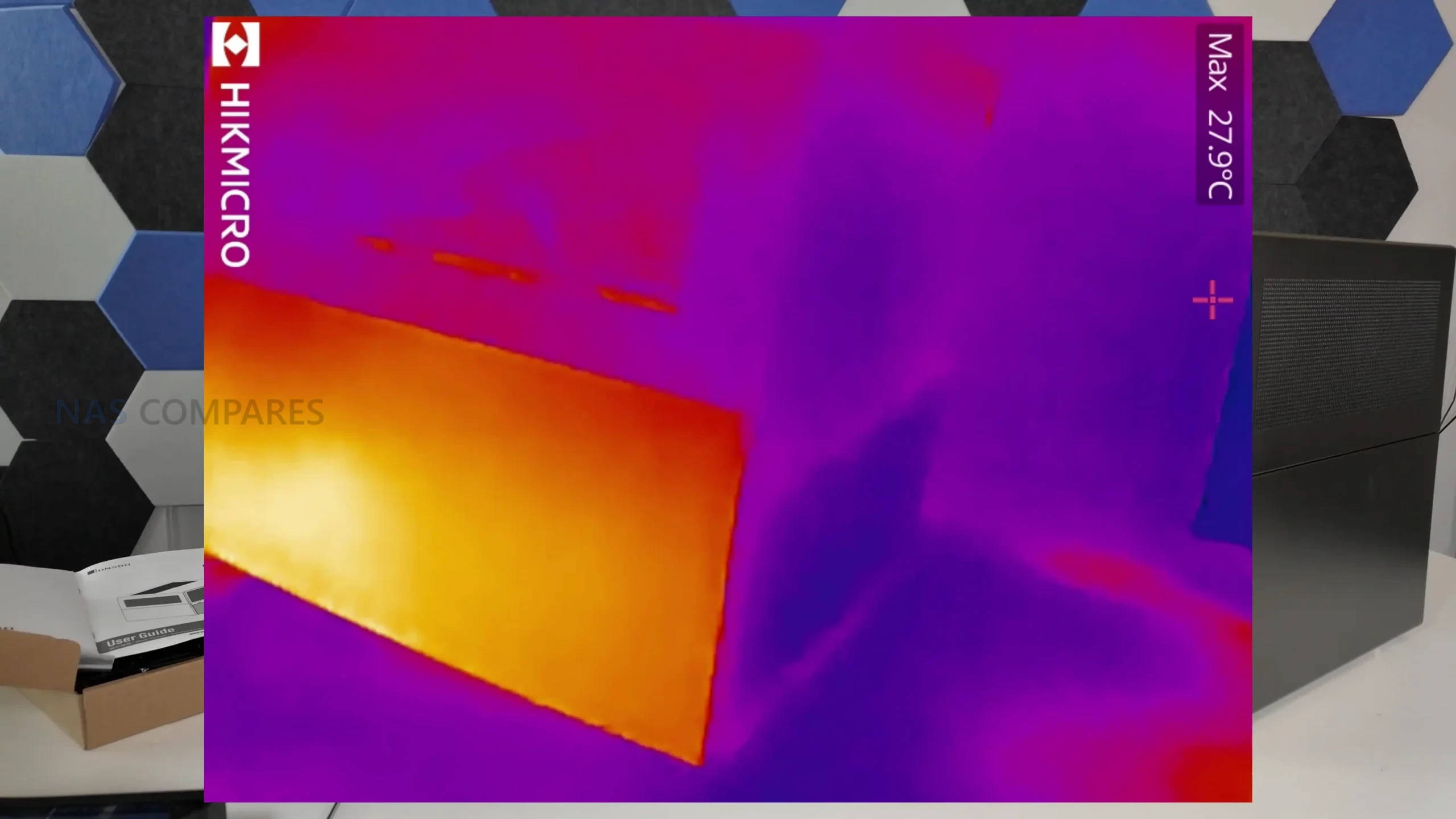
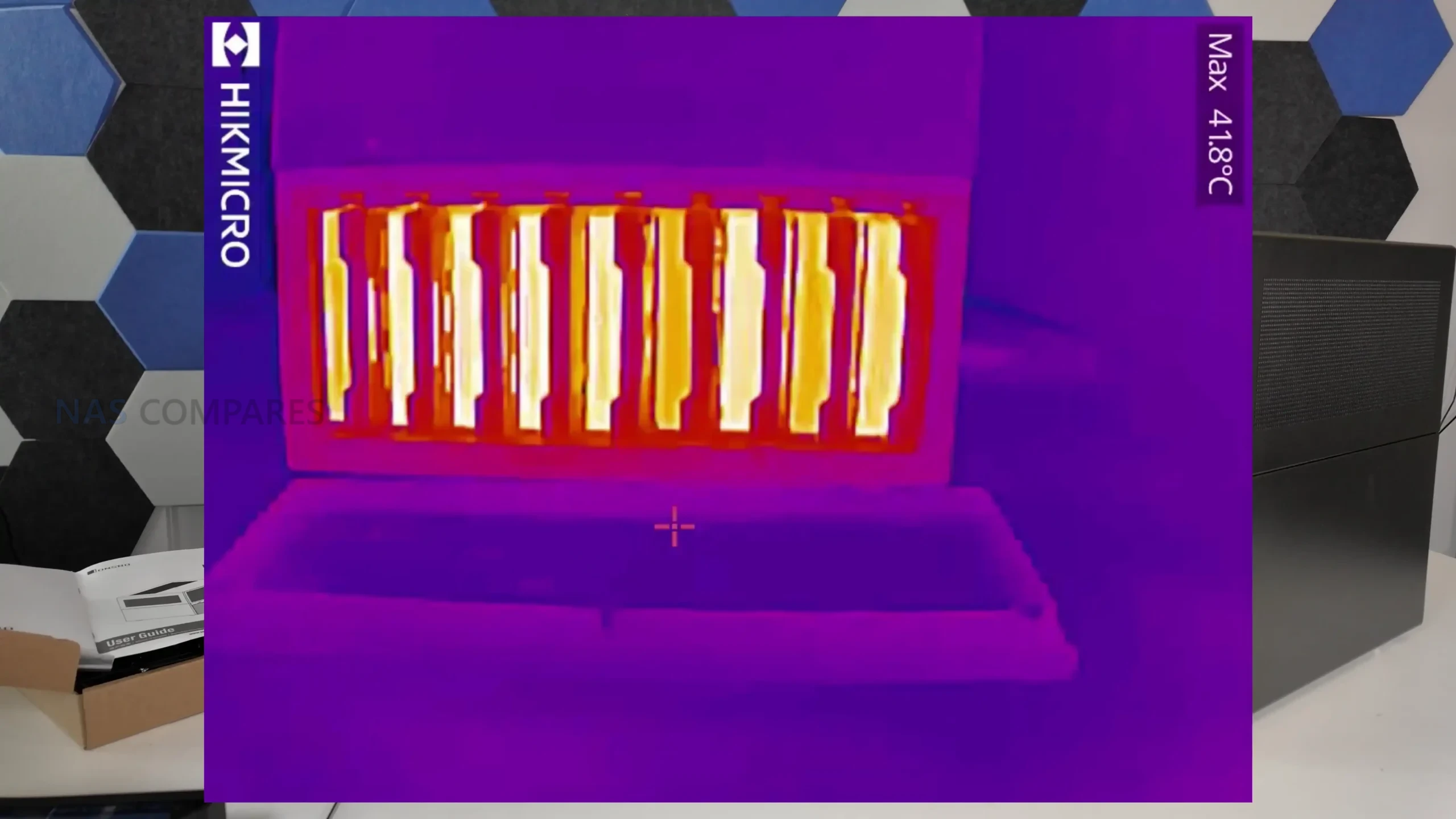
Thermal measurements were taken after the system had been operating continuously for roughly 2.5 days, followed by active load and cooldown observation. Drive temperatures during idle periods generally sat between 25°C and 28°C, with active access pushing internal drive area temperatures to around 42°C. Surface readings across the chassis showed consistent heat distribution, with the rear PCB area and PSU zone measuring close to 42°C, while the top and side panels remained closer to ambient at roughly 26°C to 27°C. These results indicate that while airflow around the drive backplane is not optimal, overall thermal behavior remains within acceptable limits for a 9 bay enclosure.

Test Area Result
Sequential Read Speed ~2.0 to 2.1 GB/s
Sequential Write Speed ~2.0 to 2.1 GB/s
Idle Noise Level 37 to 39 dBA
Load Noise Level 41 to 44 dBA
Idle Drive Temperature 25°C to 28°C
Load Drive Area Temperature ~42°C
PSU Area Temperature ~41.8°C to 42°C

Jonsbo N6 Review – Verdict and Conclusion

After extended hands on use, the Jonsbo N6 positions itself as a compact but ambitious DIY NAS enclosure that sits clearly between the smaller N4 and the larger, more expansive N5. It delivers a high storage density with 9 drive bays while introducing support for Micro ATX motherboards, which meaningfully expands hardware choice compared with earlier Jonsbo NAS cases. Build quality is consistent with the brand’s established approach, using thick steel panels, simple exterior styling, and a layout that prioritizes airflow potential and internal flexibility over visual flair. The inclusion of drive trays, a physical fan controller, multiple PSU mounting options, and extensive fan support marks a clear evolution over previous generations.

That said, the N6 is not without compromises. ATX motherboard support is effectively absent despite tight tolerances, cooling outcomes remain highly dependent on fan selection and placement, and the backplane design relies on standard SATA connections rather than SAS aggregation. Pricing at launch also places it in a competitive bracket where expectations are higher, particularly around refinement of drive trays and airflow optimization around the disk stack. For users who found the N5 too large or excessive but felt constrained by the N3 or N4, the N6 fills a specific and practical gap. It does not replace the N5 as a flagship option, but it stands as a capable and thoughtfully designed alternative for builders who value density, flexibility, and manageable footprint over absolute expansion.

Check Amazon in Your Region for the Jonsbo N6 Case

Check AliExpress or the Jonsbo N6 Case

Jonsbo N6 Case Review PROs Jonsbo N6 Case Review CONs
  • Supports up to 9 x 3.5 inch or 2.5 inch drives, allowing dense storage in a relatively compact footprint

  • Compatible with ITX and Micro ATX motherboards, offering more flexibility than earlier Jonsbo NAS cases

  • Flexible PSU placement with support for ATX and SFX units, including multiple mounting positions

  • Integrated drive backplane simplifies installation and reduces individual cable clutter

  • Built in 3 speed fan controller provides basic manual airflow control without software dependency

  • Extensive ventilation on all sides, top, and base helps maintain reasonable thermals under load

  • Drive trays replace older rubber grommet mounting, making drive installation more straightforward

  • Build quality feels solid overall, with steel construction and improved internal layout for cable routing

  • Backplane uses individual SATA connectors rather than Mini SAS, limiting appeal for SAS focused builds

  • Clearance becomes tight with Micro ATX boards and larger ATX PSUs, especially around CPU cooling

  • Drive trays lack tool less latches, locks, or orientation indicators, increasing the chance of installation mistakes


📧 SUBSCRIBE TO OUR NEWSLETTER 🔔
[contact-form-7]
🔒 Join Inner Circle

Get an alert every time something gets added to this specific article!


Want to follow specific category? 📧 Subscribe

This description contains links to Amazon. These links will take you to some of the products mentioned in today's content. As an Amazon Associate, I earn from qualifying purchases. Visit the NASCompares Deal Finder to find the best place to buy this device in your region, based on Service, Support and Reputation - Just Search for your NAS Drive in the Box Below

Need Advice on Data Storage from an Expert?

Finally, for free advice about your setup, just leave a message in the comments below here at NASCompares.com and we will get back to you. Need Help? Where possible (and where appropriate) please provide as much information about your requirements, as then I can arrange the best answer and solution to your needs. Do not worry about your e-mail address being required, it will NOT be used in a mailing list and will NOT be used in any way other than to respond to your enquiry. [contact-form-7] TRY CHAT Terms and Conditions
If you like this service, please consider supporting us. We use affiliate links on the blog allowing NAScompares information and advice service to be free of charge to you.Anything you purchase on the day you click on our links will generate a small commission which isused to run the website. Here is a link for Amazon and B&H.You can also get me a ☕ Ko-fi or old school Paypal. Thanks!To find out more about how to support this advice service check HEREIf you need to fix or configure a NAS, check Fiver Have you thought about helping others with your knowledge? Find Instructions Here  
 
Or support us by using our affiliate links on Amazon UK and Amazon US
    
 
Alternatively, why not ask me on the ASK NASCompares forum, by clicking the button below. This is a community hub that serves as a place that I can answer your question, chew the fat, share new release information and even get corrections posted. I will always get around to answering ALL queries, but as a one-man operation, I cannot promise speed! So by sharing your query in the ASK NASCompares section below, you can get a better range of solutions and suggestions, alongside my own.

☕ WE LOVE COFFEE ☕


Gl.iNet Beryl 7 vs Beryl AX Travel Router Comparison

Gl.iNet Beryl 7 vs Beryl AX Travel Router – Which Should You Buy?

The GL.iNet Beryl AX (GL-MT3000) and the GL.iNet Beryl 7 (GL-MT3600BE) are two compact travel routers from the same product line, aimed at users who need portable, secure network access for travel, remote work, or temporary deployments. They share a similar physical footprint, OpenWrt based software environment, USB powered design, and the ability to convert a single wired or wireless uplink into a private network for multiple client devices. The comparison between them is relevant because the price difference is relatively modest, yet they are based on different wireless generations and hardware platforms. As a result, prospective buyers and existing Beryl AX users may reasonably question whether the newer Beryl 7 represents a meaningful upgrade, or whether the earlier model remains sufficient for most travel focused networking requirements.

Gl.iNet Beryl 7 Travel Router

Gl.iNet Beryl AX Travel Router

Buy From Gl.iNet

Buy From Amazon

Buy From Gl.iNet

Buy From Amazon

Gl.iNet Beryl 7 vs Beryl AX – WiFi 6 vs WiFi 7 (Do You Need It?)

The GL.iNet Beryl AX (GL-MT3000) is based on the WiFi 6 standard, supporting dual band operation across 2.4GHz and 5GHz with a combined theoretical maximum of 3000Mbps, rated at 574Mbps on 2.4GHz and 2402Mbps on 5GHz. The GL.iNet Beryl 7 (GL-MT3600BE) moves to WiFi 7 and increases the combined theoretical bandwidth to 3600Mbps, rated at 688Mbps on 2.4GHz and 2882Mbps on 5GHz. Both devices operate on 2 bands only, as the Beryl 7 does not include 6GHz support, meaning it does not use the additional spectrum sometimes associated with WiFi 7 implementations.

The practical distinction between WiFi 6 and WiFi 7 in this comparison lies less in raw peak numbers and more in protocol efficiency and connection handling. WiFi 7 introduces Multi Link Operation, allowing compatible client devices to connect across multiple bands simultaneously rather than selecting a single band. In supported environments, this can improve throughput consistency and reduce latency under load. However, the benefit depends on the presence of WiFi 7 capable client hardware. Devices limited to WiFi 6 or earlier will connect using backward compatible standards, reducing the generational advantage to incremental improvements in signal handling and overhead efficiency.

In real world travel scenarios such as hotel rooms, shared apartments, or temporary office spaces, both routers provide sufficient bandwidth for streaming, browsing, cloud access, and moderate file transfers across multiple devices.

The Beryl 7 offers higher theoretical wireless ceilings and additional aggregation capability for compatible hardware, while the Beryl AX provides established WiFi 6 performance that remains adequate for most sub 2.5Gb internet connections. The decision between them in wireless terms is therefore primarily influenced by client device compatibility and the value placed on higher theoretical throughput within a portable deployment context.

It is also worth noting that 6GHz WiFi support, while often associated with WiFi 7, currently has more limited regulatory and client adoption in parts of Europe compared to other regions. Even if a travel router in this class were to include 6GHz radios, many users in European markets would not consistently benefit from the wider 320MHz channels or expanded spectrum due to regional availability constraints and lower client device penetration. In practical terms, this reduces the immediate advantage of tri band WiFi 7 for a large portion of the target audience. Integrating 6GHz capability would also require more advanced RF design, revised antenna layout, higher power handling, and often a different class of processor platform, frequently moving toward higher tier Qualcomm solutions. That shift would increase component cost, thermal requirements, and overall retail pricing, placing the device in a materially different market segment than the current dual band Beryl models.

Gl.iNet Beryl 7 vs Beryl AX – Wired Connectivity for WAN and LAN?

Both the GL.iNet Beryl AX (GL-MT3000) and the GL.iNet Beryl 7 (GL-MT3600BE) include 2 Ethernet ports that can be configured as WAN or LAN depending on deployment needs. The structural difference lies in port speed allocation. The Beryl AX provides 1 x 2.5G port and 1 x 1G port, while the Beryl 7 provides 2 x 2.5G ports. This distinction directly affects how multi-gigabit internet connections and high speed wired clients can be distributed within the local network.

On the Beryl AX, users must decide whether the 2.5G interface will function as WAN or LAN if both upstream and downstream multi gigabit throughput is required. If the 2.5G port is assigned to WAN for an internet connection above 1G, the remaining LAN port is limited to 1G for wired clients such as a NAS or workstation. In contrast, the Beryl 7 allows a multi gigabit WAN input and a separate 2.5G LAN output simultaneously. This removes the need to prioritize one side of the connection when operating in environments with faster than gigabit internet access.

In lower bandwidth scenarios, such as hotel or public WiFi uplinks that rarely exceed 1G, the practical difference may be minimal. However, in deployments involving fiber connections above 1G, local high speed storage, or internal data transfers over wired connections, the dual 2.5G configuration of the Beryl 7 provides greater flexibility. The distinction is therefore less about port quantity and more about simultaneous throughput capability when handling multi gigabit traffic on both WAN and LAN interfaces.

Gl.iNet Beryl 7 vs Beryl AX – Internal Hardware (and what difference it makes?)

The GL.iNet Beryl AX (GL-MT3000) uses the MediaTek MT7981B dual core processor running at 1.3GHz per core, whereas the GL.iNet Beryl 7 (GL-MT3600BE) moves to a MediaTek quad core processor running at 2.0GHz per core. This is not simply an incremental clock speed increase, but a combination of higher per core frequency and a doubling of available cores. In practical routing workloads, additional cores allow parallel handling of encryption, NAT, firewall inspection, QoS rules, and multiple concurrent sessions. The higher clock speed per core also improves single threaded tasks such as certain VPN operations and packet inspection routines. As network traffic increases, particularly when VPN encryption is enabled, the scaling advantage of 4 cores at 2.0GHz becomes more relevant than raw wireless bandwidth alone.

Both devices include 512MB DDR4 memory, so runtime capacity for active services and simultaneous connections is comparable at a base level. The difference lies in onboard NAND flash storage. The Beryl AX provides 256MB of flash, while the Beryl 7 includes 512MB. For basic firmware and light package installation, 256MB is typically sufficient. However, users deploying additional OpenWrt packages, extended logging, container based services, or more complex VPN and DNS filtering configurations may benefit from the additional internal storage headroom on the Beryl 7. The larger flash capacity reduces the need to offload configuration or expand storage through external means.

Both routers feature a single USB 3.0 port for data connectivity, while the separate USB Type C port is dedicated to power input. This means there is only 1 usable USB interface for peripherals. External storage devices such as USB flash drives or portable SSDs can be connected for file sharing via Samba or WebDAV, effectively turning the router into a lightweight network storage node. However, using the USB port for storage prevents simultaneous use for USB tethering or a USB cellular dongle. In travel deployments where USB tethering to a smartphone or 4G or 5G modem is required, the port cannot be shared. As a result, internal flash capacity and USB role allocation may influence configuration decisions depending on whether the router is being used primarily for storage sharing, mobile broadband input, or wired WAN operation.

Gl.iNet Beryl 7 vs Beryl AX – Performance and Deployment Scale Long term

The hardware and wireless differences between the GL.iNet Beryl AX (GL-MT3000) and the GL.iNet Beryl 7 (GL-MT3600BE) translate into measurable differences in VPN throughput and concurrent device handling. The Beryl AX is rated for up to 300Mbps via WireGuard and up to 150Mbps via OpenVPN in client mode. The Beryl 7 increases those ceilings to 1100Mbps via WireGuard and 1000Mbps via OpenVPN DCO. These figures are dependent on network conditions and configuration, but the scaling difference reflects the impact of the stronger quad core 2.0GHz processor on encryption and packet processing workloads.

Client device capacity is also higher on the Beryl 7. The Beryl AX is positioned to support 70 plus connected devices, while the Beryl 7 is rated for 120 plus. In most travel scenarios, such as hotel rooms or short term rentals, both limits exceed realistic usage. However, in small office, lab, classroom, or event environments where a travel router may be used as a temporary gateway, the higher client handling ceiling provides additional headroom. The increase is less about encouraging high density deployments and more about ensuring stability when multiple devices are actively transferring data simultaneously.

Deployment flexibility also differs when combining wired, wireless, and VPN loads. On the Beryl AX, performance limitations are more likely to appear when multi gigabit WAN input, active VPN encryption, and numerous client sessions are all enabled concurrently. The Beryl 7, with dual 2.5G ports, higher wireless ceilings, and stronger CPU resources, is designed to sustain heavier mixed workloads before reaching saturation. In low bandwidth environments such as standard hotel WiFi, both units operate comfortably within their limits. The divergence becomes more apparent in high speed fiber connections, homelab testing, or sustained VPN dependent remote work scenarios.

Gl.iNet Beryl 7 vs Beryl AX – Which One Should You Buy?

The GL.iNet Beryl AX (GL-MT3000) and the GL.iNet Beryl 7 (GL-MT3600BE) occupy the same physical category and share a similar deployment philosophy, but they differ meaningfully in processing capability, wired configuration flexibility, wireless ceiling, and VPN throughput. The Beryl AX remains a WiFi 6 based travel router with 2.5G WAN support, stable OpenWrt integration, and sufficient CPU resources for encrypted traffic at moderate broadband speeds. For users operating within sub gigabit internet connections, running standard VPN client configurations, and connecting a typical number of personal devices, its limitations are unlikely to surface in normal travel use. It continues to provide a compact, USB powered solution for converting public or shared internet access into a private subnet.

The Beryl 7 expands on that foundation with WiFi 7 protocol support across 2.4GHz and 5GHz, Multi Link Operation, dual 2.5G Ethernet ports, higher VPN throughput ceilings, a stronger quad core 2.0GHz processor, and increased onboard flash storage. These upgrades primarily increase performance headroom rather than altering the use case itself. In environments involving faster than 1G internet connections, sustained encrypted traffic, heavier concurrent client activity, or mixed wired and wireless high throughput workloads, the Beryl 7 is less likely to encounter processing or port bottlenecks. The higher rated VPN performance, particularly with WireGuard and OpenVPN DCO, may also be relevant for remote workers whose encrypted tunnel speed is constrained by router hardware rather than the upstream connection.

It is also relevant that the Beryl 7 does not include 6GHz spectrum support, meaning it does not implement the full 3 band WiFi 7 feature set. Within the broader portfolio of GL.iNet, development is ongoing toward a 6GHz capable WiFi 7 travel platform, referenced as the Slate 7 Pro, which is expected no earlier than Q2 2026. As such, the Beryl 7 represents an incremental step forward within dual band travel routers rather than the final stage of WiFi 7 implementation in this segment. Buyers prioritizing immediate WiFi 7 support with stronger processing and dual 2.5G ports may find the Beryl 7 aligned with their requirements, while those satisfied with WiFi 6 performance and lower VPN ceilings may find the Beryl AX remains proportionate to its price and intended scope.

Gl.iNet Beryl 7 Travel Router

Gl.iNet Beryl AX Travel Router

Buy From Gl.iNet

Buy From Amazon

Buy From Gl.iNet

Buy From Amazon

PROs CONs PROs CONs
+ WiFi 7 and MLO

+ Dual 2.5G WAN/LAN

+ Better CPU

+ More Storage

– More Expensive

– Lack of 6Ghz

– Same RAM/Memory

+ Cheaper

+ Lower Power Use

+ Same RAM/Memory

+ Same Software & Features

– Lacks MLO

– Less Base Storage

– Lower USB PD Support


📧 SUBSCRIBE TO OUR NEWSLETTER 🔔
[contact-form-7]
🔒 Join Inner Circle

Get an alert every time something gets added to this specific article!


Want to follow specific category? 📧 Subscribe

This description contains links to Amazon. These links will take you to some of the products mentioned in today's content. As an Amazon Associate, I earn from qualifying purchases. Visit the NASCompares Deal Finder to find the best place to buy this device in your region, based on Service, Support and Reputation - Just Search for your NAS Drive in the Box Below

Need Advice on Data Storage from an Expert?

Finally, for free advice about your setup, just leave a message in the comments below here at NASCompares.com and we will get back to you. Need Help? Where possible (and where appropriate) please provide as much information about your requirements, as then I can arrange the best answer and solution to your needs. Do not worry about your e-mail address being required, it will NOT be used in a mailing list and will NOT be used in any way other than to respond to your enquiry. [contact-form-7] TRY CHAT Terms and Conditions
If you like this service, please consider supporting us. We use affiliate links on the blog allowing NAScompares information and advice service to be free of charge to you.Anything you purchase on the day you click on our links will generate a small commission which isused to run the website. Here is a link for Amazon and B&H.You can also get me a ☕ Ko-fi or old school Paypal. Thanks!To find out more about how to support this advice service check HEREIf you need to fix or configure a NAS, check Fiver Have you thought about helping others with your knowledge? Find Instructions Here  
 
Or support us by using our affiliate links on Amazon UK and Amazon US
    
 
Alternatively, why not ask me on the ASK NASCompares forum, by clicking the button below. This is a community hub that serves as a place that I can answer your question, chew the fat, share new release information and even get corrections posted. I will always get around to answering ALL queries, but as a one-man operation, I cannot promise speed! So by sharing your query in the ASK NASCompares section below, you can get a better range of solutions and suggestions, alongside my own.

☕ WE LOVE COFFEE ☕


Edito du 18 février

edito - Edito du 18 février

Bonjour à tous,

J’espère que vous allez bien. Certains d’entre vous sont peut-être en vacances et vous avez bien raison d’en profiter ! De mon côté, je vais bientôt prendre quelques jours pour aller faire un tour à Londres. Ce sera une première pour moi (ne vous moquez pas),  je n’ai encore jamais mis les pieds en Angleterre, ni même au Royaume-Uni. Notre fille aînée y passe un semestre, alors c’était l’occasion parfaite de la voir et de découvrir la capitale. Si vous avez de bonnes adresses ou des recommandations, n’hésitez pas à les partager en commentaires.

À la rédaction, 2 NAS sont actuellement en test. Les articles devraient paraître avant la fin du mois de février (oui, il ne reste plus que quelques jours)… On y travaille activement ! À ce propos, j’ai voulu acheter de la mémoire vive DDR5 pour équiper l’un des modèles prêtés. La claque a été sévère : je savais que les prix avaient augmenté, mais là, c’est devenu absurde.

Pour donner un exemple concret : le module de 8 Go en DDR5 Kingston coûtait environ 32 € l’été dernier. Aujourd’hui ? 153 €. En six mois, le tarif a été multiplié par presque 5… du grand n’importe quoi. On comprend mieux pourquoi certains fabricants hésitent encore à revenir vers la DDR4, dont le prix (lui aussi) a doublé. Est-ce que certains abusent ? On dirait bien…

Côté séries, j’ai récemment regardé His & Her : franchement, c’est assez médiocre. Le premier épisode démarre bien, mais la suite ne suit pas et même le twist final manque de surprise. En revanche, j’ai bien aimé Down Cemetery Road, malgré quelques longueurs… J’ai aussi vu The Studio et je comprends l’engouement outre-Atlantique, même si la série est très « US-centric  » et qu’elle aura sans doute du mal à séduire le même public ici. En ce moment, je regarde Pluribus : une vraie bonne surprise, un vent de fraîcheur ! Attention, le bonheur envahit la planète terre…

Bon allez, je vous laisse… Excellente semaine à tous !
FX

Les commentaires font vivre un blog… et comment en tirer le meilleur

commentaires - Les commentaires font vivre un blog... et comment en tirer le meilleur

Vous savez ce qui fait réellement vivre ce blog ? Ce n’est pas seulement le contenu que je publie. C’est vous : vos réactions, vos ajouts, vos corrections et même vos désaccords constructifs. En parcourant les commentaires laissés sur Cachem, je constate à chaque fois la richesse des échanges, qui dépasse parfois la qualité de mes propres articles. Et c’est exactement ce qu’un blog devrait être : un espace de partage et de construction collective du savoir.

commentaires - Les commentaires font vivre un blog... et comment en tirer le meilleur

Pourquoi fermer les commentaires ?

Soyons honnêtes : oui, il y a des trolls. Oui, il y a des rageux (certains plutôt sympathiques, d’ailleurs). Et oui, le spam existe. Mais pourquoi tant de sites web ont fermé leur section commentaires, ou ne l’ont même jamais ouverte ?

Officiellement, la raison est souvent liée à la modération : filtrer le spam, gérer les trolls, éviter les débordements… c’est chronophage, je l’admets, mais il y a des outils. En creusant un peu, on découvre d’autres motivations, moins avouables : certains créateurs de contenu n’aiment pas être contredits. D’autres refusent de faire « l’après-vente » de leurs publications. Ils préfèrent diffuser leur vérité sans dialogue.

Permettez-moi d’être direct : créer du contenu en pensant avoir toujours raison, sans accepter le débat ou la contradiction, c’est reproduire, à petite échelle, les mécanismes de certains régimes totalitaires. Oui, j’assume le parallèle. Un blog sans commentaires, c’est comme un livre qu’on ne pourrait jamais annoter, discuter ou enrichir.

La communauté : une lueur d’espoir…

Quand je lis vos commentaires, je vois de la bienveillance, l’expertise et un véritable esprit de partage. Le niveau des échanges me rappelle ce qu’on peut trouver sur les meilleurs forums spécialisés, notamment ceux dédiés aux NAS 😉 où technicité et entraide coexistent harmonieusement.

Vos contributions dépassent parfois la qualité de mes propres articles. Et vous savez quoi ? Ça ne me vexe pas, bien au contraire !

L’écosystème parfait d’un blog

Un blog orienté tech’ comme Cachem (je dois être un des dinosaures du secteur) ne devrait jamais être une tribune à sens unique. Mon objectif est de partager mes expériences, mes avis et mes découvertes autour des NAS et de la tech en général. Mais l’enrichissement véritable vient de nos échanges.

Les commentaires transforment un simple article en conversation dynamique où :

  • Les erreurs sont corrigées ;
  • Les astuces complémentaires émergent ;
  • Les cas d’usage se multiplient ;
  • La communauté s’entraide (sans attendre mon intervention).

Bien sûr, tous les sujets ne se prêtent pas toujours aux commentaires sur un article de blog. Certains échanges, plus techniques ou très détaillés, peuvent rapidement dépasser le cadre d’un fil de discussion classique. C’est justement pour répondre à ce besoin que j’ai créé le Forum des NAS, un espace dédié où les passionnés peuvent poser leurs questions, partager leurs configurations et s’entraider en toute liberté, sans les contraintes d’un blog.

Le choix assumé de l’ouverture

Garder les commentaires ouverts sur Cachem est un choix éditorial fort. Cela signifie accepter d’être challengé, corrigé et complété. Reconnaître qu’on n’a pas toutes les réponses et que l’intelligence collective surpasse toujours l’expertise individuelle.

Oui, cela demande de la modération. Oui, il faut parfois gérer des commentaires désagréables. Mais le jeu en vaut largement la chandelle, tant la qualité des échanges en ressort enrichie.

En synthèse : continuez à commenter !

Merci à vous : commentateurs assidus, correcteurs bienveillants, partageurs d’astuces… et mêmes trolls gentils. Vous êtes la preuve vivante qu’Internet peut encore être un espace d’échange constructif, dans un monde où trop de créateurs préfèrent le monologue au dialogue.

Continuez à partager, débattre et enrichir. C’est cette énergie collective qui distingue un blog mort d’une communauté vivante. Et franchement, je préfère largement la seconde option.

Enfin, un clin d’œil particulier au Forum des NAS, autrefois modeste, devenu aujourd’hui une référence dans son domaine grâce à son esprit de partage, d’entraide et de bienveillance.

Top 10 des conteneurs Docker indispensables sur NAS Synology en 2026

Top 10 docker 2026

Les NAS Synology sont bien plus que de simple unité de stockage en réseau… ce sont de mini-serveur polyvalent capable d’héberger toute une gamme de services Docker. Grâce à Container Manager (le gestionnaire Docker intégré à DSM), il est possible d’ajouter rapidement des applications auto-hébergées et d’exploiter pleinement la puissance de votre NAS.

Dans cet article, je vous présente ma sélection des 10 conteneurs Docker incontournables en 2026 pour étendre les fonctionnalités de votre Synology.

Top 10 docker 2026

Pourquoi Docker sur NAS Synology (ou autre) ?

Docker apporte l’isolation, la portabilité et la flexibilité nécessaires pour exécuter des applications sans alourdir le système principal de votre NAS. Contrairement à la virtualisation traditionnelle, Docker ne nécessite pas de système d’exploitation complet par application : chaque service tourne dans un conteneur léger et indépendant, ce qui simplifie la gestion et réduit l’utilisation des ressources.

Docker pour les nuls – la révolution du conteneur Docker pour les nuls – la révolution du conteneur

Attention, tous les NAS ne supportent pas Docker nativement. Les modèles avec processeurs Intel ou ARM récents et suffisamment de mémoire RAM (2 Go minimum) restent recommandés pour une expérience fluide.

Mes 10 conteneurs Docker préférés

Il y a un an, je vous partageai mes 10 conteneurs Docker préféré en 2025… voici un rafraichissement avec quelques changements.

1. AdGuard Home – Filtrage réseau global

adguard home 2026 - Top 10 des conteneurs Docker indispensables sur NAS Synology en 2026

Un bloqueur de publicités et traqueurs à l’échelle de votre réseau. Installé en tant que DNS local, il protège tous vos appareils sans configuration individuelle. (alternative : PiHole)

2. Vaultwarden – Gestionnaire de mots de passe auto-hébergé

bitwarden 2026 - Top 10 des conteneurs Docker indispensables sur NAS Synology en 2026

Version légère et performante de Bitwarden écrite en Rust. Compatible avec les applications natives et les extensions navigateurs.

3. Immich – Gestion de photos privées

Immich 2026

Un gestionnaire de bibliothèque photo local avec reconnaissance faciale et organisation intelligente des albums… une solution vraiment respectueuse de votre vie privée.

4. Odoo – ERP/CRM modulaire

Odoo applications 2026 - Top 10 des conteneurs Docker indispensables sur NAS Synology en 2026

Odoo est une suite d’applications professionnelles complète (CRM, gestion de projet, facturation, etc.). Flexible, interopérable et capable de remplacer plusieurs outils en silo.

5. Jellyfin – Media server open source

jellyfin 2026 - Top 10 des conteneurs Docker indispensables sur NAS Synology en 2026

Alternative gratuite et open source à Plex ou Emby, Jellyfin permet d’organiser, streamer et partager une bibliothèque multimédia sans abonnement. Fonctionne sur la plupart des lecteurs et appareils modernes. Utile depuis la suppression des fonctions de transcodage côté Synology.

6. Scrutiny – Surveillance SMART et disque

scrutiny sur un DS923 - Top 10 des conteneurs Docker indispensables sur NAS Synology en 2026
Scrutiny sur un Synology DS923+

Un outil complet de surveillance de l’état des disques (S.M.A.R.T.), idéal pour anticiper les défaillances et préserver l’intégrité de vos données. Je l’utilise depuis la désactivation du suivi S.M.A.R.T. natif dans DSM

7. Uptime Kuma – Monitoring de services

Uptime Kuma 2026 - Top 10 des conteneurs Docker indispensables sur NAS Synology en 2026


Surveille la disponibilité de vos sites et services personnels ou professionnels et vous alerte en cas d’indisponibilité.

8. OmniTools – Boîte à outils web auto‑hébergée

OmniTools 2026 - Top 10 des conteneurs Docker indispensables sur NAS Synology en 2026


OmniTools regroupe une collection d’outils web auto‑hébergés pour accomplir des tâches courantes (images, PDF, texte, données, etc.) directement depuis le navigateur, sans publicité ni suivi, avec une image Docker légère pour un déploiement facile.

9. Komga – Gestion de bandes dessinées et mangas

komga 2026 - Top 10 des conteneurs Docker indispensables sur NAS Synology en 2026

Application web qui vous permet d’organiser, de lire et de gérer vos bandes dessinées, mangas, BD, magazines et livres électroniques. Vous pouvez utiliser le lecteur web intégré, l’extension Mihon, n’importe quel lecteur OPDS…

10. Homepage – Dashboard de services

homepage 2026 - Top 10 des conteneurs Docker indispensables sur NAS Synology en 2026

Un tableau de bord personnalisable qui centralise l’accès à tous les services auto-hébergés ici. Parfait pour organiser vos conteneurs, URLs et statuts d’applications.

Et ensuite ?

Cette liste reflète mes services Docker préférés en 2026… Tous ne sont pas listés, car certains ne sont encore en phase de test ou leur utilité est très spécifique (Authentik, Cloudflared…). Je pense qu’en 2026, il va y avoir de nombreux changements sur mon NAS et cette liste n’est pas figée.

En synthèse

Que vous soyez un utilisateur avancé ou un passionné d’auto-hébergement, Docker transforme votre NAS Synology en une plateforme polyvalente et personnalisable. Les conteneurs présentés ici couvrent des usages pratiques, du réseau à la gestion multimédia en passant par la productivité.

N’hésitez pas à partager vos propres découvertes en commentaires si vous utilisez d’autres conteneurs Docker intéressants en 2026 !

Trilium Notes : alternative open source pour les notes hiérarchique

Trilium Notes

Trilium Notes est une application open source de prise de notes hiérarchiques conçue pour organiser efficacement vos idées, projets et connaissances. Elle se positionne comme une alternative crédible à Evernote, Obsidian ou OneNote, avec un avantage de taille : la possibilité de l’auto-héberger facilement, notamment sur un NAS.

Trilium Notes

Trilium Notes

Trilium repose sur une structure arborescente à profondeur illimitée. Chaque note peut contenir un nombre illimité de sous-notes, ce qui permet de se passer complètement d’un système de dossiers classique.

Parmi les fonctionnalités les plus intéressantes, le cloning permet de placer une même note à plusieurs endroits de l’arborescence sans duplication de contenu. Une note peut ainsi appartenir à plusieurs contextes tout en restant unique.

L’organisation peut être enrichie grâce aux labels, aux relations entre notes et aux workspaces, pratiques pour séparer les usages personnels et professionnels.

Édition et fonctionnalités avancées

Trilium intègre un éditeur WYSIWYG complet prenant en charge les tableaux, les images, les formules mathématiques et l’auto-formatage Markdown. Les développeurs apprécieront le support des notes de code avec coloration syntaxique.

Trilium mindmap - Trilium Notes : alternative open source pour les notes hiérarchique

L’application propose également plusieurs outils de visualisation :

  • cartes relationnelles (relation maps),
  • cartes mentales basées sur Mind Elixir,
  • création de diagrammes via Excalidraw.

La navigation reste fluide grâce à un moteur de recherche efficace et à un système de liens internes bien pensé.

trilium code - Trilium Notes : alternative open source pour les notes hiérarchique

Sécurité et synchronisation

Trilium offre un chiffrement de bout en bout configurable note par note. Les données peuvent être synchronisées entre plusieurs appareils via votre propre infrastructure (un NAS par exemple), garantissant un contrôle total sur vos informations.

Un système de versioning intégré permet de consulter l’historique des modifications et de restaurer facilement des versions antérieures. L’outil inclut également un moteur de scripting, utile pour automatiser certaines tâches ou personnaliser le comportement de l’application.

Installation sur un NAS

Sur un NAS QNAP, Trilium est disponible directement via un paquet à récupérer sur MyQNAP.org.

Pour les autres plateformes (Synology, Asustor, TerraMaster, mais aussi QNAP), l’installation via Docker reste la solution la plus simple et la plus flexible, en s’appuyant sur l’image officielle du projet.

Fonctions IA intégrées

Trilium peut s’appuyer sur des modèles d’intelligence artificielle pour le résumé de notes ou la génération de contenu. L’intégration est possible avec ChatGPT (OpenAI), Claude (Anthropic) ou encore des modèles locaux via Ollama, toujours sur votre NAS.

​En synthèse

Si vous cherchez une alternative open source à Evernote ou OneNote, tout en conservant un contrôle total sur vos données, Trilium Notes est une solution à considérer sérieusement. La prise en main demande un léger investissement, notamment pour appréhender la logique hiérarchique et les fonctionnalités avancées, mais la flexibilité et la puissance de l’outil compensent largement cet effort.

L’auto-hébergement implique de disposer d’une infrastructure adaptée, mais c’est précisément ce choix qui garantit la pérennité, la confidentialité et l’indépendance de vos notes.

Gagne un NAS Synology

Concours DS223j - Gagne un NAS Synology

Aujourd’hui, on a une surprise pour vous : on vous propose de gagner un NAS Synology DS223j. Derrière ce nom se cache un modèle idéal pour tous ceux qui cherchent une solution simple et efficace pour gérer, centraliser et sauvegarder leurs données. Photos, vidéos, documents… le DS223j permet de tout regrouper au même endroit et de sécuriser vos fichiers personnels.

Concours DS223j - Gagne un NAS Synology

Gagne un Synology DS223j

Avant de passer au concours, petit zoom sur ce NAS 2 baies qui cache plutôt bien son jeu. Malgré son positionnement entrée de gamme, le DS223j se montre robuste, réactif et parfaitement adapté à un usage domestique (et même à certains besoins avancés, avec quelques limites).

Il embarque un processeur Quad-Core Realtek RTD1619B cadencé à 1,7 GHz, accompagné de 1 Go de mémoire vive (non extensible). Il peut accueillir 2 disques durs ou SSD selon vos besoins (capacité, silence, performances).

Côté connectique, on retrouve :

  • 2 ports USB 3.0 ;
  • 1 port réseau 1 Gb/s.

Le DS223j tourne sous DSM 7.3, la dernière version du système Synology. Vous pouvez notamment y utiliser Synology Office (traitement de texte, tableur, présentations) ainsi que Container Manager (Docker), pratique pour déployer des applications supplémentaires. Attention toutefois : avec seulement 1 Go de RAM, il faudra rester raisonnable sur le nombre de services lancés en parallèle.

DS223j devant derriere - Gagne un NAS Synology

🎯 Comment participer au concours ?

C’est très simple : laissez un commentaire sous cet article en répondant à la question suivante :

💬 Pourquoi aimeriez-vous gagner le NAS Synology DS223j ?

Vous pouvez aussi partager le concours sur vos réseaux sociaux (partage facultatif mais apprécié)

📅 Dates importantes

  • Ouverture du concours : 9 février 2026
  • Clôture des participations : 15 février 2026 à minuit
  • Annonce du gagnant : 17 février 2026 sur cet article

Le tirage au sort sera effectué parmi les commentaires valides. Le gagnant sera contacté par e-mail afin d’organiser l’envoi du lot.

🎁 Le lot à gagner

1 NAS Synology DS223j (valeur : environ 220€ TTC)

🧩 Conditions de participation

  • Une seule participation par personne (même nom, même e-mail) ;
  • Utilisez une adresse e-mail valide ;
  • Concours ouvert à la France métropolitaine.

[edit du 16/02] Félicitation à Guillaume qui a remporté ce NAS

Vos données sont confidentielles. Elles ne seront ni utilisées par Cachem, ni par un partenaire. Seul le gagnant du concours sera contacté par l’administrateur du site.

Synology FS200T NAS Revealed

Synology FS200T NAS is STILL A THING! But Is It Too Late?

The Synology FlashStation FS200T is a compact 6 bay 2.5 inch NAS that has followed an unusually drawn out and fragmented path to visibility. The device first appeared through semi official leaks in Q1 2025, before being shown more openly at Computex during May and June, giving attendees a first real look at the hardware. After that appearance, public information largely dried up, leading many to assume the system had been delayed indefinitely or quietly cancelled. Interest resurfaced later in 2025 as more complete documentation began to circulate, culminating in a leaked datasheet dated October 16, 2025 that outlined specifications, software capabilities, and Synology’s intended positioning for the device. Despite the lack of an official launch announcement, demand has remained present at a low but steady level, particularly among users who value small, quiet systems and are already invested in the DSM ecosystem. Online discussion has continued across forums and social platforms, with recurring questions around release timing and justification for the product’s existence in a rapidly changing NAS market. The FS200T appears designed to serve a specific niche rather than a broad audience, focusing on an all flash configuration, low acoustic output, and minimal physical footprint. Rather than competing on raw performance or expandability, its purpose is to deliver a responsive, self contained storage platform that runs the full Synology software stack in environments where noise, size, and power consumption matter more than upgrade paths or maximum throughput.

Synology FS200T NAS – Hardware Specifications

At the heart of the Synology FS200T is the Intel Celeron J4125, a 4 core, 64 bit processor with a 2.0 GHz base clock and a 2.7 GHz turbo ceiling. This is a chip originally released in the 2019 to 2020 timeframe and has been widely deployed across several generations of entry and mid range NAS systems. While it remains serviceable for basic DSM workloads, file services, and light container use, it is increasingly dated by current standards. Intel has since retired this naming convention entirely, shifting its low power roadmap toward newer N series Alder Lake and Twin Lake processors that offer improved efficiency, IPC gains, and more modern media and virtualization capabilities. In that context, the J4125 feels more like a holdover from an earlier design cycle than a deliberate forward looking choice, particularly for a flash focused system introduced in 2026.

The CPU does include a hardware encryption engine, which aligns well with DSM features such as encrypted shared folders, secure snapshots, and HTTPS services. However, expectations around virtualization, AI assisted services, and sustained multi task workloads should remain conservative. Compared with newer low power CPUs, the J4125 lacks the architectural refinements and efficiency improvements that would better justify pairing it with an all flash storage configuration. This choice reinforces the impression that the FS200T is designed around stability and familiarity rather than performance progression.

Memory configuration consists of 4 GB of DDR4 non ECC SODIMM installed by default. The system provides 2 memory slots with an official maximum capacity of 8 GB using 4 GB modules. While sufficient for basic DSM services, backup tasks, and light multi user access, this ceiling quickly becomes restrictive when enabling heavier applications such as Virtual Machine Manager, Synology Drive for multiple users, or container based services. Synology also notes that optimal compatibility and warranty support depend on using official Synology memory, further narrowing flexibility for users who might otherwise attempt more aggressive tuning.

Storage is where the FS200T makes its clearest statement, and also draws its most obvious criticism. The system supports 6 x 2.5 inch SATA SSDs with hot swap capability, and no other internal storage options are listed. There are no M.2 NVMe slots, no cache bays, and no PCIe expansion. In a market where even compact NAS systems increasingly rely on NVMe for primary or cache storage, the exclusive reliance on SATA SSDs feels increasingly out of step. SATA bandwidth limitations mean that even in optimal RAID configurations, the storage subsystem will be constrained long before the SSDs themselves are saturated, particularly when paired with the available network interfaces. This design choice prioritizes compatibility and thermals over performance scalability, but it also places a hard ceiling on what the platform can deliver.

Networking is limited to 2 Ethernet ports, consisting of 1 x 2.5GbE and 1 x 1GbE with failover support. While the inclusion of 2.5GbE is a welcome baseline upgrade over legacy 1GbE only systems, the absence of additional multi gig ports or 10GbE options further compounds the performance bottleneck created by the SATA only storage design. External connectivity is handled via 2 x USB 3.2 Gen 1 ports, suitable for backups or peripheral devices, but there is no mention of USB based expansion units or higher bandwidth options.

Physically, the FS200T maintains a compact and understated design. The chassis measures 121 mm x 151 mm x 175 mm and weighs 1.4 kg, making it easy to place in home or small office environments. Cooling is managed by a single 80 mm fan, and the lack of mechanical drives supports Synology’s positioning of the system as quiet during operation. Power input is rated from 100V to 240V AC at 50/60 Hz, with operating conditions specified between 0°C and 40°C and 8 percent to 80 percent relative humidity. These characteristics reinforce the system’s focus on low noise, low power operation rather than sustained high performance workloads.

Category Specification
CPU Intel Celeron J4125, 4 core, 64 bit, 2.0 GHz base, 2.7 GHz turbo
Hardware encryption Yes
Memory (included) 4 GB DDR4 non ECC SODIMM
Memory slots 2
Max memory 8 GB (4 GB x 2)
Drive bays 6
Drive type 2.5 inch SATA SSD
Hot swap Yes
LAN ports 1 x 2.5GbE RJ 45, 1 x 1GbE RJ 45
USB ports 2 x USB 3.2 Gen 1
Cooling 1 x 80 mm fan
Dimensions 121 mm x 151 mm x 175 mm
Weight 1.4 kg
Power input 100V to 240V AC, 50/60 Hz

Who is the Synology FS200T NAS For?

The Synology FS200T is clearly aimed at a narrow segment of users who value compact size, quiet operation, and access to the DSM software ecosystem over raw performance or hardware flexibility. This includes home users, enthusiasts, and small office environments where space and noise are limiting factors and where workloads are largely centered around file storage, backups, photo management, and light collaboration services. Users already familiar with DSM who want an always on, low maintenance system for everyday data tasks may find the FS200T fits neatly into that role, particularly if power efficiency and physical footprint are higher priorities than throughput.

At the same time, the FS200T is less well suited to users expecting strong virtualization performance, heavy multi user access, or storage scalability over time. The combination of an older processor, a modest memory ceiling, SATA only storage, and limited network bandwidth means it is not designed to grow alongside more demanding workloads. Power users, media professionals, and those comparing against newer M.2 based NAS platforms may find the system restrictive. In practice, the FS200T makes the most sense for users who want a quiet, self contained DSM appliance and are comfortable accepting its fixed performance envelope from day one.

Has the Synology FS200T NAS Arrived Too Little, Too Late?

The FS200T enters a NAS market that has evolved significantly since its first appearance in early 2025. In that time, compact and enthusiast focused systems have increasingly shifted toward M.2 NVMe as primary storage, often paired with faster multi gig or 10GbE networking as a baseline rather than an upgrade. Against those expectations, a 6 bay, SATA only flash system built around an older Celeron platform feels cautious and, in some respects, behind the curve. Even where SSD responsiveness is present, the combination of SATA bandwidth limits, modest CPU capability, and a single 2.5GbE port constrains how much of that performance can realistically be delivered to connected clients.

These limitations are more pronounced when the FS200T is compared directly with consumer and prosumer alternatives released over the last 12 to 24 months. Many competing systems, including small form factor DIY and appliance style NAS solutions, now offer newer Alder Lake or Twin Lake based processors, higher memory ceilings, and NVMe storage that can scale well beyond SATA constraints. While those platforms may lack DSM and its tightly integrated services, they often deliver noticeably higher throughput, better virtualization headroom, and more flexibility for future expansion at similar or lower price points. In that context, the FS200T’s hardware profile risks appearing static rather than intentionally restrained.

Whether the FS200T is ultimately “too late” depends on how much weight is placed on software versus hardware. For users who specifically want DSM in a very small, quiet enclosure and are comfortable with a fixed performance envelope, the system still fills a clear niche. However, its weaknesses become harder to overlook in a consumer market that increasingly expects NVMe storage, modern CPUs, and faster networking as standard. If pricing and SSD compatibility further narrow its appeal, the FS200T may struggle to justify its position against consumer focused alternatives that offer stronger hardware fundamentals, even if they require compromises on software maturity and ecosystem integration.

📧 SUBSCRIBE TO OUR NEWSLETTER 🔔
[contact-form-7]
🔒 Join Inner Circle

Get an alert every time something gets added to this specific article!


Want to follow specific category? 📧 Subscribe

This description contains links to Amazon. These links will take you to some of the products mentioned in today's content. As an Amazon Associate, I earn from qualifying purchases. Visit the NASCompares Deal Finder to find the best place to buy this device in your region, based on Service, Support and Reputation - Just Search for your NAS Drive in the Box Below

Need Advice on Data Storage from an Expert?

Finally, for free advice about your setup, just leave a message in the comments below here at NASCompares.com and we will get back to you. Need Help? Where possible (and where appropriate) please provide as much information about your requirements, as then I can arrange the best answer and solution to your needs. Do not worry about your e-mail address being required, it will NOT be used in a mailing list and will NOT be used in any way other than to respond to your enquiry. [contact-form-7] TRY CHAT Terms and Conditions
If you like this service, please consider supporting us. We use affiliate links on the blog allowing NAScompares information and advice service to be free of charge to you.Anything you purchase on the day you click on our links will generate a small commission which isused to run the website. Here is a link for Amazon and B&H.You can also get me a ☕ Ko-fi or old school Paypal. Thanks!To find out more about how to support this advice service check HEREIf you need to fix or configure a NAS, check Fiver Have you thought about helping others with your knowledge? Find Instructions Here  
 
Or support us by using our affiliate links on Amazon UK and Amazon US
    
 
Alternatively, why not ask me on the ASK NASCompares forum, by clicking the button below. This is a community hub that serves as a place that I can answer your question, chew the fat, share new release information and even get corrections posted. I will always get around to answering ALL queries, but as a one-man operation, I cannot promise speed! So by sharing your query in the ASK NASCompares section below, you can get a better range of solutions and suggestions, alongside my own.

☕ WE LOVE COFFEE ☕


Dockhand, Arcane ou Portainer : quelle interface Docker en 2026 ?

docker 2026 - Dockhand, Arcane ou Portainer : quelle interface Docker en 2026 ?

On va se le dire une bonne fois : Docker est génial… jusqu’au moment où l’on se retrouve avec 20 containers qui tournent, des fichiers docker-compose.yml dans tous les sens, des ports exposés un peu partout… et une seule façon de comprendre ce qui se passe réellement : la ligne de commande.

Aujourd’hui, je vous propose de faire un petit tour d’horizon des interfaces d’administration pour Docker : Portainer, Dockhand et Arcane. Elles permettent de visualiser, gérer et dépanner ses containers plus rapidement, sans renoncer au contrôle…

docker 2026 - Dockhand, Arcane ou Portainer : quelle interface Docker en 2026 ?

Dockhand vs Arcane vs Portainer

En 2026, 3 noms reviennent régulièrement dans les discussions autour du homelab :

  • Portainer : le plus complet et bien connu pour l’administration de containers, au prix d’une certaine lourdeur ;
  • Dockhand : une interface légère et directe, pensée pour ceux qui veulent garder la main sans se noyer dans les options ;
  • Arcane : une interface moderne, orientée confort et simplicité.

Portainer : la référence

portainer - Dockhand, Arcane ou Portainer : quelle interface Docker en 2026 ?

Portainer s’adresse à ceux qui veulent tout voir, tout gérer, tout contrôler depuis une interface unique. Du homelab structuré jusqu’à la petite production, c’est souvent le premier outil cité lorsqu’il s’agit de gestion Docker. Si vous administrez plusieurs machines ou que vous voulez des droits utilisateurs propres, Portainer est souvent le premier nom cité.

Points forts

Portainer brille par sa couverture fonctionnelle. Containers, images, volumes, réseaux, stacks Docker Compose, logs, variables d’environnement… tout est là, au même endroit. C’est une solution robuste, capable d’accompagner une infrastructure qui évolue.

Points faibles

Le revers de la médaille, c’est la complexité. L’interface peut rapidement sembler chargée, surtout pour un homelab simple. Par ailleurs, plusieurs fonctionnalités avancées sont réservées à l’édition payante. Pour un usage perso, c’est sortir un marteau-piqueur pour planter un clou.

Dockhand : sans fioritures

dockhand - Dockhand, Arcane ou Portainer : quelle interface Docker en 2026 ?

Dockhand s’adresse aux utilisateurs déjà à l’aise avec Docker, qui cherchent une interface rapide et efficace sans transformer leur homelab en usine à gaz. Si la ligne de commande ne vous effraie pas, mais que vous appréciez d’avoir une vue d’ensemble claire de ce qui tourne, Dockhand coche pas mal de cases.

Points forts

L’approche est résolument minimaliste. Pas de menus interminables, pas de concepts propriétaires obscurs. Vous gérez les containers, vous regardez les logs, vous redémarrez un service si besoin. Simple, direct, efficace.

Points faibles

Dockhand va à l’essentiel, parfois un peu trop. Il souffre encore d’un manque de maturité fonctionnelle face aux solutions plus établies, notamment pour des environnements complexes ou partagés.

Arcane : pour le confort

arcane dashboard - Dockhand, Arcane ou Portainer : quelle interface Docker en 2026 ?

Arcane cible celles et ceux qui recherchent une interface d’administration Docker agréable, claire et accessible, sans sacrifier l’essentiel.

Points forts

L’interface est clairement au centre de l’expérience. Navigation fluide, informations bien hiérarchisées, actions simples et lisibles. On est plus proche d’un cockpit bien rangé que d’un panneau de contrôle industriel.

Points faibles

Arcane mise avant tout sur la simplicité. En contrepartie, certaines fonctionnalités avancées peuvent manquer. Pour des utilisateurs experts ou des besoins plus poussés (gestion fine des droits, scénarios complexes), l’outil peut rapidement montrer ses limites.

En synthèse

Le choix d’une interface de gestion Docker dépend avant tout de l’équilibre recherché entre confort visuel et profondeur fonctionnelle.

Arcane privilégie l’élégance et la lisibilité, idéale pour piloter sereinement un homelab ou une installation modeste. Portainer conserve sa place de référence dès que l’infrastructure devient plus complexe ou multi-hôtes, au prix d’une interface plus dense. Entre les deux, Dockhand trouve sa voie avec une approche sobre et orientée efficacité, offrant un bon niveau de maîtrise sans la complexité des outils les plus complets.

Arcane et Dockhand sont encore jeunes, mais leur évolution rapide en fait des alternatives à surveiller de près.

Comme souvent avec Docker, tout est une question d’équilibre. Ces outils font très bien le job, mais le meilleur réflexe reste encore de les essayer par toi-même pour voir lequel s’intègre le plus naturellement à ton usage 🙂

Et vous, quel est votre choix ?

QNAP 2x 10GbE to USB4 Adapter Review

USB4 to 2x 10GbE Adapter – Genius, or Too Little Too Late? (QNA-UC10G2T Review)

The QNAP QNA-UC10G2T is a USB 4 to dual 10GbE adapter built for systems that lack native high-speed network expansion and need dependable multi-gig connectivity through a single Type C port. It provides 2 x 10GBASE-T copper ports, supports multi-speed operation from 10Gbps down to 100Mbps, and includes full driver support for Windows 11, macOS 12.7 to 15.4, and Ubuntu 22.04. Internally it uses dedicated AQC113 controllers for each port, allowing the OS to treat the adapter as two distinct NICs and enabling features such as SMB Multi Channel for aggregated bandwidth. The enclosure is a passive full-metal heatsink that spreads thermal load through a multi stage cooling structure, which your testing confirmed remained below typical thermal expectations even during 24-hour sustained transfers. As a premium module priced significantly higher than generic USB 4 adapters, it is designed for users who require stable long-duration performance, predictable throughput, and compatibility with modern USB 4 or Thunderbolt 3 and 4 hosts rather than the improvised multi controller designs seen in low cost alternatives.

QNAP QNA-UC10G2T Review – Quick Conclusion

The QNAP QNA-UC10G2T is a premium dual-port 10GbE adapter built around USB 4, designed for users who need stable, sustained multi gigabit performance rather than the inconsistent behaviour often seen in low cost USB network adapters. Its dual AQC113 controllers provide two discrete interfaces that operate independently at full speed, which allows for reliable SMB Multi Channel operation and predictable multi stream transfers. The all metal chassis functions as a multi stage passive heatsink, keeping temperatures stable during long workloads and preventing throttling even after hours of continuous access. Performance closely matches QNAP’s published figures, with both ports maintaining high throughput when paired with capable NVMe based systems. Driver installation is required on all supported platforms, and the adapter is not currently usable when plugged directly into most NAS operating systems, which limits flexibility. The price is considerably higher than generic USB 4 network adapters, but for professionals who rely on consistent 10GbE throughput on laptops, workstations, or compact systems without PCIe expansion, the QNA-UC10G2T offers a stable, well engineered solution that prioritises long term reliability over entry level cost.

QNAP QNA-UC10G2T Review – Design & Cooling

The QNA-UC10G2T uses a solid metal chassis that functions as a structural shell and a primary thermal dissipation surface, giving it a distinctive weight and density compared with typical USB network dongles. The outer enclosure is machined with large surface area ridges that extend across the top panel, while the base remains flat to maintain direct thermal contact with the internal controllers. This physical design is not decorative but exists to distribute heat from the AQC113 chips into the enclosure walls and then outward into the surrounding airflow. Its appearance is closer to a purpose built passive heatsink than a consumer accessory, which mirrors the product’s emphasis on maintaining stability during sustained high throughput workloads.

Internally the design is organized around a single board layout that places both controllers on the lower PCB surface, pressed directly against the internal heat spreader via thermal pads and paste. This arrangement ensures that the highest heat generating components transfer their thermal output into the metal layers with minimal resistance. Above this, the chassis integrates a second stage aluminium heat spreader that covers the width of the unit, supported by an additional top panel that completes the third passive cooling stage. This layered thermal design reflects a more methodical architecture than the mixed component assemblies found in low cost USB 4 to network adapters, which commonly rely on bridging older interfaces and produce unpredictable heat patterns under load.

The fanless approach is a key design choice, giving the adapter completely silent operation during heavy transfers. In your testing, the enclosure maintained stable temperatures even after several minutes of saturation, typically remaining in the 47 to 51 degree range depending on activity and ambient levels. This thermal profile suggests that the shell’s passive system prevents hot spots and avoids the typical thermal throttling behaviour found in cheaper adapters, especially those built around multiple controllers stacked on different interconnected PCB modules. The predictable cooling also assists long term reliability for users who expect constant 10GbE connectivity during file editing, remote rendering, or multi channel transfers.

The physical I/O layout consists of a single USB 4 Type C port on one end and 2 x 10GBASE T ports on the opposite face, keeping cable paths separated to prevent mechanical strain or excess heat mingling between connectors. The RJ45 ports support Cat 6a cabling as recommended by QNAP and can operate across 10Gbps, 5Gbps, 2.5Gbps, 1Gbps, and 100Mbps speeds depending on the switch or device connected. While minimalistic, this separation aligns with the use case of the adapter as a mobile or desktop expansion tool where the position of cables may influence airflow and heat shedding around the chassis.

The cooling strategy also reflects QNAP’s intention for the adapter to be used in long-running, high-intensity environments rather than short bursts. During your extended 24 hour tests, the chassis maintained consistent thermal readings, with the USB side remaining cooler than the network interface side. The overall thermal balance avoided thermal spikes, which is essential for dual port operation where simultaneous read and write tasks across two 10GbE channels can push less optimized adapters into throttling. By spreading heat evenly across the frame, the device sustains performance in ways that improvised USB 4 adapters often fail to achieve during multi hour workloads.

QNAP QNA-UC10G2T Review – Internal Hardware and Connectivity

Inside the QNA-UC10G2T, the hardware is centred around two AQC113 controllers, each dedicated to one 10GbE port. This avoids the shared bandwidth and internal bottlenecks that occur in budget adapters that route multiple ports through a single controller or bridge older chipsets together. Each controller appears to have a direct path to the USB 4 interface, allowing the host operating system to detect two independent network interfaces. This structure is essential for features such as SMB Multi Channel, NIC bonding, and network segmentation, since it ensures that both ports operate with consistent throughput rather than competing for limited controller resources. The hardware layout intentionally avoids stacked modules or mixed technology bridges, creating a predictable and uniform architecture.

Connectivity through the USB 4 Type C interface is built to support both USB 4 and Thunderbolt 3 and 4 on most systems. QNAP includes a 1m USB 4 certified cable in the package to ensure full bandwidth without relying on third party cables that may deliver reduced link speeds. Host compatibility extends to Windows 11, macOS 12.7 to 15.4, and Ubuntu 22.04, although all require installation of the Marvell AQtion driver to enable proper operation. This software dependency reflects the adapter’s use of high performance controllers that are not handled by generic drivers. The device is not compatible with ARM based Windows systems, which limits use with some compact laptops and tablets but aligns with the adapter’s focus on fully featured desktop and workstation class hardware.

The dual 10GBASE T ports support 10Gbps, 5Gbps, 2.5Gbps, 1Gbps, and 100Mbps operation and auto negotiate based on the connected switch or device. This makes the adapter usable in mixed infrastructure where not all devices run at 10GbE rates. The reliance on RJ45 also gives it broad physical compatibility, making it suitable for direct PC to NAS connections, multi port NAS access, or integration with 10GbE switches. Your testing confirmed that the independent controllers allowed each port to reach close to saturation independently and operate simultaneously with sustained transfer rates across both links.

The internal hardware layout also supports clear network identification through the OS. When connected, the adapter exposes two discrete interfaces, each carrying its own MAC address, speed negotiation, and jumbo frame support. This allows users to create dedicated VLANs, segment traffic, or assign separate subnets without the limitations seen in single controller USB adapters that present only one interface for both ports. The device is therefore capable of acting as a genuine dual port NIC rather than a multi port breakout filtered through a single internal path. In testing, each interface responded consistently when used with tools such as iperf and CrystalDisk, confirming symmetric behaviour between both controllers.

While the adapter is designed primarily for client devices, your testing highlighted that direct USB 4 to 10GbE connectivity on NAS platforms remains limited. Most NAS operating systems lack mature USB 4 drivers or Thunderbolt over IP integration, which prevented the adapter from functioning when connected directly to TrueNAS or Unraid. This reflects current software gaps rather than a hardware limitation, and future NAS platforms with USB 4 or Thunderbolt support may unlock additional use cases. For now, the hardware is best suited to upgrading laptops, mini PCs, and workstations where USB 4 is available and supported through platform level drivers.

QNAP QNA-UC10G2T Review – Performance

In practical testing, the QNA-UC10G2T delivered sustained throughput that closely aligned with QNAP’s published figures, with both ports maintaining stable operation during long running transfers. When used with IP based benchmarking tools, each 10GbE connection reached near saturation independently, confirming that the internal controllers can deliver full bandwidth without cross interference. During concurrent testing where two separate sessions targeted different devices, both ports maintained consistent performance levels, which demonstrated the benefit of having two discrete AQC113 controllers rather than a single shared architecture that would introduce contention under load.

The adapter also showed strong results during SMB based file transfers, which typically stress both network performance and host storage. Using high speed NVMe backed devices such as the Minisforum MSS1 Max and the Asustor Flashstor Gen 2, throughput regularly approached the upper limits of a single 10GbE link and in some cases exceeded 13 to 14 Gbps combined when SMB Multi Channel was enabled. This reflected not only raw link speed but the ability of the device to maintain a stable, predictable data path without drops or thermal throttling. The performance was also consistent during repeated transfers, confirming sustained operation rather than peak only figures.

Thermal stability had a direct impact on performance, and the adapter’s multi stage passive cooling structure prevented heat buildup during heavy access. After several minutes of continuous transfer, external surface readings typically ranged from 47 to 51 degrees depending on the measurement point, with the USB interface side remaining cooler than the network side. Even after 24 hours of operation, temperatures remained within a narrow range, and throughput did not degrade. This behaviour contrasts with budget adapters built from stacked controller layers, which often throttle or lose throughput when thermals rise beyond the enclosure’s capacity to dissipate heat.

The adapter performed best when paired with systems that support jumbo frames, high performance modes, and direct NVMe based storage, since these environments can fully exploit dual 10GbE bandwidth. On platforms that lack USB 4 optimisation or rely on generic drivers, performance may vary, and your testing confirmed that most NAS operating systems were unable to recognise the adapter due to limited Thunderbolt or USB 4 networking support. For desktop and mobile clients, however, the performance remained consistent and aligned closely with QNAP’s internal lab measurements, provided that the user installed the appropriate drivers and used the supplied USB 4 certified cable.

QNAP QNA-UC10G2T Review – Verdict & Conclusion

The QNA-UC10G2T positions itself as a specialised tool for users who require reliable dual 10GbE connectivity through a single USB 4 port and are prepared to invest in a more robust architecture than the improvised solutions found in low cost adapters. Its metal chassis, multi stage passive cooling design, and independent AQC113 controllers result in predictable behaviour during long duration workloads, with sustained throughput that remains close to full 10GbE saturation on both ports. The requirement for platform specific drivers and the lack of NAS side support limits its flexibility in certain environments, yet for desktop systems, laptops, and compact workstations, the adapter provides one of the most stable USB based 10GbE implementations currently available.

Although priced well above many alternatives, the hardware and performance characteristics position it for users who prioritise reliability over entry level cost. Photographers, editors, engineers, and remote teams who depend on consistent multi gig file transfers may find the premium justified, especially when mobility or small form factor systems prevent installation of PCIe cards. For users simply seeking an inexpensive path to 10GbE, the high cost will be difficult to justify, but for those needing dependable, long term dual port connectivity in a portable form, the QNA-UC10G2T delivers a focused and technically capable solution.

QNAP QNA-UC10G2T Adapter PROs QNAP QNA-UC10G2T Adapter CONs
• Dual AQC113 controllers provide two fully independent 10GbE interfaces
• Sustained throughput remains close to line speed on both ports during long transfers
• Multi stage passive cooling design maintains stable thermals without throttling
• Full metal chassis acts as a large heat spreader for consistent performance
• Broad client OS compatibility with Windows 11, macOS 12.7 to 15.4, and Ubuntu 22.04
• Supports SMB Multi Channel for aggregated bandwidth beyond a single 10GbE link
• USB 4 architecture avoids the bandwidth contention common in low cost adapters
• High purchase price compared with consumer grade USB to 10GbE adapters
• Requires manual driver installation on all supported platforms
• Limited or no support when connected directly to most NAS operating systems at the moment


📧 SUBSCRIBE TO OUR NEWSLETTER 🔔
[contact-form-7]
🔒 Join Inner Circle

Get an alert every time something gets added to this specific article!


Want to follow specific category? 📧 Subscribe

This description contains links to Amazon. These links will take you to some of the products mentioned in today's content. As an Amazon Associate, I earn from qualifying purchases. Visit the NASCompares Deal Finder to find the best place to buy this device in your region, based on Service, Support and Reputation - Just Search for your NAS Drive in the Box Below

Need Advice on Data Storage from an Expert?

Finally, for free advice about your setup, just leave a message in the comments below here at NASCompares.com and we will get back to you. Need Help? Where possible (and where appropriate) please provide as much information about your requirements, as then I can arrange the best answer and solution to your needs. Do not worry about your e-mail address being required, it will NOT be used in a mailing list and will NOT be used in any way other than to respond to your enquiry. [contact-form-7] TRY CHAT Terms and Conditions
If you like this service, please consider supporting us. We use affiliate links on the blog allowing NAScompares information and advice service to be free of charge to you.Anything you purchase on the day you click on our links will generate a small commission which isused to run the website. Here is a link for Amazon and B&H.You can also get me a ☕ Ko-fi or old school Paypal. Thanks!To find out more about how to support this advice service check HEREIf you need to fix or configure a NAS, check Fiver Have you thought about helping others with your knowledge? Find Instructions Here  
 
Or support us by using our affiliate links on Amazon UK and Amazon US
    
 
Alternatively, why not ask me on the ASK NASCompares forum, by clicking the button below. This is a community hub that serves as a place that I can answer your question, chew the fat, share new release information and even get corrections posted. I will always get around to answering ALL queries, but as a one-man operation, I cannot promise speed! So by sharing your query in the ASK NASCompares section below, you can get a better range of solutions and suggestions, alongside my own.

☕ WE LOVE COFFEE ☕


Installer LanguageTool sur un NAS (Synology)

LanguageTool

LanguageTool est un outil gratuit de correction d’orthographe et de grammaire. Il dépanne au quotidien pour rédiger un e-mail, un commentaire ou un document plus long. Mais une question revient souvent : où partent les données ? Quel est le niveau de confidentialité ? Que se passe-t-il si je n’ai plus de connexion Internet ? J’ai une bonne nouvelle pour vous, il est possible d’installer LanguageTool sur un NAS. Vous allez voir, c’est assez simple 🙂

LanguageTool

LanguageTool sur son NAS

LanguageTool peut fonctionner en mode serveur via une API HTTP. Cette configuration permet aux extensions de navigateur par exemple de s’y connecter sans jamais envoyer de données vers Internet. Si vous souhaitez l’installer sur votre NAS, il faut que ce dernier soit capable d’executer des conteneurs Docker. Aussi, LanguageTool est relativement gourmand… il consomme rapidement environ 765 Mo de RAM.
Si votre NAS ne dispose que de 1 Go de RAM, ce n’est clairement pas recommandé.

Installer sur un NAS Synology

Pour cette installation, j’ai choisi l’image Docker erikvl87/languagetool, qui est recommandée par l’éditeur de LanguageTool.

Préparation des dossiers

  1. Ouvrez File Station
  2. Allez dans le dossier docker
  3. Créez un sous-dossier nommé languagetool
  4. À l’intérieur de celui-ci, créez un dossier nommé ngrams

Ce dossier ngrams servira à stocker vos modèles linguistiques personnalisés.

Création du conteneur Docker

  1. Ouvrez Container Manager
  2. Allez dans Projet → Créer
  3. Renseignez les informations suivantes :
    • Nom du projet : languagetool
    • Chemin : docker/languagetool
    • Source : Créer un fichier docker-compose.yml
    • Collez ensuite le contenu suivant :
services:
  languagetool:
    image: erikvl87/languagetool
    container_name: languagetool
    restart: unless-stopped
    volumes:
      - ./ngrams:/ngrams
    environment:
      - Java_Xms=512m
      - Java_Xmx=1g
      - langtool_languageModel=/ngrams
    ports:
      - 8010:8010

Voici ce que vous devriez avoir :

Container languagetool - Installer LanguageTool sur un NAS (Synology)

Le port 8010 exposera l’API LanguageTool sur le NAS et langtool_languageModel=/ngrams indique l’emplacement des données linguistiques.

Cliquez sur Suivant, puis sur Effectué… et patientez quelques minutes le temps que le conteneur démarre.

Configuration de LanguageTool dans le navigateur

Côté navigateur :

  1. Installez l’extension LanguageTool
  2. Cliquez sur l’icône de l’extension
  3. Ouvrez les paramètres via la roue crantée
  4. Descendez jusqu’à « Paramètres avancés (uniquement pour les professionnels) »
  5. Dans Serveur LanguageTool, sélectionnez :
    Autre serveur — le serveur LanguageTool doit fonctionner ici
  6. Saisissez l’adresse suivante :

http://AdresseIPduNAS:8010/v2/

languagetool - Installer LanguageTool sur un NAS (Synology)

C’est terminé !

En synthèse

Vous utilisez désormais LanguageTool en local, sans aucune connexion à Internet. Toutes les analyses restent strictement sur votre NAS :
vos données restent chez vous… vraiment.

UGREEN DXP4800 PRO NAS Review

UGREEN DXP4800 PRO Review – Step Up, or Side Step?

The UGREEN NASync DXP4800 Pro is a 4 bay desktop NAS that builds on the existing DXP4800 Plus rather than replacing it outright. From a hardware and design perspective, the system remains very familiar, but it introduces a newer Intel Core i3 1315U processor and increases the maximum supported memory to 96GB. Networking remains unchanged, with both 10GbE and 2.5GbE available, and the unit continues to support dual NVMe SSDs for caching or dedicated storage pools. These updates position the DXP4800 Pro as a slightly more capable option for users who want additional CPU headroom without moving into a larger and more expensive multi bay platform.

Category Specification
Model UGREEN NASync DXP4800 Pro
Drive Bays 4 x SATA (2.5 inch and 3.5 inch)
CPU Intel Core i3 1315U
Memory 8GB DDR5 5600MHz, expandable to 96GB
ODECC Supported
M.2 Slots 2 x M.2 NVMe
System Drive 128GB SSD (flash memory system disk)
RAID JBOD, Basic, RAID 0, 1, 5, 6, 10
Max Storage 136TB (4 x 30TB plus 2 x 8TB)
LAN 1 x 2.5GbE, 1 x 10GbE
USB Front 1 x USB C 10Gbps, 1 x USB A 10Gbps
USB Rear 1 x USB A 5Gbps, 2 x USB A 480Mbps
SD Card SD 3.0
HDMI 4K (60Hz mentioned in product overview)
OS UGOS Pro
Dimensions 10.1 inch x 7.0 inch x 7.0 inch
Power 42.36W drive access, 18.12W drive hibernation
Warranty 2 years
Price $699.99 (diskless, listed sale price)

At launch, the DXP4800 Pro is listed as a diskless system at $699.99 and is aimed at home power users, creators and small offices looking for a turnkey NAS that can handle container workloads, virtual machines and media workloads more comfortably than entry level models. While the hardware changes are relatively contained, they directly affect performance scaling and long term flexibility. This makes the DXP4800 Pro less of a generational leap and more of a mid cycle refinement, intended for buyers who want modest improvements in processing capability and memory capacity while keeping the same overall form factor and feature set.

UGREEN DXP4800 PRO Review – Quick Conclusion

The UGREEN NASync DXP4800 Pro is a 4 bay NAS that focuses on incremental improvement rather than major change, pairing an Intel Core i3 1315U with up to 96GB of DDR5 memory, dual NVMe slots and 10GbE plus 2.5GbE networking in the same compact metal chassis as the DXP4800 Plus. It delivers solid real world performance for file transfers, SSD caching, media workloads and container use, with good NVMe throughput and reliable 10GbE performance, but power consumption is noticeably higher than lower power NAS alternatives and internal SSD to SSD transfers do not always reach their theoretical limits. Build quality and storage flexibility are strong, noise levels are generally reasonable but rise under heavy load, and thermals remain under control despite limited underside clearance. UGOS Pro offers a broad feature set with Docker, virtualization, snapshots and AI assisted photo tools, though its security scanning remains focused on malware rather than wider system hardening and application availability is still maturing. Overall, the DXP4800 Pro is a capable and well balanced mid tier NAS best suited to users who want extra CPU headroom and long term flexibility, but it does not represent a compelling upgrade for existing DXP4800 Plus owners and its value depends largely on how much the added performance will actually be used.

SOFTWARE - 8/10
HARDWARE - 8/10
PERFORMANCE - 8/10
PRICE - 8/10
VALUE - 9/10


8.2
PROS
👍🏻Intel Core i3 1315U provides noticeably more CPU headroom than the DXP4800 Plus, particularly for multitasking, containers and light virtualization
👍🏻Supports up to 96GB of DDR5 memory, offering strong long term flexibility for advanced workloads
👍🏻Dual network ports with both 10GbE and 2.5GbE included, enabling high speed transfers without link aggregation
👍🏻Dual M.2 NVMe slots support SSD caching or dedicated SSD storage pools alongside SATA drives
👍🏻Dedicated 128GB system SSD keeps the operating system separate from main storage volumes. Plus, usable with TrueNAS, UnRAID, OMV etc
👍🏻Solid metal chassis with good overall build quality and effective passive heat dissipation
👍🏻Good real world performance over 10GbE for both SATA RAID arrays and NVMe storage
👍🏻UGOS Pro includes Docker, virtualization, snapshots and AI assisted photo management without subscription fees
CONS
👎🏻Higher power consumption than low power NAS systems, particularly under sustained CPU and disk load
👎🏻Hardware changes are incremental, making it a limited upgrade for existing DXP4800 Plus owners - and the DXP6800 is only a smaller spend away!
👎🏻Security scanning tools focus mainly on malware and lack deeper configuration or exposure analysis

Buy the UGREEN DH4300 on Amazon Buy the UGREEN DH4300 on UGREEN.COM Buy the UGREEN DH4300 on B&H

STORE

UGREEN DXP4800 PRO Review – Design & Storage

The DXP4800 Pro continues to use the same compact metal chassis as the DXP4800 Plus, with no structural redesign to the enclosure itself. The overall dimensions and layout remain unchanged, which makes it easy to place alongside other desktop NAS systems in this class. While the external appearance is largely identical, the surface finish feels slightly different to the touch compared with the earlier model. This change does not affect durability or rigidity, but it does subtly distinguish the Pro from the Plus when handled directly. The metal construction also plays a functional role by assisting with passive heat dissipation across the enclosure.

On the front of the unit, four SATA drive bays are arranged vertically and support both 2.5 inch and 3.5 inch drives. The trays are tool free and lockable, with keys included, which provides a basic level of physical drive security.

Each bay connects to a shared backplane that feeds into an ASMedia 1164 SATA controller running over a PCIe Gen3 x2 link. This controller configuration is typical for a 4 bay NAS and provides adequate bandwidth for RAID 5 and RAID 6 arrays without becoming an immediate bottleneck under normal workloads.

Additional storage options are located on the underside of the chassis. Removing a small access panel reveals two M.2 NVMe slots along with two DDR5 SODIMM memory slots. This placement keeps the top and sides of the enclosure clean but requires the system to be powered down and removed from its location for upgrades. The two user accessible NVMe slots operate at PCIe Gen4 x4 speeds and can be used for SSD caching or for creating dedicated SSD storage pools, depending on workload requirements.

Thermal handling for the NVMe drives is addressed through the use of thick thermal pads that make direct contact with the metal base panel. Once installed, the base of the chassis effectively acts as a large passive heat spreader. Clearance between the bottom of the NAS and the desk surface is limited, which restricts airflow underneath the unit. However, during typical usage this design appears sufficient to keep NVMe temperatures within reasonable operating ranges, particularly when combined with the system’s active rear fan.

From a storage flexibility standpoint, the DXP4800 Pro offers a conventional but well rounded setup. Users can combine large capacity SATA drives with high speed NVMe SSDs, configure multiple RAID types, or separate workloads across different storage pools. While there is no support for external expansion units or PCIe add in cards, the internal layout covers the needs of most home and small office users looking for a balance between capacity, performance and simplicity.

UGREEN DXP4800 PRO Review – Internal Hardware

At the core of the DXP4800 Pro is the Intel Core i3 1315U, a 13th generation processor that replaces the Pentium Gold used in the DXP4800 Plus. This CPU brings a higher core and thread count, along with slightly higher boost frequencies and improved integrated graphics capability. In practical terms, this provides more headroom for parallel workloads such as Docker containers, background indexing tasks and light virtual machine use. While it is still a mobile class processor, it represents a measurable step up in sustained performance compared with the previous model.

The system ships with 8GB of DDR5 memory running at 5600MHz and supports expansion up to 96GB across two SODIMM slots. This increased memory ceiling is one of the more meaningful hardware changes, particularly for users running multiple services simultaneously or experimenting with virtualization. ODECC support is listed, although this remains dependent on compatible memory modules. Accessing the memory slots requires removing the base panel, which is straightforward but not tool free.

Internally, the DXP4800 Pro also includes a dedicated 128GB SSD used as the system drive for UGOS Pro. This drive operates independently of the two user accessible NVMe slots and ensures the operating system does not consume space from the main storage pools. The presence of a separate system disk also allows users to repurpose the NAS with alternative operating systems if desired, without interfering with the primary storage configuration or voiding the hardware warranty.

UGREEN DXP4800 PRO Review – Ports and Connections

The DXP4800 Pro offers the same port layout as the DXP4800 Plus, with no changes to the overall external connectivity. On the networking side, it includes both a 2.5GbE port and a 10GbE port on the rear of the unit. This dual network setup allows the system to integrate easily into standard home or office networks while also supporting higher bandwidth workflows where compatible switches and clients are available. Link aggregation is not required to access higher speeds, as the 10GbE port operates independently.

USB connectivity is split between the front and rear panels. On the front, there is one USB C and one USB A port, both operating at up to 10Gbps. These are suited for fast external storage, temporary backups or quick data transfers without needing to access the rear of the system. The rear panel includes one USB A port running at 5Gbps, along with two USB 2.0 ports intended for lower bandwidth peripherals such as UPS connections or input devices.

Additional I O options include an SD 3.0 card reader on the front panel and an HDMI output on the rear. The SD slot is primarily aimed at photographers and videographers who regularly offload media directly to the NAS, while the HDMI port supports local display output at up to 4K resolution. Together, these ports allow the DXP4800 Pro to function not only as a network storage device but also as a basic local media or management system when connected directly to a display.

UGREEN DXP4800 PRO Review – Noise, Heat, Power and Performance Tests

In network file transfers using four SATA hard drives configured in RAID 5, the DXP4800 Pro delivers performance in line with expectations for a 4 bay NAS equipped with 10GbE. Sequential read speeds during testing typically fell in the 450 to 500MB/s range, while write speeds were closer to 300 to 350MB/s. These figures reflect the limits of mechanical drives rather than any immediate system bottleneck, and represent a noticeable uplift compared with single drive performance when accessed over a high speed network connection.

NVMe performance is stronger, particularly when the two user accessible M.2 slots are configured as an SSD storage pool. Synthetic benchmarks conducted within the system reported read speeds in the 5.5 to 6GB/s range, while real world transfers over a 10GbE connection sustained approximately 660 to 680MB/s when copying large media files.

These results are consistent with the constraints of the network interface and show that the NVMe subsystem is not the limiting factor during external transfers.

1GB x 100 – SSH Read/Write Test over SSH – SSD Bay #1 (Gen 3×4 Slot)

1GB x 100 – SSH Read/Write Test over SSH – SSD Bay #2 (Gen 4×4 Slot)

Internal SSD testing via SSH revealed some variation depending on which drives were involved. The system SSD, operating over PCIe Gen3 x4, delivered around 3.1GB/s read and 2.4GB/s write in repeated tests.

Transfers between the two PCIe Gen4 NVMe drives reached higher raw throughput in isolation, but inter SSD transfers were lower than expected (AROUND 1-2 to 1.5Gb/s, suggesting that some operations may still route through system level processes rather than achieving full peer to peer speeds.


Power consumption is higher than that of entry level NAS models using low power CPUs. With four hard drives installed and both network ports connected, idle power draw measured around 28W. Under moderate load with active disks and light CPU usage, consumption increased to approximately 58 to 59W. At sustained full load, including CPU intensive tasks, active hard drives, NVMe access and network activity, power draw peaked in the low to mid 80W range. Noise levels remained modest at idle, but increased noticeably under heavy drive or cooling loads, particularly when the fan profile was set to prioritize cooling over acoustics.

During extended testing, the DXP4800 Pro maintained generally stable operating temperatures across the chassis and internal components, even under mixed workloads. After a 24 hour period with intermittent access and background activity, external surface temperatures measured in the mid to high 30°C range across most of the enclosure, with the front drive area and drive bays reaching the low 40°C range. The rear fan area and network ports remained cooler, typically in the high 30°C range. Particular attention was paid to the underside of the chassis, where the NVMe SSDs are thermally coupled to the metal base panel using thick thermal pads. Despite the relatively low clearance between the NAS and the desk surface, temperatures at the base remained around 34 to 35°C, indicating that heat dissipation through the chassis was effective. Overall, thermal behavior was well controlled for a compact metal 4 bay NAS, with no signs of excessive heat buildup during sustained operation.

Multimedia testing with Jellyfin showed that the DXP4800 Pro handles both playback and transcoding tasks efficiently for a system in this class. When playing high bitrate 4K HEVC content with hardware transcoding enabled, GPU utilization remained low, typically in the mid single digit percentage range, indicating effective use of Intel Quick Sync. Scaling up to 8K content, hardware transcoding continued to perform reliably, with GPU usage generally staying below the low teens and CPU utilization remaining modest.

Native playback of multiple 8K files without transcoding placed limited strain on the system, while simultaneous transcoding of several 8K streams pushed CPU usage higher but still within manageable limits. Overall, Jellyfin performance on the DXP4800 Pro demonstrates that the upgraded CPU and integrated graphics provide sufficient headroom for demanding media workloads, particularly when hardware acceleration is used, without causing system instability or excessive resource contention.

UGREEN DXP4800 PRO Review – Software and Services

The DXP4800 Pro runs UGREEN’s UGOS Pro operating system, which is accessed through a web browser, desktop client or mobile app. Initial setup is straightforward, with the desktop and mobile applications able to automatically detect the NAS on the local network. Most day to day management tasks are handled through a centralized web interface that groups storage, users, services and security settings in a way that is generally easy to navigate, even when multiple features are enabled at the same time.

User and security management are handled through the control panel, where password policies, account permissions and two factor authentication can be configured. The system supports individual users and groups, allowing access rights to be defined at both the folder and application level.

Basic security tools such as IP blocking rules and login attempt limits are included, although the built in security scanning focuses primarily on malware detection rather than broader configuration audits, such as identifying weak passwords or exposed services.

Storage and backup functionality is spread across several integrated tools. Users can create and manage RAID arrays, SSD caches or NVMe storage pools directly from the storage manager. Both EXT4 and BTRFS are supported, with BTRFS enabling snapshot based protection and file versioning. Backup options include local backups, synchronization between folders, backups to other NAS systems and support for iSCSI targets, which may be of interest to users running virtual machines or editing workloads from external systems.

Application support covers a range of common NAS use cases, including Docker containers, a built in virtual machine manager and a growing selection of multimedia tools. Photo management includes AI assisted features such as face recognition, object detection and duplicate filtering, all of which can be enabled or restricted on a per folder basis.

Video playback can be handled through the built in media tools or via third party applications such as Jellyfin, which supports hardware accelerated transcoding. While the platform continues to evolve, the software experience on the DXP4800 Pro is largely defined by the same strengths and limitations seen across the wider UGREEN NAS lineup.

UGREEN DXP4800 PRO vs DXP4800 PLUS – What Is The Difference?

The primary difference between the DXP4800 Pro and the DXP4800 Plus is the processor. The Plus model uses the Intel Pentium Gold 8505, a 12th generation x86 CPU with 5 cores and 6 threads that operates at a variable clock speed and delivers moderate performance for general NAS tasks. The Pro upgrades this to the Intel Core i3 1315U, a 13th generation processor with 6 cores and 8 threads that generally offers higher base and boost clock speeds. In addition to more cores and threads, the i3 benefits from a broader instruction set and enhanced power management, allowing it to sustain higher performance under load without excessive thermal or power draw penalties.

While both CPUs are built on Intel’s “Intel 7” process and share similar TDP behaviour, the Core i3 has a higher turbo frequency ceiling and stronger integrated graphics. This translates to improved performance in parallel workloads, multimedia tasks and certain GPU assisted processes. The integrated graphics in the i3 are also more capable than those in the Pentium Gold, which can assist in hardware accelerated transcoding and UI responsiveness, though neither CPU is designed for heavy graphical workloads. In practical use, the i3’s combination of higher clocks, additional threads and more robust graphics support results in more headroom for Docker, indexing, virtual machines or sustained multi service usage than the Pentium Gold.

Specification Intel Pentium Gold 8505 Intel Core i3 1315U
Generation 12th Gen Alder Lake 13th Gen Raptor Lake
CPU Cores 5 cores (1P + 4E) 6 cores (2P + 4E)
Threads 6 threads 8 threads
Base Clock 1.2GHz 1.2GHz
Max Turbo Clock Up to 4.4GHz Up to 4.5GHz
Cache 8MB Intel Smart Cache 10MB Intel Smart Cache
Memory Support Up to 64GB DDR5 Up to 96GB DDR5
Memory Channels Dual channel Dual channel
Integrated Graphics Intel UHD Graphics Intel Iris Xe Graphics
GPU Execution Units 48 EUs 64 EUs
Max GPU Frequency Up to 1.10GHz Up to 1.25GHz
TDP Range 15W base, configurable 15W base, configurable

Memory is the second meaningful distinction between the two systems. Both ship with 8GB of DDR5 RAM, support ODECC and use a dual SODIMM layout, but the maximum supported capacity differs. The DXP4800 Plus supports up to 64GB, while the DXP4800 Pro increases this limit to 96GB, allowing more room for virtual machines, larger container stacks or memory intensive applications over time. Outside of CPU and memory, the two models are effectively identical. They share the same chassis, 4 bay SATA layout, dual M.2 NVMe slots, dedicated 128GB system SSD, identical RAID options, dual Ethernet ports (10GbE plus 2.5GbE), front and rear USB connectivity, SD 3.0 card reader and an HDMI output. Power consumption figures and physical dimensions are also the same on paper. As a result, the Pro model is best viewed as a performance focused refinement rather than a broader feature upgrade, with its value tied almost entirely to the stronger CPU performance and higher memory ceiling rather than any changes to storage, networking or overall platform design.

UGREEN DXP4800 PRO Review – Verdict & Conclusions

The UGREEN NASync DXP4800 Pro positions itself as a careful update to the existing DXP4800 Plus rather than a clear generational replacement. The transition to the Intel Core i3 1315U brings tangible improvements in CPU capability, particularly for users running multiple background services, Docker containers or occasional virtual machines. The higher memory ceiling also improves long term flexibility, especially for workloads that scale gradually over time. At the same time, the unchanged chassis, storage layout and connectivity mean that day to day usage will feel very familiar to anyone who has used earlier DXP models. From a broader perspective, the DXP4800 Pro sits in a narrow space within UGREEN’s lineup.

It offers more processing headroom than the Plus model, but it does not fundamentally change what the platform can do. Network performance, storage expandability and external I O remain the same, and the gains are most noticeable under heavier or more sustained workloads rather than light file serving. This makes the system better suited to users who already know they will push the CPU or memory harder, rather than those simply looking for basic network storage. For new buyers, the DXP4800 Pro can be a sensible choice if the price difference over the DXP4800 Plus is reasonable and the additional CPU capacity is likely to be used. For existing Plus owners, the case for upgrading is limited unless current workloads are already CPU constrained. Overall, the DXP4800 Pro is a competent and well executed 4 bay NAS that emphasizes incremental improvement over innovation. Its appeal lies in refinement and stability rather than standout features, and its value ultimately depends on whether those refinements align with the intended use case.

Buy the UGREEN DH4300 on Amazon Buy the UGREEN DH4300 on UGREEN.COM Buy the UGREEN DH4300 on B&H

STORE

PROs of the UGREEN DXP4800 PRO NAS PROs of the UGREEN DXP4800 PRO NAS
  • Intel Core i3 1315U provides noticeably more CPU headroom than the DXP4800 Plus, particularly for multitasking, containers and light virtualization

  • Supports up to 96GB of DDR5 memory, offering strong long term flexibility for advanced workloads

  • Dual network ports with both 10GbE and 2.5GbE included, enabling high speed transfers without link aggregation

  • Dual M.2 NVMe slots support SSD caching or dedicated SSD storage pools alongside SATA drives

  • Dedicated 128GB system SSD keeps the operating system separate from main storage volumes. Plus, usable with TrueNAS, UnRAID, OMV etc

  • Solid metal chassis with good overall build quality and effective passive heat dissipation

  • Good real world performance over 10GbE for both SATA RAID arrays and NVMe storage

  • UGOS Pro includes Docker, virtualization, snapshots and AI assisted photo management without subscription fees

  • Higher power consumption than low power NAS systems, particularly under sustained CPU and disk load

  • Hardware changes are incremental, making it a limited upgrade for existing DXP4800 Plus owners – and the DXP6800 is only a smaller spend away!

  • Security scanning tools focus mainly on malware and lack deeper configuration or exposure analysis


📧 SUBSCRIBE TO OUR NEWSLETTER 🔔
[contact-form-7]
🔒 Join Inner Circle

Get an alert every time something gets added to this specific article!


Want to follow specific category? 📧 Subscribe

This description contains links to Amazon. These links will take you to some of the products mentioned in today's content. As an Amazon Associate, I earn from qualifying purchases. Visit the NASCompares Deal Finder to find the best place to buy this device in your region, based on Service, Support and Reputation - Just Search for your NAS Drive in the Box Below

Need Advice on Data Storage from an Expert?

Finally, for free advice about your setup, just leave a message in the comments below here at NASCompares.com and we will get back to you. Need Help? Where possible (and where appropriate) please provide as much information about your requirements, as then I can arrange the best answer and solution to your needs. Do not worry about your e-mail address being required, it will NOT be used in a mailing list and will NOT be used in any way other than to respond to your enquiry. [contact-form-7] TRY CHAT Terms and Conditions
If you like this service, please consider supporting us. We use affiliate links on the blog allowing NAScompares information and advice service to be free of charge to you.Anything you purchase on the day you click on our links will generate a small commission which isused to run the website. Here is a link for Amazon and B&H.You can also get me a ☕ Ko-fi or old school Paypal. Thanks!To find out more about how to support this advice service check HEREIf you need to fix or configure a NAS, check Fiver Have you thought about helping others with your knowledge? Find Instructions Here  
 
Or support us by using our affiliate links on Amazon UK and Amazon US
    
 
Alternatively, why not ask me on the ASK NASCompares forum, by clicking the button below. This is a community hub that serves as a place that I can answer your question, chew the fat, share new release information and even get corrections posted. I will always get around to answering ALL queries, but as a one-man operation, I cannot promise speed! So by sharing your query in the ASK NASCompares section below, you can get a better range of solutions and suggestions, alongside my own.

☕ WE LOVE COFFEE ☕


Test Beelink ME Pro : un NAS hybride performant et évolutif

Test Beelink ME Pro - Test Beelink ME Pro : un NAS hybride performant et évolutif

Cela fait maintenant plusieurs jours que nous utilisons le dernier NAS Beelink ME Pro. Un produit hybride, à mi-chemin entre un NAS traditionnel et un mini-PC. Comme vous allez le constater dans ce test, le tableau est globalement très positif, malgré quelques points perfectibles. Disponible à moins de 400€, que vaut vraiment ce nouveau produit…

Beelink ME Pro

Test Beelink ME Pro

Beelink est un acteur bien connu du marché des mini-PC. La marque s’est forgé une solide réputation grâce à des produits fiables, performants et proposés à des tarifs compétitifs. En 2025, le constructeur a franchi une nouvelle étape en se lançant sur le marché des NAS avec le ME mini, un modèle équipé de 6 emplacements NVMe. En toute fin d’année 2025, Beelink a dévoilé un concept encore plus original : un NAS doté d’un bloc matériel interchangeable intégrant carte mère, processeur et mémoire. C’est précisément ce modèle(le ME Pro) que nous testons aujourd’hui.

Contenu de la boîte

La boite est vraiment très petite, mais on trouve à l’intérieur :

  • Le NAS Beelink ME Pro ;
  • 1 câble réseau RJ45 Cat.6 ;
  • 1 câble HDMI ;
  • Des vis de fixation pour les SSD et HDD ;
  • Une alimentation externe ;
  • Un guide de démarrage rapide.

Beelink a eu la bonne idée d’optimiser l’espace en rangeant les câbles et les vis directement dans les chariots des disques (voir photo ci-dessous).

Test Beelink ME Pro arriere boite - Test Beelink ME Pro : un NAS hybride performant et évolutif

Une solution simple et efficace.

Construction du NAS et design

Le ME Pro affiche un design sobre et élégant. Le boîtier, entièrement en métal gris, mesure 166 × 121 × 112 mm pour un poids de 2,1 kg. La façade avant est recouverte d’un tissu gris, apportant une touche discrète et moderne. L’ensemble inspire confiance et s’intègre facilement dans un environnement domestique ou professionnel.

Connectique

Côté connectique, le Beelink ME Pro est plutôt bien doté :

  • 2 ports USB 3.2 Gen 2 (10 Gb/s), dont un port USB-C à l’arrière;
  • 2 port USB 2.0 ;
  • 1 sortie audio-video HDMI Ultra HD/4K ;
  • 1 sortie audio jack 3,5mm ;
  • 1 port réseau 2,5 Gb/s ;
  • 1 port réseau 5 Gb/s.

Beelink n’a clairement pas lésiné sur le nombre de ports. Un point mérite d’être signalé, le port USB-C est compatible avec la sortie vidéo (« Supports video output »).

À noter également la présence du Wi-Fi 6 et du Bluetooth 5.4, ce qui reste assez rare sur un NAS.

Intérieur du Me Pro

Le Beelink ME Pro repose sur un processeur Quad-Core Intel N95 cadencé à 2 GHz (jusqu’à 3,4 GHz en mode turbo). Un CPU bien connu, parfaitement adapté à un usage NAS polyvalent. Selon PassMark, il obtient un score d’environ 5 299 points, ce qui le place dans la moyenne des NAS commercialisés en 2026.

La mémoire vive est fixée à 12 Go de RAM, un choix plutôt généreux. En revanche, elle n’est pas évolutive, ce qui pourra en freiner certains. Notre modèle de test était livré avec un SSD NVMe WD SN540 de 512 Go, sur lequel Windows 11 Home est préinstallé.

Bloc interchangeable

Beelink Me Pro bloc - Test Beelink ME Pro : un NAS hybride performant et évolutif

L’une des particularités intéressantes du ME Pro réside dans son bloc interchangeable (carte mère, processeur et mémoire). En théorie, cela permet de faire évoluer la machine sans changer tout le châssis. Dans la pratique, l’intérêt reste à confirmer pour un usage domestique. Cela reste néanmoins une option appréciable, que peu de fabricants proposent aujourd’hui.

Disque dur et SSD

beelink chariot disque - Test Beelink ME Pro : un NAS hybride performant et évolutif

Le NAS dispose de 2 emplacements pouvant recevoir des disques dur (3,5 ou 2,5 pouces) ou des SSD SATA (débit théorique : 768 Mo/s). L’installation nécessite l’utilisation d’un tournevis pour installer les disques. J’avoue que je n’ai compris l’utilité de la pâte thermique sur les chariots.

NVMe - Test Beelink ME Pro : un NAS hybride performant et évolutif


Sous le boîtier, on retrouve le SSD NVMe (PCIe 3.0 x2 : 1 969 Go/s théorique) système, ainsi que 2 emplacements NVMe (PCIe 3.0 x1 : 985 Mo/s théorique) supplémentaires. Une configuration flexible, offrant de nombreuses possibilités de stockage dans un format aussi compact.

Beelink ME Pro NVMe - Test Beelink ME Pro : un NAS hybride performant et évolutif

Système et applications

Beelink fait le choix d’intégrer Windows 11 Home par défaut. Une décision que nous avons du mal à justifier dans le cadre d’un NAS. Il s’agit d’une version standard, sans outils dédiés au stockage réseau. Aucun assistant, aucun logiciel spécifique ne guide l’utilisateur dans la création de partages, la gestion des utilisateurs ou la configuration du système. Après avoir consulté le site officiel, nous n’avons trouvé aucune documentation réellement utile à ce sujet. C’est clairement le principal point faible du ME Pro. Cela pourra intéresser ceux qui veulent en faire un Mini PC avec un gros stockage et non pas un NAS.

TrueNAS - Test Beelink ME Pro : un NAS hybride performant et évolutif

Heureusement, Beelink annonce une compatibilité complète avec des systèmes alternatifs tels que TrueNAS, Unraid ou Proxmox. Pour nos tests, nous avons opté pour TrueNAS, bien adapté à ce type de matériel.

NAS DIY en 2026 : quel système choisir ? NAS DIY en 2026 : quel système choisir ?

Performances du ME Pro

Dans la première partie de nos tests, nous allons évaluer les performances des transferts à travers un réseau 5 Gb/s (entre le NAS et des ordinateurs). Ensuite, nous regarderons les capacités du processeur, en analysant ses performances dans la virtualisation et le transcodage vidéo.
Vitesses dans les transferts

Depuis plusieurs années, nous avons mis en place un protocole de tests rigoureux fournissant des données fiables et comparables avec les performances des autres NAS. Pour cela, nous utilisons 4 applications de mesure différentes (2 sous macOS et 2 sous Windows) et réalisons en plus des transferts de fichiers de tailles variées dans les deux sens (NAS -> Ordinateur puis Ordinateur -> NAS) :

  • Petites tailles : 100 fichiers de 500 Ko à 12 Mo (MP3, photos, documents Office)
  • Tailles moyennes : 30 fichiers de 12 à 350 Mo (DivX, images RAW, archives ZIP)
  • Fichiers volumineux : 10 fichiers avec une taille comprise entre 4 et 10 Go (MKV, ISO)

À partir de ces tests, nous calculons une moyenne des transferts que nous représentons sous forme de graphiques, exprimée en mégaoctets par seconde. Plus le nombre est élevé, plus le NAS est rapide. Pour notre évaluation du ME Pro, nous avons configuré un premier volume avec 2 SSD NVMe en RAID 0 (mode STRIPE), puis avec le chiffrement des données et enfin avec 2 SSD en RAID 1 (MIROIR).

RAID 0

RAID 0

Nous avons pu profiter pleinement de la connexion 5 Gb/s… même si on aurait aimer aller au-delà. Le maximum que nous avons pu atteindre : 564 Mo/s en lecture séquentielle.

RAID 0 avec chiffrement des données

RAID 0 + Crypt

Le N95 a montré toute son efficacité, le chiffrement des données a réduit très légèrement la vitesse d’écriture.

RAID 1

RAID 1

En RAID 1, si la lecture est peu impactée. Cependant, l’écriture qui a montré quelques signes de ralentissement. Cela reste bien entendu une moyenne, dans une configuration ZFS.

Performances générales

Avec TrueNAS, le Beelink ME Pro s’est montré particulièrement convaincant. Le système est fluide, riche en options et parfaitement stable. La virtualisation ne pose aucun problème, tout comme l’utilisation de conteneurs Docker avec plusieurs services actifs simultanément. Grâce à son iGPU intégré, le NAS gère sans difficulté le transcodage matériel vidéo, notamment avec Jellyfin. Plusieurs flux simultanés peuvent être lus sans ralentissement…

En résumé, les performances sont au rendez-vous.

Consommation électrique et nuisance sonore

Le ventilateur interne est très discret, au point d’être quasiment inaudible. Côté consommation électrique, le ME Pro affiche environ 20 W en usage normal (avec cinq SSD installés) et jusqu’à 32 W en charge plus soutenue. Des chiffres tout à fait normal pour un NAS de cette catégorie.

CONCLUSION
Le Beelink ME Pro s’impose comme une solution NAS atypique, pensée pour les utilisateurs avancés à la recherche de performances, de flexibilité et d’un format compact. Son processeur Intel N95, sa connectique réseau 5 Gb/s, sa compatibilité avec TrueNAS, Unraid ou Proxmox, ainsi que ses multiples emplacements pour le stockage en font une base très solide pour un serveur domestique ou un petit environnement professionnel.

En revanche, l’intégration de Windows 11 Home n’apporte aucune réelle valeur ajoutée dans un usage NAS et nécessitera presque systématiquement une réinstallation vers un système plus adapté. Le concept de bloc matériel interchangeable reste intéressant sur le papier, mais son intérêt réel dépendra de l’évolution future de la gamme.

Au final, le Beelink ME Pro est un excellent NAS pour utilisateurs avertis, capable d’assurer du stockage réseau rapide, de la virtualisation et du transcodage vidéo, à condition d’accepter une phase de configuration plus technique.

MATÉRIEL / DESIGN
9
OS & APPLICATIONS
6
PERFORMANCES
9
PRIX
8.5
8.1

100 Reasons Why Users Choose Synology/QNAP/Terramaster/UGREEN/etc, over TrueNAS and/or UnRAID

100 Reasons Turnkey (Synology/QNAP/etc) are BETTER than DIY NAS (TrueNAS, UnRAID, Proxmox)

I think most users who use out-the-box NAS solutions (also known commonly as ‘turnkey‘) will admit that, although they hear alot of good things about TrueNAS and UnRAID (as well as Proxmox, OMV and ZimaOS) – there are plenty of reasons why they have not jumped ship from their Synology or QNAP yet. No one can argue that the low resource and flexibility of UnRAID, or the power and scalability of TrueNAS is not absolutely incredible – but all to often people can forget the convenience and ease of turnkey solutions – and why in 2025 that can be as appealing to us as it was back in the early 2000s, when solutions like these first appeared at retail! So, below are 100 reasons why users choose to pick and/or stay in the safe (if more expensive!) world of turnkey NAS! Some reasons are more business-focused, some more about ease of use, and others are actually more NAS brand specific (eg QNAP Qtier, Synology Active Backup, Terramaster TRAID, etc)

IMPORTANT DISCLAIMER – Different tools suit different tasks! I use both DIY and Turnkey Solutions in my own personal/work data storage environments (as well as a little bit of DAS and even some off site cloud!),. This article is not designed to ‘attack’ or ‘slag off’ one side of the home server market over another! It is to help understand why users might choose one over the other. Not disimilar in some ways to how some people prefer PC gaming vs Console gaming (or even exclusively mobile, though even struggle to wrap my head around that one!).

1. Simplified setup and onboarding

Vendor NAS software is typically ready out of the box with first run wizards, auto detection of drives, RAID suggestions and basic services pre enabled. Many users can reach a working file server or backup target in minutes without learning storage concepts in depth.

2. Unified interface across features

DSM, QTS, ADM, TOS, UGOS and UniFi Drive present storage, users, apps, snapshots, virtualisation and monitoring through one consistent GUI. In DIY platforms you often jump between different web apps, plugins or containers that each have their own interface and logic.

3. Opinionated defaults that reduce mistakes

Turnkey systems are designed around the most common small business and home use cases. They pre select file systems, background scrubs, SMART checks, scheduled snapshots and appropriate permissions. This reduces the risk of badly configured ZFS or array settings that can happen in DIY setups.

4. Integrated backup and sync ecosystem

Vendor NAS platforms usually bundle full backup suites for PCs, Macs, mobile devices, cloud sync and cross NAS replication, all controlled from one place. With DIY stacks you often assemble this from several separate tools such as Rsync, Restic, Duplicati, Hyper Backup style containers or custom scripts.

5. Official mobile and desktop apps

Synology, QNAP, Asustor, TerraMaster, UGREEN and UniFi all ship their own photo, video, music, file sync and admin apps for iOS, Android and desktop. Non technical users often rely on these instead of SMB, NFS or web portals. DIY platforms usually depend more on generic clients or community apps.

6. Vendor support and warranty alignment

When hardware and software come from the same company there is a single point of contact for troubleshooting, RMA and firmware issues. With DIY builds the user is responsible for diagnosing whether a problem is with the OS, the controller, the drives or their chosen container stack.

7. App stores and curated packages

Turnkey NAS operating systems provide an integrated app center with prebuilt and tested packages for Plex, Docker, databases, surveillance, office suites and more. Users avoid manual container creation or plugin hunting, and updates are delivered through the same update mechanism as the core OS.

8. Lower ongoing maintenance burden

Automatic OS updates, package updates, smart notifications and storage health checks are designed for people who do not want to maintain a homelab. DIY deployments like TrueNAS and UnRAID can be very stable but usually expect the admin to read changelogs, test new releases and manage hardware firmware themselves.

9. Polished UX for non technical family or staff

Many people want something they can hand to family members or colleagues without explaining datasets, pools or parity models. Vendor systems focus on friendly media apps, easy sharing links, simple user management and straightforward access control, which is less intimidating than more technical dashboards.

10. Purpose built hardware integration

Turnkey NAS software is tuned for the vendor chassis, CPU choices, fan curves, drive bays, expansion units and sometimes their own drives or NICs. This allows better power management, quieter cooling profiles and predictable performance under typical loads, whereas DIY setups sometimes require manual tweaking or custom scripts to reach the same level of integration.

11. Built in remote access services

Synology QuickConnect, QNAP myQNAPcloud, UGREEN remote access and UniFi cloud portals give relatively easy ways to reach the NAS from outside the home, with wizards for SSL certificates and relay or reverse proxy configuration. DIY solutions usually need separate VPN, reverse proxy or dynamic DNS setup, which can be a hurdle for less technical users.

12. Integrated surveillance and NVR features

Most turnkey NAS platforms bundle full camera management suites with motion detection, licensing, event timelines and mobile notification support. With DIY systems this often means combining separate containers or services and manually wiring storage, permissions and recording schedules together.

13. Smooth firmware and OS integration

Drive sleep, fan curves, thermal limits, UPS signals, LCD panels and front panel buttons are all tuned and tested by the vendor. This reduces strange edge cases such as fans stuck at full speed or drives not sleeping, which are more common when an OS is deployed on random DIY hardware.

14. Better experience for small offices and non technical teams

Turnkey NAS software is designed so that a small office without an IT department can manage users, quotas, shared folders, cloud sync and snapshots through a predictable interface. DIY stacks often assume there is a homelab style admin who is comfortable with shell access and manual recovery steps.

15. Pre integrated ecosystem services

Vendors often provide their own office suite, chat server, calendar, mail, photo and video applications that are aware of each other permissions and storage locations. Doing the same on a DIY system usually involves picking and integrating separate open source projects, each with its own user database and update cycle.

16. Clearer disaster recovery workflows

Many turnkey systems have guided workflows for replacing failed disks, expanding RAID, restoring from snapshots and recovering from another NAS or a cloud backup. DIY platforms are powerful here but often present more technical terminology and expect the admin to understand pool state, resilvering and dataset recovery in more detail.

17. Certification and ecosystem support

Synology, QNAP, Asustor and others often have official compatibility lists, certifications with backup vendors, hypervisors and camera brands, plus documentation that assumes their OS. This helps businesses that need a supported environment, rather than a custom stack that vendors may refuse to certify.

18. Predictable update cadence

Appliance style NAS software usually follows a documented release track, with security updates and feature releases pushed through a single updater. DIY NAS users often juggle OS upgrades, plugin or container updates and sometimes driver or kernel updates, which increases the risk of something breaking.

19. Lower learning curve for occasional admins

Some people only touch their NAS settings a few times per year. Turnkey software favours obvious icons, wizards and consistent terminology that are easier to come back to after a long gap. DIY environments frequently reward continuous familiarity and can feel opaque if you only log in when something has gone wrong.

20. Perceived professionalism and vendor reputation

For small businesses or freelance professionals, buying a branded NAS with an integrated OS feels closer to buying a finished appliance such as a router or firewall. This can inspire more confidence than a home built box with a community OS, even if the DIY system is technically superior, which influences purchasing decisions in many cases.

21. Built in cloud service integration

Turnkey NAS systems tend to ship with first party or curated apps for major cloud platforms such as Microsoft 365, Google Workspace, Dropbox and S3 compatible services. The wizards handle credentials, scheduling and throttling, so users do not need to wire up separate containers or command line tools for each provider.

22. Clear licensing and feature tiers

Commercial NAS platforms usually define which features are free, which require extra licenses such as camera channels or mail server and which are part of business tiers. DIY solutions often involve a mix of open source projects with different licenses plus optional paid plugins, which can be harder for a small business to audit.

23. Centralised security controls

Security options such as two factor authentication, account lockout rules, firewall profiles, certificate management and brute force protection are normally surfaced in one place in turnkey NAS software. On DIY stacks these controls may live separately in the operating system, reverse proxy, containers and hypervisor.

24. Extensive official documentation and training material

Vendors publish step by step guides, video tutorials and certification style training that assume their software stack. This makes it easier for junior staff or generalists to learn the system compared with assembling knowledge from multiple communities and wikis for a custom DIY setup.

25. Easier compliance reporting

For organisations that need to satisfy basic compliance such as audit trails, retention rules or off site backups, vendor NAS platforms often include reporting tools, logs and checklists that map to common requirements. With DIY environments the admin usually has to prove and document these controls manually.

26. More predictable multi site deployments

If several offices all use the same NAS brand, the admin can reuse the same playbook for remote management, replication, user templates and monitoring. DIY deployments may vary more in hardware and configuration between locations, which complicates support.

27. Lower barrier for third party support

External IT providers and managed service companies are more likely to have experience with popular turnkey NAS brands and their operating systems. That makes it easier to hand off support or get short term help, compared with a custom server running a niche or heavily customised DIY stack.

28. Consistent user experience during upgrades

When upgrading from an older appliance to a newer one from the same vendor, the interface, migration tools and storage layout are usually similar. This reduces retraining and migration complexity, while a move between different DIY platforms or versions can feel more like a full redesign.

29. Smaller risk of silent misconfiguration

Turnkey NAS software often validates settings and warns if you choose insecure or unsupported combinations, for example exposing services directly without encryption or mixing unusual RAID and cache arrangements. DIY tools frequently assume the admin knows the implications and allow more dangerous combinations without warning.

30. Better fit for plug and forget scenarios

Many users and small businesses want a storage appliance that they configure once, then largely ignore apart from occasional updates. Vendor NAS systems are aimed at this type of usage pattern, with notifications only when something important changes, whereas DIY environments typically reward regular attention and active administration.

QNAP Multimedia Applications and Tools

31. Better out of the box media experience

Turnkey platforms usually have polished photo, video and music apps, automatic indexing and pleasant web players for family or staff. DIY systems can match this with containers such as Jellyfin, Photoprism and Immich, but the user has to assemble and maintain all of it.

32. Built in wizards for directory services

Joining Microsoft 365, Azure AD, local Active Directory or LDAP is usually handled with simple wizards and documented steps. On DIY platforms it often means more manual configuration and troubleshooting of Samba, Kerberos and certificates.

33. Language, localisation and accessibility

Commercial NAS software is usually translated into many languages and tested for right to left scripts, date formats and accessibility features such as high contrast and screen reader support. DIY tools may only be fully usable in English and have less focus on accessibility.

34. Simpler notifications and alerting

Turnkey systems offer point and click setup for email alerts, mobile push messages and sometimes vendor cloud notifications. They choose sensible defaults for what counts as an important alert. DIY environments often need separate configuration for mail relays, monitoring containers and alert policies.

35. Integration with vendor hardware ecosystem

Vendors such as Synology, QNAP and UniFi design switches, routers, cameras and sometimes drives to work together. Using their NAS software often unlocks extra features or easier management when everything is from the same ecosystem, which is harder to replicate with a mixed DIY stack.

36. Cleaner upgrade path for non technical owners

If the original tech person leaves, a small office can more easily hand a vendor NAS to a new admin or outside consultant. A heavily customised TrueNAS or Unraid box may be much harder for someone new to understand, especially if it has many manual tweaks.

37. Better power management and noise tuning

Because the operating system is written for known hardware, the vendor usually has sensible defaults for drive spindown, CPU power states and fan speed curves. DIY builds sometimes run noisier or less efficiently until the owner spends time tuning them.

38. Easier resale and re deployment

A branded appliance that can be factory reset and resold is often more attractive on the second hand market, and the buyer knows they will get a familiar interface. A DIY server with a complex configuration is harder to pass on or repurpose.

39. Simple route to official feature requests

Turnkey NAS vendors maintain public roadmaps, ticket systems and sometimes beta programs where users can request features and see progress. DIY stacks rely more on open source project maintainers and community volunteers, which can be less predictable from a non technical user point of view.

40. Clear boundary between appliance and experiments

With a vendor box, many users treat the NAS as a stable appliance and do their experimental homelab work on other hardware. With DIY NAS platforms it can be tempting to mix storage, containers, VMs and random experiments on the same system, which increases the chance of self inflicted problems.

41. Integrated health check tools

Many turnkey NAS platforms include scheduled health scans, built in diagnostics and simple one click reports that summarise disk health, file system status and security posture. This gives casual admins a clear picture of whether things are normal without reading system logs.

42. Safer default network exposure

Vendor systems usually ship with conservative defaults for open ports, remote access and admin interfaces. They often require explicit confirmation before exposing services to the internet, which lowers the chance that a newcomer accidentally leaves something critical wide open.

43. Easier mixed environment support

Turnkey NAS software is designed from the start to serve Windows, macOS and Linux clients, as well as mobile devices, with presets for each. The same applies to printer shares, Time Machine and simple guest access, so a mixed household or office can work with fewer manual tweaks.

44. Family friendly features

Photo sharing, simple link based file sharing, parental controls and easy user creation make appliance NAS platforms attractive in homes where not everyone is technically minded. It is simpler to give each family member a home folder and app than to explain datasets and user groups in a more technical system.

45. Built in small business templates

Many vendor platforms include wizards labelled for small business tasks, for example file server for a workgroup, simple off site backup or camera recording for a shop. This template approach is less intimidating than building every share, permission and schedule from scratch.

46. Integrated antivirus and security scanners

Turnkey NAS operating systems usually include built in antivirus, basic malware detection and sometimes ransomware behaviour alerts that tie directly into shares and user accounts. With DIY stacks you often need to choose and connect your own security tools, then maintain them separately.

47. Built in help and guided troubleshooting

DSM, QTS, ADM and similar platforms tend to include integrated help panels, inline tooltips and simple diagnostic wizards that walk you through common problems such as slow access or failed backups. DIY platforms rely more on forum posts and community guides, which is slower for less experienced admins.

48. Tested support for vendor expansion hardware

Vendor NAS software is checked against their own expansion cards, external drive shelves, Wi Fi or cellular dongles and specific UPS models. This removes guesswork around drivers and compatibility that is more common when you deploy a general purpose OS on random hardware.

QNAP Virtual Machines and Containers

49. Clean virtual machine and container integration

On many turnkey NAS systems the built in virtualisation and container managers are linked directly into storage, networking and permissions with a unified permission model. DIY users often combine a separate hypervisor with storage and multiple container engines, which is more flexible but also more complex.

50. Easier link aggregation and networking features

Interface bonding, vlan tagging and basic quality of service are usually exposed through simple screens that understand the appliance hardware. On DIY setups these features can require manual configuration of network stacks or external switches with less guidance.

51. Integrated energy saving and scheduling

Turnkey NAS platforms frequently offer scheduled power on and power off, automatic hibernation and coordinated UPS shutdown in one place. DIY systems can do the same, but usually through a mixture of firmware settings, operating system tools and UPS software that are not collected into a single panel.

52. Simple handling of mixed storage tiers

Many vendor operating systems make it straightforward to mix solid state cache, solid state volumes and hard drive volumes with clear labels and usage suggestions. Users who just want a fast area and a bulk area can configure this quickly, without learning detailed tiering concepts.

53. Vendor tuned media indexing and AI features

Newer turnkey NAS software often includes ready configured services for face recognition, object tagging and quick search across photos and documents. Achieving the same on DIY systems typically means deploying several separate projects and ensuring they all stay updated and indexed correctly.

54. Friendly drive swap and expansion workflows

Guided workflows for swapping drives, upgrading disk size or adding new volumes reduce anxiety for people who only perform these tasks occasionally. DIY stacks present these operations at a lower level and expect the admin to understand more storage theory before they proceed.

55. Clearer codec and patent licensing story

For video playback and some network protocols the vendor usually takes care of licensing and legal obligations in the firmware and media apps. DIY stacks often leave it to the user to add codec packs, accept legal risk or live with reduced playback support.

56. Built in tools for privacy and data requests

Some turnkey NAS platforms provide simple tools for finding and exporting user data, wiping specific accounts and managing retention rules in ways that map to common privacy regulations. With DIY systems you usually have to design and script these workflows yourself.

57. Strong vendor partner and reseller ecosystem

Many service providers build standard offerings around Synology, QNAP or other vendor platforms, including fixed price backup, monitoring and remote management bundles. A customer can buy into that ecosystem more easily than asking a provider to support a one off DIY stack.

58. Remote diagnostic bundles for support

Vendor NAS software often includes support bundles that capture logs, system state and configuration in one archive that can be sent securely to support. On a DIY NAS, collecting everything a third party needs for diagnosis often involves more manual work and explanation.

59. Formal training and certification paths

Larger NAS vendors run structured training courses and certification exams focused on their platforms. Organisations can build a team of admins with recognised skills instead of relying only on informal community learning.

60. One click configuration backup and restore

Turnkey NAS systems usually have simple configuration backup features that capture users, shares, permissions and services in a single file that can be restored to identical or successor hardware. DIY platforms often have more moving parts, so configuration is spread across several tools and locations.

61. Better integration with office printers and scanners

Appliance NAS platforms commonly provide straightforward file shares and mail relay options with clear documentation for popular multifunction printers and scanners. In many cases, scan to folder and scan to mail work with only minor setup, which is harder on some DIY stacks.

62. Hardware backed security features surfaced clearly

Where the appliance includes secure boot, dedicated security modules or signed firmware, the NAS operating system usually exposes these with clear status indicators. DIY builds can also use such features, but enabling and monitoring them often involves lower level tools and more specialist knowledge.

63. Cloud based fleet management for many devices

Several vendors now offer cloud consoles that let you see, update and sometimes configure multiple NAS units from one place. This is useful for managed service providers and larger organisations and is not commonly available for DIY installations.

64. Reduced risk of software dependency conflicts

Vendor NAS software controls the package set tightly and exposes apps through a curated store. This lowers the chance that installing one package will silently break another through shared libraries or operating system updates. DIY systems give more freedom at the cost of more potential conflicts.

65. Integrated download and ingestion tools

Turnkey NAS platforms often include a full featured download client for web, ftp, torrent and nzb sources, tied directly into shares and quota rules. Non technical users can automate downloads and have them land in the right places without learning separate tools.

66. Native calendar and contact sync services

Many appliance systems expose built in calendar and contact sync using industry standard protocols, with setup wizards for common phones and desktop mail clients. Small teams get a simple private address book and calendar without having to assemble separate groupware software.

67. Turnkey VPN server with guided client setup

Synology, QNAP and others commonly include their own VPN server packages with wizards and downloadable client profiles, so remote users can get secure access without the admin needing to deploy a separate dedicated VPN appliance.

68. Integrated reverse proxy and virtual host manager

Turnkey NAS software often lets you publish several internal apps behind a single public address using a graphical reverse proxy manager, with automatic certificate handling. On DIY systems this usually means manual web server configuration and ongoing maintenance.

QNAP TS-231P2 Front USB Copy Button

69. Front panel copy and import workflows

Many branded NAS units wire the front usb port and copy button directly into the operating system, so pressing it can trigger predefined jobs such as importing photos or backing up a specific share. Replicating this behaviour on a DIY server normally needs custom scripting.

70. Effortless discovery by televisions and consoles

Vendor NAS operating systems usually ship with media servers that smart televisions and game consoles can see immediately, with almost no setup. For many households this simple living room playback is more important than advanced tuning.

71. Simple resource controls for apps and containers

Appliance platforms often expose per application limits for cpu, memory and sometimes network through sliders or basic fields in the app center. This reduces the chance that one heavy service will starve others without the admin needing to understand deeper container controls.

72. Structured beta and preview channels

Several commercial NAS ecosystems provide clearly labelled preview tracks for new features with documented rollback paths and support boundaries. Curious users can try new capabilities while still having a straightforward route back to a stable release.

73. Hardware aware media transcoding controls

Turnkey NAS software usually knows exactly which media acceleration features are present and exposes them through simple settings. Users can enable or disable hardware transcode and change quality limits without hand tuning media server parameters.

74. Native smart home and voice assistant integration

Many vendor platforms provide official skills or actions for major voice assistants and sometimes hooks for smart home platforms. This allows simple voice commands or automation rules for tasks such as checking storage status or pausing heavy jobs.

75. Unified performance monitoring and graphs

Turnkey NAS systems usually include dashboards that graph cpu, memory, network and disk activity over time. Admins get an at a glance view of behaviour without deploying a separate monitoring stack or learning specialised graphing tools.

76. Integrated snapshot browsing for end users

On many turnkey NAS platforms, users can see and restore earlier versions of files directly from the web file portal or desktop client, without needing admin access to the snapshot tools. DIY systems often expose snapshots mainly at the storage layer, which makes end user self service recovery more complicated to set up.

77. Pre defined permission and role templates

Vendor NAS software usually ships with ready made roles such as administrator, power user, standard user and guest that map to sensible permission sets. This reduces the chance of over privileged accounts and saves admins from building every permission scheme by hand, which is more common with DIY platforms.

78. Unified logging and audit views

Turnkey NAS systems tend to centralise system logs, access logs and app logs in one interface with filters and export options. Admins can quickly see who did what and when, instead of piecing together multiple log locations and formats as is typical on general purpose DIY servers.

79. Guided guest and project share creation

Appliance NAS platforms often include wizards specifically for temporary project folders or guest access, with options for automatic expiry and simple sharing links. DIY systems can do the same but usually require manual user creation, ACL tweaks and later cleanup that is easier to forget.

80. Consistent behaviour across the product range

Once someone has learned one model from a vendor, most of their knowledge applies across the whole family, even when hardware capabilities differ. Features behave in a consistent way, whereas DIY deployments can vary widely depending on how each server was built and configured.

81. Workload tuned defaults out of the box

Many vendor platforms come with presets for common workloads such as general file server, surveillance recording or virtualisation, each with tuned cache, connection and background task settings. DIY stacks often leave all the tuning to the admin and assume they understand how to optimise for each workload.

82. Multi administrator delegation with scoped access

Turnkey NAS software frequently supports multiple administrator level accounts with different scopes, for example a main system admin and a helpdesk admin who can reset passwords but not change storage. Implementing that kind of scoped admin access on a DIY stack usually demands deeper knowledge of underlying permission models.

83. Guided certificate and HTTPS management

Many appliance NAS platforms provide wizards that request, install and renew certificates from public authorities and apply them across web admin, file portals and apps. On DIY systems, certificate handling often requires manual web server configuration, file placement and periodic renewal scripts.

84. Vendor push notification channels

In addition to email alerts, turnkey NAS platforms often use vendor operated push services tied to their mobile apps and cloud accounts. This means important alerts such as disk failures or overheating can reach admins even when mail relays are misconfigured, something that is less common in DIY environments.

85. Clear support lifecycle and end of service timelines

Commercial NAS vendors publish how long each model and OS train will receive security and feature updates. That clarity makes it easier to plan hardware refreshes and budgets, whereas with DIY combinations of OS and plugins it can be harder to know which components will still be maintained in several years.

86. Offline update bundles for secure or air gapped sites

Turnkey NAS operating systems usually provide complete update files that can be downloaded once, checked and then applied to machines without direct internet access. Assembling equivalent offline update workflows for DIY stacks involves collecting OS updates, plugin updates and container images individually.

87. Dedicated tools to migrate from older or rival devices

Many vendor platforms include built in migration tools that pull data, permissions and sometimes application settings from older appliances or even competing NAS brands over the network. In DIY setups, migration is more often built around manual rsync, snapshots and recreation of users and shares.

88. Native S3 compatible object storage services

Some turnkey NAS systems include official S3 compatible endpoints that are tightly integrated with the built in user and permission model. This lets organisations expose object storage to applications without standing up and maintaining a separate object storage project on top of a DIY server.

89. Simple controls for scrubbing and integrity repair

Appliance NAS platforms typically expose data scrubbing and repair functions as a schedule choice rather than a low level command. Admins can enable regular scrubs to catch bit rot and silent corruption without needing to learn or script the underlying integrity tools.

90. Guided secure erase and decommission procedures

Many vendor NAS operating systems offer secure wipe options for entire volumes or selected shares, often including crypto erase where keys are destroyed. This makes it easier to safely dispose of or resell hardware, while DIY admins must design and verify their own data destruction workflows.

91. Predictable behaviour under partial hardware failures

Turnkey stacks are tested against common faults such as a dead fan, a missing expansion tray or a single failing drive, with clear warning messages in the GUI. DIY combinations of OS and hardware can behave less predictably when something fails, which increases pressure on the admin during incidents.

92. Wizards for expansion units and bay mapping

Where vendors sell expansion shelves, their NAS software usually provides screens that show which bay belongs to which chassis and guide the user through adding or replacing shelves. With DIY servers and generic JBODs, tracking physical bay mapping is often left to labelling and manual documentation.

93. Clean separation of admin and user facing portals

Appliance NAS platforms normally offer a clear split between the administrative interface and user portals for files, photos, mail or collaboration tools. End users rarely need to see the admin side, which reduces the risk of accidental changes compared with some DIY environments where everything is accessed in the same way.

94. Sector specific documentation and examples

Larger NAS vendors often produce guidance tailored to common sectors such as creative studios, surveillance deployments, education or small offices, including reference topologies and settings. DIY platforms rely more on generic documentation, leaving admins to translate that into sector specific designs themselves.

95. Reduced risk of command line mistakes

Because turnkey NAS systems guide most changes through the web interface and hide many low level options, there is less chance that an admin will break the system with a single incorrect shell command. DIY stacks encourage deeper shell access, which is powerful but also easier to misuse.

96. Factory reset and recovery options designed for non experts

Many vendor NAS devices include simple factory reset procedures and guided recovery wizards that bring the system back to a known state without needing installation media. On DIY servers, reinstalling or repairing the OS often involves bootable images, manual partitioning and reimporting storage.

97. Easier integration into vendor router and Wi Fi ecosystems

When a NAS, router and access points all come from the same brand, the software often includes shortcuts for service discovery, internal DNS and basic quality of service for media traffic. Recreating that level of smooth integration with a DIY NAS in a mixed vendor network typically takes more tuning.

98. Safer experimentation through vendor sandboxes or trial modes

Some turnkey NAS platforms offer limited scope trial zones or beta features that are clearly flagged and easy to disable, reducing the risk that experiments will affect core data. DIY environments can provide similar separation, but usually only if the admin designs careful virtualisation or lab setups.

99. Simple inclusion in vendor managed backup services

Vendors increasingly offer their own cloud backup platforms that recognise their NAS appliances automatically and apply sensible defaults for encryption, retention and throttling. DIY NAS users can pick any cloud they like, but must design the backup strategy, encryption and job tuning themselves.

100. Stronger non technical stakeholder confidence in the solution

Managers, clients or family members often feel more comfortable when critical data lives on a named appliance with an official operating system, public documentation and a support contract. That confidence in a recognisable product can be important even when a well built DIY alternative is technically very capable.


📧 SUBSCRIBE TO OUR NEWSLETTER 🔔
[contact-form-7]
🔒 Join Inner Circle

Get an alert every time something gets added to this specific article!


Want to follow specific category? 📧 Subscribe

This description contains links to Amazon. These links will take you to some of the products mentioned in today's content. As an Amazon Associate, I earn from qualifying purchases. Visit the NASCompares Deal Finder to find the best place to buy this device in your region, based on Service, Support and Reputation - Just Search for your NAS Drive in the Box Below

Need Advice on Data Storage from an Expert?

Finally, for free advice about your setup, just leave a message in the comments below here at NASCompares.com and we will get back to you. Need Help? Where possible (and where appropriate) please provide as much information about your requirements, as then I can arrange the best answer and solution to your needs. Do not worry about your e-mail address being required, it will NOT be used in a mailing list and will NOT be used in any way other than to respond to your enquiry. [contact-form-7] TRY CHAT Terms and Conditions
If you like this service, please consider supporting us. We use affiliate links on the blog allowing NAScompares information and advice service to be free of charge to you.Anything you purchase on the day you click on our links will generate a small commission which isused to run the website. Here is a link for Amazon and B&H.You can also get me a ☕ Ko-fi or old school Paypal. Thanks!To find out more about how to support this advice service check HEREIf you need to fix or configure a NAS, check Fiver Have you thought about helping others with your knowledge? Find Instructions Here  
 
Or support us by using our affiliate links on Amazon UK and Amazon US
    
 
Alternatively, why not ask me on the ASK NASCompares forum, by clicking the button below. This is a community hub that serves as a place that I can answer your question, chew the fat, share new release information and even get corrections posted. I will always get around to answering ALL queries, but as a one-man operation, I cannot promise speed! So by sharing your query in the ASK NASCompares section below, you can get a better range of solutions and suggestions, alongside my own.

☕ WE LOVE COFFEE ☕


Synology DSM 7.3.2 update 1

DSM 732u1 - Synology DSM 7.3.2 update 1

Synology vient de mettre en ligne DSM 7.3.2 Update 1, une nouvelle version de son système pour NAS. Cette mise à jour ne propose aucune nouveauté fonctionnelle, mais corrige une faille de sécurité critique. Si votre NAS utilise le service concerné, il est fortement recommandé d’appliquer cette mise à jour rapidement.

DSM 732u1 - Synology DSM 7.3.2 update 1

Synology DSM 7.3.2 update 1

Cela faisait un moment que Synology n’avait pas publié de nouvelle mise à jour pour DSM. Comme pour les versions précédentes, le contenu de cette release reste minimal. Le journal des modifications ne comporte qu’une seule entrée :

  • Correction d’une vulnérabilité de sécurité concernant telnetd (CVE-2026-24061).

Derrière cette unique ligne se cache pourtant un correctif important.

Une vulnérabilité critique liée à telnetd

Récemment, une faille de sécurité a été découverte dans telnetd. Il s’agit d’une vulnérabilité critique de contournement de l’authentification, permettant à un attaquant d’obtenir un accès root sans aucune authentification préalable.

Cette faille ne concerne pas uniquement les produits Synology… mais ce dernier a réagi rapidement. Dévoilée publiquement le 21 janvier, la vulnérabilité a été corrigée sans délai via cette mise à jour DSM.

Même si vous n’utilisez pas le service Telnet, le risque justifie l’installation du correctif.

Comment télécharger et installer DSM 7.3.2

Que votre NAS soit exposé ou non à Internet, nous vous recommandons d’installer cette mise à jour assez rapidement. Voici comment l’installer manuellement en suivant ces étapes :

  1. Téléchargement du fichier
    Allez sur la page officielle du Centre de téléchargement de Synology ou sur le site d’archive officiel. A noter que de nombreux utilisateurs remontent que la mise à jour a été poussé directement sur leur NAS.
    synology DSM 732u1 - Synology DSM 7.3.2 update 1
  2. Installation manuelle
    • Connectez-vous à l’interface d’administration de votre NAS.
    • Accédez à Panneau de configuration > Mise à jour et restauration.
    • Cliquez sur Mise à jour manuelle de DSM.
    • Sélectionnez le fichier téléchargé via le bouton Parcourir.
    • Cliquez sur OK et patientez…
  3. Redémarrage obligatoire
    Une fois la mise à jour terminée, votre NAS redémarrera automatiquement.

Une fois la mise à jour appliquée, le NAS redémarre automatiquement. Le fichier fait environ 3 Mo. L’installation demande environ 5 minutes…

Merci Benjamin

UnifyDrive UP6 NAS Review – a REAL Mobile NAS?

UnifyDrive UP6 Mobile NAS Review – And now for something completely different….

The UnifyDrive UP6 is a portable, battery-equipped mobile NAS intended for workflows that sit between direct attached storage and a traditional office NAS, particularly when backing up and moving large photo or video projects offsite. It sells for $1,599 USD and combines a compact chassis with a built-in 6-inch 2160×1080 touchscreen designed to provide basic device control and file access without needing a phone or laptop for every task. In use, the touchscreen is capable of navigation, monitoring backups, and previewing common media files, but it does not replace a full client experience for deeper system management. The UP6 is built around 6x PCIe 4.0 M.2 slots with a stated maximum of 48TB all-flash storage, alongside memory expansion up to 96GB DDR5, though it ships with 16GB installed. Connectivity is positioned as a major part of the product, including 2x Thunderbolt 4, a 10GbE port, Wi-Fi 6, Bluetooth 5.2, and HDMI 2.1 output. UnifyDrive also markets features such as plug-in card backup, a local AP mode for field collaboration without external Wi-Fi, and external GPU support via its high-speed USB-C connections, which places the UP6 closer to a small, portable workstation-class NAS than a basic travel backup device.

UnifyDrive UP6 Review – Quick Conclusion

The UnifyDrive UP6 is a $1,599 portable mobile NAS that combines a compact 170mm x 147mm x 43mm chassis and 6-inch 2160×1080 touchscreen with workstation-leaning hardware, including an Intel Core Ultra 5 125H (14-core), Intel Arc graphics, an 11 TOPS NPU, and support for up to 96GB DDR5 (16GB installed) plus 6x PCIe 4.0 M.2 slots for up to 48TB, split across 3x PCIe 4.0 x4 and 3x PCIe 4.0 x2 lanes. Its strongest points are connectivity and flexibility: 2x Thunderbolt 4, 10GbE, Wi-Fi 6 AP mode, Bluetooth, HDMI 2.1, SD UHS-II and CFexpress support, plus a plug-in, on-device backup workflow that can run without a laptop and can be verified through local file browsing and preview. The software stack is broad for a mobile NAS, with snapshots, sync and backup tooling, cloud options, encrypted secure space, media apps, AI-assisted photo organization, Docker, iSCSI, and generally strong usability, including some practical touches like built-in LAN testing. The main drawbacks are cost once SSDs and memory are added, missing SSD heat sinks despite Gen4 storage expectations, and a touchscreen interface that is useful for basic control but still falls short of a full client for deeper settings. Security is also an ongoing concern for a device designed to travel, with no standard authenticator-style 2FA and limited session control tools compared with what the platform otherwise suggests. In real testing, battery runtime varies sharply by workload: a 30-minute continuous 10GbE upload dropped the battery 42%, a 10-minute repeated read-write loop used 12%, and lighter interaction implied much longer runtime, while the battery also functions as a configurable UPS buffer. Noise and thermals were generally controlled, with roughly 37 to 38 dBA in auto fan mode under SSD access and 46 to 47 dBA at max, SSD temps briefly around 55 to 60C, and vent and surface readings mostly in the mid-30s to mid-40s C range with third-party heat sinks installed, though the CPU tends to sit around 60C in regular use. Overall, it is best viewed as a specialist tool for creators and teams who will use the mix of portable operation, fast ingest, high bandwidth connections, and feature-rich software, rather than as a value-focused alternative to a conventional desktop NAS.

SOFTWARE - 9/10
HARDWARE - 9/10
PERFORMANCE - 8/10
PRICE - 8/10
VALUE - 8/10


8.4
PROS
👍🏻6x M.2 NVMe bays with up to 48TB capacity, including 3x PCIe 4.0 x4 slots for higher-bandwidth storage
👍🏻Intel Core Ultra 5 125H platform with 14 cores, Intel Arc iGPU, and 11 TOPS NPU for local AI and heavier NAS workloads
👍🏻Dual Thunderbolt 4 ports plus 10GbE for high-speed direct-attached and network-based workflows
👍🏻Built-in 6-inch 2160x1080 touchscreen enables basic setup, backup control, and file browsing without needing a separate device
👍🏻Strong software feature set for the category: snapshots, backup and sync tools, cloud options, encrypted secure space, media apps, Docker, and iSCSI
👍🏻Practical on-location ingest options with SD UHS-II and CFexpress support and a guided plug-in backup workflow
👍🏻Battery-backed operation that also functions as a UPS with configurable shutdown behavior
👍🏻Noise and thermals remained controlled in testing with appropriate SSD cooling, despite PCIe 4.0 storage and a mobile Intel CPU
CONS
👎🏻High entry price, with storage and memory upgrades adding significant extra cost
👎🏻No SSD heat sinks included, despite the expectation of higher temperatures with PCIe 4.0 NVMe drives
👎🏻Security expectations for a portable device are not fully met, particularly the lack of standard authenticator-style 2FA and limited session control tools

UnifyDrive UP6 Review – Design & Storage

The UP6 uses a compact, travel-friendly footprint for the class, measuring 170mm x 147mm x 43mm, with a listed weight of 1300g without the silicone case. In practice it sits somewhere between a thick portable SSD enclosure and a small desktop NAS, and it is designed to be used both on a desk and in a bag. The outer shell is plastic, while the internal structure is metal, which is relevant because the device is built around densely packed NVMe storage and a laptop-class Intel platform. The front-facing 6-inch touchscreen is a key part of the industrial design and is bright enough to remain usable in typical indoor environments, with a phone-like layout for navigation.

Access to storage is through a removable top panel that exposes the internal M.2 and memory area. The UP6 provides 6x PCIe 4.0 M.2 slots with a maximum stated capacity of 48TB, but the storage does not come pre-populated, so the final cost depends heavily on the SSDs chosen. UnifyDrive’s layout mixes bandwidth tiers: 3 slots are PCIe 4.0 x4 and 3 slots are PCIe 4.0 x2, which creates a performance hierarchy that matters if the array is built with mixed workloads or if certain volumes are reserved for cache, scratch, or active project storage. This 6-bay NVMe approach is consistent with the device’s mobile positioning since SSDs are less fragile in transit than hard drives and generally tolerate movement better.

One of the main design concerns is thermals around the storage bay area. In early handling, the proximity of the M.2 drives to the plastic top cover stands out, particularly for PCIe 4.0 x4 SSDs that can run hot during sustained writes. The unit does not include M.2 heat sinks in the box, which is unusual at this price and places responsibility on the user to manage temperatures through third-party heat sinks if they plan to run higher power drives. The drive slots are also positioned at differing angles relative to airflow, raising questions about how evenly heat is removed across all installed SSDs during long transfers.

Ventilation is built into multiple sides of the chassis, including a vent path that runs through the main body, and the unit incorporates dust filtration on the intake areas. Over extended use, that ventilation design appears to do meaningful work, but it also means the UP6 relies on active airflow rather than passive dissipation through a metal outer shell. For a device that may be used in the field, this approach makes cleanliness and environment more relevant than with sealed enclosures, especially when operating in dusty locations or in bags where vents can be partially obstructed.

From a storage workflow perspective, UnifyDrive emphasizes quick ingestion and verification, and the physical layout supports that by pairing internal NVMe with front-of-device status visibility. The UP6 includes SD card support and CFexpress support for direct backup operations, and the system is designed to detect media on insertion and trigger a guided backup process on the touchscreen. That structure aligns with the intended use case of returning from a shoot, inserting cards, starting a backup without a laptop, and then confirming the results using on-device file browsing and preview tools before moving on.

UnifyDrive UP6 Review – Touchscreen Controls

The UP6 includes a 6-inch 2160×1080 touchscreen that functions as a built-in local interface for the system. It is positioned on the front of the chassis and is intended to reduce dependence on a phone or laptop for basic tasks, particularly when the device is used in the field. In use, the panel is notably bright, which helps with visibility during on-site checks and quick interaction, and it provides a phone-like UI layout with app-style navigation.

Functionally, the screen allows log-in access to core controls such as Wi-Fi setup, Ethernet configuration, Bluetooth, access point creation, basic security toggles, backup settings, and system status pages. It also provides a file manager that can browse shared storage, create folders within accessible areas, view file details, and preview certain media types, including playing video files directly on the display and showing image metadata. It can also show active task status, let you monitor backup progress in real time, and offers quick controls like screen brightness and basic power actions.

As a practical tool, the touchscreen is most useful for confirming that a card ingest or USB backup has started correctly, checking that files exist after a transfer, and doing light review without pulling out another device. Its limits show up when deeper administration is needed: the settings exposed on-screen are comparatively shallow, with missing or reduced control for items like detailed fan behavior, richer hardware telemetry, and some power-management preferences. Media preview is also constrained, including no built-in audio output during playback, and the overall interface does not fully replace what the mobile app or desktop browser can do for full management.

UnifyDrive UP6 Review – Internal Hardware

At the center of the UP6 is an Intel Core Ultra 5 125H, a 14-core mobile processor paired with Intel Arc integrated graphics and an onboard NPU rated at 11 TOPS for local AI workloads. This choice places the unit closer to a compact PC platform than a typical low power NAS appliance, which helps explain why UnifyDrive positions it for heavier tasks such as media handling, indexing, and local AI analysis rather than basic file serving alone. In day-to-day use, the platform has enough headroom to keep the interface responsive while running background services, and it also supports more advanced features like virtualization and container workloads through the software stack.

Memory is DDR5 with a maximum supported capacity listed at 96GB, while the base configuration ships with 16GB installed. This matters because several of the UP6’s promoted workloads, including multi-user access, Docker, indexing, and AI-assisted photo organization, benefit directly from additional RAM. In practical terms, the shipped configuration is usable for basic storage, backup, and light services, but it is likely to be a limiting factor if the device is used as a more general-purpose NAS with multiple apps running concurrently or if it is configured to handle larger media libraries with extensive metadata work.

The UP6 also includes 32GB of onboard eMMC used for the operating system and core services, separating the boot volume from the user-installed NVMe pool. That arrangement simplifies initial setup and keeps the system functional even before storage is populated, but it also means the OS layer is tied to the internal eMMC device rather than being mirrored across the NVMe array. For a portable device, that separation can be a practical choice, but it is still a component that cannot be swapped as easily as standard SSD storage.

UnifyDrive also promotes external GPU support, enabled through the high bandwidth USB-C and Thunderbolt connections, with the expectation that a docked setup can accelerate AI tasks or other GPU-assisted workloads. In real use this feature is more relevant to stationary operation than travel, since adding an eGPU enclosure reduces portability, but it does extend the UP6 beyond the typical scope of a mobile backup unit. The result is a platform that can shift between a field device for ingest and a desk-bound system for heavier processing, depending on how it is connected and configured.

UnifyDrive UP6 Review – Ports & Connections

The UP6 is built around a mix of high-speed wired options and short-range wireless, with the headline being 2x Thunderbolt 4 ports rated at 40Gbps alongside a single 10GbE RJ-45 port. In practice, this gives it two distinct usage patterns: network-based access for multiple users over Ethernet or Wi-Fi, and direct host connectivity for a single workstation that wants high bandwidth without going through a switch. In testing and general use, the Thunderbolt link is positioned as a way to treat the unit like a fast direct attached volume when needed, while still keeping its NAS features available for other connected devices.

In addition to Thunderbolt, the UP6 includes standard USB connectivity for attaching peripherals and ingest sources, with the spec listing 1x USB 3.2 Gen2 plus USB-C alongside the Thunderbolt ports. UnifyDrive’s workflow emphasis here is card and device ingestion, where the system detects inserted media and can trigger a guided backup process. The unit also includes HDMI 2.1 output rated for 4K at 60Hz, which is mainly relevant if the UP6 is being used as a stationary box where an external display is preferred over the built-in screen for navigation or review.

For removable media, the UP6 includes an SD slot with UHS-II support and a CFexpress slot that supports Type B, with Type A possible via an adapter. These slots are central to the device’s positioning for on-location photographers and video creators, since they enable direct backup without a laptop as an intermediate step. The spec sheet also lists maximum rates for the card interfaces, including 312 MB/s for SD or TF and up to 10Gb/s for CFexpress, though real-world results depend on the cards used and the backup settings configured.

Wireless support includes dual-antenna Wi-Fi 6 and Bluetooth 5.2, and the unit can either join an existing network or create its own local access point for nearby devices. That AP mode is intended for situations where there is no reliable external Wi-Fi, allowing multiple users to connect locally for transfer and collaboration. Power delivery is also flexible: the unit ships with an external PSU for charging and sustained operation, but it can also be powered and charged over USB-C, which makes it possible to run it directly alongside a Thunderbolt laptop setup while keeping the internal battery topped up.

UnifyDrive UP6 Review – Software and Services

The UP6 runs UnifyDrive’s NAS operating system from internal storage and can be managed through a browser-based interface, a desktop client, and a mobile app. Day-to-day administration is generally handled through the web UI, with a familiar layout of system settings, storage tools, user permissions, and installed applications. The desktop client mirrors much of that structure and is used for some tasks that benefit from local responsiveness, while the mobile app provides a pared-back version of the same environment for monitoring, file access, and basic management when away from a computer.

The application ecosystem is broad by current turnkey NAS standards, with an app center that includes common functions such as snapshots, multi-device backup jobs, synchronization tasks, and cloud integration. File and folder management is presented in a way that targets non-technical users, with share creation, permission adjustment, and storage expansion tools surfaced without requiring command line work. There is also support for encrypted storage through a dedicated secure space feature, which adds an extra password gate for a defined portion of capacity rather than encrypting the entire system volume by default.

For creators, the media stack is a central part of the platform rather than an add-on. Photo management includes AI-driven categorization features that can analyze imported libraries and sort content by faces, scenes, and other detected elements, with the processing intended to run locally on the device rather than sending media to remote AI services. The media interface also supports playback and preview, along with metadata inspection, which fits the intended workflow of checking files after ingest and before moving on to the next job.

Beyond media, the UP6 includes more advanced services than many mobile-focused units. Docker is available, and virtualization support exists through a dedicated VM application, though management depth varies by client. For example, the mobile app can monitor existing containers and VMs, but it does not provide the same creation and configuration controls available through the desktop or browser tools. iSCSI is also present for users who want block-level storage presentation to a workstation or server, which positions the UP6 as more than a simple file share target.

Security features are mixed in their execution. The platform includes firewall-related options, IP blocking rules, ransomware protection settings, and audit-style logs for sign-ins and connected devices. However, local login security is limited by the absence of standard 2-factor authentication methods such as authenticator apps, and session control is less direct than it could be, with limited tools for quickly removing connected clients from within the UI. Remote assistance features are available for support access if enabled, which may be useful for diagnostics but also places importance on how tightly the device is secured and how those permissions are managed.

UnifyDrive UP6 Review – Noise, Heat, Power and Speed Tests

Battery behavior was evaluated under sustained network activity rather than light standby use. With the battery charged to 100%, the UP6 was connected over 10GbE to a Windows client and subjected to a continuous upload for 30 minutes, during which the battery dropped by 42%. In a separate test using repeated read and write operations, a 256MB AJA-style loop was run for 10 minutes against roughly 400GB of configured storage, and the battery consumption over that interval was 12%. These results suggest the internal battery can sustain meaningful transfer work for shorter periods, while heavier, continuous network activity reduces runtime quickly compared with lighter mixed use.

For more general usage, the device’s on-screen battery reporting provided a rough indication of lower-load runtime. During a recorded stretch of light interaction and file checks, the battery level fell slowly, and the observed rate was approximately 3 to 3.5 minutes per 1% in that specific scenario, implying several hours if the unit is mostly idle and not under sustained transfer pressure. This aligns with the device operating more like a small PC when pushed, and more like a low-intensity appliance when it is primarily waiting, indexing, or serving occasional file requests. The battery also functions as a UPS, with settings available to trigger safe shutdown at a defined remaining percentage and optional timers intended to prevent the unit continuing to run unattended in a bag.

Noise levels were measured with the device accessing SSD storage and using different fan behaviors. In automatic fan mode under active SSD access, the measured sound level was around 37 to 38 dBA. With the fan set to its highest level during similar activity, the noise level increased to around 46 to 47 dBA. The practical takeaway is that the UP6 does not remain silent under load, but it also does not default to maximum fan speed unless instructed or unless conditions demand it. Direct manual fan control is not consistently exposed on the touchscreen interface, but fan mode changes and broader hardware settings are available through the software environment.

Thermal behavior was tracked both during heavier access and after extended powered operation. The NAS software reported SSD temperatures that generally stayed below the mid-60s Celsius, with a brief peak in the 55 to 60C range during heavier testing. After roughly 13 days of being left on and used daily in shorter sessions, external surface readings stayed in a mid-30s Celsius range across much of the casing, while the vented airflow path showed higher readings, roughly from the high-30s into the mid-40s Celsius depending on location. The device did not ship with SSD heat sinks, so third-party heat sinks were installed for testing, and that choice is likely to influence results, particularly with higher power PCIe 4.0 SSDs.

Power draw was measured on mains power with the battery held at 100% to avoid charging behavior affecting the readings. With SSDs idle, low CPU activity, and fans running at a moderate level, power consumption sat at around 21W. With the CPU still low but the fans set higher, draw increased to around 25 to 27W. Under active SSD access and higher CPU activity, power draw moved into the low-to-high 30W range based on the recorded observations, while the CPU itself tended to sit around 60C during regular use. These figures provide a practical baseline for planning portable use, since sustained high-speed transfers and heavier CPU workloads will directly affect both heat and runtime.

UnifyDrive UP6 Review – Conclusion & Verdict

The UP6 is a mobile NAS that leans heavily into workstation-class components and connectivity, and that choice shapes both its strengths and its compromises. It combines 6x NVMe capacity potential with a 10GbE port, dual Thunderbolt 4, Wi-Fi 6, and a built-in touchscreen that supports basic local operation without immediately reaching for a separate device. The platform is capable enough to run a broad set of NAS services and applications, including media organization features that take advantage of local processing, while also supporting more advanced options such as Docker and iSCSI. As a physical product it is compact for what it offers and is packaged with accessories that reflect its intended travel and on-location role, but it also expects the buyer to supply key performance-related components like SSDs and, in practical terms, heat sinks.

In measured use, the battery behaves more like a short-duration power buffer for real work than a long-runtime field station under constant load, with runtime varying sharply depending on whether the unit is idling, serving light access, or sustaining heavy transfer activity. Noise and thermals are generally controlled for a device built around PCIe 4.0 storage and a mobile Intel CPU, but results depend on environment and storage choices, and the CPU tends to run warm during normal operation. The software offering is feature-rich and broadly competitive with modern turnkey NAS platforms, yet security expectations for a portable device are not fully met, particularly around 2-factor authentication and some aspects of session control. At $1,599 USD before storage upgrades, the UP6 is best evaluated as a specialist tool for creators and teams who will use its mix of direct connectivity, rapid ingest, and portable operation, rather than as a cost-efficient alternative to a conventional desktop NAS.

PROs of the UnifyDrive UP6 CONs of the UnifyDrive UP6
  • 6x M.2 NVMe bays with up to 48TB capacity, including 3x PCIe 4.0 x4 slots for higher-bandwidth storage

  • Intel Core Ultra 5 125H platform with 14 cores, Intel Arc iGPU, and 11 TOPS NPU for local AI and heavier NAS workloads

  • Dual Thunderbolt 4 ports plus 10GbE for high-speed direct-attached and network-based workflows

  • Built-in 6-inch 2160×1080 touchscreen enables basic setup, backup control, and file browsing without needing a separate device

  • Strong software feature set for the category: snapshots, backup and sync tools, cloud options, encrypted secure space, media apps, Docker, and iSCSI

  • Practical on-location ingest options with SD UHS-II and CFexpress support and a guided plug-in backup workflow

  • Battery-backed operation that also functions as a UPS with configurable shutdown behavior

  • Noise and thermals remained controlled in testing with appropriate SSD cooling, despite PCIe 4.0 storage and a mobile Intel CPU

  • High entry price, with storage and memory upgrades adding significant extra cost

  • No SSD heat sinks included, despite the expectation of higher temperatures with PCIe 4.0 NVMe drives

  • Security expectations for a portable device are not fully met, particularly the lack of standard authenticator-style 2FA and limited session control tools


📧 SUBSCRIBE TO OUR NEWSLETTER 🔔
[contact-form-7]
🔒 Join Inner Circle

Get an alert every time something gets added to this specific article!


Want to follow specific category? 📧 Subscribe

This description contains links to Amazon. These links will take you to some of the products mentioned in today's content. As an Amazon Associate, I earn from qualifying purchases. Visit the NASCompares Deal Finder to find the best place to buy this device in your region, based on Service, Support and Reputation - Just Search for your NAS Drive in the Box Below

Need Advice on Data Storage from an Expert?

Finally, for free advice about your setup, just leave a message in the comments below here at NASCompares.com and we will get back to you. Need Help? Where possible (and where appropriate) please provide as much information about your requirements, as then I can arrange the best answer and solution to your needs. Do not worry about your e-mail address being required, it will NOT be used in a mailing list and will NOT be used in any way other than to respond to your enquiry. [contact-form-7] TRY CHAT Terms and Conditions
If you like this service, please consider supporting us. We use affiliate links on the blog allowing NAScompares information and advice service to be free of charge to you.Anything you purchase on the day you click on our links will generate a small commission which isused to run the website. Here is a link for Amazon and B&H.You can also get me a ☕ Ko-fi or old school Paypal. Thanks!To find out more about how to support this advice service check HEREIf you need to fix or configure a NAS, check Fiver Have you thought about helping others with your knowledge? Find Instructions Here  
 
Or support us by using our affiliate links on Amazon UK and Amazon US
    
 
Alternatively, why not ask me on the ASK NASCompares forum, by clicking the button below. This is a community hub that serves as a place that I can answer your question, chew the fat, share new release information and even get corrections posted. I will always get around to answering ALL queries, but as a one-man operation, I cannot promise speed! So by sharing your query in the ASK NASCompares section below, you can get a better range of solutions and suggestions, alongside my own.
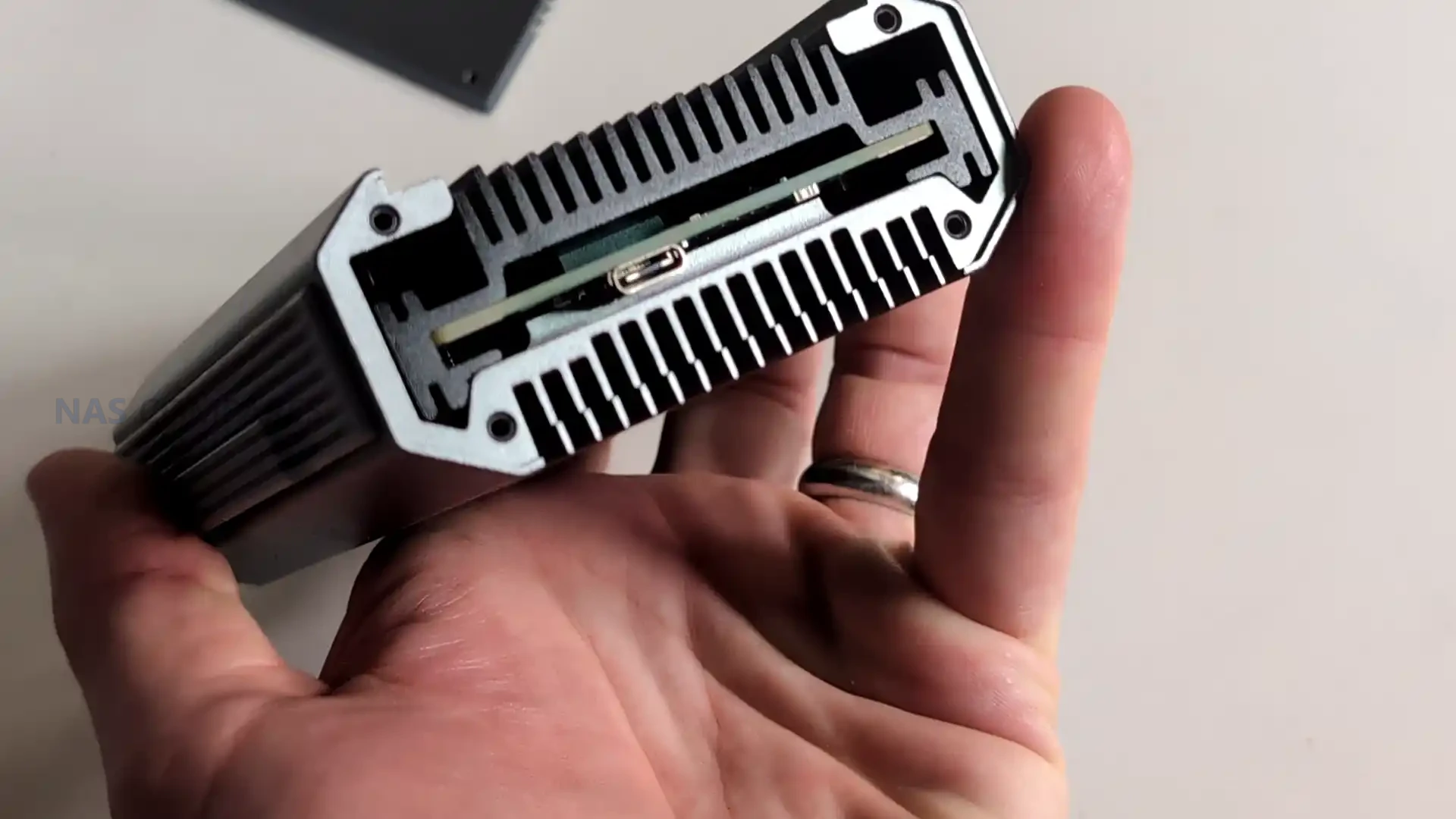
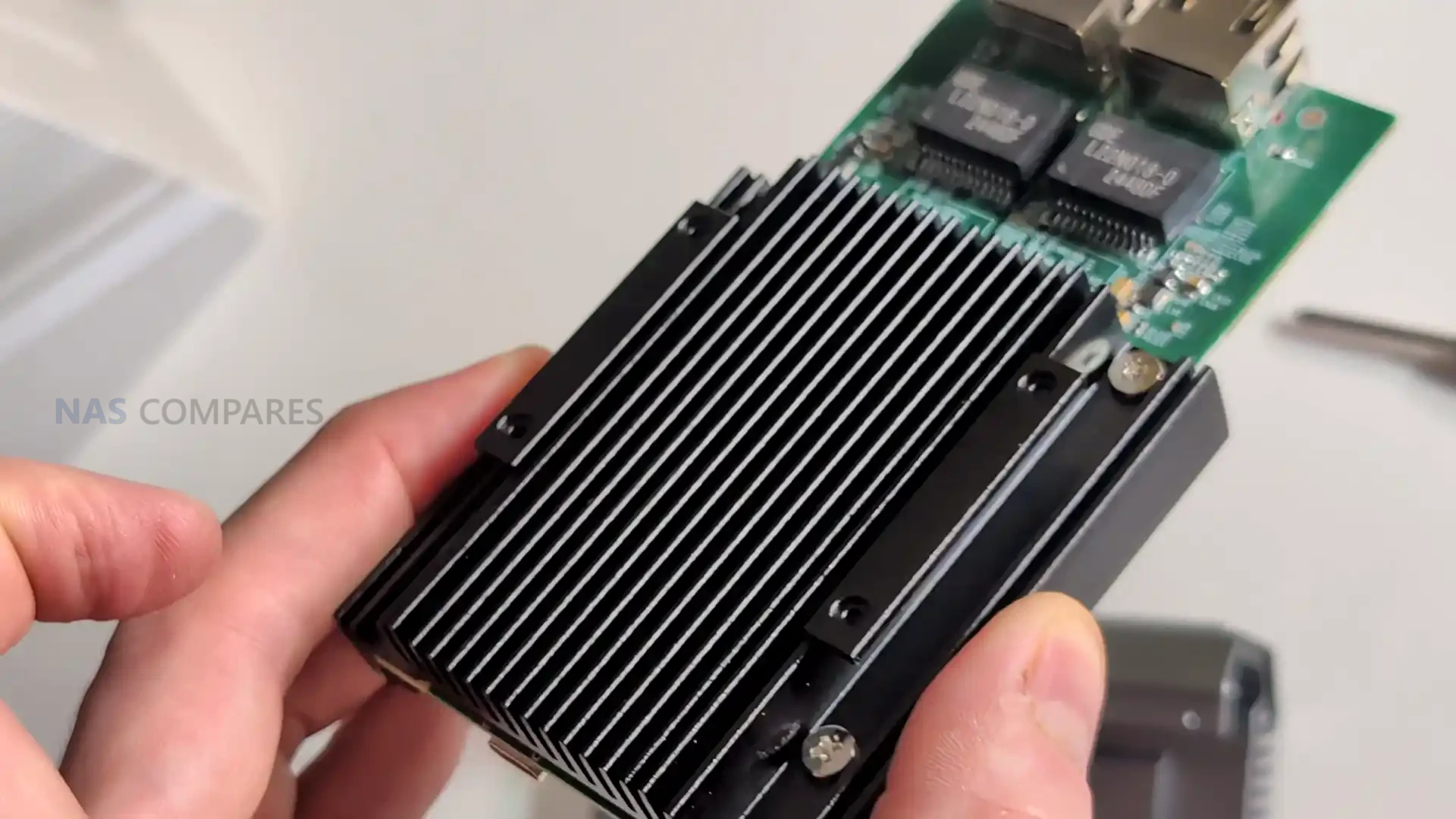
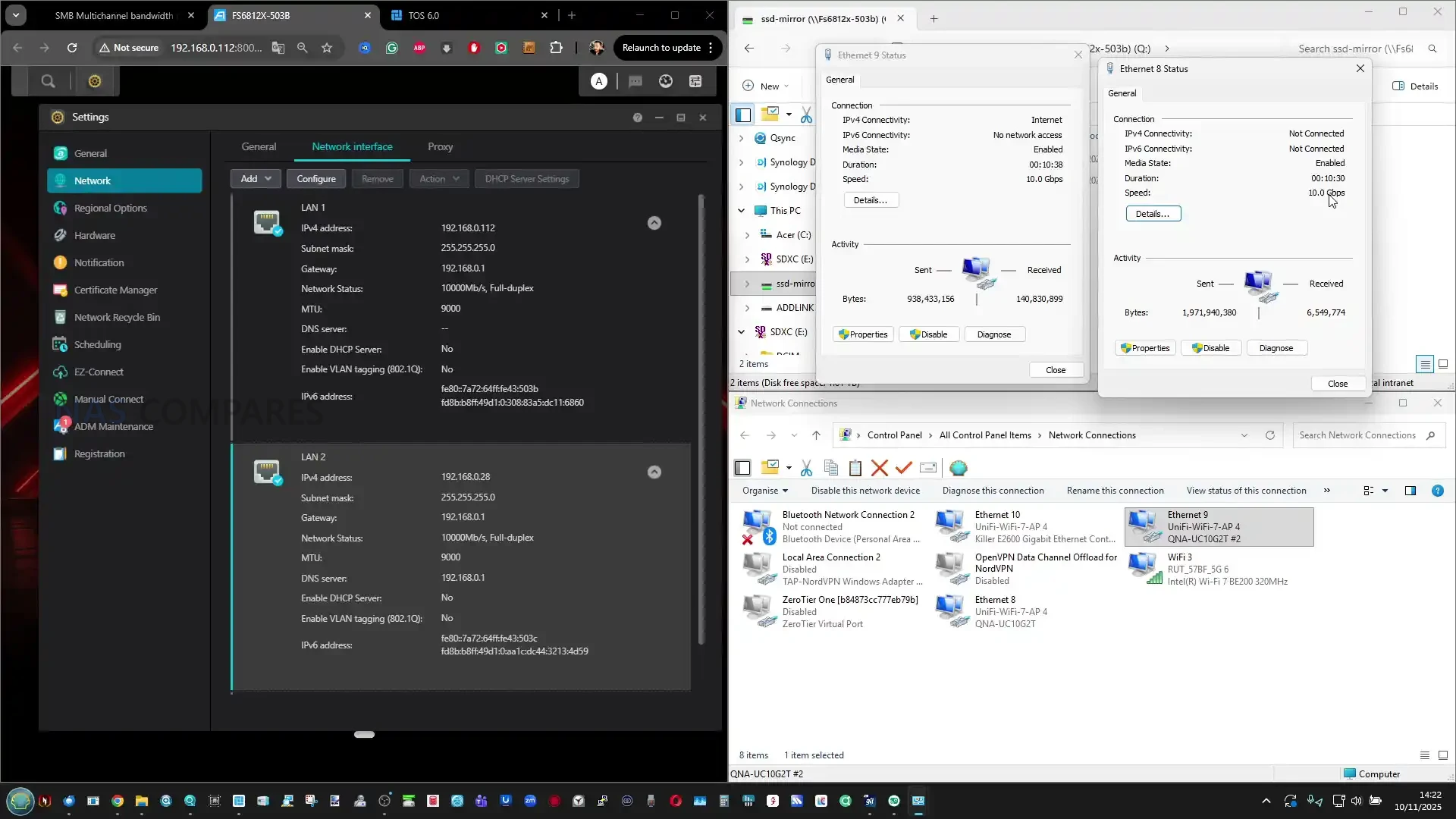
☕ WE LOVE COFFEE ☕

 
❌